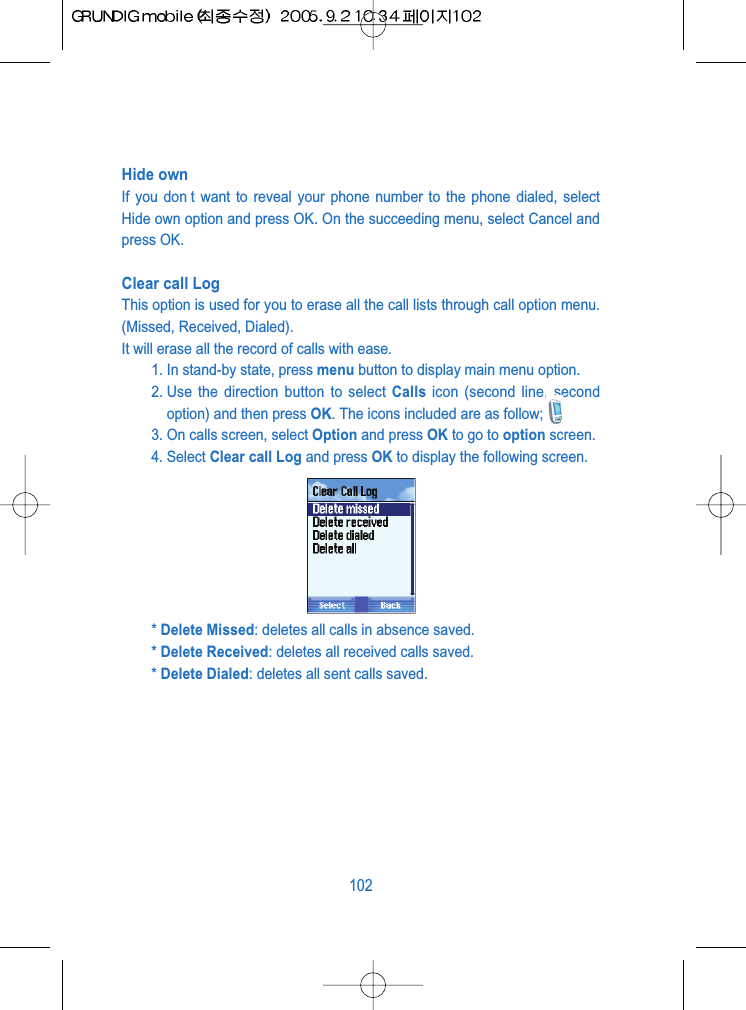
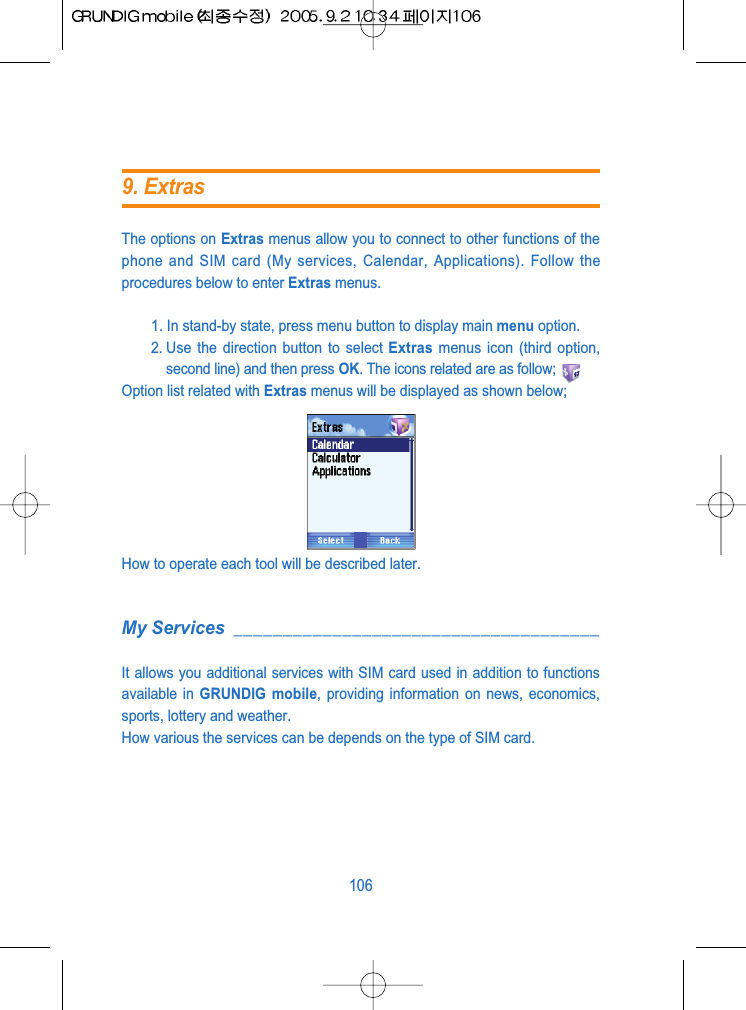
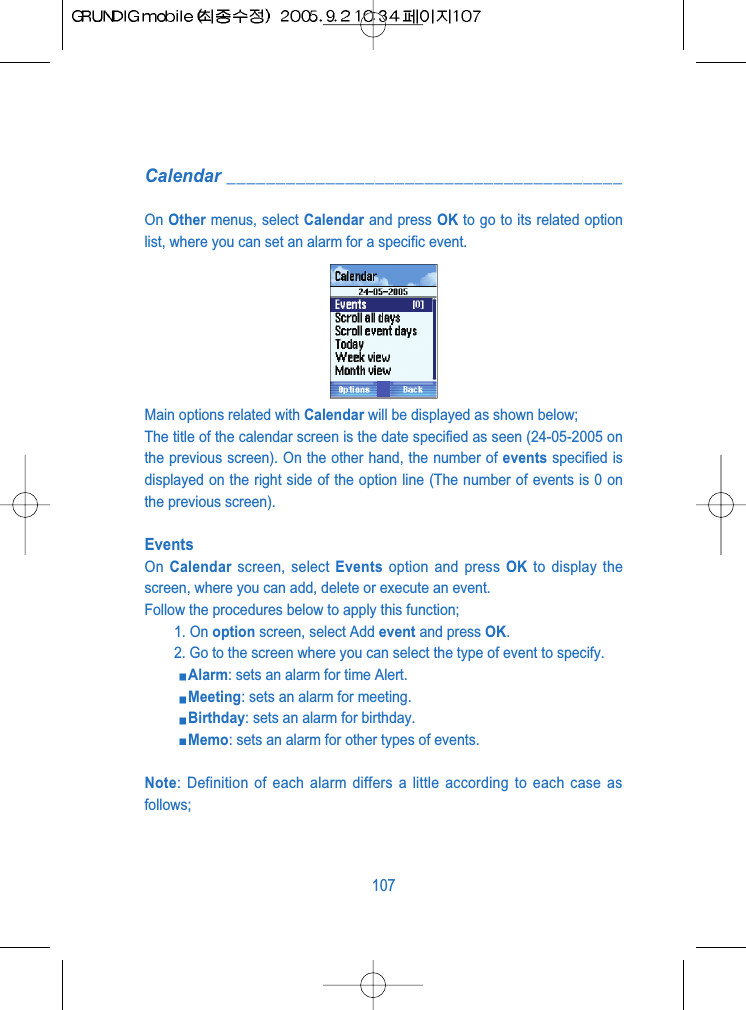
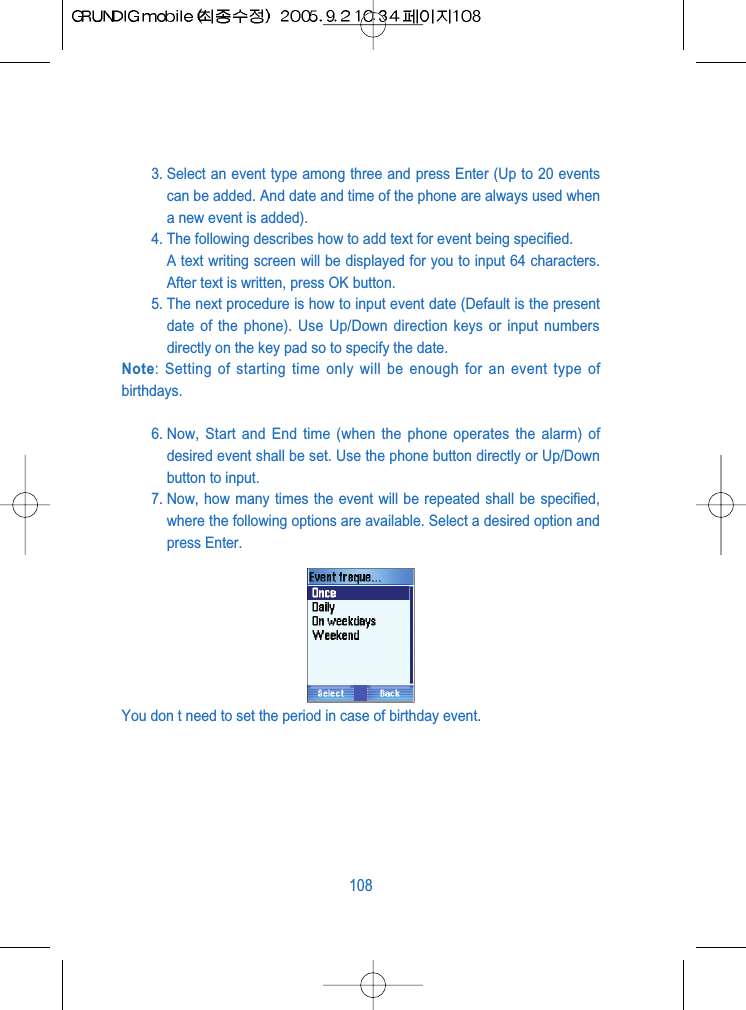
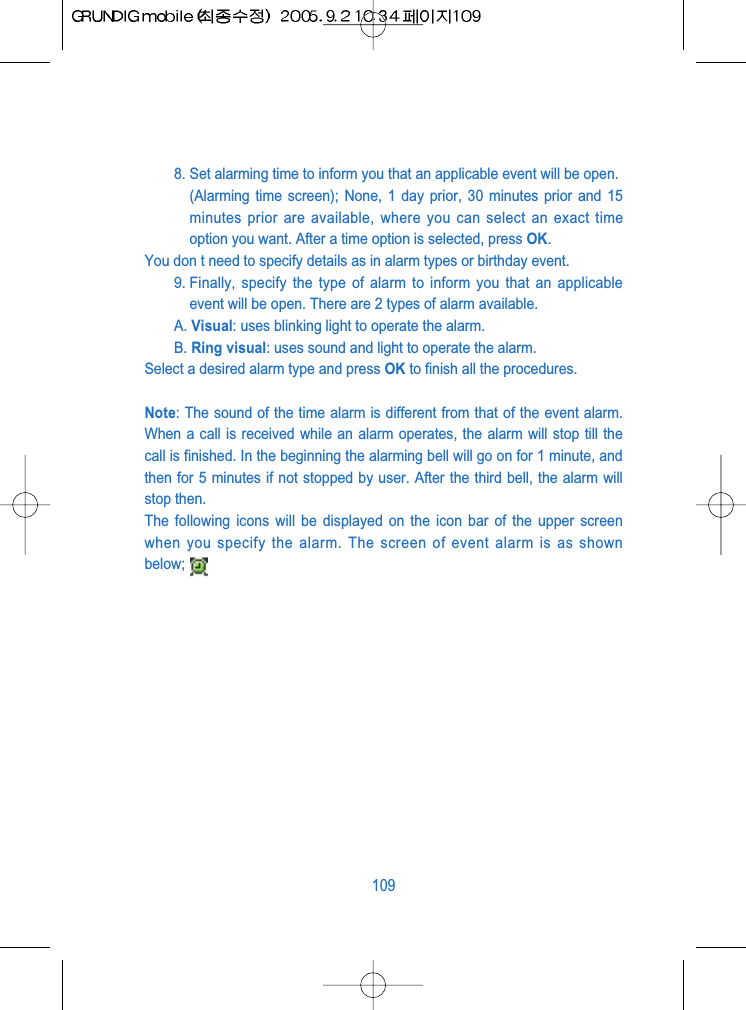
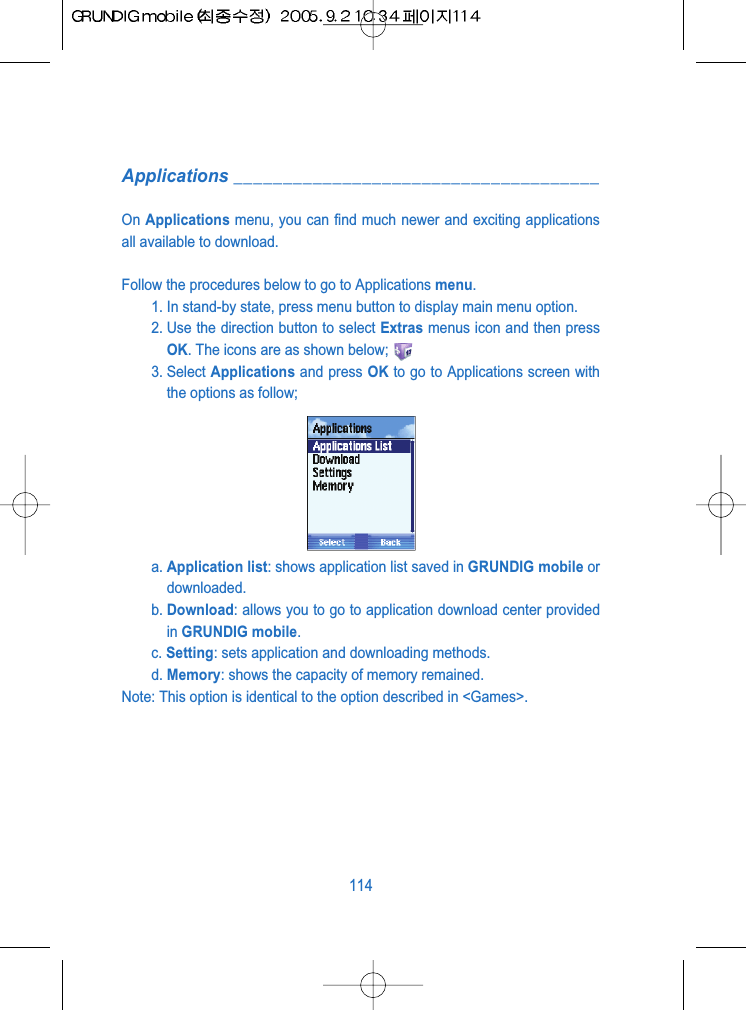
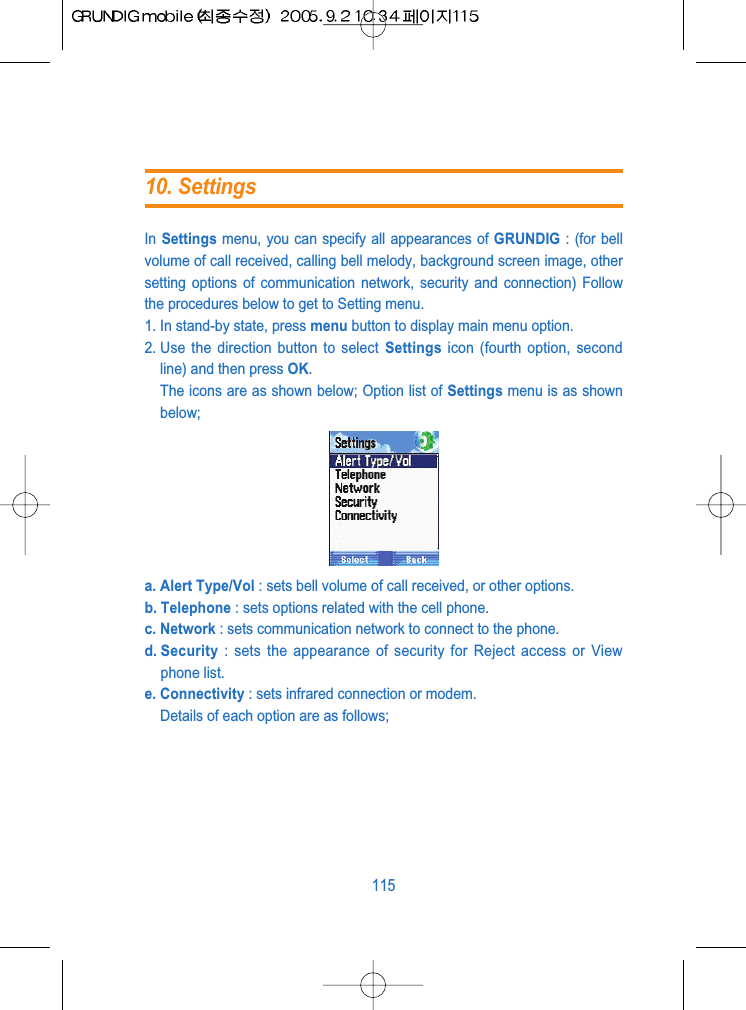
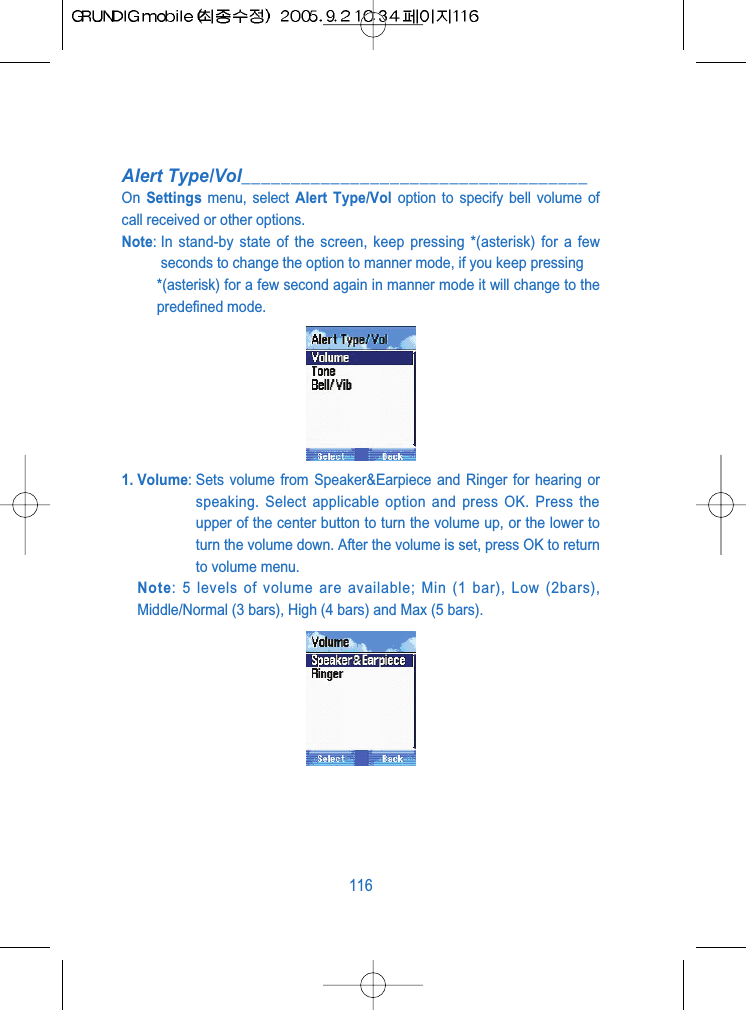
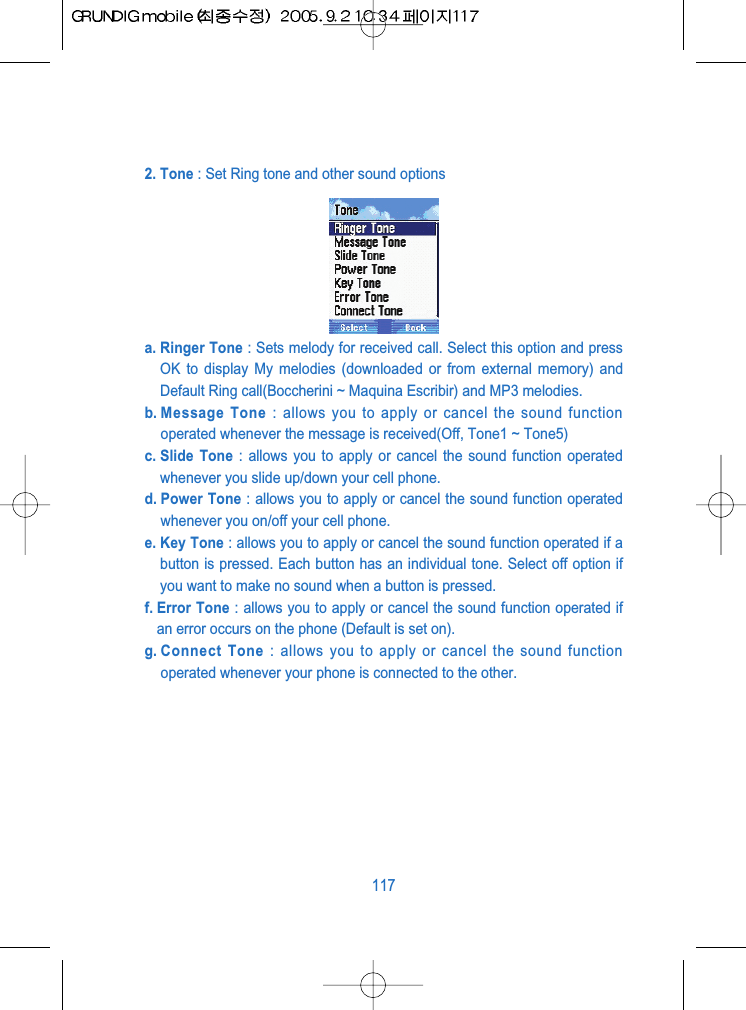
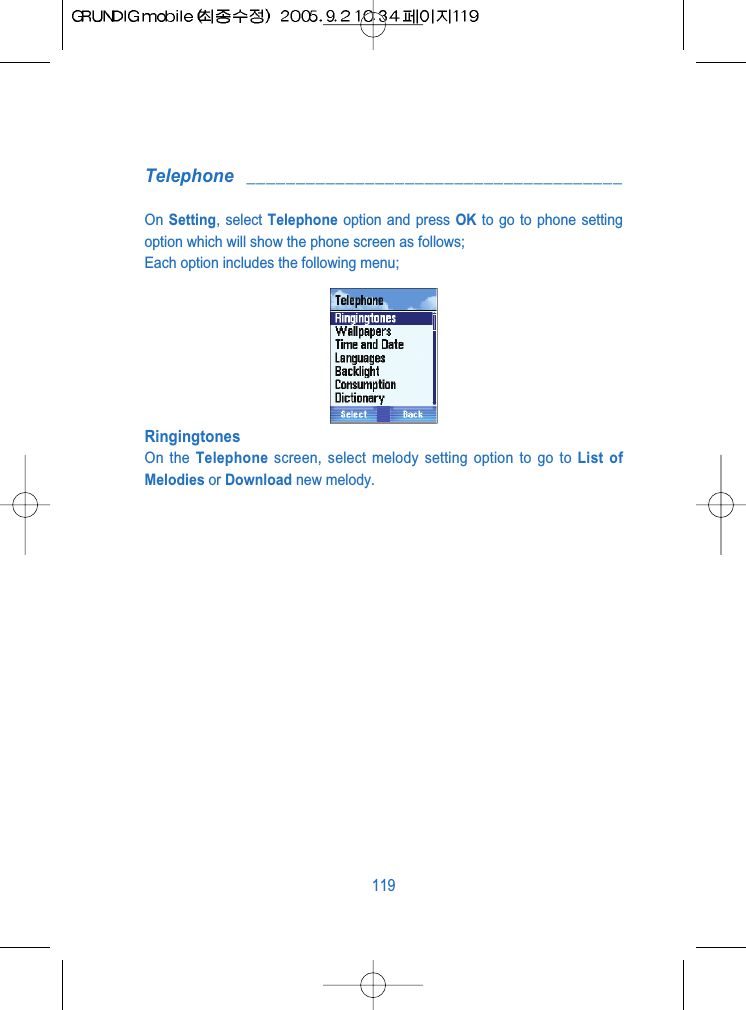
Vitelcom Mobile Technology M342 TRI-BAND GSM 850/1800/1900 MHz MOBILE PHONE User Manual GRUNDIG mobile

Vitelcom Mobile Technology, S.A. TRI-BAND GSM 850/1800/1900 MHz MOBILE PHONE GRUNDIG mobile

Users Manual

Safety on the road.________________________________Please remember that using a mobile phone during driving is prohibited.Follow the rules as applicable in each country.Stop the car in a safe place if you need to answer or use the phone.Please always remember the following before using the phone inemergencies.Focus on driving only.Remember the most considerable thing is nothing but your safety.If you want a Hands-Free device on vehicles, let it installed by an authorizedengineer.Safety in hospital _________________________________The mobile phone since designed to transmit electric waves can disturbfunctions of electric or medical appliances.Remember to turn the phone off always in hospital.Safety in flight ___________________________________Remember the phone if used in the airplane can disturb functions of electricwave equipment of the airplane.Therefore, the use of the phone is illegal in the airplane.Remember to turn the phone off always during flight.Safety in places where explosion is predictable________In such places as gas stations or chemical factories where explosion ispredictable, the use of any electric wave equipment is illegal and prohibited.Turn off the phone and avoid the use near any gas station.10
Infrared equipment and safety ______________________This phone includes infrared transmission equipment.Do not let infrared rays come in contact with eyes of others nor use togetherwith other infrared equipment.Electrical equipment ______________________________Most electric appliances are secured and protected against the effect of thephone radio frequency.Nevertheless, there are some products that are not protected against.A person who works in a manufacturing company of those products, wearingheart pulsimeter is desired to keep at least 15cm away from the phone toavoid the electric wave.If applicable problems still occur as before to the person with heartpulsimeter, then the phone shall be turned off.The phone can disturb functions of some kind of microphones.In this case, please contact the manufacturing factory of such microphonesfor further information.Since the radio frequency signal generated from this phone may have aninfluence on electric equipment of a car (air bag, brake, and so on), pleasebe well informed thereof via its maker.11
Battery and parts _________________________________This phone uses a rechargeable battery of Lion Technology.The battery if completely recharged is usable to call for a duration of 230minutes and available for standing-by for a duration of 180 minutes.Do not use any charger or battery if damaged or worn out.Do not touch any circuit of the battery. It will cause damage thereon.If the battery is kept in hot temperature, its function and duration may bedeteriorated. Keep temperature always as similar as possible.The phone if kept in too high or too low temperature may not operate fromtime to time even if the battery completely recharged.Time required to recharge the battery may be different according to severalfactors such as capacity left, type of battery and charger, and so on. For thebetter performance of recharge, keep suitable temperature.The battery although completely recharged can be discharged of itself as thetime elapses.Unplug the switch of the charger if not used.For effective operation of the phone, please stand the phone alwayslengthwise. Do not throw the battery in a ditch or a fire.The battery shall be recycled according to its related laws.Use only the battery, charger and parts attached to the phone just asprovided from the factory.Parts shall be compatible to be used.If not, its warranty will be invalid.If some parts need replacement, contact the agency you joined to order.Fill up the battery to the maximum prior to its first operation.12
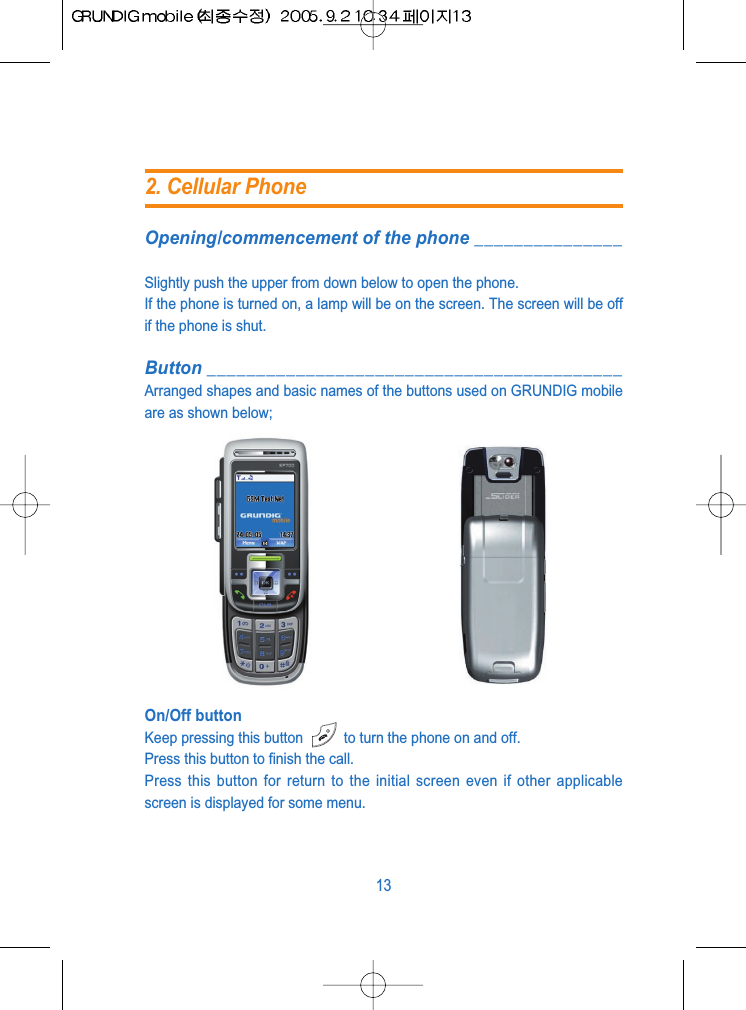
Opening/commencement of the phone _______________Slightly push the upper from down below to open the phone.If the phone is turned on, a lamp will be on the screen. The screen will be offif the phone is shut. Button __________________________________________Arranged shapes and basic names of the buttons used on GRUNDIG mobileare as shown below;On/Off buttonKeep pressing this button  to turn the phone on and off.Press this button to finish the call.Press this button for return to the initial screen even if other applicablescreen is displayed for some menu.132. Cellular Phone
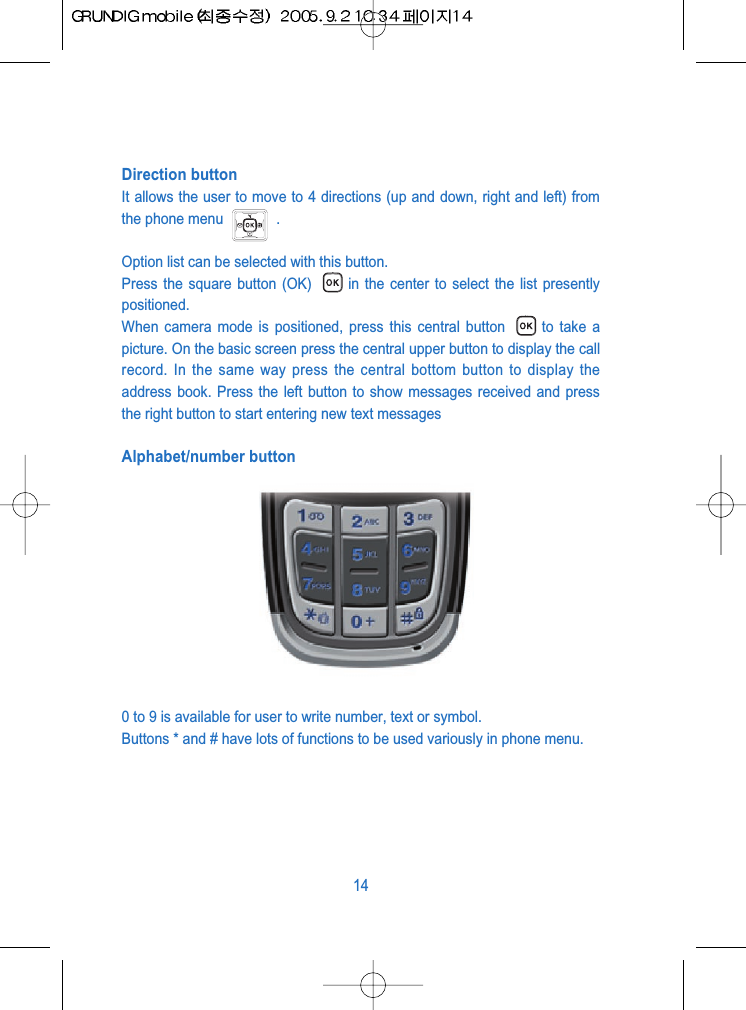
Direction buttonIt allows the user to move to 4 directions (up and down, right and left) fromthe phone menu  .Option list can be selected with this button.Press the square button (OK)  in the center to select the list presentlypositioned.When camera mode is positioned, press this central button  to take apicture. On the basic screen press the central upper button to display the callrecord. In the same way press the central bottom button to display theaddress book. Press the left button to show messages received and pressthe right button to start entering new text messagesAlphabet/number button0 to 9 is available for user to write number, text or symbol.Buttons * and # have lots of functions to be used variously in phone menu.14
Select buttonSelect button of Left Right executes the option right above.Send button After pressing desired phone number, press the send button to startthe call to the number. If the line is not busy, press this buttonto show the phone numbers called before.LED displayDown below the direction button blue LED blinks every 2 seconds to let youknow the phone is turned on.If GRUNDIG mobile is recharged with the phone off, this LED will be turnedon the same.Clear buttonPress the clear button (CLR)  to delete the last number while enteringnumbers, to delete the last letter while entering names, or to return to theprevious step while looking at the phone menuCamera buttonUse this button located at the upper left side of the phone to take a picture orto execute camera mode where images can be enlarged or brightness canbe increased or decreased. Sound buttonThis button tunes the volume with up&downkey, when a call is incomming.15
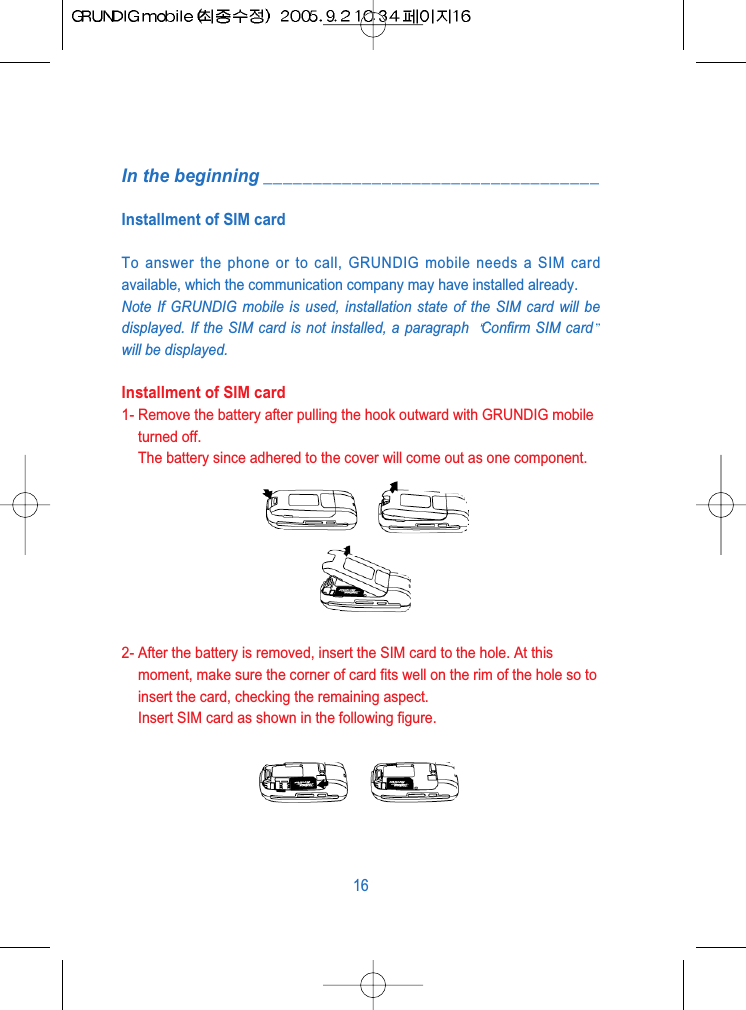
In the beginning __________________________________Installment of SIM cardTo answer the phone or to call, GRUNDIG mobile needs a SIM cardavailable, which the communication company may have installed already.Note If GRUNDIG mobile is used, installation state of the SIM card will bedisplayed. If the SIM card is not installed, a paragraph  Confirm SIM cardwill be displayed.Installment of SIM card1- Remove the battery after pulling the hook outward with GRUNDIG mobileturned off.The battery since adhered to the cover will come out as one component.2- After the battery is removed, insert the SIM card to the hole. At thismoment, make sure the corner of card fits well on the rim of the hole so toinsert the card, checking the remaining aspect.Insert SIM card as shown in the following figure.16
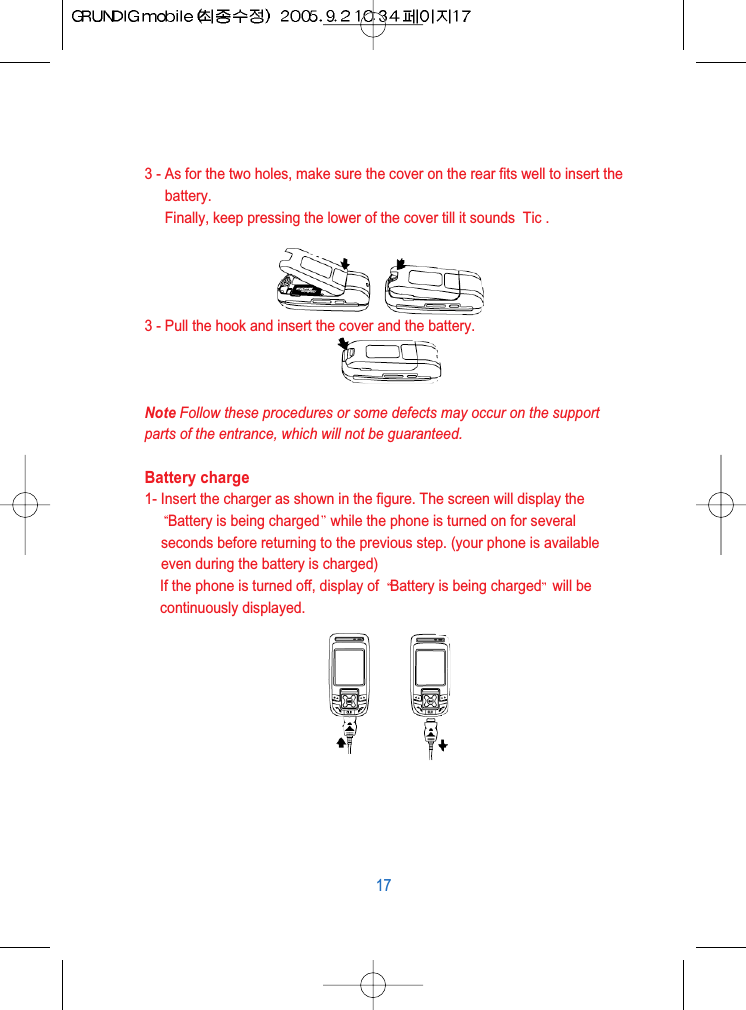
3 - As for the two holes, make sure the cover on the rear fits well to insert thebattery.Finally, keep pressing the lower of the cover till it sounds  Tic .3 - Pull the hook and insert the cover and the battery.Note Follow these procedures or some defects may occur on the supportparts of the entrance, which will not be guaranteed.Battery charge1- Insert the charger as shown in the figure. The screen will display theBattery is being charged while the phone is turned on for severalseconds before returning to the previous step. (your phone is availableeven during the battery is charged)If the phone is turned off, display of  Battery is being charged will becontinuously displayed.17
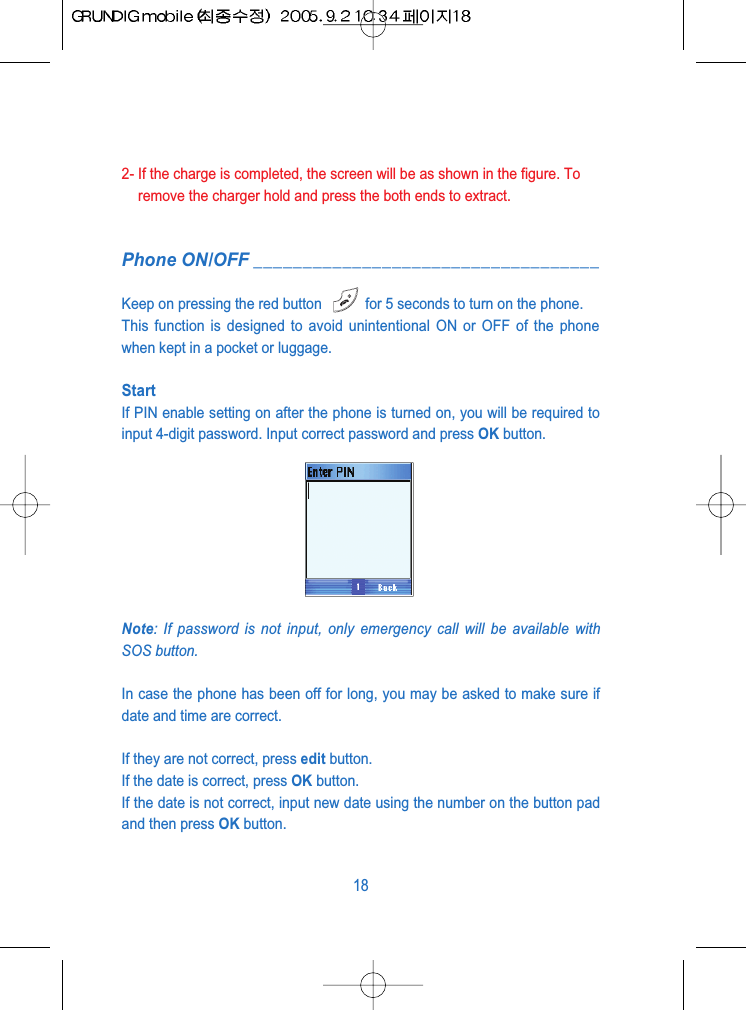
2- If the charge is completed, the screen will be as shown in the figure. Toremove the charger hold and press the both ends to extract.Phone ON/OFF ___________________________________Keep on pressing the red button  for 5 seconds to turn on the phone.This function is designed to avoid unintentional ON or OFF of the phonewhen kept in a pocket or luggage.StartIf PIN enable setting on after the phone is turned on, you will be required toinput 4-digit password. Input correct password and press OK button.Note: If password is not input, only emergency call will be available withSOS button.In case the phone has been off for long, you may be asked to make sure ifdate and time are correct. If they are not correct, press edit button.If the date is correct, press OK button. If the date is not correct, input new date using the number on the button padand then press OK button.18
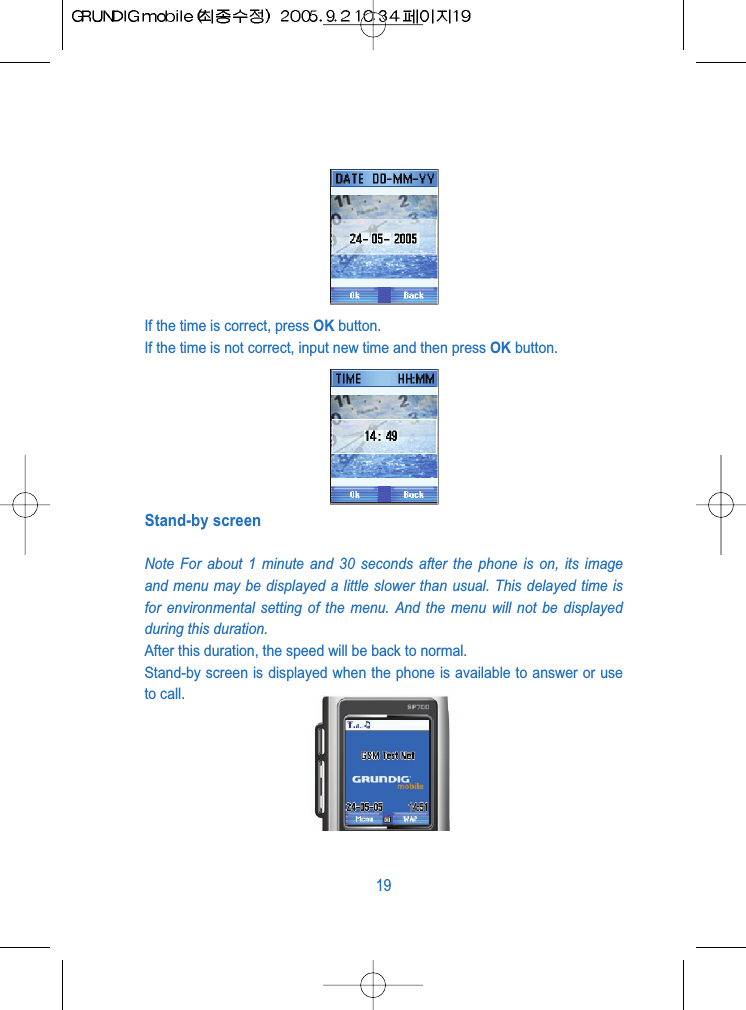
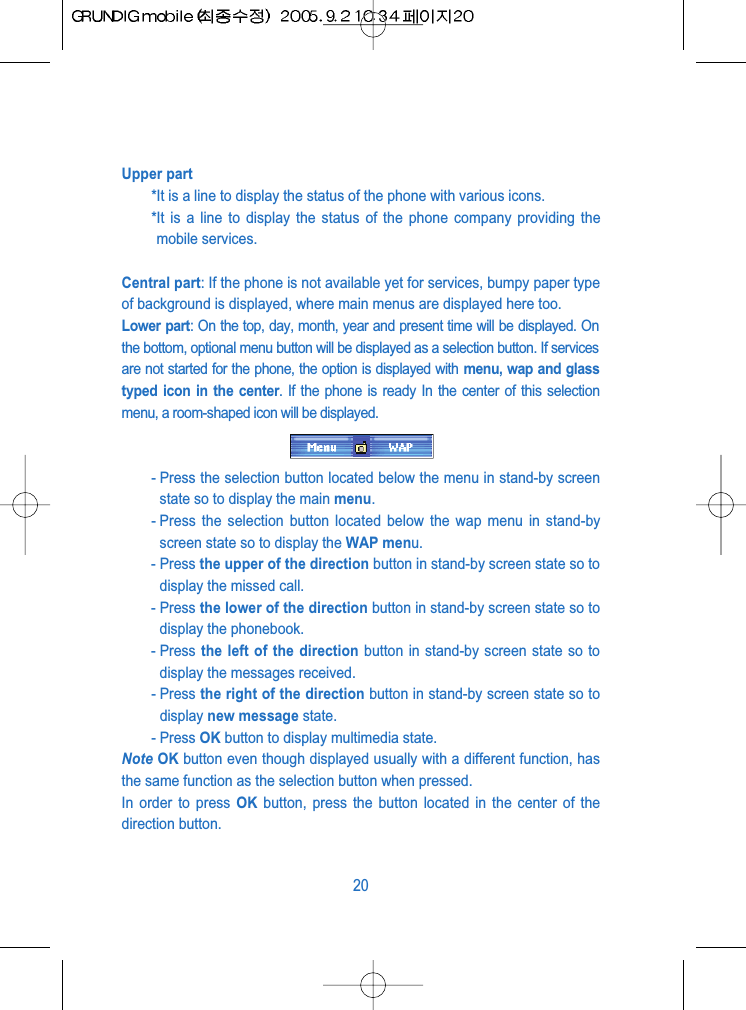
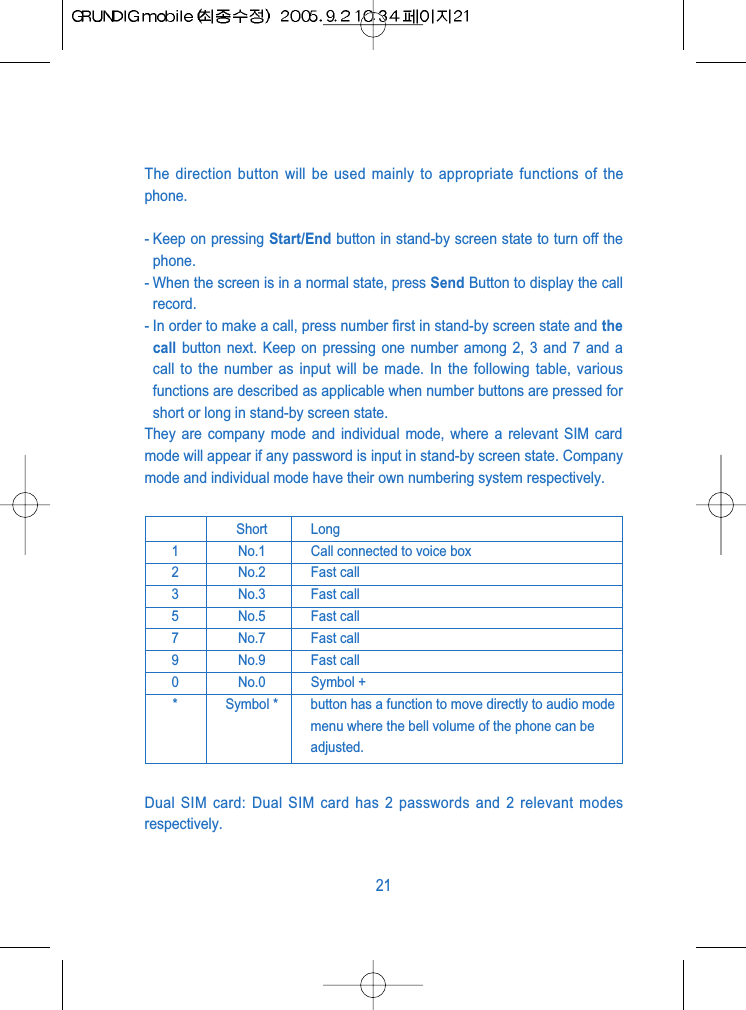
If the time is correct, press OK button.If the time is not correct, input new time and then press OK button.Stand-by screenNote For about 1 minute and 30 seconds after the phone is on, its imageand menu may be displayed a little slower than usual. This delayed time isfor environmental setting of the menu. And the menu will not be displayedduring this duration.After this duration, the speed will be back to normal.Stand-by screen is displayed when the phone is available to answer or useto call.19
Upper part*It is a line to display the status of the phone with various icons.*It is a line to display the status of the phone company providing themobile services.Central part: If the phone is not available yet for services, bumpy paper typeof background is displayed, where main menus are displayed here too.Lower part: On the top, day, month, year and present time will be displayed. Onthe bottom, optional menu button will be displayed as a selection button. If servicesare not started for the phone, the option is displayed with menu, wap and glasstyped icon in the center. If the phone is ready In the center of this selectionmenu, a room-shaped icon will be displayed.- Press the selection button located below the menu in stand-by screenstate so to display the main menu.- Press the selection button located below the wap menu in stand-byscreen state so to display the WAP menu.- Press the upper of the direction button in stand-by screen state so todisplay the missed call.- Press the lower of the direction button in stand-by screen state so todisplay the phonebook.- Press the left of the direction button in stand-by screen state so todisplay the messages received.- Press the right of the direction button in stand-by screen state so todisplay new message state.- Press OK button to display multimedia state.Note OK button even though displayed usually with a different function, hasthe same function as the selection button when pressed.In order to press OK button, press the button located in the center of thedirection button.20
The direction button will be used mainly to appropriate functions of thephone.- Keep on pressing Start/End button in stand-by screen state to turn off thephone.- When the screen is in a normal state, press Send Button to display the callrecord.- In order to make a call, press number first in stand-by screen state and thecall button next. Keep on pressing one number among 2, 3 and 7 and acall to the number as input will be made. In the following table, variousfunctions are described as applicable when number buttons are pressed forshort or long in stand-by screen state.They are company mode and individual mode, where a relevant SIM cardmode will appear if any password is input in stand-by screen state. Companymode and individual mode have their own numbering system respectively.Dual SIM card: Dual SIM card has 2 passwords and 2 relevant modesrespectively.21Short Long1 No.1 Call connected to voice box2 No.2 Fast call3 No.3 Fast call5 No.5 Fast call7 No.7 Fast call9 No.9 Fast call0 No.0 Symbol +* Symbol * button has a function to move directly to audio modemenu where the bell volume of the phone can beadjusted.
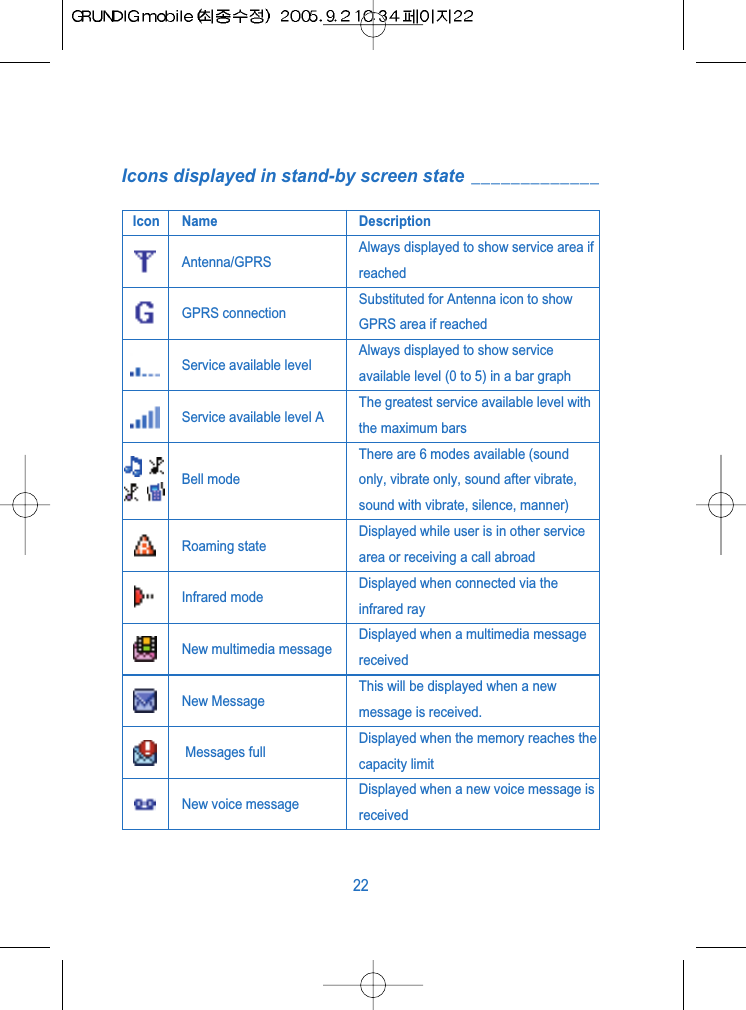
Icons displayed in stand-by screen state _____________22Icon Name DescriptionAntenna/GPRSAlways displayed to show service area ifreachedGPRS connectionSubstituted for Antenna icon to showGPRS area if reached Service available levelAlways displayed to show serviceavailable level (0 to 5) in a bar graph Service available level AThe greatest service available level withthe maximum barsBell modeThere are 6 modes available (soundonly, vibrate only, sound after vibrate,sound with vibrate, silence, manner)Roaming stateDisplayed while user is in other servicearea or receiving a call abroadInfrared modeDisplayed when connected via theinfrared rayNew multimedia messageDisplayed when a multimedia messagereceivedNew MessageThis will be displayed when a newmessage is received.Messages fullDisplayed when the memory reaches thecapacity limitNew voice messageDisplayed when a new voice message isreceived
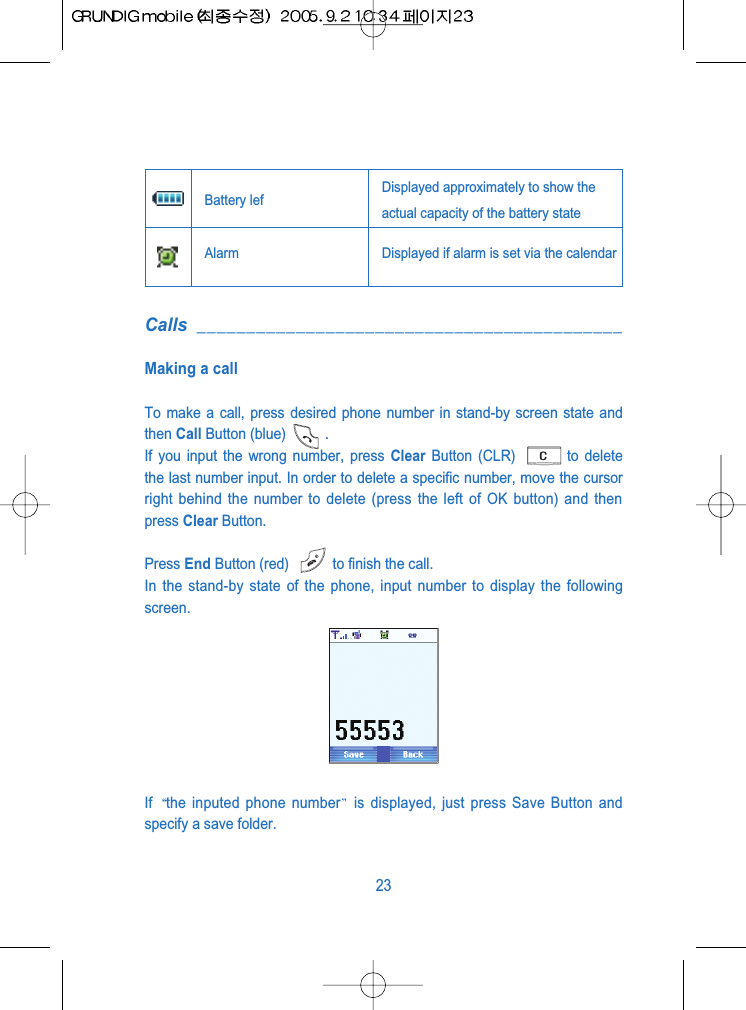
Calls ___________________________________________Making a callTo make a call, press desired phone number in stand-by screen state andthen Call Button (blue) .If you input the wrong number, press Clear Button (CLR)  to deletethe last number input. In order to delete a specific number, move the cursorright behind the number to delete (press the left of OK button) and thenpress Clear Button.Press End Button (red)  to finish the call.In the stand-by state of the phone, input number to display the followingscreen.If  the inputed phone number is displayed, just press Save Button andspecify a save folder.23Battery lef Displayed approximately to show theactual capacity of the battery state Alarm Displayed if alarm is set via the calendar
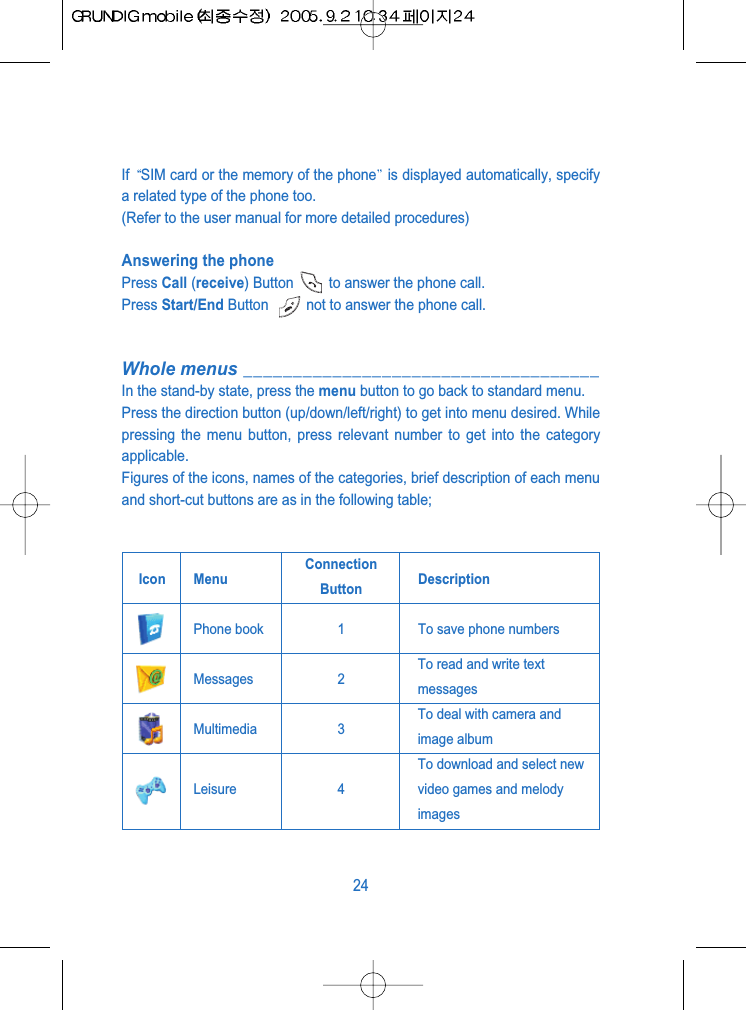
If  SIM card or the memory of the phone is displayed automatically, specifya related type of the phone too.(Refer to the user manual for more detailed procedures)Answering the phonePress Call (receive) Button         to answer the phone call.Press Start/End Button  not to answer the phone call.Whole menus ____________________________________In the stand-by state, press the menu button to go back to standard menu.Press the direction button (up/down/left/right) to get into menu desired. Whilepressing the menu button, press relevant number to get into the categoryapplicable.Figures of the icons, names of the categories, brief description of each menuand short-cut buttons are as in the following table; 24Icon MenuConnection DescriptionButtonPhone book 1 To save phone numbersMessages 2To read and write textmessagesMultimedia 3To deal with camera andimage albumLeisure 4To download and select newvideo games and melodyimages
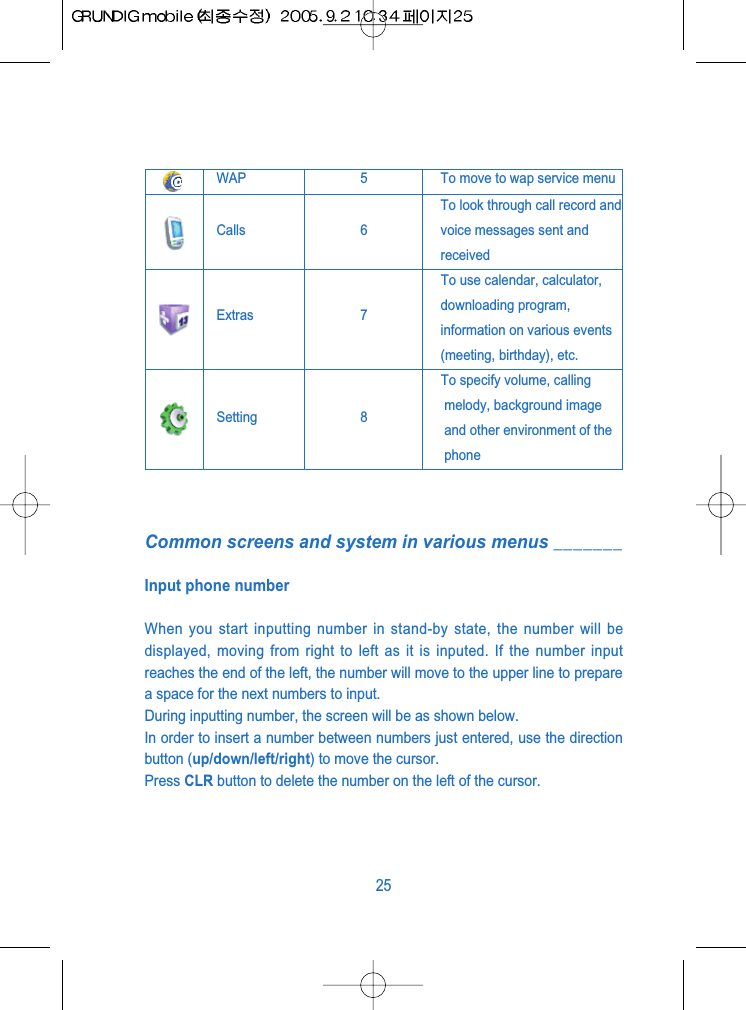
Common screens and system in various menus _______Input phone numberWhen you start inputting number in stand-by state, the number will bedisplayed, moving from right to left as it is inputed. If the number inputreaches the end of the left, the number will move to the upper line to preparea space for the next numbers to input.During inputting number, the screen will be as shown below.In order to insert a number between numbers just entered, use the directionbutton (up/down/left/right) to move the cursor.Press CLR button to delete the number on the left of the cursor.25WAP 5 To move to wap service menuCalls 6To look through call record andvoice messages sent andreceivedTo use calendar, calculator, Extras 7 downloading program,information on various events(meeting, birthday), etc.To specify volume, callingSetting 8 melody, background imageand other environment of thephone
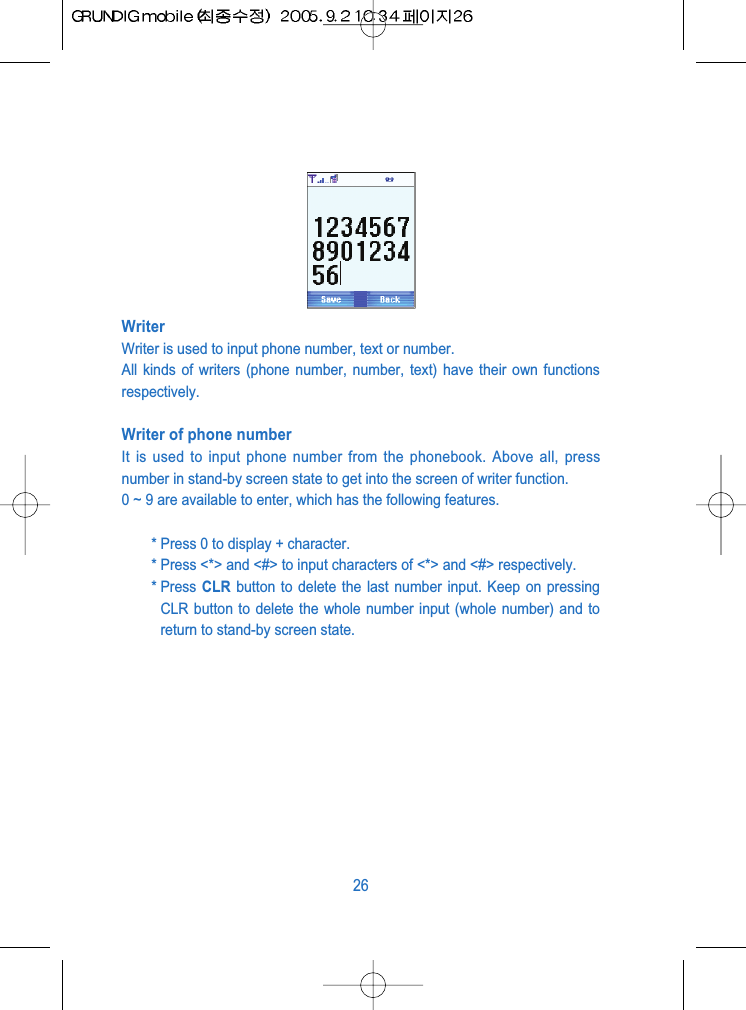
WriterWriter is used to input phone number, text or number.All kinds of writers (phone number, number, text) have their own functionsrespectively.Writer of phone numberIt is used to input phone number from the phonebook. Above all, pressnumber in stand-by screen state to get into the screen of writer function.0 ~ 9 are available to enter, which has the following features.* Press 0 to display + character.* Press <*> and <#> to input characters of <*> and <#> respectively.* Press  CLR button to delete the last number input. Keep on pressingCLR button to delete the whole number input (whole number) and toreturn to stand-by screen state.26
* Press  OK/Save/Enter button (menu displayed on the left of thescreen) to go to next step. Press Previous Button to go back to theprevious step of the screen.* Press Navigator Button (up/down/left/right) to move the cursor to thedirection as designated.Writer of numberIt is used to input password 1, password 2 and call-restricted password.Press the following buttons to make use of its functions specified.* Use the buttons 0 to 9 to press such number 0 to 9 as applicable.* <*> button has no function.* # button is used to display the decimal point, excepting in the screenof password 1 and 2.* Press  CLR button to delete the last number input. Keep on pressingCLR button to delete the whole number input.* Press OK button to go to next screen. Press Previous Button (Atras)to go back to the previous screen.* Press the direction button left or right to make the cursor move to thedirection as indicated.Writer of textIt is used to input text of names or messages. There are 4 input methods fortext writer.* Capital letter input: displays all the input text in capital letters. Thiscan be used together with Multi Input and Smart Input which will belater described.* Small letter input: displays all the input text in small letters. This canbe used together with Multi Input and Smart Input.* Capital & Small letter input: In case with Multi Input accompanied,this will change the text if once input by user, to small letters27
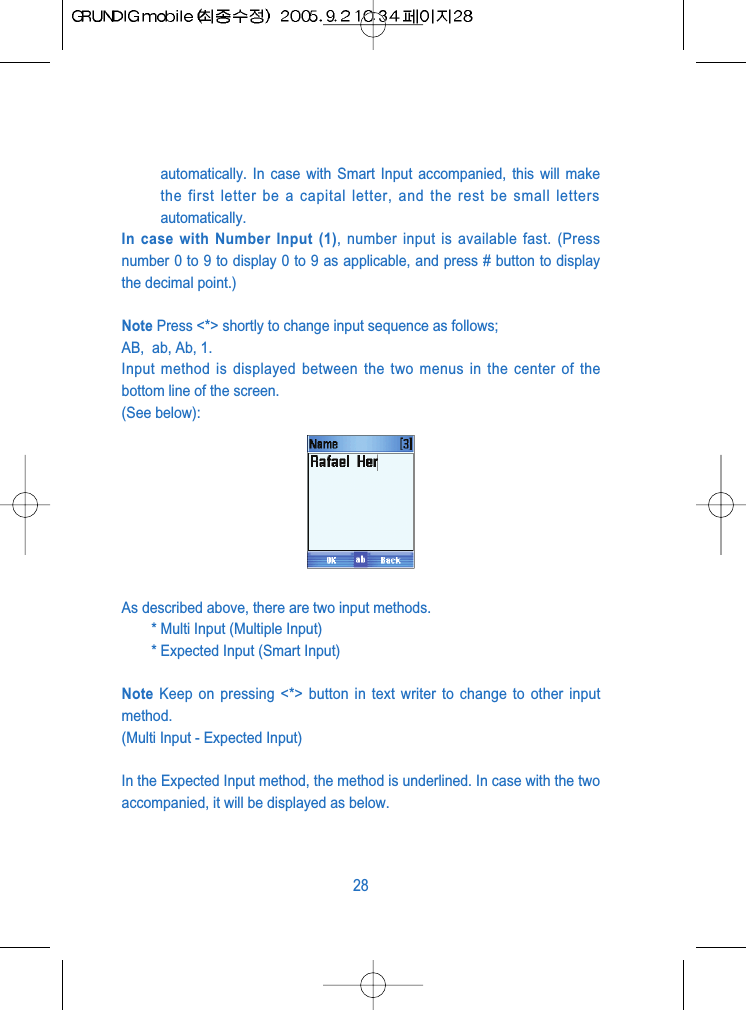
automatically. In case with Smart Input accompanied, this will makethe first letter be a capital letter, and the rest be small lettersautomatically.In case with Number Input (1), number input is available fast. (Pressnumber 0 to 9 to display 0 to 9 as applicable, and press # button to displaythe decimal point.)Note Press <*> shortly to change input sequence as follows; AB,  ab, Ab, 1.Input method is displayed between the two menus in the center of thebottom line of the screen.(See below):As described above, there are two input methods.* Multi Input (Multiple Input)* Expected Input (Smart Input)Note Keep on pressing <*> button in text writer to change to other inputmethod.(Multi Input - Expected Input)In the Expected Input method, the method is underlined. In case with the twoaccompanied, it will be displayed as below.28
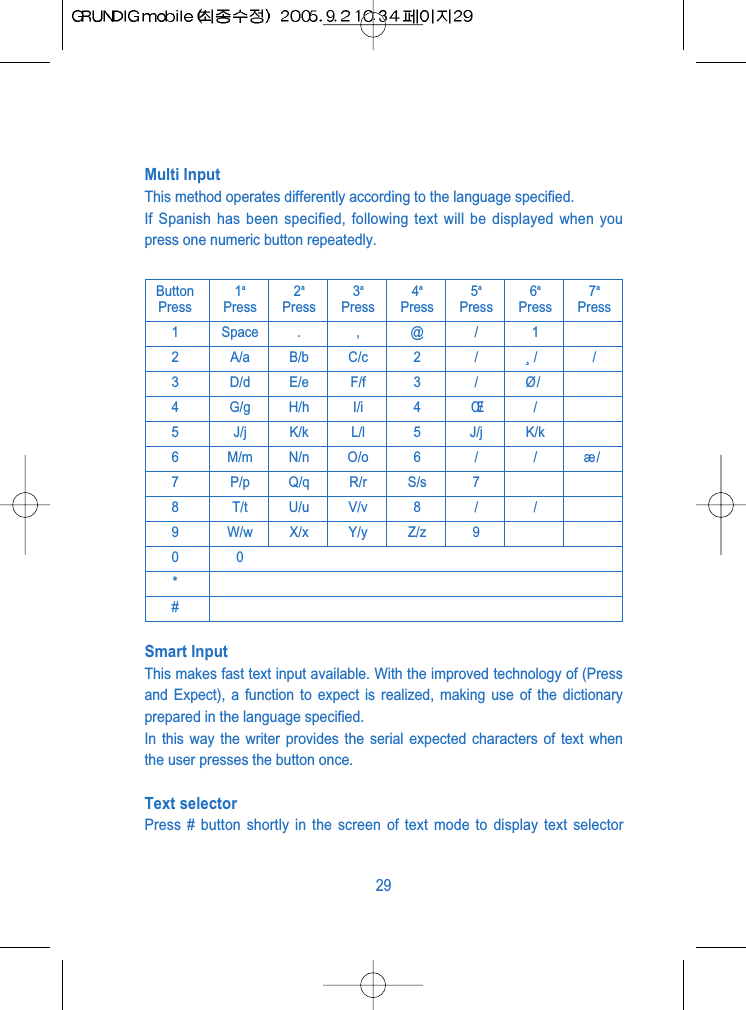
Multi InputThis method operates differently according to the language specified.If Spanish has been specified, following text will be displayed when youpress one numeric button repeatedly.Smart InputThis makes fast text input available. With the improved technology of (Pressand Expect), a function to expect is realized, making use of the dictionaryprepared in the language specified.In this way the writer provides the serial expected characters of text whenthe user presses the button once.Text selector Press # button shortly in the screen of text mode to display text selector29Button 1a2a3a4a5a6a7aPress Press Press Press Press Press Press Press1 Space . , @ / 12 A/a B/b C/c 2 / ¸ / /3 D/d E/e F/f 3 / Ø/4 G/g H/h I/i 4 Œ//5 J/j K/k L/l 5 J/j K/k6 M/m N/n O/o 6 / / æ/7 P/p Q/q R/r S/s 78 T/t U/u V/v 8 / /9 W/w X/x Y/y Z/z 900*#
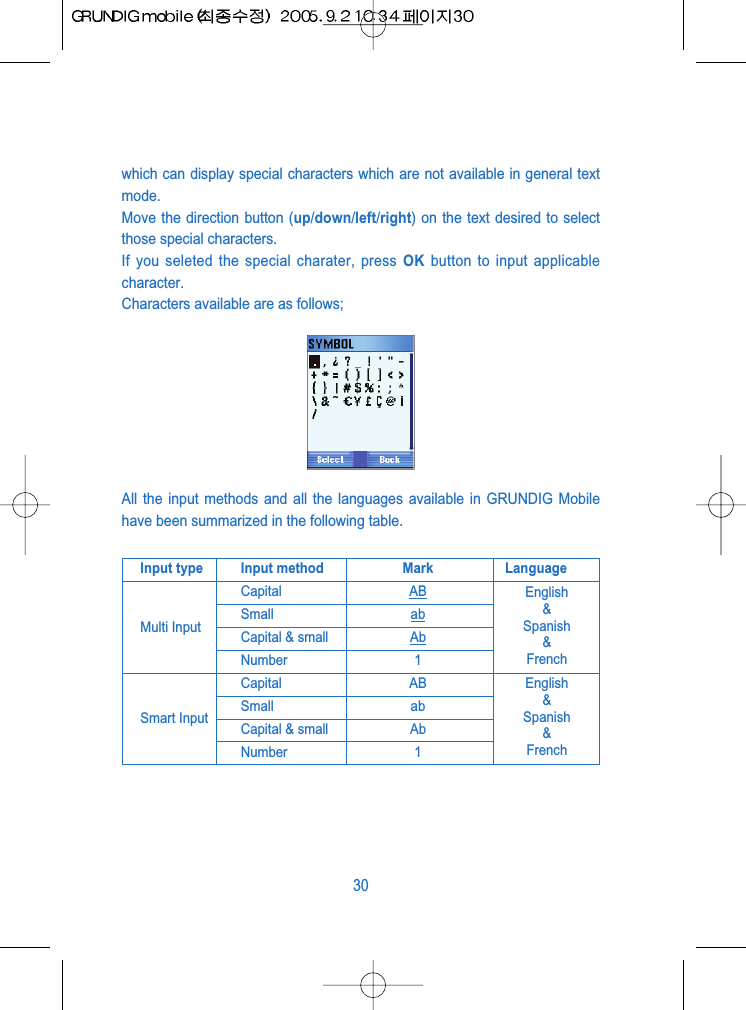
which can display special characters which are not available in general textmode.Move the direction button (up/down/left/right) on the text desired to selectthose special characters.If you seleted the special charater, press OK button to input applicablecharacter.Characters available are as follows;All the input methods and all the languages available in GRUNDIG Mobilehave been summarized in the following table.30Input type Input method Mark LanguageCapital ABMulti Input Small abCapital & small AbNumber 1Capital ABSmart Input Small abCapital & small AbNumber 1English&Spanish&FrenchEnglish&Spanish&French
In address book, phone number, name and other information are saved anddisplayed.There are three points of contact in address book.1. SIM: Information related with contact is saved in SIM memory only.2. Only the phone: Information is saved in phone memory only.3. Double (copy): Name and phone number of these contacts aresaved in SIM memory and phone memory.Besides, there are three address books.1. Mixed  Phonebook: Shows all contacts saved in SIM memory andphone memory.2. Terminal  Phonebook: Shows double-saved contacts in both sidesand information saved in phone memory only.3. SIM  Phonebook: Shows double-saved contacts in both sides andinformation saved in SIM memory only.A special icon represents each contact.In this way, duplicate contact uses visit card-shaped icon , and SIMcontact uses SIM card-shaped icon , and the nexticon is used for phone contact.The followings are several rules used in address book.* As specified, address book displays whole address book on thescreen to show all contacts.* In the address book, contact and contact group will be saved in thesame list  .Group will be represented by a special icon.* Information in the phone book is displayed in alphabetic order. Phonenumber correspondent to each name is marked on the right of the line313. Phonebook
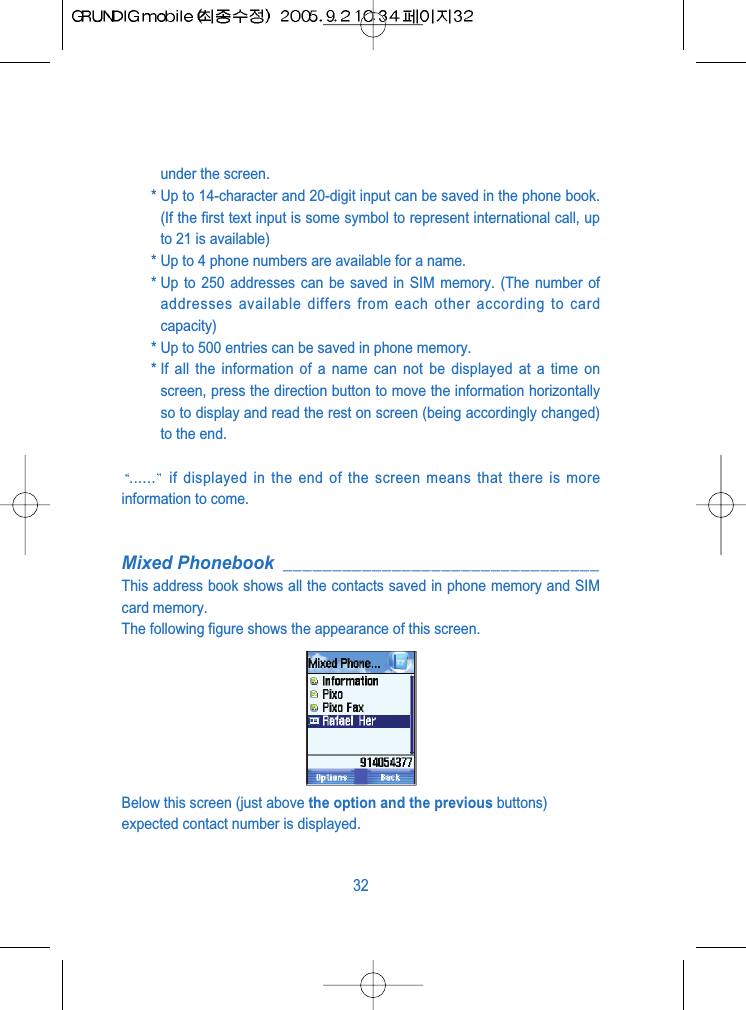
under the screen.* Up to 14-character and 20-digit input can be saved in the phone book.(If the first text input is some symbol to represent international call, upto 21 is available)* Up to 4 phone numbers are available for a name.* Up to 250 addresses can be saved in SIM memory. (The number ofaddresses available differs from each other according to cardcapacity)* Up to 500 entries can be saved in phone memory.* If all the information of a name can not be displayed at a time onscreen, press the direction button to move the information horizontallyso to display and read the rest on screen (being accordingly changed)to the end. ...... if displayed in the end of the screen means that there is moreinformation to come.Mixed Phonebook ________________________________This address book shows all the contacts saved in phone memory and SIMcard memory.The following figure shows the appearance of this screen.Below this screen (just above the option and the previous buttons)expected contact number is displayed.32
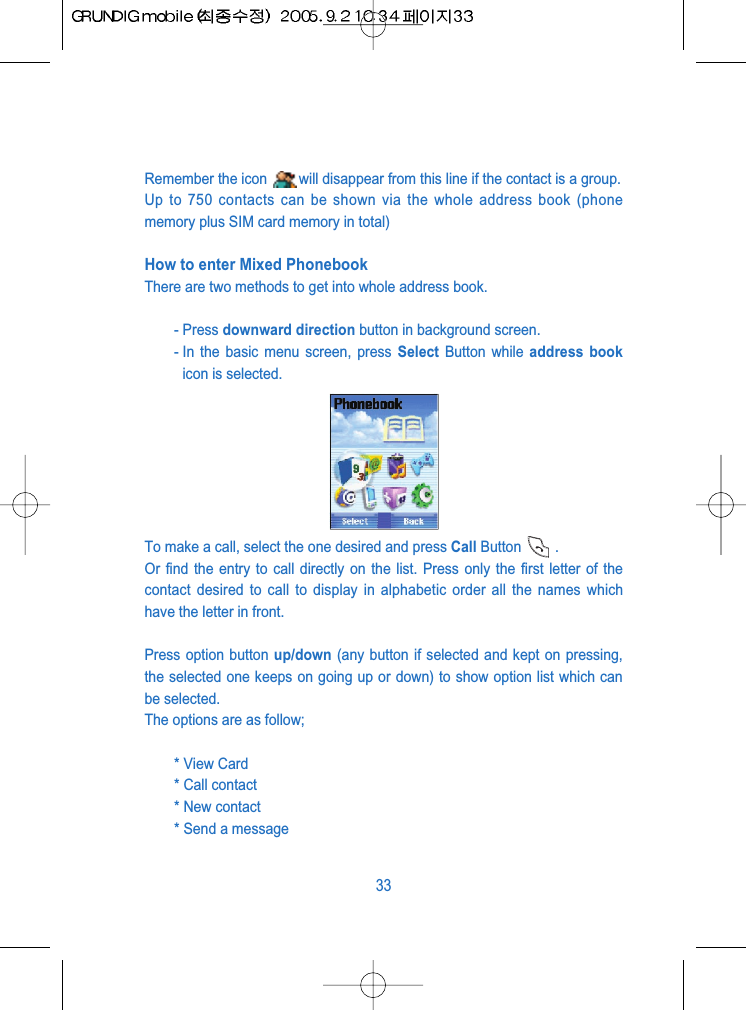
Remember the icon  will disappear from this line if the contact is a group.Up to 750 contacts can be shown via the whole address book (phonememory plus SIM card memory in total)How to enter Mixed PhonebookThere are two methods to get into whole address book.- Press downward direction button in background screen.- In the basic menu screen, press Select Button while address bookicon is selected.To make a call, select the one desired and press Call Button .Or find the entry to call directly on the list. Press only the first letter of thecontact desired to call to display in alphabetic order all the names whichhave the letter in front.Press option button up/down (any button if selected and kept on pressing,the selected one keeps on going up or down) to show option list which canbe selected. The options are as follow;* View Card * Call contact* New contact* Send a message33
* Delete contact* Delete All * Copy contact to phone / SIM* Change Phonebook* New group* Search* Receive card(s)* Own number* Memory statusAnd options for group are as bellow;* View group* Send message to group* New group* Rename group* Delete group * New contact* Receive card(s)* Change Phonebook* Memory status34
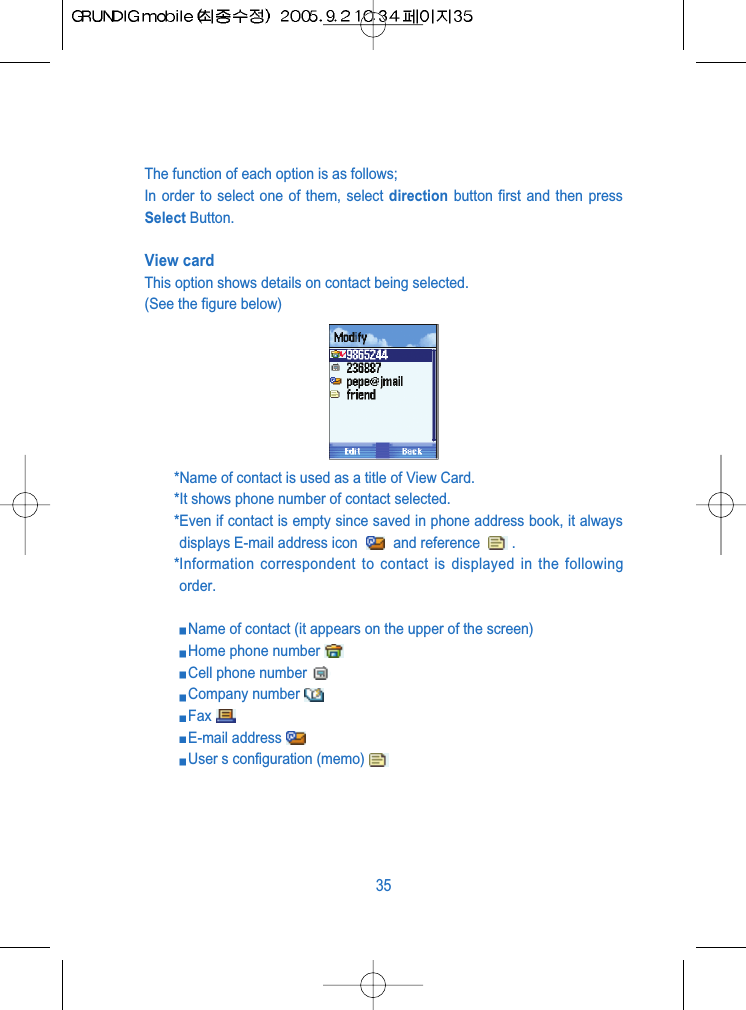
The function of each option is as follows;In order to select one of them, select direction button first and then pressSelect Button.View cardThis option shows details on contact being selected.(See the figure below)*Name of contact is used as a title of View Card.*It shows phone number of contact selected.*Even if contact is empty since saved in phone address book, it alwaysdisplays E-mail address icon  and reference  .*Information correspondent to contact is displayed in the followingorder.Name of contact (it appears on the upper of the screen) Home phone numberCell phone numberCompany numberFaxE-mail addressUser s configuration (memo)35
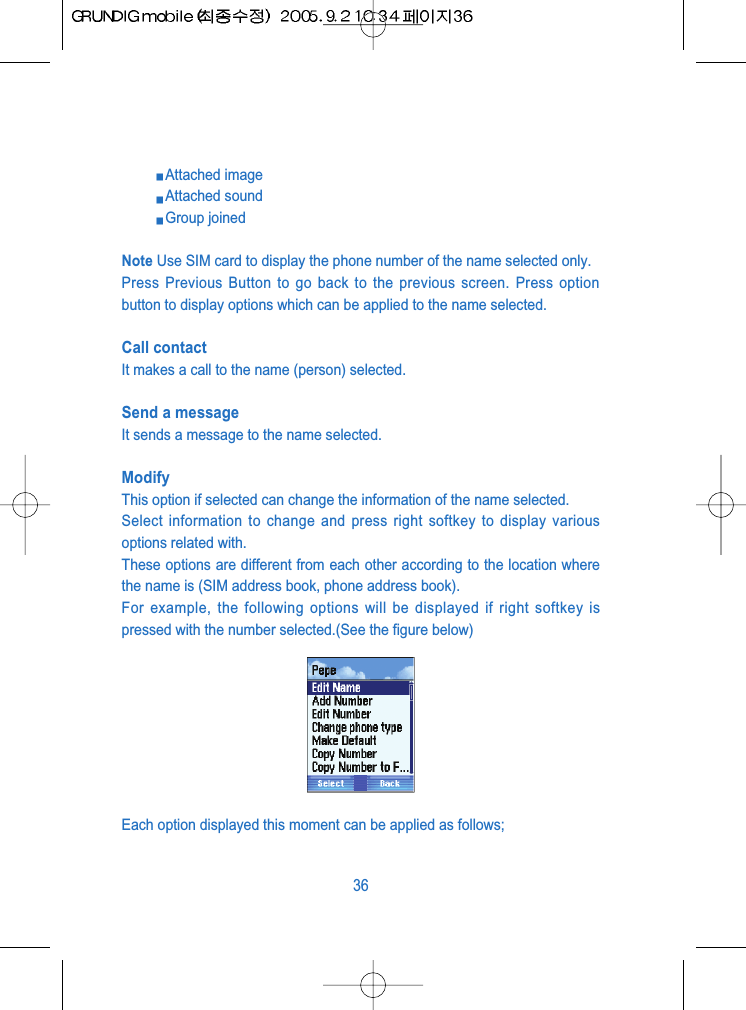
Attached imageAttached soundGroup joinedNote Use SIM card to display the phone number of the name selected only.Press Previous Button to go back to the previous screen. Press optionbutton to display options which can be applied to the name selected.Call contactIt makes a call to the name (person) selected.Send a messageIt sends a message to the name selected.ModifyThis option if selected can change the information of the name selected.Select information to change and press right softkey to display variousoptions related with.These options are different from each other according to the location wherethe name is (SIM address book, phone address book).For example, the following options will be displayed if right softkey ispressed with the number selected.(See the figure below)Each option displayed this moment can be applied as follows;36
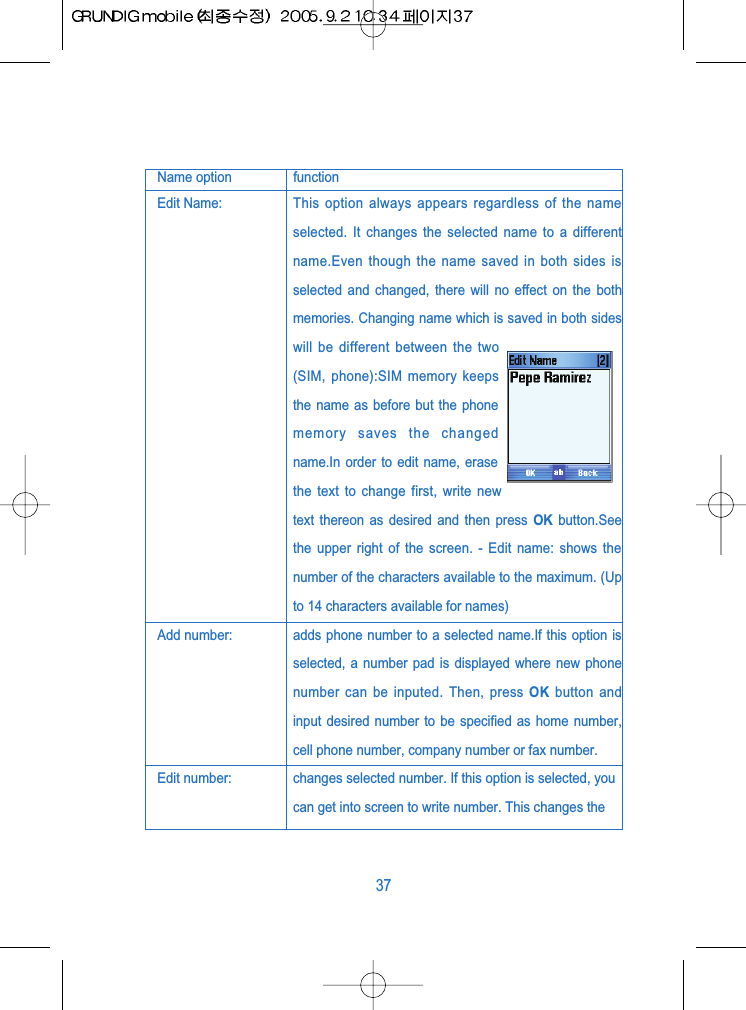
37Name option functionEdit Name: This option always appears regardless of the nameselected. It changes the selected name to a differentname.Even though the name saved in both sides isselected and changed, there will no effect on the bothmemories. Changing name which is saved in both sideswill be different between the two(SIM, phone):SIM memory keepsthe name as before but the phonememory saves the changedname.In order to edit name, erasethe text to change first, write newtext thereon as desired and then press OK button.Seethe upper right of the screen. - Edit name: shows thenumber of the characters available to the maximum. (Upto 14 characters available for names)Add number: adds phone number to a selected name.If this option isselected, a number pad is displayed where new phonenumber can be inputed. Then, press OK button andinput desired number to be specified as home number,cell phone number, company number or fax number.Edit number: changes selected number. If this option is selected, youcan get into screen to write number. This changes the
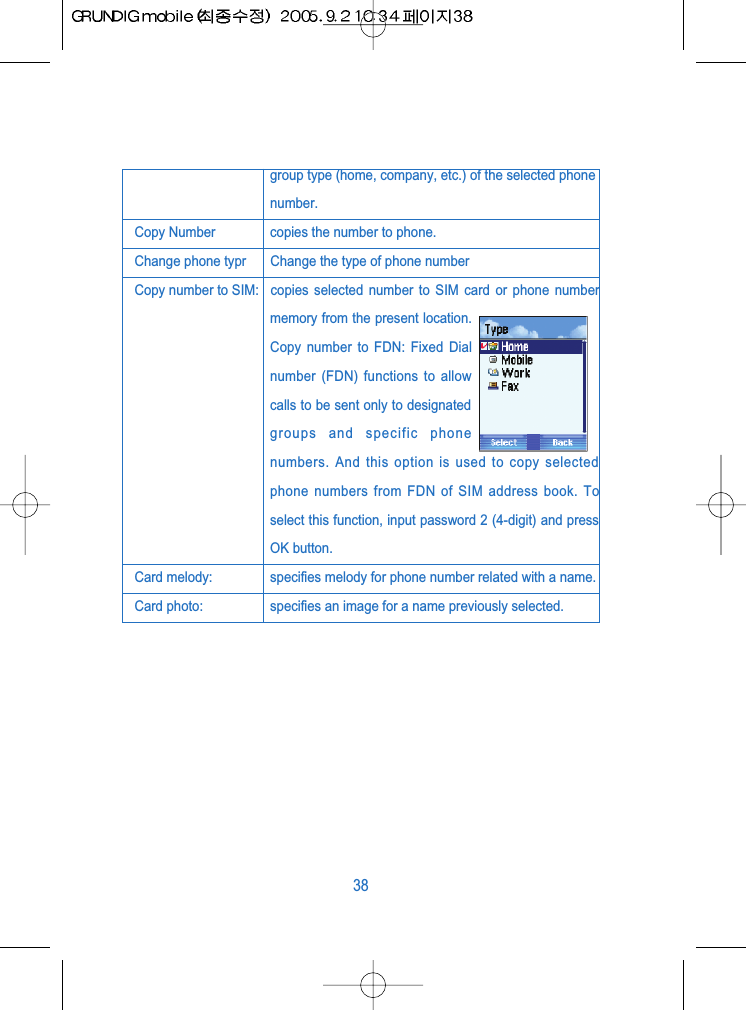
group type (home, company, etc.) of the selected phonenumber. Copy Number copies the number to phone.Change phone typr Change the type of phone numberCopy number to SIM: copies selected number to SIM card or phone numbermemory from the present location.Copy number to FDN: Fixed Dialnumber (FDN) functions to allowcalls to be sent only to designatedgroups and specific phonenumbers. And this option is used to copy selectedphone numbers from FDN of SIM address book. Toselect this function, input password 2 (4-digit) and pressOK button. Card melody: specifies melody for phone number related with a name. Card photo: specifies an image for a name previously selected.38
Delete contactdeletes a selected name and its whole information contained. You will beasked to confirm before starting this option. Erase number: deletes presentlyselected name s number or E-mail address, etc. You will be asked to confirmbefore starting this option.Copy number to SIM(or phone)copies selected phone number to SIM card or phone memory from thepresent location. If this is applied with the established number copied, the contact willbe duplicated and displayed just once in the whole address bookduring Only Phone mode. And if the contact in the address book is of Only Phone mode,different from the saved number, a new contact of Only SIM mode willbe created with the same name and the same phone number. If the contact is saved both sides, there will be no change even if theestablished number is copied. If the contact is saved both sides and a number different from theestablished number is saved with the same name, a new contact ofOnly SIM mode will be created.Card melodyIt is used to specify desired melody for selected contact number. Select thisoption to display my melody screen and there select desired melody.39
Card photoIt is used to set desired image for selected contact.Select this option to display my picture screen and there select desiredpicture.Send cardThis option sends saved data in memory card to specific contact via infrared.Select this option to display send card screen and select via IR to use it.Call ContactIt is the second option of the address book. Select number input in thepreviously selected contact to make a call. For this operation, select Callcontact option on option screen and press Enter button to display selectedcontact and its related phone number list.Note: If just one phone number is found available in the selected contact,press direct call button right there. Otherwise you can choose one of thephone number which is in the contact.Press call button or green call button to send a signal to selected numberand to display number on screen at the same time.Press previous button to return to address book screen.40
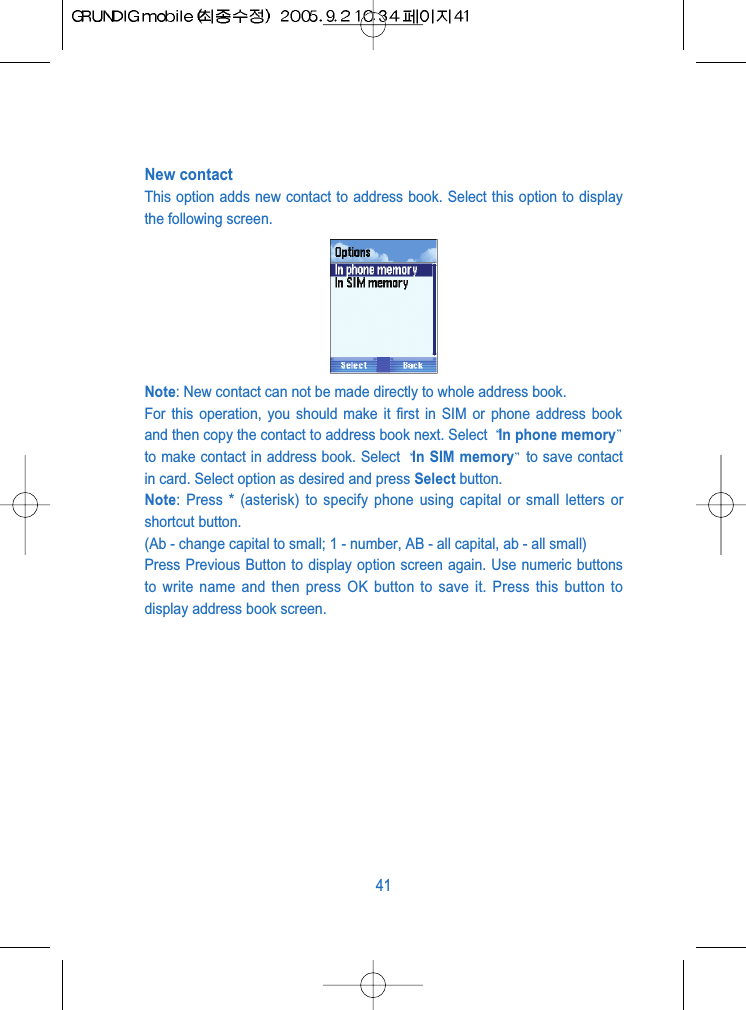
New contactThis option adds new contact to address book. Select this option to displaythe following screen.Note: New contact can not be made directly to whole address book. For this operation, you should make it first in SIM or phone address bookand then copy the contact to address book next. Select  In phone memoryto make contact in address book. Select  In SIM memory to save contactin card. Select option as desired and press Select button.Note: Press * (asterisk) to specify phone using capital or small letters orshortcut button.(Ab - change capital to small; 1 - number, AB - all capital, ab - all small)Press Previous Button to display option screen again. Use numeric buttonsto write name and then press OK button to save it. Press this button todisplay address book screen.41
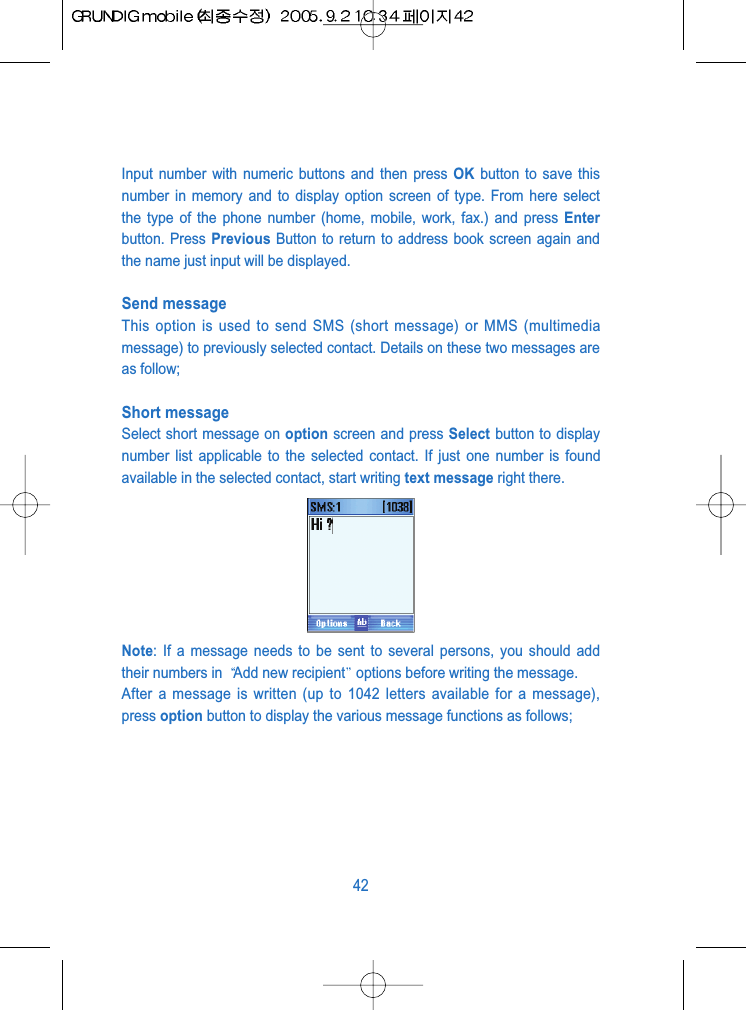
Input number with numeric buttons and then press OK button to save thisnumber in memory and to display option screen of type. From here selectthe type of the phone number (home, mobile, work, fax.) and press Enterbutton. Press Previous Button to return to address book screen again andthe name just input will be displayed.Send message This option is used to send SMS (short message) or MMS (multimediamessage) to previously selected contact. Details on these two messages areas follow;Short messageSelect short message on option screen and press Select button to displaynumber list applicable to the selected contact. If just one number is foundavailable in the selected contact, start writing text message right there.Note: If a message needs to be sent to several persons, you should addtheir numbers in  Add new recipient options before writing the message.After a message is written (up to 1042 letters available for a message),press option button to display the various message functions as follows; 42
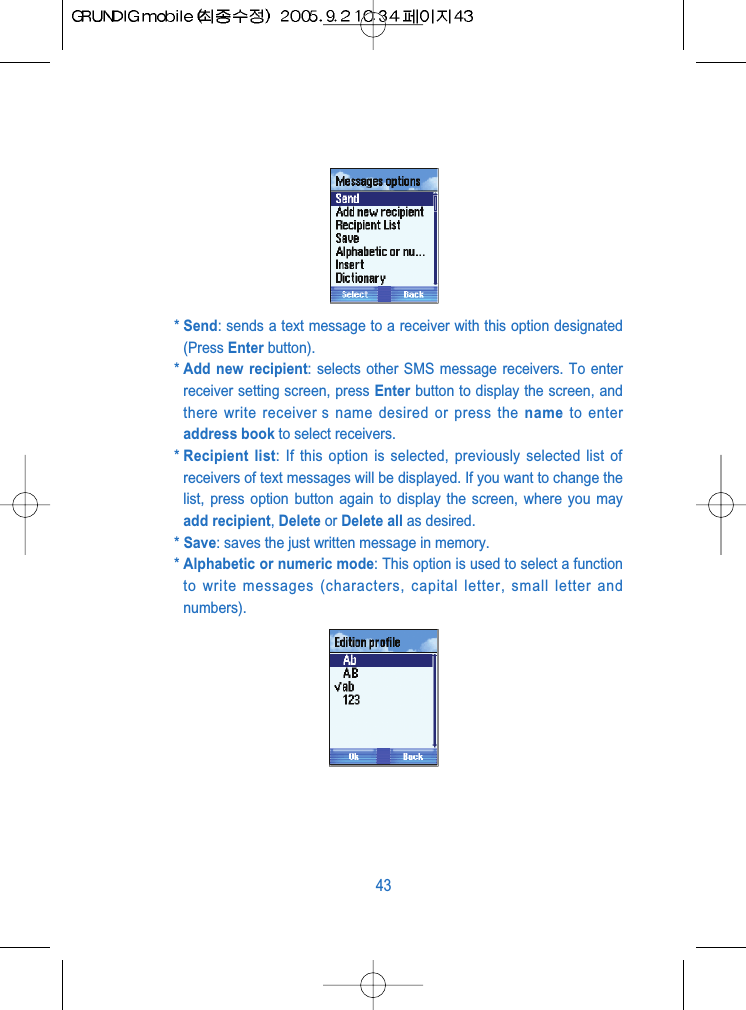
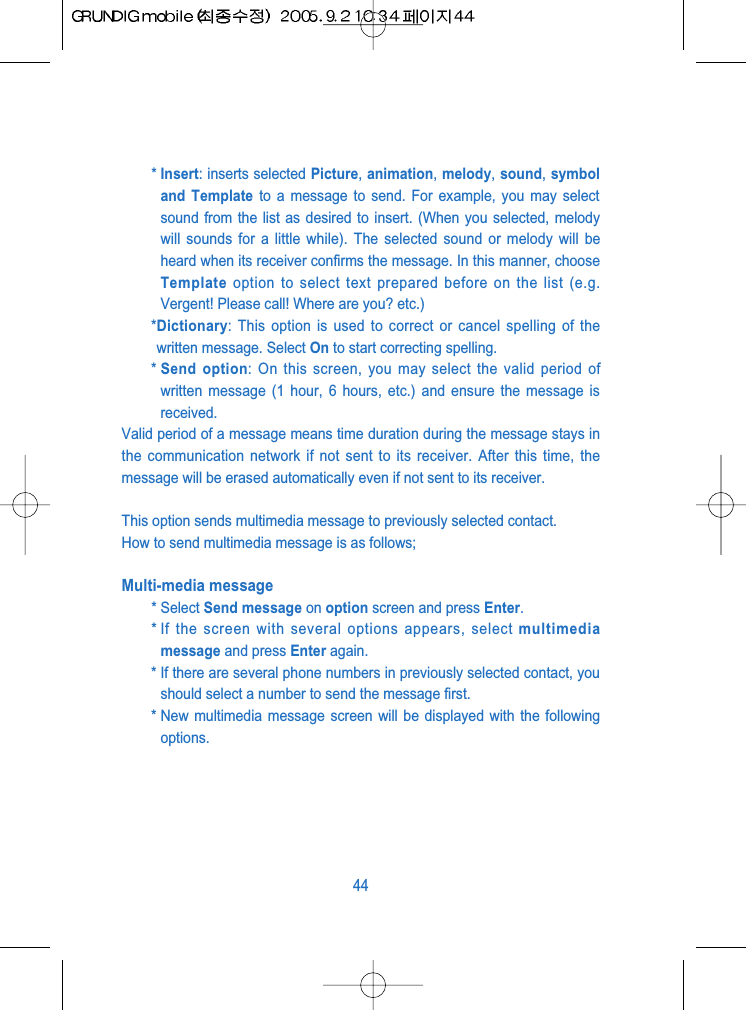
* Send: sends a text message to a receiver with this option designated(Press Enter button).* Add new recipient: selects other SMS message receivers. To enterreceiver setting screen, press Enter button to display the screen, andthere write receiver s name desired or press the name to enteraddress book to select receivers.* Recipient list: If this option is selected, previously selected list ofreceivers of text messages will be displayed. If you want to change thelist, press option button again to display the screen, where you mayadd recipient, Delete or Delete all as desired.* Save: saves the just written message in memory.* Alphabetic or numeric mode: This option is used to select a functionto write messages (characters, capital letter, small letter andnumbers).43
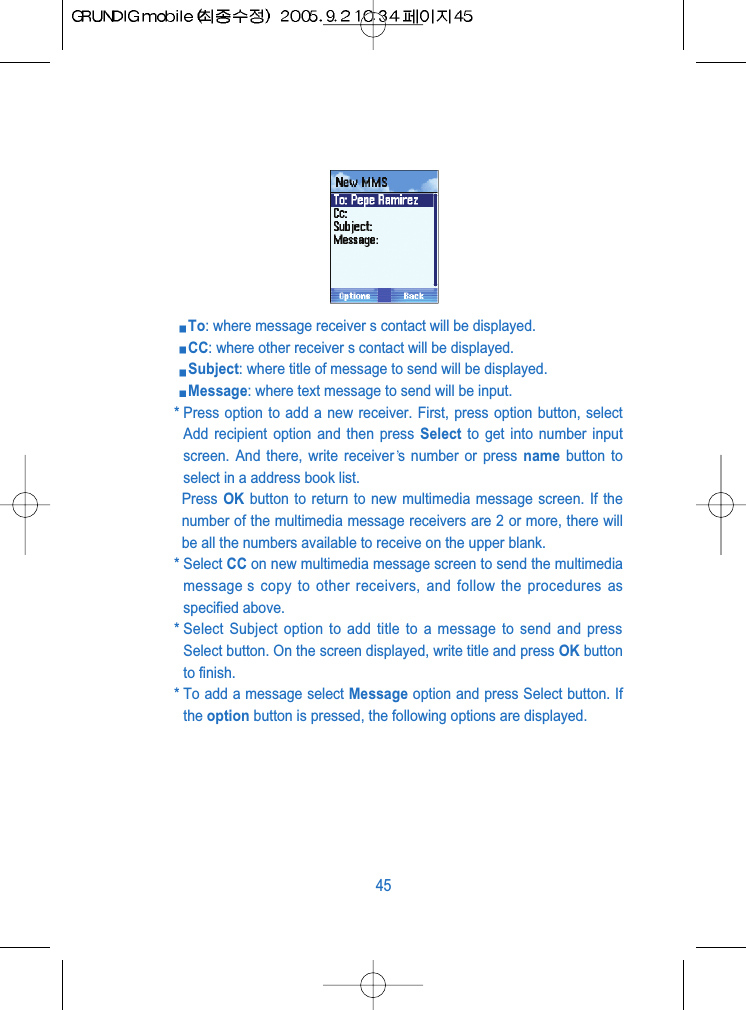
* Insert: inserts selected Picture, animation, melody, sound, symboland Template to a message to send. For example, you may selectsound from the list as desired to insert. (When you selected, melodywill sounds for a little while). The selected sound or melody will beheard when its receiver confirms the message. In this manner, chooseTemplate option to select text prepared before on the list (e.g.Vergent! Please call! Where are you? etc.)*Dictionary: This option is used to correct or cancel spelling of thewritten message. Select On to start correcting spelling.* Send option: On this screen, you may select the valid period ofwritten message (1 hour, 6 hours, etc.) and ensure the message isreceived.Valid period of a message means time duration during the message stays inthe communication network if not sent to its receiver. After this time, themessage will be erased automatically even if not sent to its receiver. This option sends multimedia message to previously selected contact.How to send multimedia message is as follows;Multi-media message* Select Send message on option screen and press Enter.* If the screen with several options appears, select multimediamessage and press Enter again.* If there are several phone numbers in previously selected contact, youshould select a number to send the message first.* New multimedia message screen will be displayed with the followingoptions. 44
To: where message receiver s contact will be displayed.CC: where other receiver s contact will be displayed. Subject: where title of message to send will be displayed.Message: where text message to send will be input. * Press option to add a new receiver. First, press option button, selectAdd recipient option and then press Select to get into number inputscreen. And there, write receiver s number or press name button toselect in a address book list. Press OK button to return to new multimedia message screen. If thenumber of the multimedia message receivers are 2 or more, there willbe all the numbers available to receive on the upper blank.* Select CC on new multimedia message screen to send the multimediamessage s copy to other receivers, and follow the procedures asspecified above. * Select Subject option to add title to a message to send and pressSelect button. On the screen displayed, write title and press OK buttonto finish.* To add a message select Message option and press Select button. Ifthe option button is pressed, the following options are displayed.45
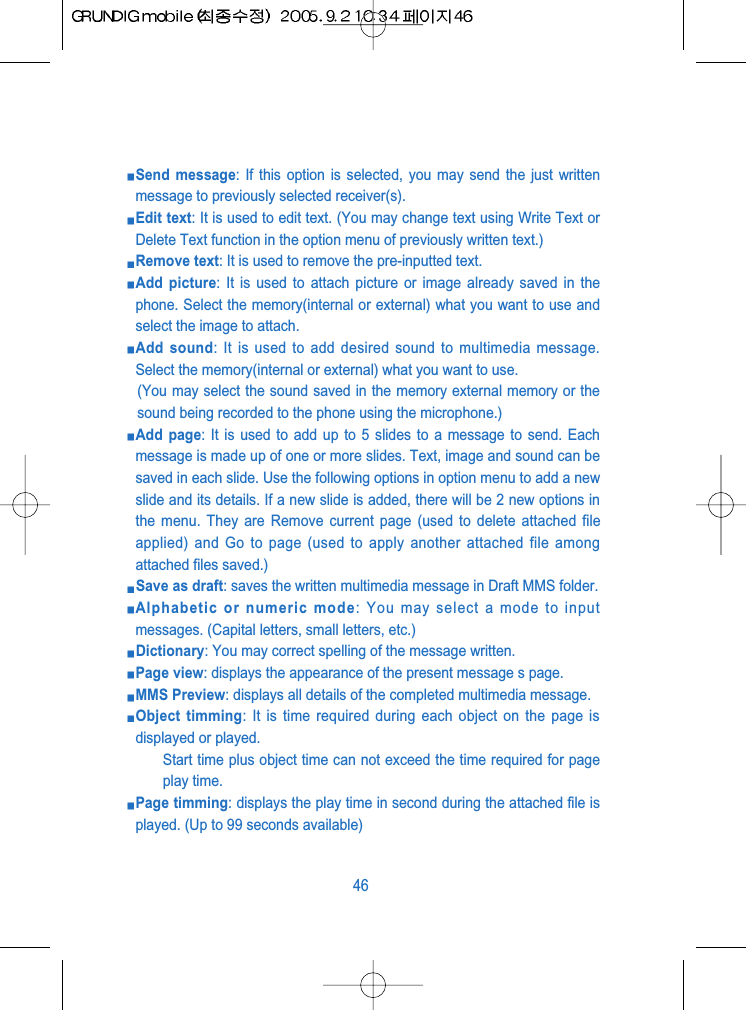
Send message: If this option is selected, you may send the just writtenmessage to previously selected receiver(s).Edit text: It is used to edit text. (You may change text using Write Text orDelete Text function in the option menu of previously written text.)Remove text: It is used to remove the pre-inputted text.Add picture: It is used to attach picture or image already saved in thephone. Select the memory(internal or external) what you want to use andselect the image to attach.Add sound: It is used to add desired sound to multimedia message.Select the memory(internal or external) what you want to use.(You may select the sound saved in the memory external memory or thesound being recorded to the phone using the microphone.)Add page: It is used to add up to 5 slides to a message to send. Eachmessage is made up of one or more slides. Text, image and sound can besaved in each slide. Use the following options in option menu to add a newslide and its details. If a new slide is added, there will be 2 new options inthe menu. They are Remove current page (used to delete attached fileapplied) and Go to page (used to apply another attached file amongattached files saved.)Save as draft: saves the written multimedia message in Draft MMS folder.Alphabetic or numeric mode: You may select a mode to inputmessages. (Capital letters, small letters, etc.)Dictionary: You may correct spelling of the message written.Page view: displays the appearance of the present message s page.MMS Preview: displays all details of the completed multimedia message.Object timming: It is time required during each object on the page isdisplayed or played.Start time plus object time can not exceed the time required for pageplay time.Page timming: displays the play time in second during the attached file isplayed. (Up to 99 seconds available)46
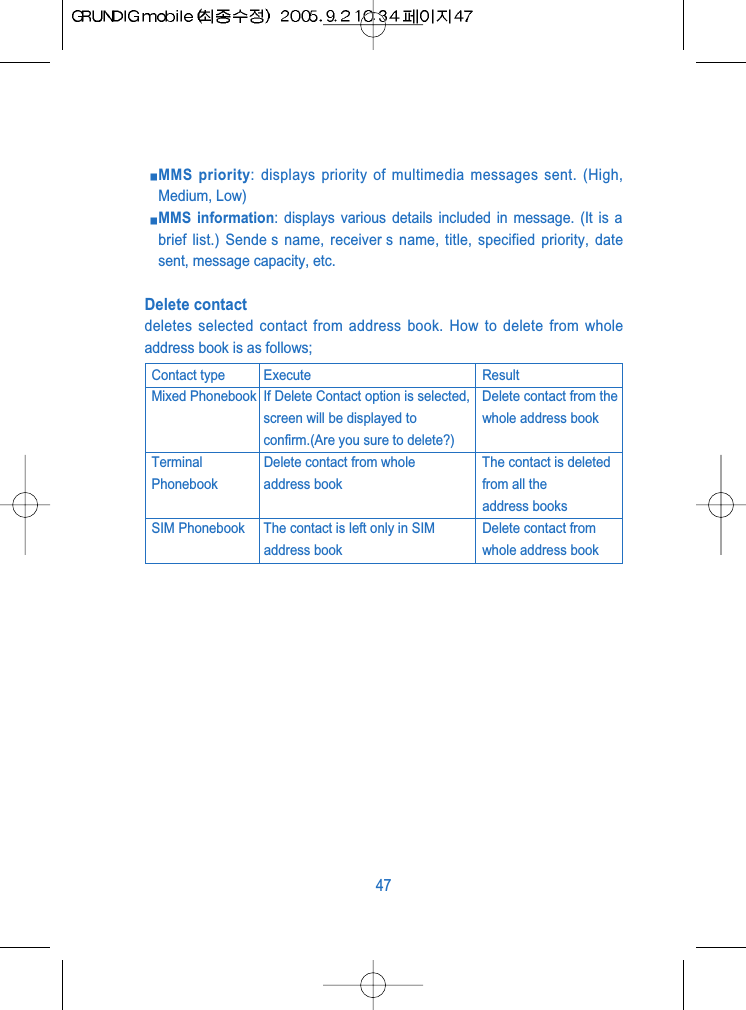
MMS priority: displays priority of multimedia messages sent. (High,Medium, Low)MMS information: displays various details included in message. (It is abrief list.) Sende s name, receiver s name, title, specified priority, datesent, message capacity, etc.Delete contactdeletes selected contact from address book. How to delete from wholeaddress book is as follows; 47Contact type Execute ResultMixed Phonebook  If Delete Contact option is selected,  Delete contact from thescreen will be displayed to  whole address bookconfirm.(Are you sure to delete?)Terminal Delete contact from whole The contact is deletedPhonebook address book from all the address booksSIM Phonebook The contact is left only in SIM   Delete contact from address book whole address book
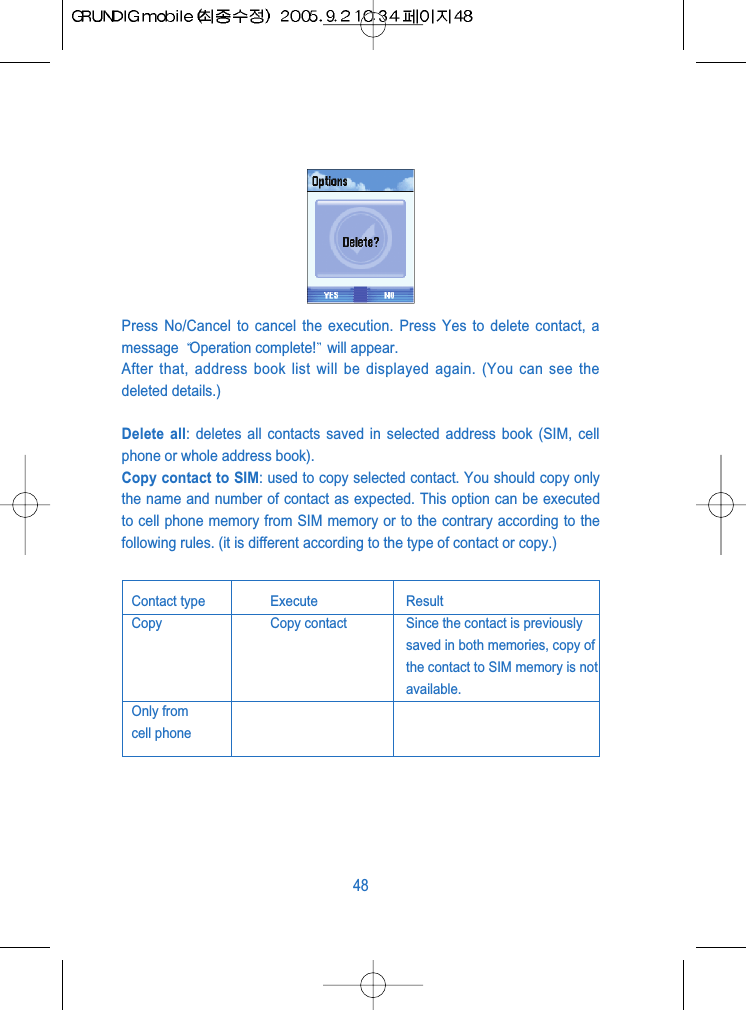
Press No/Cancel to cancel the execution. Press Yes to delete contact, amessage  Operation complete! will appear.After that, address book list will be displayed again. (You can see thedeleted details.)Delete all: deletes all contacts saved in selected address book (SIM, cellphone or whole address book).Copy contact to SIM: used to copy selected contact. You should copy onlythe name and number of contact as expected. This option can be executedto cell phone memory from SIM memory or to the contrary according to thefollowing rules. (it is different according to the type of contact or copy.) 48Contact type Execute ResultCopy  Copy contact Since the contact is previouslysaved in both memories, copy ofthe contact to SIM memory is notavailable.Only from cell phone
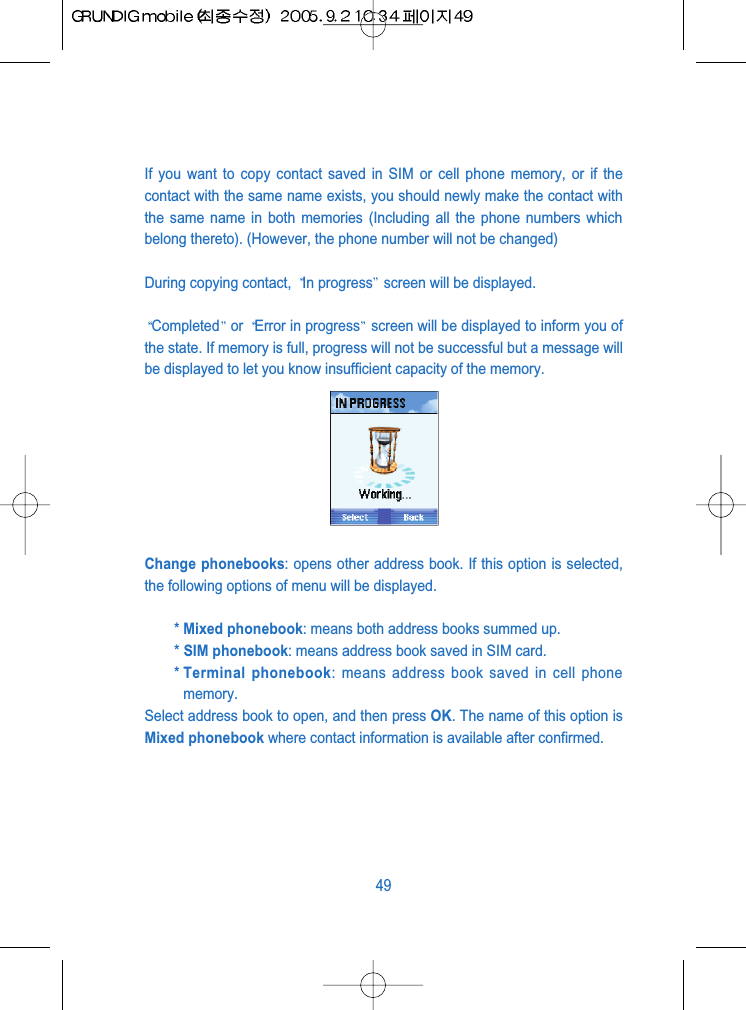
If you want to copy contact saved in SIM or cell phone memory, or if thecontact with the same name exists, you should newly make the contact withthe same name in both memories (Including all the phone numbers whichbelong thereto). (However, the phone number will not be changed)During copying contact,  In progress screen will be displayed.Completed or  Error in progress screen will be displayed to inform you ofthe state. If memory is full, progress will not be successful but a message willbe displayed to let you know insufficient capacity of the memory.Change phonebooks: opens other address book. If this option is selected,the following options of menu will be displayed.* Mixed phonebook: means both address books summed up.* SIM phonebook: means address book saved in SIM card.* Terminal phonebook: means address book saved in cell phonememory.Select address book to open, and then press OK. The name of this option isMixed phonebook where contact information is available after confirmed.49
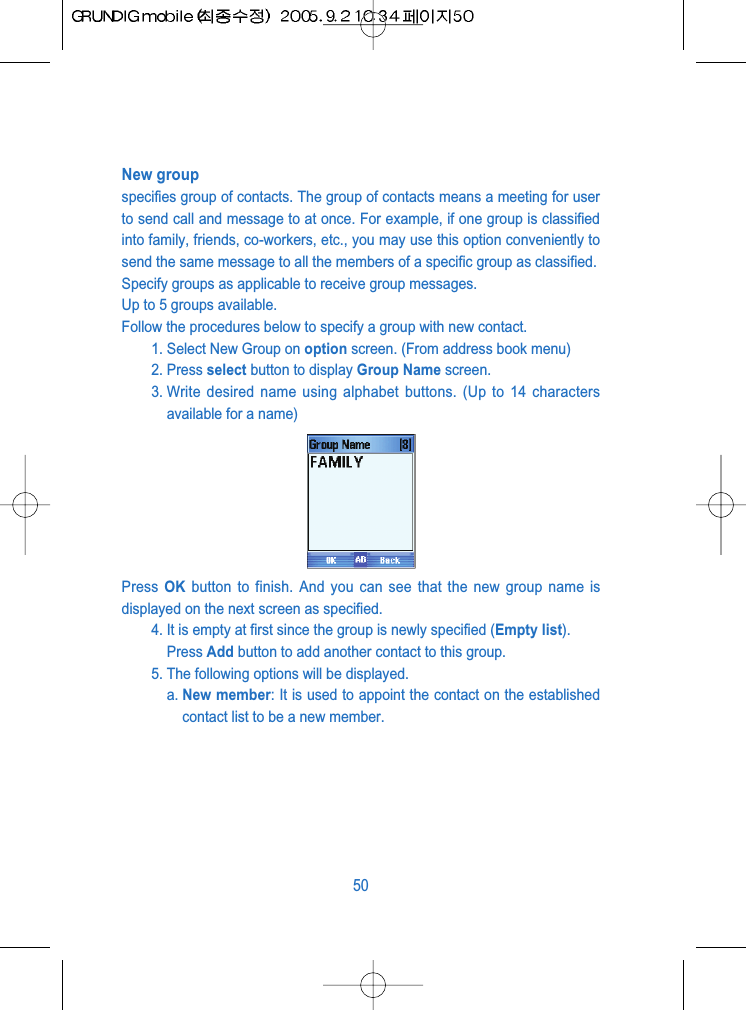
New groupspecifies group of contacts. The group of contacts means a meeting for userto send call and message to at once. For example, if one group is classifiedinto family, friends, co-workers, etc., you may use this option conveniently tosend the same message to all the members of a specific group as classified. Specify groups as applicable to receive group messages.Up to 5 groups available.Follow the procedures below to specify a group with new contact.1. Select New Group on option screen. (From address book menu)2. Press select button to display Group Name screen.3. Write desired name using alphabet buttons. (Up to 14 charactersavailable for a name)Press  OK button to finish. And you can see that the new group name isdisplayed on the next screen as specified.4. It is empty at first since the group is newly specified (Empty list). Press Add button to add another contact to this group. 5. The following options will be displayed.a. New member: It is used to appoint the contact on the establishedcontact list to be a new member.50
b. Create member: In order to make a new member in a group,contact, its phone number and other procedures than describedabove for Make New Contact shall be fulfilled.c. Remake group: displays the screen to change previously specifiedgroup name to another name.6. If new contact is made or added to group, Call member, Addmember (with contact selected from established address book),Create member (starting from 0), Remove member, Set Groupmelody (any call to the group members will make specific melodysound) and Set group Photo are available.If new group is made, press Previous Button  to display its name on thelist. SearchThis option is used to search for other contacts on the contact list.Select Search option to display Search by name screen.On the screen write more than 1 characters of the contact name to find.If written, the applicable name with the same characters is displayed.Now you may search up and down to find the name on the list. For example, press No.2 button to fast reach names with the first characterof C.If there is no name with such a character, the button will show names withthe next character (in alphabetical order).51
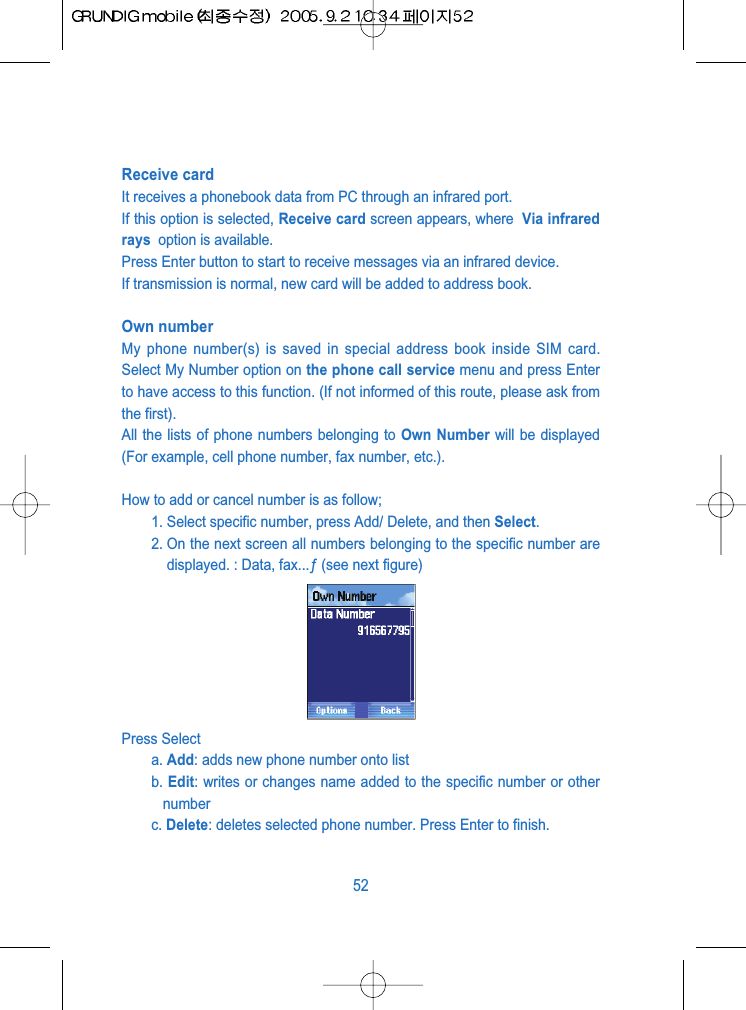
Receive card It receives a phonebook data from PC through an infrared port.If this option is selected, Receive card screen appears, where  Via infraredrays  option is available.Press Enter button to start to receive messages via an infrared device.If transmission is normal, new card will be added to address book.Own numberMy phone number(s) is saved in special address book inside SIM card.Select My Number option on the phone call service menu and press Enterto have access to this function. (If not informed of this route, please ask fromthe first). All the lists of phone numbers belonging to Own Number will be displayed(For example, cell phone number, fax number, etc.).How to add or cancel number is as follow;1. Select specific number, press Add/ Delete, and then Select. 2. On the next screen all numbers belonging to the specific number aredisplayed. : Data, fax...ƒ (see next figure)Press Selecta. Add: adds new phone number onto listb. Edit: writes or changes name added to the specific number or othernumberc. Delete: deletes selected phone number. Press Enter to finish.52
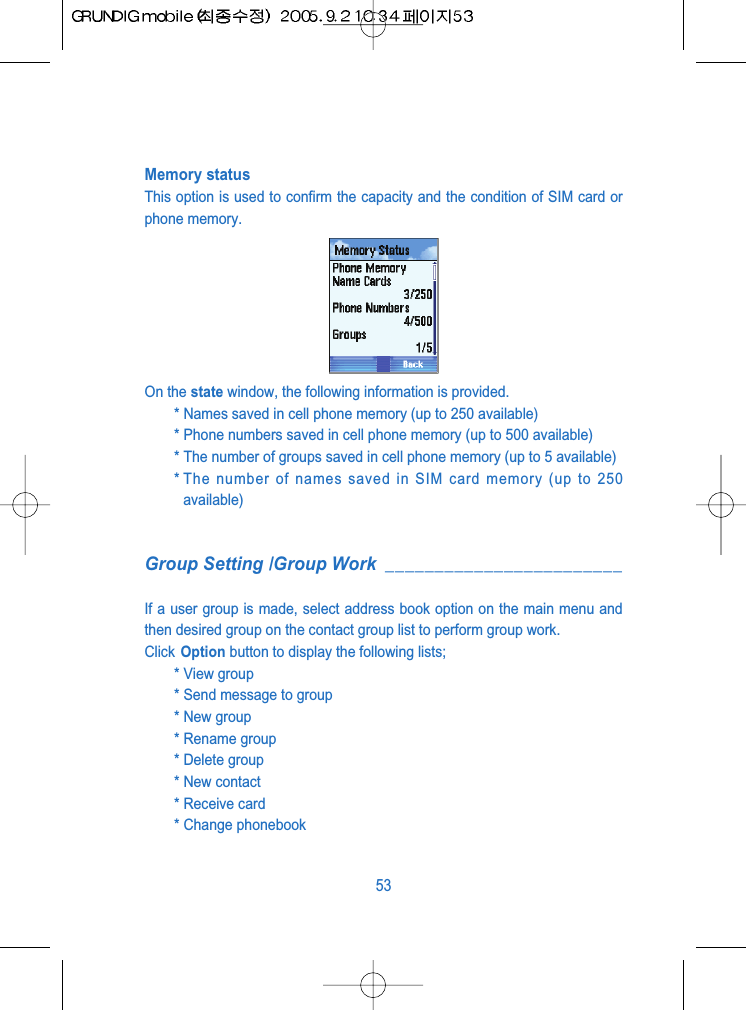
Memory statusThis option is used to confirm the capacity and the condition of SIM card orphone memory.On the state window, the following information is provided.* Names saved in cell phone memory (up to 250 available)* Phone numbers saved in cell phone memory (up to 500 available)* The number of groups saved in cell phone memory (up to 5 available)* The number of names saved in SIM card memory (up to 250available)Group Setting /Group Work ________________________If a user group is made, select address book option on the main menu andthen desired group on the contact group list to perform group work.Click Option button to display the following lists;* View group * Send message to group * New group* Rename group* Delete group * New contact* Receive card * Change phonebook 53
* Memory statusFunctions of these options are as follow;View groupIt is used to view all the members belonging to selected group. On the listselect a member and press/Option button to apply the followings: Make a call to members, Delete, Add new member to group, Group melodyor image setting.Send message to groupIt is used to send SMS text message or MMS multimedia message toselected group members.* In the first case (text message), SMS message screen will bedisplayed to write message. Use the function with alphabet /numberbutton or press option button to display message option. (Refer toSend Message described above). If SMS message has been written with its receiver specified, pressSend option to send the message to the designated number of theselected contact.* In the second case (MMS message), this option sends MMSmultimedia message to selected members. First, select multimediamessage on Select screen and press Ok to display new MMS screen.How to use this screen and its options has been described above (seeSend Message). If MMS message is written (including text, image, sound, etc.) with itsreceiver designated, you may send the message in the followingprocedures; 54
1. Select message on new MMS screen.2. Press Select button to display message screen.3. Press Select/Option button and select Send Message on the listdisplayed (first option of the list).4. Press Ok button to send the message.New groupThis option is used to add new group to address book. Select new group onSelect screen and press Ok button to display Group Name screen. How touse this screen and its options has been described above (see New Group).Rename groupIt is used to change selected group name. Select Rename group on Selectscreen and press Ok to display Rename group screen. Use numericbuttons to change to new name. Press OK button to finish.Delete group It is used to delete selected group. Select Delete Group on Select screenand press Ok to display the following message screen to confirm Delete?Press Yes button to delete the selected group and its all information, whichwill never be recovered. Now contact list in address book will be displayed.Press No button to cancel Delete and return to address book screen.55
New ContactIt is used to add new contact to address book. Select New Contact onoption screen and press Ok to display option screen. How to use thisscreen and its options has been described above (see New Contact)Receive card It is used to receive card through infrared port. If this option is selected,Receive card screen appears, where  Via infrared rays  option is available.Press Ok button to start to receive messages via infrared.If transmission is succeed, new card will be added to address book.Change Phonebook As described in Change PhoneBook above.Memory statusAs described in Memory Status above.Terminal Phonebook ______________________________It displays the contacts saved in phone memory and the contacts saved inboth (cell phone and SIM card) only, thus to show details of whole addressbook always.Follow the procedures below to set and apply phone address book.1. Press menu button on background screen to display main menu withphone options.2. Select phonebook and press Ok to display phonebook screen.56
3. Press option button to display option screen.4. Select  Change  Phonebook and press Ok to display ChangePhonebook screen.5. Select the last option on this screen and press OK button to set andapply Terminal phonebook. Note: From now on, the Terminal phonebook will operate till other type ofphonebook is selected (even if GRUNDIG mobile is turned off).All the options related with phonebook are as specified in Mixedphonebook (excepting the following)* New contact (name): Newly input contacts are saved all in the phonememory (they become the contacts only for the cell phone). Thus,right after this option is selected, Name screen will be displayed,where you should write new contact name and select a location tosave this information (similar to whole address book)* Erase/Delete contact: If this option is selected, only the contacts savedin phone memory will be deleted. In other words, if the same contact issaved in both, copy of the contact in SIM card is kept (still displayed inwhole address book or SIM address book)* Copy name to SIM: If this option is selected, copy of contact to SIMcard memory is available. If the contact exists already in SIM card, amessage will appear to let you know. Contact name and selectednumber only will be copied.SIM phonebook __________________________________SIM phonebook shows only the information saved in SIM card memory andthe information saved in both, thus displaying whole address book always.Follow the procedures below to set and apply SIM address book.57
1. Press menu button on background screen to display main menu withphone options.2. Select Phonebook and press Ok to display address book screen.3. Press option button to display option screen.4. Select  Change phoneBook and press Ok to display Changephonebook screen.5. Select the second option on the screen and press OK button to setand apply SIM phonebook. Note: From now on, the SIM phonebook will operate till other type ofphonebook is selected (even if the terminal is turned off).All the options related with SIM phonebook are as specified in Mixedphonebook (excepting the following)* View card: With this option selected, SIM address book shows thefollowing information only: Phone number included in contact, groupthe contact joined (if any).* New contact: Newly input contacts are saved all in the SIM cardmemory. Thus, right after this option is selected, Name screen will bedisplayed, where you should write new contact name but you don tneed to select a location to save this information (similar to wholeaddress book)* Delete contact: If this option is selected, only the contacts saved inSIM memory will be deleted. In other words, if the same contact issaved in both, copy of the contact in phone memory is kept.* Copy name to phone: If this option is selected, copy of contact tophone memory is available. Contact name and selected number onlywill be copied.The menu option named Message allows settings of text message,multimedia message, chatting, and environmental services for messages.58
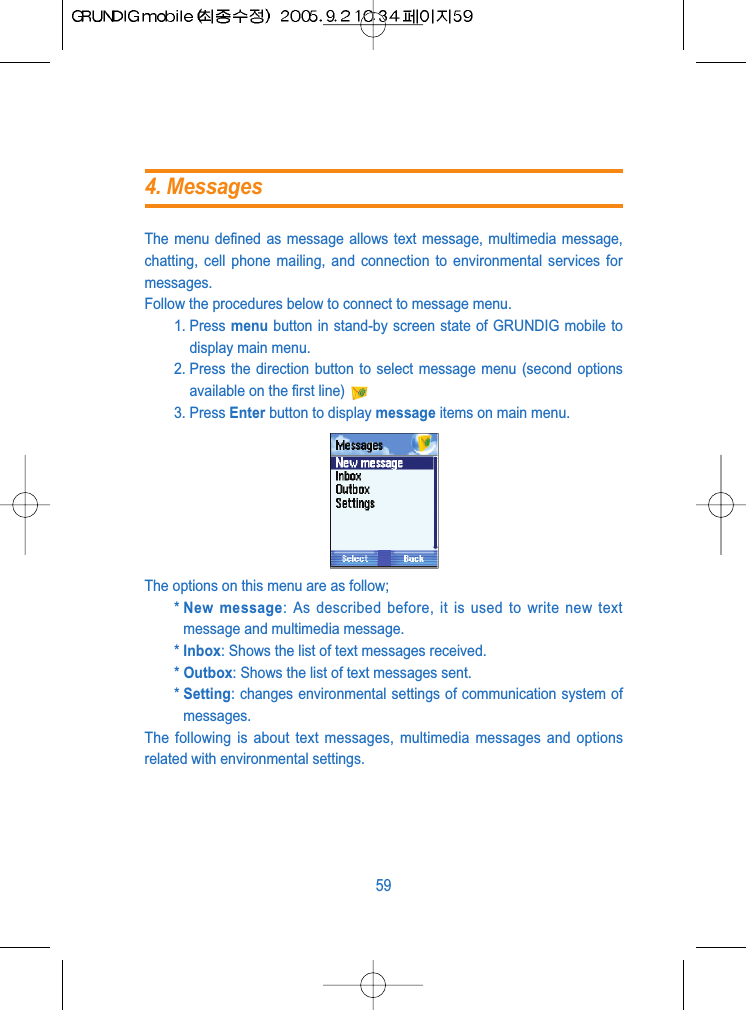
The menu defined as message allows text message, multimedia message,chatting, cell phone mailing, and connection to environmental services formessages.Follow the procedures below to connect to message menu.1. Press menu button in stand-by screen state of GRUNDIG mobile todisplay main menu.2. Press the direction button to select message menu (second optionsavailable on the first line)3. Press Enter button to display message items on main menu.The options on this menu are as follow;* New message: As described before, it is used to write new textmessage and multimedia message.* Inbox: Shows the list of text messages received.* Outbox: Shows the list of text messages sent.* Setting: changes environmental settings of communication system ofmessages.The following is about text messages, multimedia messages and optionsrelated with environmental settings.594. Messages
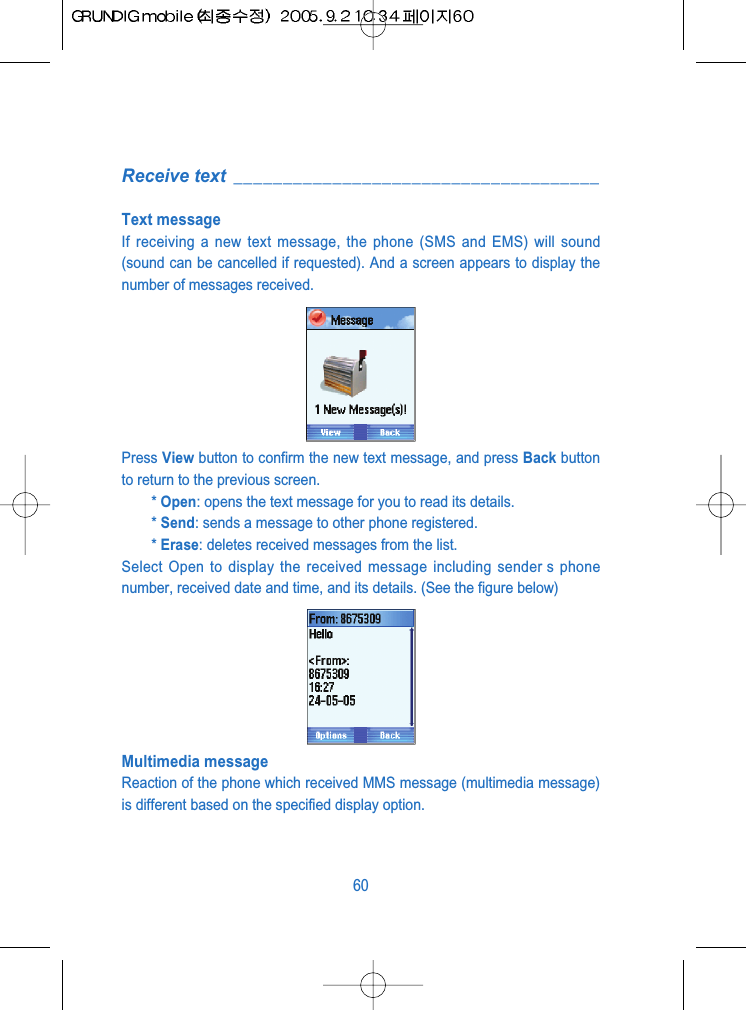
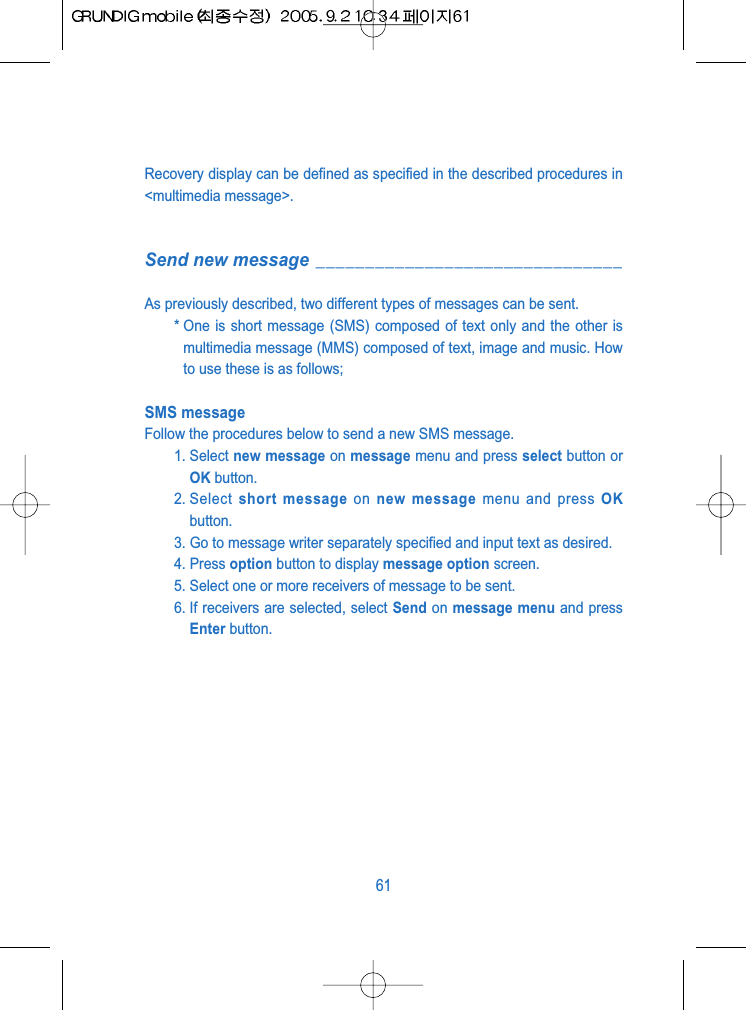
Receive text  _____________________________________Text messageIf receiving a new text message, the phone (SMS and EMS) will sound(sound can be cancelled if requested). And a screen appears to display thenumber of messages received.Press View button to confirm the new text message, and press Back buttonto return to the previous screen.* Open: opens the text message for you to read its details.* Send: sends a message to other phone registered.* Erase: deletes received messages from the list.Select Open to display the received message including sender s phonenumber, received date and time, and its details. (See the figure below)Multimedia messageReaction of the phone which received MMS message (multimedia message)is different based on the specified display option.60
Recovery display can be defined as specified in the described procedures in<multimedia message>.Send new message _______________________________As previously described, two different types of messages can be sent.* One is short message (SMS) composed of text only and the other ismultimedia message (MMS) composed of text, image and music. Howto use these is as follows;SMS messageFollow the procedures below to send a new SMS message.1. Select new message on message menu and press select button orOK button.2. Select  short message on new message menu and press OKbutton.3. Go to message writer separately specified and input text as desired.4. Press option button to display message option screen.5. Select one or more receivers of message to be sent. 6. If receivers are selected, select Send on message menu and pressEnter button.61
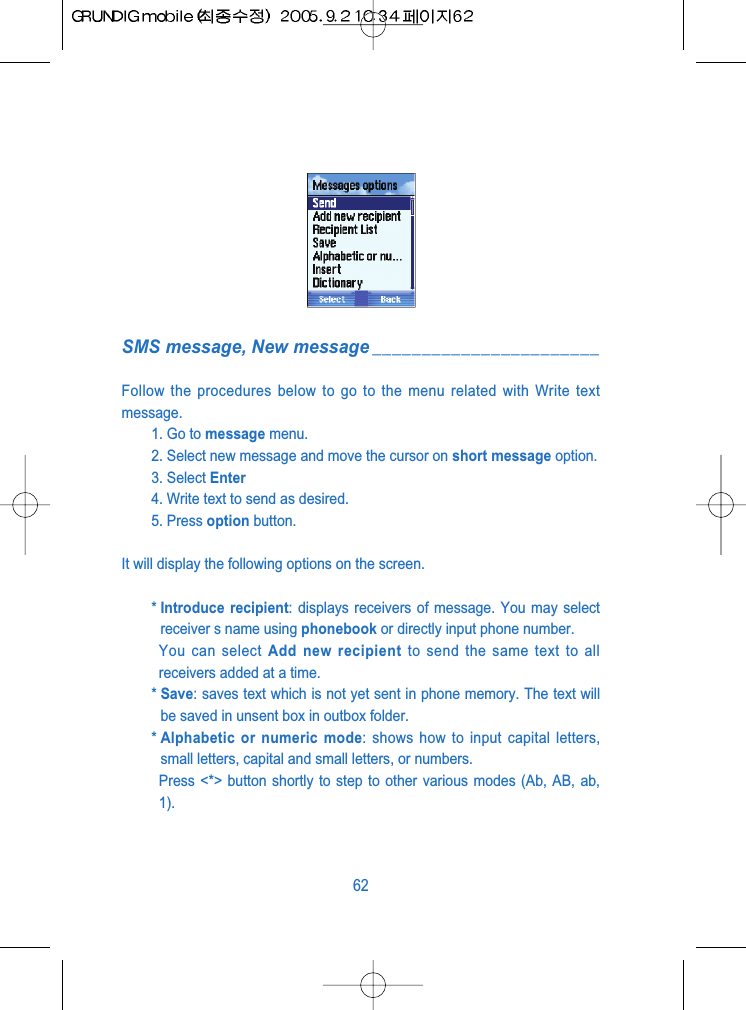
SMS message, New message _______________________Follow the procedures below to go to the menu related with Write textmessage.1. Go to message menu.2. Select new message and move the cursor on short message option.3. Select Enter4. Write text to send as desired.5. Press option button.It will display the following options on the screen.* Introduce recipient: displays receivers of message. You may selectreceiver s name using phonebook or directly input phone number.You can select Add new recipient to send the same text to allreceivers added at a time.* Save: saves text which is not yet sent in phone memory. The text willbe saved in unsent box in outbox folder. * Alphabetic or numeric mode: shows how to input capital letters,small letters, capital and small letters, or numbers.Press <*> button shortly to step to other various modes (Ab, AB, ab,1).62
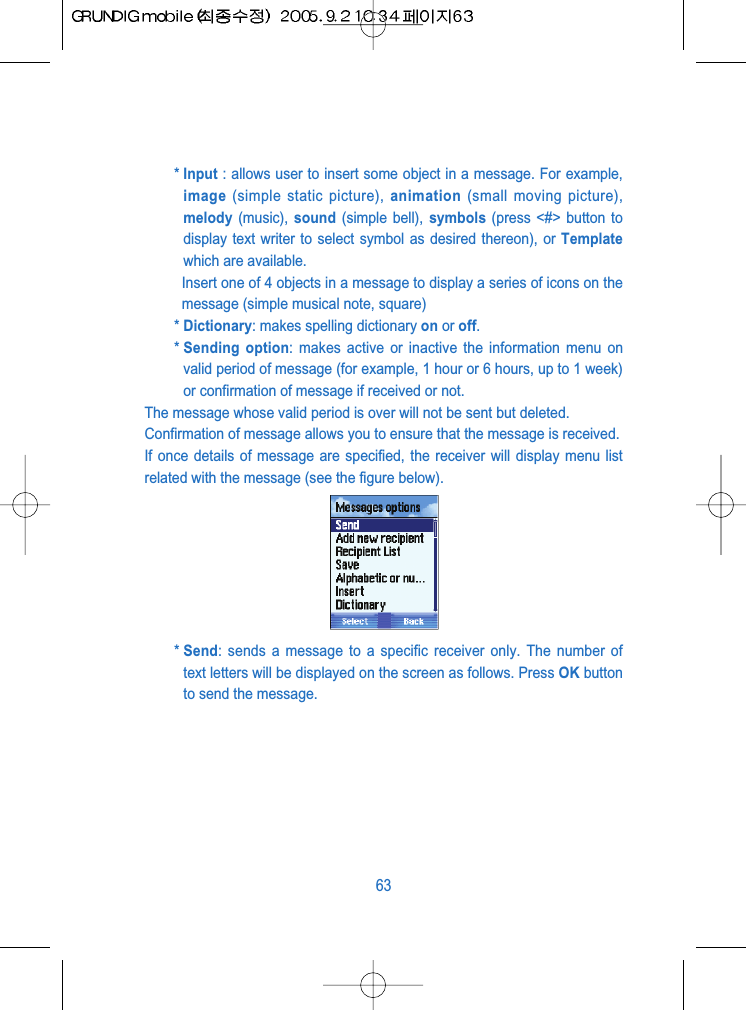
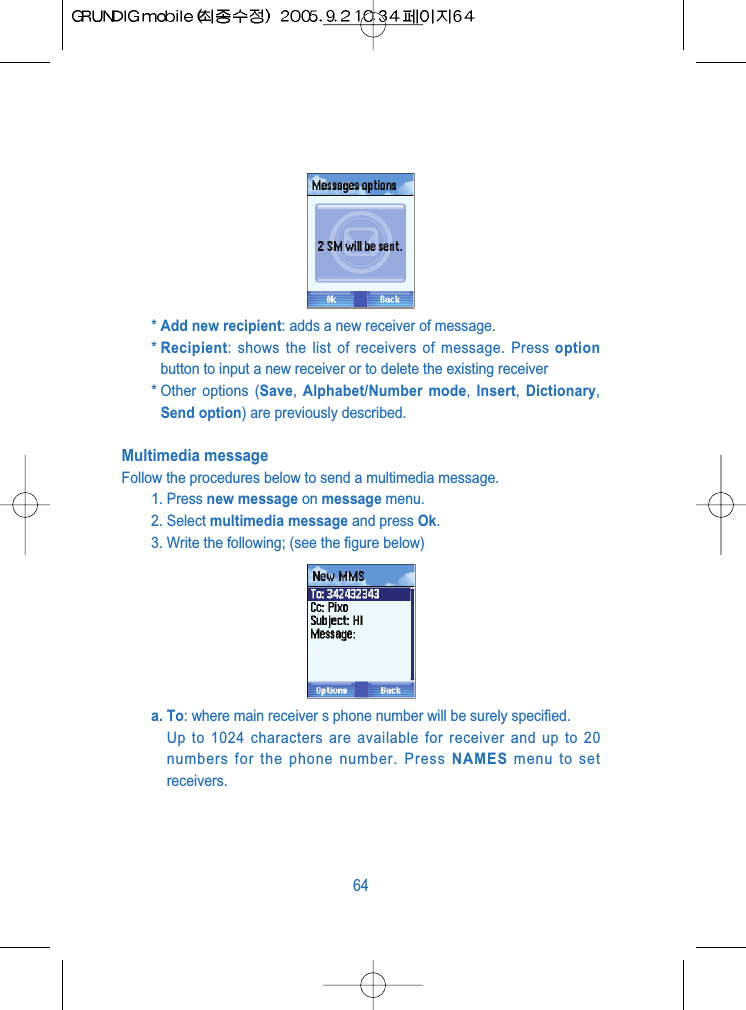
* Input : allows user to insert some object in a message. For example,image (simple static picture), animation (small moving picture),melody (music),  sound (simple bell), symbols (press <#> button todisplay text writer to select symbol as desired thereon), or Templatewhich are available.Insert one of 4 objects in a message to display a series of icons on themessage (simple musical note, square)* Dictionary: makes spelling dictionary on or off.* Sending option: makes active or inactive the information menu onvalid period of message (for example, 1 hour or 6 hours, up to 1 week)or confirmation of message if received or not.The message whose valid period is over will not be sent but deleted.Confirmation of message allows you to ensure that the message is received.If once details of message are specified, the receiver will display menu listrelated with the message (see the figure below).* Send: sends a message to a specific receiver only. The number oftext letters will be displayed on the screen as follows. Press OK buttonto send the message.63
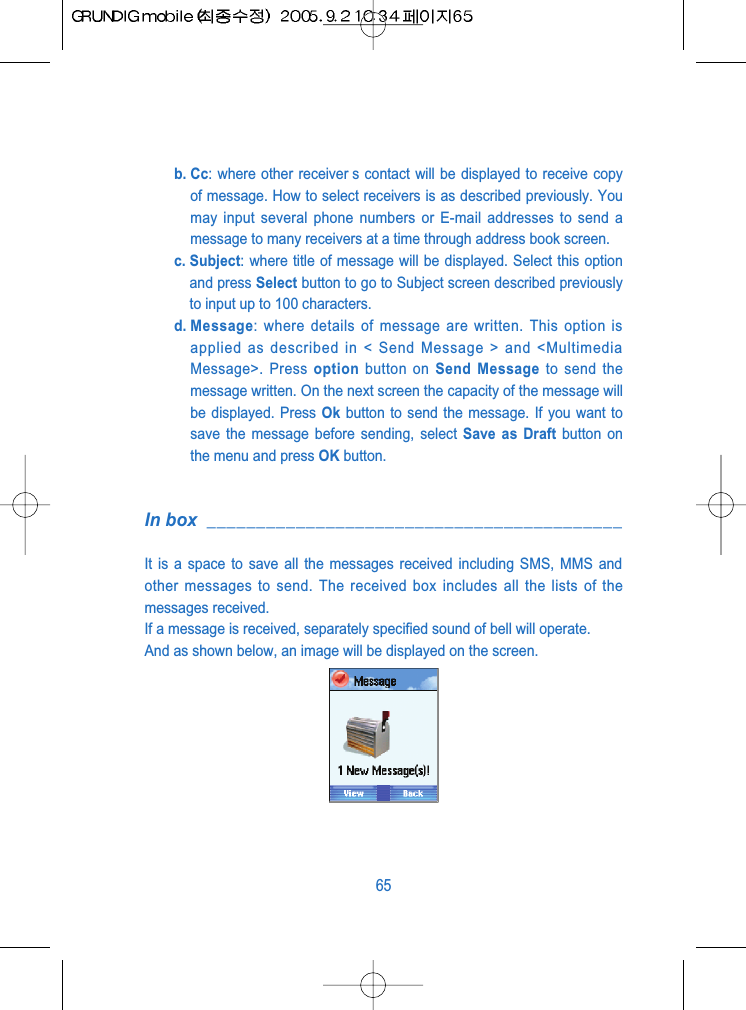
* Add new recipient: adds a new receiver of message.* Recipient: shows the list of receivers of message. Press optionbutton to input a new receiver or to delete the existing receiver* Other options (Save, Alphabet/Number mode,  Insert,  Dictionary,Send option) are previously described.Multimedia messageFollow the procedures below to send a multimedia message.1. Press new message on message menu.2. Select multimedia message and press Ok.3. Write the following; (see the figure below)a. To: where main receiver s phone number will be surely specified.Up to 1024 characters are available for receiver and up to 20numbers for the phone number. Press NAMES menu to setreceivers.64
b. Cc: where other receiver s contact will be displayed to receive copyof message. How to select receivers is as described previously. Youmay input several phone numbers or E-mail addresses to send amessage to many receivers at a time through address book screen.c. Subject: where title of message will be displayed. Select this optionand press Select button to go to Subject screen described previouslyto input up to 100 characters.d. Message: where details of message are written. This option isapplied as described in < Send Message > and <MultimediaMessage>. Press option button on Send Message to send themessage written. On the next screen the capacity of the message willbe displayed. Press Ok button to send the message. If you want tosave the message before sending, select Save as Draft button onthe menu and press OK button.In box __________________________________________It is a space to save all the messages received including SMS, MMS andother messages to send. The received box includes all the lists of themessages received.If a message is received, separately specified sound of bell will operate.And as shown below, an image will be displayed on the screen.65
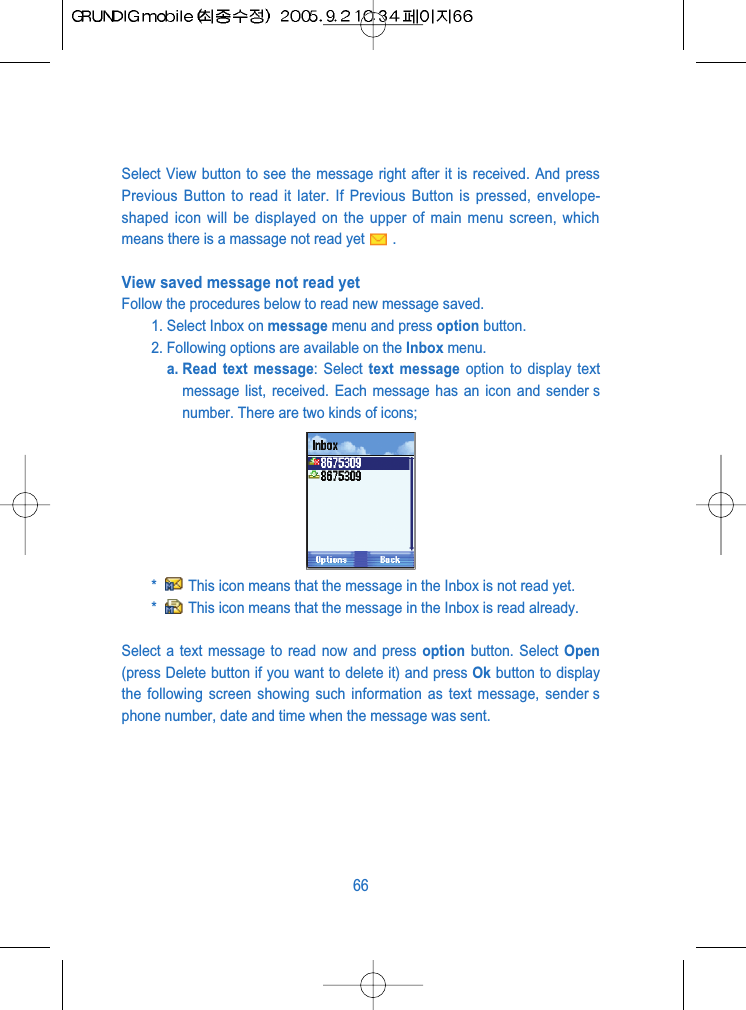
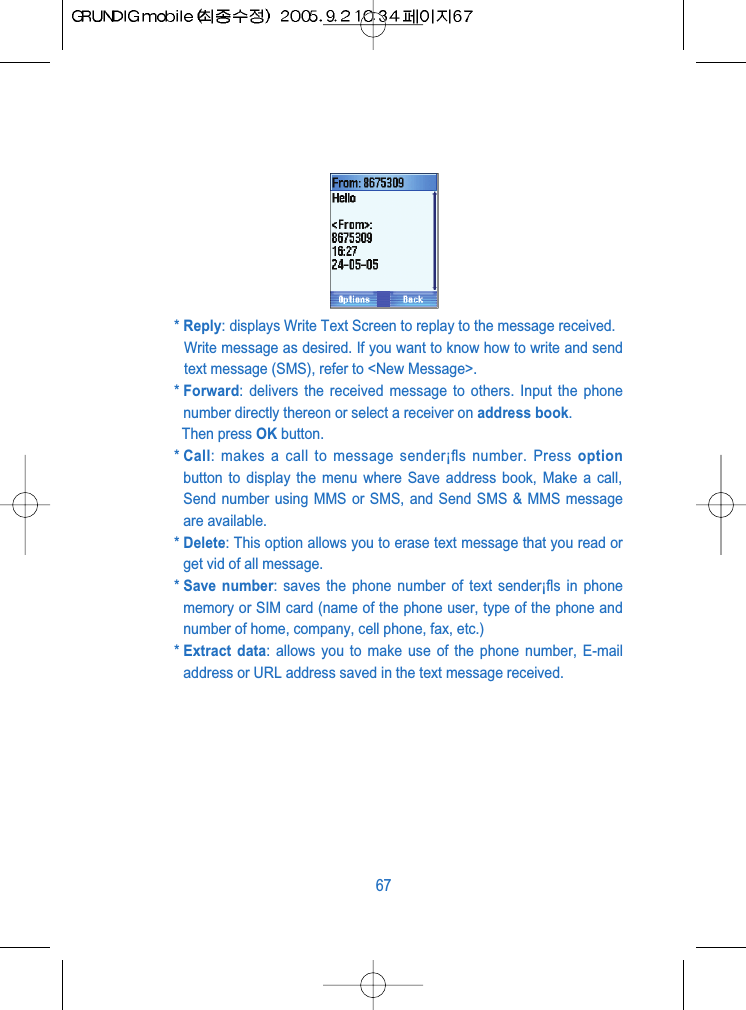
Select View button to see the message right after it is received. And pressPrevious Button to read it later. If Previous Button is pressed, envelope-shaped icon will be displayed on the upper of main menu screen, whichmeans there is a massage not read yet .View saved message not read yet Follow the procedures below to read new message saved.1. Select Inbox on message menu and press option button.2. Following options are available on the Inbox menu. a. Read text message: Select text message option to display textmessage list, received. Each message has an icon and sender snumber. There are two kinds of icons;*  This icon means that the message in the Inbox is not read yet.*  This icon means that the message in the Inbox is read already.Select a text message to read now and press option button. Select Open(press Delete button if you want to delete it) and press Ok button to displaythe following screen showing such information as text message, sender sphone number, date and time when the message was sent.66
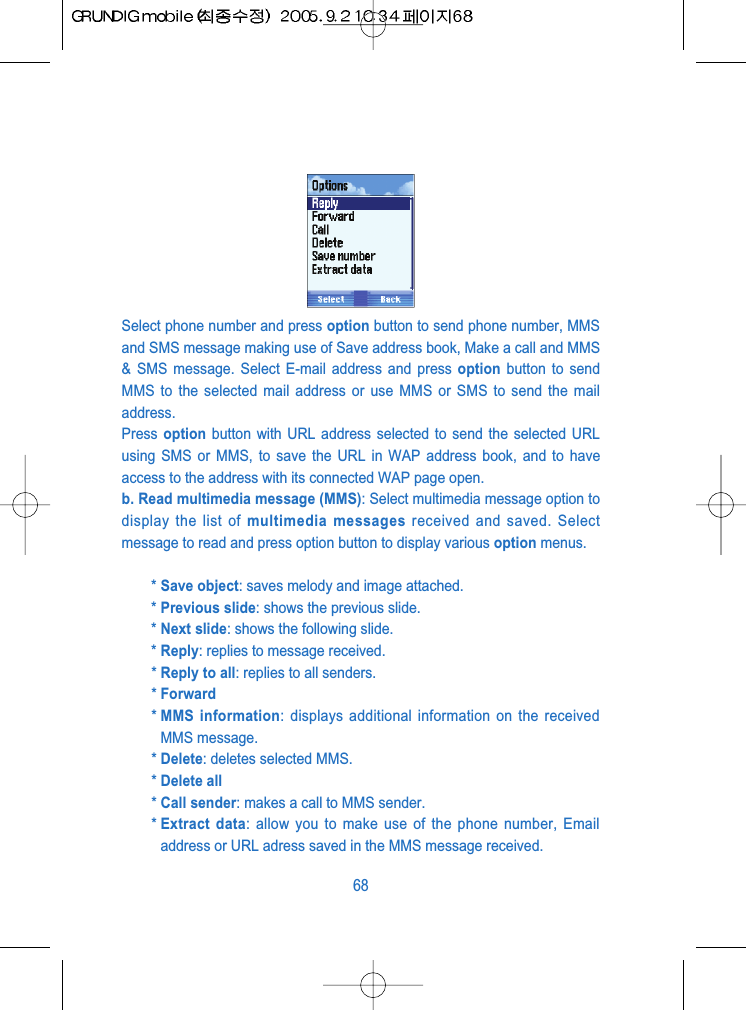
* Reply: displays Write Text Screen to replay to the message received.Write message as desired. If you want to know how to write and sendtext message (SMS), refer to <New Message>.* Forward: delivers the received message to others. Input the phonenumber directly thereon or select a receiver on address book.Then press OK button.* Call: makes a call to message sender¡fls number. Press optionbutton to display the menu where Save address book, Make a call,Send number using MMS or SMS, and Send SMS & MMS messageare available.* Delete: This option allows you to erase text message that you read orget vid of all message.* Save number: saves the phone number of text sender¡fls in phonememory or SIM card (name of the phone user, type of the phone andnumber of home, company, cell phone, fax, etc.)* Extract data: allows you to make use of the phone number, E-mailaddress or URL address saved in the text message received.67
Select phone number and press option button to send phone number, MMSand SMS message making use of Save address book, Make a call and MMS& SMS message. Select E-mail address and press option button to sendMMS to the selected mail address or use MMS or SMS to send the mailaddress.Press  option button with URL address selected to send the selected URLusing SMS or MMS, to save the URL in WAP address book, and to haveaccess to the address with its connected WAP page open.b. Read multimedia message (MMS): Select multimedia message option todisplay the list of multimedia messages received and saved. Selectmessage to read and press option button to display various option menus.* Save object: saves melody and image attached.* Previous slide: shows the previous slide.* Next slide: shows the following slide.* Reply: replies to message received.* Reply to all: replies to all senders.* Forward* MMS information: displays additional information on the receivedMMS message.* Delete: deletes selected MMS.* Delete all* Call sender: makes a call to MMS sender.* Extract data: allow you to make use of the phone number, Emailaddress or URL adress saved in the MMS message received.68
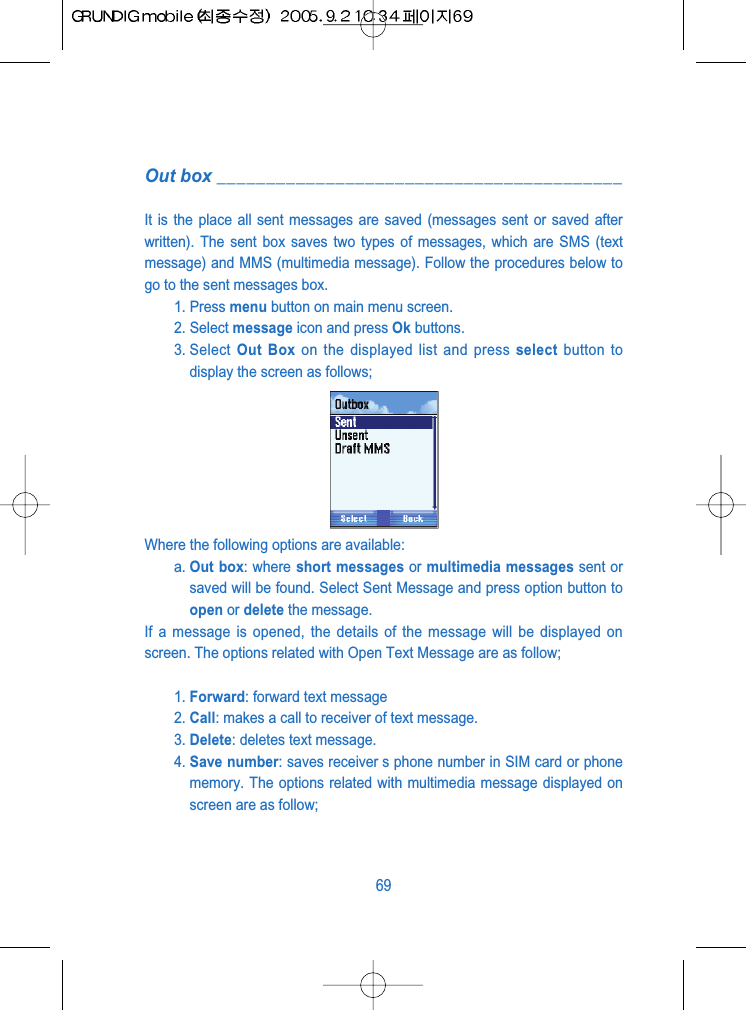
Out box _________________________________________It is the place all sent messages are saved (messages sent or saved afterwritten). The sent box saves two types of messages, which are SMS (textmessage) and MMS (multimedia message). Follow the procedures below togo to the sent messages box.1. Press menu button on main menu screen.2. Select message icon and press Ok buttons.3. Select  Out Box on the displayed list and press select button todisplay the screen as follows;Where the following options are available:a. Out box: where short messages or multimedia messages sent orsaved will be found. Select Sent Message and press option button toopen or delete the message.If a message is opened, the details of the message will be displayed onscreen. The options related with Open Text Message are as follow;1. Forward: forward text message2. Call: makes a call to receiver of text message.3. Delete: deletes text message.4. Save number: saves receiver s phone number in SIM card or phonememory. The options related with multimedia message displayed onscreen are as follow;69
1. Write: edits all information related with To, Cc, details or message.2. Resend: resends text message3. MMS information: displays brief information related with multimediamessage.4. Delete: deletes multimedia message.5. Delete all: deletes all multimedia messages saved in Sent Box.b. Un-sent: shows text message or multimedia message not sentbut saved only.Other functions related with this option are the same as specifiedin Sent messages.c. Draft MMS: Use Save button to display temporary box ofmultimedia messages saved. Refer to <Multimedia Message>. Goto Draft MMS screen to find MMS messages saved. Press DetailsButton on the temporary box list to edit. Press option button simplyto have access to options related with selected temporary box. Theoptions (Edit, Send message, MMS information, Delete, Deleteall) are the same as described in Sent Messages.Options _________________________________________Follow the procedures below to get to message screen.1. Press menu button on the phone screen2. Select message icon and press enter button.3. Select Options on the displayed list and press select button.Then, 3 options will be displayed as follows;70
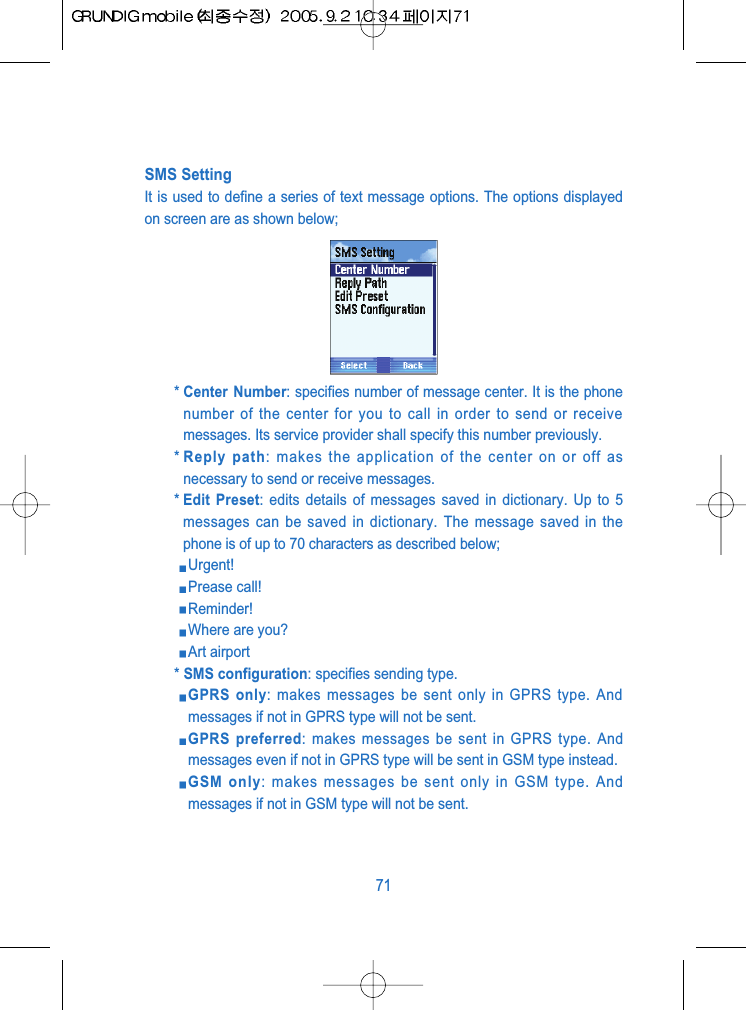
SMS SettingIt is used to define a series of text message options. The options displayedon screen are as shown below;* Center Number: specifies number of message center. It is the phonenumber of the center for you to call in order to send or receivemessages. Its service provider shall specify this number previously.* Reply path: makes the application of the center on or off asnecessary to send or receive messages.* Edit Preset: edits details of messages saved in dictionary. Up to 5messages can be saved in dictionary. The message saved in thephone is of up to 70 characters as described below;Urgent!Prease call!Reminder!Where are you?Art airport* SMS configuration: specifies sending type.GPRS only: makes messages be sent only in GPRS type. Andmessages if not in GPRS type will not be sent.GPRS preferred: makes messages be sent in GPRS type. Andmessages even if not in GPRS type will be sent in GSM type instead.GSM only: makes messages be sent only in GSM type. Andmessages if not in GSM type will not be sent.71
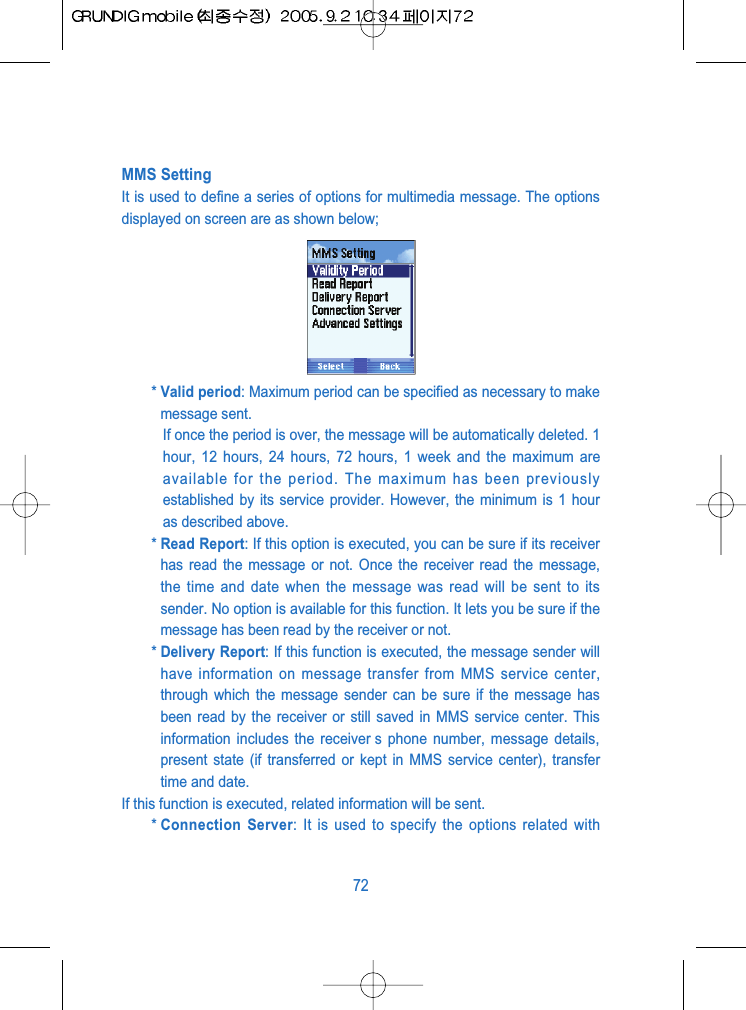
MMS SettingIt is used to define a series of options for multimedia message. The optionsdisplayed on screen are as shown below;* Valid period: Maximum period can be specified as necessary to makemessage sent.If once the period is over, the message will be automatically deleted. 1hour, 12 hours, 24 hours, 72 hours, 1 week and the maximum areavailable for the period. The maximum has been previouslyestablished by its service provider. However, the minimum is 1 houras described above.* Read Report: If this option is executed, you can be sure if its receiverhas read the message or not. Once the receiver read the message,the time and date when the message was read will be sent to itssender. No option is available for this function. It lets you be sure if themessage has been read by the receiver or not.* Delivery Report: If this function is executed, the message sender willhave information on message transfer from MMS service center,through which the message sender can be sure if the message hasbeen read by the receiver or still saved in MMS service center. Thisinformation includes the receiver s phone number, message details,present state (if transferred or kept in MMS service center), transfertime and date.If this function is executed, related information will be sent.* Connection Server: It is used to specify the options related with72
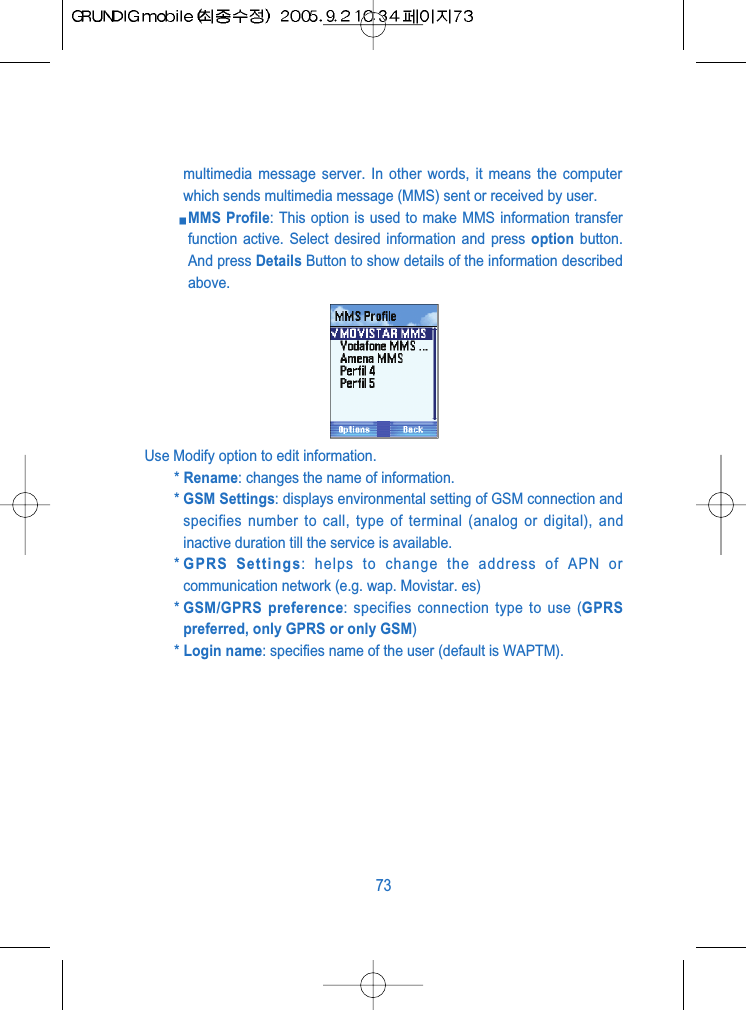
multimedia message server. In other words, it means the computerwhich sends multimedia message (MMS) sent or received by user.MMS Profile: This option is used to make MMS information transferfunction active. Select desired information and press option button.And press Details Button to show details of the information describedabove.Use Modify option to edit information.* Rename: changes the name of information.* GSM Settings: displays environmental setting of GSM connection andspecifies number to call, type of terminal (analog or digital), andinactive duration till the service is available.* GPRS Settings: helps to change the address of APN orcommunication network (e.g. wap. Movistar. es)* GSM/GPRS preference: specifies connection type to use (GPRSpreferred, only GPRS or only GSM)* Login name: specifies name of the user (default is WAPTM).73
* Password: means password to be used (default is WAPTM).* Gateway Address: shows IP address of gateway. Default is192.168.80.21. Contact service provider for further information.* Connection type: displays connection type (connection oriented,secured connection oriented, connection less, secured connectionless)* Homepage URL: lets user go to URL address of wap.Movistar.com asspecified previously.* DNS address: shows IP address of DNS server.MMS server address: shows connection address to MMS serviceSelect MMS server address and press OK button to change serveraddress or to get into the server. Press OK button to make theaddress valid.74
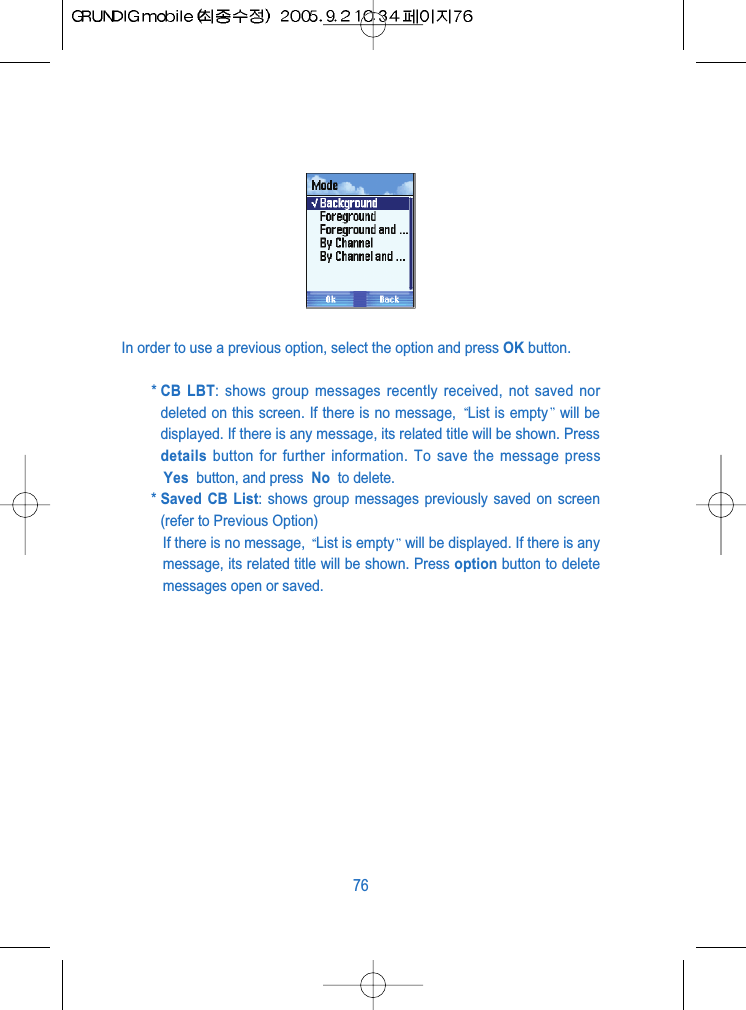
CB MessageGroup message means a text message which will be sent to all the memberswho have joined the communication company.(Messages for common interest, ads, PR, etc., as displayed on the mainmenu of the phone)These messages will be sent to all the phones located in designated placeswith the applicable channel setting.Note: Select the following option on main screen to go to its sub-menu.Message/ Settings/ CB Message* Reception: allows you to receive group messages if this option isselected.(Default is set to off)* Channels: defines a channel to receive this kind of messages. Selecta new channel from the list to display on screen and use optionbutton to execute. If you want to add a new channel to list, select anychannel and press option button and then Add. Input new channelnumber to number writer and press OK button (Up to 3-digit number isavailable and the number shall be surely input. If not, channel settingwill not be available)The Write option of sub-menu edits name and number assigned to theselected channel on the list. Up to 10 channels are available.* Mode: shows 5 methods to display received message on screen viathis sub-menu (These methods specify environment of received groupmessage or each channel used) (see the figure below)75
In order to use a previous option, select the option and press OK button.* CB LBT: shows group messages recently received, not saved nordeleted on this screen. If there is no message,  List is empty will bedisplayed. If there is any message, its related title will be shown. Pressdetails button for further information. To save the message pressYes  button, and press  No  to delete.* Saved CB List: shows group messages previously saved on screen(refer to Previous Option)If there is no message,  List is empty will be displayed. If there is anymessage, its related title will be shown. Press option button to deletemessages open or saved. 76
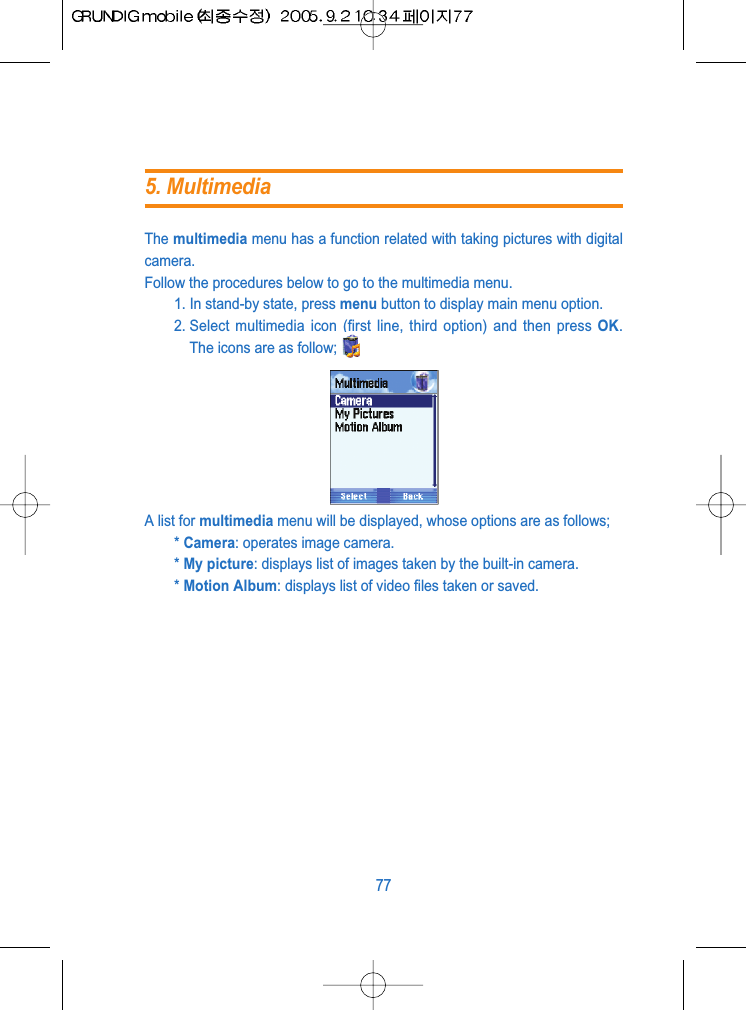
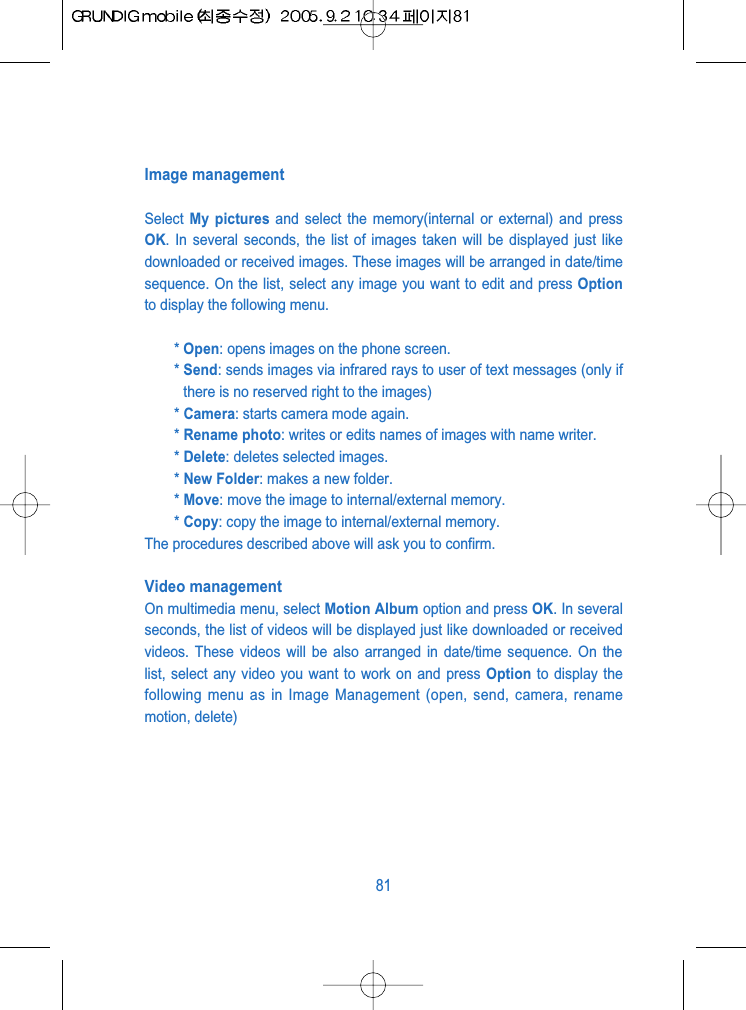
The multimedia menu has a function related with taking pictures with digitalcamera.Follow the procedures below to go to the multimedia menu.1. In stand-by state, press menu button to display main menu option.2. Select multimedia icon (first line, third option) and then press OK.The icons are as follow;A list for multimedia menu will be displayed, whose options are as follows;* Camera: operates image camera.* My picture: displays list of images taken by the built-in camera.* Motion Album: displays list of video files taken or saved.775. Multimedia
Take a picture____________________________________There are there methods to take a picture with GRUNDIG mobile.* Fast access: In stand-by state of the screen, press OK on the centerof the direction button and select its icon .* Enter via main menu: On the menu screen, select multimedia optionand press Enter to display the list showing camera option to select.Press  Enter again. If the camera operates anyway, let the phonestand lengthwise with its number pad downward, then catch hold of anobject to take a picture of using the direction button (ensure thatcamera controller is located at the rear central upper of the phone)and press OK in the center to take a picture.* Hot Key: In stand-by screen, press left side-upper key to intializecamera mode.Note: Wait a few seconds for the digital sensor to adjust to digital tone ofcolor when starting camera operation, which will make the quality of imagesexcellent.Note: Sound similar to the shutter of a camera will be heard for you to feelthe same as with the actual camera when the moment a picture is taken. If you want to delete the picture just taken, press Cancel and return tocamera mode. On the contrary, if you want to save the picture, press Savein the album with a name you want. After then, the camera mode will beready again. The automatically created names of the pictures taken andsaved are of numeric date containing Year (2 digits), Month (2 digits) andDay (2 digits) with the sequence number of the pictures.Ex.) 050212-7 means image number 07 taken on Feb. 12, 2005)78
If once the camera starts to operate, just press option button  tospecify environmental setting related (Mode, Size, Flash, Quality)Press Option to display setting option menu as follows;* Mode: sets camera mode as necessary (3 modes available) Normal mode: Press OK to take a normal picture.Multishot Mode: Press OK to take 9 pictures continuously.Motion mode: makes and saves a video file as necessary in phonememory.* Size: sets the resolution of images (4 levels available): Mega(1280X960 pixels), VGA (649X480 pixels), QVGA (320x240 pixels) andNormal (128x60 pixels).* Flash: where flashing can be active or inactive. Three methods areavailable;  Autoflash (flashes whenever the camera takes a picture),On (flash are always on), Off (never flashes)* Quality: sets image related quality (3 levels available: high, mediumand low)Other optionsThe camera built-in GRUNDIG mobile includes functions of digital zoomingand glossy adjustment. 79
If the camera starts to operate, the following icon will be displayed on theoption below the screen (see Take a picture).* You may enter camera setting option described above.* If you want to enlarge or reduce image size, select the upper key(Enlarge image) and press OK. You can enlarge the image 5 timesgradually. Pressing the upper again at the maximum zooming will leadto the minimum zooming function. The maximum zooming is availablebased on the size-related environment specified.(5 times of zoomingwill be available as described)* Brightness can be adjusted higher or lower. If you want to apply thisfunction, select left key and then press OK in the center.* Effectiveness can be adjusted to each mode(eg. Normal, Black andWhite, Sepia, etc)* If you press right option key  and select the icon, the cameramode will be cancelled and multimedia menu will be displayed again.View images & Play videosIt easily allows you not only to see, save or delete images or videos takenbut also to change their names as follows; Go to multimedia menu and find the following menu displayed, as describedin the beginning in multimedia details.80
Image managementSelect  My pictures and select the memory(internal or external) and pressOK. In several seconds, the list of images taken will be displayed just likedownloaded or received images. These images will be arranged in date/timesequence. On the list, select any image you want to edit and press Optionto display the following menu.* Open: opens images on the phone screen.* Send: sends images via infrared rays to user of text messages (only ifthere is no reserved right to the images)* Camera: starts camera mode again.* Rename photo: writes or edits names of images with name writer.* Delete: deletes selected images. * New Folder: makes a new folder. * Move: move the image to internal/external memory. * Copy: copy the image to internal/external memory.The procedures described above will ask you to confirm.Video management On multimedia menu, select Motion Album option and press OK. In severalseconds, the list of videos will be displayed just like downloaded or receivedvideos. These videos will be also arranged in date/time sequence. On thelist, select any video you want to work on and press Option to display thefollowing menu as in Image Management (open, send, camera, renamemotion, delete)81
Work on imageYou can work on images as you can enlarge, rotate, move or change namesof images as follows;Rotate imageFollow the procedures below to execute this operation.1. In stand-by state, select icon  to start camera mode.2. Select My picture and press Enter.3. Select an image to work on and press Option button.4. Select  Open and press Enter to display the selected image on thescreen.After the selected image is displayed on the screen, you can enlarge,reduce, move or rotate the image quick and simply; Please find R(means rotation) between Option and Back buttons on theline below the screen. Press Left or Right key to rotate the image 90¡ to theleft or right respectively. And press Up or Down key to go to next image.Send image______________________________________You can send image or video saved in album using multimedia message viainfrared rays.Follow the procedures below to apply this option.1. Press OK button to start camera mode.2. Select My picture and press OK. 3. Select an image or video to send and press Option button.4. Select Send and press Enter to display the menu with two options asfollows;82
a. MMS: where you can send image to selected receiver usingmultimedia message. Press Enter to display the screen to writemultimedia message on.Follow the procedures as described in Multimedia Message.b. Infrared rays: where you can send image to other device orequipment using infrared port (only if there is no reserved right to theimage)Note: Video file can t be sent while attached to multimedia messageorinfrared port.How to use image album___________________________You can save images taken and received via multimedia message in imagealbum. You can also make a multimedia message using the saved images.Note: GRUNDIG mobile has a Digital Rights Management function toprotect from illegal copy. Any image whose rights are reserved can¡flt besent)Follow the procedures below to apply this option.1. In stand-by state of GRUNDIG mobile, press menu button to displaymain menu option.2. Use the direction button to select multimedia option.3. Press OK to display multimedia option list. 83
MP3 Player ______________________________________Press Ok in idle states and go to MP3 player. You can play the MP3 soundas following below.How to play the MP3 sound press  List and go to option.a. Play: You can prelisten the MP3 sound before adding in MP3 playlist.b. Add File: Add the MP3 sound to MP3 play list.C. Add folder: Add the MP3 sound folder to MP3 play list.d. Delete: Deletes the MP3 sound that are in the MP3 play list.e. Delete all: Deletes all the MP3 sound that are in the MP3 play list.f. File information: Show the information about the MP3 file.About the MP3 playerstart/pause normalstop one music reportnext full repeatpreviousStorage Selection_________________________________You can select the default storage memory.Format SD Card __________________________________Formats the T-Flash if the card operates very slow.84
In Leisure menu, you can play and download the Games, melodies andimages.- Games: Play games and download such gamesvia WAP server.- Melodies: Operate/download the melodies to use.- Images: Operate/download the images to useGames __________________________________________* My Games: Select  My Games in games menu to play the game.* Info: Information about the game.* Download: Select  Download to download the game via WAPserver.* Setting1. Connection: Set the item about downloading.2. Execuion: Set the sound and backlight for games.* Memory: Shows status of meemory.Melodies ________________________________________* List: Shows the melodies which are avalable to use.1. My melodies: Shows the melody from FDA/MMS or rewrded voicewhich are located in internal/external melody.2. Default melodies: Shows the melodies which are located in thephone by default.* Info: Information about the melody.* Download: Select  Download to download the melody via WAPserver.856. Leisure
Images__________________________________________* List: Shows the images which are available to use.1. My picture: Shows the images from FDA/MMS which are locatedin internal/external memory.2. Default picture: Shows the images which are located in the phoneby default.* Info: Information about the image.* Download: Select  Download to download the image via WAPserver.86
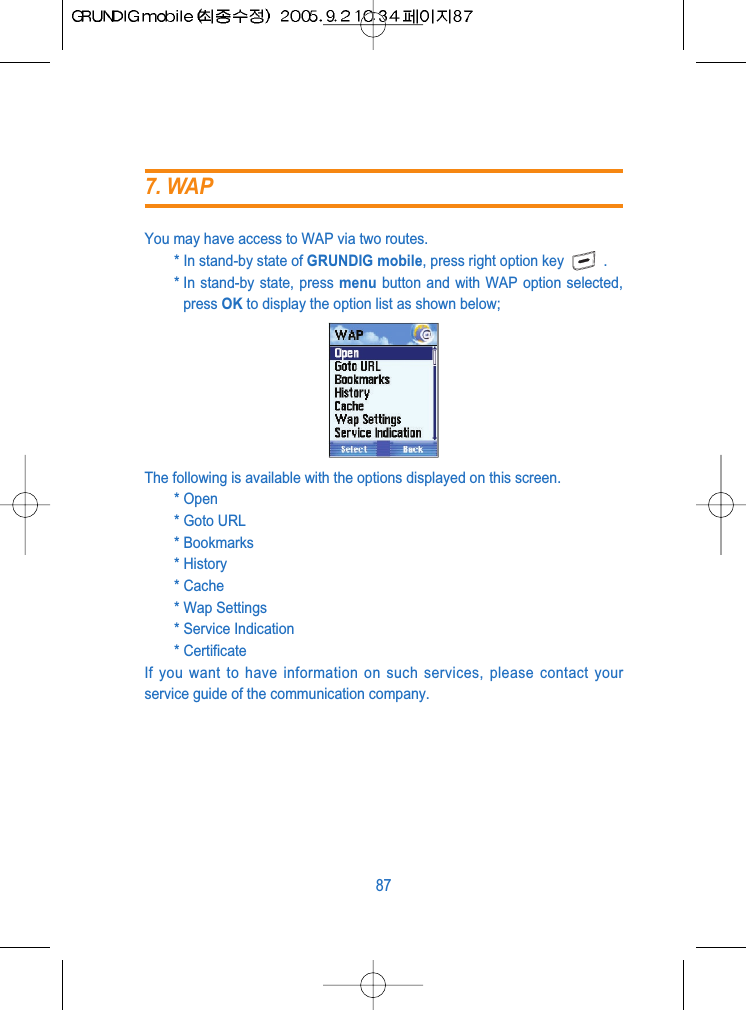
You may have access to WAP via two routes.* In stand-by state of GRUNDIG mobile, press right option key .* In stand-by state, press menu button and with WAP option selected,press OK to display the option list as shown below;The following is available with the options displayed on this screen.* Open* Goto URL* Bookmarks* History* Cache* Wap Settings* Service Indication* CertificateIf you want to have information on such services, please contact yourservice guide of the communication company.877. WAP
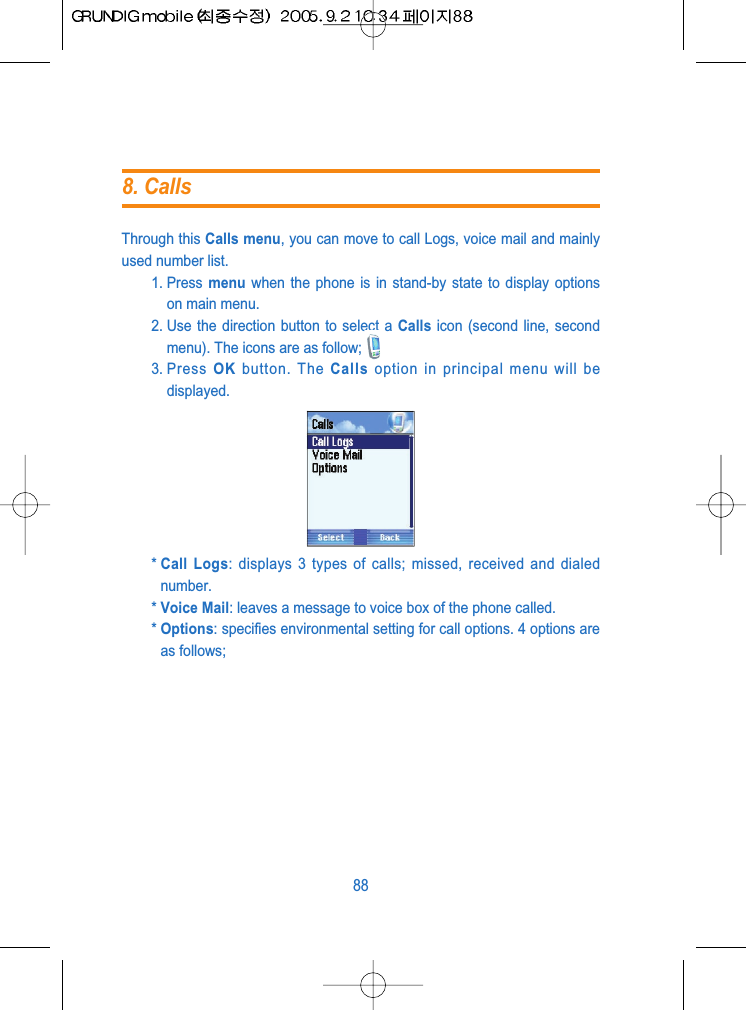
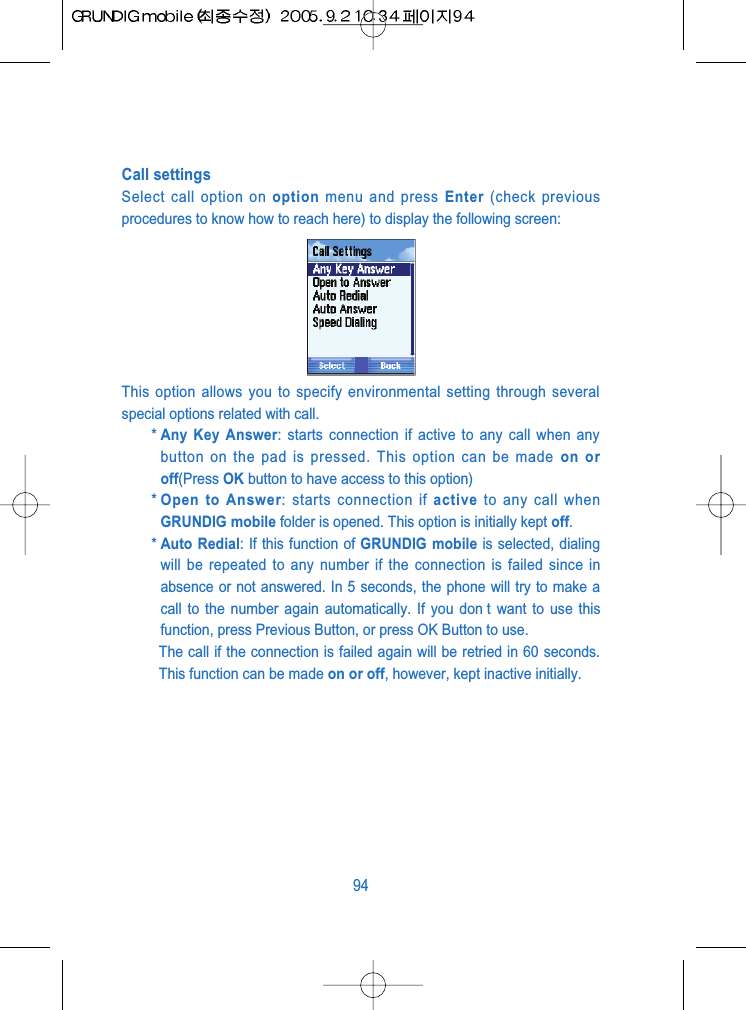
Through this Calls menu, you can move to call Logs, voice mail and mainlyused number list. 1. Press  menu when the phone is in stand-by state to display optionson main menu.2. Use the direction button to select a Calls icon (second line, secondmenu). The icons are as follow;3. Press  OK button. The Calls option in principal menu will bedisplayed.* Call Logs: displays 3 types of calls; missed, received and dialednumber.* Voice Mail: leaves a message to voice box of the phone called.* Options: specifies environmental setting for call options. 4 options areas follows;888. Calls
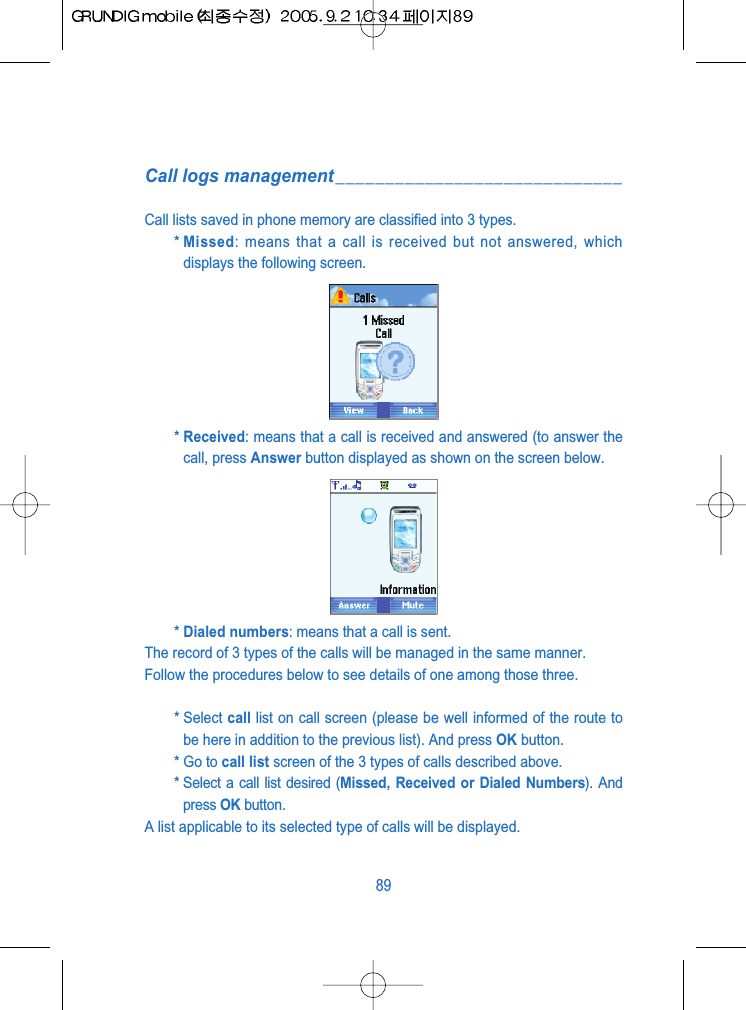
Call logs management_____________________________Call lists saved in phone memory are classified into 3 types.* Missed: means that a call is received but not answered, whichdisplays the following screen.* Received: means that a call is received and answered (to answer thecall, press Answer button displayed as shown on the screen below.* Dialed numbers: means that a call is sent. The record of 3 types of the calls will be managed in the same manner.Follow the procedures below to see details of one among those three.* Select call list on call screen (please be well informed of the route tobe here in addition to the previous list). And press OK button.* Go to call list screen of the 3 types of calls described above.* Select a call list desired (Missed, Received or Dialed Numbers). Andpress OK button.A list applicable to its selected type of calls will be displayed.89
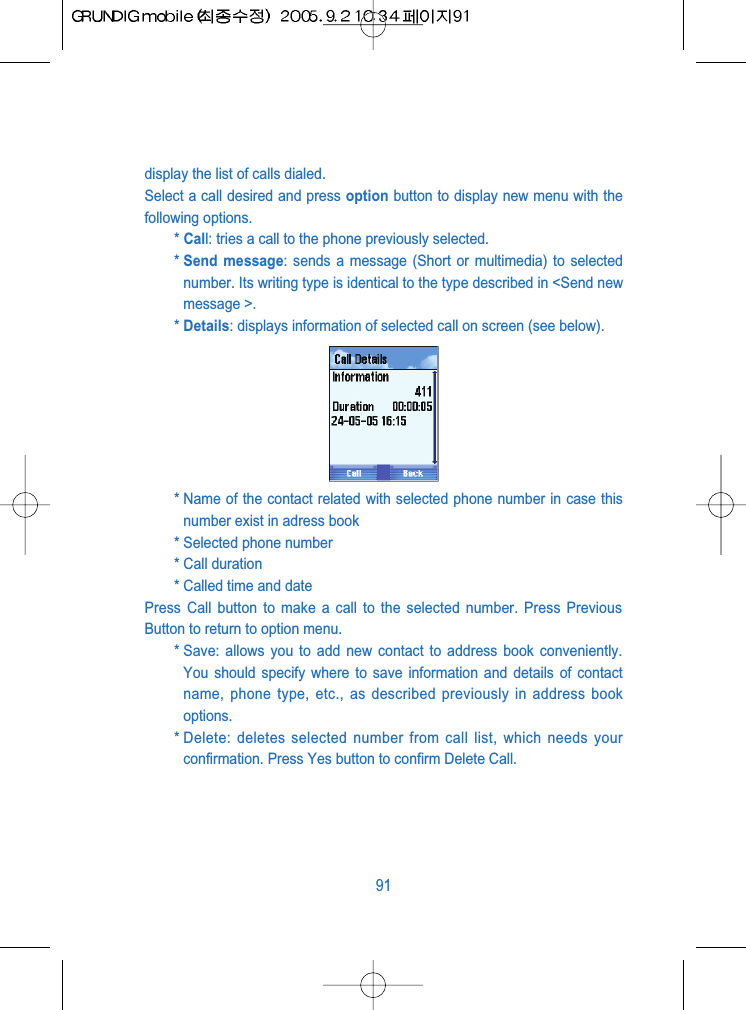
Note: If you want to see call record in stand-by state, press Send button(blue) directly to go to sent call list.The list of calls displays phone numbers. If a number is identical to thenumber in the phone book, its contact name will be displayed instead of thephone number. The call record displays time and date when message issent or received in regular order (first one on the list is the most recentrecord.)A new effective call is recorded on the first place of the list. If the list gets full,the last record will be erased. If a previously recorded call is made or dialedagain, its record will not be created again but just moved to the first place.Missed Select In Missed option on call logs and press OK button to show record ofcalls received but not answered. Select the call not answered and pressoption button to see the following menu.* Select one number on the list of calls not answered and make a callthereto (Call)* Send a message to the selected number (Send message)Displays information of selected call on screen(details)(refer the dialednumber)* Save this number in phone address book or SIM card (Save)* Delete the list of calls not answered (Delete)ReceivedOn the Call logs, select Received option and press OK button to display thelast list of calls answered. Select a call received and press option button todisplay option menu as before (Missed)Dialed NumbersOn the Call logs, select Dialed Numbers option and press OK button to90
display the list of calls dialed. Select a call desired and press option button to display new menu with thefollowing options.* Call: tries a call to the phone previously selected.* Send message: sends a message (Short or multimedia) to selectednumber. Its writing type is identical to the type described in <Send newmessage >.* Details: displays information of selected call on screen (see below).* Name of the contact related with selected phone number in case thisnumber exist in adress book* Selected phone number* Call duration* Called time and datePress Call button to make a call to the selected number. Press PreviousButton to return to option menu.* Save: allows you to add new contact to address book conveniently.You should specify where to save information and details of contactname, phone type, etc., as described previously in address bookoptions. * Delete: deletes selected number from call list, which needs yourconfirmation. Press Yes button to confirm Delete Call.91
Voice Mail _______________________________________It is an automatic answering machine (run by communication company)saying  Please, leave your message for me to call back when the call cannot be answered or the phone is out of service area or turned off. Follow theprocedures below to enter the voice box.1. In stand-by state of GRUNDIG mobile, press menu button to displaymain menu option.2. Use the direction button to select Calls icon (second line, secondmenu) and then press OK. The icons are as shown below .3 On call screen, select voice mail and press OK button to displayvoice box screen showing the options related with this function (Seethe figure below).The options are as follow;92
Whatever option is selected (Dial,  Activate or  Voice mail greetings), youmay hear instructions if connected to the number you joined. And if any ofthose is unavailable, an error message will be displayed on screen of thephone.In case a call is made to voice box, you will see the following display;Options _________________________________________Call logs, Voice mail and Useful number has the identical options as shownbelow. You may get to its option menu through the following operation;1 On the phone screen, press menu to display main menu option.2 Use the direction button to select Calls icon and then press Enter(second line, second option). The icons are is as follow;3 On Calls screen, select the option and press OK to enter optionscreen.The following is to describe the option.93
Call settingsSelect call option on option menu and press Enter (check previousprocedures to know how to reach here) to display the following screen:This option allows you to specify environmental setting through severalspecial options related with call.* Any Key Answer: starts connection if active to any call when anybutton on the pad is pressed. This option can be made on oroff(Press OK button to have access to this option)* Open to Answer: starts connection if active to any call whenGRUNDIG mobile folder is opened. This option is initially kept off.* Auto Redial: If this function of GRUNDIG mobile is selected, dialingwill be repeated to any number if the connection is failed since inabsence or not answered. In 5 seconds, the phone will try to make acall to the number again automatically. If you don t want to use thisfunction, press Previous Button, or press OK Button to use.The call if the connection is failed again will be retried in 60 seconds.This function can be made on or off, however, kept inactive initially.94
* Auto Answer: If this is selected, the call received will be automaticallyanswered, which has 4 options (Press OK button to display those): off,3 seconds, 5 seconds and 10 seconds. It is the duration just beforethe phone answers the received call automatically.* Speed Dialing: If this option is applied, you can make a fast call.Select number and then press it to make a fast call thereto in stand-bystate. How to make it available is as follows;Setting speed dial number In GRUNDIG mobile, individual phone number can be set to each numberbutton of 2 to 9 and 8. For example, if you want to set button No.7 for certainfast dial number, the procedures below shall be followed.1 In stand-by state, press menu button to display main menu option.2 Use the direction button to select Calls icon and then press OK.3 On  Calls screen, select Option and press OK to display optionscreen.4 Select Calls settings and press OK.5 Select  Speed Dialing option and press OK button to go into speeddial setup screen.6 Select option 7 and press set to display phone number list saved inaddress book.7 Select any contact number you want to connect with button No.7 andpress OK.95
8 Press option button and select Set or Delete if you want to Edit orDelete the speed dial connection.9 Keep on pressing back Button till you reach the screen in stand-bystate.If the fast dial number is presently active, keep pressing button No.7 till thecall is connected.Call ServicesThe call service includes such functions stand-by call, environmental settingand restricted display of sender.The service is available as follows;1 In stand-by state, press menu button to display main menu option.2 Use the direction button to select calls icon and then pressOK(second line, second option). The icons are as follow;3 On Calls screen, select Option and press OK to go to option screen.4 Select  Call Services and press OK button to display the followingscreen.The options of this menu have the following functions related.96
Call ForwardingIt allows you to make received Call to go to other phone number. Select thisoption and press OK button to use this function, which has 4 sub-menus asfollows;Voice: specifies received voice call.Data: specifies received data.Fax: specifies received fax.All: specifies all received calls.You can specify the time when you want to set the option for all the receivedcalls (For this operation, select an option of voice, data, fax or all and pressOK button).All calls of data, fax or voice: receives all types of calls selected.Busy: receives all calls selected even during you are connected withother phone. INo answer: The service provider shall specify the number of bells tomake In-absence mode active if call is not answered.Unreachable: receives all calls sent even if out of service area.Unconditional: cancels all the previous options if all the type of callsreceived is specified. Once after the type and the number of calls received are specified, youshould execute the applicable option. First,1. On the voice menu, select one of the present options(Unconditional, Busy, No answer, Unreachable) and press OK.97
2. Select Activate to perform Received Call on the displayed menu. Inaddition, select Activate to specify calls received, select Cancel tocancel and select State to know the state of call received. And thenpress OK.3. Select Activate and press Enter to display the following options;a. To Voicemail: If this selected, calls will be sent to the voice boxnumber as specified in your phone.b. To Phonebook: If this option selected, calls will be sent to thesingle phone saved in address book. Select this option and pressEnter to display details of address book.c. To other number: If this option selected, calls will be sent todesignated number (number writer will be displayed where up to 21digits are available).Call BarringThis makes calls be sent and received only under the specified conditions.Select this option on menu to make use of this service.Select Barring Call service and press OK to display its options as follows; 98
* All outgoing Calls: Restricts All outgoing calls, which is controlled bypassword.* Int l Outgoing: Restricts All outgoing calls to abord, which iscontrolled by password.* Int l Expect HomeAll Incoming: Restricts All incoming calls which is controlled bypassword.Inc when Roam* Cancel All: Cancel All the pre-setted restricts at a time, which iscontrolled by password.* Change Password: In order to change password for call barning,select change password option and press OK. then input the correctexisting password first and then new password twice(it is to confirmthat the new password is correct).* Note: The password used for call restriction shall be 4-digit number.99
Call waiting: This service is used to make other call stand by while a precedent call isconnected, which can be applied or cancelled as necessary. In order toapply this function, select Stand-by call option on call service menu (see thefirst of the manual if you are not familiar with the route to this screen) andpress Enter to display the following options;* Apply: applies Call Waiting call option.* Cancel: cancels Call Waiting call option.* State: displays the state of Call Waiting call.Select state option and press Enter to show the state of stand-by call.100
Caller ID: This will let you know the number and the name from which call is sent. Inorder to apply this function, select Confirm sender option on call servicemenu and press OK to display the following options;* Show caller: shows sender s phone number* Hide own: hides my phone number for its receiver not to see.* show connected: displays sender s number for me conveniently tocheck the number if dialed wrongly or correctly.* Hide own when forward: hides my number from its receiver s phonedialed wrongly. Select applicable option to use and press OK.Caller IDIn order to identify sender s phone number, select Show Caller or showconnected option and press OK. On the succeeding screen, select Statusand press OK.101
Hide own If you don t want to reveal your phone number to the phone dialed, selectHide own option and press OK. On the succeeding menu, select Cancel andpress OK.Clear call Log This option is used for you to erase all the call lists through call option menu.(Missed, Received, Dialed).It will erase all the record of calls with ease.1. In stand-by state, press menu button to display main menu option.2. Use the direction button to select Calls icon (second line, secondoption) and then press OK. The icons included are as follow;3. On calls screen, select Option and press OK to go to option screen.4. Select Clear call Log and press OK to display the following screen.* Delete Missed: deletes all calls in absence saved.* Delete Received: deletes all received calls saved.* Delete Dialed: deletes all sent calls saved.102
* Delete all: deletes all the lists of calls saved.The procedures for each case above are identical as follows;Select desired option and press OK to display a confirming screen.Press  Yes  to erase or press  No  to cancel.Air timeThis provides information on calling time used in total (time used for callsdialed and received including the last one).Follow the procedures below to use this option.1. In stand-by state, press menu button to display main menu option.2. Use the direction button to select calls icon (second line, secondoption) and then press OK. The icons included are as follow;103
3. On calls screen, select Option and press OK to go to option screen.4. Select Air Time and press OK to display the following information.5. Press Back button to go out of this screen.6. Press Reset button and select desired option on the menu below toset the counter to 0 (Zero)a. All: erases all the accumulated time used for calls received andsent.b. Dialed: erases the accumulated time used for calls sent.c. Received: erases the accumulated time used for calls received.d. Last Dialed: erases the time used for the last call.7. Every option if selected will ask you to confirm.Call costsThis informs you of the amount of total cost of all calls and the last callincluding the maximum amount/cost of calls. The cost may be expressed insome unit or currency. Follow the procedures below to go to this option.104
1. In stand-by state, press menu button to display main menu option.2. Select calls icon (second line, second option) and then press OK.The icons are as follow;3. On calls screen, select Option and press OK to go to option screen.4. Select Call costs and press OK to display the following options.a. Last call: displays the cost of the last call, which can be expressedin specific unit or currency through Display calling cost option(described later)b. All calls: displays the cost of all calls. Press Reset button to deletethe cost displayed. The terminal will ask you to input PIN 2. Thepassword shall be input correctly. If not, the cost of all calls will notbe deleted. If so, a message  The cost of calls is set to 0(zero)  willbe displayed.c. Call Cost Limit: limits the maximum cost of calls available. Selectthis option to display on or off option screen. Then, select on andinput PIN 2 correctly to display the screen to write the desiredmaximum cost of calls on. In order to cancel this option, select offand input PIN 2 correctly.d. Call Cost Display: where display type of calling cost is specifiedwith two options of specific unit or currency. If you want tochange options, input PIN 2 correctly.105
The options on Extras menus allow you to connect to other functions of thephone and SIM card (My services, Calendar, Applications). Follow theprocedures below to enter Extras menus.1. In stand-by state, press menu button to display main menu option.2. Use the direction button to select Extras menus icon (third option,second line) and then press OK. The icons related are as follow;Option list related with Extras menus will be displayed as shown below;How to operate each tool will be described later.My Services _____________________________________It allows you additional services with SIM card used in addition to functionsavailable in GRUNDIG mobile, providing information on news, economics,sports, lottery and weather.How various the services can be depends on the type of SIM card.1069. Extras
Calendar ________________________________________On Other menus, select Calendar and press OK to go to its related optionlist, where you can set an alarm for a specific event.Main options related with Calendar will be displayed as shown below;The title of the calendar screen is the date specified as seen (24-05-2005 onthe previous screen). On the other hand, the number of events specified isdisplayed on the right side of the option line (The number of events is 0 onthe previous screen).EventsOn  Calendar screen, select Events option and press OK to display thescreen, where you can add, delete or execute an event.Follow the procedures below to apply this function;1. On option screen, select Add event and press OK.2. Go to the screen where you can select the type of event to specify.Alarm: sets an alarm for time Alert.Meeting: sets an alarm for meeting.Birthday: sets an alarm for birthday.Memo: sets an alarm for other types of events.Note: Definition of each alarm differs a little according to each case asfollows;107
3. Select an event type among three and press Enter (Up to 20 eventscan be added. And date and time of the phone are always used whena new event is added).4. The following describes how to add text for event being specified.A text writing screen will be displayed for you to input 64 characters.After text is written, press OK button.5. The next procedure is how to input event date (Default is the presentdate of the phone). Use Up/Down direction keys or input numbersdirectly on the key pad so to specify the date.Note: Setting of starting time only will be enough for an event type ofbirthdays.6. Now, Start and End time (when the phone operates the alarm) ofdesired event shall be set. Use the phone button directly or Up/Downbutton to input.7. Now, how many times the event will be repeated shall be specified,where the following options are available. Select a desired option andpress Enter.You don t need to set the period in case of birthday event.108
8. Set alarming time to inform you that an applicable event will be open.(Alarming time screen); None, 1 day prior, 30 minutes prior and 15minutes prior are available, where you can select an exact timeoption you want. After a time option is selected, press OK. You don t need to specify details as in alarm types or birthday event.9. Finally, specify the type of alarm to inform you that an applicableevent will be open. There are 2 types of alarm available.A. Visual: uses blinking light to operate the alarm.B. Ring visual: uses sound and light to operate the alarm.Select a desired alarm type and press OK to finish all the procedures.Note: The sound of the time alarm is different from that of the event alarm.When a call is received while an alarm operates, the alarm will stop till thecall is finished. In the beginning the alarming bell will go on for 1 minute, andthen for 5 minutes if not stopped by user. After the third bell, the alarm willstop then.The following icons will be displayed on the icon bar of the upper screenwhen you specify the alarm. The screen of event alarm is as shownbelow;109
View calendarAny event once after specified can be checked everyday through thefollowing options displayed on calendar screen;* Events: creates or changes events, which is previously described.* Scroll all days: checks events displayed on calendar everyday. If thisoption is selected, the option button will have names of Next andPrevious. Press Next button to go to next day on calendar, where theday s specified events will be displayed. Press Previous to go toprevious day on calendar.* Scroll event days: shows the event specified date only on calendar.Next and Previous option buttons will be displayed.* Today: leads you directly to present event. With this option specified,select Option and press OK.* Week view: shows the week of the present date. Any day if with anyevent will be displayed in  xmark (See the figure below).110
Month view: shows the month of the present date.Other event optionsYou can execute other operation on calendar menu. Select Event option onthe displayed screen and press OK. Then, choose Select and press OK todisplay the event list arranged, based on specified date and its operationtime (See the figure below).* Details: shows details of the event selected (type, date, operationtime, related expression and alarming time)111
* Edit: edits specific details related with event (Description, Date, starttime, end time, frequency, etc.)* Delete: deletes selected event. You will be asked to press  Yes  toconfirm).Note: Factors to be written for event are different according to its type. Thatis to say, all kinds of events do not have the same factors. See below;* Alarm: description, time and date.* Meeting: description, date, start time, end time, frequency, alarm type,alarm time.* Birthday: description, date, time and alarm type.Return to calendar menu, select Event option and press Option button todisplay the list familiar to you, where event options are available, however,some are not mentioned yet.* Select: You can select the reservated events.* All event: You can add a event.* Go to: goes to the date designated on calendar in order to see theevent set on the date described. * Delete past events: deletes all the events which happened beforetoday.Select this option and press OK. Then you will be asked to confirm.* Delete all events: deletes all the events specified, which will ask youto confirm.Press Back button to return to previous menu (It is the fastest route to getout of the calendar menu).112
Calculator ______________________________________GRUNDIG mobile calculator helps you to perform basic calculation work. Follow the procedures below to use the calculator.1. In stand-by state, press menu button to display main menu option.2. Use the direction button to select Extras menus icon (third option,second line) and then press OK. The applicable icon is as shownbelow;3. Select  Calculator and press OK to go to Calculator screen, whereyou can perform calculation work.- Use number keys to input numbers desired.- Use # key to display a decimal point.- Use * key to make a negative number.- After desired number is input, press updown Nevigation key to inputthe signs of +, -, x and  .- Input the first number and then the second number to calculate.- Te get the result of the calculation, press  Equals button (See thefigure below).- You can use the acquired result to apply to other calculation withup/down nevigation key buttons. This calculator does not supportsimultaneous multi-calculation. You should divide the object intoseveral in such a case and then perform each calculation in dueconsideration of calculation priority.Press Back button to return to previous screen.113
Applications _____________________________________On Applications menu, you can find much newer and exciting applicationsall available to download.Follow the procedures below to go to Applications menu.1. In stand-by state, press menu button to display main menu option.2. Use the direction button to select Extras menus icon and then pressOK. The icons are as shown below;3. Select Applications and press OK to go to Applications screen withthe options as follow;a. Application list: shows application list saved in GRUNDIG mobile ordownloaded.b. Download: allows you to go to application download center providedin GRUNDIG mobile.c. Setting: sets application and downloading methods.d. Memory: shows the capacity of memory remained.Note: This option is identical to the option described in <Games>.114
In Settings menu, you can specify all appearances of GRUNDIG : (for bellvolume of call received, calling bell melody, background screen image, othersetting options of communication network, security and connection) Followthe procedures below to get to Setting menu.1. In stand-by state, press menu button to display main menu option.2. Use the direction button to select Settings icon (fourth option, secondline) and then press OK. The icons are as shown below; Option list of Settings menu is as shownbelow;a. Alert Type/Vol : sets bell volume of call received, or other options.b. Telephone : sets options related with the cell phone.c. Network : sets communication network to connect to the phone.d. Security : sets the appearance of security for Reject access or Viewphone list.e. Connectivity : sets infrared connection or modem.Details of each option are as follows;11510. Settings
Alert Type/Vol___________________________________On  Settings menu, select Alert Type/Vol option to specify bell volume ofcall received or other options.Note: In stand-by state of the screen, keep pressing *(asterisk) for a fewseconds to change the option to manner mode, if you keep pressing *(asterisk) for a few second again in manner mode it will change to thepredefined mode.1. Volume: Sets volume from Speaker&Earpiece and Ringer for hearing orspeaking. Select applicable option and press OK. Press theupper of the center button to turn the volume up, or the lower toturn the volume down. After the volume is set, press OK to returnto volume menu.Note: 5 levels of volume are available; Min (1 bar), Low (2bars),Middle/Normal (3 bars), High (4 bars) and Max (5 bars).116
2. Tone : Set Ring tone and other sound options a. Ringer Tone : Sets melody for received call. Select this option and pressOK to display My melodies (downloaded or from external memory) andDefault Ring call(Boccherini ~ Maquina Escribir) and MP3 melodies.b. Message  Tone : allows you to apply or cancel the sound functionoperated whenever the message is received(Off, Tone1 ~ Tone5)c. Slide  Tone : allows you to apply or cancel the sound function operatedwhenever you slide up/down your cell phone.d. Power Tone : allows you to apply or cancel the sound function operatedwhenever you on/off your cell phone.e. Key Tone : allows you to apply or cancel the sound function operated if abutton is pressed. Each button has an individual tone. Select off option ifyou want to make no sound when a button is pressed.f. Error Tone : allows you to apply or cancel the sound function operated ifan error occurs on the phone (Default is set on).g. Connect  Tone : allows you to apply or cancel the sound functionoperated whenever your phone is connected to the other.117
3. Bell/Vib : Set the sound mode when the phone operates.a. Sound Only : Alerts(Ring) only with sound when you have a call or/andoperates the phone.b. Vibrate  Only : Alerts(Ring) only with vibration when you have a callor/and operates the phone.c. Sound After Vib : Alerts(Ring) with sound after the vibration when youhave a call or/and operates the phone.d. Sound with Vib : Alerts(Ring) sound with vibration when you have a callor/and operates the phone.e. Silence : No Alerts(Ring) except LED blinking when you have a callor/and operates the phone [Sound in games, Alarm]f. Manner : No Alerts(Ring) only with vibration when you have a call or/andoperates the phone [sound in games, Alarm]118
Telephone ______________________________________On Setting, select Telephone option and press OK to go to phone settingoption which will show the phone screen as follows;Each option includes the following menu;RingingtonesOn the Telephone screen, select melody setting option to go to List ofMelodies or Download new melody.119
List of Melodies On  Ringingtones menu (refer to Setting phone bell for the route to thismenu), select list of Melodies and press OK to display 2 options as follows.a. My melodies: Select the memory(internal or exteral) what you wantto use and choose saved melody to play in the phone.b. Default Ring Call: It will display melody list included in GRUNDIGmobile. Select any melody you want to use as a phone bell and pressConfirm (select the melody on the list and wait a few seconds if youwant to hear it).C.MP3 MelodiesIn this option you can use MP3 sound for the Ringtone. Press  play forprelisten, then press  select to set for the Ringtone.(If you want to clear theMP3 for Ringtone, please select again the default melodies or the melodywhich you download from WAP)On Ringingtones menu, select Download option to have access to melodydownloading service provided by the communication company. This servicemakes you download and save all types of melody in GRUNDIG mobile, foryou to use as a phone bell. The downloaded melody will be saved in  Mymelody folder.WallpapersOn the phone screen, select wallpapers option.On  wallpapers screen, select an image (taken or saved in Picture file, ordownloaded via service provider, or existing) to use a background screen.The procedure to select is described in Images Option of Leisure menu.Time and dateOn the Telephone screen, select Time and date option and press OK todisplay the 4 options as follows;120
* Date: Select this option and press OK to edit the date on the phone.Write new date on designated form (DD/MM/YYYY if written inSpanish). With number key, write down Day (2 digits), Month (2 digits)and Year (4 digits), and press OK button to confirm the change andreturn to previous screen. If you want to cancel the change or return toprevious screen, just press back without pressing OK.* Change Date format: Select this option and press Enter to edit Dateform displayed on the phone, where 3 options are available.DD-MM-YY: established form (day-month-year)MM-DD-YY: form in English (month- day- year)YY-MM-DD: commonly used form in communication (year- month-day)Select a desired form and press Confirm to return to previous optionscreen.* Time: Select this option and press OK to edit Time displayed on thephone. With number key, change Time as desired and press OKbutton to confirm the change and return to previous screen. If youwant to cancel the change or return to previous screen, just pressBack without pressing OK.121
Note: If Time is based on 12 hours system, AM or PM can be selected asnecessary. Select AM or PM and press Up/Down key.* Change Time format: Select this option and press OK to edit Timeform displayed on the phone, where 2 options are available.24 hours: it is an established option, where time is displayed 00:00 to23:59 regardless of AM or PM. If you want this option, select Optionand press Confirm to return to previous screen.12 hours: This option is based on 12 hours system, where 00:00 to12:00 of AM and PM (before and after noon) is displayed. If you wantthis option, select Option and press OK to return to previous screen.LanguagesOn the Telephone screen, select Language option and press OK to displayLanguage screen, where you can choose a language you want to use. (If alanguage is selected, all menu options, option button, message, form, etc.will be displayed in the language selected)Available languages are as follows:* Automatic** English*On the list, select a language you want to apply and press OK. If Automaticis selected, the phone will select a language as specified in SIM card.122
The phone will choose applicable country s cell phone code (MCC) andinstall its applicable language. If such information is not available or there isno SIM card in the phone, Spanish will be applied for you to use.BacklightOn the Telephone screen, select Setting Backlight option and press OK todisplay Backlight screen, where 2 options are available;Lighting (screen and key pad) and Time (duration the backlight is kept onwhen the phone is not operated). Lighting has two options;* Normal mode: with the highest illuminance, it operates whenever theuser operates the key pad.* Dimmed mode: with low illuminance, it operates if the user does notoperate the phone for some specified time.If you want to make the mode active in case the phone is not operated forsome specified time, select desired mode on Backlight screen and pressOK to display 2 options; * Normal: Press OK to display time setting screen where you can setthe time as desired to make the screen dim automatically if there is nokey operation for specified time. 10 to 60 seconds are available. If anapplicable option is selected, press OK button to return to previousscreen.* Dimmed: Press OK to display time setting screen where you can setthe time duration how long the screen shall be kept dim. 10 to 60seconds are available. If a desired option is selected, press OK buttonto return to previous screen.123
ConsumptionOn the phone screen, select Consumption and press OK to display 3options of battery consumption; Normal,  Low and Very low as describedbelow* Normal: LED will blink every 2 seconds.* Low: LED will blink every 4 seconds.* Very low: No blinkIn the Low and Very low modes, 10 types of lighting are available.DictionaryOn the Telephone screen, select Dictionary option and press OK to display3 setting items. * Personal dictionary: It is used in Expected Mode when you write amessage. If your phone dose not expect a word to input when you arewriting a new message, you can add the word to the Personaldictionary for the phone to expect it later. Select Personal dictionaryoption and press OK. And then, press On and OK button.* Used word Dictionary : If this option is selected, a word wheneverinput will be automatically saved in this dictionary, which will applyExpected mode for next messages. 124
If you want to apply this, press OK and select On to Confirm.* 2nd language: Expected mode is also applied to the 2nd language. Incase with this option executed a word is not found in main languagedictionary, the word will be searched for in the 2nd languagedictionary. If you want to apply or cancel this option, with the optionselected press OK and choose  English  or  Spanish  as necessary orNone  (if 2nd language is not necessary). After then, press OK button.Welcome messageThis is used to specify an initial greeting which will be shown on the screenfor a few seconds when the phone is turned on (How to set is described asshown below). The greeting is of text factor and graphic factor, which are allavailable for you to set. Select <Setting phone environment> and pressEnter on the Greeting option to display greeting message with 2 options asfollows;* Message: This may or may not show text messages. Select a properoption and press OK. Select On and press OK to input a text messageyou want to display on the screen of the phone when it is turned on(up to 13 characters available). After desired text is input, press OK.125
* Animation: You may set animation option or may not if not necessary.Select a proper option and select on to Confirming to display theimage played. Reset settingIf you want to go back to initial environment after some environmentalsettings have been applied to the phone, simply select reset setting optionand press OK to display  Reset setting to default? . Select Yes or  No asnecessary. Note: If once the initial setting is recovered, all the saved environmentinformation will be deleted.Network_________________________________________Select Network on the setting menu to go to the setting option of networkenvironment and press OK to display network related screen with menuoptions as follows.126
* Select Mode: sets how to find communication network (Automatic,manual)* Preferred: specifies environmental setting of communication networklist as desired by user.* Select Band: allows you to select frequency automatic, GSH900 /DCS1800 and PCS1900.Each option will be described later.Select ModeOn  Network screen, choose select mode and press OK to display selectmode screen with 2 PLMN communication network options.* Auto: PLMN of desired communication network list can beselected automatically. The highest frequency of PLMN will be alwaysselected.* Manual: While this option is selected, frequency of available PLMNcommunication network can be selected by hand. If this option isexecuted, Search screen will appear to search for all availablePLMNs.127
ROM of the phone if reserving PLMN information will display its name.Or national codes for communication network will be displayed.After such a communication network is selected, the phone will try toenter the communication network. The cell phone if registeredcompletely will be in stand-by state. If not, the cell phone will display alist for you to search for other communication network.PreferredIt helps you to define PLMN list in preferred sequence.Select Preferred on Network screen and press OK (See < Settingcommunication network environment> for the route to this option>).Preferred is as shown below;PLMN communication network connected will be displayed on this screen inpreferred sequence. Available option buttons are as follows:* Insert: allows you to attach communication network code preferred.Input 5 digits of communication network code and press OK button.The code just specified will be input in front of the communicationnetwork code specified prior to this process.* Move: moves a code onto other list. First, select a desired code andpress option button. Then select Move and press OK.On Table of contents screen, a location desired on the list shall bespecified. Press OK button to finish.128
* Delete: deletes desired communication code from communicationnetwork list. Select communication network code to delete from thepreferred. Choose its option and press Delete and Enter. Then pressYes  to confirm.Select Band This option is used to set environment of the phone in order to search forcommunication network automatically or by hand.In case of manual mode, GSM900/DCS1800 or PCS1900 of frequency canbe selected. For its details, choose select Band on Network screen andpress OK to display Band option screen with previously described options* Automatic: previously specified option* GSM900/DCS1800* PCS1900Select a desired option and press Confirm.Security_________________________________________The cell phone is of security system necessary to specify environmentaccordingly to personal need.On Adjust menu, select Security to enter Setting security environmentoption (See <Setting> menu for the route to this). Then the following screenwill be displayed, whose options are also available in other menu.129
How to apply or cancel passwordPassword input screen will appear whenever the phone is turned on ifpassword has been specified. Correct password shall be input in order touse the phone (See the figure below).Note: Correct password of 4 digits shall be input.3 times of wrong password input The phone will warn you that it would be the last chance for you to haveaccess, displaying <One more incorrect password will close the passwordinput screen>)The password while input will be displayed in black dot on the screen tokeep from exposed. 3 times of wrong password input will display PUKscreen.PUK (personal unlocked password) is of 8 digits necessary to cancel SIMcard.If PUK appears, press Confirm. Before the phone confirms PUK just input,you should input a new number. If they are identical, the phone will cancelthe lock and you should remember the password just inputted. If PUKnumber is inputted incorrectly, all the procedures above shall be repeated.Retrying is available for 10 times. More than 10 times will make your cardkeep locked till repaired only by the communication company.130
While the PIN and PUK is input, press SOS button to connect to emergentcall.In order to make password required whenever the phone is turned on, selectPIN lock option and press OK to get to PIN lock screen. Select On andpress OK to input password.If the message <Input password> is displayed, input 4-digit password of thephone (You have 3 chances only as described) and press OK button. Ifpassword is correct,  Password executed  will be displayed.If you want to cancel the password which was once set, go to PIN Lockscreen and select off. Then press OK button and input correct password.Change PIN 1 & 2In case you don t like the password 1 or 2 which was input in your phone,you can easily change it. 1. Select  Change PIN 1 or 2 on  Security screen and press OK (See<Setting security environment> for the route to this option).2. A message will be displayed, saying <Input old PIN>. Then input theprevious password and press OK (You have 3 chances only. If thethird password is incorrect again, the phone will be locked).3. A message will be displayed, saying <Input new PIN>. Then inputnew 4-digit password and press OK.131
4. A message will be displayed again, saying <Verify new PIN>. Theninput new 4-digit password again and press OK. If they are identical,your password has been changed. If they are not identical for 2times, a message <You must enter the same PIN> will bedisplayed, which means restart of the process from the beginning.Note: Password 1 and 2 are of the identical system as described above.Setting FDN environment Restricted call list is used to restrict the call only to specific phone number.On Security screen, select FDN option and press OK to display FDN screenwith 2 options as follows;* FDN only: decides to execute fixed phone as necessary. However, itsdefault is Inactive. In order to execute this function, select On andpress OK, where you will be asked to input correct PIN 2 (You have 3chances only. If the third password is incorrect again, the phone willbe locked).Now, press OK button. If PIN 2 is correct, FDN call mode will operateand allows the call to be connected only to the number in FDNaddress.If you want to cancel this mode, follow the same procedures as above.* Numbers: specifies the number allowed to call when Only FDN modeis set active (which will be saved in FDN address book). SelectNumbers option and press OK to display the list of existing phonenumbers. If you want to add other number or cancel, press Option todisplay the following list for your easy access.132
* Details: displays details of selected contact on FDN list.* New: adds new number to FDN list (you will be always asked to inputpassword 2).* Send message: sends a message to selected number.* Call: tries to connect to selected number.* Search: uses address book to search for specific number saved inFDN list.* Delete: deletes specific phone number (you will be always asked toinput password 2). * Delete all: deletes all the phone numbers saved in FDN (you will bealways asked to input password 2). SIM LockLock SIM card is used to keep the phone from robbed. If environment of thephone is specified only for a specific SIM card, it will not be compatible withany other SIM card.The phone will have specific SIM code when SIM code of a specific SIMcard is saved in phone memory. When the phone is turned on and when SIMcard is inserted in the phone, it will be checked if identical to SIM code savedin the phone. if not identical, 112 emergency call mode only is available.Select Lock SIM option and press OK to specify Lock SIM card.133
SIM Lock setting screen has the following options.* On* OffNote: 3 chances are allowed for you to input correct PCK code. If all failed,PCK will be locked and you shall turn the phone off and then on.Note: If you try to turn the phone on with different SIM card while SIM is setlocked, the phone will show a message <This is an invalid SIM card>.Emergency call only will be available again.Connectivity ____________________________________It allows your phone to connect to other equipment, which is available viabuilt-in infrared port and WAP connection as well. Select Connectivity sub-menu on the Setting option to specify connection environment as shownbelow;InfraRedYou can use the phone as a modem or receive data from other equipmentvia infrared port. Select Infrared option on Connectivity screen to apply thisfunction (See <Connectivity>)134
Press OK to go to the screen with the following option.* Modem: makes the infrared port active or inactive necessarily toreceive instructions from other equipment (Two options are available;On and Off. The existing option specified has been throughconfirmation).Select On option and press OK to execute the infrared connection.After the connection is set, infrared connection icon  will be displayed onthe upper screen. While While data is sent, this icon will blink.Note: When the modem is operated by infrared rays, the connection viaserial port will be cut off. And once the infrared connection expires, it willchange to serial port connection.* IR Reception: executes infrared connection in order to receiveexternal data. Press OK on  On option to apply this function. If thisoption is executed, infrared modem will be canceled automatically.* Connection Duration: specifies connection duration via infrared rays.1, 5, 10 and Until Deactivation are available. Default is 5 minutes.* My Objects: displays MMS messages and data moved or receivedfrom infrared port or applications, any of which can be sent to others,being attached to a multimedia message later. All its saved files whichhave 5 sub-files available respectively can be sent via infrared port.135
My Picture: saves applicable format of images and allows you toconnect to the images saved in Image album, where you can openthe image file you want to send to other user, change its name ordelete.My Animation: saves applicable format of animation and allows youto connect to the animation saved in the file folder, where you canopen the animation file you want to send to other user, change itsname or delete.My Melodies: saves applicable format of sound and melody andallows you to connect to the melody saved in the file folder, whereyou can open the melody file you want to send to other user, changeits name or delete.Various Objects: saves other formats of files than compatible andallows you to save all kinds of files. This option has the sameprocedures as described above.Object Inbox: saves all the files related with multimedia messages,saved or received from other applications which have no file folder.How to apply this option is as described previously.Note: The phone may receive various types of data (image, animation,melody or sound) from other equipment via WAP page, infrared port orcable. All the data will be saved in the Object inbox folder upon received.Press  Object inbox folder option to enter the folder to manage the datasaved therein.Press option button to go to the following menu option.136
* Details: shows details of a file saved (Number of files, Directories,size, Available Phone memory). * Open: opens a file with suitable application. For example, JPEGimage files will be opened by an image viewer, and MIDI sound filesby a sound player.* Rename: changes the name of a folder.* Delete: deletes a folder selected.* New Folder: makes a new file folder to save a group of files therein.* Sort: arranges files in desired sequence.Access pointsSelect Access Points and press OK to display Condition screen as shownbelow (See <Connectivity>), where 5 connection conditions are displayed.1. Select a connection condition desired and press Option.2. On the displayed screen, select Activate and press OK.137
3. On the confirming screen, press  Yes  to finally select the connectioncondition. Then, press Back to return to Condition screen. Details of a specific condition are also displayed. Select Option and Detailsand press OK to get this information as similar as shown below.Press Previous button twice to return to Condition screen, where you canfinally change the environmental setting per condition respectively.1. Select a desired condition to change and then press OK.2. Select Modify and press OK.Setting options of connection environment will be lengthily displayed onmenu.Refer to MMS options for details of meaning and function of this option.138
1.0 versionNote: The details of this manual are regarded as correct at the momentwhen printed. However, Movistar reserves the right to change its details andfunctions without prior notice.The functions and details described in this manual may have been alreadymodified, based on the functions of GRUNDIG mobile on which SIM card isinstalled or the functions of the communication network.139
140Exception of quality warrantyThis warranty will be void in the following cases;1. In case the product is misused or used for other purposes than specified in the present safety standardof its applicable country, or any instruction described in the manual is violated.2. This warranty dose not include normal defects unavoidable during use.3. This warranty dose not include normal defects unavoidable on plastic, paint, key pad or antenna.4. Movistar is not liable to any defect caused by repair, change, or technical support provided byunauthorized service center or person, or any defect caused by other accessories than original. Theoriginal accessories are to be manufactured by Vitelcom and certified by Movistar.5. This warranty dose not include defects on personal paint or parts.6. Battery and charger will be guaranteed for 6 months only. If the battery is charged through other chargerthan Movistar¡fls, this warranty will be void.7. In case of defects caused by robbery, theft, thunder, fire, moisture, flood, electric waves of otherequipment, electro-magnetic variables, electric wire, or natural disasters.8. If the serial number is removed from the product, or erased, or illegible.Separately from the legal warranty, those clauses above are the only resource for its maker or dealer touse in case of defects. In addition, this warranty excludes other warranties tacitly related with goods sales.Movistar has a right to hand over the freight expense (caused by delivery to service center) to user.Conditions for complete warrantyThe quality of the product will be guaranteed by its provider Movistar for a period of one year uponpurchased against defects or abnormal operation due to faulty materials or workmanship, when authorizedengineer can repair or change the defective parts based on his judgment. If the customer is not satisfiedwith the result or the product falls still short of the optimum performance, the customer has a right toexchange the product for an equivalent one or to ask an equivalent refund to the product only providingthat Movistar as the subject of quality warranty is informed of such fact within 10 days after the productrepaired.The person in charge of quality warranty shall pay back all the expenses paid first for the product and thephone card to complete the refund of the product.During the warranty period, all the replaced defective parts will belong to the manufacturer.Any customer who wants to make a protest against the warranty is to present the followings;a) The customer able to read, shall present the original warranty where purchase date, purchase shop,type of product, serial number, IMEI number, accessories manufacturing date and code are described, andthe original statement of tax account,Movistar considers that the period of quality warranty on the product is for 12 months after the date ofpurchase. The agent shall repair all the defective parts or product free of charge (parts, labor).There will be no extension of warranty term on the repaired product.Any change in this warranty is subject to prior written approval of Movistar.  The user is recommended toread the instructions described in the manual thoroughly to make good use of the features of the productbefore operating.
 Safety Information  1 . SAFETY INFORMATION FOR FIXED WIRELESS TERMINALS .POTE NTIALLY EXPLOSIVE ATMOSPHERES Turn your phone OFF when in any area with a potentially explosive atmosphere and obey all signs and instructions. Sparks in such areas could cauls e an explosion or fire resulting in bodily injury or even death.  INTERFERENCE TO MEDICAL DIVICES Certain electronic equipment may be shielded against RF signal from you wireless phone. (pacemakers, Hearing Aids, and so on) Turn your phone OFF in health c are facilities when any regulations posted in these areas instruct you to do so. RF signals may affect improperly installed or inadequately shielded electronic system in motor vehicles.  .EXPOSURE TO RF ENERGY Use only the supplied or an approved replacement antenna. Do not touch the antenna unnecessarily when the phone is in use. Do not move the antenna close to, or couching any exposed part of the body when making a call.     SAFETY INFORMATION FOR RF EXPOSURE  Body worn operation  This device was tested for typical body-worn operations with the back of the phone kept 15 mm. from the body. To maintain compliance with FCC RF exposure requirements, use only belt-clips, holsters or similar accessories that maintain a 15 mm. separation distance between the user’s body and the back of the phone, including the antenna. The use of belt-clips, holsters and similar accessories should not contain metallic components in its assembly. The use of accessories that do not satisfy these requirements may not comply with FCC RF exposure requirements, and should be avoided.
SAR INFORMATION  THIS MODEL PHONE MEETS THE GOVERNMENT’S REQUIREMENTS FOR EXPOSURE TO RADIO WAVES.  Your wireless phone is a radio transmitter and receiver. It is designed and manufactured not to exceed the emission limits for exposure to radiofrequency (RF) energy set by the Federal Communications Commission of the U.S. Government. These limits are part of comprehensive guidelines and establish permitted levels of RF energy for the general population. The guidelines are based on standards that were developed by independent scientific organizations through periodic and thorough evaluation of scientific studies. The standards include a substantial safety margin designed to assure the safety of all persons, regardless of age and health. The exposure standard for wireless mobile phones employs a unit of measurement known as the Specific Absorption Rate, or SAR. The SAR limit set by the FCC is 1.6 W/kg. * Tests for SAR are conducted with the phone transmitting at its highest certified power level in all tested frequency bands. Although the SAR is determined at the highest certified power level, the actual SAR level of the phone while operating can be well below the maximum value. This is because the phone is designed to operate at multiple power levels so as to use only the power required to reach the network. In general, the closer you are to a wireless base station antenna, the lower the power output. Before a phone model is available for sale to the public, it must be tested and certified to the FCC that it does not exceed the limit established by the government adopted requirement for safe exposure. The tests are performed in positions and locations (e.g., at the ear and worn on the body) as required by the FCC for each model. The highest SAR value for this model phone when tested for use at the ear is 0.114 W/Kg and when worn on the body , as described in this user guide, is 0.278 W/Kg . (Body-worn measurements differ among phone models, depending upon available accessories and FCC requirements). While there may be differences between the SAR levels of various phones and at various positions, they all meet the government requirement for safe exposure. The FCC has granted an Equipment Authorization for this model phone with all reported SAR levels evaluated as in compliance with the FCC RF exposure guidelines. SAR information on this model phone is on file with the FCC and can be found under the Display Grant section of http://www.fcc.gov/ oet/fccid after searching on FCC ID: TKHM342.   Additional information on Specific Absorption Rates (SAR) can be found on the Cellular Telecommunications Industry Asso-ciation (CTIA) web-site at http://www.wow-com.com. * In the United States and Canada, the SAR limit for mobile phones used by the public is 1.6 watts/kg (W/kg) averaged over one gram of tissue. The standard incorporates a sub-stantial margin of safety to give additional protection for the public and to account for any variations in measurements.
U.S.A.  U.S.FEDERAL COMMUNICATIONS COMMISSION RADIO FREQUENCY INTERFERENCE STATEMENT  INFORMATION TO THE USER  NOTE : This equipment has been tested and found to comply with the limits for a Class B digital device pursuant to Part 15 of the FCC Rules. These limits are designed to provide reasonable protection against harmful Interference in a residential installation This equipment generates, uses, and can radiate radio frequency energy and, if Not installed and used in accordance with the instructions, may cause harmful Interference to radio communications. However, there is no guarantee that interference will not occur in a particular Installation. If this equipment does cause harmful interference to radio or television reception, which can be determined by turning the equipment off and on, the user is encouraged to try to correct the interference by one or more of the following measures: *- Reorient or relocate the receiving antenna. Increase the separation between the equipment and receiver.  *- Connect the equipment into an outlet of a circuit different from that to which the receiver is   connected. *- Consult the dealer or an experienced radio/TV technician for assistance.  Changes or modification not expressly approved by the party responsible for Compliance  could void the user’s authority to operate the equipment. Connecting of peripherals requires   the use of grounded shielded signal cables.      FCC Compliance Information  This device complies with Part 15 of FCC Rules. Operation is subject to the following two conditions:  (1) This device may not cause harmful interference, and (2) This device must accept any interference received.       Including interference that may cause undesired operation.

Navigation menu