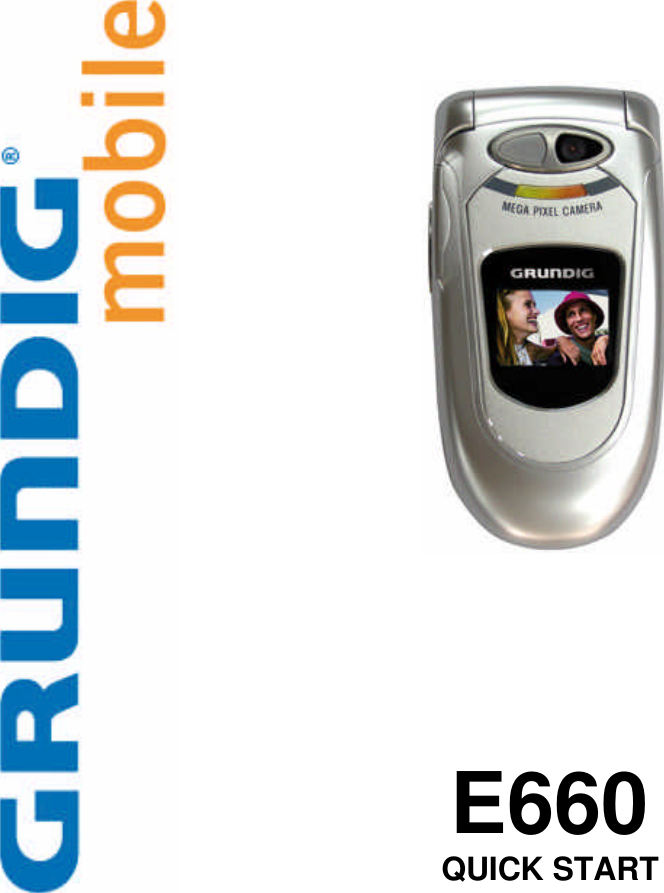
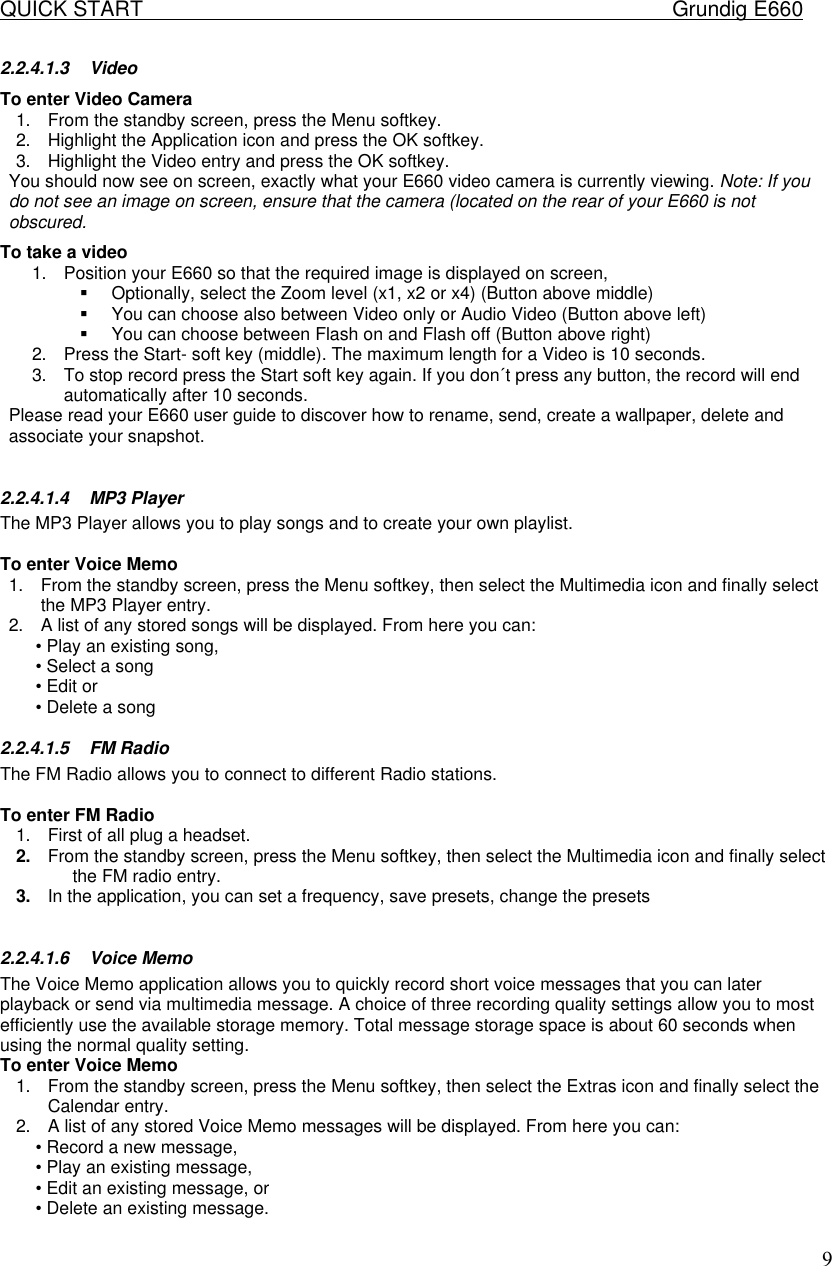
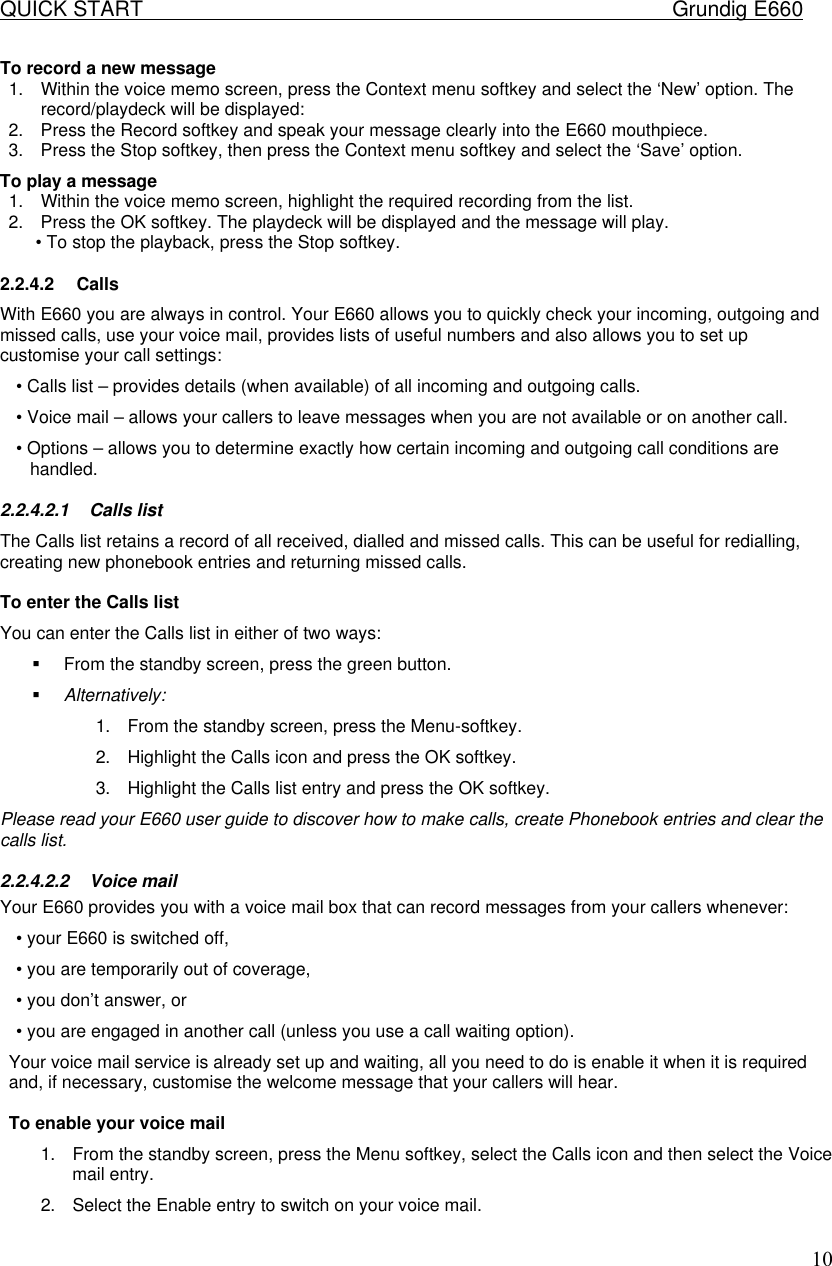
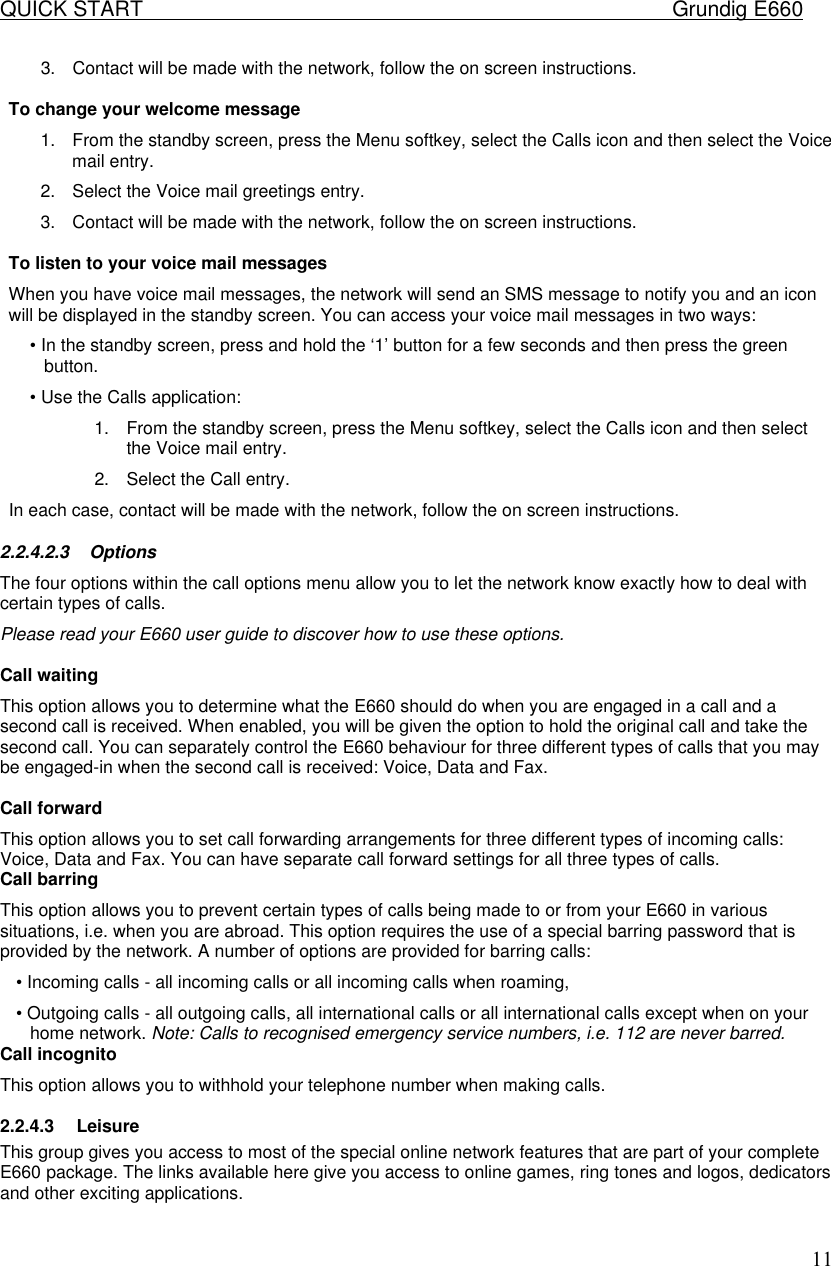
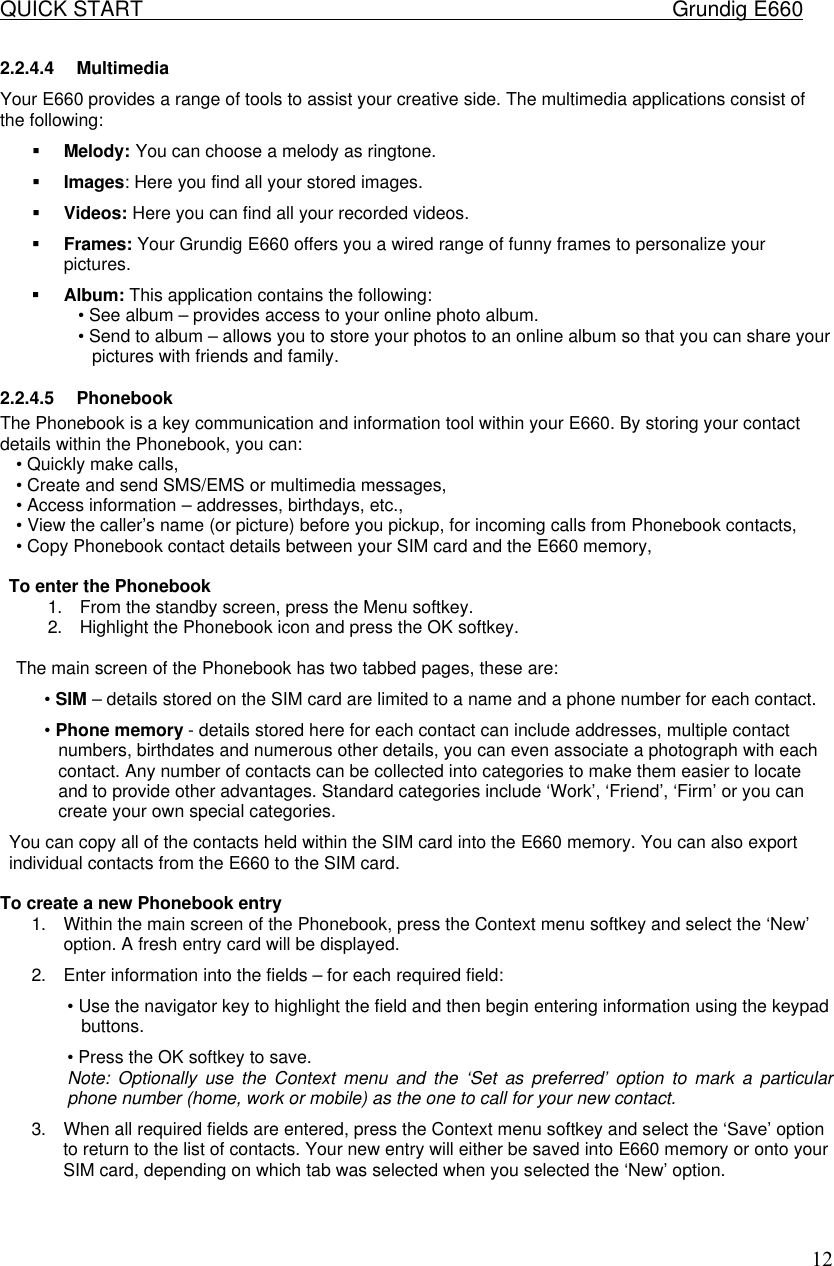
Vitelcom Mobile Technology M350 Quad Band GSM Handset with Bluetooth, Model E660 User Manual in english E660
Vitelcom Mobile Technology, S.A. Quad Band GSM Handset with Bluetooth, Model E660 in english E660
Contents
- 1. User Manual
- 2. Users Manual
User Manual

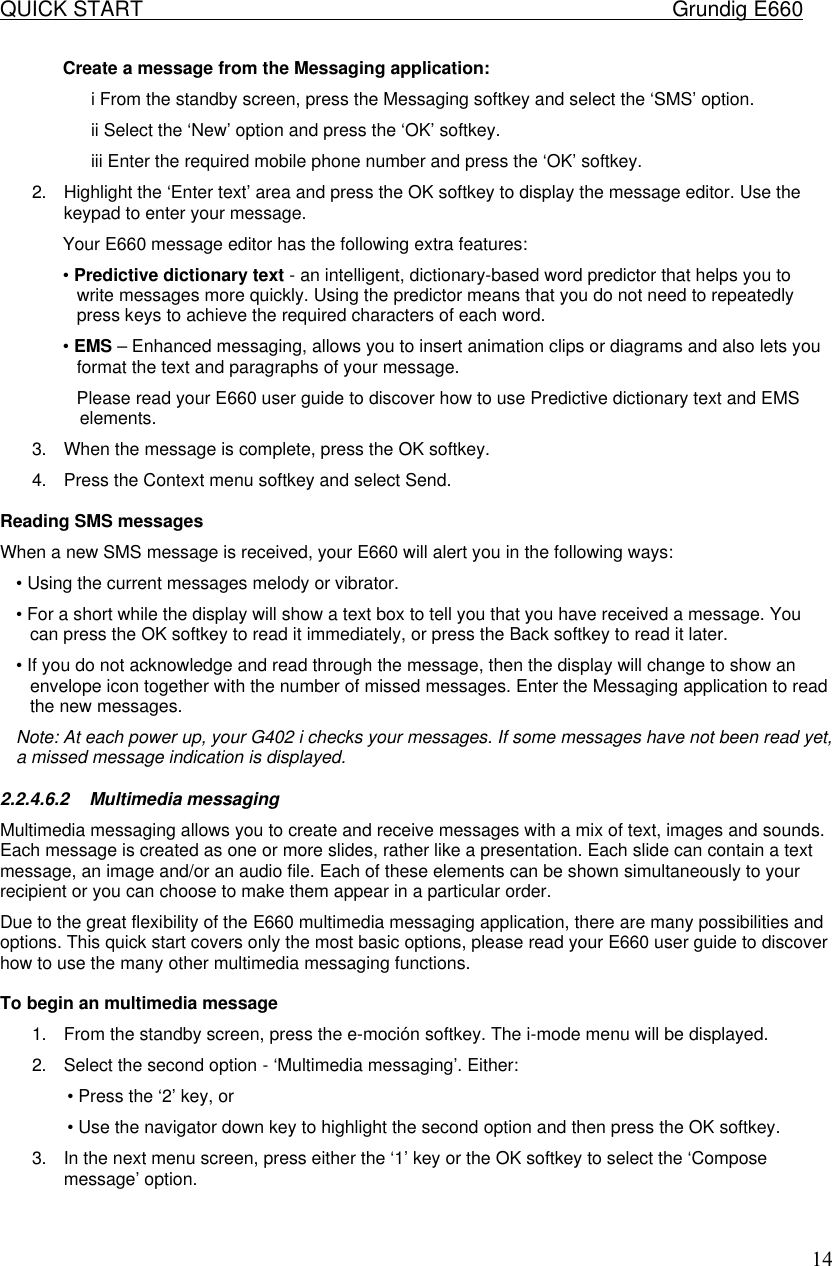
![QUICK START Grundig E660 15To add a subject 1. Within the addressing screen, use the navigator key to highlight the ‘Subject’ option box and press the OK softkey. 2. Use the displayed text editor to enter a suitable subject for your message and press the OK softkey. To address your message to a single recipient 1. Within the addressing screen, use the navigator key to highlight the ‘To:1’ option box. You can now either enter the details or select them from your Phonebook: • Enter details - Press the OK softkey and use the displayed text editor to enter either the mobile phone number or email address of your recipient. Press the OK softkey. • Select from Phonebook – Press the green button to display the Edit menu. Select the ‘Open phonebk.’ option and press the OK softkey. Select the required entry from the Phonebook and press the OK softkey. Note: If the selected Phonebook entry has more than one valid number/address, the items will be displayed so that you can select the required one. 2. The entered number/address will be displayed within the ‘To:1’ box. Creating multimedia message content MMS messages are constructed using slides where each slide can contain a section of text, an image and/or an audio clip. Within a single message you can create multiple slides, each with its own collection of elements. When your recipient receives and opens your message, the various slides and their elements will reveal themselves according to your settings. To enter the compose screen 1. Within the message addressing screen, use the navigator key to scroll down and highlight the ‘SMIL’ option. 2. Press the OK softkey. • If the message is new and has no existing elements, the Compose menu will be displayed. • Otherwise, press the green button to display the Compose menu. To add elements to a slide 1. Within the compose screen, select the required option: • Add text – The text editor will be displayed. Enter your text message, up to 1999 characters in length and press the OK softkey. • Add image – A list of all stored images will be displayed. Highlight the required image and press the OK softkey. Note: If the selected image has copyright protection, you will not be permitted to add it to the message. • Add audio – A list of all stored audio clips and melodies will be displayed. Highlight the required item and press the OK softkey. Note: If the selected audio item has copyright protection, you will not be permitted to add it to the message. 2. The inserted element(s) will be displayed (or listed) on the screen that represents the slide. A red numbered box in the upper right corner will indicate the slide number and total number of slides e.g. [1/1]. You can place one of each element-type on each slide. If you wish to add a second image, audio clip or text block, then you need to add another slide. To add a new slide 1. Within the compose screen, use the navigator key left/right (if necessary) to display the slide that is adjacent to the position where you wish to add a new slide.](https://usermanual.wiki/Vitelcom-Mobile-Technology/M350.User-Manual/User-Guide-659259-Page-15.png)
![QUICK START Grundig E660 162. Press the green button to display the Compose menu. As appropriate, select either: • Add slide – to add the new slide immediately after the current slide, or • Insert slide – to add the new slide immediately before the current slide. The new slide will be shown as a blank screen with a red numbered box in the upper right corner will indicate the slide number and total number of slides e.g. [2/3]. To change between slides • Use the navigator key left/right (when no menus are displayed) to change between slides. To preview your message • Within the compose screen, press the green button to display the Compose menu and select the Preview’ option. The element(s) of the slide(s) will be displayed as they will be seen by your recipients. The elements of each slide will be displayed/played simultaneously and according to the standard timings. You can edit all of these attributes using the options discussed in the Fine tuning section, next. To exit from the compose screen • Press the Back softkey to clear any displayed menu and to exit from the compose screen. To send or save an multimedia message 1. Within the addressing screen, initiate a send or save in one of two ways, either: • Use the navigator key to scroll down to, and highlight either the ‘Send’ box or ‘Save’ box and press the OK softkey. • Press the green button to display the Edit menu and select either ‘Send’ or the ‘Save’ option. Note: Saved messages are stored within the Draft folder where they can be retrieved and sent at a later date. Chat and Mobile Email 1. From the standby screen, press the Menu softkey, select the Messaging icon and then select the Chat or Mobile email entry. 2. Contact will be made with the network, follow the on screen instructions. 2.2.4.7 Settings This section contains the options that allow you to customise your E660 to suit your exact requirements: • Phone Settings – contains a variety of options that relate mainly to key phone settings, such as date and time plus visual settings, such as language selection, memory usage and battery tools. • Audio settings – contains all settings related to the audible features of your E660. • Connection Settings – allows you to set different Browser, like e-moción for i-mode • Security – allows you to activate and change both of the PIN codes associated with your SIM card. • Network – allows you to change preferred network settings and also search for new networks serving your immediate area. 2.2.4.7.1 Phone Settings Main screen Here you can select an image within the photo album and use it as a background to the standby screen as well as a special colour. Small screen You can choose a Wallpaper, a colour or set the contrast for the small screen.](https://usermanual.wiki/Vitelcom-Mobile-Technology/M350.User-Manual/User-Guide-659259-Page-16.png)