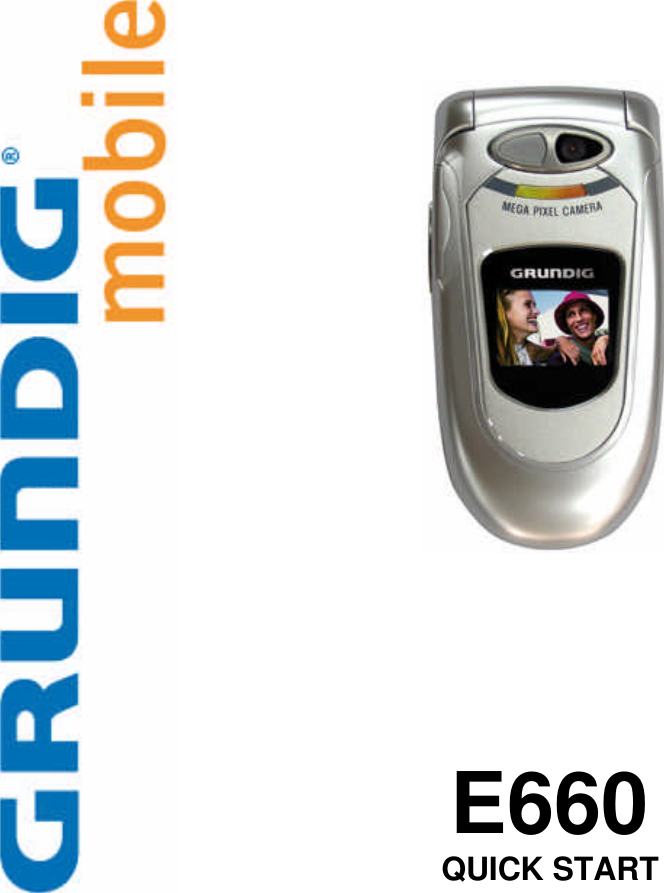
Vitelcom Mobile Technology M350 Quad Band GSM Handset with Bluetooth, Model E660 User Manual in english E660

Vitelcom Mobile Technology, S.A. Quad Band GSM Handset with Bluetooth, Model E660 in english E660

Contents

Users Manual

                             E660 QUICK START
QUICK START    Grundig E660  2Contents  1 GETTING STARTED ............................................................................................................................3 1.1 SWITCHING ON AND OFF........................................................................................................................3 1.2 EMERGENCY CALLS..............................................................................................................................3 1.3 SCREEN AND KEYPAD FEATURES...........................................................................................................3 1.4 THE THREE AREAS OF OPERATION.........................................................................................................4 1.5 MAKING AND RECEIVING CALLS .............................................................................................................4 1.5.1 OPTION DURING A CALL......................................................................................................................5 2 YOUR APPLICATIONS ........................................................................................................................5 2.1 BROWSER APPLICATIONS......................................................................................................................6 2.2 MAIN APPLICATIONS .............................................................................................................................6 2.2.1 TOP LEVEL MAIN ICONS ......................................................................................................................6 2.2.2 USING THE MAIN MENU.......................................................................................................................7 2.2.3 COMMON ITEMS WITHIN MAIN APPLICATIONS.........................................................................................7 2.2.4 USING APPLICATIONS .........................................................................................................................8 2.2.4.1 Applications..................................................................................................................................8 2.2.4.1.1 Camera .....................................................................................................................................8 2.2.4.1.2 Multishot....................................................................................................................................8 2.2.4.1.3 Video.........................................................................................................................................9 2.2.4.1.4 MP3 Player................................................................................................................................9 2.2.4.1.5 FM Radio...................................................................................................................................9 2.2.4.1.6 Voice Memo ..............................................................................................................................9 2.2.4.2 Calls ...........................................................................................................................................10 2.2.4.2.1 Calls list...................................................................................................................................10 2.2.4.2.2 Voice mail................................................................................................................................10 2.2.4.2.3 Options....................................................................................................................................11 2.2.4.3 Leisure .......................................................................................................................................11 2.2.4.4 Multimedia..................................................................................................................................12 2.2.4.5 Phonebook .................................................................................................................................12 2.2.4.6 Messaging..................................................................................................................................13 2.2.4.6.1 SMS ........................................................................................................................................13 2.2.4.6.2 Multimedia messaging.............................................................................................................14 2.2.4.7 Settings ......................................................................................................................................16 2.2.4.7.1 Phone Settings ........................................................................................................................16 2.2.4.7.2 Audio Settings .........................................................................................................................17 2.2.4.7.3 Connection Setting ..................................................................................................................18 2.2.4.7.4 Security ...................................................................................................................................18 2.2.4.7.5 Network...................................................................................................................................18 2.2.4.8 WAP Browser.............................................................................................................................18 2.2.4.9 Extras.........................................................................................................................................18 2.2.4.9.1 SMS-Services..........................................................................................................................18 2.2.4.9.2 Alarm.......................................................................................................................................19 2.2.4.9.3 Calculator ................................................................................................................................19 2.2.4.9.4 Calendar..................................................................................................................................19 2.2.4.9.5 Connectivity.............................................................................................................................19 2.2.4.9.5.1 Bluetooth ..............................................................................................................................19 2.2.4.9.5.2 Infrared.................................................................................................................................19 2.3 IMPORTANT SAFETY INFORMATION .......................................................................................................20 2.4 FCC REGULATORY INFORMATION .......................................................................................................20 2.4.1 INTERFERENCE STATEMENT:.............................................................................................................20 2.4.2 MODIFICATION STATEMENT:..............................................................................................................20 2.4.3 CLASS B DIGITAL DEVICES REGULATORY NOTICE:...............................................................................20 2.4.4 WIRELESS NOTICE ...........................................................................................................................20
QUICK START    Grundig E660  3 1 Getting Started 1.1 Switching on and off   To switch on  Press and hold the red button. A pin code may be requested, see below.   To switch off  Press and hold the red button.   To enter a pin code  If the pin code option is set, then you will be requested to enter your personal code. 1. Using the keypad, enter the digits of your pin code.  2. Press the button directly below the OK icon. 3. If all digits were entered correctly, your E660 will display its standby screen.  If you enter incorrect characters: press the button directly below the eraser icon. 1.2 Emergency calls This E660 Smartphone allows you to communicate using radio waves, because of this, connection can not be guaranteed at all times. Therefore you should not solely rely on your E660 for essential communications such as medical emergencies. If you use your E660 infrequently, it is important to ensure that your E660 is checked regularly, including battery charge.   To make an emergency call 1. Switch the E660 on using the red button on the keypad, 2. Ensure you have suitable network cover, some networks require a SIM card to be fitted prior to emergency calls, 3. From the main standby screen, dial the appropriate emergency number (e.g. 112 or equivalent), 4. Press the green button and wait for someone to answer. Remember to state your name, location and nature of the emergency to the operator.   1.3 Screen and keypad features  Normal keypad  Just like an ordinary mobile phone, your E660 has numbered keypad buttons, including a green (call send) button and a red (call end) button.   Side buttons  There are two side buttons and these perform various functions depending on what you are currently doing. For instance, during a call, they control the volume.   Softkeys  Your E660 also has three special buttons located just below the screen and these are called ‘Softkeys’. The functions of these softkey buttons change depending on what you are doing. The icons displayed at the base of the screen indicate the current functions for each of the softkey buttons. The Standby screen shows softkey icons that represent (from left to right): Messaging; Menu and E-moción (Internet Browser).   Navigator key  The navigator key is a large keypad button that can move in four directions. Depending on what you are doing, the navigator key allows you to move through menus and lists (up, down, left and right) and, when applicable, also lets you change between tabbed pages (left and right) within applications.
QUICK START    Grundig E660  4  The status area  The top section of the standby screen provides status and general information, such as battery charge condition, signal strength, the name of the mobile network currently being used, the time and the date, message status, GPRS availability and alert setting.   Time and date  The current time and date are shown clearly within the status area. When you switch on for the very first time, you will be asked to enter the correct time and date – use the numeric keys to type the date and then the time. At any other time you can adjust them by accessing the Settings section.  Note: E660 may automatically update its time and date depending on local network configuration. (Please note for use in Latin America: this feature is only usable when you launch a WAP connection via GPRS).   Battery power indicator  Provides an estimate of the remaining battery charge.  Signal strength indicator  Indicates the signal strength in your immediate vicinity using graduated bars - from zero bars (low signal) to four bars (good signal).  Please read your E660 user guide to discover what other icons within the status area represent.  1.4 The three areas of operation  Your E660 has three distinct areas of operation and each of these three areas can be selected from the standby screen:   • Making and receiving calls  To make calls from the standby screen, simply start dialling a number. To answer an incoming call, press the green button. In addition there are many more in-call options and these are discussed in the next section.   • Browser applications (e.g. multimedia messaging and web browsing)  Browser applications are generally accessed via the e-moción softkey and chosen by selecting their entries from a textual Browser menu (movistar interactivo). Some Browser functions can also be accessed via the graphical main menu.   • Main applications (e.g. Phonebook, camera, calculator, etc.)  Main applications are generally accessed via the Menu softkey and chosen by selecting their icons from a graphical main menu. Some of these applications can also be accessed via shortcuts from the standby screen.   Making and receiving calls are discussed next. For more information about the main applications and Browser functions, please see the ‘Your applications’ chapter.  1.5 Making and receiving calls  To make a call 1. From the standby screen, begin entering the required number using the numeric buttons. § Use the Back-Softkey to erase incorrect numbers 2. Press the green button to make the call  To end a call § Press the red button.  To answer a call
QUICK START    Grundig E660  51. When your E660 rings or vibrates, a pop-up screen will be displayed. § If the caller’s number is available, it will be displayed. § If the caller is a contact within your Phonebook, their name will be displayed. § If a picture is associated with the caller details, it will be displayed – see “Multimedia”. 2. Press the green button to answer the call 1. If you do not wish to take the call, press the red button  To redial a number 1. From the standby screen, press the green button (alternatively select Calls, then select Calls list). The Calls screen has three tabs: Missed calls, Received calls and Sent calls. The first tab to be shown will depend on the status of your last incoming or outgoing call. 2. If necessary, use the left/right navigation key to select an alternative tab. 3. Highlight the required phone number and then either: § Press the green button to start a call attempt, or § Press the OK softkey to edit the number before calling it.  To make an international call 1. From the standby screen, press and hold the zero button until a ‘+’ symbol is displayed. 2. Enter the required country code and the remaining phone number (in most cases you need to leave out the first zero within the normal number). 3. Press the green button to make the call.  To listen to your voice mail messages When you have voice mail messages, the network will notify you in the standby screen. You can then (or at any other time) access your voice mail messages in two ways: § In the standby screen, press and hold the ‘1’ button for a few seconds, or § Use the Calls application: 1. From the standby screen, select the Calls icon, select the Voice mail icon. 2. Select the Voice mail icon. In each case, contact will be made with the network, follow the on screen instructions.  Please read your user guide to discover more about how to use voice mail. 1.5.1 Option during a call While you are in a call, your E660 allows you to simultaneously do a number of other things: § Mute the current call so that the caller cannot hear you, § Hold the current call so that you can take a second incoming call or begin a new outgoing call, § View and use your Phonebook § Create and send messages § Swap calls (i.e. place one call on hold to talk to the other, and vice versa).  Please read your user guide to discover more about how to use voice mail.  2 Your applications  The applications of your E660 are broadly split into two types:   • Browser applications (e.g. Multimedia messaging and web browsing)  Browser applications are accessed via the e-moción softkey and chosen by selecting their entries from a textual Browser menu. Additionally the e-moción icon (within the graphical main menu) links directly to the Browser menu. There are two Browser applications: Multimedia messaging and the web Browser.   • Main applications (e.g. Phonebook, camera, calculator, etc.)  Main applications are generally accessed, from the standby screen, via the Menu softkey and chosen by selecting their icons from the graphical main menu.
QUICK START    Grundig E660  62.1 Browser applications  Browser applications are chosen by selecting their entries from a textual menu.   To enter the Browser menu and select an option  1. From the standby screen, press the e-moción softkey to enter the Browser menu.  2. Use the navigator key to highlight the required option and then press the central softkey.  Alternatively, you can just press the keypad button that corresponds to the number that prefixes the required option.  • To go back to the previous level, either press the navigator key left, or press the zero key.   Navigation indicator  The navigation indicator is displayed at the bottom of the screen. This shows which keys are currently valid. 2.2 Main applications  This page provides an explanation of the top level application groups and the application and network features available within them.  2.2.1 Top level main icons   Applications  This group contains the camera for pictures & videos, the Multishot function, MP3 Player, FM Radio and the voice memo.   Calls  This group provides many tools and features related to incoming and outgoing calls. Within here you can set up, and listen to, your voice mail calls or missed calls. You can access useful numbers and also organise call settings.   Leisure  This group gives you access to most of the special online network features that are part of your complete E660 package. The links available here give you access to online games, dedicatores and other exciting applications.   Multimedia  This group contains functions to assist your creative side. In here you can store melodies, images and Videos. Also you can store and retrieve your photos online.   Phonebook  Stores all of your contact details and allows you to initiate phone calls and messages.    Messaging  Within this group are tools that allow you to create, send and receive text messages (SMS/EMS), Multimedia Messages (MMS) and also provides access to online chat and mail groups.   Settings  This group contains many configuration options for your E660 including the main phone, audio and network settings that allow you to customise your E660 to suit your exact requirements.   E-moción  Takes you to the Browser menu where you can access the WAP-Browser and related settings and bookmark functions.
QUICK START    Grundig E660  7Extras  The Tools group provides useful everyday E660 features such as Bluetooth, Infrared, the multi-function calculator, the calendar with configurable alarms and SMS-Services.  2.2.2 Using the main menu  In the main menu, applications and online features are represented as icons, which are grouped by function. These icons are displayed up to nine at a time on the screen.  To enter the main menu and select an icon  1. From the standby screen, press the Menu softkey to enter the main menu.  2. Use the navigator key to highlight the required application icon.  3. Press the OK softkey. Depending on the chosen icon one of two things will occur, either the application will be displayed, or a group of icons related to the chosen one will be shown.  •  To go back up from one menu level to the previous one, press the Back softkey.   To change between tabbed pages in an application  •  When an application has tabbed pages, change between the pages using the left and right navigator key.  2.2.3 Common items within main applications  Although each application performs a different task, there are certain aspects of main applications that remain constant.   The Context menu  The Context menu is a list of options that vary according to which application you are using and even what you are doing within it at the time. Press the Context menu softkey to access the list of options that relate to your current task.   Note: To cancel a menu without selecting any option from it, press the Back softkey.   Entering numbers and information  When information needs to be entered, the screen will change to show an editing screen  • When only numbers are required, simply press the appropriate number buttons.  • When words are required, each character is entered using successive presses of the keypad buttons (characters are printed on each of the number buttons to indicate) to reach the required one.  In applications where a great deal of text entry is often required, your E660 provides a predictive dictionary function. The predictive dictionary attempts to determine each word that you enter so that you don’t need to repeatedly press number buttons.   Cut, copy and paste within main applications  In certain E660 applications, where information is provided or required, you can usually cut, copy and paste information from one position to another, or even between applications.    To use cut, copy and paste  1. Move to the required text or numbers.  2. Press the Context menu softkey and select either ‘Cut’ or ‘Copy’ (Cut removes the text, Copy does not).  Note: As individual words cannot be highlighted, the whole block of text in the selected area will be cut or copied.  3. Move to the area where you need to place the text.  4. Press the Context menu softkey and select the ‘Paste’ option.
QUICK START    Grundig E660  82.2.4 Using applications  2.2.4.1 Applications 2.2.4.1.1 Camera Your E660 allows you to take instant snapshot pictures using its integral colour camera. Once captured you can then: send your snapshots to other people (via multimedia messaging); associate a snapshot with a phonebook contact; create a wallpaper image that will be shown as a backdrop to the standby screen; store and view your snapshots within the Photo album application.  To enter Camera  1. From the standby screen, press the Menu softkey.  2. Highlight the Multimedia icon and press the OK softkey.  3. Highlight the Camera entry and press the OK softkey.  You should now see on screen, exactly what your E660 camera is currently viewing. Note: If you do not see an image on screen, ensure that the camera (located on the rear of your E660 is not obscured.  To take an instant or delayed snapshot  1. Position your E660 so that the required image is displayed on screen,  • Also you can choose between different Flash functions, Zoom, resolutions, frames and filter. 2. Press one of the soft keys, either:  • To take an instant snapshot – press the Capture softkey.  • To use the ten second delay timer – press the Context menu softkey and select the ‘Self timer’ option – a counter will indicate when the snapshot will be taken.  3. After a short delay, the captured image will be displayed on screen, along with a given filename (which you can edit).  Note: If you do not wish to keep the snapshot, press the Delete softkey to remove it and avoid filling your smartphone memory.  4. The image will remain displayed for roughly one minute. If you wish to return to viewfinder mode, press any of the standard keys (except for the softkeys).  Please read your E660 user guide to discover how to rename, send, create a wallpaper, delete and associate your snapshot.  2.2.4.1.2 Multishot Your E660 allows you to take Multishot pictures using its integral colour camera. Once captured you can then: send your Multishots to other people (via multimedia messaging); create a wallpaper image that will be shown as a backdrop to the standby screen; store and view your Multishots within the Album application.  To take Multishots 1. Position your E660 so that the required image is displayed on screen,  • Also you can choose between different Flash functions, Zoom, number of shots, frames, filter and the  number of shots. 2. Press one of the soft keys, either:  • To start taking Multishots – press the Capture softkey.  • To use the ten second delay timer – press the Context menu softkey and select the ‘Self timer’ option – a counter will indicate when the snapshot will be taken.  3. After a short delay, the captured images will be displayed on screen, along with a given filename (which you can edit).  Note: If you do not wish to keep the Multishot, press the Delete softkey to remove it and avoid filling your Smartphone memory.  4. The image will remain displayed for roughly one minute. If you wish to return to viewfinder mode, press any of the standard keys (except for the softkeys).  Please read your E660 user guide to discover how to rename, send, create a wallpaper, delete and associate your Multishot.
QUICK START    Grundig E660  92.2.4.1.3 Video To enter Video Camera  1. From the standby screen, press the Menu softkey.  2. Highlight the Application icon and press the OK softkey.  3. Highlight the Video entry and press the OK softkey.  You should now see on screen, exactly what your E660 video camera is currently viewing. Note: If you do not see an image on screen, ensure that the camera (located on the rear of your E660 is not obscured.  To take a video 1. Position your E660 so that the required image is displayed on screen,  § Optionally, select the Zoom level (x1, x2 or x4) (Button above middle) § You can choose also between Video only or Audio Video (Button above left) § You can choose between Flash on and Flash off (Button above right) 2. Press the Start- soft key (middle). The maximum length for a Video is 10 seconds. 3. To stop record press the Start soft key again. If you don´t press any button, the record will end automatically after 10 seconds. Please read your E660 user guide to discover how to rename, send, create a wallpaper, delete and associate your snapshot.   2.2.4.1.4 MP3 Player The MP3 Player allows you to play songs and to create your own playlist.   To enter Voice Memo  1. From the standby screen, press the Menu softkey, then select the Multimedia icon and finally select the MP3 Player entry.  2. A list of any stored songs will be displayed. From here you can:  • Play an existing song,  • Select a song  • Edit or • Delete a song 2.2.4.1.5 FM Radio The FM Radio allows you to connect to different Radio stations.   To enter FM Radio 1. First of all plug a headset. 2. From the standby screen, press the Menu softkey, then select the Multimedia icon and finally select the FM radio entry.  3. In the application, you can set a frequency, save presets, change the presets  2.2.4.1.6 Voice Memo The Voice Memo application allows you to quickly record short voice messages that you can later playback or send via multimedia message. A choice of three recording quality settings allow you to most efficiently use the available storage memory. Total message storage space is about 60 seconds when using the normal quality setting.  To enter Voice Memo  1. From the standby screen, press the Menu softkey, then select the Extras icon and finally select the Calendar entry.  2. A list of any stored Voice Memo messages will be displayed. From here you can:  • Record a new message,  • Play an existing message,  • Edit an existing message, or  • Delete an existing message.
QUICK START    Grundig E660  10To record a new message  1. Within the voice memo screen, press the Context menu softkey and select the ‘New’ option. The record/playdeck will be displayed:  2. Press the Record softkey and speak your message clearly into the E660 mouthpiece.  3. Press the Stop softkey, then press the Context menu softkey and select the ‘Save’ option.  To play a message  1. Within the voice memo screen, highlight the required recording from the list.  2. Press the OK softkey. The playdeck will be displayed and the message will play.  • To stop the playback, press the Stop softkey.  2.2.4.2 Calls With E660 you are always in control. Your E660 allows you to quickly check your incoming, outgoing and missed calls, use your voice mail, provides lists of useful numbers and also allows you to set up customise your call settings:  • Calls list – provides details (when available) of all incoming and outgoing calls.  • Voice mail – allows your callers to leave messages when you are not available or on another call.  • Options – allows you to determine exactly how certain incoming and outgoing call conditions are handled.  2.2.4.2.1 Calls list  The Calls list retains a record of all received, dialled and missed calls. This can be useful for redialling, creating new phonebook entries and returning missed calls.   To enter the Calls list  You can enter the Calls list in either of two ways:  § From the standby screen, press the green button.  § Alternatively:  1. From the standby screen, press the Menu-softkey.  2. Highlight the Calls icon and press the OK softkey.  3. Highlight the Calls list entry and press the OK softkey.  Please read your E660 user guide to discover how to make calls, create Phonebook entries and clear the calls list.  2.2.4.2.2 Voice mail  Your E660 provides you with a voice mail box that can record messages from your callers whenever:  • your E660 is switched off,  • you are temporarily out of coverage,  • you don’t answer, or  • you are engaged in another call (unless you use a call waiting option).  Your voice mail service is already set up and waiting, all you need to do is enable it when it is required and, if necessary, customise the welcome message that your callers will hear.   To enable your voice mail  1. From the standby screen, press the Menu softkey, select the Calls icon and then select the Voice mail entry.  2. Select the Enable entry to switch on your voice mail.
QUICK START    Grundig E660  113. Contact will be made with the network, follow the on screen instructions.   To change your welcome message  1. From the standby screen, press the Menu softkey, select the Calls icon and then select the Voice mail entry.  2. Select the Voice mail greetings entry.  3. Contact will be made with the network, follow the on screen instructions.   To listen to your voice mail messages  When you have voice mail messages, the network will send an SMS message to notify you and an icon will be displayed in the standby screen. You can access your voice mail messages in two ways:  • In the standby screen, press and hold the ‘1’ button for a few seconds and then press the green button.  • Use the Calls application:  1. From the standby screen, press the Menu softkey, select the Calls icon and then select the Voice mail entry.  2. Select the Call entry.  In each case, contact will be made with the network, follow the on screen instructions.  2.2.4.2.3 Options  The four options within the call options menu allow you to let the network know exactly how to deal with certain types of calls.  Please read your E660 user guide to discover how to use these options.   Call waiting  This option allows you to determine what the E660 should do when you are engaged in a call and a second call is received. When enabled, you will be given the option to hold the original call and take the second call. You can separately control the E660 behaviour for three different types of calls that you may be engaged-in when the second call is received: Voice, Data and Fax.   Call forward  This option allows you to set call forwarding arrangements for three different types of incoming calls: Voice, Data and Fax. You can have separate call forward settings for all three types of calls.  Call barring  This option allows you to prevent certain types of calls being made to or from your E660 in various situations, i.e. when you are abroad. This option requires the use of a special barring password that is provided by the network. A number of options are provided for barring calls:  • Incoming calls - all incoming calls or all incoming calls when roaming,  • Outgoing calls - all outgoing calls, all international calls or all international calls except when on your home network. Note: Calls to recognised emergency service numbers, i.e. 112 are never barred. Call incognito  This option allows you to withhold your telephone number when making calls.  2.2.4.3 Leisure This group gives you access to most of the special online network features that are part of your complete E660 package. The links available here give you access to online games, ring tones and logos, dedicators and other exciting applications.
QUICK START    Grundig E660  122.2.4.4 Multimedia Your E660 provides a range of tools to assist your creative side. The multimedia applications consist of the following:  § Melody: You can choose a melody as ringtone. § Images: Here you find all your stored images. § Videos: Here you can find all your recorded videos. § Frames: Your Grundig E660 offers you a wired range of funny frames to personalize your pictures. § Album: This application contains the following:  • See album – provides access to your online photo album.  • Send to album – allows you to store your photos to an online album so that you can share your pictures with friends and family.  2.2.4.5 Phonebook The Phonebook is a key communication and information tool within your E660. By storing your contact details within the Phonebook, you can:  • Quickly make calls,  • Create and send SMS/EMS or multimedia messages,  • Access information – addresses, birthdays, etc.,  • View the caller’s name (or picture) before you pickup, for incoming calls from Phonebook contacts,  • Copy Phonebook contact details between your SIM card and the E660 memory,   To enter the Phonebook  1. From the standby screen, press the Menu softkey.  2. Highlight the Phonebook icon and press the OK softkey.   The main screen of the Phonebook has two tabbed pages, these are:  • SIM – details stored on the SIM card are limited to a name and a phone number for each contact.  • Phone memory - details stored here for each contact can include addresses, multiple contact numbers, birthdates and numerous other details, you can even associate a photograph with each contact. Any number of contacts can be collected into categories to make them easier to locate and to provide other advantages. Standard categories include ‘Work’, ‘Friend’, ‘Firm’ or you can create your own special categories.  You can copy all of the contacts held within the SIM card into the E660 memory. You can also export individual contacts from the E660 to the SIM card.   To create a new Phonebook entry  1. Within the main screen of the Phonebook, press the Context menu softkey and select the ‘New’ option. A fresh entry card will be displayed. 2. Enter information into the fields – for each required field:  • Use the navigator key to highlight the field and then begin entering information using the keypad buttons.  • Press the OK softkey to save.  Note: Optionally use the Context menu and the ‘Set as preferred’ option to mark a particular phone number (home, work or mobile) as the one to call for your new contact.  3. When all required fields are entered, press the Context menu softkey and select the ‘Save’ option to return to the list of contacts. Your new entry will either be saved into E660 memory or onto your SIM card, depending on which tab was selected when you selected the ‘New’ option.
QUICK START    Grundig E660  13To edit a Phonebook entry  1. In the list of Phonebook contacts, highlight the required entry.  2. Press the Context menu softkey and select the ‘Modify’ option. Add, change or delete items, as necessary.  3. Press the Context menu softkey and select the ‘Save’ option to return to the list of contacts.   To search for a Phonebook entry  1. In the list of Phonebook contacts, press the keypad button that has the initial letter of the entry that you require (repeated presses may be required to select the correct letter). As you select a letter, the Phonebook entry names beginning with that letter will be displayed.  2. Use the navigator keys to scroll down to the exact entry.  3. Once the required entry is highlighted, you can:  • Press the green button to place a call to the entry,  • Press the OK softkey to view the entry details,  • Press the Context menu softkey and:  • Select ‘Send message’ to create and send an SMS message,  • Select ‘Send MMS’ to create and send a multimedia message), or  • Select ‘Modify’ to change any stored details.   Please read your E660 user guide to discover how to use the many other functions within your Phonebook.  2.2.4.6 Messaging Your E660 provides flexibility by giving you SMS/EMS (Short/Enhanced Messaging Service) and also a Multimedia Messaging Service, as well as Chat and Mobile email functions. 2.2.4.6.1 SMS  SMS allows you to create, send and receive text messages to and from other mobile phone users. EMS is an addition to the SMS standard that allows typeface control, plus the attachment of images and small animation clips to a message. To send an SMS message to a contact, all you need to know is their mobile phone number. Note: Before messages can be sent or received, your G402 i must know the contact number for your network’s message service centre. Usually, your SIM card provides this information – if not, then please refer to the ‘SMS settings’ section in your G402 i user guide.   Creating messages  The limit per SMS message is 160 characters. Text longer than this will be split and sent as separate, chargeable messages - your E660 will warn you before proceeding.   To create an SMS message  1. You can begin a new message in two main ways:  Create a message from the Phonebook application (if your contact details are held within the Phonebook along with their mobile phone number):  i From the standby screen, press the Menu softkey and select the Phonebook icon.  ii Highlight the required contact within the list. Press the Context menu softkey and select the ‘Send message’ option. The message will already be addressed to your contact’s phone number.
QUICK START    Grundig E660  14Create a message from the Messaging application:  i From the standby screen, press the Messaging softkey and select the ‘SMS’ option.  ii Select the ‘New’ option and press the ‘OK’ softkey.  iii Enter the required mobile phone number and press the ‘OK’ softkey.  2. Highlight the ‘Enter text’ area and press the OK softkey to display the message editor. Use the keypad to enter your message.  Your E660 message editor has the following extra features:  • Predictive dictionary text - an intelligent, dictionary-based word predictor that helps you to write messages more quickly. Using the predictor means that you do not need to repeatedly press keys to achieve the required characters of each word.  • EMS – Enhanced messaging, allows you to insert animation clips or diagrams and also lets you format the text and paragraphs of your message.  Please read your E660 user guide to discover how to use Predictive dictionary text and EMS elements.  3. When the message is complete, press the OK softkey.  4. Press the Context menu softkey and select Send.   Reading SMS messages  When a new SMS message is received, your E660 will alert you in the following ways:  • Using the current messages melody or vibrator.  • For a short while the display will show a text box to tell you that you have received a message. You can press the OK softkey to read it immediately, or press the Back softkey to read it later.  • If you do not acknowledge and read through the message, then the display will change to show an envelope icon together with the number of missed messages. Enter the Messaging application to read the new messages. Note: At each power up, your G402 i checks your messages. If some messages have not been read yet, a missed message indication is displayed.  2.2.4.6.2 Multimedia messaging  Multimedia messaging allows you to create and receive messages with a mix of text, images and sounds. Each message is created as one or more slides, rather like a presentation. Each slide can contain a text message, an image and/or an audio file. Each of these elements can be shown simultaneously to your recipient or you can choose to make them appear in a particular order.  Due to the great flexibility of the E660 multimedia messaging application, there are many possibilities and options. This quick start covers only the most basic options, please read your E660 user guide to discover how to use the many other multimedia messaging functions.   To begin an multimedia message  1. From the standby screen, press the e-moción softkey. The i-mode menu will be displayed.  2. Select the second option - ‘Multimedia messaging’. Either:  • Press the ‘2’ key, or  • Use the navigator down key to highlight the second option and then press the OK softkey.  3. In the next menu screen, press either the ‘1’ key or the OK softkey to select the ‘Compose message’ option.
QUICK START    Grundig E660  15To add a subject  1. Within the addressing screen, use the navigator key to highlight the ‘Subject’ option box and press the OK softkey.  2. Use the displayed text editor to enter a suitable subject for your message and press the OK softkey.   To address your message to a single recipient  1. Within the addressing screen, use the navigator key to highlight the ‘To:1’ option box. You can now either enter the details or select them from your Phonebook:  • Enter details - Press the OK softkey and use the displayed text editor to enter either the mobile phone number or email address of your recipient. Press the OK softkey.  • Select from Phonebook – Press the green button to display the Edit menu. Select the ‘Open phonebk.’ option and press the OK softkey. Select the required entry from the Phonebook and press the OK softkey. Note: If the selected Phonebook entry has more than one valid number/address, the items will be displayed so that you can select the required one.  2. The entered number/address will be displayed within the ‘To:1’ box.   Creating multimedia message content  MMS messages are constructed using slides where each slide can contain a section of text, an image and/or an audio clip. Within a single message you can create multiple slides, each with its own collection of elements. When your recipient receives and opens your message, the various slides and their elements will reveal themselves according to your settings.   To enter the compose screen  1. Within the message addressing screen, use the navigator key to scroll down and highlight the ‘SMIL’ option.  2. Press the OK softkey.  • If the message is new and has no existing elements, the Compose menu will be displayed.  • Otherwise, press the green button to display the Compose menu.  To add elements to a slide  1. Within the compose screen, select the required option:  • Add text – The text editor will be displayed. Enter your text message, up to 1999 characters in length and press the OK softkey.  • Add image – A list of all stored images will be displayed. Highlight the required image and press the OK softkey. Note: If the selected image has copyright protection, you will not be permitted to add it to the message.  • Add audio – A list of all stored audio clips and melodies will be displayed. Highlight the required item and press the OK softkey. Note: If the selected audio item has copyright protection, you will not be permitted to add it to the message.  2. The inserted element(s) will be displayed (or listed) on the screen that represents the slide. A red numbered box in the upper right corner will indicate the slide number and total number of slides e.g. [1/1]. You can place one of each element-type on each slide. If you wish to add a second image, audio clip or text block, then you need to add another slide.   To add a new slide  1. Within the compose screen, use the navigator key left/right (if necessary) to display the slide that is adjacent to the position where you wish to add a new slide.
QUICK START    Grundig E660  162. Press the green button to display the Compose menu. As appropriate, select either:  • Add slide – to add the new slide immediately after the current slide, or  • Insert slide – to add the new slide immediately before the current slide.  The new slide will be shown as a blank screen with a red numbered box in the upper right corner will indicate the slide number and total number of slides e.g. [2/3].   To change between slides  • Use the navigator key left/right (when no menus are displayed) to change between slides.   To preview your message  • Within the compose screen, press the green button to display the Compose menu and select the Preview’ option.  The element(s) of the slide(s) will be displayed as they will be seen by your recipients. The elements of each slide will be displayed/played simultaneously and according to the standard timings. You can edit all of these attributes using the options discussed in the Fine tuning section, next.   To exit from the compose screen  • Press the Back softkey to clear any displayed menu and to exit from the compose screen.   To send or save an multimedia message  1. Within the addressing screen, initiate a send or save in one of two ways, either:  • Use the navigator key to scroll down to, and highlight either the ‘Send’ box or ‘Save’ box and press the OK softkey.  • Press the green button to display the Edit menu and select either ‘Send’ or the ‘Save’ option. Note: Saved messages are stored within the Draft folder where they can be retrieved and sent at a later date.   Chat and Mobile Email 1. From the standby screen, press the Menu softkey, select the Messaging icon and then select the Chat or Mobile email entry.  2. Contact will be made with the network, follow the on screen instructions.   2.2.4.7 Settings This section contains the options that allow you to customise your E660 to suit your exact requirements:  • Phone Settings – contains a variety of options that relate mainly to key phone settings, such as date and time plus visual settings, such as language selection, memory usage and battery tools.  • Audio settings – contains all settings related to the audible features of your E660.  • Connection Settings – allows you to set different Browser, like e-moción for i-mode • Security – allows you to activate and change both of the PIN codes associated with your SIM card.  • Network – allows you to change preferred network settings and also search for new networks serving your immediate area.  2.2.4.7.1 Phone Settings Main screen Here you can select an image within the photo album and use it as a background to the standby screen as well as a special colour. Small screen You can choose a Wallpaper, a colour or set the contrast for the small screen.
QUICK START    Grundig E660  17Time and date • Sets the current time for your E660.      Note: E660 may automatically update its time and date depending on local network configuration. (Please note for use in Latin America: this feature is only usable when you launch a WAP connection via GPRS). • Sets the current date for your E660.      Note: E660 may automatically update its time and date depending on local network configuration. (Please note for use in Latin America: this feature is only usable when you launch a WAP connection via GPRS). • Time zone: Allows you to choose your current time zone.  Set Language  This option allows you to change the language used in the menus and applications within your E660.  Memory Indicates how much memory is currently being used by your Internal and external memory. Also you can select your preferred memory. Format and Restore This option allows you to format all user data. Battery saving  This option allows you to achieve maximum standby times from your E660 battery.  LED activation This option allows you to switch LED activation ON or OFF. Fold action This option allows you to choose between “Close application” and “Stay in application” Fold Call control Allows you to activate or deactivate the Fold call control 2.2.4.7.2 Audio Settings Modes  This option allows you to define the overall behaviour of your E660’s alerts. Here you can specify the use of vibrate mode, single ring, a ring that starts quietly and then becomes louder (Crescendo), also the sounds made when you press the screen (Touch sound) and the overall volume level.   Associate melodies  Allows you to determine how alerts and melodies are associated with events and groups on your E660.  Key beep off Allows you to switch the key beep ON or OFF Folding sound off This application allows you to activate or deactivate the Sliding sound Power sound on Allows you to switch the Power sound ON or OFF
QUICK START    Grundig E660  182.2.4.7.3 Connection Setting This application allows you to define and select different connection profiles for WAP or MMS purpose. 2.2.4.7.4 Security Use this option to set and modify your PIN code. When changing the PIN code, for security reasons, your E660 will ask you twice to enter the code.  2.2.4.7.5 Network Allows you to search for new networks and maintain a list of preferred networks when roaming (away from your home network).  2.2.4.8 WAP Browser E-moción is your start point to the wide range of special features provided by Internet sites around the world. The E-moción services are delivered via WAP Browser.  This section is divided into: • Home • Bookmark list • Enter URL • Clear cache • Clear cookies • Settings  Selecting web sites  There are five main ways to select and view a web page:  • By selecting a E660 online service, such as ‘E-moción’  • By selecting a bookmark  • By entering a new address  • By selecting your homepage   2.2.4.9 Extras The tools section of your E660 includes everyday applications that help you to be more productive:  § SMS Services § Alarm § Calculator – provides all of the functions of a standard desktop calculator.  § Calendar – helps you to organise your daily schedule.  § Connectivity (Bluetooth, Infrared) Please read your E660 user guide to discover how to use the many features within the Extras section.  2.2.4.9.1 SMS-Services This tool offers SMS-Services like News & Fun, Ringtones, Logos, Games depending from the Services of you network operator.
QUICK START    Grundig E660  192.2.4.9.2 Alarm This tool offers all the functions of a standard alarm clock. 2.2.4.9.3 Calculator  This tool offers all the functions of a standard desktop calculator.  To enter the Calculator  • From the standby screen, press the Menu softkey, then select the Extras icon and finally select the Calculator entry.  2.2.4.9.4 Calendar  The calendar helps you to organise your daily schedule so that you no longer miss those important appointments. You can easily configure a single event or a series of events that occur on a regular basis.  To enter the Calendar  • From the standby screen, press the Menu softkey, then select the Extras icon and finally select the Calendar entry.  2.2.4.9.5 Connectivity Your Grundig E660 offers connectivity through Bluetooth and Infrared. 2.2.4.9.5.1 Bluetooth Activation You can switch between ON and OFF for the Bluetooth connection Scan audio devices Press this button to start the screening process for other Bluetooth devices Paired devices Press this button to see a list of all paired Bluetooth devices Settings § Device name: Here you can enter a name for your Grundig E660. § Modes: You can choose between Private mode and Public mode. § Confirm: If another Bluetooth device ask to connect with your Grundig E660 you can choose between ON and OFF 2.2.4.9.5.2 Infrared Here you can activate or deactivate the infrared connection.
QUICK START    Grundig E660  202.3 Important safety information  Please read the following notes to enable safe and efficient use of your E660 smartphone.  • The adapter is the disconnection device, the socket-outlet shall be installed near the equipment and shall be easy accessible. • Respect the laws and regulations currently in force relating to road safety in your country. Always park your vehicle first before making or receiving calls.  • For people with a pacemaker, hearing aid or other such electrical medical device, please consult the operating manual for this piece of equipment and keep your E660 at least 20 cm away from such devices. Some devices cannot in fact be effectively screened against certain radio frequency signals.  • In places with a potential risk of explosion (e.g. petrol station or close to chemical or explosive products), turn off your E660 and do not remove the battery from your unit. Observe current laws and regulations.  • Turn your telephone off in public places where there are notices telling you to do so,  • The regulations of the FCC (Federal Communications Commission) prohibit the use of telephones on aircraft. Turn your telephone off before you board the aircraft.  • Most hospitals formally ban the use of mobile telephones on their sites, because they can interfere with sensitive electronic equipment. Turn your telephone off. 2.4 FCC Regulatory Information 2.4.1 Interference statement: This device complies with Part 15 of the FCC Rules. Operation is subject to the following two conditions: (1) this device may not cause harmful interference, and (2) this device must accept any interference received, including interference that may cause undesired operation. 2.4.2 Modification statement: The FCC requires the user to be notified that any changes or modifications made to this device that are not expressly approved by Vitelcom Mobile Technology S.A. may void the user’s authority to operate the equipment. 2.4.3 Class B digital devices regulatory notice: This equipment has been tested and found to comply with the limits for a Class B digital device, pursuant to Part 15 of the FCC Rules. These limits are designed to provide reasonable protection against harmful interference in a residential installation. This equipment generates, uses, and can radiate radio frequency energy and, if not installed and used in accordance with the instructions, may cause harmful interference to radio communications. However, there is no guarantee that interference will not occur in a particular installation. If this equipment does cause harmful interference to radio or television reception, which can be determined by turning the equipment off and on, the user is encouraged to try to correct the interference by 1 or more of the following  measures:  • Reorient or relocate the receiving antenna • Increase the separation between the equipment and receiver • Connect the equipment into an outlet on a circuit different from that to which the receiver is connected • Consult the dealer or an experienced radio or television technician for help 2.4.4 Wireless notice This product emits radio frequency energy, but it has been tested and the SAR levels are far bellow the FCC limits. While there may be differences between the SAR levels of various phones and at various positions, they all meet the government requirement for RF exposure. For body-worn operation, the phone meets FCC RF exposure guidelines provided that it is used with accessories that contain no metallic components in its construction and provides a separation of at least 1.5 cm from the body. Use of other accessories may not ensure compliance with FCC RF exposure guidelines. Nevertheless, the device should be used in such a manner that the potential for human contact with the antenna during normal operation is minimized.

Navigation menu