VuPoint Solutions LIH01 VU Cam User Manual Porch ManualUS 0310

VuPoint Solutions Inc VU Cam Porch ManualUS 0310

User Manual

USER’S MANUAL
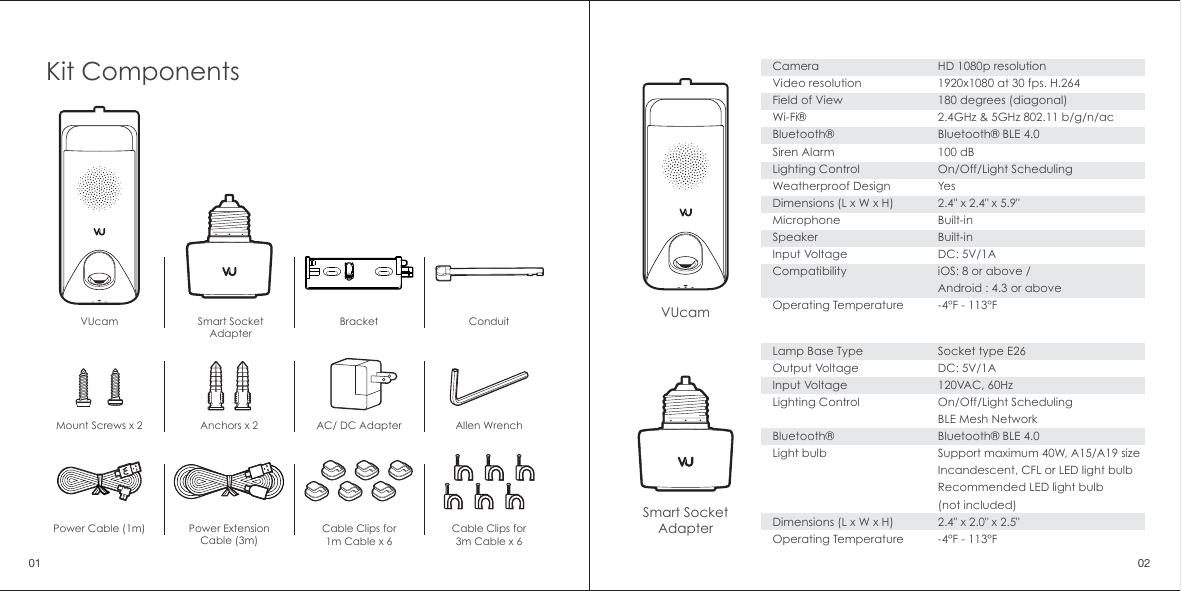
Lamp Base TypeOutput VoltageInput VoltageLighting ControlBluetooth®Light bulb Dimensions (L x W x H)Operating TemperatureSocket type E26DC: 5V/1A120VAC, 60HzOn/Off/Light Scheduling BLE Mesh NetworkBluetooth® BLE 4.0Support maximum 40W, A15/A19 size Incandescent, CFL or LED light bulbRecommended LED light bulb(not included)2.4" x 2.0" x 2.5"-4°F - 113°FCameraVideo resolutionField of ViewWi-Fi®Bluetooth®Siren AlarmLighting ControlWeatherproof DesignDimensions (L x W x H)MicrophoneSpeakerInput VoltageCompatibilityOperating TemperatureHD 1080p resolution1920x1080 at 30 fps. H.264180 degrees (diagonal)2.4GHz & 5GHz 802.11 b/g/n/acBluetooth® BLE 4.0100 dBOn/Off/Light SchedulingYes2.4" x 2.4" x 5.9"Built-inBuilt-inDC: 5V/1AiOS: 8 or above / Android : 4.3 or above-4°F - 113°FVUcamVUcamSmart SocketAdapterSmart SocketAdapterCable Clips for1m Cable x 6Cable Clips for3m Cable x 6Kit ComponentsBracket ConduitPower ExtensionCable (3m)Power Cable (1m)Mount Screws x 2 Anchors x 2 AC/ DC Adapter Allen Wrench01 02
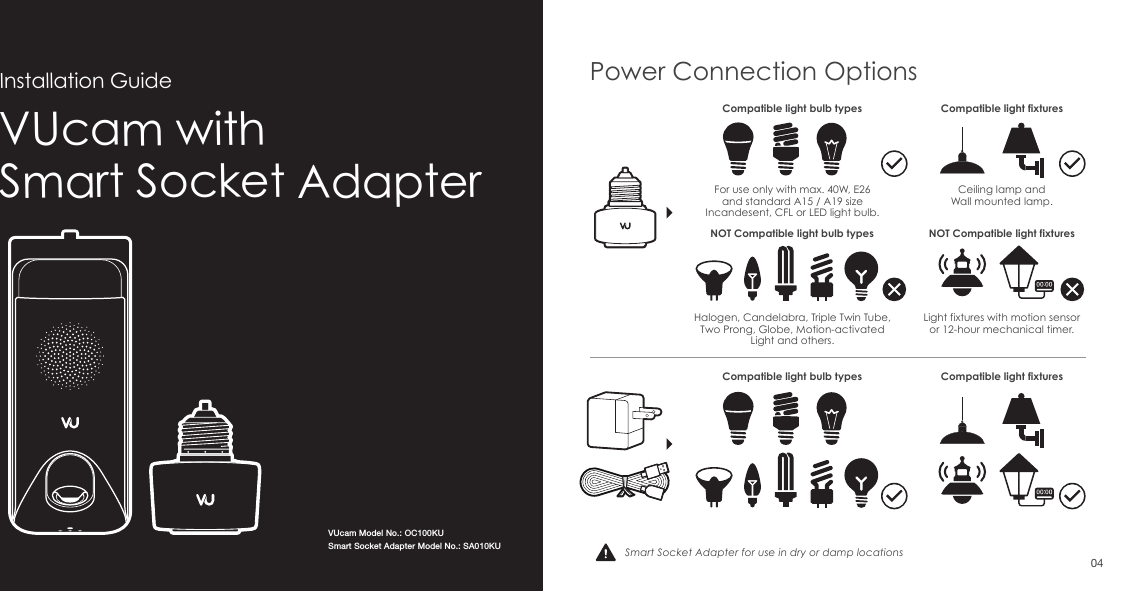
VUcam with Smart Socket AdapterInstallation GuideSmart Socket Adapter for use in dry or damp locationsPower Connection OptionsCompatible light bulb types Compatible light fixturesCompatible light fixturesFor use only with max. 40W, E26 and standard A15 / A19 size Incandesent, CFL or LED light bulb.Ceiling lamp andWall mounted lamp.Light fixtures with motion sensoror 12-hour mechanical timer.Halogen, Candelabra, Triple Twin Tube, Two Prong, Globe, Motion-activated Light and others.Compatible light bulb typesNOT Compatible light fixturesNOT Compatible light bulb types04VUcam Model No.: OC100KUSmart Socket Adapter Model No.: SA010KU
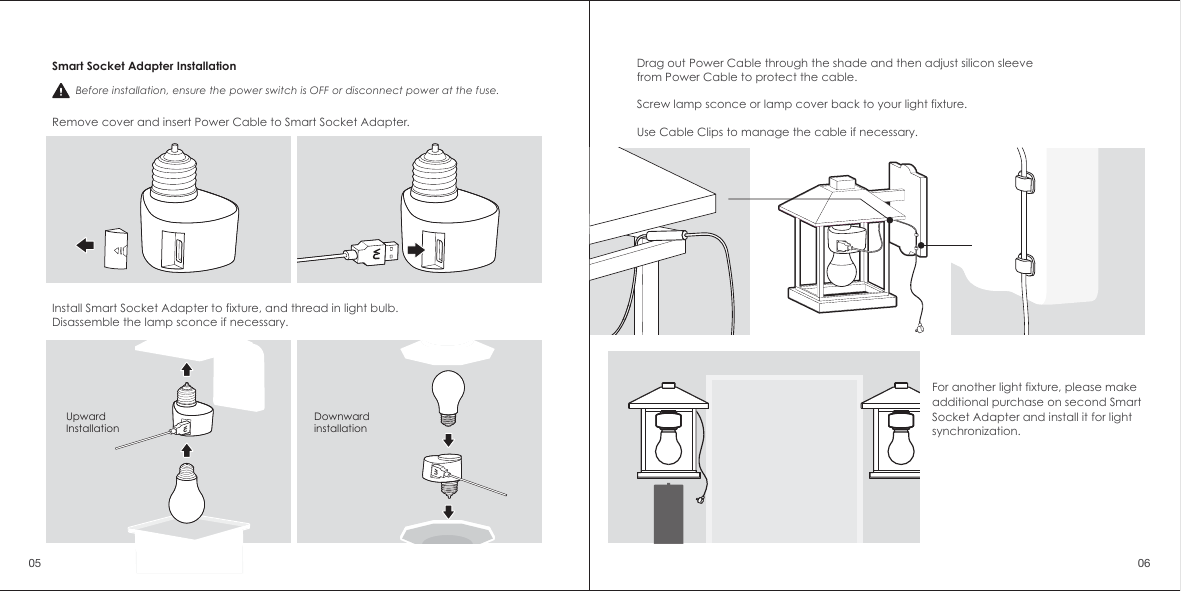
For another light fixture, please make additional purchase on second Smart Socket Adapter and install it for light synchronization.Smart Socket Adapter InstallationRemove cover and insert Power Cable to Smart Socket Adapter.Install Smart Socket Adapter to fixture, and thread in light bulb. Disassemble the lamp sconce if necessary.Upward InstallationDownwardinstallation Before installation, ensure the power switch is OFF or disconnect power at the fuse. Drag out Power Cable through the shade and then adjust silicon sleeve from Power Cable to protect the cable.Screw lamp sconce or lamp cover back to your light fixture.Use Cable Clips to manage the cable if necessary.05 06
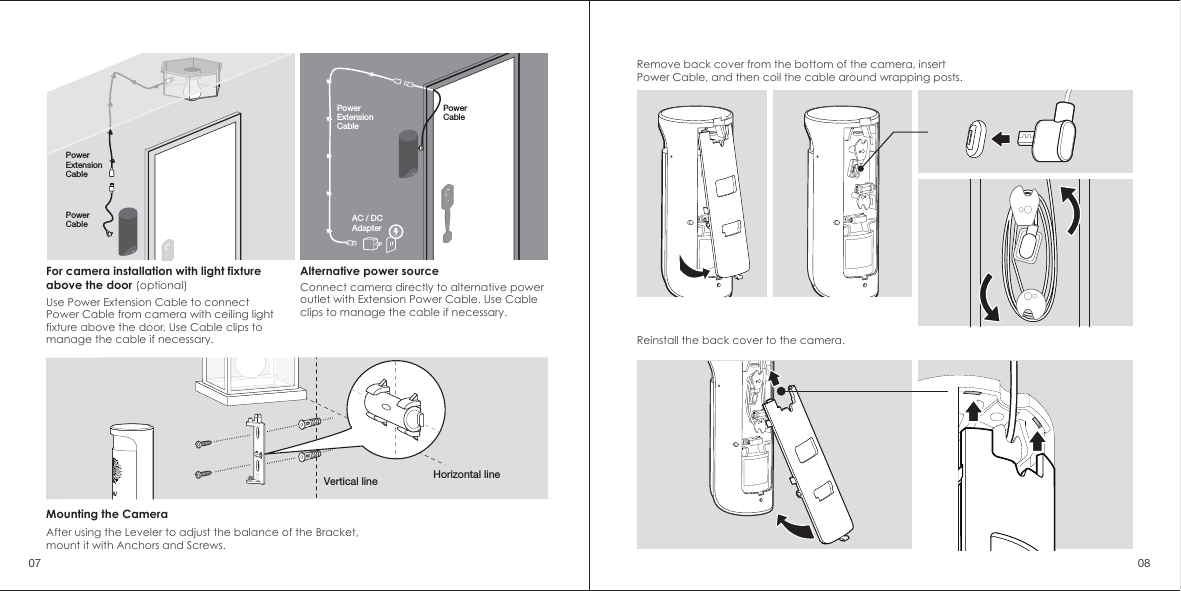
Remove back cover from the bottom of the camera, insert Power Cable, and then coil the cable around wrapping posts. Vertical line Horizontal lineMounting the CameraAfter using the Leveler to adjust the balance of the Bracket, mount it with Anchors and Screws.Alternative power sourceConnect camera directly to alternative power outlet with Extension Power Cable. Use Cable clips to manage the cable if necessary.PowerCablePowerCablePowerExtensionCable For camera installation with light fixtureabove the door (optional)Use Power Extension Cable to connect Power Cable from camera with ceiling light fixture above the door. Use Cable clips to manage the cable if necessary. Reinstall the back cover to the camera.07 08PowerExtensionCable AC / DCAdapter
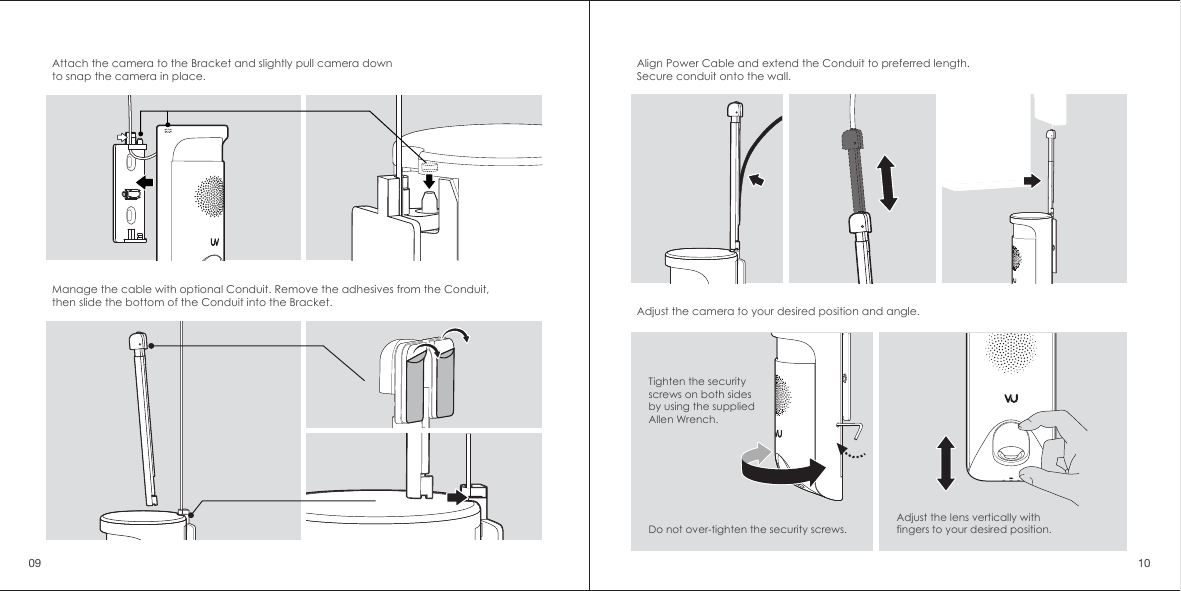
Attach the camera to the Bracket and slightly pull camera down to snap the camera in place.Align Power Cable and extend the Conduit to preferred length. Secure conduit onto the wall.Adjust the camera to your desired position and angle. Tighten the security screws on both sides by using the supplied Allen Wrench.Adjust the lens vertically with fingers to your desired position. Do not over-tighten the security screws. Manage the cable with optional Conduit. Remove the adhesives from the Conduit, then slide the bottom of the Conduit into the Bracket.09 10
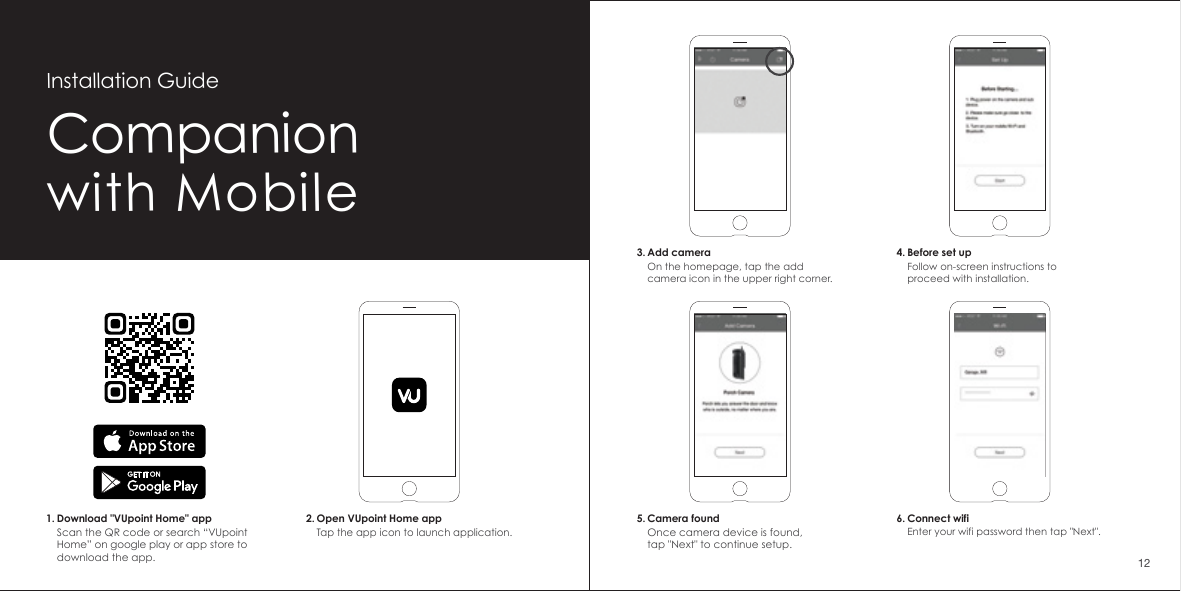
Companionwith MobileInstallation Guide2. Open VUpoint Home appTap the app icon to launch application.1. Download "VUpoint Home" appScan the QR code or search “VUpoint Home” on google play or app store to download the app.6. Connect wifiEnter your wifi password then tap "Next".5. Camera foundOnce camera device is found,tap "Next" to continue setup.3. Add cameraOn the homepage, tap the add camera icon in the upper right corner.4. Before set upFollow on-screen instructions to proceed with installation.12
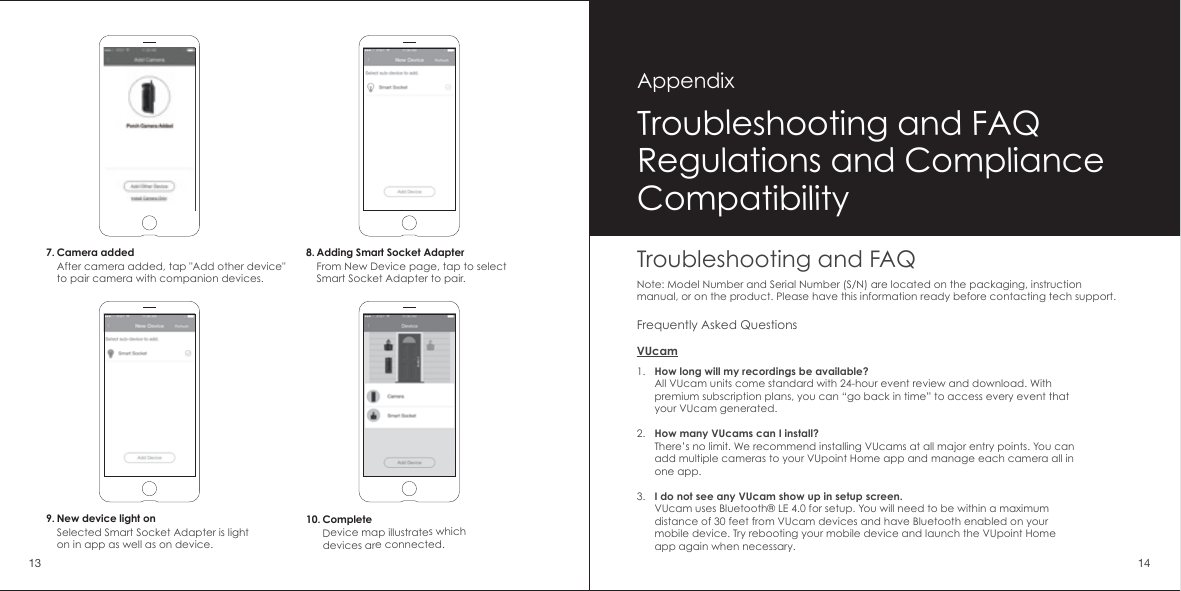
7. Camera addedAfter camera added, tap "Add other device" to pair camera with companion devices.8. Adding Smart Socket AdapterFrom New Device page, tap to select Smart Socket Adapter to pair.10. CompleteDevice map illustrates which devices are connected.9. New device light onSelected Smart Socket Adapter is light on in app as well as on device.Troubleshooting and FAQNote: Model Number and Serial Number (S/N) are located on the packaging, instruction manual, or on the product. Please have this information ready before contacting tech support.1.2.3.How long will my recordings be available?All VUcam units come standard with 24-hour event review and download. With premium subscription plans, you can “go back in time” to access every event that your VUcam generated.How many VUcams can I install?There’s no limit. We recommend installing VUcams at all major entry points. You can add multiple cameras to your VUpoint Home app and manage each camera all in one app.I do not see any VUcam show up in setup screen.VUcam uses Bluetooth® LE 4.0 for setup. You will need to be within a maximum distance of 30 feet from VUcam devices and have Bluetooth enabled on your mobile device. Try rebooting your mobile device and launch the VUpoint Home app again when necessary.Frequently Asked QuestionsVUcamTroubleshooting and FAQRegulations and ComplianceCompatibilityAppendix13 14
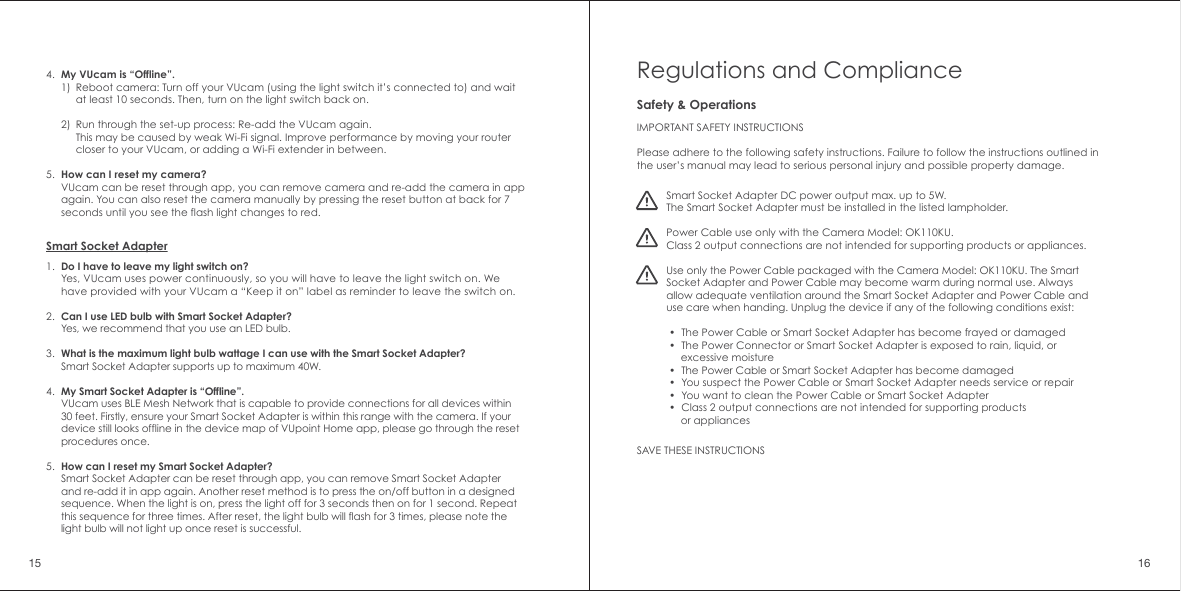
4.5.My VUcam is “Offline”.1)2)How can I reset my camera?VUcam can be reset through app, you can remove camera and re-add the camera in app again. You can also reset the camera manually by pressing the reset button at back for 7 seconds until you see the flash light changes to red.Reboot camera: Turn off your VUcam (using the light switch it’s connected to) and wait at least 10 seconds. Then, turn on the light switch back on.Run through the set-up process: Re-add the VUcam again. This may be caused by weak Wi-Fi signal. Improve performance by moving your router closer to your VUcam, or adding a Wi-Fi extender in between.Do I have to leave my light switch on?Yes, VUcam uses power continuously, so you will have to leave the light switch on. We have provided with your VUcam a “Keep it on” label as reminder to leave the switch on.Can I use LED bulb with Smart Socket Adapter?Yes, we recommend that you use an LED bulb.What is the maximum light bulb wattage I can use with the Smart Socket Adapter?Smart Socket Adapter supports up to maximum 40W.My Smart Socket Adapter is “Offline”.VUcam uses BLE Mesh Network that is capable to provide connections for all devices within 30 feet. Firstly, ensure your Smart Socket Adapter is within this range with the camera. If your device still looks offline in the device map of VUpoint Home app, please go through the reset procedures once. How can I reset my Smart Socket Adapter?Smart Socket Adapter can be reset through app, you can remove Smart Socket Adapter and re-add it in app again. Another reset method is to press the on/off button in a designed sequence. When the light is on, press the light off for 3 seconds then on for 1 second. Repeat this sequence for three times. After reset, the light bulb will flash for 3 times, please note the light bulb will not light up once reset is successful.Smart Socket Adapter1.2.3.4.5.Regulations and ComplianceIMPORTANT SAFETY INSTRUCTIONSPlease adhere to the following safety instructions. Failure to follow the instructions outlined in the user’s manual may lead to serious personal injury and possible property damage. SAVE THESE INSTRUCTIONSSmart Socket Adapter DC power output max. up to 5W.The Smart Socket Adapter must be installed in the listed lampholder.Power Cable use only with the Camera Model: OK110KU.Class 2 output connections are not intended for supporting products or appliances.Use only the Power Cable packaged with the Camera Model: OK110KU. The Smart Socket Adapter and Power Cable may become warm during normal use. Always allow adequate ventilation around the Smart Socket Adapter and Power Cable and use care when handing. Unplug the device if any of the following conditions exist:  •  The Power Cable or Smart Socket Adapter has become frayed or damaged •  The Power Connector or Smart Socket Adapter is exposed to rain, liquid, or      excessive moisture •  The Power Cable or Smart Socket Adapter has become damaged •  You suspect the Power Cable or Smart Socket Adapter needs service or repair •  You want to clean the Power Cable or Smart Socket Adapter •  Class 2 output connections are not intended for supporting products      or appliancesSafety & Operations15 16
FCC StatementWarning: Changes or modifications to this unit not expressly approved by the party responsible for compliance could void the user’s authority to operate the equipment.NOTE: This equipment has been tested and found to comply with the limits for a Class B digital device, pursuant to Part 15 of the FCC Rules. These limits are designed to provide reasonable protection against harmful interference in a residential installation. This equipment generates, uses and can radiate radio frequency energy and, if not installed and used in accordance with the instructions,  may cause harmful interference to radio communications.However, there is no guarantee that interference will not occur in a particular installation. If this equipment does cause harmful interference to radio or television reception, which can be determined by turning the equipment off and on, the user is encouraged to try to correct the interference by one or more of the following measures: •  Reorient or relocate the receiving antenna. •  Increase the separation between the equipment and receiver. •  Connect the equipment into an outlet on a circuit different from that to      which the receiver is connected. •  Consult the dealer or an experienced radio/ TV technician for help.This device complies with Part 15 of the FCC Rules. Operation is subject to the following two conditions:(1) This device may not cause harmful interference.(2) This device must accept any interference received, including interference       that may cause undesired operation.The transmitter must not be co-located or operated in conjunction with any other antenna or transmitter.  This equipment complies with the FCC RF radiation exposure limits set forth for an uncontrolled environment. This equipment should be installed and operated with a minimum distance of 20cm between the radiator and any part of your body.(i) the device for operation in the band 5150–5250 MHz is only for indoor use to reduce      the potential for harmful interference to co-channel mobile satellite systems;(ii) for devices with detachable antenna(s), the maximum antenna gain permitted for      devices in the bands 5250-5350 MHz and 5470-5725 MHz shall be such that the equipment      still complies with the e.i.r.p. limit;(iii) the worst case tilt angle(s) necessary to remain compliant with the e.i.r.p. elevation mask        requirement set forth in Section 6.2.2(3) shall be clearly indicated. 17 18Until further notice, devices subject to this section shall not be capable of transmitting in the band 5600-5650 MHz.This restriction is for the protection of Environment Canada’s weather radars operating in this band.OC100KU FCC ID: 2AK7ELIH01 SA010KU FCC ID: 2AK7ELIH03IC CautionThis device complies with Industry Canada licence-exempt RSS standard(s). Operation is subject to the following two conditions: (1) This device may not cause interference, and (2) This device must accept any interference, including interference that may       cause undesired operation of the device.The device meets the exemption from the routine evaluation limits in section 2.5 of RSS 102 and compliance with RSS-102 RF exposure, users can obtain Canadian information on RF exposure and compliance.This transmitter must not be co-located or operating in conjunction with any other antenna or transmitter. This equipment should be installed and operated with a minimum distance of 20 centimeters between the radiator and your body.Le present appareil est conforme aux CNR d'Industrie Canada applicables aux appareils radio exempts de licence. L'exploitation estautorisée aux deux conditions suivantes: (1) l'appareil ne doit pas produire de brouillage, et (2) l'utilisateur de l'appareildoit accepter tout brouillageradioélectrique subi,       mêmesi le brouillage est susceptible d'en compromettre le fonctionnement.Le dispositif rencontre l'exemption des limites courantes d'évaluation dans la section 2.5 de RSS 102 etla conformité à l'exposition de RSS-102 rf, utilisateurs peut obtenir l'information canadienne surl'exposition et la conformité de rf.Cet émetteur ne doit pas être Co-placé ou ne fonctionnant en même temps qu'aucune autre antenne ouémetteur. Cet équipement devrait être installé et actionné avec une distance minimum de 20 centimètres entre le radiateur et votre corps.OC100KU IC: 22430-LIH01 SA010KU IC: 22430-LIH03
CompatibilityFor a compatible list of light bulbs and light fixtures, visit: www.vupointhome.com/compatibilitySocket for use in dry or damp locations. Support up to max. 40W, E26 and standard A15 / A19 size incandesent, CFL or LED light bulb. Socket requires continuous power from light fixtures. Not compatible to motion-activated light fixtures and power timer.App Store is a service mark of Apple Inc., in the U.S. and other countries. Google Play badge is a trademark of Google, Inc. Use of this trademark is subject to Google Permission. Product names, logos, brands, and other trademarks, referred to herein are the property of their respective trademark holders. All trademarks remain the property of their respective holders, and are used only to directly describe the products being provided. These trademark holders are not affiliated with VuPoint Solutions Inc. They do not sponsor or endorse VuPoint Solutions Inc. products or services.  VUcam_US Manual_17-0310vupointhome.com

Navigation menu