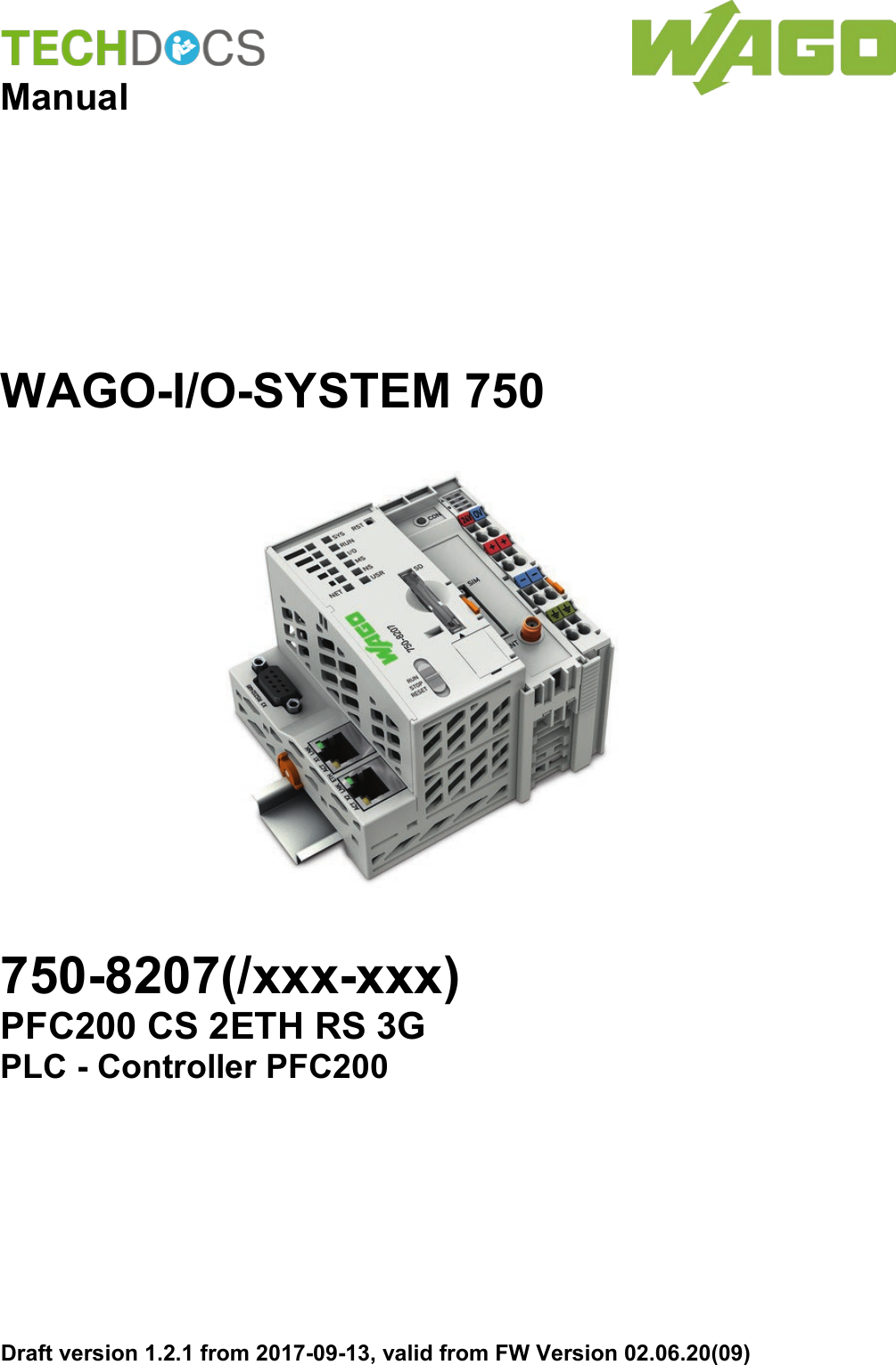
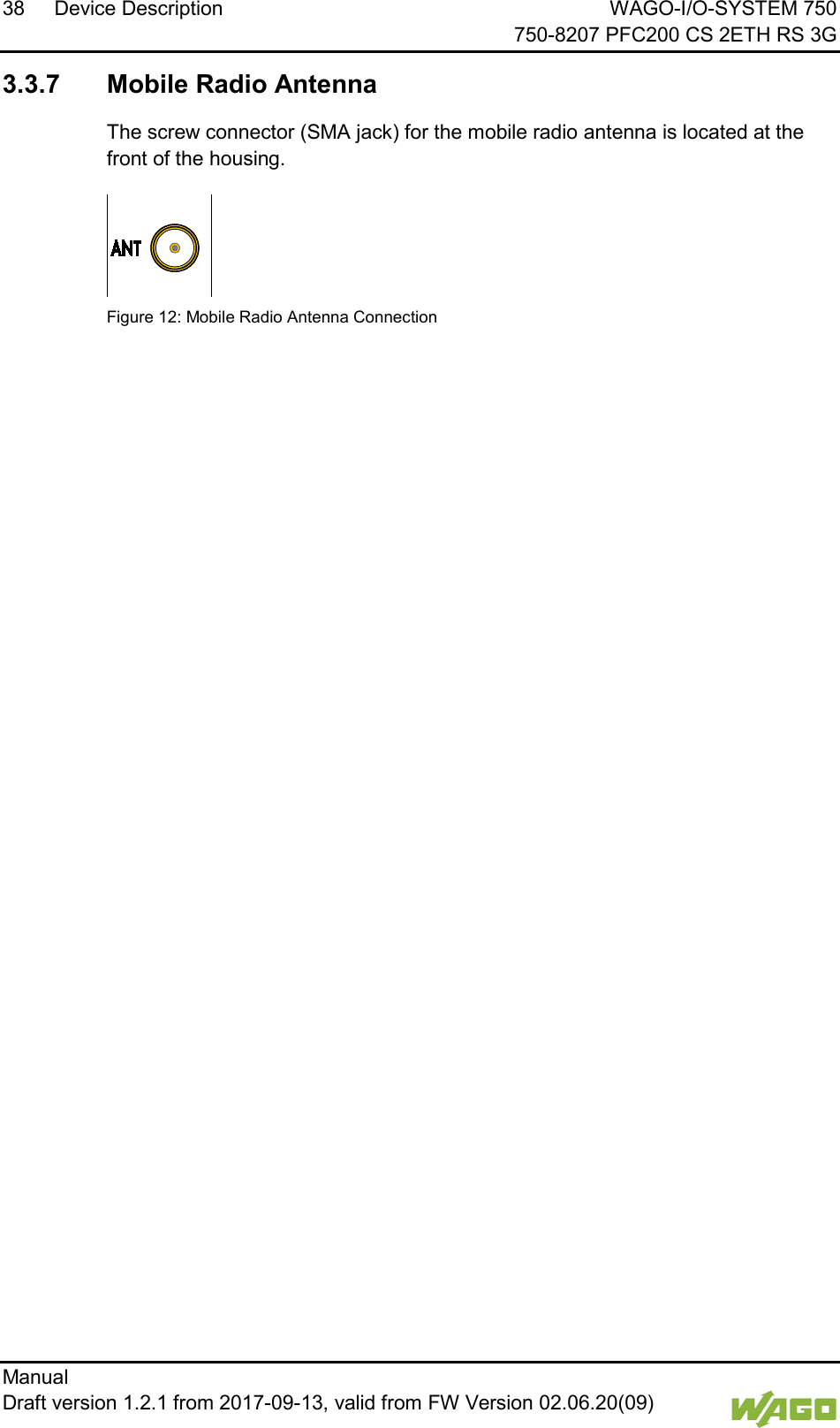
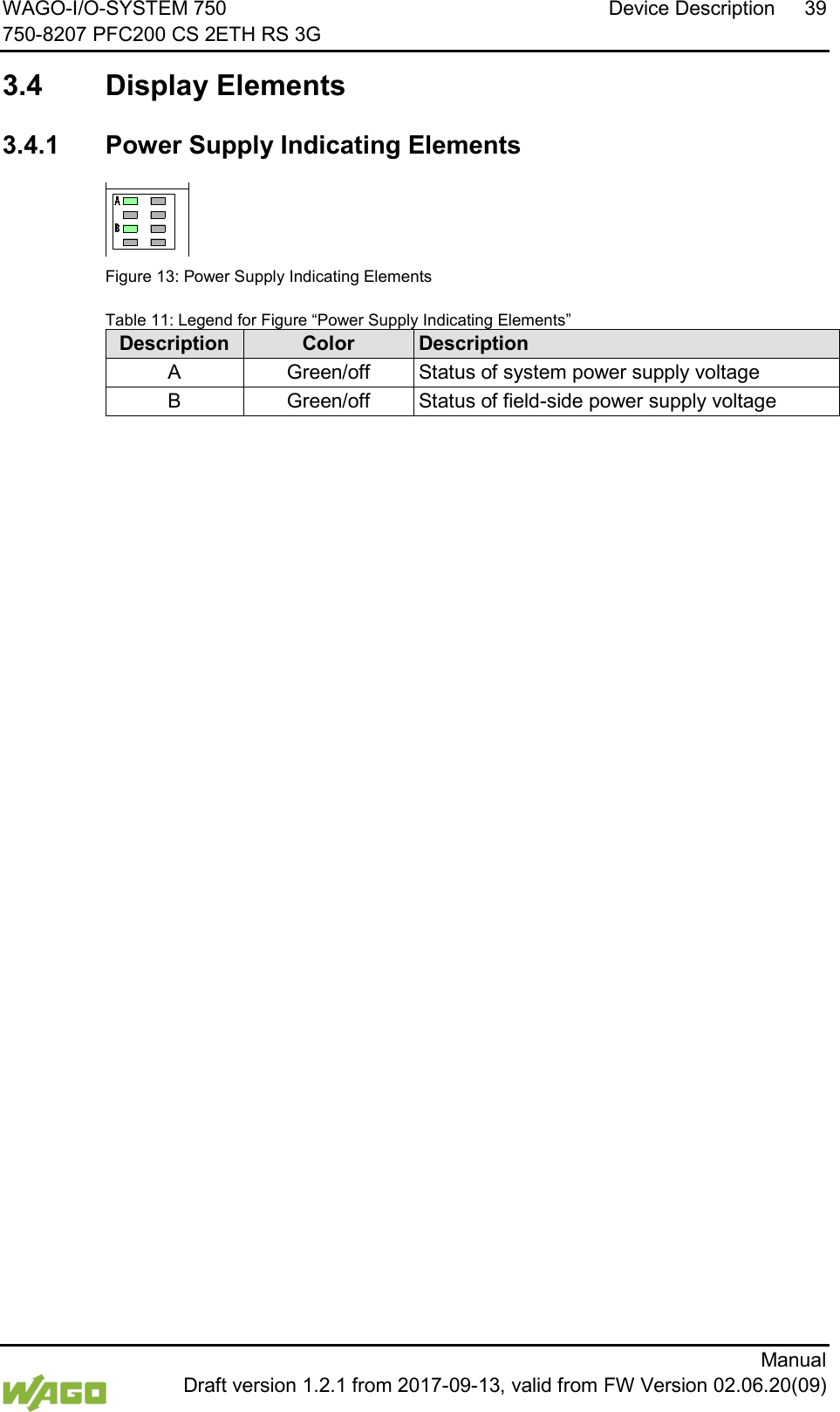
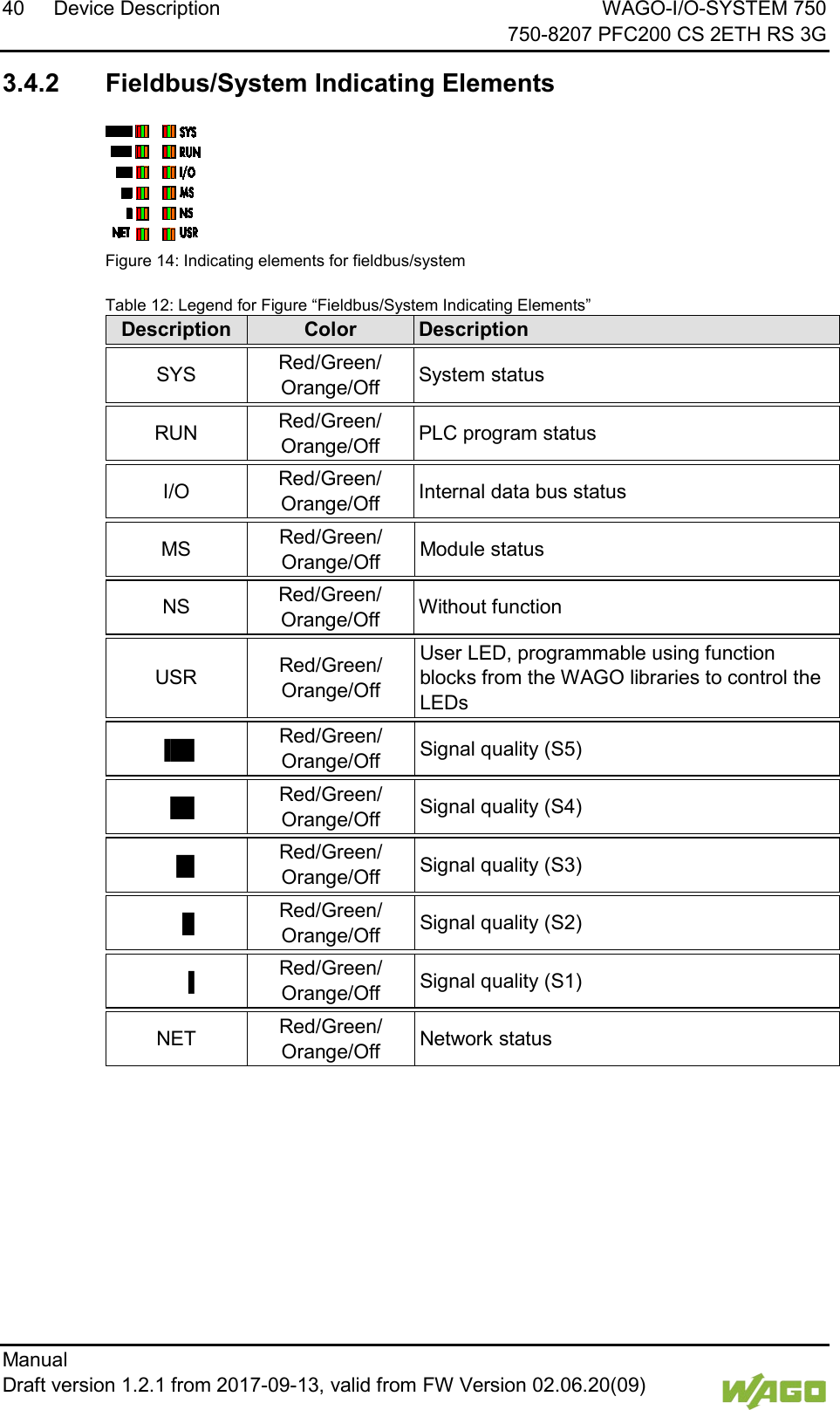
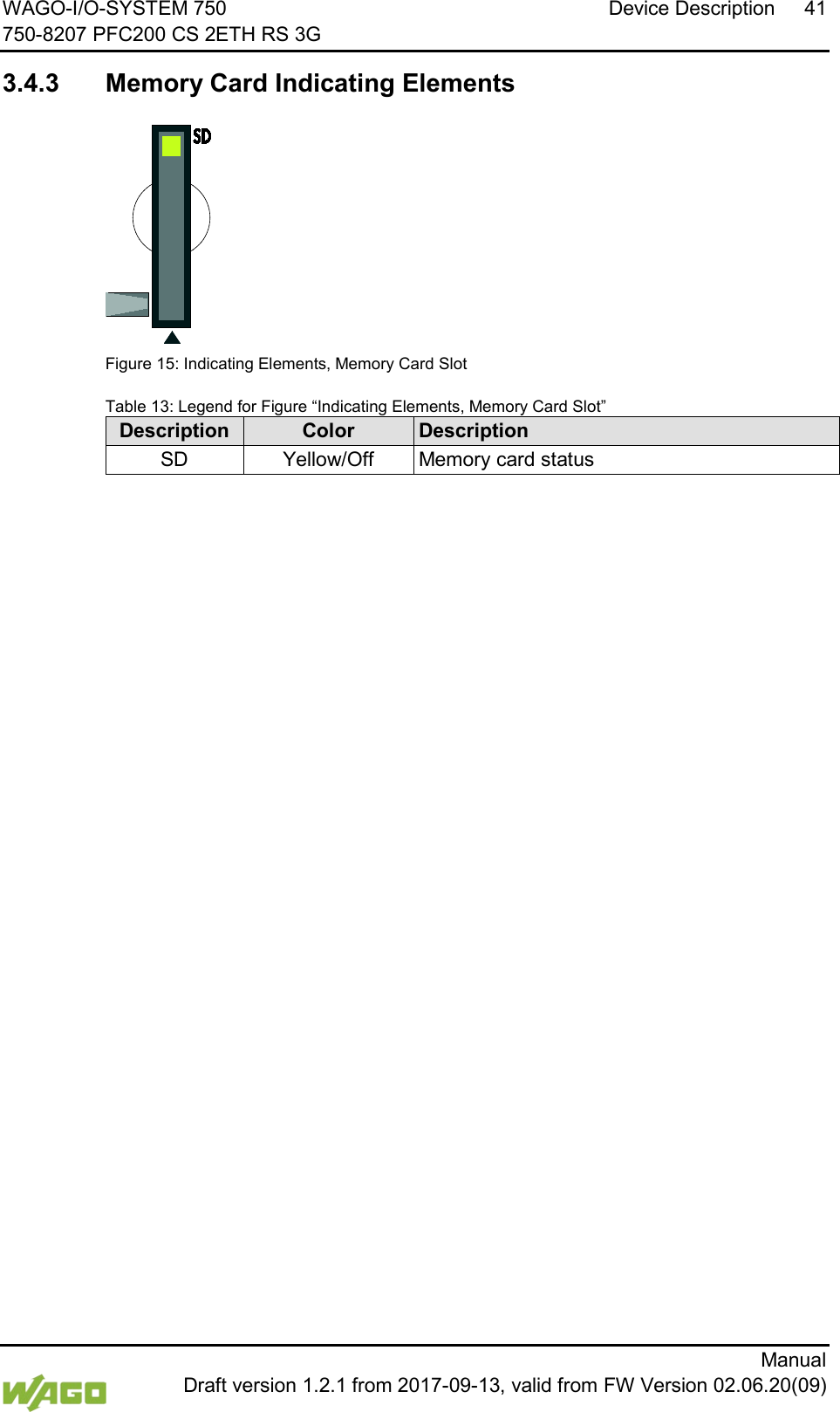
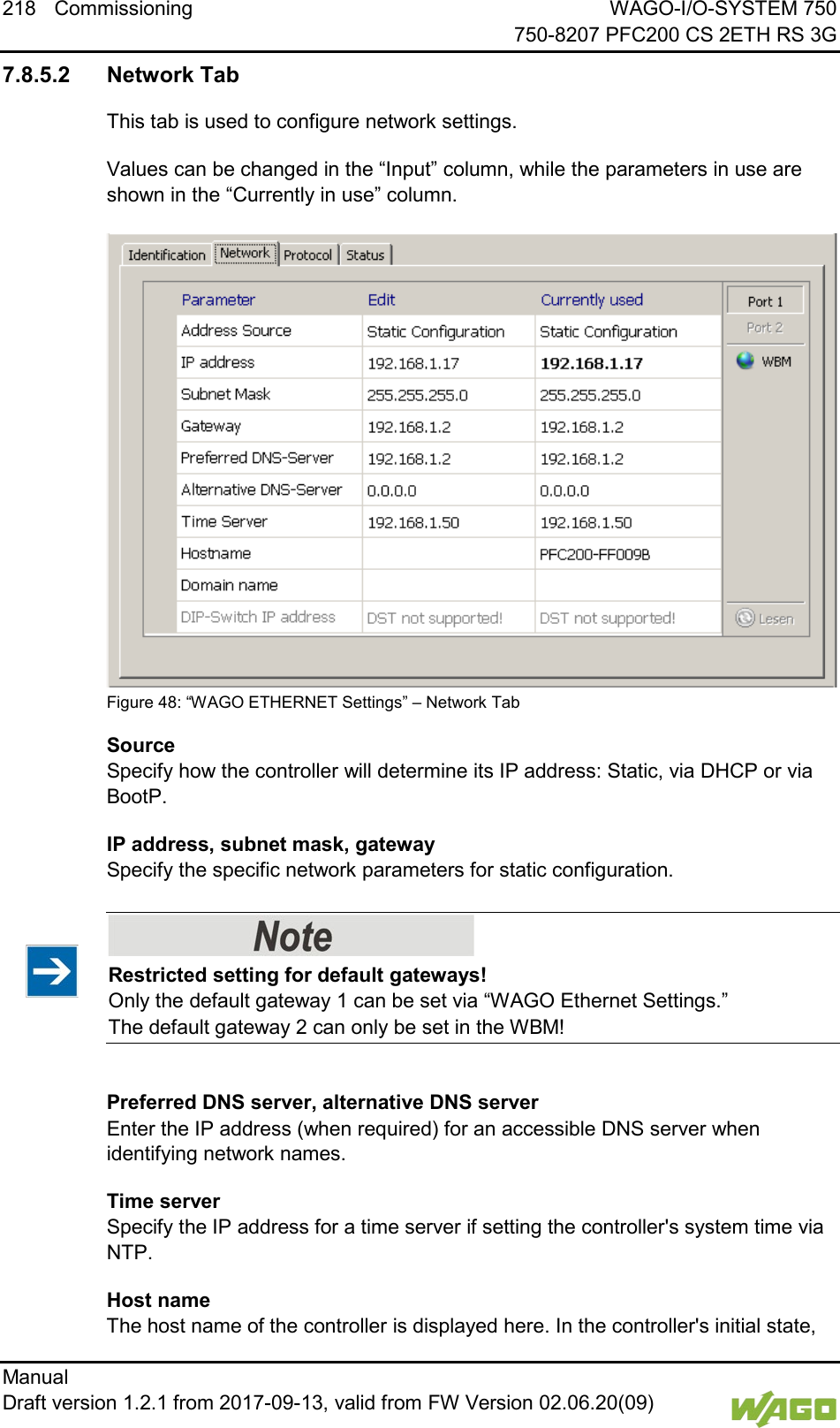
WAGO Kontakttechnik and KG PFC200 3G PLC Controller User Manual Manual 750 8207

WAGO Kontakttechnik GmbH & Co. KG 3G PLC Controller Manual 750 8207

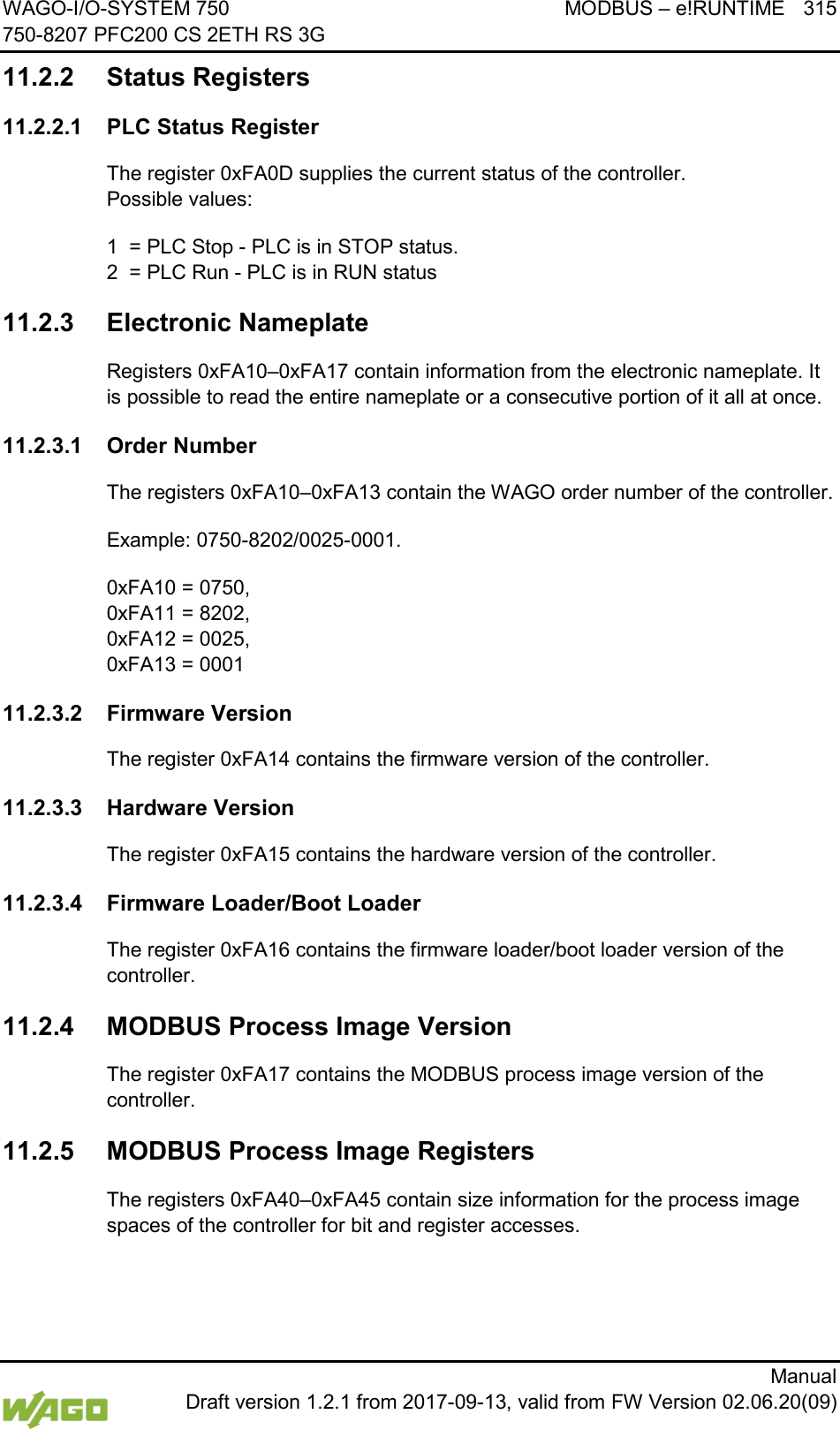
Users Manual

   Manual WAGO-I/O-SYSTEM 750    750-8207(/xxx-xxx) PFC200 CS 2ETH RS 3G PLC - Controller PFC200 Draft version 1.2.1 from 2017-09-13, valid from FW Version 02.06.20(09)
2    WAGO-I/O-SYSTEM 750     750-8207 PFC200 CS 2ETH RS 3G Manual   Draft version 1.2.1 from 2017-09-13, valid from FW Version 02.06.20(09)    © 2017 WAGO Kontakttechnik GmbH & Co. KG All rights reserved.  WAGO Kontakttechnik GmbH & Co. KG Hansastraße 27 D-32423 Minden Phone: +49 (0) 571/8 87 – 0 Fax: +49 (0) 571/8 87 – 1 69 E-Mail: info@wago.com Web: http://www.wago.com  Technical Support Phone: +49 (0) 571/8 87 – 5 55 Fax: +49 (0) 571/8 87 – 85 55 E-Mail: support@wago.com     Every conceivable measure has been taken to ensure the accuracy and completeness of this documentation. However, as errors can never be fully excluded, we always appreciate any information or suggestions for improving the documentation. E-Mail: documentation@wago.com We wish to point out that the software and hardware terms as well as the trademarks of companies used and/or mentioned in the present manual are generally protected by trademark or patent. WAGO is a registered trademark of WAGO Verwaltungsgesellschaft mbH.
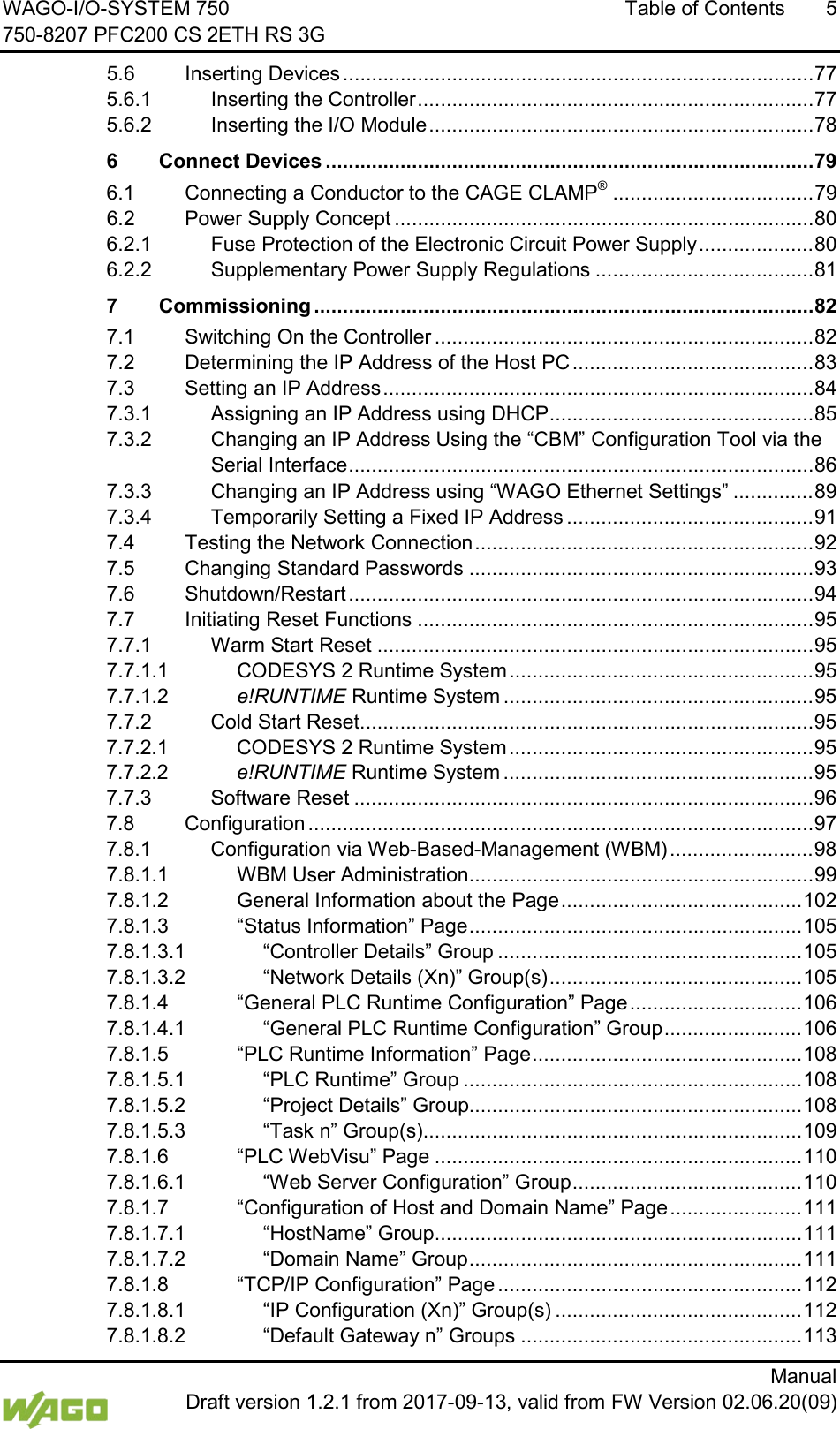
WAGO-I/O-SYSTEM 750 Table of Contents  3 750-8207 PFC200 CS 2ETH RS 3G      Manual  Draft version 1.2.1 from 2017-09-13, valid from FW Version 02.06.20(09)  Table of Contents 1 Notes about this Documentation ........................................................... 15 1.1 Validity of this Documentation............................................................... 15 1.2 Copyright .............................................................................................. 15 1.3 Symbols ............................................................................................... 16 1.4 Number Notation .................................................................................. 18 1.5 Font Conventions ................................................................................. 18 2 Important Notes ...................................................................................... 19 2.1 Legal Bases .......................................................................................... 19 2.1.1 Subject to Changes .......................................................................... 19 2.1.2 Personnel Qualifications .................................................................. 19 2.1.3 Use of the WAGO-I/O-SYSTEM 750 in Compliance with Underlying Provisions ........................................................................................ 19 2.1.4 Technical Condition of Specified Devices......................................... 20 2.2 Safety Advice (Precautions) ................................................................. 21 2.3 Disclaimer............................................................................................. 22 2.4 Licensing Terms of the Software Package Used................................... 23 2.5 Special Use Conditions for ETHERNET Devices .................................. 23 3 Device Description .................................................................................. 24 3.1 View ..................................................................................................... 27 3.2 Labeling ................................................................................................ 29 3.2.1 Manufacturing Number ..................................................................... 29 3.3 Connectors ........................................................................................... 30 3.3.1 Data Contacts/Internal Bus .............................................................. 30 3.3.2 Power Jumper Contacts/Field Supply .............................................. 31 3.3.3 CAGE CLAMP® Connectors ............................................................. 32 3.3.4 Service Interface .............................................................................. 33 3.3.5 Network Connections – X1, X2 ........................................................ 34 3.3.6 RS-232/RS-485 – X3 Communication Connection ........................... 35 3.3.6.1 Operating as an RS-232 Interface ............................................... 36 3.3.6.2 Operating as an RS-485 Interface ............................................... 37 3.3.7 Mobile Radio Antenna ...................................................................... 38 3.4 Display Elements .................................................................................. 39 3.4.1 Power Supply Indicating Elements ................................................... 39 3.4.2 Fieldbus/System Indicating Elements ............................................... 40 3.4.3 Memory Card Indicating Elements ................................................... 41 3.4.4 Network Indicating Elements ............................................................ 42 3.4.5 Mobile Radio Network Status Indicators ........................................... 43 3.5 Operating Elements .............................................................................. 44 3.5.1 Operating Mode Switch .................................................................... 44 3.5.1.1 CODESYS 2 Runtime System ..................................................... 44 3.5.1.2 e!RUNTIME Runtime System ...................................................... 44 3.5.2 Reset Button .................................................................................... 45 3.6 Slot for Memory Card ........................................................................... 46 3.7 SIM Card Slot ....................................................................................... 47 3.8 Schematic Diagram .............................................................................. 48 3.9 Technical Data ..................................................................................... 49
4  Table of Contents WAGO-I/O-SYSTEM 750     750-8207 PFC200 CS 2ETH RS 3G Manual   Draft version 1.2.1 from 2017-09-13, valid from FW Version 02.06.20(09)   3.9.1 Device Data ..................................................................................... 49 3.9.2 System Data .................................................................................... 49 3.9.3 Power supply ................................................................................... 49 3.9.4 Clock ................................................................................................ 50 3.9.5 Programming ................................................................................... 50 3.9.6 Internal data bus .............................................................................. 50 3.9.7 ETHERNET ..................................................................................... 51 3.9.8 Serial interface ................................................................................. 51 3.9.9 Mobile Radio Modem ....................................................................... 51 3.9.10 Connection Type .............................................................................. 51 3.9.11 Climatic Environmental Conditions ................................................... 52 3.10 Approvals ............................................................................................. 53 3.11 Standards and Guidelines .................................................................... 53 4 Function Description .............................................................................. 55 4.1 Network ................................................................................................ 55 4.1.1 Interface Configuration ..................................................................... 55 4.1.1.1 Operation in Switch Mode............................................................ 55 4.1.1.2 Operation with Separate Network Interfaces................................ 55 4.1.2 Network Security .............................................................................. 56 4.1.2.1 Users and Passwords .................................................................. 56 4.1.2.1.1 Services and Users ................................................................. 56 4.1.2.1.2 WBM User Group .................................................................... 57 4.1.2.1.3 Linux® User Group .................................................................. 57 4.1.2.1.4 SNMP User Group .................................................................. 57 4.1.2.2 Web Protocols for WBM Access .................................................. 58 4.1.2.2.1 TLS Encryption ....................................................................... 58 4.1.3 Network Configuration ...................................................................... 60 4.1.3.1 Host Name/Domain Name ........................................................... 60 4.1.3.2 Default Gateways ........................................................................ 60 4.1.4 Network Services ............................................................................. 62 4.1.4.1 DHCP Client ................................................................................ 62 4.1.4.2 DHCP Server ............................................................................... 62 4.1.4.3 DNS Server ................................................................................. 64 4.2 Memory Card Function ......................................................................... 65 4.2.1 Formatting ........................................................................................ 65 4.2.2 Data Backup .................................................................................... 67 4.2.2.1 Backup Function .......................................................................... 67 4.2.2.2 Restore Function ......................................................................... 68 4.2.3 Inserting a Memory Card during Operation ...................................... 70 4.2.4 Removing the Memory Card during Operation ................................. 70 4.2.5 Setting the Home Directory for the Runtime System ........................ 71 5 Mounting .................................................................................................. 72 5.1 Installation Position ............................................................................... 72 5.2 Overall Configuration ............................................................................ 72 5.3 Mounting onto Carrier Rail .................................................................... 74 5.3.1 Carrier Rail Properties ...................................................................... 74 5.3.2 WAGO DIN Rails ............................................................................. 75 5.4 Spacing ................................................................................................ 75 5.5 Mounting Sequence .............................................................................. 76
WAGO-I/O-SYSTEM 750 Table of Contents  5 750-8207 PFC200 CS 2ETH RS 3G      Manual  Draft version 1.2.1 from 2017-09-13, valid from FW Version 02.06.20(09) 5.6 Inserting Devices .................................................................................. 77 5.6.1 Inserting the Controller ..................................................................... 77 5.6.2 Inserting the I/O Module ................................................................... 78 6 Connect Devices ..................................................................................... 79 6.1 Connecting a Conductor to the CAGE CLAMP® ................................... 79 6.2 Power Supply Concept ......................................................................... 80 6.2.1 Fuse Protection of the Electronic Circuit Power Supply .................... 80 6.2.2 Supplementary Power Supply Regulations ...................................... 81 7 Commissioning ....................................................................................... 82 7.1 Switching On the Controller .................................................................. 82 7.2 Determining the IP Address of the Host PC .......................................... 83 7.3 Setting an IP Address ........................................................................... 84 7.3.1 Assigning an IP Address using DHCP .............................................. 85 7.3.2 Changing an IP Address Using the “CBM” Configuration Tool via the Serial Interface ................................................................................. 86 7.3.3 Changing an IP Address using “WAGO Ethernet Settings” .............. 89 7.3.4 Temporarily Setting a Fixed IP Address ........................................... 91 7.4 Testing the Network Connection ........................................................... 92 7.5 Changing Standard Passwords ............................................................ 93 7.6 Shutdown/Restart ................................................................................. 94 7.7 Initiating Reset Functions ..................................................................... 95 7.7.1 Warm Start Reset ............................................................................ 95 7.7.1.1 CODESYS 2 Runtime System ..................................................... 95 7.7.1.2 e!RUNTIME Runtime System ...................................................... 95 7.7.2 Cold Start Reset ............................................................................... 95 7.7.2.1 CODESYS 2 Runtime System ..................................................... 95 7.7.2.2 e!RUNTIME Runtime System ...................................................... 95 7.7.3 Software Reset ................................................................................ 96 7.8 Configuration ........................................................................................ 97 7.8.1 Configuration via Web-Based-Management (WBM) ......................... 98 7.8.1.1 WBM User Administration ............................................................ 99 7.8.1.2 General Information about the Page .......................................... 102 7.8.1.3 “Status Information” Page .......................................................... 105 7.8.1.3.1 “Controller Details” Group ..................................................... 105 7.8.1.3.2 “Network Details (Xn)” Group(s) ............................................ 105 7.8.1.4 “General PLC Runtime Configuration” Page .............................. 106 7.8.1.4.1 “General PLC Runtime Configuration” Group ........................ 106 7.8.1.5 “PLC Runtime Information” Page ............................................... 108 7.8.1.5.1 “PLC Runtime” Group ........................................................... 108 7.8.1.5.2 “Project Details” Group.......................................................... 108 7.8.1.5.3 “Task n” Group(s) .................................................................. 109 7.8.1.6 “PLC WebVisu” Page ................................................................ 110 7.8.1.6.1 “Web Server Configuration” Group ........................................ 110 7.8.1.7 “Configuration of Host and Domain Name” Page ....................... 111 7.8.1.7.1 “HostName” Group ................................................................ 111 7.8.1.7.2 “Domain Name” Group .......................................................... 111 7.8.1.8 “TCP/IP Configuration” Page ..................................................... 112 7.8.1.8.1 “IP Configuration (Xn)” Group(s) ........................................... 112 7.8.1.8.2 “Default Gateway n” Groups ................................................. 113
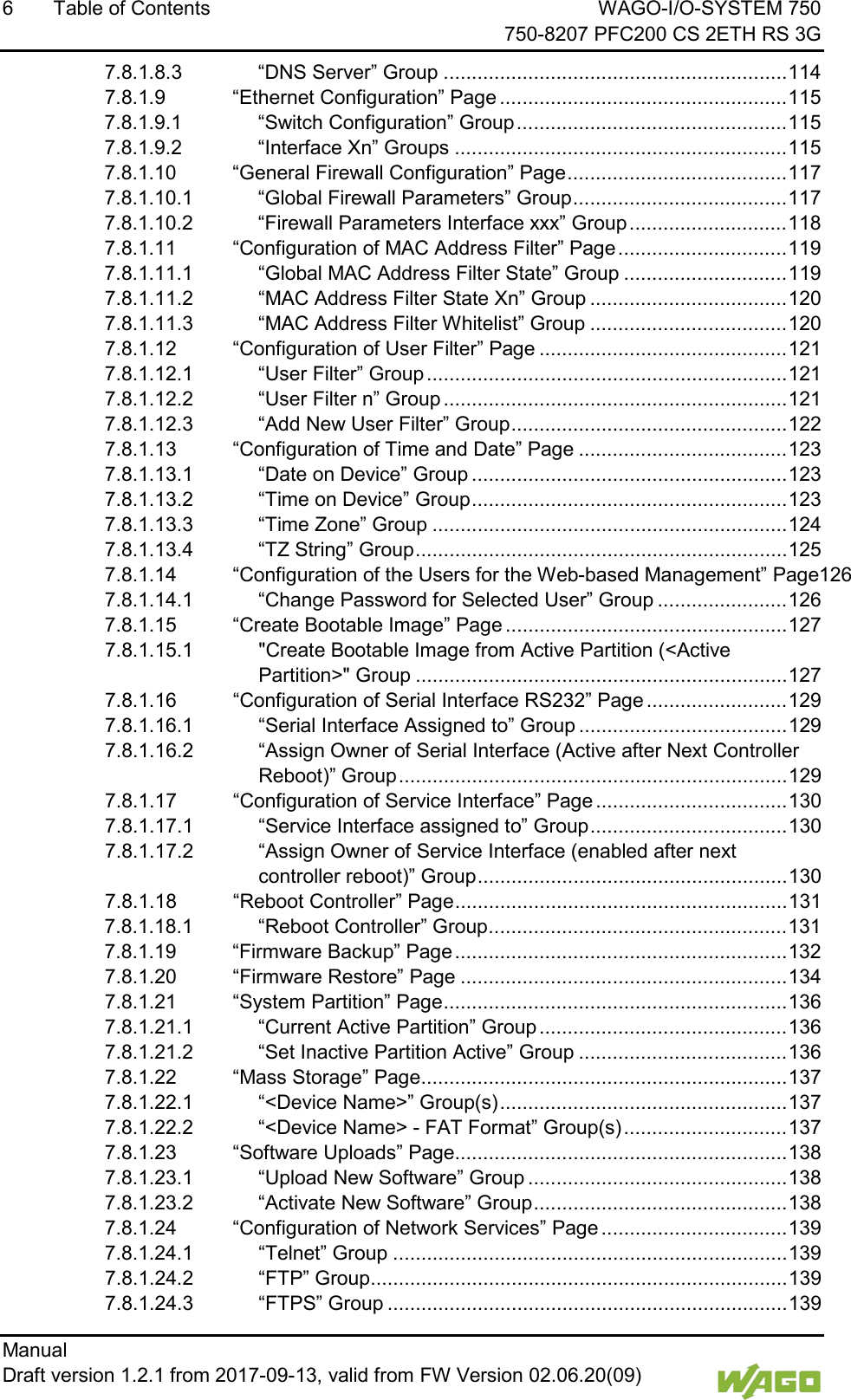
6  Table of Contents WAGO-I/O-SYSTEM 750     750-8207 PFC200 CS 2ETH RS 3G Manual   Draft version 1.2.1 from 2017-09-13, valid from FW Version 02.06.20(09)   7.8.1.8.3 “DNS Server” Group ............................................................. 114 7.8.1.9 “Ethernet Configuration” Page ................................................... 115 7.8.1.9.1 “Switch Configuration” Group ................................................ 115 7.8.1.9.2 “Interface Xn” Groups ........................................................... 115 7.8.1.10 “General Firewall Configuration” Page ....................................... 117 7.8.1.10.1 “Global Firewall Parameters” Group ...................................... 117 7.8.1.10.2 “Firewall Parameters Interface xxx” Group ............................ 118 7.8.1.11 “Configuration of MAC Address Filter” Page .............................. 119 7.8.1.11.1 “Global MAC Address Filter State” Group ............................. 119 7.8.1.11.2 “MAC Address Filter State Xn” Group ................................... 120 7.8.1.11.3 “MAC Address Filter Whitelist” Group ................................... 120 7.8.1.12 “Configuration of User Filter” Page ............................................ 121 7.8.1.12.1 “User Filter” Group ................................................................ 121 7.8.1.12.2 “User Filter n” Group ............................................................. 121 7.8.1.12.3 “Add New User Filter” Group ................................................. 122 7.8.1.13 “Configuration of Time and Date” Page ..................................... 123 7.8.1.13.1 “Date on Device” Group ........................................................ 123 7.8.1.13.2 “Time on Device” Group ........................................................ 123 7.8.1.13.3 “Time Zone” Group ............................................................... 124 7.8.1.13.4 “TZ String” Group .................................................................. 125 7.8.1.14 “Configuration of the Users for the Web-based Management” Page126 7.8.1.14.1 “Change Password for Selected User” Group ....................... 126 7.8.1.15 “Create Bootable Image” Page .................................................. 127 7.8.1.15.1 "Create Bootable Image from Active Partition (<Active Partition>" Group .................................................................. 127 7.8.1.16 “Configuration of Serial Interface RS232” Page ......................... 129 7.8.1.16.1 “Serial Interface Assigned to” Group ..................................... 129 7.8.1.16.2 “Assign Owner of Serial Interface (Active after Next Controller Reboot)” Group ..................................................................... 129 7.8.1.17 “Configuration of Service Interface” Page .................................. 130 7.8.1.17.1 “Service Interface assigned to” Group ................................... 130 7.8.1.17.2 “Assign Owner of Service Interface (enabled after next controller reboot)” Group ....................................................... 130 7.8.1.18 “Reboot Controller” Page ........................................................... 131 7.8.1.18.1 “Reboot Controller” Group ..................................................... 131 7.8.1.19 “Firmware Backup” Page ........................................................... 132 7.8.1.20 “Firmware Restore” Page .......................................................... 134 7.8.1.21 “System Partition” Page ............................................................. 136 7.8.1.21.1 “Current Active Partition” Group ............................................ 136 7.8.1.21.2 “Set Inactive Partition Active” Group ..................................... 136 7.8.1.22 “Mass Storage” Page ................................................................. 137 7.8.1.22.1 “<Device Name>” Group(s) ................................................... 137 7.8.1.22.2 “<Device Name> - FAT Format” Group(s) ............................. 137 7.8.1.23 “Software Uploads” Page........................................................... 138 7.8.1.23.1 “Upload New Software” Group .............................................. 138 7.8.1.23.2 “Activate New Software” Group ............................................. 138 7.8.1.24 “Configuration of Network Services” Page ................................. 139 7.8.1.24.1 “Telnet” Group ...................................................................... 139 7.8.1.24.2 “FTP” Group .......................................................................... 139 7.8.1.24.3 “FTPS” Group ....................................................................... 139
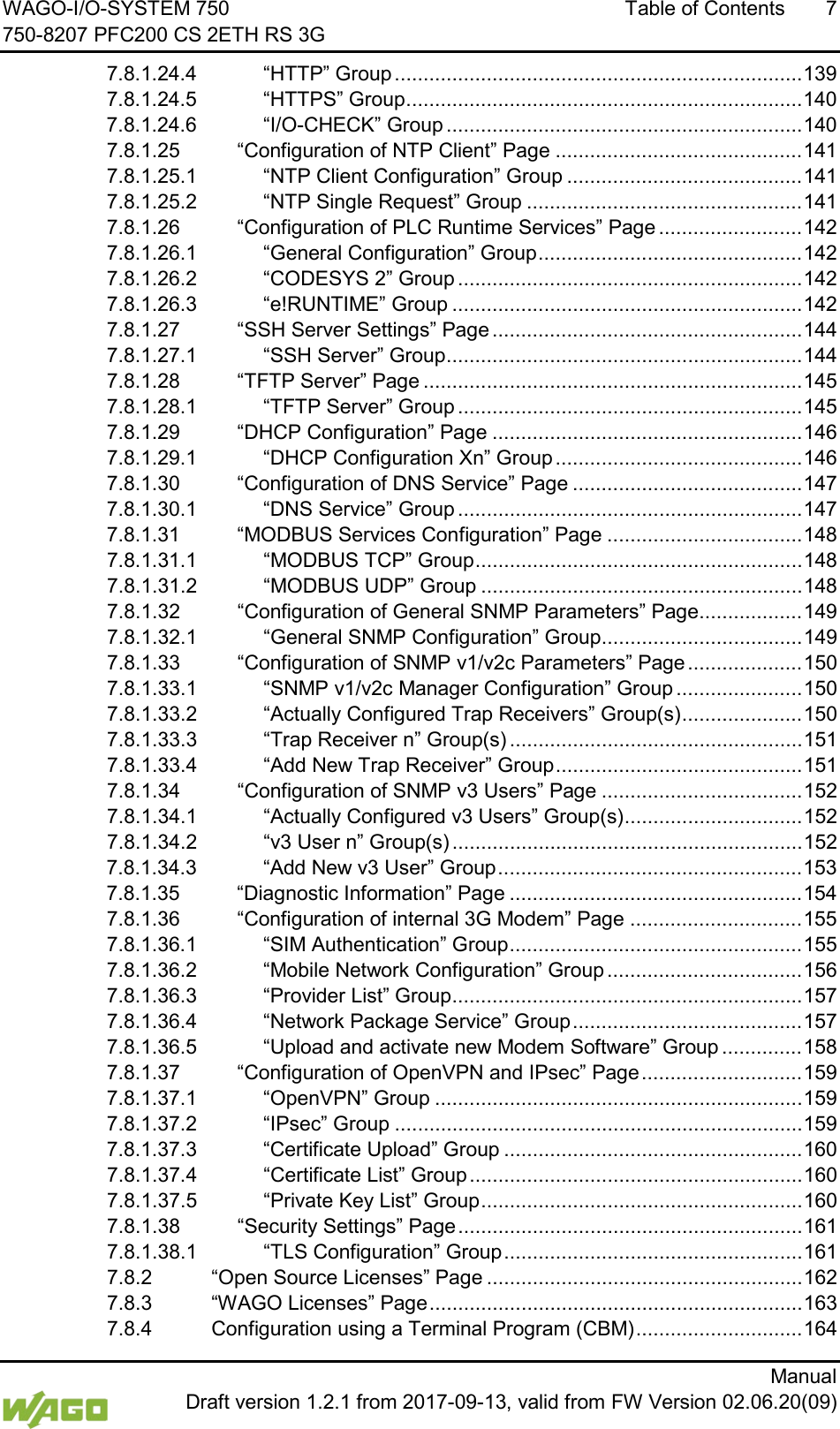
WAGO-I/O-SYSTEM 750 Table of Contents  7 750-8207 PFC200 CS 2ETH RS 3G      Manual  Draft version 1.2.1 from 2017-09-13, valid from FW Version 02.06.20(09) 7.8.1.24.4 “HTTP” Group ....................................................................... 139 7.8.1.24.5 “HTTPS” Group ..................................................................... 140 7.8.1.24.6 “I/O-CHECK” Group .............................................................. 140 7.8.1.25 “Configuration of NTP Client” Page ........................................... 141 7.8.1.25.1 “NTP Client Configuration” Group ......................................... 141 7.8.1.25.2 “NTP Single Request” Group ................................................ 141 7.8.1.26 “Configuration of PLC Runtime Services” Page ......................... 142 7.8.1.26.1 “General Configuration” Group .............................................. 142 7.8.1.26.2 “CODESYS 2” Group ............................................................ 142 7.8.1.26.3 “e!RUNTIME” Group ............................................................. 142 7.8.1.27 “SSH Server Settings” Page ...................................................... 144 7.8.1.27.1 “SSH Server” Group .............................................................. 144 7.8.1.28 “TFTP Server” Page .................................................................. 145 7.8.1.28.1 “TFTP Server” Group ............................................................ 145 7.8.1.29 “DHCP Configuration” Page ...................................................... 146 7.8.1.29.1 “DHCP Configuration Xn” Group ........................................... 146 7.8.1.30 “Configuration of DNS Service” Page ........................................ 147 7.8.1.30.1 “DNS Service” Group ............................................................ 147 7.8.1.31 “MODBUS Services Configuration” Page .................................. 148 7.8.1.31.1 “MODBUS TCP” Group ......................................................... 148 7.8.1.31.2 “MODBUS UDP” Group ........................................................ 148 7.8.1.32 “Configuration of General SNMP Parameters” Page .................. 149 7.8.1.32.1 “General SNMP Configuration” Group ................................... 149 7.8.1.33 “Configuration of SNMP v1/v2c Parameters” Page .................... 150 7.8.1.33.1 “SNMP v1/v2c Manager Configuration” Group ...................... 150 7.8.1.33.2 “Actually Configured Trap Receivers” Group(s) ..................... 150 7.8.1.33.3 “Trap Receiver n” Group(s) ................................................... 151 7.8.1.33.4 “Add New Trap Receiver” Group ........................................... 151 7.8.1.34 “Configuration of SNMP v3 Users” Page ................................... 152 7.8.1.34.1 “Actually Configured v3 Users” Group(s) ............................... 152 7.8.1.34.2 “v3 User n” Group(s) ............................................................. 152 7.8.1.34.3 “Add New v3 User” Group ..................................................... 153 7.8.1.35 “Diagnostic Information” Page ................................................... 154 7.8.1.36 “Configuration of internal 3G Modem” Page .............................. 155 7.8.1.36.1 “SIM Authentication” Group ................................................... 155 7.8.1.36.2 “Mobile Network Configuration” Group .................................. 156 7.8.1.36.3 “Provider List” Group ............................................................. 157 7.8.1.36.4 “Network Package Service” Group ........................................ 157 7.8.1.36.5 “Upload and activate new Modem Software” Group .............. 158 7.8.1.37 “Configuration of OpenVPN and IPsec” Page ............................ 159 7.8.1.37.1 “OpenVPN” Group ................................................................ 159 7.8.1.37.2 “IPsec” Group ....................................................................... 159 7.8.1.37.3 “Certificate Upload” Group .................................................... 160 7.8.1.37.4 “Certificate List” Group .......................................................... 160 7.8.1.37.5 “Private Key List” Group ........................................................ 160 7.8.1.38 “Security Settings” Page ............................................................ 161 7.8.1.38.1 “TLS Configuration” Group .................................................... 161 7.8.2 “Open Source Licenses” Page ....................................................... 162 7.8.3 “WAGO Licenses” Page ................................................................. 163 7.8.4 Configuration using a Terminal Program (CBM) ............................. 164
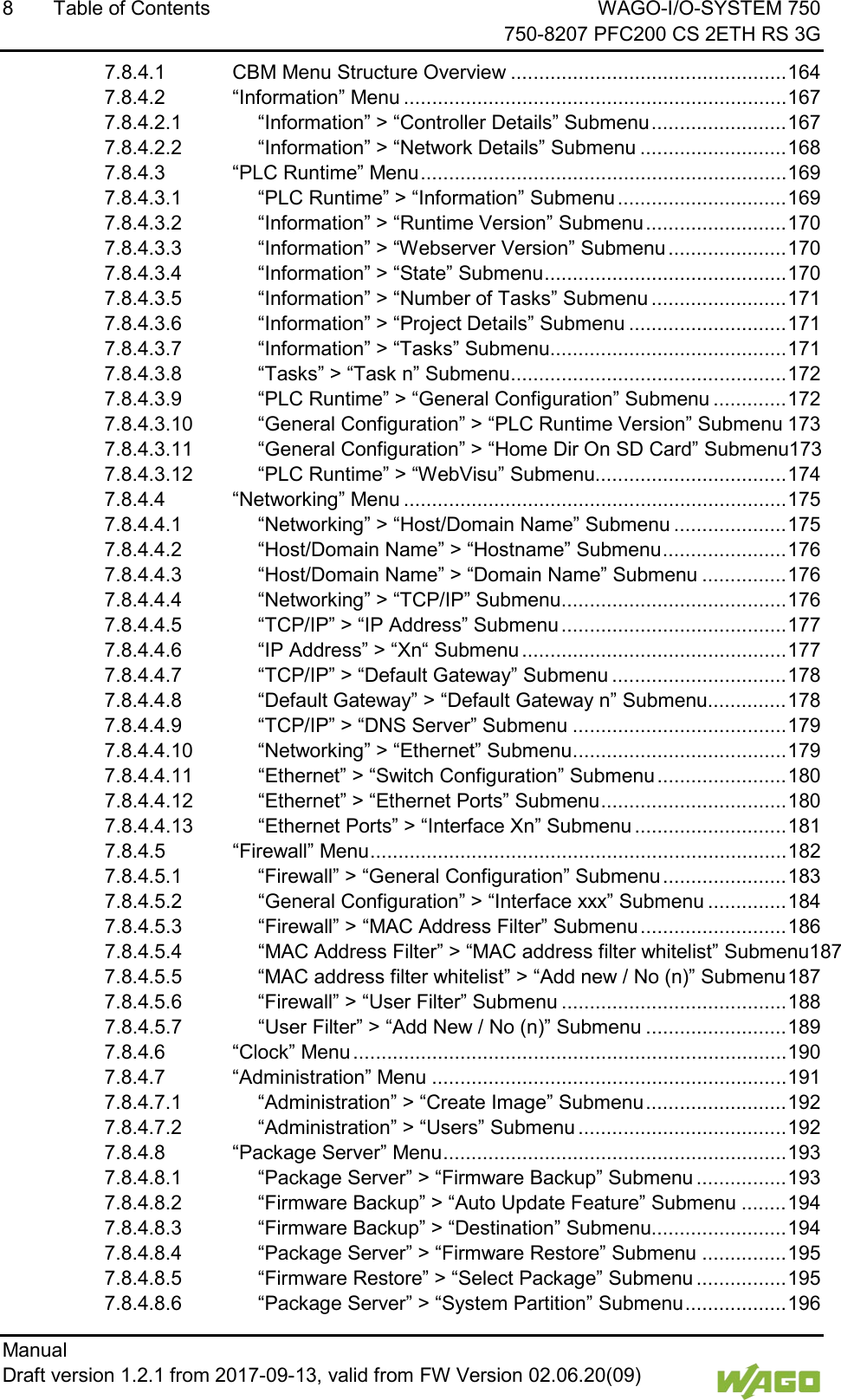
8  Table of Contents WAGO-I/O-SYSTEM 750     750-8207 PFC200 CS 2ETH RS 3G Manual   Draft version 1.2.1 from 2017-09-13, valid from FW Version 02.06.20(09)   7.8.4.1 CBM Menu Structure Overview ................................................. 164 7.8.4.2 “Information” Menu .................................................................... 167 7.8.4.2.1 “Information” > “Controller Details” Submenu ........................ 167 7.8.4.2.2 “Information” > “Network Details” Submenu .......................... 168 7.8.4.3 “PLC Runtime” Menu ................................................................. 169 7.8.4.3.1 “PLC Runtime” > “Information” Submenu .............................. 169 7.8.4.3.2 “Information” > “Runtime Version” Submenu ......................... 170 7.8.4.3.3 “Information” > “Webserver Version” Submenu ..................... 170 7.8.4.3.4 “Information” > “State” Submenu ........................................... 170 7.8.4.3.5 “Information” > “Number of Tasks” Submenu ........................ 171 7.8.4.3.6 “Information” > “Project Details” Submenu ............................ 171 7.8.4.3.7 “Information” > “Tasks” Submenu .......................................... 171 7.8.4.3.8 “Tasks” > “Task n” Submenu ................................................. 172 7.8.4.3.9 “PLC Runtime” > “General Configuration” Submenu ............. 172 7.8.4.3.10 “General Configuration” > “PLC Runtime Version” Submenu 173 7.8.4.3.11 “General Configuration” > “Home Dir On SD Card” Submenu173 7.8.4.3.12 “PLC Runtime” > “WebVisu” Submenu.................................. 174 7.8.4.4 “Networking” Menu .................................................................... 175 7.8.4.4.1 “Networking” > “Host/Domain Name” Submenu .................... 175 7.8.4.4.2 “Host/Domain Name” > “Hostname” Submenu ...................... 176 7.8.4.4.3 “Host/Domain Name” > “Domain Name” Submenu ............... 176 7.8.4.4.4 “Networking” > “TCP/IP” Submenu ........................................ 176 7.8.4.4.5 “TCP/IP” > “IP Address” Submenu ........................................ 177 7.8.4.4.6 “IP Address” > “Xn“ Submenu ............................................... 177 7.8.4.4.7 “TCP/IP” > “Default Gateway” Submenu ............................... 178 7.8.4.4.8 “Default Gateway” > “Default Gateway n” Submenu.............. 178 7.8.4.4.9 “TCP/IP” > “DNS Server” Submenu ...................................... 179 7.8.4.4.10 “Networking” > “Ethernet” Submenu ...................................... 179 7.8.4.4.11 “Ethernet” > “Switch Configuration” Submenu ....................... 180 7.8.4.4.12 “Ethernet” > “Ethernet Ports” Submenu ................................. 180 7.8.4.4.13 “Ethernet Ports” > “Interface Xn” Submenu ........................... 181 7.8.4.5 “Firewall” Menu .......................................................................... 182 7.8.4.5.1 “Firewall” > “General Configuration” Submenu ...................... 183 7.8.4.5.2 “General Configuration” > “Interface xxx” Submenu .............. 184 7.8.4.5.3 “Firewall” > “MAC Address Filter” Submenu .......................... 186 7.8.4.5.4 “MAC Address Filter” > “MAC address filter whitelist” Submenu187 7.8.4.5.5 “MAC address filter whitelist” > “Add new / No (n)” Submenu 187 7.8.4.5.6 “Firewall” > “User Filter” Submenu ........................................ 188 7.8.4.5.7 “User Filter” > “Add New / No (n)” Submenu ......................... 189 7.8.4.6 “Clock” Menu ............................................................................. 190 7.8.4.7 “Administration” Menu ............................................................... 191 7.8.4.7.1 “Administration” > “Create Image” Submenu ......................... 192 7.8.4.7.2 “Administration” > “Users” Submenu ..................................... 192 7.8.4.8 “Package Server” Menu ............................................................. 193 7.8.4.8.1 “Package Server” > “Firmware Backup” Submenu ................ 193 7.8.4.8.2 “Firmware Backup” > “Auto Update Feature” Submenu ........ 194 7.8.4.8.3 “Firmware Backup” > “Destination” Submenu........................ 194 7.8.4.8.4 “Package Server” > “Firmware Restore” Submenu ............... 195 7.8.4.8.5 “Firmware Restore” > “Select Package” Submenu ................ 195 7.8.4.8.6 “Package Server” > “System Partition” Submenu .................. 196
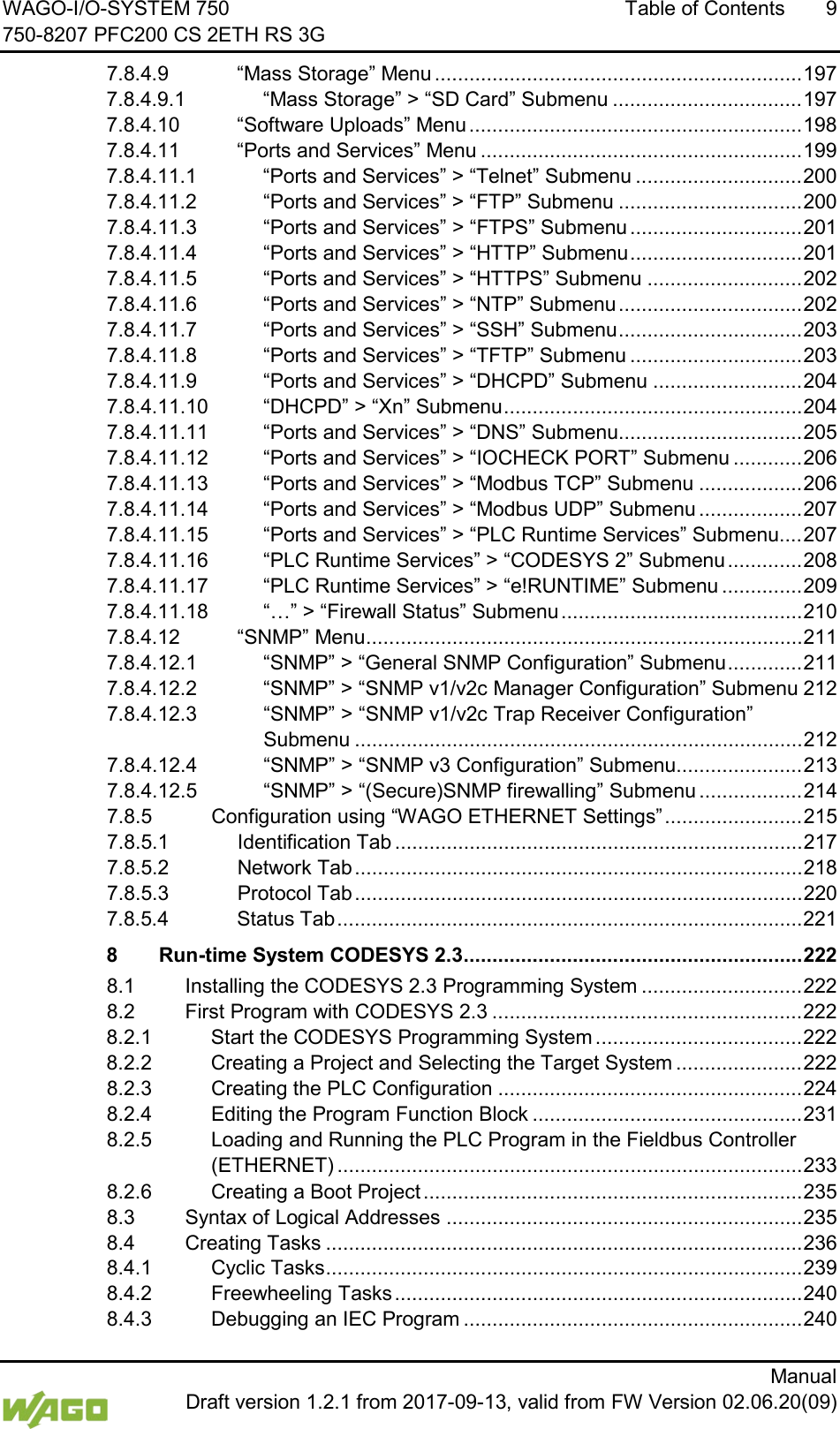
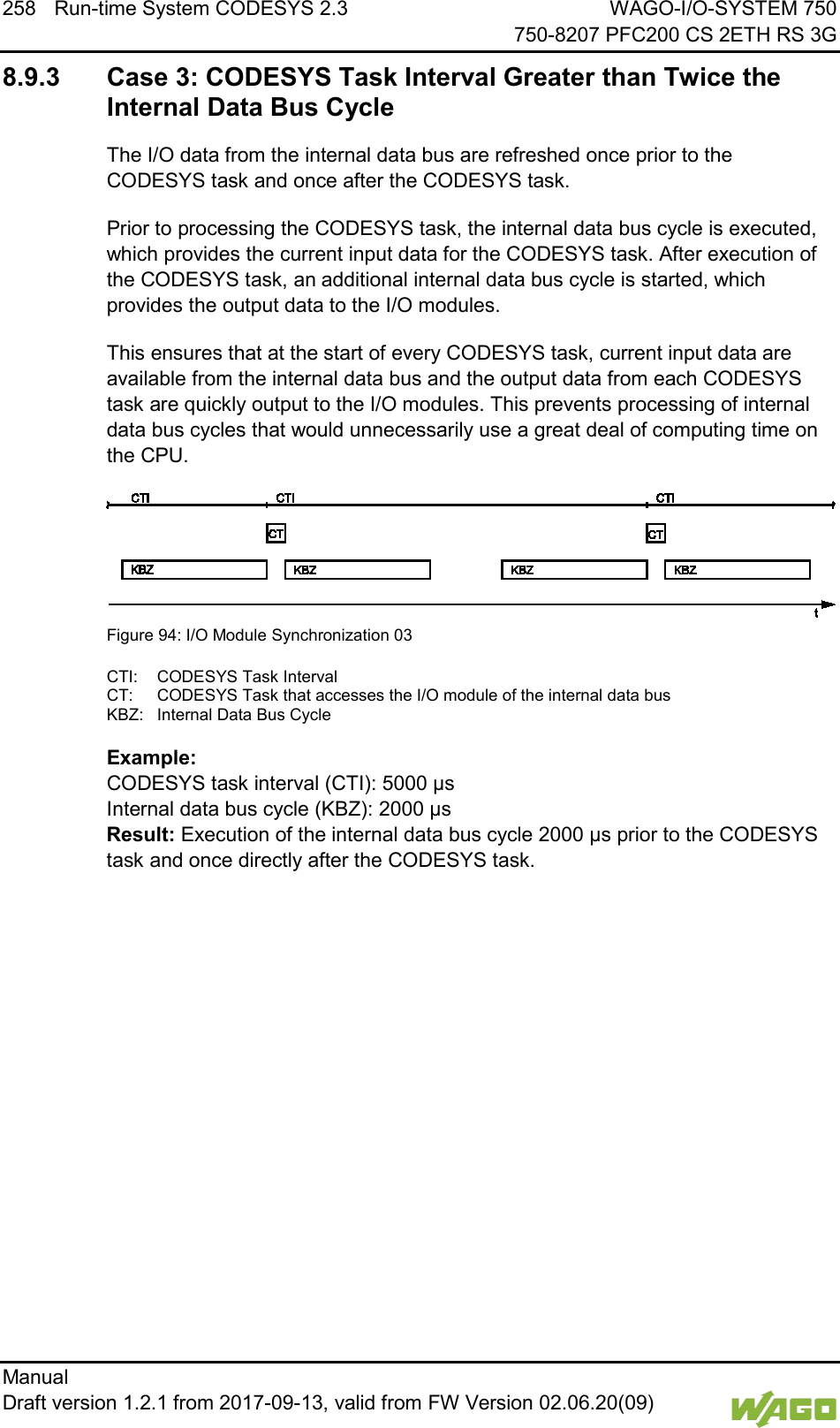
WAGO-I/O-SYSTEM 750 Table of Contents  9 750-8207 PFC200 CS 2ETH RS 3G      Manual  Draft version 1.2.1 from 2017-09-13, valid from FW Version 02.06.20(09) 7.8.4.9 “Mass Storage” Menu ................................................................ 197 7.8.4.9.1 “Mass Storage” > “SD Card” Submenu ................................. 197 7.8.4.10 “Software Uploads” Menu .......................................................... 198 7.8.4.11 “Ports and Services” Menu ........................................................ 199 7.8.4.11.1 “Ports and Services” > “Telnet” Submenu ............................. 200 7.8.4.11.2 “Ports and Services” > “FTP” Submenu ................................ 200 7.8.4.11.3 “Ports and Services” > “FTPS” Submenu .............................. 201 7.8.4.11.4 “Ports and Services” > “HTTP” Submenu .............................. 201 7.8.4.11.5 “Ports and Services” > “HTTPS” Submenu ........................... 202 7.8.4.11.6 “Ports and Services” > “NTP” Submenu ................................ 202 7.8.4.11.7 “Ports and Services” > “SSH” Submenu ................................ 203 7.8.4.11.8 “Ports and Services” > “TFTP” Submenu .............................. 203 7.8.4.11.9 “Ports and Services” > “DHCPD” Submenu .......................... 204 7.8.4.11.10 “DHCPD” > “Xn” Submenu .................................................... 204 7.8.4.11.11 “Ports and Services” > “DNS” Submenu ................................ 205 7.8.4.11.12 “Ports and Services” > “IOCHECK PORT” Submenu ............ 206 7.8.4.11.13 “Ports and Services” > “Modbus TCP” Submenu .................. 206 7.8.4.11.14 “Ports and Services” > “Modbus UDP” Submenu .................. 207 7.8.4.11.15 “Ports and Services” > “PLC Runtime Services” Submenu .... 207 7.8.4.11.16 “PLC Runtime Services” > “CODESYS 2” Submenu ............. 208 7.8.4.11.17 “PLC Runtime Services” > “e!RUNTIME” Submenu .............. 209 7.8.4.11.18 “…” > “Firewall Status” Submenu .......................................... 210 7.8.4.12 “SNMP” Menu ............................................................................ 211 7.8.4.12.1 “SNMP” > “General SNMP Configuration” Submenu ............. 211 7.8.4.12.2 “SNMP” > “SNMP v1/v2c Manager Configuration” Submenu 212 7.8.4.12.3 “SNMP” > “SNMP v1/v2c Trap Receiver Configuration” Submenu .............................................................................. 212 7.8.4.12.4 “SNMP” > “SNMP v3 Configuration” Submenu...................... 213 7.8.4.12.5 “SNMP” > “(Secure)SNMP firewalling” Submenu .................. 214 7.8.5 Configuration using “WAGO ETHERNET Settings” ........................ 215 7.8.5.1 Identification Tab ....................................................................... 217 7.8.5.2 Network Tab .............................................................................. 218 7.8.5.3 Protocol Tab .............................................................................. 220 7.8.5.4 Status Tab ................................................................................. 221 8 Run-time System CODESYS 2.3 ........................................................... 222 8.1 Installing the CODESYS 2.3 Programming System ............................ 222 8.2 First Program with CODESYS 2.3 ...................................................... 222 8.2.1 Start the CODESYS Programming System .................................... 222 8.2.2 Creating a Project and Selecting the Target System ...................... 222 8.2.3 Creating the PLC Configuration ..................................................... 224 8.2.4 Editing the Program Function Block ............................................... 231 8.2.5 Loading and Running the PLC Program in the Fieldbus Controller (ETHERNET) ................................................................................. 233 8.2.6 Creating a Boot Project .................................................................. 235 8.3 Syntax of Logical Addresses .............................................................. 235 8.4 Creating Tasks ................................................................................... 236 8.4.1 Cyclic Tasks ................................................................................... 239 8.4.2 Freewheeling Tasks ....................................................................... 240 8.4.3 Debugging an IEC Program ........................................................... 240
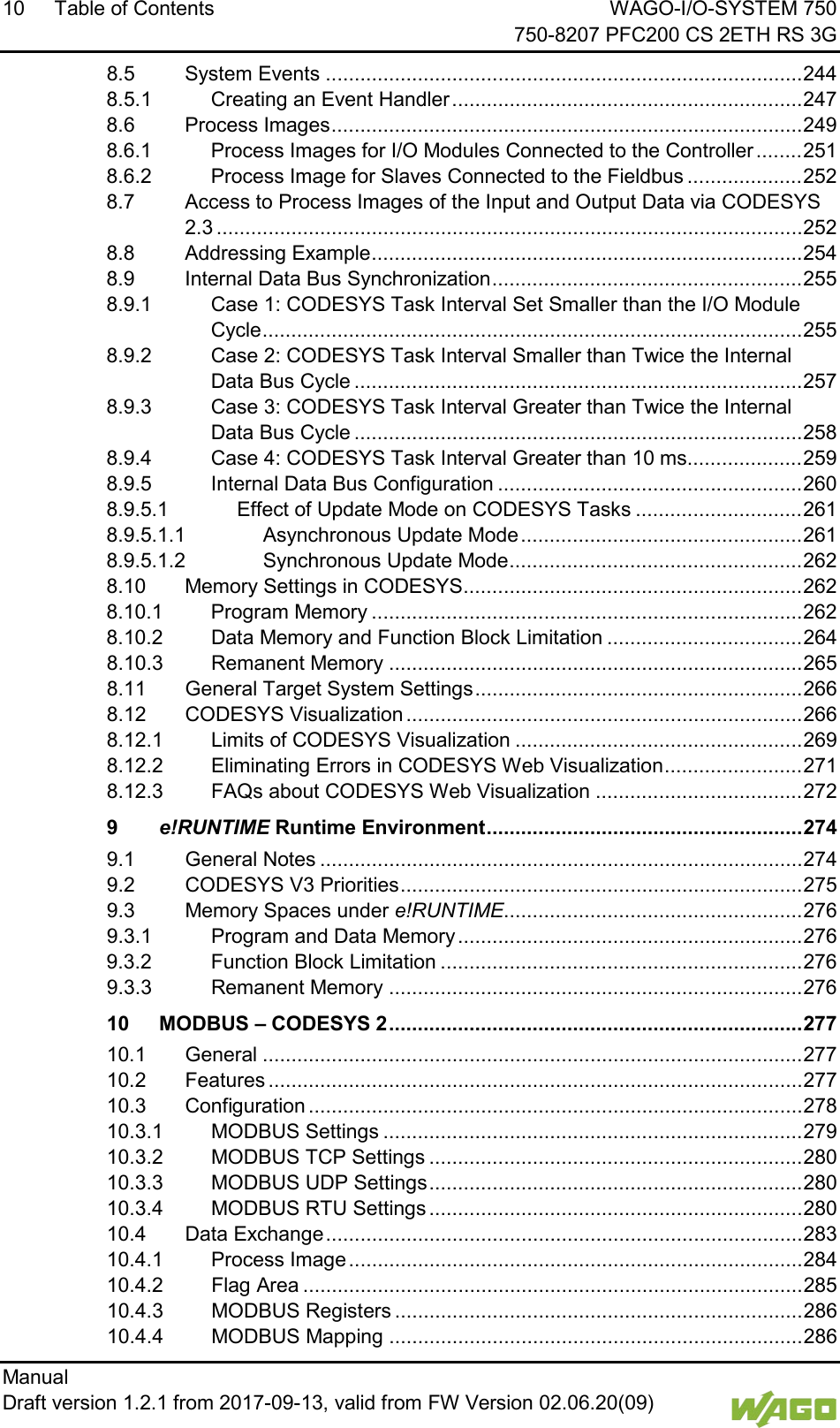
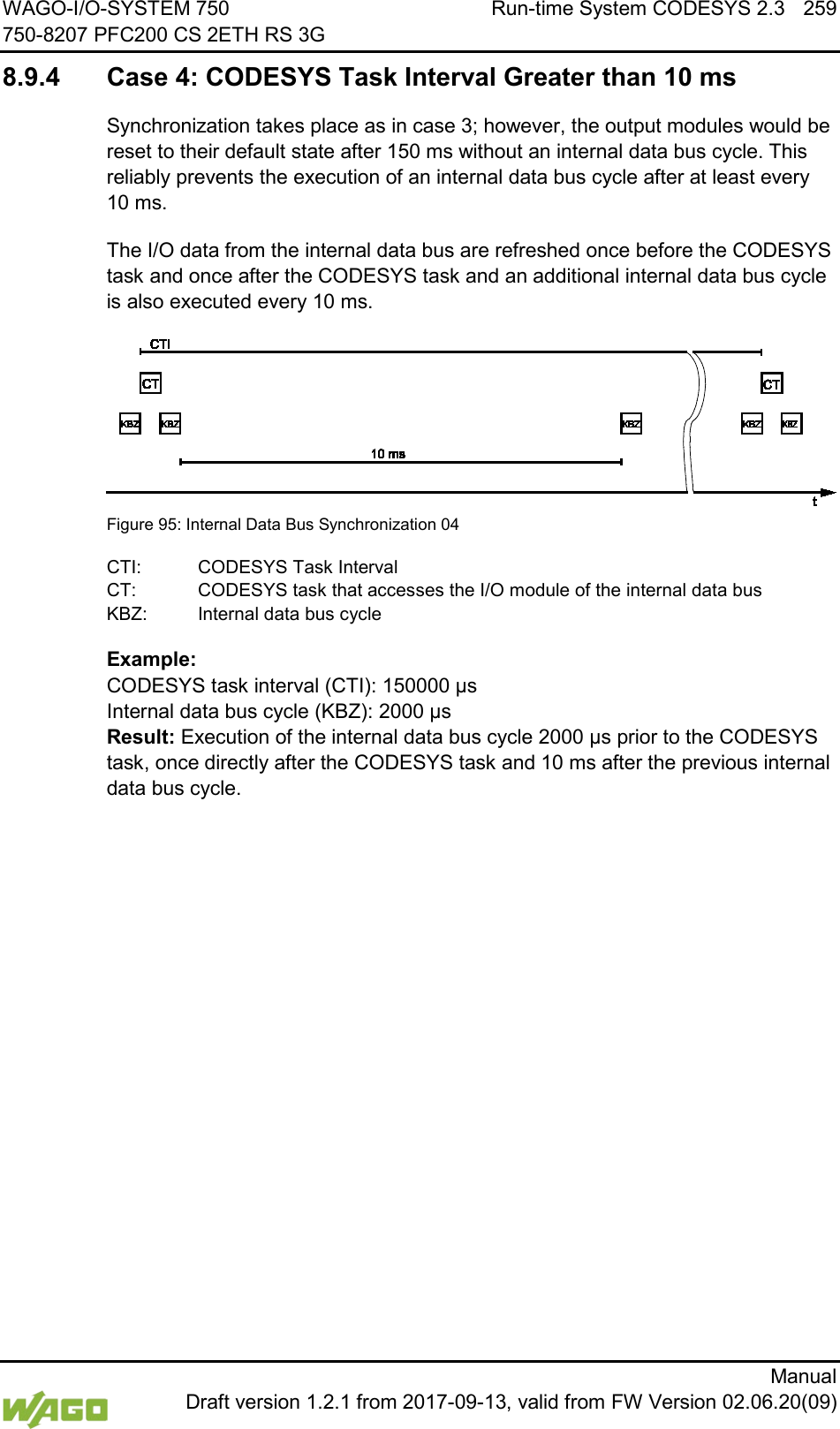
10 Table of Contents WAGO-I/O-SYSTEM 750     750-8207 PFC200 CS 2ETH RS 3G Manual   Draft version 1.2.1 from 2017-09-13, valid from FW Version 02.06.20(09)   8.5 System Events ................................................................................... 244 8.5.1 Creating an Event Handler ............................................................. 247 8.6 Process Images .................................................................................. 249 8.6.1 Process Images for I/O Modules Connected to the Controller ........ 251 8.6.2 Process Image for Slaves Connected to the Fieldbus .................... 252 8.7 Access to Process Images of the Input and Output Data via CODESYS 2.3 ...................................................................................................... 252 8.8 Addressing Example ........................................................................... 254 8.9 Internal Data Bus Synchronization ...................................................... 255 8.9.1 Case 1: CODESYS Task Interval Set Smaller than the I/O Module Cycle .............................................................................................. 255 8.9.2 Case 2: CODESYS Task Interval Smaller than Twice the Internal Data Bus Cycle .............................................................................. 257 8.9.3 Case 3: CODESYS Task Interval Greater than Twice the Internal Data Bus Cycle .............................................................................. 258 8.9.4 Case 4: CODESYS Task Interval Greater than 10 ms .................... 259 8.9.5 Internal Data Bus Configuration ..................................................... 260 8.9.5.1 Effect of Update Mode on CODESYS Tasks ............................. 261 8.9.5.1.1 Asynchronous Update Mode ................................................. 261 8.9.5.1.2 Synchronous Update Mode ................................................... 262 8.10 Memory Settings in CODESYS ........................................................... 262 8.10.1 Program Memory ........................................................................... 262 8.10.2 Data Memory and Function Block Limitation .................................. 264 8.10.3 Remanent Memory ........................................................................ 265 8.11 General Target System Settings ......................................................... 266 8.12 CODESYS Visualization ..................................................................... 266 8.12.1 Limits of CODESYS Visualization .................................................. 269 8.12.2 Eliminating Errors in CODESYS Web Visualization ........................ 271 8.12.3 FAQs about CODESYS Web Visualization .................................... 272 9 e!RUNTIME Runtime Environment ....................................................... 274 9.1 General Notes .................................................................................... 274 9.2 CODESYS V3 Priorities ...................................................................... 275 9.3 Memory Spaces under e!RUNTIME.................................................... 276 9.3.1 Program and Data Memory ............................................................ 276 9.3.2 Function Block Limitation ............................................................... 276 9.3.3 Remanent Memory ........................................................................ 276 10 MODBUS – CODESYS 2 ........................................................................ 277 10.1 General .............................................................................................. 277 10.2 Features ............................................................................................. 277 10.3 Configuration ...................................................................................... 278 10.3.1 MODBUS Settings ......................................................................... 279 10.3.2 MODBUS TCP Settings ................................................................. 280 10.3.3 MODBUS UDP Settings ................................................................. 280 10.3.4 MODBUS RTU Settings ................................................................. 280 10.4 Data Exchange ................................................................................... 283 10.4.1 Process Image ............................................................................... 284 10.4.2 Flag Area ....................................................................................... 285 10.4.3 MODBUS Registers ....................................................................... 286 10.4.4 MODBUS Mapping ........................................................................ 286
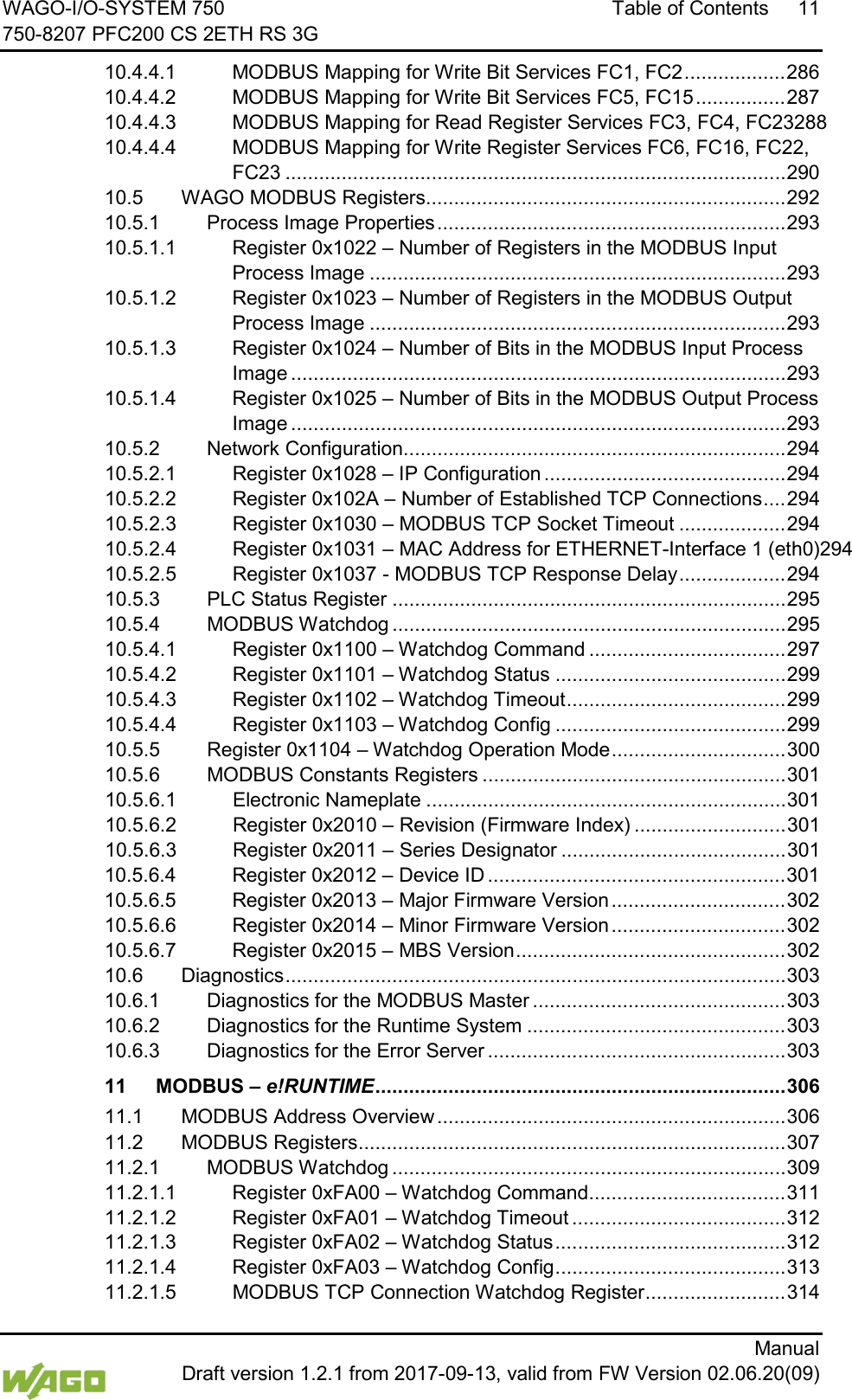
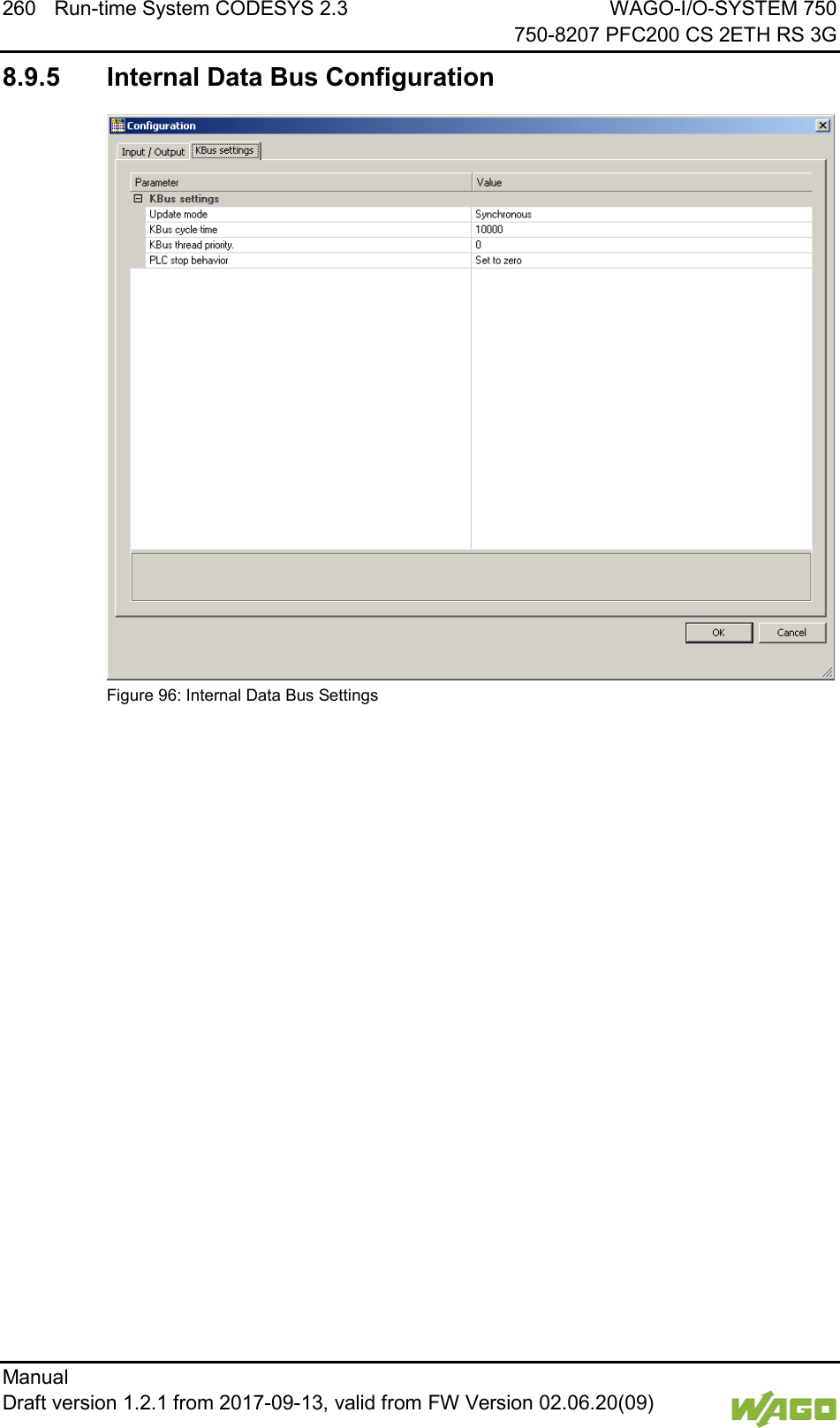
WAGO-I/O-SYSTEM 750 Table of Contents 11 750-8207 PFC200 CS 2ETH RS 3G      Manual  Draft version 1.2.1 from 2017-09-13, valid from FW Version 02.06.20(09) 10.4.4.1 MODBUS Mapping for Write Bit Services FC1, FC2 .................. 286 10.4.4.2 MODBUS Mapping for Write Bit Services FC5, FC15 ................ 287 10.4.4.3 MODBUS Mapping for Read Register Services FC3, FC4, FC23288 10.4.4.4 MODBUS Mapping for Write Register Services FC6, FC16, FC22, FC23 ......................................................................................... 290 10.5 WAGO MODBUS Registers................................................................ 292 10.5.1 Process Image Properties .............................................................. 293 10.5.1.1 Register 0x1022 – Number of Registers in the MODBUS Input Process Image .......................................................................... 293 10.5.1.2 Register 0x1023 – Number of Registers in the MODBUS Output Process Image .......................................................................... 293 10.5.1.3 Register 0x1024 – Number of Bits in the MODBUS Input Process Image ........................................................................................ 293 10.5.1.4 Register 0x1025 – Number of Bits in the MODBUS Output Process Image ........................................................................................ 293 10.5.2 Network Configuration .................................................................... 294 10.5.2.1 Register 0x1028 – IP Configuration ........................................... 294 10.5.2.2 Register 0x102A – Number of Established TCP Connections .... 294 10.5.2.3 Register 0x1030 – MODBUS TCP Socket Timeout ................... 294 10.5.2.4 Register 0x1031 – MAC Address for ETHERNET-Interface 1 (eth0)294 10.5.2.5 Register 0x1037 - MODBUS TCP Response Delay ................... 294 10.5.3 PLC Status Register ...................................................................... 295 10.5.4 MODBUS Watchdog ...................................................................... 295 10.5.4.1 Register 0x1100 – Watchdog Command ................................... 297 10.5.4.2 Register 0x1101 – Watchdog Status ......................................... 299 10.5.4.3 Register 0x1102 – Watchdog Timeout ....................................... 299 10.5.4.4 Register 0x1103 – Watchdog Config ......................................... 299 10.5.5 Register 0x1104 – Watchdog Operation Mode ............................... 300 10.5.6 MODBUS Constants Registers ...................................................... 301 10.5.6.1 Electronic Nameplate ................................................................ 301 10.5.6.2 Register 0x2010 – Revision (Firmware Index) ........................... 301 10.5.6.3 Register 0x2011 – Series Designator ........................................ 301 10.5.6.4 Register 0x2012 – Device ID ..................................................... 301 10.5.6.5 Register 0x2013 – Major Firmware Version ............................... 302 10.5.6.6 Register 0x2014 – Minor Firmware Version ............................... 302 10.5.6.7 Register 0x2015 – MBS Version ................................................ 302 10.6 Diagnostics ......................................................................................... 303 10.6.1 Diagnostics for the MODBUS Master ............................................. 303 10.6.2 Diagnostics for the Runtime System .............................................. 303 10.6.3 Diagnostics for the Error Server ..................................................... 303 11 MODBUS – e!RUNTIME ......................................................................... 306 11.1 MODBUS Address Overview .............................................................. 306 11.2 MODBUS Registers ............................................................................ 307 11.2.1 MODBUS Watchdog ...................................................................... 309 11.2.1.1 Register 0xFA00 – Watchdog Command ................................... 311 11.2.1.2 Register 0xFA01 – Watchdog Timeout ...................................... 312 11.2.1.3 Register 0xFA02 – Watchdog Status ......................................... 312 11.2.1.4 Register 0xFA03 – Watchdog Config ......................................... 313 11.2.1.5 MODBUS TCP Connection Watchdog Register ......................... 314
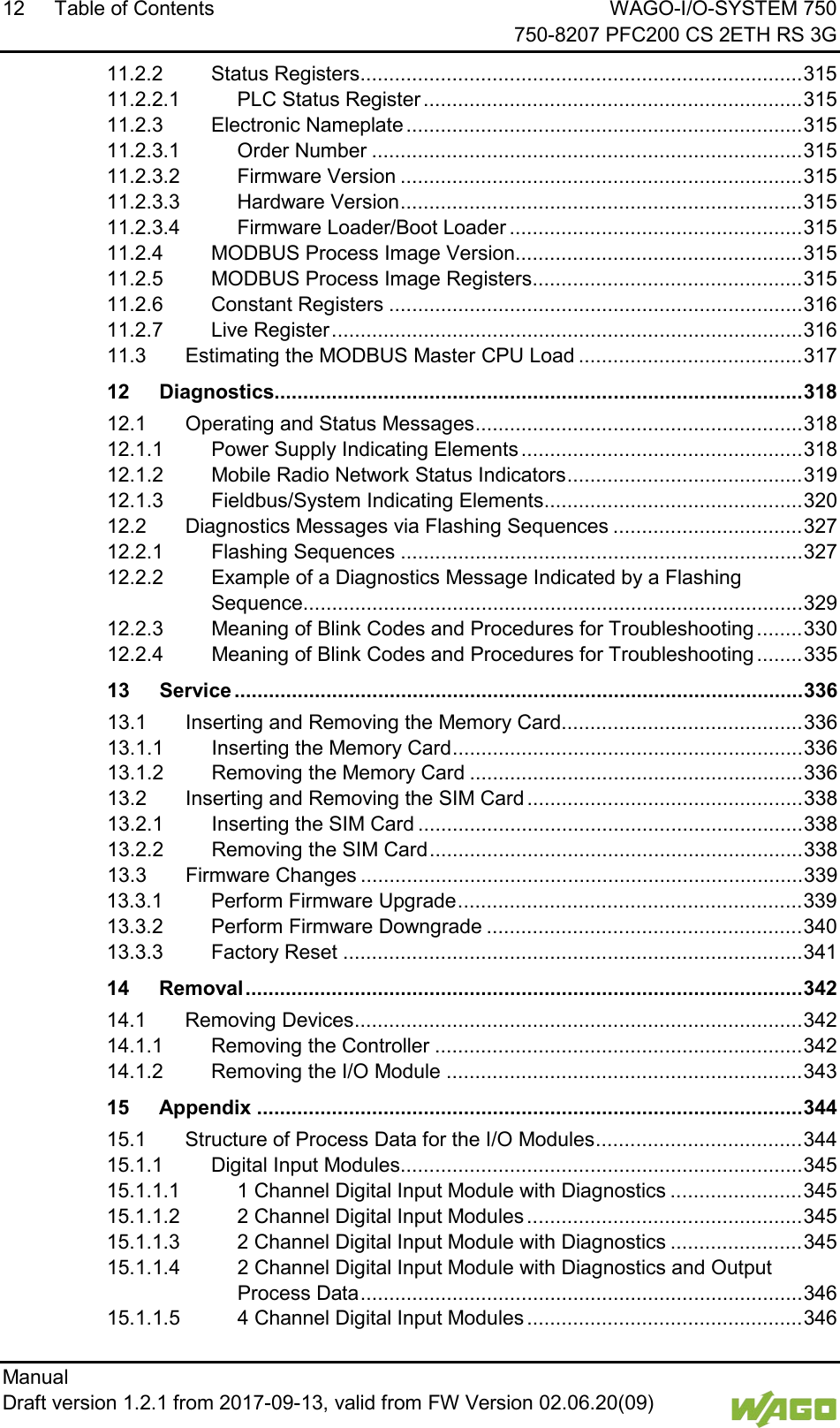
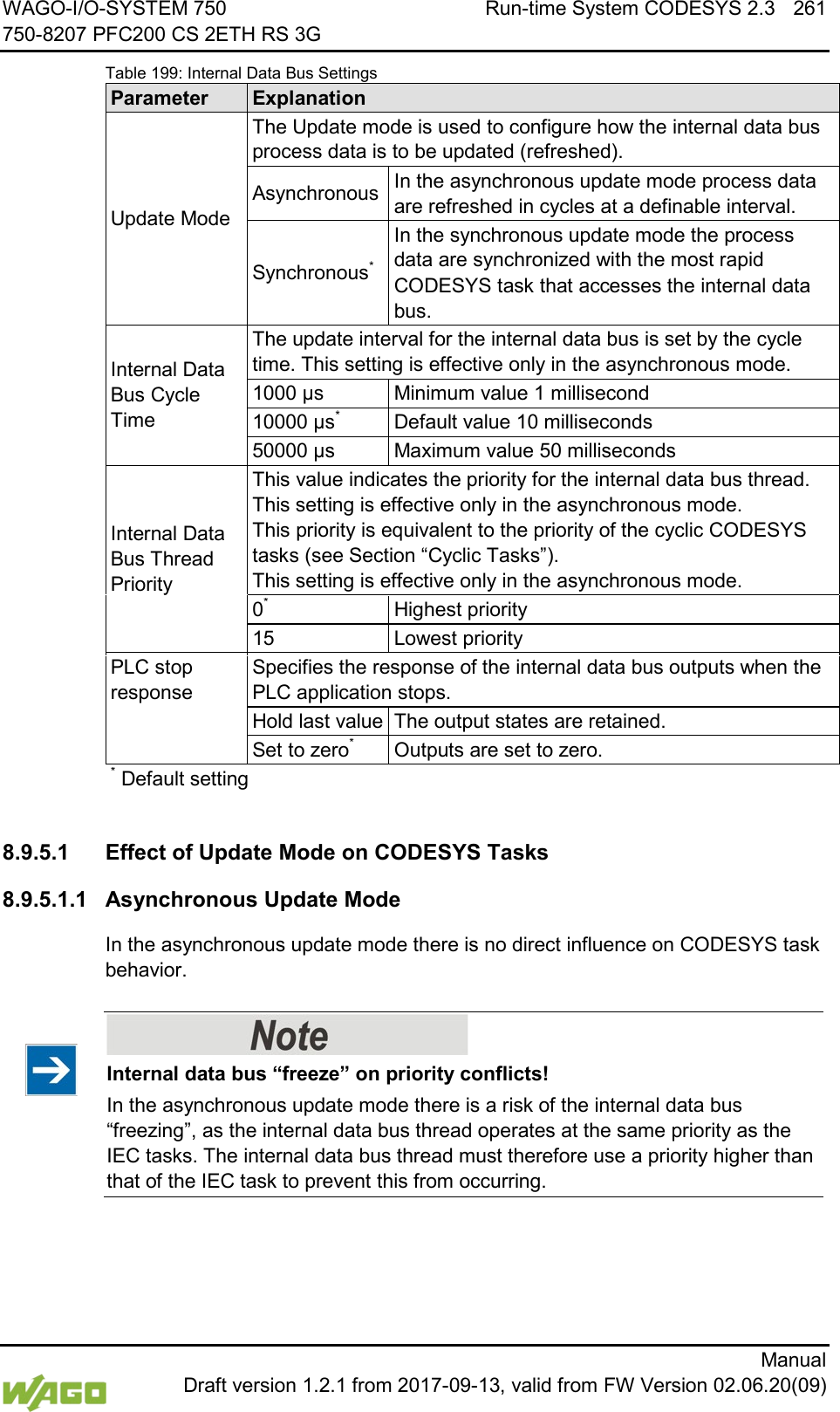
12 Table of Contents WAGO-I/O-SYSTEM 750     750-8207 PFC200 CS 2ETH RS 3G Manual   Draft version 1.2.1 from 2017-09-13, valid from FW Version 02.06.20(09)   11.2.2 Status Registers ............................................................................. 315 11.2.2.1 PLC Status Register .................................................................. 315 11.2.3 Electronic Nameplate ..................................................................... 315 11.2.3.1 Order Number ........................................................................... 315 11.2.3.2 Firmware Version ...................................................................... 315 11.2.3.3 Hardware Version ...................................................................... 315 11.2.3.4 Firmware Loader/Boot Loader ................................................... 315 11.2.4 MODBUS Process Image Version .................................................. 315 11.2.5 MODBUS Process Image Registers ............................................... 315 11.2.6 Constant Registers ........................................................................ 316 11.2.7 Live Register .................................................................................. 316 11.3 Estimating the MODBUS Master CPU Load ....................................... 317 12 Diagnostics............................................................................................ 318 12.1 Operating and Status Messages ......................................................... 318 12.1.1 Power Supply Indicating Elements ................................................. 318 12.1.2 Mobile Radio Network Status Indicators ......................................... 319 12.1.3 Fieldbus/System Indicating Elements ............................................. 320 12.2 Diagnostics Messages via Flashing Sequences ................................. 327 12.2.1 Flashing Sequences ...................................................................... 327 12.2.2 Example of a Diagnostics Message Indicated by a Flashing Sequence ....................................................................................... 329 12.2.3 Meaning of Blink Codes and Procedures for Troubleshooting ........ 330 12.2.4 Meaning of Blink Codes and Procedures for Troubleshooting ........ 335 13 Service ................................................................................................... 336 13.1 Inserting and Removing the Memory Card.......................................... 336 13.1.1 Inserting the Memory Card ............................................................. 336 13.1.2 Removing the Memory Card .......................................................... 336 13.2 Inserting and Removing the SIM Card ................................................ 338 13.2.1 Inserting the SIM Card ................................................................... 338 13.2.2 Removing the SIM Card ................................................................. 338 13.3 Firmware Changes ............................................................................. 339 13.3.1 Perform Firmware Upgrade ............................................................ 339 13.3.2 Perform Firmware Downgrade ....................................................... 340 13.3.3 Factory Reset ................................................................................ 341 14 Removal ................................................................................................. 342 14.1 Removing Devices .............................................................................. 342 14.1.1 Removing the Controller ................................................................ 342 14.1.2 Removing the I/O Module .............................................................. 343 15 Appendix ............................................................................................... 344 15.1 Structure of Process Data for the I/O Modules .................................... 344 15.1.1 Digital Input Modules...................................................................... 345 15.1.1.1 1 Channel Digital Input Module with Diagnostics ....................... 345 15.1.1.2 2 Channel Digital Input Modules ................................................ 345 15.1.1.3 2 Channel Digital Input Module with Diagnostics ....................... 345 15.1.1.4 2 Channel Digital Input Module with Diagnostics and Output Process Data ............................................................................. 346 15.1.1.5 4 Channel Digital Input Modules ................................................ 346
WAGO-I/O-SYSTEM 750 Table of Contents 13 750-8207 PFC200 CS 2ETH RS 3G      Manual  Draft version 1.2.1 from 2017-09-13, valid from FW Version 02.06.20(09) 15.1.1.6 8 Channel Digital Input Modules ................................................ 346 15.1.1.7 8 Channel Digital Input Module PTC with Diagnostics and Output Process Data ............................................................................. 347 15.1.1.8 16 Channel Digital Input Modules .............................................. 347 15.1.2 Digital Output Modules ................................................................... 348 15.1.2.1 1 Channel Digital Output Module with Input Process Data ......... 348 15.1.2.2 2 Channel Digital Output Modules ............................................. 348 15.1.2.3 2 Channel Digital Input Modules with Diagnostics and Input Process Data ............................................................................. 349 15.1.2.4 4 Channel Digital Output Modules ............................................. 350 15.1.2.5 4 Channel Digital Output Modules with Diagnostics and Input Process Data ............................................................................. 350 15.1.2.6 8 Channel Digital Output Module ............................................... 350 15.1.2.7 8 Channel Digital Output Modules with Diagnostics and Input Process Data ............................................................................. 351 15.1.2.8 16 Channel Digital Output Modules ........................................... 351 15.1.2.9 8 Channel Digital Input/Output Modules .................................... 352 15.1.3 Analog Input Modules .................................................................... 353 15.1.3.1 1 Channel Analog Input Modules ............................................... 353 15.1.3.2 2 Channel Analog Input Modules ............................................... 353 15.1.3.3 4 Channel Analog Input Modules ............................................... 354 15.1.3.4 3-Phase Power Measurement Module ....................................... 355 15.1.3.5 8 Channel Analog Input Modules ............................................... 355 15.1.4 Analog Output Modules .................................................................. 356 15.1.4.1 2 Channel Analog Output Modules ............................................ 356 15.1.4.2 4 Channel Analog Output Modules ............................................ 356 15.1.5 Specialty Modules .......................................................................... 357 15.1.5.1 Counter Modules ....................................................................... 357 15.1.5.2 Pulse Width Modules ................................................................. 359 15.1.5.3 Serial Interface Modules with alternative Data Format ............... 359 15.1.5.4 Serial Interface Modules with Standard Data Format ................. 360 15.1.5.5 Data Exchange Module ............................................................. 360 15.1.5.6 SSI Transmitter Interface Modules ............................................ 360 15.1.5.7 Incremental Encoder Interface Modules .................................... 361 15.1.5.8 DC-Drive Controller ................................................................... 363 15.1.5.9 Stepper Controller ..................................................................... 364 15.1.5.10 RTC Module .............................................................................. 365 15.1.5.11 DALI/DSI Master Module ........................................................... 365 15.1.5.12 DALI Multi-Master Module ......................................................... 366 15.1.5.13 LON® FTT Module ..................................................................... 368 15.1.5.14 EnOcean Radio Receiver .......................................................... 368 15.1.5.15 MP Bus Master Module ............................................................. 368 15.1.5.16 Bluetooth® RF-Transceiver ........................................................ 369 15.1.5.17 Vibration Velocity/Bearing Condition Monitoring VIB I/O ............ 370 15.1.5.18 KNX/EIB/TP1 Module ................................................................ 370 15.1.5.19 AS-interface Master Module ...................................................... 371 15.1.6 System Modules ............................................................................ 373 15.1.6.1 System Modules with Diagnostics ............................................. 373 15.1.6.2 Binary Space Module ................................................................ 373 15.2 CODESYS 2 Libraries ........................................................................ 374
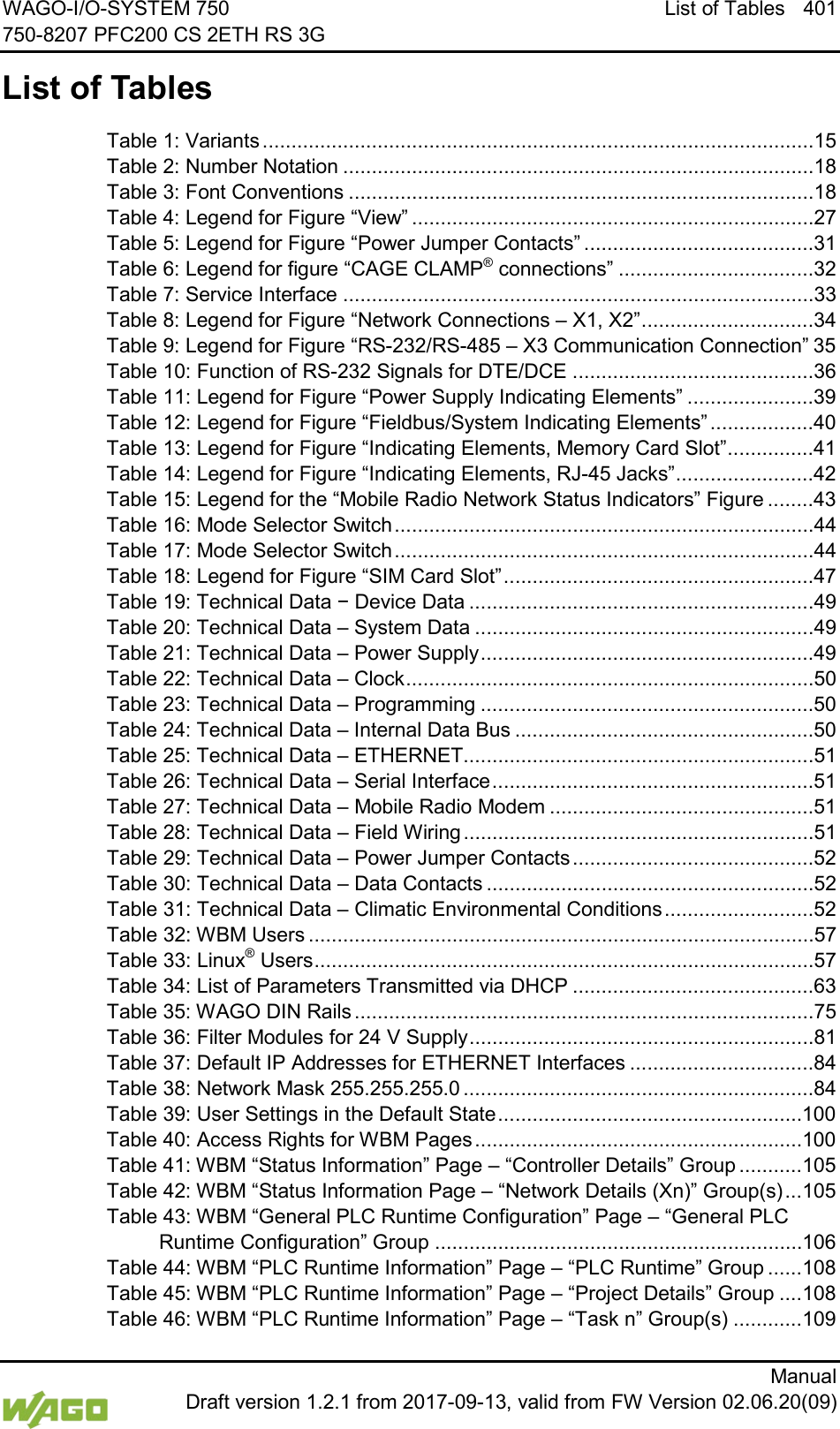
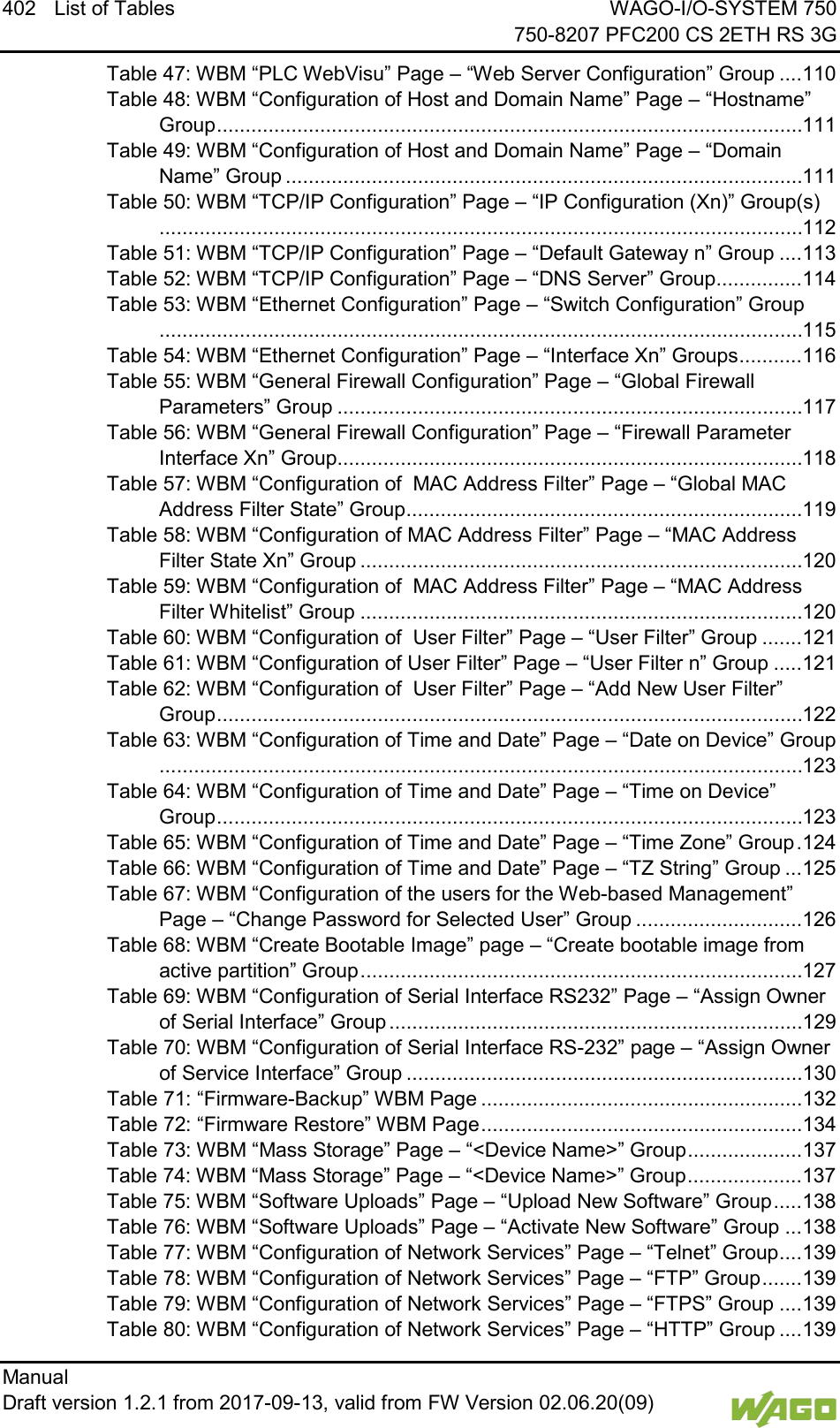
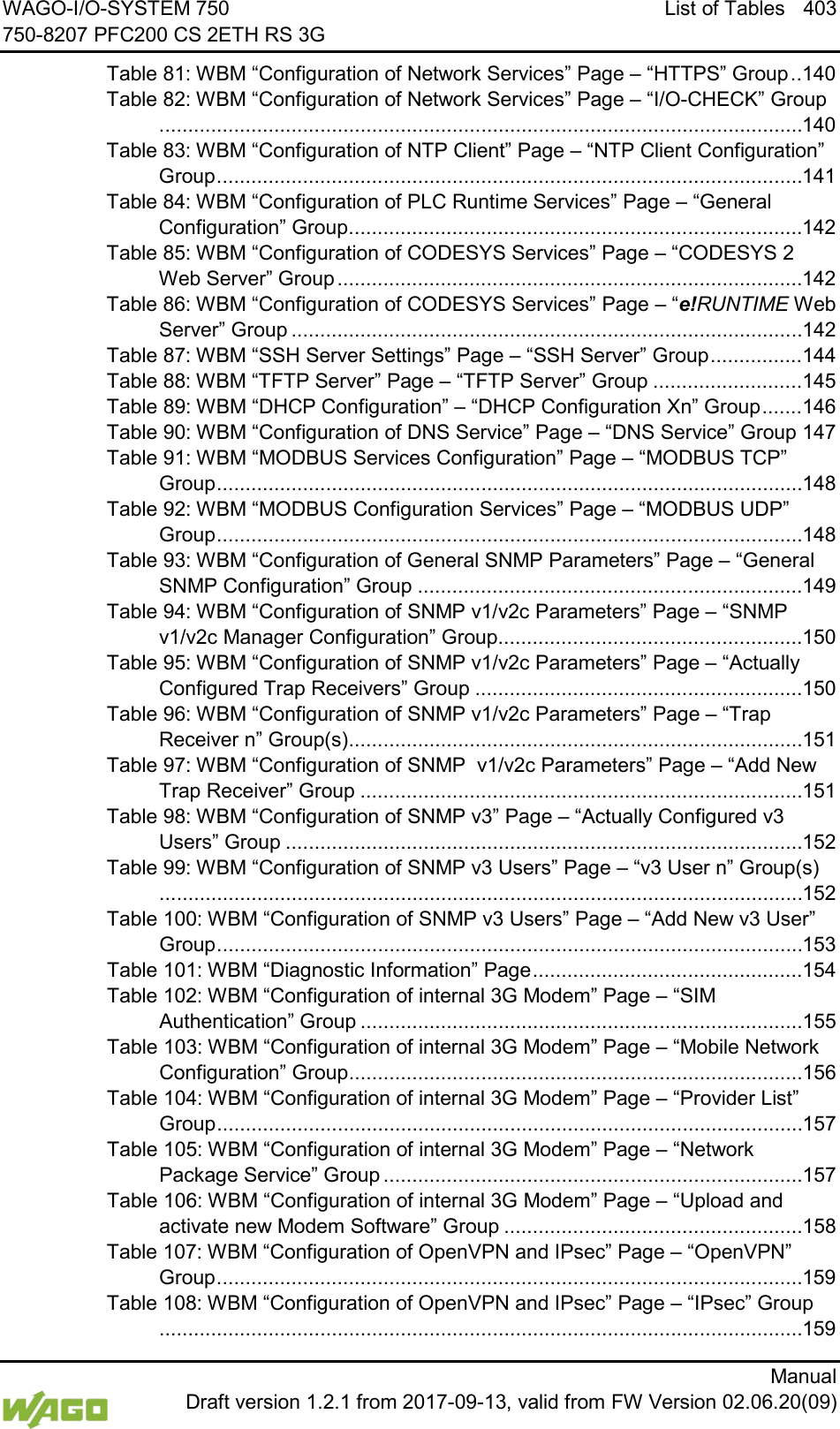
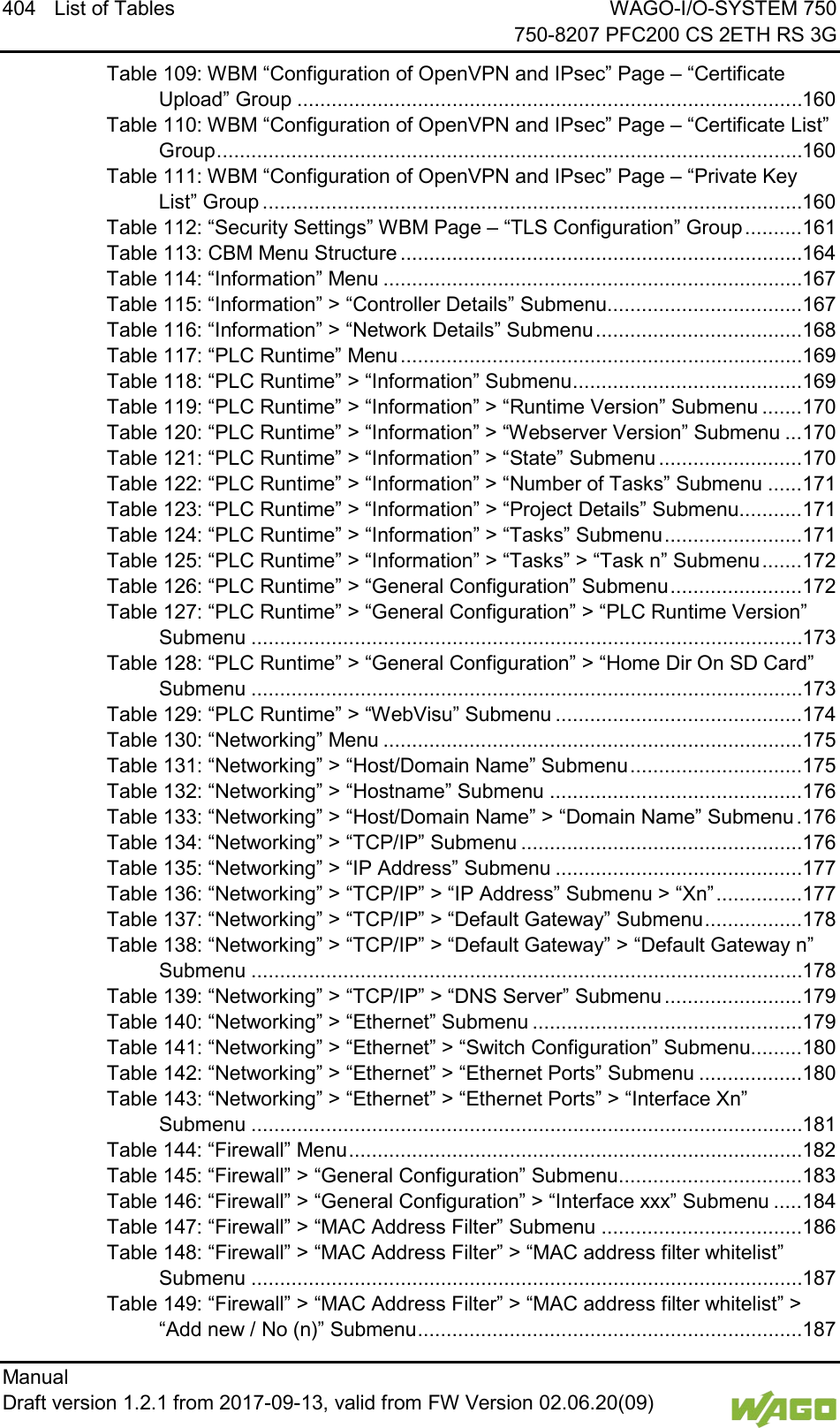
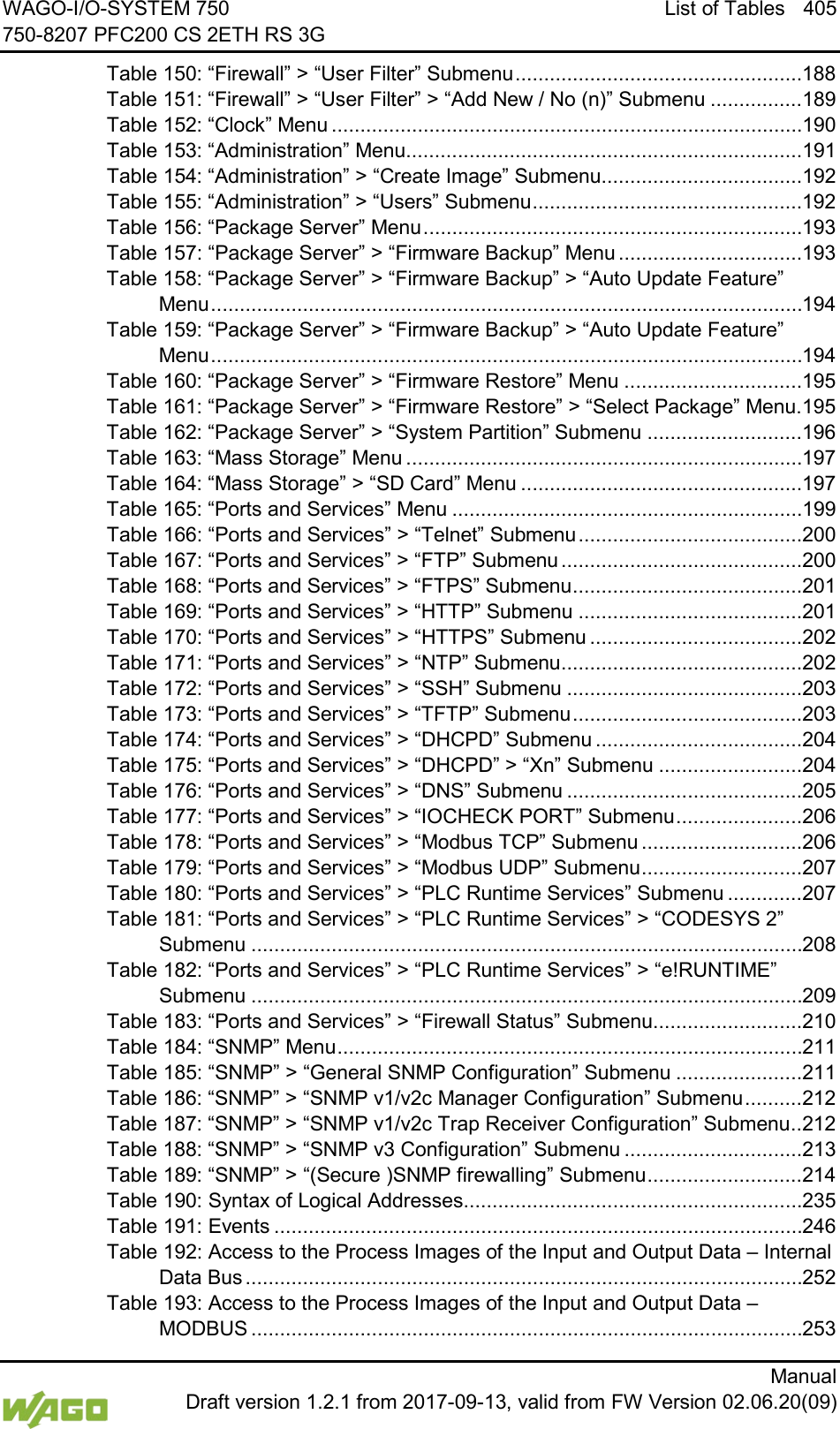
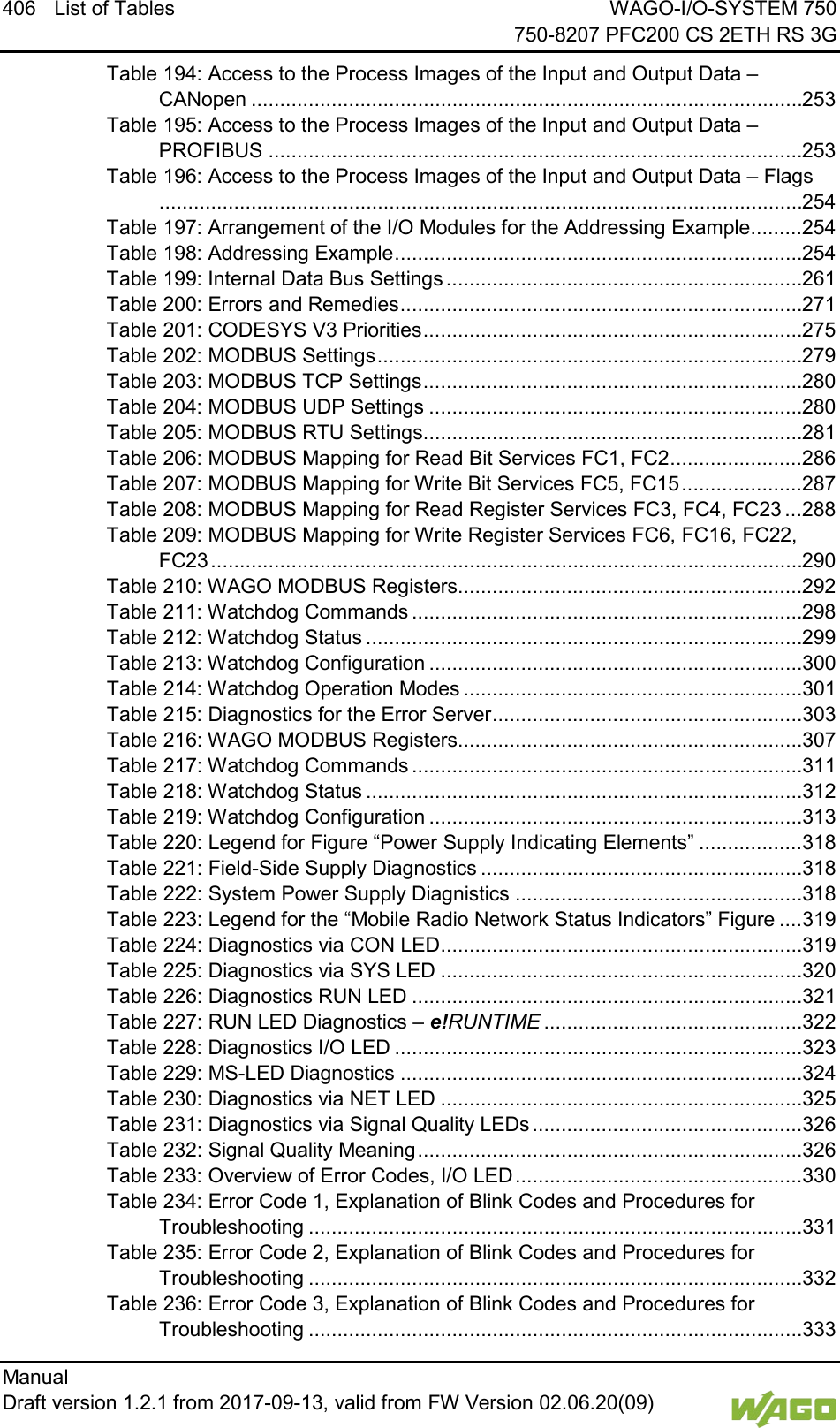
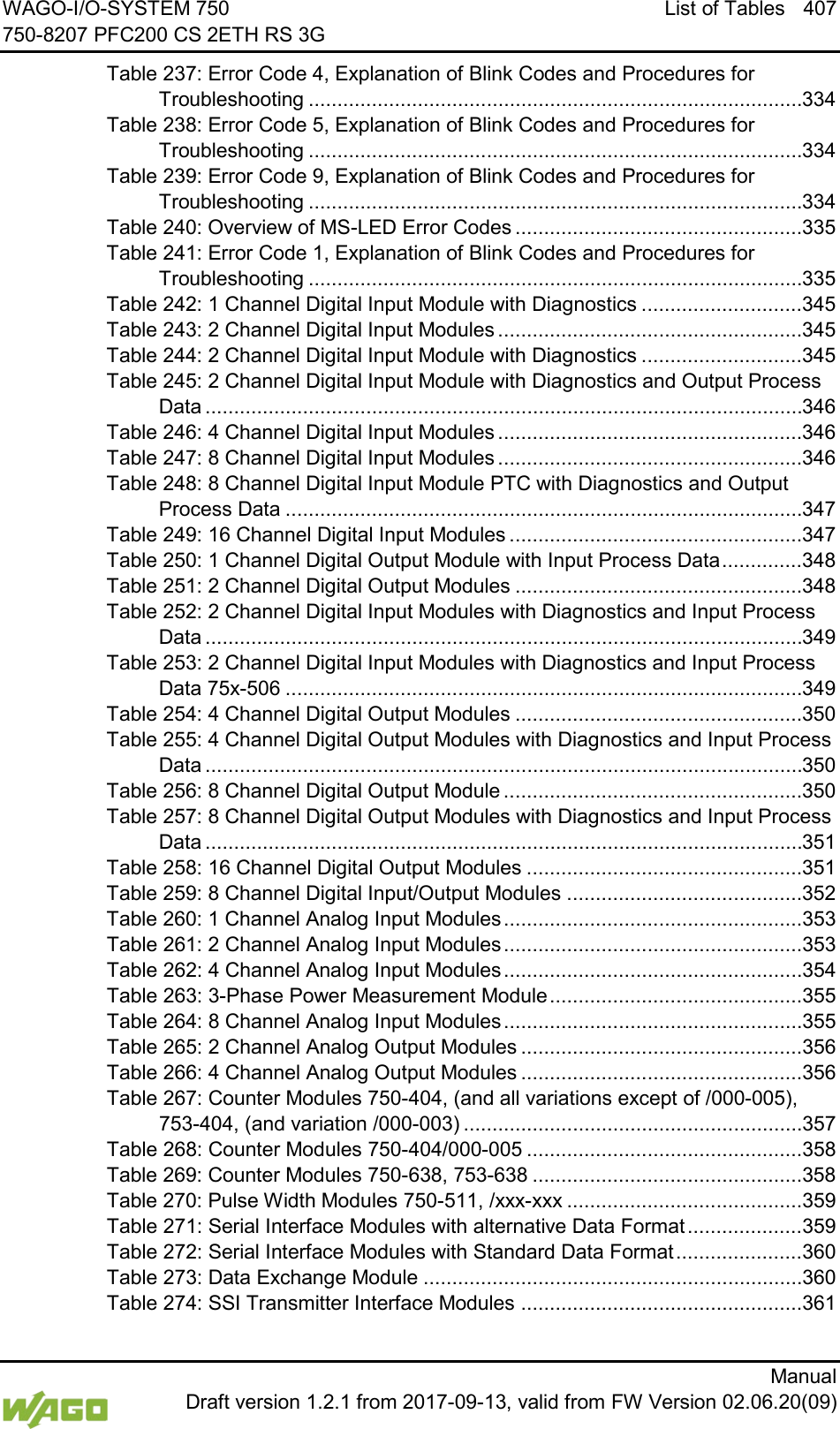
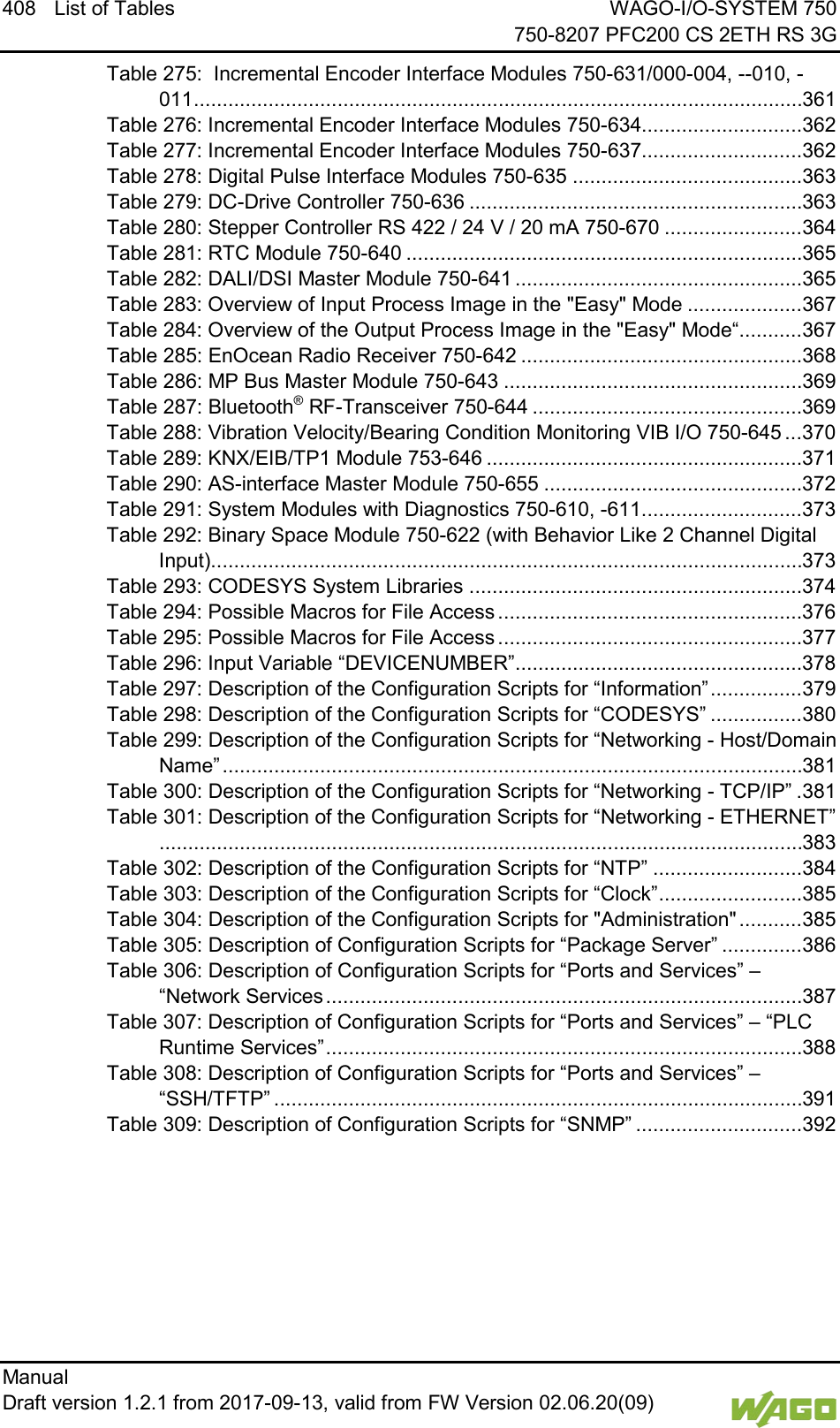
14 Table of Contents WAGO-I/O-SYSTEM 750     750-8207 PFC200 CS 2ETH RS 3G Manual   Draft version 1.2.1 from 2017-09-13, valid from FW Version 02.06.20(09)   15.2.1 General Libraries ........................................................................... 374 15.2.1.1 CODESYS System Libraries ..................................................... 374 15.2.1.2 SysLibCom.lib ........................................................................... 375 15.2.1.3 SysLibFile.lib ............................................................................. 375 15.2.1.4 SysLibFileAsync.lib.................................................................... 376 15.2.1.5 SysLibRtc.lib.............................................................................. 377 15.2.1.6 BusDiag.lib ................................................................................ 378 15.2.1.7 mod_com.lib .............................................................................. 378 15.2.1.8 SerComm.lib.............................................................................. 378 15.2.1.9 WagoConfigToolLIB.lib .............................................................. 379 15.2.1.10 WagoLibCpuUsage.lib ............................................................... 395 15.2.1.11 WagoLibDiagnosticIDs.lib .......................................................... 395 15.2.1.12 WagoLibLed.lib .......................................................................... 396 15.2.1.13 WagoLibNetSnmp.lib ................................................................. 396 15.2.1.14 WagoLibNetSnmpManager.lib ................................................... 396 15.2.1.15 WagoLibSSL.lib ......................................................................... 397 15.2.1.16 WagoLibTerminalDiag.lib........................................................... 397 List of Figures ................................................................................................ 398 List of Tables .................................................................................................. 401
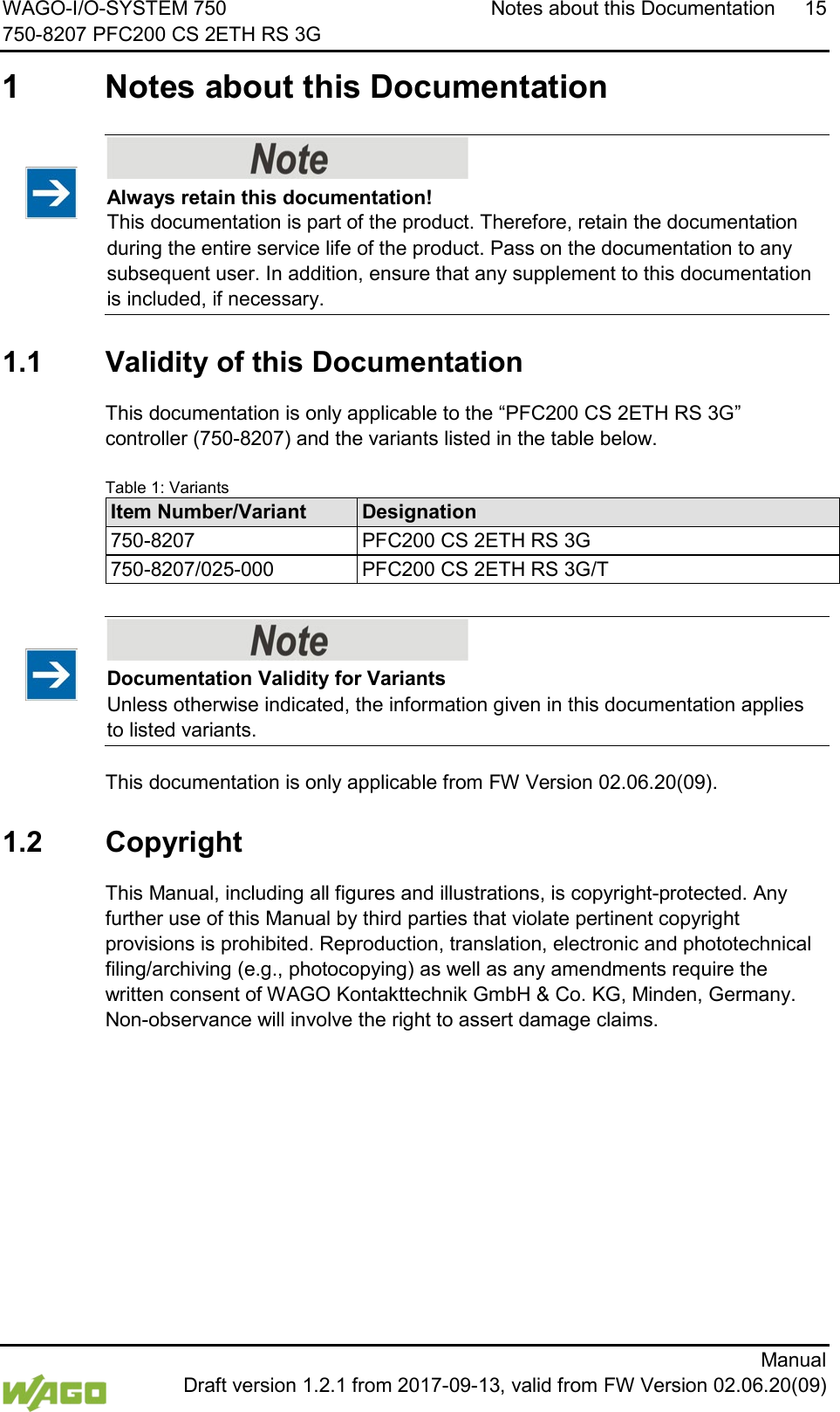
WAGO-I/O-SYSTEM 750 Notes about this Documentation 15 750-8207 PFC200 CS 2ETH RS 3G      Manual  Draft version 1.2.1 from 2017-09-13, valid from FW Version 02.06.20(09)  1  Notes about this Documentation     Always retain this documentation! This documentation is part of the product. Therefore, retain the documentation during the entire service life of the product. Pass on the documentation to any subsequent user. In addition, ensure that any supplement to this documentation is included, if necessary.   1.1  Validity of this Documentation  This documentation is only applicable to the “PFC200 CS 2ETH RS 3G” controller (750-8207) and the variants listed in the table below.  Table 1: Variants Item Number/Variant Designation 750-8207 PFC200 CS 2ETH RS 3G 750-8207/025-000 PFC200 CS 2ETH RS 3G/T      Documentation Validity for Variants Unless otherwise indicated, the information given in this documentation applies to listed variants.   This documentation is only applicable from FW Version 02.06.20(09).  1.2  Copyright  This Manual, including all figures and illustrations, is copyright-protected. Any further use of this Manual by third parties that violate pertinent copyright provisions is prohibited. Reproduction, translation, electronic and phototechnical filing/archiving (e.g., photocopying) as well as any amendments require the written consent of WAGO Kontakttechnik GmbH & Co. KG, Minden, Germany. Non-observance will involve the right to assert damage claims.
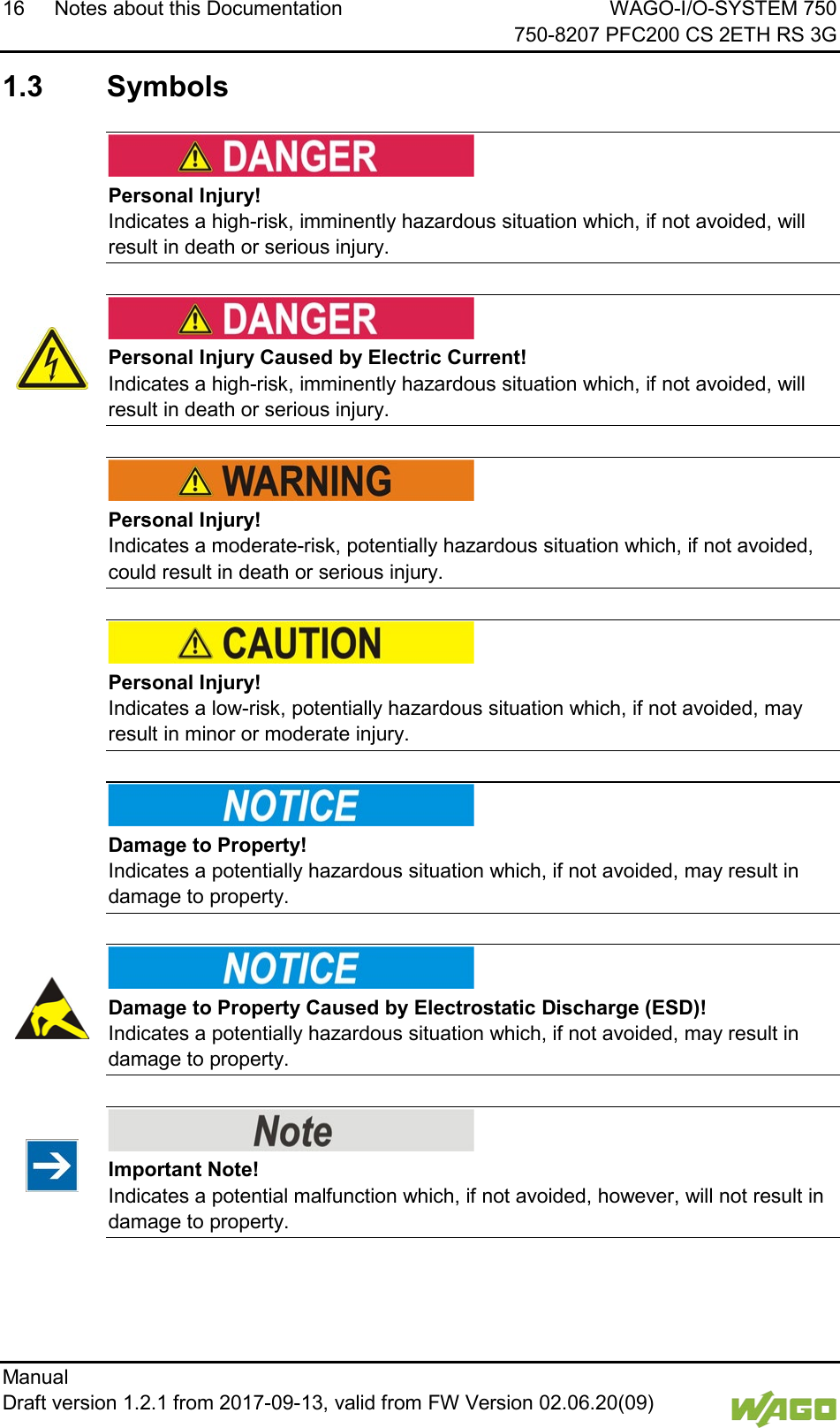
16 Notes about this Documentation WAGO-I/O-SYSTEM 750     750-8207 PFC200 CS 2ETH RS 3G Manual   Draft version 1.2.1 from 2017-09-13, valid from FW Version 02.06.20(09)    1.3  Symbols     Personal Injury! Indicates a high-risk, imminently hazardous situation which, if not avoided, will result in death or serious injury.      Personal Injury Caused by Electric Current! Indicates a high-risk, imminently hazardous situation which, if not avoided, will result in death or serious injury.      Personal Injury! Indicates a moderate-risk, potentially hazardous situation which, if not avoided, could result in death or serious injury.      Personal Injury! Indicates a low-risk, potentially hazardous situation which, if not avoided, may result in minor or moderate injury.      Damage to Property! Indicates a potentially hazardous situation which, if not avoided, may result in damage to property.      Damage to Property Caused by Electrostatic Discharge (ESD)! Indicates a potentially hazardous situation which, if not avoided, may result in damage to property.      Important Note! Indicates a potential malfunction which, if not avoided, however, will not result in damage to property.
WAGO-I/O-SYSTEM 750 Notes about this Documentation 17 750-8207 PFC200 CS 2ETH RS 3G      Manual  Draft version 1.2.1 from 2017-09-13, valid from FW Version 02.06.20(09)    Additional Information: Refers to additional information which is not an integral part of this documentation (e.g., the Internet).
18 Notes about this Documentation WAGO-I/O-SYSTEM 750     750-8207 PFC200 CS 2ETH RS 3G Manual   Draft version 1.2.1 from 2017-09-13, valid from FW Version 02.06.20(09)    1.4  Number Notation  Table 2: Number Notation Number Code Example Note Decimal 100 Normal notation Hexadecimal 0x64 C notation Binary '100' '0110.0100' In quotation marks, nibble separated with dots (.)   1.5  Font Conventions  Table 3: Font Conventions Font Type Indicates italic Names of paths and data files are marked in italic-type.  e.g.: C:\Program Files\WAGO Software Menu Menu items are marked in bold letters.  e.g.: Save > A greater-than sign between two names means the selection of a menu item from a menu.  e.g.: File > New Input Designation of input or optional fields are marked in bold letters,  e.g.: Start of measurement range “Value” Input or selective values are marked in inverted commas.  e.g.: Enter the value “4 mA” under Start of measurement range. [Button] Pushbuttons in dialog boxes are marked with bold letters in square brackets.  e.g.: [Input] [Key] Keys are marked with bold letters in square brackets.  e.g.: [F5]
WAGO-I/O-SYSTEM 750 Important Notes 19 750-8207 PFC200 CS 2ETH RS 3G      Manual  Draft version 1.2.1 from 2017-09-13, valid from FW Version 02.06.20(09)  2  Important Notes  This section includes an overall summary of the most important safety requirements and notes that are mentioned in each individual section. To protect your health and prevent damage to devices as well, it is imperative to read and carefully follow the safety guidelines.  2.1  Legal Bases  2.1.1 Subject to Changes WAGO Kontakttechnik GmbH & Co. KG reserves the right to provide for any alterations or modifications. WAGO Kontakttechnik GmbH & Co. KG owns all rights arising from the granting of patents or from the legal protection of utility patents. Third-party products are always mentioned without any reference to patent rights. Thus, the existence of such rights cannot be excluded.  2.1.2 Personnel Qualifications All sequences implemented on WAGO-I/O-SYSTEM 750 devices may only be carried out by electrical specialists with sufficient knowledge in automation. The specialists must be familiar with the current norms and guidelines for the devices and automated environments. All changes to the coupler or controller should always be carried out by qualified personnel with sufficient skills in PLC programming.  2.1.3 Use of the WAGO-I/O-SYSTEM 750 in Compliance with Underlying Provisions Fieldbus couplers, fieldbus controllers and I/O modules found in the modular WAGO-I/O-SYSTEM 750 receive digital and analog signals from sensors and transmit them to actuators or higher-level control systems. Using programmable controllers, the signals can also be (pre-) processed. The devices have been developed for use in an environment that meets the IP20 protection class criteria. Protection against finger injury and solid impurities up to 12.5 mm diameter is assured; protection against water damage is not ensured. Unless otherwise specified, operation of the devices in wet and dusty environments is prohibited. Operating the WAGO-I/O-SYSTEM 750 devices in home applications without further measures is only permitted if they meet the emission limits (emissions of interference) according to EN 61000-6-3. You will find the relevant information in the section “Device Description” > “Standards and Guidelines” in the manual for the used fieldbus coupler/controller. Appropriate housing (per 2014/34/EU) is required when operating the WAGO-I/O-SYSTEM 750 in hazardous environments. Please note that a prototype test
20 Important Notes WAGO-I/O-SYSTEM 750     750-8207 PFC200 CS 2ETH RS 3G Manual   Draft version 1.2.1 from 2017-09-13, valid from FW Version 02.06.20(09)   certificate must be obtained that confirms the correct installation of the system in a housing or switch cabinet.  2.1.4 Technical Condition of Specified Devices The devices to be supplied ex works are equipped with hardware and software configurations, which meet the individual application requirements. WAGO Kontakttechnik GmbH & Co. KG will be exempted from any liability in case of changes in hardware or software as well as to non-compliant usage of devices. Please send your request for modified and new hardware or software configurations directly to WAGO Kontakttechnik GmbH & Co. KG.
WAGO-I/O-SYSTEM 750 Important Notes 21 750-8207 PFC200 CS 2ETH RS 3G      Manual  Draft version 1.2.1 from 2017-09-13, valid from FW Version 02.06.20(09)  2.2  Safety Advice (Precautions)  For installing and operating purposes of the relevant device to your system the following safety precautions shall be observed:     Do not work on devices while energized! All power sources to the device shall be switched off prior to performing any installation, repair or maintenance work.      Install the device only in appropriate housings, cabinets or in electrical operation rooms! The WAGO-I/O-SYSTEM 750 and its components are an open system. As such, install the system and its components exclusively in appropriate housings, cabinets or in electrical operation rooms. Allow access to such equipment and fixtures to authorized, qualified staff only by means of specific keys or tools.          Do not use in telecommunication circuits! Only use devices equipped with ETHERNET or RJ-45 connectors in LANs. Never connect these devices with telecommunication networks.      Replace defective or damaged devices! Replace defective or damaged device/module (e.g., in the event of deformed contacts), since the long-term functionality of device/module involved can no longer be ensured.      Protect the components against materials having seeping and insulating properties! The components are not resistant to materials having seeping and insulating properties such as: aerosols, silicones and triglycerides (found in some hand creams). If you cannot exclude that such materials will appear in the component environment, then install the components in an enclosure being resistant to the above-mentioned materials. Clean tools and materials are imperative for handling devices/modules.
22 Important Notes WAGO-I/O-SYSTEM 750     750-8207 PFC200 CS 2ETH RS 3G Manual   Draft version 1.2.1 from 2017-09-13, valid from FW Version 02.06.20(09)      Clean only with permitted materials! Clean soiled contacts using oil-free compressed air or with ethyl alcohol and leather cloths.      Do not use any contact spray! Do not use any contact spray. The spray may impair contact area functionality in connection with contamination.      Do not reverse the polarity of connection lines! Avoid reverse polarity of data and power supply lines, as this may damage the devices involved.      Avoid electrostatic discharge! The devices are equipped with electronic components that may be destroyed by electrostatic discharge when touched. Please observe the safety precautions against electrostatic discharge per DIN EN 61340-5-1/-3. When handling the devices, please ensure that environmental factors (personnel, work space and packaging) are properly grounded.   2.3  Disclaimer The “PFC200 CS 2ETH RS 3G” controller (750-8207) also communicates via the mobile communications network. Please note that the mobile communications services used by the controller may be affected by faults in the service provider’s network. Such faults are beyond the control of WAGO Kontakttechnik GmbH & Co. KG.  WAGO Kontakttechnik GmbH & Co. KG therefore rejects any guarantee for the execution of the commands transmitted by/to the controller.
WAGO-I/O-SYSTEM 750 Important Notes 23 750-8207 PFC200 CS 2ETH RS 3G      Manual  Draft version 1.2.1 from 2017-09-13, valid from FW Version 02.06.20(09)  2.4  Licensing Terms of the Software Package Used  The firmware for the “PFC200 CS 2ETH RS 3G” controller (750-8207) contains open-source software. The licence conditions of the software packages are stored in the controller in text form. They can be accessed via the WBM page “Legal Information” > “Open Source Software.”  You can obtain the source code with licensing terms of the open-source software from WAGO Kontakttechnik GmbH & Co. KG on request. Send your request to support@wago.com with the subject “Controller Board Support Package.”  2.5  Special Use Conditions for ETHERNET Devices If not otherwise specified, ETHERNET devices are intended for use on local networks. Please note the following when using ETHERNET devices in your system: • Do not connect control components and control networks to an open network such as the Internet or an office network. WAGO recommends putting control components and control networks behind a firewall. • Limit physical and electronic access to all automation components to authorized personnel only. • Change the default passwords before first use! This will reduce the risk of unauthorized access to your system. • Regularly change the passwords used! This will reduce the risk of unauthorized access to your system. • If remote access to control components and control networks is required, use a Virtual Private Network (VPN). • Regularly perform threat analyses. You can check whether the measures taken meet your security requirements. • Use “defense-in-depth” mechanisms in your system's security configuration to restrict the access to and control of individual products and networks.
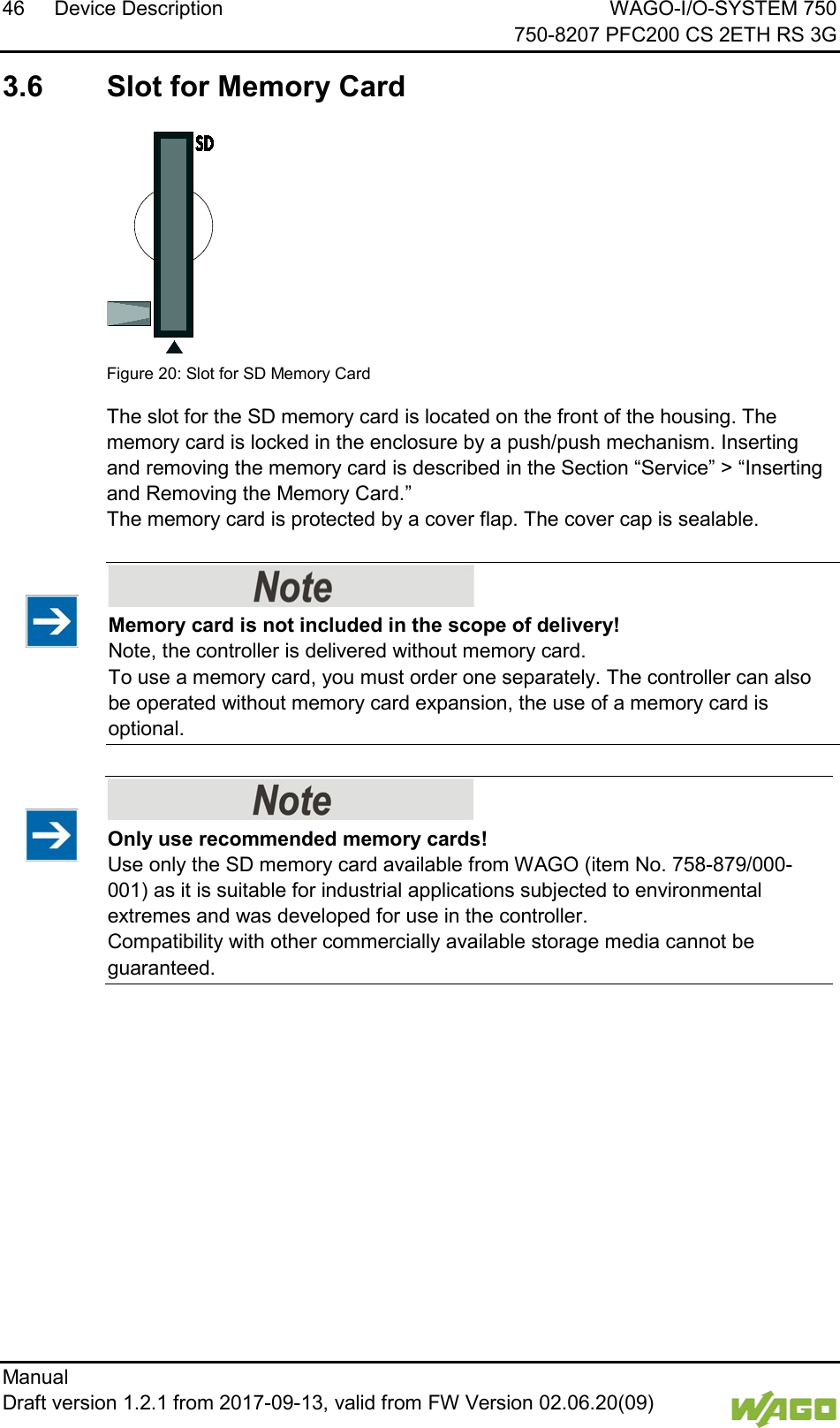
24 Device Description WAGO-I/O-SYSTEM 750     750-8207 PFC200 CS 2ETH RS 3G Manual   Draft version 1.2.1 from 2017-09-13, valid from FW Version 02.06.20(09)   3  Device Description   The controller 750-8207(PFC200 CS 2ETH RS 3G) is an automation device that can perform control tasks of a PLC. It is suitable for mounting on a DIN rail and stands out on account of its various interfaces. This controller can be used for applications in mechanical and systems engineering, in the processing industry and in building technology.   You can connect all available I/O modules of the WAGO-I/O-SYSTEM 750 (750 and 753 Series) to the controller, enabling it to internally process analog and digital signals from the automation environment, or to supply these signals to other devices via one of the available interfaces.  Automation tasks can be executed in all IEC 61131-3-compatible languages with the WAGO-I/O-PRO or e!COCKPIT programming system, depending on the runtime system set (CODESYS 2 or e!RUNTIME).  The implementation of the task processing in the runtime system for Linux® has been optimized with real-time extensions in order to provide maximum performance for automation tasks. Web visualization is also provided as visualization in addition to the development environment.  For IEC-61131-3 programming in CODESYS applications, the controller provides 16 MB of program memory (flash) and 64 MB of data memory (RAM) under CODESYS 2 and 64 MB of program and data memory (dynamically distributed) under e!RUNTIME as well as 128 kB of retentive memory (retain and flag variables) in an integrated NVRAM. </dg_  Two ETHERNET interfaces and an integrated, interruptible switch enable wiring for: • In line topology with a common MAC address and IP address for both interfaces. • Two separate networks with a common MAC address and an IP address for each interface. Both of these interfaces support: • 10BASE-T / 100BASE-TX • Full/Half duplex • Autonegotiation • Auto-MDI(X) (automatic uplink and crossover switching)   The following fieldbus circuits are implemented for exchange of process data: • MODBUS TCP Master/Slave
WAGO-I/O-SYSTEM 750 Device Description 25 750-8207 PFC200 CS 2ETH RS 3G      Manual  Draft version 1.2.1 from 2017-09-13, valid from FW Version 02.06.20(09) • MODBUS UDP Master/Slave   • MODBUS RTU Master/Slave (via RS-232 or RS-485)   In the controller, all input signals from the sensors are combined. After connecting the controller, all of the I/O modules on the bus node are detected and a local process image is created from these. Analog and specialty module data is sent via words and/or bytes; digital data is sent bit by bit.      No direct access from fieldbus to the process image for I/O modules! Any data that is required from the I/O module process image must be explicitly mapped in the CODESYS program to the data in the fieldbus process image and vice versa! Direct access is not possible!   The fieldbus configuration can be defined with the WAGO-I/O-PRO or e!COCKPIT controller configuration, depending on the set runtime system (CODESYS 2 or e!RUNTIME).   A Web-based management system (WBM) is also available as a configuration aid. This system includes various dynamic HTML pages from which, among other things, information about configuration and the status of the controller can be called up. The WBM is already stored in the device and is presented and operated using an Internet browser. You can also save your own HTML pages in the implemented file system, or call up programs directly.   In the controller's initial state, the installed firmware is based on Linux®, with special real-time extensions of the RT-Preempt patch. In addition, the following application programs are also installed on the controller, along with a number of different auxiliary programs: • a SNMP server/client • a Telnet server • a FTP server, a FTPS server (explicit connections only) • a SSH server/client • a Web server •  a NTP client • a BootP and DHCP client    •  a CODESYS Runtime Environment   Based on IEC-61131-3 programming, data processing takes place on site in the controller. The logical process results can be output directly to the actuators or transmitted via a connected fieldbus to the higher level controller.
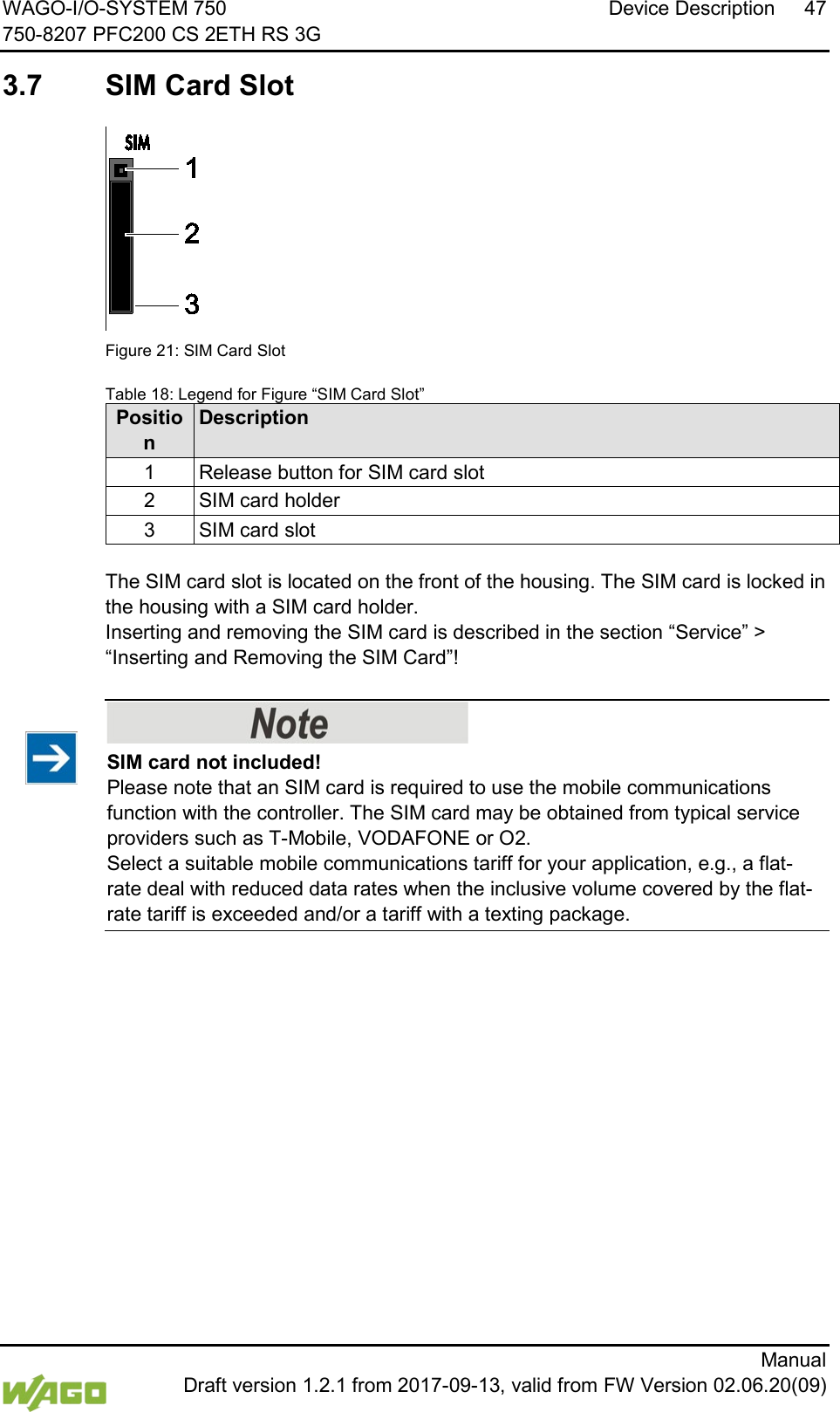
26 Device Description WAGO-I/O-SYSTEM 750     750-8207 PFC200 CS 2ETH RS 3G Manual   Draft version 1.2.1 from 2017-09-13, valid from FW Version 02.06.20(09)       Memory card is not included in the scope of delivery! Note, the controller is delivered without memory card. To use a memory card, you must order one separately. The controller can also be operated without memory card expansion, the use of a memory card is optional.  </dg_     Only use recommended memory cards! Use only the SD memory card available from WAGO (item No. 758-879/000-001) as it is suitable for industrial applications subjected to environmental extremes and was developed for use in the controller.  Compatibility with other commercially available storage media cannot be guaranteed.      SIM card not included! Please note that an SIM card is required to use the mobile communications function with the controller. The SIM card may be obtained from typical service providers such as T-Mobile, VODAFONE or O2. Select a suitable mobile communications tariff for your application, e.g., a flat-rate deal with reduced data rates when the inclusive volume covered by the flat-rate tariff is exceeded and/or a tariff with a texting package.
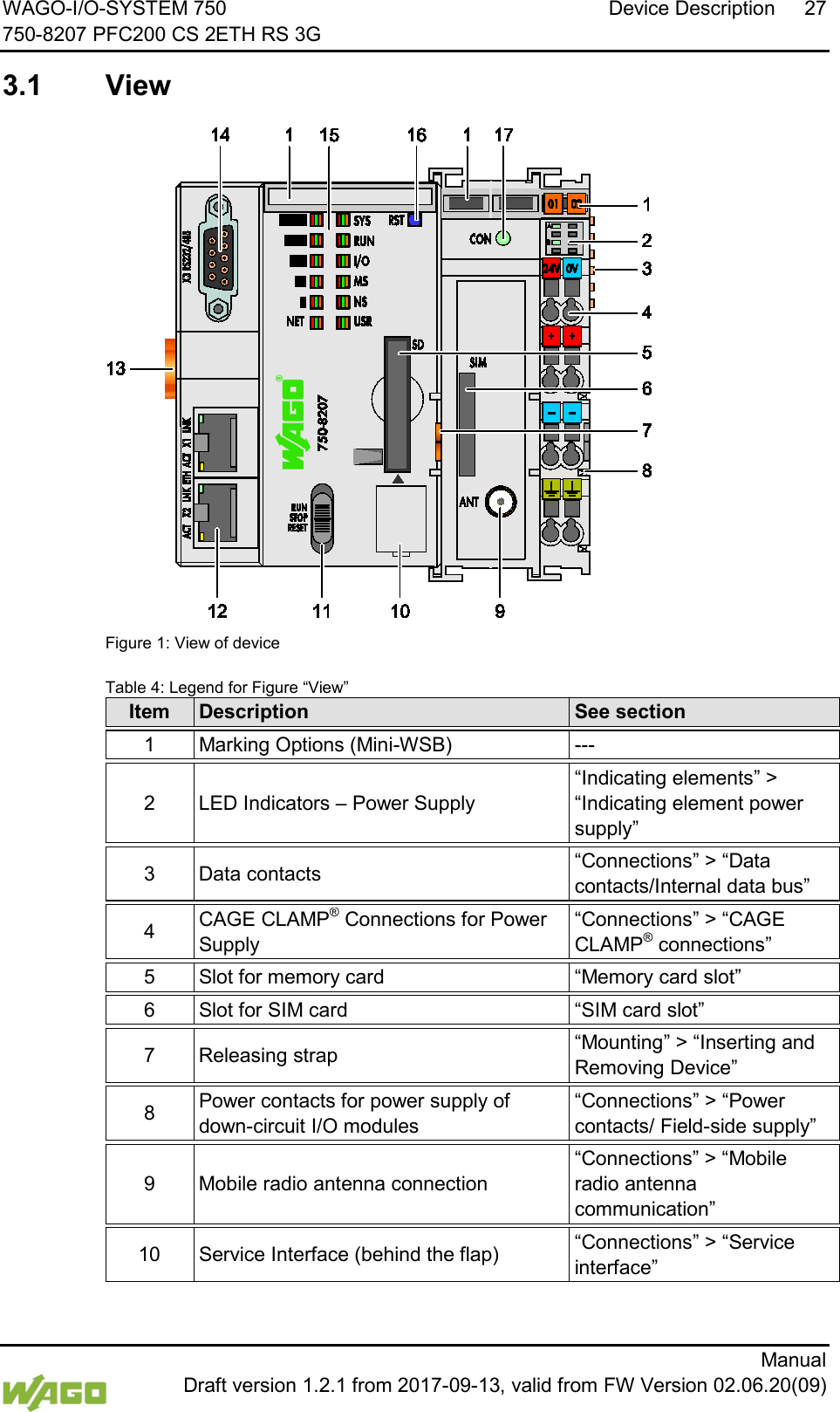
WAGO-I/O-SYSTEM 750 Device Description  27 750-8207 PFC200 CS 2ETH RS 3G      Manual  Draft version 1.2.1 from 2017-09-13, valid from FW Version 02.06.20(09)  3.1  View    Figure 1: View of device   Table 4: Legend for Figure “View” Item Description See section    1 Marking Options (Mini-WSB) ---    2  LED Indicators – Power Supply “Indicating elements” > “Indicating element power supply”    3  Data contacts “Connections” > “Data contacts/Internal data bus”    4 CAGE CLAMP® Connections for Power Supply “Connections” > “CAGE CLAMP® connections”    5 Slot for memory card “Memory card slot”   6 Slot for SIM card “SIM card slot”    7  Releasing strap “Mounting” > “Inserting and Removing Device”    8 Power contacts for power supply of down-circuit I/O modules “Connections” > “Power contacts/ Field-side supply”   9  Mobile radio antenna connection “Connections” > “Mobile radio antenna communication”    10 Service Interface (behind the flap) “Connections” > “Service interface”
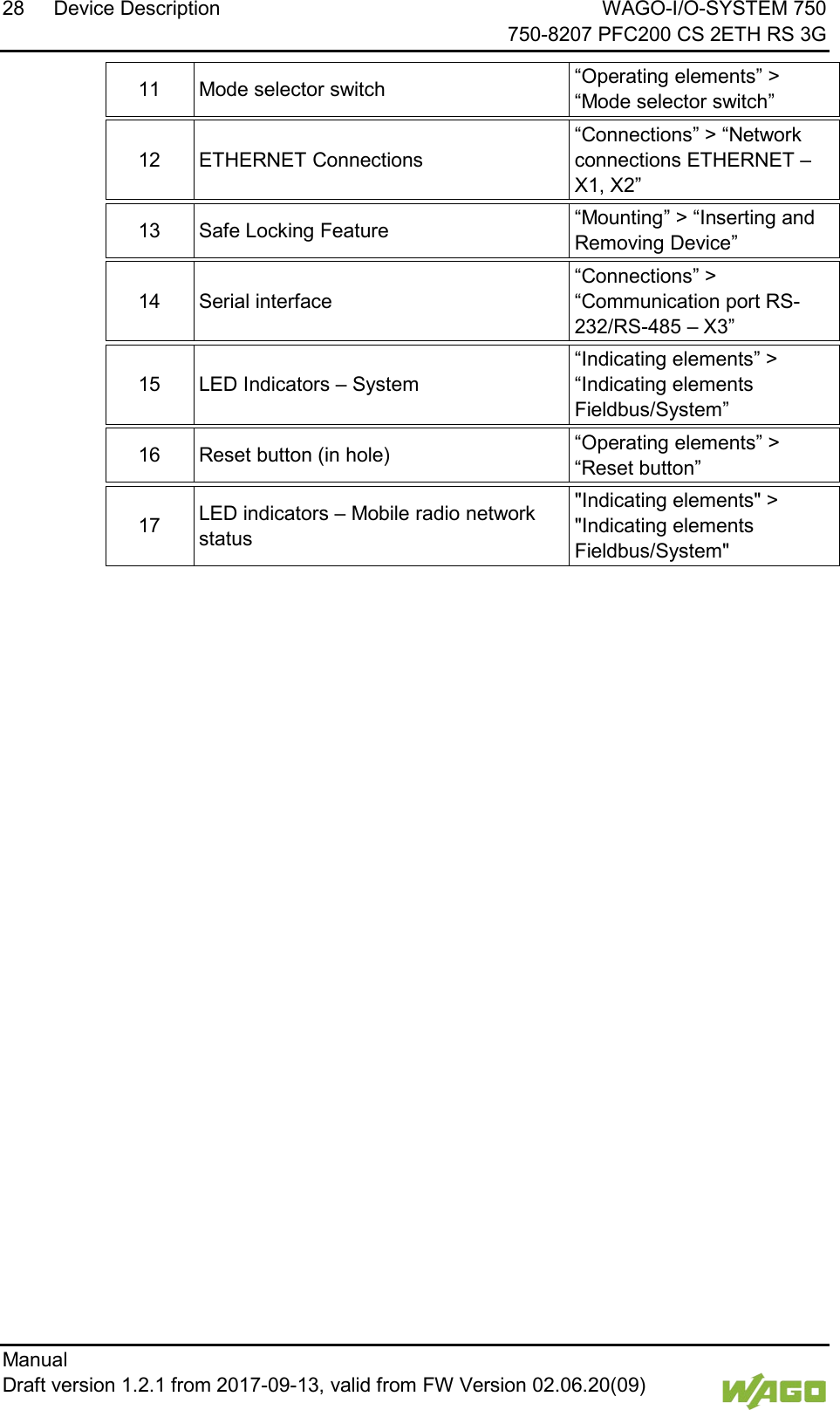
28 Device Description WAGO-I/O-SYSTEM 750     750-8207 PFC200 CS 2ETH RS 3G Manual   Draft version 1.2.1 from 2017-09-13, valid from FW Version 02.06.20(09)   11 Mode selector switch “Operating elements” > “Mode selector switch”    12 ETHERNET Connections “Connections” > “Network connections ETHERNET – X1, X2”    13 Safe Locking Feature “Mounting” > “Inserting and Removing Device”    14 Serial interface “Connections” > “Communication port RS-232/RS-485 – X3”    15 LED Indicators – System “Indicating elements” > “Indicating elements Fieldbus/System”    16 Reset button (in hole) “Operating elements” > “Reset button”   17 LED indicators – Mobile radio network status "Indicating elements" > "Indicating elements Fieldbus/System"
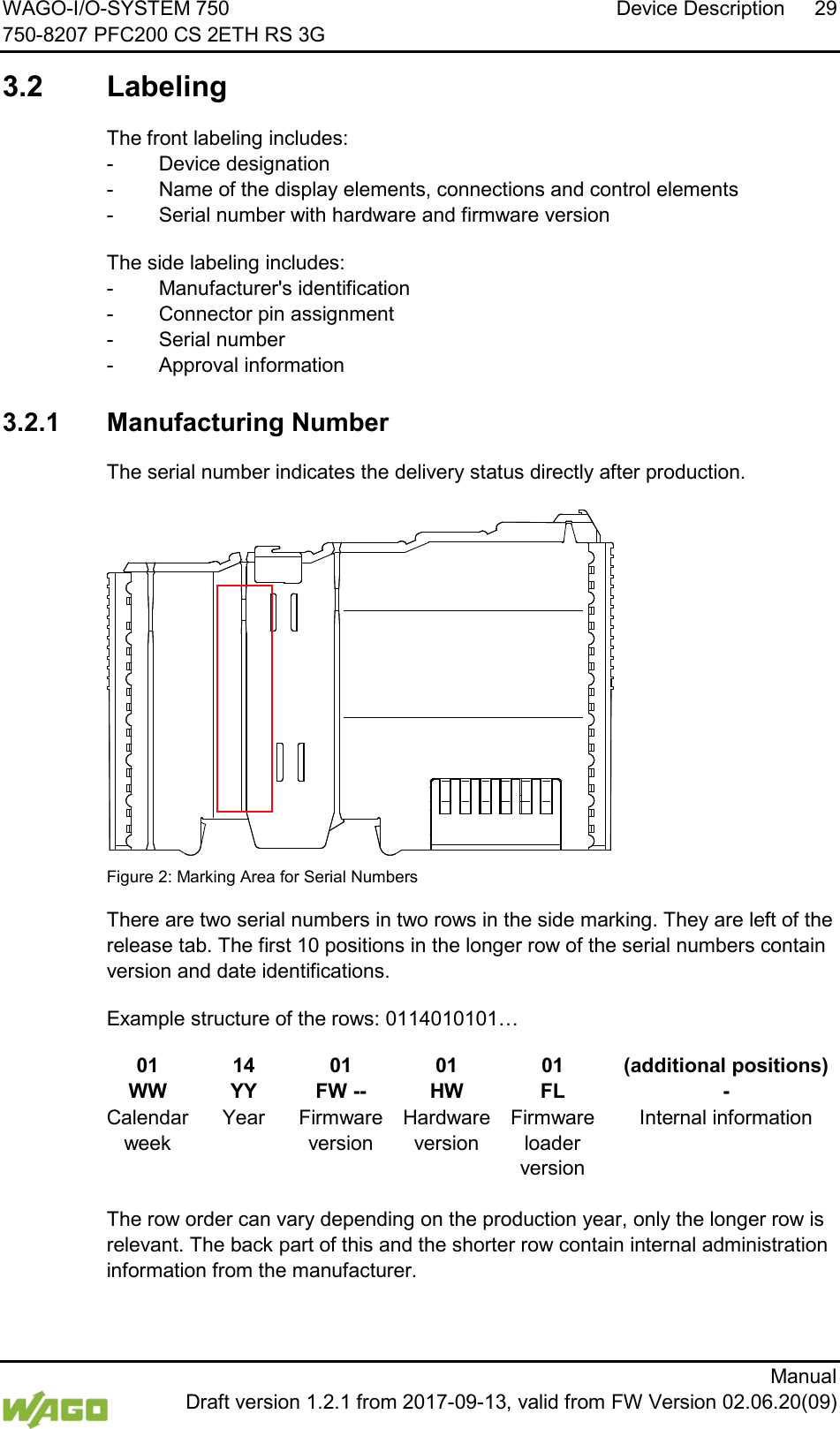
WAGO-I/O-SYSTEM 750 Device Description 29 750-8207 PFC200 CS 2ETH RS 3G      Manual  Draft version 1.2.1 from 2017-09-13, valid from FW Version 02.06.20(09)  3.2  Labeling  The front labeling includes: -  Device designation -  Name of the display elements, connections and control elements -  Serial number with hardware and firmware version The side labeling includes: -  Manufacturer's identification -  Connector pin assignment -  Serial number -  Approval information  3.2.1 Manufacturing Number  The serial number indicates the delivery status directly after production.   Figure 2: Marking Area for Serial Numbers There are two serial numbers in two rows in the side marking. They are left of the release tab. The first 10 positions in the longer row of the serial numbers contain version and date identifications.  Example structure of the rows: 0114010101… 01 14 01 01 01 (additional positions) WW YY FW -- HW FL - Calendar week Year Firmware version Hardware version Firmware loader version Internal information  The row order can vary depending on the production year, only the longer row is relevant. The back part of this and the shorter row contain internal administration information from the manufacturer.
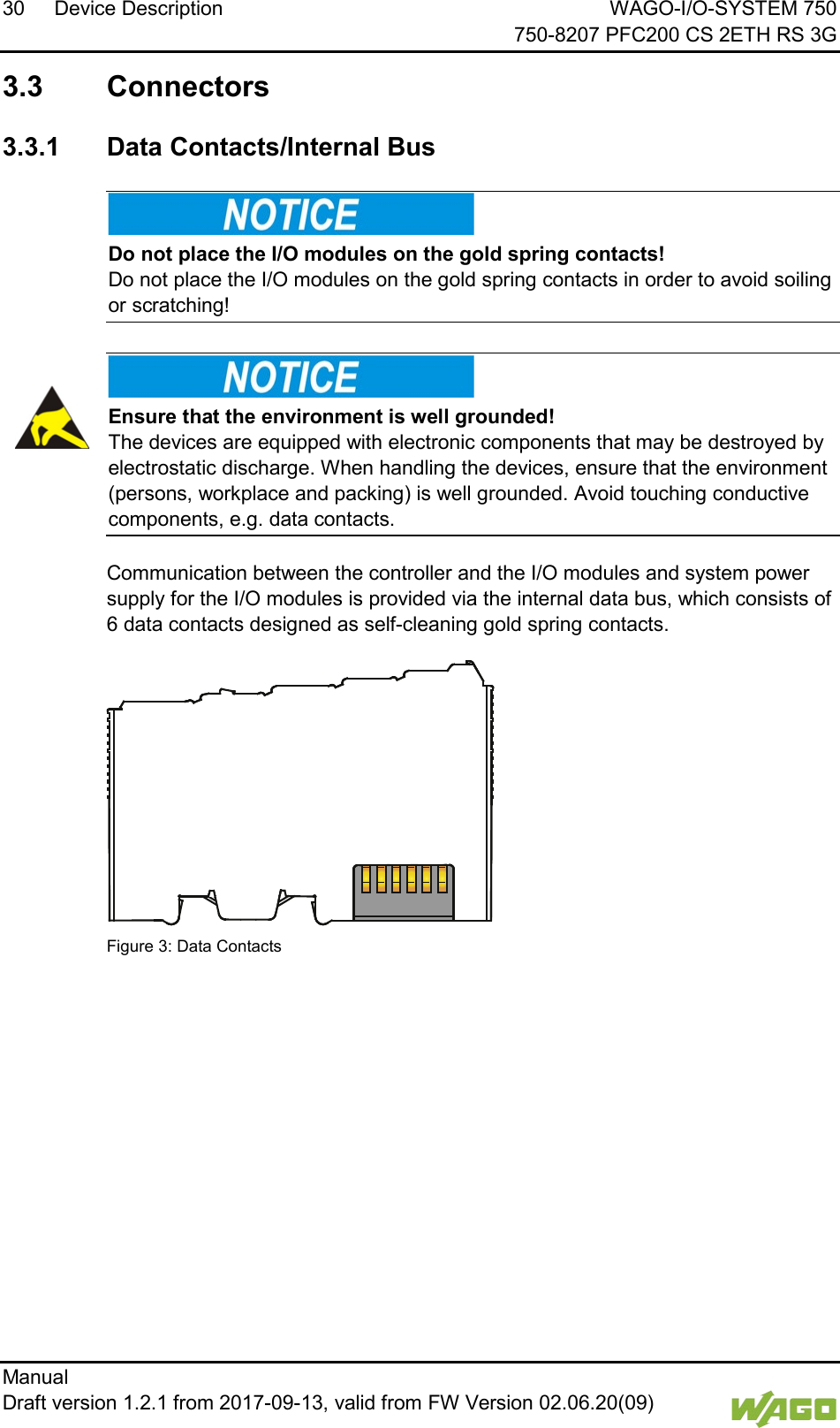
30 Device Description WAGO-I/O-SYSTEM 750     750-8207 PFC200 CS 2ETH RS 3G Manual   Draft version 1.2.1 from 2017-09-13, valid from FW Version 02.06.20(09)    3.3  Connectors  3.3.1 Data Contacts/Internal Bus     Do not place the I/O modules on the gold spring contacts! Do not place the I/O modules on the gold spring contacts in order to avoid soiling or scratching!      Ensure that the environment is well grounded! The devices are equipped with electronic components that may be destroyed by electrostatic discharge. When handling the devices, ensure that the environment (persons, workplace and packing) is well grounded. Avoid touching conductive components, e.g. data contacts.    Communication between the controller and the I/O modules and system power supply for the I/O modules is provided via the internal data bus, which consists of 6 data contacts designed as self-cleaning gold spring contacts.  Figure 3: Data Contacts
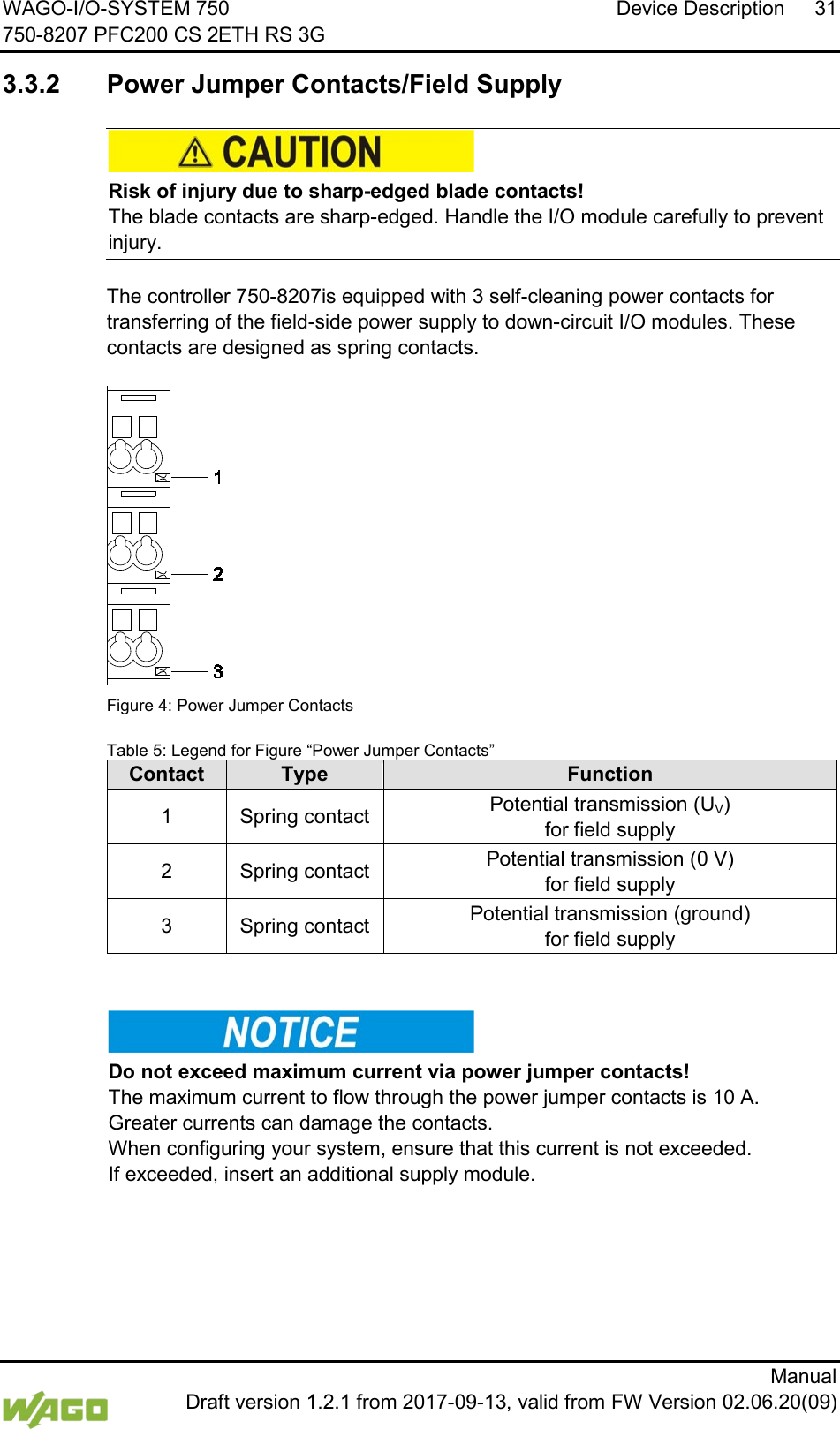
WAGO-I/O-SYSTEM 750 Device Description 31 750-8207 PFC200 CS 2ETH RS 3G      Manual  Draft version 1.2.1 from 2017-09-13, valid from FW Version 02.06.20(09)  3.3.2 Power Jumper Contacts/Field Supply     Risk of injury due to sharp-edged blade contacts! The blade contacts are sharp-edged. Handle the I/O module carefully to prevent injury.    The controller 750-8207is equipped with 3 self-cleaning power contacts for transferring of the field-side power supply to down-circuit I/O modules. These contacts are designed as spring contacts.   Figure 4: Power Jumper Contacts  Table 5: Legend for Figure “Power Jumper Contacts”  Contact Type Function 1  Spring contact Potential transmission (UV)  for field supply  2  Spring contact Potential transmission (0 V)  for field supply  3  Spring contact Potential transmission (ground)  for field supply       Do not exceed maximum current via power jumper contacts! The maximum current to flow through the power jumper contacts is 10 A.  Greater currents can damage the contacts.  When configuring your system, ensure that this current is not exceeded.  If exceeded, insert an additional supply module.
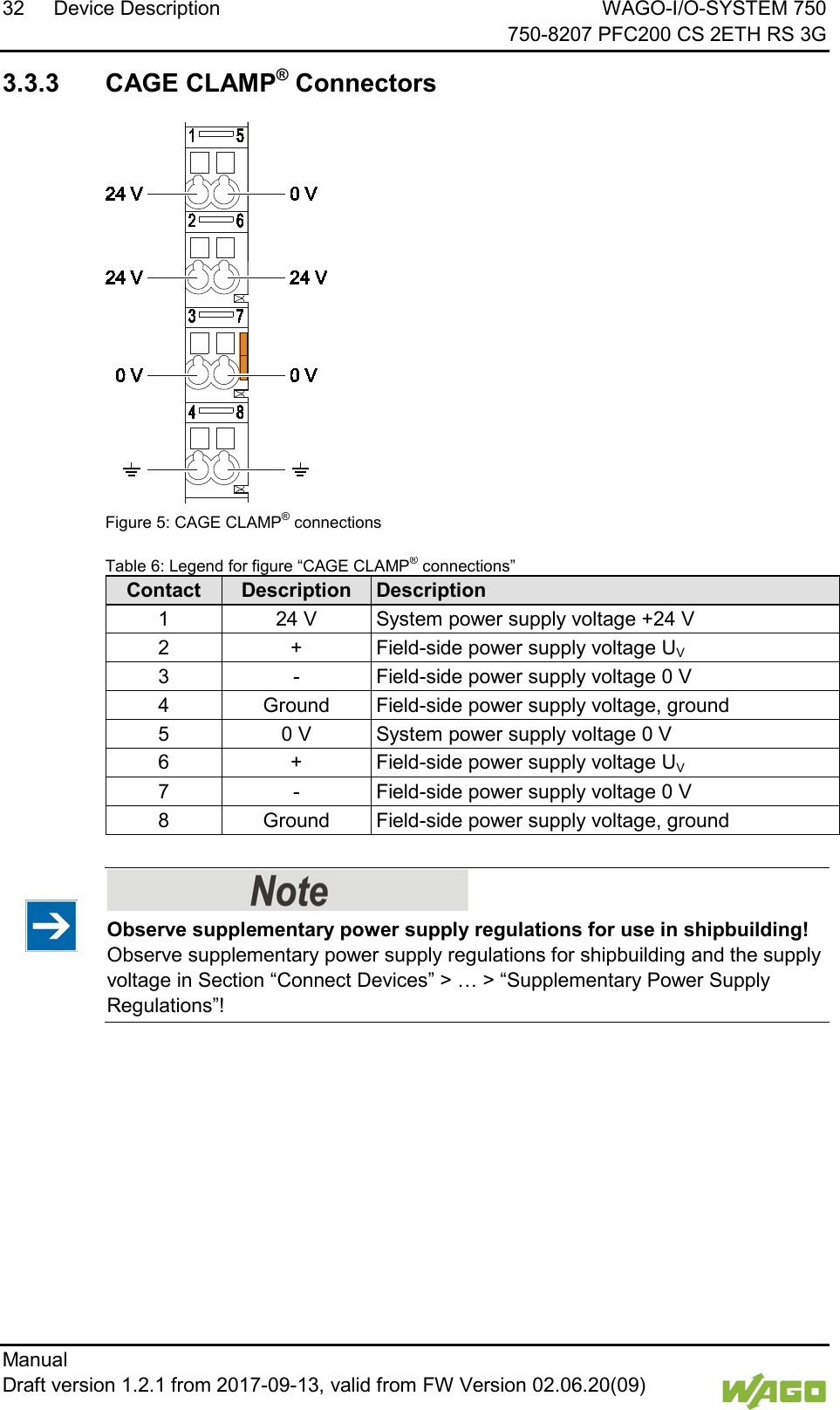
32 Device Description WAGO-I/O-SYSTEM 750     750-8207 PFC200 CS 2ETH RS 3G Manual   Draft version 1.2.1 from 2017-09-13, valid from FW Version 02.06.20(09)    3.3.3 CAGE CLAMP® Connectors    Figure 5: CAGE CLAMP® connections Table 6: Legend for figure “CAGE CLAMP® connections” Contact Description Description 1 24 V System power supply voltage +24 V 2 + Field-side power supply voltage UV 3 - Field-side power supply voltage 0 V 4 Ground Field-side power supply voltage, ground 5 0 V System power supply voltage 0 V 6 + Field-side power supply voltage UV 7 - Field-side power supply voltage 0 V 8 Ground Field-side power supply voltage, ground  </dg_     Observe supplementary power supply regulations for use in shipbuilding! Observe supplementary power supply regulations for shipbuilding and the supply voltage in Section “Connect Devices” > … > “Supplementary Power Supply Regulations”!
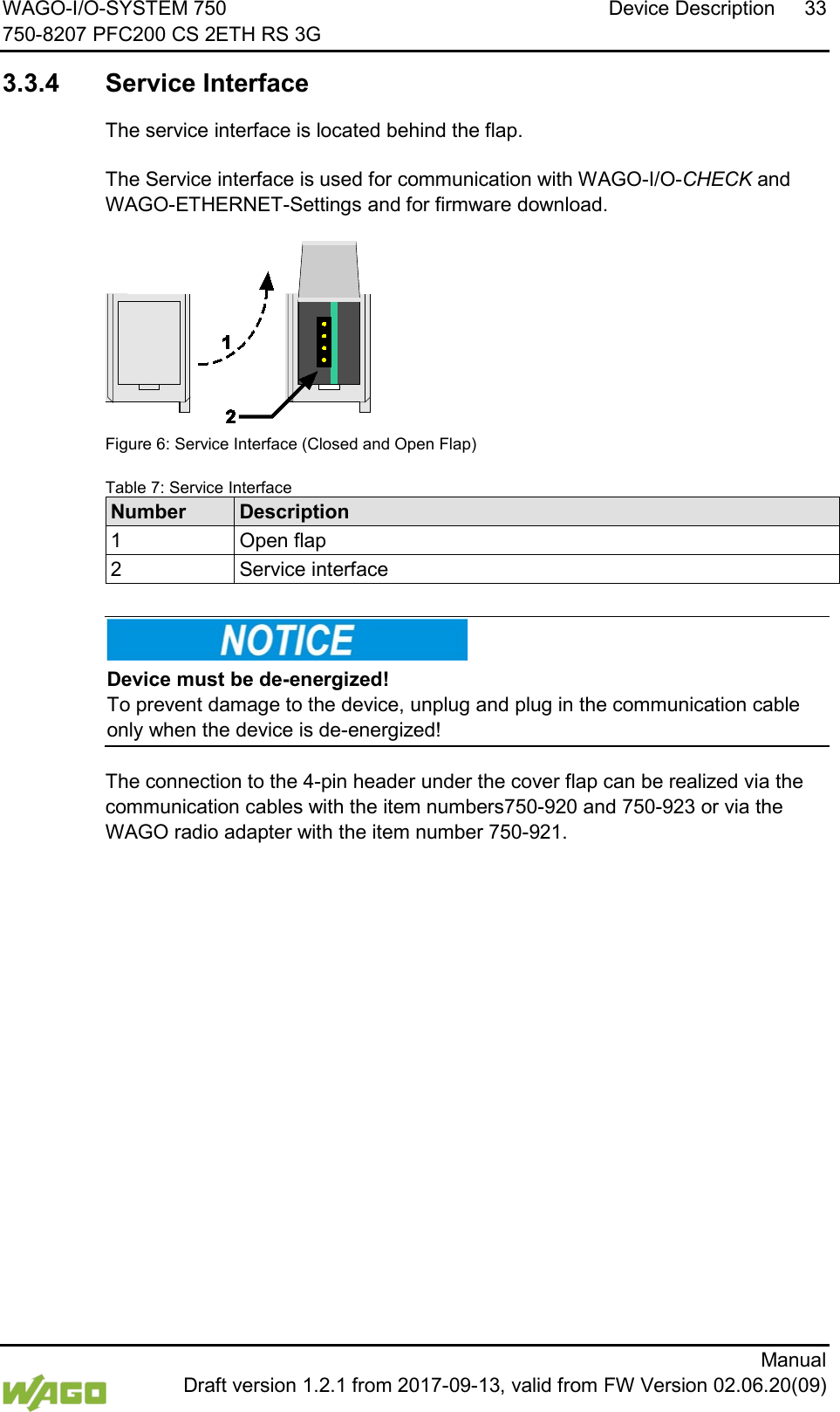
WAGO-I/O-SYSTEM 750 Device Description 33 750-8207 PFC200 CS 2ETH RS 3G      Manual  Draft version 1.2.1 from 2017-09-13, valid from FW Version 02.06.20(09)  3.3.4 Service Interface The service interface is located behind the flap.   The Service interface is used for communication with WAGO-I/O-CHECK and WAGO-ETHERNET-Settings and for firmware download.  Figure 6: Service Interface (Closed and Open Flap) Table 7: Service Interface Number Description 1 Open flap 2 Service interface      Device must be de-energized! To prevent damage to the device, unplug and plug in the communication cable only when the device is de-energized!  The connection to the 4-pin header under the cover flap can be realized via the communication cables with the item numbers750-920 and 750-923 or via the WAGO radio adapter with the item number 750-921.
34 Device Description WAGO-I/O-SYSTEM 750     750-8207 PFC200 CS 2ETH RS 3G Manual   Draft version 1.2.1 from 2017-09-13, valid from FW Version 02.06.20(09)     3.3.5 Network Connections – X1, X2  Figure 7: Network Connections – X1, X2 Table 8: Legend for Figure “Network Connections – X1, X2” Contact Signal Description 1 TD + Transmit Data + 2 TD − Transmit Data − 3 RD + Receive Data + 4 NC Not assigned 5 NC Not assigned 6 RD − Receive Data − 7 NC Not assigned 8 NC Not assigned
WAGO-I/O-SYSTEM 750 Device Description 35 750-8207 PFC200 CS 2ETH RS 3G      Manual  Draft version 1.2.1 from 2017-09-13, valid from FW Version 02.06.20(09) Komm uni kati on sa ns c hl us s  3.3.6 RS-232/RS-485 – X3 Communication Connection  Figure 8: RS-232/RS-485 – X3 Communication Connection Table 9: Legend for Figure “RS-232/RS-485 – X3 Communication Connection”  Contact RS-232 RS-485 Signal Description Signal Description 1 NC Not assigned NC Not assigned 2 RxD Receive Data NC Not assigned 3 TxD Transmit Data RxD/TxD-P Receive/transmit data + 4 NC Not assigned NC Not assigned 5 FB_GND Ground FB_GND Ground 6 NC Not assigned FB_5V Power Supply 7 RTS Request to send NC Not assigned 8 CTS Clear to send RxD/TxD-N Receive/transmit data − 9 NC Not assigned NC Not assigned Enclosure Shield Shielding Shield Shielding     Incorrect parameterization can damage the communication partners! The voltage levels are −12 V and +12 V for RS-232, and −5 V and +5 V for  RS-485.  If the controller interfaces differ from those of the communication partners  (RS-232 <> RS-485 or RS-485 <> RS-232), this may damage the interface of the communication partner.  Therefore, always ensure that the controller interface matches those of its communication partners when configuring these items! DC/DC converters and optocouplers in the fieldbus interface electrically isolate the fieldbus system and the electronics.
36 Device Description WAGO-I/O-SYSTEM 750     750-8207 PFC200 CS 2ETH RS 3G Manual   Draft version 1.2.1 from 2017-09-13, valid from FW Version 02.06.20(09)   3.3.6.1 Operating as an RS-232 Interface Depending on the device type DTE (e.g., PC) or DCE (e.g., PFC, modem), the RS-232 signals have different data directions. Table 10: Function of RS-232 Signals for DTE/DCE Contact Signal Data Direction DTE DCE 2 RxD Input Output 3 TxD Output Input 5 FB_GND --- --- 7 RTS Output Input 8 CTS Input Output  For a DTE-to-DCE connection, the signals are connected directly (1:1).  Figure 9: Termination with DTE-DCE Connection (1:1) For a DTE-to-DTE connection, the signal connections are crossed.  Figure 10: Termination with DTE-DTE Connection (Cross-Over)
WAGO-I/O-SYSTEM 750 Device Description 37 750-8207 PFC200 CS 2ETH RS 3G      Manual  Draft version 1.2.1 from 2017-09-13, valid from FW Version 02.06.20(09) 3.3.6.2 Operating as an RS-485 Interface To minimize reflection at the end of the line, the RS-485 line must be terminated at both ends by a cable termination. If required, one pull-up or pull-down resistor may be used. These resistors ensure a defined level on the bus when no subscriber is active, i.e., when all subscribers are in “Tri-state”.    Attention — bus termination! The RS-485 bus segment must be terminated at both ends!  No more than two terminations per bus segment may be used!  Terminations may not be used in stub and branch lines!  Operation without proper termination of the RS-485 network may result in transmission errors.   Figure 11: RS-485 Bus Termination
38 Device Description WAGO-I/O-SYSTEM 750     750-8207 PFC200 CS 2ETH RS 3G Manual   Draft version 1.2.1 from 2017-09-13, valid from FW Version 02.06.20(09)    3.3.7 Mobile Radio Antenna The screw connector (SMA jack) for the mobile radio antenna is located at the front of the housing.  Figure 12: Mobile Radio Antenna Connection
WAGO-I/O-SYSTEM 750 Device Description 39 750-8207 PFC200 CS 2ETH RS 3G      Manual  Draft version 1.2.1 from 2017-09-13, valid from FW Version 02.06.20(09)  3.4  Display Elements   3.4.1 Power Supply Indicating Elements  Figure 13: Power Supply Indicating Elements Table 11: Legend for Figure “Power Supply Indicating Elements” Description Color Description A Green/off Status of system power supply voltage B Green/off Status of field-side power supply voltage
40 Device Description WAGO-I/O-SYSTEM 750     750-8207 PFC200 CS 2ETH RS 3G Manual   Draft version 1.2.1 from 2017-09-13, valid from FW Version 02.06.20(09)     3.4.2 Fieldbus/System Indicating Elements    Figure 14: Indicating elements for fieldbus/system   Table 12: Legend for Figure “Fieldbus/System Indicating Elements” Description Color Description    SYS Red/Green/ Orange/Off System status    RUN Red/Green/ Orange/Off PLC program status    I/O Red/Green/ Orange/Off Internal data bus status   MS Red/Green/ Orange/Off Module status    NS Red/Green/ Orange/Off Without function   USR Red/Green/ Orange/Off User LED, programmable using function blocks from the WAGO libraries to control the LEDs   ▐██ Red/Green/ Orange/Off Signal quality (S5)    ██ Red/Green/ Orange/Off Signal quality (S4)    ▐█ Red/Green/ Orange/Off Signal quality (S3)     █ Red/Green/ Orange/Off Signal quality (S2)     ▐ Red/Green/ Orange/Off Signal quality (S1)   NET Red/Green/ Orange/Off Network status
WAGO-I/O-SYSTEM 750 Device Description 41 750-8207 PFC200 CS 2ETH RS 3G      Manual  Draft version 1.2.1 from 2017-09-13, valid from FW Version 02.06.20(09)   3.4.3 Memory Card Indicating Elements  Figure 15: Indicating Elements, Memory Card Slot Table 13: Legend for Figure “Indicating Elements, Memory Card Slot” Description Color Description SD Yellow/Off Memory card status
42 Device Description WAGO-I/O-SYSTEM 750     750-8207 PFC200 CS 2ETH RS 3G Manual   Draft version 1.2.1 from 2017-09-13, valid from FW Version 02.06.20(09)     3.4.4 Network Indicating Elements  Figure 16: Indicating Elements, RJ-45 Jacks Table 14: Legend for Figure “Indicating Elements, RJ-45 Jacks” Description Color Description LNK Green/Off ETHERNET connection status ACT Yellow/Off ETHERNET data exchange
WAGO-I/O-SYSTEM 750 Device Description 43 750-8207 PFC200 CS 2ETH RS 3G      Manual  Draft version 1.2.1 from 2017-09-13, valid from FW Version 02.06.20(09)   3.4.5  Mobile Radio Network Status Indicators  Figure 17: Mobile Radio Network Status Indicators Table 15: Legend for the “Mobile Radio Network Status Indicators” Figure Description Color Description CON Green/off Mobile radio network status
44 Device Description WAGO-I/O-SYSTEM 750     750-8207 PFC200 CS 2ETH RS 3G Manual   Draft version 1.2.1 from 2017-09-13, valid from FW Version 02.06.20(09)    3.5  Operating Elements  3.5.1 Operating Mode Switch    Figure 18: Mode Selector Switch  The function of the mode selector switch depends on the activated runtime system (CODESYS 2 or e!RUNTIME).  3.5.1.1 CODESYS 2 Runtime System </dg_  Table 16: Mode Selector Switch Item Activation Function RUN Latching Normal mode  CODESYS 2 application runs. STOP Latching Stop  CODESYS 2 application stopped. RESET Spring-return Reset warm start or  Reset cold start  (based on the duration of activation, see Section “Starting” > “Initiating Reset Functions”)  </dg_  Other functions can also be initiated using the reset button.  3.5.1.2 e!RUNTIME Runtime System </dg_  Table 17: Mode Selector Switch Position Actuation Function RUN Latching Normal operation e!RUNTIME applications running. STOP Latching Stop  All e!RUNTIME applications have stopped. RESET Spring-return Reset warm start or  Reset cold start  (depending on length of actuation, see Section “Starting” > “Initiating Reset Functions”)  </dg_  Other functions can also be initiated using the reset button.
WAGO-I/O-SYSTEM 750 Device Description 45 750-8207 PFC200 CS 2ETH RS 3G      Manual  Draft version 1.2.1 from 2017-09-13, valid from FW Version 02.06.20(09)   3.5.2 Reset Button    Figure 19: Reset Button The Reset button is installed behind drilling to prevent operating errors. It is a shortstroke button with a low actuating force of 1.1 N … 2.1 N (110 gf … 210 gf).  The button can be actuated using a suitable object (e.g., pen). You can initiate different functions using the Reset button depending on the position of the mode selector: -  Temporarily set a fixed IP address -  Perform a software reset (restart) -  Restore factory setting (factory reset) Please refer to the same sections in the back of this manual for information about the functions.
46 Device Description WAGO-I/O-SYSTEM 750     750-8207 PFC200 CS 2ETH RS 3G Manual   Draft version 1.2.1 from 2017-09-13, valid from FW Version 02.06.20(09)    3.6  Slot for Memory Card   Figure 20: Slot for SD Memory Card The slot for the SD memory card is located on the front of the housing. The memory card is locked in the enclosure by a push/push mechanism. Inserting and removing the memory card is described in the Section “Service” > “Inserting and Removing the Memory Card.”  The memory card is protected by a cover flap. The cover cap is sealable.     Memory card is not included in the scope of delivery! Note, the controller is delivered without memory card. To use a memory card, you must order one separately. The controller can also be operated without memory card expansion, the use of a memory card is optional.  </dg_     Only use recommended memory cards! Use only the SD memory card available from WAGO (item No. 758-879/000-001) as it is suitable for industrial applications subjected to environmental extremes and was developed for use in the controller.  Compatibility with other commercially available storage media cannot be guaranteed.
WAGO-I/O-SYSTEM 750 Device Description 47 750-8207 PFC200 CS 2ETH RS 3G      Manual  Draft version 1.2.1 from 2017-09-13, valid from FW Version 02.06.20(09)  3.7  SIM Card Slot   Figure 21: SIM Card Slot Table 18: Legend for Figure “SIM Card Slot” Position Description 1 Release button for SIM card slot 2 SIM card holder 3 SIM card slot  The SIM card slot is located on the front of the housing. The SIM card is locked in the housing with a SIM card holder.  Inserting and removing the SIM card is described in the section “Service” > “Inserting and Removing the SIM Card”!     SIM card not included! Please note that an SIM card is required to use the mobile communications function with the controller. The SIM card may be obtained from typical service providers such as T-Mobile, VODAFONE or O2. Select a suitable mobile communications tariff for your application, e.g., a flat-rate deal with reduced data rates when the inclusive volume covered by the flat-rate tariff is exceeded and/or a tariff with a texting package.
48 Device Description WAGO-I/O-SYSTEM 750     750-8207 PFC200 CS 2ETH RS 3G Manual   Draft version 1.2.1 from 2017-09-13, valid from FW Version 02.06.20(09)    3.8  Schematic Diagram   Figure 22: Schematic diagram
WAGO-I/O-SYSTEM 750 Device Description 49 750-8207 PFC200 CS 2ETH RS 3G      Manual  Draft version 1.2.1 from 2017-09-13, valid from FW Version 02.06.20(09)  3.9  Technical Data   3.9.1 Device Data Table 19: Technical Data − Device Data Width 103 mm Height (from upper edge of DIN 35 rail) 65 mm Length 100 mm Weight 288 g  </dg_  3.9.2 System Data Table 20: Technical Data – System Data CPU Cortex A8, 600 MHz Operating System Real-time Linux® 3.18 (with RT Preemption Patch) Memory card slot Push-push mechanism, sealable cover lid Type of memory card SD and SDHC up to 32 Gbytes  (All guaranteed properties are valid only in connection with the WAGO 758-879/000-001 memory card.)    3.9.3 Power supply Table 21: Technical Data – Power Supply Power supply 24 VDC (-25 % … +30 %) Max. input current (24 V) 550 mA Power failure time acc. IEC 61131-2 Depending on external buffering Total current for I/O modules (5V) 1700 mA Isolation 500 V system/supply      Buffer for system power supply! The system power supply must be buffered to bridge power outages. As the power demand depends on the respective node configuration, buffering is not implemented internally.  To achieve power outages of 1 ms to 10 ms according to IEC61131-2, determine the buffering appropriate for your node configuration and structure it as an external circuit.  </dg_
50 Device Description WAGO-I/O-SYSTEM 750     750-8207 PFC200 CS 2ETH RS 3G Manual   Draft version 1.2.1 from 2017-09-13, valid from FW Version 02.06.20(09)   3.9.4 Clock Table 22: Technical Data – Clock Drift - system clock (25 °C) 20 ppm Drift - RTC (25 °C) 3 ppm Buffer time RTC (25 °C) 30 days    3.9.5 Programming Table 23: Technical Data – Programming Programming CODESYS 2 WAGO-I/O-PRO V2.3 e!RUNTIME e!COCKPIT IEC 61131-3 IL, LD, FBD, ST, FC CODESYS 2 memory configuration   Program memory (Flash) 16 MByte  Data memory (RAM) 64 MByte  Non-volatile memory (NVRAM, Retain + Flags) 128 kByte e!RUNTIME memory configuration   Program and data memory 60 MByte (dynamically distributed)  Non-volatile memory (NVRAM, Retain + Flags) 128 kByte   Retain variables max. CODESYS 2 10,000 e!RUNTIME Not specified    3.9.6 Internal data bus Table 24: Technical Data – Internal Data Bus Number of I/O modules (per node) 64  with bus extension 250 Input and output process image (max.) CODESYS 2 1,000 words e!RUNTIME Not specified
WAGO-I/O-SYSTEM 750 Device Description 51 750-8207 PFC200 CS 2ETH RS 3G      Manual  Draft version 1.2.1 from 2017-09-13, valid from FW Version 02.06.20(09) 3.9.7 ETHERNET Table 25: Technical Data – ETHERNET ETHERNET 2 x RJ-45 (switched or separated mode) Transmission medium Twisted Pair S-UTP, 100 Ω, Cat 5, 100 m maximum cable length Baud rate 10/100 Mbit/s; 10Base-T/100Base-TX Protocols DHCP, DNS, SNTP, FTP, FTPS (only explicit connections), SNMP, HTTP, HTTPS, SSH, MODBUS (TCP, UDP) MODBUS input and output process image, max. CODESYS 2 1,000 words,  also with MODBUS access to the flag area (see Section "MODBUS" > … > "Flag Area") e!RUNTIME 32,000 words       No direct access from fieldbus to the process image for I/O modules! Any data that is required from the I/O module process image must be explicitly mapped in the CODESYS program to the data in the fieldbus process image and vice versa! Direct access is not possible!    3.9.8 Serial interface Table 26: Technical Data – Serial Interface Interface 1 x serial interface per TIA/EIA 232 and TIA/EIA 485 (switchable), 9-pole D-sub female connector Protocols MODBUS RTU   3.9.9  Mobile Radio Modem Table 27: Technical Data – Mobile Radio Modem Technology GSM / Edge / UMTS / HSPA+ SIM card type / slot Mini SIM, push-push mechanism Communication Quad band Communication types SMS (bidirectional),  GPRS connection to the Internet   3.9.10 Connection Type  Table 28: Technical Data – Field Wiring Wire connection CAGE CLAMP® Cross section 0.08 mm² … 2.5 mm², AWG 28 … 14 Stripped lengths 8 mm … 9 mm / 0.33 in
52 Device Description WAGO-I/O-SYSTEM 750     750-8207 PFC200 CS 2ETH RS 3G Manual   Draft version 1.2.1 from 2017-09-13, valid from FW Version 02.06.20(09)   Table 29: Technical Data – Power Jumper Contacts Power jumper contacts Spring contact, self-cleaning   Table 30: Technical Data – Data Contacts Data contacts Slide contact, hard gold plated, self-cleaning   3.9.11 Climatic Environmental Conditions Table 31: Technical Data – Climatic Environmental Conditions Operating temperature range 0 °C … 55 °C Operating temperature range for components with extended temperature range (750-xxx/025-xxx) −20 °C … +60 °C Storage temperature range −25 °C … +85 °C Storage temperature range for components with extended temperature range (750-xxx/025-xxx) −40 °C … +85 °C Relative humidity Max. 5 % … 95 % without condensation Resistance to harmful substances Acc. to IEC 60068-2-42 and IEC 60068-2-43 Maximum pollutant concentration at relative humidity < 75 % SO2 ≤ 25 ppm  H2S ≤ 10 ppm Special conditions Ensure that additional measures for components are taken, which are used in an environment involving: – dust, caustic vapors or gases – ionizing radiation
WAGO-I/O-SYSTEM 750 Device Description 53 750-8207 PFC200 CS 2ETH RS 3G      Manual  Draft version 1.2.1 from 2017-09-13, valid from FW Version 02.06.20(09)  3.10  Approvals     More information about approvals. Detailed references to the approvals are listed in the document “Overview Approvals WAGO-I/O-SYSTEM 750”, which you can find via the internet under: www.wago.com > SERVICES > DOWNLOADS > Additional documentation and information on automation products > WAGO-I/O-SYSTEM 750 > System Description.    The following approvals have been granted to the “PFC200 CS 2ETH RS 3G” controller (750-8207):   Conformity Marking     FCC Federal Communications Commission  This equipment has been tested and found to comply with the limits for a Class A digital device, pursuant to Part 15 of the FCC Rules. These limits are designed to provide reasonable protection against harmful interference when the equipment is operated in a commercial environment. This equipment generates, uses, and can radiate radio frequency energy and, if not installed and used in accordance with the instruction manual, may cause harmful interference to radio communications. Operation of this equipment in a residential area is likely to cause harmful interference in which case the user will be required to correct the interference at his own expense. Modifications not expressly approved by this company could void the user´s authority to operate the equipment.  HF Exposition This equipment complies with FCC and ISED radiation exposure limits set forth for an uncontrolled environment. This equipment should be installed and operated with a minimum distance of 20 cm between the radiator and your body. Cet équipement est conforme aux exigences des commissions FCC et ISED relatives aux limitations de l'exposition à l'irradiation pour un environnement non contrôlé. Cet équipement doit être installé et utilisé en respectant une distance minimale de 20 cm entre le radiateur et le corps humain.     3.11  Standards and Guidelines   The “PFC200 CS 2ETH RS 3G” controller (750-8207) fulfills the following EMC standards:  EMC CE-Immunity to interference EN 61000-6-2
54 Device Description WAGO-I/O-SYSTEM 750     750-8207 PFC200 CS 2ETH RS 3G Manual   Draft version 1.2.1 from 2017-09-13, valid from FW Version 02.06.20(09)    EMC CE-Emission of interference EN 61000-6-3
WAGO-I/O-SYSTEM 750 Function Description 55 750-8207 PFC200 CS 2ETH RS 3G      Manual  Draft version 1.2.1 from 2017-09-13, valid from FW Version 02.06.20(09)  4  Function Description </dg_  4.1  Network  4.1.1 Interface Configuration The ETHERNET X1 and X2 interfaces of the controller are connected with an internal 3-port switch, in which the third port is connected to the CPU.  Interfaces X1 and X2 can either be operated in Switch mode or as separate network interfaces. The switching can be performed during the runtime.  The Switch mode is activated by default and during initial startup. The “Configuration mode” is set to “DHCP.” For interface X1, a fixed IP address can be set (“Fix IP Address”). The setting is carried out with the Reset button (see Section “Startup” > …> “Setting a Fixed IP Address”). Setting a fixed IP address has no effect on the mode previously set. 4.1.1.1 Operation in Switch Mode For operation in Switch mode, the TCP/IP settings such as the IP address or subnet mask apply to both X1 and X2. When switching to Switch mode, the X1 settings are applied as a new common configuration for X1 and X2.  The device is then no longer accessible via the IP address previously set for X2. This must be taken into account for CODESYS applications that use X2 for communication. 4.1.1.2 Operation with Separate Network Interfaces When operating with separate network interfaces, both ETHERNET interfaces can be configured and used separately.  Note that the two interfaces still have the same MAC address. Therefore, they must not be operated in the same network segment. When switching to operating with separate interfaces, interface X2 is initialized with the setting values last valid for it. The connections on the X1 interface persist. When operating with separate interfaces and fixed IP address, the device can still be accessed via the interface X2 via the regular IP address.
56 Function Description WAGO-I/O-SYSTEM 750     750-8207 PFC200 CS 2ETH RS 3G Manual   Draft version 1.2.1 from 2017-09-13, valid from FW Version 02.06.20(09)    4.1.2 Network Security   4.1.2.1 Users and Passwords Several groups of users are provided in the controller which can be used for various services. Default passwords are set for all users. We strongly recommend changing these passwords on startup!    Change passwords Default passwords are documented in these instructions and therefore do not offer adequate protection! Change the passwords to meet your particular needs.  4.1.2.1.1 Services and Users All password-protected services and their associated users are listed in the following table.  Users Service WBM Linux® SNMP admin user root admin user Web Based Management (WBM) X  X         Linux® console   X X X  Console Based Management (CBM)     X  X     CODESYS    X   Telnet   X X X   FTP    X X X  FTPS   X X X  SSH   X X X  SNMP      X
WAGO-I/O-SYSTEM 750 Function Description 57 750-8207 PFC200 CS 2ETH RS 3G      Manual  Draft version 1.2.1 from 2017-09-13, valid from FW Version 02.06.20(09) 4.1.2.1.2 WBM User Group WBM has its own user administration system. The users in this system are isolated from the other user groups in the system for security reasons. Detailed information about this is given in the Section “WBM User Administration”. Table 32: WBM Users Users Permissions Default Password admin All (administrator) wago user Supported to a limited extent user guest Display only ---     Change passwords Default passwords are documented in these instructions and therefore do not offer adequate protection! Change the passwords to meet your particular needs.  4.1.2.1.3 Linux® User Group The Linux® users group include the actual users of the operating system, which is likewise used by most services. The passwords for these users must be configured through a terminal connection via SSH/RS-232. Table 33: Linux® Users User  Special Feature Home Directory Default Password root Super user /root wago admin CODESYS user /home/admin wago user Normal user /home/user user     Change passwords Default passwords are documented in these instructions and therefore do not offer adequate protection! Change the passwords to meet your particular needs.  4.1.2.1.4 SNMP User Group The SNMP service manages its own users. In its initial state, no users are stored in the system.
58 Function Description WAGO-I/O-SYSTEM 750     750-8207 PFC200 CS 2ETH RS 3G Manual   Draft version 1.2.1 from 2017-09-13, valid from FW Version 02.06.20(09)    4.1.2.2 Web Protocols for WBM Access The HTTP and HTTPS web protocols can be used to access the WBM pages for the controller. HTTPS is preferred because it uses the SSL/TLS protocol. The SSL/TLS protocol ensures secure communication through encryption and authentication The default setting for the controller allows strong encryption, but uses only simple authentication methods. As authentication for any secure communication channel plays a central role, it is strongly recommended that you use secure authentication. The security certificate saved on the controller is the basis for authentication. The default location for the security certificate is: /etc/lighttpd/https-cert.pem As delivered, the controller uses a generic security certificate based on x509. To allow secure authentication, you must replace the generic security certificate with a security certificate specific for the individual device.  4.1.2.2.1 TLS Encryption When an HTTPS connection is established, the Web browser and Webserver negotiate what TLS version and what cryptographic method are to be used. The “TLS Configuration” group of the WBM page “Security” can be used to switch the cryptographic methods allowed for HTTPS and the TLS versions that can be used. The settings “Strong” and “Standard” are possible.  If “Strong” is set, the Webserver only allows TLS Version 1.2 and strong algorithms.  Older software and older operating systems may not support TLS 1.2 and encryption algorithms.  If “Standard” is set, TLS 1.0, TLS 1.1 and TLS 1.2 are allowed, as well as cryptographic methods that are no longer considered secure.    BSI Technical Guidelines TR-02102 The rules for the “Strong” setting are based on technical guidelines TR-02102 of the German Federal Office for Information Security.  You can find the guidelines on the Internet at: https://www.bsi.bund.de > “Publications” > “Technical Guidelines.”
WAGO-I/O-SYSTEM 750 Function Description 59 750-8207 PFC200 CS 2ETH RS 3G      Manual  Draft version 1.2.1 from 2017-09-13, valid from FW Version 02.06.20(09)    BSI Guidelines on Migration to TLS 1.2 The German Federal Office for Information Security guidelines on migration to TLS 1.2 contain “compatibility matrices” that show what software is comparable with TLS 1.2.  You can find the guidelines on the Internet at: https://www.bsi.bund.de > “Topics” > “Standards and Criteria” > “Minimum Standards“.
60 Function Description WAGO-I/O-SYSTEM 750     750-8207 PFC200 CS 2ETH RS 3G Manual   Draft version 1.2.1 from 2017-09-13, valid from FW Version 02.06.20(09)   </dg_  4.1.3 Network Configuration  4.1.3.1 Host Name/Domain Name Without a host name configuration, the controller is assigned a default name which includes the last three values of the controller's MAC address, e.g., “PFCx00-A1A2A3.” This name is valid for as long as a host name was not configured, or host name was not supplied to the controller via DHCP (for configuration of the controller see Section “Startup” > “Configuring”). When the host name is set, a host name supplied by a DHCP response is immediately active and displaces the configured or default host name. If there are multiple network interfaces with DHCP, the last received host name is valid. If only the configured name is to be valid, the network administrator must adjust the configuration of the active DHCP server so that no host names are transferred in the DHCP response. The default host name or the configured name is active again if the network interfaces are set to static IP addresses or if a host name is not received via the DHCP response. A similar mechanism is used for a domain name as for the host name. The difference is that a default domain name is not set. As long as a domain name is not configured or supplied by DHCP, the domain name is empty.  4.1.3.2 Default Gateways In the TCP/IP configuration, the controller allows the setting of two default gateways. A network station transmits to a default gateway all network data packets for systems outside of its local network. This gateway is responsible for the appropriate routing of the data packets, so that they reach the target system.  The default gateways are assigned a so-called metric which specifies the time delay, sometimes called the cost factor, with which a data packet can be routed via the gateway. If multiple default gateways are configured, the operating system transmits the data packets to the default gateway configured with the lowest metric. If this gateway is not accessible, an attempt is made to access the gateway with the next higher metric. The gateway is determined randomly if multiple gateways have the same metric. If this gateway cannot transmit the data packet, the data packet is sent simultaneously to all other gateways of the same metric. The metric of the configured default gateways can be set for the controller. The default value for the metric is 20. Besides the directly configured gateways, other gateways can be set via DHCP responses so that more than two gateways are possible. All gateways transferred via DHCP are assigned a permanent metric of 10. The DHCP gateways are thus normally given priority on account of their low metric.  The entries for Destination Address und Destination Mask make it possible to define a complete route.
WAGO-I/O-SYSTEM 750 Function Description 61 750-8207 PFC200 CS 2ETH RS 3G      Manual  Draft version 1.2.1 from 2017-09-13, valid from FW Version 02.06.20(09) There are two possibilities here: 1.  Default Route  If the “default” value is entered in the Destination Address field, a default route is defined. The Destination Mask field must then have the value “0.0.0.0.” 2.  Route If an IP address or an address pool is entered in the Destination Address field, all data is sent to the IP address or the address pool via the entered gateway address.  The gateway metric here has an important function. This determines the costs of the connection.  For example, if two identical address pools are defined (192.168.1.0/24) [IP:192.168.1.1-192.168.1.254], one with a metric of 20 and the second with 192.168.1.2 and a metric of 10, the gateway with the lowest metric is used.  If the address 192.168.1.2 in the above example is no longer available, e.g., due to failure, the alternative route is used automatically.
62 Function Description WAGO-I/O-SYSTEM 750     750-8207 PFC200 CS 2ETH RS 3G Manual   Draft version 1.2.1 from 2017-09-13, valid from FW Version 02.06.20(09)    4.1.4 Network Services  4.1.4.1 DHCP Client The controller can get network parameters from an external DHCP master via the DHCP Client service. The following parameters can be obtained: -  IP address -  SubNet mask -  Router/gateway -  Hostname -  Domain -  DNS server -  NTP server For the IP address, SubNet mask and router/gateway parameters, the entries are stored per ETHERNET port (X1, X2). The Hostname and Domain parameters are stored according to the LIFO principle (Last In First Out). The settings from the last DHCP offer received are always used. The DNS and NTP Server parameters are stored centrally for global use. All transmitted parameters are saved.  4.1.4.2 DHCP Server The controller provides the DHCP server service for the automatic configuration of IP addresses of network stations on the same subnet.  Generally, only one DHCP server can be active on a subnet at one time. The following can be set for the DHCP server: -  The service itself (active/not active) -  The range of dynamically assigned IP addresses -  The lease time of the dynamically assigned IP addresses -  A list with static assignments of IP addresses to MAC addresses In “switched” mode, these settings are possible for both interfaces together and in “separated” mode for each interface separately.
WAGO-I/O-SYSTEM 750 Function Description 63 750-8207 PFC200 CS 2ETH RS 3G      Manual  Draft version 1.2.1 from 2017-09-13, valid from FW Version 02.06.20(09) The settings are made, for example, in the WBM via the “DHCP Configuration” page. The DHCP server also passes other parameters in addition to the IP address. The following table shows the complete list. Table 34: List of Parameters Transmitted via DHCP Parameters Explanation IP address An IP address from the range of permitted address; the range can be configured in the WBM.  The DHCP server determines the IP address to be passed to the requesting network subscriber (client) from the MAC address of the network subscriber and the range of addresses to be assigned. As long as the configured address range does not change and no bottlenecks occur when assigning IP addresses, the DHCP server continuously reassigns the same IP addresses to requesting network subscribers.  When a subscriber connects to the network, for whose MAC address a fixed IP address has been configured in the WBM, this address is passed to it. Such a fixed IP address can also be outside the range of freely-assignable IP addresses.  A hostname can also be specified instead of the MAC address for identifying the requesting network subscriber. Subnet mask The subnet mask configured in the network settings of the DHCP server for the local network concerned is passed.  The subnet mask and IP address determine the range of valid IP addresses on the local network. Broadcast address IP address with which an IP packet can be sent to all network subscribers on the subnet at the same time Lease time Determines the validity period of the DHCP parameters passed to a network subscriber: Per protocol, the network subscriber is required to request the network settings again after half the period of validity. The lease time is configured in the WBM. Host name The network name is passed to the network subscriber.  The network subscriber normally sends its own name with its request for the IP address. It is then used by the DHCP server in its response. Name server The DHCP server passes its own IP address as the DNS name server to the network subscriber. Default gateway The DHCP server passes its own IP address as the default gateway to the network subscriber.  The default gateway is required to communication with subscribers outside the local network.  Not all parameters can be set in the WBM. If you want to set other values for the existing parameters or want to pass other parameters via DHCP, the DHCP
64 Function Description WAGO-I/O-SYSTEM 750     750-8207 PFC200 CS 2ETH RS 3G Manual   Draft version 1.2.1 from 2017-09-13, valid from FW Version 02.06.20(09)   server must be manually configured. For the controller, the DHCP server service is handled by the program "dnsmasq".  From a Linux® command line, an editor must be used to change the file “/etc/dnsmasq.d/dnsmasq_default.conf” to set the configuration.   4.1.4.3 DNS Server The controller offers the DNS server service for the automatic assignment of hostnames to IP addresses of network stations.  The DNS server takes over the names and IP addresses of local network stations from the DHCP server. This DNS server routes requests for non-local names, such as from the Internet, to higher-level DNS servers if configured and accessible. The following settings are possible for the DNS server: -  The service itself (enabled/disabled) -  Access type to the assignments  The requests are buffered in “Proxy” mode (throughput optimized).  In Relay mode the requests are routed directly to higher-level name servers. -  A list with up to 15 static assignments of IP addresses to hostnames  If only the hostname is used, the configured or default domain is added to the hostname automatically to ensure FQDN name resolution. The settings are made, e.g., in the WBM, via the “Configuration of DNS Service” page.
WAGO-I/O-SYSTEM 750 Function Description 65 750-8207 PFC200 CS 2ETH RS 3G      Manual  Draft version 1.2.1 from 2017-09-13, valid from FW Version 02.06.20(09)  4.2  Memory Card Function </dg_     Only use recommended memory cards! Use only the SD memory card available from WAGO (item No. 758-879/000-001) as it is suitable for industrial applications subjected to environmental extremes and was developed for use in the controller.  Compatibility with other commercially available storage media cannot be guaranteed.   The memory card is optional and serves as an additional memory area in addition to the internal memory or drive in the controller. The user program, user data, source code of the project or device settings can be saved to the memory card, and thus already existing project data and programs can be copied to one or more controllers.    Deactivate write protection! In order to be able to write data to the memory card, you must deactivate the small push switch for the write protection setting. This switch is on one of the long sides of the memory card. If the memory card is inserted, this is incorporated under /media/sd in the directory structure of the file system inside the controller. This means that the memory card can be addressed like a removable medium on a PC. The function of the memory card in normal operation and possible faults that may occur when the memory card is used are described in the following sections for different operating modes.  4.2.1 Formatting    Note the pre-formatting of the memory card! Please note that memory cards ≤ 2 GB are often formatted with the “FAT16” file system type and can generate up to 512 entries in the root directory. For over 512 entries create these in a subdirectory or format the memory card with “FAT32” or “NTFS.”
66 Function Description WAGO-I/O-SYSTEM 750     750-8207 PFC200 CS 2ETH RS 3G Manual   Draft version 1.2.1 from 2017-09-13, valid from FW Version 02.06.20(09)      Memory card access from CODESYS only possible with FAT16, FAT32 or NTFS! If the CODESYS user “admin” (see the section “Network” > “Network Security” > “Users and Passwords” > “Services and Users“) is supposed to be able to access files created on the memory card, the memory card must be formatted with FAT16, FAT32 or NTFS.  If the Linux® file system formats EXT2 or EXT3 are used, “root” rights are required for data access. Therefore, access via CODESYS is not possible.
WAGO-I/O-SYSTEM 750 Function Description 67 750-8207 PFC200 CS 2ETH RS 3G      Manual  Draft version 1.2.1 from 2017-09-13, valid from FW Version 02.06.20(09)  4.2.2 Data Backup  The controller has a backup function and a restore function. The necessary settings can be made and the functions can be executed via the WBM pages or via the CBM “Backup” and “Restore” menus. The storage medium (internal memory or SD card) and, if applicable, the storage location on the network can be set. The data to be backed up and restored can also be selected: • the CODESYS project (“PLC Runtime project,” boot project) • the device settings (“Settings”) • the controller operating system (“System”) • all of the above (“All,” only visible if not saved on the network)    Note the firmware version! Restoring the controller operating system (“System” selection) is only permissible and possible if the firmware versions at the backup and restore times are identical.  If necessary, skip restoring the controller operating system, or match the firmware version of the controller to the firmware version of the backup time beforehand.   4.2.2.1 Backup Function   The backup function enables the data of the internal memory and device settings to be saved on the memory card during operation.  The backup function can be called via the WBM page “Firmware Backup” or the CBM menu “Firmware Backup.” The network or the inserted memory card can be selected as the target medium. The files of the internal drive are stored on the target medium in the directory media/sd/copy and in the corresponding subdirectories. The information that is not present as files on the controller is stored in XML format in the directory media/sd/settings/. If the memory card is selected as the target medium, the LED above the memory card slot flashes yellow/orange during the save operation. The device settings and files of the internal drive are then saved on the target medium.
68 Function Description WAGO-I/O-SYSTEM 750     750-8207 PFC200 CS 2ETH RS 3G Manual   Draft version 1.2.1 from 2017-09-13, valid from FW Version 02.06.20(09)   The controller has an automatic update function. If this function is activated on a memory card before the data backup and a controller is booted from this memory card, this data is restored automatically on the internal memory of the controller.    Only one package may be copied to the network! If you have specified “Network” as the storage location, only one package may be selected for each storing process.     No backup of the memory card! Backup from the memory card to the internal flash memory is not possible.     Account for backup time Generation of backup files can take several minutes. Stop the CODESYS program before you start the backup procedure to help shorten the time required.   4.2.2.2 Restore Function   The restore function is used to load the data and device settings from the memory card to the internal memory during operation. The restore function can be called via the WBM page “Firmware Restore” or the CBM menu “Firmware Restore.” The network or, if it is inserted, the memory card can be selected as the source medium. If the memory card is selected as the source medium, the LED above the memory card slot flashes yellow/orange during the load operation. When loading the data, the files are copied from the directory media/sd/copy/ of the source medium to the appropriate directories on the internal memory. The device has an active and an inactive root partition. The system backup is stored on the inactive partition. Startup is then performed from the newly written partition. If the startup process can be completed, the new partition is switched to active. Otherwise, booting is performed again from the old active partition during the next boot process. The boot project is loaded automatically and the settings automatically activated after a restart. The “Boot project location” setting on the “General PLC Runtime Configuration Web” page of the WBM determines whether the boot project of the internal drive or the memory card is loaded.
WAGO-I/O-SYSTEM 750 Function Description 69 750-8207 PFC200 CS 2ETH RS 3G      Manual  Draft version 1.2.1 from 2017-09-13, valid from FW Version 02.06.20(09)    File size must not exceed the size of the internal drive! Note that the amount of data in the media/sd/copy/ directory must not exceed the total size of the internal drive.     Restoration only possible from internal memory! If the device was booted from the memory card, the firmware cannot be restored.     Reset by restore A reset is performed when the system or settings are restored by CODESYS!     Connection loss through restore If the restore changes the parameters of the ETHERNET connection, the WBM may then no longer be able to open a connection to the device. You must call the WBM again by entering the correct IP address of the device in the address line.
70 Function Description WAGO-I/O-SYSTEM 750     750-8207 PFC200 CS 2ETH RS 3G Manual   Draft version 1.2.1 from 2017-09-13, valid from FW Version 02.06.20(09)     4.2.3 Inserting a Memory Card during Operation The fieldbus nodes and the PLC program are running. Insert a memory card during ongoing operation. During normal operation, the memory card is incorporated into the file system of the controller as a drive. No automatic copy procedures are triggered. The LED above the memory card flashes yellow/orange during the access. The memory card is then ready for operation and available under  /media/sd.   4.2.4 Removing the Memory Card during Operation The fieldbus node and the PLC program are in operation and the memory card is plugged in. Remove the memory card during ongoing operation.    Data can be lost during writing! Note that if you pull the memory card out during a write procedure, data will be lost.  The LED above the memory card flashes yellow/orange during the attempted access. The controller then works without a memory card.
WAGO-I/O-SYSTEM 750 Function Description 71 750-8207 PFC200 CS 2ETH RS 3G      Manual  Draft version 1.2.1 from 2017-09-13, valid from FW Version 02.06.20(09)  4.2.5 Setting the Home Directory for the Runtime System The home directory for the runtime system is located in the controller's internal memory by default. An existing boot project may be saved in the home directory. You can use the WBM to move the home directory for the runtime system to the memory card, e.g., to make more memory available for a large boot project or other files. Some conditions must be met before moving the directory. • A running IEC-61131 application must be stopped and the device restored to its initial state using the “Reset” function. Any boot project is deleted. • When moving the home directory to the memory card, insert a memory card formatted to support file system. Only the first partition of a memory card can be accessed at /media/sd and can be used as the home directory. Only when the two conditions are met can the “Home directory on memory card enabled” checkbox be selected from the WBM on the “PLC Runtime” page.  Press the [Submit] button to apply the settings, which take effect after the next restart.  No files are applied from the old to the new home directory. After moving the directory, a project must be loaded and a boot project created. It should be noted that the memory card may not be removed under any circumstances as long as the home directory is there. If an application is running, system safety can be endangered by an uncontrolled controller crash. Switching the home directory has no effect if the controller was botted from a memory card. The configuration state is saved, but only takes effect if the content of the memory card is copied to the internal memory.
72 Mounting WAGO-I/O-SYSTEM 750     750-8207 PFC200 CS 2ETH RS 3G Manual   Draft version 1.2.1 from 2017-09-13, valid from FW Version 02.06.20(09)    5  Mounting  5.1  Installation Position Along with horizontal and vertical installation, all other installation positions are allowed.    Use an end stop in the case of vertical mounting! In the case of vertical assembly, an end stop has to be mounted as an additional safeguard against slipping.  WAGO order no. 249-116  End stop for DIN 35 rail, 6 mm wide WAGO order no. 249-117  End stop for DIN 35 rail, 10 mm wide   5.2  Overall Configuration The maximum total length of a fieldbus node without fieldbus coupler/controller is 780 mm including end module. The width of the end module is 12 mm. When assembled, the I/O modules have a maximum length of 768 mm. Examples: • 64 I/O modules with a 12 mm width can be connected to a fieldbus coupler/controller. • 32 I/O modules with a 24 mm width can be connected to a fieldbus coupler/controller. Exception: The number of connected I/O modules also depends on the type of fieldbus coupler/controller is used. For example, the maximum number of stackable I/O modules on one PROFIBUS DP/V1 fieldbus coupler/controller is 63 with no passive I/O modules and end module.    Observe maximum total length of a fieldbus node! The maximum total length of a fieldbus node without fieldbus coupler/controller and without using a 750-628 I/O Module (coupler module for internal data bus extension) may not exceed 780 mm.  Also note the limitations of individual fieldbus couplers/controllers.
WAGO-I/O-SYSTEM 750 Mounting 73 750-8207 PFC200 CS 2ETH RS 3G      Manual  Draft version 1.2.1 from 2017-09-13, valid from FW Version 02.06.20(09)    Increase the total length using a coupler module for internal data bus extension! You can increase the total length of a fieldbus node by using a 750-628 I/O Module (coupler module for internal data bus extension). For such a configuration, attach a 750-627 I/O Module (end module for internal data bus extension) after the last I/O module of a module assembly. Use an RJ-45 patch cable to connect the I/O module to the coupler module for internal data bus extension of another module block. This allows you to segment a fieldbus node into a maximum of 11 blocks with maximum of 10 I/O modules for internal data bus extension. The maximum cable length between two blocks is five meters. More information is available in the manuals for the 750-627 and 750-628 I/O Modules.
74 Mounting WAGO-I/O-SYSTEM 750     750-8207 PFC200 CS 2ETH RS 3G Manual   Draft version 1.2.1 from 2017-09-13, valid from FW Version 02.06.20(09)    5.3  Mounting onto Carrier Rail 5.3.1 Carrier Rail Properties All system components can be snapped directly onto a carrier rail in accordance with the European standard EN 50022 (DIN 35).    Do not use any third-party carrier rails without approval by WAGO! WAGO Kontakttechnik GmbH & Co. KG supplies standardized carrier rails that are optimal for use with the I/O system. If other carrier rails are used, then a technical inspection and approval of the rail by WAGO Kontakttechnik GmbH & Co. KG should take place. Carrier rails have different mechanical and electrical properties. For the optimal system setup on a carrier rail, certain guidelines must be observed: • The material must be non-corrosive. • Most components have a contact to the carrier rail to ground electro-magnetic disturbances. In order to avoid corrosion, this tin-plated carrier rail contact must not form a galvanic cell with the material of the carrier rail which generates a differential voltage above 0.5 V (saline solution of 0.3 % at 20°C). • The carrier rail must optimally support the EMC measures integrated into the system and the shielding of the I/O module connections.  • A sufficiently stable carrier rail should be selected and, if necessary, several mounting points (every 20 cm) should be used in order to prevent bending and twisting (torsion). • The geometry of the carrier rail must not be altered in order to secure the safe hold of the components. In particular, when shortening or mounting the carrier rail, it must not be crushed or bent.  • The base of the I/O components extends into the profile of the carrier rail. For carrier rails with a height of 7.5 mm, mounting points are to be riveted under the node in the carrier rail (slotted head captive screws or blind rivets). • The metal springs on the bottom of the housing must have low-impedance contact with the DIN rail (wide contact surface is possible).
WAGO-I/O-SYSTEM 750 Mounting 75 750-8207 PFC200 CS 2ETH RS 3G      Manual  Draft version 1.2.1 from 2017-09-13, valid from FW Version 02.06.20(09)  5.3.2 WAGO DIN Rails WAGO carrier rails meet the electrical and mechanical requirements shown in the table below. Table 35: WAGO DIN Rails Item No. Description 210-112 35 × 7.5; 1 mm; steel; bluish, tinned, chromed; slotted 210-113 35 × 7.5; 1 mm; steel; bluish, tinned, chromed; unslotted 210-197 35 × 15; 1.5 mm; steel; bluish, tinned, chromed; slotted 210-114 35 × 15; 1.5 mm; steel; bluish, tinned, chromed; unslotted 210-118 35 × 15; 2.3 mm; steel; bluish, tinned, chromed; unslotted 210-198 35 × 15; 2.3 mm; copper; unslotted 210-196 35 × 8.2; 1.6 mm; aluminum; unslotted      Observe the mounting distance of the DIN rail when the load is increased! With increased vibration and shock load, mount the DIN rail at a mounting distance of max. 60 mm.   5.4  Spacing The spacing between adjacent components, cable conduits, casing and frame sides must be maintained for the complete fieldbus node.  Figure 23: Spacing The spacing creates room for heat transfer, installation or wiring. The spacing to cable conduits also prevents conducted electromagnetic interferences from influencing the operation.
76 Mounting WAGO-I/O-SYSTEM 750     750-8207 PFC200 CS 2ETH RS 3G Manual   Draft version 1.2.1 from 2017-09-13, valid from FW Version 02.06.20(09)    5.5  Mounting Sequence Fieldbus couplers/controllers and I/O modules of the WAGO-I/O-SYSTEM 750 are snapped directly on a carrier rail in accordance with the European standard EN 50022 (DIN 35). The reliable positioning and connection is made using a tongue and groove system. Due to the automatic locking, the individual devices are securely seated on the rail after installation. Starting with the fieldbus coupler/controller, the I/O modules are mounted adjacent to each other according to the project design. Errors in the design of the node in terms of the potential groups (connection via the power contacts) are recognized, as the I/O modules with power contacts (blade contacts) cannot be linked to I/O modules with fewer power contacts.     Risk of injury due to sharp-edged blade contacts! The blade contacts are sharp-edged. Handle the I/O module carefully to prevent injury.      Insert I/O modules only from the proper direction! All I/O modules feature grooves for power jumper contacts on the right side. For some I/O modules, the grooves are closed on the top. Therefore, I/O modules featuring a power jumper contact on the left side cannot be snapped from the top. This mechanical coding helps to avoid configuration errors, which may destroy the I/O modules. Therefore, insert I/O modules only from the right and from the top.      Don't forget the bus end module! Always plug a bus end module (750-600) onto the end of the fieldbus node! You must always use a bus end module at all fieldbus nodes with WAGO-I/O- SYSTEM 750 fieldbus couplers/controllers to guarantee proper data transfer.
WAGO-I/O-SYSTEM 750 Mounting 77 750-8207 PFC200 CS 2ETH RS 3G      Manual  Draft version 1.2.1 from 2017-09-13, valid from FW Version 02.06.20(09)  5.6  Inserting Devices     Perform work on devices only if they are de-energized! Working on energized devices can damage them. Therefore, turn off the power supply before working on the devices.   5.6.1 Inserting the Controller 1.  When replacing the controller for an already available controller, position the new controller so that the tongue and groove joints to the subsequent I/O module are engaged. 2.  Snap the controller onto the carrier rail. 3.  Use a screwdriver blade to turn the locking disc until the nose of the locking disc engages behind the carrier rail (see the following figure). This prevents the controller from canting on the carrier rail. With the controller snapped in place, the electrical connections for the data contacts and power contacts (if any) to the possible subsequent I/O module are established.   Figure 24: Release Tab of Controller
78 Mounting WAGO-I/O-SYSTEM 750     750-8207 PFC200 CS 2ETH RS 3G Manual   Draft version 1.2.1 from 2017-09-13, valid from FW Version 02.06.20(09)    5.6.2 Inserting the I/O Module 1.  Position the I/O module so that the tongue and groove joints to the fieldbus coupler/controller or to the previous or possibly subsequent I/O module are engaged.  Figure 25: Insert I/O Module (Example) 2.  Press the I/O module into the assembly until the I/O module snaps into the carrier rail.  Figure 26: Snap the I/O Module into Place (Example) With the I/O module snapped in place, the electrical connections for the data contacts and power jumper contacts (if any) to the fieldbus coupler/controller or to the previous or possibly subsequent I/O module are established.
WAGO-I/O-SYSTEM 750 Connect Devices 79 750-8207 PFC200 CS 2ETH RS 3G      Manual  Draft version 1.2.1 from 2017-09-13, valid from FW Version 02.06.20(09)  6  Connect Devices  6.1  Connecting a Conductor to the CAGE CLAMP® The WAGO CAGE CLAMP® connection is appropriate for solid, stranded and finely stranded conductors.    Select conductor cross sections as required for current load! The current consumed for field-side supply may not exceed 10 A. The wire cross sections must be sufficient for the maximum current load for all of the I/O modules to be supplied with power.    Only connect one conductor to each CAGE CLAMP® connection! Only one conductor may be connected to each CAGE CLAMP® connection.  Do not connect more than one conductor at one single connection! If more than one conductor must be routed to one connection, these must be connected in an up-circuit wiring assembly, for example using WAGO feed-through terminals. 1.  To open the CAGE CLAMP® insert the actuating tool into the opening above the connection. 2.  Insert the conductor into the corresponding connection opening. 3.  To close the CAGE CLAMP® simply remove the tool - the conductor is then clamped firmly in place.  Figure 27: Connecting a Conductor to a CAGE CLAMP®
80 Connect Devices WAGO-I/O-SYSTEM 750     750-8207 PFC200 CS 2ETH RS 3G Manual   Draft version 1.2.1 from 2017-09-13, valid from FW Version 02.06.20(09)    6.2  Power Supply Concept  6.2.1 Fuse Protection of the Electronic Circuit Power Supply    Only implement the electronic circuit power supply with a suitable fuse! The electronic power supply of the controller must only be connected via a slow blow 2A fuse, as shown in the following figure. The electronics may be damaged with higher currents.   Figure 28: Fuse Protection of the Electronic Circuit Power Supply
WAGO-I/O-SYSTEM 750 Connect Devices 81 750-8207 PFC200 CS 2ETH RS 3G      Manual  Draft version 1.2.1 from 2017-09-13, valid from FW Version 02.06.20(09)  6.2.2 Supplementary Power Supply Regulations The WAGO-I/O-SYSTEM 750 can also be used in shipbuilding or offshore and onshore areas of work (e. g. working platforms, loading plants). This is demonstrated by complying with the standards of influential classification companies such as Germanischer Lloyd and Lloyds Register. Filter modules for 24 V supply are required for the certified operation of the system. Table 36: Filter Modules for 24 V Supply Order No. Name Description 750-626 Supply Filter Filter module for system supply and field supply (24 V, 0 V), i. e. for fieldbus coupler/controller and bus power supply (750-613) 750-624 Supply Filter Filter module for the 24 V field supply (750-602, 750-601, 750-610)  Therefore, the following power supply concept must be absolutely complied with.   Figure 29: Power Supply Concept    Use a supply module for equipotential bonding! Use an additional 750-601/ 602/ 610 Supply Module behind the 750-626 Filter Module if you want to use the lower power jumper contact for equipotential bonding, e.g., between shielded connections and require an additional tap for this potential.
82 Commissioning WAGO-I/O-SYSTEM 750     750-8207 PFC200 CS 2ETH RS 3G Manual   Draft version 1.2.1 from 2017-09-13, valid from FW Version 02.06.20(09)    7  Commissioning   7.1  Switching On the Controller Before switching on the controller ensure that you • have properly installed the controller  (see section “Installation”), • have connected all required data cables (see section “Connections”) to the corresponding interfaces and have secured the connectors by their attached locking screws, • have connected the electronics and field-side power supply  (see section “Connections”), • have mounted the end module (750-600)  (see Section “Installation”), • have performed appropriate potential equalization at your machine/system (see System Description for 750-xxx) and • have performed shielding properly (see System Description for 750-xxx). To switch on both the controller and the connected I/O modules, switch on your power supply unit. Starting of the controller is indicated by a brief green flashing of all LEDs. After a few seconds the SYS LED will signal successful boot-up of the controller.  The CODESYS 2.3 runtime system or e!RUNTIME is started at the same time. Once the entire system has been successfully started, the SYS and I/O LEDs light up green. If there is an executable IEC 61131-3 program stored and running on the controller, the RUN LED will light up green. If no executable program is stored on the controller, or the mode selector switch is set to STOP, this is likewise indicated by the RUN LED (see Section “Diagnostics”> … > “Fieldbus/System Indication Elements”).
WAGO-I/O-SYSTEM 750 Commissioning 83 750-8207 PFC200 CS 2ETH RS 3G      Manual  Draft version 1.2.1 from 2017-09-13, valid from FW Version 02.06.20(09)   7.2  Determining the IP Address of the Host PC To ensure that the host PC can communicate with the controller via ETHERNET, both devices must be located in the same subnet. To determine the IP address of the host PC (with the Microsoft Windows® operating system) using the MS DOS prompt, proceed as follows: 1.  Open the MS DOS prompt window. To do this, enter the command “cmd” in the input field under Start > Execute… > Open: (Windows® XP) or Start > Search programs/files (Windows® 7) and then click [OK] or press [Enter]. 2.  In the MS DOS prompt enter the command “ipconfig” and then press [Enter]. 3.  The IP address, subnet mask and standard gateway, including the appropriate parameters, are displayed.
84 Commissioning WAGO-I/O-SYSTEM 750     750-8207 PFC200 CS 2ETH RS 3G Manual   Draft version 1.2.1 from 2017-09-13, valid from FW Version 02.06.20(09)   7.3  Setting an IP Address In the controller's initial state the following IP addresses are active for the ETHERNET interface (Port X1 and Port X2): Table 37: Default IP Addresses for ETHERNET Interfaces Ethernet interface Default setting X1/X2 Dynamic assignment of IP address using “Dynamic Host Configuration Protocol” (DHCP)  Adapt IP addressing for your specific system structure to ensure that the PC and the controller can communicate with one another using one of the available configuration tools (WBM, “WAGO Ethernet Settings”, CBM) (see section “Configuration”). Example for incorporating the controller (192.168.2.17) into an existing network: If the IP address of your host PC is 192.168.1.2, for example, then the controller must be on the same subnet. That is, with the net mask 255.255.255.0, the first three digits of the controller must match those of your PC. This yields the following address range for the controller:   Table 38: Network Mask 255.255.255.0 Host PC Subnet address range for the controller 192.168.1.2 192.168.1.3 … 192.168.1.254
WAGO-I/O-SYSTEM 750 Commissioning 85 750-8207 PFC200 CS 2ETH RS 3G      Manual  Draft version 1.2.1 from 2017-09-13, valid from FW Version 02.06.20(09) 7.3.1 Assigning an IP Address using DHCP The Controller can obtain dynamic IP addresses from a server (DHCP/BootP).  In contrast to fixed IP addresses, dynamically assigned addresses are not stored permanently. Therefore, a BootP or DHCP server must be available each time the controller is restarted. If an IP address has been assigned by means of DHCP (default setting), it can be determined through the settings and the output of the specific DHCP server. In the example figure shown here, the corresponding output of “Open DHCP” is presented.  Figure 30: “Open DHCP”, Example Figure In conjunction with the DNS server associated with DHCP, the device can be reached using its host name.  This name consists of the prefix “PFCx00-“ and the last six places of the MAC address (in the example shown here: “00:30:DE:FF:00:5A”). The MAC address of the device can be printed on the label on the side of the device. The host name of the device in the example shown here is thus “PFC200-FF005A”.
86 Commissioning WAGO-I/O-SYSTEM 750     750-8207 PFC200 CS 2ETH RS 3G Manual   Draft version 1.2.1 from 2017-09-13, valid from FW Version 02.06.20(09)    7.3.2 Changing an IP Address Using the “CBM” Configuration Tool via the Serial Interface You can also assign a new IP address to the ETHERNET interfaces X1 and X2 using the “CBM” configuration tool provided on the Linux® console. More information about “CBM” is given in the Section “Configuration.” 1.  Link a PC to the X3 serial interface using a terminal program. 2.  Log in to the Linux® system as a “super user.”  The user name and the password are provided in the Section “Users and Passwords” > “Linux® User Group.” 3.  Start the configuration tool by entering the command “cbm” on the command line and then press [Enter].  Figure 31: CBM Starting Screen
WAGO-I/O-SYSTEM 750 Commissioning 87 750-8207 PFC200 CS 2ETH RS 3G      Manual  Draft version 1.2.1 from 2017-09-13, valid from FW Version 02.06.20(09) 4.  In the Main menu use the keyboard (arrow keys or numeric keypad) to move to and select Networking and then press [Enter].  Figure 32: CBM – Selecting “Networking”  5.  In the Networking menu select TCP/IP and press [Enter].  Figure 33: CBM – Selecting “TCP/IP”  6.  In the menu TCP/IP select IP Address and press [Enter].  Figure 34: CBM – Selecting “IP address”
88 Commissioning WAGO-I/O-SYSTEM 750     750-8207 PFC200 CS 2ETH RS 3G Manual   Draft version 1.2.1 from 2017-09-13, valid from FW Version 02.06.20(09)   7.  In the menu TCP/IP Configuration select IP Address and press [Enter].  Figure 35: CBM – Selecting the IP Address  8.  In the menu Change IP Address enter the new IP address and confirm by clicking [OK]. If you want to return to the main menu without making changes, click [Abort].  Figure 36: CBM – Entering a New IP Address
WAGO-I/O-SYSTEM 750 Commissioning 89 750-8207 PFC200 CS 2ETH RS 3G      Manual  Draft version 1.2.1 from 2017-09-13, valid from FW Version 02.06.20(09)   7.3.3 Changing an IP Address using “WAGO Ethernet Settings” The Microsoft Windows® application “WAGO Ethernet Settings” is a software used to identify the controller and configure network settings.    Observe the software version! To configure the controller use at least Version 6.4.1.1 dated 2015-06-29 of “WAGO Ethernet Settings”! You can use WAGO communication cables or WAGO radio adapters or even the IP network for data communication. 1.  Switch off the power supply to the controller. 2.  Connect the 750-920 communication cable to the Service interface on the controller and to a serial interface of your PC. 3.  Switch the power supply to the controller on again. 4.  Start the “WAGO Ethernet Settings” program.  Figure 37: “WAGO Ethernet Settings” – Starting Screen (Example)
90 Commissioning WAGO-I/O-SYSTEM 750     750-8207 PFC200 CS 2ETH RS 3G Manual   Draft version 1.2.1 from 2017-09-13, valid from FW Version 02.06.20(09)   5.  Click [Identify] to read in and identify the connected controller. 6.  Select the “Network” tab:  Figure 38: “WAGO Ethernet Settings” – “Network” Tab  7.  To assign a fixed address, select “Static configuration” on the “Source” line under “Input”. DHCP is normally activated as the default setting. 8.  In the column “Input” enter the required IP address and, if applicable, the address of the subnet mask and of the gateway. 9.  Click on [Write] to accept the address in the controller. (If necessary, “WAGO Ethernet Settings” will restart your controller. This action may require about 30 seconds.) 10.  You can now close “WAGO Ethernet Settings”, or make other changes directly in the Web-based Management system as required. To do this, click on [WBM] at the right in the window.
WAGO-I/O-SYSTEM 750 Commissioning 91 750-8207 PFC200 CS 2ETH RS 3G      Manual  Draft version 1.2.1 from 2017-09-13, valid from FW Version 02.06.20(09) </dg_  7.3.4 Temporarily Setting a Fixed IP Address This procedure temporarily sets the IP address for the X1 interface to the fixed address “192.168.1.17”.  When the switch is enabled, the fixed address is also used for interface X2.  When the switch is disabled, the original address setting for interface X2 is not changed.  No reset is performed. To make this setting, set the mode selector switch to STOP and press and hold the Reset button (RST) for longer than 8 seconds.  Execution of the setting is signaled by the “SYS” LED flashing orange. To cancel this setting, perform a software reset or switch off the controller and then switch it back on.
92 Commissioning WAGO-I/O-SYSTEM 750     750-8207 PFC200 CS 2ETH RS 3G Manual   Draft version 1.2.1 from 2017-09-13, valid from FW Version 02.06.20(09)     7.4  Testing the Network Connection Carry out a ping network function to check whether you can reach the controller at the IP address you have assigned in the network. 1.  Open the MS DOS prompt window. To do this, enter the command “cmd” in the input field under Start > Execute… > Open: (Windows® XP) or Start > Search programs/files (Windows® 7) and then click [OK] or press [Enter]. 2.  In the MS DOS window, enter the command “ping” and the IP address of the controller (for example, ping 192.168.1.17)and then press [Enter].    Host entries in the ARP table! It may also be useful to delete the current host entries in the ARP table with the command “arp -d *” before executing the “ping” command (as administrator in Windows® 7). This ensures that older entries will not impair the success of the “ping” command. 3.  Your PC sends out a query that is answered by the controller. This reply appears in the MS DOS prompt window. If the error message “Timeout” appears, the controller has not responded properly. You then need to check your network settings.  Figure 39: Example of a Function Test   4.  If the test is completed successfully, close the MS DOS window.
WAGO-I/O-SYSTEM 750 Commissioning 93 750-8207 PFC200 CS 2ETH RS 3G      Manual  Draft version 1.2.1 from 2017-09-13, valid from FW Version 02.06.20(09)  7.5  Changing Standard Passwords    Change passwords The standard passwords are documented in these instructions and therefore do not offer adequate protection! Change the passwords to meet your particular needs! To increase security all passwords should contain a combination of lower case letters (a … z), upper case letters (A … Z), numbers (0 … 9), spaces and special characters: (]!"#$%&'()*+,./:;<=>?@[\^_`{|}~-). Passwords should not contain generally known names, dates of birth and other information that is easy to guess. Therefore change the standard passwords before commissioning the controller.  Standard passwords are issued for the user groups “WBM Users” and “Linux® Users.” The table in the Section “Function Description” > ... > “Users and Passwords” > “WBM Users Group” shows the standard passwords for the WBM users. Proceed as follows to change these passwords: 1.  Connect the controller to a PC via one of the network interfaces (X1, X2). 2.  Start a web browser program on the PC and call up the WBM of the controller. 3.  Log in on the controller as “admin” user with the standard password. 4.  Change the password for all users on the WBM “Configuration of the users for the WBM” page. 5.  Select each user and enter a new password and confirm it. The table in the Section “Functional Description” > ... > “Users and Passwords” > “Linux® Users Group” shows the standard passwords for the Linux® users. Proceed as follows to change these passwords: 1.  Connect the controller to a PC via the serial interface (X3). 2.  Start a terminal program on the PC. 3.  Log in on the controller as user “root” with the standard password. 4.  Change the password for all users with the “passwd root,” “passwd admin” and “passwd user” commands.
94 Commissioning WAGO-I/O-SYSTEM 750     750-8207 PFC200 CS 2ETH RS 3G Manual   Draft version 1.2.1 from 2017-09-13, valid from FW Version 02.06.20(09)   </dg_  7.6  Shutdown/Restart Switch off the power supply to shut down the controller. To perform a controller restart, press the Reset button as described in the Section “Triggering Reset Functions” > “Software Reset (Restart).”  Alternatively, you can switch off the controller and switch it back on again.     Do not power cycle the controller after changing any parameters! Some parameter changes require a controller restart for the changes to apply. Saving changes takes time.  Do not power cycle the controller to perform a restart, i.e., changes may be lost by shutting down the controller too soon.  Only restart the controller using the software reboot function. This ensures that all memory operations are completed correctly and completely.
WAGO-I/O-SYSTEM 750 Commissioning 95 750-8207 PFC200 CS 2ETH RS 3G      Manual  Draft version 1.2.1 from 2017-09-13, valid from FW Version 02.06.20(09) </dg_  7.7  Initiating Reset Functions You can initiate various reset functions using the mode selector switch and the Reset button (RST).   7.7.1 Warm Start Reset  The warm start reset function depends on the activated runtime system (CODESYS 2 or e!RUNTIME).  7.7.1.1 CODESYS 2 Runtime System </dg_  The CODESYS 2 application is reset on a warm start reset. This corresponds to the WAGO I/O PRO IDE “Reset” command. </dg_  To perform a warm start reset, set the mode selector switch to "Reset" and hold it there for two to seven seconds.  Execution of the reset is signaled by the red “RUN LED” briefly going out when the mode selector switch is released.  7.7.1.2 e!RUNTIME Runtime System  All e!RUNTIME applications are reset with a warm start reset. All global data is set to its initialization values. This corresponds to the e!COCKPIT IDE “Reset warm” command. </dg_  To perform a warm start reset, set the mode selector switch to "Reset" and hold it there for two to seven seconds.  Execution of the reset is signaled by the red “RUN LED” briefly going out when the mode selector switch is released.   7.7.2 Cold Start Reset  The cold start reset function depends on the activated runtime system (CODESYS 2 or e!RUNTIME).  7.7.2.1 CODESYS 2 Runtime System </dg_  On a cold start reset the CODESYS 2 application is reset and the memory containing the retain variables is cleared.  This corresponds to the WAGO I/O PRO IDE “Reset (Cold)” command. </dg_  To perform a cold start reset, set the mode selector switch to “Reset” and hold it there for more than seven seconds.  Execution of the reset is signaled after seven seconds by the “RUN” LED going out for an extended period. You can then release the mode selector switch.  7.7.2.2 e!RUNTIME Runtime System </dg_
96 Commissioning WAGO-I/O-SYSTEM 750     750-8207 PFC200 CS 2ETH RS 3G Manual   Draft version 1.2.1 from 2017-09-13, valid from FW Version 02.06.20(09)   All e!RUNTIME applications are reset with a cold start reset. All global data and the retain variables are set to their initialization values.  This corresponds to the e!COCKPIT IDE “Reset Cold” command. </dg_  To perform a cold start reset, set the mode selector switch to “Reset” and hold it there for more than seven seconds.  Execution of the reset is signaled after seven seconds by the “RUN” LED going out for an extended period. You can then release the mode selector switch. </dg_  7.7.3 Software Reset The controller is restarted on a software reset. To perform a software reset, set the mode selector switch to RUN or STOP and then press the Reset button (RST) for one to eight seconds. All LEDs will light up briefly in green to signal reset completion.
WAGO-I/O-SYSTEM 750 Commissioning  97 750-8207 PFC200 CS 2ETH RS 3G      Manual  Draft version 1.2.1 from 2017-09-13, valid from FW Version 02.06.20(09)  7.8  Configuration  The following methods are available for configuring the controller: • Access to the Web-based management system via the PC using an Internet browser (“Configuration using Web-Based Management [WBM]”) • Access to the “Console-Based Management” system (CBM) via the PC using a terminal program (via ETHERNET and/or RS-232 interface; “Configuration Using a Terminal Program”) • Access via the CODESYS PLC program using the WagoConfigToolLIB.lib library (“Appendix” > “WagoConfigToolLIB.lib”) • Access via the PC using “WAGO Ethernet Settings” (“Configuration Using ‘WAGO Ethernet Settings’”). The CBM is basically for the initial configuration and startup of the controller. Therefore, it only provides a subset of the WBM parameters. For example, parameters that cannot be displayed in a terminal window in a reasonable way and are not necessary for initial startup are not displayed. You can find the explanations of the parameters starting with the section “‘Information’ Page.”
98 Commissioning WAGO-I/O-SYSTEM 750     750-8207 PFC200 CS 2ETH RS 3G Manual   Draft version 1.2.1 from 2017-09-13, valid from FW Version 02.06.20(09)    7.8.1 Configuration via Web-Based-Management (WBM) The HTML pages (from here on referred to as “pages”) of the Web-Based Management are used to configure the controller. Proceed as follows to access the WBM using an Internet browser: 1.  Connect the controller to the ETHERNET network via the ETHERNET interface X1. 2.  To access the pages, enter “https://” followed by the controller's IP address and “/wbm” in the address line of your browser, e.g., “https://192.168.1.17/wbm.”  Note that the PC and the controller must be located within the same subnet (see Section “Setting an IP Address”). If you do not know the IP address and cannot determine it, switch the controller to the pre-set address “192.168.1.17” using the “Fixed IP address” function (see Section “Initiate Reset Functions” > “Set Fixed IP Address”). If you have installed a DHCP server on your PC and would like to access WBM through DHCP, use the other interface. You can find detailed information about this in the section “Assigning an IP Address Using DHCP.”    Displaying the Controller Start Page If the controller does not display the start page, ensure that your Internet browser settings permit the bypassing of the proxy server for local addresses. Also check whether your PC is located in the same subnet as the controller.     Take usage by the CODESYS program into account If the controller is at capacity due to a CODESYS program, this may result in slower processing in the WBM. As a result, timeout errors are sometimes reported in some circumstances. It is therefore important to stop the CODESYS application prior to performing complicated configurations using WBM.
WAGO-I/O-SYSTEM 750 Commissioning 99 750-8207 PFC200 CS 2ETH RS 3G      Manual  Draft version 1.2.1 from 2017-09-13, valid from FW Version 02.06.20(09) Some pages of the WBM are accessible only for certain users. They are only displayed if you have logged into the WBM. You can access the login form via the “Login” link. Pages which cannot be accessed with your current user name are already grayed out in the navigation. You can nevertheless select the entries in the navigation bar and are then routed directly to the login form. As soon as you have logged in, your current user name is displayed in the header of the WBM. By clicking the “Logout” link you can log out again and then log in again with a different user name. When using the WBM without logging in, you are granted “Guest” access rights. You must be logged into the WBM in order to have write or read access to (most) parameters. This is checked with every access to the device.  If you have disabled cookies in your browser, you can continue to use the WBM as long as you move directly inside it. However, if you fully reload the website (e.g., with F5), you must log in again since the browser is then not able to store the data of your login session.  Figure 40: Entering Authentication 7.8.1.1 WBM User Administration To allow settings to be made only by a select number of users, limit access to WBM functions through User Administration.    Change passwords The standard passwords are documented in these instructions and thus do not offer adequate protection. Change the passwords to meet your particular needs. See Section “Administration - Users Page.”  If you do not change these passwords, a warning will appear each time you call up a website after logging in.
100 Commissioning WAGO-I/O-SYSTEM 750     750-8207 PFC200 CS 2ETH RS 3G Manual   Draft version 1.2.1 from 2017-09-13, valid from FW Version 02.06.20(09)    Figure 41: Password Reminder Table 39: User Settings in the Default State Users Password user user admin wago     Observe access rights Users in WBM are authorized exclusively for access to websites. User administration for controller applications is configured separately. Access to the WBM pages is as follows:  Table 40: Access Rights for WBM Pages Navigation WBM page User Information Status Information guest PLC Runtime   – Information PLC Runtime Information guest – General Configuration General PLC Runtime Configuration user – WebVisu PLC WebVisu guest Networking   – Host/Domain Name Configuration of Host and Domain Name user – TCP/IP TCP/IP Configuration user – Ethernet Ethernet Configuration user Firewall   – General Configuration General Firewall Configuration user – MAC Address Filter Configuration of MAC Address Filter user – User Filter Configuration of User Filter user Clock Configuration of Time and Date user Administration   – Users Configuration of the users for the Web-based Management admin – Create Image Create bootable Image admin – Serial Interface Configuration of Serial Interface RS233 admin – Service Interface Configuration of Service Interface admin
WAGO-I/O-SYSTEM 750 Commissioning 101 750-8207 PFC200 CS 2ETH RS 3G      Manual  Draft version 1.2.1 from 2017-09-13, valid from FW Version 02.06.20(09) Table 40: Access Rights for WBM Pages Navigation WBM page User – Reboot Reboot Controller admin Package Server   – Firmware Backup Firmware Backup admin – Firmware Restore Firmware Restore admin – System Partition System Partition admin Mass Storage Mass Storage admin Software Uploads Software Uploads admin Ports and Services   – Network Services Configuration of Network Services user – NTP Client Configuration of NTP Client user – PLC Runtime Services Configuration of PLC Runtime Services user – SSH SSH Server Settings user – TFTP TFTP Server user – DHCP DHCP Configuration user – DNS Configuration of DNS Service user – MODBUS MODBUS Services Configuration user SNMP   – General Configuration Configuration of general SNMP parameters admin – SNMP v1/v2c Configuration of SNMP v1/v2c parameters admin – SNMP v3 Configuration of SNMP v3 Users admin Diagnostic Diagnostic Information guest Modem Configuration of internal 3G Modem admin OpenVPN / IPsec Configuration of OpenVPN / IPsec admin Security Security Settings admin Legal Information   – Open Source Licenses Open Source Licenses guest – WAGO Licenses WAGO Licenses guest
102 Commissioning WAGO-I/O-SYSTEM 750     750-8207 PFC200 CS 2ETH RS 3G Manual   Draft version 1.2.1 from 2017-09-13, valid from FW Version 02.06.20(09)     7.8.1.2 General Information about the Page  Figure 42: WBM Browser Window (Example) The device name is displayed in the header of the browser window. When the user has logged out, a [Login] button is displayed on the right in the header line, when logged in a [Logout] button is displayed. The navigation tree is shown on the left of the browser window. You can use this navigation tree to go to the individual pages and, where provided, subpages included in these pages. Some pages can only be called after a successful login. To log in click the [Login] button and enter the user name and password in the login window. A status area with the following elements is displayed on the right:  Figure 43: WBM Status Information (Example)
WAGO-I/O-SYSTEM 750 Commissioning 103 750-8207 PFC200 CS 2ETH RS 3G      Manual  Draft version 1.2.1 from 2017-09-13, valid from FW Version 02.06.20(09) • WBM status:  This indicates whether the WBM is currently communicating with the device in the background. In other words, one or more requests have been sent and the browser is waiting for a response. Movement is then visible in the graphic. This occurs when data is read on initial call-up of the page, when the user has sent off a change form or when data is reloaded automatically in cycles, e.g., the contents of the status area. • Local Time:  Local time on the device • Local Date:  Local date on the device • PLC Switch:  Setting of the mode selector switch • LEDs:  This indicates the status of the device LEDs. All LEDs are graphically represented and are labeled with their particular designation (e.g., SYS, RUN, ...). The following colors are possible:   -  gray:  LED is off.   -  full color (green, red, yellow, orange):  The LED is activated in the particular color.    -   half color:  The LED is flashing in the corresponding color. The other half of the surface is then either gray or also colored. The latter case indicates that the LED is flashing sequentially in different colors.  A tooltip containing more detailed information opens as long as the cursor is positioned over an LED. The text that is displayed also contains the message that put the LED into its current status. The time of the message is also shown. The states displayed in the WBM will not always correspond at the precise time to those on the controller. Data has a runtime during transmission and can only be queried at a certain interval. The time period between two queries is 30 seconds. The contents of the individual pages and sub-pages are explained in the following sections.
104 Commissioning WAGO-I/O-SYSTEM 750     750-8207 PFC200 CS 2ETH RS 3G Manual   Draft version 1.2.1 from 2017-09-13, valid from FW Version 02.06.20(09)      Do not power cycle the controller after changing any parameters! Some parameter changes require a controller restart for the changes to apply. Saving changes takes time.  Do not power cycle the controller to perform a restart, i.e., changes may be lost by shutting down the controller too soon.  Only restart the controller using the software reboot function. This ensures that all memory operations are completed correctly and completely.
WAGO-I/O-SYSTEM 750 Commissioning 105 750-8207 PFC200 CS 2ETH RS 3G      Manual  Draft version 1.2.1 from 2017-09-13, valid from FW Version 02.06.20(09)  7.8.1.3 “Status Information” Page The following tables explain the parameters listed on this page: 7.8.1.3.1 “Controller Details” Group This group displays the properties of the controller. Table 41: WBM “Status Information” Page – “Controller Details” Group Parameter Explanation Product Description Controller identification Order Number Item number of the controller License Information Notification that the CODESYS runtime system is available Firmware Revision Firmware status  7.8.1.3.2 “Network Details (Xn)” Group(s) This group displays the network and interface properties of the controller. If the switch is enabled, one group (“Network Details X1/X2”) is shown for both connections.  If the switch is disabled, a separate group (“Network Details X1” / “Network Details X2”) is shown for each connection. Table 42: WBM “Status Information Page – “Network Details (Xn)” Group(s) Parameter Explanation State Status of the ETHERNET interface (enabled/disabled) Mac Address MAC address identifies and addresses the controller IP Address Current IP address of the controller and (in brackets) the reference type (static/bootp/dhcp) Subnet Mask Current subnet mask of the controller
106 Commissioning WAGO-I/O-SYSTEM 750     750-8207 PFC200 CS 2ETH RS 3G Manual   Draft version 1.2.1 from 2017-09-13, valid from FW Version 02.06.20(09)    7.8.1.4 “General PLC Runtime Configuration” Page The settings for the boot project created with the programming software are given on the “General PLC Runtime Configuration” page. 7.8.1.4.1 “General PLC Runtime Configuration” Group Table 43: WBM “General PLC Runtime Configuration” Page – “General PLC Runtime Configuration” Group Parameters Explanation PLC runtime version Select here the PLC runtime system to be enabled. None No runtime system is enabled. CODESYS 2 CODESYS 2 runtime system is enabled. e!RUNTIME e!RUNTIME runtime system is enabled. Home directory on memory card enabled Define if the home directory for the runtime system should be moved to the memory card. Disabled The home directory is stored in the internal memory. Enabled The home directory is moved to the memory card.     All data is deleted when switching the runtime system! The runtime system’s home directory is completely deleted when switching the runtime system!     Insert a memory card before switching the home directory! When moving the home directory to the memory card, insert a memory card formatted to support file system. Only the first partition of a memory card can be accessed at /media/sd and can be used as the home directory.     Perform a reset before switching the home directory! Stop IEC-61131 applications in use before switching the home directory of the runtime system.  Restore the device to its initial state using the “Reset” function. Any boot project is deleted. Click [Submit] to apply the change. The runtime system change is effective immediately.
WAGO-I/O-SYSTEM 750 Commissioning 107 750-8207 PFC200 CS 2ETH RS 3G      Manual  Draft version 1.2.1 from 2017-09-13, valid from FW Version 02.06.20(09) The home directory change only takes effect after restarting the controller. For this purpose, use the WBM reboot function. Do not shut down the controller too early!
108 Commissioning WAGO-I/O-SYSTEM 750     750-8207 PFC200 CS 2ETH RS 3G Manual   Draft version 1.2.1 from 2017-09-13, valid from FW Version 02.06.20(09)    7.8.1.5 “PLC Runtime Information” Page All information about the enabled runtime system and PLC program created in the programming software is provided on the “PLC Runtime Information” page. 7.8.1.5.1 “PLC Runtime” Group Table 44: WBM “PLC Runtime Information” Page – “PLC Runtime” Group Parameters Explanation Version The version of the currently activated runtime system is shown here.  If the runtime system is disabled, “None” is displayed and the subsequent fields of this group are disabled. Web Server Version This shows the version number of the web server. This field is only visible when CODESYS 2 is enabled as the runtime system. State The PLC operating state is shown. This field is only visible when CODESYS 2 is enabled as the runtime system. STOP PLC program is not executed. RUN PLC program is executed. Number of Tasks The number of tasks in the PLC program is shown. This field is only visible when CODESYS 2 is enabled as the runtime system.  7.8.1.5.2 “Project Details” Group This group is only visible if CODESYS 2 is enabled as the runtime system. Table 45: WBM “PLC Runtime Information” Page – “Project Details” Group Parameters Explanation Date Display of project information that the programmer entered in the PLC program (in programming software under Project > Project Information...). The information only appears when a PLC program is run.  Descriptive texts up to 1024 characters long are given under “Description.” Title Version Author Description
WAGO-I/O-SYSTEM 750 Commissioning 109 750-8207 PFC200 CS 2ETH RS 3G      Manual  Draft version 1.2.1 from 2017-09-13, valid from FW Version 02.06.20(09) 7.8.1.5.3 “Task n” Group(s) This group is only visible if CODESYS 2 is enabled as the runtime system. One dedicated group is displayed for each task when the PLC program is executed. As a rule, only the group title is displayed with the task number, the task name and the task ID. Click [+] to expand the group and display the following information. Table 46: WBM “PLC Runtime Information” Page – “Task n” Group(s) Parameters Explanation Cycle count Number of task cycles since the system start Cycle time (µsec) Currently measured task cycle time for the task Cycle time min (µsec) Minimum task cycle time for the task since the system start Cycle time max (µsec) Maximum task cycle time for the task since the system start Cycle time avg (µsec) Average task cycle time since the system start Status Task status (e.g., RUN, STOP) Mode Task execution mode (e.g., in cycles) Priority Set task priority Interval (msec) Set task interval  To hide this information, click [–].
110 Commissioning WAGO-I/O-SYSTEM 750     750-8207 PFC200 CS 2ETH RS 3G Manual   Draft version 1.2.1 from 2017-09-13, valid from FW Version 02.06.20(09)    7.8.1.6 “PLC WebVisu” Page The settings for the web visualization created in the runtime system are shown on the “PLC WebVisu” page. 7.8.1.6.1 “Web Server Configuration” Group Table 47: WBM “PLC WebVisu” Page – “Web Server Configuration” Group Parameters Explanation CODESYS 2 Webserver State This indicates the status (enabled/disabled) of the CODESYS 2 web server. e!RUNTIME Webserver State This indicates the status (enabled/disabled) of the e!RUNTIME web server. Default Webserver Choose here whether the Web-based Management or web visualization of the runtime system should be displayed when only entering the IP address of the controller. Web-based Management The Web-based Management is displayed. Web-Visu The web visualization of the runtime system is displayed.  Click [Submit] to apply change. The change is effective immediately. In its default setting, the WBM is called up when only entering the IP address. To update the display after switching, enter the IP address again in the address line of the web browser. To display the web visualization, the web server must be enabled (in WBM under “Ports and Services” -> “PLC Runtime Services”) and there must be a suitably configured application. Regardless of the default web server setting, the WBM can be called up at any time with “https://<IP address>/wbm” and the web visualization with “https://<IP address>/webvisu.” You can obtain additional information on CODESYS 2 web visualization in the section of the same name.    Possible error messages when calling up the web visualization The “500 − Internal Server Error” message indicates that the web server is not enabled.  A page with the header “WebVisu not available” means that no application has been loaded in the controller using web visualization.
WAGO-I/O-SYSTEM 750 Commissioning 111 750-8207 PFC200 CS 2ETH RS 3G      Manual  Draft version 1.2.1 from 2017-09-13, valid from FW Version 02.06.20(09)  7.8.1.7 “Configuration of Host and Domain Name” Page The settings for the general TCP/IP parameters are found on the “Configuration of Host and Domain Name” page. 7.8.1.7.1 “HostName” Group Table 48: WBM “Configuration of Host and Domain Name” Page – “Hostname” Group Parameters Explanation Currently used If you have selected dynamic assignment of an IP address via DHCP, the name of the host currently being used is displayed. Configured Enter here the hostname of your controller to be used if the network interface is changed to a static IP address or if no hostname is transmitted with a DHCP response.  Click [Submit] to apply the change. The change is effective immediately. If a hostname is supplied via a DHCP response, this is enabled in the system. If there are several network interfaces with DHCP always the last received hostname is valid.  If only the hostname configured here is to be valid, the configuration of the DHCP server must be adapted so that no hostnames are transferred in the DHCP response. 7.8.1.7.2 “Domain Name” Group Table 49: WBM “Configuration of Host and Domain Name” Page – “Domain Name” Group Parameters Explanation Currently used The domain name currently used is displayed.  It may differ from the configured domain name if you have selected dynamic assignment of an IP address via DHCP or BootP. Configured Enter the domain name.  The default entry is “localdomain.lan”.  Click [Submit] to apply the change. The change is effective immediately. If a domain name is supplied via a DHCP response, this is enabled in the system. If there are several network interfaces with DHCP, the last received domain name is always valid.  If only the domain name configured here is to be valid, the configuration of the DHCP server must be adapted so that no domain names are transferred in the DHCP response.
112 Commissioning WAGO-I/O-SYSTEM 750     750-8207 PFC200 CS 2ETH RS 3G Manual   Draft version 1.2.1 from 2017-09-13, valid from FW Version 02.06.20(09)   </dg_  7.8.1.8 “TCP/IP Configuration” Page The TCP/IP settings for the ETHERNET interfaces are shown on the “TCP/IP configuration” page. 7.8.1.8.1 “IP Configuration (Xn)” Group(s) If the switch is enabled, one group (“IP Configuration”) is shown for both connections.  If the switch is disabled, a separate group (“IP Configuration X1” / “IP Configuration X2”) is shown for each connection. Table 50: WBM “TCP/IP Configuration” Page – “IP Configuration (Xn)” Group(s) Parameters Explanation Configuration Type Select a static or dynamic IP address. Static IP Static IP addressing DHCP Dynamic IP addressing BootP Dynamic IP addressing IP Address Enter here a static IP address. This is enabled if “Static IP” is enabled in the Configuration Type field. Subnet Mask Enter the subnet mask. This is enabled if “Static IP” is enabled in the Configuration Type field.  Click [Submit] to apply changes. The changes are effective immediately.
WAGO-I/O-SYSTEM 750 Commissioning 113 750-8207 PFC200 CS 2ETH RS 3G      Manual  Draft version 1.2.1 from 2017-09-13, valid from FW Version 02.06.20(09) 7.8.1.8.2 “Default Gateway n” Groups You can configure two default gateways. The controller transmits all network data not going to a station on the local network to a default gateway. First the gateway with the lowest metric is addressed. If this is not reached, the second gateway is used. The selection is random if the metric is the same. A default gateway can also be configured via DHCP. These default gateways are given the metric 10, by which they are normally used before the static gateways. Table 51: WBM “TCP/IP Configuration” Page – “Default Gateway n” Group Parameters Explanation Gateway enabled Set here whether the selected default gateway is to be used. Disabled The default gateway is not used. Enabled The default gateway is used. Destination Address Enter here if any network devices or only a specific network device or device pool is to be accessed. “default” Any network devices can be reached. Network address Only a specific network device or device from the set address pool can be reached. Destination Mask Enter the subnet mask of the station.  If “default” is entered at Destination Address, the value “0.0.0.0” must be entered here. Gateway Address Enter the address of the default gateway. Gateway Metric Set here a number as the metric. With multiple default gateways, the metric defines the gateway to which data packets are first sent. Priority is given to the gateway with the lower metric. The default value for the metric is 20.  The lowest value is 0. The highest value is 4.294.967.295.  Click [Submit] to apply the change. The change is effective immediately.
114 Commissioning WAGO-I/O-SYSTEM 750     750-8207 PFC200 CS 2ETH RS 3G Manual   Draft version 1.2.1 from 2017-09-13, valid from FW Version 02.06.20(09)   7.8.1.8.3 “DNS Server” Group Table 52: WBM “TCP/IP Configuration” Page – “DNS Server” Group Parameters Explanation Configured: None/  DNS Server n The addresses of the defined DNS servers are displayed. If no server has been defined, “Configured: None” is displayed. New Server IP Add additional DNS addresses.  You can enter 10 addresses. Additionally used  (assigned by DHCP) The DNS servers assigned if necessary by DHCP (or BootP) are displayed. If no DNS server has been assigned by DHCP (or BootP), “none” is displayed.  Click [Delete] to remove the selected DNS server. The change is effective immediately. Click [Add] to add the entered DNS server. The change is effective immediately.
WAGO-I/O-SYSTEM 750 Commissioning 115 750-8207 PFC200 CS 2ETH RS 3G      Manual  Draft version 1.2.1 from 2017-09-13, valid from FW Version 02.06.20(09)  7.8.1.9 “Ethernet Configuration” Page The settings for Ethernet TCP/IP are located on the “Ethernet Configuration” page. 7.8.1.9.1 “Switch Configuration” Group Table 53: WBM “Ethernet Configuration” Page – “Switch Configuration” Group Parameter Explanation Interfaces Enable or disable the switch. Switched Both interfaces are operated with one IP address. Separated Each interface is operated with its own IP address. Port Mirror Enable or disable the mirroring of the data traffic between the ports. None Both Ethernet ports operating normally. X1 The entire data traffic between X1 and the PFC system is mirrored at port X2. X2 The entire data traffic between X2 and the PFC system is mirrored at port X1. Fast Aging enabled Set here the aging time of unused entries in the list of MAC addresses with a port assignment to external network stations. Disabled An unused address entry becomes obsolete after 200 seconds. Enabled An unused address entry becomes obsolete after 800 microseconds. Broadcast Protection Set here the broadcast limit for protection against overloads. Disabled No limitation of broadcast packets. 1 % ... 5 % Limitation of incoming broadcast packets to the selected percentage of the total possible data throughput (10/100Mbit). Rate Limit Set here the basic limitation of the incoming data traffic. Disabled No limitation of the incoming data traffic 64 kbps … 99 mbps Limitation of the incoming data traffic to the entered value  Click [Submit] to apply the change. The change is effective immediately. 7.8.1.9.2 “Interface Xn” Groups One group (“Interface X1” / “Interface X2”) is displayed for each connection.
116 Commissioning WAGO-I/O-SYSTEM 750     750-8207 PFC200 CS 2ETH RS 3G Manual   Draft version 1.2.1 from 2017-09-13, valid from FW Version 02.06.20(09)   Table 54: WBM “Ethernet Configuration” Page – “Interface Xn” Groups Parameter Explanation Enabled You can enable or disable the interface. Autonegotiation on When Autonegotiation is enabled, the connection modalities are negotiated automatically with the peer devices. Speed/Duplex Select the transmission speed and the duplex method: 10 Mbit half-duplex Information can only be sent or received. 100 Mbit half-duplex 10 Mbit full-duplex Information can be sent and received simultaneously. 100 Mbit full-duplex  Click [Submit] to apply changes. The changes are effective immediately.
WAGO-I/O-SYSTEM 750 Commissioning 117 750-8207 PFC200 CS 2ETH RS 3G      Manual  Draft version 1.2.1 from 2017-09-13, valid from FW Version 02.06.20(09)  7.8.1.10 “General Firewall Configuration” Page 7.8.1.10.1 “Global Firewall Parameters” Group Table 55: WBM “General Firewall Configuration” Page – “Global Firewall Parameters” Group Parameters Explanation Firewall enabled entirely Enables/disables the complete functionality of the firewall. This setting has the highest priority.  If the firewall is disabled, all other settings have no direct effect. The configuration of the other parameters is possible nevertheless so that you can set the firewall parameters correctly before you enable the firewall. ICMP echo broadcast protection Enable or disable the “ICMP echo broadcast” protection. Max. UDP connections per second You can specify the maximum number of UDP connections per second. Max. TCP connections per second You can specify the maximum number of TCP connections per second.  Click [Submit] to apply the change. The change is effective immediately.
118 Commissioning WAGO-I/O-SYSTEM 750     750-8207 PFC200 CS 2ETH RS 3G Manual   Draft version 1.2.1 from 2017-09-13, valid from FW Version 02.06.20(09)   7.8.1.10.2 “Firewall Parameters Interface xxx” Group These settings in this group refer to the configuration of the firewall at IP level. Table 56: WBM “General Firewall Configuration” Page – “Firewall Parameter Interface Xn” Group Parameters Explanation Firewall enabled for Interface Enable or disable the firewall for the specific interface. ICMP echo protection Enable or disable the “ICMP echo” protection for the respective interface. ICMP echo limit per second You can specify the maximum number of “ICMP echo bursts” per second. ICMP burst limit  (0 = disabled) You can specify the maximum number of “ICMP echo bursts” per second.  “0” = “Disabled” Service enabled Telnet Enable or disable the firewall for the respective service.  The services themselves must be enabled or disabled separately on the “Ports and Services” page. FTP  FTPS HTTP HTTPS I/O-CHECK PLC Runtime PLC WebVisu –  direct link (port 8080) SSH TFTP BootP/DHCP DNS MODBUS TCP MODBUS UDP SNMP  Click [Submit] to apply the change. The change is effective immediately.
WAGO-I/O-SYSTEM 750 Commissioning 119 750-8207 PFC200 CS 2ETH RS 3G      Manual  Draft version 1.2.1 from 2017-09-13, valid from FW Version 02.06.20(09) </dg_  7.8.1.11 “Configuration of MAC Address Filter” Page You set the firewall configuration at ETHERNET level on this page. The “MAC Address Filter Whitelist” contains a default entry with the following values:  MAC address: 00:30:DE:00:00:00  MAC mask: ff:ff:ff:00:00:00  If you enable the default entry, this already allows communication between different WAGO devices in the network.    Enable the MAC address filter before activation! Before activating the MAC address filter, you must enter and activate your own MAC address in the “MAC Address Filter Whitelist.”  Otherwise you cannot access the device via the ETHERNET. This also applies to other services that are used by your device, e.g., the IP configuration via DHCP.  If the “MAC Address Filter Whitelist” does not contain the MAC address of your DHCP server, your device will lose its IP settings after the next refresh cycle and is then no longer accessible.  If the “MAC Address Filter Whitelist” does not contain an entry, the activation of the filter is prevented.  If at least one activated address is entered, you will receive an appropriate warning before activation, which you have to acknowledge.  The check described above is only performed in the WBM but not in the CBM!  7.8.1.11.1 “Global MAC Address Filter State” Group Table 57: WBM “Configuration of  MAC Address Filter” Page – “Global MAC Address Filter State” Group Parameters Explanation Filter enabled Enable or disable the global MAC address filter here.  Click [Submit] to apply change. The change is effective immediately.
120 Commissioning WAGO-I/O-SYSTEM 750     750-8207 PFC200 CS 2ETH RS 3G Manual   Draft version 1.2.1 from 2017-09-13, valid from FW Version 02.06.20(09)   7.8.1.11.2 “MAC Address Filter State Xn” Group Table 58: WBM “Configuration of MAC Address Filter” Page – “MAC Address Filter State Xn” Group Parameters Explanation Filter enabled Enable or disable here the MAC address filter for the specific interface.  Click [Submit] to apply change. The change is effective immediately. 7.8.1.11.3 “MAC Address Filter Whitelist” Group Table 59: WBM “Configuration of  MAC Address Filter” Page – “MAC Address Filter Whitelist” Group Parameters Explanation MAC address Displays the MAC address of the relevant list entry. MAC mask This displays the MAC mask of the relevant list entry. Filter enabled Enable or disable the filter for the relevant list entry here. … MAC address Enter here the MAC address for a new list entry. You can enter 10 filters. MAC mask Enter the MAC mask for the new list entry here. Filter enabled Enable or disable the filter for the new list entry here.  Click [Submit] to apply the change. The change is effective immediately. Click the appropriate [Delete] button to remove an existing list entry. The change is effective immediately. Click [Add] to accept a new list entry. You can enter 10 filters. The change is effective immediately.
WAGO-I/O-SYSTEM 750 Commissioning 121 750-8207 PFC200 CS 2ETH RS 3G      Manual  Draft version 1.2.1 from 2017-09-13, valid from FW Version 02.06.20(09)  7.8.1.12 “Configuration of User Filter” Page 7.8.1.12.1 “User Filter” Group Table 60: WBM “Configuration of  User Filter” Page – “User Filter” Group Parameters Explanation Count The number of configured user filters is displayed.  7.8.1.12.2 “User Filter n” Group Table 61: WBM “Configuration of User Filter” Page – “User Filter n” Group Parameters Explanation Source IP address The source IP address for the respective filter entry is displayed. Source netmask This displays the source network for the corresponding filter entry. Source port The source port number for the respective filter entry is displayed. Destination IP address The destination IP address for the respective filter entry is displayed. Destination subnet mask The destination network mask for the respective filter entry is displayed. Destination port The designation port number for the respective filter entry is displayed. Protocol The permitted protocols for the respective filter is displayed. Input interface The permitted interfaces for the respective filter are displayed. Policy Hier wird angezeigt, ob der Netzwerkteilnehmer durch den Filter zugelassen oder ausgeschlossen ist.  Click the appropriate [Delete] button to remove a configured filter. The change is effective immediately.
122 Commissioning WAGO-I/O-SYSTEM 750     750-8207 PFC200 CS 2ETH RS 3G Manual   Draft version 1.2.1 from 2017-09-13, valid from FW Version 02.06.20(09)   7.8.1.12.3 “Add New User Filter” Group You can enter 10 filters. You only have to enter values in the fields that are to be set for the filter. At least one value must be entered, all other fields can remain empty. Table 62: WBM “Configuration of  User Filter” Page – “Add New User Filter” Group Parameters Explanation Policy Select here whether the network devices is to be allowed or excluded by the filter. Allow The network device is permitted. Drop The network device is excluded. Source IP address Enter here the source IP address for the new filter entry. Source netmask Enter here the source network mask for the new filter entry. Source port Enter here the source port address for the new filter entry. Destination IP address Enter here the destination IP address for the new filter entry. Destination subnet mask Enter here the destination network mask for the new filter entry. Destination port Enter the destination port number for the new filter entry. Protocol Enter here the permitted protocols for the new filter. TCP The TCP service is permitted. UDP The UDP service is permitted. Input interface Enter here the permitted interfaces for the new filter. X1 The X1 interface is permitted. X2 The X2 interface is permitted. VPN The VPN interface is permitted.  To accept the new filter click [Add]. The change is effective immediately.
WAGO-I/O-SYSTEM 750 Commissioning 123 750-8207 PFC200 CS 2ETH RS 3G      Manual  Draft version 1.2.1 from 2017-09-13, valid from FW Version 02.06.20(09)  7.8.1.13 “Configuration of Time and Date” Page The settings for date and time are shown on the “Configuration of Time and Date” page. 7.8.1.13.1 “Date on Device” Group Table 63: WBM “Configuration of Time and Date” Page – “Date on Device” Group Parameters Explanation Local Set date.  Click [Change date] to apply change. The change is effective immediately. 7.8.1.13.2 “Time on Device” Group Table 64: WBM “Configuration of Time and Date” Page – “Time on Device” Group Parameters Explanation Local Set local time. UTC Set GMT time. 12 h format For switching between 12-hour and 24-hour time display  Click [Change time] to apply change to the time. The change is effective immediately. Click [Change format] to apply change to the time format. The change is effective immediately.
124 Commissioning WAGO-I/O-SYSTEM 750     750-8207 PFC200 CS 2ETH RS 3G Manual   Draft version 1.2.1 from 2017-09-13, valid from FW Version 02.06.20(09)   7.8.1.13.3 “Time Zone” Group You can specify the appropriate time zone for your location in this group. The total number of possible time zones is over 500. A complete listing would exceed the scope of this documentation.  Due to the large number of time zones, the selection is limited via the “Time Zone” parameter.  You can select further time zones with the “TZ String” parameter. Table 65: WBM “Configuration of Time and Date” Page – “Time Zone” Group Parameters Explanation Time zone Specify the appropriate time zone for your location. AST/ADT “Atlantic Standard Time,” Halifax EST/EDT “Eastern Standard Time,” New York, Toronto CST/CDT “Central Standard Time,” Chicago, Winnipeg MST/MDT “Mountain Standard Time,” Denver, Edmonton PST/PDT “Pacific Standard Time,” Los Angeles, Whitehouse: GMT/BST Greenwich Mean Time,” GB, P, IRL, IS, … CET/CEST* “Central European Time,” B, DK, D, F, I, CRO, NL, … EET/EEST “Eastern European Time,” BUL, FI, GR, TR, … CST “China Standard Time” JST “Japan/Korea Standard Time”  * Default setting   Click [Change] to apply time zone change. The change is effective immediately.
WAGO-I/O-SYSTEM 750 Commissioning 125 750-8207 PFC200 CS 2ETH RS 3G      Manual  Draft version 1.2.1 from 2017-09-13, valid from FW Version 02.06.20(09) 7.8.1.13.4 “TZ String” Group In this group you can enter a time zone that is not contained in the “Time Zone” selection. If the controller can associate the TZ string entered with a known time zone that had been missing from the “Time Zone” selection, this time zone is then also added to the “Time Zone” list.  You can find information on time zones and the corresponding “TZ strings” on the Internet. For example, to indicate the pure UTC time, enter the TZ string “UTC0.” If no unique association is possible, the text “Unknown” is displayed for the “Time Zone” selection. Table 66: WBM “Configuration of Time and Date” Page – “TZ String” Group Parameters Explanation TZ string You can enter the name of the time zone or the country and city here.  Click [Change] to apply the change. The change is effective immediately.
126 Commissioning WAGO-I/O-SYSTEM 750     750-8207 PFC200 CS 2ETH RS 3G Manual   Draft version 1.2.1 from 2017-09-13, valid from FW Version 02.06.20(09)   </dg_  7.8.1.14 “Configuration of the Users for the Web-based Management” Page The settings for user administration are shown on this page. 7.8.1.14.1 “Change Password for Selected User” Group    Change passwords Default passwords are documented in these instructions and therefore do not offer adequate protection! Change the passwords to meet your particular needs.  Table 67: WBM “Configuration of the users for the Web-based Management” Page – “Change Password for Selected User” Group Parameters Explanation Select User Select the user (“user” or “admin”) for new password assignment. New Password Enter the new password for the user selected under “Select User”.  The following ASCII characters for passwords are valid: a … z, A … Z, 0 … 9 and spaces. These special characters are also valid: ]!"#$%&'()*+,./:;<=>?@[\^_`{|}~- Confirm password Enter the new password again for confirmation.  Click [Change Password] to apply change. The change is effective immediately.    Observe the valid characters for WBM passwords! If WBM passwords with invalid characters are set outside the WBM system (e.g. via CBM), then accessing the WBM pages is no longer possible!     Observe access rights Authorized WBM users only have access to the Web pages. User administration for controller applications is configured separately.
WAGO-I/O-SYSTEM 750 Commissioning 127 750-8207 PFC200 CS 2ETH RS 3G      Manual  Draft version 1.2.1 from 2017-09-13, valid from FW Version 02.06.20(09) </dg_  7.8.1.15 “Create Bootable Image” Page You can create a bootable image on the “Create Bootable Image” page. 7.8.1.15.1 "Create Bootable Image from Active Partition (<Active Partition>" Group The active partition that boot-up was performed from is displayed in brackets in the heading. Table 68: WBM “Create Bootable Image” page – “Create bootable image from active partition” Group Parameters Explanation Destination The possible destination partition that an image will be saved to is displayed. Depending on which medium has been booted, the following destination is available for selection after boot-up for the image to be generated: System was booted from  Target partition for “bootable image” Memory Card  Internal Flash Internal memory  Memory Card Size of created image Define the size of the image on the memory card. This field is only visible when “Memory Card” is set as the target. Reduced to content The storage space of the copied image is kept as small as possible. Full card size The image is created so that the entire memory card is filled.  Once the destination has been determined and output, it is then checked and the results of this check are displayed below the settings: -  Free space on target device:  If the available memory space is less than 5% a warning is displayed. You can still start the copy process despite the warning. If the available space is definitively too low, a corresponding message is displayed and copying cannot be started. -  Device being used by CODESYS:  If the device is being used by CODESYS a warning is displayed. Although it is not recommended, you can still start the copying procedure despite this warning. Click [Start Copy] to start the copying procedure. If the outcome of the test is positive, copying begins immediately. If errors have been detected, a corresponding message is displayed and copying is not started. If warnings have been issued, these are displayed again and you must then confirm that you still wish to continue.
128 Commissioning WAGO-I/O-SYSTEM 750     750-8207 PFC200 CS 2ETH RS 3G Manual   Draft version 1.2.1 from 2017-09-13, valid from FW Version 02.06.20(09)      Remove the memory card write protection! Because write access to the memory card is possible during the boot process, the memory card cannot be write protected when creating the image and during operation.
WAGO-I/O-SYSTEM 750 Commissioning 129 750-8207 PFC200 CS 2ETH RS 3G      Manual  Draft version 1.2.1 from 2017-09-13, valid from FW Version 02.06.20(09) </dg_  7.8.1.16 “Configuration of Serial Interface RS232” Page The settings for the serial interface are shown on the “Configuration of Serial Interface RS232” page. 7.8.1.16.1 “Serial Interface Assigned to” Group The application that the serial interface is currently assigned to is displayed. 7.8.1.16.2 “Assign Owner of Serial Interface (Active after Next Controller Reboot)” Group You can specify the application that the serial interface is assigned to after the next controller reboot. Table 69: WBM “Configuration of Serial Interface RS232” Page – “Assign Owner of Serial Interface” Group Parameters Explanation Linux® Console Specify that the serial interface is assigned to the Linux® console. Unassigned (usage by applications, libraries, CODESYS) Specify that the serial interface is not to be assigned to any particular application and is available, so that the CODESYS program, for example, can access it via function blocks.     Remove RS-485 devices before switching to “Linux Console”! Connected RS-485 devices can be damaged when switching to “Linux Console”. Remove these devices before switching! Click [Change Owner] to apply the change. The change only takes effect after restarting the controller. For this purpose, use the WBM reboot function. Do not shut down the controller too early!
130 Commissioning WAGO-I/O-SYSTEM 750     750-8207 PFC200 CS 2ETH RS 3G Manual   Draft version 1.2.1 from 2017-09-13, valid from FW Version 02.06.20(09)    7.8.1.17 “Configuration of Service Interface” Page The settings for the service interface are shown on the “Configuration of the Service Interface” page. 7.8.1.17.1 “Service Interface assigned to” Group The application that the service interface is currently assigned to is displayed. 7.8.1.17.2 “Assign Owner of Service Interface (enabled after next controller reboot)” Group You can specify the application to which the service interface is assigned after the next controller reboot. Table 70: WBM “Configuration of Serial Interface RS-232” page – “Assign Owner of Service Interface” Group Parameters Explanation WAGO Service Communication Specify that the service interface is used for the WAGO Service communication or runtime system communication. Linux® Console Specify that the service interface is assigned to the Linux® console. Unassigned (usage by applications, libraries, CODESYS) Specify that the service interface is not to be assigned to any application and is available, so that the CODESYS program, for example, can access it via function blocks.  Click [Change Owner] to apply the change. The changes only take effect after restarting the controller. For this purpose, use the WBM reboot function. Do not shut down the controller too early!
WAGO-I/O-SYSTEM 750 Commissioning 131 750-8207 PFC200 CS 2ETH RS 3G      Manual  Draft version 1.2.1 from 2017-09-13, valid from FW Version 02.06.20(09) </dg_  7.8.1.18 “Reboot Controller” Page The settings for the system reboot are shown on the “Reboot Controller” page. 7.8.1.18.1 “Reboot Controller” Group Click the [Reboot] button to reboot the system.    Account for boot-up time! The boot process takes time. You cannot access the controller while this is occurring.
132 Commissioning WAGO-I/O-SYSTEM 750     750-8207 PFC200 CS 2ETH RS 3G Manual   Draft version 1.2.1 from 2017-09-13, valid from FW Version 02.06.20(09)    7.8.1.19 “Firmware Backup” Page You can find the controller data backup settings on the “Firmware Backup” page. Table 71: “Firmware-Backup” WBM Page Parameters Explanation Packages You can select the data to be backed up here. To do this, select the corresponding entries. All All data is backed up.  This selection is only enabled if the memory card is selected as the target. PLC runtime project The PLC runtime project is backed up. Settings The controller settings are backed up. System The controller operating system is backed up. Destination Select the storage location for the backup here. Memory card The data is written to the memory card.  This selection only appears if a memory card without system data is inserted. Network The data are stored on the file system and can then be downloaded to the PC. Activate “auto update feature” To start the automatic update when a memory card with system data is inserted, select this button.     Note the firmware version! Restoring the controller operating system (“System” selection) is only permissible and possible if the firmware versions at the backup and restore times are identical.  If necessary, skip restoring the controller operating system, or match the firmware version of the controller to the firmware version of the backup time beforehand.     Only one package may be copied to the network! If you have specified “Network” as the storage location, only one package may be selected for each storing process.
WAGO-I/O-SYSTEM 750 Commissioning 133 750-8207 PFC200 CS 2ETH RS 3G      Manual  Draft version 1.2.1 from 2017-09-13, valid from FW Version 02.06.20(09)    No backup of the memory card! Backup from the memory card to the internal flash memory is not possible.     Account for backup time Generation of backup files can take several minutes. Stop the CODESYS program before you start the backup procedure to help shorten the time required.  To begin the backup procedure, click the [Submit] button.
134 Commissioning WAGO-I/O-SYSTEM 750     750-8207 PFC200 CS 2ETH RS 3G Manual   Draft version 1.2.1 from 2017-09-13, valid from FW Version 02.06.20(09)    7.8.1.20 “Firmware Restore” Page The settings for restoring the controller data are shown on the “Firmware Restore” page. Table 72: “Firmware Restore” WBM Page Parameters Explanation Source Select the data source for the restore here. Memory card The data is read from the memory card.  This selection is only enabled if a memory card without system data is inserted. Network The data is uploaded from the PC and restored. Packages Select the data to be restored here.  To do this, select the corresponding entries. All All data is restored.  This selection only appears if the memory card is selected as the data source. PLC runtime project The PLC runtime project is restored. Settings The controller settings are restored. System The controller operating system is loaded. The current controller settings are retained. CODESYS backup file Enter the name of the backup file for the CODESYS project here.  The input field only appears if the network is selected as the data source. Settings backup file Enter the name of the backup file for the settings here.  The input field only appears if the network is selected as the data source. System backup file Enter the name of the backup file for the system data here.  The input field only appears if the network is selected as the data source.
WAGO-I/O-SYSTEM 750 Commissioning 135 750-8207 PFC200 CS 2ETH RS 3G      Manual  Draft version 1.2.1 from 2017-09-13, valid from FW Version 02.06.20(09)    Note the firmware version! Restoring the controller operating system (“System” selection) is only permissible and possible if the firmware versions at the backup and restore times are identical.  If necessary, skip restoring the controller operating system, or match the firmware version of the controller to the firmware version of the backup time beforehand.     Restoration only possible from internal memory! If the device was booted from the memory card, the firmware cannot be restored.     Reset by restore A reset is performed when the system or settings are restored by CODESYS!     Connection loss through restore If the restore changes the parameters of the ETHERNET connection, the WBM may then no longer be able to open a connection to the device. You must call the WBM again by entering the correct IP address of the device in the address line.  Click the [Browse] button to select the files in Explorer. The buttons only appear if the network is selected as the data source. To start the restore procedure, click the [Submit] button.
136 Commissioning WAGO-I/O-SYSTEM 750     750-8207 PFC200 CS 2ETH RS 3G Manual   Draft version 1.2.1 from 2017-09-13, valid from FW Version 02.06.20(09)   </dg_  7.8.1.21 “System Partition” Page The settings for specifying the partition that the system will be started from are shown on the “System Partition” page. 7.8.1.21.1 “Current Active Partition” Group The partition currently in use is displayed here. 7.8.1.21.2 “Set Inactive Partition Active” Group Click [Activate Partition] to start the system from a different partition at the next controller reboot.    Ensure bootable partition! A functional firmware backup must be present in the boot partition!
WAGO-I/O-SYSTEM 750 Commissioning 137 750-8207 PFC200 CS 2ETH RS 3G      Manual  Draft version 1.2.1 from 2017-09-13, valid from FW Version 02.06.20(09) </dg_  7.8.1.22 “Mass Storage” Page A group containing information about the storage volume is displayed for each storage volume that is found, along with an additional group for formatting (when this is possible). The group title contains the designation for the storage volume (“SD card” or “Internal Flash”) and, if this storage volume is also the active partition, the text “Active Partition”. 7.8.1.22.1 “<Device Name>” Group(s) Table 73: WBM “Mass Storage” Page – “<Device Name>” Group Parameters Explanation Device The name of the storage volume in the operating system file system is displayed here. Volume name The name of the storage volume is displayed here.  7.8.1.22.2 “<Device Name> - FAT Format” Group(s) Table 74: WBM “Mass Storage” Page – “<Device Name>” Group Parameters Explanation Volume Name Specify the name for the storage volume when formatted.     Data are deleted! Any data stored in the storage volume is deleted during formatting! To format the specified storage volume, click [Start Formatting].
138 Commissioning WAGO-I/O-SYSTEM 750     750-8207 PFC200 CS 2ETH RS 3G Manual   Draft version 1.2.1 from 2017-09-13, valid from FW Version 02.06.20(09)   </dg_  7.8.1.23 “Software Uploads” Page The settings for a device update are shown on the “Software Uploads” page. 7.8.1.23.1 “Upload New Software” Group Table 75: WBM “Software Uploads” Page – “Upload New Software” Group Parameter Explanation Software Files You can select fieldbus software, program licenses and update scripts, for example, for transfer from a PC to the controller.  To select a file on the PC, click the [Browse] button. To transfer the selected file to the controller, click [Start Upload] button. 7.8.1.23.2 “Activate New Software” Group Table 76: WBM “Software Uploads” Page – “Activate New Software” Group Parameter Explanation Software File This shows the file name of the transferred software package. If no new uploaded software package is present on the controller, the message “No upload file exists” is displayed. Action Select here the action required. Activate The transferred software package is activated. Force (Manual reboot afterwards needed) Installs a transferred software package that cannot be activated with “Activate.” Required for activating a controller reboot. The software package is activated on reboot. Discard (delete upload) The transferred software package is deleted again by the controller.  To perform the action, click the [Submit] button. The process starts immediately. The file with the software package is deleted again after the installation is completed or when the controller is restarted.
WAGO-I/O-SYSTEM 750 Commissioning 139 750-8207 PFC200 CS 2ETH RS 3G      Manual  Draft version 1.2.1 from 2017-09-13, valid from FW Version 02.06.20(09) </dg_  7.8.1.24 “Configuration of Network Services” Page The settings for various services are shown on the “Configuration of Network Services” page. Besides enabling/disabling the individual services, you can limit the services for each particular interface also via the firewall on the “General Firewall Configuration” page. 7.8.1.24.1 “Telnet” Group Table 77: WBM “Configuration of Network Services” Page – “Telnet” Group Parameters Explanation Service active Enable/disable the Telnet service here.  Click the [Submit] button to apply the changes. The change is effective immediately. 7.8.1.24.2 “FTP” Group Table 78: WBM “Configuration of Network Services” Page – “FTP” Group Parameters Explanation Service active Enable/disable the FTP service here.  Click the [Submit] button to apply the changes. The change is effective immediately. 7.8.1.24.3 “FTPS” Group Table 79: WBM “Configuration of Network Services” Page – “FTPS” Group Parameters Explanation Service active Enable/disable the FTPS service here.  Click the [Submit] button to apply the changes. The change is effective immediately. 7.8.1.24.4 “HTTP” Group Table 80: WBM “Configuration of Network Services” Page – “HTTP” Group Parameters Explanation Service active Enable/disable the HTTP service here.  Click the [Submit] button to apply the changes. The change is effective immediately.
140 Commissioning WAGO-I/O-SYSTEM 750     750-8207 PFC200 CS 2ETH RS 3G Manual   Draft version 1.2.1 from 2017-09-13, valid from FW Version 02.06.20(09)      Disconnection abort on disabling If the HTTP service is disabled, the connection to the controller can be closed. Then call up the WBM page again.  7.8.1.24.5 “HTTPS” Group Table 81: WBM “Configuration of Network Services” Page – “HTTPS” Group Parameters Explanation Service active Enable/disable the HTTPS service here.  Click the [Submit] button to apply the changes. The change is effective immediately.    Disconnection abort on disabling If the HTTPS service is disabled, the connection to the controller can be closed. Then call up the WBM page again.  7.8.1.24.6 “I/O-CHECK” Group Table 82: WBM “Configuration of Network Services” Page – “I/O-CHECK” Group Parameters Explanation Service active Enable/disable the WAGO-I/O CHECK service here.  Click the [Submit] button to apply the changes. The change is effective immediately.
WAGO-I/O-SYSTEM 750 Commissioning 141 750-8207 PFC200 CS 2ETH RS 3G      Manual  Draft version 1.2.1 from 2017-09-13, valid from FW Version 02.06.20(09) </dg_  7.8.1.25 “Configuration of NTP Client” Page The settings for the NTP service are shown on the “Configuration of NTP Client” page. 7.8.1.25.1 “NTP Client Configuration” Group Table 83: WBM “Configuration of NTP Client” Page – “NTP Client Configuration” Group Parameters Explanation Service enabled Enable/disabled time update. Service Result This displays whether time data was accessible and updated via NTP. This field is only displayed with the NTP service enabled. Time server not available until now The time data was not yet updated. Time server available The time data was updated. Time Server n Enter here the IP addresses of up to 4 time servers.  Time server No. 1 is requested first of all. If no data is accessible via this server, time server No. 2 is requested etc. Update interval (sec) Specify here the update interval of the time server. Additionally used  (assigned by DHCP) The NTP servers assigned if necessary by DHCP (or BootP) are displayed. If no NTP server has been assigned by DHCP (or BootP), “none” is displayed.  Click the [Submit] button to apply the changes. The changes are effective immediately. 7.8.1.25.2 “NTP Single Request” Group To update the time immediately, irrespective of the update interval, click [Update Time Now].
142 Commissioning WAGO-I/O-SYSTEM 750     750-8207 PFC200 CS 2ETH RS 3G Manual   Draft version 1.2.1 from 2017-09-13, valid from FW Version 02.06.20(09)    7.8.1.26 “Configuration of PLC Runtime Services” Page The settings for various services of the activated runtime system are shown on the “Configuration of PLC Runtime Services” page. 7.8.1.26.1 “General Configuration” Group Table 84: WBM “Configuration of PLC Runtime Services” Page – “General Configuration” Group Parameter Explanation Port Authentication Password Specify the new password for port authentication. Confirm Password Enter the new password again for confirmation.  Click [Submit] to apply change. The change is effective immediately. 7.8.1.26.2 “CODESYS 2” Group Table 85: WBM “Configuration of CODESYS Services” Page – “CODESYS 2 Web Server” Group Parameter Explanation CODESYS 2 State This displays the status (enabled/disabled) of the CODESYS 2 runtime system. Web server enabled Enable or disable the CODESYS 2 web server for the CODESYS web visualization here. Communication enabled Enable or disable the communication between the CODESYS 2 runtime system and the CODESYS 2 programming system. Communication Port Number Enter here the port number for communication with the CODESYS 2 programming system. Default value is 2455. Port authentication enabled Define here whether port authentication is enabled. If this is enabled, the password specified under “General Configuration” must be entered when logging in via CODESYS 2 IDE.  Click [Submit] to apply change. The change is effective immediately. 7.8.1.26.3 “e!RUNTIME” Group Table 86: WBM “Configuration of CODESYS Services” Page – “e!RUNTIME Web Server” Group Parameter Explanation e!RUNTIME State This displays the status of the e!RUNTIME system (enabled/disabled). Web server enabled Enable or disable the e!WEBSERVER for the e!RUNTIME web visualization here. Port authentication enabled Enter here whether a login is required for connecting to the device. The user name is admin and the password specified at “General Configuration.”  Click [Submit] to apply change. The change is effective immediately.
WAGO-I/O-SYSTEM 750 Commissioning 143 750-8207 PFC200 CS 2ETH RS 3G      Manual  Draft version 1.2.1 from 2017-09-13, valid from FW Version 02.06.20(09)
144 Commissioning WAGO-I/O-SYSTEM 750     750-8207 PFC200 CS 2ETH RS 3G Manual   Draft version 1.2.1 from 2017-09-13, valid from FW Version 02.06.20(09)    7.8.1.27 “SSH Server Settings” Page The settings for the SSH service are shown on the “SSH Server Settings” page. 7.8.1.27.1 “SSH Server” Group Table 87: WBM “SSH Server Settings” Page – “SSH Server” Group Parameter Explanation Service active You can enable/disable the SSH server here. Port Number Specify the port number here. Allow root login You can enable or inhibit root access. Allow password login Activate or deactivate the password query function here.  Click on [Submit] to accept the changes. The changes will be effective immediately.
WAGO-I/O-SYSTEM 750 Commissioning 145 750-8207 PFC200 CS 2ETH RS 3G      Manual  Draft version 1.2.1 from 2017-09-13, valid from FW Version 02.06.20(09) </dg_  7.8.1.28 “TFTP Server” Page The settings for the TFTP service are shown on the “TFTP Server” page. 7.8.1.28.1 “TFTP Server” Group Table 88: WBM “TFTP Server” Page – “TFTP Server” Group Parameter Explanation Service active Activate or deactivate the TFTP server. Download directory Specify here the path for downloading the server directory.  Click on [Submit] to accept the changes. The changes will be effective immediately.
146 Commissioning WAGO-I/O-SYSTEM 750     750-8207 PFC200 CS 2ETH RS 3G Manual   Draft version 1.2.1 from 2017-09-13, valid from FW Version 02.06.20(09)    7.8.1.29 “DHCP Configuration” Page The settings for the DHCP service are shown on the “DHCP Configuration” page. 7.8.1.29.1 “DHCP Configuration Xn” Group Table 89: WBM “DHCP Configuration” – “DHCP Configuration Xn” Group Parameter Explanation Service active Enable or disable the DHCP service for the interface Xn. IP Range Enter here a range of available IP addresses. Lease time (sec) Specify the lease time here in seconds. 120 seconds are entered by default. Static hosts/  Static host n This displays the static assignments of MAC IDs to IP addresses. If no assignment was defined, “No static hosts configured” is displayed. New static host Enter here a new static assignment, e.g.,  “01:02:03:04:05:06=192.168.1.20” or “hostname=192.168.1.20.”  You can enter 10 assignments.  Click on [Submit] to accept the changes. The changes will be effective immediately.  Click on [Add] to accept a new assignment. The change is effective immediately. Click on [Delete] to delete an existing assignment. The change is effective immediately.
WAGO-I/O-SYSTEM 750 Commissioning 147 750-8207 PFC200 CS 2ETH RS 3G      Manual  Draft version 1.2.1 from 2017-09-13, valid from FW Version 02.06.20(09)  7.8.1.30 “Configuration of DNS Service” Page The settings for the DNS service are shown on the “Configuration of DNS Service” page. 7.8.1.30.1 “DNS Service” Group Table 90: WBM “Configuration of DNS Service” Page – “DNS Service” Group Parameter Explanation Service active You can enable/disable the DNS server service here. Mode Select here the operating mode of the DNS server: Proxy Requests are buffered to optimize throughput. Relay All requests are routed directly. Static hosts This displays the static assignments of IP addresses to names. If no assignment was defined, “No static hosts configured” is displayed. New static host Enter here a new static assignment, e.g.,  “192.168.1.20:hostname.”  You can enter 10 assignments.  Click on [Submit] to accept the changes. The changes will be effective immediately.  Click on [Add] to accept a new assignment. The change is effective immediately. Click on [Delete] to delete an existing assignment. The change is effective immediately.
148 Commissioning WAGO-I/O-SYSTEM 750     750-8207 PFC200 CS 2ETH RS 3G Manual   Draft version 1.2.1 from 2017-09-13, valid from FW Version 02.06.20(09)    7.8.1.31 “MODBUS Services Configuration” Page The settings for various MODBUS services are shown on the “MODBUS Services Configuration” page. The groups are only visible if the e!RUNTIME system is enabled. Otherwise an information text is displayed. 7.8.1.31.1 “MODBUS TCP” Group Table 91: WBM “MODBUS Services Configuration” Page – “MODBUS TCP” Group Parameter Explanation Service active Disable or enable the MODBUS/TCP service here.  Click the [Submit] button to apply the changes. The change is effective immediately. 7.8.1.31.2 “MODBUS UDP” Group Table 92: WBM “MODBUS Configuration Services” Page – “MODBUS UDP” Group Parameter Explanation Service active Disable/enable the MODBUS-UDP service here.  Click the [Submit] button to apply the changes. The change is effective immediately.
WAGO-I/O-SYSTEM 750 Commissioning 149 750-8207 PFC200 CS 2ETH RS 3G      Manual  Draft version 1.2.1 from 2017-09-13, valid from FW Version 02.06.20(09)  7.8.1.32 “Configuration of General SNMP Parameters” Page The general settings for SNMP are given on the “Configuration of General SNMP Parameters” page. 7.8.1.32.1 “General SNMP Configuration” Group Table 93: WBM “Configuration of General SNMP Parameters” Page – “General SNMP Configuration” Group Parameter Explanation Service active Activate/deactivate the SNMP service. Name of device Enter here the device name (sysName). Description Enter here the device description (sysDescription). Physical location Enter here the location of the device (sysLocation). Contact Enter here the email contact address (sysContact).  Click the [Submit] button to apply the changes. The changes only take effect after restarting the controller. For this purpose, use the WBM reboot function. Do not shut down the controller too early!
150 Commissioning WAGO-I/O-SYSTEM 750     750-8207 PFC200 CS 2ETH RS 3G Manual   Draft version 1.2.1 from 2017-09-13, valid from FW Version 02.06.20(09)    7.8.1.33 “Configuration of SNMP v1/v2c Parameters” Page The general settings for SNMP v1/v2c are shown on the “Configuration of SNMP v1/v2c Parameters” page. 7.8.1.33.1 “SNMP v1/v2c Manager Configuration” Group Table 94: WBM “Configuration of SNMP v1/v2c Parameters” Page – “SNMP v1/v2c Manager Configuration” Group Parameter Explanation Protocol enabled It is displayed the SNMP protocol for v1/v2c is activated. The local community name is deleted when the protocol is deactivated. Local Community Name Specify here the community name for the SNMP manager configuration. The community name can establish relationships between SNMP managers and agents who are respectively referred to as “Community” and who control identification and access between SNMP participants.  The community name can be up to 32 characters long and must not include spaces.  To use the SNMP protocol, a valid community name must always be specified. The default community name is “public.”  Click [Change] to apply changes. The changes only take effect after restarting the controller. For this purpose, use the WBM reboot function. Do not shut down the controller too early! 7.8.1.33.2 “Actually Configured Trap Receivers” Group(s) Table 95: WBM “Configuration of SNMP v1/v2c Parameters” Page – “Actually Configured Trap Receivers” Group Parameter Explanation Count This displays number of configured trap receivers.
WAGO-I/O-SYSTEM 750 Commissioning 151 750-8207 PFC200 CS 2ETH RS 3G      Manual  Draft version 1.2.1 from 2017-09-13, valid from FW Version 02.06.20(09) 7.8.1.33.3 “Trap Receiver n” Group(s) A dedicated group with the following information is displayed for each trap receiver: Table 96: WBM “Configuration of SNMP v1/v2c Parameters” Page – “Trap Receiver n” Group(s) Parameter Explanation IP Address The IP address for the trap receiver (management station) is displayed here. Community Name This displays the community name for the trap receiver configuration. The community name can be evaluated by the trap receiver. Version This displays the SNMP version, via which the traps are sent: v1 or v2c (traps higher than v3 are displayed in a separate form).  Click [Delete] to delete the trap receiver. The changes only take effect after restarting the controller. For this purpose, use the WBM reboot function. Do not shut down the controller too early! 7.8.1.33.4 “Add New Trap Receiver” Group You can enter 10 trap receivers. Table 97: WBM “Configuration of SNMP  v1/v2c Parameters” Page – “Add New Trap Receiver” Group Parameter Explanation IP Address Specify the IP address for the new trap receiver (management station) here. Community Name Specify here the community name for the new trap receiver configuration. The community name can be evaluated by the trap receiver.  The community name can be up to 32 characters long and must not include spaces. Version Specify the SNMP version that will send the traps: v1 or v2c (traps higher than v3 are configured in a separate form).  Click [Add] to add a new trap receiver. The changes only take effect after restarting the controller. For this purpose, use the WBM reboot function. Do not shut down the controller too early!
152 Commissioning WAGO-I/O-SYSTEM 750     750-8207 PFC200 CS 2ETH RS 3G Manual   Draft version 1.2.1 from 2017-09-13, valid from FW Version 02.06.20(09)   </dg_  7.8.1.34 “Configuration of SNMP v3 Users” Page The general settings for SNMP v3 are shown on the “Configuration of SNMP v3 Users” page. 7.8.1.34.1 “Actually Configured v3 Users” Group(s) Table 98: WBM “Configuration of SNMP v3” Page – “Actually Configured v3 Users” Group Parameters Explanation Count The number of configured v3 users is displayed.  7.8.1.34.2 “v3 User n” Group(s) A group with the following information is displayed for each user: Table 99: WBM “Configuration of SNMP v3 Users” Page – “v3 User n” Group(s) Parameters Explanation Security Authentication Name The user name is displayed. Authentication Type The authentication type for the SNMP v3 packets is displayed here.   Possible values:  - Use no authentication (“None”)  - Message Digest 5 (“MD5”)  - Secure Hash Algorithm (“SHA”) Authentication Key (min. eight char.) The authentication key is displayed. Privacy The encryption algorithm for the SNMP message is displayed here.   Possible values:  - No encryption (“None”)  - Data Encryption Standard (“DES”)  - Advanced Encryption Standard (“AES”) Privacy Key (min. eight char.) The key for encryption of the SNMP message is displayed here. If nothing is displayed here, the “authentication key” is automatically used. Notification Receiver IP The IP address of a trap receiver for v3 traps is displayed here. If no v3 traps are to be sent for this user, this field remains blank.  Click [Delete] to delete the user. The changes only take effect after restarting the controller. For this purpose, use the WBM reboot function. Do not shut down the controller too early!
WAGO-I/O-SYSTEM 750 Commissioning 153 750-8207 PFC200 CS 2ETH RS 3G      Manual  Draft version 1.2.1 from 2017-09-13, valid from FW Version 02.06.20(09) 7.8.1.34.3 “Add New v3 User” Group You can enter 10 users. Table 100: WBM “Configuration of SNMP v3 Users” Page – “Add New v3 User” Group Parameters Explanation Security Authentication Name Enter the user name here. This name must be unique; a pre-existing user name is not accepted when entered here. The security authentication name can have a maximum 32 characters, without any spaces. Authentication Type Specify the authentication type for the SNMP v3 packets.   Possible values:  - Use no authentication (“None”)  - Message Digest 5 (“MD5”)  - Secure Hash Algorithm (“SHA”) Authentication Key (min. eight char.) Specify the authentication key here. This authentication key must have between eight and 32 characters, without any spaces. Privacy Specify the encryption algorithm for the SNMP message here.   Possible values:  - No encryption (“None”)  - Data Encryption Standard (“DES”)  - Advanced Encryption Standard (“AES”) Privacy Key (min. eight char.) Enter the key for encryption of the SNMP message here. If nothing is specified here, the “authentication key” is automatically used. The privacy key must have between eight and 32 characters, without any spaces. Notification Receiver IP Specify an IP address for a trap receiver for v3 traps here. If no v3 traps are to be sent for this user, this field remains blank.  Click [Add] to add a new user. The changes only take effect after restarting the controller. For this purpose, use the WBM reboot function. Do not shut down the controller too early!
154 Commissioning WAGO-I/O-SYSTEM 750     750-8207 PFC200 CS 2ETH RS 3G Manual   Draft version 1.2.1 from 2017-09-13, valid from FW Version 02.06.20(09)   </dg_  7.8.1.35 “Diagnostic Information” Page The settings for displaying diagnostic messages are shown on the “Diagnostic Information” page. Table 101: WBM “Diagnostic Information” Page Parameter Explanation Read all notifications Activate display of all messages. Read only the last n Activate display of only the last n messages. You also specify the number of messages to be displayed. Automatic refresh cycle (sec) Select the check box to enable cyclic refresh.  Enter the cycle time in seconds in which a cyclic refresh is performed. The label of the button (“Refresh”/“Start“/“Stop”) changes depending on status.  To refresh the display or to enable cyclic refresh, click the [Refresh] button. This button is only visible if the cyclic refresh is not enabled or stopped. To enable cyclic refresh, click the [Start] button. The button is only visible if cyclic refresh is enabled and has not yet started. To stop cyclic refresh again, click the [Stop] button. The button is only visible if cyclic refresh is enabled. The cyclical update is performed for as long as the “Diagnostic” page is opened. If you change the WBM page, the update is stopped until you call up the “Diagnostic” Page again. The messages are displayed below the settings.
WAGO-I/O-SYSTEM 750 Commissioning 155 750-8207 PFC200 CS 2ETH RS 3G      Manual  Draft version 1.2.1 from 2017-09-13, valid from FW Version 02.06.20(09)  7.8.1.36 “Configuration of internal 3G Modem” Page The modem settings are available on the “Configuration of internal 3G Modem” page. 7.8.1.36.1 “SIM Authentication” Group Table 102: WBM “Configuration of internal 3G Modem” Page – “SIM Authentication” Group Parameters Explanation State The status of the SIM authentication is displayed. Ready Authentication was successful. PIN requested The PIN must be entered. The number of remaining attempts is displayed. PUK requested The PIN was not entered correctly, the PUK must be specified along with a new PIN. PIN Enter the PIN. The field is only displayed if PIN entry is required. PUK Enter the PUK. The field is only displayed if PUK try is required.  To apply the entries, click the [Submit] button. The changes will be effective immediately.
156 Commissioning WAGO-I/O-SYSTEM 750     750-8207 PFC200 CS 2ETH RS 3G Manual   Draft version 1.2.1 from 2017-09-13, valid from FW Version 02.06.20(09)   7.8.1.36.2 “Mobile Network Configuration” Group Table 103: WBM “Configuration of internal 3G Modem” Page – “Mobile Network Configuration” Group Parameters Explanation State The network status is displayed. Signal Quality (%) The current signal quality is displayed. Operator The provider and network type currently in use are displayed. Selection Mode Select the mode for selecting the provider used: Automatic The network is selected by the modem itself based on the SIM card settings. Automatic –  UMTS preferred Like “Automatic”, but the UMTS network is preferred. Automatic –  GSM preferred Like “Automatic”, but the GSM network is preferred. Automatic –  UMTS only Like “Automatic”, but restricted to the UMTS network.* Automatic –  GSM only Like “Automatic”, but restricted to the GSM network.* Manual Manual network selection from the Provider selection list; if you set the “Manual” mode, the provider list is then refreshed. This may take some time (see section “‘Provider List’ Group”). Provider Select the provider. The field is only visible if Selection Mode is set to “Manual”. The selection list contains all providers from the provider list that are actually available. The selection list is only available if the provider list has been refreshed. * However, the restriction applies only when more than one possible network is available, e.g., if “Automatic UMTS only” is selected, but only a GSM network is available from the provider, then the modem still logs into the GSM network.  Click on [Submit] to accept the changes. The changes will be effective immediately.
WAGO-I/O-SYSTEM 750 Commissioning 157 750-8207 PFC200 CS 2ETH RS 3G      Manual  Draft version 1.2.1 from 2017-09-13, valid from FW Version 02.06.20(09) 7.8.1.36.3 “Provider List” Group Table 104: WBM “Configuration of internal 3G Modem” Page – “Provider List” Group Parameters Explanation <Provider> | <Network> <ID>,  <Status> All available providers with the respective network, its ID and the current status are displayed.  Refreshing the provider list may take some time (approx. 1 minute), during which the WBM waits for the modem response. The process is canceled after 2 minutes or immediately if the modem executes another, non-interruptible action.  The list is therefore refreshed only on request, either by clicking the [Refresh] button or setting the Selection Mode to “Manual”.  The selection list for the provider (“Mobile Network Configuration” Group) can only be filled in when the provider list has been refreshed.  In normal operation, the provider list changes only rarely, i.e., continuous refreshing is not required. Click [Refresh] to refresh the list. 7.8.1.36.4 “Network Package Service” Group Table 105: WBM “Configuration of internal 3G Modem” Page – “Network Package Service” Group Parameters Explanation State The registry state of the “Network Package Service” is displayed. APN Enter the APN access point (Access Point Name) of the SIM card provider. User Enter the user name for the access point of the SIM card provider. Password Enter the password for the access point of the SIM card provider. Authentication Type Select the authentication type: None No authentication PAP Password Authentication Protocol CHAP Challenge Handshake Authentication Protocol PAP or CHAP When possible, the secure CHAP is used, otherwise PAP.  Click on [Submit] to accept the changes. The changes will be effective immediately.
158 Commissioning WAGO-I/O-SYSTEM 750     750-8207 PFC200 CS 2ETH RS 3G Manual   Draft version 1.2.1 from 2017-09-13, valid from FW Version 02.06.20(09)   7.8.1.36.5 “Upload and activate new Modem Software” Group Table 106: WBM “Configuration of internal 3G Modem” Page – “Upload and activate new Modem Software” Group Parameters Explanation Currently used The current modem firmware version is displayed. New Software Enter the firmware version to be installed.  To select a firmware file in Explorer, click the [Browse] button. To install and enable the firmware, click the [Start Upload] button. The changes will be effective immediately.
WAGO-I/O-SYSTEM 750 Commissioning 159 750-8207 PFC200 CS 2ETH RS 3G      Manual  Draft version 1.2.1 from 2017-09-13, valid from FW Version 02.06.20(09)  7.8.1.37 “Configuration of OpenVPN and IPsec” Page The general settings for SNMP v1/v2c are shown on the “Configuration of SNMP v1/v2c Parameters” page. 7.8.1.37.1 “OpenVPN” Group Table 107: WBM “Configuration of OpenVPN and IPsec” Page – “OpenVPN” Group Parameters Explanation Current State The current status of the OpenVPN service is displayed. stopped The service is disabled. running The service is enabled. OpenVPN enabled Enable or disable the OpenVPN service. openvpn.config Select an OpenVPN configuration file to be transferred from PC to controller or vice versa.  To apply a status change, click the [Submit] button. To select a file on the controller or PC, click the [Browse] button. To transfer the selected file from the PC to the controller, click [Start Upload] button. To transfer the selected file from the controller to the PC, click [Start Download] button. The changes only take effect after restarting the controller. For this purpose, use the WBM reboot function. Do not shut down the controller too early! 7.8.1.37.2 “IPsec” Group Table 108: WBM “Configuration of OpenVPN and IPsec” Page – “IPsec” Group Parameters Explanation Current State The current status of the IPsec service is displayed. stopped The service is disabled. running The service is enabled. IPsec enabled Enable or disable the IPsec service. ipsec.config Select an IPsec configuration file to be transferred from PC to controller or vice versa. ipsec.secrets Select an IPsec configuration file to be transferred from PC to controller.  To apply a status change, click the [Submit] button. To select a file on the controller or PC, click the [Browse] button. To transfer the selected file to the controller, click [Start Upload] button.
160 Commissioning WAGO-I/O-SYSTEM 750     750-8207 PFC200 CS 2ETH RS 3G Manual   Draft version 1.2.1 from 2017-09-13, valid from FW Version 02.06.20(09)   To transfer the selected file from the controller to the PC, click [Start Download] button. The changes only take effect after restarting the controller. For this purpose, use the WBM reboot function. Do not shut down the controller too early! 7.8.1.37.3 “Certificate Upload” Group Table 109: WBM “Configuration of OpenVPN and IPsec” Page – “Certificate Upload” Group Parameters Explanation New Certificate Select an certificate for transfer from a PC to the controller. New Private Key Select a key for transfer from a PC to the controller.  To select a file on the PC, click the [Browse] button. To transfer the selected file to the controller, click [Start Upload] button. The changes will be effective immediately.  The certificates are saved in the directory “/etc/certificates/” and the keys in the directory “/etc/certificates/keys/”. 7.8.1.37.4 “Certificate List” Group Table 110: WBM “Configuration of OpenVPN and IPsec” Page – “Certificate List” Group Parameters Explanation <certificate name> The loaded certificates are displayed. If no certificate has been loaded. “No certificates existing” is displayed.  Click [Delete] to delete an entry. The changes will be effective immediately.  7.8.1.37.5 “Private Key List” Group Table 111: WBM “Configuration of OpenVPN and IPsec” Page – “Private Key List” Group Parameters Explanation <key name> The loaded keys are displayed. If no keys has been loaded. “No keys existing” is displayed.  Click [Delete] to delete an entry. The changes will be effective immediately.
WAGO-I/O-SYSTEM 750 Commissioning 161 750-8207 PFC200 CS 2ETH RS 3G      Manual  Draft version 1.2.1 from 2017-09-13, valid from FW Version 02.06.20(09)  7.8.1.38 “Security Settings” Page The network security settings are found on the “Security Settings” page. 7.8.1.38.1 “TLS Configuration” Group Table 112: “Security Settings” WBM Page – “TLS Configuration” Group Parameters Explanation TLS configuration Here you can set what TLS versions and cryptographic methods are allowed for HTTPS. Standard The Webserver allows TLS 1.0, TLS 1.1 and TLS 1.2, as well as cryptographic methods that are no longer considered secure. Strong The Webserver only allows TLS Version 1.2 and strong algorithms.  Older software and older operating systems may not support TLS 1.2.  Click on [Submit] to accept the changes. The changes will be effective immediately.    BSI Technical Guidelines TR-02102 The rules for the “Strong” setting are based on technical guidelines TR-02102 of the German Federal Office for Information Security.  You can find the guidelines on the Internet at: https://www.bsi.bund.de > “Publications” > “Technical Guidelines.”
162 Commissioning WAGO-I/O-SYSTEM 750     750-8207 PFC200 CS 2ETH RS 3G Manual   Draft version 1.2.1 from 2017-09-13, valid from FW Version 02.06.20(09)    7.8.2 “Open Source Licenses” Page The licence conditions for the open source software used for the controller are listed in alphabetical order on the “Open Source Licenses” page.
WAGO-I/O-SYSTEM 750 Commissioning 163 750-8207 PFC200 CS 2ETH RS 3G      Manual  Draft version 1.2.1 from 2017-09-13, valid from FW Version 02.06.20(09)  7.8.3 “WAGO Licenses” Page The licence conditions for the WAGO software used in the controller are listed on the “WAGO Licenses” page.
164 Commissioning WAGO-I/O-SYSTEM 750     750-8207 PFC200 CS 2ETH RS 3G Manual   Draft version 1.2.1 from 2017-09-13, valid from FW Version 02.06.20(09)     7.8.4 Configuration using a Terminal Program (CBM) You can use the Console-Based Management Tool (CBM) to configure the controller via the ETHERNET interface and SSH, as well as the RS-232 interface and Linux® console. To establish a connection via the serial interface, set the baud rate to 115200 baud in the terminal program. The settings for data bits, stop bits and parity do not need to be adjusted. To launch the CBM, log in to the Linux® console and enter the command "cbm" (case sensitive).  Figure 44: CBM main menu (example)  7.8.4.1 CBM Menu Structure Overview Table 113: CBM Menu Structure Menu Hierarchy 0. Quit 1. Information  0. Back to Main Menu  1. Controller Details  2. Network Details 2. PLC Runtime  0. Back to Main Menu  1. Information  2. General Configuration  3. WebVisu 3. Networking  0. Back to Main Menu
WAGO-I/O-SYSTEM 750 Commissioning 165 750-8207 PFC200 CS 2ETH RS 3G      Manual  Draft version 1.2.1 from 2017-09-13, valid from FW Version 02.06.20(09) Table 113: CBM Menu Structure Menu Hierarchy  1. Host-/Domain Name  2. TCP/IP   0. Back to Networking Menu   1. IP Address   2. Default Gateway   3. DNS Server  3. Ethernet   0. Back to Networking Menu   1. Switch Configuration   2. Ethernet Ports    0. Back to Ethernet Menu    1. Interface X1    2. Interface X2 4. Firewall  0. Back to Main Menu  1. General Configuration  2. MAC Address Filter  3. User Filter 5. Clock  0. Back to Main Menu  1. Date on device (local)  2. Time on device (local)  3. Time on device (UTC)  4. Clock Display Mode  5. Timezone  6. TZ-String 6. Administration  0. Back to Main Menu  1. Users  2. Create Image  3. Owner of Serial Interface  4. Reboot Controller 7. Package Server  0. Back to Main Menu  1. Firmware Backup  2. Firmware Restore  3. System Partition 8. Mass Storage  0. Back to Main Menu  1. Internal Flash (active partition) 9. Software Uploads  0. Back to Main Menu
166 Commissioning WAGO-I/O-SYSTEM 750     750-8207 PFC200 CS 2ETH RS 3G Manual   Draft version 1.2.1 from 2017-09-13, valid from FW Version 02.06.20(09)   Table 113: CBM Menu Structure Menu Hierarchy  1. Update Script 10. Ports and Services  0. Back to Main Menu  1. Telnet  2. FTP  3. FTPS  4. HTTP  5. HTTPS  6. NTP  7. SSH  8. TFTP  9. DHCPD  10. DNS  11. IOCHECK PORT  12. Modbus TCP  13. Modbus UDP  14. PLC Runtime Services 11. SNMP  0. Back to Main Menu  1. General SNMP Configuration  2. SNMP v1/v2c Manager Configuration  3. SNMP v1/v2c Trap Receiver Configuration  4. SNMP v3 Configuration  5. SNMP firewalling  6. Secure SNMP firewalling      Do not power cycle the controller after changing any parameters! Some parameter changes require a controller restart for the changes to apply. Saving changes takes time.  Do not power cycle the controller to perform a restart, i.e., changes may be lost by shutting down the controller too soon.  Only restart the controller using the software reboot function. This ensures that all memory operations are completed correctly and completely.
WAGO-I/O-SYSTEM 750 Commissioning 167 750-8207 PFC200 CS 2ETH RS 3G      Manual  Draft version 1.2.1 from 2017-09-13, valid from FW Version 02.06.20(09)  7.8.4.2 “Information” Menu This menu contains other submenus with information on the controller and network. Table 114: “Information” Menu Menu Item Explanation 0. Back to … Back to the higher-level menu 1. Controller Details Opens a submenu with controller properties 2. Network Details Opens a submenu with controller network and interface properties  To make a selection, choose the appropriate menu item. To return to the higher-level menu, press [Q]. 7.8.4.2.1 “Information” > “Controller Details” Submenu In this submenu, the controller properties are displayed. Table 115: “Information” > “Controller Details” Submenu Parameters Explanation Product Description Controller identification Order Number Item number of the controller License Information Notification that the CODESYS runtime system is available Firmware Revision Firmware status  To return to the higher-level menu, press [Q] or [Return].
168 Commissioning WAGO-I/O-SYSTEM 750     750-8207 PFC200 CS 2ETH RS 3G Manual   Draft version 1.2.1 from 2017-09-13, valid from FW Version 02.06.20(09)   7.8.4.2.2 “Information” > “Network Details” Submenu In this submenu, the network and interface properties of the controller are displayed. If the EHERNET interfaces are operated in “Switched” mode, a common table (“X1/X2”) is displayed for both connections.  If the EHERNET interfaces are operated in “Separated” mode, an individual table (“X1” / “X2”) is displayed for each connection. Table 116: “Information” > “Network Details” Submenu Parameters Explanation State Status of the ETHERNET interface (enabled/disabled) Mac Address MAC address identifies and addresses the controller IP Address Current IP address of the controller and (in brackets) the reference type (static/bootp/dhcp) Subnet Mask Current subnet mask of the controller  To return to the higher-level menu, press [Q] or [Return].
WAGO-I/O-SYSTEM 750 Commissioning 169 750-8207 PFC200 CS 2ETH RS 3G      Manual  Draft version 1.2.1 from 2017-09-13, valid from FW Version 02.06.20(09)  7.8.4.3 “PLC Runtime” Menu This menu contains other submenus with information and settings for the runtime system. Table 117: “PLC Runtime” Menu Menu Item Explanation 0. Back to … Back to the higher-level menu 1. Information Opens a submenu with information on the runtime system 2. General Configuration Opens a submenu with settings for the runtime system 3. WebVisu Opens a submenu with settings for the Web visualization  To make a selection, choose the appropriate menu item. To return to the higher-level menu, press [Q]. 7.8.4.3.1 “PLC Runtime” > “Information” Submenu This submenu contains other submenus with information on the runtime system and PLC program.  Menu items 2 … 6 only appear if CODESYS 2 is set as the runtime system. Table 118: “PLC Runtime” > “Information” Submenu Menu Item Explanation 0. Back to … Back to the higher-level menu 1. Runtime Version Opens a submenu to display the runtime version 2. Webserver Version Opens a submenu to display the Webserver version 3. State Opens a submenu to display the PLC operating state 4. Number of Tasks Opens a submenu to display the number of tasks in the PLC program 5. Project Details Opens a submenu to display the PLC program project information 6. Tasks Opens a submenu to display the tasks in the PLC program  To make a selection, choose the appropriate menu item. To return to the higher-level menu, press [Q].
170 Commissioning WAGO-I/O-SYSTEM 750     750-8207 PFC200 CS 2ETH RS 3G Manual   Draft version 1.2.1 from 2017-09-13, valid from FW Version 02.06.20(09)   7.8.4.3.2 “Information” > “Runtime Version” Submenu In this submenu, the runtime version is displayed. Table 119: “PLC Runtime” > “Information” > “Runtime Version” Submenu Parameters Explanation Version The version of the currently enabled runtime system is shown. If the runtime system is disabled, “None” is displayed.  To return to the higher-level menu, press [Q] or [Return]. 7.8.4.3.3 “Information” > “Webserver Version” Submenu In this submenu, the Webserver version is displayed.  The submenu only appears when CODESYS 2 is enabled as the runtime system. Table 120: “PLC Runtime” > “Information” > “Webserver Version” Submenu Parameters Explanation Version The Webserver version is displayed.  To return to the higher-level menu, press [Q] or [Return]. 7.8.4.3.4 “Information” > “State” Submenu In this submenu, the PLC operating state is displayed.  The submenu only appears when CODESYS 2 is enabled as the runtime system. Table 121: “PLC Runtime” > “Information” > “State” Submenu Parameters Explanation State The PLC operating state is shown. STOP PLC program is not executed. RUN PLC program is executed.  To return to the higher-level menu, press [Q] or [Return].
WAGO-I/O-SYSTEM 750 Commissioning 171 750-8207 PFC200 CS 2ETH RS 3G      Manual  Draft version 1.2.1 from 2017-09-13, valid from FW Version 02.06.20(09) 7.8.4.3.5 “Information” > “Number of Tasks” Submenu In this submenu, the number of tasks in the PLC program are displayed.  The submenu only appears when CODESYS 2 is enabled as the runtime system. Table 122: “PLC Runtime” > “Information” > “Number of Tasks” Submenu Parameters Explanation Number of Tasks The number of tasks in the PLC program is shown.  To return to the higher-level menu, press [Q] or [Return]. 7.8.4.3.6 “Information” > “Project Details” Submenu In this submenu, project information from the PLC program is displayed.  The submenu only appears when CODESYS 2 is enabled as the runtime system and the program is executed. Table 123: “PLC Runtime” > “Information” > “Project Details” Submenu Parameters Explanation Date Display of project information that the programmer entered in the PLC program (in the programming software under Project > Project Information ...) Descriptive text with up to 1024 characters is displayed under “Description”. Title Version Author Description  To return to the higher-level menu, press [Q] or [Return]. 7.8.4.3.7 “Information” > “Tasks” Submenu In this submenu, tasks from the PLC program are displayed. An entry is generated for each task.  The submenu only appears when CODESYS 2 is enabled as the runtime system. Table 124: “PLC Runtime” > “Information” > “Tasks” Submenu Menu Item Explanation 0. Back to … Back to the higher-level menu n. Task n Opens a submenu with information on the selected task  To make a selection, choose the appropriate menu item. To return to the higher-level menu, press [Q].
172 Commissioning WAGO-I/O-SYSTEM 750     750-8207 PFC200 CS 2ETH RS 3G Manual   Draft version 1.2.1 from 2017-09-13, valid from FW Version 02.06.20(09)   7.8.4.3.8 “Tasks” > “Task n” Submenu In this submenu, information on the selected task is displayed.  The submenu only appears when CODESYS 2 is enabled as the runtime system. Table 125: “PLC Runtime” > “Information” > “Tasks” > “Task n” Submenu Parameters Explanation Cycle count Number of task cycles since the system start Cycle time (µsec) Currently measured task cycle time for the task Cycle time min (µsec) Minimum task cycle time for the task since the system start Cycle time max (µsec) Maximum task cycle time for the task since the system start Cycle time avg (µsec) Average task cycle time since the system start Status Task status (e.g., RUN, STOP) Mode Task execution mode (e.g., in cycles) Priority Set task priority Interval (msec) Set task interval  To return to the higher-level menu, press [Q] or [Return].  7.8.4.3.9 “PLC Runtime” > “General Configuration” Submenu This submenu contains other submenus with general settings for the runtime system. Table 126: “PLC Runtime” > “General Configuration” Submenu Menu Item Explanation 0. Back to … Back to the higher-level menu 1. PLC Runtime Version Opens a submenu for the CODESYS runtime system settings 2. Home Dir On SD Card Opens a submenu for the home directory settings  To make a selection, choose the appropriate menu item. To return to the higher-level menu, press [Q].
WAGO-I/O-SYSTEM 750 Commissioning 173 750-8207 PFC200 CS 2ETH RS 3G      Manual  Draft version 1.2.1 from 2017-09-13, valid from FW Version 02.06.20(09) 7.8.4.3.10 “General Configuration” > “PLC Runtime Version” Submenu In this submenu, select which PLC runtime system is enabled. Table 127: “PLC Runtime” > “General Configuration” > “PLC Runtime Version” Submenu Menu Item Explanation 0. Back to … Back to the higher-level menu 1. None No runtime system is enabled. 2. CODESYS 2 The CODESYS 2 runtime system is enabled. 3. e!RUNTIME The e!RUNTIME runtime system is enabled.     All data is deleted when switching the runtime system! The runtime system’s home directory is completely deleted when switching the runtime system! To make a selection, choose the appropriate menu item. To return to the higher-level menu, press [Q]. 7.8.4.3.11 “General Configuration” > “Home Dir On SD Card” Submenu In this submenu, define if the home directory for the runtime system should be moved to the memory card. Table 128: “PLC Runtime” > “General Configuration” > “Home Dir On SD Card” Submenu Menu Item Explanation 0. Back to … Back to the higher-level menu 1. Enable The home directory is moved to the memory card. 2. Disable The home directory is stored in the internal memory.     Insert a memory card before switching the home directory! When moving the home directory to the memory card, insert a memory card formatted to support file system. Only the first partition of a memory card can be accessed at /media/sd and can be used as the home directory.     Perform a reset before switching the home directory! Stop IEC-61131 applications in use before switching the home directory of the runtime system.  Restore the device to its initial state using the “Reset” function. Any boot project is deleted. To make a selection, choose the appropriate menu item. To return to the higher-level menu, press [Q].
174 Commissioning WAGO-I/O-SYSTEM 750     750-8207 PFC200 CS 2ETH RS 3G Manual   Draft version 1.2.1 from 2017-09-13, valid from FW Version 02.06.20(09)   7.8.4.3.12 “PLC Runtime” > “WebVisu” Submenu This submenu contains information and settings for the Web visualization. Table 129: “PLC Runtime” > “WebVisu” Submenu Menu Item Submenu Item / Explanation 0. Back to … Back to the higher-level menu 1. CODESYS 2 Webserver State The status of the CODESYS 2 Webserver is displayed. 2. e!RUNTIME Webserver State The status of the e!RUNTIME Webserver is displayed. 3. Default Webserver Choose here whether the Web-based Management or web visualization of the runtime system should be displayed when only entering the IP address of the controller. 0. Back to … Back to the higher-level menu 1. Web-based Management The Web-based Management is displayed. 2. CODESYS WebVisu The web visualization of the runtime system is displayed.  To make a selection, choose the appropriate menu item. To return to the higher-level menu, press [Q].
WAGO-I/O-SYSTEM 750 Commissioning 175 750-8207 PFC200 CS 2ETH RS 3G      Manual  Draft version 1.2.1 from 2017-09-13, valid from FW Version 02.06.20(09)  7.8.4.4 “Networking” Menu This menu contains other submenus with settings for the network configuration. Table 130: “Networking” Menu Parameters Explanation 0. Back to … Back to the higher-level menu 1. Host/Domain Name Opens a submenu with setting options for the general TCP/IP parameters 2. TCP/IP Opens a submenu with TCP/IP settings for the ETHERNET interfaces 3. Ethernet Opens a submenu with settings for the ETHERNET configuration  To make a selection, choose the appropriate menu item. To return to the higher-level menu, press [Q]. 7.8.4.4.1 “Networking” > “Host/Domain Name” Submenu This submenu contains the “Hostname” and “Domain Name” submenu with setting options for the general TCP/IP parameters. Table 131: “Networking” > “Host/Domain Name” Submenu Parameters Explanation 0. Back to … Back to the higher-level menu 1. Hostname Opens a submenu with the hostname settings In addition to the menu item, the configured and current hostname are displayed. 2. Domain Name Opens a submenu hostname settings In addition to the menu item, the configured and current domain name are displayed.  To make a selection, choose the appropriate menu item. To return to the higher-level menu, press [Q].
176 Commissioning WAGO-I/O-SYSTEM 750     750-8207 PFC200 CS 2ETH RS 3G Manual   Draft version 1.2.1 from 2017-09-13, valid from FW Version 02.06.20(09)   7.8.4.4.2 “Host/Domain Name” > “Hostname” Submenu In this submenu, you can set the hostname of the controller. Table 132: “Networking” > “Hostname” Submenu Parameters Explanation Enter new Hostname Enter here the hostname of the controller to be used if the network interface is changed to a static IP address or if no hostname is transmitted with a DHCP response.  Click [<OK>] to apply the entry.  Click [<Abort>] to discard the entry. 7.8.4.4.3 “Host/Domain Name” > “Domain Name” Submenu In this submenu, you can set the domain name of the controller. Table 133: “Networking” > “Host/Domain Name” > “Domain Name” Submenu Parameters Explanation Enter new Domain Name Enter the domain name.  The default entry is “localdomain.lan”.  Click [<OK>] to apply the entry.  Click [<Abort>] to discard the entry.  7.8.4.4.4 “Networking” > “TCP/IP” Submenu This submenu contains other submenus with the TCP/IP settings for the ETHERNET interfaces. Table 134: “Networking” > “TCP/IP” Submenu Menu Item Explanation 0. Back to … Back to the higher-level menu 1. IP Address Opens a submenu with settings for the IP address(es) 2. Default Gateway Opens a submenu with settings for the default gateway 3. DNS Server Opens a submenu with settings for the DNS server(s)  To make a selection, choose the appropriate menu item. To return to the higher-level menu, press [Q].
WAGO-I/O-SYSTEM 750 Commissioning 177 750-8207 PFC200 CS 2ETH RS 3G      Manual  Draft version 1.2.1 from 2017-09-13, valid from FW Version 02.06.20(09) 7.8.4.4.5 “TCP/IP” > “IP Address” Submenu This submenu contains other submenus with settings for the ETHERNET interfaces. The submenu only appears if the controller is operated in “Separated” mode.  If the controller is operated in “Switched” mode, then the “IP Address” > “X1” submenu is displayed directly. Table 135: “Networking” > “IP Address” Submenu Menu Item Explanation 0. Back to … Back to the higher-level menu 1. X1 Opens a submenu with settings for the X1 interface 2. X2 Opens a submenu with settings for the X2 interface  To make a selection, choose the appropriate menu item. To return to the higher-level menu, press [Q]. 7.8.4.4.6 “IP Address” > “Xn“ Submenu This submenu contains the settings for the selected interface. Table 136: “Networking” > “TCP/IP” > “IP Address” Submenu > “Xn” Menu Item Submenu Item / Explanation 0. Back to … Back to the higher-level menu 1. Type of IP Address Configuration Select a static or dynamic IP address. 0. Back to … Back to the higher-level menu 1. Static IP Static IP addressing When selecting static addressing, the IP address and subnet mask are then retrieved. 2. DHCP Dynamic IP addressing 3. BootP Dynamic IP addressing 2. IP Address Enter here a static IP address. 3. Subnet Mask Enter the subnet mask.  To make a selection, choose the appropriate menu item. To return to the higher-level menu, press [Q].  Click [<OK>] to apply the entry.  Click [<Abort>] to discard the entry.
178 Commissioning WAGO-I/O-SYSTEM 750     750-8207 PFC200 CS 2ETH RS 3G Manual   Draft version 1.2.1 from 2017-09-13, valid from FW Version 02.06.20(09)   7.8.4.4.7 “TCP/IP” > “Default Gateway” Submenu This submenu contains other submenus with settings for the default gateway. Table 137: “Networking” > “TCP/IP” > “Default Gateway” Submenu Menu Item Explanation 0. Back to … Back to the higher-level menu 1. Default Gateway 1 Opens a submenu with settings for default gateway 1 In addition to the menu item, the current status of the gateway is displayed. 2. Default Gateway 2 Opens a submenu with settings for default gateway 2 In addition to the menu item, the current status of the gateway is displayed.  To make a selection, choose the appropriate menu item. To return to the higher-level menu, press [Q]. 7.8.4.4.8 “Default Gateway” > “Default Gateway n” Submenu This submenu contains the settings for the selected gateway. Table 138: “Networking” > “TCP/IP” > “Default Gateway” > “Default Gateway n” Submenu Menu Item Submenu Item / Explanation 0. Back to … Back to the higher-level menu 1. State Set here whether the selected default gateway is to be used. 0. Back to … Back to the higher-level menu 1. Disabled The default gateway is not used. 2. Enabled The default gateway is used. 2. Gateway IP Address Enter the address of the default gateway. 3. Gateway Metric Set here a number as the metric.  The default value for the metric is 20, the lowest value is 0, the highest value is 4.294.967.295.  To make a selection, choose the appropriate menu item. To return to the higher-level menu, press [Q].  Click [<OK>] to apply the entry.  Click [<Abort>] to discard the entry.
WAGO-I/O-SYSTEM 750 Commissioning 179 750-8207 PFC200 CS 2ETH RS 3G      Manual  Draft version 1.2.1 from 2017-09-13, valid from FW Version 02.06.20(09) 7.8.4.4.9 “TCP/IP” > “DNS Server” Submenu This submenu contains the settings for the DNS server. Table 139: “Networking” > “TCP/IP” > “DNS Server” Submenu Menu Item Submenu Item / Explanation 0. Back to … Back to the higher-level menu n. DNS Server n The addresses of the defined DNS servers are displayed. Other submenus are available for the server entered. 0. Back to … Back to the higher-level menu 1. Edit You can change the selected DNS server address. 2. Delete You can delete the selected DNS server address. (n+1). Add new DNS Server Add additional DNS server addresses.  You can enter 10 addresses.  To make a selection, choose the appropriate menu item. To return to the higher-level menu, press [Q].  Click [<OK>] to apply the entry.  Click [<Abort>] to discard the entry.  7.8.4.4.10 “Networking” > “Ethernet” Submenu This submenu contains other submenus with settings for the ETHERNET configuration. Table 140: “Networking” > “Ethernet” Submenu Menu Item Explanation 0. Back to … Back to the higher-level menu 1. Switch Configuration Opens a submenu with settings for the IP address(es) 2. Ethernet Ports Opens a submenu with settings for the ETHERNET interfaces  To make a selection, choose the appropriate menu item. To return to the higher-level menu, press [Q].
180 Commissioning WAGO-I/O-SYSTEM 750     750-8207 PFC200 CS 2ETH RS 3G Manual   Draft version 1.2.1 from 2017-09-13, valid from FW Version 02.06.20(09)   7.8.4.4.11 “Ethernet” > “Switch Configuration” Submenu This submenu contains the settings for the Switch configuration. Table 141: “Networking” > “Ethernet” > “Switch Configuration” Submenu Submenu Submenu Item / Explanation 0. Back to … Back to the higher-level menu 1. Network interfaces Enable or disable the switch. 0. Back to … Back to the higher-level menu 1. Separated Each interface is operated with its own IP address. 2. Switched Both interfaces are operated with one IP address.  To make a selection, choose the appropriate menu item. To return to the higher-level menu, press [Q]. 7.8.4.4.12 “Ethernet” > “Ethernet Ports” Submenu This submenu contains other submenus with settings for the ETHERNET interfaces. Table 142: “Networking” > “Ethernet” > “Ethernet Ports” Submenu Menu Item Explanation 0. Back to … Back to the higher-level menu 1. Interface X1 Opens a submenu with settings for the X1 interface 2. Interface X2 Opens a submenu with settings for the X2 interface  To make a selection, choose the appropriate menu item. To return to the higher-level menu, press [Q].
WAGO-I/O-SYSTEM 750 Commissioning 181 750-8207 PFC200 CS 2ETH RS 3G      Manual  Draft version 1.2.1 from 2017-09-13, valid from FW Version 02.06.20(09) 7.8.4.4.13 “Ethernet Ports” > “Interface Xn” Submenu This submenu contains the settings for the selected ETHERNET interface. Table 143: “Networking” > “Ethernet” > “Ethernet Ports” > “Interface Xn” Submenu Submenu Submenu Item / Explanation 0. Back to … Back to the higher-level menu 1. Port Set here whether the selected port is to be used. 0. Back to … Back to the higher-level menu 1. Disabled The port is not used. 2. Enabled The port is used. 2. Autonegotiation Set here whether the Autonegotiation function is enabled for the selected port. 0. Back to … Back to the higher-level menu 1. Disabled Autonegotiation is disabled. 2. Enabled Autonegotiation is enabled.  To make a selection, choose the appropriate menu item. To return to the higher-level menu, press [Q].
182 Commissioning WAGO-I/O-SYSTEM 750     750-8207 PFC200 CS 2ETH RS 3G Manual   Draft version 1.2.1 from 2017-09-13, valid from FW Version 02.06.20(09)    7.8.4.5 “Firewall” Menu This menu contains other submenus for the firewall functionality settings. Table 144: “Firewall” Menu Menu Item Explanation 0. Back to … Back to the higher-level menu 1. General Configuration Opens a submenu with general firewall settings 2. MAC Address Filter Opens a submenu with MAC address filter settings 3. User Filter Opens a submenu with user filter settings  To make a selection, choose the appropriate menu item. To return to the higher-level menu, press [Q].
WAGO-I/O-SYSTEM 750 Commissioning 183 750-8207 PFC200 CS 2ETH RS 3G      Manual  Draft version 1.2.1 from 2017-09-13, valid from FW Version 02.06.20(09)  7.8.4.5.1 “Firewall” > “General Configuration” Submenu This submenu contains the general settings for the firewall. Table 145: “Firewall” > “General Configuration” Submenu Menu Item Submenu Item / Explanation 0. Back to … Back to the higher-level menu 1. Firewall enabled entirely Enables/disables the complete functionality of the firewall. 0. Back to … Back to the higher-level menu 1. Enable Firewall is enabled. 2. Disable Firewall is disabled. 2. ICMP echo broadcast protection Enable or disable the “ICMP echo broadcast” protection. 0. Back to … Back to the higher-level menu 1. Enable “ICMP echo broadcast” protection is enabled. 2. Disable “ICMP echo broadcast” protection is disabled. 3. Max UDP connections per second You can specify the maximum number of UDP connections per second.  “0” = “Disabled” 4. Max TCP connections per second You can specify the maximum number of TCP connections per second.  “0” = “Disabled” 5. Interface WAN Opens a submenu with firewall settings on the IP level for the selected interface 6. Interface VPN 7. Interface X1 8. Interface X2  To make a selection, choose the appropriate menu item. To return to the higher-level menu, press [Q].  Click [<OK>] to apply the entry.  Click [<Abort>] to discard the entry.
184 Commissioning WAGO-I/O-SYSTEM 750     750-8207 PFC200 CS 2ETH RS 3G Manual   Draft version 1.2.1 from 2017-09-13, valid from FW Version 02.06.20(09)   7.8.4.5.2 “General Configuration” > “Interface xxx” Submenu This submenu contains the firewall settings on the IP level for the selected interface. Table 146: “Firewall” > “General Configuration” > “Interface xxx” Submenu Menu Item Submenu Item / Explanation 0. Back to … Back to the higher-level menu 1. Interface state Enable or disable the firewall for the selected interface. 0. Back to … Back to the higher-level menu 1. Open The firewall for the selected interface is disabled. 2. Filtered The firewall for the selected interface is enabled. 2. ICMP Policy Enable or disable the “ICMP echo” protection for the respective interface. 0. Back to … Back to the higher-level menu 1. Accept The “ICMP echo” protection is disabled. 2. Drop The “ICMP echo” protection is enabled. 3. ICMP Limit You can specify the maximum number of “ICMP pings” per second.  “0” = “Disabled” 4. ICMP Burst You can specify the maximum number of “ICMP echo bursts” per second.  “0” = “Disabled” 5. Telnet Enable or disable the firewall for the respective service.  The services themselves must be enabled or disabled separately on the “Ports and Services” page. 6. FTP 7. FTPS 8. HTTP 9. HTTPS 10. I/O-CHECK 11. PLC Runtime 12. PLC WebVisu –  direct link (port 8080) 13. SSH 14. TFTP 15. BootP/DHCP 16. DNS 17. MODBUS TCP 18. MODBUS UDP 19. SNMP  To make a selection, choose the appropriate menu item. To return to the higher-level menu, press [Q].
WAGO-I/O-SYSTEM 750 Commissioning 185 750-8207 PFC200 CS 2ETH RS 3G      Manual  Draft version 1.2.1 from 2017-09-13, valid from FW Version 02.06.20(09) Click [<OK>] to apply the entry.  Click [<Abort>] to discard the entry.
186 Commissioning WAGO-I/O-SYSTEM 750     750-8207 PFC200 CS 2ETH RS 3G Manual   Draft version 1.2.1 from 2017-09-13, valid from FW Version 02.06.20(09)     7.8.4.5.3 “Firewall” > “MAC Address Filter” Submenu This submenu contains the settings for the MAC address filter. Table 147: “Firewall” > “MAC Address Filter” Submenu Menu Item Submenu Item / Explanation 0. Back to … Back to the higher-level menu 1. MAC address filter whitelist Opens a submenu to edit the MAC address filter whitelist 2. MAC address filter state VPN Enable or disable the firewall for the VPN interface. 0. Back to … Back to the higher-level menu 1. Open The firewall for the VPN interface is disabled. 2. Filtered The firewall for the VPN interface is enabled. 3. MAC address filter state WAN Enable or disable the firewall for the WAN interface. 0. Back to … Back to the higher-level menu 1. Open The firewall for the WAN interface is disabled. 2. Filtered The firewall for the WAN interface is enabled. 4. MAC address filter state X1 Enable or disable the firewall for the X1 interface. 0. Back to … Back to the higher-level menu 1. Open The firewall for the X1 interface is disabled. 2. Filtered The firewall for the X1 interface is enabled. 5. MAC address filter state X2 Enable or disable the firewall for the X2 interface. 0. Back to … Back to the higher-level menu 1. Open The firewall for the X2 interface is disabled. 2. Filtered The firewall for the X2 interface is enabled.  To make a selection, choose the appropriate menu item. To return to the higher-level menu, press [Q].
WAGO-I/O-SYSTEM 750 Commissioning 187 750-8207 PFC200 CS 2ETH RS 3G      Manual  Draft version 1.2.1 from 2017-09-13, valid from FW Version 02.06.20(09) 7.8.4.5.4 “MAC Address Filter” > “MAC address filter whitelist” Submenu This submenu displays all available filter entries. Table 148: “Firewall” > “MAC Address Filter” > “MAC address filter whitelist” Submenu Menu Item Explanation 0. Back to … Back to the higher-level menu 1. Add new Opens a submenu to add a new filter entry  You can enter 10 filters. 2. Previous page Displays the previous page of the list (if more than one page is filled) 3. Next Page Displays the next page of the list (if more than one page is filled) (n + 3.) No (n): Opens a submenu to edit an existing filter entry  To make a selection, choose the appropriate menu item. To return to the higher-level menu, press [Q]. 7.8.4.5.5 “MAC address filter whitelist” > “Add new / No (n)” Submenu In this submenu, you can create, change or delete filter entries. Table 149: “Firewall” > “MAC Address Filter” > “MAC address filter whitelist” > “Add new / No (n)” Submenu Menu Item Submenu Item / Explanation 0. Back to … Back to the higher-level menu 1. MAC address Enter the MAC address. 2. MAC mask Enter the MAC mask. 3. Filter state Enable or disable the filter. 0. Back to … Back to the higher-level menu 1. on The filter is enabled. 2. off The filter is disabled. 4. accept To apply the changes for the selected filter entry, choose this menu item. 5. delete To delete the selected filter entry, choose this menu item.  To make a selection, choose the appropriate menu item. To return to the higher-level menu, press [Q].  Click [<OK>] to apply the entry.  Click [<Abort>] to discard the entry.
188 Commissioning WAGO-I/O-SYSTEM 750     750-8207 PFC200 CS 2ETH RS 3G Manual   Draft version 1.2.1 from 2017-09-13, valid from FW Version 02.06.20(09)     7.8.4.5.6 “Firewall” > “User Filter” Submenu This submenu displays all available filter entries. Table 150: “Firewall” > “User Filter” Submenu Menu Item Explanation 0. Back to … Back to the higher-level menu 1. Add new Opens a submenu to add a new filter entry 2. Previous page Displays the previous page of the list (if more than one page is filled) 3. Next Page Displays the next page of the list (if more than one page is filled) (n + 3.) No (n): Opens a submenu to edit an existing filter entry  To make a selection, choose the appropriate menu item. To return to the higher-level menu, press [Q].
WAGO-I/O-SYSTEM 750 Commissioning 189 750-8207 PFC200 CS 2ETH RS 3G      Manual  Draft version 1.2.1 from 2017-09-13, valid from FW Version 02.06.20(09) 7.8.4.5.7 “User Filter” > “Add New / No (n)” Submenu In this submenu, you can create, change or delete filter entries. Table 151: “Firewall” > “User Filter” > “Add New / No (n)” Submenu Menu Item Submenu Item / Explanation 0. Back to … Back to the higher-level menu 1. Source IP address Enter the source IP address. 2. Source netmask Enter the source network mask. 3. Source port Enter the source port number. 4. Destination IP address Enter the destination IP address. 5. Destination netmask Enter here the destination netmask. 6. Destination port Enter the destination port number. 7. protocol Select the permitted protocols. 0. Back to … Back to the higher-level menu 1. tcp The TCP protocol is permitted. 2. udp The UDP protocol is permitted. 3. tcp & udp Both protocols are permitted. 8. interface Select the permitted interfaces. 0. Back to … Back to the higher-level menu 1. all All interfaces are permitted. 2. VPN The VPN interface is permitted. 3. WAN The WAN interface is permitted. 4. X1 The X1 interface is permitted. 5. X2 The X2 interface is permitted. 9. state Enable or disable the filter. 0. Back to … Back to the higher-level menu 1. on The filter is enabled. 2. off The filter is disabled. 10. accept To apply the changes for the selected filter entry, choose this menu item. 11. delete To delete the selected filter entry, choose this menu item.  To make a selection, choose the appropriate menu item. To return to the higher-level menu, press [Q].  Click [<OK>] to apply the entry.  Click [<Abort>] to discard the entry.
190 Commissioning WAGO-I/O-SYSTEM 750     750-8207 PFC200 CS 2ETH RS 3G Manual   Draft version 1.2.1 from 2017-09-13, valid from FW Version 02.06.20(09)    7.8.4.6 “Clock” Menu This menu contains other submenus for the date and time settings. Table 152: “Clock” Menu Menu Item Submenu Item / Explanation 0. Back to … Back to the higher-level menu 1. Date on device (local) Set date. 2. Time on device (local) Set local time. 3. Time on device (UTC) Set GMT time. 4. Clock Display Mode Select the display format for the time. 0. Back to … Back to the higher-level menu 1. 24 hours The time is displayed in 24-hour format. 2. 12 hours The time is displayed in 12-hour format. 5. Timezone Specify the appropriate time zone for your location. Basic setting: 0. Back to … Back to the higher-level menu 1. AST/ADT “Atlantic Standard Time,” Halifax 2. EST/EDT “Eastern Standard Time,” New York, Toronto 3. CST/CDT “Central Standard Time,” Chicago, Winnipeg 4. MST/ MDT “Mountain Standard Time,” Denver, Edmonton 5. PST/PDT “Pacific Standard Time”, Los Angeles, Whitehouse 6. GMT/BST Greenwich Mean Time,“ GB, P, IRL, IS, … 7. CET/ CEST “Central European Time,” B, DK, D, F, I, CRO, NL, … 8. EET/ EEST “East European Time,” BUL, FI, GR, TR, … 9. CST “China Standard Time” 10. JST “Japan/Korea Standard Time” 6. TZ String Enter the name of your time zone or country and town if the time zone is not available for selection using the “Timezone” parameter.  To make a selection, choose the appropriate menu item. To return to the higher-level menu, press [Q].  Click [<OK>] to apply the entry.  Click [<Abort>] to discard the entry.
WAGO-I/O-SYSTEM 750 Commissioning 191 750-8207 PFC200 CS 2ETH RS 3G      Manual  Draft version 1.2.1 from 2017-09-13, valid from FW Version 02.06.20(09)  7.8.4.7 “Administration” Menu This menu contains settings for controller administration. Table 153: “Administration” Menu Menu Item Submenu Item / Explanation 0. Back to … Back to the higher-level menu 1. Users Opens a submenu with settings for the user passwords 2. Create Image Opens a submenu for creating a bootable image 3. Owner of Serial Interface Select the serial interface assignment. 0. Back to … Back to the higher-level menu 1. Linux Console The serial interface is assigned to the Linux® console. 2. Un-assigned The serial interface is not assigned and is available for applications or CODESYS. 4. Reboot Controller Restart the controller following a security challenge. 0. Back to … Back to the higher-level menu 1. Reboot Restarts the controller  To make a selection, choose the appropriate menu item. To return to the higher-level menu, press [Q].
192 Commissioning WAGO-I/O-SYSTEM 750     750-8207 PFC200 CS 2ETH RS 3G Manual   Draft version 1.2.1 from 2017-09-13, valid from FW Version 02.06.20(09)   7.8.4.7.1 “Administration” > “Create Image” Submenu This submenu contains the selection for creating the image. In addition to the menu item for the enabled storage medium, the current status is displayed. Table 154: “Administration” > “Create Image” Submenu Menu Item Explanation 0. Back to … Back to the higher-level menu 1. SD Card To create an image on the memory card, select this menu item. Enter the reserved memory size in another step. This menu item only appears if the memory card is inserted. 2. Internal Flash To create an image on the internal memory, select this menu item.  To make a selection, choose the appropriate menu item. To return to the higher-level menu, press [Q].  Click [<OK>] to apply the entry.  Click [<Abort>] to discard the entry. 7.8.4.7.2 “Administration” > “Users” Submenu This submenu contains settings for the user passwords. Table 155: “Administration” > “Users” Submenu Menu Item Explanation 0. Back to … Back to the higher-level menu 1. user Enter a new password for the “user” user. 2. admin Enter a new password for the “admin” user.  To make a selection, choose the appropriate menu item. To return to the higher-level menu, press [Q].  Click [<OK>] to apply the entry.  Click [<Abort>] to discard the entry.
WAGO-I/O-SYSTEM 750 Commissioning 193 750-8207 PFC200 CS 2ETH RS 3G      Manual  Draft version 1.2.1 from 2017-09-13, valid from FW Version 02.06.20(09)  7.8.4.8 “Package Server” Menu This menu contains other submenus with functions for firmware backup and restore, as well as information and setting options for the current system partition. Table 156: “Package Server” Menu Menu Item Explanation 0. Back to … Back to the higher-level menu 1. Firmware Backup Opens a submenu with functions for the firmware backup 2. Firmware Restore Opens a submenu with functions for the firmware restore 3. System Partition Opens a submenu with information and setting options for the current system partition  To make a selection, choose the appropriate menu item. To return to the higher-level menu, press [Q]. 7.8.4.8.1 “Package Server” > “Firmware Backup” Submenu This submenu contains a selection option for the data to be saved. The submenu only appears if a memory card is inserted that does not contain a bootable system. Otherwise, a message is displayed. Table 157: “Package Server” > “Firmware Backup” Menu Menu Item Explanation 0. Back to … Back to the higher-level menu 1. All All data is saved. 2. PLC Runtime project The PLC runtime project is saved. 3. Settings The controller settings are saved. 4. System The controller operating system is saved.  To make a selection, choose the appropriate menu item. To return to the higher-level menu, press [Q]. You are taken to the following submenu after making the selection.
194 Commissioning WAGO-I/O-SYSTEM 750     750-8207 PFC200 CS 2ETH RS 3G Manual   Draft version 1.2.1 from 2017-09-13, valid from FW Version 02.06.20(09)   7.8.4.8.2 “Firmware Backup” > “Auto Update Feature” Submenu This submenu contains a setting option for the Auto Update function. The submenu only appears if the data for the firmware backup has been selected. Table 158: “Package Server” > “Firmware Backup” > “Auto Update Feature” Menu Menu Item Explanation 0. Back to … Back to the higher-level menu 1. No The Auto Update function is OFF for the selected data. 2. Yes The Auto Update function is ON for the selected data.  To make a selection, choose the appropriate menu item. To return to the higher-level menu, press [Q]. You are taken to the following submenu after making the selection. 7.8.4.8.3 “Firmware Backup” > “Destination” Submenu This submenu contains a selection option for the backup destination drive. Table 159: “Package Server” > “Firmware Backup” > “Auto Update Feature” Menu Menu Item Explanation 0. Back to … Back to the higher-level menu 1. SD Card The selected data is copied to the memory card.  To make a selection, choose the appropriate menu item. To return to the higher-level menu, press [Q]. The copy progress is displayed during the backup process.
WAGO-I/O-SYSTEM 750 Commissioning 195 750-8207 PFC200 CS 2ETH RS 3G      Manual  Draft version 1.2.1 from 2017-09-13, valid from FW Version 02.06.20(09) 7.8.4.8.4 “Package Server” > “Firmware Restore” Submenu This submenu contains a selection option for the restore source drive. In addition to the enabled partition, the current status is displayed. Table 160: “Package Server” > “Firmware Restore” Menu Menu Item Explanation 0. Back to … Back to the higher-level menu 1. SD Card The data is copied from the memory card. 2. Internal Flash The data is copied from the internal memory.  To make a selection, choose the appropriate menu item. To return to the higher-level menu, press [Q]. You are taken to the following submenu after making the selection. 7.8.4.8.5 “Firmware Restore” > “Select Package” Submenu This submenu contains a selection option for the data to be restored. Table 161: “Package Server” > “Firmware Restore” > “Select Package” Menu Menu Item Explanation 0. Back to … Back to the higher-level menu 1. PLC Runtime project The PLC runtime project is loaded. 2. Settings The controller settings are loaded. 3. System The controller operating system is loaded. 4. System + Setting The controller operating system and settings are loaded. 5. All All data is loaded.  To make a selection, choose the appropriate menu item. To return to the higher-level menu, press [Q]. The copy progress is displayed during the restore process.
196 Commissioning WAGO-I/O-SYSTEM 750     750-8207 PFC200 CS 2ETH RS 3G Manual   Draft version 1.2.1 from 2017-09-13, valid from FW Version 02.06.20(09)   7.8.4.8.6 “Package Server” > “System Partition” Submenu This submenu contains information and setting options for the current system partition. Table 162: “Package Server” > “System Partition” Submenu Menu Item Explanation 0. Back to … Back to the higher-level menu 1. Current active partition The partition currently in use is displayed. 2. Set inactive NAND partition active Select this menu item to start the system from a different partition at the next controller reboot.  To make a selection, choose the appropriate menu item. To return to the higher-level menu, press [Q].
WAGO-I/O-SYSTEM 750 Commissioning 197 750-8207 PFC200 CS 2ETH RS 3G      Manual  Draft version 1.2.1 from 2017-09-13, valid from FW Version 02.06.20(09)  7.8.4.9 “Mass Storage” Menu This menu contains information on the internal flash memory and, if inserted, on the external memory card. In addition to the menu item, the status is displayed for the enabled partition. Table 163: “Mass Storage” Menu Parameters Explanation 0. Back to … Back to the higher-level menu 1. SD Card Opens a submenu with information on the memory card and its formatting This menu item only appears if a memory card is inserted in the controller. 2. Internal Flash Opens a submenu with information on the internal flash memory  To make a selection, choose the appropriate menu item. To return to the higher-level menu, press [Q]. 7.8.4.9.1 “Mass Storage” > “SD Card” Submenu This submenu contains information on the external memory card and its formatting. This submenu only appears if a memory card is inserted in the controller. Table 164: “Mass Storage” > “SD Card” Menu Parameters Explanation 0. Back to … Back to the higher-level menu 1. Show information Displays information on the memory card 2. FAT format medium To format the memory card in FAT format, select this menu item. Then specify a volume name.  To make a selection, choose the appropriate menu item. To return to the higher-level menu, press [Q].  Click [<OK>] to apply the entry.  Click [<Abort>] to discard the entry.
198 Commissioning WAGO-I/O-SYSTEM 750     750-8207 PFC200 CS 2ETH RS 3G Manual   Draft version 1.2.1 from 2017-09-13, valid from FW Version 02.06.20(09)    7.8.4.10 “Software Uploads” Menu This menu contains choices and settings for the device update. You can select fieldbus software, program licenses and update scripts, for example, for transfer from a PC to the controller.  You can also enable transmitted packages or delete from the controller.
WAGO-I/O-SYSTEM 750 Commissioning 199 750-8207 PFC200 CS 2ETH RS 3G      Manual  Draft version 1.2.1 from 2017-09-13, valid from FW Version 02.06.20(09)  7.8.4.11 “Ports and Services” Menu This submenu contains other submenus with settings for the respective services. Table 165: “Ports and Services” Menu Menu Item Explanation 0. Back to … Back to the higher-level menu 1. Telnet Opens a submenu with settings for the Telnet service 2. FTP Opens a submenu with settings for the FTP service 3. FTPS Opens a submenu with settings for the FTPS service 4. HTTP Opens a submenu with settings for the HTTP service 5. HTTPS Opens a submenu with settings for the HTTPS service 6. NTP Opens a submenu with settings for the NTP service 7. SSH Opens a submenu with settings for the SSH server 8. TFTP Opens a submenu with settings for the TFTP server 9. DHCPD Opens a submenu with settings for the DHCPD service 10. DNS Opens a submenu with settings for the DNS service 11. IOCHECK PORT Opens a submenu with settings for the WAGO-I/O-CHECK port 12. Modbus TCP Opens a submenu with settings for the MODBUS TCP service 13. Modbus UDP Opens a submenu with settings for the MODBUS UDP service 14. PLC Runtime Services Opens a submenu with settings for the PLC runtime system services  To make a selection, choose the appropriate menu item. To return to the higher-level menu, press [Q].
200 Commissioning WAGO-I/O-SYSTEM 750     750-8207 PFC200 CS 2ETH RS 3G Manual   Draft version 1.2.1 from 2017-09-13, valid from FW Version 02.06.20(09)   7.8.4.11.1 “Ports and Services” > “Telnet” Submenu This submenu contains the settings for the Telnet service. Table 166: “Ports and Services” > “Telnet” Submenu Menu Item Submenu Item / Explanation 0. Back to … Back to the higher-level menu 1. State Enable/disable the Telnet service. 0. Back to … Back to the higher-level menu 1. Enable The Telnet service is enabled. 2. Disable The Telnet service is disabled. 2. Firewall status Opens a submenu with firewall settings for the this service for the interfaces  To make a selection, choose the appropriate menu item. To return to the higher-level menu, press [Q]. 7.8.4.11.2 “Ports and Services” > “FTP” Submenu This submenu contains the settings for the FTP service. Table 167: “Ports and Services” > “FTP” Submenu Menu Item Submenu Item / Explanation 0. Back to … Back to the higher-level menu 1. State Enable/disable the FTP service. 0. Back to … Back to the higher-level menu 1. Enable The FTP service is enabled. 2. Disable The FTP service is disabled. 2. Firewall status Opens a submenu with firewall settings for the this service for the interfaces  To make a selection, choose the appropriate menu item. To return to the higher-level menu, press [Q].
WAGO-I/O-SYSTEM 750 Commissioning 201 750-8207 PFC200 CS 2ETH RS 3G      Manual  Draft version 1.2.1 from 2017-09-13, valid from FW Version 02.06.20(09) 7.8.4.11.3 “Ports and Services” > “FTPS” Submenu This submenu contains the settings for the FTPS service. Table 168: “Ports and Services” > “FTPS” Submenu Menu Item Submenu Item / Explanation 0. Back to … Back to the higher-level menu 1. State Enable/disable the FTPS service. 0. Back to … Back to the higher-level menu 1. Enable The FTPS service is enabled. 2. Disable The FTPS service is disabled. 2. Firewall status Opens a submenu with firewall settings for the this service for the interfaces  To make a selection, choose the appropriate menu item. To return to the higher-level menu, press [Q]. 7.8.4.11.4 “Ports and Services” > “HTTP” Submenu This submenu contains the settings for the HTTP service. Table 169: “Ports and Services” > “HTTP” Submenu Menu Item Submenu Item / Explanation 0. Back to … Back to the higher-level menu 1. State Enable/disable the HTTP service. 0. Back to … Back to the higher-level menu 1. Enable The HTTP service is enabled. 2. Disable The HTTP service is disabled. 2. Firewall status Opens a submenu with firewall settings for the this service for the interfaces  To make a selection, choose the appropriate menu item. To return to the higher-level menu, press [Q].
202 Commissioning WAGO-I/O-SYSTEM 750     750-8207 PFC200 CS 2ETH RS 3G Manual   Draft version 1.2.1 from 2017-09-13, valid from FW Version 02.06.20(09)   7.8.4.11.5 “Ports and Services” > “HTTPS” Submenu This submenu contains the settings for the HTTPS service. Table 170: “Ports and Services” > “HTTPS” Submenu Menu Item Submenu Item / Explanation 0. Back to … Back to the higher-level menu 1. State Enable/disable the HTTPS service. 0. Back to … Back to the higher-level menu 1. Enable The HTTPS service is enabled. 2. Disable The HTTPS service is disabled. 2. Firewall status Opens a submenu with firewall settings for the this service for the interfaces  To make a selection, choose the appropriate menu item. To return to the higher-level menu, press [Q]. 7.8.4.11.6 “Ports and Services” > “NTP” Submenu This submenu contains the settings for the NTP service. Table 171: “Ports and Services” > “NTP” Submenu Menu Item Submenu Item / Explanation 0. Back to … Back to the higher-level menu 1. State Enable/disable the NTP service. 0. Back to … Back to the higher-level menu 1. Enable The NTP service is enabled. 2. Disable The NTP service is disabled. 2. Port Enter the port number of the NTP server. 3. Time Server 1 Enter here the IP addresses of up to 4 time servers. Time server No. 1 is requested first of all. If no data can be accessed via time server No. 1, time server No. 2 is requested. 4. Time Server 2 5. Time Server 3 6. Time Server 4 7. Update Time Specify here the update interval of the time server. 8. Issue immediate update To update the time immediately, irrespective of the update interval, select this menu item.  To make a selection, choose the appropriate menu item. To return to the higher-level menu, press [Q].  Click [<OK>] to apply the entry.  Click [<Abort>] to discard the entry.
WAGO-I/O-SYSTEM 750 Commissioning 203 750-8207 PFC200 CS 2ETH RS 3G      Manual  Draft version 1.2.1 from 2017-09-13, valid from FW Version 02.06.20(09) 7.8.4.11.7 “Ports and Services” > “SSH” Submenu This submenu contains the settings for the SSH service. Table 172: “Ports and Services” > “SSH” Submenu Menu Item Submenu Item / Explanation 0. Back to … Back to the higher-level menu 1. State You can enable/disable the SSH server. 0. Back to … Back to the higher-level menu 1. Enable The SSH server is enabled. 2. Disable The SSH server is disabled. 2. Port Enter the port number. 3. Allow root login You can enable or inhibit root access. 0. Back to … Back to the higher-level menu 1. Enable Root access is permitted. 2. Disable Root access is not permitted. 4. Allow password login Enable or disable the password query function. 0. Back to … Back to the higher-level menu 1. Enable Password query is enabled. 2. Disable Password query is disabled. 5. Status of firewalling Opens a submenu with firewall settings for the this service for the interfaces  To make a selection, choose the appropriate menu item. To return to the higher-level menu, press [Q]. 7.8.4.11.8 “Ports and Services” > “TFTP” Submenu This submenu contains the settings for the TFTP service. Table 173: “Ports and Services” > “TFTP” Submenu Menu Item Submenu Item / Explanation 0. Back to … Back to the higher-level menu 1. State Enable or disable the TFTP server. 0. Back to … Back to the higher-level menu 1. Enable The TFTP server is enabled. 2. Disable The TFTP server is disabled. 2. Transfer Directory Specify here the path for downloading the server directory. 3. Status of firewalling Opens a submenu with firewall settings for the this service for the interfaces  To make a selection, choose the appropriate menu item. To return to the higher-level menu, press [Q].  Click [<OK>] to apply the entry.  Click [<Abort>] to discard the entry.
204 Commissioning WAGO-I/O-SYSTEM 750     750-8207 PFC200 CS 2ETH RS 3G Manual   Draft version 1.2.1 from 2017-09-13, valid from FW Version 02.06.20(09)   7.8.4.11.9 “Ports and Services” > “DHCPD” Submenu This submenu contains the settings for the DHCPD service. Table 174: “Ports and Services” > “DHCPD” Submenu Menu Item Explanation 0. Back to … Back to the higher-level menu 1. DHCPD Firewalling Opens a submenu with firewall settings for the this service for the interfaces 2. X1 Opens a submenu with the DHCPD settings for the selected interface 3. X2  To make a selection, choose the appropriate menu item. To return to the higher-level menu, press [Q]. 7.8.4.11.10 “DHCPD” > “Xn” Submenu This submenu contains the settings for the DHCPD service for the selected interface. Table 175: “Ports and Services” > “DHCPD” > “Xn” Submenu Menu Item Submenu Item / Explanation 0. Back to … Back to the higher-level menu 1. State Enable/disable the DHCPD service for the Xn interface. 0. Back to … Back to the higher-level menu 1. Enable The DHCPD service is enabled. 2. Disable The DHCPD service is disabled. 2. Range Enter a range of available IP addresses. 3. Lease Time (min) Specify the lease time here in seconds. 120 seconds are entered by default. 4. Add static hostname Enter a new static assignment of MAC ID to IP address,  e.g., “01:02:03:04:05:06=192.168.1.20” or “hostname=192.168.1.20”.  You can enter 10 assignments. (5 + n). Static Host (n) This displays the static assignments. 0. Back to … Back to the higher-level menu 1. Edit Opens a submenu to change the selected assignment 2. Delete Deletes the selected assignment  To make a selection, choose the appropriate menu item. To return to the higher-level menu, press [Q].  Click [<OK>] to apply the entry.  Click [<Abort>] to discard the entry.
WAGO-I/O-SYSTEM 750 Commissioning 205 750-8207 PFC200 CS 2ETH RS 3G      Manual  Draft version 1.2.1 from 2017-09-13, valid from FW Version 02.06.20(09) 7.8.4.11.11 “Ports and Services” > “DNS” Submenu This submenu contains the settings for the DNS service. Table 176: “Ports and Services” > “DNS” Submenu Menu Item Submenu Item / Explanation 0. Back to … Back to the higher-level menu 1. State Enable/disable the DNS service. 0. Back to … Back to the higher-level menu 1. Enable The DNS service is enabled. 2. Disable The DNS service is disabled. 2. Mode Select the operating mode of the DNS server. 0. Back to … Back to the higher-level menu 1. Proxy The requests are buffered to optimize throughput. 2. Relay All requests are routed directly. 3. Firewall status Opens a submenu with firewall settings for the this service for the interfaces 4. Add static hostname Enter a new static assignment of IP address to hostname,  e.g., “192.168.1.20:hostname”.  You can enter 10 assignments. (5 + n). Static Host (n) This displays the static assignments. 0. Back to … Back to the higher-level menu 1. Edit Opens a submenu to change the selected assignment 2. Delete Deletes the selected assignment  To make a selection, choose the appropriate menu item. To return to the higher-level menu, press [Q].  Click [<OK>] to apply the entry.  Click [<Abort>] to discard the entry.
206 Commissioning WAGO-I/O-SYSTEM 750     750-8207 PFC200 CS 2ETH RS 3G Manual   Draft version 1.2.1 from 2017-09-13, valid from FW Version 02.06.20(09)   7.8.4.11.12 “Ports and Services” > “IOCHECK PORT” Submenu This submenu contains settings for the WAGO-I/O-CHECK port. Table 177: “Ports and Services” > “IOCHECK PORT” Submenu Menu Item Submenu Item / Explanation 0. Back to … Back to the higher-level menu 1. State Enable/disable the WAGO-I/O-CHECK port. 0. Back to … Back to the higher-level menu 1. Enable The WAGO-I/O-CHECK port is enabled. 2. Disable The WAGO-I/O-CHECK port is disabled. 2. Firewall status Opens a submenu with firewall settings for the this service for the interfaces  To make a selection, choose the appropriate menu item. To return to the higher-level menu, press [Q]. 7.8.4.11.13 “Ports and Services” > “Modbus TCP” Submenu This submenu contains the settings for the MODBUS TCP service. Table 178: “Ports and Services” > “Modbus TCP” Submenu Menu Item Submenu Item / Explanation 0. Back to … Back to the higher-level menu 1. State Disable or enable the MODBUS/TCP service. 0. Back to … Back to the higher-level menu 1. Enable The MODBUS TCP service is enabled. 2. Disable The MODBUS TCP service is disabled. 2. Firewall status Opens a submenu with firewall settings for the this service for the interfaces  To make a selection, choose the appropriate menu item. To return to the higher-level menu, press [Q].
WAGO-I/O-SYSTEM 750 Commissioning 207 750-8207 PFC200 CS 2ETH RS 3G      Manual  Draft version 1.2.1 from 2017-09-13, valid from FW Version 02.06.20(09) 7.8.4.11.14 “Ports and Services” > “Modbus UDP” Submenu This submenu contains the settings for the MODBUS UDP service. Table 179: “Ports and Services” > “Modbus UDP” Submenu Menu Item Submenu Item / Explanation 0. Back to … Back to the higher-level menu 1. State Disable/enable the MODBUS UDP service. 0. Back to … Back to the higher-level menu 1. Enable The MODBUS UDP service is enabled. 2. Disable The MODBUS UDP service is disabled. 2. Firewall status Opens a submenu with firewall settings for the this service for the interfaces  To make a selection, choose the appropriate menu item. To return to the higher-level menu, press [Q]. 7.8.4.11.15 “Ports and Services” > “PLC Runtime Services” Submenu This submenu contains the settings for the PLC runtime system services. Table 180: “Ports and Services” > “PLC Runtime Services” Submenu Menu Item Explanation 0. Back to … Back to the higher-level menu 1. General Configuration Enter the password for port authentication. 2. CODESYS 2 Opens a submenu with service settings for CODESYS 2 3. e!RUNTIME Opens a submenu with service settings for e!RUNTIME 4. Change CODESYS Runtime firewalling settings Opens a submenu with firewall settings for the this service for the interfaces 5. Change CODESYS WebVisu firewalling settings Opens a submenu with firewall settings for the this service for the interfaces  To make a selection, choose the appropriate menu item. To return to the higher-level menu, press [Q].  Click [<OK>] to apply the entry.  Click [<Abort>] to discard the entry.
208 Commissioning WAGO-I/O-SYSTEM 750     750-8207 PFC200 CS 2ETH RS 3G Manual   Draft version 1.2.1 from 2017-09-13, valid from FW Version 02.06.20(09)   7.8.4.11.16 “PLC Runtime Services” > “CODESYS 2” Submenu This submenu contains the settings for the CODESYS 2 service. Table 181: “Ports and Services” > “PLC Runtime Services” > “CODESYS 2” Submenu Menu Item Submenu Item / Explanation 0. Back to … Back to the higher-level menu 1. Webserver enable/disable Enable or disable the Webserver for the CODESYS web visualization. 0. Back to … Back to the higher-level menu 1. Enable The Webserver is enabled. 2. Disable The Webserver is disabled. 2. Communication enable/disable Enable or disable the communication between the CODESYS 2 runtime system and the CODESYS 2 programming system. 0. Back to … Back to the higher-level menu 1. Enable Communication is enabled. 2. Disable Communication is disabled. 3. Communication Port Number Enter here the port number for communication with the CODESYS 2 programming system. The default value is 2455. 4. Port Authentication enable/disable Enter here whether a login is required for connecting to the device. 0. Back to … Back to the higher-level menu 1. Enable Authentication via login is required. 2. Disable Authentication is not required.  To make a selection, choose the appropriate menu item. To return to the higher-level menu, press [Q].  Click [<OK>] to apply the entry.  Click [<Abort>] to discard the entry.
WAGO-I/O-SYSTEM 750 Commissioning 209 750-8207 PFC200 CS 2ETH RS 3G      Manual  Draft version 1.2.1 from 2017-09-13, valid from FW Version 02.06.20(09) 7.8.4.11.17 “PLC Runtime Services” > “e!RUNTIME” Submenu This submenu contains the settings for the e!RUNTIME service. Table 182: “Ports and Services” > “PLC Runtime Services” > “e!RUNTIME” Submenu Menu Item Submenu Item / Explanation 0. Back to … Back to the higher-level menu 1. Webserver enable/disable Enable or disable the Webserver for the e!RUNTIME web visualization. 0. Back to … Back to the higher-level menu 1. Enable The Webserver is enabled. 2. Disable The Webserver is disabled. 2. Port Authentication enable/disable Enter here whether a login is required for connecting to the device. 0. Back to … Back to the higher-level menu 1. Enable Authentication via login is required. 2. Disable Authentication is not required.  To make a selection, choose the appropriate menu item. To return to the higher-level menu, press [Q].
210 Commissioning WAGO-I/O-SYSTEM 750     750-8207 PFC200 CS 2ETH RS 3G Manual   Draft version 1.2.1 from 2017-09-13, valid from FW Version 02.06.20(09)   7.8.4.11.18 “…” > “Firewall Status” Submenu This submenu contains firewall settings for the selected service. Table 183: “Ports and Services” > “Firewall Status” Submenu Menu Item Submenu Item / Explanation 0. Back to … Back to the higher-level menu 1. VPN Enable or disable the firewall for the VPN interface and respective service. 0. Back to … Back to the higher-level menu 1. open Data traffic via the VPN interface is permitted. 2. close Data traffic via the VPN interface is not permitted. 2. WAN Enable or disable the firewall for the WAN interface and respective service. 0. Back to … Back to the higher-level menu 1. open Data traffic via the WAN interface is permitted. 2. close Data traffic via the WAN interface is not permitted. 3. X1 Enable or disable the firewall for the X1 interface and respective service. 0. Back to … Back to the higher-level menu 1. open Data traffic via the X1 interface is permitted. 2. close Data traffic via the X1 interface is not permitted. 4. X2 Enable or disable the firewall for the X2 interface and respective service. 0. Back to … Back to the higher-level menu 1. open Data traffic via the X2 interface is permitted. 2. close Data traffic via the X2 interface is not permitted.  To make a selection, choose the appropriate menu item. To return to the higher-level menu, press [Q].
WAGO-I/O-SYSTEM 750 Commissioning 211 750-8207 PFC200 CS 2ETH RS 3G      Manual  Draft version 1.2.1 from 2017-09-13, valid from FW Version 02.06.20(09)  7.8.4.12 “SNMP” Menu This menu contains other submenus with the SNMP settings. Table 184: “SNMP” Menu Parameters Explanation 0. Back to … Back to the higher-level menu 1. General SNMP Configuration Opens a submenu with general SNMP settings 2. SNMP v1/v2c Manager Configuration Opens a submenu with settings for the SNMP v1/v2c Manager 3. SNMP v1/v2c Trap Receiver Configuration Opens a submenu with settings for the SNMP v1/v2c trap receivers 4. SNMP v3 Configuration Opens a submenu with settings for the SNMP v3 configuration 5. SNMP firewalling Opens a submenu with firewall settings for SNMP 6. Secure SNMP firewalling  To make a selection, choose the appropriate menu item. To return to the higher-level menu, press [Q]. 7.8.4.12.1 “SNMP” > “General SNMP Configuration” Submenu This submenu contains the general SNMP settings. Table 185: “SNMP” > “General SNMP Configuration” Submenu Parameters Submenu Item / Explanation 0. Back to … Back to the higher-level menu 1. SNMP status Enable or disable the SNMP service. 0. Back to … Back to the higher-level menu 1. Enable The SNMP service is enabled. 2. Disable The SNMP service is disabled. 2. Name of device Enter here the device name (sysName). 3. Description Enter here the device description (sysDescription). 4. Physical location Enter here the location of the device (sysLocation). 5. Contact Enter here the email contact address (sysContact).  To make a selection, choose the appropriate menu item. To return to the higher-level menu, press [Q].  Click [<OK>] to apply the entry.  Click [<Abort>] to discard the entry.
212 Commissioning WAGO-I/O-SYSTEM 750     750-8207 PFC200 CS 2ETH RS 3G Manual   Draft version 1.2.1 from 2017-09-13, valid from FW Version 02.06.20(09)   7.8.4.12.2 “SNMP” > “SNMP v1/v2c Manager Configuration” Submenu This submenu contains the SNMP v1/v2c Manager settings. Table 186: “SNMP” > “SNMP v1/v2c Manager Configuration” Submenu Parameters Submenu Item / Explanation 0. Back to … Back to the higher-level menu 1. Protocol state Enable or disable the SNMP v1/v2c protocol. 0. Back to … Back to the higher-level menu 1. Enable The SNMP v1/v2c protocol is enabled. 2. Disable The SNMP v1/v2c protocol is disabled. 2. Local community name Specify here the community name for the SNMP manager configuration (max. 32 characters, no spaces).  To make a selection, choose the appropriate menu item. To return to the higher-level menu, press [Q].  Click [<OK>] to apply the entry.  Click [<Abort>] to discard the entry. 7.8.4.12.3 “SNMP” > “SNMP v1/v2c Trap Receiver Configuration” Submenu This submenu contains settings for the v1/v2c trap receivers. Table 187: “SNMP” > “SNMP v1/v2c Trap Receiver Configuration” Submenu Parameters Explanation 0. Back to … Back to the higher-level menu (n). Trap Receiver (n) Opens a submenu with information on the selected v1/v2c trap receiver to delete the trap receiver (n + 1). Add new Trap Receiver Opens a series of submenus to create a new v1/v2c trap receiver  You can enter 10 trap receivers.  The following entries/selections are possible: • IP address of the new trap receiver (management station) • Community name for the new trap receiver configuration (max. 32 characters, no spaces) • SNMP version via which the traps are sent (v1/v2c)  To make a selection, choose the appropriate menu item. To return to the higher-level menu, press [Q].  Click [<OK>] to apply the entry.  Click [<Abort>] to discard the entry.
WAGO-I/O-SYSTEM 750 Commissioning 213 750-8207 PFC200 CS 2ETH RS 3G      Manual  Draft version 1.2.1 from 2017-09-13, valid from FW Version 02.06.20(09) 7.8.4.12.4 “SNMP” > “SNMP v3 Configuration” Submenu This submenu contains settings for SNMP v3. Table 188: “SNMP” > “SNMP v3 Configuration” Submenu Parameters Explanation 0. Back to … Back to the higher-level menu (n). Username Opens a submenu with information on the selected v3 user and to delete the user (n + 1). Add new v3 User Opens a series of submenus to create a new v3 user  You can enter 10 users. The following entries/selections are possible: • Authentication name (max. 32 characters, no spaces) • Authentication type (None/MD5/SHA) • Authentication key (min. 8 characters, max. 32 characters, no spaces) • Privacy type (None/DES/AES) • Privacy key (min. 8 characters, max. 32 characters, no spaces) • IP address for a trap receiver for v3 traps  To make a selection, choose the appropriate menu item. To return to the higher-level menu, press [Q].  Click [<OK>] to apply the entry.  Click [<Abort>] to discard the entry.
214 Commissioning WAGO-I/O-SYSTEM 750     750-8207 PFC200 CS 2ETH RS 3G Manual   Draft version 1.2.1 from 2017-09-13, valid from FW Version 02.06.20(09)   7.8.4.12.5 “SNMP” > “(Secure)SNMP firewalling” Submenu These submenus contain the SNMP firewall settings. Table 189: “SNMP” > “(Secure )SNMP firewalling” Submenu Menu Item Submenu Item / Explanation 0. Back to … Back to the higher-level menu 1. VPN Enable or disable the firewall for the VPN interface and respective service. 0. Back to … Back to the higher-level menu 1. open Data traffic via the VPN interface is permitted. 2. close Data traffic via the VPN interface is not permitted. 2. WAN Enable or disable the firewall for the WAN interface and respective service. 0. Back to … Back to the higher-level menu 1. open Data traffic via the WAN interface is permitted. 2. close Data traffic via the WAN interface is not permitted. 3. X1 Enable or disable the firewall for the X1 interface and respective service. 0. Back to … Back to the higher-level menu 1. open Data traffic via the X1 interface is permitted. 2. close Data traffic via the X1 interface is not permitted. 4. X2 Enable or disable the firewall for the X2 interface and respective service. 0. Back to … Back to the higher-level menu 1. open Data traffic via the X2 interface is permitted. 2. close Data traffic via the X2 interface is not permitted.  To make a selection, choose the appropriate menu item. To return to the higher-level menu, press [Q].
WAGO-I/O-SYSTEM 750 Commissioning 215 750-8207 PFC200 CS 2ETH RS 3G      Manual  Draft version 1.2.1 from 2017-09-13, valid from FW Version 02.06.20(09) </dg_  7.8.5 Configuration using “WAGO ETHERNET Settings” The “WAGO ETHERNET Settings” program enables you to read system information about your controller, make network settings and enable/disable the Web server.    Observe the software version! To configure the controller, use at least Version 6.4.1.1 dated 2015-06-29 or newer of “WAGO ETHERNET Settings”! You must select the correct COM port after starting “WAGO ETHERNET Settings”.  Figure 45: “WAGO ETHERNET Settings” – Start Screen For this, click “Settings” and then “Communication”. In the “Communication settings” window that then opens, adapt the settings to your needs.
216 Commissioning WAGO-I/O-SYSTEM 750     750-8207 PFC200 CS 2ETH RS 3G Manual   Draft version 1.2.1 from 2017-09-13, valid from FW Version 02.06.20(09)    Figure 46: “WAGO ETHERNET Settings” – Communication Link Once you have configured “WAGO ETHERNET Settings” and have clicked [OK], connection to the controller is established automatically. If “WAGO ETHERNET Settings” has already been started with the correct parameters, you can establish connection to the controller by clicking [Identify].
WAGO-I/O-SYSTEM 750 Commissioning 217 750-8207 PFC200 CS 2ETH RS 3G      Manual  Draft version 1.2.1 from 2017-09-13, valid from FW Version 02.06.20(09) 7.8.5.1 Identification Tab An overview of the connected device is given here. Besides some fixed values — e.g., item No., MAC address and firmware version — the currently used IP address and the configuration method are also shown here.  Figure 47: “WAGO ETHERNET Settings” – Identification Tab (Example)
218 Commissioning WAGO-I/O-SYSTEM 750     750-8207 PFC200 CS 2ETH RS 3G Manual   Draft version 1.2.1 from 2017-09-13, valid from FW Version 02.06.20(09)   7.8.5.2 Network Tab This tab is used to configure network settings. Values can be changed in the “Input” column, while the parameters in use are shown in the “Currently in use” column.  Figure 48: “WAGO ETHERNET Settings” – Network Tab Source  Specify how the controller will determine its IP address: Static, via DHCP or via BootP. IP address, subnet mask, gateway  Specify the specific network parameters for static configuration.    Restricted setting for default gateways! Only the default gateway 1 can be set via “WAGO Ethernet Settings.”  The default gateway 2 can only be set in the WBM!  Preferred DNS server, alternative DNS server  Enter the IP address (when required) for an accessible DNS server when identifying network names. Time server  Specify the IP address for a time server if setting the controller's system time via NTP. Host name  The host name of the controller is displayed here. In the controller's initial state,
WAGO-I/O-SYSTEM 750 Commissioning 219 750-8207 PFC200 CS 2ETH RS 3G      Manual  Draft version 1.2.1 from 2017-09-13, valid from FW Version 02.06.20(09) this name is composed of the string “PFCx00” and the last three bytes of the MAC address.  This standard value is also used whenever the chosen name in the “Input” column is deleted. Domain name  The current domain name is displayed here. This setting can be automatically overwritten with dynamic configurations, e.g., DHCP.
220 Commissioning WAGO-I/O-SYSTEM 750     750-8207 PFC200 CS 2ETH RS 3G Manual   Draft version 1.2.1 from 2017-09-13, valid from FW Version 02.06.20(09)   7.8.5.3 Protocol Tab  Figure 49: “WAGO ETHERNET Settings” – Protocol Tab You can enable or disable the Web server.
WAGO-I/O-SYSTEM 750 Commissioning 221 750-8207 PFC200 CS 2ETH RS 3G      Manual  Draft version 1.2.1 from 2017-09-13, valid from FW Version 02.06.20(09) 7.8.5.4 Status Tab  Figure 50: “WAGO ETHERNET Settings” – Status Tab General information about the controller status is displayed here. The Bus extension check box has no function for the controller PFCx00, i.e., the bus extension is always active.
222 Run-time System CODESYS 2.3 WAGO-I/O-SYSTEM 750     750-8207 PFC200 CS 2ETH RS 3G Manual   Draft version 1.2.1 from 2017-09-13, valid from FW Version 02.06.20(09)    8  Run-time System CODESYS 2.3   8.1  Installing the CODESYS 2.3 Programming System The WAGO target files must also be included for the installation of CODESYS. These contain all device-specific information for the WAGO 750/758 product series. Proceed as described below to install the CODESYS 2.3 programming software on a personal computer. 1.  Insert the “WAGO-I/O-PRO” CD into your computer drive. 2.  To install the programming system, follow the instructions that appear on your screen. A successful installation is indicated by a CODESYS icon on your desktop.   8.2  First Program with CODESYS 2.3 This section uses an example to explain the relevant steps required for the creation of a CODESYS project. It is intended as a set of quick start instructions and does not address the full functional range of CODESYS 2.3.    Additional information For a detailed description of the full range of functions, refer to the “Manual for PLC Programming using CODESYS 2.3” manual available on the “WAGO-I/O-PRO” (759-911) CD.  8.2.1 Start the CODESYS Programming System Start CODESYS by double clicking on the CODESYS pictogram on your desktop using the Start menu in your operating system. To do this, click on the “Start” button and choose Programs >  WAGO Software > CODESYS > CODESYS V2.3.   8.2.2 Creating a Project and Selecting the Target System 1.  In the menu bar click on File and select New. The “Target system settings” window then opens. Here, all available target systems that can be programmed with CODESYS 2.3 are listed. 2.  Open the selection box in the “Target system settings” window and select the fieldbus controller you are using. In the example show here this is the PFC200 CS 2ETH RS 3G “WAGO_750-8207”.
WAGO-I/O-SYSTEM 750 Run-time System CODESYS 2.3 223 750-8207 PFC200 CS 2ETH RS 3G      Manual  Draft version 1.2.1 from 2017-09-13, valid from FW Version 02.06.20(09) 3.  Click on [OK]. The “Target system settings” configuration window then opens.  Figure 51: Target System Settings (1)  4.  To accept the default configuration for the fieldbus controller click [OK]. The “New component” window opens.  Figure 52: Target System Settings (2)
224  Run-time System CODESYS 2.3 WAGO-I/O-SYSTEM 750     750-8207 PFC200 CS 2ETH RS 3G Manual   Draft version 1.2.1 from 2017-09-13, valid from FW Version 02.06.20(09)   5.  In this “New component” window create a new program function block. In the example shown here, the new function block “PLC_PRG” is created in the “ST” programming language. 6.  Click on [OK] to create the project. The programming interface opens.  Figure 53: Creating a New Function Block   Figure 54: Programming Interface with the PLC_PRG Program Module   8.2.3 Creating the PLC Configuration    Procedure for Creating the PLC Configuration The procedure explained in this section describes the PLC configuration for the I/O modules connected to the controller. Information about the controller function for any fieldbuses connected to the system is given in the section on the specific fieldbus.  The PLC configuration is used to configure the fieldbus controller, along with the connected I/O modules and to declare variables for accessing the inputs and outputs of the I/O modules.  1.  Click on the “Resources” tab.
WAGO-I/O-SYSTEM 750 Run-time System CODESYS 2.3 225 750-8207 PFC200 CS 2ETH RS 3G      Manual  Draft version 1.2.1 from 2017-09-13, valid from FW Version 02.06.20(09)  Figure 55: “Resources” Tab  2.  In the left window double-click on “PLC configuration”. The PLC configuration for the controller opens.
226 Run-time System CODESYS 2.3 WAGO-I/O-SYSTEM 750     750-8207 PFC200 CS 2ETH RS 3G Manual   Draft version 1.2.1 from 2017-09-13, valid from FW Version 02.06.20(09)   3.  Right-click on the entry “K-Bus[FIX]” and then select “Edit” in the contextual menu. The “configuration” dialog window then opens.  Figure 56: Control Configuration – Edit  4.  There are three options for accepting the topology for the I/O modules connected to the fieldbus controller. The simplest way is to scan in the topology using WAGO-I/O-CHECK. To do this, click on the “Start WAGO-I/O-CHECK and scan” button.  Figure 57: “Start WAGO-I/O-CHECK and Scan” Button     Ensure proper installation of WAGO-I/O-CHECK! This function requires that the latest version of WAGO-I/O-CHECK be installed and the IP address set under “Online > Communication parameters”, as otherwise communication will not be possible.
WAGO-I/O-SYSTEM 750 Run-time System CODESYS 2.3 227 750-8207 PFC200 CS 2ETH RS 3G      Manual  Draft version 1.2.1 from 2017-09-13, valid from FW Version 02.06.20(09) 5.  WAGO-I/O-CHECK is started.  Figure 58: WAGO-I/O-CHECK – Starting Screen  6.  To connect to the controller and read in the module configuration, click [Identify]. 7.  If this action is successful click [Save] and exit WAGO-I/O-CHECK.
228 Run-time System CODESYS 2.3 WAGO-I/O-SYSTEM 750     750-8207 PFC200 CS 2ETH RS 3G Manual   Draft version 1.2.1 from 2017-09-13, valid from FW Version 02.06.20(09)   8.  The detected I/O modules then appear in the configuration window.    Passive I/O Modules Remember that passive I/O modules, such as a power supply module (750-602) or end module (750-600) will not be shown in the I/O configurator.  Figure 59: I/O Configurator Empty  9.  You can use the [Add] button to add new I/O modules to manually define or change the configuration.  Figure 60: “Add I/O Modules” Button
WAGO-I/O-SYSTEM 750 Run-time System CODESYS 2.3 229 750-8207 PFC200 CS 2ETH RS 3G      Manual  Draft version 1.2.1 from 2017-09-13, valid from FW Version 02.06.20(09) 10.  You can select a module in the new “Module selection” window that then appears.  Figure 61: “Module Selection” Window  11.  You can change the position of an I/O module by marking it and then using the arrow buttons at the right edge of the window to move it up or down.  Figure 62: I/O Configurator with Defined I/O Modules  12.  Use [Import configuration from file] to add a configuration imported previously using WAGO-I/O-CHECK.
230 Run-time System CODESYS 2.3 WAGO-I/O-SYSTEM 750     750-8207 PFC200 CS 2ETH RS 3G Manual   Draft version 1.2.1 from 2017-09-13, valid from FW Version 02.06.20(09)   13.  To close the I/O Configurator, click [OK]. 14.  The individual inputs and outputs of the selected I/O module are displayed in the right half of the configuration window.  Here, you can declare a dedicated variable in the “Name” column for each input and output, e.g., “Output_1”, “Output_2”, “Input_1”, “Input_2”.  Figure 63: Variable declaration  15.  The added I/O modules appear in the control configuration under  “K-Bus[FIX]” with their associated fixed addresses and, where applicable, their previously set variable name.  Figure 64: Control Configuration: I/O Modules with Their Associated Addresses
WAGO-I/O-SYSTEM 750 Run-time System CODESYS 2.3 231 750-8207 PFC200 CS 2ETH RS 3G      Manual  Draft version 1.2.1 from 2017-09-13, valid from FW Version 02.06.20(09) 8.2.4 Editing the Program Function Block To edit the PLC_PRG program function block, go to the “Function block” tab and double-click on the PLC_PRG program module.  Figure 65: Program Function Block The following example illustrates the editing of the program function block. To do this, an input is assigned to an output: 1.  Press [F2] to open the Input assistant, or right click and select “Input assistant” from the contextual menu.  Figure 66: Input Assistant for Selecting Variables  2.  Under “Global variables” select the previously declared variable “Output_1” and click [OK] to add it. 3.  Enter the allocation “=” behind the variable name.
232 Run-time System CODESYS 2.3 WAGO-I/O-SYSTEM 750     750-8207 PFC200 CS 2ETH RS 3G Manual   Draft version 1.2.1 from 2017-09-13, valid from FW Version 02.06.20(09)   4.  Repeat Step 2 for the “Input_1” variable.   Figure 67: Example of an Allocation  5.  To compile, click on Project > Compile all in the menu bar.
WAGO-I/O-SYSTEM 750 Run-time System CODESYS 2.3 233 750-8207 PFC200 CS 2ETH RS 3G      Manual  Draft version 1.2.1 from 2017-09-13, valid from FW Version 02.06.20(09) 8.2.5 Loading and Running the PLC Program in the Fieldbus Controller (ETHERNET) Requirement: -  The simulation is deactivated (Online > Simulation). -  The PC is linked to the controller via ETHERNET. Refer to Section “Device Description” > …> “ETHERNET – X1, X2 Network Connection”. Proceed as follows: 1.  In the menu bar click on Online and select Communication parameters …. The “Communication Parameters” window opens. 2.  To select a communication link, click on [New …] in the “Communication Parameters” window. A window opens in which you can define a communication link.  Figure 68: Creating a Communication Link – Step 1
234 Run-time System CODESYS 2.3 WAGO-I/O-SYSTEM 750     750-8207 PFC200 CS 2ETH RS 3G Manual   Draft version 1.2.1 from 2017-09-13, valid from FW Version 02.06.20(09)   3.  In the “Name” field enter a designation for your fieldbus controller and then click on “Tcp/Ip (Level 2 Route)”. Then click [OK].  Figure 69: Creating a Communication Link – Step 2  4.  In the “Communication Parameters” window enter the IP address of your fieldbus controller in the “Address” field and then press Enter. To close the window, click on [OK].  To select an already created controller, select it in the left window and then click on [OK].  Figure 70: Creating a Communication Link – Step 3  5.  Transfer the PLC program by clicking on Online in the menu bar and select Login. 6.  Ensure that the Run/Stop switch for the fieldbus controller is set to “Run”. 7.  Start the PLC program by clicking on Online > Start in the menu bar.
WAGO-I/O-SYSTEM 750 Run-time System CODESYS 2.3 235 750-8207 PFC200 CS 2ETH RS 3G      Manual  Draft version 1.2.1 from 2017-09-13, valid from FW Version 02.06.20(09) 8.2.6 Creating a Boot Project Create a boot project to ensure that the PLC program starts automatically again after a fieldbus controller restart. In the menu bar select Online > Create boot project. You must be logged in to CODESYS to use this function.    Automatic loading of the boot project In addition, you can load the boot project automatically when starting the fieldbus controller. Click on the “Resources” tab and open “Target system settings”. Select the “General” tab and “Load boot project automatically”.  If a boot project (DEFAULT.PRG and DEFAULT.CHK) is present under /home/codesys and the “Run/Stop” switch of the fieldbus controller is set to “Run”, the fieldbus controller automatically starts with the processing of the PLC program. The PLC program is not started if the switch is set to “Stop”. If a PLC program is running in the fieldbus controller, a PLC task starts with the reading of the fieldbus data (only with fieldbus controllers and fieldbus connection), the integrated input and output data and the I/O modules. The output data changed in the PLC program is updated after the PLC task is processed. A change in operating mode (“Stop/Run”) is only carried out at the end of a PLC task. The cycle time includes the time from the start of the PLC program to the next start. If a larger loop is programmed within a PLC program, the task time is prolonged accordingly. The inputs and outputs are updated during processing. These updates only take place at the end of a PLC task.   8.3  Syntax of Logical Addresses Access to individual memory elements according to IEC 61131-3 is possible using only the following special symbols: Table 190: Syntax of Logical Addresses Item Prefix Description Notes: 1 % Starts the absolute address  - 2 I Input Q Output M Flag 3 X Single bit Data width B- Byte (8 bits) W Word (16 bits) D Double word (32 bits) 4  Address  Two examples: Addressing by word     %QW27 (28th word) Addressing by bit     %IX1.9 (10th bit in word 2)
236 Run-time System CODESYS 2.3 WAGO-I/O-SYSTEM 750     750-8207 PFC200 CS 2ETH RS 3G Manual   Draft version 1.2.1 from 2017-09-13, valid from FW Version 02.06.20(09)   Enter the character string of the absolute address without empty spaces. The first bit of a word has an address of 0.   8.4  Creating Tasks Set the time response and the priority of individual tasks in the task configuration.    Watchdog In an application program without task configuration, there is no watchdog that monitors the cycle time of the application program (PLC_PRG).  Create a task as follows: 1.  Open the task configuration by double-clicking on the “Task configuration” module in the “Resources” tab.  Figure 71: Task Configuration  2.  To create a task right-click on “Task configuration” and in the contextual menu select “Attach task”.
WAGO-I/O-SYSTEM 750 Run-time System CODESYS 2.3 237 750-8207 PFC200 CS 2ETH RS 3G      Manual  Draft version 1.2.1 from 2017-09-13, valid from FW Version 02.06.20(09) 3.  To assign a new name to the task (e.g. PLC_Prog), click on “New Task”. Then select the type of task. In this example, this is the “cyclic” type.    Observe the cycle time! The minimum cycle time for I/O-based tasks is 2 milliseconds (ms)!   Figure 72: Changing Task Names 1
238 Run-time System CODESYS 2.3 WAGO-I/O-SYSTEM 750     750-8207 PFC200 CS 2ETH RS 3G Manual   Draft version 1.2.1 from 2017-09-13, valid from FW Version 02.06.20(09)   4.  Add the program module PLC_PRG that you have just created (see Section “Editing the Program Modules”). To do this, right-clock on the “Clock” symbol and in the contextual menu select “Attach program call-up”. Then, click the [...] button and [OK].  Figure 73: Call-up to Add to the Program Module  5.  Compile the example program by selecting Project > Rebuild all in the context menu.
WAGO-I/O-SYSTEM 750 Run-time System CODESYS 2.3 239 750-8207 PFC200 CS 2ETH RS 3G      Manual  Draft version 1.2.1 from 2017-09-13, valid from FW Version 02.06.20(09) 8.4.1 Cyclic Tasks You can assign a priority for each task in order to establish the task processing sequence.  Figure 74: Cyclic Task    Order of Task Processing The priorities given below do not specifiy the order of task processing. The tasks start in an arbitrary order.  Priority 0 … 5:  Important arithmetic operations and synchronized access to I/O module process images are to be carried out as tasks with the highest priorities 0 … 5. These tasks are processed fully according to priority and correspond to Linux® RT priorities  -79 through -74. Priority 6 … 20: Real-time access, such as access to ETHERNET and the file system, to fieldbus data and to the RS-232 interface (when available) are to be carried out as tasks with average priorities 6 … 20. These tasks are processed fully according to priority and correspond to Linux® RT priorities -40 through -26. Priority 21 … 31:  Applications such as long-lasting arithmetic operations and non-real-time-relevant access to ETHERNET and the file system, to fieldbus data and the RS-232 interface (when provided) are to be carried out as tasks with the lowest priorities 21 … 31. No prioritiy distinction is made between tasks of priorities 21
240 Run-time System CODESYS 2.3 WAGO-I/O-SYSTEM 750     750-8207 PFC200 CS 2ETH RS 3G Manual   Draft version 1.2.1 from 2017-09-13, valid from FW Version 02.06.20(09)   … 31. These tasks all receive the same computing time from the operating system (“Completely Fair Scheduler” procedure). 8.4.2 Freewheeling Tasks So-called freewheeling tasks are not processed in cycles. Their processing depends solely on the current capacity of the system. The input field “Priority  (0 … 31)” is provided for freewheeling tasks without a function. These tasks are handled as tasks with priority 21 … 31.  Figure 75: Freewheeling Task    PLC-PRG as Freewheeling Task without Task Configuration If you do not perform any task configuration, the program PLC_PRG is carried out with the lowest priority at an interval of 10 ms. The runtime of “freewheeling tasks” is not monitored by a CODESYS watchdog.    8.4.3 Debugging an IEC Program If the IEC program is debugged with breakpoints, the behavior on actuation of the mode selector switch is defined as follows: Provided that a task is not located on a breakpoint, RUN and STOP from the user interface (IDE) and from the mode selector switch (BAS) always have an effect on all tasks (case 1 and case 2).
WAGO-I/O-SYSTEM 750 Run-time System CODESYS 2.3 241 750-8207 PFC200 CS 2ETH RS 3G      Manual  Draft version 1.2.1 from 2017-09-13, valid from FW Version 02.06.20(09)  Figure 76: Debugging (Case 1)   Figure 77: Debugging (Case 2)
242 Run-time System CODESYS 2.3 WAGO-I/O-SYSTEM 750     750-8207 PFC200 CS 2ETH RS 3G Manual   Draft version 1.2.1 from 2017-09-13, valid from FW Version 02.06.20(09)   If the mode selector switch and the STOP function of the user interface are used simultaneously, the mode selector switch has priority (case 3 and case 4).  Figure 78: Debugging (Case 3)   Figure 79: Debugging (Case 4)
WAGO-I/O-SYSTEM 750 Run-time System CODESYS 2.3 243 750-8207 PFC200 CS 2ETH RS 3G      Manual  Draft version 1.2.1 from 2017-09-13, valid from FW Version 02.06.20(09) As soon as a task is located at a breakpoint, only all other tasks can be controlled with the mode selector switch. Exception: If the mode selector switch is on STOP, the debug task is also no longer processed.  Figure 80: Debugging (Case 5)   Figure 81: Debugging (Case 6)
244 Run-time System CODESYS 2.3 WAGO-I/O-SYSTEM 750     750-8207 PFC200 CS 2ETH RS 3G Manual   Draft version 1.2.1 from 2017-09-13, valid from FW Version 02.06.20(09)   If a task is at a breakpoint and the connection to the IDE is broken (e.g., by logging out), all breakpoints are deleted.  The debug task stays at the current position until the next time the mode selector switch is switched from STOP to RUN. In this case, the task continues to run from the current position (case 7).  Figure 82: Debugging (Case 7)    8.5  System Events Event tasks can be used in the CODESYS task configuration in addition to cyclical tasks. Event tasks call up certain events in the device. To activate events and define a program to be called up, open the window “Task configuration” in the “Resources” tab in the CODESYS development environment.
WAGO-I/O-SYSTEM 750 Run-time System CODESYS 2.3 245 750-8207 PFC200 CS 2ETH RS 3G      Manual  Draft version 1.2.1 from 2017-09-13, valid from FW Version 02.06.20(09)  Figure 83: CODESYS – System Events    Do not set debug points in the event handlers! Debug points in event handlers can lead to unforeseeable errors and must therefore not be set!
246 Run-time System CODESYS 2.3 WAGO-I/O-SYSTEM 750     750-8207 PFC200 CS 2ETH RS 3G Manual   Draft version 1.2.1 from 2017-09-13, valid from FW Version 02.06.20(09)   The following events can be activated: Table 191: Events Name Description start The event is called directly after the user program starts. stop The event is called directly after the user program stops. before_reset The event is called directly before the user program is reset. after_reset The event is called directly after the user program is reset. shutdown The event is called directly before the user program is shutdown. excpt_watchdog The event is called if a task watchdog is recognized. excpt_access_violation The event is called if a memory access error to an invalid memory area is recognized. (incorrect pointer, invalid array index, invalid data descriptor) excpt_dividebyzero The event is called if a division by zero is recognized. after_reading_inputs The event is triggered after reading all of the inputs independent of the user program. before_writing_outputs The event is triggered before writing all of the outputs independent of the user program. debug_loop This event is triggered at every task call, if a breakpoint was reached in this task and the processing of this task is therefore blocked. online_change This event is called up after initialization of the program on an online change. before_download This event is always called up before a download from the IDE to the device takes place.     Application stops on a non-defined event handler! If “excpt” events occur in the system and an event handler has not been defined, the application goes into the “Stop” status.
WAGO-I/O-SYSTEM 750 Run-time System CODESYS 2.3 247 750-8207 PFC200 CS 2ETH RS 3G      Manual  Draft version 1.2.1 from 2017-09-13, valid from FW Version 02.06.20(09) 8.5.1 Creating an Event Handler The example here is provided to illustrate how to define and use an event handler. The event handler “excpt_dividebyzero” is used in this example. First, a program is generated in the PLC_PRG- module which provokes division by 0.  Figure 84: CODESYS Program Provokes Division by “0” After this, the system event “excpt_dividebyzero” is activated in the Task Configurator and the name of the event handler to be generated is entered in the column “Called POU”.  Figure 85: CODESYS – Creating and Activating an Event Handler To generate the event handler, click [Generate CALLBACK_DIV_BY_ZERO function block]. A new function having the defined name then appears in the “Function blocks” tab.
248 Run-time System CODESYS 2.3 WAGO-I/O-SYSTEM 750     750-8207 PFC200 CS 2ETH RS 3G Manual   Draft version 1.2.1 from 2017-09-13, valid from FW Version 02.06.20(09)    Figure 86: CODESYS – New Module has been Generated Handling for the event that has occurred is now programmed in this new function. In the example here, the event is documented in a global variable.  Figure 87: CODESYS – Enter the Event in a Global Variable The newly created project is now supported and can be loaded to the controller. After startup, the value of the “Events” variable changes only when counter “i” reaches the value 0, meaning that division by 0 has been performed.
WAGO-I/O-SYSTEM 750 Run-time System CODESYS 2.3 249 750-8207 PFC200 CS 2ETH RS 3G      Manual  Draft version 1.2.1 from 2017-09-13, valid from FW Version 02.06.20(09)  Figure 88: CODESYS – Variable Contents Prior to Division by “0”  Figure 89: CODESYS – Variable Contents After Division by “0” and Call-up of the Event Handler   8.6  Process Images A process image is a memory area in which the process data is stored in a defined sequence and consists of the I/O modules attached to the internal bus,
250 Run-time System CODESYS 2.3 WAGO-I/O-SYSTEM 750     750-8207 PFC200 CS 2ETH RS 3G Manual   Draft version 1.2.1 from 2017-09-13, valid from FW Version 02.06.20(09)   the PFC variables, the bit memory address area and the slaves attached to the fieldbus.    Figure 90: Process Image
WAGO-I/O-SYSTEM 750 Run-time System CODESYS 2.3 251 750-8207 PFC200 CS 2ETH RS 3G      Manual  Draft version 1.2.1 from 2017-09-13, valid from FW Version 02.06.20(09)  Figure 91: Flag Area   8.6.1 Process Images for I/O Modules Connected to the Controller After starting the fieldbus controller, it automatically detects all connected I/O modules.  The analog input and output data is stored first word by word in the process image. Subsequent to this, come the digital input and output data bits combined to form words. The size and structure of the process image for the I/O modules connected to the system are described in the appendix.
252 Run-time System CODESYS 2.3 WAGO-I/O-SYSTEM 750     750-8207 PFC200 CS 2ETH RS 3G Manual   Draft version 1.2.1 from 2017-09-13, valid from FW Version 02.06.20(09)      I/O Module Data Width The data width of an I/O module is between 0 and 48 bytes.     I/O Module Process Data Check the I/O module process data whenever you add or remove the modules to/from the fieldbus controller. Changing the I/O module topology results in an adjustment of the process image, as the process data addresses also change.    8.6.2 Process Image for Slaves Connected to the Fieldbus The size and structure of the process image for the slaves connected to the system are described in the section for the specific fieldbus.      No direct access from fieldbus to the process image for I/O modules! Any data that is required from the I/O module process image must be explicitly mapped in the CODESYS program to the data in the fieldbus process image and vice versa! Direct access is not possible!    8.7  Access to Process Images of the Input and Output Data via CODESYS 2.3 The following tables describe the possibilities with which you can access the address ranges of the process image for the inputs and outputs connected to the internal data bus.   Table 192: Access to the Process Images of the Input and Output Data – Internal Data Bus Memory area Description Access via PLC Logical Address Space Internal data bus input process image Map of the local input modules (internal data bus, I/O module 1 to 1 bis 64*) in the RAM. Read Word  %IW0 to %IW999 Byte  %IB0 to %IB1999 Internal data bus output process image Map of local output modules (internal data bus, I/O module 1 to 64*) in the RAM. Read/  Write Word  %QW0 to %QW999 Byte  %QB0 to %QB1999 * The use of up to 250 I/O modules is possible with the WAGO internal data bus extension modules.
WAGO-I/O-SYSTEM 750 Run-time System CODESYS 2.3 253 750-8207 PFC200 CS 2ETH RS 3G      Manual  Draft version 1.2.1 from 2017-09-13, valid from FW Version 02.06.20(09) Table 193: Access to the Process Images of the Input and Output Data – MODBUS Memory area Description Access via PLC Logical Address Space MODBUS input process image MODBUS input variables, addressed by word via MODBUS Read Word  %IW1000 to %IW1999 Byte  %IB2000 to %IB3999 MODBUS input variables, addressed by bit via MODBUS Read Bit  %IX1000.0 …%IX1000.15 to %IX1384.0 … %IX1384.15 MODBUS output process image MODBUS output variables, addressed by word via MODBUS Read/  Write Word  %QW1000 to %QW1999 Byte  %QB2000 to %QB3999 MODBUS output variables, addressed by bit via MODBUS Read/  Write Bit  %QX1000.0 … %QX1000.15 to %QX1384.0 … %QX1384.15    Table 194: Access to the Process Images of the Input and Output Data – CANopen Memory area Description Access via PLC Logical Address Space CANopen input process image CANopen master or CANopen slave input variables Read Word  %IW3000 to %IW4999 Byte  %IB6000 to %IB9999 CANopen output process image CANopen master or CANopen slave output variables Read/  Write Word  %QW3000 to %QW4999 Byte  %QB6000 to %QB9999     Table 195: Access to the Process Images of the Input and Output Data – PROFIBUS Memory area Description Access via PLC Logical Address Space PROFIBUS input process image PROFIBUS input variables Read Word  %IW2000 to %IW2499 Byte  %IB4000 to %IB4999 PROFIBUS output process image PROFIBUS output variables Read/  Write Word  %QW2000 to %QW2499 Byte  %QB4000 to %QB4999
254 Run-time System CODESYS 2.3 WAGO-I/O-SYSTEM 750     750-8207 PFC200 CS 2ETH RS 3G Manual   Draft version 1.2.1 from 2017-09-13, valid from FW Version 02.06.20(09)   Table 196: Access to the Process Images of the Input and Output Data – Flags Memory area Description Access via PLC Logical Address Space Flag variables Total of 128 kB remanent memory (65536 words). Read/  Write %MW0 to  %MW65535 104 kB addressed by word via MODBUS (53248 words)  Read/  Write Word (MODBUS) %MW0 to %MW3327 6.5 kB addressed by bit via MODBUS (3328 words). Read/  Write Bit (MODBUS)  %MX0.0 … %MX0.15 to %MX3327.0 … %MX3327.15 Retain variables Retain memory addressed by symbols in the NVRAM: 128  kB Read/  Write - * The use of up to 250 I/O modules is possible with the WAGO internal data bus extension modules.  The total size of the memory for flag and retain variables is 128 kB (131060 bytes). The size of these two sections can be customized as required, provided the total (permissible) size is not exceeded.  If you are using bit-oriented addressing, remember that the basic address is word-based. The bits are addressed from 0 to 15.   8.8  Addressing Example The following addressing example clarifies the access to the process image: Table 197: Arrangement of the I/O Modules for the Addressing Example Fieldbus controller 750-400   1 750-554   2 750-402   3 750-504   4 750-454   5 750-650   6 750-468   7 750-600   8  Table 198: Addressing Example I/O module Input data Output data Description Type C*    750-400 1    %IX8.0     2DI, 24 V, 3 ms: 1. Digital input module with a data width of 2 bits. As the analog input modules already occupy the first 8 words of the input process image, the 2 bits occupy the lowest-value bits of the 8th word. 2    %IX8.1     750-554 1      %QW0   2AO, 4 – 20 mA: 1. Analog output module with a data width of 2 words. This module occupies the first 2 words in the output process image. 2      %QW1   750-402 1    %IX8.2     4DI, 24 V: 2. Digital input module with a data width of 4 bits. These are added to the 2 bits of the 750-400 module and stored in the 8th word of the input process image. 2    %IX8.3     3    %IX8.4     4    %IX8.5     750-504 1        %QX4.0 4DO, 24 V: 1. Digital output module with a data width of 4 bits. As the analog output module already 2        %QX4.1
WAGO-I/O-SYSTEM 750 Run-time System CODESYS 2.3 255 750-8207 PFC200 CS 2ETH RS 3G      Manual  Draft version 1.2.1 from 2017-09-13, valid from FW Version 02.06.20(09) Table 198: Addressing Example I/O module Input data Output data Description Type C*    3        %QX4.2 occupies the first 4 words of the output process image, the 4 bits occupy the lowest-value bits of the 4th word. 4        %QX4.3 750-454 1  %IW0       2AI, 4 – 20 mA: 1. Analog input module with a data width of 2 words. This module occupies the first 2 words in the input process image. 2  %IW1       750-650 1 %IW2        RS-232, C 9600/8/N/1: The serial interface module is an analog input and output module, which displays 2 words both in the input process image and in the output process image. %IW3           %QW2       %QW3   750-468 1  %IW4        4AI, 0 – 10 V S.E: 2. Analog input module with a data width of 4 words. As the 750-454 and 750-650 analog input and output modules already occupy the first 4 words of the input process image, the 4 words of this I/O module are added behind the others. 2  %IW5       3  %IW6       4  %IW7       750-600          End module The passive 750-600 end module does not transmit any data.   Analog input and output modules  Digital input and output modules *C: Number of the input/output    8.9  Internal Data Bus Synchronization The internal data bus cycle and the CODESYS task cycle are optimally automatically synchronized: This depends on the number of I/O modules connected and the fastest CODESYS task cycle set in the fieldbus controller. The synchronization cases described below can therefore take place. In this chapter, CODESYS task denotes only tasks within CODESYS that contain an access to the internal data bus. Tasks that do not access the internal data bus are not synchronized in the same way as described below. For this, see Section “Creating Tasks.” 8.9.1 Case 1: CODESYS Task Interval Set Smaller than the I/O Module Cycle Execution of the CODESYS tasks is synchronized with internal data bus cycle time. The CODESYS task is processed in parallel to the internal data bus cycle. The CODESYS task interval is extended to the internal data bus cycle time. This is necessary so that each CODESYS task is started with new input data from the
256 Run-time System CODESYS 2.3 WAGO-I/O-SYSTEM 750     750-8207 PFC200 CS 2ETH RS 3G Manual   Draft version 1.2.1 from 2017-09-13, valid from FW Version 02.06.20(09)   internal data bus and the output values are also set at the module after each CODESYS task.  Figure 92: Internal Data Bus Synchronization 01 CTI:  CODESYS Task Interval CT:  CODESYS Task that accesses the I/O module of the internal data bus KBZ:  Internal Data Bus Cycle Example: CODESYS task interval (CTI): 100 µs I/O module cycle (KBZ): 2000 µs Result: Matching of the CODESYS task interval to the I/O module cycle of 2000 µs.
WAGO-I/O-SYSTEM 750 Run-time System CODESYS 2.3 257 750-8207 PFC200 CS 2ETH RS 3G      Manual  Draft version 1.2.1 from 2017-09-13, valid from FW Version 02.06.20(09) 8.9.2  Case 2: CODESYS Task Interval Smaller than Twice the Internal Data Bus Cycle Execution of the internal data bus is synchronized with the set CODESYS task interval. At the end of the CODESYS task, the internal bus cycle starts, which is processed synchronously with the fastest CODESYS task. This ensures that when starting each CODESYS Task, current input data are available from the internal data bus and the output values of each CODESYS task are also output to the I/O modules.  Figure 93: I/O Module Synchronization 02 CTI:  CODESYS Task Interval CT:  CODESYS Task that accesses the I/O module of the internal data bus KBZ:  Internal Data Bus Cycle Example: CODESYS task interval (CTI): 2500 µs Internal data bus cycle (KBZ): 2000 µs Result: Execution of the internal data bus cycle every 2500 µs.
258 Run-time System CODESYS 2.3 WAGO-I/O-SYSTEM 750     750-8207 PFC200 CS 2ETH RS 3G Manual   Draft version 1.2.1 from 2017-09-13, valid from FW Version 02.06.20(09)   8.9.3 Case 3: CODESYS Task Interval Greater than Twice the Internal Data Bus Cycle The I/O data from the internal data bus are refreshed once prior to the CODESYS task and once after the CODESYS task. Prior to processing the CODESYS task, the internal data bus cycle is executed, which provides the current input data for the CODESYS task. After execution of the CODESYS task, an additional internal data bus cycle is started, which provides the output data to the I/O modules. This ensures that at the start of every CODESYS task, current input data are available from the internal data bus and the output data from each CODESYS task are quickly output to the I/O modules. This prevents processing of internal data bus cycles that would unnecessarily use a great deal of computing time on the CPU.  Figure 94: I/O Module Synchronization 03 CTI:  CODESYS Task Interval CT:  CODESYS Task that accesses the I/O module of the internal data bus KBZ:  Internal Data Bus Cycle Example: CODESYS task interval (CTI): 5000 µs Internal data bus cycle (KBZ): 2000 µs Result: Execution of the internal data bus cycle 2000 µs prior to the CODESYS task and once directly after the CODESYS task.
WAGO-I/O-SYSTEM 750 Run-time System CODESYS 2.3 259 750-8207 PFC200 CS 2ETH RS 3G      Manual  Draft version 1.2.1 from 2017-09-13, valid from FW Version 02.06.20(09) 8.9.4 Case 4: CODESYS Task Interval Greater than 10 ms Synchronization takes place as in case 3; however, the output modules would be reset to their default state after 150 ms without an internal data bus cycle. This reliably prevents the execution of an internal data bus cycle after at least every 10 ms. The I/O data from the internal data bus are refreshed once before the CODESYS task and once after the CODESYS task and an additional internal data bus cycle is also executed every 10 ms.  Figure 95: Internal Data Bus Synchronization 04 CTI:  CODESYS Task Interval CT:  CODESYS task that accesses the I/O module of the internal data bus KBZ: Internal data bus cycle Example: CODESYS task interval (CTI): 150000 µs Internal data bus cycle (KBZ): 2000 µs Result: Execution of the internal data bus cycle 2000 µs prior to the CODESYS task, once directly after the CODESYS task and 10 ms after the previous internal data bus cycle.
260 Run-time System CODESYS 2.3 WAGO-I/O-SYSTEM 750     750-8207 PFC200 CS 2ETH RS 3G Manual   Draft version 1.2.1 from 2017-09-13, valid from FW Version 02.06.20(09)   8.9.5  Internal Data Bus Configuration  Figure 96: Internal Data Bus Settings
WAGO-I/O-SYSTEM 750 Run-time System CODESYS 2.3 261 750-8207 PFC200 CS 2ETH RS 3G      Manual  Draft version 1.2.1 from 2017-09-13, valid from FW Version 02.06.20(09) Table 199: Internal Data Bus Settings Parameter Explanation Update Mode The Update mode is used to configure how the internal data bus process data is to be updated (refreshed). Asynchronous In the asynchronous update mode process data are refreshed in cycles at a definable interval. Synchronous* In the synchronous update mode the process data are synchronized with the most rapid CODESYS task that accesses the internal data bus. Internal Data Bus Cycle Time The update interval for the internal data bus is set by the cycle time. This setting is effective only in the asynchronous mode. 1000 µs Minimum value 1 millisecond 10000 µs* Default value 10 milliseconds 50000 µs Maximum value 50 milliseconds Internal Data Bus Thread Priority This value indicates the priority for the internal data bus thread. This setting is effective only in the asynchronous mode.  This priority is equivalent to the priority of the cyclic CODESYS tasks (see Section “Cyclic Tasks”). This setting is effective only in the asynchronous mode. 0* Highest priority 15 Lowest priority PLC stop response Specifies the response of the internal data bus outputs when the PLC application stops. Hold last value The output states are retained. Set to zero* Outputs are set to zero. * Default setting   8.9.5.1 Effect of Update Mode on CODESYS Tasks 8.9.5.1.1 Asynchronous Update Mode In the asynchronous update mode there is no direct influence on CODESYS task behavior.    Internal data bus “freeze” on priority conflicts! In the asynchronous update mode there is a risk of the internal data bus “freezing”, as the internal data bus thread operates at the same priority as the IEC tasks. The internal data bus thread must therefore use a priority higher than that of the IEC task to prevent this from occurring.
262 Run-time System CODESYS 2.3 WAGO-I/O-SYSTEM 750     750-8207 PFC200 CS 2ETH RS 3G Manual   Draft version 1.2.1 from 2017-09-13, valid from FW Version 02.06.20(09)   8.9.5.1.2 Synchronous Update Mode In the synchronous update mode the runtime behavior of CODESYS tasks can be influenced by the internal data bus. The minimum task interval that can then be achieved depends on the duration of an internal data bus cycle. The duration of an internal data bus cycle, on the other hand, is based on the I/O modules connected to the bus. As a rule of thumb: The shorter the internal data bus structure, the shorter the cycle time and digital modules are faster than analog or complex ones. In the event of an internal data bus error, the CODESYS tasks are blocked until the error is rectified, i.e., when an internal data bus cycle has been successfully executed again.    No call-up of internal data bus status when internal data bus errors are present! If an internal data bus error has occurred, it is not possible to call up the internal data bus status using KBUS_ERROR_INFORMATION (mod_com.lib) while in the synchronous update mode.    8.10  Memory Settings in CODESYS The list below illustrates the standard memory allocation of the PFC200: • Program memory:   16 Mbyte (max.) • Data memory:    64 Mbytes • Input data:   64 kbytes • Output data:    64 kbytes • Flags:   24 kbytes • Retain:   104 kbytes • Function block limitation: 12 * 4096 bytes = 48 kbytes  8.10.1 Program Memory The program memory (also code memory) cannot be configured and is limited to a maximum of 16 Mbytes. The memory space actually available is based on the scope of installed applications.
WAGO-I/O-SYSTEM 750 Run-time System CODESYS 2.3 263 750-8207 PFC200 CS 2ETH RS 3G      Manual  Draft version 1.2.1 from 2017-09-13, valid from FW Version 02.06.20(09)  Figure 97: Program Memory (Example)
264 Run-time System CODESYS 2.3 WAGO-I/O-SYSTEM 750     750-8207 PFC200 CS 2ETH RS 3G Manual   Draft version 1.2.1 from 2017-09-13, valid from FW Version 02.06.20(09)   8.10.2 Data Memory and Function Block Limitation The data memory is set for 64 Mbytes in the controller's initial state. This set value has already been requested in the system after a successful program download and can be fully utilized. Together with the data memory to be used by the application, memory is required for the individual program function blocks in the system. The size of the administration space is calculated from the function block limitation * 12 (i.e., normally 4096 * 12). The actual size of the main memory required in the system for data is the sum of global data memory and function block limitation memory. This value should not exceed the value specified for “Size of entire data memory.”  Figure 98: Data Memory and Function Block Limitation (Example)
WAGO-I/O-SYSTEM 750 Run-time System CODESYS 2.3 265 750-8207 PFC200 CS 2ETH RS 3G      Manual  Draft version 1.2.1 from 2017-09-13, valid from FW Version 02.06.20(09) 8.10.3 Remanent Memory A total of 128 kbytes of remanent memory is available for the IEC-61131 application. The remanent section is subdivided into the flag area (memory) and the retain area.  Figure 99: Remanent Main Memory (Example) The breakdown of the flag and retain variables can be customized as required.    Observe general conditions! The sum of Memory + Retain must not exceed the maximum value of 128 kbytes (0x20000). A maximum of 10,000 retain variables can be created.   Figure 100: Flag and Retain Memory (Example)
266 Run-time System CODESYS 2.3 WAGO-I/O-SYSTEM 750     750-8207 PFC200 CS 2ETH RS 3G Manual   Draft version 1.2.1 from 2017-09-13, valid from FW Version 02.06.20(09)   8.11  General Target System Settings  Figure 101: General Target System Settings No change to the settings is necessary on the “General” tab. The “Update unused I/Os” box can be checked for initial startup. Enabling this results in a higher CPU load and possibly a significant effect on task processing. </dg_  8.12  CODESYS Visualization CODESYS Web visualization is based on Java technology. All Java programs require a Java runtime environment (JRE), which must be installed on the host PC along with an Internet browser. An applet is stored in the file system of a Web server and is accessible to browsers via an HTML page.  You create all visualization types (HMI and Web visualization) with the same CODESYS graphic editor. Select the visualization type in the “Target system settings” window. A description file in XML format is generated from the information for each of these pages. You can find these files in the subfolder “visu” of the CODESYS installation path. The HTML home page “webvisu.htm” and the Java archive “webvisu.jar” in the applet (webvisu.class) are also saved there in a compressed format. Once you have selected a visualization type, the following steps must be performed to execute the technique: 1.  Click the “Resources” tab and open the “Target system settings.” Specify whether you wish to have visualization displayed as a “Web visualization” using an Internet browser.
WAGO-I/O-SYSTEM 750 Run-time System CODESYS 2.3 267 750-8207 PFC200 CS 2ETH RS 3G      Manual  Draft version 1.2.1 from 2017-09-13, valid from FW Version 02.06.20(09)  Figure 102: Selecting the Visualization Technique in the Target System Settings
268 Run-time System CODESYS 2.3 WAGO-I/O-SYSTEM 750     750-8207 PFC200 CS 2ETH RS 3G Manual   Draft version 1.2.1 from 2017-09-13, valid from FW Version 02.06.20(09)   2.  Generate a start page for the visualization. Right-click the “Visualization” folder in the “Visualization” tab. Select Add object ... from the contextual menu. The “New visualization” dialog box opens.  Figure 103: Creating the PLC_VISU Starting Visualization  3.  In the “New visualization” dialog window, enter the name PLC_VISU for the start visualization. This page is then displayed as the start page upon system startup. 4.  Activate the CODESYS Web server in the WBM on the “Ports and Services – CODESYS Services” page in the “CODESYS Webserver” group. 5.  Activate the http service in the WBM on the “Ports and Services – Network Services” page in the “HTTP” group. If you transfer the PLC program to the controller (Online > Login) and start the program (Online > Start), enter one of the following lines in the address line of the Web browser for online visualization: -  “https://<IP address of the controller>/webvisu”, preferred method (http can also be used instead of https) -  “https://<IP address of the controller>”, if the default Web server in the WBM has been set to“WebVisu” (http can also be used instead of https) -  “http://<IP address of the controller>:8080/webvisu.htm” You can also have Web visualization displayed via the WBM (see Section “`CODESYS - WebVisu´” Page).
WAGO-I/O-SYSTEM 750 Run-time System CODESYS 2.3 269 750-8207 PFC200 CS 2ETH RS 3G      Manual  Draft version 1.2.1 from 2017-09-13, valid from FW Version 02.06.20(09)    Frequently Asked Questions Additional information (FAQs) on CODESYS Web visualization is also provided in the Section “Frequently Asked Questions about CODESYS Web Visualization” and in the online Help function for CODESYS 2.3.  8.12.1 Limits of CODESYS Visualization The controller supports the “WebVisu” visualization type integrated into CODESYS. Technological limitations can be caused by the visualization type used. Compared to “HMI”, Web visualization on the controller is performed within significantly narrower physical limits. Whereas “HMI” can access almost unlimited resources on a desktop PC, the following limitations must be observed when using Web visualization: Adapting to the File System The overall size of the PLC program, visualization files, bitmaps, log files, configuration files, etc. must fit into the file system. Process Data Memory Web visualization uses its own protocol for exchanging process data between applet and control.  The controller transfers process data with ASCII coding. The pipe symbol (“|”) is used to separate two process values. Therefore, the space requirement for a process data variable in the process data memory is dependent not only on the data type, but also on the process value itself. Thus, a variable of the “WORD” type occupies between one byte for the values 0 through 9 and five bytes for values from 10000 and greater. The selected format (ASCII + |) only permits a rough estimate of the space requirement for the individual process data in the process data buffer. If the size of the ASCII coded process data is exceeded, Web visualization no longer works as expected. Computer Performance/Processor Time The controller is based on a real-time operating system. This means that high-priority processes (e.g., PLC program) interrupt or block lower priority processes. The Web server responsible for Web visualization is among these lower priority processes.
270 Run-time System CODESYS 2.3 WAGO-I/O-SYSTEM 750     750-8207 PFC200 CS 2ETH RS 3G Manual   Draft version 1.2.1 from 2017-09-13, valid from FW Version 02.06.20(09)      Processor Time Make sure when configuring tasks, that there is sufficient processor time available for all processes. Network Load The controller's CPU processes both the PLC program and network traffic. ETHERNET communication demands that each received telegram is processed, regardless of whether it is intended for the controller or not. A significant reduction of the network load can be achieved by using switches instead of hubs. There is no measure against broadcast telegrams that can be used on the controller, however. These can only be curtailed by the sender, or blocked with configurable switches that have a broadcast limitation. A network monitor such as “wireshark” (www.wireshark.com) provides an overview of the current load in your network.
WAGO-I/O-SYSTEM 750 Run-time System CODESYS 2.3 271 750-8207 PFC200 CS 2ETH RS 3G      Manual  Draft version 1.2.1 from 2017-09-13, valid from FW Version 02.06.20(09) 8.12.2 Eliminating Errors in CODESYS Web Visualization If you are experiencing problems when working with the CODESYS Web visualization, use the following table to find the solution. If you cannot eliminate the problem, please contact WAGO support. Table 200: Errors and Remedies Error  Solution Internet Explorer reports the error “APPLET NOT INITIATED” Close all Internet Explorer windows and restart. If the error persists, this indicates a missing or damaged file.  Using FTP, check if the entire Java archive “webvisu.jar” is available in the “/PLC” folder of the controller. The original file can be found in the installation path of CODESYS (usually under C:\Programme\WAGO Software\CODESYS V2.3\Visu\webvisu.jar).  If necessary, replace the damaged file using FTP or force the download of all files in CODESYS with Purge All > Compile All > Log in. Web visualization is not displayed Have you installed the JRE? Check the firewall settings, e.g., if port 8080 is open. Web visualization “freezes”.  Web visualization stops after an extended period of time. The call-up intervals selected in the task configuration are too small. As a result, the Web server of the controller — which is executed with a low priority — does not receive sufficient computer time, if any at all.   If no (explicit) task configuration has been provided, the PLC_PRG is (implicitly) executed as a free running task with Priority 1. This significantly limits the Web server’s computing time. Always provide a task configuration when using Web visualization. In doing so, the call-up interval should not exceed three times the average execution time.  When determining the execution time, ensure that the PLC program has reached a “steady state.” When determining the execution time, ensure that the PLC program is not “steady state.” Web visualization cannot be loaded into the controller Not all files may fit into the controller's file system. Delete any unneeded data (e.g., via FTP). Bitmap is not displayed If the name of an image file contains umlauts, the Web server cannot interpret these image names. Java console reports: “Class not found” The JRE does not find the entry point for the class “webvisu.class” in the Java archive “WebVisu.jar”. The Java archive is probably incomplete. Delete “WebVisu.jar” from the Java cache and/or deactivate the cache. In this case, the controller requests the archive (applet) again. If the problem persists, reload the project into the controller. Web visualization is static, all process values are “0” Process data communication has failed.  If Web visualization is operated over a proxy server, then a SOCKS proxy is also necessary for process data exchange in addition to the actual HTTP proxy.
272 Run-time System CODESYS 2.3 WAGO-I/O-SYSTEM 750     750-8207 PFC200 CS 2ETH RS 3G Manual   Draft version 1.2.1 from 2017-09-13, valid from FW Version 02.06.20(09)   8.12.3 FAQs about CODESYS Web Visualization How can I optimize the applet for special screen resolutions? In order to optimize the Web visualization for display on a device with a fixed resolution, proceed as follows: In the “Target system settings”, enter the pixel width and height in the tab “Visualization”. When the visualization is created, the visible area is highlighted in gray. However, the actual pixel width and height of the Web visualization is defined by the attributes “Height” and “Width” of the HTML APPLET tag in the “webvisu.htm” file. Do not forget to also adapt these parameters to the existing resolution. Which JRE should I use? Java2 standard edition Version 1.5.0 (J2SE1.5.0_06) or higher is recommended. This is available free of charge at www.oracle.com. Microsoft's MSJVM3810 was also tested. For PDAs, there are runtime environments available from other manufacturers (JamaicaVM, CrEme, etc.). Please consider that for the Web visualization, these solutions can behave differently within their scope of services (e.g., stability) than those mentioned above. Should the Java Cache be used? This depends on the situation. After a standard installation, the cache is enabled. If the cache is enabled, the JRE uses it to store applets and Java archives. If the Web visualization is called up a second time, it requires considerably less time to start because the applet (approx. 250 kb) does not need to be reloaded via the network, but is already available in the cache. This is especially useful when network connections are slow. Note: The Java archives may not be completely transferred into the cache due to network failures. In this case, the cache must be cleared manually or disabled.
WAGO-I/O-SYSTEM 750 Run-time System CODESYS 2.3 273 750-8207 PFC200 CS 2ETH RS 3G      Manual  Draft version 1.2.1 from 2017-09-13, valid from FW Version 02.06.20(09) Why does the visualization element “TREND” in the Web visualization only work “Online”? The following settings must be selected for visualization projects: Resources tab > Target system settings.  Activate “Web visualization” and “Trend data recording within control”. Otherwise, the trend data is stored on the hard drive of the CODESYS development PC. This makes a permanent connection between the controller and the CODESYS gateway necessary. If this connection is interrupted, this may lead to the controller behaving unpredictably. In the TREND configuration dialog, you can choose between “Online” and “History” operating modes. The controller only supports the “Online” operating mode for visualization projects since it is not possible to configure the maximum size (quota) of the trend files (*.trd). Uncontrolled expansion of trend files can lead to unpredictable controller behavior. In most cases, the use of the “HISTOGRAM” visualization element is the better choice, as this gives full control over the time and number of measurements and thus the amount of memory required. What needs to be observed when the visualization element “ALARM TABLE” is used in the Web visualization? The status of this component is best described as “Add-On”, i.e., an extra that is free of charge and not warrantied. The following settings must be selected for visualization projects: Resources tab > Target system settings.  Activate “Web visualization” (checkmark) and “Alarm handling within control”. Otherwise, the alarm data is processed on the CODESYS development PC. This makes a permanent connection between the controller and the CODESYS gateway necessary. If this connection is interrupted, this may lead to the controller behaving unpredictably.
274 e!RUNTIME Runtime Environment WAGO-I/O-SYSTEM 750     750-8207 PFC200 CS 2ETH RS 3G Manual   Draft version 1.2.1 from 2017-09-13, valid from FW Version 02.06.20(09)    9  e!RUNTIME Runtime Environment  9.1  General Notes    Additional Information Information on the installation and startup of e!COCKPIT is provided in the corresponding manual.  Information on programming is provided in the CODESYS 3 documentation.
WAGO-I/O-SYSTEM 750 e!RUNTIME Runtime Environment 275 750-8207 PFC200 CS 2ETH RS 3G      Manual  Draft version 1.2.1 from 2017-09-13, valid from FW Version 02.06.20(09)  9.2  CODESYS V3 Priorities A list of priorities implemented for the controller is provided below as supplementary information to the CODESYS 3 documentation. Table 201: CODESYS V3 Priorities Scheduler Task Linux® Priority IEC Priority Remark Preemptive scheduling - Real-time range Local or fieldbus - HIGH -95 … -86   Internal data bus (-88) Mode selector switch monitoring -85   Task registers changes to the mode selector switch and changes the state of the PLC application. (start, stop, reset warm/cold) CODESYS watchdog -83   Execution of the watchdog functions Cyclic and event-controlled IEC task -55 … -53  1 … 3  For real-time tasks which must not be influenced in execution by external interfaces (e.g., fieldbus). Local or fieldbus - MID -52 … -43   CAN (-52 … -51) Profibus (-49 … 45) MODBUS slave/master (-43) Cyclic and event-controlled IEC task -42 … -32  4 … 14 For real-time tasks which must not influence fieldbus communication during execution. Local or fieldbus – LOW -13 … -4     Fair scheduling - None real-time range CODESYS communication Back-ground (20)  Communication with the CODESYS development environment Cyclic, event-controlled and freewheeling IEC task 15 Incl. standard priority of the visualization task
276 e!RUNTIME Runtime Environment WAGO-I/O-SYSTEM 750     750-8207 PFC200 CS 2ETH RS 3G Manual   Draft version 1.2.1 from 2017-09-13, valid from FW Version 02.06.20(09)     9.3  Memory Spaces under e!RUNTIME The memory spaces in the controller under e!RUNTIME have the following sizes: • Program and data memory: 60 Mbytes • Input data:    64 kbytes • Output data:   64 kbytes • Flags:    24 kbytes • Retain:    104 kbytes • Function block limitation:    12 * 4096 bytes = 48 kbytes  9.3.1 Program and Data Memory The program (also code) and data memory has a size of 60 Mbytes.  This space has already been requested in the system after a successful program download and can be fully utilized.  The memory space is dynamically divided up into program and data space. 9.3.2 Function Block Limitation Together with the data memory to be used by the application, memory is required for the individual program function blocks in the system. The size of the administration space is calculated from the function block limitation * 12 (i.e., 4096 * 12). The actual size of the main memory required in the system for data is the sum of global program and data memory and function block limitation memory. 9.3.3 Remanent Memory A total of 128 kbytes of remanent memory is available for the IEC-61131 application. The remanent section is subdivided into the flag area (memory) and the retain area.  Figure 104: Remanent Main Memory
WAGO-I/O-SYSTEM 750 MODBUS – CODESYS 2 277 750-8207 PFC200 CS 2ETH RS 3G      Manual  Draft version 1.2.1 from 2017-09-13, valid from FW Version 02.06.20(09)  10 MODBUS – CODESYS 2 </dg_  10.1  General MODBUS is a non-vendor-specific, open fieldbus standard for a wide range of applications in production and process automation. The MODBUS communications protocol is based on a master/slave or client/server architecture that uses function codes for execution of individual MODBUS services, which have reading or writing access to individual or multiple elements of the MODBUS data model simultaneously. 10.2  Features The MODBUS slave implemented in the PFC200 has the following features: • 3 modes: MODBUS TCP, MODBUS UDP and MODBUS RTU, which can be run independently of one another simultaneously • Each mode can be configured • 10 supported MODBUS services (Function Codes): FC1 to FC6, FC15, FC16, FC22, FC23 • Data exchange via 1000 registers in each of the local MODBUS process images • 768-byte sector that can be addressed by bits in each local MODBUS process image • Access to a 104 kB flag sector (total of 53248 registers/words, with 3328 addressable bits) • 28 Information and configuration registers • Up to 1000 TCP connections • MODBUS communications monitoring using programmable watchdogs • Configurable response on PLC stop • Configurable response on disruption of MODBUS communication
278 MODBUS – CODESYS 2 WAGO-I/O-SYSTEM 750     750-8207 PFC200 CS 2ETH RS 3G Manual   Draft version 1.2.1 from 2017-09-13, valid from FW Version 02.06.20(09)   10.3  Configuration All of the MODBUS operating modes are configured using the CODESYS PLC configuration.  Figure 105: CODESYS PLC Configuration - MODBUS Settings The MODBUS slave configuration is composed of four basic parameter groups: • MODBUS settings, • MODBUS TCP settings, • MODBUS UDP settings, • MODBUS RTU settings. A detailed description of all the parameter groups is given in the following sections.
WAGO-I/O-SYSTEM 750 MODBUS – CODESYS 2 279 750-8207 PFC200 CS 2ETH RS 3G      Manual  Draft version 1.2.1 from 2017-09-13, valid from FW Version 02.06.20(09) 10.3.1 MODBUS Settings The “MODBUS settings” group contains the following configuration parameters. Table 202: MODBUS Settings Parameters Explanation PLC stop behavior Response of the MODBUS slave when the controller has halted (controller in STOP state) No data exchange No data exchange possible. MODBUS requests will always be answered by the exception response “ILLEGAL FUNCTION” (0x81). Switch to substitute value* Data exchange possible. Substitute values (0) are provided for MODBUS read requests and the values accepted unchanged in the local MODBUS process image for write requests, without passing these on to the controller. Hold last value Data exchange possible. The last frozen values are provided for MODBUS read requests and the values accepted unchanged in the MODBUS process image for write requests, without passing these on to the controller. Fieldbus error response Response of the MODBUS slave to detected fieldbus errors (interruption of communication). No data exchange No data exchange possible. Switch to substitute value* Data exchange possible. Substitute values (0) are supplied from the MODBUS process image for PLC read functions; for write access the values are accepted unchanged in the MODBUS process image without passing them on to the MODBUS master. Hold last value Data exchange possible. The previously frozen values are supplied from the MODBUS process image for PLC read functions; for write access the values are accepted unchanged in the MODBUS process image without passing them on to the MODBUS master. * Default setting
280 MODBUS – CODESYS 2 WAGO-I/O-SYSTEM 750     750-8207 PFC200 CS 2ETH RS 3G Manual   Draft version 1.2.1 from 2017-09-13, valid from FW Version 02.06.20(09)   10.3.2 MODBUS TCP Settings The “MODBUS TCP Settings” contains the following configuration parameters for the “MODBUS TCP” mode: Table 203: MODBUS TCP Settings Parameters Explanation TCP mode Enable for the MODBUS TCP mode Off Operation not permitted Active* Operation possible TCP port Port number for the TCP link 1 Minimum port number 502* MODBUS default port 65535 Maximum port number TCP Timeout Time-out for a TCP link 1 100 ms (1 × 100 ms) 600* 60 seconds (600 × 100ms) 65535 1 h 49 min 13 s 500 ms (65535 × 100 ms) * Default setting   10.3.3 MODBUS UDP Settings The “MODBUS UDP Settings” group contains the following configuration parameters for the “MODBUS UDP” mode: Table 204: MODBUS UDP Settings Parameters Explanation UDP mode Enable for the MODBUS UDP mode Off Operation not permitted Active* Operation possible UDP port Port number for the UDP link 1 Minimum port number 502* MODBUS default port 65535 Maximum port number * Default setting     10.3.4 MODBUS RTU Settings The “MODBUS RTU Settings” group contains the following configuration parameters for the “MODBUS RTU” mode:
WAGO-I/O-SYSTEM 750 MODBUS – CODESYS 2 281 750-8207 PFC200 CS 2ETH RS 3G      Manual  Draft version 1.2.1 from 2017-09-13, valid from FW Version 02.06.20(09) Table 205: MODBUS RTU Settings Parameters Explanation RTU mode Enable for the MODBUS RTU mode Off* Operation not permitted Active Operation possible Device ID Device ID (device address) for the tty device 1* min. device ID 247 max. device ID Maximum response time Response timeout for a request in [ms] 2000 min. response time = 2 seconds. If this value is set lower than 2 seconds, it will be corrected internally to 2 seconds. 5000* Default = 5 seconds 4294967295 max. response time > 71 hours. Interface Device name “dev/…” Name of the tty in the string “dev/ttyO0”* Standard tty Baud rate Communication baud rate 1200 baud 1200 baud min. transmission speed 2400 baud 2400 baud 4800 baud 4800 baud 9600 baud 9600 baud 19200 baud 19200 baud 38400 baud 38400 baud 57600 baud 57600 baud 115200 baud* 115200 baud, max. transmission speed Stop bits Number of stop bits 1 stop bit* 1 stop bit in the frame; must be used when even or odd parity has been selected. 2 stop bits 2 stop bits in the frame; must be used when “None” has been selected for parity. Parity Parity check None No parity check performed; 2 stop bits must be selected in the configuration for this setting. Even* Even parity Odd Odd parity
282 MODBUS – CODESYS 2 WAGO-I/O-SYSTEM 750     750-8207 PFC200 CS 2ETH RS 3G Manual   Draft version 1.2.1 from 2017-09-13, valid from FW Version 02.06.20(09)   Table 205: MODBUS RTU Settings Parameters Explanation Flow control Data flow control (Supported only for the setting “RS-232” for the physical interface.) None* No data flow control RTS/CTS Hardware flow control Physical interface Mode for the physical interface RS-232* RS-232 is used as the physical interface. RS-485 RS-485 is used as the physical interface. * Default setting
WAGO-I/O-SYSTEM 750 MODBUS – CODESYS 2 283 750-8207 PFC200 CS 2ETH RS 3G      Manual  Draft version 1.2.1 from 2017-09-13, valid from FW Version 02.06.20(09) </dg_  10.4  Data Exchange MODBUS data exchange is performed in cycles or acyclically using MODBUS services. The type and number of usable MODBUS services depends on the area that is addressed. There are generally four MODBUS-relevant address areas in the PFC200: • MODBUS input process image (MODBUS Input) – is an area in the PIO (PIO = Output Process Image), in which data from the PLC is provided in cycles exclusively for MODBUS Read services.  • MODBUS output process image (MODBUS Output) – is an area in the PII (PII = Input Process Image), in which MODBUS Write services provide data for cyclic reading by the PLC. MODBUS Read services are also acceptable in this area. • MODBUS flag area – is an area, in which both MODBUS Read and Write services can be executed. • MODBUS register – is an area, in which the WAGO-specific information and configuration registers are contained. Only MODBUS register services may be executed in this area.
284 MODBUS – CODESYS 2 WAGO-I/O-SYSTEM 750     750-8207 PFC200 CS 2ETH RS 3G Manual   Draft version 1.2.1 from 2017-09-13, valid from FW Version 02.06.20(09)   10.4.1 Process Image The main data interfaces between the PLC and the MODBUS slave are the local MODBUS process images in the PLC address area based on IEC 61131. The MODBUS input process image (MODBUS Input) is in the PIO and the MODBUS output process image (MODBUS Output) in the PII. Data memory blocks of 2 kB (1000 registers/word) are available for each local MODBUS input and output process image. The first 768 bytes of each of these data blocks are also provided for executing bit services.  Figure 106: MODBUS Process Image As no direct access to the I/O modules is provided by the fieldbus, data can be exchanged via this interface between the PLC and MODBUS for processing in the control system (PLC). Using this data in the individual I/O modules connected to the PLC can then be performed by the application.
WAGO-I/O-SYSTEM 750 MODBUS – CODESYS 2 285 750-8207 PFC200 CS 2ETH RS 3G      Manual  Draft version 1.2.1 from 2017-09-13, valid from FW Version 02.06.20(09) 10.4.2 Flag Area MODBUS can also exchange data and fieldbus variables with the PLC via the flag area. Caution is urged, however, when using data and/or variables in this area that is accessed by both MODBUS and the PLC. This “conflicting” access is not protected from either side and could result in data inconsistency.  Figure 107: Flag Area The figure shows the maximum addressable flag area with a size of 104 kB.  The actual addressable flag area depends on the current memory arrangement in the target system settings in CODESYS.  The default setting is 24 kB.
286 MODBUS – CODESYS 2 WAGO-I/O-SYSTEM 750     750-8207 PFC200 CS 2ETH RS 3G Manual   Draft version 1.2.1 from 2017-09-13, valid from FW Version 02.06.20(09)   10.4.3 MODBUS Registers WAGO-specific registers are implemented in the last MODBUS-relevant address area; this simplifies the reading of certain system and MODBUS information, as well as configuration. The MODBUS address area reserved for these registers ranging from the MODBUS starting address of 4096 (0x1000) up to the MODBUS end address of 12287 (0x2FFF), without any allocation to the IEC 61131 address area. These registers can be queried using the register read services FC3, FC4 and FC23 and with the register write services FC6, FC16 and FC23. A detailed description of the individual registers is given in the section “WAGO MODBUS Registers”. 10.4.4 MODBUS Mapping 10.4.4.1 MODBUS Mapping for Write Bit Services FC1, FC2 The table below outlines the mapping for the MODBUS-reading, bit-oriented services: • FC1 – Read Single Coil, • FC2 – Read Discrete Inputs. Table 206: MODBUS Mapping for Read Bit Services FC1, FC2 MODBUS Address  (hexadecimal values in parentheses) IEC 61131 Address Description 0 … 6143  (0x0000 … 0x17FF) %IX1000.0 … %IX1383.15 MODBUS Output:  6144 PFC input bit variables in the first 384 registers/words (768 bytes) of the 2kB MODBUS output process image in the PII.  Note: In this area, the read bit services return the content from the bit-addressed PII. 6144 … 12287  (0x1800 … 0x2FFF) %QX1000.0 … %QX1383.15 MODBUS Input:  6144 PFC output bit variables in the first 384 registers/words (768 bytes) of the 2 kB MODBUS-input process image in the PIO. 12288 … 65535  (0x3000 … 0xFFFF) %MX0.0 … %MX3327.15 Maximum bit-addressable flag area:  53248 bit flags (6.5 kB);  the actual addressable flag area depends on the current memory arrangement in CODESYS.
WAGO-I/O-SYSTEM 750 MODBUS – CODESYS 2 287 750-8207 PFC200 CS 2ETH RS 3G      Manual  Draft version 1.2.1 from 2017-09-13, valid from FW Version 02.06.20(09) 10.4.4.2 MODBUS Mapping for Write Bit Services FC5, FC15 The table below outlines the mapping for the MODBUS-writing, bit-oriented services: • FC5 – Write Single Coil • FC15 – Write Multiple Coils Table 207: MODBUS Mapping for Write Bit Services FC5, FC15 MODBUS Address  (hexadecimal values in parentheses) IEC 61131 Address Description 0 … 6143  (0x0000 … 0x17FF) %IX1000.0 … %IX1383.15 MODBUS Output:  6144 PFC input bit variables in the first 384 registers/words (768 bytes) of the 2kB MODBUS output process image in the PII. 6144 … 12287  (0x1800 … 0x2FFF) %QX1000.0 … %QX1383.15 MODBUS Output:  MODBUS-only area for bit-oriented write access.  Bit-based write services for this area are acknowledged by the MODBUS slave with the MODBUS exception code “ILLEGAL DATA ADDRESS” (0x02). 12288 … 65535  (0x3000 … 0xFFFF) %MX0.0 … %MX3327.15 Maximum bit-addressable flag area:  53248 bit flags (6.5 kB);  the actual addressable flag area depends on the current memory arrangement in CODESYS.
288 MODBUS – CODESYS 2 WAGO-I/O-SYSTEM 750     750-8207 PFC200 CS 2ETH RS 3G Manual   Draft version 1.2.1 from 2017-09-13, valid from FW Version 02.06.20(09)   10.4.4.3 MODBUS Mapping for Read Register Services FC3, FC4, FC23 The table below outlines the mapping for the MODBUS-reading, register-oriented services: • FC3 – Read Holding Registers, • FC4 – Read Input Registers, • FC23 – Read/Write Multiple Registers Table 208: MODBUS Mapping for Read Register Services FC3, FC4, FC23 MODBUS Address  (hexadecimal values in parentheses) IEC 61131 Address Description 0 … 999  (0x0000 … 0x03E7) %IW1000 … %IW1999 MODBUS Output:  1000 PFC input registers/words in the 2 kB MODBUS output process image in the PII.  Note: In this area, the read register services return the content from the PII. 1000 … 1999  (0x03E8 … 0x07CF) %QW1000 … %QW1999 MODBUS Input:  1000 PFC output registers/words in the 2 kB MODBUS input process image in the PIO.  Note on FC23:  Only the Read portion of this service can be executed. 2000 … 4095  (0x07D0 … 0x0FFF)  Inhibited to MODBUS-only area for register-oriented read access. Register-based read services for this area are acknowledged by the MODBUS slave with the MODBUS exception code “ILLEGAL DATA ADDRESS” (0x02). 4096 … 12287  (0x1000 … 0x2FFF) No IEC 61131 address Information and configuration registers: Not all MODBUS addresses in this range are valid.  Valid MODBUS addresses are described in the Section “WAGO MODBUS Registers”.  Access to invalid addresses are acknowledged by the MODBUS slave with the MODBUS exception code “ILLEGAL DATA ADDRESS” (0x02).  Note on FC23:  The Write portion of this service can only be executed for registers that data can be written to.
WAGO-I/O-SYSTEM 750 MODBUS – CODESYS 2 289 750-8207 PFC200 CS 2ETH RS 3G      Manual  Draft version 1.2.1 from 2017-09-13, valid from FW Version 02.06.20(09) Table 208: MODBUS Mapping for Read Register Services FC3, FC4, FC23 MODBUS Address  (hexadecimal values in parentheses) IEC 61131 Address Description 12288 … 65535  (0x3000 … 0xFFFF) %MW0 … %MW53247 Maximum addressable flag area:  53248 register/word flags (104 kB);  the actual addressable flag area depends on the current memory arrangement in CODESYS.
290 MODBUS – CODESYS 2 WAGO-I/O-SYSTEM 750     750-8207 PFC200 CS 2ETH RS 3G Manual   Draft version 1.2.1 from 2017-09-13, valid from FW Version 02.06.20(09)   10.4.4.4 MODBUS Mapping for Write Register Services FC6, FC16, FC22, FC23 The table below outlines the mapping for MODBUS-writing, register-oriented services. • FC6 – Write Single Register, • FC16 – Write Multiple Registers, • FC22 – Mask Write Register, not for information and configuration registers • FC23 – Read/Write Multiple Registers. Table 209: MODBUS Mapping for Write Register Services FC6, FC16, FC22, FC23 MODBUS Address  (hexadecimal values in parentheses) IEC 61131 Address Description 0 … 999  (0x0000 … 0x03E7) %IW1000 … %IW1999 MODBUS Output:  1000 PFC input registers/words in the 2 kB MODBUS output process image in the PII. 1000 … 1999  (0x03E8 … 0x07CF) No access to: %QW1000 … %QW1999 MODBUS Output:  Inhibited MODBUS area for register-oriented write access.   Register-oriented write services in this area are acknowledged by the MODBUS slave with the MODBUS exception code “ILLEGAL DATA ADDRESS” (0x02). 2000 … 4095  (0x07D0 … 0x0FFF)  Inhibited MODBUS area for register-oriented write access.   Register-oriented write services in this area are acknowledged by the MODBUS slave with the MODBUS exception code “ILLEGAL DATA ADDRESS” (0x02). 4096 … 12287  (0x1000 … 0x2FFF)   FC6, FC16, FC23 only, not FC22 No IEC 61131 address Information and Configuration Registers:  Not all MODBUS addresses in this area are valid and not all registers can be written to.  Valid MODBUS addresses are described in the Section “WAGO MODBUS Registers”.  Access to invalid addresses are acknowledged by the MODBUS slave with the MODBUS exception code “ILLEGAL DATA ADDRESS” (0x02).
WAGO-I/O-SYSTEM 750 MODBUS – CODESYS 2 291 750-8207 PFC200 CS 2ETH RS 3G      Manual  Draft version 1.2.1 from 2017-09-13, valid from FW Version 02.06.20(09) Table 209: MODBUS Mapping for Write Register Services FC6, FC16, FC22, FC23 MODBUS Address  (hexadecimal values in parentheses) IEC 61131 Address Description 12288 … 65535  (0x3000 … 0xFFFF) %MW0 … %MW53247 Maximum addressable flag area:  53248 register/word flags (104 kB);  the actual addressable flag area depends on the current memory arrangement in CODESYS.
292 MODBUS – CODESYS 2 WAGO-I/O-SYSTEM 750     750-8207 PFC200 CS 2ETH RS 3G Manual   Draft version 1.2.1 from 2017-09-13, valid from FW Version 02.06.20(09)    10.5  WAGO MODBUS Registers System and MODBUS data can be read and some MODBUS parameters configured using the WAGO MODBUS registers. The following table lists all of the WAGO MODBUS registers. Table 210: WAGO MODBUS Registers MODBUS Address Data Length in Words Access Description Dec. Hex. 4130 0x1022 1 ro Number of registers in the MODBUS input process image in the PAA 4131 0x1023 1 ro Number of registers in the MODBUS output process image in the PAE 4132 0x1024 1 ro Number of bits in the MODBUS input process image in the PAA 4133 0x1025 1 ro Number of bits in the MODBUS output process image in the PAE  4136 0x1028 1 ro IP configuration: BootP(1), DHCP(2) or permanently coded IP address(4) 4138 0x102A 1 ro Number of established TCP connections  4144 0x1030 1 r/w MODBUS TCP Timeout (Changes apply only to new connections) 4145 0x1031 3 ro MAC ID of the ETHERNET interface (eth0) 4151 0x1037 1 r/w MODBUS TCP response delay 4160 0x1040 1 ro PLC status  4352 0x1100 1 wo Watchdog command 4353 0x1101 1 ro Watchdog status 4354 0x1102 1 rw Watchdog timeout  (configuration register) 4355 0x1103 1 rw Watchdog config  (configuration register) 4356 0x1104 1 rw Watchdog operation mode (configuration register)  8192 0x2000 1 ro 0x0000 (constant) 8193 0x2001 1 ro 0xFFFF (constant) 8194 0x2002 1 ro 0x1234 (constant) 8195 0x2003 1 ro 0xAAAA (constant) 8196 0x2004 1 ro 0x5555 (constant)
WAGO-I/O-SYSTEM 750 MODBUS – CODESYS 2 293 750-8207 PFC200 CS 2ETH RS 3G      Manual  Draft version 1.2.1 from 2017-09-13, valid from FW Version 02.06.20(09) Table 210: WAGO MODBUS Registers MODBUS Address Data Length in Words Access Description Dec. Hex. 8197 0x2005 1 ro 0x7FFF (constant) 8198 0x2006 1 ro 0x8000 (constant) 8199 0x2007 1 ro 0x3FFF (constant) 8200 0x2008 1 ro 0x4000 (constant)  8208 0x2010 1 ro Revision (firmware index) 8209 0x2011 1 ro Series code 8210 0x2012 1 ro Device code 8211 0x2013 1 ro Major firmware version 8212 0x2014 1 ro Minor firmware version 8213 0x2015 1 ro MBS version  The WAGO MODBUS registers are described in more details in the following sections. 10.5.1 Process Image Properties 10.5.1.1 Register 0x1022 – Number of Registers in the MODBUS Input Process Image This register contains the number of registers available in the MODBUS input process image (MODBUS input). 10.5.1.2 Register 0x1023 – Number of Registers in the MODBUS Output Process Image This register contains the number of registers available in the MODBUS output process image (MODBUS output). 10.5.1.3 Register 0x1024 – Number of Bits in the MODBUS Input Process Image This register contains the number of bits available in the MODBUS input process image (MODBUS input). 10.5.1.4 Register 0x1025 – Number of Bits in the MODBUS Output Process Image This register contains the number of bits available in the MODBUS output process image (MODBUS output).
294 MODBUS – CODESYS 2 WAGO-I/O-SYSTEM 750     750-8207 PFC200 CS 2ETH RS 3G Manual   Draft version 1.2.1 from 2017-09-13, valid from FW Version 02.06.20(09)   10.5.2 Network Configuration 10.5.2.1 Register 0x1028 – IP Configuration This register contains information about the set IP configuration.  Possible values: 1  =  BootP 2  =  DHCP 4  =  Fixed IP address 10.5.2.2 Register 0x102A – Number of Established TCP Connections This register supplies the number of established TCP connections.  The maximum number of MODBUS TCP connections is 1000. 10.5.2.3 Register 0x1030 – MODBUS TCP Socket Timeout This register contains the timeout value for the TCP sockets.  This value is given in units of 100ms (ticks). A new value is accepted only for new connections which have not yet been established. In the event of any changes, the already established connections will continue to operate using the previously set timeout value. 10.5.2.4 Register 0x1031 – MAC Address for ETHERNET-Interface 1 (eth0) This register provides the MAC address for the first ETHERNET interface (eth0).  MAC may also provide a partial result. 10.5.2.5 Register 0x1037 - MODBUS TCP Response Delay This register saves the value of the MODBUS response delay.  This value is specified in ms units. The maximum delay is 32 ms, default value is 0 ms (no delay).  Transmission of the response to a MODBUS request is delayed from the time of processing (read and/or write register values) by the time set. In the meantime, incoming requests can only be processed when the previous response is sent. For MODBUS UDP, this applies to all requests and for MODBUS TCP, for each connection. The actual length of time between a MODBUS request and the associated response depends on the number of parallel requests overall system utilization; it is always greater than the response delay set. Changes to the response delay become effective immediately for each subsequent request.
WAGO-I/O-SYSTEM 750 MODBUS – CODESYS 2 295 750-8207 PFC200 CS 2ETH RS 3G      Manual  Draft version 1.2.1 from 2017-09-13, valid from FW Version 02.06.20(09) 10.5.3 PLC Status Register Register 0x1040 provides the status (state) that the controller is currently in.  Possible values: 1  = PLC running − PLC status is RUNNING. 2  = PLC stopped − PLC status is STOPPED. 10.5.4 MODBUS Watchdog The MODBUS watchdog monitors in the MODBUS slave the ongoing MODBUS communication with the MODBUS master. All valid MODBUS requests of a MODBUS master from all the services supported by the MODBUS slave are trigger events (see chapter “MODBUS Mapping”). This does not apply to the Explicit Trigger mode and the access to the register 0x1101 (Watchdog Status), which can be configured via the 0x1103 (Watchdog Config) register. If no trigger occurs during the watchdog within the timeout time set in the 0x1102 register (Watchdog Timeout), the “Watchdog Timeout” response is initiated. The closing of all MODBUS TCP connections can be configured as a response, see register 0x1103 (Watchdog Config). The MODBUS watchdog supports two different functions STANDARD_WATCHDOG and ALTERNATIVE_WATCHDOG. The operation mode can be selected via the register 0x1104 (Watchdog Operation Mode). The following diagrams show the possible states of the MODBUS watchdog and status transitions for the particular operation mode.  Figure 108: State Diagram, STANDARD_WATCHDOG Operation Mode
296 MODBUS – CODESYS 2 WAGO-I/O-SYSTEM 750     750-8207 PFC200 CS 2ETH RS 3G Manual   Draft version 1.2.1 from 2017-09-13, valid from FW Version 02.06.20(09)    Figure 109: State Diagram, ALTERNATIVE_WATCHDOG Operation Mode The state diagram for the ALTERNATIVE_WATCHDOG operation mode shows that the watchdog is always active as soon as a timeout time > 0 is set in the register 0x1102 (Watchdog Timeout). The writing of commands in the register 0x1100 (Watchdog Command) is limited in this operation mode. Only the WATCHDOG_START command is permitted as a possible trigger. The only possibilities to deactivate or stop the watchdog in ALTERNATIVE_WATCHDOG mode are the setting of the timeout register to 0 after the timeout has elapsed and the switching back to the STANDARD_WATCHDOG operation mode. The following diagram shows the possible state transitions when operation modes are switched.
WAGO-I/O-SYSTEM 750 MODBUS – CODESYS 2 297 750-8207 PFC200 CS 2ETH RS 3G      Manual  Draft version 1.2.1 from 2017-09-13, valid from FW Version 02.06.20(09)  Figure 110: State Diagram, Switchover Operation Mode 10.5.4.1 Register 0x1100 – Watchdog Command This register receives commands for the MODBUS watchdog. It cannot be read, i.e. it is not possible to read out the last command written.  The following commands are accepted depending on watchdog status:
298 MODBUS – CODESYS 2 WAGO-I/O-SYSTEM 750     750-8207 PFC200 CS 2ETH RS 3G Manual   Draft version 1.2.1 from 2017-09-13, valid from FW Version 02.06.20(09)   Table 211: Watchdog Commands Value Name Explanation 0x5555 WATCHDOG_ START Starts the configured watchdog;  in the WATCHDOG_UNCONFIGURED state if no timeout is configured, the response is an ILLEGAL_DATA_VALUE (0x03) exception. In the WATCHDOG_EXPIRED state and the STANDARD_WATCHDOG operation mode the response is an ILLEGAL_FUNCTION (0x01) exception. The watchdog must in this case be reset first with the command WATCHDOG_RESET to the WATCHDOG_STOPPED state. In all other cases the watchdog is restarted and the WATCHDOG_RUNNING state is set. 0x55AA WATCHDOG_ STOP Stops the running watchdog;  in the WATCHDOG_UNCONFIGURED state, the response is an ILLEGAL_DATA_ VALUE (0x03) exception if no timeout time is set. In the WATCHDOG_EXPIRED state and the STANDARD_WATCHDOG operation mode the response is an ILLEGAL_FUNCTION (0x01) exception. In this case the watchdog must first be reset with the WATCHDOG_ RESET command to the WATCHDOG_ STOPPED state. In operation mode ALTERNATIVE_WATCHDOG the response is an ILLEGAL_DATA_ VALUE (0x03) exception. The command is not generally permitted in this operation mode. In all other cases, the watchdog is stopped successfully and the WATCHDOG_ STOPPED state is set. In the WATCHDOG_STOPPED state, a stop command received several times in a row does not have any impact on the behavior of the watchdog and is therefore not acknowledged with an error response. 0xAAAA WATCHDOG_ RESET Resets the expired watchdog;  the watchdog is reset in the WATCHDOG_EXPIRED state and STANDARD_WATCHDOG operation mode. The watchdog is then in the WATCHDOG_STOPPED state. In all other cases the response is an ILLEGAL_ DATA_VALUE (0x03) exception.
WAGO-I/O-SYSTEM 750 MODBUS – CODESYS 2 299 750-8207 PFC200 CS 2ETH RS 3G      Manual  Draft version 1.2.1 from 2017-09-13, valid from FW Version 02.06.20(09) 10.5.4.2 Register 0x1101 – Watchdog Status This register provides the current state of the MODBUS watchdog.  The following states are possible: Table 212: Watchdog Status Value Name Explanation 0xFFFF WATCHDOG_ UNCONFIGURED The MODBUS watchdog is not configured, the “Watchdog Timeout” register (0x1102) contains the value 0. This state can only be closed by setting a timeout > 0. 0x0000 WATCHDOG_ STOPPED The watchdog is configured, the “Watchdog Timeout” register (0x1102) contains a value >0. In the STANDARD_WATCHDOG operation mode the watchdog can be activated in this state by the WATCHDOG_START command. This state cannot be reached in the ALTERNATIVE_WATCHDOG operation mode since the watchdog is started automatically here. 0x0001 WATCHDOG_ RUNNING The MODBUS watchdog is active, i.e. configured and started. The set timeout has not yet expired. 0x0002 WATCHDOG_ EXPIRED The timeout set in register 0x1102 (Watchdog Timeout) has expired. In the STANDARD_WATCHDOG operation mode, the watchdog in this state must be reset to the WATCHDOG_STOPPED state with the WATCHDOG_RESET command. In the ALTERNATIVE_WATCHDOG operation mode, the watchdog is automatically restarted with the next trigger.  10.5.4.3 Register 0x1102 – Watchdog Timeout This register contains the value for the watchdog timeout. The step width is 100 ms and the maximum value is 65535 (corresponds to 6553.5 s). The default value is 0. In this case the watchdog cannot be started and will have the WATCHDOG_UNCONFIGURED state. The register can be read and written in the states WATCHDOG_UNCONFIGURED, WATCHDOG_STOPPED and WATCHDOG_EXPIRED. However, if the watchdog is active (WATCHDOG_RUNNING state), this register can only be read. The response to a write operation is an ILLEGAL_FUNCTION (0x01) exception. 10.5.4.4 Register 0x1103 – Watchdog Config This register contains the configuration parameters for the watchdog. The register is organized in bits, see following table.
300 MODBUS – CODESYS 2 WAGO-I/O-SYSTEM 750     750-8207 PFC200 CS 2ETH RS 3G Manual   Draft version 1.2.1 from 2017-09-13, valid from FW Version 02.06.20(09)   The register can be read and written in the states WATCHDOG_UNCONFIGURED, WATCHDOG_STOPPED and WATCHDOG_EXPIRED. However, if the watchdog is active (WATCHDOG_RUNNING state), this register can only be read. The response to a write operation is an ILLEGAL_FUNCTION (0x01) exception. Table 213: Watchdog Configuration Bit Name/Bit Identifier Explanation 0 EXPLICIT_ TRIGGER_ONLY Activates the Explicit Trigger mode 0* All valid MODBUS requests are considered as watchdog triggers. The only exception is the access to the register 0x1101 (Watchdog Status). 1 Only the writing of register 0x1100 (Watchdog Command) with the value 0x5555 (WATCHDOG_START) is considered as a watchdog trigger. The access to the register 0x1101 (Watchdog Status) is also an exception here. 1 TRIGGER_ON_ STATUS_REG Activates the watchdog trigger by (read) access to register 0x1101 (Watchdog Status) 0* The reading of the watchdog status is not considered as a watchdog trigger. 1 The reading of the watchdog status triggers the watchdog. 2 CLOSE_ALL_TCP_ CONNECTIONS Activates the closing of all MODBUS TCP connections with the expiry of the timeout (transition to WATCHDOG_EXPIRED state) 0 Existing MODBUS TCP connections remain open. 1* All existing MODBUS TCP connections are closed. * Default setting   The individual options are activated when the specific bit, or bit combination, is set. 10.5.5 Register 0x1104 – Watchdog Operation Mode This register contains the value for the watchdog operation mode. The register can be both read and written irrespective of the watchdog status.  The following operation modes are possible:
WAGO-I/O-SYSTEM 750 MODBUS – CODESYS 2 301 750-8207 PFC200 CS 2ETH RS 3G      Manual  Draft version 1.2.1 from 2017-09-13, valid from FW Version 02.06.20(09) Table 214: Watchdog Operation Modes Value Name Explanation 0x0000 STANDARD_ WATCHDOG “Standard Watchdog” operation mode; the watchdog must be controlled explicitly via commands (see register 0x1100 Watchdog Command). 0x0001 ALTERNATIVE_ WATCHDOG “Alternative Watchdog” operation mode;  the watchdog is activated immediately with a timeout > 0 s in register 0x1102 (Watchdog Timeout). Each trigger restarts both the running as well as the expired watchdog. In this operation mode the registers 0x1102 (Watchdog Timeout) and 0x1103 (Watchdog Config) are also saved retentively with the operation mode itself. After a device restart, the “Alternative Watchdog” operation mode is retained with the same configuration as before and is therefore immediately active again when the timeout is set.  10.5.6 MODBUS Constants Registers Registers 0x2000 … 0x2008 provide constants based on the table “WAGO MODBUS Registers”. It is possible to read all of the constants, or a consecutive portion of them at once. 10.5.6.1 Electronic Nameplate Registers 0x2010 to 0x2015 contain information from the electronic nameplate. It is possible to read the entire nameplate or a consecutive portion of it all at once. 10.5.6.2 Register 0x2010 – Revision (Firmware Index) This register provides the consecutive revision index (firmware index) for the controller. Example: 5 for Version 5. 10.5.6.3 Register 0x2011 – Series Designator This register provides the designation (ID) for the WAGO series (Series Code) for the controller. Example: 750 for WAGO-I/O SYSTEM 750. 10.5.6.4 Register 0x2012 – Device ID This register provides the device ID (WAGO Item No.) of the controller. Example: 8206.
302 MODBUS – CODESYS 2 WAGO-I/O-SYSTEM 750     750-8207 PFC200 CS 2ETH RS 3G Manual   Draft version 1.2.1 from 2017-09-13, valid from FW Version 02.06.20(09)   10.5.6.5 Register 0x2013 – Major Firmware Version This register provides the major part for the firmware version. 10.5.6.6 Register 0x2014 – Minor Firmware Version This register provides the minor part for the firmware version. 10.5.6.7 Register 0x2015 – MBS Version This register provides the version of the MODBUS slave library. The high byte contains the major version number and the low byte, the minor version number. Example:  0x010A => Major version number = 1, Minor version number = 10.
WAGO-I/O-SYSTEM 750 MODBUS – CODESYS 2 303 750-8207 PFC200 CS 2ETH RS 3G      Manual  Draft version 1.2.1 from 2017-09-13, valid from FW Version 02.06.20(09)  10.6  Diagnostics 10.6.1 Diagnostics for the MODBUS Master The status of the PLC, or of the control system, can be queried by the MODBUS master by reading the WAGO-specific register 0x1040 – “PLC Status” using MODBUS services FC3 (Read Holding Registers) or FC4 (Read Input Registers). The WAGO-specific register 0x1040 – “PLC Status” is explained in the Section “PLC Status Registers”. The status of the MODBUS Watchdog can be requested using a register service (FC3 or FC4) with a query to the WAGO-specific register 0x1101 – “Watchdog Status Register”. Information about this is given in the Section “MODBUS Watchdog”. The MODBUS service “Get Communication Event Counter” (FC11) is not supported in the current MODBUS slave Version V1.0. 10.6.2 Diagnostics for the Runtime System Diagnostics for the MODBUS slaves can be executed by integrating the CODESYS library “BusDiag.lib” via the runtime system. The required function block, “DiagGetBusState() indicates the status of the fieldbus (here MODBUS) and is located in this library. Details about this function block are provided both in this document and in the online Help function for CODESYS. 10.6.3 Diagnostics for the Error Server The MODBUS slave also supports the error service implemented in the PFC and generates diagnostic messages, which are stored permanently (in a file), or temporarily (in the RAM) and can be displayed directly via the WBM client. The following diagnoses are generated by the MODBUS slave: Table 215: Diagnostics for the Error Server Diagnostics ID Diagnostic text Method of saving Explanation 0x00090000 Modbus Slave library loaded Temporary MODBUS slave library has been successfully loaded. 0x00090001 Modbus Slave library closed Temporary MODBUS slave library has been successfully unloaded. 0x00090002 Modbus Slave TCP started Temporary MODBUS slave successfully started in TCP mode. 0x00090003 Modbus Slave TCP start failed Permanent Starting the MODBUS slave in the TCP mode failed. 0x00090004 Modbus Slave TCP terminated Temporary MODBUS slave TCP mode successfully terminated. 0x00090005 Modbus Slave UDP started Temporary MODBUS slave successfully started in UDP mode.
304 MODBUS – CODESYS 2 WAGO-I/O-SYSTEM 750     750-8207 PFC200 CS 2ETH RS 3G Manual   Draft version 1.2.1 from 2017-09-13, valid from FW Version 02.06.20(09)   Table 215: Diagnostics for the Error Server Diagnostics ID Diagnostic text Method of saving Explanation 0x00090006 Modbus Slave UDP start failed Permanent Starting the MODBUS slave in UDP mode failed. 0x00090007 Modbus Slave UDP terminated Temporary MODBUS slave UDP mode successfully terminated. 0x00090008 Modbus Slave RTU started Temporary MODBUS slave successfully started in the RTU mode. 0x00090009 Modbus Slave RTU start failed Permanent Starting the MODBUS slave in RTU mode failed. 0x0009000A Modbus Slave RTU terminated Temporary MODBUS slave RTU mode successfully terminated. 0x0009000B Modbus Slave data exchange started by PLC Temporary MODBUS slave data exchange started. 0x0009000C Modbus Slave data exchange stopped by PLC Temporary MODBUS slave data exchange stopped. 0x0009000F Modbus Slave PLC watchdog timer expired Permanent Monitoring time for controller (PLC) expired. 0x00090100 Modbus Slave common configuration failed. Permanent MODBUS slave configuration failed. 0x00090101 Modbus Slave TCP configured successfully. Temporary MODBUS slave TCP configuration completed successfully. 0x00090102 Modbus Slave TCP configuration failed. Permanent MODBUS slave TCP configuration failed. 0x00090103 Modbus Slave UDP configured successfully Temporary MODBUS slave UDP configuration completed successfully. 0x00090104 Modbus Slave UDP configuration failed. Permanent MODBUS slave UDP configuration failed. 0x00090105 Modbus Slave RTU configured successfully. Temporary MODBUS slave RTU configuration completed successfully. 0x00090106 Modbus Slave RTU configuration failed Permanent MODBUS slave RTU configuration failed. 0x00090107 Port for Modbus Slave RTU operation not free. Permanent Serial port for MODBUS slave RTU configuration already occupied.
WAGO-I/O-SYSTEM 750 MODBUS – CODESYS 2 305 750-8207 PFC200 CS 2ETH RS 3G      Manual  Draft version 1.2.1 from 2017-09-13, valid from FW Version 02.06.20(09) Table 215: Diagnostics for the Error Server Diagnostics ID Diagnostic text Method of saving Explanation 0x00090108 Modbus Slave RTU configuration in RS-485 mode failed. Permanent MODBUS slave RTU configuration for the RS-485 mode has failed. 0x00090200 Modbus Slave Watchdog activated. Temporary MODBUS watchdog activated. 0x00090201 Modbus Slave Watchdog deactivated. Temporary MODBUS watchdog deactivated. 0x00090202 Modbus Slave Watchdog Timer expired. Permanent MODBUS watchdog monitoring time expired. 0x00090203 Modbus Slave has terminated all established TCP connections. Permanent All MODBUS TCP connections terminated due to timeout. 0x00090300 Modbus Slave: obtaining system resource failed Permanent Request for system resources by the MODBUS slave has failed. 0x00090301 Modbus Slave: processing system resource failed. Permanent Access to system resources by the MODBUS slave has failed.
306 MODBUS – e!RUNTIME WAGO-I/O-SYSTEM 750     750-8207 PFC200 CS 2ETH RS 3G Manual   Draft version 1.2.1 from 2017-09-13, valid from FW Version 02.06.20(09)    11 MODBUS – e!RUNTIME  11.1  MODBUS Address Overview  Figure 111: MODBUS Address Overview
WAGO-I/O-SYSTEM 750 MODBUS – e!RUNTIME 307 750-8207 PFC200 CS 2ETH RS 3G      Manual  Draft version 1.2.1 from 2017-09-13, valid from FW Version 02.06.20(09)  11.2  MODBUS Registers Table 216: WAGO MODBUS Registers MODBUS Address Data Length in Words Access Description Dec. Hex. Watchdog Configuration Registers 64,000 0xFA00 1 w Watchdog command register 64,001 0xFA01 1 rw Watchdog timeout register 64,002 0xFA02 1 ro Watchdog status register 64,003 0xFA03 1 rw Watchdog config register 64,004 0xFA04  1  rw MODBUS TCP connection watchdog register Status Registers 64,010 0xFA0A  1  ro LED flash code I/O-LED (sequence 1 of 3) 64,011 0xFA0B  1  ro LED flash code I/O-LED (sequence 2 of 3) 64,012 0xFA0C  1  ro LED flash code I/O-LED (sequence 3 of 3) 64,013 0xFA0D 1 ro PLC State : 1 = Stop; 2 = Run Electronic Type Label 64,016 0xFA10  4  ro Order number, e.g., 0750810100400001 64,020 0xFA14 1 ro Firmware status 64,021 0xFA15 1 ro Hardware version 64,022 0xFA16 1 ro Firmware loader Process Image Version 64,023 0xFA17  1  ro Version of the MODBUS  process image Network Configuration 64,032 0xFA20 3 ro MAC-ID 1 Process Image Registers 64,064 0xFA40  1  ro Number of input registers, analog and digital (total size of the MODBUS IN space) 0x7D00 64,065 0xFA41  1  ro Number of input registers, analog 0x7D00 64,066 0xFA42  1  ro Number of input registers, digital 0x8000 64,067 0xFA43  1  ro Number of output registers, analog and digital (total size of the MODBUS OUT space) 0x7D00 64,068 0xFA44  1  ro Number of output registers, analog  0x7D00
308 MODBUS – e!RUNTIME WAGO-I/O-SYSTEM 750     750-8207 PFC200 CS 2ETH RS 3G Manual   Draft version 1.2.1 from 2017-09-13, valid from FW Version 02.06.20(09)   Table 216: WAGO MODBUS Registers MODBUS Address Data Length in Words Access Description Dec. Hex. 64,069 0xFA45  1  ro Number of output registers, digital 0x8000 Constants Registers 64,160 0xFAA0 1 ro Constant 0x1234  64,161 0xFAA1 1 ro Constant 0xAAAA  64,162 0xFAA2 1 ro Constant 0x5555  64,250 0xFAFA 1 ro Live register  The WAGO MODBUS registers are described in more details in the following sections.
WAGO-I/O-SYSTEM 750 MODBUS – e!RUNTIME 309 750-8207 PFC200 CS 2ETH RS 3G      Manual  Draft version 1.2.1 from 2017-09-13, valid from FW Version 02.06.20(09) 11.2.1 MODBUS Watchdog The MODBUS watchdog monitors in the MODBUS slave the ongoing MODBUS communication with the MODBUS master. All valid MODBUS requests of a MODBUS master from all the services supported by the MODBUS slave are trigger events (see chapter “MODBUS Mapping”). Exceptions here are the Explicit Trigger mode and the access to the register 0xFA02 (Watchdog Status), which can be configured via the register 0xFA03 (Watchdog Config). The “Watchdog Timeout” response is initiated if no trigger occurs within the timeout set in the register 0xFA01 (Watchdog Timeout) with the watchdog running. The closing of all MODBUS TCP connections can be configured as a response, see register 0xFA03 (Watchdog Config). The MODBUS watchdog supports two different operation modes ADVANCED_WATCHDOG and SIMPLE_WATCHDOG. The operation mode can be selected via Bit 7 in the register 0xFA03 (Watchdog Config). The following diagrams show the possible states of the MODBUS watchdog and status transitions for the particular operation mode.  Figure 112: State Diagram, ADVANCED_WATCHDOG Operation Mode
310 MODBUS – e!RUNTIME WAGO-I/O-SYSTEM 750     750-8207 PFC200 CS 2ETH RS 3G Manual   Draft version 1.2.1 from 2017-09-13, valid from FW Version 02.06.20(09)    Figure 113: State Diagram, SIMPLE_WATCHDOG Operation Mode The state diagram for the SIMPLE_WATCHDOG operation mode shows that the watchdog is always active as soon as a timeout > 0 is set in the register 0xFA01 (Watchdog Timeout). The writing of commands in the register 0xFA00 (Watchdog Command) is restricted in this operation mode. Only the WATCHDOG_START command is permitted as a possible trigger. The only possibility to deactivate and stop the watchdog in operation mode SIMPLE_WATCHDOG, is the switching back to the operation mode ADVANCED_WATCHDOG. The following diagram shows the possible state transitions when operation modes are switched.  Figure 114: State Diagram, Switching Operation Modes
WAGO-I/O-SYSTEM 750 MODBUS – e!RUNTIME 311 750-8207 PFC200 CS 2ETH RS 3G      Manual  Draft version 1.2.1 from 2017-09-13, valid from FW Version 02.06.20(09) 11.2.1.1 Register 0xFA00 – Watchdog Command This register receives commands for the MODBUS watchdog. It cannot be read, i.e. it is not possible to read out the last command written.  The following commands are accepted depending on watchdog status: Table 217: Watchdog Commands Value Name Explanation 0x5555 WATCHDOG_ START Starts the configured watchdog;  in the WATCHDOG_UNCONFIGURED state if no timeout is configured, the response is an ILLEGAL_DATA_VALUE (0x03) exception. The same exception is returned even if the watchdog has expired (WATCHDOG_EXPIRED) in the ADVANCED_ WATCHDOG operation mode. The watchdog must in this case be reset first with the command WATCHDOG_RESET to the WATCHDOG_STOPPED state. In all other cases the watchdog is restarted and the WATCHDOG_RUNNING state is set. 0x55AA WATCHDOG_ STOP Stops the running watchdog;  in the WATCHDOG_UNCONFIGURED state, the response is an ILLEGAL_DATA_ VALUE (0x03) exception if no timeout time is set. The same exception is returned even if the watchdog has expired (WATCHDOG_EXPIRED) in the ADVANCED_ WATCHDOG operation mode. The watchdog must in this case be reset first with the command WATCHDOG_RESET to the WATCHDOG_STOPPED state. In the SIMPLE_ WATCHDOG operation mode the response is an ILLEGAL_DATA_VALUE (0x03) exception. The command is not generally permitted in this operation mode. In all other cases, the watchdog is stopped and the WATCHDOG_STOPPED state is set. In the WATCHDOG_STOPPED state a stop command received several times in a row does not have any impact on the behavior of the watchdog and is therefore not acknowledged with an error response. 0xAAAA WATCHDOG_ RESET Resets the expired watchdog;  in the WATCHDOG_EXPIRED state the ADVANCED_WATCHDOG operation mode resets the watchdog. The watchdog is then in the WATCHDOG_STOPPED state. In all other cases the response is an ILLEGAL_ DATA_VALUE (0x03) exception.
312 MODBUS – e!RUNTIME WAGO-I/O-SYSTEM 750     750-8207 PFC200 CS 2ETH RS 3G Manual   Draft version 1.2.1 from 2017-09-13, valid from FW Version 02.06.20(09)    11.2.1.2 Register 0xFA01 – Watchdog Timeout This register contains the value for the watchdog timeout. The step width is 1 ms and the maximum value is 65535 (corresponds to 65.535 s). The default value is 0. In this case the watchdog cannot be started and will have the WATCHDOG_UNCONFIGURED state. The register can be read and written in the states WATCHDOG_UNCONFIGURED and WATCHDOG_STOPPED. However, if the watchdog is active or expired (WATCHDOG_RUNNING and WATCHDOG_EXPIRED state), only read access to this register is possible. The response to a write operation is an ILLEGAL_FUNCTION (0x01) exception. 11.2.1.3 Register 0xFA02 – Watchdog Status This register provides the current state of the MODBUS watchdog.  The following states are possible: Table 218: Watchdog Status Value Name Explanation 0xFFFF WATCHDOG_ UNCONFIGURED The MODBUS watchdog is not configured, i.e., register 0xFA01 (Watchdog Timeout) contains the value 0. Only the setting of a timeout > 0 s can close this state. 0x0000 WATCHDOG_ STOPPED The MODBUS watchdog is configured, the register 0xFA01 (Watchdog Timeout) contains a value >0. In the ADVANCED_WATCHDOG operation mode, the watchdog can be activated in this state with the WATCHDOG_START command. In the SIMPLE_WATCHDOG operation mode, this state cannot be accessed since the watchdog is automatically started. 0x0001 WATCHDOG_ RUNNING The MODBUS watchdog is active, i.e. configured and started. The set timeout has not yet expired. 0x0002 WATCHDOG_ EXPIRED The timeout set in register 0xFA01 (Watchdog Timeout) has expired. In the ADVANCED_WATCHDOG operation mode, the watchdog in this state must be reset to the WATCHDOG_STOPPED state with the WATCHDOG_RESET command. In the SIMPLE_WATCHDOG operation mode, the watchdog is automatically restarted with the next trigger.
WAGO-I/O-SYSTEM 750 MODBUS – e!RUNTIME 313 750-8207 PFC200 CS 2ETH RS 3G      Manual  Draft version 1.2.1 from 2017-09-13, valid from FW Version 02.06.20(09) 11.2.1.4 Register 0xFA03 – Watchdog Config This register contains the configuration parameters for the watchdog. The register is organized in bits, see following table. The register can be read and written irrespective of the watchdog state in the SIMPLE_WATCHDOG operation mode.  However, in the ADVANCED_WATCHDOG operation mode, the register can only be read and written in the WATCHDOG_UNCONFIGURED and WATCHDOG_STOPPED states.  If the watchdog is active (WATCHDOG_RUNNING or WATCHDOG_EXPIRED state), only a read access is permissible. The response to a write request in this case is an ILLEGAL_FUNCTION (0x01) exception. Table 219: Watchdog Configuration Bit Name/Bit Identifier Explanation 0 EXPLICIT_ TRIGGER_ONLY Activates the Explicit Trigger mode 0* All valid MODBUS requests are considered as watchdog triggers. Access to register 0xFA02 (Watchdog Status) is the only exception. 1 Only the writing of register 0xFA00 (Watchdog Command) with the value 0x5555 (WATCHDOG_START) is considered as the watchdog trigger. The exception is also here the access to the register 0xFA02 (Watchdog Status). 1 TRIGGER_ON_ STATUS_REG Activates the watchdog trigger by (read) access to register 0xFA02 (Watchdog Status) 0* The reading of the watchdog status is not considered as a watchdog trigger. 1 The reading of the watchdog status triggers the watchdog. 2 CLOSE_ALL_TCP_ CONNECTIONS Activates the closing of all MODBUS TCP connections with the expiry of the timeout (transition to WATCHDOG_EXPIRED state) 0 Existing MODBUS TCP connections remain open. 1* All existing MODBUS TCP connections are closed. 7 SELECT_ ADVANCED_ SIMPLE_MODE Determines the watchdog operation mode 0* Advanced Mode: The watchdog must be controlled explicitly via commands (see register 0xFA00 Watchdog Command). 1 Simple Mode: The watchdog is activated directly with a timeout > 0 in register 0xFA01 (Watchdog Timeout). Each trigger restarts the running as well as the expired watchdog. The watchdog can only be stopped by switching to Advanced mode.
314 MODBUS – e!RUNTIME WAGO-I/O-SYSTEM 750     750-8207 PFC200 CS 2ETH RS 3G Manual   Draft version 1.2.1 from 2017-09-13, valid from FW Version 02.06.20(09)   Table 219: Watchdog Configuration Bit Name/Bit Identifier Explanation *Default setting  The individual options are activated if the relevant bit or bit combination is set. 11.2.1.5 MODBUS TCP Connection Watchdog Register The 0xFA04 register contains the time for the MODBUS TCP connection watchdog. Time base is 10 ms. This enables the time to be set up to 655350 ms. If the register contains a value > 0 s when a new TCP connection from a MODBUS master is accepted, the watchdog for this connection is started. Later changes to the register have no effect on the monitoring of existing connections. If the watchdog is started and no telegram is received from the connected MODBUS master within the set time, this connection is closed from one side with a reset.
WAGO-I/O-SYSTEM 750 MODBUS – e!RUNTIME 315 750-8207 PFC200 CS 2ETH RS 3G      Manual  Draft version 1.2.1 from 2017-09-13, valid from FW Version 02.06.20(09) 11.2.2 Status Registers 11.2.2.1 PLC Status Register The register 0xFA0D supplies the current status of the controller.  Possible values: 1  = PLC Stop - PLC is in STOP status. 2  = PLC Run - PLC is in RUN status 11.2.3 Electronic Nameplate Registers 0xFA10–0xFA17 contain information from the electronic nameplate. It is possible to read the entire nameplate or a consecutive portion of it all at once. 11.2.3.1 Order Number The registers 0xFA10–0xFA13 contain the WAGO order number of the controller. Example: 0750-8202/0025-0001. 0xFA10 = 0750,  0xFA11 = 8202,  0xFA12 = 0025,  0xFA13 = 0001 11.2.3.2 Firmware Version The register 0xFA14 contains the firmware version of the controller. 11.2.3.3 Hardware Version The register 0xFA15 contains the hardware version of the controller. 11.2.3.4 Firmware Loader/Boot Loader The register 0xFA16 contains the firmware loader/boot loader version of the controller. 11.2.4 MODBUS Process Image Version The register 0xFA17 contains the MODBUS process image version of the controller. 11.2.5 MODBUS Process Image Registers The registers 0xFA40–0xFA45 contain size information for the process image spaces of the controller for bit and register accesses.
316 MODBUS – e!RUNTIME WAGO-I/O-SYSTEM 750     750-8207 PFC200 CS 2ETH RS 3G Manual   Draft version 1.2.1 from 2017-09-13, valid from FW Version 02.06.20(09)   11.2.6 Constant Registers Registers 0xFAA0 … 0xFAA2 provide constants based on the “WAGO MODBUS Registers” table. It is possible to read all of the constants, or a consecutive portion of them at once. 0xFAA0 = 0x1234,  0xFAA1 = 0xAAAA,  0xFAA2 = 0x5555 11.2.7 Live Register The register 0xFAFA can only be read and contains a counter that is incremented with each cycle of a task of the runtime environment with read and write access to the MODBUS process data.
WAGO-I/O-SYSTEM 750 MODBUS – e!RUNTIME 317 750-8207 PFC200 CS 2ETH RS 3G      Manual  Draft version 1.2.1 from 2017-09-13, valid from FW Version 02.06.20(09)  11.3  Estimating the MODBUS Master CPU Load Due to the real-time characteristics of the Linux® kernel used, many data points can generate many context changes.  For a one-off update (transmitting and receiving of a function code), a CPU time of approx. 800 µs can be assumed.  The CPU load (cpu_load) in percent can be estimated from the cycle time (t_z) for a query with the following rule of thumb:      cpu_load = 800 µs / t_z * 100 A cycle time of 100 ms thus results in a CPU load of 0.8%.  A maximum load of approx. 20% can be generated per connection, as this is limited by the network protocol. To minimize the CPU load: -  The cycle time must be as high as possible. -  As many data points as possible must be combined in a query. -  The minimum query interval can be increased (default value: 0 ms).
318 Diagnostics WAGO-I/O-SYSTEM 750     750-8207 PFC200 CS 2ETH RS 3G Manual   Draft version 1.2.1 from 2017-09-13, valid from FW Version 02.06.20(09)    12 Diagnostics   12.1  Operating and Status Messages The following tables contain descriptions of all operating and status messages for the controller which are indicated by LEDs.   12.1.1 Power Supply Indicating Elements  Figure 115: Power Supply Indicating Elements Table 220: Legend for Figure “Power Supply Indicating Elements” Description Color Description A Green/off Status of system power supply voltage B Green/off Status of field-side power supply voltage    Table 221: Field-Side Supply Diagnostics Status Explanation Solution Green 24V field-side supply voltage present --- Off No 24V field-side supply voltage present Switch on the power supply. Check the supply voltage.  Table 222: System Power Supply Diagnistics Status Explanation Solution Green 24V system power supply voltage present --- Off No 24V system power supply voltage present Switch on the power supply. Check the supply voltage.
WAGO-I/O-SYSTEM 750 Diagnostics 319 750-8207 PFC200 CS 2ETH RS 3G      Manual  Draft version 1.2.1 from 2017-09-13, valid from FW Version 02.06.20(09)   12.1.2  Mobile Radio Network Status Indicators  Figure 116: Mobile Radio Network Status Indicators Table 223: Legend for the “Mobile Radio Network Status Indicators” Figure Description Color Description CON Green/off Mobile radio network status   Table 224: Diagnostics via CON LED Status Explanation Remedy Green flashing  1800 ms ON, 200 ms OFF 2G or 3G network --- Green flashing  200 ms ON, 1800 ms OFF No network -  Check the SIM status via WBM. -  Enter the PIN or PUK if necessary. -  If the SIM status is “ready” and the error persists, check the antenna and its connection to the device. -  If necessary, connect the antenna correctly or use another compatible antenna. -  If possible, use a mobile phone or comparable device to check the signal quality of the mobile radio network locally. OFF Modem firmware update Wait until the update process has complete.  Do not switch off the device!
320 Diagnostics WAGO-I/O-SYSTEM 750     750-8207 PFC200 CS 2ETH RS 3G Manual   Draft version 1.2.1 from 2017-09-13, valid from FW Version 02.06.20(09)     12.1.3 Fieldbus/System Indicating Elements    Figure 117: Indicating elements for fieldbus/system  Table 225: Diagnostics via SYS LED Status Explanation Remedy Green Ready to operate -  System start completed without errors --- Yellow Device is in startup/boot process and the RST button is not pressed. --- Yellow flashing “Fix IP Address” mode,  temporary setting until the next reboot Connect to the device via the standard address (192.168.1.17) or restart the device to restore the original value set. Green/red flashing Firmware update mode ---
WAGO-I/O-SYSTEM 750 Diagnostics 321 750-8207 PFC200 CS 2ETH RS 3G      Manual  Draft version 1.2.1 from 2017-09-13, valid from FW Version 02.06.20(09)  The RUN LED indication depends on the runtime system enabled (CODESYS 2 or e!RUNTIME).  The following indications apply to the CODESYS 2 runtime system:   Table 226: Diagnostics RUN LED Status Explanation Solution Green PLC program has the status “Run”. --- Green flashing PLC program at a debug point. Resume the program in the linked IDE (Integrated Development Environment) using “Single step” or “Start”. If the connection has been interrupted, set the Run/Stop switch to “Stop” and then back to “Run” to enable the program to continue. Green/red flashing PLC is at a debug point and the Run/Stop switch has been set to “Stop”. Set the Run/Stop switch to “Run” to enable the program to continue. Red No PLC-program loaded or PLC program has the status “Stop”. Load the PLC program. Set the Run/Stop switch to “Run” to start the current program.
322 Diagnostics WAGO-I/O-SYSTEM 750     750-8207 PFC200 CS 2ETH RS 3G Manual   Draft version 1.2.1 from 2017-09-13, valid from FW Version 02.06.20(09)    The following indications apply to the e!RUNTIME runtime system:  Table 227: RUN LED Diagnostics – e!RUNTIME Status Explanation Remedy Green Applications loaded and all in the “RUN” status --- Green flashing No application and now boot project loaded Load an application or boot project. Red Applications loaded and all in the “STOP” status Set the mode selector switch to “RUN” to start the application. Green/red flashing At least one application in the “RUN” status and one in the ”STOP” status Start the stopped application. Red,  goes out briefly Warm start reset completed --- Red,  goes out longer Cold start reset completed --- Red, flashing At least one application after in the “STOP” status after exception (e.g., memory access error) Start the application with a reset via the mode selector switch or in the connected IDE.  If the application cannot be started, restart the controller.  Contact WAGO Support if the error occurs again. Orange/green flashing Load above threshold value 1 Try to reduce the load on the system: -  Change the CODESYS program. - End any fieldbus communication that is not essential, or reconfigure the fieldbuses. -  Remove any non-critical tasks from the RT area. -  Select a longer cycle time for IEC tasks. Orange Runtime system in debug state (breakpoint, single step, individual cycle) Resume the application in the connected IDE with single step or start. Remove the breakpoint if necessary. If the connection has been interrupted, set the mode selector switch to “STOP” and then back to “RUN” to enable the application to continue OFF No runtime system loaded Enable a runtime system, e.g., via the WBM.
WAGO-I/O-SYSTEM 750 Diagnostics 323 750-8207 PFC200 CS 2ETH RS 3G      Manual  Draft version 1.2.1 from 2017-09-13, valid from FW Version 02.06.20(09)   Table 228: Diagnostics I/O LED Status Explanation Solution Green Data cycle on the internal data bus, normal operating status. --- Orange flashing Startup phase; the internal data bus is being initialized. The startup phase is indicated by rapid flashing for about 1 ... 2 seconds. Wait until initialization has been completed. Red A hardware fault is present. Contact WAGO Support. Red flashing  (2 Hz) An error which may be able to be eliminated is present. First, try to eliminate the error by switching the device (power supply) off and then back on. Check the entire node structure for any errors. If you cannot eliminate the error, contact WAGO Support. Red flashing  (flashing sequence) An internal data bus error is present. An explanation of the flashing sequence is given in the section “Diagnostics Messages via Flashing Sequences”. Off A library was not loaded, or a library function was not called up. Restart the device. If you cannot eliminate the error, contact WAGO Support.
324 Diagnostics WAGO-I/O-SYSTEM 750     750-8207 PFC200 CS 2ETH RS 3G Manual   Draft version 1.2.1 from 2017-09-13, valid from FW Version 02.06.20(09)    Table 229: MS-LED Diagnostics Status Explanation Remedy Off No error --- Red flashing  (flashing sequence) A configuration error exists. An explanation of the flashing sequence is given in the section “Diagnostics via Flashing Sequences.”
WAGO-I/O-SYSTEM 750  Diagnostics 325 750-8207 PFC200 CS 2ETH RS 3G      Manual  Draft version 1.2.1 from 2017-09-13, valid from FW Version 02.06.20(09)  Table 230: Diagnostics via NET LED Status Explanation Remedy Green 3G network --- Orange 2G network --- Red No network -  Check the SIM status via WBM. -  Enter the PIN or PUK if necessary. -  If the SIM status is “ready” and the error persists, check the antenna and its connection to the device. -  If necessary, connect the antenna correctly or use another compatible antenna. -  If possible, use a mobile phone or comparable device to check the signal quality of the mobile network locally. Red flashing, blink code 1-1 No SIM card inserted -  Switch off the device. -  Insert a SIM card. -  Switch the device on again. Red flashing, blink code 1-2 Invalid/locked SIM card -  Switch off the device. -  Insert a different SIM card that is valid. -  Switch the device on again. Red flashing, blink code 2-1 Modem not connected A hardware fault is present. Contact WAGO Support. Red flashing, blink code 2-2 Modem initialization error (incompatible firmware version) Load the modem firmware originally included as delivered from the factory back onto the device. Red flashing, blink code 2-3 Timeout for modem reset Switch the device off and on again.
326 Diagnostics WAGO-I/O-SYSTEM 750     750-8207 PFC200 CS 2ETH RS 3G Manual   Draft version 1.2.1 from 2017-09-13, valid from FW Version 02.06.20(09)    Table 231: Diagnostics via Signal Quality LEDs Status of signal quality LEDs Signal quality ▐ (S1) █ (S2) ▐█ (S3) ██ (S4) ▐██ (S5) OFF OFF OFF OFF OFF No network Yellow OFF OFF OFF OFF Level 1 Green OFF OFF OFF OFF Level 2 Green Green OFF OFF OFF Level 3 Green Green Green OFF OFF Level 4 Green Green Green Green OFF Level 5 Green Green Green Green Green Level 6  Table 232: Signal Quality Meaning Signal quality Explanation UMTS GSM Level 1 Only UMTS, probable connection failure Only GSM, probable connection failure Level 2 HDSPA possible, instable connection GPRS, very slow data connection Level 3 HDSPA possible, no weather reserve GPRS, stabile data connection, maximum data rate (54 kbit/s) Level 4 HDSPA, stabile connection EDGE, stabile, very slow data connection possible Level 5 HDSPA, maximum data rate 7.2 Mbit/s EDGE, maximum data rate (220 kBit/s) Level 6 HSPA+ possible (if available) E-EDGE possible (up to 1 Mbit/s)  Depending on the mobile network load and limitations set by the mobile network service provider, the actual data rate may be slower than the signal quality allows at the time.
WAGO-I/O-SYSTEM 750 Diagnostics 327 750-8207 PFC200 CS 2ETH RS 3G      Manual  Draft version 1.2.1 from 2017-09-13, valid from FW Version 02.06.20(09)   12.2  Diagnostics Messages via Flashing Sequences   12.2.1 Flashing Sequences A diagnosis (fault/error) is always displayed as three flashing sequences in a cyclic manner: 1.  The first flashing sequence (flickering) initiates reporting of the fault/error. 2.  After a short break (approx. 1 second), the second flashing sequence starts. The number of blink pulses indicates the error code, which describes the type of error involved. 3.  After a further break the third flashing sequence is initiated. The number of blink pulses indicates the error argument, which provides an additional description of the error, e.g., which of the I/O modules connected to the controller exhibits an error.
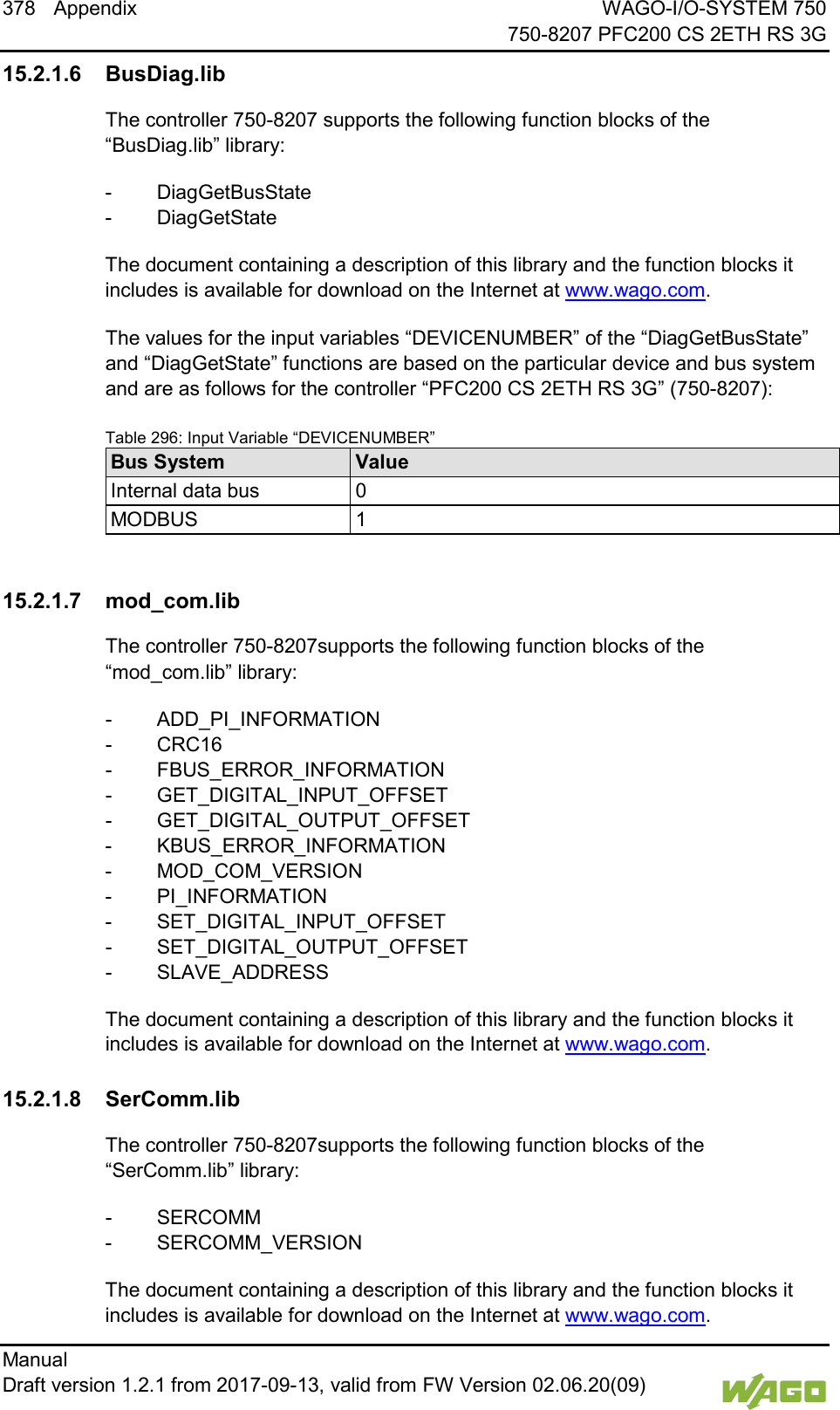
328 Diagnostics WAGO-I/O-SYSTEM 750     750-8207 PFC200 CS 2ETH RS 3G Manual   Draft version 1.2.1 from 2017-09-13, valid from FW Version 02.06.20(09)    Figure 118: Flashing Sequence Process Diagram
WAGO-I/O-SYSTEM 750 Diagnostics 329 750-8207 PFC200 CS 2ETH RS 3G      Manual  Draft version 1.2.1 from 2017-09-13, valid from FW Version 02.06.20(09)   12.2.2 Example of a Diagnostics Message Indicated by a Flashing Sequence The example below illustrates the representation of a diagnostics message via a flashing sequence. The I/O LED indicates a data error on the internal data bus. The data error is caused by the removal of an I/O module located at the 6th position of the bus node. Initiation of the Start Phase 1.  The I/O LED flashes for 1 cycle at about 10 Hz (10 flashes/second). 2.  This is followed by a pause of about one second. Error Code 4: Data Error in the Internal Data Bus 3.  The I/O LED flashes for 4 cycles of about 1Hz. 4.  This is followed by a pause of about 1 second. Error Argument 5: I/O Module at the 6th Slot 5.  The I/O LED flashes for 5 cycles at 1 Hz.  This indicates that a disruption has occurred at the internal data bus downcircuit of the 5th I/O module. 6.  The blink code starts flickering when the start phase is initiated again. If there is only one error, this process is repeated.
330 Diagnostics WAGO-I/O-SYSTEM 750     750-8207 PFC200 CS 2ETH RS 3G Manual   Draft version 1.2.1 from 2017-09-13, valid from FW Version 02.06.20(09)     12.2.3 Meaning of Blink Codes and Procedures for Troubleshooting This section describes the diagnostics presented as blink codes via the I/O LEDs. If the diagnostics cannot be cleared by the measured specified for them, contact WAGO support. Be ready to explain to them the blink code that is displayed.  Phone:  +49 571 887 555 Fax:  +49 571 887 8555 E-mail:  support@wago.com  Table 233: Overview of Error Codes, I/O LED Error code Explanation 1 Hardware and configuration error 2 Configuration error 3 Internal data bus protocol error 4 Physical error on the internal data bus 5 Internal data bus initialization error 6 Not used 7 Not used 8 Not used 9 CPU exception error
WAGO-I/O-SYSTEM 750 Diagnostics 331 750-8207 PFC200 CS 2ETH RS 3G      Manual  Draft version 1.2.1 from 2017-09-13, valid from FW Version 02.06.20(09) Table 234: Error Code 1, Explanation of Blink Codes and Procedures for Troubleshooting Error  Argument Cause Remedy - Invalid parameter checksum for internal data bus interface -  Switch off the power to the controller and replace it. -  Then switch the power back on. 1 Internal buffer overflow (max. amount of data exceeded) during inline code generation. -  Switch off the power to the controller. -  Reduce the number of I/O modules. -  Switch the power back on. 2 Data type of the I/O module(s) is not supported -  Update the controller firmware. If this error persists, there is an error in the I/O module. Identify the error as follows: -  Switch off the power supply. -  Place the end module in the middle of the I/O modules connected to the system. -  Switch the power back on. -  If the I/O flashes red switch off the power supply again and place the end module in the middle of the first half of the I/O modules (toward the controller). -  If the LED is no longer flashing, switch off the power supply and place the end module in the middle of the second half of the I/O modules (away from the controller). -  Switch the power back on. -  Repeat this procedure until you establish which I/O module is defective. Then replace that module. 3 Unknown module type of the flash program memory -  Switch off the power to the controller and replace it. -  Then switch the power back on. 4 Error occurred while writing to the flash memory -  Switch off the power to the controller and replace it. -  Then switch the power back on. 5 Error occurred while erasing a flash sector  6 The I/O module configuration after an internal data bus reset differs from the one after the last controller startup. -  Restart the controller by first switching off the power supply and then switching it back on, or  by pressing the Reset button on the controller.
332 Diagnostics WAGO-I/O-SYSTEM 750     750-8207 PFC200 CS 2ETH RS 3G Manual   Draft version 1.2.1 from 2017-09-13, valid from FW Version 02.06.20(09)   Table 234: Error Code 1, Explanation of Blink Codes and Procedures for Troubleshooting Error  Argument Cause Remedy 7 Error occurred while writing to the serial EEPROM -  Switch off the power to the controller and replace it. -  Then switch the power back on. 8 Invalid hardware/ firmware combination  9 Invalid checksum in the serial EEPROM  10 Fault when initializing the serial EEPROM.  11 Error occurred while reading from the serial EEPROM -  Switch off the power supply to the controller and reduce the number of I/O modules. -  Then switch the power back on. 12 Time to access the serial EEPROM exceeded -  Switch off the power to the controller and replace it. -  Then switch the power back on. 14 Maximum number of gateway or mailbox modules exceeded. -  Switch off the power to the controller. -  Reduce the number of gateway or mailbox modules. -  Then switch the power back on. 16 Maximum number of I/O modules exceeded -  Switch off the power to the controller. -  Reduce the number of I/O modules. -  Then switch the power back on.   Table 235: Error Code 2, Explanation of Blink Codes and Procedures for Troubleshooting Error  Argument Cause Remedy 2 Maximum size of the process image exceeded -  Switch off the power to the controller. -  Reduce the number of I/O modules. -  Switch the power back on.
WAGO-I/O-SYSTEM 750 Diagnostics 333 750-8207 PFC200 CS 2ETH RS 3G      Manual  Draft version 1.2.1 from 2017-09-13, valid from FW Version 02.06.20(09) Table 236: Error Code 3, Explanation of Blink Codes and Procedures for Troubleshooting Error  Argument Cause Solution -- Internal data bus communication error; defective I/O module cannot be identified If a power supply module (e.g., 750-602) is connected to the controller, ensure that this module functions properly (see Section “LED Signaling”). If the supply module does not exhibit any errors/faults, the I/O module is defective. Identify the defective I/O module as follows:  -  Switch off the power supply. -  Place the end module in the middle of the I/O modules connected to the system. -  Switch the power back on. -  If the I/O LED continues to flash red switch off the power supply again and place the end module in the middle of the first half of the I/O modules (toward the controller).  If only one I/O module is left and the LED continues to flash, either this module or the controller internal data bus interface is defective. Replace the defective module or the controller.  -  If the LED is no longer flashing, switch off the power supply and place the end module in the middle of the second half of the I/O modules (away from the controller). -  Switch the power back on. -  Repeat this procedure until you establish which I/O module is defective. Then replace that module.
334 Diagnostics WAGO-I/O-SYSTEM 750     750-8207 PFC200 CS 2ETH RS 3G Manual   Draft version 1.2.1 from 2017-09-13, valid from FW Version 02.06.20(09)   Table 237: Error Code 4, Explanation of Blink Codes and Procedures for Troubleshooting Error  Argument Cause Solution -- Maximum permissible number of I/O modules exceeded. -  Switch off the power to the controller. -  Reduce the number of I/O modules to an acceptable value. -  Switch the power back on. n* Internal data bus disruption after the nth process data module. -  Switch off the power to the controller. -  Replace the (n+1)th process data module. -  Switch the power back on.  I/O modules that do not provide any data are ignored (e.g., supply module without diagnostics).    Table 238: Error Code 5, Explanation of Blink Codes and Procedures for Troubleshooting Error  Argument Cause Solution n* Register communication error during internal data bus initialization -  Switch off the power to the controller. -  Replace the (n+1)th process data module. -  Switch the power back on.  I/O modules that do not provide any data are ignored (e.g., supply module without diagnostics).    Table 239: Error Code 9, Explanation of Blink Codes and Procedures for Troubleshooting Error  Argument Cause Solution 1  Invalid program statement Malfunction of the program sequence. -  Please contact WAGO Support. 2  Stack overflow Malfunction of the program sequence. -  Please contact WAGO Support. 3  Stack underflow Malfunction of the program sequence. -  Please contact WAGO Support. 4  Invalid event (NMI) Malfunction of the program sequence. -  Please contact WAGO Support.
WAGO-I/O-SYSTEM 750 Diagnostics 335 750-8207 PFC200 CS 2ETH RS 3G      Manual  Draft version 1.2.1 from 2017-09-13, valid from FW Version 02.06.20(09)   12.2.4 Meaning of Blink Codes and Procedures for Troubleshooting This section describes the diagnostics presented as blink codes via the MS LEDs. If the diagnostics cannot be cleared by the measured specified for them, contact WAGO support. Be ready to explain to them the blink code that is displayed.  Phone:  +49 571 887 555 Fax:  +49 571 887 8555 E-mail:  support@wago.com  Table 240: Overview of MS-LED Error Codes Error Code Explanation 1 Configuration error   Table 241: Error Code 1, Explanation of Blink Codes and Procedures for Troubleshooting Error  Argument Cause Remedy 5 Error when synchronizing the controller configuration with the internal data bus -  Check the information of the connected I/O modules in the CODESYS controller configuration. -  Adjust this to match the I/O module that is actually inserted. -  Recompile the project. -  Reload the project into the controller.
336 Service WAGO-I/O-SYSTEM 750     750-8207 PFC200 CS 2ETH RS 3G Manual   Draft version 1.2.1 from 2017-09-13, valid from FW Version 02.06.20(09)    13 Service   13.1  Inserting and Removing the Memory Card </dg_  13.1.1 Inserting the Memory Card 1.  Use an actuating tool or a screwdriver to open the transparent cover flap by flipping it upwards. The point where to position the tool is marked with an arrow. 2.  Hold the memory card so that the contacts are visible on the right and the diagonal edge is at the top, as depicted in the figure below. 3.  Insert the memory card in this position into the slot provided for it. 4.  Push the memory card all the way in. When you let go, the memory card will move back a little and then snap in place (push-push mechanism). 5.  Close the cover flap by flipping it down and pushing it in until it snaps into place. 6.  You can seal the closed flap through the hole in the enclosure next to the flap.    Figure 119: Inserting the Memory Card </dg_  13.1.2 Removing the Memory Card 1.  First, remove any seal that may be in place. 2.  Use an actuating tool or a screwdriver to open the transparent cover flap by flipping it upwards. The point where to position the tool is marked with an arrow. 3.  To remove the memory card you must first push it slightly into the slot (push-push mechanism). This releases the mechanical locking mechanism. 4.  As soon as you let go of the memory card, the memory card is pushed out a bit and you can remove it. 5.    Remove the memory card.
WAGO-I/O-SYSTEM 750 Service 337 750-8207 PFC200 CS 2ETH RS 3G      Manual  Draft version 1.2.1 from 2017-09-13, valid from FW Version 02.06.20(09) 6.  Close the cover flap by flipping it down and pushing it in until it snaps into place.
338 Service WAGO-I/O-SYSTEM 750     750-8207 PFC200 CS 2ETH RS 3G Manual   Draft version 1.2.1 from 2017-09-13, valid from FW Version 02.06.20(09)     13.2  Inserting and Removing the SIM Card  13.2.1 Inserting the SIM Card 1.  Press the release button of the SIM card slot with an appropriate object (e.g., pen or operating tool 210-719 or 720) until the SIM card holder pops out of the SIM card slot. 2.  Remove the SIM card holder. 3.  Hold the SIM card holder with the recess for the SIM card facing you. 4.  Insert the SIM card into the SIM card holder in such a way that the shape of the recess lines up with the shape of the SIM card and the contacts of the SIM card are visible. 5.  Reinsert the SIM card holder into the SIM card slot with the SIM card (contacts visible) oriented towards the memory card slot until the SIM card holder latches.   Figure 120: Inserting the SIM Card  13.2.2 Removing the SIM Card 1.  Press the release button of the SIM card slot with an appropriate object (e.g., pen or operating tool 210-719 or 720) until the SIM card holder pops out of the SIM card slot. 2.  Remove the SIM card holder. 3.  Remove the SIM card. 4.  Reinsert the SIM card holder into the SIM card slot with the recess for the SIM card oriented towards the memory card slot until the SIM card holder latches.
WAGO-I/O-SYSTEM 750 Service 339 750-8207 PFC200 CS 2ETH RS 3G      Manual  Draft version 1.2.1 from 2017-09-13, valid from FW Version 02.06.20(09)  13.3  Firmware Changes     Obtain documentation appropriate for the firmware target version! A firmware upgrade or downgrade can modify, remove or add controller properties and functions. As a result, described properties or functions of the controller may not be available or available properties or functions may not be described in the documentation. Therefore, use only documentation appropriate for the target firmware after an upgrade/downgrade.  If you have any questions, feel free to contact our WAGO Support.   13.3.1 Perform Firmware Upgrade    Do not switch the controller off! The controller can be damaged by interrupting the upgrade process.  Do not switch the controller off during the upgrade process and do not disconnect the power supply! Proceed as follows if you want to upgrade the controller to a later firmware version: 1.  Save your application and the controller settings. 2.  Switch off the controller. 3.  Insert the memory card with the new firmware image into the memory card slot. 4.  Switch on the controller. 5.  After booting the controller, launch the WBM “Create Boot Image” page (you may have to temporarily change the IP address). 6.  Create a new boot image on the internal memory. 7.  Switch off the controller after completing the process. 8.  Remove the memory card. 9.  Switch on the controller. The controller can now be started with the new firmware version.
340 Service WAGO-I/O-SYSTEM 750     750-8207 PFC200 CS 2ETH RS 3G Manual   Draft version 1.2.1 from 2017-09-13, valid from FW Version 02.06.20(09)    13.3.2 Perform Firmware Downgrade    Do not switch the controller off! The controller can be damaged by interrupting the downgrade process.  Do not switch the controller off during the downgrade process and do not disconnect the power supply!     Note the firmware version For devices with a factory installation of a firmware >= FW 05, a simple downgrade to a version <= FW 04 is not possible!  Use a special downgrade image. Proceed as follows if you want to downgrade the controller to an earlier firmware version: 1.  Save your application and the controller settings. 2.  Switch off the controller. 3.  Insert the memory card with the new firmware image into the memory card slot. Use a special downgrade image if necessary. 4.  Switch on the controller. 5.  After booting the controller, launch the WBM “Create Boot Image” page (you may have to temporarily change the IP address). 6.  Create a new boot image on the internal memory. 7.  Switch off the controller after completing the process. 8.  Remove the memory card. 9.  Switch on the controller. The controller can now be started with the new firmware version.
WAGO-I/O-SYSTEM 750 Service 341 750-8207 PFC200 CS 2ETH RS 3G      Manual  Draft version 1.2.1 from 2017-09-13, valid from FW Version 02.06.20(09)   13.3.3 Factory Reset    Do not switch the controller off! The controller can be damaged by interrupting the factory reset process.  Do not switch the controller off during the factory reset process and do not disconnect the power supply!     All parameters and passwords are overwritten! All controller parameters and passwords are overwritten by a factory reset.  Any subsequently installed firmware functions are not overwritten.  If you have any questions, contact WAGO Support. The controller is restarted after the factory reset.  Proceed as follows to factory reset the controller: 1.  Press the Reset button (RST). 2.  Set the mode selector switch to the “RESET” position. 3.  Press and hold both buttons until the “SYS” LED alternately flashes red/green after approx. 8 seconds. 4.  When the “SYS” LED flashes red/green alternately, release the mode selector switch and Reset button.    Do not interrupt the reset process! If you release the Reset button (RST) too early, then the controller restarts without performing the factory reset.
342 Removal WAGO-I/O-SYSTEM 750     750-8207 PFC200 CS 2ETH RS 3G Manual   Draft version 1.2.1 from 2017-09-13, valid from FW Version 02.06.20(09)     14 Removal     Risk of injury due to sharp-edged blade contacts! The blade contacts are sharp-edged. Handle the I/O module carefully to prevent injury.   14.1  Removing Devices     Perform work on devices only if they are de-energized! Working on energized devices can damage them. Therefore, turn off the power supply before working on the devices.   14.1.1 Removing the Controller 1.  Use a screwdriver blade to turn the locking disc until the nose of the locking disc no longer engages behind the carrier rail. 2.  Remove the controller from the assembly by pulling the release tab. Electrical connections for data or power contacts to adjacent I/O modules are disconnected when removing the controller.   Figure 121: Release Tab of Controller      Do not take the controller enclosure apart! The enclosure sections are firmly joined. The feed-in section with the CAGE CLAMP® connections cannot be separated from the other enclosure section.
WAGO-I/O-SYSTEM 750 Removal 343 750-8207 PFC200 CS 2ETH RS 3G      Manual  Draft version 1.2.1 from 2017-09-13, valid from FW Version 02.06.20(09)  14.1.2 Removing the I/O Module 1.  Remove the I/O module from the assembly by pulling the release tab.  Figure 122: Removing the I/O Module (Example) Electrical connections for data or power jumper contacts are disconnected when removing the I/O module.      Do not take the controller enclosure apart! The enclosure sections are firmly joined. The feed-in section with the CAGE CLAMP® connections cannot be separated from the other enclosure section.
344 Appendix WAGO-I/O-SYSTEM 750     750-8207 PFC200 CS 2ETH RS 3G Manual   Draft version 1.2.1 from 2017-09-13, valid from FW Version 02.06.20(09)    15 Appendix   15.1  Structure of Process Data for the I/O Modules The process image for the I/O modules on the internal data bus is built up word-by-word in the controller (with word alignment). The internal mapping method for data greater than one byte conforms to Intel formats. The following section describes the representation for WAGO-I/O SYSTEM 750 (750 and 753 Series) I/O modules in the process image, as well as the configuration of the process values.    Equipment damage due to incorrect address! To prevent any damage to the device in the field you must always take the process data for all previous byte or bit-oriented I/O modules into account when addressing an I/O module at any position in the fieldbus node.        No direct access from fieldbus to the process image for I/O modules! Any data that is required from the I/O module process image must be explicitly mapped in the CODESYS program to the data in the fieldbus process image and vice versa! Direct access is not possible!
WAGO-I/O-SYSTEM 750 Appendix 345 750-8207 PFC200 CS 2ETH RS 3G      Manual  Draft version 1.2.1 from 2017-09-13, valid from FW Version 02.06.20(09)  15.1.1 Digital Input Modules Digital input modules supply one bit of data per channel to specify the signal state for the corresponding channel. These bits are mapped into the Input Process Image. Some digital modules have an additional diagnostic bit per channel in the Input Process Image. The diagnostic bit is used for detecting faults that occur (e.g., wire breaks and/or short circuits). When analog input modules are also present in the node, the digital data is always appended after the analog data in the Input Process Image, grouped into bytes.  15.1.1.1 1 Channel Digital Input Module with Diagnostics 750-435 Table 242: 1 Channel Digital Input Module with Diagnostics Input Process Image Bit 7 Bit 6 Bit 5 Bit 4 Bit 3 Bit 2 Bit 1 Bit 0       Diagnostic bit S 1 Data bit DI 1   15.1.1.2 2 Channel Digital Input Modules 750-400, -401, -405, -406, -410, -411, -412, -427, -438, (and all variations), 753-400, -401, -405, -406, -410, -411, -412, -427 Table 243: 2 Channel Digital Input Modules Input Process Image Bit 7 Bit 6 Bit 5 Bit 4 Bit 3 Bit 2 Bit 1 Bit 0       Data bit DI 2 Channel 2 Data bit DI 1 Channel 1   15.1.1.3 2 Channel Digital Input Module with Diagnostics 750-419, -421, -424, -425, 753-421, -424, -425 Table 244: 2 Channel Digital Input Module with Diagnostics Input Process Image Bit 7 Bit 6 Bit 5 Bit 4 Bit 3 Bit 2 Bit 1 Bit 0     Diagnostic bit S 2 Channel 2 Diagnostic bit S 1 Channel 1 Data bit DI 2 Channel 2 Data bit DI 1 Channel 1
346 Appendix WAGO-I/O-SYSTEM 750     750-8207 PFC200 CS 2ETH RS 3G Manual   Draft version 1.2.1 from 2017-09-13, valid from FW Version 02.06.20(09)   15.1.1.4 2 Channel Digital Input Module with Diagnostics and Output Process Data 750-418, 753-418 The digital input module supplies a diagnostic and acknowledge bit for each input channel. If a fault condition occurs, the diagnostic bit is set. After the fault condition is cleared, an acknowledge bit must be set to re-activate the input. The diagnostic data and input data bit is mapped in the Input Process Image, while the acknowledge bit is in the Output Process Image. Table 245: 2 Channel Digital Input Module with Diagnostics and Output Process Data Input Process Image Bit 7 Bit 6 Bit 5 Bit 4 Bit 3 Bit 2 Bit 1 Bit 0     Diagnostic bit S 2 Channel 2 Diagnostic bit S 1 Channel 1 Data bit DI 2 Channel 2 Data bit DI 1 Channel 1  Output Process Image Bit 7 Bit 6 Bit 5 Bit 4 Bit 3 Bit 2 Bit 1 Bit 0     Acknowledge-ment bit Q 2 Channel 2 Acknowledge-ment bit Q 1 Channel 1 0  0   15.1.1.5 4 Channel Digital Input Modules 750-402, -403, -408, -409, -414, -415, -422, -423, -428, -432, -433, -1420, -1421,     -1422, -1423 753-402, -403, -408, -409, -415, -422, -423, -428, -432, -433, -440 Table 246: 4 Channel Digital Input Modules Input Process Image Bit 7 Bit 6 Bit 5 Bit 4 Bit 3 Bit 2 Bit 1 Bit 0     Data bit DI 4 Channel 4 Data bit DI 3 Channel 3 Data bit DI 2 Channel 2 Data bit DI 1 Channel 1   15.1.1.6 8 Channel Digital Input Modules 750-430, -431, -436, -437, -1415, -1416, -1417, -1418 753-430, -431, -434 Table 247: 8 Channel Digital Input Modules Input Process Image Bit 7 Bit 6 Bit 5 Bit 4 Bit 3 Bit 2 Bit 1 Bit 0 Data bit DI 8 Channel 8 Data bit DI 7 Channel 7 Data bit DI 6 Channel 6 Data bit DI 5 Channel 5 Data bit DI 4 Channel 4 Data bit DI 3 Channel 3 Data bit DI 2 Channel 2 Data bit DI 1 Channel 1
WAGO-I/O-SYSTEM 750 Appendix 347 750-8207 PFC200 CS 2ETH RS 3G      Manual  Draft version 1.2.1 from 2017-09-13, valid from FW Version 02.06.20(09) 15.1.1.7 8 Channel Digital Input Module PTC with Diagnostics and Output Process Data 750-1425 The digital input module PTC provides via one logical channel 2 byte for the input and output process image. The signal state of PTC inputs DI1 … DI8 is transmitted to the fieldbus coupler/controller via input data byte D0. The fault conditions are transmitted via input data byte D1. The channels 1 … 8 are switched on or off via the output data byte D1. The output data byte D0 is reserved and always has the value “0“. Table 248: 8 Channel Digital Input Module PTC with Diagnostics and Output Process Data Input Process Image Input Byte D0 Input Byte D1 Bit 7 Bit 6 Bit 5 Bit 4 Bit 3 Bit 2 Bit 1 Bit 0 Bit 7 Bit 6 Bit 5 Bit 4 Bit 3 Bit 2 Bit 1 Bit 0 Signal status DI 8 Chan- nel 8 Signal status DI 7 Chan- nel 7 Signal status DI 6 Chan- nel 6 Signal status DI 5 Chan- nel 5 Signal status DI 4 Chan- nel 4 Signal status DI 3 Chan- nel 3 Signal status DI 2 Chan- nel 2 Signal status DI 1 Chan- nel 1 Wire break/ short circuit DB/KS 8 Chan- nel 8 Wire break/ short circuit DB/KS 7 Chan- nel 7 Wire break/ short circuit DB/KS 6 Chan- nel 6 Wire break/ short circuit DB/KS 5 Chan- nel 5 Wire break/ short circuit DB/KS 4 Chan- nel 4 Wire break/ short circuit DB/KS 3 Chan- nel 3 Wire break/ short circuit DB/KS 2 Chan- nel 2 Wire break/ short circuit DB/KS 1 Chan- nel 1  Output Process Image Output Byte D0 Output Byte D1 Bit 7 Bit 6 Bit 5 Bit 4 Bit 3 Bit 2 Bit 1 Bit 0 Bit 7 Bit 6 Bit 5 Bit 4 Bit 3 Bit 2 Bit 1 Bit 0 0  0  0  0  0  0  0  0 DI Off 8 Chan- nel 8 0: Chan- nel ON 1: Chan- nel OFF DI Off 7 Chan- nel 7 0: Chan- nel ON 1: Chan- nel OFF DI Off 6 Chan- nel 6 0: Chan- nel ON 1: Chan- nel OFF DI Off 5 Chan- nel 5 0: Chan- nel ON 1: Chan- nel OFF DI Off 4 Chan- nel 4 0: Chan- nel ON 1: Chan- nel OFF DI Off 3 Chan- nel 3 0: Chan- nel ON 1: Chan- nel OFF DI Off 2 Chan- nel 2 0: Chan- nel ON 1: Chan- nel OFF DI Off 1 Chan- nel 1 0: Chan- nel ON 1: Chan- nel OFF  15.1.1.8 16 Channel Digital Input Modules 750-1400, -1402, -1405, -1406, -1407 Table 249: 16 Channel Digital Input Modules Input Process Image Bit 15 Bit 14 Bit 13 Bit 12 Bit 11 Bit 10 Bit 9 Bit 8 Bit 7 Bit 6 Bit 5 Bit 4 Bit 3 Bit 2 Bit 1 Bit 0 Data bit  DI 16 Channel 16 Data bit DI 15 Channel 15 Data bit DI 14 Channel 14 Data bit DI 13 Channel 13 Data bit DI 12 Channel 12 Data bit DI 11 Channel 11 Data bit DI 10 Channel 10 Data bit DI 9 Channel 9 Data bit DI 8 Channel 8 Data bit DI 7 Channel 7 Data bit DI 6 Channel 6 Data bit DI 5 Channel 5 Data bit DI 4 Channel 4 Data bit DI 3 Channel 3 Data bit DI 2 Channel 2 Data bit DI 1 Channel 1
348 Appendix WAGO-I/O-SYSTEM 750     750-8207 PFC200 CS 2ETH RS 3G Manual   Draft version 1.2.1 from 2017-09-13, valid from FW Version 02.06.20(09)   15.1.2 Digital Output Modules Digital output modules use one bit of data per channel to control the output of the corresponding channel. These bits are mapped into the Output Process Image. Some digital modules have an additional diagnostic bit per channel in the Input Process Image. The diagnostic bit is used for detecting faults that occur (e.g., wire breaks and/or short circuits). For modules with diagnostic bit is set, also the data bits have to be evaluated. When analog output modules are also present in the node, the digital image data is always appended after the analog data in the Output Process Image, grouped into bytes.  15.1.2.1 1 Channel Digital Output Module with Input Process Data 750-523 The digital output modules deliver 1 bit via a process value Bit in the output process image, which is illustrated in the input process image. This status image shows "manual mode". Table 250: 1 Channel Digital Output Module with Input Process Data Input Process Image Bit 7 Bit 6 Bit 5 Bit 4 Bit 3 Bit 2 Bit 1 Bit 0             not used Status bit “Manual Operation“  Output Process Image Bit 7 Bit 6 Bit 5 Bit 4 Bit 3 Bit 2 Bit 1 Bit 0             not used controls DO 1 Channel 1   15.1.2.2 2 Channel Digital Output Modules 750-501, -502, -509, -512, -513, -514, -517, -535, (and all variations), 753-501, -502, -509, -512, -513, -514, -517 Table 251: 2 Channel Digital Output Modules Output Process Image Bit 7 Bit 6 Bit 5 Bit 4 Bit 3 Bit 2 Bit 1 Bit 0            controls DO 2 Channel 2 controls DO 1 Channel 1
WAGO-I/O-SYSTEM 750 Appendix 349 750-8207 PFC200 CS 2ETH RS 3G      Manual  Draft version 1.2.1 from 2017-09-13, valid from FW Version 02.06.20(09) 15.1.2.3 2 Channel Digital Input Modules with Diagnostics and Input Process Data 750-507 (-508), -522, 753-507 The digital output modules have a diagnostic bit for each output channel. When an output fault condition occurs (i.e., overload, short circuit, or broken wire), a diagnostic bit is set. The diagnostic data is mapped into the Input Process Image, while the output control bits are in the Output Process Image. Table 252: 2 Channel Digital Input Modules with Diagnostics and Input Process Data Input Process Image Bit 7 Bit 6 Bit 5 Bit 4 Bit 3 Bit 2 Bit 1 Bit 0            Diagnostic bit S 2 Channel 2 Diagnostic bit S 1 Channel 1  Output Process Image Bit 7 Bit 6 Bit 5 Bit 4 Bit 3 Bit 2 Bit 1 Bit 0            controls DO 2 Channel 2 controls DO 1 Channel 1  750-506, 753-506 The digital output module has 2-bits of diagnostic information for each output channel. The 2-bit diagnostic information can then be decoded to determine the exact fault condition of the module (i.e., overload, a short circuit, or a broken wire). The 4-bits of diagnostic data are mapped into the Input Process Image, while the output control bits are in the Output Process Image. Table 253: 2 Channel Digital Input Modules with Diagnostics and Input Process Data 75x-506 Input Process Image Bit 7 Bit 6 Bit 5 Bit 4 Bit 3 Bit 2 Bit 1 Bit 0        Diagnostic bit S 3 Channel 2 Diagnostic bit S 2 Channel 2 Diagnostic bit S 1 Channel 1 Diagnostic bit S 0 Channel 1 Diagnostic bits S1/S0, S3/S2: = ‘00’ standard mode Diagnostic bits S1/S0, S3/S2: = ‘01’ no connected load/short circuit against +24 V Diagnostic bits S1/S0, S3/S2: = ‘10’ Short circuit to ground/overload  Output Process Image Bit 7 Bit 6 Bit 5 Bit 4 Bit 3 Bit 2 Bit 1 Bit 0         not used not used controls DO 2 Channel 2 controls DO 1 Channel 1
350 Appendix WAGO-I/O-SYSTEM 750     750-8207 PFC200 CS 2ETH RS 3G Manual   Draft version 1.2.1 from 2017-09-13, valid from FW Version 02.06.20(09)   15.1.2.4 4 Channel Digital Output Modules 750-504, -516, -519, -531, 753-504, -516, -531, -540 Table 254: 4 Channel Digital Output Modules Output Process Image Bit 7 Bit 6 Bit 5 Bit 4 Bit 3 Bit 2 Bit 1 Bit 0        controls DO 4 Channel 4 controls DO 3 Channel 3 controls DO 2 Channel 2 controls DO 1 Channel 1   15.1.2.5 4 Channel Digital Output Modules with Diagnostics and Input Process Data 750-532 The digital output modules have a diagnostic bit for each output channel. When an output fault condition occurs (i.e., overload, short circuit, or broken wire), a diagnostic bit is set. The diagnostic data is mapped into the Input Process Image, while the output control bits are in the Output Process Image. Table 255: 4 Channel Digital Output Modules with Diagnostics and Input Process Data Input Process Image Bit 7 Bit 6 Bit 5 Bit 4 Bit 3 Bit 2 Bit 1 Bit 0        Diagnostic bit S 4 Channel 4 Diagnostic bit S 3 Channel 3 Diagnostic bit S 2 Channel 2 Diagnostic bit S 1 Channel 1 Diagnostic bit S = ‘0’ no Error Diagnostic bit S = ‘1’ overload, short circuit, or broken wire  Output Process Image Bit 7 Bit 6 Bit 5 Bit 4 Bit 3 Bit 2 Bit 1 Bit 0        controls DO 4 Channel 4 controls DO 3 Channel 3 controls DO 2 Channel 2 controls DO 1 Channel 1   15.1.2.6 8 Channel Digital Output Module 750-530, -536, -1515, -1516 753-530, -534 Table 256: 8 Channel Digital Output Module Output Process Image Bit 7 Bit 6 Bit 5 Bit 4 Bit 3 Bit 2 Bit 1 Bit 0 controls DO 8 Channel 8 controls DO 7 Channel 7 controls DO 6 Channel 6 controls DO 5 Channel 5 controls DO 4 Channel 4 controls DO 3 Channel 3 controls DO 2 Channel 2 controls DO 1 Channel 1
WAGO-I/O-SYSTEM 750 Appendix 351 750-8207 PFC200 CS 2ETH RS 3G      Manual  Draft version 1.2.1 from 2017-09-13, valid from FW Version 02.06.20(09) 15.1.2.7 8 Channel Digital Output Modules with Diagnostics and Input Process Data 750-537 The digital output modules have a diagnostic bit for each output channel. When an output fault condition occurs (i.e., overload, short circuit, or broken wire), a diagnostic bit is set. The diagnostic data is mapped into the Input Process Image, while the output control bits are in the Output Process Image. Table 257: 8 Channel Digital Output Modules with Diagnostics and Input Process Data Input Process Image Bit 7 Bit 6 Bit 5 Bit 4 Bit 3 Bit 2 Bit 1 Bit 0 Diagnostic bit S 8 Channel 8 Diagnostic bit S 7 Channel 7 Diagnostic bit S 6 Channel 6 Diagnostic bit S 5 Channel 5 Diagnostic bit S 4 Channel 4 Diagnostic bit S 3 Channel 3 Diagnostic bit S 2 Channel 2 Diagnostic bit S 1 Channel 1 Diagnostic bit S = ‘0’ no Error Diagnostic bit S = ‘1’ overload, short circuit, or broken wire  Output Process Image Bit 7 Bit 6 Bit 5 Bit 4 Bit 3 Bit 2 Bit 1 Bit 0 controls DO 8 Channel 8 controls DO 7 Channel 7 controls DO 6 Channel 6 controls DO 5 Channel 5 controls DO 4 Channel 4 controls DO 3 Channel 3 controls DO 2 Channel 2 controls DO 1 Channel 1  15.1.2.8 16 Channel Digital Output Modules  750-1500, -1501, -1504, -1505 Table 258: 16 Channel Digital Output Modules Output Process Image Bit 15 Bit 14 Bit 13 Bit 12 Bit 11 Bit 10 Bit 9 Bit 8 Bit 7 Bit 6 Bit 5 Bit 4 Bit 3 Bit 2 Bit 1 Bit 0 controls  DO 16 Channel 16 controls  DO 15 Channel 15 controls DO 14 Channel 14 controls  DO 13 Channel 13 controls  DO 12 Channel 12 controls  DO 11 Channel 11 controls  DO 10 Channel 10 controls  DO 9 Channel 9 controls  DO 8 Channel 8 controls  DO 7 Channel 7 controls  DO 6 Channel 6 controls  DO 5 Channel 5 controls  DO 4 Channel 4 controls  DO 3 Channel 3 controls  DO 2 Channel 2 controls  DO 1 Channel 1
352 Appendix WAGO-I/O-SYSTEM 750     750-8207 PFC200 CS 2ETH RS 3G Manual   Draft version 1.2.1 from 2017-09-13, valid from FW Version 02.06.20(09)   15.1.2.9 8 Channel Digital Input/Output Modules  750-1502, -1506 Table 259: 8 Channel Digital Input/Output Modules Input Process Image Bit 7 Bit 6 Bit 5 Bit 4 Bit 3 Bit 2 Bit 1 Bit 0 Data bit DI 8 Channel 8 Data bit DI 7 Channel 7 Data bit DI 6 Channel 6 Data bit DI 5 Channel 5 Data bit DI 4 Channel 4 Data bit DI 3 Channel 3 Data bit DI 2 Channel 2 Data bit DI 1 Channel 1  Output Process Image Bit 7 Bit 6 Bit 5 Bit 4 Bit 3 Bit 2 Bit 1 Bit 0 controls DO 8 Channel 8 controls DO 7 Channel 7 controls DO 6 Channel 6 controls DO 5 Channel 5 controls DO 4 Channel 4 controls DO 3 Channel 3 controls DO 2 Channel 2 controls DO 1 Channel 1
WAGO-I/O-SYSTEM 750 Appendix 353 750-8207 PFC200 CS 2ETH RS 3G      Manual  Draft version 1.2.1 from 2017-09-13, valid from FW Version 02.06.20(09)   15.1.3 Analog Input Modules The analog input modules provide 16-bit measured data and 8 control/status bits per channel. The controller only uses the 8 control/status bits internally for configuration/parameterization (e.g., via WAGO-I/O-CHECK). Therefore, only the 16-bit measurement values for each channel are in Intel format and are mapped by word in the input process image for the controller.   When digital input modules are also present in the node, the analog input data is always mapped into the Input Process Image in front of the digital data.     Information on the structure of control and status bytes For detailed information on the structure of a particular I/O module’s control/status bytes, please refer to that module’s manual. Manuals for each module can be found on the Internet at www.wago.com.   15.1.3.1 1 Channel Analog Input Modules 750-491, (and all variations) Table 260: 1 Channel Analog Input Modules Input Process Image Offset Byte Destination Description High Byte  Low Byte 0 D1 D0 Measured Value UD 1 D3 D2 Measured Value Uref   15.1.3.2 2 Channel Analog Input Modules 750-452, -454, -456, -461, -462, -465, -466, -467, -469, -472, -474, -475,  476, -477, -478, -479, -480, -481, -483, -485, -492, (and all variations), 753-452, -454, -456, -461, -465, -466, -467, -469, -472, -474, -475,  476, -477,  478, -479, -483, -492, (and all variations) Table 261: 2 Channel Analog Input Modules Input Process Image Offset Byte Destination Description High Byte  Low Byte 0 D1 D0 Measured Value Channel 1 1 D3 D2 Measured Value Channel 2
354 Appendix WAGO-I/O-SYSTEM 750     750-8207 PFC200 CS 2ETH RS 3G Manual   Draft version 1.2.1 from 2017-09-13, valid from FW Version 02.06.20(09)   15.1.3.3  4 Channel Analog Input Modules  750-450, -453, -455, -457, -459, -460, -468, (and all variations), 753-453, -455, -457, -459 Table 262: 4 Channel Analog Input Modules Input Process Image Offset Byte Destination Description High Byte  Low Byte 0 D1 D0 Measured Value Channel 1 1 D3 D2 Measured Value Channel 2 2 D5 D4 Measured Value Channel 3 3 D7 D6 Measured Value Channel 4
WAGO-I/O-SYSTEM 750 Appendix 355 750-8207 PFC200 CS 2ETH RS 3G      Manual  Draft version 1.2.1 from 2017-09-13, valid from FW Version 02.06.20(09) 15.1.3.4  3-Phase Power Measurement Module 750-493 The above Analog Input Modules have a total of 9 bytes of user data in both the Input and Output Process Image (6 bytes of data and 3 bytes of control/status). The following tables illustrate the Input and Output Process Image, which has a total of 6 words mapped into each image. Word alignment is applied. Table 263: 3-Phase Power Measurement Module Input Process Image Offset Byte Destination Description High Byte  Low Byte 0 - S0 Status byte 0 1 D1 D0 Input data word 1 2 - S1 Status byte 1 3 D3 D2 Input data word 2 4 - S2 Status byte 2 5 D5 D4 Input data word 3  Output Process Image Offset Byte Destination Description High Byte  Low Byte 0 - C0 Control byte 0 1 D1 D0 Output data word 1 2 - C1 Control byte 1 3 D3 D2 Output data word 2 4 - C2 Control byte 2 5 D5 D4 Output data word 3    15.1.3.5 8 Channel Analog Input Modules 750-451 Table 264: 8 Channel Analog Input Modules Input Process Image Offset Byte Destination Description High Byte  Low Byte 0 D1 D0 Measured Value Channel 1 1 D3 D2 Measured Value Channel 2 2 D5 D4 Measured Value Channel 3 3 D7 D6 Measured Value Channel 4 4 D9 D8 Measured Value Channel 5 5 D11 D10 Measured Value Channel 6 6 D13 D12 Measured Value Channel 7 7 D15 D14 Measured Value Channel 8
356 Appendix WAGO-I/O-SYSTEM 750     750-8207 PFC200 CS 2ETH RS 3G Manual   Draft version 1.2.1 from 2017-09-13, valid from FW Version 02.06.20(09)     15.1.4 Analog Output Modules The analog output modules provide 16-bit output values and 8 control/status bits per channel. The controller only uses the 8 control/status bits internally for configuration/parameterization (e.g., via WAGO-I/O-CHECK). Therefore, only the 16-bit measurement values for each channel are in Intel format and are mapped by word in the output process image for the controller.   When digital output modules are also present in the node, the analog output data is always mapped into the Output Process Image in front of the digital data.     Information on the structure of control and status bytes For detailed information on the structure of a particular I/O module’s control/status bytes, please refer to that module’s manual. Manuals for each module can be found on the Internet at www.wago.com.    15.1.4.1 2 Channel Analog Output Modules 750-550, -552, -554, -556, -560, -562, 563, -585, (and all variations), 753-550, -552, -554, -556 Table 265: 2 Channel Analog Output Modules Output Process Image Offset Byte Destination Description High Byte  Low Byte 0 D1 D0 Output Value Channel 1 1 D3 D2 Output Value Channel 2   15.1.4.2 4 Channel Analog Output Modules 750-553, -555, -557, -559, 753-553, -555, -557, -559 Table 266: 4 Channel Analog Output Modules Output Process Image Offset Byte Destination Description High Byte  Low Byte 0 D1 D0 Output Value Channel 1 1 D3 D2 Output Value Channel 2 2 D5 D4 Output Value Channel 3 3 D7 D6 Output Value Channel 4
WAGO-I/O-SYSTEM 750 Appendix 357 750-8207 PFC200 CS 2ETH RS 3G      Manual  Draft version 1.2.1 from 2017-09-13, valid from FW Version 02.06.20(09)  15.1.5 Specialty Modules WAGO has a host of Specialty I/O modules that perform various functions. With individual modules beside the data bytes also the control/status byte is mapped in the process image. The control/status byte is required for the bidirectional data exchange of the module with the higher-ranking control system. The control byte is transmitted from the control system to the module and the status byte from the module to the control system. This allows, for example, setting of a counter with the control byte or displaying of overshooting or undershooting of the range with the status byte. The control/status byte always is in the process image in the Low byte.     Information to the structure of the Control/Status byte For detailed information about the structure of a particular module’s control/status byte, please refer to that module’s manual. Manuals for each module can be found on the Internet under: www.wago.com.    15.1.5.1 Counter Modules 750-404, (and all variations except of /000-005), 753-404, (and variation /000-003) The above Counter Modules have a total of 5 bytes of user data in both the Input and Output Process Image (4 bytes of counter data and 1 byte of control/status). The counter value is supplied as 32 bits. The following tables illustrate the Input and Output Process Image, which has a total of 3 words mapped into each image. Word alignment is applied. Table 267: Counter Modules 750-404, (and all variations except of /000-005),  753-404, (and variation /000-003) Input Process Image Offset Byte Destination Description High Byte  Low Byte 0 - S Status byte 1 D1 D0 Counter value 2 D3 D2  Output Process Image Offset Byte Destination Description High Byte  Low Byte 0 - C Control byte 1 D1 D0 Counter setting value 2 D3 D2
358 Appendix WAGO-I/O-SYSTEM 750     750-8207 PFC200 CS 2ETH RS 3G Manual   Draft version 1.2.1 from 2017-09-13, valid from FW Version 02.06.20(09)   750-404/000-005 The above Counter Modules have a total of 5 bytes of user data in both the Input and Output Process Image (4 bytes of counter data and 1 byte of control/ status). The two counter values are supplied as 16 bits. The following tables illustrate the Input and Output Process Image, which has a total of 3 words mapped into each image. Word alignment is applied. Table 268: Counter Modules 750-404/000-005 Input Process Image Offset Byte Destination Description High Byte  Low Byte 0 - S Status byte 1 D1 D0 Counter Value of Counter 1 2 D3 D2 Counter Value of Counter 2  Output Process Image Offset Byte Destination Description High Byte  Low Byte 0 - C Control byte 1 D1 D0 Counter Setting Value of Counter 1 2 D3 D2 Counter Setting Value of Counter 2   750-638, 753-638 The above Counter Modules have a total of 6 bytes of user data in both the Input and Output Process Image (4 bytes of counter data and 2 bytes of control/status). The two counter values are supplied as 16 bits. The following tables illustrate the Input and Output Process Image, which has a total of 4 words mapped into each image. Word alignment is applied. Table 269: Counter Modules 750-638, 753-638 Input Process Image Offset Byte Destination Description High Byte  Low Byte 0 - S0 Status byte von Counter 1 1 D1 D0 Counter Value von Counter 1 2 - S1 Status byte von Counter 2 3 D3 D2 Counter Value von Counter 2  Output Process Image Offset Byte Destination Description High Byte  Low Byte 0 - C0 Control byte von Counter 1 1 D1 D0 Counter Setting Value von Counter 1 2 - C1 Control byte von Counter 2 3 D3 D2 Counter Setting Value von Counter 2
WAGO-I/O-SYSTEM 750 Appendix 359 750-8207 PFC200 CS 2ETH RS 3G      Manual  Draft version 1.2.1 from 2017-09-13, valid from FW Version 02.06.20(09) 15.1.5.2 Pulse Width Modules 750-511, (and all variations /xxx-xxx) The above Pulse Width modules have a total of 6 bytes of user data in both the Input and Output Process Image (4 bytes of channel data and 2 bytes of control/ status). The two channel values are supplied as 16 bits. Each channel has its own control/status byte. The following table illustrates the Input and Output Process Image, which has a total of 4 words mapped into each image. Word alignment is applied. Table 270: Pulse Width Modules 750-511, /xxx-xxx Input and Output Process  Offset Byte Destination Description High Byte  Low Byte 0 - C0/S0 Control/Status byte of Channel 1 1 D1 D0 Data Value of Channel 1 2 - C1/S1 Control/Status byte of Channel 2 3 D3 D2 Data Value of Channel 2   15.1.5.3 Serial Interface Modules with alternative Data Format 750-650, (and the variations /000-002, -004, -006, -009, -010, -011, -012, -013), 750-651, (and the variations /000-001, -002, -003), 750-653, (and the variations /000-002, -007), 753-650, -653    The process image of the / 003-000-variants depends on the parameterized operating mode! With the freely parameterizable variations /003 000 of the serial interface modules, the desired operation mode can be set. Dependent on it, the process image of these modules is then the same, as from the appropriate variation.   The above Serial Interface Modules with alternative data format have a total of 4 bytes of user data in both the Input and Output Process Image (3 bytes of serial data and 1 byte of control/status). The following table illustrates the Input and Output Process Image, which have a total of 2 words mapped into each image. Word alignment is applied. Table 271: Serial Interface Modules with alternative Data Format Input and Output Process Image Offset Byte Destination Description High Byte  Low Byte 0  D0 C/S Data byte Control/status byte 1 D2 D1 Data bytes
360 Appendix WAGO-I/O-SYSTEM 750     750-8207 PFC200 CS 2ETH RS 3G Manual   Draft version 1.2.1 from 2017-09-13, valid from FW Version 02.06.20(09)    15.1.5.4 Serial Interface Modules with Standard Data Format 750-650/000-001, -014, -015, -016 750-653/000-001, -006 The above Serial Interface Modules with Standard Data Format have a total of 6 bytes of user data in both the Input and Output Process Image (5 bytes of serial data and 1 byte of control/status). The following table illustrates the Input and Output Process Image, which have a total of 3 words mapped into each image. Word alignment is applied. Table 272: Serial Interface Modules with Standard Data Format Input and Output Process Image Offset Byte Destination Description High Byte  Low Byte 0  D0 C/S Data byte Control/status byte 1 D2 D1 Data bytes 2 D4 D3   15.1.5.5 Data Exchange Module 750-654, (and the variation /000-001) The Data Exchange modules have a total of 4 bytes of user data in both the Input and Output Process Image. The following tables illustrate the Input and Output Process Image, which has a total of 2 words mapped into each image.  Word alignment is applied. Table 273: Data Exchange Module Input and Output Process Image Offset Byte Destination Description High Byte  Low Byte 0 D1 D0 Data bytes 1 D3 D2   15.1.5.6 SSI Transmitter Interface Modules  750-630 (and all variations)    The process image of the / 003-000-variants depends on the parameterized operating mode! The operating mode of the configurable /003-000 I/O module versions can be set. Based on the operating mode, the process image of these I/O modules is then the same as that of the respective version.
WAGO-I/O-SYSTEM 750 Appendix 361 750-8207 PFC200 CS 2ETH RS 3G      Manual  Draft version 1.2.1 from 2017-09-13, valid from FW Version 02.06.20(09) The above SSI Transmitter Interface modules have a total of 4 bytes of user data in the Input Process Image, which has 2 words mapped into the image.  Word alignment is applied. Table 274: SSI Transmitter Interface Modules Input Process Image Offset Byte Destination Description High Byte  Low Byte 0 D1 D0 Data bytes 1 D3 D2   15.1.5.7 Incremental Encoder Interface Modules 750-631/000-004, -010, -011 The above Incremental Encoder Interface modules have 5 bytes of input data and 3 bytes of output data. The following tables illustrate the Input and Output Process Image, which have 4 words into each image. Word alignment is applied. Table 275:  Incremental Encoder Interface Modules 750-631/000-004, --010, -011 Input Process Image Offset Byte Destination Description High Byte  Low Byte 0 - S not used Status byte 1 D1 D0 Counter word 2 - - not used 3 D4 D3 Latch word  Output Process Image Offset Byte Destination Description High Byte  Low Byte 0 - C not used Control byte 1 D1 D0 Counter setting word 2 - - not used 3 - - not used   750-634 The above Incremental Encoder Interface module has 5 bytes of input data (6 bytes in cycle duration measurement mode) and 3 bytes of output data. The following tables illustrate the Input and Output Process Image, which has 4 words mapped into each image. Word alignment is applied.
362 Appendix WAGO-I/O-SYSTEM 750     750-8207 PFC200 CS 2ETH RS 3G Manual   Draft version 1.2.1 from 2017-09-13, valid from FW Version 02.06.20(09)   Table 276: Incremental Encoder Interface Modules 750-634 Input Process Image Offset Byte Destination Description High Byte  Low Byte 0 - S not used Status byte 1 D1 D0 Counter word 2 - (D2) *) not used (Periodic time) 3 D4 D3 Latch word *) If cycle duration measurement mode is enabled in the control byte, the cycle duration is  given as a 24-bit value that is stored in D2 together with D3/D4. Output Process Image Offset Byte Destination Description High Byte  Low Byte 0 - C not used Control byte 1 D1 D0 Counter setting word 2 - - not used 3 - -   750-637 The above Incremental Encoder Interface Module has a total of 6 bytes of user data in both the Input and Output Process Image (4 bytes of encoder data and 2 bytes of control/status). The following table illustrates the Input and Output Process Image, which have 4 words mapped into each image. Word alignment is applied. Table 277: Incremental Encoder Interface Modules 750-637 Input and Output Process Image Offset Byte Destination Description High Byte  Low Byte 0 - C0/S0 Control/Status byte of Channel 1 1 D1 D0 Data Value of Channel 1 2 - C1/S1 Control/Status byte of Channel 2 3 D3 D2 Data Value of Channel 2
WAGO-I/O-SYSTEM 750 Appendix 363 750-8207 PFC200 CS 2ETH RS 3G      Manual  Draft version 1.2.1 from 2017-09-13, valid from FW Version 02.06.20(09) 750-635, 753-635 The above Digital Pulse Interface module has a total of 4 bytes of user data in both the Input and Output Process Image (3 bytes of module data and 1 byte of control/status). The following table illustrates the Input and Output Process Image, which have 2 words mapped into each image. Word alignment is applied. Table 278: Digital Pulse Interface Modules 750-635 Input and Output Process Image Offset Byte Destination Description High Byte  Low Byte 0  D0 C0/S0 Data byte Control/status byte 1 D2 D1 Data bytes   15.1.5.8 DC-Drive Controller 750-636 The DC-Drive Controller maps 6 bytes into both the input and output process image. The data sent and received are stored in up to 4 input and output bytes  (D0 ... D3). Two control bytes (C0, C1) and two status bytes (S0/S1) are used to control the I/O module and the drive. In addition to the position data in the input process image (D0 … D3), it is possible to display extended status information (S2 … S5). Then the three control bytes (C1 … C3) and status bytes (S1 … S3) are used to control the data flow. Bit 3 of control byte C1 (C1.3) is used to switch between the process data and the extended status bytes in the input process image (Extended Info_ON). Bit 3 of status byte S1 (S1.3) is used to acknowledge the switching process. Table 279: DC-Drive Controller 750-636 Input Process Image Offset Byte Destination Description High Byte  Low Byte 0 S1 S0 Status byte S1 Status byte S0 1  D1*) / S3**) D0*) / S2**) Actual position*) / Extended status byte S3**) Actual position (LSB) / Extended status byte S2**) 2  D3*) / S5**) D2*) / S4**) Actual position (MSB) / Extended status byte S3**) Actual position*) / Extended status byte S4**) *) ExtendedInfo_ON = ‘0’.  **) ExtendedInfo_ON = ‘1’.
364 Appendix WAGO-I/O-SYSTEM 750     750-8207 PFC200 CS 2ETH RS 3G Manual   Draft version 1.2.1 from 2017-09-13, valid from FW Version 02.06.20(09)   Output Process Image Offset Byte Destination Description High Byte  Low Byte 0 C1 C0 Control byte C1 Control byte C0 1  D1 D0 Setpoint position  Setpoint position (LSB) 2  D3 D2 Setpoint position (MSB) Setpoint position    15.1.5.9 Stepper Controller 750-670 The Stepper controller RS422 / 24 V / 20 mA 750-670 provides the fieldbus coupler 12 bytes input and output process image via 1 logical channel. The data to be sent and received are stored in up to 7 output bytes (D0 … D6) and 7 input bytes (D0 … D6), depending on the operating mode. Output byte D0 and input byte D0 are reserved and have no function assigned. One I/O module control and status byte (C0, S0) and 3 application control and status bytes (C1 ... C3, S1 ... S3) provide the control of the data flow. Switching between the two process images is conducted through bit 5 in the control byte (C0 (C0.5). Activation of the mailbox is acknowledged by bit 5 of the status byte S0 (S0.5).   Table 280: Stepper Controller RS 422 / 24 V / 20 mA 750-670 Input Process Image Offset Byte Destination Description High Byte  Low Byte 0 reserved S0 reserved Status byte S0 1 D1 D0 Process data*) / Mailbox**) 2 D3 D2 3 D5 D4 4  S3  D6 Status byte S3  Process data*) / reserved**) 5 S1 S2 Status byte S1 Status byte S2 *) Cyclic process image (Mailbox disabled) **) Mailbox process image (Mailbox activated)
WAGO-I/O-SYSTEM 750 Appendix 365 750-8207 PFC200 CS 2ETH RS 3G      Manual  Draft version 1.2.1 from 2017-09-13, valid from FW Version 02.06.20(09) Output Process Image Offset Byte Destination Description High Byte  Low Byte 0 reserved C0 reserved Control byte C0 1 D1 D0 Process data*) / Mailbox**) 2 D3 D2 3 D5 D4 4  C3 D6 Control byte C3 Process data*) / reserved**) 5 C1 C2 Control byte C1 Control byte C2 *) Cyclic process image (Mailbox disabled) **) Mailbox process image (Mailbox activated)   15.1.5.10 RTC Module 750-640 The RTC Module has a total of 6 bytes of user data in both the Input and Output Process Image (4 bytes of module data and 1 byte of control/status and 1 byte ID for command). The following table illustrates the Input and Output Process Image, which have 3 words mapped into each image. Word alignment is applied. Table 281: RTC Module 750-640 Input and Output Process Image Offset Byte Destination Description High Byte  Low Byte 0  ID C/S Command byte Control/status byte 1 D1 D0 Data bytes 2 D3 D2   15.1.5.11 DALI/DSI Master Module 750-641 The DALI/DSI Master module has a total of 6 bytes of user data in both the Input and Output Process Image (5 bytes of module data and 1 byte of control/status). The following tables illustrate the Input and Output Process Image, which have 3 words mapped into each image. Word alignment is applied. Table 282: DALI/DSI Master Module 750-641 Input Process Image Offset Byte Destination Description High Byte  Low Byte 0 D0 S DALI Response Status byte 1 D2 D1 Message 3 DALI Address 2 D4 D3 Message 1 Message 2
366 Appendix WAGO-I/O-SYSTEM 750     750-8207 PFC200 CS 2ETH RS 3G Manual   Draft version 1.2.1 from 2017-09-13, valid from FW Version 02.06.20(09)   Output Process Image Offset Byte Destination Description High Byte  Low Byte 0  D0  C DALI command, DSI dimming value Control byte 1 D2 D1 Parameter 2 DALI Address 2 D4 D3 Command extension Parameter 1  15.1.5.12 DALI Multi-Master Module 753-647  The DALI Multi-Master module occupies a total of 24 bytes in the input and output range of the process image. The DALI Multi-Master module can be operated in "Easy" mode (default) and "Full" mode. "Easy" mode is used to transmit simply binary signals for lighting control. Configuration or programming via DALI master module is unnecessary in "Easy" mode.  Changes to individual bits of the process image are converted directly into DALI commands for a pre-configured DALI network. 22 bytes of the 24-byte process image can be used directly for switching of electronic ballasts (ECG), groups or scenes in "Easy" mode. Switching commands are transmitted via DALI and group addresses, where each DALI and each group address is represented by a 2-bit pair. The structure of the process data is described in detail in the following tables.
WAGO-I/O-SYSTEM 750 Appendix 367 750-8207 PFC200 CS 2ETH RS 3G      Manual  Draft version 1.2.1 from 2017-09-13, valid from FW Version 02.06.20(09) Table 283: Overview of Input Process Image in the "Easy" Mode Input process image Offset Byte designation Note High byte  Low byte 0  -  S res. Status, activate broadcast Bit 0: 1-/2-button mode Bit 2: Broadcast status ON/OFF Bit 1,3-7:   - 1 DA4…DA7 DA0…DA3 Bitpaar für DALI-Adresse DA0: 2  DA12…DA15  DA8…DA11 Bit 1: Bit set = ON 3 DA20…DA23 DA16…DA19  Bit not set = OFF 4 DA28…DA31 DA24…DA27 Bit 2: Bit set = Error 5  DA36…DA39  DA32…DA35  Bit not set = No error 6 DA44…DA47 DA40…DA43 Bit pairs DA1 … DA63 similar to DA0. 7 DA52…DA55 DA48…DA51 8 DA60…DA63 DA56…DA59 9  GA4…GA7  GA0…GA3 Bit pair for DALI group address GA0: Bit 1: Bit set = ON  Bit not set = OFF 10  GA12…GA15  GA8…GA11 Bit 2: Bit set = Error  Bit not set = No error Bit pairs GA1 …  GA15 similar to GA0. 11 - - Not in use DA = DALI address GA = Group address  Table 284: Overview of the Output Process Image in the "Easy" Mode“ Output process image Offset Byte designation Note High byte  Low byte 0  -  S res. Broadcast ON/OFF and activate: Bit 0: Broadcast ON Bit 1: Broadcast OFF Bit 2: Broadcast ON/OFF/dimming Bit 3: Broadcast short ON/OFF Bits 4 … 7: reserved 1 DA4…DA7 DA0…DA3 Bit pair for DALI address DA0: 2 DA12…DA15 DA8…DA11 Bit 1: short: DA switch ON 3 DA20…DA23 DA16…DA19  long: dimming, brighter 4  DA28…DA31  DA24…DA27 Bit 2: short: DA switch OFF 5  DA36…DA39  DA32…DA35  long: dimming, darker 6 DA44…DA47 DA40…DA43 Bit pairs DA1 … DA63 similar to DA0. 7 DA52…DA55 DA48…DA51 8 DA60…DA63 DA56…DA59 9  GA4…GA7  GA0…GA3 Bitpaar für DALI-Gruppenadresse GA0: Bit 1: short: GA switch ON  long: dimming, brighter 10  GA12…GA15  GA8…GA11 Bit 2: short: GA switch OFF
368 Appendix WAGO-I/O-SYSTEM 750     750-8207 PFC200 CS 2ETH RS 3G Manual   Draft version 1.2.1 from 2017-09-13, valid from FW Version 02.06.20(09)    long: dimming, darker Bit pairs GA1 … GA15 similar to GA0. 11 Bit 8…15 Bit 0…7 Switch scene 0…15 DA = DALI address GA = Group address 15.1.5.13 LON® FTT Module 753-648 The process image of the LON® FTT module consists of a control/status byte and 23 bytes of bidirectional communication data that is processed by the WAGO-I/O-PRO function block "LON_01.lib". This function block is essential for the function of the LON® FTT module and provides a user interface on the control side.  15.1.5.14 EnOcean Radio Receiver 750-642 The EnOcean radio receiver has a total of 4 bytes of user data in both the Input and Output Process Image (3 bytes of module data and 1 byte of control/status). The following tables illustrate the Input and Output Process Image, which have 2 words mapped into each image. Word alignment is applied. Table 285: EnOcean Radio Receiver 750-642 Input Process Image Offset Byte Destination Description High Byte  Low Byte 0 D0 S Data byte Status byte 1 D2 D1 Data bytes  Output Process Image Offset Byte Destination Description High Byte  Low Byte 0 - C not used Control byte 1 - - not used   15.1.5.15 MP Bus Master Module 750-643 The MP Bus Master Module has a total of 8 bytes of user data in both the Input and Output Process Image (6 bytes of module data and 2 bytes of control/status). The following table illustrates the Input and Output Process Image, which have 4 words mapped into each image. Word alignment is applied.
WAGO-I/O-SYSTEM 750 Appendix 369 750-8207 PFC200 CS 2ETH RS 3G      Manual  Draft version 1.2.1 from 2017-09-13, valid from FW Version 02.06.20(09) Table 286: MP Bus Master Module 750-643 Input and Output Process Image Offset Byte Destination Description High Byte  Low Byte 0  C1/S1 C0/S0 extended Control/ Status byte Control/status byte 1 D1 D0 Data bytes 2 D3 D2 3 D5 D4   15.1.5.16 Bluetooth® RF-Transceiver 750-644 The size of the process image for the Bluetooth® module can be adjusted to 12, 24 or 48 bytes. It consists of a control byte (input) or status byte (output); an empty byte; an overlay able mailbox with a size of 6, 12 or 18 bytes (mode 2); and the Bluetooth® process data with a size of 4 to 46 bytes. Thus, each Bluetooth® module uses between 12 and 48 bytes in the process image. The sizes of the input and output process images are always the same. The first byte contains the control/status byte; the second contains an empty byte. Process data attach to this directly when the mailbox is hidden. When the mailbox is visible, the first 6, 12 or 18 bytes of process data are overlaid by the mailbox data, depending on their size. Bytes in the area behind the optionally visible mailbox contain basic process data. The internal structure of the Bluetooth® process data can be found in the documentation for the Bluetooth® 750-644 RF Transceiver. The mailbox and the process image sizes are set with the startup tool WAGO-I/O-CHECK.   Table 287: Bluetooth® RF-Transceiver 750-644 Input and Output Process Image Offset Byte Destination Description High Byte  Low Byte 0  -  C0/S0 not used Control/status byte 1 D1 D0 Mailbox (0, 3, 6 or 9 words) and Process data (2-23 words) 2 D3 D2 3 D5 D4 ... ... ... max. 23 D45 D44
370 Appendix WAGO-I/O-SYSTEM 750     750-8207 PFC200 CS 2ETH RS 3G Manual   Draft version 1.2.1 from 2017-09-13, valid from FW Version 02.06.20(09)   15.1.5.17 Vibration Velocity/Bearing Condition Monitoring VIB I/O 750-645 The Vibration Velocity/Bearing Condition Monitoring VIB I/O has a total of 12 bytes of user data in both the Input and Output Process Image (8 bytes of module data and 4 bytes of control/status). The following table illustrates the Input and Output Process Image, which have 8 words mapped into each image. Word alignment is applied. Table 288: Vibration Velocity/Bearing Condition Monitoring VIB I/O 750-645 Input and Output Process Image Offset Byte Destination Description High Byte  Low Byte 0  -  C0/S0 not used Control/status byte (log. Channel 1, Sensor input 1) 1  D1 D0 Data bytes (log. Channel 1, Sensor input 1) 2  -  C1/S1 not used Control/status byte (log. Channel 2, Sensor input 2) 3  D3 D2 Data bytes (log. Channel 2, Sensor input 2) 4  -  C2/S2 not used Control/status byte (log. Channel 3, Sensor input 1) 5  D5 D4 Data bytes  (log. Channel 3, Sensor input 3) 6  -  C3/S3 not used Control/status byte (log. Channel 4, Sensor input 2) 7  D7 D6 Data bytes  (log. Channel 4, Sensor input 2)   15.1.5.18 KNX/EIB/TP1 Module 753-646 The KNX/TP1 module appears in router and device mode with a total of 24-byte user data within the input and output area of the process image, 20 data bytes and 2 control/status bytes. Even though the additional bytes S1 or C1 are transferred as data bytes, they are used as extended status and control bytes. The opcode is used for the read/write command of data and the triggering of specific functions of the KNX/EIB/TP1 module. Word-alignment is used to assign 12 words in the process image. Access to the process image is not possible in router mode. Telegrams can only be tunneled. In device mode, access to the KNX data can only be performed via special function blocks of the IEC application. Configuration using the ETS engineering tool software is required for KNX.
WAGO-I/O-SYSTEM 750 Appendix 371 750-8207 PFC200 CS 2ETH RS 3G      Manual  Draft version 1.2.1 from 2017-09-13, valid from FW Version 02.06.20(09) Table 289: KNX/EIB/TP1 Module 753-646 Input Process Image Offset Byte Destination Description High Byte  Low Byte 0 - S0 not used Status byte 1  S1  OP extended  Status byte Opcode 2 D1 D0 Data byte 1 Data byte 0 3 D3 D2 Data byte 3 Data byte 2 4 D5 D4 Data byte 5 Data byte 4 5 D7 D6 Data byte 7 Data byte 6 6 D9 D8 Data byte 9 Data byte 8 7 D11 D10 Data byte 11 Data byte 10 8 D13 D12 Data byte 13 Data byte 12 9 D15 D14 Data byte 15 Data byte 14 10 D17 D16 Data byte 17 Data byte 16 11 D19 D18 Data byte 19 Data byte 18  Output Process Image Offset Byte Destination Description High Byte  Low Byte 0 - C0 not used Control byte 1  C1 OP extended  Control byte Opcode 2 D1 D0 Data byte 1 Data byte 0 3 D3 D2 Data byte 3 Data byte 2 4 D5 D4 Data byte 5 Data byte 4 5 D7 D6 Data byte 7 Data byte 6 6 D9 D8 Data byte 9 Data byte 8 7 D11 D10 Data byte 11 Data byte 10 8 D13 D12 Data byte 13 Data byte 12 9 D15 D14 Data byte 15 Data byte 14 10 D17 D16 Data byte 17 Data byte 16 11 D19 D18 Data byte 19 Data byte 18   15.1.5.19 AS-interface Master Module 750-655 The length of the process image of the AS-interface master module can be set to fixed sizes of 12, 20, 24, 32, 40 or 48 bytes. It consists of a control or status byte, a mailbox with a size of 0, 6, 10, 12 or 18 bytes and the AS-interface process data, which can range from 0 to 32 bytes. The AS-interface master module has a total of 6 to maximally 24 words data in both the Input and Output Process Image. Word alignment is applied. The first Input and output word, which is assigned to an AS-interface master module, contains the status / control byte and one empty byte. Subsequently the mailbox data are mapped, when the mailbox is permanently superimposed (Mode 1).
372 Appendix WAGO-I/O-SYSTEM 750     750-8207 PFC200 CS 2ETH RS 3G Manual   Draft version 1.2.1 from 2017-09-13, valid from FW Version 02.06.20(09)   In the operating mode with suppressible mailbox (Mode 2), the mailbox and the cyclical process data are mapped next. The following words contain the remaining process dat. The mailbox and the process image sizes are set with the startup tool WAGO-I/O-CHECK.   Table 290: AS-interface Master Module 750-655 Input and Output Process Image Offset Byte Destination Description High Byte  Low Byte 0  -  C0/S0 not used Control/status byte 1 D1 D0 Mailbox (0, 3, 5, 6 or 9 words)/ Process data (0-16 words) 2 D3 D2 3 D5 D4 ... ... ... max. 23 D45 D44
WAGO-I/O-SYSTEM 750 Appendix 373 750-8207 PFC200 CS 2ETH RS 3G      Manual  Draft version 1.2.1 from 2017-09-13, valid from FW Version 02.06.20(09) 15.1.6 System Modules  15.1.6.1 System Modules with Diagnostics 750-610, -611 The modules provide 2 bits of diagnostics in the Input Process Image for monitoring of the internal power supply. Table 291: System Modules with Diagnostics 750-610, -611 Input Process Image Bit 7 Bit 6 Bit 5 Bit 4 Bit 3 Bit 2 Bit 1 Bit 0            Diagnostic bit S 2 Fuse Diagnostic bit S 1 Fuse    15.1.6.2 Binary Space Module 750-622 The Binary Space Modules behave alternatively like 2 channel digital input modules or output modules and seize depending upon the selected settings 1, 2, 3 or 4 bits per channel. According to this, 2, 4, 6 or 8 bits are occupied then either in the process input or the process output image. Table 292: Binary Space Module 750-622 (with Behavior Like 2 Channel Digital Input)  Input and Output Process Image Bit 7 Bit 6 Bit 5 Bit 4 Bit 3 Bit 2 Bit 1 Bit 0 (Data bit DI 8) (Data bit DI 7) (Data bit DI 6) (Data bit DI 5) (Data bit DI 4) (Data bit DI 3) Data bit DI 2 Data bit DI 1
374 Appendix WAGO-I/O-SYSTEM 750     750-8207 PFC200 CS 2ETH RS 3G Manual   Draft version 1.2.1 from 2017-09-13, valid from FW Version 02.06.20(09)     15.2  CODESYS 2 Libraries Additional functions for the controller 750-8207are provided using libraries.   15.2.1 General Libraries This section contains general CODESYS libraries supported by the controller750-8207.   15.2.1.1 CODESYS System Libraries All of the functions of the CODESYS system libraries listed below are supported. Table 293: CODESYS System Libraries Library Function C/IEC 61131 Analyzation.lib Analysis of boolean expressions C and IEC 61131 AnalyzationNew.lib Analysis of boolean expressions C and IEC 61131 Iecsfc.lib Provision of implicit variables in the SFC (sequential function chart) IEC 61131 NetVarUdp_LIB_V23.lib Implementation for network variables IEC 61131 Standard.LIB Offers various standard functions C SysLibAlarmTrend.lib Supports alarm and trend tasks IEC 61131 SysLibCallback.lib For installing call-back handlers and event handlers C SysLibDir.lib For accessing directories C SysLibDirect.lib Access to variables using indices C SysLibEvent.lib Handling of events in the system C SysLibFileStream.lib File handling using ANSI-C functions C SysLibGetAddress.lib Returns addresses and the size of memory segments C SysLibIecTasks.lib Administration of IEC tasks C SysLibMem.lib Memory administration C SysLibPlcCtrl.lib Control of the PLC from outside the PLC program C SysLibProjectInfo.lib Reading out of information about the CODESYS project C SysLibSem.lib Handling of semaphores C SysLibSockets.lib Socket handling C SysLibSocketsAsync.lib Socket handling, asynchronous C SysLibStr.lib String functions C SysLibTasks.lib Administration of tasks C SysLibTime.lib Administration of real-time clock C SysLibVisu.lib Dynamic visualization C
WAGO-I/O-SYSTEM 750 Appendix 375 750-8207 PFC200 CS 2ETH RS 3G      Manual  Draft version 1.2.1 from 2017-09-13, valid from FW Version 02.06.20(09) Table 293: CODESYS System Libraries Library Function C/IEC 61131 SysTaskInfo.lib Evaluation of task information in the Online mode IEC 61131 Util.lib Various logical operations IEC 61131 Util_no_Real.lib Various logical operations IEC 61131  Additional information about the libraries is given in the online Help function for CODESYS-IDE. </dg_  15.2.1.2 SysLibCom.lib The controller 750-8207supports the following function blocks of the “SysLibCom.lib” library: -  SysComClose -  SysComGetVersion2300 -  SysComOpen -  SysComRead -  SysComSetSettings -  SysComSetSettingsEx -  SysComWrite    Observe restrictions on the settings for stop bits! The setting “1.5 stop bits” is not supported by controller750-8207.  Additional information about this is given in the online Help function for CODESYS-IDE.   15.2.1.3 SysLibFile.lib The controller 750-8207supports the following function blocks of the “SysLibFile.lib” library: -  SysFileClose -  SysFileCopy -  SysFileDelete -  SysFileEOF -  SysFileGetPos -  SysFileGetSize -  SysFileGetTime -  SysFileOpen -  SysFileRead -  SysFileRename -  SysFileSetPos -  SysFileWrite
376 Appendix WAGO-I/O-SYSTEM 750     750-8207 PFC200 CS 2ETH RS 3G Manual   Draft version 1.2.1 from 2017-09-13, valid from FW Version 02.06.20(09)      Ensure that files are saved! Files are not reliably saved on the data medium until you call up the “SysFileClose” function block! Additional information about this is given in the online Help function for CODESYS-IDE.  Notes on the parameters of the function blocks File and directory names distinguish between upper and lower case!  “test.txt”≠ “TEST.TXT”≠ “Test.txt” The separator for directories is: “/.” The file system supports: -  Absolute paths, (e.g., “/media/sd/test.txt”) -  Relative paths (e.g., “testpath/test.txt”) -  Macros (e.g., “HOME://”, “CARD://”, “TMP://”)  Table 294: Possible Macros for File Access Macro Booting from Internal Memory Booting from Memory Card HOME:// “/home/codesys/” (internal NAND memory) “/home/codesys/” (memory card) CARD:// “/media/sd/” (nemory card) “/home/codesys/” (memory card) TMP:// “/tmp/codesys/” (internal RAM memory) “/tmp/codesys/” (internal RAM memory)    15.2.1.4 SysLibFileAsync.lib The controller 750-8207supports the following function blocks of the “SysLibFileAsync.lib” library: -  SysFileCloseAsync -  SysFileCopyAsync -  SysFileDeleteAsync -  SysFileEOFAsync -  SysFileGetPosAsync -  SysFileGetSizeAsync -  SysFileGetTimeAsync -  SysFileOpenAsync -  SysFileReadAsync -  SysFileRenameAsync -  SysFileSetPosAsync
WAGO-I/O-SYSTEM 750 Appendix 377 750-8207 PFC200 CS 2ETH RS 3G      Manual  Draft version 1.2.1 from 2017-09-13, valid from FW Version 02.06.20(09) -  SysFileWriteAsync    Ensure that files are saved! Files are not reliably saved to the data medium until you call up the “SysFileCloseAsync” function block. Additional information about this is given in the online Help function for CODESYS-IDE.  Notes on the parameters of the function blocks File and directory names distinguish between upper and lower case!  “test.txt”≠ “TEST.TXT”≠ “Test.txt” The separator for directories is: “/.” The file system supports: -  Absolute paths, (e.g., “/media/sd/test.txt”) -  Relative paths (e.g., “testpath/test.txt”) -  Macros (e.g., “HOME://”, “CARD://”, “TMP://”)  Table 295: Possible Macros for File Access Macro Booting from Internal Memory Booting from Memory Card HOME:// “/home/codesys/” (internal NAND memory) “/home/codesys/” (memory card) CARD:// “/media/sd/” (nemory card) “/home/codesys/” (memory card) TMP:// “/tmp/codesys/” (internal RAM memory) “/tmp/codesys/” (internal RAM memory)    15.2.1.5 SysLibRtc.lib The controller 750-8207supports the following function blocks of the “SysLibRtc.lib” library: -  SysRtcGetHourMode -  SysRtcGetTime -  SysRtcSetTime Additional information about this is given in the online Help function for CODESYS-IDE.
378 Appendix WAGO-I/O-SYSTEM 750     750-8207 PFC200 CS 2ETH RS 3G Manual   Draft version 1.2.1 from 2017-09-13, valid from FW Version 02.06.20(09)   15.2.1.6 BusDiag.lib The controller 750-8207 supports the following function blocks of the “BusDiag.lib” library: -  DiagGetBusState -  DiagGetState The document containing a description of this library and the function blocks it includes is available for download on the Internet at www.wago.com.   The values for the input variables “DEVICENUMBER” of the “DiagGetBusState” and “DiagGetState” functions are based on the particular device and bus system and are as follows for the controller “PFC200 CS 2ETH RS 3G” (750-8207):   Table 296: Input Variable “DEVICENUMBER” Bus System Value Internal data bus 0 MODBUS 1    15.2.1.7 mod_com.lib The controller 750-8207supports the following function blocks of the “mod_com.lib” library: -  ADD_PI_INFORMATION -  CRC16 -  FBUS_ERROR_INFORMATION -  GET_DIGITAL_INPUT_OFFSET -  GET_DIGITAL_OUTPUT_OFFSET -  KBUS_ERROR_INFORMATION -  MOD_COM_VERSION -  PI_INFORMATION -  SET_DIGITAL_INPUT_OFFSET -  SET_DIGITAL_OUTPUT_OFFSET -  SLAVE_ADDRESS The document containing a description of this library and the function blocks it includes is available for download on the Internet at www.wago.com.   15.2.1.8 SerComm.lib The controller 750-8207supports the following function blocks of the “SerComm.lib” library: -  SERCOMM -  SERCOMM_VERSION The document containing a description of this library and the function blocks it includes is available for download on the Internet at www.wago.com.
WAGO-I/O-SYSTEM 750 Appendix 379 750-8207 PFC200 CS 2ETH RS 3G      Manual  Draft version 1.2.1 from 2017-09-13, valid from FW Version 02.06.20(09)   15.2.1.9 WagoConfigToolLIB.lib The following table shows call-ups that allow you to configure and parameterize the controller from the PLC program or Linux® via the “ConfigToolFB” function block (see parameter “stCallString”). In addition to WBM and the CBM, this is another variant to configure the controller for operational requirements. The configuration directory for this under Linux® is: /etc/config-tools/  Figure 123: Graphical Representation of the “ConfigToolFB” Function Block   Table 297: Description of the Configuration Scripts for “Information” Parameters Status Call-Up Output/Input Effective Controller Details: Identifies various information about the controller Product Description read get_coupler_details product-description Product description Immediately Order Number read get_coupler_details order-number Item number of the controller Immediately Firmware Revision read get_coupler_details firmware-revision Firmware version of the controller Immediately Licence Information read get_coupler_details license-information CODESYS license details Immediately Network Details X1: Identifies the parameters currently used for the ETHERNET interface X1/X2 in “switched” mode or for the ETHERNET interface X1 in “separated” mode State read get_actual_eth_config X1 state Status of the interface.  Possible return values: -  enabled -  disabled Immediately Mac Address read get_actual_eth_config X1 mac-address Display of the MAC address Immediately IP Address read get_actual_eth_config X1 ip-address Display of current IP address Immediately Subnet Mask read get_actual_eth_config X1 subnet-mask Display of the current subnet mask Immediately Network Details X2: Identifies the parameters currently used for the ETHERNET interface X2 in “separated” mode See “Network Details X1”. When calling these up, replace “X1” with “X2” (in “separated” mode only).  </dg_
380 Appendix WAGO-I/O-SYSTEM 750     750-8207 PFC200 CS 2ETH RS 3G Manual   Draft version 1.2.1 from 2017-09-13, valid from FW Version 02.06.20(09)   Table 298: Description of the Configuration Scripts for “CODESYS” Parameters Status Call Output/Input Effective Information CODESYS Webserver Version read get_coupler_details codesys-Webserver-version Version of the CODESYS Webserver Immediately Project Details Date read get_rts_info project date  Display of the project information specified in CODESYS (Menu > Project > Project Information) Immediately Title read get_rts_info project title Immediately Version  read get_rts_info project version Immediately Author read get_rts_info project author Immediately Description read get_rts_info project description Immediately CODESYS State State read get_rts_info state Display of the CODESYS status (RUN or STOP) Immediately Home Directory (Boot Project Location) Home Directory  (Boot Project Location) read get_runtime_config  homedir-on-sdcard Storage logation for the home directory.  Possible return values: -  enabled: The home directory is on the SD card. -  disabled: The home directory is on the boot medium. After restart write config_runtime  homedir-on-sdcard=<Wert> Storage logation for the home directory.  Possible entries for the value are: -  enabled: Put the home directory on the SD card. -  disabled: The home directory is on the boot medium.
WAGO-I/O-SYSTEM 750 Appendix 381 750-8207 PFC200 CS 2ETH RS 3G      Manual  Draft version 1.2.1 from 2017-09-13, valid from FW Version 02.06.20(09) Table 299: Description of the Configuration Scripts for “Networking - Host/Domain Name” Parameters Status Call Output/Input Effective Host Name Host Name read get_coupler_details hostname Display of the host name.  The return value is blank when /etc/hostname is empty.  For details see the parameter “Actual Hostname.” Immediately write change_hostname hostname=<String> Changing the host name.  Input a host name for <String>. Immediately Actual Hostname read get_coupler_details actual-hostname The actual host name (if /etc/hostname is empty, a unique host name is generated from the MAC address) Immediately Domain Name Domain name read get_coupler_details domain-name Display of domain name  Immediately write change_hostname dnsdomain=<String> Change the domain name. Enter the domain name for <String>.    Table 300: Description of the Configuration Scripts for “Networking - TCP/IP” Parameters Status Call Output/Input Effective IP Address X1: Determines the IP parameters of the ETHERNET interfaces X1/X2 in “switched” mode and the ETHERNET interface X1 in “separated” mode Type of IP address configuration read get_eth_config X1 config-type Path via which the interface receives its IP address Possible return values are: -  static (set statically) -  dhcp (per DHC) -  bootp (per BootP) Immediately write config_interfaces interface=X1 config-type=<Value> state=enabled Enable process, via which the interface receives its IP address  Possible entries for <Value> are: -  static (set statically) -  dhcp (per DHC) -  bootp (per BootP) IP address read get_eth_config X1 ip-address Address set for using a static IP address (static IP). Immediately write  config_interfaces interface=X1 ip-address=<Value> Change IP address for static IP <Value> must have an IP address with the format “Number.Number.Number.Number.” Subnet Mask read get_eth_config X1 subnet-mask Subnet mask set for using a static IP address (static IP) Immediately write config_interfaces interface=X1 subnet-mask=<Value> Change subnet mask for static IP addresses. <Value> must have an IP address with the format “Number.Number.Number.Number.” IP Address X2: Determines the parameters currently used for the ETHERNET interface X2 in “separated” mode See “IP Address X1.” When calling these up, replace X1 with X2 (only permissible in “separated” mode).
382 Appendix WAGO-I/O-SYSTEM 750     750-8207 PFC200 CS 2ETH RS 3G Manual   Draft version 1.2.1 from 2017-09-13, valid from FW Version 02.06.20(09)   Table 300: Description of the Configuration Scripts for “Networking - TCP/IP” Parameters Status Call Output/Input Effective Default Gateway 1 Default Gateway read get_default_gateway_ config number=1 state Current status of the default gateway 1. Possible return values: -  enabled -  disabled Immediately write config_default_gateway number=1 state=<stateval> Possible entries for <Value>: -  enabled -  disabled Default Gateway read get_default_gateway_ config number=1 value Current IP address of the default gateway 1 Immediately write config_default_gateway number=1 value=<gw> Enter the IP address of the default gateway 1 here. <gw> is an IP address with the format “Number. Number. Number. Number.” Default Gateway read get_default_gateway_ config number=1 metric Current metric (cost factor) of the default gateway 1 The default value is “20.” Immediately write config_default_gateway number=1 metric=<n> Enter the metric of the default gateway 1 here. <n> is a number between “0” and “4.294.967.295.” Default Gateway 2 See “Default Gateway 1.” When calling the gateway number, replace 1 with 2. DNS Server 1  DNS Server 1 read get_dns_server 1 DNS server address with the consecutive number 1 Immediately write/ change edit_dns_server dns-server-nr=1  change=change dns-server-name=<Value> Set the address of the DNS server with 1 as the consecutive number.  <Value> is an IP address with the format “Number.Number.Number.Number.” write/ delete edit_dns_server dns-server-nr=1 delete=delete Delete the DNS server with the consecutive number 1. DNS Server 2 … n See “DNS Server 1.” When calling, adjust the server number (2 … n). Add DNS Server Add DNS server write edit_dns_server add=add dns-server-name=<Value> Add additional DNS addresses here. <Value> is an IP address with the format “Number.Number.Number.Number.” Immediately
WAGO-I/O-SYSTEM 750 Appendix 383 750-8207 PFC200 CS 2ETH RS 3G      Manual  Draft version 1.2.1 from 2017-09-13, valid from FW Version 02.06.20(09) Table 301: Description of the Configuration Scripts for “Networking - ETHERNET” Parameters Status Call-Up Output/Input Effective Switch Configuration Interface Mode read get_dsa_mode Query the switch configuration: Possible return values: -  0 = „switched“ mode -  1 = „separated“ mode Immediately write set_dsa_mode -v <value> Set the switch configuration: Possible entries for <value>: -  0 = „switched“ mode -  1 = „separated“ mode Interface X1 Port State read get_eth_config  X1 state Query the port state: Possible return values: -  enabled -  disabled Immediately write config_ethernet port=X1 state=enabled Activate port: enabled config_ethernet port=X1 state=disabled Deactivate port: disabled Autonegotiation read get_eth_config X1 autoneg Query the status of the autonegotiation function: Possible return values: -  on -  off Immediately write config_ethernet port=X1 autoneg=on Activate the autonegotiation function: on config_ethernet port=X1 autoneg=off speed=<value> duplex=<value> Deactivate the autonegotiation function: off  Note: You must also indicate the speed and duplex value when you deactivate the autonegotiation function.  Possible entries for speed: -  10M -  100M Possible entries for duplex: -  half -  full Speed and Duplex Settings read get_eth_config X1 speed Display of ETHERNET speed Immediately read get_eth_config X1 duplex Display of the Duplex mode write config_ethernet port=X1 autoneg=off speed=<value> duplex=<value> Change the ETHERNET speed and the Duplex mode.  Possible entries for speed: -  10M -  100M Possible entries for duplex: -  half -  full Interface X2 See “Interface X1”. When calling these up, replace “X1” with “X2”.  </dg_
384 Appendix WAGO-I/O-SYSTEM 750     750-8207 PFC200 CS 2ETH RS 3G Manual   Draft version 1.2.1 from 2017-09-13, valid from FW Version 02.06.20(09)   Table 302: Description of the Configuration Scripts for “NTP” Parameters Status Call Output/Input Effective Configuration Data State read get_ntp_config state  Query the status of the NTP server Possible return values are: -  enabled -  disabled Immediately write config_sntp state=<Value> Possible entries for <Value>: -  enabled -  disabled Port read get_ntp_config port Port number of the NTP server Immediately write config_sntp port=<Value> Enter the port number for <Value>. Time Server read get_ntp_config time-server-<N> Query the IP address of the time server: N = 1 … 4 for querying one of 4 time servers. Immediately write config_sntp time-server-<N>=<Value> Enter the IP address of 4 time servers <N> can be a value from 1 to 4. <Value> is an IP address with the format “Number. Number. Number. Number.” Update Time (seconds) read get_ntp_config update-time Query the time in seconds between two requests to the time server. Immediately write config_sntp update-time=<Value> Specify the time-server's query cycle (in s) for <Value>.
WAGO-I/O-SYSTEM 750 Appendix 385 750-8207 PFC200 CS 2ETH RS 3G      Manual  Draft version 1.2.1 from 2017-09-13, valid from FW Version 02.06.20(09) Table 303: Description of the Configuration Scripts for “Clock” Parameters Status Call-Up Output/Input Effective Clock Time and Date Date on device, local read get_clock_data date-local Local time and date Immediately write config_clock type=local date=<Datum> Change date. The format for <date> is: DD.MM.YYYY Time on device, UTC read get_clock_data time-utc Time/UTC Immediately write config_clock type=utc time=<Time> Change time, based on UTC time. The format for <time> is: hh:mm:ss xx Time on device, local read get_clock_data time-local Time/local time Immediately write config_clock type=local time=<Time> Change time, based on local time. The format for <time> is: hh:mm:ss xx 12-Hour-Format read get_clock_data display-mode Presentation format either as 12 or 24-hour format:  Possible return values: -  12-hour-format -  24-hour-format Immediately write config_clock _ display_mode display-mode=<value> Set the presentation format for the time.  Possible entries for <Value>: -  12-hour-format -  24-hour-format Time Zone TZ-String read get_clock_data tz-string Currently set time zone – original TZ string as stored in the operating system. Immediately write config_timezone tz-string=<String> Change TZ string directly. Example of <String>:  CET-1CEST, M3.5.0/2,M10.5.0/3   Table 304: Description of the Configuration Scripts for "Administration" Parameters Status Call Output/Input Effective Administration Configuration of Serial Interface Configuration of serial interface read get_coupler_details RS232-owner User of the serial interface Possible return values are: -  Linux -  None immediately write config_RS232 owner=<value> User of the serial interface Possible entries for <value> are: -  Linux -  None
386 Appendix WAGO-I/O-SYSTEM 750     750-8207 PFC200 CS 2ETH RS 3G Manual   Draft version 1.2.1 from 2017-09-13, valid from FW Version 02.06.20(09)   Table 304: Description of the Configuration Scripts for "Administration" Parameters Status Call Output/Input Effective Configuration of Service Interface Configuration of Service Interface read get_service_interface_ config mode User of the serial interface.  Possible return values are: -  service (WAGO-I/O-CHECK, WAGO-I/O-PRO, e!COCKPIT) -  linux (Linux® console) -  free (unused, free for application) immediately write config_service_interface_config mode=<value> User of the serial interface.  Possible entries for <value>: -  service -  linux -  free Reboot Controller -  write start_reboot Restart the controller. immediately  </dg_  Table 305: Description of Configuration Scripts for “Package Server” Parameters Status Call-Up Output/Input Valid Firmware Update Medium for active partition read get_filesystem_data active-partition-medium Specifies the medium for the active partition (memory card, internal flash). Right away Create firmware backup write firmware_backup package-settings=<Value1> package-codesys=<Value2> package-system=<Value3> device-medium=<Value4> auto-update=<Value5> Generates a backup of the selected packet on the specified medium.  Parameter: <Value1> = 1, if “Settings” packet is to be selected.  <Value2> = 1, if the “CODESYS Project” packet is to be selected.  <Value3> = 1, if the “System” packet is to be selected.  <Value4> = Target medium for saving the backup.  (memory card, internal flash) <Value5> = 1, if Auto Update is to be activated.  Parameters, which are not to be set (1) can either be set to 0 or omitted completely. Right away  </dg_
WAGO-I/O-SYSTEM 750 Appendix 387 750-8207 PFC200 CS 2ETH RS 3G      Manual  Draft version 1.2.1 from 2017-09-13, valid from FW Version 02.06.20(09) Table 306: Description of Configuration Scripts for “Ports and Services” – “Network Services Parameters Status Call-Up Output/Input Valid Network Services Telnet Telnet Port read get_port_state telnet Read the status of the Telnet server.  Possible return values: -  enabled -  disabled Right away write config_port port=telnet state=<Value> Possible entries for <Value>: -  enabled -  disabled  FTP  FTP Port read config_ssl ftp-status Read the status of the FTP server.  Possible return values: -  enabled -  disabled Right away write config_port port=ftp state=<Value> Possible entries for <Value>: -  enabled -  disabled FTPS FTPS Port read  config_ssl ftps-status Read the status of the FTPS port.  Possible return values: -  enabled -  disabled Right away write config_port port=ftps state=<Value>  Activate/Deactivate FTPS.  Possible entries for <Value>: -  enabled -  disabled HTTP HTTP Port read  config_ssl http-status Read the status of the HTTP port.  Possible return values: -  enabled -  disabled Right away write config_port port=http state=<Value>  Activate/Deactivate HTTP.  Possible entries for <Value>: -  enabled -  disabled HTTPS HTTPS Port read  config_ssl https-status Read the status of the HTTPS port.  Possible return values: -  enabled -  disabled Right away write config_port port=https state=<Value>  Activate/Deactivate HTTPS.  Possible entries for <Value>: -  enabled -  disabled
388 Appendix WAGO-I/O-SYSTEM 750     750-8207 PFC200 CS 2ETH RS 3G Manual   Draft version 1.2.1 from 2017-09-13, valid from FW Version 02.06.20(09)   Table 307: Description of Configuration Scripts for “Ports and Services” – “PLC Runtime Services” Parameters Status Call Output/Input Effective General Settings PLC runtime version read get_runtime_config running-version Version of the enabled PLC runtime Possible return values: -  0 = no runtime enabled -  2 =  CODESYS 2 enabled -  3 =  e!RUNTIME enabled Immediately write config_runtime runtime-version=<value> Setting and, if necessary, stopping of the previous runtime version and starting of required version Possible entries for <value>: -  0 = do not enable runtime -  2 = enable CODESYS2 -  3 = enable e!RUNTIME Boot project location read get_runtime_config boot-project Memory location for a boot project of the runtime application Possible return values: -  HOME:// (saving on internal memory) -  CARD:// (saving on the memory card) Immediately write config_runtime boot-project=<value> Possible entries for <value>: -  HOME:// (saving on internal memory) -  CARD:// (saving on the memory card) Default web page read get_runtime_config default-webpage Calling web page when only entering the IP address in the web browser Possible return values: -  WBM (web based management) -  Webvisu (web visualization) Immediately write config_runtime default-webpage=<value> Possible entries for <value>: -  WBM (web based management) -  Webvisu (web visualization) Change authentication password write config_linux_user user=admin new-password=<value> confirm-password=<value> Change the PLC runtime access password Immediately
WAGO-I/O-SYSTEM 750 Appendix 389 750-8207 PFC200 CS 2ETH RS 3G      Manual  Draft version 1.2.1 from 2017-09-13, valid from FW Version 02.06.20(09) Table 307: Description of Configuration Scripts for “Ports and Services” – “PLC Runtime Services” Parameters Status Call Output/Input Effective CODESYS 2 Settings CODESYS2 Webserver State read get_runtime_config cfg-version=2 Webserver-state Read status of the runtime-specific Webserver Possible return values: -  enabled -  disabled Immediately write config_runtime cfg-version=2 Webserver-state=<value> Enable/disable runtime-specific Webserver Possible entries for <value>: -  enabled -  disabled CODESYS2 Port Authentication read get_runtime_config cfg-version=2 authentication Read status of the port authentication for communication between the CODESYS 2 PC software and the controller Possible return values: -  enabled -  disabled Immediately write config_runtime cfg-version=2 authentication=<value> Possible entries for <value>: -  enabled -  disabled CODESYS2 Service State read get_runtime_config service-state Read status of the port for communication between the CODESYS 2 PC software and the controller Possible return values: -  enabled -  disabled Immediately write config_runtime service-state=<value> Possible entries for <value>: -  enabled -  disabled CODESYS2 Communication Port read get_runtime_config comm-port Read value of set network port for communication between PC and controller Default value is 2455 Immediately write config_runtime comm-port=<value> Change port number Enter the TCP/IP port number for <value>.
390 Appendix WAGO-I/O-SYSTEM 750     750-8207 PFC200 CS 2ETH RS 3G Manual   Draft version 1.2.1 from 2017-09-13, valid from FW Version 02.06.20(09)   Table 307: Description of Configuration Scripts for “Ports and Services” – “PLC Runtime Services” Parameters Status Call Output/Input Effective e!Runtime Settings e!RUNTIME Webserver State read get_runtime_config cfg-version=3 Webserver-state Read status of the runtime-specific Webserver Possible return values -  enabled -  disabled Immediately write config_runtime cfg-version=3 Webserver-state=<value> Enable/disable runtime-specific Webserver Possible entries for <value>: -  enabled -  disabled e!RUNTIME Port Authentication read get_runtime_config cfg-version=3 authentication Read status of the port authentication for communication between the e!COCKPIT PC software and the controller Possible return values: -  enabled -  disabled Immediately write config_runtime cfg-version=3 authentication= <value> Possible entries for <value>: -  enabled -  disabled  </dg_
WAGO-I/O-SYSTEM 750 Appendix 391 750-8207 PFC200 CS 2ETH RS 3G      Manual  Draft version 1.2.1 from 2017-09-13, valid from FW Version 02.06.20(09) Table 308: Description of Configuration Scripts for “Ports and Services” – “SSH/TFTP” Parameters Status Call-Up Output/Input Valid SSH SSH Server SSH read get_ssh_config state Read the status of the SSH port.  Possible return values: -  enabled -  disabled Right away read get_ssh_config root-access-state Indicates whether logon as root is permitted.  Possible return values: -  enabled -  disabled read get_ssh_config password-request-state Indicates whether authentication by password (instead of PKI key files) is permitted.  Possible return values: -  enabled -  disabled read get_ssh_config port-number Specifies the SSH port write config_ssh state=<Value> Activate/Deactivate SSH service.  Possible entries for <Value>: -  enabled -  disabled write config_ssh port-number=<Value> Set the SSH port write config_ssh root-access-state-value=<Value> Permit/Prohibit logon as root.  Possible entries for <Value>: -  enabled -  disabled write config_ssh password-request-state-value=<Value> Permit/Prohibit authentication by password.  Possible entries for <Value>: -  enabled -  disabled TFTP TFTP Server TFTP read get_tftp_config state Read the status of the TFTP port.  Possible return values: -  enabled -  disabled Right away read get_tftp_config download-dir Read the TFTP main directory. write config_tftp state=<Value> Activate/Deactivate TFTP port.  Possible entries for <Value>: -  enabled -  disabled write config_tftp download-dir=<Value> Set the TFTP main directory.  <
392 Appendix WAGO-I/O-SYSTEM 750     750-8207 PFC200 CS 2ETH RS 3G Manual   Draft version 1.2.1 from 2017-09-13, valid from FW Version 02.06.20(09)   Table 309: Description of Configuration Scripts for “SNMP” Parameters Status Call-Up Output/Input Valid General SNMP information parameters Name of device read get_snmp_data device-name Specifies the SNMP parameter “sysName”. Right away write config_snmp device-name=<Value> Change the SNMP parameter “sysName” (<Value> = string). * After restart Description read get_snmp_data description Specifies the SNMP parameter “sysDescr”. Right away write config_snmp description=<Value> Change the SNMP parameter “sysDescr” (<Value> = string). * After restart Physical location read get_snmp_data physical-location Specifies the SNMP “sysLocation” parameter. Right away write config_snmp physical-location=<Value> Change the SNMP parameter “sysLocation” (<Value> = string). * After restart Contact read get_snmp_data contact Specifies the SNMP “sysContact” parameter. Right away write config_snmp contact=<Value> Change the SNMP parameter “sysContact” (<Value> = string). After restart * When entering values, the blank characters must be filled by either “+” or “%20”. If this is not done, the input is not recognized as a coherent string. SNMP Manager configuration for v1 and v2c Protocol status read get_snmp_data v1-v2c-state Outputs the status of the SNMP protocol for v1/v2c as a string.  Possible return values: -  enabled -  disabled Right away Local Community Name read get_snmp_data v1-v2c-community-name Specifies the community name set for v1/v2c/ Right away Protocol Status/Community Name write config_snmp v1-v2c-state=<Value1> v1-v2c-community-name=<Value2> Activates/deactivates the v1/v2c protocol (<Value1> = enabled or disabled) and assigns a community name. (<Value2> = string without spaces, min. 1, max. 32 characters).  Note: No community name is required for deactivation. Activation is only possible by entering a community name. A community name can only be saved when the protocol is activated. After restart
WAGO-I/O-SYSTEM 750 Appendix 393 750-8207 PFC200 CS 2ETH RS 3G      Manual  Draft version 1.2.1 from 2017-09-13, valid from FW Version 02.06.20(09) Table 309: Description of Configuration Scripts for “SNMP” Parameters Status Call-Up Output/Input Valid SNMP Trap Receiver Configuration for v1 and v2c Any number of trap receivers can be configured. A trap receiver that has been set up is always active; the data set must be completely deleted to deactivate it. IP address of a trap receiver read get_snmp_data v1-v2c-trap-receiver-address <Nummer> Specifies the IP address of the trap receiver that the controller is to send the v1 or v2 traps to.   The <number> parameter enables consecutive reading of related data from the individually configured trap receiver for a short period of time (without interim changing of the data). This is a consecutive number that is not connected to the data. If the number is not included, the data of the first receiver are read. Right away Community Name read get_snmp_data v1-v2c-trap-receiver-community-name <Nummer> Specifies the community name that the SNMP agent of the controller sends in the Trap Header. Parameter <number> see section “IP Address of a Trap Receiver”. Right away Trap version read get_snmp_data v1-v2c-trap-receiver-version <Nummer> Specifies the SNMP version (“v1” or “v2c”) via which the SNMP agent sends the traps to the associated trap receiver address. Parameter <number> see section “IP Address of a Trap Receiver”. Right away Creating/ deleting a trap receiver write config_snmp v1-v2c-trap-receiver-edit=<Value1> v1-v2c-trap-receiver-address=<Value2> v1-v2c-trap-receiver-community-name=<Value3> v1-v2c-trap-receiver-version=<Value4> Create a new trap receiver (value1=add) or delete an already configured trap receiver (value1=delete).  Other parameters: <Value2> = IP address (number.number.number.number) that the controller is to send the traps to. <Value3>: Community string (string), which the controller enters in the trap header. <Value4>: SNMP version, via which the traps are sent (v1 or v2c).  Note: All parameters must also be entered when deleting a trap receiver, as this is the only means to uniquely identify the data set. After restart
394 Appendix WAGO-I/O-SYSTEM 750     750-8207 PFC200 CS 2ETH RS 3G Manual   Draft version 1.2.1 from 2017-09-13, valid from FW Version 02.06.20(09)   Table 309: Description of Configuration Scripts for “SNMP” Parameters Status Call-Up Output/Input Valid Configuration of SNMP v3 Any number of SNMP v3 users can be created. A user that has been set up is always active; the complete data set must be deleted to deactivate a user. Authentication Name read get_snmp_data v3-auth-name <Nummer> Specifies the user name for the v3 user. The <number> parameter enables consecutive reading of the related data from the individually configured trap receiver for a short period of time (without interim changing of the data). This is a consecutive number that is not connected to the data. If the number is not included, the data of the first user are read. Right away Authentication encryption type read get_snmp_data v3-auth-type <Number> Specifies the type of encryption that the v3 user uses (none, MD5, or SHA). Parameter <number> see “Authentication Name”. Right away Authentication key read get_snmp_data v3-auth-key <Nummer> Specifies the key string for authentication. Parameter <number> see “Authentication Name”. Right away Privacy encryption type read get_snmp_data v3-privacy <number> Specifies the type of privacy encryption for the v3 user (none, DES, or AES). Parameter <number> see “Authentication Name”. Right away Privacy key read get_snmp_data v3-privacy-key <number> Specifies the key string for privacy. If nothing is entered, the SNMP agent uses the “Authentication Key”. Parameter <number> see “Authentication Name”. Right away Trap receiver address read get_snmp_data v3-notification-receiver <number> IP address of an SNMP manager that the agent traps for this v3 user are sent to. If nothing is entered here, no traps are sent for this user. Parameter <number> see “Authentication Name”. Right away
WAGO-I/O-SYSTEM 750 Appendix 395 750-8207 PFC200 CS 2ETH RS 3G      Manual  Draft version 1.2.1 from 2017-09-13, valid from FW Version 02.06.20(09) Table 309: Description of Configuration Scripts for “SNMP” Parameters Status Call-Up Output/Input Valid Add new v3-User write config_snmp v3-edit=add v3-auth-name=<Value1> v3-auth-type=<Value2> v3-auth-key=<Value3> v3-privacy=<Value4> v3-privacy-key=<Value5> v3-notification-receiver=<Value6> Creating a new v3 user. v3-auth-name: User name, string without spaces, maximum of 32 characters. This must be a new, unique user name.   Parameters: User name (<Value1> = string) Encryption method.  (<Value2> = none, MD5 or SHA).  Key string for authentication, (<Value3> = String with at least eight and a maximum of 32 characters) Privacy encryption method (<Value4> = none, DES or AES).  Privacy key string (<Value5> = String with at least eight and a maximum of 32 characters), can also be blank; in this case the authentication key will be used. The IP address of a trap receiver is transmitted as the notification receiver (<Value6> = number.number.number.number). This parameter is not required if no v3 traps are to be sent.  After restart Delete v3 user write config_snmp v3-edit=delete v3-auth-name=<Value> Deleting a v3 user that has been set up. Because the doubled allocation of the same user name is prevented when creating a user, the name is sufficient to uniquely identify a data set (<Value> = string). After restart   15.2.1.10 WagoLibCpuUsage.lib The controller 750-8207supports the following function blocks of the “WagoLibCpuUsage.lib” library: -  CPU_Usage The document containing the description of the library and the function block it includes is available for download on the Internet at www.wago.com.  15.2.1.11 WagoLibDiagnosticIDs.lib The controller 750-8207supports the following function blocks of the “WagoLibDiagnosticIDs.lib” library: -  DIAGNOSTIC_SEND_ID -  DIAGNOSTIC_SET_TEXT_FOR_ID
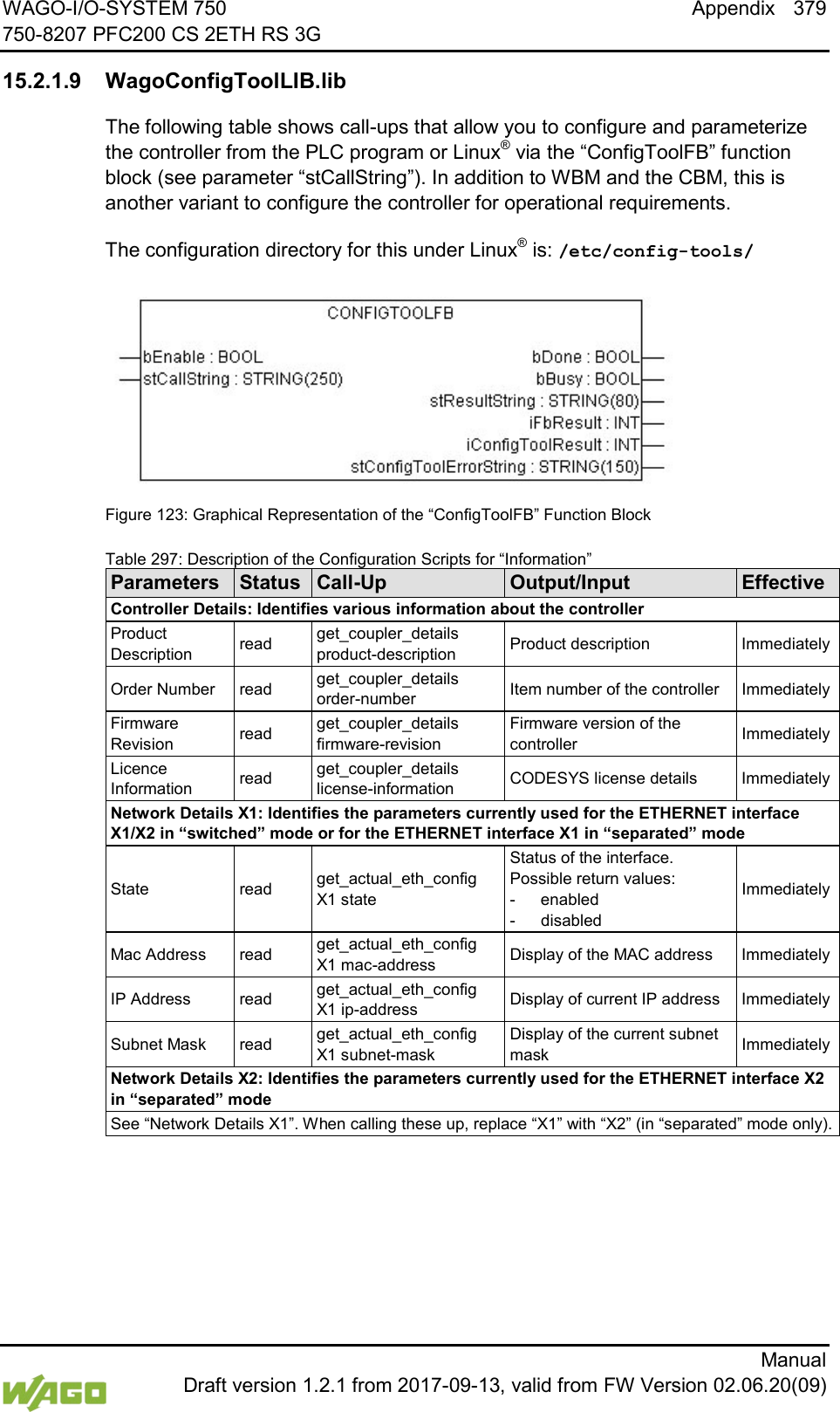
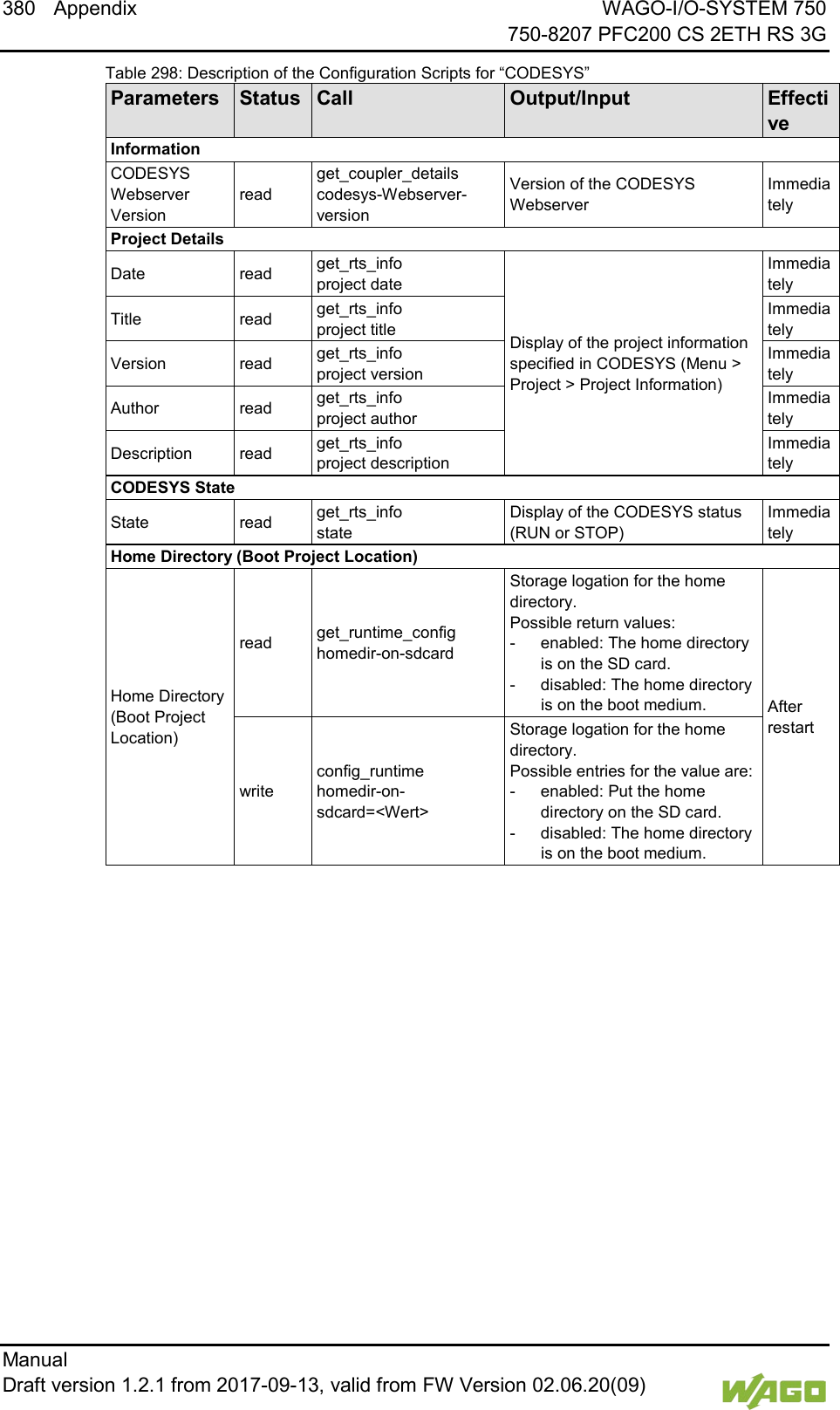
396 Appendix WAGO-I/O-SYSTEM 750     750-8207 PFC200 CS 2ETH RS 3G Manual   Draft version 1.2.1 from 2017-09-13, valid from FW Version 02.06.20(09)   The document containing the description of the library and the function block it includes is available for download on the Internet at www.wago.com.   15.2.1.12 WagoLibLed.lib The controller 750-8207supports the following function blocks of the “WagoLibLed.lib” library: -  LED_SET_STATIC -  LED_SET_BLINK -  LED_SET_FLASH -  LED_SET_ERROR -  LED_RESET_ERROR -  LED_RESET_ALL_ERRORS -  LED_GET_STATE -  LED_GET_STATE_ASYNC The document containing a description of this library and the function blocks it includes is available for download on the Internet at www.wago.com.   15.2.1.13 WagoLibNetSnmp.lib The controller 750-8207supports the following function blocks of the “WagoLibNetSnmp.lib” library: -  snmpGetValueCustomOID_INT32 -  snmpGetValueCustomOID_STRING -  snmpGetValueCustomOID_UINT32 -  snmpRegisterCustomOID_INT32 -  snmpRegisterCustomOID_STRING -  snmpRegisterCustomOID_UINT32 -  snmpSetValueCustomOID_INT32 -  snmpSetValueCustomOID_STRING -  snmpSetValueCustomOID_UINT32 The document containing the description of the library and the function block it includes is available for download on the Internet at www.wago.com.   15.2.1.14 WagoLibNetSnmpManager.lib The controller 750-8207supports the following function blocks of the “WagoLibNetSnmpManager.lib” libraries: -  SNMPM_DINT_TO_TLV -  SNMPM_UDINT_TO_TLV -  SNMPM_STRING_TO_TLV -  SNMPM_TLV_TO_DINT -  SNMPM_TLV_TO_UDINT -  SNMPM_TLV_TO_STRING -  SNMPM_GET -  SNMPM_GET_V3
WAGO-I/O-SYSTEM 750 Appendix 397 750-8207 PFC200 CS 2ETH RS 3G      Manual  Draft version 1.2.1 from 2017-09-13, valid from FW Version 02.06.20(09) -  SNMPM_SET -  SNMPM_SET_V3 The document containing a description of this library and the function blocks it includes is available for download on the Internet at www.wago.com.   15.2.1.15 WagoLibSSL.lib The controller 750-8207supports the following function blocks of the “WagoLibSSL.lib” library: -  SSL_CTX -  SSL_CTX_load_verify_locations -  SSL_CTX_sess_set_cache_size -  SSL_CTX_set_client_CA_list -  SSL_CTX_set_method -  SSL_CTX_use_certificate_file -  SSL_CTX_use_PrivateKey_file -  SSL_free -  SSL_get_error -  SSL_Hndshk_Accept -  SSL_Hndshk_Connect -  SSL_load_client_CA_file -  SSL_read -  SSL_shutdown -  SSL_write The document containing a description of this library and the function blocks it includes is available for download on the Internet at www.wago.com.   15.2.1.16 WagoLibTerminalDiag.lib The controller 750-8207supports the following function blocks of the “WagoLibTerminalDiag.lib” library: -  GET_TERMINALDIAG The document containing a description of this library and the function blocks it includes is available for download on the Internet at www.wago.com.
398 List of Figures WAGO-I/O-SYSTEM 750     750-8207 PFC200 CS 2ETH RS 3G Manual   Draft version 1.2.1 from 2017-09-13, valid from FW Version 02.06.20(09)    List of Figures Figure 1: View of device .....................................................................................27 Figure 2: Marking Area for Serial Numbers ........................................................29 Figure 3: Data Contacts .....................................................................................30 Figure 4: Power Jumper Contacts ......................................................................31 Figure 5: CAGE CLAMP® connections ...............................................................32 Figure 6: Service Interface (Closed and Open Flap) ...........................................33 Figure 7: Network Connections – X1, X2 ............................................................34 Figure 8: RS-232/RS-485 – X3 Communication Connection ..............................35 Figure 9: Termination with DTE-DCE Connection (1:1) ......................................36 Figure 10: Termination with DTE-DTE Connection (Cross-Over) .......................36 Figure 11: RS-485 Bus Termination ...................................................................37 Figure 12: Mobile Radio Antenna Connection ....................................................38 Figure 13: Power Supply Indicating Elements ....................................................39 Figure 14: Indicating elements for fieldbus/system .............................................40 Figure 15: Indicating Elements, Memory Card Slot .............................................41 Figure 16: Indicating Elements, RJ-45 Jacks ......................................................42 Figure 17: Mobile Radio Network Status Indicators ............................................43 Figure 18: Mode Selector Switch ........................................................................44 Figure 19: Reset Button .....................................................................................45 Figure 20: Slot for SD Memory Card ..................................................................46 Figure 21: SIM Card Slot ....................................................................................47 Figure 22: Schematic diagram ............................................................................48 Figure 23: Spacing .............................................................................................75 Figure 24: Release Tab of Controller ..................................................................77 Figure 25: Insert I/O Module (Example) ..............................................................78 Figure 26: Snap the I/O Module into Place (Example) ........................................78 Figure 27: Connecting a Conductor to a CAGE CLAMP® ...................................79 Figure 28: Fuse Protection of the Electronic Circuit Power Supply .....................80 Figure 29: Power Supply Concept ......................................................................81 Figure 30: “Open DHCP”, Example Figure .........................................................85 Figure 31: CBM Starting Screen .........................................................................86 Figure 32: CBM – Selecting “Networking” ...........................................................87 Figure 33: CBM – Selecting “TCP/IP” .................................................................87 Figure 34: CBM – Selecting “IP address” ...........................................................87 Figure 35: CBM – Selecting the IP Address .......................................................88 Figure 36: CBM – Entering a New IP Address ....................................................88 Figure 37: “WAGO Ethernet Settings” – Starting Screen (Example) ...................89 Figure 38: “WAGO Ethernet Settings” – “Network” Tab ......................................90 Figure 39: Example of a Function Test ...............................................................92 Figure 40: Entering Authentication .....................................................................99 Figure 41: Password Reminder ........................................................................ 100 Figure 42: WBM Browser Window (Example) ................................................... 102 Figure 43: WBM Status Information (Example)................................................. 102 Figure 44: CBM main menu (example) ............................................................. 164 Figure 45: “WAGO ETHERNET Settings” – Start Screen ................................. 215 Figure 46: “WAGO ETHERNET Settings” – Communication Link ..................... 216 Figure 47: “WAGO ETHERNET Settings” – Identification Tab (Example) ......... 217
WAGO-I/O-SYSTEM 750 List of Figures 399 750-8207 PFC200 CS 2ETH RS 3G      Manual  Draft version 1.2.1 from 2017-09-13, valid from FW Version 02.06.20(09) Figure 48: “WAGO ETHERNET Settings” – Network Tab ................................. 218 Figure 49: “WAGO ETHERNET Settings” – Protocol Tab ................................. 220 Figure 50: “WAGO ETHERNET Settings” – Status Tab .................................... 221 Figure 51: Target System Settings (1) .............................................................. 223 Figure 52: Target System Settings (2) .............................................................. 223 Figure 53: Creating a New Function Block ....................................................... 224 Figure 54: Programming Interface with the PLC_PRG Program Module .......... 224 Figure 55: “Resources” Tab.............................................................................. 225 Figure 56: Control Configuration – Edit ............................................................ 226 Figure 57: “Start WAGO-I/O-CHECK and Scan” Button ................................... 226 Figure 58: WAGO-I/O-CHECK – Starting Screen ............................................. 227 Figure 59: I/O Configurator Empty .................................................................... 228 Figure 60: “Add I/O Modules” Button ................................................................ 228 Figure 61: “Module Selection” Window ............................................................. 229 Figure 62: I/O Configurator with Defined I/O Modules ...................................... 229 Figure 63: Variable declaration ......................................................................... 230 Figure 64: Control Configuration: I/O Modules with Their Associated Addresses................................................................................................................ 230 Figure 65: Program Function Block .................................................................. 231 Figure 66: Input Assistant for Selecting Variables ............................................ 231 Figure 67: Example of an Allocation ................................................................. 232 Figure 68: Creating a Communication Link – Step 1 ........................................ 233 Figure 69: Creating a Communication Link – Step 2 ........................................ 234 Figure 70: Creating a Communication Link – Step 3 ........................................ 234 Figure 71: Task Configuration .......................................................................... 236 Figure 72: Changing Task Names 1 ................................................................. 237 Figure 73: Call-up to Add to the Program Module ............................................. 238 Figure 74: Cyclic Task ...................................................................................... 239 Figure 75: Freewheeling Task .......................................................................... 240 Figure 76: Debugging (Case 1) ........................................................................ 241 Figure 77: Debugging (Case 2) ........................................................................ 241 Figure 78: Debugging (Case 3) ........................................................................ 242 Figure 79: Debugging (Case 4) ........................................................................ 242 Figure 80: Debugging (Case 5) ........................................................................ 243 Figure 81: Debugging (Case 6) ........................................................................ 243 Figure 82: Debugging (Case 7) ........................................................................ 244 Figure 83: CODESYS – System Events ........................................................... 245 Figure 84: CODESYS Program Provokes Division by “0” ................................. 247 Figure 85: CODESYS – Creating and Activating an Event Handler .................. 247 Figure 86: CODESYS – New Module has been Generated .............................. 248 Figure 87: CODESYS – Enter the Event in a Global Variable ........................... 248 Figure 88: CODESYS – Variable Contents Prior to Division by “0” ................... 249 Figure 89: CODESYS – Variable Contents After Division by “0” and Call-up of the Event Handler ......................................................................................... 249 Figure 90: Process Image ................................................................................ 250 Figure 91: Flag Area ........................................................................................ 251 Figure 92: Internal Data Bus Synchronization 01 .............................................. 256 Figure 93: I/O Module Synchronization 02 ........................................................ 257 Figure 94: I/O Module Synchronization 03 ........................................................ 258 Figure 95: Internal Data Bus Synchronization 04 .............................................. 259
400 List of Figures WAGO-I/O-SYSTEM 750     750-8207 PFC200 CS 2ETH RS 3G Manual   Draft version 1.2.1 from 2017-09-13, valid from FW Version 02.06.20(09)   Figure 96: Internal Data Bus Settings ............................................................... 260 Figure 97: Program Memory (Example) ........................................................... 263 Figure 98: Data Memory and Function Block Limitation (Example)................... 264 Figure 99: Remanent Main Memory (Example) ................................................ 265 Figure 100: Flag and Retain Memory (Example) .............................................. 265 Figure 101: General Target System Settings .................................................... 266 Figure 102: Selecting the Visualization Technique in the Target System Settings................................................................................................................ 267 Figure 103: Creating the PLC_VISU Starting Visualization ............................... 268 Figure 104: Remanent Main Memory ............................................................... 276 Figure 105: CODESYS PLC Configuration - MODBUS Settings ...................... 278 Figure 106: MODBUS Process Image .............................................................. 284 Figure 107: Flag Area....................................................................................... 285 Figure 108: State Diagram, STANDARD_WATCHDOG Operation Mode ......... 295 Figure 109: State Diagram, ALTERNATIVE_WATCHDOG Operation Mode .... 296 Figure 110: State Diagram, Switchover Operation Mode .................................. 297 Figure 111: MODBUS Address Overview ......................................................... 306 Figure 112: State Diagram, ADVANCED_WATCHDOG Operation Mode......... 309 Figure 113: State Diagram, SIMPLE_WATCHDOG Operation Mode ............... 310 Figure 114: State Diagram, Switching Operation Modes .................................. 310 Figure 115: Power Supply Indicating Elements ................................................ 318 Figure 116: Mobile Radio Network Status Indicators ........................................ 319 Figure 117: Indicating elements for fieldbus/system ......................................... 320 Figure 118: Flashing Sequence Process Diagram ............................................ 328 Figure 119: Inserting the Memory Card ............................................................ 336 Figure 120: Inserting the SIM Card ................................................................... 338 Figure 121: Release Tab of Controller .............................................................. 342 Figure 122: Removing the I/O Module (Example) ............................................. 343 Figure 123: Graphical Representation of the “ConfigToolFB” Function Block ... 379
WAGO-I/O-SYSTEM 750 List of Tables 401 750-8207 PFC200 CS 2ETH RS 3G      Manual  Draft version 1.2.1 from 2017-09-13, valid from FW Version 02.06.20(09)  List of Tables Table 1: Variants ................................................................................................15 Table 2: Number Notation ..................................................................................18 Table 3: Font Conventions .................................................................................18 Table 4: Legend for Figure “View” ......................................................................27 Table 5: Legend for Figure “Power Jumper Contacts” ........................................31 Table 6: Legend for figure “CAGE CLAMP® connections” ..................................32 Table 7: Service Interface ..................................................................................33 Table 8: Legend for Figure “Network Connections – X1, X2” ..............................34 Table 9: Legend for Figure “RS-232/RS-485 – X3 Communication Connection” 35 Table 10: Function of RS-232 Signals for DTE/DCE ..........................................36 Table 11: Legend for Figure “Power Supply Indicating Elements” ......................39 Table 12: Legend for Figure “Fieldbus/System Indicating Elements” ..................40 Table 13: Legend for Figure “Indicating Elements, Memory Card Slot” ...............41 Table 14: Legend for Figure “Indicating Elements, RJ-45 Jacks” ........................42 Table 15: Legend for the “Mobile Radio Network Status Indicators” Figure ........43 Table 16: Mode Selector Switch .........................................................................44 Table 17: Mode Selector Switch .........................................................................44 Table 18: Legend for Figure “SIM Card Slot” ......................................................47 Table 19: Technical Data − Device Data ............................................................49 Table 20: Technical Data – System Data ...........................................................49 Table 21: Technical Data – Power Supply ..........................................................49 Table 22: Technical Data – Clock .......................................................................50 Table 23: Technical Data – Programming ..........................................................50 Table 24: Technical Data – Internal Data Bus ....................................................50 Table 25: Technical Data – ETHERNET.............................................................51 Table 26: Technical Data – Serial Interface ........................................................51 Table 27: Technical Data – Mobile Radio Modem ..............................................51 Table 28: Technical Data – Field Wiring .............................................................51 Table 29: Technical Data – Power Jumper Contacts ..........................................52 Table 30: Technical Data – Data Contacts .........................................................52 Table 31: Technical Data – Climatic Environmental Conditions ..........................52 Table 32: WBM Users ........................................................................................57 Table 33: Linux® Users .......................................................................................57 Table 34: List of Parameters Transmitted via DHCP ..........................................63 Table 35: WAGO DIN Rails ................................................................................75 Table 36: Filter Modules for 24 V Supply ............................................................81 Table 37: Default IP Addresses for ETHERNET Interfaces ................................84 Table 38: Network Mask 255.255.255.0 .............................................................84 Table 39: User Settings in the Default State ..................................................... 100 Table 40: Access Rights for WBM Pages ......................................................... 100 Table 41: WBM “Status Information” Page – “Controller Details” Group ........... 105 Table 42: WBM “Status Information Page – “Network Details (Xn)” Group(s) ... 105 Table 43: WBM “General PLC Runtime Configuration” Page – “General PLC Runtime Configuration” Group ................................................................ 106 Table 44: WBM “PLC Runtime Information” Page – “PLC Runtime” Group ...... 108 Table 45: WBM “PLC Runtime Information” Page – “Project Details” Group .... 108 Table 46: WBM “PLC Runtime Information” Page – “Task n” Group(s) ............ 109
402 List of Tables WAGO-I/O-SYSTEM 750     750-8207 PFC200 CS 2ETH RS 3G Manual   Draft version 1.2.1 from 2017-09-13, valid from FW Version 02.06.20(09)   Table 47: WBM “PLC WebVisu” Page – “Web Server Configuration” Group .... 110 Table 48: WBM “Configuration of Host and Domain Name” Page – “Hostname” Group ...................................................................................................... 111 Table 49: WBM “Configuration of Host and Domain Name” Page – “Domain Name” Group .......................................................................................... 111 Table 50: WBM “TCP/IP Configuration” Page – “IP Configuration (Xn)” Group(s)................................................................................................................ 112 Table 51: WBM “TCP/IP Configuration” Page – “Default Gateway n” Group .... 113 Table 52: WBM “TCP/IP Configuration” Page – “DNS Server” Group ............... 114 Table 53: WBM “Ethernet Configuration” Page – “Switch Configuration” Group................................................................................................................ 115 Table 54: WBM “Ethernet Configuration” Page – “Interface Xn” Groups ........... 116 Table 55: WBM “General Firewall Configuration” Page – “Global Firewall Parameters” Group ................................................................................. 117 Table 56: WBM “General Firewall Configuration” Page – “Firewall Parameter Interface Xn” Group ................................................................................. 118 Table 57: WBM “Configuration of  MAC Address Filter” Page – “Global MAC Address Filter State” Group ..................................................................... 119 Table 58: WBM “Configuration of MAC Address Filter” Page – “MAC Address Filter State Xn” Group ............................................................................. 120 Table 59: WBM “Configuration of  MAC Address Filter” Page – “MAC Address Filter Whitelist” Group ............................................................................. 120 Table 60: WBM “Configuration of  User Filter” Page – “User Filter” Group ....... 121 Table 61: WBM “Configuration of User Filter” Page – “User Filter n” Group ..... 121 Table 62: WBM “Configuration of  User Filter” Page – “Add New User Filter” Group ...................................................................................................... 122 Table 63: WBM “Configuration of Time and Date” Page – “Date on Device” Group................................................................................................................ 123 Table 64: WBM “Configuration of Time and Date” Page – “Time on Device” Group ...................................................................................................... 123 Table 65: WBM “Configuration of Time and Date” Page – “Time Zone” Group . 124 Table 66: WBM “Configuration of Time and Date” Page – “TZ String” Group ... 125 Table 67: WBM “Configuration of the users for the Web-based Management” Page – “Change Password for Selected User” Group ............................. 126 Table 68: WBM “Create Bootable Image” page – “Create bootable image from active partition” Group ............................................................................. 127 Table 69: WBM “Configuration of Serial Interface RS232” Page – “Assign Owner of Serial Interface” Group ........................................................................ 129 Table 70: WBM “Configuration of Serial Interface RS-232” page – “Assign Owner of Service Interface” Group ..................................................................... 130 Table 71: “Firmware-Backup” WBM Page ........................................................ 132 Table 72: “Firmware Restore” WBM Page ........................................................ 134 Table 73: WBM “Mass Storage” Page – “<Device Name>” Group .................... 137 Table 74: WBM “Mass Storage” Page – “<Device Name>” Group .................... 137 Table 75: WBM “Software Uploads” Page – “Upload New Software” Group ..... 138 Table 76: WBM “Software Uploads” Page – “Activate New Software” Group ... 138 Table 77: WBM “Configuration of Network Services” Page – “Telnet” Group .... 139 Table 78: WBM “Configuration of Network Services” Page – “FTP” Group ....... 139 Table 79: WBM “Configuration of Network Services” Page – “FTPS” Group .... 139 Table 80: WBM “Configuration of Network Services” Page – “HTTP” Group .... 139
WAGO-I/O-SYSTEM 750 List of Tables 403 750-8207 PFC200 CS 2ETH RS 3G      Manual  Draft version 1.2.1 from 2017-09-13, valid from FW Version 02.06.20(09) Table 81: WBM “Configuration of Network Services” Page – “HTTPS” Group .. 140 Table 82: WBM “Configuration of Network Services” Page – “I/O-CHECK” Group................................................................................................................ 140 Table 83: WBM “Configuration of NTP Client” Page – “NTP Client Configuration” Group ...................................................................................................... 141 Table 84: WBM “Configuration of PLC Runtime Services” Page – “General Configuration” Group ............................................................................... 142 Table 85: WBM “Configuration of CODESYS Services” Page – “CODESYS 2 Web Server” Group ................................................................................. 142 Table 86: WBM “Configuration of CODESYS Services” Page – “e!RUNTIME Web Server” Group ......................................................................................... 142 Table 87: WBM “SSH Server Settings” Page – “SSH Server” Group ................ 144 Table 88: WBM “TFTP Server” Page – “TFTP Server” Group .......................... 145 Table 89: WBM “DHCP Configuration” – “DHCP Configuration Xn” Group ....... 146 Table 90: WBM “Configuration of DNS Service” Page – “DNS Service” Group 147 Table 91: WBM “MODBUS Services Configuration” Page – “MODBUS TCP” Group ...................................................................................................... 148 Table 92: WBM “MODBUS Configuration Services” Page – “MODBUS UDP” Group ...................................................................................................... 148 Table 93: WBM “Configuration of General SNMP Parameters” Page – “General SNMP Configuration” Group ................................................................... 149 Table 94: WBM “Configuration of SNMP v1/v2c Parameters” Page – “SNMP v1/v2c Manager Configuration” Group..................................................... 150 Table 95: WBM “Configuration of SNMP v1/v2c Parameters” Page – “Actually Configured Trap Receivers” Group ......................................................... 150 Table 96: WBM “Configuration of SNMP v1/v2c Parameters” Page – “Trap Receiver n” Group(s) ............................................................................... 151 Table 97: WBM “Configuration of SNMP  v1/v2c Parameters” Page – “Add New Trap Receiver” Group ............................................................................. 151 Table 98: WBM “Configuration of SNMP v3” Page – “Actually Configured v3 Users” Group .......................................................................................... 152 Table 99: WBM “Configuration of SNMP v3 Users” Page – “v3 User n” Group(s)................................................................................................................ 152 Table 100: WBM “Configuration of SNMP v3 Users” Page – “Add New v3 User” Group ...................................................................................................... 153 Table 101: WBM “Diagnostic Information” Page ............................................... 154 Table 102: WBM “Configuration of internal 3G Modem” Page – “SIM Authentication” Group ............................................................................. 155 Table 103: WBM “Configuration of internal 3G Modem” Page – “Mobile Network Configuration” Group ............................................................................... 156 Table 104: WBM “Configuration of internal 3G Modem” Page – “Provider List” Group ...................................................................................................... 157 Table 105: WBM “Configuration of internal 3G Modem” Page – “Network Package Service” Group ......................................................................... 157 Table 106: WBM “Configuration of internal 3G Modem” Page – “Upload and activate new Modem Software” Group .................................................... 158 Table 107: WBM “Configuration of OpenVPN and IPsec” Page – “OpenVPN” Group ...................................................................................................... 159 Table 108: WBM “Configuration of OpenVPN and IPsec” Page – “IPsec” Group................................................................................................................ 159
404 List of Tables WAGO-I/O-SYSTEM 750     750-8207 PFC200 CS 2ETH RS 3G Manual   Draft version 1.2.1 from 2017-09-13, valid from FW Version 02.06.20(09)   Table 109: WBM “Configuration of OpenVPN and IPsec” Page – “Certificate Upload” Group ........................................................................................ 160 Table 110: WBM “Configuration of OpenVPN and IPsec” Page – “Certificate List” Group ...................................................................................................... 160 Table 111: WBM “Configuration of OpenVPN and IPsec” Page – “Private Key List” Group .............................................................................................. 160 Table 112: “Security Settings” WBM Page – “TLS Configuration” Group .......... 161 Table 113: CBM Menu Structure ...................................................................... 164 Table 114: “Information” Menu ......................................................................... 167 Table 115: “Information” > “Controller Details” Submenu.................................. 167 Table 116: “Information” > “Network Details” Submenu .................................... 168 Table 117: “PLC Runtime” Menu ...................................................................... 169 Table 118: “PLC Runtime” > “Information” Submenu ........................................ 169 Table 119: “PLC Runtime” > “Information” > “Runtime Version” Submenu ....... 170 Table 120: “PLC Runtime” > “Information” > “Webserver Version” Submenu ... 170 Table 121: “PLC Runtime” > “Information” > “State” Submenu ......................... 170 Table 122: “PLC Runtime” > “Information” > “Number of Tasks” Submenu ...... 171 Table 123: “PLC Runtime” > “Information” > “Project Details” Submenu........... 171 Table 124: “PLC Runtime” > “Information” > “Tasks” Submenu ........................ 171 Table 125: “PLC Runtime” > “Information” > “Tasks” > “Task n” Submenu ....... 172 Table 126: “PLC Runtime” > “General Configuration” Submenu ....................... 172 Table 127: “PLC Runtime” > “General Configuration” > “PLC Runtime Version” Submenu ................................................................................................ 173 Table 128: “PLC Runtime” > “General Configuration” > “Home Dir On SD Card” Submenu ................................................................................................ 173 Table 129: “PLC Runtime” > “WebVisu” Submenu ........................................... 174 Table 130: “Networking” Menu ......................................................................... 175 Table 131: “Networking” > “Host/Domain Name” Submenu .............................. 175 Table 132: “Networking” > “Hostname” Submenu ............................................ 176 Table 133: “Networking” > “Host/Domain Name” > “Domain Name” Submenu . 176 Table 134: “Networking” > “TCP/IP” Submenu ................................................. 176 Table 135: “Networking” > “IP Address” Submenu ........................................... 177 Table 136: “Networking” > “TCP/IP” > “IP Address” Submenu > “Xn” ............... 177 Table 137: “Networking” > “TCP/IP” > “Default Gateway” Submenu ................. 178 Table 138: “Networking” > “TCP/IP” > “Default Gateway” > “Default Gateway n” Submenu ................................................................................................ 178 Table 139: “Networking” > “TCP/IP” > “DNS Server” Submenu ........................ 179 Table 140: “Networking” > “Ethernet” Submenu ............................................... 179 Table 141: “Networking” > “Ethernet” > “Switch Configuration” Submenu......... 180 Table 142: “Networking” > “Ethernet” > “Ethernet Ports” Submenu .................. 180 Table 143: “Networking” > “Ethernet” > “Ethernet Ports” > “Interface Xn” Submenu ................................................................................................ 181 Table 144: “Firewall” Menu ............................................................................... 182 Table 145: “Firewall” > “General Configuration” Submenu ................................ 183 Table 146: “Firewall” > “General Configuration” > “Interface xxx” Submenu ..... 184 Table 147: “Firewall” > “MAC Address Filter” Submenu ................................... 186 Table 148: “Firewall” > “MAC Address Filter” > “MAC address filter whitelist” Submenu ................................................................................................ 187 Table 149: “Firewall” > “MAC Address Filter” > “MAC address filter whitelist” > “Add new / No (n)” Submenu ................................................................... 187
WAGO-I/O-SYSTEM 750 List of Tables 405 750-8207 PFC200 CS 2ETH RS 3G      Manual  Draft version 1.2.1 from 2017-09-13, valid from FW Version 02.06.20(09) Table 150: “Firewall” > “User Filter” Submenu .................................................. 188 Table 151: “Firewall” > “User Filter” > “Add New / No (n)” Submenu ................ 189 Table 152: “Clock” Menu .................................................................................. 190 Table 153: “Administration” Menu..................................................................... 191 Table 154: “Administration” > “Create Image” Submenu................................... 192 Table 155: “Administration” > “Users” Submenu ............................................... 192 Table 156: “Package Server” Menu .................................................................. 193 Table 157: “Package Server” > “Firmware Backup” Menu ................................ 193 Table 158: “Package Server” > “Firmware Backup” > “Auto Update Feature” Menu ....................................................................................................... 194 Table 159: “Package Server” > “Firmware Backup” > “Auto Update Feature” Menu ....................................................................................................... 194 Table 160: “Package Server” > “Firmware Restore” Menu ............................... 195 Table 161: “Package Server” > “Firmware Restore” > “Select Package” Menu. 195 Table 162: “Package Server” > “System Partition” Submenu ........................... 196 Table 163: “Mass Storage” Menu ..................................................................... 197 Table 164: “Mass Storage” > “SD Card” Menu ................................................. 197 Table 165: “Ports and Services” Menu ............................................................. 199 Table 166: “Ports and Services” > “Telnet” Submenu ....................................... 200 Table 167: “Ports and Services” > “FTP” Submenu .......................................... 200 Table 168: “Ports and Services” > “FTPS” Submenu ........................................ 201 Table 169: “Ports and Services” > “HTTP” Submenu ....................................... 201 Table 170: “Ports and Services” > “HTTPS” Submenu ..................................... 202 Table 171: “Ports and Services” > “NTP” Submenu .......................................... 202 Table 172: “Ports and Services” > “SSH” Submenu ......................................... 203 Table 173: “Ports and Services” > “TFTP” Submenu ........................................ 203 Table 174: “Ports and Services” > “DHCPD” Submenu .................................... 204 Table 175: “Ports and Services” > “DHCPD” > “Xn” Submenu ......................... 204 Table 176: “Ports and Services” > “DNS” Submenu ......................................... 205 Table 177: “Ports and Services” > “IOCHECK PORT” Submenu ...................... 206 Table 178: “Ports and Services” > “Modbus TCP” Submenu ............................ 206 Table 179: “Ports and Services” > “Modbus UDP” Submenu ............................ 207 Table 180: “Ports and Services” > “PLC Runtime Services” Submenu ............. 207 Table 181: “Ports and Services” > “PLC Runtime Services” > “CODESYS 2” Submenu ................................................................................................ 208 Table 182: “Ports and Services” > “PLC Runtime Services” > “e!RUNTIME” Submenu ................................................................................................ 209 Table 183: “Ports and Services” > “Firewall Status” Submenu.......................... 210 Table 184: “SNMP” Menu ................................................................................. 211 Table 185: “SNMP” > “General SNMP Configuration” Submenu ...................... 211 Table 186: “SNMP” > “SNMP v1/v2c Manager Configuration” Submenu .......... 212 Table 187: “SNMP” > “SNMP v1/v2c Trap Receiver Configuration” Submenu .. 212 Table 188: “SNMP” > “SNMP v3 Configuration” Submenu ............................... 213 Table 189: “SNMP” > “(Secure )SNMP firewalling” Submenu ........................... 214 Table 190: Syntax of Logical Addresses........................................................... 235 Table 191: Events ............................................................................................ 246 Table 192: Access to the Process Images of the Input and Output Data – Internal Data Bus ................................................................................................. 252 Table 193: Access to the Process Images of the Input and Output Data – MODBUS ................................................................................................ 253
406 List of Tables WAGO-I/O-SYSTEM 750     750-8207 PFC200 CS 2ETH RS 3G Manual   Draft version 1.2.1 from 2017-09-13, valid from FW Version 02.06.20(09)   Table 194: Access to the Process Images of the Input and Output Data – CANopen ................................................................................................ 253 Table 195: Access to the Process Images of the Input and Output Data – PROFIBUS ............................................................................................. 253 Table 196: Access to the Process Images of the Input and Output Data – Flags................................................................................................................ 254 Table 197: Arrangement of the I/O Modules for the Addressing Example ......... 254 Table 198: Addressing Example ....................................................................... 254 Table 199: Internal Data Bus Settings .............................................................. 261 Table 200: Errors and Remedies ...................................................................... 271 Table 201: CODESYS V3 Priorities .................................................................. 275 Table 202: MODBUS Settings .......................................................................... 279 Table 203: MODBUS TCP Settings .................................................................. 280 Table 204: MODBUS UDP Settings ................................................................. 280 Table 205: MODBUS RTU Settings .................................................................. 281 Table 206: MODBUS Mapping for Read Bit Services FC1, FC2 ....................... 286 Table 207: MODBUS Mapping for Write Bit Services FC5, FC15 ..................... 287 Table 208: MODBUS Mapping for Read Register Services FC3, FC4, FC23 ... 288 Table 209: MODBUS Mapping for Write Register Services FC6, FC16, FC22, FC23 ....................................................................................................... 290 Table 210: WAGO MODBUS Registers............................................................ 292 Table 211: Watchdog Commands .................................................................... 298 Table 212: Watchdog Status ............................................................................ 299 Table 213: Watchdog Configuration ................................................................. 300 Table 214: Watchdog Operation Modes ........................................................... 301 Table 215: Diagnostics for the Error Server ...................................................... 303 Table 216: WAGO MODBUS Registers............................................................ 307 Table 217: Watchdog Commands .................................................................... 311 Table 218: Watchdog Status ............................................................................ 312 Table 219: Watchdog Configuration ................................................................. 313 Table 220: Legend for Figure “Power Supply Indicating Elements” .................. 318 Table 221: Field-Side Supply Diagnostics ........................................................ 318 Table 222: System Power Supply Diagnistics .................................................. 318 Table 223: Legend for the “Mobile Radio Network Status Indicators” Figure .... 319 Table 224: Diagnostics via CON LED ............................................................... 319 Table 225: Diagnostics via SYS LED ............................................................... 320 Table 226: Diagnostics RUN LED .................................................................... 321 Table 227: RUN LED Diagnostics – e!RUNTIME ............................................. 322 Table 228: Diagnostics I/O LED ....................................................................... 323 Table 229: MS-LED Diagnostics ...................................................................... 324 Table 230: Diagnostics via NET LED ............................................................... 325 Table 231: Diagnostics via Signal Quality LEDs ............................................... 326 Table 232: Signal Quality Meaning ................................................................... 326 Table 233: Overview of Error Codes, I/O LED .................................................. 330 Table 234: Error Code 1, Explanation of Blink Codes and Procedures for Troubleshooting ...................................................................................... 331 Table 235: Error Code 2, Explanation of Blink Codes and Procedures for Troubleshooting ...................................................................................... 332 Table 236: Error Code 3, Explanation of Blink Codes and Procedures for Troubleshooting ...................................................................................... 333
WAGO-I/O-SYSTEM 750 List of Tables 407 750-8207 PFC200 CS 2ETH RS 3G      Manual  Draft version 1.2.1 from 2017-09-13, valid from FW Version 02.06.20(09) Table 237: Error Code 4, Explanation of Blink Codes and Procedures for Troubleshooting ...................................................................................... 334 Table 238: Error Code 5, Explanation of Blink Codes and Procedures for Troubleshooting ...................................................................................... 334 Table 239: Error Code 9, Explanation of Blink Codes and Procedures for Troubleshooting ...................................................................................... 334 Table 240: Overview of MS-LED Error Codes .................................................. 335 Table 241: Error Code 1, Explanation of Blink Codes and Procedures for Troubleshooting ...................................................................................... 335 Table 242: 1 Channel Digital Input Module with Diagnostics ............................ 345 Table 243: 2 Channel Digital Input Modules ..................................................... 345 Table 244: 2 Channel Digital Input Module with Diagnostics ............................ 345 Table 245: 2 Channel Digital Input Module with Diagnostics and Output Process Data ........................................................................................................ 346 Table 246: 4 Channel Digital Input Modules ..................................................... 346 Table 247: 8 Channel Digital Input Modules ..................................................... 346 Table 248: 8 Channel Digital Input Module PTC with Diagnostics and Output Process Data .......................................................................................... 347 Table 249: 16 Channel Digital Input Modules ................................................... 347 Table 250: 1 Channel Digital Output Module with Input Process Data .............. 348 Table 251: 2 Channel Digital Output Modules .................................................. 348 Table 252: 2 Channel Digital Input Modules with Diagnostics and Input Process Data ........................................................................................................ 349 Table 253: 2 Channel Digital Input Modules with Diagnostics and Input Process Data 75x-506 .......................................................................................... 349 Table 254: 4 Channel Digital Output Modules .................................................. 350 Table 255: 4 Channel Digital Output Modules with Diagnostics and Input Process Data ........................................................................................................ 350 Table 256: 8 Channel Digital Output Module .................................................... 350 Table 257: 8 Channel Digital Output Modules with Diagnostics and Input Process Data ........................................................................................................ 351 Table 258: 16 Channel Digital Output Modules ................................................ 351 Table 259: 8 Channel Digital Input/Output Modules ......................................... 352 Table 260: 1 Channel Analog Input Modules .................................................... 353 Table 261: 2 Channel Analog Input Modules .................................................... 353 Table 262: 4 Channel Analog Input Modules .................................................... 354 Table 263: 3-Phase Power Measurement Module ............................................ 355 Table 264: 8 Channel Analog Input Modules .................................................... 355 Table 265: 2 Channel Analog Output Modules ................................................. 356 Table 266: 4 Channel Analog Output Modules ................................................. 356 Table 267: Counter Modules 750-404, (and all variations except of /000-005),  753-404, (and variation /000-003) ........................................................... 357 Table 268: Counter Modules 750-404/000-005 ................................................ 358 Table 269: Counter Modules 750-638, 753-638 ............................................... 358 Table 270: Pulse Width Modules 750-511, /xxx-xxx ......................................... 359 Table 271: Serial Interface Modules with alternative Data Format .................... 359 Table 272: Serial Interface Modules with Standard Data Format ...................... 360 Table 273: Data Exchange Module .................................................................. 360 Table 274: SSI Transmitter Interface Modules ................................................. 361
408 List of Tables WAGO-I/O-SYSTEM 750     750-8207 PFC200 CS 2ETH RS 3G Manual   Draft version 1.2.1 from 2017-09-13, valid from FW Version 02.06.20(09)   Table 275:  Incremental Encoder Interface Modules 750-631/000-004, --010, -011 .......................................................................................................... 361 Table 276: Incremental Encoder Interface Modules 750-634............................ 362 Table 277: Incremental Encoder Interface Modules 750-637............................ 362 Table 278: Digital Pulse Interface Modules 750-635 ........................................ 363 Table 279: DC-Drive Controller 750-636 .......................................................... 363 Table 280: Stepper Controller RS 422 / 24 V / 20 mA 750-670 ........................ 364 Table 281: RTC Module 750-640 ..................................................................... 365 Table 282: DALI/DSI Master Module 750-641 .................................................. 365 Table 283: Overview of Input Process Image in the "Easy" Mode .................... 367 Table 284: Overview of the Output Process Image in the "Easy" Mode“........... 367 Table 285: EnOcean Radio Receiver 750-642 ................................................. 368 Table 286: MP Bus Master Module 750-643 .................................................... 369 Table 287: Bluetooth® RF-Transceiver 750-644 ............................................... 369 Table 288: Vibration Velocity/Bearing Condition Monitoring VIB I/O 750-645 ... 370 Table 289: KNX/EIB/TP1 Module 753-646 ....................................................... 371 Table 290: AS-interface Master Module 750-655 ............................................. 372 Table 291: System Modules with Diagnostics 750-610, -611 ............................ 373 Table 292: Binary Space Module 750-622 (with Behavior Like 2 Channel Digital Input)....................................................................................................... 373 Table 293: CODESYS System Libraries .......................................................... 374 Table 294: Possible Macros for File Access ..................................................... 376 Table 295: Possible Macros for File Access ..................................................... 377 Table 296: Input Variable “DEVICENUMBER”.................................................. 378 Table 297: Description of the Configuration Scripts for “Information” ................ 379 Table 298: Description of the Configuration Scripts for “CODESYS” ................ 380 Table 299: Description of the Configuration Scripts for “Networking - Host/Domain Name” ..................................................................................................... 381 Table 300: Description of the Configuration Scripts for “Networking - TCP/IP” . 381 Table 301: Description of the Configuration Scripts for “Networking - ETHERNET”................................................................................................................ 383 Table 302: Description of the Configuration Scripts for “NTP” .......................... 384 Table 303: Description of the Configuration Scripts for “Clock” ......................... 385 Table 304: Description of the Configuration Scripts for "Administration" ........... 385 Table 305: Description of Configuration Scripts for “Package Server” .............. 386 Table 306: Description of Configuration Scripts for “Ports and Services” – “Network Services ................................................................................... 387 Table 307: Description of Configuration Scripts for “Ports and Services” – “PLC Runtime Services” ................................................................................... 388 Table 308: Description of Configuration Scripts for “Ports and Services” – “SSH/TFTP” ............................................................................................ 391 Table 309: Description of Configuration Scripts for “SNMP” ............................. 392
WAGO-I/O-SYSTEM 750    409 750-8207 PFC200 CS 2ETH RS 3G      Manual  Draft version 1.2.1 from 2017-09-13, valid from FW Version 02.06.20(09)
     WAGO Kontakttechnik GmbH & Co. KG Postfach 2880    • 32385 Minden Hansastraße 27   • 32423 Minden Phone: 0571/887 – 0 Fax: 0571/887 – 169 E-Mail: info@wago.com Internet: http://www.wago.com

Navigation menu