WALTOP RSKT06 Bluetooth Pen Pad; Bluetooth Tablet II User Manual
WALTOP International Corp. Bluetooth Pen Pad; Bluetooth Tablet II Users Manual
WALTOP >
Users Manual

Pen Pad
Users Manual
RSK-T06

1
The R&TTE Directive
We, the manufacturer (WALTOP International Corp.) hereby
declare that this equipment (Bluetooth Pen Pad- Flying
Pad), model RSK-T06 is in compliance with the essential
requirements and other relevant provisions of Directive
1995/5/EC.
FCC Caution
This device complies with Part 15 of the FCC rules. Operation
is subject to the following two conditions
This device may not cause harmful interference, and
This device must accept any interference received,
including interference that may cause undesired
operation.
FCC RF Radiation Exposure Statement: The
equipment complies with FCC RF radiation
exposure limits set for the fore an uncontrolled
environment.
This Transmitter must not be co-located or operated
in conjunction with any other antenna or transmitter.
Any changes or modications to this unit not
expressly approved by the party responsible for
compliance could void the user authority to operate
the equipment.
1.
2.
•
•
•

2
Federal Communication
Commission Interference
Statement
This equipment has been tested and found to comply with
the limits for a Class B digital device, pursuant to Part 15
of the FCC Rules. These limits are designed to provide
reasonable protection against harmful interference in a
residential installation. This equipment generates, uses and
can radiate radio frequency energy and, if not installed and
used in accordance with the instructions, may cause harmful
interference to radio communications. However, there is
no guarantee that interference will not occur in a particular
installation. If this equipment does cause harmful interference
to radio or television reception, which can be determined by
turning the equipment off and on, the user is encouraged to try
to correct the interference by one of the following measures:
Reorient or relocate the receiving antenna.
Increase the separation between the equipment and
receiver.
Connect the equipment into an outlet on a circuit
different from that to which the receiver is
connected.
Consult the dealer or an experienced radio/TV
technician for help.
•
•
•
•

3
Contents
The R&TTE Directive 1
FCC Caution 1
Federal Communication Commission Interference
Statement 2
Introduction 4
Hardware introduction 4
Function introduction 5
How to change the battery 5
How to replace the Pen Rell 6
Software Introduction of Bluetooth Pen Pad
Manager 7
Wireless mode 8
Wired mode 8
LED Indicator information 8
USB mode 9
Important information for you to read! 10
Installation 11
Wired mode 11
Wireless mode 12
How to Unpairing 27
Troubleshooting 29
Product Specication 31
Bluetooth Pen Pad 31
Maintenance 33
Environment 34
—
—
—
—
—
—
—
—
—
—
—
4
Introduction
Thank you for purchasing this product. Bluetooth Pen Pad
provides two modes of connection with a PC: Wireless
mode and wired mode. Both modes provide a convenient
working environment. Please note that the setup procedures
are different from wired and wireless mode and these will be
stressed through this manual.
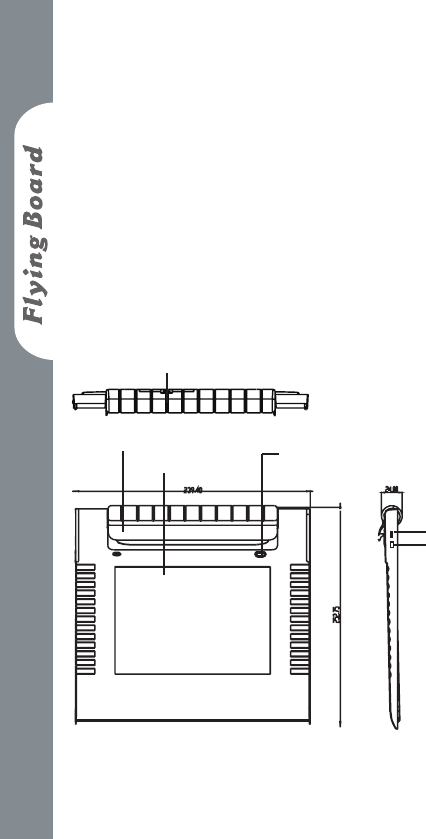
Hardware introduction
—
Battery cover
Pad “USB port
Power Button
Unpairing (press 5
seconds to unpair)
Macro key
Pen Slot
5
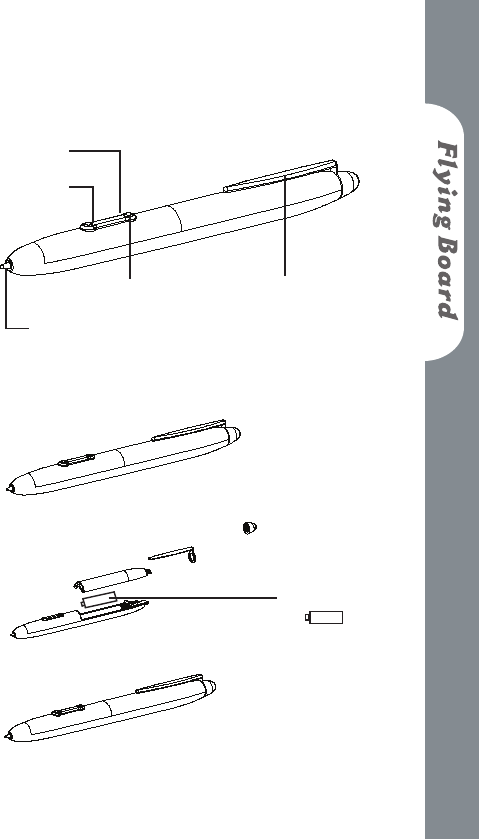
Function introduction
Upper side button Pen clip
Down side button
LED Indicator
How to change the battery
—
—
Pen tip
Battery
( + - )
6
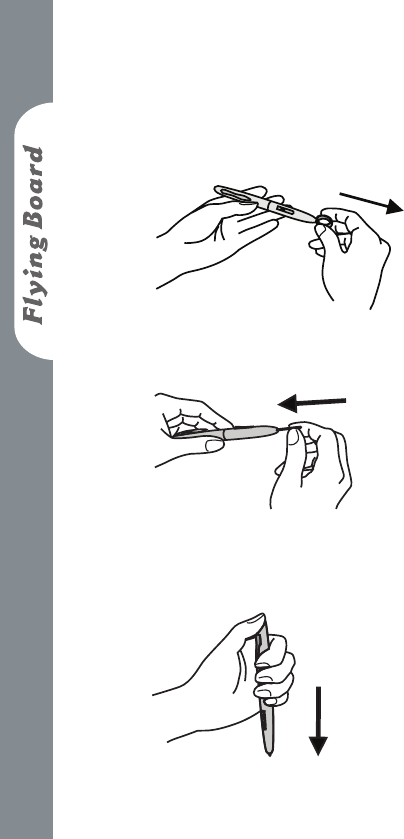
How to replace the Pen Rell
Pull out the used pen tip with the Rell Tweezers
provided.
Insert the Pen Rell to the pen.
Press rmly on a hard surface for 5 seconds till the
Pen Rell is locked.
—
1.
2.
3.
7
Software Introduction of
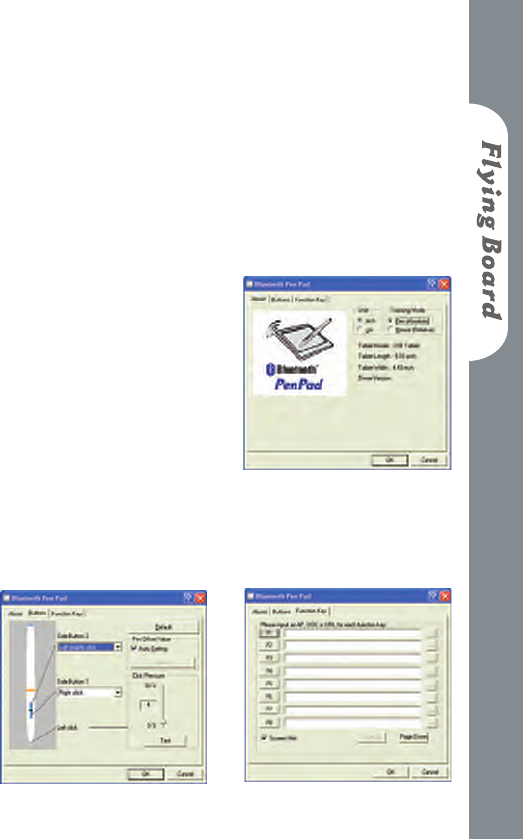
Bluetooth Pen Pad Manager
Pen (Absolute mode) – the area of the Bluetooth Pen
Pad corresponds to the whole area of the screen. For
example, if place your wireless pen at the top right hand
corner the mouse pointer will always be at the top right
of the screen.
Mouse (Relative mode)
– acts like a mouse,
moves in relation to
where the mouse pointer
currently is. For example,
place your wireless
pen anywhere on the
pen pad. If you move
up, the mouse pointer
will follow, regardless
of where you start the
tablet.
There are two buttons on the wireless pen. Each of these can
be allocated a mouse action.
—
•
•
About
Buttons Function Key
8
Wireless mode
Bluetooth Pen Pad + Bluetooth
Adapter on PC
PS.
Make sure that you have powerful
batteries in the battery chart and
switch the power button to on.
Wired mode
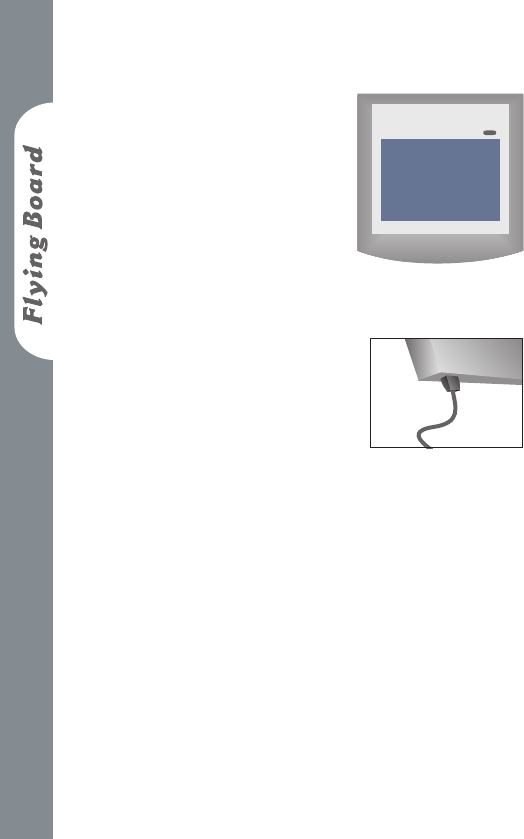
Bluetooth Pen Pad + USB Cable on PC.
LED Indicator
information
There are two LED’s built in. One is Red and the other is
Blue.
Bluetooth mode:
When the Bluetooth Tablet is turned on, the two
LED will ash once.
When the battery power is low, the Red LED will
start to ash until the batteries are exhausted. Please
change the battery once the Red LED ash.
The Blue LED will ash continuously while the
Bluetooth link to the PC in active.
The Blue LED will be on when the pen is detected
within the working area but will be off as soon as
the pen touches the tablet.
—
—
—
1.
2.
3.
4.

9
USB mode
When the USB cable is initially connected to the
Tablet, the Red LED will ash once and the Blue
LED will ash continuously.
The Blue LED will be on when the pen is detected
within the working area but will be off as soon as
the pen touches the tablet.
Bluetooth
Mode USB mode
Power on
( Bluetooth
mode)
Blue ash
once
Red ash
once
Red ash
once
Blue ash
continuously
Working Blue ash
continuously
Blue ash
continuously
Pen within working area Blue light Blue light
Pen tip on the working
area of tablet off off
Low battery Red light --
—
1.
2.
USB cable
plugged
(USB mode)

10
Important information for
you to read!
Bluetooth Pen Pad ships with a bundled Broadcom IC
Bluetooth device and WIDCOMM Bluetooth Software. We
do not test with Bluetooth software from other manufactures,
but in many cases, Our Bluetooth Pen Pad will work well with
these third party Bluetooth software packages if their device
support WIDCOMM Bluetooth Software version 5.0.1.1600.
The Important factors to consider are the source of the
Bluetooth software and the version of the Bluetooth software.
Nowadays, there are two major Bluetooth suppliers of
Bluetooth software for computers running Microsoft
Windows. One is Microsoft. Microsoft provides Bluetooth
software that run only on Windows XP Service Pack 2 (you
have updated your XP to XP Service Pack 2). The other is
WIDCOMM. WIDCOMM provides Bluetooth software
that runs on all current versions of Microsoft Windows.
As a result, we would like to recommend you to install
WIDCOMM Bluetooth software in Windows 2000 and XP.
Once your computer system is Windows XP Service Pack 2,
we would suggest you to adopt Microsoft Bluetooth software
directly.
Our Bluetooth Pen Pad tested with bundled Bluetooth Adapter
under WIDCOMM Bluetooth software version 5.0.1.1600.
It is possible that our Bluetooth Pen Pad will attempt to use
existing Bluetooth software and fail, although we have not
yet seen this particular circumstance. There is a possible
workaround to this situation: Remove your current Bluetooth

11
software and then, install the WIDCOMM Bluetooth software
that shipped with the released CD in the package.
Installation
Please insert the CD-Rom in the package into your CD-ROM
Device.
The software will automatically begin. There are three parts
in AUTO RUN. One is Bluetooth Pen Pad Driver, another is
Bluetooth Software and the other
is Application software.
The following guideline is
to teach you how to make
Bluetooth Pen Pad work in
different mode and under
different OS systems.
Wired mode
You only need to install Bluetooth Pen Pad Driver
and plug USB cable to your PC directly.
STEP 1 Software installation
Please install Bluetooth Pen Pad Driver.
Click “Bluetooth Pen Pad Manager “to start
installation
Click “ Next”
Click “Finish”
—
a.
b.
c.

12
STEP 2 Hardware installation
Please plug the USB cable rmly to Bluetooth Pen Pad and to
your PC.
Wireless mode
You have to install Bluetooth Pen pad Driver and
Bluetooth software to complete the necessary steps.
Install Bluetooth Pen Pad Driver
Click “Bluetooth Pen Pad Manager” to start
installation
Click “ Next”
Click “Finish”
Install Bluetooth software
Please reference from the important information
( Page 9 ). We will identify your OS system and
enable the Bluetooth software you should install.
Please choose the one you can click.
If Your OS system is Windows XP Service
Pack 2, you only need to add Data for Microsoft
Bluetooth software.
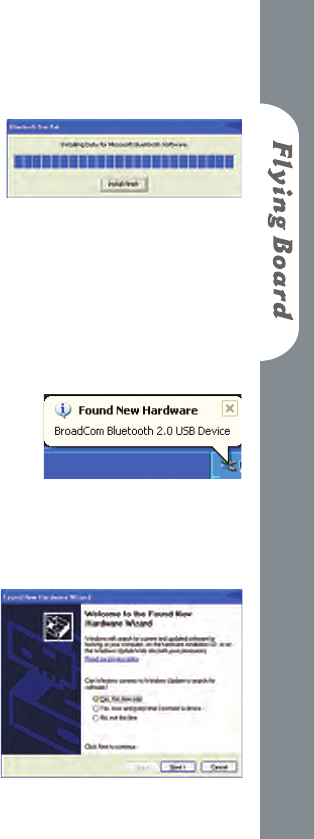
STEP 1 Add the data to Microsoft Bluetooth
Software.
(P.S. Before you add the data, please do not plug
Bluetooth Adapter into your PC USB port)
Please click “Above Windows XP Service Pack 2
—
a.
b.
c.
13
– data for Microsoft Bluetooth software”
The data will
be added into
Microsoft
Bluetooth
software
automatically.
Please click “nish”.
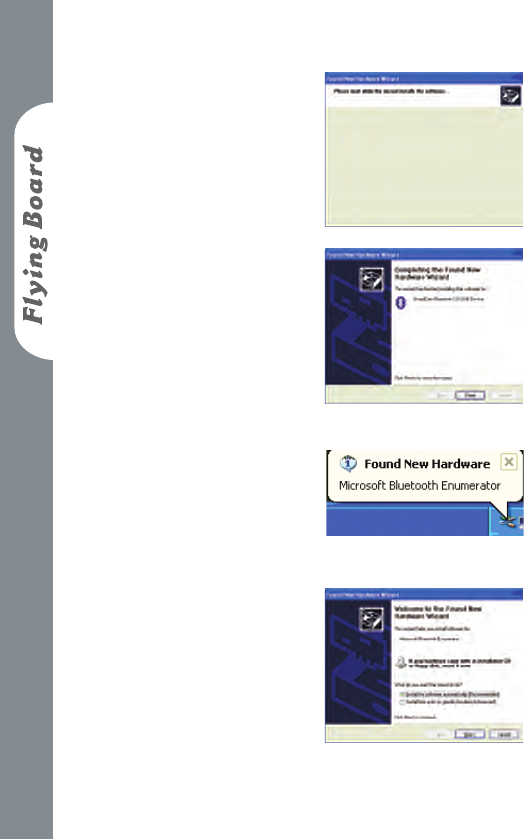
STEP 2 Hardware installations
Please plug the
Bluetooth Adapter to
your PC now.
Finding new Hardware.
Welcome to
the Found
new hardware
Wizard.
1.
2.
3.
4.
5.
14
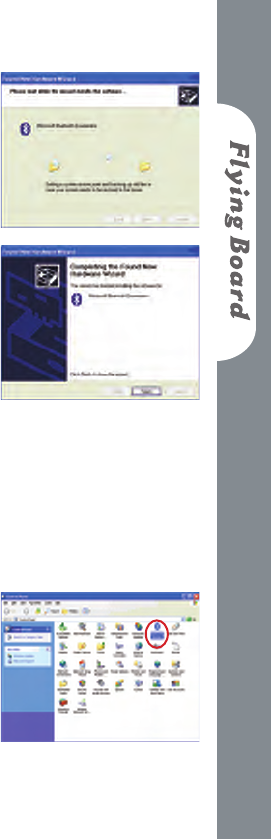
Install the software
automaticall.
Completing
the Found New
Hardware Wizard.
(P.S After that,
Bluetooth icon
will be showed in
Windows System
Tray)
Finding new
Hardware again
Welcome to
the found new
Hardware Wizard
6.
7.
8.
9.
15
Install the
software
automatically
Completing
the Found
NewHardware
Wizard. Click “
Finish”
STEP 3 Start to Pair Bluetooth Pen Pad
Click on the START button, the SETTINGS,
and then select CONTROL PANEL.
In the
CONTROL
PANEL, you
can nd the
BLUETOOTH
DEVICE icon.
10.
11.
12.
13.
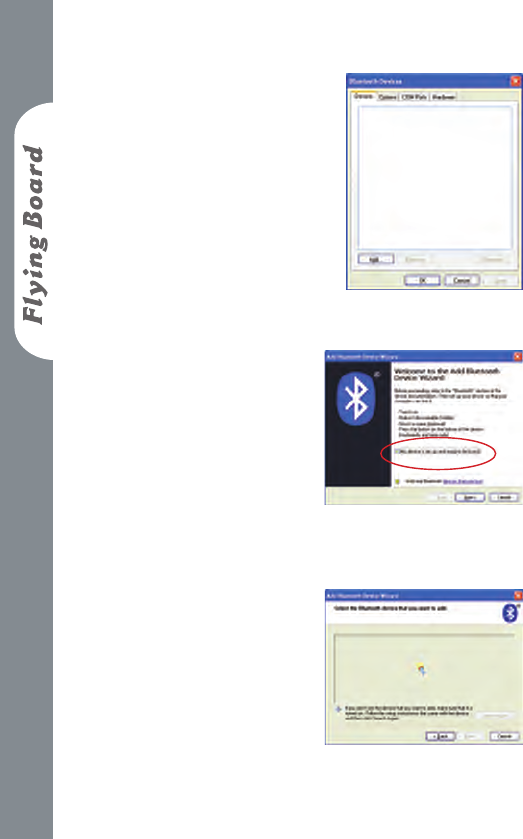
16
Double Click
BLUETOOTH
DEVICE icon. Then,
Please click “ ADD”
Add Bluetooth
Device Wizard.
My Device is
setup and ready to
be found
Searching
14.
15.
16.
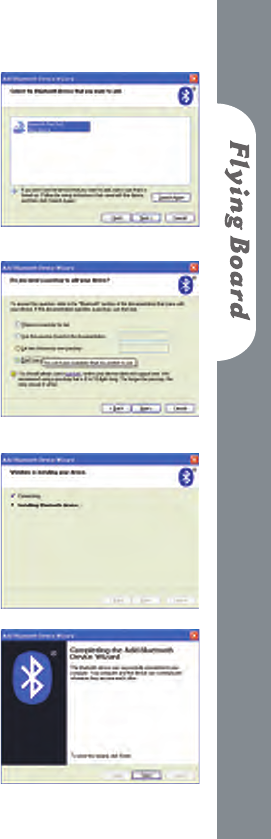
17
Select the
Bluetooth Device
that you want to
add.
Please click “ Next”
Passkey
Please choose
“Don’t use a
passkey”
Connecting
Completing
Click “ Finish”
17.
18.
19.
20.
18
Bluetooth Device
If your OS system is Windows 2000/XP, you can install
WIDCOMM Bluetooth software.
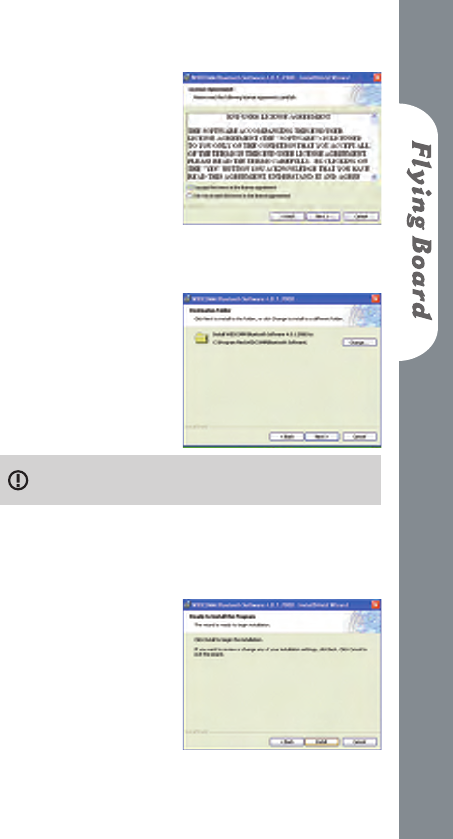
WIDCOMM Bluetooth software setup
STEP 1 Software Installation
Click “Windows 2000/XP – WIDCOMM
Bluetooth software”
Welcome
The software will
automatically begin. The
window welcomes you
to install shield Wizard
for Bluetooth software.
To continue, click “Next”
21.
1.
2.
19
License Agreement
Read the license
agreement, if you accept,
select the check button.
To continue, click “Next”
Locating of installation
If you wish to select
another location
where the software
will be installed, click
“Change” and select or
enter a new location.
The default location is recommended.
To continue, click “Next”
Install
You are now ready to
install.
To continue, click “Install”
3.
4.
5.
20
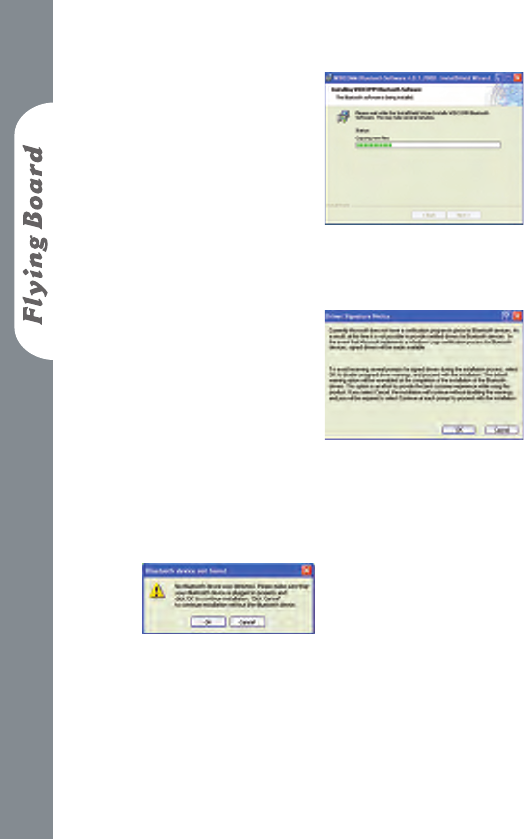
Copying
The installation process
will now begin. Please
wait while les are
being copied to your
computer. The progress
bar will indicate the
portion that has been
completed.
Driver Signature
(Windows XP only)
You will be prompted
with a driver Signature
Notice.
To continue, click “OK”
Device Not Found
At the Bluetooth device not found prompt, directly
plug the USB Bluetooth Adapter into an available
USB port. Please continue with SETP 2 – Hardware
Installation.
6.
7.
8.
21
STEP 2 Bluetooth Adapter Hardware Installations
If you have successfully inserted the WIDCOMM
Bluetooth software pleases continue.The green LED
(light) on the device will be lit, if Bluetooth Adapter
is successfully inserted.
To continue, click “OK ”
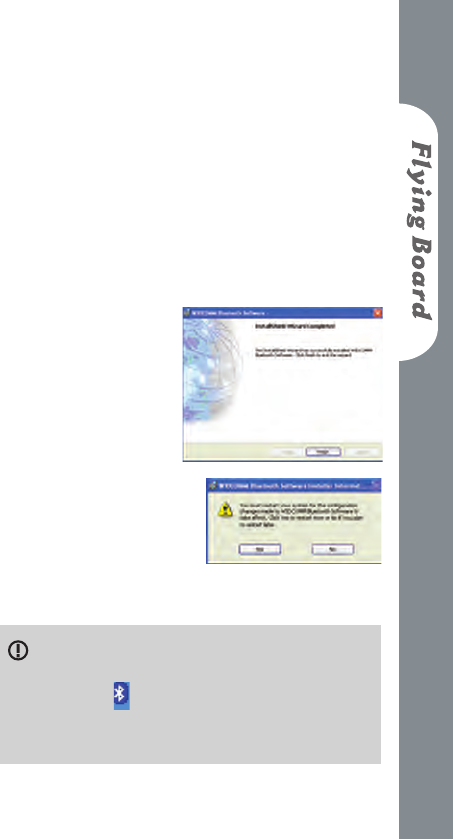
Finish
Now you have
completed the
installation of the
WIDCOMM Bluetooth
software.
To nish the installation,
click “Finish”.
Restart Windows
If you have not been
prompted, please restart
windows.
If the software and hardware installation are
successful, you will see a Bluetooth with white
Bluetooth icon in the Windows System Tray. A
blinking green LED on the Bluetooth Adapter is also
successful part of the installation.
9.
10.
11.
22
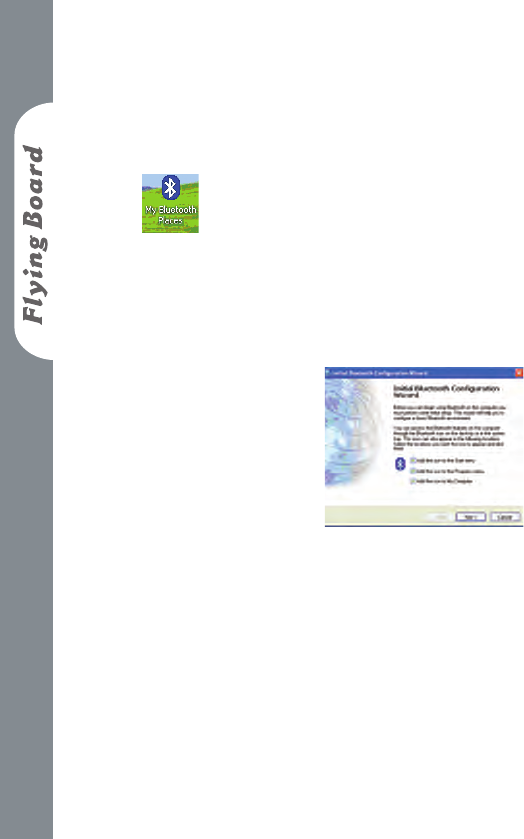
STEP 3 Initial Set up (only for the very rst time
installation)
Open My Bluetooth Place
Double-click the My Bluetooth Places on your
desktop.
Run Initial Bluetooth Conguration
The Initial Bluetooth Conguration Wizard
will appear. The
default options are
recommended. You
may uncheck them
respectively if you
do not wish the My
Bluetooth Places icon to
be placed.
To continue, click “Next”
Give your computer a Device Name.The General
window will allow you to identify your Bluetooth
enabled computer with a name. Enter a unique
computer name. There may be one name given in
the column. You can change the name if you wish
to. Select the computer type. This will only affect
12.
13.
14.
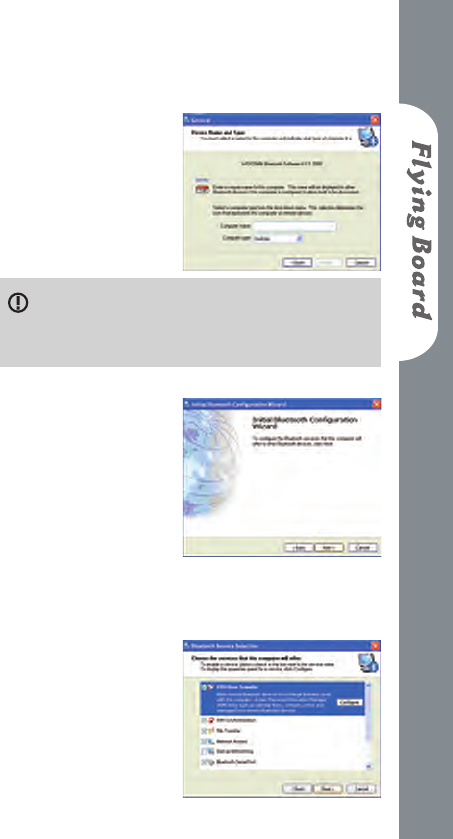
23
the icon in which you identify yourself to another
Bluetooth user.
To continue, click “Next”
Each Bluetooth device that wishes to connect to
your computer must have a unique Computer name
(different to all other users connecting).
Bluetooth Service
The Initial Bluetooth
conguration Wizard
window will now
allow you to enable
or disable Bluetooth
Services. (Refer to the
Bluetooth Services
section for information
on services.)
Enable/ Disable or View
Bluetooth Services
The Bluetooth Services
Selection will allow you
to disable or enable any
services that you do not
15.
16.
24
wish to offer. Disable or enable by clicking one the
check box next to the name of the service you wish
to alter.
□ :Service enabled
□: Service disabled.
By default all services are enabled (all check boxes
ticked). The default setting is recommended.
You can choose to disable or enable services at
any time.
To continue, click “Next”
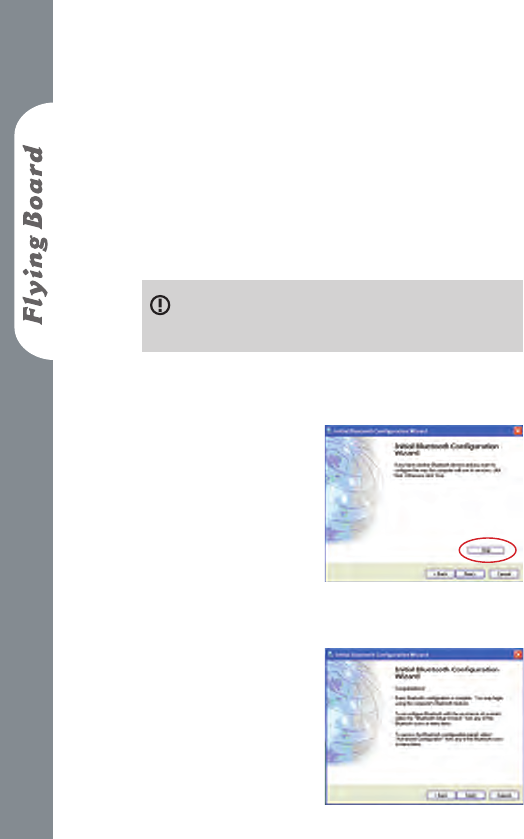
Search and congure
other Bluetooth
Devices.
Please click “SKIP”.
Search and congure
Bluetooth Device later.
Please DO NOT click
“Next” for making the
installation easily.
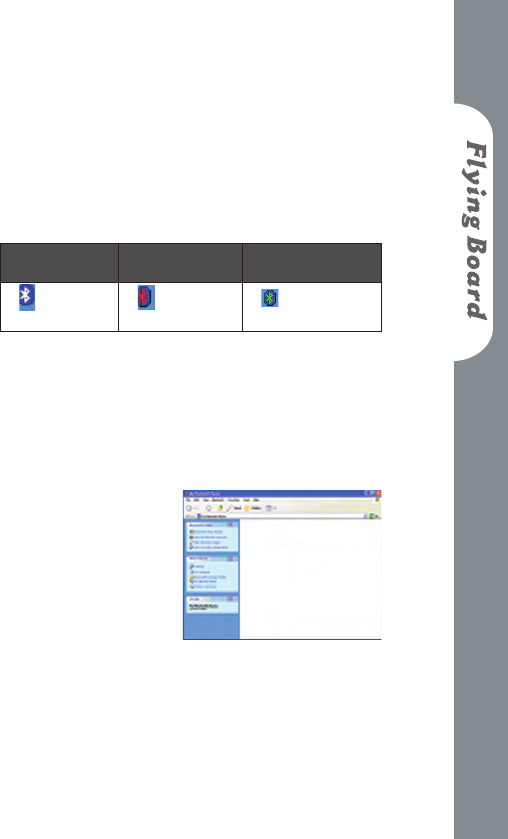
Completed Setup
You have now
completed the initial
setup. Your USB
Bluetooth Adapter is
ready to be used.
To nish, click “Finish”.
17.
18.
25
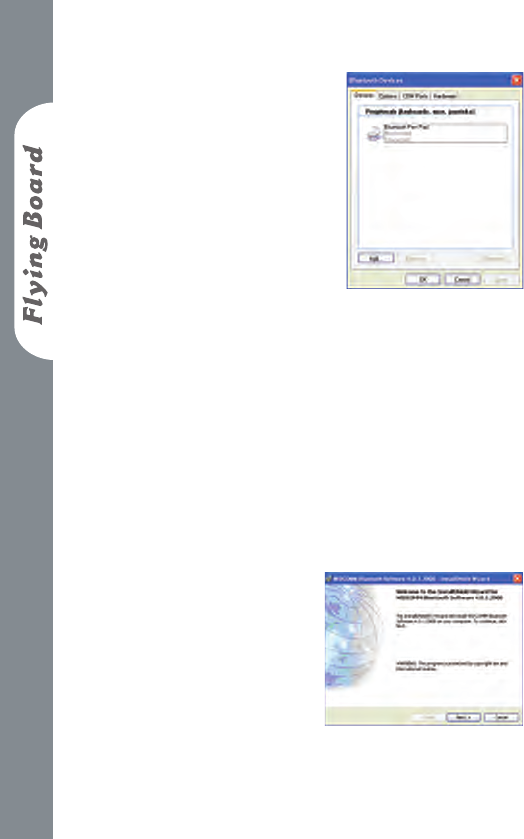
STEP 4 Start to Pair Bluetooth Pen Pad
Open My Bluetooth Places
Tip: Bluetooth System Tray
The Bluetooth icon in the Windows Systems Tray
indicates the USB Bluetooth Adapter Status.
Enabled Disabled Connected
Blue with
White
Blue with
Red
Blue with
Green
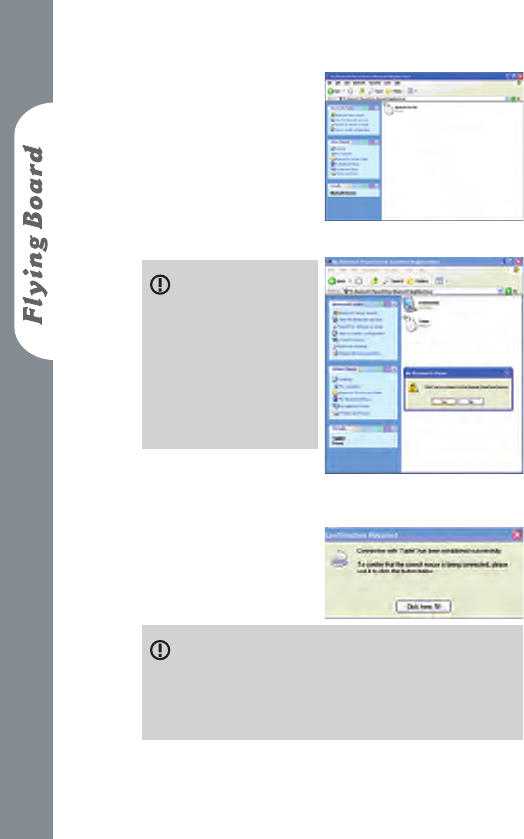
To open My Bluetooth Places, go to your windows
desktop and double-click the icon.
Searching Bluetooth Pen Pad
Click “View devices in
Range” for searching
and connect to nearby
Bluetooth enabled
devices. Then, you can
nd a icon of “Bluetooth
Pen Pad ”.
19.
20.
26
Please double-click
the Bluetooth Pen
Pad. And click “OK”.
Make sure
Bluetooth Pen Pad
is power on and the
Bluetooth Adapter is
plugging into PC and
the icon in Windows
Systems Trays is Blue
with White.
The very rst time you want to connect Bluetooth
Pen Pad to a new PC (or new Adapter). You may
need to use your mouse to click the “conrmed icon”
and waiting for the PC to recognize Bluetooth Pen
Pad.

27
Once the icon is , the Bluetooth Pen Pad
works now.
If you would like to know more about how to use
Bluetooth Adapter, please reference from the user
manual of USB Bluetooth Adapter.
How to Unpairing
Once you want to cut down the connection between
Bluetooth Pen Pad with your PC. Please follow the next
step to unpair.
Windows 2000/ XP with WIDCOMM Bluetooth
software
Double click the My Bluetooth Places on your
desktop.
Click View Devices in Range.
Now your computer is searching for all the
Bluetooth devices in range. Pleas wait.
Double click ( This icon indicates
that the Bluetooth Pen Pad is connected to PC)
icon.
•
1.
2.
3.

28
The Bluetooth Connection Status Windows will
appear.
Click Disconnect. Now you can safely
disconnect your Bluetooth Pen Pad.
Above Windows XP Service Pack 2 with Microsoft
Bluetooth software
Select Bluetooth Pen Pad, then click Remove to
disconnect your Bluetooth Pen Pad.
To make sure to cut down the connection, once
you have done the above step from PC side, please
also keep pressing the unpairing button on the
Bluetooth Pen Pad for at least 5 seconds.
4.
•

29
Troubleshooting
When I search for my Bluetooth Pen Pad, many
devices appear that I do not recognize.
Because Bluetooth 1.2 class 2 has a range of up
to 10 meters, you will detect devices beyond the
Bluetooth Pen Pad that you are searching for.
My Bluetooth Pen Pad connection drops out when
I use my cordless phone.
Bluetooth uses the 2.4Ghz unlicensed ISM band,
which is the same as some high end cordless phone,
video transmitters, and some other wireless devices.
Even though Bluetooth uses frequency hopping to
prevent interference with these devices at times it
may interfere.
My computer does not detect the USB Bluetooth
Adapter.
Please check the power status of your battery or try
again. You may need to get a technician to make
sure your USB port drivers are installed correctly.
The LED on my Bluetooth Pen Pad does not light
up.
Make sure your battery is workable. Make sure the
power switch is on. Or you may have accidentally
pressed the unpairing button located just above the
right hand corner of the active area of your tablet.
If so, switch the tablet off for three seconds, and on
again. And try to pair the Bluetooth Pen Pad again!
My pen still does not respond.
Make sure your battery for pen is workable rst.
a. You will need to re-pair the devices. Please see the
1.
2.
3.
4.
5.

30
pairing section.
b.You will need to restart your PC.
There is a longer than usually delay with my
Bluetooth Pen Pad.
You will need to move closer to your computer
and try replacing the batteries. Or you may check
whether your PC is stable. Or maybe there are other
2.4G devices interfere now. Try to re-pair again.
I have lost my nib ( the tip of my pen)
Your pen is supplied with two spare nibs, which you
can use to replace the tip.
The pressure sensitivity does not seem to work in
my application.
Check that your application supports pressure
sensitivity that you are using.
6.
7.
8.
31
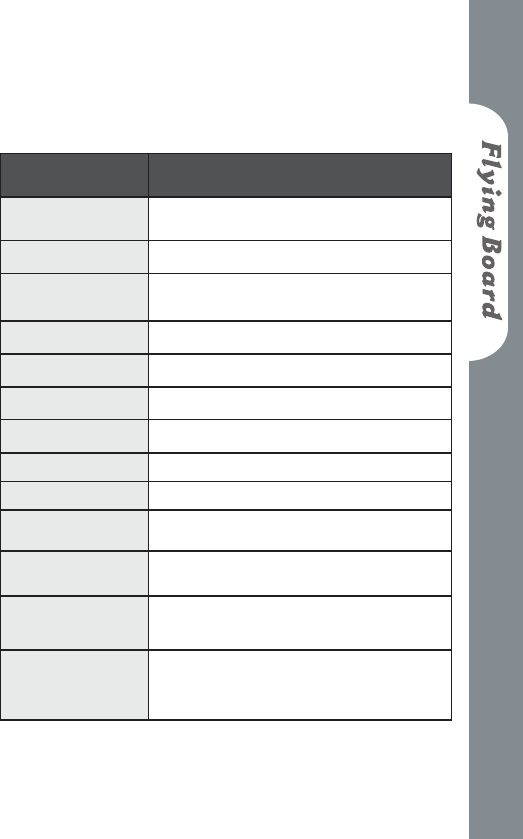
Product Specication
Bluetooth Pen Pad
Item Description
Technology Electromagnetic
Bluetooth Version 1.2 Class 2
Connection
Distance 10 meters
Dimension 239*251*30mm
Active Area 6”*4.5”(152mm*114mm)
Weight 493g (545g with batteries)
Writing height 10mm
Macro key 12 (Press 1.5 seconds to work )
Hot key Unpairing for pushing 5 seconds
Battery AA battery* 2 (Rechargeable battery
suggested)
Battery Life
(Duracell Battery) Continual mode 24 hrs
Power
consumption
Writing Time: 77 mA (185mW)
Standby Time: 47 mA(113mW)
Power Supply Wireless: 1.2V AA Battery * 2
USB port when connecting to computers

32
Connection
Interface
Bluetooth Version 1.2 Class 2
USB 1.1 Full speed
Resolution 1000 Lpi
Pen Pressure 512 Levels
Reporter Rate Bluetooth mode :162 report/per second
USB mode :183 report/per second
Bluetooth dongle
capacity
Windows 2000/ XP SP1 : only support
WIDCOMM driver (5.0.1.1600)which
only works with Broadcom chip IC
dongle
Windows XP SP2 : most of Bluetooth
Dongle work well with default Windows
Bluetooth driver
Support O/S Microsoft Windows XP/2000
Pen
Item Description
Pen 5V Pen ( Support Tablet Monitor also)
Pen Battery AAA battery * 1 (1.5V)
Pen feature Power Saving Mode; Low Battery Indicator
LED
Proximity 8 mm (minimum)

33
Maintenance
Do not drop, puncture or disassemble the tablet.
Remove batteries during long periods between uses.
Avoid all contact with water and dry hands before
using.
Do not expose the tablet to high temperature or
leave it in direct sunlight.
Avoid pressing hard on the tablet body.
1.
2.
3.
4.
5.
34
Environment
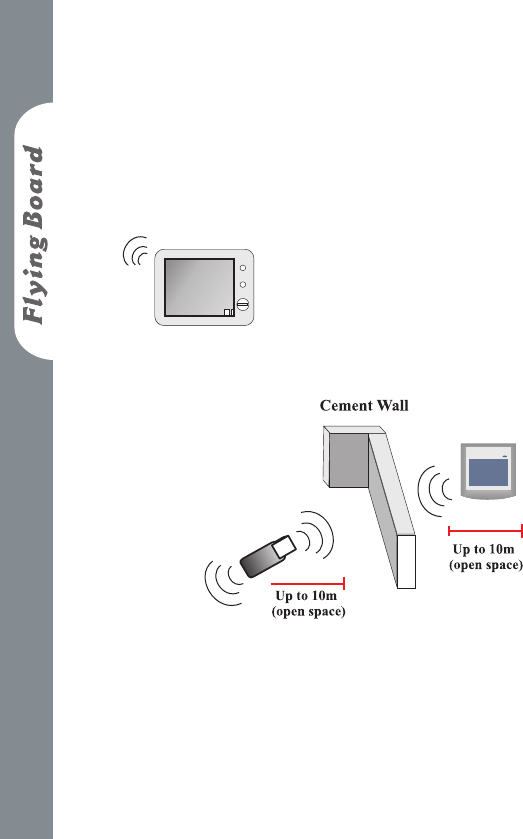
Environment always inuences
the receiving quality of your
tablet. The best environment
for your tablet is where no
other cordless products are
functioning, such as microwave
ovens.
Cement walls and wooden
walls absorb radio wave
and decrease receiving
quality. Open space
without barriers is the best
environment for your tablet.

82-910W02110-000v1.0