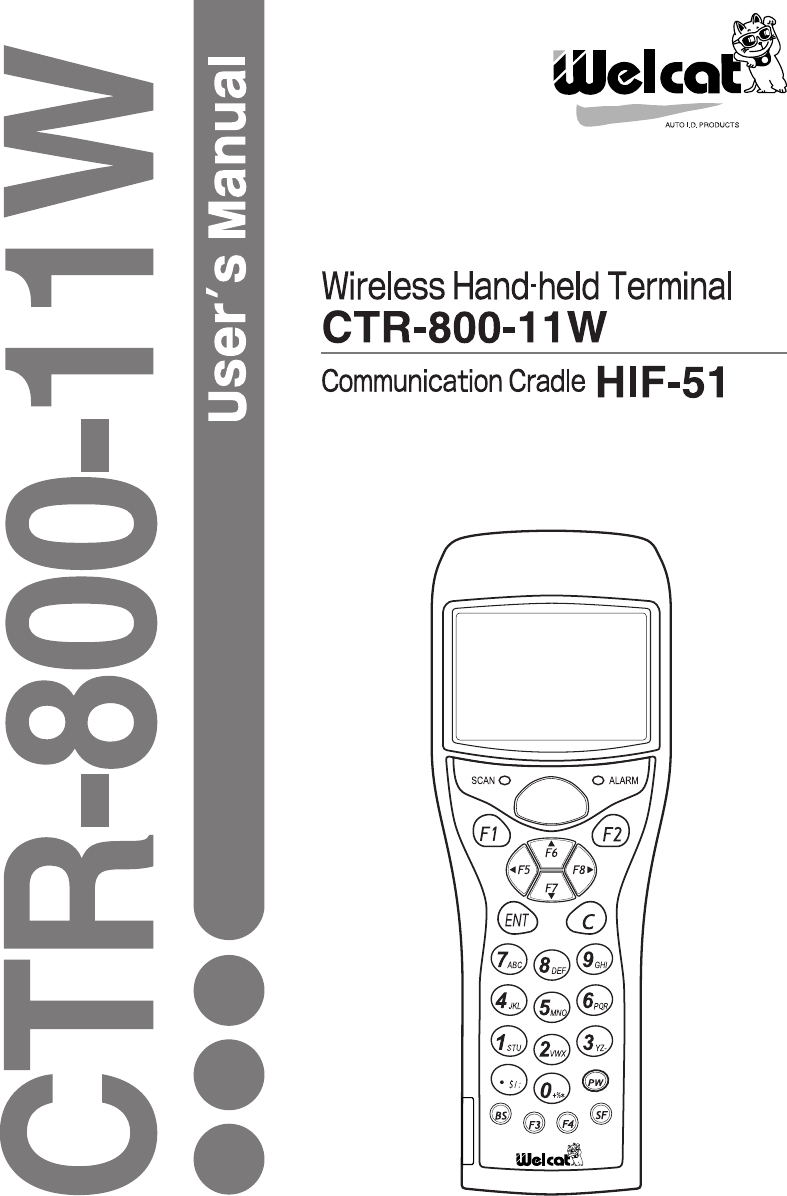
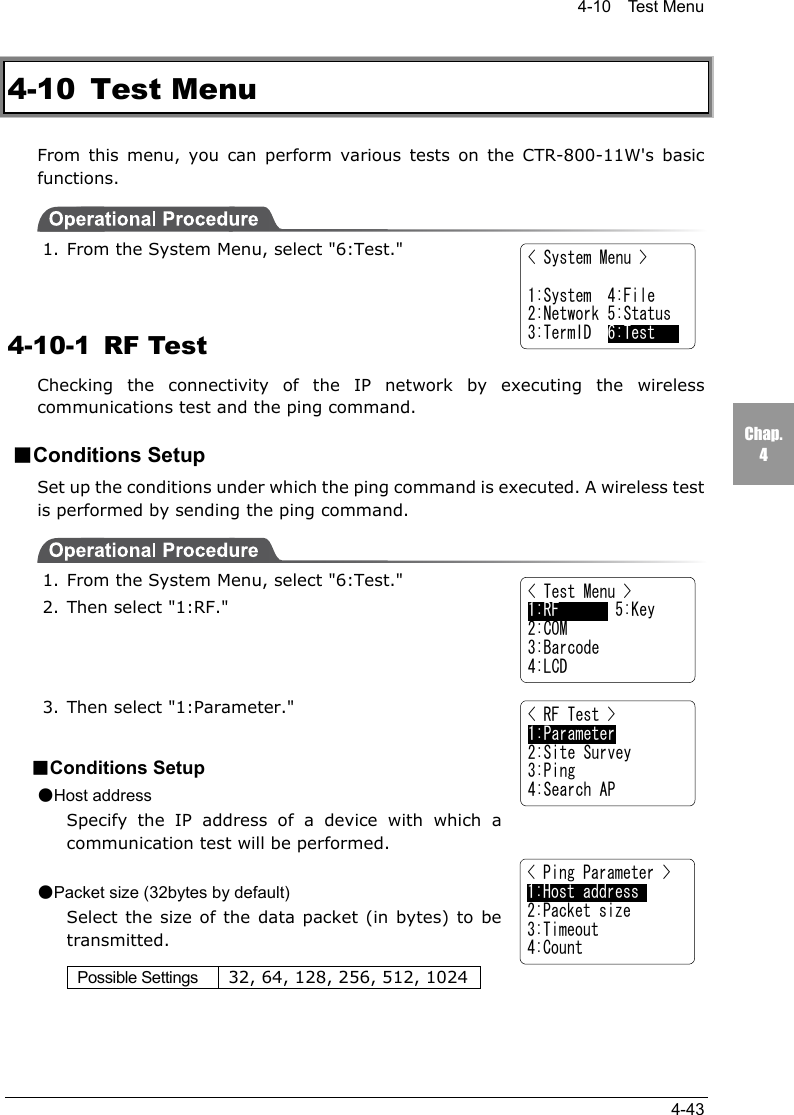
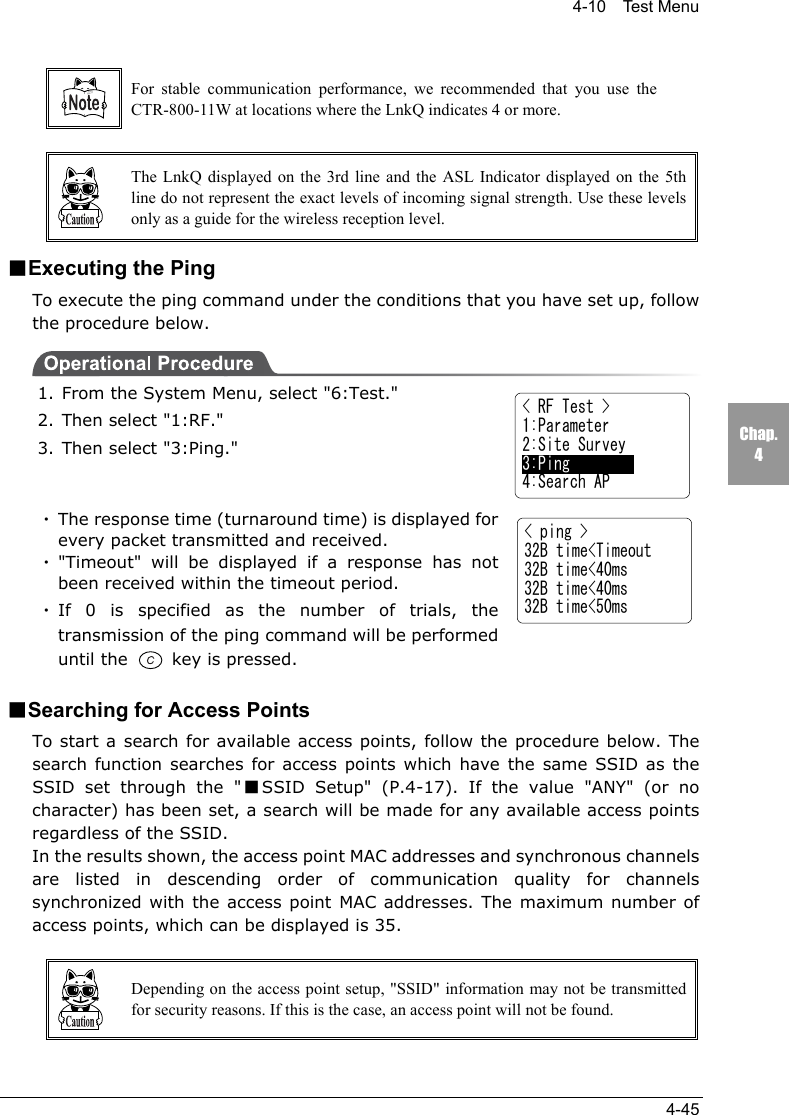
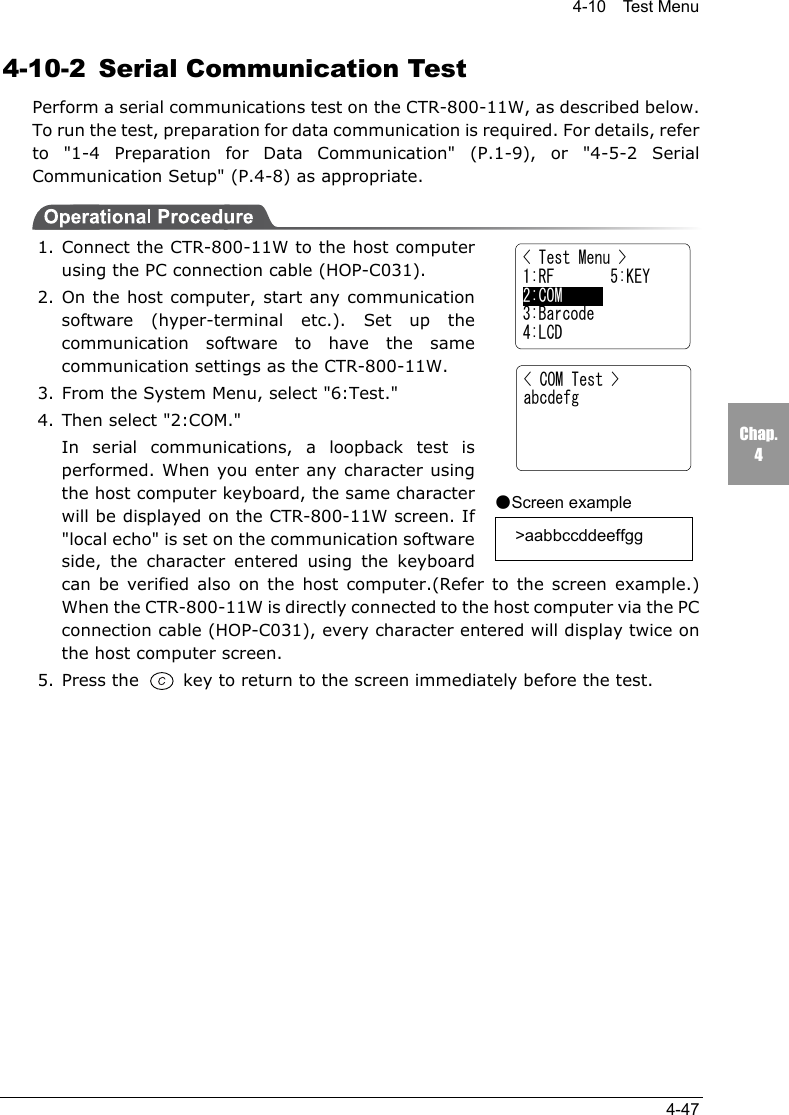
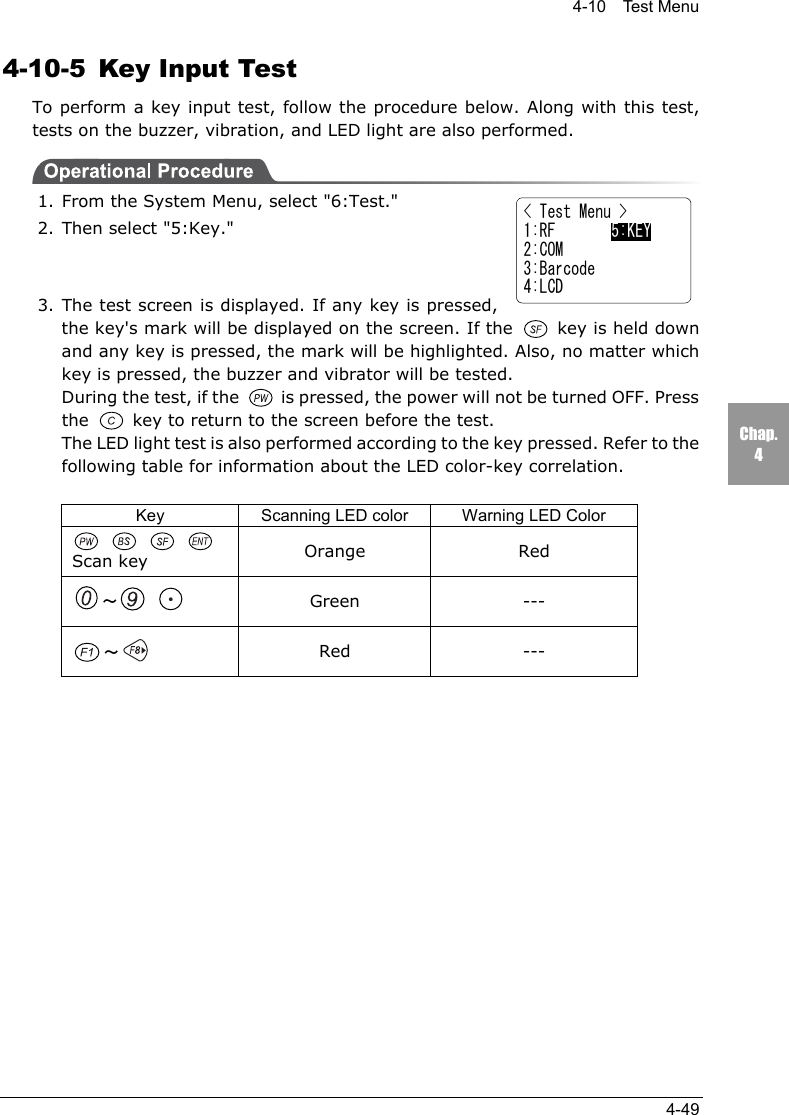
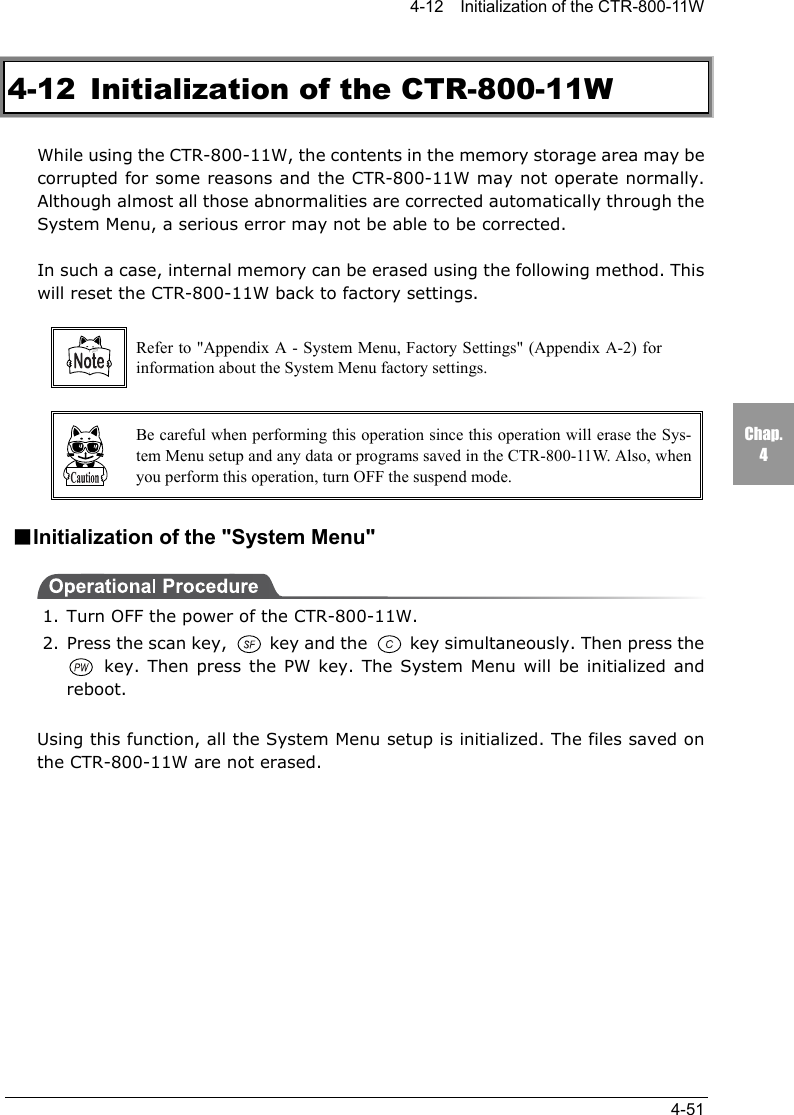
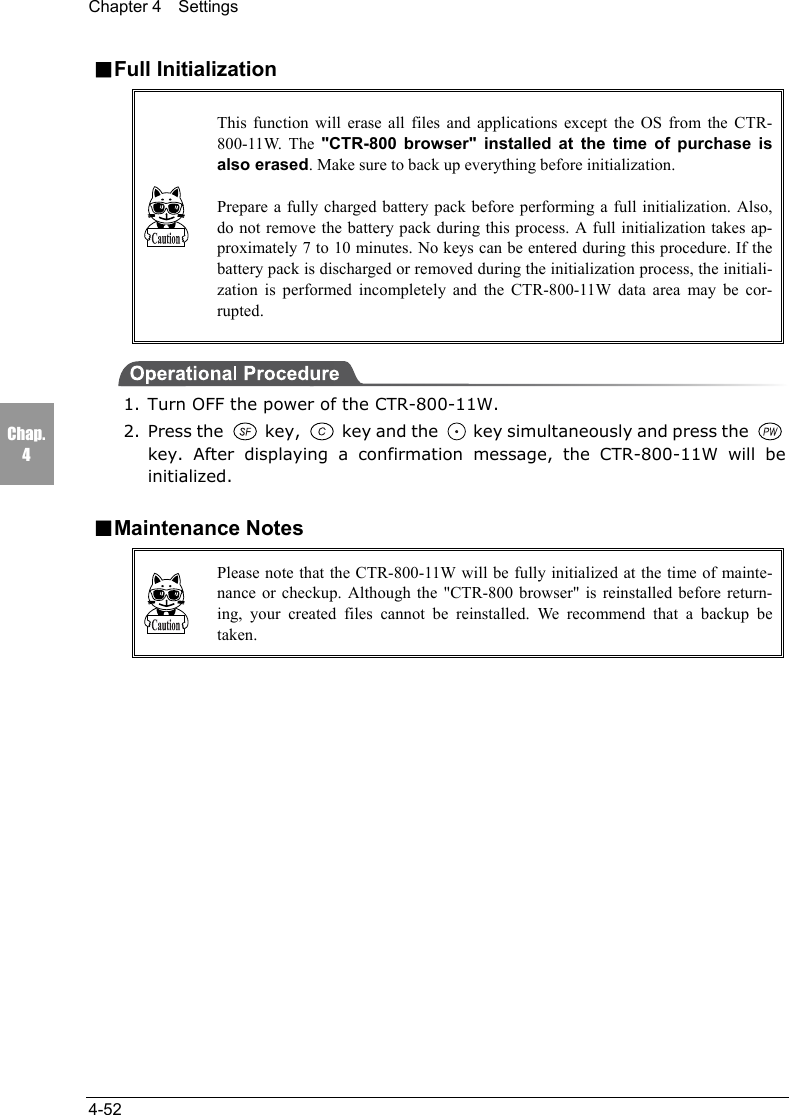
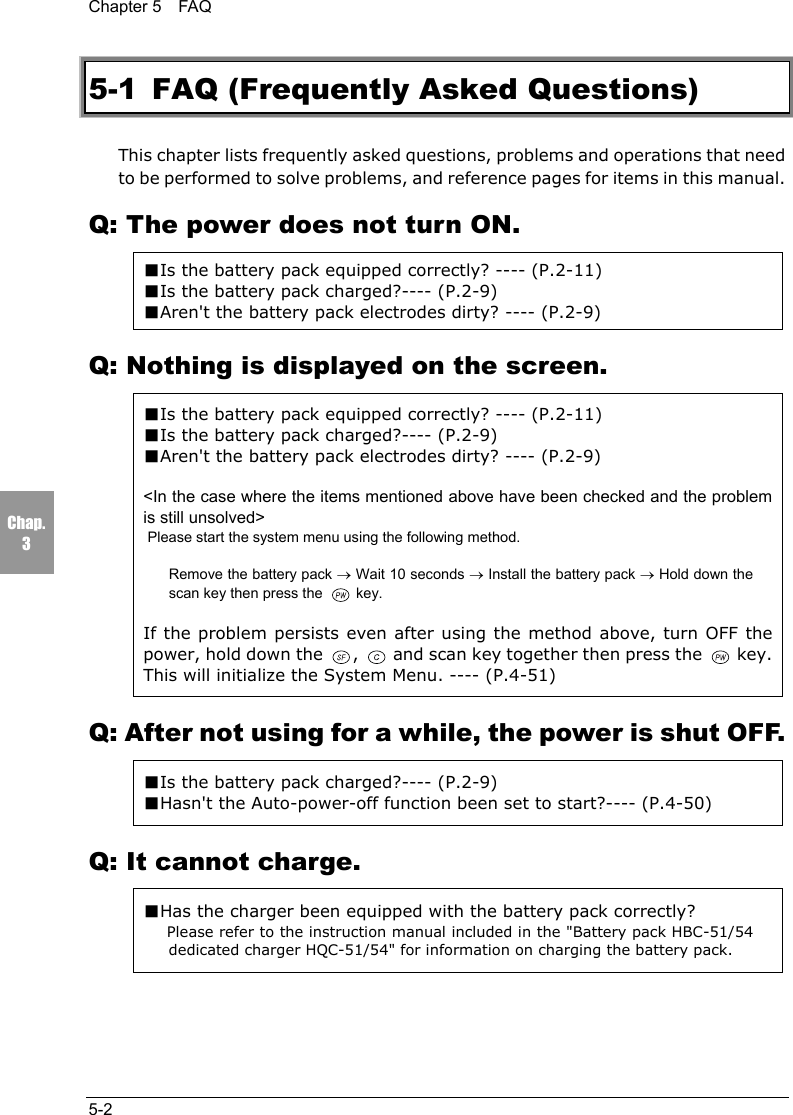
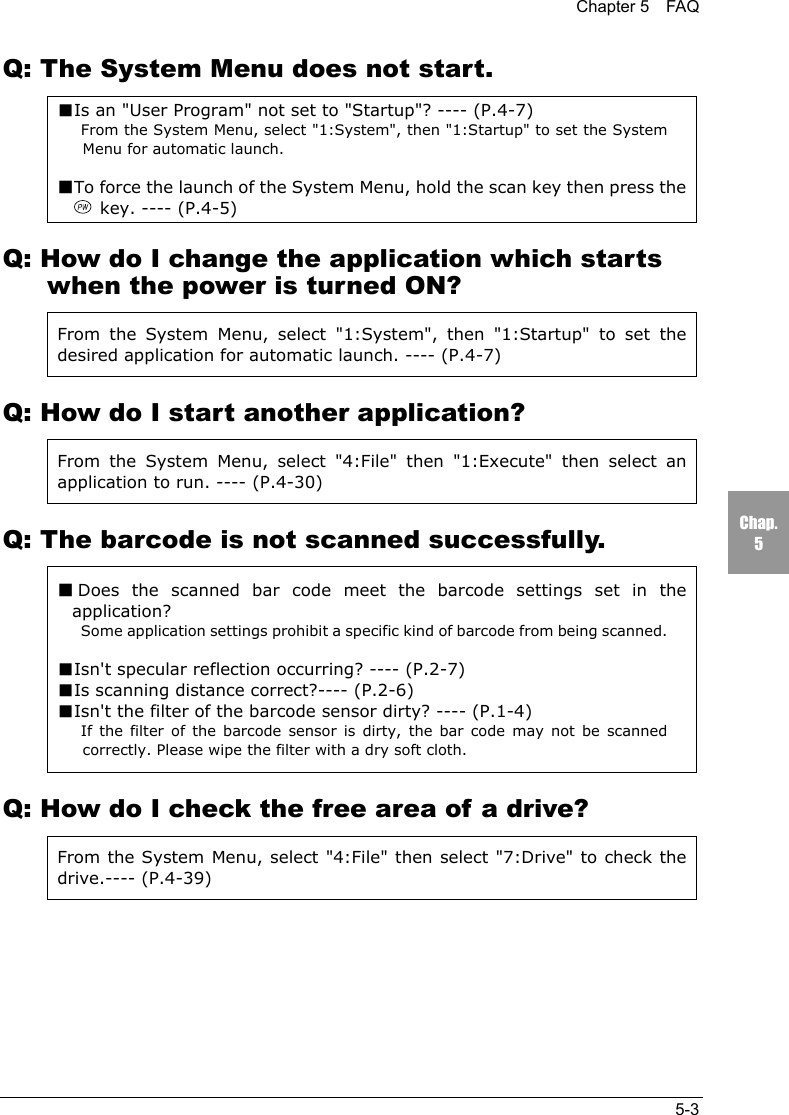
Welcat CTR80011W Wireless Hand-held Terminal User Manual manual

Welcat, Inc. Wireless Hand-held Terminal manual

manual

iCopyright 2003 Welcat Inc. All rights reserved.This document may not be reproduced whole or in part without prior consent fromthe publisher.Specifications are subject to change without prior notice.All products and company names mentioned in this manual are the trademarks orregistered trademarks of their respective owners.
iiSAFETY PRECAUTIONS•Be sure to read these precautions before using this product in order to insure safeoperation of the equipment.•Keep this User's Manual on hand for future reference whenever you may need it.Strict observance of these warning and caution indications are a MUST for preventingaccidents which could result in bodily injury and substantial property damage. Makesure you fully understand all definitions of these terms and related symbols given below,before you proceed to the text itself.Warning This symbol indicates an item that can result in death or seriouspersonal injury if ignored.Caution This symbol indicates an item that can result in serious personalinjury or material damage if ignored.Meaning of SymbolsA triangle inside indicates something you should be carefulabout.A diagonal line through a circle indicates something you shouldnot do.A black circle indicates something you must do.
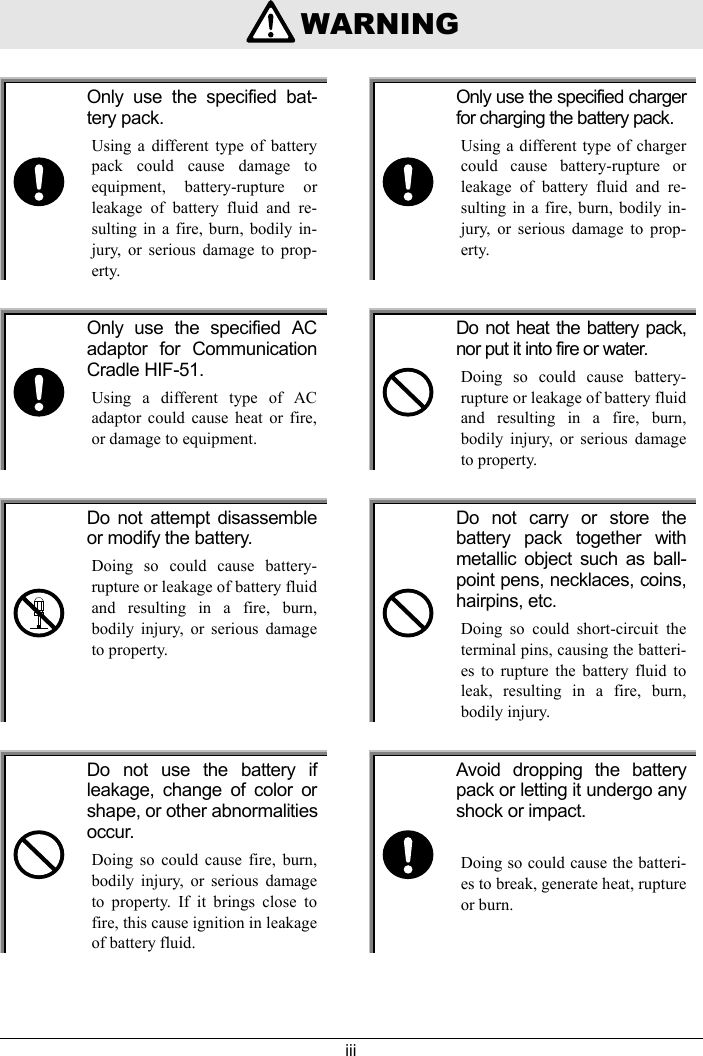
iii    WARNINGOnly use the specified bat-tery pack.Using a different type of batterypack could cause damage toequipment, battery-rupture orleakage of battery fluid and re-sulting in a fire, burn, bodily in-jury, or serious damage to prop-erty.Only use the specified chargerfor charging the battery pack.Using a different type of chargercould cause battery-rupture orleakage of battery fluid and re-sulting in a fire, burn, bodily in-jury, or serious damage to prop-erty.Only use the specified ACadaptor for CommunicationCradle HIF-51.Using a different type of ACadaptor could cause heat or fire,or damage to equipment.Do not heat the battery pack,nor put it into fire or water.Doing so could cause battery-rupture or leakage of battery fluidand resulting in a fire, burn,bodily injury, or serious damageto property.Do not attempt disassembleor modify the battery.Doing so could cause battery-rupture or leakage of battery fluidand resulting in a fire, burn,bodily injury, or serious damageto property.Do not carry or store thebattery pack together withmetallic object such as ball-point pens, necklaces, coins,hairpins, etc.Doing so could short-circuit theterminal pins, causing the batteri-es to rupture the battery fluid toleak, resulting in a fire, burn,bodily injury.Do not use the battery ifleakage, change of color orshape, or other abnormalitiesoccur.Doing so could cause fire, burn,bodily injury, or serious damageto property. If it brings close tofire, this cause ignition in leakageof battery fluid.Avoid dropping the batterypack or letting it undergo anyshock or impact.Doing so could cause the batteri-es to break, generate heat, ruptureor burn.
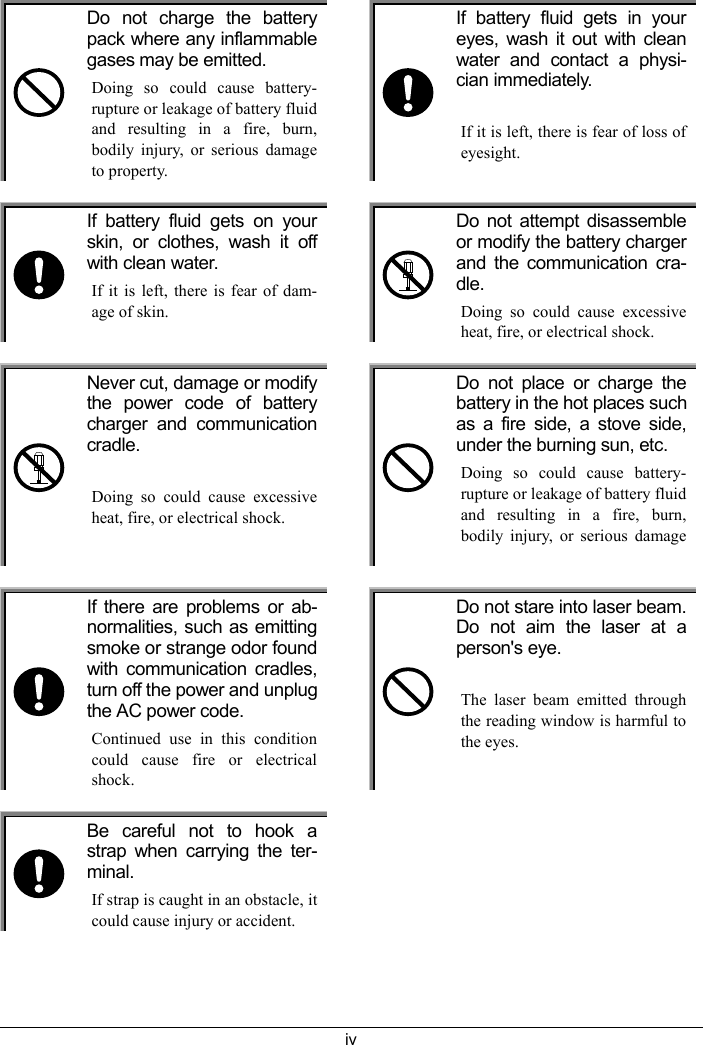
ivDo not charge the batterypack where any inflammablegases may be emitted.Doing so could cause battery-rupture or leakage of battery fluidand resulting in a fire, burn,bodily injury, or serious damageto property.If battery fluid gets in youreyes, wash it out with cleanwater and contact a physi-cian immediately.If it is left, there is fear of loss ofeyesight.If battery fluid gets on yourskin, or clothes, wash it offwith clean water.If it is left, there is fear of dam-age of skin.Do not attempt disassembleor modify the battery chargerand the communication cra-dle.Doing so could cause excessiveheat, fire, or electrical shock.Never cut, damage or modifythe power code of batterycharger and communicationcradle.Doing so could cause excessiveheat, fire, or electrical shock.Do not place or charge thebattery in the hot places suchas a fire side, a stove side,under the burning sun, etc.Doing so could cause battery-rupture or leakage of battery fluidand resulting in a fire, burn,bodily injury, or serious damageIf there are problems or ab-normalities, such as emittingsmoke or strange odor foundwith communication cradles,turn off the power and unplugthe AC power code.Continued use in this conditioncould cause fire or electricalshock.Do not stare into laser beam.Do not aim the laser at aperson's eye.The laser beam emitted throughthe reading window is harmful tothe eyes.Be careful not to hook astrap when carrying the ter-minal.If strap is caught in an obstacle, itcould cause injury or accident.
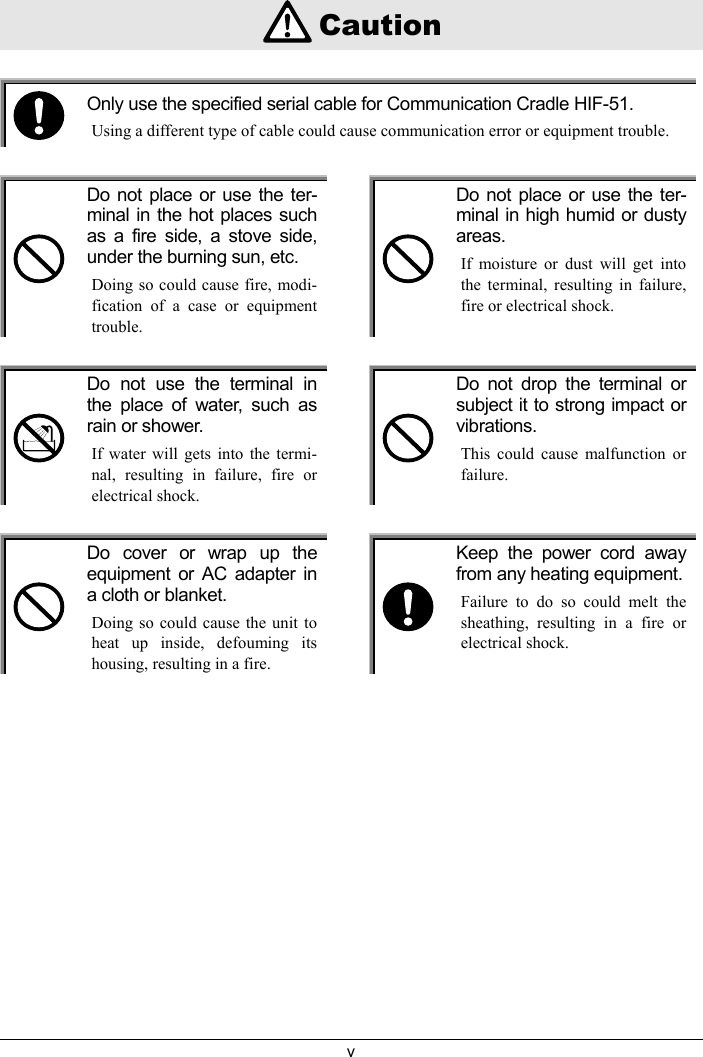
v    CautionOnly use the specified serial cable for Communication Cradle HIF-51.Using a different type of cable could cause communication error or equipment trouble.Do not place or use the ter-minal in the hot places suchas a fire side, a stove side,under the burning sun, etc.Doing so could cause fire, modi-fication of a case or equipmenttrouble.Do not place or use the ter-minal in high humid or dustyareas.If moisture or dust will get intothe terminal, resulting in failure,fire or electrical shock.Do not use the terminal inthe place of water, such asrain or shower.If water will gets into the termi-nal, resulting in failure, fire orelectrical shock.Do not drop the terminal orsubject it to strong impact orvibrations.This could cause malfunction orfailure.Do cover or wrap up theequipment or AC adapter ina cloth or blanket.Doing so could cause the unit toheat up inside, defouming itshousing, resulting in a fire.Keep the power cord awayfrom any heating equipment.Failure to do so could melt thesheathing, resulting in a fire orelectrical shock.
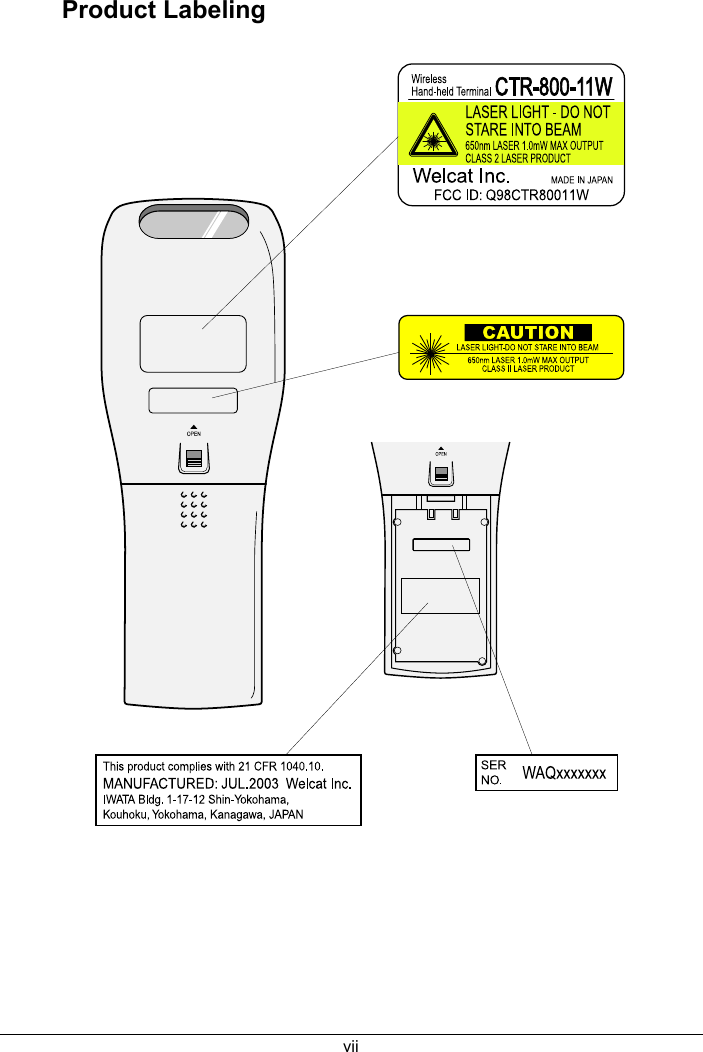
viLaser SafetyThis product using the laser comply with US 21CFR1040.10.  This equipment is certified as a Class 2 laser product under the U.S. Department ofHealth and Human Services (DHHS) Radiation Performance Standard according to theRadiation Control for Health and Safety Act of 1968. This means that the equipmentdoes not produce hazardous laser radiation.FDA RegulationsU.S. Food and Drug Administration (FDA) has implemented regulations for laser pro-ducts manufactured on and after August 2, 1976. Compliance is mandatory for productsmarketed in the United States. The labels on the product indicate compliance with theFDA regulations and must be attached to laser products marketed in the United States.Caution:Do not look into the laser beam source through the reading window or point thereading window towards the eyes. The laser beam emitted through the reading win-dow is harmful to the eyes.Use of controls, adjustments or performance of procedures other than those specifiedin this manual may result in hazardous invisible radiation exposure.Class 2 laser scanners use a low power, visible light diode. As with any very brightlight source, such as the sun, the user should avoid staring directly into the light beam.Momentary exposure to a Class 2 laser is not known to be harmful.
viiProduct Labeling
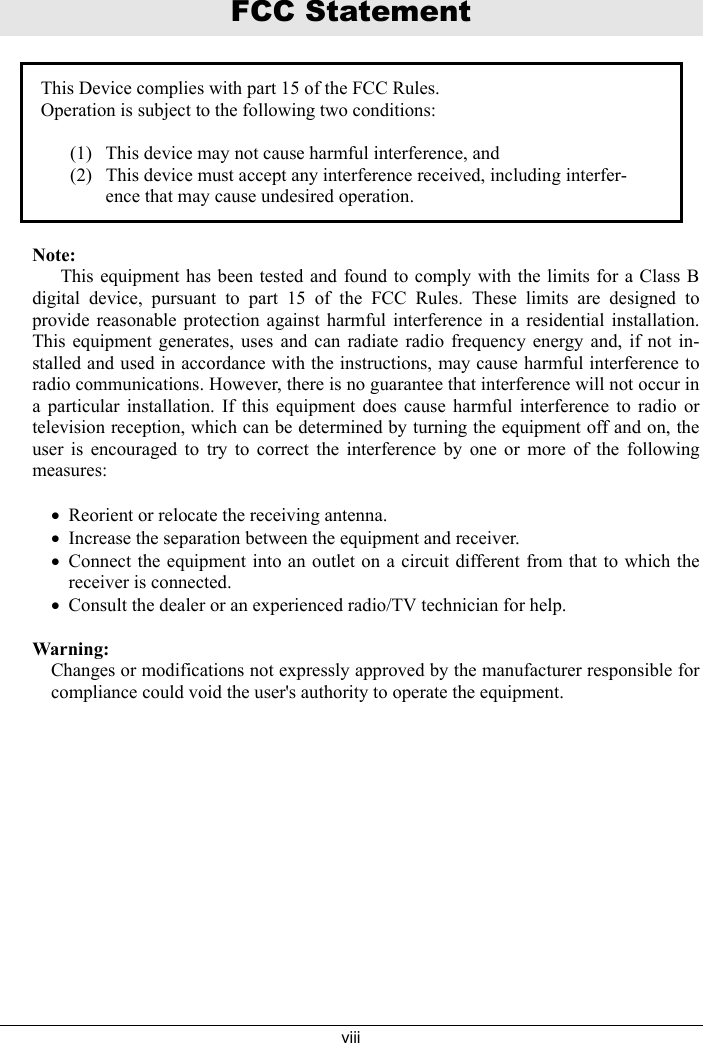
viiiFCC StatementThis Device complies with part 15 of the FCC Rules.Operation is subject to the following two conditions:(1) This device may not cause harmful interference, and(2) This device must accept any interference received, including interfer-ence that may cause undesired operation.Note:      This equipment has been tested and found to comply with the limits for a Class Bdigital device, pursuant to part 15 of the FCC Rules. These limits are designed toprovide reasonable protection against harmful interference in a residential installation.This equipment generates, uses and can radiate radio frequency energy and, if not in-stalled and used in accordance with the instructions, may cause harmful interference toradio communications. However, there is no guarantee that interference will not occur ina particular installation. If this equipment does cause harmful interference to radio ortelevision reception, which can be determined by turning the equipment off and on, theuser is encouraged to try to correct the interference by one or more of the followingmeasures:•Reorient or relocate the receiving antenna.•Increase the separation between the equipment and receiver.•Connect the equipment into an outlet on a circuit different from that to which thereceiver is connected.•Consult the dealer or an experienced radio/TV technician for help.Warning:Changes or modifications not expressly approved by the manufacturer responsible forcompliance could void the user's authority to operate the equipment.
ixFCC Radiation Exposure StatementThe available scientific evidence does not show that any health problems are associatedwith using low power wireless devices. There is no proof, however, that these low pow-er wireless devices are absolutely safe. Low power Wireless devices emit low levels ofradio frequency energy (RF) in the microwave range while being used. Whereas highlevels of RF can produce health effects (by heating tissue), exposure to low level RF thatdoes not produce heating effects causes no known adverse health effects. Many studiesof low level RF exposures have not found any biological effects. Some studies havesuggested that some biological effects might occur, but such findings have not been con-firmed by additional research. The CTR-800-11W has been tested and found to complywith the Federal Communications Commission (FCC) guidelines on radilo frequencyenergy (RF) exposures. The maximum SAR levels tested for the CTR-800-11W hasbeen shown to be 1.02 W/kg at body.
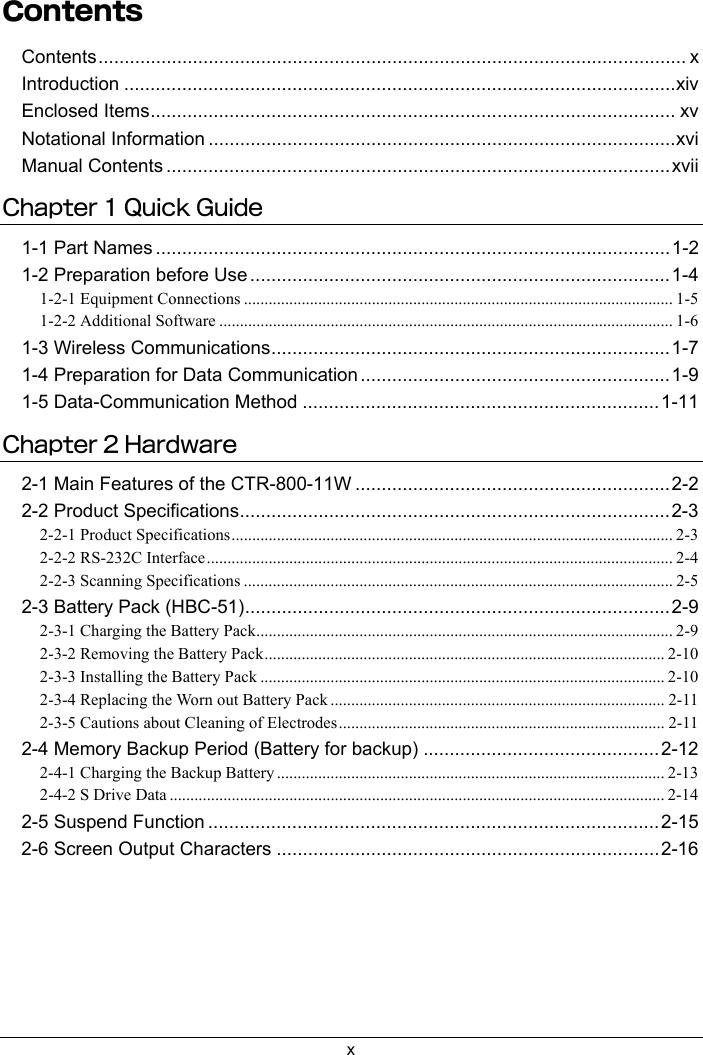
xContentsContents................................................................................................................ xIntroduction .........................................................................................................xivEnclosed Items.................................................................................................... xvNotational Information .........................................................................................xviManual Contents ................................................................................................xviiChapter 1 Quick Guide1-1 Part Names ..................................................................................................1-21-2 Preparation before Use ................................................................................1-41-2-1 Equipment Connections ........................................................................................................ 1-51-2-2 Additional Software .............................................................................................................. 1-61-3 Wireless Communications............................................................................1-71-4 Preparation for Data Communication ...........................................................1-91-5 Data-Communication Method ....................................................................1-11Chapter 2 Hardware2-1 Main Features of the CTR-800-11W ............................................................2-22-2 Product Specifications..................................................................................2-32-2-1 Product Specifications........................................................................................................... 2-32-2-2 RS-232C Interface................................................................................................................. 2-42-2-3 Scanning Specifications ........................................................................................................ 2-52-3 Battery Pack (HBC-51).................................................................................2-92-3-1 Charging the Battery Pack..................................................................................................... 2-92-3-2 Removing the Battery Pack.................................................................................................2-102-3-3 Installing the Battery Pack .................................................................................................. 2-102-3-4 Replacing the Worn out Battery Pack ................................................................................. 2-112-3-5 Cautions about Cleaning of Electrodes............................................................................... 2-112-4 Memory Backup Period (Battery for backup) .............................................2-122-4-1 Charging the Backup Battery .............................................................................................. 2-132-4-2 S Drive Data ........................................................................................................................ 2-142-5 Suspend Function ......................................................................................2-152-6 Screen Output Characters .........................................................................2-16
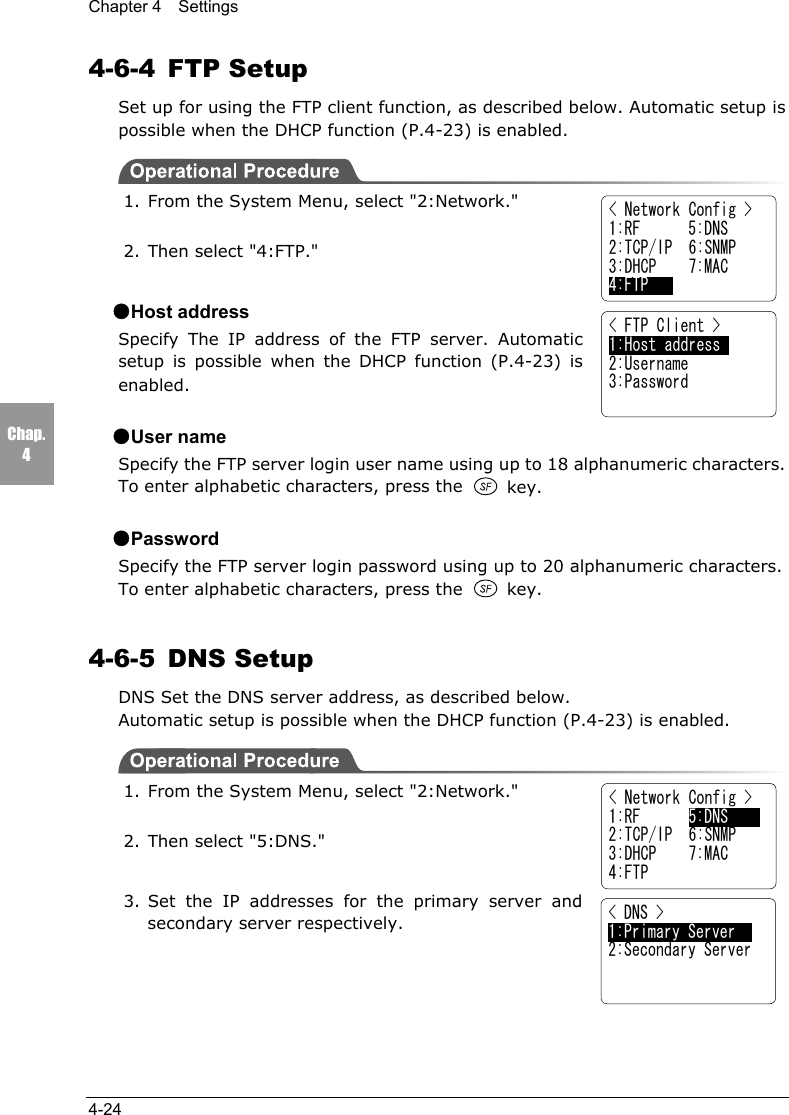
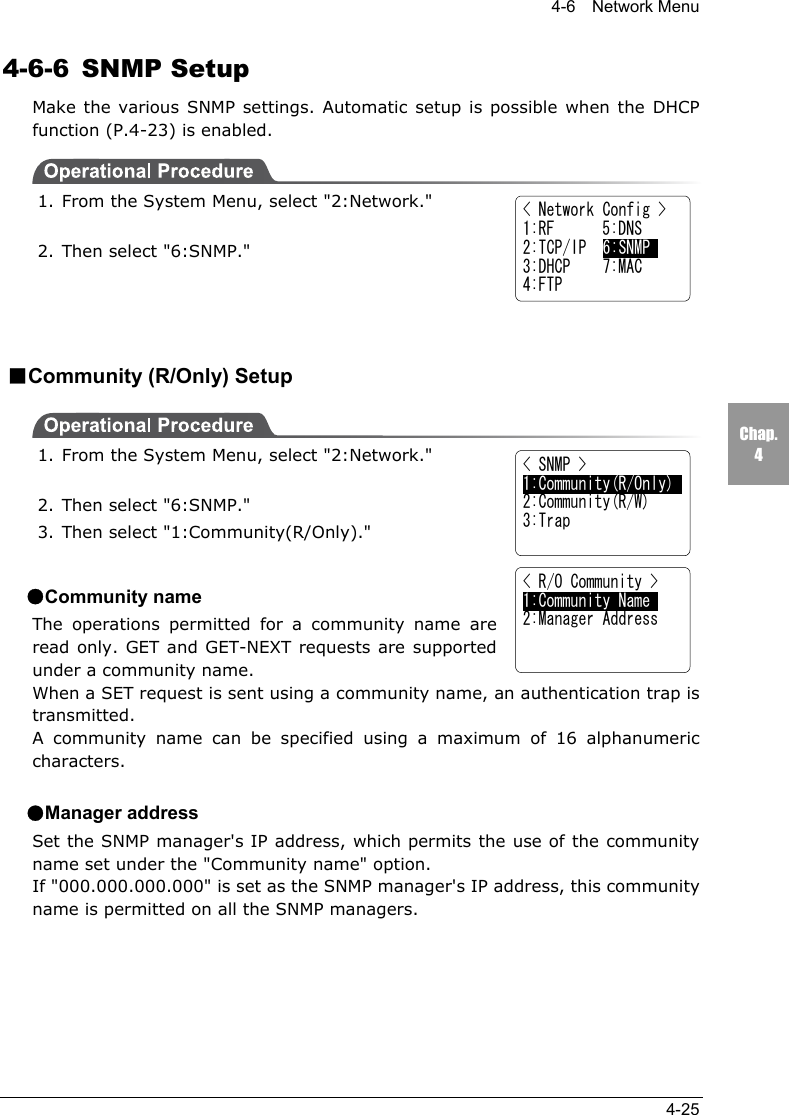
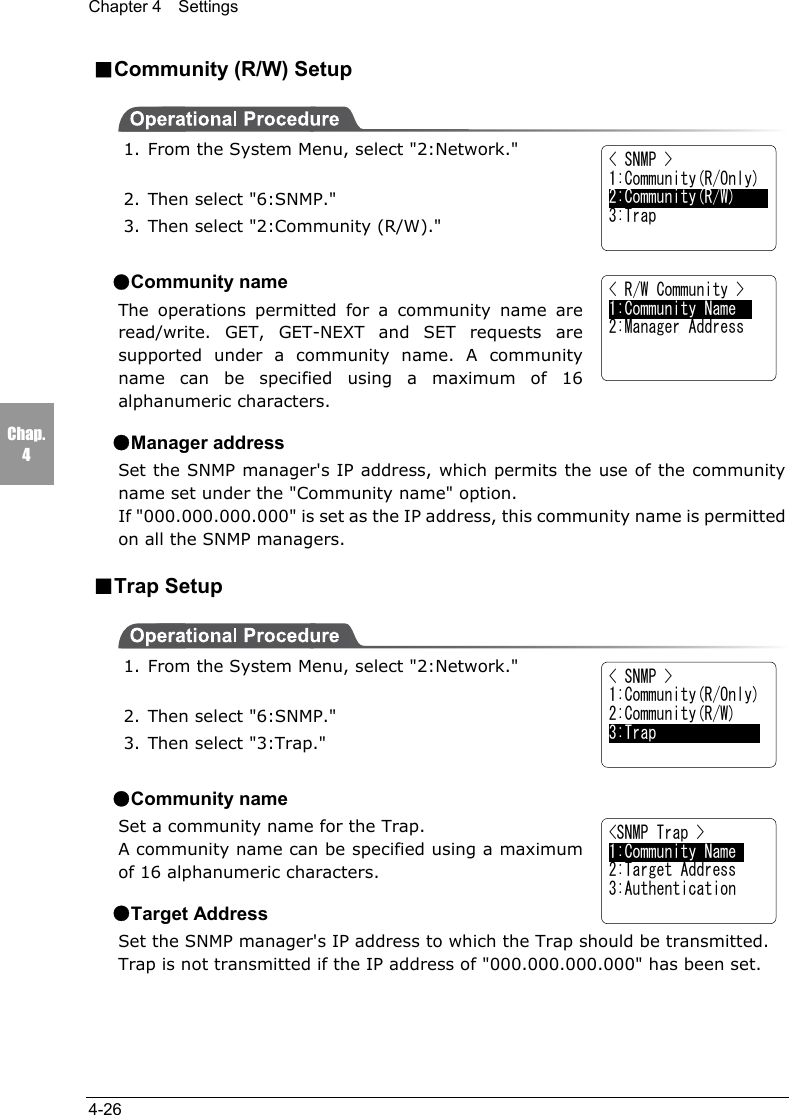
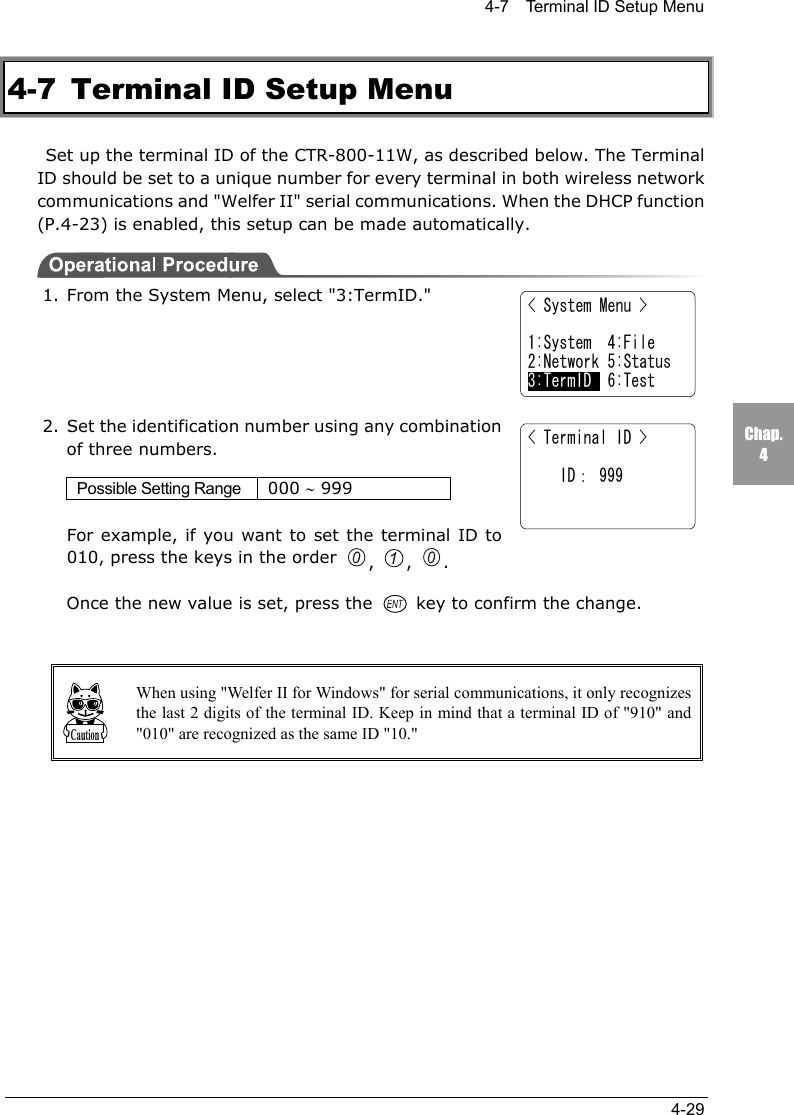
xiChapter 3 Software3-1 CTR-800-11W Software...............................................................................3-23-1-1 Data Storage .......................................................................................................................... 3-33-1-2 System Menu......................................................................................................................... 3-43-1-3 CTR-800 Browser ................................................................................................................. 3-4Chapter 4 Setup4-1 Introduction ..................................................................................................4-24-2 System Menu ...............................................................................................4-34-2-1 System Menu Operations ...................................................................................................... 4-34-3 Starting the System Menu............................................................................4-54-3-1 How to Start the System Menu ............................................................................................. 4-54-3-2 Executing a DHCP Request ..................................................................................................4-54-3-3 Starting State for Wireless Operation ................................................................................... 4-54-4 System Menu List.........................................................................................4-64-5 System Setup Menu.....................................................................................4-74-5-1 Setting the Programs for Automatic Launch ........................................................................ 4-74-5-2 Serial Communication Setup................................................................................................. 4-84-5-3 Clock Setup ........................................................................................................................... 4-94-5-4 Adjusting the Screen Contrast.............................................................................................4-104-5-5 Buzzer and Vibrator Setup .................................................................................................. 4-114-5-6 Scanner Setup ...................................................................................................................... 4-134-5-7 Suspend Mode Setup........................................................................................................... 4-154-6 Network Menu............................................................................................4-164-6-1 Wireless Communications Setup ........................................................................................ 4-164-6-2 TCP/IP Setup ....................................................................................................................... 4-224-6-3 DHCP Setup ........................................................................................................................ 4-234-6-4 FTP Setup ............................................................................................................................ 4-244-6-5 DNS Setup ........................................................................................................................... 4-244-6-6 SNMP Setup ........................................................................................................................ 4-254-6-7 Displaying the MAC Address ............................................................................................. 4-284-7 Terminal ID Setup Menu ............................................................................4-294-8 File Menu ...................................................................................................4-304-8-1 Starting an Application........................................................................................................ 4-304-8-2 Transmitting Files................................................................................................................ 4-314-8-3 Receiving Files .................................................................................................................... 4-334-8-4 Deleting Files ...................................................................................................................... 4-364-8-5 Testing Files......................................................................................................................... 4-374-8-6 File Information................................................................................................................... 4-384-8-7 Drive Information................................................................................................................ 4-39
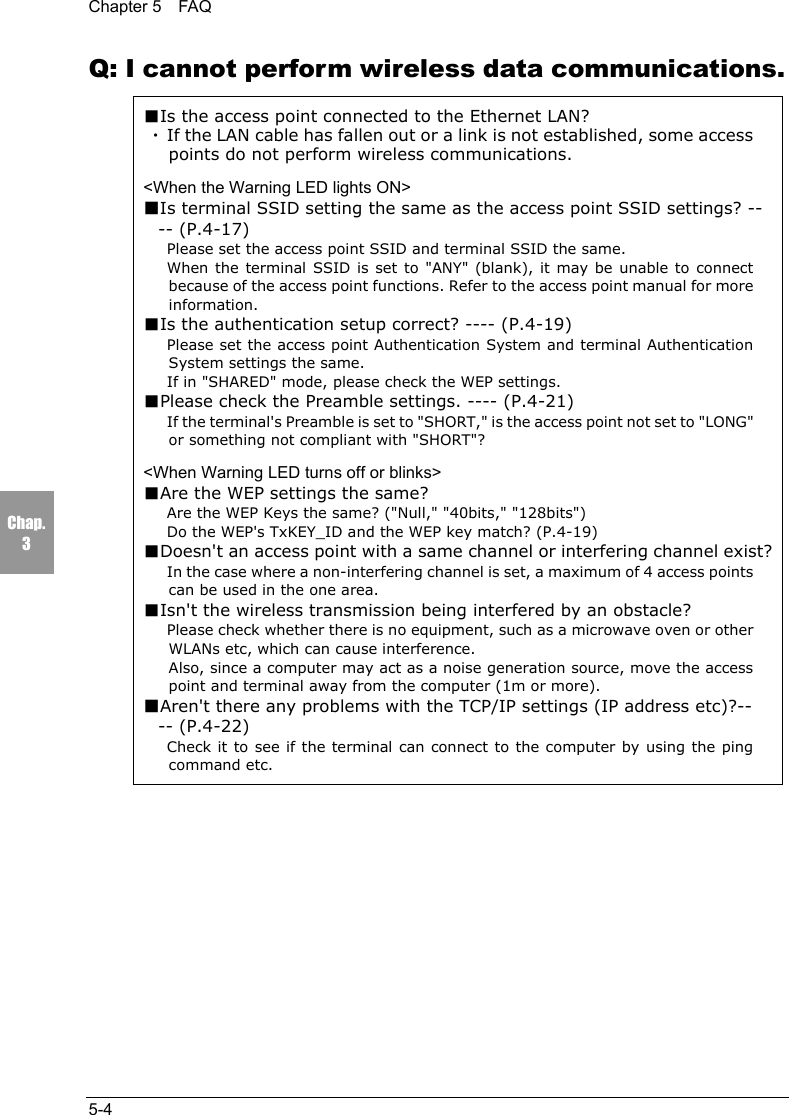
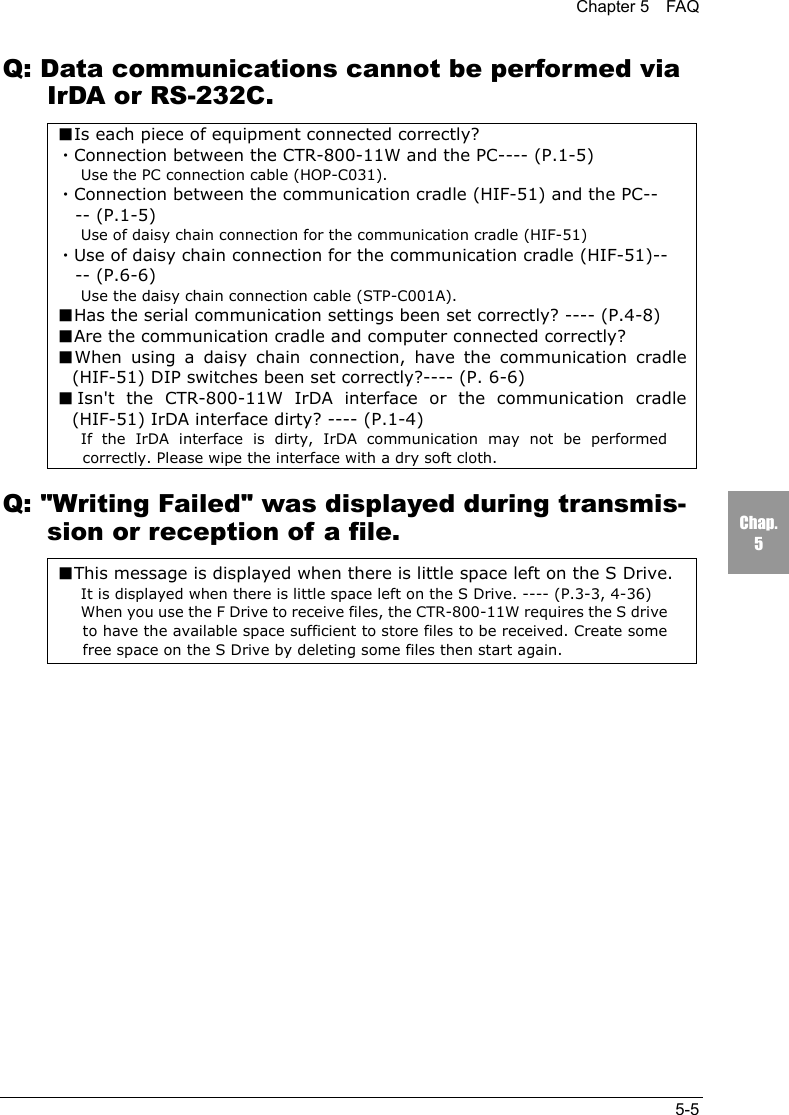
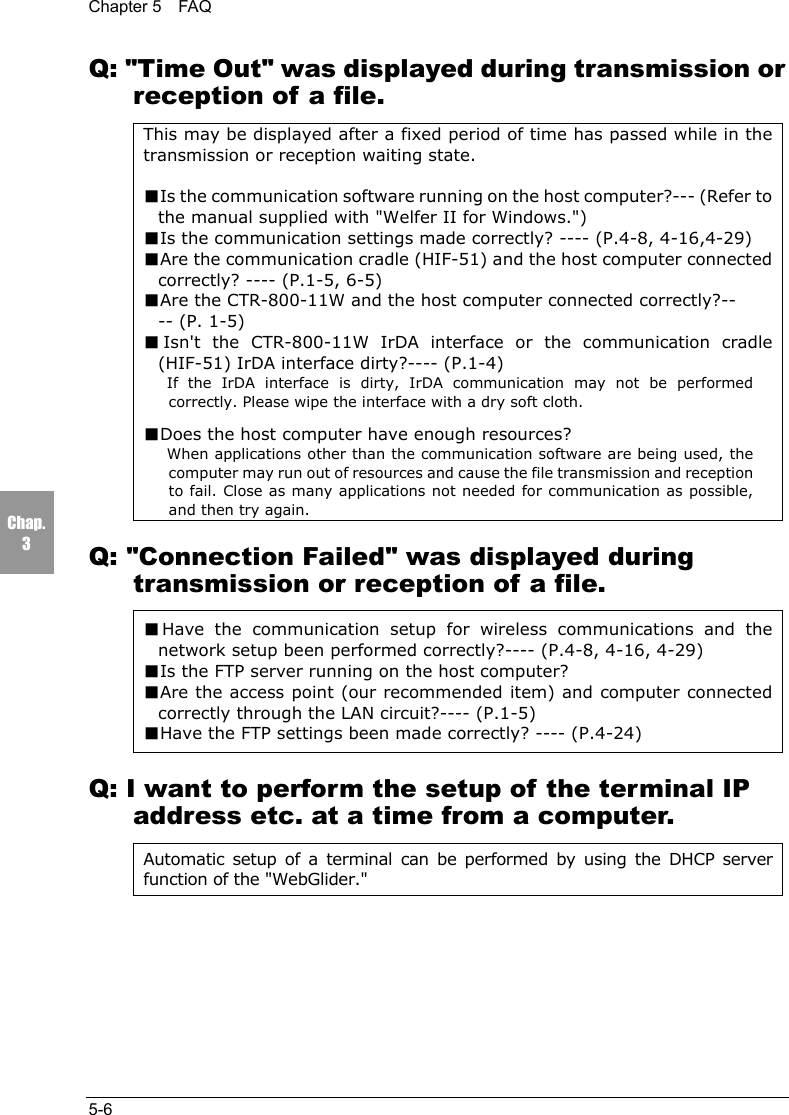
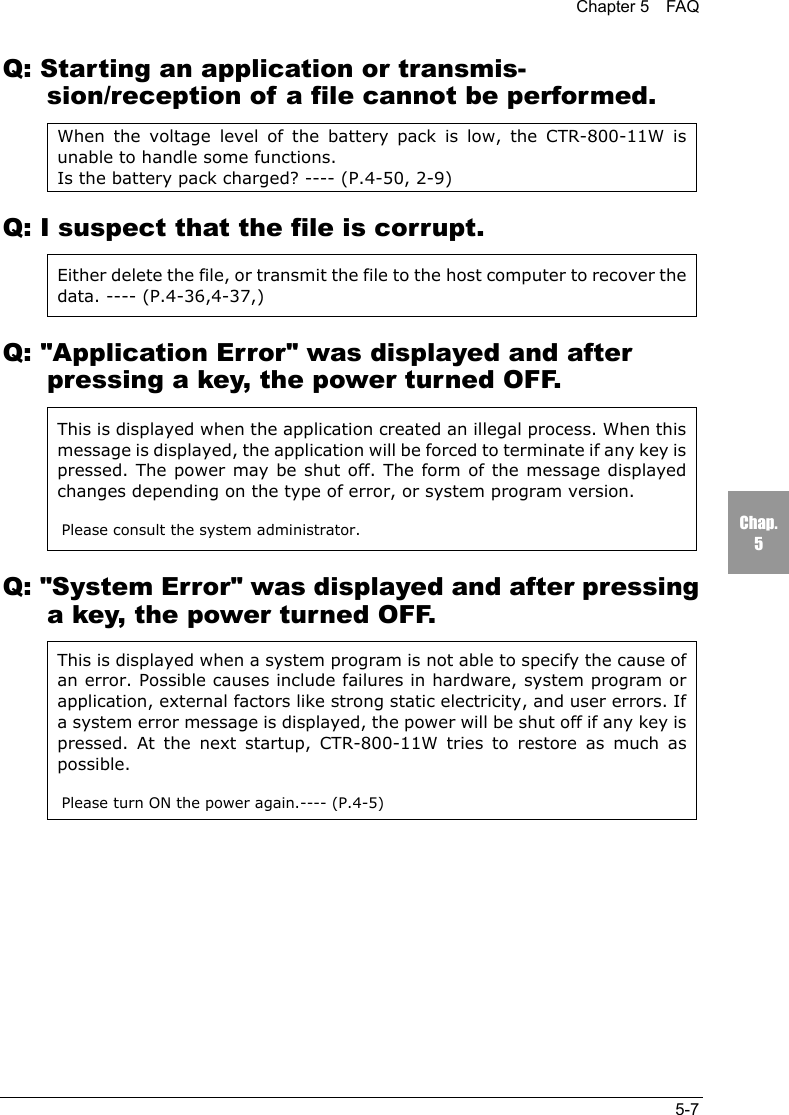
xii4-8-8 Changing the Font ............................................................................................................... 4-404-9 Status Menu...............................................................................................4-414-9-1 Battery Voltage .................................................................................................................... 4-414-9-2 OS Version........................................................................................................................... 4-424-9-3 Clock.................................................................................................................................... 4-424-10 Test Menu ................................................................................................4-434-10-1 RF Test............................................................................................................................... 4-434-10-2 Serial Communication Test ............................................................................................... 4-474-10-3 Barcode Scanning test ....................................................................................................... 4-484-10-4 Screen Display Test ........................................................................................................... 4-484-10-5 Key Input Test ................................................................................................................... 4-494-11 Other Functions........................................................................................4-504-11-1 Low Voltage Warning........................................................................................................ 4-504-11-2 Auto-power-off.................................................................................................................. 4-504-12 Initialization of the CTR-800-11W ............................................................4-51Chapter 5 FAQ5-1 FAQ (Frequently Asked Questions) .............................................................5-2Q: The power does not turn ON...................................................................................................... 5-2Q: Nothing is displayed on the screen. ........................................................................................... 5-2Q: After not using for a while, the power is shut OFF. .................................................................. 5-2Q: It cannot charge. ......................................................................................................................... 5-2Q: The System Menu does not start................................................................................................ 5-3Q: How do I change the application which starts when the power is turned ON? ........................ 5-3Q: How do I start another application?........................................................................................... 5-3Q: The barcode is not scanned successfully. .................................................................................. 5-3Q: How do I check the free area of a drive? ................................................................................... 5-3Q: I cannot perform wireless data communications. ...................................................................... 5-4Q: Data communications cannot be performed via IrDA or RS-232C. ......................................... 5-5Q: "Writing Failed" was displayed during transmission or reception of a file. ............................. 5-5Q: "Time Out" was displayed during transmission or reception of a file. ..................................... 5-6Q: "Connection Failed" was displayed during transmission or reception of a file. ....................... 5-6Q: I want to perform the setup of the terminal IP address etc. at a time from a computer. ........... 5-6Q: Starting an application or transmission/reception of a file cannot be performed. .................... 5-7Q: I suspect that the file is corrupt.................................................................................................. 5-7Q: "Application Error" was displayed and after pressing a key, the power turned OFF................ 5-7Q: "System Error" was displayed and after pressing a key, the power turned OFF....................... 5-7
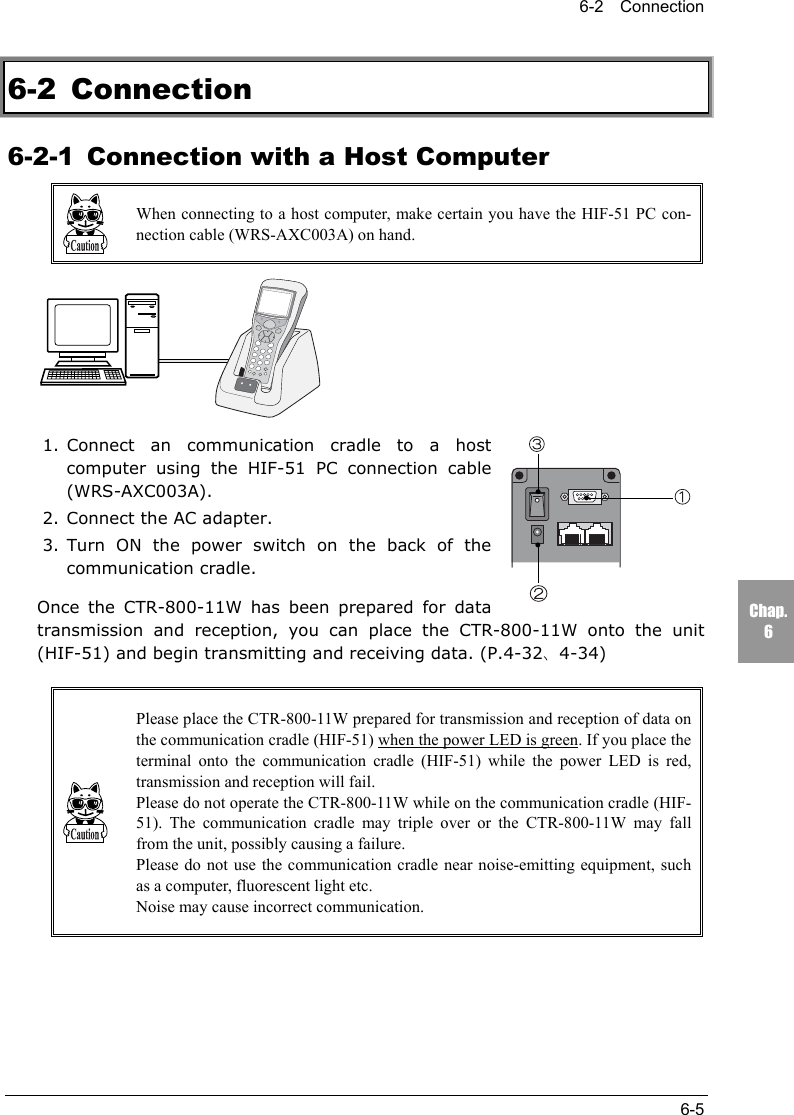
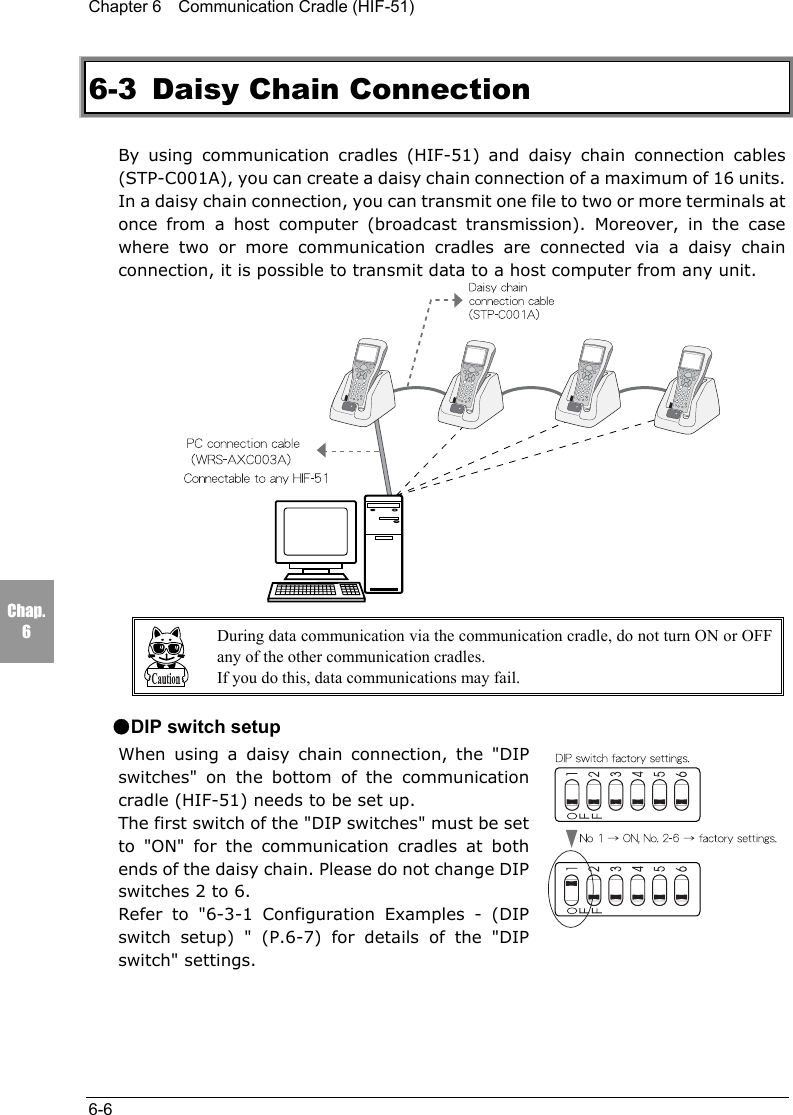
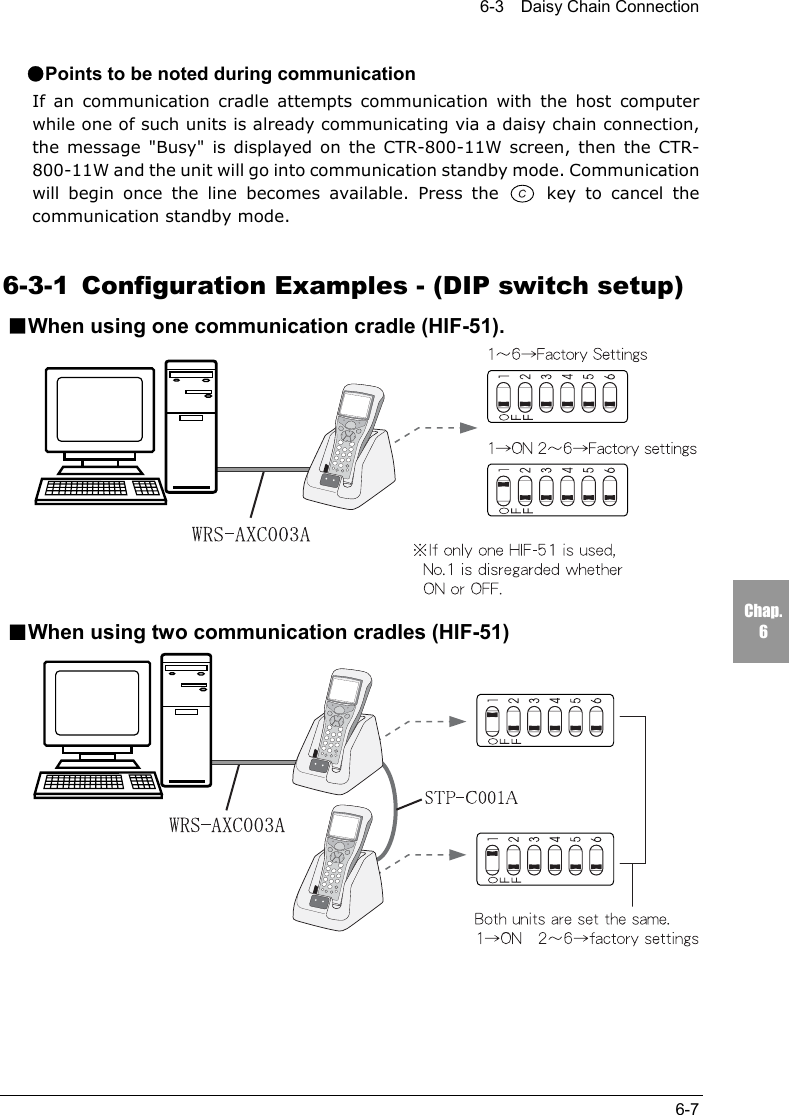
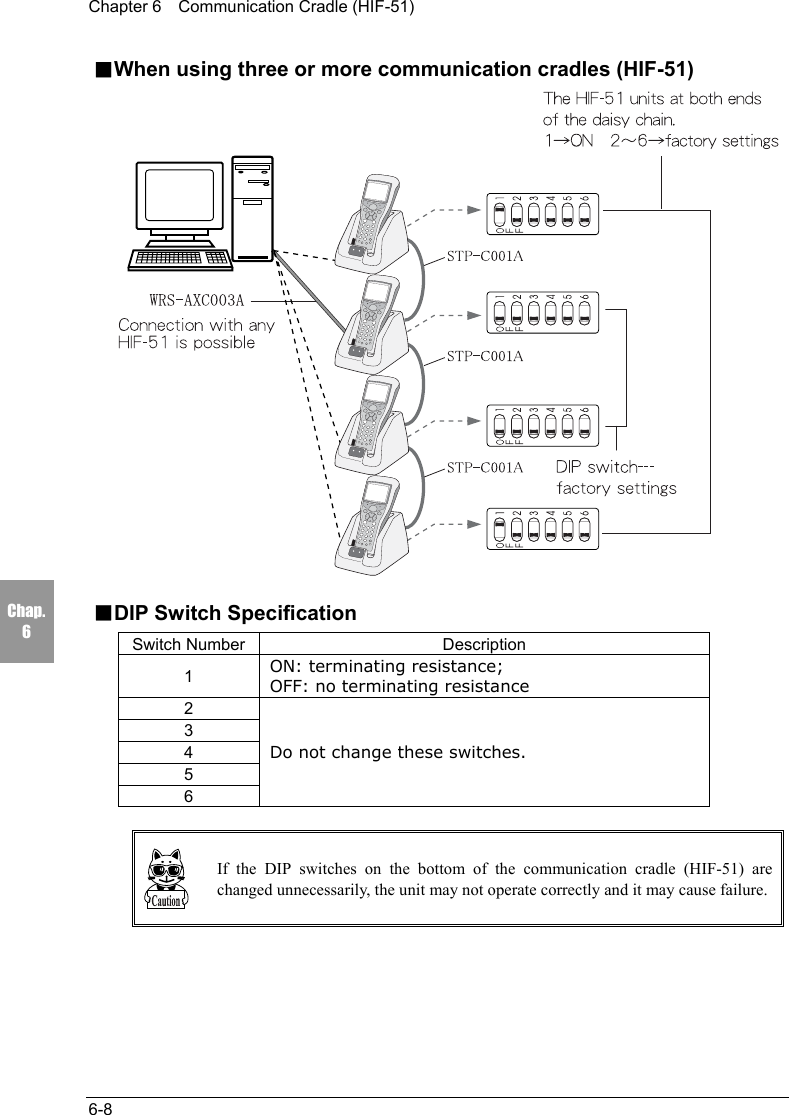
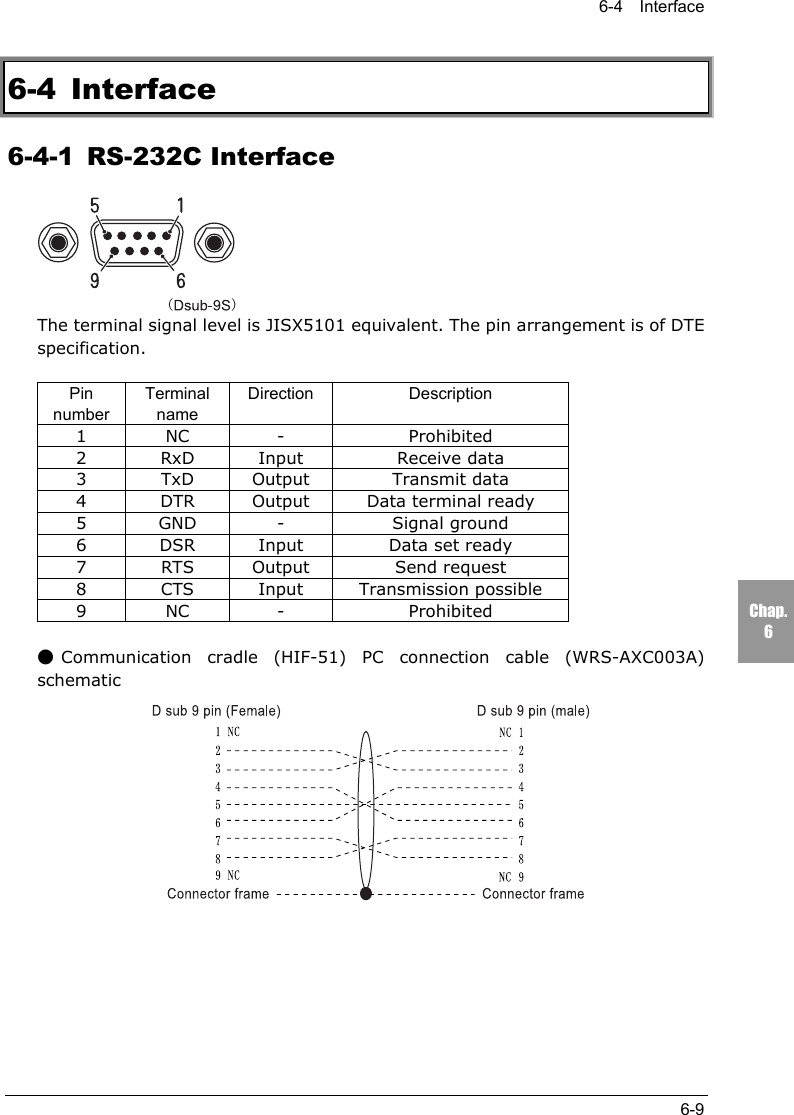
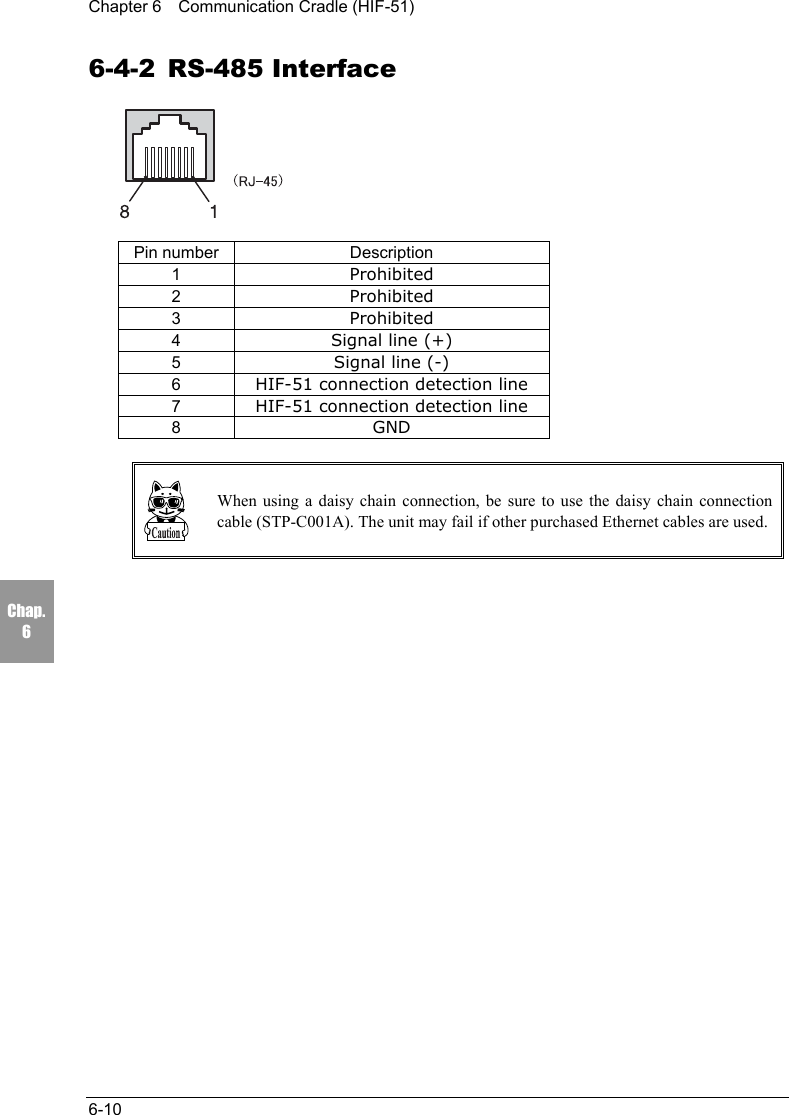
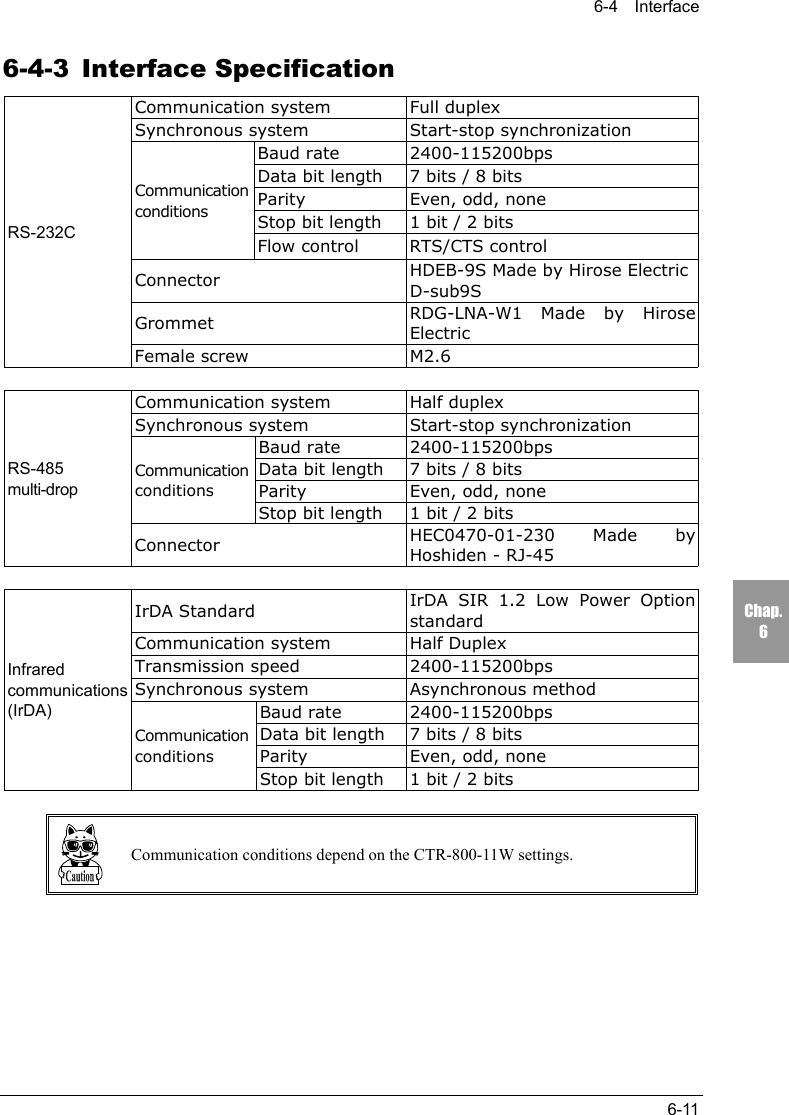
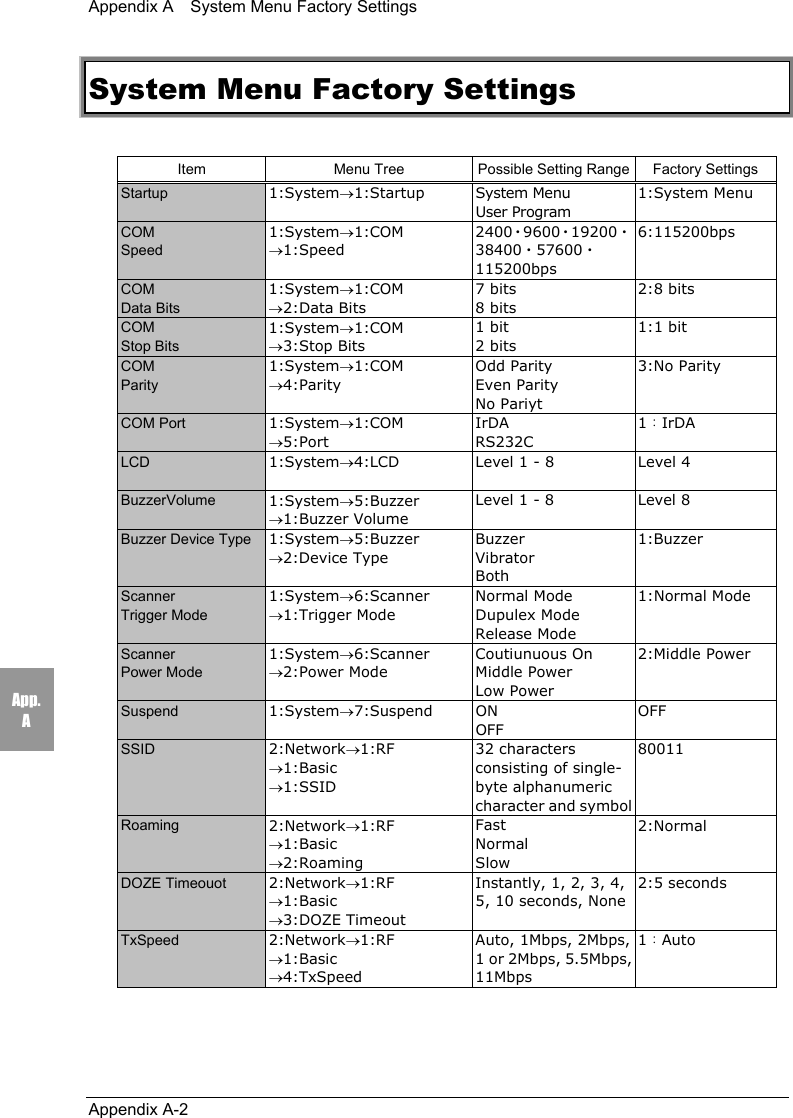
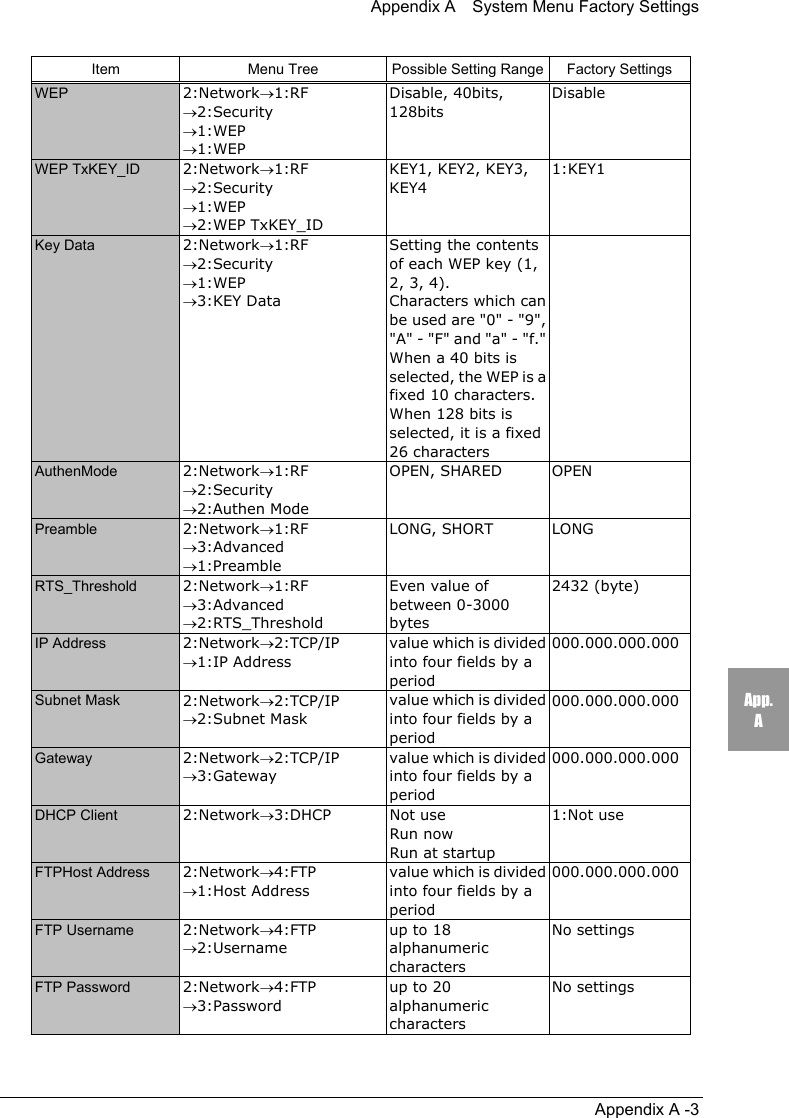
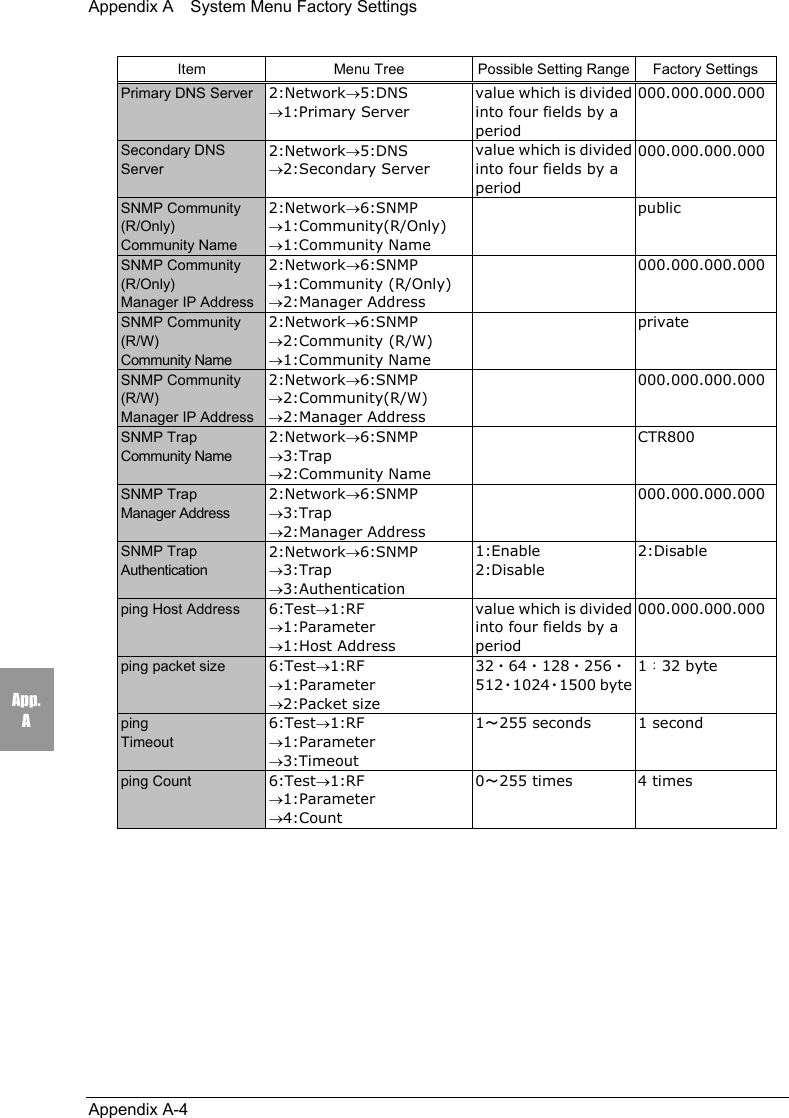
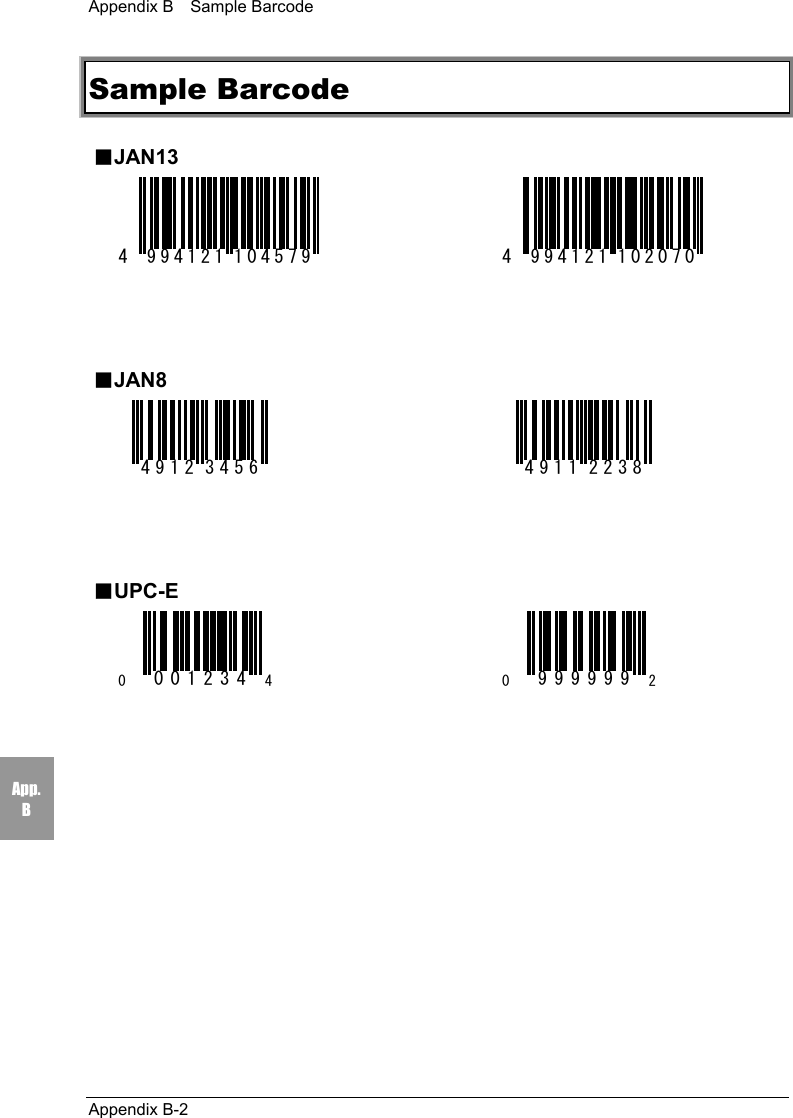
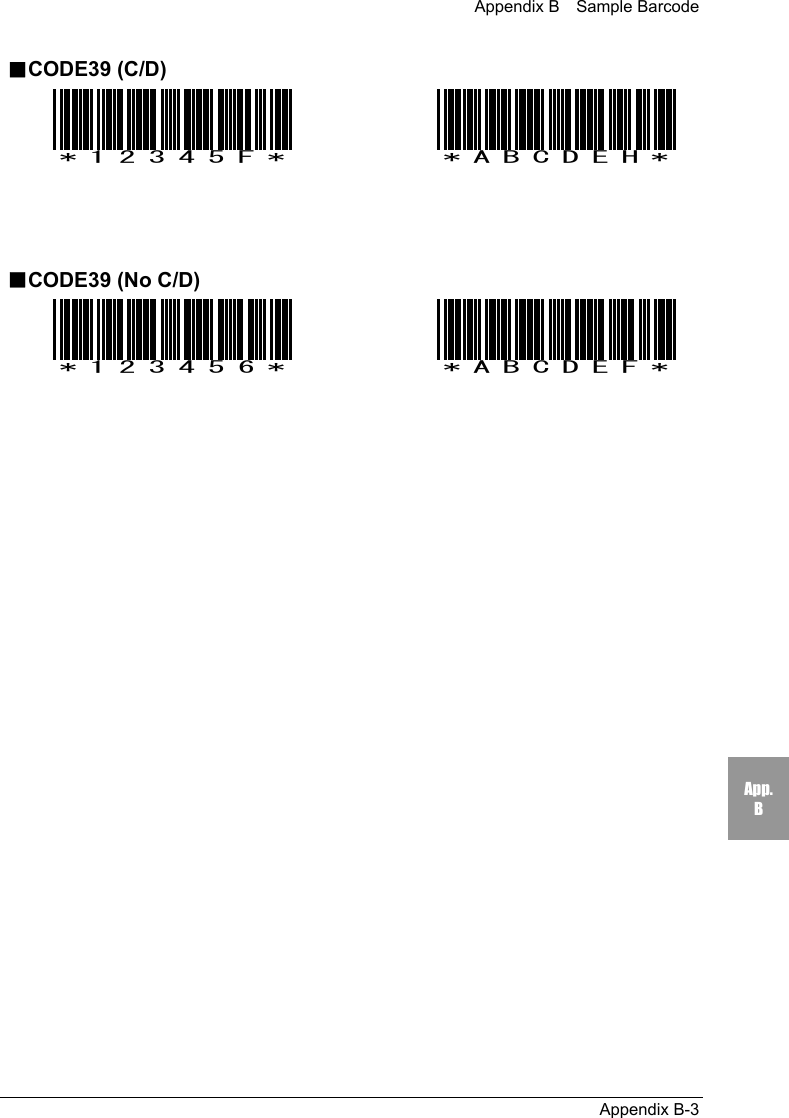
xiiiChapter 6 Communication Cradle (HIF-51)6-1 Introduction ..................................................................................................6-26-1-1 Part Names............................................................................................................................. 6-36-2 Connection...................................................................................................6-56-2-1 Connection with a Host Computer........................................................................................ 6-56-3 Daisy Chain Connection...............................................................................6-66-3-1 Configuration Examples - (DIP switch setup) ...................................................................... 6-76-4 Interface .......................................................................................................6-96-4-1 RS-232C Interface................................................................................................................. 6-96-4-2 RS-485 Interface.................................................................................................................. 6-106-4-3 Interface Specification......................................................................................................... 6-11Appendix A System Menu Factory SettingsSystem Menu Factory Settings ......................................................................... A-2Appendix B Sample BarcodeSample Barcode................................................................................................ B-2Index
xivIntroductionThank you very much for purchasing a CTR-800-11W Wireless Hand-heldTerminal.This user manual explains the hardware and the system program of the CTR-800-11W.We hope the CTR-800-11W will improve efficiency of your business.●The CTR-800-11W Manual consists of the following.CTR-800-11W Hardware / SystemMenu User's Manual(this document)Explains the fundamental functionsand operation methods of the CTR-800-11W. This manual covers therequired settings for communicationand operations, as well as how tomake the fundamental setup of theCTR-800-11W via the System Menu.For use of the "WebGlider", please refer to the on-line manual included in the"WebGlider" package.
xvEnclosed Items■CTR-800-11W ...................................................................... 1■Hand Strap .......................................................................... 1■Manual (This Document)........................................................ 1Optional Extras○Battery pack (HBC-51)○Access point (Our recommended Item)○Charger (one-piece item: HQC-51 or 4-piece item: HQC-54)○Protection Cover (HDC-51)○"WebGlider", an integrated middleware package for web applications(WBG-800-01W)○5250 Emulator "Handy 5250" for handy terminals (HTN-5250-01)○PC Connection Cable (HOP-C031)○Recmmended Printer Connection Cable (HOP-C032)○Communication cradle (HIF-51)○HIF-51 PC Connection Cable (WRS-AXC003A)○HIF-51 Daisy-Chain Connection Cable (STP-C001A)○File transfer program, Welfer II for Windows
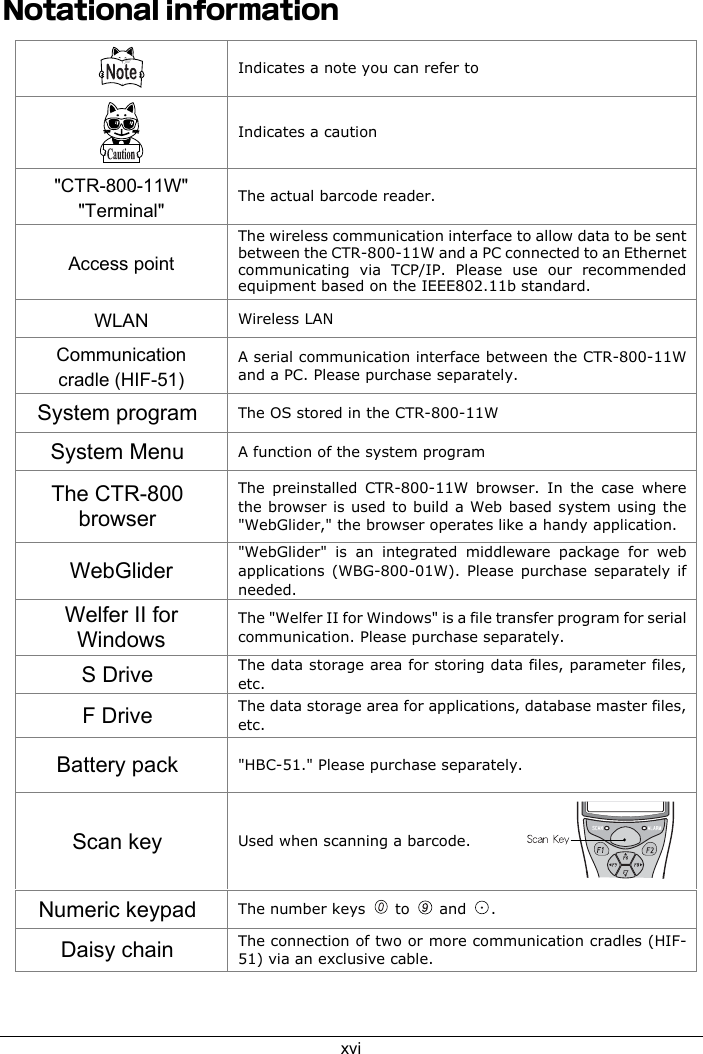
xviNotational informationIndicates a note you can refer toIndicates a caution"CTR-800-11W""Terminal" The actual barcode reader.Access pointThe wireless communication interface to allow data to be sentbetween the CTR-800-11W and a PC connected to an Ethernetcommunicating via TCP/IP. Please use our recommendedequipment based on the IEEE802.11b standard.WLAN Wireless LANCommunicationcradle (HIF-51)A serial communication interface between the CTR-800-11Wand a PC. Please purchase separately.System program The OS stored in the CTR-800-11WSystem Menu A function of the system programThe CTR-800browserThe preinstalled CTR-800-11W browser. In the case wherethe browser is used to build a Web based system using the"WebGlider," the browser operates like a handy application.WebGlider"WebGlider" is an integrated middleware package for webapplications (WBG-800-01W). Please purchase separately ifneeded.Welfer II forWindowsThe "Welfer II for Windows" is a file transfer program for serialcommunication. Please purchase separately.S Drive The data storage area for storing data files, parameter files,etc.F Drive The data storage area for applications, database master files,etc.Battery pack "HBC-51." Please purchase separately.Scan key Used when scanning a barcode.Numeric keypad The number keys   to   and  .Daisy chain The connection of two or more communication cradles (HIF-51) via an exclusive cable.
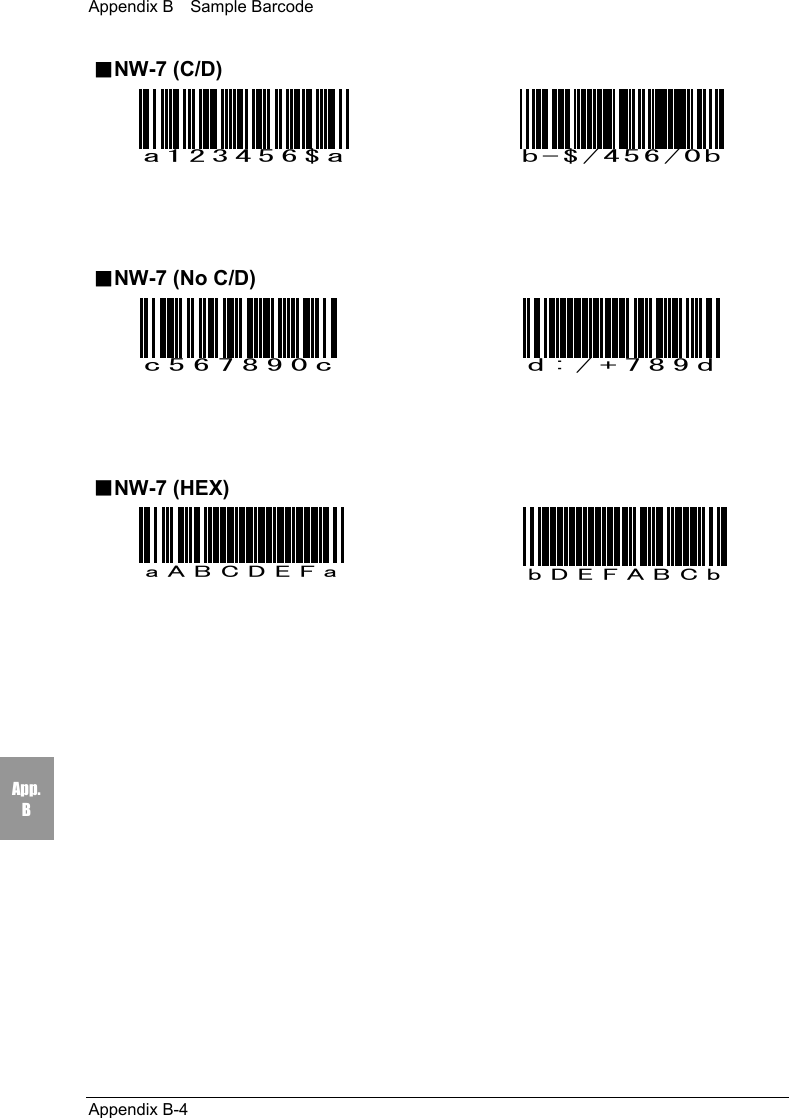
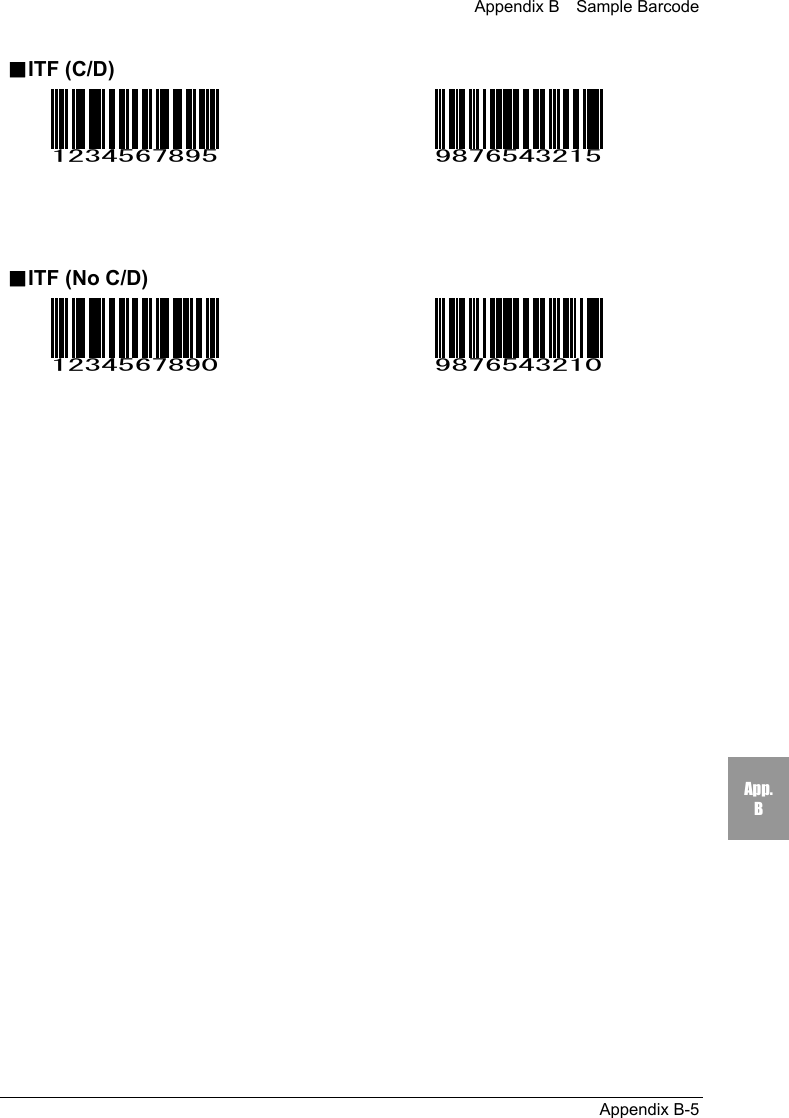
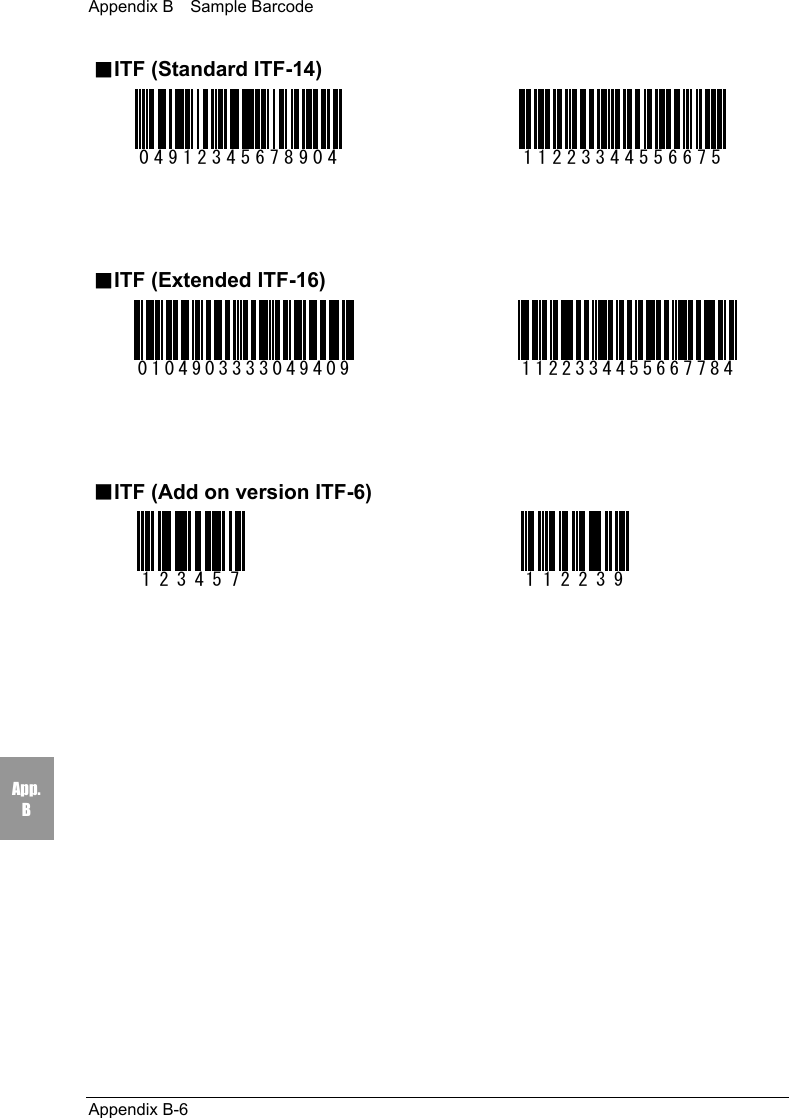
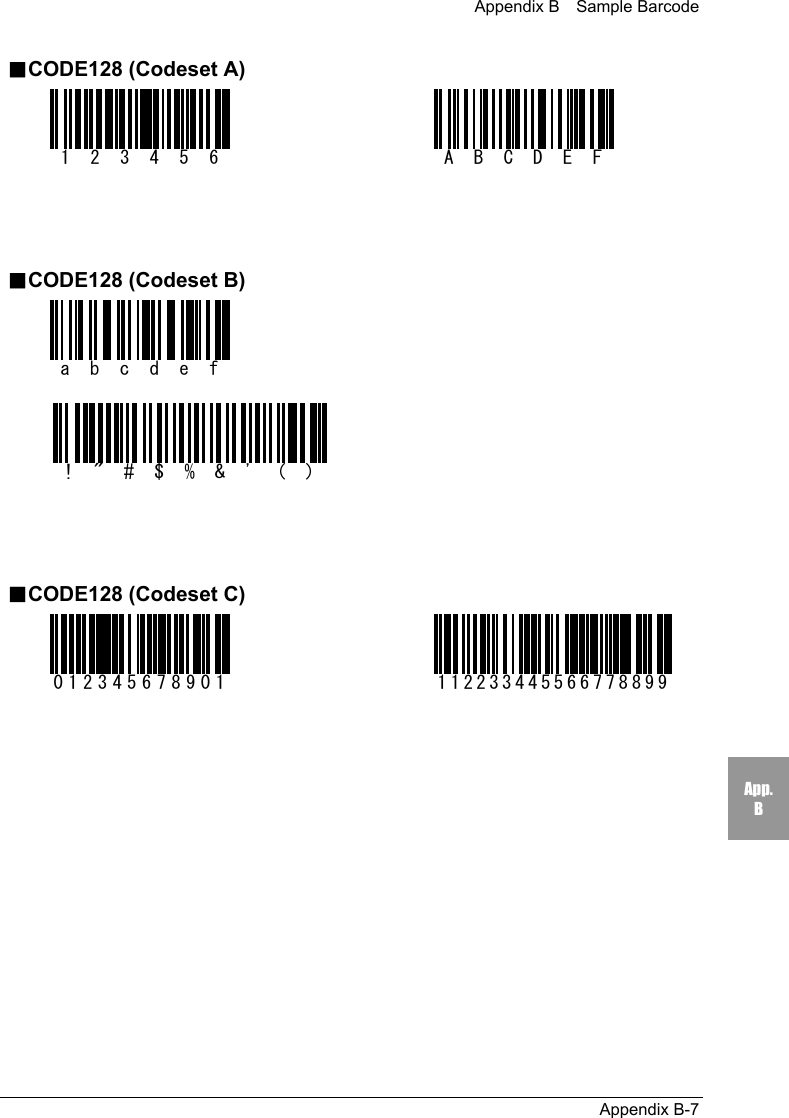
xviiManual ContentsChapter 1: Quick GuideExplains the standard handling of the CTR-800-11W.Chapter 2: HardwareExplains the CTR-800-11W specifications andoperation methods.Chapter 3: SoftwareExplains an outline of the software installed onthe CTR-800-11W.Chapter 4: SetupExplains the System Menu setup and operationmethods.Chapter 5: FAQAnswers to questions frequently asked.Chapter 6: Communication Cradle (HIF-51)Explains the Communication Cradle (HIF-51).Appendix A: System Menu Factory SettingsAppendix B: Sample BarcodesChap.1Chap.2Chap.3Chap.4付録第5章第6章第5章第6章Chap.5Chap.6App.AApp.B
Chapter 11 Quick Guide
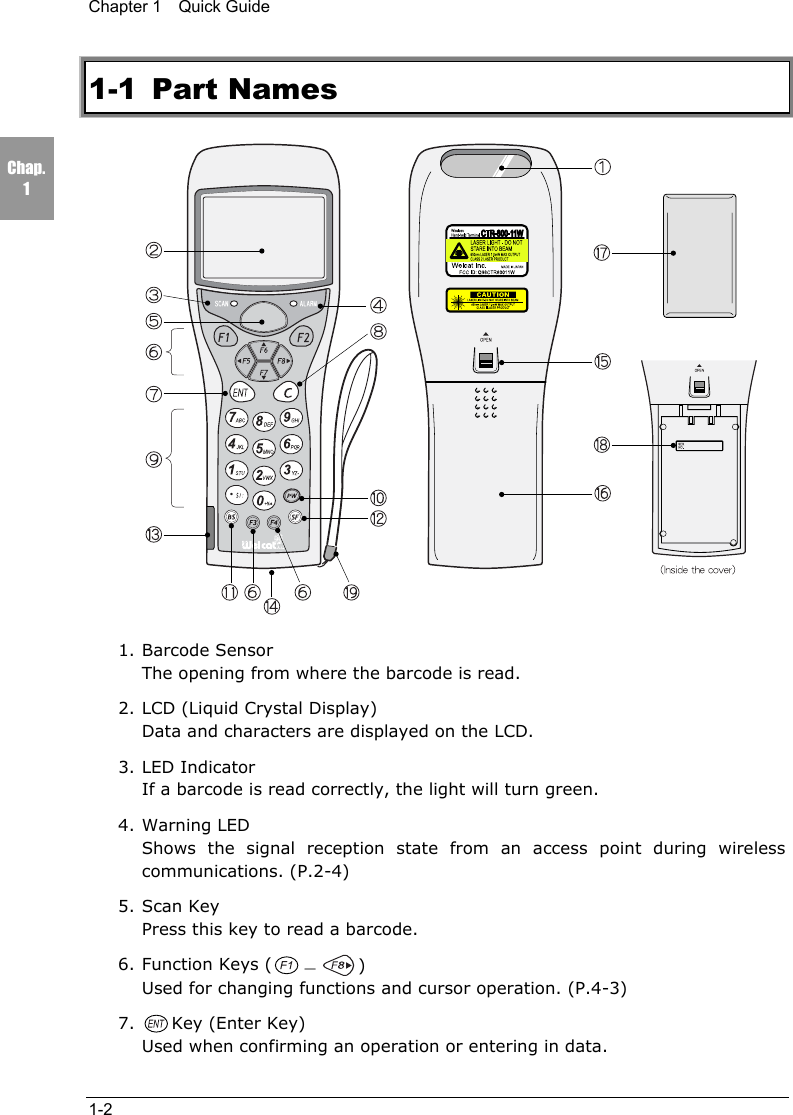
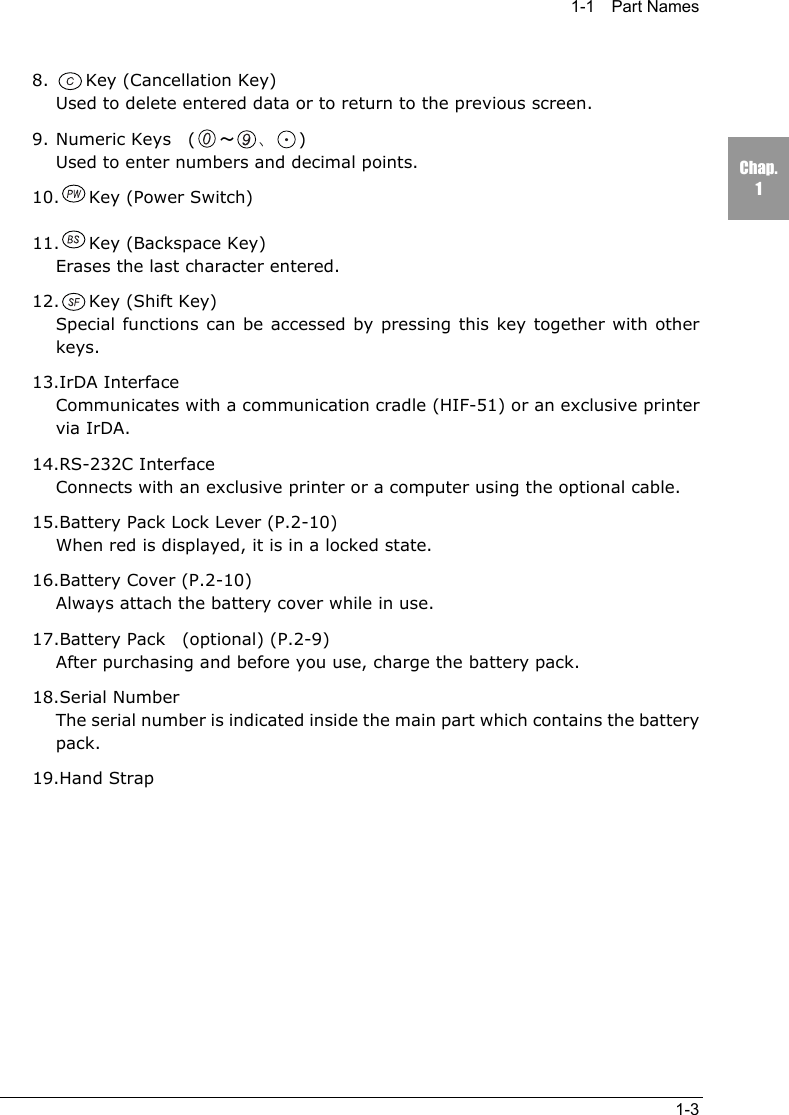
Chapter 1  Quick Guide1-2Chap.11-1 Part Names1. Barcode SensorThe opening from where the barcode is read.2. LCD (Liquid Crystal Display)Data and characters are displayed on the LCD.3. LED IndicatorIf a barcode is read correctly, the light will turn green.4. Warning LEDShows the signal reception state from an access point during wirelesscommunications. (P.2-4)5. Scan KeyPress this key to read a barcode.6. Function Keys ( -)Used for changing functions and cursor operation. (P.4-3)7. Key (Enter Key)Used when confirming an operation or entering in data.
1-1  Part Names1-3Chap.18. Key (Cancellation Key)Used to delete entered data or to return to the previous screen.9. Numeric Keys  ( ~、)Used to enter numbers and decimal points.10. Key (Power Switch)11. Key (Backspace Key)Erases the last character entered.12. Key (Shift Key)Special functions can be accessed by pressing this key together with otherkeys.13.IrDA InterfaceCommunicates with a communication cradle (HIF-51) or an exclusive printervia IrDA.14.RS-232C InterfaceConnects with an exclusive printer or a computer using the optional cable.15.Battery Pack Lock Lever (P.2-10)When red is displayed, it is in a locked state.16.Battery Cover (P.2-10)Always attach the battery cover while in use.17.Battery Pack  (optional) (P.2-9)After purchasing and before you use, charge the battery pack.18.Serial NumberThe serial number is indicated inside the main part which contains the batterypack.19.Hand Strap
Chapter 1  Quick Guide1-4Chap.11-2 Preparation before UsePlease carry out the following preparations before using the CTR-800-11W.●Battery pack -HBC-51 - (optional)The battery pack is required in order to use the CTR-800-11W. Please purchaseseparately and install it in the CTR-800-11W correctly. (P.2-10)●Isn't the sensor dirty?If the sensor is dirty, a barcode cannot be scanned correctly. When dirty, pleasewipe lightly with a soft cloth etc.Please be sure to hold the CTR-800-11W when operating. It may fail if used whileplaced on the floor.Do not place the CTR-800-11W on top of the communication cradle (HIF-51) asthe unit may fall and cause damage to both the communication cradle and theCTR-800-11W.
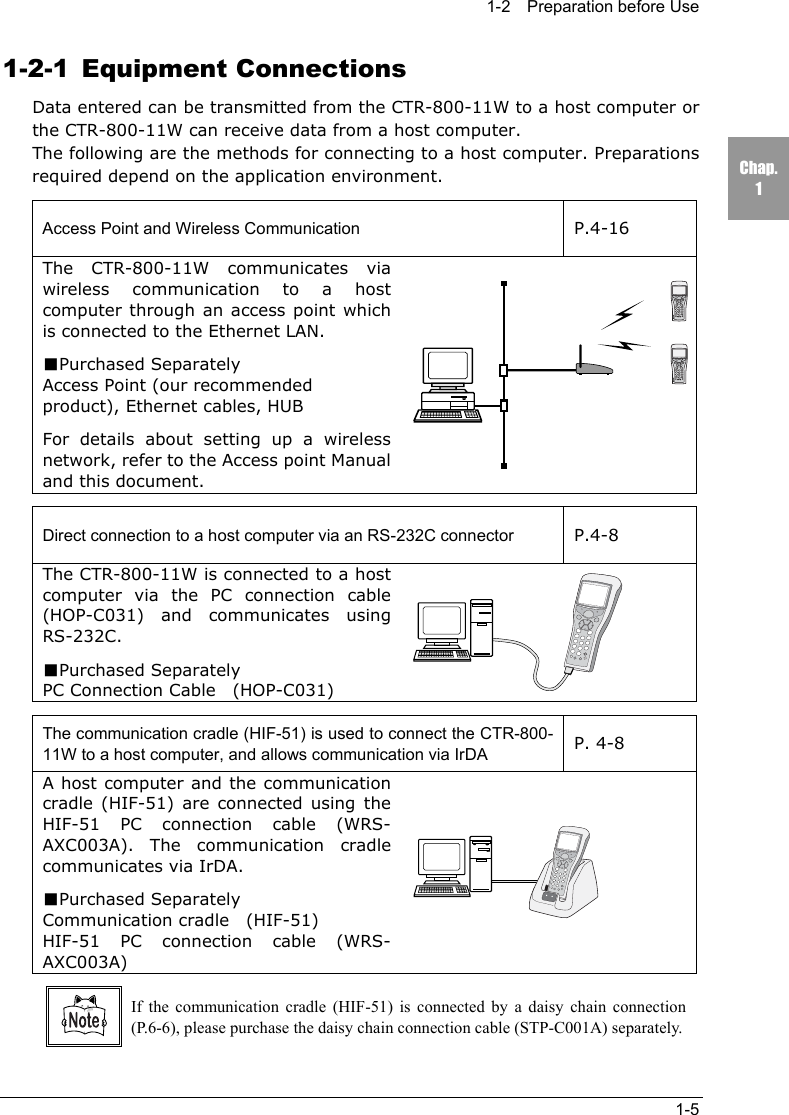
1-2  Preparation before Use1-5Chap.11-2-1 Equipment ConnectionsData entered can be transmitted from the CTR-800-11W to a host computer orthe CTR-800-11W can receive data from a host computer.The following are the methods for connecting to a host computer. Preparationsrequired depend on the application environment.Access Point and Wireless Communication P.4-16The CTR-800-11W communicates viawireless communication to a hostcomputer through an access point whichis connected to the Ethernet LAN.■Purchased SeparatelyAccess Point (our recommendedproduct), Ethernet cables, HUBFor details about setting up a wirelessnetwork, refer to the Access point Manualand this document.Direct connection to a host computer via an RS-232C connector P.4-8The CTR-800-11W is connected to a hostcomputer via the PC connection cable(HOP-C031) and communicates usingRS-232C.■Purchased SeparatelyPC Connection Cable    (HOP-C031)The communication cradle (HIF-51) is used to connect the CTR-800-11W to a host computer, and allows communication via IrDA P. 4-8A host computer and the communicationcradle (HIF-51) are connected using theHIF-51 PC connection cable (WRS-AXC003A). The communication cradlecommunicates via IrDA.■Purchased SeparatelyCommunication cradle  (HIF-51)HIF-51 PC connection cable (WRS-AXC003A)If the communication cradle (HIF-51) is connected by a daisy chain connection(P.6-6), please purchase the daisy chain connection cable (STP-C001A) separately.
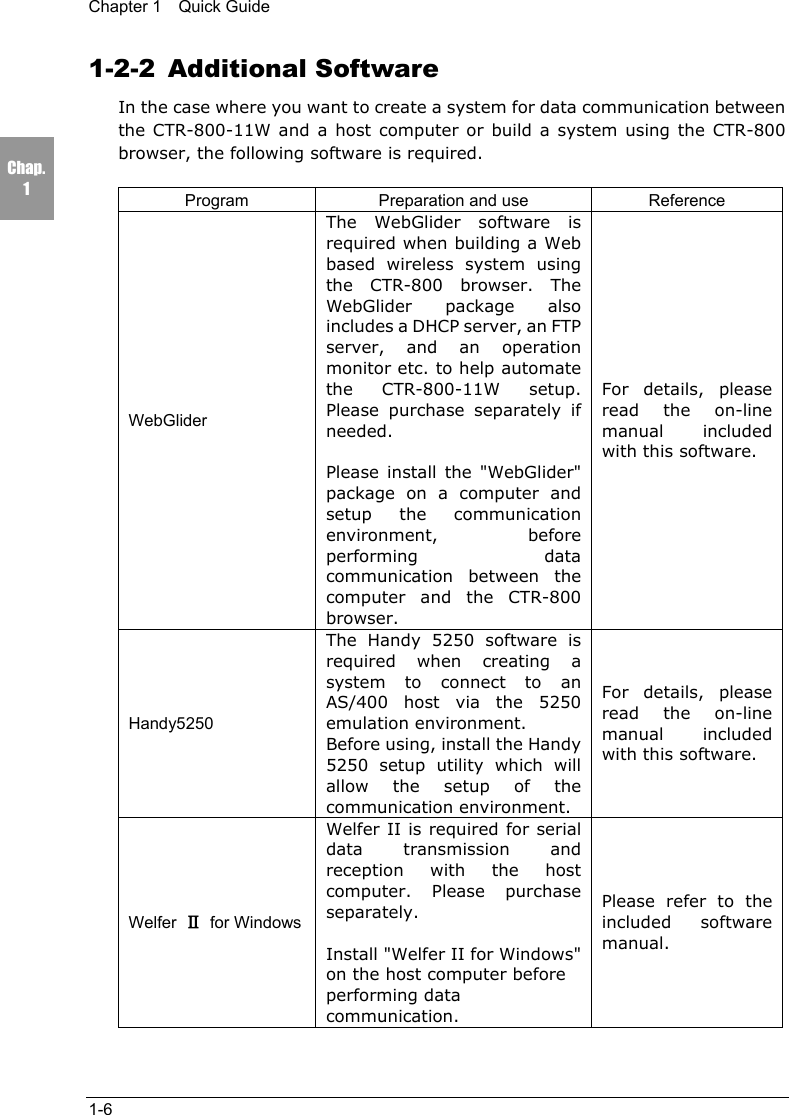
Chapter 1  Quick Guide1-6Chap.11-2-2 Additional SoftwareIn the case where you want to create a system for data communication betweenthe CTR-800-11W and a host computer or build a system using the CTR-800browser, the following software is required.Program Preparation and use ReferenceWebGliderThe WebGlider software isrequired when building a Webbased wireless system usingthe CTR-800 browser. TheWebGlider package alsoincludes a DHCP server, an FTPserver, and an operationmonitor etc. to help automatethe CTR-800-11W setup.Please purchase separately ifneeded.Please install the "WebGlider"package on a computer andsetup the communicationenvironment, beforeperforming datacommunication between thecomputer and the CTR-800browser.For details, pleaseread the on-linemanual includedwith this software.Handy5250The Handy 5250 software isrequired when creating asystem to connect to anAS/400 host via the 5250emulation environment.Before using, install the Handy5250 setup utility which willallow the setup of thecommunication environment.For details, pleaseread the on-linemanual includedwith this software.Welfer  Ⅱ for WindowsWelfer II is required for serialdata transmission andreception with the hostcomputer. Please purchaseseparately.Install "Welfer II for Windows"on the host computer beforeperforming datacommunication.Please refer to theincluded softwaremanual.
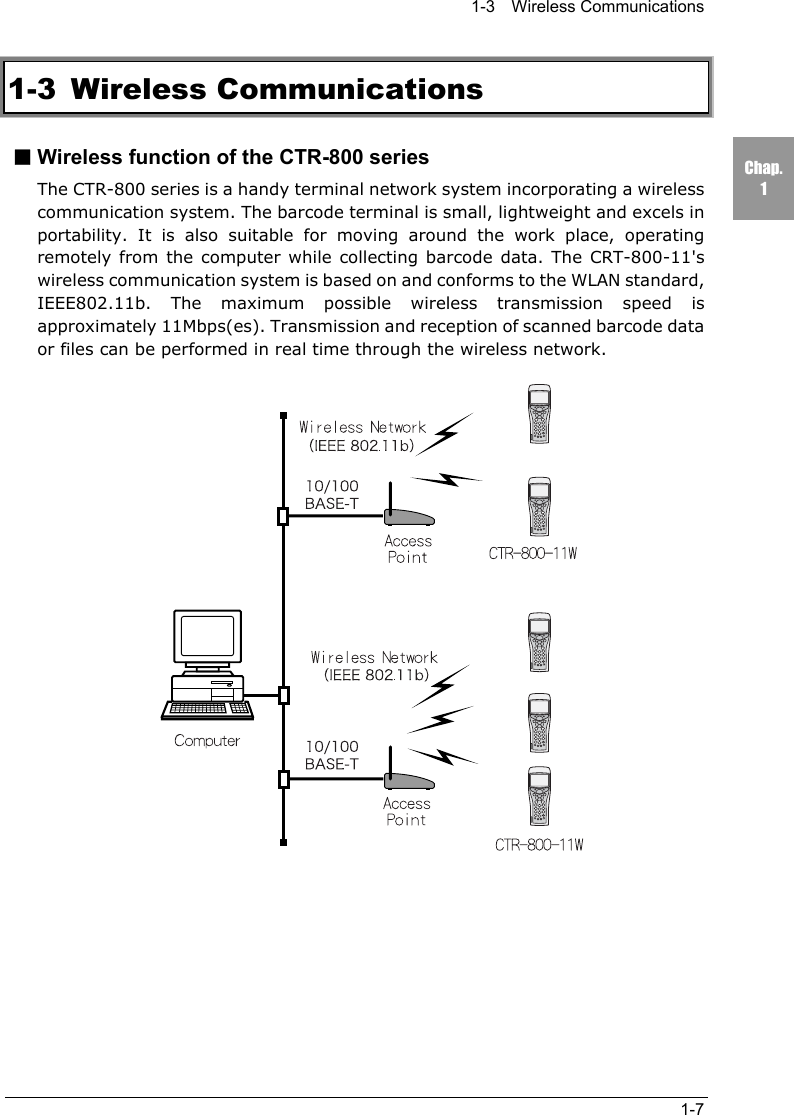
1-3  Wireless Communications1-7Chap.11-3 Wireless Communications■Wireless function of the CTR-800 seriesThe CTR-800 series is a handy terminal network system incorporating a wirelesscommunication system. The barcode terminal is small, lightweight and excels inportability. It is also suitable for moving around the work place, operatingremotely from the computer while collecting barcode data. The CRT-800-11'swireless communication system is based on and conforms to the WLAN standard,IEEE802.11b. The maximum possible wireless transmission speed isapproximately 11Mbps(es). Transmission and reception of scanned barcode dataor files can be performed in real time through the wireless network.
Chapter 1  Quick Guide1-8Chap.1■The Wireless Communication SystemThe wireless communication system is based on the IEEE802.11b standard,which is generally used in Wireless Local Area Networks (WLAN). In almost allcases, wireless communication can be performed if the access point used isbased on the IEEE802.11b standard.As for this product, only the infrastructure mode is supported. It does not supportad hoc mode.■The role of an access pointAn access point provides a wireless service area to a terminal (CTR-800-11W)and acts as a local bridge, which performs packet transmission between thecabled LAN and wireless network.Each terminal has a unique IP address, which allows direct Ethernet LANconnection through an access point. This allows TCP/IP communication betweenthe computer and the terminal.Our recommended access points should be used. For information on manufacturesand part numbers of the recommended access points, refer to our catalog or contactour sales department.
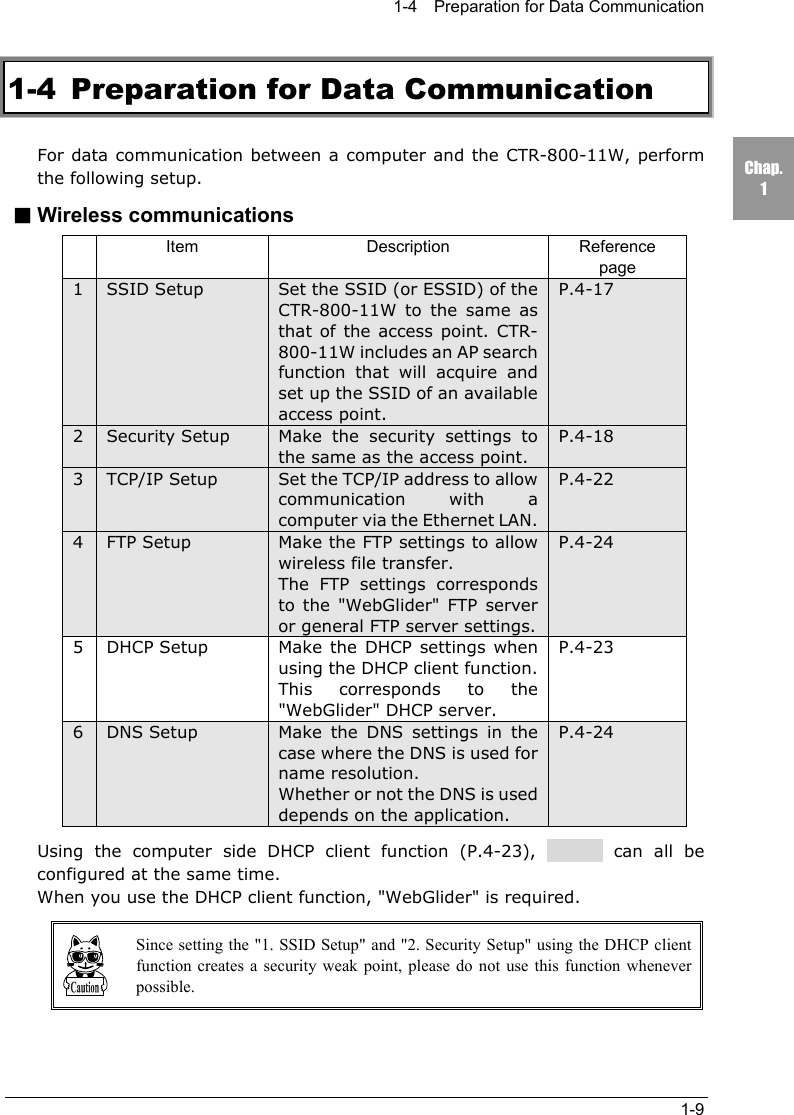
1-4    Preparation for Data Communication1-9Chap.11-4  Preparation for Data CommunicationFor data communication between a computer and the CTR-800-11W, performthe following setup.■Wireless communicationsItem Description Referencepage1SSID Setup Set the SSID (or ESSID) of theCTR-800-11W to the same asthat of the access point. CTR-800-11W includes an AP searchfunction that will acquire andset up the SSID of an availableaccess point.P.4-172Security Setup Make the security settings tothe same as the access point.P.4-183TCP/IP Setup Set the TCP/IP address to allowcommunication with acomputer via the Ethernet LAN.P.4-224FTP Setup Make the FTP settings to allowwireless file transfer.The FTP settings correspondsto the "WebGlider" FTP serveror general FTP server settings.P.4-245 DHCP Setup Make the DHCP settings whenusing the DHCP client function.This corresponds to the"WebGlider" DHCP server.P.4-236DNS Setup Make the DNS settings in thecase where the DNS is used forname resolution.Whether or not the DNS is useddepends on the application.P.4-24  Using the computer side DHCP client function (P.4-23),       can all beconfigured at the same time.When you use the DHCP client function, "WebGlider" is required.Since setting the "1. SSID Setup" and "2. Security Setup" using the DHCP clientfunction creates a security weak point, please do not use this function wheneverpossible.
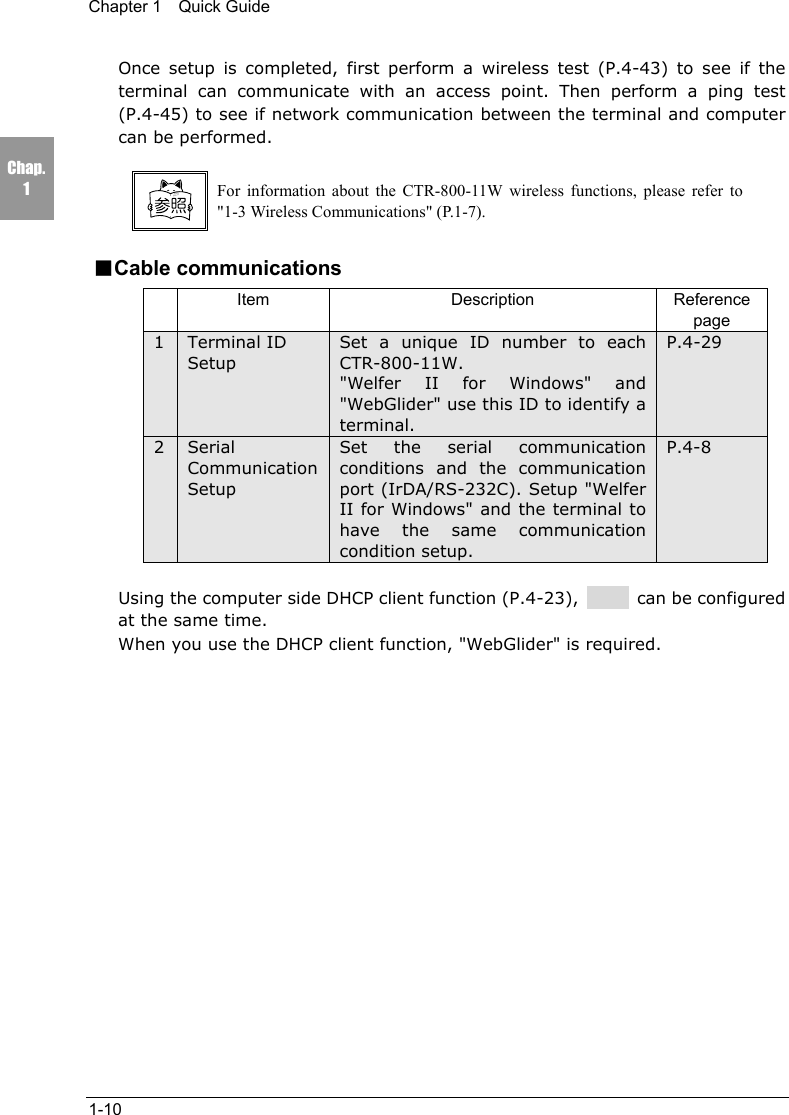
Chapter 1  Quick Guide1-10Chap.1Once setup is completed, first perform a wireless test (P.4-43) to see if theterminal can communicate with an access point. Then perform a ping test(P.4-45) to see if network communication between the terminal and computercan be performed.For information about the CTR-800-11W wireless functions, please refer to"1-3 Wireless Communications" (P.1-7).■Cable communicationsItem Description Referencepage1Terminal IDSetupSet a unique ID number to eachCTR-800-11W."Welfer II for Windows" and"WebGlider" use this ID to identify aterminal.P.4-292SerialCommunicationSetupSet the serial communicationconditions and the communicationport (IrDA/RS-232C). Setup "WelferII for Windows" and the terminal tohave the same communicationcondition setup.P.4-8Using the computer side DHCP client function (P.4-23),        can be configuredat the same time.When you use the DHCP client function, "WebGlider" is required.
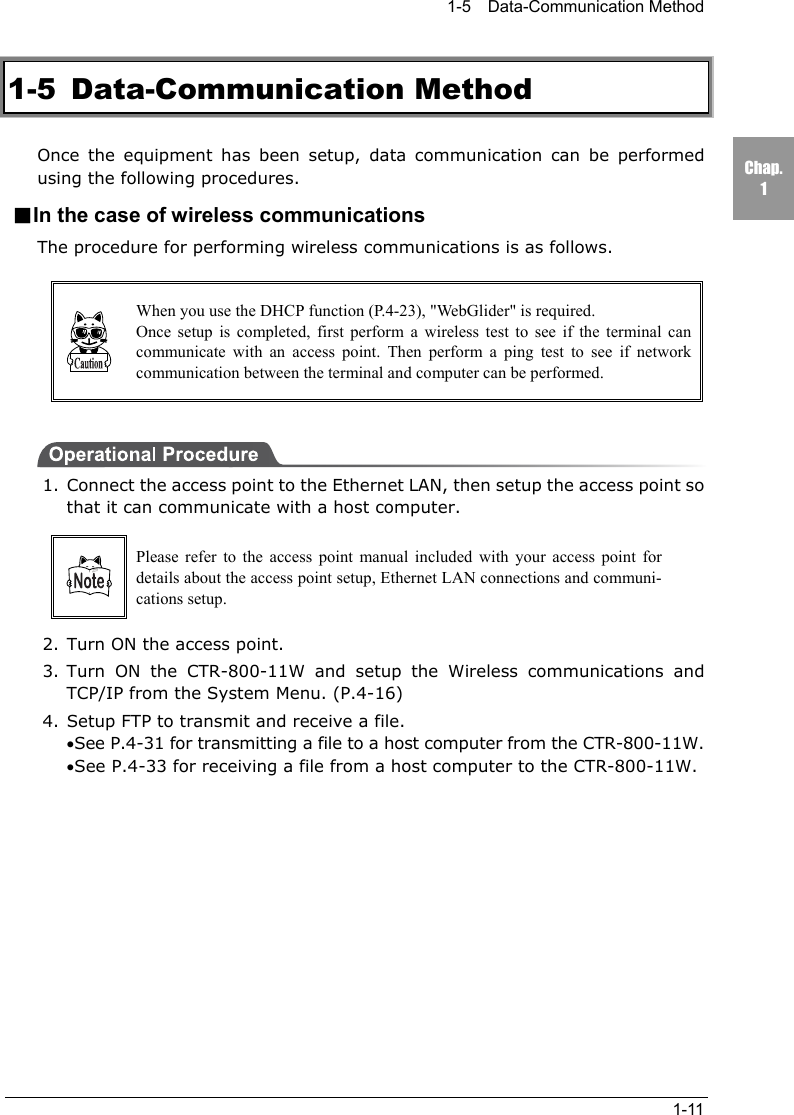
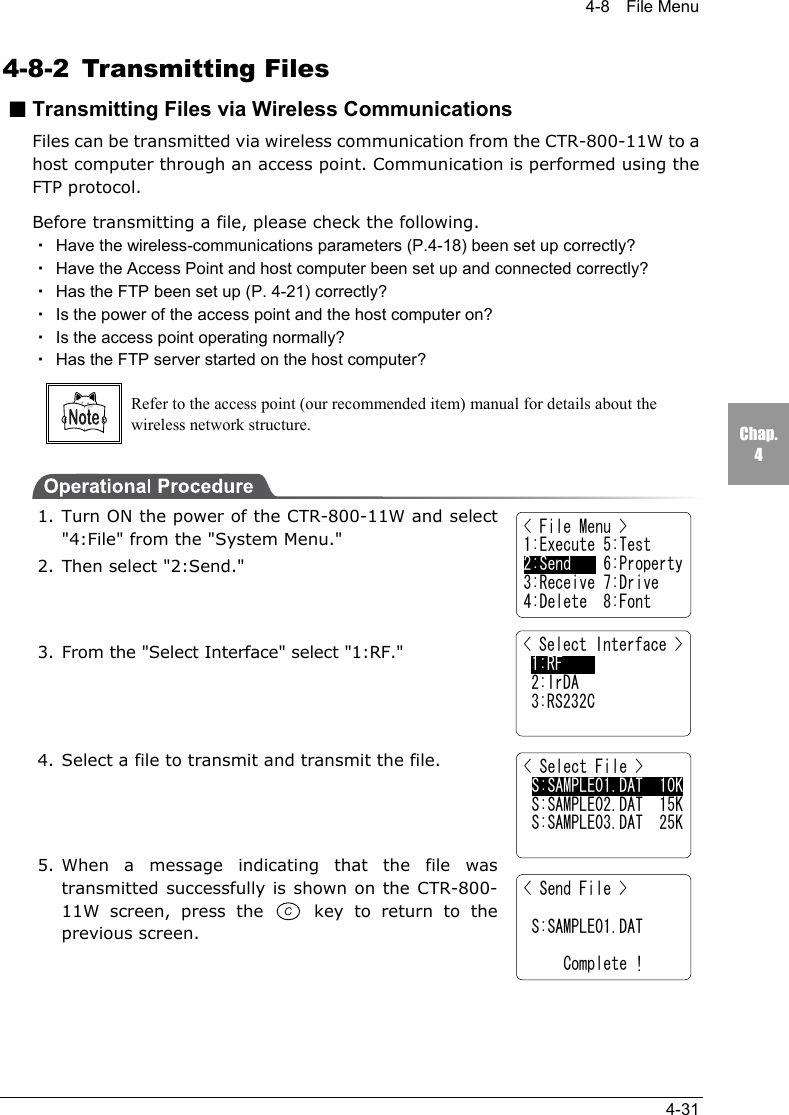
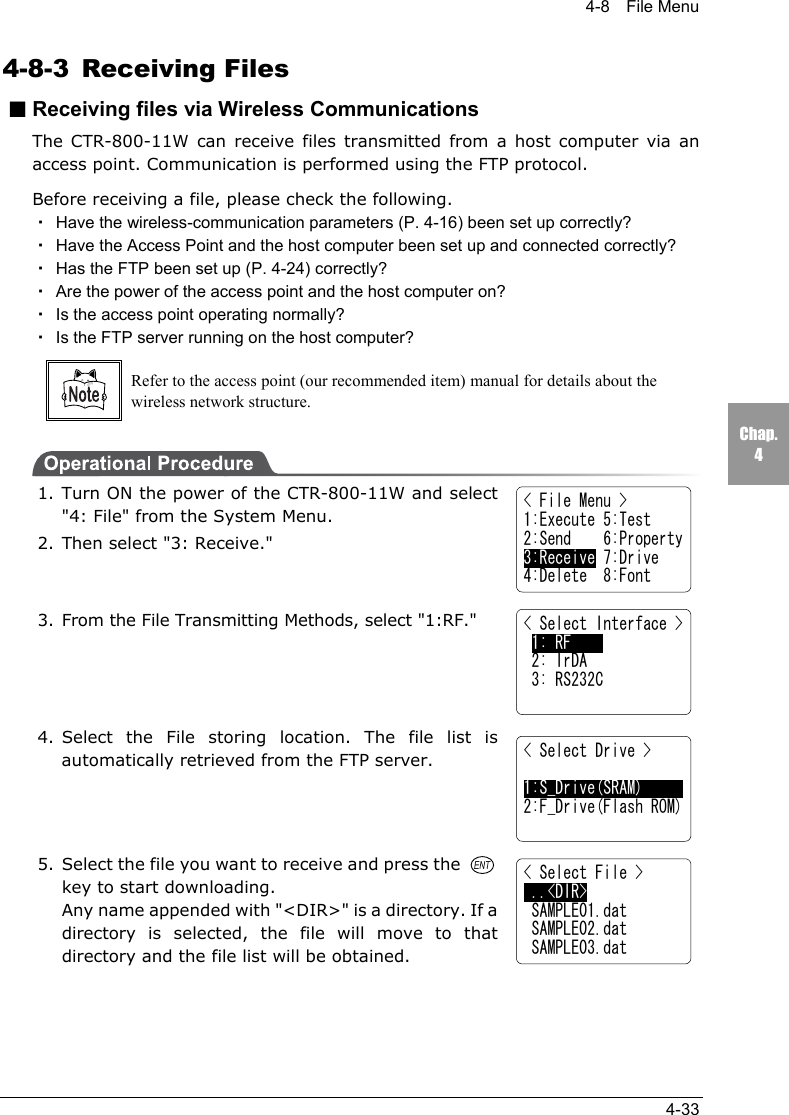
1-5  Data-Communication Method1-11Chap.11-5 Data-Communication MethodOnce the equipment has been setup, data communication can be performedusing the following procedures.■In the case of wireless communicationsThe procedure for performing wireless communications is as follows.When you use the DHCP function (P.4-23), "WebGlider" is required.Once setup is completed, first perform a wireless test to see if the terminal cancommunicate with an access point. Then perform a ping test to see if networkcommunication between the terminal and computer can be performed.1. Connect the access point to the Ethernet LAN, then setup the access point sothat it can communicate with a host computer.Please refer to the access point manual included with your access point fordetails about the access point setup, Ethernet LAN connections and communi-cations setup.2. Turn ON the access point.3. Turn ON the CTR-800-11W and setup the Wireless communications andTCP/IP from the System Menu. (P.4-16)4. Setup FTP to transmit and receive a file.•See P.4-31 for transmitting a file to a host computer from the CTR-800-11W.•See P.4-33 for receiving a file from a host computer to the CTR-800-11W.
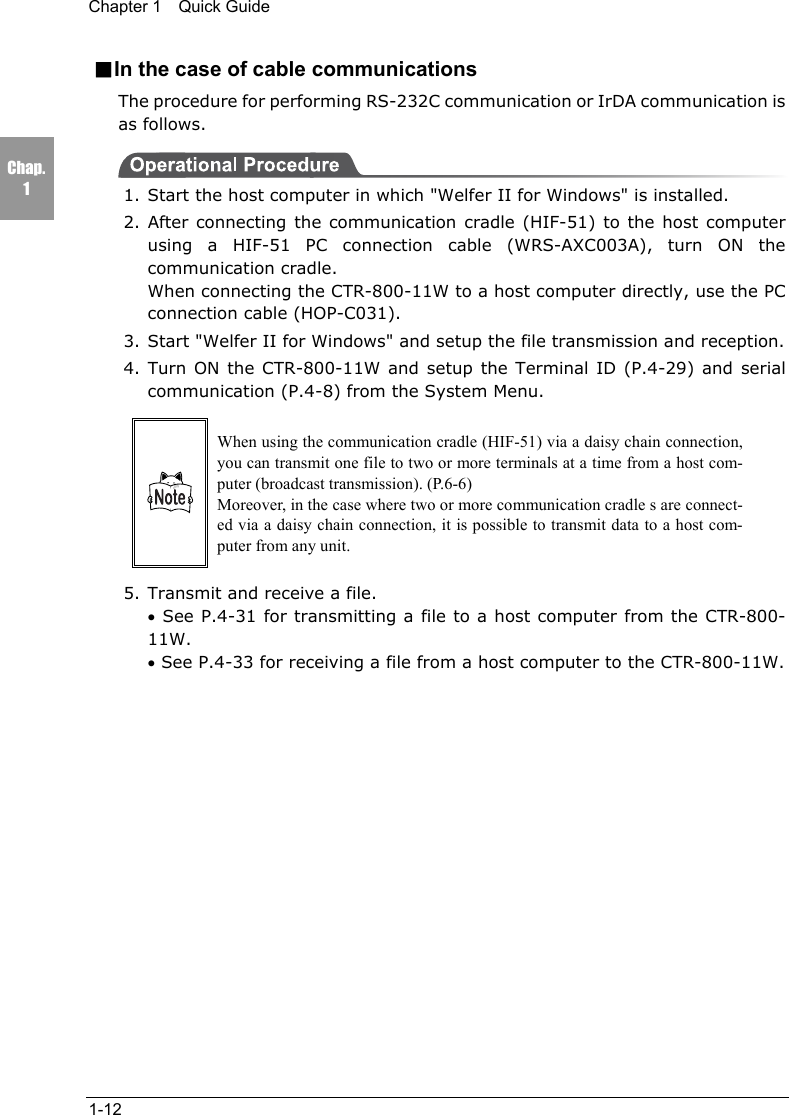
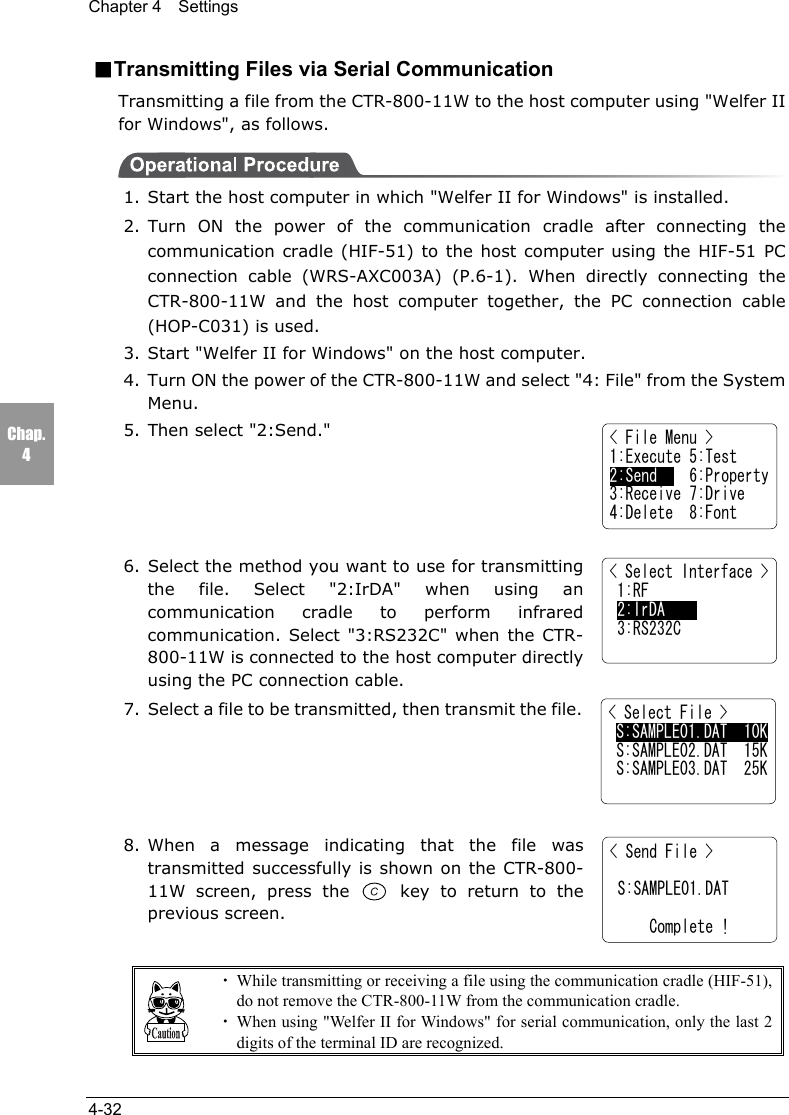
Chapter 1  Quick Guide1-12Chap.1■In the case of cable communicationsThe procedure for performing RS-232C communication or IrDA communication isas follows.1. Start the host computer in which "Welfer II for Windows" is installed.2. After connecting the communication cradle (HIF-51) to the host computerusing a HIF-51 PC connection cable (WRS-AXC003A), turn ON thecommunication cradle.When connecting the CTR-800-11W to a host computer directly, use the PCconnection cable (HOP-C031).3. Start "Welfer II for Windows" and setup the file transmission and reception.4. Turn ON the CTR-800-11W and setup the Terminal ID (P.4-29) and serialcommunication (P.4-8) from the System Menu.When using the communication cradle (HIF-51) via a daisy chain connection,you can transmit one file to two or more terminals at a time from a host com-puter (broadcast transmission). (P.6-6)Moreover, in the case where two or more communication cradle s are connect-ed via a daisy chain connection, it is possible to transmit data to a host com-puter from any unit.5. Transmit and receive a file.• See P.4-31 for transmitting a file to a host computer from the CTR-800-11W.• See P.4-33 for receiving a file from a host computer to the CTR-800-11W.
Chapter 22 Hardware
Chapter 2  Hardware2-2Chap.22-1  Main Features of the CTR-800-11W1.Ability to implement a cordless communication systemIf a terminal is within a service area, the terminal can roam around andcommunicate via a wireless transmission system. Moreover, when you needto extend the system in the future, you can add terminals with ease.2.Support of TCP/IP protocolThe Wireless Communications comply with the TCP/IP protocol, therefore aterminal can communicate with the computer via a cabled LAN transparently.3.High-speed data transmissionThe CTR-800-11W is based on the IEEE802.11b standard and can transmit11Mbps over wireless communication, which is the maximum set in thisstandard.4.IrDA Interface incorporatedThe CTR-800-11W is based on the IrDA SIR Ver1.2 standard and achieves ahigh-speed file transfer of 115kbps. It can also communicate with anexclusive printer via IrDA.5.Vibrator function incorporated as standardThe incorporated vibrator function lets you know that a scan has completedsuccessfully even while you are in a noisy work area.6.Use of large capacity battery for extended run timeBy using the optional battery pack (HBC-51), it is possible to get 10 hours ofcontinuous use.Refer to "2-2-1 Product Specifications" (P.2-3) for the setup of the accesspoint and CTR-800-11W.7.Compact and lightweightThe product allows you to carry it easily and use it anywhere within theoperating environment.
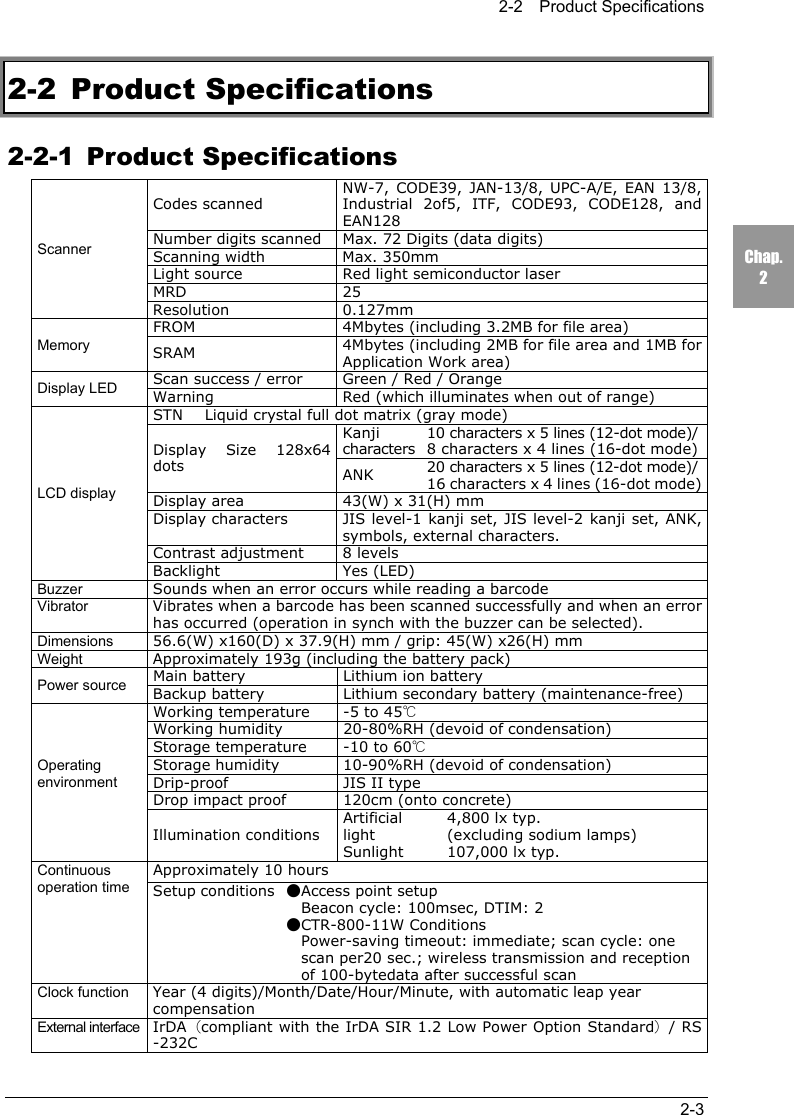
2-2  Product Specifications2-3Chap.22-2 Product Specifications2-2-1 Product SpecificationsCodes scannedNW-7, CODE39, JAN-13/8, UPC-A/E, EAN 13/8,Industrial 2of5, ITF, CODE93, CODE128, andEAN128Number digits scanned Max. 72 Digits (data digits)Scanning width Max. 350mmLight source Red light semiconductor laserMRD 25ScannerResolution 0.127mmFROM 4Mbytes (including 3.2MB for file area)Memory SRAM 4Mbytes (including 2MB for file area and 1MB forApplication Work area)Scan success / error Green / Red / OrangeDisplay LED Warning Red (which illuminates when out of range)STN      Liquid crystal full dot matrix (gray mode)Kanjicharacters10 characters x 5 lines (12-dot mode)/8 characters x 4 lines (16-dot mode)Display Size 128x64dots ANK 20 characters x 5 lines (12-dot mode)/16 characters x 4 lines (16-dot mode)Display area 43(W) x 31(H) mmDisplay characters JIS level-1 kanji set, JIS level-2 kanji set, ANK,symbols, external characters.Contrast adjustment 8 levelsLCD displayBacklight Yes (LED)Buzzer Sounds when an error occurs while reading a barcodeVibrator Vibrates when a barcode has been scanned successfully and when an errorhas occurred (operation in synch with the buzzer can be selected).Dimensions 56.6(W) x160(D) x 37.9(H) mm / grip: 45(W) x26(H) mmWeight Approximately 193g (including the battery pack)Main battery Lithium ion batteryPower source Backup battery Lithium secondary battery (maintenance-free)Working temperature -5 to 45℃Working humidity 20-80%RH (devoid of condensation)Storage temperature -10 to 60℃Storage humidity 10-90%RH (devoid of condensation)Drip-proof JIS II typeDrop impact proof 120cm (onto concrete)Artificiallight4,800 lx typ.(excluding sodium lamps)OperatingenvironmentIllumination conditionsSunlight 107,000 lx typ.Approximately 10 hoursContinuousoperation time Setup conditions ●Access point setup    Beacon cycle: 100msec, DTIM: 2●CTR-800-11W Conditions    Power-saving timeout: immediate; scan cycle: one    scan per20 sec.; wireless transmission and reception    of 100-bytedata after successful scanClock function Year (4 digits)/Month/Date/Hour/Minute, with automatic leap yearcompensationExternal interface IrDA(compliant with the IrDA SIR 1.2 Low Power Option Standard)/ RS-232C
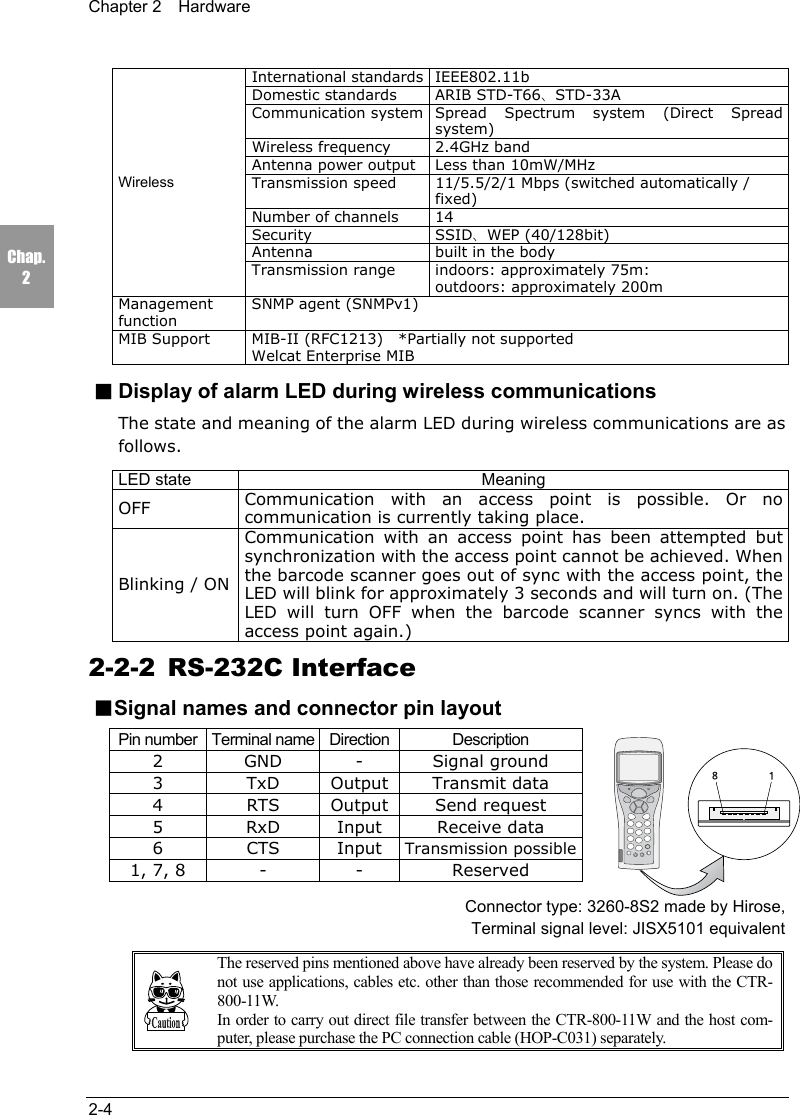
Chapter 2  Hardware2-4Chap.2International standards IEEE802.11bDomestic standards ARIB STD-T66、STD-33ACommunication system Spread Spectrum system (Direct Spreadsystem)Wireless frequency 2.4GHz bandAntenna power output Less than 10mW/MHzTransmission speed 11/5.5/2/1 Mbps (switched automatically /fixed)Number of channels 14Security SSID、WEP (40/128bit)Antenna built in the bodyWirelessTransmission range indoors: approximately 75m:outdoors: approximately 200mManagementfunctionSNMP agent (SNMPv1)MIB Support MIB-II (RFC1213)    *Partially not supportedWelcat Enterprise MIB■Display of alarm LED during wireless communicationsThe state and meaning of the alarm LED during wireless communications are asfollows.LED state MeaningOFF Communication with an access point is possible. Or nocommunication is currently taking place.Blinking / ONCommunication with an access point has been attempted butsynchronization with the access point cannot be achieved. Whenthe barcode scanner goes out of sync with the access point, theLED will blink for approximately 3 seconds and will turn on. (TheLED will turn OFF when the barcode scanner syncs with theaccess point again.)2-2-2 RS-232C Interface■Signal names and connector pin layoutPin number Terminal name Direction Description2 GND - Signal ground3 TxD Output Transmit data4 RTS Output Send request5 RxD Input Receive data6CTSInputTransmission possible1, 7, 8 - - ReservedConnector type: 3260-8S2 made by Hirose,Terminal signal level: JISX5101 equivalentThe reserved pins mentioned above have already been reserved by the system. Please donot use applications, cables etc. other than those recommended for use with the CTR-800-11W.In order to carry out direct file transfer between the CTR-800-11W and the host com-puter, please purchase the PC connection cable (HOP-C031) separately.
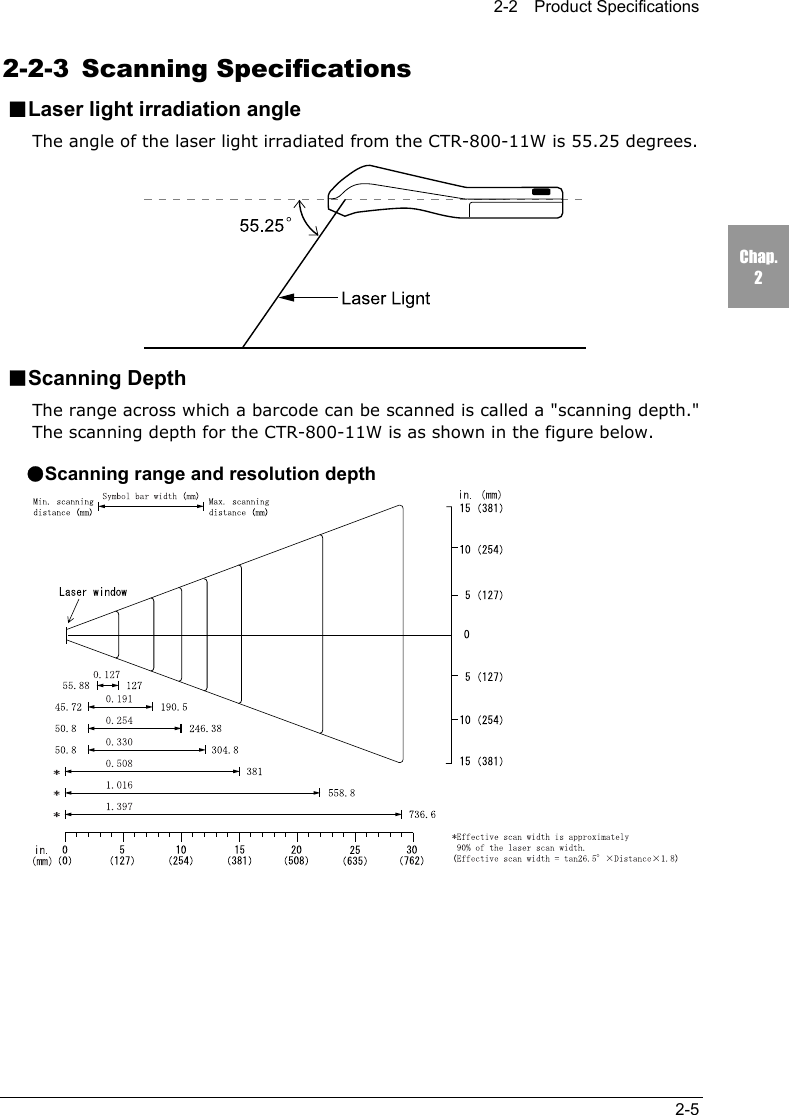
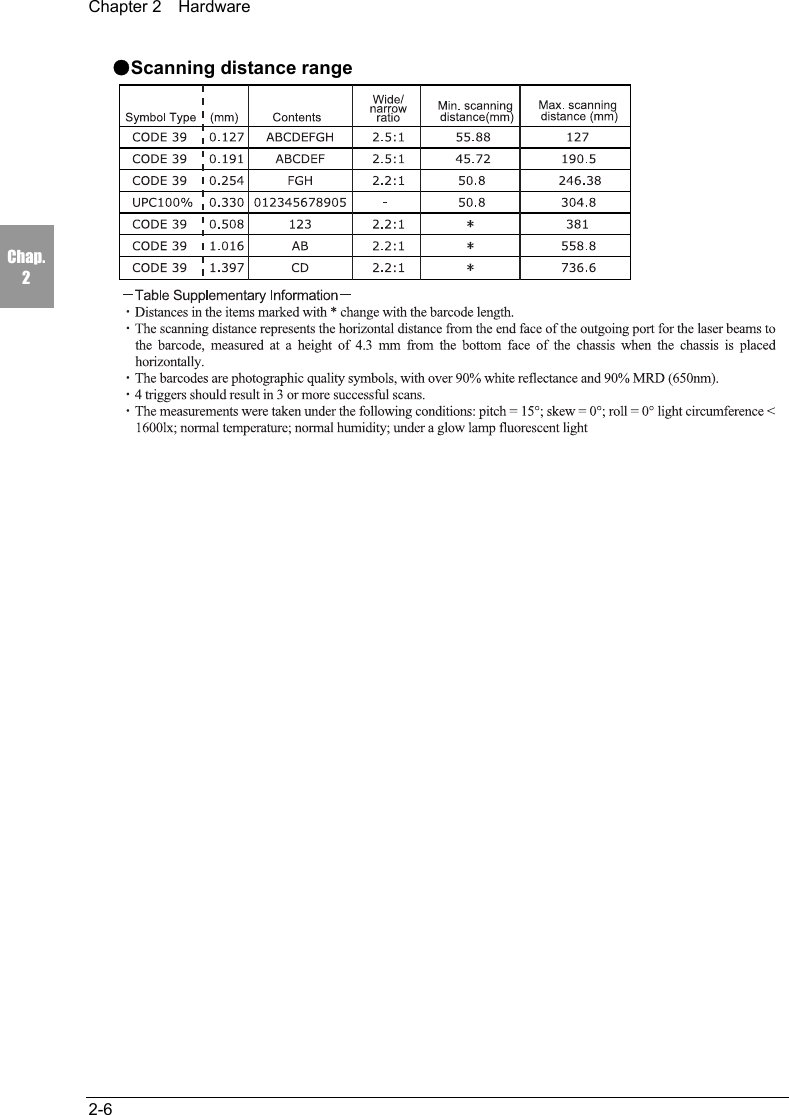
2-2  Product Specifications2-5Chap.22-2-3 Scanning Specifications■Laser light irradiation angleThe angle of the laser light irradiated from the CTR-800-11W is 55.25 degrees.■Scanning DepthThe range across which a barcode can be scanned is called a "scanning depth."The scanning depth for the CTR-800-11W is as shown in the figure below.●Scanning range and resolution depth
Chapter 2  Hardware2-6Chap.2●Scanning distance range
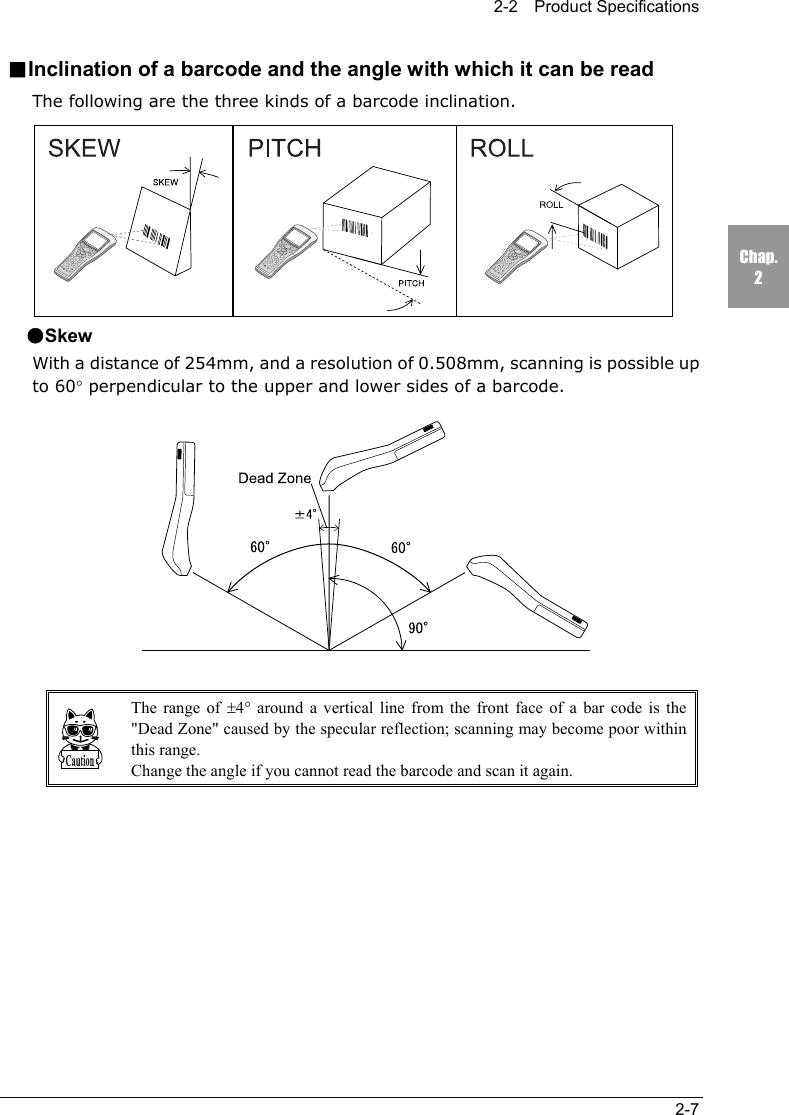
2-2  Product Specifications2-7Chap.2■Inclination of a barcode and the angle with which it can be readThe following are the three kinds of a barcode inclination.●SkewWith a distance of 254mm, and a resolution of 0.508mm, scanning is possible upto 60° perpendicular to the upper and lower sides of a barcode.The range of ±4° around a vertical line from the front face of a bar code is the"Dead Zone" caused by the specular reflection; scanning may become poor withinthis range.Change the angle if you cannot read the barcode and scan it again.
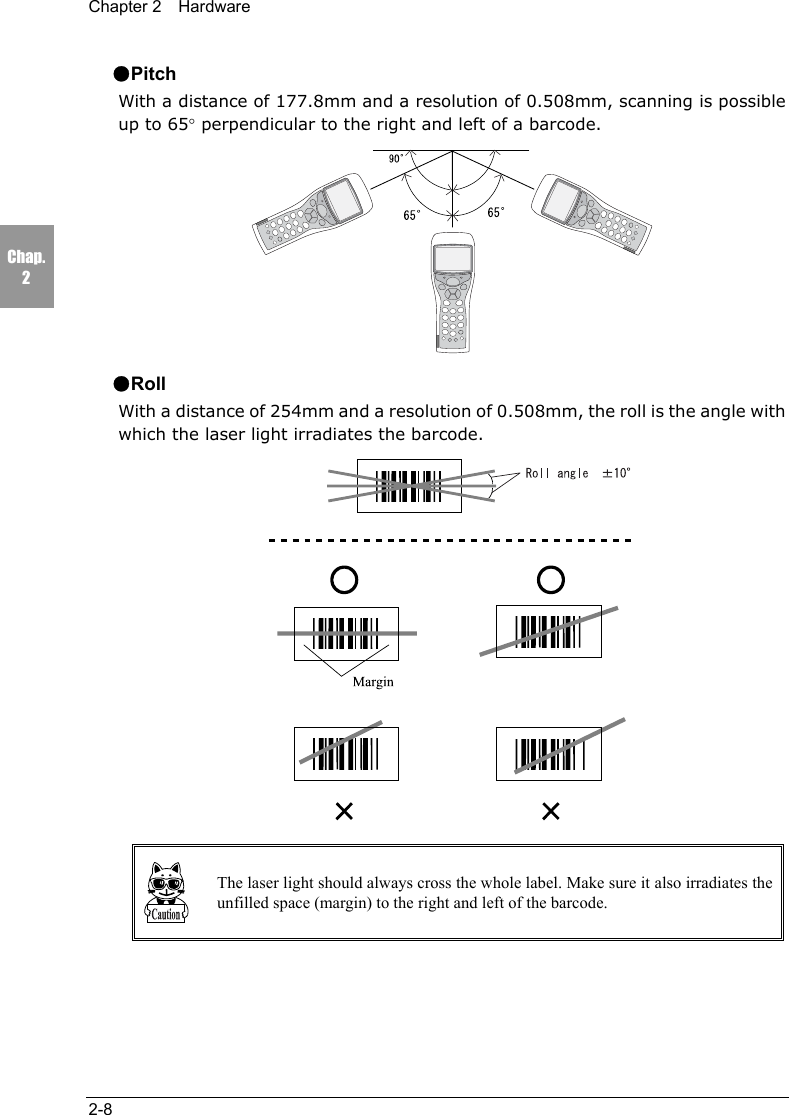
Chapter 2  Hardware2-8Chap.2●PitchWith a distance of 177.8mm and a resolution of 0.508mm, scanning is possibleup to 65° perpendicular to the right and left of a barcode.●RollWith a distance of 254mm and a resolution of 0.508mm, the roll is the angle withwhich the laser light irradiates the barcode.The laser light should always cross the whole label. Make sure it also irradiates theunfilled space (margin) to the right and left of the barcode.
2-3    Battery Pack (HBC-51)2-9Chap.22-3 Battery Pack (HBC-51)The battery pack is not included with the CTR-800-11W. Please purchase sepa-rately and use it correctly.Be sure to follow the precautions below when handling the battery pack.•After purchasing, be sure to fully charge the battery pack before using.•Be sure to shut off the power before removing the battery pack. If thebattery pack is removed during operation, the program and data may becorrupted.•Be sure not to touch the electrodes with your hand, and avoid dust on theelectrodes. Otherwise this may cause poor contact with the battery packand the CTR-800-11W. When dirty, wipe clean with a dry soft cloth etc.•When installing and removing the battery pack, use a desk or otherappropriate surface as the working table so that it cannot fall onto youfeet.•Be sure to attach the battery cover before use.2-3-1  Charging the Battery PackUse our dedicated charger (HQC-51/HQC-54) to charge the battery pack.Charging will be completed in approximately 2.5 hours.Please purchase the dedicated charger (HQC-51/HQC-54) separately.For details, please read the instruction manual included with the dedicated charger.
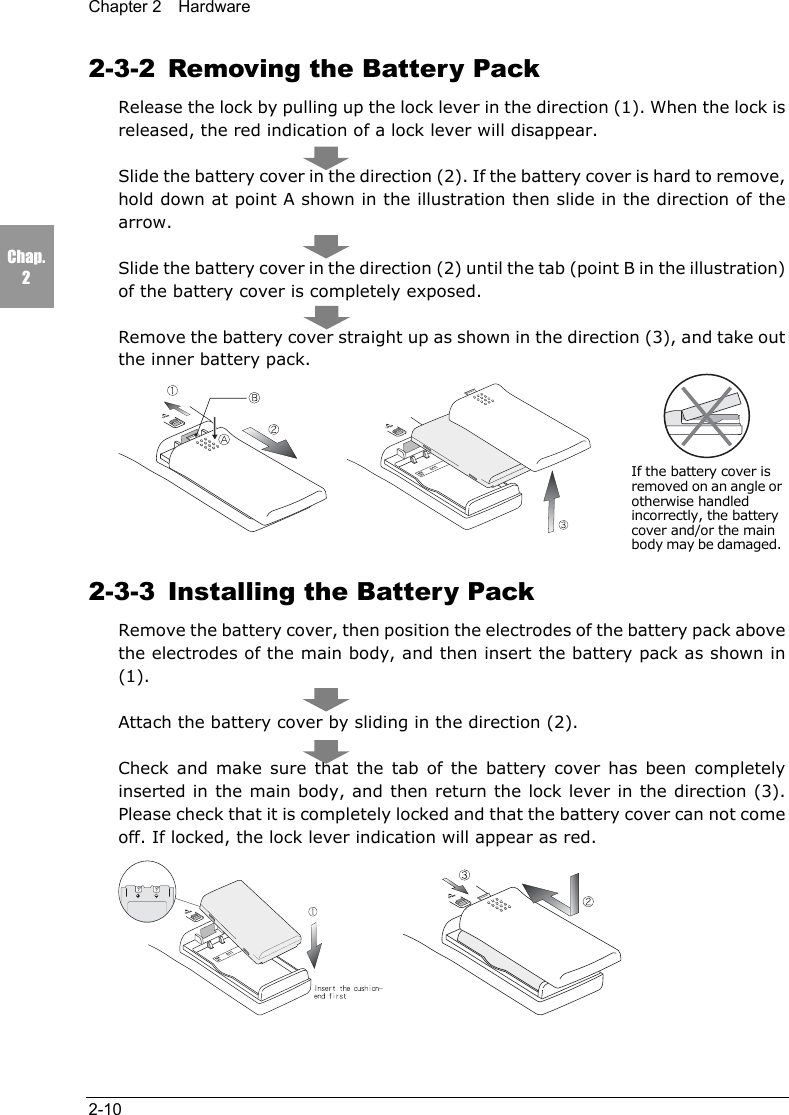
Chapter 2  Hardware2-10Chap.22-3-2  Removing the Battery PackRelease the lock by pulling up the lock lever in the direction (1). When the lock isreleased, the red indication of a lock lever will disappear.Slide the battery cover in the direction (2). If the battery cover is hard to remove,hold down at point A shown in the illustration then slide in the direction of thearrow.Slide the battery cover in the direction (2) until the tab (point B in the illustration)of the battery cover is completely exposed.Remove the battery cover straight up as shown in the direction (3), and take outthe inner battery pack.  2-3-3  Installing the Battery PackRemove the battery cover, then position the electrodes of the battery pack abovethe electrodes of the main body, and then insert the battery pack as shown in(1).Attach the battery cover by sliding in the direction (2).Check and make sure that the tab of the battery cover has been completelyinserted in the main body, and then return the lock lever in the direction (3).Please check that it is completely locked and that the battery cover can not comeoff. If locked, the lock lever indication will appear as red.  If the battery cover isremoved on an angle orotherwise handledincorrectly, the batterycover and/or the mainbody may be damaged.
2-3    Battery Pack (HBC-51)2-11Chap.22-3-4  Replacing the Worn out Battery PackA battery pack is an expendable item. Even if the battery pack is used correctly,it will deteriorate gradually in the course of being charged and dischargedrepeatedly.If the usage time is becoming shorter even after charging for the specifiedcharging time, please replace the existing battery pack with a new one.■About prolonged storageSince the battery may deteriorate rapidly by over discharging if left for anextended period of time, be sure to periodically charge the battery. When you donot use it for an extended period of time, take note of the following.•When you do not use it for one month or more, remove the battery packand keep it at room temperature.2-3-5 Cautions about Cleaning of ElectrodesWhen the operational time has become shorter or it is having trouble starting,poor contact between electrodes because of dirt, may be the cause instead of adegrading battery. If this is the case, cleaning both the battery electrodes andthe main body electrodes will improve this condition.■Methods for cleaning the electrodesPlease wipe the dirty electrodes with a clean dry soft cloth, a swab, etc. Never rubthe electrodes with an unclean cloth, fingers or a hard object. Wipe theelectrodes lightly, especially the main body electrodes, else they may getscratched or deformed.
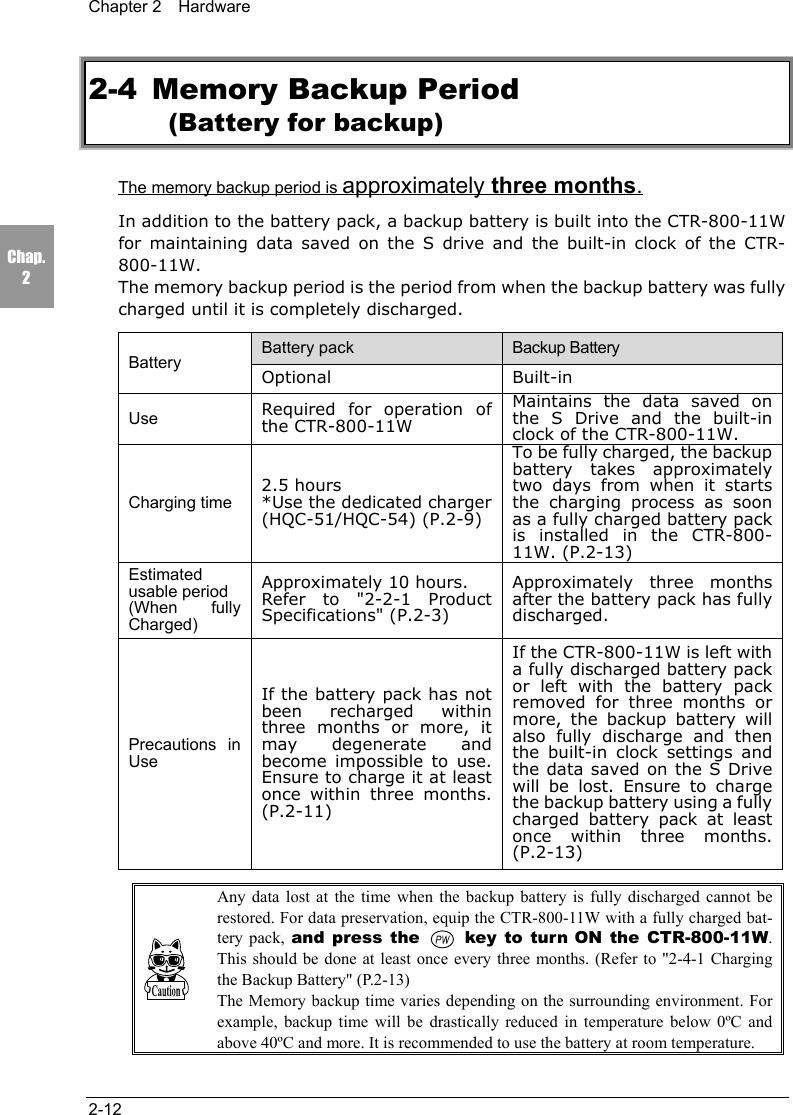
Chapter 2  Hardware2-12Chap.22-4 Memory Backup Period(Battery for backup)The memory backup period is approximately three months.In addition to the battery pack, a backup battery is built into the CTR-800-11Wfor maintaining data saved on the S drive and the built-in clock of the CTR-800-11W.The memory backup period is the period from when the backup battery was fullycharged until it is completely discharged.Battery pack Backup BatteryBattery Optional Built-inUse Required for operation ofthe CTR-800-11WMaintains the data saved onthe S Drive and the built-inclock of the CTR-800-11W.Charging time2.5 hours*Use the dedicated charger(HQC-51/HQC-54) (P.2-9)To be fully charged, the backupbattery takes approximatelytwo days from when it startsthe charging process as soonas a fully charged battery packis installed in the CTR-800-11W. (P.2-13)Estimatedusable period(When fullyCharged)Approximately 10 hours.Refer to "2-2-1 ProductSpecifications" (P.2-3)Approximately three monthsafter the battery pack has fullydischarged.Precautions inUseIf the battery pack has notbeen recharged withinthree months or more, itmay degenerate andbecome impossible to use.Ensure to charge it at leastonce within three months.(P.2-11)If the CTR-800-11W is left witha fully discharged battery packor left with the battery packremoved for three months ormore, the backup battery willalso fully discharge and thenthe built-in clock settings andthe data saved on the S Drivewill be lost. Ensure to chargethe backup battery using a fullycharged battery pack at leastonce within three months.(P.2-13)Any data lost at the time when the backup battery is fully discharged cannot berestored. For data preservation, equip the CTR-800-11W with a fully charged bat-tery pack, and press the  key to turn ON the CTR-800-11W.This should be done at least once every three months. (Refer to "2-4-1 Chargingthe Backup Battery" (P.2-13)The Memory backup time varies depending on the surrounding environment. Forexample, backup time will be drastically reduced in temperature below 0ºC andabove 40ºC and more. It is recommended to use the battery at room temperature.
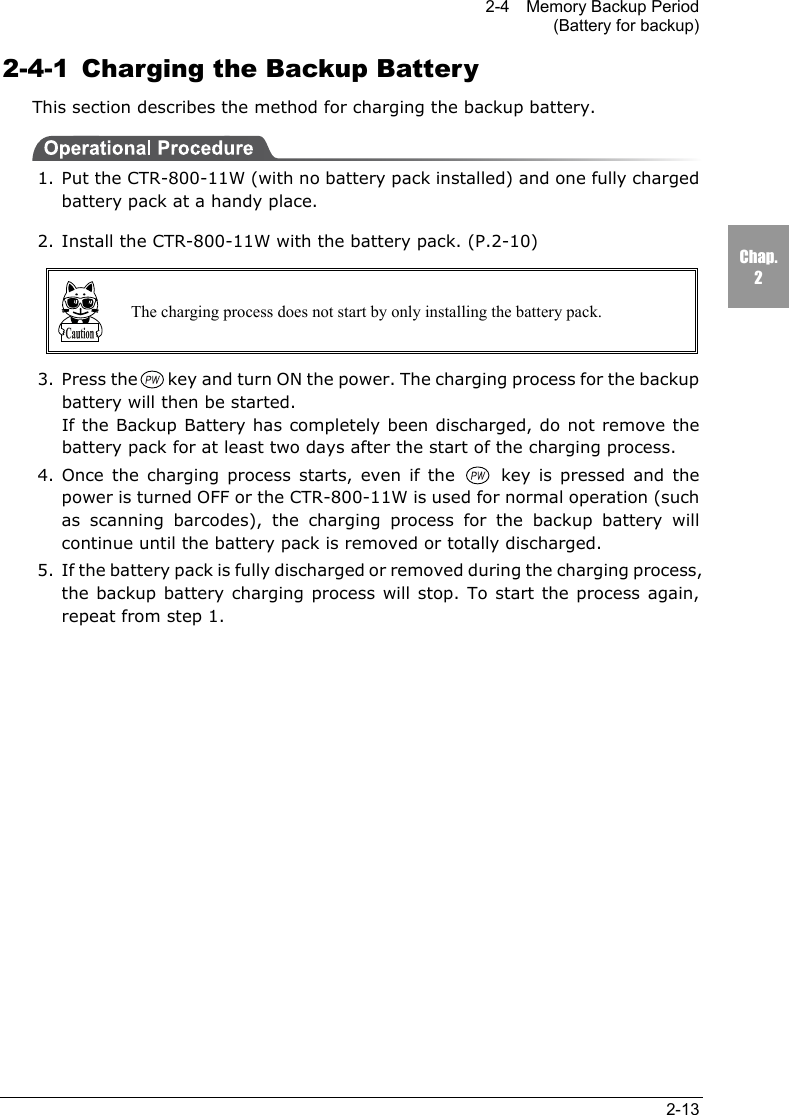
2-4    Memory Backup Period(Battery for backup)2-13Chap.22-4-1  Charging the Backup BatteryThis section describes the method for charging the backup battery.1. Put the CTR-800-11W (with no battery pack installed) and one fully chargedbattery pack at a handy place.2. Install the CTR-800-11W with the battery pack. (P.2-10)The charging process does not start by only installing the battery pack.3. Press the key and turn ON the power. The charging process for the backupbattery will then be started.If the Backup Battery has completely been discharged, do not remove thebattery pack for at least two days after the start of the charging process.4. Once the charging process starts, even if the  key is pressed and thepower is turned OFF or the CTR-800-11W is used for normal operation (suchas scanning barcodes), the charging process for the backup battery willcontinue until the battery pack is removed or totally discharged.5. If the battery pack is fully discharged or removed during the charging process,the backup battery charging process will stop. To start the process again,repeat from step 1.
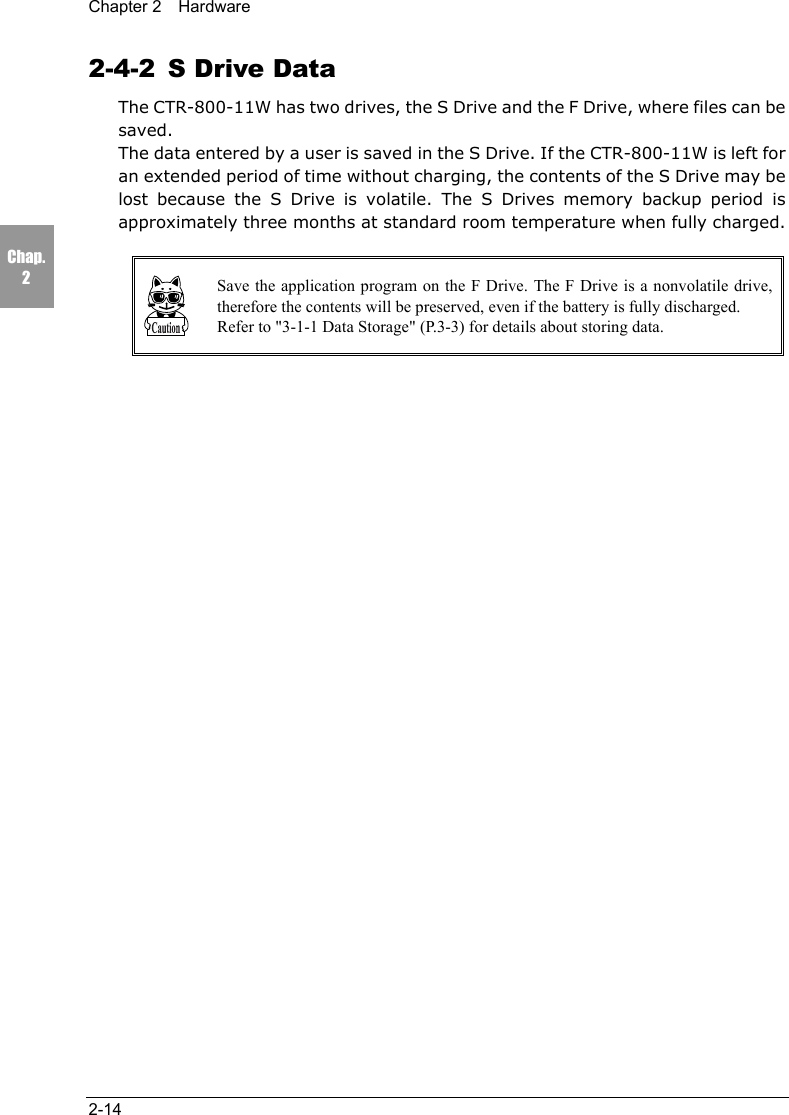
Chapter 2  Hardware2-14Chap.22-4-2  S Drive DataThe CTR-800-11W has two drives, the S Drive and the F Drive, where files can besaved.The data entered by a user is saved in the S Drive. If the CTR-800-11W is left foran extended period of time without charging, the contents of the S Drive may belost because the S Drive is volatile. The S Drives memory backup period isapproximately three months at standard room temperature when fully charged.Save the application program on the F Drive. The F Drive is a nonvolatile drive,therefore the contents will be preserved, even if the battery is fully discharged.Refer to "3-1-1 Data Storage" (P.3-3) for details about storing data.
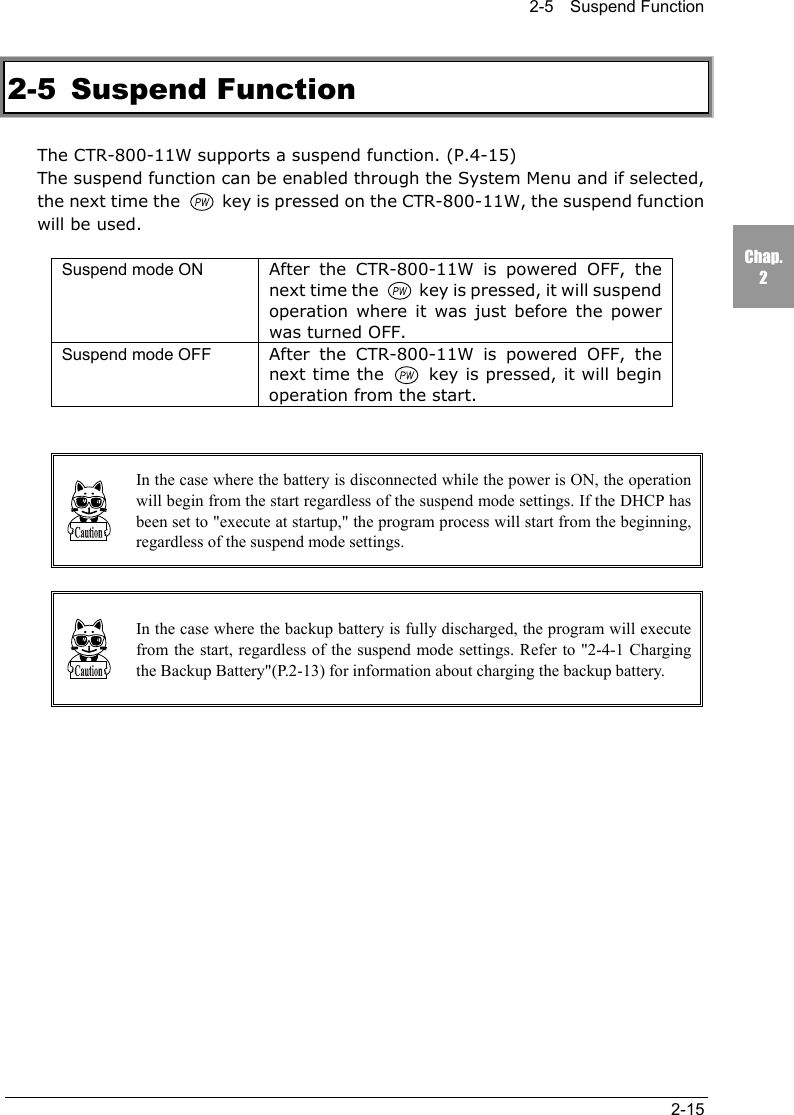
2-5  Suspend Function2-15Chap.22-5 Suspend FunctionThe CTR-800-11W supports a suspend function. (P.4-15)The suspend function can be enabled through the System Menu and if selected,the next time the   key is pressed on the CTR-800-11W, the suspend functionwill be used.Suspend mode ON After the CTR-800-11W is powered OFF, thenext time the   key is pressed, it will suspendoperation where it was just before the powerwas turned OFF.Suspend mode OFF After the CTR-800-11W is powered OFF, thenext time the   key is pressed, it will beginoperation from the start.In the case where the battery is disconnected while the power is ON, the operationwill begin from the start regardless of the suspend mode settings. If the DHCP hasbeen set to "execute at startup," the program process will start from the beginning,regardless of the suspend mode settings.In the case where the backup battery is fully discharged, the program will executefrom the start, regardless of the suspend mode settings. Refer to "2-4-1 Chargingthe Backup Battery"(P.2-13) for information about charging the backup battery.
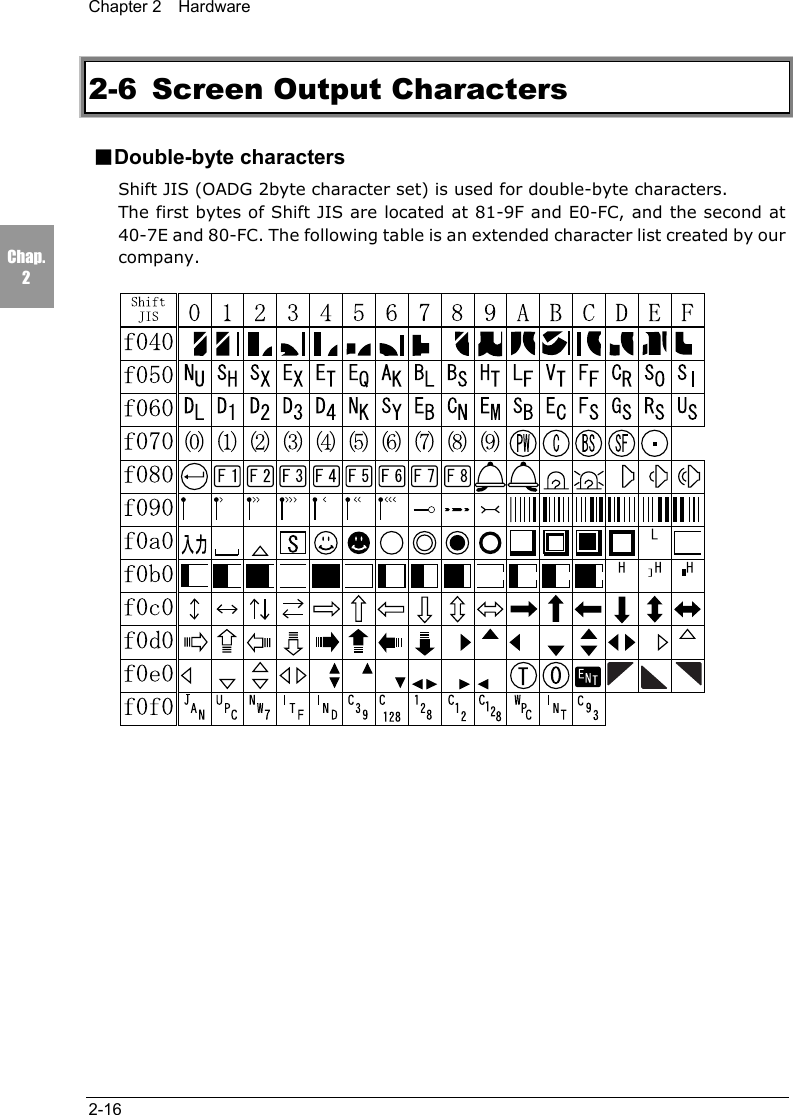
Chapter 2  Hardware2-16Chap.22-6 Screen Output Characters■Double-byte charactersShift JIS (OADG 2byte character set) is used for double-byte characters.The first bytes of Shift JIS are located at 81-9F and E0-FC, and the second at40-7E and 80-FC. The following table is an extended character list created by ourcompany.
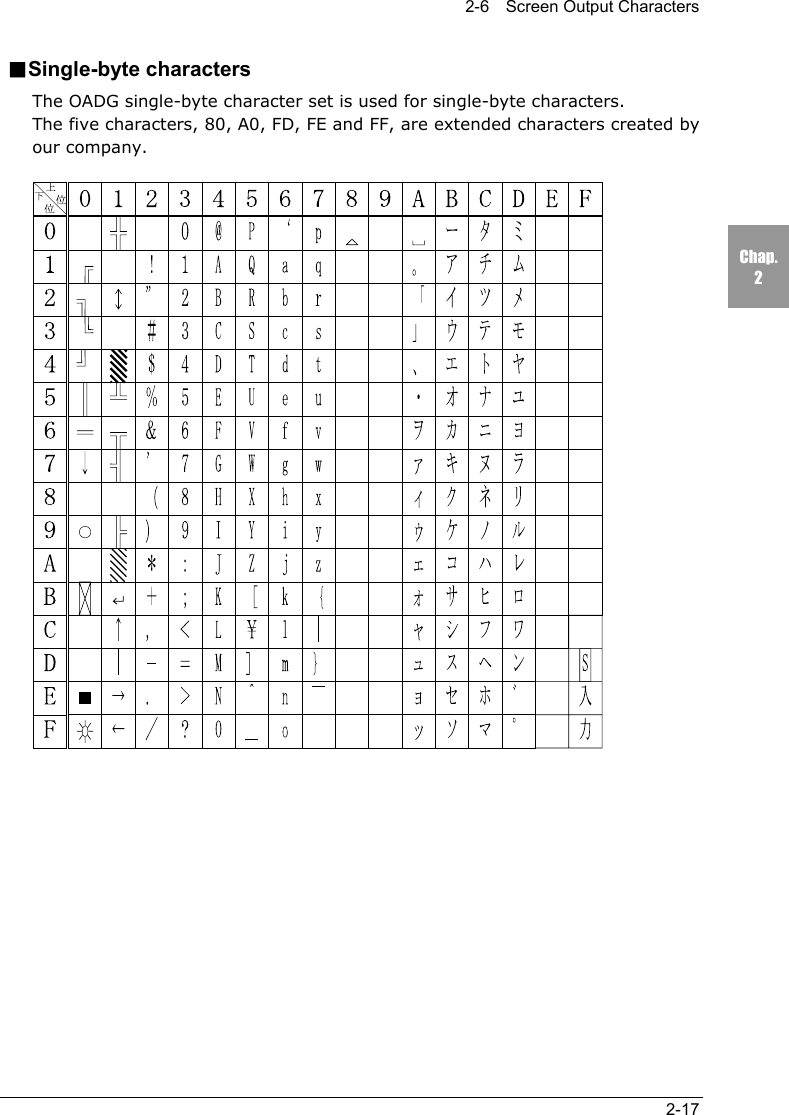
2-6  Screen Output Characters2-17Chap.2■Single-byte charactersThe OADG single-byte character set is used for single-byte characters.The five characters, 80, A0, FD, FE and FF, are extended characters created byour company.
Chapter 33 Software
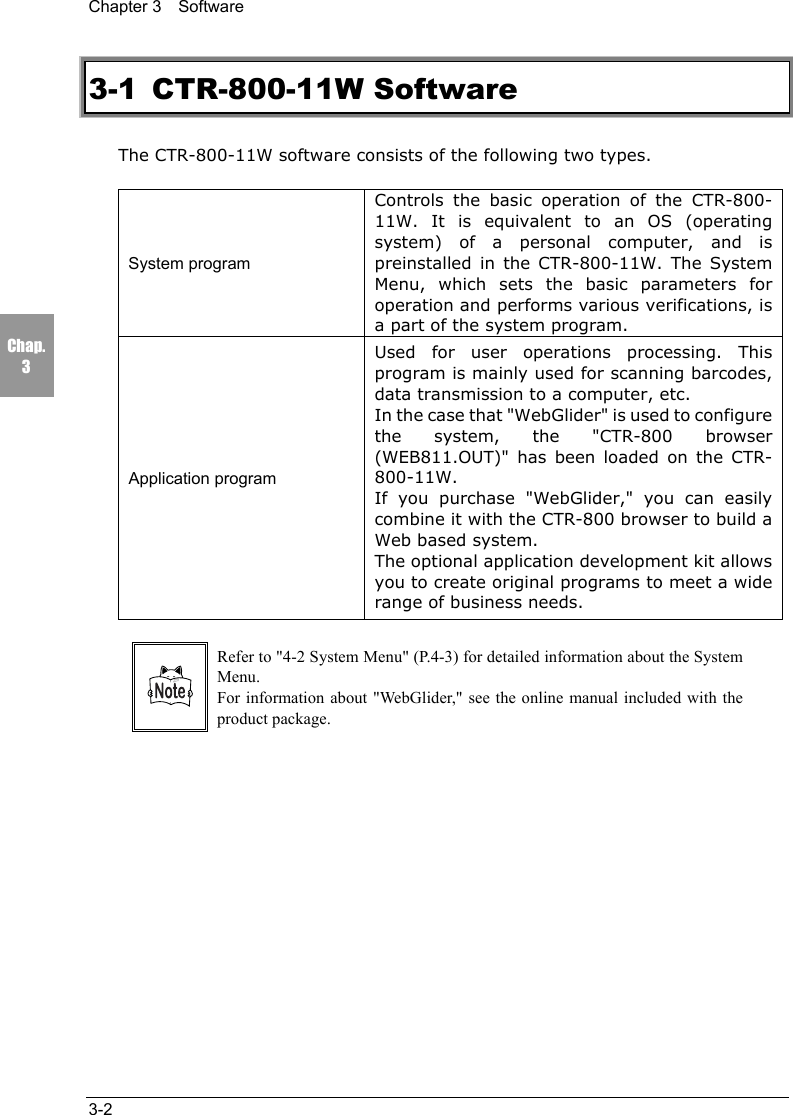
Chapter 3  Software3-2Chap.33-1 CTR-800-11W SoftwareThe CTR-800-11W software consists of the following two types.System programControls the basic operation of the CTR-800-11W. It is equivalent to an OS (operatingsystem) of a personal computer, and ispreinstalled in the CTR-800-11W. The SystemMenu, which sets the basic parameters foroperation and performs various verifications, isa part of the system program.Application programUsed for user operations processing. Thisprogram is mainly used for scanning barcodes,data transmission to a computer, etc.In the case that "WebGlider" is used to configurethe system, the "CTR-800 browser(WEB811.OUT)" has been loaded on the CTR-800-11W.If you purchase "WebGlider," you can easilycombine it with the CTR-800 browser to build aWeb based system.The optional application development kit allowsyou to create original programs to meet a widerange of business needs.Refer to "4-2 System Menu" (P.4-3) for detailed information about the SystemMenu.For information about "WebGlider," see the online manual included with theproduct package.
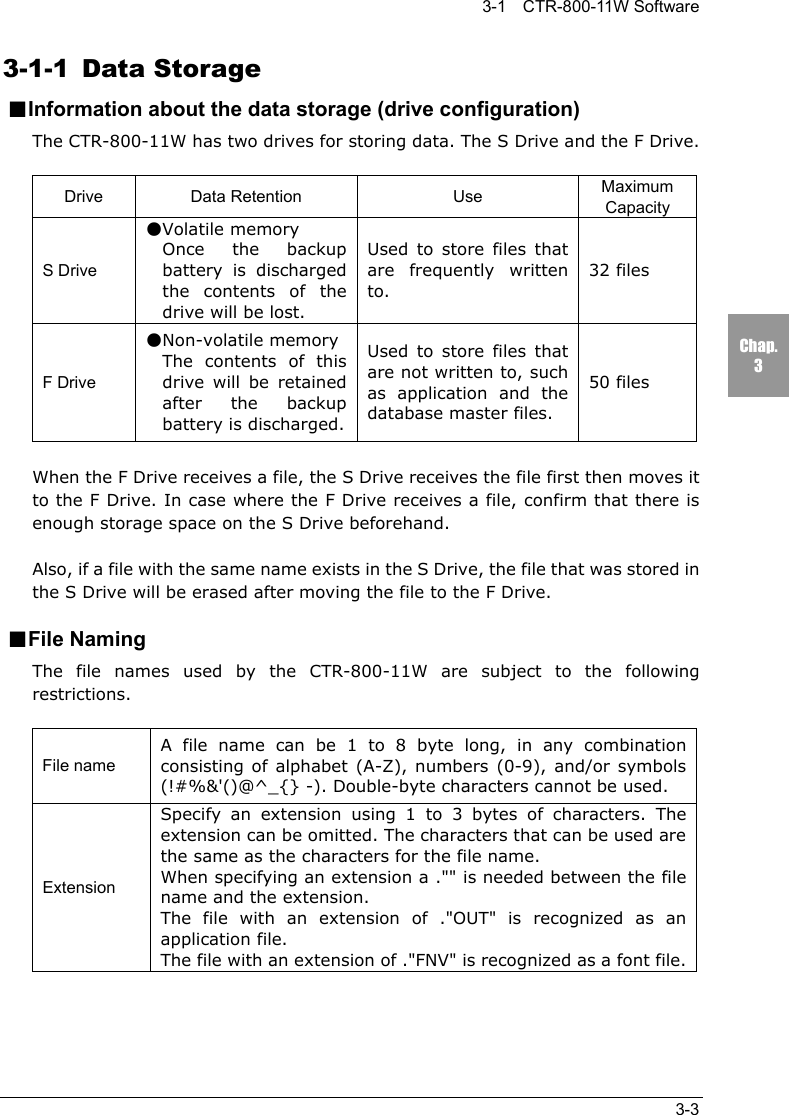
3-1  CTR-800-11W Software3-3Chap.33-1-1 Data Storage■Information about the data storage (drive configuration)The CTR-800-11W has two drives for storing data. The S Drive and the F Drive.Drive Data Retention Use MaximumCapacityS Drive●Volatile memoryOnce the backupbattery is dischargedthe contents of thedrive will be lost.Used to store files thatare frequently writtento.32 filesF Drive●Non-volatile memoryThe contents of thisdrive will be retainedafter the backupbattery is discharged.Used to store files thatare not written to, suchas application and thedatabase master files.50 filesWhen the F Drive receives a file, the S Drive receives the file first then moves itto the F Drive. In case where the F Drive receives a file, confirm that there isenough storage space on the S Drive beforehand.Also, if a file with the same name exists in the S Drive, the file that was stored inthe S Drive will be erased after moving the file to the F Drive.■File NamingThe file names used by the CTR-800-11W are subject to the followingrestrictions.File nameA file name can be 1 to 8 byte long, in any combinationconsisting of alphabet (A-Z), numbers (0-9), and/or symbols(!#%&'()@^_{} -). Double-byte characters cannot be used.ExtensionSpecify an extension using 1 to 3 bytes of characters. Theextension can be omitted. The characters that can be used arethe same as the characters for the file name.When specifying an extension a ."" is needed between the filename and the extension.The file with an extension of ."OUT" is recognized as anapplication file.The file with an extension of ."FNV" is recognized as a font file.
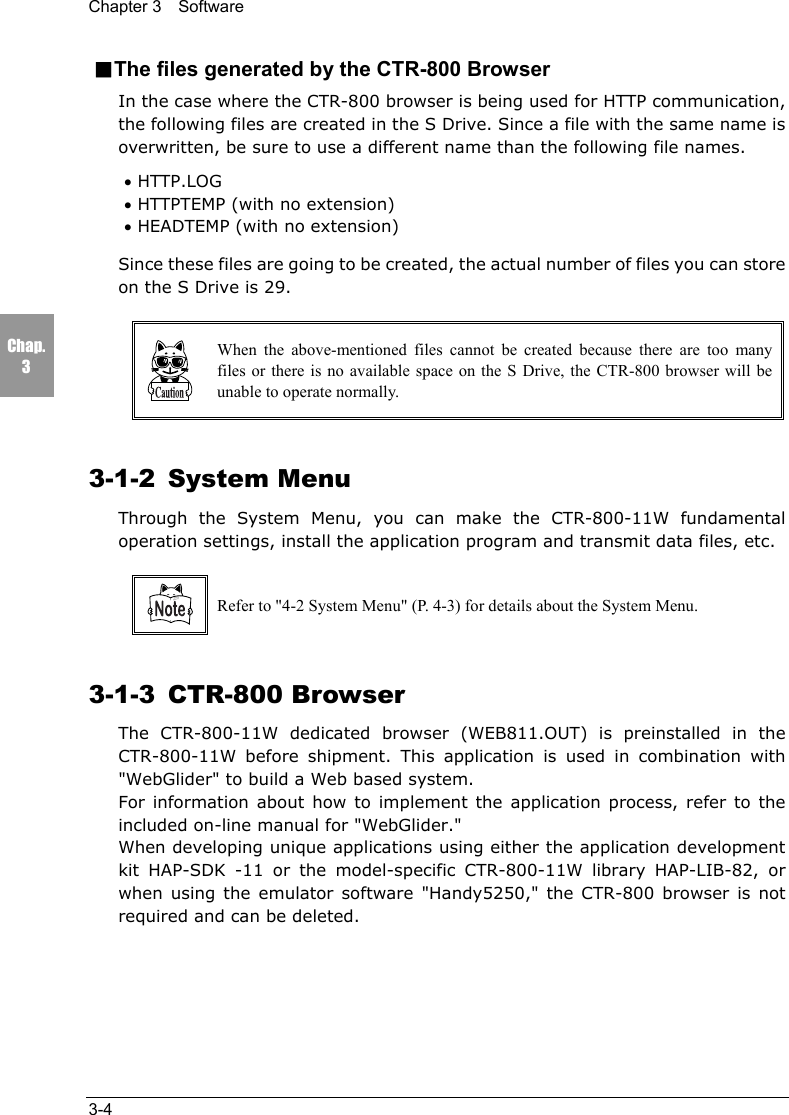
Chapter 3  Software3-4Chap.3■The files generated by the CTR-800 BrowserIn the case where the CTR-800 browser is being used for HTTP communication,the following files are created in the S Drive. Since a file with the same name isoverwritten, be sure to use a different name than the following file names.• HTTP.LOG• HTTPTEMP (with no extension)• HEADTEMP (with no extension)Since these files are going to be created, the actual number of files you can storeon the S Drive is 29.When the above-mentioned files cannot be created because there are too manyfiles or there is no available space on the S Drive, the CTR-800 browser will beunable to operate normally.3-1-2 System MenuThrough the System Menu, you can make the CTR-800-11W fundamentaloperation settings, install the application program and transmit data files, etc.Refer to "4-2 System Menu" (P. 4-3) for details about the System Menu.3-1-3 CTR-800 BrowserThe CTR-800-11W dedicated browser (WEB811.OUT) is preinstalled in theCTR-800-11W before shipment. This application is used in combination with"WebGlider" to build a Web based system.For information about how to implement the application process, refer to theincluded on-line manual for "WebGlider."When developing unique applications using either the application developmentkit HAP-SDK -11 or the model-specific CTR-800-11W library HAP-LIB-82, orwhen using the emulator software "Handy5250," the CTR-800 browser is notrequired and can be deleted.
Chapter 44 Setup
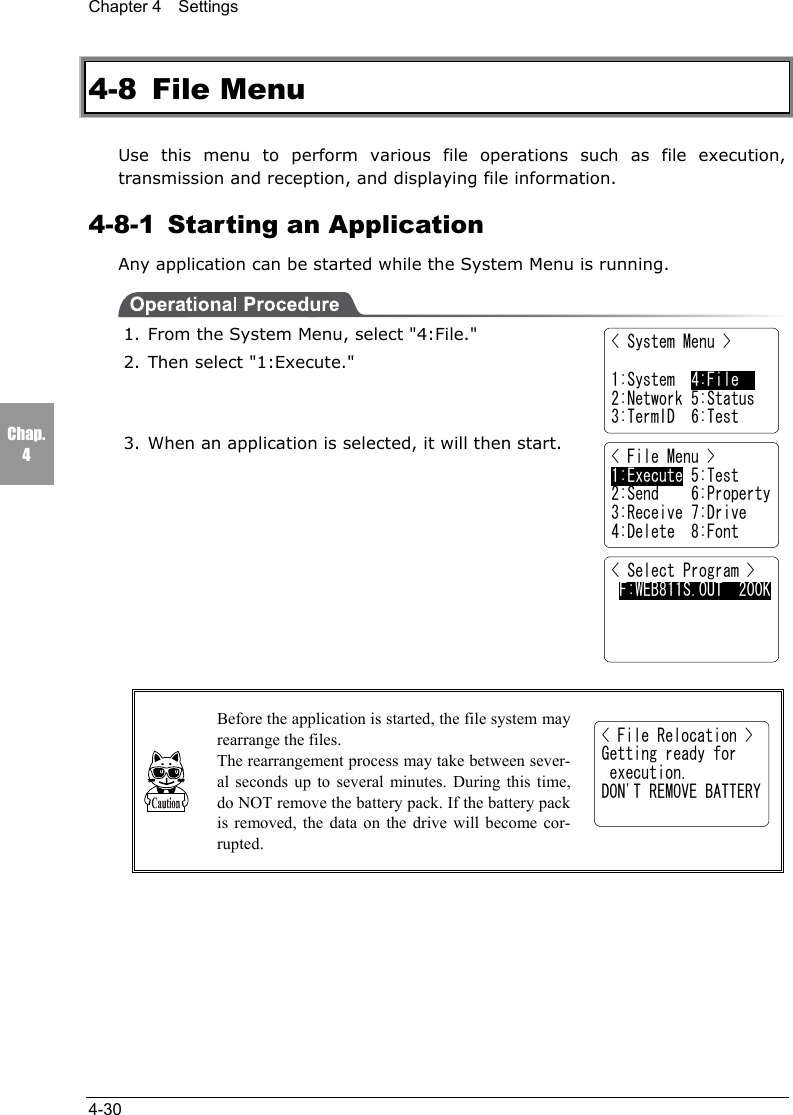
Chapter 4  Settings4-2Chap.44-1 IntroductionThe CTR-800-11W's System Menu can be used for various tasks such as networkcommunication setup, operation setup, the installation of application programs,data file transmission and verification checks, etc.■System MenuThe System Menu is a part of the system program (P.3-2), which is preinstalledin the CTR-800-11W as one of the functions that comprise the operating system.It also provides a platform for installing application programs and performingenvironmental setup for the whole system.This chapter describes how to set up the CTR-800-11W and perform variousverification checks, with primary focus on how to use the "System Menu."
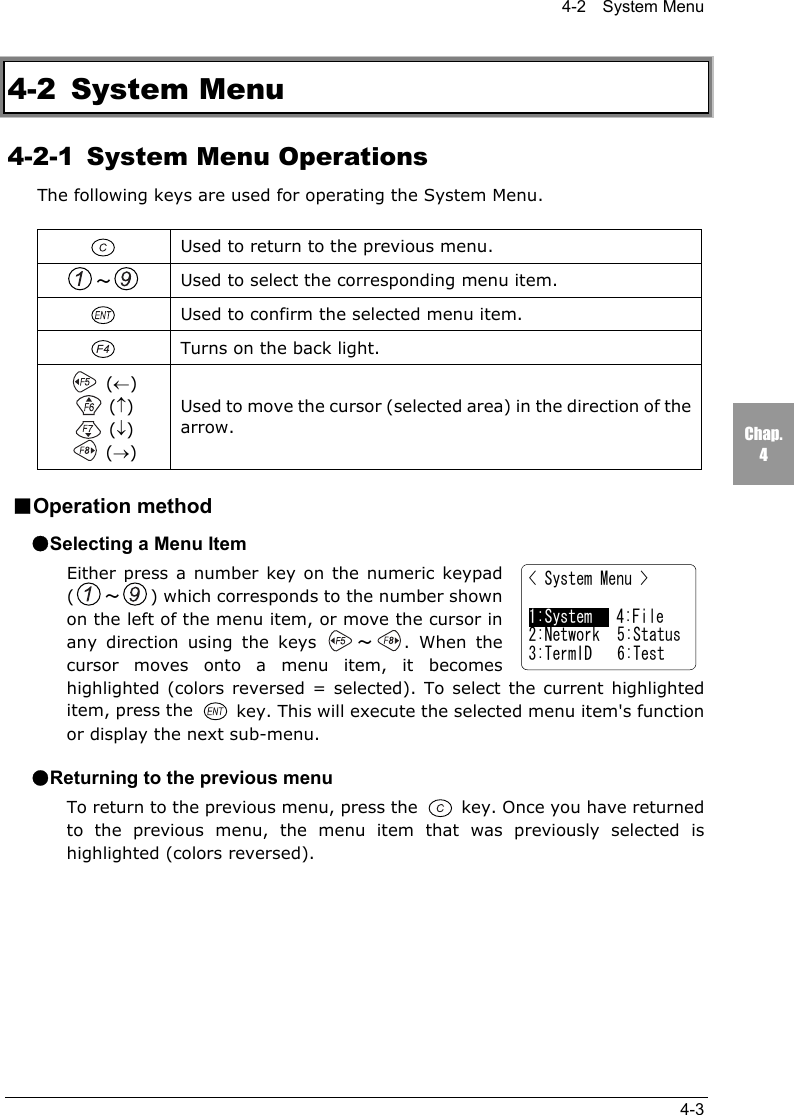
4-2  System Menu4-3Chap.44-2 System Menu4-2-1  System Menu OperationsThe following keys are used for operating the System Menu.Used to return to the previous menu.~Used to select the corresponding menu item.Used to confirm the selected menu item.Turns on the back light. (←) (↑) (↓) (→)Used to move the cursor (selected area) in the direction of thearrow.■Operation method●Selecting a Menu ItemEither press a number key on the numeric keypad(~) which corresponds to the number shownon the left of the menu item, or move the cursor inany direction using the keys  ~. When thecursor moves onto a menu item, it becomeshighlighted (colors reversed = selected). To select the current highlighteditem, press the   key. This will execute the selected menu item's functionor display the next sub-menu.●Returning to the previous menuTo return to the previous menu, press the   key. Once you have returnedto the previous menu, the menu item that was previously selected ishighlighted (colors reversed).< System Menu >1:System   4:File2:Network 5:Status3:TermID 6:Test
Chapter 4  Settings4-4Chap.4■About the screen displayDepending on the menu (screen) displayed, the characters "F:~" or "S:~" maybe displayed on the left-hand side of an item. If these characters are displayed onthe left-hand side of an item, they represent the following: "F" = "F Drive" and"S" = "S Drive."When all of the menu items cannot be displayed in onescreen, [↑] (when menu items are hidden above thescreen) or [↓] (when menu items are hidden below thescreen) is displayed on the left-hand side of a screen. Ifthe cursor is moved to a hidden menu item, the screenwill scroll automatically.■Setting the IP address, etc.The IP address etc, is set in form of "000.000.000.000." When you change avalue, move the cursor to the part you want to change, and overwrite with thenew value.The   key and the   key cannot be used to modify the values.If entering values less than 3 digits in length, the remaining digits have to be 0,for example "001."< Startup Program > F:SAMPLE1.OUT   35K F:SAMPLE2.OUT   35K F:SAMPLE3.OUT   35K↓F:SAMPLE4.OUT   35K
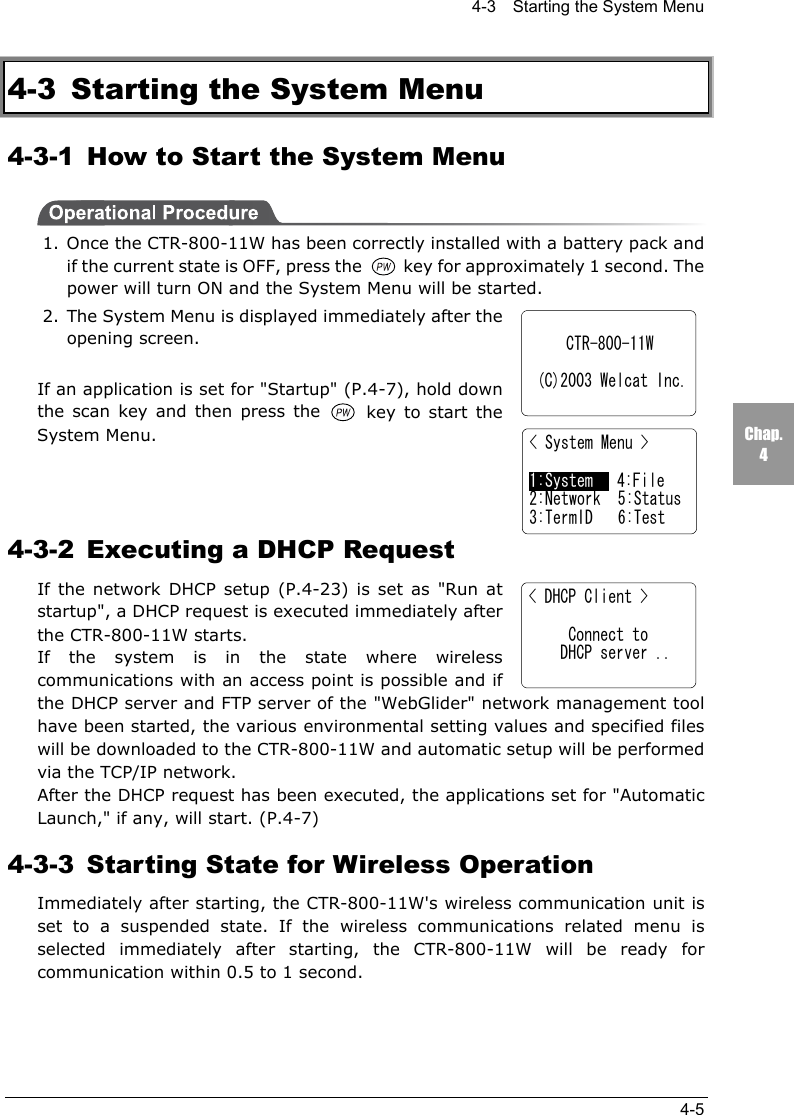
4-3    Starting the System Menu4-5Chap.44-3  Starting the System Menu4-3-1  How to Start the System Menu1. Once the CTR-800-11W has been correctly installed with a battery pack andif the current state is OFF, press the   key for approximately 1 second. Thepower will turn ON and the System Menu will be started.2. The System Menu is displayed immediately after theopening screen.If an application is set for "Startup" (P.4-7), hold downthe scan key and then press the   key to start theSystem Menu.4-3-2  Executing a DHCP RequestIf the network DHCP setup (P.4-23) is set as "Run atstartup", a DHCP request is executed immediately afterthe CTR-800-11W starts.If the system is in the state where wirelesscommunications with an access point is possible and ifthe DHCP server and FTP server of the "WebGlider" network management toolhave been started, the various environmental setting values and specified fileswill be downloaded to the CTR-800-11W and automatic setup will be performedvia the TCP/IP network.After the DHCP request has been executed, the applications set for "AutomaticLaunch," if any, will start. (P.4-7)4-3-3  Starting State for Wireless OperationImmediately after starting, the CTR-800-11W's wireless communication unit isset to a suspended state. If the wireless communications related menu isselected immediately after starting, the CTR-800-11W will be ready forcommunication within 0.5 to 1 second.CTR-800-11W (C)2003 Welcat Inc.< System Menu >1:System   4:File2:Network 5:Status3:TermID 6:Test< DHCP Client >     Connect to    DHCP server ..
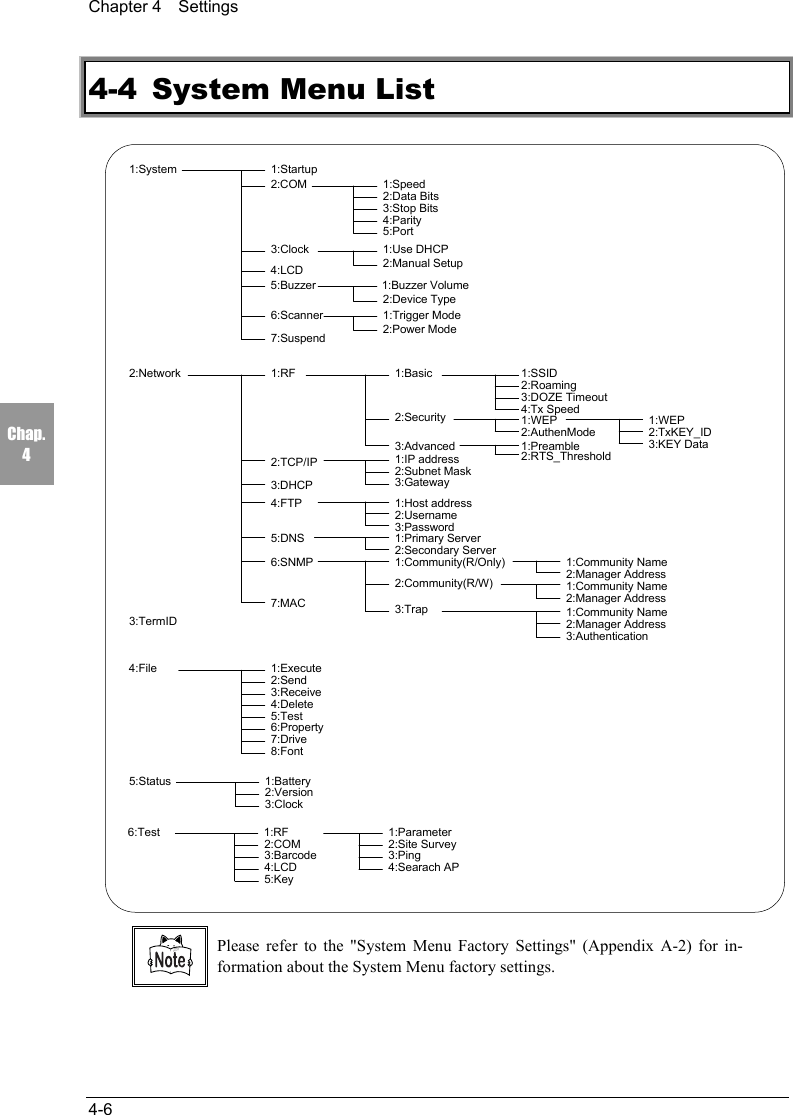
Chapter 4  Settings4-6Chap.44-4 System Menu List3:TermID2:Site Survey6:Test 1:RF 1:Parameter3:Ping4:Searach AP2:COM3:Barcode4:LCD5:Key5:Status 1:Battery2:Version3:Clock7:Drive1:Execute2:Send3:Receive4:Delete5:Test6:Property4:File8:Font2:Network 1:RF 1:Basic 1:SSID2:Roaming3:DOZE Timeout4:Tx Speed2:Security 1:WEP2:AuthenMode1:WEP2:TxKEY_ID3:KEY Data3:Advanced 1:Preamble2:RTS_Threshold2:TCP/IP 1:IP address2:Subnet Mask3:Gateway3:DHCP7:MAC4:FTP 1:Host address2:Username3:Password5:DNS 1:Primary Server2:Secondary Server6:SNMP 1:Community(R/Only)2:Community(R/W)3:Trap1:Community Name2:Manager Address1:Community Name2:Manager Address1:Community Name2:Manager Address3:Authentication7:Suspend1:Buzzer Volume1:System 1:Startup2:COM 1:Speed2:Data Bits3:Stop Bits4:Parity5:Port3:Clock2:Manual Setup4:LCD5:Buzzer2:Device Type6:Scanner 1:Trigger Mode2:Power Mode1:Use DHCPPlease refer to the "System Menu Factory Settings" (Appendix A-2) for in-formation about the System Menu factory settings.
4-5    System Setup Menu4-7Chap.44-5 System Setup Menu4-5-1  Setting the Programs for Automatic LaunchYou can set programs to launch automatically when the power is turned ON. Inthe factory settings, the System Menu is set to launch automatically.When the DHCP function (P.4-23) is enabled, these settings can be madeautomatically.1. From the System Menu, select "1:System."2. Then select "1:Startup."3. Select "1:System Menu" or "2: User Program." Thecurrent program names are displayed on the bottomline.4. If "1:System Menu" is selected, the System Menuwill be set to launch automatically immediately afterthe power is turned ON.If "2:User Program" is selected, a list of currentlyinstalled applications is displayed. From this list,select an application.5. Once an application is selected, the name of the application will be displayedon the bottom line of the screen.■When no application is storedWhen there are no applications stored, the message "File not found" will bedisplayed. Press the   key to go back to the previous screen.< System Menu >1:System   4:File2:Network  5:Status3:TermID   6:Test< System Config >1:Startup  5:Buzzer2:COM 6:Scanner3:Clock 7:Suspend4:LCD< Startup Program >1:System Menu   2:User Program[System Menu]< Startup Program > F:WEB811S.OUT  200K
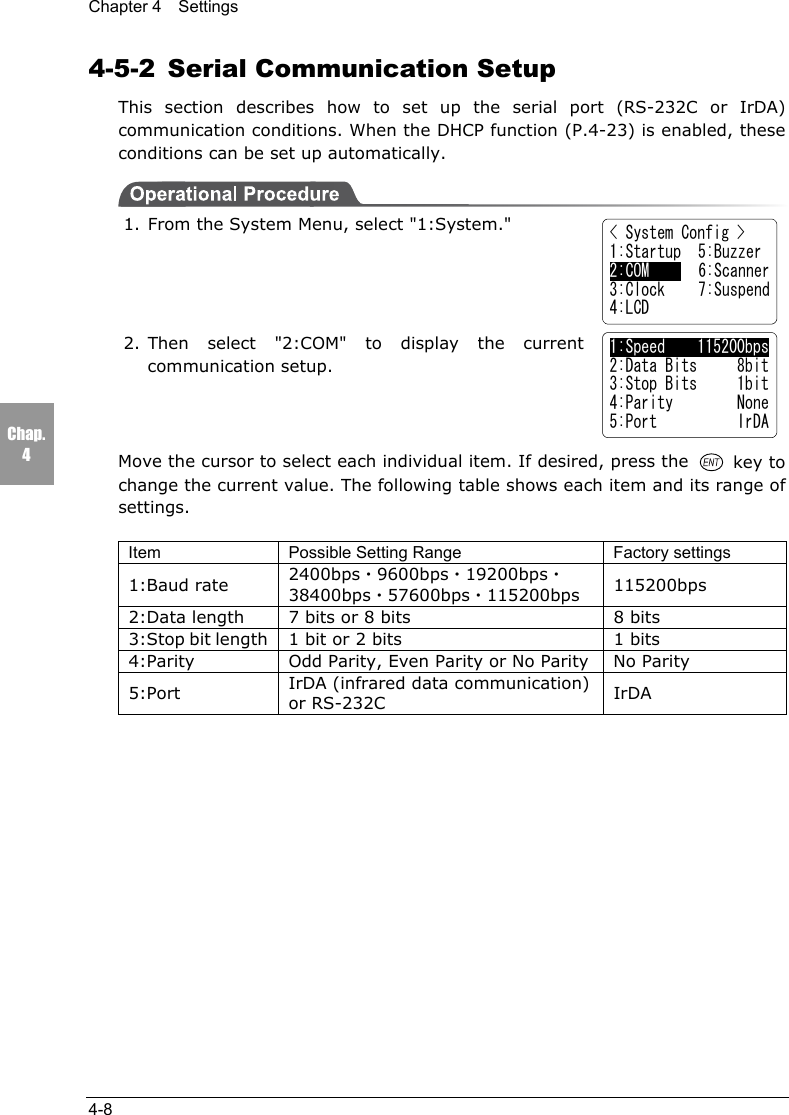
Chapter 4  Settings4-8Chap.44-5-2  Serial Communication SetupThis section describes how to set up the serial port (RS-232C or IrDA)communication conditions. When the DHCP function (P.4-23) is enabled, theseconditions can be set up automatically.1. From the System Menu, select "1:System."2. Then select "2:COM" to display the currentcommunication setup.Move the cursor to select each individual item. If desired, press the   key tochange the current value. The following table shows each item and its range ofsettings.Item Possible Setting Range Factory settings1:Baud rate 2400bps・9600bps・19200bps・38400bps・57600bps・115200bps 115200bps2:Data length 7 bits or 8 bits 8 bits3:Stop bit length 1 bit or 2 bits 1 bits4:Parity Odd Parity, Even Parity or No Parity No Parity5:Port IrDA (infrared data communication)or RS-232C IrDA< System Config >1:Startup  5:Buzzer2:COM     6:Scanner3:Clock 7:Suspend4:LCD1:Speed    115200bps2:Data Bits     8bit3:Stop Bits     1bit4:Parity        None5:Port          IrDA
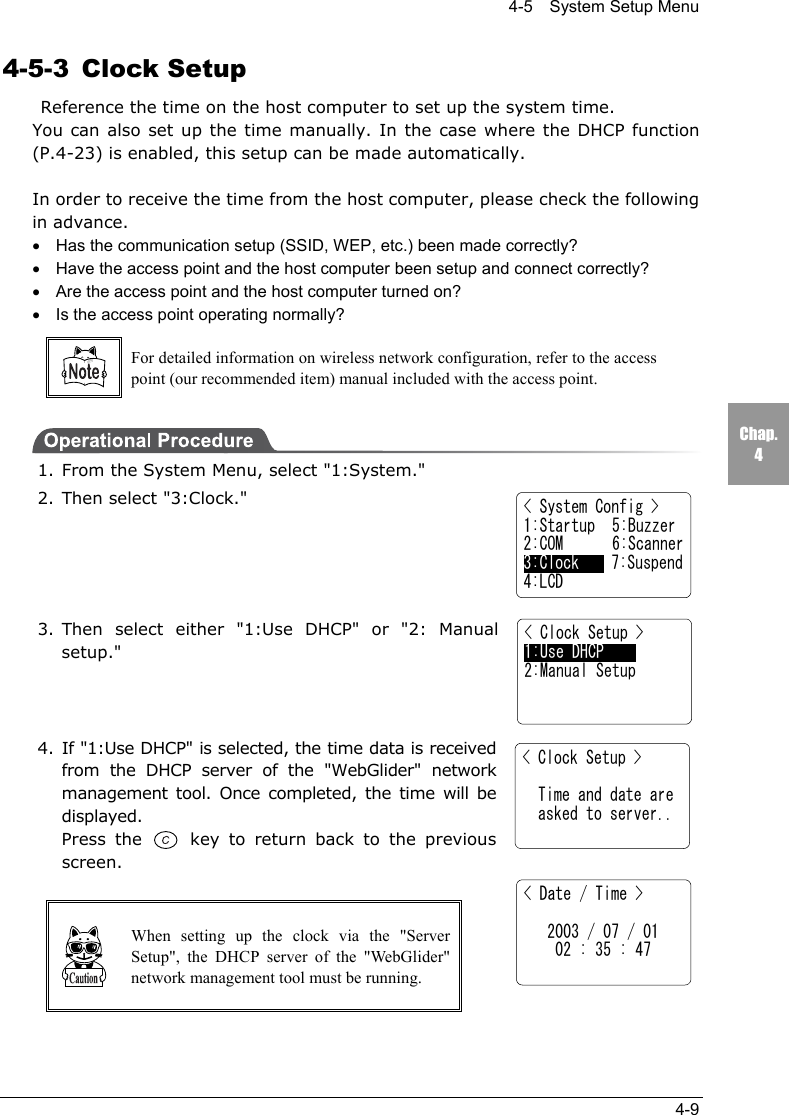
4-5    System Setup Menu4-9Chap.44-5-3 Clock Setup  Reference the time on the host computer to set up the system time.You can also set up the time manually. In the case where the DHCP function(P.4-23) is enabled, this setup can be made automatically.In order to receive the time from the host computer, please check the followingin advance.•Has the communication setup (SSID, WEP, etc.) been made correctly?•Have the access point and the host computer been setup and connect correctly?•Are the access point and the host computer turned on?•Is the access point operating normally?For detailed information on wireless network configuration, refer to the accesspoint (our recommended item) manual included with the access point.1. From the System Menu, select "1:System."2. Then select "3:Clock."3. Then select either "1:Use DHCP" or "2: Manualsetup."4. If "1:Use DHCP" is selected, the time data is receivedfrom the DHCP server of the "WebGlider" networkmanagement tool. Once completed, the time will bedisplayed.Press the   key to return back to the previousscreen.When setting up the clock via the "ServerSetup", the DHCP server of the "WebGlider"network management tool must be running.< System Config >1:Startup  5:Buzzer2:COM 6:Scanner3:Clock    7:Suspend4:LCD< Clock Setup >  Time and date are  asked to server..< Date / Time >   2003 / 07 / 01    02 : 35 : 47< Clock Setup >1:Use DHCP2:Manual Setup
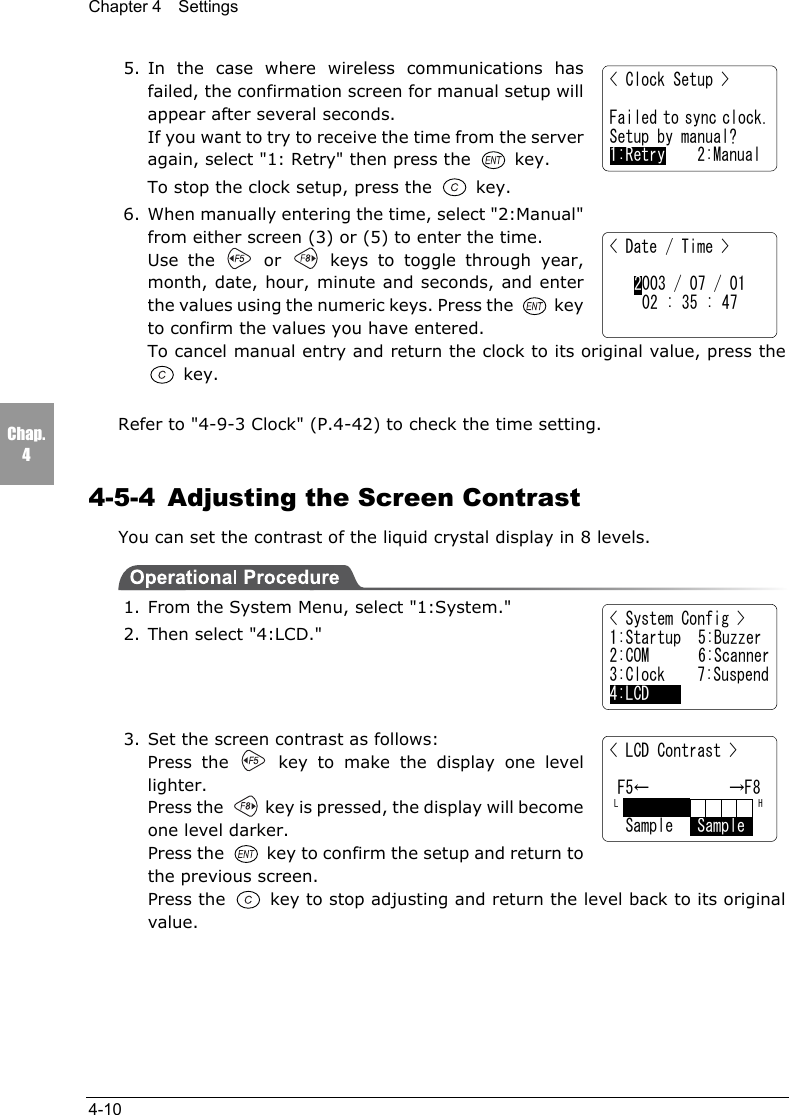
Chapter 4  Settings4-10Chap.45. In the case where wireless communications hasfailed, the confirmation screen for manual setup willappear after several seconds.If you want to try to receive the time from the serveragain, select "1: Retry" then press the  key.To stop the clock setup, press the   key.6. When manually entering the time, select "2:Manual"from either screen (3) or (5) to enter the time.Use the   or   keys to toggle through year,month, date, hour, minute and seconds, and enterthe values using the numeric keys. Press the  keyto confirm the values you have entered.To cancel manual entry and return the clock to its original value, press the key.Refer to "4-9-3 Clock" (P.4-42) to check the time setting.4-5-4  Adjusting the Screen ContrastYou can set the contrast of the liquid crystal display in 8 levels.1. From the System Menu, select "1:System."2. Then select "4:LCD."3. Set the screen contrast as follows:Press the   key to make the display one levellighter.Press the   key is pressed, the display will becomeone level darker.Press the   key to confirm the setup and return tothe previous screen.Press the   key to stop adjusting and return the level back to its originalvalue.< Clock Setup >Failed to sync clock.Setup by manual?1:Retry    2:Manual< Date / Time >2003 / 07 / 0102 : 35 : 47< System Config >1:Startup  5:Buzzer2:COM 6:Scanner3:Clock    7:Suspend4:LCD< LCD Contrast > F5←          →F8 L                  H  Sample   Sample
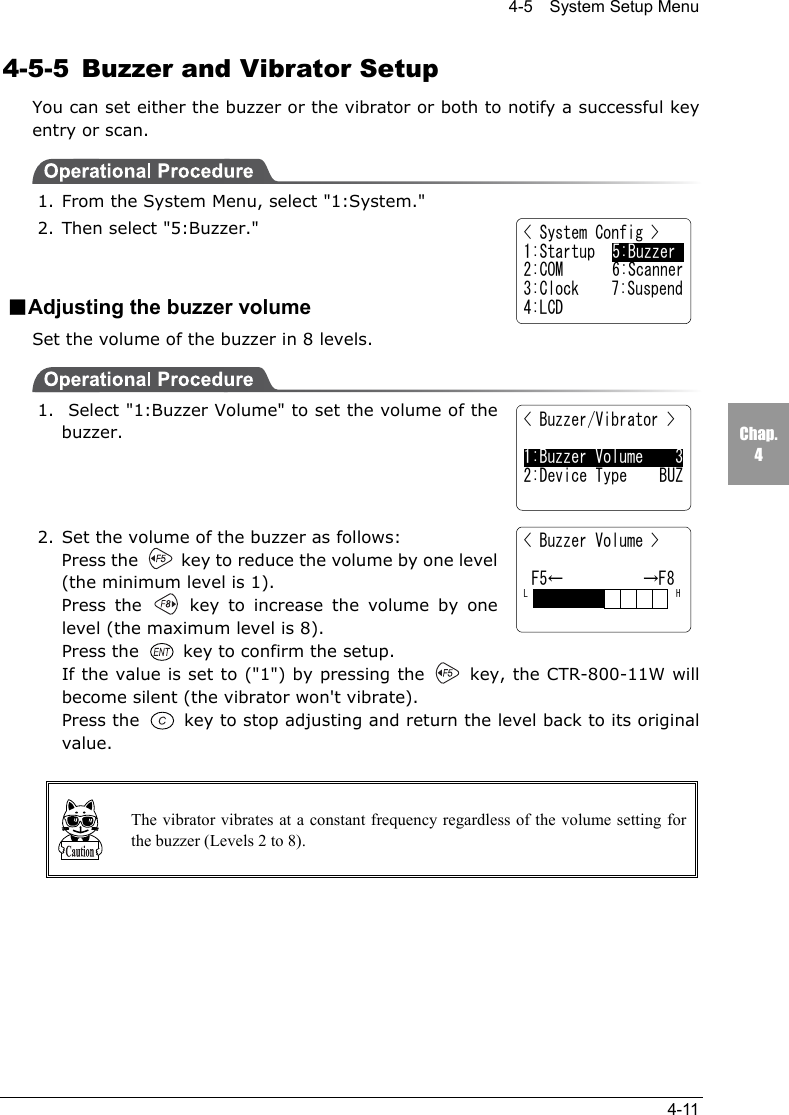
4-5    System Setup Menu4-11Chap.44-5-5  Buzzer and Vibrator SetupYou can set either the buzzer or the vibrator or both to notify a successful keyentry or scan.1. From the System Menu, select "1:System."2. Then select "5:Buzzer."■Adjusting the buzzer volumeSet the volume of the buzzer in 8 levels.1.  Select "1:Buzzer Volume" to set the volume of thebuzzer.2. Set the volume of the buzzer as follows:Press the   key to reduce the volume by one level(the minimum level is 1).Press the   key to increase the volume by onelevel (the maximum level is 8).Press the   key to confirm the setup.If the value is set to ("1") by pressing the   key, the CTR-800-11W willbecome silent (the vibrator won't vibrate).Press the   key to stop adjusting and return the level back to its originalvalue.The vibrator vibrates at a constant frequency regardless of the volume setting forthe buzzer (Levels 2 to 8).< System Config >1:Startup  5:Buzzer2:COM 6:Scanner3:Clock    7:Suspend4:LCD< Buzzer/Vibrator >1:Buzzer Volume    32:Device Type    BUZ< Buzzer Volume > F5←          →F8L                   H
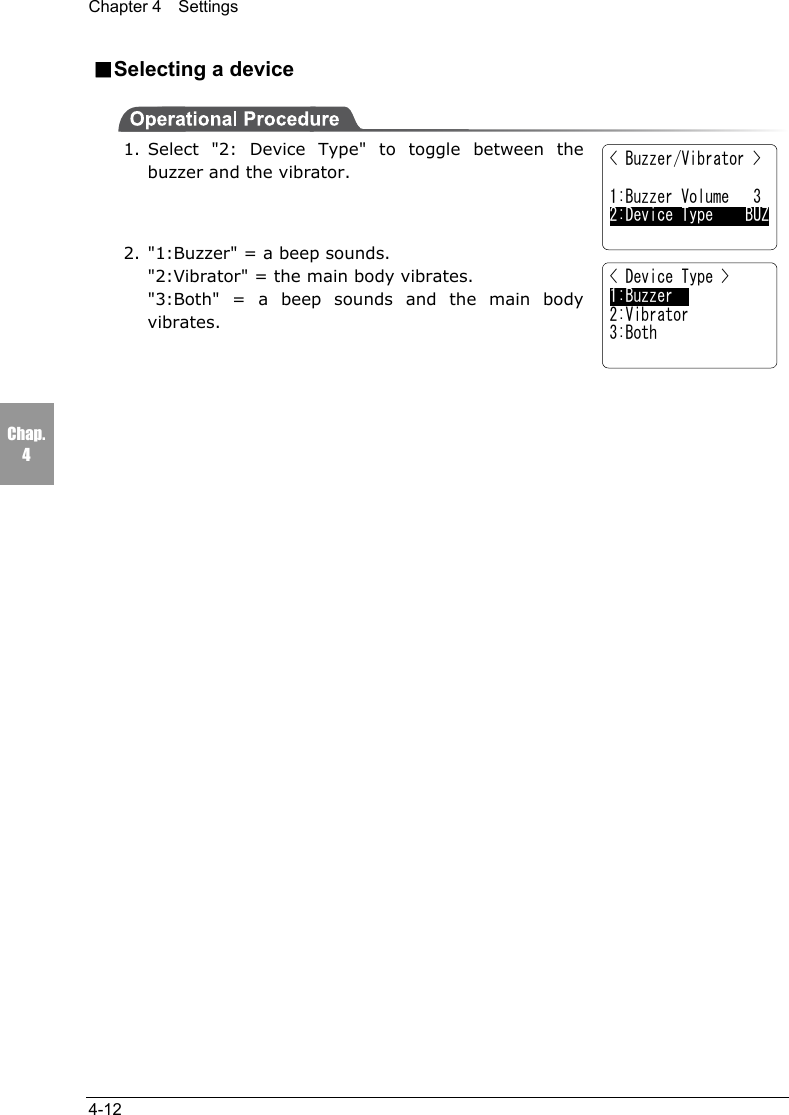
Chapter 4  Settings4-12Chap.4■Selecting a device1. Select "2: Device Type" to toggle between thebuzzer and the vibrator.2. "1:Buzzer" = a beep sounds."2:Vibrator" = the main body vibrates."3:Both" = a beep sounds and the main bodyvibrates.< Buzzer/Vibrator >1:Buzzer Volume   32:Device Type    BUZ< Device Type >1:Buzzer2:Vibrator3:Both
4-5    System Setup Menu4-13Chap.44-5-6 Scanner SetupSet up the operating conditions for the laser scanner while the applicationprogram is running.1. From the System Menu, select "1:System."2. Then select "6:Scanner."■Setting the trigger modeSet the mode in which the scanning key operates.1. Select "1:Trigger Mode."●Normal ModeWhen the scan key is pressed, the laser turns on andscanning can be performed anytime.●Duplex ModeWhen the scan key is pressed, the laser will flash. If the scan key is pressed again,the laser will turn on and scanning will start.●Release ModeWhen the scan key is pressed, the laser will flash. If the scan key is then released,the light will turn on and scanning will start.■Setting the laser irradiation timeAfter setting the trigger mode, set the laser irradiationtime.Set the value in the range between 0 and 65536 seconds.The laser is turned off when a barcode is not scannedsuccessfully within the specified time.The laser remains on when this value is set to 0 seconds.< System Config >1:Startup  5:Buzzer2:COM 6:Scanner3:Clock    7:Suspend4:LCD< Scanner Setup > 1:Trigger Mode2:Power Mode< Trigger Mode >1:Normal Mode2:Duplex Mode3:Release Mode< Laser On Time >    [ 00020 sec.]
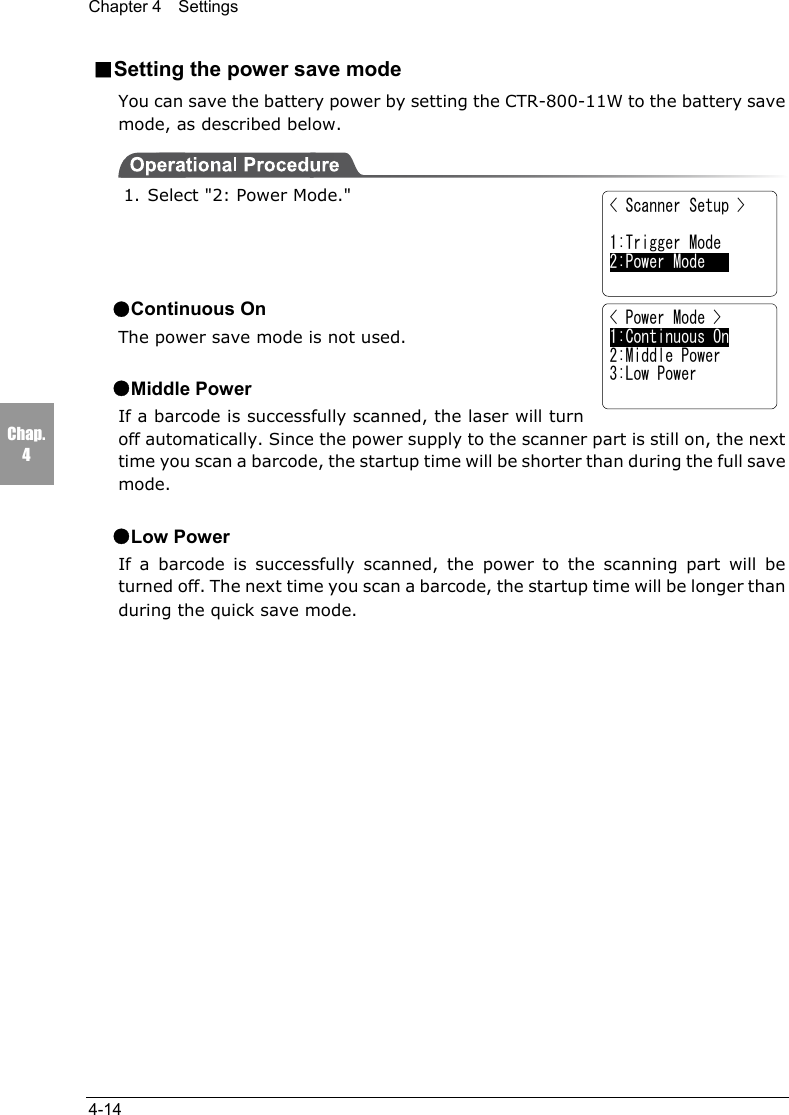
Chapter 4  Settings4-14Chap.4■Setting the power save modeYou can save the battery power by setting the CTR-800-11W to the battery savemode, as described below.1. Select "2: Power Mode."●Continuous OnThe power save mode is not used.●Middle PowerIf a barcode is successfully scanned, the laser will turnoff automatically. Since the power supply to the scanner part is still on, the nexttime you scan a barcode, the startup time will be shorter than during the full savemode.●Low PowerIf a barcode is successfully scanned, the power to the scanning part will beturned off. The next time you scan a barcode, the startup time will be longer thanduring the quick save mode.< Scanner Setup > 1:Trigger Mode2:Power Mode    < Power Mode >1:Continuous On2:Middle Power3:Low Power
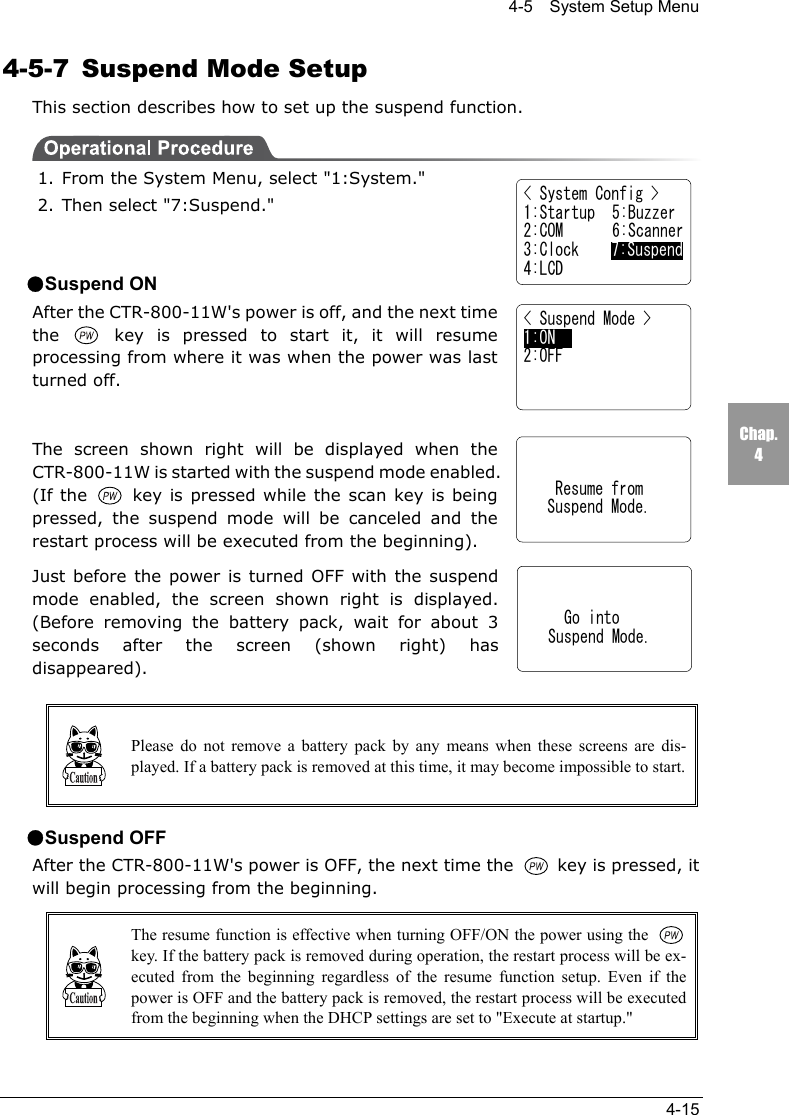
4-5    System Setup Menu4-15Chap.44-5-7  Suspend Mode SetupThis section describes how to set up the suspend function.1. From the System Menu, select "1:System."2. Then select "7:Suspend."●Suspend ONAfter the CTR-800-11W's power is off, and the next timethe   key is pressed to start it, it will resumeprocessing from where it was when the power was lastturned off.The screen shown right will be displayed when theCTR-800-11W is started with the suspend mode enabled.(If the   key is pressed while the scan key is beingpressed, the suspend mode will be canceled and therestart process will be executed from the beginning).Just before the power is turned OFF with the suspendmode enabled, the screen shown right is displayed.(Before removing the battery pack, wait for about 3seconds after the screen (shown right) hasdisappeared).Please do not remove a battery pack by any means when these screens are dis-played. If a battery pack is removed at this time, it may become impossible to start.●Suspend OFFAfter the CTR-800-11W's power is OFF, the next time the   key is pressed, itwill begin processing from the beginning.The resume function is effective when turning OFF/ON the power using the key. If the battery pack is removed during operation, the restart process will be ex-ecuted from the beginning regardless of the resume function setup. Even if thepower is OFF and the battery pack is removed, the restart process will be executedfrom the beginning when the DHCP settings are set to "Execute at startup."< System Config >1:Startup  5:Buzzer2:COM 6:Scanner3:Clock    7:Suspend4:LCD< Suspend Mode >1:ON     2:OFF    Resume from   Suspend Mode.     Go into   Suspend Mode.
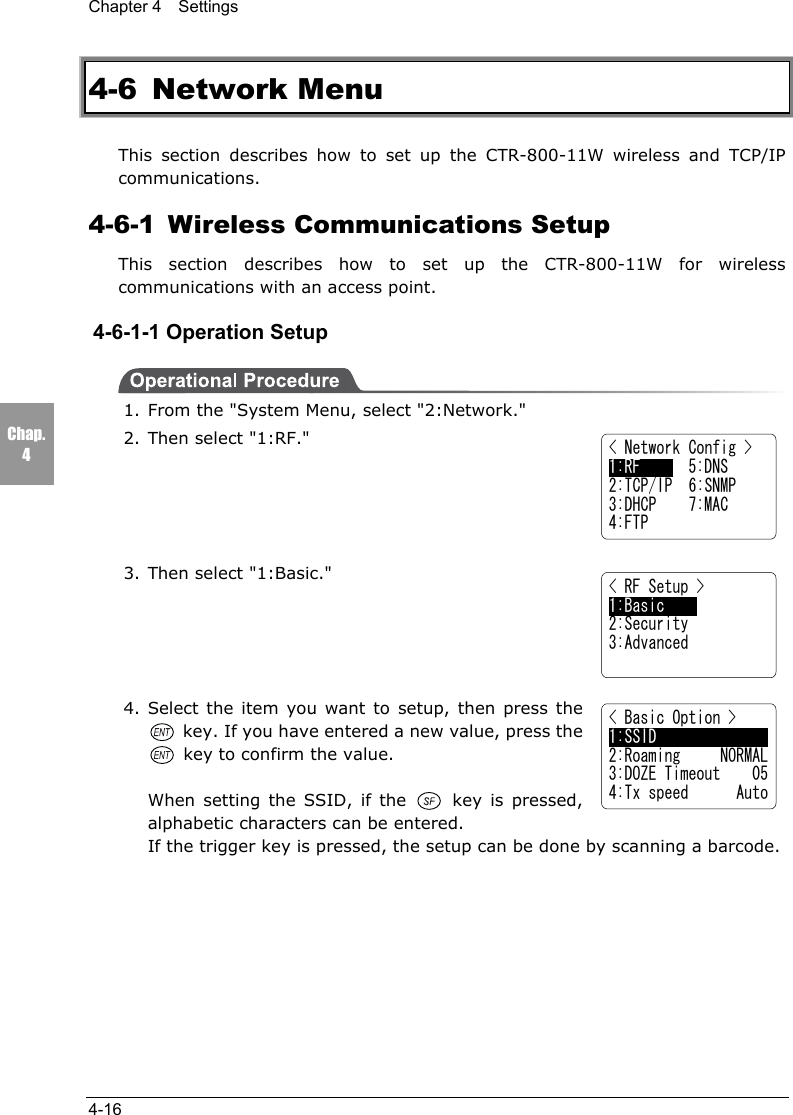
Chapter 4  Settings4-16Chap.44-6 Network MenuThis section describes how to set up the CTR-800-11W wireless and TCP/IPcommunications.4-6-1  Wireless Communications SetupThis section describes how to set up the CTR-800-11W for wirelesscommunications with an access point.4-6-1-1 Operation Setup1. From the "System Menu, select "2:Network."2. Then select "1:RF."3. Then select "1:Basic."4. Select the item you want to setup, then press the key. If you have entered a new value, press the key to confirm the value.When setting the SSID, if the   key is pressed,alphabetic characters can be entered.If the trigger key is pressed, the setup can be done by scanning a barcode.< Basic Option >1:SSID2:Roaming     NORMAL3:DOZE Timeout    054:Tx speed      Auto< Network Config >1:RF      5:DNS2:TCP/IP  6:SNMP3:DHCP    7:MAC4:FTP< RF Setup >1:Basic2:Security3:Advanced
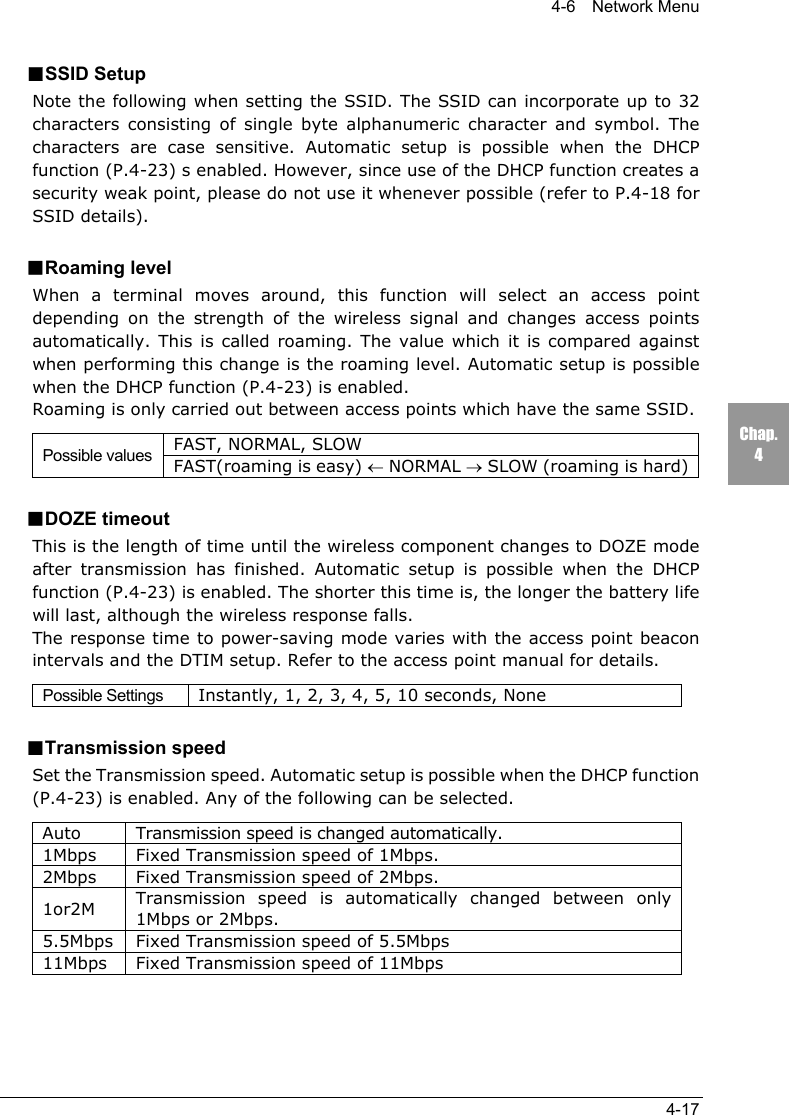
4-6  Network Menu4-17Chap.4■SSID SetupNote the following when setting the SSID. The SSID can incorporate up to 32characters consisting of single byte alphanumeric character and symbol. Thecharacters are case sensitive. Automatic setup is possible when the DHCPfunction (P.4-23) s enabled. However, since use of the DHCP function creates asecurity weak point, please do not use it whenever possible (refer to P.4-18 forSSID details).■Roaming levelWhen a terminal moves around, this function will select an access pointdepending on the strength of the wireless signal and changes access pointsautomatically. This is called roaming. The value which it is compared againstwhen performing this change is the roaming level. Automatic setup is possiblewhen the DHCP function (P.4-23) is enabled.Roaming is only carried out between access points which have the same SSID.FAST, NORMAL, SLOWPossible values FAST(roaming is easy) ← NORMAL → SLOW (roaming is hard)■DOZE timeoutThis is the length of time until the wireless component changes to DOZE modeafter transmission has finished. Automatic setup is possible when the DHCPfunction (P.4-23) is enabled. The shorter this time is, the longer the battery lifewill last, although the wireless response falls.The response time to power-saving mode varies with the access point beaconintervals and the DTIM setup. Refer to the access point manual for details.Possible Settings Instantly, 1, 2, 3, 4, 5, 10 seconds, None■Transmission speedSet the Transmission speed. Automatic setup is possible when the DHCP function(P.4-23) is enabled. Any of the following can be selected.Auto Transmission speed is changed automatically.1Mbps Fixed Transmission speed of 1Mbps.2Mbps Fixed Transmission speed of 2Mbps.1or2M Transmission speed is automatically changed between only1Mbps or 2Mbps.5.5Mbps Fixed Transmission speed of 5.5Mbps11Mbps Fixed Transmission speed of 11Mbps
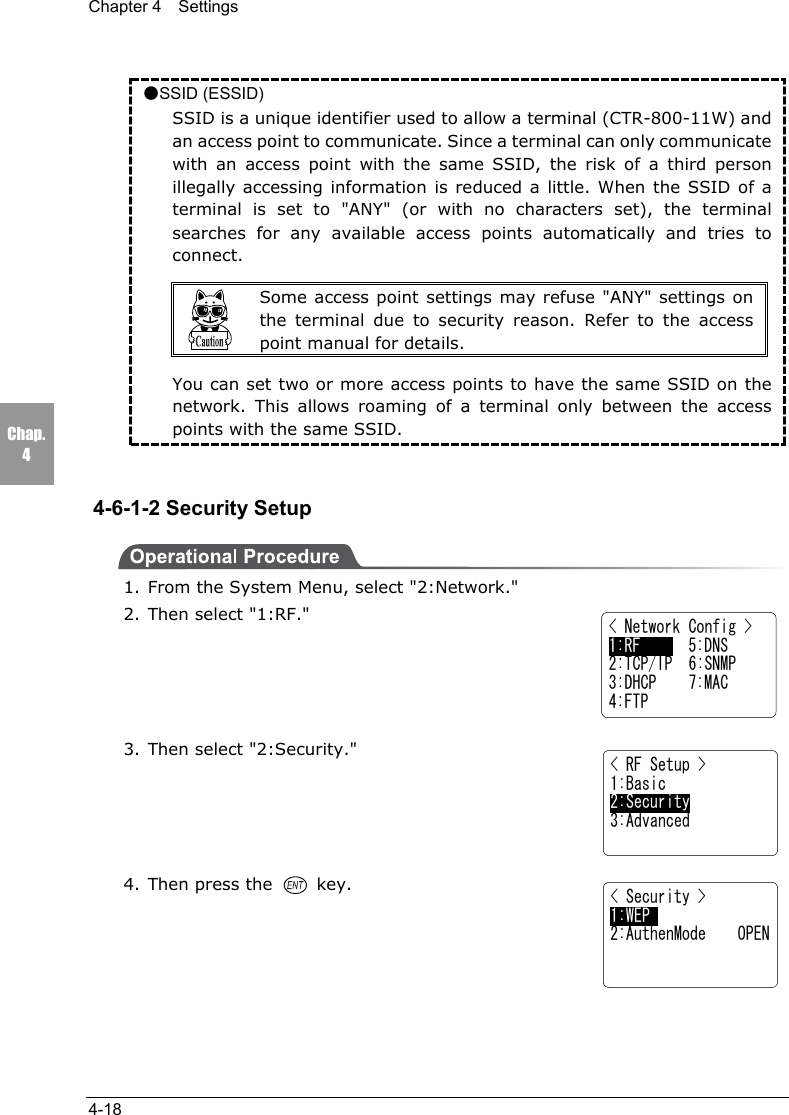
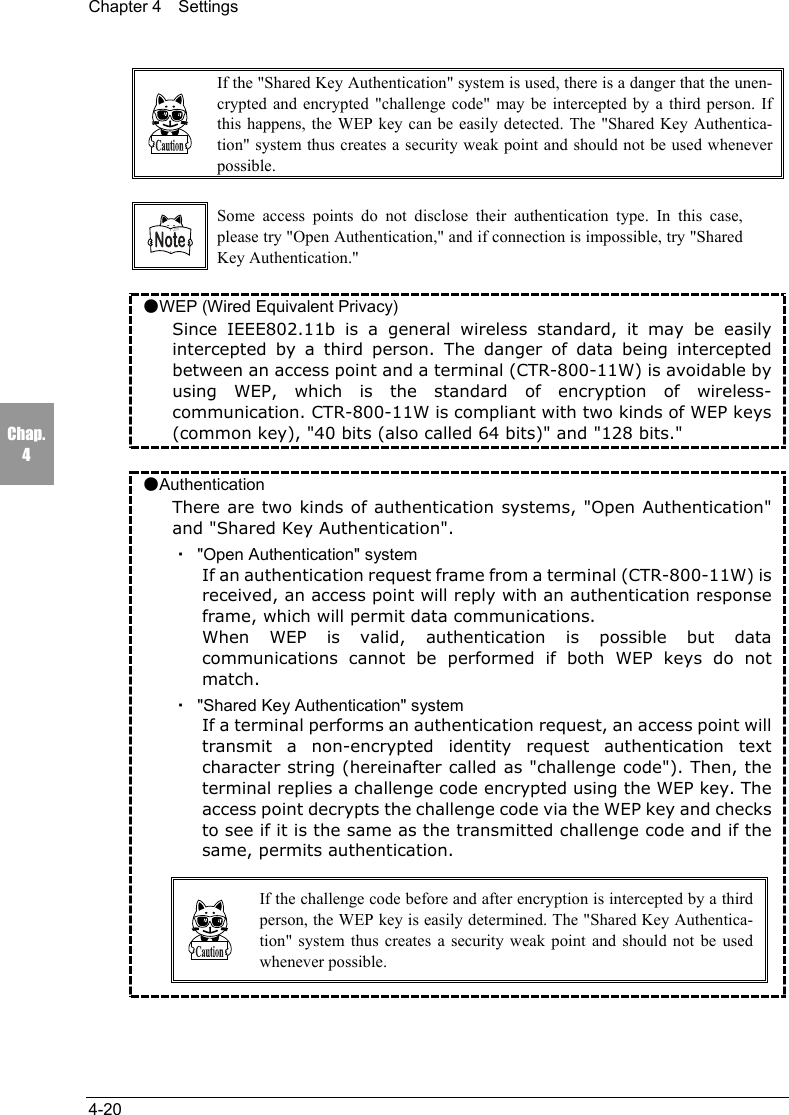
Chapter 4  Settings4-18Chap.4●SSID (ESSID)SSID is a unique identifier used to allow a terminal (CTR-800-11W) andan access point to communicate. Since a terminal can only communicatewith an access point with the same SSID, the risk of a third personillegally accessing information is reduced a little. When the SSID of aterminal is set to "ANY" (or with no characters set), the terminalsearches for any available access points automatically and tries toconnect.Some access point settings may refuse "ANY" settings onthe terminal due to security reason. Refer to the accesspoint manual for details.You can set two or more access points to have the same SSID on thenetwork. This allows roaming of a terminal only between the accesspoints with the same SSID.4-6-1-2 Security Setup1. From the System Menu, select "2:Network."2. Then select "1:RF."3. Then select "2:Security."4. Then press the   key.< Security >1:WEP2:AuthenMode    OPEN< Network Config >1:RF      5:DNS2:TCP/IP  6:SNMP3:DHCP    7:MAC4:FTP< RF Setup >1:Basic2:Security3:Advanced
4-6  Network Menu4-19Chap.4< Authentication >1:OPEN     2:SHARED■WEP (refer to P.4-20 for details)WEP can be set to either "Null," "40 bits," or "128 bits."●TxKEY_IDSelect the ID used for transmission from KEY1-KEY4 set in the nextparagraph "KEY setup." This becomes effective if the WEP settings are set toother than "Null."Communication is possible only if the contents of both the TxKEY_ID WEP keyand the access point WEP key are the same, and if the contents of both the Trans-mitKEY WEP key set on the access point and the terminal's WEP key are thesame.For example, when the TxKEY_ID of a terminal is set to "2," the contents of theterminal WEP key 2 and the contents of the access point WEP key 2 need to be thesame. On the other hand, when an access point TransmitKey is set to "3," the con-tents of the access point WEP key 3 and the contents of the terminal WEP key 3need to be the same.●KEY SetupSetting the contents of each WEP key (1, 2, 3, 4).Characters which can be used are "0" - "9", "A" - "F" and "a" - "f." When a 40bits is selected for "WEP," the WEP is a fixed 10 characters. When 128 bits isselected, it is a fixed 26 characters. The number of characters that areactually input is always 26. Therefore, when 40 bits is selected, the first 10characters of the 26 characters are applied. If a trigger key is pressed, thesetup can be done by scanning a barcode.Each WEP key setup can be overwritten but cannot be edited.On entering the KEY setup screen, it displays "00000..." for security purposes.■Authentication (refer to P.4-20 for details)OPEN Sets up an "Open Authentication" system.SHARED Sets up a "Shared Key Authentication"system.< WEP >1:WEP        Disable2:TxKEY_ID      KEY13:KEY Data
Chapter 4  Settings4-20Chap.4If the "Shared Key Authentication" system is used, there is a danger that the unen-crypted and encrypted "challenge code" may be intercepted by a third person. Ifthis happens, the WEP key can be easily detected. The "Shared Key Authentica-tion" system thus creates a security weak point and should not be used wheneverpossible.Some access points do not disclose their authentication type. In this case,please try "Open Authentication," and if connection is impossible, try "SharedKey Authentication."●WEP (Wired Equivalent Privacy)Since IEEE802.11b is a general wireless standard, it may be easilyintercepted by a third person. The danger of data being interceptedbetween an access point and a terminal (CTR-800-11W) is avoidable byusing WEP, which is the standard of encryption of wireless-communication. CTR-800-11W is compliant with two kinds of WEP keys(common key), "40 bits (also called 64 bits)" and "128 bits."●AuthenticationThere are two kinds of authentication systems, "Open Authentication"and "Shared Key Authentication".・  "Open Authentication" systemIf an authentication request frame from a terminal (CTR-800-11W) isreceived, an access point will reply with an authentication responseframe, which will permit data communications.When WEP is valid, authentication is possible but datacommunications cannot be performed if both WEP keys do notmatch.・  "Shared Key Authentication" systemIf a terminal performs an authentication request, an access point willtransmit a non-encrypted identity request authentication textcharacter string (hereinafter called as "challenge code"). Then, theterminal replies a challenge code encrypted using the WEP key. Theaccess point decrypts the challenge code via the WEP key and checksto see if it is the same as the transmitted challenge code and if thesame, permits authentication.If the challenge code before and after encryption is intercepted by a thirdperson, the WEP key is easily determined. The "Shared Key Authentica-tion" system thus creates a security weak point and should not be usedwhenever possible.
4-6  Network Menu4-21Chap.44-6-1-3 Detailed Setup1. From the System Menu, select "2:Network."2. Then select "1:RF."3. Then select "3:Advanced."■PreambleSet the preamble.The preamble is a data part located at head of a wirelesspacket. It contains the information that is required forwireless packet transmission and reception between an access point and aterminal. "Short preamble" improves the throughput more than "Longpreamble."LONG Sets a Long preamble.SHORT Sets a Short preamble.Some access points may not receive a Short preamble. In this case, please set it toa Long preamble. Refer to the access point manual for details.■RTS ThresholdThis determines whether an RTS packet is transmitted before transmission of adata packet. When the size of a data packet is larger than the set value, an RTSpacket is transmitted, and RTS-CTS control is performed. When a large numberof terminals are connected to the same access point, or terminals cannot detecteach other because they are dispersed remotely even if detection of an accesspoint is possible, RTS-CTS control becomes effective. Although RTS-CTS controlis effective in this case, the throughput reduces. Usually set it to the default value(2432 bytes).Possible Setting Range Even value of between 0-3000 bytes(In the case of odd number, 1 is added)< Advanced Option >1:Preamble      LONG2:RTS_Threshold 2432< Network Config >1:RF      5:DNS2:TCP/IP  6:SNMP3:DHCP    7:MAC4:FTP< RF Setup >1:Basic2:Security3:Acvanced
Chapter 4  Settings4-22Chap.44-6-2 TCP/IP SetupSet an IP address and other details for TCP/IP communications. Automatic setupis possible when the DHCP function (P.4-23) is enabled.1. From the System Menu, select "2:Network."2. Then select "2: TCP/IP."3. To set the value, select the item you want to set up,then press the   key. Then set the value which isdivided into four fields by a period.Possible Setting Range 0 - 255    Example) 192.168.254.2544. Once the new value is set, press the   key toconfirm the changes.●IP addressSet the IP address assigned by the network administrator. Set a unique IPaddress to each of the CTR-800-11W terminals connected to the same network.●Subnet maskSet the subnet mask assigned by the network administrator. Since a subnetmask specifies which network you belong to, it should set up along with the IPaddress.●GatewaySet the address of the default gateway. Setup is required when connecting to adifferent network through a router.Please ask the network administrator about the value settings for different items.When "3:Run at startup" ("4-6-3 DHCP Setup" (P.4-23) s selected, it is only veri-fied and impossible to change.< Network Config >1:RF      5:DNS2:TCP/IP  6:SNMP3:DHCP    7:MAC4:FTP< TCP/IP >1:IP address     2:Subnet Mask3:Gateway< TCP/IP >1:IP>192.168.254.2542:Subnet Mask3:Gateway
4-6  Network Menu4-23Chap.44-6-3 DHCP SetupSet whether or not the DHCP client function is used for automatic setup of TCP/IPand various set items. Using the DHCP function, it is possible to download IPaddress, server address and program/data files to each CTR-800-11W and setthem automatically.When you use the DHCP function, "WebGlider" is required.1. From the System Menu, select "2:Network."2. Then select "3: DHCP."●Not useThe DHCP client function is not used, and all parametersare individually set up for every terminal.●Run nowBy pressing the   key, the DHCP request is executed,the value settings and files are downloadedautomatically. The setup is automatic for the first time only. Select this if nothingneeds to change during operation.●Run at startupWhen the CTR-800-11W is started, a DHCP request is performed and the valuesettings and files are downloaded automatically. If you reload programs, datafiles and IP addresses regularly, select this operation.Before selecting "Run now" and "Run at startup", please check that the"WebGlider" DHCP server is running.When "3:Run at startup" is selected via the DHCP setup, it becomes impossible tochange the parameter which can be set via "4-6-2 TCP/IP Setup" (P.4-22).Refer to the "WebGlider" on-line manual for details of setting items viaDHCP.< Network Config >1:RF      5:DNS2:TCP/IP  6:SNMP3:DHCP    7:MAC4:FTP< DHCP Client >1:Not use2:Run now3:Run at startup
Chapter 4  Settings4-24Chap.44-6-4 FTP SetupSet up for using the FTP client function, as described below. Automatic setup ispossible when the DHCP function (P.4-23) is enabled.1. From the System Menu, select "2:Network."2. Then select "4:FTP."●Host addressSpecify The IP address of the FTP server. Automaticsetup is possible when the DHCP function (P.4-23) isenabled.●User nameSpecify the FTP server login user name using up to 18 alphanumeric characters.To enter alphabetic characters, press the  key.●PasswordSpecify the FTP server login password using up to 20 alphanumeric characters.To enter alphabetic characters, press the   key.4-6-5 DNS SetupDNS Set the DNS server address, as described below.Automatic setup is possible when the DHCP function (P.4-23) is enabled.1. From the System Menu, select "2:Network."2. Then select "5:DNS."3. Set the IP addresses for the primary server andsecondary server respectively.< Network Config >1:RF      5:DNS2:TCP/IP  6:SNMP3:DHCP    7:MAC4:FTP   < FTP Client >1:Host address       2:Username3:Password< Network Config >1:RF      5:DNS2:TCP/IP  6:SNMP3:DHCP    7:MAC4:FTP< DNS >1:Primary Server    2:Secondary Server
4-6  Network Menu4-25Chap.44-6-6 SNMP SetupMake the various SNMP settings. Automatic setup is possible when the DHCPfunction (P.4-23) is enabled.1. From the System Menu, select "2:Network."2. Then select "6:SNMP."■Community (R/Only) Setup1. From the System Menu, select "2:Network."2. Then select "6:SNMP."3. Then select "1:Community(R/Only)."●Community nameThe operations permitted for a community name areread only. GET and GET-NEXT requests are supportedunder a community name.When a SET request is sent using a community name, an authentication trap istransmitted.A community name can be specified using a maximum of 16 alphanumericcharacters.●Manager addressSet the SNMP manager's IP address, which permits the use of the communityname set under the "Community name" option.If "000.000.000.000" is set as the SNMP manager's IP address, this communityname is permitted on all the SNMP managers.< Network Config >1:RF      5:DNS2:TCP/IP  6:SNMP3:DHCP    7:MAC4:FTP< SNMP >1:Community(R/Only)2:Community(R/W)3:Trap< R/O Community >1:Community Name     2:Manager Address
Chapter 4  Settings4-26Chap.4■Community (R/W) Setup1. From the System Menu, select "2:Network."2. Then select "6:SNMP."3. Then select "2:Community (R/W)."●Community nameThe operations permitted for a community name areread/write. GET, GET-NEXT and SET requests aresupported under a community name. A communityname can be specified using a maximum of 16alphanumeric characters.●Manager addressSet the SNMP manager's IP address, which permits the use of the communityname set under the "Community name" option.If "000.000.000.000" is set as the IP address, this community name is permittedon all the SNMP managers.■Trap Setup1. From the System Menu, select "2:Network."2. Then select "6:SNMP."3. Then select "3:Trap."●Community nameSet a community name for the Trap.A community name can be specified using a maximumof 16 alphanumeric characters.●Target AddressSet the SNMP manager's IP address to which the Trap should be transmitted.Trap is not transmitted if the IP address of "000.000.000.000" has been set.< SNMP >1:Community(R/Only)2:Community(R/W)3:Trap< SNMP >1:Community(R/Only)2:Community(R/W)3:Trap< R/W Community >1:Community Name    2:Manager Address<SNMP Trap >1:Community Name     2:Target Address3:Authentication
4-6  Network Menu4-27Chap.4●AuthenticationSet the action of authentication trap to either "send" or "don't send" when accessis recognized except from the community name and SNMP manager's IP addressset in "1: Community (R/Only)" and "2: Community (R/W)."This Trap is sent to the SNMP manager which is set in "2:Target address."■About SNMP・The CTR-800-11W can be managed by using Our "WebGlider" (WBG-800-01W).・SNMP-PDU(Protocol Data Unit)conforms to SNMPv1.・The CTR-800-11W manages the following various MIB group objects.However, because of the CTR-800-11W's functionality, non-supportedobjects are included in the following group.[1.3.6.1.2.1.1] MIB2-System[1.3.6.1.2.1.2] MIB2-Interfaces[1.3.6.1.2.1.4] MIB2-IP *1[1.3.6.1.2.1.5] MIB2-ICMP *1[1.3.6.1.2.1.6] MIB2-TCP[1.3.6.1.2.1.7] MIB2-UDP[1.3.6.1.2.1.11] MIB2-SNMP *1[1.3.6.1.4.1.12392] Welcat Enterprise MIB*1 Non-supported objects are included due tothe functional reason of the CTR-800-11W.Welcat Enterprise MIB is described in ASN.1format.Welcat Enterprise MIB is included in theoptional "WebGlider" (for details, pleasecontact our sales department).
Chapter 4  Settings4-28Chap.4●Supported TrapsCold Start Transmitted after MIB is initialized and the communicationsstarts. MIB is initialized when the CTR-800-11W has beenturned ON using the PW key. Note that MIB is not initializedwhen the CTR-800-11W has been turned ON in the resumemode.Warm Start Transmitted when communication starts except Cold Start.*2Link up Transmitted when CTR-800-11W synchronizes with anaccess point. However, a Link Up is not transmitted whenthe CTR-800-11W synchronizes with an access point for thefirst time (When a Cold Start or a Warm Start istransmitted). When the CTR-800-11W newly enters aservice area of an access point and synchronizes, or when itsynchronizes with a new access point while roaming, a LinkUp is transmitted (in the same timing as signalSIGRFU_INSYNC).Link down Transmitted when the communication ends. However, it isnot transmitted when the CTR-800-11W is outside theservice area of an access point.Authentication Transmitted when a third person tries to access the CTR-800-11W with an invalid community. This authenticationtrap is sent to the IP address set through the System Menu"Trap Manager IP address" (P.4-26). However, this istransmitted only when the value "send" is set through theSystem Menu "Illegal access Trap" (P.4-27).*2 MIB is not initialized even if the "CTR-800-11W" setup corresponding to MIB (IPaddress, subnet mask, default gateway, etc.) has been changed. In this case, aWarm Start is transmitted instead of a Cold Start.When initializing MIB, cancel the resume mode then turn ON the power.4-6-7  Displaying the MAC Address You can display the MAC address (unique hardware address) of the CTR-800-11W. This address cannot be changed.1. From the System Menu, select "2:Network."2. Then select "7:MAC."< Network Config >1:RF      5:DNS2:TCP/IP  6:SNMP3:DHCP    7:MAC4:FTP< MAC address >         [00C0740208D5]
4-7    Terminal ID Setup Menu4-29Chap.44-7  Terminal ID Setup Menu  Set up the terminal ID of the CTR-800-11W, as described below. The TerminalID should be set to a unique number for every terminal in both wireless networkcommunications and "Welfer II" serial communications. When the DHCP function(P.4-23) is enabled, this setup can be made automatically.1. From the System Menu, select "3:TermID."2. Set the identification number using any combinationof three numbers.Possible Setting Range 000 ∼ 999For example, if you want to set the terminal ID to010, press the keys in the order ,  ,  .Once the new value is set, press the   key to confirm the change.When using "Welfer II for Windows" for serial communications, it only recognizesthe last 2 digits of the terminal ID. Keep in mind that a terminal ID of "910" and"010" are recognized as the same ID "10."< Terminal ID >    ID: 999< System Menu >1:System  4:File2:Network 5:Status3:TermID  6:Test
Chapter 4  Settings4-30Chap.44-8 File MenuUse this menu to perform various file operations such as file execution,transmission and reception, and displaying file information.4-8-1  Starting an ApplicationAny application can be started while the System Menu is running.1. From the System Menu, select "4:File."2. Then select "1:Execute."3. When an application is selected, it will then start.Before the application is started, the file system mayrearrange the files.The rearrangement process may take between sever-al seconds up to several minutes. During this time,do NOT remove the battery pack. If the battery packis removed, the data on the drive will become cor-rupted.< File Menu >1:Execute 5:Test2:Send    6:Property3:Receive 7:Drive4:Delete  8:Font< Select Program > F:WEB811S.OUT  200K< System Menu >1:System  4:File    2:Network 5:Status3:TermID  6:Test< File Relocation >Getting ready for execution.DON'T REMOVE BATTERY
4-8  File Menu4-31Chap.44-8-2 Transmitting Files■Transmitting Files via Wireless CommunicationsFiles can be transmitted via wireless communication from the CTR-800-11W to ahost computer through an access point. Communication is performed using theFTP protocol.Before transmitting a file, please check the following.・Have the wireless-communications parameters (P.4-18) been set up correctly?・Have the Access Point and host computer been set up and connected correctly?・Has the FTP been set up (P. 4-21) correctly?・Is the power of the access point and the host computer on?・Is the access point operating normally?・Has the FTP server started on the host computer?Refer to the access point (our recommended item) manual for details about thewireless network structure.1. Turn ON the power of the CTR-800-11W and select"4:File" from the "System Menu."2. Then select "2:Send."3. From the "Select Interface" select "1:RF."4. Select a file to transmit and transmit the file.5. When a message indicating that the file wastransmitted successfully is shown on the CTR-800-11W screen, press the  key to return to theprevious screen.< File Menu >1:Execute 5:Test2:Send    6:Property3:Receive 7:Drive4:Delete  8:Font< Select Interface > 1:RF 2:IrDA 3:RS232C< Select File > S:SAMPLE01.DAT  10K S:SAMPLE02.DAT  15K S:SAMPLE03.DAT  25K< Send File >   S:SAMPLE01.DAT       Complete !
Chapter 4  Settings4-32Chap.4■Transmitting Files via Serial CommunicationTransmitting a file from the CTR-800-11W to the host computer using "Welfer IIfor Windows", as follows.1. Start the host computer in which "Welfer II for Windows" is installed.2. Turn ON the power of the communication cradle after connecting thecommunication cradle (HIF-51) to the host computer using the HIF-51 PCconnection cable (WRS-AXC003A) (P.6-1). When directly connecting theCTR-800-11W and the host computer together, the PC connection cable(HOP-C031) is used.3. Start "Welfer II for Windows" on the host computer.4. Turn ON the power of the CTR-800-11W and select "4: File" from the SystemMenu.5. Then select "2:Send."6. Select the method you want to use for transmittingthe file. Select "2:IrDA" when using ancommunication cradle to perform infraredcommunication. Select "3:RS232C" when the CTR-800-11W is connected to the host computer directlyusing the PC connection cable.7. Select a file to be transmitted, then transmit the file.8. When a message indicating that the file wastransmitted successfully is shown on the CTR-800-11W screen, press the   key to return to theprevious screen.・While transmitting or receiving a file using the communication cradle (HIF-51),do not remove the CTR-800-11W from the communication cradle.・When using "Welfer II for Windows" for serial communication, only the last 2digits of the terminal ID are recognized.< File Menu >1:Execute 5:Test2:Send    6:Property3:Receive 7:Drive4:Delete  8:Font< Select Interface > 1:RF 2:IrDA 3:RS232C< Select File > S:SAMPLE01.DAT  10K S:SAMPLE02.DAT  15K S:SAMPLE03.DAT  25K< Send File >   S:SAMPLE01.DAT       Complete !
4-8  File Menu4-33Chap.44-8-3 Receiving Files■Receiving files via Wireless CommunicationsThe CTR-800-11W can receive files transmitted from a host computer via anaccess point. Communication is performed using the FTP protocol.Before receiving a file, please check the following.・Have the wireless-communication parameters (P. 4-16) been set up correctly?・Have the Access Point and the host computer been set up and connected correctly?・Has the FTP been set up (P. 4-24) correctly?・Are the power of the access point and the host computer on?・Is the access point operating normally?・Is the FTP server running on the host computer?Refer to the access point (our recommended item) manual for details about thewireless network structure.1. Turn ON the power of the CTR-800-11W and select"4: File" from the System Menu.2. Then select "3: Receive."3. From the File Transmitting Methods, select "1:RF."4. Select the File storing location. The file list isautomatically retrieved from the FTP server.5. Select the file you want to receive and press the key to start downloading.Any name appended with "<DIR>" is a directory. If adirectory is selected, the file will move to thatdirectory and the file list will be obtained.< File Menu >1:Execute 5:Test2:Send    6:Property3:Receive 7:Drive4:Delete  8:Font< Select Interface > 1: RF     2: IrDA 3: RS232C< Select Drive >1:S_Drive(SRAM)2:F_Drive(Flash ROM)< Select File > ..<DIR> SAMPLE01.dat SAMPLE02.dat SAMPLE03.dat
Chapter 4  Settings4-34Chap.46.  If you want to continue downloading, select "1: YES"and repeat 5 (when downloading to the S drive).7. When a message indicating that the file has beenreceived successfully is shown on the CTR-800-11Wscreen, press the   key to return to the previousscreen.Long file names (except for 8.3 naming format) or Japanese (double-byte charac-ters, kana characters) file names cannot be received. These files are not displayedon the file list.■Receiving Files via Serial CommunicationsReceive a files transmitted from the host computer to the CTR-800-11W, using"Welfer II for Windows" , as described below.1. Start the host computer in which "Welfer II for Windows" is installed.2. Turn ON the power of the communication cradle after connecting thecommunication cradle (HIF-51) to the host computer using the HIF-51 PCconnection cable (WRS-AXC003A) (P.6-1).When directly connecting the CTR-800-11W and the host computer together,the PC connection cable (HOP-C031) is used.3. Start “Welfer II for Windows” on the host computer. Select a file to transmitand enter the two digits representing the terminal ID for CTR-800-11W.(For the setting method, refer to the manual supplied with "Welfer II forWindows.")When using "Welfer II for Windows" for serial communication, only the last 2digits of the terminal ID are recognized.When using the communication cradle (HIF-51) via a daisy chain connection,** should be entered as the terminal ID to allow transmission of one file totwo or more terminals at once (P.6-6) (Broadcast Transmission).< Receive File >   Complete !< Receive File > sample01.dat    Complete !Continue to receive?1:Yes       2:No
4-8  File Menu4-35Chap.44. Turn ON the power of the CTR-800-11W and select"4:File" from the "System Menu."5.  Then select "3:Receive."6. Select the method you want to use for receiving thefile. Select "2:IrDA" when using an communicationcradle to performing infrared communication. Select"3:RS232C" when the CTR-800-11W is connected tothe host computer directly using the PC connectioncable.7. Select the file storing location. The CTR-800-11Wwill then go into a waiting state.8. Initiate transmission from "Welfer II for Windows" onthe host computer. With this, a download to CTR-800-11W will start.9. When a message indicating that the file has beenreceived successfully is shown on the CTR-800-11Wscreen, press the   key to return to the previousscreen.While transmitting or receiving a file using the communication cradle (HIF-51), donot remove the CTR-800-11W from the communication cradle.Refer to the software's included manual for information about "Welfer II forWindows" Communications Setup.< File Menu >1:Execute 5:Test2:Send    6:Property3:Receive 7:Drive4:Delete  8:Font< Select Interface > 1:RF 2:IrDA 3:RS232C< Select Drive >1:S_Drive(SRAM)2:F_Drive(Flash ROM)< Receive File > 0001000 /0001000    Complete !
Chapter 4  Settings4-36Chap.44-8-4 Deleting FilesDelete unnecessary files, as described below.1. From the System Menu, select "4:File."2. Then select "4:Delete."3. Select a file to delete.4. Select "1:Delete" to delete the file. To cancel, select"2:Cancel."< Select File > F:SAMPLE01.DAT  10K< File Menu >1:Execute 5:Test2:Send    6:Property3:Receive 7:Drive4:Delete  8:8Font
4-8  File Menu4-37Chap.44-8-5 Testing FilesTest the stored files to see if any of them are corrupted or not. When this menuitem is selected, a test will be performed automatically on the files stored in theS Drive.1. From the System Menu, select "4:File."2. To start a file test, select "5:Test."3. When completed, the message screen 1, shownright, will be displayed.If a corrupt file is found, a message similar tomessage screen 2, shown right, will be displayed inthe middle of the test.Using the corrupt file as is, may cause theapplication to malfunction. If the corrupt file is notimportant, press the   key to delete it.Delete the corrupt file, or transmit it to a hostcomputer so that an appropriate measure can betaken to restore the contents.Message Key tooperate Description(T) : Ignore ScanningkeyThis file is deemed normal (even if thecontents are corrupted), and the file testprocess will continue. If the test isperformed again on this file, the message inmessage screen 2 will not be displayed.(C) : Leave KeyNothing is processed. The OS will prompt theuser to choose what to do again next timethe CTR-800-11W is started, a file test isperformed or on other occasions.(E) : Delete KeyThe file is deleted. If the file is not important,we recommend you to delete the filewhenever possible.  < File Menu >1:Execute 5:Test2:Send    6:Property3:Receive 7:Drive4:Delete  8:Font< Test Files >     Complete !     All OKmessage screen 1< Test Files >S:File2.DATThis file is broken!(T):Ignore(E):Delete(C):Leavemessage screen 2
Chapter 4  Settings4-38Chap.44-8-6 File InformationTo view file information, follow the procedure below. The information retrieved isas follows.・File Name・File Type・File Size・Date on which the file was last modified(Year/Month/Day/Hour/Minute/Second)1. From the System Menu, select "4:File."2. Select "6:Information."3. Select a file.4. The information of the selected file is displayed.Press the   key to return to the previous screen.< File Menu >1:Execute 5:Test2:Send    6:Property3:Receive 7:Drive4:Delete  8:Font< Select File > S:SAMPLE01.DAT  10K S:SAMPLE02.DAT  15K S:SAMPLE03.DAT  20K<S:SAMPLE01.DAT> Type: Data file Size: 10240 Byte Date: 2002/04/01       04:15:24
4-8  File Menu4-39Chap.44-8-7 Drive InformationTo view the information on a drive you select, follow the procedure below. Theinformation retrieved is as follows.・Drive Name・Maximum capacity for the drive・Available space on the drive・The number of files currently stored and the number of files that can be created1. From the System Menu, select "4:File."2. Select "7:Drive."3. Select the drive on which information you want toview.4. The information on the selected drive is displayed.Press the   key to return to the previous screen.  < File Menu >1:Execute 5:Test2:Send    6:Property3:Receive 7:Drive4:Delete  8:Font< Select Drive >1:S_Drive(SRAM)2:F_Drive(Flash ROM)< Drive Property >F_DriveTotal: 3276800byteFree : 3276800byteFiles: 5  Pools:45
Chapter 4  Settings4-40Chap.44-8-8  Changing the FontIf font files are installed, the font used in an application can be changed.The font used for the System Menu cannot be changed. Only systemt Gothic (12-dot display) can be used.1. From the System Menu, select "4:File."2. Select "8:Font."3. The current font name is displayed on the bottomline. "1:System Gothic" is the font used for theSystem Menu.4. To change the current font, select "2:Optional Font"to display a list of font files. For example, if the 16-dot Gothic font provided in the CTR-800-11Wmodel-specific library (HAP-LIB-82, optional) isloaded, it becomes possible to display 16 -dot fonts.When using an additional font, the application mustsupport the font. In the case where an application does not support theselected font, the application may not work or the screen display may bedistorted.The extension of a font file is "FNV."When supplied, the CTR-800-11W does not have any font files (~.FNV). Whenyou change the font, first download 16-dot Gothic font, etc. included in the CTR-800-11W model-specific library (HAP-LIB-82, optional) to the F Drive.< File Menu >1:Execute 5:Test2:Send    6:Property3:Receive 7:Drive4:Delete  8:Font< Select Font >1:System Gothic2:Optional Font[System Gothic]
4-9  Status Menu4-41Chap.44-9 Status MenuYou can check the information on the CTR-800-11W, as described below.1. From the System Menu, select "5:Status."4-9-1 Battery VoltageTo display the voltage level of the battery pack equipped in the CTR-800-11W,follow the procedure below.1. From the System Menu, select "5:Status."2. Then select "1:Battery."3. The indicator shows the battery pack's voltage level.Press the   key to return to the previous screen.The level displayed is not the exact battery voltage. Use this level as a guide forthe battery voltage.< Status >1:Battery2:Version3:Clock< Battery Status >  L              H< System Menu >1:System  4:File2:Network 5:Status3:TermID  6:Test
Chapter 4  Settings4-42Chap.44-9-2 OS VersionTo display the version information of the CTR-800-11W's system program (OS),follow the procedure below.1. From the System Menu, select "5:Status."2. Then select "2:Version."3. The version number is displayed. Press the   keyto return to the previous screen.4-9-3 ClockTo display the time which was set up through "4-5-3 Clock Setup" (P.4-9) followthe procedure below.1. From the System Menu, select "5:Status."2. Then select "3:Clock."3. The current time is displayed.< Status >1:Battery2:Version3:Clock< System Version > OS  : V1.00E< Status >1:Battery2:Version3:Clock< Date / Time >   2003 / 07 / 01    02 : 35 : 47
4-10  Test Menu4-43Chap.44-10 Test MenuFrom this menu, you can perform various tests on the CTR-800-11W's basicfunctions.1. From the System Menu, select "6:Test."4-10-1 RF TestChecking the connectivity of the IP network by executing the wirelesscommunications test and the ping command.■Conditions SetupSet up the conditions under which the ping command is executed. A wireless testis performed by sending the ping command.1. From the System Menu, select "6:Test."2. Then select "1:RF."3. Then select "1:Parameter."■Conditions Setup●Host addressSpecify the IP address of a device with which acommunication test will be performed.●Packet size (32bytes by default)Select the size of the data packet (in bytes) to betransmitted.Possible Settings 32, 64, 128, 256, 512, 1024< System Menu >1:System  4:File2:Network 5:Status3:TermID  6:Test< Test Menu >1:RF       5:Key2:COM3:Barcode4:LCD< RF Test >1:Parameter2:Site Survey3:Ping4:Search AP< Ping Parameter >1:Host address     2:Packet size3:Timeout4:Count
Chapter 4  Settings4-44Chap.432B time<30msAP_MAC[001122334455]LnkQ  L            HCH:01    SPD:  1MbpsASL   L            H●Timeout Period (1 second by default)Set the Timeout period in seconds.Possible Setting Range 1 ∼ 255 seconds●Number of Attempts (4 by default)Set the number of attempts that can be made at transmitting the ping.Possible Setting Range 0 ∼ 255 timesIf 0 is specified, transmission of the ping command will continue until the key is pressed.■RF TestPerform a wireless test by executing the ping command. The ping command willbe continually transmitted to the host IP address set in "Setup Conditions."During a wireless test, the result of the ping command, synchronized accesspoint's MAC Address, the wireless reception level (ASL), the communicationquality (LnkQ), the channel used and transmission speed are displayed.1. From the System Menu, select "6:Test."2. Then select "1:RF."3. Then select "2:Site Survey."4. The wireless communications test screen isdisplayed and the ping communication begins.The 1st line displays the result of the ping command.The 2nd line displays the MAC address of the accesspoint used for wireless communications.The 3rd line displays the LnkQ indicator showing thequality of communication with the access point.The 4th line displays the synchronized channel and the transmission speed.The 5th line displays the ASL indicator showing the level of incoming signalstrength from the access point.To cancel, press the   key.< Test Menu >1:RF        5:Key2:COM3:Barcode4:LCD< RF Test >1:Parameter2:Site Survey3:Ping4:Search AP
4-10  Test Menu4-45Chap.4For stable communication performance, we recommended that you use theCTR-800-11W at locations where the LnkQ indicates 4 or more.The LnkQ displayed on the 3rd line and the ASL Indicator displayed on the 5thline do not represent the exact levels of incoming signal strength. Use these levelsonly as a guide for the wireless reception level.■Executing the PingTo execute the ping command under the conditions that you have set up, followthe procedure below.1. From the System Menu, select "6:Test."2. Then select "1:RF."3. Then select "3:Ping."・The response time (turnaround time) is displayed forevery packet transmitted and received.・"Timeout" will be displayed if a response has notbeen received within the timeout period.・If 0 is specified as the number of trials, thetransmission of the ping command will be performeduntil the   key is pressed.■Searching for Access PointsTo start a search for available access points, follow the procedure below. Thesearch function searches for access points which have the same SSID as theSSID set through the "■SSID Setup" (P.4-17). If the value "ANY" (or nocharacter) has been set, a search will be made for any available access pointsregardless of the SSID.In the results shown, the access point MAC addresses and synchronous channelsare listed in descending order of communication quality for channelssynchronized with the access point MAC addresses. The maximum number ofaccess points, which can be displayed is 35.Depending on the access point setup, "SSID" information may not be transmittedfor security reasons. If this is the case, an access point will not be found.< ping >32B time<Timeout32B time<40ms32B time<40ms32B time<50ms< RF Test >1:Parameter2:Site Survey3:Ping4:Search AP
Chapter 4  Settings4-46Chap.4< Test Menu >1:RF        5:Key2:COM3:Barcode4:LCD< RF Test >1:Parameter2:Site Survey3:Ping4:Serarch AP< Search AP > Target SSID =ANYSearch Access Ponit..< AP Search Result > 00A0F850D7D3     01 00A0F850D7F4     06 00A0F850D7CE     11< AP Property >MAC[00A0F850D7D3]SSID = 800111:Survey    2:Select1. From the System Menu, select "6:Test."2. Then select "1:RF."3. Then select "4:Search AP."4. A search for access points will be started. The SSIDthat has been set through the "■SSID Setup" (P.4-17) is displayed on the lines 3 and 4 on the screen,and an access point with the same SSID setup will besearched. If the value "ANY" (or no character) hasbeen set, any available access point will be searchedregardless of the SSID.5. The access point search results are displayed. In theresults shown, the access point MAC addresses andsynchronous channels are listed in descending orderof communication quality. Once an access point isselected from the search results, the SSID of thataccess point can be obtained. A wireless test can beperformed with the access point only.Press the   key to return to 3.6. The SSID of the selected access point is displayed(the SSID in the image shown right is "80011").Select "1:RF" to initiate a wireless test with theselected access point only. To perform this test, the"■Conditions Setup" (P.4-43) must have beencompleted.Selecting "2:Select" will set up the SSID with the character string displayedhere.
4-10  Test Menu4-47Chap.44-10-2 Serial Communication TestPerform a serial communications test on the CTR-800-11W, as described below.To run the test, preparation for data communication is required. For details, referto "1-4 Preparation for Data Communication" (P.1-9), or "4-5-2 SerialCommunication Setup" (P.4-8) as appropriate.1. Connect the CTR-800-11W to the host computerusing the PC connection cable (HOP-C031).2. On the host computer, start any communicationsoftware (hyper-terminal etc.). Set up thecommunication software to have the samecommunication settings as the CTR-800-11W.3. From the System Menu, select "6:Test."4. Then select "2:COM."In serial communications, a loopback test isperformed. When you enter any character usingthe host computer keyboard, the same characterwill be displayed on the CTR-800-11W screen. If"local echo" is set on the communication softwareside, the character entered using the keyboardcan be verified also on the host computer.(Refer to the screen example.)When the CTR-800-11W is directly connected to the host computer via the PCconnection cable (HOP-C031), every character entered will display twice onthe host computer screen.5. Press the   key to return to the screen immediately before the test.< COM Test >abcdefg●Screen example  >aabbccddeeffgg< Test Menu >1:RF       5:KEY2:COM      3:Barcode4:LCD
Chapter 4  Settings4-48Chap.44-10-3 Barcode Scanning testPerform a barcode scanning test, as described below. A sample barcode can befound in "Sample Barcode" (Appendix B-2).1. From the System Menu, select "6:Test."2. Then select "3:Barcode."3. Press the scan key to scan the barcode. The scanresult is displayed on the screen, similar to theimage shown right.The scanned barcode is displayed on the 2nd line.The type and the number of digits of the scannedbarcode are displayed on the bottom line. If you holddown the scan key for approximately 1 second, the continuous scanningmode will be enabled. Scanning will continue until you release the scan key,and the success rate will be displayed in the bottom right of the screen.If the trigger mode or the power save mode is set, it will not affect thecontinuous scanning.4-10-4  Screen Display TestPerform a screen display test, as described below.1. From the System Menu, select "6:Test."2. Then select "4:LCD"3. The backlight is turned ON and the whole screen isfilled in. If any keys are pressed, the corresponding characters will bedisplayed on the screen in sequence. If the scan key is pressed, the test willstop with the screen displaying where the test stopped. The test will resumeif the scan key is pressed again. If the   key is pressed, the test will beaborted and the CTR-800-11W will return to the screen immediately beforethe test.< Barcode Test >4994121104579JAN13   L:13   100% 、。,.・:;?!゛゜´`¨^ ̄_ヽヾゝゞ〃仝々〆〇ー―‐/\~∥|…‥‘’“”()〔〕[]{}〈こごさざしじすずせぜそぞただちぢっつづてでとどなにぬねのはばぱひびぴふぶぷへべぺほぼぽまみむめもゃや……< Test Menu >1:RF       5:KEY2:COM3:Barcode    4:LCD< Test Menu >1:RF       5:KEY2:COM3:Barcode4:LCD
4-10  Test Menu4-49Chap.44-10-5  Key Input TestTo perform a key input test, follow the procedure below. Along with this test,tests on the buzzer, vibration, and LED light are also performed.1. From the System Menu, select "6:Test."2. Then select "5:Key."3. The test screen is displayed. If any key is pressed,the key's mark will be displayed on the screen. If the   key is held downand any key is pressed, the mark will be highlighted. Also, no matter whichkey is pressed, the buzzer and vibrator will be tested.During the test, if the   is pressed, the power will not be turned OFF. Pressthe   key to return to the screen before the test.The LED light test is also performed according to the key pressed. Refer to thefollowing table for information about the LED color-key correlation.Key Scanning LED color Warning LED Color   Scan key Orange Red~ Green ---~Red ---< Test Menu >1:RF       5:KEY2:COM3:Barcode4:LCD
Chapter 4  Settings4-50Chap.44-11 Other Functions4-11-1  Low Voltage WarningIf the voltage level of the equipped battery pack decreases, it becomesimpossible to perform the following operations with the System Menu.・Launch of applications・File transmission, reception, deletion and test・Clock setupIf any of the operations mentioned above is performedwhen the voltage level of the battery pack is low, thescreen, similar to the image shown right, will bedisplayed.At this time, [Battery Low] is displayed on the 2nd line ofthe screen, and CTR-800-11W will beep 3 times forwarning.Even if the voltage level of the battery pack is low,operations of the System Menu other than those abovecan be performed.Also, when the CTR-800-11W judges that the voltage level is less than theregulation level, it displays a message on the screen, shown right, for 5 secondswhile sounding short beeps, and then shuts down automatically.4-11-2 Auto-power-offThrough the System Menu, if no key operation is performed for approximately 10minutes, the power shuts off automatically.This function may also be incorporated into an application. Refer to the applica-tions manual for details.[ Batterey Low ]Change battery pack!< File Menu >  [ Battery Low ]You can't finishthis operation.Change battery pack!
4-12    Initialization of the CTR-800-11W4-51Chap.44-12  Initialization of the CTR-800-11WWhile using the CTR-800-11W, the contents in the memory storage area may becorrupted for some reasons and the CTR-800-11W may not operate normally.Although almost all those abnormalities are corrected automatically through theSystem Menu, a serious error may not be able to be corrected.In such a case, internal memory can be erased using the following method. Thiswill reset the CTR-800-11W back to factory settings.Refer to "Appendix A - System Menu, Factory Settings" (Appendix A-2) forinformation about the System Menu factory settings.Be careful when performing this operation since this operation will erase the Sys-tem Menu setup and any data or programs saved in the CTR-800-11W. Also, whenyou perform this operation, turn OFF the suspend mode.■Initialization of the "System Menu"1. Turn OFF the power of the CTR-800-11W.2. Press the scan key,   key and the   key simultaneously. Then press the key. Then press the PW key. The System Menu will be initialized andreboot.Using this function, all the System Menu setup is initialized. The files saved onthe CTR-800-11W are not erased.
Chapter 4  Settings4-52Chap.4■Full InitializationThis function will erase all files and applications except the OS from the CTR-800-11W. The "CTR-800 browser" installed at the time of purchase isalso erased. Make sure to back up everything before initialization.Prepare a fully charged battery pack before performing a full initialization. Also,do not remove the battery pack during this process. A full initialization takes ap-proximately 7 to 10 minutes. No keys can be entered during this procedure. If thebattery pack is discharged or removed during the initialization process, the initiali-zation is performed incompletely and the CTR-800-11W data area may be cor-rupted.1. Turn OFF the power of the CTR-800-11W.2. Press the   key,   key and the   key simultaneously and press the key. After displaying a confirmation message, the CTR-800-11W will beinitialized.■Maintenance NotesPlease note that the CTR-800-11W will be fully initialized at the time of mainte-nance or checkup. Although the "CTR-800 browser" is reinstalled before return-ing, your created files cannot be reinstalled. We recommend that a backup betaken.
Chapter 55 FAQ
Chapter 5  FAQ5-2Chap.35-1  FAQ (Frequently Asked Questions)This chapter lists frequently asked questions, problems and operations that needto be performed to solve problems, and reference pages for items in this manual.Q: The power does not turn ON.■Is the battery pack equipped correctly? ---- (P.2-11)■Is the battery pack charged?---- (P.2-9)■Aren't the battery pack electrodes dirty? ---- (P.2-9)Q: Nothing is displayed on the screen.■Is the battery pack equipped correctly? ---- (P.2-11)■Is the battery pack charged?---- (P.2-9)■Aren't the battery pack electrodes dirty? ---- (P.2-9)<In the case where the items mentioned above have been checked and the problemis still unsolved>Please start the system menu using the following method.Remove the battery pack → Wait 10 seconds → Install the battery pack → Hold down thescan key then press the   key.If the problem persists even after using the method above, turn OFF thepower, hold down the  ,   and scan key together then press the   key.This will initialize the System Menu. ---- (P.4-51)Q: After not using for a while, the power is shut OFF.■Is the battery pack charged?---- (P.2-9)■Hasn't the Auto-power-off function been set to start?---- (P.4-50)Q: It cannot charge.■Has the charger been equipped with the battery pack correctly?Please refer to the instruction manual included in the "Battery pack HBC-51/54dedicated charger HQC-51/54" for information on charging the battery pack.
Chapter 5  FAQ5-3Chap.5Q: The System Menu does not start.■Is an "User Program" not set to "Startup"? ---- (P.4-7)From the System Menu, select "1:System", then "1:Startup" to set the SystemMenu for automatic launch.■To force the launch of the System Menu, hold the scan key then press the key. ---- (P.4-5)Q: How do I change the application which startswhen the power is turned ON?From the System Menu, select "1:System", then "1:Startup" to set thedesired application for automatic launch. ---- (P.4-7)Q: How do I start another application?From the System Menu, select "4:File" then "1:Execute" then select anapplication to run. ---- (P.4-30)Q: The barcode is not scanned successfully.■Does the scanned bar code meet the barcode settings set in theapplication?Some application settings prohibit a specific kind of barcode from being scanned.■Isn't specular reflection occurring? ---- (P.2-7)■Is scanning distance correct?---- (P.2-6)■Isn't the filter of the barcode sensor dirty? ---- (P.1-4)If the filter of the barcode sensor is dirty, the bar code may not be scannedcorrectly. Please wipe the filter with a dry soft cloth.Q: How do I check the free area of a drive?From the System Menu, select "4:File" then select "7:Drive" to check thedrive.---- (P.4-39)
Chapter 5  FAQ5-4Chap.3Q: I cannot perform wireless data communications.■Is the access point connected to the Ethernet LAN?・If the LAN cable has fallen out or a link is not established, some accesspoints do not perform wireless communications.<When the Warning LED lights ON>■Is terminal SSID setting the same as the access point SSID settings? ---- (P.4-17)Please set the access point SSID and terminal SSID the same.When the terminal SSID is set to "ANY" (blank), it may be unable to connectbecause of the access point functions. Refer to the access point manual for moreinformation.■Is the authentication setup correct? ---- (P.4-19)Please set the access point Authentication System and terminal AuthenticationSystem settings the same.If in "SHARED" mode, please check the WEP settings.■Please check the Preamble settings. ---- (P.4-21)If the terminal's Preamble is set to "SHORT," is the access point not set to "LONG"or something not compliant with "SHORT"?<When Warning LED turns off or blinks>■Are the WEP settings the same?Are the WEP Keys the same? ("Null," "40bits," "128bits")Do the WEP's TxKEY_ID and the WEP key match? (P.4-19)■Doesn't an access point with a same channel or interfering channel exist?In the case where a non-interfering channel is set, a maximum of 4 access pointscan be used in the one area.■Isn't the wireless transmission being interfered by an obstacle?Please check whether there is no equipment, such as a microwave oven or otherWLANs etc, which can cause interference.Also, since a computer may act as a noise generation source, move the accesspoint and terminal away from the computer (1m or more).■Aren't there any problems with the TCP/IP settings (IP address etc)?---- (P.4-22)Check it to see if the terminal can connect to the computer by using the pingcommand etc.
Chapter 5  FAQ5-5Chap.5Q: Data communications cannot be performed viaIrDA or RS-232C.■Is each piece of equipment connected correctly?・Connection between the CTR-800-11W and the PC---- (P.1-5)Use the PC connection cable (HOP-C031).・Connection between the communication cradle (HIF-51) and the PC---- (P.1-5)Use of daisy chain connection for the communication cradle (HIF-51)・Use of daisy chain connection for the communication cradle (HIF-51)---- (P.6-6)Use the daisy chain connection cable (STP-C001A).■Has the serial communication settings been set correctly? ---- (P.4-8)■Are the communication cradle and computer connected correctly?■When using a daisy chain connection, have the communication cradle(HIF-51) DIP switches been set correctly?---- (P. 6-6)■Isn't the CTR-800-11W IrDA interface or the communication cradle(HIF-51) IrDA interface dirty? ---- (P.1-4)If the IrDA interface is dirty, IrDA communication may not be performedcorrectly. Please wipe the interface with a dry soft cloth.Q: "Writing Failed" was displayed during transmis-sion or reception of a file.■This message is displayed when there is little space left on the S Drive.It is displayed when there is little space left on the S Drive. ---- (P.3-3, 4-36)When you use the F Drive to receive files, the CTR-800-11W requires the S driveto have the available space sufficient to store files to be received. Create somefree space on the S Drive by deleting some files then start again.
Chapter 5  FAQ5-6Chap.3Q: "Time Out" was displayed during transmission orreception of a file.This may be displayed after a fixed period of time has passed while in thetransmission or reception waiting state.■Is the communication software running on the host computer?--- (Refer tothe manual supplied with "Welfer II for Windows.")■Is the communication settings made correctly? ---- (P.4-8, 4-16,4-29)■Are the communication cradle (HIF-51) and the host computer connectedcorrectly? ---- (P.1-5, 6-5)■Are the CTR-800-11W and the host computer connected correctly?---- (P. 1-5)■Isn't the CTR-800-11W IrDA interface or the communication cradle(HIF-51) IrDA interface dirty?---- (P.1-4)If the IrDA interface is dirty, IrDA communication may not be performedcorrectly. Please wipe the interface with a dry soft cloth.■Does the host computer have enough resources?When applications other than the communication software are being used, thecomputer may run out of resources and cause the file transmission and receptionto fail. Close as many applications not needed for communication as possible,and then try again.Q: "Connection Failed" was displayed duringtransmission or reception of a file.■Have the communication setup for wireless communications and thenetwork setup been performed correctly?---- (P.4-8, 4-16, 4-29)■Is the FTP server running on the host computer?■Are the access point (our recommended item) and computer connectedcorrectly through the LAN circuit?---- (P.1-5)■Have the FTP settings been made correctly? ---- (P.4-24)Q: I want to perform the setup of the terminal IPaddress etc. at a time from a computer.Automatic setup of a terminal can be performed by using the DHCP serverfunction of the "WebGlider."
Chapter 5  FAQ5-7Chap.5Q: Starting an application or transmis-sion/reception of a file cannot be performed.When the voltage level of the battery pack is low, the CTR-800-11W isunable to handle some functions.Is the battery pack charged? ---- (P.4-50, 2-9)Q: I suspect that the file is corrupt.Either delete the file, or transmit the file to the host computer to recover thedata. ---- (P.4-36,4-37,)Q: "Application Error" was displayed and afterpressing a key, the power turned OFF.This is displayed when the application created an illegal process. When thismessage is displayed, the application will be forced to terminate if any key ispressed. The power may be shut off. The form of the message displayedchanges depending on the type of error, or system program version.Please consult the system administrator.Q: "System Error" was displayed and after pressinga key, the power turned OFF.This is displayed when a system program is not able to specify the cause ofan error. Possible causes include failures in hardware, system program orapplication, external factors like strong static electricity, and user errors. Ifa system error message is displayed, the power will be shut off if any key ispressed. At the next startup, CTR-800-11W tries to restore as much aspossible.Please turn ON the power again.---- (P.4-5)
Chapter 66 Communication Cradle (HIF-51)This chapter explains about the communication cradle (HIF-51).When you use the communication cradle (HIF-51), please readthis chapter and also the manual included with thecommunication cradle (HIF-51).
Chapter 6    Communication Cradle (HIF-51)6-2Chap.66-1 IntroductionThe communication cradle is used with "Welfer II for Windows" only for filetransfers.  Using the IrDA communication function of the CTR-800-11W, datacommunication can be performed with the host computer in which "Welfer II forWindows" has been installed, via the communication cradle. When using thedaisy chain connection cable (STP-C001A), you can transmit one file to two ormore terminals at once from a host computer (broadcast transmission). When adaisy chain connection of two or more communication cradles is being made,data can be transmitted to a host computer from every terminal linked to thecommunication cradle.■About the daisy chain connectionThe daisy chain connection method connects additional equipment to the last oneto form a chain of connection. When using communication cradles (HIF-51) in adaisy chain system, a maximum of 16 units (full length connection of 1200m) canbe used. Refer to "6-3 Daisy Chain Connection" (P.6-6) for details.
6-1  Introduction6-3Chap.66-1-1 Part Names1. Power LEDTurns green when the power is ON.The light turns red during communication or communication standby.Start transmission and reception of a file when the power LED is green. (Refer to "■About the power LED" (P.6-4))2. Communication LEDTurns orange during data transmission from the CTR-800-11W.Turns green during data reception to the CTR-800-11W.3. Infrared communication (IrDA) interfacePerforms infrared communication (IrDA) with the CTR-800-11W.(IrDA SIR 1.2 Low Power Option standard)If the infrared communication (IrDA) interface is dirty, it may cause incorrectoperation.4. Power switch5. AC power connector6. RS-232C connectorUsed to connect the communication cradle to the host computer via a HIF-51PC connection cable (WRS-AXC003A: option).7. RS-485 Connector × 2Used to create a daisy chain connection by connecting an communicationcradle to other communication cradles (HIF-51) via a daisy chain connectioncable (STP-C001A: optional).
Chapter 6    Communication Cradle (HIF-51)6-4Chap.68. DIP switchesSets up the communication cradle (HIF-51).(Factory settings = DIP switches 1 to 6 are all turned off.)Do not change the factory settings of DIP switches No.2 to No.6 at the bottom ofthe communication cradle (HIF-51).If the DIP switches are changed, the unit may operate incorrectly or fail whencreating a daisy chain connection with two or more units. For details about con-necting more than one unit via a daisy chain connection, refer to P. 6-6■About the power LEDIf the CTR-800-11W is removed from the communication cradle (HIF-51) duringcommunication, the power LED may remain red for a while. At this point, thecommunication process is still progressing between the communication cradle(HIF-51) and the host computer. After the communication process hascompleted and the power LED turns green, start the transmission and receptionof the next file.When the power LED is red, the next file cannot be correctly transmitted orreceived.
6-2  Connection6-5Chap.66-2 Connection6-2-1 Connection with a Host ComputerWhen connecting to a host computer, make certain you have the HIF-51 PC con-nection cable (WRS-AXC003A) on hand.1. Connect an communication cradle to a hostcomputer using the HIF-51 PC connection cable(WRS-AXC003A).2. Connect the AC adapter.3. Turn ON the power switch on the back of thecommunication cradle.Once the CTR-800-11W has been prepared for datatransmission and reception, you can place the CTR-800-11W onto the unit(HIF-51) and begin transmitting and receiving data. (P.4-32、4-34)Please place the CTR-800-11W prepared for transmission and reception of data onthe communication cradle (HIF-51) when the power LED is green. If you place theterminal onto the communication cradle (HIF-51) while the power LED is red,transmission and reception will fail.Please do not operate the CTR-800-11W while on the communication cradle (HIF-51). The communication cradle may triple over or the CTR-800-11W may fallfrom the unit, possibly causing a failure.Please do not use the communication cradle near noise-emitting equipment, suchas a computer, fluorescent light etc.Noise may cause incorrect communication.
Chapter 6    Communication Cradle (HIF-51)6-6Chap.66-3 Daisy Chain ConnectionBy using communication cradles (HIF-51) and daisy chain connection cables(STP-C001A), you can create a daisy chain connection of a maximum of 16 units.In a daisy chain connection, you can transmit one file to two or more terminals atonce from a host computer (broadcast transmission). Moreover, in the casewhere two or more communication cradles are connected via a daisy chainconnection, it is possible to transmit data to a host computer from any unit.During data communication via the communication cradle, do not turn ON or OFFany of the other communication cradles.If you do this, data communications may fail.●DIP switch setupWhen using a daisy chain connection, the "DIPswitches" on the bottom of the communicationcradle (HIF-51) needs to be set up.The first switch of the "DIP switches" must be setto "ON" for the communication cradles at bothends of the daisy chain. Please do not change DIPswitches 2 to 6.Refer to "6-3-1 Configuration Examples - (DIPswitch setup) " (P.6-7) for details of the "DIPswitch" settings.
6-3  Daisy Chain Connection6-7Chap.6●Points to be noted during communicationIf an communication cradle attempts communication with the host computerwhile one of such units is already communicating via a daisy chain connection,the message "Busy" is displayed on the CTR-800-11W screen, then the CTR-800-11W and the unit will go into communication standby mode. Communicationwill begin once the line becomes available. Press the   key to cancel thecommunication standby mode.6-3-1 Configuration Examples - (DIP switch setup)■When using one communication cradle (HIF-51).■When using two communication cradles (HIF-51)
Chapter 6    Communication Cradle (HIF-51)6-8Chap.6■When using three or more communication cradles (HIF-51)■DIP Switch SpecificationSwitch Number Description1ON: terminating resistance;OFF: no terminating resistance23456Do not change these switches.If the DIP switches on the bottom of the communication cradle (HIF-51) arechanged unnecessarily, the unit may not operate correctly and it may cause failure.
6-4  Interface6-9Chap.66-4 Interface6-4-1 RS-232C InterfaceThe terminal signal level is JISX5101 equivalent. The pin arrangement is of DTEspecification.PinnumberTerminalnameDirection Description1 NC - Prohibited2 RxD Input Receive data3 TxD Output Transmit data4 DTR Output Data terminal ready5 GND - Signal ground6 DSR Input Data set ready7 RTS Output Send request8 CTS Input Transmission possible9 NC - Prohibited●Communication cradle (HIF-51) PC connection cable (WRS-AXC003A)schematic
Chapter 6    Communication Cradle (HIF-51)6-10Chap.66-4-2 RS-485 InterfacePin number Description1Prohibited2Prohibited3Prohibited4Signal line (+)5Signal line (-)6HIF-51 connection detection line7HIF-51 connection detection line8GNDWhen using a daisy chain connection, be sure to use the daisy chain connectioncable (STP-C001A). The unit may fail if other purchased Ethernet cables are used.
6-4  Interface6-11Chap.66-4-3 Interface SpecificationCommunication system Full duplexSynchronous system Start-stop synchronizationBaud rate 2400-115200bpsData bit length 7 bits / 8 bitsParity Even, odd, noneStop bit length 1 bit / 2 bitsCommunicationconditionsFlow control RTS/CTS controlConnector HDEB-9S Made by Hirose ElectricD-sub9SGrommet RDG-LNA-W1 Made by HiroseElectricRS-232CFemale screw M2.6Communication system Half duplexSynchronous system Start-stop synchronizationBaud rate 2400-115200bpsData bit length 7 bits / 8 bitsParity Even, odd, noneCommunicationconditionsStop bit length 1 bit / 2 bitsRS-485multi-dropConnector HEC0470-01-230 Made byHoshiden - RJ-45IrDA Standard IrDA SIR 1.2 Low Power OptionstandardCommunication system Half DuplexTransmission speed 2400-115200bpsSynchronous system Asynchronous methodBaud rate 2400-115200bpsData bit length 7 bits / 8 bitsParity Even, odd, noneInfraredcommunications(IrDA)CommunicationconditionsStop bit length 1 bit / 2 bitsCommunication conditions depend on the CTR-800-11W settings.
Appendix A7 System Menu Factory Settings
Appendix A    System Menu Factory SettingsAppendix A-2App.ASystem Menu Factory SettingsItem Menu Tree Possible Setting Range Factory SettingsStartup 1:System→1:Startup System MenuUser Program1:System MenuCOMSpeed1:System→1:COM→1:Speed2400・9600・19200・38400・57600・115200bps6:115200bpsCOMData Bits1:System→1:COM→2:Data Bits7 bits8 bits2:8 bitsCOMStop Bits1:System→1:COM→3:Stop Bits1 bit2 bits1:1 bitCOMParity1:System→1:COM→4:ParityOdd ParityEven ParityNo Pariyt3:No ParityCOM Port 1:System→1:COM→5:PortIrDARS232C1:IrDALCD 1:System→4:LCD Level 1 - 8 Level 4BuzzerVolume 1:System→5:Buzzer→1:Buzzer VolumeLevel 1 - 8 Level 8Buzzer Device Type 1:System→5:Buzzer→2:Device TypeBuzzerVibratorBoth1:BuzzerScannerTrigger Mode1:System→6:Scanner→1:Trigger ModeNormal ModeDupulex ModeRelease Mode1:Normal ModeScannerPower Mode1:System→6:Scanner→2:Power ModeCoutiunuous OnMiddle PowerLow Power2:Middle PowerSuspend 1:System→7:Suspend ONOFFOFFSSID 2:Network→1:RF→1:Basic→1:SSID32 charactersconsisting of single-byte alphanumericcharacter and symbol80011Roaming 2:Network→1:RF→1:Basic→2:RoamingFastNormalSlow2:NormalDOZE Timeouot 2:Network→1:RF→1:Basic→3:DOZE TimeoutInstantly, 1, 2, 3, 4,5, 10 seconds, None2:5 secondsTxSpeed 2:Network→1:RF→1:Basic→4:TxSpeedAuto, 1Mbps, 2Mbps,1 or 2Mbps, 5.5Mbps,11Mbps1:Auto
Appendix A    System Menu Factory SettingsAppendix A -3App.AItem Menu Tree Possible Setting Range Factory SettingsWEP 2:Network→1:RF→2:Security→1:WEP→1:WEPDisable, 40bits,128bitsDisableWEP TxKEY_ID 2:Network→1:RF→2:Security→1:WEP→2:WEP TxKEY_IDKEY1, KEY2, KEY3,KEY41:KEY1Key Data 2:Network→1:RF→2:Security→1:WEP→3:KEY DataSetting the contentsof each WEP key (1,2, 3, 4).Characters which canbe used are "0" - "9","A" - "F" and "a" - "f."When a 40 bits isselected, the WEP is afixed 10 characters.When 128 bits isselected, it is a fixed26 charactersAuthenMode 2:Network→1:RF→2:Security→2:Authen ModeOPEN, SHARED OPENPreamble 2:Network→1:RF→3:Advanced→1:PreambleLONG, SHORT LONGRTS_Threshold 2:Network→1:RF→3:Advanced→2:RTS_ThresholdEven value ofbetween 0-3000bytes2432 (byte)IP Address 2:Network→2:TCP/IP→1:IP Addressvalue which is dividedinto four fields by aperiod000.000.000.000Subnet Mask 2:Network→2:TCP/IP→2:Subnet Maskvalue which is dividedinto four fields by aperiod000.000.000.000Gateway 2:Network→2:TCP/IP→3:Gatewayvalue which is dividedinto four fields by aperiod000.000.000.000DHCP Client 2:Network→3:DHCP Not useRun nowRun at startup1:Not useFTPHost Address 2:Network→4:FTP→1:Host Addressvalue which is dividedinto four fields by aperiod000.000.000.000FTP Username 2:Network→4:FTP→2:Usernameup to 18alphanumericcharactersNo settingsFTP Password 2:Network→4:FTP→3:Passwordup to 20alphanumericcharactersNo settings
Appendix A    System Menu Factory SettingsAppendix A-4App.AItem Menu Tree Possible Setting Range Factory SettingsPrimary DNS Server 2:Network→5:DNS→1:Primary Servervalue which is dividedinto four fields by aperiod000.000.000.000Secondary DNSServer2:Network→5:DNS→2:Secondary Servervalue which is dividedinto four fields by aperiod000.000.000.000SNMP Community(R/Only)Community Name2:Network→6:SNMP→1:Community(R/Only)→1:Community NamepublicSNMP Community(R/Only)Manager IP Address2:Network→6:SNMP→1:Community (R/Only)→2:Manager Address000.000.000.000SNMP Community(R/W)Community Name2:Network→6:SNMP→2:Community (R/W)→1:Community NameprivateSNMP Community(R/W)Manager IP Address2:Network→6:SNMP→2:Community(R/W)→2:Manager Address000.000.000.000SNMP TrapCommunity Name2:Network→6:SNMP→3:Trap→2:Community NameCTR800SNMP TrapManager Address2:Network→6:SNMP→3:Trap→2:Manager Address000.000.000.000SNMP TrapAuthentication2:Network→6:SNMP→3:Trap→3:Authentication1:Enable2:Disable2:Disableping Host Address 6:Test→1:RF→1:Parameter→1:Host Addressvalue which is dividedinto four fields by aperiod000.000.000.000ping packet size 6:Test→1:RF→1:Parameter→2:Packet size32・64・128・256・512・1024・1500 byte1:32 bytepingTimeout6:Test→1:RF→1:Parameter→3:Timeout1~255 seconds 1 secondping Count 6:Test→1:RF→1:Parameter→4:Count0~255 times 4 times
Appendix B8 Sample Barcode
Appendix B    Sample BarcodeAppendix B-2App.BSample Barcode■JAN134 994121 104579 4 994121 102070■JAN84912 3456 4911 2238■UPC-E0001234 4 0 999999 2
Appendix B    Sample BarcodeAppendix B-3App.B■CODE39 (C/D)*12345F* *ABCDEH*■CODE39 (No C/D)*123456* *ABCDEF*
Appendix B    Sample BarcodeAppendix B-4App.B■NW-7 (C/D)a123456$a b-$/456/0b■NW-7 (No C/D)c567890c d:/+789d■NW-7 (HEX)a A B C D E F a b D E F A B C b
Appendix B    Sample BarcodeAppendix B-5App.B■ITF (C/D)1234567895 9876543215■ITF (No C/D)1234567890 9876543210
Appendix B    Sample BarcodeAppendix B-6App.B■ITF (Standard ITF-14)04912345678904 11223344556675■ITF (Extended ITF-16)0104903333049409 1122334455667784■ITF (Add on version ITF-6)123457 112239
Appendix B    Sample BarcodeAppendix B-7App.B■CODE128 (Codeset A)123456 ABCDEF■CODE128 (Codeset B)abcdef!"#$%&'()■CODE128 (Codeset C)012345678901 112233445566778899
Appendix B    Sample BarcodeAppendix B-8App.B■EAN128 (Codeset A)(01)14530825000013(17)001231■EAN128 (Codeset B)(06)17458663525300(143)543210■EAN128 (Codeset C)(10)13589645123004(48)468125
9 Index
IndexIndex-2Aaccess point......................... 1-5, 1-8antenna .....................................2-4antenna power output ..................2-4application program .....................3-2authen mode ..............................A-3authentication .......... 4-19, 4-20, 4-27automatically started program ......4-7auto-power-off .......................... 4-50Bbacklight ............................. 2-3, 4-3backspace key ............................1-3backup battery................... 2-3, 2-12barcode (sample) ........................B-2barcode scanning test ................ 4-48barcode sensor ...........................1-2batterycharging time ........................ 2-12estimated usable period .......... 2-12precautions in use .................. 2-12battery cover ..............................1-3battery pack ............... 1-3, 2-9, 2-12charging..................................2-9cleaning of electrodes ............. 2-11installing ............................... 2-10prolonged storage .................. 2-11removing............................... 2-10replacing ............................... 2-11worn out ............................... 2-11battery pack lock lever.................1-3battery voltage ......................... 4-41baud rate ...................................4-8browser............................... 1-6, 3-4BS key .......................................1-3buzzer........................ 2-3, 4-11, A-2CC Key.........................................1-3cancellation Key ..........................1-3charging.....................................2-9charging the backup battery ....... 2-13cleaning of electrodes ................ 2-11clock (Status Menu)................... 4-42clock function..............................2-3clock setup .................................4-9CODE128  (sample barcode) ....... B-7CODE39  (sample barcode) ......... B-3codes scanned............................ 2-3communication cradle ...........1-5, 6-2communication system................ 2-4communication via IrDA .............. 1-5community ...............................4-25community name.............. 4-25, 4-26connecting to a host computer ..... 1-5continuous on ...........................4-14continuous operation time ........... 2-3contrast adjustment.................... 2-3count ........................................ A-4CTR-800 browser........................ 3-2Ddaisy chain ................................ 6-6data bits ..............................4-8, A-2data storage .............................. 3-3dead zone.................................. 2-7decode mode ............................4-13dedicated charger ....................... 2-9deleting files .............................4-36device ....................................... A-2DHCP client................................ A-3DHCP client function ......... 1-10, 4-23DHCP function ...........................4-23DHCP request............................. 4-5DHCP server .............................. 1-6DHCP setup................................ 1-9DHCP Setup ..............................4-23dimensions ................................ 2-3DIP switch ................................. 6-7display area ............................... 2-3display characters....................... 2-3display LED ................................ 2-3display size ................................ 2-3DNS .........................................4-24DNS setup ......................... 1-9, 4-24domestic standards..................... 2-4double-byte characters ...............2-16DOZE timeout ...........................4-17drip-proof .................................. 2-3drive ........................................4-39drive configuration...................... 3-3drive information .......................4-39drop impact proof ....................... 2-3
IndexIndex-3EEAN128 (sample barcode) ............B-8ENT Key .....................................1-2enter key ...................................1-2ESSID ...................................... 4-18extended character.................... 2-16extension ...................................3-3external interface .......................... 2-3FF drive ....................... 2-14, 3-3, 4-4file information.......................... 4-38file name ....................................3-3file name used by the CTR-800-11W..............................................3-3file naming .................................3-3font ......................................... 4-40FROM.........................................2-3FTP............................................A-3FTP client function ..................... 4-24FTP server ..................................1-6FTP setup .......................... 1-9, 4-24full initialization......................... 4-52function keys ..............................1-2Ggateway ............................ 4-22, A-3Hhand strap..................................1-3Handy5250.................................1-6HBC-51 ......................................2-9HIF-51 ................................ 1-5, 6-2HOP-C031 ..................................1-5host address ...................... 4-43, A-3host computer.............................6-6HQC-51/HQC-54 .........................2-9Iillumination conditions .................2-3inclination of a bar-code and the anglewith which it can be read ..........2-7initialization .............................. 4-51international standards ................2-4IP address ......................... 4-22, A-3IrDA communication ....................4-8IrDA interface ............................ 1-3irradiation angle ......................... 2-5ITF  (sample barcode) ......... B-5, B-6JJAN13  (sample barcode) ............ B-2JAN8  (sample barcode).............. B-2Kkey input test............................4-49KEY setup .................................4-19Llarge capacity battery.................. 2-2laser irradiation time ..................4-13LCD ....................................1-2, A-2LCD display................................ 2-3LED indicator ............................. 1-2light source................................ 2-3low battery ...............................4-50low power.................................4-14low voltage warning ...................4-50MMAC address .............................4-28main battery .............................. 2-3main features of the CTR-800-11W............................................. 2-2manager address.......................4-26manager IP address ...................4-25memory .................................... 2-3memory backup period...............2-12initialization of the .....................4-51middle power ............................4-14MRD.......................................... 2-3Nnon-volatile memory ................... 3-3normal mode ............................4-13number digits scanned ................ 2-3number of channels .................... 2-4number of trials.........................4-44numeric keys ............................. 1-3NW-7  (sample barcode)............. B-4
IndexIndex-4Oopen authentication ................... 4-20operating environment .................2-3operation monitor........................1-6OS version................................ 4-42Ppacket size ............................... 4-43parity.................................. 4-8, A-2password....................................A-3PC connection cable .....................1-5ping......................................... 4-45ping command .......................... 4-44ping host address ........................A-4ping packet size ..........................A-4ping test................................... 1-10pitch ..........................................2-8port ....................................4-8, A-2power mode ...............................A-2power save mode ...................... 4-14power source ..............................2-3power switch ..............................1-3preamble........................... 4-21, A-3primary DNS server .....................A-4product specifications...................2-3PW key ......................................1-3Rreceiving files via serialcommunications ..................... 4-34receiving files via wirelesscommunications ..................... 4-33red light semiconductor laser ........2-3release mode ............................ 4-13resolution ...................................2-3resolution depth ..........................2-5RF ........................................... 4-43RF test ..................................... 4-43roaming .....................................A-2roaming level ............................ 4-17role of an access point .................1-8roll ............................................2-8RS-232C ....................................1-5RS-232C interface ................ 1-3, 2-4RTS threshold ........................... 4-21RTS_Threshold ............................A-3SS drive ....................... 2-14, 3-3, 4-4sample barcode .......................... A-2scan key.................................... 1-2scanning depth........................... 2-5scanning distance range .............. 2-6scanning range........................... 2-5scanning specifications ................ 2-5scanning width ........................... 2-3screen contrast..........................4-10screen display ............................ 4-4screen display test .....................4-48screen output characters ............2-16searching for access points .........4-45secondary DNS server ................. A-4security ..................................... 2-4security setup ............................ 1-9selecting a device ......................4-12serial communication setup.......... 4-8serial communication test ...........4-47serial number ............................. 1-3SF key....................................... 1-3shared key authentication...........4-20shift key .................................... 1-3single-byte characters ................2-17skew ......................................... 2-7SNMP ....................... 4-25, 4-27, A-4speed........................................ A-2SRAM ........................................ 2-3SSID .................................4-18, A-2SSID setup ........................ 1-9, 4-17starting an application ................4-30starting the System Menu ............ 4-5startup ...................................... A-2status.......................................4-41stop bit ..................................... 4-8stop bits .................................... A-2storage humidity ........................ 2-3storage temperature ................... 2-3STP-C001A ................................ 6-6subnet mask ...................... 4-22, A-3suspend .................................... A-2suspend function .............. 2-15, 4-15suspended state ......................... 4-5System Menu .. 3-2, 3-4, 4-2, 4-3, 4-6system program ......................... 3-2
IndexIndex-5Ttarget address .......................... 4-26TCP/IP .......................................2-2TCP/IP communication .................1-8TCP/IP communications.............. 4-22TCP/IP setup...............................1-9terminal ID ............................... 4-29testing files............................... 4-37the CTR-800-11W software...........3-2timeout ...............................A-2, A-4timeout period .......................... 4-44transmission range ......................2-4transmission speed ............. 2-4, 4-17transmitting files (via serialcommunications).................... 4-32transmitting files (via wirelesscommunications).................... 4-31trap setup ................................ 4-26trigger mode...............................A-2Tx Speed....................................A-2TxKEY_ID ................................. 4-19Uuesername .................................A-3UPC-E  (sample barcode).............B-2Vvibrator............................. 2-3, 4-11volatile memory ..........................3-3volume of buzzer....................... 4-11Wwarning LED ........................ 1-2, 2-4WebGlider .................... 1-6, 3-2, 3-4weight .......................................2-3Welfer II for Windows ......... 1-6, 1-10WEP......................... 4-19, 4-20, A-3WEP KEY Data.............................A-3WEP TxKEY_ID ............................A-3wireless communication system ....1-8wireless communications ..............1-9wireless communications setup ... 4-16detailed setup ........................ 4-21wireless frequency.......................2-4working humidity.........................2-3working temperature ...................2-3WRS-AXC003A ........................... 1-5

Navigation menu