Widelink WAP-1100E 2.4GHz Wireless LAN User Manual WAP 1100E
Widelink Co., Ltd 2.4GHz Wireless LAN WAP 1100E
Widelink >
Contents
- 1. users manual
- 2. rf exposure
users manual

ezWAVE Access Point Users’ Guide Version 1.6
Copyright© Widelink 2000 DOC – 2001.02.01
Page 1 of 50
WAP-1100 Series
Wireless LAN Access Point
Users’ Guide
Corporate Headquarters
Widelink Co. Ltd.
664-25 Dongshin Bldg. 2F
Shinsa-Dong, Kangnam-gu
Seoul 135-120, Korea
http://www.widelink.co.kr
Tel: +82-2-3445-9938
Fax: +82-2-3445-8534

ezWAVE Access Point Users’ Guide Version 1.6
Copyright© Widelink 2000 DOC – 2001.02.01
Page 2 of 50
Contents
Chapter 1 Introduction To The Wireless LAN …………………... 5
1.1 What is Wireless LAN? ………………………………………5
1.2 Wireless LAN Standard and Structure……………………………6
Chapter 2 Setup ezWAVE Access Point ………………………. 12
2.1 Before You Begin Installation ……………………………… …. 12
2.2 Installing The Widelink ezWAVE WAP-1100 Series Access Point
……………………………………..14
Adjust the antennas ………………………………………… 14
Ethernet Cable Connection ………………………………… 15
Connect The Power Pack ………………………………….. 16
Connect Serial Cable ……………………………………….. 17
Open Terminal Program ……………………………………. 18
Configuration Change ………………………………………. 21
2.3 Verifying the Operation of the ezWAVE Access Point ………. 28
Chapter 3 Access Point Management……………………….…….30
3.1 Starting Configuration Tool………………………………………..31
Access Point Connection.……………………………………32
Access Point Configuration Window..………………………33
Terminal Window for Diagnosis …………………………….37
Firmware Upgrade Window ………………..……………….38
Firmware Upgrade Via Internet …………………………….39
Firmware Upgrade Via Local Disk…………………………..41
Access Point Detail Control………………………………….42
3.2 Setting Bridge Mode …………………………………………….. 43
Chapter 4 Troubleshooting …………………………………………..45

ezWAVE Access Point Users’ Guide Version 1.6
Copyright© Widelink 2000 DOC – 2001.02.01
Page 3 of 50
Appendix
Appendix A Cell Planning (Radio Range) ……..………………………………46
Appendix B Technical Specification ……………………………………………48
Appendix C Channel Allocation ……………………………..………………… .50

ezWAVE Access Point Users’ Guide Version 1.6
Copyright© Widelink 2000 DOC – 2001.02.01
Page 4 of 50
THE SPECIFICATIONS AND INFORMATION REGARDING THE PRODUCTS IN THIS MANUAL ARE SUBJECT TO
CHANGE WITHOUT NOTICE. ALL STATEMENTS, INFORMATION, AND RECOMMENDATIONS IN THIS MANUAL
ARE BELIEVED TO BE ACCURATE BUT ARE PRESENTED WITHOUT WARRANTY OF ANY KIND, EXPRESS OR
IMPLIED. USERS MUST TAKE FULL RESPONSIBILITY FOR THEIR APPLICATION OF ANY PRODUCTS.
THE SOFTWARE LICENSE AND LIMITED WARRANTY FOR THE ACCOMPANYING PRODUCT ARE SET FORTH IN
THE INFORMATION PACKET THAT SHIPPED WITH THE PRODUCT AND ARE INCORPORATED HEREIN BY THIS
REFERENCE. IF YOU ARE UNABLE TO LOCATE THE SOFTWARE LICENSE OR LIMITED WARRANTY, CONTACT
YOUR WIDELINK REPRESENTATIVE FOR A COPY.
NOTWITHSTANDING ANY OTHER WARRANTY HEREIN, ALL DOCUMENT FILES AND SOFTWARE OF THESE
SUPPLIERS ARE PROVIDED “AS IS” WITH ALL FAULTS. WIDELINK AND THE SUPPLIERS DISCLAIM ALL
WARRANTIES, EXPRESSED OR IMPLIED, INCLUDING WITHOUT LIMITATION, THOSE OF MERCHANTABILITY,
FITNESS FOR A PARTICULAR PURPOSE AND NONINFRINGEMENT OR ARISING FROM A COURSE OF DEALING,
USAGE, OR TRADE PRACTICE.
IN NO EVENT SHALL WIDELINK OR ITS SUPPLIERS BE LIABLE FOR ANY INDIRECT, SPECIAL,
CONSEQUENTIAL, OR INCIDENTAL DAMAGES, INCLUDING WITHOUT LIMITATION, LOST PROFITS OR LOSS
DAMAGE TO DATA ARISING OUT OF THE USE OR INABILITY TO USE THIS MANUAL, EVEN IF WIDELINK OR ITS
SUPPLIERS HAVE BEEN ADVISED OF THE POSSIBILITY OF SUCH DAMAGES.
SAFETY INFORMATION
WARNING
* Opening the unit, for whatever reason, could lead to damages that are not covered by the guarantee.
* To prevent fire or shock hazard, do not expose your ezWAVE wireless LAN PC cards to rain or moisture.
NOTES:
* The Widelink supplied software may show screens slightly different from those included in this manual.
* This manual is written based on the assumption that you are familiar with basic operations of Windows operating
system.
Microsoft Windows, Windows95, Windows98, Windows ME, Windows 2000 and Windows NT are registered trademarks
of Microsoft Corporation.
ezWave, Widellink’s logo, is registered trademark of Widelink Co., Ltd. or its affiliates in Korea, US and certain other
countries. All other trademarks mentioned in this documents are the property of their respective owners. The use of word
partner does not imply a partnership relationship between Widelink and any of its resellers.
Using the Widelink’s ezWAVE card
Copyright
ⓒ
2000. Widelink Co., Ltd.
All rights reserved.

ezWAVE Access Point Users’ Guide Version 1.6
Copyright© Widelink 2000 DOC – 2001.02.01
Page 5 of 50
Chapter 1 Introduction To The Wireless LAN
A wireless LAN (WLAN) is a flexible data communication system implemented as an
extension to, or as an alternative for, a wired LAN within a building or campus. Using
electromagnetic waves, WLANs transmit and receive data over the air, minimizing the
need for wired connections. Thus, WLANs combine data connectivity with user mobility,
and, through simplified configuration, enable movable LANs. WLANs have gained strong
popularity in a number of vertical markets, including the health-care, retail,
manufacturing, warehousing, and academic arenas. These industries have profited from
the productivity gains of using hand-held terminals and notebook computers to transmit
real-time information to centralized hosts for processing. Today WLANs are becoming
more widely recognized as a general-purpose connectivity alternative for a broad range
of business customers.
1.1 What’s Wireless LAN?
Wireless LANs use electromagnetic airwaves (radio and infrared) to communicate
information from one point to another without relying on any physical connection. Radio
waves are often referred to as radio carriers because they simply perform the function of
delivering energy to a remote receiver. The data being transmitted is superimposed on
the radio carrier so that it can be accurately extracted at the receiving end. This is
generally referred to as modulation of the carrier by the information being transmitted.
Once data is superimposed (modulated) onto the radio carrier, the radio signal occupies
more than a single frequency, since the frequency or bit rate of the modulating
information adds to the carrier.
Multiple radio carriers can exist in the same space at the same time without interfering
with each other if the radio waves are transmitted on different radio frequencies. To
extract data, a radio receiver tunes in (or selects) one radio frequency while rejecting all
other radio signals on different frequencies.
In a typical WLAN configuration, a transmitter/receiver (transceiver) device, called an
access point, connects to the wired network from a fixed location using standard
Ethernet cable. At a minimum, the access point receives, buffers, and transmits data
between the WLAN and the wired network infrastructure. A single access point can
support a small group of users and can function within a range of less than one hundred

ezWAVE Access Point Users’ Guide Version 1.6
Copyright© Widelink 2000 DOC – 2001.02.01
Page 6 of 50
to several hundred feet. The access point (or the antenna attached to the access point)
is usually mounted high but may be mounted essentially anywhere that is practical as
long as the desired radio coverage is obtained.
End users access the WLAN through wireless LAN adapters, which are implemented as
PC cards in notebook computers, or use PCI adapters in desktop computers. WLAN
adapters provide an interface between the client network operating system (NOS) and
the airwaves (via an antenna). The nature of the wireless connection is transparent to
the NOS.
1.2 Wireless LAN Standard and Structure
{
{{
{Wireless LAN Standard – IEEE802.11b
The widespread acceptance of WLANs depends on industry standardization to ensure
product compatibility and reliability among the various manufacturers. The Institute of
Electrical and Electronics Engineers (IEEE) ratified the original 802.11 specifications in
1997 as the standard for wireless LANs. That version of 802.11 provides for 1 Mbps and
2 Mbps data rates and a set of fundamental signaling methods and other services. The
most critical issue affecting WLAN demand has been limited throughput. The data rates
supported by the original 802.11 standard are too slow to support most general business
requirements and have slowed adoption of WLANs. Recognizing the critical need to
support higher data-transmission rates, the IEEE recently ratified the 802.11b standard
(also known as 802.11 High Rate) for transmissions of up to 11 Mbps.
With 802.11b, WLANs will be able to achieve wireless performance and throughput
comparable to wired Ethernet. Outside of the standards bodies, wireless industry leaders
have united to form the Wire-less Ethernet Compatibility Alliance (WECA).
WECA’s mission is to certify cross-vendor interoperability and compatibility of IEEE
802.11b wireless networking products and to promote that standard for the enterprise,
the small business, and the home. Members include WLAN semiconductor
manufacturers, WLAN providers, computer system vendors, and software makers.
{
{{
{Wireless LAN Network Equipment
802.11 defines two pieces of equipment, a wireless station, which is usually a PC
equipped with a wireless network interface card (NIC), and an access point (AP), which
acts as a bridge between the wireless and wired networks. An access point usually
ezWAVE Access Point Users’ Guide Version 1.6
Copyright© Widelink 2000 DOC – 2001.02.01
Page 7 of 50
consists of a radio, a wired network interface (e.g., 802.3), and bridging software
conforming to the 802.1d Bridging standard. The access point acts as the base station
for the wireless network, aggregating access for multiple wireless stations onto the wired
network. Wireless end stations can be 802.11 PC Card and PCI.
{
{{
{Wireless LAN Network Configuration
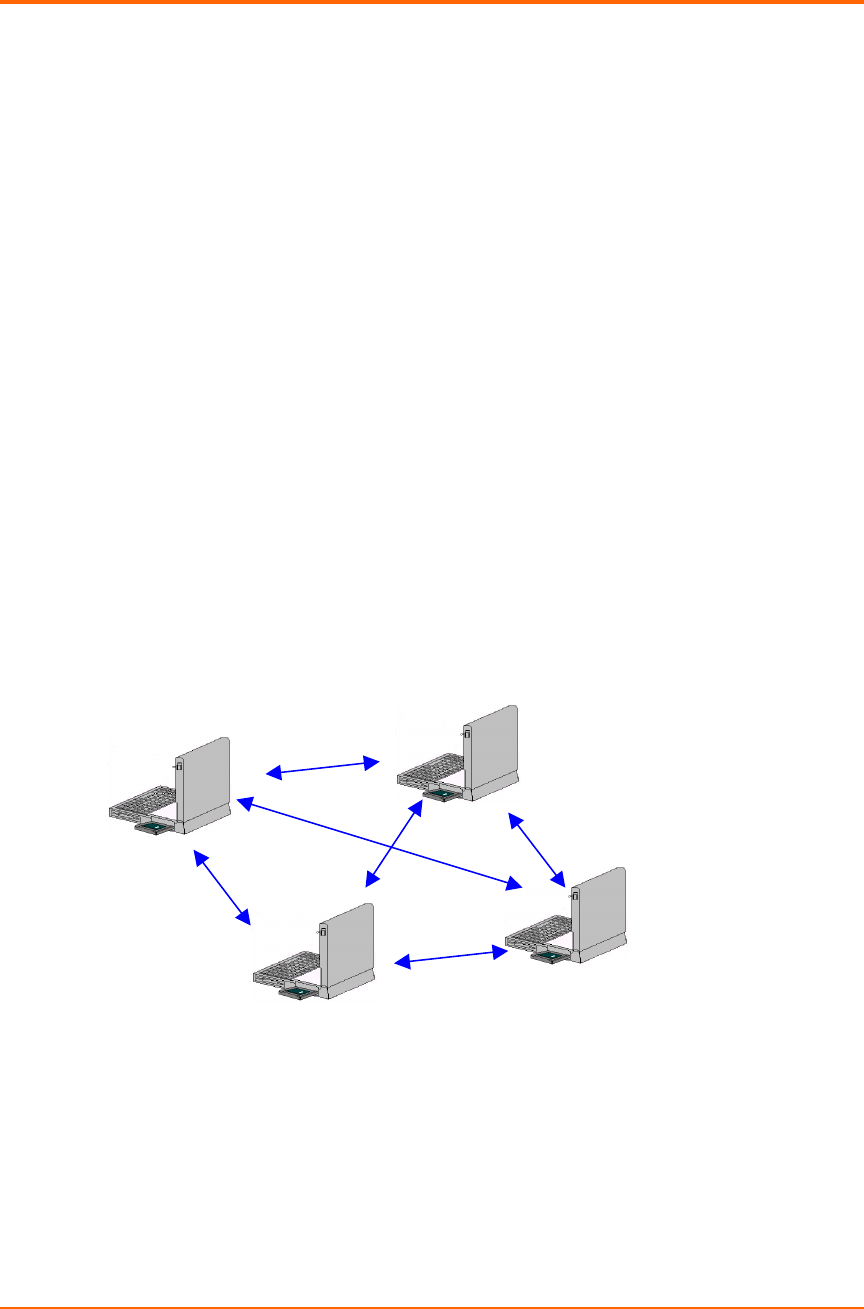
The 802.11 standard define two modes: infrastructure mode and ad hoc mode (or
independent or peer-to-peer).
yAd Hoc Mode
Ad hoc mode (also called peer-to-peer mode or an Independent Basic
Service Set, or IBSS) is simply a set of 802.11 wireless stations that
communicate directly with one another without using an access point or any
connection to a wired network. This mode is useful for quickly and easily
setting up a wireless network anywhere that a wireless infrastructure does not
exist or is not required for services, such as a hotel room, convention center,
or airport, or where access to the wired network is barred (such as for
consultants at a client site).
Figure 1. Ad Hoc Mode
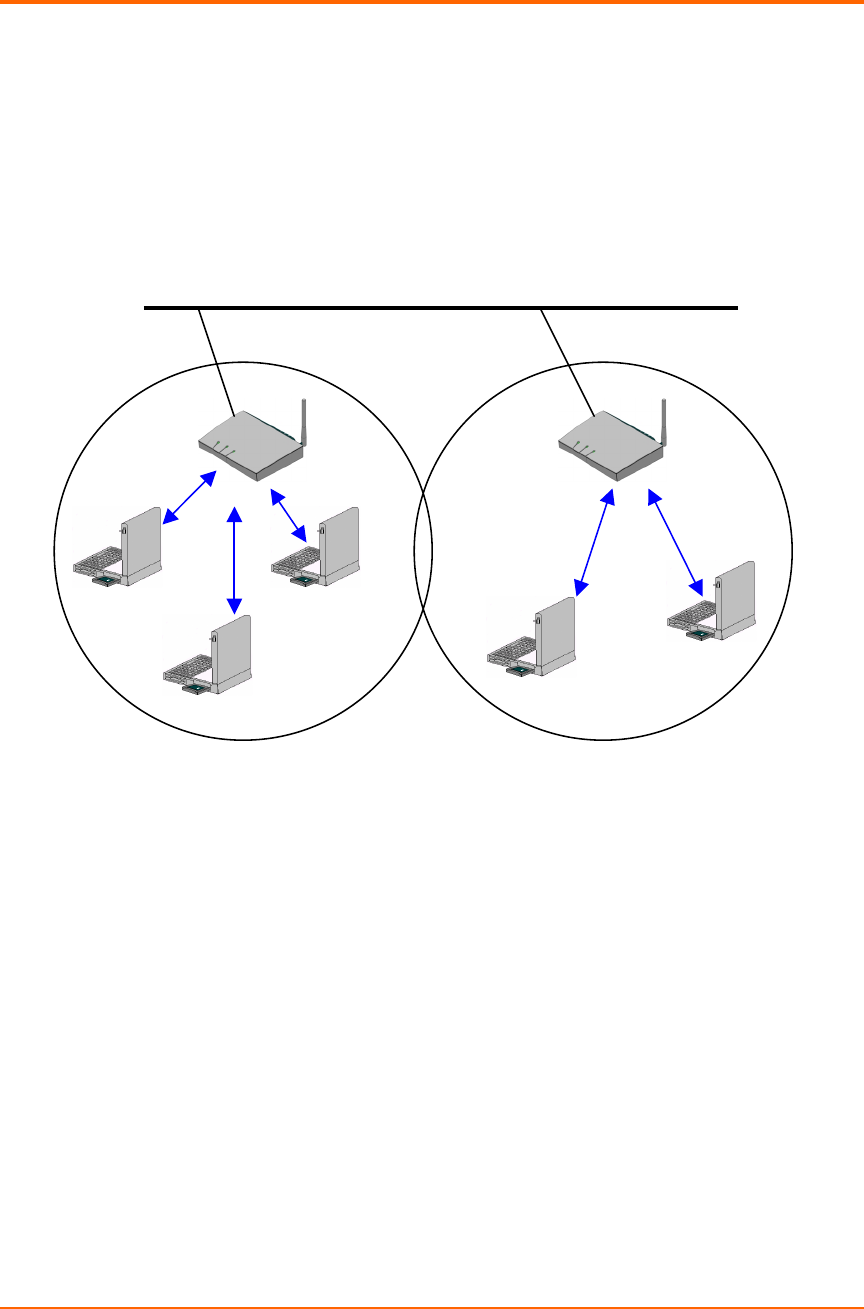
yInfrastructure Mode
In infrastructure mode, the wireless network consists of at least one access
Independent Basic
Service Set (IBSS)
ezWAVE Access Point Users’ Guide Version 1.6
Copyright© Widelink 2000 DOC – 2001.02.01
Page 8 of 50
point connected to the wired network infrastructure and a set of wireless end
stations. This configuration is called a Basic Service Set (BSS). An Extended
Service Set (ESS) is a set of two or more BSSs forming a single sub-network.
Since most corporate WLANs require access to the wired LAN for services
(file servers, printers, Inter-net links) they will operate in infrastructure mode.
Figure 2. Infrastructure Mode
{
{{
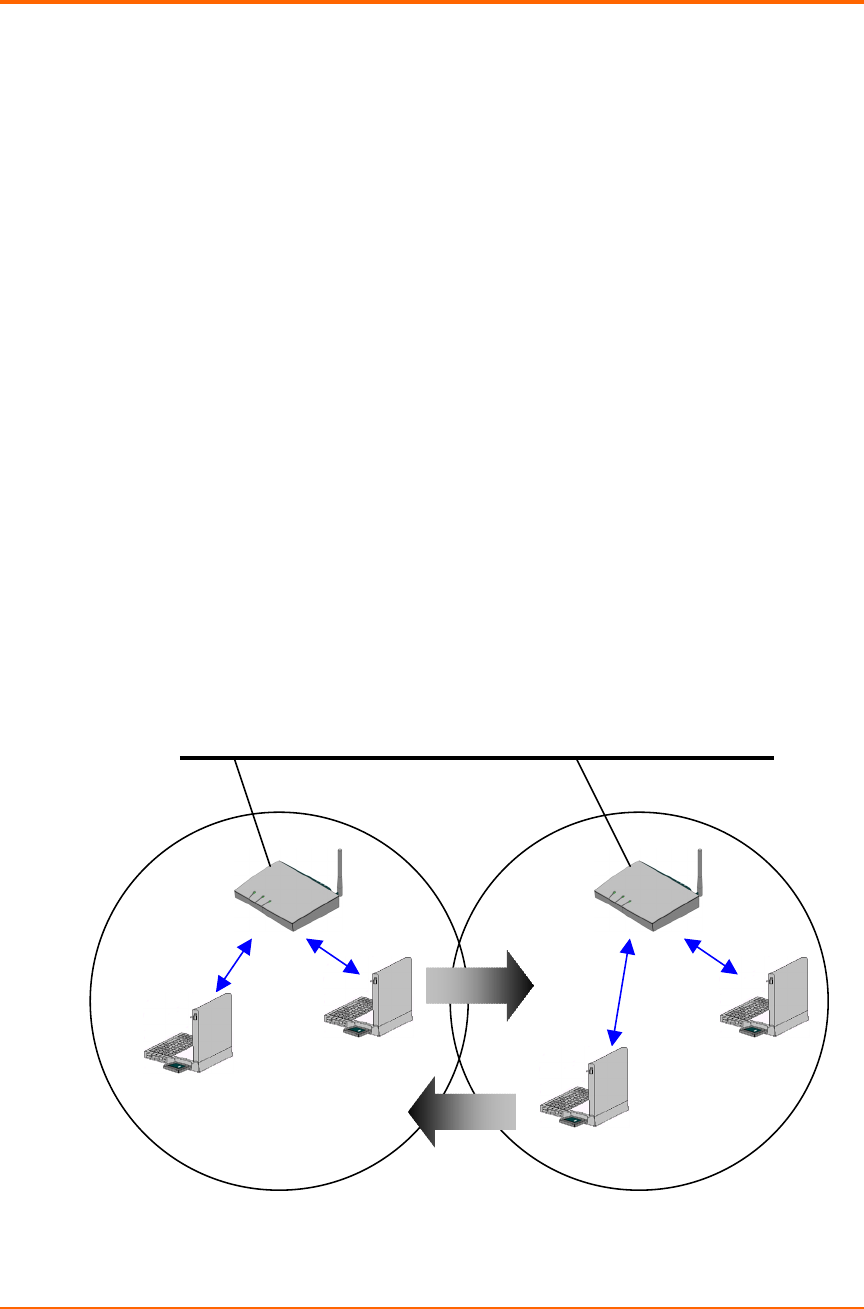
{Roaming
Wireless communication is limited by how far signals carry for given power output.
WLANs use cells, called microcells, similar to the cellular telephone system to extend
the range of wireless connectivity. At any point in time, a mobile PC equipped with a
WLAN adapter is associated with a single access point and its microcell, or area of
coverage. Individual microcells overlap to allow continuous communication within wired
network. They handle low power signals and “hand off” users as they roam through a
given geographic area.
The 802.11 MAC layer is responsible for how a client associates with an access point.
Distribution System (DS)
Service Set (SS) – Multiple
Access Point (AP)
Ethernet (802.3)
ezWAVE Access Point Users’ Guide Version 1.6
Copyright© Widelink 2000 DOC – 2001.02.01
Page 9 of 50
When an 802.11 client enters the range of one or more APs, it chooses an access point
to associate with (also called joining a Basic Service Set), based on signal strength and
observed packet error rates. Once accepted by the access point, the client tunes to the
radio channel to which the access point is set. Periodically it surveys all 802.11 channels
in order to assess whether a different access point would provide it with better
performance characteristics. If it determines that this is the case, it re-associates with the
new access point, tuning to the radio channel to which that access point is set. Re-
association usually occurs because the wireless station has physically moved away from
the original access point, causing the signal to weaken. In other cases, Re-association
occurs due to a change in radio characteristics in the building, or due simply to high
network traffic on the original access point. In the latter case this function is known as
“load balancing,” since its primary function is to distribute the total WLAN load most
efficiently across the available wireless infrastructure. This process of dynamically
associating and re-associating with APs allows network managers to set up WLANs with
very broad coverage by creating a series of overlapping 802.11b cells throughout a
building or across a campus. To be successful, the IT manager ideally will employ
“channel reuse,” taking care to set up each access point on an 802.11 DSSS channel
that does not overlap with a channel used by a neighboring access point.
Figure 3. Roaming
Backbone Network
Access Point (AP)
Inter-Cell Roaming

ezWAVE Access Point Users’ Guide Version 1.6
Copyright© Widelink 2000 DOC – 2001.02.01
Page 10 of 50
{
{{
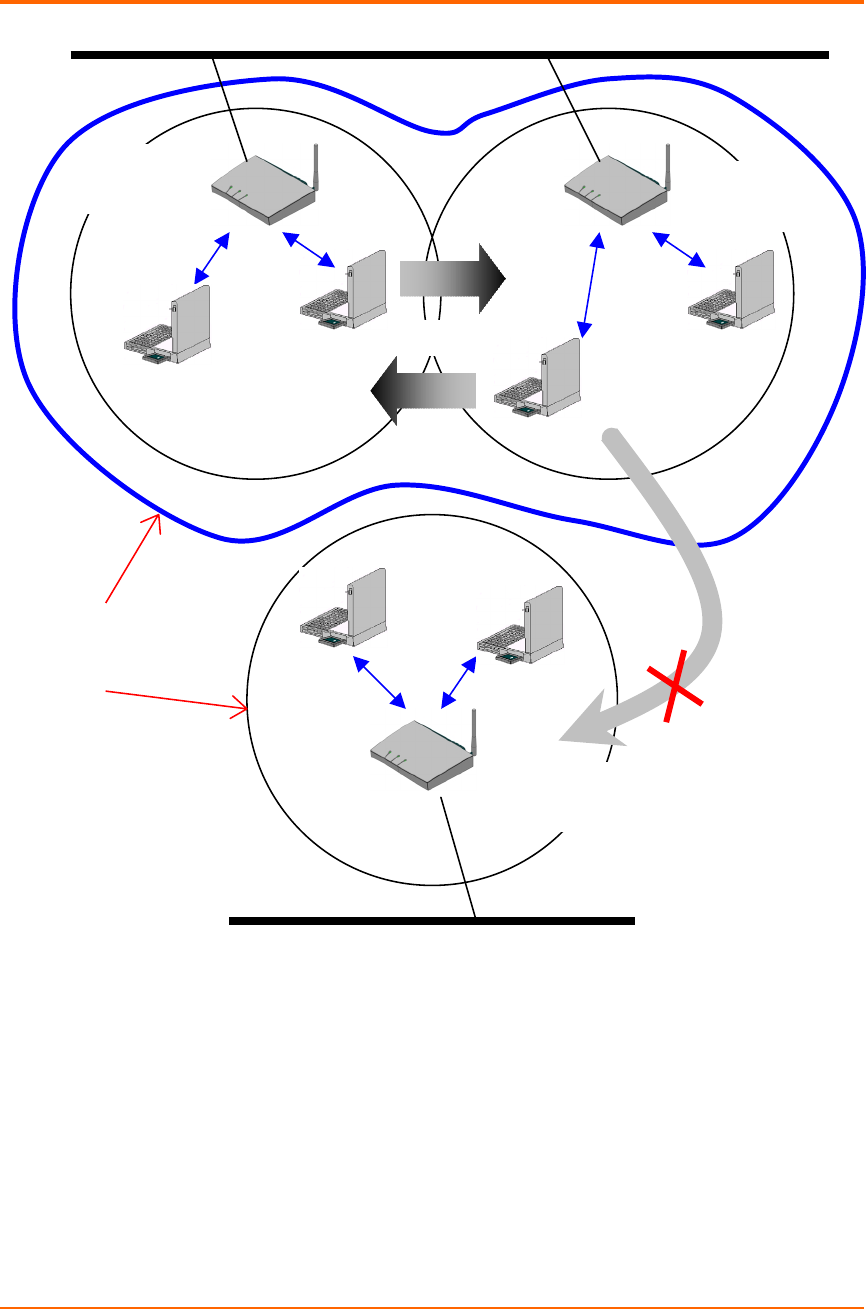
{BSS, ESS and SS ID
The basic service set (BSS) is the basic building block of WLAN network. Minimum
WLAN BSS may be consist of only two stations. Using access point (AP) and network
distribution systems (DS), WLAN service set can be extended arbitrary size – extended
service set (ESS). Each service set has its network ID (SSID). All the service sets within
an ESS network can have same service ID so that the ESS can support inter-cell
ROAMING.
ezWAVE Access Point Users’ Guide Version 1.6
Copyright© Widelink 2000 DOC – 2001.02.01
Page 11 of 50
Figure 4. SSID and Roaming
Backbone Network
AP #`2 SS ID
= Widelink
ROAMING
AP #`1 SS ID
= Widelink
AP #`3 SS ID
=Wide
ESS
BSS
Backbone Network
Re-Configuration
Required

ezWAVE Access Point Users’ Guide Version 1.6
Copyright© Widelink 2000 DOC – 2001.02.01
Page 12 of 50
Chapter 2 Setup ezWAVE Access Point
2.1 Before You Begin Installation
The ezWAVE WAP-1100 Series Access Point is a wireless LAN transceiver that can act
as the center point of a stand-alone wireless LAN network or as the connection point
between wireless and wired networks. In multiple installations, the roaming functionality
provided by multiple Access Points allows wireless users to move freely throughout the
facility while maintaining seamless, uninterrupted access to the network. The Access
Point supports Access Point management software. The system settings are contained
on the Access Point's firmware.
Before setting up your Access Point, ask your network system administrator for the
following information:
yYou need an IP (Internet Protocol) address for the Access Point. Each station or
device on your network must have a unique IP address.
yIf there are some Access Points already installed, you need to know their SSID and
channel allocation strategy.
yWEP key allocation.
Caution
You should configure the Access Point before mounting it on a pole or a ceiling. Some
configuration steps such as communicating with the Access Point should be done
through a serial cable may be difficult if the Access Point is inaccessible.
Before you begin installation, make sure that you have the following items:
yThe ezWAVE WAP-1100 Series Access Point
yThe Access Point power supply

ezWAVE Access Point Users’ Guide Version 1.6
Copyright© Widelink 2000 DOC – 2001.02.01
Page 13 of 50
yThe ezWAVE WAP-1100 Series Installation CD
If any of these items are missing from the package, contact your Access Point supplier.
You will also need:
yA computer with serial port (com1, com2) or Ethernet port
yA 9-pin, straight-through, male-to-female serial cable
ezWAVE Access Point Users’ Guide Version 1.6
Copyright© Widelink 2000 DOC – 2001.02.01
Page 14 of 50
2.2 Installing The Widelink ezWAVE WAP-1100 Series Access Point
Follow the instructions below to install the Access Point.
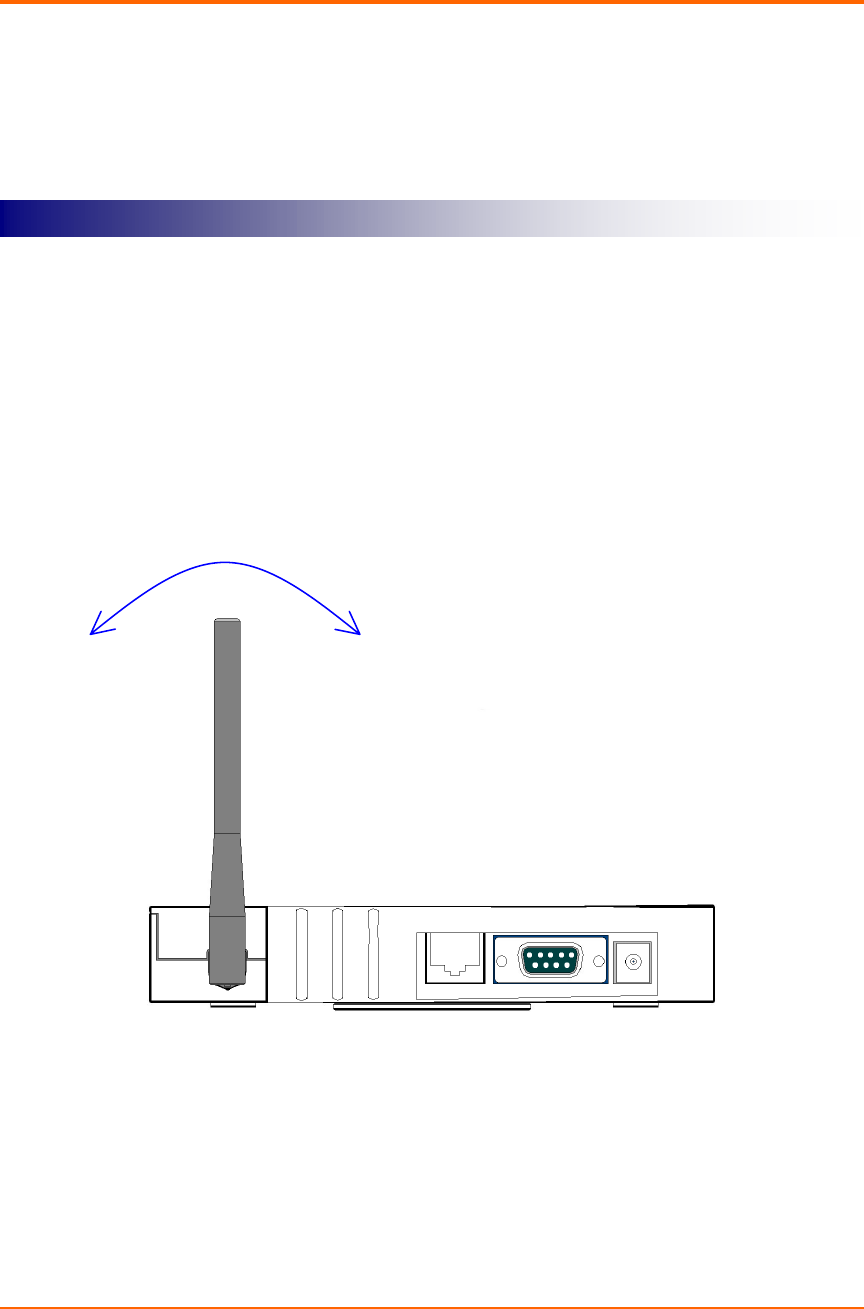
For maximum range, make sure the antennas on your Access Point straight up or
straight down, no matter where your Access Point is mounted.
If you keep your Access Point on a table or a desk, turn the antennas so they point
straight up. If you mount your Access Point on a wall or a pole, turn the antennas so they
are vertical, even though the Access Point is on its side. If you mount your Access Point
on the ceiling, turn the antennas so they point straight down.
Antenna configurations can be varied depending on the Access Point model, cell coverage or cell
plan.
STEP 1 Adjust the antennas
ezWAVE Access Point Users’ Guide Version 1.6
Copyright© Widelink 2000 DOC – 2001.02.01
Page 15 of 50
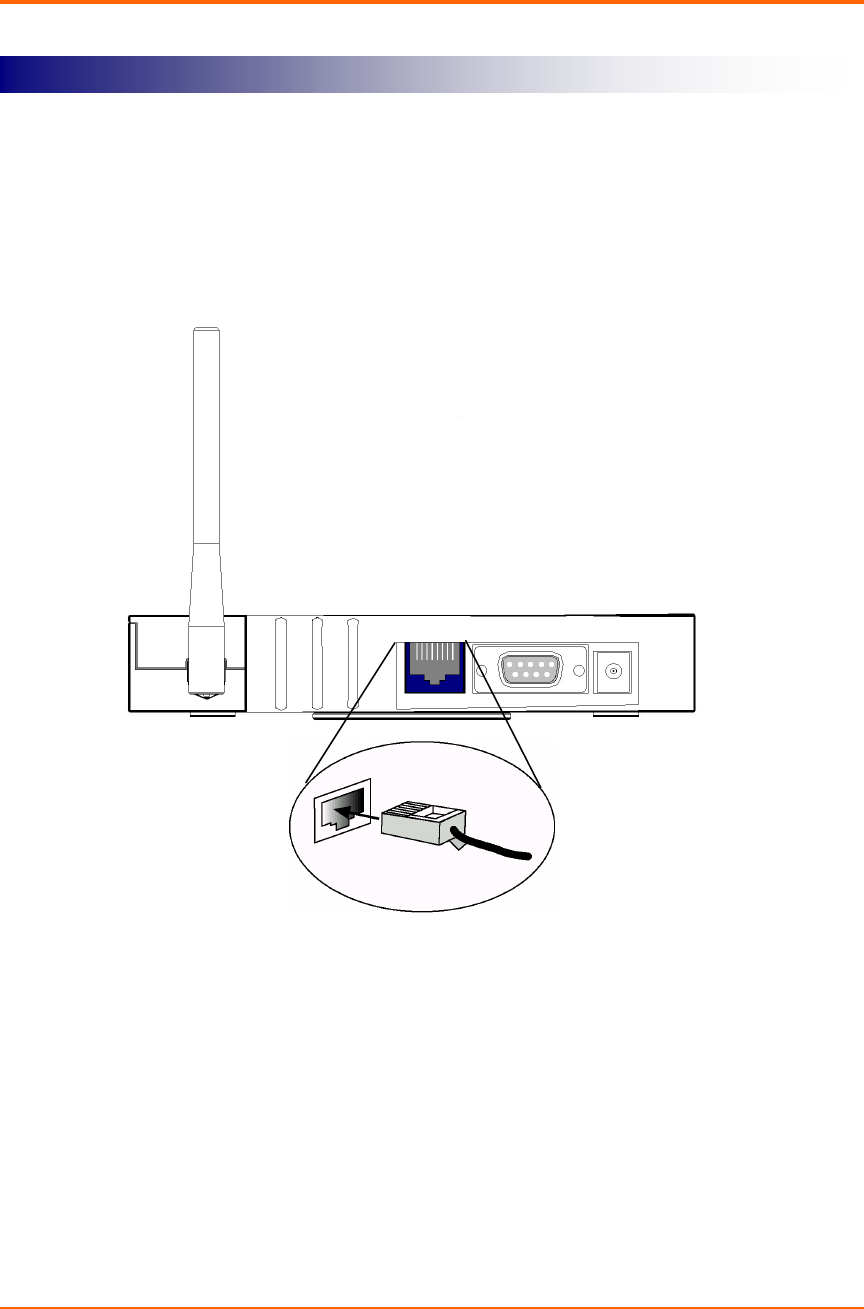
Connect the Ethernet cable from your wired LAN to your Access Point.
Make sure the unit is not powered up when you connect your network cable.
STEP 2 Ethernet Cable Connection
ezWAVE Access Point Users’ Guide Version 1.6
Copyright© Widelink 2000 DOC – 2001.02.01
Page 16 of 50
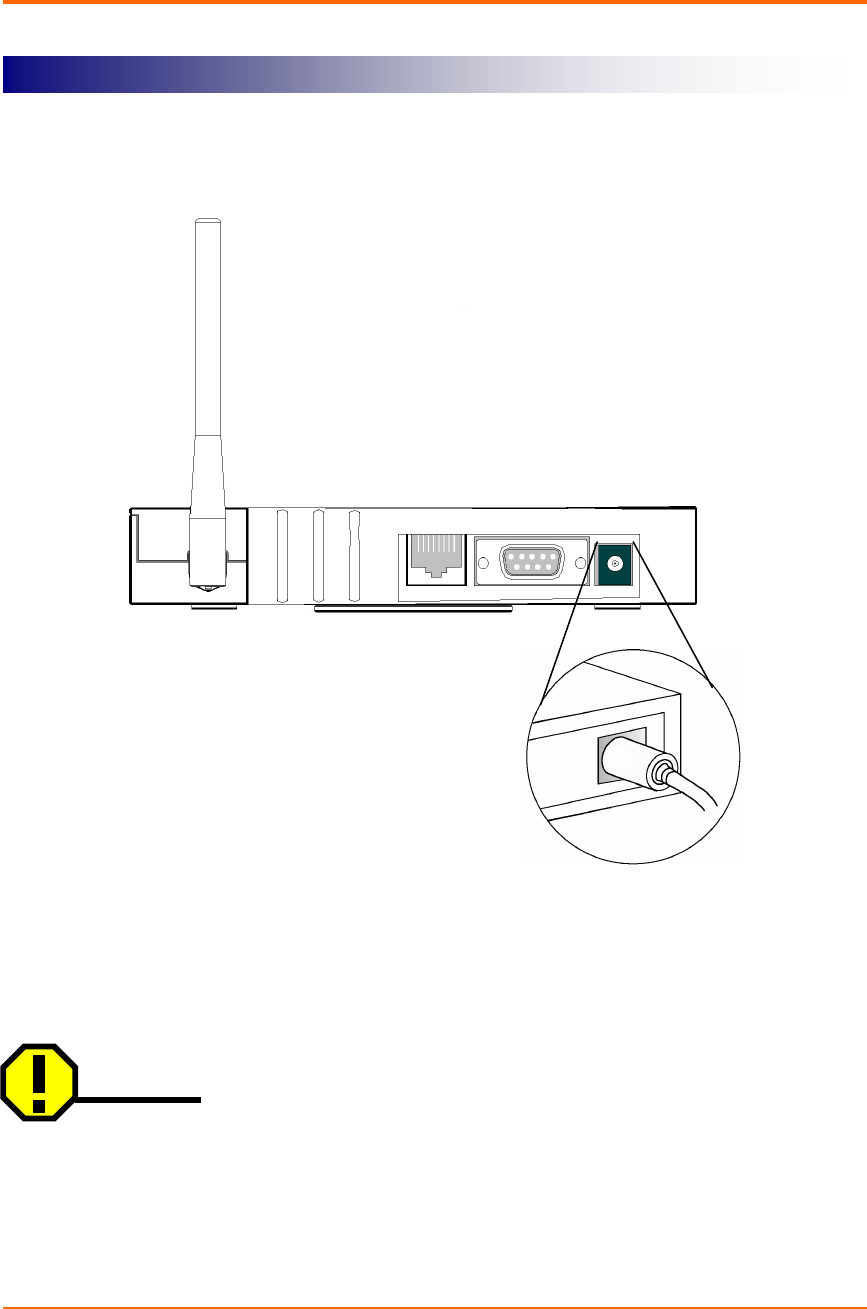
Plug the Power Pack into a wall outlet or a power strip, and plug the connector into the
power receptacle on the back of the Access Point.
All three indicators on top of the access point will be bright green.
During normal operation, indicators will be bright green. If indicators do not either display
a solid color or blink, see the “Top Panel Indicator Descriptions” in this manual.
Caution
If you have already installed Widelink ezWAVE WAP-1100 series client card, you can
easily configure Access Point through air connection between your computer and
Access Point. You may skip next step and go to Access Point Management section.
STEP 3 Connect The Power Pack
ezWAVE Access Point Users’ Guide Version 1.6
Copyright© Widelink 2000 DOC – 2001.02.01
Page 17 of 50
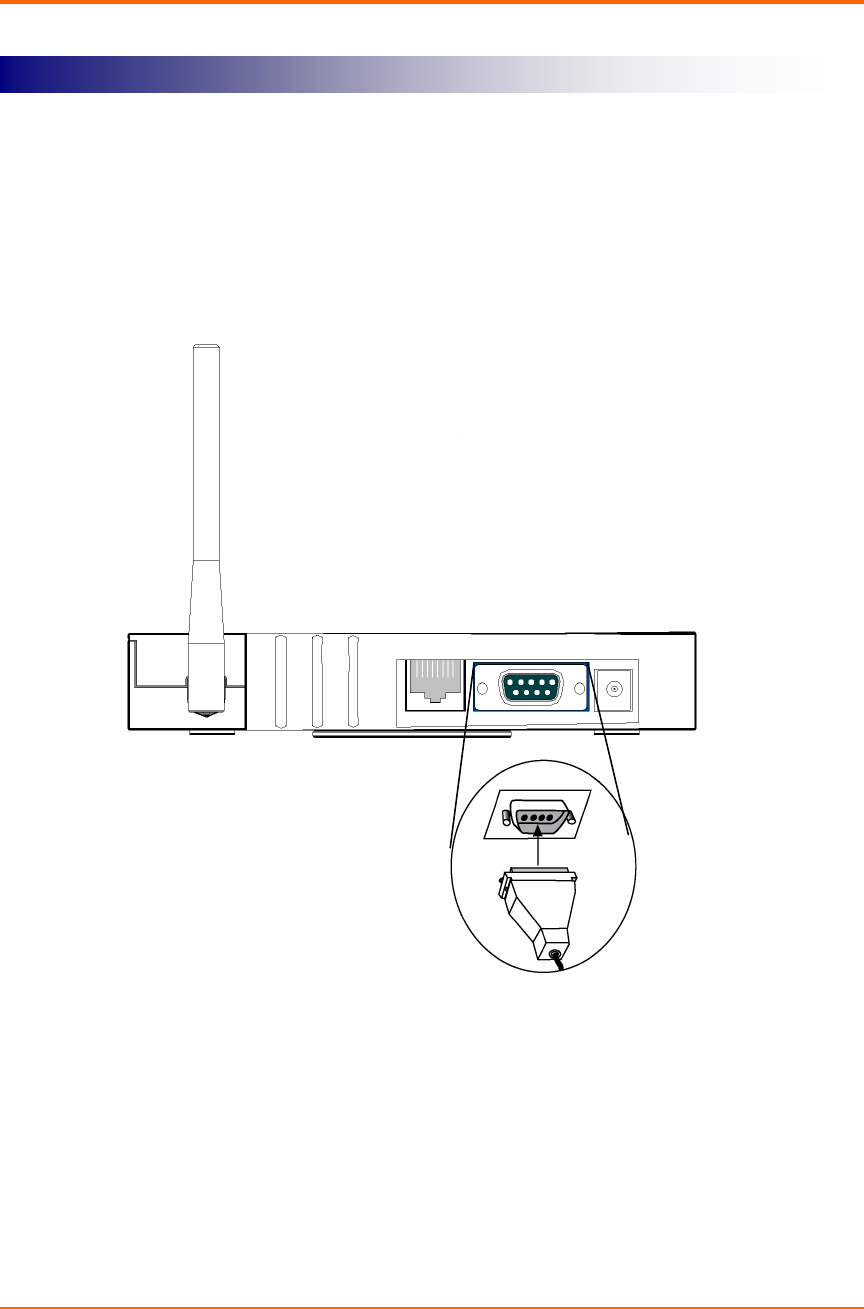
Use a 9-pin, straight-through, male-to-female serial cable to connect the COM 1 or 2 port
on your computer to the RS-232 on the back of the access point. After you find the
assigned IP address, you can remove this cable. You might need the cable again if you
need to update the Access Point’s configuration in the future.
STEP 4 Connect Serial Cable
ezWAVE Access Point Users’ Guide Version 1.6
Copyright© Widelink 2000 DOC – 2001.02.01
Page 18 of 50
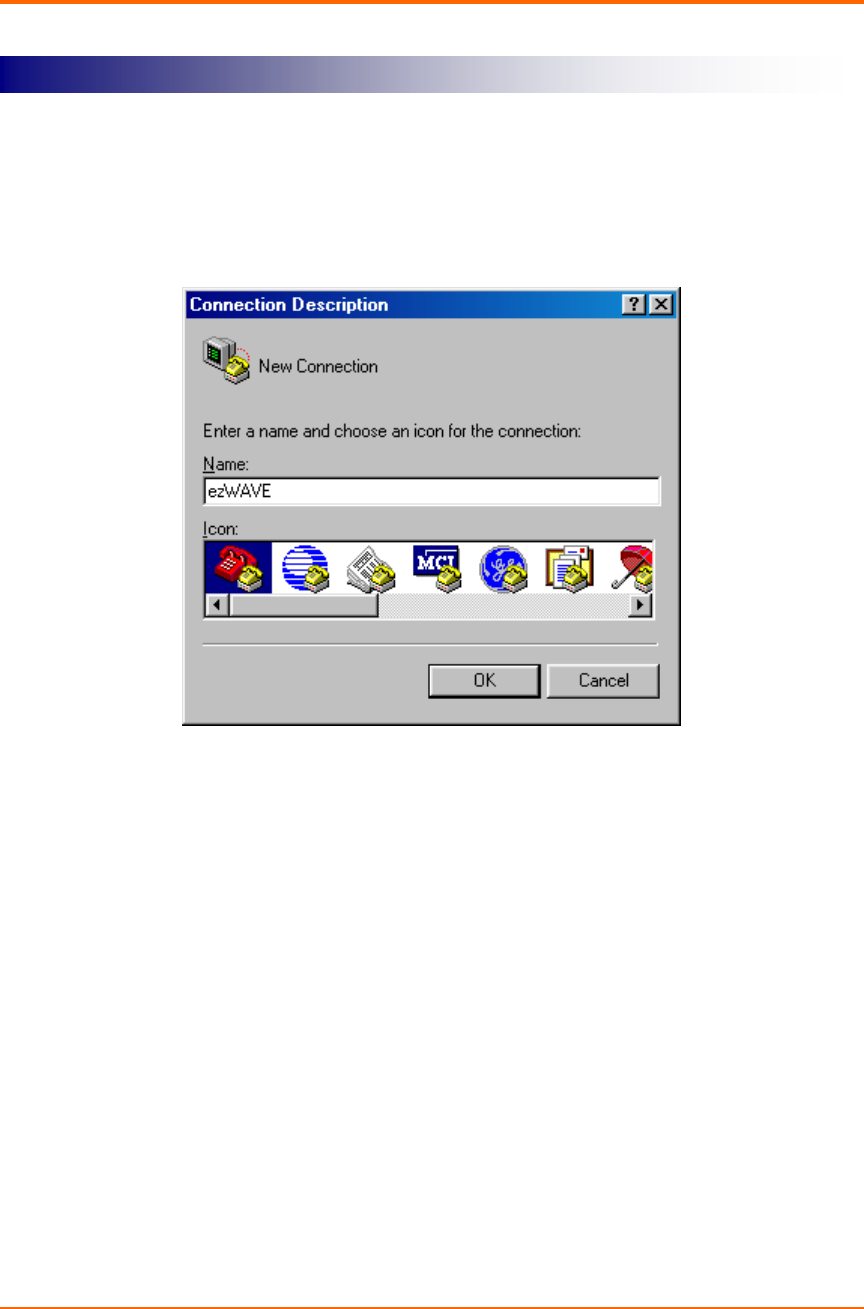
Open the HyperTerminal program on the workstation attached to the Access Point.
These instructions describe HyperTerminal for example, but you can use any terminal-
emulation program to communicate with the Access Point. The following window
appears:
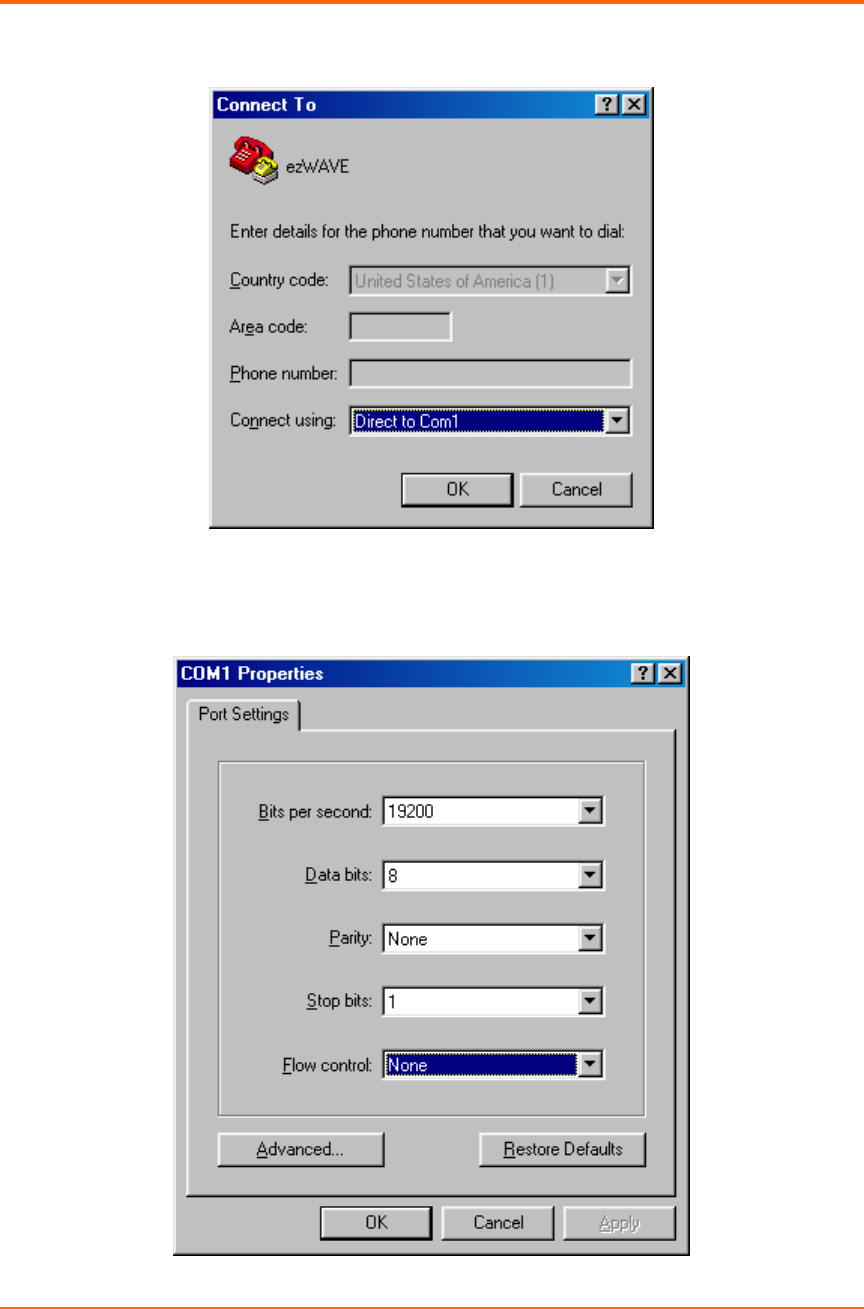
Type a name for the connection and click OK. The “Connect To” window appears:
STEP 5 Open Terminal Program
ezWAVE Access Point Users’ Guide Version 1.6
Copyright© Widelink 2000 DOC – 2001.02.01
Page 19 of 50
Choose the port on your computer to which the serial cable is connected. Click OK.
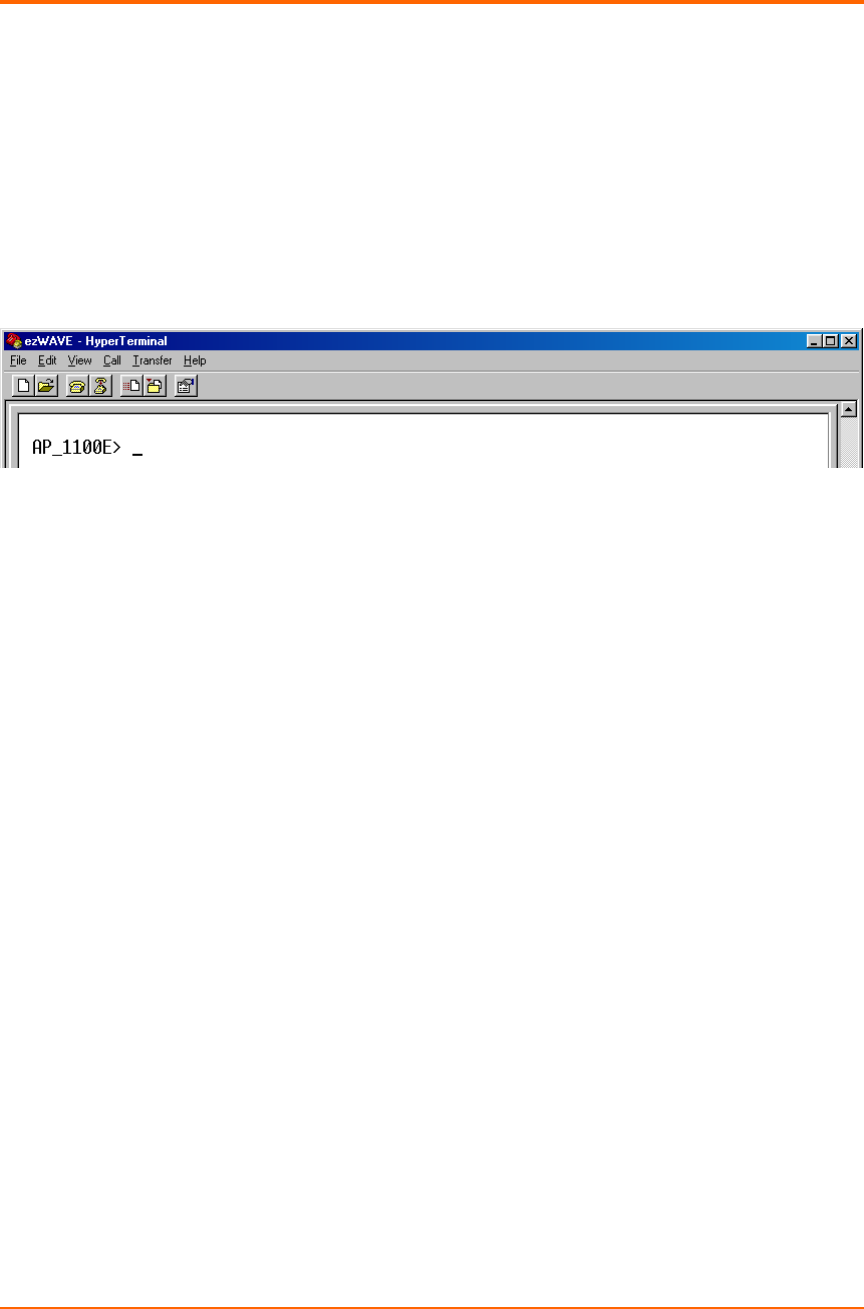
The “port settings” window appears:
ezWAVE Access Point Users’ Guide Version 1.6
Copyright© Widelink 2000 DOC – 2001.02.01
Page 20 of 50
Set Bits per second (baud rate) to 19200
1920019200
19200, Data bits to 8
88
8, Parity to None
NoneNone
None, Stop bits to 1
11
1,
and Flow control to None
NoneNone
None. Click OK
OKOK
OK.
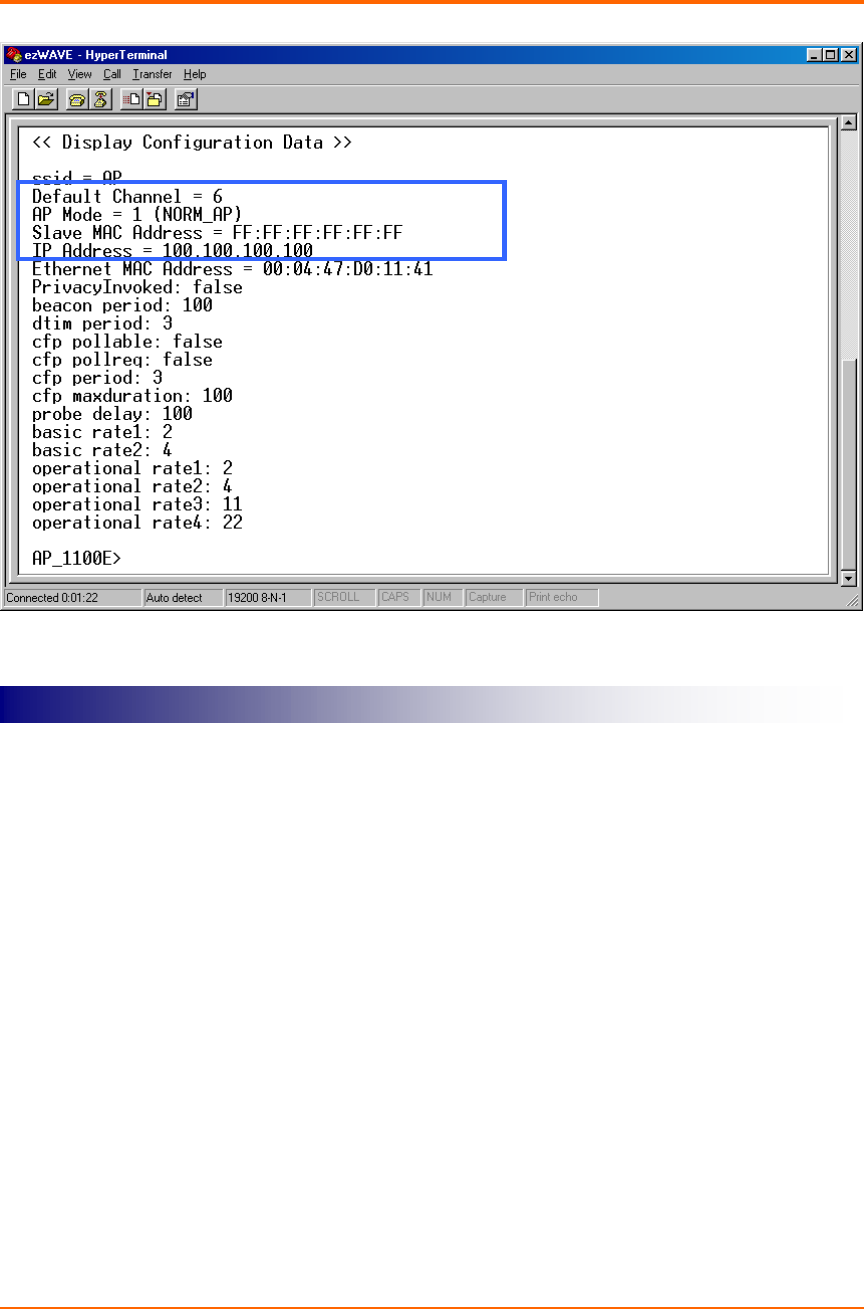
The Setup screen appears in the HyperTerminal window. If the text does not appear
immediately, press Enter.
If it is successfully connected to Access Point, it will display “prompt” on the terminal
program’s display box:
Type disconfig and press Enter to see the current default settings of Access Point.
Make a note of the SSID, Channel number and IP address. Widelink’s Access Point has
a default IP; 100.100.100.100
The other options that are displayed can be ignored in this chapter and there will be
detailed explanation on next Access Point Management section
ezWAVE Access Point Users’ Guide Version 1.6
Copyright© Widelink 2000 DOC – 2001.02.01
Page 21 of 50
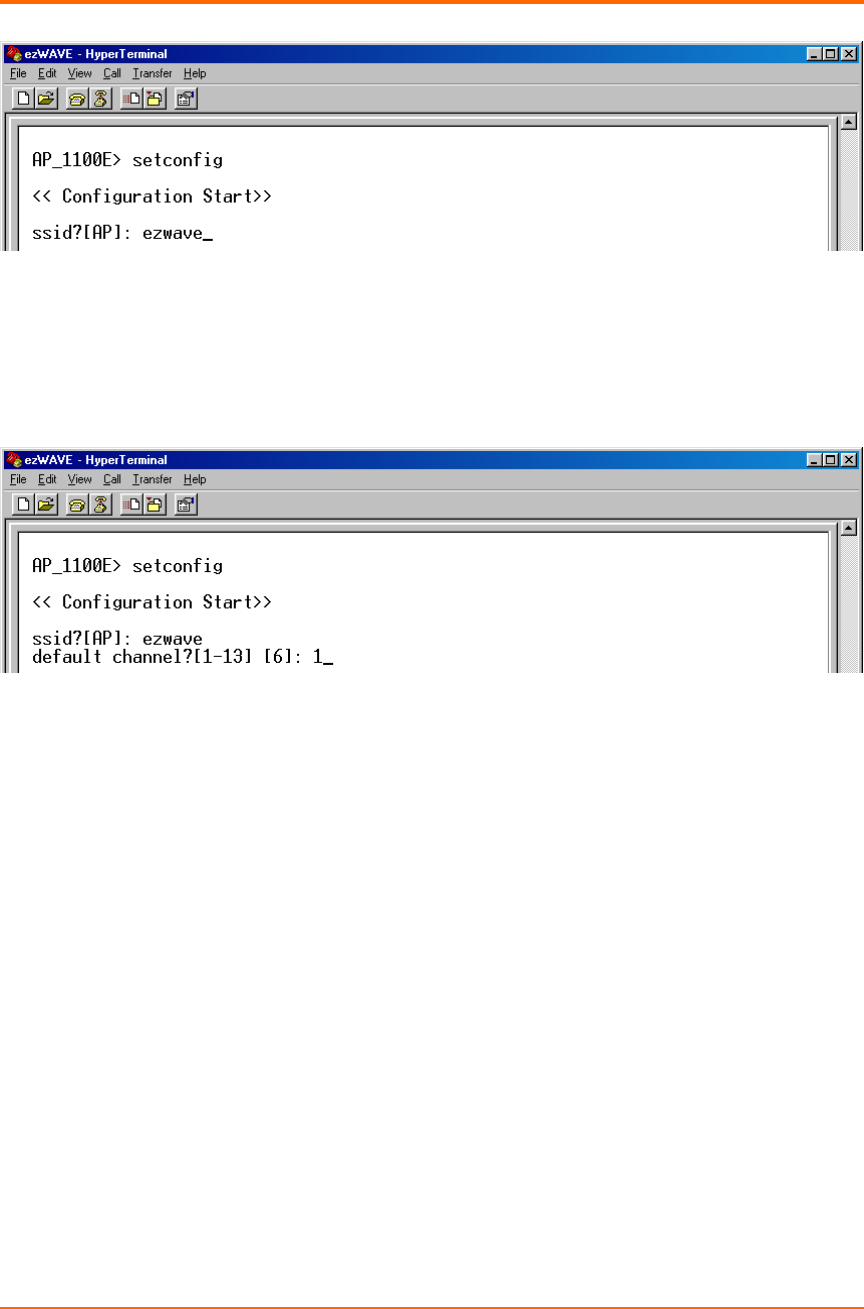
Type setconfig and press Enter to change current default configuration settings. Using
this command, you can change Access Point’s SSID, Channel number, IP address, MAC
address and WEP key enable/disable.
After typing setconfig command, whenever you press Enter key, there will occur
changeable Access Point options and you can select or edit what you want. Refer to the
next example.
STEP 6 Configuration Change
ezWAVE Access Point Users’ Guide Version 1.6
Copyright© Widelink 2000 DOC – 2001.02.01
Page 22 of 50
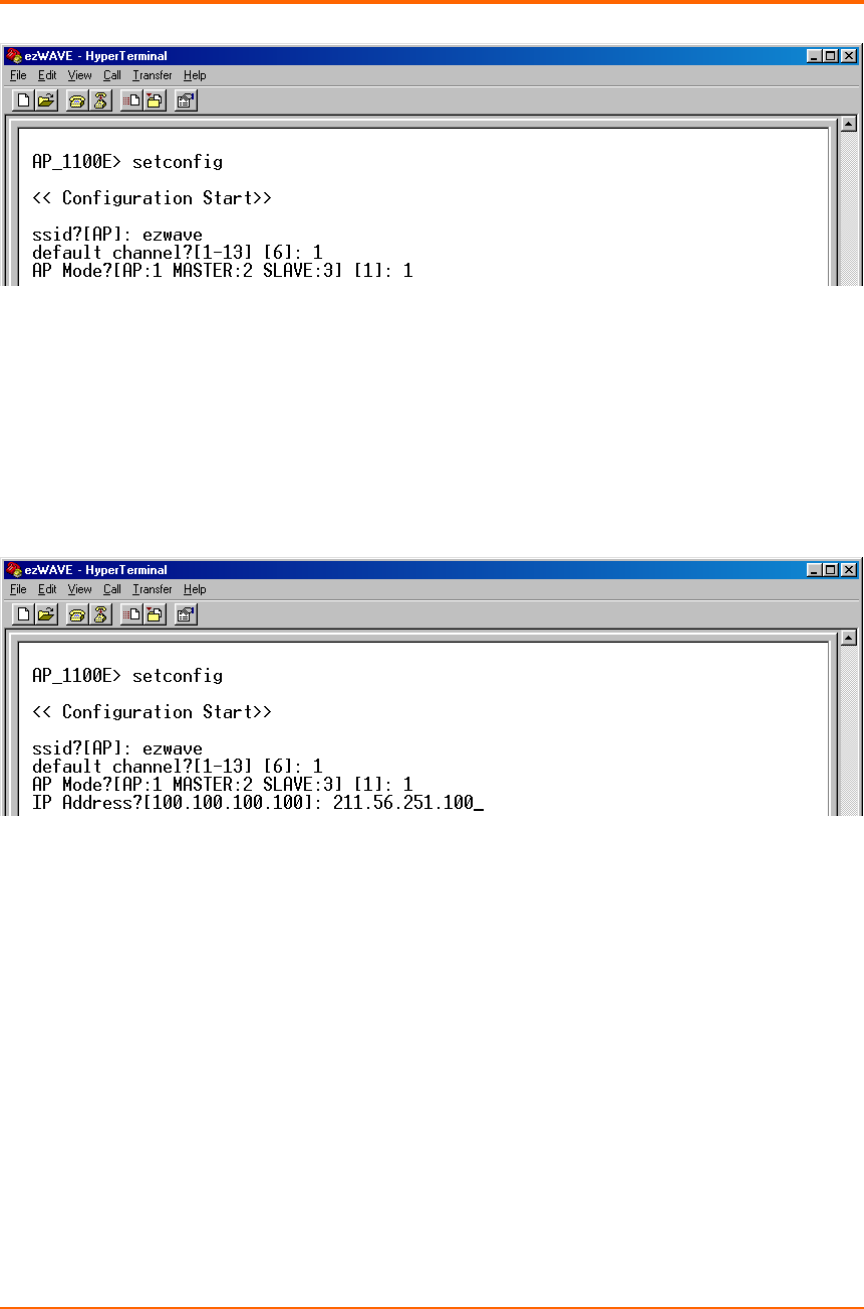
The SSID value is case sensitive and can enter up to 32 characters without banks.
Available channel numbers varies from country to country. Please refer to the Appendix
Channel chapter.
In addition to this, it there is Access Points that have already installed in the
neighborhood of your Access Point, take a cautious attitude in selecting channel number.
Otherwise, by selecting too close channel number with your neighbor Access Point, raise
channel interference problems. This problem can degrade wireless LAN air link quality
seriously. In order to avoid this problem, select a longest channel number with your
neighbor Access Point.
RETURN
RETURN
ezWAVE Access Point Users’ Guide Version 1.6
Copyright© Widelink 2000 DOC – 2001.02.01
Page 23 of 50
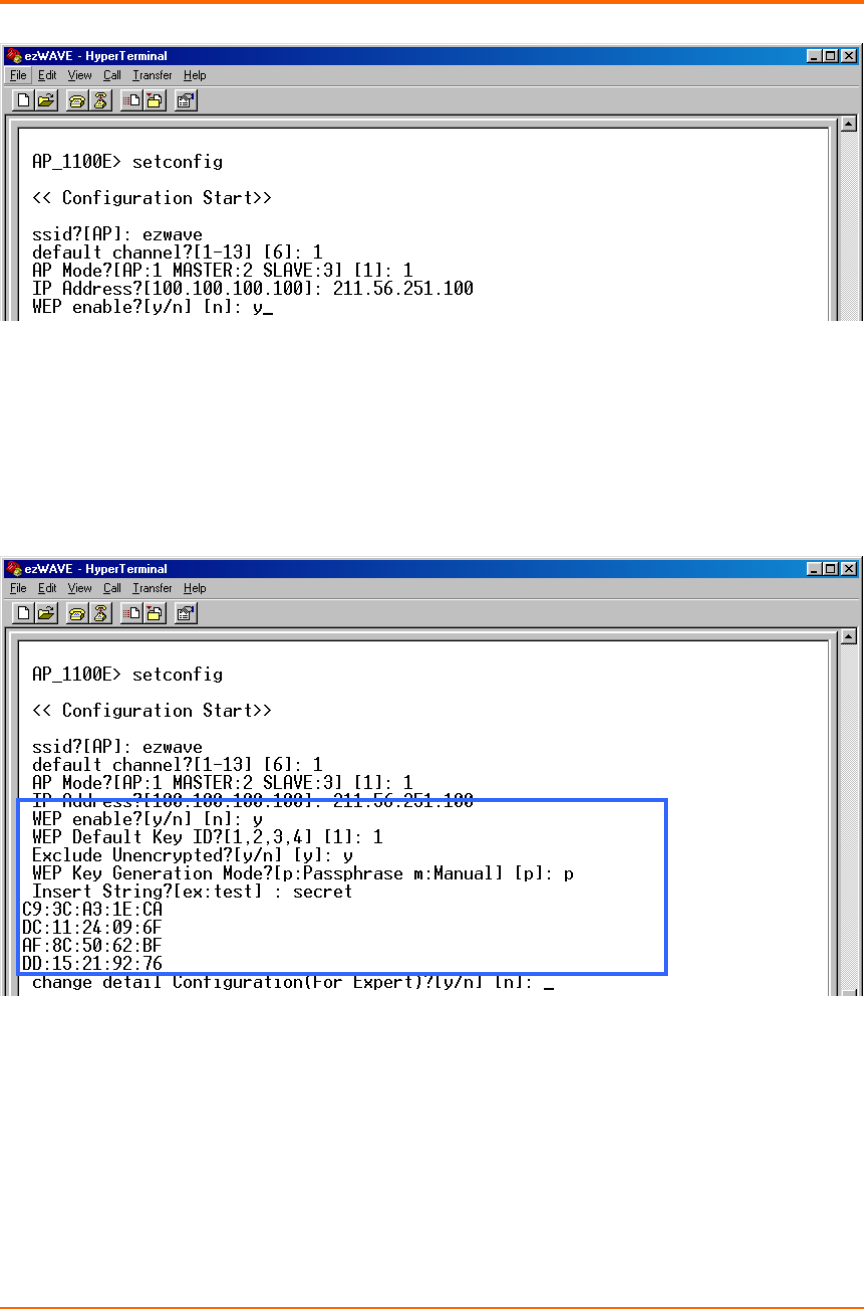
If you use Widelink ezWAVE WAP-1100E as a normal Access Point, select ‘1’.
Otherwise, you use it as a point-to-point transmission device you should select ‘2’or‘3’.
This usage/process’s detailed explanation will be followed on next chapter.
If you know which IP address should be set to your Access Point, then write it in this step.
Otherwise if you do not know which IP to be used, ask your network administrator about
available IP address. In this example, the IP address 100.100.100.100 is a default IP
address that is assigned by Widelink.
RETURN
RETURN
ezWAVE Access Point Users’ Guide Version 1.6
Copyright© Widelink 2000 DOC – 2001.02.01
Page 24 of 50
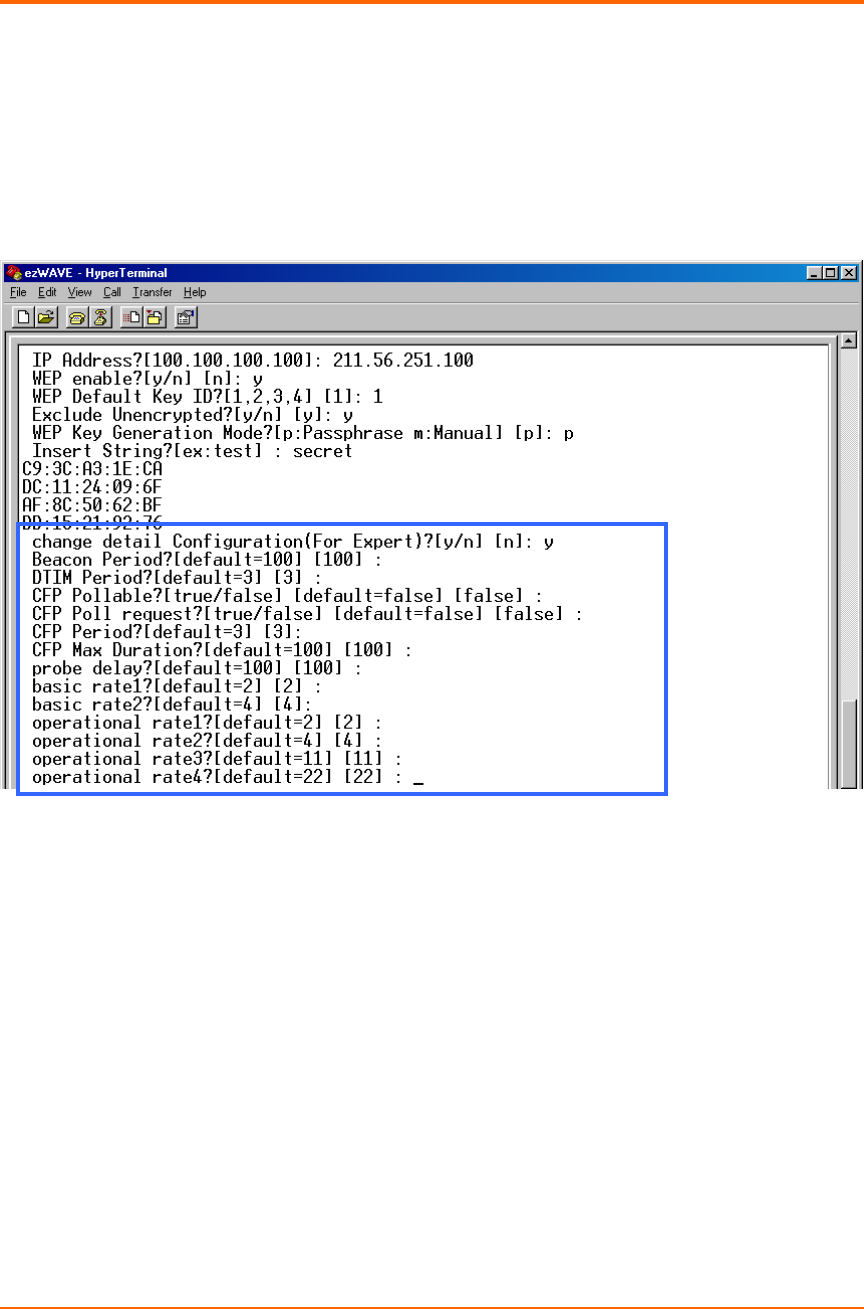
WEP stands for Wired Equivalent Privacy. WEP is an encryption scheme that provides
secure wireless data communications to the users. WEP uses a 64bit-key or 128bit-key
to control the network access. In order to do secure communication over the wireless
LAN network, enable WEP function.
If you enable WEP function, select one of four WEP default key number. You can choose
any number from 1 to 4 and then Exclude Unencrypted question is given. This question
asks you whether you will allow a client that does not use WEP function to access
communication with Access Point. Next question is WEP Key Generation Mode. There
are two ways to generate the WEP key. One is by entering any text in the Passphrase.
The other way is by entering Key value directly from the keyboard. In this case, you can
ezWAVE Access Point Users’ Guide Version 1.6
Copyright© Widelink 2000 DOC – 2001.02.01
Page 25 of 50
insert any character string.
As the wireless channel is more prone to the illegal access, WEP provides the users
safe wireless LAN network access. But if you enable WEP function, it will degrade
transmission throughput because it consume time to do encryption/decryption.
These options are provided for wireless LAN expert only, so if you does not have deep
information about wireless LAN air interface specifications, do not change default
options. More detail information about how to change detail configuration will be
explained in Access Point Management section.
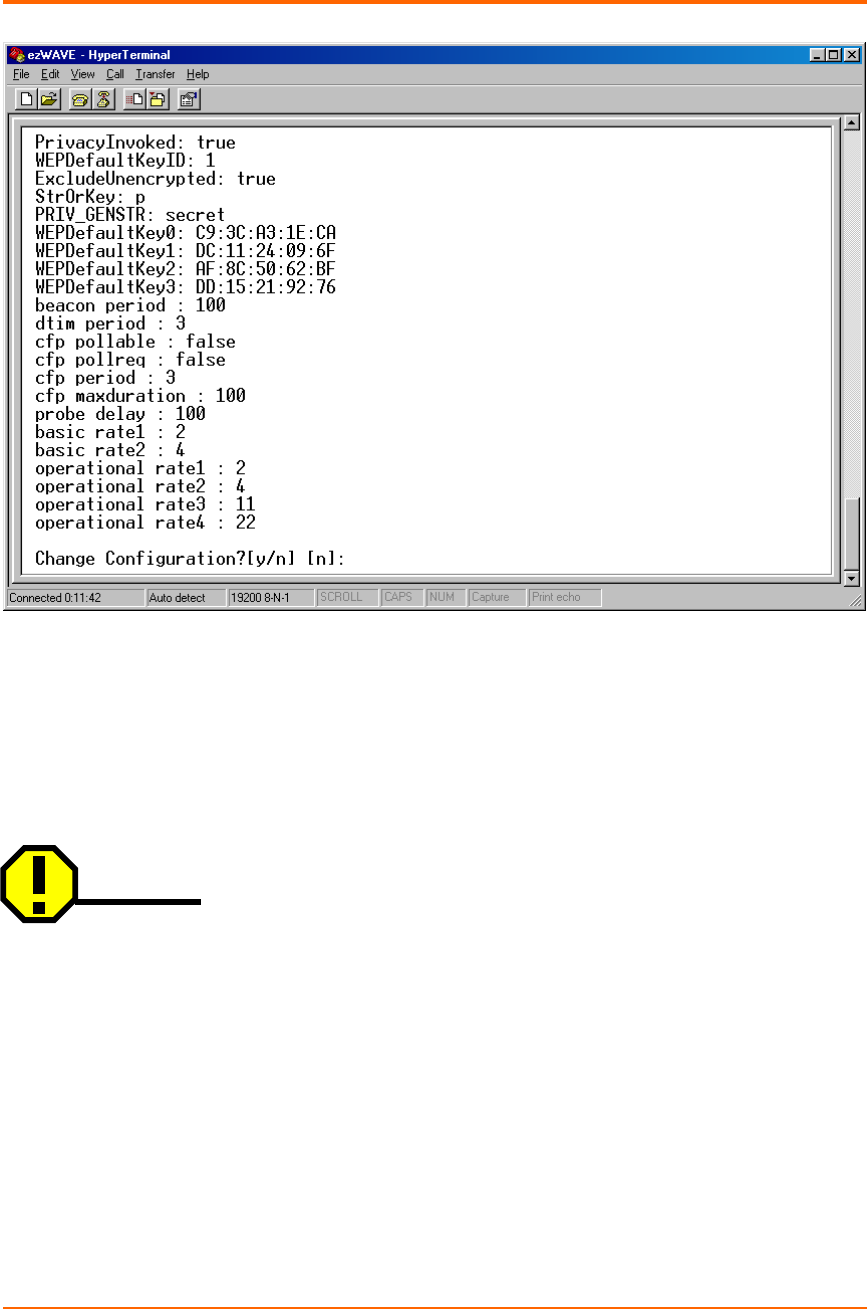
Now, you have completed all the setup options. Press Enter key. On the Hyper terminal
screen, selected options lists will be displayed. After confirming all the changed options,
press y(if you do not need any change) otherwise press n.
ezWAVE Access Point Users’ Guide Version 1.6
Copyright© Widelink 2000 DOC – 2001.02.01
Page 26 of 50
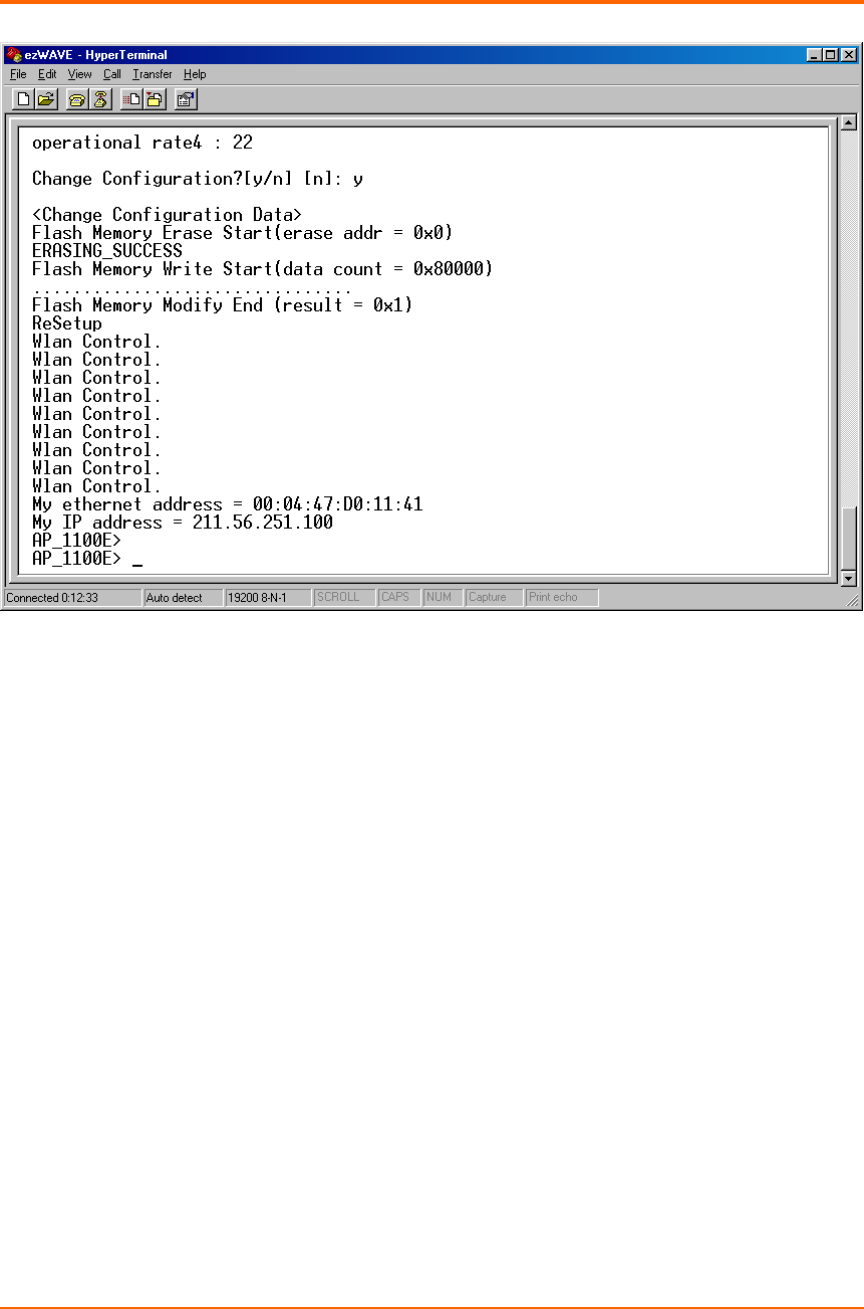
If you press ythen Widelink’s Access Point setup configuration will be completed and
the setup program will update changed configuration in the memory.
Caution
During updating configuration data, it might display flash memory write error message. In
this case, call for assistance from Widelink products’ distributors.
ezWAVE Access Point Users’ Guide Version 1.6
Copyright© Widelink 2000 DOC – 2001.02.01
Page 27 of 50

ezWAVE Access Point Users’ Guide Version 1.6
Copyright© Widelink 2000 DOC – 2001.02.01
Page 28 of 50
2.3 Verifying the Operation of the Widelink Access Point
The AP runs a series of self-tests on power-up and reports status using its LEDs.
When power-up begins, the following occurs:
a. The firmware begins running diagnostics and initializes minimal hardware.
b. After the firmware completes its diagnostics and hardware initialization. The
diagnostics then checks the RF module to see whether it is properly running the AP.
And then, the firmware downloads RF module operating program.
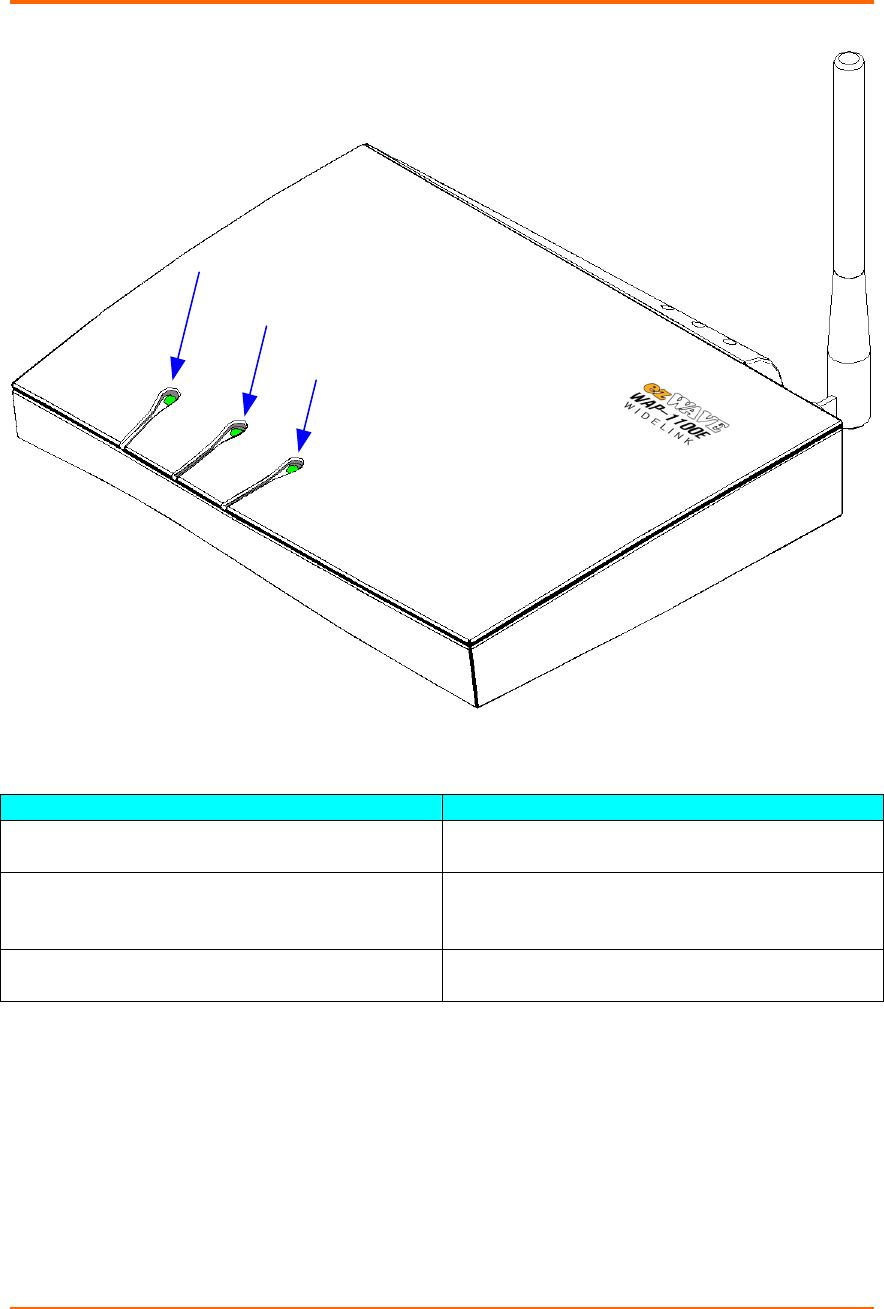
c.Upon successful completion of the diagnostics and program download, the LED
which shows the wireless LAN link status blinks for 2~3 seconds and then display
bright green light steadily.
The diagnostics take approximately 30 seconds to complete after power-up. Upon
successful completion of the diagnostics, the LED pattern shown in below figure is
displayed.
If the AP fails to display the proper LED pattern, verify if you have correctly installed the
AP. If the AP still fails to display the LED pattern, refer to troubleshooting section.
ezWAVE Access Point Users’ Guide Version 1.6
Copyright© Widelink 2000 DOC – 2001.02.01
Page 29 of 50
LED Name Operational State
Power & AP Function On (Green) = power is okay
Orange = AP Functional Fail Occur
Air Link Status ON (Green) = Air link status okay
Blink = Air link or RF module
has some problems.
Ethernet Link Status Blink = Ethernet interface okay and
AP is transfering data.
Ethernet Link Status
Air Link Status
Power & AP Function

ezWAVE Access Point Users’ Guide Version 1.6
Copyright© Widelink 2000 DOC – 2001.02.01
Page 30 of 50
Chapter 3 Access Point Management
This chapter describes the pages in the Access Point’s management system.
Before installing the Widelink Access Point Manager, first select a computer that meets
these requirements:
•Operating system is Windows 98 and Windows 2000 or Windows ME.
•The computer is connected to the Access Point’s wired or wireless LAN.
To install the Widelink Access Point Manager, insert the Widelink Access Point setup CD
in the PC and run SETUP (this can be done from the Windows Explorer). Follow up the
setup instructions. If you have a previous version of the Access Point Manager, install
the Access Point Manager on the same computer folder. The setup process
automatically upgrades the existing software and keeps your existing configuration files.
The Widelink Access Point Manager is included in the Widelink Access Point kit.
The AP Manager can be used as a setup/configuration tool for new Access Points and
as a management tool to assist the ongoing management and support of Widelink
wireless LANs.
The Widelink Access Point Manager has the following features:
•Ability to manage multiple APs remotely, including changing parameters in a wireless
network with a single command
•Ability to view AP parameters, such as AP statistics, AP firmware version number,
MAC addresses
•Integrity checking for many wireless parameter changes
•Integrated with a BooTP/TFTP application for simple AP firmware upgrades, also
called flash upgrades.
ezWAVE Access Point Users’ Guide Version 1.6
Copyright© Widelink 2000 DOC – 2001.02.01
Page 31 of 50
3.1 Starting a Configuration Tool
To modify Access Point parameters after installing the Access Point, you need to use a
device connected to the console port or the Widelink Access Point Manager. The former
was explained in the above chapter. The following sections describe how to configure
the Access Point using Access Point Manager tool.
If you have installed the Widelink Access Point Manager on a computer, select:
Program Files ¼
¼¼
¼Widelink ¼
¼¼
¼ezWAVE Access Point Manager ¼
¼¼
¼
AccessPointManager.exe
Or you can simply click the AccessPointManager icon on the windows screen.
The program starts with the following screen.
ezWAVE Access Point Users’ Guide Version 1.6
Copyright© Widelink 2000 DOC – 2001.02.01
Page 32 of 50
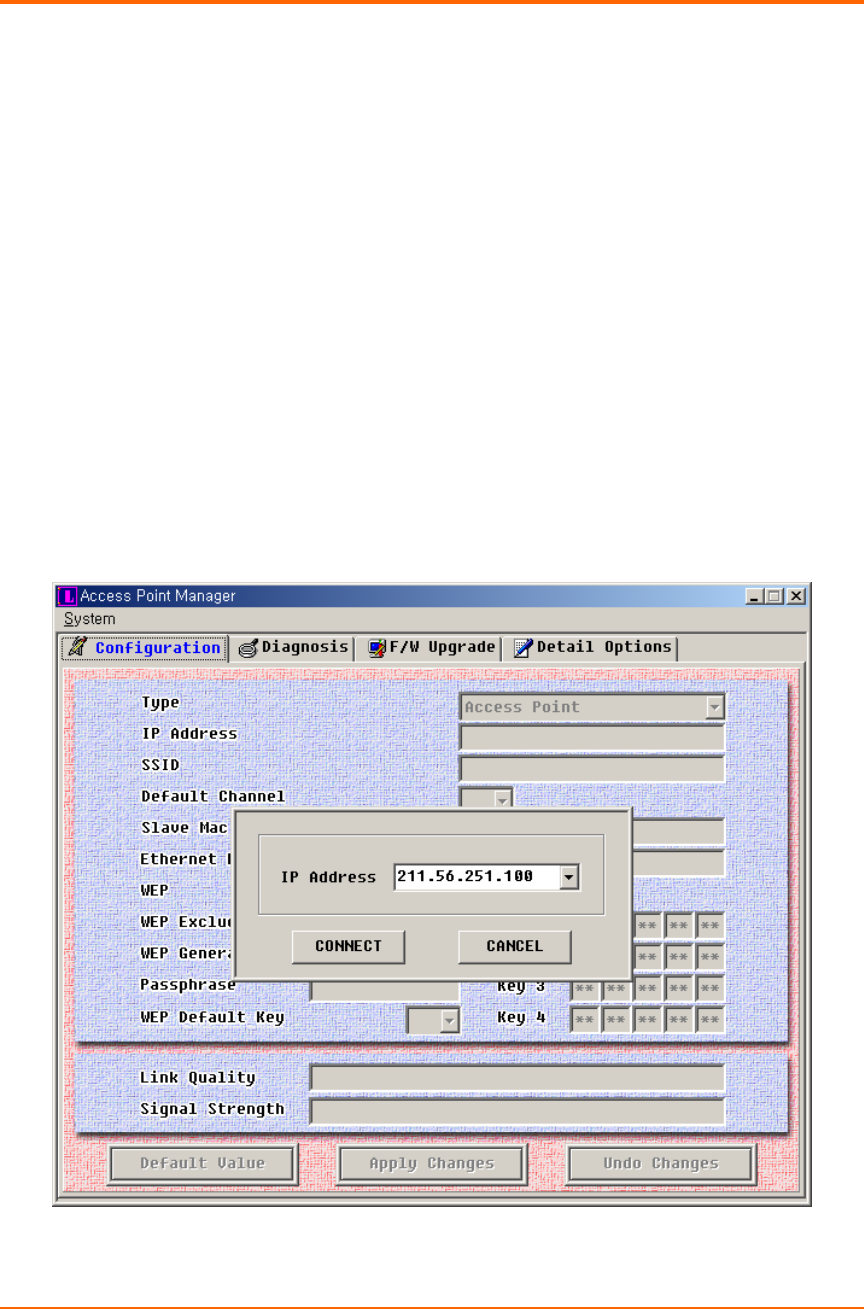
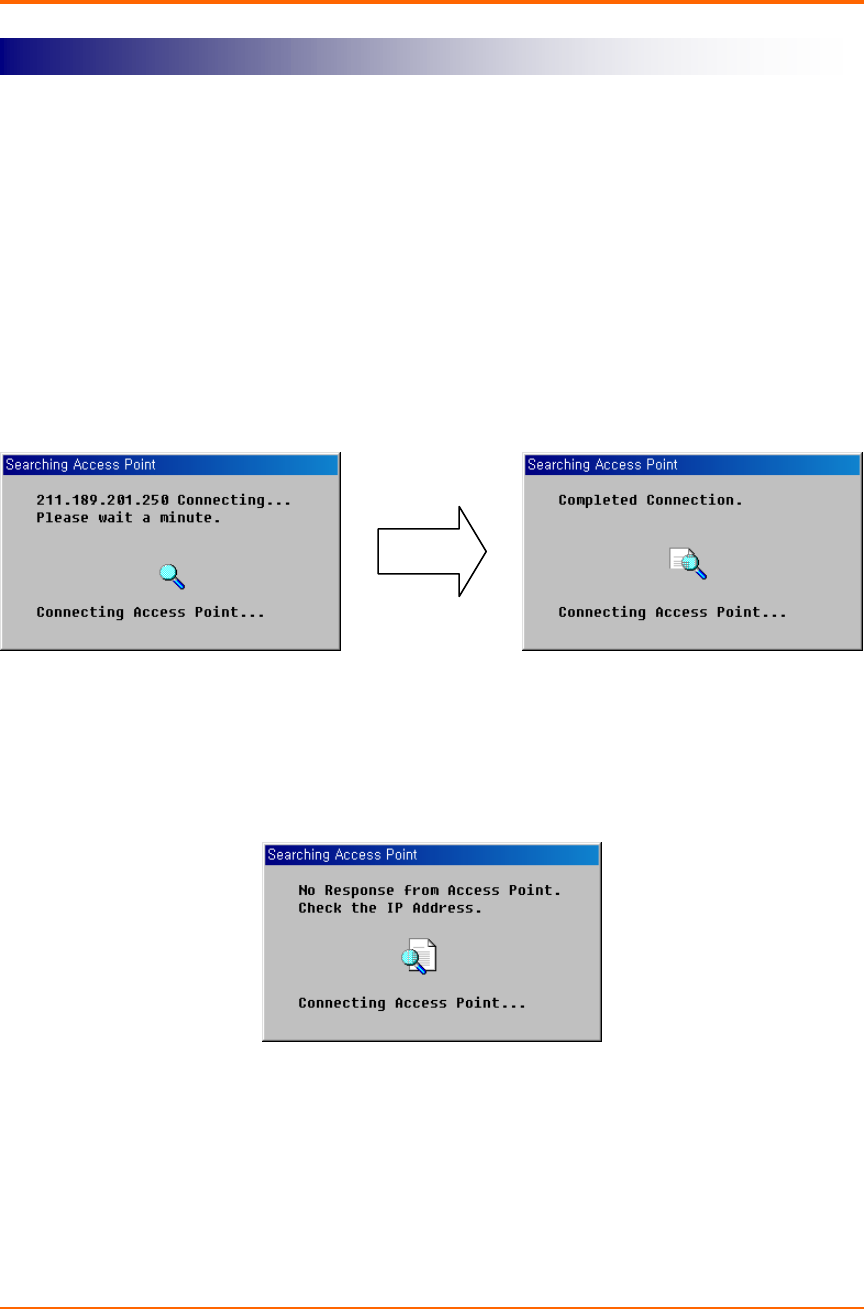
All the Access Points of Widelink have the same default IP address; 211.189.201.251.
If you install the Access Point for the first time, you should type Widelink Access Point’s
default IP on the above IP address input dialog box and then press CONNECT button.
If the Access Point has no problem and wire/wireless link is connected without problem.
Dialog box pop up to show that the Access Point Manager program is connected to the
Access Point through its IP address.
Otherwise if the Access Point Manager program is not able to find the Access Point,
then following message is displayed and it will stop the search process.
If the Access Point connection fails, verify that you have correctly installed the AP. And
if the AP still fails to connect, refer to troubleshooting chapter.
Access Point Connection
ezWAVE Access Point Users’ Guide Version 1.6
Copyright© Widelink 2000 DOC – 2001.02.01
Page 33 of 50
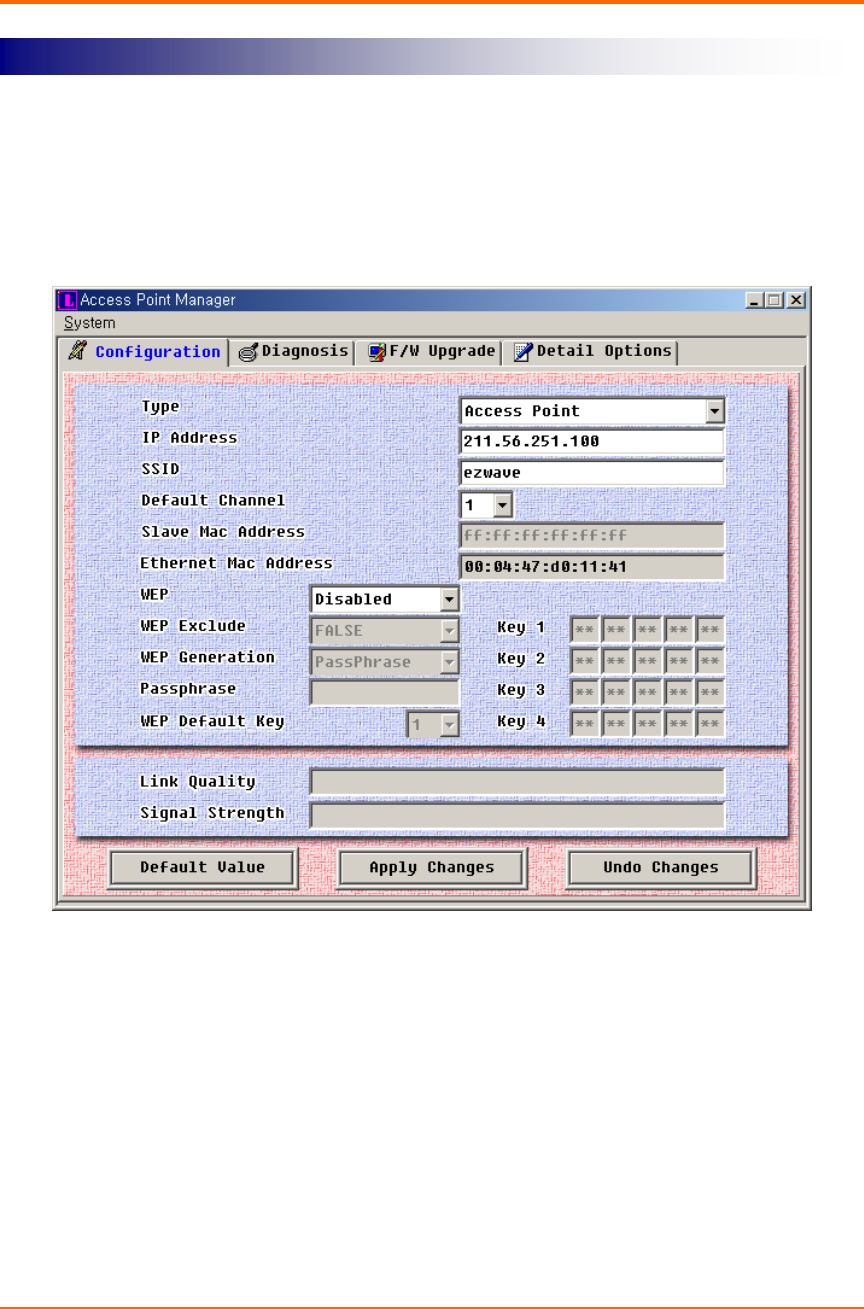
Once the Access Point Manager program is successfully connected to an Access Point,
all the configuration information are displayed through Access Point Manager program’s
configuration tab window.
•Types: Widelink’s Access Point has multiple functions; Wireless LAN Access Point
and Wireless LAN Bridge for point-to-point transmission. So, this dialog box displays
current function mode. Default type value is Access Point mode.
•IP Address: This field allows the assignment or change of the Internet Protocol (IP)
address of a station.
Widelink’s ezWAVE Access Point has a default IP address of - 100.100.100.100.Itis
Access Point Configuration Window

ezWAVE Access Point Users’ Guide Version 1.6
Copyright© Widelink 2000 DOC – 2001.02.01
Page 34 of 50
highly recommended that you change the IP address from the default only. You should
not use the default IP address, except when you are installing the Access Point for the
first time.
•SSID: The SSID is the network name for your Access Point. All Access Points on the
same LAN must be set with the same SSID in order to support inter-cell roaming.
If the Access Point is configured to communicate with wireless clients and the Secure
Access parameter is enabled, each client must be configured with the same SSID. If
Secure Access is not enabled, clients can be configured with the Access Point’s
wireless network name with word “ANY” (all uppercase/capital letter) or keep the
Wireless Network Name field blank.
•Default Channel: The channel sets the center frequency of the Access Point. In a
LAN-to-LAN configuration, the Access Points need to be set to the same channel. In a
wireless client configuration with multiple Access Points, adjacent Access Points
should be set to different channels (at least 5 channels apart recommended).
For example, in a configuration with 3 Access Points, set the channels to 1, 6, and 11.
Note that some countries only support a limited number of channels. Please refer to
the Appendix Channel section. The Access Point does not allow you to set channels
outside your country’s band.
Wireless clients with ezWAVE PC/PCI Cards automatically switch to the Access
Point’s channel when roaming between Access Points in a wireless network.
•Slave Mac Address: When the Access Point functions as a wireless LAN bridge
master, it can define the slave bridge’s MAC address.
•Ethernet Mac Address: The Media Access Control (MAC) address is a unique serial
number assigned to a device by the Widelink.
•WEP: WEP stands for Wired Equivalent Privacy. WEP is an encryption scheme that
provides the secure wireless data communications to the users. WEP uses a 64bit-key
or 128bit-key to control the network access. In order to do secure communication over
the wireless LAN network, enable WEP function. Use this setting to choose whether
ezWAVE Access Point Users’ Guide Version 1.6
Copyright© Widelink 2000 DOC – 2001.02.01
Page 35 of 50
clients must use data encryption when communicating with this Access Point.
•WEP Exclude: WEP Exclude option makes the Access Point service a client that does
not use WEP function.
•WEP Generation: There are two ways to generate the WEP key. One is by entering
any text in the Passphrase. The other way is by entering Key value directly from the
keyboard. In this case, you can insert any character string.
•Passphrase: This field allows you to enter any character string to generate Key value.
•Key1,2,3and4: These fields allow you to enter the WEP keys. Type ten
hexadecimal digits (any combination of 0-9, a-f, or A-F) for 64-bit WEP keys. To
protect WEP key security, existing WEP keys do not appear in the entry fields. You
can write over existing keys, but you cannot edit or delete them.
Caution
The WEP keys for your network must be set exactly the same as your Access Points
and your PC LAN cards. The same value must be assigned to Key 1 on both the Access
Point and the PC LAN cards, the same value must be assigned to Key 2 on both the
Access Point and the PC LAN cards, and so on, for all four WEP keys. For example, if
you set WEP Key 3 on your Access Point to 0987654321 and select it as the active key,
you must also set WEP Key 3 on the PC cards to the same value and select Key 3 as
theactivekey.
•WEP Default Key: You can choose one of four WEP Keys that have been generated
above step.
•Link Quality: When the Access Point functions as a wireless LAN bridge, it shows link

ezWAVE Access Point Users’ Guide Version 1.6
Copyright© Widelink 2000 DOC – 2001.02.01
Page 36 of 50
quality between Master Bridge and Slave Bridge
•Signal Strength: When the Access Point functions as a wireless LAN bridge, it shows
signal strength between Master Bridge and Slave Bridge
•Apply Changes: After entering new values for settings, click Apply Changes button to
activate the new settings.
•Undo Changes: If you want to restore Access Point configuration, press this button.
ezWAVE Access Point Users’ Guide Version 1.6
Copyright© Widelink 2000 DOC – 2001.02.01
Page 37 of 50
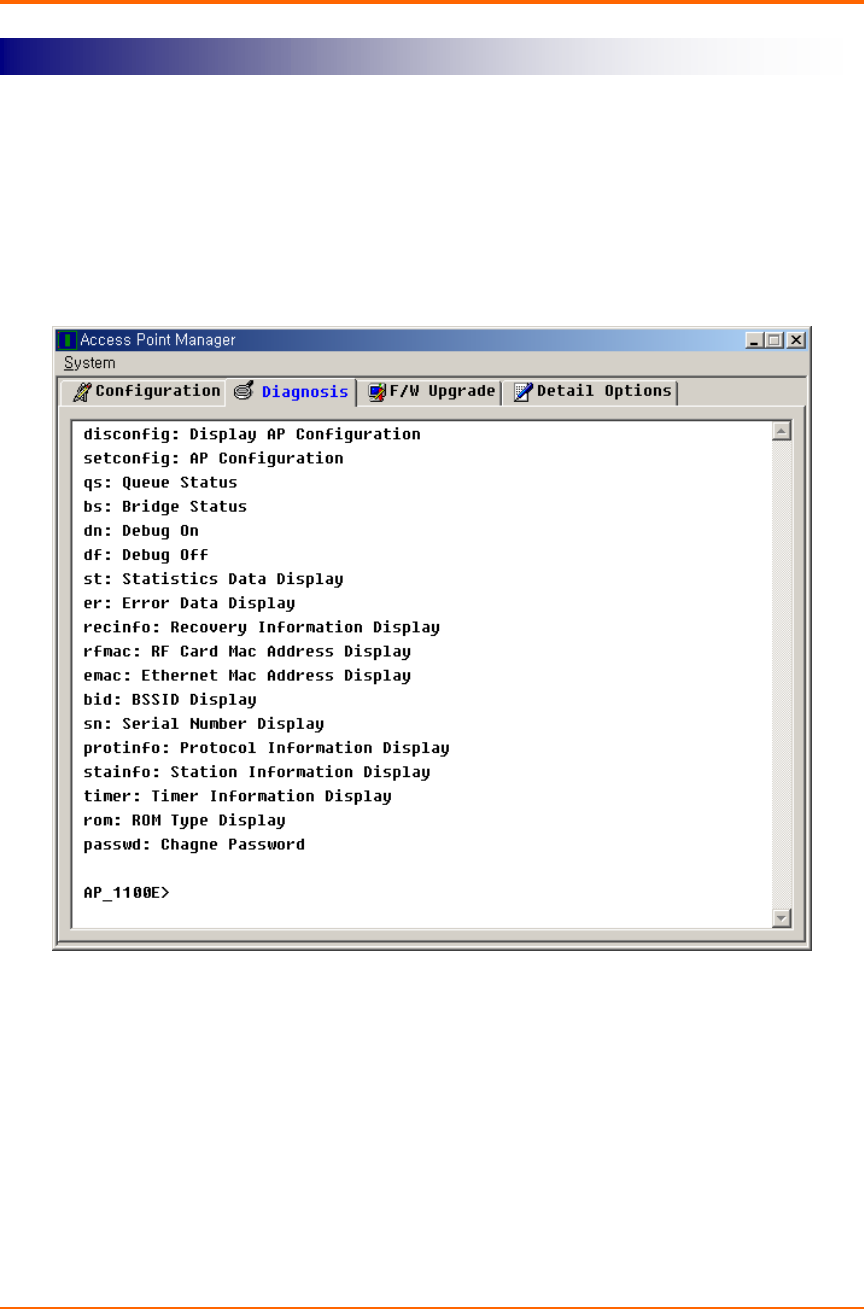
The Diagnosis Tab provides the same function as terminal emulator programs, just like
HyperTerminal program explained in above section.
And you can do same things as you use terminal program. Please refer above Open
Terminal Program section.
Terminal Window for Diagnosis
ezWAVE Access Point Users’ Guide Version 1.6
Copyright© Widelink 2000 DOC – 2001.02.01
Page 38 of 50
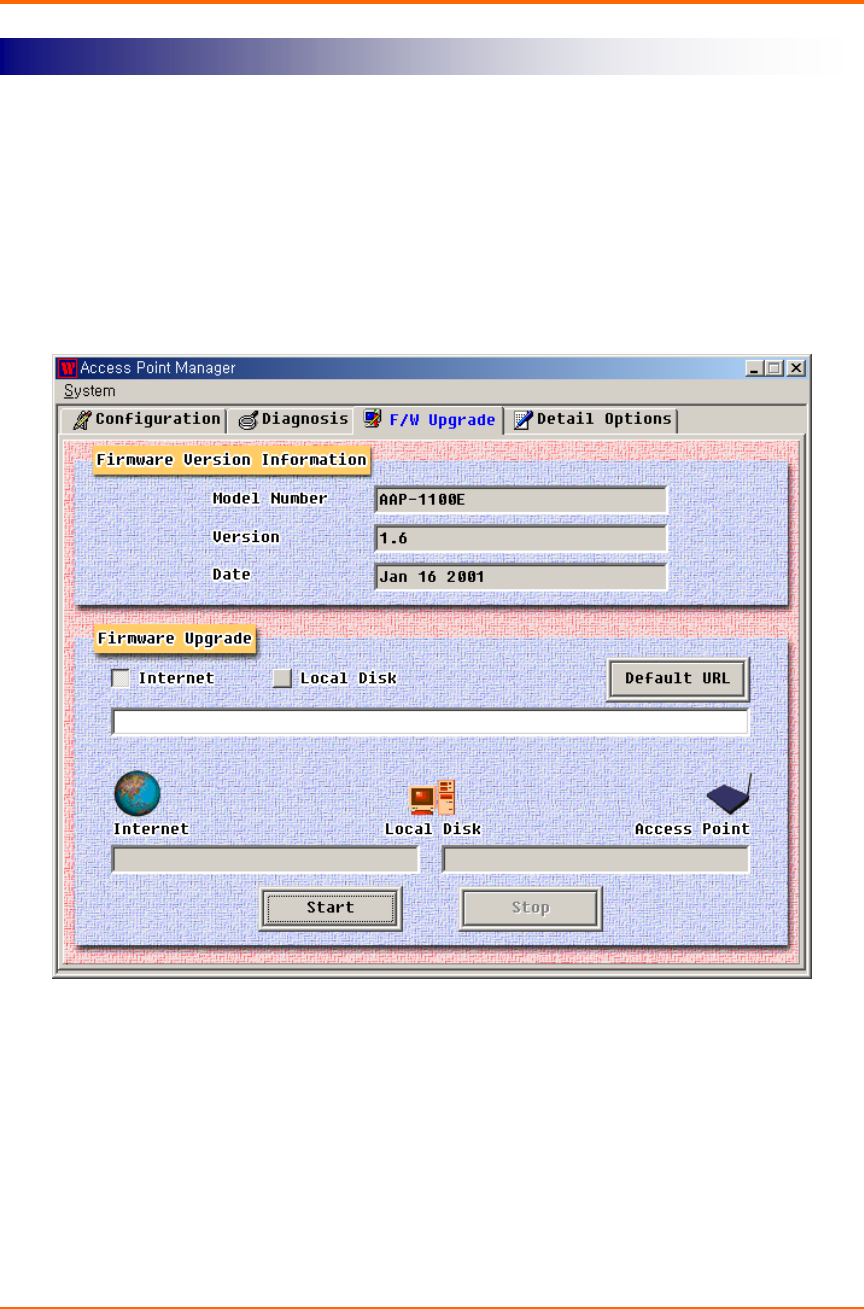
Use this page to simultaneously update the Access Point’s system firmware via your
local disk or Internet. After making firmware updates on this page, the Access Point will
automatically be rebooted to activate the new firmware.
Before you update Access Point’s firmware, you could check current Access Point’s
firmware version through the F/W Upgrade window.
The firmware can be updated into two ways; one is via Internet and the other is via local
disk or file server.
Firmware Upgrade Window
ezWAVE Access Point Users’ Guide Version 1.6
Copyright© Widelink 2000 DOC – 2001.02.01
Page 39 of 50
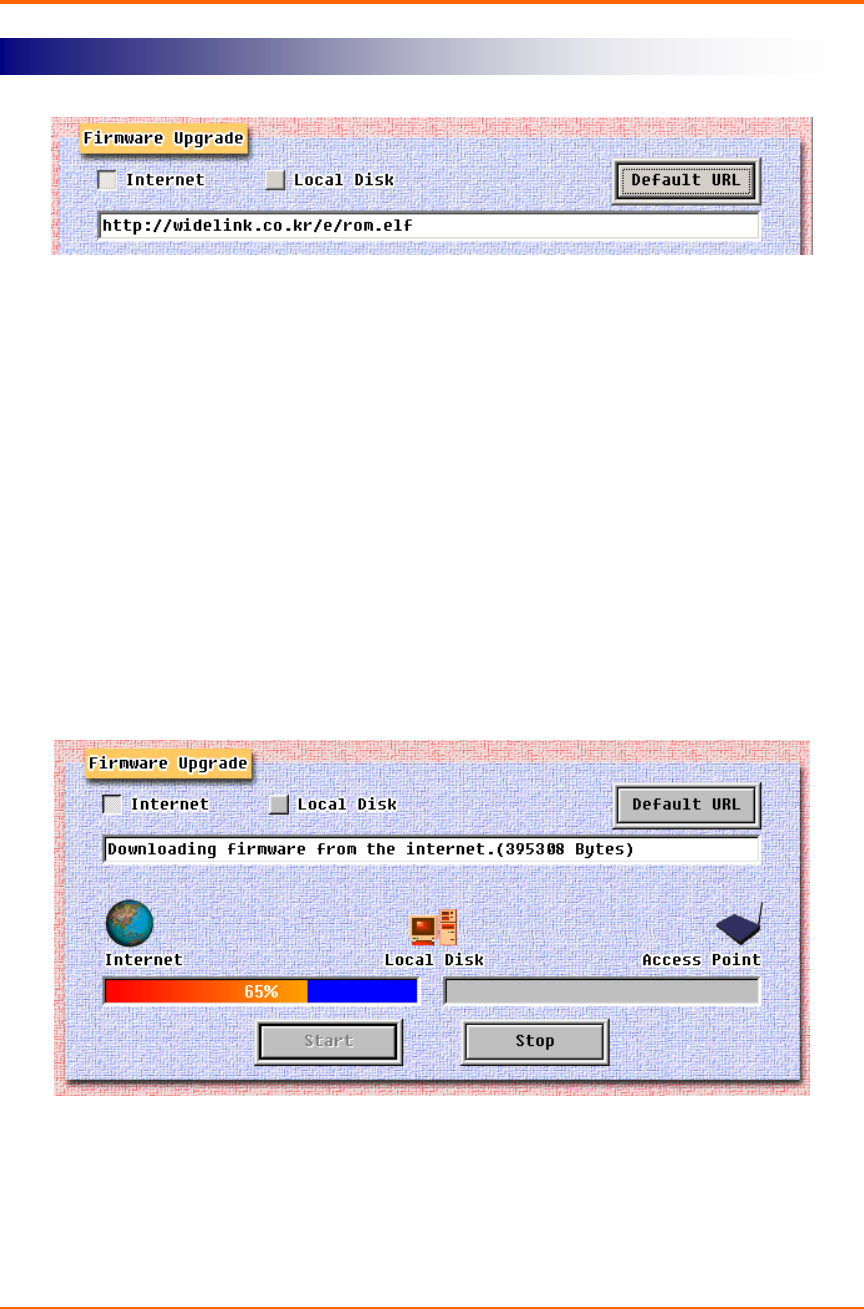
In order to upgrade Access Point firmware via Internet, click the Internet selection
button. If you know an URL address that supply Access Point’s latest firmware version
then enter the address in the dialog box. Otherwise click Default URL button.
The Default URL addresses Widelink’s Internet homepage that supports the latest
Access Point firmware version.
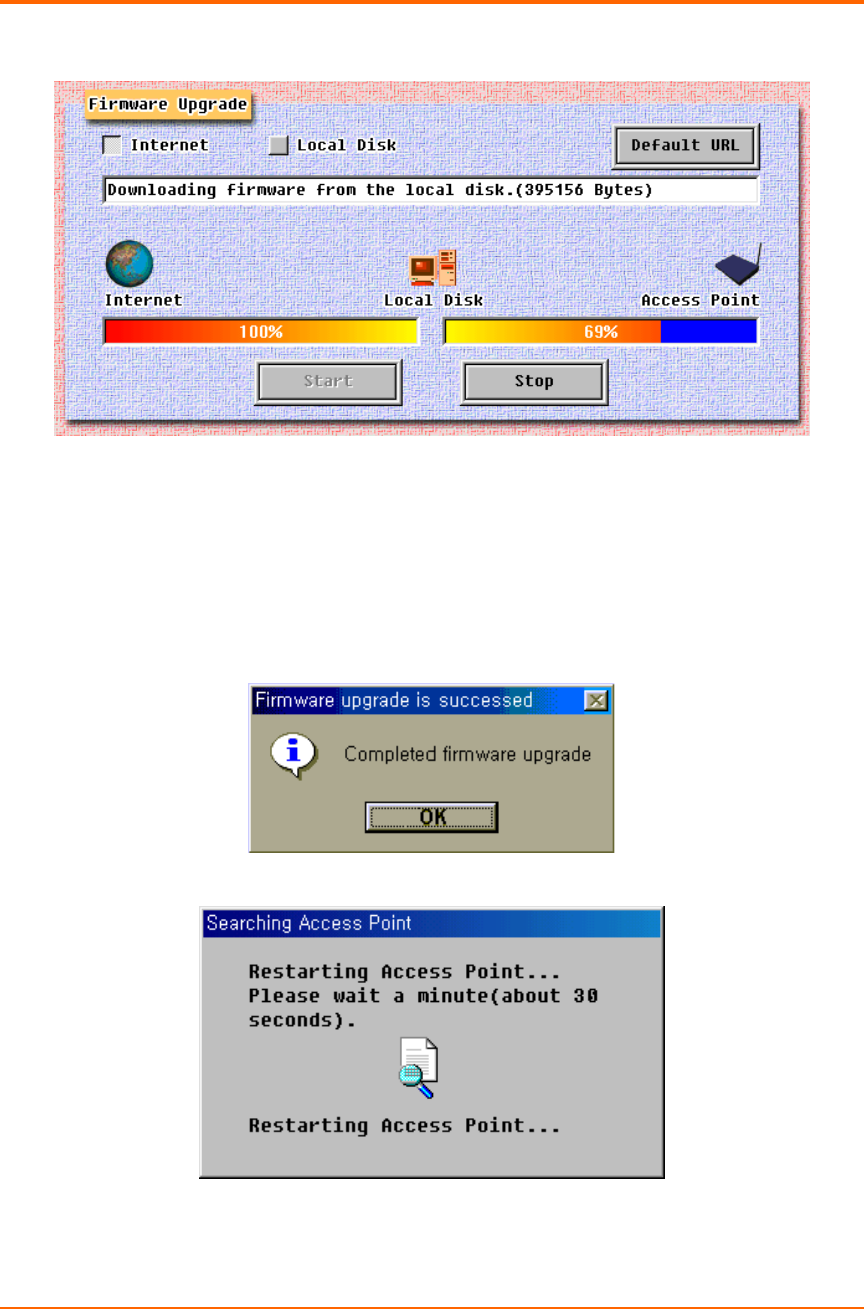
If you have defined URL address, press Start button so that the firmware can be
transferred to your local disk (Program File ´Widelink ´ezWAVE Access Point
Manager). During the firmware download, if there is an error or file transfer failure, then
an error message will be displayed.
After completing the firmware download, the Manager performs Access Point firmware
upgrade process. This process can be monitored just like as the firmware download
process.
Firmware Upgrade Via Internet
ezWAVE Access Point Users’ Guide Version 1.6
Copyright© Widelink 2000 DOC – 2001.02.01
Page 40 of 50
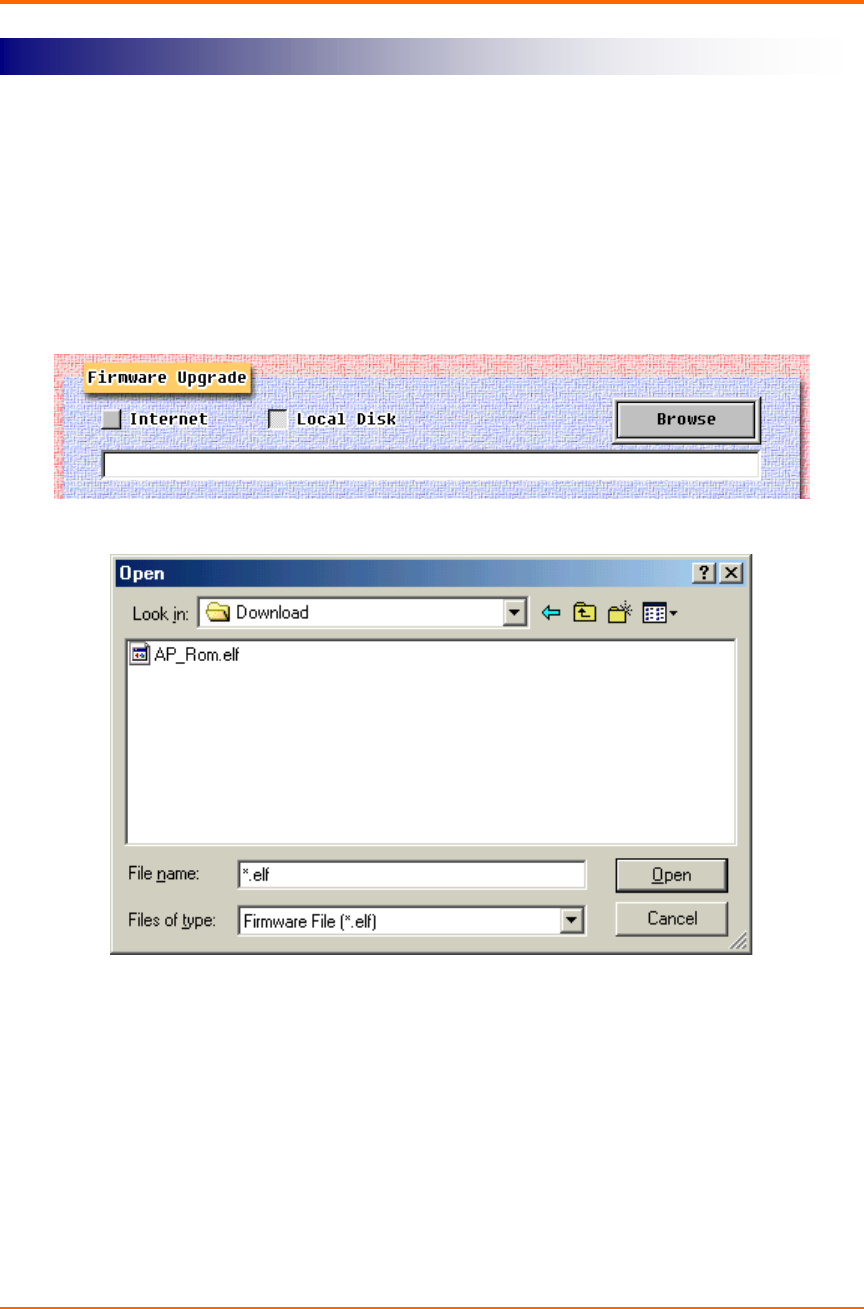
If the firmware download processes is completed successfully, download completed
message is displayed and then Access Point Manager program tries to make a new
connection with the Access Point. Meanwhile, the Access Point that have received the
new firmware version go on self restarts process.
ezWAVE Access Point Users’ Guide Version 1.6
Copyright© Widelink 2000 DOC – 2001.02.01
Page 41 of 50
In order to upgrade Access Point firmware via local disk, click the Local Disk button. In
order to use this option, you should have the latest firmware version in your local disk
already. After you click Browse button, select the firmware that you want to update. At
this point you should take a special attention in opening the file, to not open a wrong file
or firmware version.
After confirming the file name, click the Start button. The other processes from this
stage are same as those of the Internet.
Firmware Upgrade Via Local Disk
ezWAVE Access Point Users’ Guide Version 1.6
Copyright© Widelink 2000 DOC – 2001.02.01
Page 42 of 50
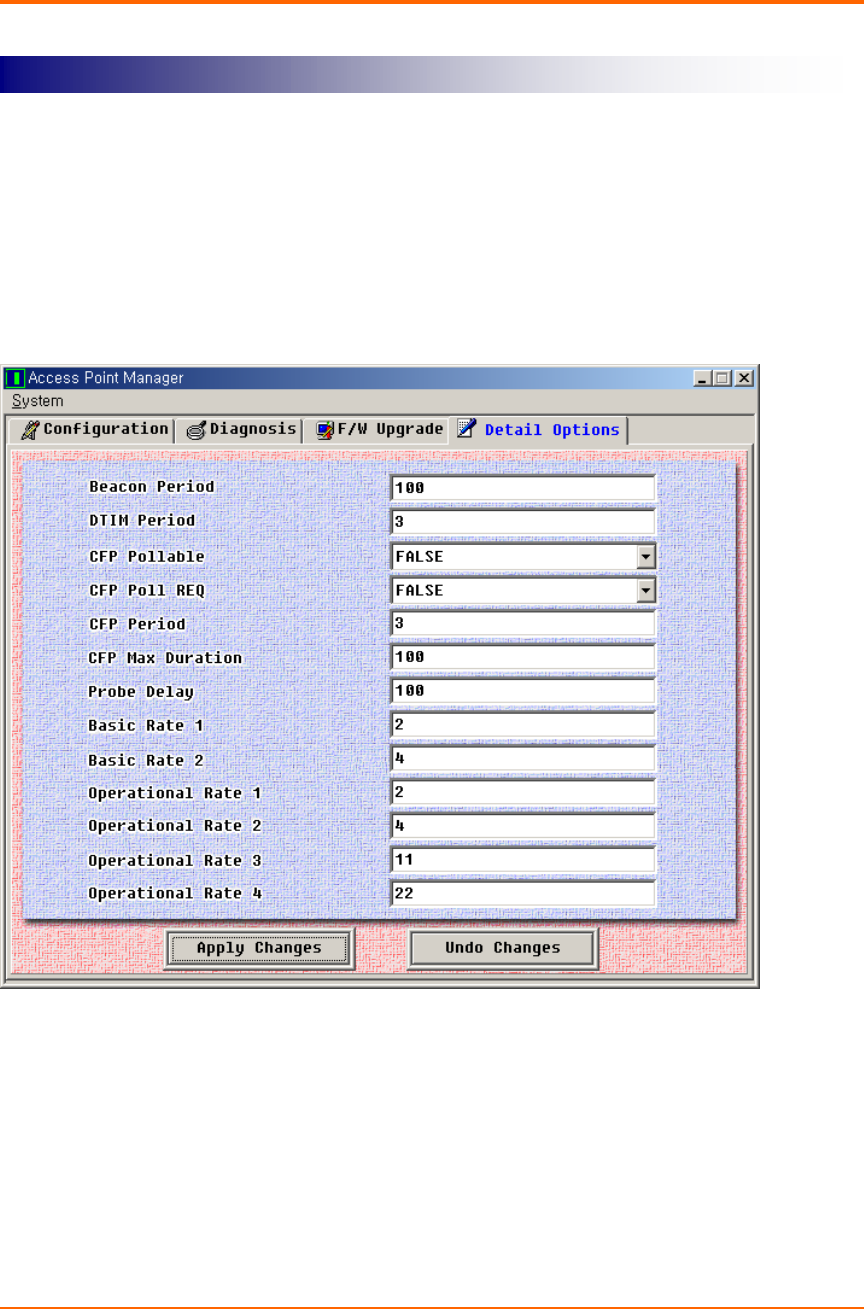
This windows is provided for wireless LAN expert only. So if you do not have deep
information about wireless LAN air interface specifications, do not change default
options. More detailed information about how to change detail configuration will be
explained in Access Point Management section.
•Beacon Period: The amount of time between beacons.
•DTIM Period: This setting, always a multiple of the beacon period, determines how
often the beacon contains a delivery traffic indicator message (DTIM). The traffic
indicator message tells power-save clients that a packet is waiting for them.
Access Point Detail Control

ezWAVE Access Point Users’ Guide Version 1.6
Copyright© Widelink 2000 DOC – 2001.02.01
Page 43 of 50
3.2 Setting Bridge Mode
You can connect two separate LANs over a wireless link by configuring two ezWAVE
Access Points to communicate with each other. This is called a LAN-to-LAN connection.
Two Access Points, using outdoor antennas, can connect two buildings or network
segments that use the same communication protocol.
To configure two APs to communicate with each other in a LAN-to-LAN configuration,
perform the following tasks:
1) Get the wireless MAC address of the remote AP. You can see the wireless address
via the AP Manager or console device, as described in “Access Point Configuration
Window“ section. The wireless MAC address is NOT the same as the wired MAC
address printed on the front of the AP.
2) Set the Bridge Mode to LAN-to-LAN, as described in above “Access Point
Configuration Window section’s Type item.
3) Make sure that the APs use the same channel. To change the AP channel, see
“Access Point Configuration Window“ section.
The AP provides the following bridging services:
•Store-and-forward capability
The AP receives, checks, and transmits frames to other LANs, enabling the
configuration of extended LANs.
•Frame filtering based on address
Using the address database and the source and destination addresses from incoming
frames, the AP isolates the traffic that should not be allowed on other LANs. This
action reduces the total data traffic on an extended LAN by not forwarding the packets
that have local destination addresses or packets that are not allowed to forward. This
increases bandwidth efficiency.

ezWAVE Access Point Users’ Guide Version 1.6
Copyright© Widelink 2000 DOC – 2001.02.01
Page 44 of 50
•Data Link layer relay
The AP operates at the Data Link layer of the Open System Interconnection (OSI)
model. Operation at this layer makes the AP transparent to the protocols that use the
LAN connectivity service. This protocol transparency is a key factor in the extended
LAN service.

ezWAVE Access Point Users’ Guide Version 1.6
Copyright© Widelink 2000 DOC – 2001.02.01
Page 45 of 50
Chapter 4 Troubleshooting
T.B.D.

ezWAVE Access Point Users’ Guide Version 1.6
Copyright© Widelink 2000 DOC – 2001.02.01
Page 46 of 50
Appendix
Appendix A Cell Planning (Radio Range)
This section provides general guidelines on factors that influence network performance
Cell Site Survey
Because of differences in component configuration, placement and physical environment,
every network application is a unique installation. Before installing the system, users
should perform a site survey to determine the optimum utilization of networking
components to maximize range, coverage and network performance.
Here are some operating and environmental conditions you should consider:
•Data Rates
Radio signal sensitivity and range are inversely proportional to data bit rates. The
maximum radio range is achieved at the lowest workable data rate. There will be a
decrease in receiver threshold sensitivity as the radio data rate increases.
•Antenna Type and Placement(PCI card only)
Proper antenna configuration is a critical factor in maximizing radio range. As a general
guide, range increases in proportion to antenna height. For a detailed explanation of
antenna types and configurations along with guidelines on selecting antennas for
specific environments, see the documentation that comes with your antenna.
•Physical Environments
Clear or open areas provide better radio range than closed or filled areas. Also, the less
cluttered the work environment, the greater the range.
•Obstructions
A physical obstruction such as metal shelving or a steel pillar can hinder the
performance of the client adapter. Avoid locating the computing device in a location
where there is a metal barrier between the sending and receiving antennas.

ezWAVE Access Point Users’ Guide Version 1.6
Copyright© Widelink 2000 DOC – 2001.02.01
Page 47 of 50
•Building Materials
Radio penetration is greatly influenced by the building material used in construction. For
example, drywall construction allows greater range than concrete blocks. Metal or steel
construction is a barrier to radio signals.
Enhancing Coverage
The system architecture options of the wireless station and ezWAVE Access Points
provide for a variety of coverage alternatives and flexibility. The system can be designed
to provide a wide coverage area with minimal overlap or coverage with heavy overlap.
The latter improves system performance and protection against downtime in the event of
a component failure. By arranging the ezWAVE Access Points to minimize overlap in
coverage area, a large area can be covered with minimal system cost. The total
bandwidth available to each mobile station will depend on the amount of data each
mobile station desires to transfer and the number of stations located in each cell.
Seamless roaming is supported, as a mobile station moves in and out of range of each
ezWAVE Access Point, thereby maintaining a constant connection to the wired LAN.
Each device in the radio network must be configured with the same Service Set Identifier
(SSID) to provide the roaming capability. Multiple systems can operate in the same
vicinity. The architecture provides multiple channels, which can coexist in the same area
with virtually no interference to each other. In this mode, each system must be
configured with different Service Set Identifiers (SSID) and different channels to prevent
clients from roaming to ezWAVE Access Points from a different wireless system.

ezWAVE Access Point Users’ Guide Version 1.6
Copyright© Widelink 2000 DOC – 2001.02.01
Page 48 of 50
Appendix B Technical Specifications
Functional Specification
Item Function
Configuration and setup . Local monitor
. Access Point Manager
Modes . Access Point
. Wireless LAN Bridge
Status Display Power, Air Link Status, Wire Link status
Software Upgradeable Via Access Point Manager or local monitor
Security WEP 64 bit standard, upgradeable to 128 bit
Approval WiFi, FCC (processing)
Max. No of Clients per AP 255

ezWAVE Access Point Users’ Guide Version 1.6
Copyright© Widelink 2000 DOC – 2001.02.01
Page 49 of 50
Electrical/Radio Specifications
Item Specification Description
Compliance IEEE802.11b
Radio Type
Direct Sequence
Spread-Spectrum
(DSSS)
2.4 GHz ISM Band
Operating Frequency 2400-2483.5 MHz North American, ETSI, and Japan
channel coverage, factory configurable
Range Depending on data rate
and environment.
Accurate values must be calculated for
specific installation.
Data Rate 1, 2, 5,5 or 11Mbps Dynamic rate selection based on radio
medium quality.
FCC ID FCC approval
Number of Channels Max 14 Refer Appendix CHANNEL
Channeling 5 MHz increments Programmable for IEEE 802.11b
Type of Modulation
BPSK 1 Mbit/s
QPSK 2 Mbit/s
CCK 5.5 and 11 Mbits/s
Nominal 10 MHz BW
(-6 dB)
Receiver sensitivity - 84 dBm
Wired LAN Interface 10Base-T RJ45 Connector
Serial Interface RS-232 @ 19.2Kbps DB-9 female
Power Consumption 4.5W @ 20°C
Power Supply 1.5A DC Input 100-240VAC, 60Hz 5V VDC
Dimension 157w x 128d x 27h MM
Weight 0.5Kg Without antenna
Operating Temperature -10°C~+50°C
Storage Temperature -20°C~+80°C
Operating Humidity 10% ~ 90% Non-condensing

ezWAVE Access Point Users’ Guide Version 1.6
Copyright© Widelink 2000 DOC – 2001.02.01
Page 50 of 50
Appendix C Channel Allocation
The channel identifiers and the channel center frequencies of each 22-MHz-wide
channel are shown in the table below, as appropriate for the various areas or regulatory
agencies.
Regulatory Domains
Channel
Identifier
Center
Frequency North
America ETSI Spain France Korea /
Japan
1 2412MHz √
√√
√√
√√
√−−√
√√
√
2 2417MHz √
√√
√√
√√
√−−√
√√
√
3 2422MHz √
√√
√√
√√
√−−√
√√
√
4 2427MHz √
√√
√√
√√
√−−√
√√
√
5 2432MHz √
√√
√√
√√
√−−√
√√
√
6 2437MHz √
√√
√√
√√
√−−√
√√
√
7 2442MHz √
√√
√√
√√
√−−√
√√
√
8 2447MHz √
√√
√√
√√
√−−√
√√
√
9 2452MHz √
√√
√√
√√
√−−√
√√
√
10 2457MHz √
√√
√√
√√
√√
√√
√√
√√
√√
√√
√
11 2462MHz √
√√
√√
√√
√√
√√
√√
√√
√√
√√
√
12 2467MHz −√
√√
√−√
√√
√√
√√
√
13 2472MHz −√
√√
√−√
√√
√√
√√
√
14 2484MHz −−−−
Japan(√
√√
√)