Win Accord PD121INCH 12” Digital Photo Frame User Manual

WIN ACCORD LTD., 12” Digital Photo Frame

user manual

Digital Photo Frame   User Guide PAN1200-1300-1500DWPTFR Effortlessly Moving Images Out of your Camera and Into your Life
1Sign up now to enjoy the following benefits… Qualify to win a FREE digital photo frame!* (valid in USA only)Register your FREE 1-year warranty!***For details, go to our website: www.pandigital.net **The online signup is for the purpose of user and product registration. Failure to register does not in any way diminish any of your standard warranty rights, as described in the documentation included with your product. NOTE: If you must mail your 1-year registration, please send your name, address, phone number, model & serial number, and when & where purchased to: Pandigital, P.O. Box 2969, Dublin, CA 94568-2969 USA1YearSign up now at… http://www.pandigital.net
2Table of Contents Introduction ..................................................................................................4DPF Key Features ...................................................................................................4Overview of the 12” and 13.3” DPF .............................................................5Overview of the 15” DPF ..............................................................................6Remote Control ............................................................................................6PanTouch Interface ......................................................................................8Control Buttons on DPF ..............................................................................9About Selecting Options .............................................................................9Getting Started ...........................................................................................10The HOME Screen ......................................................................................10SETUP Menu Overview ..............................................................................12Select Media Source ..................................................................................13PHOTOS ......................................................................................................14Display Photo Thumbnails Screen .........................................................................14Zoom or Rotate Photos ..................................................................................... 14Import Photos into Internal Memory .......................................................................14Delete Photos from Internal Memory ..................................................................... 15Adjust Screen Colors .............................................................................................16Optimal Image Display ..........................................................................................17Photo Import Method .............................................................................................17PHOTO SLIDESHOWS ...............................................................................18Slideshow of Photos in Internal Memory ...............................................................18Slideshow of Photos on your Media Source ..........................................................18Pause a Slideshow ................................................................................................18Slideshow Background Music ................................................................................18Adjust the Volume .............................................................................................19Mute the Background Music ..............................................................................19Set Slideshow Interval ......................................................................................20Set Slideshow Transition .................................................................................. 21
                                                                                                                                               3Set Slideshow Shuffle ....................................................................................... 21Display Current Time with Photos ..................................................................... 21Display Photo File Date/Time Stamp with Photos ............................................. 22MUSIC .........................................................................................................22Playing Music Only ................................................................................................ 22Adjust the Volume ............................................................................................. 23Mute the Music ..................................................................................................23Set Music Repeat Mode ........................................................................................ 23Import Music Files into Internal Memory ................................................................ 23Delete Music Files from the Internal Memory ........................................................ 24VIDEOS .......................................................................................................25Watch a Video .......................................................................................................25Adjust the Volume .............................................................................................25Mute the Video ..................................................................................................26Video Repeat Mode ...............................................................................................26Import Video Files into Internal Memory ................................................................ 26Delete Video Files from the Internal Memory ........................................................26CALENDAR/CLOCK ...................................................................................27Set Date and Time .................................................................................................27Set Alarm ...............................................................................................................28Select Media Source for Calendar Slideshow........................................................28Set Schedule .........................................................................................................28
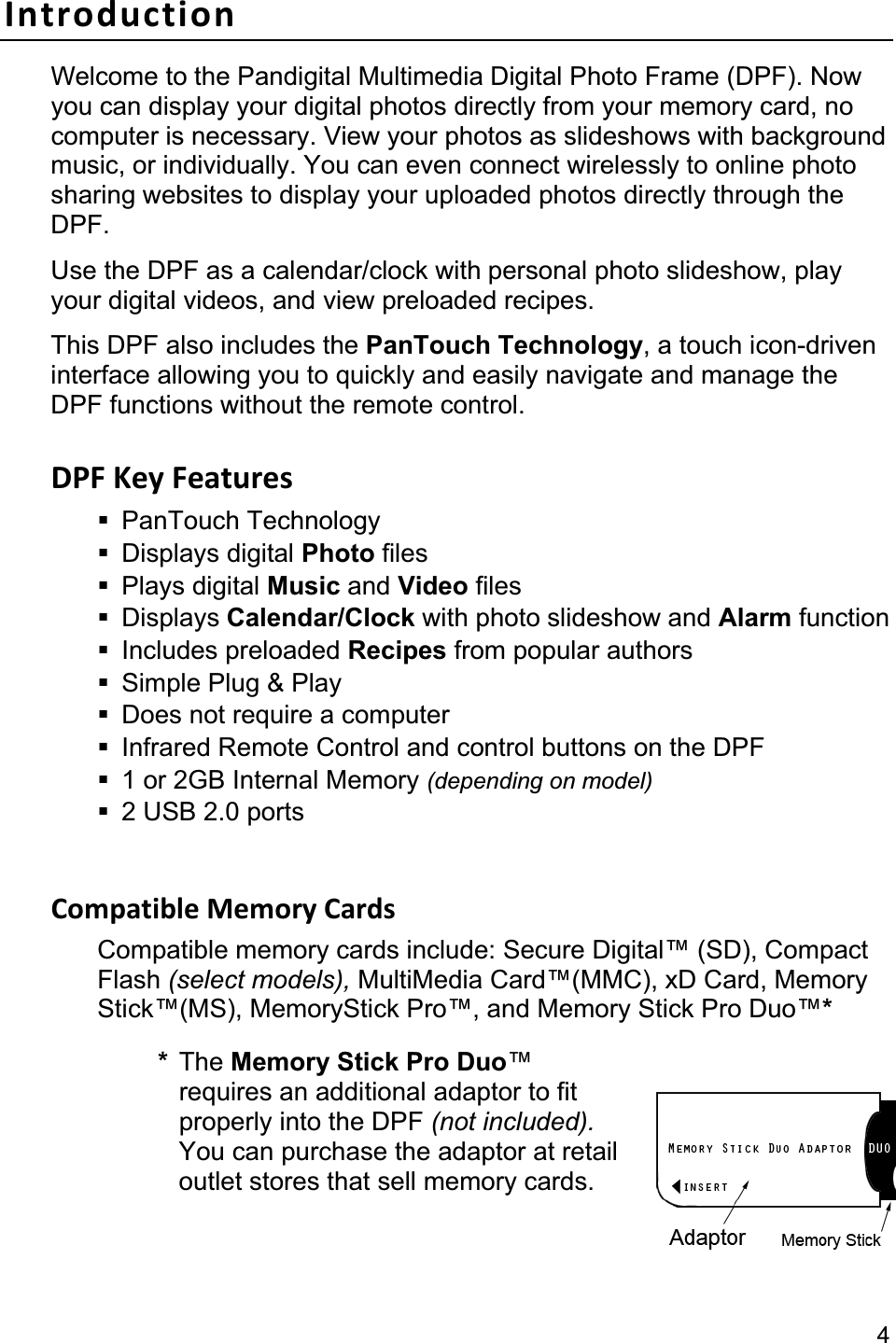
                                                                                                                                              4Introduction Welcome to the Pandigital Multimedia Digital Photo Frame (DPF). Now you can display your digital photos directly from your memory card, no computer is necessary. View your photos as slideshows with background music, or individually. You can even connect wirelessly to online photo sharing websites to display your uploaded photos directly through the DPF.Use the DPF as a calendar/clock with personal photo slideshow, play your digital videos, and view preloaded recipes. This DPF also includes the PanTouch Technology, a touch icon-driven interface allowing you to quickly and easily navigate and manage the DPF functions without the remote control.   DPF Key Features  PanTouch Technology  Displays digital Photo files  Plays digital Music and Video files  Displays Calendar/Clock with photo slideshow and Alarm function  Includes preloaded Recipes from popular authors   Simple Plug & Play   Does not require a computer   Infrared Remote Control and control buttons on the DPF   1 or 2GB Internal Memory (depending on model) 2 USB 2.0 ports Compatible Memory Cards Compatible memory cards include: Secure Digital™ (SD), Compact Flash (select models), MultiMedia Card™(MMC), xD Card, Memory Stick™(MS), MemoryStick Pro™, and Memory Stick Pro Duo™** The Memory Stick Pro Duo™requires an additional adaptor to fit properly into the DPF (not included).You can purchase the adaptor at retail outlet stores that sell memory cards.
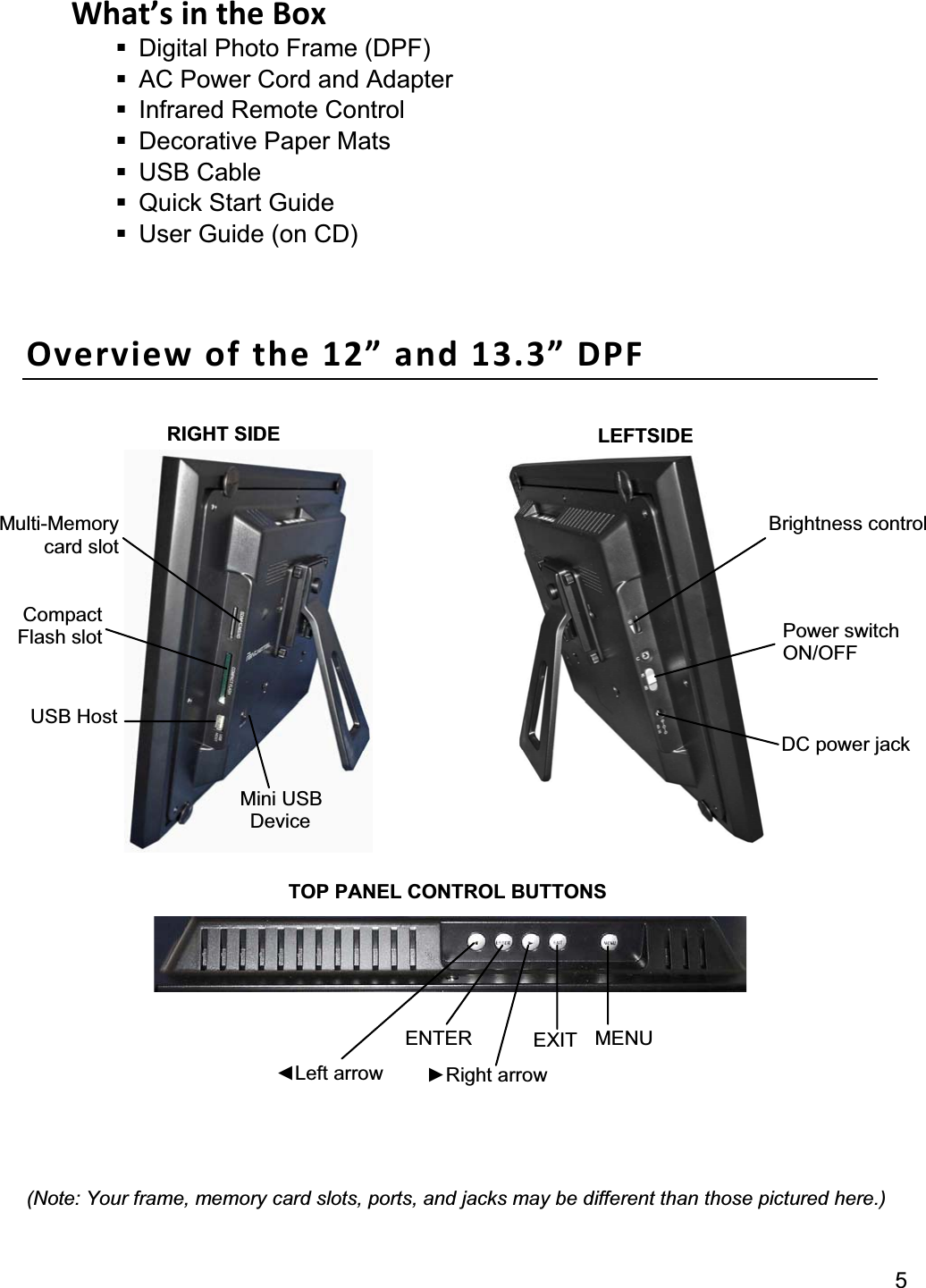
5What’s in the Box   Digital Photo Frame (DPF)   AC Power Cord and Adapter     Infrared Remote Control  Decorative Paper Mats  USB Cable   Quick Start Guide   User Guide (on CD) Overview of the 12” and 13.3” DPF (Note: Your frame, memory card slots, ports, and jacks may be different than those pictured here.) MENU EXITENTERŹRight arrow ŻLeft arrow Multi-Memory card slot Mini USB  Device Compact Flash slot Brightness control Power switch ON/OFF DC power jack USB Host RIGHT SIDE  LEFTSIDE TOP PANEL CONTROL BUTTONS
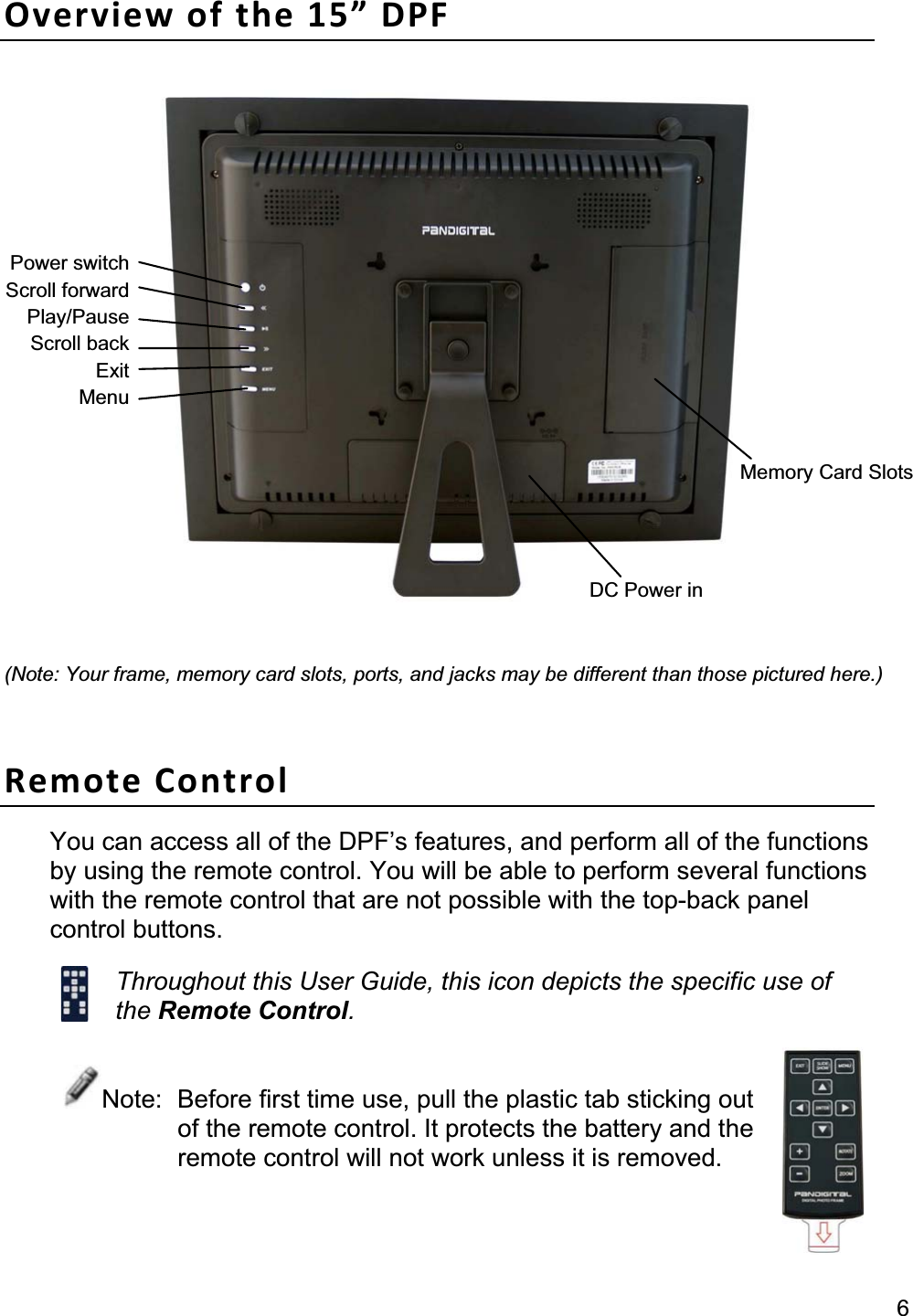
                                                                                                                                                    6Overview of the 15” DPF (Note: Your frame, memory card slots, ports, and jacks may be different than those pictured here.)Remote Control You can access all of the DPF’s features, and perform all of the functions by using the remote control. You will be able to perform several functions with the remote control that are not possible with the top-back panel control buttons. Throughout this User Guide, this icon depicts the specific use of the Remote Control.Note:  Before first time use, pull the plastic tab sticking out of the remote control. It protects the battery and the remote control will not work unless it is removed. DC Power in Memory Card Slots Power switchScroll forwardPlay/PauseScroll backExitMenu
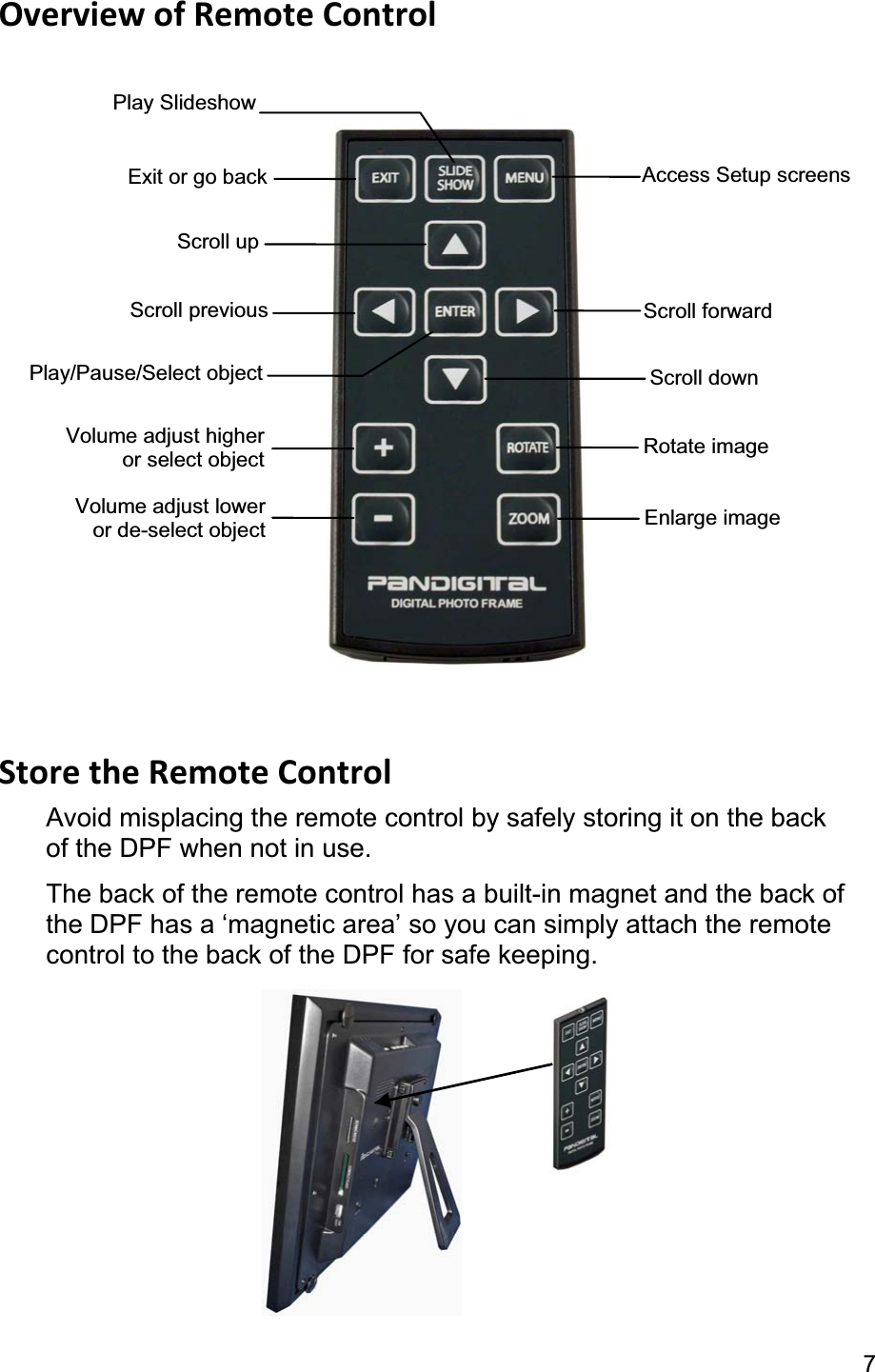
7Overview of Remote Control Store the Remote Control Avoid misplacing the remote control by safely storing it on the back of the DPF when not in use.   The back of the remote control has a built-in magnet and the back of the DPF has a ‘magnetic area’ so you can simply attach the remote control to the back of the DPF for safe keeping. Exit or go back Scroll up Scroll previous Play/Pause/Select object Volume adjust lower or de-select object  Enlarge image Access Setup screens Scroll forwardScroll down Volume adjust higher or select object  Rotate image Play Slideshow
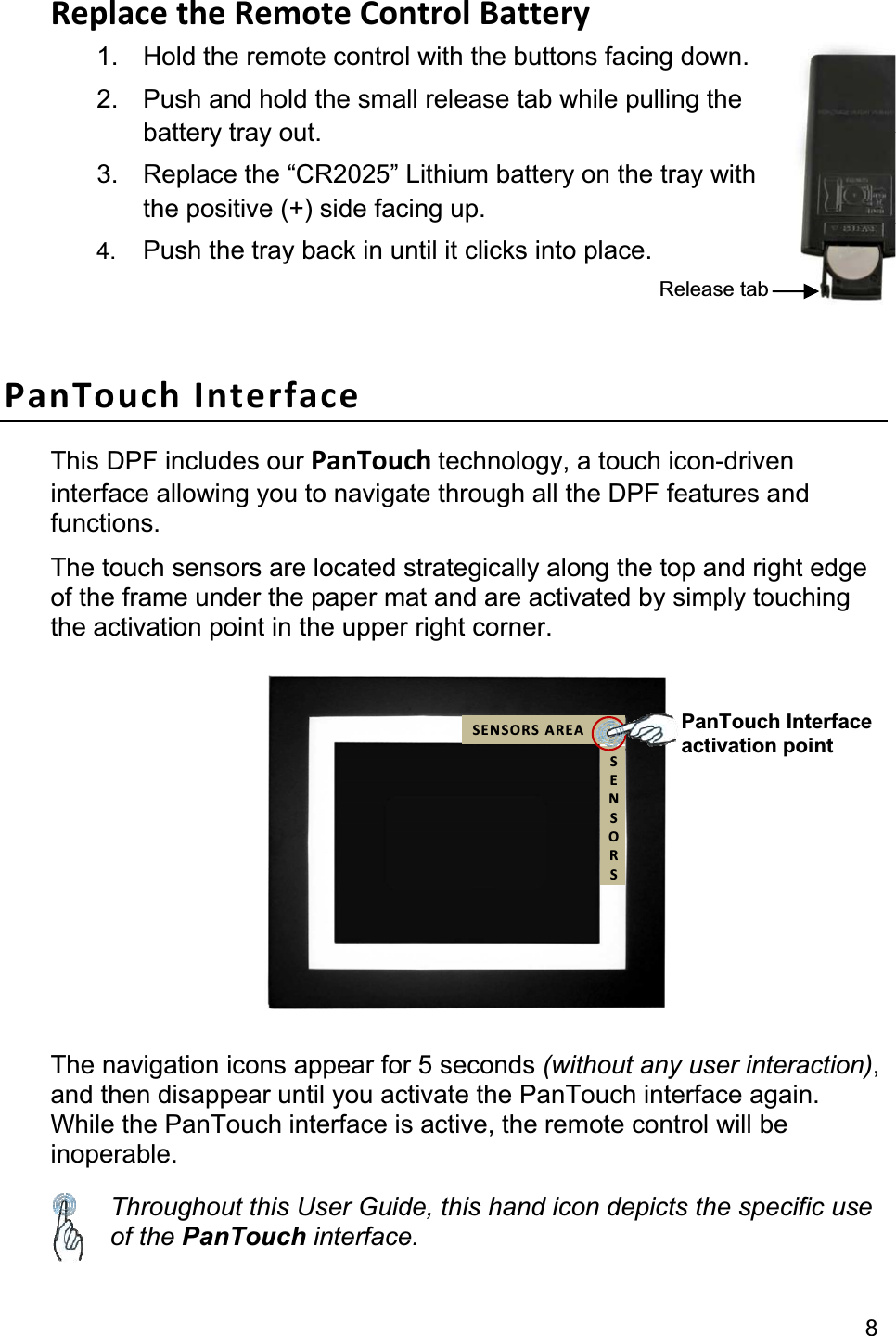
                                                                                                                                             8Replace the Remote Control Battery 1.  Hold the remote control with the buttons facing down. 2.  Push and hold the small release tab while pulling thebattery tray out. 3.  Replace the “CR2025” Lithium battery on the tray with the positive (+) side facing up. 4. Push the tray back in until it clicks into place.PanTouch Interface This DPF includes our PanTouch technology, a touch icon-driven interface allowing you to navigate through all the DPF features and functions. The touch sensors are located strategically along the top and right edge of the frame under the paper mat and are activated by simply touchingthe activation point in the upper right corner. The navigation icons appear for 5 seconds (without any user interaction),and then disappear until you activate the PanTouch interface again. While the PanTouch interface is active, the remote control will be inoperable. Throughout this User Guide, this hand icon depicts the specific use of the PanTouch interface. Release tab PanTouch Interface activation point SENSORS AREASENSORS
9Control Buttons on DPF You can perform many (but not all) of the DPF functions by using the control buttons located on the back of the DPF. Their basic functions are the same no matter when you use them. Button  Action Scroll left ENTER Select the highlighted option, start a Slideshow, Play and PauseScroll right EXIT  Exit the current display, or go back a screen MENU  Access the SETUP Menu screen TIP:  The instructions throughout this User Guide reference the use of the PanTouch interface and the Remote Control. However, you could also use the frame control buttons when the  ,ENTER,EXIT, and MENU buttons are referenced. About Selecting Options Throughout this User Guide, when you are instructed to simply ‘touch’ or ‘select’ a function option or button, do the following: Touch the upper right corner of the mat to activate the PanTouch interface and then touch the desired option button, or use the arrows to highlight [the referenced option], and then touch ENTER to select (unless otherwise instructed).Use to highlight [the referenced option], and then press ENTER to select (unless otherwise instructed).
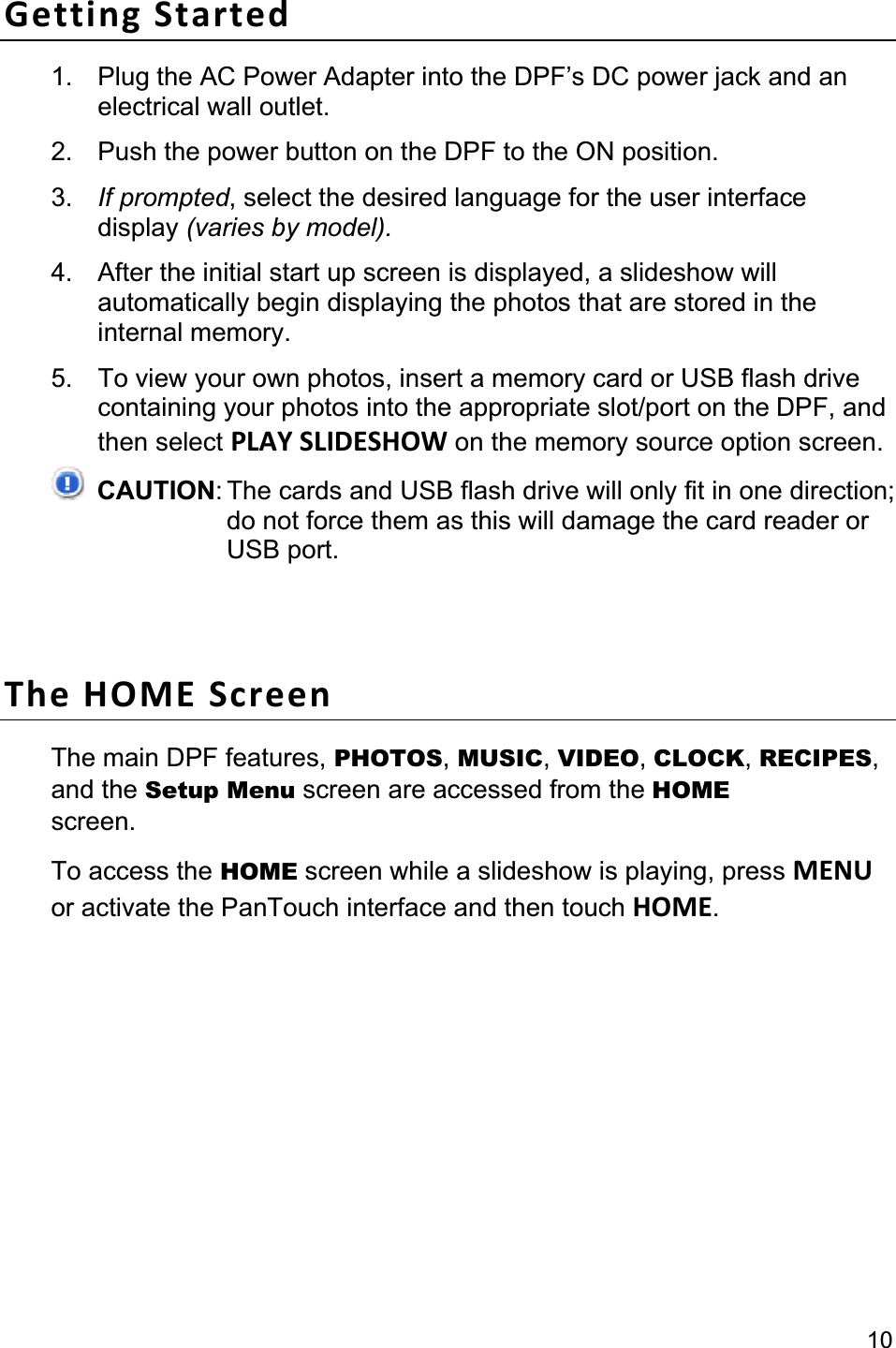
10Getting Started 1.  Plug the AC Power Adapter into the DPF’s DC power jack and an electrical wall outlet. 2.  Push the power button on the DPF to the ON position.   3. If prompted, select the desired language for the user interface display (varies by model).4.  After the initial start up screen is displayed, a slideshow will automatically begin displaying the photos that are stored in the internal memory. 5.  To view your own photos, insert a memory card or USB flash drive containing your photos into the appropriate slot/port on the DPF, and then select PLAY SLIDESHOW on the memory source option screen. CAUTION: The cards and USB flash drive will only fit in one direction;do not force them as this will damage the card reader or USB port. The HOME Screen The main DPF features, PHOTOS,MUSIC,VIDEO,CLOCK,RECIPES,and the Setup Menu screen are accessed from the HOMEscreen.  To access the HOME screen while a slideshow is playing, press MENUor activate the PanTouch interface and then touch HOME.
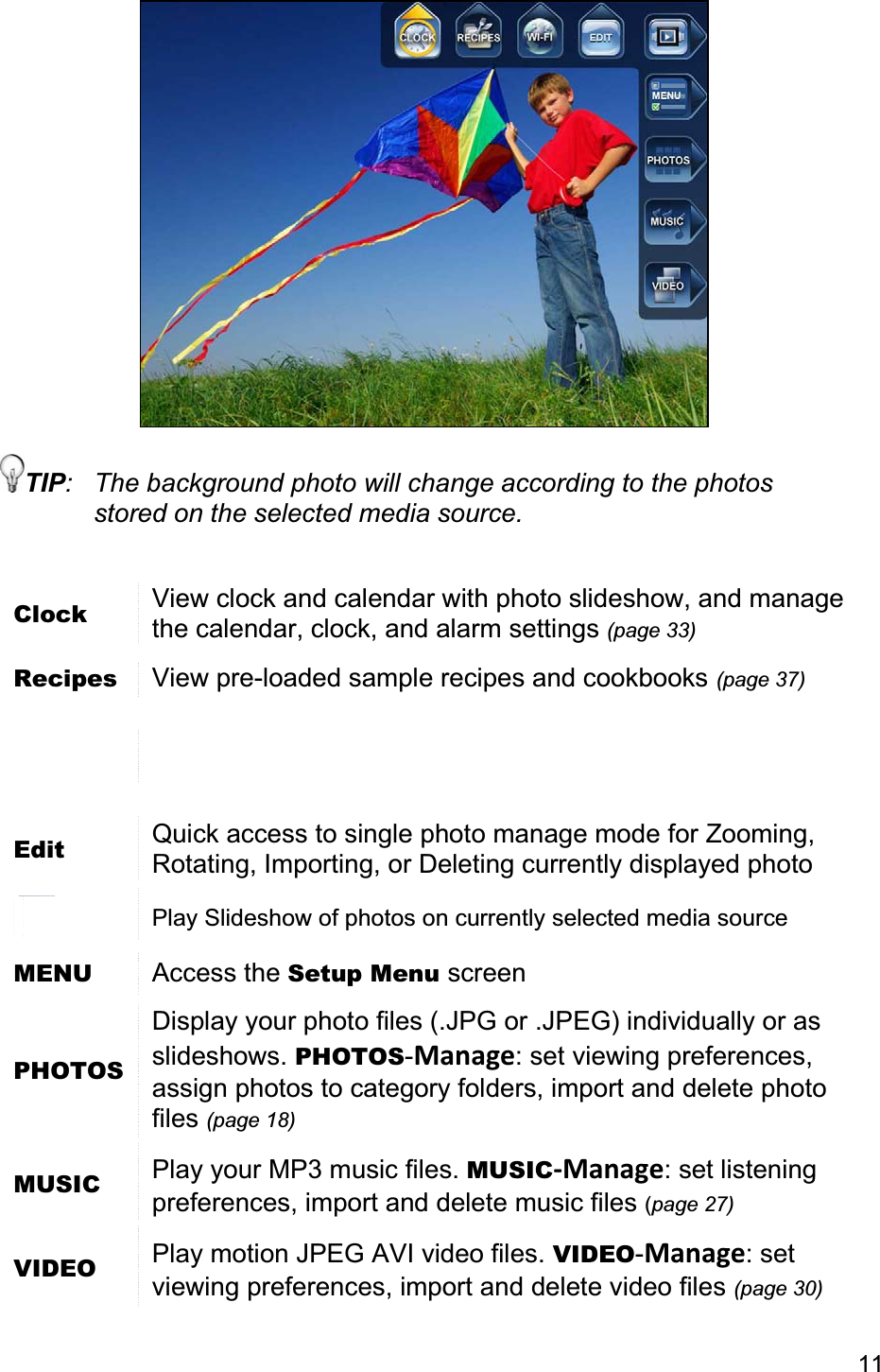
11TIP:  The background photo will change according to the photos stored on the selected media source. Clock View clock and calendar with photo slideshow, and manage the calendar, clock, and alarm settings (page 33)Recipes  View pre-loaded sample recipes and cookbooks (page 37)Edit Quick access to single photo manage mode for Zooming, Rotating, Importing, or Deleting currently displayed photo Play Slideshow of photos on currently selected media source MENU Access the Setup Menu screen PHOTOSDisplay your photo files (.JPG or .JPEG) individually or as slideshows. PHOTOS-Manage: set viewing preferences, assign photos to category folders, import and delete photo files (page 18)MUSIC  Play your MP3 music files. MUSIC-Manage: set listening preferences, import and delete music files (page 27)VIDEO  Play motion JPEG AVI video files. VIDEO-Manage: set viewing preferences, import and delete video files (page 30)
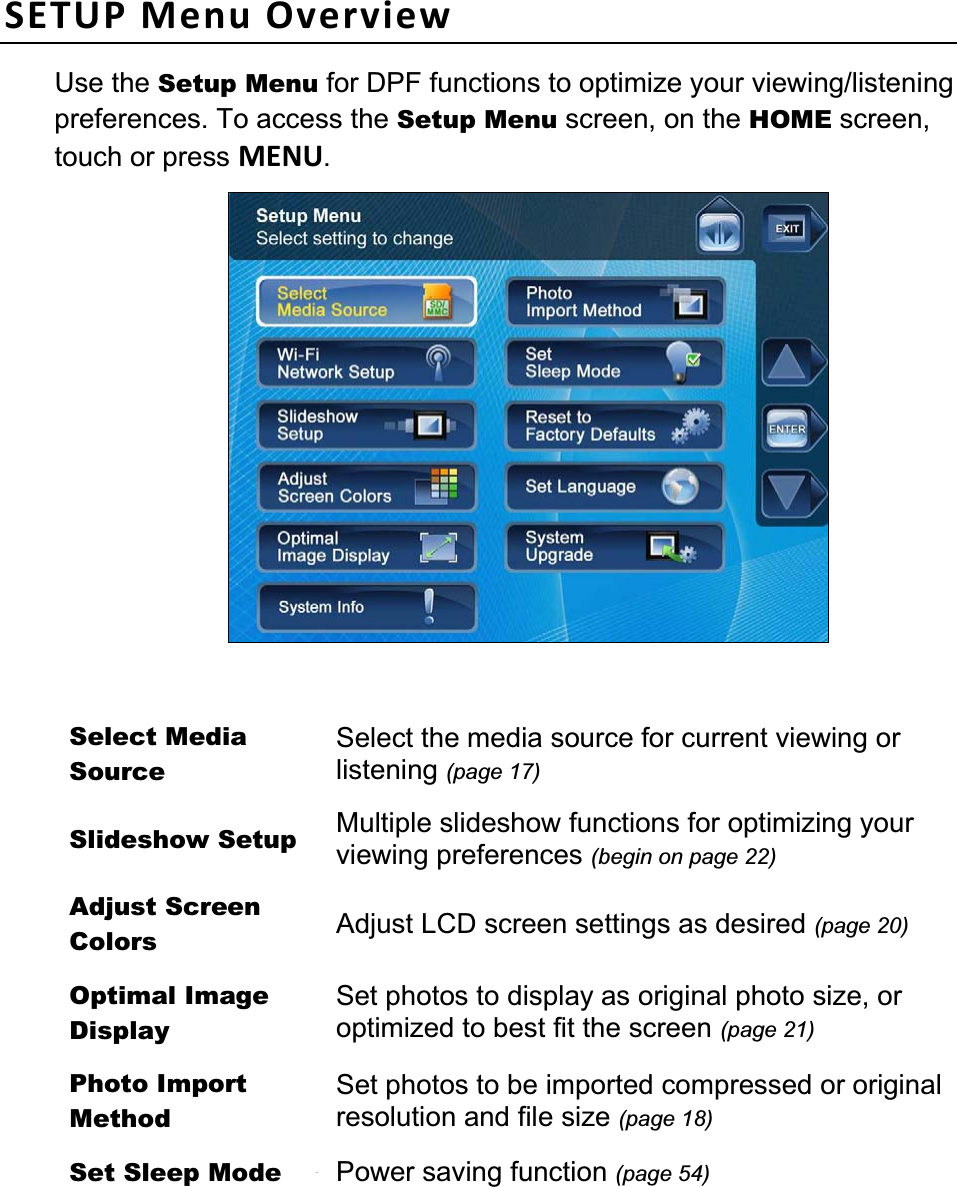
                                                                                                                                12 12SETUP Menu Overview Use the Setup Menu for DPF functions to optimize your viewing/listening preferences. To access the Setup Menu screen, on the HOME screen, touch or press MENU.Select Media Source Select the media source for current viewing or listening (page 17)Slideshow Setup  Multiple slideshow functions for optimizing your viewing preferences (begin on page 22)Adjust Screen Colors  Adjust LCD screen settings as desired (page 20)Optimal Image Display Set photos to display as original photo size, or optimized to best fit the screen (page 21)Photo Import Method Set photos to be imported compressed or original resolution and file size (page 18)Set Sleep Mode  Power saving function (page 54)Reset to Factory Defaults Returns all function settings to the factory defaults (page 54)
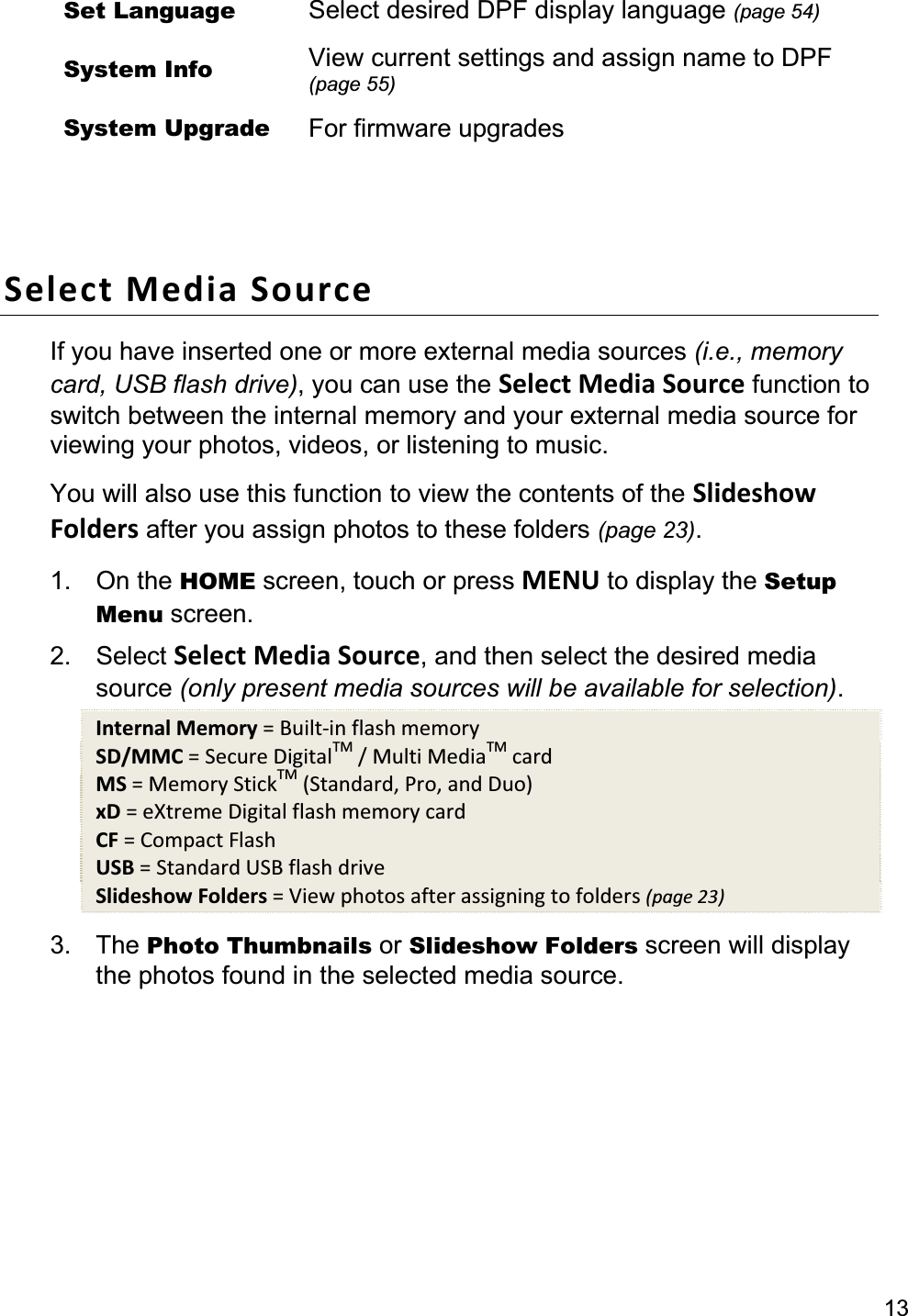
13Set Language  Select desired DPF display language (page 54)System Info  View current settings and assign name to DPF (page 55)System Upgrade  For firmware upgrades Select Media Source If you have inserted one or more external media sources (i.e., memory card, USB flash drive), you can use the Select Media Source function to switch between the internal memory and your external media source for viewing your photos, videos, or listening to music.You will also use this function to view the contents of the Slideshow Folders after you assign photos to these folders (page 23).1. On the HOME screen, touch or press MENU to display the Setup Menu screen. 2. Select Select Media Source, and then select the desired media source (only present media sources will be available for selection).Internal Memory = Built-in flash memory SD/MMC = Secure DigitalTM / Multi MediaTM card MS = Memory StickTM (Standard, Pro, and Duo) xD = eXtreme Digital flash memory card CF = Compact Flash USB = Standard USB flash drive Slideshow Folders = View photos after assigning to folders (page 23)3. The Photo Thumbnails or Slideshow Folders screen will display the photos found in the selected media source.
14PHOTOSThe PHOTOS feature includes many functions for playing slideshows, viewing individual photos, and for optimizing your viewing preferences. Display Photo Thumbnails Screen 1. On the HOME screen, select PHOTOS to display the Photo Thumbnails screen. 2.  To view a photo in full-screen, use the arrows to highlight the desired photo, and then touch View or press ENTER.Zoom or Rotate Photos   With an individual photo displayed (per above instructions),touch or press ZOOM or ROTATE, multiple times if required to achieve desired view. TIP:  When a photo is zoomed, you can pan around the photo by using the arrows to view portions of the photo that are not currently visible. Import Photos into Internal Memory You can import your photo files from external media sources (i.e., memory card, USB flash drive) into the DPF’s internal memory. The number of photo files you can import depends on file size and available memory. 1.  Insert your media source into the DPF. The memory card option screen will be displayed.2. To import all photos, touch IMPORT ALL PHOTOS.To import selected photos: a) Touch SELECT PHOTOS TO IMPORT.b) Touch MANAGE +.c)  Use the arrows to scroll through the photos, and then  touch    to select each photo you want to import.
15d) Touch IMPORT SEL.e) Confirm Yes or No.1.  Insert your media source into the DPF. The memory card option screen will be displayed. 2. To import all photos, select IMPORT ALL PHOTOS.To import individual photos: a) Select SELECT PHOTOS TO IMPORT.b) Use  to scroll through the photos, and then  press ‘+’ to select the desired photos to import.c) Press MENU, and then select IMPORT SEL.d) Confirm Yes or No.TIP:  After starting an import, you can touch CANCEL or press EXIT to stop the import operation. Photos that have already been imported will not automatically be deleted. Delete Photos from Internal Memory You can delete photo files from the DPF’s internal memory, but not from an external media source (i.e., memory card, USB flash drive).In order to delete photo files, you must have Internal Memory as your selected media source. TIP:  It is recommended to make backup copies of the photos before you delete them from the DPF. 1. On the HOME screen, select PHOTOS.2. Touch MANAGE +.3. To delete all photos, select DELETE ALL, and then confirm Yes or No.To delete selected photos: a)  Use the arrows to scroll through the photos, and then  use    to select each photo you want to delete.
                                                                                                                                               16b) Select DELETE SEL.c) Confirm Yes or No.1. On the HOME screen, select PHOTOS.2. To delete all photos, press MENU and then select DELETE ALL.To delete selected photos: a) Use  to scroll through the photos, and then  press ‘+’ to select (‘-‘ will deselect).b) Press MENU.c) Select DELETE SEL.d) Confirm Yes or No.TIP:  If, by mistake, you select Yes to delete photos, you can touch CANCEL or press EXIT to stop the delete operation. Photos already deleted will not automatically be restored. Adjust Screen Colors There are four LCD color level settings that you can adjust for optimal image viewing.   1. On the HOME screen, select MENU to display the Setup Menu screen.2. Select Adjust Screen Colors.3. Touch NEXT PHOTO to view the preferred photo for optimal balance adjustments. 4.  Touch the desired setting option button at the top of the screen; Brightness,Contrast,Tint, or Color.5.  Use the arrows to adjust the option setting until the desired view is achieved. 6. Select DONE to save the settings.
171. On the HOME screen, press MENU to display the Setup Menu screen. 2. Select Adjust Screen Colors.3. Use    to access the LCD option button. 4. Use to scroll through the LCD options, and use   to adjust the option setting until the desired view is achieved. 5. Press ENTER to access the DONE button to save the settings. Optimal Image Display The DPF can display your photos as original size or optimized to fit the screen size. 1. On the HOME screen, touch or press MENU to display the Setup Menu screen. 2. Select Optimal Image Display, and then select the desired setting (small green dot indicates selected option).Original = Displays photos with actual photo size, which may result in part of a photo not being visible on the screen. Optimal (default) = Optimizes the size and resolution to best fit the screen. Photo Import Method When importing files into the internal memory from an external media source, the file can be optimized or left as the original file size and resolution. 1. On the HOME screen, touch or press MENU to display the Setup Menu screen. 2. Select Photo Import Method, and then select the desired setting (small green dot indicates selected option).Optimized (default) = The photo file is downscaled in size and compressed into a smaller sized JPEG, allowing more photos to be stored in the internal memory. Original = The photo file is stored keeping its original size and resolution.
                                                                                                                                            18PHOTO SLIDESHOWS The DPF can display all of the photos on the selected media source as a slideshow, or you can select specific photos for a custom slideshow. You can also have background music with your slideshows simply by storing music MP3 files on your selected media source. Slideshow of Photos in Internal Memory You can play a slideshow of the photos stored in the DPF’s internal memory by simply powering on the DPF (if no external media source or is inserted) and then wait for the slideshow to automatically begin. Slideshow of Photos on your Media Source Insert an external media source (i.e., memory card) into the DPF; a memory source option screen is displayed for 15 seconds and then the slideshow will begin automatically unless you choose one of the three options. Pause a Slideshow To pause a slideshow, touch or press EXIT. The slideshow will pause for approximately 30 seconds, and then will automatically resume playing.To resume the slideshow without waiting for the 30-second timeout, touch  or press ENTER.Slideshow Background Music To play background music during a slideshow, simply copy at least one music MP3 file onto the same media source as your photos. The music will automatically play as the slideshow is displayed. If you have multiple MP3 files on your media source, each music file will play in succession until all have been played, and then will repeat according to the Music Repeat Mode setting (page 28).
19Adjust the Volume While the music is playing, activate the PanTouch interface and then select the on-screen volume + or - buttons, or press the remote control ‘+’ or ‘-‘ buttons. Mute the Background Music Press ENTER or activate the PanTouch interface and then touch  .The slideshow will continue to play with the music muted until you press ENTER again or touch  .Slideshow Folders There are five category folders in the internal memory into which you can assign photo files for personalized organization and slideshows (these folder names cannot be changed):      Family – Friends – Vacation – Events – Others Only photos stored in the internal memory can be assigned to the slideshow folders. Assigned photos are not physically moved or copied into the folders, rather, a link is assigned to the photo so it appears to be located in the folder. If you delete the actual photo file from internal memory, the link to the folder will also be deleted. Copy Photos into Slideshow Folders 1. On the HOME screen, select PHOTOS.2. Touch MANAGE +.3.  Use the arrows to highlight the desired photos, select   to select each photo, and then select COPY TO.4.  Use the arrows to highlight the desired slideshow folder into which you will copy the selected photos, and then select ENTER.1. On the HOME screen, select PHOTOS.2. Press ‘+’ to select desired photos (‘-‘ will deselect).3. Press MENU.
204. Select COPY TO, and then select the desired folder into which you will copy the photos.Play Slideshow from Slideshow Folder 1. On the HOME screen, touch or press MENU to display the Setup Menu screen. 2. Select Select Media Source.3. Select Slideshow Folders.4.  Select the desired folder containing the photos you want to view in your slideshow. 5. Touch or press EXIT to return to the HOME screen, and then touch  or press SLIDESHOW.Copy or Move Photos to Different Folders After assigning photos to folders, you can copy or move those photos to other folders. 1.  With the slideshow folders slideshow playing (per above), touch EXIT twice to display the Folder Thumbnails screen.2. Touch MANAGE +.3.  Use the arrows to scroll through the photos, and then use   to select the photos you want to copy or move.4. Touch COPY TO or MOVE TO.5.  Select the desired folder into which you want to copyor move the selected photos. 1.  With the slideshow folders slideshow playing (per above), press EXIT twice to display the Folder Thumbnails screen. 2. Use  to scroll through the photos, press ‘+’to select (‘-‘ will deselect).
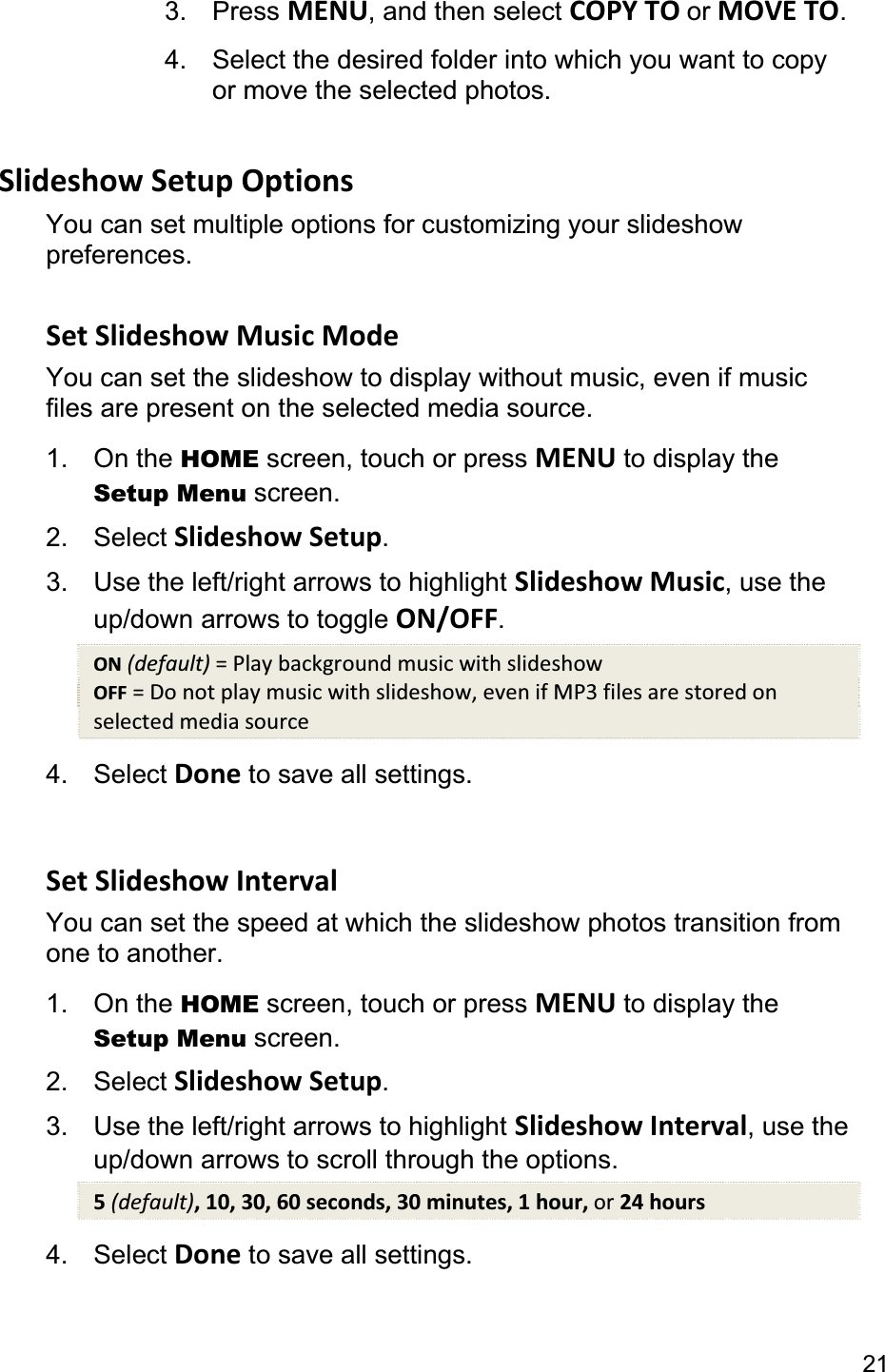
213. Press MENU, and then select COPY TO or MOVE TO.4.  Select the desired folder into which you want to copyor move the selected photos.   Slideshow Setup Options You can set multiple options for customizing your slideshow preferences.  Set Slideshow Music Mode You can set the slideshow to display without music, even if music files are present on the selected media source. 1. On the HOME screen, touch or press MENU to display the Setup Menu screen. 2. Select Slideshow Setup.3.  Use the left/right arrows to highlight Slideshow Music, use the up/down arrows to toggle ON/OFF.ON (default) = Play background music with slideshow OFF = Do not play music with slideshow, even if MP3 files are stored on selected media source 4. Select Done to save all settings. Set Slideshow Interval You can set the speed at which the slideshow photos transition from one to another.   1. On the HOME screen, touch or press MENU to display the Setup Menu screen. 2. Select Slideshow Setup.3.  Use the left/right arrows to highlight Slideshow Interval, use the up/down arrows to scroll through the options. 5(default), 10, 30, 60 seconds, 30 minutes, 1 hour, or 24 hours 4. Select Done to save all settings.
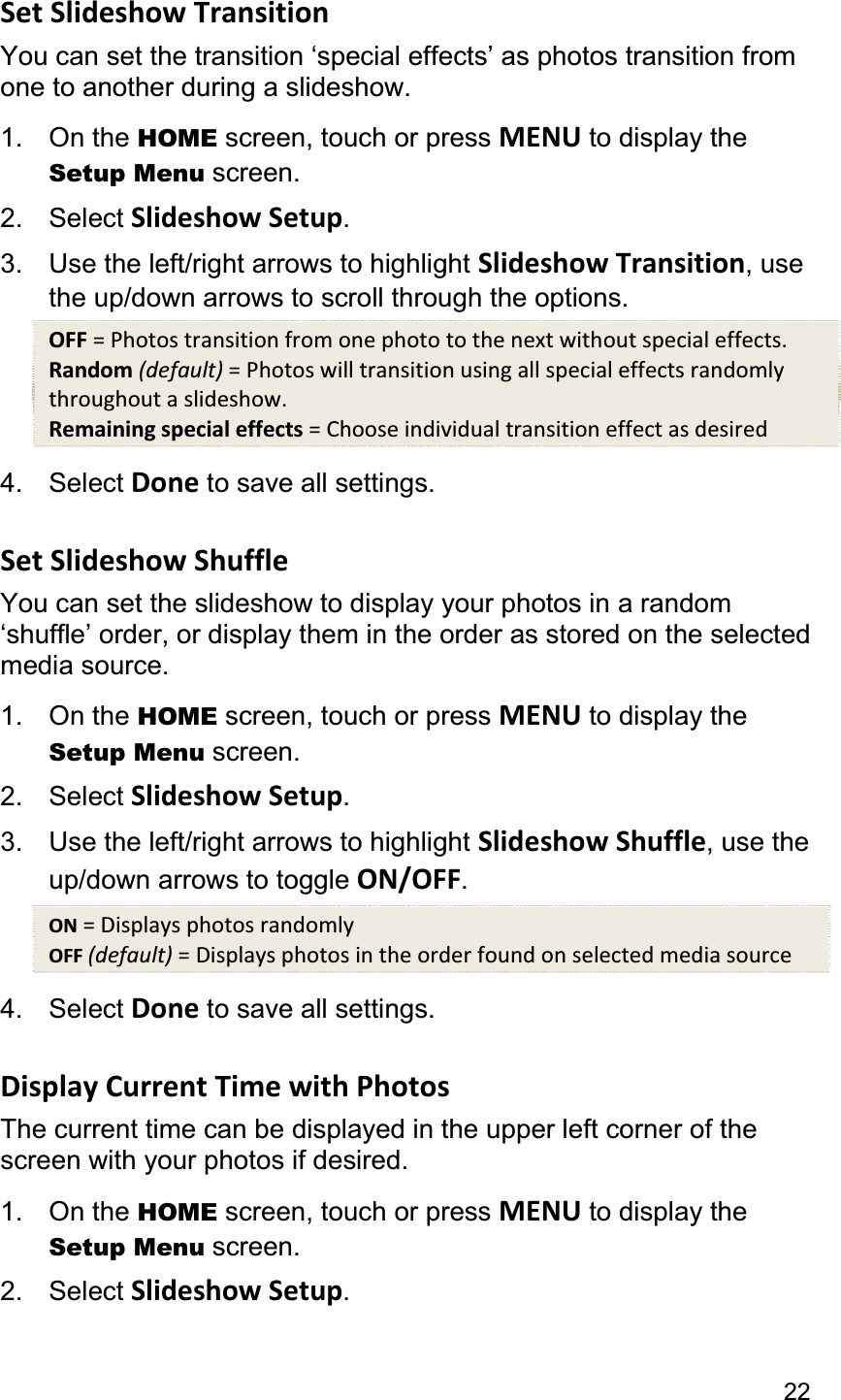
22Set Slideshow Transition You can set the transition ‘special effects’ as photos transition from one to another during a slideshow. 1. On the HOME screen, touch or press MENU to display the Setup Menu screen. 2. Select Slideshow Setup.3.  Use the left/right arrows to highlight Slideshow Transition, use the up/down arrows to scroll through the options. OFF = Photos transition from one photo to the next without special effects. Random (default) = Photos will transition using all special effects randomly throughout a slideshow. Remaining special effects = Choose individual transition effect as desired 4. Select Done to save all settings. Set Slideshow Shuffle You can set the slideshow to display your photos in a random ‘shuffle’ order, or display them in the order as stored on the selected media source. 1. On the HOME screen, touch or press MENU to display the Setup Menu screen. 2. Select Slideshow Setup.3.  Use the left/right arrows to highlight Slideshow Shuffle, use the up/down arrows to toggle ON/OFF.ON = Displays photos randomly OFF (default) = Displays photos in the order found on selected media source 4. Select Done to save all settings. Display Current Time with Photos The current time can be displayed in the upper left corner of the screen with your photos if desired. 1. On the HOME screen, touch or press MENU to display the Setup Menu screen. 2. Select Slideshow Setup.
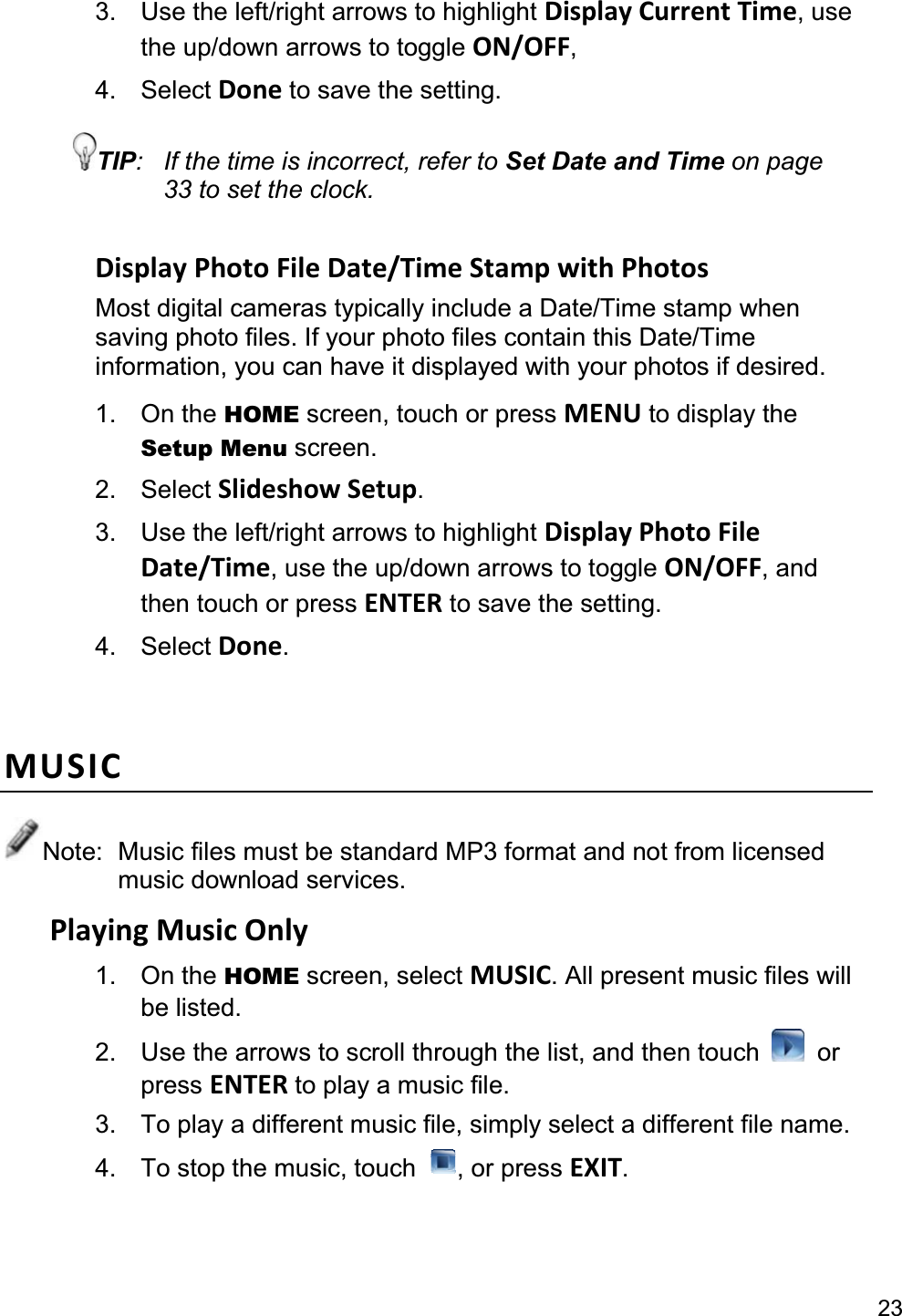
233.  Use the left/right arrows to highlight Display Current Time, use the up/down arrows to toggle ON/OFF,4. Select Done to save the setting. TIP:  If the time is incorrect, refer to Set Date and Time on page 33 to set the clock. Display Photo File Date/Time Stamp with Photos Most digital cameras typically include a Date/Time stamp when saving photo files. If your photo files contain this Date/Time information, you can have it displayed with your photos if desired. 1. On the HOME screen, touch or press MENU to display the Setup Menu screen. 2. Select Slideshow Setup.3.  Use the left/right arrows to highlight Display Photo File Date/Time, use the up/down arrows to toggle ON/OFF, and then touch or press ENTER to save the setting. 4. Select Done.MUSICNote:  Music files must be standard MP3 format and not from licensed music download services. Playing Music Only 1. On the HOME screen, select MUSIC. All present music files will be listed. 2.  Use the arrows to scroll through the list, and then touch  or press ENTER to play a music file. 3.  To play a different music file, simply select a different file name. 4.  To stop the music, touch  , or press EXIT.
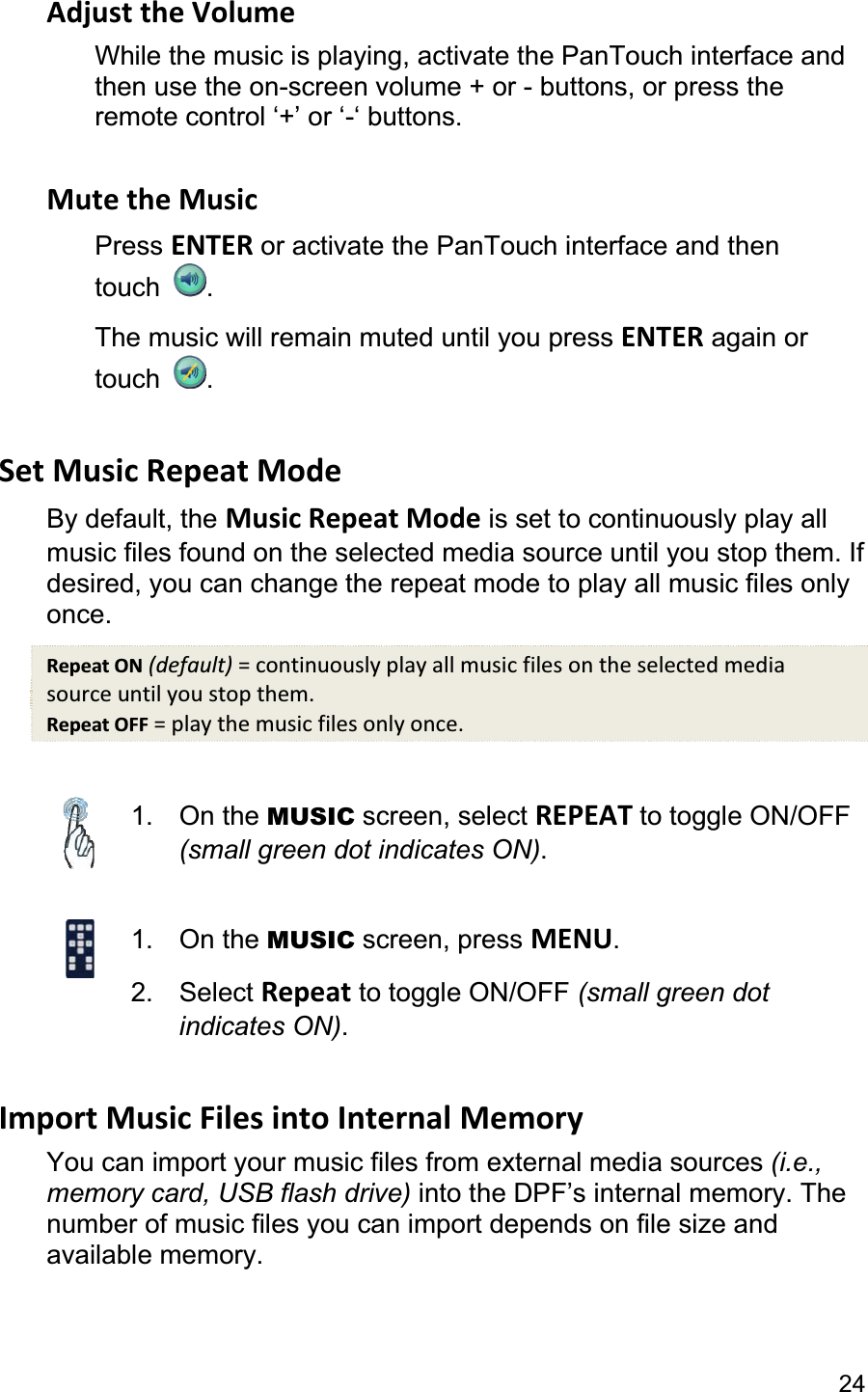
24Adjust the Volume While the music is playing, activate the PanTouch interface and then use the on-screen volume + or - buttons, or press the remote control ‘+’ or ‘-‘ buttons. Mute the Music Press ENTER or activate the PanTouch interface and then touch  .The music will remain muted until you press ENTER again or touch  .Set Music Repeat Mode By default, the Music Repeat Mode is set to continuously play all music files found on the selected media source until you stop them. If desired, you can change the repeat mode to play all music files only once.Repeat ON (default) = continuously play all music files on the selected media source until you stop them. Repeat OFF = play the music files only once. 1. On the MUSIC screen, select REPEAT to toggle ON/OFF (small green dot indicates ON).1. On the MUSIC screen, press MENU.2. Select Repeat to toggle ON/OFF (small green dot indicates ON).Import Music Files into Internal Memory You can import your music files from external media sources (i.e., memory card, USB flash drive) into the DPF’s internal memory. The number of music files you can import depends on file size and available memory.
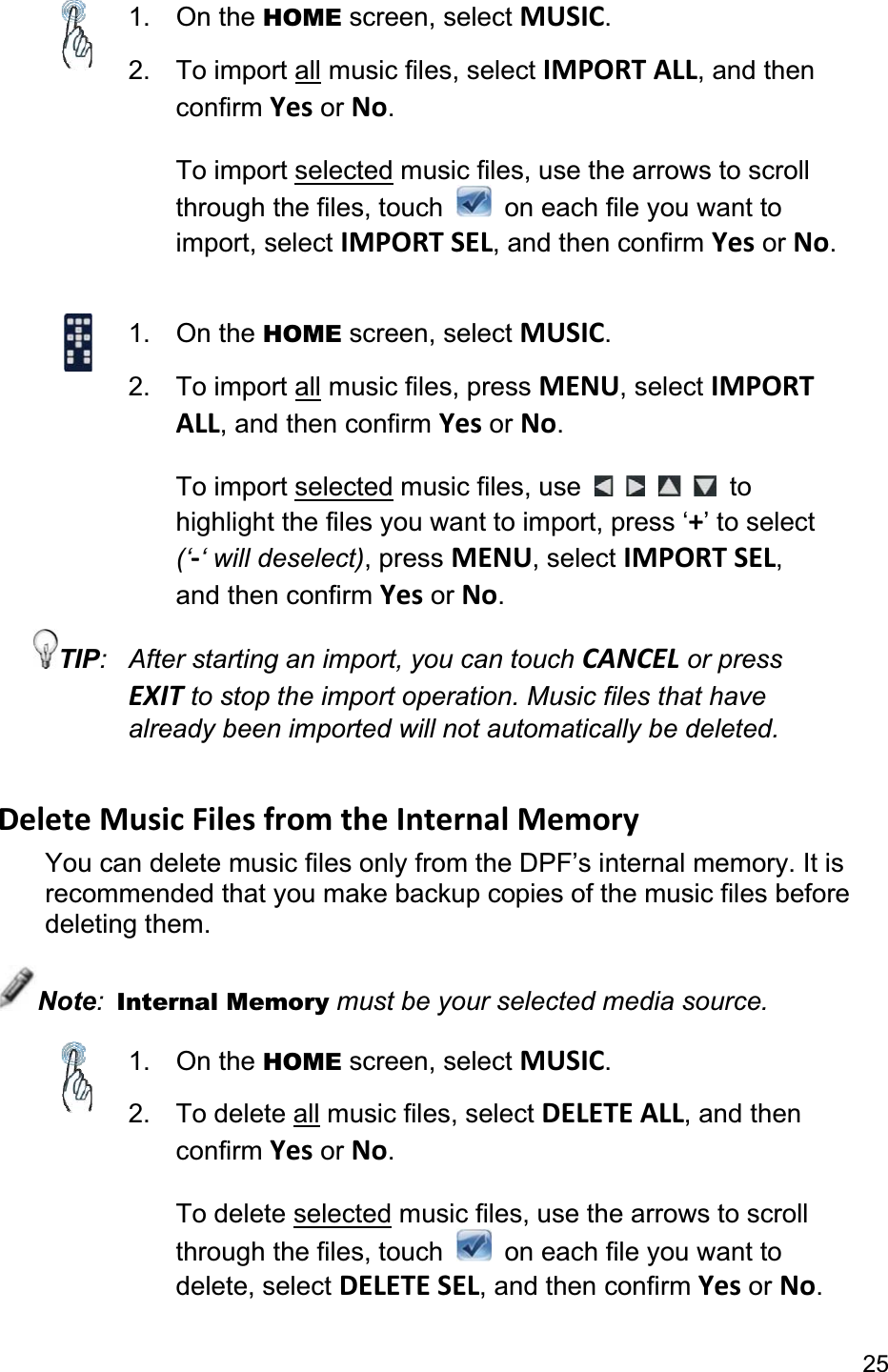
251. On the HOME screen, select MUSIC.2. To import all music files, select IMPORT ALL, and then confirm Yes or No.To import selected music files, use the arrows to scroll through the files, touch    on each file you want to import, select IMPORT SEL, and then confirm Yes or No.1. On the HOME screen, select MUSIC.2. To import all music files, press MENU, select IMPORTALL, and then confirm Yes or No.To import selected music files, use  to highlight the files you want to import, press ‘+’ to select (‘-‘ will deselect), press MENU, select IMPORT SEL,and then confirm Yes or No.TIP:  After starting an import, you can touch CANCEL or press EXIT to stop the import operation. Music files that have already been imported will not automatically be deleted. Delete Music Files from the Internal Memory You can delete music files only from the DPF’s internal memory. It is recommended that you make backup copies of the music files before deleting them. Note:Internal Memory must be your selected media source. 1. On the HOME screen, select MUSIC.2. To delete all music files, select DELETE ALL, and then confirm Yes or No.To delete selected music files, use the arrows to scroll through the files, touch    on each file you want to delete, select DELETE SEL, and then confirm Yes or No.
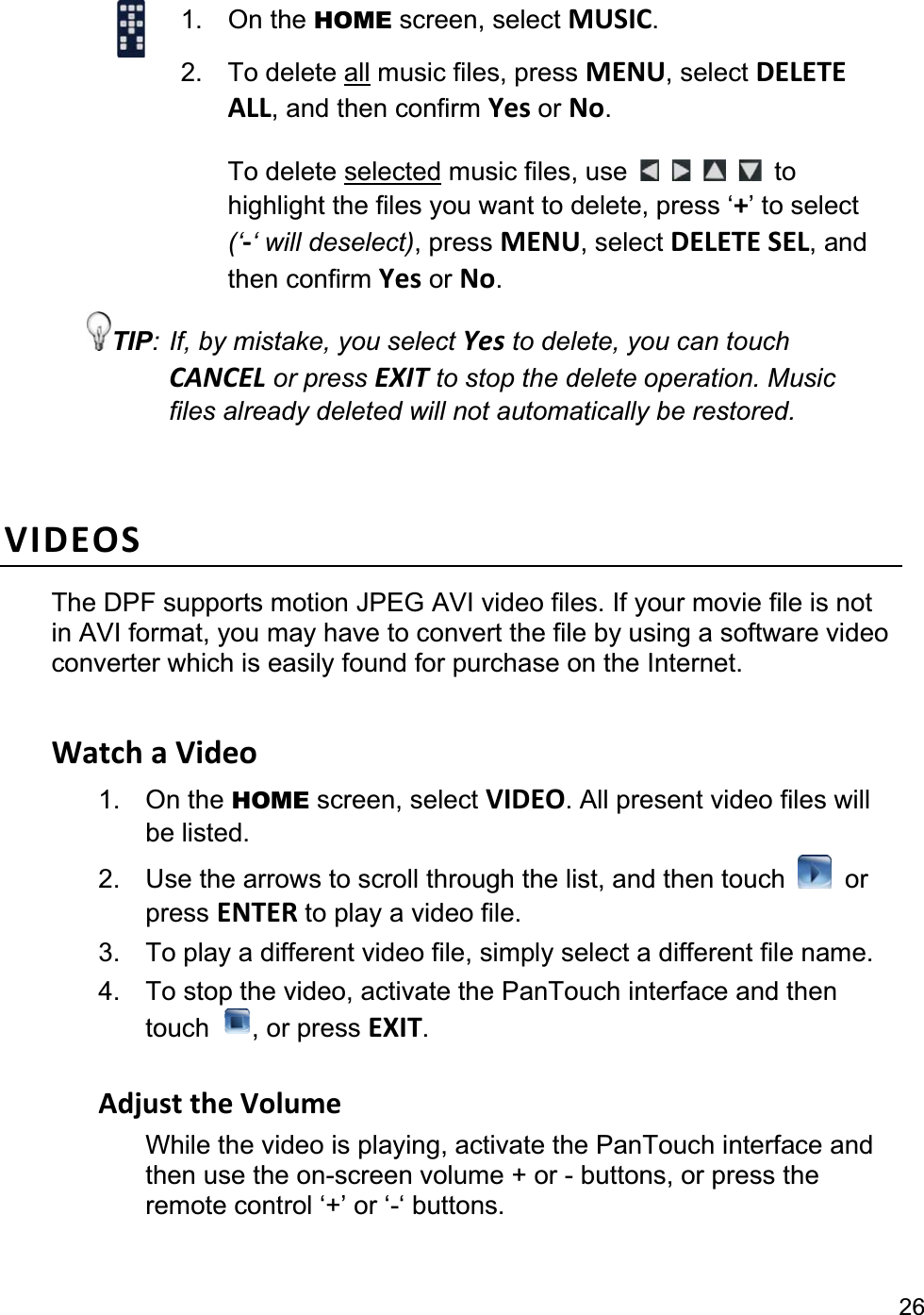
                                                                                                                                                261. On the HOME screen, select MUSIC.2. To delete all music files, press MENU, select DELETE ALL, and then confirm Yes or No.To delete selected music files, use  to highlight the files you want to delete, press ‘+’ to select (‘-‘ will deselect), press MENU, select DELETE SEL, and then confirm Yes or No.TIP: If, by mistake, you select Yes to delete, you can touch CANCEL or press EXIT to stop the delete operation. Music files already deleted will not automatically be restored. VIDEOSThe DPF supports motion JPEG AVI video files. If your movie file is not in AVI format, you may have to convert the file by using a software video converter which is easily found for purchase on the Internet. Watch a Video 1. On the HOME screen, select VIDEO. All present video files will be listed. 2.  Use the arrows to scroll through the list, and then touch  or press ENTER to play a video file. 3.  To play a different video file, simply select a different file name. 4.  To stop the video, activate the PanTouch interface and then touch  , or press EXIT.Adjust the Volume While the video is playing, activate the PanTouch interface and then use the on-screen volume + or - buttons, or press the remote control ‘+’ or ‘-‘ buttons.
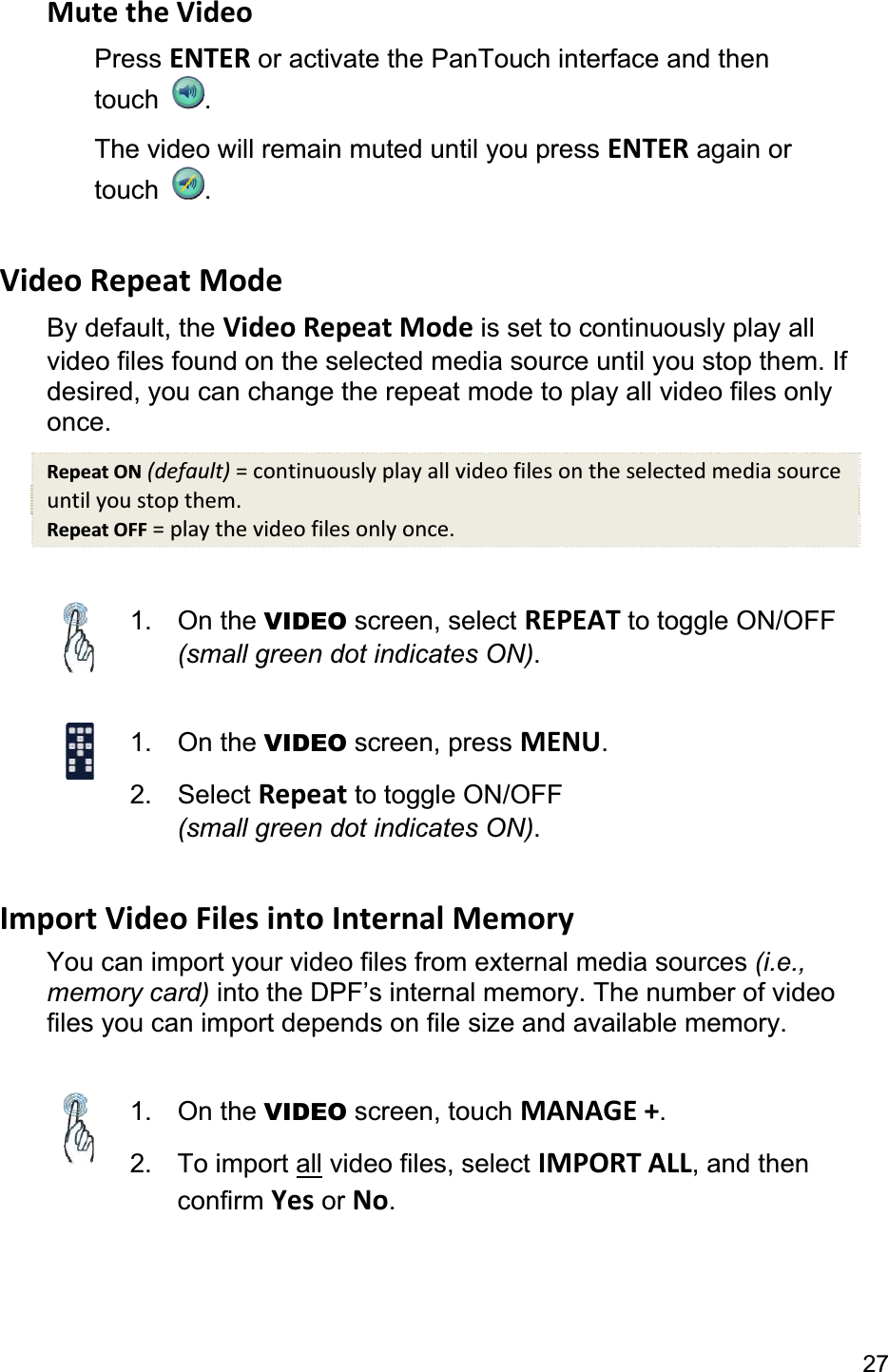
27Mute the Video Press ENTER or activate the PanTouch interface and then touch  .The video will remain muted until you press ENTER again or touch  .Video Repeat Mode By default, the Video Repeat Mode is set to continuously play all video files found on the selected media source until you stop them. If desired, you can change the repeat mode to play all video files only once.Repeat ON (default) = continuously play all video files on the selected media source until you stop them. Repeat OFF = play the video files only once. 1. On the VIDEO screen, select REPEAT to toggle ON/OFF (small green dot indicates ON).1. On the VIDEO screen, press MENU.2. Select Repeat to toggle ON/OFF(small green dot indicates ON).Import Video Files into Internal Memory You can import your video files from external media sources (i.e., memory card) into the DPF’s internal memory. The number of video files you can import depends on file size and available memory. 1. On the VIDEO screen, touch MANAGE +.2. To import all video files, select IMPORT ALL, and then confirm Yes or No.
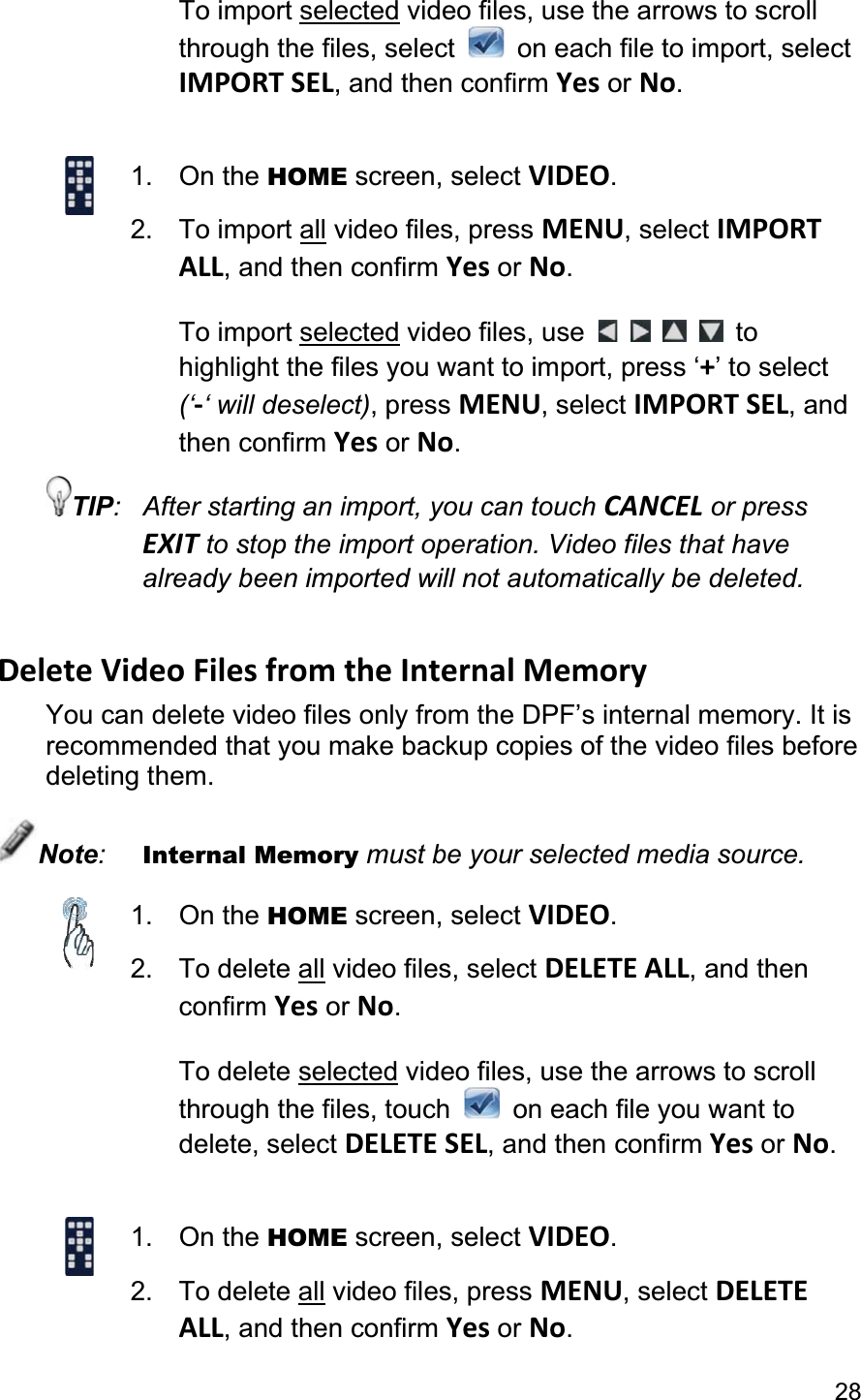
                                                                                                                                           28To import selected video files, use the arrows to scroll through the files, select    on each file to import, select IMPORT SEL, and then confirm Yes or No.1. On the HOME screen, select VIDEO.2. To import all video files, press MENU, select IMPORT ALL, and then confirm Yes or No.To import selected video files, use  tohighlight the files you want to import, press ‘+’ to select (‘-‘ will deselect), press MENU, select IMPORT SEL, and then confirm Yes or No.TIP:  After starting an import, you can touch CANCEL or press EXIT to stop the import operation. Video files that have already been imported will not automatically be deleted. Delete Video Files from the Internal Memory You can delete video files only from the DPF’s internal memory. It is recommended that you make backup copies of the video files before deleting them. Note:Internal Memory must be your selected media source. 1. On the HOME screen, select VIDEO.2. To delete all video files, select DELETE ALL, and then confirm Yes or No.To delete selected video files, use the arrows to scroll through the files, touch    on each file you want to delete, select DELETE SEL, and then confirm Yes or No.1. On the HOME screen, select VIDEO.2. To delete all video files, press MENU, select DELETEALL, and then confirm Yes or No.
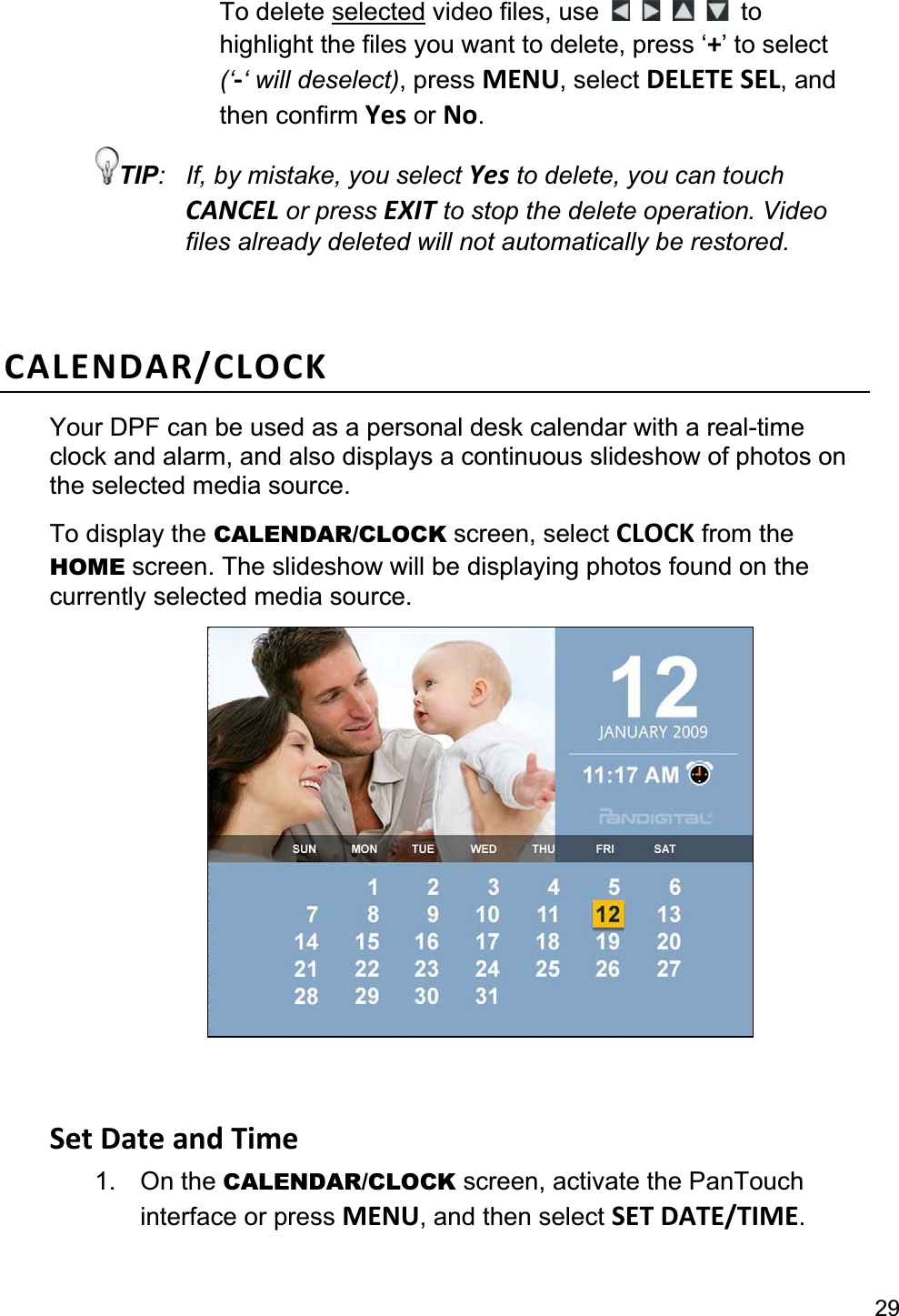
29To delete selected video files, use  tohighlight the files you want to delete, press ‘+’ to select (‘-‘ will deselect), press MENU, select DELETE SEL, and then confirm Yes or No.TIP:  If, by mistake, you select Yes to delete, you can touch CANCEL or press EXIT to stop the delete operation. Video files already deleted will not automatically be restored. CALENDAR/CLOCK Your DPF can be used as a personal desk calendar with a real-timeclock and alarm, and also displays a continuous slideshow of photos on the selected media source. To display the CALENDAR/CLOCK screen, select CLOCK from the HOME screen. The slideshow will be displaying photos found on the currently selected media source. Set Date and Time 1. On the CALENDAR/CLOCK screen, activate the PanTouch interface or press MENU, and then select SET DATE/TIME.
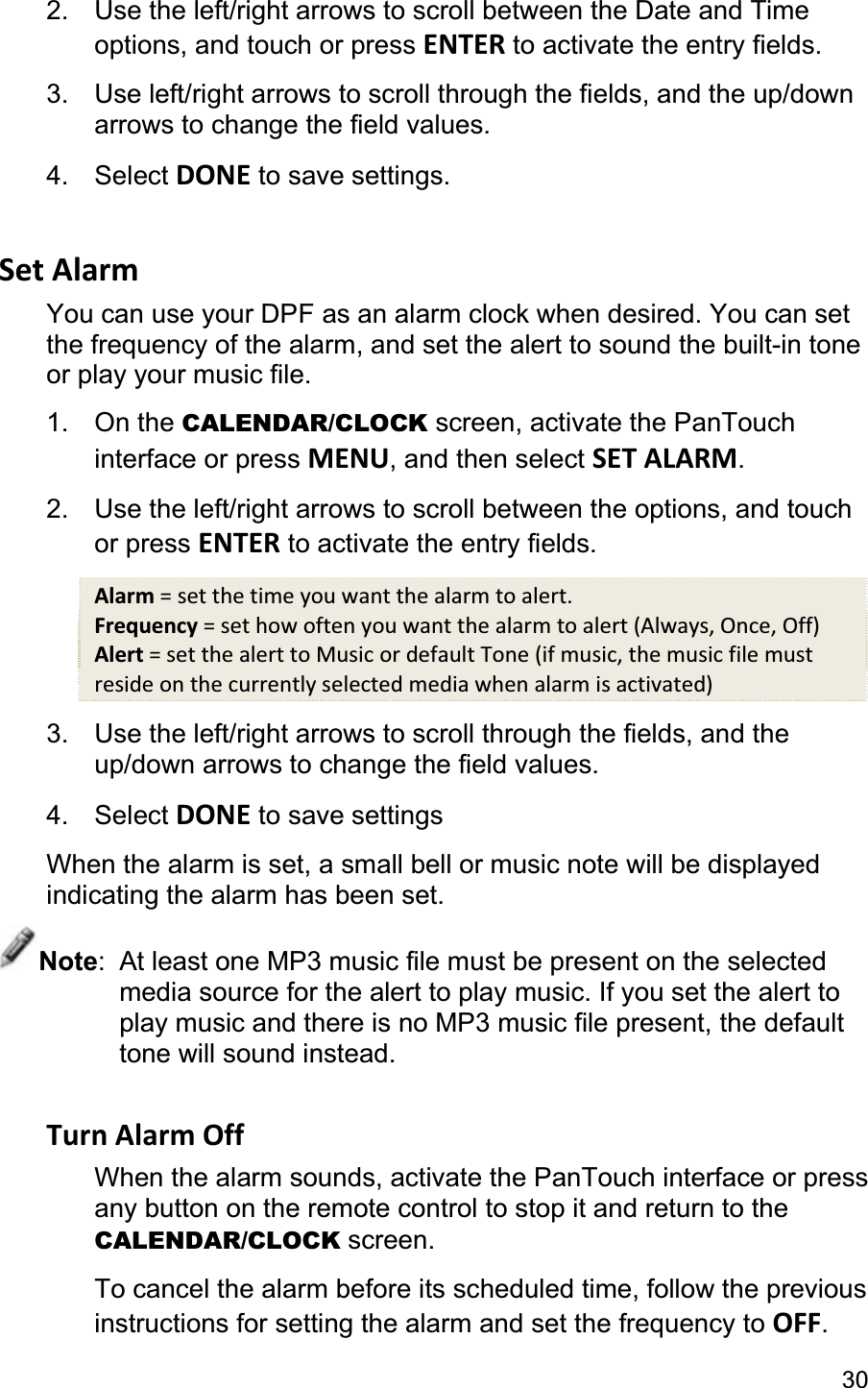
302.  Use the left/right arrows to scroll between the Date and Time options, and touch or press ENTER to activate the entry fields. 3.  Use left/right arrows to scroll through the fields, and the up/down arrows to change the field values.4. Select DONE to save settings.Set Alarm You can use your DPF as an alarm clock when desired. You can set the frequency of the alarm, and set the alert to sound the built-in tone or play your music file. 1. On the CALENDAR/CLOCK screen, activate the PanTouch interface or press MENU, and then select SET ALARM.2.  Use the left/right arrows to scroll between the options, and touchor press ENTER to activate the entry fields. Alarm = set the time you want the alarm to alert. Frequency = set how often you want the alarm to alert (Always, Once, Off) Alert = set the alert to Music or default Tone (if music, the music file must reside on the currently selected media when alarm is activated) 3.  Use the left/right arrows to scroll through the fields, and the up/down arrows to change the field values. 4. Select DONE to save settings When the alarm is set, a small bell or music note will be displayed indicating the alarm has been set. Note:  At least one MP3 music file must be present on the selected media source for the alert to play music. If you set the alert to play music and there is no MP3 music file present, the default tone will sound instead. Turn Alarm Off When the alarm sounds, activate the PanTouch interface or press any button on the remote control to stop it and return to the CALENDAR/CLOCK screen. To cancel the alarm before its scheduled time, follow the previous instructions for setting the alarm and set the frequency to OFF.
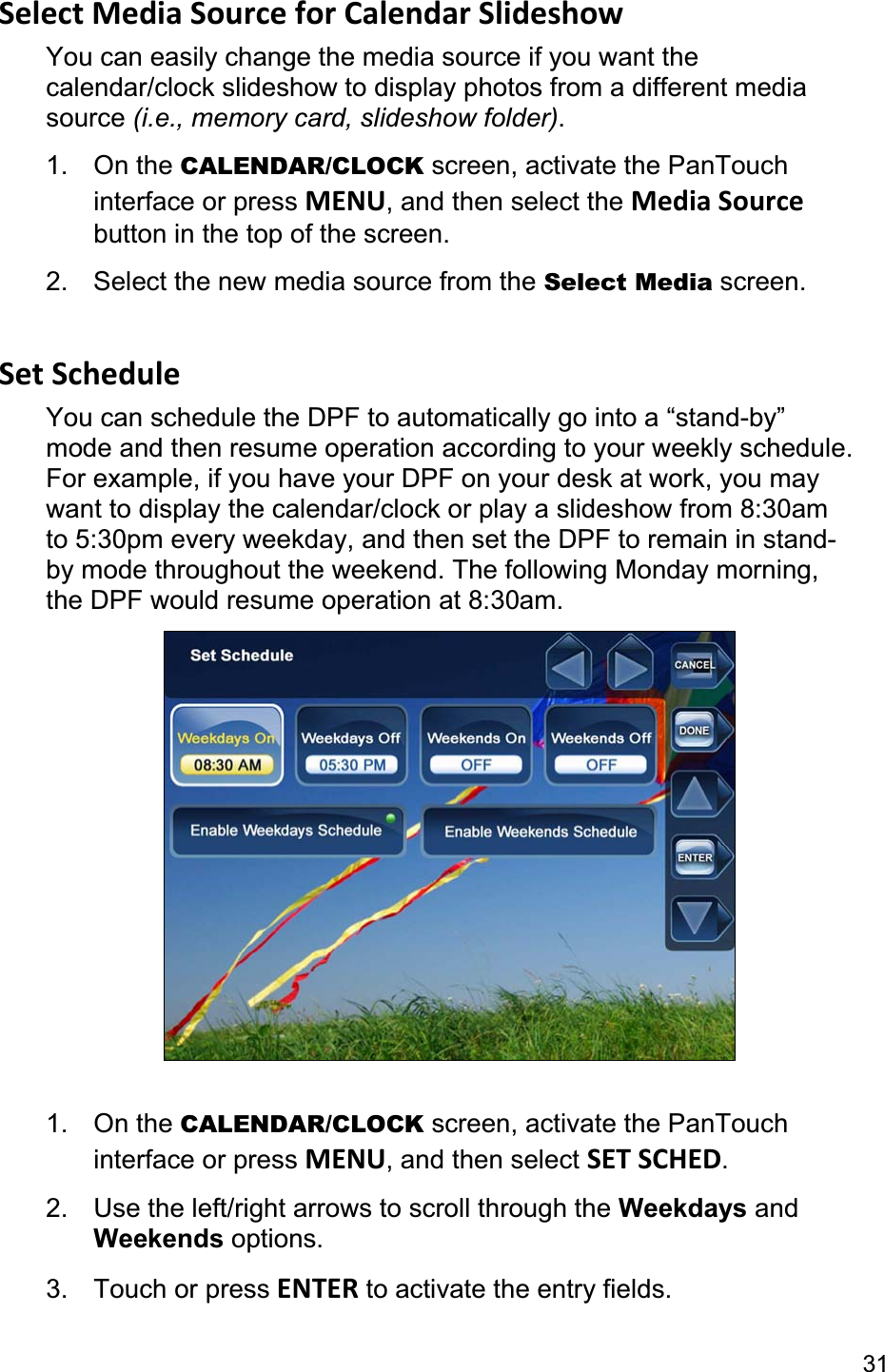
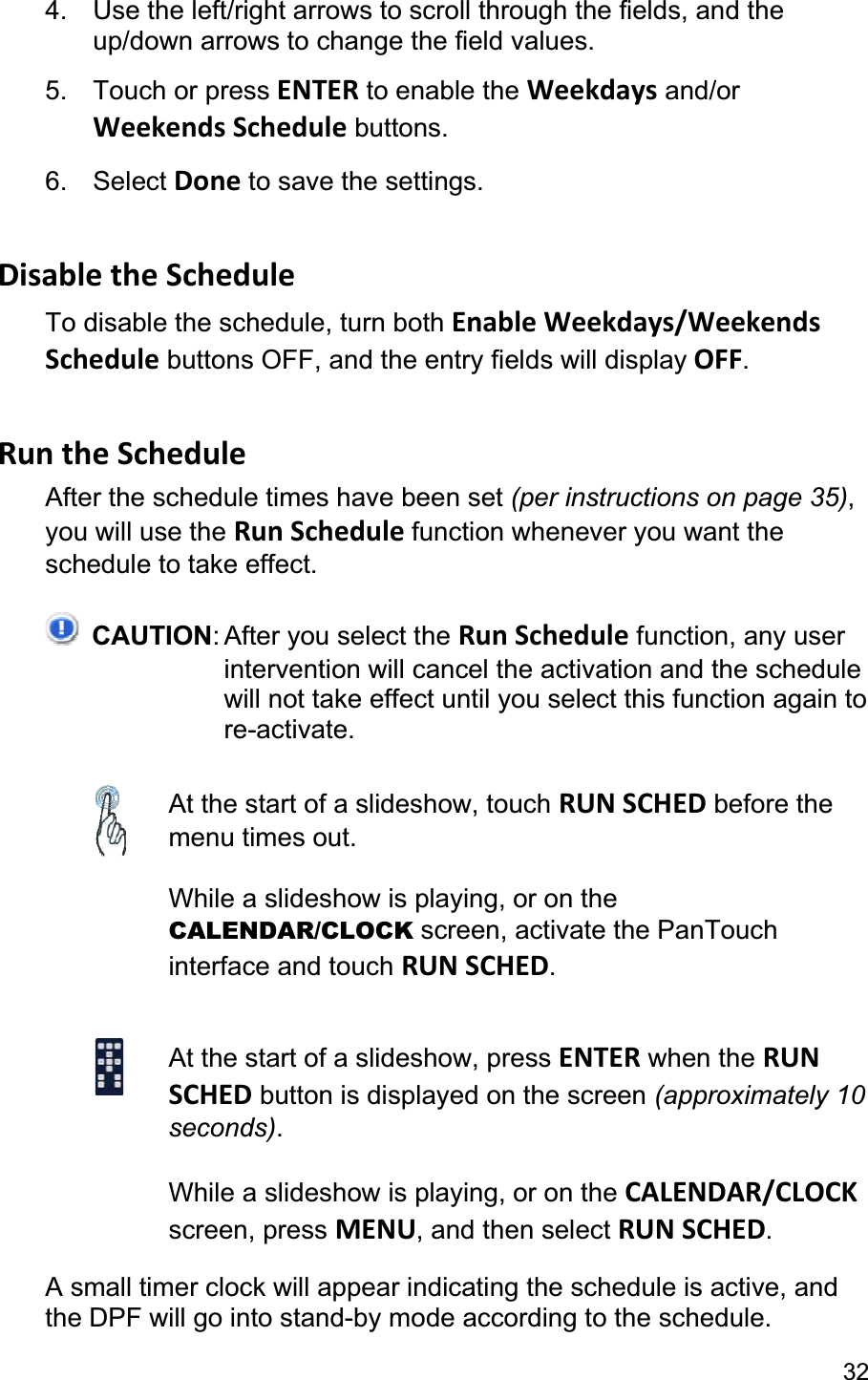
31Select Media Source for Calendar Slideshow You can easily change the media source if you want the calendar/clock slideshow to display photos from a different media source (i.e., memory card, slideshow folder).1. On the CALENDAR/CLOCK screen, activate the PanTouch interface or press MENU, and then select the Media Sourcebutton in the top of the screen. 2.  Select the new media source from the Select Media screen. Set Schedule You can schedule the DPF to automatically go into a “stand-by” mode and then resume operation according to your weekly schedule. For example, if you have your DPF on your desk at work, you may want to display the calendar/clock or play a slideshow from 8:30am to 5:30pm every weekday, and then set the DPF to remain in stand-by mode throughout the weekend. The following Monday morning, the DPF would resume operation at 8:30am. 1. On the CALENDAR/CLOCK screen, activate the PanTouch interface or press MENU, and then select SET SCHED.2.  Use the left/right arrows to scroll through the Weekdays and Weekends options. 3. Touch or press ENTER to activate the entry fields.
324.  Use the left/right arrows to scroll through the fields, and the up/down arrows to change the field values. 5. Touch or press ENTER to enable the Weekdays and/or Weekends Schedule buttons. 6. Select Done to save the settings. Disable the Schedule To disable the schedule, turn both Enable Weekdays/Weekends Schedule buttons OFF, and the entry fields will display OFF.Run the Schedule After the schedule times have been set (per instructions on page 35),you will use the Run Schedule function whenever you want the schedule to take effect. CAUTION: After you select the Run Schedule function, any user intervention will cancel the activation and the schedule will not take effect until you select this function again to re-activate. At the start of a slideshow, touch RUN SCHED before the menu times out. While a slideshow is playing, or on the CALENDAR/CLOCK screen, activate the PanTouch interface and touch RUN SCHED.At the start of a slideshow, press ENTER when the RUN SCHED button is displayed on the screen (approximately 10 seconds).While a slideshow is playing, or on the CALENDAR/CLOCKscreen, press MENU, and then select RUN SCHED.A small timer clock will appear indicating the schedule is active, and the DPF will go into stand-by mode according to the schedule.
33RECIPES The DPF’s Recipes feature allows you to view recipes from popular authors such as Bon Appétit and Good Housekeeping (sold separately on our website http://www.pandigital.net).Sample Bon Appétit seasonal recipes are included with this DPF so you can experience how the recipe feature works when you purchase and install the complete seasonal cookbooks. Note:  The Recipes feature is accessible only when the Internal Memory is the selected media source (page 17.) You will use these instructions for the pre-loaded sample recipes as well as the complete cookbook collections. View Recipes in Cookbook 1. On the HOME screen, select RECIPES to display the Cookbooks screen.2.  Select a Cookbook to display the Cookbook Thumbnailsscreen.3.  Use the arrows to highlight the recipes, and then touch VIEW or press ENTER to display a recipe in full screen. While the individual recipe is displayed, you can touch or press ZOOM to enlarge the recipe. You can also use the arrows to display the previous/next recipes.Copy Recipes to ‘My Favorite Recipes’ You can copy recipes from a main Cookbook into six food group categories for quick and easy retrieval: Hors d’oeuvres, Soups, Salads, Entrées, Desserts and Others.(The food group category names are not changeable).1. On the HOME screen, select RECIPES.2.  Select a Cookbook to display the Cookbook Thumbnailsscreen.
343. Use the arrows to scroll through the recipes, touch on each recipe that you want to copy, and then selectCOPY TO.Use  to scroll through the recipes, press ‘+’ on each recipe that you want to copy, press MENU, and then select COPY TO.4.  Select the desired food group category into which you want to copy the recipes. View the Recipes in ‘My Favorite Recipes’ After you have copied recipes into the food group categories (perinstructions above) you can quickly view them at any time. 1. On the RECIPES screen, select My Favorite Recipes.2.  Select the desired food group category to view. 3.  Use the arrows to highlight the recipes, and then select VIEW or press ENTER to display a recipe in full screen. While the individual recipe is displayed, you can touch or press ZOOM to enlarge the recipe. You can also use the arrows to display the previous/next recipes. Delete, Move, or Copy Recipes from Categories After you have copied recipes into food group categories, you can delete them from the category, move, or copy them from one category into another when desired.1. On the RECIPES screen, select My Favorite Recipes.2.  Select the desired food group category from which you will delete, move, or copy recipes.3. Use the arrows to scroll through the recipes, touch   on each recipe that you want to copy, move, or delete, and then select COPY TO, MOVE TO, or DELETE.
35Use  to scroll through the recipes, press ‘+’ on each recipe that you want to copy, move, or delete. Press MENU, and then select COPY TO,MOVE TO, or DELETE.4.  When applicable, select the desired food group category intowhich you will move or copy the recipes.
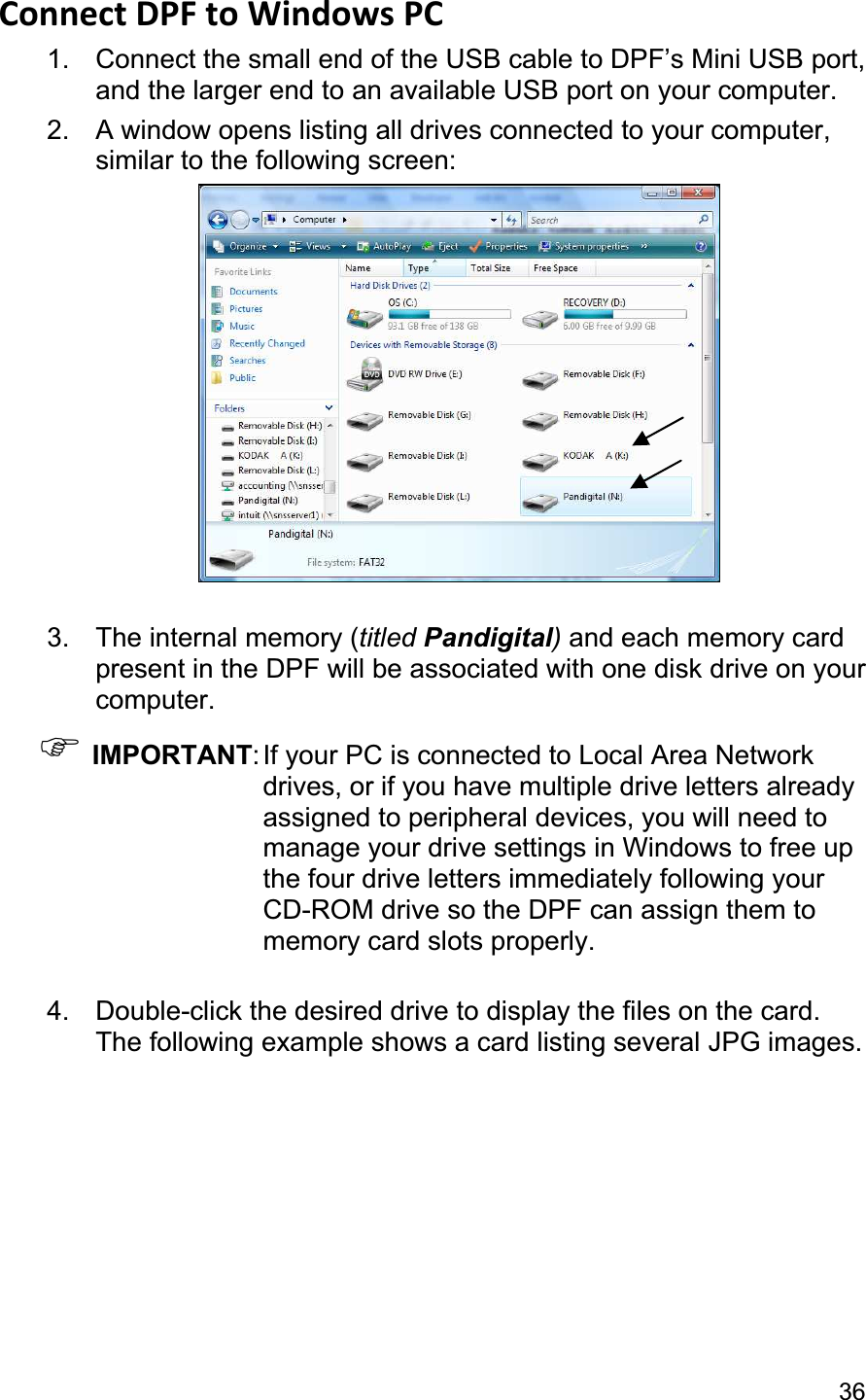
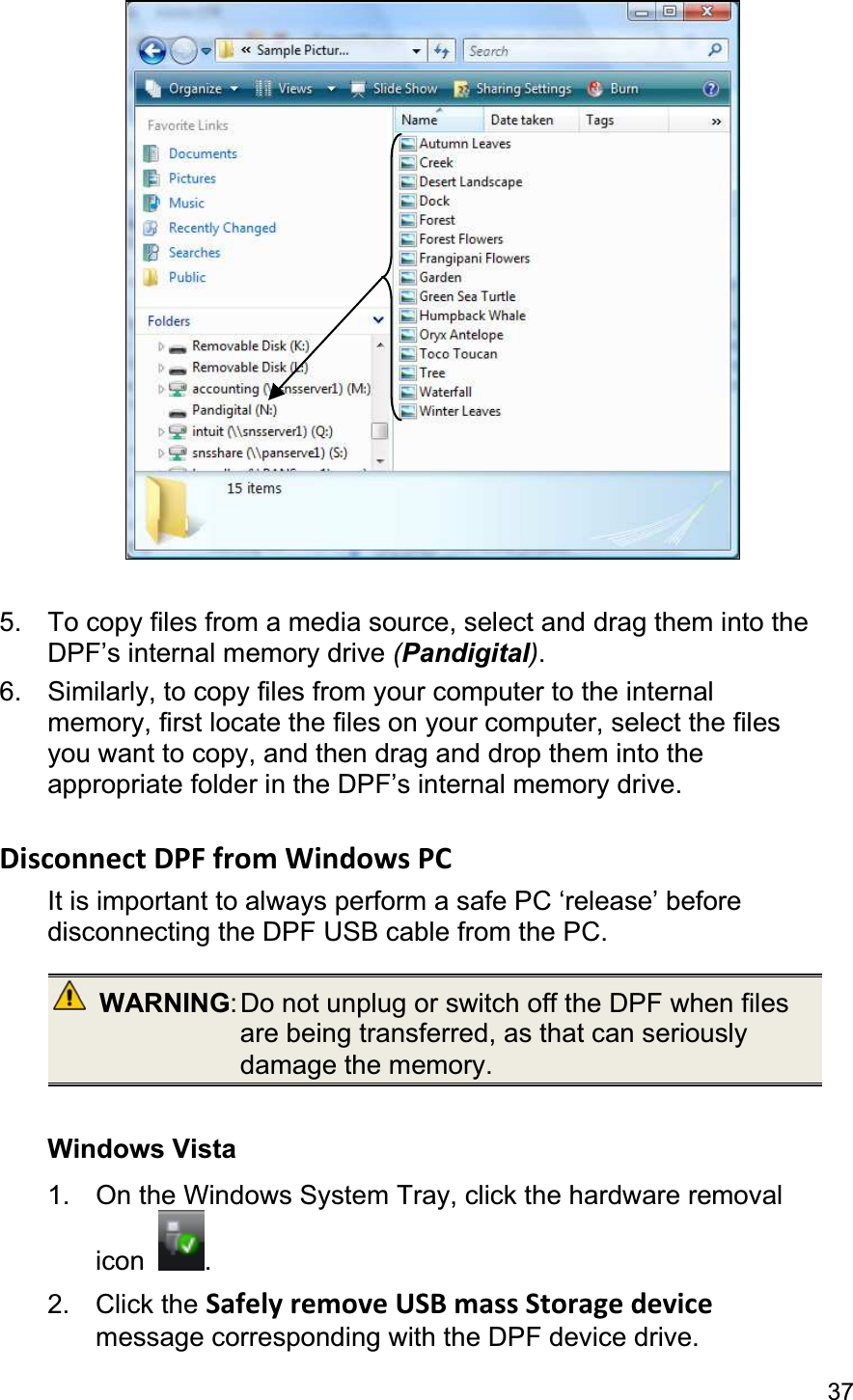
                                                                                                                                           36Connect DPF to Windows PC   1.  Connect the small end of the USB cable to DPF’s Mini USB port, and the larger end to an available USB port on your computer. 2.  A window opens listing all drives connected to your computer, similar to the following screen: 3.  The internal memory (titled Pandigital)and each memory card present in the DPF will be associated with one disk drive on your computer.)IMPORTANT: If your PC is connected to Local Area Network drives, or if you have multiple drive letters already assigned to peripheral devices, you will need to manage your drive settings in Windows to free up the four drive letters immediately following your CD-ROM drive so the DPF can assign them to memory card slots properly. 4.  Double-click the desired drive to display the files on the card. The following example shows a card listing several JPG images.
375.  To copy files from a media source, select and drag them into the DPF’s internal memory drive (Pandigital).6.  Similarly, to copy files from your computer to the internalmemory, first locate the files on your computer, select the files you want to copy, and then drag and drop them into the appropriate folder in the DPF’s internal memory drive. Disconnect DPF from Windows PC   It is important to always perform a safe PC ‘release’ before disconnecting the DPF USB cable from the PC. WARNING: Do not unplug or switch off the DPF when files are being transferred, as that can seriously damage the memory. Windows Vista 1.  On the Windows System Tray, click the hardware removal icon  .2. Click the Safely remove USB mass Storage devicemessage corresponding with the DPF device drive.
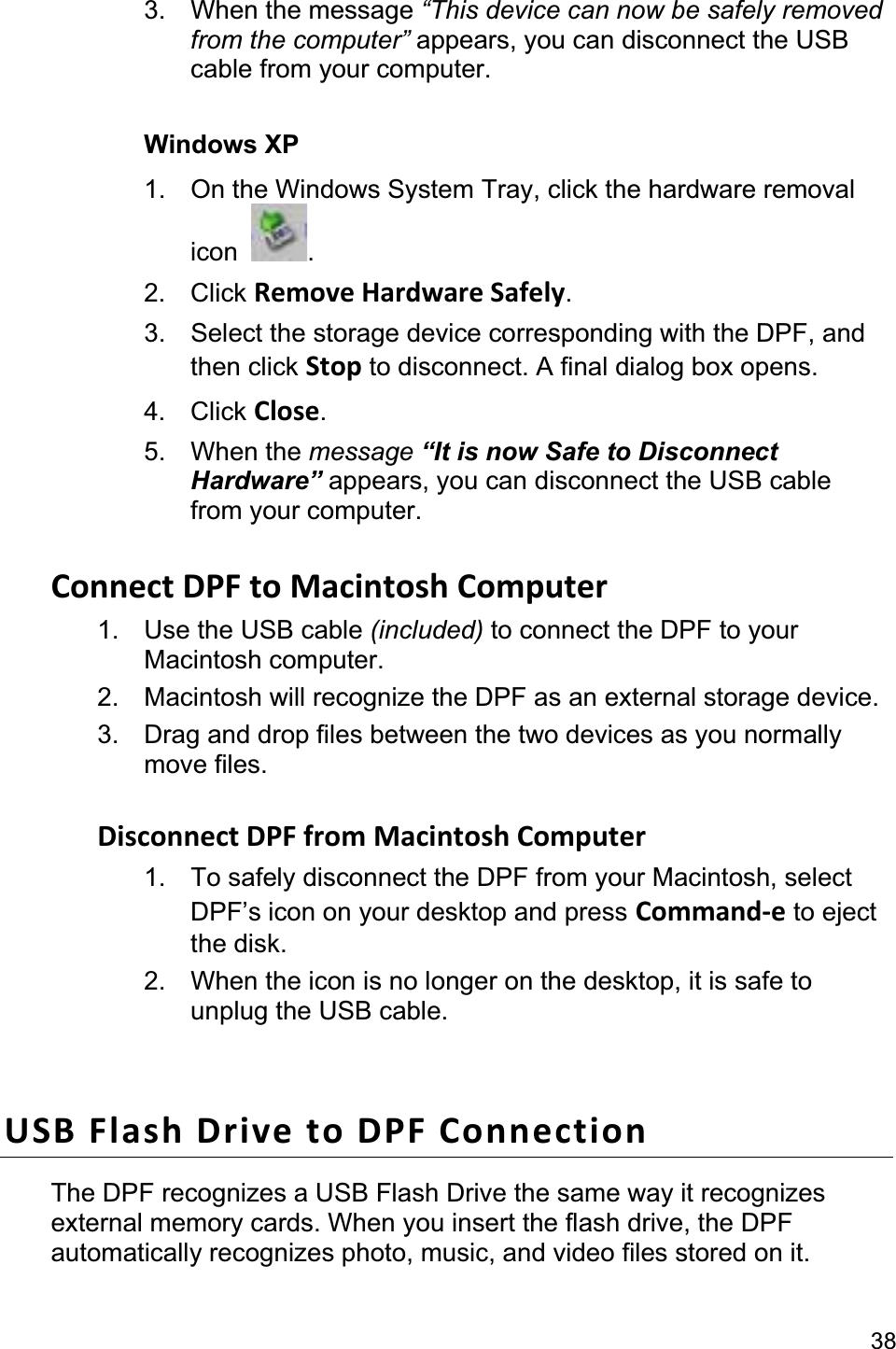
                                                                                                                                             383. When the message “This device can now be safely removed from the computer” appears, you can disconnect the USB cable from your computer. Windows XP 1.  On the Windows System Tray, click the hardware removal icon  .2. Click Remove Hardware Safely.3.  Select the storage device corresponding with the DPF, and then click Stop to disconnect. A final dialog box opens.   4. Click Close.5. When the message “It is now Safe to Disconnect Hardware” appears, you can disconnect the USB cable from your computer. Connect DPF to Macintosh Computer 1.  Use the USB cable (included) to connect the DPF to your Macintosh computer.   2.  Macintosh will recognize the DPF as an external storage device.   3.  Drag and drop files between the two devices as you normally move files.   Disconnect DPF from Macintosh Computer   1.  To safely disconnect the DPF from your Macintosh, select DPF’s icon on your desktop and press Command-e to eject the disk. 2.  When the icon is no longer on the desktop, it is safe tounplug the USB cable. USB Flash Drive to DPF Connection The DPF recognizes a USB Flash Drive the same way it recognizes external memory cards. When you insert the flash drive, the DPF automatically recognizes photo, music, and video files stored on it.
39To import files from your flash drive to the DPF’s internal memory, follow the file import instructions under each feature section (Photos on page 18, Music on page 28, Video on page 30).
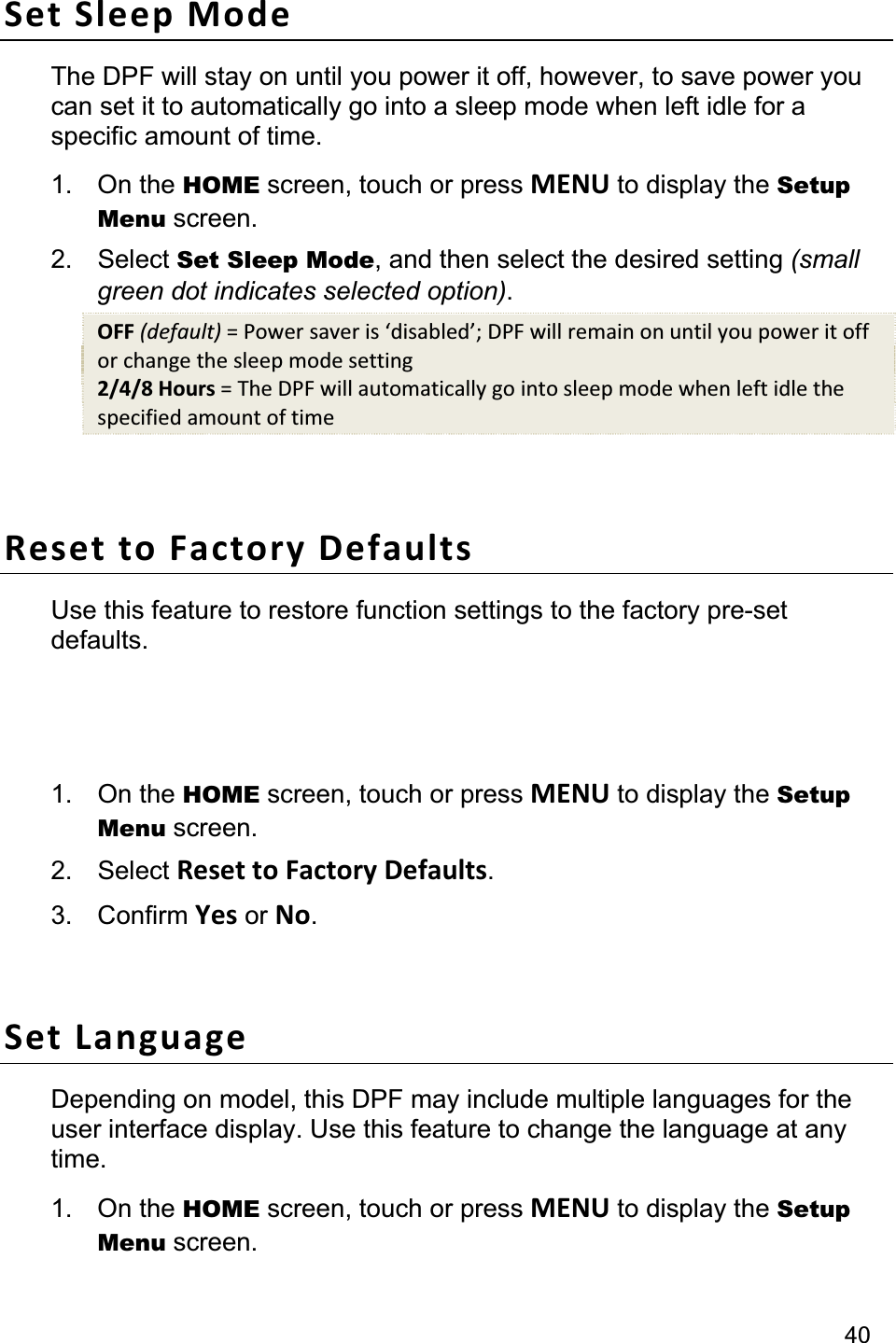
                                                                                                                                         40Set Sleep Mode The DPF will stay on until you power it off, however, to save power you can set it to automatically go into a sleep mode when left idle for a specific amount of time. 1. On the HOME screen, touch or press MENU to display the Setup Menu screen. 2. Select Set Sleep Mode, and then select the desired setting (small green dot indicates selected option).OFF (default) = Power saver is ‘disabled’; DPF will remain on until you power it off or change the sleep mode setting 2/4/8 Hours = The DPF will automatically go into sleep mode when left idle the specified amount of time Reset to Factory Defaults Use this feature to restore function settings to the factory pre-set defaults.  Note:  Wi-Fi network and photo sharing website connection settings will not be changed. 1. On the HOME screen, touch or press MENU to display the Setup Menu screen. 2. Select Reset to Factory Defaults.3. Confirm Yes or No.Set Language Depending on model, this DPF may include multiple languages for the user interface display. Use this feature to change the language at any time. 1. On the HOME screen, touch or press MENU to display the Setup Menu screen.
412. Select Set Language to display the available languages. 3.  Select the desired language. System Info You can view the current DPF settings, including your internal memory size, wireless network connection, firmware version, and you can assign a personal unit name if desired. 1. On the HOME screen, touch or press MENU to display the Setup Menu screen. 2. Select System Info.3. To assign a different unit name, select EDIT FRAME NAME, and then use the virtual keyboard to enter the desired name. (Instructions for navigating the virtual keyboard begin on page 39.) 4. Select Done to save. Cleaning the DPF Treat the screen gently, it is made of glass and can break. To clean fingerprints or dust from the LCD screen, we recommend using a soft, non-abrasive cloth such as a camera lens cloth to clean the LCD screen. If you use a commercial LCD Cleaning Kit, do not apply the cleaning liquid directly to the LCD screen. Clean the LCD screen with cleaning cloth moistened with the liquid. Clean the outer surface of the DPF (excluding the screen) and the remote control with a soft cloth dampened with water. Change the Decorative Mat 1.  Power off the DPF, and then unplug the power adapter. 2.  Remove two of the screws on the back of the frame and lift the unit from the frame. 3.  Remove the mat and insert the replacement mat.
                                                                                                                                            424.  Place the unit back into the frame, replace the screws and onlyfinger-tighten. Frequently Asked Questions Q:   How do I set up my DPF? A:   It is very simple to get your Digital Photo Frame setup. Just plug the power adapter into the DPF and into a standard wall outlet, and then power it on. After the welcome screen is displayed, a slideshow will begin displaying the images pre-loaded in the internal memory. To view your own photos, insert a memory device into the appropriate slot or USB port on the side of the DPF. Select PLAYSLIDESHOW from the memory card option screen. Q:   What memory cards can the Digital Photo Frame Read? A:   Compatible memory cards include: Secure Digital™, Compact Flash (select models), MultiMedia Card™, xD Card, Memory Stick™, MemoryStick Pro™, and Memory Stick Pro Duo™. Q:   Can I insert multiple memory cards? A:   Yes, you can insert multiple cards at the same time, depending on slot availability. Use the Select Media function to select the desired media source for immediate viewing/listening. Q:   I set up the Digital Photo Frame; why won’t it turn on? A:   The power adapter may not be securely connected to the DPF orthe power switch may not be in the ON position.   Q:   I have a memory card in the DPF; why can’t I view my photos? A:   A) Be sure that the memory card is one of the formats listed above and that the files on the card are JPEG images files. Some digital cameras save images in other formats. Refer to your camera’s userguide if your photos are not JPEG files. B) Make sure the memory card is inserted all the way into the card slot.
43C) On the HOME screen, touch or press MENU to display the Setup Menu screen. Select Select Media Source, and then select the desired media source. Touch or press EXIT to return to the HOMEscreen and then select PHOTOS>Slideshow or press Slideshow . The slideshow should begin displaying your photos.   Q: Why doesn’t my remote work when the PanTouch interface has been activated?A:   The PanTouch interface has ‘control’ as long as the navigation buttons are visible. After 5 seconds of non-user intervention, the navigation buttons will disappear and release control to the remote control again. Q:   Why is the photo display slower with some photos than others? A:   Higher resolution photos load more slowly. Try using lower resolution photos or down scaling your images. Refer to your camera’s operating user guide for details on down scaling your photos.   Q:   Does the DPF have built-in (internal) memory? A:   Yes. The memory size varies by model. Q:  Does the DPF support all JPEG and Motion JPEG files? A:  No. The DPF only supports JPEG and Motion JPEG files taken from a digital camera. The DPF may not read all image files downloaded from the Internet or from other software graphic applications. Q:  Can I add my own cookbook or recipes to the Recipes feature? A:  No. If you want to create .jpg files of your recipes using your own graphics editing software, you can copy the .jpg files to your memory source and then you could view them on the DPF in PHOTOS mode.
44Important Safety Precautions Always follow these basic safety precautions when using your Multimedia Digital Photo Frame (DPF). This will reduce the risk of fire, electric shock, and injury. WARNING:  Do not expose this product to rain or moisture.   Do not remove the cover. There are no user-serviceable parts inside. Refer all servicing to qualified personnel.   The DPF is for indoor use only.   Unplug the DPF before performing care and maintenance.   Do not block the ventilation holes on the back of the DPF at any time.   Keep your DPF out of direct sunlight and heat sources.   Protect the power cord. Route power cords so that they are not likely tobe walked on or pinched by items placed on or against them. Pay particular attention to the point where the cord attaches to the DPF.   Only use the AC adapter included with the DPF. Using any other power adapter will void your warranty.   Unplug the power cord from the power outlet when the unit is not in use.
45Limited Warranty The limited warranty set forth below is given by Pandigital with respect to Pandigital brand electronics products purchased and used in the United States of America. Pandigital warrants this product against defects in material or workmanship as follows:   LABOR: For a period of one (1) year from the date of purchase, if this product is found to be defective, Pandigital will repair or replace the product, at its option, at no charge. After this one (1) year, labor charges will be charged on a case by case basis.   PARTS: For a period of one (1) year from the date of purchase, if this product is found to be defective, Pandigital will supply at no cost, new or rebuilt replacement parts, at its option, at no charge. After this one (1) year period, parts will be charged for on a case by case basis. Modifications not approved by the party responsible for compliance could void user’s authority to operate the equipment.This warranty does not cover: (1) customer instruction, installation or setup; (2) cosmetic damage or damage due to accident, misuse, abuse or negligence; (3) commercial use of the product; (4) modification of any part of the product; (5) damage due to improper operation, improper maintenance, or connection to an improper power supply; (6) loss of data, regardless of value or format, that may result through proper and/or improper use of the product; (7) damage due to an attempted repair of the product by anyone other than a facility authorized by Pandigital to service the product; (8) consumables (such as fuses and batteries). This warranty is valid only in the United States.   The product must be accompanied by a copy of the original retail purchase receipt. If no proof of purchase is attached, the warranty will not be honored and repair costs will be charged. This warranty is only valid with written documentation detailing the complaint attached to the outside or inside of the carton. This warranty is invalid if the factory applied serial number has been altered and or removed from the product. This warranty does not provide protection for the loss of data, regardless of format. Pandigital reserves the right to modify and design this product without prior notice, written or otherwise.   To obtain warranty service, you must deliver the product freight prepaid in either its original packaging or packaging affording an equal degree of protection, plus proof of purchase.   Repair or replacement as provided under this warranty is the exclusive remedy of the consumer. Pandigital, its parent company, affiliates or subsidiaries, shall not be liable for any incidental or consequential damages for breach of any expressed or implied warranty on this product. Except to the extent prohibited by applicable law, any implied warranty of merchantability or fitness for a particular purpose on this product is limited in duration to the duration of this warranty.   Some states do not allow the exclusion or limitation of incidental or consequential damages, or allow limitation on how long an implied warranty lasts, so the above
                                                                                                                                            46limitations or exclusions may not apply. This warranty gives you specific legal rights, and you may have other rights, which vary from state to state.   All content included on the Pandigital website as well as Pandigital products, including pre-loaded demonstration images, digital media, digital cookbooks, text, graphics, logos, designs, photographs, button icons, images, audio/video clips, digital downloads, data compilations, and software, is the property of Pandigital or its suppliers and is protected by United States and international copyright laws or other intellectual property laws and treaties. Said content shall not be reproduced or used without express written permission from Pandigital and its suppliers respectively.   Use of this product constitutes acceptance of these terms and conditions of warranty.Technical support telephone number: 1-800-715-5354. FCC Statement FCC Part 15 Information This equipment has been tested and found to comply with the limits for a Class B digital device, pursuant to Part 15 of the Federal Communication Commission (FCC) Rules. These limits are designed to provide reasonable protection against harmful interference in a residential installation.   This equipment generates, uses, and can radiate radio frequency energy and if not installed and used in accordance with the instructions, may cause harmful interference to radio communications. However, there is no guarantee that interference will not occur in a particular installation.   If this equipment does cause harmful interference to radio or television reception, which can be determined by turning the equipment off and on, the user is encouraged to try to correct the interference by one or more of the following measures:   Reorient or relocate the receiving antenna.   Increase the separation between the equipment and receiver.   Connect the equipment to an outlet on a circuit different from that to which the receiver is connected.   Consult the dealer or an experienced radio/TV technician for help.  WARNING: Changes  or  modifications  to  this unit not expressly approved by the party responsible for compliance could void the user’s authority to operate the equipment.

Navigation menu