Win Accord PTT726B2 MOBILE INTERNET DEVICE-WIFI PORTION User Manual 1

Win Accord Ltd. MOBILE INTERNET DEVICE-WIFI PORTION 1

Users Manual

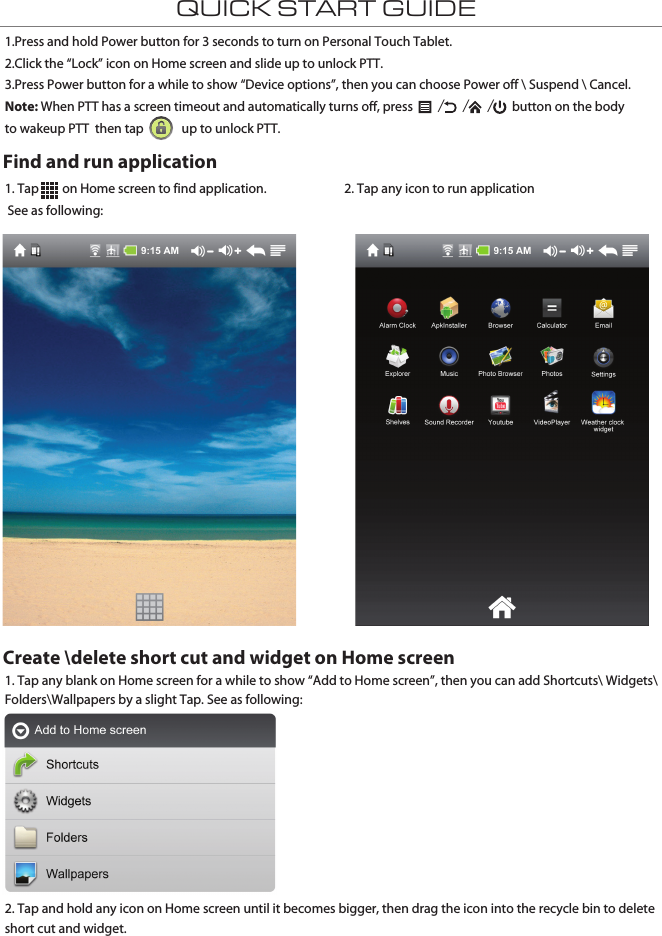
QUICK START GUIDE1. Tap        on Home screen to find application. See as following:1. Tap any blank on Home screen for a while to show “Add to Home screen”, then you can add Shortcuts\ Widgets\ Folders\Wallpapers by a slight Tap. See as following:2. Tap and hold any icon on Home screen until it becomes bigger, then drag the icon into the recycle bin to delete short cut and widget.2. Tap any icon to run application1.Press and hold Power button for 3 seconds to turn on Personal Touch Tablet.2.Click the “Lock” icon on Home screen and slide up to unlock PTT.3.Press Power button for a while to show “Device options”, then you can choose Power off \ Suspend \ Cancel.   Note: When PTT has a screen timeout and automatically turns off, press   /  /  /  button on the body to wakeup PTT  then tap             up to unlock PTT.Find and run applicationCreate \delete short cut and widget on Home screen
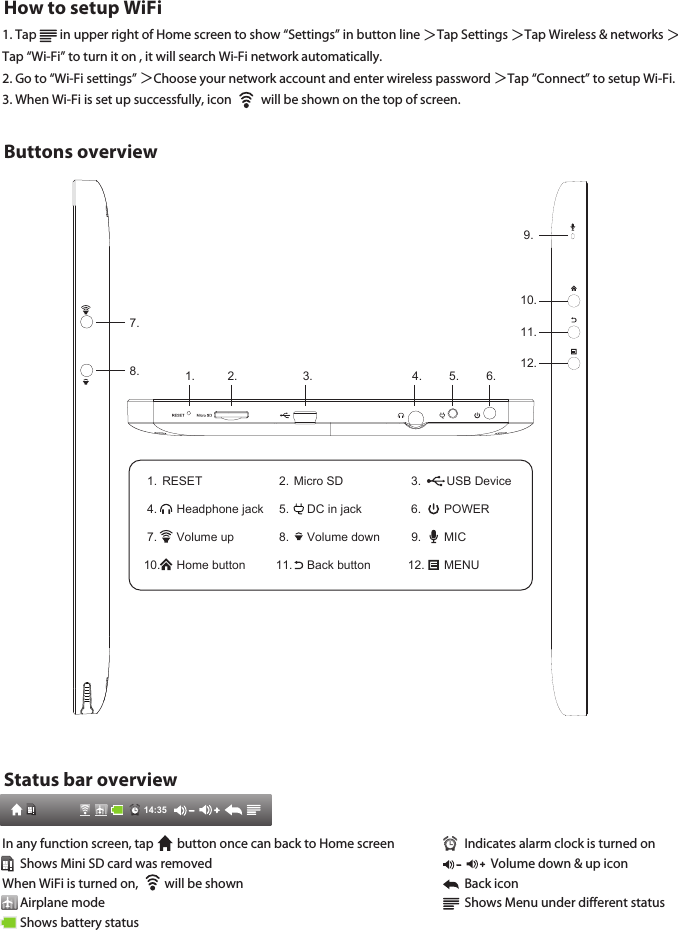
1.1.2.2.3.3.4.4.5.5.6.6.7.7.8.8.9.9.10.10.11.11.12.12.RESET  Headphone jackVolume upHome button Back button MENU Volume down  MICDC in jack POWERMicro SD    USB Device   1. Tap        in upper right of Home screen to show “Settings” in button line >Tap Settings >Tap Wireless & networks >Tap “Wi-Fi” to turn it on , it will search Wi-Fi network automatically.2. Go to “Wi-Fi settings” >Choose your network account and enter wireless password >Tap “Connect” to setup Wi-Fi.     3. When Wi-Fi is set up successfully, icon          will be shown on the top of screen.How to setup WiFiButtons overviewStatus bar overview 14:35 In any function screen, tap        button once can back to Home screen      Shows Mini SD card was removedWhen WiFi is turned on,         will be shown      Airplane mode      Shows battery status      Indicates alarm clock is turned on               Volume down & up icon       Back icon      Shows Menu under different status
 FCC Statement  This device complies with part 15 of the FCC rules. Operation is subject to the following two conditions: (1) this device may not cause harmful interference, and (2) this device must accept any interference received, including interference that may cause undesired operation.  NOTE: The manufacturer is not responsible for any radio or TV interference caused by unauthorized modifications to this equipment. Such modifications could void the user’s authority to operate the equipment.  NOTE: This equipment has been tested and found to comply with the limits for a Class B digital device, pursuant to part 15 of the FCC Rules.    These limits are designed to provide reasonable protection against harmful interference in a residential installation.  This equipment generates uses and can radiate radio frequency energy and, if not installed and used in accordance with the instructions, may cause harmful interference to radio communications.  However, there is no guarantee that interference will not occur in a particular installation.   If this equipment does cause harmful interference to radio or television reception, which can be determined by turning the equipment off and on, the user is encouraged to try to correct the interference by one or more of the following measures:   - Reorient or relocate the receiving antenna.   - Increase the separation between the equipment and receiver.   -Connect the equipment into an outlet on a circuit different from that to which the receiver is connected.   -Consult the dealer or an experienced radio/TV technician for help.

Navigation menu