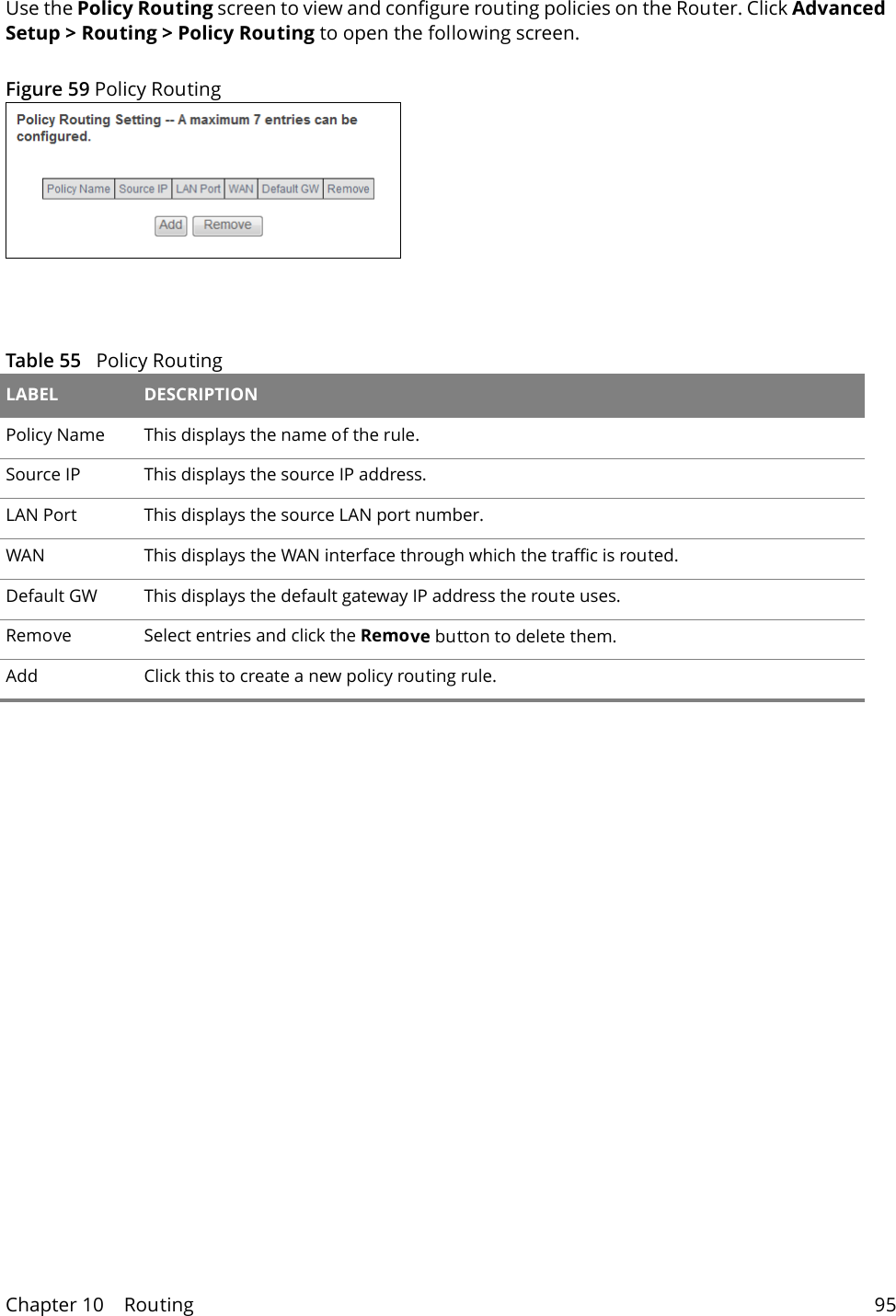
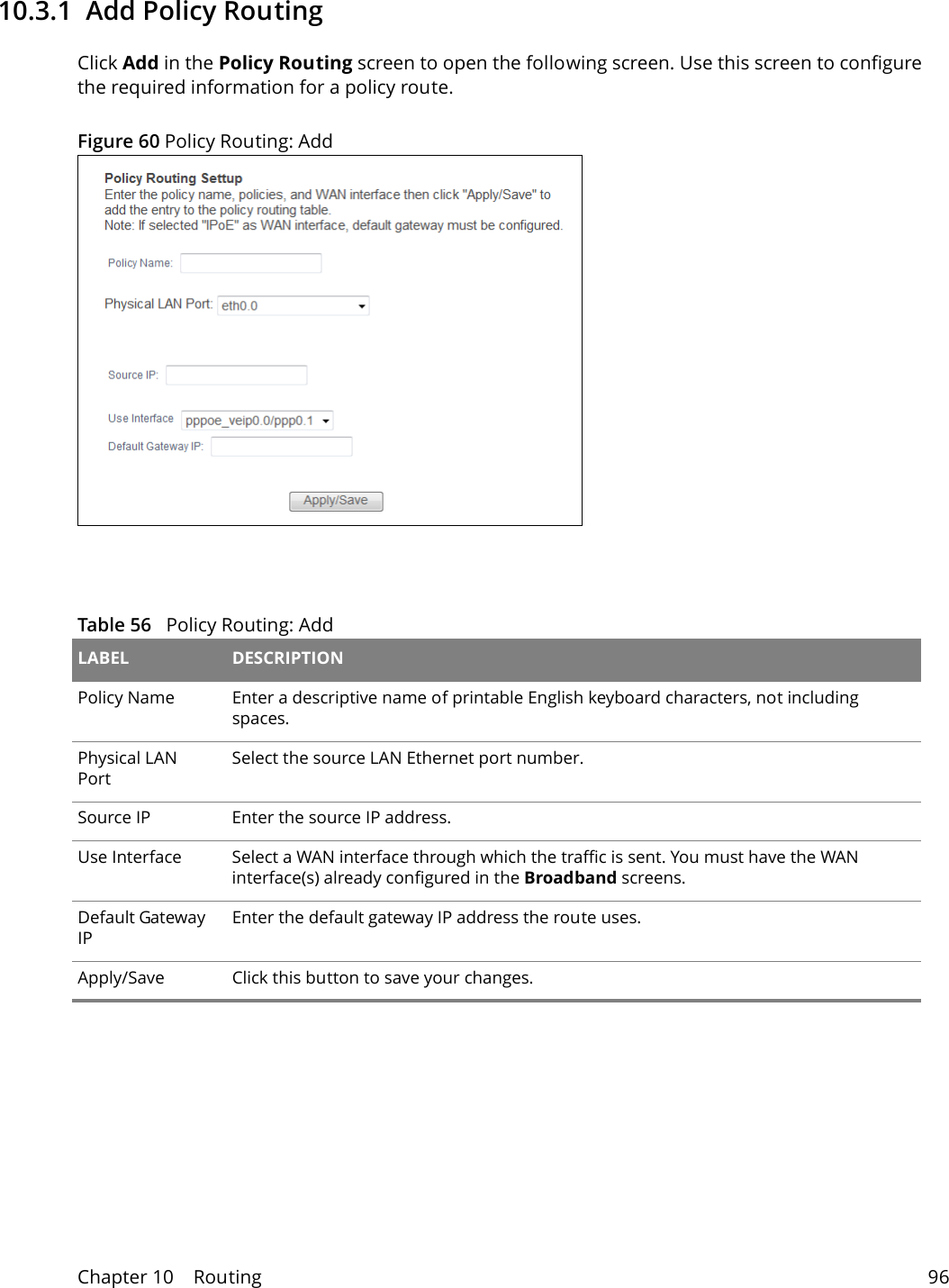
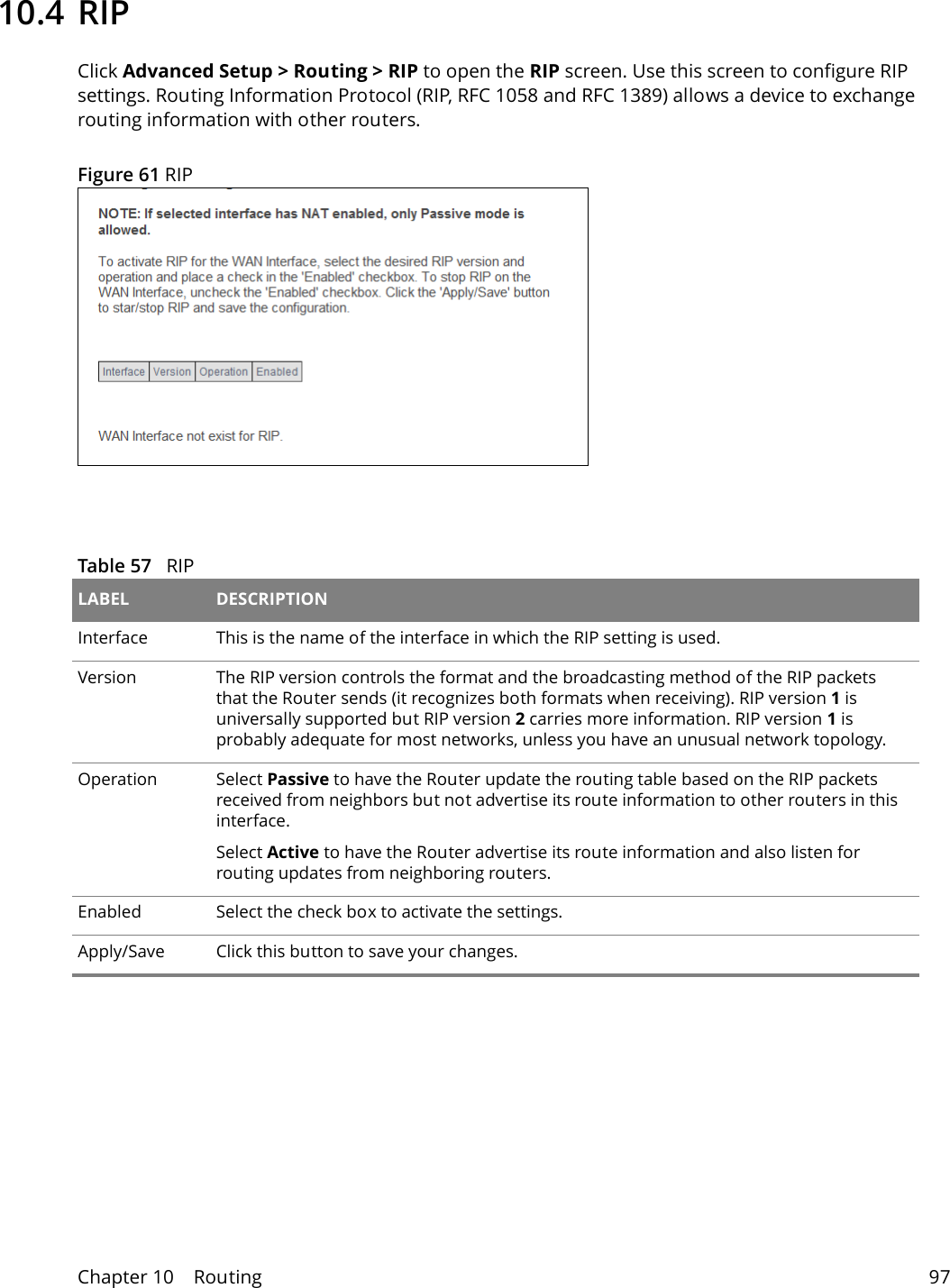
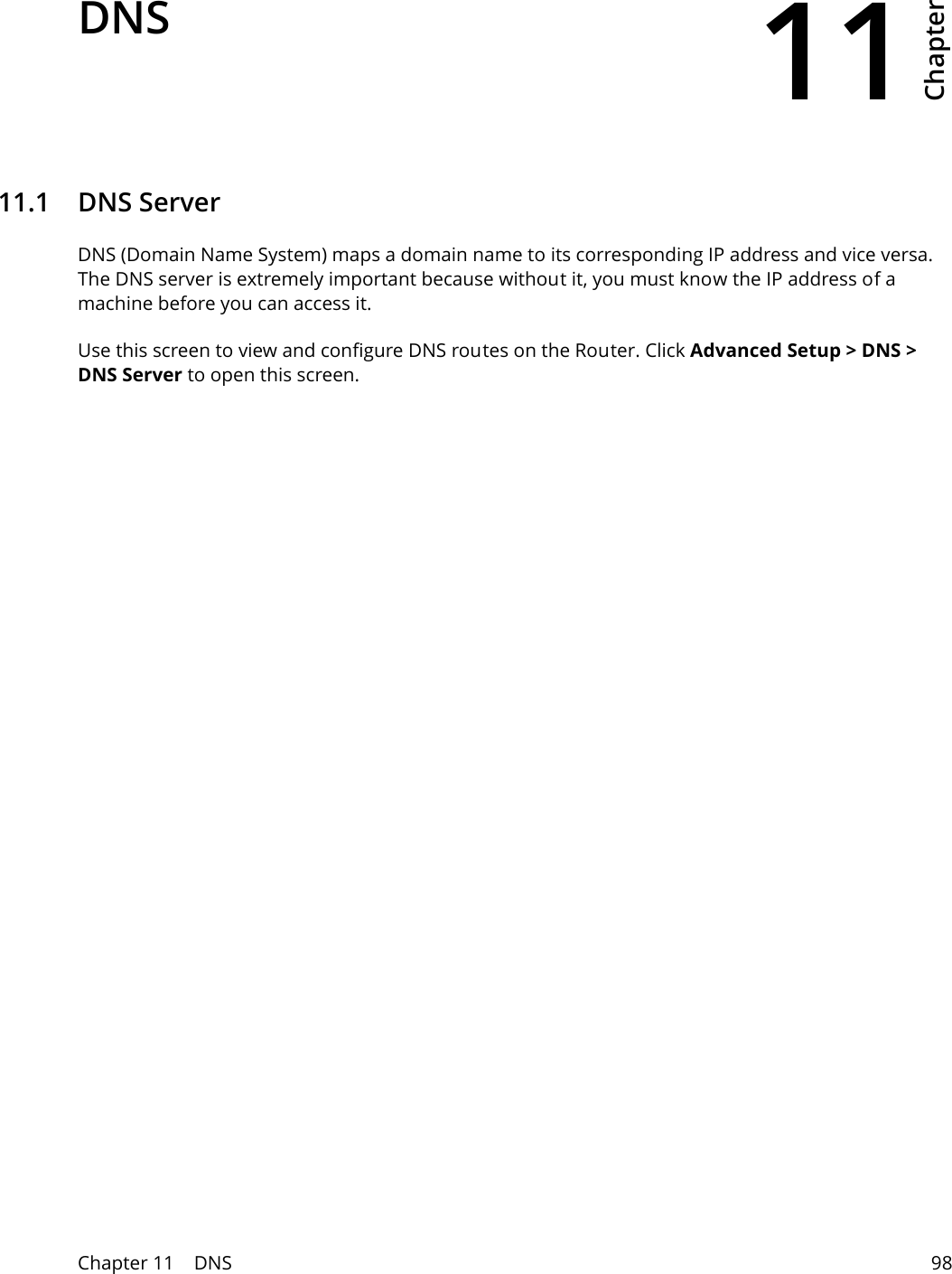
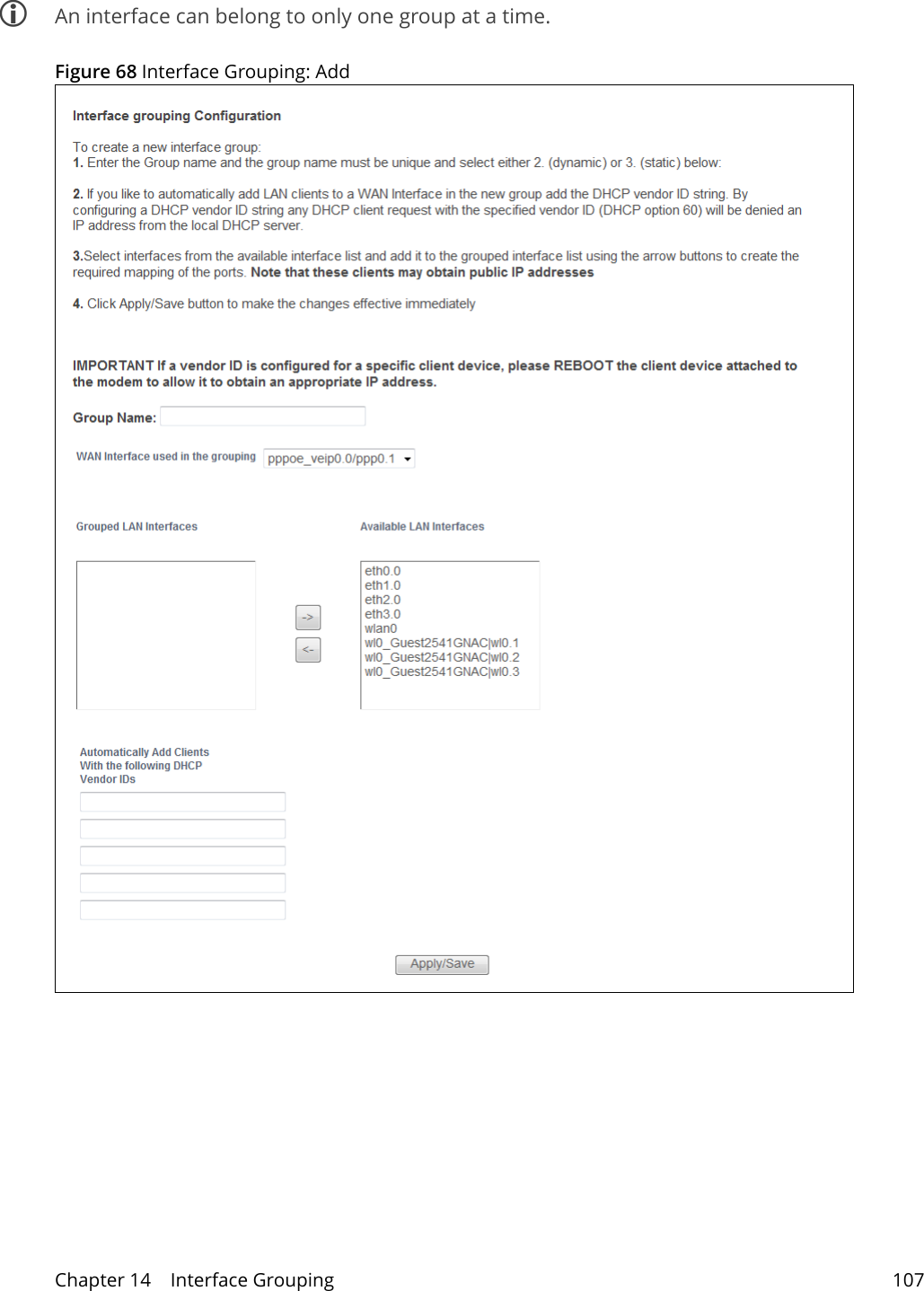
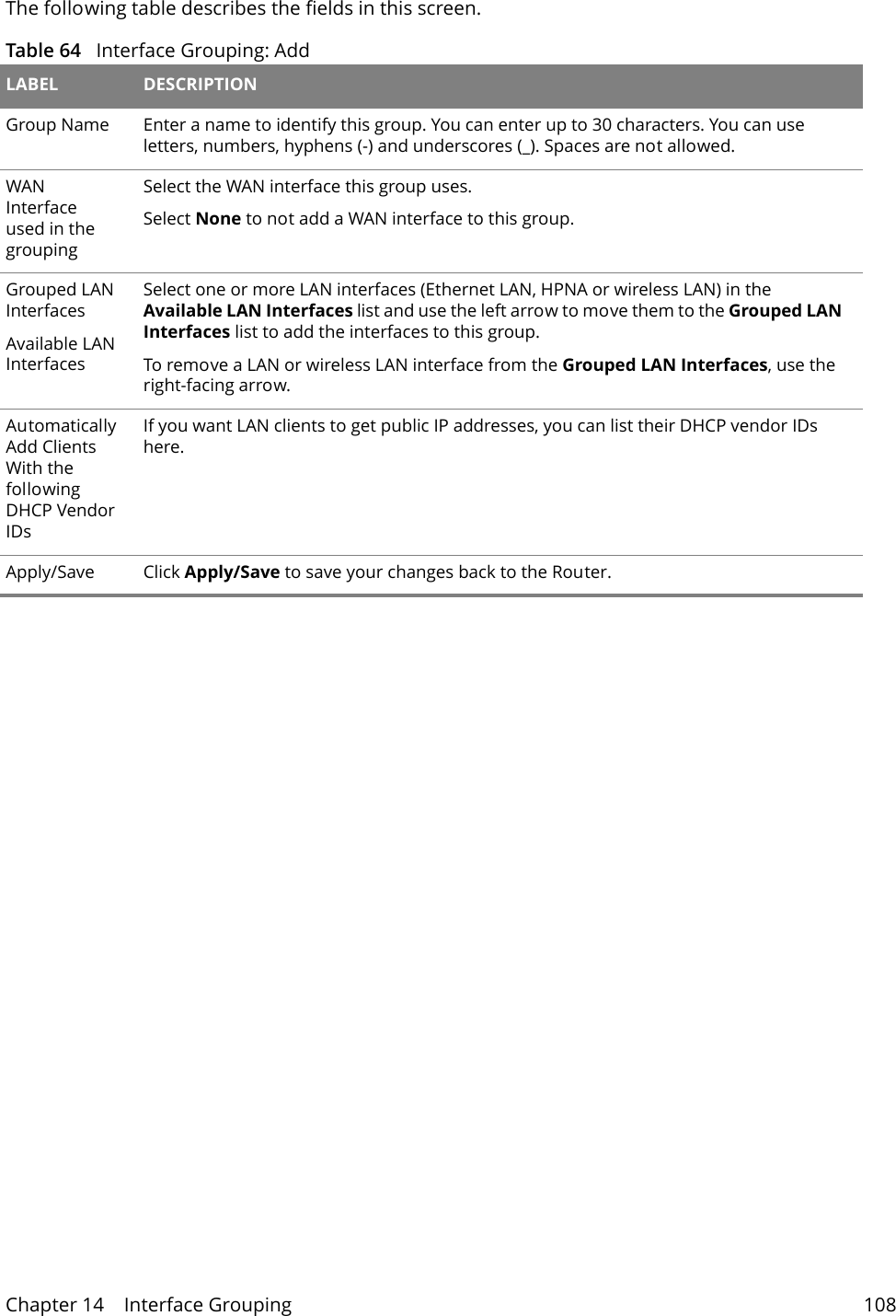
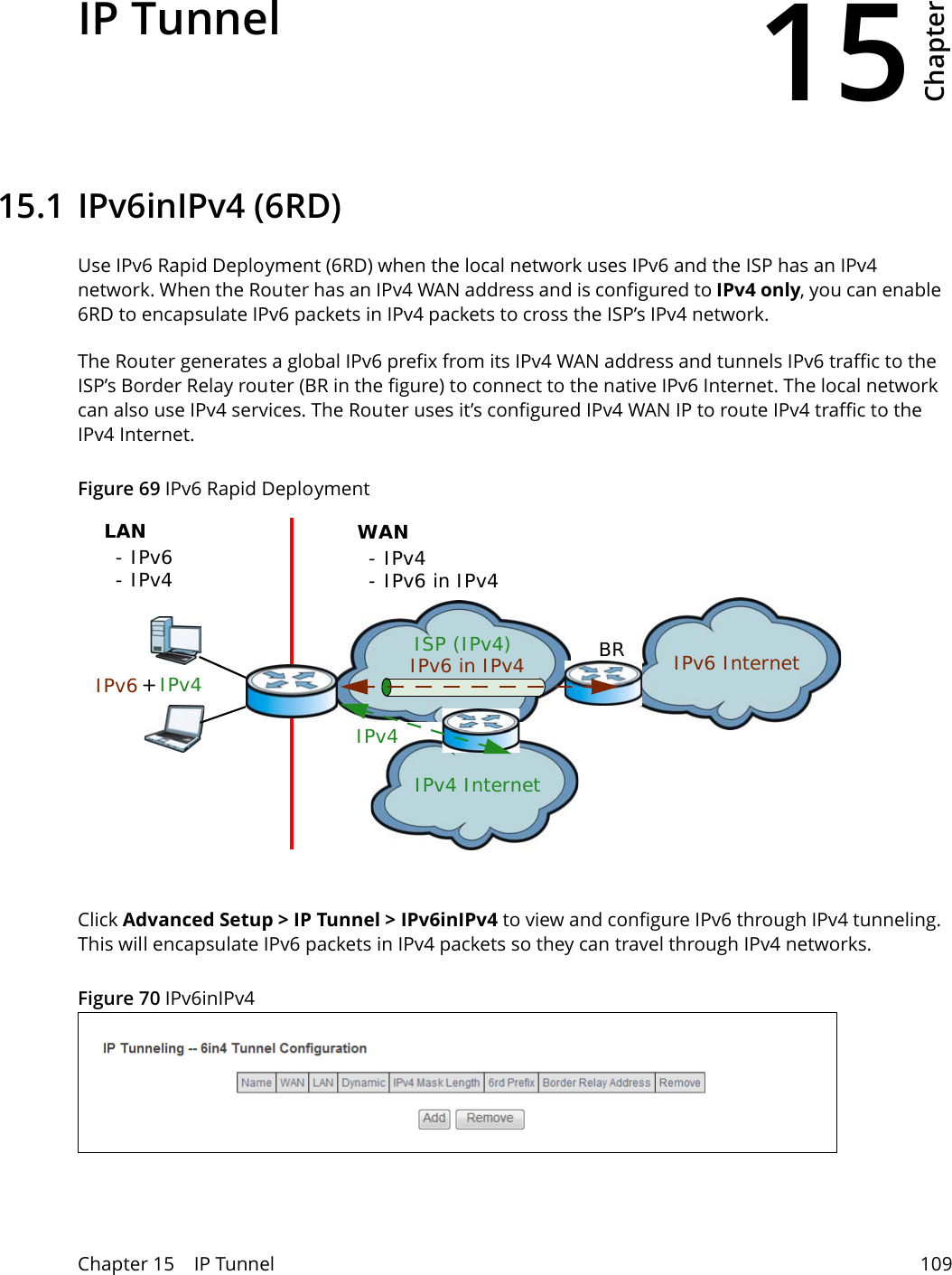
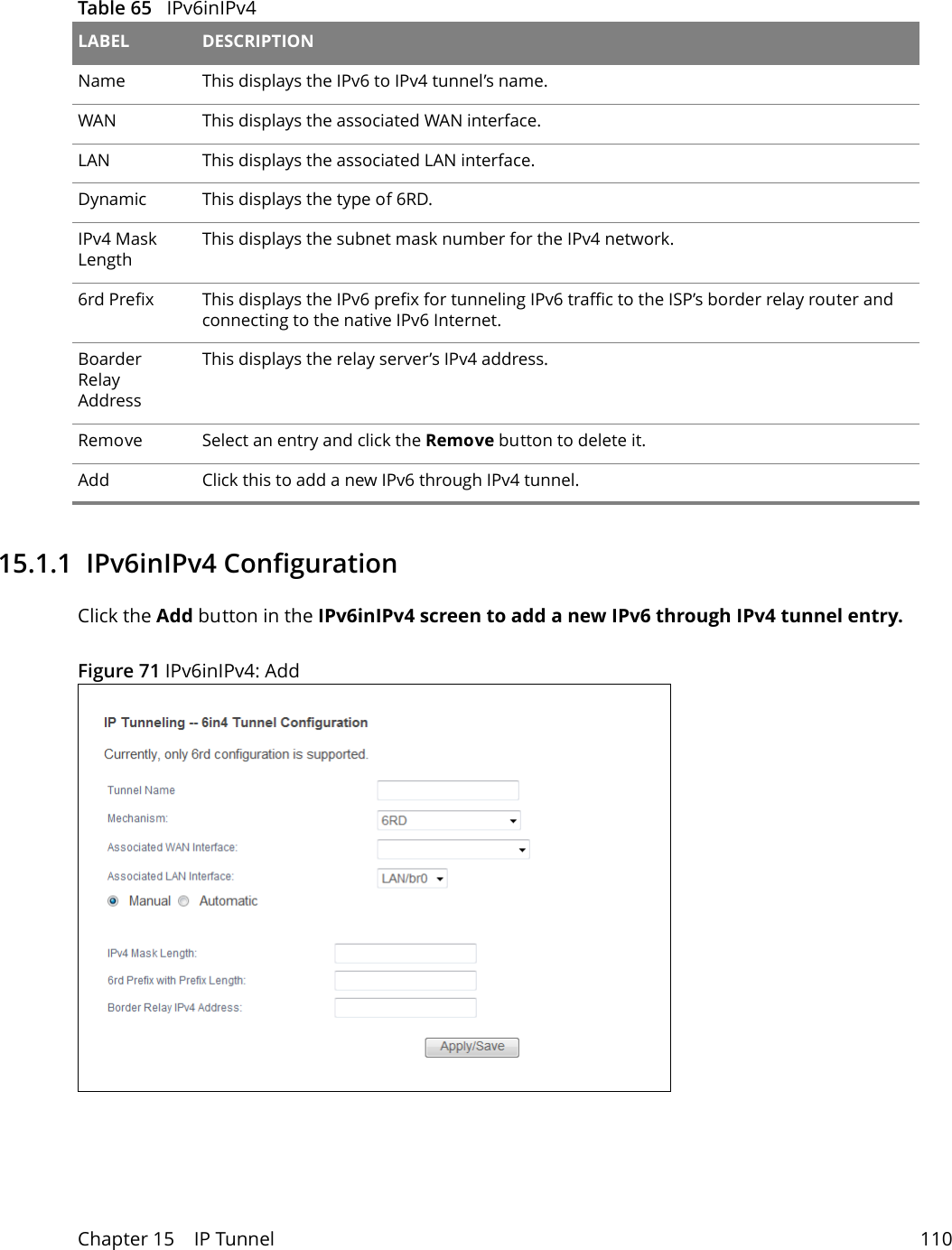
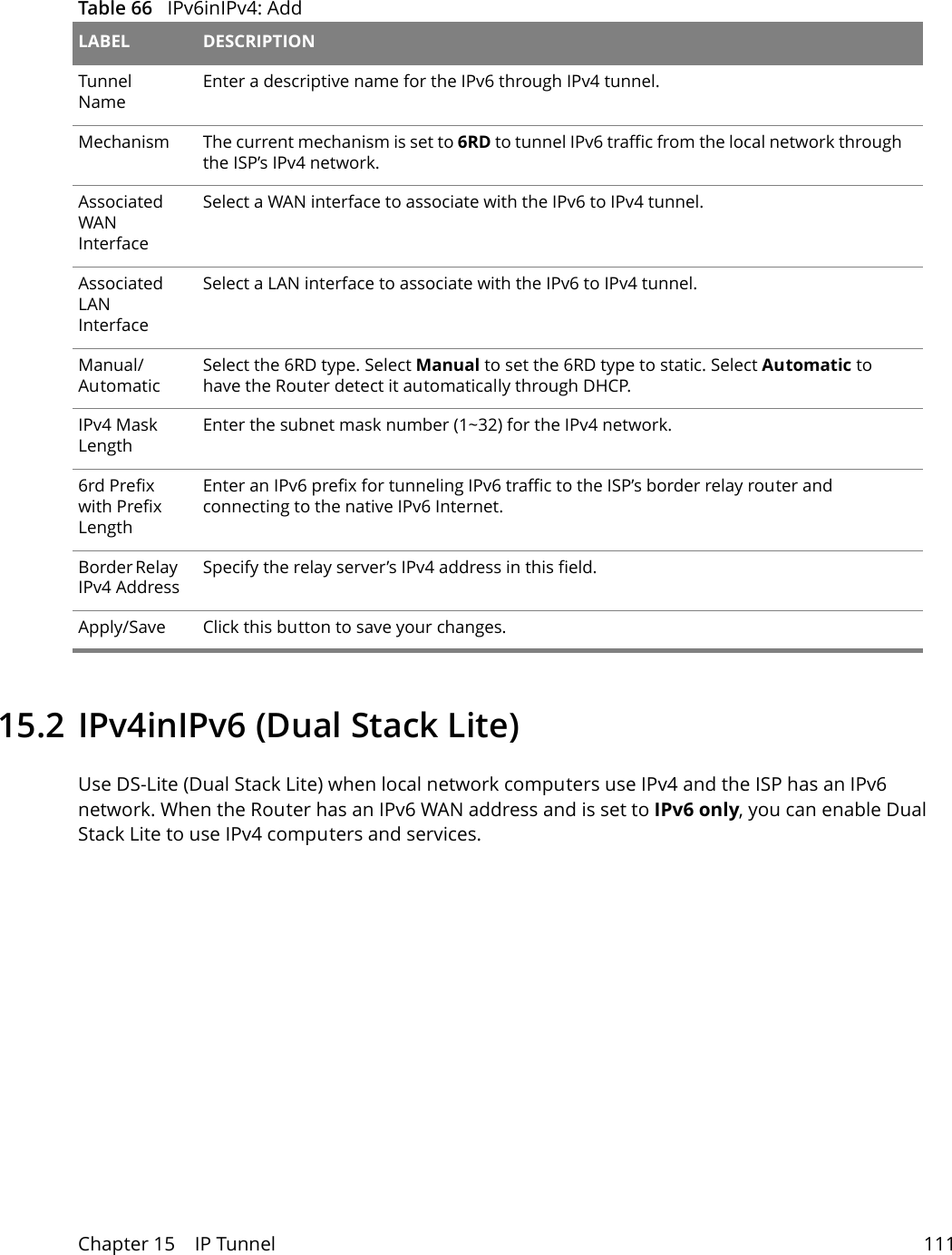
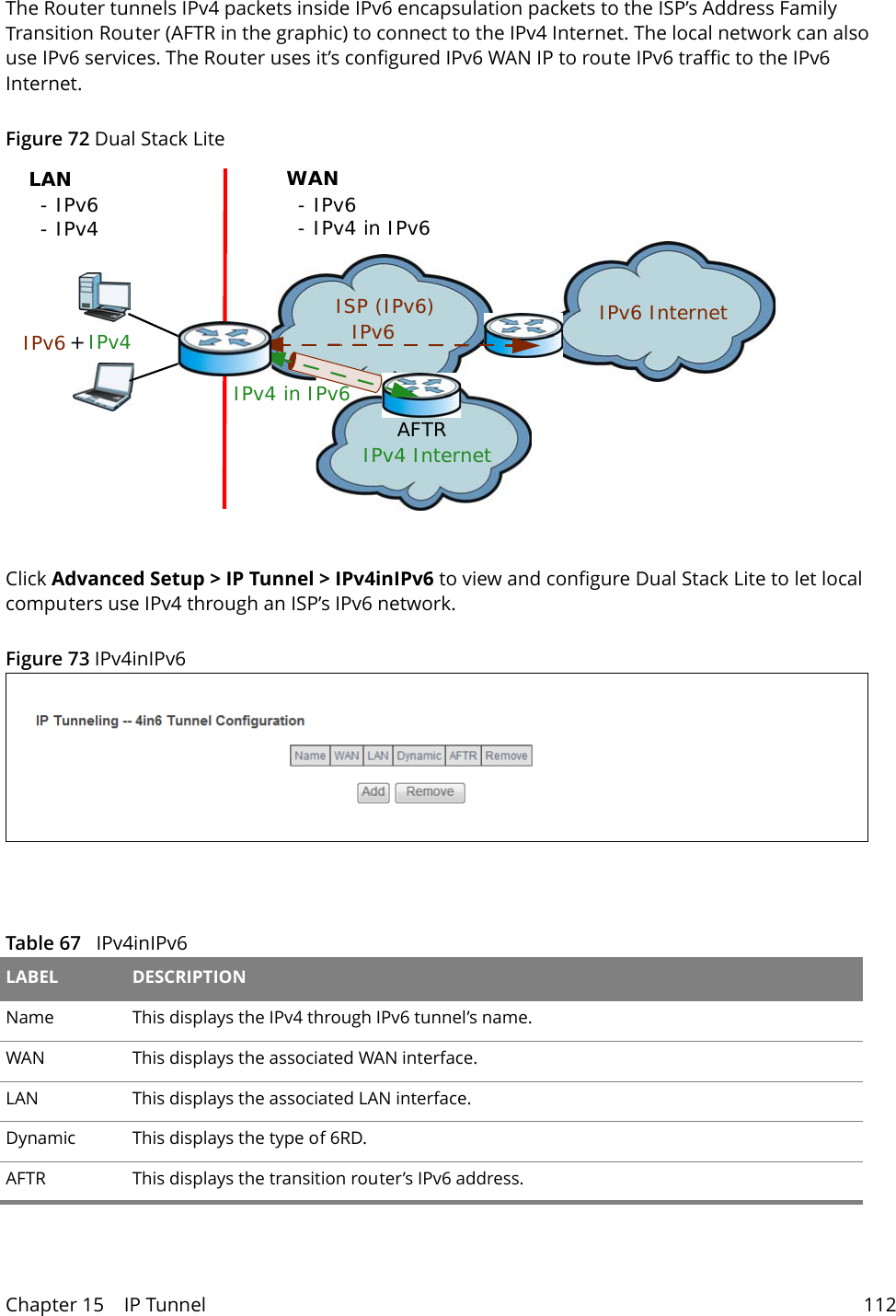
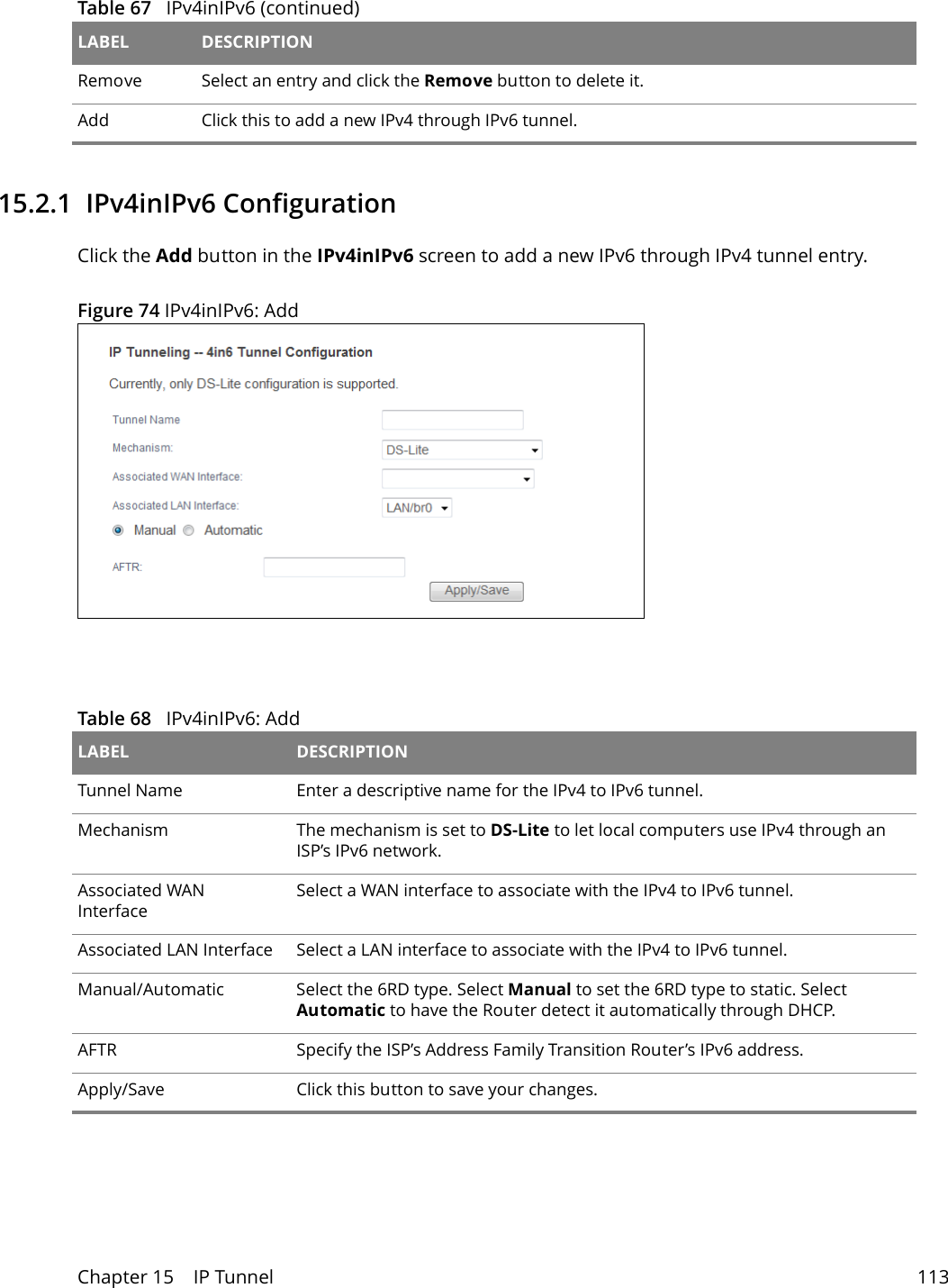
Wuxi MitraStar Technology GPT2541GNAC Equipo para acceso Fibra Optica User Manual

Wuxi MitraStar Technology Co.,Ltd Equipo para acceso Fibra Optica

User Manual

Firmware Version 1.00Edition 1, 9/2015Default Login Detailshttp://192.168.1.1User Name:  adminPassword:     1234GPT-2541GNACIndoor GPON HGUUser’s Guide
IMPORTANT!READ CAREFULLY BEFORE USE.KEEP THIS GUIDE FOR FUTURE REFERENCE.Graphics in this book may differ slightly from the product due to differences in operating systems, operating system versions, or if you installed updated firmware/software for your device. Every effort has been made to ensure that the information in this manual is accurate.
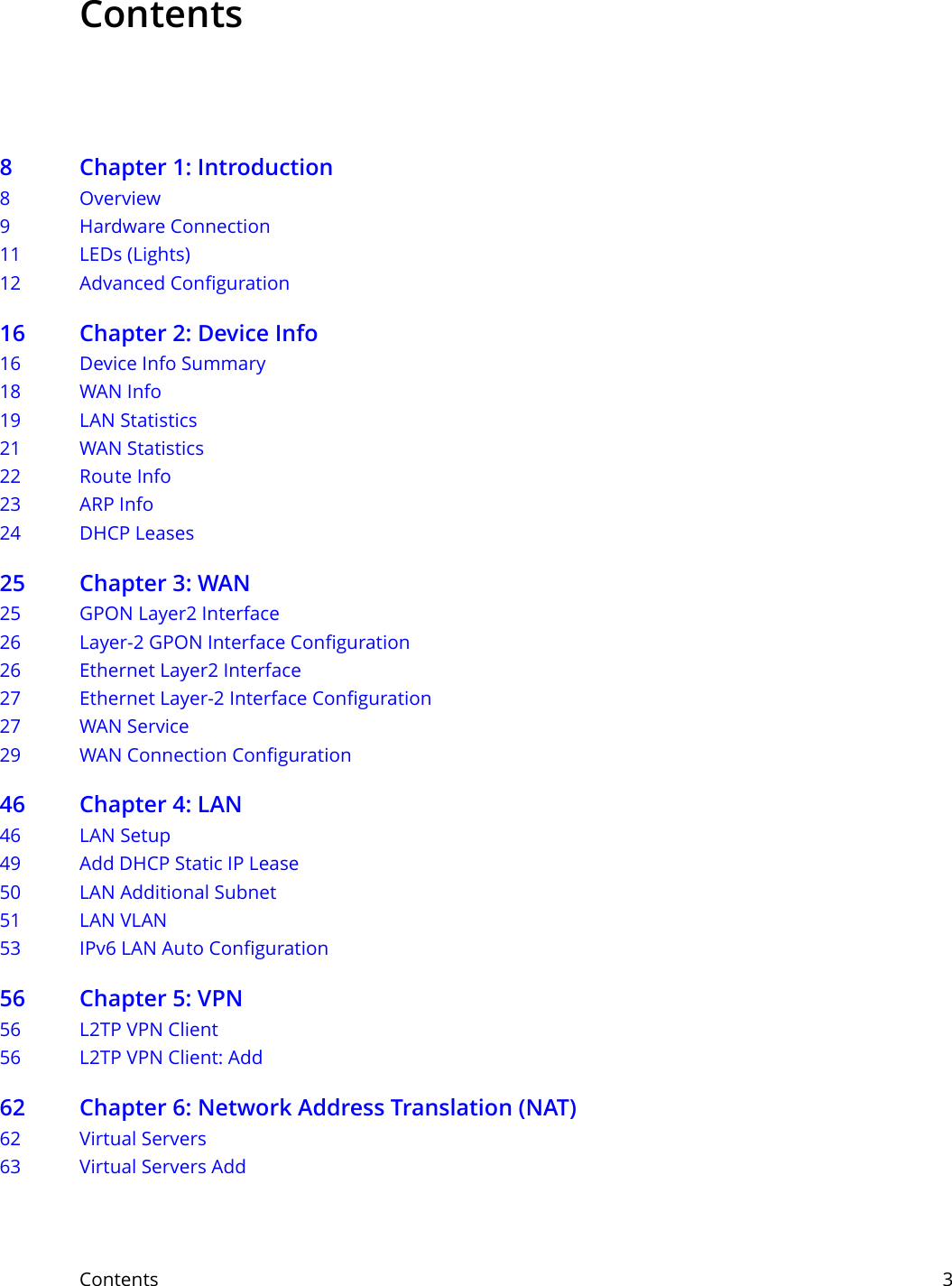
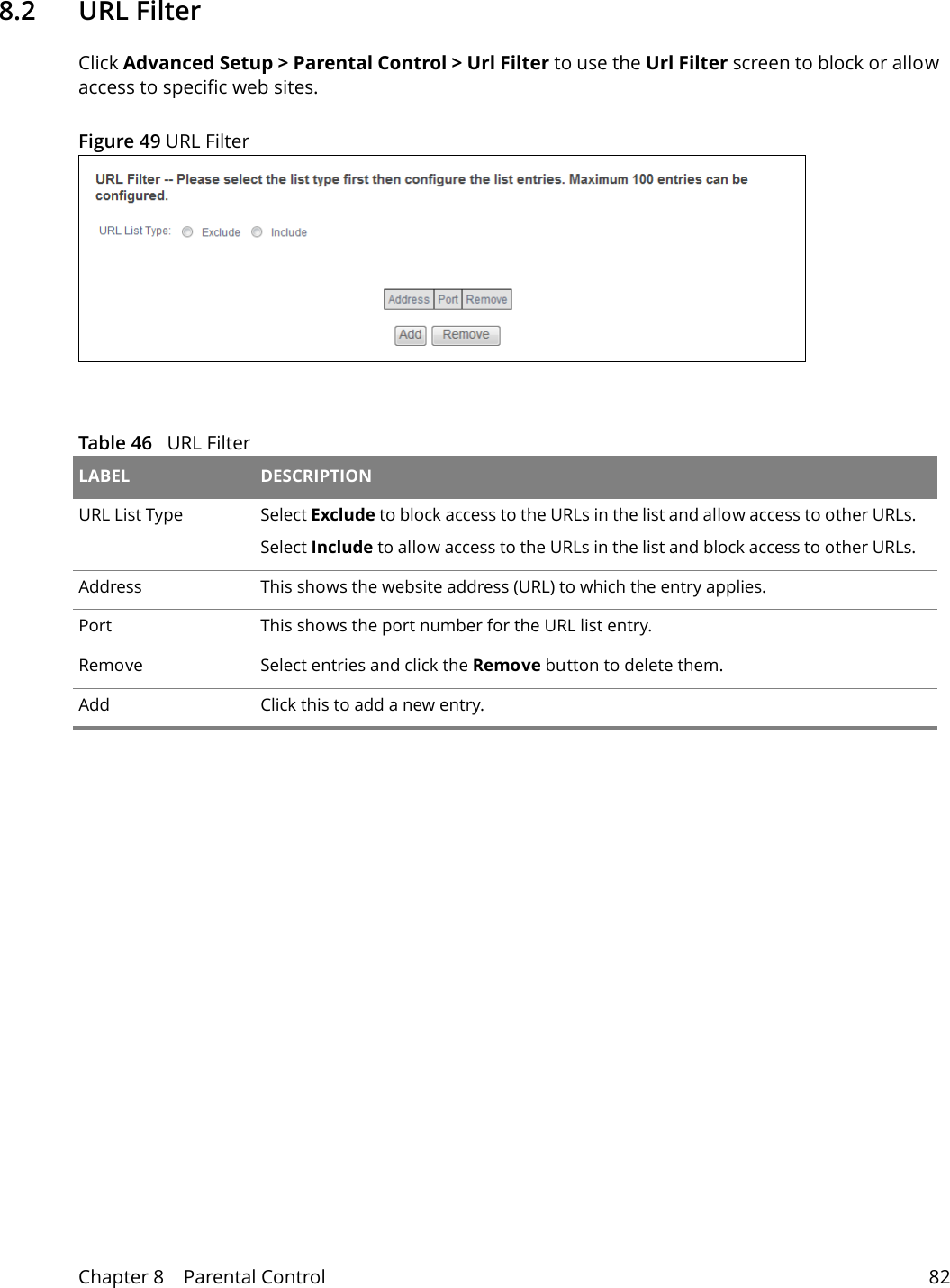
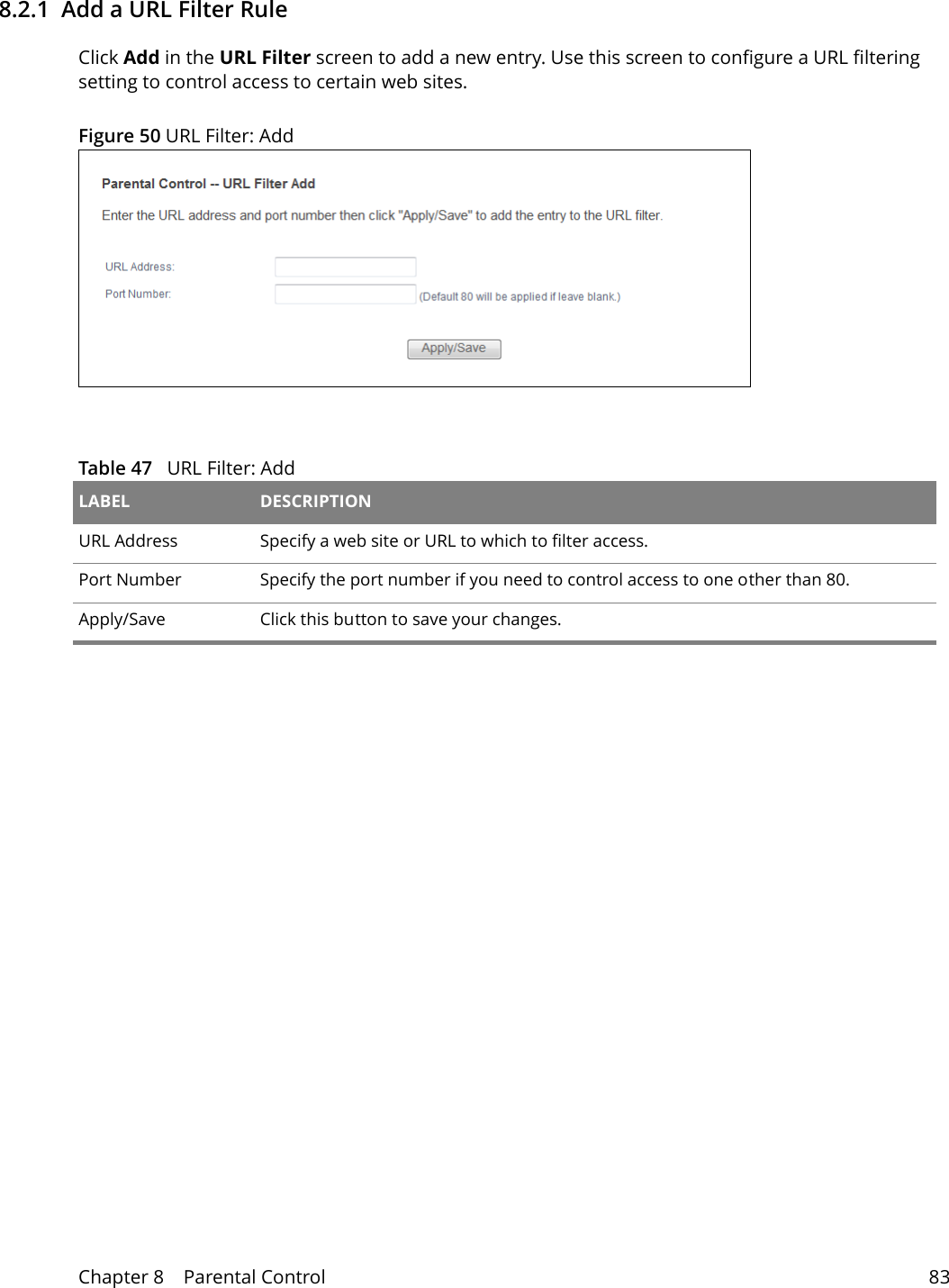
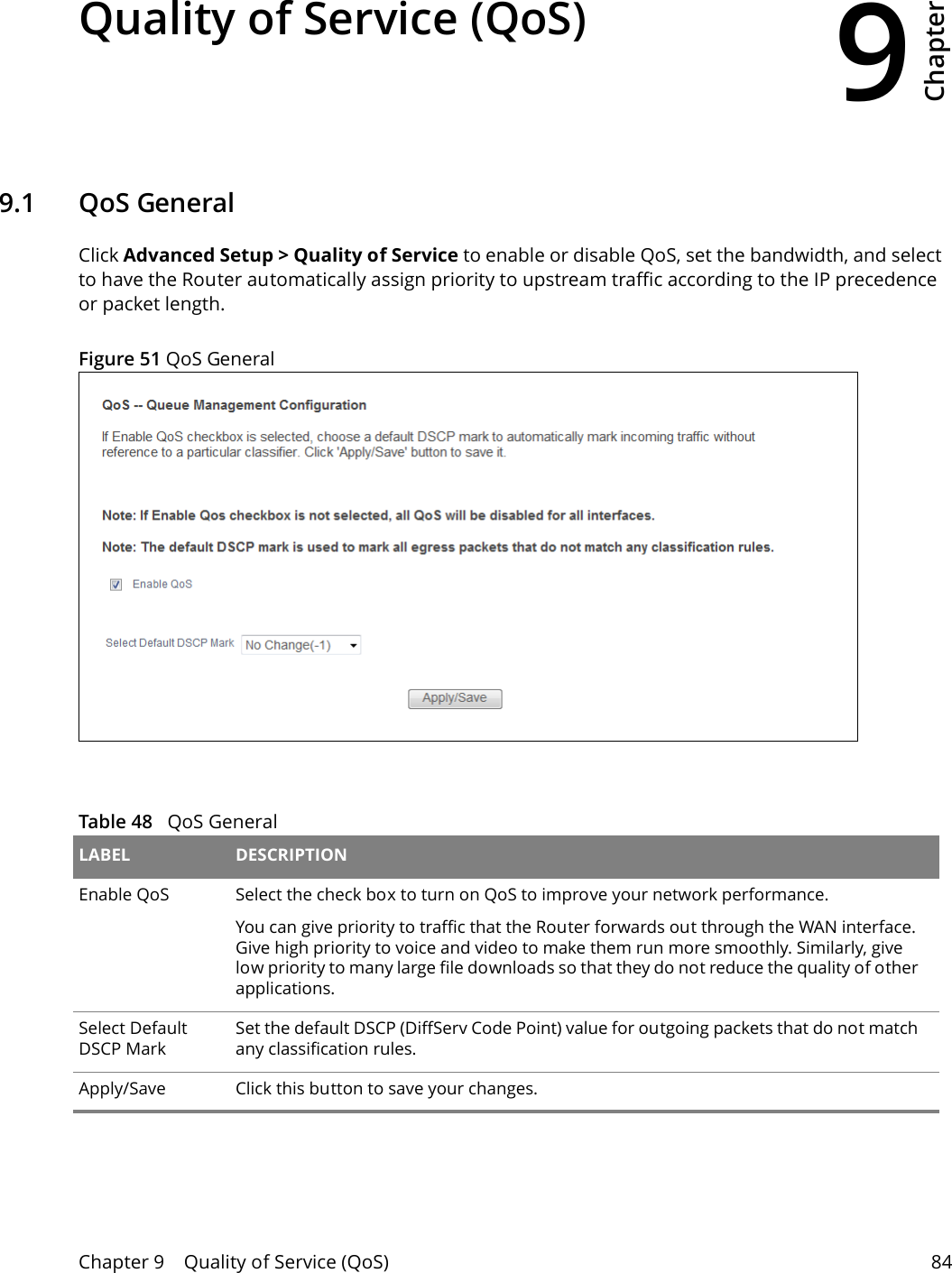
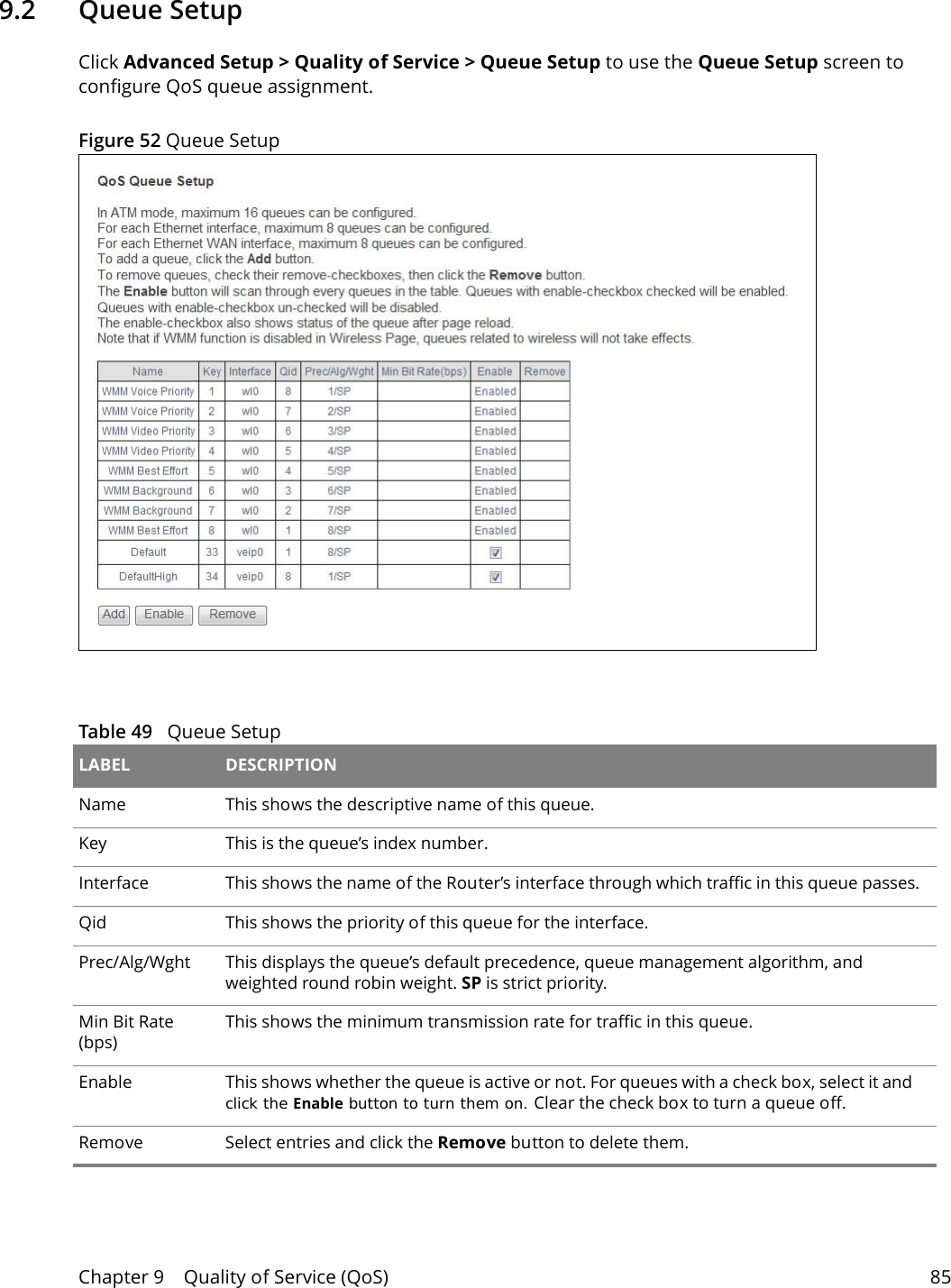
Contents     3Contents8 Chapter 1: Introduction8Overview9 Hardware Connection11 LEDs (Lights)12 Advanced Configuration16 Chapter 2: Device Info16 Device Info Summary18 WAN Info19 LAN Statistics21 WAN Statistics22 Route Info23 ARP Info24 DHCP Leases25 Chapter 3: WAN25 GPON Layer2 Interface26 Layer-2 GPON Interface Configuration26 Ethernet Layer2 Interface27 Ethernet Layer-2 Interface Configuration27 WAN Service29 WAN Connection Configuration46 Chapter 4: LAN46 LAN Setup49 Add DHCP Static IP Lease50 LAN Additional Subnet51 LAN VLAN53 IPv6 LAN Auto Configuration56 Chapter 5: VPN56 L2TP VPN Client56 L2TP VPN Client: Add62 Chapter 6: Network Address Translation (NAT)62 Virtual Servers63 Virtual Servers Add
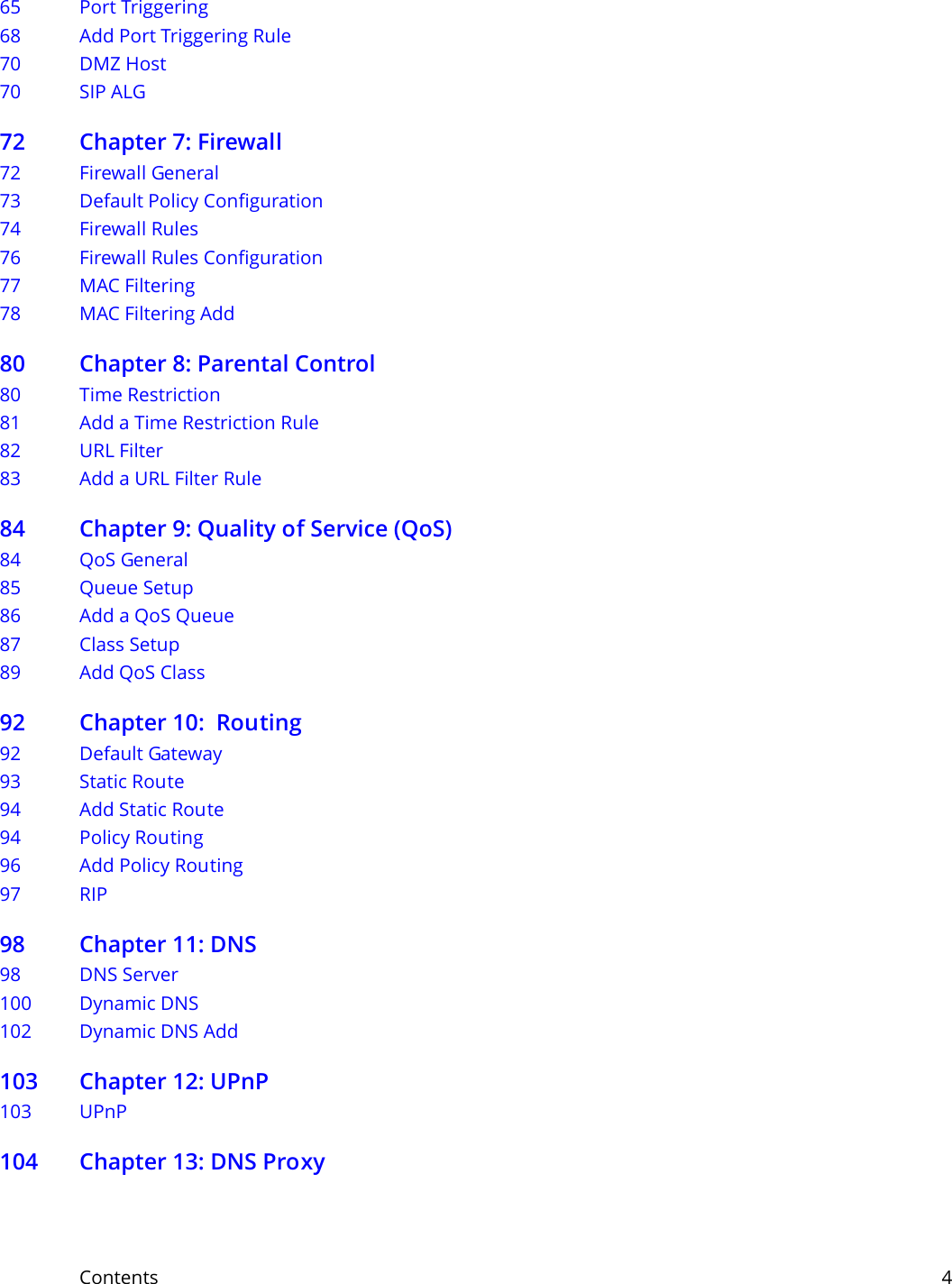
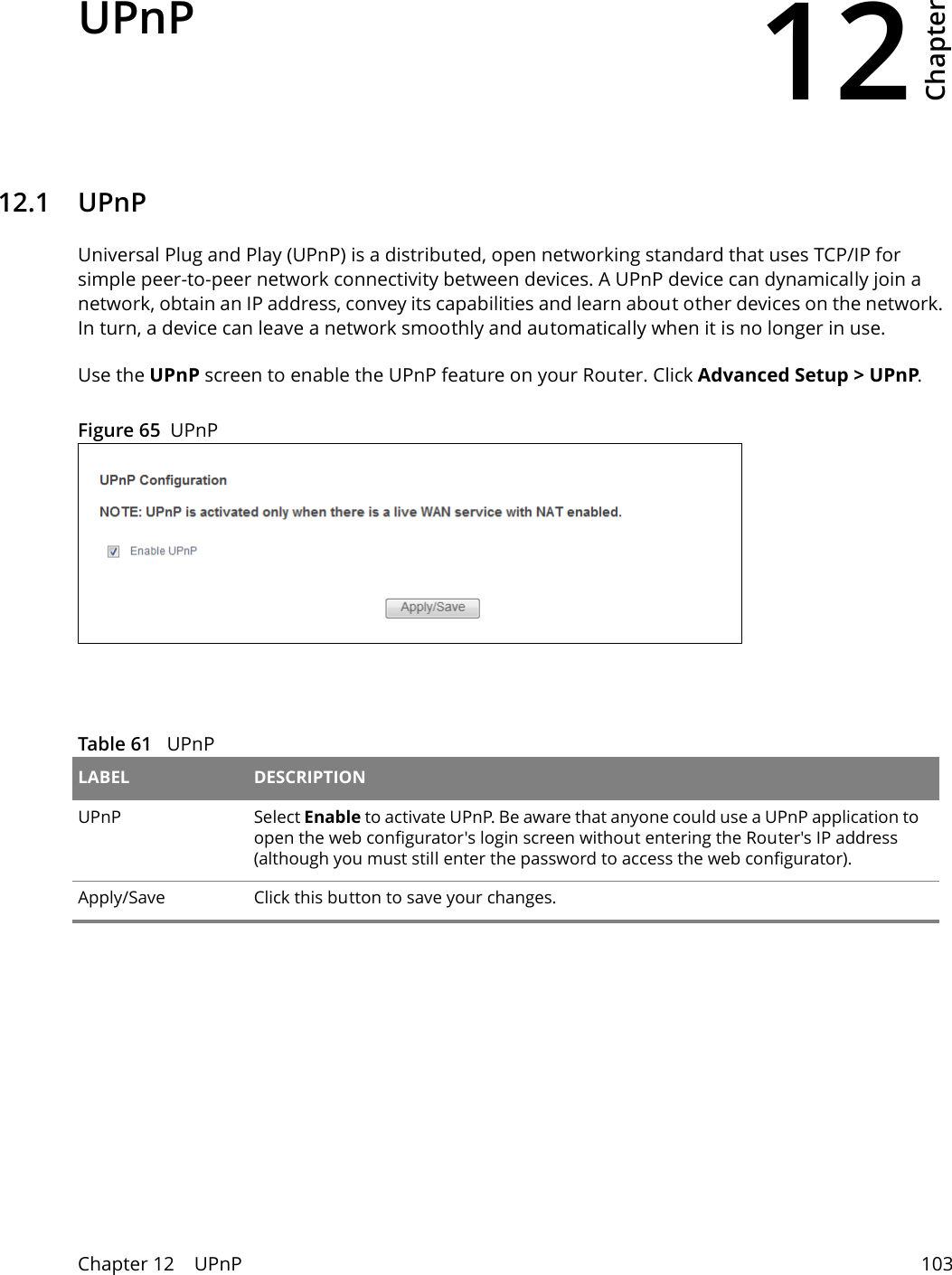
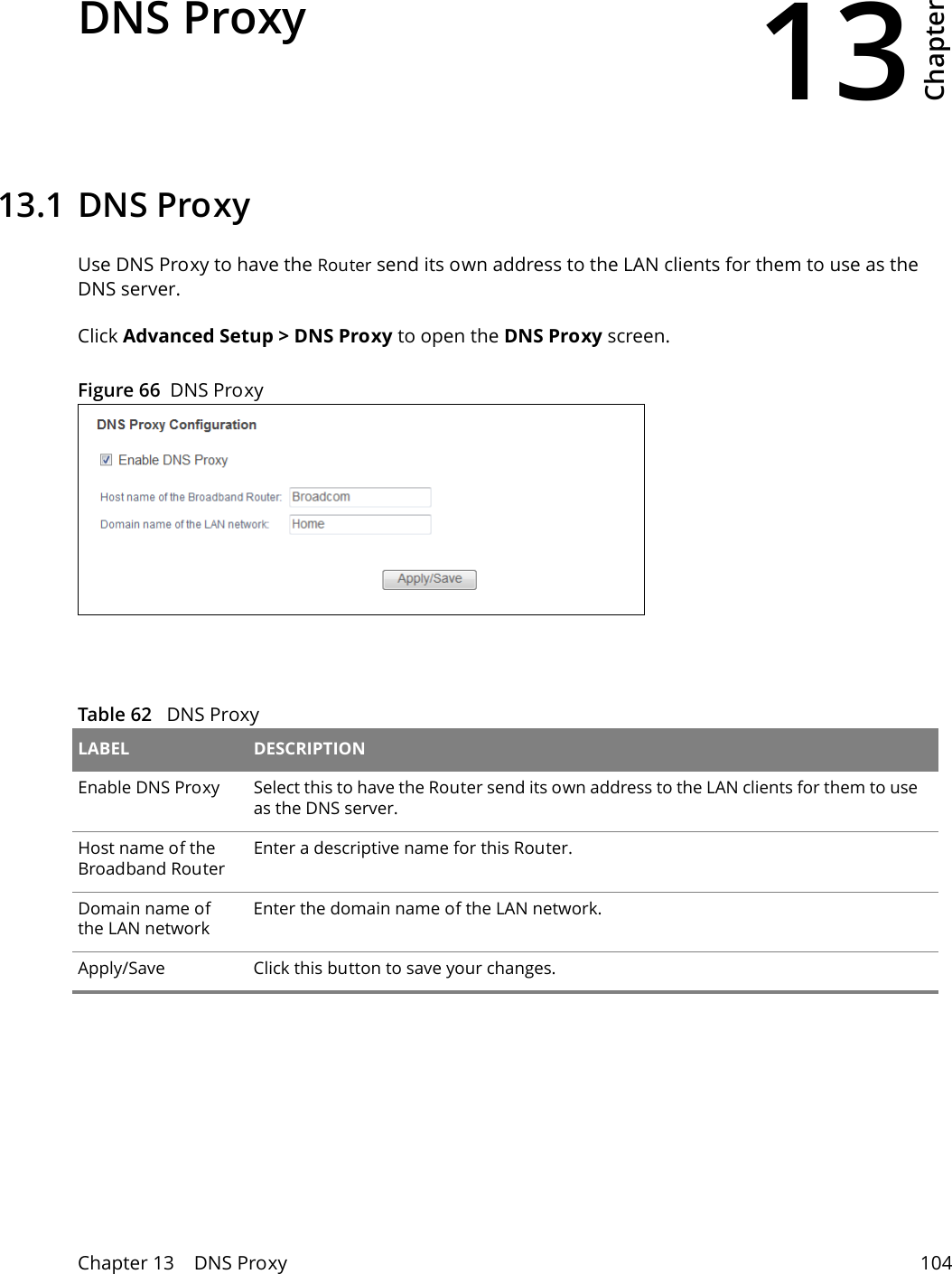
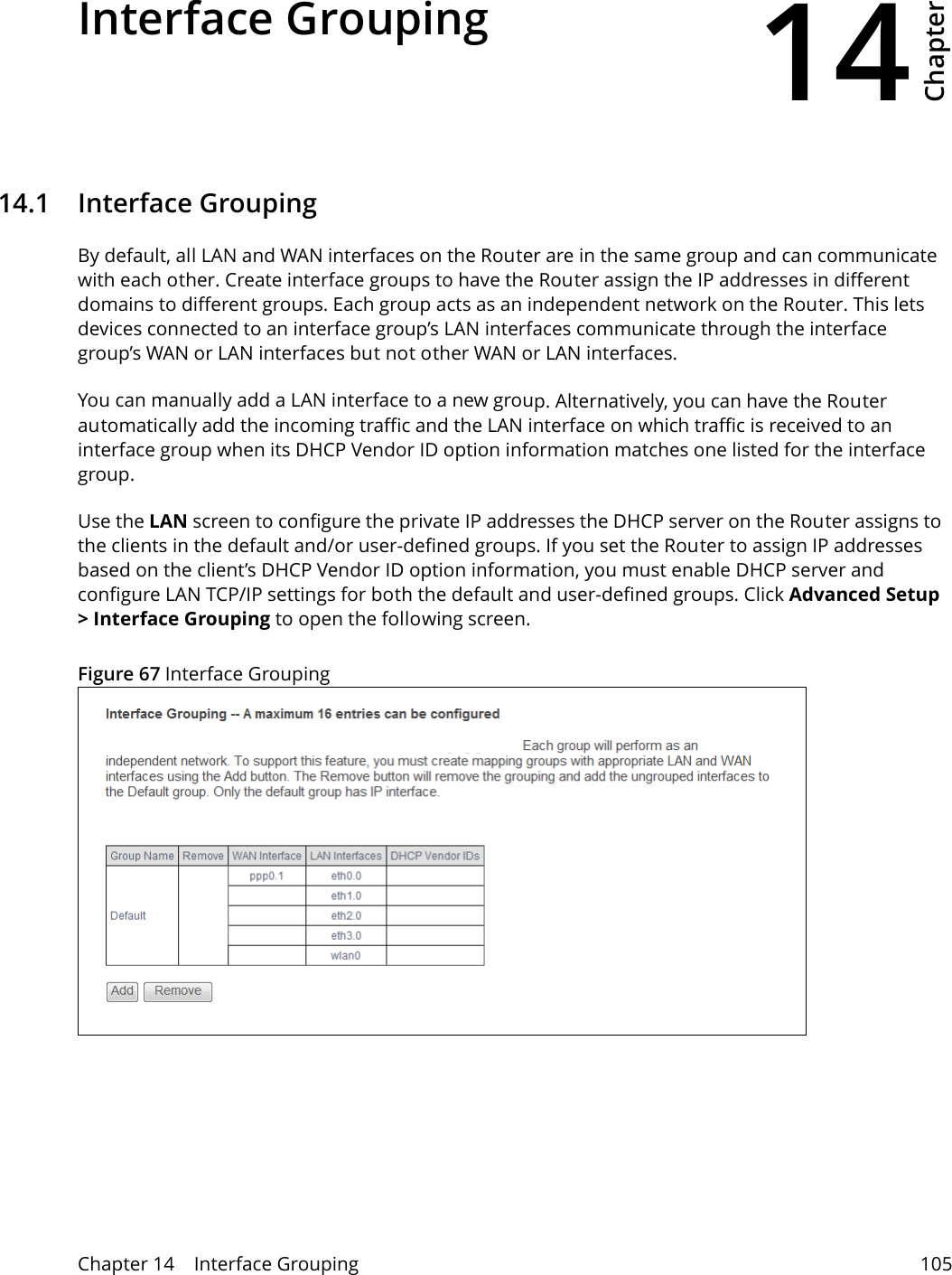
Contents     465 Port Triggering68 Add Port Triggering Rule 70 DMZ Host70 SIP ALG72 Chapter 7: Firewall72 Firewall General73 Default Policy Configuration74 Firewall Rules76 Firewall Rules Configuration  77 MAC Filtering78 MAC Filtering Add80 Chapter 8: Parental Control80 Time Restriction81 Add a Time Restriction Rule82 URL Filter83 Add a URL Filter Rule84 Chapter 9: Quality of Service (QoS)84 QoS General 85 Queue Setup86 Add a QoS Queue 87 Class Setup89 Add QoS Class 92 Chapter 10:  Routing92 Default Gateway93 Static Route94 Add Static Route94 Policy Routing96 Add Policy Routing97 RIP98 Chapter 11: DNS98 DNS Server100 Dynamic DNS102 Dynamic DNS Add 103 Chapter 12: UPnP103 UPnP104 Chapter 13: DNS Proxy
Contents     5104 DNS Proxy105 Chapter 14: Interface Grouping105 Interface Grouping106 Interface Group Configuration109 Chapter 15: IP Tunnel109 IPv6inIPv4 (6RD)110 IPv6inIPv4 Configuration111 IPv4inIPv6 (Dual Stack Lite)113 IPv4inIPv6 Configuration114 Chapter 16: IPSec VPN114 IPSec VPN116 IPSec VPN Add Screen121 Technical Reference121 IPSec Architecture122 Encapsulation123  IKE Phases124 Negotiation Mode124 IPSec and NAT125 VPN, NAT, and NAT Traversal126 ID Type and Content127 Pre-Shared Key128 Diffie-Hellman (DH) Key Groups129 Chapter 17: Certificates129 Local Certificates130 Create Certificate Request 132 Load Signed Certificate 132 Trusted CA  134 View Trusted CA Certificate135 Import Trusted CA Certificate136 Chapter 18: Power Management136 Power Management138 Chapter 19: Multicast138 Multicast140 Chapter 20: Wireless140 Wireless Basic 143 Wireless Security
Contents     6147 Wireless MAC Filter148 Wireless MAC Filter Add    149 Wireless Advanced152 Wireless Station Info153 Wireless 5GHz Basic 156 Wireless 5GHz Advanced Screen157 Wireless 5GHz WPS159 Push Button Configuration160 Wireless 5GHz MAC Filter161 Wireless MAC Filter Add    162 Wireless 5GHz Bridge163 Wireless 5GHz Station Info165 Chapter 21: Voice165  SIP Account 170 SIP Server176 Dial Plan Rules177 Phone Region 178 Call Rule179 Call History Summary180 Outgoing Calls181 Incoming Calls181 Technical Reference190 Quality of Service (QoS)191 Phone Services Overview197 Chapter 22: Diagnostics197 Diagnostics 198 Ping/TraceRoute/Nslookup199 Chapter 23: Settings199 Backup Configuration Using the Web Configurator200 Restore Configuration Using the Web Configurator201 Restoring Factory Defaults202 Chapter 24: Logs 202 Logs202 What You Need To Know203 System Log204 System Log Configuration205 Security Log207 Chapter 25: SNMP
Contents     7207 SNMP Agent210 Chapter 26: TR-069 Client210 TR-069 Client212 Chapter 27: Internet Time212 Internet Time214 Chapter 28: User Passwords214 User Passwords215 Chapter 29: GPON Password215 GPON Password216 Chapter 30: Update Software216 Update Software218 Chapter 31: Reboot218 Restart Using the Web Configurator219 Chapter 32: Troubleshooting219 Overview219 Power, Hardware Connections, and LEDs220 Router Access and Login221 Internet Access222 Wireless Internet Access223 Phone Calls and VoIP224 UPnP225 Appendix A: Safety Warnings
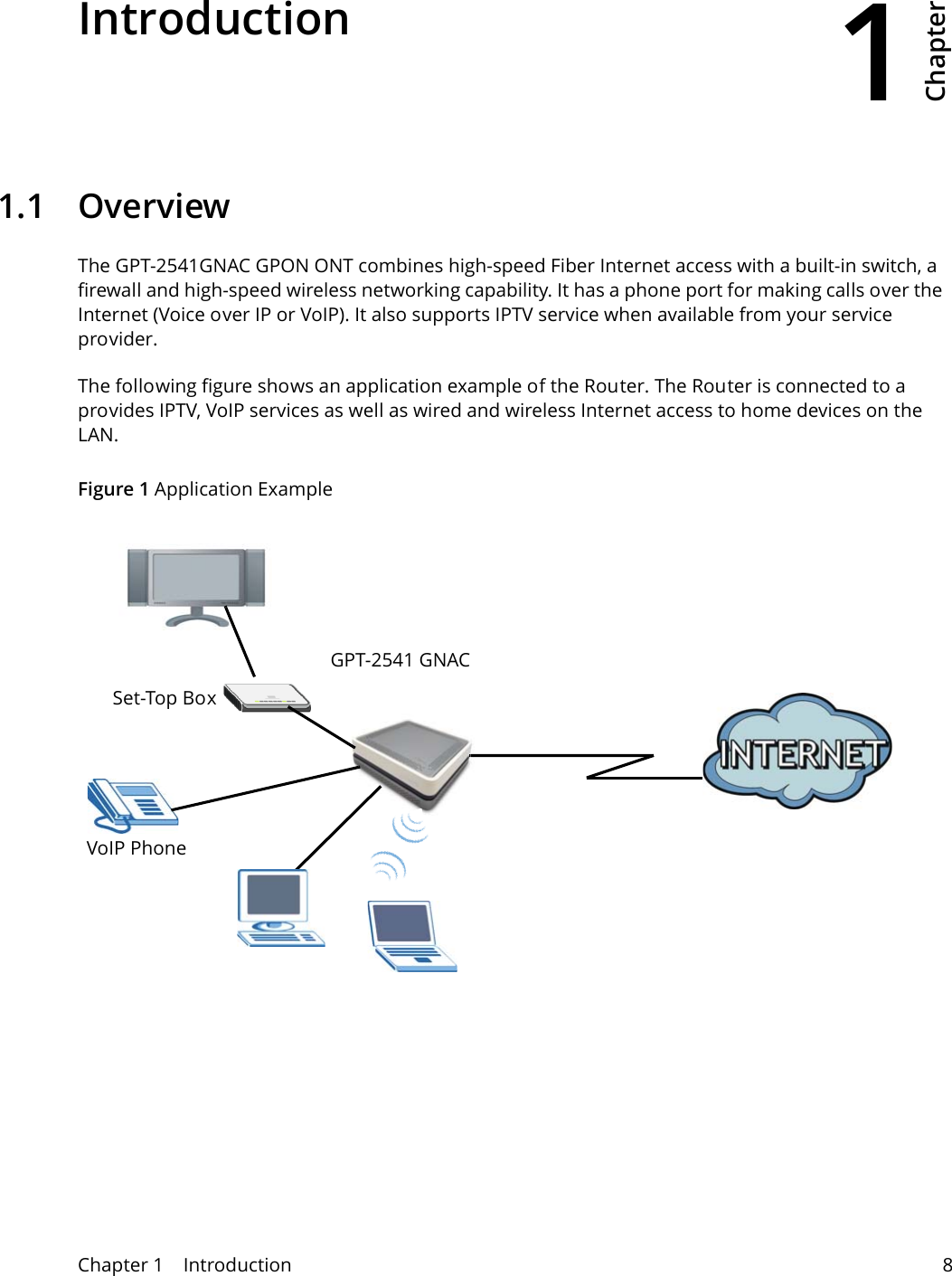
1Chapter Chapter 1    Introduction 8CHAPTER 1 Chapter 1 Introduction1.1 OverviewThe GPT-2541GNAC GPON ONT combines high-speed Fiber Internet access with a built-in switch, a firewall and high-speed wireless networking capability. It has a phone port for making calls over the Internet (Voice over IP or VoIP). It also supports IPTV service when available from your service provider.The following figure shows an application example of the Router. The Router is connected to a  provides IPTV, VoIP services as well as wired and wireless Internet access to home devices on the LAN.Figure 1 Application ExampleGPT-2541 GNACSet-Top BoxVoIP Phone
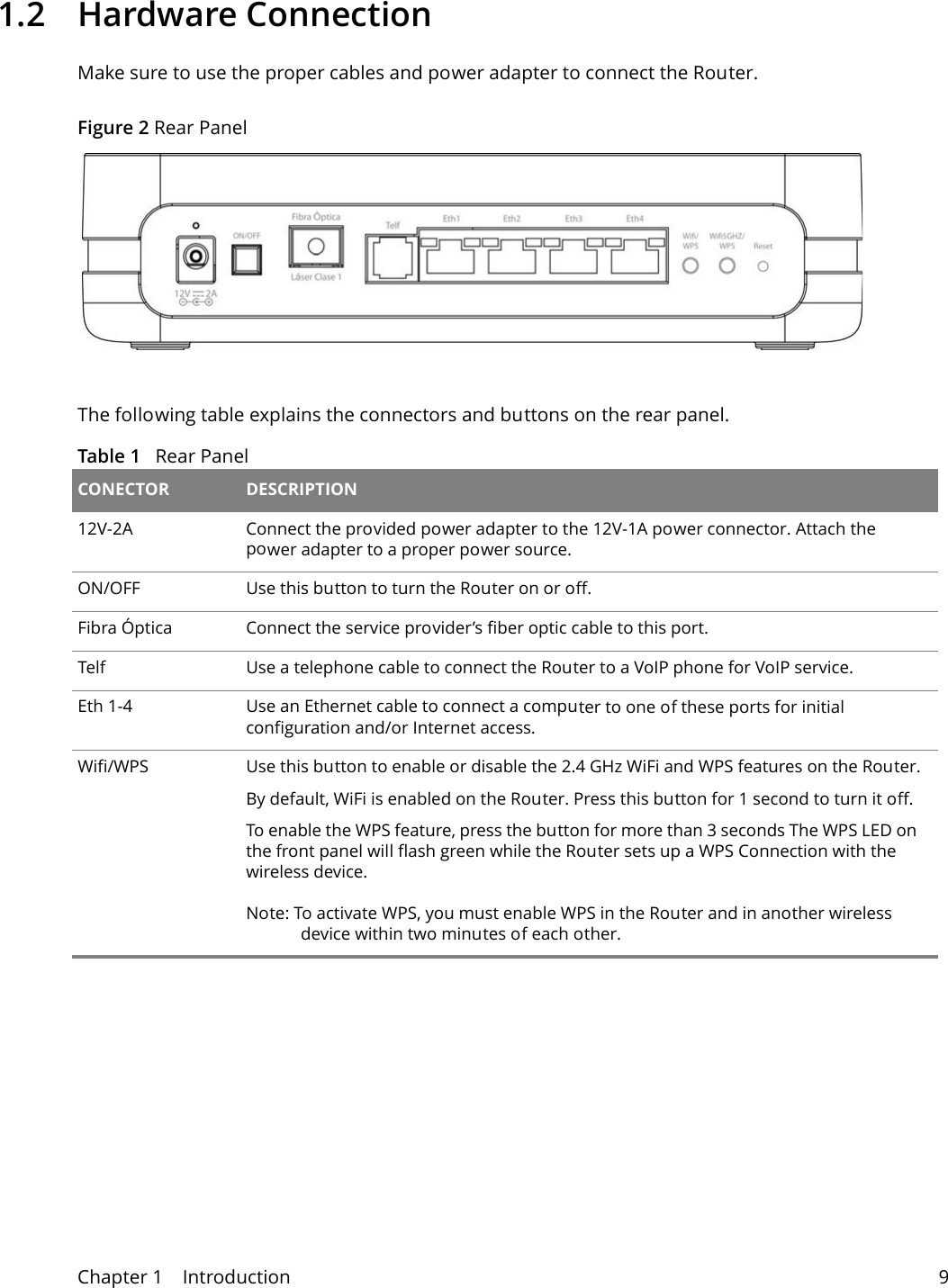
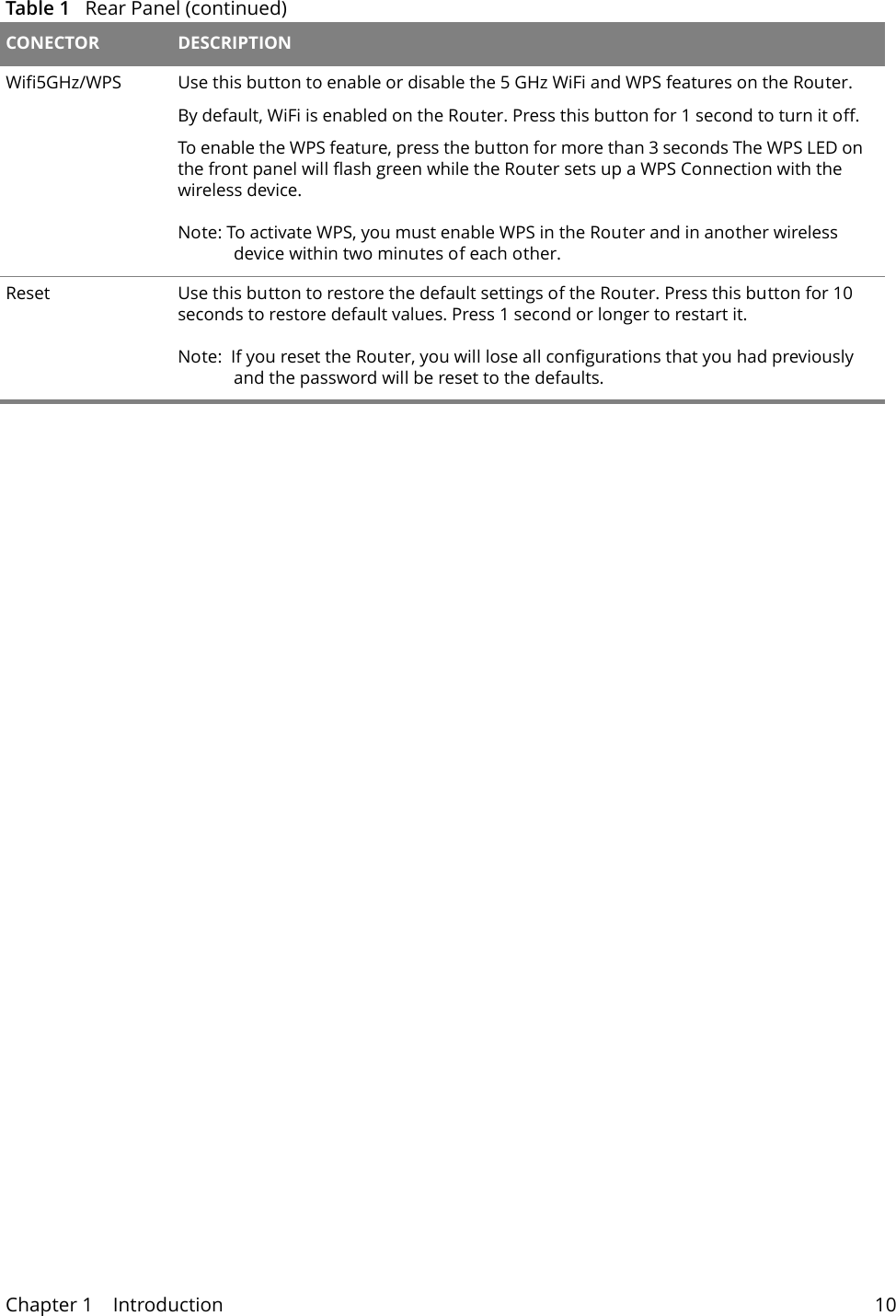
Chapter 1    Introduction 91.2 Hardware ConnectionMake sure to use the proper cables and power adapter to connect the Router.Figure 2 Rear PanelThe following table explains the connectors and buttons on the rear panel.Table 1   Rear Panel CONECTOR DESCRIPTION12V-2A Connect the provided power adapter to the 12V-1A power connector. Attach the power adapter to a proper power source. ON/OFF Use this button to turn the Router on or off. Fibra Óptica Connect the service provider’s fiber optic cable to this port.Telf Use a telephone cable to connect the Router to a VoIP phone for VoIP service.Eth 1-4 Use an Ethernet cable to connect a computer to one of these ports for initial configuration and/or Internet access. Wifi/WPS Use this button to enable or disable the 2.4 GHz WiFi and WPS features on the Router.By default, WiFi is enabled on the Router. Press this button for 1 second to turn it off. To enable the WPS feature, press the button for more than 3 seconds The WPS LED on the front panel will flash green while the Router sets up a WPS Connection with the wireless device.Note: To activate WPS, you must enable WPS in the Router and in another wireless device within two minutes of each other.
Chapter 1    Introduction 10Wifi5GHz/WPS Use this button to enable or disable the 5 GHz WiFi and WPS features on the Router.By default, WiFi is enabled on the Router. Press this button for 1 second to turn it off. To enable the WPS feature, press the button for more than 3 seconds The WPS LED on the front panel will flash green while the Router sets up a WPS Connection with the wireless device.Note: To activate WPS, you must enable WPS in the Router and in another wireless device within two minutes of each other. Reset Use this button to restore the default settings of the Router. Press this button for 10 seconds to restore default values. Press 1 second or longer to restart it.Note:  If you reset the Router, you will lose all configurations that you had previously and the password will be reset to the defaults. Table 1   Rear Panel (continued)CONECTOR DESCRIPTION
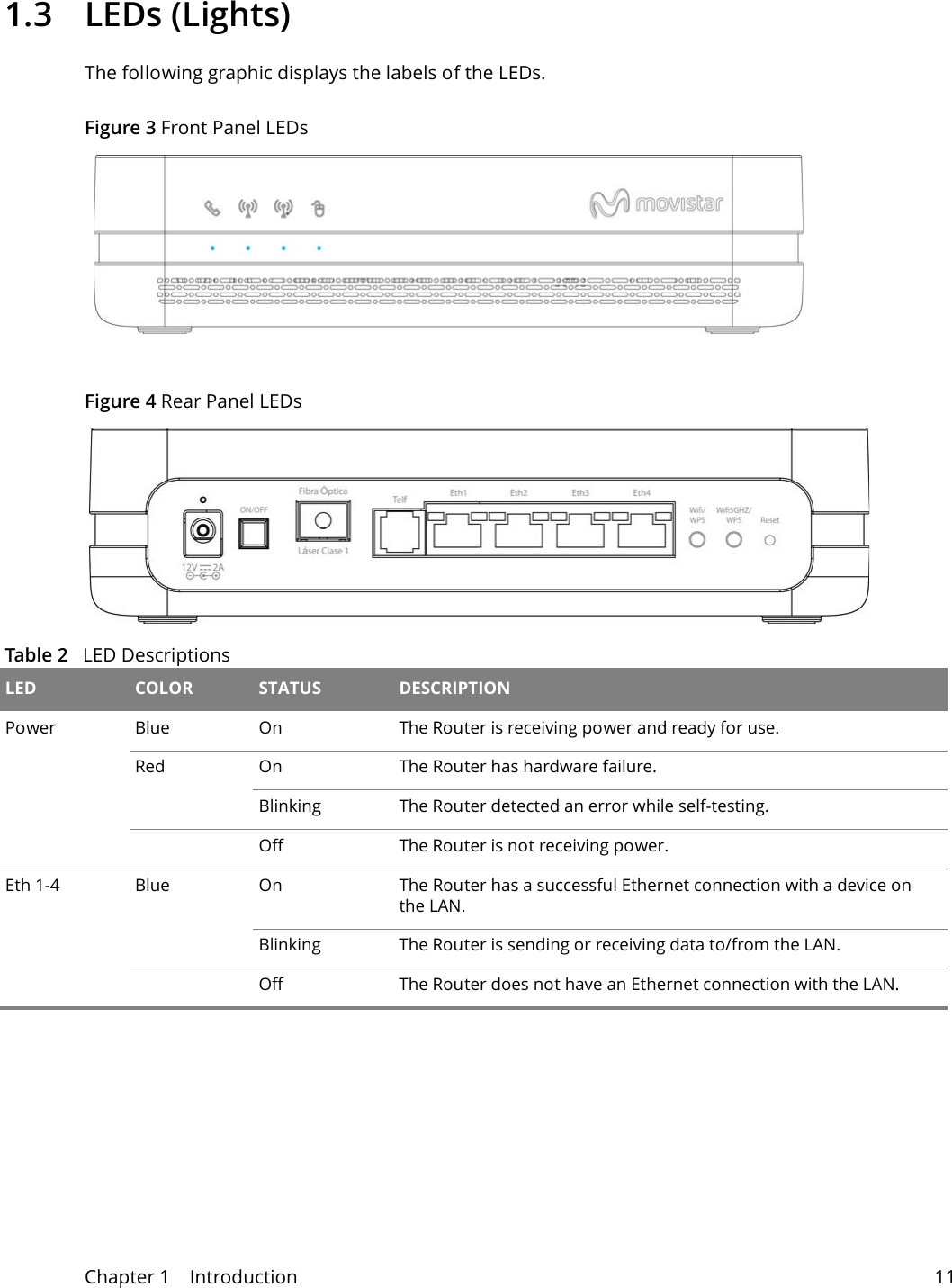
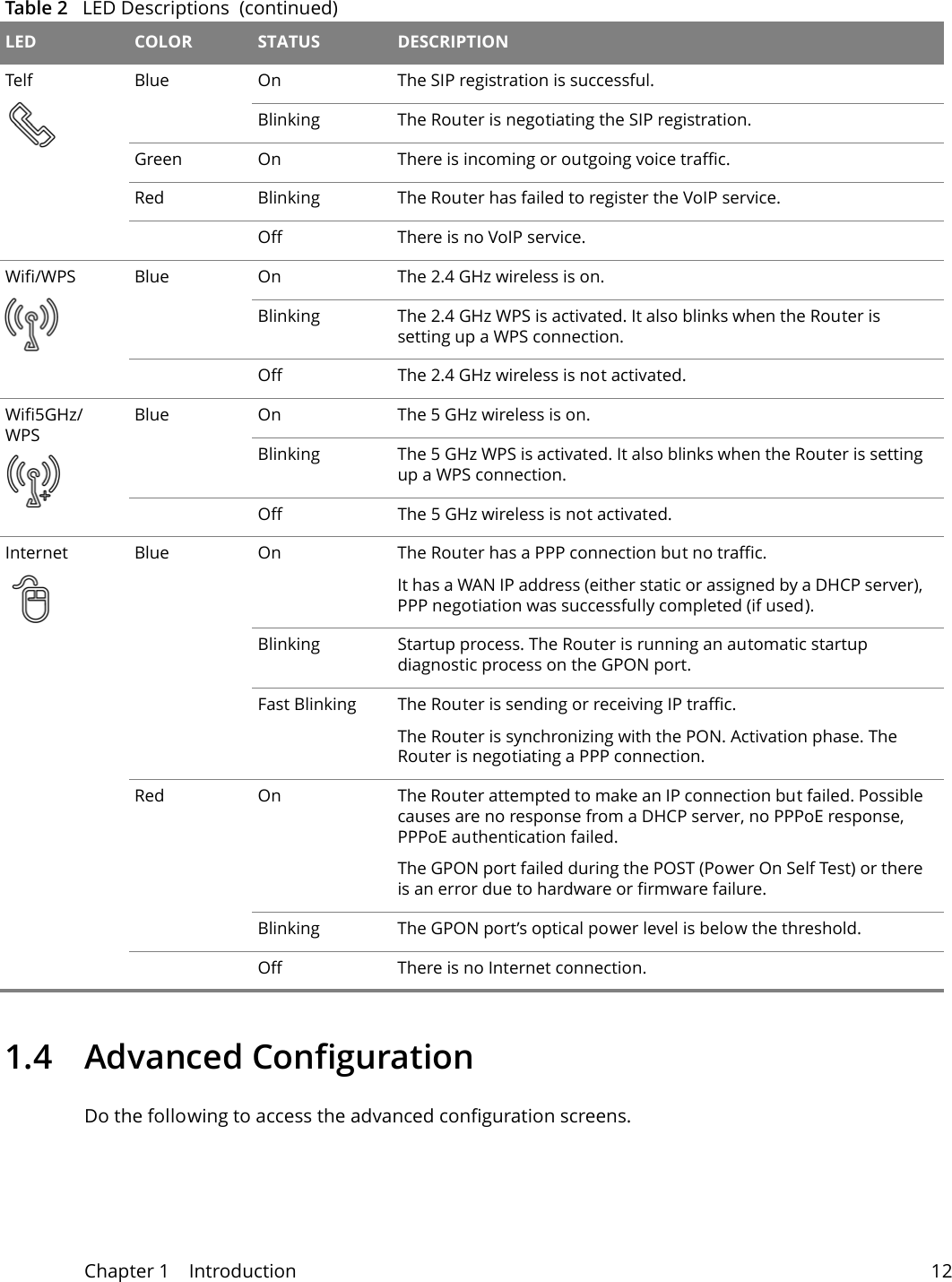
Chapter 1    Introduction 111.3 LEDs (Lights)The following graphic displays the labels of the LEDs.Figure 3 Front Panel LEDs   Figure 4 Rear Panel LEDs        Table 2   LED Descriptions  LED COLOR STATUS DESCRIPTIONPower Blue On The Router is receiving power and ready for use.Red On The Router has hardware failure.Blinking The Router detected an error while self-testing.Off The Router is not receiving power.Eth 1-4 Blue On The Router has a successful Ethernet connection with a device on the LAN.Blinking The Router is sending or receiving data to/from the LAN.Off The Router does not have an Ethernet connection with the LAN.
Chapter 1    Introduction 121.4 Advanced ConfigurationDo the following to access the advanced configuration screens.  Telf Blue On The SIP registration is successful.Blinking The Router is negotiating the SIP registration.Green On There is incoming or outgoing voice traffic.Red Blinking The Router has failed to register the VoIP service. Off There is no VoIP service.Wifi/WPS Blue On The 2.4 GHz wireless is on.Blinking The 2.4 GHz WPS is activated. It also blinks when the Router is setting up a WPS connection.Off The 2.4 GHz wireless is not activated.Wifi5GHz/WPSBlue On The 5 GHz wireless is on.Blinking The 5 GHz WPS is activated. It also blinks when the Router is setting up a WPS connection.Off The 5 GHz wireless is not activated.Internet Blue On The Router has a PPP connection but no traffic.It has a WAN IP address (either static or assigned by a DHCP server), PPP negotiation was successfully completed (if used).Blinking Startup process. The Router is running an automatic startup diagnostic process on the GPON port.Fast Blinking The Router is sending or receiving IP traffic.The Router is synchronizing with the PON. Activation phase. The Router is negotiating a PPP connection.Red On The Router attempted to make an IP connection but failed. Possible causes are no response from a DHCP server, no PPPoE response, PPPoE authentication failed.The GPON port failed during the POST (Power On Self Test) or there is an error due to hardware or firmware failure.Blinking The GPON port’s optical power level is below the threshold.Off There is no Internet connection.Table 2   LED Descriptions  (continued)LED COLOR STATUS DESCRIPTION
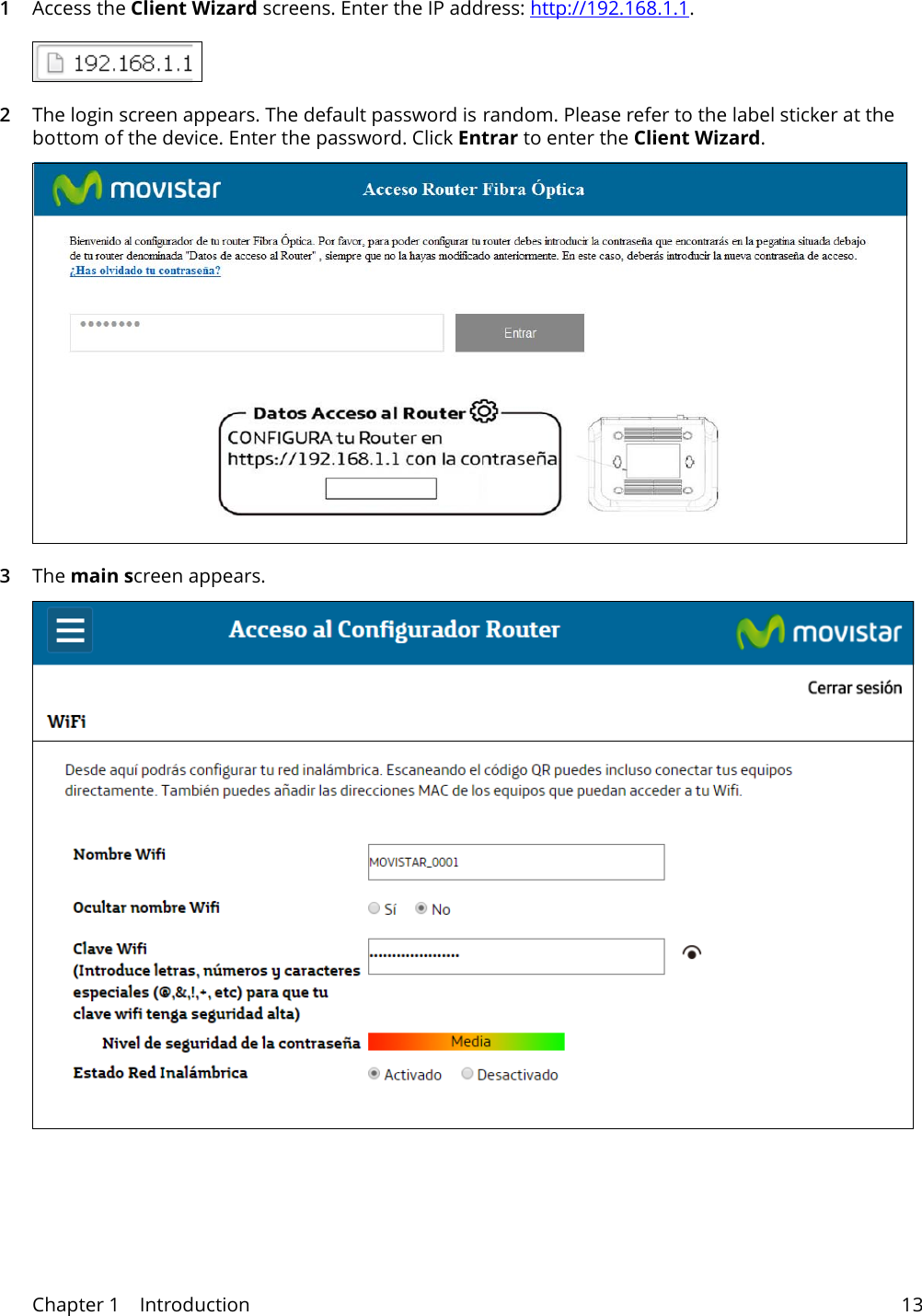
Chapter 1    Introduction 131Access the Client Wizard screens. Enter the IP address: http://192.168.1.1. 2The login screen appears. The default password is random. Please refer to the label sticker at the bottom of the device. Enter the password. Click Entrar to enter the Client Wizard.3The main screen appears.
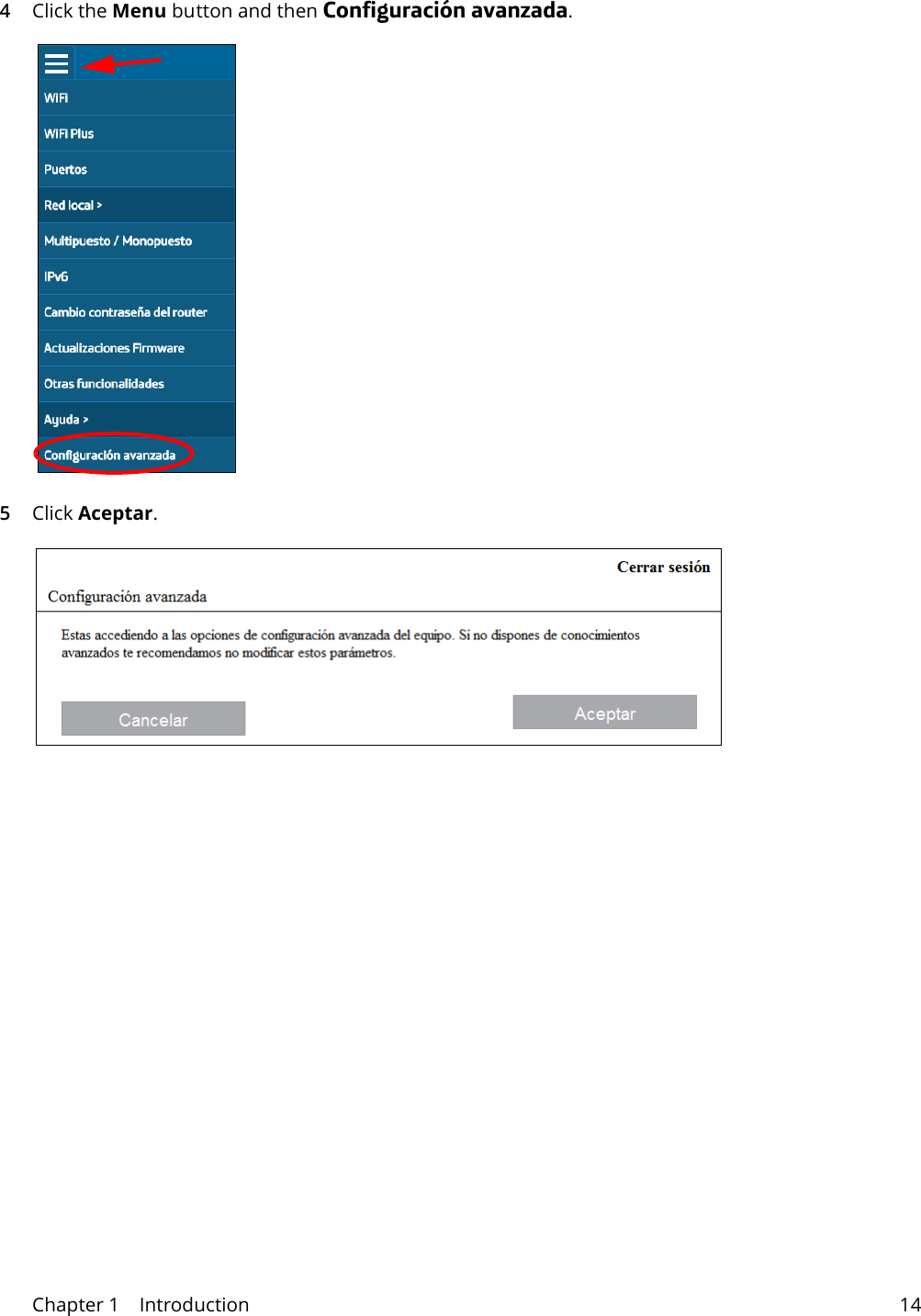
Chapter 1    Introduction 144Click the Menu button and then Configuración avanzada.  5Click Aceptar.
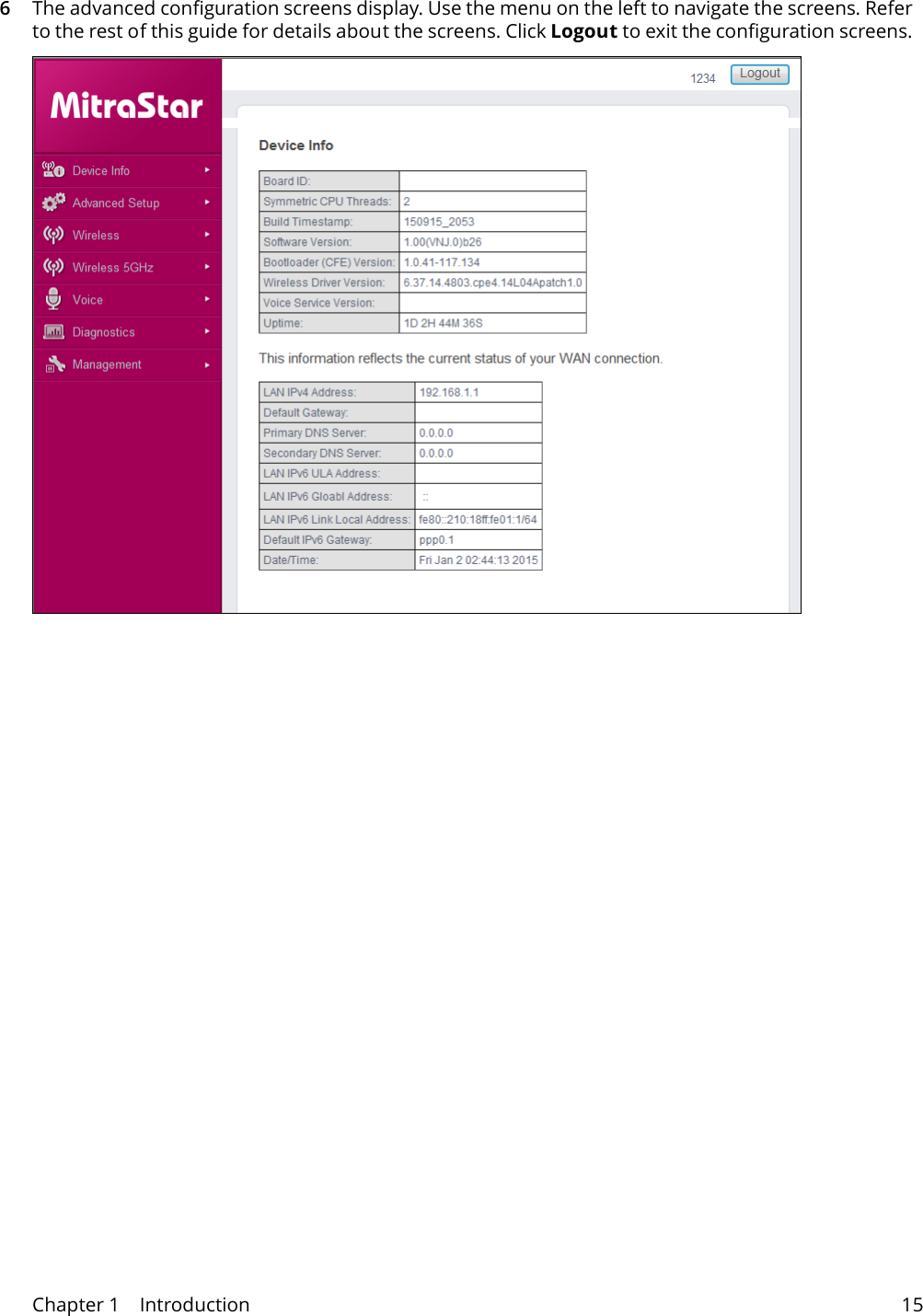
Chapter 1    Introduction 156The advanced configuration screens display. Use the menu on the left to navigate the screens. Refer to the rest of this guide for details about the screens. Click Logout to exit the configuration screens.
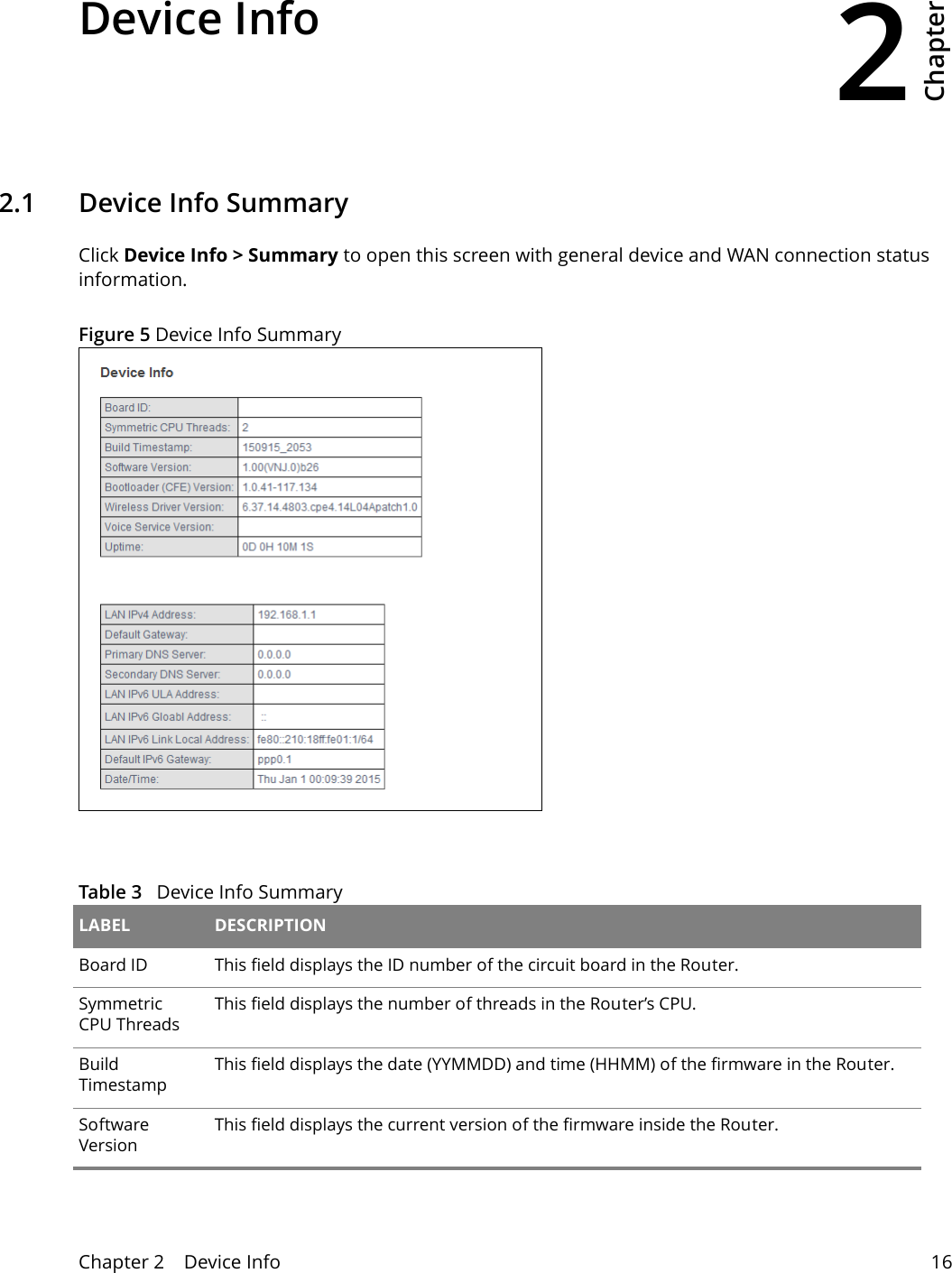
2Chapter Chapter 2    Device Info 16CHAPTER 2 Chapter 2 Device Info2.1   Device Info SummaryClick Device Info > Summary to open this screen with general device and WAN connection status information.Figure 5 Device Info Summary Table 3   Device Info Summary LABEL DESCRIPTIONBoard ID This field displays the ID number of the circuit board in the Router. Symmetric CPU ThreadsThis field displays the number of threads in the Router’s CPU.Build TimestampThis field displays the date (YYMMDD) and time (HHMM) of the firmware in the Router.Software VersionThis field displays the current version of the firmware inside the Router.
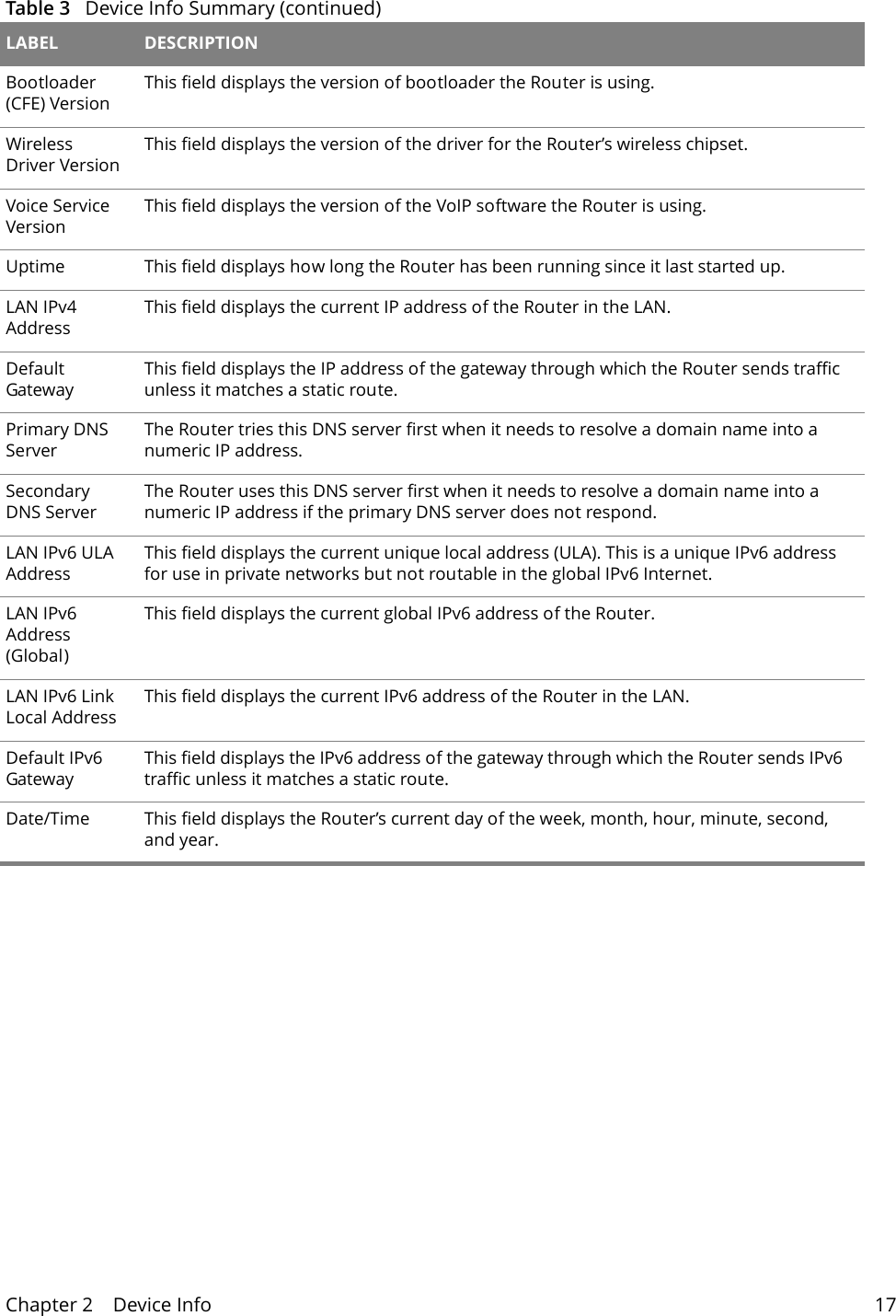
Chapter 2    Device Info 17Bootloader (CFE) VersionThis field displays the version of bootloader the Router is using.Wireless Driver VersionThis field displays the version of the driver for the Router’s wireless chipset.Voice Service VersionThis field displays the version of the VoIP software the Router is using.Uptime This field displays how long the Router has been running since it last started up.LAN IPv4 AddressThis field displays the current IP address of the Router in the LAN. Default GatewayThis field displays the IP address of the gateway through which the Router sends traffic unless it matches a static route.Primary DNS ServerThe Router tries this DNS server first when it needs to resolve a domain name into a numeric IP address.Secondary DNS ServerThe Router uses this DNS server first when it needs to resolve a domain name into a numeric IP address if the primary DNS server does not respond.LAN IPv6 ULA AddressThis field displays the current unique local address (ULA). This is a unique IPv6 address for use in private networks but not routable in the global IPv6 Internet.LAN IPv6 Address (Global)This field displays the current global IPv6 address of the Router.LAN IPv6 Link Local AddressThis field displays the current IPv6 address of the Router in the LAN.Default IPv6 GatewayThis field displays the IPv6 address of the gateway through which the Router sends IPv6 traffic unless it matches a static route.Date/Time This field displays the Router’s current day of the week, month, hour, minute, second, and year.Table 3   Device Info Summary (continued)LABEL DESCRIPTION
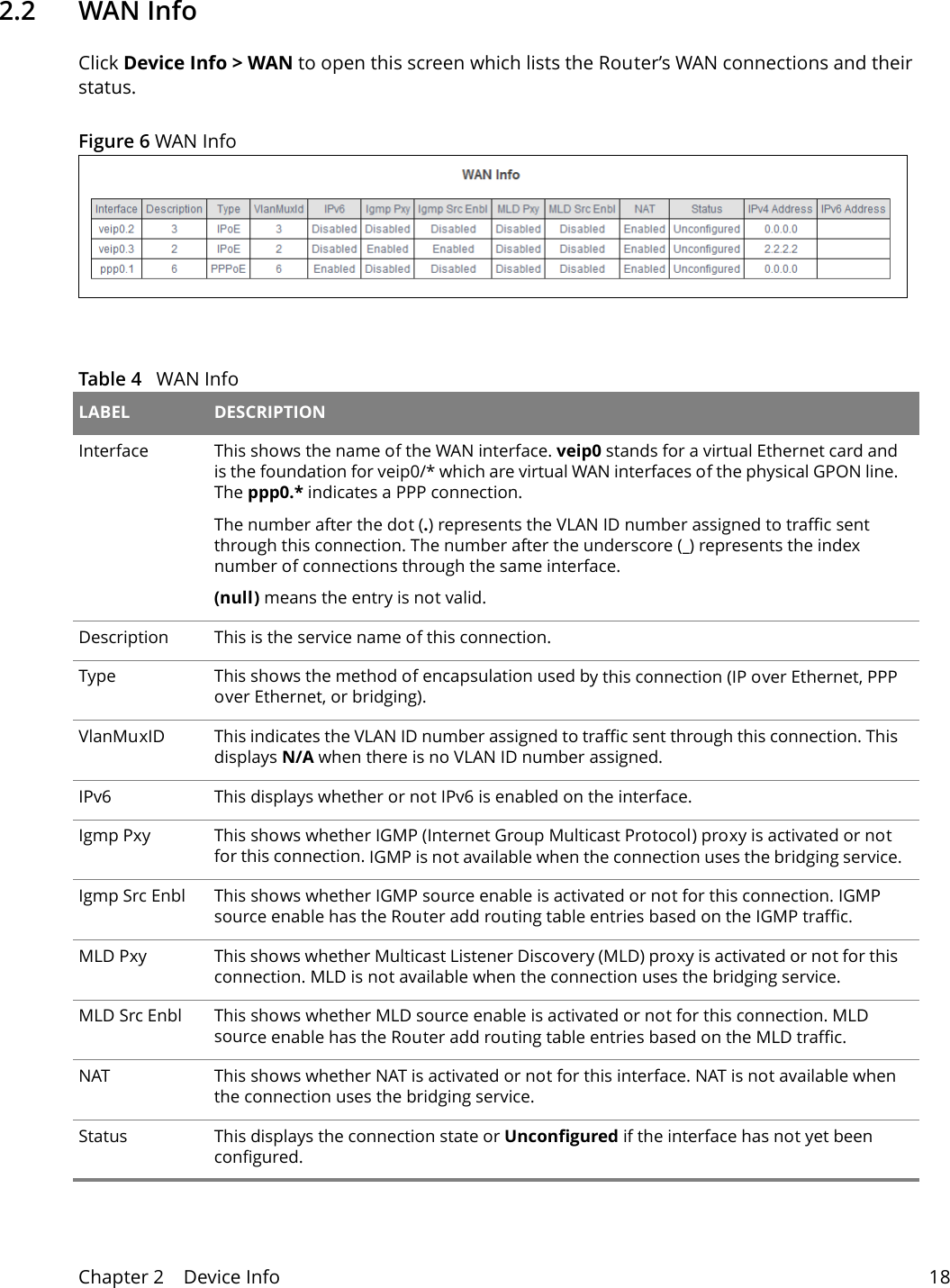
Chapter 2    Device Info 182.2   WAN InfoClick Device Info > WAN to open this screen which lists the Router’s WAN connections and their status.Figure 6 WAN Info   Table 4   WAN Info LABEL DESCRIPTIONInterface This shows the name of the WAN interface. veip0 stands for a virtual Ethernet card and is the foundation for veip0/* which are virtual WAN interfaces of the physical GPON line. The ppp0.* indicates a PPP connection. The number after the dot (.) represents the VLAN ID number assigned to traffic sent through this connection. The number after the underscore (_) represents the index number of connections through the same interface.(null) means the entry is not valid.Description This is the service name of this connection.Type This shows the method of encapsulation used by this connection (IP over Ethernet, PPP over Ethernet, or bridging). VlanMuxID This indicates the VLAN ID number assigned to traffic sent through this connection. This displays N/A when there is no VLAN ID number assigned.IPv6 This displays whether or not IPv6 is enabled on the interface.Igmp Pxy This shows whether IGMP (Internet Group Multicast Protocol) proxy is activated or not for this connection. IGMP is not available when the connection uses the bridging service.Igmp Src Enbl This shows whether IGMP source enable is activated or not for this connection. IGMP source enable has the Router add routing table entries based on the IGMP traffic.MLD Pxy This shows whether Multicast Listener Discovery (MLD) proxy is activated or not for this connection. MLD is not available when the connection uses the bridging service.MLD Src Enbl This shows whether MLD source enable is activated or not for this connection. MLD source enable has the Router add routing table entries based on the MLD traffic.NAT This shows whether NAT is activated or not for this interface. NAT is not available when the connection uses the bridging service.Status This displays the connection state or Unconfigured if the interface has not yet been configured.
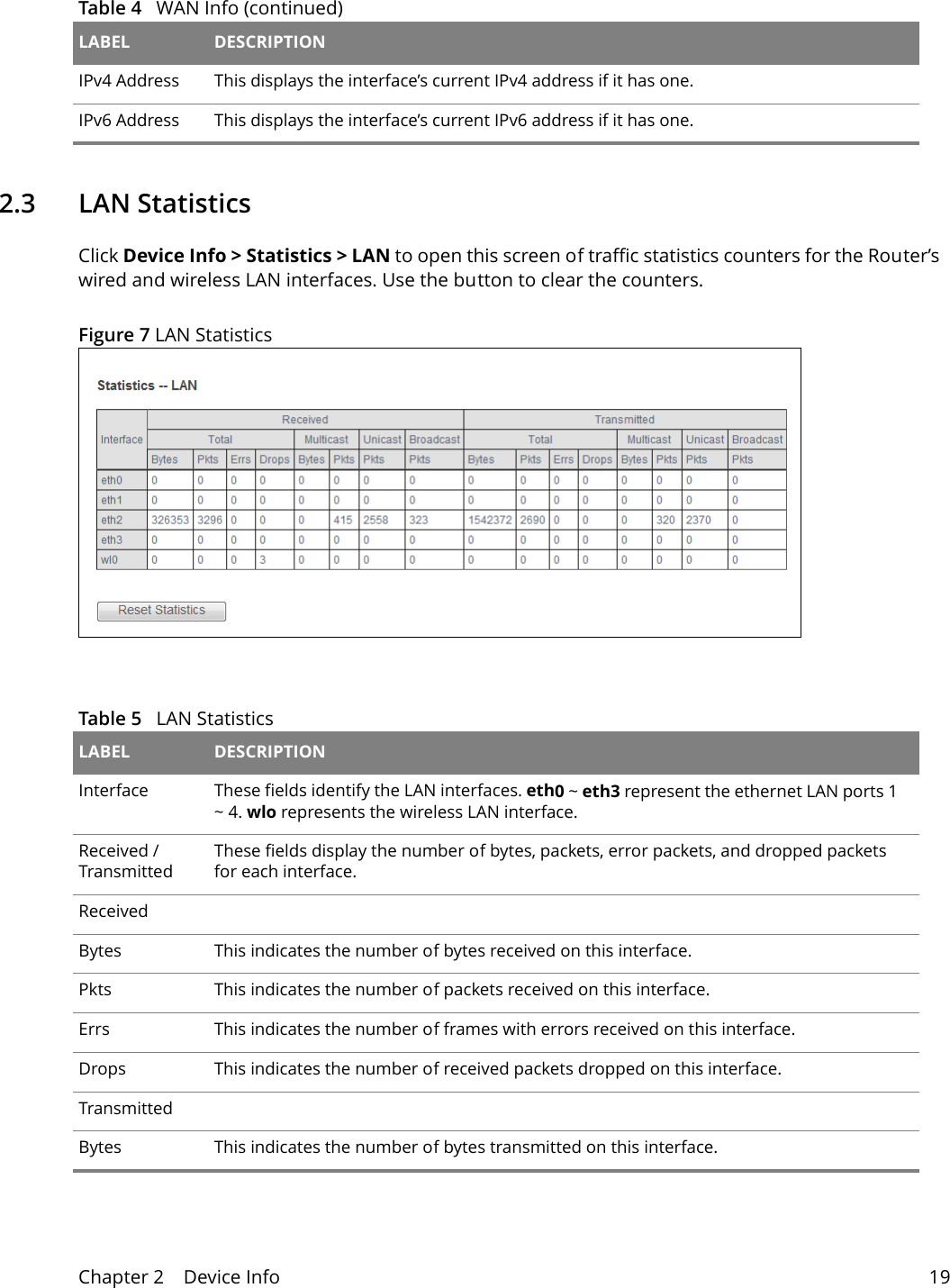
Chapter 2    Device Info 192.3   LAN StatisticsClick Device Info > Statistics > LAN to open this screen of traffic statistics counters for the Router’s wired and wireless LAN interfaces. Use the button to clear the counters.Figure 7 LAN Statistics  IPv4 Address This displays the interface’s current IPv4 address if it has one. IPv6 Address This displays the interface’s current IPv6 address if it has one. Table 4   WAN Info (continued)LABEL DESCRIPTIONTable 5   LAN Statistics LABEL DESCRIPTIONInterface  These fields identify the LAN interfaces. eth0 ~ eth3 represent the ethernet LAN ports 1 ~ 4. wlo represents the wireless LAN interface.Received / TransmittedThese fields display the number of bytes, packets, error packets, and dropped packets for each interface.ReceivedBytes This indicates the number of bytes received on this interface.Pkts This indicates the number of packets received on this interface.Errs This indicates the number of frames with errors received on this interface.Drops This indicates the number of received packets dropped on this interface.TransmittedBytes This indicates the number of bytes transmitted on this interface.
Chapter 2    Device Info 20Pkts This indicates the number of transmitted packets on this interface.Errs This indicates the number of frames with errors transmitted on this interface.Drops This indicates the number of outgoing packets dropped on this interface.Reset StatisticsClick this to clear the screen’s statistics counters.Table 5   LAN Statistics (continued)LABEL DESCRIPTION
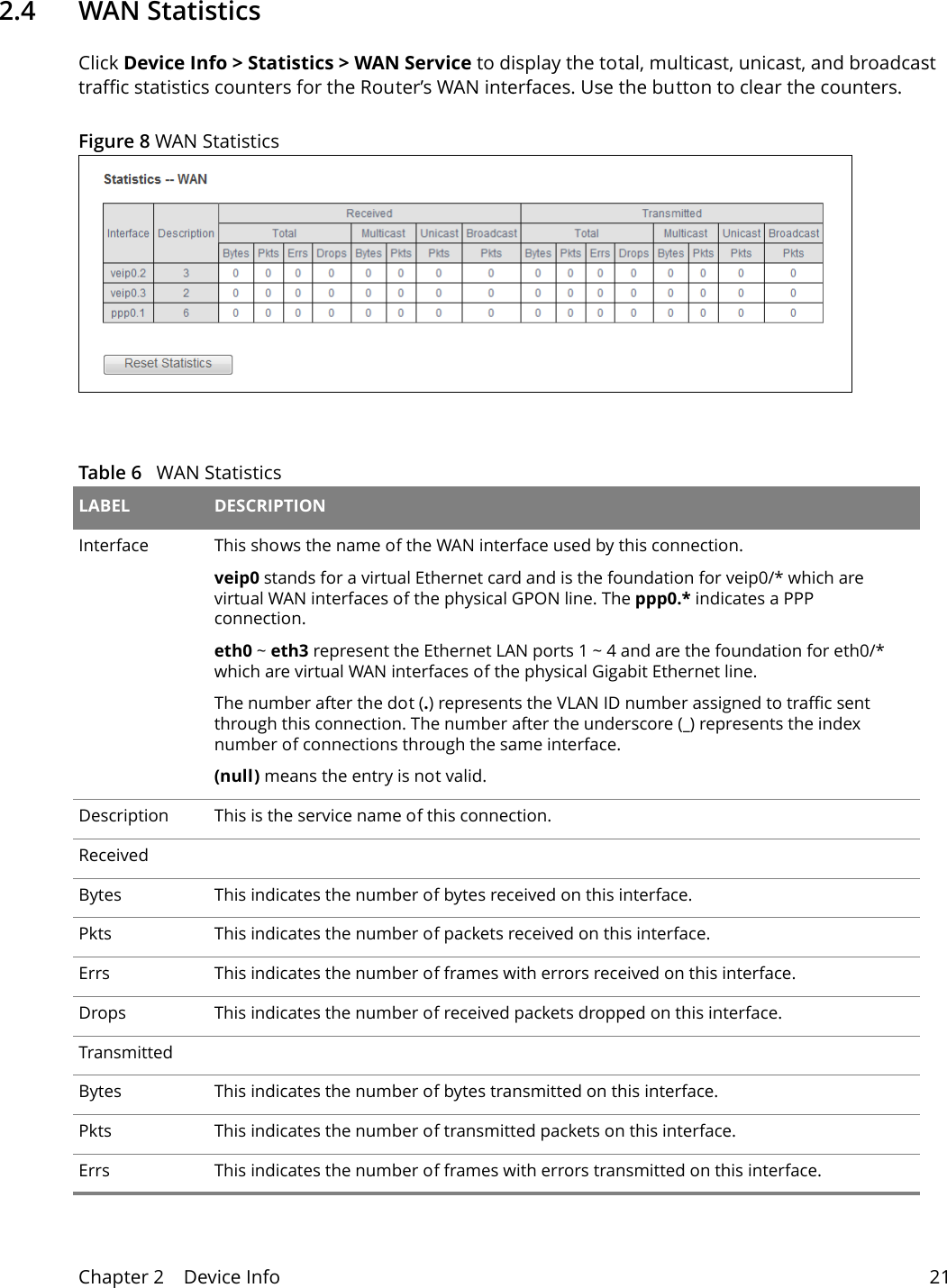
Chapter 2    Device Info 212.4   WAN Statistics Click Device Info > Statistics > WAN Service to display the total, multicast, unicast, and broadcast traffic statistics counters for the Router’s WAN interfaces. Use the button to clear the counters.Figure 8 WAN Statistics   Table 6   WAN Statistics LABEL DESCRIPTIONInterface This shows the name of the WAN interface used by this connection.veip0 stands for a virtual Ethernet card and is the foundation for veip0/* which are virtual WAN interfaces of the physical GPON line. The ppp0.* indicates a PPP connection. eth0 ~ eth3 represent the Ethernet LAN ports 1 ~ 4 and are the foundation for eth0/* which are virtual WAN interfaces of the physical Gigabit Ethernet line. The number after the dot (.) represents the VLAN ID number assigned to traffic sent through this connection. The number after the underscore (_) represents the index number of connections through the same interface.(null) means the entry is not valid.Description This is the service name of this connection.ReceivedBytes This indicates the number of bytes received on this interface.Pkts This indicates the number of packets received on this interface.Errs This indicates the number of frames with errors received on this interface.Drops This indicates the number of received packets dropped on this interface.TransmittedBytes This indicates the number of bytes transmitted on this interface.Pkts This indicates the number of transmitted packets on this interface.Errs This indicates the number of frames with errors transmitted on this interface.
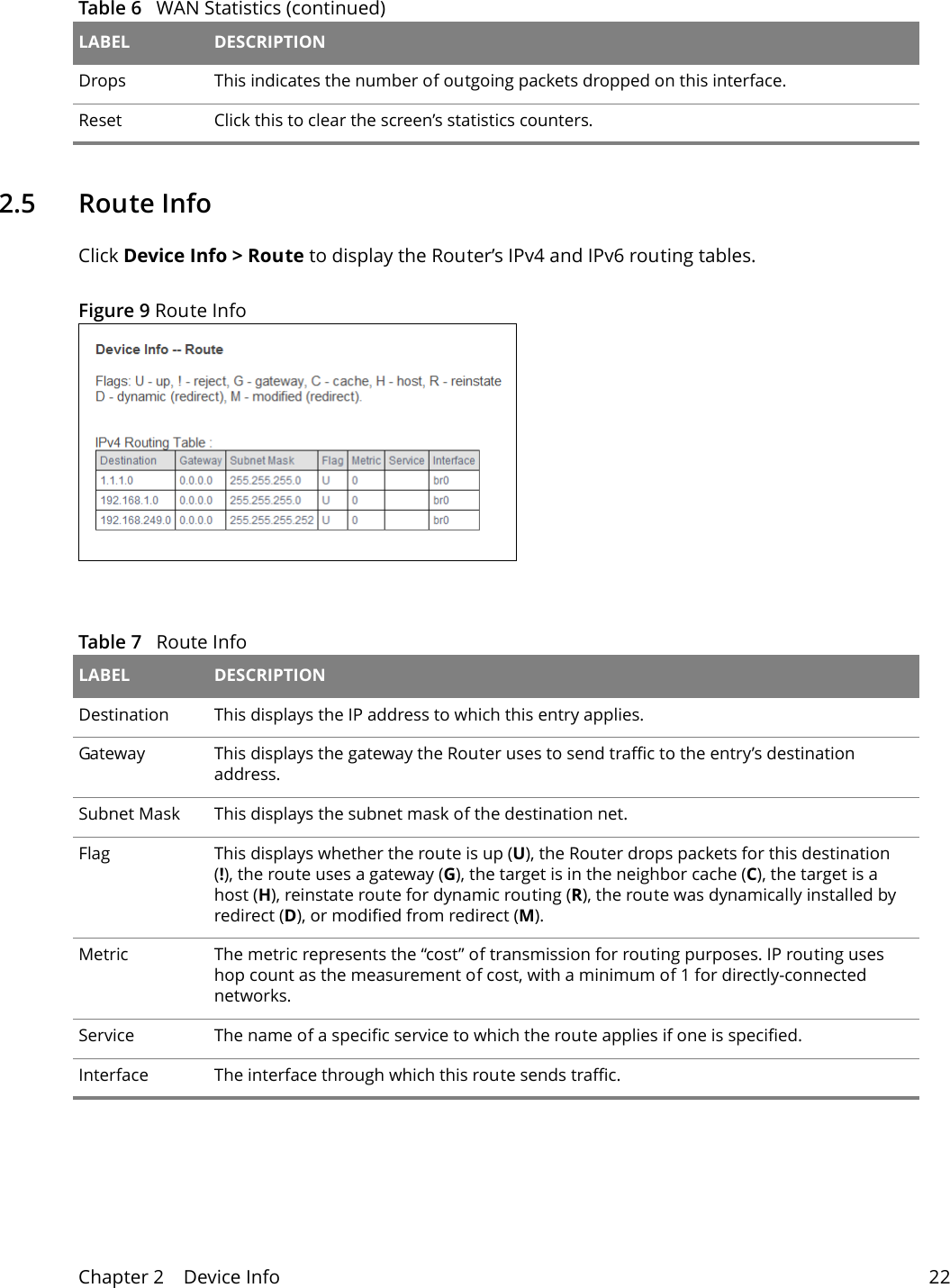
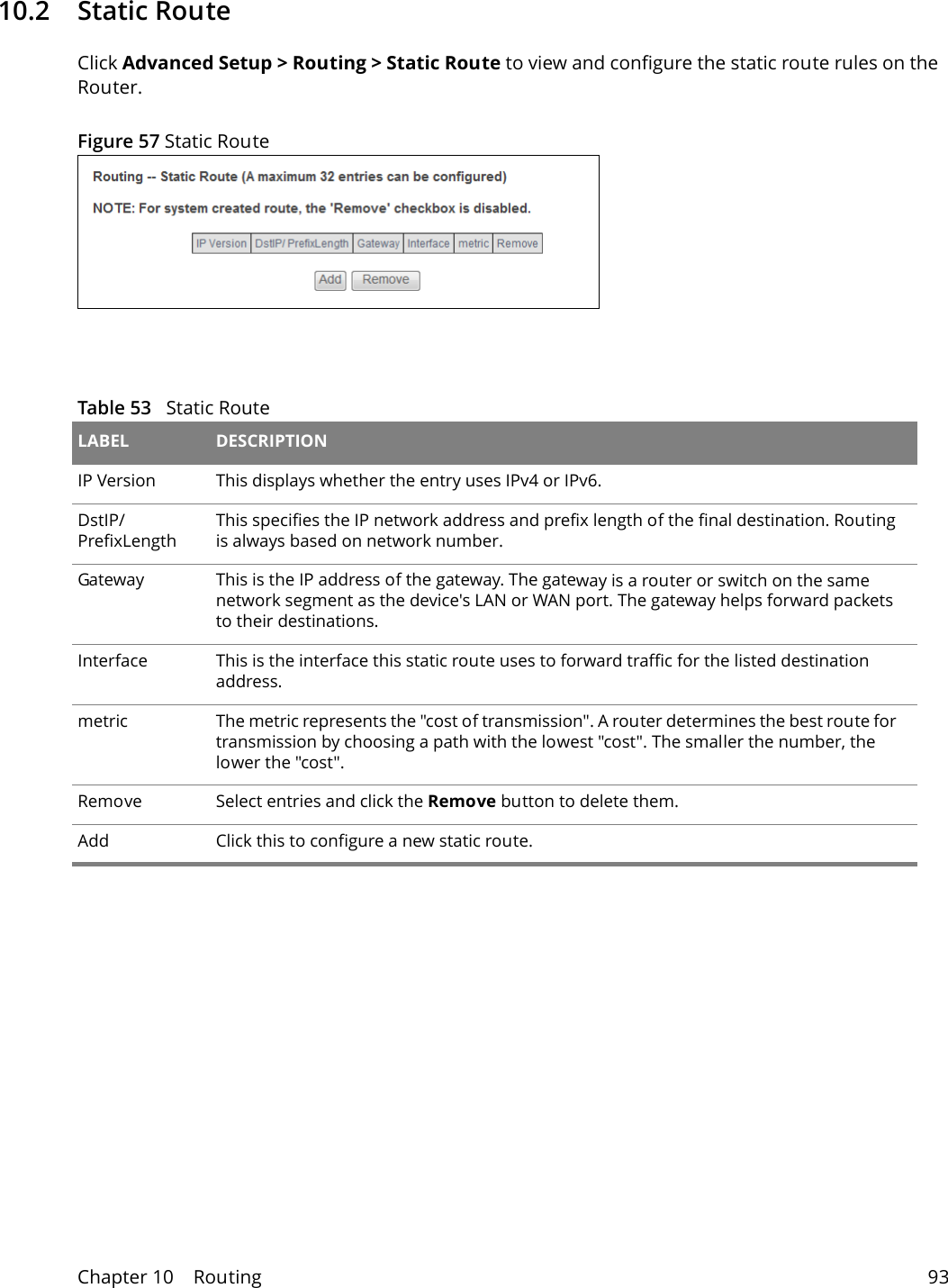
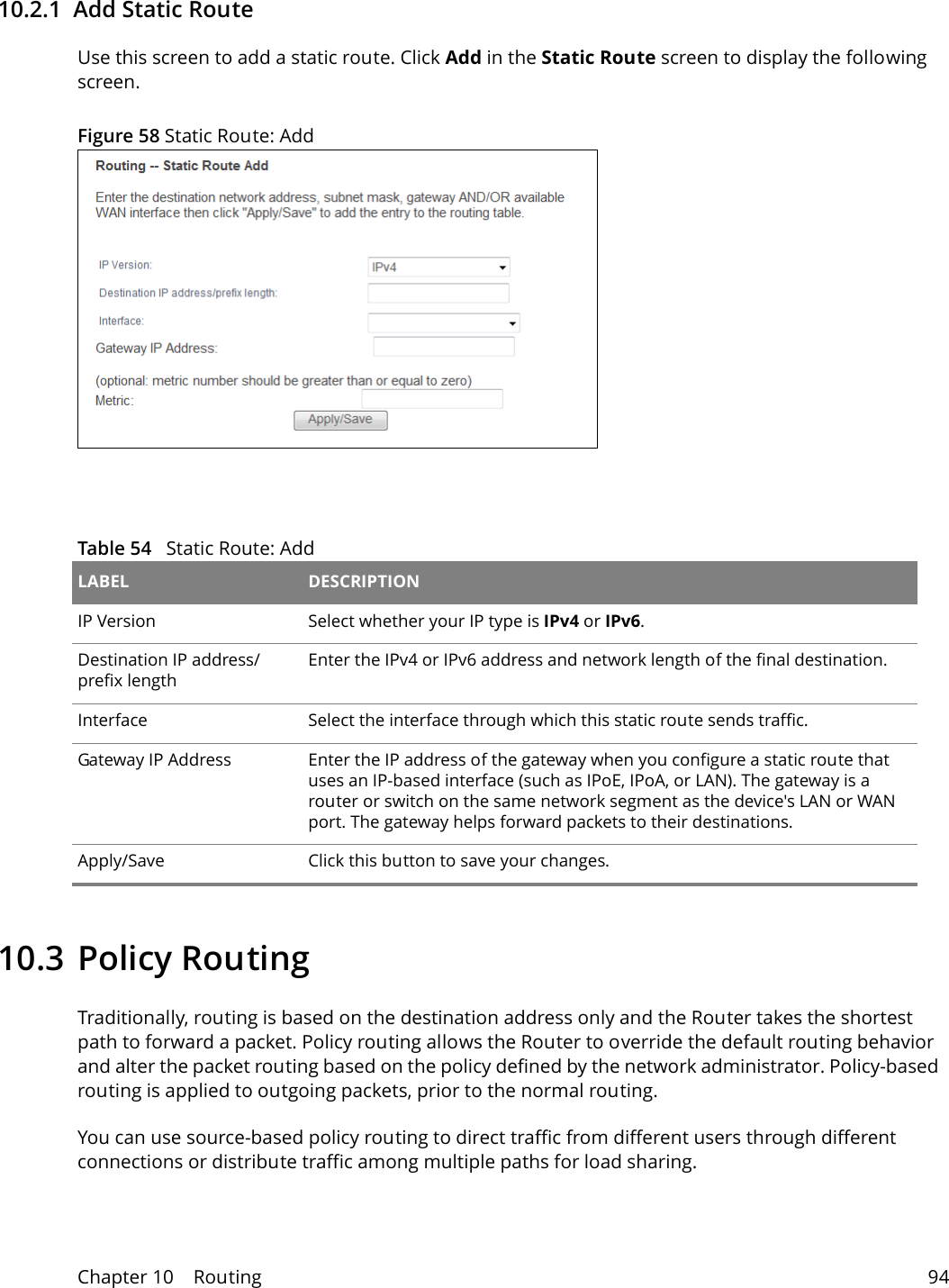
Chapter 2    Device Info 222.5   Route InfoClick Device Info > Route to display the Router’s IPv4 and IPv6 routing tables. Figure 9 Route Info Table 7   Route Info LABEL DESCRIPTIONDestination This displays the IP address to which this entry applies.Gateway  This displays the gateway the Router uses to send traffic to the entry’s destination address. Subnet Mask  This displays the subnet mask of the destination net.Flag  This displays whether the route is up (U), the Router drops packets for this destination (!), the route uses a gateway (G), the target is in the neighbor cache (C), the target is a host (H), reinstate route for dynamic routing (R), the route was dynamically installed by redirect (D), or modified from redirect (M).Metric  The metric represents the “cost” of transmission for routing purposes. IP routing uses hop count as the measurement of cost, with a minimum of 1 for directly-connected networks.Service  The name of a specific service to which the route applies if one is specified.Interface  The interface through which this route sends traffic.Drops This indicates the number of outgoing packets dropped on this interface.Reset  Click this to clear the screen’s statistics counters.Table 6   WAN Statistics (continued)LABEL DESCRIPTION
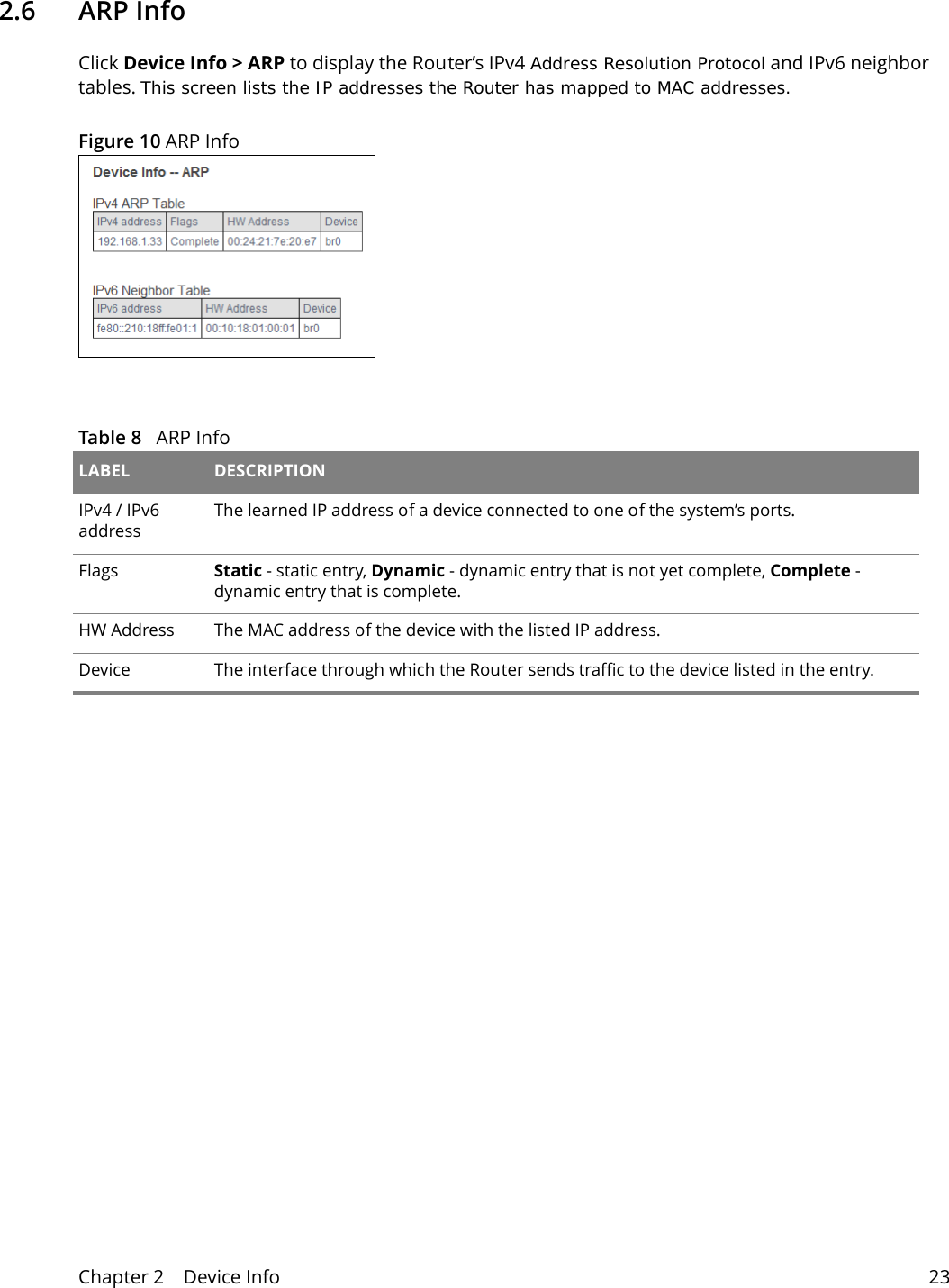
Chapter 2    Device Info 232.6   ARP InfoClick Device Info > ARP to display the Router’s IPv4 Address Resolution Protocol and IPv6 neighbor tables. This screen lists the IP addresses the Router has mapped to MAC addresses. Figure 10 ARP Info  Table 8   ARP Info LABEL DESCRIPTIONIPv4 / IPv6  addressThe learned IP address of a device connected to one of the system’s ports.Flags  Static - static entry, Dynamic - dynamic entry that is not yet complete, Complete - dynamic entry that is complete.HW Address  The MAC address of the device with the listed IP address.Device  The interface through which the Router sends traffic to the device listed in the entry.
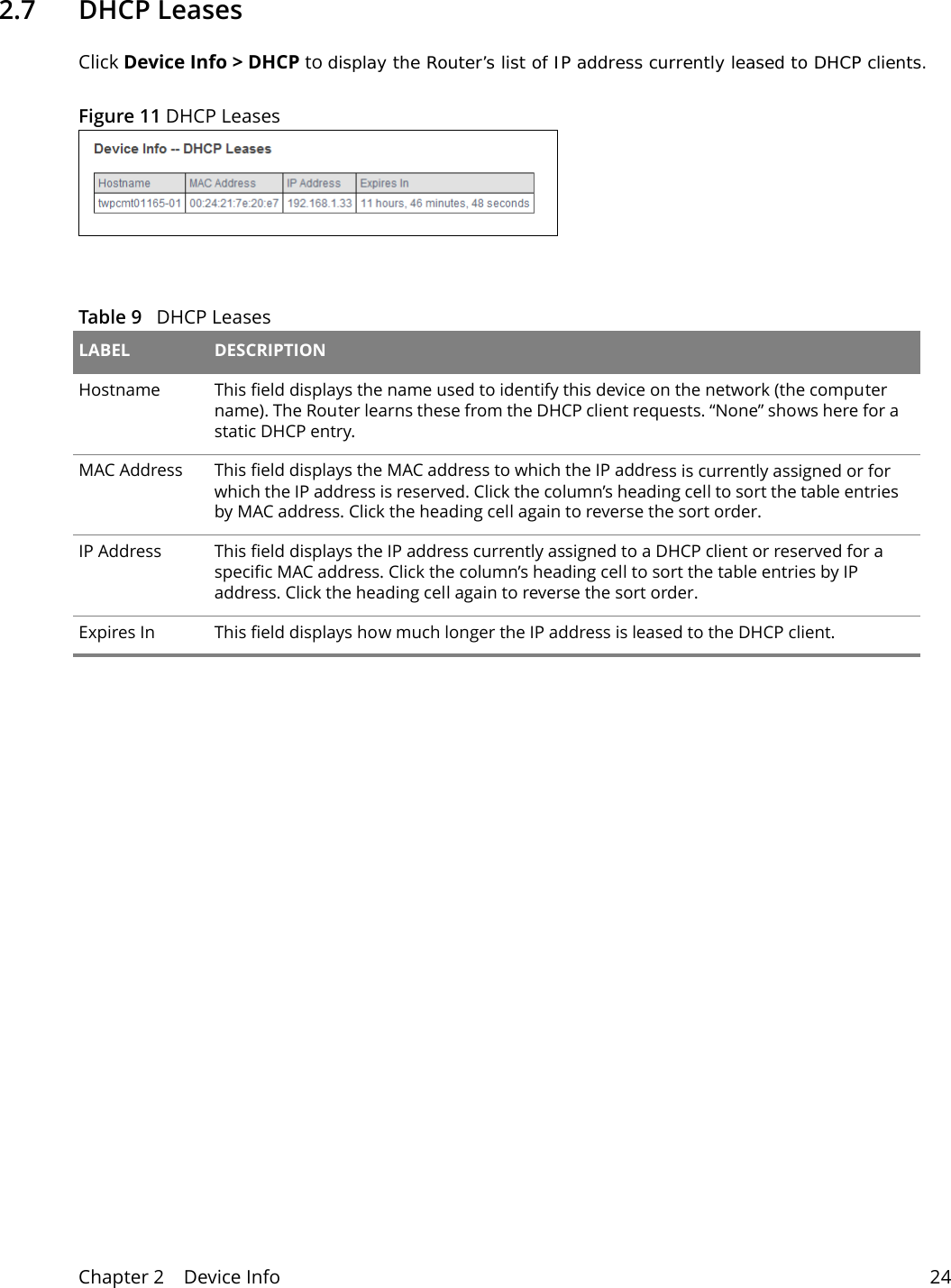
Chapter 2    Device Info 242.7   DHCP LeasesClick Device Info > DHCP to display the Router’s list of IP address currently leased to DHCP clients.Figure 11 DHCP Leases Table 9   DHCP Leases LABEL DESCRIPTIONHostname  This field displays the name used to identify this device on the network (the computer name). The Router learns these from the DHCP client requests. “None” shows here for a static DHCP entry.MAC Address  This field displays the MAC address to which the IP address is currently assigned or for which the IP address is reserved. Click the column’s heading cell to sort the table entries by MAC address. Click the heading cell again to reverse the sort order.IP Address  This field displays the IP address currently assigned to a DHCP client or reserved for a specific MAC address. Click the column’s heading cell to sort the table entries by IP address. Click the heading cell again to reverse the sort order.Expires In  This field displays how much longer the IP address is leased to the DHCP client.
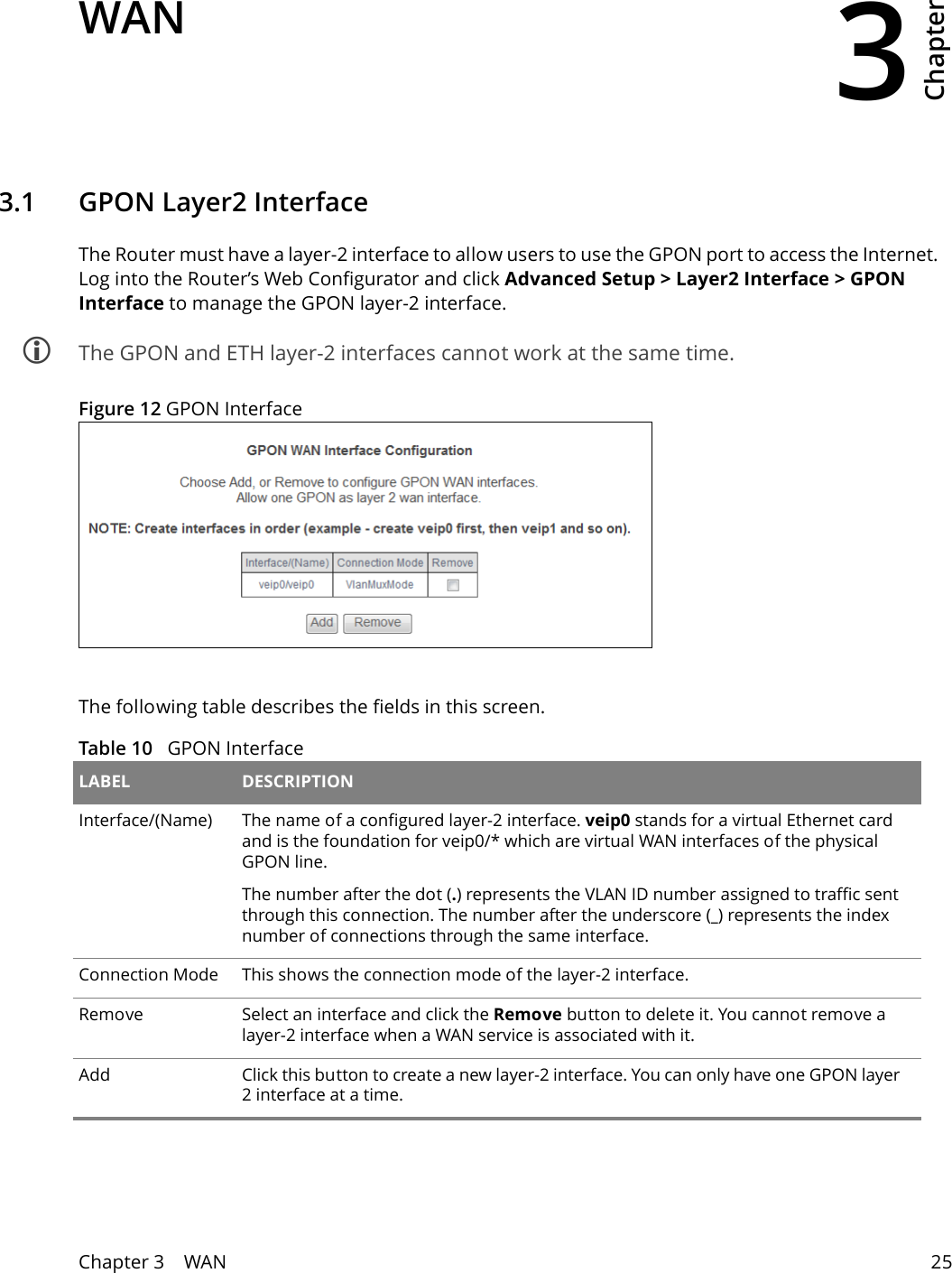
3Chapter Chapter 3    WAN 25CHAPTER 3 Chapter 3 WAN3.1   GPON Layer2 InterfaceThe Router must have a layer-2 interface to allow users to use the GPON port to access the Internet.  Log into the Router’s Web Configurator and click Advanced Setup > Layer2 Interface > GPON Interface to manage the GPON layer-2 interface.  The GPON and ETH layer-2 interfaces cannot work at the same time.Figure 12 GPON InterfaceThe following table describes the fields in this screen. Table 10   GPON Interface LABEL DESCRIPTIONInterface/(Name) The name of a configured layer-2 interface. veip0 stands for a virtual Ethernet card and is the foundation for veip0/* which are virtual WAN interfaces of the physical GPON line. The number after the dot (.) represents the VLAN ID number assigned to traffic sent through this connection. The number after the underscore (_) represents the index number of connections through the same interface.Connection Mode This shows the connection mode of the layer-2 interface.Remove Select an interface and click the Remove button to delete it. You cannot remove a layer-2 interface when a WAN service is associated with it.Add Click this button to create a new layer-2 interface. You can only have one GPON layer 2 interface at a time.
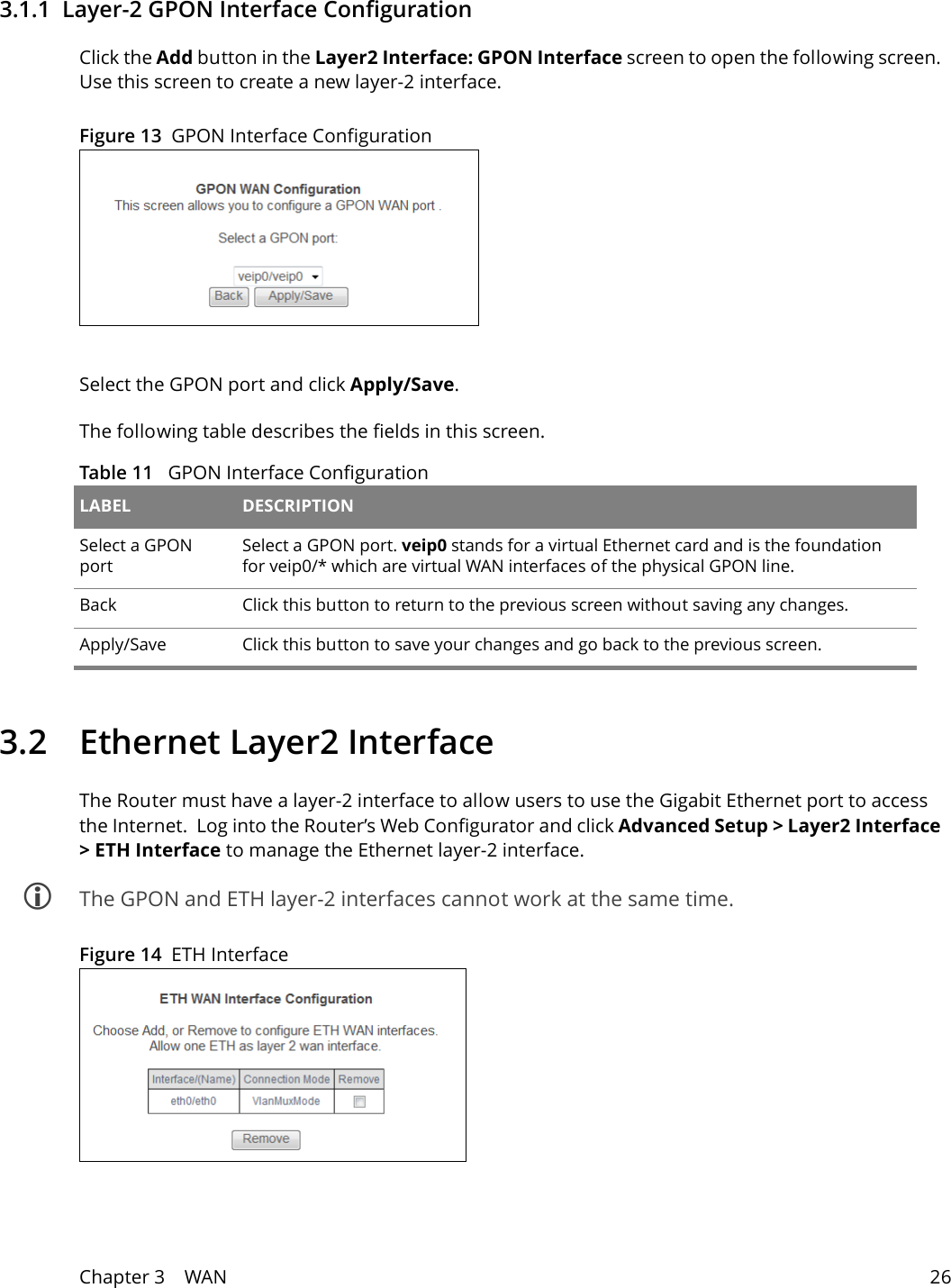
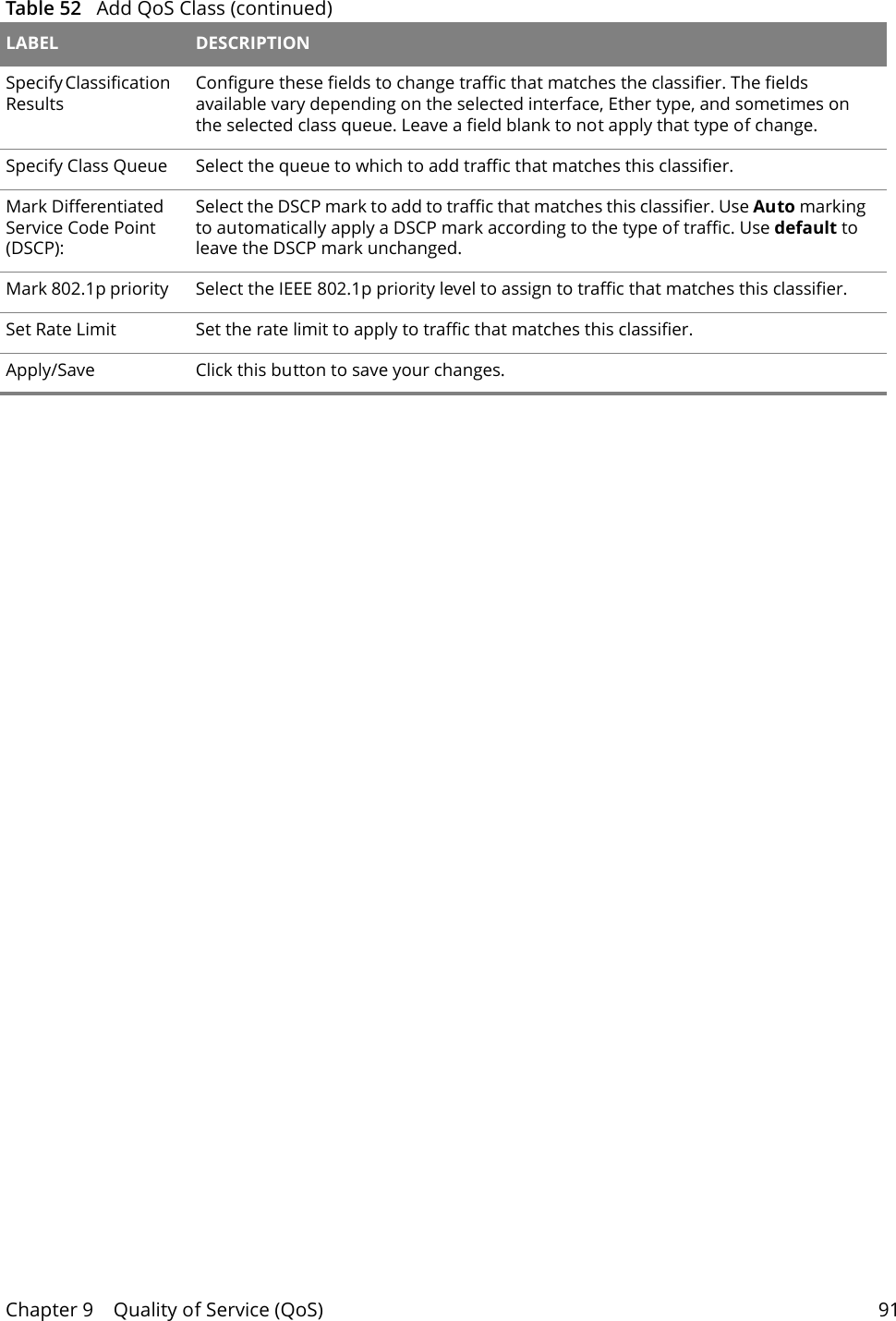
Chapter 3    WAN 263.1.1  Layer-2 GPON Interface ConfigurationClick the Add button in the Layer2 Interface: GPON Interface screen to open the following screen. Use this screen to create a new layer-2 interface. Figure 13  GPON Interface Configuration Select the GPON port and click Apply/Save.The following table describes the fields in this screen. Table 11   GPON Interface Configuration LABEL DESCRIPTIONSelect a GPON portSelect a GPON port. veip0 stands for a virtual Ethernet card and is the foundation for veip0/* which are virtual WAN interfaces of the physical GPON line.Back Click this button to return to the previous screen without saving any changes.Apply/Save Click this button to save your changes and go back to the previous screen.3.2  Ethernet Layer2 InterfaceThe Router must have a layer-2 interface to allow users to use the Gigabit Ethernet port to access the Internet.  Log into the Router’s Web Configurator and click Advanced Setup > Layer2 Interface > ETH Interface to manage the Ethernet layer-2 interface.  The GPON and ETH layer-2 interfaces cannot work at the same time.Figure 14  ETH Interface
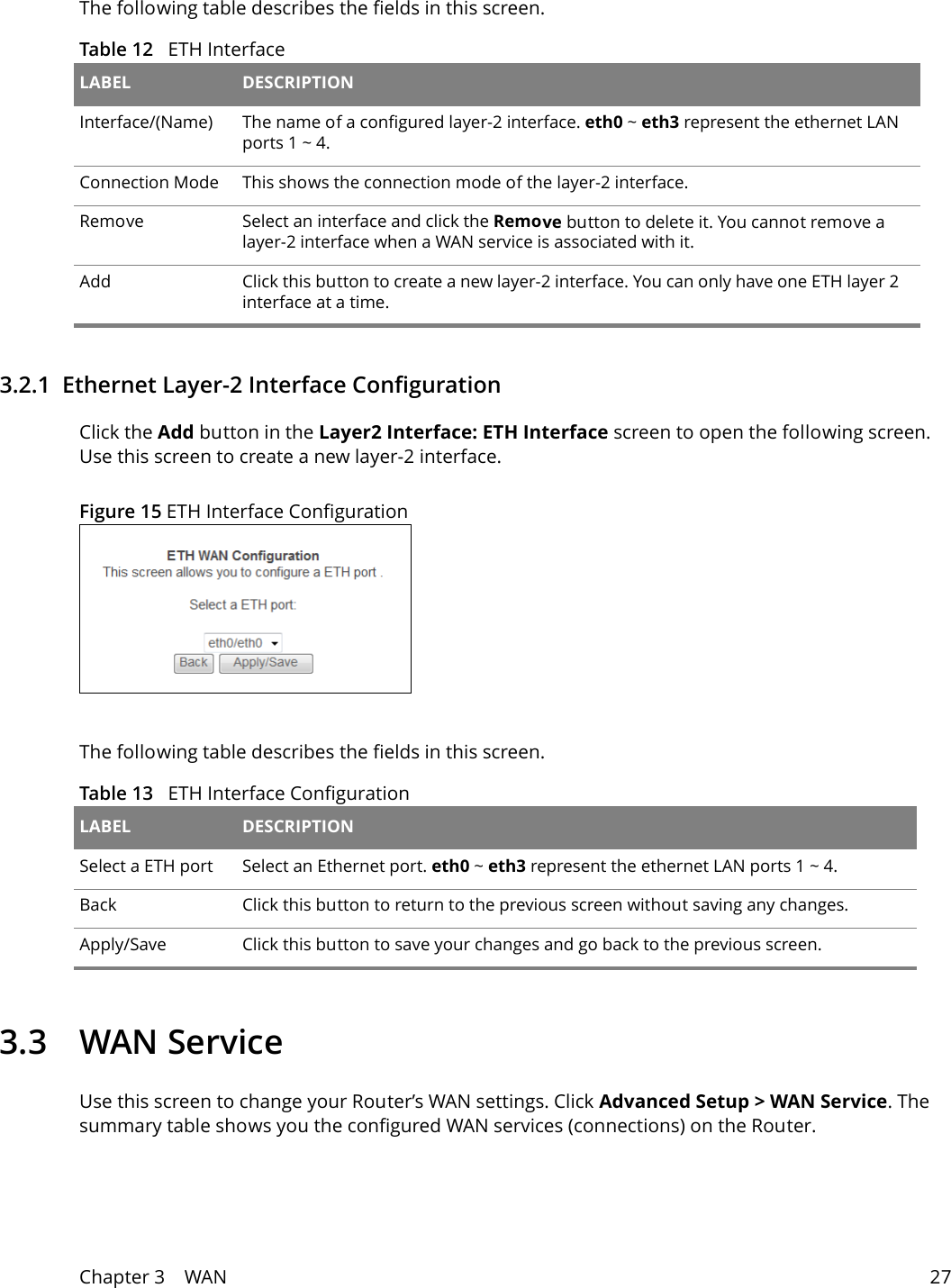
Chapter 3    WAN 27The following table describes the fields in this screen. Table 12   ETH Interface LABEL DESCRIPTIONInterface/(Name) The name of a configured layer-2 interface. eth0 ~ eth3 represent the ethernet LAN ports 1 ~ 4. Connection Mode This shows the connection mode of the layer-2 interface.Remove Select an interface and click the Remove button to delete it. You cannot remove a layer-2 interface when a WAN service is associated with it.Add Click this button to create a new layer-2 interface. You can only have one ETH layer 2 interface at a time.3.2.1  Ethernet Layer-2 Interface ConfigurationClick the Add button in the Layer2 Interface: ETH Interface screen to open the following screen. Use this screen to create a new layer-2 interface. Figure 15 ETH Interface Configuration The following table describes the fields in this screen. Table 13   ETH Interface Configuration LABEL DESCRIPTIONSelect a ETH port Select an Ethernet port. eth0 ~ eth3 represent the ethernet LAN ports 1 ~ 4.Back Click this button to return to the previous screen without saving any changes.Apply/Save Click this button to save your changes and go back to the previous screen.3.3 WAN ServiceUse this screen to change your Router’s WAN settings. Click Advanced Setup > WAN Service. The summary table shows you the configured WAN services (connections) on the Router.
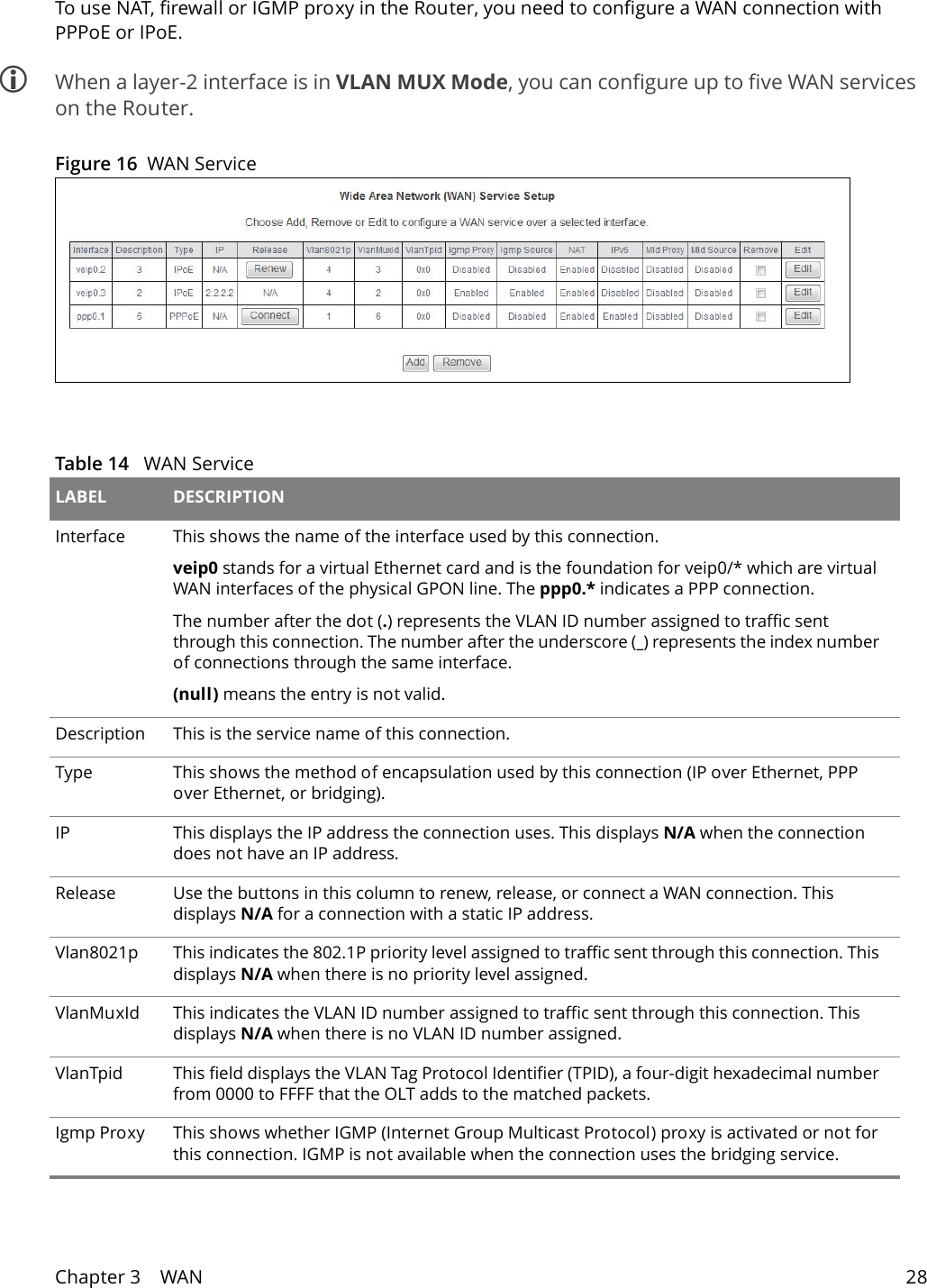
Chapter 3    WAN 28To use NAT, firewall or IGMP proxy in the Router, you need to configure a WAN connection with PPPoE or IPoE. When a layer-2 interface is in VLAN MUX Mode, you can configure up to five WAN services on the Router.Figure 16  WAN Service  Table 14   WAN Service LABEL DESCRIPTIONInterface This shows the name of the interface used by this connection.veip0 stands for a virtual Ethernet card and is the foundation for veip0/* which are virtual WAN interfaces of the physical GPON line. The ppp0.* indicates a PPP connection. The number after the dot (.) represents the VLAN ID number assigned to traffic sent through this connection. The number after the underscore (_) represents the index number of connections through the same interface.(null) means the entry is not valid.Description This is the service name of this connection.Type This shows the method of encapsulation used by this connection (IP over Ethernet, PPP over Ethernet, or bridging). IP This displays the IP address the connection uses. This displays N/A when the connection does not have an IP address.Release Use the buttons in this column to renew, release, or connect a WAN connection. This displays N/A for a connection with a static IP address.Vlan8021p This indicates the 802.1P priority level assigned to traffic sent through this connection. This displays N/A when there is no priority level assigned.VlanMuxId This indicates the VLAN ID number assigned to traffic sent through this connection. This displays N/A when there is no VLAN ID number assigned.VlanTpid This field displays the VLAN Tag Protocol Identifier (TPID), a four-digit hexadecimal number from 0000 to FFFF that the OLT adds to the matched packets.Igmp Proxy This shows whether IGMP (Internet Group Multicast Protocol) proxy is activated or not for this connection. IGMP is not available when the connection uses the bridging service.
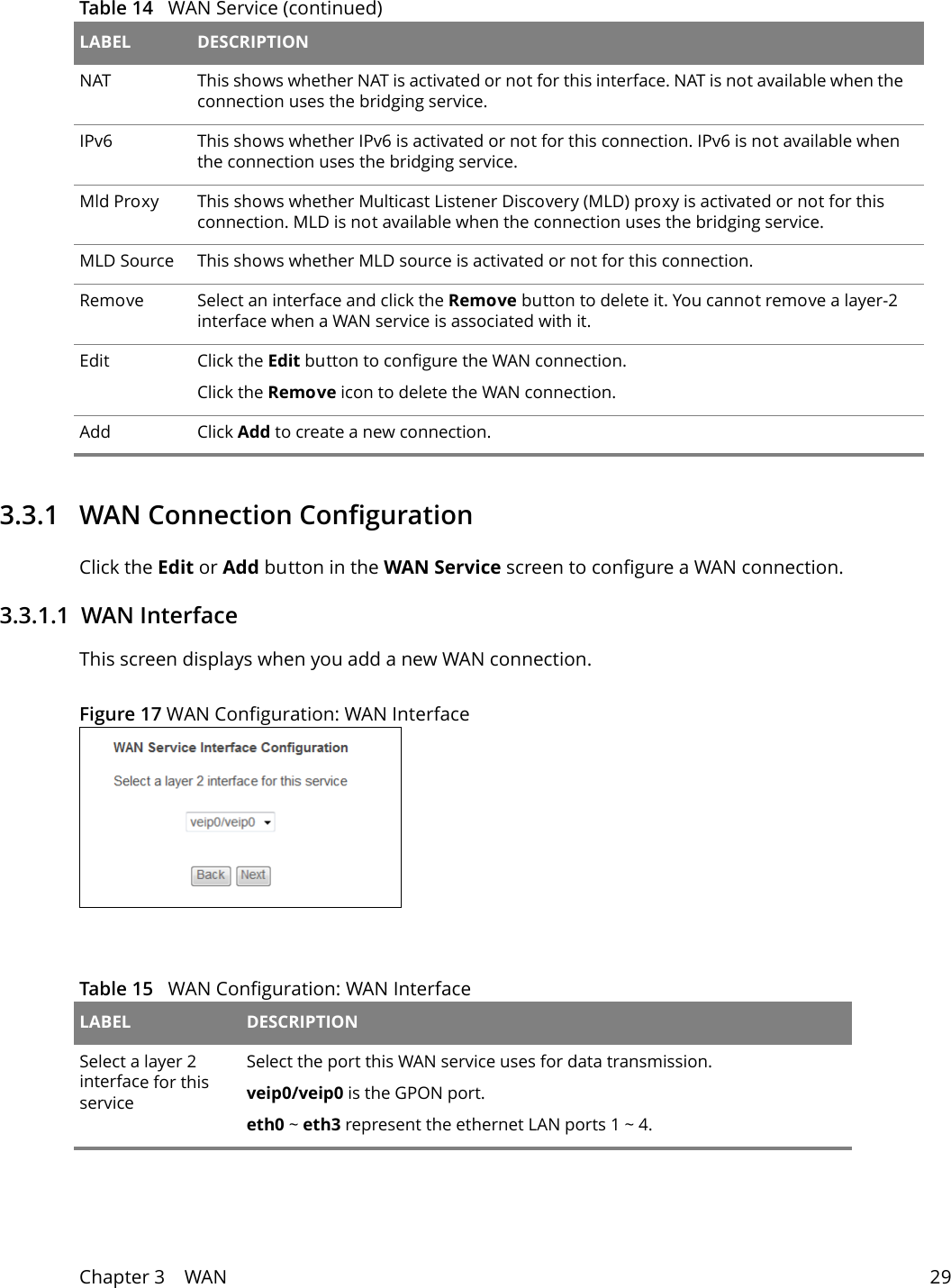
Chapter 3    WAN 293.3.1   WAN Connection ConfigurationClick the Edit or Add button in the WAN Service screen to configure a WAN connection. 3.3.1.1  WAN InterfaceThis screen displays when you add a new WAN connection.Figure 17 WAN Configuration: WAN Interface  NAT This shows whether NAT is activated or not for this interface. NAT is not available when the connection uses the bridging service.IPv6 This shows whether IPv6 is activated or not for this connection. IPv6 is not available when the connection uses the bridging service.Mld Proxy This shows whether Multicast Listener Discovery (MLD) proxy is activated or not for this connection. MLD is not available when the connection uses the bridging service.MLD Source This shows whether MLD source is activated or not for this connection.Remove Select an interface and click the Remove button to delete it. You cannot remove a layer-2 interface when a WAN service is associated with it.Edit Click the Edit button to configure the WAN connection.Click the Remove icon to delete the WAN connection.Add Click Add to create a new connection.Table 14   WAN Service (continued)LABEL DESCRIPTIONTable 15   WAN Configuration: WAN Interface LABEL DESCRIPTIONSelect a layer 2 interface for this serviceSelect the port this WAN service uses for data transmission.veip0/veip0 is the GPON port.eth0 ~ eth3 represent the ethernet LAN ports 1 ~ 4.
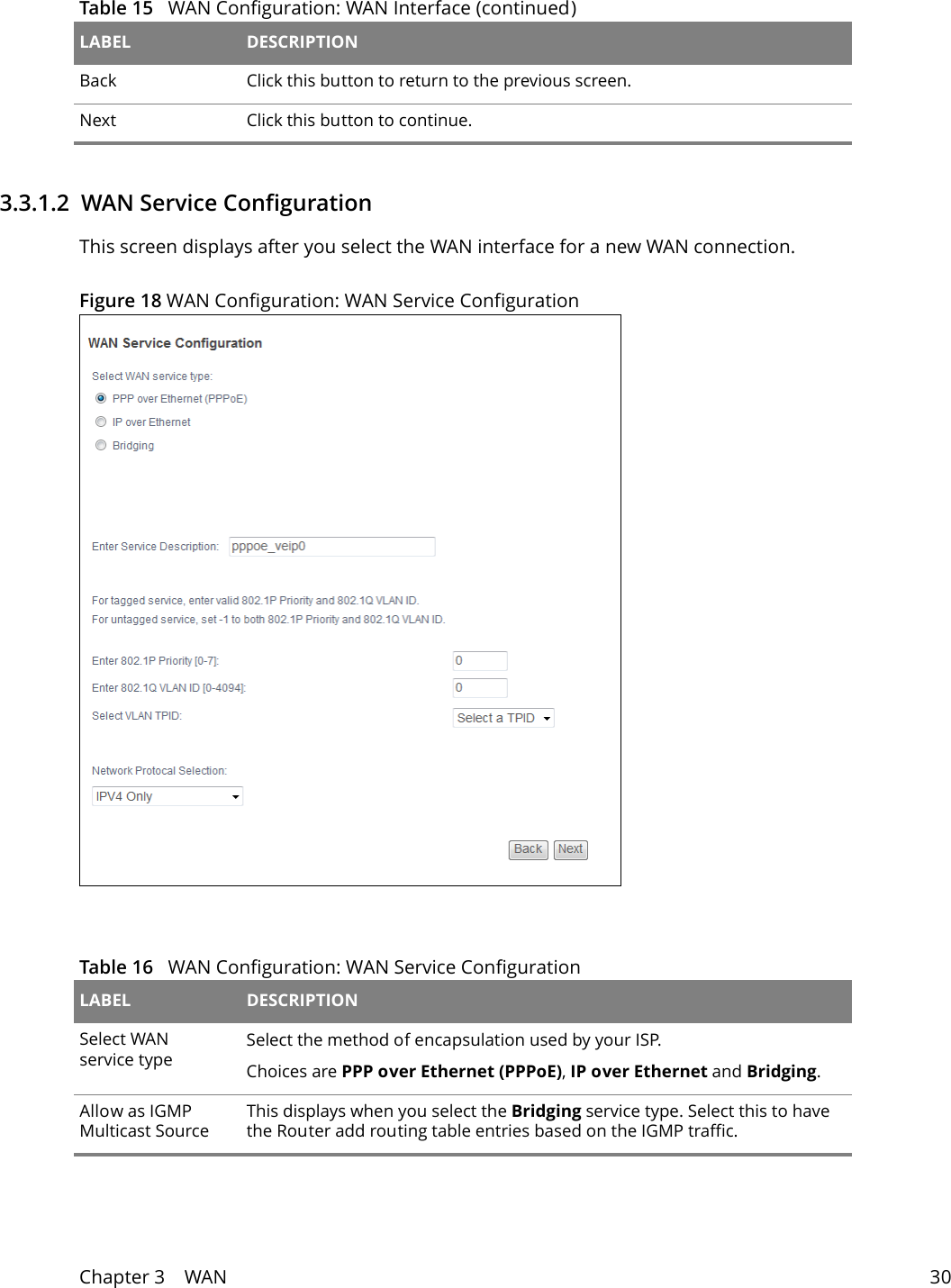
Chapter 3    WAN 303.3.1.2  WAN Service ConfigurationThis screen displays after you select the WAN interface for a new WAN connection.Figure 18 WAN Configuration: WAN Service Configuration  Back Click this button to return to the previous screen.Next Click this button to continue.Table 15   WAN Configuration: WAN Interface (continued)LABEL DESCRIPTIONTable 16   WAN Configuration: WAN Service ConfigurationLABEL DESCRIPTIONSelect WAN service typeSelect the method of encapsulation used by your ISP. Choices are PPP over Ethernet (PPPoE), IP over Ethernet and Bridging.Allow as IGMP Multicast SourceThis displays when you select the Bridging service type. Select this to have the Router add routing table entries based on the IGMP traffic.
Chapter 3    WAN 313.3.1.3  WAN IP Address and DNS ServerThe screen differs by the encapsulation you selected in the previous screen.Allow as MLD Multicast SourceThis displays when you select the Bridging service type. Select this to have the Router add routing table entries based on the MLD traffic.Enter Service DescriptionSpecify a name to identify the service. veip0 stands for a virtual Ethernet card and is the foundation for veip0/* which are virtual WAN interfaces of the physical GPON line. eth0 ~ eth3 represent the ethernet LAN ports 1 ~ 4. Enter 802.1P Priority [0-7]IEEE 802.1p defines up to 8 separate traffic types by inserting a tag into a MAC-layer frame that contains bits to define class of service. Type the IEEE 802.1p priority level (from 0 to 7) to add to traffic through this connection. The greater the number, the higher the priority level.Enter 802.1Q VLAN ID [0-4094]Type the VLAN ID number (from 1 to 4094) for traffic through this connection.Select VLAN TPID Select a Tag Protocol Identifier (TPID) the Router to add it to the service’s packets.Network Protocol SelectionSelect IPv4 Only to have the Router use only IPv4.Select IPv4&IPv6(Dual Stack) to let the Router connect to IPv4 and IPv6 networks an choose the protocol for applications according to the address type. This lets the Router use an IPv6 address when sending traffic through this connection. You can only select this for a WAN service that uses the PPPoE or IPoE encapsulation method over the layer 2 interface.Select IPv6 Only to have the Router use only IPv6.Back Click this button to return to the previous screen.Next Click this button to continue.Table 16   WAN Configuration: WAN Service ConfigurationLABEL DESCRIPTION
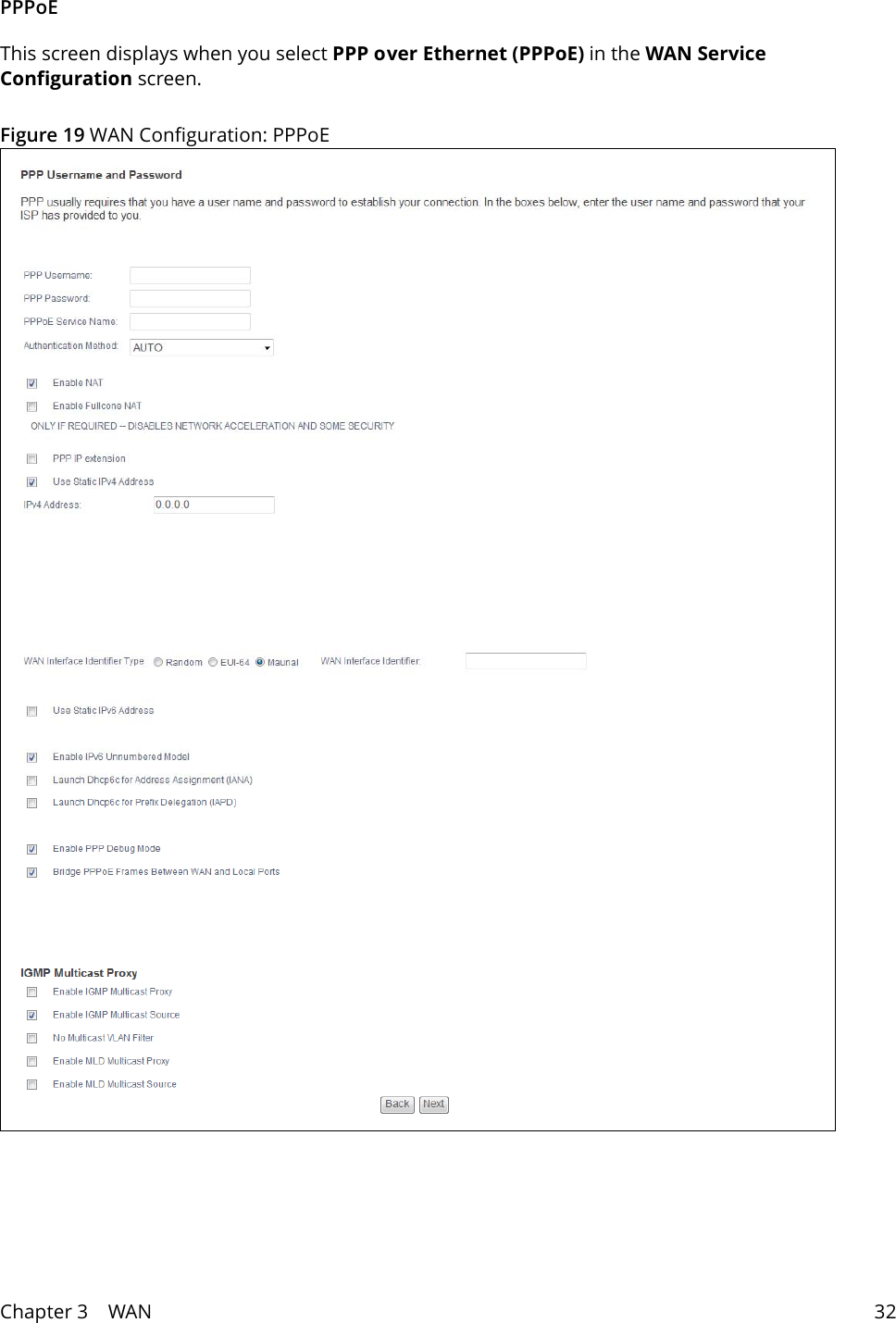
Chapter 3    WAN 32PPPoEThis screen displays when you select PPP over Ethernet (PPPoE) in the WAN Service Configuration screen.Figure 19 WAN Configuration: PPPoE
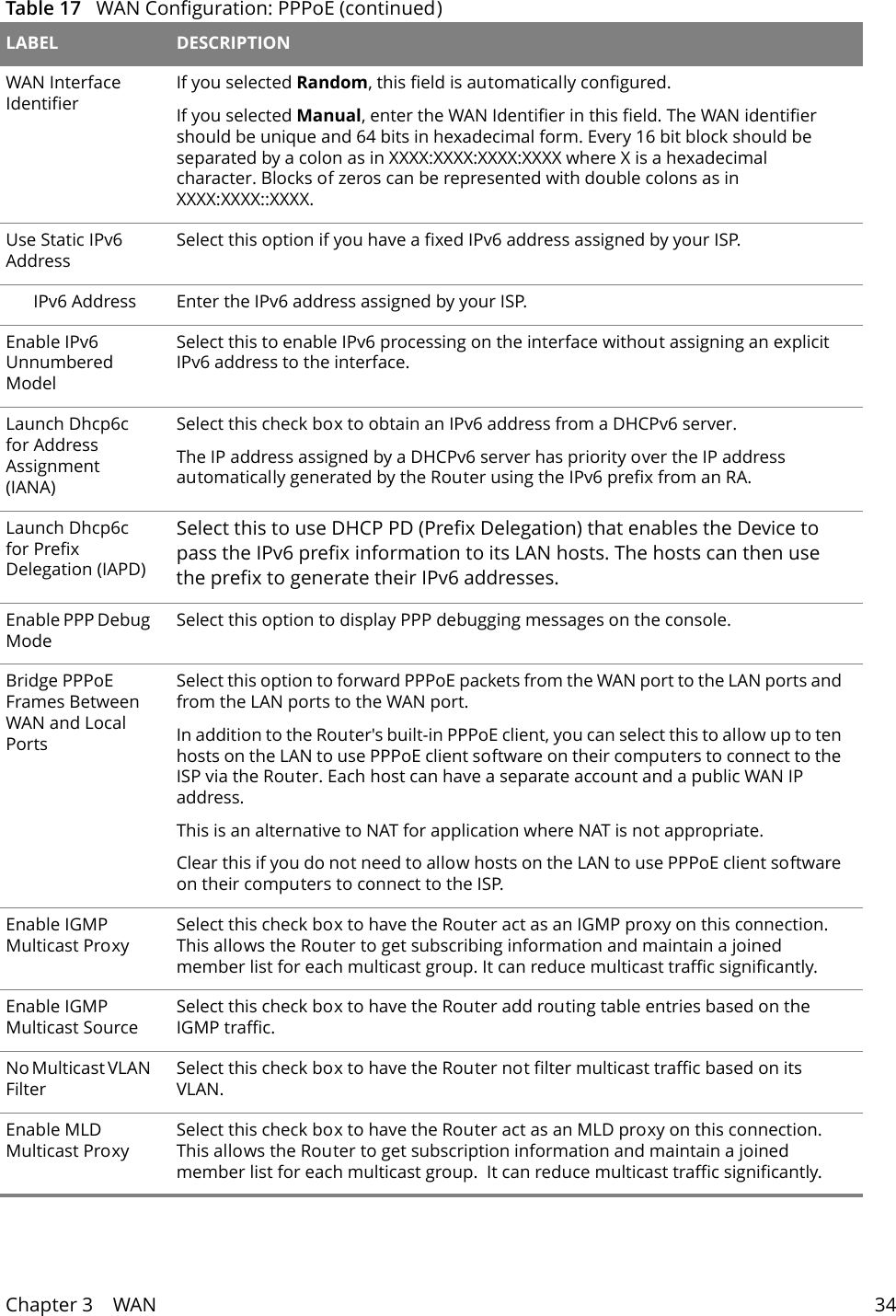
Chapter 3    WAN 33 Table 17   WAN Configuration: PPPoE LABEL DESCRIPTIONPPP Username Enter the user name exactly as your ISP assigned. If assigned a name in the form user@domain where domain identifies a service name, then enter both components exactly as given.PPP Password Enter the password associated with the user name above.PPPoE Service NameType the name of your PPPoE service here.This field is not available for a PPPoA connection.Authentication MethodThe Router supports PAP (Password Authentication Protocol) and CHAP (Challenge Handshake Authentication Protocol). CHAP is more secure than PAP; however, PAP is readily available on more platforms.Use the drop-down list box to select an authentication protocol for outgoing calls. Options are:AUTO - Your Router accepts either CHAP or PAP when requested by this remote node. PAP - Your Router accepts PAP only. CHAP - Your Router accepts CHAP only. MSCHAP - Your Router accepts MSCHAP only. MS-CHAP is the Microsoft version of the CHAP.Enable NAT Select this check box to activate NAT on this connection.Enable Fullcone NATThis field is available only when you select Enable NAT. Select this check box to activate full cone NAT on this connection.PPP IP extension Select this only if your service provider requires it. PPP IP extension extends the service provider’s IP subnet to a single LAN computer.• It lets only one computer on the LAN connect to the WAN.• The public IP address from the ISP is forwarded through DHCP to the LAN computer instead of being used on the WAN PPP interface.• It disables NAT and the firewall.• DHCP tells the LAN computer to use the gateway as the default gateway and DNS server.• The Router bridges IP packets between the WAN and LAN ports except packets destined for the Router’s LAN IP address.Use Static IPv4 AddressSelect this option if you have a fixed IPv4 address assigned by your ISP.IPv4 Address Enter the IPv4 address assigned by your ISP.WAN Interface Identifier TypeSelect Random to have the Device randomly configure a WAN Identifier, which is shown in the WAN Interface Identifier field.Select EUI-64 to use the EUI-64 format to generate an interface ID from the MAC address of the WAN interface.Select Manual to manually enter a WAN Identifier as the interface ID to identify the WAN interface. The WAN Identifier is appended to the IPv6 address prefix to create the routable global IPv6 address.
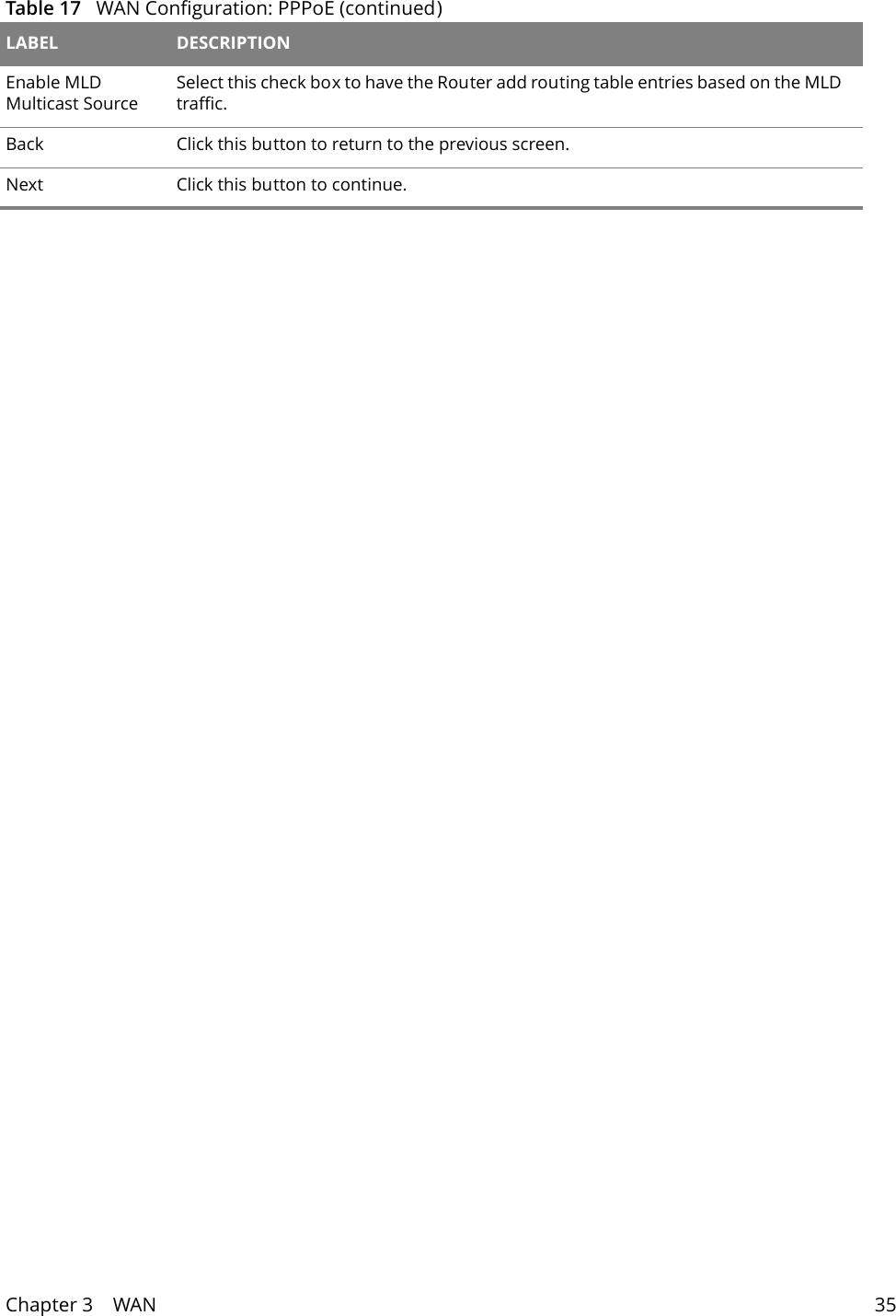
Chapter 3    WAN 34WAN Interface IdentifierIf you selected Random, this field is automatically configured.If you selected Manual, enter the WAN Identifier in this field. The WAN identifier should be unique and 64 bits in hexadecimal form. Every 16 bit block should be separated by a colon as in XXXX:XXXX:XXXX:XXXX where X is a hexadecimal character. Blocks of zeros can be represented with double colons as in XXXX:XXXX::XXXX.Use Static IPv6 AddressSelect this option if you have a fixed IPv6 address assigned by your ISP.IPv6 Address Enter the IPv6 address assigned by your ISP.Enable IPv6 Unnumbered Model Select this to enable IPv6 processing on the interface without assigning an explicit IPv6 address to the interface. Launch Dhcp6c for Address Assignment (IANA)Select this check box to obtain an IPv6 address from a DHCPv6 server.The IP address assigned by a DHCPv6 server has priority over the IP address automatically generated by the Router using the IPv6 prefix from an RA.Launch Dhcp6c for Prefix Delegation (IAPD)Select this to use DHCP PD (Prefix Delegation) that enables the Device to pass the IPv6 prefix information to its LAN hosts. The hosts can then use the prefix to generate their IPv6 addresses.Enable PPP Debug ModeSelect this option to display PPP debugging messages on the console.Bridge PPPoE Frames Between WAN and Local PortsSelect this option to forward PPPoE packets from the WAN port to the LAN ports and from the LAN ports to the WAN port.In addition to the Router's built-in PPPoE client, you can select this to allow up to ten hosts on the LAN to use PPPoE client software on their computers to connect to the ISP via the Router. Each host can have a separate account and a public WAN IP address. This is an alternative to NAT for application where NAT is not appropriate.Clear this if you do not need to allow hosts on the LAN to use PPPoE client software on their computers to connect to the ISP.Enable IGMP Multicast ProxySelect this check box to have the Router act as an IGMP proxy on this connection. This allows the Router to get subscribing information and maintain a joined member list for each multicast group. It can reduce multicast traffic significantly.Enable IGMP Multicast SourceSelect this check box to have the Router add routing table entries based on the IGMP traffic.No Multicast VLAN FilterSelect this check box to have the Router not filter multicast traffic based on its VLAN.Enable MLD Multicast ProxySelect this check box to have the Router act as an MLD proxy on this connection.  This allows the Router to get subscription information and maintain a joined member list for each multicast group.  It can reduce multicast traffic significantly.Table 17   WAN Configuration: PPPoE (continued)LABEL DESCRIPTION
Chapter 3    WAN 35Enable MLD Multicast SourceSelect this check box to have the Router add routing table entries based on the MLD traffic.Back Click this button to return to the previous screen.Next Click this button to continue.Table 17   WAN Configuration: PPPoE (continued)LABEL DESCRIPTION
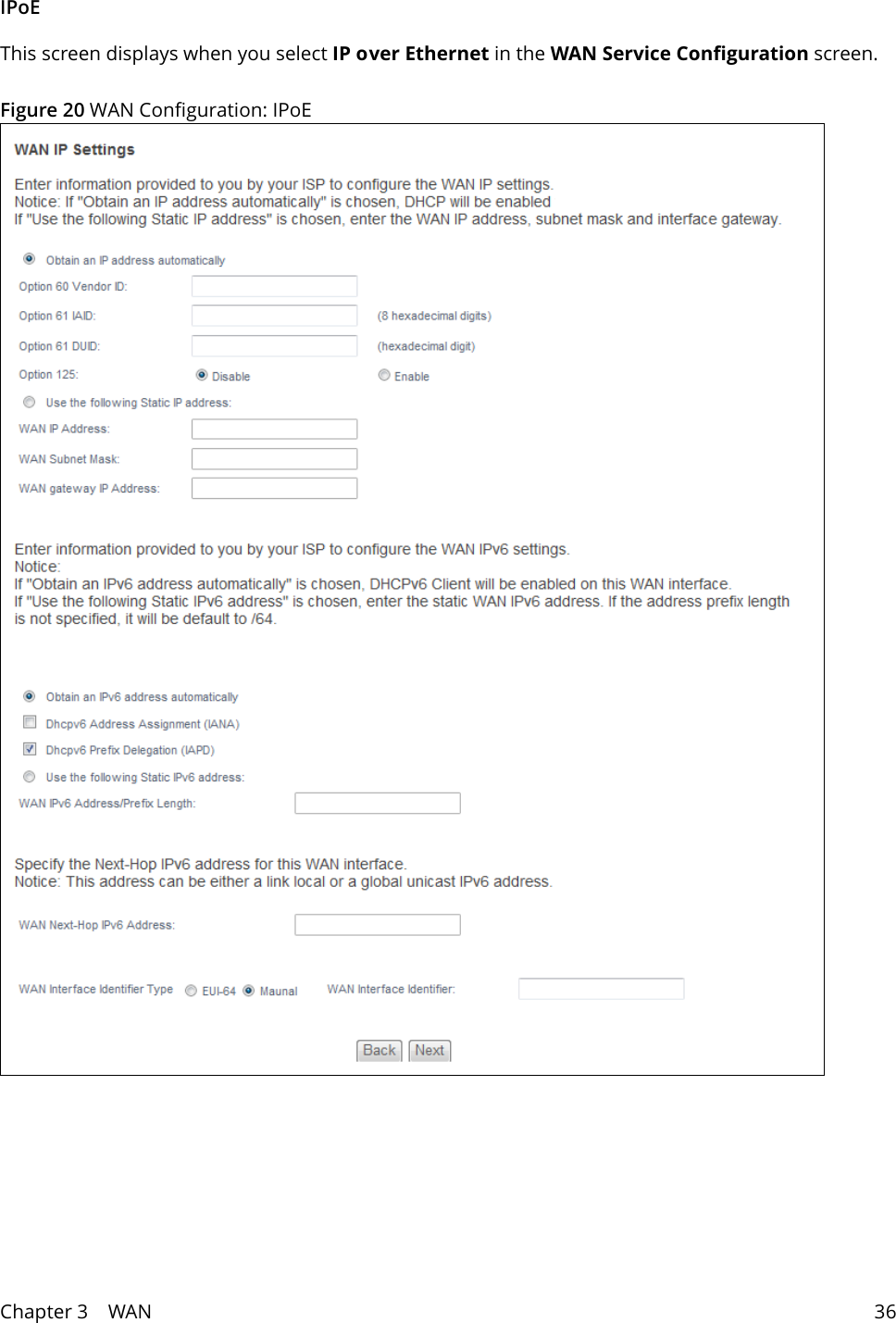
Chapter 3    WAN 36IPoEThis screen displays when you select IP over Ethernet in the WAN Service Configuration screen.Figure 20 WAN Configuration: IPoE
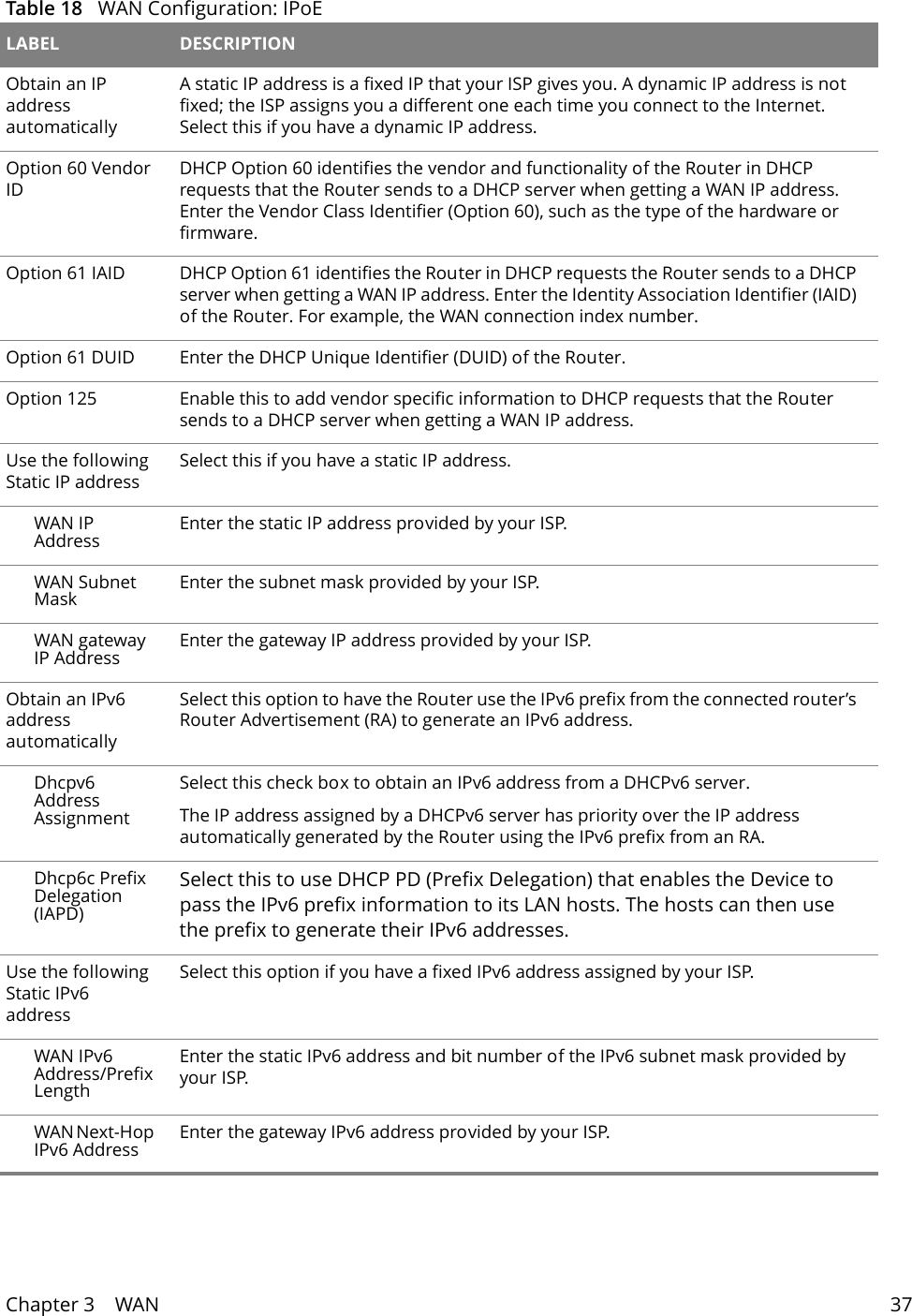
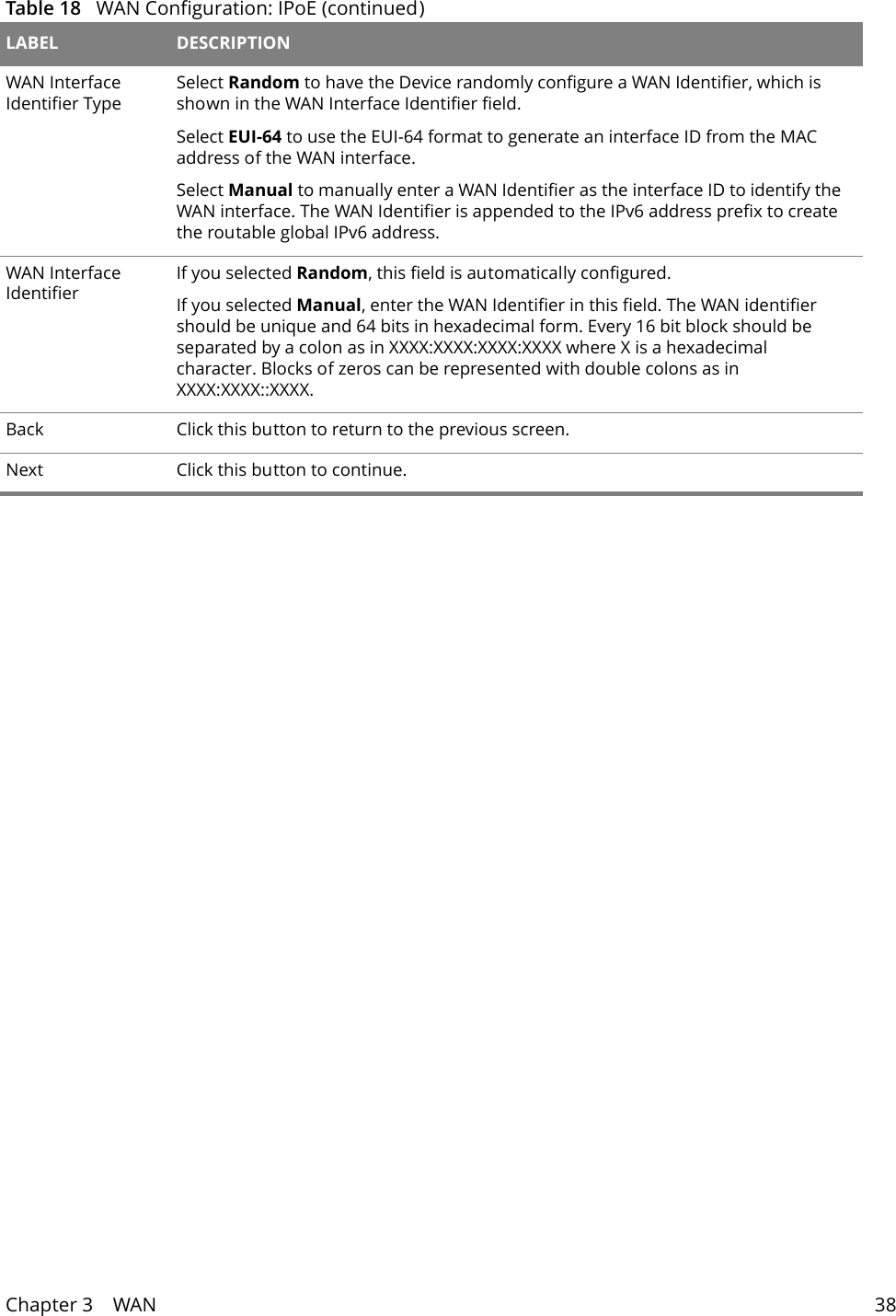
Chapter 3    WAN 37 Table 18   WAN Configuration: IPoE  LABEL DESCRIPTIONObtain an IP address automaticallyA static IP address is a fixed IP that your ISP gives you. A dynamic IP address is not fixed; the ISP assigns you a different one each time you connect to the Internet. Select this if you have a dynamic IP address.Option 60 Vendor IDDHCP Option 60 identifies the vendor and functionality of the Router in DHCP requests that the Router sends to a DHCP server when getting a WAN IP address. Enter the Vendor Class Identifier (Option 60), such as the type of the hardware or firmware.Option 61 IAID DHCP Option 61 identifies the Router in DHCP requests the Router sends to a DHCP server when getting a WAN IP address. Enter the Identity Association Identifier (IAID) of the Router. For example, the WAN connection index number.Option 61 DUID Enter the DHCP Unique Identifier (DUID) of the Router.Option 125 Enable this to add vendor specific information to DHCP requests that the Router sends to a DHCP server when getting a WAN IP address.Use the following Static IP addressSelect this if you have a static IP address.WAN IP Address Enter the static IP address provided by your ISP.WAN Subnet Mask Enter the subnet mask provided by your ISP.WAN gateway IP Address Enter the gateway IP address provided by your ISP.Obtain an IPv6 address automatically Select this option to have the Router use the IPv6 prefix from the connected router’s Router Advertisement (RA) to generate an IPv6 address. Dhcpv6 Address Assignment Select this check box to obtain an IPv6 address from a DHCPv6 server.The IP address assigned by a DHCPv6 server has priority over the IP address automatically generated by the Router using the IPv6 prefix from an RA.Dhcp6c Prefix Delegation (IAPD)Select this to use DHCP PD (Prefix Delegation) that enables the Device to pass the IPv6 prefix information to its LAN hosts. The hosts can then use the prefix to generate their IPv6 addresses.Use the following Static IPv6 addressSelect this option if you have a fixed IPv6 address assigned by your ISP.WAN IPv6 Address/Prefix LengthEnter the static IPv6 address and bit number of the IPv6 subnet mask provided by your ISP.WAN Next-Hop IPv6 Address Enter the gateway IPv6 address provided by your ISP.
Chapter 3    WAN 38WAN Interface Identifier TypeSelect Random to have the Device randomly configure a WAN Identifier, which is shown in the WAN Interface Identifier field.Select EUI-64 to use the EUI-64 format to generate an interface ID from the MAC address of the WAN interface.Select Manual to manually enter a WAN Identifier as the interface ID to identify the WAN interface. The WAN Identifier is appended to the IPv6 address prefix to create the routable global IPv6 address.WAN Interface IdentifierIf you selected Random, this field is automatically configured.If you selected Manual, enter the WAN Identifier in this field. The WAN identifier should be unique and 64 bits in hexadecimal form. Every 16 bit block should be separated by a colon as in XXXX:XXXX:XXXX:XXXX where X is a hexadecimal character. Blocks of zeros can be represented with double colons as in XXXX:XXXX::XXXX.Back Click this button to return to the previous screen.Next Click this button to continue.Table 18   WAN Configuration: IPoE (continued) LABEL DESCRIPTION
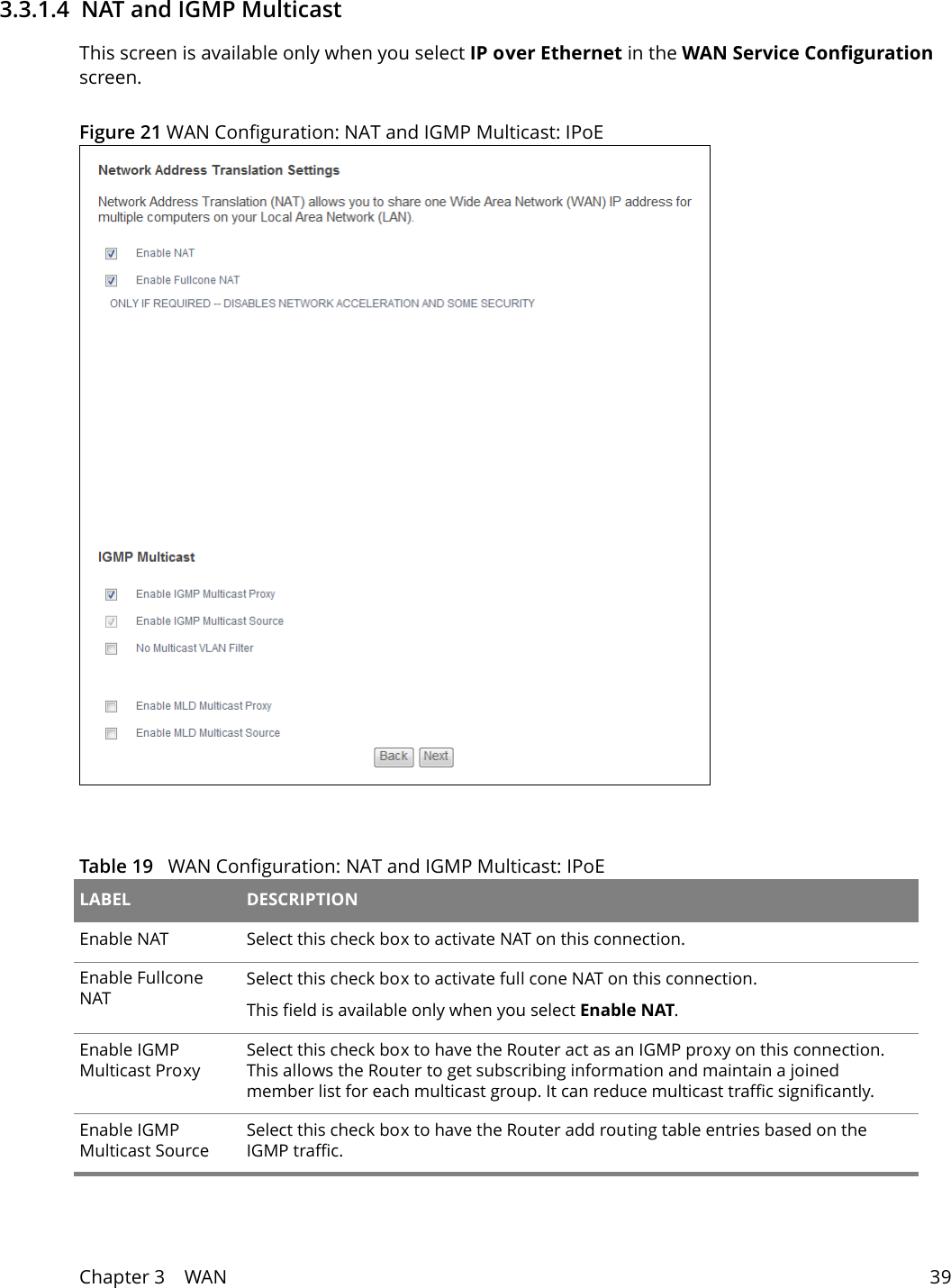
Chapter 3    WAN 393.3.1.4  NAT and IGMP Multicast This screen is available only when you select IP over Ethernet in the WAN Service Configuration screen.Figure 21 WAN Configuration: NAT and IGMP Multicast: IPoE Table 19   WAN Configuration: NAT and IGMP Multicast: IPoE LABEL DESCRIPTIONEnable NAT Select this check box to activate NAT on this connection.Enable Fullcone NATSelect this check box to activate full cone NAT on this connection.This field is available only when you select Enable NAT.Enable IGMP Multicast ProxySelect this check box to have the Router act as an IGMP proxy on this connection. This allows the Router to get subscribing information and maintain a joined member list for each multicast group. It can reduce multicast traffic significantly.Enable IGMP Multicast SourceSelect this check box to have the Router add routing table entries based on the IGMP traffic.
Chapter 3    WAN 40No Multicast VLAN FilterSelect this check box to have the Router not filter multicast traffic based on its VLAN.Enable MLD Multicast ProxySelect this check box to have the Router act as an MLD proxy on this connection.  This allows the Router to get subscription information and maintain a joined member list for each multicast group.  It can reduce multicast traffic significantly.Enable MLD Multicast SourceSelect this check box to have the Router add routing table entries based on the MLD traffic.Back Click this button to return to the previous screen.Next Click this button to continue.Table 19   WAN Configuration: NAT and IGMP Multicast: IPoE (continued)LABEL DESCRIPTION
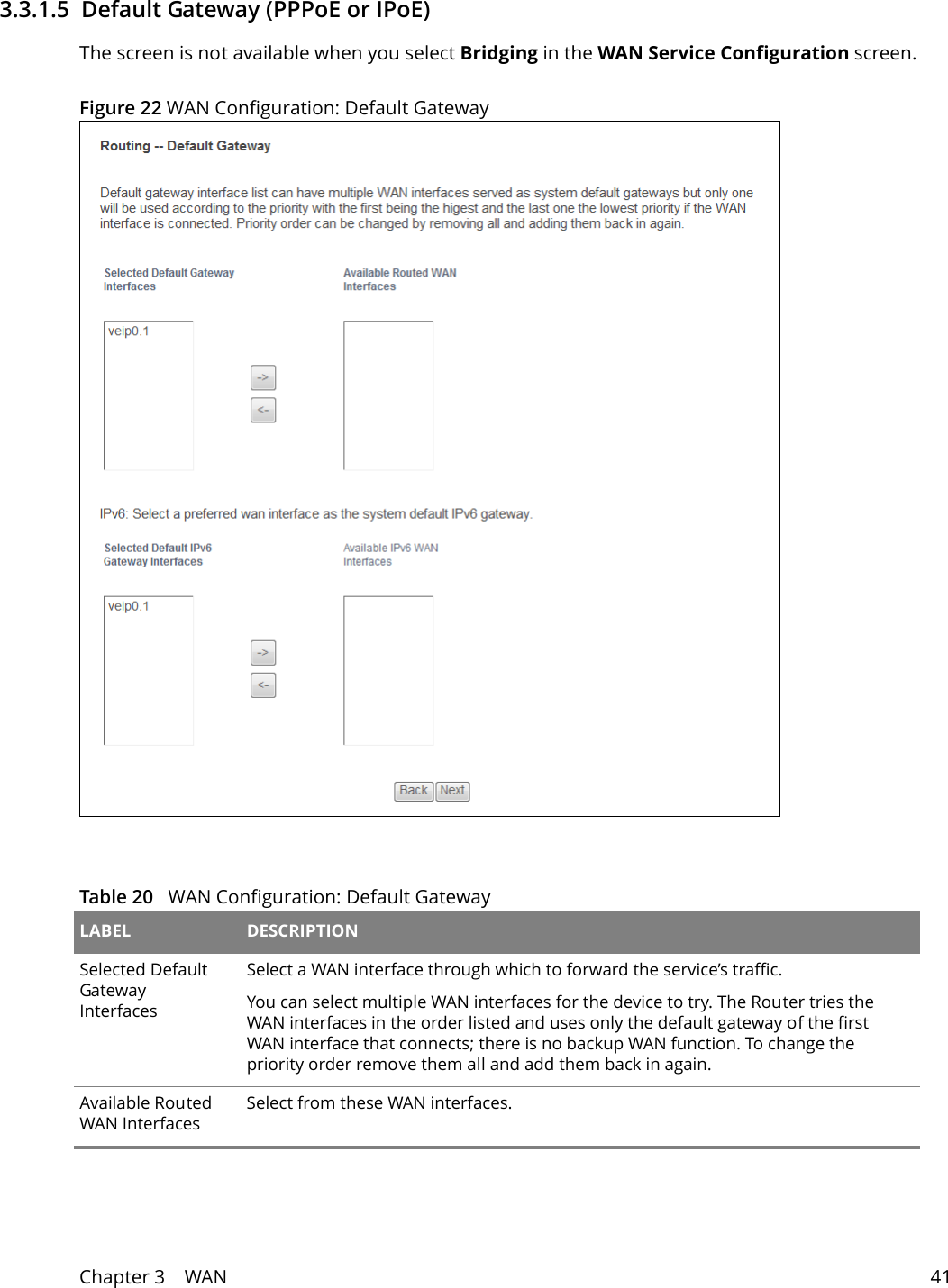
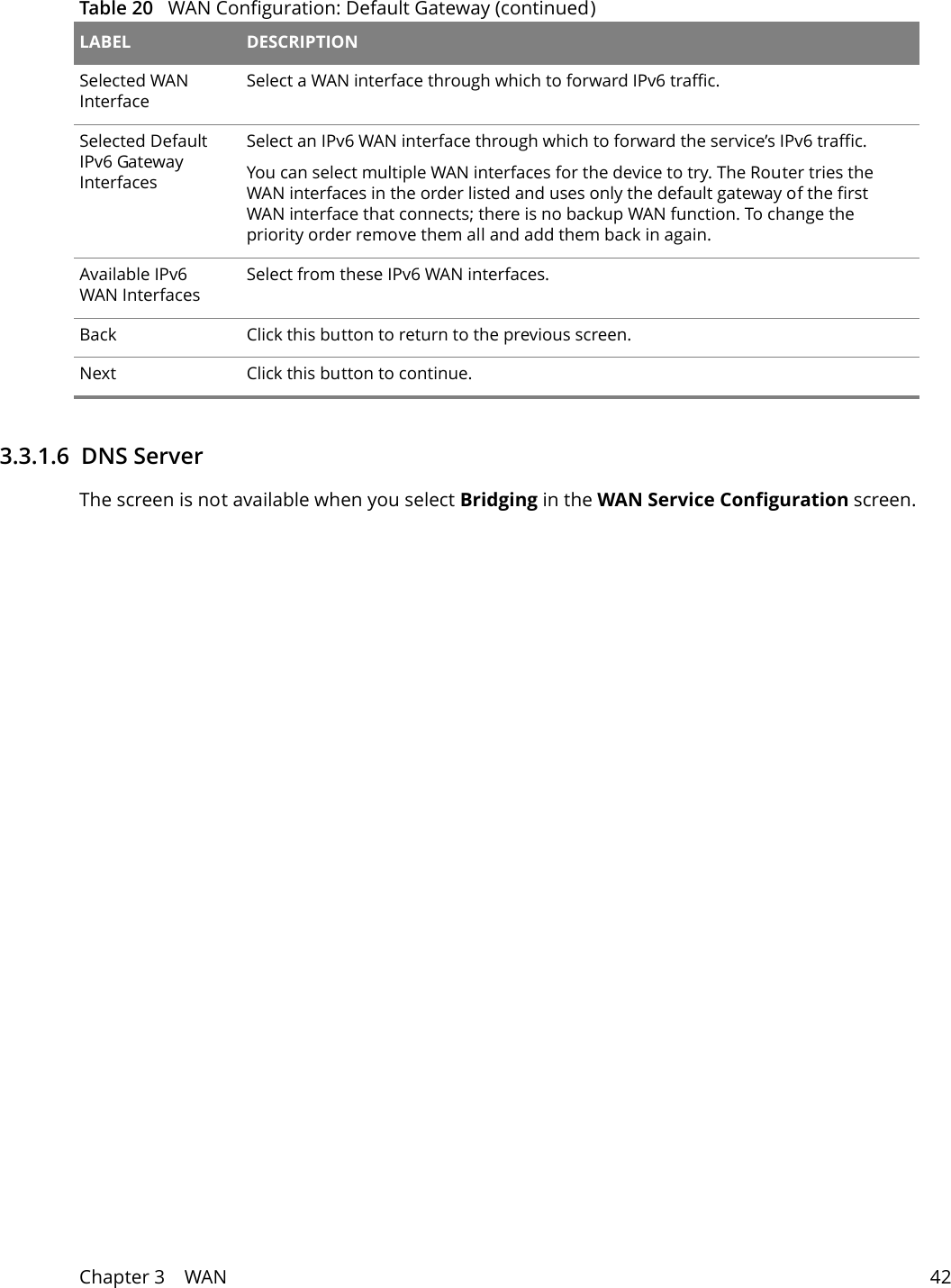
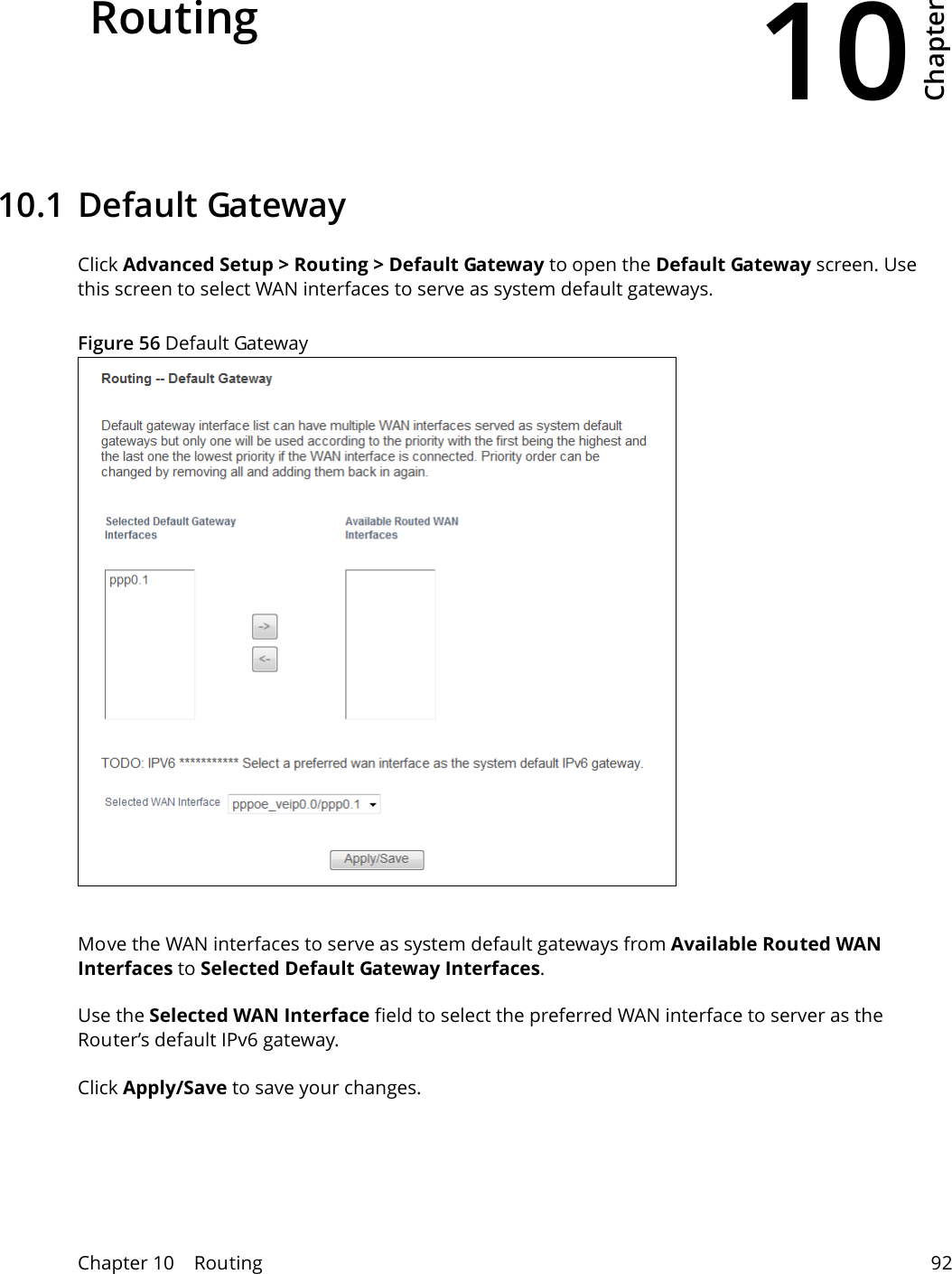
Chapter 3    WAN 413.3.1.5  Default Gateway (PPPoE or IPoE)The screen is not available when you select Bridging in the WAN Service Configuration screen.Figure 22 WAN Configuration: Default Gateway Table 20   WAN Configuration: Default Gateway LABEL DESCRIPTIONSelected Default Gateway InterfacesSelect a WAN interface through which to forward the service’s traffic.You can select multiple WAN interfaces for the device to try. The Router tries the WAN interfaces in the order listed and uses only the default gateway of the first WAN interface that connects; there is no backup WAN function. To change the priority order remove them all and add them back in again. Available Routed WAN InterfacesSelect from these WAN interfaces.
Chapter 3    WAN 423.3.1.6  DNS Server The screen is not available when you select Bridging in the WAN Service Configuration screen.Selected WAN InterfaceSelect a WAN interface through which to forward IPv6 traffic.Selected Default IPv6 Gateway InterfacesSelect an IPv6 WAN interface through which to forward the service’s IPv6 traffic.You can select multiple WAN interfaces for the device to try. The Router tries the WAN interfaces in the order listed and uses only the default gateway of the first WAN interface that connects; there is no backup WAN function. To change the priority order remove them all and add them back in again. Available IPv6 WAN InterfacesSelect from these IPv6 WAN interfaces.Back Click this button to return to the previous screen.Next Click this button to continue.Table 20   WAN Configuration: Default Gateway (continued)LABEL DESCRIPTION
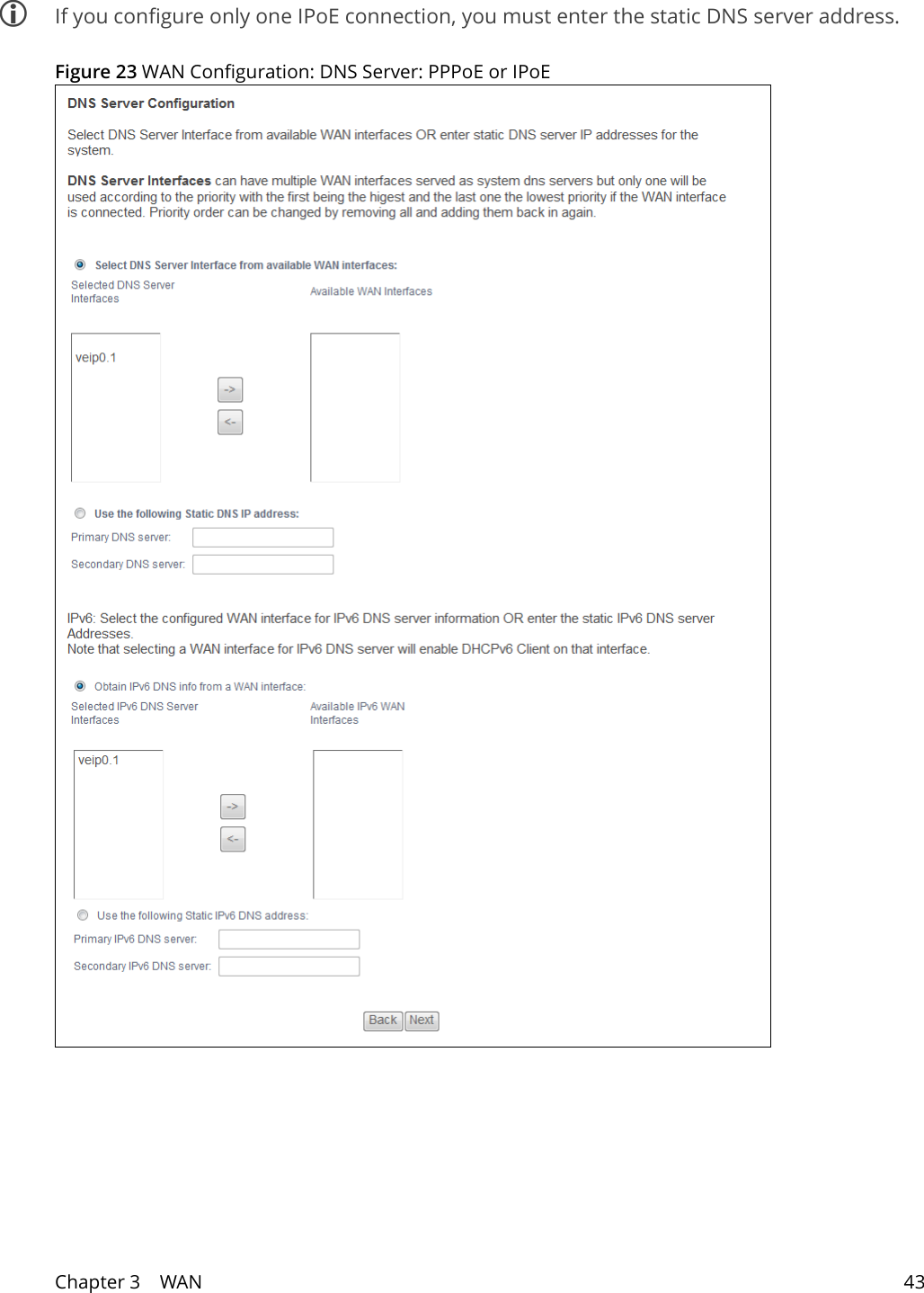
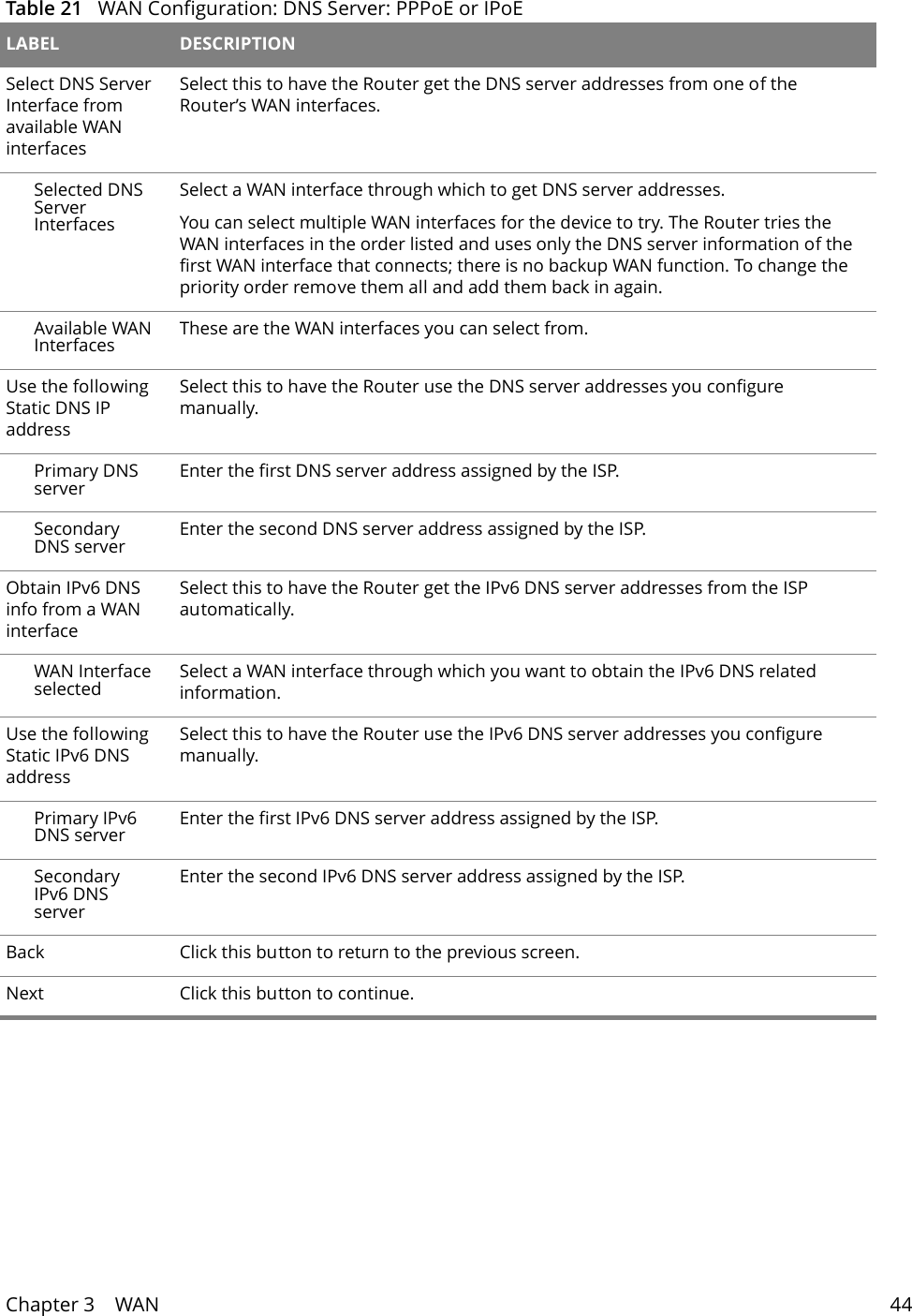
Chapter 3    WAN 43 If you configure only one IPoE connection, you must enter the static DNS server address.Figure 23 WAN Configuration: DNS Server: PPPoE or IPoE
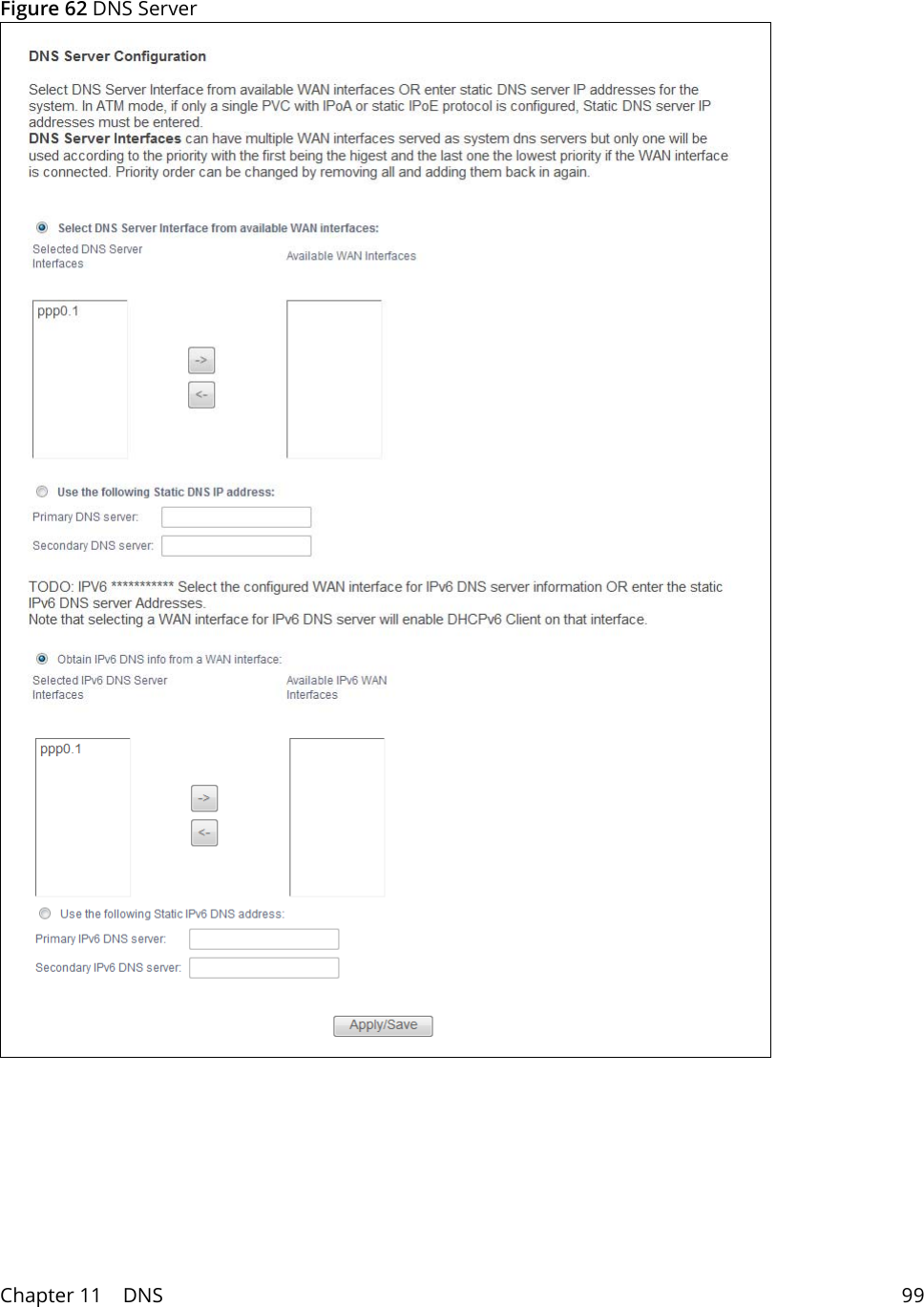
Chapter 3    WAN 44 Table 21   WAN Configuration: DNS Server: PPPoE or IPoELABEL DESCRIPTIONSelect DNS Server Interface from available WAN interfacesSelect this to have the Router get the DNS server addresses from one of the Router’s WAN interfaces. Selected DNS Server InterfacesSelect a WAN interface through which to get DNS server addresses.You can select multiple WAN interfaces for the device to try. The Router tries the WAN interfaces in the order listed and uses only the DNS server information of the first WAN interface that connects; there is no backup WAN function. To change the priority order remove them all and add them back in again. Available WAN Interfaces These are the WAN interfaces you can select from.Use the following Static DNS IP addressSelect this to have the Router use the DNS server addresses you configure manually.Primary DNS server Enter the first DNS server address assigned by the ISP.Secondary DNS server Enter the second DNS server address assigned by the ISP.Obtain IPv6 DNS info from a WAN interfaceSelect this to have the Router get the IPv6 DNS server addresses from the ISP automatically.WAN Interface selected Select a WAN interface through which you want to obtain the IPv6 DNS related information.Use the following Static IPv6 DNS addressSelect this to have the Router use the IPv6 DNS server addresses you configure manually.Primary IPv6 DNS server Enter the first IPv6 DNS server address assigned by the ISP.Secondary IPv6 DNS serverEnter the second IPv6 DNS server address assigned by the ISP.Back Click this button to return to the previous screen.Next Click this button to continue.
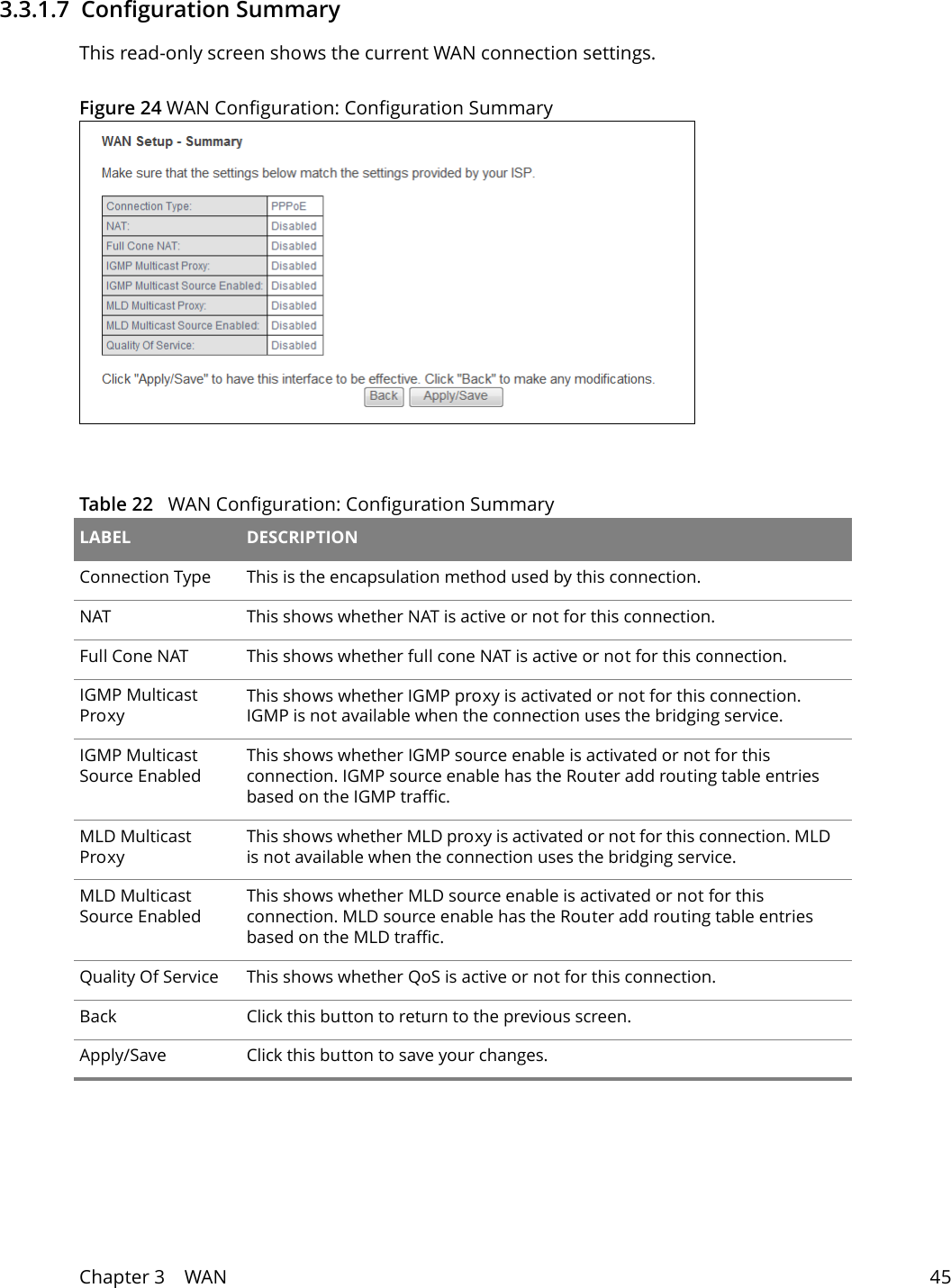
Chapter 3    WAN 453.3.1.7  Configuration SummaryThis read-only screen shows the current WAN connection settings.Figure 24 WAN Configuration: Configuration Summary Table 22   WAN Configuration: Configuration SummaryLABEL DESCRIPTIONConnection Type This is the encapsulation method used by this connection.NAT This shows whether NAT is active or not for this connection.Full Cone NAT This shows whether full cone NAT is active or not for this connection.IGMP Multicast ProxyThis shows whether IGMP proxy is activated or not for this connection. IGMP is not available when the connection uses the bridging service.IGMP Multicast Source EnabledThis shows whether IGMP source enable is activated or not for this connection. IGMP source enable has the Router add routing table entries based on the IGMP traffic.MLD Multicast ProxyThis shows whether MLD proxy is activated or not for this connection. MLD is not available when the connection uses the bridging service.MLD Multicast Source EnabledThis shows whether MLD source enable is activated or not for this connection. MLD source enable has the Router add routing table entries based on the MLD traffic.Quality Of Service This shows whether QoS is active or not for this connection.Back Click this button to return to the previous screen.Apply/Save Click this button to save your changes.
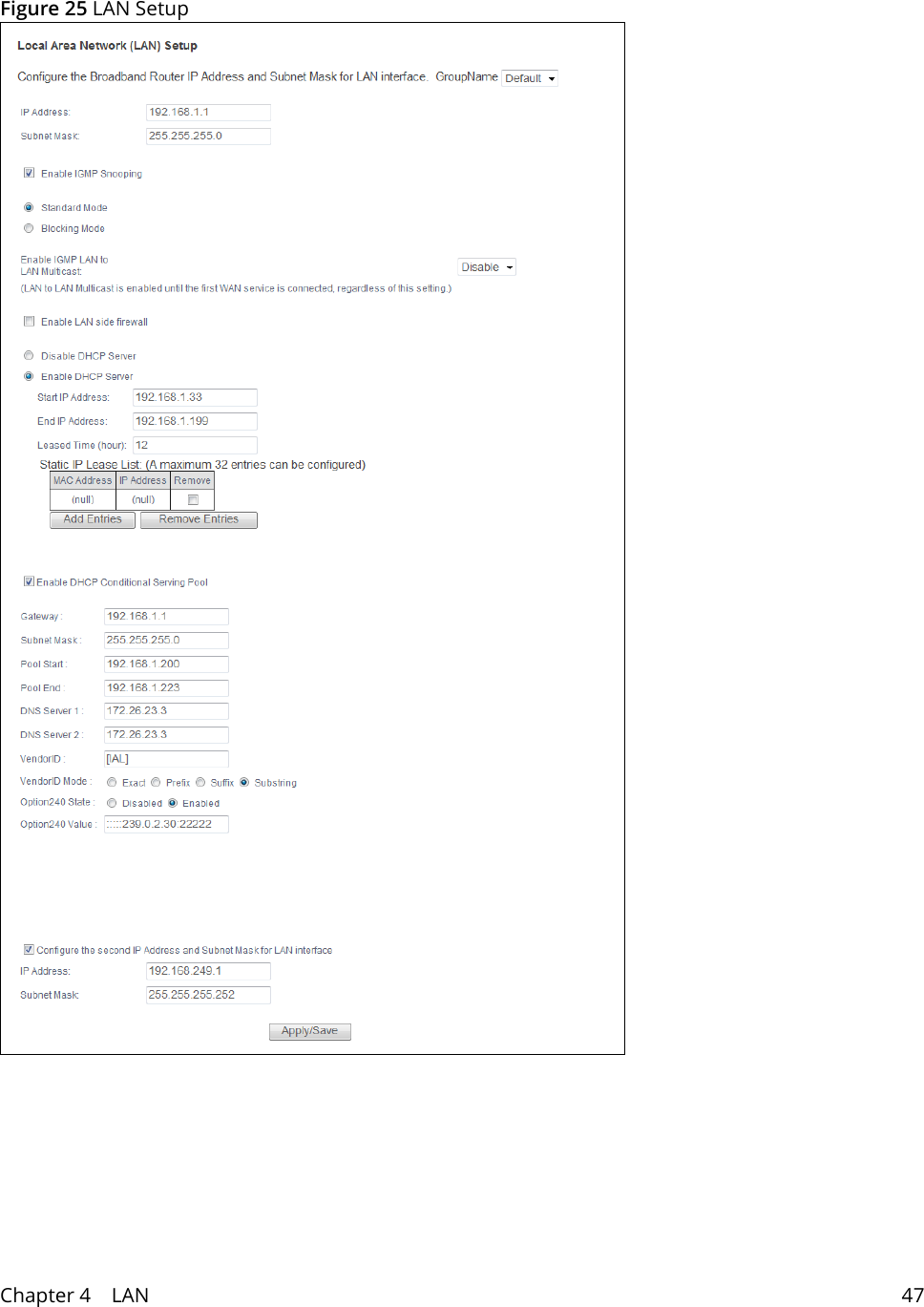
4Chapter Chapter 4    LAN 46CHAPTER 4 Chapter 4 LAN4.1 LAN SetupClick Advanced Setup > LAN to open the LAN Setup screen. Use this screen to set the Local Area Network IP address and subnet mask of your Router and configure the DNS server information that the Router sends to the DHCP client devices on the LAN.
Chapter 4    LAN 47Figure 25 LAN Setup
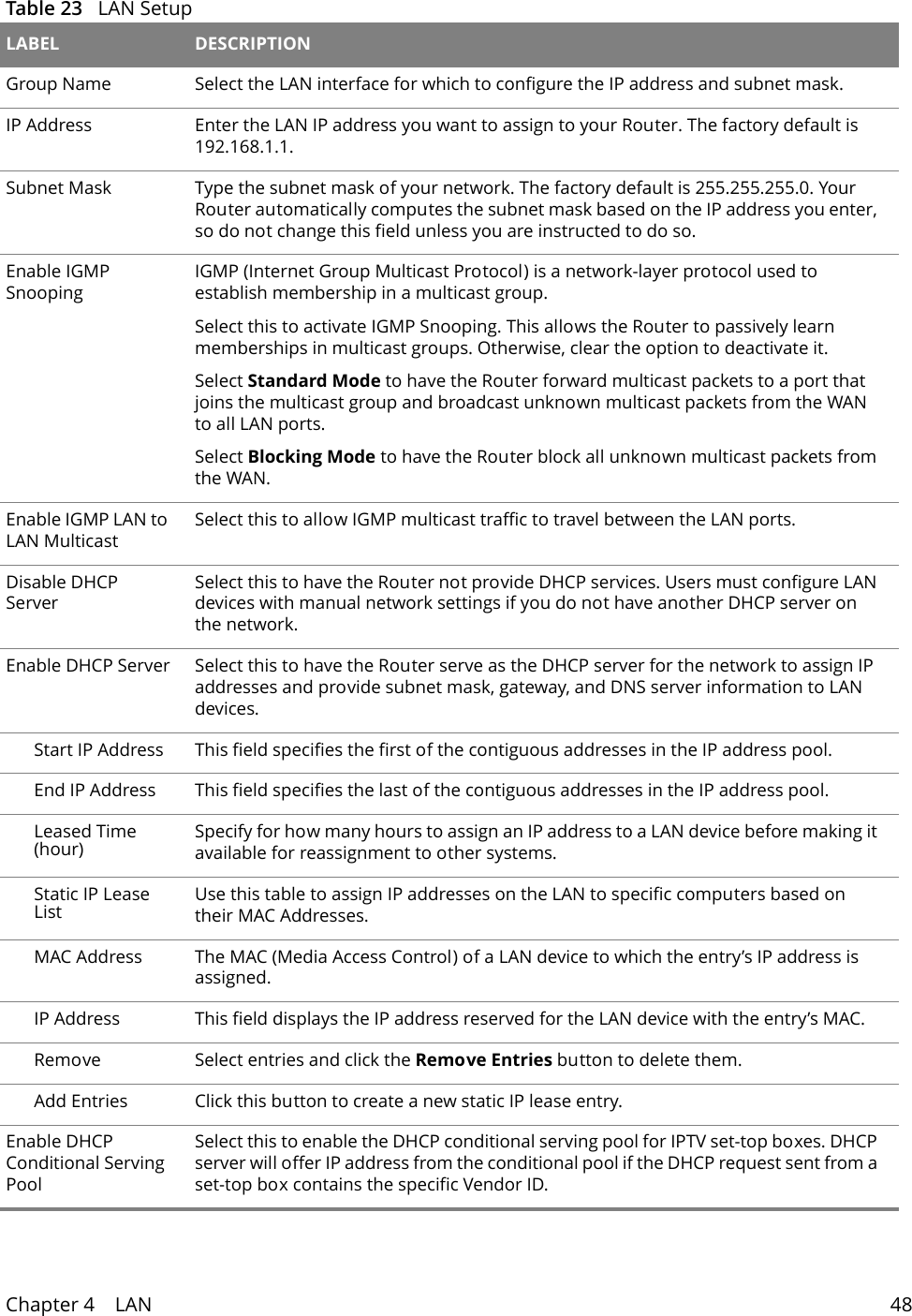
Chapter 4    LAN 48  Table 23   LAN Setup LABEL DESCRIPTIONGroup Name Select the LAN interface for which to configure the IP address and subnet mask. IP Address Enter the LAN IP address you want to assign to your Router. The factory default is 192.168.1.1. Subnet Mask  Type the subnet mask of your network. The factory default is 255.255.255.0. Your Router automatically computes the subnet mask based on the IP address you enter, so do not change this field unless you are instructed to do so.Enable IGMP SnoopingIGMP (Internet Group Multicast Protocol) is a network-layer protocol used to establish membership in a multicast group. Select this to activate IGMP Snooping. This allows the Router to passively learn memberships in multicast groups. Otherwise, clear the option to deactivate it.Select Standard Mode to have the Router forward multicast packets to a port that joins the multicast group and broadcast unknown multicast packets from the WAN to all LAN ports.Select Blocking Mode to have the Router block all unknown multicast packets from the WAN.Enable IGMP LAN to LAN MulticastSelect this to allow IGMP multicast traffic to travel between the LAN ports.Disable DHCP ServerSelect this to have the Router not provide DHCP services. Users must configure LAN devices with manual network settings if you do not have another DHCP server on the network.Enable DHCP Server Select this to have the Router serve as the DHCP server for the network to assign IP addresses and provide subnet mask, gateway, and DNS server information to LAN devices.Start IP Address This field specifies the first of the contiguous addresses in the IP address pool.End IP Address This field specifies the last of the contiguous addresses in the IP address pool.Leased Time (hour) Specify for how many hours to assign an IP address to a LAN device before making it available for reassignment to other systems.Static IP Lease List Use this table to assign IP addresses on the LAN to specific computers based on their MAC Addresses. MAC Address The MAC (Media Access Control) of a LAN device to which the entry’s IP address is assigned.IP Address This field displays the IP address reserved for the LAN device with the entry’s MAC. Remove Select entries and click the Remove Entries button to delete them.Add Entries Click this button to create a new static IP lease entry.Enable DHCP Conditional Serving Pool Select this to enable the DHCP conditional serving pool for IPTV set-top boxes. DHCP server will offer IP address from the conditional pool if the DHCP request sent from a set-top box contains the specific Vendor ID.
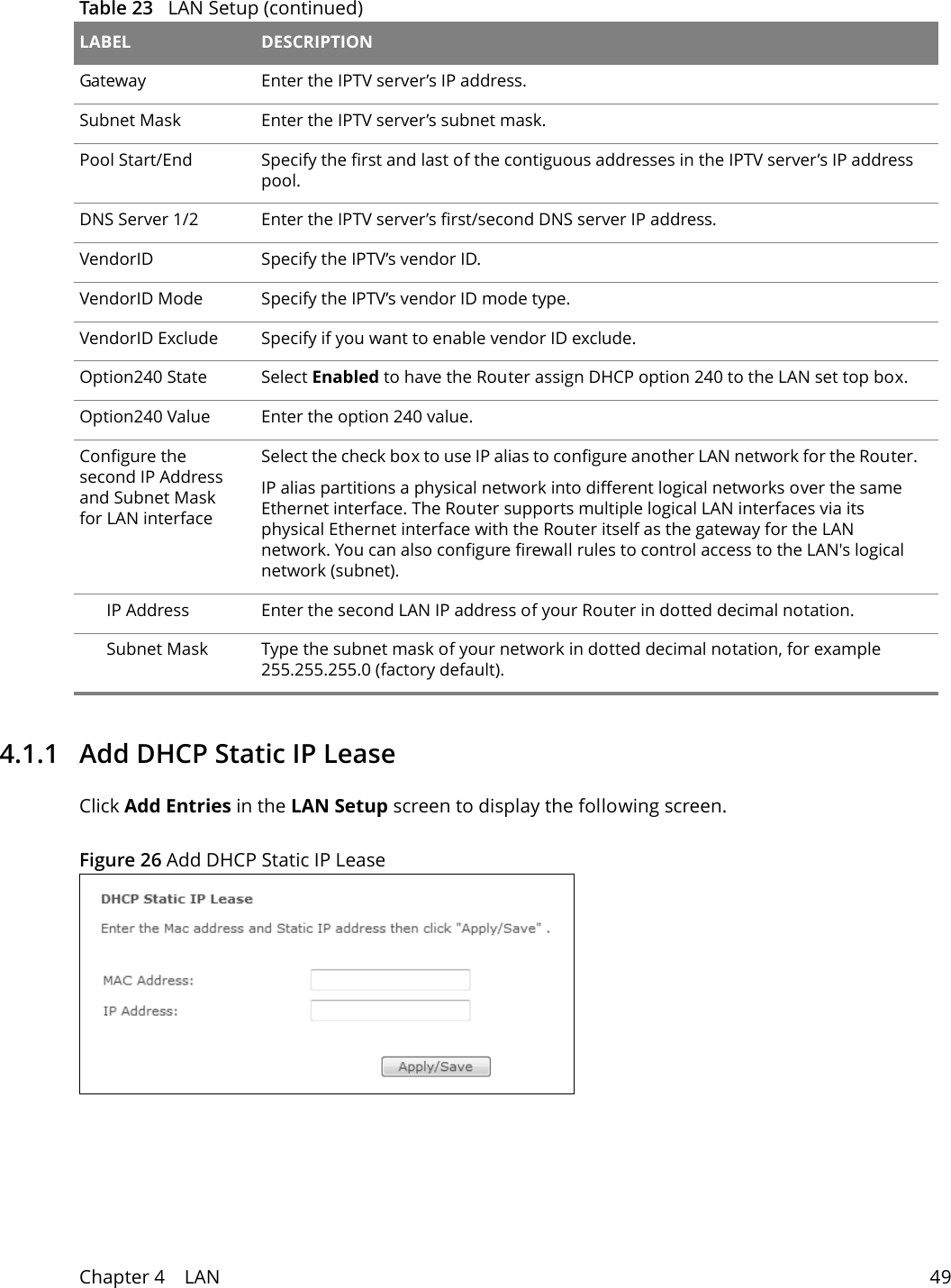
Chapter 4    LAN 494.1.1   Add DHCP Static IP LeaseClick Add Entries in the LAN Setup screen to display the following screen.Figure 26 Add DHCP Static IP LeaseGateway Enter the IPTV server’s IP address.Subnet Mask Enter the IPTV server’s subnet mask.Pool Start/End Specify the first and last of the contiguous addresses in the IPTV server’s IP address pool.DNS Server 1/2 Enter the IPTV server’s first/second DNS server IP address.VendorID Specify the IPTV’s vendor ID.VendorID Mode Specify the IPTV’s vendor ID mode type.VendorID Exclude Specify if you want to enable vendor ID exclude.Option240 State Select Enabled to have the Router assign DHCP option 240 to the LAN set top box.Option240 Value Enter the option 240 value.Configure the second IP Address and Subnet Mask for LAN interface Select the check box to use IP alias to configure another LAN network for the Router. IP alias partitions a physical network into different logical networks over the same Ethernet interface. The Router supports multiple logical LAN interfaces via its physical Ethernet interface with the Router itself as the gateway for the LAN network. You can also configure firewall rules to control access to the LAN's logical network (subnet).IP Address Enter the second LAN IP address of your Router in dotted decimal notation.Subnet Mask Type the subnet mask of your network in dotted decimal notation, for example 255.255.255.0 (factory default).Table 23   LAN Setup (continued)LABEL DESCRIPTION
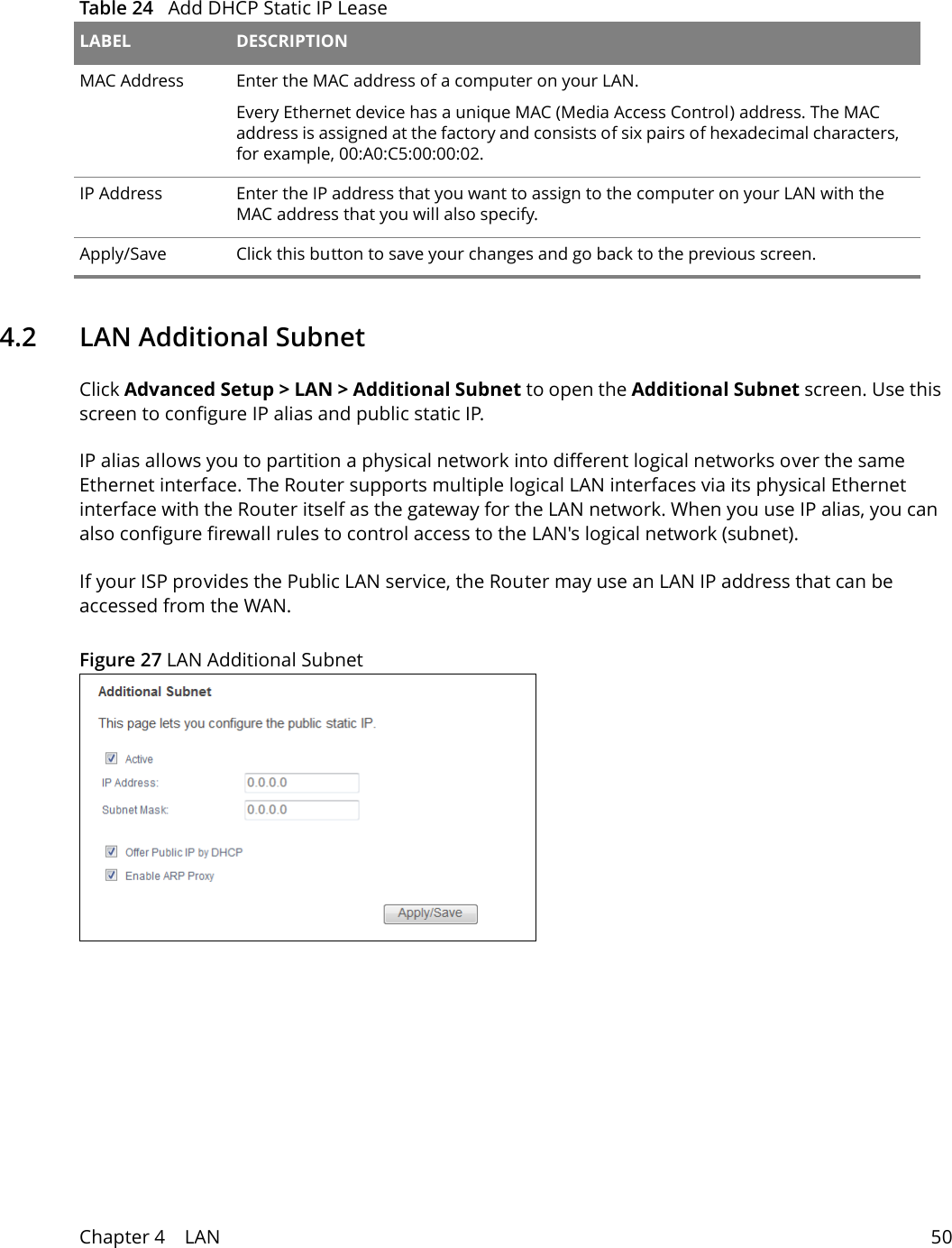
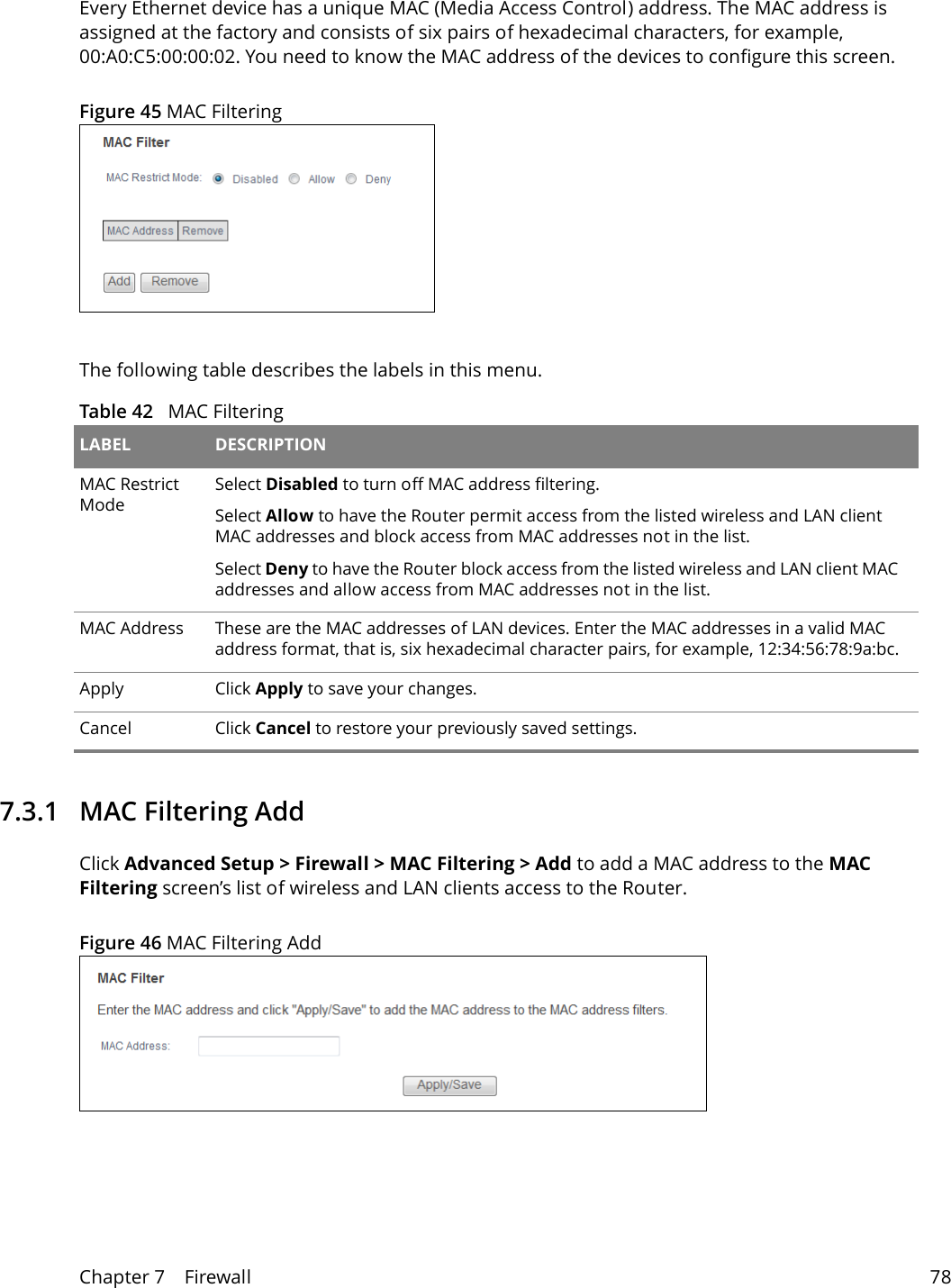
Table 24   Add DHCP Static IP Lease LABEL DESCRIPTIONMAC Address Enter the MAC address of a computer on your LAN.Every Ethernet device has a unique MAC (Media Access Control) address. The MAC address is assigned at the factory and consists of six pairs of hexadecimal characters, for example, 00:A0:C5:00:00:02.IP Address Enter the IP address that you want to assign to the computer on your LAN with the MAC address that you will also specify.Apply/Save Click this button to save your changes and go back to the previous screen.Chapter 4    LAN 504.2   LAN Additional SubnetClick Advanced Setup > LAN > Additional Subnet to open the Additional Subnet screen. Use this screen to configure IP alias and public static IP. IP alias allows you to partition a physical network into different logical networks over the same Ethernet interface. The Router supports multiple logical LAN interfaces via its physical Ethernet interface with the Router itself as the gateway for the LAN network. When you use IP alias, you can also configure firewall rules to control access to the LAN's logical network (subnet).If your ISP provides the Public LAN service, the Router may use an LAN IP address that can be accessed from the WAN. Figure 27 LAN Additional Subnet
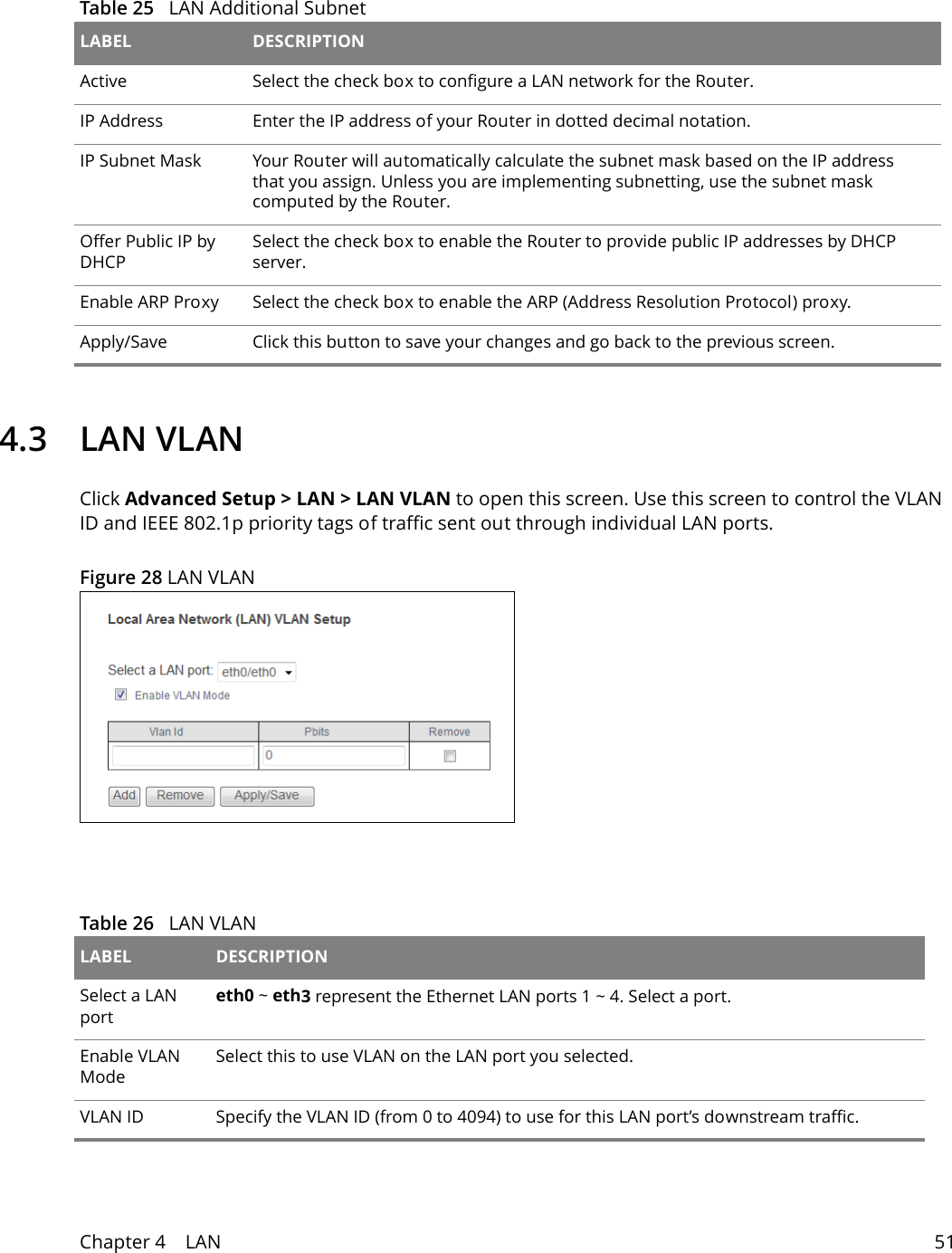
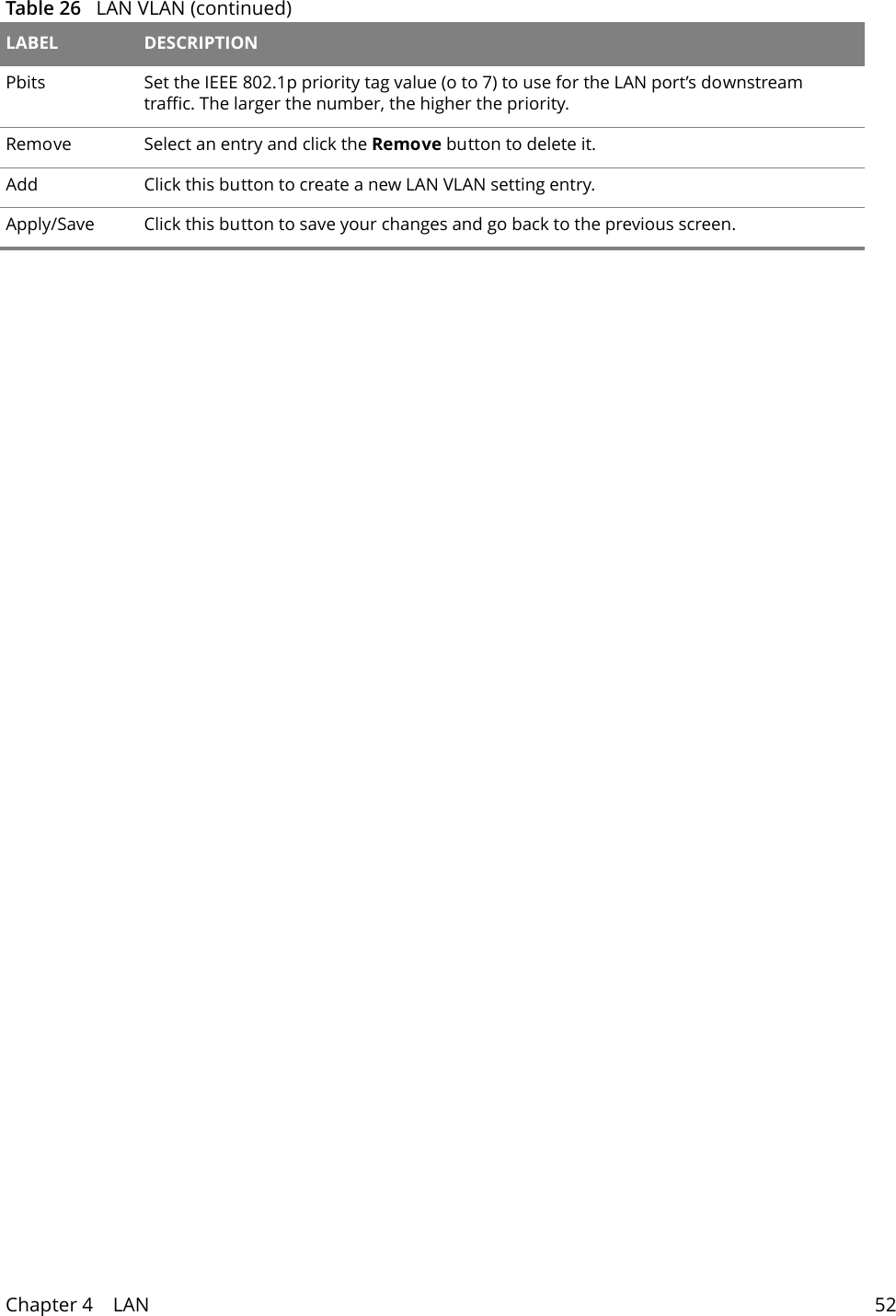
Chapter 4    LAN 51 Table 25   LAN Additional Subnet  LABEL DESCRIPTIONActive Select the check box to configure a LAN network for the Router.IP Address Enter the IP address of your Router in dotted decimal notation. IP Subnet Mask  Your Router will automatically calculate the subnet mask based on the IP address that you assign. Unless you are implementing subnetting, use the subnet mask computed by the Router.Offer Public IP by DHCPSelect the check box to enable the Router to provide public IP addresses by DHCP server.Enable ARP Proxy Select the check box to enable the ARP (Address Resolution Protocol) proxy.Apply/Save Click this button to save your changes and go back to the previous screen.4.3 LAN VLANClick Advanced Setup > LAN > LAN VLAN to open this screen. Use this screen to control the VLAN ID and IEEE 802.1p priority tags of traffic sent out through individual LAN ports. Figure 28 LAN VLANTable 26   LAN VLAN LABEL DESCRIPTIONSelect a LAN porteth0 ~ eth3 represent the Ethernet LAN ports 1 ~ 4. Select a port.Enable VLAN ModeSelect this to use VLAN on the LAN port you selected.VLAN ID Specify the VLAN ID (from 0 to 4094) to use for this LAN port’s downstream traffic.
Chapter 4    LAN 52Pbits Set the IEEE 802.1p priority tag value (o to 7) to use for the LAN port’s downstream traffic. The larger the number, the higher the priority.Remove Select an entry and click the Remove button to delete it. Add Click this button to create a new LAN VLAN setting entry.Apply/Save Click this button to save your changes and go back to the previous screen.Table 26   LAN VLAN (continued)LABEL DESCRIPTION
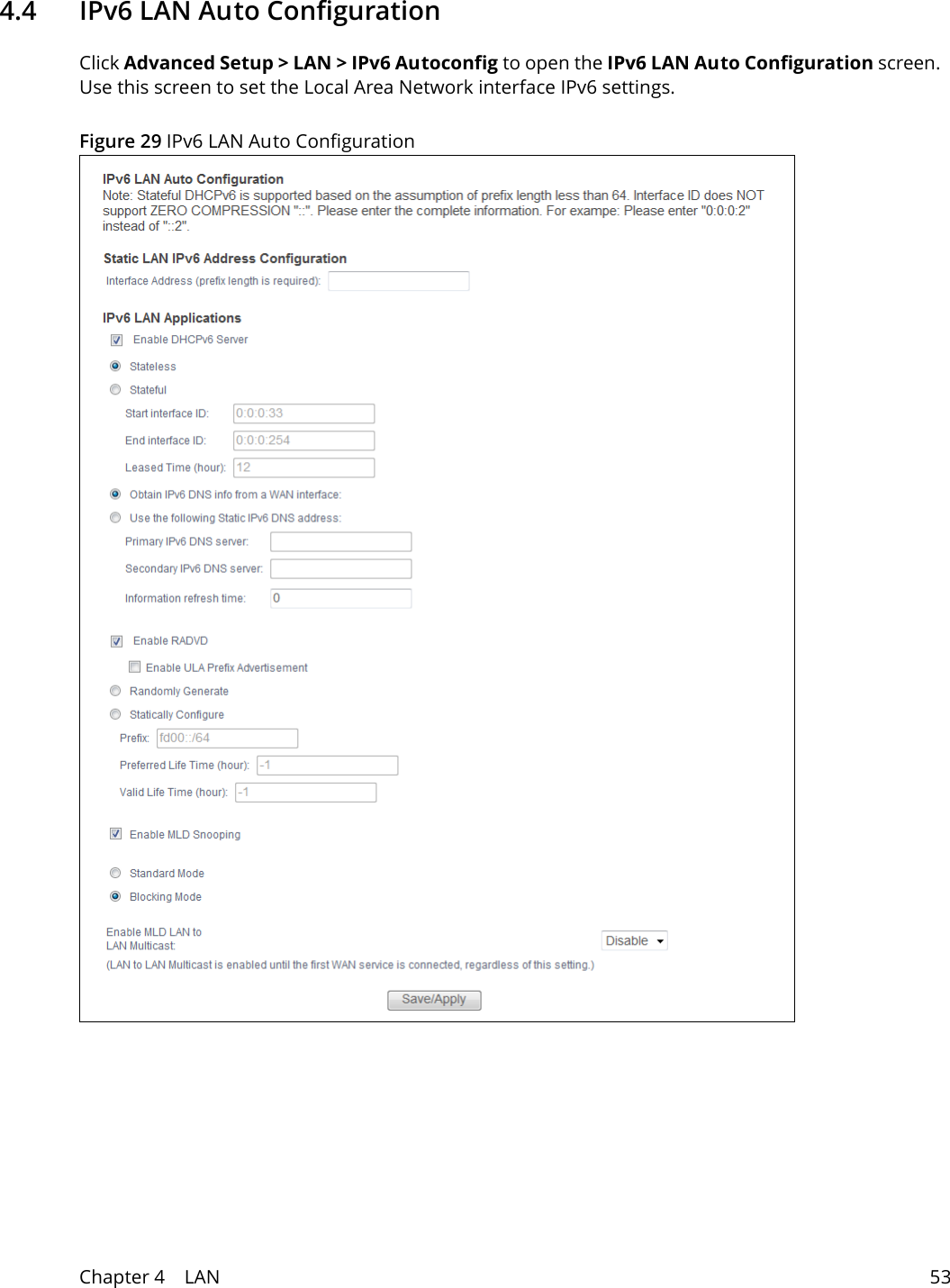
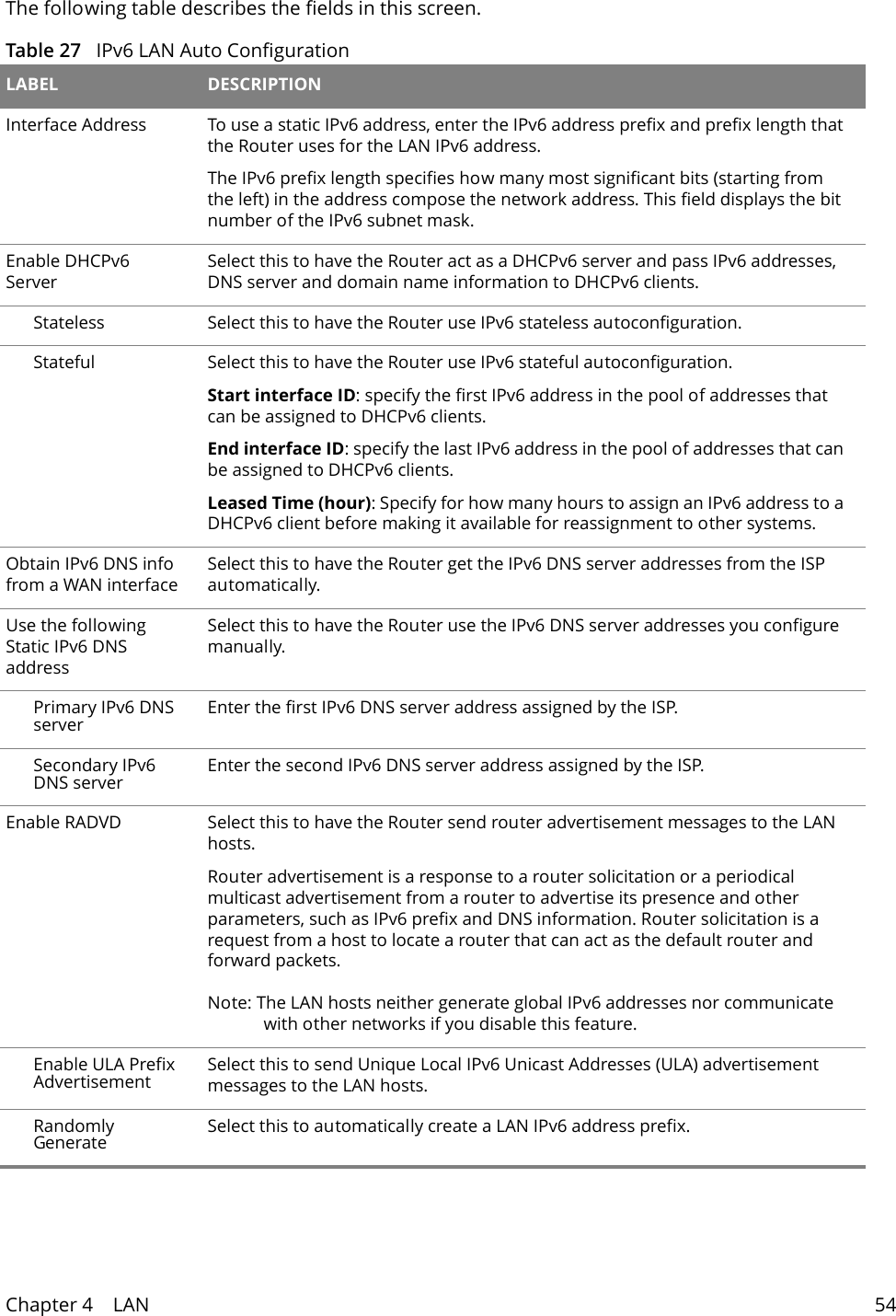
Chapter 4    LAN 534.4   IPv6 LAN Auto ConfigurationClick Advanced Setup > LAN > IPv6 Autoconfig to open the IPv6 LAN Auto Configuration screen. Use this screen to set the Local Area Network interface IPv6 settings. Figure 29 IPv6 LAN Auto Configuration
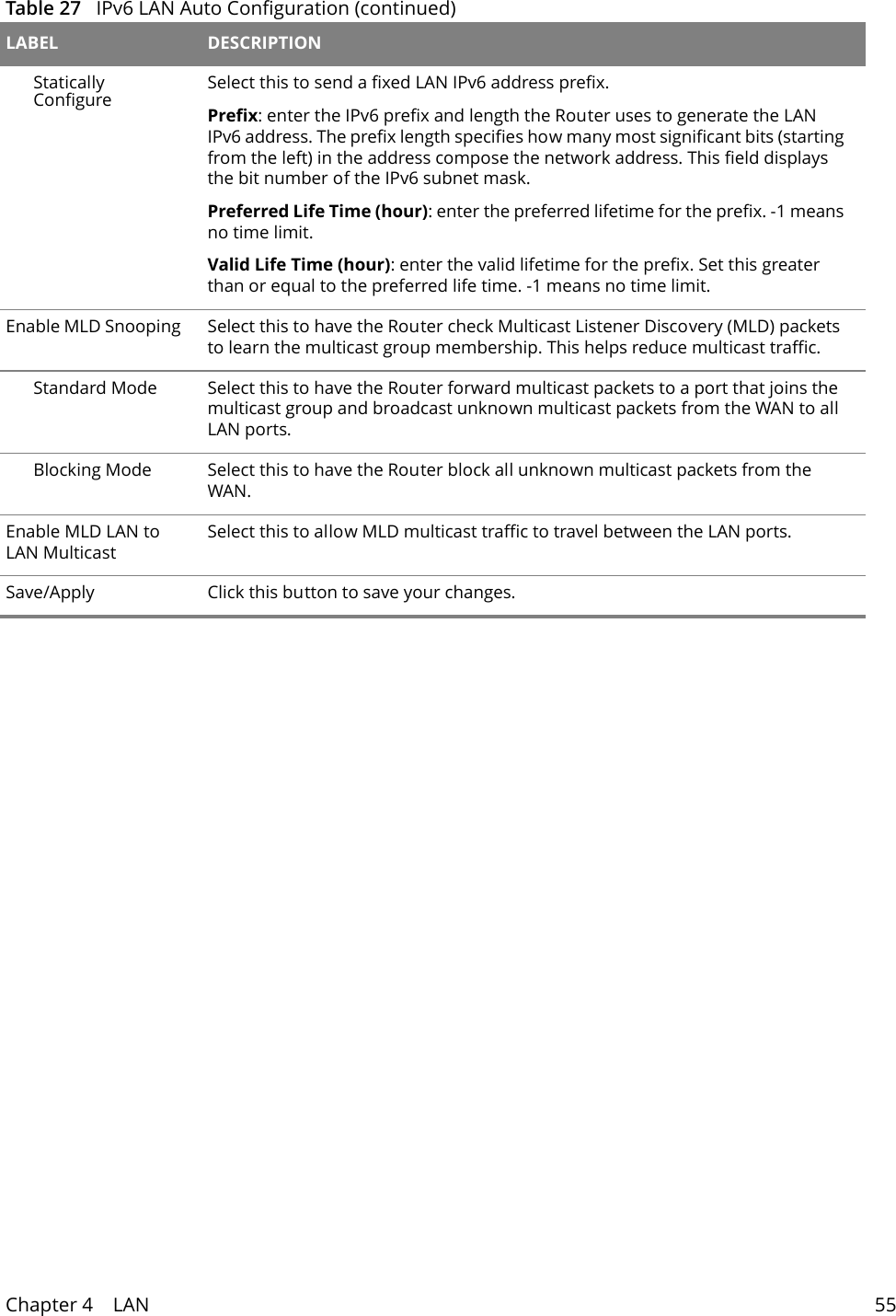
Chapter 4    LAN 54The following table describes the fields in this screen.  Table 27   IPv6 LAN Auto Configuration LABEL DESCRIPTIONInterface Address  To use a static IPv6 address, enter the IPv6 address prefix and prefix length that the Router uses for the LAN IPv6 address.The IPv6 prefix length specifies how many most significant bits (starting from the left) in the address compose the network address. This field displays the bit number of the IPv6 subnet mask.Enable DHCPv6 ServerSelect this to have the Router act as a DHCPv6 server and pass IPv6 addresses, DNS server and domain name information to DHCPv6 clients.Stateless Select this to have the Router use IPv6 stateless autoconfiguration.Stateful Select this to have the Router use IPv6 stateful autoconfiguration.Start interface ID: specify the first IPv6 address in the pool of addresses that can be assigned to DHCPv6 clients. End interface ID: specify the last IPv6 address in the pool of addresses that can be assigned to DHCPv6 clients. Leased Time (hour): Specify for how many hours to assign an IPv6 address to a DHCPv6 client before making it available for reassignment to other systems.Obtain IPv6 DNS info from a WAN interfaceSelect this to have the Router get the IPv6 DNS server addresses from the ISP automatically.Use the following Static IPv6 DNS addressSelect this to have the Router use the IPv6 DNS server addresses you configure manually.Primary IPv6 DNS server Enter the first IPv6 DNS server address assigned by the ISP.Secondary IPv6 DNS server Enter the second IPv6 DNS server address assigned by the ISP.Enable RADVD Select this to have the Router send router advertisement messages to the LAN hosts.Router advertisement is a response to a router solicitation or a periodical multicast advertisement from a router to advertise its presence and other parameters, such as IPv6 prefix and DNS information. Router solicitation is a request from a host to locate a router that can act as the default router and forward packets.Note: The LAN hosts neither generate global IPv6 addresses nor communicate with other networks if you disable this feature.Enable ULA Prefix Advertisement  Select this to send Unique Local IPv6 Unicast Addresses (ULA) advertisement messages to the LAN hosts.Randomly Generate  Select this to automatically create a LAN IPv6 address prefix.
Chapter 4    LAN 55Network Connections: My Network Places: Properties: ExampleStatically Configure Select this to send a fixed LAN IPv6 address prefix.Prefix: enter the IPv6 prefix and length the Router uses to generate the LAN IPv6 address. The prefix length specifies how many most significant bits (starting from the left) in the address compose the network address. This field displays the bit number of the IPv6 subnet mask.Preferred Life Time (hour): enter the preferred lifetime for the prefix. -1 means no time limit. Valid Life Time (hour): enter the valid lifetime for the prefix. Set this greater than or equal to the preferred life time. -1 means no time limit. Enable MLD Snooping  Select this to have the Router check Multicast Listener Discovery (MLD) packets to learn the multicast group membership. This helps reduce multicast traffic.Standard Mode  Select this to have the Router forward multicast packets to a port that joins the multicast group and broadcast unknown multicast packets from the WAN to all LAN ports.Blocking Mode  Select this to have the Router block all unknown multicast packets from the WAN.Enable MLD LAN to LAN MulticastSelect this to allow MLD multicast traffic to travel between the LAN ports.Save/Apply Click this button to save your changes.Table 27   IPv6 LAN Auto Configuration (continued)LABEL DESCRIPTION
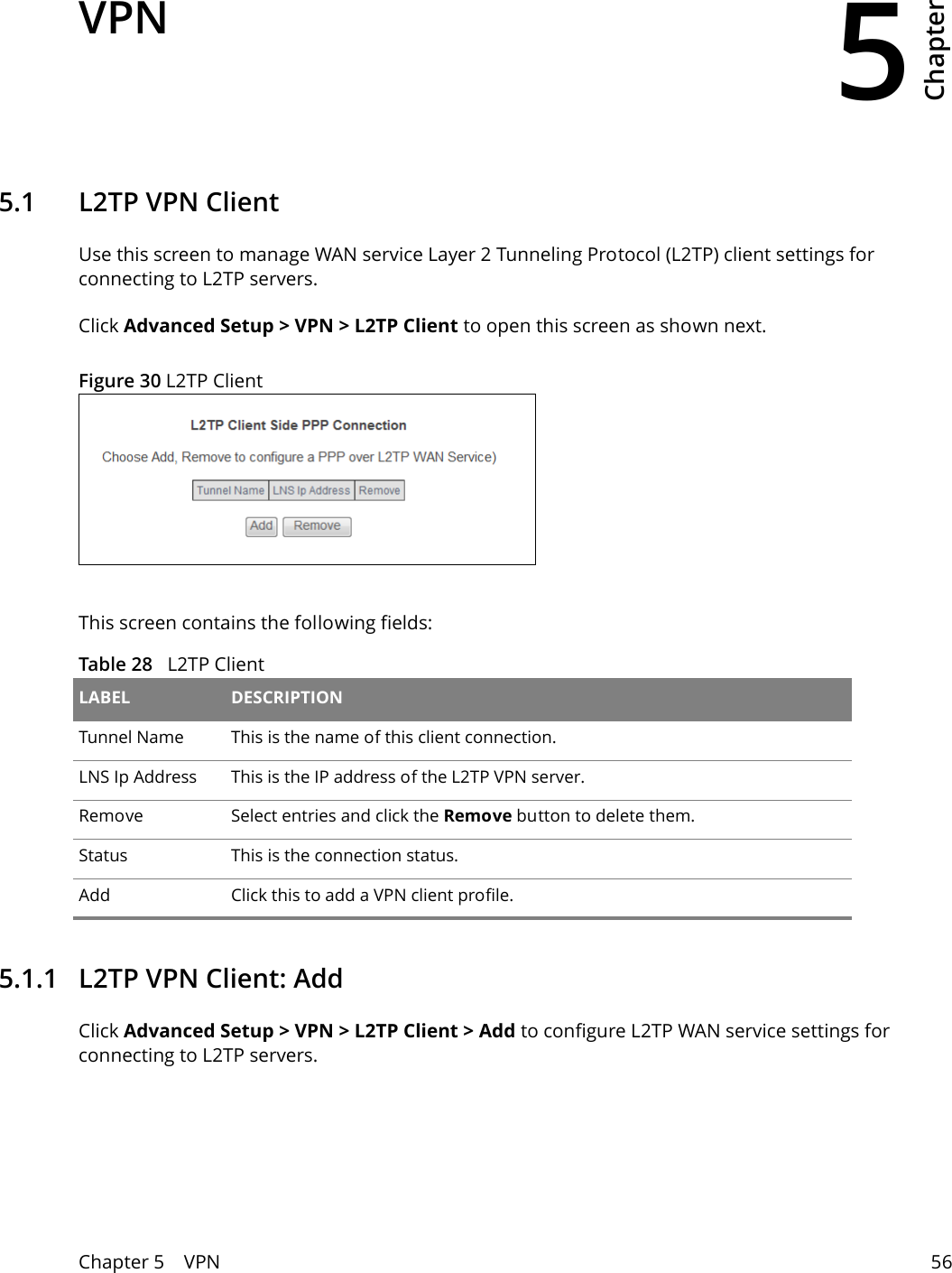
5Chapter Chapter 5    VPN 56CHAPTER 5 Chapter 5 VPN5.1   L2TP VPN ClientUse this screen to manage WAN service Layer 2 Tunneling Protocol (L2TP) client settings for connecting to L2TP servers.Click Advanced Setup > VPN > L2TP Client to open this screen as shown next.Figure 30 L2TP ClientThis screen contains the following fields:Table 28   L2TP ClientLABEL DESCRIPTIONTunnel Name This is the name of this client connection.LNS Ip Address This is the IP address of the L2TP VPN server.Remove Select entries and click the Remove button to delete them.Status This is the connection status.Add Click this to add a VPN client profile.5.1.1   L2TP VPN Client: AddClick Advanced Setup > VPN > L2TP Client > Add to configure L2TP WAN service settings for connecting to L2TP servers.
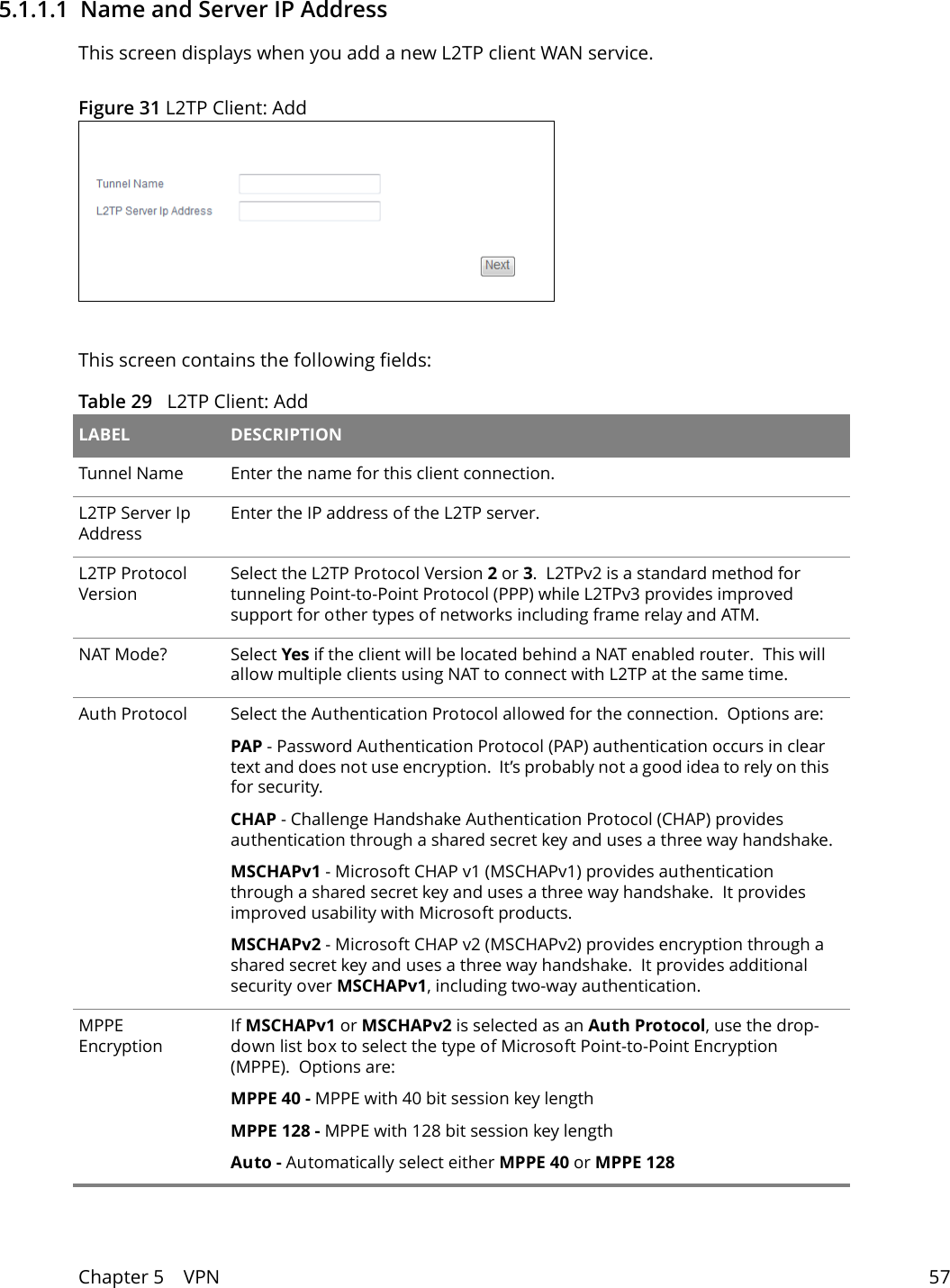
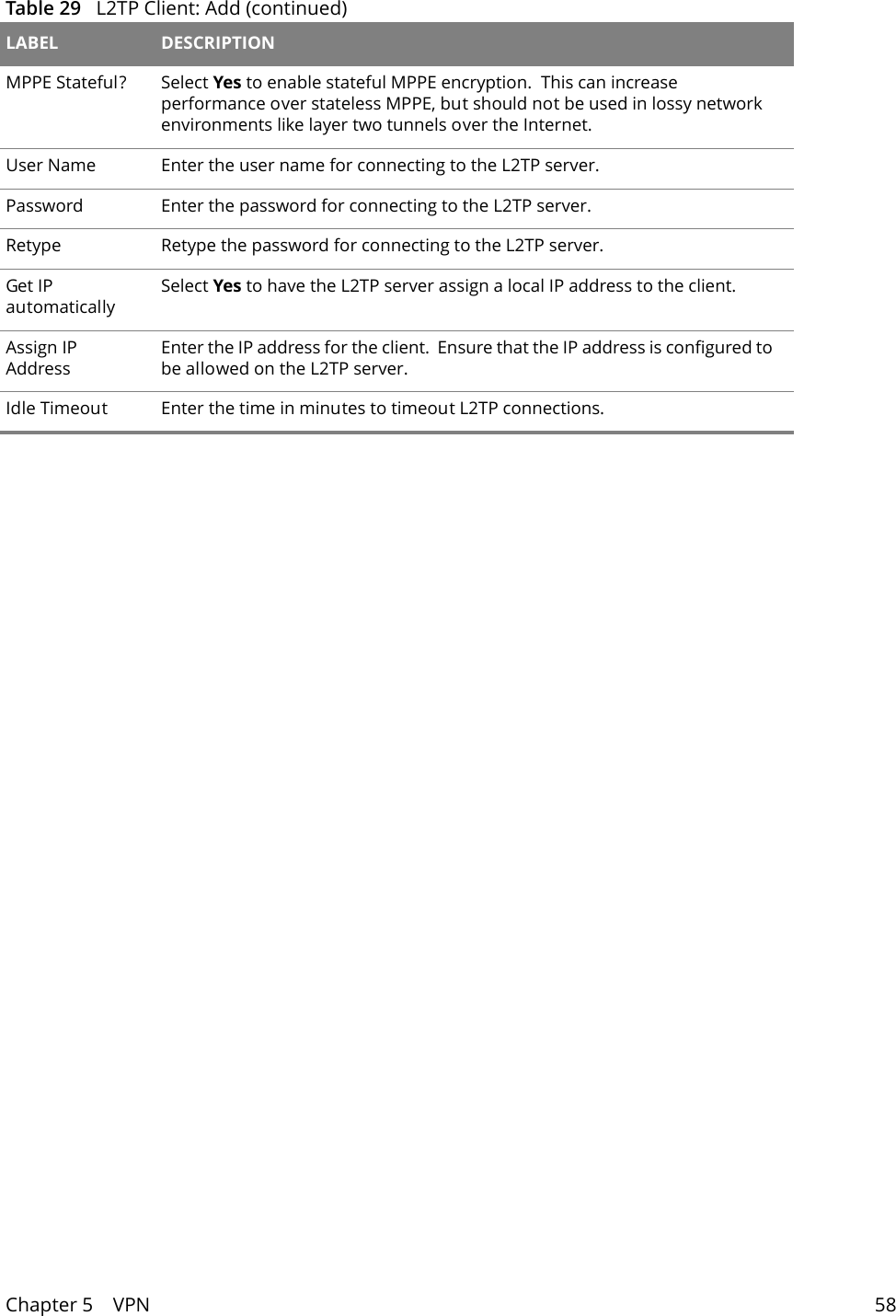
Chapter 5    VPN 575.1.1.1  Name and Server IP AddressThis screen displays when you add a new L2TP client WAN service.Figure 31 L2TP Client: AddThis screen contains the following fields:Table 29   L2TP Client: Add LABEL DESCRIPTIONTunnel Name Enter the name for this client connection.L2TP Server Ip AddressEnter the IP address of the L2TP server.L2TP Protocol VersionSelect the L2TP Protocol Version 2 or 3.  L2TPv2 is a standard method for tunneling Point-to-Point Protocol (PPP) while L2TPv3 provides improved support for other types of networks including frame relay and ATM.NAT Mode? Select Yes if the client will be located behind a NAT enabled router.  This will allow multiple clients using NAT to connect with L2TP at the same time.Auth Protocol Select the Authentication Protocol allowed for the connection.  Options are:PAP - Password Authentication Protocol (PAP) authentication occurs in clear text and does not use encryption.  It’s probably not a good idea to rely on this for security.CHAP - Challenge Handshake Authentication Protocol (CHAP) provides authentication through a shared secret key and uses a three way handshake.MSCHAPv1 - Microsoft CHAP v1 (MSCHAPv1) provides authentication through a shared secret key and uses a three way handshake.  It provides improved usability with Microsoft products.MSCHAPv2 - Microsoft CHAP v2 (MSCHAPv2) provides encryption through a shared secret key and uses a three way handshake.  It provides additional security over MSCHAPv1, including two-way authentication.MPPE EncryptionIf MSCHAPv1 or MSCHAPv2 is selected as an Auth Protocol, use the drop-down list box to select the type of Microsoft Point-to-Point Encryption (MPPE).  Options are:MPPE 40 - MPPE with 40 bit session key lengthMPPE 128 - MPPE with 128 bit session key lengthAuto - Automatically select either MPPE 40 or MPPE 128
Chapter 5    VPN 58MPPE Stateful? Select Yes to enable stateful MPPE encryption.  This can increase performance over stateless MPPE, but should not be used in lossy network environments like layer two tunnels over the Internet.User Name Enter the user name for connecting to the L2TP server.Password Enter the password for connecting to the L2TP server.Retype Retype the password for connecting to the L2TP server.Get IP automaticallySelect Yes to have the L2TP server assign a local IP address to the client.Assign IP AddressEnter the IP address for the client.  Ensure that the IP address is configured to be allowed on the L2TP server.Idle Timeout Enter the time in minutes to timeout L2TP connections.Table 29   L2TP Client: Add (continued)LABEL DESCRIPTION
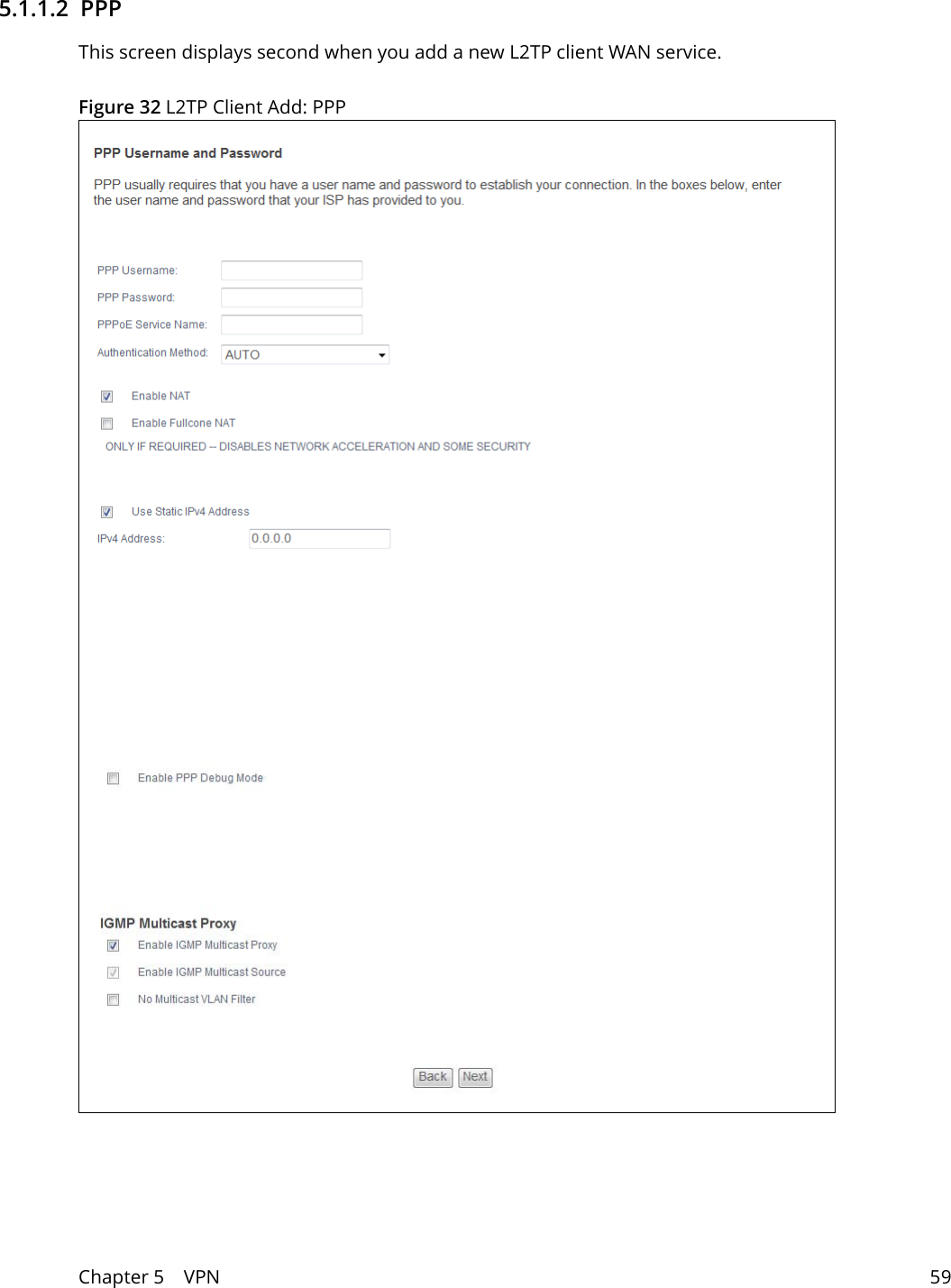
Chapter 5    VPN 595.1.1.2  PPPThis screen displays second when you add a new L2TP client WAN service.Figure 32 L2TP Client Add: PPP
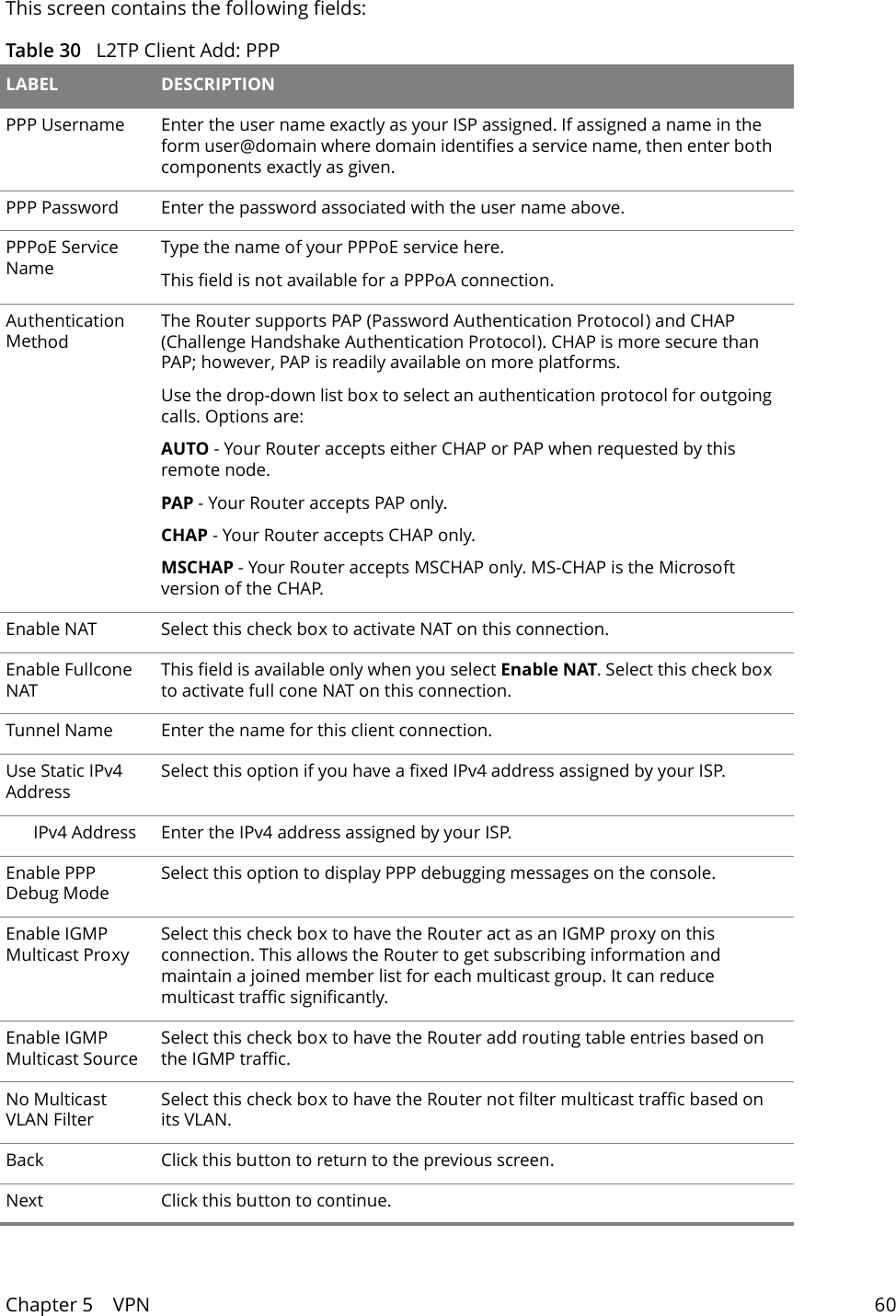
Chapter 5    VPN 60This screen contains the following fields:Table 30   L2TP Client Add: PPP LABEL DESCRIPTIONPPP Username Enter the user name exactly as your ISP assigned. If assigned a name in the form user@domain where domain identifies a service name, then enter both components exactly as given.PPP Password Enter the password associated with the user name above.PPPoE Service NameType the name of your PPPoE service here.This field is not available for a PPPoA connection.Authentication MethodThe Router supports PAP (Password Authentication Protocol) and CHAP (Challenge Handshake Authentication Protocol). CHAP is more secure than PAP; however, PAP is readily available on more platforms.Use the drop-down list box to select an authentication protocol for outgoing calls. Options are:AUTO - Your Router accepts either CHAP or PAP when requested by this remote node. PAP - Your Router accepts PAP only. CHAP - Your Router accepts CHAP only. MSCHAP - Your Router accepts MSCHAP only. MS-CHAP is the Microsoft version of the CHAP.Enable NAT Select this check box to activate NAT on this connection.Enable Fullcone NATThis field is available only when you select Enable NAT. Select this check box to activate full cone NAT on this connection.Tunnel Name Enter the name for this client connection.Use Static IPv4 AddressSelect this option if you have a fixed IPv4 address assigned by your ISP.IPv4 Address Enter the IPv4 address assigned by your ISP.Enable PPP Debug ModeSelect this option to display PPP debugging messages on the console.Enable IGMP Multicast ProxySelect this check box to have the Router act as an IGMP proxy on this connection. This allows the Router to get subscribing information and maintain a joined member list for each multicast group. It can reduce multicast traffic significantly.Enable IGMP Multicast SourceSelect this check box to have the Router add routing table entries based on the IGMP traffic.No Multicast VLAN FilterSelect this check box to have the Router not filter multicast traffic based on its VLAN.Back Click this button to return to the previous screen.Next Click this button to continue.
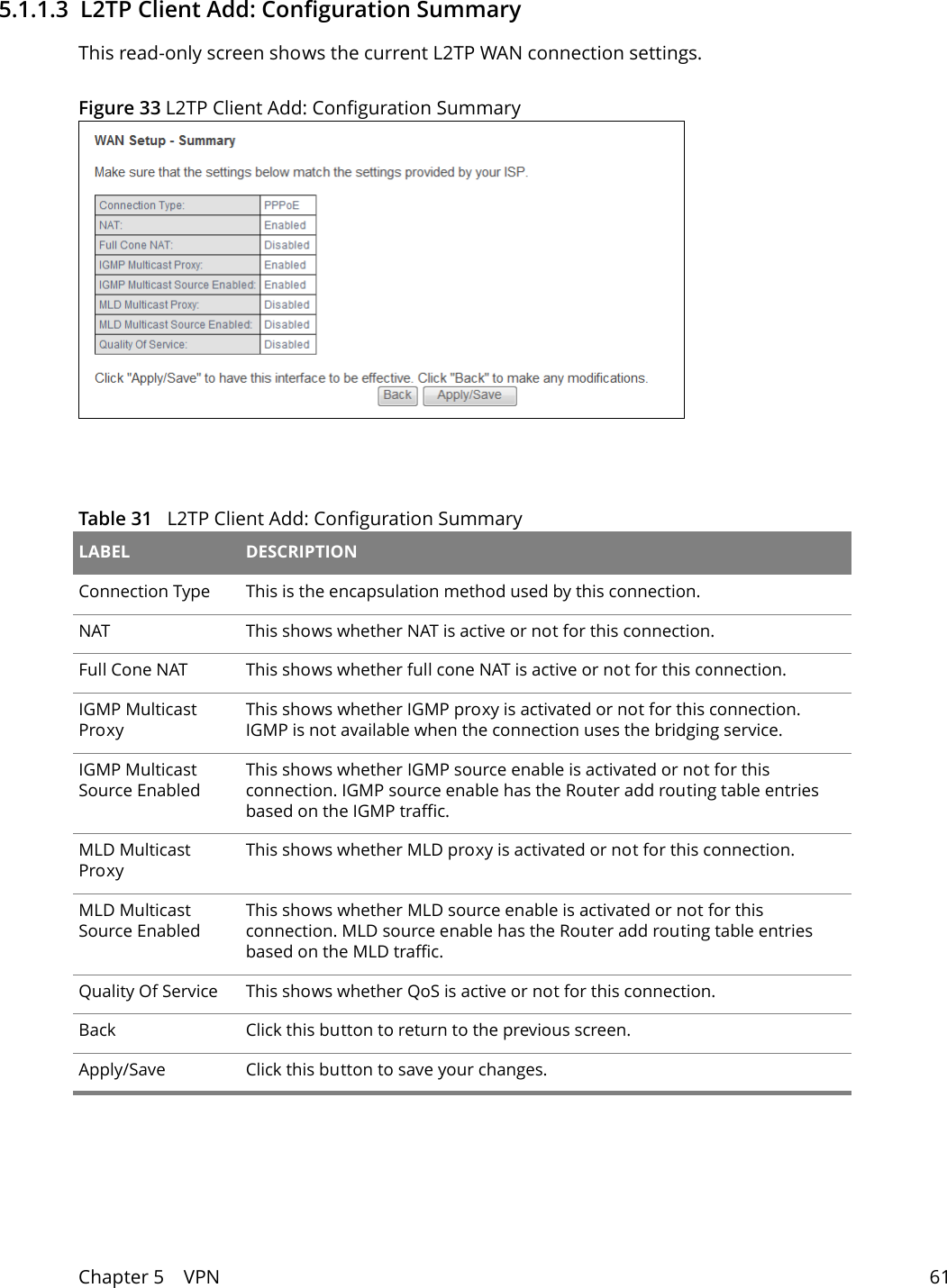
Chapter 5    VPN 615.1.1.3  L2TP Client Add: Configuration SummaryThis read-only screen shows the current L2TP WAN connection settings.Figure 33 L2TP Client Add: Configuration Summary Table 31   L2TP Client Add: Configuration SummaryLABEL DESCRIPTIONConnection Type This is the encapsulation method used by this connection.NAT This shows whether NAT is active or not for this connection.Full Cone NAT This shows whether full cone NAT is active or not for this connection.IGMP Multicast ProxyThis shows whether IGMP proxy is activated or not for this connection. IGMP is not available when the connection uses the bridging service.IGMP Multicast Source EnabledThis shows whether IGMP source enable is activated or not for this connection. IGMP source enable has the Router add routing table entries based on the IGMP traffic.MLD Multicast ProxyThis shows whether MLD proxy is activated or not for this connection.MLD Multicast Source EnabledThis shows whether MLD source enable is activated or not for this connection. MLD source enable has the Router add routing table entries based on the MLD traffic.Quality Of Service This shows whether QoS is active or not for this connection.Back Click this button to return to the previous screen.Apply/Save Click this button to save your changes.
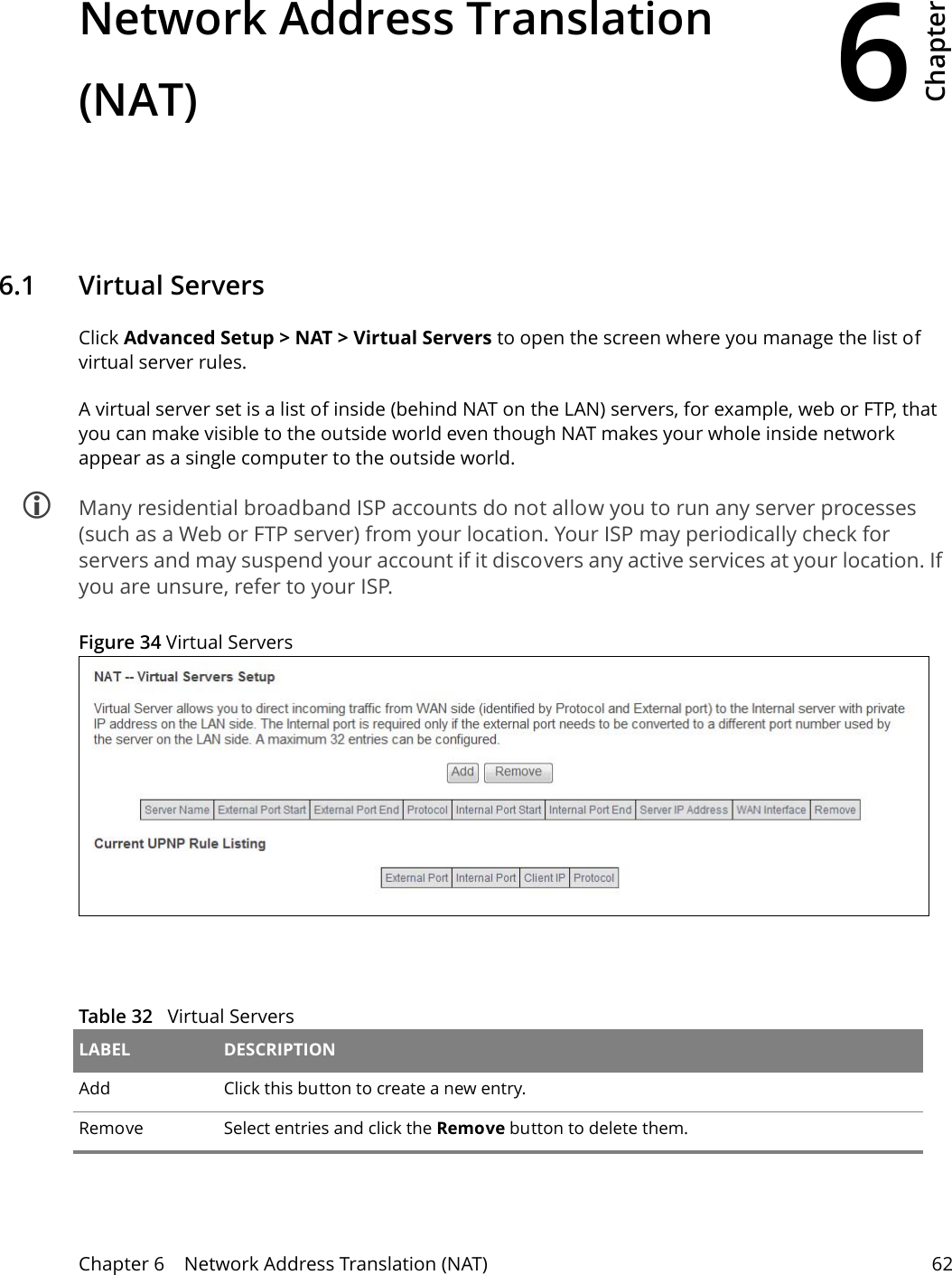
6Chapter Chapter 6    Network Address Translation (NAT) 62CHAPTER 6 Chapter 6 Network Address Translation (NAT)6.1   Virtual ServersClick Advanced Setup > NAT > Virtual Servers to open the screen where you manage the list of virtual server rules.A virtual server set is a list of inside (behind NAT on the LAN) servers, for example, web or FTP, that you can make visible to the outside world even though NAT makes your whole inside network appear as a single computer to the outside world. Many residential broadband ISP accounts do not allow you to run any server processes (such as a Web or FTP server) from your location. Your ISP may periodically check for servers and may suspend your account if it discovers any active services at your location. If you are unsure, refer to your ISP.Figure 34 Virtual Servers  Table 32   Virtual Servers LABEL DESCRIPTIONAdd Click this button to create a new entry.Remove Select entries and click the Remove button to delete them.
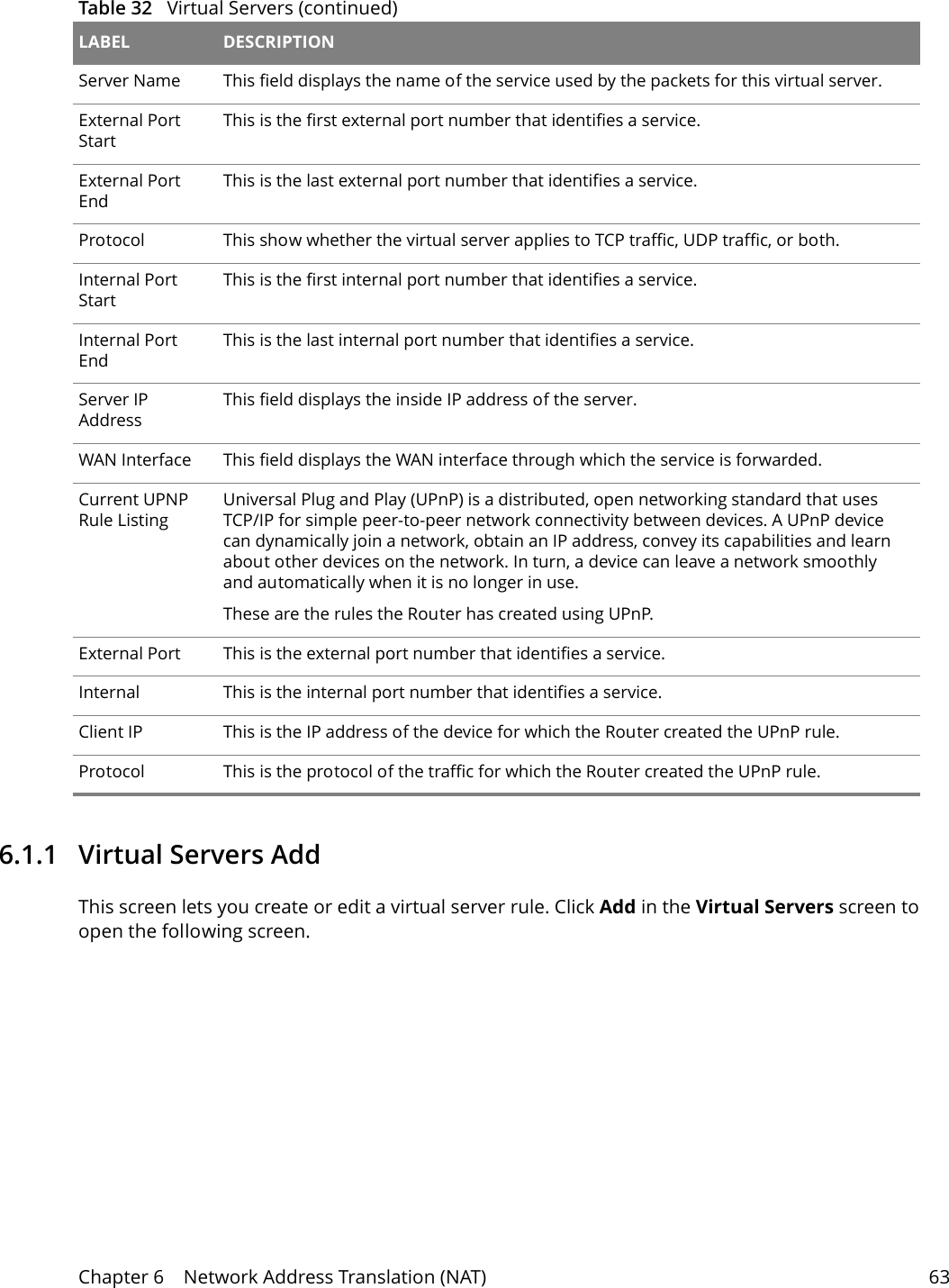
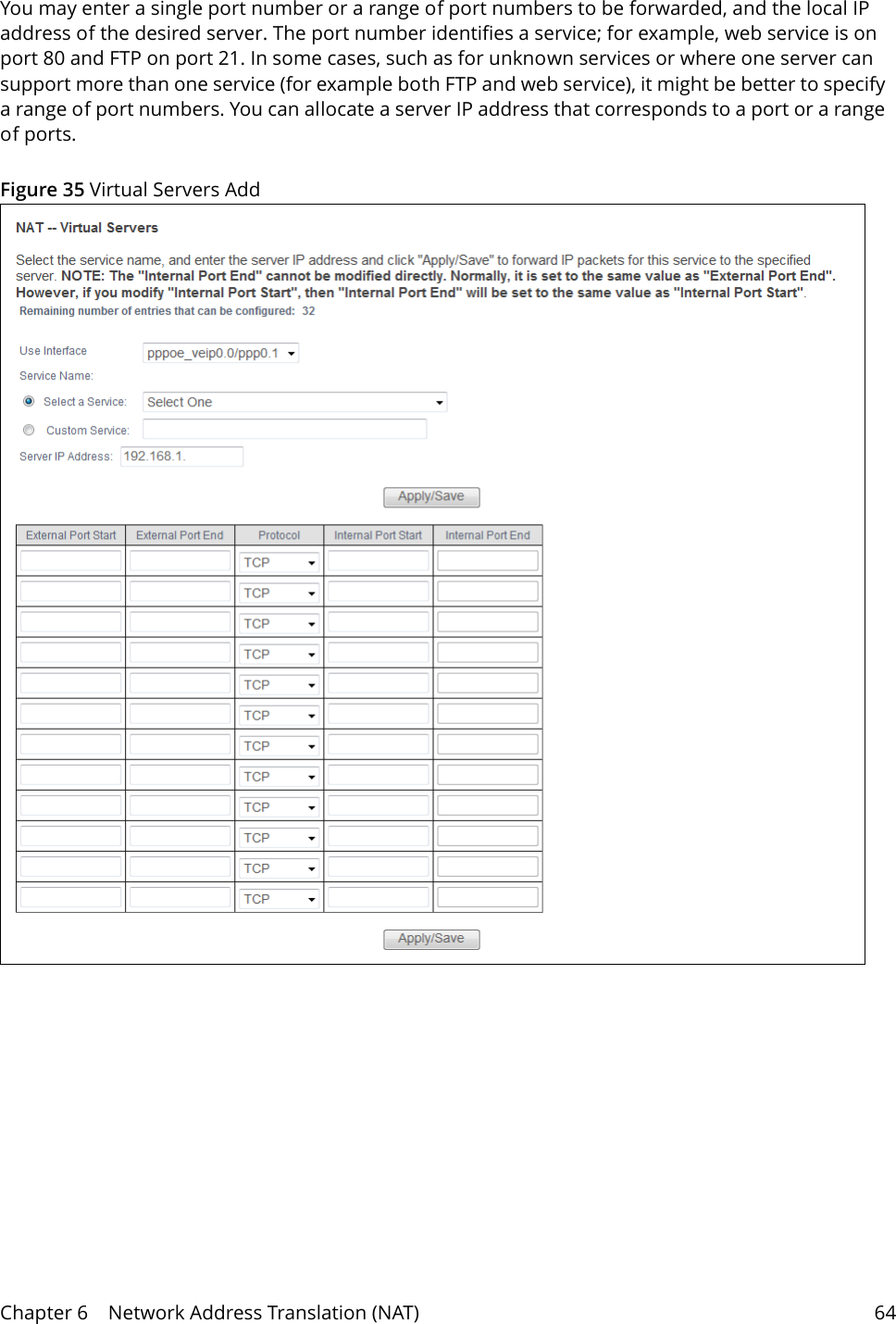
Chapter 6    Network Address Translation (NAT) 636.1.1   Virtual Servers Add This screen lets you create or edit a virtual server rule. Click Add in the Virtual Servers screen to open the following screen.Server Name This field displays the name of the service used by the packets for this virtual server. External Port Start This is the first external port number that identifies a service.External Port End This is the last external port number that identifies a service.Protocol This show whether the virtual server applies to TCP traffic, UDP traffic, or both.Internal Port StartThis is the first internal port number that identifies a service.Internal Port End  This is the last internal port number that identifies a service.Server IP AddressThis field displays the inside IP address of the server.WAN Interface This field displays the WAN interface through which the service is forwarded.Current UPNP Rule ListingUniversal Plug and Play (UPnP) is a distributed, open networking standard that uses TCP/IP for simple peer-to-peer network connectivity between devices. A UPnP device can dynamically join a network, obtain an IP address, convey its capabilities and learn about other devices on the network. In turn, a device can leave a network smoothly and automatically when it is no longer in use.These are the rules the Router has created using UPnP.External Port  This is the external port number that identifies a service.Internal This is the internal port number that identifies a service.Client IP This is the IP address of the device for which the Router created the UPnP rule. Protocol This is the protocol of the traffic for which the Router created the UPnP rule. Table 32   Virtual Servers (continued)LABEL DESCRIPTION
Chapter 6    Network Address Translation (NAT) 64You may enter a single port number or a range of port numbers to be forwarded, and the local IP address of the desired server. The port number identifies a service; for example, web service is on port 80 and FTP on port 21. In some cases, such as for unknown services or where one server can support more than one service (for example both FTP and web service), it might be better to specify a range of port numbers. You can allocate a server IP address that corresponds to a port or a range of ports.Figure 35 Virtual Servers Add
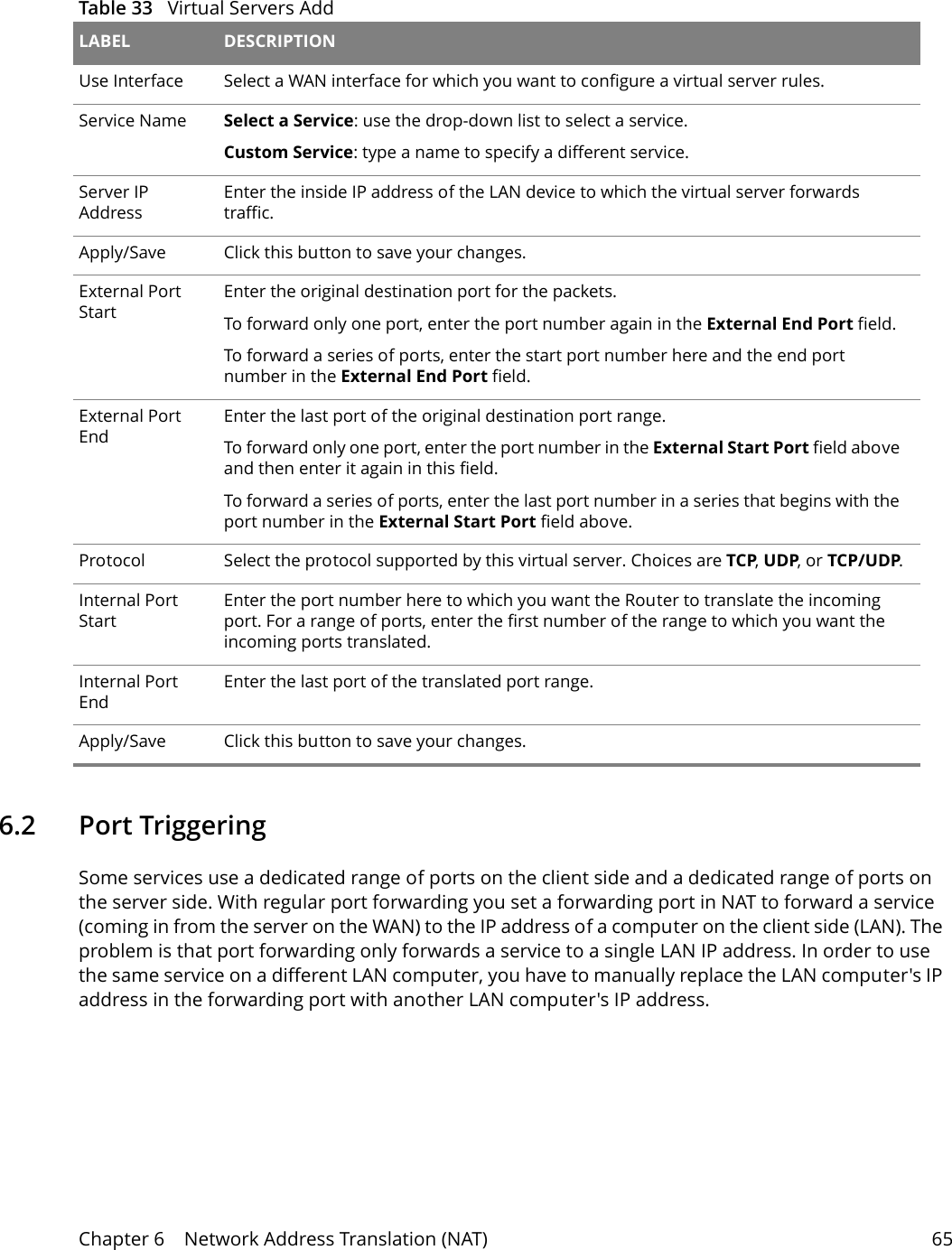
Table 33   Virtual Servers Add LABEL DESCRIPTIONUse Interface Select a WAN interface for which you want to configure a virtual server rules.Service Name Select a Service: use the drop-down list to select a service. Custom Service: type a name to specify a different service.Server IP AddressEnter the inside IP address of the LAN device to which the virtual server forwards traffic.Apply/Save Click this button to save your changes.External Port Start Enter the original destination port for the packets.To forward only one port, enter the port number again in the External End Port field. To forward a series of ports, enter the start port number here and the end port number in the External End Port field.External Port End Enter the last port of the original destination port range. To forward only one port, enter the port number in the External Start Port field above and then enter it again in this field. To forward a series of ports, enter the last port number in a series that begins with the port number in the External Start Port field above.Protocol Select the protocol supported by this virtual server. Choices are TCP, UDP, or TCP/UDP.Internal Port StartEnter the port number here to which you want the Router to translate the incoming port. For a range of ports, enter the first number of the range to which you want the incoming ports translated.Internal Port End  Enter the last port of the translated port range.Apply/Save Click this button to save your changes.Chapter 6    Network Address Translation (NAT) 65 6.2   Port TriggeringSome services use a dedicated range of ports on the client side and a dedicated range of ports on the server side. With regular port forwarding you set a forwarding port in NAT to forward a service (coming in from the server on the WAN) to the IP address of a computer on the client side (LAN). The problem is that port forwarding only forwards a service to a single LAN IP address. In order to use the same service on a different LAN computer, you have to manually replace the LAN computer's IP address in the forwarding port with another LAN computer's IP address.
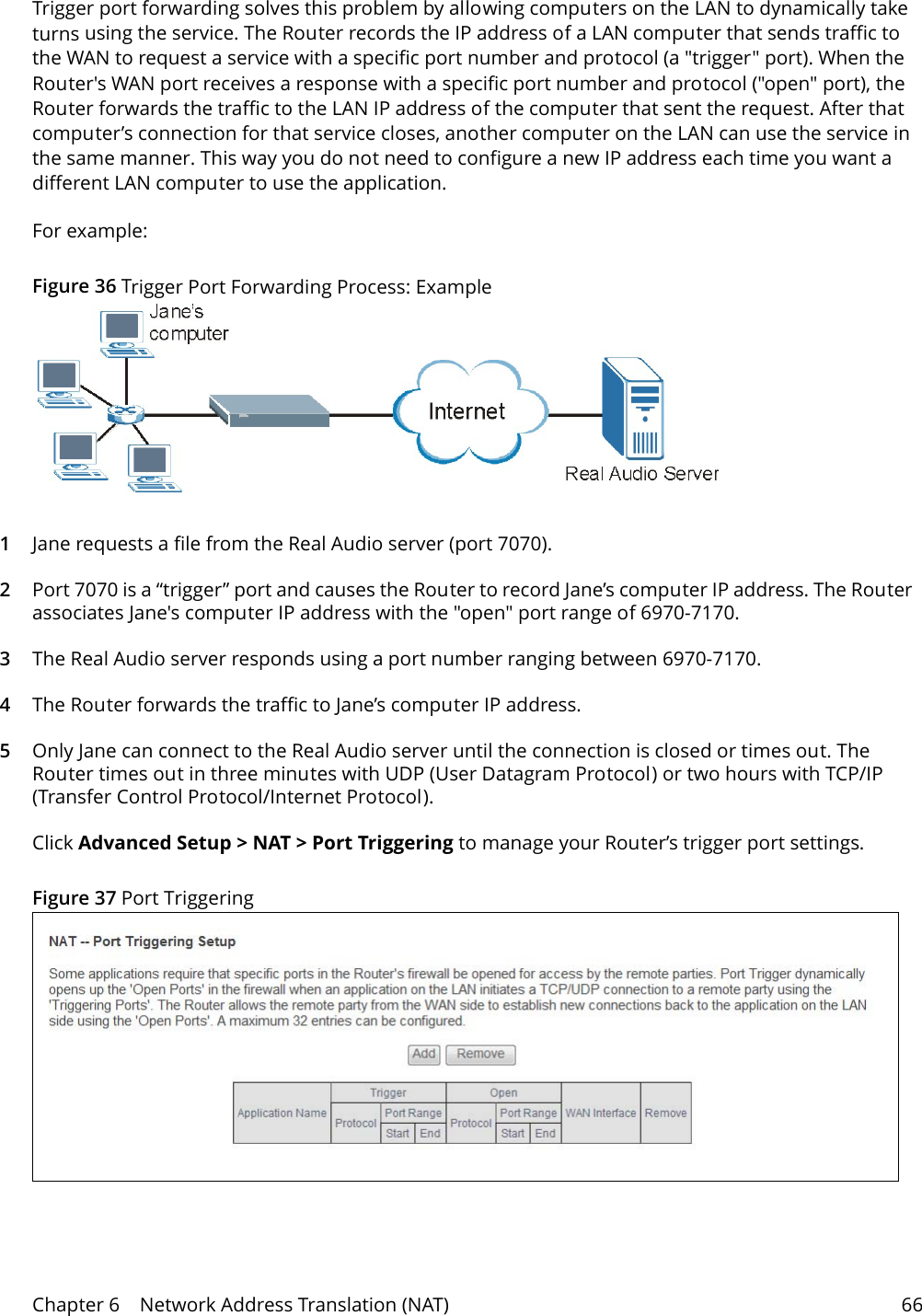
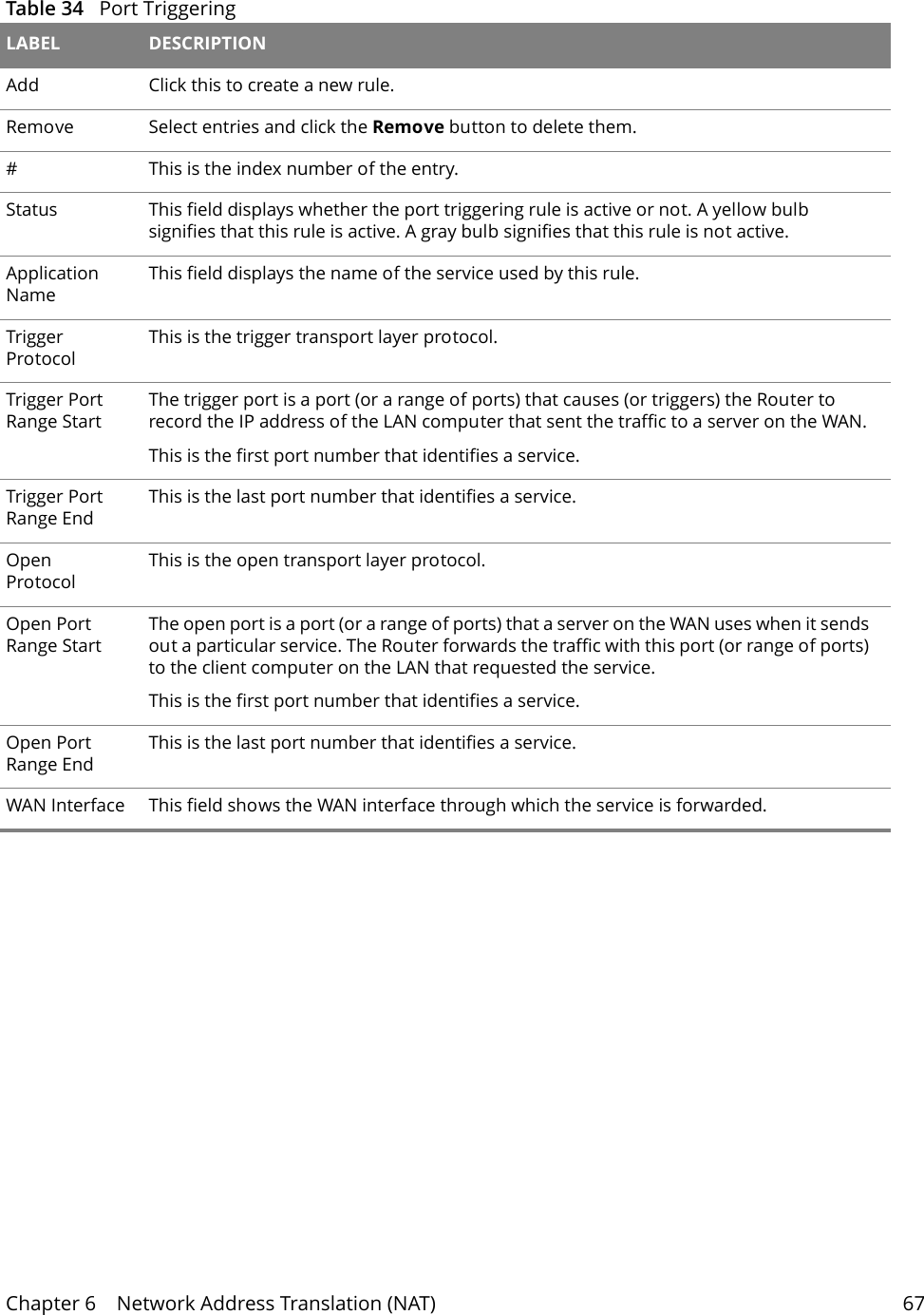
Chapter 6    Network Address Translation (NAT) 66Trigger port forwarding solves this problem by allowing computers on the LAN to dynamically take turns using the service. The Router records the IP address of a LAN computer that sends traffic to the WAN to request a service with a specific port number and protocol (a "trigger" port). When the Router's WAN port receives a response with a specific port number and protocol ("open" port), the Router forwards the traffic to the LAN IP address of the computer that sent the request. After that computer’s connection for that service closes, another computer on the LAN can use the service in the same manner. This way you do not need to configure a new IP address each time you want a different LAN computer to use the application.For example:Figure 36 Trigger Port Forwarding Process: Example1Jane requests a file from the Real Audio server (port 7070).2Port 7070 is a “trigger” port and causes the Router to record Jane’s computer IP address. The Router associates Jane's computer IP address with the "open" port range of 6970-7170.3The Real Audio server responds using a port number ranging between 6970-7170.4The Router forwards the traffic to Jane’s computer IP address. 5Only Jane can connect to the Real Audio server until the connection is closed or times out. The Router times out in three minutes with UDP (User Datagram Protocol) or two hours with TCP/IP (Transfer Control Protocol/Internet Protocol). Click Advanced Setup > NAT > Port Triggering to manage your Router’s trigger port settings.Figure 37 Port Triggering
Table 34   Port Triggering LABEL DESCRIPTIONAdd  Click this to create a new rule.Remove Select entries and click the Remove button to delete them.#This is the index number of the entry.Status This field displays whether the port triggering rule is active or not. A yellow bulb signifies that this rule is active. A gray bulb signifies that this rule is not active.Application NameThis field displays the name of the service used by this rule.Trigger ProtocolThis is the trigger transport layer protocol. Trigger Port Range StartThe trigger port is a port (or a range of ports) that causes (or triggers) the Router to record the IP address of the LAN computer that sent the traffic to a server on the WAN.This is the first port number that identifies a service.Trigger Port Range EndThis is the last port number that identifies a service.Open ProtocolThis is the open transport layer protocol.Open Port Range StartThe open port is a port (or a range of ports) that a server on the WAN uses when it sends out a particular service. The Router forwards the traffic with this port (or range of ports) to the client computer on the LAN that requested the service. This is the first port number that identifies a service.Open Port Range EndThis is the last port number that identifies a service.WAN Interface This field shows the WAN interface through which the service is forwarded.Chapter 6    Network Address Translation (NAT) 67
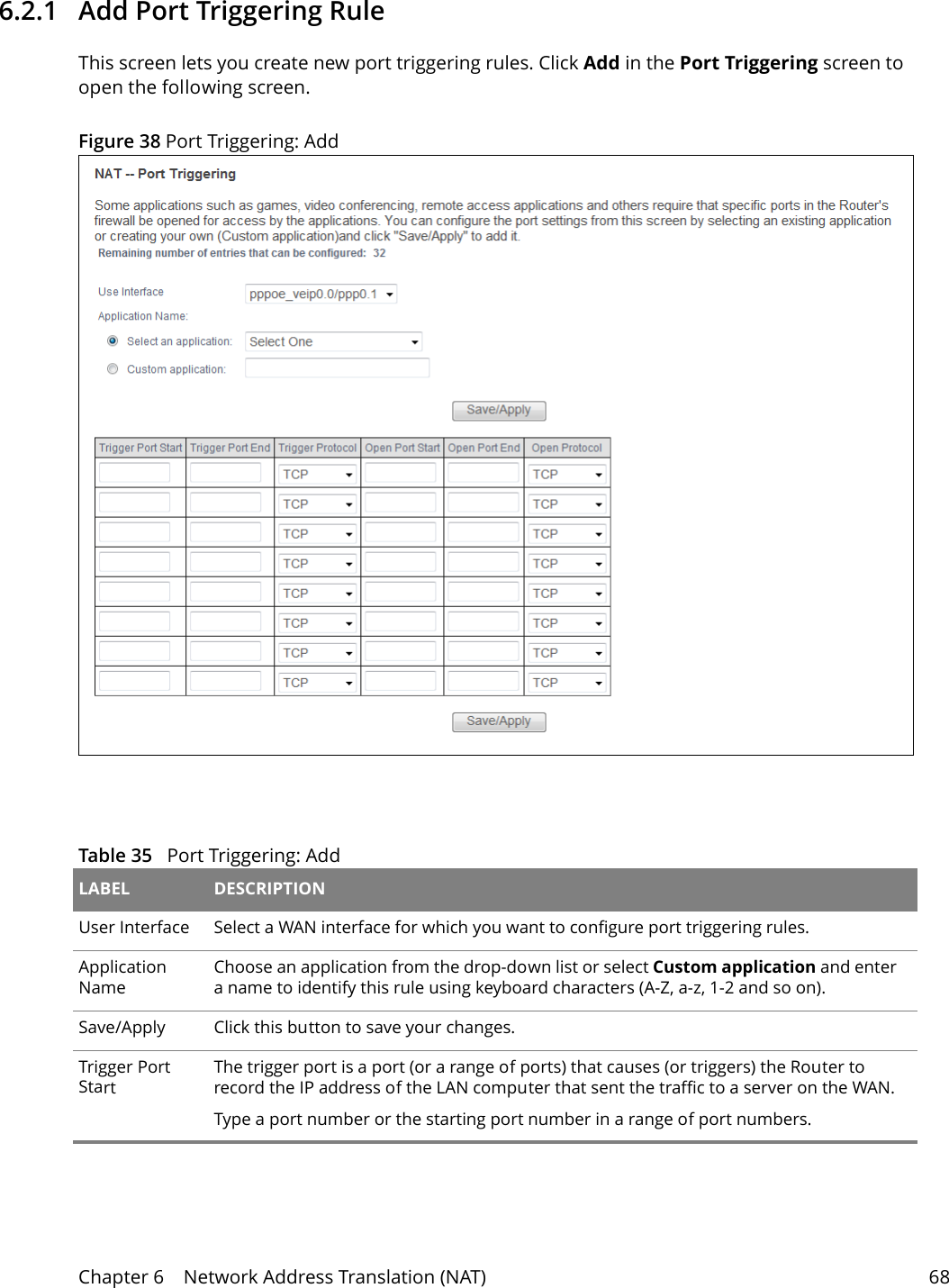
Chapter 6    Network Address Translation (NAT) 686.2.1   Add Port Triggering Rule This screen lets you create new port triggering rules. Click Add in the Port Triggering screen to open the following screen.Figure 38 Port Triggering: Add  Table 35   Port Triggering: Add LABEL DESCRIPTIONUser Interface Select a WAN interface for which you want to configure port triggering rules.Application  NameChoose an application from the drop-down list or select Custom application and enter a name to identify this rule using keyboard characters (A-Z, a-z, 1-2 and so on). Save/Apply Click this button to save your changes.Trigger Port StartThe trigger port is a port (or a range of ports) that causes (or triggers) the Router to record the IP address of the LAN computer that sent the traffic to a server on the WAN.Type a port number or the starting port number in a range of port numbers.
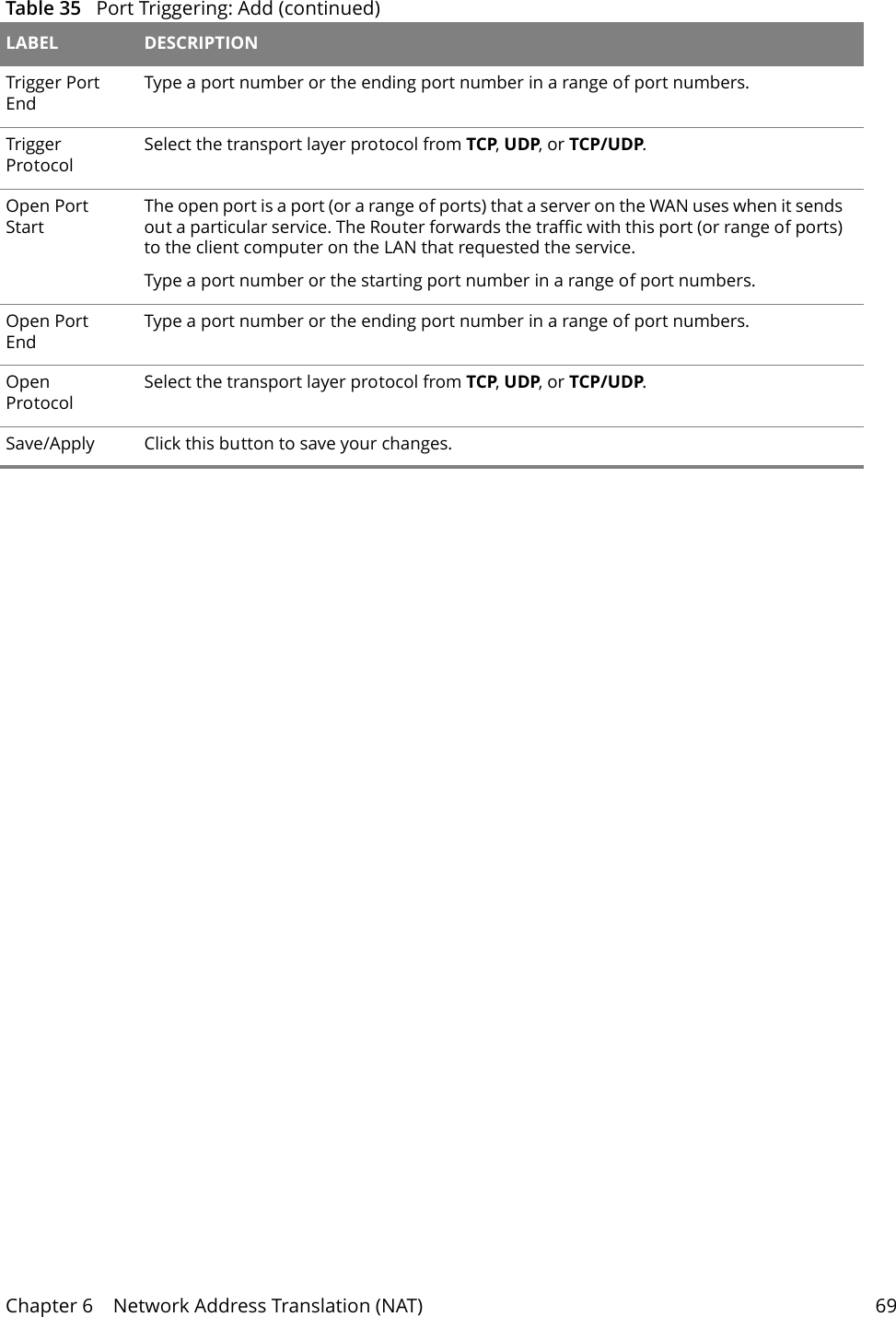
Chapter 6    Network Address Translation (NAT) 69Trigger Port End Type a port number or the ending port number in a range of port numbers.Trigger ProtocolSelect the transport layer protocol from TCP, UDP, or TCP/UDP.Open Port StartThe open port is a port (or a range of ports) that a server on the WAN uses when it sends out a particular service. The Router forwards the traffic with this port (or range of ports) to the client computer on the LAN that requested the service. Type a port number or the starting port number in a range of port numbers.Open Port End  Type a port number or the ending port number in a range of port numbers.Open ProtocolSelect the transport layer protocol from TCP, UDP, or TCP/UDP.Save/Apply Click this button to save your changes.Table 35   Port Triggering: Add (continued)LABEL DESCRIPTION
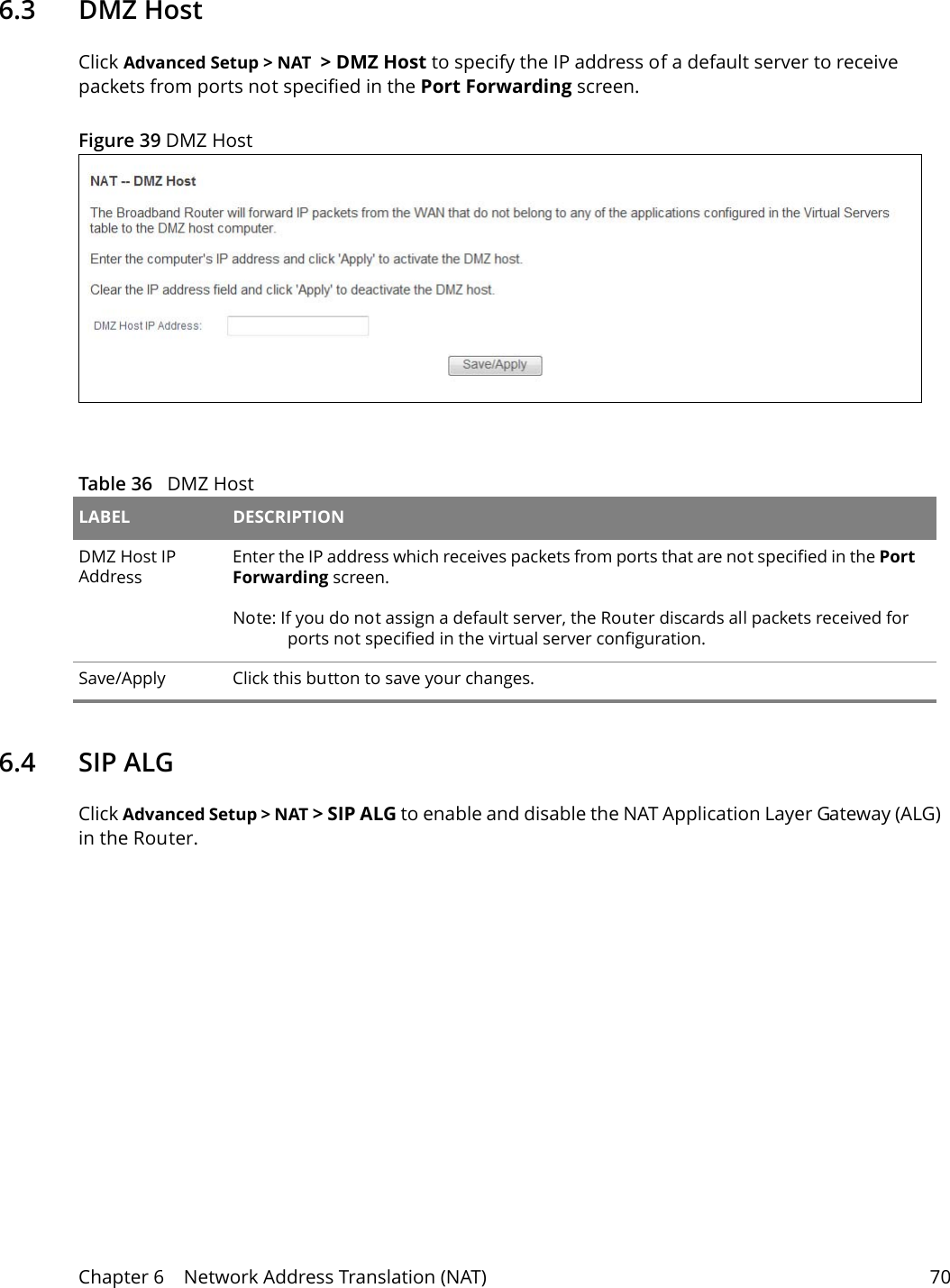
Chapter 6    Network Address Translation (NAT) 706.3   DMZ HostClick Advanced Setup > NAT  > DMZ Host to specify the IP address of a default server to receive packets from ports not specified in the Port Forwarding screen. Figure 39 DMZ Host  Table 36   DMZ Host LABEL DESCRIPTIONDMZ Host IP AddressEnter the IP address which receives packets from ports that are not specified in the Port Forwarding screen. Note: If you do not assign a default server, the Router discards all packets received for ports not specified in the virtual server configuration.Save/Apply Click this button to save your changes.6.4   SIP ALGClick Advanced Setup > NAT > SIP ALG to enable and disable the NAT Application Layer Gateway (ALG) in the Router.
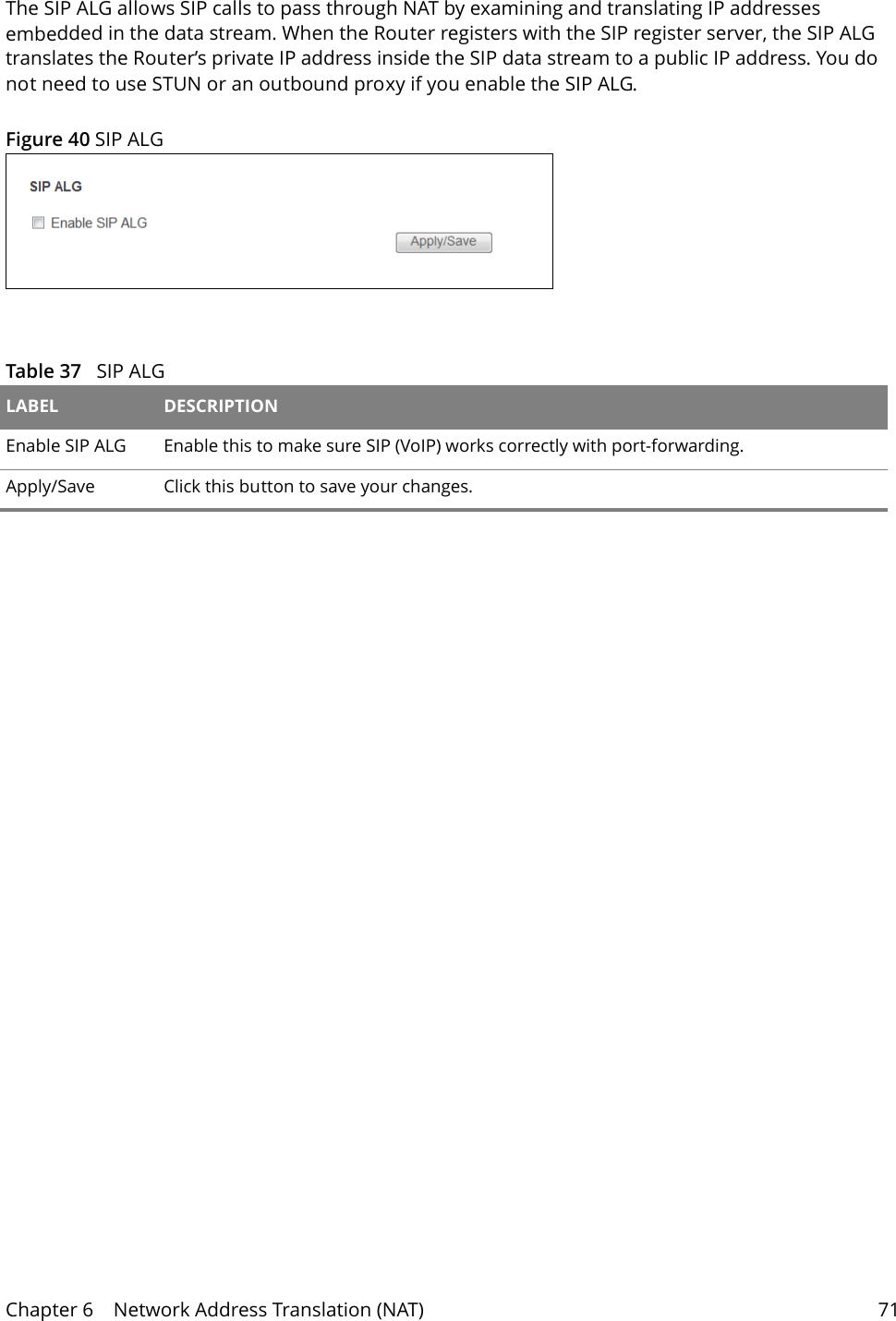
Chapter 6    Network Address Translation (NAT) 71The SIP ALG allows SIP calls to pass through NAT by examining and translating IP addresses embedded in the data stream. When the Router registers with the SIP register server, the SIP ALG translates the Router’s private IP address inside the SIP data stream to a public IP address. You do not need to use STUN or an outbound proxy if you enable the SIP ALG.Figure 40 SIP ALG  Table 37   SIP ALGLABEL DESCRIPTIONEnable SIP ALG Enable this to make sure SIP (VoIP) works correctly with port-forwarding. Apply/Save Click this button to save your changes.
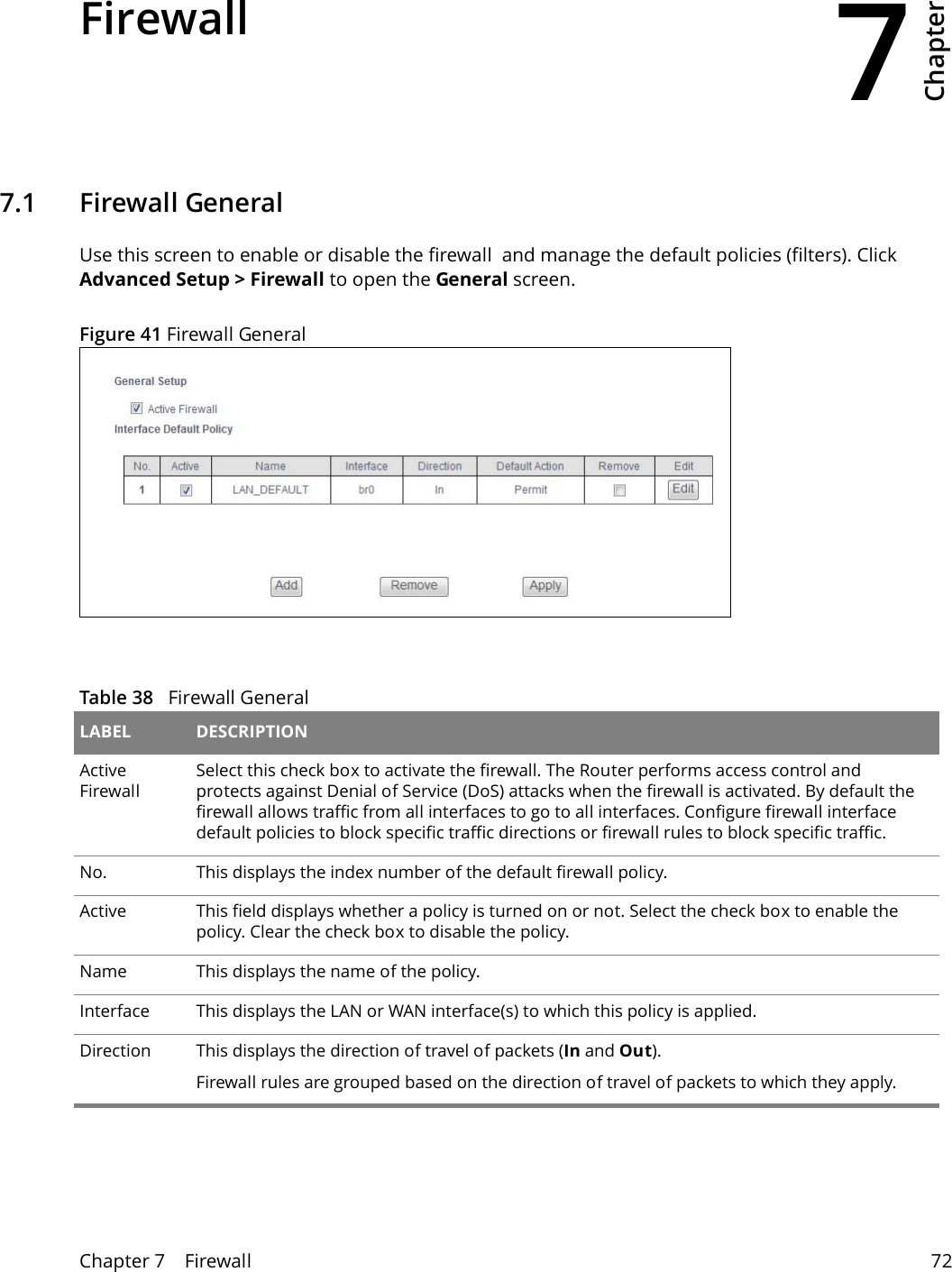
7Chapter Chapter 7    Firewall 72CHAPTER 7 Chapter 7 Firewall7.1   Firewall GeneralUse this screen to enable or disable the firewall  and manage the default policies (filters). Click Advanced Setup > Firewall to open the General screen.Figure 41 Firewall GeneralTable 38   Firewall General LABEL DESCRIPTIONActive FirewallSelect this check box to activate the firewall. The Router performs access control and protects against Denial of Service (DoS) attacks when the firewall is activated. By default the firewall allows traffic from all interfaces to go to all interfaces. Configure firewall interface default policies to block specific traffic directions or firewall rules to block specific traffic.No. This displays the index number of the default firewall policy.Active This field displays whether a policy is turned on or not. Select the check box to enable the policy. Clear the check box to disable the policy.Name This displays the name of the policy.Interface This displays the LAN or WAN interface(s) to which this policy is applied.Direction This displays the direction of travel of packets (In and Out).Firewall rules are grouped based on the direction of travel of packets to which they apply.
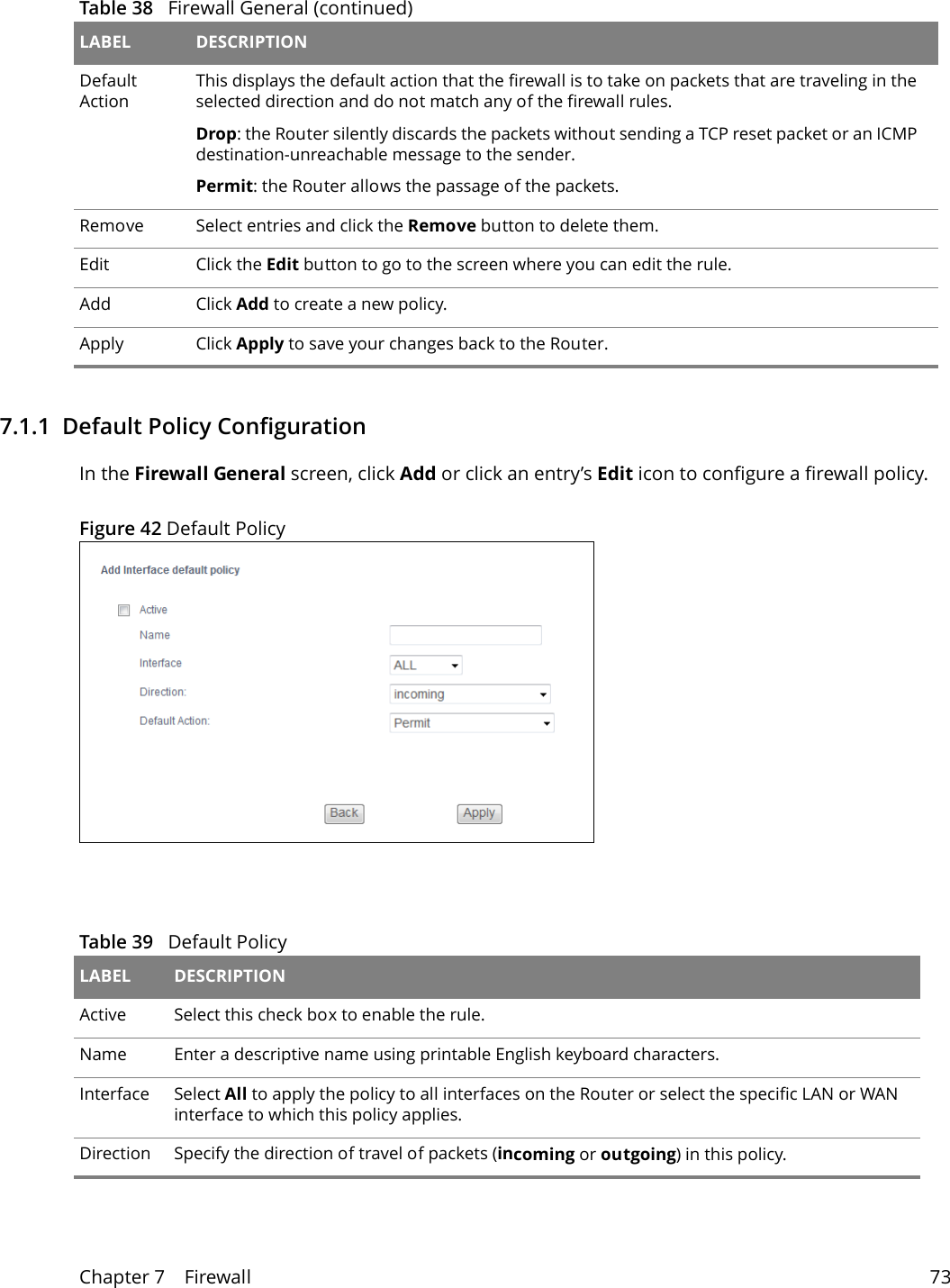
Chapter 7    Firewall 737.1.1  Default Policy ConfigurationIn the Firewall General screen, click Add or click an entry’s Edit icon to configure a firewall policy.Figure 42 Default PolicyDefault ActionThis displays the default action that the firewall is to take on packets that are traveling in the selected direction and do not match any of the firewall rules. Drop: the Router silently discards the packets without sending a TCP reset packet or an ICMP destination-unreachable message to the sender.Permit: the Router allows the passage of the packets.Remove Select entries and click the Remove button to delete them.Edit Click the Edit button to go to the screen where you can edit the rule.Add Click Add to create a new policy.Apply Click Apply to save your changes back to the Router.Table 38   Firewall General (continued)LABEL DESCRIPTIONTable 39   Default Policy LABEL DESCRIPTIONActive  Select this check box to enable the rule.Name Enter a descriptive name using printable English keyboard characters. Interface Select All to apply the policy to all interfaces on the Router or select the specific LAN or WAN interface to which this policy applies. Direction Specify the direction of travel of packets (incoming or outgoing) in this policy.
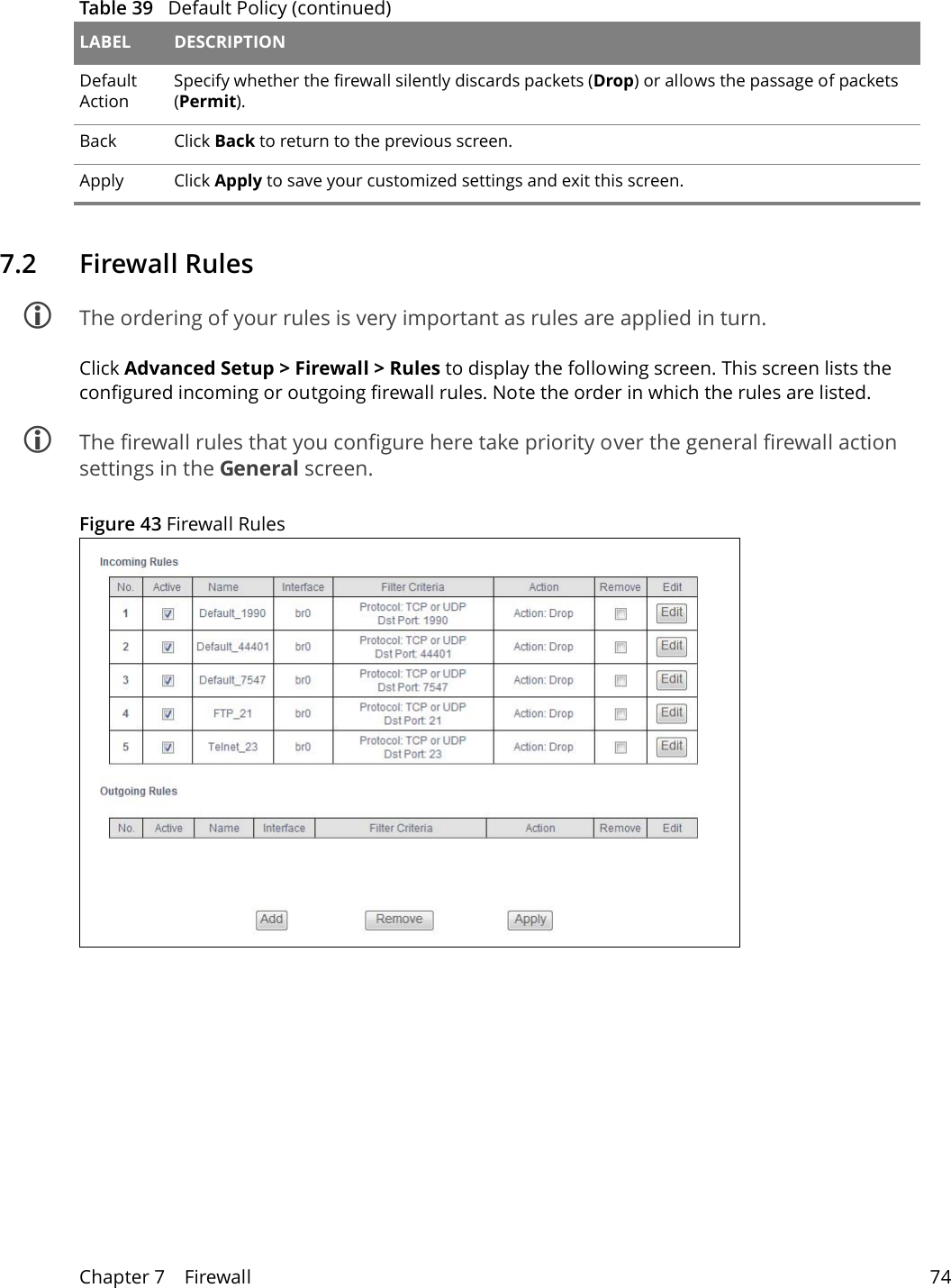
Chapter 7    Firewall 747.2   Firewall Rules The ordering of your rules is very important as rules are applied in turn.Click Advanced Setup > Firewall > Rules to display the following screen. This screen lists the configured incoming or outgoing firewall rules. Note the order in which the rules are listed. The firewall rules that you configure here take priority over the general firewall action settings in the General screen.Figure 43 Firewall Rules Default ActionSpecify whether the firewall silently discards packets (Drop) or allows the passage of packets (Permit).Back Click Back to return to the previous screen.Apply Click Apply to save your customized settings and exit this screen.Table 39   Default Policy (continued)LABEL DESCRIPTION
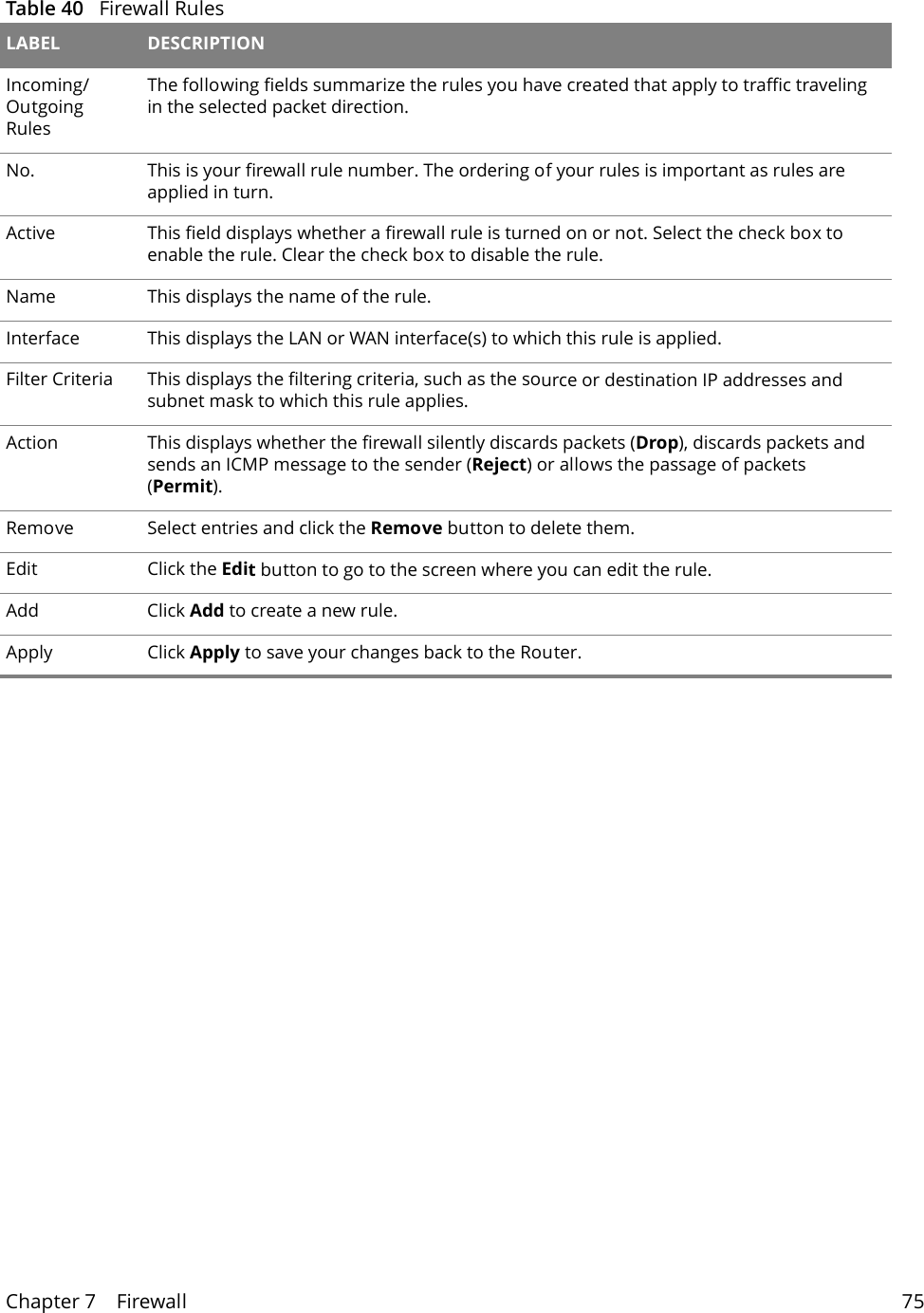
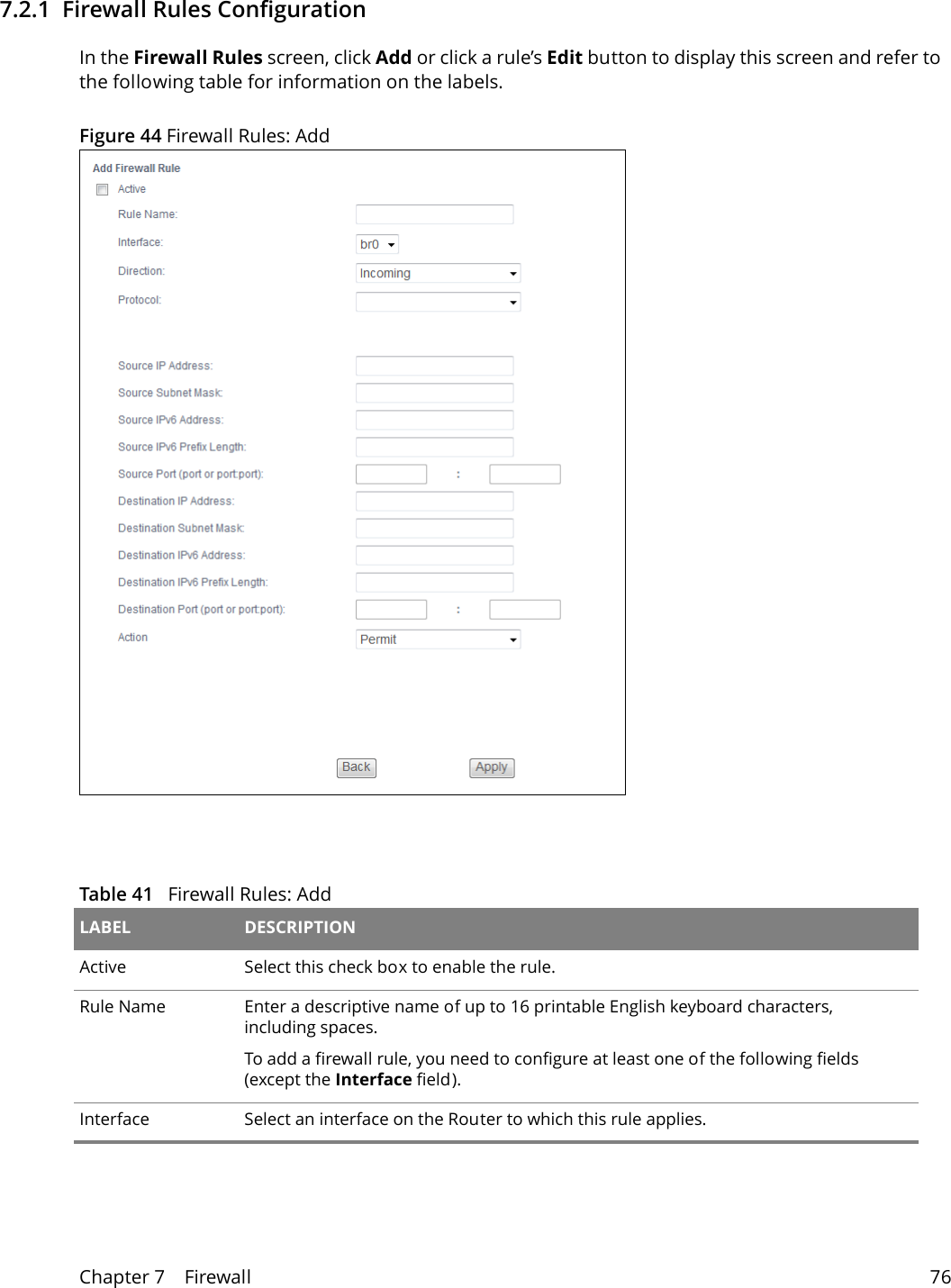
Chapter 7    Firewall 75  Table 40   Firewall Rules LABEL DESCRIPTIONIncoming/Outgoing RulesThe following fields summarize the rules you have created that apply to traffic traveling in the selected packet direction. No. This is your firewall rule number. The ordering of your rules is important as rules are applied in turn. Active This field displays whether a firewall rule is turned on or not. Select the check box to enable the rule. Clear the check box to disable the rule.Name This displays the name of the rule.Interface This displays the LAN or WAN interface(s) to which this rule is applied.Filter Criteria This displays the filtering criteria, such as the source or destination IP addresses and subnet mask to which this rule applies.Action This displays whether the firewall silently discards packets (Drop), discards packets and sends an ICMP message to the sender (Reject) or allows the passage of packets (Permit).Remove Select entries and click the Remove button to delete them.Edit Click the Edit button to go to the screen where you can edit the rule.Add Click Add to create a new rule.Apply Click Apply to save your changes back to the Router.
Chapter 7    Firewall 767.2.1  Firewall Rules Configuration   In the Firewall Rules screen, click Add or click a rule’s Edit button to display this screen and refer to the following table for information on the labels.Figure 44 Firewall Rules: AddTable 41   Firewall Rules: Add LABEL DESCRIPTIONActive  Select this check box to enable the rule.Rule Name Enter a descriptive name of up to 16 printable English keyboard characters, including spaces. To add a firewall rule, you need to configure at least one of the following fields (except the Interface field).Interface Select an interface on the Router to which this rule applies.
Chapter 7    Firewall 777.3 MAC FilteringClick Advanced Setup > Firewall > MAC Filtering to allow or block wireless and LAN clients access to the Router. Direction Select a direction of travel of packets for which you want to configure the firewall rule.Protocol Select the IP protocol (TCP, UDP or ICMP) and enter the protocol (service type) number in the port field. Source IP Address Enter the source IP address in dotted decimal notation.Source Subnet MaskEnter the source subnet mask.Source IPv6 AddressEnter the source IPv6 address in dotted decimal notation.Source IPv6 Prefix LengthEnter the IPv6 prefix length for the source IPv6 address.The IPv6 prefix length specifies how many most significant bits (starting from the left) in the address compose the network address. This field displays the bit number of the IPv6 subnet mask.Source Port Enter the single port number or the range of port numbers of the source.Destination IP AddressEnter the destination IP address in dotted decimal notation.Destination Subnet MaskEnter the destination subnet mask.Destination IPv6 AddressEnter the destination IPv6 address in dotted decimal notation.Destination IPv6 Prefix LengthEnter the IPv6 prefix length for the destination IPv6 address.The IPv6 prefix length specifies how many most significant bits (starting from the left) in the address compose the network address. This field displays the bit number of the IPv6 subnet mask.Destination Port Enter the single port number or the range of port numbers of the destination.Action Use the drop-down list box to select whether to discard (Drop), deny and send an ICMP message to the sender of (Reject) or allow the passage of (Permit) packets that match this rule. Reject Type If you select Reject, specify the type of ICMP message to send to the sender.Back Click Back to return to the previous screen.Apply Click Apply to save your customized settings and exit this screen.Table 41   Firewall Rules: Add (continued)LABEL DESCRIPTION
Chapter 7    Firewall 78Every Ethernet device has a unique MAC (Media Access Control) address. The MAC address is assigned at the factory and consists of six pairs of hexadecimal characters, for example, 00:A0:C5:00:00:02. You need to know the MAC address of the devices to configure this screen.Figure 45 MAC FilteringThe following table describes the labels in this menu.Table 42   MAC Filtering LABEL DESCRIPTIONMAC Restrict ModeSelect Disabled to turn off MAC address filtering.Select Allow to have the Router permit access from the listed wireless and LAN client MAC addresses and block access from MAC addresses not in the list. Select Deny to have the Router block access from the listed wireless and LAN client MAC addresses and allow access from MAC addresses not in the list. MAC Address These are the MAC addresses of LAN devices. Enter the MAC addresses in a valid MAC address format, that is, six hexadecimal character pairs, for example, 12:34:56:78:9a:bc.Apply Click Apply to save your changes.Cancel Click Cancel to restore your previously saved settings.7.3.1   MAC Filtering AddClick Advanced Setup > Firewall > MAC Filtering > Add to add a MAC address to the MAC Filtering screen’s list of wireless and LAN clients access to the Router. Figure 46 MAC Filtering Add
Chapter 7    Firewall 79The following table describes the labels in this menu.Table 43   MAC Filtering Add LABEL DESCRIPTIONMAC Address Enter the MAC address in a valid MAC address format, that is, six hexadecimal character pairs, for example, 12:34:56:78:9a:bc.Apply/Save Click this button to save your changes.
8Chapter Chapter 8    Parental Control 80CHAPTER 8 Chapter 8 Parental Control8.1   Time RestrictionClick Advanced Setup > Parental Control > Time Restriction  to configure access time schedules for specific users. Figure 47 Time Restriction  Table 44   Time Restriction LABEL DESCRIPTIONUsername This is the name of the user whose access the rule controls.MAC This is the MAC address of the LAN or wireless device whose access the rule controls.Mon ~ Sun This shows an “x” for every day of the week the schedule applies to.Start This shows the beginning of the access blocking time.Stop This shows the end of the access blocking time.Remove Select entries and click the Remove button to delete them.Add Click this to add a new entry.
Chapter 8    Parental Control 818.1.1  Add a Time Restriction RuleClick Add in the Time Restriction screen to add a new rule. Use this screen to configure a restricted access schedule.Figure 48 Time Restriction: Add  Table 45   Time Restriction: Add LABEL DESCRIPTIONUsername Specify the name of the user whose access the rule controls.Browser's MAC AddressSelect this to create the rule for the MAC address of the device with the browser you are using to configure the Router. 'Browser's MAC Address' automatically displays the MAC address of the LAN device where the browser is running.This is the MAC address of the LAN or wireless device whose access the rule controls.Other MAC Address  Select this and enter the MAC address of another LAN device. To find out the MAC address of a Windows based PC, go to the command window and type "ipconfig /all".Days of the week Select check boxes for the days that you want the Router to perform parental control. Start Blocking Time Enter the time in 24-hour format to begin blocking access.  End Blocking Time Enter the time in 24-hour format to stop blocking access.  Apply/Save Click this button to save your changes.
Chapter 8    Parental Control 828.2   URL FilterClick Advanced Setup > Parental Control > Url Filter to use the Url Filter screen to block or allow access to specific web sites.Figure 49 URL Filter  Table 46   URL Filter LABEL DESCRIPTIONURL List Type Select Exclude to block access to the URLs in the list and allow access to other URLs. Select Include to allow access to the URLs in the list and block access to other URLs. Address This shows the website address (URL) to which the entry applies.Port  This shows the port number for the URL list entry.Remove Select entries and click the Remove button to delete them.Add Click this to add a new entry.
Chapter 8    Parental Control 838.2.1  Add a URL Filter RuleClick Add in the URL Filter screen to add a new entry. Use this screen to configure a URL filtering setting to control access to certain web sites.Figure 50 URL Filter: Add  Table 47   URL Filter: Add LABEL DESCRIPTIONURL Address Specify a web site or URL to which to filter access. Port Number Specify the port number if you need to control access to one other than 80.Apply/Save Click this button to save your changes.
9Chapter Chapter 9    Quality of Service (QoS) 84CHAPTER 9 Chapter 9 Quality of Service (QoS)9.1   QoS General Click Advanced Setup > Quality of Service to enable or disable QoS, set the bandwidth, and select to have the Router automatically assign priority to upstream traffic according to the IP precedence or packet length.Figure 51 QoS General  Table 48   QoS General LABEL DESCRIPTIONEnable QoS Select the check box to turn on QoS to improve your network performance. You can give priority to traffic that the Router forwards out through the WAN interface. Give high priority to voice and video to make them run more smoothly. Similarly, give low priority to many large file downloads so that they do not reduce the quality of other applications. Select Default DSCP MarkSet the default DSCP (DiffServ Code Point) value for outgoing packets that do not match any classification rules.Apply/Save Click this button to save your changes.
Chapter 9    Quality of Service (QoS) 859.2   Queue SetupClick Advanced Setup > Quality of Service > Queue Setup to use the Queue Setup screen to configure QoS queue assignment. Figure 52 Queue Setup  Table 49   Queue Setup LABEL DESCRIPTIONName This shows the descriptive name of this queue.Key This is the queue’s index number.Interface This shows the name of the Router’s interface through which traffic in this queue passes.Qid This shows the priority of this queue for the interface.Prec/Alg/Wght This displays the queue’s default precedence, queue management algorithm, and weighted round robin weight. SP is strict priority.Min Bit Rate (bps)This shows the minimum transmission rate for traffic in this queue.Enable This shows whether the queue is active or not. For queues with a check box, select it and  click the Enable button to turn them on. Clear the check box to turn a queue off.Remove Select entries and click the Remove button to delete them.
Chapter 9    Quality of Service (QoS) 869.2.1  Add a QoS Queue Click the Add button in the QoS Queue screen to configure a new queue. Figure 53 Queue Setup: Add   Add Click Add to create a new queue.Enable Select disabled entries and click the Enable button to activate them.Table 49   Queue Setup (continued)LABEL DESCRIPTIONTable 50   Queue Setup: Add LABEL DESCRIPTIONName Enter the descriptive name of this queue.Enable Select to enable or disable this queue.Interface Select the interface of this queue.
Chapter 9    Quality of Service (QoS) 879.3   Class Setup Click Advanced Setup > Quality of Service > Class Setup to configure QoS classifiers. A classifier groups traffic into data flows according to specific criteria such as the source address, destination address, source port number, destination port number or incoming interface. You can give different priorities to traffic that the Router forwards out through the WAN interface. Give high priority to voice and video to make them run more smoothly. Similarly, give low priority to many large file downloads so that they do not reduce the quality of other applications. Figure 54 QoS Classification Setup   Queue PrecedenceSelect a queue precedence level (from 1 to 8) to configure for the selected interface. The smaller the number, the higher the priority level. Traffic assigned to higher priority queues gets through faster while traffic in lower priority queues is dropped if the network is congested. If the queue precedence level already has a queue scheduler configured, it displays after the precedence level. The Router uses strict priority to service queues with different precedences.Minimum Rate This displays for GPON interface queues. Specify the minimum transmission rate (in Kbps) allowed for traffic on this queue.Table 50   Queue Setup: Add (continued)LABEL DESCRIPTIONTable 51   QoS Classification Setup LABEL DESCRIPTIONClass Name This displays the name of the classifier rule.Order This displays the rule’s place in the list of classifier rules. The Router checks traffic against classifiers in order until it matches one.
Chapter 9    Quality of Service (QoS) 88CLASSIFICATION CRITERIAThese fields show the criteria specified in the classifier rule. For example the interface from which traffic of this class comes and the source MAC address of traffic that matches this classifier.Class Intf  This displays the ingress interface to which the classifier applies.Ether Type This displays the type of Ethernet frames to which the classifier applies.SrcMAC/ Mask  This displays the source MAC and network mask of traffic to which the classifier applies.DstMAC/ Mask  This displays the destination MAC and network mask of traffic to which the classifier applies.SrcIP/ PrefixLength This displays the source IP address and prefix length of traffic to which the classifier applies.DstIP/ PrefixLength This displays the destination IP address and prefix length of traffic to which the classifier applies.Proto This displays the protocol of traffic to which the classifier applies.SrcPort  This displays the source port of traffic to which the classifier applies.DstPort  This displays the destination port of traffic to which the classifier applies.DSCP Check  This displays the DSCP mark of traffic to which the classifier applies.802.1P Check  This displays the IEEE 802.1p priority level of traffic to which the classifier applies.CLASSIFICATION RESULTSThese fields show the changes the classifier rule applies to matching traffic.Queue Key  This displays the number of the queue to which the Router adds traffic that matches this classifier.DSCP Mark  This displays the DSCP mark the Router adds to traffic that matches this classifier.802.1P Mark  This displays the IEEE 802.1p priority level the Router assigns to traffic that matches this classifier.Enable Select an entry’s Enable option and click the Enable button to turn it on. Remove Select an entry’s Remove option and click the Remove button to delete it. Add  Click this button to create a new classifier rule.Table 51   QoS Classification Setup (continued)LABEL DESCRIPTION
Chapter 9    Quality of Service (QoS) 899.3.1  Add QoS Class Click Add in the Class Setup screen to configure a new classifier.Figure 55 Add QoS Class  Table 52   Add QoS Class LABEL DESCRIPTIONTraffic Class Name Enter a descriptive name of up to 15 printable English keyboard characters, not including spaces.Rule Order Select this classifier’s place in the list of classifiers.Select Last to put this rule in the back of the classifier list.Rule Status Turn this classifier on or off.
Chapter 9    Quality of Service (QoS) 90Specify Classification Criteria Configure these fields to identify the traffic to which the class applies. The fields available vary depending on the selected interface and Ether type. Leave a field blank to not apply that criterion. Class Interface  Select the ingress interface to which the classifier applies.Ether Type Select the predefined application (IP, ARP, IPv6, PPPoE discovery, PPPoE session, 8865, 8866, or IEEE 802.1q) to which the classifier applies. The list of types available to choose from varies depending on the selected interface. Source MAC Address Enter a MAC address to apply the classifier to packets from that MAC address.Source MAC Mask Type the mask for the specified MAC address to determine which bits a packet’s MAC address should match. Enter “f” for each bit of the specified source MAC address that the traffic’s MAC address should match. Enter “0” for the bit(s) of the matched traffic’s MAC address, which can be of any hexadecimal character(s). For example, if you set the MAC address to 00:13:49:00:00:00 and the mask to ff:ff:ff:00:00:00, a packet with a MAC address of 00:13:49:12:34:56 matches this criteria.Destination MAC AddressEnter a MAC address to apply the classifier to packets destined for that MAC address.Destination MAC MaskType the mask for the specified MAC address to determine which bits a packet’s MAC address should match. Enter “f” for each bit of the specified source MAC address that the traffic’s MAC address should match. Enter “0” for the bit(s) of the matched traffic’s MAC address, which can be of any hexadecimal character(s). For example, if you set the MAC address to 00:13:49:00:00:00 and the mask to ff:ff:ff:00:00:00, a packet with a MAC address of 00:13:49:12:34:56 matches this criteria.Source IP Address[/Mask]Select this and enter an IP address to apply the classifier to packets from that IP address. You can also include a source subnet mask.Vendor Class ID (DHCP Option 60)Select this and enter the Vendor Class Identifier (Option 60) of the matched traffic, such as the type of the hardware or firmware.User Class ID DHCP option 77Select this and enter a string that identifies the user’s category or application type in the matched DHCP packets.Destination IP Address[/Mask]Enter an IP address to apply the classifier to packets destined for that IP address. You can also include a destination subnet mask.Differentiated Service Code Point (DSCP) CheckSelect a DSCP mark of traffic to which to apply the classifier.802.1p Priority CheckThis field displays when you set the Ether Type field to 8021Q.Select the IEEE 802.1p priority level (between 0 and 7) of traffic to which to apply the classifier. "0" is the lowest priority level and "7" is the highest.Table 52   Add QoS Class (continued)LABEL DESCRIPTION
Chapter 9    Quality of Service (QoS) 91Specify Classification ResultsConfigure these fields to change traffic that matches the classifier. The fields available vary depending on the selected interface, Ether type, and sometimes on the selected class queue. Leave a field blank to not apply that type of change. Specify Class Queue  Select the queue to which to add traffic that matches this classifier.Mark Differentiated Service Code Point (DSCP):Select the DSCP mark to add to traffic that matches this classifier. Use Auto marking to automatically apply a DSCP mark according to the type of traffic. Use default to leave the DSCP mark unchanged.Mark 802.1p priority  Select the IEEE 802.1p priority level to assign to traffic that matches this classifier.Set Rate Limit  Set the rate limit to apply to traffic that matches this classifier. Apply/Save Click this button to save your changes.Table 52   Add QoS Class (continued)LABEL DESCRIPTION
10Chapter Chapter 10    Routing 92CHAPTER 10 Chapter 10  Routing10.1 Default GatewayClick Advanced Setup > Routing > Default Gateway to open the Default Gateway screen. Use this screen to select WAN interfaces to serve as system default gateways. Figure 56 Default Gateway  Move the WAN interfaces to serve as system default gateways from Available Routed WAN Interfaces to Selected Default Gateway Interfaces. Use the Selected WAN Interface field to select the preferred WAN interface to server as the Router’s default IPv6 gateway.  Click Apply/Save to save your changes.
Chapter 10    Routing 9310.2   Static RouteClick Advanced Setup > Routing > Static Route to view and configure the static route rules on the Router.  Figure 57 Static Route Table 53   Static RouteLABEL DESCRIPTIONIP Version This displays whether the entry uses IPv4 or IPv6.DstIP/ PrefixLengthThis specifies the IP network address and prefix length of the final destination. Routing is always based on network number. Gateway This is the IP address of the gateway. The gateway is a router or switch on the same network segment as the device's LAN or WAN port. The gateway helps forward packets to their destinations.Interface This is the interface this static route uses to forward traffic for the listed destination address.metric The metric represents the "cost of transmission". A router determines the best route for transmission by choosing a path with the lowest "cost". The smaller the number, the lower the "cost".Remove Select entries and click the Remove button to delete them. Add  Click this to configure a new static route.
Chapter 10    Routing 9410.2.1  Add Static Route Use this screen to add a static route. Click Add in the Static Route screen to display the following screen.Figure 58 Static Route: Add Table 54   Static Route: Add LABEL DESCRIPTIONIP Version Select whether your IP type is IPv4 or IPv6. Destination IP address/prefix lengthEnter the IPv4 or IPv6 address and network length of the final destination. Interface Select the interface through which this static route sends traffic.Gateway IP Address  Enter the IP address of the gateway when you configure a static route that uses an IP-based interface (such as IPoE, IPoA, or LAN). The gateway is a router or switch on the same network segment as the device's LAN or WAN port. The gateway helps forward packets to their destinations.Apply/Save Click this button to save your changes.10.3 Policy RoutingTraditionally, routing is based on the destination address only and the Router takes the shortest path to forward a packet. Policy routing allows the Router to override the default routing behavior and alter the packet routing based on the policy defined by the network administrator. Policy-based routing is applied to outgoing packets, prior to the normal routing.You can use source-based policy routing to direct traffic from different users through different connections or distribute traffic among multiple paths for load sharing.
Chapter 10    Routing 95Use the Policy Routing screen to view and configure routing policies on the Router. Click Advanced Setup > Routing > Policy Routing to open the following screen.Figure 59 Policy Routing Table 55   Policy Routing LABEL DESCRIPTIONPolicy Name This displays the name of the rule.Source IP This displays the source IP address.LAN Port This displays the source LAN port number.WAN This displays the WAN interface through which the traffic is routed. Default GW This displays the default gateway IP address the route uses.Remove Select entries and click the Remove button to delete them. Add Click this to create a new policy routing rule.
Chapter 10    Routing 9610.3.1  Add Policy Routing Click Add in the Policy Routing screen to open the following screen. Use this screen to configure the required information for a policy route.Figure 60 Policy Routing: Add  Table 56   Policy Routing: Add LABEL DESCRIPTIONPolicy Name Enter a descriptive name of printable English keyboard characters, not including spaces.Physical LAN PortSelect the source LAN Ethernet port number. Source IP  Enter the source IP address.Use Interface Select a WAN interface through which the traffic is sent. You must have the WAN interface(s) already configured in the Broadband screens. Default Gateway IP Enter the default gateway IP address the route uses.Apply/Save Click this button to save your changes.
Chapter 10    Routing 9710.4 RIPClick Advanced Setup > Routing > RIP to open the RIP screen. Use this screen to configure RIP settings. Routing Information Protocol (RIP, RFC 1058 and RFC 1389) allows a device to exchange routing information with other routers.Figure 61 RIP  Table 57   RIPLABEL DESCRIPTIONInterface This is the name of the interface in which the RIP setting is used. Version The RIP version controls the format and the broadcasting method of the RIP packets that the Router sends (it recognizes both formats when receiving). RIP version 1 is universally supported but RIP version 2 carries more information. RIP version 1 is probably adequate for most networks, unless you have an unusual network topology. Operation Select Passive to have the Router update the routing table based on the RIP packets received from neighbors but not advertise its route information to other routers in this interface.Select Active to have the Router advertise its route information and also listen for routing updates from neighboring routers.Enabled Select the check box to activate the settings.Apply/Save Click this button to save your changes.
11Chapter Chapter 11    DNS 98CHAPTER 11 Chapter 11 DNS11.1   DNS ServerDNS (Domain Name System) maps a domain name to its corresponding IP address and vice versa. The DNS server is extremely important because without it, you must know the IP address of a machine before you can access it. Use this screen to view and configure DNS routes on the Router. Click Advanced Setup > DNS > DNS Server to open this screen.
Chapter 11    DNS 99Figure 62 DNS Server
Chapter 11    DNS 100The following table describes the fields in this screen. Table 58   DNS Server LABEL DESCRIPTIONSelect DNS Server Interface from available WAN interfacesSelect this to have the Router get the DNS server addresses from one of the Router’s WAN interfaces. Selected DNS Server Interfaces Select a WAN interface through which to get DNS server addresses.You can select multiple WAN interfaces for the device to try. The Router tries the WAN interfaces in the order listed and uses only the DNS server information of the first WAN interface that connects; there is no backup WAN function. To change the priority order remove them all and add them back in again. Available WAN Interfaces These are the WAN interfaces you can select from.Use the following Static DNS IP addressSelect this to have the Router use the DNS server addresses you configure manually.Primary DNS server Enter the first DNS server address assigned by the ISP.Secondary DNS server Enter the second DNS server address assigned by the ISP.Obtain IPv6 DNS info from a WAN interfaceSelect this to have the Router get the IPv6 DNS server addresses from the ISP automatically.Selected IPv6 DNS Server Interfaces  Select an IPv6 WAN interface through which you want to obtain the IPv6 DNS related information.Available IPv6 WAN Interfaces These are the IPv6 WAN interfaces you can select from.Use the following Static IPv6 DNS addressSelect this to have the Router use the IPv6 DNS server addresses you configure manually.Primary IPv6 DNS server Enter the first IPv6 DNS server address assigned by the ISP.Secondary IPv6 DNS server Enter the second IPv6 DNS server address assigned by the ISP.Apply/Save Click this button to save your changes.11.2 Dynamic DNSDynamic DNS allows you to update your current dynamic IP address with one or many dynamic DNS services. You need to have registered a dynamic DNS account with www.dyndns.org. This is for people with a dynamic IP from their ISP or DHCP server that would still like to have a domain name.
Chapter 11    DNS 101Click Advanced Setup > DNS > Dynamic DNS to configure DDNS entries. Figure 63 Dynamic DNSThe following table describes the fields in this screen. Table 59   Dynamic DNS LABEL DESCRIPTIONHostname This displays the entry’s domain name.Username This displays the entry’s user name.Service This displays the entry’s Dynamic DNS service provider.Interface This displays the interface the DDNS entry uses.Remove Select entries and click the Remove button to delete them. Add Click this to create a new DDNS entry.
Chapter 11    DNS 10211.2.1  Dynamic DNS Add Use this screen to create a DDNS entry. Click the Dynamic DNS screen’s Add button to display the following screen.Figure 64 Dynamic DNS AddThe following table describes the fields in this screen. Table 60   Dynamic DNS Add LABEL DESCRIPTIOND-DNS provider Select your Dynamic DNS service provider from the drop-down list box.Hostname Type the domain name assigned to your Router by your Dynamic DNS provider.You can specify up to two host names in the field separated by a comma (",").Interface Select the interface the DDNS entry uses.Username Type your user name.Password Type the password assigned to you.Apply/Save Click this button to save your changes.
12Chapter Chapter 12    UPnP 103CHAPTER 12 Chapter 12 UPnP12.1   UPnPUniversal Plug and Play (UPnP) is a distributed, open networking standard that uses TCP/IP for simple peer-to-peer network connectivity between devices. A UPnP device can dynamically join a network, obtain an IP address, convey its capabilities and learn about other devices on the network. In turn, a device can leave a network smoothly and automatically when it is no longer in use.Use the UPnP screen to enable the UPnP feature on your Router. Click Advanced Setup > UPnP.Figure 65  UPnPTable 61   UPnPLABEL DESCRIPTIONUPnP Select Enable to activate UPnP. Be aware that anyone could use a UPnP application to open the web configurator's login screen without entering the Router's IP address (although you must still enter the password to access the web configurator).Apply/Save Click this button to save your changes.Network Connections: My Network Places: Properties: Example
13Chapter Chapter 13    DNS Proxy 104CHAPTER 13 Chapter 13 DNS Proxy13.1 DNS ProxyUse DNS Proxy to have the Router send its own address to the LAN clients for them to use as the DNS server. Click Advanced Setup > DNS Proxy to open the DNS Proxy screen. Figure 66  DNS ProxyTable 62   DNS ProxyLABEL DESCRIPTIONEnable DNS Proxy  Select this to have the Router send its own address to the LAN clients for them to use as the DNS server.Host name of the Broadband RouterEnter a descriptive name for this Router. Domain name of the LAN networkEnter the domain name of the LAN network.Apply/Save Click this button to save your changes.Network Connections: My Network Places: Properties: Example
14Chapter Chapter 14    Interface Grouping 105CHAPTER 14 Chapter 14 Interface Grouping14.1   Interface GroupingBy default, all LAN and WAN interfaces on the Router are in the same group and can communicate with each other. Create interface groups to have the Router assign the IP addresses in different domains to different groups. Each group acts as an independent network on the Router. This lets devices connected to an interface group’s LAN interfaces communicate through the interface group’s WAN or LAN interfaces but not other WAN or LAN interfaces.You can manually add a LAN interface to a new group. Alternatively, you can have the Router automatically add the incoming traffic and the LAN interface on which traffic is received to an interface group when its DHCP Vendor ID option information matches one listed for the interface group. Use the LAN screen to configure the private IP addresses the DHCP server on the Router assigns to the clients in the default and/or user-defined groups. If you set the Router to assign IP addresses based on the client’s DHCP Vendor ID option information, you must enable DHCP server and configure LAN TCP/IP settings for both the default and user-defined groups. Click Advanced Setup > Interface Grouping to open the following screen. Figure 67 Interface Grouping
Chapter 14    Interface Grouping 106The following table describes the fields in this screen. Table 63   Interface Grouping LABEL DESCRIPTIONGroup Name This shows the descriptive name of the group.Remove Select this check box and click the Remove button to delete the group from the Router.WAN InterfaceThis shows the WAN interfaces in the group.LAN InterfacesThis shows the LAN interfaces in the group.DHCP Vendor IDsThis shows the DHCP Vendor’s ID for the group.Add Click this button to create a new group.14.1.1  Interface Group ConfigurationClick the Add button in the Interface Grouping screen to open the following screen. Use this screen to create a new interface group.
Chapter 14    Interface Grouping 107 An interface can belong to only one group at a time.Figure 68 Interface Grouping: Add
Chapter 14    Interface Grouping 108The following table describes the fields in this screen. Table 64   Interface Grouping: AddLABEL DESCRIPTIONGroup Name Enter a name to identify this group. You can enter up to 30 characters. You can use letters, numbers, hyphens (-) and underscores (_). Spaces are not allowed.WAN Interface used in the groupingSelect the WAN interface this group uses.Select None to not add a WAN interface to this group.Grouped LAN InterfacesAvailable LAN InterfacesSelect one or more LAN interfaces (Ethernet LAN, HPNA or wireless LAN) in the Available LAN Interfaces list and use the left arrow to move them to the Grouped LAN Interfaces list to add the interfaces to this group.To remove a LAN or wireless LAN interface from the Grouped LAN Interfaces, use the right-facing arrow.Automatically Add Clients With the following DHCP Vendor IDsIf you want LAN clients to get public IP addresses, you can list their DHCP vendor IDs here.Apply/Save Click Apply/Save to save your changes back to the Router.
15Chapter Chapter 15    IP Tunnel 109CHAPTER 15 Chapter 15 IP Tunnel15.1 IPv6inIPv4 (6RD)Use IPv6 Rapid Deployment (6RD) when the local network uses IPv6 and the ISP has an IPv4 network. When the Router has an IPv4 WAN address and is configured to IPv4 only, you can enable 6RD to encapsulate IPv6 packets in IPv4 packets to cross the ISP’s IPv4 network. The Router generates a global IPv6 prefix from its IPv4 WAN address and tunnels IPv6 traffic to the ISP’s Border Relay router (BR in the figure) to connect to the native IPv6 Internet. The local network can also use IPv4 services. The Router uses it’s configured IPv4 WAN IP to route IPv4 traffic to the IPv4 Internet.Figure 69 ISP (IPv4) IPv6 Internet IPv4 IPv6 BRIPv6 in IPv4IPv4 InternetIPv4 +LAN- IPv6- IPv4WAN- IPv4- IPv6 in IPv4IPv6 Rapid DeploymentClick Advanced Setup > IP Tunnel > IPv6inIPv4 to view and configure IPv6 through IPv4 tunneling. This will encapsulate IPv6 packets in IPv4 packets so they can travel through IPv4 networks.Figure 70 IPv6inIPv4
Chapter 15    IP Tunnel 110 Table 65   IPv6inIPv4 LABEL DESCRIPTIONName This displays the IPv6 to IPv4 tunnel’s name.WAN This displays the associated WAN interface.LAN This displays the associated LAN interface.Dynamic This displays the type of 6RD.IPv4 Mask LengthThis displays the subnet mask number for the IPv4 network.6rd Prefix This displays the IPv6 prefix for tunneling IPv6 traffic to the ISP’s border relay router and connecting to the native IPv6 Internet.Boarder Relay AddressThis displays the relay server’s IPv4 address.Remove Select an entry and click the Remove button to delete it.Add Click this to add a new IPv6 through IPv4 tunnel.15.1.1  IPv6inIPv4 ConfigurationClick the Add button in the IPv6inIPv4 screen to add a new IPv6 through IPv4 tunnel entry.Figure 71 IPv6inIPv4: Add
Chapter 15    IP Tunnel 111 Table 66   IPv6inIPv4: Add LABEL DESCRIPTIONTunnel NameEnter a descriptive name for the IPv6 through IPv4 tunnel.Mechanism The current mechanism is set to 6RD to tunnel IPv6 traffic from the local network through the ISP’s IPv4 network.Associated WAN InterfaceSelect a WAN interface to associate with the IPv6 to IPv4 tunnel.Associated LAN InterfaceSelect a LAN interface to associate with the IPv6 to IPv4 tunnel.Manual/AutomaticSelect the 6RD type. Select Manual to set the 6RD type to static. Select Automatic to have the Router detect it automatically through DHCP.IPv4 Mask Length Enter the subnet mask number (1~32) for the IPv4 network.6rd Prefix with Prefix LengthEnter an IPv6 prefix for tunneling IPv6 traffic to the ISP’s border relay router and connecting to the native IPv6 Internet.Border Relay IPv4 AddressSpecify the relay server’s IPv4 address in this field.Apply/Save Click this button to save your changes.15.2 IPv4inIPv6 (Dual Stack Lite)Use DS-Lite (Dual Stack Lite) when local network computers use IPv4 and the ISP has an IPv6 network. When the Router has an IPv6 WAN address and is set to IPv6 only, you can enable Dual Stack Lite to use IPv4 computers and services.
Chapter 15    IP Tunnel 112The Router tunnels IPv4 packets inside IPv6 encapsulation packets to the ISP’s Address Family Transition Router (AFTR in the graphic) to connect to the IPv4 Internet. The local network can also use IPv6 services. The Router uses it’s configured IPv6 WAN IP to route IPv6 traffic to the IPv6 Internet.Figure 72 ISP (IPv6) IPv6 Internet IPv6 AFTRIPv4 in IPv6IPv4 InternetIPv6  IPv4 +LAN- IPv6- IPv4WAN- IPv6- IPv4 in IPv6Dual Stack LiteClick Advanced Setup > IP Tunnel > IPv4inIPv6 to view and configure Dual Stack Lite to let local computers use IPv4 through an ISP’s IPv6 network.Figure 73 IPv4inIPv6 Table 67   IPv4inIPv6 LABEL DESCRIPTIONName This displays the IPv4 through IPv6 tunnel’s name.WAN This displays the associated WAN interface.LAN This displays the associated LAN interface.Dynamic This displays the type of 6RD.AFTR This displays the transition router’s IPv6 address.
Chapter 15    IP Tunnel 11315.2.1  IPv4inIPv6 ConfigurationClick the Add button in the IPv4inIPv6 screen to add a new IPv6 through IPv4 tunnel entry.Figure 74 IPv4inIPv6: Add Table 68   IPv4inIPv6: Add LABEL DESCRIPTIONTunnel Name Enter a descriptive name for the IPv4 to IPv6 tunnel.Mechanism The mechanism is set to DS-Lite to let local computers use IPv4 through an ISP’s IPv6 network.Associated WAN InterfaceSelect a WAN interface to associate with the IPv4 to IPv6 tunnel.Associated LAN Interface Select a LAN interface to associate with the IPv4 to IPv6 tunnel.Manual/Automatic Select the 6RD type. Select Manual to set the 6RD type to static. Select Automatic to have the Router detect it automatically through DHCP.AFTR Specify the ISP’s Address Family Transition Router’s IPv6 address.Apply/Save Click this button to save your changes.Remove Select an entry and click the Remove button to delete it.Add Click this to add a new IPv4 through IPv6 tunnel.Table 67   IPv4inIPv6 (continued)LABEL DESCRIPTION

Navigation menu