Wyse Technology WT3125 Windows-Based Terminal User Manual 883752 01A USA
Wyse Technology Windows-Based Terminal 883752 01A USA
Contents
- 1. Quick Reference Guid
- 2. User Manual
Quick Reference Guid
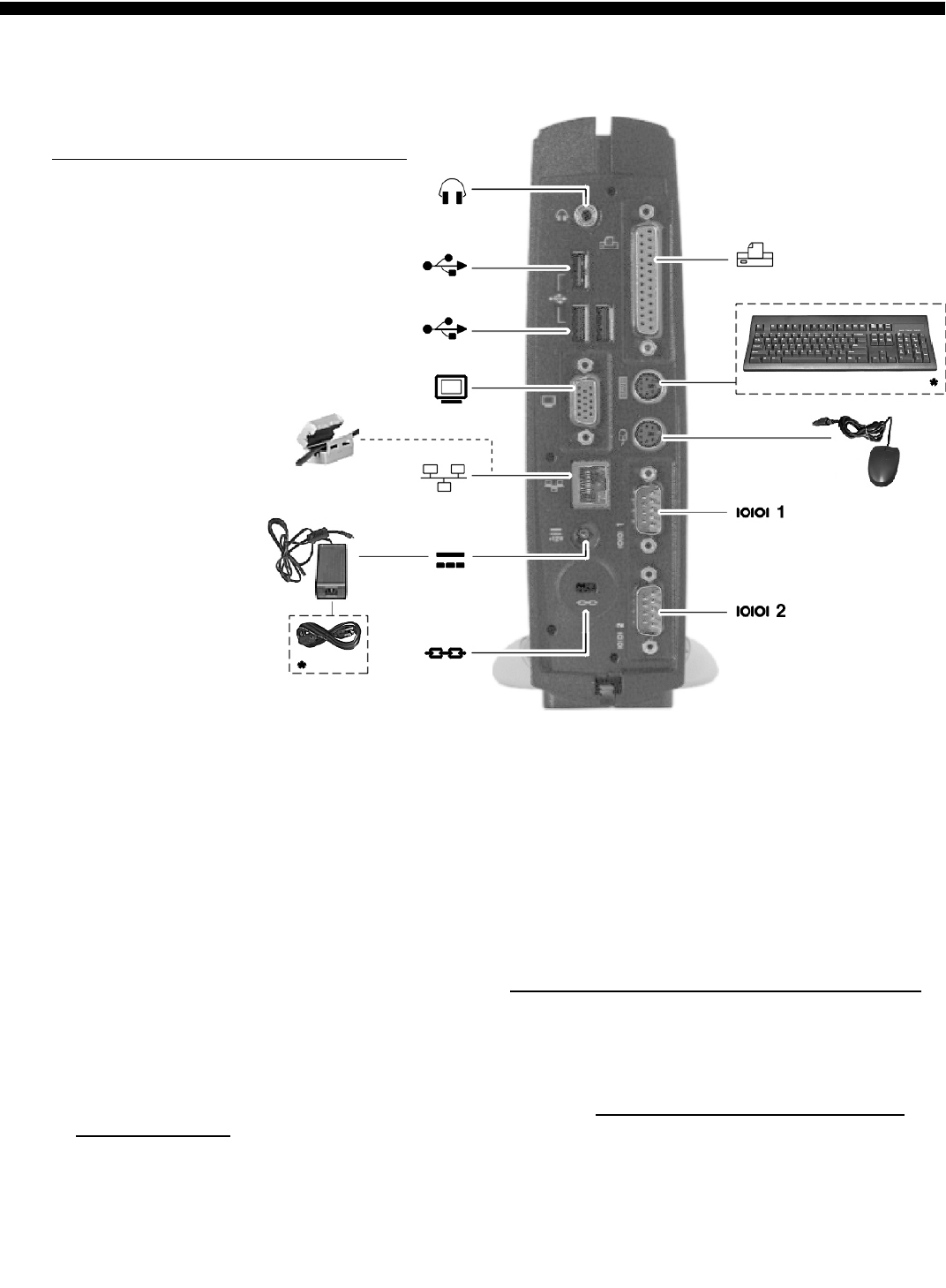
Winterm™ Model 3125SE WBT
Quick-Start Guide
➊Connect –
Caution: Improper connection, mounting,
or use of this product could result in
component failure and/or flash memory
corruption. Read the following caution
statements before setting up and operating
the terminal.
Cautions:
Setup
•Do not connect power until all other connections are made. Connecting or disconnecting components or
devices on the back panel when the terminal is receiving power can cause power surges and damage the
terminal. (USB ports are hot-swappable.)
•Do not force a connector into its socket. If any undue resistance is encountered, ensure that the connector
is correctly oriented to the receptacle.
Orientation and Venting
•Mount the terminal only as shown above. Improper orientation (such as component side down, where the
back panel’s symbols are upside down) could inhibit the dissipation of heat from the terminal and damage it.
•Allow sufficient space around the terminal for ventilation; do not place the terminal in any enclosure that
restricts airflow around the terminal; do not place any objects on the terminal. Product environmental
specifications are available through Wyse’s Web site at http://www.wyse.com/products/winterm/products.htm.
Power Sources
•To ensure regulatory compliance, use only the power supply included in the shipping box, or a
Wyse-approved equivalent, with the terminal. Also, the noise suppressor (ferrite bead) included in the box
with the terminal must be installed on the network cable as described in the accompanying instructions. Refer
to the regulatory notices in the terminal’s on-line documentation at http://www.wyse.com/products/winterm/
quickstart/3000.htm.
•To prevent accidental loss of power, brown out, and spikes which could damage the terminal, avoid
connecting it to any form of switching device (including power strips) or hard resetting the terminal by holding
down the power button.
•When turning off the terminal, be sure to perform a complete shutdown (via the user interface or power
button); do not disconnect the power cord, shut off power at a circuit breaker, etc., to turn off the terminal.
*Supplied for U.S.A.; in other locales, check package contents or contact your Wyse reseller.
883752-01 Rev. A
July 2002
Printed in U.S.A.
Wyse Technology Inc.
3471 North First Street
San Jose, CA 95134-1801 U.S.A.
©2002 Wyse Technology Inc. All rights reserved.
1. For a listing of recommended peripherals visit http://www.wyse.com/serviceandsupport/support/winterm/peripherals/3000peripheral.htm.
➋Turn On – Wait until the initialization sequence is completed (amber light
goes off) before pressing the power button.
Important: By unpacking and using the terminal, you agree
to be bound by the license agreements in the users and
administrators guides. See those agreements for specific
details at http://www.wyse.com/products/winterm/quickstart/
3000.htm.
➌Configure – Setup is quick and simple...
The logo will appear on the screen, followed by:
•The Setup Wizard, if it is the first time that you have turned on your terminal.
•The Winterm Connection Manager dialog box, if the Setup Wizard has been
completed.
➍Help – Need more information or upgrades/accessories?
http://www.wyse.com/products/winterm/quickstart/3000.htm
Need more information on Wyse Rapport, the remote management software that
comes with this terminal, or Wyse’s automated warranty registration† process?
http://www.wyse.com/bundle
†Register within 90 days to get 2 years’ extended warranty at no cost.
Model 3125SE Back Panel Connectors
Icon Connector Description
Headphones Audio output jack for headphones or powered speakers
USB port (3) USB device connection
Video Monitor interface
Network (LAN) Ethernet RJ45 connection, 10/100Base-T
Power Power module cable interface
Lock Receptacle for cable lock
Parallel Port Local printer output
Keyboard PS/2-type keyboard interface
Mouse PS/2-type mouse interface
Serial Port1Serial device connection
Serial Port1Serial device connection