Wyse Technology WT9650 Windows-Based Terminal User Manual 88793 01A 9650XE ALADDIN QSG
Wyse Technology Windows-Based Terminal 88793 01A 9650XE ALADDIN QSG
Contents
- 1. Regulatory information
- 2. User Manual
User Manual

Winterm™ Model 9650XE XPE-Based Terminal
Quick-Start Guide
➊Connect –
Caution: Improper connection, mounting, or use of this product could result in component failure and/or flash
memory corruption. Read the following caution statements before setting up and operating the terminal.
(FIGURE TO BE SUPPLIED)
Caution Statements:
Setup
• Do not connect power until all other connections are made. Connecting or disconnecting components
or devices on the back panel when the terminal is receiving power can cause power surges and damage the
terminal. (USB ports are hot-swappable.)
• Do not force a connector into its socket. If any undue resistance is encountered, ensure that the connector is
correctly oriented to the receptacle.
Orientation and Venting
• Mount the terminal only as shown above or in accordance with the instructions provided with the Wyse-
approved wall mount (see Note that follows). Improper orientation (such as component side down, where the
back panel’s symbols are upside down) could inhibit the dissipation of heat from the terminal and damage it.
• Allow sufficient space around the terminal for ventilation; do not place the terminal in any enclosure that
restricts airflow around the terminal; do not place any objects on the terminal. Product environmental
specifications are available through Wyse’s Web site at http://www.wyse.com/products/winterm/products.htm.
1PS/2-type mouse interface 6Video port 11 +12V Power cable interface
2Parallel port 7USB port (2) 12 Floppy drive (optional)
3Network connection, 10/100Base-T 8Speaker out 13 USB port (2)**
4Serial port 9Line in 14 CD-ROM drive (optional)
5PS/2-type keyboard interface 10 Microphone
*Supplied for U.S.A.; in other locales, check package contents or contact your Wyse reseller.
**Front USB ports not available if floppy drive option is installed.
883793-01 Rev. A
April 2003
Wyse Technology Inc.
3471 North First Street
San Jose, CA 95134-1801 U.S.A.
©2003 Wyse Technology Inc. All rights reserved.
Power Sources
• To ensure regulatory compliance, use only the power supply included in the shipping box, or a
Wyse-approved equivalent, with the terminal. Also, the noise suppressor (ferrite bead) included in the box
with the terminal must be installed on the network cable as described following these caution statements.
Refer to the regulatory notices in the terminal’s on-line documentation at http://www.wyse.com/products/
winterm/quickstart/9000.htm.
• To prevent accidental loss of power, brown out, and spikes which could damage the terminal, avoid
connecting it to any form of switching device (including power strips) or hard resetting the terminal by holding
down the power button.
• When turning off the terminal, be sure to perform a complete shutdown (via the user interface or power
button); do not disconnect the power cord, shut off power at a circuit breaker, etc., to turn off the terminal.
Note: Visit http://www.wyse.com/products/accessories/mounting.htm for information about approved wall-mount
and monitor-mount accessory kits.
Note: Rubber feet are provide for horizontal orientation on hard surfaces and plastic cylinder supports are
provided for vertical orientation. Insert terminal into cylinders with the power button at the top, then press cylinder
ends firmly towards the terminal.
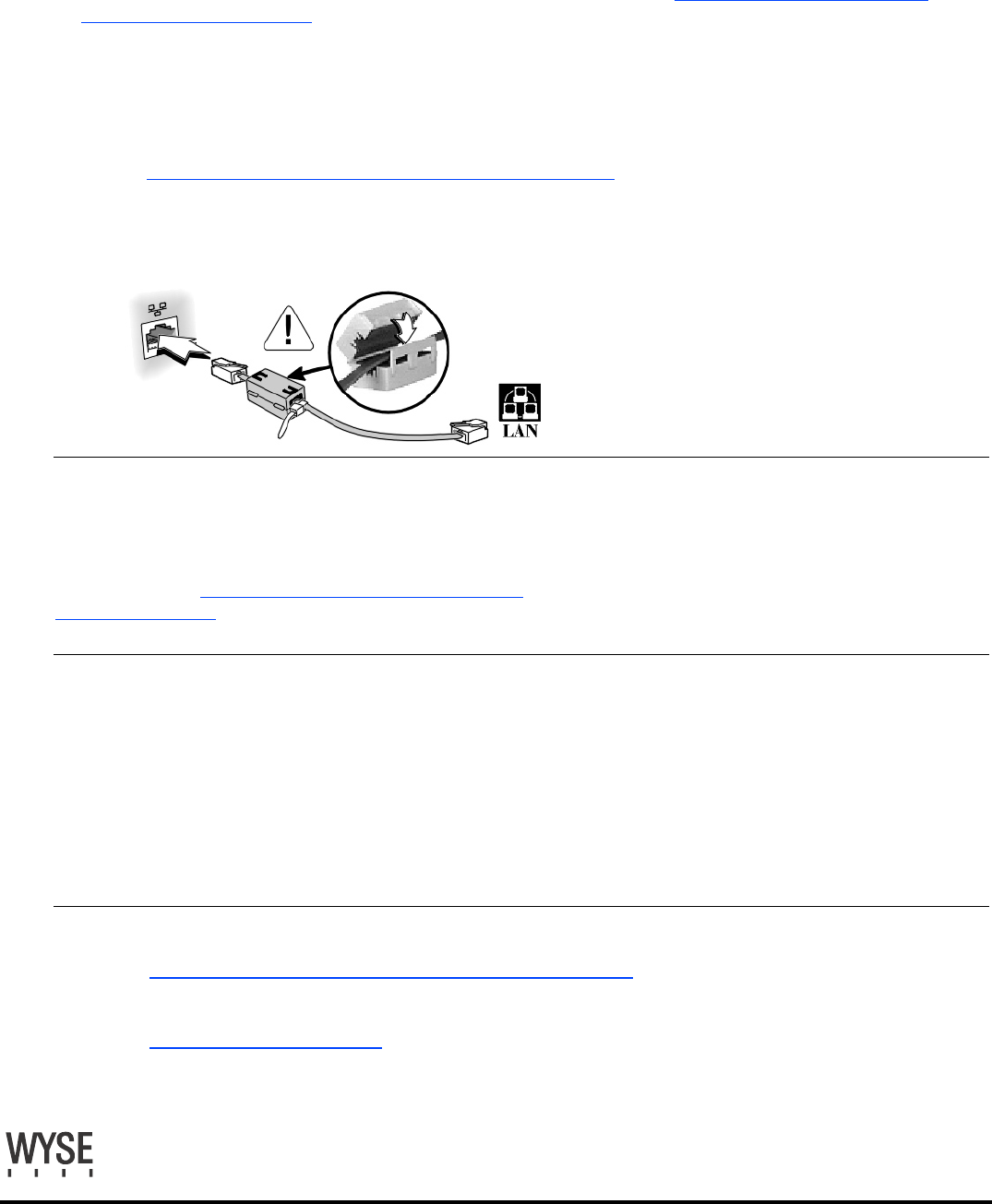
Note: To ensure that the product
complies with EN55022B and FCC
Class B requirements, follow these
instructions to install the ferrite bead
on your LAN cable.
➋Turn On –
Important: By unpacking and using the terminal, you
agree to be bound by the license agreements in the users
and administrators guides. See those agreements for
specific details at http://www.wyse.com/products/winterm/
quickstart/9000.htm.
➌ Configure – Setup is quick and simple...
The terminal is preset to auto-login as User (password: User). For administrative access, the terminal is preset to
accept the user name Administrator (password: Administrator). VNC is also preset to start automatically
(password: Wyse). User names are not case sensitive; passwords are case sensitive. To log in as administrator
hold down the Shift key while logging out of the user account until you get to the login screen, then enter the user
name and password for the administrator account.
Caution: It is strongly advised that the administrative password be changed immediately upon configuring the
terminal for use.
➍Help – Need more information, upgrades/accessories, or Wyse’s automatedwarranty registration process?
http://www.wyse.com/products/winterm/quickstart/9000.htm
Need more information on Wyse Rapport, the remote management software that comes with this terminal?
http://www.wyse.com/bundle
Register within 90 days to get 2 years’ extended warranty at no cost.
(FIGURE TO BE SUPPLIED)