Xeline LTd EU-200BX EMS agent User Manual EU 200BX Manual eng V03 final

Xeline Co., LTd. EMS agent EU 200BX Manual eng V03 final

Users Manual

 EU-200BX Installation Manual         PLC EMS Unit    Plug into the future Powerline Communication by Xeline     Xeline Co., Ltd.
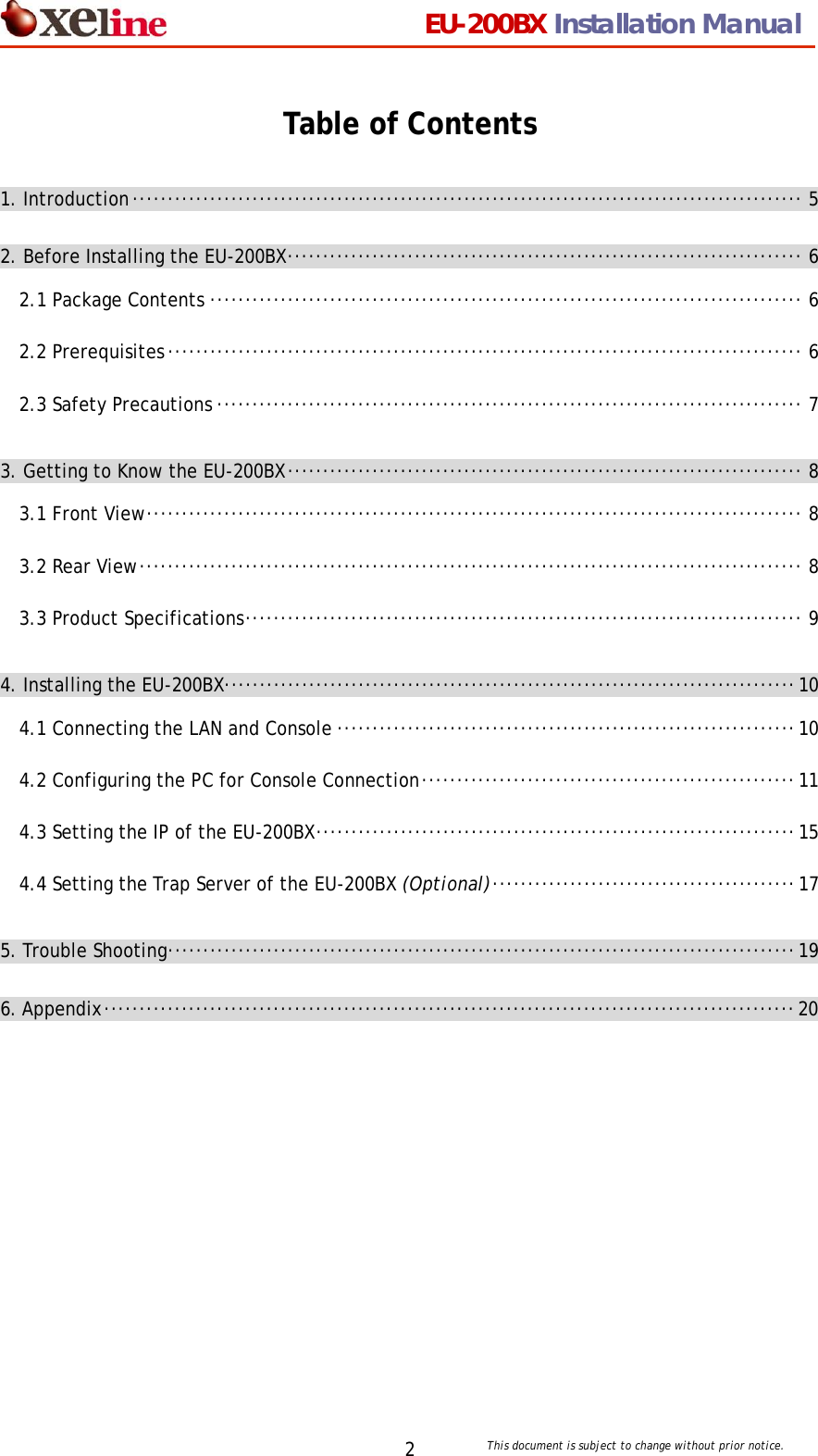
                                EU-200BX Installation Manual     This document is subject to change without prior notice. 2Table of Contents 1. Introduction······························································································· 5 2. Before Installing the EU-200BX········································································· 6 2.1 Package Contents ···················································································· 6 2.2 Prerequisites·························································································· 6 2.3 Safety Precautions ··················································································· 7 3. Getting to Know the EU-200BX········································································· 8 3.1 Front View····························································································· 8 3.2 Rear View······························································································ 8 3.3 Product Specifications··············································································· 9 4. Installing the EU-200BX·················································································10 4.1 Connecting the LAN and Console ·································································10 4.2 Configuring the PC for Console Connection·····················································11 4.3 Setting the IP of the EU-200BX····································································15 4.4 Setting the Trap Server of the EU-200BX (Optional)···········································17 5. Trouble Shooting·························································································19 6. Appendix··································································································20
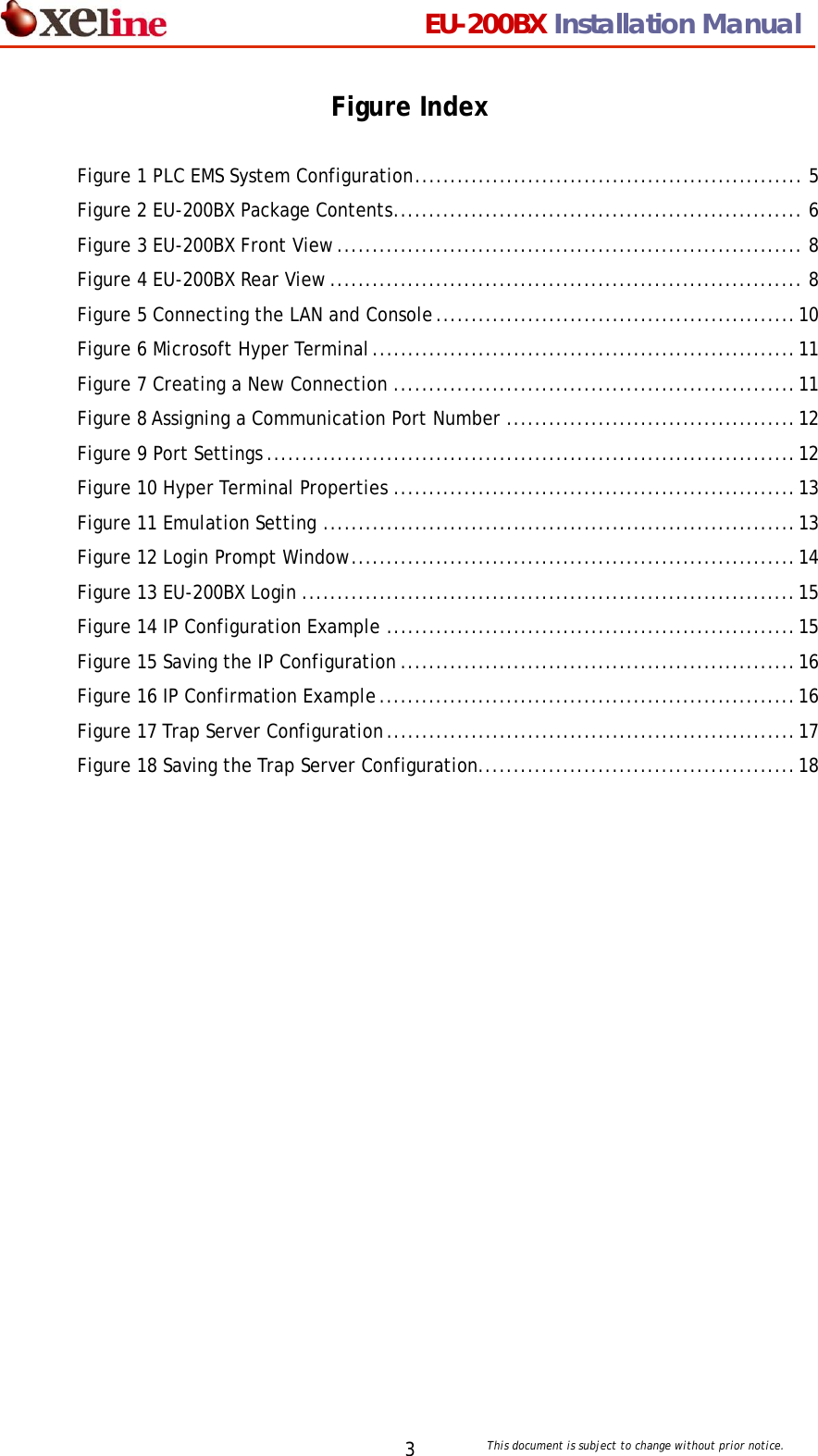
                                EU-200BX Installation Manual     This document is subject to change without prior notice. 3Figure Index  Figure 1 PLC EMS System Configuration....................................................... 5 Figure 2 EU-200BX Package Contents.......................................................... 6 Figure 3 EU-200BX Front View.................................................................. 8 Figure 4 EU-200BX Rear View................................................................... 8 Figure 5 Connecting the LAN and Console...................................................10 Figure 6 Microsoft Hyper Terminal............................................................11 Figure 7 Creating a New Connection .........................................................11 Figure 8 Assigning a Communication Port Number .........................................12 Figure 9 Port Settings ...........................................................................12 Figure 10 Hyper Terminal Properties .........................................................13 Figure 11 Emulation Setting ...................................................................13 Figure 12 Login Prompt Window...............................................................14 Figure 13 EU-200BX Login ......................................................................15 Figure 14 IP Configuration Example ..........................................................15 Figure 15 Saving the IP Configuration ........................................................16 Figure 16 IP Confirmation Example...........................................................16 Figure 17 Trap Server Configuration..........................................................17 Figure 18 Saving the Trap Server Configuration.............................................18
                                EU-200BX Installation Manual     This document is subject to change without prior notice. 4ATTENTION This equipment has been tested and found to comply with the limits for a Class B digital device, pursuant to part 15 of the FCC Rules. These limits are designed to provide reasonable protection against harmful interference in a residential installation. This equipment generates, uses and can radiate radio frequency energy and, if not installed and used in accordance with the instructions, may cause harmful interference to radio communications. However, there is no guarantee that interference will not occur in a particular installation. If this equipment does cause harmful interference to radio or television reception, which can be determined by turning the equipment off and on, the user is encouraged to try to correct the interference by one or more of the following measures:   Reorient or relocate the receiving antenna.  Increase the separation between the equipment and receiver.  Connect the equipment into an outlet on a circuit different from that to which the receiver is connected.  Consult the dealer or an experienced radio/TV technician for help.  Change or modification not expressly approved by the party responsible for Compliance could void the user’s authority to operate the equipment.
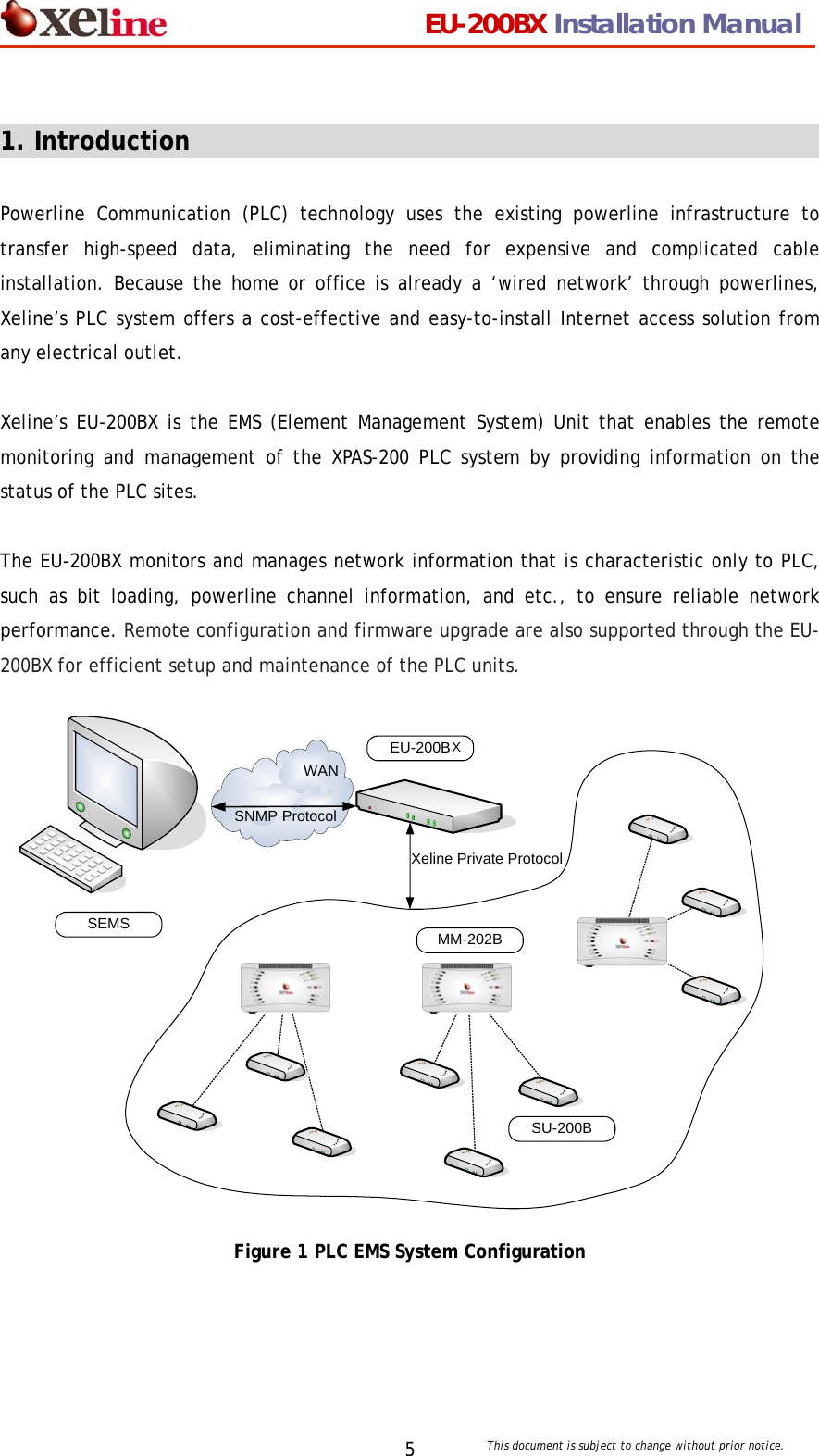
                                EU-200BX Installation Manual     This document is subject to change without prior notice. 5 1. Introduction                                                   Powerline Communication (PLC) technology uses the existing powerline infrastructure to transfer high-speed data, eliminating the need for expensive and complicated cable installation. Because the home or office is already a ‘wired network’ through powerlines, Xeline’s PLC system offers a cost-effective and easy-to-install Internet access solution from any electrical outlet.    Xeline’s EU-200BX is the EMS (Element Management System) Unit that enables the remote monitoring and management of the XPAS-200 PLC system by providing information on the status of the PLC sites.  The EU-200BX monitors and manages network information that is characteristic only to PLC, such as bit loading, powerline channel information, and etc., to ensure reliable network performance. Remote configuration and firmware upgrade are also supported through the EU-200BX for efficient setup and maintenance of the PLC units.                  Figure 1 PLC EMS System Configuration SEMSEU-200BSNMP ProtocolXeline Private ProtocolMM-202BSU-200BWANX
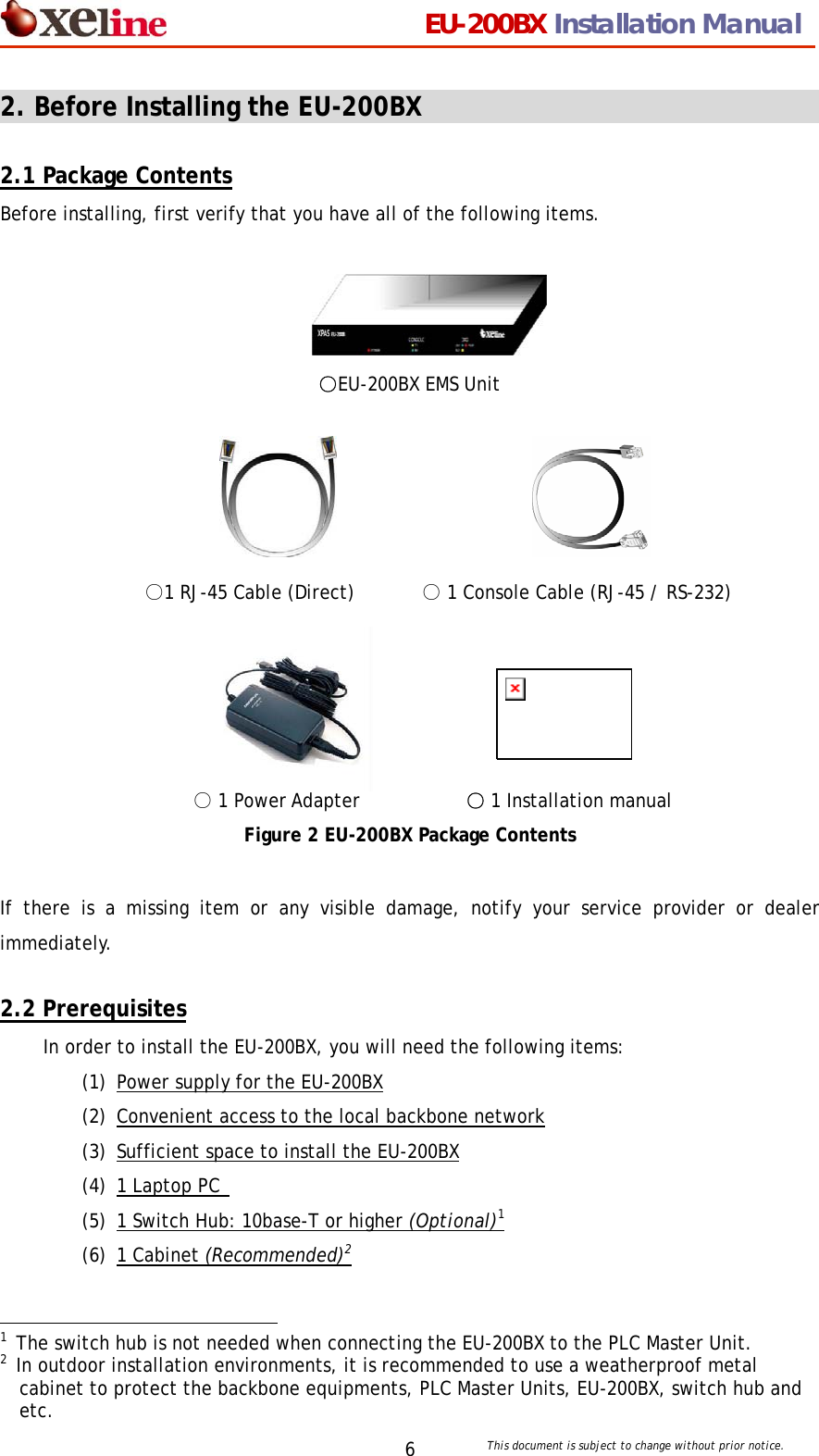
                                EU-200BX Installation Manual     This document is subject to change without prior notice. 62. Before Installing the EU-200BX                                  2.1 Package Contents Before installing, first verify that you have all of the following items.        ○EU-200BX EMS Unit                    ○1 RJ-45 Cable (Direct)       ○ 1 Console Cable (RJ-45 / RS-232)              ○ 1 Power Adapter             ○1 Installation manual Figure 2 EU-200BX Package Contents  If there is a missing item or any visible damage, notify your service provider or dealer immediately.  2.2 Prerequisites In order to install the EU-200BX, you will need the following items: (1) Power supply for the EU-200BX (2) Convenient access to the local backbone network (3) Sufficient space to install the EU-200BX (4) 1 Laptop PC   (5) 1 Switch Hub: 10base-T or higher (Optional)1 (6) 1 Cabinet (Recommended)2                                             1  The switch hub is not needed when connecting the EU-200BX to the PLC Master Unit.   2  In outdoor installation environments, it is recommended to use a weatherproof metal cabinet to protect the backbone equipments, PLC Master Units, EU-200BX, switch hub and etc.
                                EU-200BX Installation Manual     This document is subject to change without prior notice. 72.3 Safety Precautions Please make sure to read the following guidelines before installation.  (1) Read all instructions before installing or operating the equipment. Be sure to keep this manual for further reference. (2) Please follow all the safety precautions and other installation procedures. (3) Do not use this equipment near heaters or other devices that emit high heat. (4) Do not place heavy objects on top of the EU-200BX. (5) Install the EU-200BX near the ISP backbone or Switch Hub. Prepare a protective metal case to house the EU-200BX, backbone equipment, and Switch Hub.     (6) Avoid the following environments: - Areas with extremely high or low temperatures - Areas with high humidity or high risk of flooding - Areas where sudden changes in temperature occur - Under direct sunlight   (In outdoor configurations, install the EU-200BX in a shady area away from direct sunlight.)
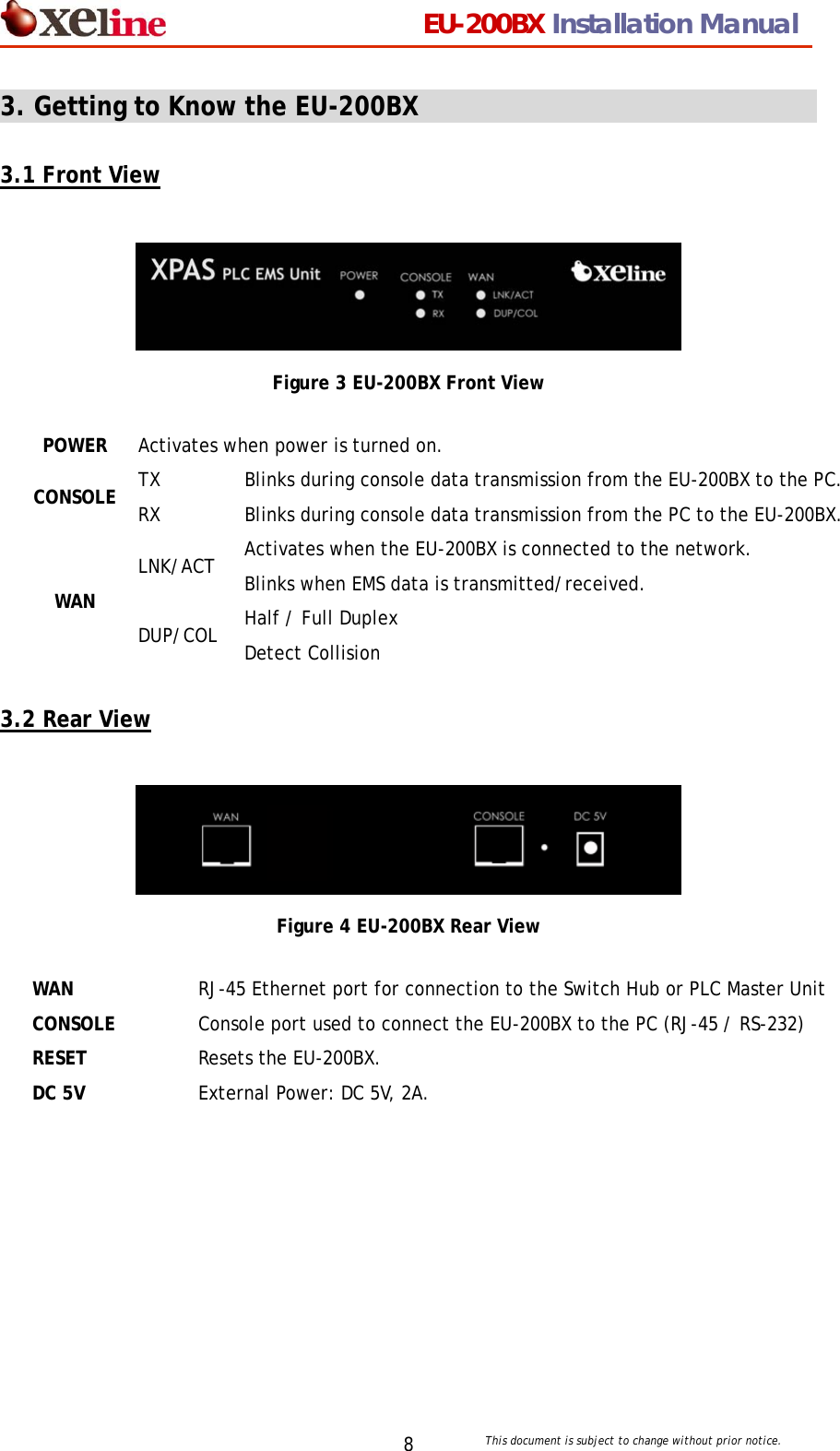
                                EU-200BX Installation Manual     This document is subject to change without prior notice. 83. Getting to Know the EU-200BX                                              3.1 Front View   Figure 3 EU-200BX Front View  3.2 Rear View   Figure 4 EU-200BX Rear View  POWER Activates when power is turned on. TX  Blinks during console data transmission from the EU-200BX to the PC. CONSOLE  RX  Blinks during console data transmission from the PC to the EU-200BX. LNK/ACT  Activates when the EU-200BX is connected to the network. Blinks when EMS data is transmitted/received. WAN DUP/COL  Half / Full Duplex Detect Collision WAN  RJ-45 Ethernet port for connection to the Switch Hub or PLC Master Unit CONSOLE  Console port used to connect the EU-200BX to the PC (RJ-45 / RS-232) RESET  Resets the EU-200BX. DC 5V  External Power: DC 5V, 2A.
                                EU-200BX Installation Manual     This document is subject to change without prior notice. 93.3 Product Specifications  (1) Hardware Specifications Category  Specifications Main Processor  KS8695X RAM 32MB SDRAM Flash Memory  2MB X1 NOR FLASH 32MB X1 NAND FLASH Serial Port  RS232 [1 port] – Console 2 Serial Port – Data (Optional) Ethernet Link 10/100 Base Auto Negotiation Auto MDIX Power  External Power : DC 5V, 2A Dimensions  190 x 110 x 31mm (W x D x H) Weight 664g  (2) Software Specifications Category  Specifications Operating Software  Embedded Linux (Kernel Version 2.4.x) Supported Protocols RFC 791 IP   RFC 793 TCP   RFC 1157 SNMP v1 RFC 1213 MIB II RFC 1901 SNMP v2 Supported Functions Remote OS Upgrade   Remote configuration  PLC equipment control NMS using SNMP Supported Services  Inetd, ftp, ssh, http, tftp, SNMP Supported Commands  Busy box
                                EU-200BX Installation Manual     This document is subject to change without prior notice. 104. Installing the EU-200BX                                        4.1 Connecting the LAN and Console Note: The EU-200BX should be located within the same broadcasting domain as the Stations to be managed.    ① Connect the ISP backbone to the UPLINK port of the Switch Hub or PLC Master Unit.   ② Insert a RJ-45 direct cable into the LAN port of the EU-200BX and connect to the LAN port of the Switch Hub. [Note] When connecting directly to the PLC Master Unit, insert the RJ-45 cable into an available RJ-45 port of the PLC Master Unit. ③ Insert the RJ-45 / RS-232 cable into the CONSOLE port of the EU-200BX. Connect the other end of the cable to the SERIAL port of the PC. ④ Connect the power adaptor to the EU-200BX and plug into the power outlet.                    Figure 5 Connecting the LAN and Console   EU-200BXB
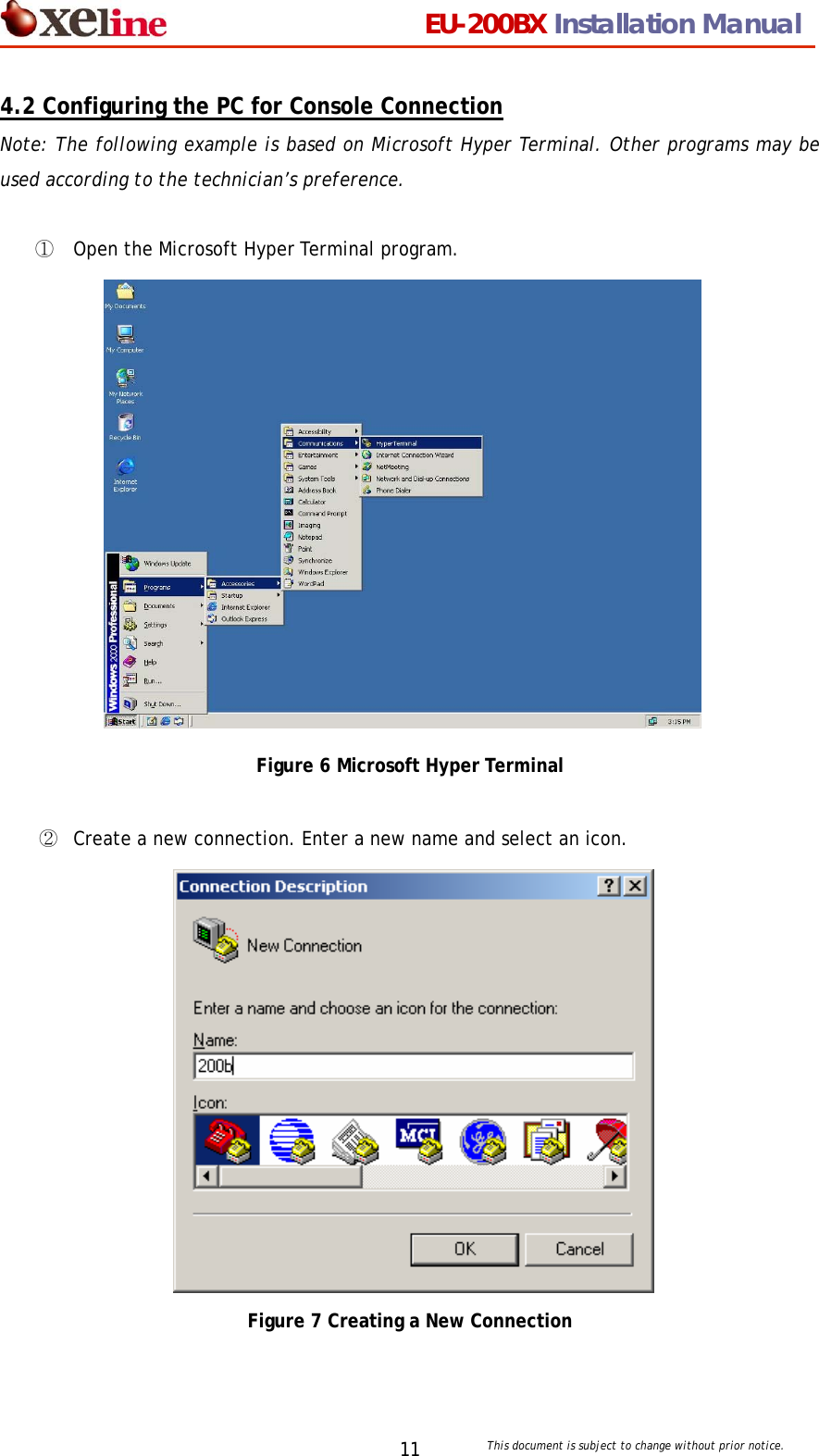
                                EU-200BX Installation Manual     This document is subject to change without prior notice. 114.2 Configuring the PC for Console Connection Note: The following example is based on Microsoft Hyper Terminal. Other programs may be used according to the technician’s preference.    ①  Open the Microsoft Hyper Terminal program.                Figure 6 Microsoft Hyper Terminal  ②  Create a new connection. Enter a new name and select an icon.                Figure 7 Creating a New Connection
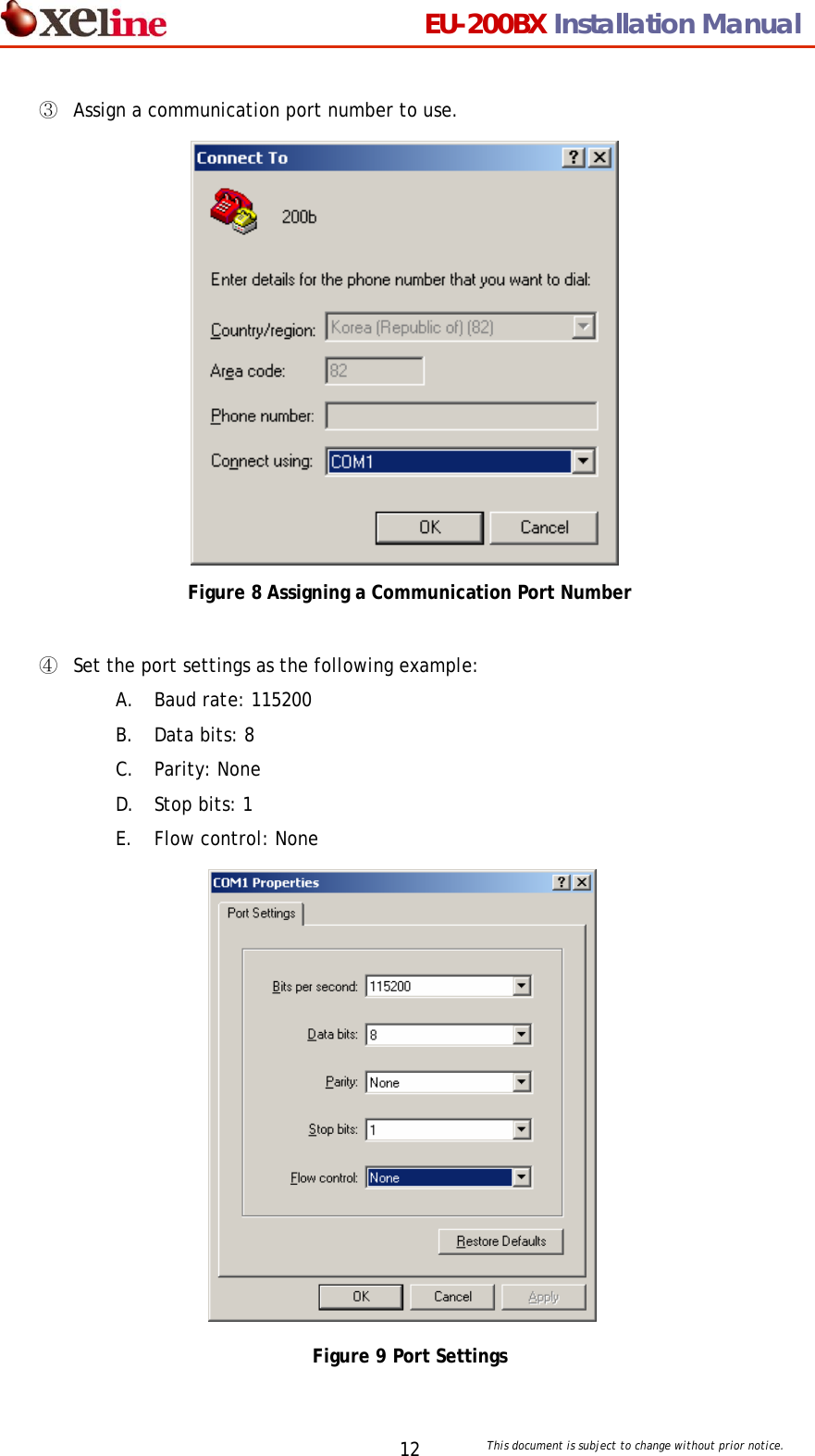
                                EU-200BX Installation Manual     This document is subject to change without prior notice. 12③  Assign a communication port number to use.                Figure 8 Assigning a Communication Port Number  ④  Set the port settings as the following example: A. Baud rate: 115200 B. Data bits: 8 C. Parity: None D. Stop bits: 1 E. Flow control: None               Figure 9 Port Settings
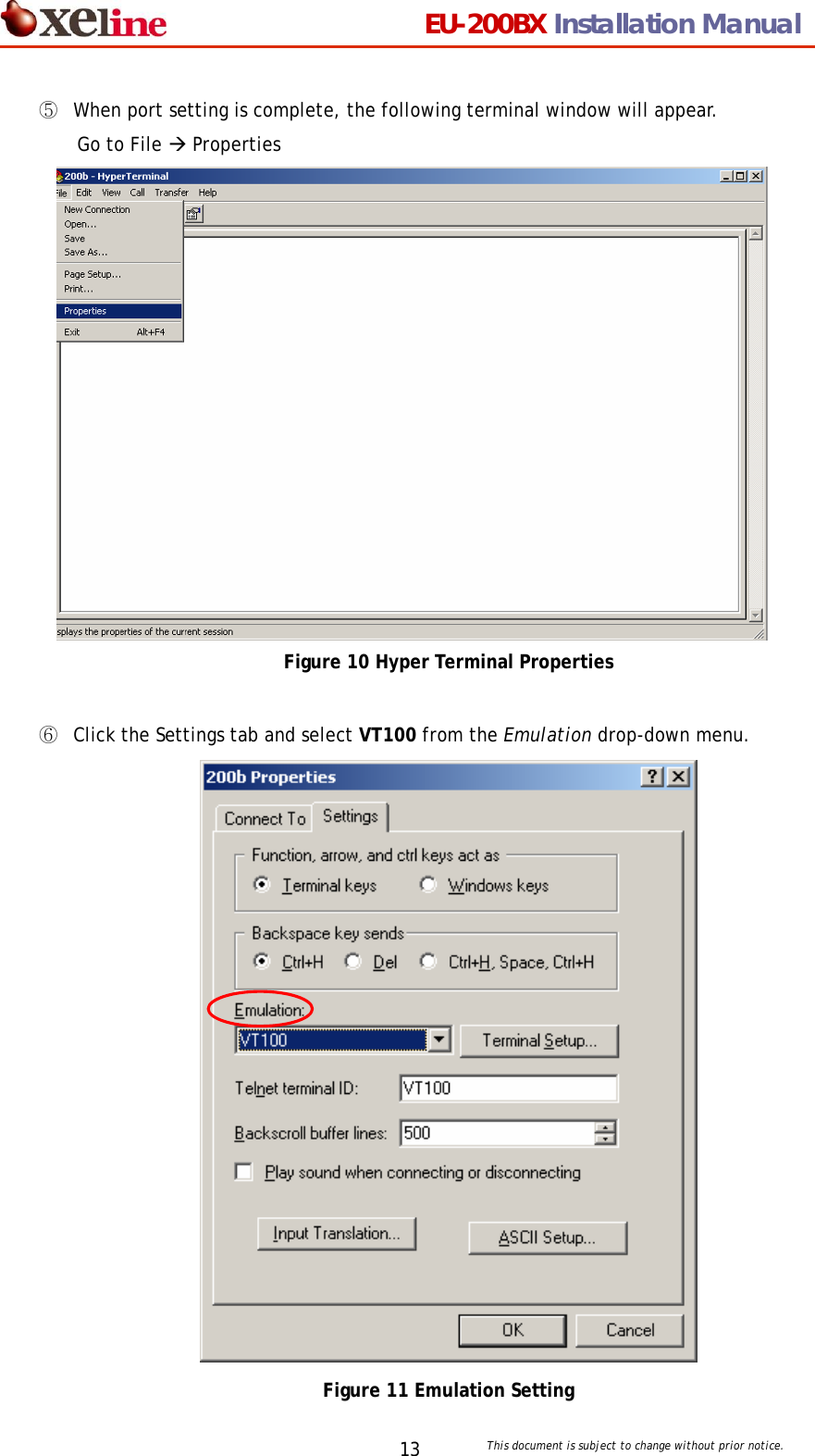
                                EU-200BX Installation Manual     This document is subject to change without prior notice. 13⑤  When port setting is complete, the following terminal window will appear.  Go to File Æ Properties                 Figure 10 Hyper Terminal Properties   ⑥  Click the Settings tab and select VT100 from the Emulation drop-down menu.    Figure 11 Emulation Setting
                                EU-200BX Installation Manual     This document is subject to change without prior notice. 14⑦  Turn on the power of the EU-200BX. ⑧  The following login prompt will appear in the Hyper Terminal window.          Figure 12 Login Prompt Window
                                EU-200BX Installation Manual     This document is subject to change without prior notice. 154.3 Setting the IP of the EU-200BX  ① Use the following id and password to log into the EU-200BX. Login ID: root Password: xeline (optional)         Figure 13 EU-200BX Login  ② Type <vi /mtd/etc/start>.  ③ When the following screen appears, type<i> to change to the INSERT mode. ④ Modify the IP address in “ifconfig eth0” and “route add default gw”.  [Important Note] Always use a fixed IP address. DHCP is not supported!          Figure 14 IP Configuration Example  [Note 1] To delete a typo in the IP address, you must FIRST EXIT the insert mode. This can be done by using the <ESC> key. Then point the cursor to the letter to delete and press the <x> key. One letter will be deleted at a time. To reenter the IP address, type <i> to return to the insert mode.    [Note 2] If the cursor does not move using the direction keys, check if the emulation setting is set to VT100. If the emulation is NOT SET to VT100, the cursor may not move.
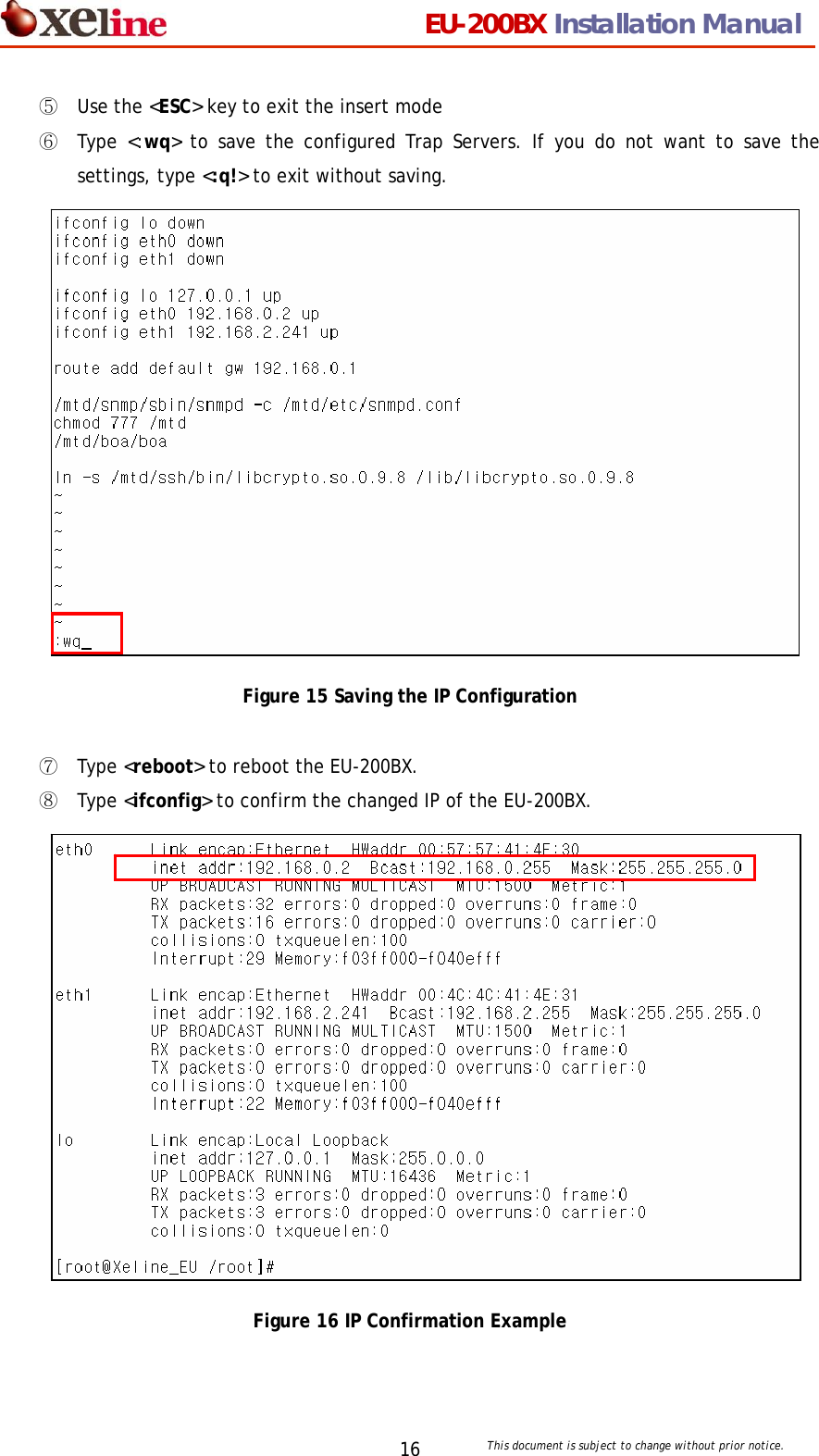
                                EU-200BX Installation Manual     This document is subject to change without prior notice. 16⑤ Use the <ESC> key to exit the insert mode ⑥ Type <:wq> to save the configured Trap Servers. If you do not want to save the settings, type <:q!> to exit without saving.               Figure 15 Saving the IP Configuration  ⑦ Type <reboot> to reboot the EU-200BX. ⑧ Type <ifconfig> to confirm the changed IP of the EU-200BX.               Figure 16 IP Confirmation Example
                                EU-200BX Installation Manual     This document is subject to change without prior notice. 174.4 Setting the Trap Server of the EU-200BX (Optional)  ①  Type <vi /mtd/etc/snmpd.conf>  ② When the following screen appears, type<i> to change to the insert mode.   ③ Type <trap2sink TRAP_SERVER_IP public>. The TRAP_SERVER_IP refers to the IP address of the EMS Server to where the trap messages will be sent. It is possible to designate multiple Trap Servers.                 Figure 17 Trap Server Configuration  [Note 1] To delete a typo in the IP address, you must FIRST EXIT the insert mode. This can be done by using the <ESC> key. Then point the cursor to the letter to delete and press the <x> key. One letter will be deleted at a time. To reenter the IP address, type <i> to return to the insert mode.    [Note 2] If the cursor does not move using the direction keys, check if the emulation setting is set to VT100. If the emulation is NOT SET to VT100, the cursor may not move.    ④  Use the <ESC> key to exit the insert mode.
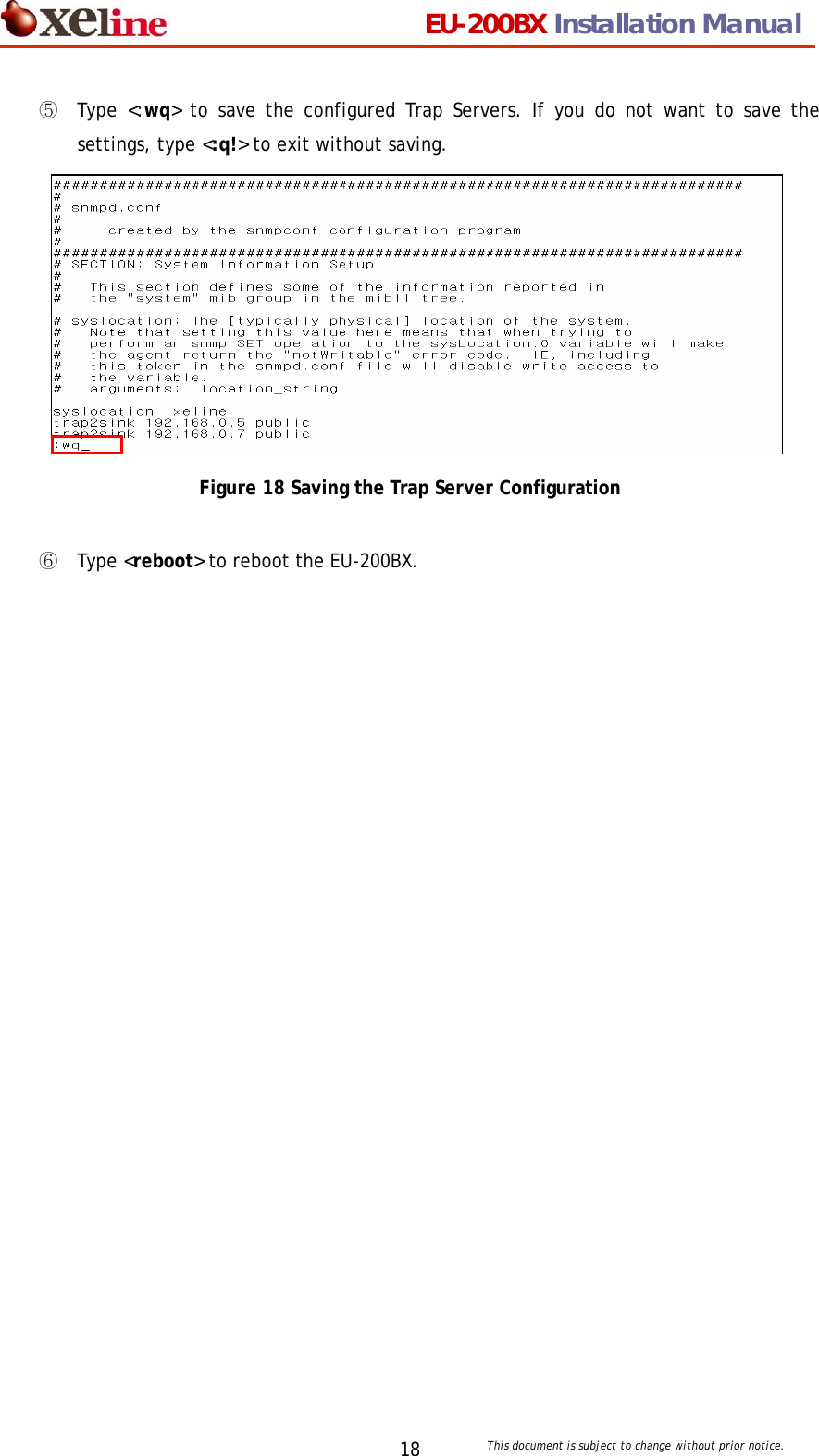
                                EU-200BX Installation Manual     This document is subject to change without prior notice. 18⑤  Type <:wq> to save the configured Trap Servers. If you do not want to save the settings, type <:q!> to exit without saving.            Figure 18 Saving the Trap Server Configuration  ⑥  Type <reboot> to reboot the EU-200BX.
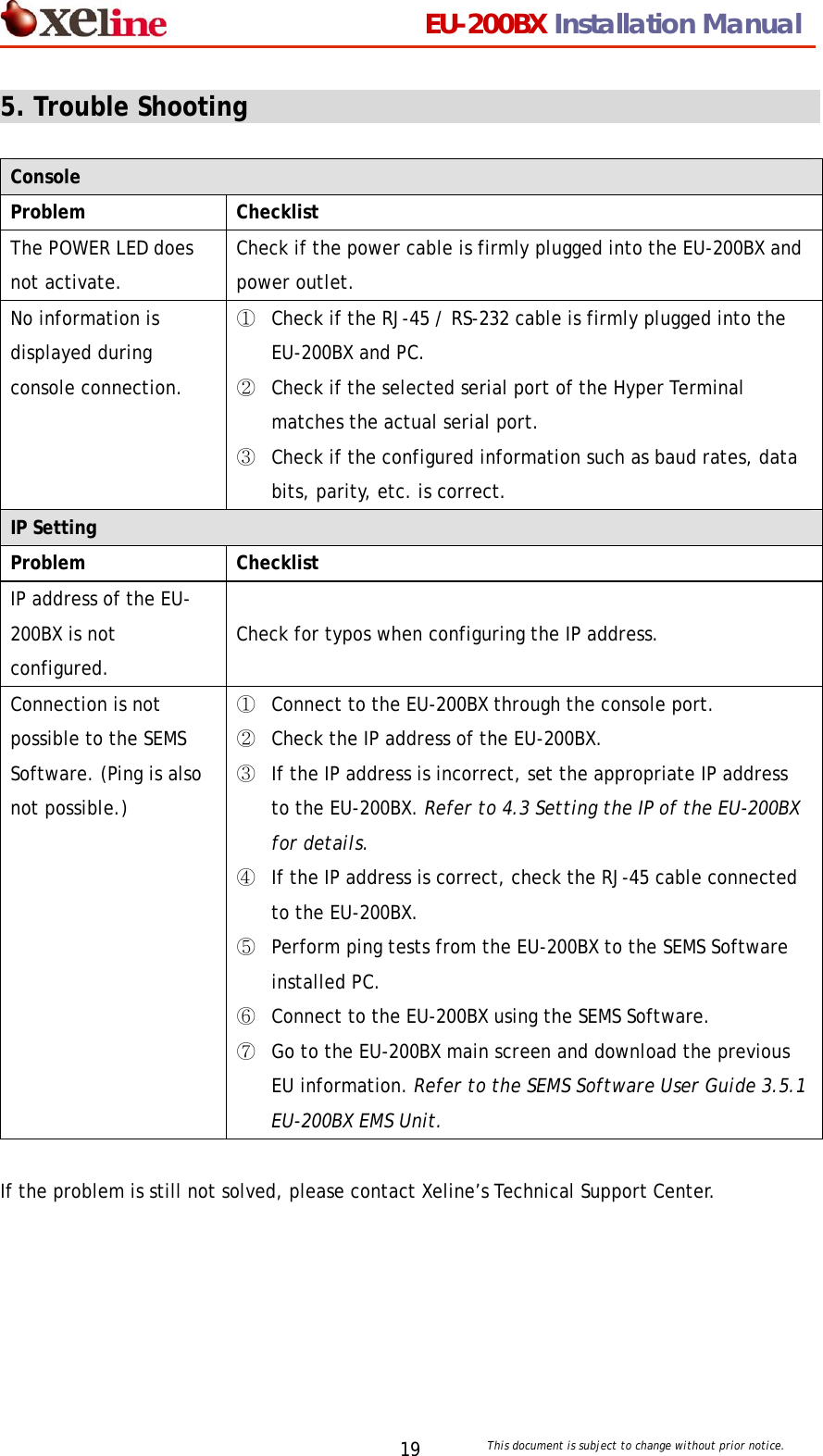
                                EU-200BX Installation Manual     This document is subject to change without prior notice. 195. Trouble Shooting                                                Console Problem Checklist The POWER LED does not activate. Check if the power cable is firmly plugged into the EU-200BX and power outlet. No information is displayed during console connection. ① Check if the RJ-45 / RS-232 cable is firmly plugged into the EU-200BX and PC.     ② Check if the selected serial port of the Hyper Terminal matches the actual serial port. ③ Check if the configured information such as baud rates, data bits, parity, etc. is correct. IP Setting Problem Checklist IP address of the EU-200BX is not configured. Check for typos when configuring the IP address. Connection is not possible to the SEMS Software. (Ping is also not possible.) ①  Connect to the EU-200BX through the console port. ②  Check the IP address of the EU-200BX. ③  If the IP address is incorrect, set the appropriate IP address to the EU-200BX. Refer to 4.3 Setting the IP of the EU-200BX for details. ④  If the IP address is correct, check the RJ-45 cable connected to the EU-200BX. ⑤  Perform ping tests from the EU-200BX to the SEMS Software installed PC. ⑥  Connect to the EU-200BX using the SEMS Software. ⑦  Go to the EU-200BX main screen and download the previous EU information. Refer to the SEMS Software User Guide 3.5.1 EU-200BX EMS Unit.   If the problem is still not solved, please contact Xeline’s Technical Support Center.
                                EU-200BX Installation Manual     This document is subject to change without prior notice. 206. Appendix                                                      z Copyright 2005 Xeline Co., Ltd. All rights reserved. All Xeline brand product names are trademarks of Xeline Co., Ltd.   Other product and company names mentioned herein are the trademarks of their respective owners.  z Information in this document is subject to change without notice. No part of this document may be reproduced or altered in any form or by any means, electronical or mechanical, for any purpose, without the express written permission of Xeline Co., Ltd.  z Xeline Technical Support Center Address: 5F. Seowon Bldg., 1515-4     Seocho3-dong, Seocho-gu,  Seoul 137-871, Korea Telephone: +82 2 598 0980 Facsimile: +82 2 598 0975 E-mail: tech_support@xeline.com   Website: http://www.xeline.com

Navigation menu