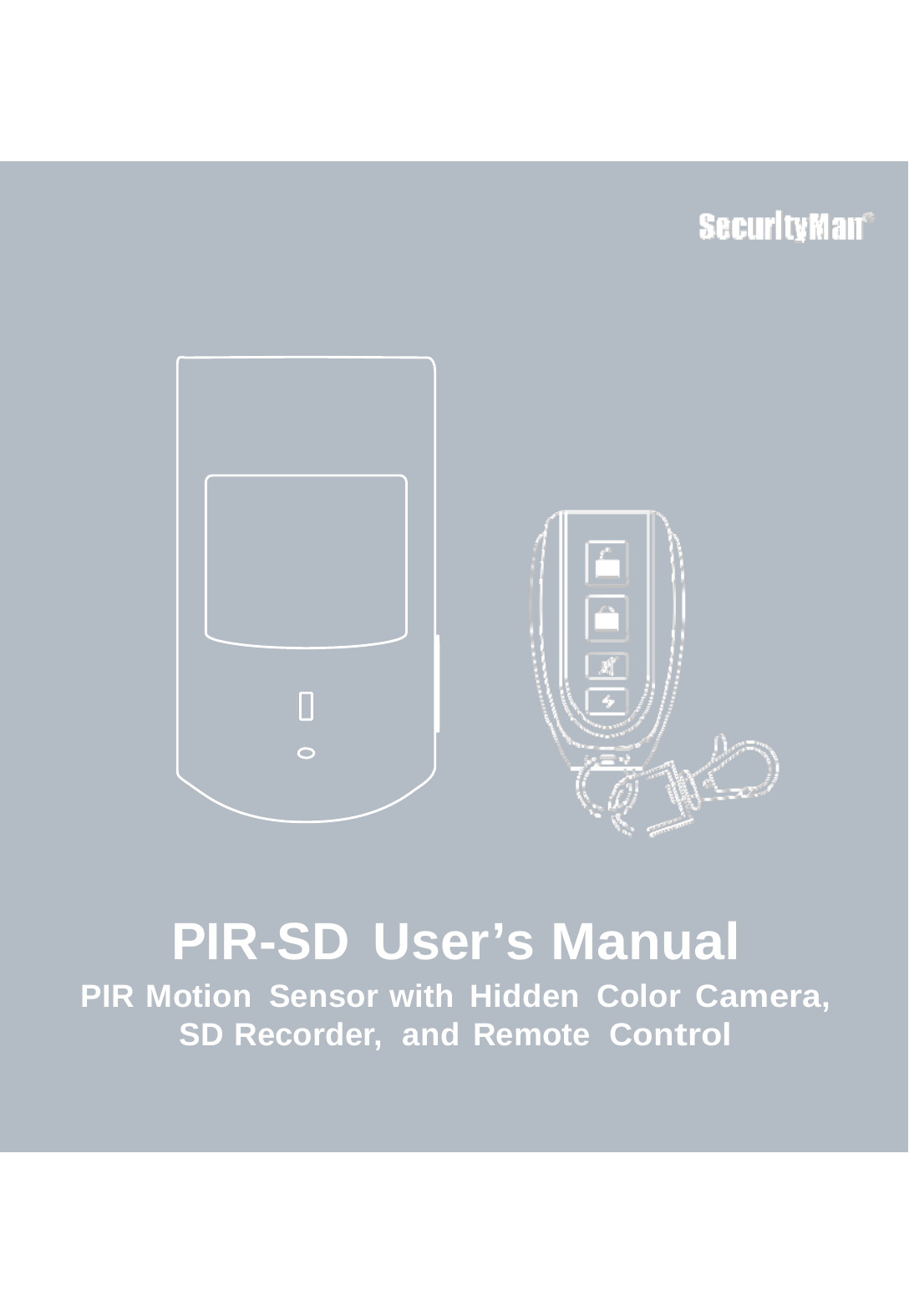
Xi Long Electronics PIR-SD PIR MOTION SENSOR WITH HIDDEN CAMERA, SD RECORDER User Manual

Shenzhen Xi Long Electronics Co., Ltd. PIR MOTION SENSOR WITH HIDDEN CAMERA, SD RECORDER Users Manual

User Manual

             PIR-SD User’s Manual PIR Motion  Sensor with Hidden  Color Camera, SD Recorder,  and Remote  Control
   © Copyright 2012 This manual  is furnished under  license  and  may  be  used  or copied only  in accordance with the terms of such license. Except as permitted by such license, no part of this publication may be reproduced, stored in a retrieval system, or transmitted, in any form or any means, electronic, mechanical, recording, or otherwise, including translation to another language or format, without the prior written permission of SecurityMan. The content of this manual  is furnished for informational use only,  is subject to change without notice, and should not be construed as a commitment by SecurityMan. SecurityMan Inc  assumes  no responsibility or liability for any errors  or inaccuracies that may appear in this book.  FCC Information Notes on  FCC’s “Consistent Statement of Information” This product meet the requirements specified in Part 15 of FCC Regulation. Operation rests with the following two conditions: (1) The equipment should not cause any harmful interference. (2) The equipment must receive and process any interference, including any possible interference caused  by operation mistakes. After testing the product, we confirm that the camera complies with the provision for class C digital equipment in the 15th part in FCC regulations; and the receiver complies with the limitations for class B digital equipment in Part 15 of FCC regulation. The product generates, applies and emits radio  waves. It might cause harmful interferences to wireless communication if not be installed and used following the description of the manual. The product may cause interference in residential area, and the customer should take remedies to eliminate the interference on their own  costs. If the product causes any harmful interference to wireless equipment or disturbs the receiving of TV signals (it can be identified by turning on  and off the product), you  can solve the trouble by following methods: • Readjust the product or put it in another place. • Extend the distance between the equipment interfered and the product. • Refer to dealers  or experienced radio  electrician for help.
   Warranty SecurityMan warrants that this product will  be free from defects in title, materials and manufacturing workmanship for one year from the date of the purchase or otherwise specified on the package. If the product is found to be defective then, as your  sole remedy and as the manufacturer’s only  obligation, SecurityMan will repair or replace the product. This warranty is exclusive and is limited to this product. This warranty shall not apply to products that have been subjected to  abuse,  misuse, abnormal electrical or environmental conditions, or  any condition other than what can  be considered normal use.  Warranty Disclaimers SecurityMan Inc, makes  no other warranties, express,  implied or otherwise, regarding this product, and specifically disclaims any warranty for merchantability or fitness for a particular purpose. The exclusion of  implied warranties is not permitted in some states and the exclusions specified herein  may not apply to you. This warranty provides you with specific legal rights. There  may  be other rights that you have which vary from state to state.  Limitation of Liability The liability of SecurityMan Inc, arising  from this warranty and  sale shall  be limited to a refund of the purchase price.  In no event shall SecurityMan be  liable  for costs of procurement of substitute products or  services,  or for any lost profits, or for any consequential, incidental, direct or indirect damages, however caused  and  on any theory of liability, arising  from this warranty and  sale. These limitations shall apply not withstanding any failure of essential purpose of any limited remedy.  For Tech Support  Call: 8 8 8 -977-3777  SecurityMan 4601 E. Airport Drive, Ontario, CA, 91761, USA Tel: 909-230-6668  Fax: 909-230-6889 Email: info@securitymaninc.com Website: www.securitymaninc.com  Copyright 2012 by SecurityMan v1.0
   Table of Contents  Introduction     1Features     1Important     2Operating Restrictions     2Conditions     5Safety Instructions     5Package Contents       6Product Basics     7PIR-SD       7Remote Control    7Set Up    8Set the Date and Time     8Adding and Cancelling Remote Control   12 Adding Remote Control    12 Cancelling Remote Control     12 Operation     13 Using PIR-SD    13 Motion Detection Recording   13 Emergency Recording    13 Stop Recording     14 New File Alert     14 SD Full Alert (Memory Full)     14 Playback Recorded Video      15 Integrating with Air-Alarm Series     15 Adding PIR-SD Remote to the Alarm Host    16 Cancelling PIR-SD Remote from the Alarm Host     16 Adding PIR-SD Motion Detection to the Alarm Host    16 Cancelling PIR-SD Motion Detection from the Alarm Host   16 Enabling Video Recording       17 Disabling Video Recording    18 Specifications       19
1   Introduction  Thank you for purchasing SecurityMan PIR-SD. The PIR-SD is a color camera with SD recorder hidden inside a PIR motion detector. This covert motion detector camera blends perfectly into almost any  home  or business environment where  an alarm system might be present and  can  also be intergraded with any of our SecurityMan DIY Wireless Home Alarm Systems, providing you with both security and discreet monitoring capabilities. So whether you’re looking to expand your  wireless security system or just looking for a covert hidden camera,  the PIR-SD will fit your  needs.  Features  • PIR motion sensor with color camera and SD recorder (SD card  not included) • Works independently or  can  be integrated  with any SecurityMan Air-Alarm series wireless alarm  systems • Up to 300ft (clear line of sight) wireless transmitting distance between the PIR-SD and  alarm  host (100ft indoors) • 1-minute video clip per motion detection event • Records up to 12 hours  of video footage on a 32 GB SD card • SD card  full notification • Audible and visual new file alert notification • Can easily  be armed/disarmed via remote control, alarm  host keypad, or phone call (when integrated with a SecurityMan Air-Alarm system) • One touch (remote control) manual  record for emergency situations • Easy PC playback using a PC card reader or direct connect via  mini  USB port
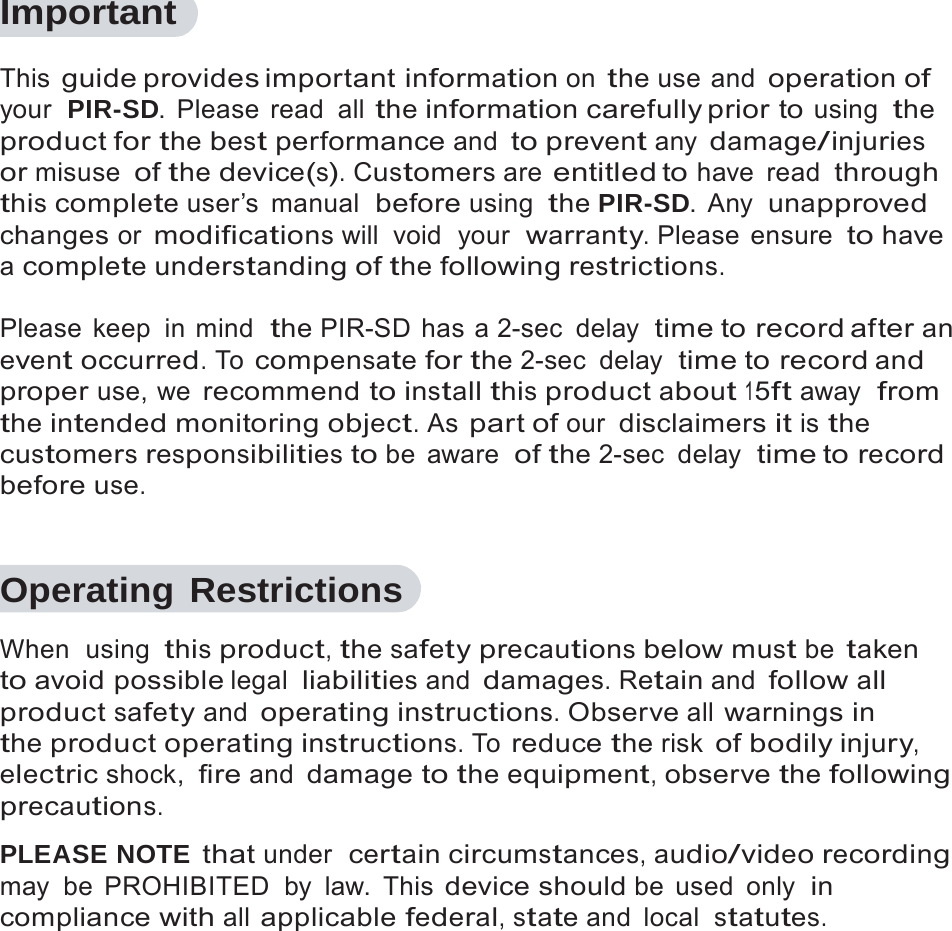
2   Important  This guide provides important information on the use and operation of your  PIR-SD. Please read all the information carefully prior  to using the product for the best performance and to prevent any damage/injuries or misuse of the device(s). Customers are entitled to have read through this complete user’s  manual  before using the PIR-SD. Any  unapproved changes or modifications will  void  your  warranty. Please  ensure to have a complete understanding of the following restrictions.  Please keep  in mind  the PIR-SD has a 2-sec  delay  time to record after an event occurred. To compensate for the 2-sec  delay  time to record and proper use, we recommend to install this product about 15ft away  from the intended monitoring object. As part of our disclaimers it is the customers responsibilities to be aware  of the 2-sec  delay  time to record before use.   Operating Restrictions  When  using this product, the safety precautions below must be taken to avoid possible legal liabilities and damages. Retain and follow all product safety and operating instructions. Observe all warnings in the product operating instructions. To reduce the risk of bodily injury, electric shock, fire and damage to the equipment, observe the following precautions.  PLEASE NOTE that under  certain circumstances, audio/video recording may be PROHIBITED  by law. This device should be used only  in compliance with all applicable federal, state and  local  statutes.
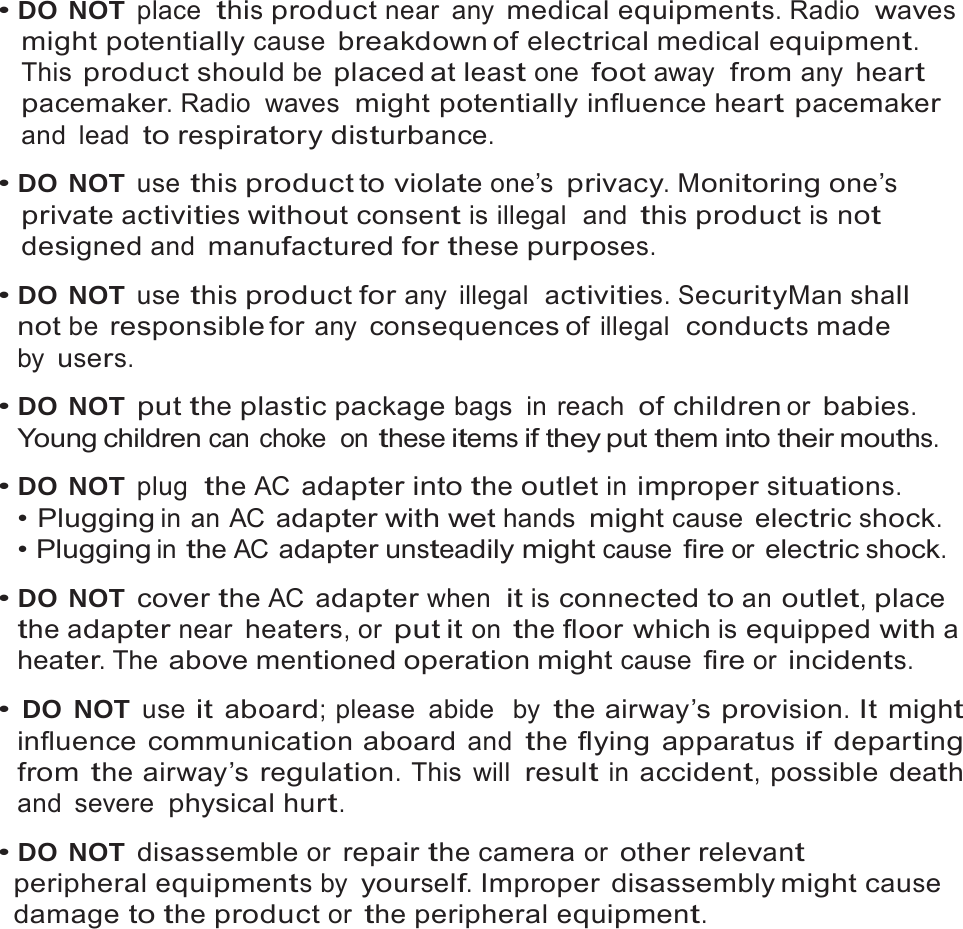
3   • DO NOT place  this product near any medical equipments. Radio  waves might potentially cause breakdown of electrical medical equipment. This product should be placed at least one foot away  from any heart pacemaker. Radio  waves  might potentially influence heart pacemaker and lead to respiratory disturbance.  • DO NOT use this product to violate one’s privacy. Monitoring one’s private activities without consent is illegal  and this product is not designed and manufactured for these purposes.  • DO NOT use this product for any illegal  activities. SecurityMan shall not be responsible for any consequences of illegal  conducts made by users.  • DO NOT put the plastic package bags in reach of children or babies. Young children can choke  on these items if they put them into their mouths.  • DO NOT plug  the AC adapter into the outlet in improper situations. • Plugging in an AC adapter with wet hands might cause electric shock. • Plugging in the AC adapter unsteadily might cause fire or electric shock.  • DO NOT cover the AC adapter when  it is connected to an outlet, place the adapter near heaters, or put it on the floor which is equipped with a heater. The above mentioned operation might cause fire or incidents.  • DO NOT use it aboard; please  abide  by the airway’s provision. It might influence communication aboard and the flying apparatus if departing from the airway’s regulation. This will result in accident, possible death and severe physical hurt.  • DO NOT disassemble or repair the camera or other relevant peripheral equipments by yourself. Improper disassembly might cause damage to the product or the peripheral equipment.
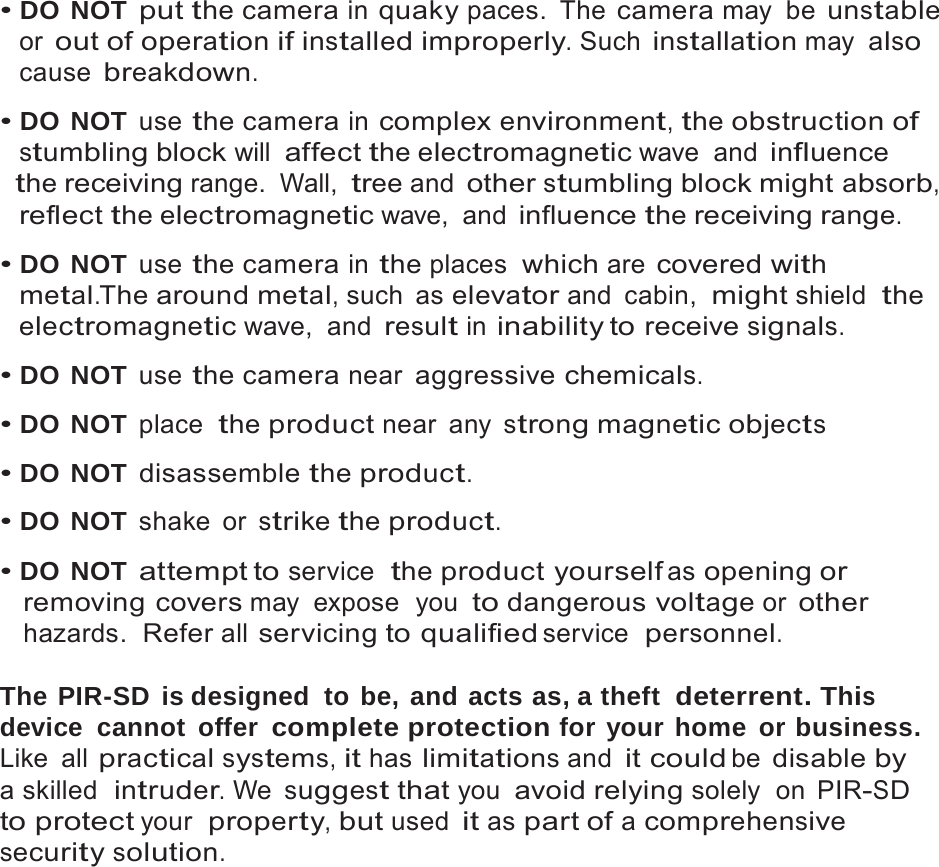
4   • DO NOT put the camera in quaky paces. The camera may be unstable or out of operation if installed improperly. Such installation may also cause breakdown.  • DO NOT use the camera in complex environment, the obstruction of stumbling block will affect the electromagnetic wave  and influence the receiving range. Wall, tree and other stumbling block might absorb, reflect the electromagnetic wave,  and influence the receiving range.  • DO NOT use the camera in the places  which are covered with metal.The around metal, such  as elevator and  cabin,  might shield  the electromagnetic wave,  and result in inability to receive signals.  • DO NOT use the camera near aggressive chemicals.  • DO NOT place  the product near any strong magnetic objects  • DO NOT disassemble the product.  • DO NOT shake or strike the product.  • DO NOT attempt to service  the product yourself as opening or removing covers may expose  you to dangerous voltage or other hazards.  Refer all servicing to qualified service  personnel.  The PIR-SD  is designed  to be, and acts as, a theft  deterrent. This device cannot offer complete protection for your home or business. Like all practical systems, it has limitations and it could be disable by a skilled  intruder. We suggest that you avoid relying solely  on  PIR-SD to protect your  property, but used it as part of a comprehensive security solution.
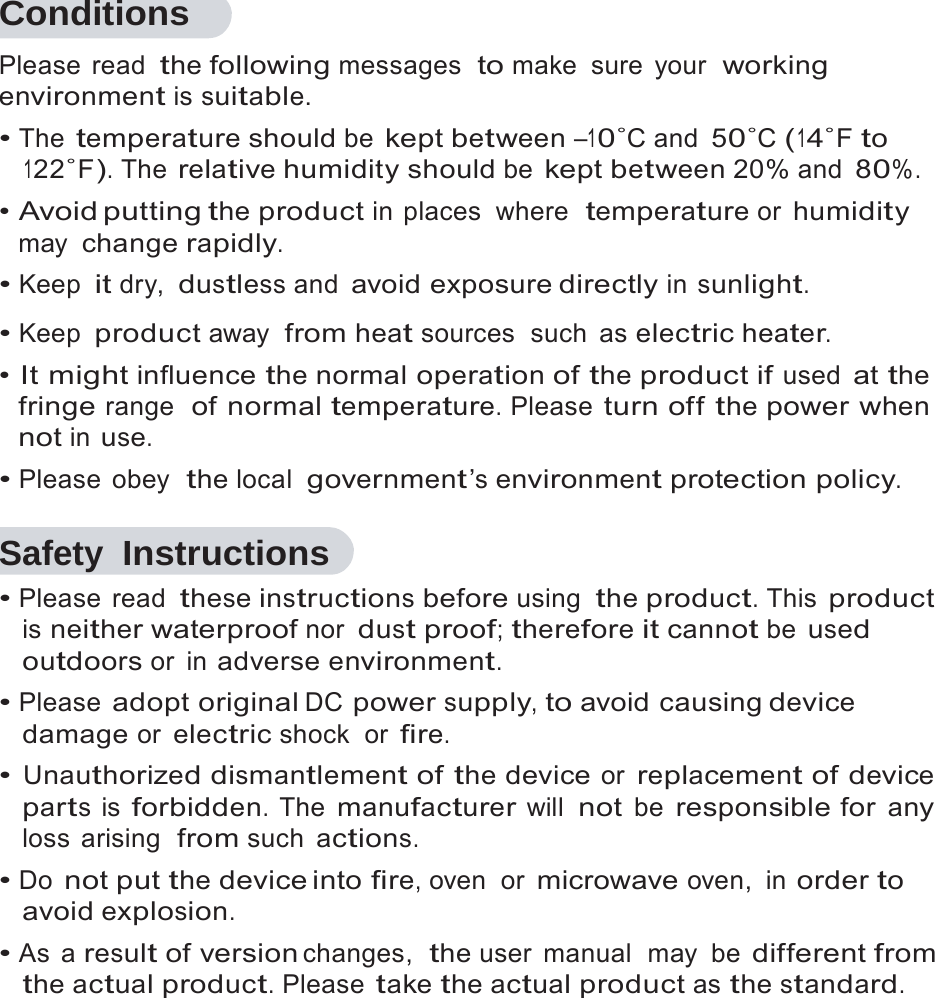
5   Conditions Please read the following messages  to make sure your  working environment is suitable. • The temperature should be kept between –10˚C and 50˚C (14˚F to 122˚F). The relative humidity should be kept between 20% and 80%. • Avoid putting the product in places  where  temperature or humidity may change rapidly. • Keep it dry, dustless and avoid exposure directly in sunlight.  • Keep product away  from heat sources  such  as electric heater. • It might influence the normal operation of the product if used at the fringe range  of normal temperature. Please turn off the power when not in use. • Please obey  the local  government’s environment protection policy.  Safety Instructions • Please read these instructions before using the product. This product is neither waterproof nor dust proof; therefore it cannot be used outdoors or  in adverse environment. • Please adopt original DC power supply, to avoid causing device damage or electric shock  or fire. • Unauthorized dismantlement of the device or replacement of device parts is forbidden. The manufacturer will not be responsible for any loss arising  from such actions. • Do not put the device into fire, oven  or microwave oven, in order to avoid explosion. • As a result of version changes,  the user  manual  may  be different from the actual product. Please take the actual product as the standard.
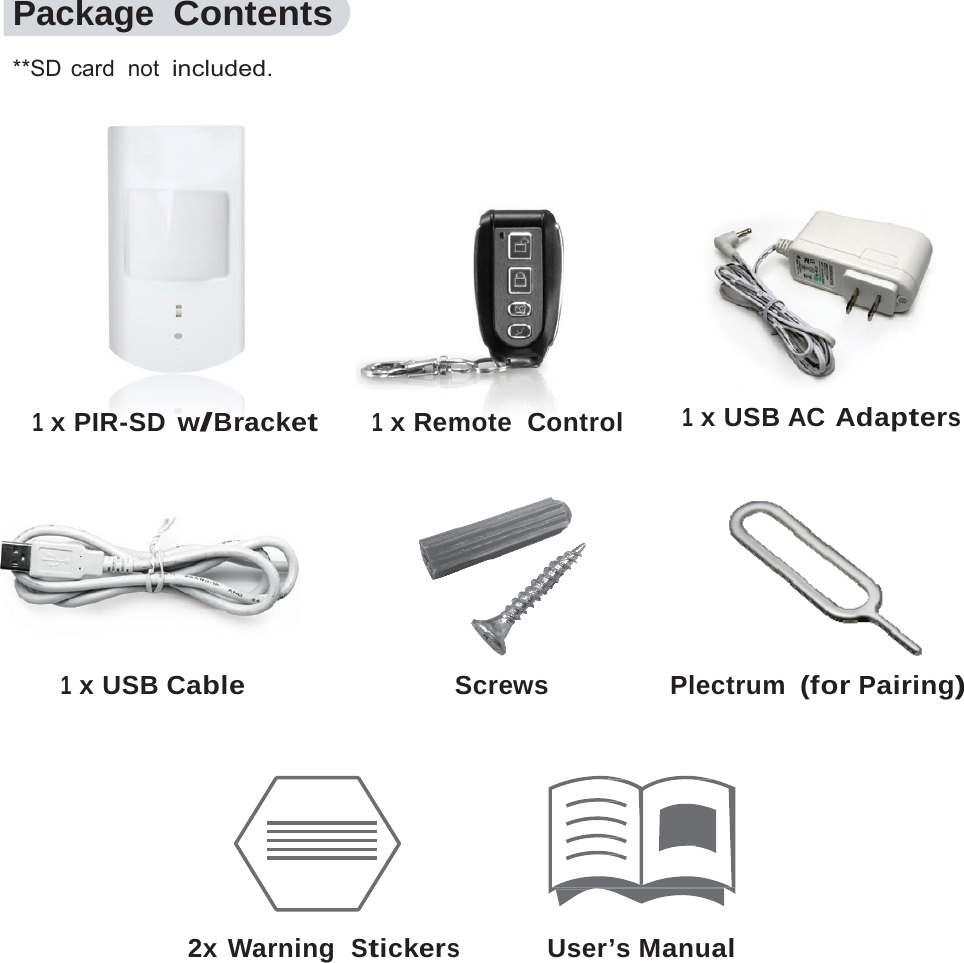
6    Package Contents  **SD  card  not  included.     1 x PIR-SD w/Bracket 1 x Remote  Control  1 x USB AC Adapters     1 x USB Cable  Screws   Plectrum (for Pairing)       2x Warning  Stickers User’s Manual
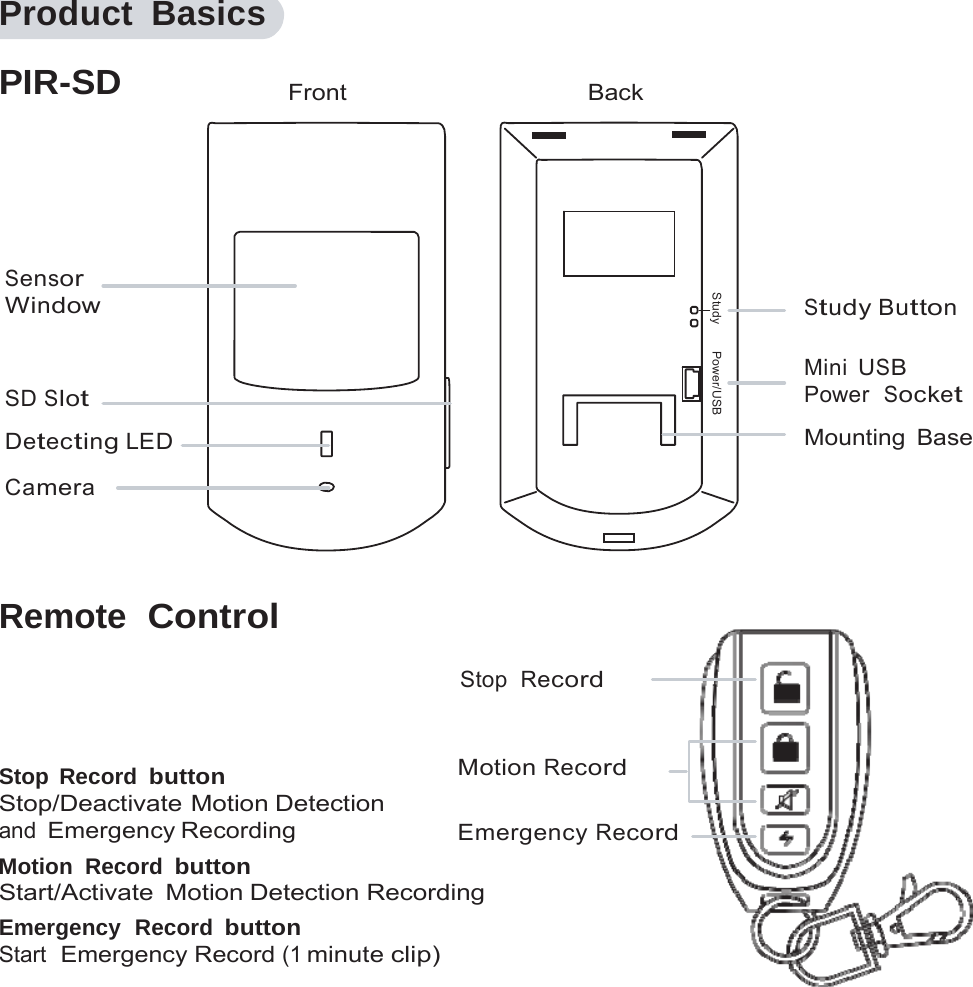
7  Study        Power/USB Product Basics  PIR-SD    Front  Back     Sensor Window   SD Slot Detecting LED Camera  Study Button  Mini USB Power  Socket Mounting Base   Remote  Control  Stop  Record   Stop Record button Stop/Deactivate Motion Detection and Emergency Recording Motion Record button Motion Record  Emergency Record Start/Activate Motion Detection Recording Emergency  Record button Start  Emergency Record (1 minute clip)
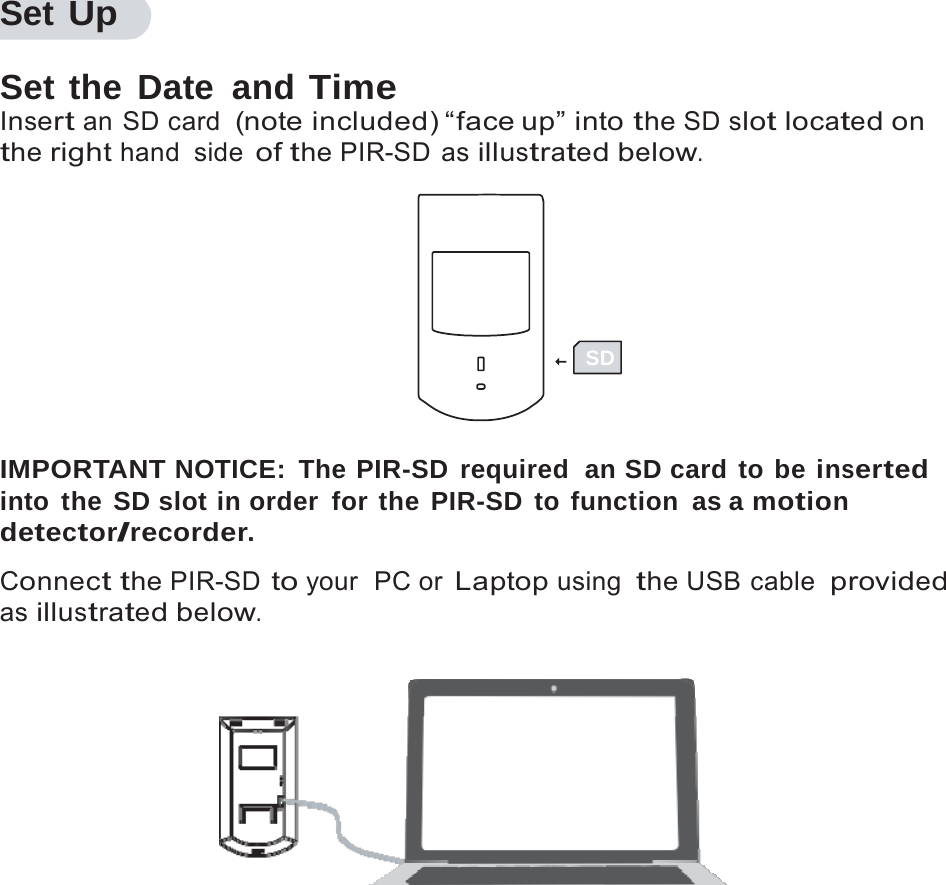
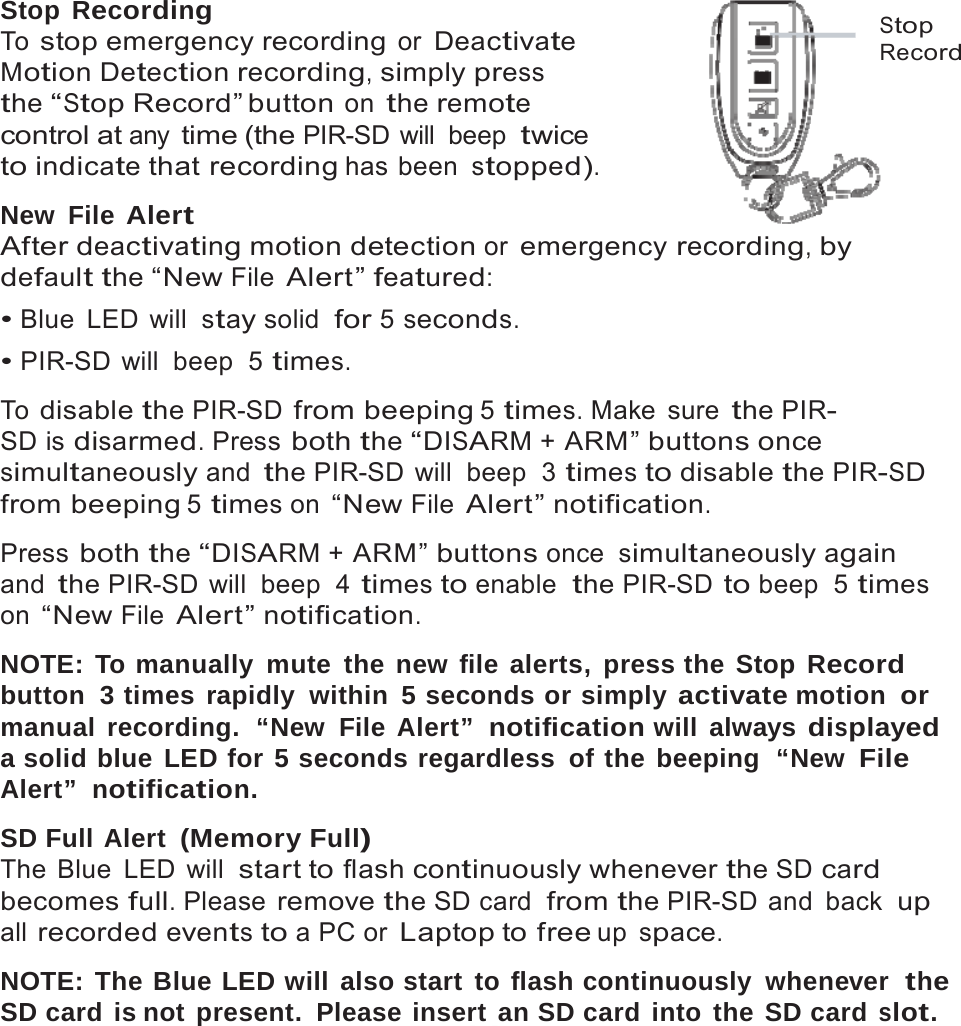
8   Set Up  Set the Date and Time Insert an SD card  (note included) “face up” into the SD slot located on the right hand side of the PIR-SD as illustrated below.      SD   IMPORTANT NOTICE: The PIR-SD required  an SD card to be inserted into the SD slot in order for the PIR-SD to function as a motion detector/recorder.  Connect the PIR-SD to your  PC or Laptop using the USB cable  provided as illustrated below.
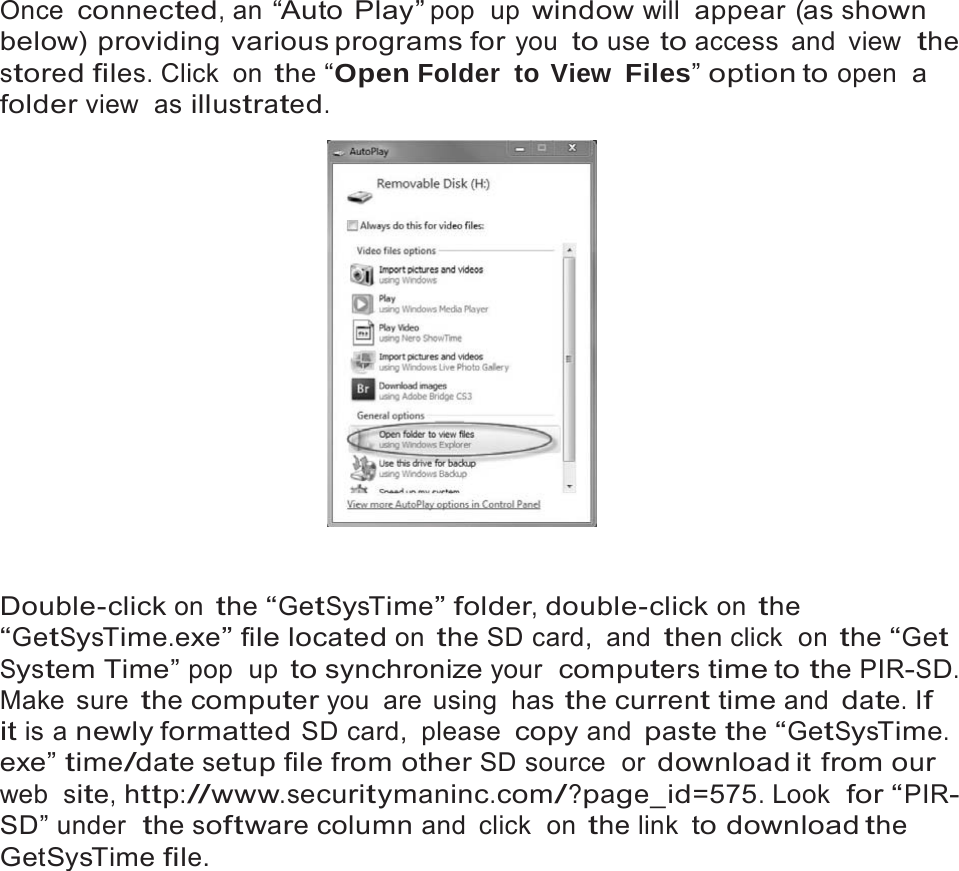
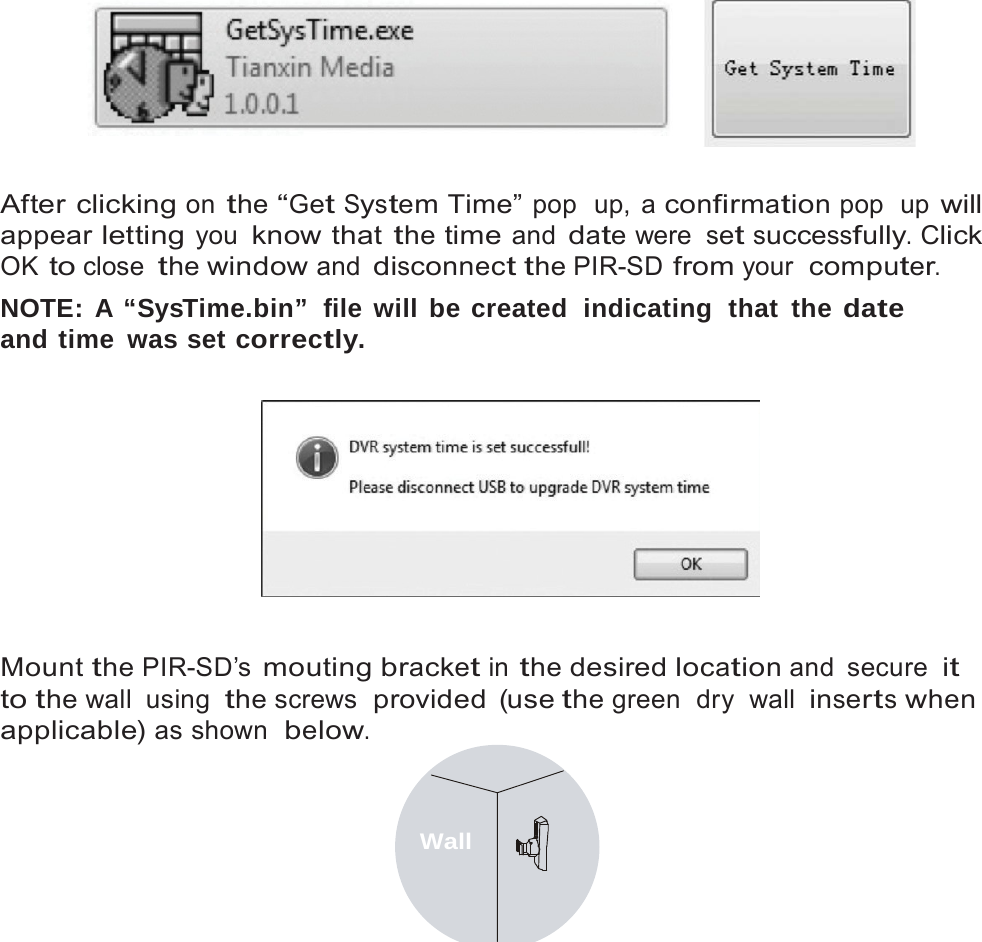
9   Once connected, an “Auto Play” pop  up window will appear (as shown below) providing various programs for you to use to access and view  the stored files. Click  on the “Open Folder to View Files” option to open  a folder view  as illustrated.     Double-click on the “GetSysTime” folder, double-click on the “GetSysTime.exe” file located on the SD card,  and then click  on the “Get System Time” pop  up to synchronize your  computers time to the PIR-SD. Make sure the computer you  are  using  has the current time and date. If it is a newly formatted SD card,  please copy and paste the “GetSysTime. exe” time/date setup file from other SD source  or download it  from our web  site, http://www.securitymaninc.com/?page_id=575. Look  for “PIR- SD” under  the software column and click  on the link to download the GetSysTime file.
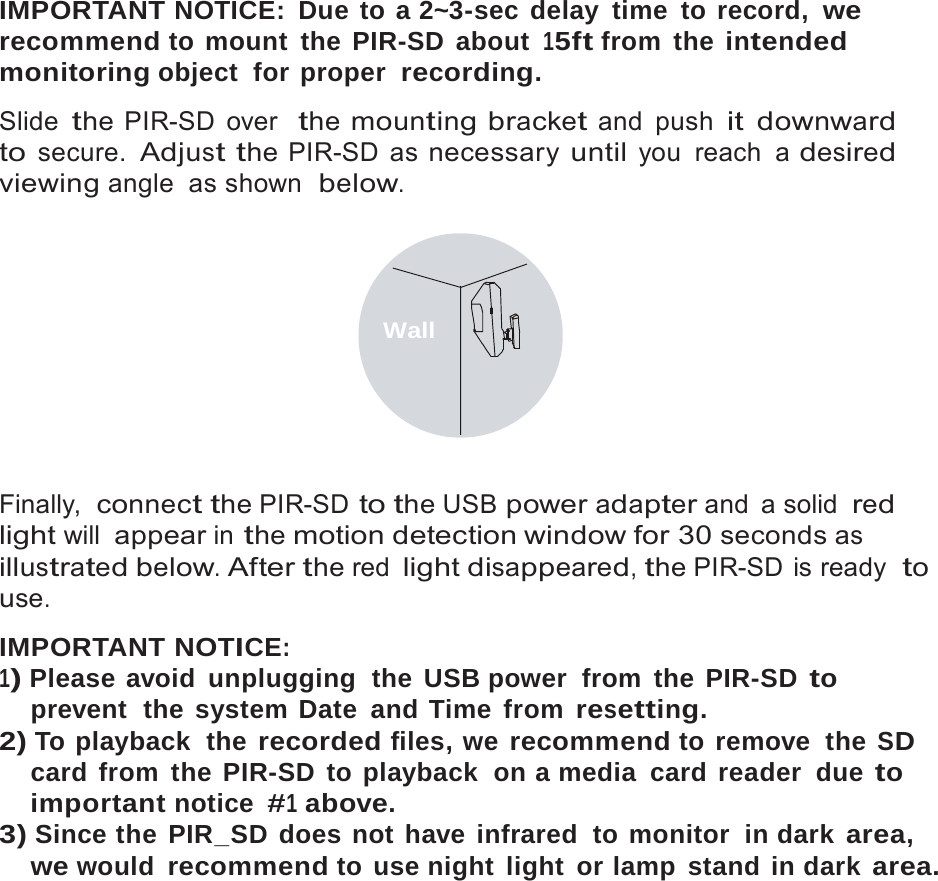
10      After clicking on the “Get System Time” pop  up, a confirmation pop  up will appear letting you know that the time and date were set successfully. Click OK to close the window and disconnect the PIR-SD from your  computer. NOTE: A “SysTime.bin”  file will be created  indicating  that  the date and time was set correctly.     Mount the PIR-SD’s mouting bracket in the desired location and  secure it to the wall  using the screws  provided (use the green  dry  wall inserts when applicable) as shown  below.   Wall
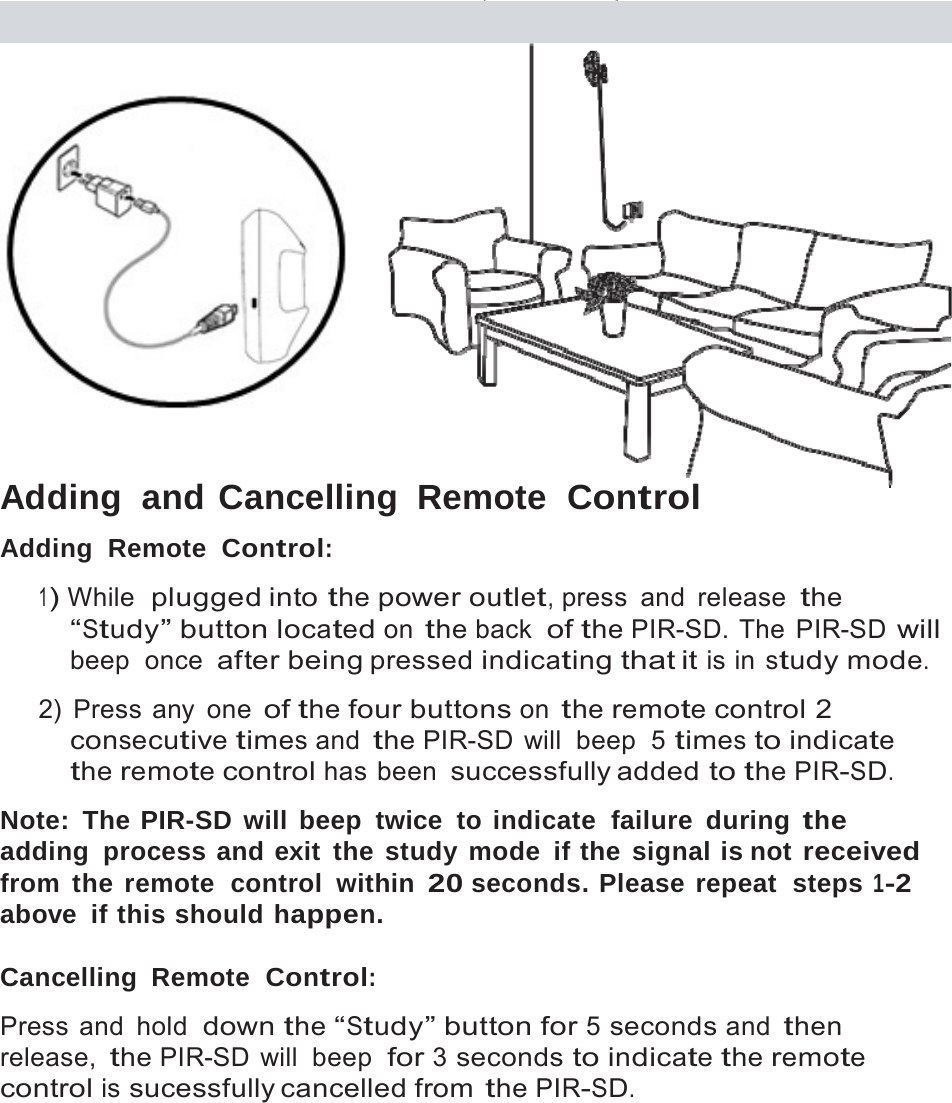
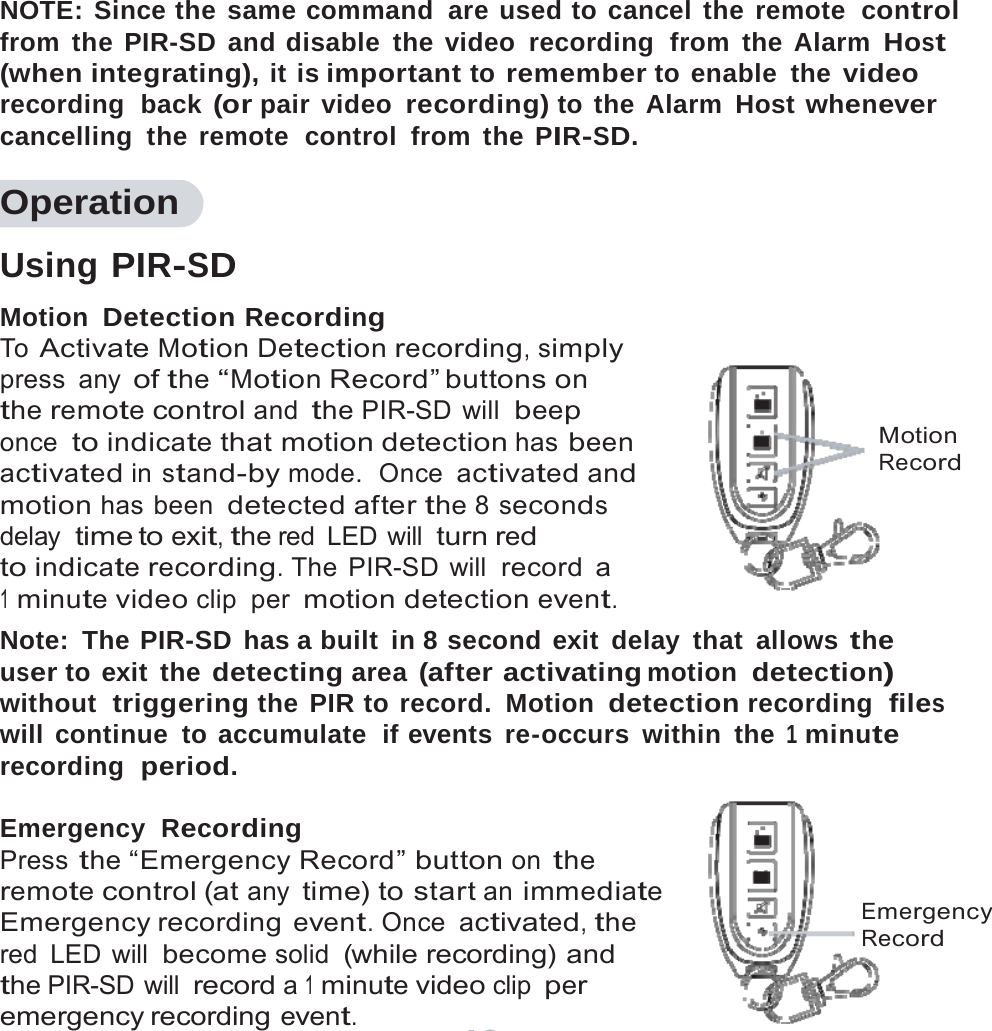
11   IMPORTANT NOTICE: Due to a 2~3-sec delay time to record, we recommend to mount the PIR-SD about 15ft from  the intended monitoring object  for proper  recording.  Slide the PIR-SD over  the mounting bracket and push it downward to secure. Adjust the PIR-SD as necessary until you reach a desired viewing angle as shown  below.    Wall     Finally,  connect the PIR-SD to the USB power adapter and  a solid red light will appear in the motion detection window for 30 seconds as illustrated below. After the red light disappeared, the PIR-SD is ready  to use.  IMPORTANT NOTICE: 1) Please avoid  unplugging  the USB power  from  the PIR-SD to prevent  the system Date  and Time  from resetting. 2) To playback  the recorded files, we recommend to remove  the SD card from the PIR-SD to playback  on a media card reader  due to important notice #1 above. 3) Since the PIR_SD does not have infrared  to monitor  in dark area, we would recommend to use night light or lamp stand in dark area.
12     Adding  and Cancelling  Remote  Control Adding  Remote  Control:  1) While  plugged into the power outlet, press  and  release the “Study” button located on the back  of the PIR-SD. The  PIR-SD will beep  once after being pressed indicating that it is in study mode.  2) Press any one of the four buttons on the remote control 2 consecutive times and the PIR-SD will  beep  5 times to indicate the remote control has been successfully added to the PIR-SD.  Note: The PIR-SD will beep twice to indicate  failure during the adding process and exit the study mode if the signal is not received from the remote  control within 20 seconds. Please repeat  steps 1-2 above if this should happen.  Cancelling Remote  Control:  Press and hold  down the “Study” button for 5 seconds and then release, the PIR-SD will  beep  for 3 seconds to indicate the remote control is sucessfully cancelled from the PIR-SD.
13     NOTE: Since the same command  are used to cancel the remote  control from the PIR-SD and disable the video recording  from the Alarm Host (when integrating), it is important to remember to enable the video recording  back (or pair video recording) to the Alarm Host whenever cancelling the remote  control from the PIR-SD.  Operation  Using PIR-SD Motion Detection Recording To Activate Motion Detection recording, simply press any of the “Motion Record” buttons on the remote control and the PIR-SD will beep once to indicate that motion detection has been activated in stand-by mode.  Once activated and motion has been detected after the 8 seconds delay time to exit, the red  LED  will turn red to indicate recording. The PIR-SD will record a 1 minute video clip per motion detection event.         Motion Record Note: The PIR-SD has a built in 8 second exit delay that allows the user to exit  the detecting area (after activating motion  detection) without  triggering the PIR to record. Motion detection recording  files will continue to accumulate  if events re-occurs within the 1 minute recording  period.  Emergency  Recording Press the “Emergency Record” button on the remote control (at any time) to start an immediate Emergency recording event. Once activated, the red LED will become solid (while recording) and the PIR-SD will record a 1 minute video clip per emergency recording event.    Emergency Record
14    Stop Recording To stop emergency recording or Deactivate Motion Detection recording, simply press the “Stop Record” button on the remote control at any time (the PIR-SD will  beep twice to indicate that recording has been stopped).  New File Alert After deactivating motion detection or emergency recording, by default the “New File Alert” featured: • Blue LED will stay solid  for 5 seconds. • PIR-SD will  beep  5 times.  To disable the PIR-SD from beeping 5 times. Make  sure the PIR- SD is disarmed. Press both the “DISARM + ARM” buttons once  Stop Record simultaneously and the PIR-SD will  beep  3 times to disable the PIR-SD from beeping 5 times on “New File Alert” notification.  Press both the “DISARM + ARM” buttons once simultaneously again and the PIR-SD will  beep  4 times to enable  the PIR-SD to beep  5 times on “New File Alert” notification.  NOTE: To manually mute the new file alerts, press the Stop Record button  3 times rapidly  within 5 seconds or simply activate motion  or manual recording.  “New File Alert”  notification will always displayed a solid blue LED for 5 seconds regardless of the beeping  “New File Alert”  notification.  SD Full Alert (Memory Full) The Blue LED will start to flash continuously whenever the SD card becomes full. Please remove the SD card  from the PIR-SD and  back  up all recorded events to a PC or Laptop to free up space.  NOTE: The Blue LED will also start to flash continuously whenever  the SD card is not present. Please insert an SD card into the SD card slot.
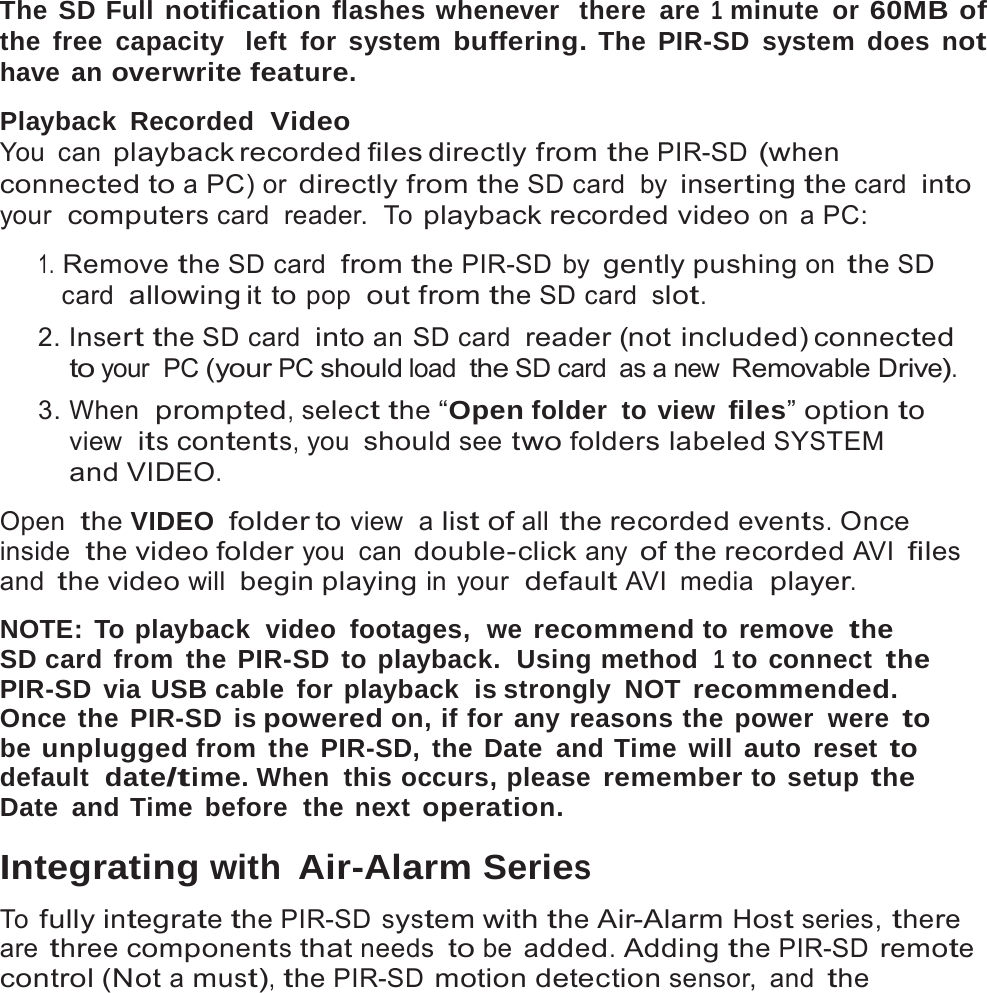
15   The SD Full notification flashes whenever  there are 1 minute or 60MB of the free capacity  left for system buffering. The PIR-SD system does not have an overwrite feature.  Playback Recorded  Video You can playback recorded files directly  from the PIR-SD (when connected to a PC) or directly from the SD card  by inserting the card  into your  computers card  reader.  To playback recorded video on a PC:  1. Remove the SD card  from the PIR-SD by gently pushing on the SD card  allowing it  to pop  out from the SD card  slot. 2. Insert the SD card  into an SD card  reader (not included) connected to your PC (your PC should load the SD card  as a new Removable Drive). 3. When  prompted, select the “Open folder  to view files” option to view  its contents, you should see two folders labeled SYSTEM and VIDEO.  Open  the VIDEO  folder to view  a list of all the recorded events. Once inside  the video folder you can double-click any of the recorded AVI files and the video will begin playing in your  default AVI  media  player.  NOTE: To playback  video  footages,  we recommend to remove  the SD card from the PIR-SD to playback.  Using method  1 to connect the PIR-SD via USB cable for playback  is strongly NOT recommended. Once the PIR-SD is powered on, if for any reasons the power  were to be unplugged from the PIR-SD, the Date and Time will auto reset to default  date/time. When  this occurs, please remember to setup the Date and Time before  the next operation.  Integrating with Air-Alarm Series  To fully integrate the PIR-SD system with the Air-Alarm Host series, there are three components that needs to be added. Adding the PIR-SD remote control (Not a must), the PIR-SD motion detection sensor, and the
16   video recording (on/off) as shown  below. To avoid using multiple remote controls when  integrating the PIR-SD to the Air-Alarm host series, please add the PIR-SD remote control to the Air-Alarm host series  or  vice versa.  Adding  PIR-SD  Remote  to the Alarm Host Step 1: Press PRGM/SET + Password (system default 888)+ENT+70+ ENT+00+ENT [the “ /Learn” light will appear solid  blue/red]. Step2: Press any 1 of the 4 buttons on the PIR-SD remote twice consecutively to add.  Cancelling PIR-SD Remote  from the Alarm Host Step1: Press PRGM/SET + Password (system default 888)+ENT+71 +ENT+00+ENT to cancel. NOTE: Please reference the Air-Alarm series user’s manual  as needed on how  to add remote controls.  Adding the PIR-SD remote to the Alarm Host series  is not a requirement, only  pair them if you want to use one remote to control both the PIR-SD and the Alarm Host.  Adding  PIR-SD  Motion Detection to the Alarm Host Make sure the host is “DIS-ARMED” and press: Step 1: PRGM/SET + Password (default is 888) + ENT+ 70 + ENT + XX + ENT [Input zones 11~15 for XX indicating the 2nd defense line dedicated for PIR sensors] (The “  /Learn” light will appear solid  blue/red) Step 2: Provoke the motion sensor on the PIR-SD 2 consecutive times to add. Cancelling PIR-SD Motion Detection from the Alarm Host Make sure the host is “DIS-ARMED” and press:  PRGM/SET  + Password (default is 888) + ENT+ 71 + ENT + XX + ENT [Input zones 11~15 for XX indicating the zone number that the PIR-SD were  paired to and using code  71 to remove the PIR-SD will remove all
17   (up to 4 sensors) sensor that was paired to  that zone.] (The “  /Learn” light will appear solid  blue/red)  The alarm  host will  beep  twice, and the “ /Learn” light will flash once to indicate the PIR-SD motion detection is successfully cancelled from the Alarm Host.  Enabling Video  Recording To enable  video recording, please follow steps 1 and 2 below. Enabling video recording allows  the PIR-SD to start recording video footages whenever the alarm  system are triggered by  24hrs  devices,  by other sensors that are pre-paired to the Alarm Host or  by the PIR_SD. Step 1: Press the “Study” button on the back  of the PIR-SD (PIR-SD will beep  once). Step 2: On the Alarm Host Press: ESC + Password (default is 888) + ENT + ESC + Password (default is 888) + ENT. The PIR-SD will beep  5 times indicating the video recording has been successfully enabled. PIR-SD will  beep  2 times to indicate failure; please repeat steps 1-2 above.  IMPORTANT NOTICE: Enabling video recording  when integrating with SM-8808T or SM-8808E Air-Alarm Hosts will have a 2-sec or 3-sec delay time to record respectively due to processing speed. Please note that it is normal for the PIR-SD to have a 2~3-sec delay time to record. It is very important and our recommendation to mount the PIR-SD 15ft from  the intended target for proper monitoring view  and proper  recording.   Please be sure to thoroughly test the recording  and camera angle before  fixing the PIR-SD.  Note: Study mode will automatically turned off if inactive  for more than 20 seconds. During Alarm Host series 40-sec exiting  delay time,  the PIR-SD will  continue  to record  if motion  is detected.
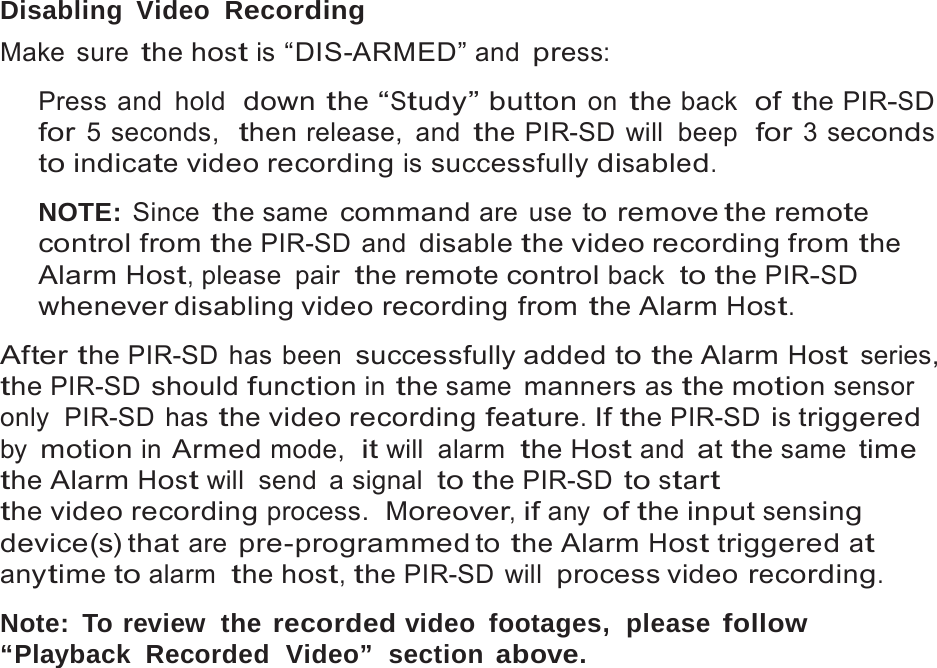
18   Disabling Video  Recording Make sure the host is “DIS-ARMED” and press:  Press and hold  down the “Study” button on the back  of the PIR-SD for 5 seconds,  then release,  and the PIR-SD will  beep  for 3 seconds to indicate video recording is successfully disabled.  NOTE: Since the same command are use to remove the remote control from the PIR-SD and disable the video recording from the Alarm Host, please  pair the remote control back  to the PIR-SD whenever disabling video recording  from the Alarm Host.  After the PIR-SD has been successfully added to the Alarm Host series, the PIR-SD should function in the same manners as the motion sensor only  PIR-SD  has the video recording feature. If the PIR-SD is triggered by motion in Armed mode,  it will alarm  the Host and at the same time the Alarm Host will  send  a signal  to the PIR-SD to start the video recording process.  Moreover, if any of the input sensing device(s) that are pre-programmed to the Alarm Host triggered at anytime to alarm  the host, the PIR-SD will process video recording.  Note: To review  the recorded video footages,  please follow “Playback  Recorded  Video”  section above.
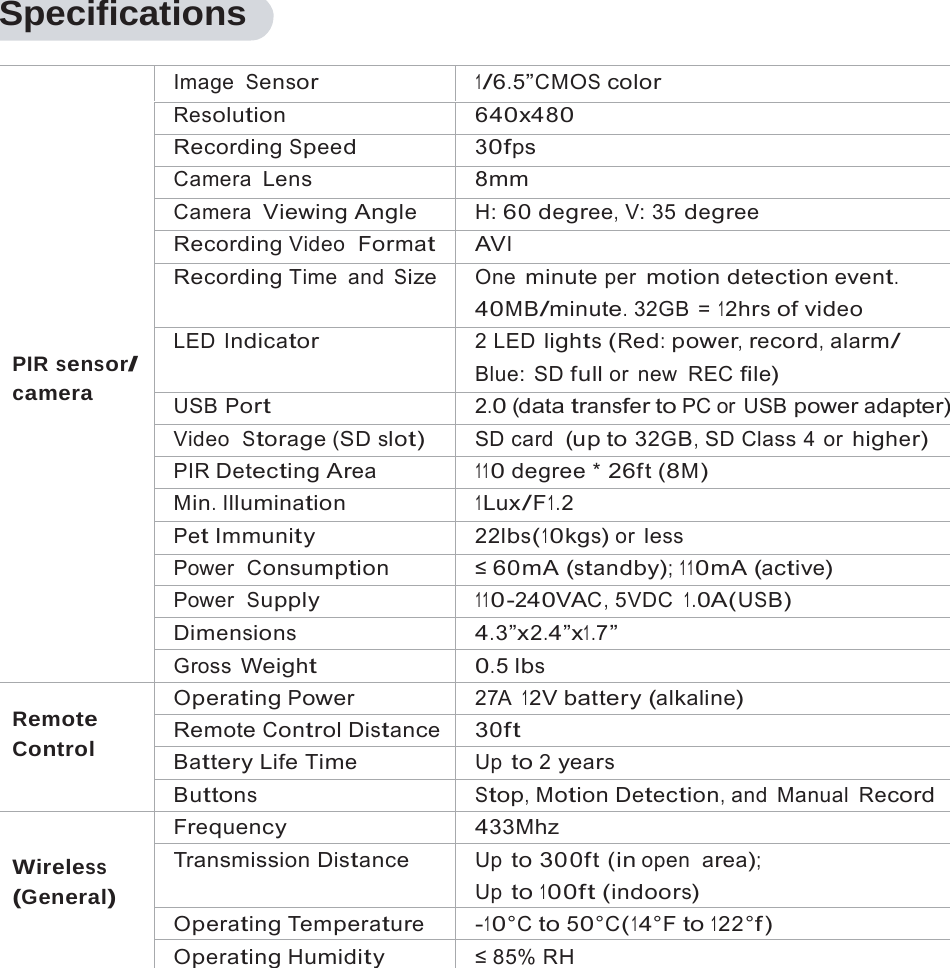
19   Specifications          PIR sensor/ camera Image  Sensor1/6.5”CMOS colorResolution640x480Recording Speed30fpsCamera  Lens8mmCamera  Viewing Angle H: 60 degree, V: 35 degree Recording Video  Format AVIRecording Time and Size One minute per motion detection event. 40MB/minute. 32GB  = 12hrs of video LED Indicator2 LED lights (Red: power, record, alarm/ Blue: SD full or new REC file) USB Port2.0 (data transfer to PC or  USB power adapter) Video  Storage (SD slot) SD card  (up to 32GB, SD Class 4 or higher) PIR Detecting Area110 degree * 26ft (8M)Min. Illumination 1Lux/F1.2Pet Immunity22lbs(10kgs) or lessPower  Consumption ≤ 60mA (standby); 110mA (active) Power  Supply 110-240VAC, 5VDC 1.0A(USB) Dimensions4.3”x2.4”x1.7”Gross Weight0.5 lbs Remote Control Operating Power27A 12V battery (alkaline) Remote Control Distance 30ftBattery Life TimeUp to 2 yearsButtonsStop, Motion Detection, and  Manual  Record  Wireless (General) Frequency433MhzTransmission Distance Up to 300ft (in open  area); Up to 100ft (indoors)Operating Temperature -10°C to 50°C(14°F to 122°f) Operating Humidity ≤ 85% RH
  Note:ThisequipmenthasbeentestedandfoundtocomplywiththelimitsforaClassBdigitaldevice,pursuanttopart15oftheFCCRules.Theselimitsaredesignedtoprovidereasonableprotectionagainstharmfulinterferenceinaresidentialinstallation.Thisequipmentgenerates,usesandcanradiateradiofrequencyenergyand,ifnotinstalledandusedinaccordancewiththeinstructions,maycauseharmfulinterferencetoradiocommunications.However,thereisnoguaranteethatinterferencewillnotoccurinaparticularinstallation.Ifthisequipmentdoescauseharmfulinterferencetoradioortelevisionreception,whichcanbedeterminedbyturningtheequipmentoffandon,theuserisencouragedtotrytocorrecttheinterferencebyoneormoreofthefollowingmeasures:—Reorientorrelocatethereceivingantenna.—Increasetheseparationbetweentheequipmentandreceiver.—Connecttheequipmentintoanoutletonacircuitdifferentfromthattowhichthereceiverisconnected.—Consultthedealeroranexperiencedradio/TVtechnicianforhelp.

Navigation menu