Xrinda Technology SPRO2 Bluetooth Remote Control User Manual

Shenzhen Xrinda Technology Ltd. Bluetooth Remote Control

User Manual

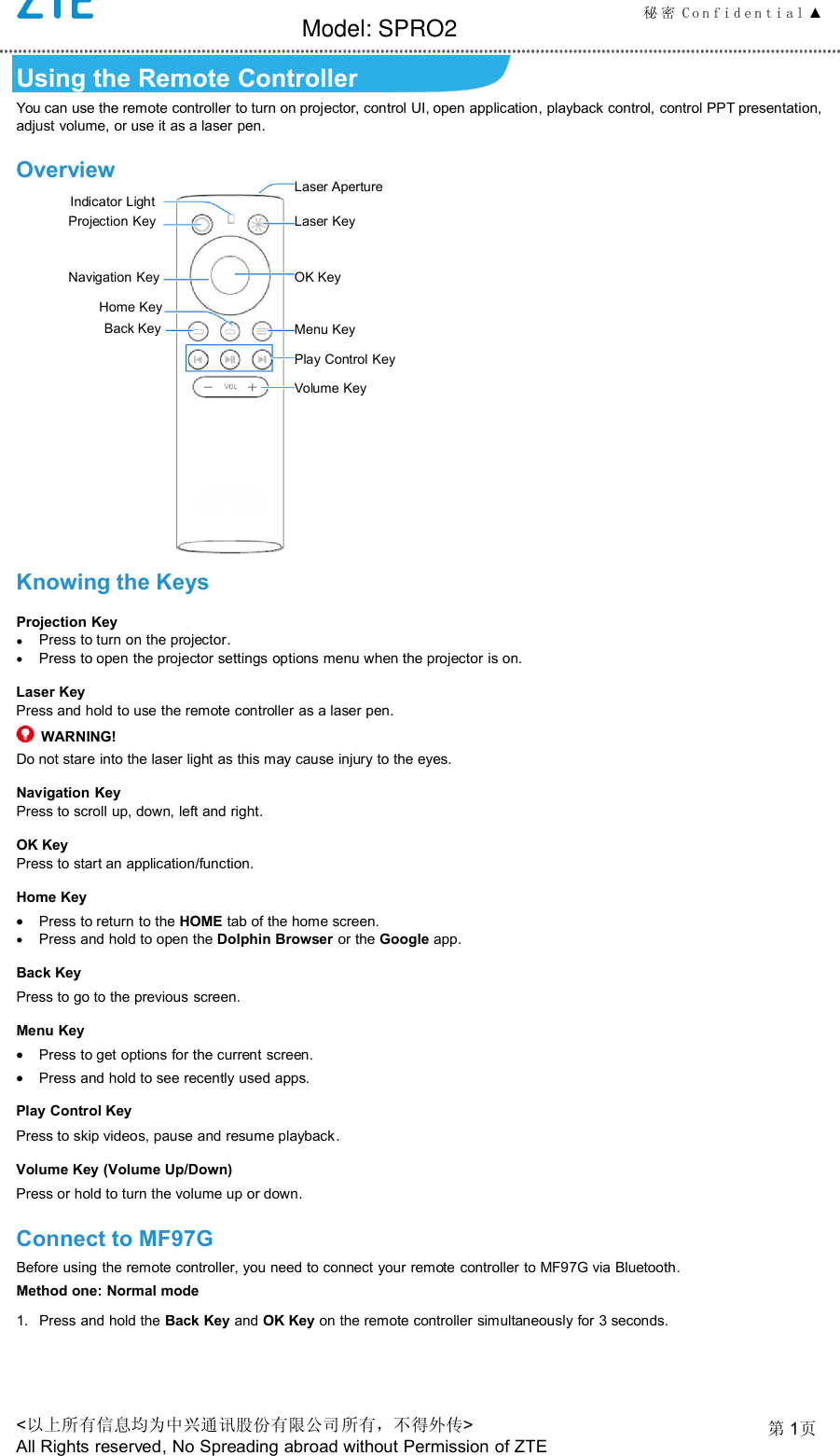
秘 密 C o n f i d e n t i a l ▲<以上所有信息均为中兴通讯股份有限公司所有,不得外传>All Rights reserved, No Spreading abroad without Permission of ZTE第1页Using the Remote ControllerYou can use the remote controller to turn on projector, control UI, open application, playback control, control PPT presentation,adjust volume, or use it as a laser pen.OverviewKnowing the KeysProjection KeyPress to turn on the projector.Press to open the projector settings options menu when the projector is on.Laser KeyPress and hold to use the remote controller as a laser pen.WARNING!Do not stare into the laser light as this may cause injury to the eyes.Navigation KeyPress to scroll up, down, left and right.OK KeyPress to start an application/function.Home KeyPress to return to the HOME tab of the home screen.Press and hold to open the Dolphin Browser or the Google app.Back KeyPress to go to the previous screen.Menu KeyPress to get options for the current screen.Press and hold to see recently used apps.Play Control KeyPress to skip videos, pause and resume playback.Volume Key (Volume Up/Down)Press or hold to turn the volume up or down.Connect to MF97GBefore using the remote controller, you need to connect your remote controller to MF97G via Bluetooth.Method one: Normal mode1. Press and hold the Back Key and OK Key on the remote controller simultaneously for 3 seconds.OK KeyProjection Key Laser KeyVolume KeyLaser ApertureNavigation KeyIndicator LightBack KeyHome KeyMenu KeyPlay Control KeyModel: SPRO2
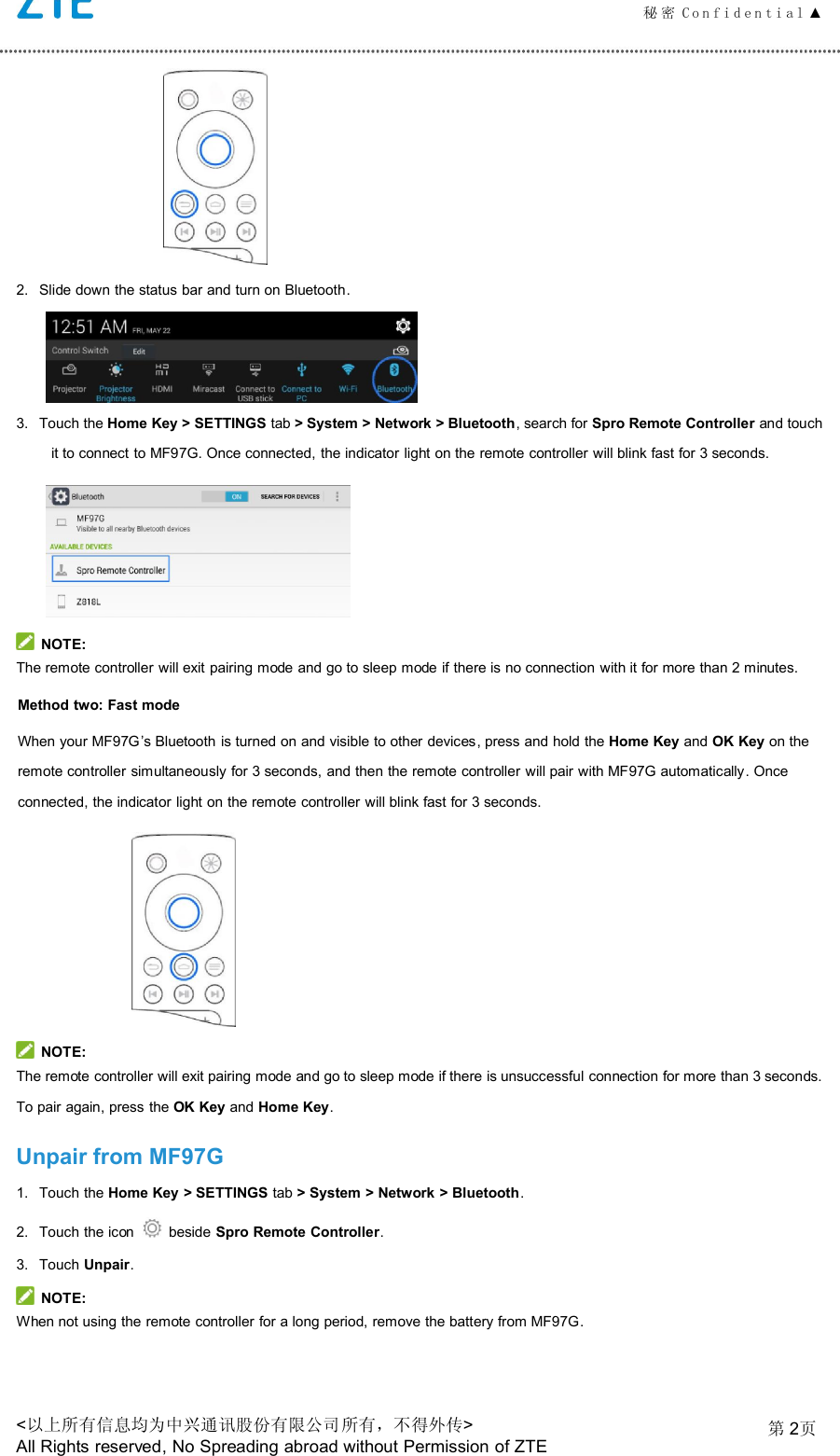
秘 密 C o n f i d e n t i a l ▲<以上所有信息均为中兴通讯股份有限公司所有,不得外传>All Rights reserved, No Spreading abroad without Permission of ZTE第2页2. Slide down the status bar and turn on Bluetooth.3. Touch the Home Key > SETTINGS tab > System > Network > Bluetooth, search for Spro Remote Controller and touchit to connect to MF97G. Once connected, the indicator light on the remote controller will blink fast for 3 seconds.NOTE:The remote controller will exit pairing mode and go to sleep mode if there is no connection with it for more than 2 minutes.Method two: Fast modeWhen your MF97G’s Bluetooth is turned on and visible to other devices, press and hold the Home Key and OK Key on theremote controller simultaneously for 3 seconds, and then the remote controller will pair with MF97G automatically. Onceconnected, the indicator light on the remote controller will blink fast for 3 seconds.NOTE:The remote controller will exit pairing mode and go to sleep mode if there is unsuccessful connection for more than 3 seconds.To pair again, press the OK Key and Home Key.Unpair from MF97G1. Touch the Home Key > SETTINGS tab > System > Network > Bluetooth.2. Touch the icon beside Spro Remote Controller.3. Touch Unpair.NOTE:When not using the remote controller for a long period, remove the battery from MF97G.
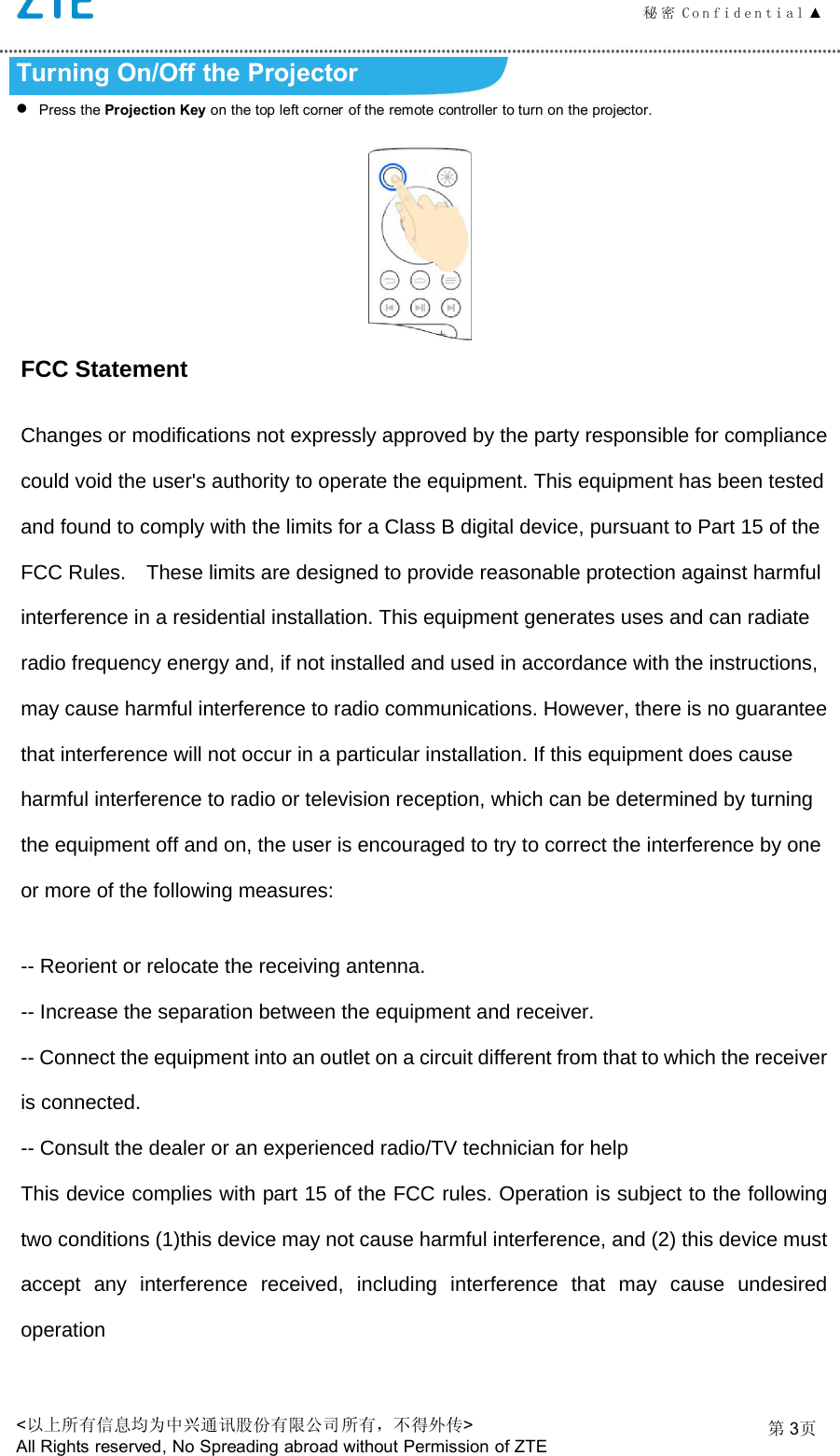
秘 密 C o n f i d e n t i a l ▲<以上所有信息均为中兴通讯股份有限公司所有,不得外传>All Rights reserved, No Spreading abroad without Permission of ZTE第3页Turning On/Off the ProjectorPress the Projection Key on the top left corner of the remote controller to turn on the projector.FCC Statement Changes or modifications not expressly approved by the party responsible for compliance could void the user's authority to operate the equipment. This equipment has been tested and found to comply with the limits for a Class B digital device, pursuant to Part 15 of the FCC Rules.    These limits are designed to provide reasonable protection against harmful interference in a residential installation. This equipment generates uses and can radiate radio frequency energy and, if not installed and used in accordance with the instructions, may cause harmful interference to radio communications. However, there is no guarantee that interference will not occur in a particular installation. If this equipment does cause harmful interference to radio or television reception, which can be determined by turning the equipment off and on, the user is encouraged to try to correct the interference by one or more of the following measures: -- Reorient or relocate the receiving antenna.   -- Increase the separation between the equipment and receiver.   -- Connect the equipment into an outlet on a circuit different from that to which the receiver is connected.   -- Consult the dealer or an experienced radio/TV technician for help This device complies with part 15 of the FCC rules. Operation is subject to the following two conditions (1)this device may not cause harmful interference, and (2) this device must accept any interference received, including interference that may cause undesired operation

Navigation menu