Y Soft a s 0YX0MP04016 Terminal Pro 125kHz ASK FSK User Manual
Y Soft Corporation, a.s. Terminal Pro 125kHz ASK FSK
User Manual
YSOFT SAFEQ TERMINAL PROFESSIONAL 3.8 USER’S GUIDE 1

2 YSOFT SAFEQ TERMINAL PROFESSIONAL USER’S GUIDE
Copyright © 2014 Y Soft Corporation. All rights reserved.
Edition 2.0 [EN]
Date: 5 October 2014
YSoft SafeQ, the YSoft SafeQ logo, and the Y Soft logo are registered trademarks of Y Soft Corporation. All
other trademarks and names stated in this document may be trademarks and/or registered trademarks of
individual owners.
www.ysoft.com
Y Soft Corporation Y Soft Americas
Podnikatelska 4 info.us@ysoft.com
Technology Park
612 00 Brno
Czech Republic
info@ysoft.com

YSOFT SAFEQ TERMINAL PROFESSIONAL USER’S GUIDE 3
Contents
About this guide ......................................................................................... 4
About this guide .......................................................................................................... 5
SafeQ Terminal Professional—overview ..................................................................... 5
Terminology ................................................................................................................ 5
2 Logging in to the terminal .................................................................... 6
Changing the terminal’s language ............................................................................... 7
Logging in with an ID card ........................................................................................... 8
Registering your ID card by entering your PUK code .......................................... 8
Locating your PUK code ...................................................................................... 9
Logging in with a PIN .................................................................................................10
Logging in with an ID card and PIN............................................................................11
Logging in with an ID card or PIN ..............................................................................12
Logging in with an ID card and PIN or username/password .....................................13
Logging in with username/password ........................................................................14
Logging in with an ID card or username/password ...................................................15
Logging in with a PIN or username/password ..........................................................16
Logging in with an ID card or PIN or username/password ........................................17
3 Printing .............................................................................................. 19
Viewing lists of jobs ...................................................................................................19
Exiting the Jobs menu .......................................................................................19
Printing ......................................................................................................................20
Printing all your print jobs .................................................................................20
Printing or deleting specific jobs .......................................................................21
Printing your favorite jobs.................................................................................22
Reprinting or deleting jobs that have been printed ..........................................23
4 Copying and scanning ....................................................................... 24
5 Changing the screen’s brightness ..................................................... 25

4 YSOFT SAFEQ TERMINAL PROFESSIONAL USER’S GUIDE
FCC Statements
§ 15.21 Information to user.
The user’s manual or instruction manual for an intentional or unintentional radiator shall caution the user
that changes or modifications not expressly approved by the party responsible for compliance could void the
user's authority to operate the equipment. In cases where the manual is provided only in a form other than
paper, such as on a computer disk or over the Internet, the information required by this section may be
included in the manual in that alternative form, provided the user can reasonably be expected to have the
capability to access information in that form.
§ 15.105 Information to the user
This equipment has been tested and found to comply with the limits for a Class A digital device, pursuant to
part 15 of the FCC Rules. These limits are designed to provide reasonable protection against harmful
interference when the equipment is operated in a commercial environment. This equipment generates,
uses, and can radiate radio frequency energy and, if not installed and used in accordance with the
instruction manual, may cause harmful interference to radio communications. Operation of this equipment
in a residential area is likely to cause harmful interference in which case the user will be required to correct
the interference at his own expense.
YSOFT SAFEQ TERMINAL PROFESSIONAL USER’S GUIDE 5
1 About this guide
About this guide
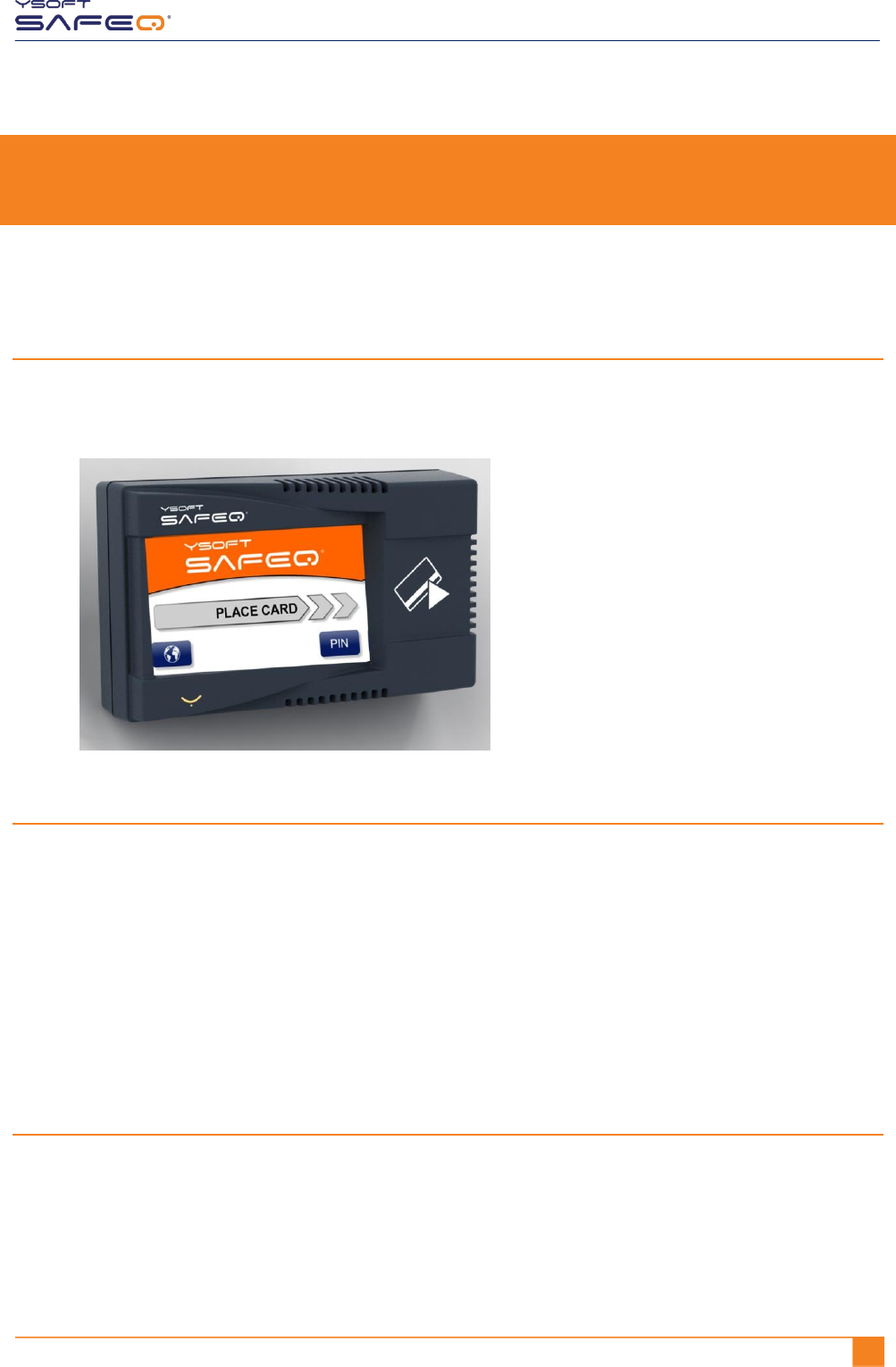
This guide provides instructions for using YSoft SafeQ® Terminal Professional,
firmware version 3.8.0 and higher.
SafeQ Terminal Professional—overview
Depending on how your SafeQ administrator has set up the terminal,
you can use the terminal to:
Access printers and MFPs to print, copy, and scan.
View and select jobs (jobs to print, favorite jobs, and printed jobs).
Print favorite jobs by selecting them at the terminal.
Delete jobs from queues.
View information about print/copying status and detailed price accounting
Terminology
In this guide, multifunction printers (MFPs) and network printers are both
referred to as printers.

YSOFT SAFEQ TERMINAL PROFESSIONAL USER’S GUIDE 6
2 Logging in to the terminal
Before you can use the printer, you must log in at the terminal. Depending on how your
SafeQ administrator has set up the terminal, use one of the following methods to log in:
ID card
PIN
ID card and PIN
ID card or PIN
ID card and PIN or username/password
Username/password
ID card or username/password
PIN or username/password
ID card or PIN or username/password
Each method is described in this chapter.
NOTE: Username is also sometimes referred to as user login name.
YSOFT SAFEQ TERMINAL PROFESSIONAL USER’S GUIDE 7
Chapter 2. Logging in to the terminal
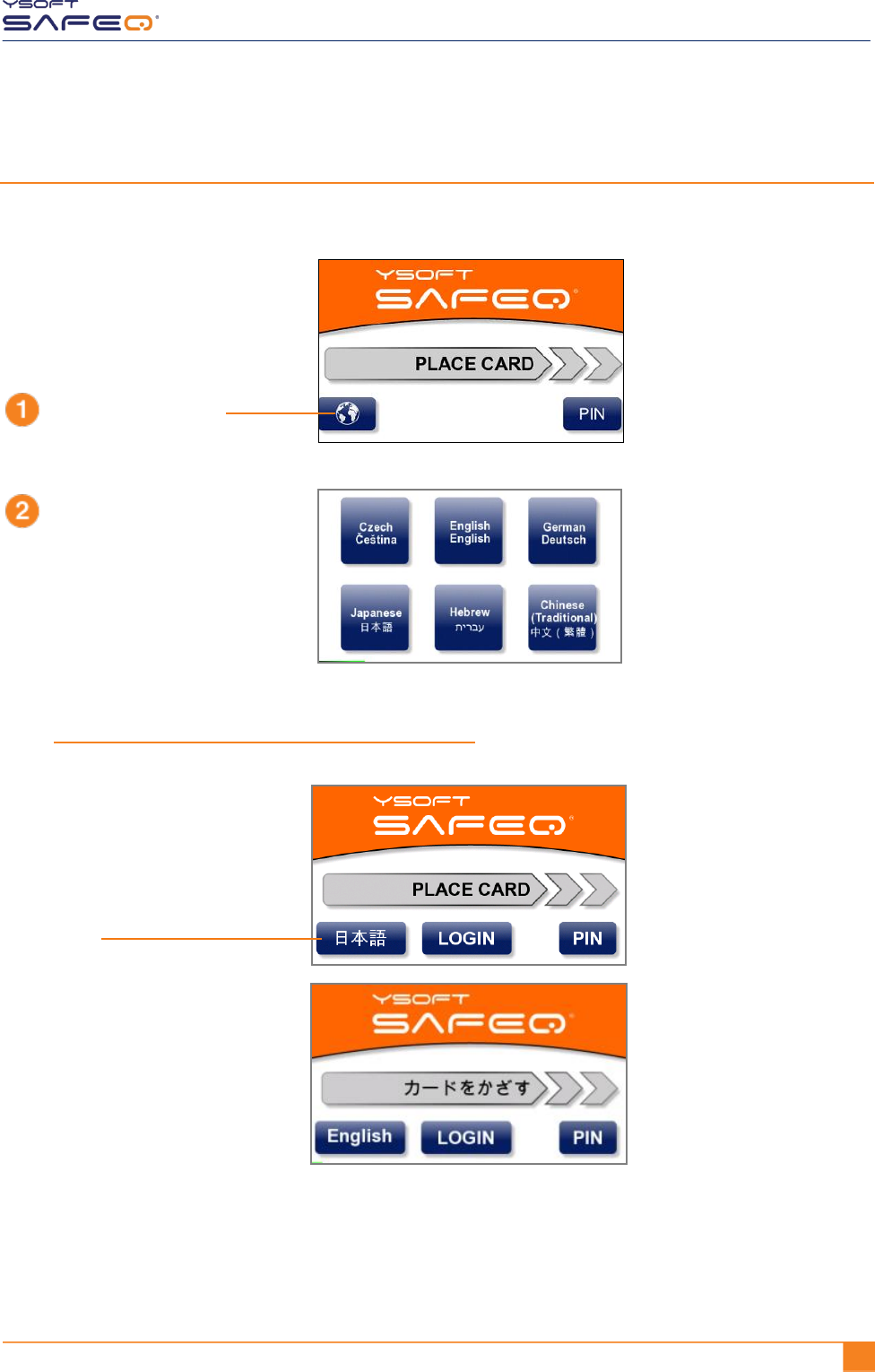
Changing the terminal’s language
If necessary, change the terminal’s language as follows:
Touch the globe icon.
Touch the language you want.
The available languages
depend on how your
terminal is configured.
Touch the language button
to switch to the alternate
language.
The available languages
depend on how your
terminal is configured.
OR
8 YSOFT SAFEQ TERMINAL PROFESSIONAL USER’S GUIDE
Chapter 2. Logging in to the terminal
Logging in with an ID card
Registering your ID card by entering your PUK code
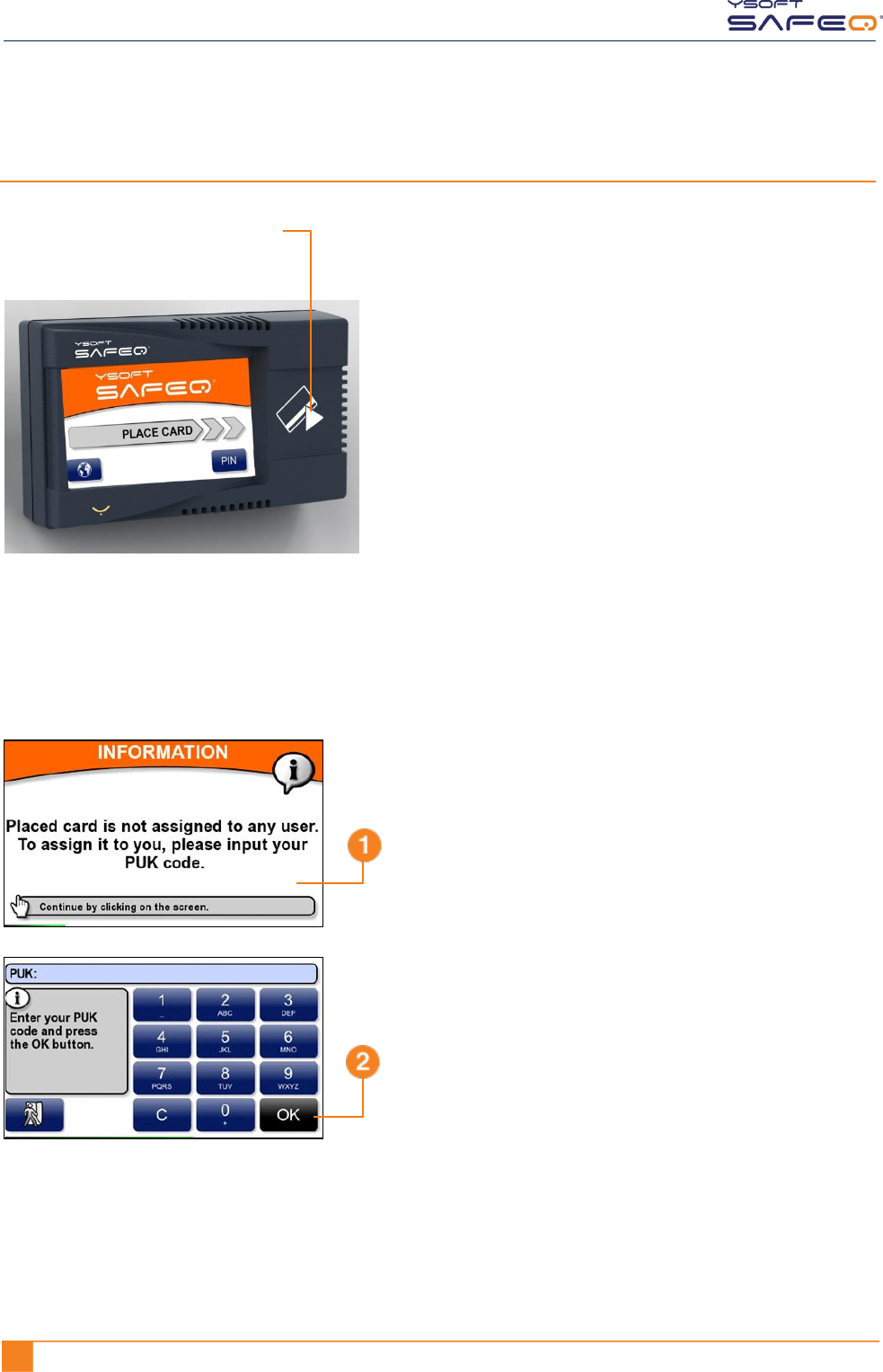
If SafeQ does not recognize your ID card, the terminal displays a message asking you
to enter your PUK (Pin Unlocking Key) code.
From now on, the terminal will recognize your ID card; you will not have to enter the
PUK code again.
Place your ID card on the terminal.
Touch anywhere on the
screen to display a keypad.
Enter your PUK code;
then touch OK.
NOTE: If you do not know your PUK
code, see page 9.
YSOFT SAFEQ TERMINAL PROFESSIONAL USER’S GUIDE 9
Chapter 2. Logging in to the terminal
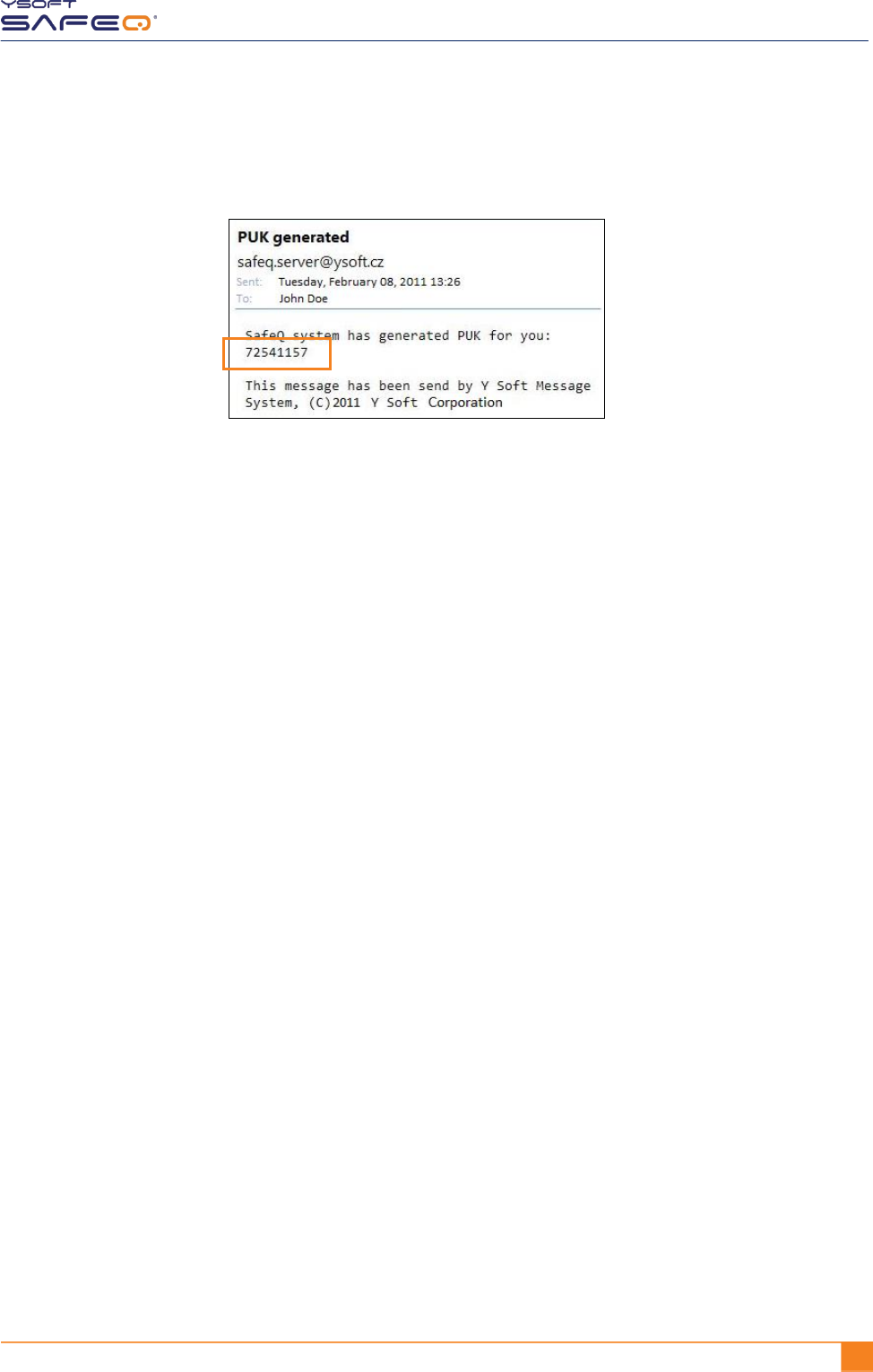
Locating your PUK code
Your PUK code appears
in an email you receive
from SafeQ.
10 YSOFT SAFEQ TERMINAL PROFESSIONAL USER’S GUIDE
Chapter 2. Logging in to the terminal
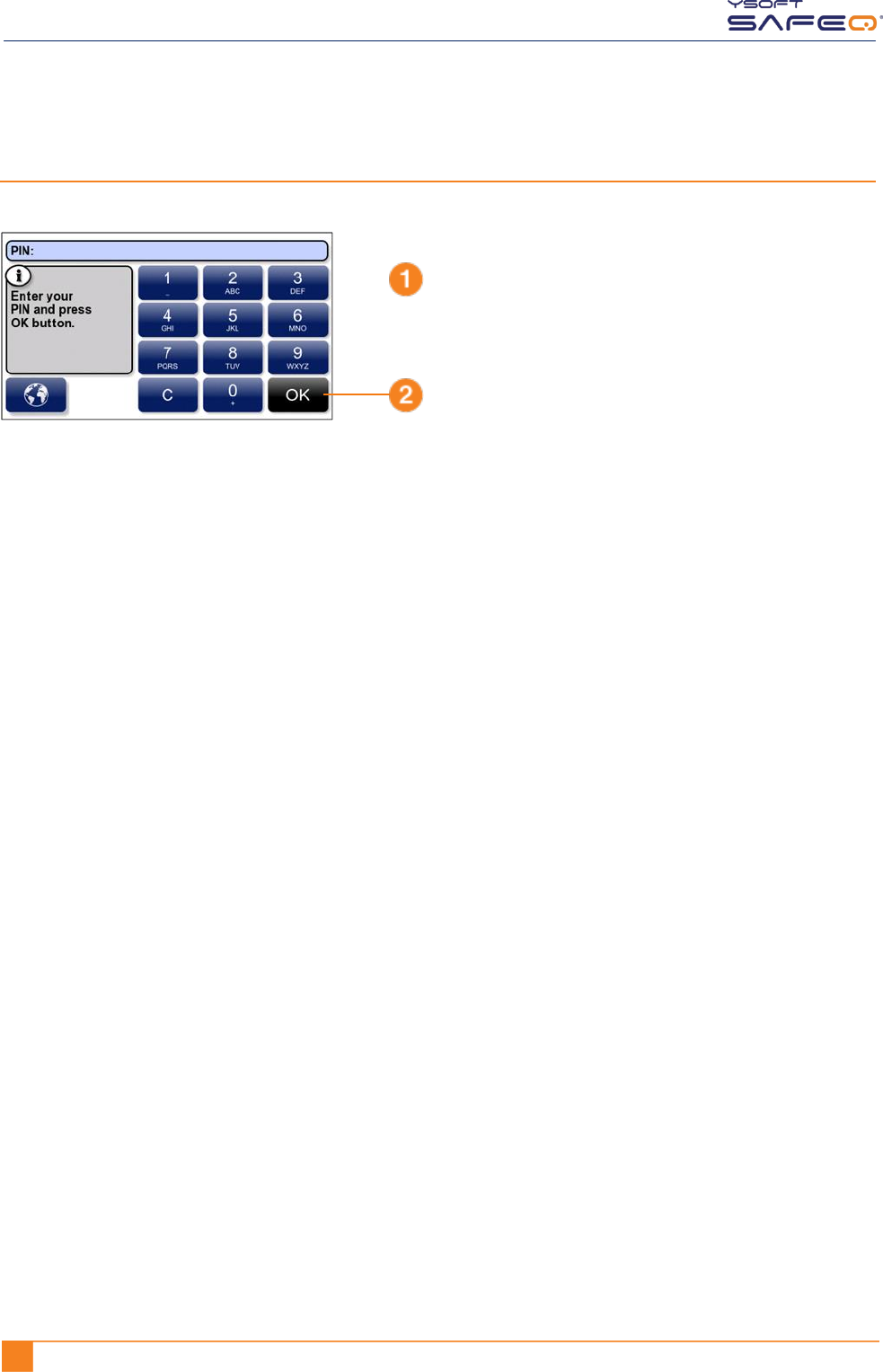
Logging in with a PIN
Enter your PIN.
Touch OK.
YSOFT SAFEQ TERMINAL PROFESSIONAL USER’S GUIDE 11
Chapter 2. Logging in to the terminal
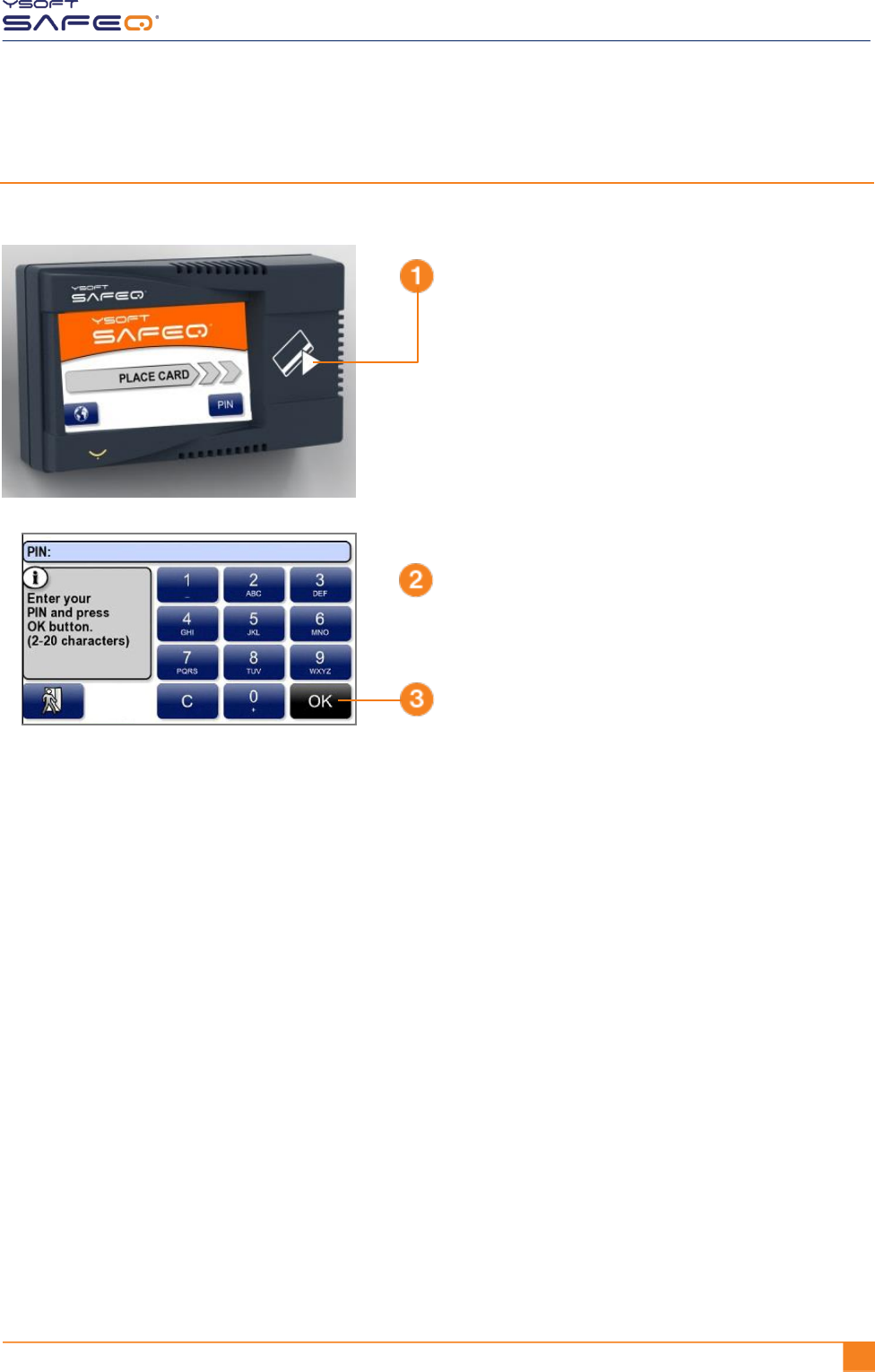
Logging in with an ID card and PIN
Enter your PIN.
Touch OK.
Place your ID card on
the terminal.
12 YSOFT SAFEQ TERMINAL PROFESSIONAL USER’S GUIDE
Chapter 2. Logging in to the terminal
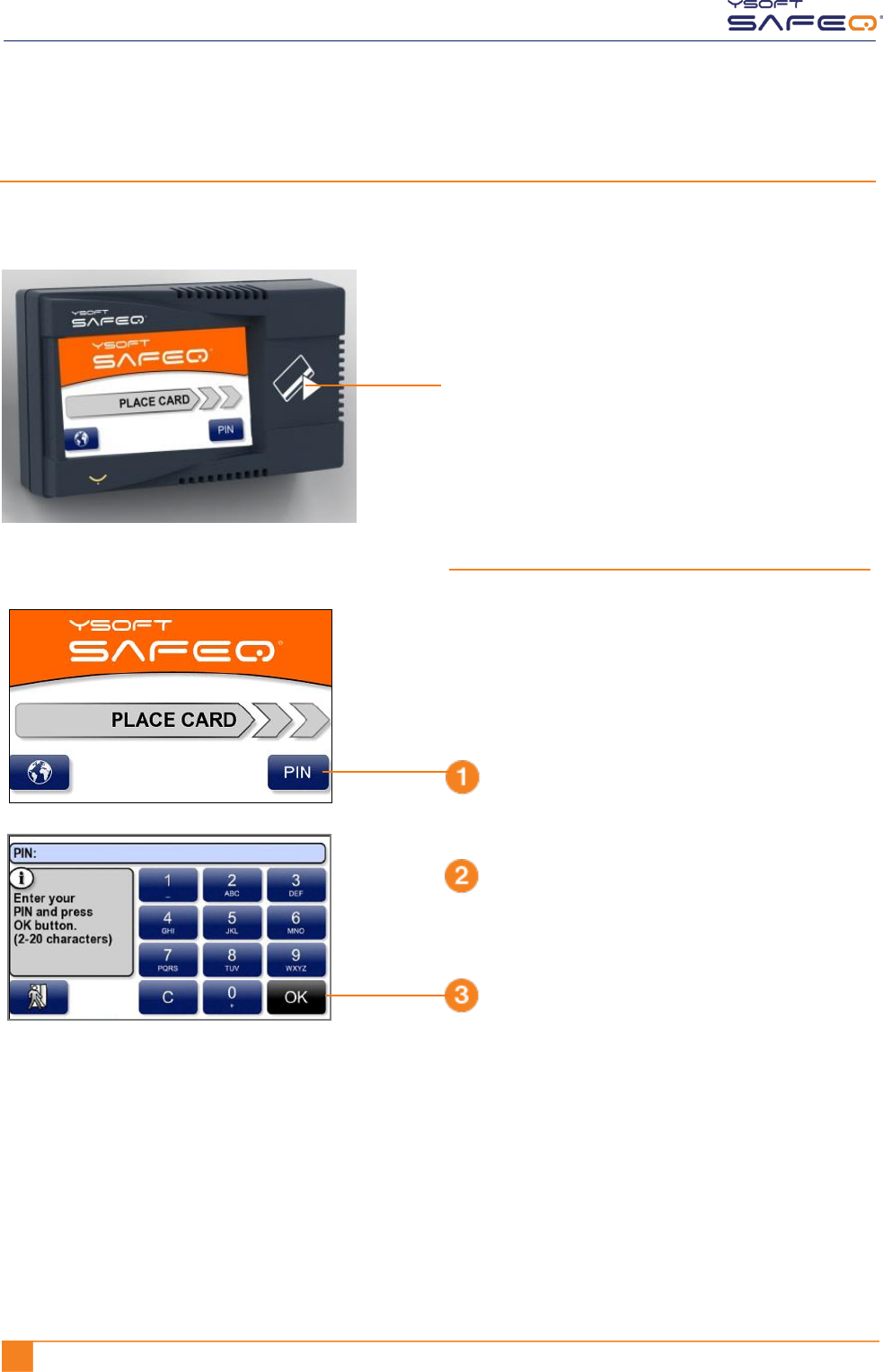
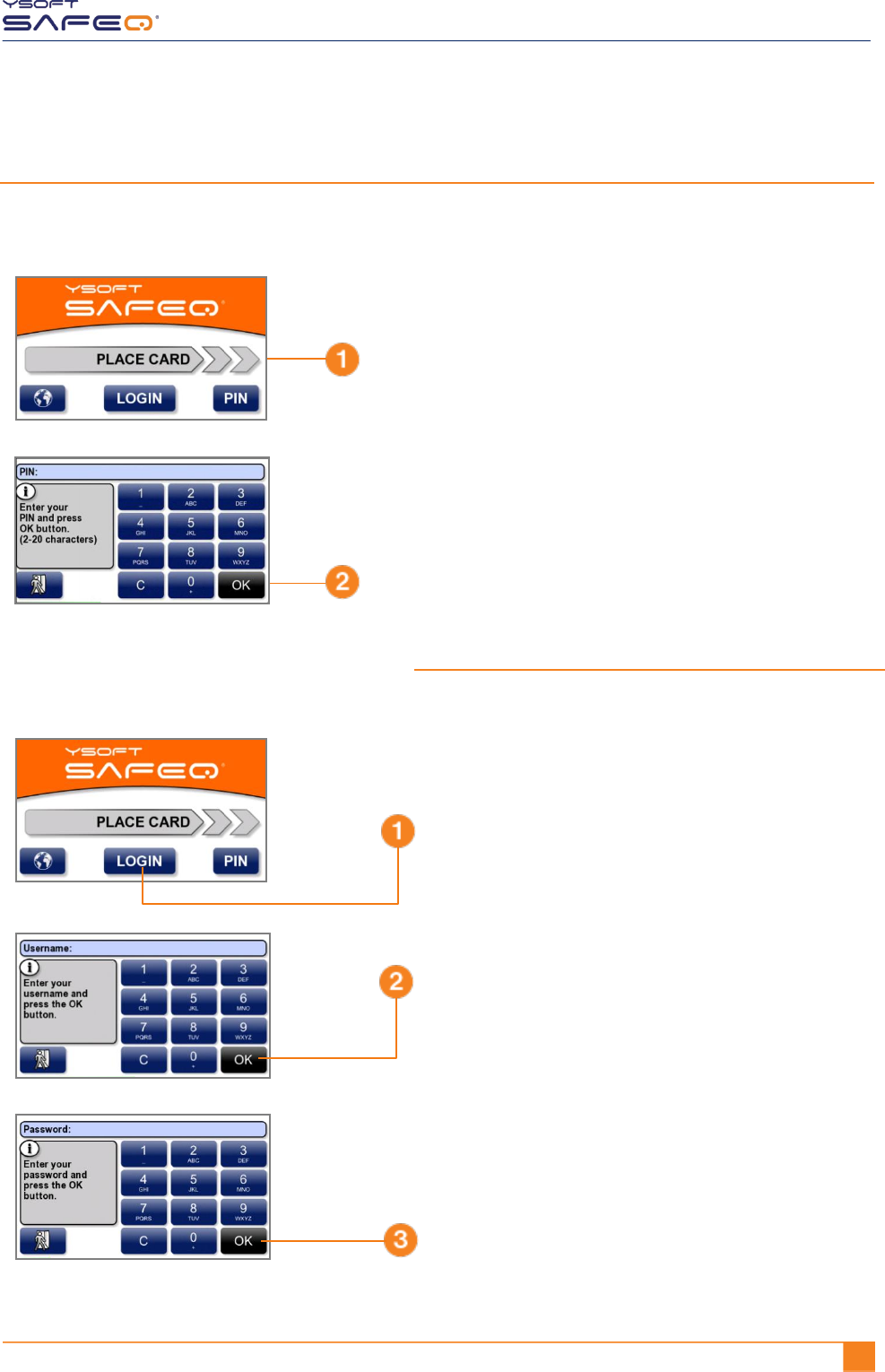
Logging in with an ID card or PIN
Use either of these methods to log in:
Enter your PIN.
Touch OK.
Place your ID card on
the terminal.
OR
Touch PIN.
Log in with your PIN:
YSOFT SAFEQ TERMINAL PROFESSIONAL USER’S GUIDE 13
Chapter 2. Logging in to the terminal
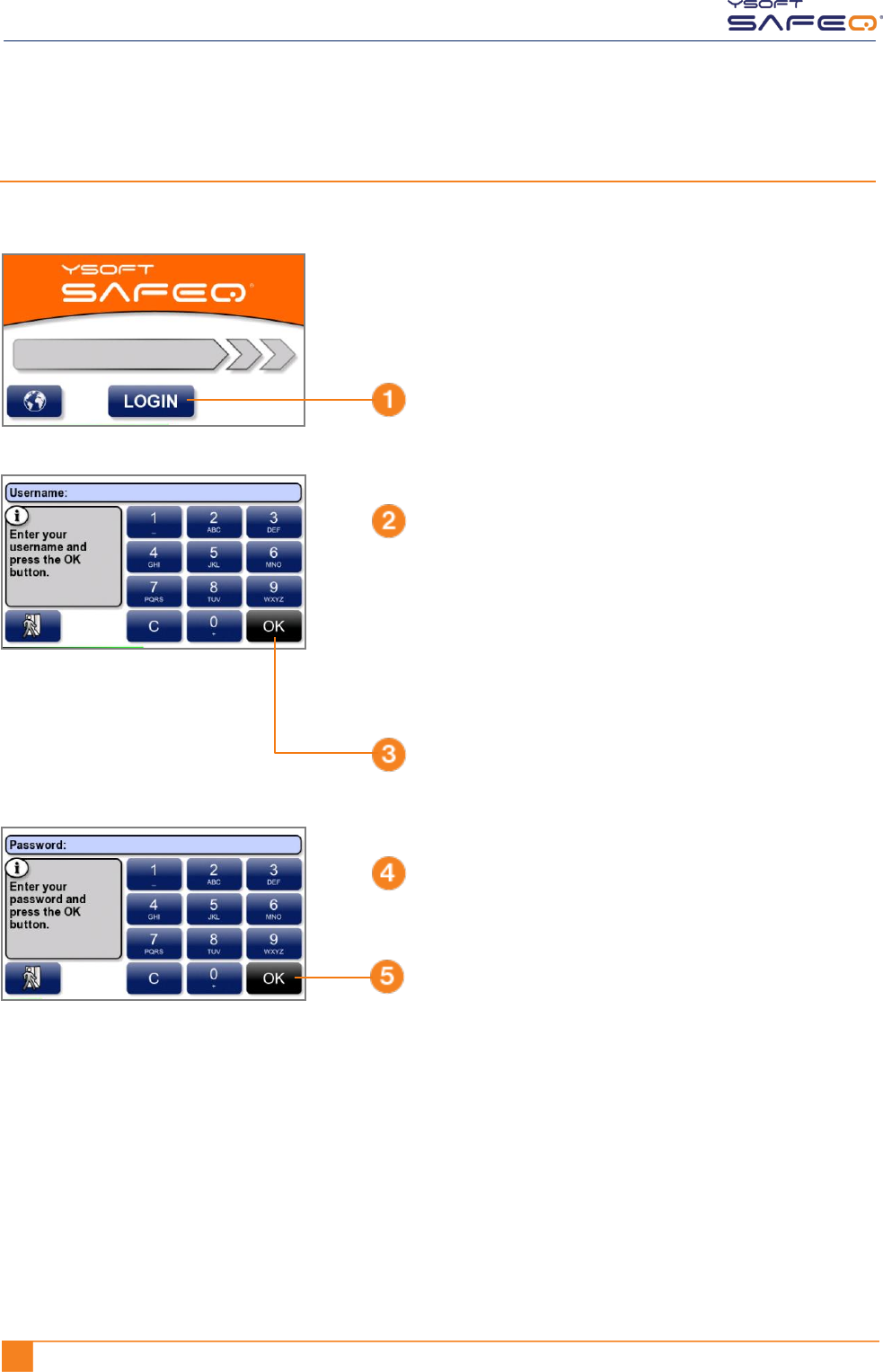
Logging in with an ID card and PIN or username/password
Use either of these methods to log in:
Enter your PIN; then touch OK.
Place your ID card on
the terminal.
OR
Enter your username and password:
Enter your username; then touch OK.
Enter your password; then touch OK.
The keypad works like phone keypads.
To enter a lowercase or uppercase letter,
touch a key more than once. For example:
To enter the letter e,
touch the 3 key 2 times (3 3).
To enter the letter E,
touch the 3 key 6 times (3 3 3 3 3 3).
Touch LOGIN.
14 YSOFT SAFEQ TERMINAL PROFESSIONAL USER’S GUIDE
Chapter 2. Logging in to the terminal
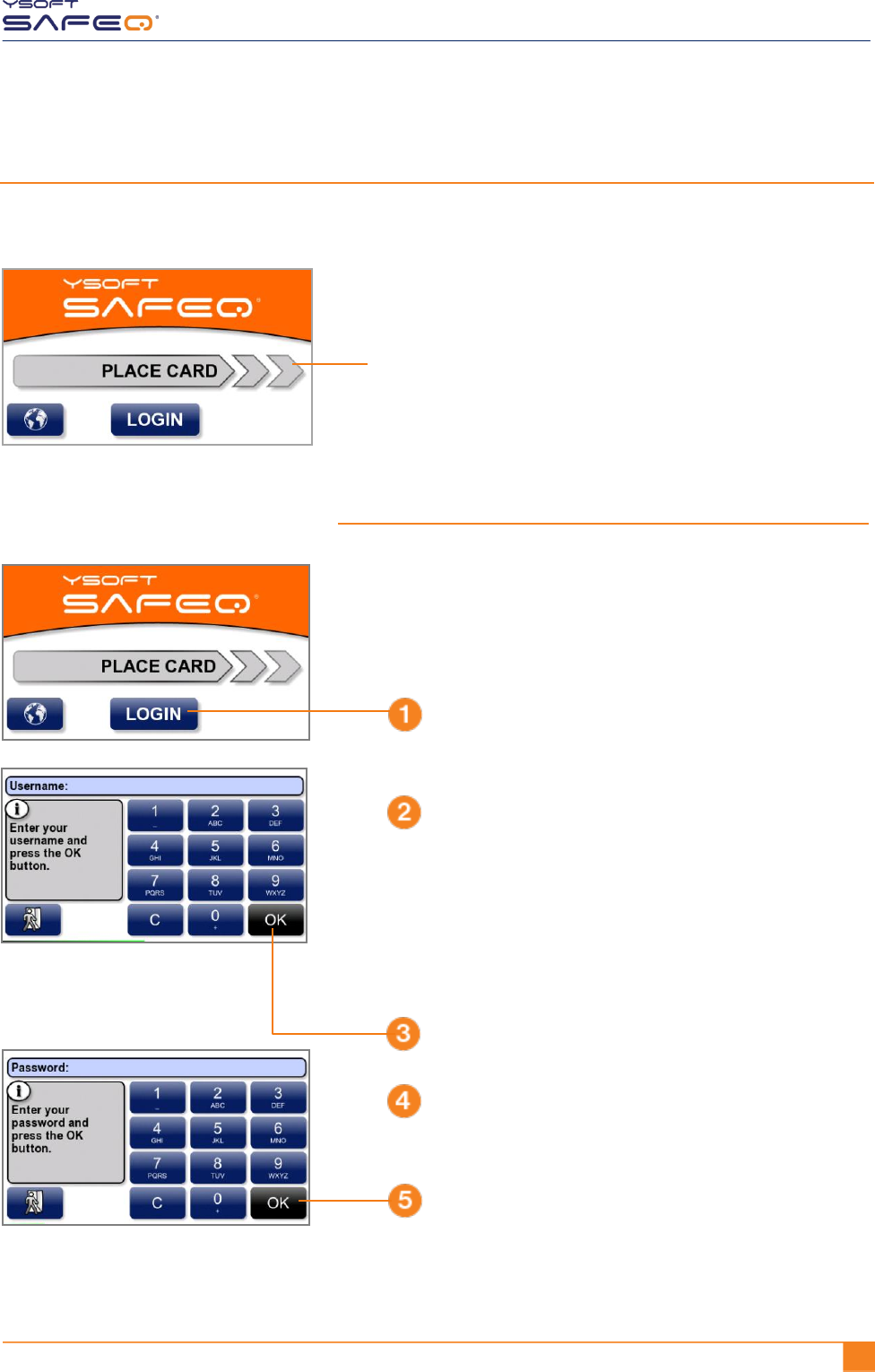
Logging in with username/password
Enter your username.
Touch OK.
Touch LOGIN.
Enter your password.
Touch OK.
The keypad works like phone keypads.
To enter a lowercase or uppercase letter,
touch a key more than once. For example:
To enter the letter e,
touch the 3 key 2 times (3 3).
To enter the letter E,
touch the 3 key 6 times (3 3 3 3 3 3).
YSOFT SAFEQ TERMINAL PROFESSIONAL USER’S GUIDE 15
Chapter 2. Logging in to the terminal
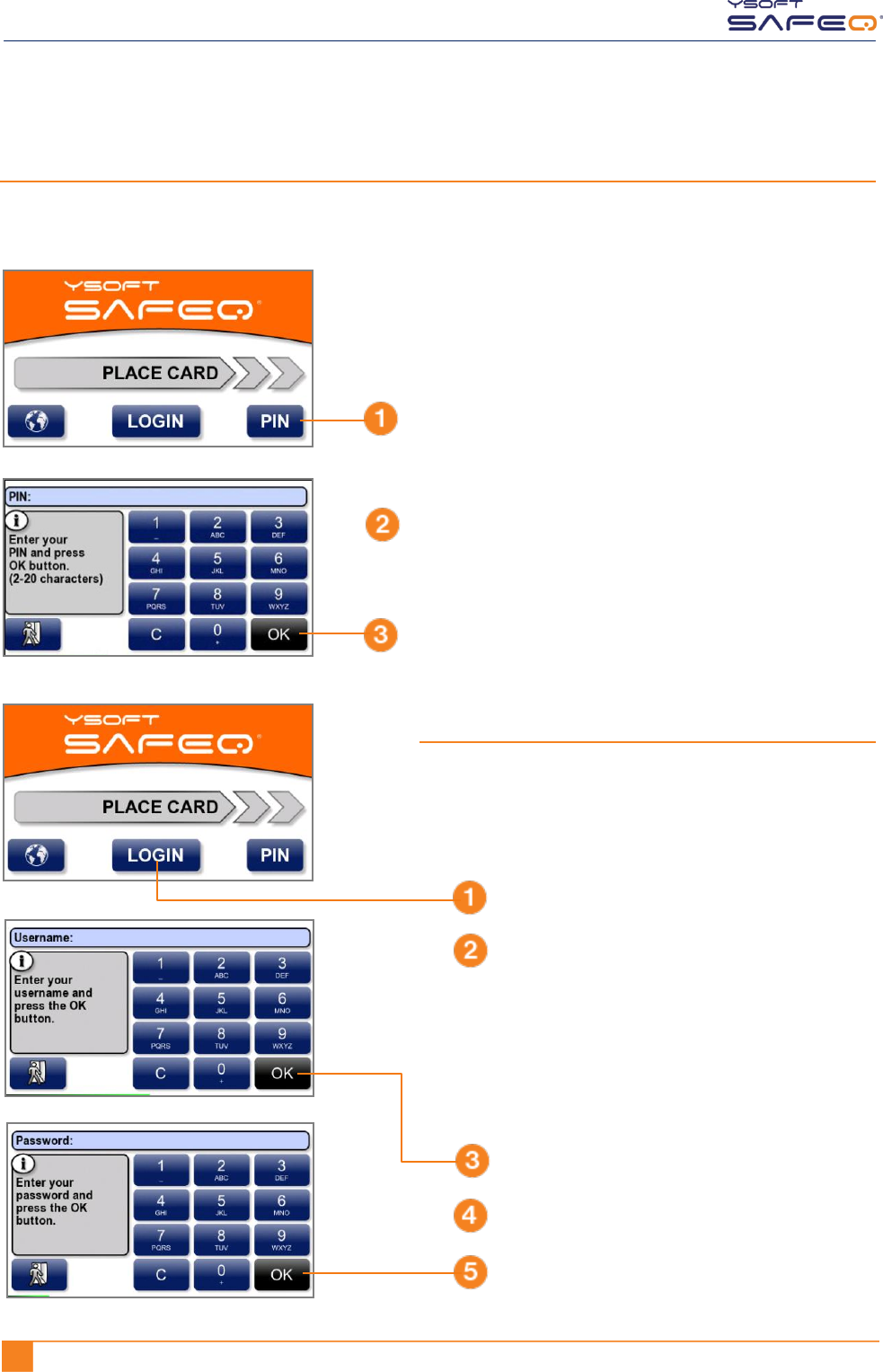
Logging in with an ID card or username/password
Use either of the following methods to log in:
Enter your username.
Touch OK.
Touch LOGIN.
Enter your password.
Touch OK.
Place your ID card on
the terminal.
OR
Log in with your username/password:
The keypad works like phone keypads.
To enter a lowercase or uppercase letter,
touch a key more than once. For example:
To enter the letter e,
touch the 3 key 2 times (3 3).
To enter the letter E,
touch the 3 key 6 times (3 3 3 3 3 3).
16 YSOFT SAFEQ TERMINAL PROFESSIONAL USER’S GUIDE
Chapter 2. Logging in to the terminal
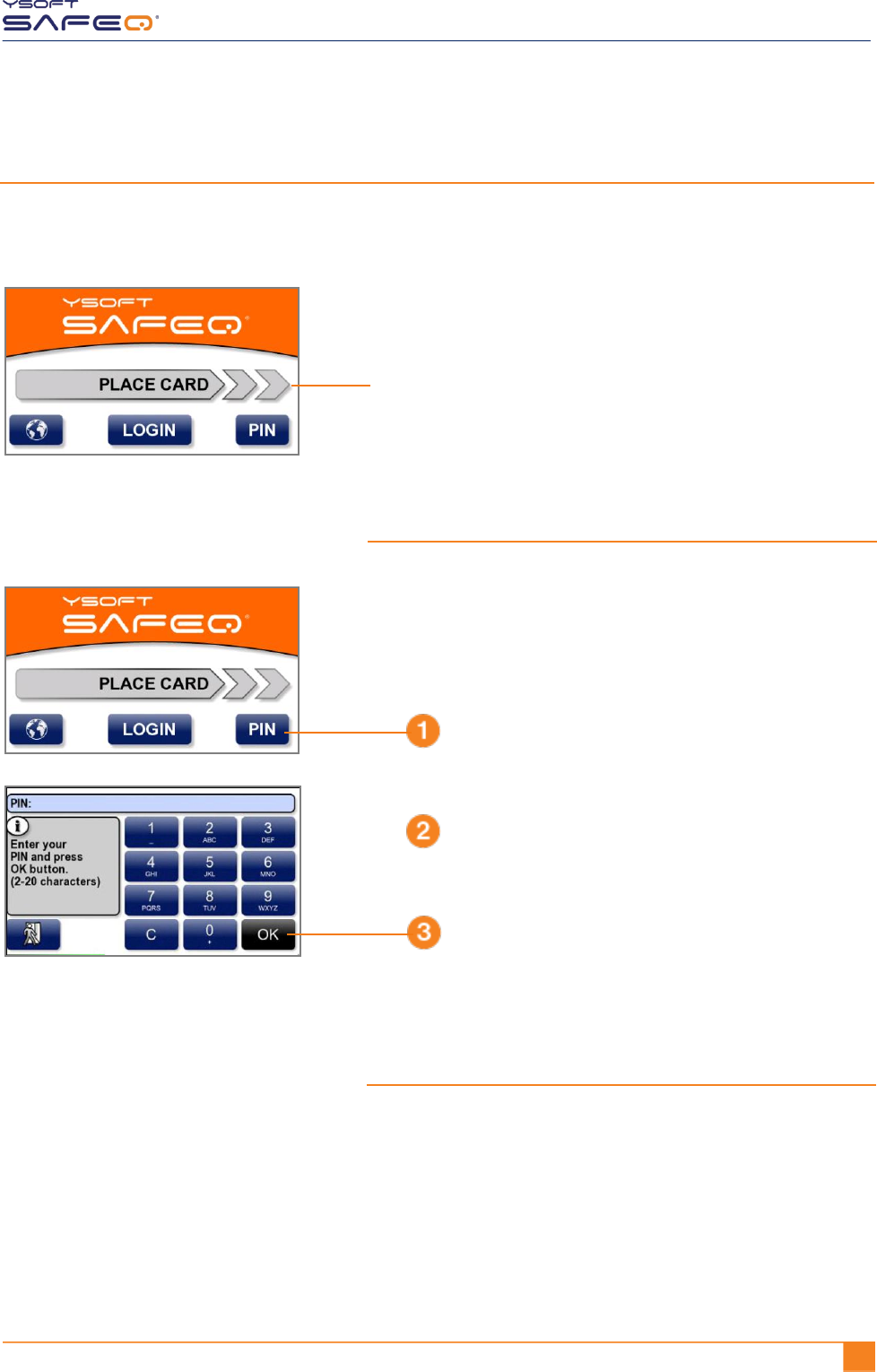
Logging in with a PIN or username/password
Use either of these methods to log in:
Enter your PIN.
Touch OK.
Touch PIN.
Touch OK.
Touch LOGIN.
Touch OK.
Enter your username.
Enter your password.
OR
Log in with your username/password:
The keypad works like phone keypads.
To enter a lowercase or uppercase letter,
touch a key more than once. For example:
To enter the letter e,
touch the 3 key 2 times (3 3).
To enter the letter E,
touch the 3 key 6 times (3 3 3 3 3 3).
YSOFT SAFEQ TERMINAL PROFESSIONAL USER’S GUIDE 17
Chapter 2. Logging in to the terminal
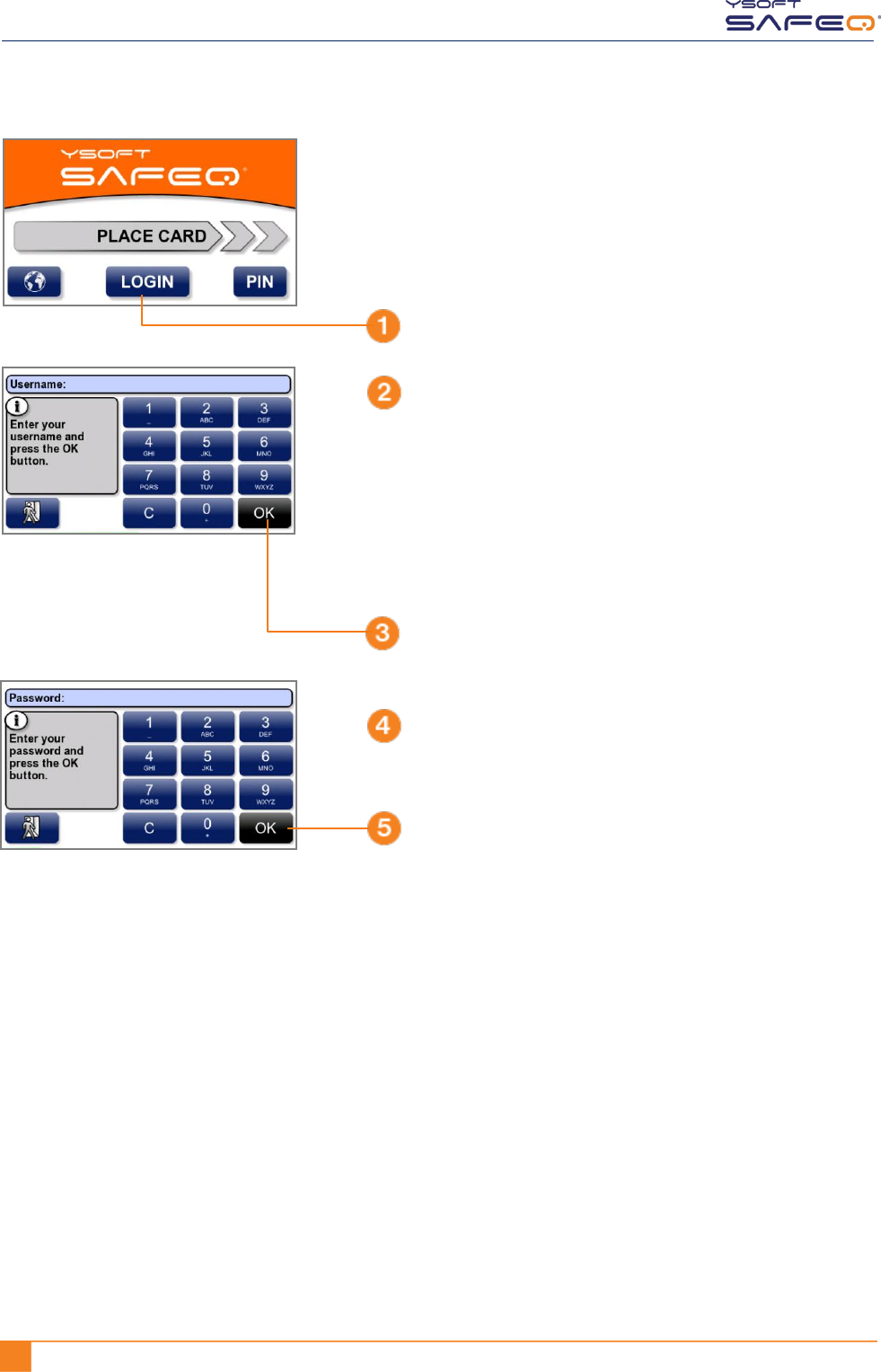
Logging in with an ID card or PIN or username/password
Use any of these methods to log in:
Enter your PIN.
Touch OK.
Place your ID card on
the terminal.
Touch PIN.
Log in with your username/password
as described on the next page.
OR
Log in with your PIN:
OR
18 YSOFT SAFEQ TERMINAL PROFESSIONAL USER’S GUIDE
Chapter 2. Logging in to the terminal
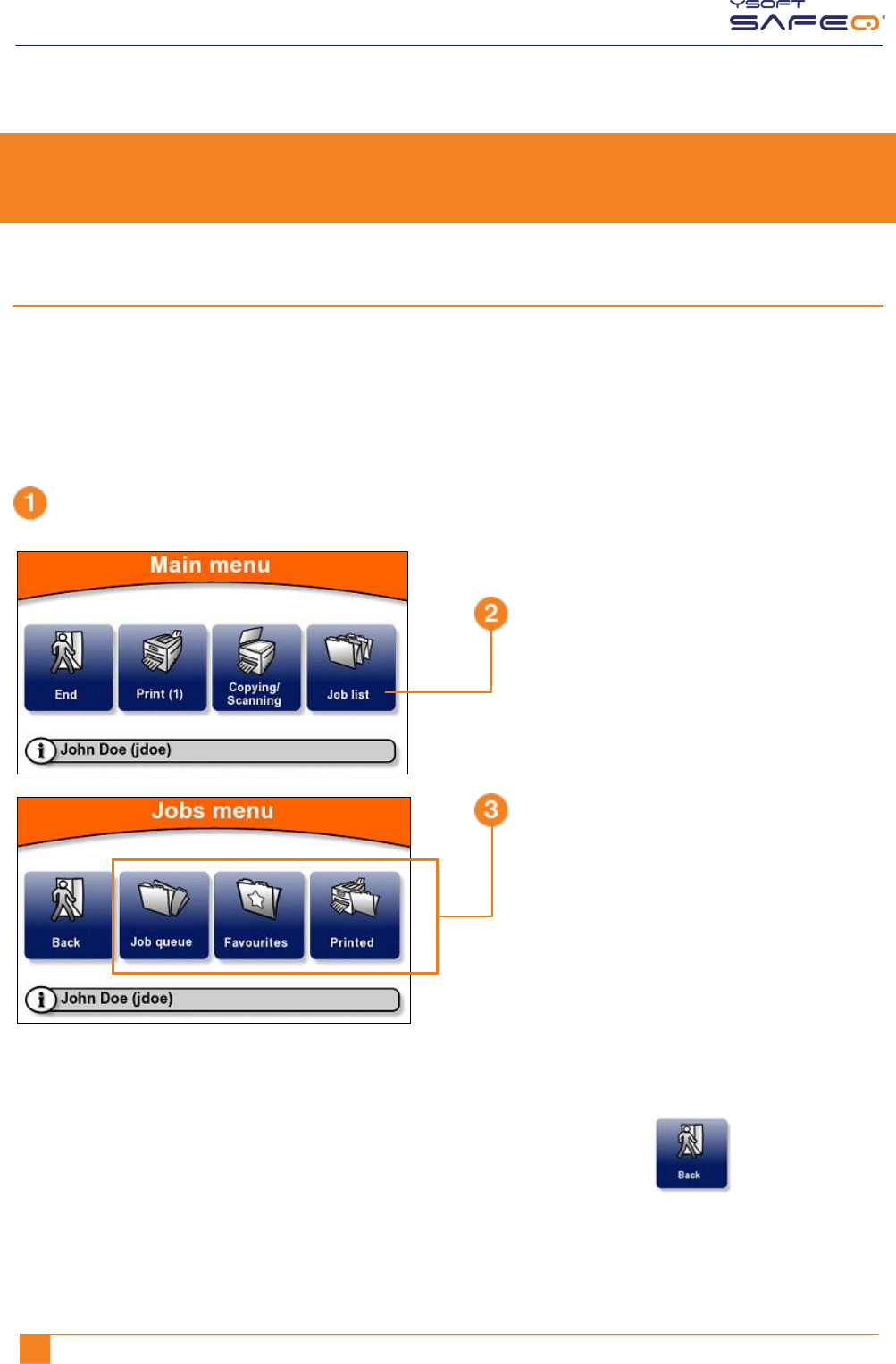
Touch OK.
Touch LOGIN.
Touch OK.
Enter your username.
Enter your password.
The keypad works like phone keypads.
To enter a lowercase or uppercase letter,
touch a key more than once. For example:
To enter the letter e,
touch the 3 key 2 times (3 3).
To enter the letter E,
touch the 3 key 6 times (3 3 3 3 3 3).
19 YSOFT SAFEQ TERMINAL PROFESSIONAL 3.8 USER’S GUIDE
3 Printing
Viewing lists of jobs
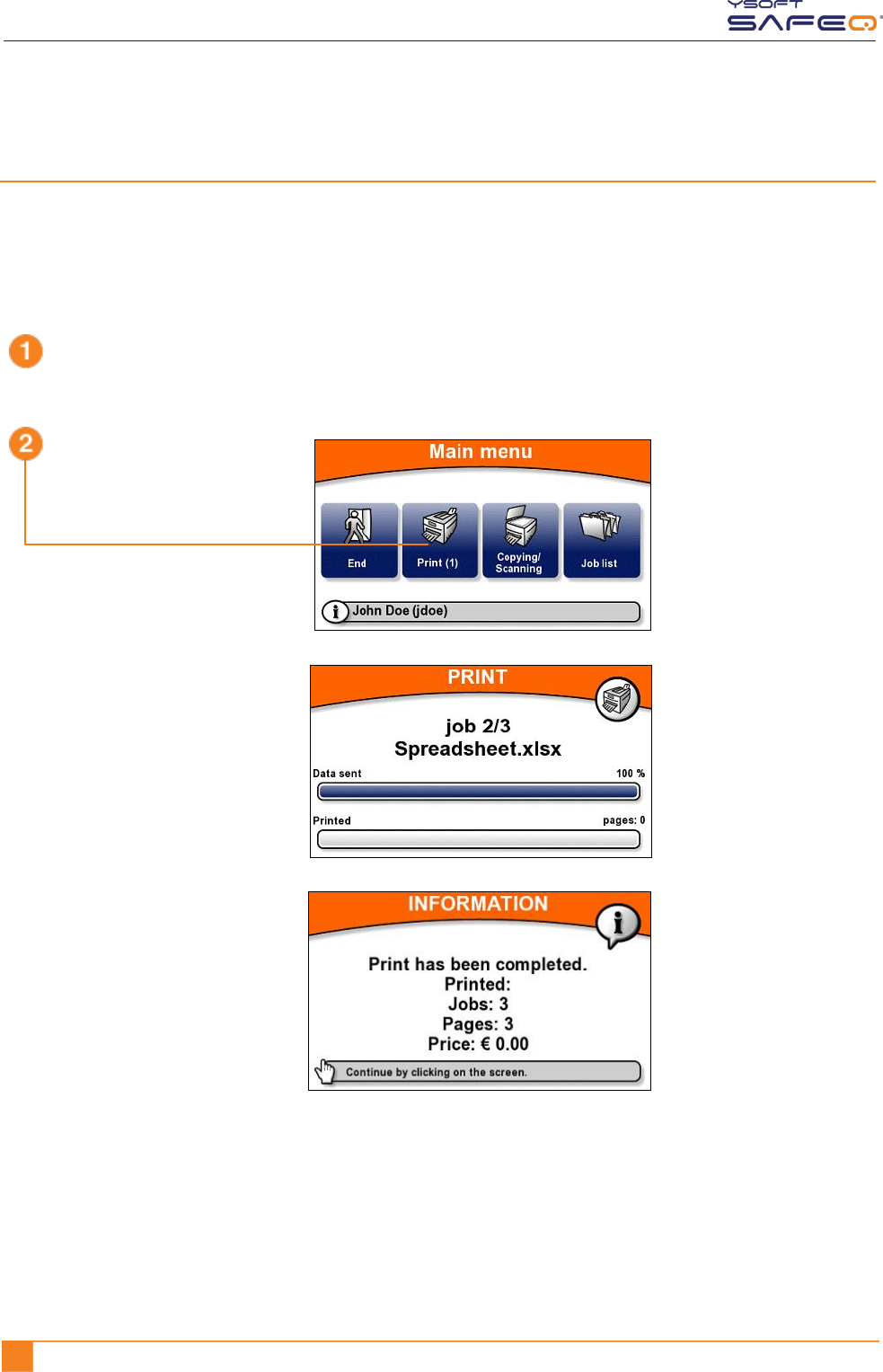
The Jobs menu lets you see lists of jobs, including jobs waiting to be printed, your
favorite jobs, and jobs you have printed in the past.
NOTE: The Job list option may not be available on your terminal. If the Job list option
does not appear, see “Printing all your print jobs” on page 20.
Exiting the Jobs menu
To exit the Jobs menu and return to the Main menu, touch the Back button.
Log in to the terminal (see "Logging in to the terminal" on page 6).
Touch the Job list button.
Touch the button for the type
of job list you want to view.
Your Jobs menu may not
include all the options
shown on this sample.
20 YSOFT SAFEQ TERMINAL PROFESSIONAL USER’S GUIDE
Chapter 3. Printing
Printing
Printing all your print jobs
To print all your jobs that have not yet been printed:
Log in to the terminal (see "Logging in
to the terminal" on page 5).
Touch the Print button.
The printer/MFP begins to print
all your jobs. The Print screen
shows the progress.
When all your jobs have been
printed, the terminal displays
information and then
automatically logs you out.
The Print button displays the
number of print jobs you
have waiting to be printed.
In the example shown here,
one ( 1 ) job is waiting.
Price information may or
may not appear,
depending on how the
terminal has been
configured.
YSOFT SAFEQ TERMINAL PROFESSIONAL USER’S GUIDE 21
Chapter 3. Printing
Printing or deleting specific jobs
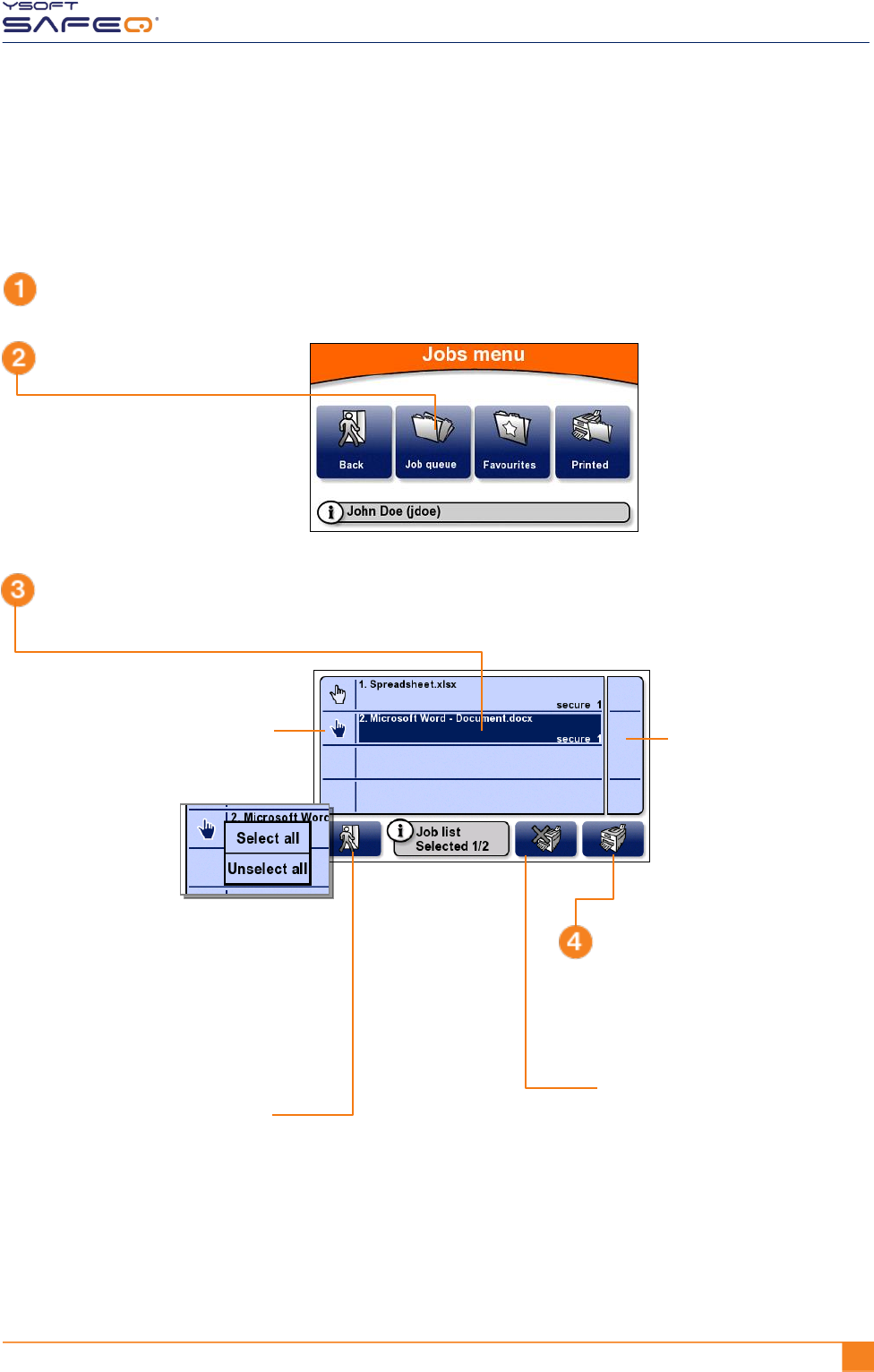
The terminal can display a list of all your jobs that have not yet been printed, and you
can select jobs from the list to print or to delete.
Log in to the terminal (see "Logging in to the terminal" on page 5).
Touch the Job queue button.
Touch each job you want to
print or delete.
The terminal displays a
list of your jobs that have
not yet been printed.
To select or de-select all
jobs, touch the hand icon;
then touch Select all or
Unselect all in the menu
that opens.
To move up or down
through the list,
touch the buttons on
the right side of the
screen.
To print the selected job(s):
Touch the Print button.
The printer prints the job(s).
To return to the Jobs menu,
touch the Back button.
To delete the selected job(s):
Touch the Delete button.
SafeQ deletes the job(s).
NOTE: You cannot delete a
favorite job at the
terminal.
22 YSOFT SAFEQ TERMINAL PROFESSIONAL USER’S GUIDE
Chapter 3. Printing
Printing your favorite jobs
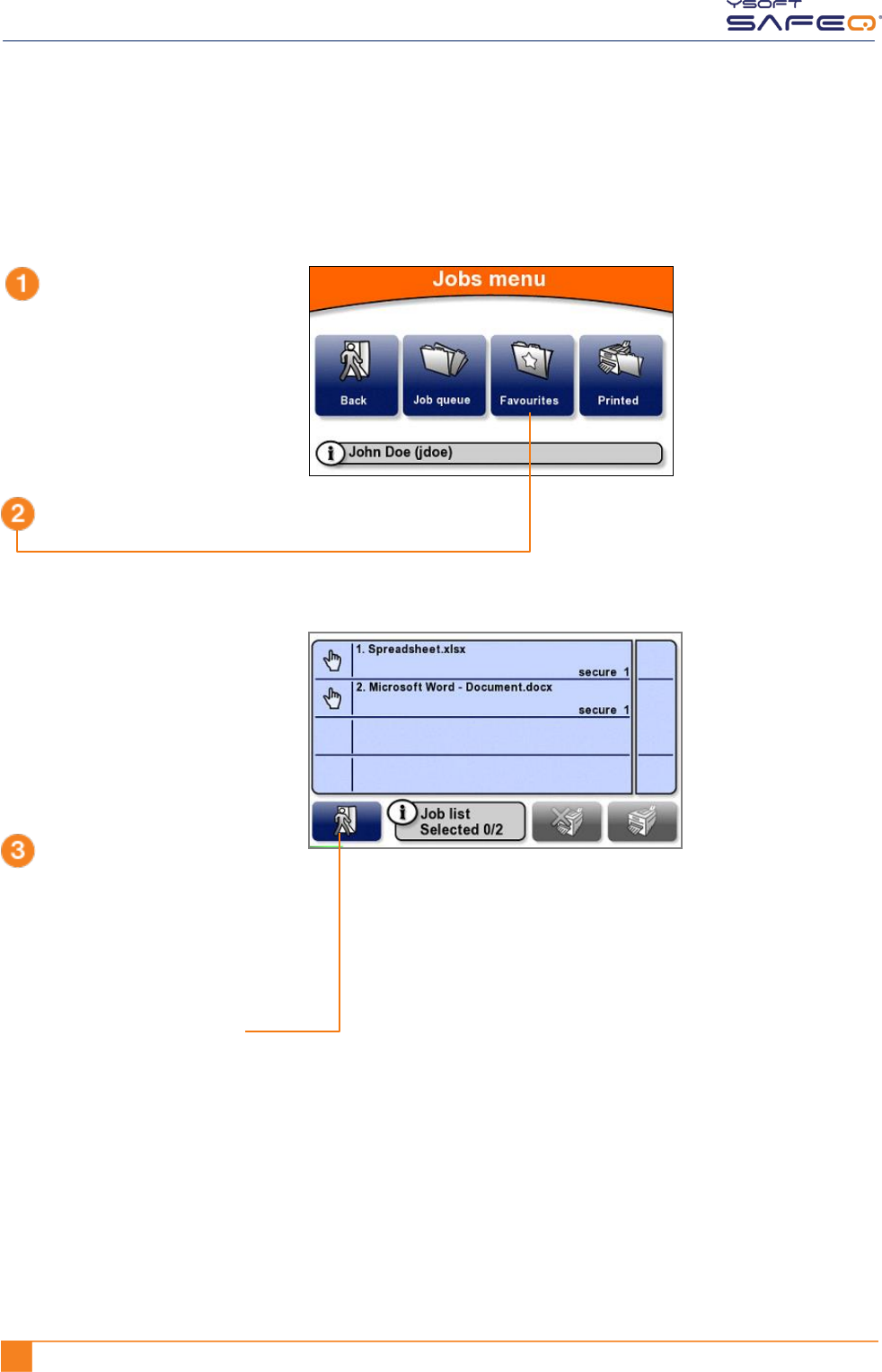
To print a job you have specified as a Favorite job in SafeQ:
Display the Jobs menu
(see page 19).
Touch the Favourites button.
The terminal displays a list
of your favorite jobs.
Select and print the job (or
jobs) as described in
"Printing or deleting specific
jobs” on page 21.
To return to the Jobs menu,
touch the Back button.
YSOFT SAFEQ TERMINAL PROFESSIONAL USER’S GUIDE 23
Chapter 3. Printing
Reprinting or deleting jobs that have been printed
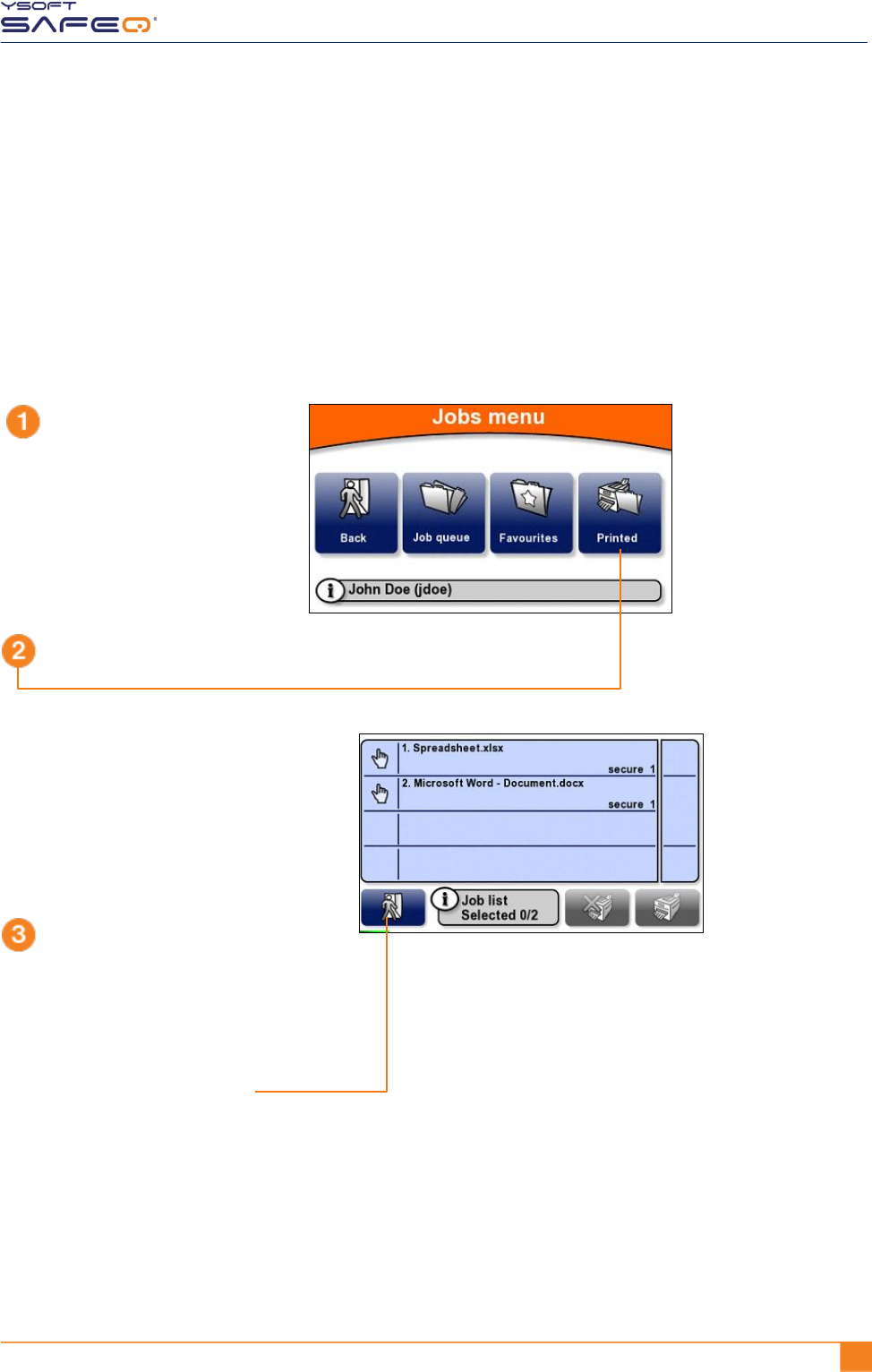
The terminal can display a list of all your jobs that have been printed, and you can select
jobs from the list to reprint or to delete.
NOTE: Depending on the way your SafeQ administrator has configured SafeQ, printed
jobs may not be available after a certain period of time, or they may never be
available. If you are unsure why a job does not appear in the list, ask your
administrator.
Display the Jobs menu
(see page 19).
Touch the Printed button.
The terminal displays a list of
your jobs that have been printed.
Print or delete the job (or jobs) as
described in "Printing or deleting
specific jobs” on page 21.
To return to the Jobs menu,
touch the Back button.
YSOFT SAFEQ TERMINAL PROFESSIONAL USER’S GUIDE 24
4 Copying and scanning
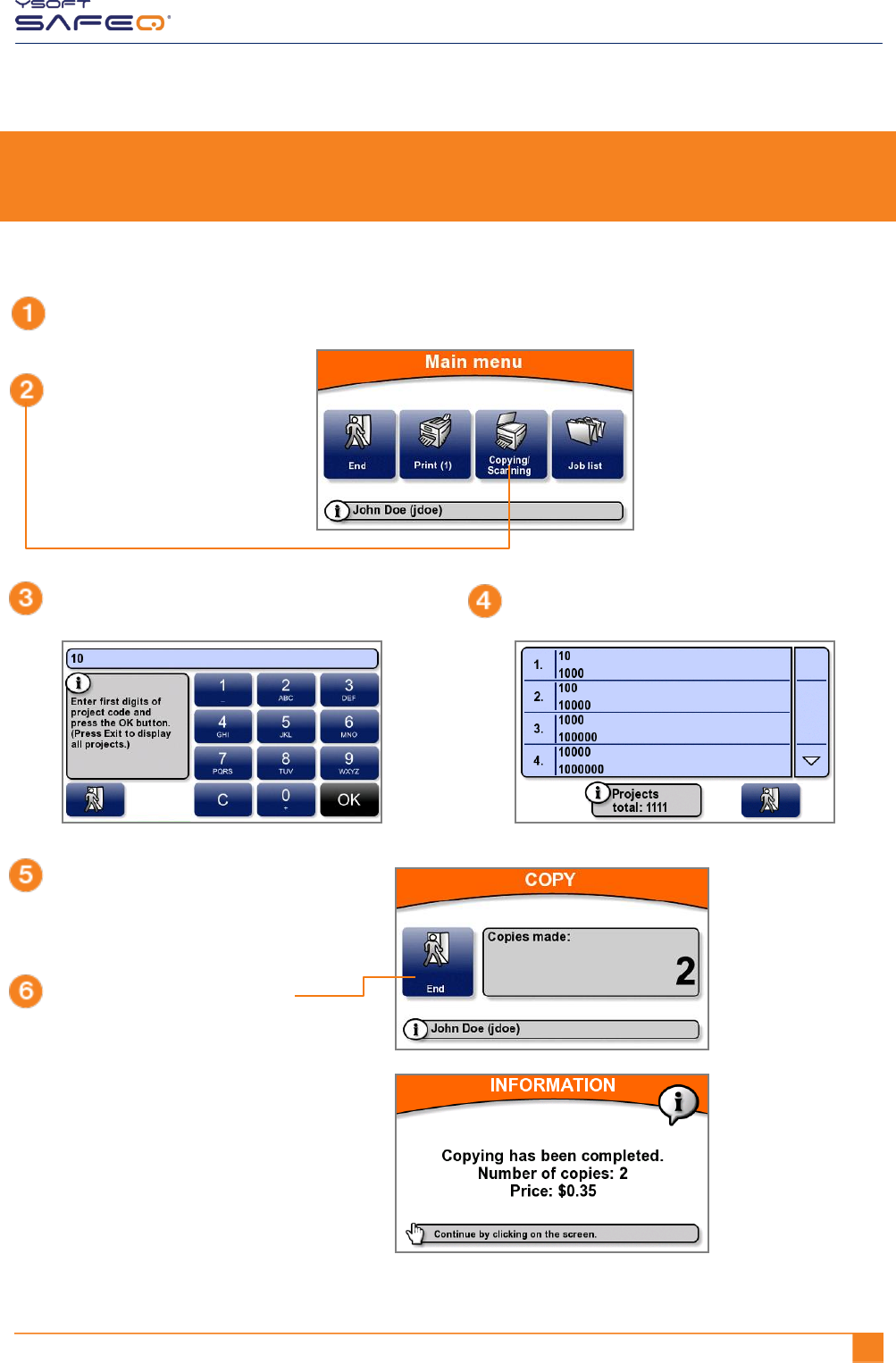
To make copies or scans:
Log in to the terminal (see "Logging in to the terminal" on page 5).
Touch the
Copying/Scanning button.
If a project entry screen opens, enter the first
digits of the project code; then touch OK.
On the MFP’s control panel, select the
options you want; then make the
copies or scan your document.
When you finish, touch End.
The terminal automatically
logs you out.
The terminal may or
may not display
more information
about your session,
depending on the
way the terminal has
been configured.
Touch the project you need.
The terminal
displays information
about the copies
you made.

YSOFT SAFEQ TERMINAL PROFESSIONAL USER’S GUIDE 25
Chapter 3. Printing
5 Changing the screen’s brightness
Your terminal may be set up to save power by dimming the screen’s brightness after a certain period.
If the terminal screen appears to be dim, touch anywhere on the screen to restore the brightness.