Yamaha Robotics Rcx Series Users Manual CC Link Unit O/M English
Robotics-Rcx-Series-Users-Manual yamaha-robotics-rcx-series-users-manual-133758
RCX Series to the manual a2b0d106-17bc-4af7-917a-eca97e338880
2014-12-13
: Yamaha Robotics-Rcx-Series-Users-Manual yamaha-robotics-rcx-series-users-manual-133758 pdf
Open the PDF directly: View PDF  .
.
Page Count: 76
- Introduction
- Safety Precautions (Always read before starting use)
- Warranty
- Contents
- Chapter 1 Outline
- Chapter 2 Connection
- Chapter 3 Communication
- Chapter 4 Troubleshooting
- Chapter 5 Specifications
- Chapter 6 Appendix

OWNER'S MANUAL
YAMAHA Robot Controller
RCX Series
UNIT

1
2
Introduction
Thank you for purchasing the CC-Link compatible module. This CC-Link compatible
module is an option module that enables connection of the YAMAHA robot controller
RCX Series as a CC-Link system remote device station.
The CC-Link compatible module with label is compatible with CC-Link Ver.
1.10. CC-Link compatible modules without the CC-Link label are compatible with Ver.
1.00.
The robot controller explained in this manual refers to the RCX Series.
This manual describes the flow of operations from wiring the CC-Link compatible mod-
ule to programming, and includes setting examples.
For details on other devices such as connecting the master station PLC and PLC program-
ming, refer to the manual for the respective product.
Refer to the manual enclosed with the YAMAHA controller for details on operating the
robot controller and on the robot program.
2
2
Safety Precautions (Always read before starting use)
Always read this manual, the robot controller instruction manual and programming manual
before using this product. Take special care to safety, and correctly handle the product.
The cautions given in this manual are related to this product. Refer to the robot controller
instruction manual for details on the cautions to be taken with the robot controller system
using this product.
* The safety precautions are ranked as “WARNING” and “CAUTION” in this manual.
wWARNING
Failure to follow WARNING instructions could result in serious injury or death to the
operator or person servicing the product.
cCAUTION
Failure to follow CAUTION instructions may result in injury to the operator or person servicing
product, or damage to the product or peripheral equipment.
nNOTE
Explains the key point in the operation in a simple and clear manner.
Note that some items described as “CAUTION” may lead to serious results depending on
the situation. In any case, important information that must be observed is explained.
Store this manual where it can be easily referred to, and make sure that it is delivered to
the end user.
CC-Link is a registered trademark of CC-Link partner association.
The CC-Link compatible module provided with a label is compatible with
CC-Link Ver 1.10.
[Precautions for design]
wWARNING
• Refer to the CC-Link system Master Module User’s Manual and this manual for
details on the state of the CC-Link system and robot controller when a communica-
tion error occurs with the CC-Link system, etc.
Configure an interlock circuit in the sequence program so that the system, includ-
ing the robot controller will work safely using the communication status informa-
tion.
• The SAFETY connector of the robot controller has an emergency stop terminal to
trigger emergency stop. Using this terminal, prepare a physical interlock circuit so
that the system including the robot controller will work safety.
cCAUTION
• The control line and communication cable must not be bound with or placed near the main
circuit or power line. Separate these by at least 100mm.
Failure to observe this could lead to malfunctions caused by noise.
• The dedicated input of the STD.DIO connector provided on the controller will be disabled
except for an interlock signal (DI 11). When the external 24V monitor control of system
parameters is disabled, the interlock signal (DI 11) will also be disabled.

3
2
[Precautions for installation]
wWARNING
• Always crimp, press-fit or solder the connector wire connections with the maker-
designated tool, and securely connect the connector to the module.
• Always shut off all phases of the power supply externally before starting installa-
tion or wiring work.
Failure to shut off all phases could lead to electric shocks or product damage.
cCAUTION
• Use the robot controller within the environment specifications given in the manual.
Use in an environment outside the environment specification range could lead to electric
shocks, fires, malfunctioning, product damage or deterioration.
• Install the CC-Link compatible module into the robot controller, and securely fix with screws.
• Never directly touch the conductive sections or electronic parts other than the rotary switch on
the CC-Link compatible module.
• Never directly touch the conductive sections or electric parts inside the controller.
• Accurately connect each connection cable connector to the mounting section.
Failure to observe this could lead to malfunctions caused by a connection fault.
[Precautions for wiring]
wWARNING
• Always shut off all phases of the power supply externally before starting installa-
tion or wiring work.
Failure to shut off all phases could lead to electric shocks or product damage.
• Always install the terminal covers enclosed with the product before turning ON the
power or operating the product after installation or wiring work.
Failure to install the terminal cover could lead to malfunctions.
cCAUTION
• Tighten the terminal screws within the specified torque range.
A loose terminal screw could lead to short-circuiting or malfunctioning.
If the terminal screw is too tight, short-circuiting or malfunctioning could occur due to screw
damage.
• Make sure that foreign matter, such as cutting chips or wire scraps, do not enter the robot
controller.
• The communication cables connected to the CC-Link compatible module must be placed in a
conduit or fixed with a clamp.
If the cable is not placed in a conduit or fixed with a clamp, the module or cable could be
damaged by the cable shifting, movement or unintentional pulling leading to malfunctioning
caused by an improper cable connection.
• Do not disconnect the communication cable connected to the CC-Link compatible module by
pulling on the cable section.
Loosen the screws on the connector, and then disconnect the cable.
Pulling on the cable fixed with screws could lead to module or cable damage, or malfunction-
ing caused by an improper cable connection.
4
2
[Precautions for starting and maintenance]
wWARNING
• Do not touch the terminals while the power is ON.
Failure to observe this could lead to malfunctioning.
• Always shut off all phases of the power supply externally before cleaning or
tightening the terminal screws.
Failure to shut off all phases could lead to electric shocks, product damage or
malfunctioning.
A loose screw could lead to dropping, short-circuiting or malfunctioning.
If the screw is too tight, short-circuiting or malfunctioning could occur due to
screw damage.
• Never disassemble or modify any of the robot controller modules.
Failure to observe this could lead to trouble, malfunctioning, injuries or fires.
• Always shut off all phases of the power supply externally before installing or
removing the CC-Link compatible module.
Failure to shut off all phases could lead to robot controller trouble or malfunction-
ing.
• When using the robot controller with the CC-Link compatible module mounted,
always mount the enclosed ferrite core for noise measures on the power cable as
close to the robot controller as possible.
Failure to mount this ferrite core could lead to malfunctioning caused by noise.
cCAUTION
• If the master station PLC and robot controller are simultaneously turned on, the CC-Link
system may not operate correctly. Always first turn on the master PLC before turning on the
robot controller.
[Precautions for disposal]
cCAUTION
• Dispose of this product as industrial waste.
This manual does not guarantee the implementation of industrial rights or
other rights, and does not authorize the implementation rights. YAMAHA
shall not be held liable for any problems regarding industrial rights that
occur through the use of the contents given in this manual.
2006 YAMAHA MOTOR CO., LTD.

5
2
Warranty
The YAMAHA robot and/or related product you have purchased are warranted against
the defects or malfunctions as described below.
Warranty description:
If a failure or breakdown occurs due to defects in materials or workmanship in the genu-
ine parts constituting this YAMAHA robot and/or related product within the warranty
period, then YAMAHA will repair or replace those parts free of charge (hereafter called
"warranty repair").
Warranty Period:
The warranty period ends when any of the following applies:
(1) After 18 months (one and a half year) have elapsed from the date of shipment
(2) After one year has elapsed from the date of installation
(3) After 2,400 hours of operation
Exceptions to the Warranty:
This warranty will not apply in the following cases:
(1) Fatigue arising due to the passage of time, natural wear and tear occurring during
operation (natural fading of painted or plated surfaces, deterioration of parts sub-
ject to wear, etc.)
(2) Minor natural phenomena that do not affect the capabilities of the robot and/or
related product (noise from computers, motors, etc.).
(3) Programs, point data and other internal data that were changed or created by the
user.
Failures resulting from the following causes are not covered by warranty repair.
1) Damage due to earthquakes, storms, floods, thunderbolt, fire or any other natural
or man-made disasters.
2) Troubles caused by procedures prohibited in this manual.
3) Modifications to the robot and/or related product not approved by YAMAHA or
YAMAHA sales representatives.
4) Use of any other than genuine parts and specified grease and lubricants.
5) Incorrect or inadequate maintenance and inspection.
6) Repairs by other than authorized dealers.
YAMAHA MOTOR CO., LTD. MAKES NO OTHER EXPRESS OR IMPLIED WAR-
RANTIES, INCLUDING ANY IMPLIED WARRANTY OF MERCHANTABILITY OR
FITNESS FOR ANY PARTICULAR PURPOSE. THE WARRANTY SET FORTH
ABOVE IS EXCLUSIVE AND IS IN LIEU OF ALL EXPRESSED OR IMPLIED WAR-
RANTIES, INCLUDING WARRANTIES OF MERCHANTABILITY, FITNESS FOR A
PARTICULAR PURPOSE, OR WARRANTIES ARISING FROM A COURSE OF DEAL-
ING OR USAGE OF TRADE.
YAMAHA MOTOR CO., LTD. SOLE LIABILITY SHALL BE FOR THE DELIVERY
OF THE EQUIPMENT AND YAMAHA MOTOR CO., LTD. SHALL NOT BE LIABLE
FOR ANY CONSEQUENTIAL DAMAGES (WHETHER ARISING FROM CON-
TRACT, WARRANTY, NEGLIGENCE OR STRICT LIABILITY). YAMAHA MOTOR
CO., LTD. MAKES NO WARRANTY WHATSOEVER WITH REGARD TO ACCES-
SORIES OR PARTS NOT SUPPLIED BY YAMAHA MOTOR CO., LTD.

6
2
MEMO

i
Contents
Chapter 1 Outline
1. Features ............................................................................... 1-1
2. Mechanism ........................................................................... 1-2
3. Names of each part on the CC-Link compatible module ...... 1-3
4. Assignment of CC-Link compatible I/O ................................ 1-4
5. Shift of CC-Link system connection status and
robot controller status ......................................................... 1-5
Chapter 2 Connection
1. Confirming the CC-Link compatible module settings ........... 2-1
2. Setting to the CC-Link system specification controller ......... 2-2
2.1 Saving the robot controller data .................................... 2-2
2.2 Installing the CC-Link compatible module .................... 2-2
2.3 Response when starting the robot controller ................. 2-2
3. Setting the CC-Link compatible module ............................... 2-3
3.1 Setting the station No. .................................................. 2-3
3.2 Setting the communication speed ................................. 2-4
4. Noise measures .................................................................... 2-5
4.1 Mounting the ferrite core .............................................. 2-5
5. Connecting to the CC-Link system ....................................... 2-6
5.1 Connecting to the cable terminal to the controller ........ 2-6
5.2 Testing the line from the master station PLC .................. 2-6
6. Parameter setting for CC-Link serial I/O board .................... 2-7
6.1 Parameter setting for CC-Link serial I/O board .............. 2-8
Chapter 3 Communication
1. State when robot controller power is turned ON ................ 3-1
2. Initial process for connecting to CC-Link system ................. 3-2
2.1 Initial data process ....................................................... 3-2
3. Communication with master station PLC ............................. 3-3
3.1 Receiving data .............................................................. 3-3
3.2 Transmitting data .......................................................... 3-4
4.
Direct connection by emulated serialization on parallel DIO ...
3-5
4.1 Emulated serialization setting on parallel DIO .............. 3-5
5. Referring to communication data ........................................ 3-8
5.1 Referring to the data from the programming unit .......... 3-8

ii
Chapter 4 Troubleshooting
1. Items to confirm before starting up CC-Link system ............ 4-1
2. Meanings of LEDs on CC-Link compatible module ............... 4-2
3. Troubleshooting ................................................................... 4-3
3.1 Robot controller front panel LED confirmation ............. 4-3
3.2 Programming unit error display confirmation ............... 4-4
3.3 CC-Link compatible module LED confirmation ............ 4-5
3.4 Confirmation from master station PLC .......................... 4-6
4. Error messages relating to CC-Link ...................................... 4-7
Chapter 5 Specifications
1. Profile .................................................................................. 5-1
2. Details of remote input/output signals ................................. 5-3
3. Dedicated input/output signal timing chart ......................... 5-6
3.1 Initial data process for CC-Link connection .................. 5-6
3.2 Servo ON and emergency stop ..................................... 5-7
3.3 AUTO mode changeover, program reset and
program execution ....................................................... 5-8
3.4 Stopping with program interlock .................................. 5-9
4. Sample program ................................................................. 5-10
5. CC-Link compatible module specifications ........................ 5-17
Chapter 6 Appendix
1. Term definition..................................................................... 6-1

Chapter 1 Outline
Contents
1. Features ............................................................................................ 1-1
2. Mechanism ....................................................................................... 1-2
3. Names of each part on the CC-Link compatible module .................. 1-3
4. Assignment of CC-Link compatible I/O ............................................ 1-4
5. Shift of CC-Link system connection status and
robot controller status ...................................................................... 1-5

MEMO
1
Outline
1-1
1. Features
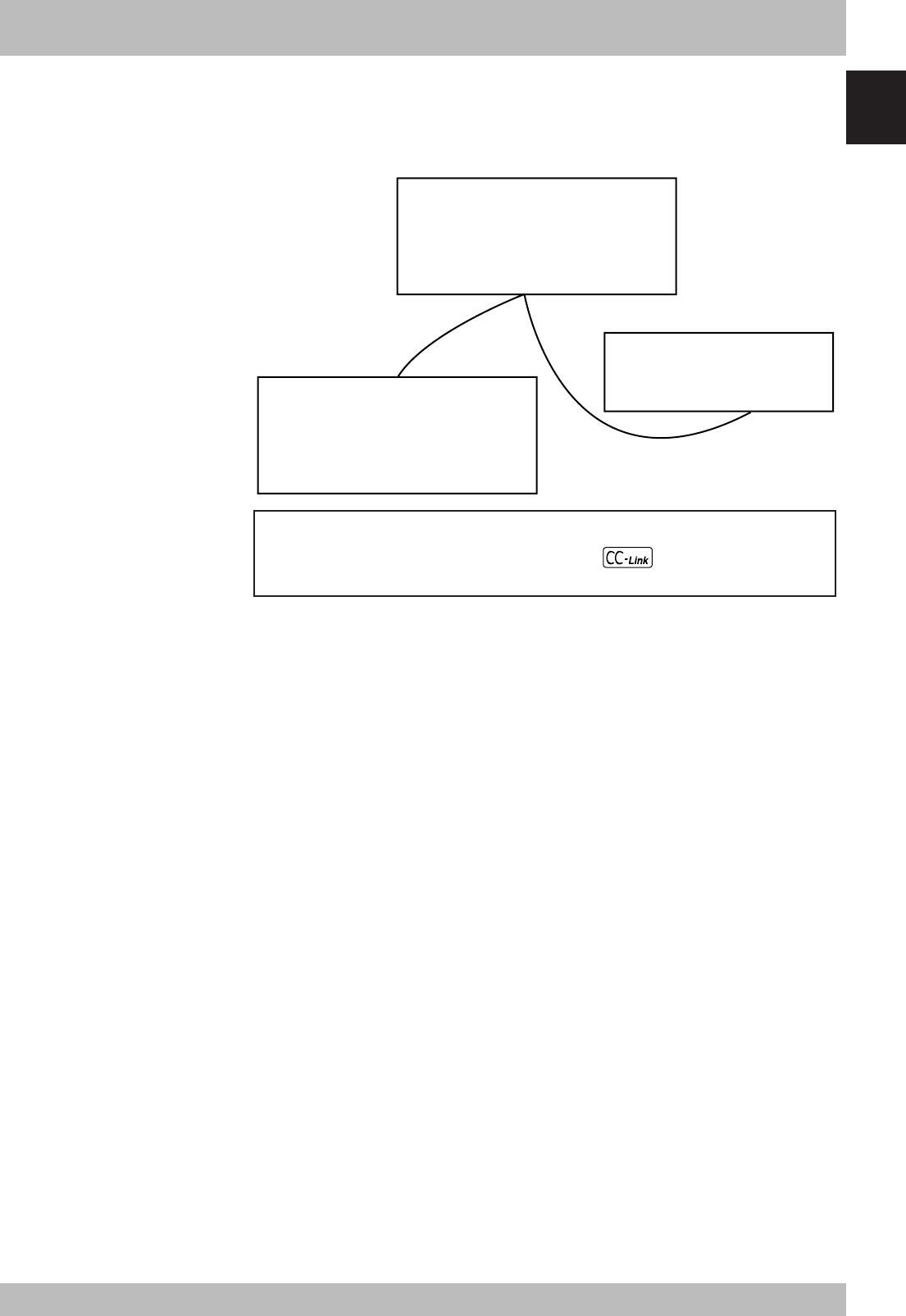
CC-Link is the abbreviation of Control & Communication Link.
The CC-Link system connects the robot controller and dispersed input/output modules
with dedicated cables, and controls these modules from the master station PLC.
The CC-Link system allows wiring to be reduced.
Master station
Station that controls entire CC-
Link system.
The PLC master module
corresponds to this.
Remote device station
Station controlled by master station
in CC-Link system.
The robot controller corresponds to
this.
Remote I/O station
Station controlled by master
station in CC-Link system.
CC-Link is a registered trademark of CC-Link partner association.
The CC-Link compatible module provided with a label is compatible with
CC-Link Ver 1.10.
[Wiring saving]
One dedicated cable (4-wire) is used to connect the robot controller and PLC. This allows
the entire system wiring to be reduced.
[Emulated serialization on parallel DIO]
By making the robot controller’s internal settings without using a robot program, the
various I/O devices, such as the sensors and relays mounted on the robot controller’s
parallel I/O can be controlled from the PLC as if they were CC-Link system I/O devices.
cCAUTION
An emergency stop terminal for
hardwire is provided in the SAFETY
connector on the robot controller.
When the CC-Link system is used
while STD. DIO is not used (external
DC 24V power supply is not used),
invalidate the external DC 24V
monitor control setting in SYSTEM >
PARAM mode. If it is left valid, the
STD. DIO interlock signal is made
valid causing an error in the robot
operation commands.
nNOTE
The dedicated input of the STD.DIO
connector provided on the controller
will be disabled except for an interlock
signal (DI 11). When the external 24V
monitor control of system parameters
is disabled, the interlock signal (DI 11)
will also be disabled.
Outline
1
1-2
2. Mechanism
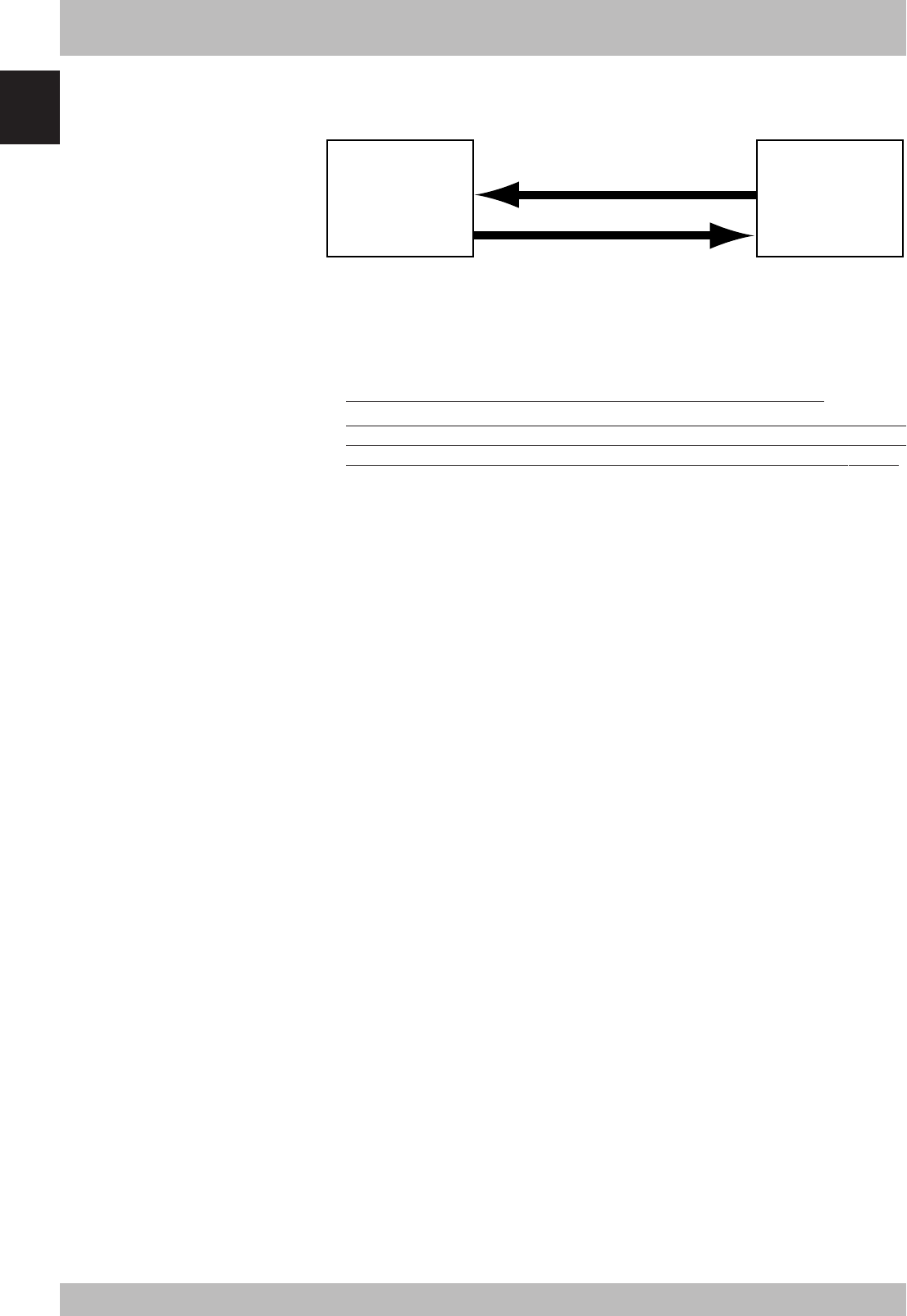
The mechanism of communication is explained in this section to provide an understand-
ing of how the robot controller and PLC operate via the CC-Link system.
q
w
ON/OFF information
Master station
PLC
Robot
controller
qThe robot controller’s ON/OFF information is sent to the master station PLC via the
network (CC-Link system cable).
wThe master station PLC’s ON/OFF information is set to the robot controller via the
network (CC-Link system cable).
* The robot controller monitors the ON/OFF information at a 10ms cycle.
* The ON/OFF information consists of 16 points each of dedicated I/O points, 96 points
each of general-purpose I/O points as bit information, and two words each of dedi-
cated I/O words, 14 words each of general-purpose I/O words as word information.
If the following is executed with the robot program in the robot controller, the bit infor-
mation will be sent to the master station PLC via the CC-Link system by q.
SO (20) = 1
Conversely, if the following is executed with the robot program, the bit information re-
ceived from the master station PLC via the CC-Link system will be monitored by w, and
will wait for the ON information.
WAIT SI (20) = 1
If the following is executed with the robot program in the robot controller, the word
information will be sent to the master station PLC via the CC-Link system by q.
SOW (2) = 256
Conversely, if the following is executed with the robot program, the word information
received from the master station PLC via the CC-Link system will be substituted in inte-
ger variable A% by w.
A% = SIW (3)
1
Outline
1-3
3. Names of each part on the CC-Link compatible module
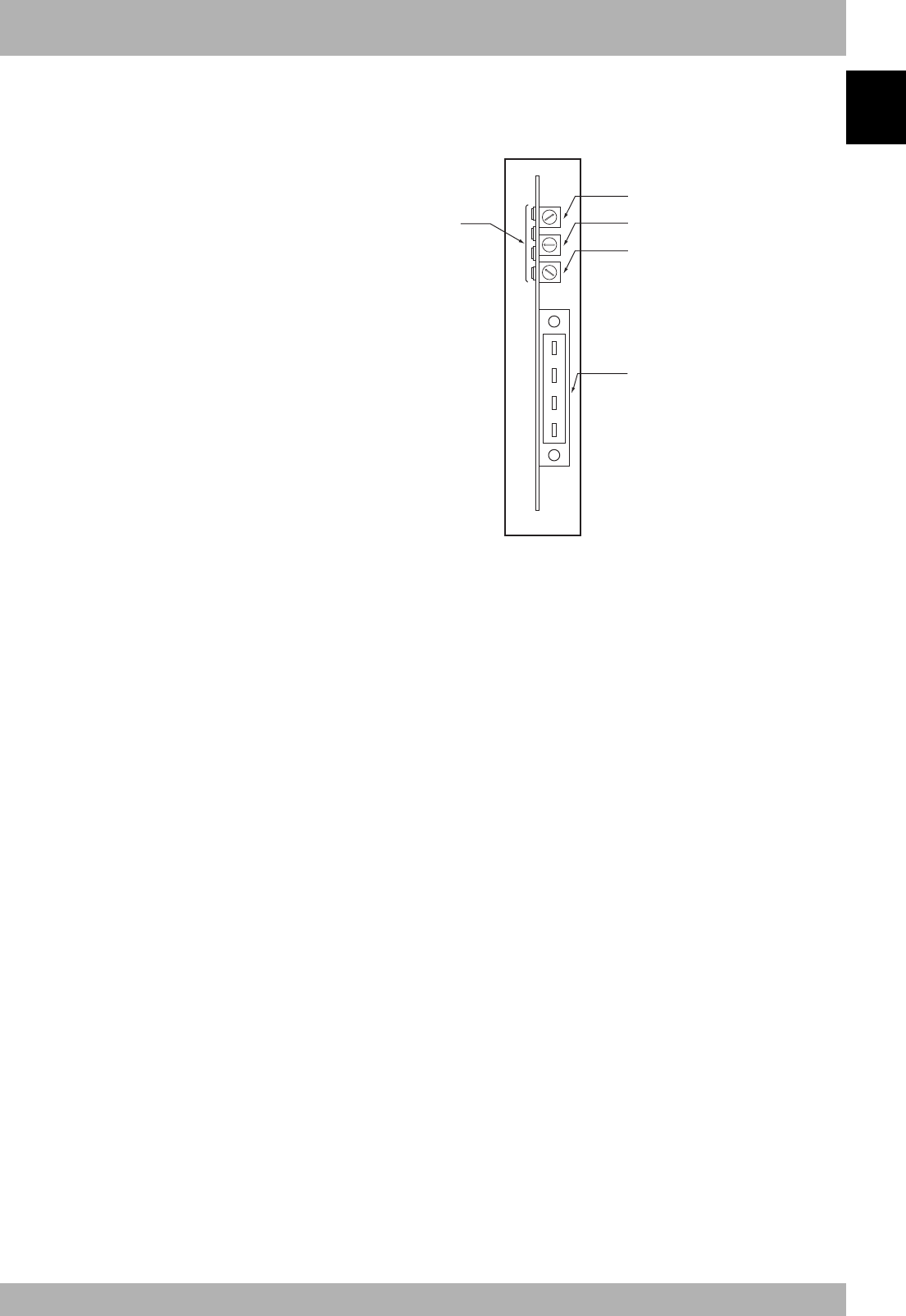
The part names of the CC-Link compatible module installed in the robot controller are
described in this section. The CC-Link compatible module is installed into an optional
slot in the robot controller.
w
t
r
e
q
1
2
3
4
5
6
7
8
9
0
1
2
3
4
5
6
7
8
9
0
1
2
3
4
5
6
7
8
9
0
Front of the unit
qCC-Link system cable terminals
These terminals are used to connect the CC-Link system cable. Each of the four
terminals has a meaning, so do not make miswiring. These terminals are “DA”,
“DB”, “DG” and “SLD” from the top.
wTransmission monitor LED
The status in the CC-Link system is indicated with ON, OFF and flickering status
of four LEDs. These terminals are “RUN”, “ERRL”, “SD” and “RD” from the top.
eStation No. setting switch (LSB: 1st digit)
This is the rotary switch for setting the robot controller station No. in the CC-Link
system. The 1st digit of the station No. is set with this switch.
rStation No. setting switch (MSB: 2nd digit)
This is the rotary switch for setting the robot controller station No. in the CC-Link
system. The 2nd digit of the station No. is set with this switch.
tCommunication speed switch (BPS)
This is the rotary switch for setting the CC-Link system’s communication speed.
Outline
1
1-4
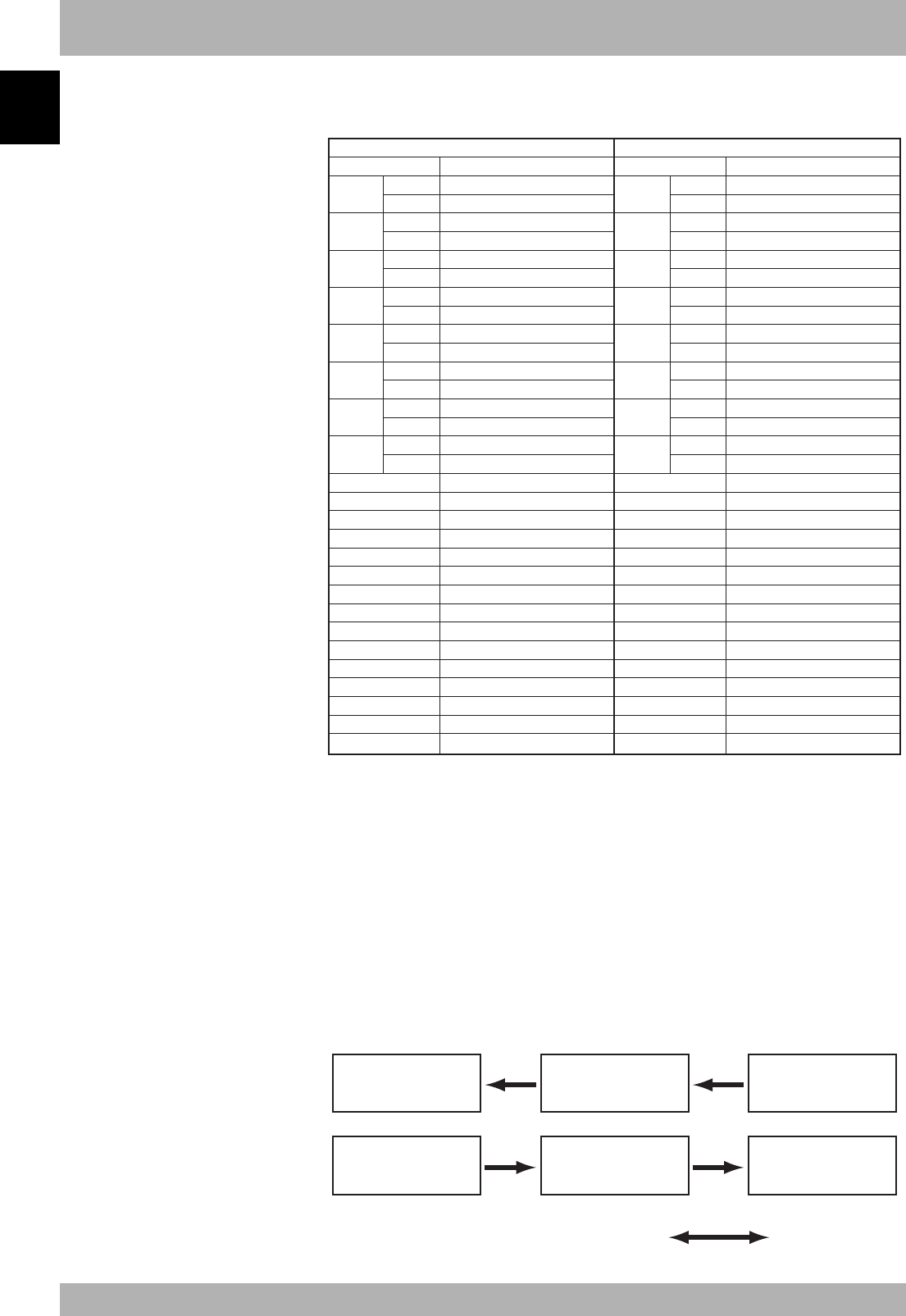
4. Assignment of CC-Link compatible I/O
The I/O expressions used in the robot controller’s program language and the I/O expres-
sions for the remote device stations differ. The correspondence is shown below.
n: Address assigned to master module with station No. setting
n= (station No. - 1) ✕ 2
SOW(0)
*3
RWr0 SIW(0)
*3
RWw0
SOW(1)
*3
RWr1 SIW(1)
*3
RWw1
SOD(2) SOW(2) RWr2 SID(2) SIW(2) RWw2
SOW(3) RWr3 SIW(3) RWw3
SOD(4) SOW(4) RWr4 SID(4) SIW(4) RWw4
SOW(5) RWr5 SIW(5) RWw5
SOD(6) SOW(6) RWr6 SID(6) SIW(6) RWw6
SOW(7) RWr7 SIW(7) RWw7
SOD(8) SOW(8) RWr8 SID(8) SIW(8) RWw8
SOW(9) RWr9 SIW(9) RWw9
SOD(10) SOW(10) RWrA SID(10) SIW(10) RWwA
SOW(11) RWrB SIW(11) RWwB
SOD(12) SOW(12) RWrC SID(12) SIW(12) RWwC
SOW(13) RWrD SIW(13) RWwD
SOD(14) SOW(14) RWrE SID(14) SIW(14) RWwE
SOW(15) RWrF SIW(15) RWwF
SO0(7~0)
*1
RXn7~RXn0 SI0(7~0)
*1
RYn7~RYn0
SO1(7~0)
*1
RXnF~RXn8 SI1(7~0)
*1
RYnF~RYn8
SO2(7~0) RX(n+1)7~RX(n+1)0 SI2(7~0) RY(n+1)7~RY(n+1)0
SO3(7~0) RX(n+1)F~RX(n+1)8 SI3(7~0) RY(n+1)F~RY(n+1)8
SO4(7~0) RX(n+2)7~RX(n+2)0 SI4(7~0) RY(n+2)7~RY(n+2)0
SO5(7~0) RX(n+2)F~RX(n+2)8 SI5(7~0) RY(n+2)F~RY(n+2)8
SO6(7~0) RX(n+3)7~RX(n+3)0 SI6(7~0) RY(n+3)7~RY(n+3)0
SO7(7~0) RX(n+3)F~RX(n+3)8 SI7(7~0) RY(n+3)F~RY(n+3)8
SO10(7~0) RX(n+4)7~RX(n+4)0 SI10(7~0) RY(n+4)7~RY(n+4)0
SO11(7~0) RX(n+4)F~RX(n+4)8 SI11(7~0) RY(n+4)F~RY(n+4)8
SO12(7~0) RX(n+5)7~RX(n+5)0 SI12(7~0) RY(n+5)7~RY(n+5)0
SO13(7~0) RX(n+5)F~RX(n+5)8 SI13(7~0) RY(n+5)F~RY(n+5)8
SO14(7~0) RX(n+6)7~RX(n+6)0 SI14(7~0) RY(n+6)7~RY(n+6)0
SO15(7~0) RX(n+6)F~RX(n+6)8 SI15(7~0) RY(n+6)F~RY(n+6)8
------------ RX(n+7)F~RX(n+7)0
*2
------------ RY(n+7)F~RY(n+7)0
*2
Output from robot controller Input to robot controller
Program language
Remote device station
Program language
Remote device station
Caution)
*1: Has a meaning in the robot controller’s internal process as a dedicated input/output. This
cannot be used as a general-purpose input/output in the robot program.
*2: This area is reserved for the CC-Link system.
*3: Has a meaning in the robot controller’s internal process as a dedicated command region. This
cannot be used as a general-purpose input/output in the robot program.
An example of the flow of the I/O information in the robot controller (remote device
station) is shown below. The buffer memory in the master station used to store the infor-
mation, etc., differs according to the PLC type and station No., etc. Refer to the PLC
Manual for details.
X17F to X100
D115 to D100
E7h to E0h
2EFh to 2E0h
FROM
TO
RX(n+7)F to RXn0
RWrF to RWr0
RY(n+7)F to RYn0
RWwF to RWw0
Y17F to Y100
D135 to D120
167h to 160h
1EFh to 1E0h
PLC CPU
(A1SHCPU)
Master station
(A1SJ61BT11)
Robot controller
Automatic update
Remote input Remote input
nNOTE
SIW(n) and SOW(n) are handled as
numerical data of word with no sign.
SID(n) and SOD(n) are handled as
numerical data of double words with a
sign.
nNOTE
The dedicated input of the STD.DIO
connector provided on the controller
will be disabled except for an interlock
signal (DI 11). When the external 24V
monitor control of system parameters
is disabled, the interlock signal (DI 11)
will also be disabled.
1
Outline
1-5
5.
Shift of CC-Link system connection status and robot controller status
Always start the CC-Link system specification robot controller in the servo OFF state
after the power is turned ON.
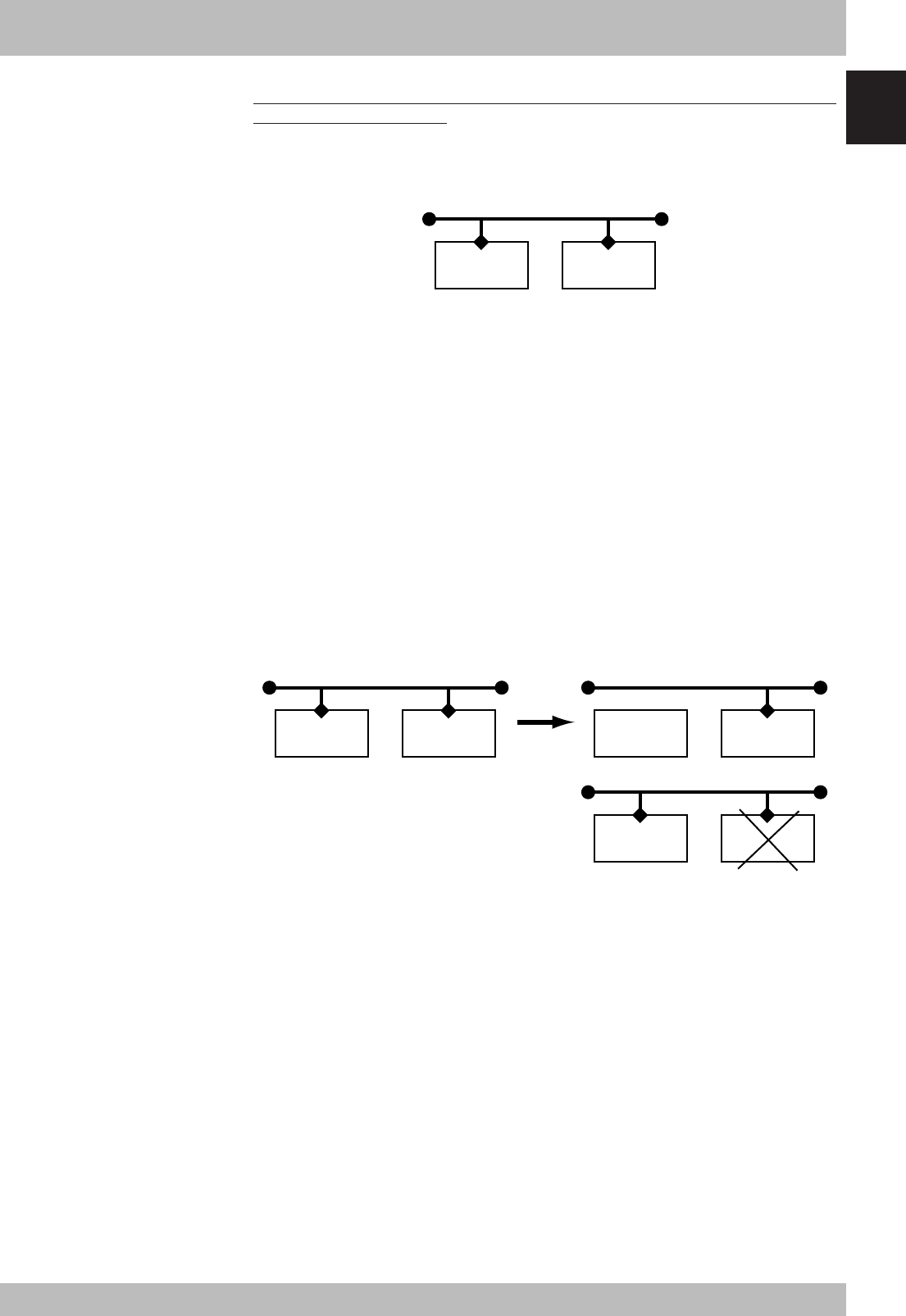
qNormal state of CC-Link system connection when robot controller power
is turned ON
Robot
controller
Master station
PLC
• Emergency stop/interlock signal in CC-Link system are valid
• When SAFE mode is enabled, service mode input signal is made valid with SI (02) in
the CC-Link system.
• Emergency stop terminal in SAFETY connector is valid.
• Interlock signal in STD. DIO connector is valid when the external 24V monitor con-
trol setting in SYSTEM > PARAM mode is left valid.
• When the external 24V monitor control setting in SYSTEM > PARAM mode is left
valid while SAFE mode is enabled, service mode input signal is made valid with DI
(02) in SAFETY connector.
* The signals in the CC-Link system are sent and received.
* Always initialize with the master station PLC when connecting to the CC-Link sys-
tem.
wShift from CC-Link system normal connection state to CC-Link sys-
tem erroneous connection state
Robot
controller
Master station
PLC
Robot
controller
Master station
PLC
Robot
controller
Master station
PLC
or
• Emergency stop input turns off with SI (00) in the robot controller.
• Service mode input turns off with SI (02) in the robot controller.
• Emergency stop terminal in SAFETY connector is valid.
• Interlock signal in STD. DIO connector is valid when the external 24V monitor con-
trol setting in SYSTEM > PARAM mode is left valid.
• When the external 24V monitor control setting in SYSTEM > PARAM mode is left
valid while SAFE mode is enabled, service mode input signal is made valid with DI
(02) in SAFETY connector.
* The signals in the CC-Link system are not sent or received.
* The “CC-Link Communication Error” is added to the error history in the robot con-
troller.
* If the connection to the CC-Link system shifts from the normal state to the erroneous
state, the CC-Link system connection must be returned to the normal state.
* The CC-Link system will return when the CC-Link system connection is recovered to
the normal state.
1-6
Outline
1
5. Shift of CC-Link system connection status and robot controller status
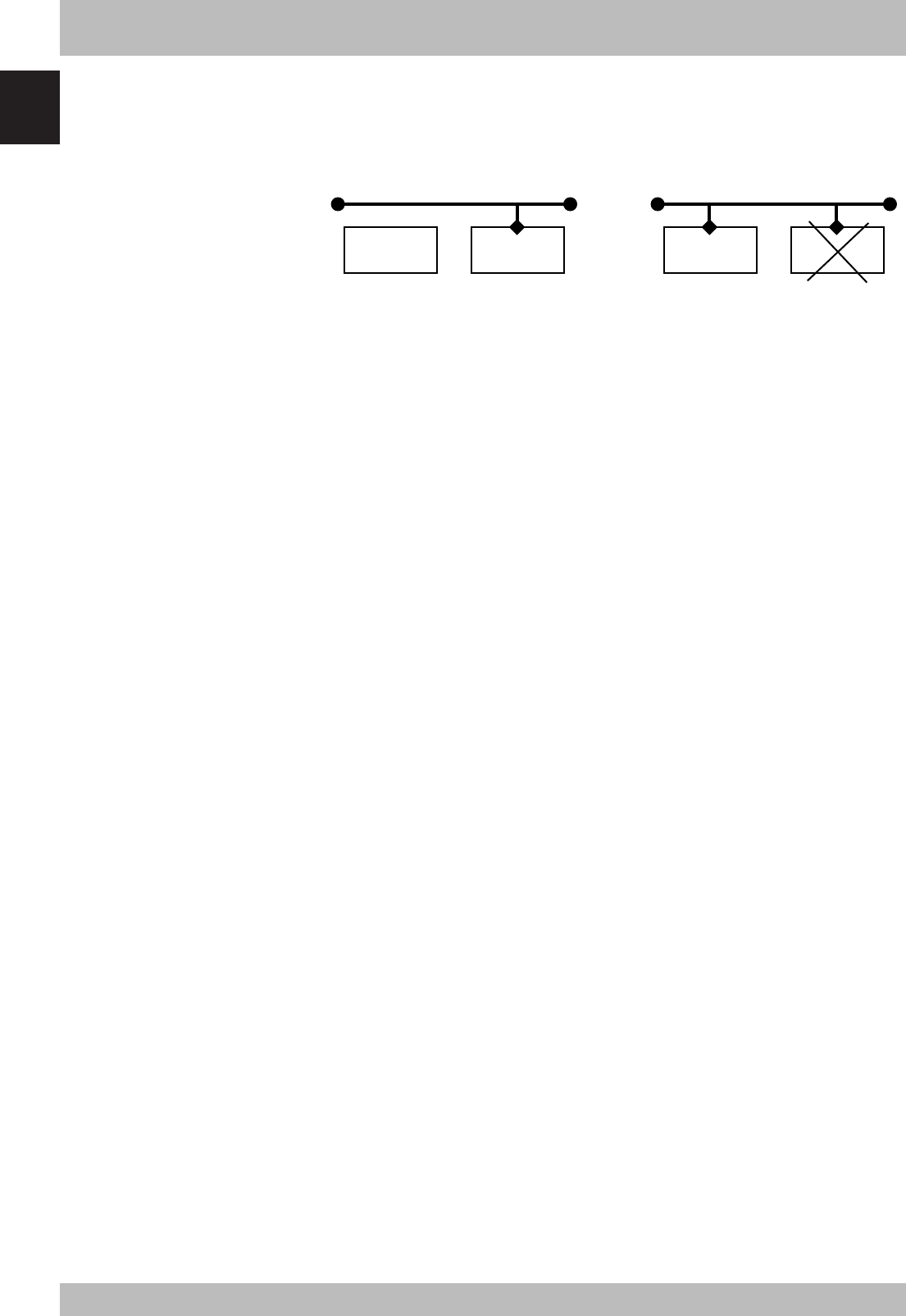
eCC-Link system erroneous connection state due to following factors
when robot controller power is turned ON
• Connection to CC-Link system not possible
• Error in master station PLC
Robot
controller
Master station
PLC
Robot
controller
Master station
PLC
• Emergency stop/interlock signals in CC-Link system are invalid
• When SAFE mode is enabled, service mode input signal is made valid with SI (02) in
the CC-Link system.
• Emergency stop terminal in SAFETY connector is valid.
• Interlock signal in STD. DIO connector is valid when the external 24V monitor con-
trol setting in SYSTEM > PARAM mode is left valid.
• When the external 24V monitor control setting in SYSTEM > PARAM mode is left
valid while SAFE mode is enabled, service mode input signal is made valid with DI
(02) in SAFETY connector.
* The signals on the CC-Link system cannot be exchanged.
* As opposed to the state given in w, in this state, the emergency stop state by SI (00) is
not attained in the controller, so the robot can be operated from the programming unit.
(The robot controller can be started independently when setting up the system, etc.)
* Service mode input signal cannot be invalidated with SI (02) when SAFE mode is
enabled, so change the service mode parameter setting in SYSTEM > PARAM mode.
In this case, take full precautions to prevent improper settings that might lead to a
hazardous situation.
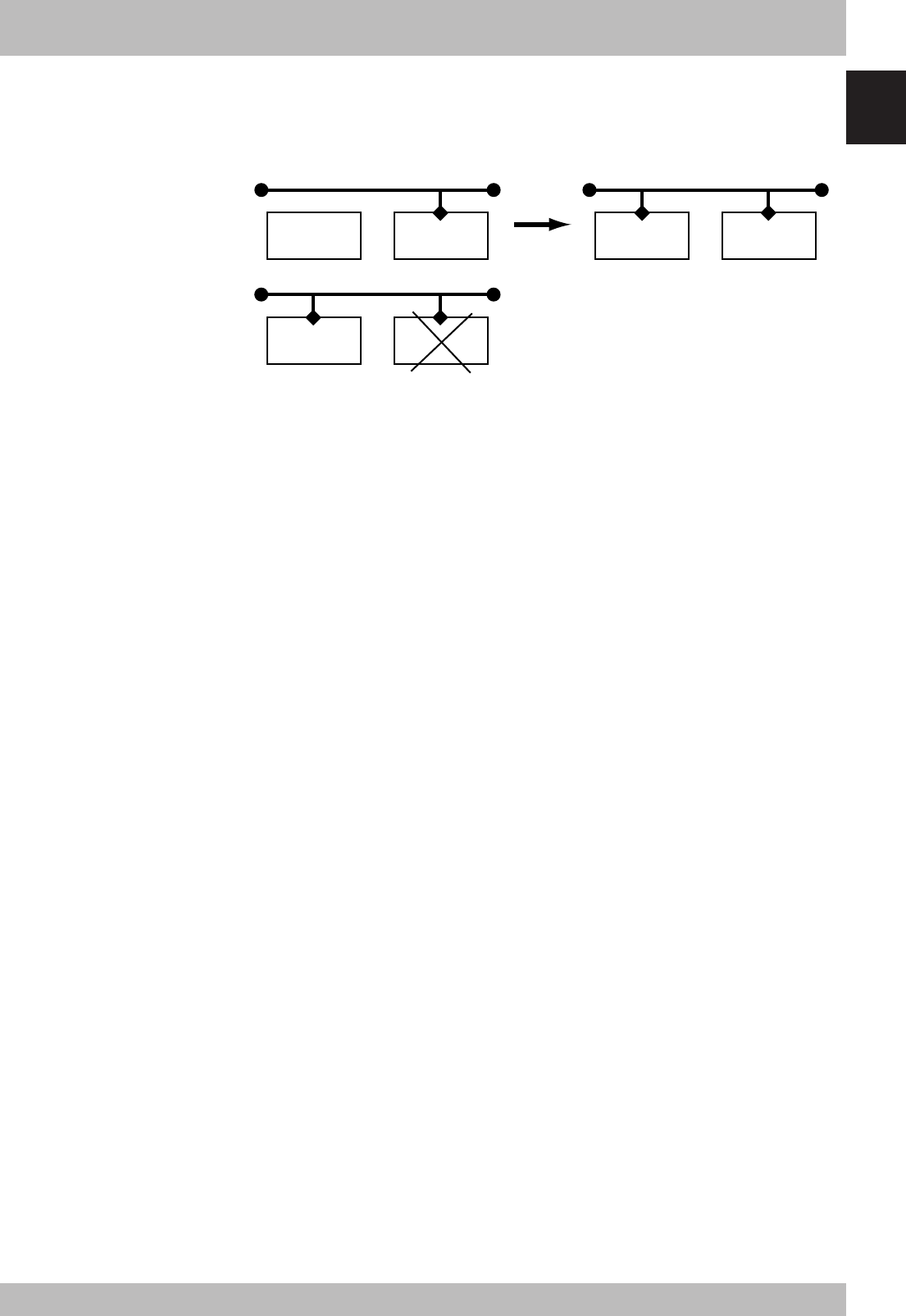
* When the connection to the CC-Link system is correctly recovered, the system will
automatically return to the CC-Link system.
* The “CC-Link Communication Error” has been added to the error history in the robot
controller.
(A standby state for up to 2.5 seconds will occur to check the communication.)
1-7
1
Outline
5. Shift of CC-Link system connection status and robot controller status
rTransmission from CC-Link system erroneous connection state to CC-
Link correct connection state when robot controller power is turned
ON
Robot
controller
Master station
PLC
Robot
controller
Master station
PLC
Robot
controller
Master station
PLC
• CC-Link system emergency stop/interlock signals change to valid state
• Emergency stop terminal in SAFETY connector is valid.
• Interlock signal in STD. DIO connector is valid when the external 24V monitor con-
trol setting in SYSTEM > PARAM mode is left valid.
• When the external 24V monitor control setting in SYSTEM > PARAM mode is left
valid while SAFE mode is enabled, service mode input signal is made valid with DI
(02) in SAFETY connector.
* The signals in the CC-Link system can be sent and received.
* When the connection to the CC-Link system shifts to the normal state, the initializa-
tion process must be carried out with the master station PLC when connecting to the
CC-Link system.
* When service mode parameter setting in SYSTEM > PARAM mode has been changed
while SAFE mode is enabled, make the service mode parameter setting again. In this
case, take full precautions to prevent improper settings that might lead to a hazardous
situation.
* The CC-Link system will return when the CC-Link system connection is recovered to
the normal state.

1-8
MEMO

Chapter 2 Connection
Contents
1. Confirming the CC-Link compatible module settings ....................... 2-1
2. Setting to the CC-Link system specification controller ..................... 2-2
2.1 Saving the robot controller data .............................................................. 2-2
2.2 Installing the CC-Link compatible module ............................................... 2-2
2.3 Response when starting the robot controller ............................................ 2-2
3. Setting the CC-Link compatible module ........................................... 2-3
3.1 Setting the station No. ............................................................................. 2-3
3.2 Setting the communication speed ............................................................ 2-4
4. Noise measures ................................................................................ 2-5
4.1 Mounting the ferrite core ......................................................................... 2-5
5. Connecting to the CC-Link system ................................................... 2-6
5.1 Connecting to the cable terminal to the controller ................................... 2-6
5.2 Testing the line from the master station PLC ............................................ 2-6
6. Parameter setting for CC-Link serial I/O board ................................ 2-7
6.1 Parameter setting for CC-Link serial I/O board ......................................... 2-8

MEMO
2-1
2
Connection
1. Confirming the CC-Link compatible module settings
With the CC-Link system specification robot controller, the CC-Link compatible module
station No. and communication speed settings can be confirmed with the programming
unit (hereinafter, MPB).
• When connecting CC-Link compatible module to existing robot controller
→Follow the procedures given in section 2., and change the settings for the CC-Link
system specifications.
• For CC-Link system specification robot controller
(When robot controller is purchased with CC-Link compatible module mounted)
→Follow the procedures given in section 3., and set the station No. and communica-
tion speed.
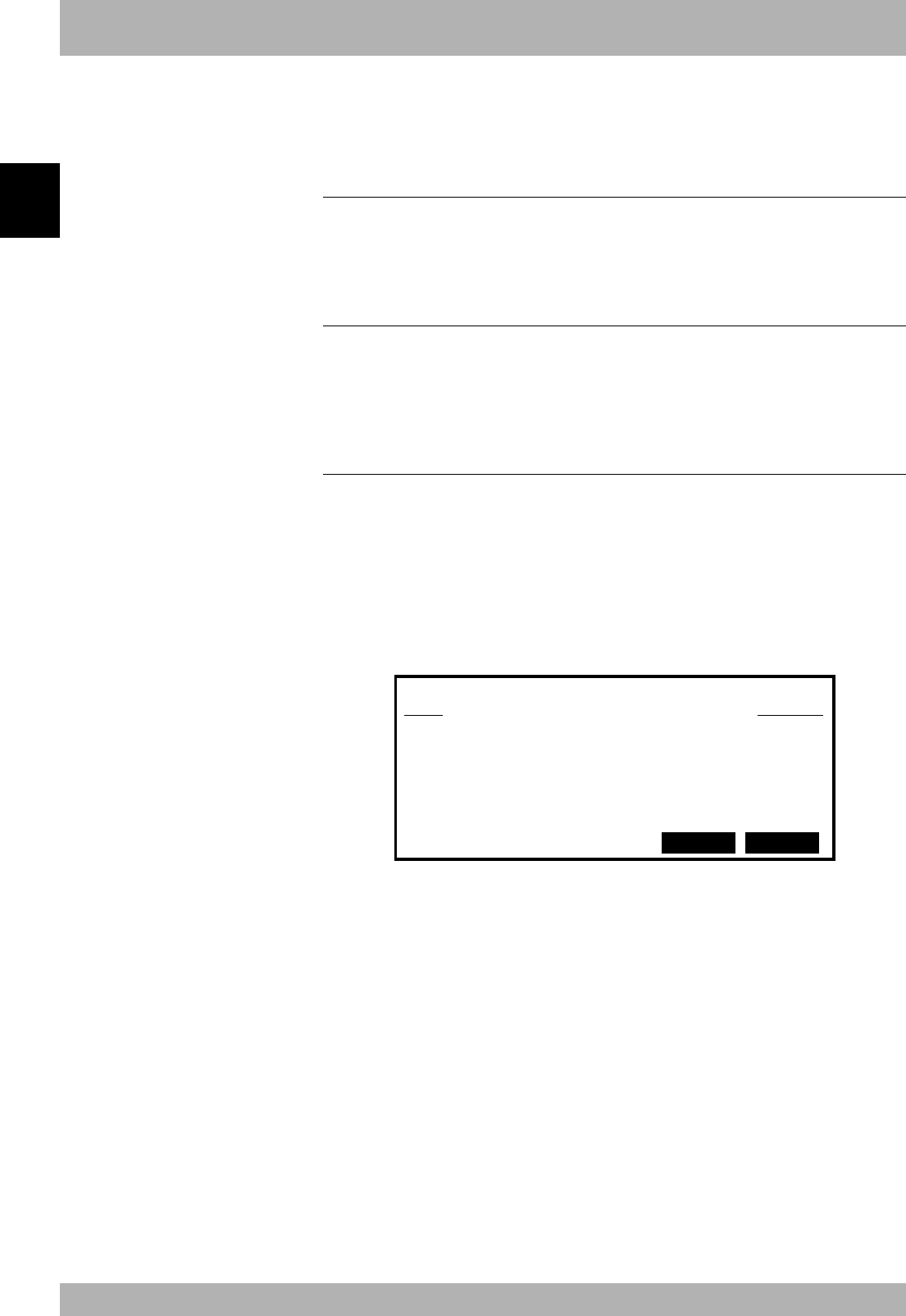
SYSTEM V8.29
Robot = YK250X
Axis = XYZR
Standard = SRAM/364kB, DIO_N
Opt-ifo = CCLnk(S1/10M)
PARAM CMU OPTION INIT DIAGNOS
Confirmation position
[Operation]
1. Press the
MODE
key.
2. Press the F 4 (SYSTEM) key.
3. The display above will appear. The station No. and communication speed set for the
CC-Link system will appear in the parentheses following “CCLnk” on the screen. The
meaning of the above example is shown below.
S1 :Station No. 1
(Setting range: 1 to 61)
*Four stations are occupied. Thus, this means that (station No. +3)
is occupied.
10M :10Mbps
(Setting communication speed [unit: bps]: 156K, 625K, 2.5M, 5M,
10M)
*The communication speed must match the master station setting.
cCAUTION
If the robot controller is not con-
nected to the CC-Link system or if
there is an error in the CC-Link
system, the error “CC-Link Commu-
nication Error” will appear on the
MPB when the robot controller power
is turned ON. The above settings can
be confirmed even in this state.
2-2
Connection
2
2. Setting to the CC-Link system specification controller
When connecting the CC-Link compatible module to an existing robot controller, the CC-Link compat-
ible module must be installed in the robot controller. Check the CC-Link system specifications with the
procedure given in section 1.
2.1 Saving the robot controller data
Before installing the CC-Link compatible module into the robot controller, be sure to
save the data stored in the robot controller into an external memory by using VIP soft-
ware, etc.
2.2 Installing the CC-Link compatible module
Install the CC-Link compatible module into the robot controller while referring to the
procedure for installing an option board. Also set the station No. and communication
baud rate for the CC-Link compatible module with the procedures given in “3. Setting the
CC-Link compatible module” in chapter 2.
2.3 Response when starting the robot controller
The robot controller will always start up with an “option board setting error” after the
CC-Link compatible module has been installed. Make the following settings as explained
below.
[Procedure]
1. Make connections to all input connectors on the front panel of the robot controller.
2. The following type of question will appear on the MPB screen, so answer as “YES”.
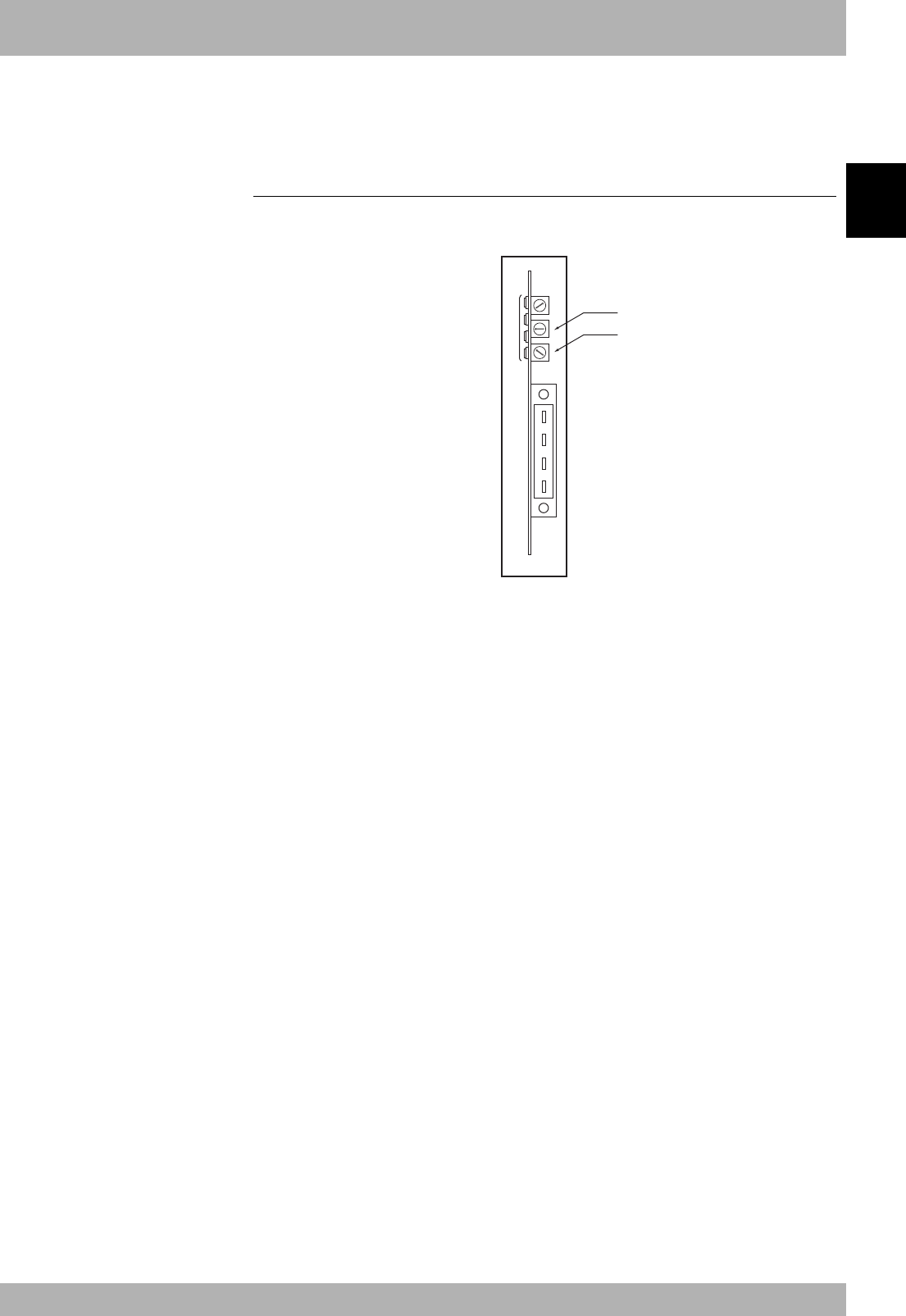
POWER ON
12.70:Incorrect option setting
change OptionSlot OK? YES NO
3. If the controller does not operate properly because of a memory error, etc., load the
data saved in step 2.1 into the controller. Refer to the controller instruction manual for
details on loading the data.
If the robot controller is not correctly connected with the CC-Link system, the mes-
sage “CC-Link Communication Error” will appear on the MPB.
cCAUTION
If you need an instruction manual for
installing the option board, please
contact our sales office.
nNOTE
For instructions on how to load data
using the support software VIP, refer to
the VIP user's manual.
2-3
2
Connection
3. Setting the CC-Link compatible module
To connect the CC-Link system specification controller to the CC-Link system, the station No. and
communication speed must be set with the rotary switch on the CC-Link compatible module. Confirm
the current station No. and communication speed with the procedures given in section 1.
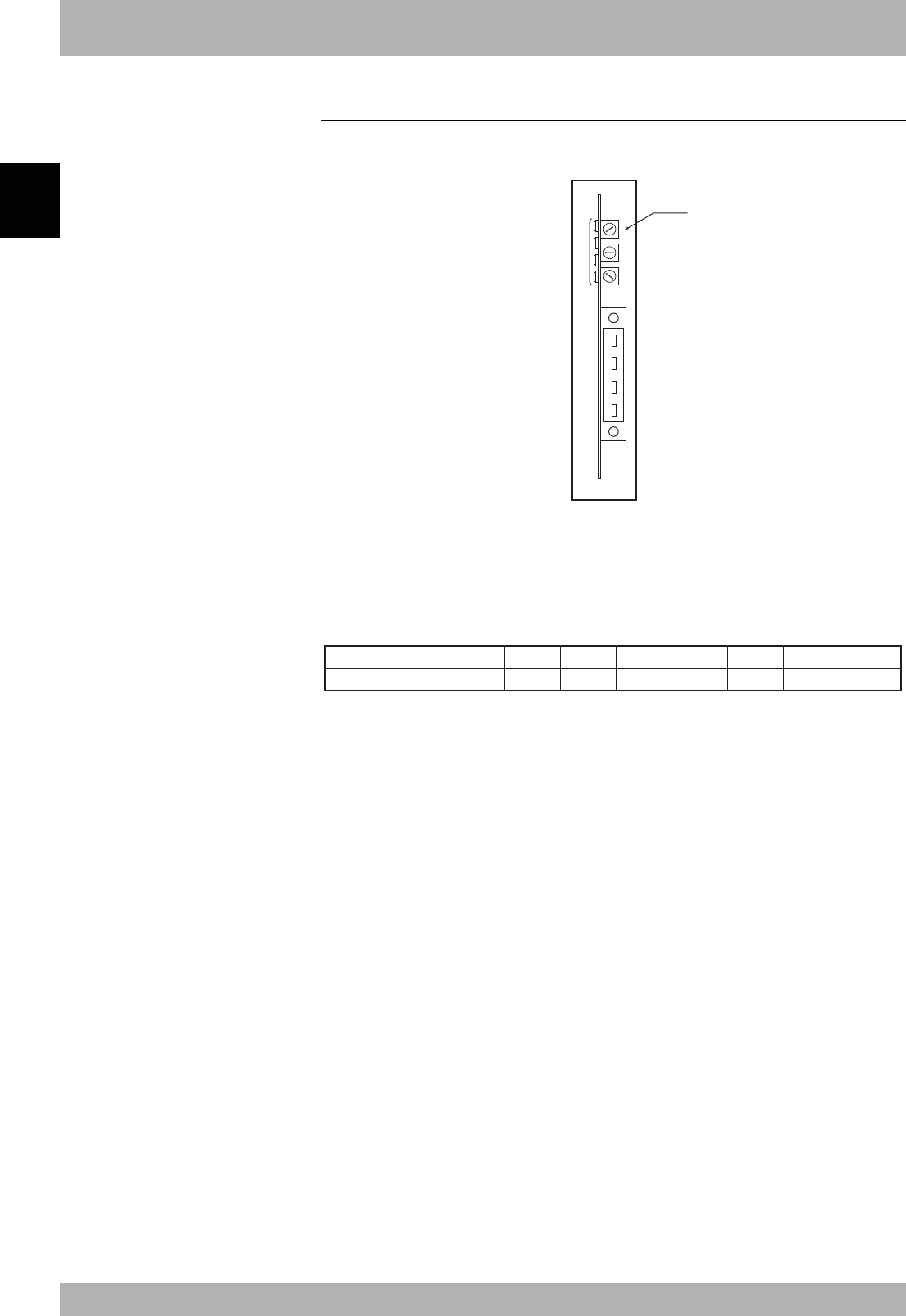
3.1 Setting the station No.
Using the rotary switches MSB and LSB in front of the CC-Link compatible module, set
the station No. of the robot controller in the CC-Link system.
1
2
3
4
5
6
7
8
9
0
1
2
3
4
5
6
7
8
9
0
1
2
3
4
5
6
7
8
9
0
MSB
LSB
Front of the unit
[Procedures]
1. Check the station No. of the robot controller in the CC-Link system.
The station No. must be set between 1 and 61.
2. Using a flat-blade precision screwdriver, set the 10th digit on rotary switch MSB.
3. In the same manner, set the 1st digit on rotary switch LSB.
nNOTE
Up to 64 stations can be set in the CC-
Link system, but the CC-Link system
itself occupies 4 stations (specified No.
+3), so set the station No. between 1
and 61.
cCAUTION
• Never directly touch the conduc-
tive sections or electronic parts
other than the rotary switch on
the CC-Link compatible module.
• Do not apply impact on the CC-
Link compatible module.
• Do not place water or conductive
matters, etc., which could cause
damage near the CC-Link
compatible module.
• Accurately set the station No.
• Make sure not to set the rotary
switch BPS by mistake.
wWARNING
When setting the station No.,
completely shut off the power
supplied to the robot controller.
2-4
Connection
2
3. Setting the CC-Link compatible module
3.2 Setting the communication speed
Using the rotary switch BPS in front of the CC-Link compatible module, set the commu-
nication speed for the robot controller in the CC-Link system.
1
2
3
4
5
6
7
8
9
0
1
2
3
4
5
6
7
8
9
0
1
2
3
4
5
6
7
8
9
0
BPS
Front of the unit
[Procedures]
1. Confirm the communication speed for the robot controller in the CC-Link system.
The communication speed must be set between 156K and 10Mbps. The correspon-
dence of the communication speed and switch is shown below.
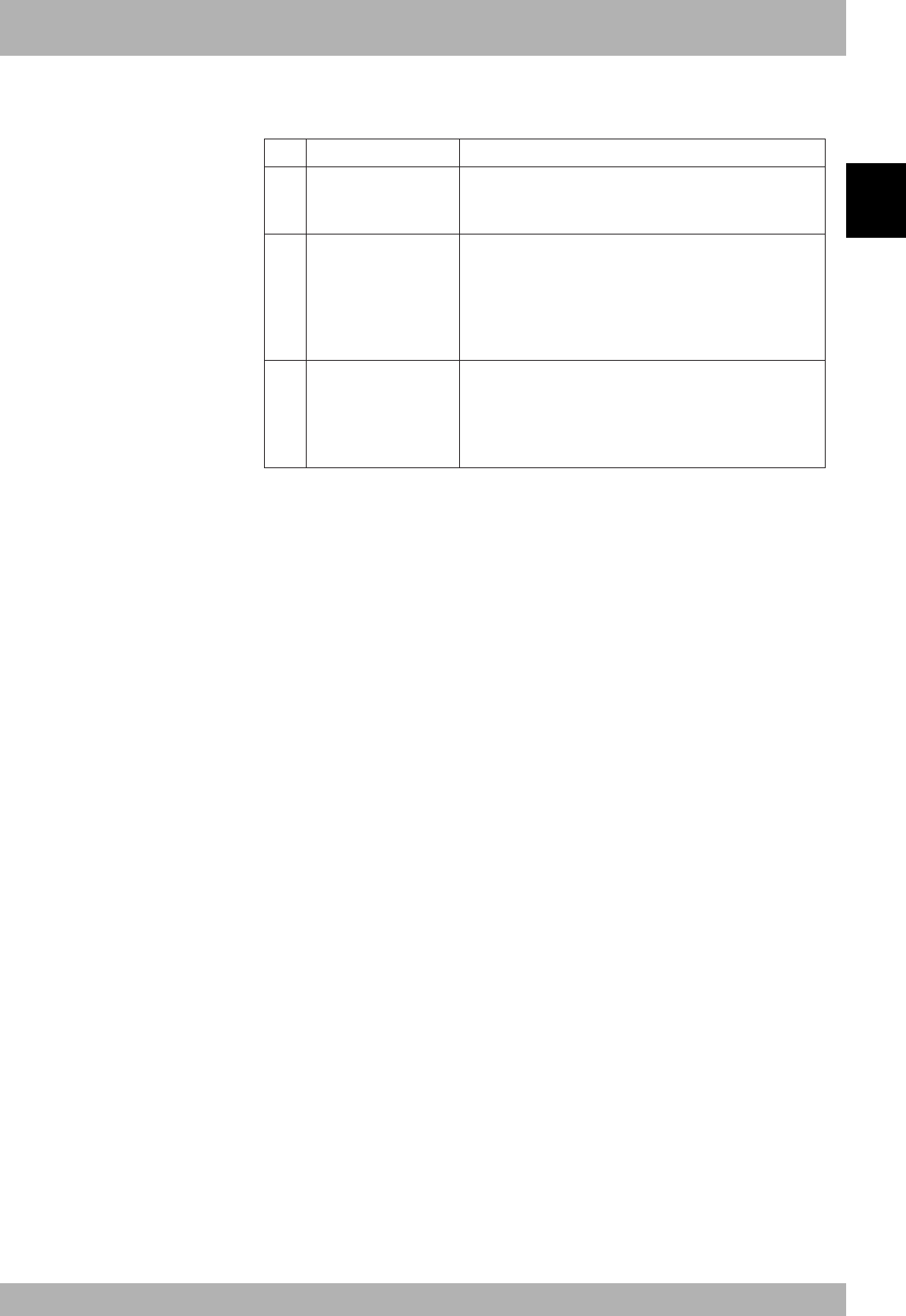
156K
Communication speed [bps]
Switch No.
Other than left setting
625K 2.5M 5M 10M Error
01234
2. Using a flat-blade precision screwdriver, set the switch No. corresponding to the com-
munication speed with rotary switch BPS.
nNOTE
The communication speed must match
the CC-Link system’s master station
setting.
cCAUTION
• Never directly touch the
conductive sections or electronic
parts other than the rotary switch
on the CC-Link compatible
module.
• Do not apply impact on the CC-
Link compatible module.
• Do not place water or conductive
matters, etc., which could cause
damage near the CC-Link
compatible module.
• Accurately set the communica-
tion speed.
• Make sure not to set the rotary
switches MSB and LSB by
mistake.
wWARNING
When setting the station No.,
completely shut off the power
supplied to the robot controller.

2-5
2
Connection
4. Noise measures
Two ferrite cores must be mounted on the input power cable when connecting to the CC-Link system.
4.1 Mounting the ferrite core
Mount two ferrite cores onto the input power cable connected to the input power connec-
tor on the front panel of the robot controller.
[Procedures]
1. Mount the two ferrite cores (supplied) onto the input power cable. The ferrite core
should be placed as close to the robot controller body as possible.
2. Fix the mounted ferrite core with an Insulock tie, etc.
wWARNING
Completely shut off the power
supply to the input power cable
before starting this work.
cCAUTION
Securely fix the ferrite core. If the
ferrite core is not mounted, trouble
could occur with the CC-Link system
operations.

2-6
Connection
2
5. Connecting to the CC-Link system
The CC-Link system cable must be connected to the CC-Link compatible module in
order to connect to the CC-Link system.
DA
DB
DG
SLD
1
2
3
4
5
6
7
8
9
0
1
2
3
4
5
6
7
8
9
0
1
2
3
4
5
6
7
8
9
0
Front of the unit
Cable terminal
5.1
Connecting to the cable terminal to the controller
Connect the CC-Link system cable to the CC-Link system cable terminal on the CC-Link
compatible module.
[Procedure]
1. Using a Phillips head screwdriver, completely loosen the two screws on both sides of
the CC-Link system cable terminal, and remove the terminal block section from the
CC-Link compatible module.
2. Using a Phillips head screwdriver, securely fix the CC-Link system cable to the termi-
nal block removed in step 1.
The name of each terminal on the cable terminal block is shown above.
* When connecting a terminator, connect it across DA-DB.
* A slit to prevent incorrect inverted insertion is provided on the cable terminal block.
3. Connect the cable terminal, into which the CC-Link system cable has been installed,
to the CC-Link compatible module terminal block section on the robot controller, and
completely fix with the two screws on both sides using a Phillips head screwdriver.
5.2 Testing the line from the master station PLC
The master station PLC in the CC-Link system has a function to test the line to the remote
station. Using this function, confirm that the robot controller is accurately recognized as
a remote station in the CC-Link system.
Refer to the master station PLC instruction manual for details.
wWARNING
When setting the station No.,
completely shut off the power
supplied to the robot controller.
cCAUTION
• Always remove the terminal block
section when installing the CC-
Link system cable.
• Securely fix the CC-Link system
cable.
• Carefully carry out the work to
valid applying excessive force on
the CC-Link cable.
• Treat each end of the C-Link
system cable wire with a round
terminal or Y terminal so that it
will not dislocate.
• Carefully carry out the work so
that the CC-Link system cable is
not incorrectly wired.
• Refer to the master station PLC
instruction manual for details on
the CC-Link system cable
connection.
cCAUTION
If the line test results indicate a
correct connection, place the CC-Link
system cable into a conduit, or fix it
with a clamp.
2-7
2
Connection
nNOTE
• Set the Board status parameter to
"INVALID" when not using serial
I/O boards.
• When the Board status parameter
is set to "INVALID", the dedicated
input/output of the STD.DIO
connector becomes enabled. When
the Board status parameter is set
to "VALID", the dedicated input
(except DI1) of the STD.DIO
connector becomes disabled.
• For remote commands and I/O
commands, refer to the command
reference manual.
• For a description of codes issued
from the message output function
for SOW(1), refer to "1. Error
message" in chapter 9.
• When the Remote command & I/O
command parameter is set to
"VALID", the Output MSG to
SOW(1) parameter cannot be set
to "VALID". Likewise, when the
Output MSG to SOW(1) parameter
is set to "VALID", the Remote
command & I/O command
parameter cannot be set to
"VALID".
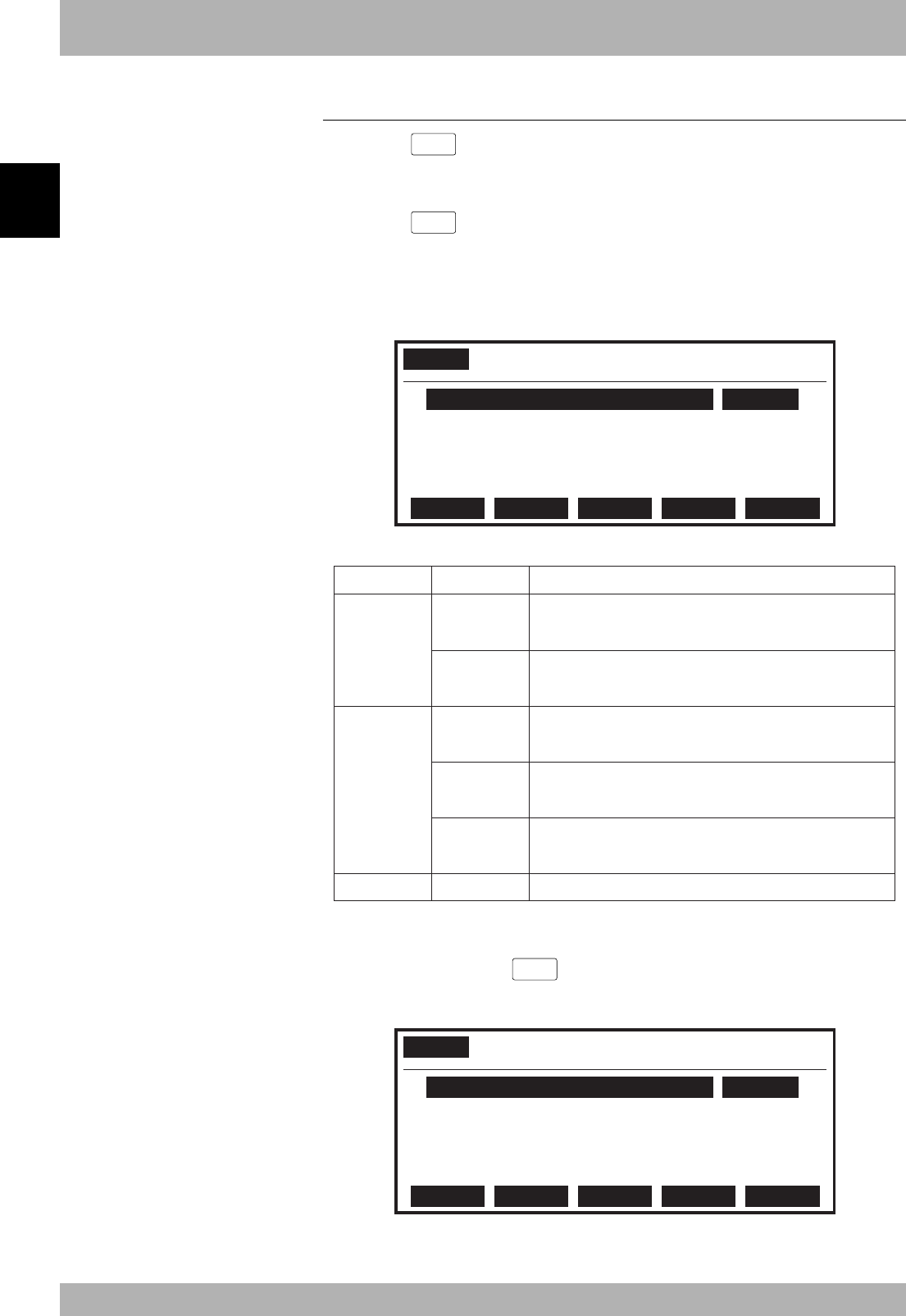
6. Parameter setting for CC-Link serial I/O board
The following functions are enabled or disabled by setting the parameters for the CC-
Link serial I/O board.
1.
2.
3.
Parameter
Board condition
Remote cmd / IO cmd
(SI05)
Output MSG to SOW(1)
Meaning
Enables or disables the serial I/O board. When set to "VALID" the
serial I/O can be used. When set to "INVALID" the serial I/O
cannot be used.
Enables or disables the functions of remote commands and I/O
commands using word information and bit information. When set
to "VALID" the remote commands and I/O commands can be used.
When set to "INVALID" the remote commands and I/O commands
cannot be used.
This parameter cannot be set to "VALID" simultaneously with
parameter 3.
Enables or disables the function to send an message number, which
is displayed on the MPB, to word information SOW(1). When set
to "VALID" the message number to be displayed on the MPB will
be output. When set to "INVALID" the message number to be
displayed on the MPB will not be output. This parameter cannot be
set to "VALID" simultaneously with parameter 2.
2-8
Connection
2
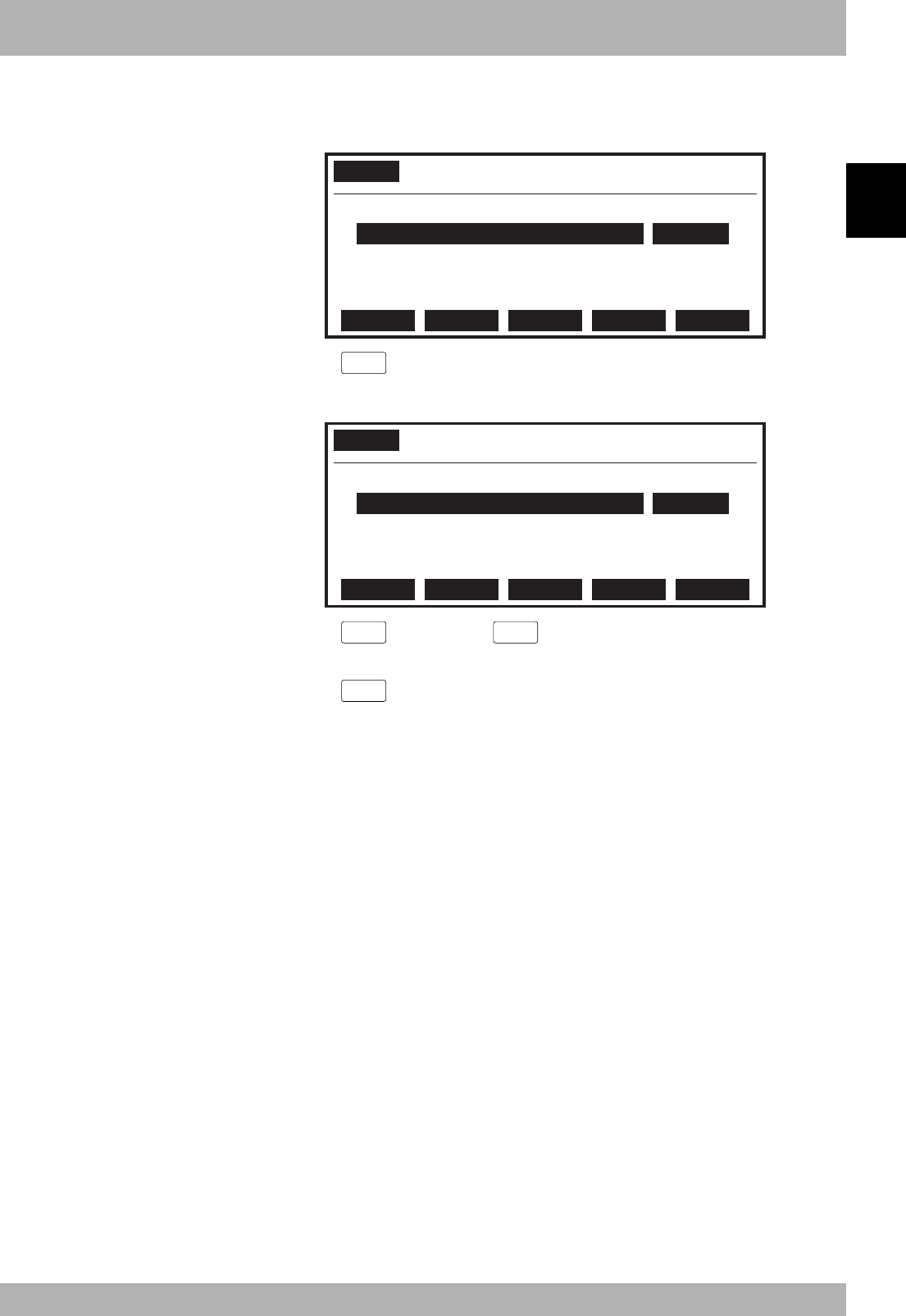
6.1 Parameter setting for CC-Link serial I/O board
1) Press the
F 1
(PARAM) key in “SYSTEM” mode to enter “SYSTEM>PARAM”
mode.
2) Press the
F 5
(OP. BRD) key in “SYSTEM>PARAM” mode to enter the option
board parameter setting mode.
The option boards installed in the controller are displayed in order on the MPB
screen.
Fig. 2-6-1
SYSTEM>PARAM>OP.BRD V8.18
3.CCLnk(S1/10M) VALID
1.DIO_N(1)
VALID
2. ---
4. ---
SELECT
Option boards installed into the option slots are displayed on the MPB screen.
Type
Option DIO
Serial I/O
Network
Display
DIO_N(n)
DIO_P(n)
CCLnk(n/m)
D_Net(n/m)
Profi(n/m)
E_Net
Meaning
An option DIO board of NPN specifications is installed. The
number in parentheses is an ID number.
An option DIO board of PNP specifications is installed. The
number in parentheses is an ID number.
A CC-Link unit is installed. Letters in parentheses indicate a station
number "n" and a communication speed "m".
A DeviceNet unit is installed. Letters in parentheses indicate a
MAC ID number "n" and communication speed "m".
A ProfiBUS unit is installed. Letters in parentheses indicate a
Station address "n" and communication speed "m".
An Ethernet unit is installed.
3) In “SYSTEM>PARAM>OP. BRD” mode, select the “CCLnk” with the cursor
(↑/↓) keys and press the
F 1
(SELECT) key.
Fig. 2-6-2
SYSTEM>PARAM>OP.BRD>SELECT V8.18
1.board condition VALID
2.remote cmd / IO cmd(SI05) VALID
3.Output MSG to SOW(1) INVALID
EDIT JUMP
6. Parameter setting for CC-Link serial I/O board
2-9
2
Connection
4) Select the parameter with the cursor (↑/↓) keys.
Fig. 2-6-3
SYSTEM>PARAM>OP.BRD>SELECT V8.18
1.board condition VALID
2.remote cmd / IO cmd(SI05) VALID
3.Output MSG to SOW(1) INVALID
EDIT JUMP
5) Press the
F 1
(EDIT) key.
Fig. 2-6-4
SYSTEM>PARAM>OP.BRD>SELECT V8.18
1.board condition VALID
2.remote cmd / IO cmd(SI05) VALID
3.Output MSG to SOW(1) INVALID
INVALID
VALID
6) Press the
F 1
(INVALID) or
F 2
(VALID) key.
7) Press the
ESC
key to quit the edit mode. To continue setting another parameter,
use the cursor (↑/↓) keys to select the parameter.
6. Parameter setting for CC-Link serial I/O board

2-10
MEMO

Chapter 3 Communication
Contents
1. State when robot controller power is turned ON ............................. 3-1
2. Initial process for connecting to CC-Link system.............................. 3-2
2.1 Initial data process ..................................................................................3-2
3. Communication with master station PLC ......................................... 3-3
3.1 Receiving data ........................................................................................ 3-3
3.2 Transmitting data ..................................................................................... 3-4
4. Direct connection by emulated serialization on parallel DIO .......... 3-5
4.1 Emulated serialization setting on parallel DIO ......................................... 3-5
5. Referring to communication data ..................................................... 3-8
5.1 Referring to the data from the programming unit ..................................... 3-8

MEMO

3-1
3
Communication
1. State when robot controller power is turned ON
The CC-Link system specification robot controller always starts operation in servo OFF
state when the power turned ON.
qWhen connection to CC-Link system is correctly established.
The following conditions must be satisfied to correctly connect to the CC-Link sys-
tem:
• The CC-Link system cable must be physically connected
• The station No. and communication speed must be correctly set
• The master station PLC must be operating correctly
When the robot controller is correctly connected to the CC-Link system, the normal
state will be indicated with the LEDs on the CC-Link compatible module.
At this time, the emergency stop signal and interlock signal in the CC-Link system
will be valid, so these signals must be turned ON with the initial data process.
The emergency stop terminal in SAFETY connector is always kept valid. The inter-
lock signal in STD. DIO connector is also valid unless the external 24V monitor con-
trol setting in SYSTEM > PARAM mode is set invalid.
When SAFE mode is enabled, service mode input signal is made valid with SI (02) in
the CC-Link system. When the external 24V monitor control setting in SYSYEM
>PARAM mode is left valid while SAFE mode is enabled, service mode input signal
is also made valid with DI (02) in SAFETY connector.
wWhen connection to CC-Link system is incorrectly established
The following causes can be considered a correct connection with the CC-Link sys-
tem cannot be established:
• The CC-Link system cable is not physically connected
• The station No. or communication speed is set incorrectly
• The master station PLC is not operating correctly
When the robot controller is incorrectly connected to the CC-Link system, the error
state will be indicated with the LEDs on the CC-Link compatible module. Note that if
the master station PLC is not operating correctly, nothing will appear on the LEDs.
The emergency stop signal and interlock signal in the CC-Link system are invalid in
this case, so the robot controller can be operated independently. However, if the cor-
rect state has been established even once after the robot controller power was turned
ON, the robot controller’s emergency stop state cannot be canceled without correctly
connecting to the CC-Link system.
The emergency stop terminal in SAFETY connector is always kept valid. The inter-
lock signal in STD. DIO connector is also valid unless the external 24V monitor con-
trol setting in SYSTEM > PARAM mode is set invalid.
When the external 24V monitor control in SYSYEM >PARAM mode is left valid
while SAFE mode is enabled, service mode input signal is made valid with DI (02) in
SAFETY connector.
Service mode input signal in the CC-Link system cannot be invalidated when SAFE
mode is enabled, so change the service mode setting in SYSTEM > PARAM mode. In
this case, take full precautions to prevent improper settings that might lead to a haz-
ardous situation.
* For meanings of LED display, see Chapter 4 in this manual.
3-2
Communication
3
2. Initial process for connecting to CC-Link system
The initial data process must be carried out to correctly connect to the CC-Link system.
2.1 Initial data process
The initial data process is carried out to confirm that the robot controller is correctly
connected to the CC-Link system. Prepare the process on the master station PLC side so
that the following type of process is always carried out before data is exchanged.
Initial data process (master station PLC side)
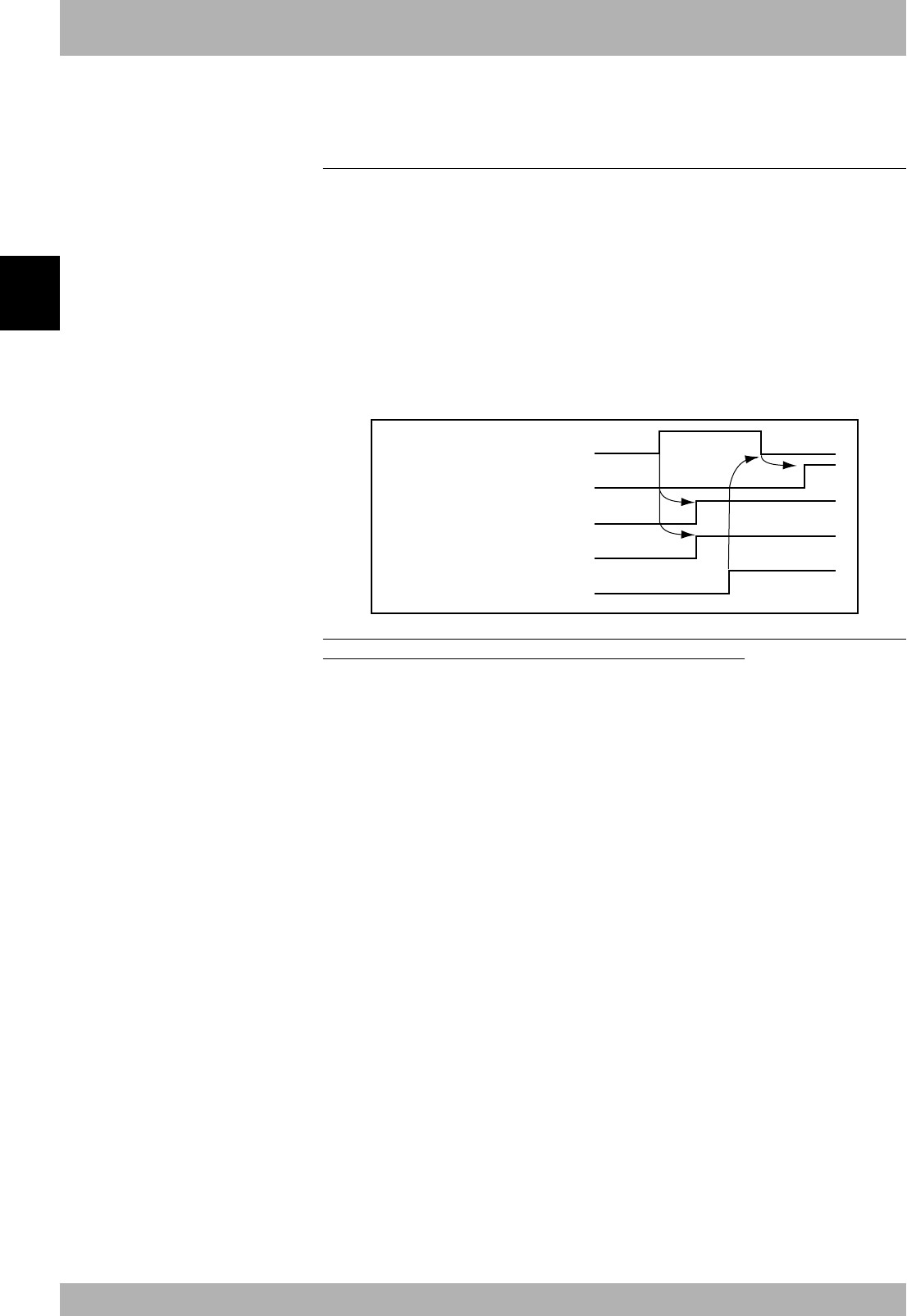
qConfirm that RX(n+7)8 (initial data process request flag) is ON.
wTurn RYn0 (emergency stop input) and RYn9 (interlock input) ON.
eTurn RY(n+7)8 (initial data process completion flag) ON.
rConfirm that RX(n+7)8 (initial data process request flag) is OFF.
tConfirm that RX(n+7)B (remote station Ready) is ON.
RX (n+7) 8
on
off
on
off
on
off
on
off
on
off
RYn0
RYn9
RY (n+7) 8
RX (n+7) B
The robot controller internal process will automatically start when the power is
turned ON and the system is returned from an error state.
cCAUTION
• RX(n+7) B (remote station
Ready) must always be used on
the master station PLC side as the
flag to indicate whether the robot
controller is operating correctly.
• When starting up the system in
the emergency stop state using
RYn0 (emergency stop input),
carry out the initial data process
first, and then turn RYn0
(emergency stop input) OFF. The
robot controller will start up in
the servo OFF state when the
power is turned ON.
3-3
3
Communication
3. Communication with master station PLC
The method for communicating with the master station PLC by using the robot program when the CC-
Link system is correctly connected is explained in this section.
3.1 Receiving data
Data is received by reading the master station PLC output device data with the robot
controller’s input port.
The correspondence of the master station PLC’s output device numbers and robot
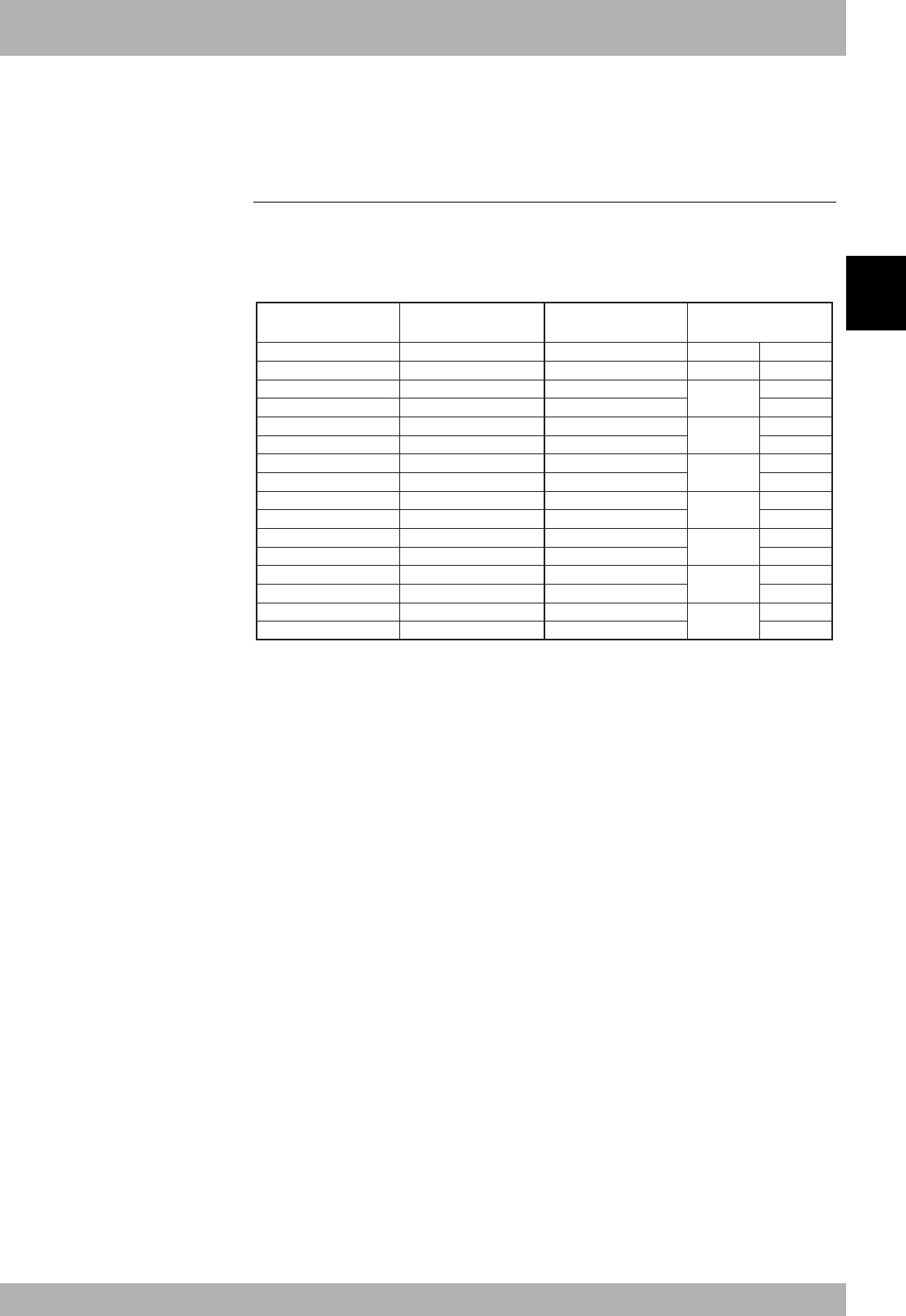
controller’s input port numbers is shown below.
n: Address assigned to master module with station No. setting
RYn7~RYn0 SI(07)~SI(00) RWwn SIW(0)
RYnF~RYn8 SI(17)~SI(10) RWw(n+1) SIW(1)
RY(n+1)7~RY(n+1)0 SI(27)~SI(20) RWw(n+2) SID(2) SIW(2)
RY(n+1)F~RY(n+1)8 SI(37)~SI(30) RWw(n+3) SIW(3)
RY(n+2)7~RY(n+2)0 SI(47)~SI(40) RWw(n+4) SID(4) SIW(4)
RY(n+2)F~RY(n+2)8 SI(57)~SI(50) RWw(n+5) SIW(5)
RY(n+3)7~RY(n+3)0 SI(67)~SI(60) RWw(n+6) SID(6) SIW(6)
RY(n+3)F~RY(n+3)8 SI(77)~SI(70) RWw(n+7) SIW(7)
RY(n+4)7~RY(n+4)0 SI(107)~SI(100) RWw(n+8) SID(8) SIW(8)
RY(n+4)F~RY(n+4)8 SI(117)~SI(110) RWw(n+9) SIW(9)
RY(n+5)7~RY(n+5)0 SI(127)~SI(120) RWw(n+10) SID(10) SIW(10)
RY(n+5)F~RY(n+5)8 SI(137)~SI(130) RWw(n+11) SIW(11)
RY(n+6)7~RY(n+6)0 SI(147)~SI(140) RWw(n+12) SID(12) SIW(12)
RY(n+6)F~RY(n+6)8 SI(157)~SI(150) RWw(n+13) SIW(13)
RWw(n+14) SID(14) SIW(14)
RWw(n+15) SIW(15)
Master station
output device No.
Robot controller
input port No.
Master station
output device No.
Robot controller
input port No.
When reading the bit information from the master station PLC’s output device No. with
the robot controller, write the following commands in the robot program in the same
manner as the DI input port:
WAIT command
Assignment statement
Example :To wait for RY(n+1)0 to turn ON
WAIT SI(20) = 1 ................... * The robot program will wait for SI(20) to
turn ON.
Example :To read the RY(n+1) 0 to RY(n+1)7 data in variable A
A = SI2() ............................... * The SI2() data will be converted into a deci-
mal and substituted into variable A.
If SI2() is 7Fh, variable A will be 127.
When reading the word information from the master station PLC’s output device No.
with the robot controller, write the following command in the robot program.
Assignment statement
Example :To read the RWw (n+2) word data in variable B
B = SIW (2) ..........................* The SIW (2) data will be substituted into
variable B as a decimal. If SIW (2) is
01FFh, variable B will be 511.
Example :T
o read the RWw (n+2) and RWw (n+3) double word data into variable C
C = SID (2) ...........................* The SIW (2) and SIW (3) data will be sub-
stituted into variable C as a decimal. If SIW
(2) is 0010h and SIW (3) is 0001h, vari-
able C will be 65552.
nNOTE
The SI statement in the robot language
can be defined from SI0 ( ) to SI27 ( ),
but the CC-Link compatible module
accepts from SI0 ( ) to SI15 ( ).
nNOTE
Word data read out with SIW(n) is a
little endian format with no sign.
Double word data read out with SID(n)
is a little endian format with a sign.
cCAUTION
SIW(0) and SIW(1) are viewed as
dedicated input ports. The robot
controller handles these ports as
input ports of meaningful data, so do
not use them as general-purpose
input ports.
Set these ports to "0" in most cases.
3-4
Communication
3
3.2 Transmitting data
Data is transmitted by writing the robot controller output port data into the master station
PLC’s input device.
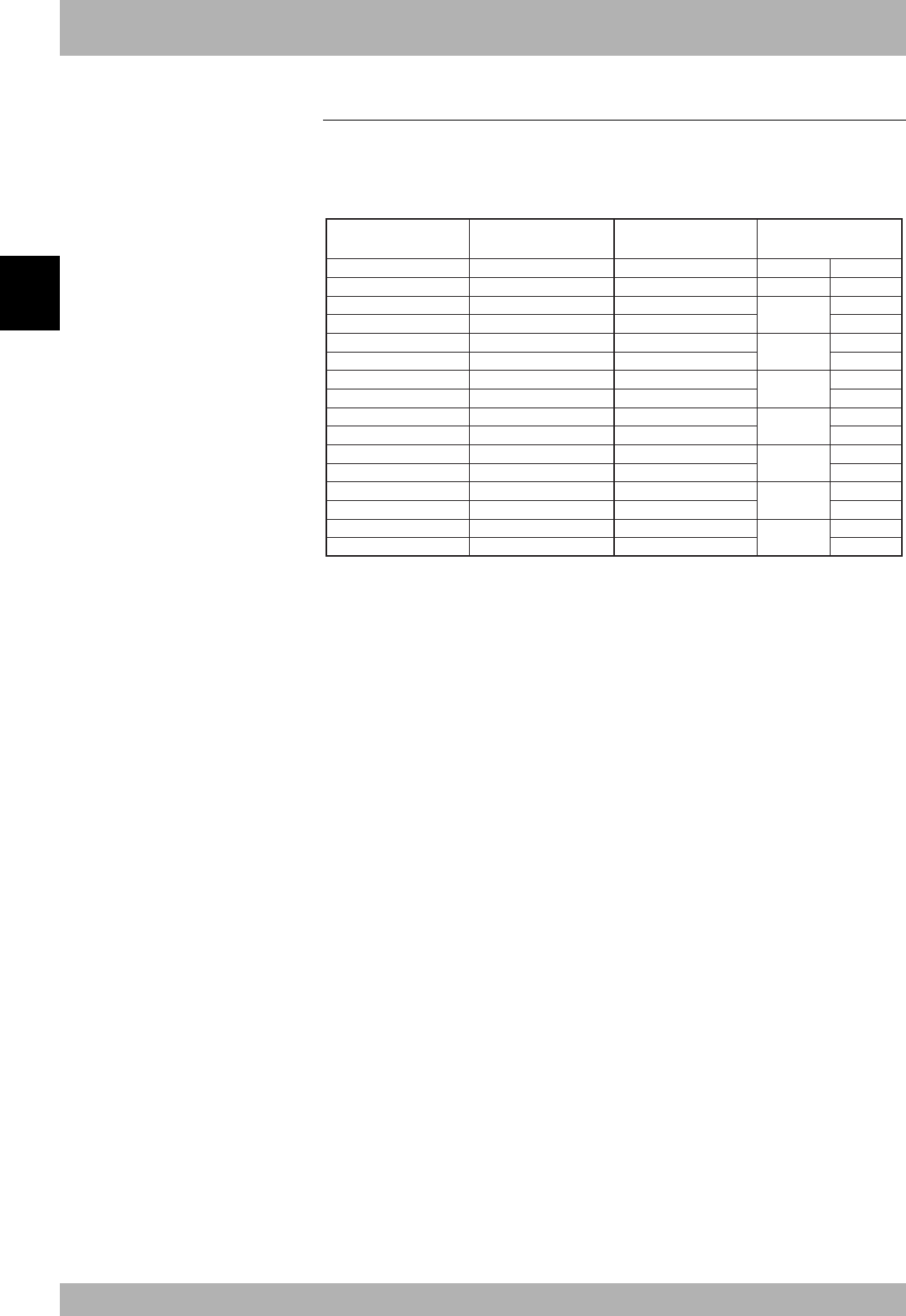
The correspondence of the master station PLC’s input device numbers and robot controller’s
output port numbers is shown below.
n: Address assigned to master module with station No. setting
RXn7~RXn0 SO(07)~SO(00) RWrn SOW(0)
RXnF~RXn8 SO(17)~SO(10) RWr(n+1) SOW(1)
RX(n+1)7~RX(n+1)0 SO(27)~SO(20) RWr(n+2) SOD(2) SOW(2)
RX(n+1)F~RX(n+1)8 SO(37)~SO(30) RWr(n+3) SOW(3)
RX(n+2)7~RX(n+2)0 SO(47)~SO(40) RWr(n+4) SOD(4) SOW(4)
RX(n+2)F~RX(n+2)8 SO(57)~SO(50) RWr(n+5) SOW(5)
RX(n+3)7~RX(n+3)0 SO(67)~SO(60) RWr(n+6) SOD(6) SOW(6)
RX(n+3)F~RX(n+3)8 SO(77)~SO(70) RWr(n+7) SOW(7)
RX(n+4)7~RX(n+4)0 SO(107)~SO(100) RWr(n+8) SOD(8) SOW(8)
RX(n+4)F~RX(n+4)8 SO(117)~SO(110) RWr(n+9) SOW(9)
RX(n+5)7~RX(n+5)0 SO(127)~SO(120) RWr(n+10) SOD(10) SOW(10)
RX(n+5)F~RX(n+5)8 SO(137)~SO(130) RWr(n+11) SOW(11)
RX(n+6)7~RX(n+6)0 SO(147)~SO(140) RWr(n+12) SOD(12) SOW(12)
RX(n+6)F~RX(n+6)8 SO(157)~SO(150) RWr(n+13) SOW(13)
RWr(n+14) SOD(14) SOW(14)
RWr(n+15) SOW(15)
Master station
input device No.
Robot controller
output port No.
Master station
input device No.
Robot controller
output port No.
To write the robot controller’s bit information into the master station PLC’s input device
No., write the following commands in the robot program in the same manner as the DO
output port:
SET/RESET command
Assignment statement
OUT command
Example : To turn RX(n+1)0 ON
SET SO(20) or SO(20) =1.... * SO(20) will turn ON.
Example : To write variable A data into RX(n+1)0 to RX(n+1)7
SO2() = A ............................. * The variable A data will be converted into
a binary and substituted into SO2().
If variable A is 127, 7Fh will be set in
SO2().
When writing the robot controller’s word information into the master station PLC’s input
device No., write the following command in the robot program.
Assignment statement
Example : To write 512 into RWr (n+2) as word data
SOW (2) = 512 ..................... * 512 is substituted in SOW (2), and SOW
(2) becomes 0200h.
Example : To write 69905 as the double word data for RWr (n+2) and RWr (n+3)
SOD (2) = 69905 .................. * 69905 is substituted in SOD (2), SOW (2)
becomes 1111h and SOW (3) becomes
0001h.
nNOTE
The SO statement in the robot language
can be defined from SO2 ( ) to SO27 ( ),
but the CC-Link compatible module
accepts from SO2 ( ) to SO15 ( ).
3. Communication with master station PLC
nNOTE
Word data written with SOW(n) is a little
endian format with no sign.
Double word data written with SOD(n)
is a little endian format with a sign.
cCAUTION
SIW(0) and SIW(1) are viewed as
dedicated input ports.
3-5
3
Communication
4.
Direct connection by emulated serialization on parallel DIO
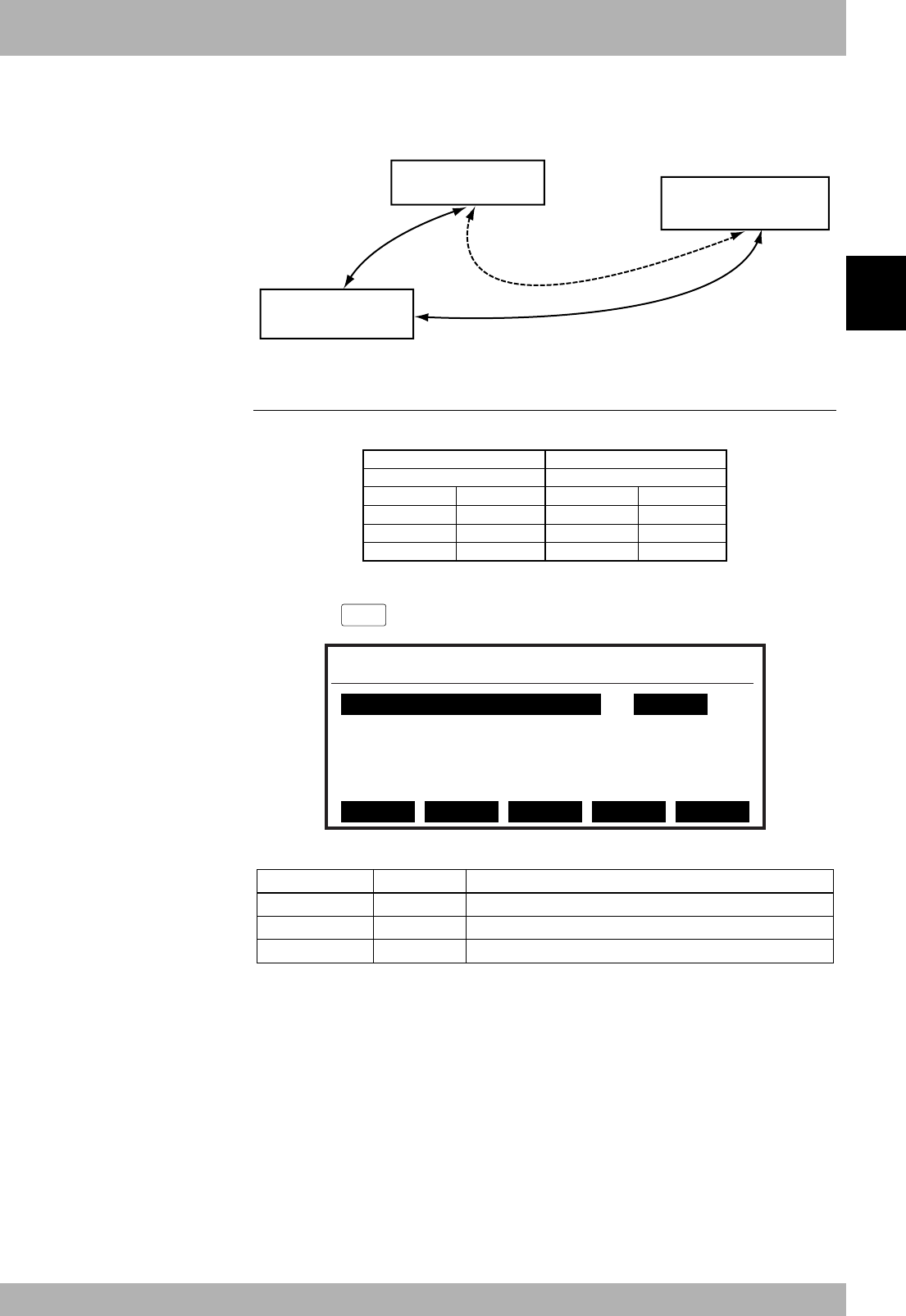
The master station PLC can exchange bit information data with the parallel port on the
robot controller’s parallel I/O unit regardless of the robot program. By using this func-
tion, I/O devices such as a sensor or relay can be used like a device connected to CC-Link.
Master station PLC
Remote device station
robot controller
I/O device
Sensor, relay, etc.
Parallel I/O connection
CC-Link
connection
4.1 Emulated serialization setting on parallel DIO
The relation of the parallel port and serial port that can be connected is shown below.
Input device such as sensor Output device such as valve
DI port SO port DO port SI port
→←
DI2() SO2() DO2() SI2()
DI3() SO3() DO3() SI3()
DI4() SO4() DO4() SI4()
DI5() SO5() DO5() SI5()
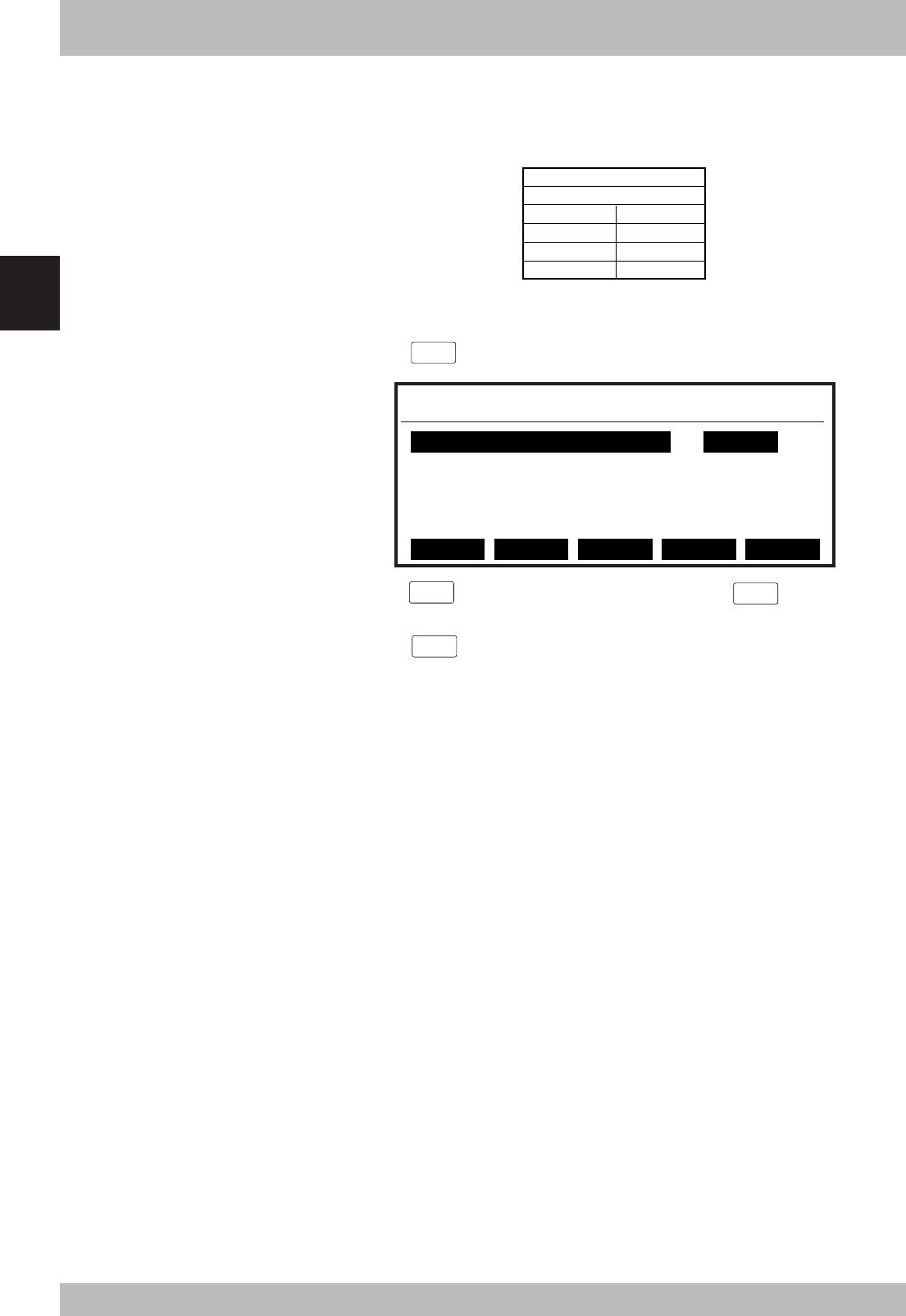
[Operation]
1. Press the
F 3
(SIO) key in “SYSTEM > OPTION” mode.
SYSTEM>OPTION>SIO V8.01
2.Direct SI3() -> DO3() NO
3.Direct SI4() -> DO4() NO
4.Direct SI5() -> DO5() NO
5.Direct SO2() <- DI2() NO
EDIT JUMP
1.Direct SI2() -> DO2() NO
Valid keys and submenu functions in this mode are as follows.
Valid keys
Cursor (↑/↓) keys
F1
F2
Selects SIO parameters.
Sets SIO parameters.
Jumps to specified SIO parameter.
Menu
EDIT
JUMP
Function
nNOTE
When the port specified by SIO is
identical with the port used by the
program, the output results might be
inaccurate.
nNOTE
When the directly connected and set
output port is used with the program,
the bit information may not become the
intended value. Do not use the directly
connected and set output port with the
program.
3-6
Communication
3
4. Direct connection by emulated serialization on parallel DIO
1. Direct connection from SI n ( ) to DO n ( )
Serial port input can be directly connected to parallel port output. The relation of the
parallel port and serial port that can be connected is as follows.
Output device such as sensor
DO port SI port
←
DO2() SI2()
DO3() SI3()
DO4() SI4()
DO5() SI5()
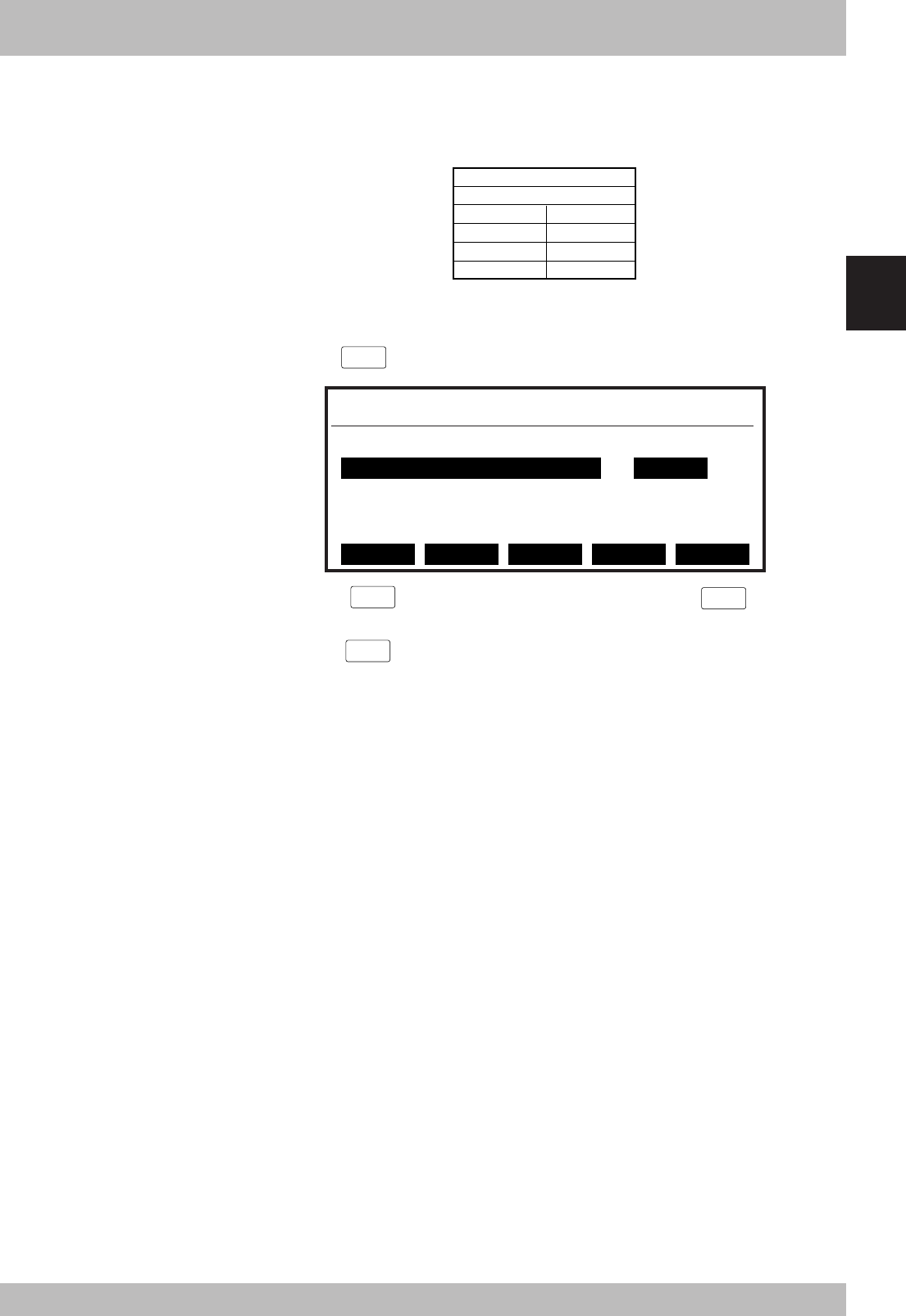
[Operation]
1. Select an SI port (from items 1 to 4) in the “SYSTEM > OPTION > SIO” mode.
2. Press the
F 1
(EDIT) key.
SYSTEM>OPTION>SIO V8.01
2.Direct SI3() -> DO3() NO
3.Direct SI4() -> DO4() NO
4.Direct SI5() -> DO5() NO
5.Direct SO2() <- DI2() NO
NO
1.Direct SI2() -> DO2() NO
SET
3. Press the
F 1
(SET) key to enable the connection or the
F 2
(NO) key to cancel
the setting.
4. Press the
ESC
key to quit setting or select another SI port with the cursor keys to
continue setting.
nNOTE
When the port specified by SIO is
identical with the port used by the
program, the output results might be
inaccurate.
3-7
3
Communication
4. Direct connection by emulated serialization on parallel D
2. Direct connection from SO n ( ) to DI n ( )
Parallel port input can be directly connected to serial port output. The relation of the
parallel port and serial port that can be connected is as follows.
Input device such as valve
DI port SO port
→
DI2() SO2()
DI3() SO3()
DI4() SO4()
DI5() SO5()
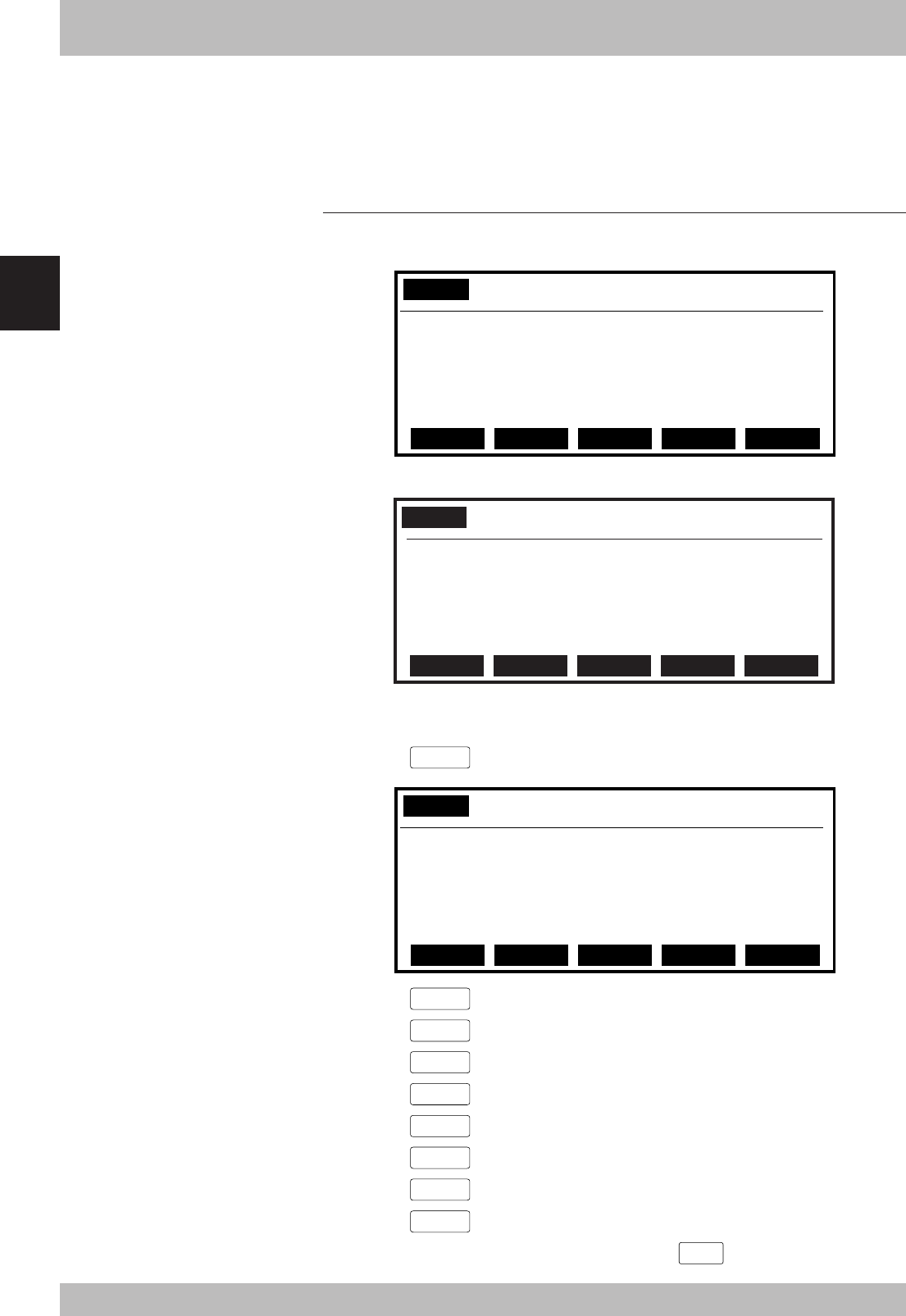
[Operation]
1. Select a DI port (from items 5 to 8) in the “SYSTEM > OPTION > SIO” mode.
2. Press the
F 1
(EDIT) key.
SYSTEM>OPTION>SIO V8.01
5.Direct SO2() <- DI2() NO
6.Direct SO3() <- DI3() NO
7.Direct SO4() <- DI4() NO
8.Direct SO5() <- DI5() NO
SET NO
4.Direct SI5() -> DO15() NO
3. Press the
F 1
(SET) key to enable the connection or the
F 2
(NO) key to
cancel the setting.
4. Press the
ESC
key to quit setting or select another DI port with the cursor keys to
continue setting.
nNOTE
When the port specified by SIO is
identical with the port used by the
program, the output results might be
inaccurate.
3-8
Communication
3
5. Referring to communication data
The ON/OFF information exchanged with the master station PLC can be referred to using the program-
ming unit (hereinafter, MPB).
Note that the MPB display update interval is longer than the CC-Link data update interval, so if the ON/
OFF interval is short, accurate information may not be displayed.
5.1
Referring to the data from the programming unit
The data exchanged with the master station PLC can be referred to with the MPB. The
reference unit is the robot controller input/output port No.
SYSTEM V8.01
SI monitor
SI0()=&B00000111 SI4()=&B11000000
SI1()=&B00001111 SI5()=&B00101000
SI2()=&B00010001 SI6()=&B00000111
SI3()=&B00000100 SI7()=&B00000000
PARAM CMU OPTION INIT DIAGNOS
* &Bxxxxxxx corresponds to the 0th bit to 7th bit from right to left.
SIW monitor
SIW(0)=&H0132 SIW(4)=&H0000
SIW(1)=&H0001 SIW(5)=&H0000
SIW(2)=&H8000 SIW(6)=&HFFFF
SIW(3)=&H0000 SIW(7)=&H0000
PARAM CMU OPTION INIT DIAGNOS
SYSTEM V8.01
* &Hxxxx expresses a hexadecimal.
[Operation]
1. Press the
DISPLAY
key. A screen like that shown below will appear.
SYSTEM V8.01
DI monitor
DI0()=&B00000111 DI4()=&B11000000
DI1()=&B00001111 DI5()=&B00101000
DI2()=&B00010001 DI6()=&B00000111
DI3()=&B00000100 DI7()=&B00000000
PARAM CMU OPTION INIT DIAGNOS
2. Press the
DISPLAY
key several times to check the status of SI input ports 0 to 7.
3. Press the
DISPLAY
key more to check the status of SI input ports 10 to 15.
4. Press the
DISPLAY
key twice more to check the status of SO input ports 0 to 7.
5. Press the
DISPLAY
key more to check the status of SO input ports 10 to 15.
6. Press the
DISPLAY
key twice more to check the status of SIW input ports 0 to 7.
7. Press the
DISPLAY
key more to check the status of SIW input ports 8 to 15.
8. Press the
DISPLAY
key more to check the status of SOW output ports 0 to 7.
9. Press the
DISPLAY
key more to check the status of SOW output ports 8 to 15.
10. To stop checking the input/output ports, press the
ESC
key.

Chapter 4 Troubleshooting
Contents
1. Items to confirm before starting up CC-Link system ......................... 4-1
2. Meanings of LEDs on CC-Link compatible module ........................... 4-2
3. Troubleshooting................................................................................ 4-3
3.1 Robot controller front panel LED confirmation ........................................ 4-3
3.2 Programming unit error display confirmation .......................................... 4-4
3.3 CC-Link compatible module LED confirmation ....................................... 4-5
3.4 Confirmation from master station PLC ..................................................... 4-6
4. Error messages relating to CC-Link ................................................... 4-7

MEMO
4-1
4
Troubleshooting
1. Items to confirm before starting up CC-Link system
Confirm the following items before starting up the CC-Link system.
1
2
3
4
5
6
7
8
9
10
Confirmation details Check
Is the CC-Link compatible module accurately connected?
(Refer to Chapter 2 section 2 or 3.)
Is the robot controller set to the CC-Link system specifications?
(Refer to Chapter 2 section 1.)
Are the CC-Link compatible module station No. and communication speed
correctly set? (Refer to Chapter 2 section 1.)
Is the ferrite core connected to the power input cable to the robot controller?
(Refer to Chapter 2 section 4.)
Is the CC-Link system cable accurately connected to the CC-Link compatible
module? (Refer to Chapter 2 section 5.)
Was the line test from the master station PLC correct?
(Refer to the master station PLC instruction manual.)
Is the master station PLC set for the 4-station occupying remote device?
(Refer to the master station PLC instruction manual.)
Is the master station PLC exchanging the data for four stations? (The data for four
stations must always be exchanged.)
Has the initial data process been carried out between the master station and robot
controller? (Refer the initialization process in Chapter 3 section 2.)
Is the master station PLC judging that the robot controller is correctly functioning using
RX(n+7)8 (remote station Ready)? (Refer the samples in Chapter 5 section 4.)
nNOTE
The dedicated input of the STD.DIO
connector provided on the controller
will be disabled except for an interlock
signal (DI 11). When the external 24V
monitor control of system parameters
is disabled, the interlock signal (DI 11)
will also be disabled.
4-2
Troubleshooting
4
2. Meanings of LEDs on CC-Link compatible module
SD
ERRL
RUN
RD
1
2
3
4
5
6
7
8
9
0
1
2
3
4
5
6
7
8
9
0
1
2
3
4
5
6
7
8
9
0
Front of the unit
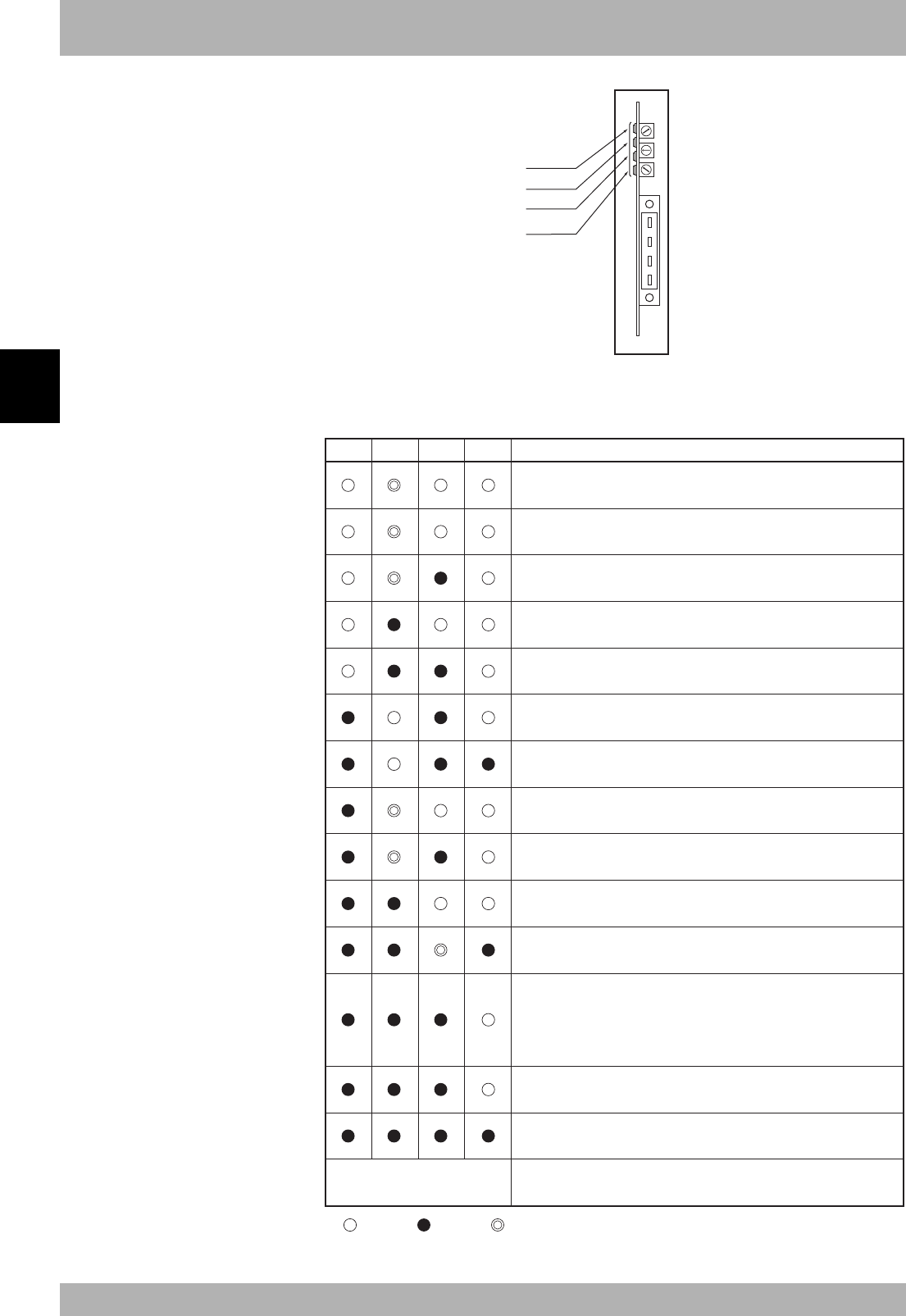
The LEDs on the CC-Link compatible module express the following statuses.
Use these for confirmation when an error occurs.
Meaning
RUN ERRL SD RD
Normal communication is taking place, but the CRC error
occurs sometimes because of noise.
The settings have varied from the baud rate and station No.
setting made when connected to the CC-Link system.
A CRC error occurred in the received data, and a response
cannot be made.
Normal communication
There is no data addressed to the local station.
Station No. setting illegal.
(Non-existing station No. was specified.)
Communication speed setting illegal.
(Unusable communication speed was specified.)
Polling response is being carried out, but a CRC error occurred
in the refresh reception.
A CRC error occurred in the data addressed to the local station.
Data has not been initialized.
The local station is not set to a remote device station.
There is no data addressed to the local station or the data
addressed to the local station cannot be received because of noise.
An illegal communication speed was set. (It can be spefified
but differs from the master station.)
Data cannot be received because of a line disconnection.
The power for communication has been cut off.
Communication with the master station was not possible when
the power was turned ON.
( : ON, : OFF, : Flicker)
Others An improbable state
cCAUTION
Even if the LED displays indicate the
normal communication state, there
may be cases when communication
with the master station PLC is not
possible unless the initial data process
is carried out. Always carry out the
initial data process. (Refer to Chapter
3.)

4-3
4
Troubleshooting
3. Troubleshooting
If trouble occurs in the connection with the robot controller while starting up the CC-Link
system or during operation, check the following items in listed order.
3-1 Robot controller front panel LED confirmation
3-2 Programming unit error display confirmation
3-3 CC-Link compatible module LED confirmation
3-4 Confirmation from master station PLC
3.1 Robot controller front panel LED confirmation
[Confirmation item 1]
<Confirmation details>
• The “PWR” LED is OFF.
<Cause>
• Power is not being supplied to the robot controller.
<Countermeasures>
• Measure the voltage at the AC power input terminal of the power connector with a
multimeter and check that the rated voltage is being supplied.
* Refer to the robot controller owner’s manual for the rated voltage for the robot con-
troller.
[Confirmation item 2]
<Confirmation details>
• The “ERR” LED is ON.
<Cause>
• The robot controller is in emergency stop.
• A major error has occurred in the robot controller.
<Countermeasures>
• Confirm the error message displayed on the programming unit.
• Take measures by following the troubleshooting section in the robot controller in-
struction manual.
* Refer to the robot controller instruction manual for details on the errors.

4-4
Troubleshooting
4
3. Troubleshooting
3.2 Programming unit error display confirmation
[Confirmation item 1]
<Confirmation details>
• “CC-Link Communication Error” is displayed on the programming unit.
<Cause>
• An error has occurred in the CC-Link system connection.
<Countermeasures>
• Check whether the CC-Link system cable is disconnected or incorrectly connected.
• Check the station No. and communication speed settings for the CC-Link compatible
module.
• Confirm that the master station PLC is operating.
[Confirmation item 2]
<Confirmation details>
• Check whether an error other than “CC-Link Communication Error” is displayed on
the programming unit. In this case, this problem is not related to the CC-Link system
connection. Note, however, the message “CC-Link Communication Error” may not
appear on the programming unit if multiple errors have occurred simultaneously.
<Cause>
• An error has occurred in the robot controller.
<Countermeasures>
• Check the error message displayed on the programming unit.
• Check the error history using the programming unit. Check the error history in the
“SYSTEM > DIAGNOS > HISTORY” mode using the programming unit.
• Take measures by following the troubleshooting section in the robot controller in-
struction manual.
* Refer to the robot controller instruction manual for details on the errors.
4-5
4
Troubleshooting
3. Troubleshooting
3.3 CC-Link compatible module LED confirmation
[Confirmation item 1]
<Confirmation details>
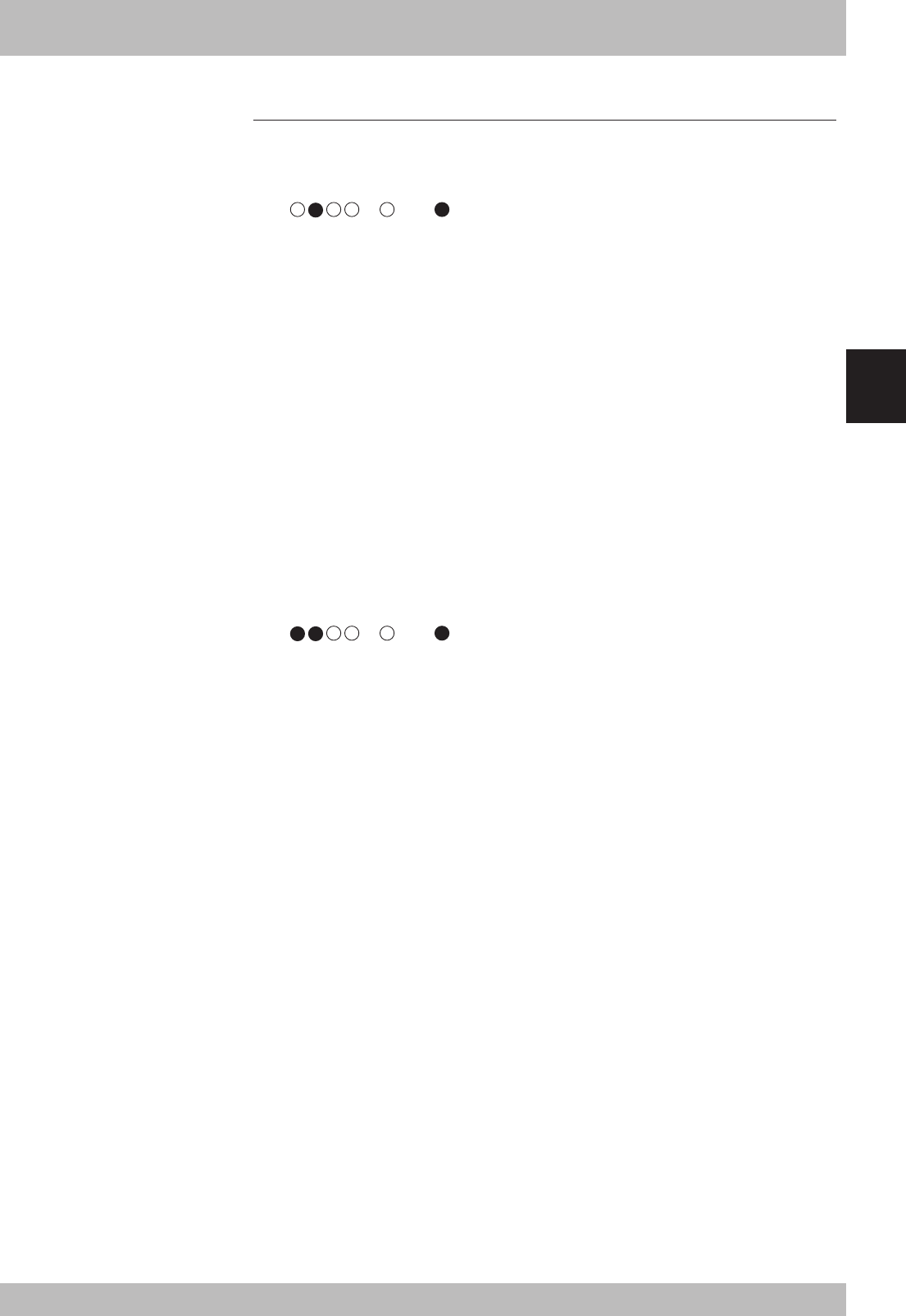
• The LED display on the CC-Link compatible module is not “RUN. ERR. SD. RD” =
“”.( :ON, :OFF)
<Cause>
• An error has occurred in the CC-Link system connection. Refer to table in Chapter 4
section 2 for the meanings of the LED displays.
<Countermeasures>
• Check whether the CC-Link system cable is disconnected or incorrectly connected,
and whether the terminator is connected.
• Check whether the CC-Link system cable is laid near the main circuit or power cable,
or whether it is bundled with these.
• Check that the ferrite core is connected to the robot controller’s power supply cable.
• Check the station No. and communication speed settings for the CC-Link compatible
module.
• Check that the master station PLC is operating correctly.
• Check that the robot controller on the master station PLC is set to the remote device
station.
[Confirmation item 2]
<Confirmation details>
• The LED display on the CC-Link compatible module is “RUN, ERR, SD, RD” =
“”.( :ON, :OFF)
<Cause>
• The initial data process has not been executed when the CC-Link system was con-
nected. Refer to Chapter 3.
• The RX(n+7)B (remote station Ready) signal is not ON.
<Countermeasures>
• Carry out the initial data process when connecting to the CC-Link system.

4-6
Troubleshooting
4
3. Troubleshooting
3.4 Confirmation from master station PLC
[Confirmation item 1]
<Confirmation details>
• Using the master station PLC’s line test function, confirm robot controller is correctly
connected to the CC-Link system.
* Refer to the master station PLC instruction manual for details on the line test.
[Confirmation item 2]
<Confirmation details>
• Using the master station PLC’s line test function, check whether an error has oc-
curred in the robot controller’s CC-Link connection.
<Cause>
• The ferrite core for noise measures is not connected.
• The CC-Link cable is laid near sources of noise such as the power cable.
<Countermeasures>
• Connect the ferrite core for noise measures onto the input power cable.
• Wire the CC-Link cable away from noise sources such as the power cable.

4-7
4
Troubleshooting
4. Error messages relating to CC-Link
This section describes error messages relating to CC-Link compatible units. For other messages, refer
to robot controller owner's manuals.
When an error occurs, an error message appears on the message line (2nd line) of the MPB screen.
12.1 : Emg.stop on
Code : &H0C01
Meaning/Cause : a. MPB emergency stop button was pressed.
b. Emergency stop terminals on SAFETY connector are open (emergency stop status).
c. MPB or terminator is not connected to MPB connector.
d. SAFETY connector is not connected.
e. SI(00) is not ON.
f. Error in connection to CC-Link system.
Action : 1. Release the MPB emergency stop button.
2. Close the emergency stop terminals on SAFETY connector.
3. Connect MPB or terminator to MPB connector.
4. Attach the SAFETY connector.
5. Set SI(00) to ON.
6. Correct the connection to CC-Link system.
12.2 : Interlock on
Code : &H0C02
Meaning/Cause : a. Program was executed or moving of axis attempted with interlock signal still input.
b. Interlock signal turned ON during execution of program or axis movement..
c. DC 24V is supplied to STD.DIO connector and DI(11) is not turned ON.
d. SI(11) is not ON.
e. Error in connection to CC-Link system.
Action : 1. Cancel the interlock signal, and execute program or move axis.
2. Set DI(11) on STD.DIO connector to ON.
3. Set SI(11) to ON.
4. When not using STD.DIO, disable (invalid) the "Watch on STD.DO DC24V" parameter
in SYSTEM mode.
5. Correct the connection to CC-Link system.
12.11: CC-Link communication error
Code : &H0C0B
Meaning/Cause : a. Error in cable for CC-Link system.
b. Master station sequencer power is turned off or the operation has stopped.
Action : 1. Check for the cable and take measures to suppress noise on the controller.
2. Check if the master station sequencer is operating correctly.
12.12: CC-Link overtime error
Code : &H0C0C
Meaning/Cause : a. Communication error in CC-Link system due noise, etc.
b. Master station sequencer power is turned off or the operation has stopped.
Action : 1. Take measures to suppress noise on the CC-Link system cable and controller.
2. Check if the master station sequencer is operating correctly.
12.70: Incorrect option setting
Code : &H0C46
Meaning/Cause : a. Error in DIP switch setting on option unit.
b. Mismatched option units have been installed.
c. Cannot identify the installed option unit.
Action : 1. Check the DIP switch settings on the option unit.
2. Install the correct option units.
3. Replace the option unit.

4-8
MEMO

Chapter 5 Specifications
Contents
1. Profile............................................................................................... 5-1
2. Details of remote input/output signals ............................................. 5-3
3. Dedicated input/output signal timing chart ..................................... 5-6
3.1 Initial data process for CC-Link connection ............................................. 5-6
3.2 Servo ON and emergency stop ................................................................5-7
3.3 AUTO mode changeover, program reset and program execution............. 5-8
3.4 Stopping with program interlock ............................................................. 5-9
4. Sample program ............................................................................. 5-10
5. CC-Link compatible module specifications..................................... 5-17

MEMO
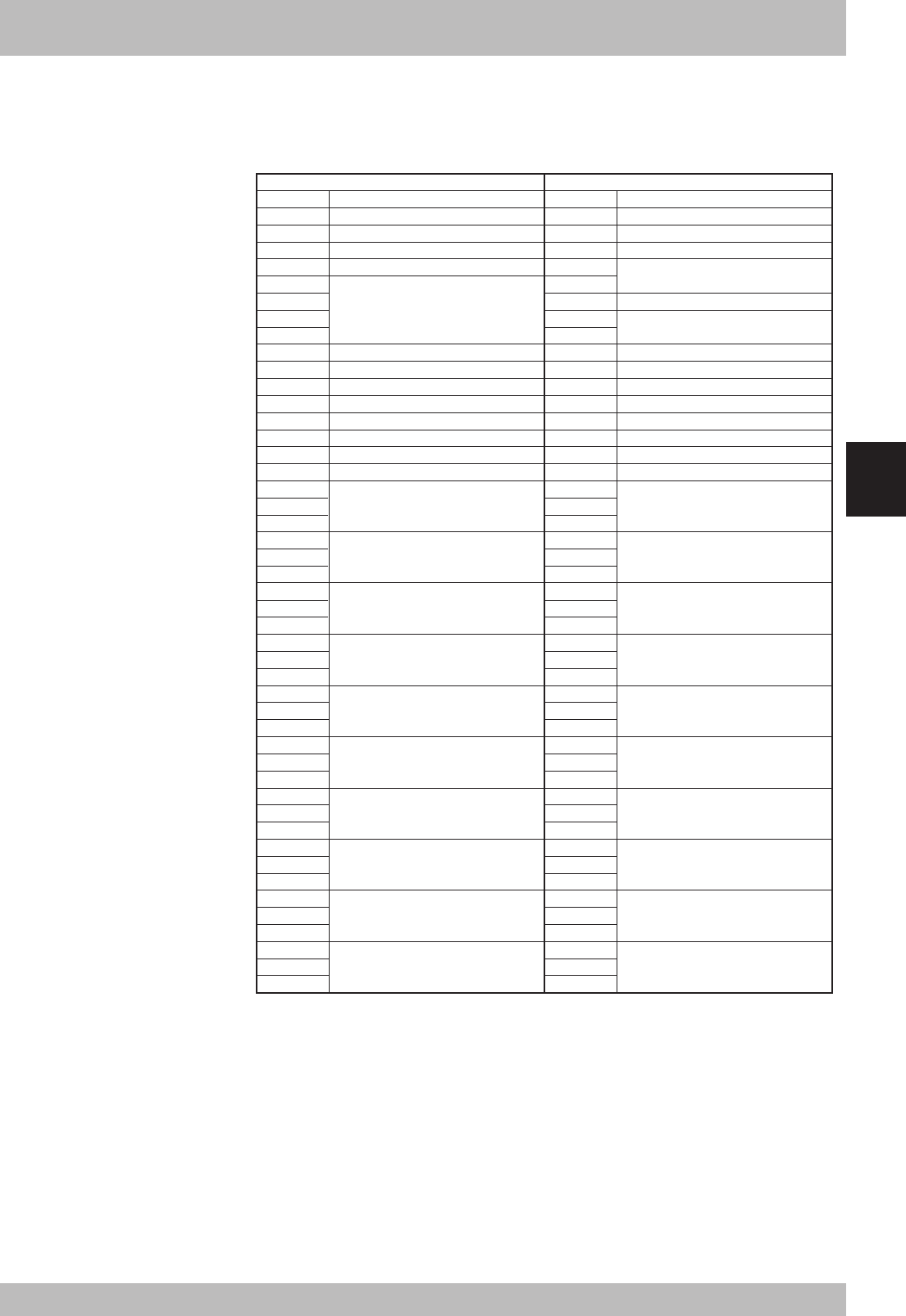
5-1
5
Specifications
1. Profile
YAMAHA robot controller (4-station occupying)
Remote input/output
SO (00):
Emergency stop input status output
SO (01): CPU_OK status output
SO (02): Servo ON status output
SO (03): Alarm status output
System area [for future expansion]
SO (10): AUTO mode status output
SO (11):
Origin return complete status output
SO (12):
Sequence program execution status output
SO (13):
Robot program execution status output
SO (14): Program reset status output
System area [for future expansion]
SO (16):
IO command execution judgment output
SO (17):
Output during IO command execution
SO(20) to SO(27):
General-purpose output
SO(30) to SO(37):
General-purpose output
SO(40) to SO(47):
General-purpose output
SO(50) to SO(57):
General-purpose output
SO(60) to SO(67):
General-purpose output
SO(70) to SO(77):
General-purpose output
SO(100) to SO(107):
General-purpose output
SO(110) to SO(117):
General-purpose output
SO(120) to SO(127):
General-purpose output
SO(130) to SO(137):
General-purpose output
RXn0
RXn1
RXn2
RXn3
RXn4
RXn5
RXn6
RXn7
RXn8
RXn9
RXnA
RXnB
RXnC
RXnD
RXnE
RXnF
RX(n+1)0
to
RX(n+1)7
RX(n+1)8
to
RX(n+1)F
RX(n+2)0
to
RX(n+2)7
RX(n+2)8
to
RX(n+2)F
RX(n+3)0
to
RX(n+3)7
RX(n+3)8
to
RX(n+3)F
RX(n+4)0
to
RX(n+4)7
RX(n+4)8
to
RX(n+4)F
RX(n+5)0
to
RX(n+5)7
RX(n+5)8
to
RX(n+5)F
SI (00): Emergency stop input
SI (01): Servo ON input
SI (02): Service mode input
System area [for future expansion]
SI (05):
IO command execution trigger input
System area [for future expansion]
SI (10): Sequence control input
SI (11): Interlock input
SI (12): Robot program start input
SI (13): AUTO mode input
System area [for future expansion]
SI (15): Program reset input
SI (16): MANUAL mode input
SI (17): Absolute reset input
SI(20) to SI(27): General-purpose input
SI(30) to SI(37): General-purpose input
SI(40) to SI(47): General-purpose input
SI(50) to SI(57): General-purpose input
SI(60) to SI(67): General-purpose input
SI(70) to SI(77): General-purpose input
SI(100) to SI(107):
General-purpose input
SI(110) to SI(117):
General-purpose input
SI(120) to SI(127):
General-purpose input
SI(130) to SI(137):
General-purpose input
RYn0
RYn1
RYn2
RYn3
RYn4
RYn5
RYn6
RYn7
RYn8
RYn9
RYnA
RYnB
RYnC
RYnD
RYnE
RYnF
RY(n+1)0
to
RY(n+1)7
RY(n+1)8
to
RY(n+1)F
RY(n+2)0
to
RY(n+2)7
RY(n+2)8
to
RY(n+2)F
RY(n+3)0
to
RY(n+3)7
RY(n+3)8
to
RY(n+3)F
RY(n+4)0
to
RY(n+4)7
RY(n+4)8
to
RY(n+4)F
RY(n+5)0
to
RY(n+5)7
RY(n+5)8
to
RY(n+5)F
Remote → Master Master → Remote
Device No. Signal name Device No. Signal name
n: Address assi
g
ned to master module with station No. settin
g
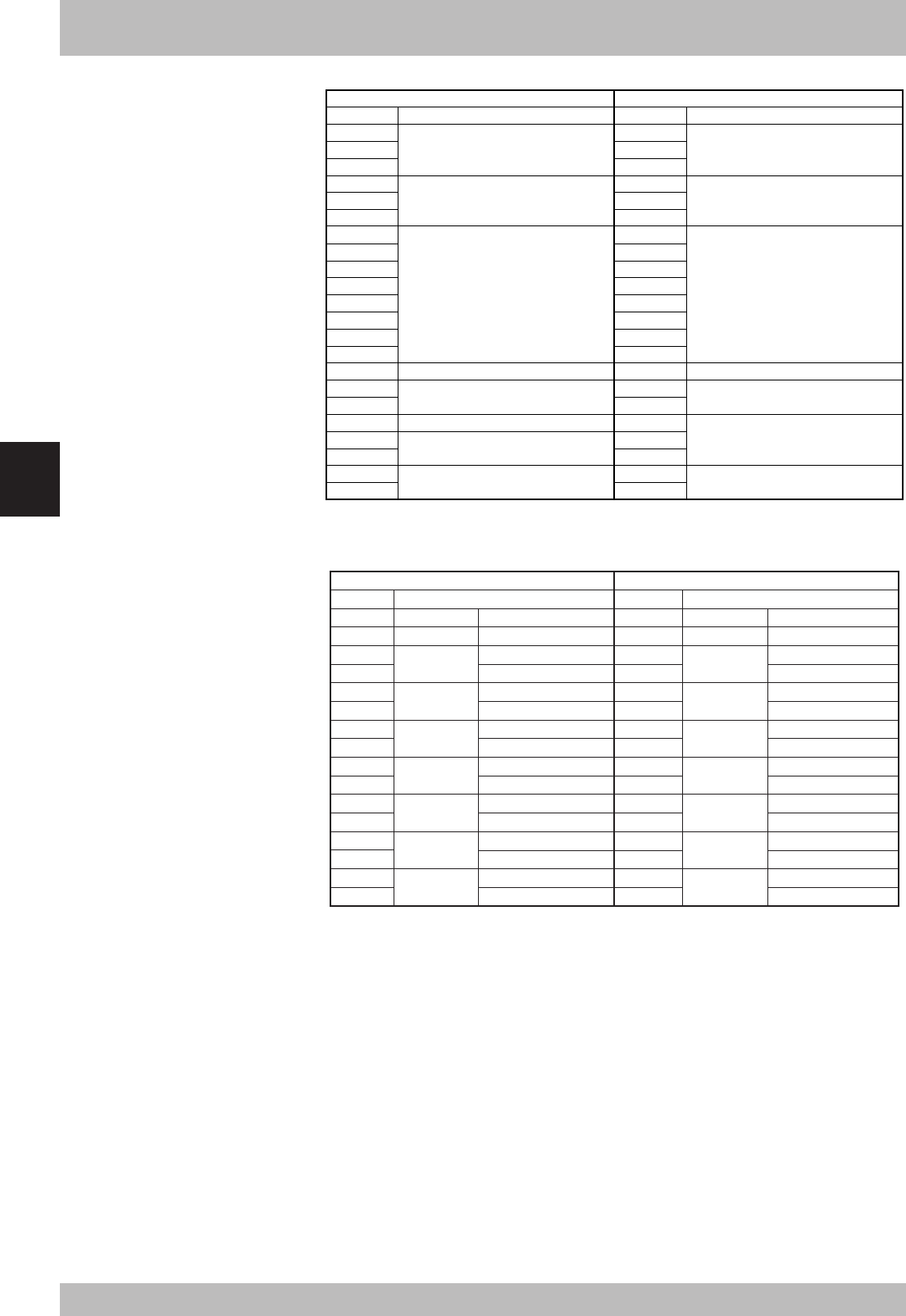
5-2
Specifications
5
SO(140) to SO(147):
General-purpose output
SO(150) to SO(157):
General-purpose output
Reserved
Initial data process request flag
Not used
Remote station ready
Reserved
(Reserved: QnA)
RX(n+6)0
to
RX(n+6)7
RX(n+6)8
to
RX(n+6)F
RX(n+7)0
RX(n+7)1
RX(n+7)2
RX(n+7)3
RX(n+7)4
RX(n+7)5
RX(n+7)6
RX(n+7)7
RX(n+7)8
RX(n+7)9
RX(n+7)A
RX(n+7)B
RX(n+7)C
RX(n+7)D
RX(n+7)E
RX(n+7)F
RY(n+6)0
to
RY(n+6)7
RY(n+6)8
to
RY(n+6)F
RY(n+7)0
RY(n+7)1
RY(n+7)2
RY(n+7)3
RY(n+7)4
RY(n+7)5
RY(n+7)6
RY(n+7)7
RY(n+7)8
RY(n+7)9
RY(n+7)A
RY(n+7)B
RY(n+7)C
RY(n+7)D
RY(n+7)E
RY(n+7)F
SI(140) to SI(147):
General-purpose input
SI(150) to SI(157):
General-purpose input
Reserved
Initial data process complete flag
Not used
Reserved
(Reserved: QnA)
Remote → Master Master → Remote
Device No. Signal name Device No. Signal name
n: Address assigned to master module with station No. setting
Remote registers
RWrn Dedicated SOW(0) RWwn Dedicated SIW(0)
RWr(n+1) Dedicated SOW(1) RWw(n+1) Dedicated SIW(1)
RWr(n+2) General-purpose General-purpose SOW(2)
RWw(n+2) General-purpose General-purpose SIW(2)
RWr(n+3) SOD(2) General-purpose SOW(3) RWw(n+3) SID(2) General-purpose SIW(3)
RWr(n+4) General-purpose General-purpose SOW(4) RWw(n+4) General-purpose General-purpose SIW(4)
RWr(n+5) SOD(4) General-purpose SOW(5) RWw(n+5) SID(4) General-purpose SIW(5)
RWr(n+6) General-purpose General-purpose SOW(6) RWw(n+6) General-purpose General-purpose SIW(6)
RWr(n+7) SOD(6) General-purpose SOW(7) RWw(n+7) SID(6) General-purpose SIW(7)
RWr(n+8) General-purpose General-purpose SOW(8) RWw(n+8) General-purpose General-purpose SIW(8)
RWr(n+9) SOD(8) General-purpose SOW(9) RWw(n+9) SID(8) General-purpose SIW(9)
RWr(n+10) General-purpose General-purpose SOW(10) RWw(n+10) General-purpose General-purpose SIW(10)
RWr(n+11) SOD(10) General-purpose SOW(11) RWw(n+11) SID(10) General-purpose SIW(11)
RWr(n+12) General-purpose General-purpose SOW(12) RWw(n+12) General-purpose General-purpose SIW(12)
RWr(n+13) SOD(12) General-purpose SOW(13) RWw(n+13) SID(12) General-purpose SIW(13)
RWr(n+14) General-purpose General-purpose SOW(14) RWw(n+14) General-purpose General-purpose SIW(14)
RWr(n+15) SOD(14) General-purpose SOW(15) RWw(n+15) SID(14) General-purpose SIW(15)
Remote → Master Master → Remote
Device No. Name NameDevice No.
n: Address assigned to master module with station No. setting
1. Profile
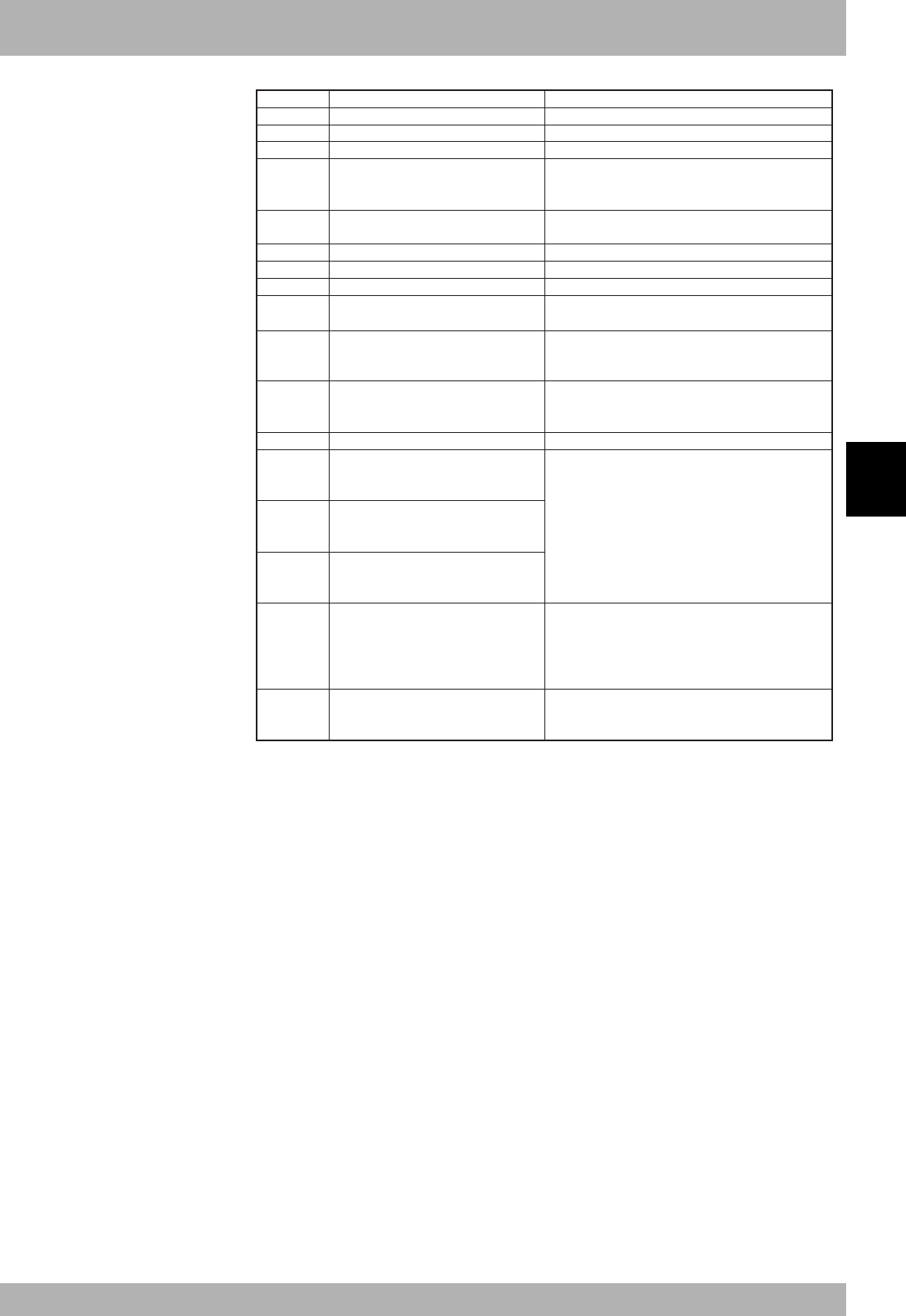
5-3
5
Specifications
2. Details of remote input/output signals
SO (00):
Emergency stop input status output
SO (01): CPU_OK status output
SO (02): Servo ON status output
SO (03): Alarm status output
SO (10): AUTO mode status output
SO (11):
Origin return complete status output
SO (12):
Sequence program execution status output
SO (13):
Robot program execution status output
SO (14): Program reset status output
SO (15): Battery alarm output
SO (16):
IO command execution judgment output
SO (17):
Output during IO command execution
SO(20) to SO(27):
General-purpose output
to
SO(150) to SO(157):
General-purpose output
Initial data process request flag
Remote station ready
RXn0
RXn1
RXn2
RXn3
RXn8
RXn9
RXnA
RXnB
RXnC
RXnD
RXnE
RXnF
RX(n+1)0
to
RX(n+1)7
to
RX(n+6)8
to
RX(n+6)F
RX(n+7)8
RX(n+7)B
Device No. Signal name Details
Turns ON when robot controller is in emergency stop state.
Turns ON when robot controller is in normal state.
Turns ON when robot controller motor power is ON.
Turns ON when robot controller is in following state:
• Serious error occurred in robot controller.
• Emergency stop input OFF
Turns ON when selected mode is AUTO mode.
Turns OFF when other mode is selected.
Turns ON when robot has complete origin return.
Turns ON while sequence program is executed.
Turns ON while robot program is executed.
Turns ON when robot program has been reset.
Turns OFF when robot program starts.
Turns ON when the system backup battery (all
models of RCX series) or absolute battery
(RCX142/222) is low.
Turns OFF while executing the IO command.
After executing the IO command turns ON if
normal, and stays OFF if abnormal.
Turns ON while the IO command is being executed.
General-purpose output turns ON/OFF when value
is substituted to SO port, or SET/RESET command
is executed or OUT command is executed.
The initial data process request flag turns ON to request
the initial data setting when the power is turned ON, or
when returning from a communication error.
Turns OFF when initial data process is completed
(initial data process complete flag RY(n+7)8 turns ON).
Turns ON when initial data setting is completed and
READY state is entered when power is turned ON
or when returning from communication error.
n: Address assigned to master module with station No. setting
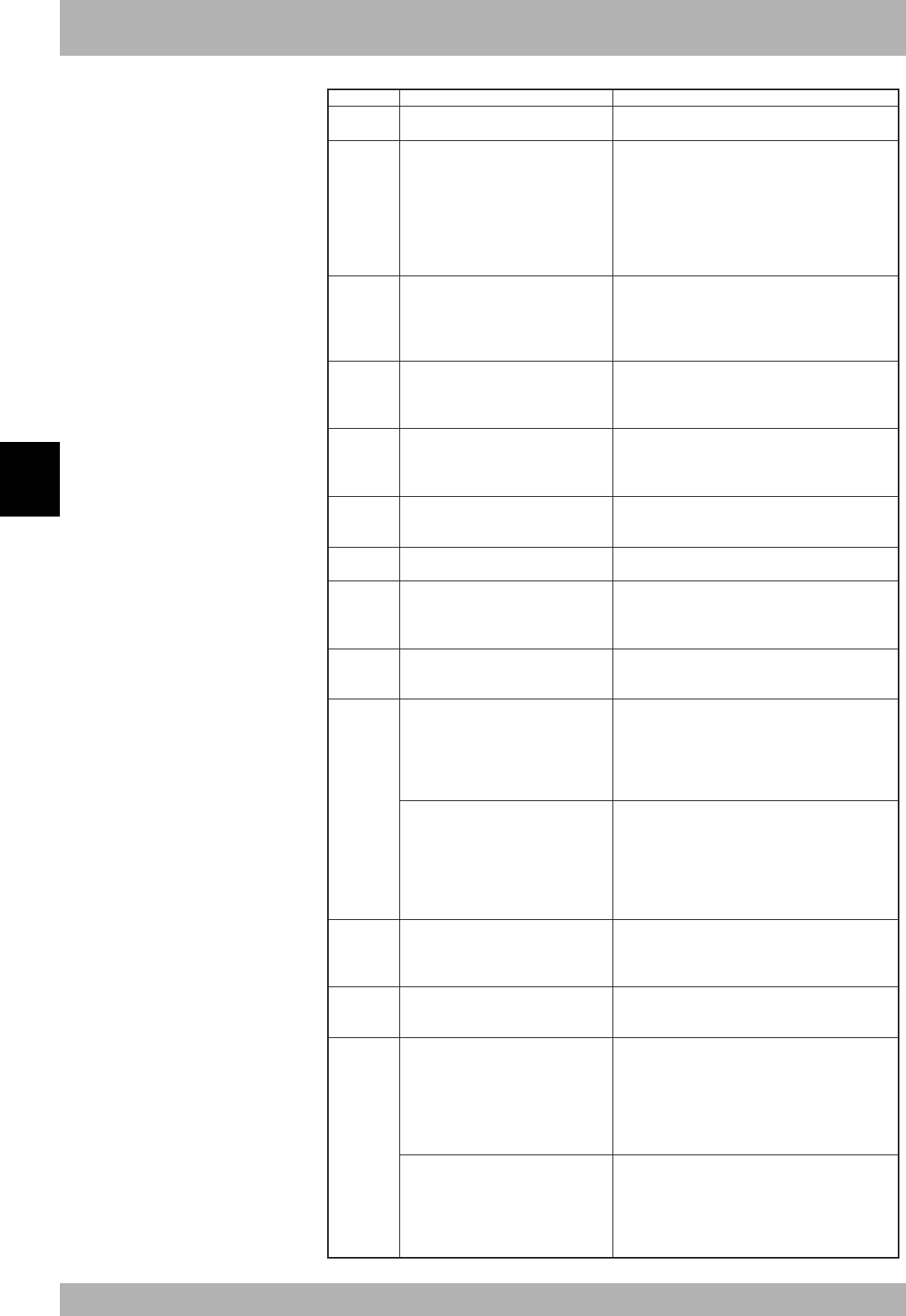
5-4
Specifications
5
2. Details of remote input/output signals
SI (00): Emergency stop input
SI (01): Servo ON input
SI (02): Service mode input
SI (03): Step run
SI (05):
IO command execution trigger input
SI (10): Sequence control input
SI (11): Interlock input
SI (12): Robot program start input
SI (13): AUTO mode input
[RCX141/221]
SI (14): Absolute reset input
[RCX142/222]
SI (14): Origin return
SI (15): Program reset input
SI (16): MANUAL mode input
[RCX141/221]
SI (17): Origin return
[RCX142/222]
SI (17): Absolute reset input
RYn0
RYn1
RYn2
RYn3
RYn5
RYn8
RYn9
RYnA
RYnB
RYnC
RYnD
RYnE
RYnF
Device No. Signal name Details
Turn OFF to trigger emergency stop on controller.
Keep turned ON during normal operation.
Turn ON to cancel emergency stop and turn ON the
robot servo motor.
Servo-ON is executed when this input is switched
from OFF to ON.
Emergency stop input [SI(00)] (RYn0) must be ON
and emergency stop conditions in the robot
controller (emergency stop terminal of SAFETY
connector, etc.) must be canceled.
Turn OFF to enter the controller in service mode. Keep
turned ON during normal operation.
(Effective only when SAFE mode is enabled.)
(In SAFE mode enabled, dedicated input might be
disabled depending on service mode parameter setting.)
Turn ON to execute a step in the program during
AUTO mode.
One line of the program is executed when this input
is changed from OFF to ON.
Changes from OFF to ON while executing the IO
command.
Turns ON after the IO command is set to a general-
purpose input.
Turn ON to execute sequence program in the robot
controller.
Sequence program is executed when this input is ON.
Turn OFF to stop execution of robot program.
Keep tuned ON to continue program execution.
Turn ON to execute robot program.
Robot program is executed when this input is
switched from OFF to ON.
Robot controller must be in AUTO mode.
Turn ON to select AUTO mode.
Robot program enters AUTO mode when this input
is switched from OFF to ON.
Turn ON to perform absolute reset on robot.
Reset is performed when this input is changed from
OFF to ON. Absolute reset is not performed on axes
that use mark method for origin return.
Robot controller must be in MANUAL mode to
perform absolute reset.
Turn ON to perform origin return on incremental
axes.
When this input is changed from OFF to ON, origin
return is performed on axes that are set to "sensor"
or "stroke end" origin return method. Origin return is
not performed on axes that are set to "mark" origin
return method.
Turn ON to reset robot program.
Program reset is executed when this input is
switched from OFF to ON.
Robot controller must be in AUTO mode.
Turn ON to select MANUAL mode.
Robot program enters MANUAL mode when this
input is switched from OFF to ON.
Turn ON to perform origin return on incremental
axes.
When this input is changed from OFF to ON, origin
return is performed on axes that are set to "sensor"
or "stroke end" origin return method. Origin return is
not performed on axes that are set to "mark" origin
return method.
Turn ON to perform absolute reset on robot.
Reset is performed when this input is changed from
OFF to ON. Absolute reset is not performed on axes
that use mark method for origin return.
Robot controller must be in MANUAL mode to
perform absolute reset.
n: Address assigned to master module with station No. setting
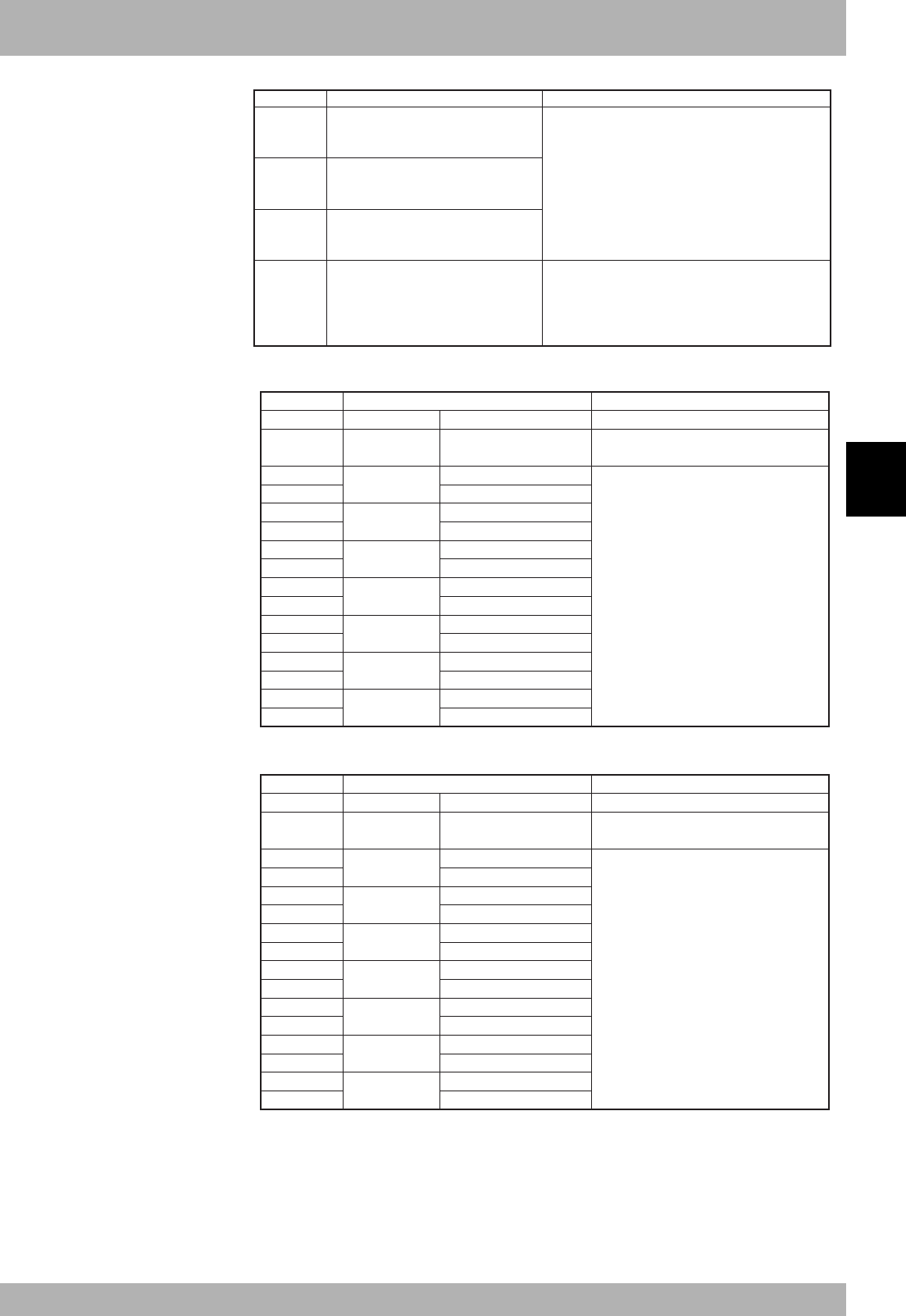
5-5
5
Specifications
2. Details of remote input/output signals
SI(20) to SI(27): General-purpose input
to
SI(150) to SI(157):
General-purpose input
Initial data process complete flag
RY(n+1)0
to
RY(n+1)7
to
RY(n+6)8
to
RY(n+6)F
RY(n+7)8
Device No. Signal name Details
Set these inputs to ON or OFF to refer to SI port
values or execute WAIT command.
Turns ON when power is turned ON,
communication error is reset, or data initialization is
requested or completed.
Emergency stop input (RYn0) and interlock input
(RYn9) are turned ON when data is initialized.
n: Address assigned to master module with station No. setting
RWwn Dedicated SIW(0) Used as the remote command area.
RWw(n+1) Dedicated SIW(1) Used as the remote command’s command
data area.
RWw(n+2) General-purpose General-purpose SIW(2)
RWw(n+3) SID(2) General-purpose SIW(3)
RWw(n+4) General-purpose General-purpose SIW(4)
RWw(n+5) SID(4) General-purpose SIW(5)
RWw(n+6) General-purpose General-purpose SIW(6)
RWw(n+7) SID(6) General-purpose SIW(7)
RWw(n+8) General-purpose General-purpose SIW(8)
RWw(n+9) SID(8) General-purpose SIW(9)
RWw(n+10) General-purpose General-purpose SIW(10)
RWw(n+11) SID(10) General-purpose SIW(11)
RWw(n+12) General-purpose General-purpose SIW(12)
RWw(n+13) SID(12) General-purpose SIW(13)
RWw(n+14) General-purpose General-purpose SIW(14)
RWw(n+15) SID(14) General-purpose SIW(15)
Device No. Name Details
n: Address assigned to master module with station No. setting
Used to input word or double word data
from SIW or SID port.
Or, used as remote command’s command
data area.
RWrn Dedicated SOW(0) Used as remote command’s status area.
RWr(n+1) Dedicated SOW(1) Used as remote command’s error
code area.
RWr(n+2) General-purpose General-purpose SOW(2)
RWr(n+3) SOD(2) General-purpose SOW(3)
RWr(n+4) General-purpose General-purpose SOW(4)
RWr(n+5) SOD(4) General-purpose SOW(5)
RWr(n+6) General-purpose General-purpose SOW(6)
RWr(n+7) SOD(6) General-purpose SOW(7)
RWr(n+8) General-purpose General-purpose SOW(8)
RWr(n+9) SOD(8) General-purpose SOW(9)
RWr(n+10) General-purpose General-purpose SOW(10)
RWr(n+11) SOD(10) General-purpose SOW(11)
RWr(n+12) General-purpose General-purpose SOW(12)
RWr(n+13) SOD(12) General-purpose SOW(13)
RWr(n+14) General-purpose General-purpose SOW(14)
RWr(n+15) SOD(14) General-purpose SOW(15)
Device No. Name Details
n: Address assigned to master module with station No. setting
Used to output word or double word data
from SOW or SOD port.
Or, used as remote command’s response
area.

5-6
Specifications
5
3. Dedicated input/output signal timing chart
3.1 Initial data process for CC-Link connection
a) b) c) d) e)
on
on
off
on
off
on
off
on
off
off
RX (n+7) 8
Initial data process request flag
RX (n+7) B
Remote Ready
RYn0:SI(00)
Emergency stop input
RY(n+1)1:SI(11)
Interlock input
RY(n+7)8
Initial data process complete flag
Confirmation of connection with master station PLC at power ON
a) Initial data process request flag ON is output
b) Emergency stop and interlock input ON is input
c) Initial data process complete flag ON is input
d) Initial data process request flag OFF is output
e) Remote Ready ON is output
Connection with the CC-Link system is completed with this process.
* This process is always required to correctly connect to the CC-Link system.
* To enter the emergency stop state, turn RYn0:SI(00) OFF after the above process is
established.
* The servo is OFF when the controller power is turned ON.
cCAUTION
• The dedicated input ON/OFF
process from the master station
PLC to the controller must be
carried out at an interval of
100ms or more. If the interval is
too short, the dedicated input may
not be recognized. (This also
applies to the same dedicated
input and differing dedicated
input intervals.)
• If dedicated outputs are provided
for the dedicated inputs from the
master station PLC to controller,
use them.
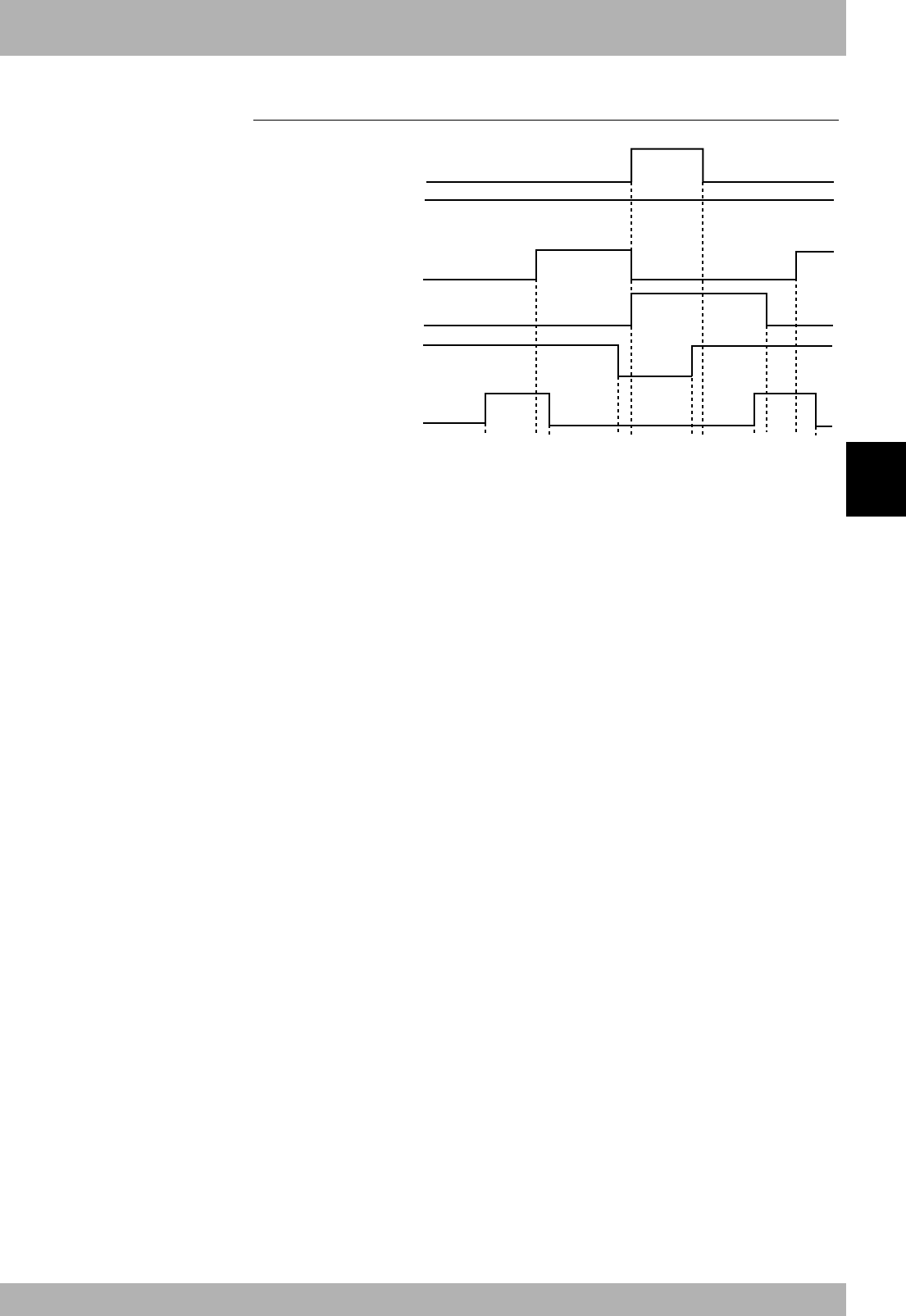
5-7
5
Specifications
3. Dedicated input/output signal timing chart
3.2 Servo ON and emergency stop
a) b) c) d) e) f) g) h) i) j) k)
on
on
off
on
off
on
off
on
on
off
off
off
RXn0:SO(00)
Emergency stop input
status output
RXn1:SO(01)
CPU_OK output
RXn2:SO(02)
Servo ON status output
RXn3:SO(03)
Alarm status output
RYn0:SI(00)
Emergency stop input
RYn1:SI(01)
Servo ON input
Initial servo ON process after power ON
a) Servo ON input ON is input
b) If not in the emergency stop state, output servo ON status ON is output
c) After confirming that servo ON status output is ON, servo ON input OFF is input
Shift to emergency stop
d) Emergency stop input OFF is input
e) Emergency stop input status and alarm status output ON are output
Servo ON status output OFF is output
Servo ON process from emergency stop status
f) Emergency stop input ON is input
g) Emergency stop input status output OFF is output
h) Servo ON input ON is input
i) Alarm status output OFF is output
j) Servo ON status output ON is output
k) After confirming that servo ON status output is ON, servo ON input OFF is input
* The servo is OFF when the controller power is turned ON.
* When SAFE mode is enabled, dedicated inputs other than SI (00) and SI (11) might be
disabled depending on service mode parameter setting unless service mode input sig-
nal is set to ON with SI (02) in the CC-Link system.
cCAUTION
• The dedicated input ON/OFF
process from the master station
PLC to the controller must be
carried out at an interval of
100ms or more. If the interval is
too short, the dedicated input may
not be recognized. (This also
applies to the same dedicated
input and differing dedicated
input intervals.)
• If dedicated outputs are provided
for the dedicated inputs from the
master station PLC to controller,
use them.
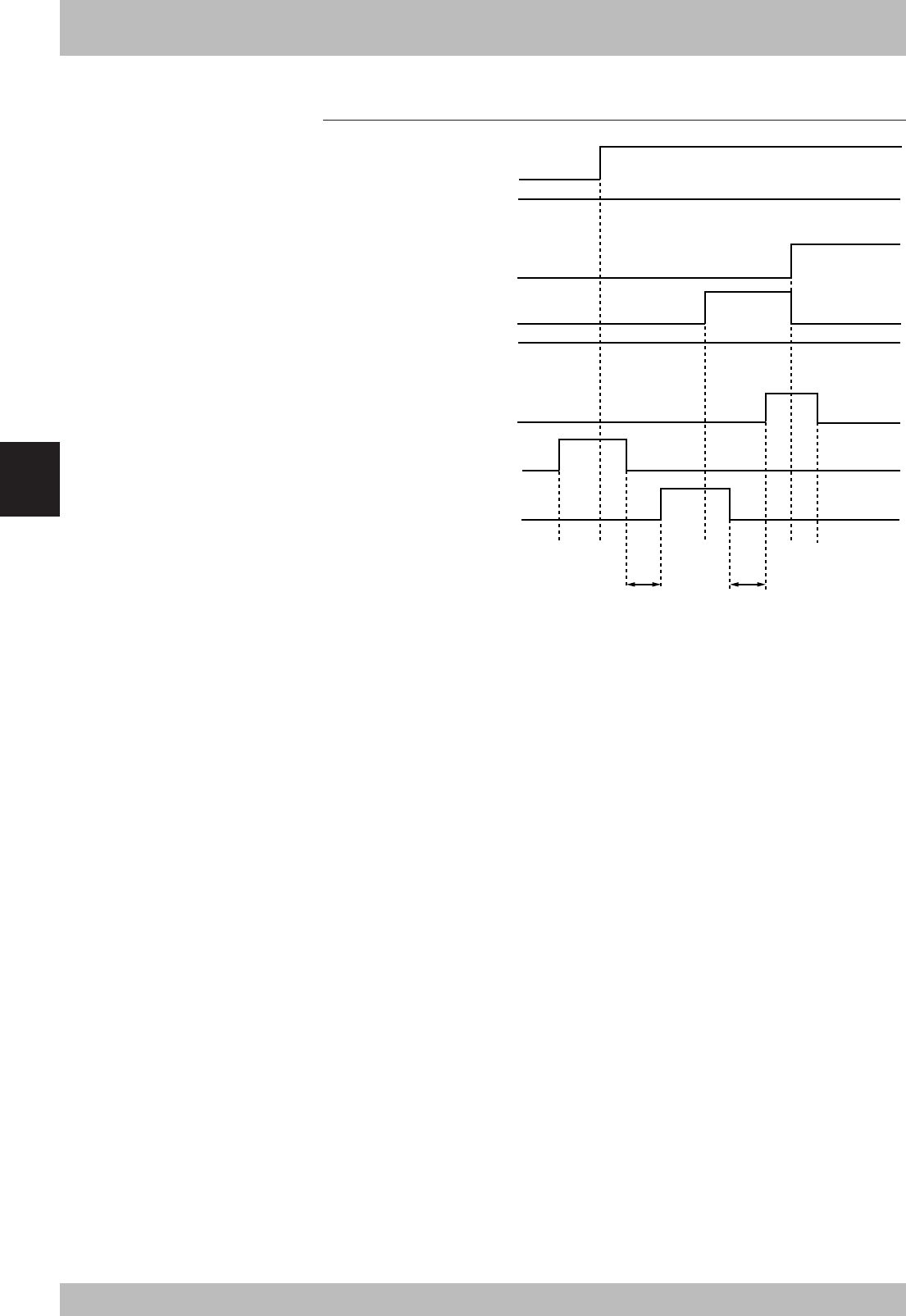
5-8
Specifications
5
3. Dedicated input/output signal timing chart
3.3
AUTO mode changeover, program reset and program execution
a) b)
100ms or more 100ms or more
c) d) e) f) g) h) i)
on
on
off
on
off
on
off
on
on
off
off
on
off
on
off
off
RXn8:SO(10)
AUTO mode status
output
RXn9:SO(11)
Origin return complete
status output
RXnB:SO(13)
Robot program execution
status output
RXnC:SO(14)
Program reset status output
RYn9:SI(11)
Interlock input
RYnA:SI(12)
Robot program start input
RYnB:SI(13)
AUTO mode input
RYnD:SI(15)
Program reset input
AUTO mode changeover process
a) AUTO mode input ON is input
b) AUTO mode status output ON is output
c) After confirming that the AUTO mode status output is ON, the AUTO mode input
OFF is input
Program reset process
d) Program reset input ON is input
e) Program reset status output ON is output
f) After confirming that the program reset status output is ON, the program reset
input OFF is input
Program execution process
g) Robot program start input ON is input
h) Program reset status output OFF is output
Robot program execution status output ON is output
i) After confirming that the robot program execution status output is ON, the robot
program start input OFF is input
* The program cannot be executed if the emergency stop input and interlock input are
OFF.
* If the origin return complete status output is not ON, execution of the program may
not be possible depending on the execution level setting value.
* When SAFE mode is enabled, dedicated inputs other than SI (00) and SI (11) might
be disabled depending on service mode parameter setting unless service mode input
signal is set to ON with SI (02) in the CC-Link system.
cCAUTION
• The dedicated input ON/OFF
process from the master station
PLC to the controller must be
carried out at an interval of
100ms or more. If the interval is
too short, the dedicated input may
not be recognized. (This also
applies to the same dedicated
input and differing dedicated
input intervals.)
• If dedicated outputs are provided
for the dedicated inputs from the
master station PLC to controller,
use them.
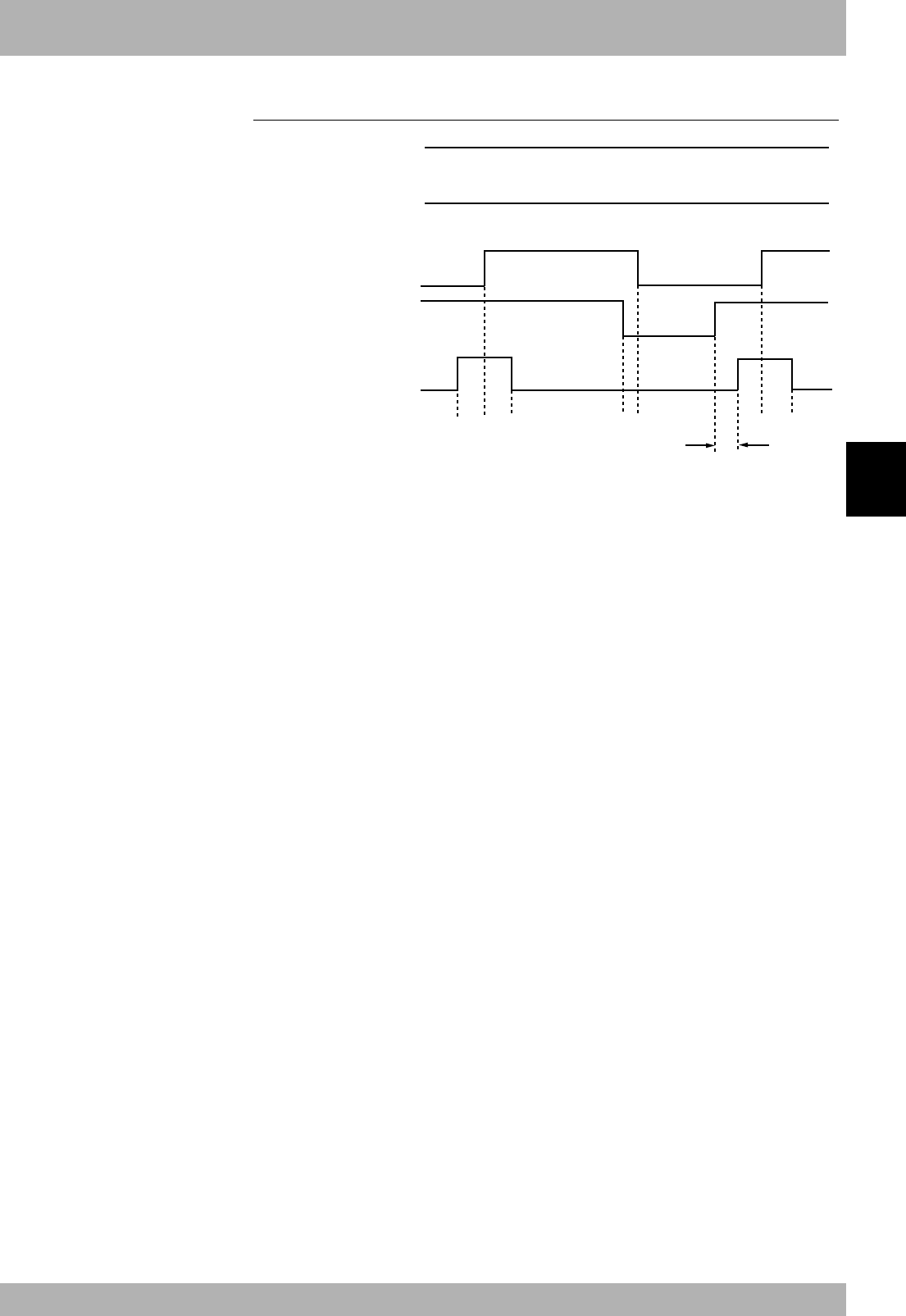
5-9
5
Specifications
3. Dedicated input/output signal timing chart
3.4 Stopping with program interlock
a) b)
c) d) e) f) g) h) i)
on
on
off
on
off
on
off
on
off
off
RXn8:SO(10)
AUTO mode status
output
RXn9:SO(11)
Origin return complete
status output
RXnB:SO(13)
Robot program execution
status output
RYn9:SI(11)
Interlock input
RYnA:SI(12)
Robot program start
input
100ms or more
Program execution process
a) Robot program start input ON is input
b) Robot program execution status output ON is output
c) After confirming that the robot program execution status output is ON, the start
input OFF is input
Program stop process using interlock input
d) Interlock input OFF is input
e) Robot program execution status output OFF is output
Program execution after stopping program with interlock input
f) Interlock input ON is input
g) Robot program start input ON is input
h) Robot program execution status output ON is output
i) After confirming that the robot program execution status output is ON, the start
input OFF is input
* The program will also stop when the emergency stop input OFF is input. In this case,
the emergency stop input status and alarm status output ON will be output, and the
servo ON status output OFF will be output. The servo ON process is required to start
the program again.
* When SAFE mode is enabled, dedicated inputs other than SI (00) and SI (11) might be
disabled depending on service mode parameter setting unless service mode input sig-
nal is set to ON with SI (02) in the CC-Link system.
cCAUTION
• The dedicated input ON/OFF
process from the master station
PLC to the controller must be
carried out at an interval of
100ms or more. If the interval is
too short, the dedicated input may
not be recognized. (This also
applies to the same dedicated
input and differing dedicated
input intervals.)
• If dedicated outputs are provided
for the dedicated inputs from the
master station PLC to controller,
use them.
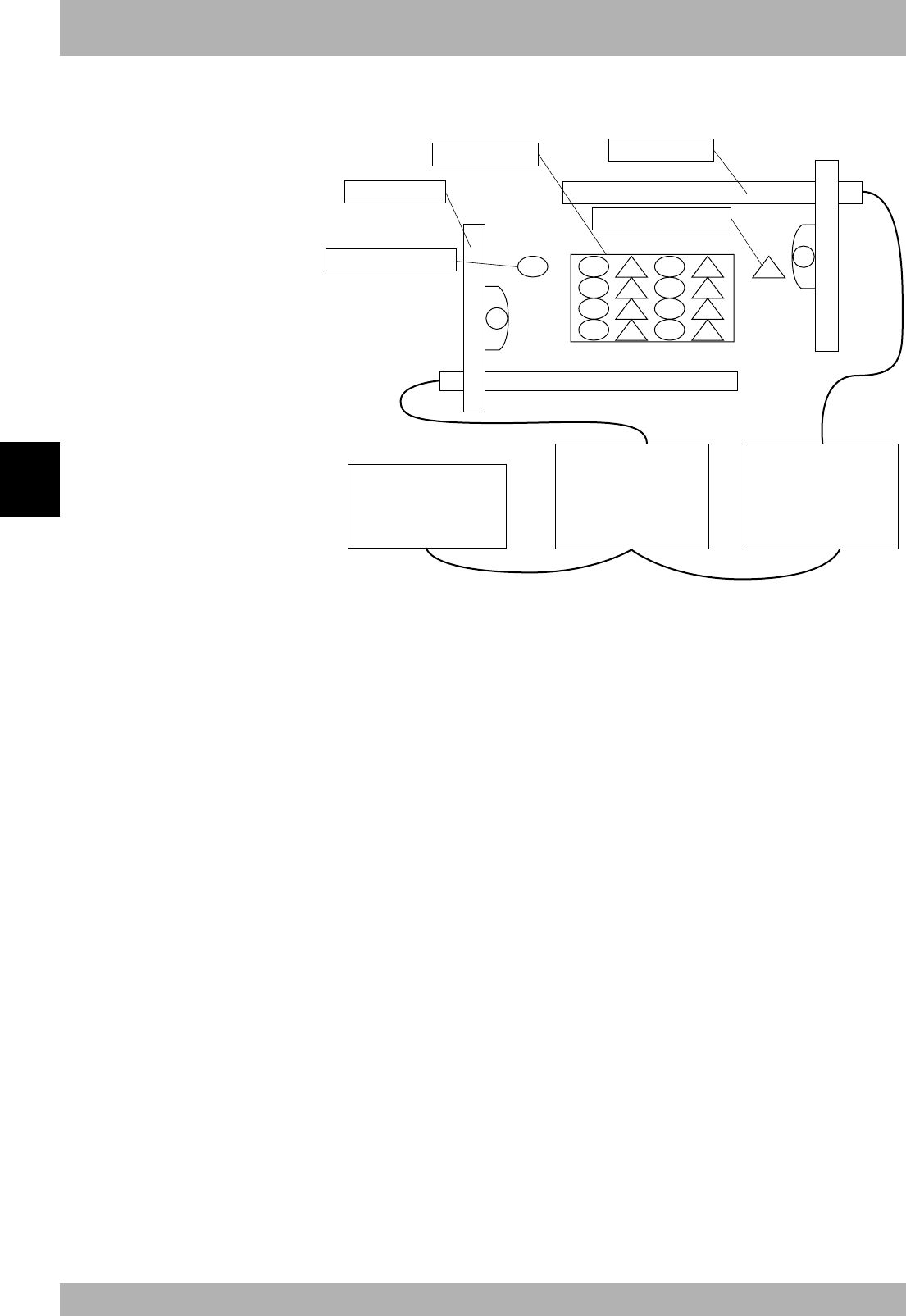
5-10
Specifications
5
4. Sample program
An example for the following type of hardware configuration has been prepared for this
section.
P100
MXYx
2nd unit supply position
Pallet
SXYx
1st unit supply position
Master station
A1SHCPU
+A1SJ61BT11
Remote device station
RCX40 (1st unit)
+ SXYx (3 axes)
(Station No. 1, 4
stations occupied)
Remote device station
RCX142 (2nd unit)
+ MXYx (3 axes)
(Station No. 5, 4
stations occupied)
P101
P102
P103
P104
P201
P202
P203
P204
P105
P106
P107
P108
P205
P206
P207
P208
P200
[Details of sample]
• Pick & place work is carried out using the PLC and RCX40 + SXYx (3 axes),
RCX142+MXYx (3 axes).
• The workpieces supplied to each robot are arranged on one pallet.
• The workpiece is supplied at a rate faster than the robot operation.
• The two robots will interfere above the pallet, so data is exchanged to prevent interfer-
ence.
• When handling the workpiece, the robot moves at a low speed.
• The robot controller directly exchanges the pallet.
* Refer to the robot programming manual for details on the robot program language.
* The PLC circuit is a simple circuit that executes the selected robot program when
emergency stop is canceled.

5-11
5
Specifications
4. Sample program
[Robot program data assignment]
* Variables used
1st unit : A : Point No. in pallet
2nd unit : B : Point No. in pallet
* Points used
1st unit : P100 : Point above workpiece supply
P101 : 1st point above pallet
::
P108 : 8th point above pallet
P121 : Z axis position point for workpiece supply
P122 : Z axis position point on pallet
2nd unit : P200 : Point above workpiece supply
P201 : 1st point above pallet
::
P208 : 8th point above pallet
P221 : Z axis position point for workpiece supply
P222 : Z axis position point on pallet
* Bit information used
1st unit : SI (40) : Point No. reception complete input
SI (41) : Movement complete response standby input
SI (42) : Movement complete standby input
SO (23) to SO (20) : Point No. setting output group
SO (40) : Point No. setting complete output
SO (41) : Movement complete output
SO (42) : Movement complete response output
DI (47) : Pallet change complete input
DO (40) : Chuck hand open close (0: Close, 1: Open)
DO (47) : Pallet exchange command output
2nd unit : SI (23) to SI (20) : Point No. setting input group
SI (40) : Point No. transmission complete input
SI (41) : Movement complete standby input
SI (42) : Movement complete response standby input
SO (40) : Point No. setting reception complete output
SO (41) : Movement complete response output
SO (42) : Movement complete output
DO (40) : Chuck hand open/close (0: Close, 1: Open)

5-12
Specifications
5
4. Sample program
[PLC data assignment]
X0 (*1) : Unit error
X1 (*1) : Local station data link status
X6 (*1) : Data link start normal completion
X7 (*1) : Data link start error completion
X0F (*1) : Unit ready
X100 : 1st unit’s SO(00): Emergency stop input status
X101 : 1st unit’s SO(01): CPU_OK
: :
X17F : 1st unit reservation
X180 : 2nd unit’s SO(00): Emergency stop input status
X181 : 2nd unit’s SO(01): CPU_OK
: :
X1FF : 2nd unit reservation
Y0 (*1) : Refresh instruction
Y6 (*1) : Data link start request
Y100 : 1st unit’s SI(00): Emergency stop input
Y101 : 1st unit’s SI(01): Servo ON input
: :
Y17F : 1st unit reservation
Y180 : 2nd unit’s SI(00): Emergency stop input
Y181 : 2nd unit’s SI(01): Servo ON input
: :
Y1FF : 2nd unit reservation
M0 : Unit preparation complete flag
M1 : Parameter setting flag
M2 : Data link start flag
M4 : 1st station data link status
M8 : 5th station data link status
D0 : No. of connection units storage device
D1 : 1st unit local station information setting storage device
D2 :
2nd unit local station information setting storage device
D10 : Parameter setting status storage device
*1: This number is determined by the master module mounting position and the number
of occupied input/output points mounted before the module.

5-13
5
Specifications
4. Sample program
[Robot program]
1st unit’s RCX40
‘INIT ROUTINE
RESET SO2()
RESET SO4()
RESET DO4()
A=101
‘MAIN ROUTINE
MOVE P,P100,Z=0
GOSUB *PICK
*ST1:
MOVE P,P[A],Z=0
GOSUB *PLACE
MOVE P,P100,Z=0
SO(41)=1
WAIT SI(41)=1
SO(41)=0
WAIT SI(41)=0
SO(23,22,21,20)=A-100
SO(40)=1
WAIT SI(40)=1
SO(40)=0
WAIT SI(40)=0
SO(23,22,21,20)=0
GOSUB *PICK
WAIT SI(42)=1
SO(42)=1
WAIT SI(42)=0
SO(42)=0
A=A+1
IF A>108 THEN
A=101
DO(47)=1
WAIT DI(47)=1
DO(47)=0
ENDIF
GOTO *ST1
HALT
‘SUB ROUTINE FOR PICK
*PICK:
DO(40)=1
DRIVE(3,P121),S=20
WAIT ARM(3)
DO(40)=0
DELAY 500
RETURN
‘‘SUB ROUTINE FOR PLACE
*PLACE:
DRIVE(3,P122),S=20
WAIT ARM(3)
DO(40)=1
DELAY 500
RETURN
2nd unit’s RCX142
‘INIT ROUTINE
RESET SO2()
RESET SO4()
RESET DO4()
B=201
‘MAIN ROUTINE
MOVE P,P200,Z=0
GOSUB *PICK
*ST2:
WAIT SI(41)=1
SO(41)=1
WAIT SI(41)=0
SO(41)=0
WAIT SI(40)=1
B=SI(23,22,21,20)
SO(40)=1
WAIT SI(40)=0
SO(40)=0
B=B+200
MOVE P,P[B],Z=0
GOSUB *PLACE
MOVE P,P200,Z=0
SO(42)=1
WAIT SI(42)=1
SO(42)=0
WAIT SI(42)=0
GOSUB *PICK
GOTO *ST2
HALT
‘SUB ROUTINE FOR PICK
*PICK:
DO(40)=1
DRIVE(3,P221),S=20
WAIT ARM(3)
DO(40)=0
DELAY 500
RETURN
‘SUB ROUTINE FOR PLACE
*PLACE:
DRIVE(3,P222),S=20
WAIT ARM(3)
DO(40)=1
DELAY 500
RETURN
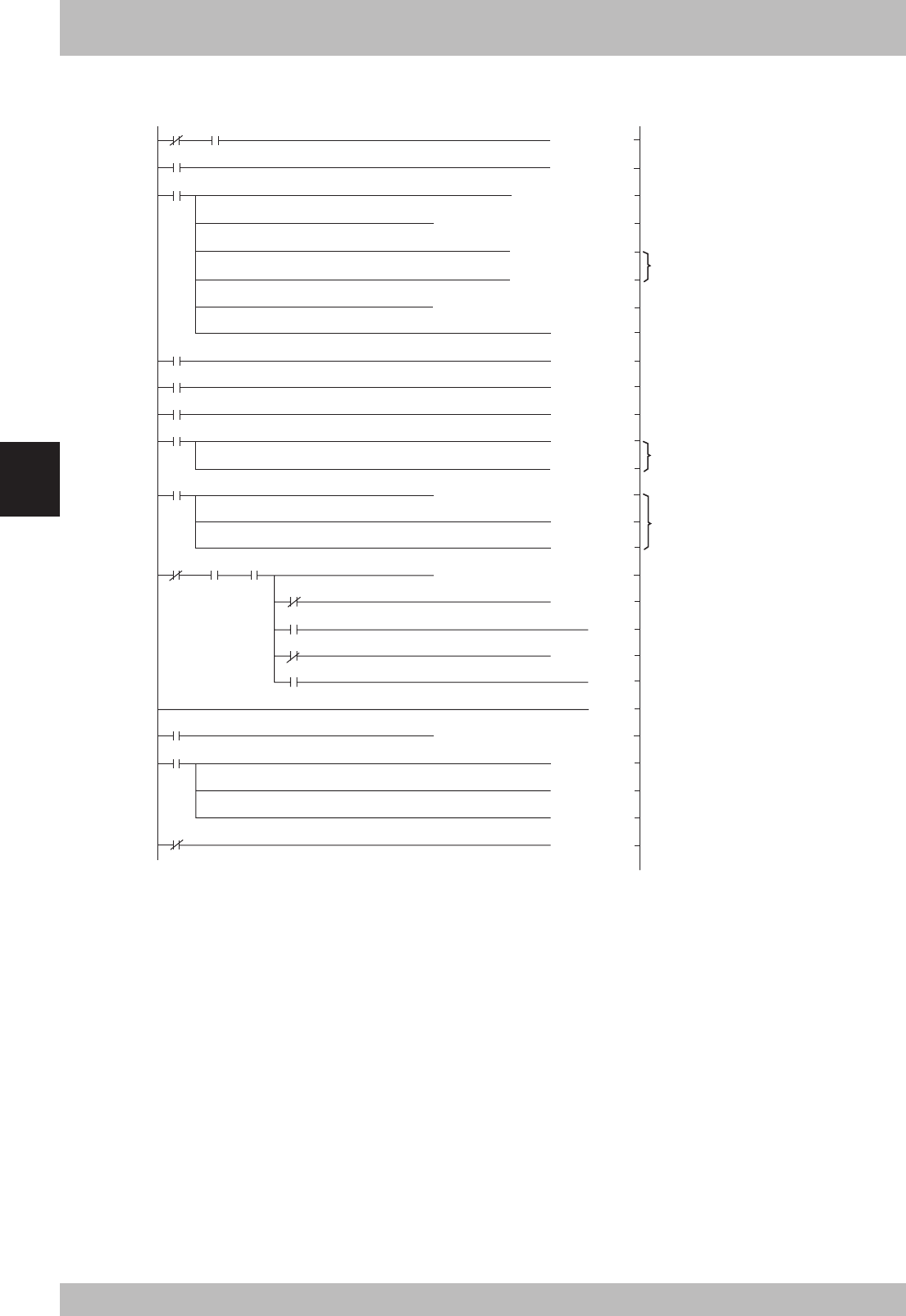
5-14
Specifications
5
4. Sample program
[PLC program]
0
5
7
42
44
46
48
51
63
91
92
103
107
P10
X0
M0
M1
M9038
M0
M2
X6
X7
X0 X0F X1
M4
M4
M8
M8
M9036
X178
X178
X0F
[PLS M0 ]
[SET M1 ]
[RST M1 ]
[SET Y0 ]
[SET M2 ]
[SET Y6 ]
[RST Y6 ]
[RST M2 ]
[RST Y6 ]
[RST M2 ]
[CALL P10 ]
[CALL P20 ]
[SET Y100 ]
[SET Y109 ]
[SET Y178 ]
[RST Y178 ]
(Y20 )
(Y21 )
[FEND ]
[MOV K2 D0 ]
[MOV H1401 D1 ]
[MOV H1405 D2 ]
[TO H0 H1 D0 K1 ]
[T0 H0 H20 D1 K2 ]
[FROM H0 H668 D10 K1 ]
[FROM H0 H680 K4M4 K16 ]
[FROM H0 H0E0 K4X100 K8 ]
No. of connected modules
Station information
Refresh instruction
Data link start normal completion
Data link start error completion
Read each data link status (SW0080)
Station No. 1 normal
Station No. 1 error
Station No. 2 normal
Station No. 2 error
Read station No. 1 remote input
Set emergency stop input ON
Set interlock input ON
Set initial data process compete flag ON
Set initial data process complete flag OFF
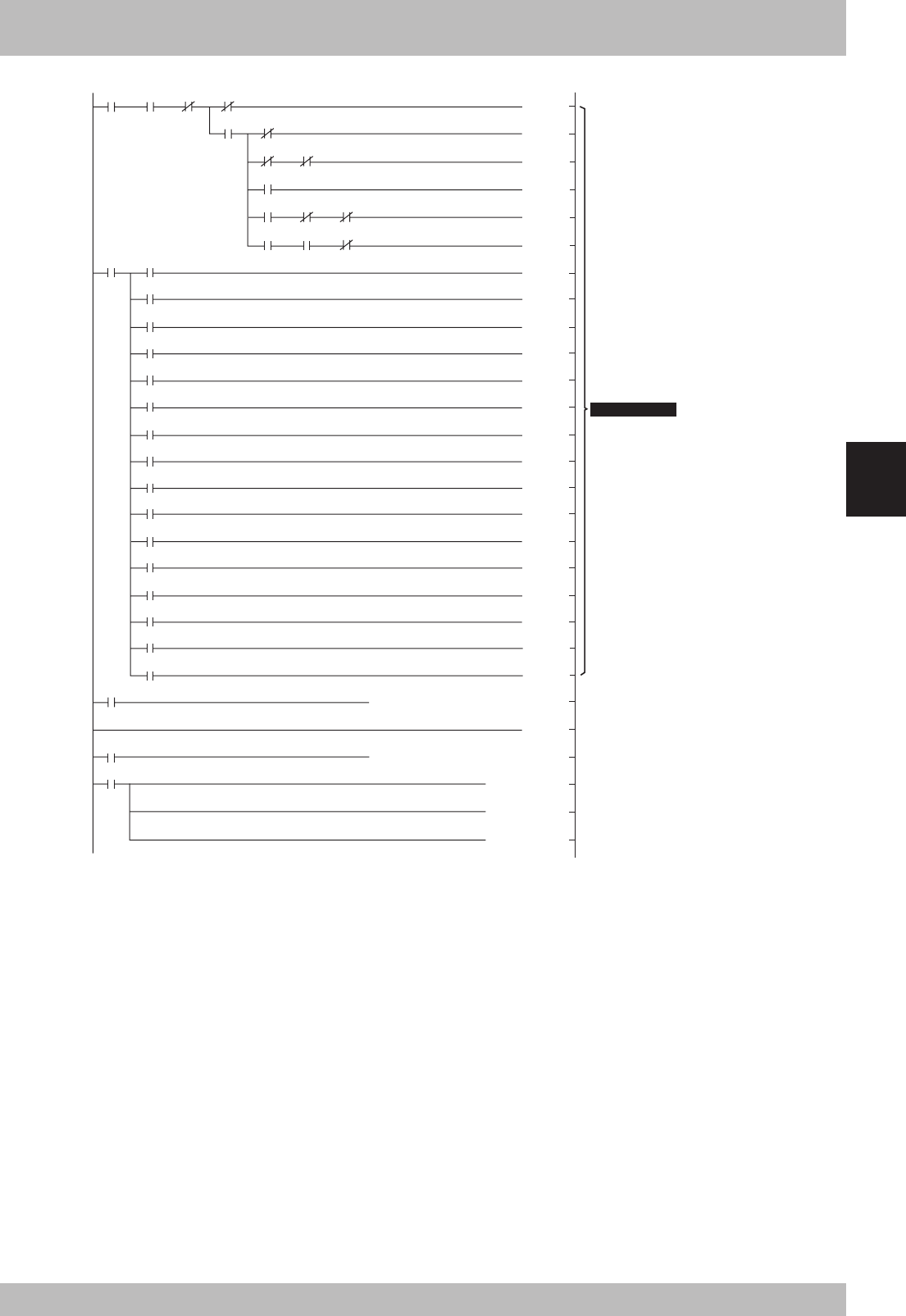
5-15
5
Specifications
4. Sample program
109
137
X17B
X102 X109
X108
X109
X108 X10B X10C
X108 X10C X10B
X109
M9036
M9036
X1F8
X101 X100 X102
(Y101 )
(Y10E )
(Y10F )
(Y10B )
(Y10D )
(Y10A )
(Y110 )
(Y111 )
(Y112 )
(Y113 )
(Y120 )
(Y121 )
(Y122 )
(Y123 )
(Y130 )
(Y131 )
(Y132 )
(Y133 )
(Y140 )
(Y141 )
(Y142 )
(Y143 )
[RET ]
[SET Y180 ]
[SET Y189 ]
[T0 H0 H160 K4Y100 K8 ]
[FROM H0 H0E8 K4X180 K8 ]
[SET Y1F8 ]
X17B X190
X191
X192
X193
X1A0
X1A1
X1A2
X1A3
X1B0
X1B1
X1B2
X1B3
X1C0
X1C1
X1C2
X1C3
186
196
197
208
P20
User application
Write to station No. 1 remote output
Read station No. 2 remote input
Set emergency stop input ON
Set interlock input ON
Set initial data process compete flag ON
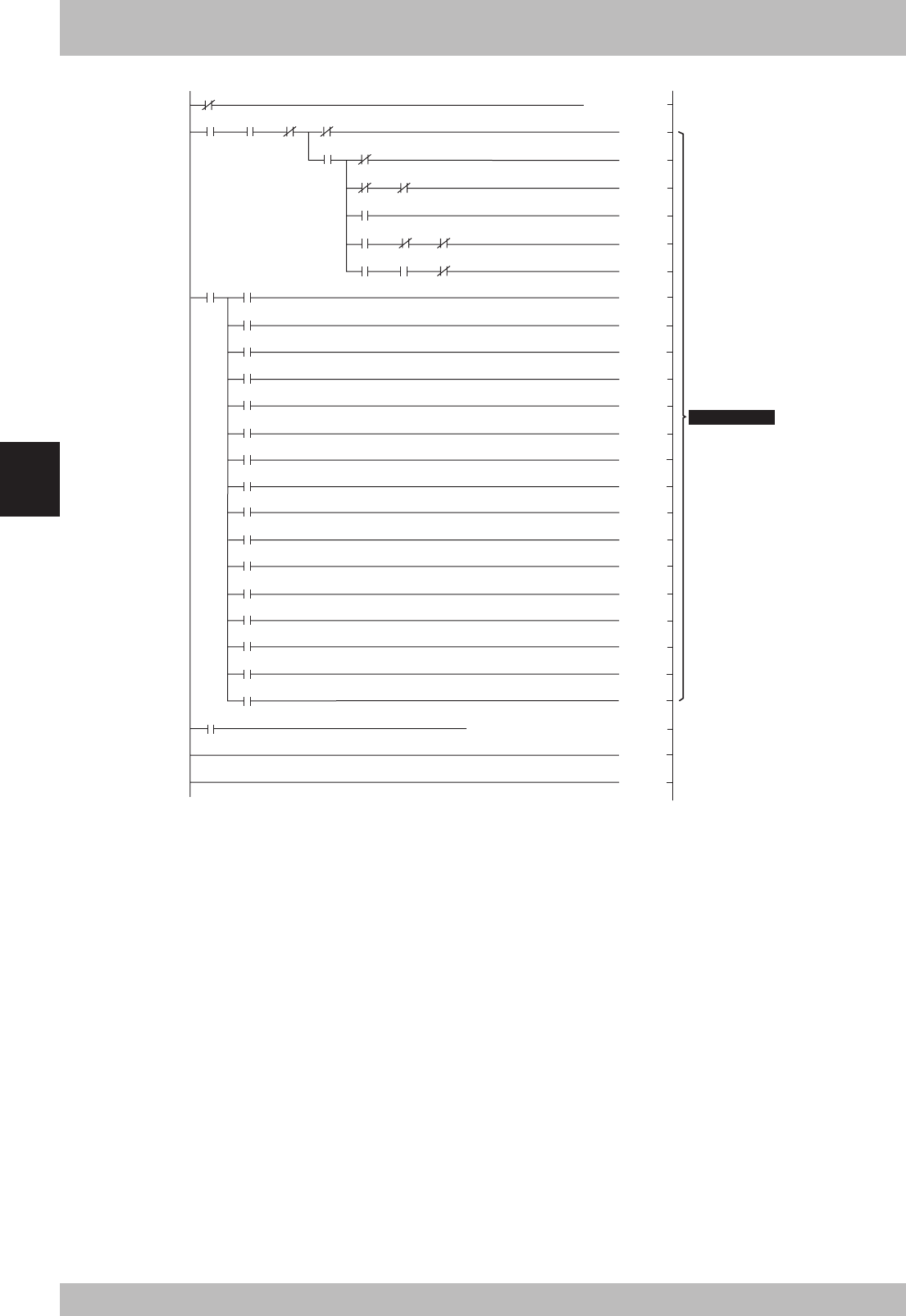
5-16
Specifications
5
4. Sample program
212
214
242
X1F8
X1FB X181 X180 X182
X182 X189
X188 X189
X189
X188 X18B X18C
X188 X18C X18B
M9036
[RST Y1F8 ]
(Y181 )
(Y18E )
(Y18F )
(Y18B )
(Y18D )
(Y18A )
(Y190 )
(Y191 )
(Y192 )
(Y193 )
(Y1A0 )
(Y1A1 )
(Y1A2 )
(Y1A3 )
(Y1B0 )
(Y1B1 )
(Y1B2 )
(Y1B3 )
(Y1C0 )
(Y1C1 )
(Y1C2 )
(Y1C3 )
[RET ]
[END ]
[T0 H0 H168 K4Y180 K8 ]
X110X1FB
X111
X112
X113
X120
X121
X122
X123
X130
X131
X132
X133
X140
X141
X142
X143
291
301
302
Set initial data process
complete flag OFF
User application
Write to station No. 2
remote output
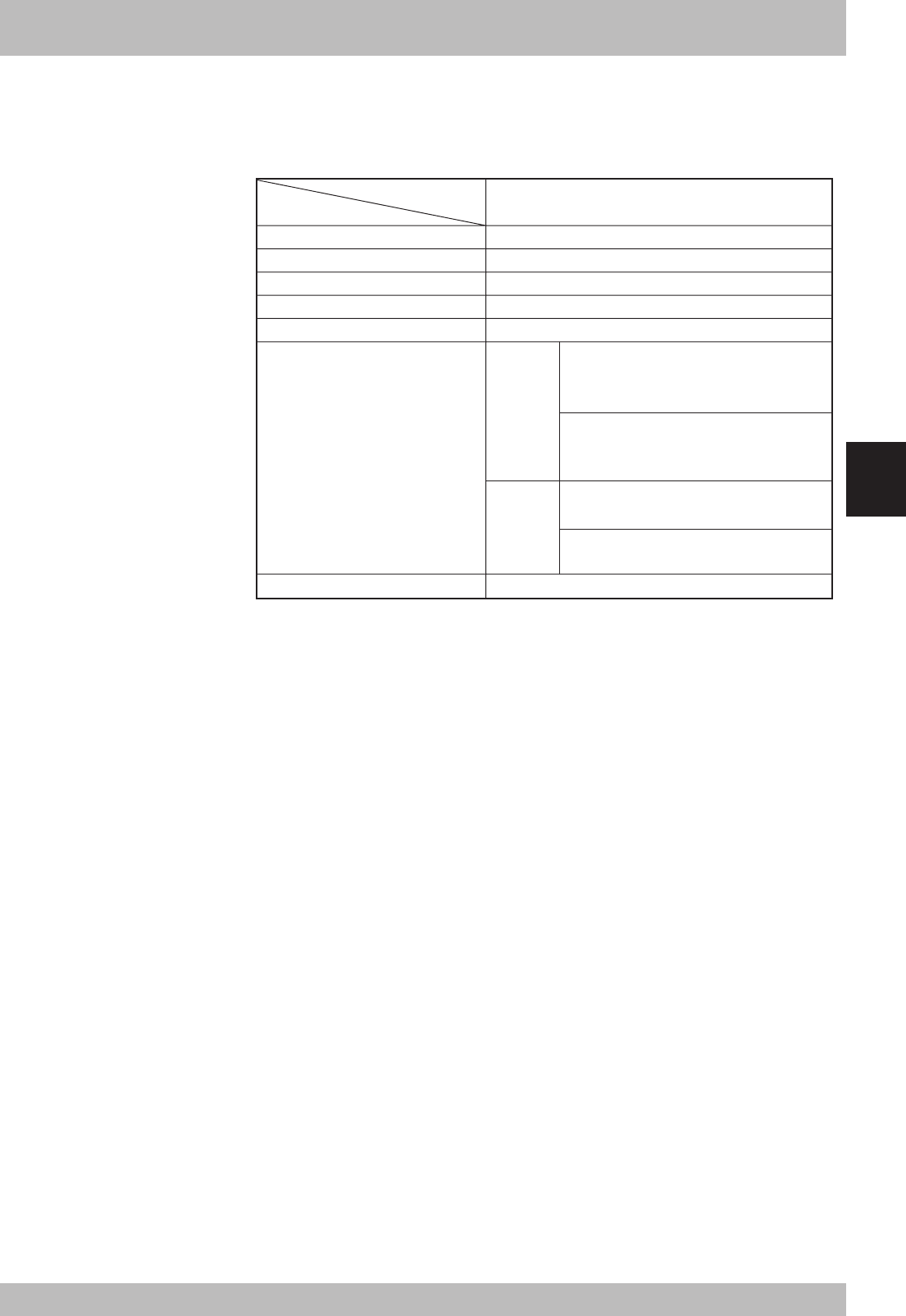
5-17
5
Specifications
5. CC-Link compatible module specifications
The CC-Link compatible module with the label is compatible with CC-Link Ver. 1.10.
Limits on the station-to-station cable length, etc., can be eased by using the Ver. 1.10
compatible CC-Link cable. Refer to the master station PLC instruction manual compat-
ible with Ver. 1.10.
Target controller RCX Series controller
Remote station type Remote device station
Number of occupied stations Fixed to four stations
Station No. setting 1 to 61 (rotary switch)
Communication speed setting 10M / 5M / 2.5M / 625K / 156Kbps (rotary switch)
Number of CC-Link input/output points
*1)
Monitor LED RUN, ERRL, SD, RD
Specification item CC-Link compatible module
*1)
Controller's I/O update intervals are 10ms at shortest, but actual I/O update intervals change depending
on the update time for the master station.
Remote
input/output
Remote
register
Dedicated input : 16 points
(11 points are currently used.)
General-purpose input : 96 points
Dedicated output : 16 points
(11 points are currently used.)
General-purpose output : 96 points
Dedicated input : 2 words
General-purpose input : 14 words
Dedicated output : 2 words
General-purpose output : 14 words
cCAUTION
For the names and description of
remote input/output signals and
remote registers, refer to the tables
shown in "1. Profile" and "2. Details
of remote input/output signals" in
this chapter.
cCAUTION
The specifications and appearance
are subject to change without prior
notice.

5-18
MEMO

Chapter 6 Appendix
Contents
1. Term definition ................................................................................. 6-1

MEMO

6-1
6
Appendix
1. Term definition
1. CC-Link (Control & Communication Link)
CC-Link is a registered trademark of CC-Link partner association.
2. SAFE mode setting
When the SAFE mode setting is enabled, service mode input is made valid so that
safety functions such as operating speed limits in MANUAL mode can be used.
The SAFE mode setting is determined at the time of shipping.
The SAFE mode setting is always enabled for controllers compatible with CE marking.
3. SERVICE mode
This mode is valid only when the SAFE mode setting is enabled, and can be con-
trolled by service mode input signals.
4. SAFETY connector
This connector is used to connect emergency stop input and service mode input.
Located on the front panel of the robot controller.
5. STD. DIO connector
This connector is used to receive or output dedicated I/O signals and general-
purpose I/O signals. Located on the front panel of the robot controller.
6. bit information
Bit data transmitted and received between master station PLC and controller.
7. Word information
Word data transmitted and received between master station PLC and controller.
8. Little endian
Method to substitute LSB in low-order address and refer to LSB when handling
word information data as double word data.
For example, when the value 00012345h is substituted in SOD (2), 2345h is sub-
stituted in SOW (2) of the first word, and 0001h is substituted in SOW (3) of the
second word.
OWNER'S MANUAL
Oct. 2006
Ver. 1.06
This manual is based on Ver. 1.06 of Japanese manual.
© YAMAHA MOTOR CO., LTD. IM Company
Robot Controller
All rights reserved. No part of this publication may be reproduced in
any form without the permission of YAMAHA MOTOR CO., LTD.
Information furnished by YAMAHA in this manual is believed to be
reliable. However, no responsibility is assumed for possible
inaccuracies or omissions. If you find any part unclear in this manual,
please contact YAMAHA or YAMAHA sales representatives.
RCX Series
UNIT
1st Edition
2nd Edition
3rd Edition
4th Edition
Ver. 1.05
Ver. 1.06
–
–
–
–
English manual Ver. 1.05 is based on Japanese manual Ver. 1.06.
English manual Ver. 1.06 is based on Japanese manual Ver. 1.06.
Revision record
Manual version
Jan. 2002
May 2002
Nov. 2002
Jan. 2003
Aug. 2006
Oct. 2006
Issue date Description
