Yarvik Tab10 201 Quick Start Manual
Xenta 10” - TAB10-201 - Quick Start Guide TAB-10-201-XENTA-10inch-eng-qig Free User Guide for Yarvik Tablet and eReader, Manual
2015-08-20
: Yarvik Tab10-201-Quick-Start-Manual yarvik-tab10-201-quick-start-manual-799601 yarvik pdf
Open the PDF directly: View PDF  .
.
Page Count: 36
Xenta
TAB10_201_QSG_100x138mm.indd 1 25-10-12 13:42

Start guide
Snelstart handleiding
Schnellstartanleitung
Guide de démarrage
Guía de inicio
Guia de iniciação
Przewodnik uruchamiania
Návod k použití
Stručný návod na obsluhu
Startvejledning
Startguide
Οδηγός έναρξης
Guida di avvio
Краткое руководство пользователя
Startveiledning
Vodič za začetek
Короткий посібник користувача
Használati útmutató
Ръководство за старт
Ghid de pornire
Brzi vodič
TAB10_201_QSG_100x138mm.indd 2 25-10-12 13:42

Start guide
Snelstart handleiding
Schnellstartanleitung
Guide de démarrage
Guía de inicio
Guia de iniciação
Przewodnik uruchamiania
Návod k použití
Stručný návod na obsluhu
Startvejledning
Startguide
Οδηγός έναρξης
Guida di avvio
Краткое руководство пользователя
Startveiledning
Vodič za začetek
Короткий посібник користувача
Használati útmutató
Ръководство за старт
Ghid de pornire
Brzi vodič
Xenta
TAB10_201_QSG_100x138mm.indd 3 25-10-12 13:42
4
Index
1 PackageContent 6
Inhouddoos/Verpackungsinhalt/Contenudel’emballage/Contenidodelacaja/
Conteúdodaembalagem/Zawartośćopakowania/Obsahbalení/Obsahbalenia/
Pakkensindhold/Paketetsinnehåll/ΠεριεχόμεναΣυσκευασίας
Contenutodellaconfezione/Содержимоеупаковки/Pakkensinnhold/Vsebina
paketa/Розпакування/ /Acsomagtartalma/Съдържаниена
опаковката/Conţinutulambalajului/Sadržajpaketa
2 Buttons&Connections 9
Knoppen&Aansluitingen/Tasten&Anschlüsse/Boutonsetconnexions/Botonesy
conexiones/Botõeseligações/Przyciskiizłącza/Tlačítkaapřipojení/Tlačidláa
pripojenia/Knapper&tilslutninger/Knappar&Anslutningar/Πλήκτρα&Συνδέσεις
Pulsantiecollegamenti/Кнопкииразъемы/Knapperogtilkoblinger/Gumbiin
Povezave/Кнопкитароз’єми/ /Gombokéscsatlakozások/Бутони
ивръзки/Butoaneşiconexiuni/Tipkeiveze
Charging 15
Opladen/Laden/Chargement/Carga/Carregamento/Ładowanie/Nabíjení/
Nabíjanie/Opladning/Laddning/Φόρτιση/Carica/Зарядка/Lading/Polnjenje/
Зарядженняакумулятора/ /Töltés/Зареждане/Încărcare/Punjenje
USB 15
AndroidHomeScreen 16
AndroidHomescherm/AndroidStartbildschirm/Paged’accueilAndroid/
PantalladeiniciodeAndroid/EcrãprincipaldoAndroid/Ekrandomowysystemu
operacyjnegoAndroid/DomovskáobrazovkaAndroidu/Omácaobrazovka
Android/SkærmenAndroidHome[AndroidHjem]/AndroidStartskärm/ΗΑρχική
ΟθόνητουAndroid(Home)/SchermataHomediAndroid/Главныйэкран
Android/Androidstartskjerm/DomačizaslonAndroid/ГоловнийекранAndroid
/ Android /Androidkezdőképernyő/НачаленекраннаAndroid/
EcrandeînceputAndroid/Androidpočetnizaslon
3 GettingontheInternet 20
Internetinstellen/ZugriffaufdasInternet/AccèsàInternet/Cómoaccedera
Internet/Acederàinternet/ŁączeniezInternetem/Připojeníkinternetu/Pripojenie
kinternetu/Atkommepåinternettet/GåutpåInternet/ΣύνδεσηστοInternet
CollegamentoaInternet/ПодключениекИнтернету/KobletilInternett/Kakose
povezatinainternet/ПідключеннядоІнтернету/ /Kapcsolódásaz
Internetre/СвързванекъмИнтернет/ConectarelaInternet/SpajanjenaInternet
4 WhenaProblemOccurs 26
Problemenoplossen/Problembehandlung/Dépannage/Siseproduceun
problema/Quandoocorreumproblema/Wrazieproblemów/Přivznikuproblému
/Aksavyskytneproblém/Nårderopståretproblem/Närettproblemuppstår/
ΌτανΣυμβείΚάποιοΠρόβλημα/Sesiverificaunproblema/Привозникновении
проблемы/Nårdetoppstårproblemer/Kosepojavitežava/Уразівиникнення
проблем/ /Hibaesetén/Припроблеми/Încazulîncareapareo
problemă/Kadsepojaviproblem
SoftResetviaResetButton 28
SoftResetviaResetButton/SoftResetüberReset-Taste/Réinitialisationlogicielle
àl’aideduboutonRESET/RestablecimientoparcialmedianteelbotónReset
(Restablecer)/ReinicializaçãoparcialatravésdobotãoReiniciar/Ponowne
uruchamianieprzyciskiemReset/ČástečnýresetpomocítlačítkaVymazat/
MäkkýresetpomocoutlačidlaReset/SoftwarenulstillingviaknappenReset
[Nulstil]/Mjukåterställningviaåterställningsknapp/ΕπαναφοράΛογισμικούμέσω
τουΠλήκτρουReset/SoftresettramiteilpulsanteReset/Программныйсброс
посредствомкнопкисброса/OmstartmedReset-knappen/Mehkaponastavitev
prekogumbazaponastavitev/Програмнескиданнязадопомогоюкнопкискидання
/ /SzoftveresvisszaállításaVisszaállítás
gombbal/СофтуернонулиранечрезБутонзанулиране/Resetarefuncţionalăcu
ajutorulbutonuluideresetare/Softverskiresetpomoćutipkezaresetiranje
TAB10_201_QSG_100x138mm.indd 4 25-10-12 13:42

5
1 PackageContent 6
Inhouddoos/Verpackungsinhalt/Contenudel’emballage/Contenidodelacaja/
Conteúdodaembalagem/Zawartośćopakowania/Obsahbalení/Obsahbalenia/
Pakkensindhold/Paketetsinnehåll/ΠεριεχόμεναΣυσκευασίας
Contenutodellaconfezione/Содержимоеупаковки/Pakkensinnhold/Vsebina
paketa/Розпакування/ /Acsomagtartalma/Съдържаниена
опаковката/Conţinutulambalajului/Sadržajpaketa
2 Buttons&Connections 9
Knoppen&Aansluitingen/Tasten&Anschlüsse/Boutonsetconnexions/Botonesy
conexiones/Botõeseligações/Przyciskiizłącza/Tlačítkaapřipojení/Tlačidláa
pripojenia/Knapper&tilslutninger/Knappar&Anslutningar/Πλήκτρα&Συνδέσεις
Pulsantiecollegamenti/Кнопкииразъемы/Knapperogtilkoblinger/Gumbiin
Povezave/Кнопкитароз’єми/ /Gombokéscsatlakozások/Бутони
ивръзки/Butoaneşiconexiuni/Tipkeiveze
Charging 15
Opladen/Laden/Chargement/Carga/Carregamento/Ładowanie/Nabíjení/
Nabíjanie/Opladning/Laddning/Φόρτιση/Carica/Зарядка/Lading/Polnjenje/
Зарядженняакумулятора/ /Töltés/Зареждане/Încărcare/Punjenje
USB 15
AndroidHomeScreen 16
AndroidHomescherm/AndroidStartbildschirm/Paged’accueilAndroid/
PantalladeiniciodeAndroid/EcrãprincipaldoAndroid/Ekrandomowysystemu
operacyjnegoAndroid/DomovskáobrazovkaAndroidu/Omácaobrazovka
Android/SkærmenAndroidHome[AndroidHjem]/AndroidStartskärm/ΗΑρχική
ΟθόνητουAndroid(Home)/SchermataHomediAndroid/Главныйэкран
Android/Androidstartskjerm/DomačizaslonAndroid/ГоловнийекранAndroid
/ /Androidkezdőképernyő/НачаленекраннаAndroid/
EcrandeînceputAndroid/Androidpočetnizaslon
3 GettingontheInternet 20
Internetinstellen/ZugriffaufdasInternet/AccèsàInternet/Cómoaccedera
Internet/Acederàinternet/ŁączeniezInternetem/Připojeníkinternetu/Pripojenie
kinternetu/Atkommepåinternettet/GåutpåInternet/ΣύνδεσηστοInternet
CollegamentoaInternet/ПодключениекИнтернету/KobletilInternett/Kakose
povezatinainternet/ПідключеннядоІнтернету/ /Kapcsolódásaz
Internetre/СвързванекъмИнтернет/ConectarelaInternet/SpajanjenaInternet
4 WhenaProblemOccurs 26
Problemenoplossen/Problembehandlung/Dépannage/Siseproduceun
problema/Quandoocorreumproblema/Wrazieproblemów/Přivznikuproblému
/Aksavyskytneproblém/Nårderopståretproblem/Närettproblemuppstår/
ΌτανΣυμβείΚάποιοΠρόβλημα/Sesiverificaunproblema/Привозникновении
проблемы/Nårdetoppstårproblemer/Kosepojavitežava/Уразівиникнення
проблем/
/Hibaesetén/Припроблеми/Încazulîncareapareo
problemă/Kadsepojaviproblem
SoftResetviaResetButton 28
SoftResetviaResetButton/SoftResetüberReset-Taste/Réinitialisationlogicielle
àl’aideduboutonRESET/RestablecimientoparcialmedianteelbotónReset
(Restablecer)/ReinicializaçãoparcialatravésdobotãoReiniciar/Ponowne
uruchamianieprzyciskiemReset/ČástečnýresetpomocítlačítkaVymazat/
MäkkýresetpomocoutlačidlaReset/SoftwarenulstillingviaknappenReset
[Nulstil]/Mjukåterställningviaåterställningsknapp/ΕπαναφοράΛογισμικούμέσω
τουΠλήκτρουReset/SoftresettramiteilpulsanteReset/Программныйсброс
посредствомкнопкисброса/OmstartmedReset-knappen/Mehkaponastavitev
prekogumbazaponastavitev/Програмнескиданнязадопомогоюкнопкискидання
//SzoftveresvisszaállításaVisszaállítás
gombbal/СофтуернонулиранечрезБутонзанулиране/Resetarefuncţionalăcu
ajutorulbutonuluideresetare/Softverskiresetpomoćutipkezaresetiranje
TAB10_201_QSG_100x138mm.indd 5 25-10-12 13:42
6
Package Content
1
Inhouddoos/Verpackungsinhalt/Contenudel’emballage/Contenidodelacaja/Conteúdodaembalagem
/Zawartośćopakowania/Obsahbalení/Obsahbalenia/Pakkensindhold/Paketetsinnehåll/Περιεχόμενα
Συσκευασίας/Contenutodellaconfezione/Содержимоеупаковки/Pakkensinnhold/Vsebinapaketa/
Розпакування/ /Acsomagtartalma/Съдържаниенаопаковката/Conţinutulambalajului/
Sadržajpaketa
-USBhostcable
-USBhostkabel
-USBHostKabel
-CâbleUSBhôte
-HostUSBcable
-CabodeanfitriãoUSB
-HostaUSBkabel
-USBhostkabel
-USBhostkábel
-USB-værtskabel
-USB-värdkabel
-Καλώδιοκεντρικούυπολογιστή
(host)USB
-CavohostUSB
-USB-кабельдляподключения
внешнихустройств
-USBvertskabel
-GostiteljskikabelUSB
-USB-кабельпідключеннязовнішніх
пристроїв
-USB
-USBhostkábel
-USBхосткабел
-CabluhostUSB
-USBkabelzadomaćina
-Poweradapter
-Voedingsadapter
-Netzteil
-Adaptateur
d’alimentation
-Adaptadordecorriente
-Adaptadordecorrente
-Zasilacz
-Napájecíadaptér
-Napájacíadaptér
-Strømadapter
-Nätadapter
-Τροφοδοτικόρεύματος
-Alimentatore
-Адаптерпитания
-Strømforsyning
-Napajalnik
-Адаптерживлення
-
-Hálózatiadapter-
Захранващадаптер
-Adaptordealimentare
-Naponskiadapter-
Захранващадаптер
-Adaptordealimentare
-Naponskiadapter
1x
1x
1x
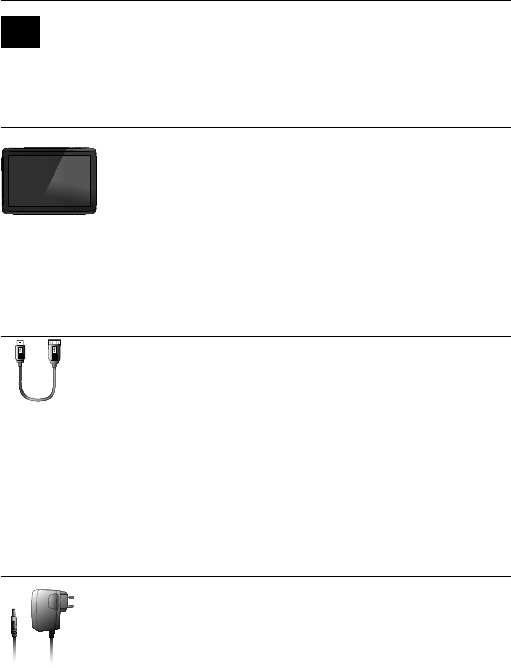
Xenta10”tablet
Xenta10”tablet
Xenta10”Tablet
Tablette10”Xenta
Tabletade10”Xenta
Tabletde10”Xenta
Tablet10”Xenta
Xenta10”tabet
Xenta10”tablet
Xenta10”platta
Ταμπλέτα10”Xenta
Tabletda10”Xenta
Планшет10”Xenta
Xenta10”nettbrett
TabličniračunalnikXenta10”
Планшет10”Xenta
10”TabletgépXenta
10”TаблетXenta
Tabletăcuecrande10”Xenta
Xenta10”tablet
10
TAB10_201_QSG_100x138mm.indd 6 25-10-12 13:42
7
Package Content
Inhouddoos/Verpackungsinhalt/Contenudel’emballage/Contenidodelacaja/Conteúdodaembalagem
/Zawartośćopakowania/Obsahbalení/Obsahbalenia/Pakkensindhold/Paketetsinnehåll/Περιεχόμενα
Συσκευασίας/Contenutodellaconfezione/Содержимоеупаковки/Pakkensinnhold/Vsebinapaketa/
Розпакування/ /Acsomagtartalma/Съдържаниенаопаковката/Conţinutulambalajului/
Sadržajpaketa
-CavohostUSB
-USB-кабельдляподключения
внешнихустройств
-USBvertskabel
-GostiteljskikabelUSB
-USB-кабельпідключеннязовнішніх
пристроїв
-USB
-USBhostkábel
-USBхосткабел
-CabluhostUSB
-USBkabelzadomaćina
-
-Hálózatiadapter-
Захранващадаптер
-Adaptordealimentare
-Naponskiadapter-
Захранващадаптер
-Adaptordealimentare
-Naponskiadapter
-Start guide
-Snelstart handleiding
-Schnellstartanleitung
-Guide de Démarrage
-Guía de Inicio
-Guia de iniciação
-Przewodnik Uruchamiania
-Návod k Použití
-Stručnýnávodnaobsluhu
-Startvejledning
-Startguide
-Οδηγόςέναρξης
-Guidadiavvio
-Краткоеруководство
пользователя
-Startveiledning
-Aloitusopas
-Короткийпосібниккористувача
-
-Használatiútmutató
-Ръководствозастарт
-Ghiddepornire
-Brzivodič
1x
1x
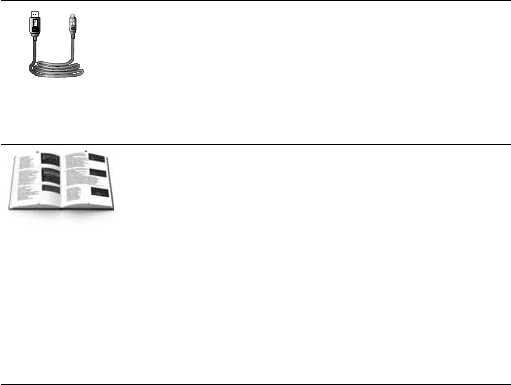
-USBcable
-USBkabel
-USBKabel
-CâbleUSB
-USBcable
-CaboUSB
-USBkabel
-USBkabel
-USBkábel
-USB-kabel
-USB-kabel
-ΚαλώδιοUSB
-CavoUSB
-USB-кабель
-USB-kabel
-KabelUSB
-USB-кабель
-USB
-USBkábel
-USBкабел
-CabluUSB
-USBkabel
TAB10_201_QSG_100x138mm.indd 7 25-10-12 13:42

8
-YoucanfindthemanualintheTablet
Appmenu
-Dehandleidingistevindeninhet
TabletAppmenu
-DasHandbuchbefindetsichimApp-Menüdes
Tablet
-Voustrouverezlemanueldanslemenu
d’applicationsdelatablette
-PuedeencontrarelmanualenelmenúApp
(Aplicaciones)delatableta
-PodeencontraromanualnoMenudeaplicações
dotablet
-Podręcznikznajdujewmenuaplikacjitabletu
-Návodnaleznetevnabídceaplikacetabletu
-Nájdetemanuálponukyaplikáciítabletu
-DukanfindevejledningenimenuenTabletApp
-DuhittarmanualeniTabletApp-menyn
-Τοεγχειρίδιοείναιδιαθέσιμοστομενού
εφαρμογώντηςταμπλέτας
-IlmanualesitrovanelmenuAppdeltablet.
-Выможетенайтиполноеруководство
пользователявменюприложенийпланшета
-VeiledningenfinnesiTabletApp-menyen
-Navodilalahkonajdetevmenijuaplikacij
tabličnegaračunalnika
-Посібниккористувачаможназнайтиуменю
програм
-
-Ahasználatiútmutatótmegtalálhatjaatábla
Alkalmazásokmenüjében
-Можетеданамеритенаръчникавменюто
приложениятаблета
-Puteţigăsimanualulînmeniuldeaplicaţiiale
tabletei
-Priručnikmožetepronaćiuizbornikusaplikaci-
jama
2
TAB10_201_QSG_100x138mm.indd 8 25-10-12 13:42
9
-Выможетенайтиполноеруководство
пользователявменюприложенийпланшета
-VeiledningenfinnesiTabletApp-menyen
-Navodilalahkonajdetevmenijuaplikacij
tabličnegaračunalnika
-Посібниккористувачаможназнайтиуменю
програм
-
-Ahasználatiútmutatótmegtalálhatjaatábla
Alkalmazásokmenüjében
-Можетеданамеритенаръчникавменюто
приложениятаблета
-Puteţigăsimanualulînmeniuldeaplicaţiiale
tabletei
-Priručnikmožetepronaćiuizbornikusaplikaci-
jama
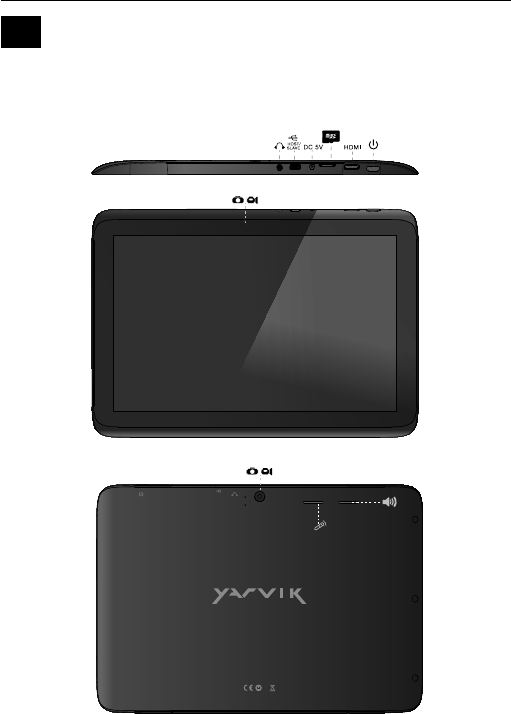
Buttons & Connections
2
Knoppen&Aansluitingen/Tasten&Anschlüsse/Boutonsetconnexions/Botonesyconexiones/Botõese
ligações/Przyciskiizłącza/Tlačítkaapřipojení/Tlačidláapripojenia/Knapper&tilslutninger/Knappar&
Anslutningar/Πλήκτρα&Συνδέσεις/Pulsantiecollegamenti/Кнопкииразъемы/Knapperogtilkoblinger/Gumbi
inPovezave/Кнопкитароз’єми/ /Gombokéscsatlakozások/Бутониивръзки/Butoaneşi
conexiuni/Tipkeiveze
TAB10-201 ID27224
Power Input: 5 V DC, 2500 mA
Made in PRC
HDMI HOST/SLAVE
DC-5VMicroSD
RESET
FFM
TAB10_201_QSG_100x138mm.indd 9 25-10-12 13:42
10
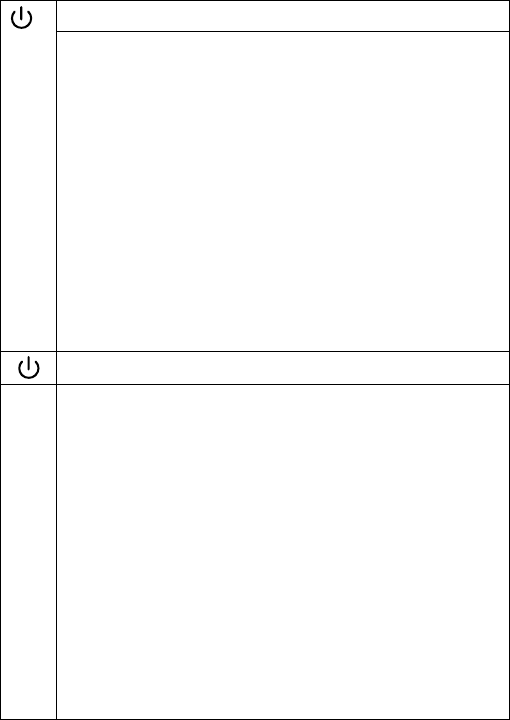
On/Off
-Hold3sec.forOnorOff
-3sec.indrukkenvoorAanofUit
-ZumEin-/Ausschalten3Sek.drücken
-Appuyezpendant3spourallumerou
éteindre
-Pulsedurante3sparaencenderoapagar
eldispositivo
-Mantenhapremidodurante3segundos
paraligaroudesligar
-Naciśnijiprzytrzymajprzez3sek.,aby
włączyćlubwyłączyć
-Přidrženímpodobu3szapínátenebo
vypínáte
-Podržte3sek.prezapnutie
alebovypnutie
-Hold3sek.forOn[Til]ellerOff[Fra]
-Hållned3sekunderförPåellerAv
-Κρατήστε3δευτ.γιαενεργοποίηση(On)ή
απενεργοποίηση(Off)
-Tenerepremuto3sec.perl’accensioneo
lospegnimento.
-Удерживайтевтечение3сдля
включенияиливыключения
-Trykk3sek.forpåellerav
-Držite3sek.zavklopaliizklop
-Утримуйтепротягом3сдляувімкнення
абовимкнення
-
-Nyomja3mp-igabe-vagykikapcsoláshoz
-Задръжте3сек.завключванеили
изключване
-Pentruactivaresaudezactivare,menţineţi
apăsareatimpde3sec.
-Držite3sek.zauključivanjeili
isključivanje
Sleep/Wake
-Press1sec.forSleeporWake
-1sec.indrukkenvoorSlaapstandofuit
Slaapstand
-FürBetriebszustand1Sek.drücken
-Appuyezpendant1spourlamiseen
veilleouleréveil
-Pulse1sparaquelatabletaentreenel
estadodeinactividadoactivarla
-Pressione1seg.parasuspensãoouWake
segundosparaligaroudesligar
-Naciśnijprzez1sek.,abyprzełączyćw
stanuśpienialubwybudzić
-Stisknutímpodobu1sspustíterežim
spánkuneboprobuzení
-Stlačte1sek.prespánokalebo
prebudenie
-Trykpå1sek.tilslumre-ellerWake
-Tryckpå1sek.förattsovaellerWake
-Πατήστε1δευτερόλεπτο.γιατην
κατάστασηνάρκηςήWake
-Premere1sec.perlafunzioneSleepo
Wake(Sveglia).
-Нажимайтевтечение1сдляперехода
вспящийрежимилипродолжения
работы
-Trykk1sek.forstandbyellergåutav
standby
-Pritisnite1sek.zaspanjealibujenje
-Натискайтепротягом1сдляпереходуу
сплячийрежимабопродовженняроботи
-
-Nyomja1mp-igazalváshozvagy
felébresztéshez
-Натиснете1сек.зазаспиванеили
събуждане
-Pentrustarederepaussaureactivare,
apăsaţitimpde1sec.
-Pritisnite1sek.zaspavanjeilibuđenje
uređaja
Reset
TAB10_201_QSG_100x138mm.indd 10 25-10-12 13:42
11
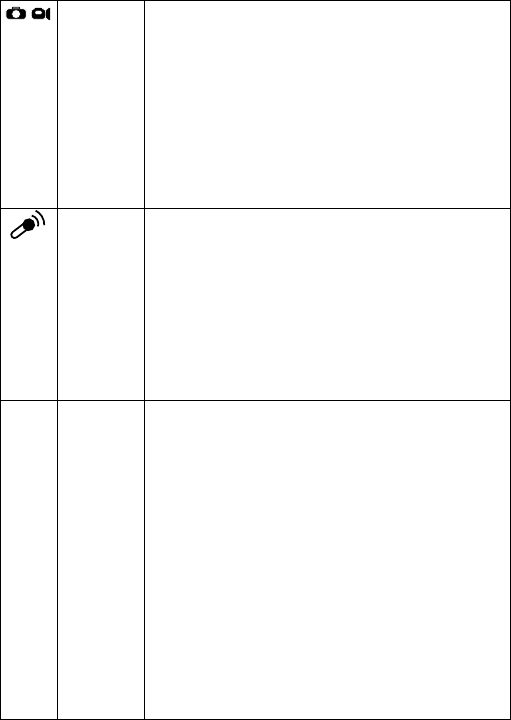
Built-in
Camera
-Built-inCamera
-IngebouwdeCamera
-IntegrierteKamera
-Caméraintégrée
-Cámaraintegrada
-Câmaraincorporada
-Wbudowanakamera
-Zabudovanýfotoaparát
-Zabudovanýfotoaparát
-Indbyggetkamera
-Inbyggdkamera
-ΕνσωματωμένηΚάμε
-Fotocameraintegrata
-Встроеннаякамера
-Innebyggetkamera
-Vgrajenakamera
-Вбудованакамера
-
-Beépítettkamera
-Вграденакамера
-Camerăîncorporată
-Slušalice
-Ugrađenakamera
-Built-inMicrophone
-Ingebouwdemicrofoon
-IntegriertesMikrofon
-Microphoneintégré
-Micrófonointegrado
-Microfoneincorporado
-Wbudowanymikrofon
-Zabudovanýmikrofon
-Zabudovanýmikrofón
-Indbyggetmikrofon
-Inbyggdmikrofon
-ΕνσωματωμένοΜικρόφωνο
-Microfonointegrato
-Встроенныймикрофон
-Innebyggetmikrofon
-Vgrajenimikrofon
-Вбудованиймікрофон
-
-Beépítettmikrofon
-Вграденмикрофон
-Microfonîncorporat
-Ugrađenimikrofonn
Built-in
Microphone
Reset -Resetbutton
-Resetknop
-Reset-Taste
-Boutonde
réinitialisation
-BotónReset(Restablecer)
-BotãoReiniciar
-Przyciskresetowania
-TlačítkoVymazat
-Tlačidloresetovania
terställningsknapp
-KnappenReset[Nulstil]
-Återställningsknapp
-ΠλήκτροΕπαναφοράς
-PulsanteReset
-Кнопкасброса
-Reset-knapp
-Gumbzaponastavitev
-Кнопкаскидання
-
-Visszaállításgomb
-БутонНулиране
-Butonderesetare
-Tipkazaresetiranje
TAB10_201_QSG_100x138mm.indd 11 25-10-12 13:42

12
Speaker
Mono
Firmware
Flash
Mode
-Built-inSpeaker
-Ingebouwdespeaker
-IntegrierterLautsprecher
-Haut-parleurintégré
-Altavozintegrado
-Alto-falanteembutido
-Wbudowanygłośnik
-Zabudovanýreproduktor
-Zabudovanýreproduktor
-Indbyggethøjttaler
-Inbyggdhögtalare
-Ενσωματωμένοηχείο
-Altoparlanteintegrato
-Встроенныйдинамик
-Innebyggethøyttaler
-ZvočnikMono:Vgrajenizvočnik
-Вбудованийдинамік
-
-FirmwareFlashMode
forfuturefirmwareupgrading
-FirmwareFlashMode
voortoekomstigefirmware-
upgrades
-Firmware-Flash-Modus
fürkünftigeFirmware-Upgrades
-Modeflashmicrologiciel
pourunefuturemiseàniveaudu
micrologiciel
-Mododeactualizaciónde
firmware
parafuturasactualizacionesde
firmware
-MododeActualizaçãode
Firmware
parafuturasactualizaçõesde
firmware
-Trybflashoprogramowania
firmowego
doprzyszłejaktualizacji
oprogramowaniafirmowego
-Režimfirmwareflash
probudoucíaktualizacifirmwaru
-Flashrežimfirmvéru
prebudúcuaktualizáciufirmvéru
-Firmvare-flashmodus
tilfremtidigopgraderingaf
firmvare
-FastprogramvaraFlash-läge
Forframtidauppgraderingavfast
programvara
-ΚατάστασηΕπανεγγραφής
Firmware
γιαμελλοντικήαναβάθμισητου
firmware
-Modalitàflashfirmware
peraggiornamentifirmwarefuturi
-Режимпрошивкивстроенного
ПО
дляобновлениявстроенного
ПОвбудущем
-Fastvare-flashmodus
forfremtidigoppgraderingav
fastvare
-Bliskovninačinprogramske
opreme
zabodočonadgradnjo
programskeopreme
-Режимпрошивкивбудованого
ПЗдляоновленнявбудованого
ПЗумайбутньому
- FirmwareFlash
-Belsővezérlőprogramflash
üzemmód
abelsővezérlőprogramjövőbeli
frissítéseihez
-Flashрежимнафърмуера
задопълнителноактуализиране
нафърмуера
-Modflashfirmware
pentruviitoareactualizăride
firmware
-FirmwareFlashrežim
zabudućeažuriranjefirmwarea
FFM
TAB10_201_QSG_100x138mm.indd 12 25-10-12 13:42
13
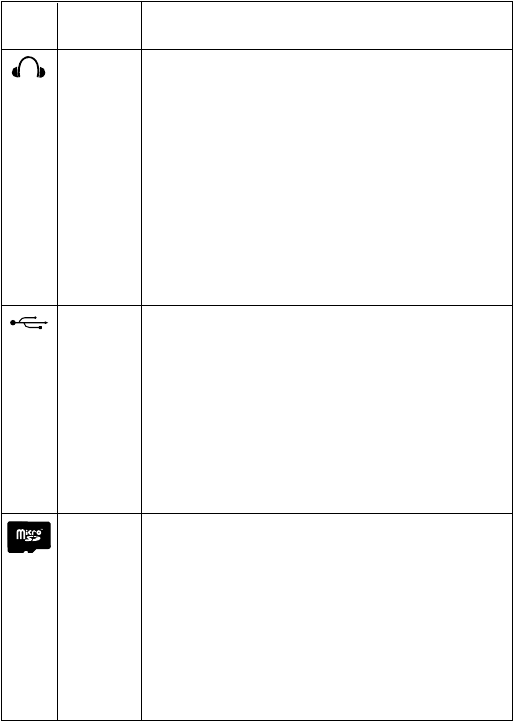
Headphones
3.5 mm
-Headphones
-Hoofdtelefoon
-Kopfhörer
-Casque
-Auricular
-Auscultadores
-Słuchawki
-Sluchátka
-Slúchadlá
-Hovedtelefoner
-Hörlurar
-Ακουστικά
-Cuffie
-Наушники
-Hodetelefoner
-Slušalke
-Навушники
-
-Fejhallgató
-Слушалки
-Căşti
-Slušalice
USB -MiniUSBPort
-MiniUSBPoort
-Mini-USB-Anschluss
-PortminiUSB
-PuertominiUSB
-PortaMiniUSB
-PortminiUSB
-MiniportproUSB
-MiniUSBport
-Mini-USB-port
-MiniUSB-port
-ΘύραΜίνιUSB
-PortaminiUSB
-ПортMiniUSB
-MiniUSB-port
-VrataMiniUSB
-ПортMiniUSB
-MiniUSB
-MiniUSBport
-МиниUSBпорт
-MiniportUSB
-MiniUSBsučelje
MicroSD
Up to 64 GB
-MicroSDSlot
-MicroSDSlot
-MicroSD-Einschub
-EmplacementcarteMicroSD
-RanuraparatarjetasMicroSD
-RanhuraparacartãoMicroSD
-GniazdokartyMicroSD
-SlotproMicroSD
-SlotnaMicroSDkartu
-MicroSD-stik
-MicroSD-kortplats
-ΥποδοχήMicroSD
-SlotperMicroSD
-РазъемдлякартыMicroSD
-MicroSDspor
-RežazaMicroSD
-Гніздодлякартипам’яті
MicroSD
-MicroSD
-MicroSDnyílás
-СлотзаMicroSDкарта
-MicroSDSlot
-MicroSDutor
-Beépítetthangszóró
-Вграденвисокоговорител
-Difuzorîncorporat
-Ugrađenizvučnik
TAB10_201_QSG_100x138mm.indd 13 25-10-12 13:42
14
Power
Adapter
-PowerAdapter
-Voedingsadapter
-Netzteil
-Adaptateurélectrique
-Adaptadordecorriente
-Adaptadordecorrente
-Zasilaczsieciowy
-Síťovýadaptér
-Sieťovýadaptér
-Strømadapter
-Nätadapter
-ΤροφοδοτικόΡεύματος
-Alimentatore
-Адаптерпитания
-Strømforsyning
-Napajalnik
-Адаптерживлення
-
-Hálózatiadapter
-Захранващадаптер
-Adaptor
-Naponskiadapter
*UseonlythesuppliedACadapter
*GebruikalleendebijgeleverdeACadapter
*VerwendenSieausschließlichdasmitgelieferteNetzteil
*Utilisezseulementl’adaptateurCAfourni
*UseexclusivamenteeladaptadordecorrientedeCAincluido
*UtilizeapenasoadaptadordeCAfornecido
*Korzystajtylkozdostarczonegozasilaczaprąduzmiennego
*PoužívejtepouzedodanýACadaptér
*Používajteibadodanýsieťovýadaptér
*BrugkundenmedfølgendeAC-adapter
*Användendastdenmedföljandenätadaptern
*ΧρησιμοποιήστεμόνοτοπαρεχόμενοτροφοδοτικόAC
*Utilizzaresolol’adattatoreCAfornito.
*Используйтетольковходящийвкомплектсетевойадаптер
*BrukbaremedfølgendeAC*adapter
*UporabitelepriloženinapajalnikAC
*Використовуйтетількитойблокживлення,щовходитьдо
комплектупостачання
-USBhostcable
-USBhostkabel
-USBHostKabel
-CâbleUSBhôte
-HostUSBcable
-CabodeanfitriãoUSB
-HostaUSBkabel
-USBhostkabel
-USBhostkábel
-USB-værtskabel
-USB-värdkabel
-Καλώδιοκεντρικού
υπολογιστή(host)USB
-CavohostUSB
-USB-кабельдля
подключениявнешних
1080p -MiniHDMIOut
-MiniHDMIUitMini
-HDMI-Ausgang
-SortieminiHDMI
-SalidaminiHDMI
-SaídaMiniHDMI
-WyjścieminiHDMI
-MinivýstupHDMI
-MiniHDMIvýstup
-Mini-HDMI-udgang
-HDMI-utgång
-ΈξοδοςΜίνιHDMI
-UscitaminiHDMI
-ВыходMiniHDMI
-MiniHDMIut
-IzhodMiniHDMI
-ВихідMiniHDMI
-MiniHDMIOut
-MiniHDMIkimenet
-MiniHDMIИзвод
-IeşireMiniHDMI
-MiniHDMIizlaz
TAB10_201_QSG_100x138mm.indd 14 25-10-12 13:42
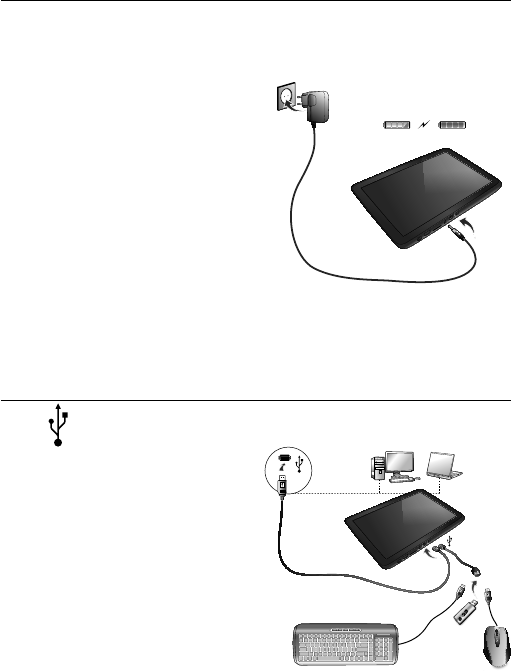
15
*UseonlythesuppliedACadapter
*GebruikalleendebijgeleverdeACadapter
*VerwendenSieausschließlichdasmitgelieferteNetzteil
*Utilisezseulementl’adaptateurCAfourni
*UseexclusivamenteeladaptadordecorrientedeCAincluido
*UtilizeapenasoadaptadordeCAfornecido
*Korzystajtylkozdostarczonegozasilaczaprąduzmiennego
*PoužívejtepouzedodanýACadaptér
*Používajteibadodanýsieťovýadaptér
*BrugkundenmedfølgendeAC-adapter
*Användendastdenmedföljandenätadaptern
*ΧρησιμοποιήστεμόνοτοπαρεχόμενοτροφοδοτικόAC
*Utilizzaresolol’adattatoreCAfornito.
*Используйтетольковходящийвкомплектсетевойадаптер
*BrukbaremedfølgendeAC*adapter
*UporabitelepriloženinapajalnikAC
*Використовуйтетількитойблокживлення,щовходитьдо
комплектупостачання
Charging
USB
Opladen/Laden/Chargement/Carga/Carregamento/Ładowanie/Nabíjení/Nabíjanie/Opladning/Laddning/Φόρτιση/
Carica/Зарядка/Lading/Polnjenje/Зарядженняакумулятора/ /Töltés/Зареждане/Încărcare/Punjenje
-USBhostcable
-USBhostkabel
-USBHostKabel
-CâbleUSBhôte
-HostUSBcable
-CabodeanfitriãoUSB
-HostaUSBkabel
-USBhostkabel
-USBhostkábel
-USB-værtskabel
-USB-värdkabel
-Καλώδιοκεντρικού
υπολογιστή(host)USB
-CavohostUSB
-USB-кабельдля
подключениявнешних
устройств
-USBvertskabel
-GostiteljskikabelUSB
-USB-кабельпідключення
зовнішніхпристроїв
-USB
-USBhostkábel
-USBхосткабел
-CabluhostUSB
-USBkabelzadomaćina
*Csakamellékelthálózatiadapterthasználja
*ИзползвайтесамосдоставенияACадаптер
*UtilizaţinumaiadaptorulCAfurnizat
*Koristitesamoisporučeninaponskiadapter
100%10%
USB port
TAB10_201_QSG_100x138mm.indd 15 25-10-12 13:42
16
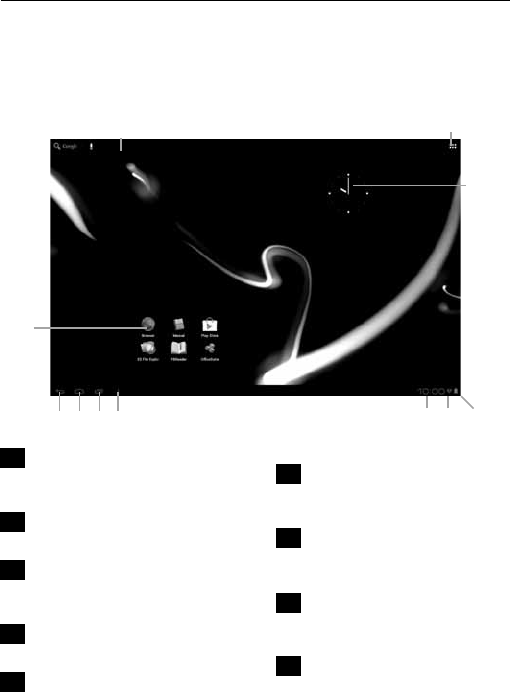
Android Home Screen
AndroidHomescherm/AndroidStartbildschirm/Paged’accueilAndroid/PantalladeiniciodeAndroid/Ecrãprincipal
doAndroid/EkrandomowysystemuoperacyjnegoAndroid/DomovskáobrazovkaAndroidu/OmácaobrazovkaAndroid
/SkærmenAndroidHome[AndroidHjem]/AndroidStartskärm/ΗΑρχικήΟθόνητουAndroid(Home)/Schermata
HomediAndroid/ГлавныйэкранAndroid/Androidstartskjerm/DomačizaslonAndroid/ГоловнийекранAndroid/
Android /Androidkezdőképernyő/НачаленекраннаAndroid/EcrandeînceputAndroid/
Androidpočetnizaslon
-OnthebottomoftheXentascreenyoucan
alwaysfindthestatusbar.Thestatusbar
containsbothsysteminformationandfunction
buttons.
-Destatusbalkisaltijdtevindenonderin
hetXentascherm.Indestatusbalkvindtu
systeeminformatieenfunctieknoppen.
-AmunterenRanddesXenta-Bildschirms
wirddieStatusleisteangezeigt.Die
StatusleisteenthältSysteminformationenund
Funktionsschaltflächen.
-Voustrouverezlabarred’étatenbasde
l’écranXenta.Labarred’étatcontientles
boutonsInformationssystèmeetFonction».
-EnlapantallainferiordelapantalladeXenta
siemprepodráencontrarlabarradeestado.
Labarradeestadocontieneinformacióndel
sistemaybotonesdefunciones.
-NofundodoecrãdoXenta,pode
sempreencontrarabarradeestado.A
barradeestadocontéminformaçõesdo
sistemaebotõesdefuncionalidades.
-UdołuekranutabletuXentazawsze
wyświetlanyjestpasekstanu.Pasek
stanuwyświetlazarównoinformacjeo
systemie,jakiprzyciskifunkcyjne.
-DolenaobrazovceXentasenachází
stavoválišta.Stavoválištaobsahuje
jaksystémovéinformace,takifunkční
tlačítka.
-NadolnejstraneobrazovkyXenta
môžetevždynájsťstavovúlištu.Stavová
lištaobsahujesystémovéinformáciea
funkčnétlačidlá.
PT
DE
FR
EN
NL
SP
PL
CS
SK
1
3
4
5 6 7 8911
10
2
DA
SV
NO
RU
TAB10_201_QSG_100x138mm.indd 16 25-10-12 13:42
17
sistemaybotonesdefunciones.
-NofundodoecrãdoXenta,pode
sempreencontrarabarradeestado.A
barradeestadocontéminformaçõesdo
sistemaebotõesdefuncionalidades.
-UdołuekranutabletuXentazawsze
wyświetlanyjestpasekstanu.Pasek
stanuwyświetlazarównoinformacjeo
systemie,jakiprzyciskifunkcyjne.
-DolenaobrazovceXentasenachází
stavoválišta.Stavoválištaobsahuje
jaksystémovéinformace,takifunkční
tlačítka.
-NadolnejstraneobrazovkyXenta
môžetevždynájsťstavovúlištu.Stavová
lištaobsahujesystémovéinformáciea
funkčnétlačidlá.
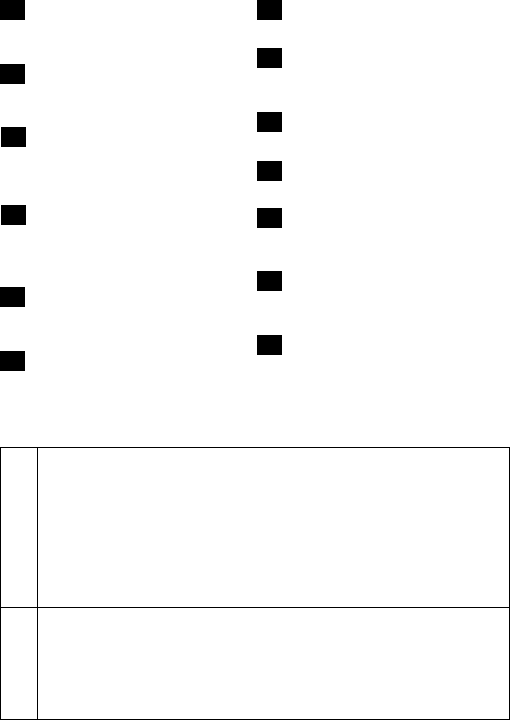
3
1
2
-AndroidHomeScreen
-AndroidHomescherm
-AndroidStartbildschirm
-Paged’accueilAndroid
-PantalladeiniciodeAndroid
-EcrãprincipaldoAndroid
-Ekrandomowysystemuoperacyj-
negoAndroid
-DomovskáobrazovkaAndroidu
-OmácaobrazovkaAndroid
-SkærmenAndroidHome[Android
Hjem]
-AndroidStartskärm
-ΗΑρχικήΟθόνητουAndroid
(Home)
-SchermataHomediAndroid
-ГлавныйэкранAndroid
-Androidstartskjerm
-DomačizaslonAndroidö
-ГоловнийекранAndroid
- Android
-Androidkezdőképernyő
-НачаленекраннаAndroid
-EcrandeînceputAndroid
-Androidpočetnizaslon
-Appandwidgetmenu
-App/widget-menu
-App-undWidget-Menü
-MenuAppetwidget
-MenúAppandwidget(Aplicacio-
nesywidgets)
-Menudeaplicaçõesewidgets
-Menuaplikacjiiwidgetów
-Nabídkaaplikacíanástrojů
-Ponukaaplikáciíaminiaplikácií
-App-ogwidgetmenu
-App-ochwidgetmeny
-Μενούεφαρμογώνκαιγραφικών
στοιχείων
-Menudelleappedeiwidget
-Менюприложенийивиджетов
-App-ogwidgetmeny
-Meniaplikacijinpripomočkov
DA
SV
EL
IbundenafXenta-skærmenkandu
altidfindestatuslinjen.Statuslinjen
indeholderbådesysteminformationog
funktionsknapper.
LängstnerpådinXentasskärmfinnerdu
alltidstatusfältet.
Statusfältetinnehållerinformationombåde
systemetochfunktionsknapparna.
Στηνκάτωπεριοχήτηςοθόνηςτης
ταμπλέταςXentaεμφανίζεταιπάνταη
γραμμήκατάστασης.Ηγραμμήκατάστασης
εμφανίζειτόσοπληροφορίεςσυστήματος,
όσοκαικουμπιάλειτουργιών.
NellaparteinferioredellaschermataXenta
(Vaiascheda)èpossibiletrovaresempre
labarradistato.Questacomprendesia
leinformazionidisistemacheipulsanti
funzione.
ВнизуэкранапланшетаXentaнаходится
строкасостояния.Нанейотображаются
каксведенияосистеме,таки
функциональныекнопки.
NederstiXenta’s-bildetfinnerdutil
enhvertidstatuslinjen.Statuslinjen
inneholderbådesysteminformasjonog
funksjonsknapper.
NadnuzaslonaXentalahkovednonajdete
vrsticostanja.Vrsticastanjavsebuje
sistemskeinformacijeinfunkcijskegumbe.
УнижнійчастиніекранапланшетаXenta
розташованорядокстану.Наньому
відображаютьсявідомостіпросистемута
функціональніклавіші.
AXentaképernyőnmindigmegtalálhatja
azállapotsávot.Eztartalmazzaa
rendszerinformációkatésafunkciógombokat.
ВдолнатачастнаекрананаXentaвинаги
евидималентатанасъстоянието.Лентата
насъстояниетосъдържасистемна
информацияифункционалнибутони.
ÎnparteainferioarăaecranuluiXentagăsiţi
întotdeaunabaradestare.Baradestare
conţineatâtinformaţiidesistem,câtşi
butoaneledefuncţii.
NadnuzaslonaXentauvijekmožete
vidjetistatusniredak.Statusniredaksadrži
informacijeosustavuifunkcijsketipke.
BG
SI
NO
UK
AR
IT
RU
HU
RO
Xenta
HR
TAB10_201_QSG_100x138mm.indd 17 25-10-12 13:42

18
-Менюпрограмтавіджетів
-
-Alk.éswidgetmenü
-МенюПриложенияиграфични
елементи
-Meniuaplicaţiişiwidget
3
4
5
-Widget(analogclock)
-Widget(analogeklok)
-Widget(analogeUhr)
-Widget(horlogeanalogique)
-Widget(relojanalógico)
-Widget(relógioanalógico)
-Widget(zegaranalogowy)
-Nástroj(analogovéhodiny)
-Miniaplikácia(analógovéhodiny)
-Widget(analogtur)
-Widget(analogklocka)
-Γραφικόστοιχείο(αναλογικό
ρολόι)
-Widget(orologioanalogico)
-Виджет(аналоговыечасы)
-Widget(analogklokke)
-Pripomoček(analognaura)
-Віджет(аналоговийгодинник)
-
-Widget(analógóra)
-Графиченелемент(аналогов
часовник)
-Widget(ceasanalogic)
-AppShortcuts
-App-snelkoppelingen
-App-Verknüpfungen
-Raccourcisd’applications
-Accesosdirectosaaplicaciones
-Atalhosparaaplicações
-Ikonyskrótówaplikacji
-Zástupciaplikací
-Odkazynaaplikácie
-App-genveje
-Appgenvägar
-ΣυντομεύσειςΕφαρμογών
-Scorciatoiedellaapp
-Ярлыкиприложений
-App-snarveier
-Bližnjiceaplikacij
-Ярликипрограм
-
-Alk.parancsikon
-Краткипътищакъмприложения
-Scurtăturipentruaplicaţii
-Backbutton-bringsyoubackto
thepreviousscreen,orprevious
websitewhenusingtheBrowser
-Terugknop-brengtuterug
naarhetvorigeschermofde
vorigewebsite,alsudebrowser
gebruikt
-Rück-Schaltfläche–Hiermit
kehrenSiezumvorherigen
Bildschirmoder,beiVerwendung
desBrowsers,zurvorherigen
Webseitezurück
-Boutonarrière-retouràl’écran
précédentouàlapageInternet
précédentelorsdel’utilisationdu
navigateur
-BotónBack(Atrás):lellevaala
pantallaanterior,oalsitioweb
anteriorsiutilizaelnavegador
-Botãoderetrocesso-paravoltar
aoecrãanteriorouaowebsite
anteriorquanto
estáautlizaroBrowser
(Navegador)
-Przyciskpowrotu–przejście
dopoprzedniegoekranulub
poprzedniejstronyinternetowejw
czasiekorzystaniazprzeglądarki
-Tlačítkozpět–návratna
předchozíobrazovkunebo,pokud
používáteprohlížeč,napředchozí
webovoustránku.
-TlačidloSpäť–prenesie
vásspäťnapredchádzajúcu
obrazovkualebopredchádzajúcu
internetovústránkupomocou
prehliadača
-Pulsanteindietro-riportaalla
schermataprecedenteoppureal
sitoWebprecedentequandosi
utilizzailBrowser
-Кнопка«Назад»–вернуться
кпредыдущемуэкрануили
предыдущемувеб-сайтупри
использованиибраузера
-Tilbakeknapp-setterdegtilbake
tilforrigeskjermbilde,eller
tidligerenettsidenårdubruker
nettleser.
-Gumbzanazaj–vrnevasna
prejšnjizaslonaliprejšnjospletno
stran,kouporabljatebrskalnik
-Кнопка«Назад»–повернутись
допопередньогоекраначидо
попередньоговеб-сайтупідчас
використаннябраузера
-
-Visszagomb-visszaazelőző
képernyőhöz,böngészőnélaz
előzőhonlaphoz
-БутонНазад-връщави
TAB10_201_QSG_100x138mm.indd 18 25-10-12 13:42

19
обратнокъмпредишнияекран,
илипредишнияуебсайт,когато
използватеБраузъра
-ButonÎnapoi–văconduceînapoi
laecranulsauwebsite-ulanterior
cândseutilizeazăbrowserul
6
7
8
-Home-bringsyoubacktothe
AndroidHomeScreen
-Home-brengtuterugnaarhet
AndroidHomescherm
-Start–HiermitkehrenSiezum
AndroidStartbildschirmzurück
-Accueil-retouràlapage
d’accueilAndroid
-Home(Inicio):lellevaala
pantalladeiniciodeAndroid
-Ecrãprincipal-paravoltarao
EcrãprincipaldoAndroid
-Home–przejściedo
ekranudomowegosystemu
operacyjnegoAndroid
-Domů–návratzpětna
domovskouobrazovkuAndroidu
-Domov–prenesievásspäťna
domácuobrazovkuAndroid
-Home[Hjem]-førerdigtilbagetil
skærmenAndroidHome[Hjem]
-Hem-tardigtillbakatillAndroid
Startskärmen
-Αρχική-σαςεπαναφέρειστην
ΑρχικήΟθόνητουAndroid
-Home-riportaallaschermata
HomediAndroid
-Главныйэкран–перейтина
главныйэкранAndroid
-Hjem-setterdegtilbaketil
Androidshjemmeskjern.
-Domov–vrnevasnazajna
domačizaslonAndroid
-Головнийекран–перейтидо
головногоекранаAndroid
-
-Kezdő-VisszaazAndroid
Kezdőképernyőhöz
-Начало-връщавиобратнокъм
НачалнияекраннаAndroid
-Acasă–văreaducelaecranulde
începutAndroid
-Multitaskbutton
-Multitask-knop
-Multitasking-Schaltfläche
-Boutonmultitâche
-BotónMultitask
(Multitarea)
-Botãomultifunções
-Przyciskmenedżerazadań
-Multifunkčnítlačítko
-Viacúlohovétlačidlo
-Knaptilmultitasking
-Fleraktivitetsknapp
-Κουμπίπολυδιεργασίας
-Pulsantemultifunzione
-Многозадачнаякнопка
-Knappforfleroppgavekjøring
-Večopravilnostnigumbe
-Багатоцільовакнопка
-
-Többalkalmazásgomb
-Многофункционаленбутон
-Butonsarcinimultiple
-ShowsMenu
-ToontMenu
-ZeigtdasMenüan
-Afficherlemenu
-Muestraelmenú
-Mostraomenu
-Wyświetlamenu
-Zobrazínabídku
-Zobrazíponuku
-Visermenu
-Visarmeny
-ΕμφανίζειτοΜενού
-Visualizzailmenu
-Отображениеменю
-Visermeny
-Menikaže
-Відобразитименю
-
-Menümegjelenítése
-Показваменюто
-Afişaremeniu
-Prikazujeizbornik
TAB10_201_QSG_100x138mm.indd 19 25-10-12 13:42
20
9
10
11
-SystemTime
-Systeemtijd
-Systemzeit
-Heuredusystème
-Horadelsistema
-Horadosistema
-Czassystemowy
-Systémovýčas
-Systémovýčas
-Systemtid
-ΏραΣυστήματος
-Oradelsistema
-Системноевремя
-Systemtid
-Sistemskičas
-Системнийчас
-
-Rendszeridő
-Системенчас
-Orasistemului
-Wi-FiSignalIndicator
-IndicatorWi-Fisignaal
-WLAN-Signalanzeige
-IndicateurdusignalWiFi
-IndicadordeseñalWi-Fi
-IndicadordesinalWi-Fi
-WskaźnikmocysygnałuWi-Fi
-UkazatelWi-Fisignálu
-IndikátorsignáluWi-Fi
-Wi-Fi-signalindikator
-WiFi-signalindikator
-ΈνδειξηΣήματοςWi-Fi
-IndicatoredelsegnaleWi-Fi
-ИндикаторсигналаWi-Fi
-Wi-Fi-signalindikator
-IndikatorsignalaWi-Fi
-ІндикаторсигналуWi-Fi
- WiFi
-Wi-Fijel
-ИндикаторзаWi-Fiсигнал
-IndicatordesemnalWi-Fi
Semnal
-BatteryLevelIndicator
-BatteryLevelIndicator
-Akku-Ladestandsanzeige
-Indicateurduniveaudebatterie
-Indicadordelniveldebatería
-Indicadordeníveldabateria
-Wskaźnikpoziomunaładowania
baterii
-Indikátorstavubaterie
-Kontrolkanabitiabatérie
-Batteriniveauindikator
-Batterinivåindikator
-ΈνδειξηΣτάθμηςΜπαταρίας
-Indicatoredellivellobatteria
-Индикаторуровнязаряда
батареи
-Indikatorforbatterinivå
-Indikatorstanjabaterije
-Індикаторрівнязарядубатареї
-
-Akkumulátorszintjelzés
-Индикаторзазарядна
батерията
-Indicatorpentrunivelulde
încărcareabaterieiWiFi
Getting on the Internet
3
Internetinstellen/ZugriffaufdasInternet/AccèsàInternet/CómoaccederaInternet/Acederàinternet/
ŁączeniezInternetem/Připojeníkinternetu/Pripojeniekinternetu/Atkommepåinternettet/GåutpåInternet/
ΣύνδεσηστοInternet/CollegamentoaInternet/ПодключениекИнтернету/KobletilInternett/Kakosepovezati
nainternetПідключеннядоІнтернету//KapcsolódásazInternetre/СвързванекъмИнтернет/
ConectarelaInternet/SpajanjenaInternet
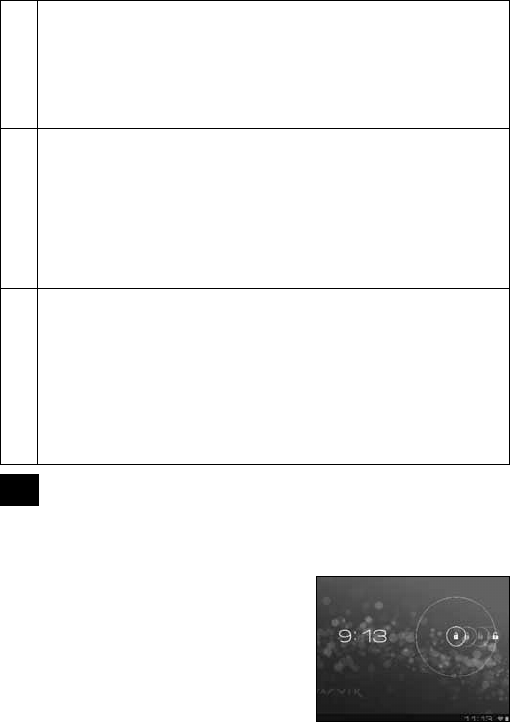
- Slidethelockbar(A)totheright(B)tounlock
- Schuifdevergrendeling(A)naarrechts(B)
voorontgrendelen
- Sperrsymbol(A)zumEntsperrennachrechts
(B)schieben
- Faitesglisserlabarredeverrouillage(A)vers
ladroite(B)pourdéverrouiller.
- Deslicelabarradebloqueo(A)haciala
1. Presstheappandwidgetbutton
- DrukopdeApp/widget-knop
- Drukopdeapp/widget-knop
- App-undWidget-Schaltflächedrücken.
- Appuyezsurleboutond’applicationsetde
widgets.
- Pulseelbotóndelaaplicaciónydelwidget
- Primaobotãodeaplicaçõesewidgets
- Naciśnijprzyciskmenuaplikacjiiwidgetów
- Stisknětetlačítkoproaplikacianástroj
- Stlačtetlačidloaplikácieaminiaplikácie
- Trykpåapp-ogwidget-knappen
- Tryckpåapp-ochwidget-knapp
- Πατήστετοκουμπίεφαρμογώνκαιγραφικών
στοιχείων
- Premereilpulsantedellaappedelwidget.
- Нажмитекнопкуприложенийивиджетов
- Trykkapp-ogwidget-knappen
- Pritisnitegumbzaaplikacijeinpripomočke
derecha(B)paradesbloqueareldispositivo
- Arrasteocadeado(A)paraadireita(B)para
desbloquear
- Przeciągnijpasekblokady(A)doprawej(B),
abyodblokować
- Přetaženímzamykacílišty(A)směrem
doprava(B)odemknětezařízení
- Posuňtelištuuzamknutia(A)doprava(B)a
odomknite
- Glidlåsebjælken(A)tilhøjre(B)foratlåseop
- Skjutlåslist(A)tillhöger(B)förattlåsaupp
- Σύρετετηγραμμήκλειδώματος(A)προςτα
δεξιά(B)γιαξεκλείδωμα
- Farescorrerelabarradiblocco(A)verso
destra(B)persbloccare.
- Перетянитебегунок(A)вправо(B)для
разблокировки
- Stryklåselinjen(A)mothøyre(B)forålåse
opp
- Povlecitezaklepnovrstico(A)vdesno(B)in
odklenite
- Перетягнітьповзунок(A)праворуч(B)для
TAB10_201_QSG_100x138mm.indd 20 25-10-12 13:42
21
Getting on the Internet
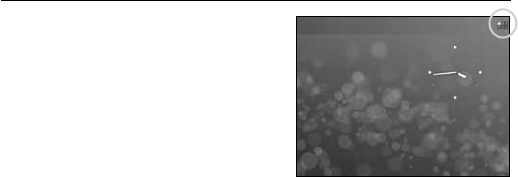
1. Presstheappandwidgetbutton
- DrukopdeApp/widget-knop
- Drukopdeapp/widget-knop
- App-undWidget-Schaltflächedrücken.
- Appuyezsurleboutond’applicationsetde
widgets.
- Pulseelbotóndelaaplicaciónydelwidget
- Primaobotãodeaplicaçõesewidgets
- Naciśnijprzyciskmenuaplikacjiiwidgetów
- Stisknětetlačítkoproaplikacianástroj
- Stlačtetlačidloaplikácieaminiaplikácie
- Trykpåapp-ogwidget-knappen
- Tryckpåapp-ochwidget-knapp
- Πατήστετοκουμπίεφαρμογώνκαιγραφικών
στοιχείων
- Premereilpulsantedellaappedelwidget.
- Нажмитекнопкуприложенийивиджетов
- Trykkapp-ogwidget-knappen
- Pritisnitegumbzaaplikacijeinpripomočke
- Натиснітьклавішупрограмтавіджетів
-
- Nyomjamegaz„alkalmazásokéswidgetek”
gombot
- Натиснетебутоназаприложенияи
графичниелементи
- Apăsaţipeaplicaţieşipebutonulwidget
- Pritisnitetipkuzaaplikacijeiwidgete
derecha(B)paradesbloqueareldispositivo
- Arrasteocadeado(A)paraadireita(B)para
desbloquear
- Przeciągnijpasekblokady(A)doprawej(B),
abyodblokować
- Přetaženímzamykacílišty(A)směrem
doprava(B)odemknětezařízení
- Posuňtelištuuzamknutia(A)doprava(B)a
odomknite
- Glidlåsebjælken(A)tilhøjre(B)foratlåseop
- Skjutlåslist(A)tillhöger(B)förattlåsaupp
- Σύρετετηγραμμήκλειδώματος(A)προςτα
δεξιά(B)γιαξεκλείδωμα
- Farescorrerelabarradiblocco(A)verso
destra(B)persbloccare.
- Перетянитебегунок(A)вправо(B)для
разблокировки
- Stryklåselinjen(A)mothøyre(B)forålåse
opp
- Povlecitezaklepnovrstico(A)vdesno(B)in
odklenite
- Перетягнітьповзунок(A)праворуч(B)для
розблокування
-
- Csúsztassaelalezárógombot(A)jobbra(B)
afeloldáshoz
- Плъзнетелентазазаключване(A)надясно
(B),задаотключите
- Pentrudeblocare,glisaţibaradeblocare(A)
spredreapta(B)
- Klizniteprstomprekoikonezazaključavanje
(A)udesno(B)kakobisteotključali
TAB10_201_QSG_100x138mm.indd 21 25-10-12 13:42
22
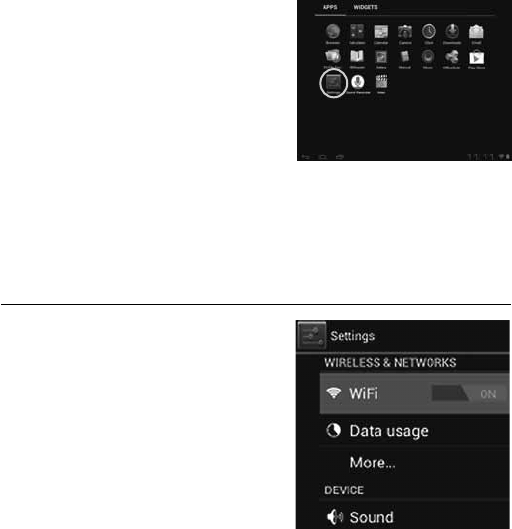
2. PressSettingsmenu
- KlikopSettings(Instellingen)
- Settings-Menüdrücken
- AppuyezsurMenuparamètres
- PulseelmenúSettings(Configuración)
- PrimaoMenudedefinições
- Naciśnijprzyciskmenuustawień
- StisknětenabídkuNastavení
- StlačteponukuNastavenia
- TrykpåmenuenSettings[Indstillinger]
- TryckpåInställningsmenyn
- ΠατήστετομενούSettings(Ρυθμίσεις)
- PremereilmenuSettings(Impostazioni).
- НажмитеменюSettings(настроек)
- TrykkSettings-menyen
- PritisnitemeniSettings(Nastavitev)
- НатиснітьменюSettings(установок)
-
- NyomjamegaSettings(Beállítások)menüt
- НатиснетеменюSettings(Настройки)
- ApăsaţipemeniulSettings(Setări)
- PritisniteizbornikSettings(Postavke)
3 SlidetheOn/Offbuttonto“On”
- SchuifdeAan/uit-knopop“Aan”
- Ein/Aus-Schaltflächeauf„On“(„An“)schieben.
- Faitesglisserleboutonmarche/arrêtpourl’allumer.
- DesliceelbotónOn/Off(Activado/Desactivado)hasta
laposición“On”(Activado)
- DeslizeobotãoOn/Off(Ligar/Desligar)paraa
posição“On”(“Ligado”)
- Przeciągnijprzełącznikdopozycji„On”(„Wł.”)
- PřetáhnětetlačítkoZap./Vyp.na„On“(„Zap.“)
- Posuňtevypínačdopolohy„On“(„Zap.“)
- GlidknappenOn/Off[Til/fra]til“On”[Til]
- SkjutPå/Av-knappentill“På”
ΣύρετετοκουμπίOn/Offστηθέση“On”
- Farescorrereilpulsantediaccensione/spegnimento
su“On”.
- ПеретянитекнопкуOn/Off(Выкл./Вкл.)на«On»
(«Вкл.»)
- Settpå/av-knappentil“On”
- PovlecitegumbVklop/Izklopna»On«(»Vklop«)
- ПеретягнітьклавішуOn/Off(Вимк./Увімк.)на«On»
(«Увімк.»)
-(On) (On/Off)
- ÁllítsaaOn/Off(Be/Ki)gombot„On”(„Be”)állásba
- ПлъзнетебутонаOn/Off(Вкл/Изкл)към„On”
(„Вкл”)
- GlisaţibutonulOn/Off(Activare/
Dezactivare)spre„On”(„Activat”)
- KliznitegumbOn/Off(Uklj./Isklj.)na„On“
(Uklj.)
4. ChooseyourWirelessNetwork.
- Kiesuwdraadlozenetwerk.
- WLANauswählen.
- Choisissezvotreréseausansfil.
- Seleccionesuredinalámbrica.
- Escolhaasuaredesemfios.
- WybierzWirelessNetwork(Sieć
bezprzewodowa).
- VyberteWirelessNetwork(Bezdrátovásíť).
- VybertesvojuWirelessNetwork(Bezdrôtovú
sieť).
- Vælgtrådløstnetværk.
- Väljditttrådlösanätverk..
- ΕπιλέξτετοΑσύρματοΔίκτυόσας.
- Selezionarelaretewireless.
- ВыберитеWirelessNetwork(беспроводную
сеть).
- Velgtrådløstnettverk.
4.1.Nonsecured,Tapthenetworkofyourchoice.
- Nietbeveiligd,tikophetnetwerkvanuwkeuze.
- BeiungesichertemNetzwerkaufdasgewünschte
Netzwerktippen.
- Nonsécurisé,sélectionnezleréseaudevotre
choix.
- Noprotegida,pulselaredalaquedesee
conectarse.
- Senãoestiverprotegida,toquenumaredeàsua
escolha.
- Niezabezpieczona;dotknijwybranejsieci.
- Nezabezpečeno,klepnětenalibovolnousíť.
- Nezabezpečené,pokleptenasieťpodľa
vlastnéhovýberu.
- Ikkesikret.Tappåforetrukketnetværk.
- Ickesäker,Pekapådetnätverkduvillvälja.
- Χωρίςασφάλεια,αγγίξτετοεπιθυμητόδίκτυο.
- Nonprotetta,selezionarelaretechesidesidera.
- ЕслисетьNonsecured(незащищена),
выберитеее.
- Usikretnett,trykkpåønsketnettverk.
- Nonsecured(Nezavarovano),Dotaknitese
želenegaomrežja.
- ЯкщомережаNonsecured(незахищена),
виберітьїї.
TAB10_201_QSG_100x138mm.indd 22 25-10-12 13:42
23
- NyomjamegaSettings(Beállítások)menüt
- НатиснетеменюSettings(Настройки)
- ApăsaţipemeniulSettings(Setări)
- PritisniteizbornikSettings(Postavke)
(„Вкл”)
- GlisaţibutonulOn/Off(Activare/
Dezactivare)spre„On”(„Activat”)
- KliznitegumbOn/Off(Uklj./Isklj.)na„On“
(Uklj.)
4. ChooseyourWirelessNetwork.
- Kiesuwdraadlozenetwerk.
- WLANauswählen.
- Choisissezvotreréseausansfil.
- Seleccionesuredinalámbrica.
- Escolhaasuaredesemfios.
- WybierzWirelessNetwork(Sieć
bezprzewodowa).
- VyberteWirelessNetwork(Bezdrátovásíť).
- VybertesvojuWirelessNetwork(Bezdrôtovú
sieť).
- Vælgtrådløstnetværk.
- Väljditttrådlösanätverk..
- ΕπιλέξτετοΑσύρματοΔίκτυόσας.
- Selezionarelaretewireless.
- ВыберитеWirelessNetwork(беспроводную
сеть).
- Velgtrådløstnettverk.
- IzberitesvojeWirelessNetwork(Brezžično
omrežje)
- ОберітьWirelessNetwork(безпроводову
мережу).
-
- VálasszakiaWirelessNetwork(vezeték
nélküli)hálózatot.
- ИзберетесвоятаWirelessNetwork
(Безжичнамрежа).
- Alegeţi-văoWirelessNetwork(Reţeafărăfir).
- Odaberitebežičnumrežu.
4.1.Nonsecured,Tapthenetworkofyourchoice.
- Nietbeveiligd,tikophetnetwerkvanuwkeuze.
- BeiungesichertemNetzwerkaufdasgewünschte
Netzwerktippen.
- Nonsécurisé,sélectionnezleréseaudevotre
choix.
- Noprotegida,pulselaredalaquedesee
conectarse.
- Senãoestiverprotegida,toquenumaredeàsua
escolha.
- Niezabezpieczona;dotknijwybranejsieci.
- Nezabezpečeno,klepnětenalibovolnousíť.
- Nezabezpečené,pokleptenasieťpodľa
vlastnéhovýberu.
- Ikkesikret.Tappåforetrukketnetværk.
- Ickesäker,Pekapådetnätverkduvillvälja.
- Χωρίςασφάλεια,αγγίξτετοεπιθυμητόδίκτυο.
- Nonprotetta,selezionarelaretechesidesidera.
- ЕслисетьNonsecured(незащищена),
выберитеее.
- Usikretnett,trykkpåønsketnettverk.
- Nonsecured(Nezavarovano),Dotaknitese
želenegaomrežja.
- ЯкщомережаNonsecured(незахищена),
виберітьїї.
-
- Nonsecured(Nembiztonságos),érintse
megakívánthálózatot.
- АкоеNonsecured(Незащитена),
натиснетевърхумрежапоизбор.
- ReţeaNonsecured(Nesecurizată),înscrieţi
reţeauaalesă.
- Nonsecured(Neosigurane)mreže,dodirnite
nazivmreže
TAB10_201_QSG_100x138mm.indd 23 25-10-12 13:42
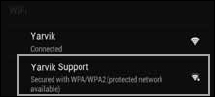
24
4.2.SecuredNetwork,Typepasswordthenpress
Connect.
- Beveiligdnetwerk,vulwachtwoordinenklikop
Connect(Verbinden).
- BeigesichertemNetzwerkKennworteingeben
undConnect(Verbinden)drücken.
- Réseausécurisé,tapezlemotdepassepuis
appuyezsur«Connect»(Connecter).
- Silaredestáprotegida,escribalacontraseñay
pulseConnect(Conectar).
- Seforumaredeprotegida,digiteapalavra-
passeedepoisprimaConnect(Ligar).
- Zabezpieczonasieć;wprowadźPassword
(Hasło)inaciśnijConnect(Połącz).
- Zabezpečenásíť,napištePassword(Heslo),poté
stiskněteConnect(Připojit).
- Zabezpečenásieť,napíštePassword(Heslo)a
potomstlačteConnect(Pripojiť).
- Sikretnetværk.Indtastadgangskode,ogtryk
derefterpåConnect[Tilslut].
- Skyddatnätverk,angelösenordetochtryck
sedanpåConnect(Anslut).
- Δίκτυομεασφάλεια,πληκτρολογήστετονκωδικό
πρόσβασηςκαιπατήστεConnect(Σύνδεση).
- Reteprotetta,digitarelapassword,quindi
premereConnect(Connetti).
- ЕслисетьSecured(защищена),введите
пароль,азатемнажмитекнопкуConnect
(подключения).
- Sikretnett,skrivinnpassordogtrykkConnect.
- SecuredNetwork(Zavarovanoomrežje),
VtipkajtegesloinpritisniteConnect(Poveži).
- ЯкщомережаSecured(захищена),введіть
парольтанатиснітьклавішуConnect
(підключення).
-
Connect
- Secured(Biztonságos)hálózat,adja
megajelszótésérintsemegaConnect
(csatlakozás)gombot.
- Secured(Защитена)мрежа,напишете
паролатаиследтованатиснетеConnect
(Свързване).
- ReţeaSecured(Securizată),înscrieţiparola,
apoiapăsaţipeConnect(Conectare).
- Secured(Osigurane)mreže,upišitelozinkui
pritisniteConnect(Spoji)
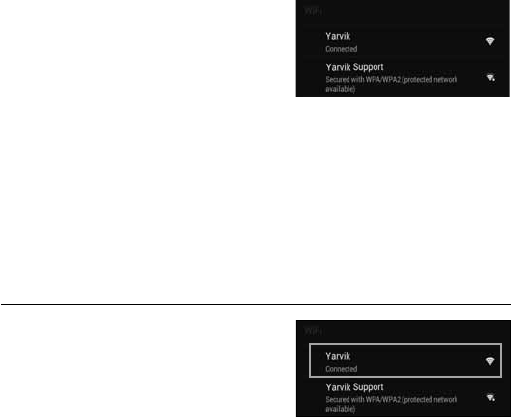
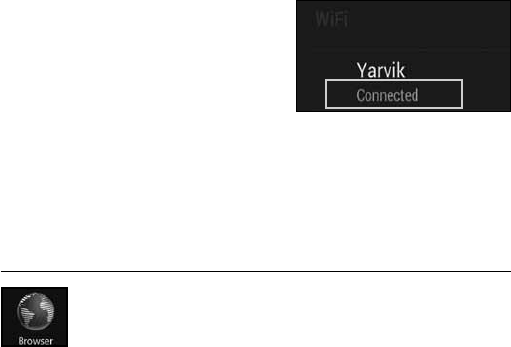
5. CheckWi-Ficonnection.
- ControleerWi-Fiverbinding.
- WLAN-Verbindungüberprüfen.
- VérifiezlaaelaconexiónWi-Fi.
- VerifiquealigaçãoWi-Fi.
- SprawdźstanpołączeniaWi-Fi.
- KontrolaWi-Fipřipojení.
- SkontrolujtepripojenieWi-Fi.
- KontrollerWi-Fi-tilslutning.
- KontrolleraWi-Fi-anslutning.
- ΕλέγξτετησύνδεσηWi-Fi.
- ControllarelaconnessioneWi-Fi
- ПроверьтеWi-Fi-соединение.
- Sjekkdentrådløsetilkoblingen.
- PreveriteWi-Fipovezavo.
- ПеревіртеWi-Fi-підключення.
-WithTheBrowserAppyoucan
nowbrowsetheinternet.
-MetdeBrowserAppkuntunu
hetinternetop.
-MitdemBrowser-AppkönnenSieimInternet
surfen.
-Avecl’applicationdunavigateur,vouspouvez
maintenantnaviguersurInternet.
-ConlaaplicaciónBrowser(Navegador)podrá
navegarporInternet.
-ComaaplicaçãoBrowser(Navegador),pode
entãonavegarnainternet.
-ZapomocąaplikacjiBrowser(Przeglądarka)
możeszsurfowaćpoInternecie.
-PomocíBrowser(Prohlížeče)aplikacímůžete
brouzdatpointernetu.
-PomocouaplikácieBrowser(prehliadača)si
môžeteterazprezeraťinternetovéstránky.
-Medbrowser-app’enkandunavigerepå
internettet.
-MedwebbläsarappenkandunusurfapåInternet.
-ΜετηνεφαρμογήBrowserμπορείτεπλέοννα
εξερευνήσετετοInternet.
-ConlaappBrowseroraèpossibilenavigaresu
Internet.
-ТеперьспомощьюBrowser(браузера)можно
приступитькобзоруИнтернета.
TAB10_201_QSG_100x138mm.indd 24 25-10-12 13:42
25
- ЯкщомережаSecured(захищена),введіть
парольтанатиснітьклавішуConnect
(підключення).
-
- Secured(Biztonságos)hálózat,adja
megajelszótésérintsemegaConnect
(csatlakozás)gombot.
- Secured(Защитена)мрежа,напишете
паролатаиследтованатиснетеConnect
(Свързване).
- ReţeaSecured(Securizată),înscrieţiparola,
apoiapăsaţipeConnect(Conectare).
- Secured(Osigurane)mreže,upišitelozinkui
pritisniteConnect(Spoji)
5. CheckWi-Ficonnection.
- ControleerWi-Fiverbinding.
- WLAN-Verbindungüberprüfen.
- VérifiezlaaelaconexiónWi-Fi.
- VerifiquealigaçãoWi-Fi.
- SprawdźstanpołączeniaWi-Fi.
- KontrolaWi-Fipřipojení.
- SkontrolujtepripojenieWi-Fi.
- KontrollerWi-Fi-tilslutning.
- KontrolleraWi-Fi-anslutning.
- ΕλέγξτετησύνδεσηWi-Fi.
- ControllarelaconnessioneWi-Fi
- ПроверьтеWi-Fi-соединение.
- Sjekkdentrådløsetilkoblingen.
- PreveriteWi-Fipovezavo.
- ПеревіртеWi-Fi-підключення.
-WithTheBrowserAppyoucan
nowbrowsetheinternet.
-MetdeBrowserAppkuntunu
hetinternetop.
-MitdemBrowser-AppkönnenSieimInternet
surfen.
-Avecl’applicationdunavigateur,vouspouvez
maintenantnaviguersurInternet.
-ConlaaplicaciónBrowser(Navegador)podrá
navegarporInternet.
-ComaaplicaçãoBrowser(Navegador),pode
entãonavegarnainternet.
-ZapomocąaplikacjiBrowser(Przeglądarka)
możeszsurfowaćpoInternecie.
-PomocíBrowser(Prohlížeče)aplikacímůžete
brouzdatpointernetu.
-PomocouaplikácieBrowser(prehliadača)si
môžeteterazprezeraťinternetovéstránky.
-Medbrowser-app’enkandunavigerepå
internettet.
-MedwebbläsarappenkandunusurfapåInternet.
-ΜετηνεφαρμογήBrowserμπορείτεπλέοννα
εξερευνήσετετοInternet.
-ConlaappBrowseroraèpossibilenavigaresu
Internet.
-ТеперьспомощьюBrowser(браузера)можно
приступитькобзоруИнтернета.
-MedBrowser-applikasjonen(nettleseren)kandu
nåsurfepåInternett.
-Zaplikacijobrskalnikalahkozdajbrskatepo
internetu
-Теперможнарозпочатипереглядвеб-сайтівв
ІнтернетізадопомогоюBrowser(браузера).
Browser
-ABrowser(Böngésző)alkalmazásokkalnem
böngészhetazInterneten.
-СегаможетедасърфиратевИнтернетс
Browser(Браузъра).
-CuaplicaţiaBrowserputeţiacumsănavigaţipe
Internet.
-PomoćuaplikacijeBrowser(Preglednik)sada
možetepregledavatiinternetskesadržaje.
- Wi-Fi.
- EllenőrizzeaWi-Fikapcsolatot.
- ПроверканаWi-Fiвръзка.
- VerificaţiconexiuneaWi-Fi.
- ProvjeriteWi-Fivezu.
TAB10_201_QSG_100x138mm.indd 25 25-10-12 13:42

26
When a Problem Occurs
4
Problemenoplossen/Problembehandlung/Dépannage/Siseproduceunproblema/Quandoocorreumproblema
/Wrazieproblemów/Přivznikuproblému/Aksavyskytneproblém/Nårderopståretproblem/Närettproblem
uppstår/ΌτανΣυμβείΚάποιοΠρόβλημα/Sesiverificaunproblema/Привозникновениипроблемы/Nårdet
oppstårproblemer/Kosepojavitežava/Уразівиникненняпроблем/
/Hibaesetén/При
проблеми/Încazulîncareapareoproblemă/Kadsepojaviproblem
EN
NL
YourTabletactsmuchslowerthennormal,doesn’treactwellorfreezes.Restartthetabletusingthe
On/Offbutton.Alldata/settingswillbesaved,thetabletwillonlyshutdown.AfterwardsholdtheOn/
Offbuttonuntilthetabletstartsupagain.
UwTabletisveeltragerdannormaal,reageertnietgoedofisvastgelopen.UStartdeTablet
opnieuwopmiddelsdeAAN/UIT-toets.Allegegevens/instellingenblijvenbehouden,deTabletwordt
enkelhelemaaluitgeschakeld.HouddaarnadeAAN/UIT-toetsvandeTabletingedrukttotdatde
Tabletopnieuwopstart.
DasTabletreagiertlangsameralsgewöhnlich,nichtgutodergarnicht.StartenSiedasTabletmit
derEin-/Aus-Tasteneu.
AlleDaten/Einstellungenwerdenbeibehalten;dasTabletfährtnurherunter.HaltenSiedanachdie
Ein-/Aus-Tastegedrückt,bisdasTabletwiederstartet.
Votretablettefonctionnebeaucouppluslentementqued’habitude,neréagitpasbienousefige.
Redémarrezlatabletteàl’aideduboutonmarche/arrêt.Touteslesdonnéesettouslesparamètres
serontsauvegardés,latablettes’éteindraseulement.Ensuite,appuyezlonguementsurlebouton
marche/arrêtjusqu’àcequelatabletteredémarre.
Latabletafuncionamuchomáslentadelonormal,noreaccionacorrectamenteosebloquea.
Reinicielatabletaconelbotondeencendidoyapagado.Seconservarántodoslosdatosy
configuraciones,latabletaúnicamenteseapagará.Acontinuación,mantengapulsadoelbotónde
encendidoyapagadohastaquelatabletaseenciendadenuevo.
Oseutabletestámuitomaislentodoqueonormal,nãoreagebemouficaparado.Reinicieotablet
comobotãoOn/Off(Ligar/Desligar).Todososdadosedefiniçõesserãoguardados,otabletapenas
sedesliga.Seguidamente,mantenhaobotãoOn/Off(Ligar/Desligar)premidoatéotabletvoltara
arrancar.
Tabletpracujedużowolniej,niżnormalnie,nieodpowiadanapolecenialubzawieszasię.
Uruchomponownietabletzapomocąprzyciskuwyłącznik.Wszystkiedane/ustawieniazostaną
zapisane,tablettylkosięwyłączy.Następnienaciśnijiprzytrzymajwyłącznik,ażtableturuchomisię
ponownie.
Tabletpracujemnohempomalejinežobvykle,nereagujenebozamrznul
Restartujtetabletpomocítlačítkazapnout/vypnout.Všechnadata/nastaveníbudouuložena,pouze
sevypnetablet.Následněpřidržtetlačítkozapnout/vypnout,dokudsetabletopětnespustí.
DE
FR
SP
PL
PT
CS
IT
RU
NO
SI
UK
TAB10_201_QSG_100x138mm.indd 26 25-10-12 13:42

27
When a Problem Occurs
Problemenoplossen/Problembehandlung/Dépannage/Siseproduceunproblema/Quandoocorreumproblema
/Wrazieproblemów/Přivznikuproblému/Aksavyskytneproblém/Nårderopståretproblem/Närettproblem
uppstår/ΌτανΣυμβείΚάποιοΠρόβλημα/Sesiverificaunproblema/Привозникновениипроблемы/Nårdet
oppstårproblemer/Kosepojavitežava/Уразівиникненняпроблем/ /Hibaesetén/При
проблеми/Încazulîncareapareoproblemă/Kadsepojaviproblem
YourTabletactsmuchslowerthennormal,doesn’treactwellorfreezes.Restartthetabletusingthe
On/Offbutton.Alldata/settingswillbesaved,thetabletwillonlyshutdown.AfterwardsholdtheOn/
Offbuttonuntilthetabletstartsupagain.
UwTabletisveeltragerdannormaal,reageertnietgoedofisvastgelopen.UStartdeTablet
opnieuwopmiddelsdeAAN/UIT-toets.Allegegevens/instellingenblijvenbehouden,deTabletwordt
enkelhelemaaluitgeschakeld.HouddaarnadeAAN/UIT-toetsvandeTabletingedrukttotdatde
Tabletopnieuwopstart.
DasTabletreagiertlangsameralsgewöhnlich,nichtgutodergarnicht.StartenSiedasTabletmit
derEin-/Aus-Tasteneu.
AlleDaten/Einstellungenwerdenbeibehalten;dasTabletfährtnurherunter.HaltenSiedanachdie
Ein-/Aus-Tastegedrückt,bisdasTabletwiederstartet.
Votretablettefonctionnebeaucouppluslentementqued’habitude,neréagitpasbienousefige.
Redémarrezlatabletteàl’aideduboutonmarche/arrêt.Touteslesdonnéesettouslesparamètres
serontsauvegardés,latablettes’éteindraseulement.Ensuite,appuyezlonguementsurlebouton
marche/arrêtjusqu’àcequelatabletteredémarre.
Latabletafuncionamuchomáslentadelonormal,noreaccionacorrectamenteosebloquea.
Reinicielatabletaconelbotondeencendidoyapagado.Seconservarántodoslosdatosy
configuraciones,latabletaúnicamenteseapagará.Acontinuación,mantengapulsadoelbotónde
encendidoyapagadohastaquelatabletaseenciendadenuevo.
Oseutabletestámuitomaislentodoqueonormal,nãoreagebemouficaparado.Reinicieotablet
comobotãoOn/Off(Ligar/Desligar).Todososdadosedefiniçõesserãoguardados,otabletapenas
sedesliga.Seguidamente,mantenhaobotãoOn/Off(Ligar/Desligar)premidoatéotabletvoltara
arrancar.
Tabletpracujedużowolniej,niżnormalnie,nieodpowiadanapolecenialubzawieszasię.
Uruchomponownietabletzapomocąprzyciskuwyłącznik.Wszystkiedane/ustawieniazostaną
zapisane,tablettylkosięwyłączy.Następnienaciśnijiprzytrzymajwyłącznik,ażtableturuchomisię
ponownie.
Tabletpracujemnohempomalejinežobvykle,nereagujenebozamrznul
Restartujtetabletpomocítlačítkazapnout/vypnout.Všechnadata/nastaveníbudouuložena,pouze
sevypnetablet.Následněpřidržtetlačítkozapnout/vypnout,dokudsetabletopětnespustí.
SK
DA
SV
EL
Váštabletjepomalšíakozvyčajne,nereagujedobrealebozamŕza.
Reštartujtetabletpomocoutlačidlavypínač.Všetkyúdaje/nastaveniasauložia,tabletsaibavypne.
Potompodržtevypínač,ažkýmsatabletopätovnenenaštartuje.
Tablet’enkørermegetlangsommereendnormalt,reagererikkegodtellerfryser.Genstarttablet’en
medknappenOn/Off[Til/fra].Alledata/indstillingervilblivegemt,ogtablet’enlukkesblot.Hold
derefterknappenOn/Off[Til/fra]nede,indtiltablet’enstarterigen.
Surfplattanärlångsammareännormalt,reagerarintebraellerfryser.Startaomsurfplattanmedpå/
av-knappen.Alldata/inställningarsparas,surfplattankommerbaraattstängasav.Efteråthållerdu
på/av-knappentillssurfplattanstartarom.
Ηταμπλέταλειτουργείπολύπιοαργάαπότοκανονικό,δεναντιδράσωστάή“παγώνει”.
ΕπανεκκινήστετηνταμπλέταχρησιμοποιώνταςτοπλήκτροπλήκτροOn/Off.Όλαταδεδομένακαι
οιρυθμίσειςθαδιατηρηθούν,απλώςθατερματιστείηλειτουργίατηςταμπλέτας.Κατόπινκρατήστε
πατημένοτοπλήκτροOn/Offμέχριναεκκινήσειξανάηταμπλέτα..
Iltabletfunzionamoltopiùlentamenterispettoalnormale,nonreagiscebeneosiblocca.Riavviare
iltabletconilpulsantediaccensione/spegnimento.Tuttiidati/impostazionisarannosalvati,soloil
tabletsispegne.Dopodiché,tenerepremutoilpulsantediaccensione/spegnimentofinchéiltablet
nonsiriavvia.
Планшетработаетмедленнее,чемобычно,плохореагируетиливиснет.Спомощьюкнопки
сбросаперезагрузитепланшет.Вседанные/настройкибудутсохранены,завершитсятолько
работапланшета.Затемнажмитеиудерживайтекнопкувключения/выключениядляповторного
началаработыпланшета.
Tabletenoppførersegtregereennnormalt,reagerersakteellerlåserseg.Starttabletenpånyttmed
på/av-knappen.Alledataoginnstillingerlagres,tabletenstengesbarened.Holdderetterinnepå/
av-knappentildenstarteroppigjen.
Vaštabličniračunalnikdelujevelikopočasnejekotobičajno,sesplohneodzivaalizmrzne.
PonovnozaženitetabličniračunalnikzgumbomzaVklop/Izklo.Vsipodatki/nastavitvebodo
shranjene,tabličniračunalniksebosamougasnil.NatodržitegumbVklop/Izklop,doklersetablični
računalnikponovnonezažene.
Планшетпрацюєповільніше,ніжзавжди,поганореагуєабозависає.Перезавантажтепланшет
задопомогоюувімкнення/вимкнення.Усідані/налаштуваннязбережуться,завершитьсятільки
роботапланшета.Потімнатиснітьтаутримуйтекнопкуувімкнення/вимкнення,щоброзпочати
роботупланшета.
IT
RU
NO
SI
UK
TAB10_201_QSG_100x138mm.indd 27 25-10-12 13:42
28
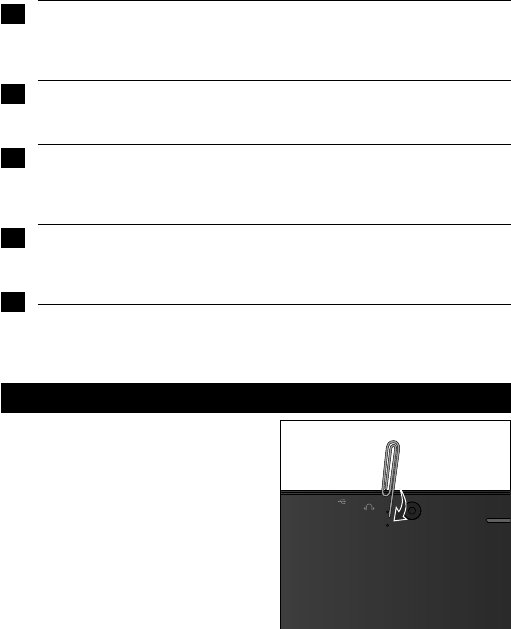
Soft Reset
-Presstheresetbuttonwithapointedobject
-Drukderesetbuttoninmeteenpuntigvoorwerp
-Reset-TastemiteinemspitzenGegenstand
eindrücken
-Appuyezsurleboutonderéinitialisationàl’aided’un
objetpointu
-Pulseelbotónderestablecimientoconunobjeto
puntiagudo
-WciśnijprzyciskResetzapomocącienko
zakończonegoprzedmiotu
-PrimaobotãoReiniciarcomumobjectopontiagudo.
-Špičatýmpředmětemstisknětetlačítkovymazat
-PomocoupredmetushrotomstlačtetlačidloReset
-Trykpånulstillingsknappenmedetspidstobjekt.
-Tryckpååterställningsknappenmedettspetsigt
föremål.
-Πατήστετοπλήκτροεπαναφοράς(reset)μεένα
αιχμηρόαντικείμενο.
-Premereilpulsantediresetconunoggetto
appuntito.
On/Off.
On/Off
Atáblalassabbanreagálanormálisnál,nemreagálmegfelelőenvagylefagy.Indítsaújraatábláta
Be/Kigombbal.Mindenadat/beállításmentésrekerül,majdatáblaleáll.Ezutántartsalenyomvaa
Be/Kigombot,amígatáblaújranemindul.
Вашияттаблетработимногопо-бавноотнормално,нереагирадобреилизамръзва.
РестартирайтетаблетакатоизползватебутонаВкл/Изкл.Всичкиданни/настройкищебъдат
запаметени,таблетасамощесеизключи.СледтовазадръжтебутонаВкл/Изкл,докато
таблетанесестартираотново.
Tabletadumneavoastrăfuncţioneazămultmailentdecâtdeobicei,nureacţioneazăsause
blochează.Restartaţitabletafolosindbutonulactivare/dezactivare.Toatedatele/setărilevorfi
salvate,tabletasevaînchide.Apoi,apăsaţipebutonulactivare/dezactivarepânăcândtableta
reporneşte.
Vašetabletračunaloreagirasporijenegoinače,uopćenereagirailisesmrzlo.Resetirajtetablet
pomoćutipkezauklj./isklj.Svipodaci/postavkebitćespremljeni,tabletćesesamozagasiti.Nakon
togadržitetipkuzauklj./isklj.svedoksetabletponovnonepokrene.
HU
AR
BG
RO
HR
-ToStartup:Holdfor5seconds,tabletwillstartup
-Tabletweeropstarten:5secondenindrukken,Tablet
startop
-Einschalten:5Sekundengedrückthalten;dasTablet
startet
-Pourdémarrer:appuyezpendant5s,latablettese
metenmarche
-Parainiciareldispositivo:mantengapulsadoelbotón
durante5segundosylatabletaseencenderá
-Paraarrancar:Mantenhapremidodurante5segundos
eotabletarranca
-Abyuruchomić:Naciśnijiprzytrzymajprzez5
sekundy;tableturuchomisię
-Spuštění:Přidržtepodobu5sekund,tabletsespustí
-Spustenie:Podržte5sekundyatabletsaspustí
-Start:Holdi5sekunder,ogtablet’envilstarte
-Förattstarta:Hållintryckti5sekunder,ochsurfplat-
tankommerattstarta
-ΓιαΕκκίνηση:Κρατήστεπατημένογια5δευτερόλεπτα
καιηταμπλέταθαεκκινήσει
-Perl’avvio:tenerepremuto5secondi,iltabletsiavvia.
-Началоработы:удерживайтевтечение5секунд,
чтобывключитьпланшет.
-Foråstarte:Holdinnei5sekunder,tabletenstarter
opp
-Držitegumbvklop/izklop5sekundeintablični
računalniksebozagnal
-Розпочатироботу:утримуйтепротягом5сдля
увімкненняпланшета.
-
-Azindításhoz:Tartsa5másodpercig,hogyatábla
elinduljon
Start up after Soft Reset
TAB10-201 ID27224
Power Input: 5 V DC, 2500 mA
Made in PRC
HDMI
HOST/SLAVE
DC-5V
MicroSD
RESET
FFM
-Нажмитекнопкусбросаостроконечным
предметом.
-Trykkreset-knappenmedenspissgjenstand.
-Pritisnitegumbzaponastavitevskoničastim
predmetom
-Натиснітькнопкускиданнягостримпредметом.
-
-Nyomjamegavisszaállításgombotegyhegyes
TAB10_201_QSG_100x138mm.indd 28 25-10-12 13:42
29
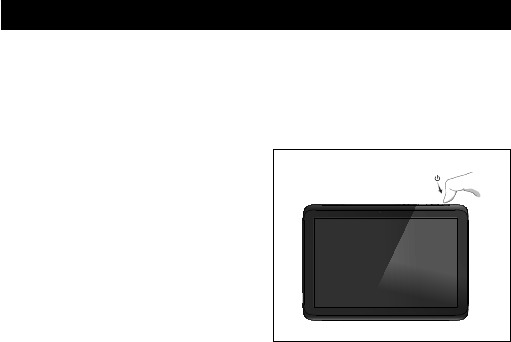
Soft Reset
-ToStartup:Holdfor5seconds,tabletwillstartup
-Tabletweeropstarten:5secondenindrukken,Tablet
startop
-Einschalten:5Sekundengedrückthalten;dasTablet
startet
-Pourdémarrer:appuyezpendant5s,latablettese
metenmarche
-Parainiciareldispositivo:mantengapulsadoelbotón
durante5segundosylatabletaseencenderá
-Paraarrancar:Mantenhapremidodurante5segundos
eotabletarranca
-Abyuruchomić:Naciśnijiprzytrzymajprzez5
sekundy;tableturuchomisię
-Spuštění:Přidržtepodobu5sekund,tabletsespustí
-Spustenie:Podržte5sekundyatabletsaspustí
-Start:Holdi5sekunder,ogtablet’envilstarte
-Förattstarta:Hållintryckti5sekunder,ochsurfplat-
tankommerattstarta
-ΓιαΕκκίνηση:Κρατήστεπατημένογια5δευτερόλεπτα
καιηταμπλέταθαεκκινήσει
-Perl’avvio:tenerepremuto5secondi,iltabletsiavvia.
-Началоработы:удерживайтевтечение5секунд,
чтобывключитьпланшет.
-Foråstarte:Holdinnei5sekunder,tabletenstarter
opp
-Držitegumbvklop/izklop5sekundeintablični
računalniksebozagnal
-Розпочатироботу:утримуйтепротягом5сдля
увімкненняпланшета.
-
-Azindításhoz:Tartsa5másodpercig,hogyatábla
elinduljon
-Задастартирате:Задръжтеза5секунди,таблета
щестартира
-Pentruademara:menţinândapăsattimpde5
secunde,tabletasevaactiva.
-Zapokretanje:Držite5sekunde,tabletćese
pokrenuti
Start up after Soft Reset
-Нажмитекнопкусбросаостроконечным
предметом.
-Trykkreset-knappenmedenspissgjenstand.
-Pritisnitegumbzaponastavitevskoničastim
predmetom
-Натиснітькнопкускиданнягостримпредметом.
-
-Nyomjamegavisszaállításgombotegyhegyes
tárggyal.
-Натиснетебутоназанулиранесъсзаострен
предмет.
-Apăsaţibutonulderesetarecuunobiectascuţit.
-Pritisnitetipkuzaresetiranješiljatimpredmetom.
TAB10_201_QSG_100x138mm.indd 29 25-10-12 13:42

30
EC Declaration of Conformity
We,
Sweex Europe B.V.
Ampereweg 3
2627 BG Delft
The Netherlands
Declare under our sole responsibility that the product:
Brand name : YARVIK
Model no. : TAB10-201
Product description : Xenta 10” tablet
Compliance with the essential requirements
of the following Directives is declared:
- EMC DIRECTIVE : 2004/108/EC
- LVD DIRECTIVE : 2006/95/EC
- R&TTE Directive : 1999/5/EC
To which this declaration is based on with full conformance
to the following European norms and standards:
Tablet
- EMC : EN 55022:2006 + A1:2007
EN 55024:1998 + A1:2001 + A2:2003
- R&TTE : EN 300 328 v.1.7.1
EN 301 489-1v.1.8.1
EN 301 489-17 V2.1.1
EN 60950:2006 + A1: 2010 + A11:2009 + A12:2011
EN 62311: 2008
Power adapter
- EMC : EN 55014-1 2006 + A1:2009
EN 55024:2010
EN 55022:2006 + A1:2007
EN 55024:1998 + A1:2001 + A2:2003
EN 61000-3-2:2006 + A1: 2009 + A2: 2009
EN 61000-3-3:2008
- LVD : EN60950-1 +A11:2009
Signed, Delft, 01-10-2012
Sweex Europe BV
R. Ramaekers,
Purchase Director
TAB10_201_QSG_100x138mm.indd 30 25-10-12 13:42
31
EC Declaration of Conformity
We,
Sweex Europe B.V.
Ampereweg 3
2627 BG Delft
The Netherlands
Declare under our sole responsibility that the product:
Brand name : YARVIK
Model no. : TAB10-201
Product description : Xenta 10” tablet
Compliance with the essential requirements
of the following Directives is declared:
- EMC DIRECTIVE : 2004/108/EC
- LVD DIRECTIVE : 2006/95/EC
- R&TTE Directive : 1999/5/EC
To which this declaration is based on with full conformance
to the following European norms and standards:
Tablet
- EMC : EN 55022:2006 + A1:2007
EN 55024:1998 + A1:2001 + A2:2003
- R&TTE : EN 300 328 v.1.7.1
EN 301 489-1v.1.8.1
EN 301 489-17 V2.1.1
EN 60950:2006 + A1: 2010 + A11:2009 + A12:2011
EN 62311: 2008
Power adapter
- EMC : EN 55014-1 2006 + A1:2009
EN 55024:2010
EN 55022:2006 + A1:2007
EN 55024:1998 + A1:2001 + A2:2003
EN 61000-3-2:2006 + A1: 2009 + A2: 2009
EN 61000-3-3:2008
- LVD : EN60950-1 +A11:2009
Signed, Delft, 01-10-2012
Sweex Europe BV
R. Ramaekers,
Purchase Director
TAB10_201_QSG_100x138mm.indd 31 25-10-12 13:42

32
Important information
Wireless LAN-Regulatory information
Depending on the model, the wireless LAN built-in into tablet devices can only be used in the
following countries: Austria, Belgium, Bulgaria, Czech Republic, Denmark, Finland, France,
Germany, Greece, Hungary, Iceland, Ireland, Italy, Luxembourg, the Netherlands, Norway,
Poland, Portugal, Romania, Slovakia, Slovenia, Spain, Sweden, Switzerland, Turkey and the
United Kingdom.
Conditions of use
When using the IEEE 802.11b/g/n Wireless LAN standard, channels 1 to 13 (2.4 GHz
...2.4835 GHz) are selectable for both indoor and outdoor use, however with restrictive
conditions applying in France, Italy and Norway, as follows:
• France: When using this product indoor, all channels can be used without restrictions. Outdoor
only channels 1 to 6 are allowed. This means that in Peer-to-Peer, the WLAN feature can only
be used outside if the peer sets up the communication on an authorized channel (i.e., between
1 & 6). In infrastructure mode, please make sure the access point is configured to a channel
from 1 to 6 before setting up the connection.
• Italy: Use of the RLAN network is governed: Disposal of Old Electrical & Electronic
- with respect to private use, by the Legislative Decree of 1.8.2003, no. 259 (“Code of
Electronic Communications”). In particular Article 104 indicates when the prior obtainment of
a general authorization is required and Art. 105 indicates when free use is permitted;
- with respect to the supply to the public of the WLAN access to telecom networks and services,
by the Ministerial Decree 28.5.2003, as amended, and Art. 25 (general authorization for
electronic communications networks and services) of the Code of electronic communications.
• Norway: Use of this radio equipment is not allowed in the geographical area within a radius
of 20 km from the centre of Ny-Ålesund, Svalbard.
WEEE Symbol Information
Correct Disposal of This product (Waste Electrical & Electronic Equipment).
(Applicable in the European Union and other European countries with
separate collection systems).
This marking shown on the product or its literature indicates that it should not be disposed
with other household wasted at the end of its working life. To prevent possible harm to the
environment or human health from uncontrolled waste disposal, please separate this from other
types of wastes and recycle it responsibly to promote the sustainable reuse of material resources.
Household users should contact either the retailer where they purchased this product, or their
local government office, for details of where and how they can take this item for environmentally
safe recycling.
Business users should contact their supplier and check the terms and conditions of the purchase
contract. This product should not be mixed with other commercial wastes of disposal.
Disposal of waste batteries (applicable in the European Union and other
European countries with separate collection systems)
Either of the symbols shown next may appear on the battery or on the packaging to indicate
that the battery provided with this product shall not be treated as household waste. On certain
batteries this symbol might be used in combination with a chemical symbol. The chemical
symbols for mercury (Hg) or lead (Pb) are added if the battery contains more than 0.0005%
mercury or 0.004% lead. By ensuring these batteries are disposed of correctly, you will help
prevent potentially negative consequences for the environment and human health which could
otherwise be caused by inappropriate waste handling of the battery. The recycling of the
materials will help to conserve natural resources. In case of products that for safety, performance
or data integrity reasons require a permanent connection with an incorporated battery, this
battery should be replaced by qualified service staff only. To ensure that the battery will be
treated properly, hand over the product at end-of-life to the applicable collection point for the
recycling of electrical and electronic equipment.
For all other batteries, please view the section on how to remove the battery from the product
safely. Hand the battery over to the applicable collection point for the recycling of waste
batteries. For more detailed information about recycling of this product or battery, please contact
your local Local government Office, your household waste disposal service or the shop where
you purchased the product.
When travelling to and within the United States of America, please be aware that the U.S.
Department of Transportation (DOT) recently published new regulations that apply to passengers
travelling with lithium metal batteries and lithium-ion batteries.
For detailed information, visit http://safetravel.dot.gov/whats_new_batteries.html.
Safety Information
Yarvik Xenta Tablet device
• Yarvik is not responsible for any interference that you may experience or that may be caused
when operating this device.
• Warning: This apparatus must be earthed.
TAB10_201_QSG_100x138mm.indd 32 25-10-12 13:42
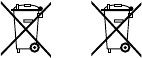
33
Important information
Wireless LAN-Regulatory information
Depending on the model, the wireless LAN built-in into tablet devices can only be used in the
following countries: Austria, Belgium, Bulgaria, Czech Republic, Denmark, Finland, France,
Germany, Greece, Hungary, Iceland, Ireland, Italy, Luxembourg, the Netherlands, Norway,
Poland, Portugal, Romania, Slovakia, Slovenia, Spain, Sweden, Switzerland, Turkey and the
United Kingdom.
Conditions of use
When using the IEEE 802.11b/g/n Wireless LAN standard, channels 1 to 13 (2.4 GHz
...2.4835 GHz) are selectable for both indoor and outdoor use, however with restrictive
conditions applying in France, Italy and Norway, as follows:
• France: When using this product indoor, all channels can be used without restrictions. Outdoor
only channels 1 to 6 are allowed. This means that in Peer-to-Peer, the WLAN feature can only
be used outside if the peer sets up the communication on an authorized channel (i.e., between
1 & 6). In infrastructure mode, please make sure the access point is configured to a channel
from 1 to 6 before setting up the connection.
• Italy: Use of the RLAN network is governed: Disposal of Old Electrical & Electronic
- with respect to private use, by the Legislative Decree of 1.8.2003, no. 259 (“Code of
Electronic Communications”). In particular Article 104 indicates when the prior obtainment of
a general authorization is required and Art. 105 indicates when free use is permitted;
- with respect to the supply to the public of the WLAN access to telecom networks and services,
by the Ministerial Decree 28.5.2003, as amended, and Art. 25 (general authorization for
electronic communications networks and services) of the Code of electronic communications.
• Norway: Use of this radio equipment is not allowed in the geographical area within a radius
of 20 km from the centre of Ny-Ålesund, Svalbard.
WEEE Symbol Information
Correct Disposal of This product (Waste Electrical & Electronic Equipment).
(Applicable in the European Union and other European countries with
separate collection systems).
This marking shown on the product or its literature indicates that it should not be disposed
with other household wasted at the end of its working life. To prevent possible harm to the
environment or human health from uncontrolled waste disposal, please separate this from other
types of wastes and recycle it responsibly to promote the sustainable reuse of material resources.
Household users should contact either the retailer where they purchased this product, or their
local government office, for details of where and how they can take this item for environmentally
safe recycling.
Business users should contact their supplier and check the terms and conditions of the purchase
contract. This product should not be mixed with other commercial wastes of disposal.
Disposal of waste batteries (applicable in the European Union and other
European countries with separate collection systems)
Either of the symbols shown next may appear on the battery or on the packaging to indicate
that the battery provided with this product shall not be treated as household waste. On certain
batteries this symbol might be used in combination with a chemical symbol. The chemical
symbols for mercury (Hg) or lead (Pb) are added if the battery contains more than 0.0005%
mercury or 0.004% lead. By ensuring these batteries are disposed of correctly, you will help
prevent potentially negative consequences for the environment and human health which could
otherwise be caused by inappropriate waste handling of the battery. The recycling of the
materials will help to conserve natural resources. In case of products that for safety, performance
or data integrity reasons require a permanent connection with an incorporated battery, this
battery should be replaced by qualified service staff only. To ensure that the battery will be
treated properly, hand over the product at end-of-life to the applicable collection point for the
recycling of electrical and electronic equipment.
For all other batteries, please view the section on how to remove the battery from the product
safely. Hand the battery over to the applicable collection point for the recycling of waste
batteries. For more detailed information about recycling of this product or battery, please contact
your local Local government Office, your household waste disposal service or the shop where
you purchased the product.
When travelling to and within the United States of America, please be aware that the U.S.
Department of Transportation (DOT) recently published new regulations that apply to passengers
travelling with lithium metal batteries and lithium-ion batteries.
For detailed information, visit http://safetravel.dot.gov/whats_new_batteries.html.
Safety Information
Yarvik Xenta Tablet device
• Yarvik is not responsible for any interference that you may experience or that may be caused
when operating this device.
• Warning: This apparatus must be earthed.
OR
Pb
TAB10_201_QSG_100x138mm.indd 33 25-10-12 13:42
34
• Opening or dismantling the main unit or any of its accessories, for whatever reason, could
lead to damages that are not covered by the guarantee.
• To avoid electrical shock, do not open the cabinet. Refer servicing to qualified personnel only.
• To prevent fire or shock hazard, do not expose your tablet device or any of its accessories to
rain or moisture.
• Do not use or store your tablet device in a location subject to heat sources, such as radiators
or air ducts; direct sunlight; excessive dust; moisture or rain; mechanical vibration or shock;
strong magnets or speakers that are not magnetically shielded; excessively high and low
temperatures; and high humidity.
• Turning off your tablet device with the power button does not disconnect the device completely
from mains voltage. To disconnect it completely, unplug the AC adapter or the power cord
from mains. The socket-outlet shall be installed near the equipment and shall be easily
accessible.
• Audio and picture distortion may occur if this equipment is positioned in close proximity to any
equipment emitting electromagnetic radiation.
• This apparatus is also designed for IT power system with phase to phase voltage 230V, for
customers in Norway.
• Observe the following precautions to provide adequate air circulation and to ensure normal
reliable operation:
- Do not use the tablet device and/or the AC adapter while covered or wrapped in cloth.
Ensure the AC adapter operates in a clear environment.
- Turn off the tablet device before putting the device into a bag or a carrying case.
• Do not use your tablet device directly on your lap. The temperature of the base of the unit will
rise during normal operation and over time could result in discomfort or burns.
• Do not use your tablet device while walking. Listening to music with headphones or watching
the LCD screen while walking may lead to an unexpected accident and result in personal
injuries.
• Using connected headphones on the tablet device for too long and/or setting the audio
volume up too high when using headphones may cause serious hearing damage.
• Avoid strong beating of or to the product.
• Don’t operate the touch screen of the tablet device with sharp objects, as this may result in
scratching the screen surface.
• Only use permitted batteries, chargers and accessories with your tablet device. The use of any
other products with the device can be dangerous and may violate the warranty regulations.
• Only use a slightly wet cotton cloth to clean the device, and only use water to wetten the
cotton cloth. The tablet device should not be cleaned with any sort of (glass) cleaning aid.
Wireless functionality
• If radio interference with other devices occurs while using your tablet device, do not use the
wireless functionality. Use of the wireless functionality may cause a malfunction of the devices,
resulting in an accident.
• In some situations or environments, the use of the wireless functionality might be restricted by
the proprietor of the building or responsible representatives of the organization, for example
on board airplanes, in hospitals or in any other environment where the risk of interference with
other devices or services is perceived or identified as harmful. If you are uncertain about the
policy applying to the use of wireless functionality in a specific organization or environment,
you are encouraged to first ask for authorization prior to switching it on. Consult your
physician or the manufacturer of personal medical devices (pacemakers, hearing aids, etc.)
regarding any restrictions on the use of wireless functionality.
• If using wireless functionality near a pacemaker, make sure it is at least 19 inches / 50 cm
away from the pacemaker.
• Due to the transmission and reception properties of wireless communications, data can
occasionally be lost or delayed. This can be due to the variation in radio signal strength
that results from changes in the characteristics of the radio transmission path. Yarvik will
not be held responsible for damages of any kind resulting from the delays or errors in data
transmitted or received via wireless functionality, or failure of wireless functionality to transmit
or receive such data.
• If the equipment does cause harmful interference to radio/TV reception, which can be
determined by turning the equipment off and on, the user is encouraged to try to correct the
interference by one or more of the following measures: reorient or relocate the receiving
antenna, increase the distance between the sender and the receiver, consult the dealer or an
experienced radio/TV technician for help. Yarvik will not be responsible for any radio/TV
interference nor for any other undesired effect.
Wireless LAN Security
Creating security settings for the Wireless LAN is extremely important. Yarvik assumes no
responsibility for any security problems that may arise from the use of the Wireless LAN.
Battery pack
Do not charge the battery pack in any way other than as described in the Start guide or as
designated by Yarvik in writing.
AC adapter
• It is highly recommended that you use a genuine Yarvik AC adapter supplied by Yarvik for
your product.
• This AC adapter is intended for use with the tablet device IT products only.
• Do not place the AC adapter in contact with your skin. Remove the AC adapter away from
your body if it becomes warm and causes discomfort.
RoHS
This products has been certified as RoHS Compliant.
TAB10_201_QSG_100x138mm.indd 34 25-10-12 13:42
35
• Opening or dismantling the main unit or any of its accessories, for whatever reason, could
lead to damages that are not covered by the guarantee.
• To avoid electrical shock, do not open the cabinet. Refer servicing to qualified personnel only.
• To prevent fire or shock hazard, do not expose your tablet device or any of its accessories to
rain or moisture.
• Do not use or store your tablet device in a location subject to heat sources, such as radiators
or air ducts; direct sunlight; excessive dust; moisture or rain; mechanical vibration or shock;
strong magnets or speakers that are not magnetically shielded; excessively high and low
temperatures; and high humidity.
• Turning off your tablet device with the power button does not disconnect the device completely
from mains voltage. To disconnect it completely, unplug the AC adapter or the power cord
from mains. The socket-outlet shall be installed near the equipment and shall be easily
accessible.
• Audio and picture distortion may occur if this equipment is positioned in close proximity to any
equipment emitting electromagnetic radiation.
• This apparatus is also designed for IT power system with phase to phase voltage 230V, for
customers in Norway.
• Observe the following precautions to provide adequate air circulation and to ensure normal
reliable operation:
- Do not use the tablet device and/or the AC adapter while covered or wrapped in cloth.
Ensure the AC adapter operates in a clear environment.
- Turn off the tablet device before putting the device into a bag or a carrying case.
• Do not use your tablet device directly on your lap. The temperature of the base of the unit will
rise during normal operation and over time could result in discomfort or burns.
• Do not use your tablet device while walking. Listening to music with headphones or watching
the LCD screen while walking may lead to an unexpected accident and result in personal
injuries.
• Using connected headphones on the tablet device for too long and/or setting the audio
volume up too high when using headphones may cause serious hearing damage.
• Avoid strong beating of or to the product.
• Don’t operate the touch screen of the tablet device with sharp objects, as this may result in
scratching the screen surface.
• Only use permitted batteries, chargers and accessories with your tablet device. The use of any
other products with the device can be dangerous and may violate the warranty regulations.
• Only use a slightly wet cotton cloth to clean the device, and only use water to wetten the
cotton cloth. The tablet device should not be cleaned with any sort of (glass) cleaning aid.
Wireless functionality
• If radio interference with other devices occurs while using your tablet device, do not use the
wireless functionality. Use of the wireless functionality may cause a malfunction of the devices,
resulting in an accident.
• In some situations or environments, the use of the wireless functionality might be restricted by
the proprietor of the building or responsible representatives of the organization, for example
on board airplanes, in hospitals or in any other environment where the risk of interference with
other devices or services is perceived or identified as harmful. If you are uncertain about the
policy applying to the use of wireless functionality in a specific organization or environment,
you are encouraged to first ask for authorization prior to switching it on. Consult your
physician or the manufacturer of personal medical devices (pacemakers, hearing aids, etc.)
regarding any restrictions on the use of wireless functionality.
• If using wireless functionality near a pacemaker, make sure it is at least 19 inches / 50 cm
away from the pacemaker.
• Due to the transmission and reception properties of wireless communications, data can
occasionally be lost or delayed. This can be due to the variation in radio signal strength
that results from changes in the characteristics of the radio transmission path. Yarvik will
not be held responsible for damages of any kind resulting from the delays or errors in data
transmitted or received via wireless functionality, or failure of wireless functionality to transmit
or receive such data.
• If the equipment does cause harmful interference to radio/TV reception, which can be
determined by turning the equipment off and on, the user is encouraged to try to correct the
interference by one or more of the following measures: reorient or relocate the receiving
antenna, increase the distance between the sender and the receiver, consult the dealer or an
experienced radio/TV technician for help. Yarvik will not be responsible for any radio/TV
interference nor for any other undesired effect.
Wireless LAN Security
Creating security settings for the Wireless LAN is extremely important. Yarvik assumes no
responsibility for any security problems that may arise from the use of the Wireless LAN.
Battery pack
Do not charge the battery pack in any way other than as described in the Start guide or as
designated by Yarvik in writing.
AC adapter
• It is highly recommended that you use a genuine Yarvik AC adapter supplied by Yarvik for
your product.
• This AC adapter is intended for use with the tablet device IT products only.
• Do not place the AC adapter in contact with your skin. Remove the AC adapter away from
your body if it becomes warm and causes discomfort.
RoHS
This products has been certified as RoHS Compliant.
TAB10_201_QSG_100x138mm.indd 35 25-10-12 13:42
facebook.com/yarvik
twitter.com/yarvikce
youtube.com/yarvikce
forum.yarvik.com
TAB10_201_QSG_100x138mm.indd 36 25-10-12 13:42
