ZEGO ELECTRONIC 15RX Copter of Surveyor Drone User Manual

ZEGO ELECTRONIC COMPANY LIMITED Copter of Surveyor Drone

User Manual

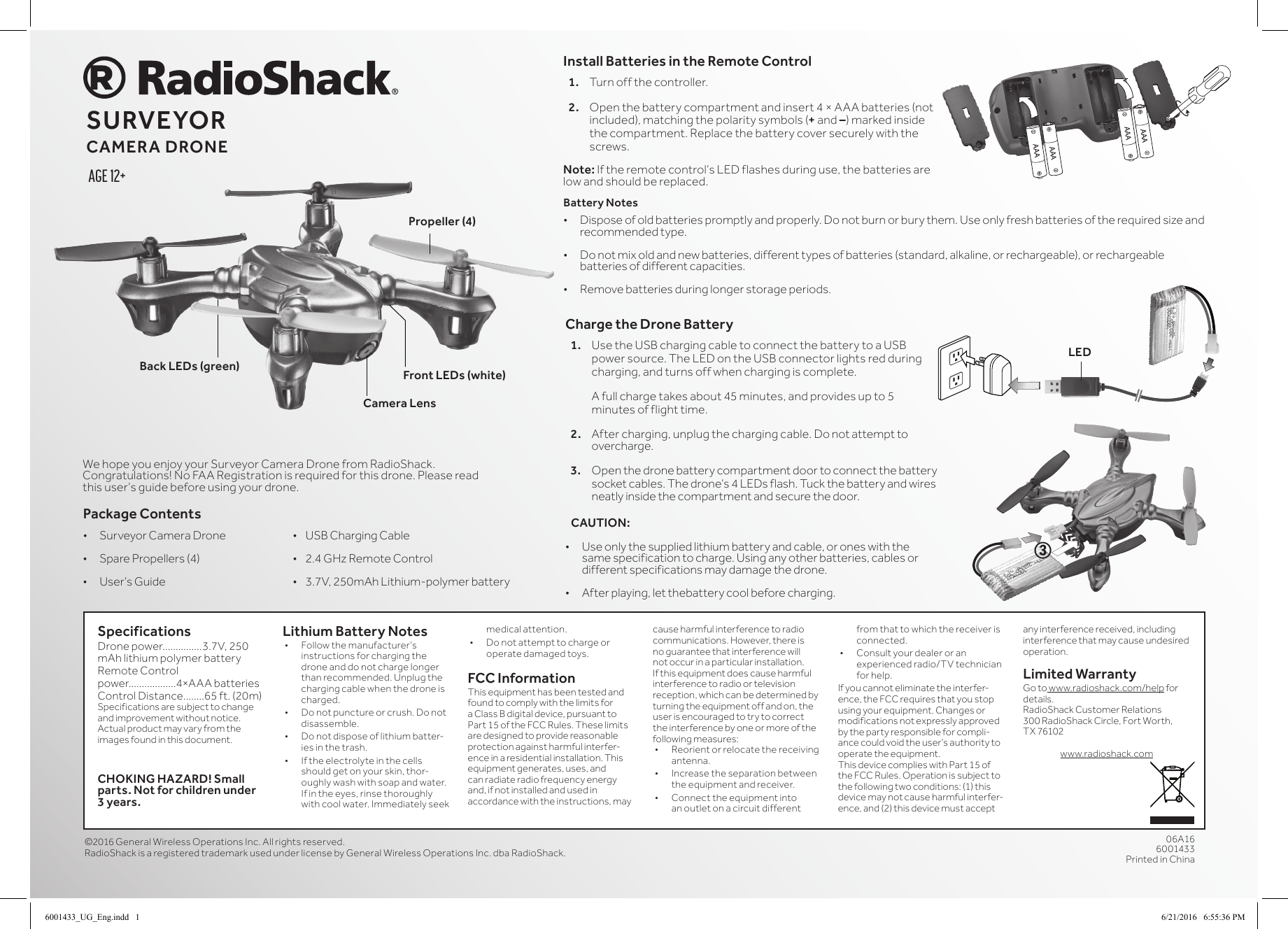
SpecificationsDrone power...............3.7V, 250 mAh lithium polymer batteryRemote Control power..................4×AAA batteriesControl Distance........65 ft. (20m)Specifications are subject to change and improvement without notice. Actual product may vary from the images found in this document. CHOKING HAZARD! Small parts. Not for children under 3 years.Lithium Battery Notes• Followthemanufacturer’sinstructions for charging the drone and do not charge longer than recommended. Unplug the charging cable when the drone is charged.• Donotpunctureorcrush.Donotdisassemble.• Donotdisposeoflithiumbatter-ies in the trash.• Iftheelectrolyteinthecellsshould get on your skin, thor-oughly wash with soap and water. Ifintheeyes,rinsethoroughlywithcoolwater.Immediatelyseekmedical attention.• Donotattempttochargeoroperate damaged toys.FCC InformationThis equipment has been tested and found to comply with the limits for a Class B digital device, pursuant to Part15oftheFCCRules.Theselimitsare designed to provide reasonable protection against harmful interfer-ence in a residential installation. This equipment generates, uses, and can radiate radio frequency energy and, if not installed and used in accordance with the instructions, may cause harmful interference to radio communications. However, there is no guarantee that interference will not occur in a particular installation. Ifthisequipmentdoescauseharmfulinterference to radio or television reception, which can be determined by turning the equipment off and on, the user is encouraged to try to correct the interference by one or more of the following measures:• Reorientorrelocatethereceivingantenna.• Increasetheseparationbetweenthe equipment and receiver. • Connecttheequipmentintoan outlet on a circuit different from that to which the receiver is connected. • Consultyourdealer or an experienced radio/TV technician for help.Ifyoucannoteliminatetheinterfer-ence,theFCCrequiresthatyoustopusing your equipment. Changes or modifications not expressly approved by the party responsible for compli-ancecouldvoidtheuser’sauthoritytooperate the equipment.This device complies with Part 15 of theFCCRules.Operationissubjecttothe following two conditions: (1) this device may not cause harmful interfer-ence, and (2) this device must accept any interference received, including interference that may cause undesired operation.Limited WarrantyGo to www.radioshack.com/help for details.RadioShack Customer Relations300RadioShackCircle,FortWorth,TX 76102www.radioshack.comWehopeyouenjoyyourSurveyorCamera Drone from RadioShack. Congratulations!NoFAARegistrationisrequiredforthisdrone.Pleasereadthisuser’sguidebeforeusingyourdrone.©2016 GeneralWirelessOperationsInc.Allrightsreserved.RadioShackisaregisteredtrademarkusedunderlicensebyGeneralWirelessOperationsInc.dbaRadioShack.06A166001433Printed in ChinaPackage Contents• Surveyor Camera Drone  •USBChargingCable• SparePropellers(4)  •2.4GHzRemoteControl• User’sGuide   •3.7V,250mAhLithium-polymerbatteryAge 12+SURVEYOR CAMERA DRONECharge the Drone Battery1.  Use the USB charging cable to connect the battery to a USB powersource.TheLEDontheUSBconnectorlightsredduringcharging, and turns off when charging is complete.   A full charge takes about 45 minutes, and provides up to 5 minutes of flight time. 2.  After charging, unplug the charging cable. Do not attempt to overcharge.3. Openthedronebatterycompartmentdoortoconnectthebatterysocketcables.Thedrone’s4LEDsflash.Tuckthebatteryandwiresneatly inside the compartment and secure the door.CAUTION: • Use only the supplied lithium battery and cable, or ones with the same specification to charge. Using any other batteries, cables or different specifications may damage the drone.• After playing, let thebattery cool before charging.Battery Notes• Disposeofoldbatteriespromptlyandproperly.Donotburnorburythem.Useonlyfreshbatteriesoftherequiredsizeandrecommended type. • Do not mix old and new batteries, different types of batteries (standard, alkaline, or rechargeable), or rechargeable batteries of different capacities.• Remove batteries during longer storage periods.Install Batteries in the Remote Control1.  Turn off the controller.  2.  Openthebatterycompartmentandinsert4×AAAbatteries(notincluded), matching the polarity symbols (+ and –) marked inside the compartment. Replace the battery cover securely with the screws.Note: Iftheremotecontrol’sLEDflashesduringuse,thebatteriesarelow and should be replaced.3LEDCamera LensFront LEDs (white)Back LEDs (green)Propeller (4)6001433_UG_Eng.indd   1 6/21/2016   6:55:36 PM
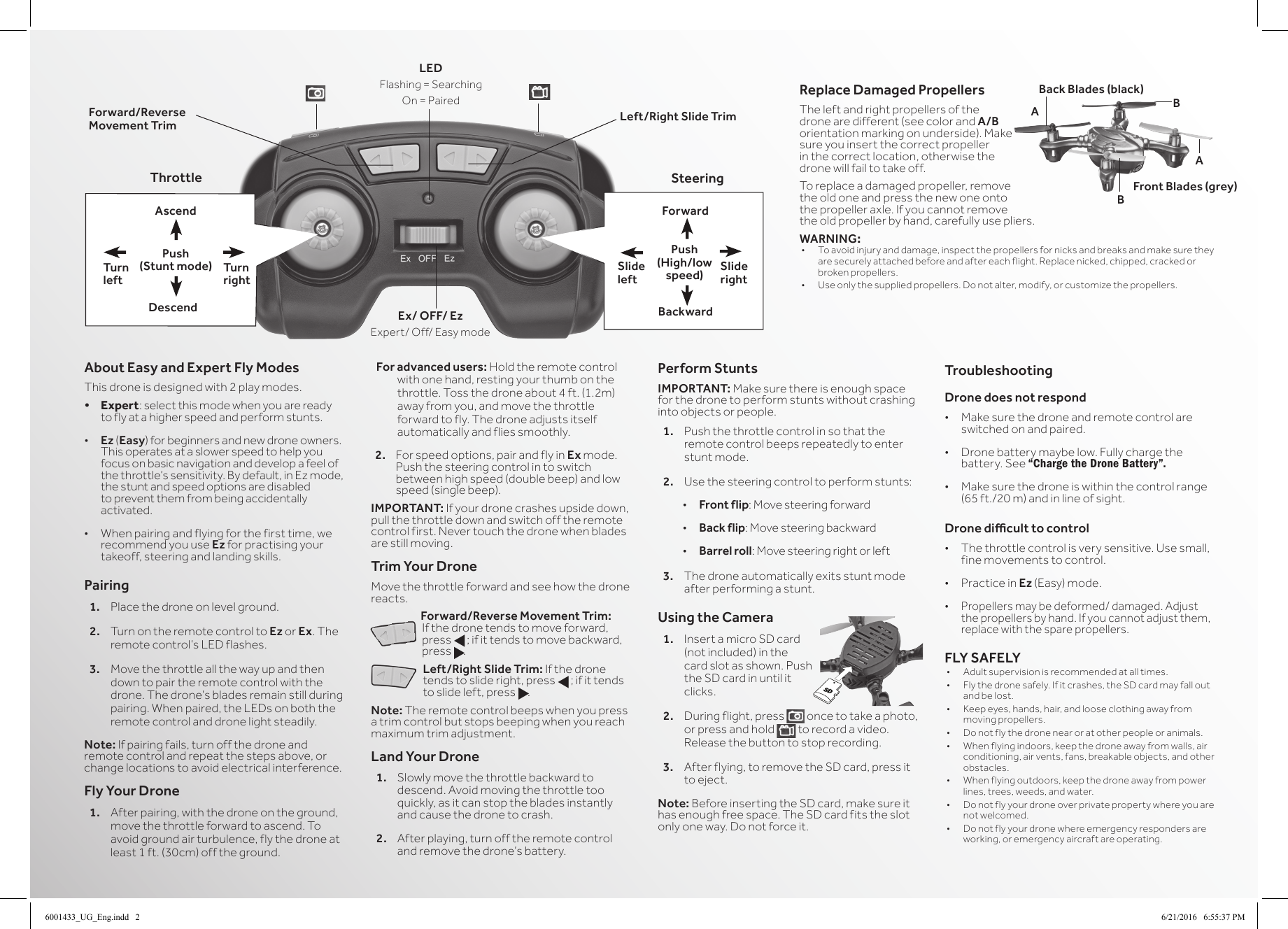
Left/Right Slide TrimForward/Reverse Movement TrimThrottle SteeringForwardAscendSlide rightTurn rightSlide leftTurn leftPush (Stunt mode)Push (High/low speed)DescendLEDFlashing=SearchingOn=PairedBackwardAbout Easy and Expert Fly ModesThis drone is designed with 2 play modes. • Expert: select this mode when you are ready to fly at a higher speed and perform stunts.• Ez (Easy) for beginners and new drone owners. This operates at a slower speed to help you focus on basic navigation and develop a feel of thethrottle’ssensitivity.Bydefault,inEzmode,the stunt and speed options are disabled to prevent them from being accidentally activated.• Whenpairingandflyingforthefirsttime,werecommend you use Ez for practising your takeoff, steering and landing skills.Pairing1.  Place the drone on level ground. 2.  Turn on the remote control to Ez or Ex. The remotecontrol’sLEDflashes.3.  Move the throttle all the way up and then down to pair the remote control with the drone.Thedrone’sbladesremainstillduringpairing.Whenpaired,theLEDsonboththeremote control and drone light steadily.Note: Ifpairingfails,turnoffthedroneandremote control and repeat the steps above, or change locations to avoid electrical interference.Fly Your Drone1.  After pairing, with the drone on the ground, move the throttle forward to ascend. To avoid ground air turbulence, fly the drone at least 1 ft. (30cm) off the ground.For advanced users: Hold the remote control with one hand, resting your thumb on the throttle. Toss the drone about 4 ft. (1.2m) away from you, and move the throttle forward to fly. The drone adjusts itself automatically and flies smoothly.2. Forspeedoptions,pairandflyinEx mode. Push the steering control in to switch between high speed (double beep) and low speed (single beep).IMPORTANT: Ifyourdronecrashesupsidedown,pull the throttle down and switch off the remote control first. Never touch the drone when blades are still moving.Trim Your DroneMove the throttle forward and see how the drone reacts.Forward/Reverse Movement Trim: Ifthedronetendstomoveforward,press f; if it tends to move backward, press g.Left/Right Slide Trim:Ifthedronetends to slide right, press f; if it tends to slide left, press g.Note: The remote control beeps when you press a trim control but stops beeping when you reach maximum trim adjustment.Land Your Drone1.  Slowly move the throttle backward to descend. Avoid moving the throttle too quickly, as it can stop the blades instantly and cause the drone to crash.2.  After playing, turn off the remote control andremovethedrone’sbattery.Perform StuntsIMPORTANT: Make sure there is enough space for the drone to perform stunts without crashing into objects or people.1.  Push the throttle control in so that the remote control beeps repeatedly to enter stunt mode.2.  Use the steering control to perform stunts:• Front flip: Move steering forward• Back flip: Move steering backward• Barrel roll: Move steering right or left3.  The drone automatically exits stunt mode after performing a stunt.Using the Camera1. InsertamicroSDcard(not included) in the card slot as shown. Push the SD card in until it clicks.2.  During flight, press   once to take a photo, or press and hold   to record a video. Release the button to stop recording.3.  After flying, to remove the SD card, press it to eject.Note: Before inserting the SD card, make sure it has enough free space. The SD card fits the slot only one way. Do not force it.TroubleshootingDrone does not respond• Make sure the drone and remote control are switched on and paired.• Dronebatterymaybelow.Fullychargethebattery. See “Charge the Drone Battery”.• Make sure the drone is within the control range (65 ft./20 m) and in line of sight.Drone dicult to control• The throttle control is very sensitive. Use small, fine movements to control.• Practice in Ez (Easy)mode.• Propellers may be deformed/ damaged. Adjust thepropellersbyhand.Ifyoucannotadjustthem,replace with the spare propellers.FLY SAFELY• Adultsupervisionisrecommendedatalltimes.• Flythedronesafely.Ifitcrashes,theSDcardmayfalloutand be lost.• Keepeyes,hands,hair,andlooseclothingawayfrommoving propellers.• Donotflythedronenearoratotherpeopleoranimals.• Whenflyingindoors,keepthedroneawayfromwalls,airconditioning, air vents, fans, breakable objects, and other obstacles.• Whenflyingoutdoors,keepthedroneawayfrompowerlines, trees, weeds, and water.• Donotflyyourdroneoverprivatepropertywhereyouarenot welcomed.• Donotflyyourdronewhereemergencyrespondersareworking, or emergency aircraft are operating.Ex/ OFF/ EzExpert/Off/EasymodeSDReplace Damaged PropellersThe left and right propellers of the drone are different (see color and A/B orientation marking on underside). Make sure you insert the correct propeller in the correct location, otherwise the drone will fail to take off. To replace a damaged propeller, remove the old one and press the new one onto thepropelleraxle.Ifyoucannotremovethe old propeller by hand, carefully use pliers.WARNING:• Toavoidinjuryanddamage,inspectthepropellersfornicksandbreaksandmakesuretheyare securely attached before and after each flight. Replace nicked, chipped, cracked or broken propellers.• Useonlythesuppliedpropellers.Donotalter,modify,orcustomizethepropellers.Back Blades (black)Front Blades (grey)ABBA6001433_UG_Eng.indd   2 6/21/2016   6:55:37 PM

Navigation menu