ZHENGFANGXING TECHNOLOGY 18AV007 Audio Transmitter Box User Manual BWA18AV007 User Guide V1 0 EN 20180326
SHENZHEN ZHENGFANGXING TECHNOLOGY CO., LTD Audio Transmitter Box BWA18AV007 User Guide V1 0 EN 20180326
User Manual
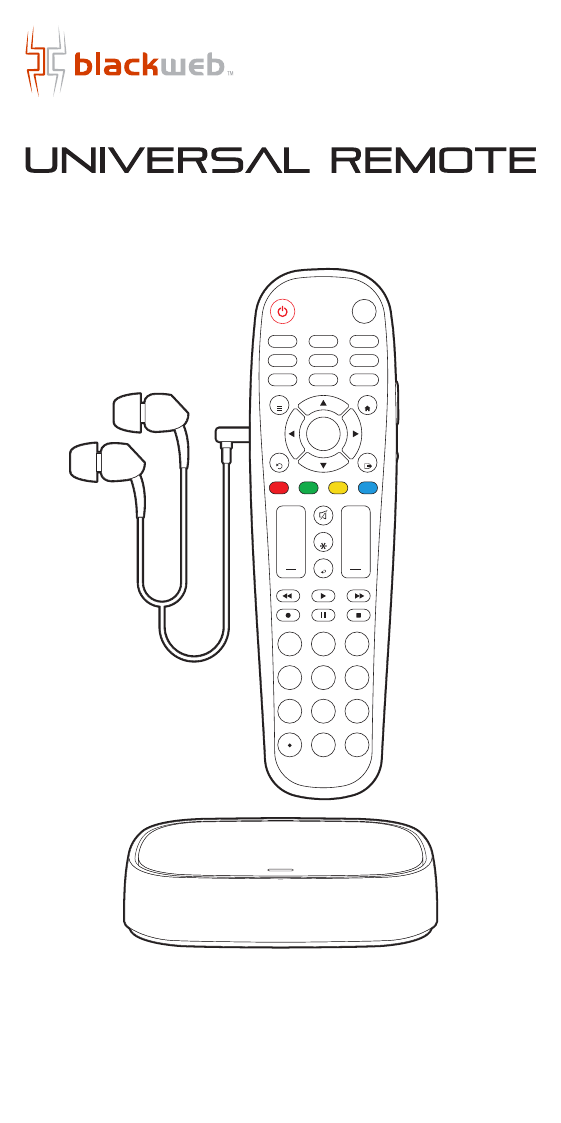
6-Device
User Guide
v1.0 (2018)
BWA18AV007
with wireless audio transmitter
and stereo headphones
AMP
PROGRAM
AUX
INPUT
FAV
ENTER
123
456
7 8
0
9
+ +
CH
SAT/CBL STREAMTV
BRAY/DVD
GUIDE
VOL CH
MENU
BACK
APPS
EXIT
OK
A B C D
INFO

TABLE OF CONTENTS
UNIVERSAL REMOTE CONTROL
• GETTING STARTED (BATTERIES)
• IN THE BOX
• GETTING STARTED (BUTTONS)
• PROGRAMMING YOUR REMOTE (DIRECT CODE ENTRY)
• PROGRAMMING YOUR REMOTE (AUTO CODE SEARCH)
• FAVORITE CHANNELS
• VOLUME LOCK
• CHANNEL LOCK
• CODE IDENTIFICATION & FACTORY RESET
WIRELESS AUDIO TRANSMITTER
• ABOUT PRIVATE LISTENING
• GET TO KNOW YOUR AUDIO TRANSMITTER
• HOW TO SETUP YOUR AUDIO TRANSMITTER
• OTHER CONNECTION OPTIONS
• PRIVATE LISTENING THROUGH YOUR REMOTE
• TROUBLESHOOTING
• FCC INFORMATION
• LIMITED 90-DAY WARRANTY
02
03
04
06
09
10
11
12
13
14
15
16
18
20
23
25
26
01
GETTING STARTED BATTERIES
Thank you for choosing the Blackweb Universal Remote Control and
Wireless Audio Transmitter. This remote control can operate a wide range
of electronic devices, works across most brands and models, and comes
pre-programmed to operate many Samsung TVs (see the Programming
Your Remote sections if your device is not compatible). Your remote can
control up to 6 devices and is remarkably easy to set up. To get started,
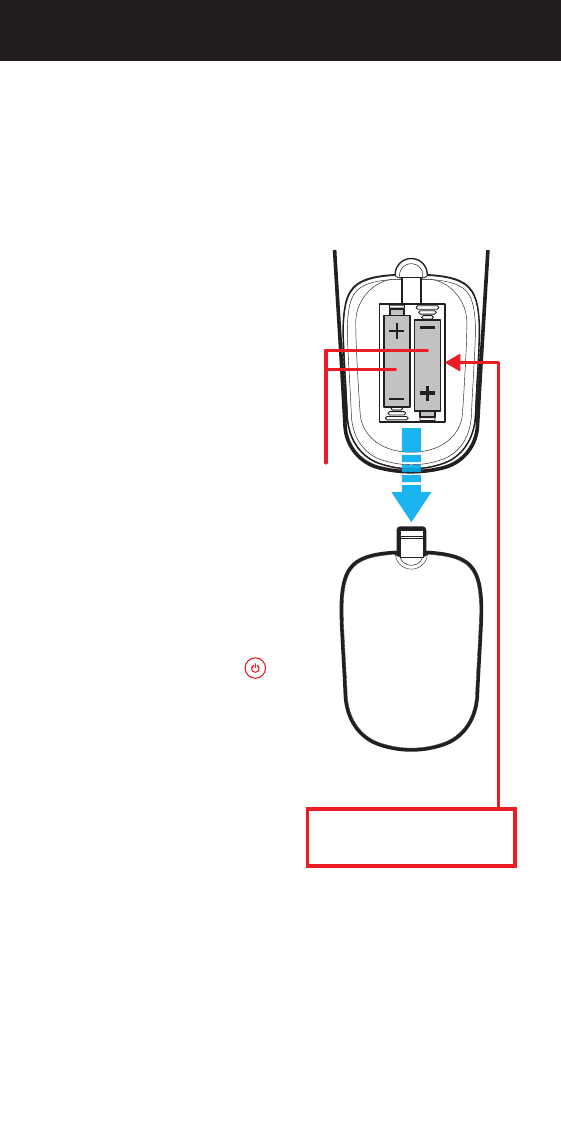
please install two AA alkaline batteries (not included) as shown below.
Installing the Batteries
1. Remove the battery cover.
2. Insert the batteries as shown.
3. Snap the battery cover back into
place.
Battery Precautions
• Do not mix old and new batteries.
• Do not mix alkaline, standard
(carbon-zinc) or rechargeable
(nickel-cadmium) batteries.
• Always remove old, weak or worn-
out batteries promptly and recycle
or dispose of them in accordance
with local and national regulations.
Low Battery Indicator
If while using the remote, the
button’s red indicator light flashes
3 times, this indicates the batteries
need to be replaced. Please replace
the batteries as soon as possible
when this indication occurs.
Code Saver
When changing the batteries of your
remote, please do so quickly. You
have up to 20 minutes to change the
batteries in your remote without
losing the programmed codes.
Battery Saver
To conserve battery power, the remote will automatically turn off if any
button is pressed for more than 60 seconds (except during programming).
This feature is helpful in the event that the remote is stuck in a location
where the buttons remain depressed, such as between sofa cushions.
Battery Cover
Your remote control’s model number
can be found in the battery compartment
Two AA
alkaline
batteries
(not included)
Model: BWA18AV007 (PCL-1)
Customer Support: (877) 907-7010
Made in China
02
IN THE BOX
AMP
PROGRAM
AUX
INPUT
FAV
ENTER
123
456
7 8
0
9
+ +
CH
SAT/CBL STREAMTV
BRAY/DVD
GUIDE
VOL CH
MENU
BACK
APPS
EXIT
OK
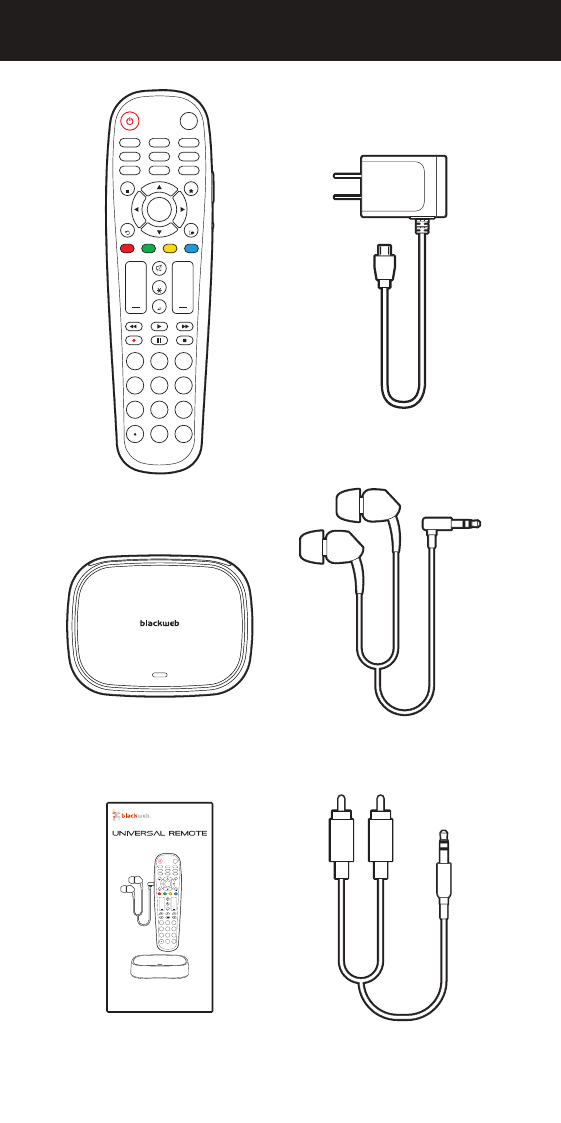
REMOTE CONTROL
AUDIO TRANSMITTER
USER GUIDE RCA/3.5MM
AUDIO CABLE
STEREO HEADPHONES
USB CHARGER
6-Device
User Guide
v1.0 (2018)
BWA18AV007
with wireless audio transmitter
and stereo headphones
AMP
PROGRAM
AUX
INPUT
FAV
ENTER
123
456
7 8
0
9
+ +
CH
SAT/CBL STREAMTV
BRAY/DVD
GUIDE
VOL CH
MENU
BACK
APPS
EXIT
OK
A B C D
INFO
03
GETTING STARTED BUTTONS
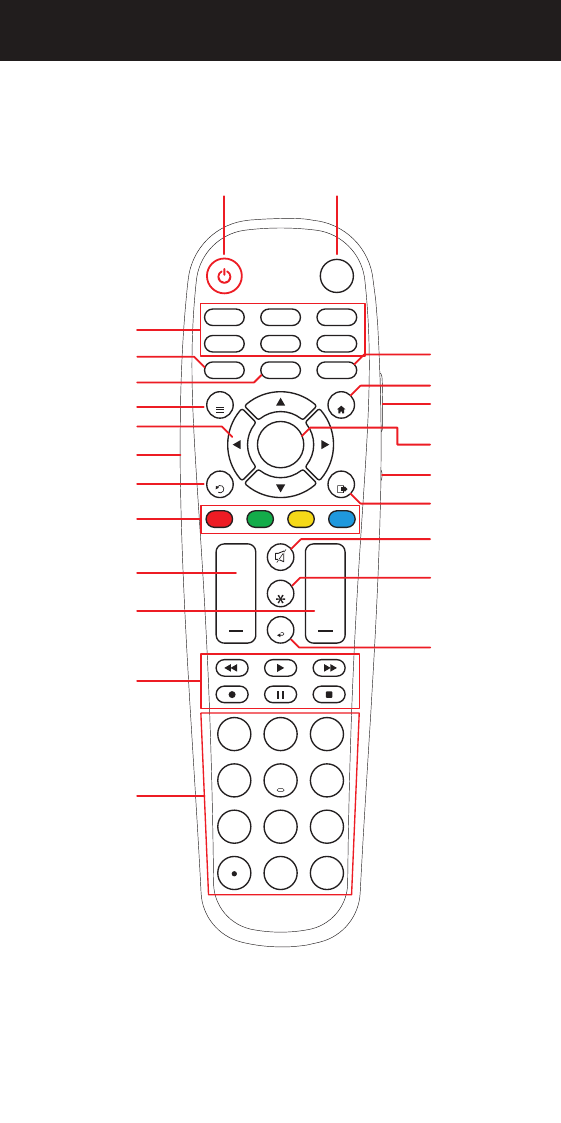
NOTE: Some of the buttons on the remote may not be supported by your device.
AMP
PROGRAM
AUX
INPUT
FAV
ENTER
123
456
7 8
0
9
+ +
CH
SAT/CBL STREAMTV
BRAY/DVD
GUIDE
VOL CH
MENU
BACK
APPS
EXIT
OK
POWER INPUT
DEVICE
CATEGORIES
GUIDE
PROGRAM
MENU
APPS
3.5MM
HEADPHONE JACK
NAVIGATION
OK
BACK
MUTE
(HEADPHONES)
VOLUME
(HEADPHONES)
EXIT
A, B, C, D
BUTTONS A B C D
VOLUME
CHANNEL
MUTE
INFO
PREVIOUS
CHANNEL
VIDEO
PLAYBACK
CONTROLS
NUMBER
KEYPAD
FAVORITE
CHANNELS
INFO
04
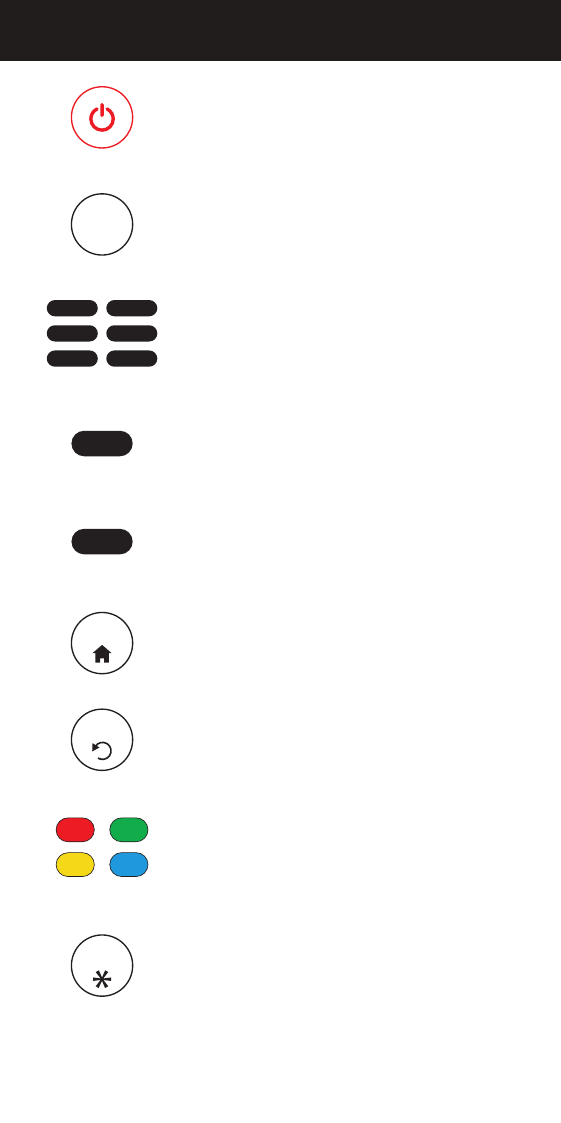
POWER
Turns your device On/Off and also serves as an
indicator when the remote is being programmed
INPUT
Switches between the sources connected to your TV
DEVICE CATEGORIES
Use these buttons to select the device you want
to control
PROGRAM
Use to put your remote in programming mode
GUIDE
Use to access the guide of satellite and cable
set-top boxes
APPS
Use to access your smart TV’s apps (if supported)
BACK
Return to the previous menu or screen
A, B, C, D BUTTONS
Use to access device shortcuts for additional
features or custom apps on your device (if supported)
INFO
Use to access on-screen content description and
information
TV
BRAY/DVD
SAT/CBL
AMP
STREAM
AUX
PROGRAM
GUIDE
INPUT
BACK
A B
C D
APPS
INFO
05
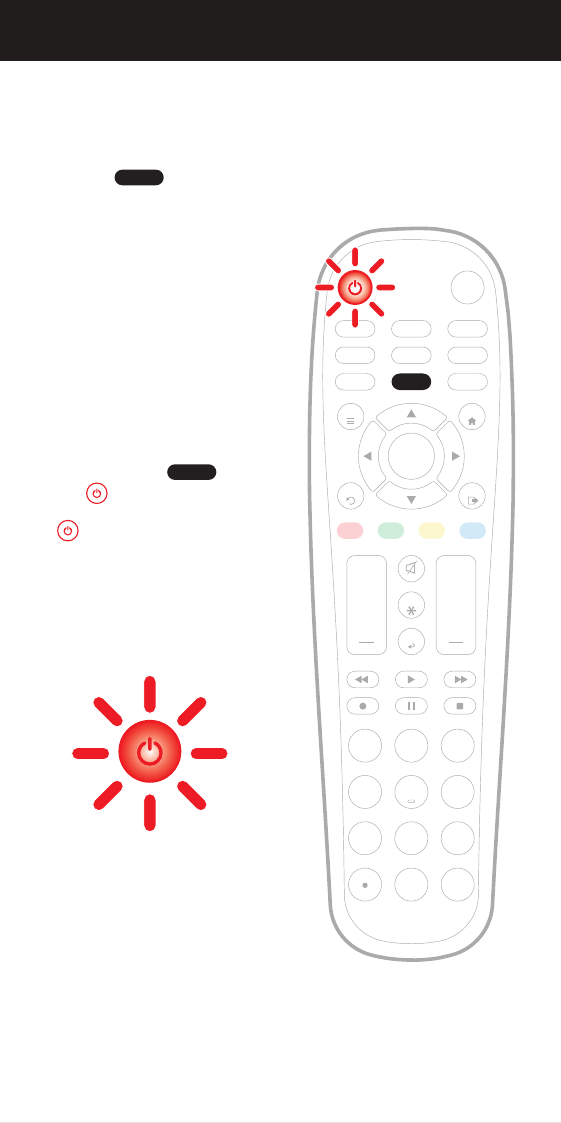
PROGRAMMING YOUR REMOTE DIRECT CODE ENTRY
Press and hold the button
until the button lights up red.
The button’s red indicator light
remains on.
Programming your remote is as easy as 1, 2, 3
Before beginning, please make sure that the device you want to control
is powered on and follow these three simple steps.
NOTE: Press to exit at any time.
NOTE: The Blackweb universal remote comes pre-programmed to operate
many Samsung TVs.
1.
PROGRAM
PROGRAM
AMP AUX
SAT/CBL STREAMTV
BRAY/DVD
INPUT
FAV
ENTER
123
456
7 8
0
9
+ +
CH
GUIDE
VOL CH
MENU
BACK
APPS
EXIT
OK
PROGRAM
Red indicator light
INFO
06
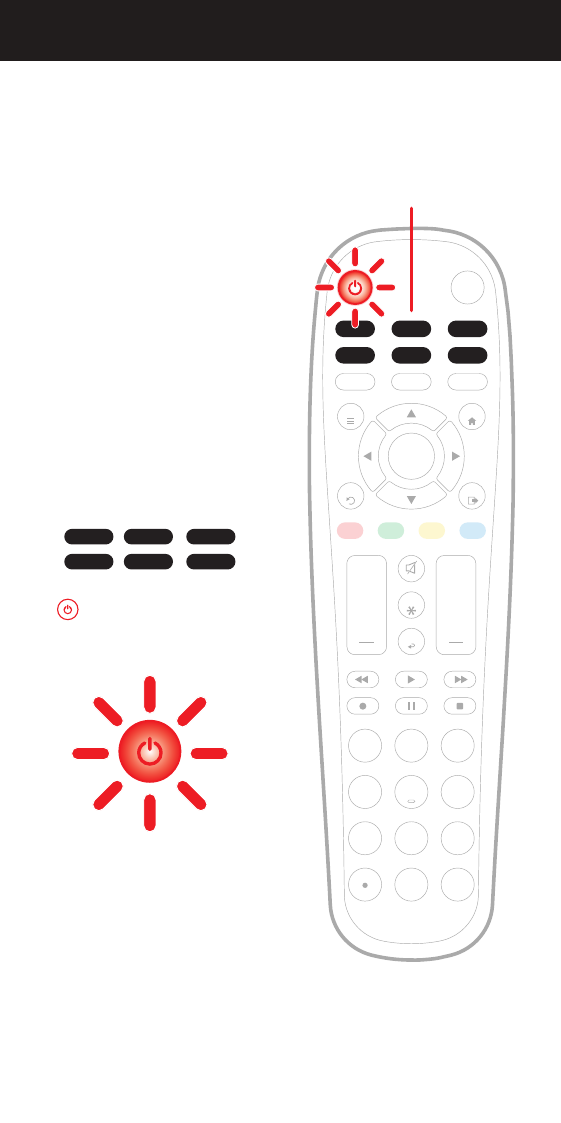
Select the device you want to program
from the Device Categories:
The button’s red indicator light
blinks once and remains on.
2.
TV SAT/CBL STREAM
BRAY/DVD AMP AUX
AMP AUX
SAT/CBL STREAMTV
BRAY/DVD
INPUT
FAV
ENTER
123
456
7 8
0
9
+ +
CH
GUIDE
VOL CH
MENU
BACK
APPS
EXIT
OK
PROGRAM
Device Categories
Red indicator light
INFO
07
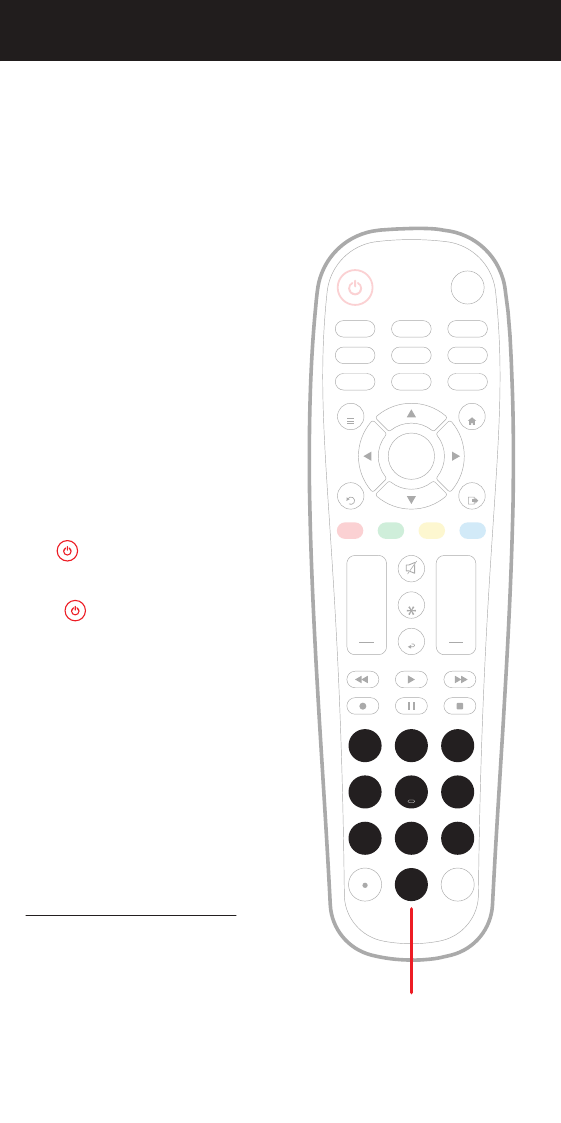
Enter the 4-digit code from the
included list for the category and
brand of your device.
The button’s red indicator light
shuts off if a valid code was entered.
If the button’s red indicator light
flashes and remains on after entering
four digits, that means an invalid code
was entered. In that case, check the
list again and re-enter the code.
NOTE: Test the remote with the device
to make sure the buttons work as
expected. If some of the buttons/
features don’t work, try a different code
on the list. Repeat this process for each
device you wish to control.
Code list and other helpful information
available at:
www.myblackwebremote.com
3. AMP AUX
SAT/CBL STREAMTV
BRAY/DVD
INPUT
FAV
ENTER
123
456
7 8
0
9
+ +
CH
GUIDE
VOL CH
MENU
BACK
APPS
EXIT
OK
PROGRAM
Enter the code
INFO
08
PROGRAMMING YOUR REMOTE AUTO CODE SEARCH
It’s recommended to program your remote by using the Direct Code
Entry method, however if with that method you were not able to find
a code that is compatible with your device, you may try the Auto Code
Search method below:
1. Power on the device that you want to control.
2. Press and hold the button until the button lights up red.
The button’s red indicator light remains on.
3. Select a device from Device Categories you would like to control.
The button’s red indicator light blinks once and remains on.
NOTE: Please refer to the list below if you are unsure about the device category.
• TV: TV, TV/DVD and other TV combinations
• SAT/CBL: Satellite, Cable, DVR, and other set-top boxes
• STREAM: Roku, Apple TV, Xbox, and other streaming media players*
• B-RAY/DVD: Blu-ray Players and DVD Players
• AMP: Sound Bars, Audio Receivers, and other audio devices
• AUX: VCRs, Digital Frames, and devices not found on the code list
*Compatible with Apple TV® and most Roku® devices; not compatible with Roku® Streaming Stick®,
Amazon® Fire TV and any voice-search features
4. Point the remote at the device you wish to control and then press and
hold the OK button until the device turns off. The button’s red
indicator light will blink as the codes are being tested.
5. When the device turns off, immediately release the OK button to lock
in the code. The button’s red indicator light will turn off. Test the
remote with the device to make sure all the buttons work as expected.
If some of the buttons/features don’t work, repeat the process or try
the Direct Code Entry method.
NOTE: It may take over 10 minutes to scan through all the possible codes for
your device. If during the Auto Code Search you have either accidentally or
deliberately released the OK button, you may repeat steps 1 through 5 above
to resume the code search where it left off.
After the Auto Code Search has exhausted all available codes for the selected
category, the remote’s button's red indicator light blinks three times and
turns off. If none of the codes worked with your device, try the Direct Code
Entry method.
PROGRAM
AMP AUX
SAT/CBL STREAMTV
BRAY/DVD
Device Categories
09
FAVORITE CHANNELS
For easy access to up to 10 of your favorite channels, follow the steps below.
1. Select a device from Device Categories that controls the channels.
The button’s red indicator light will blink once.
2. Press and hold the button until the button lights up red.
The button’s red indicator light remains on.
3. Press the button. The button’s red indicator light blinks once
and remains on.
4. Select the button (0 – 9) that you will use for storing your favorite
channel. The button’s red indicator light blinks once and remains on.
5. Enter the channel number you wish to program as a favorite channel.
6. Press the button, the button’s red indicator light will turn off
and the channel is saved.
NOTE: To change a stored favorite channel, repeat steps 1-6 above.
To Access Your Favorite Channels:
1. Press the button. The button’s red indicator lights up and
remains lit.
2. To access the favorite channel, press the programmed button for that
channel (0-9). The button’s red indicator light blinks, then turns off
as the command is sent.
PROGRAM
FAV
FAV
FAV
10
VOLUME LOCK
Use this feature to lock a device to the remote’s volume control. For
example, the remote can be in TV mode while the volume buttons control
your sound bar.
Enabling Volume Lock:
1. Press and hold the button until the button lights up red.
The button’s red indicator light remains on.
2. Select a device from Device Categories that you want to lock to the
remote’s volume control. The button’s red indicator light blinks
once and remains on.
3. Press the VOL+ button. The button’s red indicator light blinks once
and remains on.
4. Press the OK button. The button’s red indicator light will blink twice
and turn off.
Disabling Volume Lock:
1. Press and hold the button until the button lights up red.
The button’s red indicator light remains on.
2. Press the VOL- button. The button’s red indicator light blinks
once and remains on.
3. Press the OK button. The button’s red indicator light will blink twice
and turn off.
NOTE: On most newer HDMI-connected devices, the Volume Lock feature may
be unnecessary as this feature is already built-in.
PROGRAM
PROGRAM
11
CHANNEL LOCK
Use this feature to lock a device to the remote’s channel control. For example,
the remote can be in TV mode while the channel buttons control your
satellite or cable box.
Enabling Channel Lock:
1. Press and hold the button until the button lights up red.
The button’s red indicator light remains on.
2. Select a device from Device Categories that you want to lock to the
remote’s channel control. The button’s red indicator light blinks
once and remains on.
3. Press the CH+ button. The button’s red indicator light blinks once
and remains on.
4. Press the OK button. The button’s red indicator light will blink twice
and turn off.
Disabling Channel Lock:
1. Press and hold the button until the button lights up red.
The button’s red indicator light remains on.
2. Press the CH- button. The button’s red indicator light blinks once
and remains on.
3. Press the OK button. The button’s red indicator light will blink twice
and turn off.
NOTE: On most newer HDMI-connected devices, the Channel Lock feature
may be unnecessary as this feature is already built-in.
PROGRAM
PROGRAM
12
CODE IDENTIFICATION & FACTORY RESET
Code Identication:
To identify any of your programmed codes, follow the steps below.
1. Press and hold the button until the button lights up red.
The button’s red indicator light remains on.
2. Select a device from Device Categories that you would like the code
for. The button’s red indicator light blinks once and remains on.
3. Press the button. The button’s red indicator light blinks once
and remains on.
4. Press the button. Count the number of times the button’s red
indicator light flashes. This is the number corresponding to the first
digit of the code. If the button does not flash, the corresponding
code number is 0. Repeat the process by pressing the , and
buttons for the remaining digits.
5. Press the button to exit.
NOTE: Press to exit at any time.
Reset to Factory Settings:
1. Press and hold the button until the button lights up red.
The button’s red indicator light remains on.
2. Press the button. The button’s red indicator light blinks once
and remains on.
3. Press the OK button. The button’s red indicator light will flash twice
and the remote will revert to factory settings.
PROGRAM
1
2 3 4
PROGRAM
A
A
A
13
ABOUT PRIVATE LISTENING
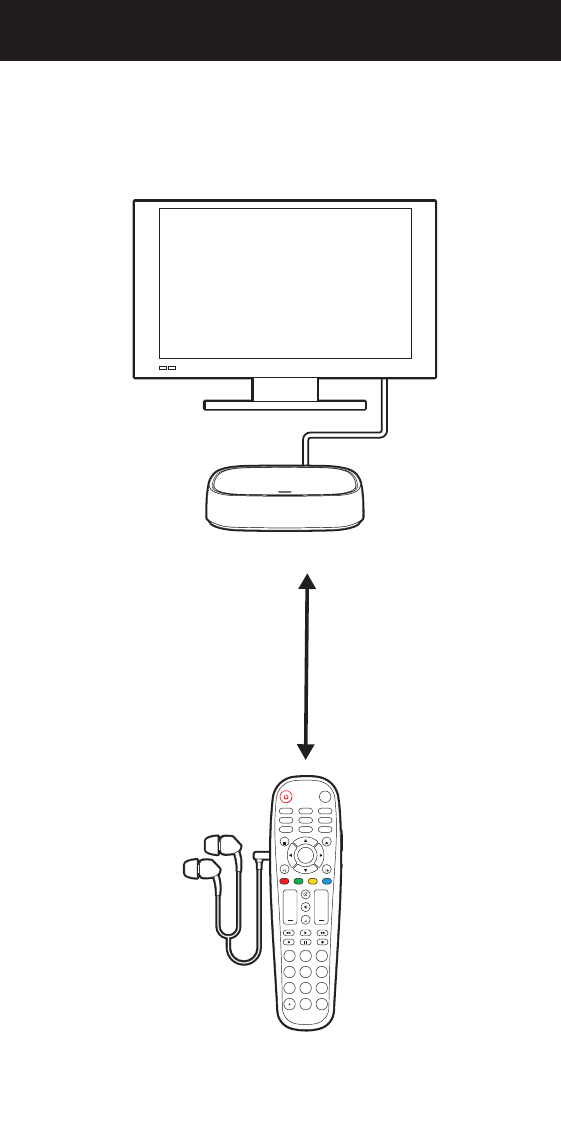
When you want to watch without disturbing others, you can use the
universal remote's Private Listening feature by inserting headphones
into the universal remote and transmitting the sound from the audio
transmitter attached to your television.
AMP
PROGRAM
AUX
INPUT
FAV
ENTER
123
456
7 8
0
9
+ +
CH
SAT/CBL STREAMTV
BRAY/DVD
GUIDE
VOL CH
MENU
BACK
APPS
EXIT
OK
TV
AUDIO TRANSMITTER
UNIVERSAL REMOTE
STEREO
HEADPHONES
Approximately 30 ft
maximum wireless range
14
GET TO KNOW YOUR AUDIO TRANSMITTER
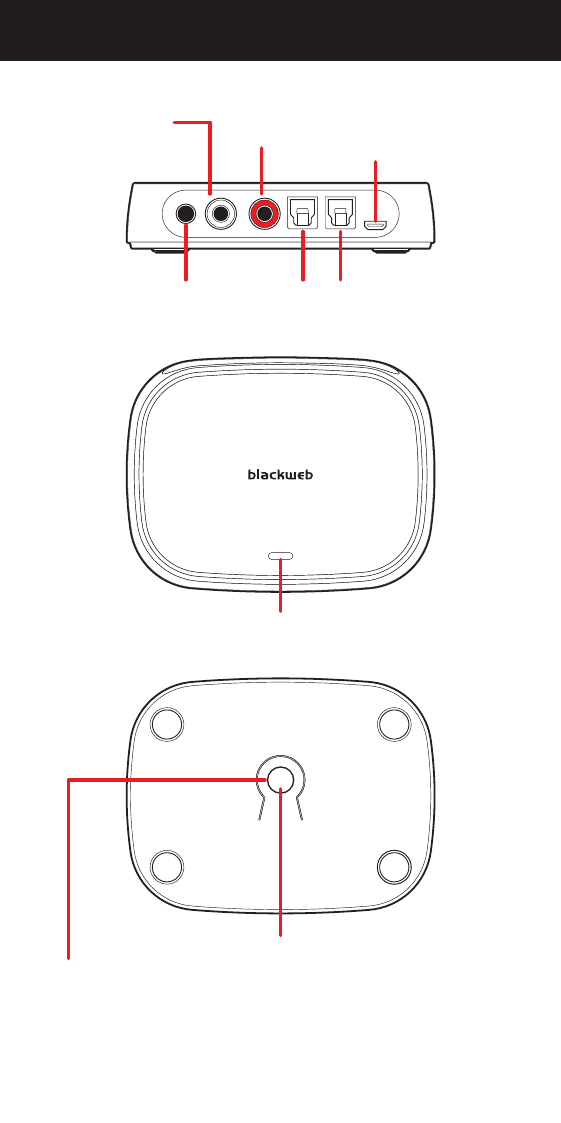
CAUTION: Don’t press this button unless you want to unpair the remote
from the audio transmitter (your universal remote and audio transmitter
are already paired to work together out of the box).
For more information, please refer to “PARING MODE” in Troubleshooting.
BACK
STEREO IN
R OUT
(RCA audio output)
POWER
(Micro USB port,
5V/300mA)
L OUT
(RCA audio output)
OPTICAL IN
(S/PDIF)
OPTICAL OUT
(S/PDIF)
LED INDICATOR
PAIRING BUTTON
TOP
BACK
BOTTOM
15
HOW TO SET UP YOUR AUDIO TRANSMITTER
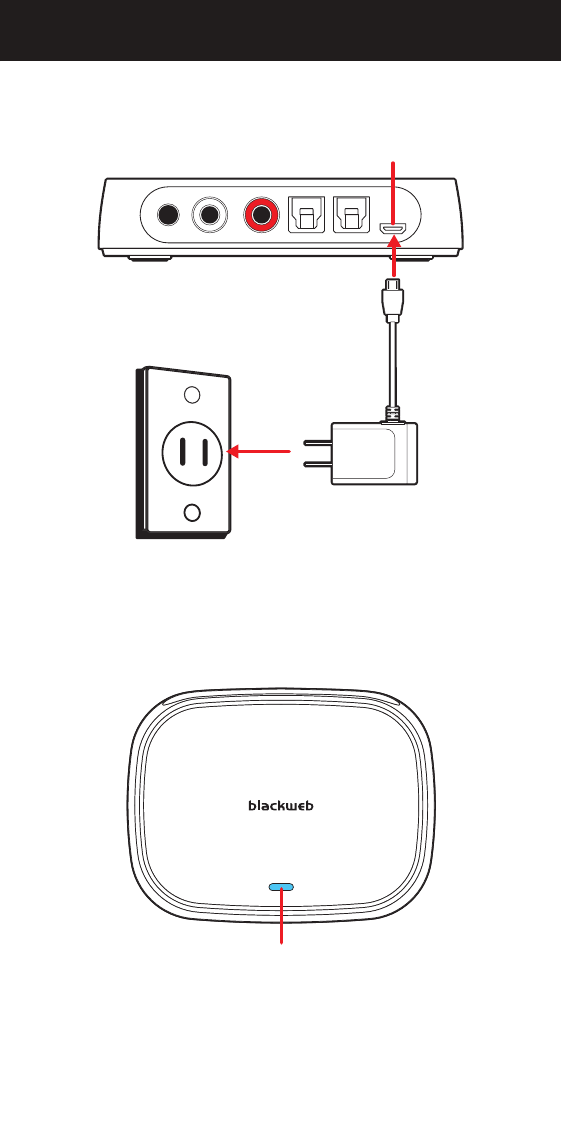
1. Connect the supplied USB charger to the audio transmitter's USB port
labeled "POWER".
When connected to a power source, the audio transmitter’s LED indicator
turns solid blue.
NOTE: A steady blue light indicates that the audio transmitter is paired to the
remote (by default). If the LED indicator is continuously flashing, it indicates
that the audio transmitter and remote are not properly paired (please refer to
“Pairing Mode” in Troubleshooting).
LED INDICATOR
TOP
WALL OUTLET
USB CHARGER
POWER
BACK
16
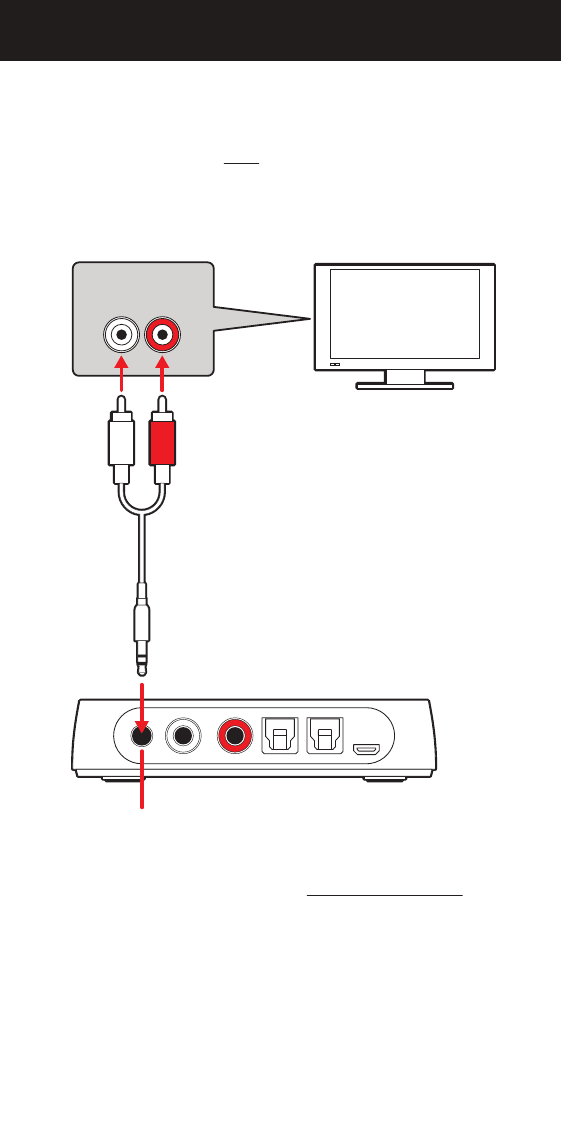
2. Connect the white and red plugs of the supplied RCA/3.5mm audio cable
to the (L) and (R) AUDIO OUT on your television's connection panel.
NOTE: Ensure the cables are NOT plugged into the TV’s audio input.
3. Connect the 3.5mm stereo plug to the audio transmitter's "STEREO IN"
port as shown below.
NOTE: The Private Listening feature DOES NOT SILENCE the audio
that may be playing through your television's built-in speakers, sound bar or
other connected A/V equipment.
• You can use the equipment manufacturer's remote or the universal remote's
volume, mute or power controls to silence the audio.
• On some televisions, you may need to manually switch the audio output
from the built-in speakers to the connected audio transmitter equipment.
Please consult your equipment manufacturer's manual for instructions.
L R
RCA/3.5MM AUDIO CABLE
(included)
STEREO IN
(3.5mm audio jack)
AUDIO
TRANSMITTER
RCA AUDIO OUT
TV
17
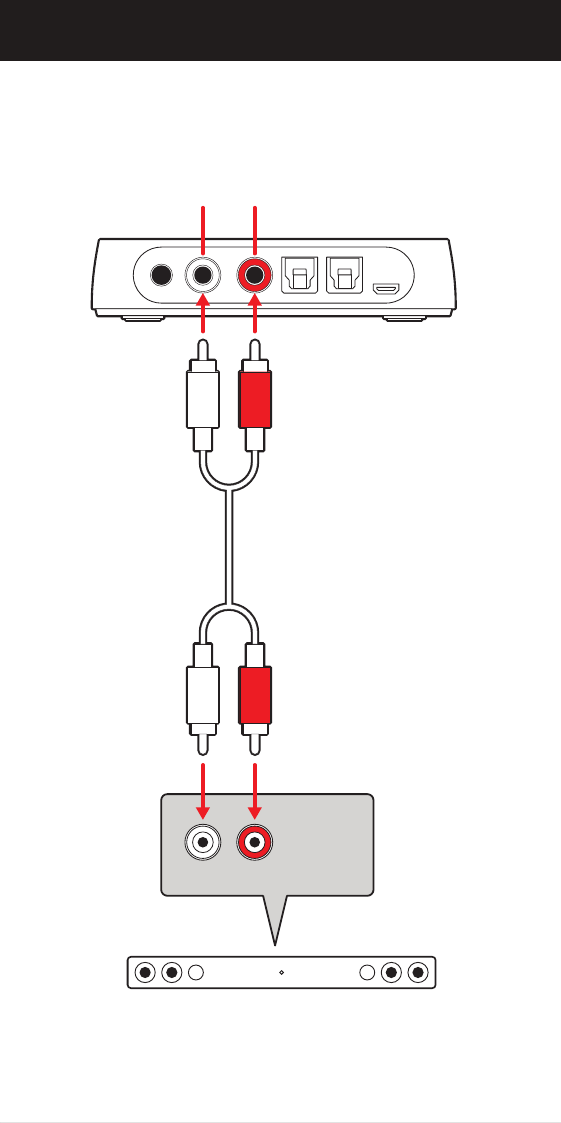
OTHER CONNECTION OPTIONS
If you have a sound bar or other audio equipment already connected to
your television's audio jacks, you can use the audio transmitter's audio
passthrough connection labeled "L OUT" and "R OUT" to connect
to your other audio equipment.
RCA STEREO AUDIO CABLE
(not included)
SOUND BAR OR OTHER AUDIO EQUIPMENT
L R
AUDIO IN
L OUT R OUT
18
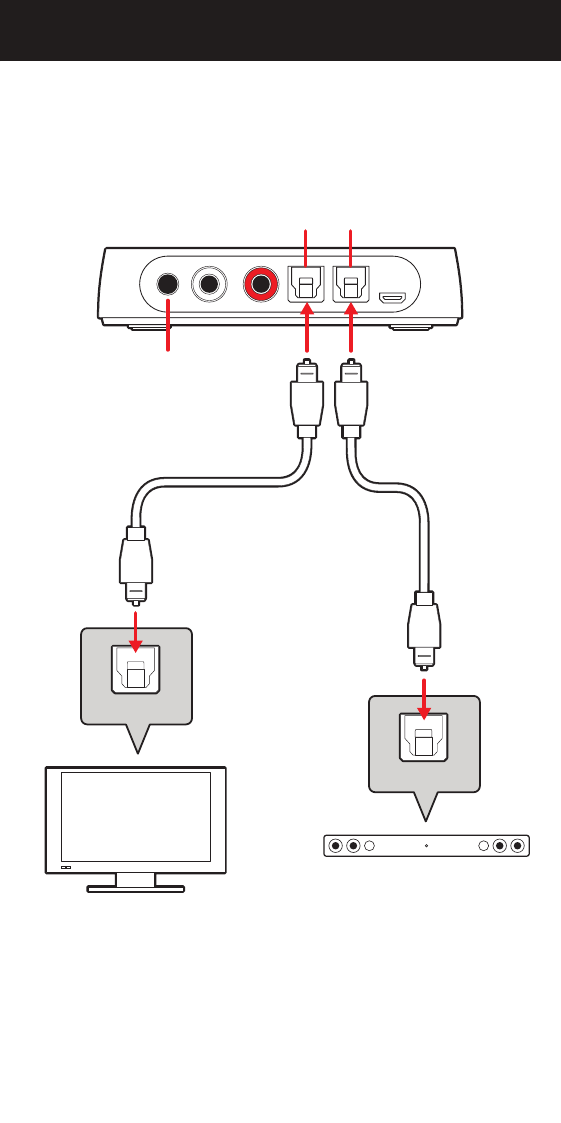
Using an S/PDIF optical cable for digital audio
For televisions equipped with an S/PDIF optical output, you may connect
an optical cable (not included) to the TV’s connection panel. Connect the
other end of the optical cable into the audio transmitter's "OPTICAL IN"
port (supports 96kHz/24bit).
If you have a sound bar or other audio equipment already connected to
your television, you can use the audio transmitter's audio passthrough
connection labeled "OPTICAL OUT" to connect to your other audio
equipment.
NOTE: When an audio source is connected to the audio transmitter’s
“STEREO IN”, the optical ports will not function.
OPTICAL IN OPTICAL OUT
OPTICAL AUDIO CABLE
(not included)
STEREO IN
(3.5mm audio jack)
TV
SOUND BAR OR
OTHER AUDIO EQUIPMENT
OPTICAL IN
OPTICAL OUT
19
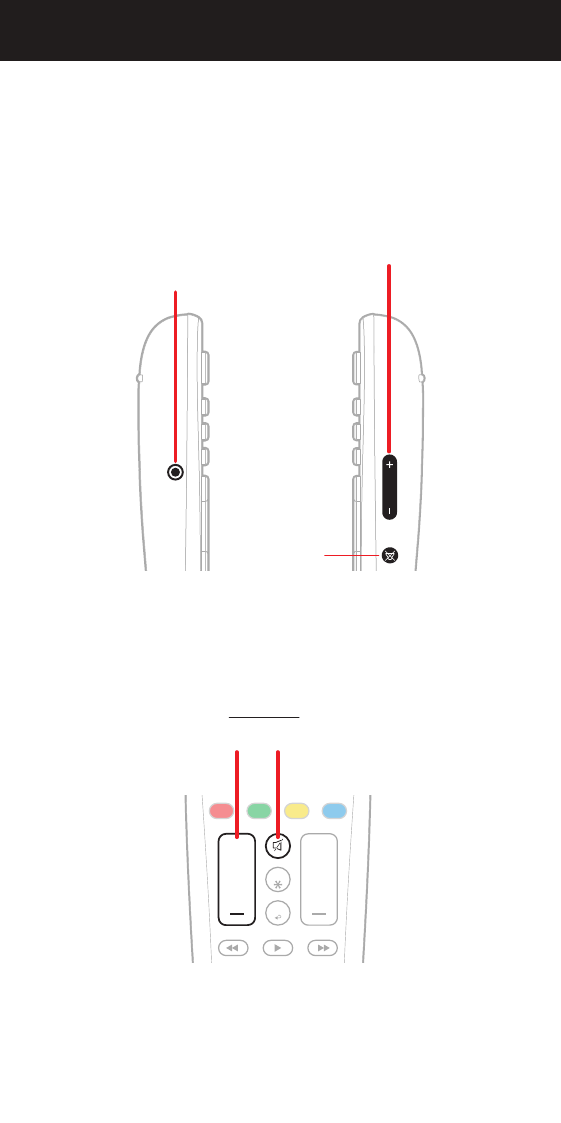
PRIVATE LISTENING THROUGH YOUR REMOTE
You may control the headphone‘s audio volume with the HEADPHONE
VOLUME buttons located on the right side of the remote.
To mute and unmute the headphone audio, press the HEADPHONE
MUTE button located on the right side of the remote.
The buttons below ARE NOT used for controlling the
headphone’s audio volume.
RIGHT
SIDE
LEFT
SIDE
HEADPHONE
VOLUME
HEADPHONE
MUTE
3.5MM
HEADPHONE JACK
(enables/disables
Private Listening)
FRONT
AMP
PROGRAM
AUX
INPUT
FAV
123
456
789
++
CH
SAT/CBL STREAMTV
BRAY/DVD
GUIDE
VOL
A B C D
CH
MENU
BACK
APPS
EXIT
OK
INFO
20
Activating Private Listening
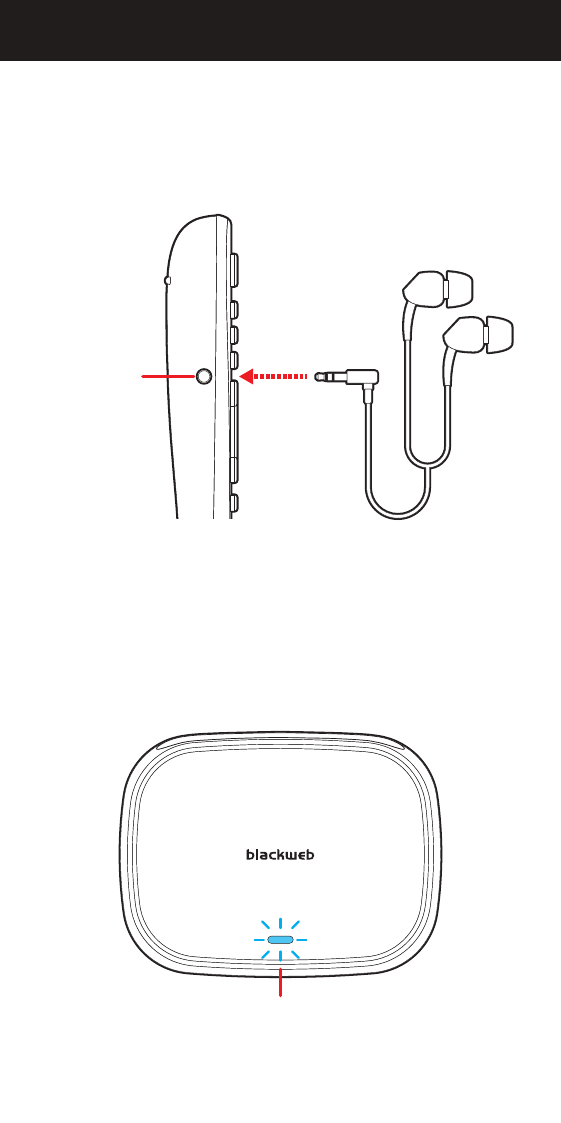
To activate the universal remote's Private Listening feature, simply plug
in a pair of headphones into the 3.5MM HEADPHONE JACK located on
the left side of the remote.
After inserting the headphones, the audio transmitter’s LED indicator will
flash three times and play a beep in the headphones indicating when the
Private Listening feature has been activated.
STEREO HEADPHONES
Plug in
LEFT
SIDE
3.5MM
HEADPHONE
JACK
LED INDICATOR
Flashes 3 times
21
Deactivating Private Listening
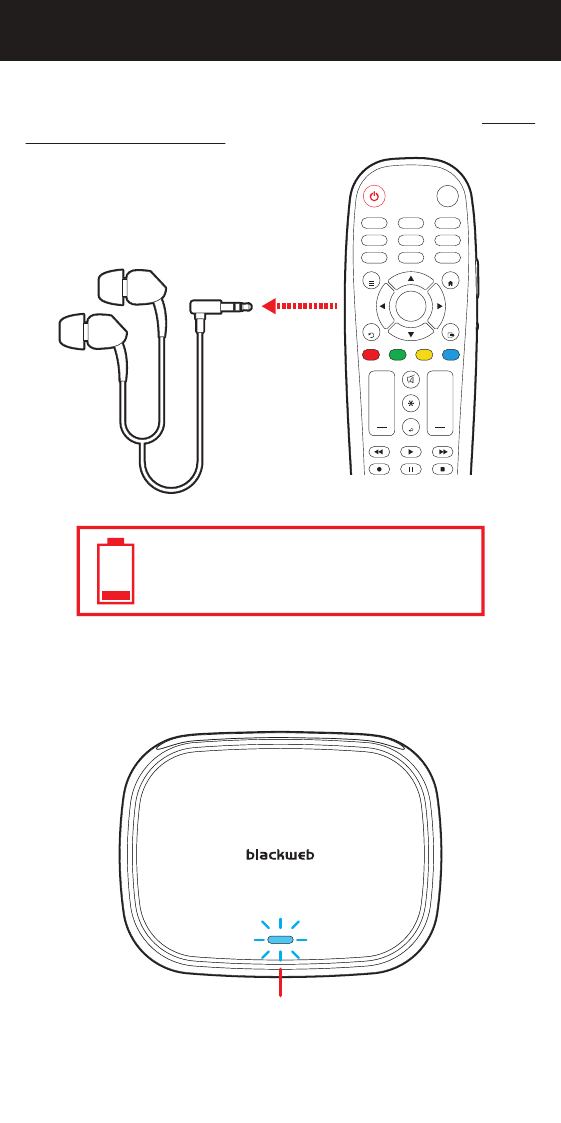
To deactivate the universal remote's Private Listening feature, simply
unplug the headphones.
When the headphones are unplugged, the audio transmitter’s LED indicator
will flash once to indicate that the Private Listening feature has been
deactivated.
CAUTION: DON’T FORGET TO UNPLUG THE
HEADPHONES OR IT WILL DRAIN THE
REMOTE'S BATTERIES.
LED INDICATOR
Flashes once
Unplug
AMP
PROGRAM
AUX
INPUT
FAV
ENTER
123
456
7 8
0
9
+ +
CH
SAT/CBL STREAMTV
BRAY/DVD
GUIDE
VOL CH
MENU
BACK
APPS
EXIT
OK
STEREO HEADPHONES
22

TROUBLESHOOTING
If you are having issues with the universal remote:
The tips below can help you solve problems and answer questions you
may have with your remote control. In general, always make sure:
1) The remote is in the correct device category mode (TV, SAT/CBL,
STREAM, B-RAY/DVD, AMP, AUX); this tells the remote which device
to operate.
2) The batteries are fresh and properly installed.
3) To remove any obstacles between the remote and the device, and that
you’re aiming the remote at the device’s IR sensor.
The remote can’t be programmed to operate my device.
• If you’re using the Direct Code Entry method to enter the codes for your
brand and the device is still not functioning properly after trying all the
code options, try the Auto Code Search method.
• To control combo devices like TV/VCRs or TV/DVDs, you must program
the individual corresponding device buttons to control each part of the
combo unit.
Some of the buttons of the remote are not supported or working
properly on my device.
• It's possible the code that you programmed is not fully compatible with
your device. Try selecting the next code from the options available for
the category and brand of your device.
• There may be some buttons from your device's original remote that are
not supported.
• You may have pressed an invalid button for the device category mode the
remote is in.
The remote will not change the channels on my device.
• Make sure the remote is in the correct device category mode (TV,
SAT/CBL, STREAM, B-RAY/DVD, AMP, AUX) that controls the channels.
• Try pressing the ENTER button after you enter a channel number (a
requirement with certain models and brands of TV and/or Cable/Satellite
boxes).
The remote will not adjust the volume on my device.
• Make sure the remote is in the correct device category mode (TV, SAT/
CBL, STREAM, B-RAY/DVD, AMP, AUX) that controls the volume.
My device’s menu or app hub does not appear.
• Menu and app hub access isn’t supported for all brands. You may need
to use your original remote control to access the menu functions and/or
app hub for some devices.
My remote’s light is blinking
• If while using the remote the indicator light flashes 3 times, this indicates
the batteries need to be replaced.
23
If you are having issues with the Private Listening feature:
• Ensure the batteries in your remote are working and the audio transmitter
is connected to a power source.
• Ensure the television’s selected audio output is configured to send the
audio to the audio transmitter.
• Ensure the television’s audio output volume is not too low or muted
• Ensure the headphones are plugged in properly.
• Raise the headphone volume using the volume control on the right
side of the universal remote.
If the LED indicator is continuously ashing:
Your universal remote and audio transmitter are already paired to work
together out of the box. The LED indicator on your audio transmitter will
be steady blue when paired properly and will flash 1-3 times when the
Private Listening feature is activated or deactivated. If you notice the
LED indicator is continuously flashing, it means that the audio transmitter
and universal remote are not paired. In that case, please follow the
instructions below.
Follow these instructions only if the LED indicator is continuously
ashing on the audio transmitter
PAIRING MODE
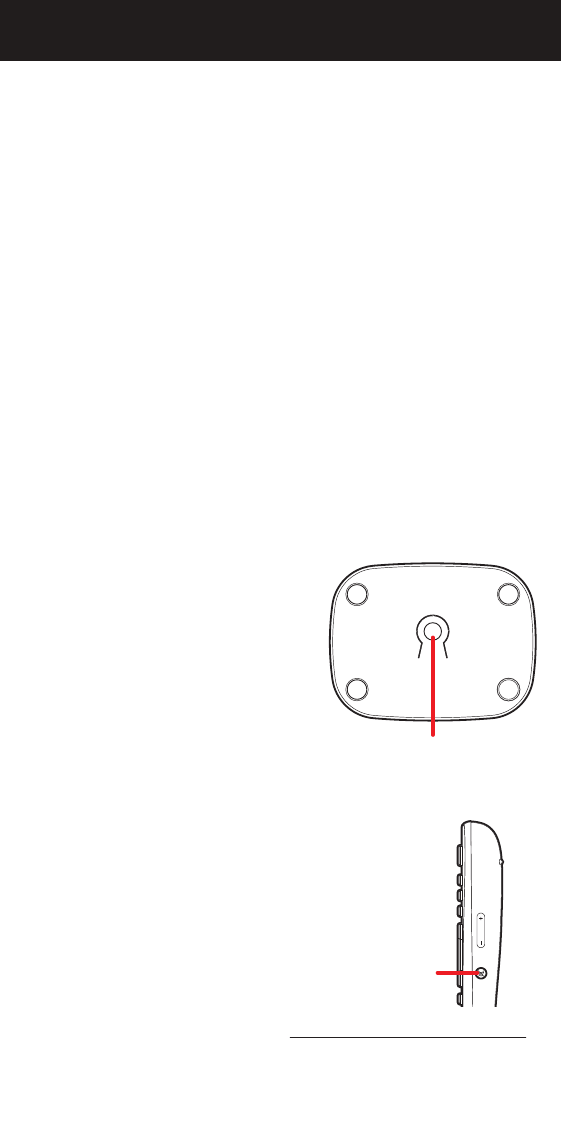
To enter pairing mode:
1. Connect the audio transmitter to a
power source.
2. Plug the headphones into the universal
remote.
3. Locate the PAIRING button on the
bottom of the audio transmitter.
4. Locate the HEADPHONE MUTE
button on the universal remote.
5. With the devices no further than 18”
apart, hold down both buttons for 5
seconds.
When your devices are paired there
will be a short beep in the headphones
and the audio transmitter’s LED
indicator will become steady blue.
For more information, please visit www.myblackwebremote.com
or call the Customer Support Help Line: (877) 907-7010
PAIRING BUTTON
AUDIO TRANSMITTER
BOTTOM
REMOTE
RIGHT SIDE
HEADPHONE
MUTE
24

FCC INFORMATION
This device complies with part 15 of the FCC rules. Operation is subject
to the following two conditions:
(1) this device may not cause harmful interference, and
(2) this device must accept any interference received,
including interference that may cause undesired operation.
NOTE: This equipment has been tested and found to comply with the
limits for a Class B digital device, pursuant to Part 15 of the FCC Rules. These
limits are designed to provide reasonable protection against harmful
interference in a residential installation. This equipment generates, uses
and can radiate radio frequency energy and, if not installed and used in
accordance with the instructions may cause harmful interference to radio
communications. However, there is no guarantee that interference will
not occur in a particular installation. If this equipment does cause harmful
interference to radio or television reception, which can be determined by
turning the equipment off and on, the user is encouraged to try to correct
the interference by one or more of the following measures:
• Reorient or relocate the receiving antenna.
• Increase the separation between the equipment and receiver.
• Connect the equipment into an outlet on a circuit different from that to
which the receiver is connected.
• Consult the dealer or an experienced radio/TV technician for help.
CAUTION: Any changes or modifications not expressly approved by the
party responsible for compliance could void the user’s authority to operate
this equipment.
25