ZMODO Technology H2405 Smart Sprinkler Controller User Manual 1

ZMODO Technology Shenzhen Corp. Ltd. Smart Sprinkler Controller 1

Users manual

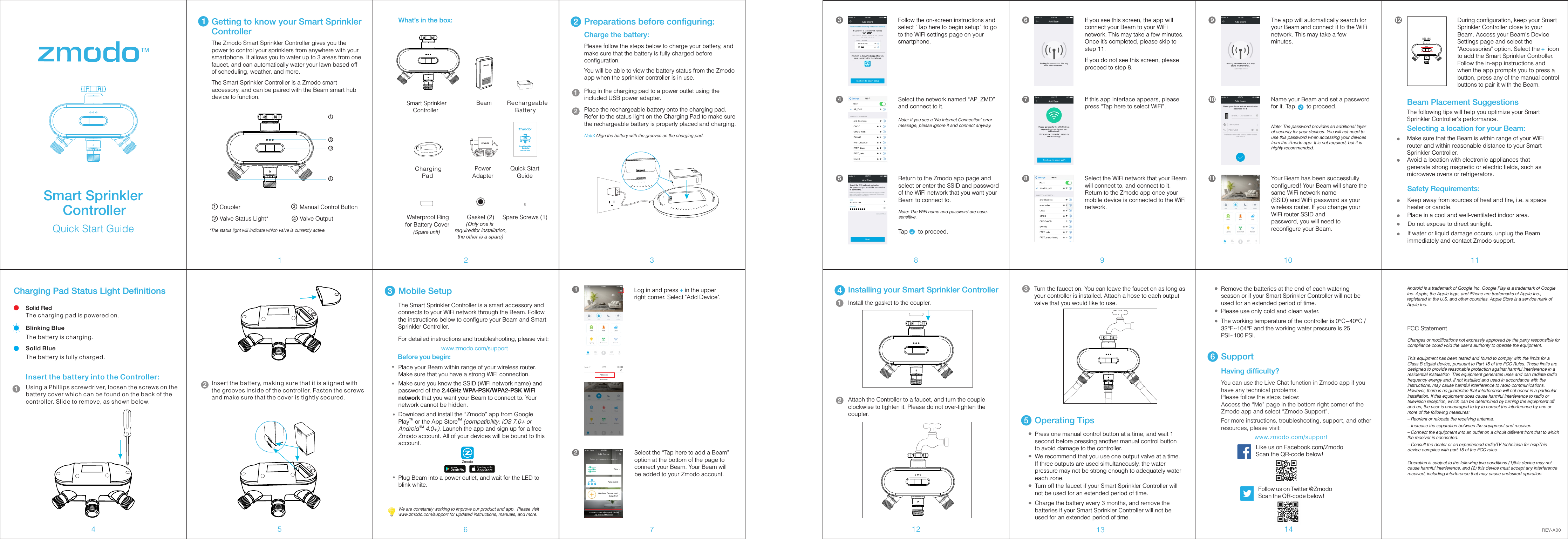
3467211Getting to know your Smart Sprinkler ControllerCoupler Manual Control Button8 9 10 1112 13 14Smart Sprinkler     ControllerPowerAdapterPlug in the charging pad to a power outlet using the included USB power adapter.  2Please follow the steps below to charge your battery, and make sure that the battery is fully charged before configuration. You will be able to view the battery status from the Zmodo app when the sprinkler controller is in use. Place the rechargeable battery onto the charging pad. Refer to the status light on the Charging Pad to make sure the rechargeable battery is properly placed and charging.5Android is a trademark of Google Inc. Google Play is a trademark of Google Inc. Apple, the Apple logo, and iPhone are trademarks of Apple Inc., registered in the U.S. and other countries. Apple Store is a service mark of Apple Inc.Having difficulty?Follow us on Twitter @ZmodoScan the QR-code below! Like us on Facebook.com/Zmodo Scan the QR-code below!www.zmodo.com/supportYou can use the Live Chat function in Zmodo app if you have any technical problems.Please follow the steps below:Access the “Me” page in the bottom right corner of the Zmodo app and select “Zmodo Support”. For more instructions, troubleshooting, support, and other resources, please visit:6SupportThe Zmodo Smart Sprinkler Controller gives you the power to control your sprinklers from anywhere with your smartphone. It allows you to water up to 3 areas from one faucet, and can automatically water your lawn based off of scheduling, weather, and more. Quick Start GuideCharge the battery: Note:Align the battery with the grooves on the charging pad.12Charging Pad Status Light DefinitionsSolid RedThe charging pad is powered on.Blinking BlueThe battery is charging. Solid BlueThe battery is fully charged. Insert the battery into the Controller:Using a Phillips screwdriver, loosen the screws on the battery cover which can be found on the back of the controller. Slide to remove, as shown below. 13Mobile SetupSelect the “Tap here to add a Beam” option at the bottom of the page to connect your Beam. Your Beam will be added to your Zmodo account.2Log in and press    in the upper right corner. Select "Add Device". +13Follow the on-screen instructions and select “Tap here to begin setup” to go to the WiFi settings page on your smartphone.“AP_ZMD”AP_ZMD4Select the network named “AP_ZMD” and connect to it.Note: If you see a "No Internet Connection" error message, please ignore it and connect anyway.5Return to the Zmodo app page and select or enter the SSID and password of the WiFi network that you want your Beam to connect to.Note: The WiFi name and password are case-sensitive.Tap    to proceed.√Select the WiFi network that your Beam will connect to, and connect to it. Return to the Zmodo app once your mobile device is connected to the WiFi network.86If you see this screen, the app will connect your Beam to your WiFi network. This may take a few minutes. Once it’s completed, please skip to step 11.If you do not see this screen, please proceed to step 8.7If this app interface appears, please press “Tap here to select WiFi”.11 Your Beam has been successfully configured! Your Beam will share the same WiFi network name(SSID) and WiFi password as your wireless router. If you change your WiFi router SSID andpassword, you will need to reconfigure your Beam.9The app will automatically search for your Beam and connect it to the WiFi network. This may take a few minutes. 10 Name your Beam and set a password for it. Tap       to proceed.√Note: The password provides an additional layer of security for your devices. You will not need to use this password when accessing your devices from the Zmodo app. It is not required, but it is highly recommended.Operating Tips5Quick Start GuideSmart Sprinkler     ControllerWe are constantly working to improve our product and app.  Please visit www.zmodo.com/support for updated instructions, manuals, and more.Rechargeable      BatteryBeam Charging Pad Spare Screws (1)   Waterproof Ring for Battery CoverGasket (2)1234Valve Status Light* Valve OutputInsert the battery, making sure that it is aligned with the grooves inside of the controller. Fasten the screws and make sure that the cover is tightly secured. 21234Preparations before configuring:What’s in the box:The Smart Sprinkler Controller is a smart accessory and connects to your WiFi network through the Beam. Follow the instructions below to configure your Beam and Smart Sprinkler Controller. For detailed instructions and troubleshooting, please visit:                              www.zmodo.com/supportZmodoBefore you begin:Place your Beam within range of your wireless router. Make sure that you have a strong WiFi connection. Make sure you know the SSID (WiFi network name) and password of the 2.4GHz WPA-PSK/WPA2-PSK WiFi  network that you want your Beam to connect to. Your network cannot be hidden. Download and install the “Zmodo” app from Google TM TMPlay  or the App Store  (compatibility: iOS 7.0+ or  TMAndroid  4.0+). Launch the app and sign up for a free Zmodo account. All of your devices will be bound to this account.Plug Beam into a power outlet, and wait for the LED to blink white. Quick Start GuideSmart Sprinkler       Controller(Spare unit)        (Only one is requiredfor installation,  the other is a spare)12 During configuration, keep your Smart Sprinkler Controller close to your Beam. Access your Beam's Device Settings page and select the "Accessories" option. Select the     icon to add the Smart Sprinkler Controller. Follow the in-app instructions and when the app prompts you to press a button, press any of the manual control buttons to pair it with the Beam. 4Installing your Smart Sprinkler ControllerInstall the gasket to the coupler.1Attach the Controller to a faucet, and turn the couple clockwise to tighten it. Please do not over-tighten the coupler. 2Turn the faucet on. You can leave the faucet on as long as your controller is installed. Attach a hose to each output valve that you would like to use.3REV-A00 Charge the battery every 3 months, and remove the batteries if your Smart Sprinkler Controller will not be used for an extended period of time. Please use only cold and clean water. The working temperature of the controller is 0°C~40°C / 32°F~104°F and the working water pressure is 25 PSI~100 PSI.Turn off the faucet if your Smart Sprinkler Controller will not be used for an extended period of time. Remove the batteries at the end of each watering season or if your Smart Sprinkler Controller will not be used for an extended period of time.Press one manual control button at a time, and wait 1 second before pressing another manual control button to avoid damage to the controller. We recommend that you use one output valve at a time. If three outputs are used simultaneously, the water pressure may not be strong enough to adequately water each zone. The Smart Sprinkler Controller is a Zmodo smart accessory, and can be paired with the Beam smart hub device to function. *The status light will indicate which valve is currently active. Beam Placement SuggestionsThe following tips will help you optimize your Smart Sprinkler Controller's performance.Selecting a location for your Beam:Make sure that the Beam is within range of your WiFi router and within reasonable distance to your Smart Sprinkler Controller.Avoid a location with electronic appliances that generate strong magnetic or electric fields, such as microwave ovens or refrigerators.Safety Requirements:Keep away from sources of heat and fire, i.e. a space heater or candle.Place in a cool and well-ventilated indoor area.Do not expose to direct sunlight.If water or liquid damage occurs, unplug the Beam immediately and contact Zmodo support.+FCC StatementChanges or modifications not expressly approved by the party responsible for compliance could void the user's authority to operate the equipment.This equipment has been tested and found to comply with the limits for a Class B digital device, pursuant to Part 15 of the FCC Rules. These limits are designed to provide reasonable protection against harmful interference in a residential installation. This equipment generates uses and can radiate radio frequency energy and, if not installed and used in accordance with the instructions, may cause harmful interference to radio communications. However, there is no guarantee that interference will not occur in a particular installation. If this equipment does cause harmful interference to radio or television reception, which can be determined by turning the equipment off and on, the user is encouraged to try to correct the interference by one or more of the following measures:– Reorient or relocate the receiving antenna.– Increase the separation between the equipment and receiver.– Connect the equipment into an outlet on a circuit different from that to which the receiver is connected.– Consult the dealer or an experienced radio/TV technician for helpThis device complies with part 15 of the FCC rules.Operation is subject to the following two conditions (1)this device may not cause harmful interference, and (2) this device must accept any interference received, including interference that may cause undesired operation.

Navigation menu