ZMODO Technology NA04-W NVR User Manual
ZMODO Technology Shenzhen Corp. Ltd. NVR
UserManual.wiki
>
ZMODO Technology
>
NA04 W User Manual
User manual
Navigation menu
Upload a User Manual
Namespaces
Wiki Guide
HTML
PDF
Info
Views
User Manual
Discussion / Help
Navigation

![2®PrefaceThis product series is a 4 or 8 channel embedded NVR with pentaplex functionality: the product will perform live video preview, recording, playback, remote access, and backup simultaneously. This advanced product series receives a high quality video stream that is transmitted digitally by the IP Camera (IPC). This video signal is encoded by the NVR and enabled for recording, viewing, conguring, and playback. This document mainly focuses on the installation and conguration of NVR LAN application system. With high performance video, user-friendly GUI, and practical industrial designs; this series NVR is suitable for civil applications such as homes, stores, internet cafes, and small businesses in addition to mainstream security and surveillance applications. Declaration• The content in this manual may be different from the product version you are using. If you experience any issue that is not mentioned in this manual, please contact our tech-support or Zmodo Knowledge Base at kb.zmodo.com. • The software will be updated as necessary. Our company reserves the right to update without notice. Target ReaderThis manual is primarily intended for the following users: • System planner • Onsite tech-support and maintenance personnel • Administrator for system installation • Users for business operationConventions• Click: Refers to left-click with your mouse • Double click: Refers to left-double-click with your mouse • Right Click: Refers to right-click with your mouse • Square brackets "[ ]" indicates the window name, menu name and data sheet, such as [Download]](https://usermanual.wiki/ZMODO-Technology/NA04-W/User-Guide-1955569-Page-3.png)
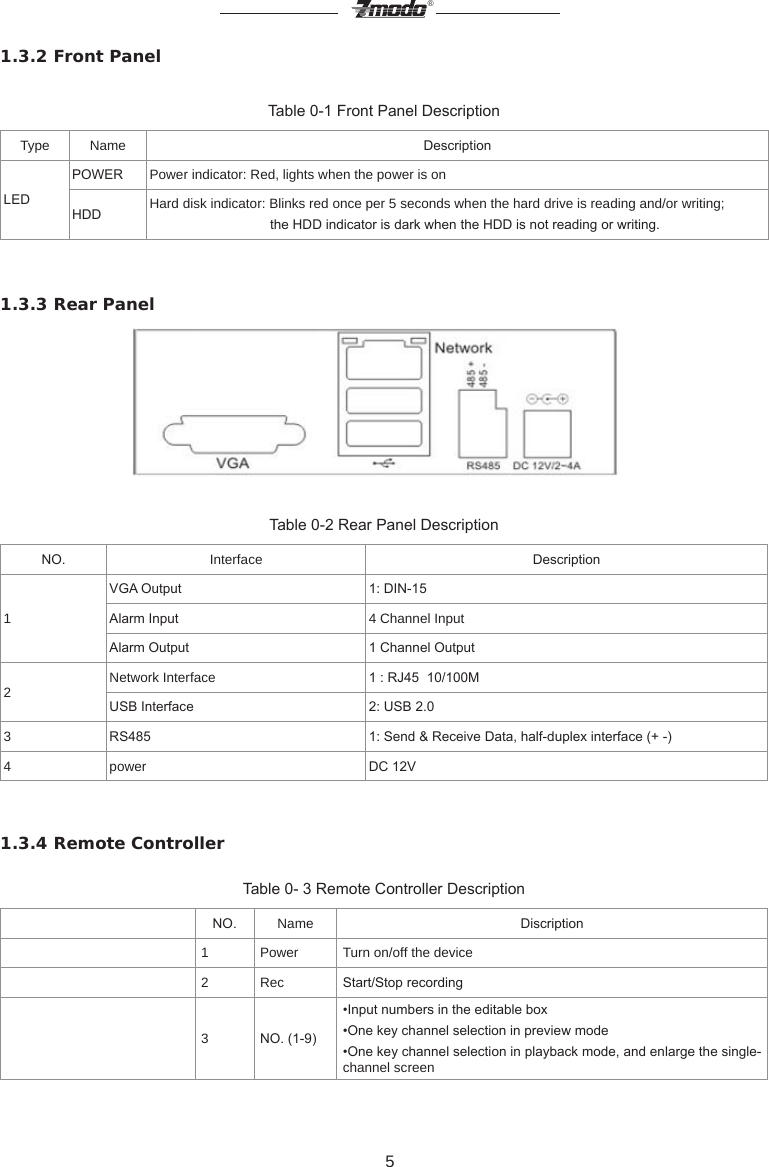
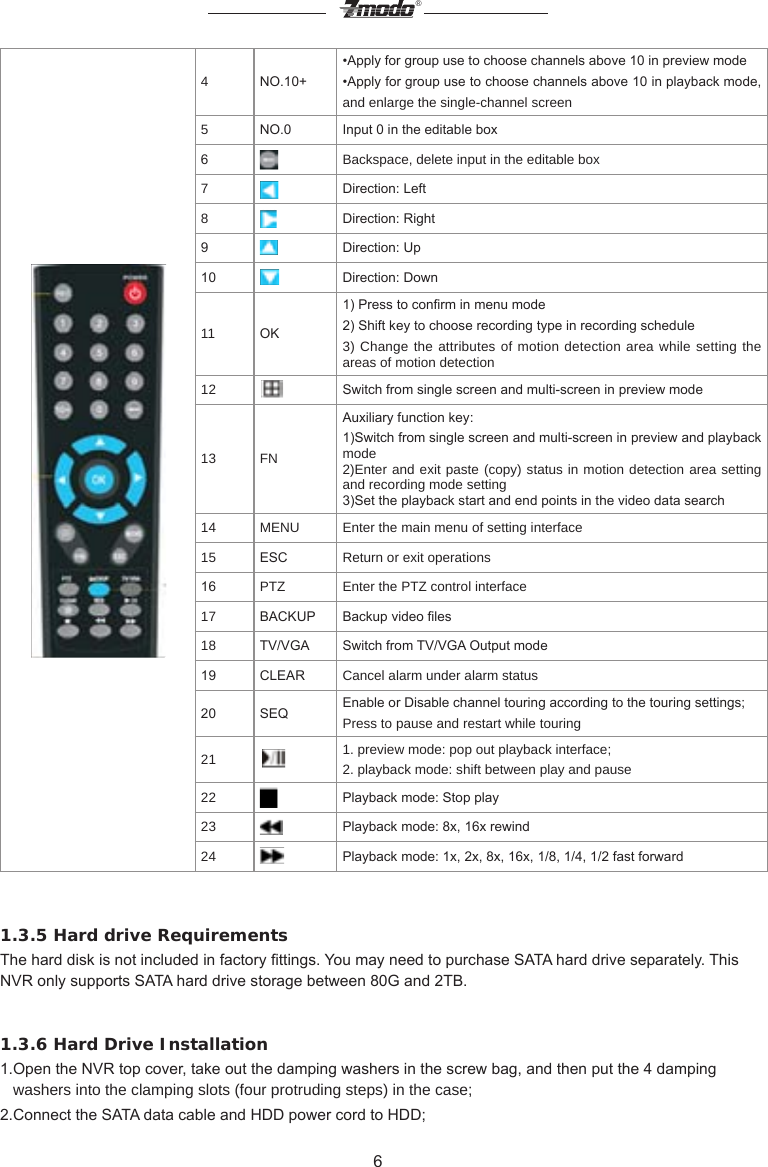
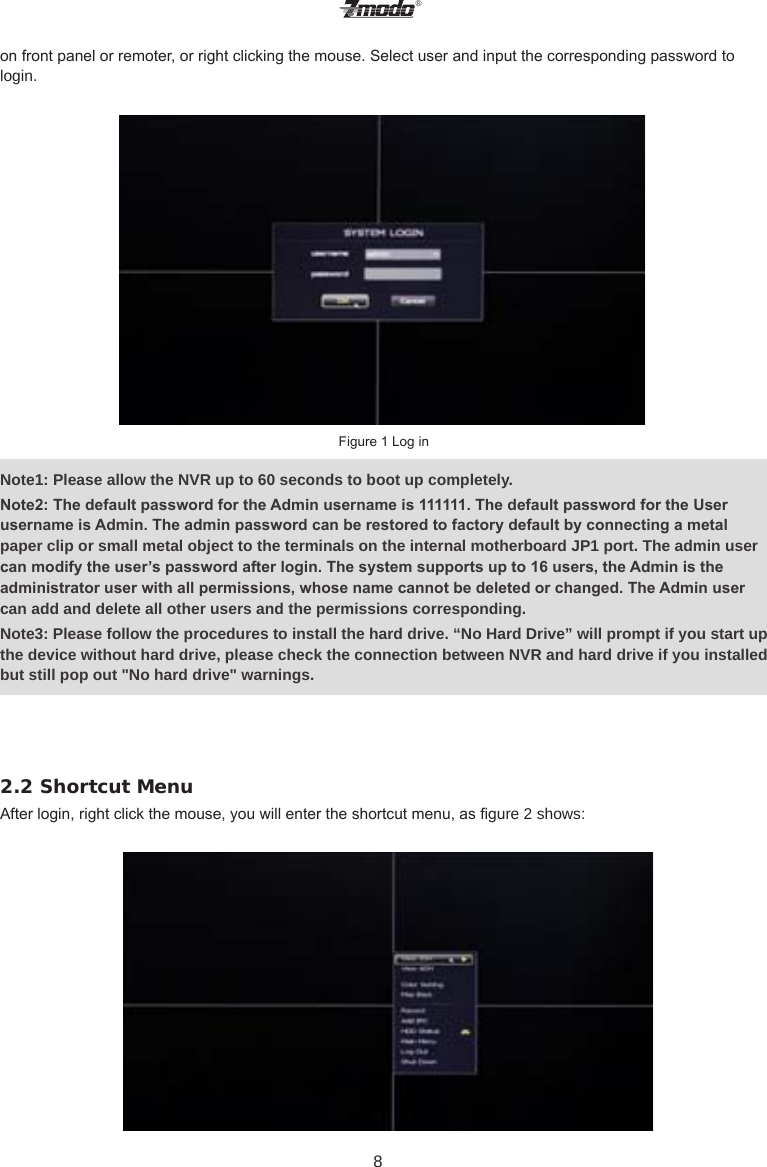
![7®3.Lift up the hard drive with your hand, and turn over the case to make sure that the four holes at the bottom of the case correspond to the hard drive mounting holes, and then x the hard drive using four 4 M3*12 Head Screws plus plain washers.4.Connect the SATA data cable and HDD power cord to the backplane.5.Close the cover, and x the case with screws.Note1: It is highly recommended to install a DVR-Rate Hard Drive into this NVR in order to ensure that the Hard Drive can handle continuous use without wearing down and malfunctioning. Please purchase your Hard Drive from a verified seller to ensure the quality of the hard disk.Note2: Please format the HDD immediately after installation, or the system will experience a "Hard disk error" accompanied with an audible alarm.1.3.7 Device Connection▲Connect to the Power SupplyYou should rst make sure that the AC voltage connected with the NVR power adapter matches with the requirements. And then connect the power adapter to power input interface of NVR, the power indicator on the front panel will light on, indicating the power is connected right. Note: Please use the power adapter included in the package to avoid any damage to the equipment.▲Network AccessThe device provides a standard RJ45 interface, which can easily access the LAN or WAN.During the network connection, you should provide sufcient bandwidth to ensure the uency and clarity of the images transmitted over the network.▲Connect to the Alarm Input and Output DevicesThe alarm input device should be the type of GND connected alarm or voltage input alarm, which can be set as N/O. or N/C.The requirements of voltage alarm signal input level: low level: 0~2V; high level: 5~15V.The green angle pins are supplied for access of PTZ and alarm devices. Wiring steps are as below:1. Pull out the angle pins that inserted in the alarm input and output interfaces;2. Unscrew the screws using micro Philips screwdriver, insert the signal cable into interface under spring, and then tighten the screws.3.Plug in the connected pins into green angle pin socket. ▲Connect to the Video Output Device: VGA Monitor2. NVR Interface Instruction ▇▅▃2.1 Login2.1.1 Starting UpThe Power LED on the front panel will light in red after complete the wiring. Press [Power on/off] button to start up device. System will rst enter preview screen. The login window will pop up by either pressing [ESC] button](https://usermanual.wiki/ZMODO-Technology/NA04-W/User-Guide-1955569-Page-8.png)
![9®Now the monitor will show 4 channel video and one vertical menu. Here are functions of the buttons of the shortcut menu:[View 1CH]: Single click the button , The right side displays 4 channels( as gure 3), Choose one channel to view the full image. Click once again to go back to the 4 channel image.Figure 3 [View 4CH]: Single Click Display all four channel video footage. [Color Setting]: Click (Figure 4) to choose a channel to alter the color, then adjust the parameters of brightness, contrast and gray level. You can adjust by dragging the progress bar or clicking "+", "-".Figure 4 Color Setting[Play Back]: Click to enter the playback interface as gure 5 shows:](https://usermanual.wiki/ZMODO-Technology/NA04-W/User-Guide-1955569-Page-10.png)
![10®Figure 5 PlaybackEnter the Playback interface, choose channel(CH1, CH2, CH3 or CH4), select correct video time period. You can search all of the videos in the current month. The date highlighted in yellow indicates that video exists on this day. Single click the date at which record les exist in order to see the le list. The list below can display all the video les at this day, as gure 6 shows:Figure 6 Date Select at Playback InterfaceYou can choose to display video les per video types (click corresponding video types, the le of this kind will be displayed, or it will not be displayed). Single click les listed in certain time period, click to play and pause, click for fast rewind, click for fast forward, click to stop playing, click to slowplay.Select the time shift icon at the bottom right corner, , you can set the time period of the video les displayed: 24hour, 2hour, 1hour, 30minutes[Record]: Click button to set manual, schedule and alarm recording for single channel or all channels, as gure 7 shows:](https://usermanual.wiki/ZMODO-Technology/NA04-W/User-Guide-1955569-Page-11.png)
![11®Figure 7 Record SettingChoose the record types: Select all to select all the four channels, uncheck all to stop recording of four channels. You can choose single number to lunch recording of this channel.[Add IPC]: Click to enter IPC management interface as gure 8 shows: Figure 8 IP Camera CongNote: Please read completely through Part 2: IP Camera Introduction of this manual before adjusting any settings on the IP Camera Cong Menu. IP Cameras must be connected to the same internet network as the NVR before any changes can be made to the IP Camera Cong menu. Please read the 2.3.3.4 (network setting) and cong the network setting before cong the IP camera. You can add IP cameras by manually or automatically.[1] In order to add an IP camera manually, click on the option that reads .Add Device Manually. Input the IP address of IP cameras and corresponding listening port, then click OK. If the IP address was input correctly, a video image of the camera should appear on the screen.[2] Select blank channel, and click the [search] button to enter IP search interface, now it will list all the IPs of IP cameras searched by NVR. Click the IP you wish to add to the NVR, then click [Add], if the IP address was input correctly, a video image of the camera should appear on the screen. [3] Click [One Step to Add], you can add IP cameras in LAN in one step. [4] In order to enable to auto-add IP Camera function, click [Search and Add All Devices Automatically] on the top left corner, then the system will automatically search IP cameras which are at the same segment in LAN. If the IP address was input correctly, a video image of the camera should appear on the screen. [5] In order to delete an IP address out of the IP Camera Cong menu, Click the IP , and then click [Dele](https://usermanual.wiki/ZMODO-Technology/NA04-W/User-Guide-1955569-Page-12.png)
![12®Device], now you can delete IP cameras from the NVR.Note: The IP of IP cameras and NVR should be in the same network segment and in the same LAN, or else you will not add IP successfully.[HDD Status]: Click , into hard drive information interface as gure 9 shows: Figure 9 Hard Drive Information HDD INFO shows the status of the hard drive which is connecting to NVR, including total space and free space, Click [Refresh] to check the remaining storage on the hard drive. In order to format the Hard Drive, select a hard drive number, then click [Format].Note: 1. You need to input the password of current user when formatting hard drive, and the system will reboot after the format is complete.2. Formatting the Hard Drive will erase all data saved in the hard drive, please back up the important data before formatting.[Main Menu]: Click to enter the main menu interface, Main menu includes playback, information, Setting, IPC manage, advanced setting and backup. Please refer to menu description . Figure 10: Main Menu](https://usermanual.wiki/ZMODO-Technology/NA04-W/User-Guide-1955569-Page-13.png)
![13®[Log Out]: Click , to log out of the NVR interface. To enter the interface once again you only need to right click the mouse, then login in again with correct user name and password.[Shut Down]: Click , and a dialog box will prompt you for the password. After inputting the password, the system will power down. 2.3 Main MenuFigure 11 Main Menu DisplayAs gure 11 shows, the system main menu can be divided into six parts: video playback, system information, system setting, IP camera manage, advance setting and video record backup.2.3.1 PlaybackClick to enter the Playback interface, as per gure 12 shows. Please refer to section[2.2] of this manual to view the introduction of [Playback]. Figure 12 Playback](https://usermanual.wiki/ZMODO-Technology/NA04-W/User-Guide-1955569-Page-14.png)
![14®2.3.2 Information Click to enter the system information display, as gure 13 shows:Figure 13 Information [HDD Info] Click to enter the Hard Drive information menu, as shown in gure 14. Please refer to section .2.2. of this manual to view the HDD Status steps. Figure 14 Hard Drive Information[System Logs]: Click to enter the Log interface as gure 15 shows:](https://usermanual.wiki/ZMODO-Technology/NA04-W/User-Guide-1955569-Page-15.png)
![15® Figure 15 System LogUser can select alarm log and system log, also choose the time and date, click [Search] it will display the required logs. [System Version]: Click to check the system version infromation as gure16 shows: Figure 16 It will display the current software version, hardware version, device name and MAC address Etc. 2.3.3 SettingClick to enter the interface of parameter seeting, as per gure 17 shows:](https://usermanual.wiki/ZMODO-Technology/NA04-W/User-Guide-1955569-Page-16.png)
![16®Figure 17 Setting2.3.3.1 GeneralClick to enter the General Settings interface, as per gure 18 shows:Figure 18 General Information User can set parameters such as system time, system language, time format and video pack duration. Etc.[System Time] You can modify the current system time, click Save to take effect immediately. [Time, Date Format] You can set the date as year-month-day or day-month-year, also set time format as 24 hours and 12 hours. You can set time and date as your need.[Language] You can set language as Chinese or English, save and reboot the system. The setting will take effect immediately.[HDD Full] When hard drive is full, if you set as [Overwrite], then hard drive will automatically clear the oldest video les and continue recording. If you set as [Stop Record], the video will stopped recording when hard drive is full.[Pack Duration] You can set video record pack time to either 60 minutes, 45 minutes, 30 minutes, or 15 minutes.](https://usermanual.wiki/ZMODO-Technology/NA04-W/User-Guide-1955569-Page-17.png)
![17®[Record Delay] You can set up to 99s for the record delay time. After you’ve set the record delay time, the record packing will be restarted after the delay time passed.[Pre-record] Set up to 29s of the pre-recording time, After you’ve set the pre-recording time, it will start recording before it triggered alarm, the in advance time is the pre-record time.[Startup wizard] You can click the check to lunch startup wizard, Then you can set a group of basic setting when system reboots.[Sync IPC time] After you modied system time of NVR, the time of IP camera will be in synchronization. After successfully adding IP cameras, the time on IPC will be synced with NVR’s time.After you nished the setting, please click [Save] to let the conguration take effect immediately.2.3.3.2 Video StreamsClick to enter video code setting interface as gure 19 shows: gure 19[Video quality] The user can choose the appropriate desired image quality: Best, Very Good, Good, Common, Low.[Resolution] Set the image resolution. Main Stream 720P(1280×720=921600 pixel) or VGA(640×480=307200 pixel), Sub stream QVGA(320×240=76800 pixels). [Frame rate] Set the coding frame rate per second. For weaker network connections, it is recommended to reduce the frame rate to control the coding bit rate to ensure the smoothness and continuity of the moving footage.[Bit Rate Type] Two types: CBR(Constant bit rate)and VBR(Variable bit rate) to choose, CBR enables constant bit rate coding, VBR enables variable bit rate coding.After setting parameters, click the [Save] button, the setting will take effect immediately.2.3.3.3 ScheduleClick to video schedule setting as per gure 20 shown:](https://usermanual.wiki/ZMODO-Technology/NA04-W/User-Guide-1955569-Page-18.png)
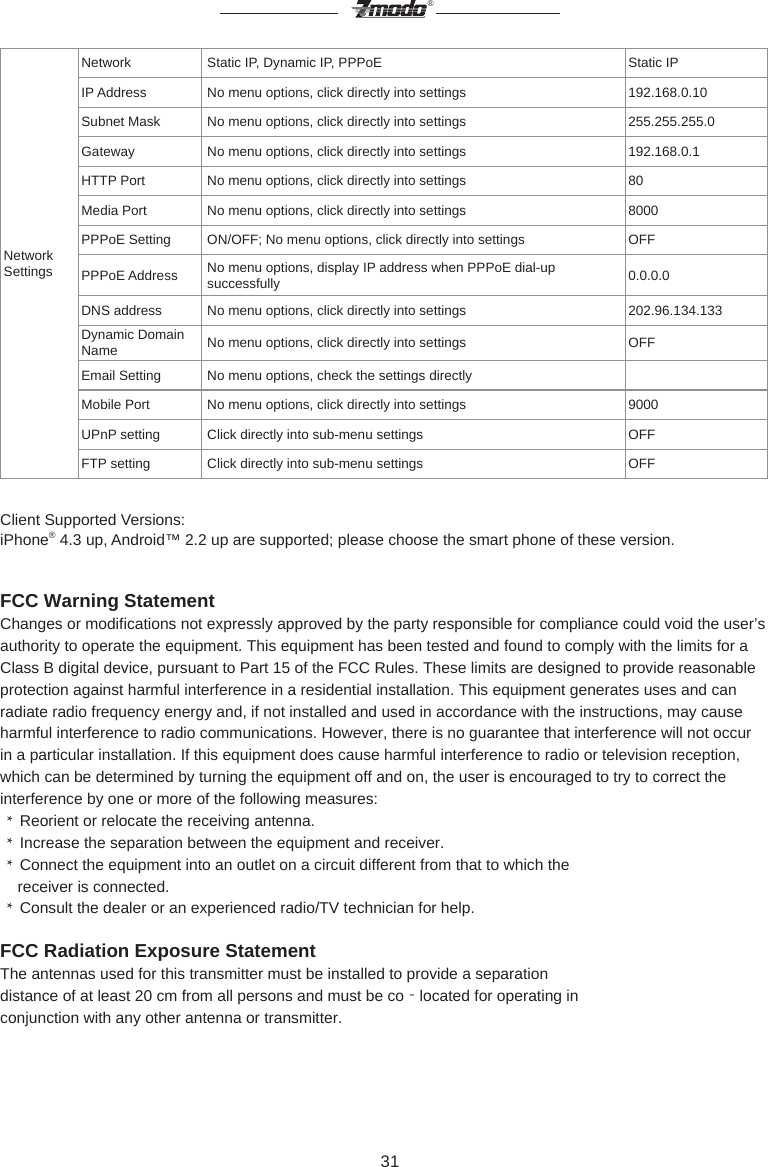
![18®Figure 20Following Features can be set::[1] [Channel] You can choose all to set four channels or set single one channel by selecting from CH01, CH02, CH03, and CH04.[2] [Type] Three types of recording types to choose: Schedule recording, alarm triggered recording and motion triggered recording.[3] [Week/Time] You can choose one day from Monday to Sunday, or choose everyday in the week. You must also check the time period for you to choose. You need to click the time check to enable the time selection.After setting parameters, click the [Save] button, the setting will take effect immediately.2.3.3.4 Network SettingClick to enter the Network Parameter conguration menu, as Figure 21 shows:Figure 21[DHCP] If the router allows DHCP functionality, select DHCP. The IP Camera will obtain IP address automatically from the router. If the router does not allow for DHCP functionality, then the IP address must be obtained manually.[IP address] Set the wired cable IP address of the NVR. The factory setting IP is 192.168.0.10, network segment is 192.168.0.1.](https://usermanual.wiki/ZMODO-Technology/NA04-W/User-Guide-1955569-Page-19.png)
![19®[Subnet mask] Default: 255.255.255.0 (It is highly recommended not to change this section.)[Gateway] Set gateway IP of the NVR, for example if the NVR accesses the public network through the router, the gateway IP need to be set as the router IP which has accessed the public network.[DNS address] If the user has a DDNS account, the DNS address needs to be set as DNS address of the place where the device is belonging to.Note: DNS parameters, MAC address and parameters of three ports have been congured in factory, please do not change it randomly.After setting parameters, click the [Submit] button, the setting will take effect immediately.[PPPOE]: Click into PPPOE Setting, as per gure 22 shows: Figure 22 [ON] Set to enable or disable the PPPOE dial-up function.[Account] The ADSL dial-up account, obtain from internet service provider.[Password] Password of ADSL dial-up account, obtain from internet service provider.After setting all parameters, click the [Save] button, the setting will take effect immediately.[DDNS] Click into DDNS Setting as gure 23 shows: Figure 23 DDNS SettingDynamic DNS setting allows the user to bond the device with a xed domain name if the user has a dynamic IP address. The user may register for a free DNS service at http://zmododns.com/[ON] Check to enable or disable the DDNS function.[Server] http://zmododns.com/ is highly recommended, as this DNS service is operated and maintained by Zmodo. [Domain] The device domain which is set by user, such as mydvr.zmododns.com.](https://usermanual.wiki/ZMODO-Technology/NA04-W/User-Guide-1955569-Page-20.png)
![20®[Account] The user name which you registered on DDNS server.[Password] The password which you registered on DDNS server.After setting all parameters, click the [Save] button, the setting will take effect immediately.[E-mail] Click enter Email setting interface, see gure 24 shows: Figure 24 Email SettingThis menu is for enabling email notication upon motion detection or alarm.[SSL ON] Enable or disable SSL, based on the type of email server[SMTP port] Port of SMTP Server.[SMTP server] Email server address, such as smtp.gmail.com.[Send to] Email address to receive the email.[From] Email address to send email. [Password] Log in password for the email box.After setting all parameters, click the [Save] button, the setting will take effect immediately.[UPNP] Click to enter UPNP setting interface, as gure 25 shows: Figure 25[ON] If in LAN it has server with UPNP functionality, enable this function, the server will automatically forward the set port to public network.[Web mapping port] Set the web port which will be mapping to the server.[Video mapping port] Set the digital video port which will be mapping to the server.[Mobile phone mapping port] Set the mobile phone port which will be mapping to the server..After setting all parameters, click the [Save] button, the setting will take effect immediately.Note: Port mapping can be selectable between 1024~65535. It can't be repeated.](https://usermanual.wiki/ZMODO-Technology/NA04-W/User-Guide-1955569-Page-21.png)
![21®[FTP] Click enter FTP setting interface, see gure 26 shows:Figure 26 FTP SettingFTP services will send the alarm triggered recording le or captured photo via FTP to certain FTP server.[Server] IP address or HTTP network address of FTP server.[Account] User name of the FTP Server.[Password] Password of the FTP Server.After setting all parameters, click the [Save] button, the setting will take effect immediately.2.3.3.5 [Display]Click to enter display setting interface as gure 27 shows:Figure 27[Channel and time display] When this option is checked, it will display the name and time of channel during live video, when this option is not checked, it will not display the name and time of channel during live video.[Channel name] Modify in the pane behind [Channel Name]. The channel name will be shown on the top left of the video image. It supports maximum 16 characters. Click the [Save] button, the setting will take effect immediately.[Resolution] You can congure the display resolution of the monitor.[Transparency] The transparency of interface can be congured in seven levels from 1 to 7.](https://usermanual.wiki/ZMODO-Technology/NA04-W/User-Guide-1955569-Page-22.png)
![22®[Enable AUTO SEQ] Choosing channel numbers from 1 to 4 and setting the tour intervals, the system will display four channels’ video image in full screen in certain sequence, the detailed steps as following: [1] Set the interval time. It’s the time interval between two channels’ full screen display [2] Set channels of video tour sequencing. You can set the channel numbers as per your need. [3] Click whether to go back to quad screen. When the check box is enabled, the system will go back to quad screen rst and then continue sequencing after one tour of sequencing. Click [Save], the setting will take effect immediately.2.3.3.6 External AlarmClick to enter alarm setting, as shown in gure 28:Figure 28 External AlarmAlarm setting steps are as follows:[1] [Alarm In] Choose the channel number of alarm input from all four channels, users can choose according to their specic needs, check ON to turn on alarm input channel.[2] [Type] Choose the type of alarm from two options: Normally Open & Normally Close.[3] Check [Alarm Out] to set the alarm output, the device only support one channel alarm output, user can also set the time of alarm delay ( up to 30secs)[4] [Trigger Period] iis for setting the alarm triggered period. Click [set] to set the alarm triggered period, user can set the period of alarm triggered according to their specic needs.[5] [Record Channel] is for setting the channel of alarm triggered recording, the user can choose any channel or all 4 channels for alarm triggered recording.[6] Choose the type of alarm, the device supports E-mail Alarm & Buzzer Alarm. Choose E-mail Alarm, then emails will be sent to appointed email account when alarm is triggered. Choose Buzzer, then there will be buzzer sound when alarm is triggered.Click [Save] to save all the above settings.2.3.3.7 Motion Detection Alarm](https://usermanual.wiki/ZMODO-Technology/NA04-W/User-Guide-1955569-Page-23.png)
![23®Click to enter motion alarm interface, as shown in gure 29: Figure 29 Motion AlarmSteps of setting up the motion detection are as follows:[1] Set the alarm channel, user can choose either one channel or all channels to set alarm;[2] Check [Record] to turn on motion detected recording;[3] [Alarm delay] is for user to set the alarm sound duration (Ranges from 2 – 30secs)[4] Check [Alarm Out] for alarm output[5] Check [Buzzer] to turn on buzzing sound when motion detected, Click [Save] to save the settings.2.3.3.8 Hard Drive AlarmClick to enter hard drive alarm setting interface, as shown in gure 30: Figure 30There are three types of HDD alarm: No Disk, HDD Error, and HDD Full. Check [ON], then warning box will](https://usermanual.wiki/ZMODO-Technology/NA04-W/User-Guide-1955569-Page-24.png)
![24®popup if any of above abnormal situations appears next time when you turn on the device. Check [Buzzer], then system will alarm buzzer if any of above abnormal situations appear next time when you turn on the device. Note: You need to click [Save] to take affect the settings.2.3.4 IPC ManagementClick to enter IPC conguration interface, as shown in gure 31: Figure 31Please refer to [Add IPC] at section [3.1] of this manual for the details for adding IP Cameras to the NVR.2.3.5 Advanced SettingClick for advanced setting interface, sub-menu interface as shown in gure 32: Figure 32 Advance Setting](https://usermanual.wiki/ZMODO-Technology/NA04-W/User-Guide-1955569-Page-25.png)
![25®2.3.5.1 AccountClick to enter user management interface, menu interface as shown in gure 33:Figure 33 System AccountUsers can modify the user name, password, and permissions in the user management interface, they can also add and delete users.[Change User Password] Left click the user you need to change, and then click [Edit Account], interface as shown in gure 34 will popup.Figure 34 Edit AccountType in the old password, set a new password, and then re-enter the new password, click [Save] to save your new password. Password changed successfully.[Add User] Click [Add Account] to enter add user interface, as shown in gure 35:](https://usermanual.wiki/ZMODO-Technology/NA04-W/User-Guide-1955569-Page-26.png)
![26®Figure 35 Add UserYou can add both administrator and ordinary user here. Check [Administrator] at the top left to add administrator, while uncheck it to add ordinary users. Users can set the username and password according to their specic needs. After setting, click [Save] to save the settings. User added successfully![Delete User] Click [Delete Account] to delete users. Click the user you want to delete, then click [Delete user] to popup a prompt box to type in the user password, as shown in gure 36, User only need to input the administrator user password to delete the user you want to.Figure 36 Delete UserNote: Only the administrator user can delete other user information, ordinary users do not have the permission.2.3.5.2 Restore Factory SettingClick to Restore the factory settings, as shown in gure 37.](https://usermanual.wiki/ZMODO-Technology/NA04-W/User-Guide-1955569-Page-27.png)
![27®Figure 37System will popup a message interface after clicking default, hit [OK], user will need to input the user password to restart the system to nish restore the factory settings.Note: 1. Only administrators have the permission to restore the factory settings, ordinary users do not have the permission. 2.Parameters will also restore to factory settings after you click restore the factory settings, users can edit them according to specic needs.2.3.5.3 Upgrade SystemClick to enter system upgrade interface, as shown in gure 38:Figure 38 Upgrade SystemNote: Please have all IP Cameras disconnected from the NVR while attempting a software update.Users can upgrade the system either under NVR IE interface, or using a USB ash drive. (Before upgrading the system, users need to copy the upgrade les in the current directory of USB ash drive, and then insert the USB ash drive to the NVR USB port.) After well insert the USB ash drive, click [Upgrade], system starts to upgrade.](https://usermanual.wiki/ZMODO-Technology/NA04-W/User-Guide-1955569-Page-28.png)
![28®Note: 1. Do not cut off the power during system upgrading. 2. If you insert the USB ash drive before turning on the device, system will automatically begin updrading after device boot. Users do not need to enter system upgrade interface, but make sure that do not cut off the power. 3. Users can reboot the NVR after an unsuccessful software update to attempt the software update again.2.3.5.4 System MaintenanceClick to enter system maintenance interface, as shown in gure 39: Figure 39 System MaintenanceUnder system maintenance, users can setup any time point at any date for automatic system maintenance. Users only need to input a time point, then choose a date from Monday to Friday, and click [Save], system will automatically restart for maintenance.2.3.6 Back UpClick to enter the video backup interface, as shown in gure 40.Note: You must insert a USB ash drive or removable HDD before backup.](https://usermanual.wiki/ZMODO-Technology/NA04-W/User-Guide-1955569-Page-29.png)
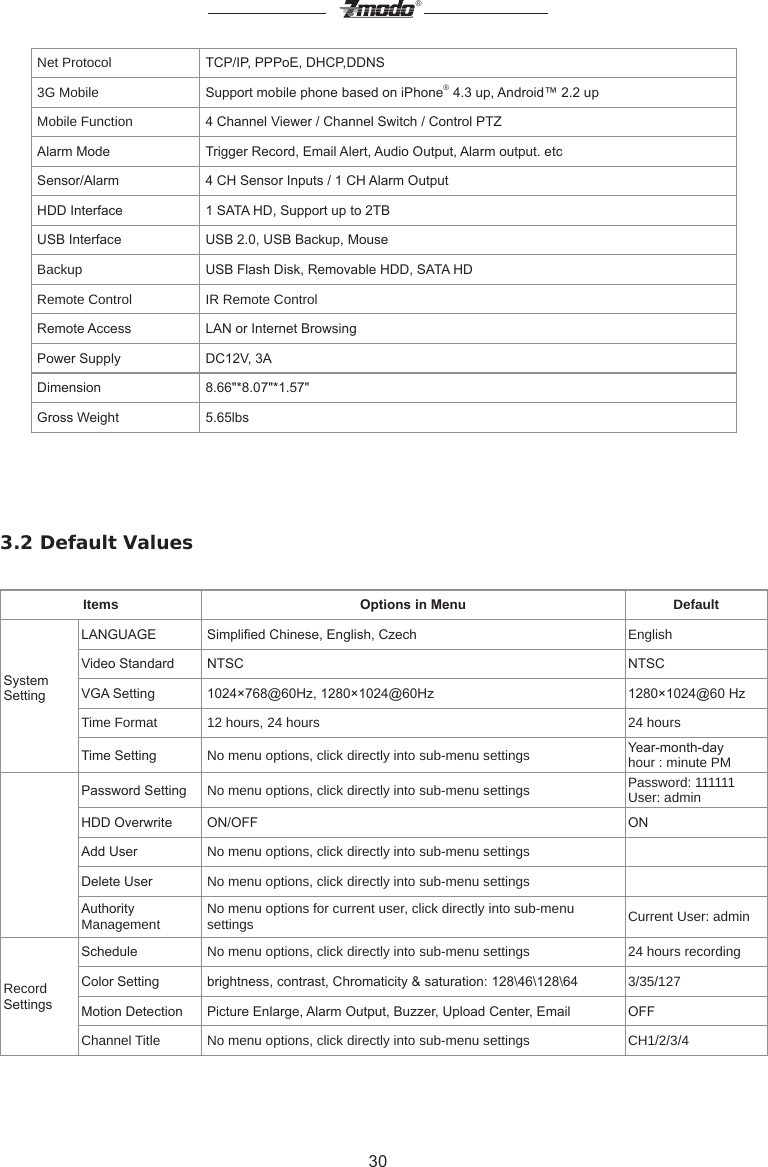
![29®Figure 40 BackupVideo Backup Steps are as follows:[1] Insert USB ash drive or other removable HDD;[2] Choose the channel and timeline you want to backup, click [search] to list the corresponding video les. [Prev. Page] means turn to previous page, [Next Page] means move to the next page, [First Page] means go to the rst page, while [Last Page] means move to the end page.[3] Click the video le you want to backup, the status become yes, then click [Backup] to start backup the le. Note: There is status notication during backup, please do not pull out the USB ash drive under unnished status.Appendix:3.1 Product information and default parameter:Model ZMD-NV-SBN4/ZMD-NV-SBN8/ZMD-NH-SBN4Video System NTSC Operation System Linux BasedVideo Output VGA/720P Display Frame Rate 120fps @VGADisplay Resolution 1024×768@60Hz, 1280×1024@60HzRecording Frame Rate 120fps @VGARecord Resolution 120fps @VGARecord Mode Manual / Time Scheduled / Alarm Triggered/MotionPlayback Mode Normal Play /Fast Forward /Fast Rewind/Slow PlayNetwork Function Real-time Preview, Record, Playback, Download, NVR Setting, Upgrade, Mobile & Email Function etcNetwork Interface RJ45, 10M/100M](https://usermanual.wiki/ZMODO-Technology/NA04-W/User-Guide-1955569-Page-30.png)