ZMODO Technology SHAZ02W Remote Control User Manual 1

ZMODO Technology Shenzhen Corp. Ltd. Remote Control 1

Users Manual

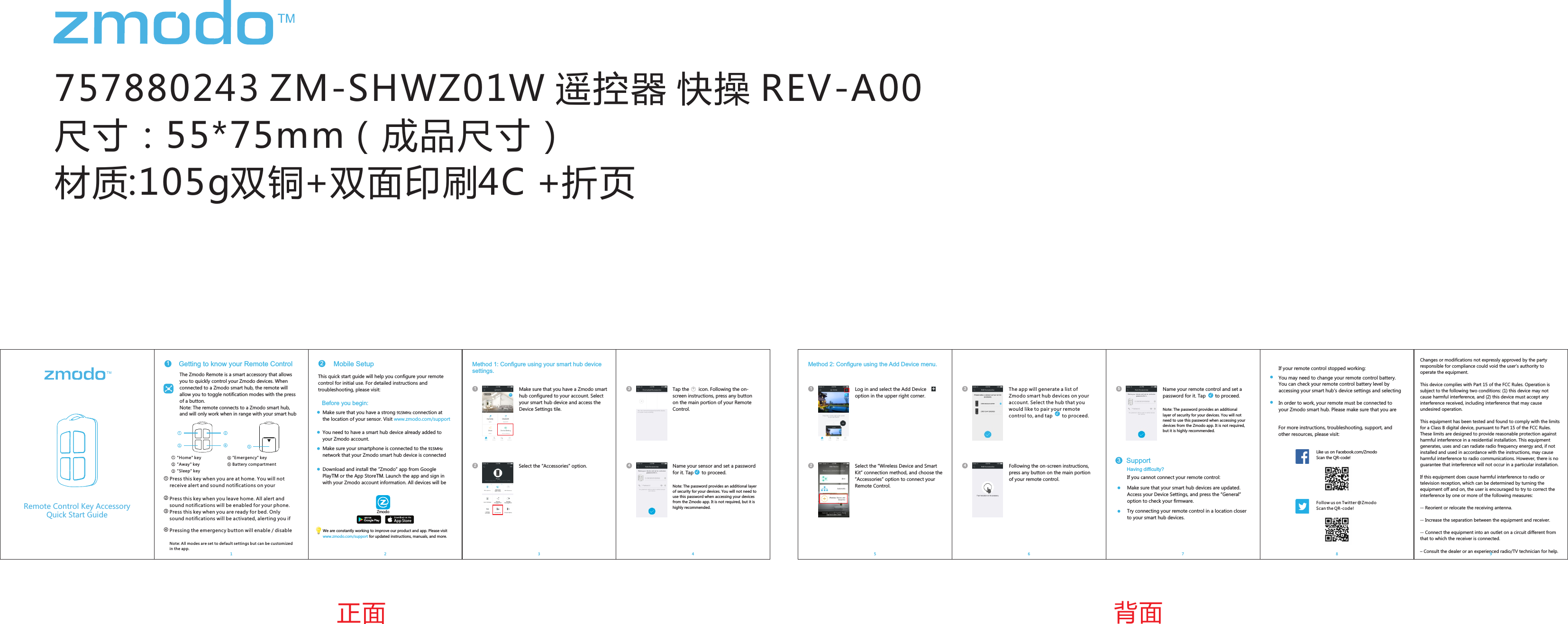
757880243 ZM-SHWZ01W 遥控器 快操 REV-A00尺寸:55*75mm(成品尺寸) 材质:105g双铜+双面印刷4C +折页Pivot Quick Start GuideMethod 1: Configure using your smart hub device settings.Select the “Accessories” option. Select the “Wireless Device and Smart Kit” connection method, and choose the “Accessories” option to connect your Remote Control.Like us on Facebook.com/Zmodo  Scan the QR-code!Follow us on Twitter @Zmodo Scan the QR-code! 正面 背面Name your sensor and set a password for it. Tap      to proceed.Note: The password provides an additional layer of security for your devices. You will not need to use this password when accessing your devices from the Zmodo app. It is not required, but it is highly recommended.√Name your remote control and set a password for it. Tap       to proceed.Note: The password provides an additional layer of security for your devices. You will not need to use this password when accessing your devices from the Zmodo app. It is not required, but it is highly recommended.Make sure that you have a Zmodo smart hub configured to your account. Select your smart hub device and access the Device Settings tile.11Log in and select the Add Deviceoption in the upper right corner.+Getting to know your Remote Control1The Zmodo Remote is a smart accessory that allows you to quickly control your Zmodo devices. When connected to a Zmodo smart hub, the remote will allow you to toggle notification modes with the press of a button. Note: The remote connects to a Zmodo smart hub, and will only work when in range with your smart hub This quick start guide will help you configure your remote control for initial use. For detailed instructions and troubleshooting, please visit:Before you begin:Make sure that you have a strong 915MHz connection at the location of your sensor. Visit   www.zmodo.com/supportYou need to have a smart hub device already added to your Zmodo account.Make sure your smartphone is connected to the 915MHz network that your Zmodo smart hub device is connected Download and install the “Zmodo” app from Google PlayTM or the App StoreTM. Launch the app and sign in with your Zmodo account information. All devices will be ZmodoWe are constantly working to improve our product and app. Please visit www.zmodo.com/support for updated instructions, manuals, and more.Tap the       icon. Following the on-screen instructions, press any button on the main portion of your Remote Control.+Following the on-screen instructions, press any button on the main portion of your remote control.The app will generate a list of Zmodo smart hub devices on your account. Select the hub that you would like to pair your remote control to, and tap       to proceed.√Mobile Setup2If your remote control stopped working:You may need to change your remote control battery. You can check your remote control battery level by accessing your smart hub’s device settings and selecting In order to work, your remote must be connected to your Zmodo smart hub. Please make sure that you are “Emergency" keyBattery compartment"Home" key“Away" key“Sleep" key① ② ③ ④  1Press this key when you are at home. You will not receive alert and sound notifications on your Press this key when you leave home. All alert and sound notifications will be enabled for your phone. Press this key when you are ready for bed. Only sound notifications will be activated, alerting you if Pressing the emergency button will enable / disable 223344Method 2: Configure using the Add Device menu.1125+1346√157 8If you cannot connect your remote control:Having difficulty?Make sure that your smart hub devices are updated. Access your Device Settings, and press the “General” option to check your firmware.Try connecting your remote control in a location closer  to your smart hub devices.Support3For more instructions, troubleshooting, support, and other resources, please visit:Remote Control Key AccessoryQuick Start GuideNote: All modes are set to default settings but can be customized in the app. Changes or modifications not expressly approved by the party responsible for compliance could void the user’s authority to operate the equipment.This device complies with Part 15 of the FCC Rules. Operation is subject to the following two conditions: (1) this device may not cause harmful interference, and (2) this device must accept any interference received, including interference that may cause undesired operation.This equipment has been tested and found to comply with the limits for a Class B digital device, pursuant to Part 15 of the FCC Rules. These limits are designed to provide reasonable protection against harmful interference in a residential installation. This equipment generates, uses and can radiate radio frequency energy and, if not installed and used in accordance with the instructions, may cause harmful interference to radio communications. However, there is no guarantee that interference will not occur in a particular installation.If this equipment does cause harmful interference to radio or television reception, which can be determined by turning the equipment off and on, the user is encouraged to try to correct the interference by one or more of the following measures:-- Reorient or relocate the receiving antenna.-- Increase the separation between the equipment and receiver.-- Connect the equipment into an outlet on a circuit different from that to which the receiver is connected.– Consult the dealer or an experienced radio/TV technician for help.9

Navigation menu