ZhuHai Seine Technology PANTUM Monochrome Laser Printer User Manual Confidential 2
ZhuHai Seine Technology Co.,Ltd. Monochrome Laser Printer Confidential 2
Contents
- 1. Confidential_User Manual1
- 2. Confidential_User Manual2
Confidential_User Manual2
5-3
5.1.1.1.1. Wi-Fi conguration Tool
1. Function Description
The Wi-Fi conguration tool is used to congure the printer with the SSID, the encryption
method and the password provided by the user to connect the printer to the wireless network.
2. Steps
1) Detect the wireless network card
The Wi-Fi conguration tool uses the wireless network card on computer to search for the
wireless network. When the computer does not have a wireless network card, the option of
Manually enter the SSID will be automatically checked on the Wireless Network List page.
Please skip to Step 3 in this case.
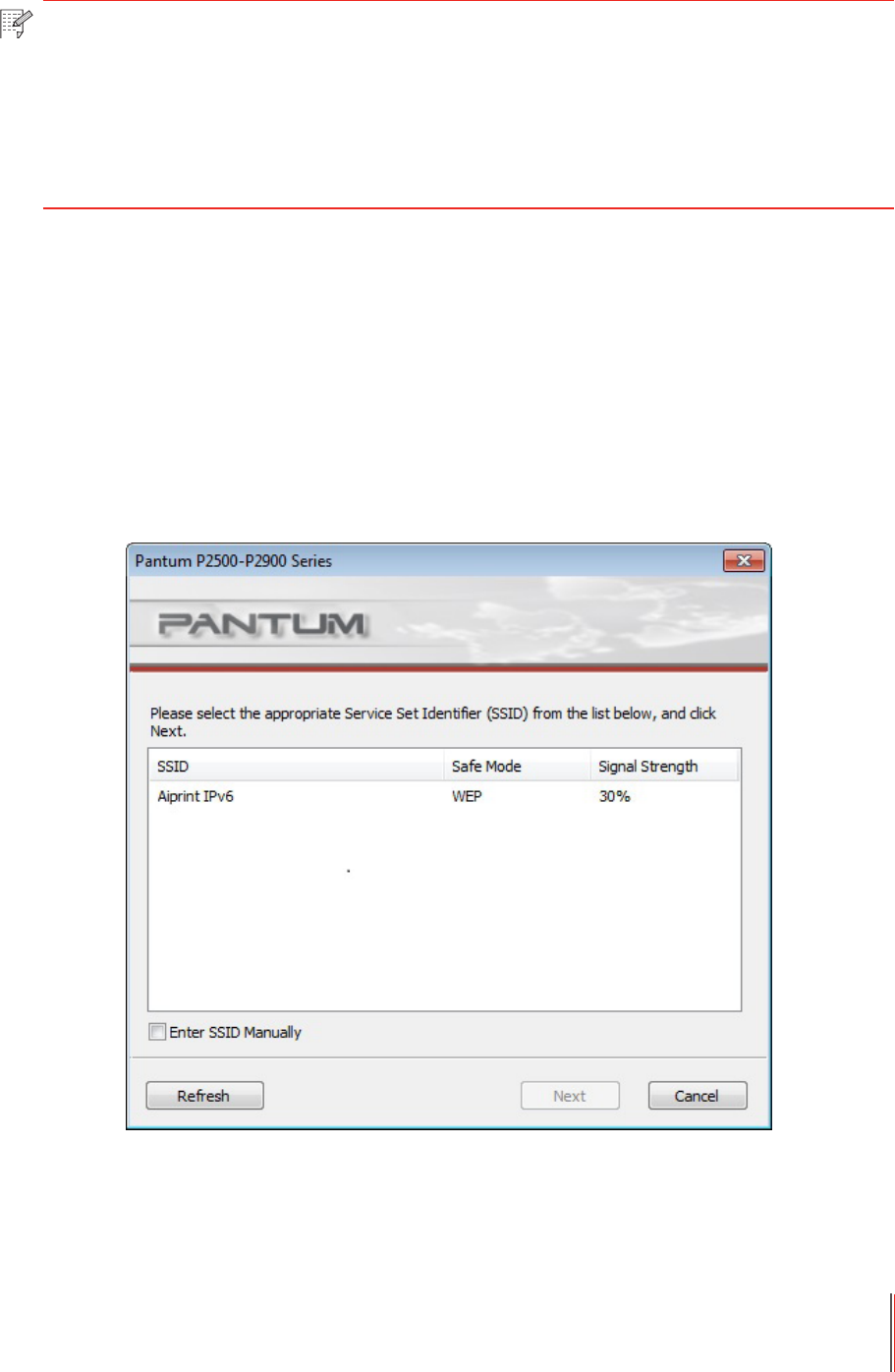
2) Wireless Network List
After launching the conguration tool, the screen of Network List detected by the wireless
network conguration program appears, where you can select the wireless network.
• The network list shows the information found by the program, e.g., SSID, which is sorted
by SSID. Users can select an item in the list, and then click on Next to enter the Information
Input interface.
• Manually enter the SSID: click to switch to the screen of Manually Enter the SSID.
Note: • If the PC has a wireless network card, you can select an SSID from the wireless
network list detected by the PC.
• If the PC has no wireless network card, you can choose to enter the SSID
manually.
• You can also get the SSID list by printing the wireless network information page,
and then enter the SSID manually.
5-4
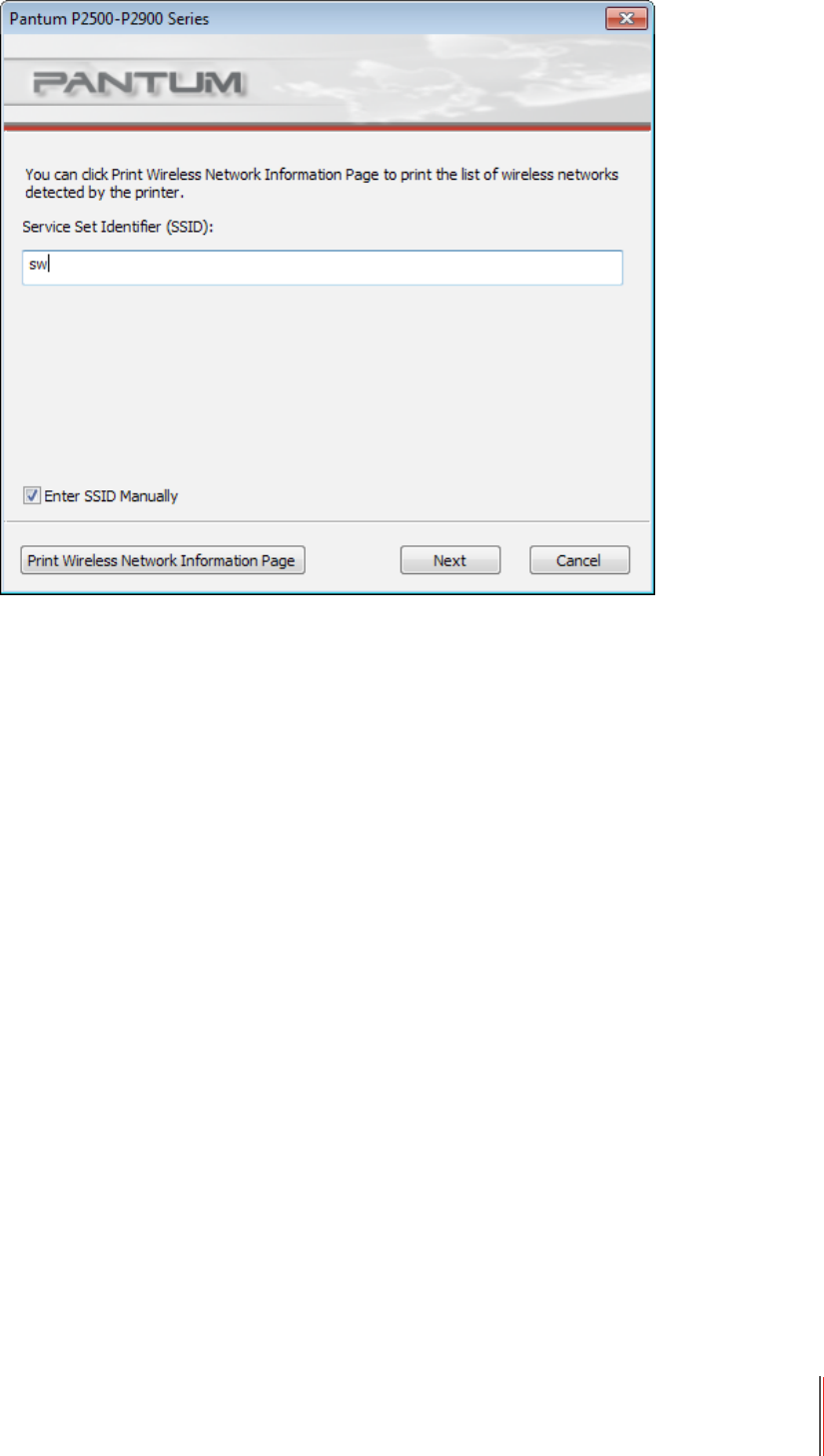
3) Screen of Manually Enter the SSID
This screen appears when the user check the option of Manually Enter the SSID.
SSID: enter the service set identier of the network that you want to connect during printing,
with the maximum length of 32 characters.
Print the wireless network information page: allows you to print the wireless network list found
by the printer.
5-5
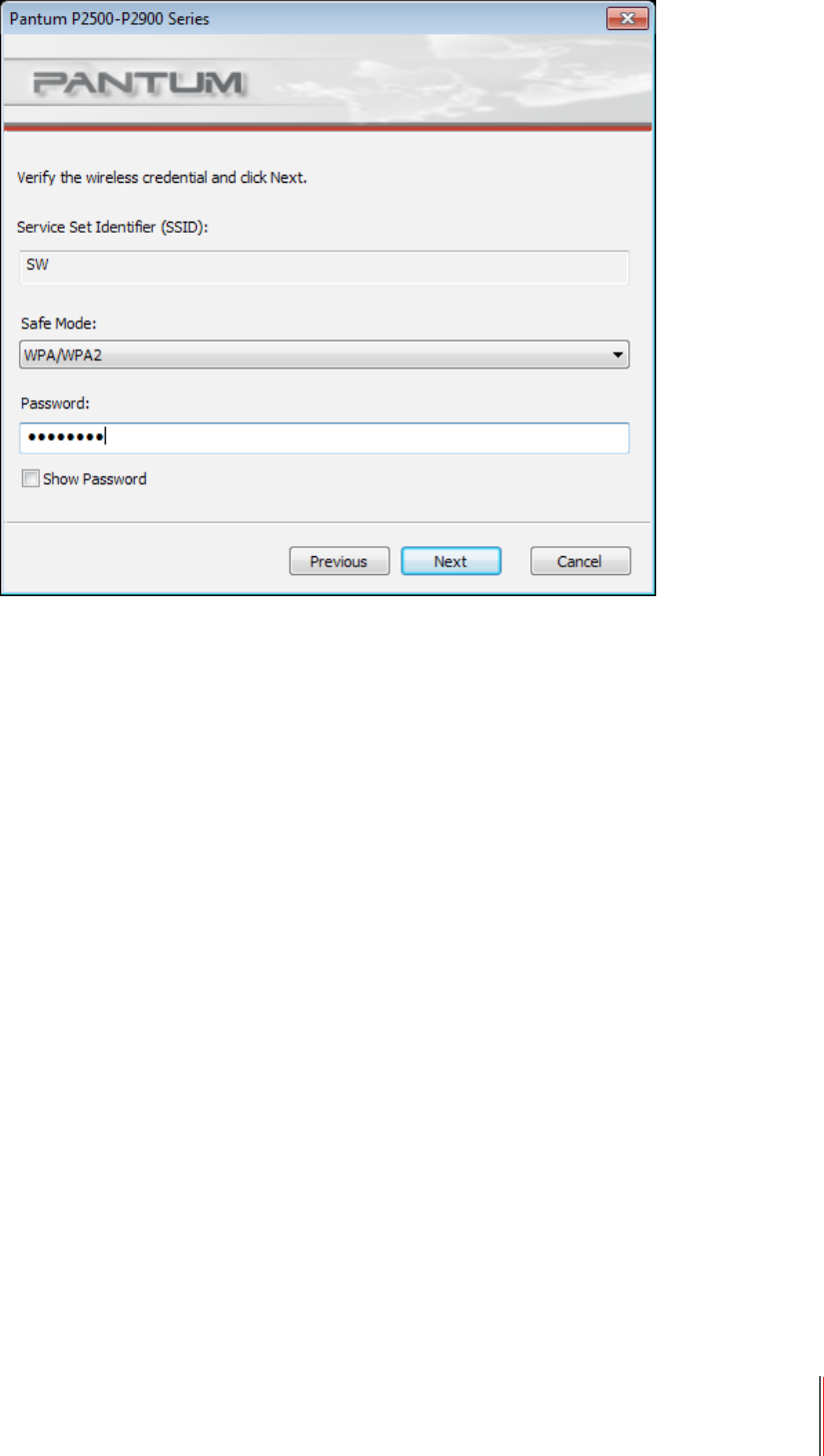
4) Screen of Information Entry
Screen of Information Entry: allows you to enter the wireless network.
Safe Mode: three types are available currently, namely None, WEP, and WPA/WPA2. When
it is None, the password entry eld will be hidden, which means no password is needed while
connecting the SSID provided. The range for WEP entry is 1~26 characters, and that of WPA/
WPA2 is 8~64 characters.
Show Password: it is unchecked by default; when it is checked, the password entered will be
displayed as it is instead of asterisks.
5-6
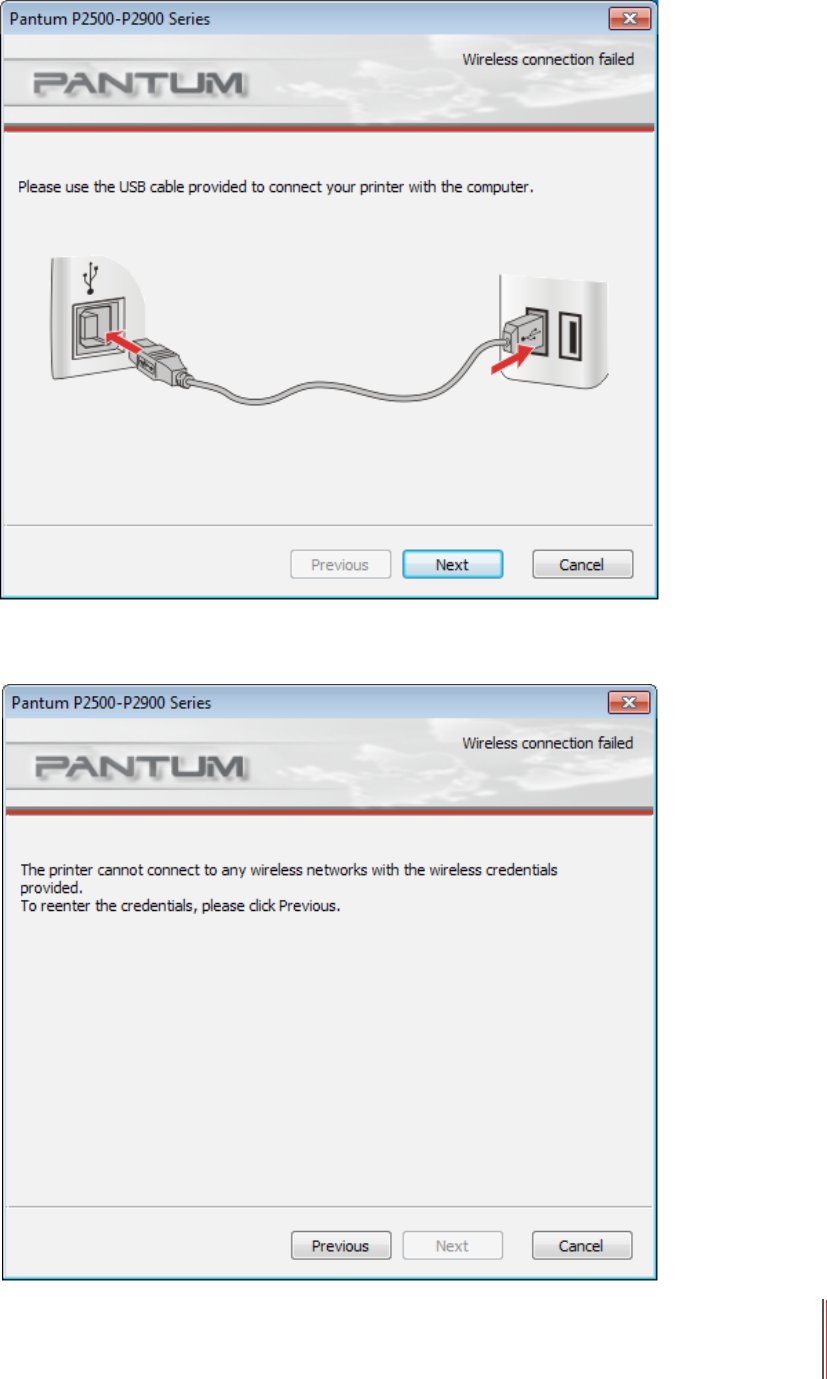
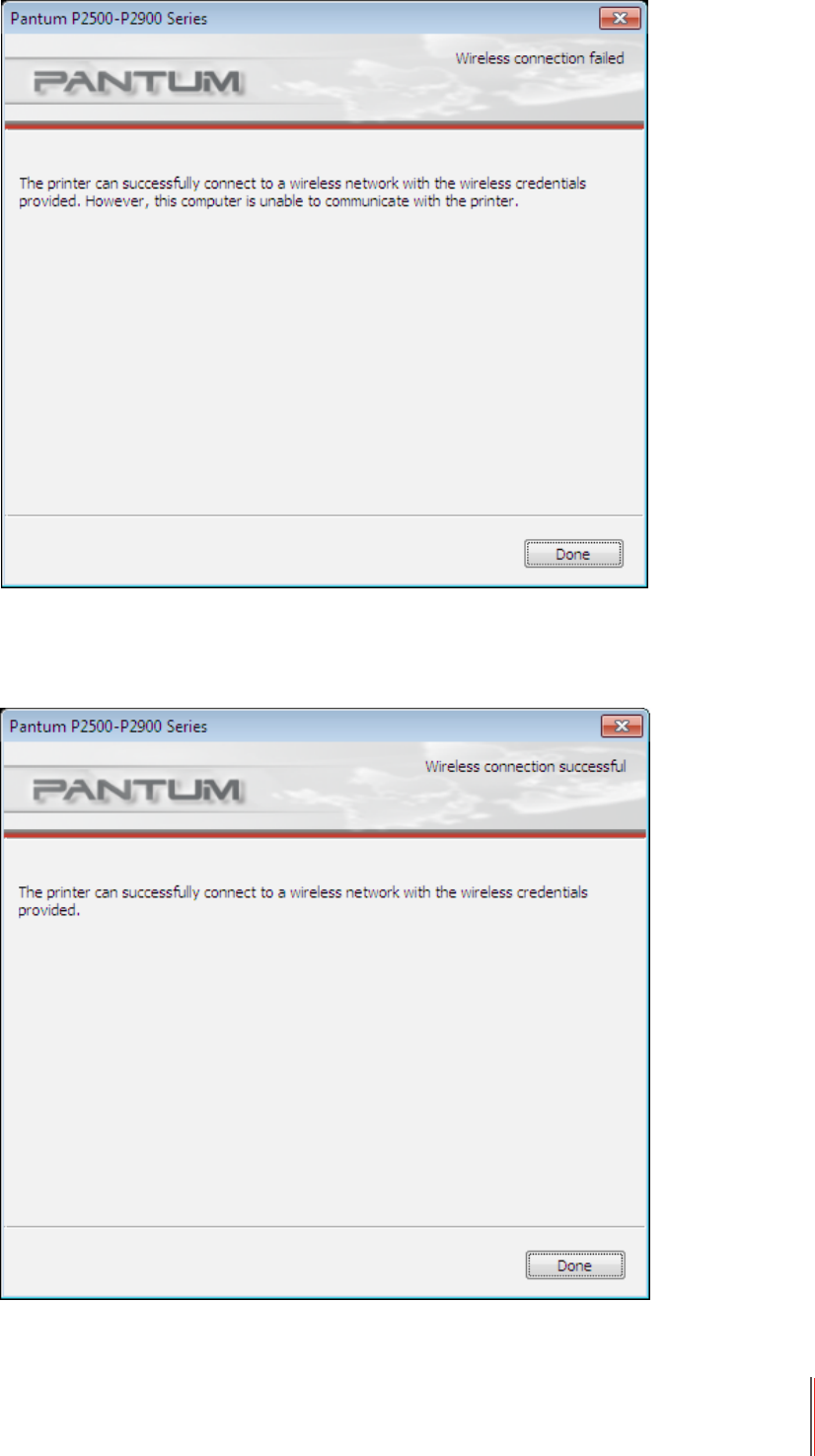
5) Conguration Screen
Screen of Network Conguration: provides the wireless network conguration results for the
printer. The screen displays the progress of PC sending conguration message to the printer
to set up wireless connection.
The following message will appear if the printer is not connected to the PC:
The following message will appear if the printer fails to apply the conguration by using the
wireless network provided:
5-7
The following message will appear if the printer can apply the conguration by using the
wireless network provided, but the PC does not support the wireless network:
The following message will appear for successful wireless connection when the printer can
apply the conguration by using the wireless network provided and the PC supports the
wireless network:

5-8
5.1.2. Conguration with Wi-Fi Direct
When Wi-Fi Hotspot is active, terminal (Station) users can nd and connect the printer's
Wi-Fi Hotspot by searching for it. The Wi-Fi Hotspot is enabled by default. It can be connected
without a password and coexist with Station or wired network.
Feature Description Comment
1 SSID
Pantum-AP-XXXXXX by default
XXXXXX should be replaced with
the last three digits of the mac
address
The XXXXXX section can be
modied in WebPage
2 Frequency band Auto by default Can be modied in WebPage
3 IP Address 192.168.223.1 by default Can be modied in WebPage
4 Subnet Mask 255.255.255.0 by default Can be modied in WebPage
5 DHCP Service Enabled by default
6 DHCP service starting
address
192.168.223.100 by default Can be modied in WebPage
7 DHCP service ending
address
192,168,223,200 by default Can be modied in WebPage
5.2. Turn off the Wireless Device
If you want to disconnect the printer with the wireless network, you can turn off the wireless
device within the printer.
1. You can disconnect the wireless network by pressing the Wi-Fi button on the printer's
control panel for over 2 seconds.
2. To verify whether the wireless device is turned off, press and hold the Cancel/Continue
button to print a copy of the conguration page. The wireless network is disconnected
successfully if the printer's IP address on the conguration page is 0.0.0.0.

6-1
6
Chapter
Pantum Mobile Print
6. Pantum Mobile Print ..........................................................................................................................2
6.1. What's Pantum Mobile Print........................................................................................................2
6.2. Download Pantum Mobile Print ..................................................................................................2
6.3. Supported Mobile Operating System ..........................................................................................2

6-2
6. Pantum Mobile Print
6.1. What's Pantum Mobile Print
Pantum Mobile Print is a free application, which allows users to directly print photos,
documents and WebPages from the mobile terminal. It is available to mobile operating
systems with Android 2.3 or later and supports a resolution of 240 * 320dpi or higher. It
connects your mobile device with the printer through Wi-Fi access points. You just need to
install the Pantum Mobile Print application for conguring the network settings, then it will
automatically detect compatible printers to print, which is very convenient and efcient.
6.2. Download Pantum Mobile Print
To download the Pantum Mobile Print application, please visit Pantum ofcial website
www.pantum.com.
6.3. Supported Mobile Operating System
Android OS 2.3 or later.

7-1
7
Chapter
Print
7. Print ...................................................................................................................................................2
7.1. Print Function ..............................................................................................................................2
7.2. Opening Help Document ............................................................................................................3
7.3. Manual Duplex ............................................................................................................................4
7.4. Cancel Print Job .........................................................................................................................7
7-2
7. Print
7.1. Print Function
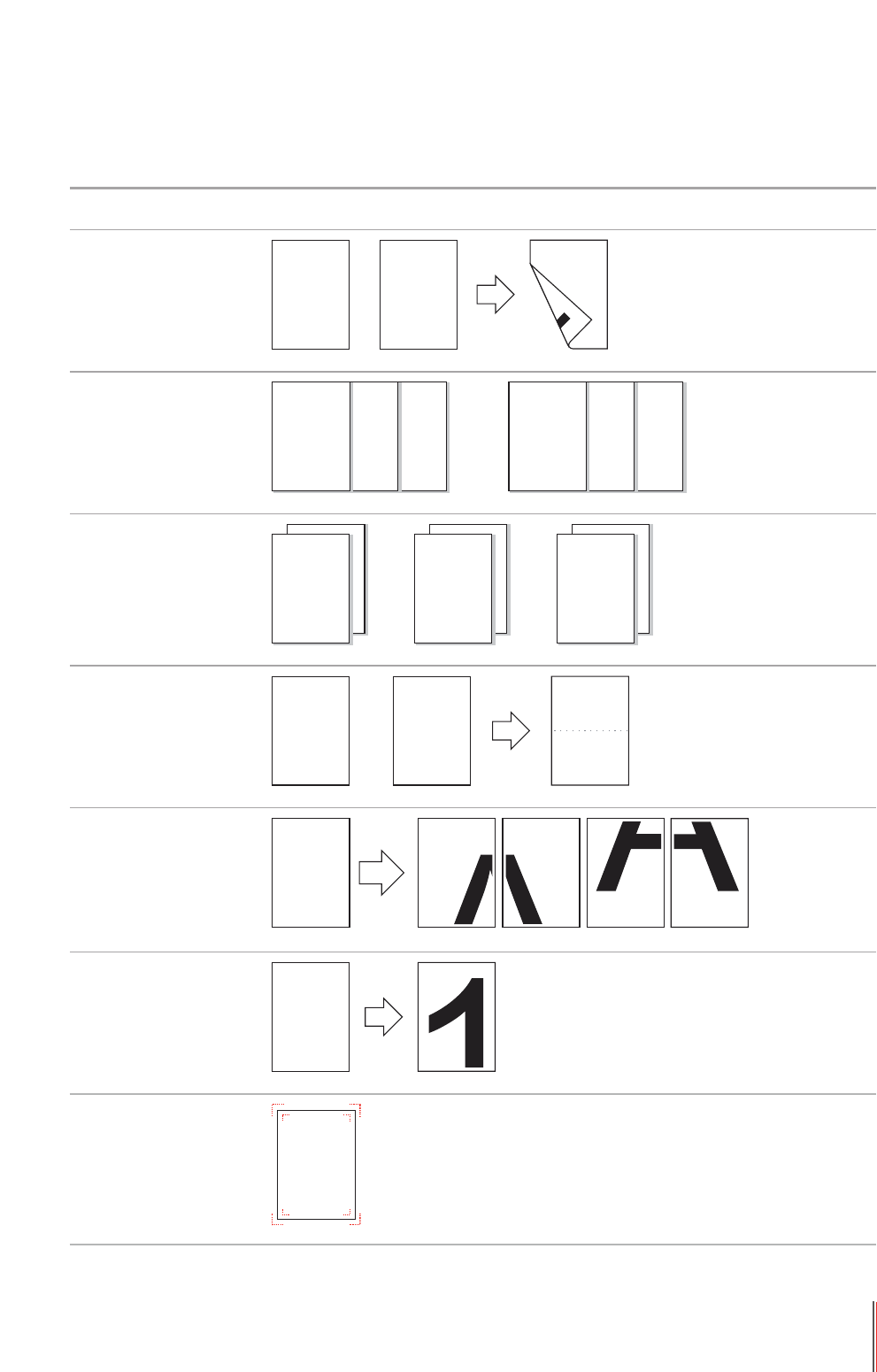
The print function can be achieved through the settings of various properties in the Printing
Preferences, and some of the functions are as follows.
Functions Diagram
Manual Duplex
1 2 1
Collate
321321
Reverse Print
1
1
2
2
3
3
N-in-1
1 2
21
Poster Print
(for Windows
system only)
A
Zoom Print
1
Custom Size
1
7-3
Note:•Youcanselectthe2x2PosterPrintinN-in-1toenabletheposterprintingfunction.
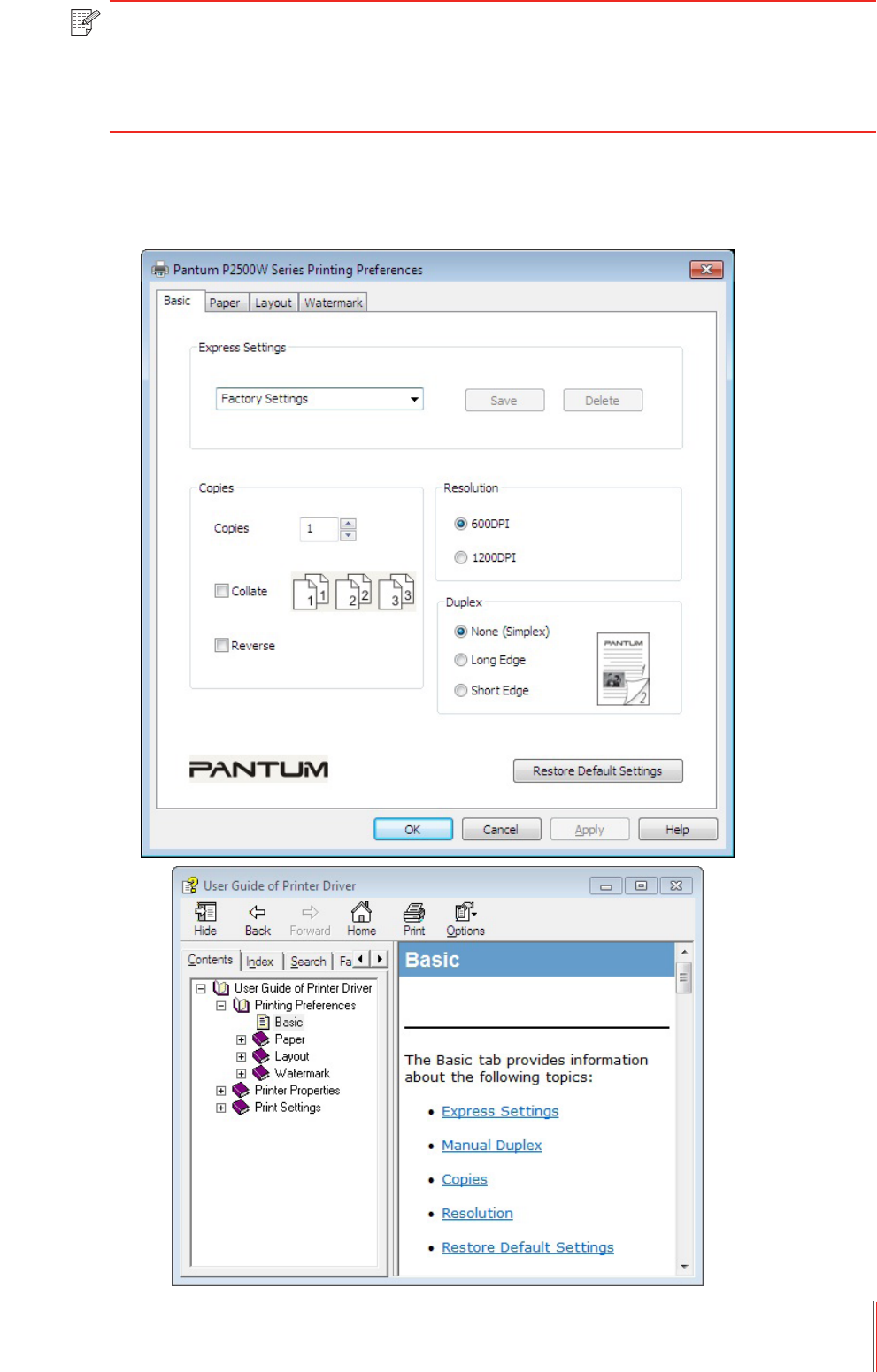
•YoucanopenthePrintingPreferencesandclickHelpbuttontoviewthespecific
functionexplanation.Forinformationabouthowtoopenthehelpdocument,see
Section7.2.
7.2. Opening Help Document
YoucanopenthePrintingPreferencesandclickHelpbutton(forWindowssystemonly).The
helpdocumentcontainstheuserguidewhereyoucanndtheinformationonprintsettings.
7-4
7.3. Manual Duplex
1. The printer driver supports manual duplex.
2. Ensure that certain amount of paper is loaded into the automatic feeder tray before printing.
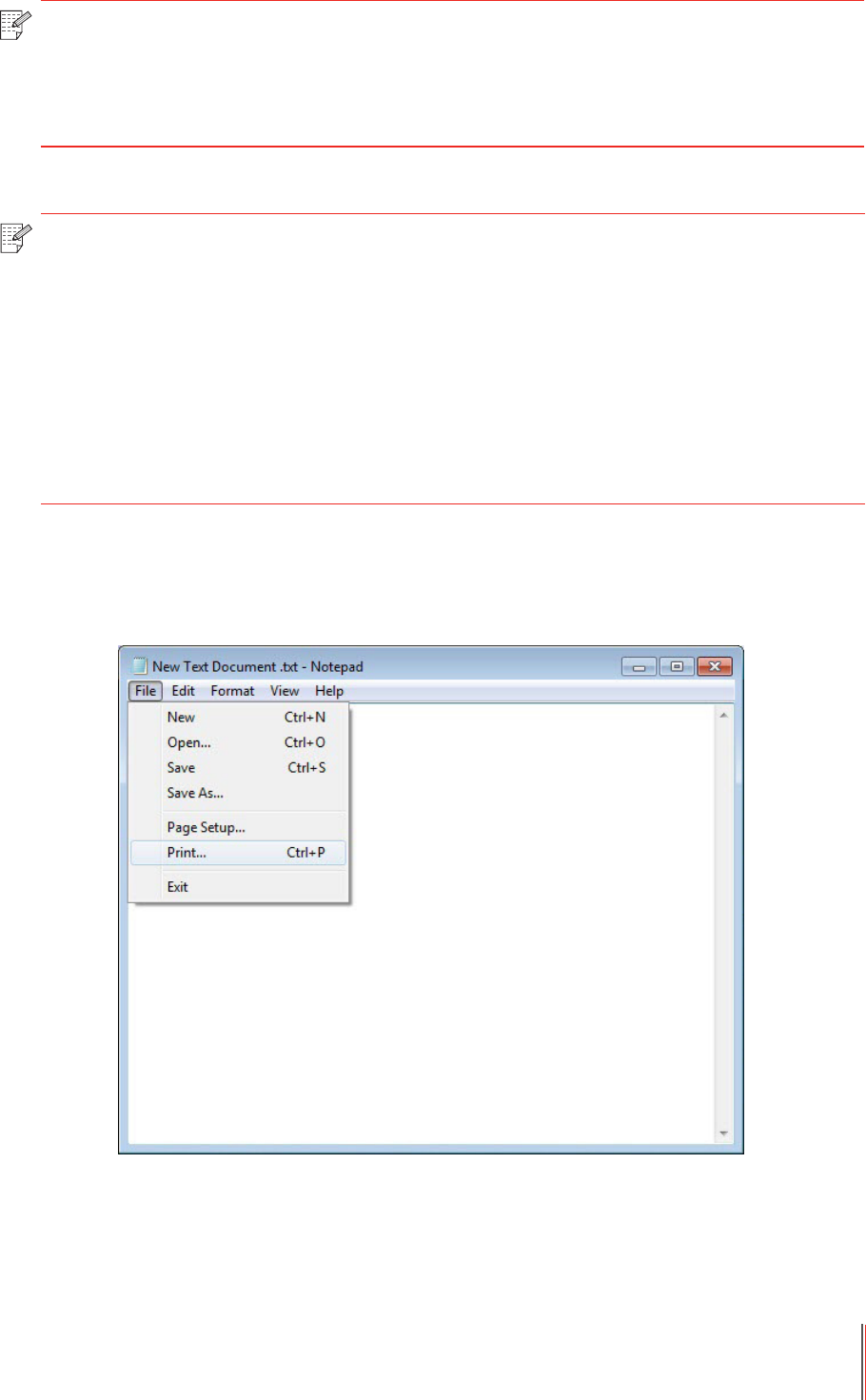
3. Printing steps are as follows (for Windows system only) :
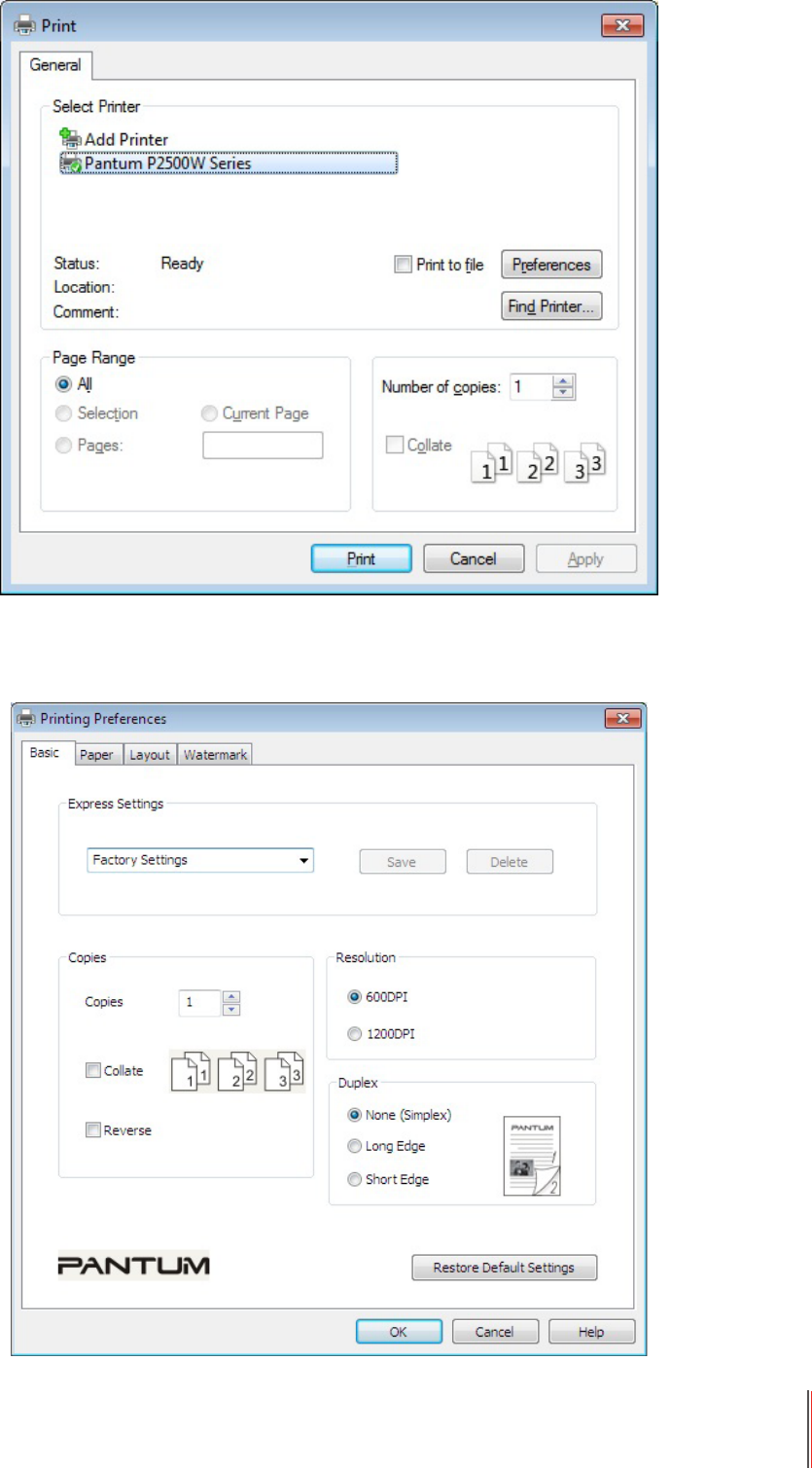
a) Open the document to be printed from the application (such as Notepad), and select Print
from the File menu
Note: •If the paper is thin, it may wrinkle.
• If the paper is curled, make it flat and put it back into the manual feeder tray or
automatic feeder tray.
• If the manual duplex function causes a paper jam, see Section 10.1 for handling it.
Note: • For loading paper, see Section 2.2.
• For the type of media that can be printed with the automatic feeder tray, see
Chapter 2.1. It is recommended to use the standard paper.
• Some paper media are not suitable for the duplex printing. Trying the duplex
printing with it may damage the printer. When Paper Type is Thick or Transparency,
please do not try Duplex Printing. If 2 x 2 Poster Print is checked in the Printing
Preferences dialog box, Manual Duplex will not be supported.
• Paper will get jammed or cannot be fed in when the automatic feeder tray is
loaded with more than 150 sheets.
7-5
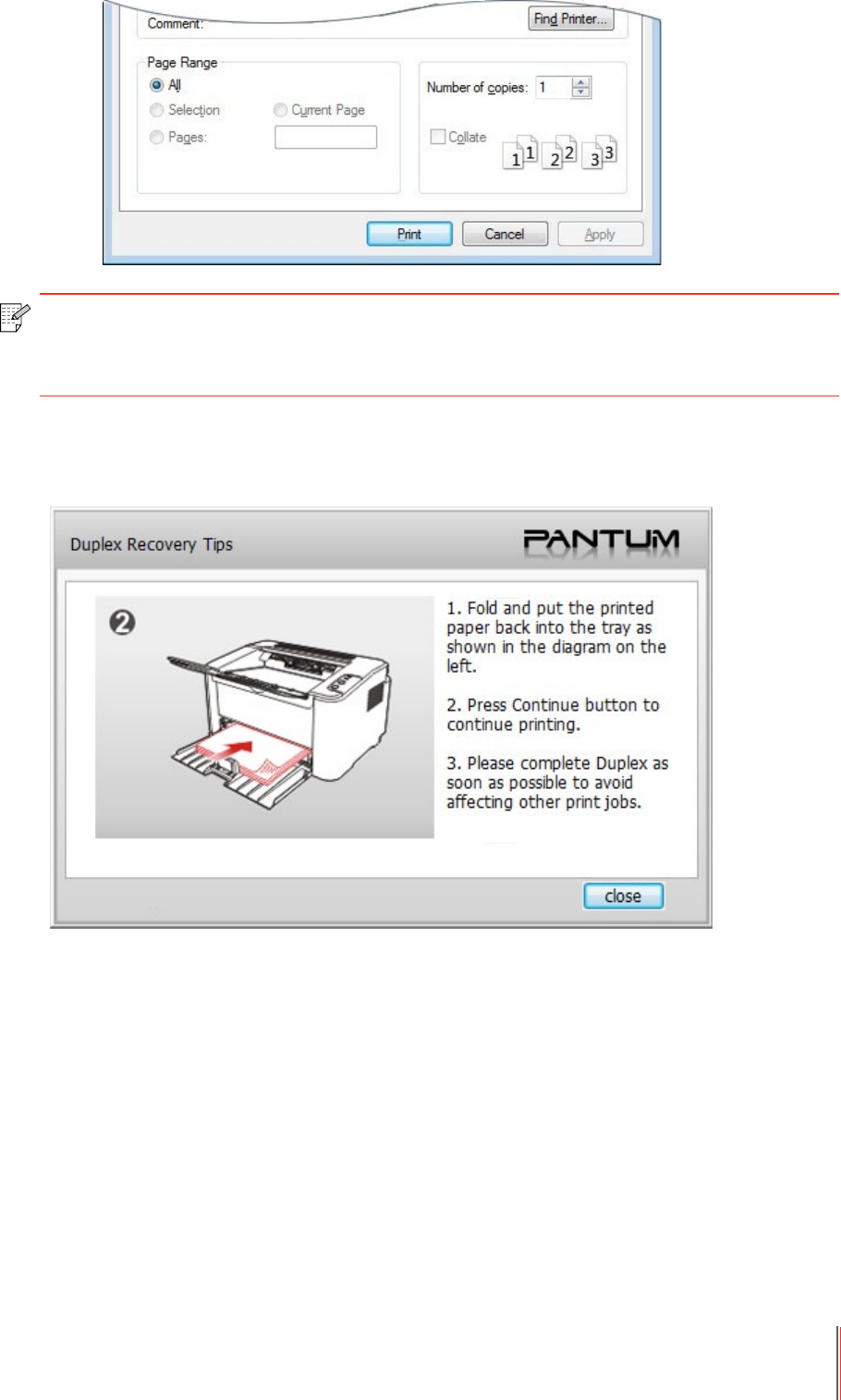
b) Select Pantum printer
Click Preferences to set up for printing.
c) Check Manual Duplex in the Basic tab and click OK after completing the settings
7-6
d) Click Print.
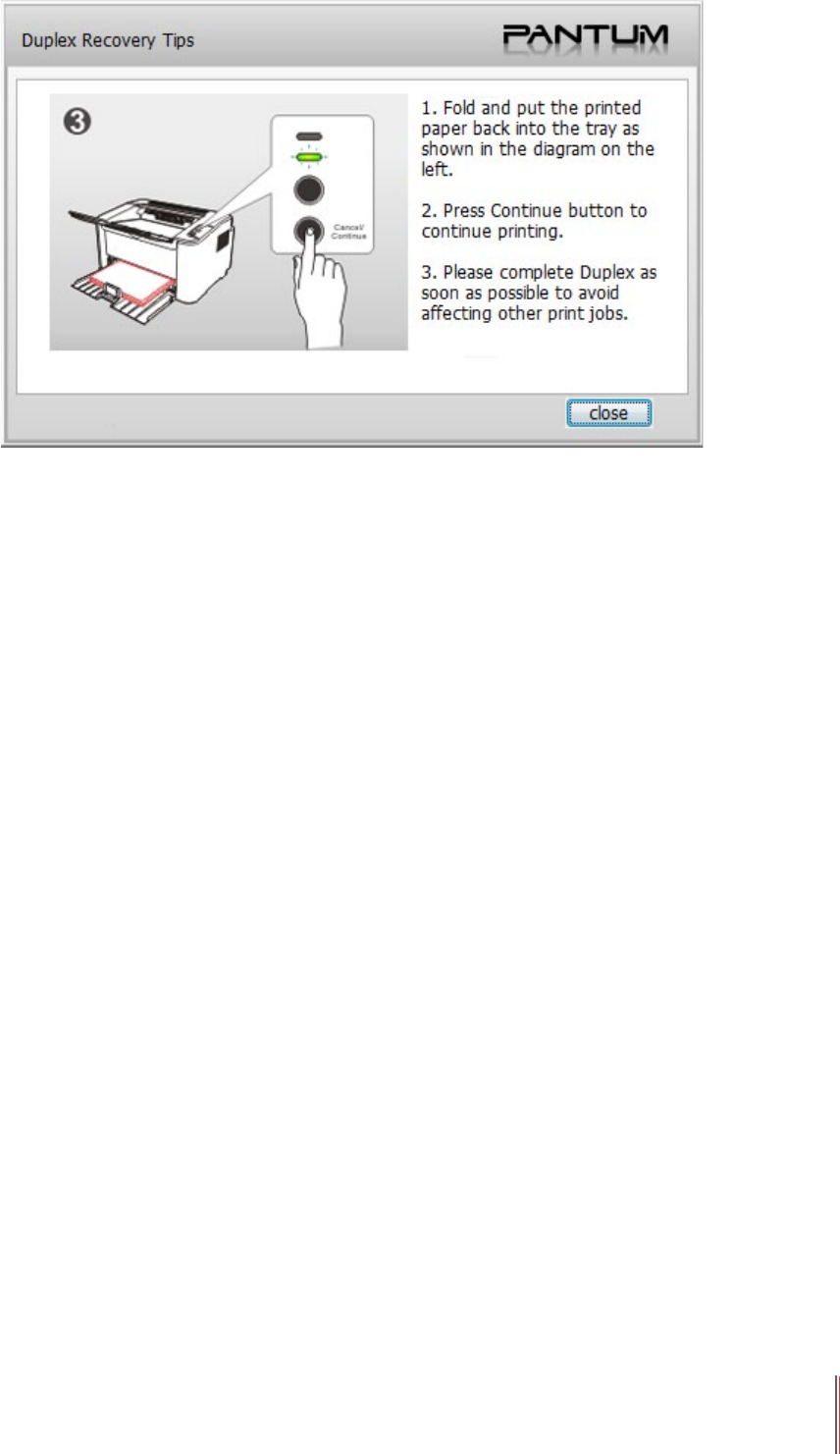
e) Send the print job after choosing Manual Duplex, then the following prompt window will
appear, telling you the next specic operations. Interfaces are different depending on the
models.
Note: • It is recommended to raise the output tray to prevent the paper from sliding out of
it. If you choose not to raise the output tray, we recommend that you immediately
remove the printed paper output from the printer.
7-7
f) After turning over the paper according to the prompt, press Continue button of the printer to
go on printing the other side.
g) You can click Close button to close this prompt window, and it will not appear until the next
Manual Duplex job comes in.
7.4. Cancel Print Job
Press and hold the Cancel/Continue button on the control panel to cancel the job you want to
cancel during the printing process.

8-1
8
Chapter
Control Panel
8. Control Panel .....................................................................................................................................2
8.1. Control Panel Overview for P2200/P2500 Series .......................................................................2
8.1.1. Functions of Buttons on the Control Panel .........................................................................2
8.1.2. Function of LED Indicators on the Control Panel ................................................................. 3
8-2
8. Control Panel
8.1. Control Panel Overview for P2200/P2500 Series
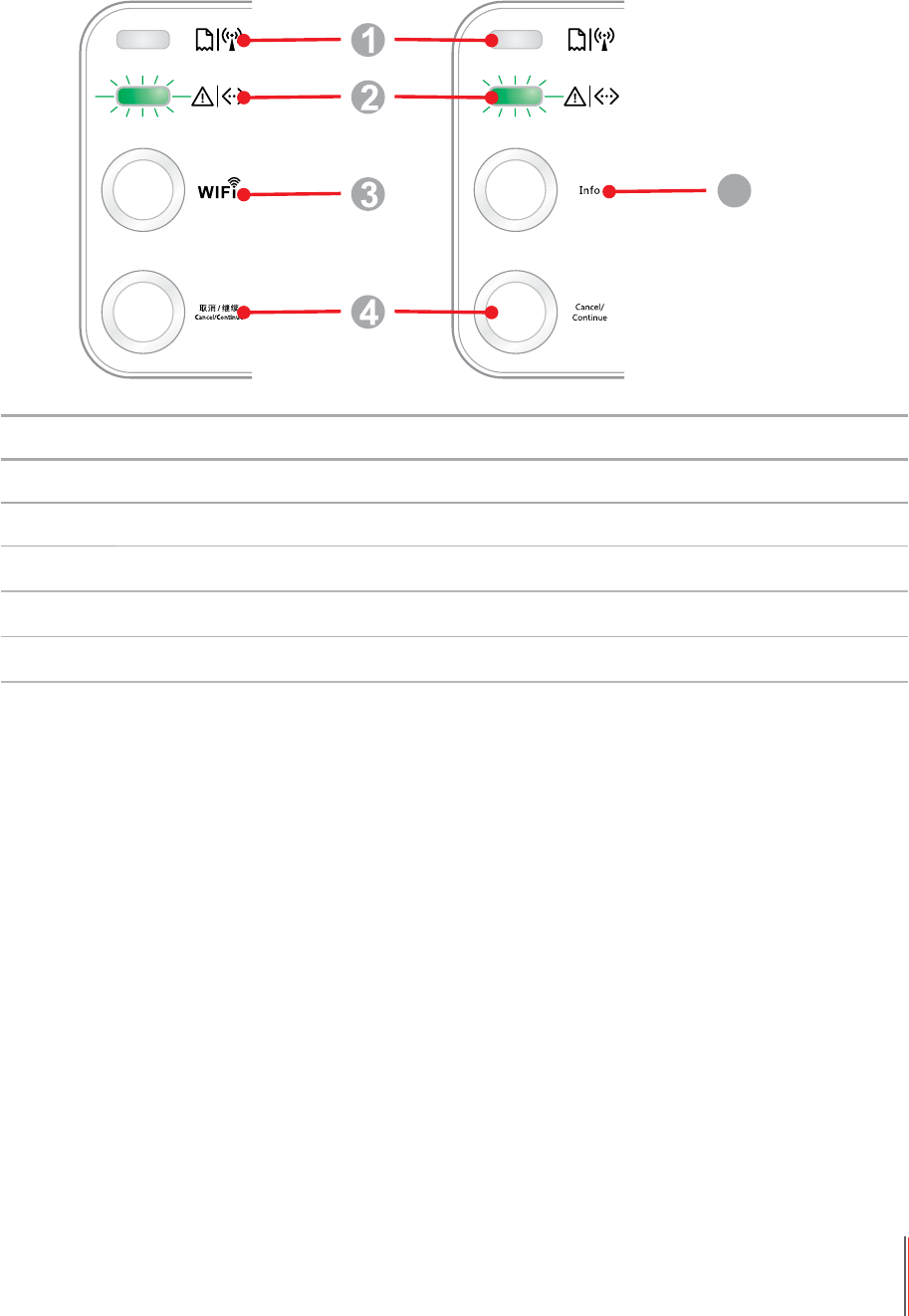
The printer control panel layout includes 2 buttons and 2 multi-colored LED indicators as shown
below. The diagram on the left shows the control panel of the printer with USB+WiFi interface,
while the one on the right displays the control panel of the printer with USB interface only:
5
Serial No. Name
1 Multi-colored LED1 indicator
2 Multi-colored LED2 indicator
3 WiFi search button
4 Cancel/Continue button
5 Information button
8.1.1. Functions of Buttons on the Control Panel
8.1.1.1. Operation Function of Wi-Fi Search Button
If there is no Wi-Fi connection, short-press this button to launch Wi-Fi connection and search
Wi-Fi Hotspot AP; stop searching if it fails to nd any Access Point (AP) within 2 minutes.
If there is no Wi-Fi connection, press and hold this button to launch WPS connection,
and meanwhile press the WPS button on the wireless router within 2 minutes; stop WPS
connection if Wi-Fi connection cannot be established within 2 minutes.
If there is WIFI connection while no Wi-Fi print job, press and hold this button to disconnect
Wi-Fi connection.
If there is Wi-Fi connection and Wi-Fi print job, wait until the job is completed and then press
and hold this button to disconnect the Wi-Fi connection.
8.1.1.2. Operation Function of Cancel/Continue Button
If the printer is in sleep mode, press or press and hold this button can wake it up.
Press and hold this button during printing can cancel the current print job.
8.1.1.3. Operation Function of Information Button
When the printer is in ready mode, press and hold this button can print the test page.

8-3
8.1.2. Function of LED Indicators on the Control Panel
8.1.2.1. LED1 Status Indication
The meanings of the status indication of LED1 are as follows:
Serial
No.
Paper/WiFi
Multi-colored
LED1 Status
Indication
Status Description
(For printers with USB+WiFi
interface)
Status Description
(For printers with USB
interface)
1
No WiFi connection, no paper error,
sleep mode
LED1 off
No WiFi connection, no paper
error, sleep mode
LED1 off
2
Searching WiFi, no indication of
paper error
LED1 with green light flashing slowly
N/A
3
Connecting WiFi..., no indication of
paper error
LED1 with green light flashing quickly
N/A
4
Successful WiFi connection, no paper
error
LED1 with green light staying on
N/A
5Paper Jam Error
LED1 with red light staying on
Paper Jam Error
LED1 with red light staying on
6
Paper shortage in printing, or failed in
feeding
LED1 with red light flashing quickly
Paper shortage in printing, or
failed in feeding
LED1 with red light flashing
quickly

8-4
8.1.2.2. LED2 Status Indication
The meanings of the status indication of LED2 are as follows:
Serial
No.
Data/
Cartridge
Multi-colored
LED2 Status
Indication
Status Description
(For printers with USB+WiFi interface and the ones with USB
interface only)
1
Starting and warming up the printer, waking up and warming up the
printer, and warming up the printer by opening and closing its cover.
LED2 with green light flashing slowly
2The printer is ready
LED2 with green light staying on
3Sleep
LED2 with green light on and flashing slowly
4Printing
Multi-colored LED2 with green light flashing quickly
5Alarming for toner low
LED2 with orange light on and flashing quickly
6Cartridge error (not installed, mismatch, expired)
LED2 with orange light staying on
7
Serious printer error (heating roller abnormalities, laser motor
abnormalities, communication error, opened cover, etc.)
LED2 with red light staying on
8A job is cancelled via the panel
LED2 with light flashing quickly

8-5
8.1.2.3. Indication of LED1 and LED2 Combination Status
You can refer to the indicator combination list for information on the working status of the
printer. Some of the LED1 and LED2 combined indications are as follows:
Serial
No.
Status
Status Description
Paper/WIFI
(Multi-colored
LED1)
Data/Cartridge
(Multi-colored
LED2)
1Paper jam, the printer is ready
LED1 with red light staying on, LED2 off
2
Paper jam during printing
LED1 with red light staying on, multi-colored LED2
off
3Paper jam, alarming for toner low
LED1 with red light staying on, LED2 off
4
Paper jam, cartridge error (not installed, mismatch,
expired), the multi-colored indicator (orange) stays
on
LED1 with red light staying on, LED2 with orange
light on
5
Paper jam, serious printer error (heating roller
abnormalities, laser motor abnormalities,
communication error, opened cover, etc.)
LED1 off, LED2 with red light staying on
6Paper jam, a job is cancelled via the panel
LED1 off, LED2 with green light flashing quickly
7
Paper shortage in printing, or failed in feeding, only
showing paper errors
LED1 with red light flashing quickly, LED2 off
8
Paper shortage in printing, or failed in feeding,
alarming for toner low
LED1 with red light flashing quickly, LED2 off
9
Paper shortage in printing, or failed in feeding,
cartridge error (not installed, mismatch, expired)
LED1 off, LED2 with orange light staying on
10
Paper shortage in printing, or failed in feeding,
and meanwhile, serious printer error (heat
roller abnormalities, laser motor abnormalities,
communication error, opened cover, etc.)
LED1 off, LED2 with red light staying on
11
A job is being cancelled via the panel because of
paper shortage in printing or failure in feeding
LED1 with green light off, LED2 with green light
flashing quickly

9-1
9
Chapter
Routine Maintenance
9. Routine Maintenance.........................................................................................................................2
9.1. Cleaning the Printer ....................................................................................................................2
9.2. Maintenance of Laser Toner Cartridge .......................................................................................4
9.2.1. Use and Maintenance of Laser Toner Cartridge ..................................................................4
9.2.2. Service Life of Laser Toner Cartridge ...................................................................................4
9.2.3. Replace Laser Toner Cartridge ............................................................................................5
9-2
9. Routine Maintenance
9.1. Cleaning the Printer
Please clean the printer in accordance with the following steps:
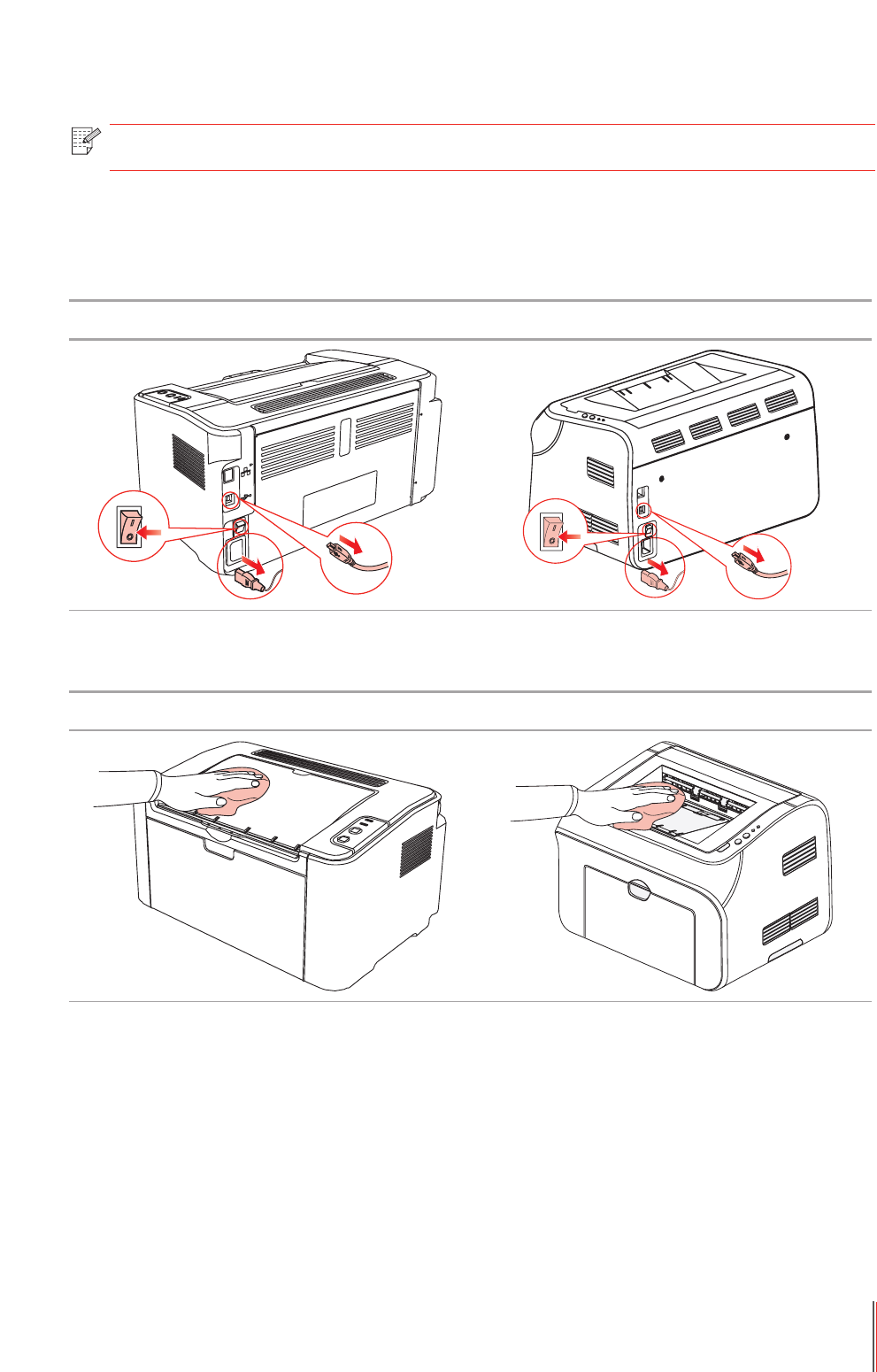
1. Turn off the main power switch and unplug the power cord and USB cable.
P2500 Series P2900 Series
2. Use a soft cloth to wipe the outside of the printer clean.
P2500 Series P2900 Series
Note: • Please use mild detergents.
9-3
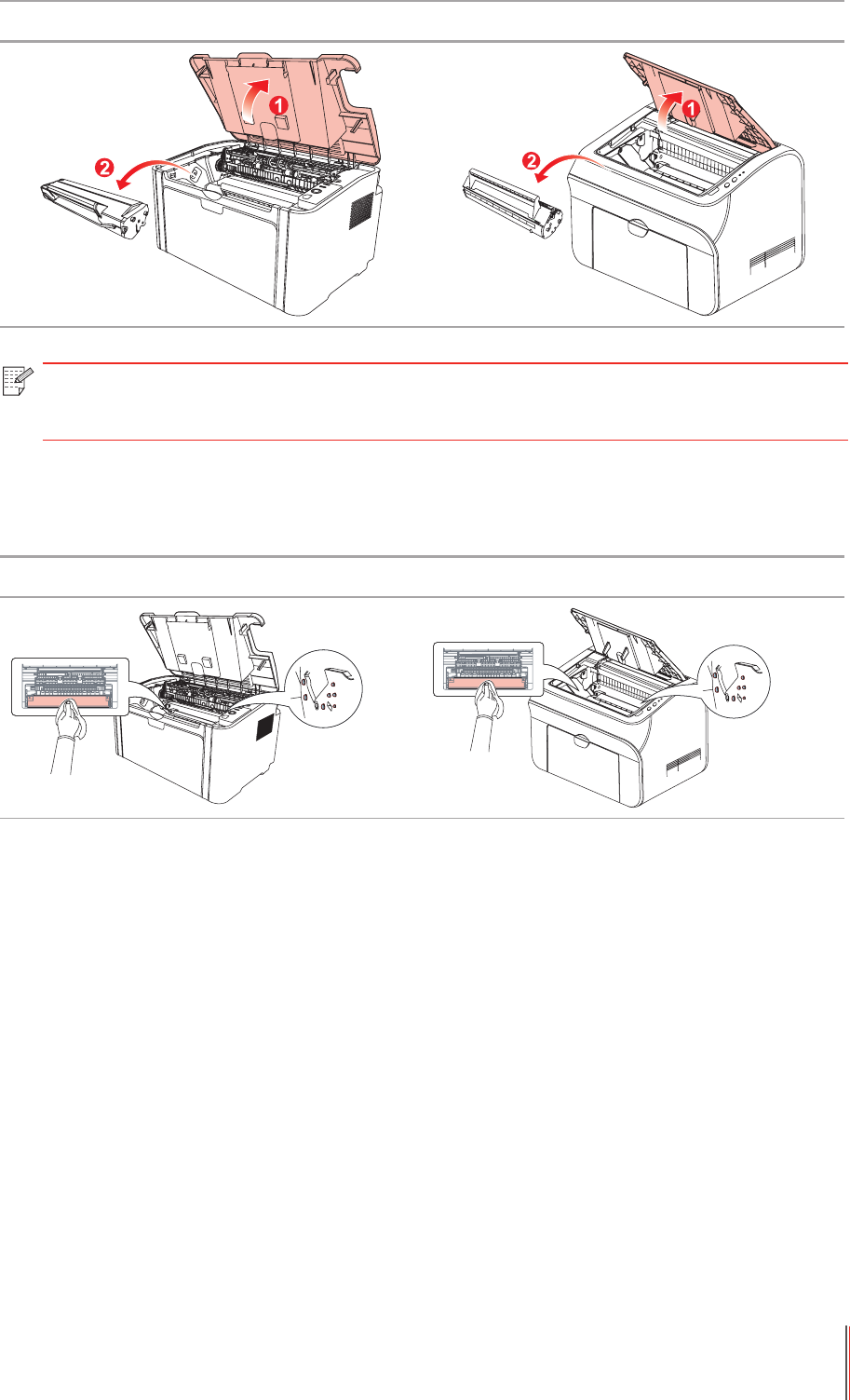
3. Open the upper cover and take out the laser toner cartridge.
P2500 Series P2900 Series
4. Clean the inside of the printer by using a dry and lint-free cloth to gently wipe the shaded
area as shown in the gure below.
P2500 Series P2900 Series
Note: • When removing the laser toner cartridge, put the cartridge in a protective bag or
wrap it with thick paper to avoid direct light damaging the photosensitive drum.

9-4
9.2. Maintenance of Laser Toner Cartridge
9.2.1. Use and Maintenance of Laser Toner Cartridge
For better print quality, please use the original Pantum laser toner cartridge.
9.2.2. Service Life of Laser Toner Cartridge
Service life of the laser toner cartridge depends on the amount of toner that print jobs require.
When the printer LED indicator shows the status in the following gure, it indicates that the
laser toner cartridge life has expired and needs to be replaced.
Note: when using the laser toner cartridge, please pay attention to the following:
• Unless used immediately, otherwise, do not remove the laser toner cartridge from
the package.
Do not attempt to refill the laser toner cartridge without authorization. Otherwise,
the resulting damage is not included in the printer warranty.
• Please store the laser toner cartridge under a cool and dry environment.
• Toner inside the laser toner cartridge is combustible. Please do not put the laser
toner cartridge near any source of ignition, so as to avoid causing a fire.
• When removing or disassembling the laser toner cartridge, please pay attention to
the toner leakage problem. In case of the toner leakage resulting in that the toner
contacts with your skin or splashes into your eyes and mouth, please immediately
wash with clear water, and consult a doctor immediately if you feel unwell.
• When placing the laser toner cartridge, please keep it away from the area
reachable by children.
9-5
9.2.3. Replace Laser Toner Cartridge
Replacement steps are as follows:
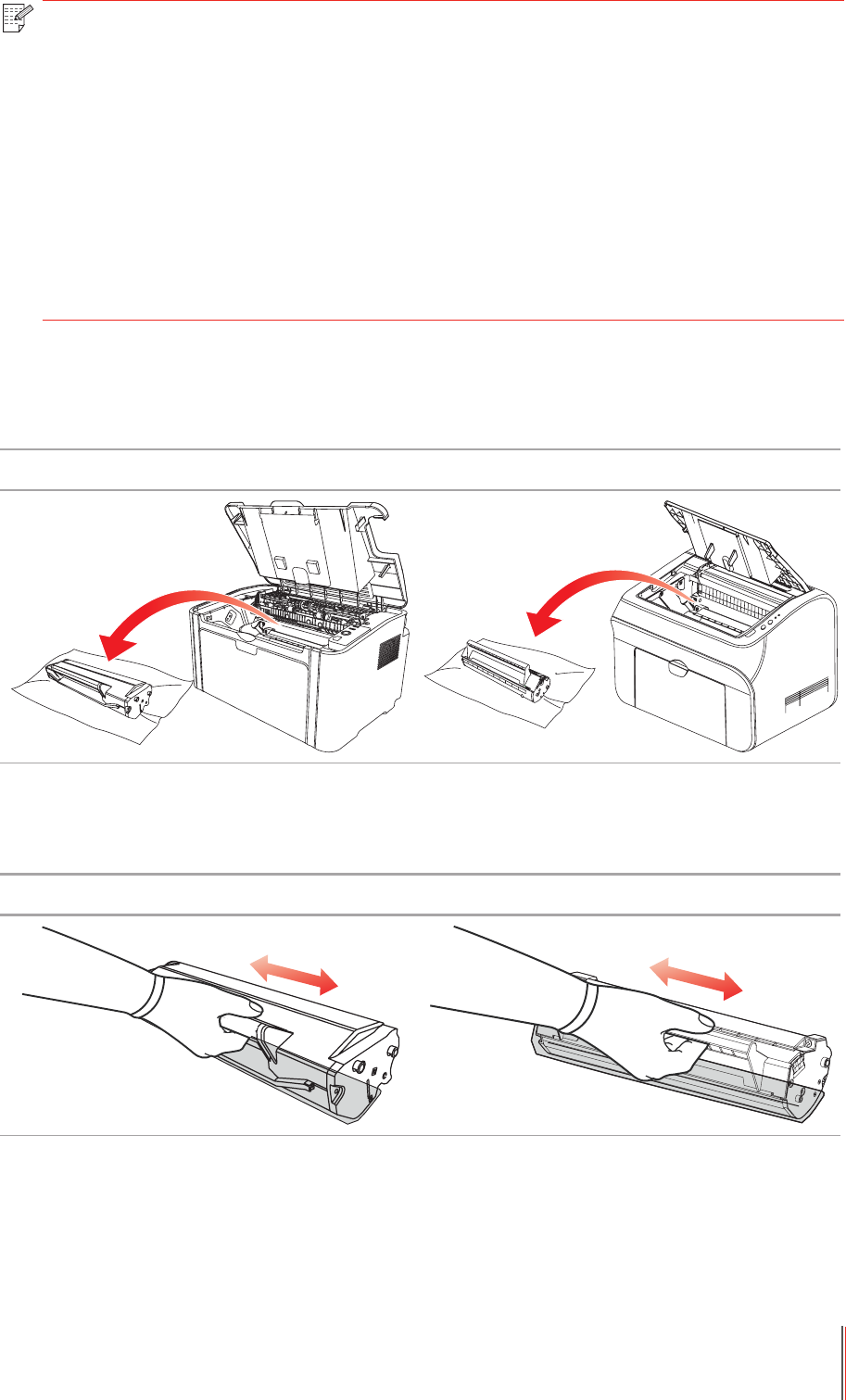
1. Open the upper cover, and remove the empty laser toner cartridge along the guides.
P2500 Series P2900 Series
2. Open the package of a new laser toner cartridge, hold the handle of the cartridge and
gently shake around 5-6 times, so as to make the toner evenly distributed inside the cartridge.
P2500 Series P2900 Series
Note: before replacing the laser toner cartridge, please pay attention to the following:
• The laser toner cartridge surface may contain toner. Please remove it carefully to
avoid spilling.
• Put the removed laser toner cartridge on a piece of paper to avoid the toner from
accidently spilling.
• After removing the protective cover, please immediately install the laser toner
cartridge into the printer, so as to avoid photosensitive drum damage caused by
exposing to too much direct sunlight or indoor light.
• While installing the laser toner cartridge, do not touch the surface of the
photosensitive drum so as not to scratch it.
9-6
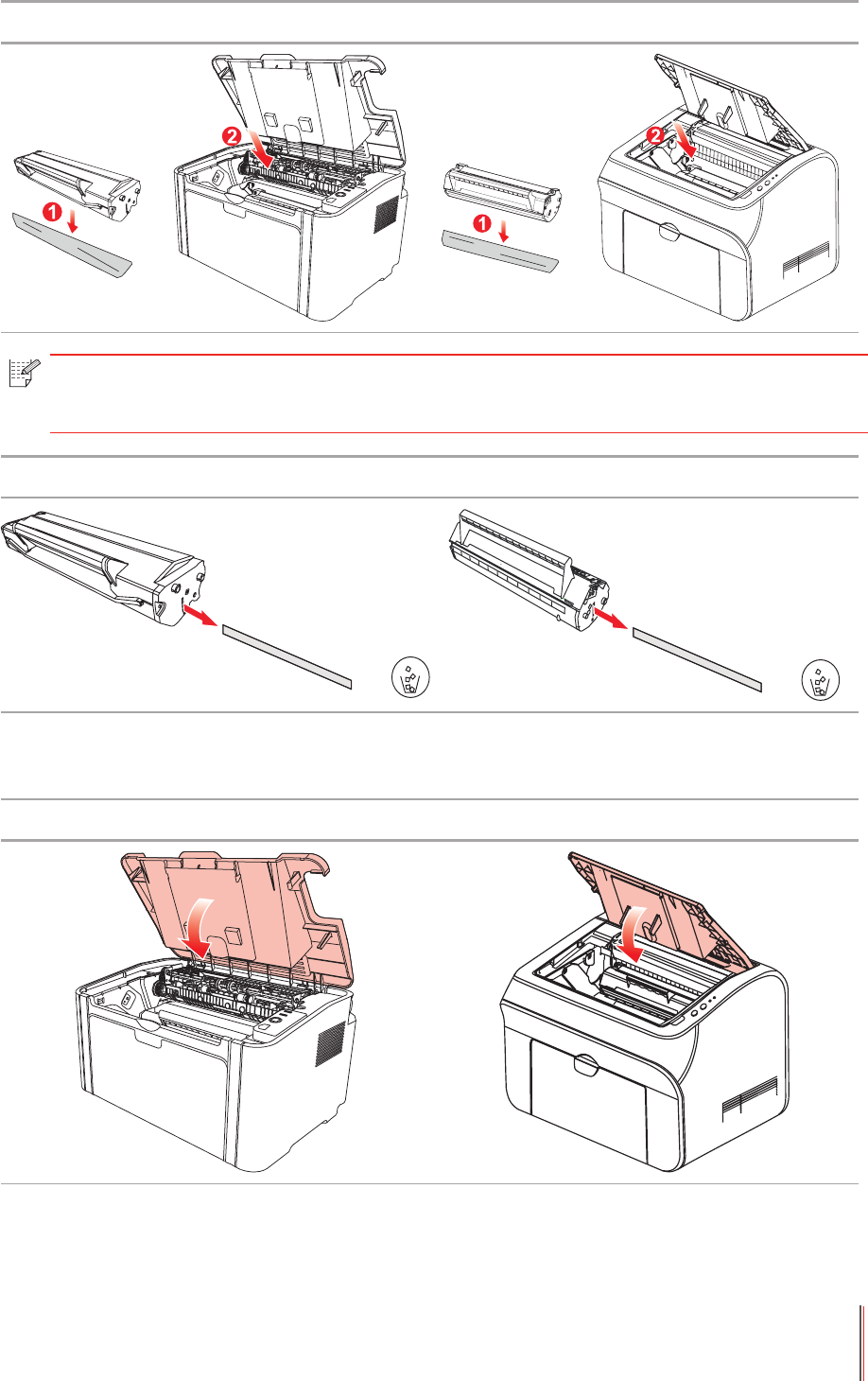
3. Remove the protective cover, and put the laser toner cartridge into the printer along the
guides
P2500 Series P2900 Series
P2500 Series P2900 Series
4. Close the upper cover tightly
P2500 Series P2900 Series
Note: • Check whether there is any seal on it before installing the laser toner cartridge
into the printer; if there is any, please tear off the seal and then install the cartridge.

10-1
10
Chapter
Troubleshooting
10. Troubleshooting ..............................................................................................................................2
10.1. Clearing Jammed Paper ..........................................................................................................2
10.1.1. Paper Jam in the Feed Port ...............................................................................................3
10.2. Common Troubleshooting .........................................................................................................6
10.2.1. Common Trouble ...............................................................................................................6
10.2.2. Image Defects ...................................................................................................................7

10-2
10. Troubleshooting
Please read this section carefully. It can help you solve common trouble in the printing
process. If the problems appeared cannot be solved, please contact Pantum Aftersales
Service Center.
Prior to handling common trouble, rst check that:
• The power cord is connected correctly and the printer is powered on.
• All of the protective parts are removed.
• The laser toner cartridge is correctly installed.
• The output bin is fully closed.
• The paper is correctly loaded into the tray.
• The interface cable is correctly connected between the printer and the computer.
• The correct printer driver is selected and installed properly.
• The computer port is properly congured and is connected to the proper printer port.
10.1. Clearing Jammed Paper
Note: • Remove the jammed paper in accordance with the following steps, close the
upper cover and tidy the paper in the tray, then the printer will automatically resume
printing. If the printer cannot automatically start printing, please press the button on
the control panel.
• If the printer still does not start printing, please check whether all the jammed
paper inside the printer are cleared.
• If you cannot remove the jammed paper yourself, please contact your local
Pantum authorized repair center or send the printer to the nearest Pantum
authorized service center for repair.
10-3
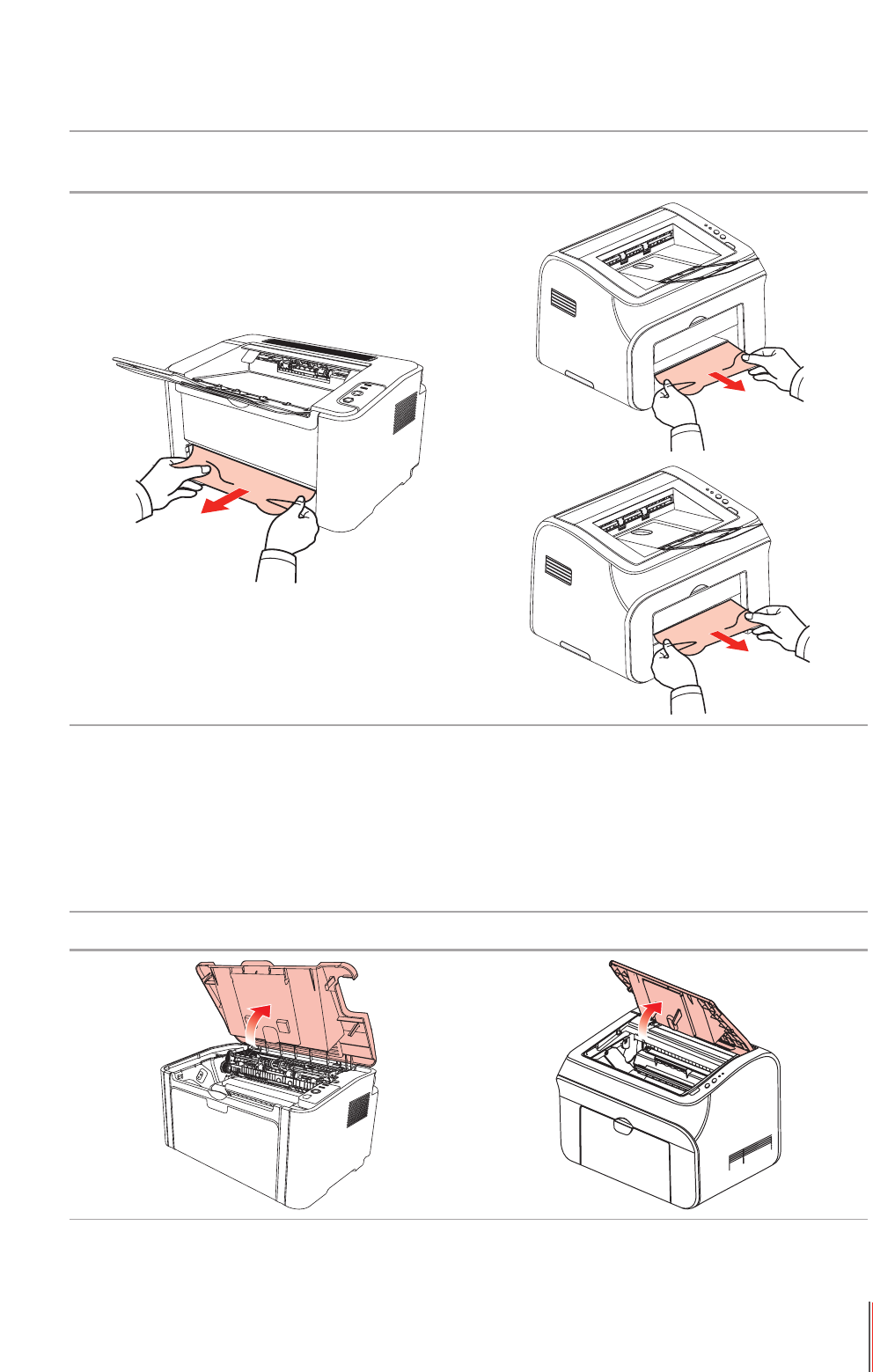
10.1.1. Paper Jam in the Feed Port
If the output bin is open, please close it rst.
Gently pull the jammed paper straight out.
P2500 Series P2900 Series (automatic feeder tray and
manual feeder tray)
If the paper does not move while being pulled, or there is no paper in this area, please check
the inside of the printer.
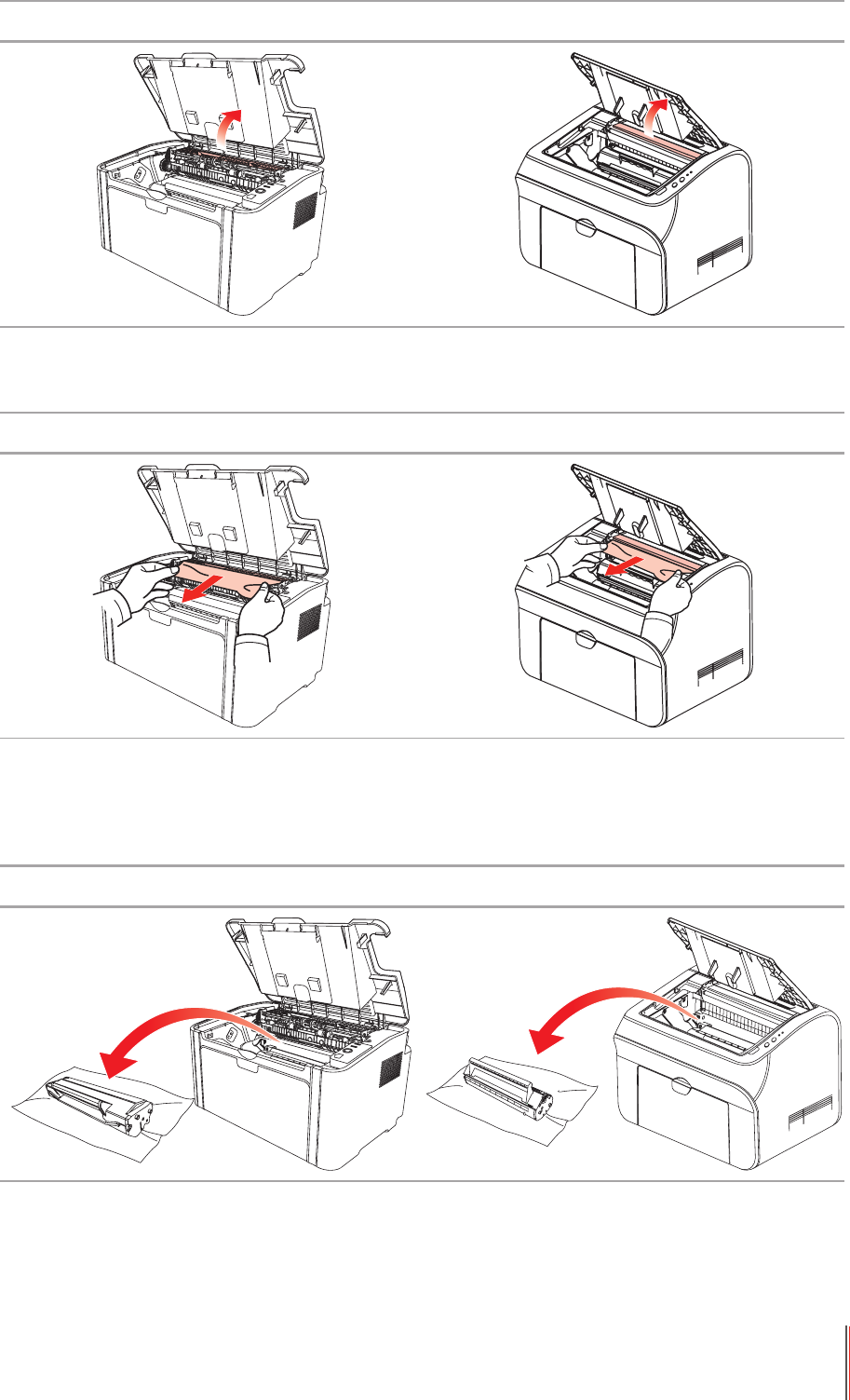
10.1.2. Paper Jam inside the Printer
1. Open the upper cover.
P2500 Series P2900 Series
10-4
2. Open the upper fuser guide to decrease the pressure of compression spring.
P2500 Series P2900 Series
3. Pull the jammed paper out of the fuser unit.
P2500 Series P2900 Series
If no jammed paper is found, please go to the next step.
4. Remove the laser toner cartridge along the guides
P2500 Series P2900 Series
10-5
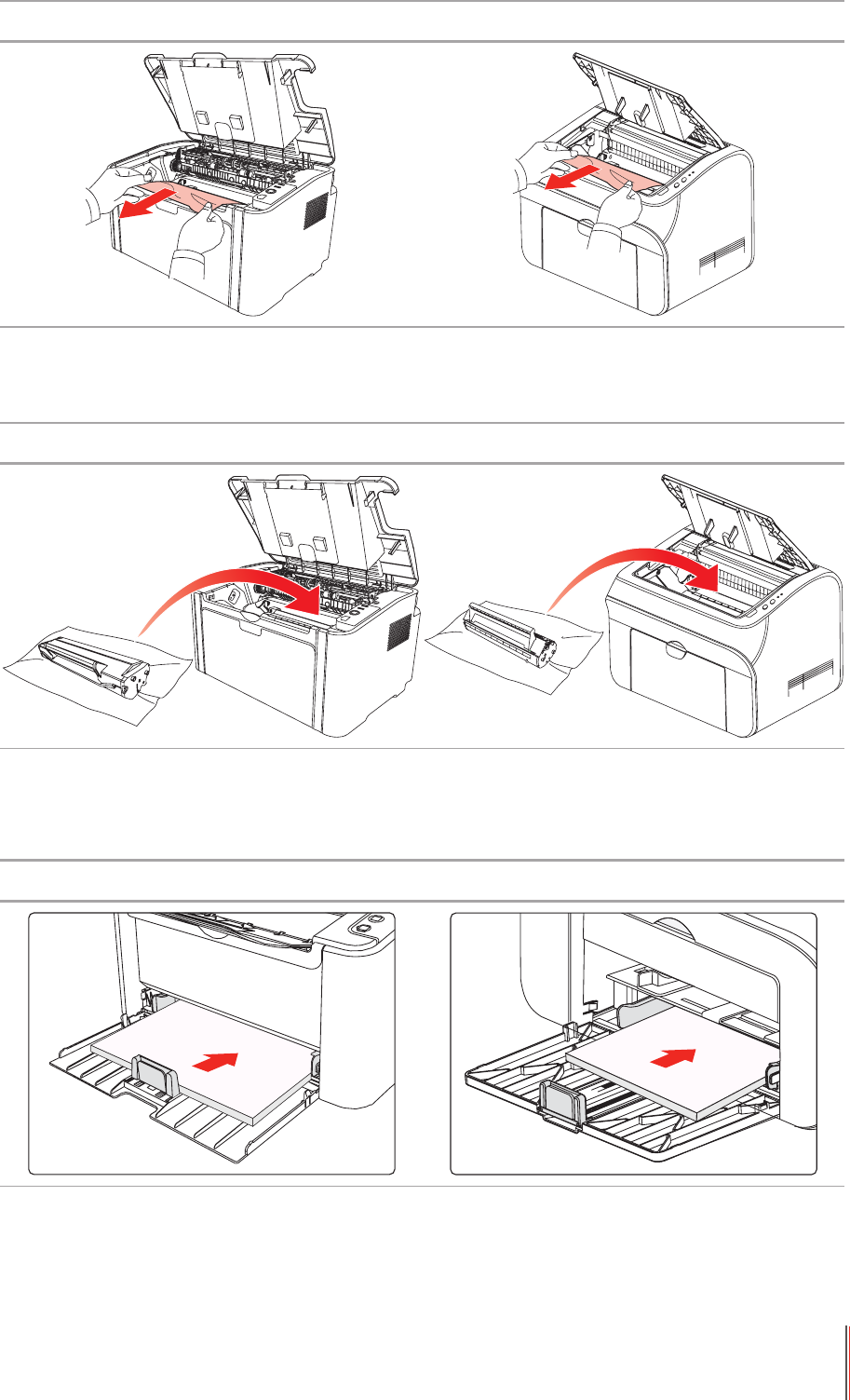
5. Slowly pull the jammed paper out along the paper output orientation.
P2500 Series P2900 Series
6. After removing the jammed paper, insert the laser toner cartridge into the printer along the
guides until you hear a click assuring you that the cartridge is fully inserted.
P2500 Series P2900 Series
7. Put the paper in the tray neatly, and do not carry out the next print until the indicator
resumes print-ready status.
P2500 Series P2900 Series

10-6
10.2. Common Troubleshooting
10.2.1. Common Trouble
Trouble Cause Solution
Printer Problems
The printer
does not work
The cable between the computer
and the printer is not connected
properly.
Error in specifying the print port.
The printer is ofine, and Use
Printer Ofine is checked.
The printer does not recover from
an internal error, such as a paper
jam, paper empty, etc.
Disconnect and then reconnect the printer
cable.
Check the printer settings to ensure that
the print job is sent to the correct port.
If the computer has more than one port,
make sure that the printer is connected
to the correct port.
Make sure that the printer is in the
normal online status.
Problems in Handling Paper
Paper feed
failure
The print media is loaded
incorrectly.
The print media is beyond the
usage specication range.
The feed roller is dirty.
Please correctly load the print media. If
you use special print media for printing,
please print with the manual feeder tray.
Please use the print media within the
specication range.
Clean the feed roller.
Paper Jam There is too much paper in the tray.
The print media is beyond the
usage specication range.
There is foreign matter in the feed
channel.
The feed roller is dirty.
Internal parts failure.
Remove excess paper from the tray. If
you print on special print media, please
use the manual feeder tray.
Make sure to use the paper that meets
specications. If you print on special
print media, please use the manual
feeder tray.
Clean the feed channel.
Clean the feed roller.
Print with
multipage fed
in
Excessive static electricity on the
print media.
The print media is damp and sticks
together.
Internal parts failure.
Separate the print media to eliminate
some static electricity. It is suggested
that you use the recommended print
media.
Separate the print media or use better
and dry print media.
Note: • If the problem remains, please contact Pantum Customer Service.
10-7
10.2.2. Image Defects
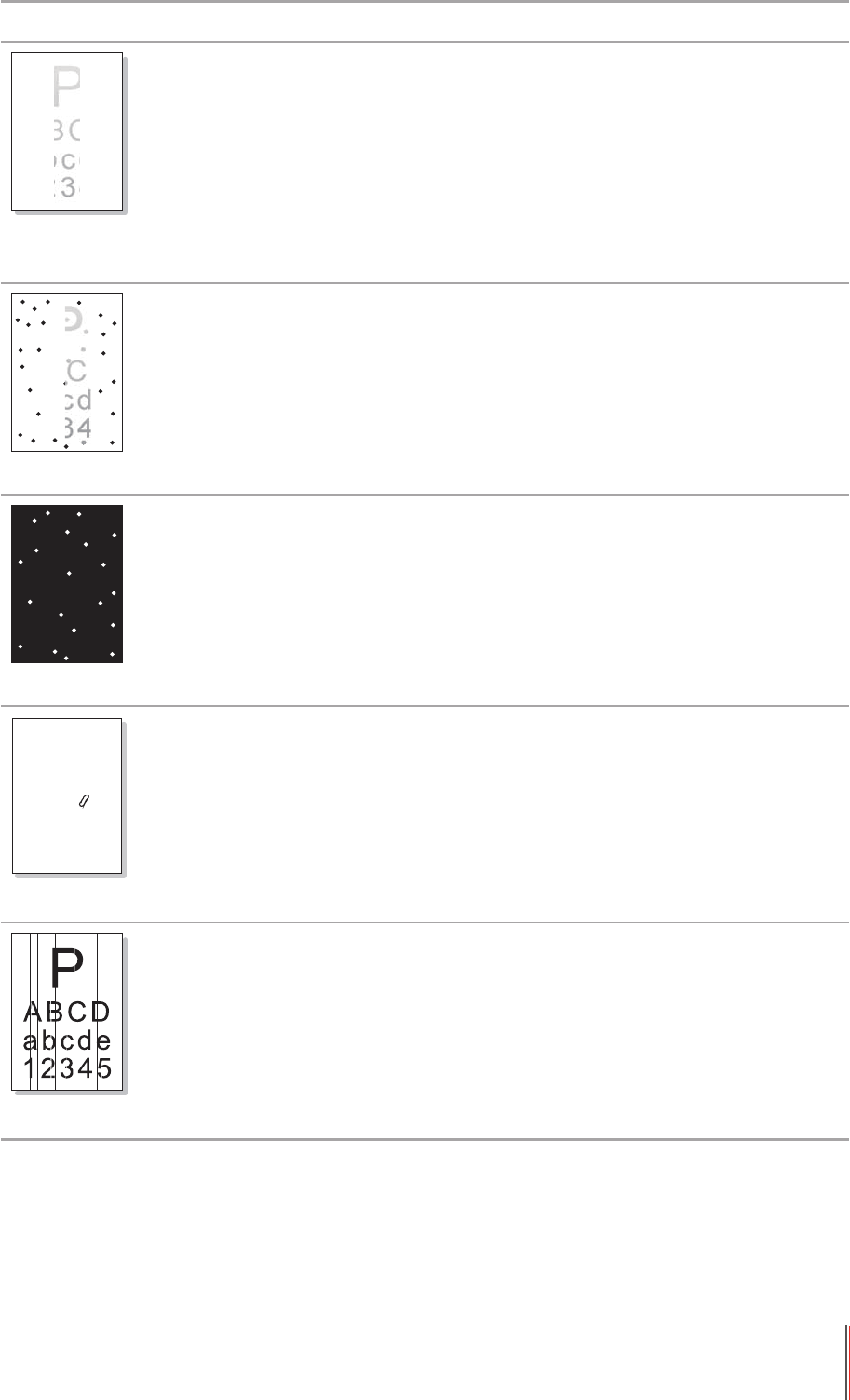
Trouble Cause Solution
P
ABCD
abcde
12345
The printout is whitish
or light
• Toner is low.
• The print media does not meet
usage specication, such as the
media is damp or too rough.
• The resolution in the print
program is set too low.
• The laser toner cartridge is
damaged.
• Please properly use the print
media within the specication
range.
• Setup the print resolution in the
program.
P
ABCD
abcde
12345
Toner spots
• The laser toner cartridge is dirty
or leaks toner.
• The laser toner cartridge is
damaged.
• The print media that does not
meet usage specication, such as
the media is damp or too rough.
• The feed channel is dirty.
• Please use the print media
within the specication range.
• Clean the feed channel.
White spots
• The print media that does not
meet usage specication, such as
the media is damp or too rough.
• The feed channel is dirty.
• The internal part of the laser toner
cartridge is damaged.
• The reective glass of the laser
inside the printer is dirty.
• Please use the print media
within the specication range.
• Clean the feed channel.
• Clean the reective glass of the
laser.
P
Toner comes off
• The print media that does not
meet usage specication, such as
the media is damp or too rough.
• The inside of the printer is dirty.
• The laser toner cartridge is
damaged.
• The internal part of the printer is
damaged.
•
Please use the print media within
the specication range. If you use
special print media,
please print
with the manual feeder tray.
• Clean the inside of the printer.
Black vertical stripes
• The laser toner cartridge is dirty.
• The internal part of the laser toner
cartridge is damaged.
• The reective glass of the laser
inside the printer is dirty.
• The feed channel is dirty.
• Clean the reective glass of the
laser at the back of the printer.
• Clean the feed channel at the
back of the printer.
10-8
Trouble Cause Solution
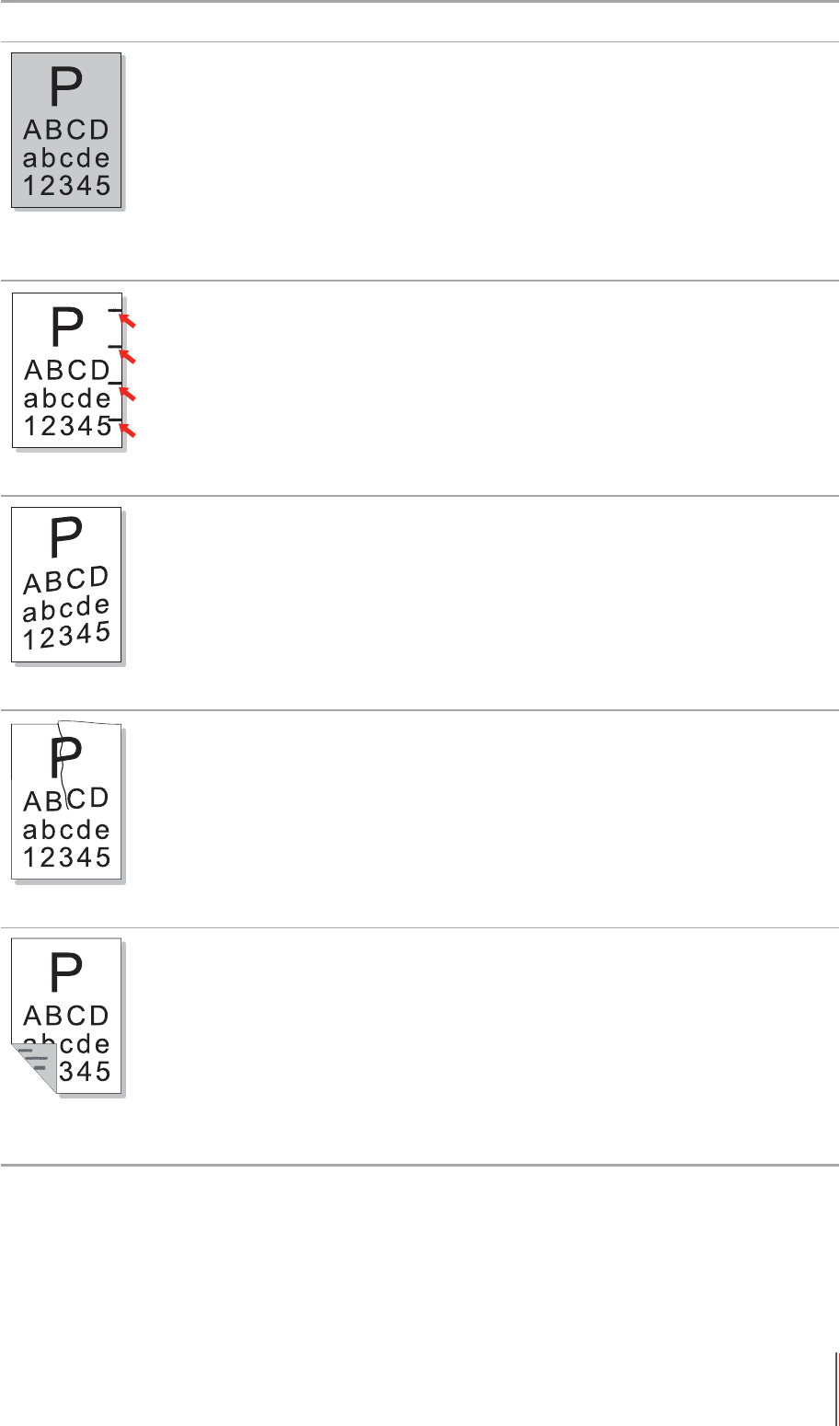
Black background
(gray background)
• The print media that does not
meet usage specication, such as
the media is damp or too rough.
• The laser toner cartridge is dirty.
• The internal part of the laser toner
cartridge is damaged.
• The feed channel is dirty.
• The transfer voltage inside the
printer is abnormal.
• Please use the print media
within the specication range.
• Clean the feed channel inside
the printer.
Cyclical traces appear
• The laser toner cartridge is dirty.
• The internal part of the laser toner
cartridge is damaged.
• The fuser component is damaged.
• Clean the laser toner cartridge
or replace it with a new one.
• Please contact Pantum
Customer Service to repair and
replace the fuser component.
Skewed pages
• The print media is loaded
incorrectly.
• The feed channel of the printer is
dirty.
• Ensure correct loading of the
print media.
• Clean the feed channel inside
the printer.
Wrinkled paper
• The print media is loaded
incorrectly.
• The print media does not meet
the usage specication.
• The feed channel inside the
printer is dirty.
• The fuser component of the
printer is damaged.
• Ensure correct loading of the
print media.
• Please use the print media
within the specication range for
printing.
• Clean the feed channel inside
the printer.
The back of the
printout is dirty
• The laser toner cartridge is dirty.
• The transfer roller inside the
printer is dirty.
• The transfer voltage inside the
printer is abnormal.
• Clean the laser toner cartridge
or replace it with a new one.
• Clean the internal transfer
components of the printer.

10-9
Trouble Cause Solution
Whole page dark
• The laser toner cartridge is
installed incorrectly.
• The internal part of the laser toner
cartridge is damaged.
• Abnormal charge inside the
printer; the laser toner cartridge is
not charged.
• Ensure to install the cartridge
correctly.
The toner does not
adhere to the paper
• The print media that does not
meet usage specication, such as
the media is damp or too rough.
• The inside of the printer is dirty.
• The laser toner cartridge is
damaged.
• The internal part of the printer is
damaged.
•
Please use the print media within
the specication range. If you use
special print media,
please print
with the manual feeder tray.
• Clean the inside of the printer.
Horizontal stripes
• The laser toner cartridge is
incorrectly installed.
• The laser toner cartridge might be
damaged.
• The internal part of the printer is
damaged.
• Ensure to install the cartridge
correctly.

11-1
11
Chapter
Product Specication
11. Product Specication .......................................................................................................................2
11.1. P2200/P2500 Series Specication ............................................................................................2
11.1.1. Specication Overview ....................................................................................................... 2
11.1.2. Printing Specication ..........................................................................................................3
11.2. P2900 Series Specication .......................................................................................................4
11.2.1. Specication Overview ....................................................................................................... 4
11.2.2. Printing Specication ..........................................................................................................5

11-2
11. Product Specification
11.1. P2200/P2500 Series Specication
11.1.1. Specication Overview
Processor 600MHZ
Memory 64MB/128MB
Power Supply
Model:
P2200/P2201/P2203/P2207/P2209/
P2500/P2501/P2503/P2505/P2507/
P2509/P2500W/P2500N/P2505N
220V Model: AC 220-240V, 50/60Hz, 3.0A
100V Model: AC 100-127V, 50/60Hz, 6.0A
110V Model: AC 110-127V, 50/60Hz, 6.0A
(Note: For the power supply and voltage that is suitable
for this printer, please refer to the nameplate on the
back of the printer. Please strictly use the power supply
for the printer according to its specication.)
Communication interface Hi-Speed USB 2.0;
WiFi 802.11b/g/n
Operation
environment
Best print quality 10-32 °C
Humidity range for
operation
20 to 80% RH
Product Size (W*D*H) about 337mm*220mm*178mm
Weight (excluding the laser toner
cartridge)
about 4.3kg (excluding the attached laser toner
cartridge)
Control Panel LED
Note: • Specication values are slightly different for different models of printers with
different functions. These values are based on the initial data. For more information
about the latest specication, please visit: www.pantum.com

11-3
11.1.2. Printing Specication
Print Speed A4 20/22ppm
Letter 21/23ppm
First Page Print Time 8s
Print Language GDI
Maximum print size Legal (216mm*355.6mm)
Durability Recommended
Monthly Page
Volume
700 pages
Maximum
Monthly Page
Volume
15000 pages
Paper Input
Capacity
Standard Tray 150 pieces (80g/m²)
Paper Output
Capacity
Print-side down 100 pieces (80g/m²)
Print Media Media Type Plain paper, thin paper, thick paper, transparent lm, card
paper, label paper, envelope
Media size A4, A5, JIS B5, IS0 B5, A6, Letter, Legal, Executive,
Folio, Ocio, Statement, Japanese Postcard, Monarch
Env, DL Env, C5 Env, C6 Env, No.10 Env, ZL, Big 16K,
Big 32K, 16K, 32K, B6, Yougata4, Postcard, Younaga3,
Nagagata3, Yougata2.
Media weight 60~163g/m²

11-4
11.2. P2900 Series Specication
11.2.1. Specication Overview
Processor 600MHZ
Memory 64MB/128MB
Power Supply 220V Model: AC 220-240V, 50/60Hz, 3.0A
100V Model: AC 100-127V, 50/60Hz, 6.0A
110V Model: AC 110-127V, 50/60Hz, 6.0A
(Note: For the power supply and voltage that is suitable
for this printer, please refer to the nameplate on the
back of the printer. Please strictly use the power supply
for the printer according to its specication.)
Communication interface Hi-Speed USB 2.0;
WiFi 802.11b/g/n
100Base-Tx Ethernet;
Operation
environment
Best print quality 10-32 °C
Humidity range for
operation
20%-80% RH
Product Size (W*D*H) 380*261*236mm
Weight (excluding the laser toner
cartridge)
about 5.3kg (excluding the attached laser toner
cartridge)
Control Panel LED
Note: • Specication values are slightly different for different models of printers with
different functions. These values are based on the initial data. For more information
about the latest specication, please visit: www.pantum.com

11-5
11.2.2. Printing Specication
Print Speed A4 24ppm
Letter 25ppm
First Page Print Time < 8.5s
Print Language GDI
Maximum print size Legal (216mm*355.6mm)
Durability Recommended
Monthly Page
Volume
700 pages
Maximum
Monthly Page
Volume
20,000 pages
Paper Input
Capacity
Standard Tray 150 pieces (80g/m²)
Multipurpose
Tray
1 piece (60~163g/m²)
Paper Output
Capacity
Print-side down 100 pieces (80g/m²)
Print Media Media Type Plain paper, thin paper, thick paper, transparent lm, card
paper, label paper, envelope
Media size A4, A5, JIS B5, IS0 B5, A6, Letter, Legal, Executive,
Folio, Ocio, Statement, Japanese Postcard, Monarch
Env, DL Env, C5 Env, C6 Env, No.10 Env, ZL, Big 16K,
Big 32K, 16K, 32K, B6, Yougata4, Postcard, Younaga3,
Nagagata3, Yougata2.
Media weight 60~163g/m²