Zhuochuang Vision Technology ZC-IPC208 Low-power Battery Camera User Manual

Shenzhen zhuochuang Vision Technology Co. Ltd. Low-power Battery Camera

Users manual

Low-power Battery Camera ZC-IPC208    USER MANUAL 1 .Function .......................................... 2 2. APP software download .................. 2 3. Installation ...................................... 3 4. Administrator operation guide ....... 6 5.Main function description ................ 6 6.Trouble shooting .............................. 8 7. Precautions Use occasions: ............. 9 8. FCC Warning ................................. 10
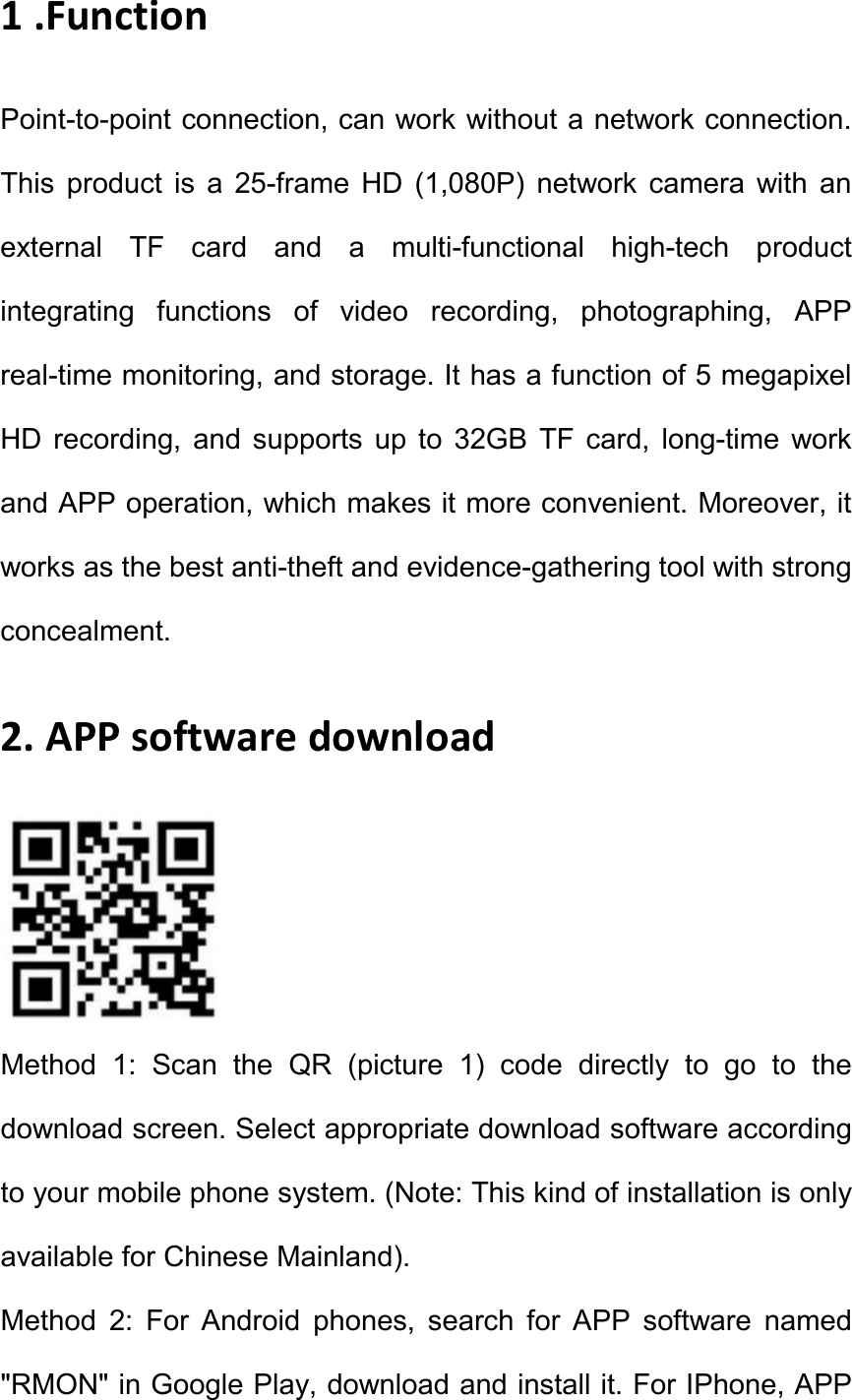
1 .Function Point-to-point connection, can work without a network connection. This  product  is  a  25-frame  HD  (1,080P)  network  camera  with  an external  TF  card  and  a  multi-functional  high-tech  product integrating  functions  of  video  recording,  photographing,  APP real-time monitoring, and storage. It has a function of 5 megapixel HD  recording,  and  supports  up  to  32GB  TF  card,  long-time  work and APP operation, which makes it more convenient. Moreover, it works as the best anti-theft and evidence-gathering tool with strong concealment.   2. APP software download  Method  1:  Scan  the  QR  (picture  1)  code  directly  to  go  to  the download screen. Select appropriate download software according to your mobile phone system. (Note: This kind of installation is only available for Chinese Mainland).   Method  2:  For  Android  phones,  search  for  APP  software  named "RMON" in Google Play, download and install it. For IPhone, APP
software named "RMON" in AppStore, download and install it.   3. Installation   1). Plug in the charger, connect the power supply, and turn on the ON/OFF  switch  of  the  device.  (The  device  starts  up  30  seconds later and the blue light keeps on while the red light flashes quickly). 2). Flashes quickly for 30 seconds, it means the device is searching for  wifi  that  is  connected  before.  (In  this  mode,  the  device  will automatically connect to the network that is connected before after the device is power off).   3).  If there is  no  wifi found  after searching, the  device will  restart automatically  (it  takes  30  seconds).  After  restart,  the  blue  light keeps  on  while  the  red  light  flashes  slowly.  (In  this  mode,  the device  is  transmitting  wifi  hotspot  for  search  connection  of  your mobile phone).   4).  When  the  red  indicator  light  flashes  slowly  (2  minutes  after starting up), use your mobile phone to search for wifi hotspot (begin with  YM)  for  connection  and  exit.  After  that,  enter  in  the downloaded  APP  and  set  the  configuration  of  router  network. (Specific operation steps are shown as below).   5). Wifi connection 1 (for iphone) : - Search for wifi hotspot for connection
- Open the APP when a wifi icon appears - Click to add it.   5). Select a path to add;   6).  Enter  in  or  scan  the  UID  code  of  QR  code  of  the  device.  6. Select  or  enter  in  the  name  and  passwords  of  wifi  before  setting configuration.   7). Search   8). Confirm   9). Done   10).  When  it  says  “Wifi  configuration  completed”,  the  device  will restart again. Both the blue and red indicator light will keep on for 30  seconds  after  the  device  starts  up  (It  means  the  device  is connected to network when the red indicator light keeps on).   11). App is ready to add and search for camera by now (under the same network environment).   12). Point-to-point connection (without network connection)   13). Search for  wifi hotspot for  connection on  mobile phone-open APP-click  -select  -search-confirm-connection  completed  (the  blue light keeps on while the red light flashes slowly)   14).  Connection  method  2  (point-to-point  connection  to  router network)   15). Search for  wifi hotspot for  connection on  mobile phone-open
APP-click -select -search-confirm-connection completed-click to set the camera-select advance configuration-select wifi   connection-select  a  wifi-enter  in  passwords-connect  (30  seconds after  the  camera  restarts  automatically,  both  the  blue  and  red indicator light for camera connection will keep on)   16). Lamp opening and talkback.   17).  Click  to  remotely  turn  on  the  illumination  lamp,  and  drag  to adjust the brightness.   18). Click to remotely turn on the night vision lamp. , and then press to talk, and voice will 3. Click the microphone be automatically sent to the device side after release.   19).  Screen  shot,  video  recording  and  alarm  1.  Click  the  online device  to  browse  videos.  There  are  three  options  “1080P  720P 480P” on the top of screen, which can be selected according to the current network environment to adjust the image quality and video fluency. In addition to that, the color contrast degree and brightness can also be adjusted autonomously. Icons in respectively represent: monitor,  photograph,  video  recording,  left/right  rollover,  up/down rollover. By clicking “photograph” or “video recording” , the images or videos will be saved in the phone memory (as shown below).   20). Long press the online device to start more settings.
21). Advanced configuration (to remotely change basic functions of the device)   22).  Select  ,  enter  in  the  original  passwords  8888  and  then  new passwords to change the passwords.   4. Administrator operation guide   1). Install the search tool on the computer. within LAN). in random disc (Note: Administrator setting can only be made   2). Click to display the devices connected to network (as below)   3). Double click the searched IP. Enter in the next page to type in user name (admin) and click to confirm it. (Note: The original user name is admin, with no password) (as shown below)   4).  Enter  in  setting  page  after  completing  the  above  steps. Download  the  plug-in  and  select  a  language  for  first  use  (click download and install) (as shown below). to   5). Click setting page (as shown below). again to enter in 5. Click to start setting (as shown below)   6).  System  management  setting:  to  select  the  item  to  be  set  (as shown below).   5.Main function description   1).  Time  setting  Open  system  management  page——click  time
setting——select time zone——save.   2). Administrator password setting Open “change   password”——type in the new password——confirm   the new password——save.   3). Change the password of device (original password: 8888) Open “ network setting ” —— P2P setting —— type in the new password —— save —— return to system management to restart the device. (it can also be set remotely by APP).   4).  Alarm  setting  Open  “alarm  setting”  ——start  alarm setting——click  IP  Camera  built-in  —  —  select  the  required sensitivity. (Option 6 is suggested)   5). SD card setting SD card should be formatted for the first time to insert — —enter in SD card setting to select the needed function before  setting  other  functions.  (Note:  The  device  defaults  to automatically and circularly record videos).   6). View the content of SD card   -Plug out the card directly and read with a card reader.   -Remote playback on APP.   - Open SD card video recording page, select and save the video file to  be  viewed.  10.  Specifications  Pixel  Resolution  Video  format Frames 500 megapixel CMOS 1080P AVI 25   View  angle  Eyesafe  lamp  beads  Distance  of  detection  shooting
Minimum  illumination  Charger  140°  23  motion  6  m  straight-line distance  1LUX  2A  Continuous  shooting  time  Above  24  hours Compressed  format  Sound  recording  range  Power  consumption Storage  temperature  Operating  temperature  Operating  humidity Type  of  memory  card  Maximum  capacity  memory  card  Play software  Computer  VLCPlayer/SMPlayer  operation  Windows/Mac OS  X  H.264  5 ㎡  260MA/5V  -20-80℃  -10-60℃  15-85%RH  TF card of 32GB system Mobile phone operation Android/iOS system Web  browser  IE7  and  above,chrome,firefox  safari.etc  Maximum visit   6.Trouble shooting   1). Remote control is not enough. Please select the most suitable definition according to the current network environment.   2). SD card cannot save files. SD must be formatted for first use.   3).  The  device  cannot  be  connected  to  network.  Long  press  the reset key for 4 seconds and connect it again.   4). The video in SD card cannot be played fluently on APP. It is due to different decoding capacity of mobile phones. You can adjust the definition of recording device to fit your mobile phone.   5).  The  passwords  are  forgotten.  Directly  click  the  reset  key  of device for 4 seconds to restore factory settings.
6). In case the indicator light does not work normally or connection is not smooth after long time use, please restore the factory default setting  (press  the  reset  key  for  above  4  seconds)  and  connect  it again.   7. Precautions Use occasions:   please strictly comply with relevant state decrees and do not use it for any other illegal purposes at your own risks. Software upgrade: to achieve better product performance, the manufacturer will make continuous improvement to the software. This product is designed for  convenient  software  upgrade  by  customers.  Please  ask  your local distributor for the information and upgrading method of latest version  of  software.  Working  temperature:  please  use  it  under natural temperature. Do not operate it under a temperature that is not adapted for human body. Working humidity: please use it under an environmental humidity that is suitable for human life. Do not put the product in a moist working environment since the product is not designed with waterproof function. Shooting luminance: please use the product in an environment with adequate light sources. Do not point  the  camera  directly  to  the  sun  and  other  superstring  light sources  to  avoid  any  damage  to  the  optical  elements.  Cleaning requirements: please do not use the product in an environment with
too much dust to keep the camera lens and other components free of dust that may affect the shooting effect. The camera lens can be cleaned  and  maintained  by  wiping  with  lens  wiping  paper  or glasses  cloth.  Other  matters:  the  product  is  a  kind  of  precision electronic product that should be kept safe from strong impact and vibration.  Please  do  not  use  in  high  magnetic  field  and  strong electric field.   8. FCC Warning   This device complies with Part 15 of the FCC Rules. Operation is subject to the following two conditions   (1) this device may not cause harmful interference, and   (2)  this  device  must  accept  any  interference  received,  including interference  that  may  cause  undesired  operation.  Changes  or modifications not expressly approved by the party responsible for compliance  could  void  the  user’s  authority  to  operate  the equipment.   Note 1: This equipment has been tested and found to comply with the  limits  for  a  Class  B  digital  device,  pursuant  to  part  15  of  the FCC  Rules.  These  limits  are  designed  to  provide  reasonable protection against harmful interference in a residential installation. This  equipment  generates,  uses  and  can  radiate  radio  frequency
energy  and,  if  not  installed  and  used  in  accordance  with  the instructions,  may  cause  harmful  interference  to  radio communications. However, there is no guarantee that interference will  not  occur  in  a  particular  installation.  If  this  equipment  does cause  harmful  interference  to  radio  or  television  reception,  which can be determined by turning the equipment off and on, the user is encouraged to try to correct the interference by one or more of the following measures:   —Reorient or relocate the receiving antenna.   —Increase the separation between the equipment and receiver.   —Connect the equipment into an outlet on a circuit different from that to which the receiver is connected.   —Consult  the  dealer  or  an  experienced  radio/TV  technician  for help.   1.Changes or modifications to this unit not expressly approved by the party responsible for compliance could void the user’s authority to operate the equipment. 2. The minimum separation generally be used is at least 20 cm.
FCC Statement This equipment has been tested and found to comply with the limits for a Class B digital device, pursuant to part 15 of the FCC rules. These limits are designed to provide reasonable protection against harmful interference in a residential installation. This equipment generates, uses and can radiate radio frequency energy and, if not installed and used in accordance with the instructions, may cause harmful interference to radio communications. However, there is no guarantee that interference will not occur in a particular installation. If this equipment does cause harmful interference to radio or television reception, which can be determined by turning the equipment off and on, the user is encouraged to try to correct the interference by one or more of the following measures: -Reorient or relocate the receiving antenna. -Increase the separation between the equipment and receiver. -Connect the equipment into an outlet on a circuit different from that to which the receiver is connected. -Consult the dealer or an experienced radio/TV technician for help. To assure continued compliance, any changes or modifications not expressly approved by the party. Responsible for compliance could void the user’s authority to operate this equipment. (Example- use only shielded interface cables when connecting to computer or peripheral devices). This equipment complies with Part 15 of the FCC Rules. Operation is subject to the following two conditions:     (1) This device may not cause harmful interference, and     (2) This device must accept any interference received, including interference that may cause undesired operation.   FCC Radiation Exposure Statement: The equipment complies with FCC Radiation exposure limits set forth foruncontrolled enviroment. This equipment should be installed and operated withminimum distance 20cm between the radiator and your body. .

Navigation menu