eSky wireless ES320 GPS tracking User Manual ES320 en
eSky wireless Inc. GPS tracking ES320 en
Users Manual

0
http://www.eskywireless.com
Suzhou eSkywireless Inc. ES320 user manual
ES320 user manual
Suzhou eSkywireless Inc.

1
http://www.eskywireless.com
Suzhou eSkywireless Inc. ES320 user manual
Information to User
This device complies with part 15 of the FCC Rules. Operation is subject to the following two
conditions: (1) This device may not cause harmful interference, and (2) this device must accept any
interference received, including interference that may cause undesired operation.
RF warning
This device was tested for compliance with the applicable FCC specific absorption rate (SAR) limits
for radio frequency (RF) exposure during typical body-worn operations. To ensure that RF exposure
levels remain at or below the tested levels, use a belt-clip, holster, or similar accessory that
maintains a minimum separation distance of 0.5 cm between your body and the device, with either
the front or back of the device facing towards your body. Such accessories should not contain any
metallic components. Body-worn accessories that do not meet these specifications may not ensure
compliance with applicable SAR limits and their use should be avoided.
2
http://www.eskywireless.com
Suzhou eSkywireless Inc. ES320 user manual
1 PREPARE before INSATLLATION
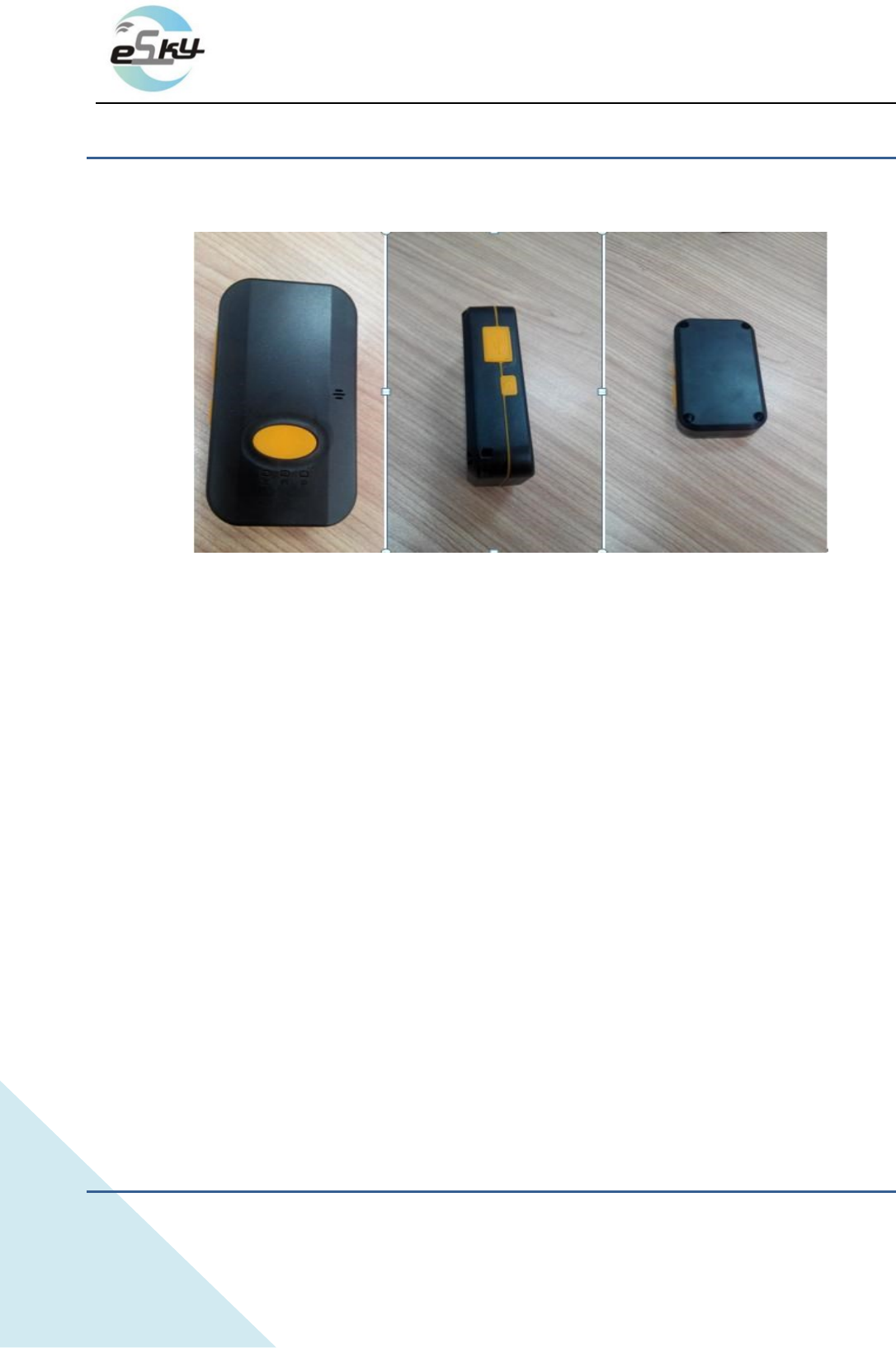
1.1 Product Display
(image of ES320)
1.2Packaging Inspection
Open the box, check the terminal model is correct and the accessories are complete. Otherwise,
please contact your dealer.
1.3Install SIM Card
1.3.1 Selection of SIM Card
The ES320 is a GPS terminal,please reference dealer’s opinion to select carrier.
1.3.2 Installation SIM card
Open the terminal cover, and put the metal side of SIM card face down and then fasten the card slot
cover.
1.4Power On
The terminal standard power supply is 3.7V-4.2V. The red light is the power light, orange light is
WCDMA signal, a green light is GPS signals.
Note: Equipment working temperature is -20℃to 65℃。
2 Steps of AT Setting before tests
3
http://www.eskywireless.com
Suzhou eSkywireless Inc. ES320 user manual
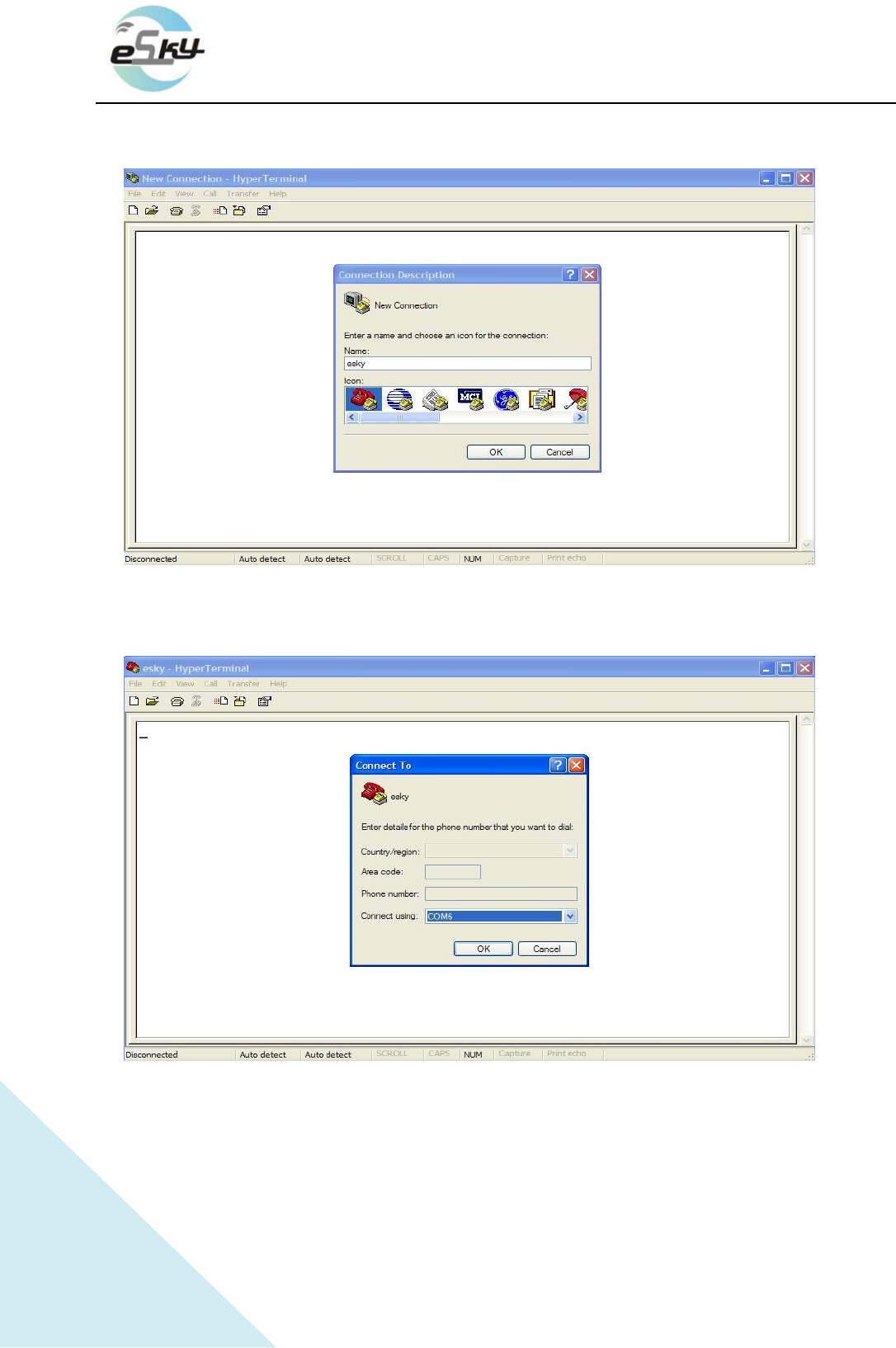
Start hyper-terminal connection as follows.
1)select the comm port of PC through which ES320 is connected with PC, as the follows
Note: the comm port chooses the AT port(You can sure the AT port in Port of Device Manager).
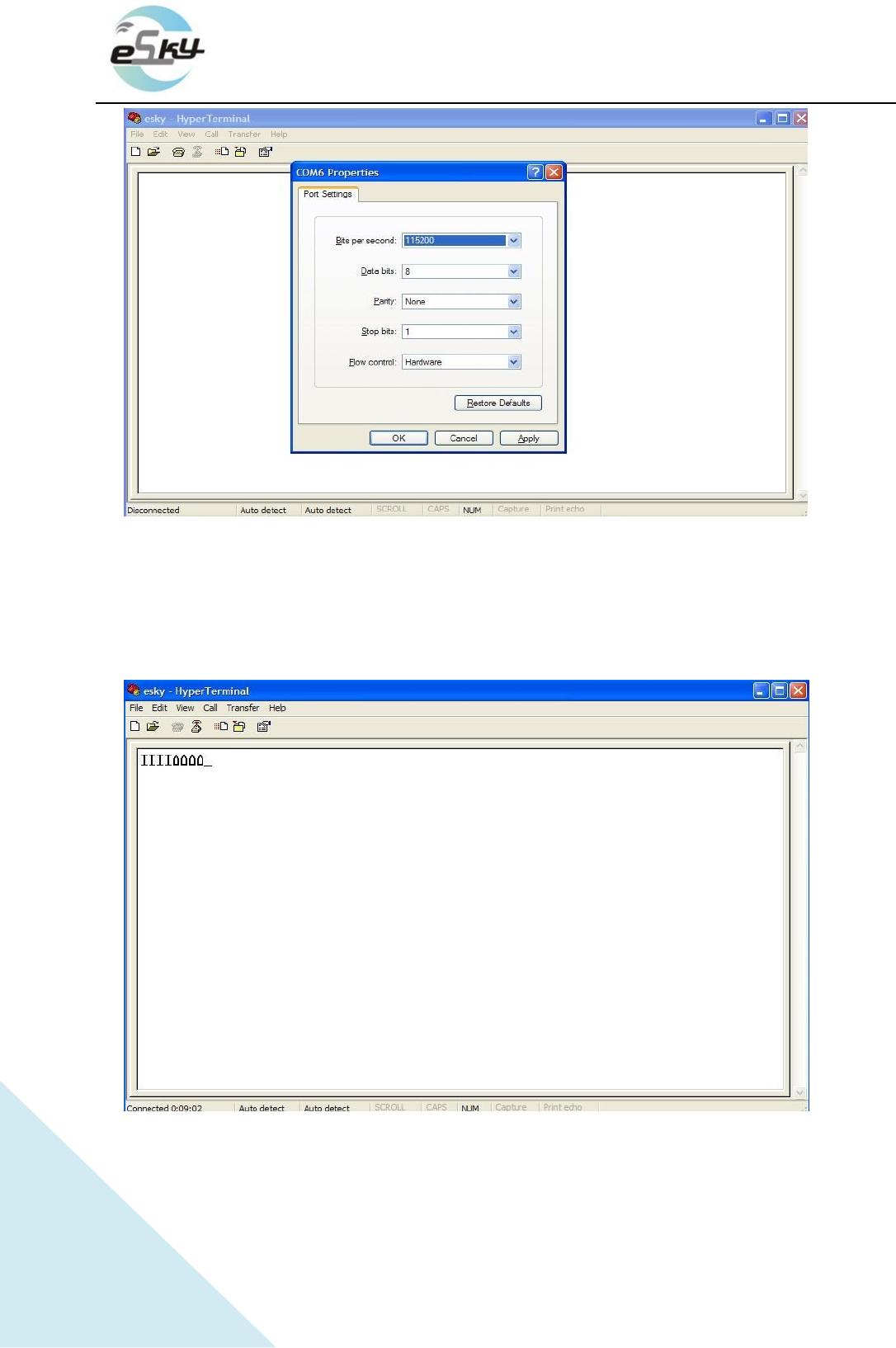
2) In Port Settings, change communication speed (bits per second) to 115200bps,
4
http://www.eskywireless.com
Suzhou eSkywireless Inc. ES320 user manual
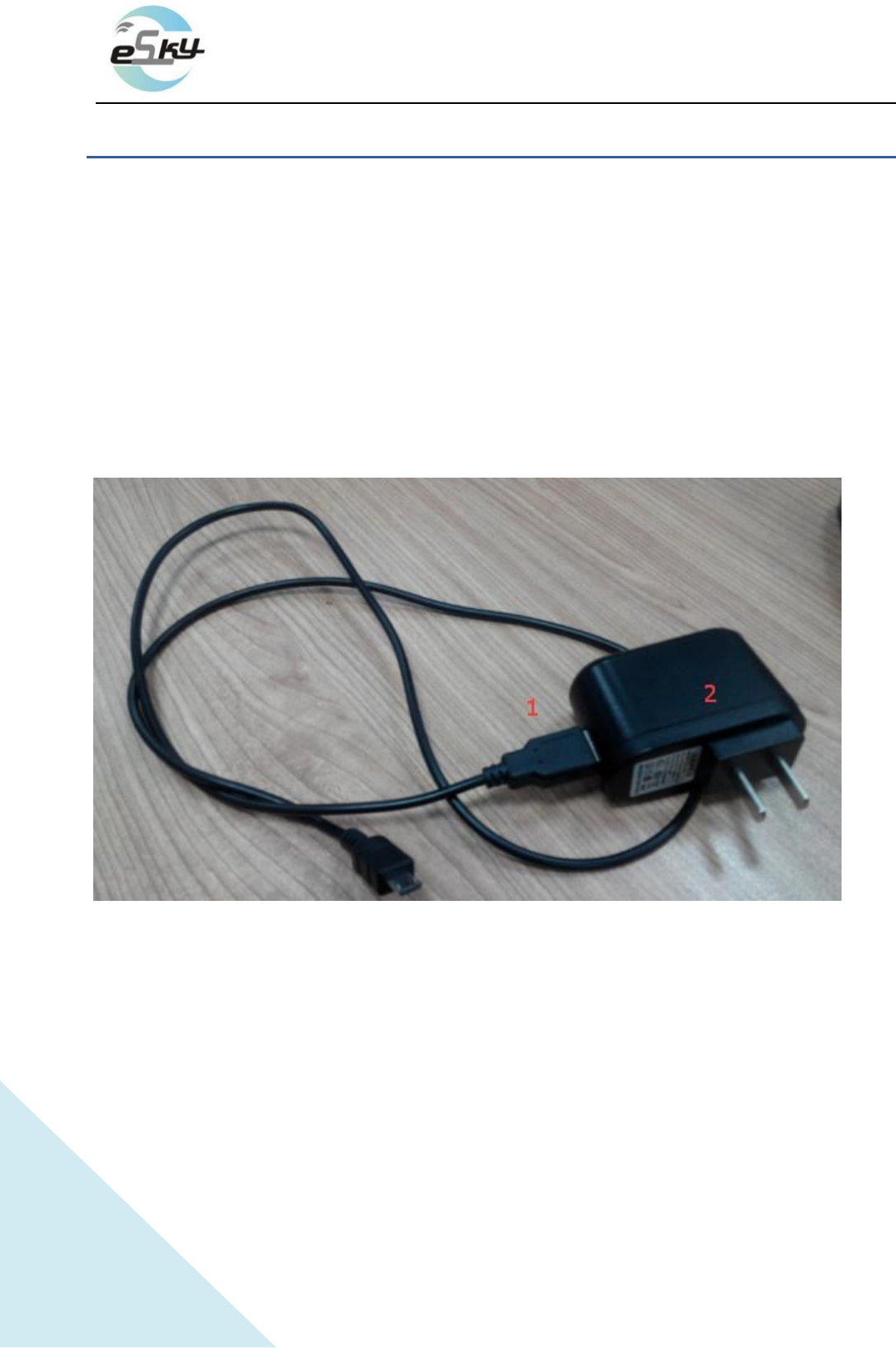
3)Final step is the certain AT settings necessary after 1st running of downloaded program.
3.1) Start connection first
3.2) Restart ES320
3.3) After you see the "IIII"as the following picture, start setting.
5
http://www.eskywireless.com
Suzhou eSkywireless Inc. ES320 user manual
3 INSTALL and OPERATION
3.1 Installation Method
The terminal is GPS positioning products, it is recommended that you follow the instructions to
install.
Note:
1) The following installation order, please do not inverted.
2) During the installation process, please do not supply the terminal.
① Charging line.
② charging plug.
3.1.1 Installation
The equipment can be placed in any position.
① The equipment can be in your hands.
6
http://www.eskywireless.com
Suzhou eSkywireless Inc. ES320 user manual
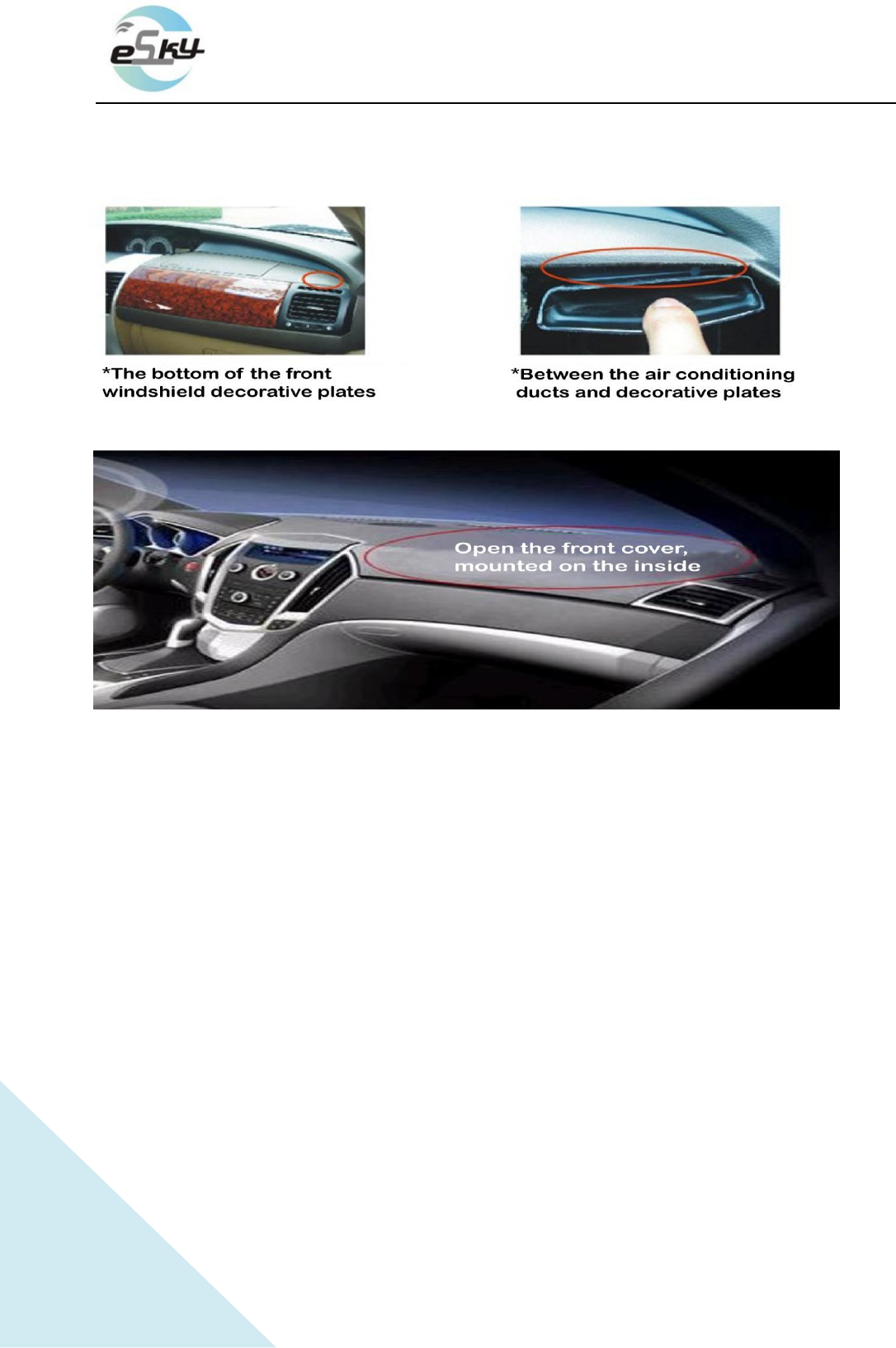
② Equipment can be placed in the position of any car(such as under the dashboard, windshield,
feet, etc.)
③ The equipment can be in any package
3.2 Installation Notes
① Avoid put together with the emission source, for example, reversing radar, anti-theft devices
and other on-board communications equipment.
② As for fixing the terminal, you can bound with ties or stick with wide sponge strength double-
faced adhesive.
③ The terminal has and GPS antenna,so the installation should ensure that the ES320face up
(that is GPS toward the sky). Besides, there is no on-metallic object that obscures above the
terminal.
④ If your device is in the metal mask, GPS receiving signal will be weakened, and it may cause GPS
work abnormal. So please change the location you installed the terminal. 、

7
http://www.eskywireless.com
Suzhou eSkywireless Inc. ES320 user manual
4.SOS Introduction
SOS can make an SOS call or SMS message to a pre-configured phone.
1).SOS message: when press the SOS button, if the device positioning by GPS, the equipment will
receive GPS information; If the equipment base station signal is detected, the equipment will
receive the base station information;
2).SOS call: when press the SOS button, the device will connect the specified number, and carries on
the phone.

8
http://www.eskywireless.com
Suzhou eSkywireless Inc. ES320 user manual
Federal Communication Commission Interference Statement
This equipment has been tested and found to comply with the limits for a Class B digital device,
pursuant to Part 15 of the FCC Rules. These limits are designed to provide reasonable
protection against harmful interference in a residential installation. This equipment generates,
uses and can radiate radio frequency energy and, if not installed and used in accordance with
the instructions, may cause harmful interference to radio communications. However, there is
no guarantee that interference will not occur in a particular installation. If this equipment does
cause harmful interference to radio or television reception, which can be determined by
turning the equipment off and on, the user is encouraged to try to correct the interference by
one of the following measures:
- Reorient or relocate the receiving antenna.
- Increase the separation between the equipment and receiver.
- Connect the equipment into an outlet on a circuit different from that to which the receiver is
connected.
- Consult the dealer or an experienced radio/TV technician for help.
FCC Caution: Any changes or modifications not expressly approved by the party responsible for
compliance could void the user's authority to operate this equipment.
This transmitter must not be co-located or operating in conjunction with any other antenna or
transmitter.
This equipment complies with FCC radiation exposure limits set forth for an uncontrolled
environment.