Panasonic DMC TZ80 Quick Guide For 4K Photo TZ100 TZ101 TZ81 QG EN
User Manual: panasonic DMC-TZ80 - Quick Guide for 4K Photo Free User Guide for Panasonic Camera, Manual - page4
Open the PDF directly: View PDF  .
.
Page Count: 2
Quick Guide for 4K Photo
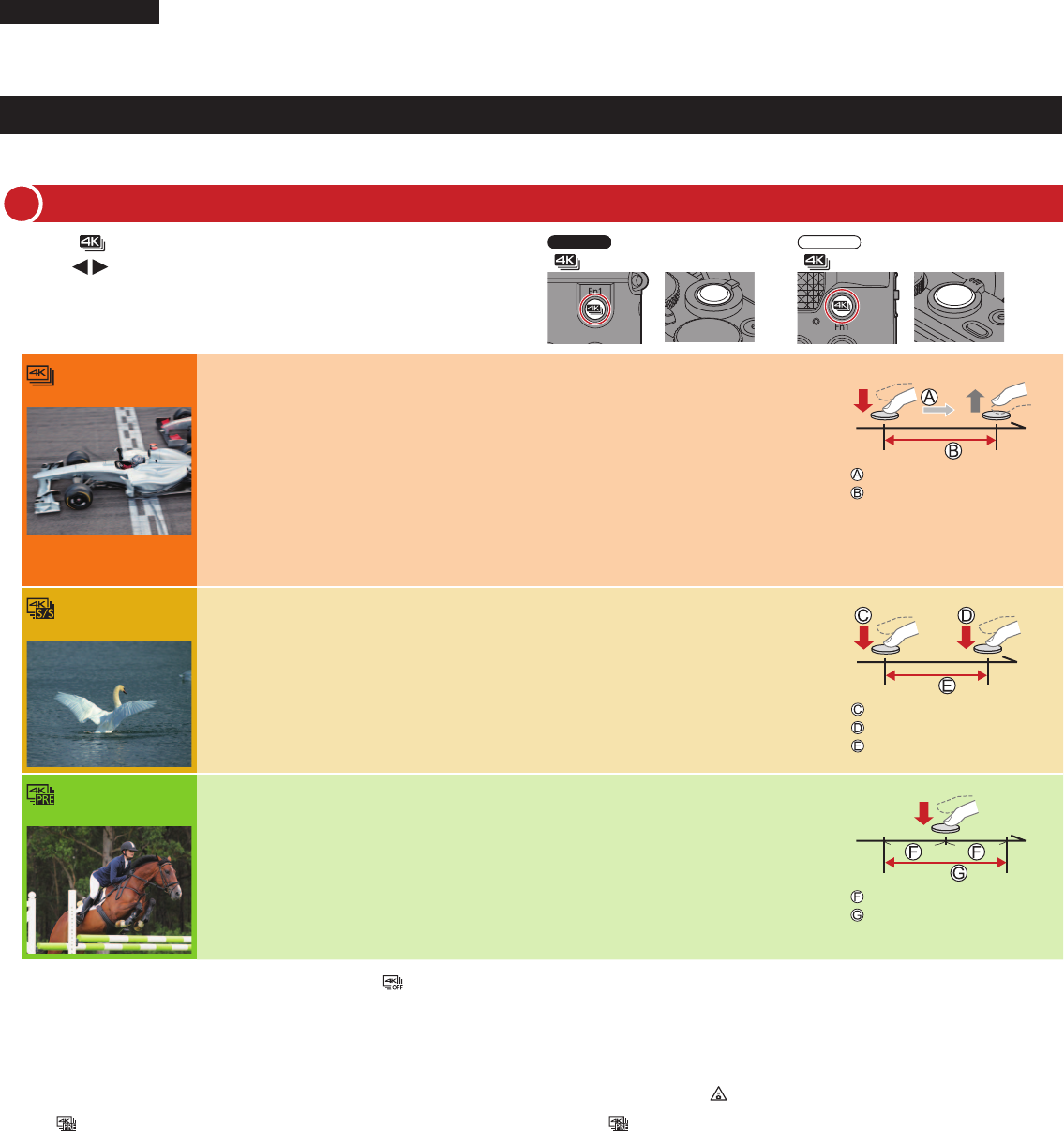
Catching the best moment with 4K Photo ([4K Burst] / [4K Burst(S/S)] / [4K Pre-Burst])
You can select the desired moment from a burst of 4K photos taken at 30 frames/second and save that moment as a picture of approx. 8 million pixels.
1Press [ ] button
TZ100/TZ101
[ ] button Shutter button
TZ80/TZ81
[ ] button Shutter button
2Press to select the recording method and press
[MENU/SET]
[4K Burst]
For capturing the best shot of a fast-moving subject (e.g., sports, aeroplanes, trains)
Burst recording is performed while the shutter button is pressed and held. The shutter sound
will be heard repeatedly.
1Press the shutter button halfway
2Press and hold the shutter button fully for as long as you want to
perform recording
●Recording will start approximately 0.5 seconds after you press the shutter button fully. Therefore, press
the button fully as soon as possible.
●If you are using Auto Focus, continuous AF will work while recording. Focus will be adjusted
continuously.
●Continuous recording length: Up to 15 minutes
Press and hold
Recording is performed
[4K Burst(S/S)]
For capturing unpredictable photo opportunities (e.g., plants, animals, children)
Burst recording starts when the shutter button is pressed and stops when pressed again.
Start and stop tones will be heard.
1Press the shutter button fully
2Press the shutter button fully again
●If you are using Auto Focus, continuous AF will work while recording. Focus will be adjusted
continuously.
●Continuous recording length: Up to 15 minutes
Start (First)
Stop (Second)
Recording is performed
[4K Pre-Burst]
For recording as needed whenever a photo opportunity arises (e.g., the moment when a
ball is thrown)
Burst recording is performed for approximately 1 second before and after the moment that the
shutter button is pressed. The shutter sound will be heard only once.
1Press the shutter button fully
●In situations where you want to lock focus and exposure, such as when the subject is not at the
centre, use [AF/AE LOCK].
●Recording length: Approximately 2 seconds
Approximately 1 second
Recording is performed
■To cancel the 4K Photo functions: In step 2, select [ ].
●When you perform 4K burst photo recording, a 4K burst file will be saved in the MP4 format.
●Use a UHS Speed Class 3 card.
●When you are using an SDHC memory card, you can continue recording without interruption even if the file exceeds 4 GB, but the motion picture file will be recorded and played
back in separate files. If using an SDXC Memory Card, you can record a motion picture in a single file even if the size is greater than 4 GB.
●When recording 4K photos, the angle of view becomes narrower.
●If the surrounding temperature is high, or 4K photos are recorded continuously, or the temperature of the camera rises, [ ] may be displayed and recording may be stopped
halfway through to protect the camera. Wait until the camera cools down.
●When [ ] ([4K Pre-Burst]) is set, the battery drains faster and the camera temperature rises. Select [ ] ([4K Pre-Burst]) only when recording.
ENGLISH Digital Camera
Model No. DMC-TZ100/DMC-TZ101/DMC-TZ80/DMC-TZ81
SQC0348
Recording 4K Photos
1
Selecting pictures from 4K burst file and saving
2
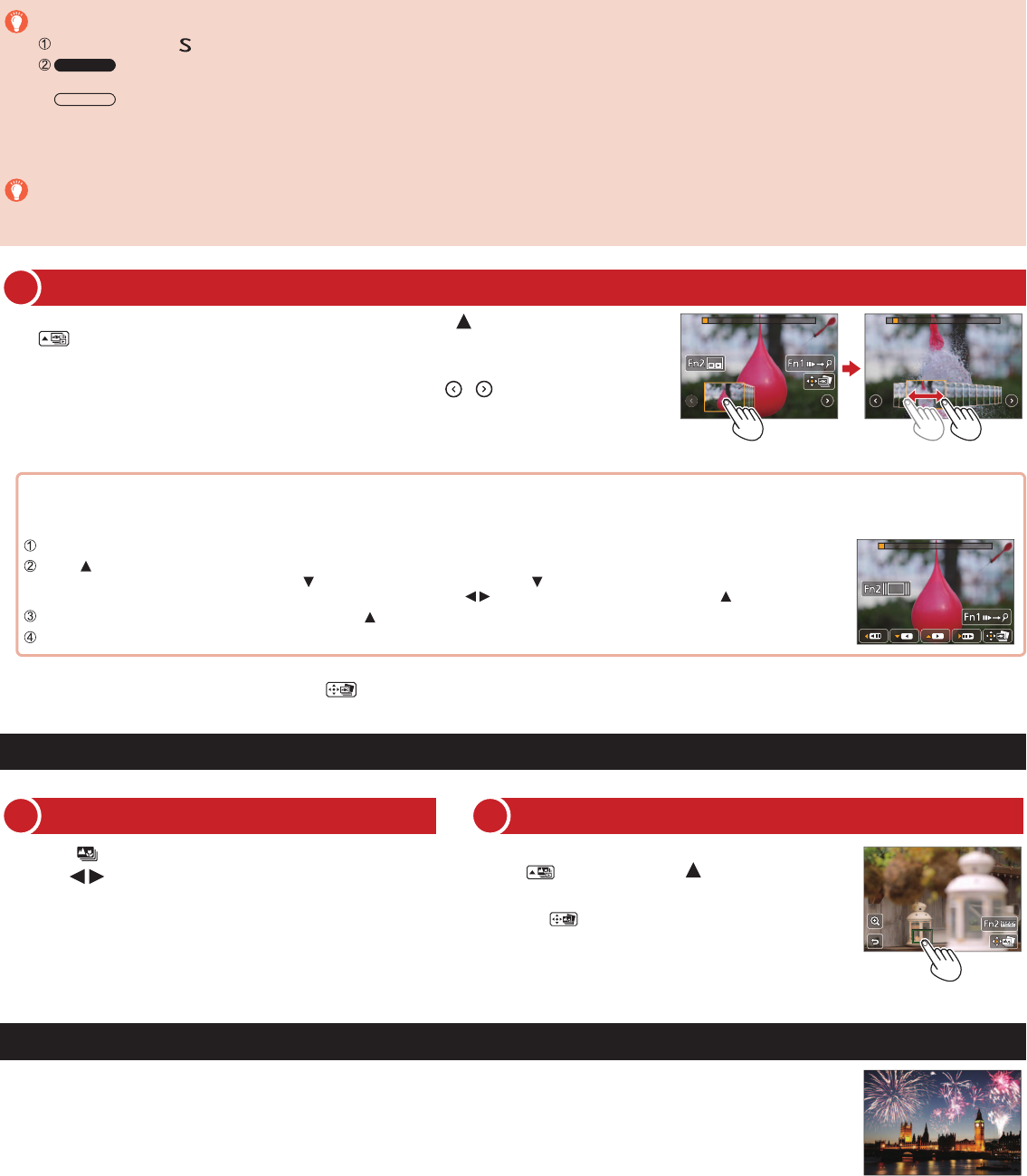
1Select a 4K burst file on the playback screen, and press
●[ ] is displayed on a 4K burst file.
●The slide view screen for selecting pictures will be displayed.
2Touch and drag the frames to select the frame you want to save as a picture
●You can display the previous or next 45 frames in slide view by touching [ ]/[ ] ([4K Burst]/[4K Burst(S/S)]
only).
When a file with long burst time is selected ([4K Burst]/[4K Burst(S/S)] only):
Make a rough selection of scenes using the 4K burst playback screen first, and select the desired frame you want to save as a picture using the slide view
screen.
Press [Fn2] button to display the 4K burst playback screen
Press and perform continuous playback
●You can start continuous rewind by pressing . To pause the rewind operation, press again.
●You can start fast rewind/forward during continuous playback by pressing . To return to continuous playback, press .
On the scene you want to save as a picture, press to stop playback
Press [Fn2] button to display the slide view screen
3Press [MENU/SET] to save the picture
●The same operation can be performed by touching [ ]. The picture will be saved in JPEG format.
To record the subject with reduced blur
Set mode dial to [ ]
TZ100/TZ101
Set the shutter speed by rotating the rear dial
TZ80/TZ81
Set the shutter speed by rotating the control dial
●Approximate shutter speed for outdoor recording in fine weather conditions: 1/1000 seconds or faster.
●If you increase the shutter speed, the ISO sensitivity becomes higher, which may increase the noise on the screen.
Adding markers to select and save pictures ([4K Burst(S/S)] only):
When you press the [Fn1] button while recording, you can add a marker. (Up to 40 markers for each recording.) When selecting and saving pictures
from a 4K burst file, you can skip to the positions where you added markers.
Saving a picture by selecting a focus point after recording ([Post Focus])
You can record bursts of photos with the same quality as a 4K photo while automatically changing the focus point.
Layering brighter parts into a single still picture ([Light Composition])
Select multiple frames from 4K burst files recorded in 4K Photo mode that you wish to combine. Parts of the image that are brighter
than the preceding frame will be superimposed on the preceding frame to combine the frames into one picture. Refer to “Basic
Operating Instructions” for details.
Recording using [Post Focus]
1
1Press [ ] button
2Press to select [ON] and press [MENU/SET]
3Determine the composition and press the shutter
button halfway
4Press the shutter button fully to start recording
■To cancel [Post Focus]: Select [OFF] in step 2.
Select the focus point and save the picture
2
1On the playback screen, select the image with
the [ ] icon and press
2Select the focus point by touching it
3Touch [ ] to save the picture
●The picture will be saved in JPEG format.
