AEE Wireless Technology BT502 Wireless Camera User Manual S M502G190011 502UA OM OM final

Shenzhen AEE Wireless Technology Co., Ltd. Wireless Camera S M502G190011 502UA OM OM final

Users Manual Rev 2

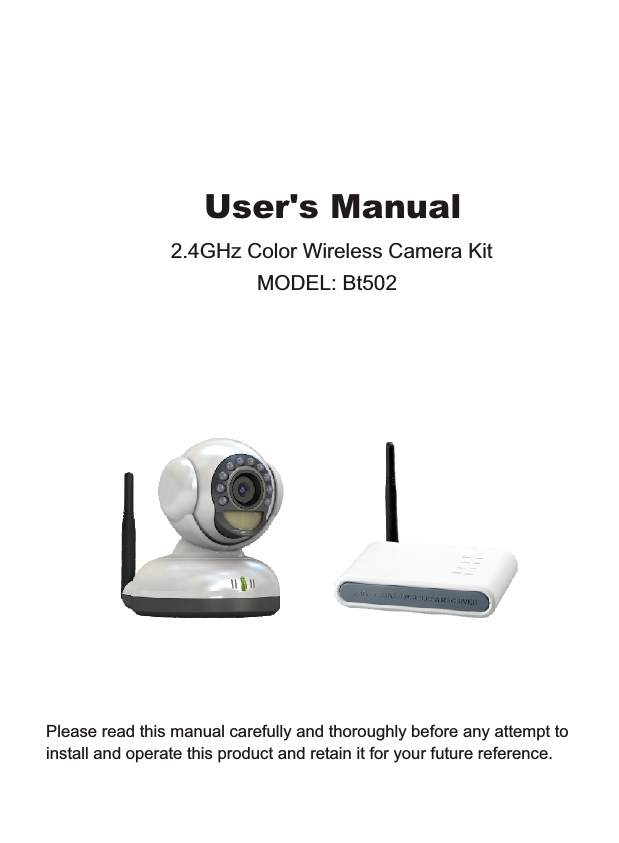
Please read this manual carefully and thoroughly before any attempt to install and operate this product and retain it for your future reference.User's Manual2.4GHz Color Wireless Camera Kit MODEL: Bt502
       The users manual or instruction manual for an intentional or unintentional radiator shall caution the user that changes or modifications not expressly approved by the party responsible for compliance could void the user's authority to operate the equipment. In cases where the manual is provided only in a form other than paper, such as on a computer disk or over the Internet, the information required by this section may be included in the manual in that alternative form, provided the user can reasonably be expected to have the capability to access information in that form.
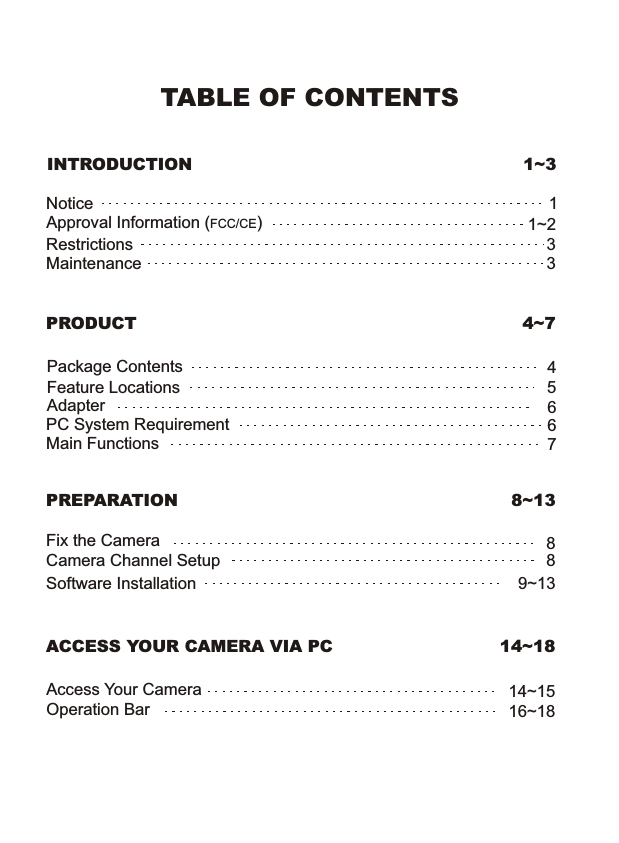
TABLE OF CONTENTSINTRODUCTION 1~3NoticeRestrictionsMaintenanceApproval Information (FCC/CE)1331~2PRODUCT 4~7Package ContentsFeature LocationsAdapterPC System RequirementMain Functions45667PREPARATIONACCESS YOUR CAMERA VIA PC8~1314~18Camera Channel SetupFix the Camera 8Access Your CameraOperation Bar814~1516~18Software Installation 9~13
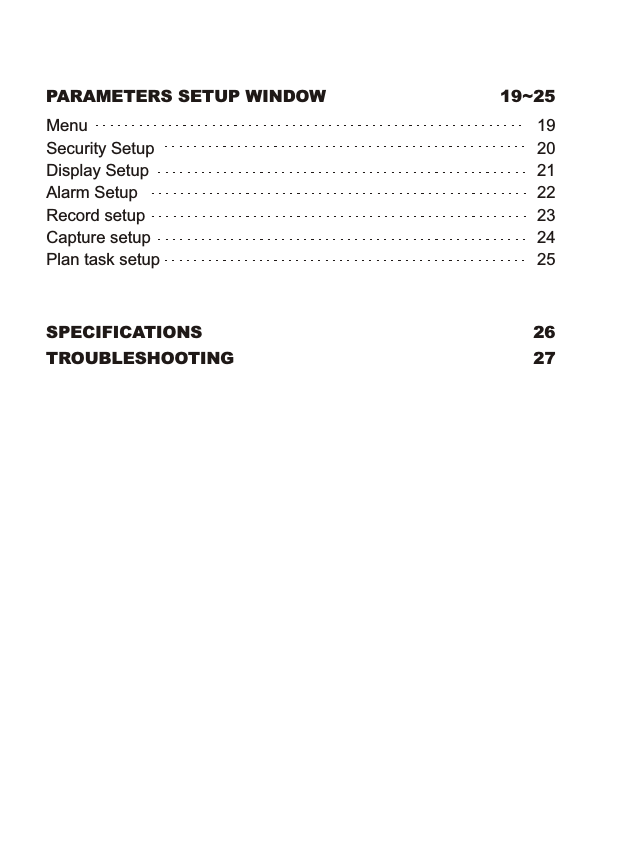
SPECIFICATIONSPARAMETERS SETUP WINDOW 19~25TROUBLESHOOTING2627MenuSecurity SetupDisplay SetupAlarm SetupRecord setupCapture setupPlan task setup19202122232425
INTRODUCTIONThank you for your interest and support to our product and purchase thiswireless camera kit. This product eel confident that you will be pleased with the quality and features of this product. The camera builds in one CMOS image sensor and one transmitting module transmits the captured image wirelessly. works at ISM-2.4GHz frequency band, which could be legally used worldwide without permission.We fNoticeNotice: 2.4GHz wireless camera works at ISM band. It may cause interference with other wireless equipment that operates on the same band. Please turn off that equipment to eliminate the interference. Product Assurance: 2.4GHz wireless camera will emit electromagnetic wave, just like other wireless products. But the output power of this products is less than other wireless products such as mobile phones. The 2.4GHz wireless camera meets wireless frequency security standardsand recommended indexes while working. These standards and indexes are certificated by academic organization and represent the cogitativeresearch of the scientific workers who continuously explore and annotate the involved fields. So we believe that our products are safe for customers.1All our products meet the requirements of approval FCC or CE, and obtained the FCC or CE certification. They are authorized to bear FCC or CE mark. Approval Information
FCC InformationThis product complies with standards including Low Voltage Device Directive 73/23/EEC; EMC Directive 89/336/EEC and R&TTE Directive 1999/5/EC. It passed the subject tests by the authority concerned and is authorized to bear CE mark.CE 2This equipment has been tested and found to comply with the limits for a Class B digital device, pursuant to Part 15 of the FCC rules. These limits are designed to provide reasonable protection against harmful interference in a residential installation. This equipment generates, uses and can radiate radio frequency energy and, if not installed and used in accordance with the instructions, may cause harmful interference to radio communications. However, there is no guarantee that interference will not occur in a particular installation. If this equipment does cause harmful interference to radio or television reception, which can be determined by turning the equipment off and on, the user is encouraged to try to correct the interference by one or more of the following measures:-Reorient or relocate the receiving antenna.-Increase the separation between the equipment and the receiver.-Connect the equipment into an outlet on a circuit different from that to    which the receiver is connected.-Consult the dealer or an experienced radio/TV technician for help.This device complies with Part 15 of the FCC Rules. Operation is subject to the following two conditions: (1) This device may not cause harmful interference, and(2) this device must accept any interference received, including      interference that may cause undesired operation Changes and      modification not expressly approved by the manufacturer or registrant of      this equipment can void your authority to operate this equipment under      Federal Communications Commissions rules.
 1. DO NOT use this product to violate one's privacy. Monitoring one's     activities without consent is illegal and this product is not designed     and manufactured for such purpose; 2. DO NOT put this product near any medical equipment. Radio     waves might potentially cause breakdown of electrical medical     equipment. So this product should be placed at least 1 feet away     from any heart pacemaker. Radio waves might potentially     influence heart pacemaker and lead to respiratory disturbance;3. DO NOT use this product for any illegal activities.  AEE Technology     shall not be responsible for any consequences of illegal acts     committed by the user.Restrictions1.   Ensure the sufficient ventilation space is available;2.   Do not shake or strike the product;3.   Keep it dry and dustless and avoid exposing it to direct sunlight;4.   Do not place product near any magnetic objects; 5.   Avoid putting the product in places where the constantly changed      temperature or humidity occurs;6.   Keep product away from heat sources such as electric heater;7.   Do not use the camera near aggressive chemicals;8.   Do not use this camera near water, for example, near a bath tub,       wash bowl, kitchen sink or laundry tub, in a wet basement or near      a swimming pool and the like;9.   Do not use the camera in the places which are enclosed by metal.      The surrounding metal like lifter, cabin, may shield the        electromagnetic wave, and result in failure of signal reception;10. Please obey the local government's environment protection policy;11. Please turn off the power when left unused;12. Do not disassemble or repair the camera or receiver; doing so      might cause damages to the product.Maintenance3
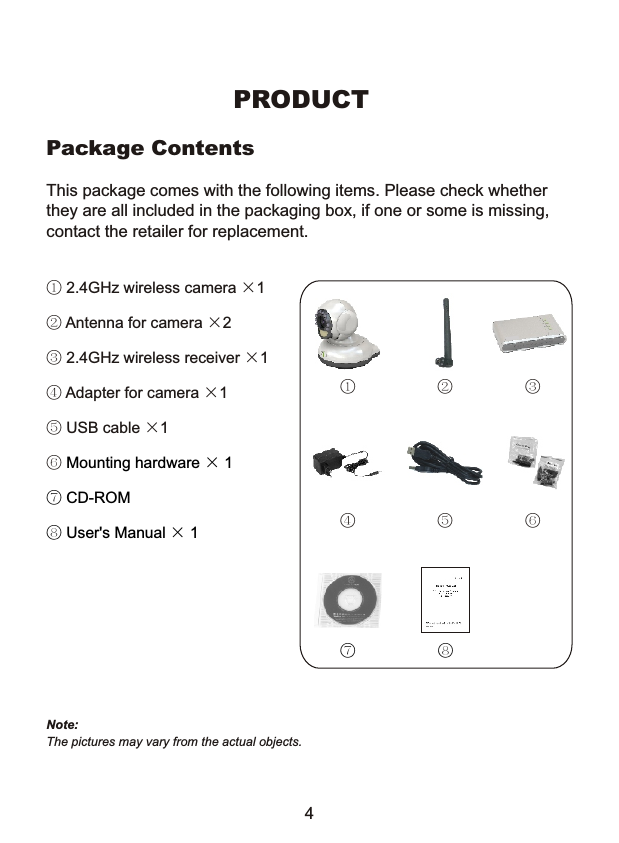
① 2.4GHz wireless camera ×1② Antenna for camera ×2③ 2.4GHz wireless receiver ×1④ Adapter for camera ×1⑤ USB cable ×1⑥  Mounting hardware × 1⑦ CD-ROM⑧ User's Manual × 1① ② ③④ ⑤ ⑥This package comes with the following items. Please check whether they are all included in the packaging box, if one or some is missing, contact the retailer for replacement.Package ContentsPRODUCTNote: The pictures may vary from the actual objects.⑦4⑧
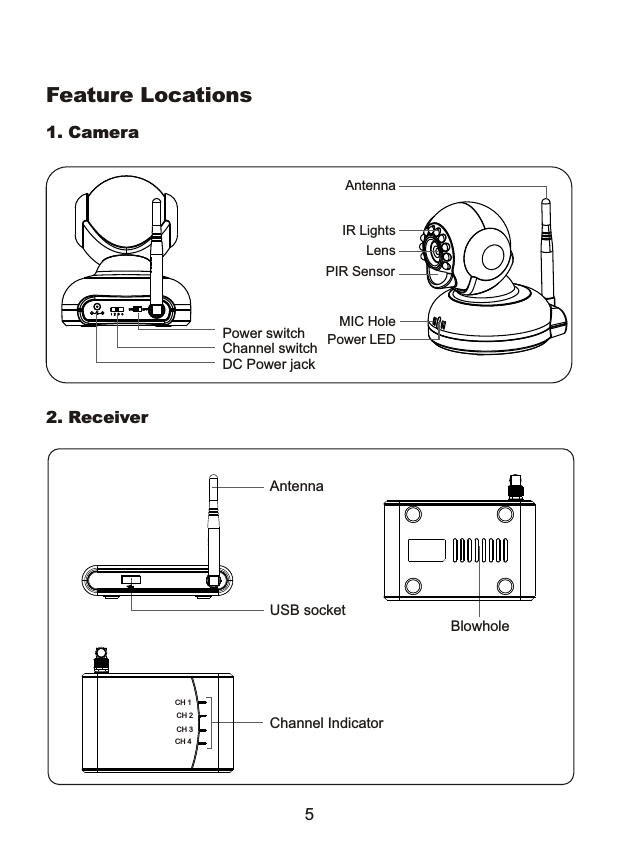
Feature LocationsLensPIR SensorPower LEDIR LightsAntenna Antenna Channel IndicatorUSB socketBlowholeDC Power jackChannel switchPower switch2. Receiver1. Camera5CH 1CH 2CH 3CH 4MIC Hole
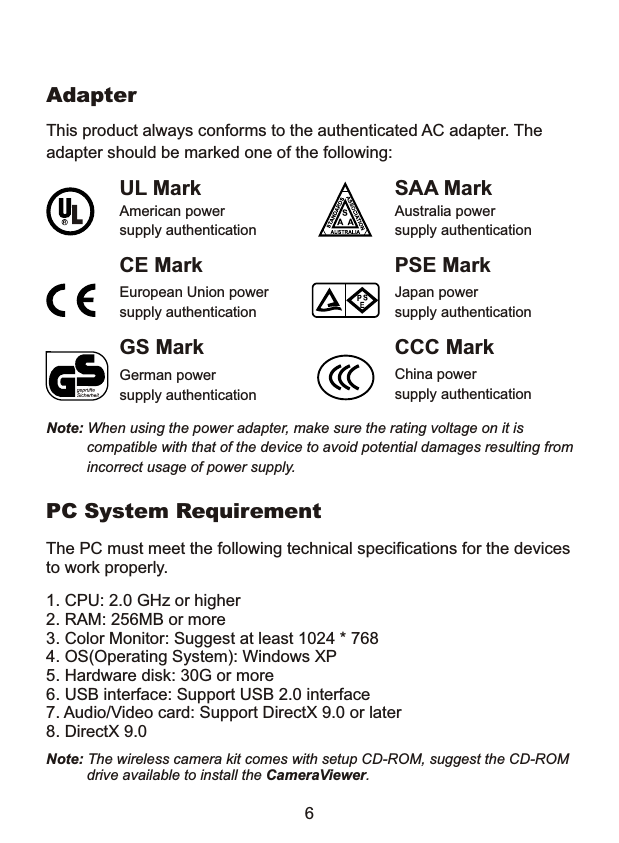
This product always conforms to the authenticated AC adapter. Theadapter should be marked one of the following:Note: When using the power adapter, make sure the rating voltage on it is           compatible with that of the device to avoid potential damages resulting from           incorrect usage of power supply.   UL MarkAmerican powersupply authenticationSAA MarkAustralia powersupply authenticationGS MarkGerman powersupply authenticationCCC MarkChina powersupply authenticationEuropean Union powersupply authenticationCE Mark PSE MarkJapan powersupply authenticationAdapter6PC System RequirementThe PC must meet the following technical specifications for the devicesto work properly.1. CPU: 2.0 GHz or higher2. RAM: 256MB or more3. Color Monitor: Suggest at least 1024 * 7684. OS(Operating System): Windows XP5. Hardware disk: 30G or more6. USB interface: Support USB 2.0 interface7. Audio/Video card: Support DirectX 9.0 or later8. DirectX 9.0Note: The wireless camera kit comes with setup CD-ROM, suggest the CD-ROM           drive available to install the CameraViewer.
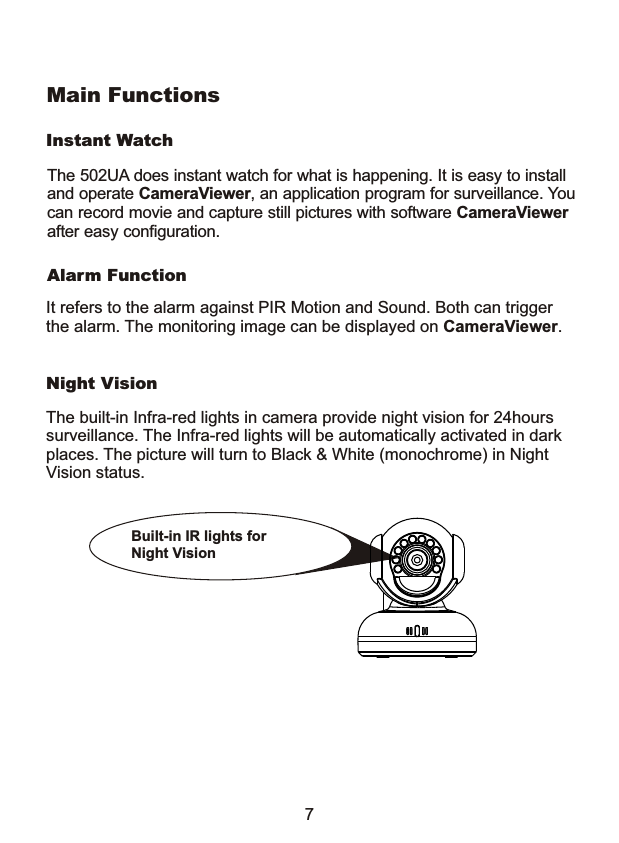
Night VisionInstant WatchAlarm FunctionThe built-in Infra-red lights in camera provide night vision for 24hours surveillance. The Infra-red lights will be automatically activated in dark places. The picture will turn to Black & White (monochrome) in Night Vision status.It refers to the alarm against PIR Motion and Sound. Both can trigger the alarm. The monitoring image can be displayed on CameraViewer. Built-in IR lights for Night Vision 7Main FunctionsThe 502UA does instant watch for what is happening. It is easy to installand operate CameraViewer, an application program for surveillance. Youcan record movie and capture still pictures with software CameraViewer after easy configuration.
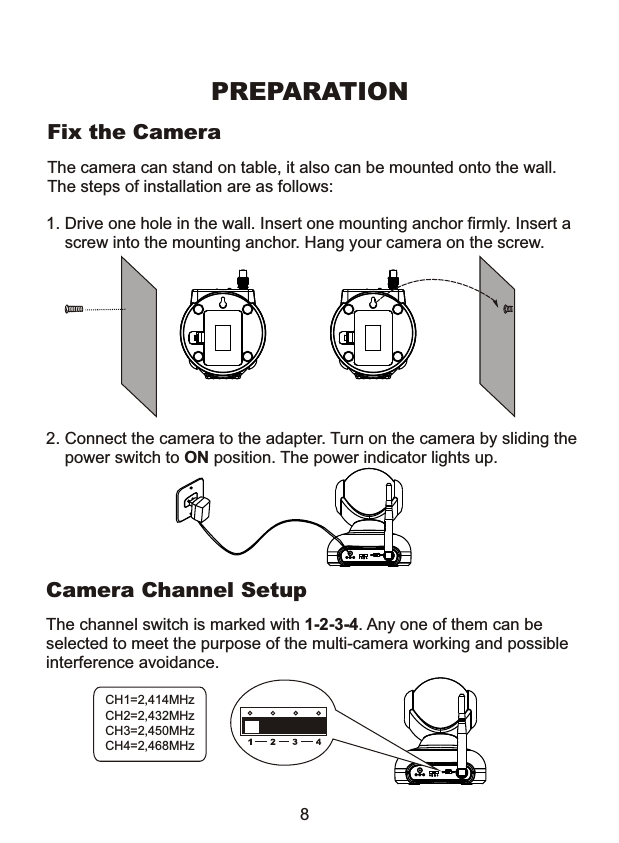
The camera can stand on table, it also can be mounted onto the wall. The steps of installation are as follows:1. Drive one hole in the wall. Insert one mounting anchor firmly. Insert a    screw into the mounting anchor. Hang your camera on the screw. Fix the Camera8PREPARATIONThe channel switch is marked with 1-2-3-4. Any one of them can be selected to meet the purpose of the multi-camera working and possibleinterference avoidance.       Camera Channel SetupCH1=2,414MHzCH2=2,432MHzCH3=2,450MHzCH4=2,468MHz2. Connect the camera to the adapter. Turn on the camera by sliding the    power switch to ON position. The power indicator lights up.
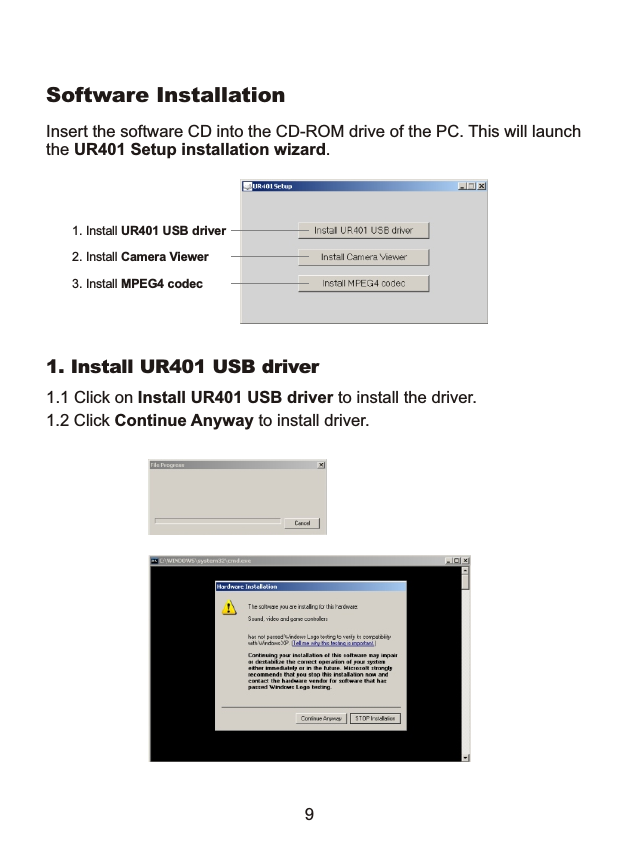
Software InstallationInsert the software CD into the CD-ROM drive of the PC. This will launch the UR401 Setup installation wizard. 1.1 Click on Install UR401 USB driver to install the driver.1. Install UR401 USB driver1. Install UR401 USB driver3. Install MPEG4 codec2. Install Camera Viewer1.2 Click Continue Anyway to install driver.9
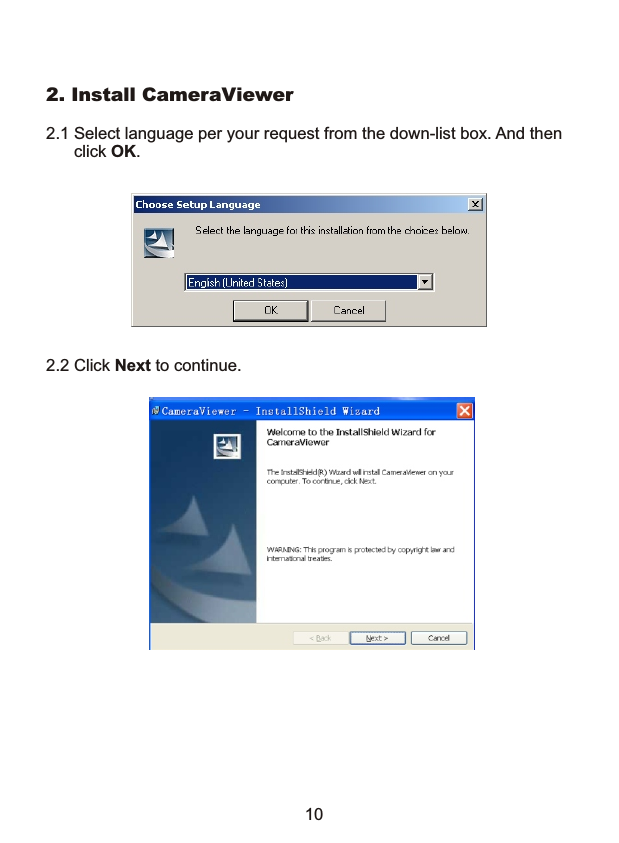
2. Install CameraViewer2.1 Select language per your request from the down-list box. And then       click OK.2.2 Click Next to continue.10
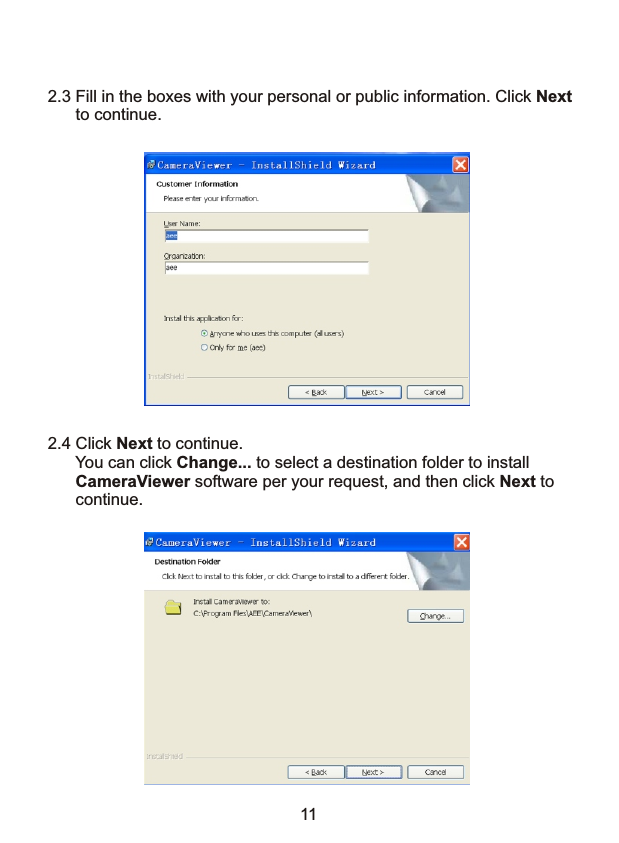
2.3 Fill in the boxes with your personal or public information. Click Next       to continue.2.4 Click Next to continue.       You can click Change... to select a destination folder to install       CameraViewer software per your request, and then click Next to       continue.11
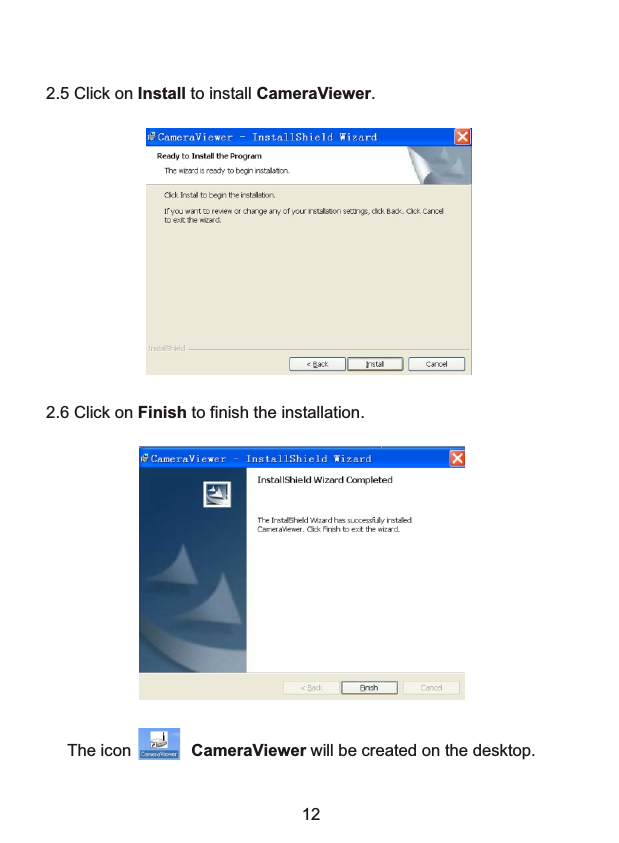
2.5 Click on Install to install CameraViewer.2.6 Click on Finish to finish the installation. The icon             CameraViewer will be created on the desktop.12
3.1 Click on Install MPEG4 codec to install the MPEG4 codec. The       following interface will pop up. Select a language per your request       from the down-list box. Then click OK.3. Install MPEG4 codec3.2 Follow the installation wizard to install MPEG4 codec. Finally click       Finish. Congratulations! Now you can use the application program to monitorwhat you want.13Connect the receiver to your computer with USB cable. Refer to [My Computer]/[Hardware]/[Device Manager]/ [Sound,video and game controllers] to check if the Trident Analog Video correctly installed. If youcannot find this device or there is a yellow "!" before the device, please unplug the receiver and re-plug it.
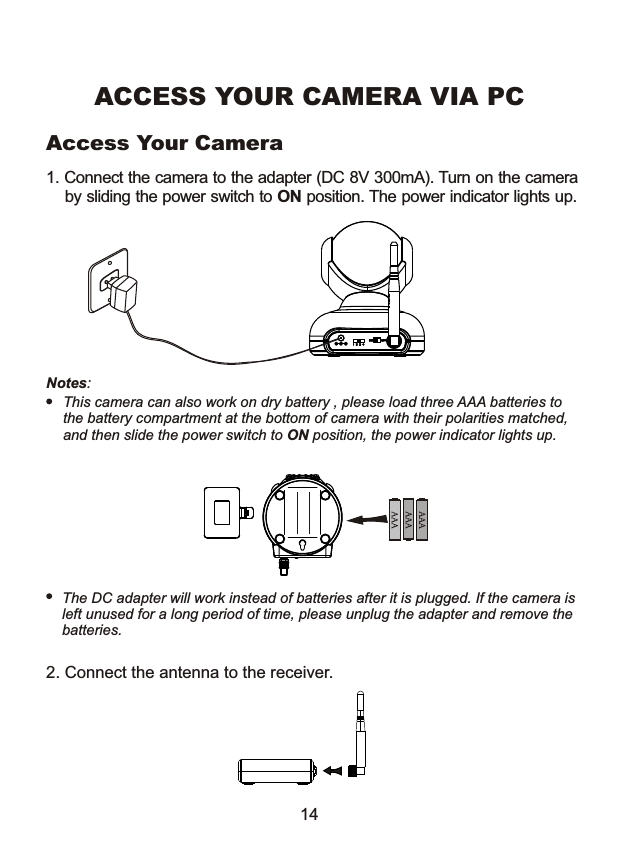
1. Connect the camera to the adapter (DC 8V 300mA). Turn on the camera    by sliding the power switch to ON position. The power indicator lights up. Notes: This camera can also work on dry battery , please load three AAA batteries to the battery compartment at the bottom of camera with their polarities matched, and then slide the power switch to ON position, the power indicator lights up.ACCESS YOUR CAMERA VIA PCThe DC adapter will work instead of batteries after it is plugged. If the camera isleft unused for a long period of time, please unplug the adapter and remove the batteries. 2. Connect the antenna to the receiver.14Access Your Camera
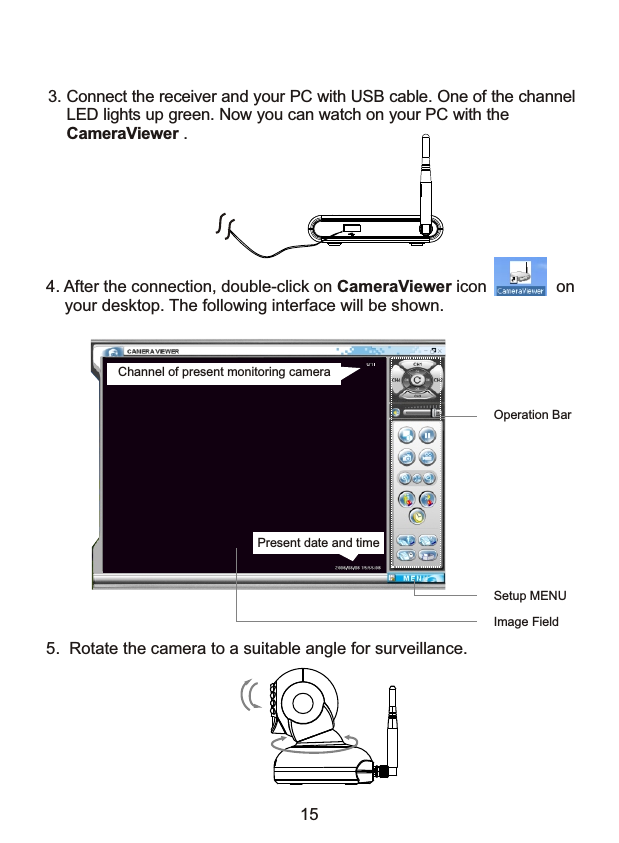
3. Connect the receiver and your PC with USB cable. One of the channel     LED lights up green. Now you can watch on your PC with the     CameraViewer .4. After the connection, double-click on CameraViewer icon               on    your desktop. The following interface will be shown.Image FieldSetup MENUOperation BarPresent date and timeChannel of present monitoring camera5.  Rotate the camera to a suitable angle for surveillance. 15
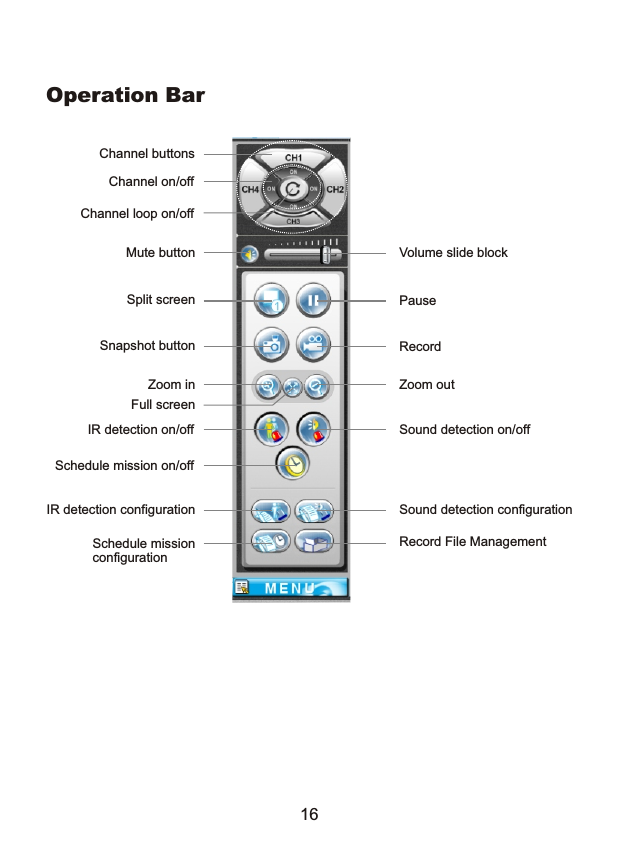
Channel buttonsChannel on/offChannel loop on/offMute buttonSplit screenSnapshot buttonZoom inFull screenIR detection on/offSchedule mission on/offIR detection configurationSchedule missionconfigurationVolume slide blockPauseRecordZoom outSound detection on/offSound detection configurationRecord File ManagementOperation Bar16
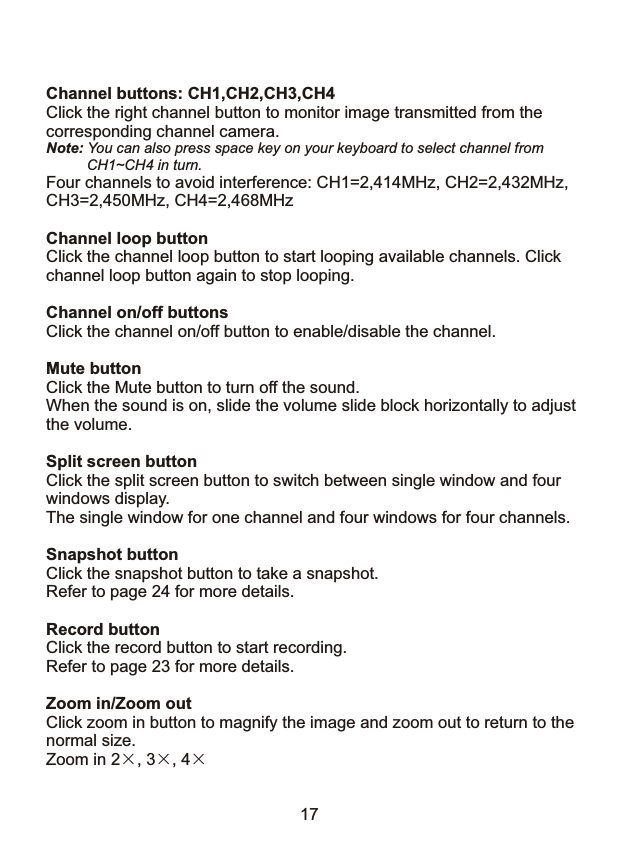
Channel buttons: CH1,CH2,CH3,CH4Click the right channel button to monitor image transmitted from the corresponding channel camera.Note: You can also press space key on your keyboard to select channel from          CH1~CH4 in turn.Four channels to avoid interference: CH1=2,414MHz, CH2=2,432MHz, CH3=2,450MHz, CH4=2,468MHzChannel loop buttonClick the channel loop button to start looping available channels. Click channel loop button again to stop looping.Channel on/off buttonsClick the channel on/off button to enable/disable the channel.Mute buttonClick the Mute button to turn off the sound.When the sound is on, slide the volume slide block horizontally to adjustthe volume.Split screen buttonClick the split screen button to switch between single window and four windows display.The single window for one channel and four windows for four channels.Snapshot buttonClick the snapshot button to take a snapshot. Refer to page 24 for more details.Record buttonClick the record button to start recording. Refer to page 23 for more details.Zoom in/Zoom outClick zoom in button to magnify the image and zoom out to return to the normal size. Zoom in 2×, 3×, 4× 17
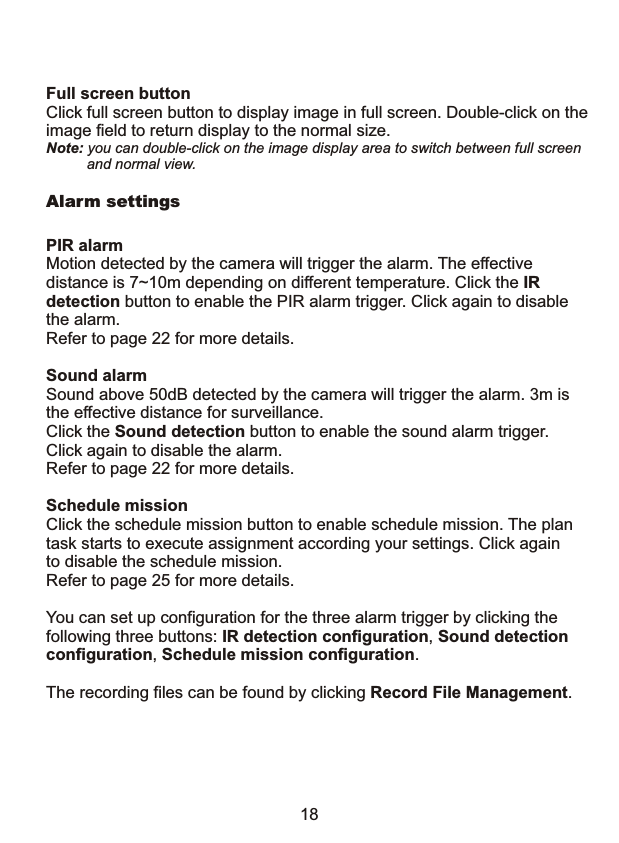
Full screen buttonClick full screen button to display image in full screen. Double-click on theimage field to return display to the normal size.Note: you can double-click on the image display area to switch between full screen          and normal view.Alarm settingsPIR alarm Motion detected by the camera will trigger the alarm. The effective distance is 7~10m depending on different temperature. Click the IR detection button to enable the PIR alarm trigger. Click again to disable the alarm.Refer to page 22 for more details.Sound alarmSound above 50dB detected by the camera will trigger the alarm. 3m isthe effective distance for surveillance. Click the Sound detection button to enable the sound alarm trigger. Click again to disable the alarm.Refer to page 22 for more details.Schedule mission Click the schedule mission button to enable schedule mission. The plantask starts to execute assignment according your settings. Click againto disable the schedule mission. Refer to page 25 for more details.You can set up configuration for the three alarm trigger by clicking the following three buttons: IR detection configuration, Sound detection configuration, Schedule mission configuration.The recording files can be found by clicking Record File Management.18
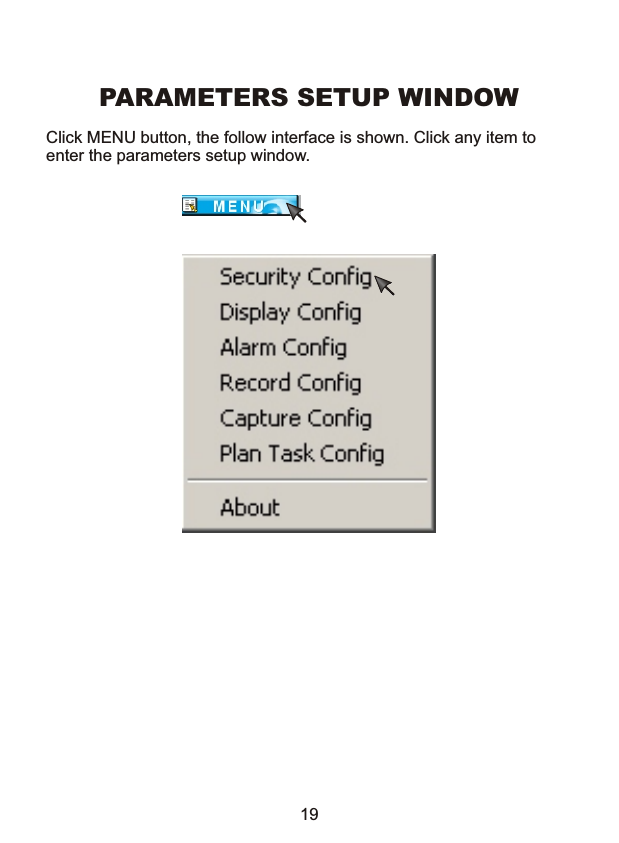
PARAMETERS SETUP WINDOWClick MENU button, the follow interface is shown. Click any item to enter the parameters setup window.19
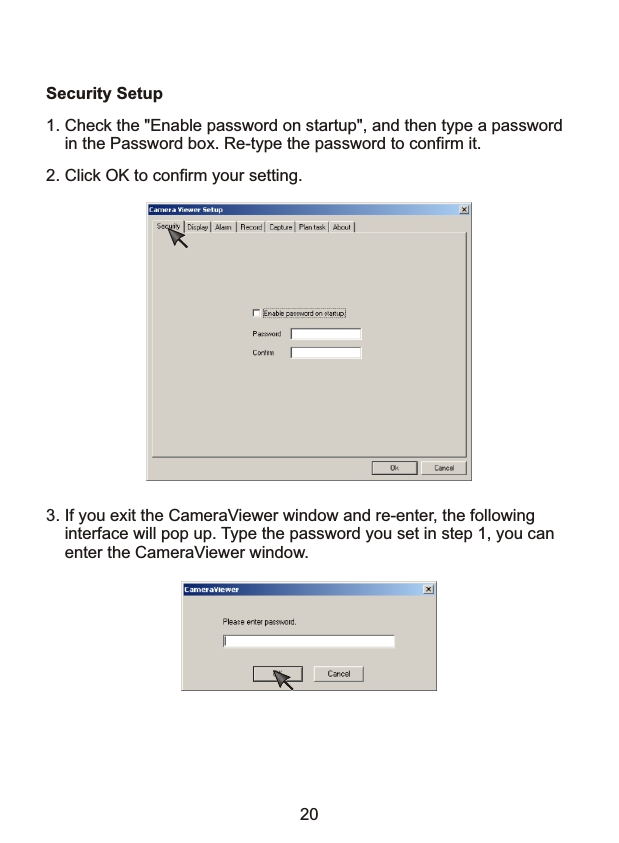
Security Setup1. Check the "Enable password on startup", and then type a password     in the Password box. Re-type the password to confirm it.2. Click OK to confirm your setting.3. If you exit the CameraViewer window and re-enter, the following     interface will pop up. Type the password you set in step 1, you can     enter the CameraViewer window. 20
Display Setup[Camera Alias]Aliases can be made to different cameras. For example, make babyroom as an alias to camera in channel 1.    [Channel Loop]Set the interval of automatic loop. [On Screen Display]Three options can be selected to display on CameraViewer window:Date, Time, channel & name of the camera you are accessing.[Video Adjustment]Standard: Select PAL or NTSC to match your camera standard. The                  mismatch may cause faulty image display.Brightness: Slide the slide block to adjust the image brightnessSharpness: Slide the slide block to adjust the image sharpnessContrast: Slide the slide block to adjust the image contrastSaturation: Slide the slide block to adjust the image saturationNote: Clicking Default will reset the Video Adjustment parameter except            Standard to default settings.        21
Alarm Setup[Alarm setup]1) Select the camera from which you want to receive alarm.2) Select the alarming type by checking Open move alarm or Open     sound alarm you like.    Note: Open move alarm will trigger the alarm while open sound alarm will trigger              the alarm.[Operating of alarm]This is the countermeasure to alarm, warning you something unpleasant happening. When the camera alarms: Record: Enable the recording type when alarm is triggered. Under record mode,              CameraViewer will record and store video files for future reference. Capture: Enable the capturing type when alarm is triggered. CameraViewer will               take and store still pictures for future reference. Play alarm sound: Play alarming sound type when alarm is triggered.[Record strategy of alarm]You can set duration and frame rate of the recording files.Note: For NTSC the max. frame rate is 30fps, while for PAL it is 25fps.[Capture strategy of alarm]You can set the time when to capture a photo after the alarm is triggered.  22
Record setup[Record File Path]Click Change to select the location in which you want to save the record file.[Record File Setup]Compression: MPEG4File Format: AVIImage Size: Three image size per your request:                      720*576, 352*576, 352*288(PAL); 720*480, 352*480,                      352*240 (NTSC).Frame rate: 5,10,15,20,25fps (PAL); 5,10,15,20,25,30fps (NTSC)[Storage Strategy]Set the limited size for total storage and single file.[Take following operation when total file size limit reached]Set the processing method to the situation of reaching the limitation              23
Capture setup[Picture Path]Click Change to select the location in which you want to save the captures.[Picture Format]Compression: JPGImage Size: Three image size per your request:                     720*576, 352*576, 352*288(PAL); 720*480, 352*480,                     352*240 (NTSC).    [Storage Strategy]Set the limited size for total storage of captured pictures.[Take following operation when total file size limit reached]Set the countermeasure to the situation of reaching the limitation              24
Plan task setupThe list of CHx, Timing, Operation displays your setup of plan task.[Task Strategy] Set the alarming frequency: daily alarm, weekly alarm,                           monthly alarm or alarm only once. [Timing] Scheduled record time[Operation] Set the duration for recorder video or set the duration and                      frequency of capturing still pictures.[Channel] Apply the above settings to the channel you select.251. Click New to start to set a schedule.2. Set the Task Strategy, Timing, Operation and Channel, then click    Add to confirm your settings.3. You can select one task and click Delete button to delete it.Click OK to confirm all your settings about security, display, alarm, record,capture, plan task.
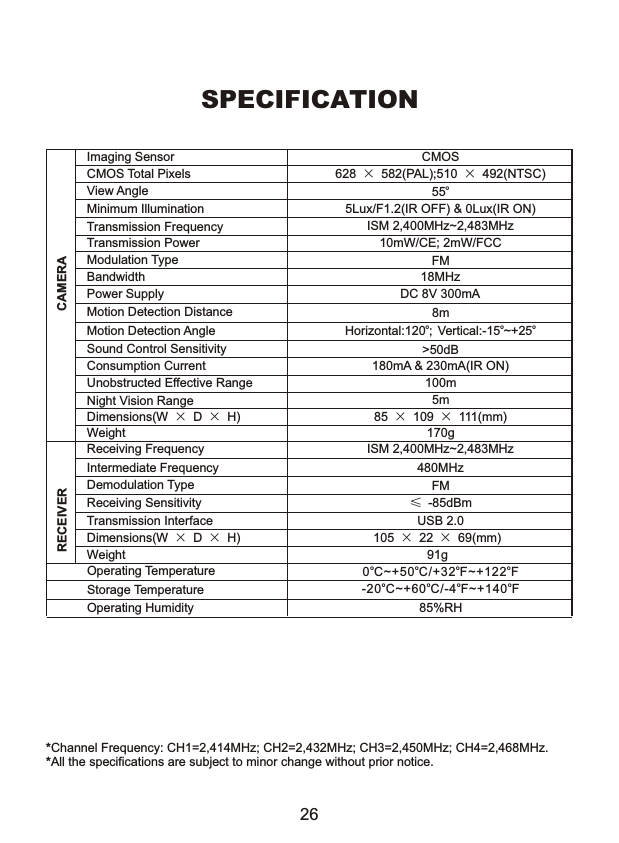
SPECIFICATION *Channel Frequency: CH1=2,414MHz; CH2=2,432MHz; CH3=2,450MHz; CH4=2,468MHz. *All the specifications are subject to minor change without prior notice.CAMERAImaging Sensor CMOSCMOS Total Pixels 628 ×582(PAL);510 ×492(NTSC)View AngleMinimum Illumination 5Lux/F1.2(IR OFF) & 0Lux(IR ON)Transmission Frequency ISM 2,400MHz~2,483MHzTransmission Power 10mW/CE; 2mW/FCCModulation Type FMBandwidth 18MHzPower Supply DC 8V 300mAMotion Detection Distance 8mMotion Detection Angle o     o oHorizontal:120 ; Vertical:-15 ~+25Sound Control Sensitivity >50dBConsumption Current 180mA & 230mA(IR ON)Unobstructed Effective Range 100mNight Vision Range 5mDimensions(W ×D×H) 85 ×109 ×111(mm)Weight 170gReceiving Frequency ISM 2,400MHz~2,483MHzIntermediate Frequency 480MHzDemodulation Type FMReceiving SensitivityRECEIVER≤-85dBmo55         Operating Temperature         Storage Temperature         Operating Humidity 85%RHo o o o-20 C~+60 C/-4 F~+140 Fo o o o0 C~+50 C/+32 F~+122 FDimensions(W ×D×H) 105 ×22 ×69(mm)Weight 91g26Transmission Interface USB 2.0
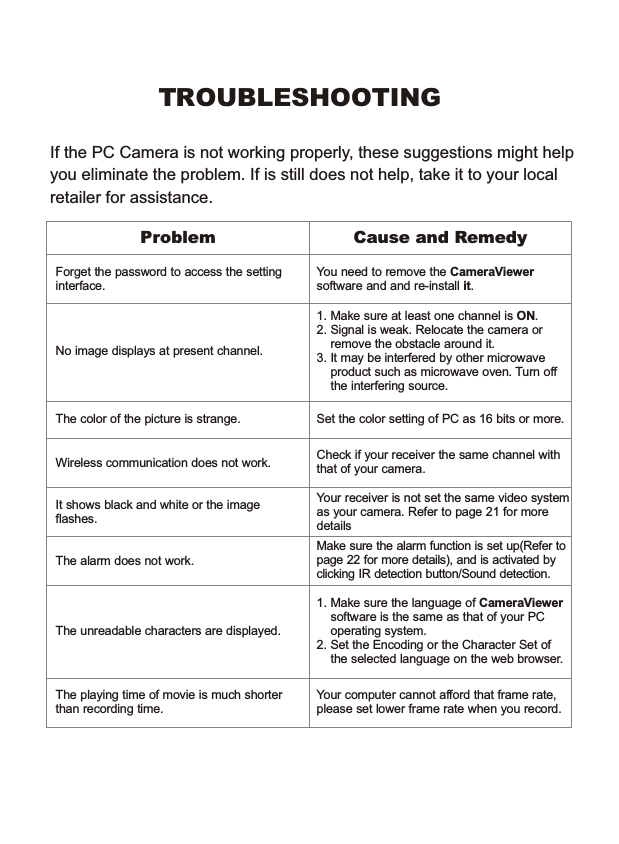
TROUBLESHOOTINGIf the PC Camera is not working properly, these suggestions might helpyou eliminate the problem. If is still does not help, take it to your local retailer for assistance.Forget the password to access the settinginterface.No image displays at present channel.Wireless communication does not work. Check if your receiver the same channel with that of your camera.The color of the picture is strange.The unreadable characters are displayed.The playing time of movie is much shorter than recording time.Your computer cannot afford that frame rate,please set lower frame rate when you record.1. Make sure the language of CameraViewer    software is the same as that of your PC     operating system.2. Set the Encoding or the Character Set of     the selected language on the web browser.Set the color setting of PC as 16 bits or more.You need to remove the CameraViewer software and and re-install it.1. Make sure at least one channel is ON.2. Signal is weak. Relocate the camera or    remove the obstacle around it.3. It may be interfered by other microwave     product such as microwave oven. Turn off    the interfering source.It shows black and white or the image flashes.The alarm does not work.Your receiver is not set the same video systemas your camera. Refer to page 21 for moredetailsMake sure the alarm function is set up(Refer topage 22 for more details), and is activated by clicking IR detection button/Sound detection.Problem Cause and Remedy
S-M502G190011

Navigation menu