Addvalue Communications SABRE1WE WIDEYE SABRE 1 User Manual

Addvalue Communications Pte Ltd WIDEYE SABRE 1

User Manual

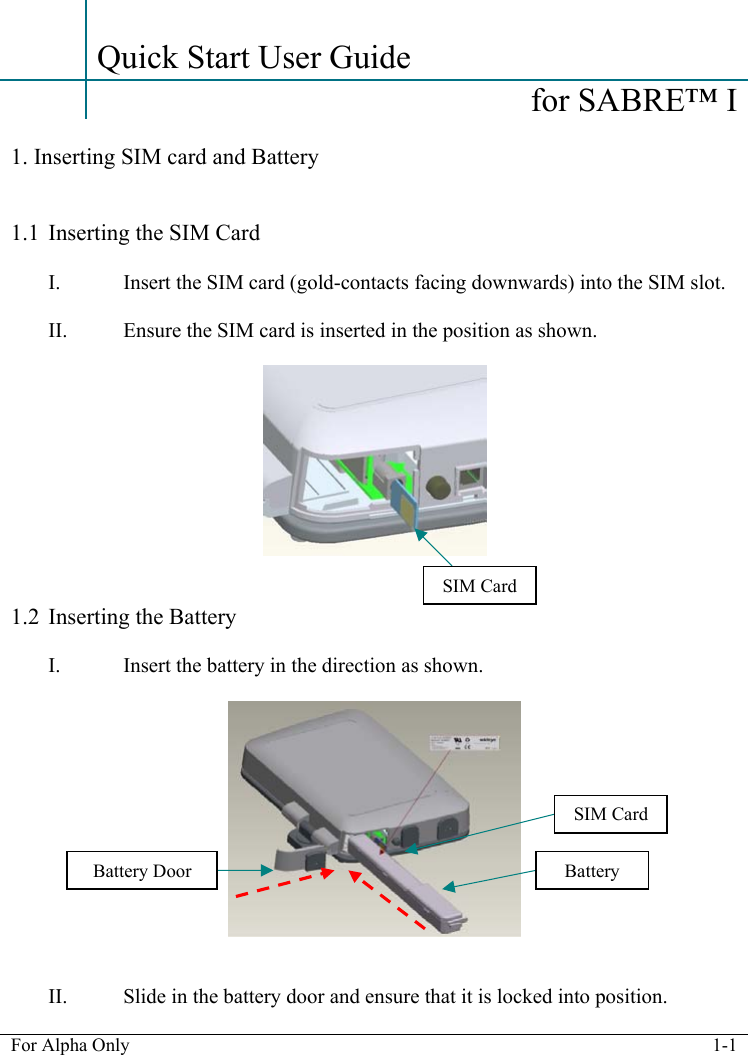
  For Alpha Only  1-1    Quick Start User Guide    for SABRE™ I   1. Inserting SIM card and Battery   1.1 Inserting the SIM Card  I. Insert the SIM card (gold-contacts facing downwards) into the SIM slot.  II. Ensure the SIM card is inserted in the position as shown.     1.2 Inserting the Battery  I. Insert the battery in the direction as shown.      II. Slide in the battery door and ensure that it is locked into position.  SIM CardSIM Card BatteryBattery Door
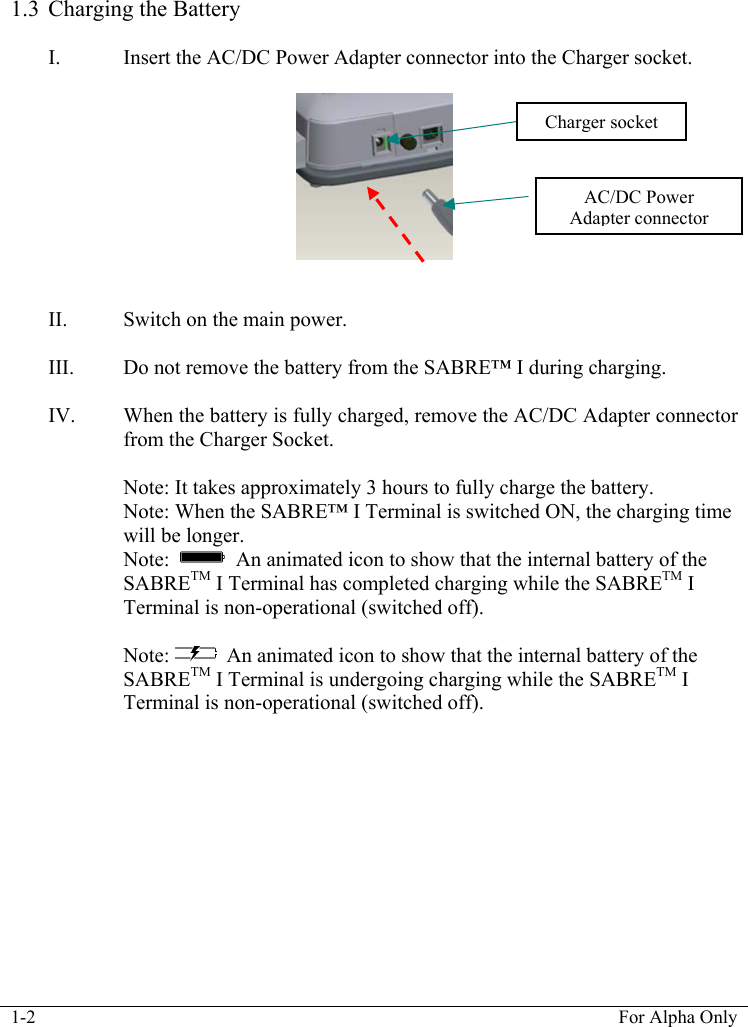
 1-2  For Alpha Only   1.3 Charging the Battery  I. Insert the AC/DC Power Adapter connector into the Charger socket.      II. Switch on the main power.  III. Do not remove the battery from the SABRE™ I during charging.  IV. When the battery is fully charged, remove the AC/DC Adapter connector from the Charger Socket.   Note: It takes approximately 3 hours to fully charge the battery.  Note: When the SABRE™ I Terminal is switched ON, the charging time will be longer.   Note:     An animated icon to show that the internal battery of the SABRETM I Terminal has completed charging while the SABRETM I Terminal is non-operational (switched off).  Note:   An animated icon to show that the internal battery of the SABRETM I Terminal is undergoing charging while the SABRETM I Terminal is non-operational (switched off).Charger socket AC/DC Power Adapter connector
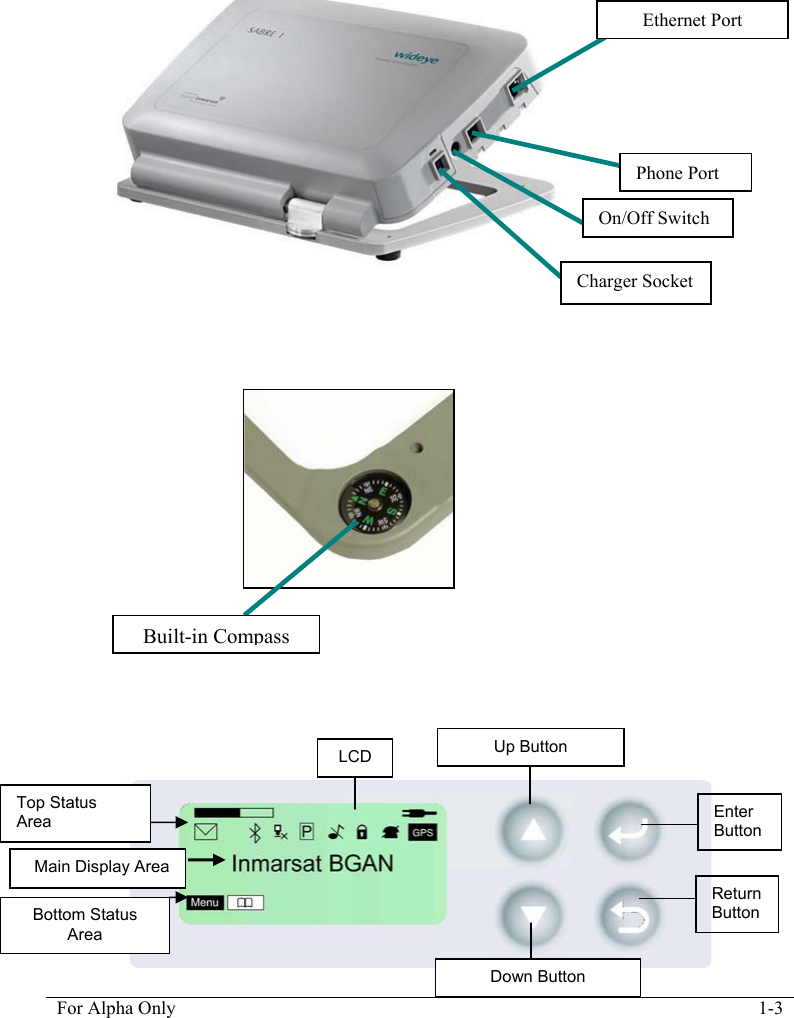
  For Alpha Only  1-3                                             Built-in Compass LCD  Up Button Enter Button Return Button Down Button Main Display Area Bottom Status Area Top Status Area Phone Port On/Off Switch Charger Socket Ethernet Port
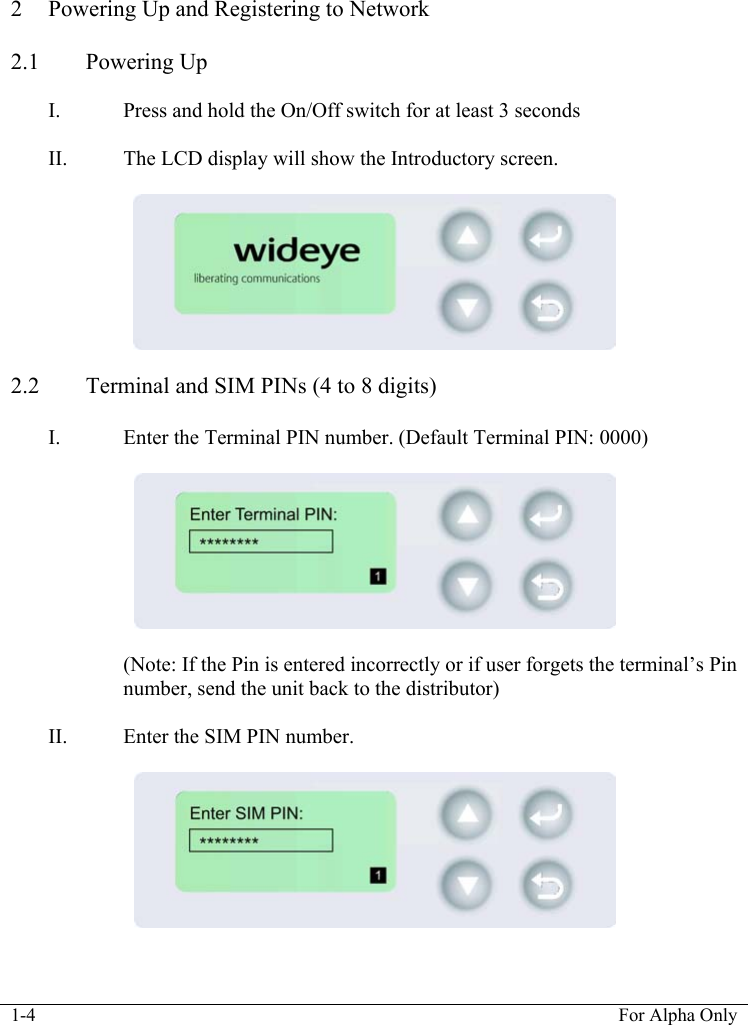
 1-4  For Alpha Only   2 Powering Up and Registering to Network  2.1 Powering Up  I. Press and hold the On/Off switch for at least 3 seconds  II. The LCD display will show the Introductory screen.        2.2 Terminal and SIM PINs (4 to 8 digits)  I. Enter the Terminal PIN number. (Default Terminal PIN: 0000)     (Note: If the Pin is entered incorrectly or if user forgets the terminal’s Pin number, send the unit back to the distributor)  II. Enter the SIM PIN number.
  For Alpha Only  1-5  (Note: If the SIM PIN is entered incorrectly after 3 attempts, the PIN will be locked. Use the PUK (Personal Unblocking Key) code to enter new SIM PIN. If the PUK code is entered incorrectly after 10 attempts, the SIM will be disabled. Contact the Service Provider.)  2.3 GPS Fix  I. For first time use, SABRE™ I needs to acquire the GPS coordinates, go to an outdoor location and have the SABRE™ I face up to the sky. The terminal shall perform the GPS acquisition automatically.     II. When acquisition is done, the LCD display will show New GPS fix for 2 seconds.      III. LCD will indicate the new estimated azimuth direction and elevation angle that the antenna should point. A GPS indicator will be displayed on the Top Right corner of the LCD display to indicate that a New GPS coordinate is in use.
 1-6  For Alpha Only    IV. For subsequent use, the SABRE™ I will not acquire a new GPS, it will prompt the user if the previously stored GPS coordinates should be used.   To use the stored GPS coordinates, use the Up/Down buttons to select Yes and press ENTER. A GPS indicator will indicate the use of stored GPS coordinates.  To re-acquire a new GPS, select No and press ENTER. The SABRE™ I terminal will repeat Step I to III.    V. Press the ENTER button then the LCD will show the signal strength bar.     2.4 Antenna Pointing  I. SABRE™ I is now in Antenna Pointing state.  II. To obtain the maximum possible signal strength, adjust the antenna by turning and tilting it. For an acceptable services to commence, a signal
  For Alpha Only  1-7  strength of minimum 45 dBHz is required. Press ENTER when the maximum possible signal strength is obtained.          III. SABRE™ I will start the registration with the network.     IV. When registration is successful, the service provider’s name will be displayed.              Tu r n ingTilt ing
 1-8  For Alpha Only   3 Making Phone Calls   3.1  Using Corded Analog Handset    I. Connect the Corded Analog Phone to SABRE™ I via the RJ11 phone port.   II. Making phone calls directly –   a. Corded Analog Handset: Press the    to listen dial-tone before dialing and dial the calling party number in the following format; <00><Country Code><Telephone Number><#>  III. Making phone calls via Phonebook –    a.  Use the Up/Down buttons to select
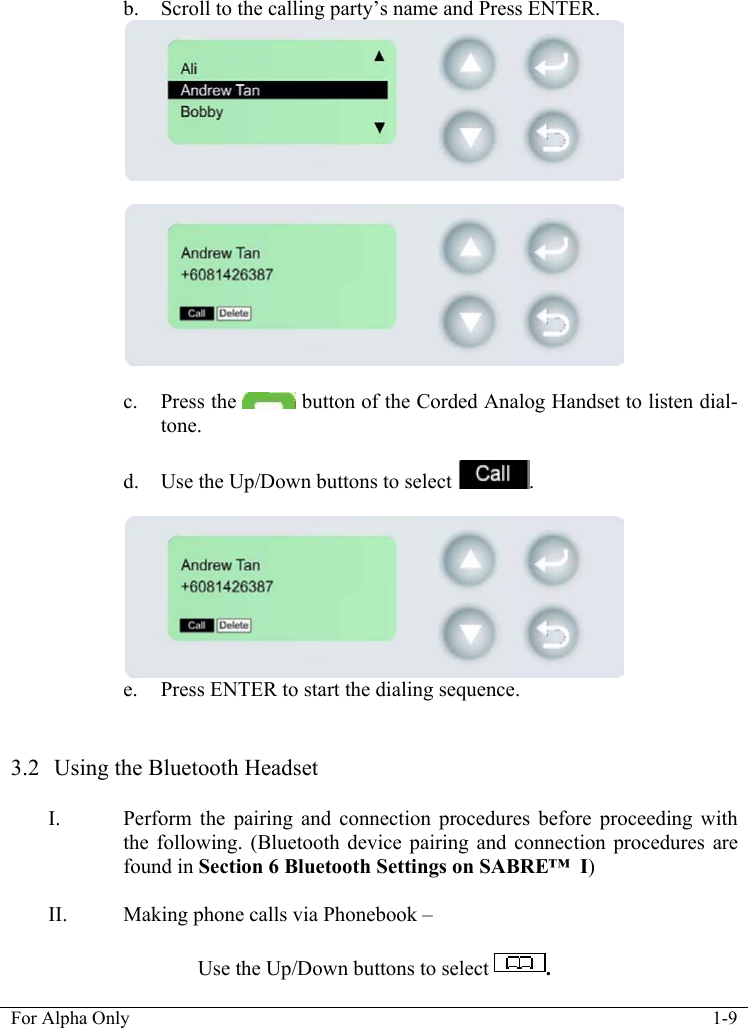
  For Alpha Only  1-9   b. Scroll to the calling party’s name and Press ENTER.     c. Press the   button of the Corded Analog Handset to listen dial-tone.   d. Use the Up/Down buttons to select  .   e. Press ENTER to start the dialing sequence.   3.2  Using the Bluetooth Headset   I. Perform the pairing and connection procedures before proceeding with the following. (Bluetooth device pairing and connection procedures are found in Section 6 Bluetooth Settings on SABRE™  I)  II. Making phone calls via Phonebook –   Use the Up/Down buttons to select  .
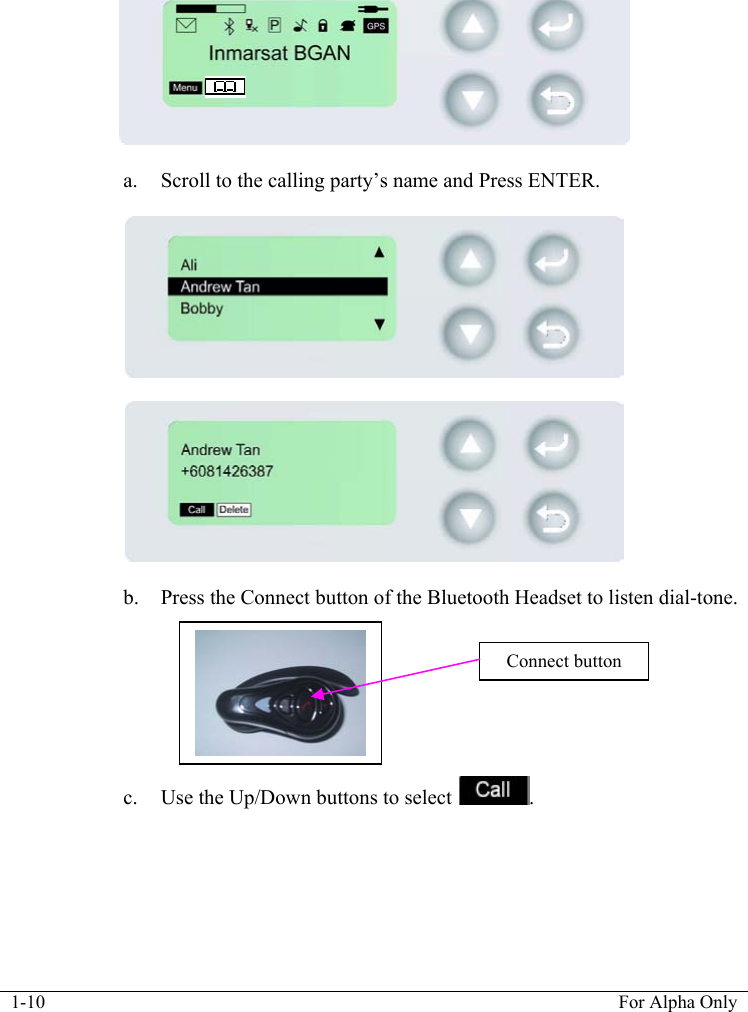
 1-10  For Alpha Only     a. Scroll to the calling party’s name and Press ENTER.      b. Press the Connect button of the Bluetooth Headset to listen dial-tone.        c. Use the Up/Down buttons to select  .  Connect button
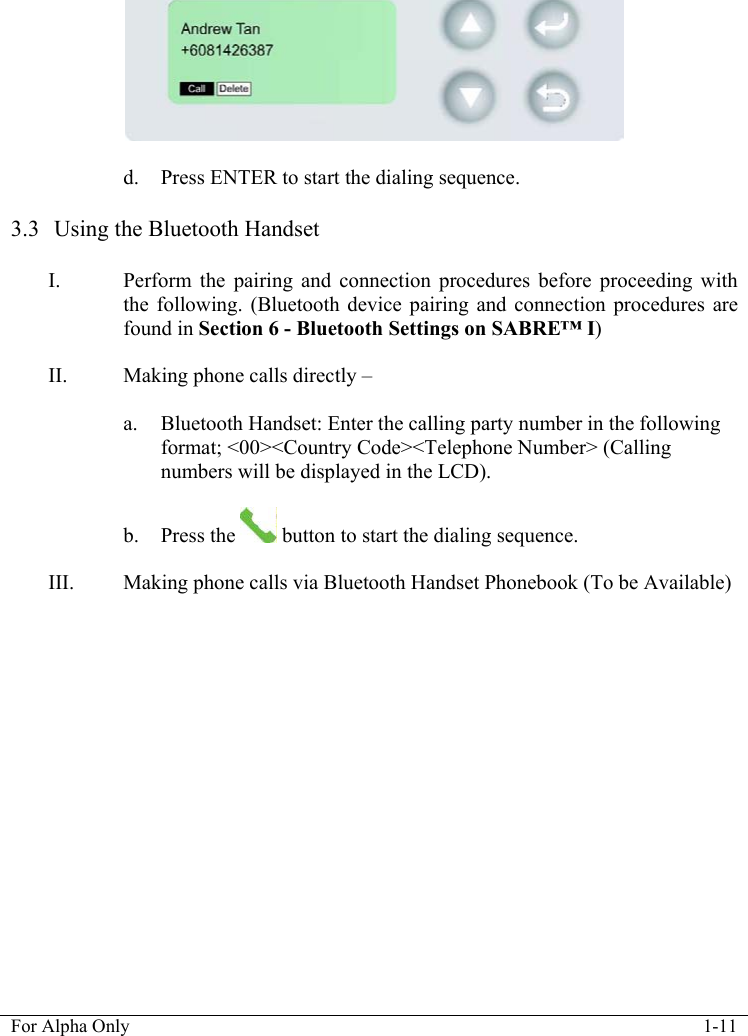
  For Alpha Only  1-11    d. Press ENTER to start the dialing sequence.  3.3  Using the Bluetooth Handset  I. Perform the pairing and connection procedures before proceeding with the following. (Bluetooth device pairing and connection procedures are found in Section 6 - Bluetooth Settings on SABRE™ I)  II. Making phone calls directly –   a. Bluetooth Handset: Enter the calling party number in the following format; <00><Country Code><Telephone Number> (Calling numbers will be displayed in the LCD).  b. Press the   button to start the dialing sequence.  III. Making phone calls via Bluetooth Handset Phonebook (To be Available)
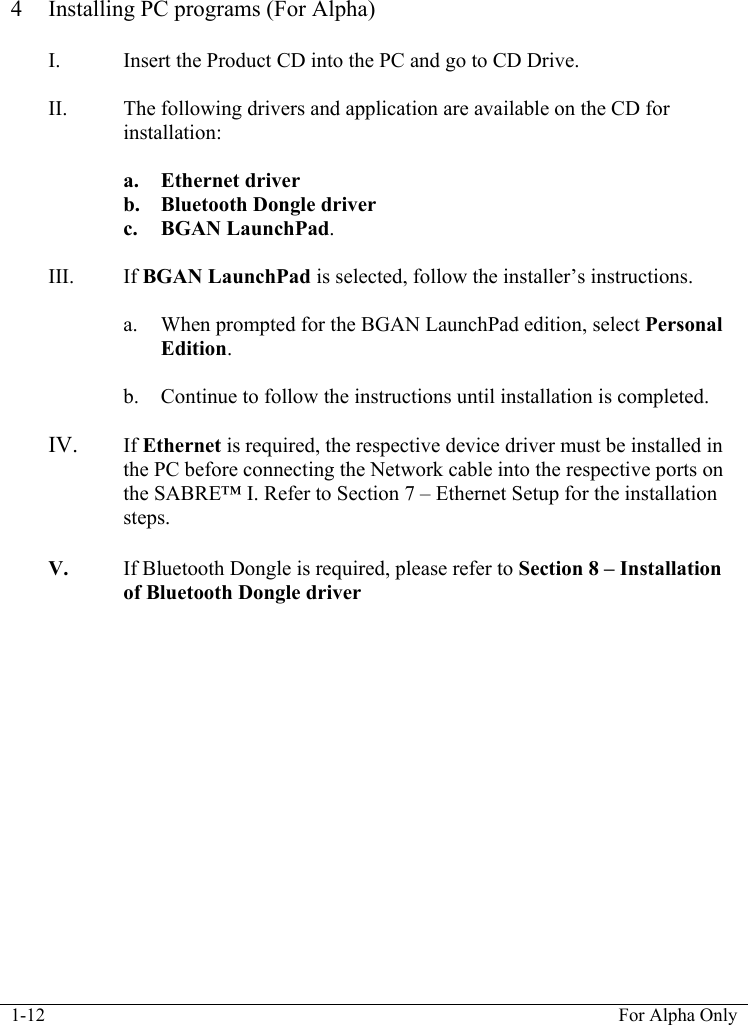
 1-12  For Alpha Only   4 Installing PC programs (For Alpha)  I. Insert the Product CD into the PC and go to CD Drive.  II. The following drivers and application are available on the CD for installation:  a. Ethernet driver b. Bluetooth Dongle driver c. BGAN LaunchPad.  III. If BGAN LaunchPad is selected, follow the installer’s instructions.   a. When prompted for the BGAN LaunchPad edition, select Personal Edition.  b. Continue to follow the instructions until installation is completed.  IV. If Ethernet is required, the respective device driver must be installed in the PC before connecting the Network cable into the respective ports on the SABRE™ I. Refer to Section 7 – Ethernet Setup for the installation steps.   V. If Bluetooth Dongle is required, please refer to Section 8 – Installation of Bluetooth Dongle driver
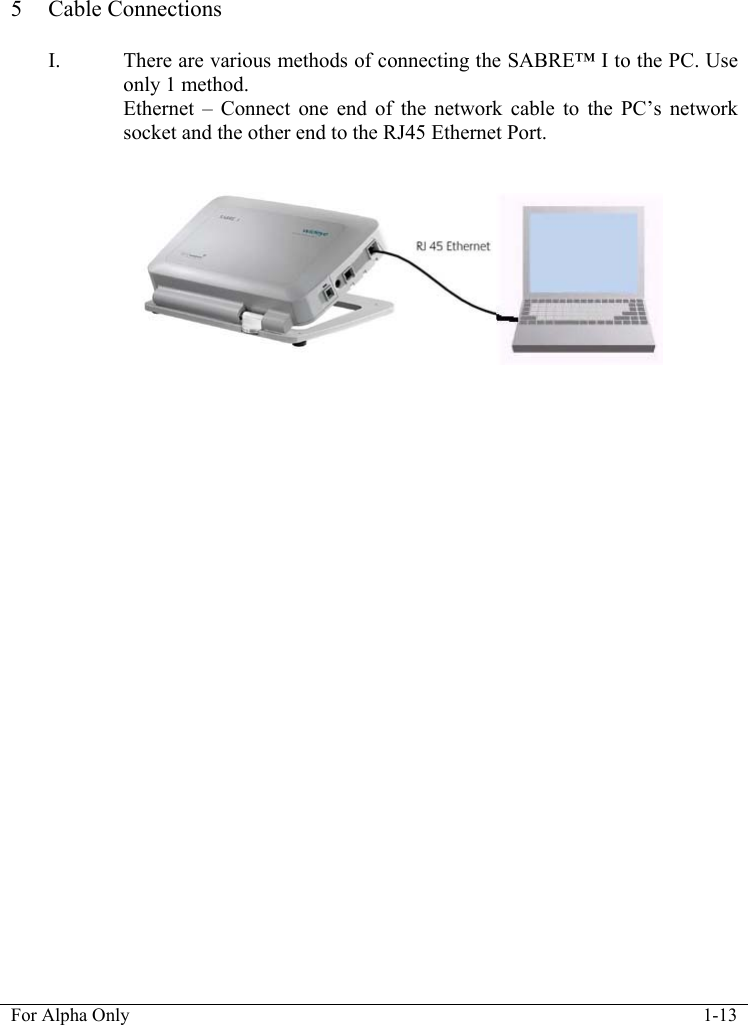
  For Alpha Only  1-13   5 Cable Connections  I. There are various methods of connecting the SABRE™ I to the PC. Use only 1 method. Ethernet – Connect one end of the network cable to the PC’s network socket and the other end to the RJ45 Ethernet Port.
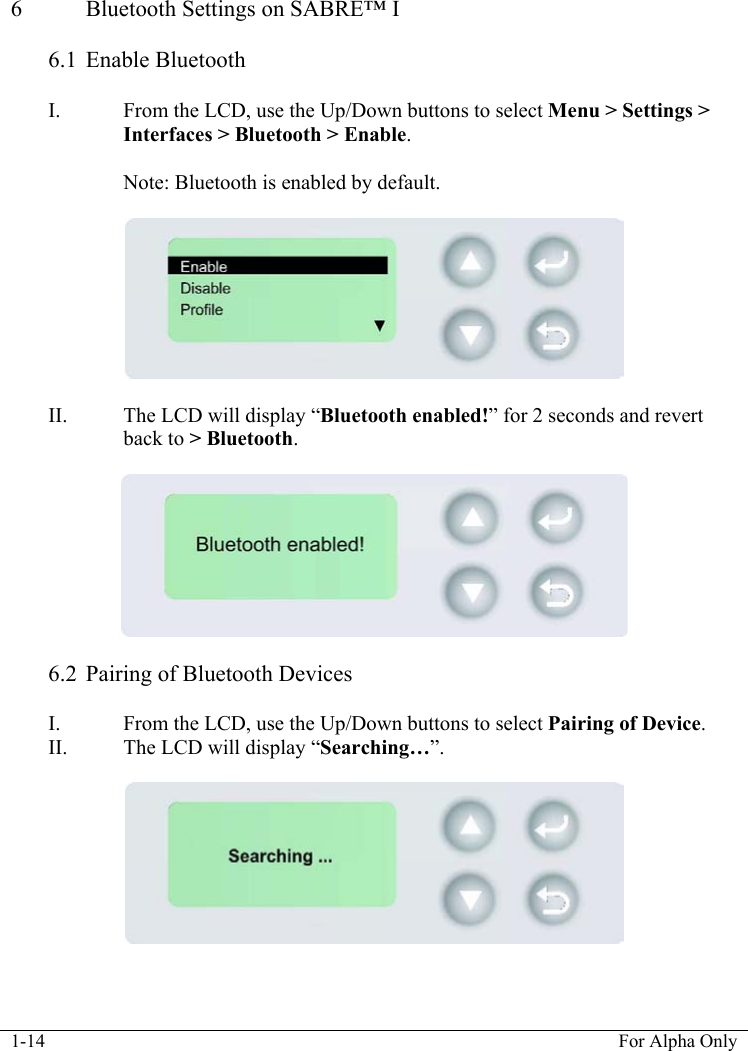
 1-14  For Alpha Only  6  Bluetooth Settings on SABRE™ I  6.1 Enable Bluetooth  I. From the LCD, use the Up/Down buttons to select Menu > Settings > Interfaces > Bluetooth > Enable.   Note: Bluetooth is enabled by default.     II. The LCD will display “Bluetooth enabled!” for 2 seconds and revert back to > Bluetooth.     6.2 Pairing of Bluetooth Devices  I. From the LCD, use the Up/Down buttons to select Pairing of Device. II. The LCD will display “Searching…”.
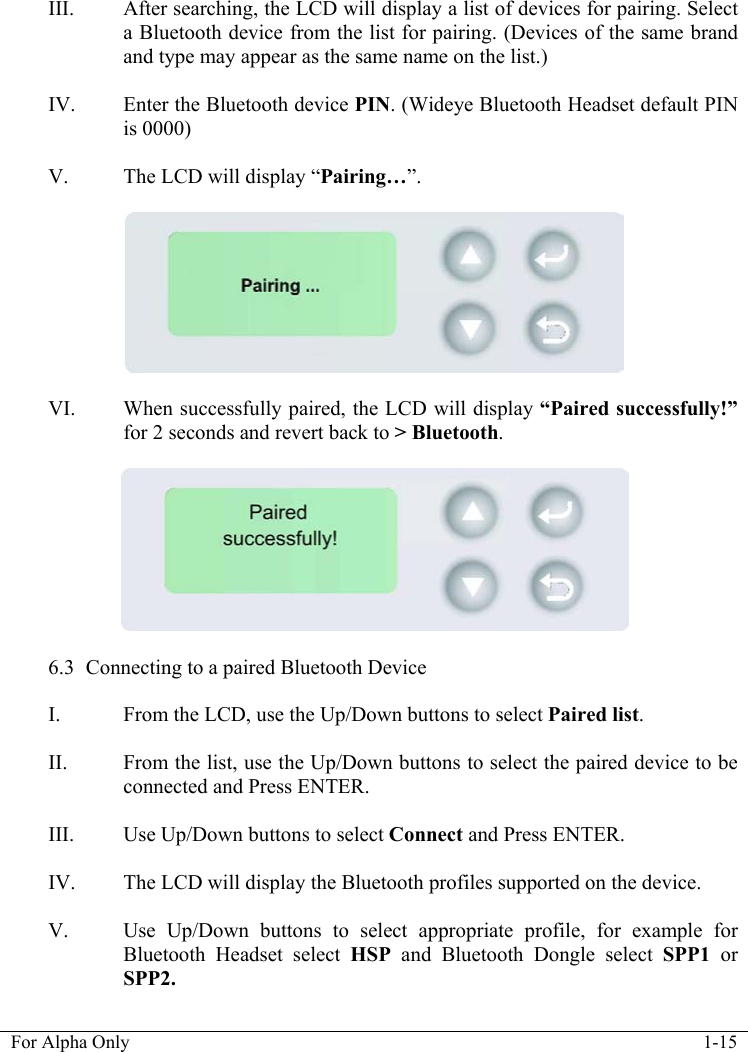
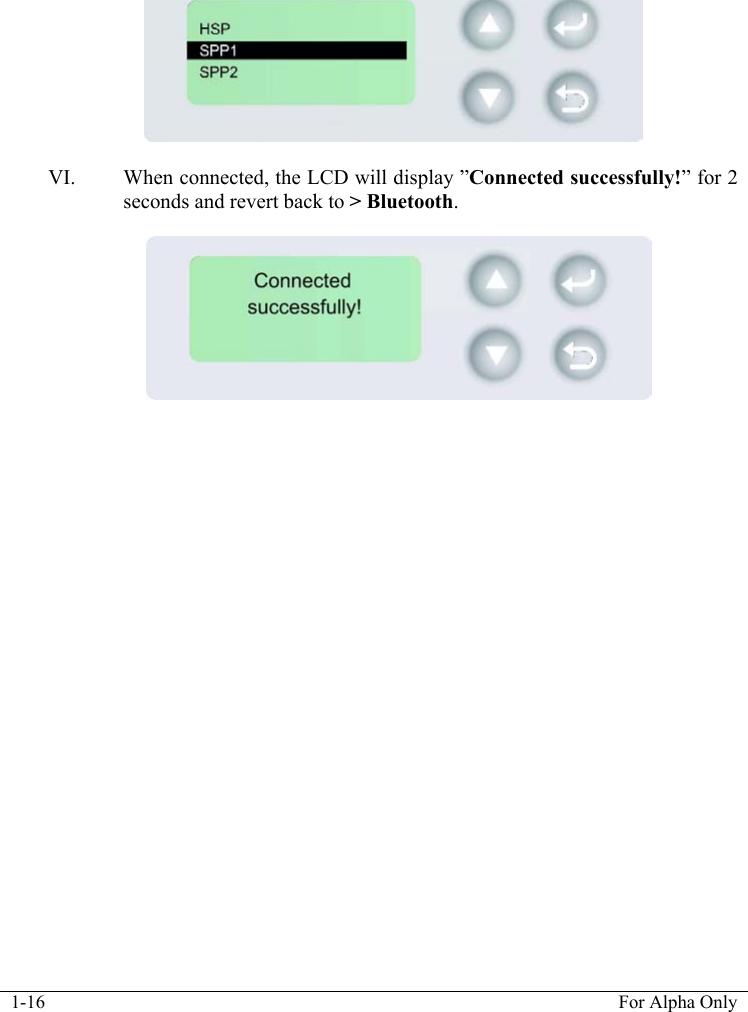
  For Alpha Only  1-15  III. After searching, the LCD will display a list of devices for pairing. Select a Bluetooth device from the list for pairing. (Devices of the same brand and type may appear as the same name on the list.)  IV. Enter the Bluetooth device PIN. (Wideye Bluetooth Headset default PIN is 0000)  V. The LCD will display “Pairing…”.    VI. When successfully paired, the LCD will display “Paired successfully!” for 2 seconds and revert back to > Bluetooth.    6.3 Connecting to a paired Bluetooth Device  I. From the LCD, use the Up/Down buttons to select Paired list.  II. From the list, use the Up/Down buttons to select the paired device to be connected and Press ENTER.  III. Use Up/Down buttons to select Connect and Press ENTER.  IV. The LCD will display the Bluetooth profiles supported on the device.  V. Use Up/Down buttons to select appropriate profile, for example for Bluetooth Headset select HSP  and Bluetooth Dongle select SPP1 or SPP2.
 1-16  For Alpha Only     VI. When connected, the LCD will display ”Connected successfully!” for 2 seconds and revert back to > Bluetooth.
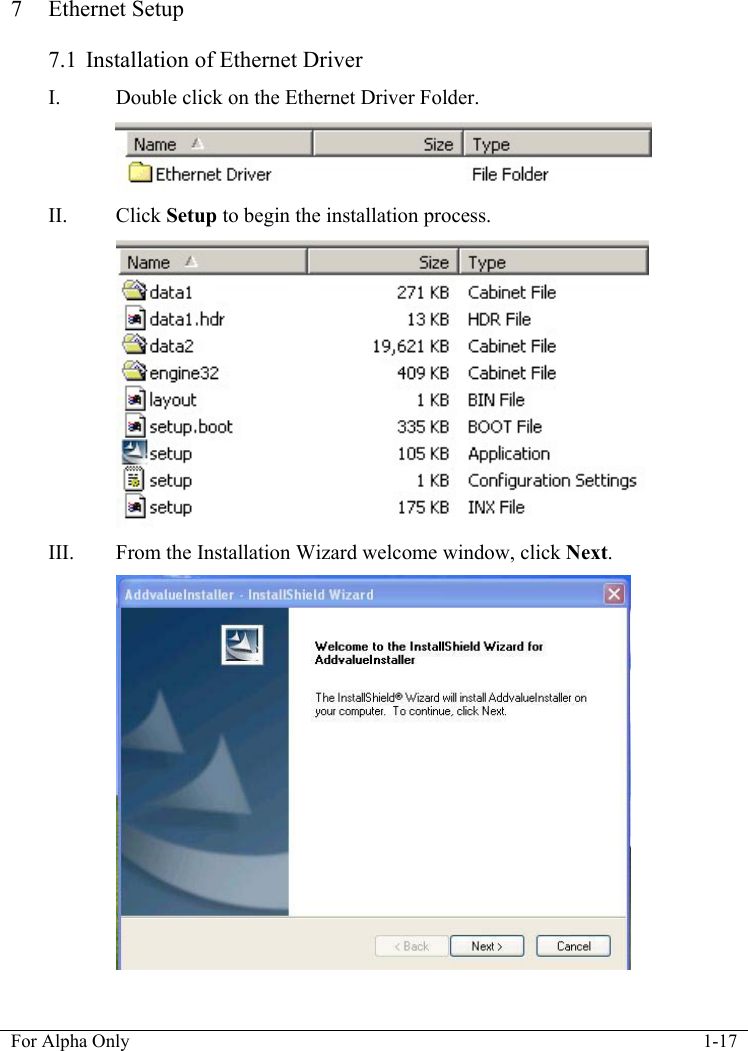
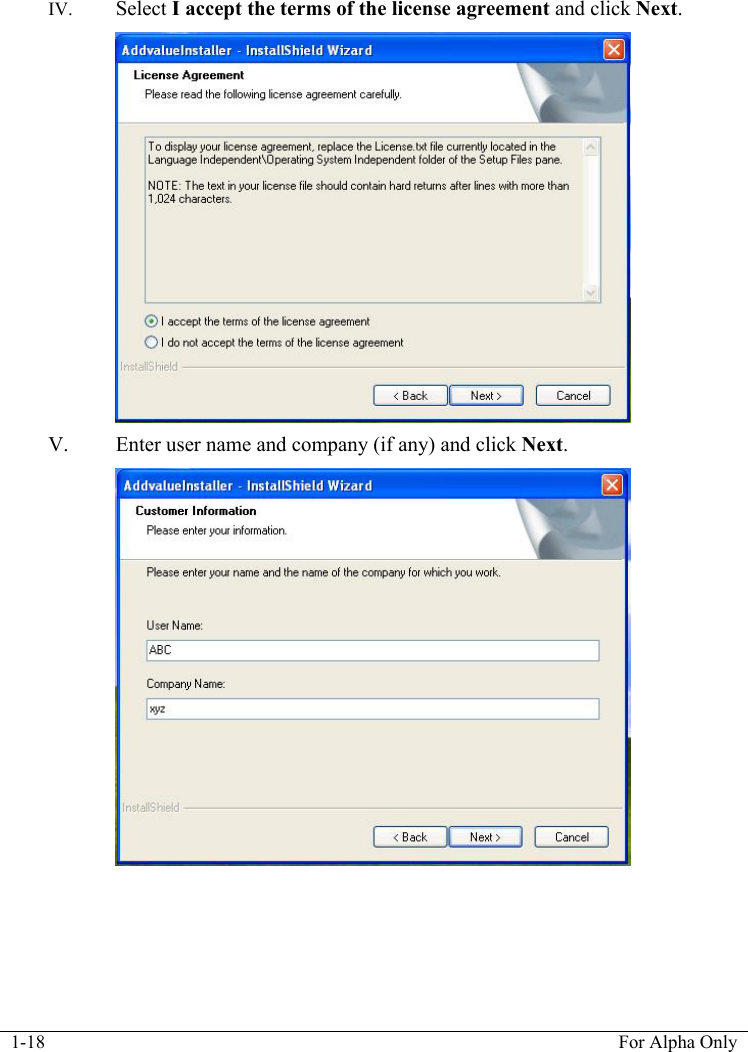
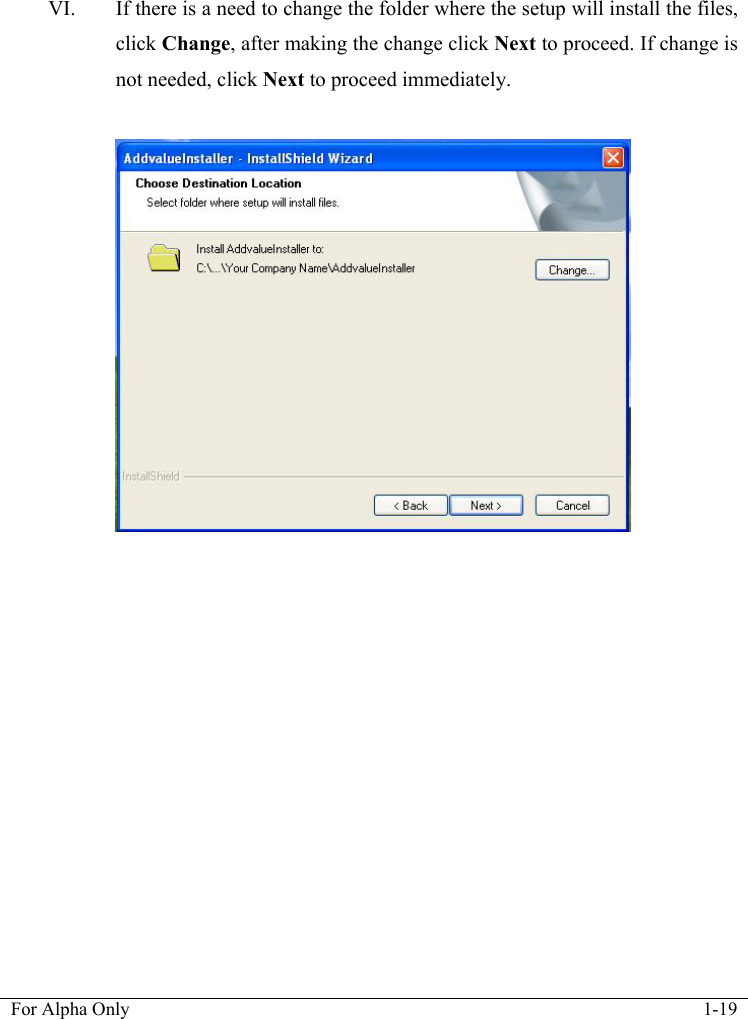
  For Alpha Only  1-17  7 Ethernet Setup  7.1  Installation of Ethernet Driver I. Double click on the Ethernet Driver Folder.  II. Click Setup to begin the installation process.  III. From the Installation Wizard welcome window, click Next.
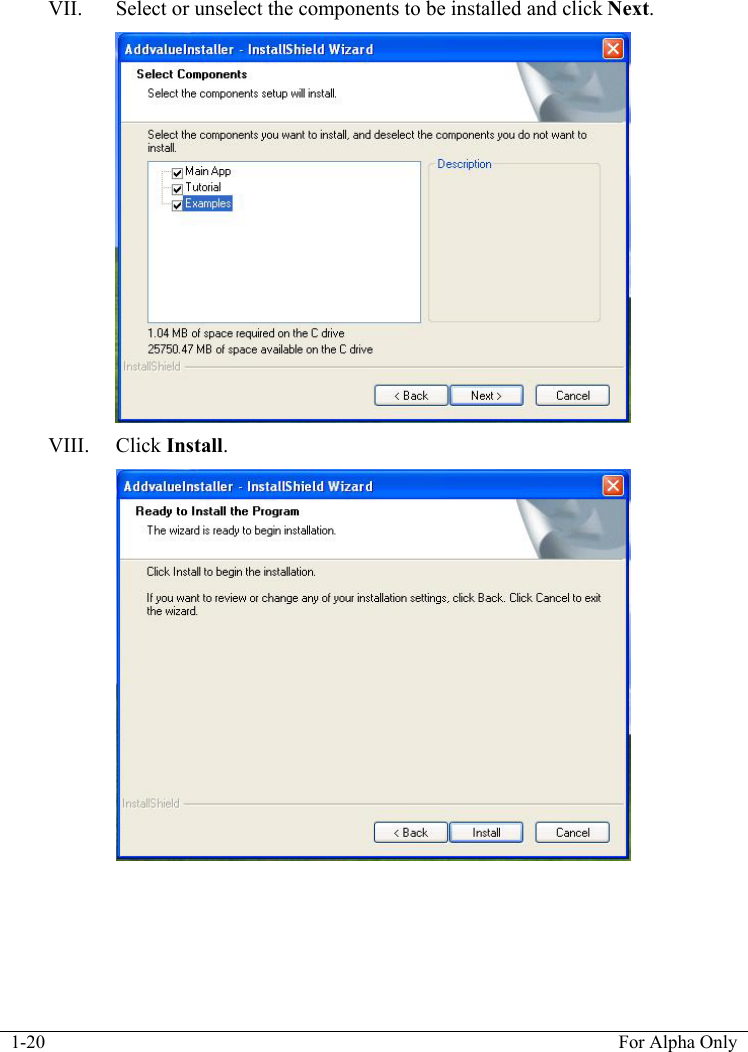
 1-18  For Alpha Only  IV. Select I accept the terms of the license agreement and click Next.  V. Enter user name and company (if any) and click Next.
  For Alpha Only  1-19   VI. If there is a need to change the folder where the setup will install the files, click Change, after making the change click Next to proceed. If change is not needed, click Next to proceed immediately.
 1-20  For Alpha Only  VII. Select or unselect the components to be installed and click Next.  VIII. Click Install.
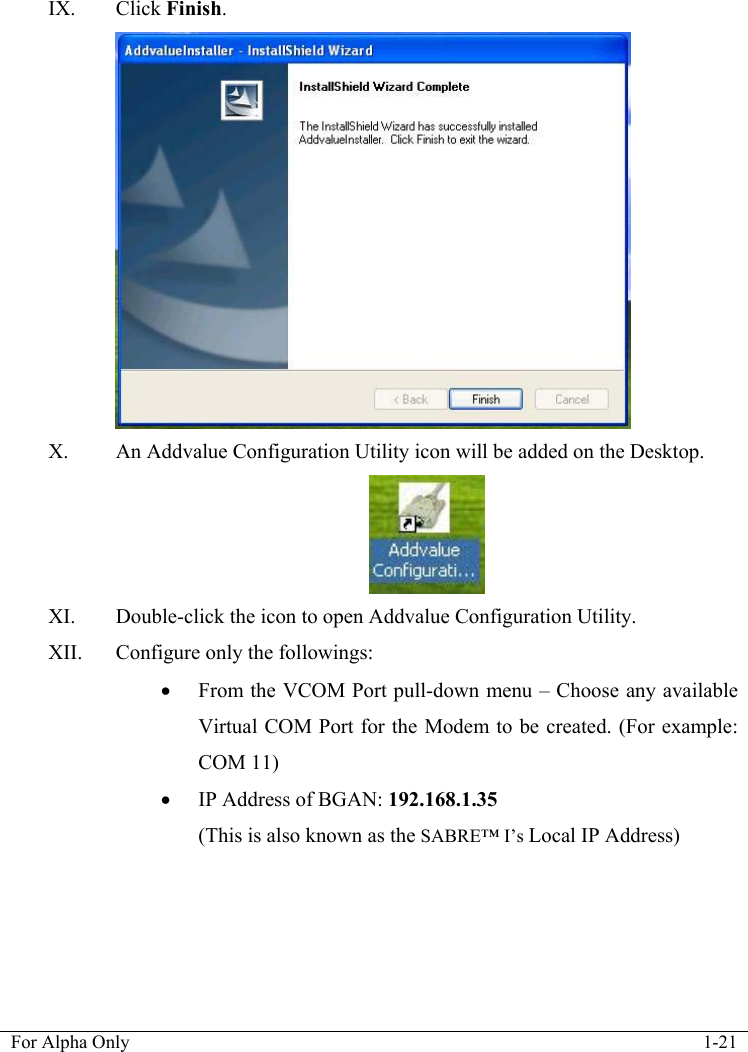
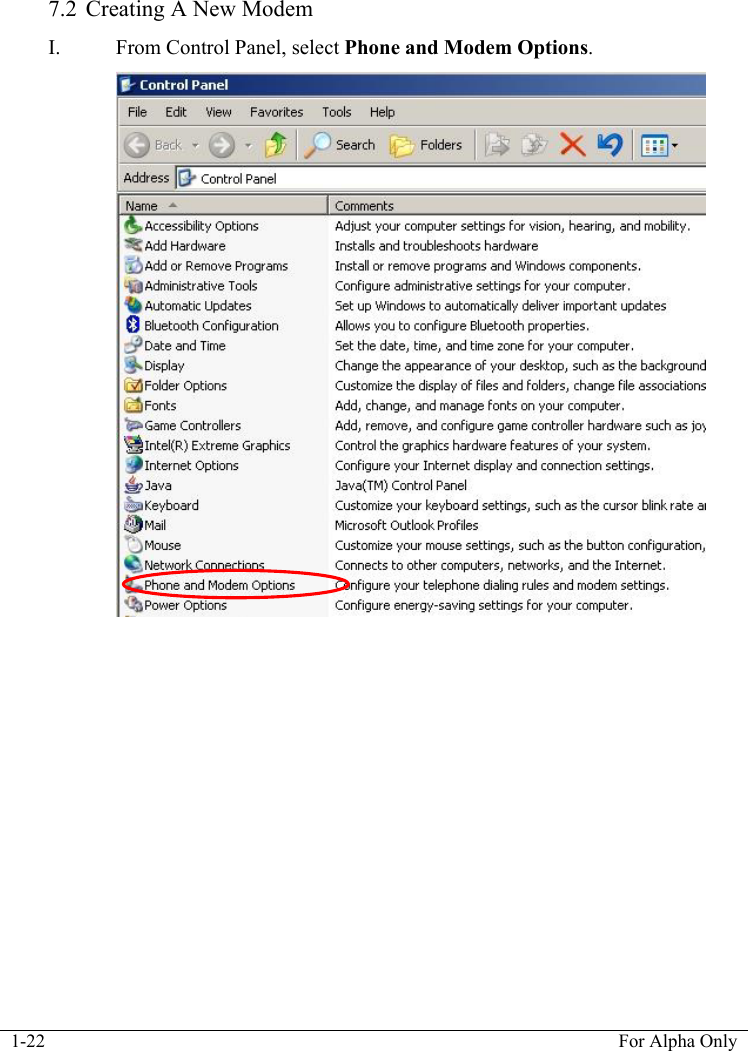
  For Alpha Only  1-21  IX. Click Finish.  X. An Addvalue Configuration Utility icon will be added on the Desktop.  XI. Double-click the icon to open Addvalue Configuration Utility. XII. Configure only the followings: • From the VCOM Port pull-down menu – Choose any available Virtual COM Port for the Modem to be created. (For example: COM 11) • IP Address of BGAN: 192.168.1.35 (This is also known as the SABRE™ I’s Local IP Address)
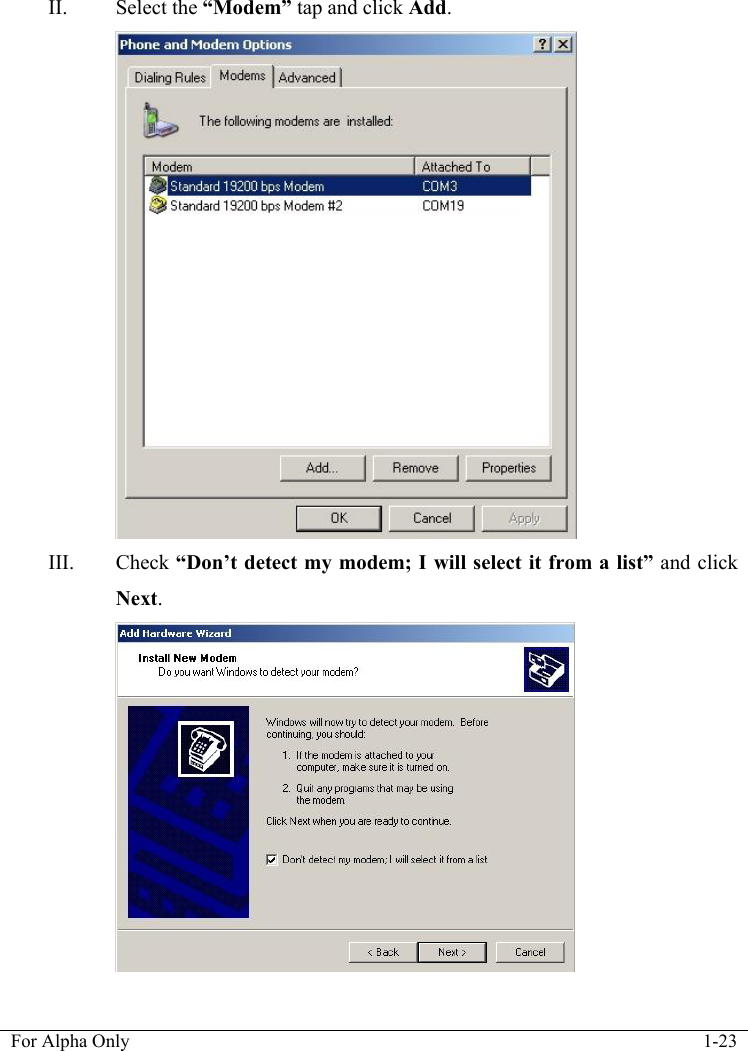
 1-22  For Alpha Only  7.2 Creating A New Modem I. From Control Panel, select Phone and Modem Options.
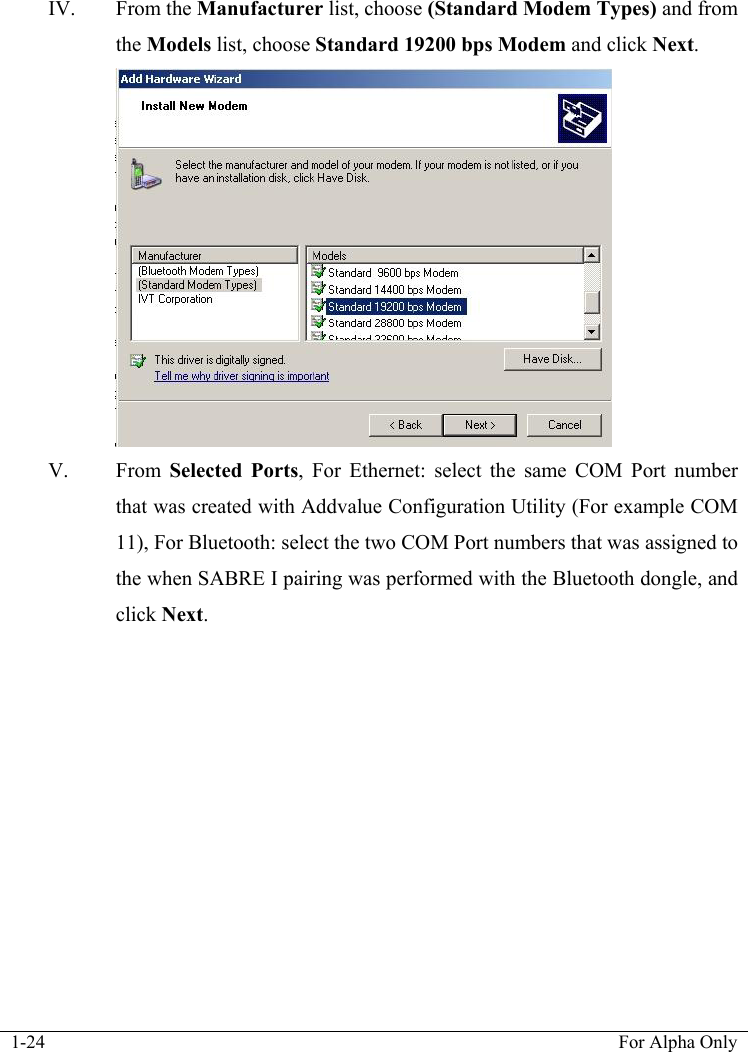
  For Alpha Only  1-23  II. Select the “Modem” tap and click Add.  III. Check “Don’t detect my modem; I will select it from a list” and click Next.
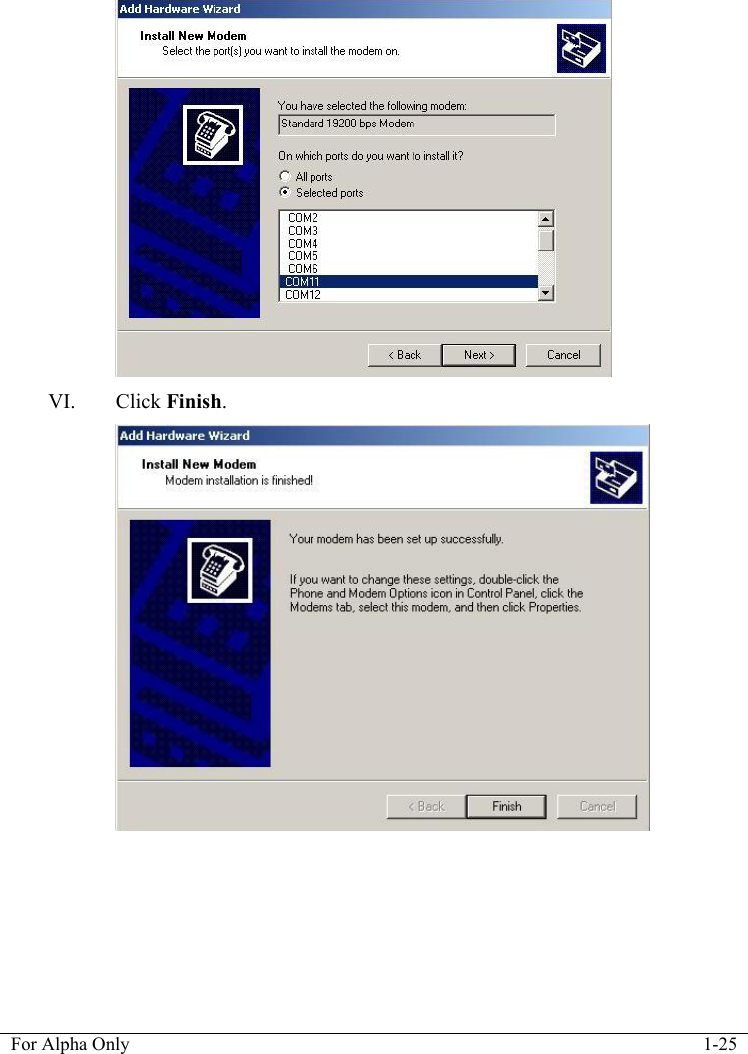
 1-24  For Alpha Only  IV. From the Manufacturer list, choose (Standard Modem Types) and from the Models list, choose Standard 19200 bps Modem and click Next.  V. From  Selected Ports, For Ethernet: select the same COM Port number that was created with Addvalue Configuration Utility (For example COM 11), For Bluetooth: select the two COM Port numbers that was assigned to the when SABRE I pairing was performed with the Bluetooth dongle, and click Next.
  For Alpha Only  1-25   VI. Click Finish.
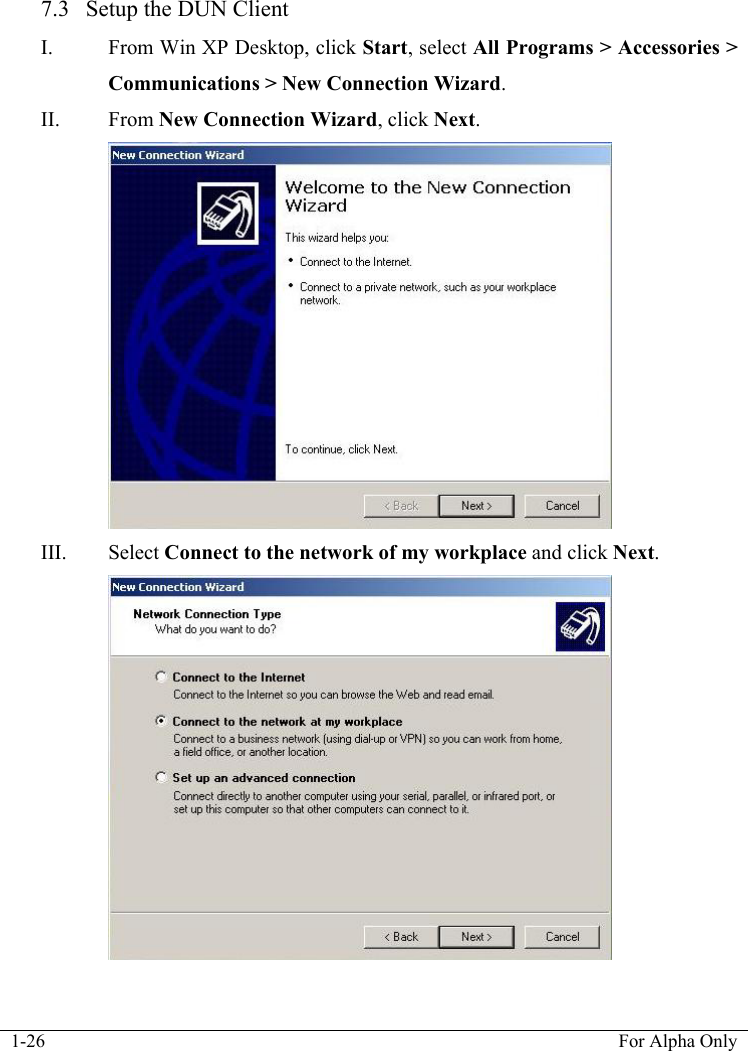
 1-26  For Alpha Only  7.3  Setup the DUN Client I. From Win XP Desktop, click Start, select All Programs > Accessories > Communications > New Connection Wizard. II. From New Connection Wizard, click Next.  III. Select Connect to the network of my workplace and click Next.
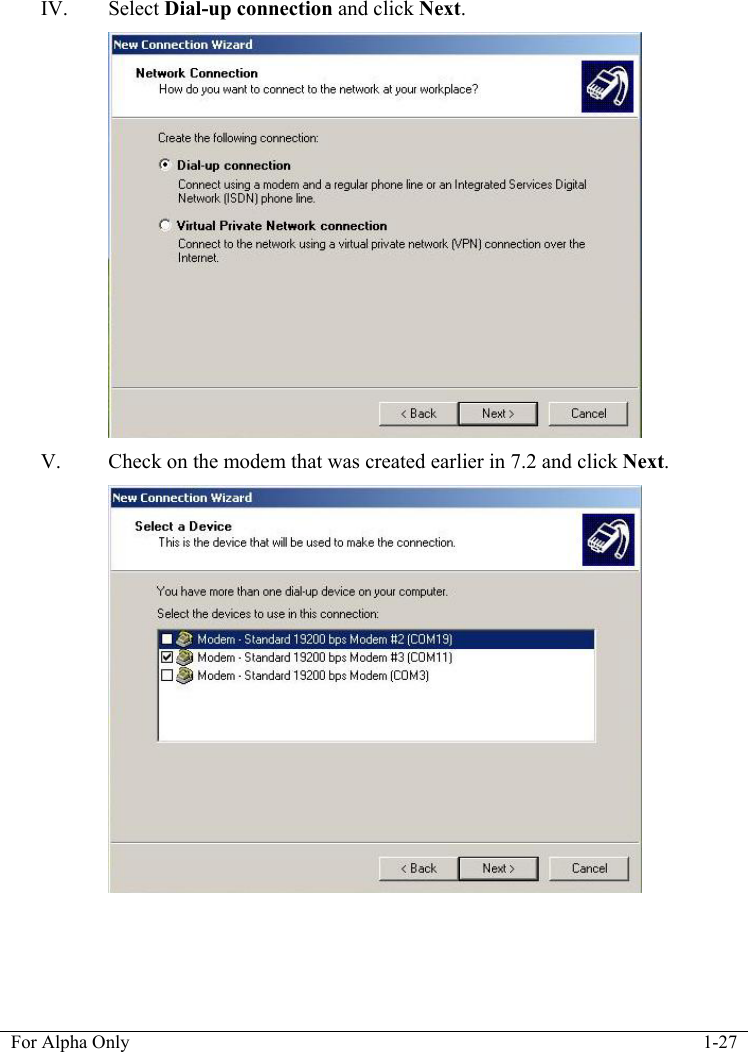
  For Alpha Only  1-27  IV. Select Dial-up connection and click Next.  V. Check on the modem that was created earlier in 7.2 and click Next.
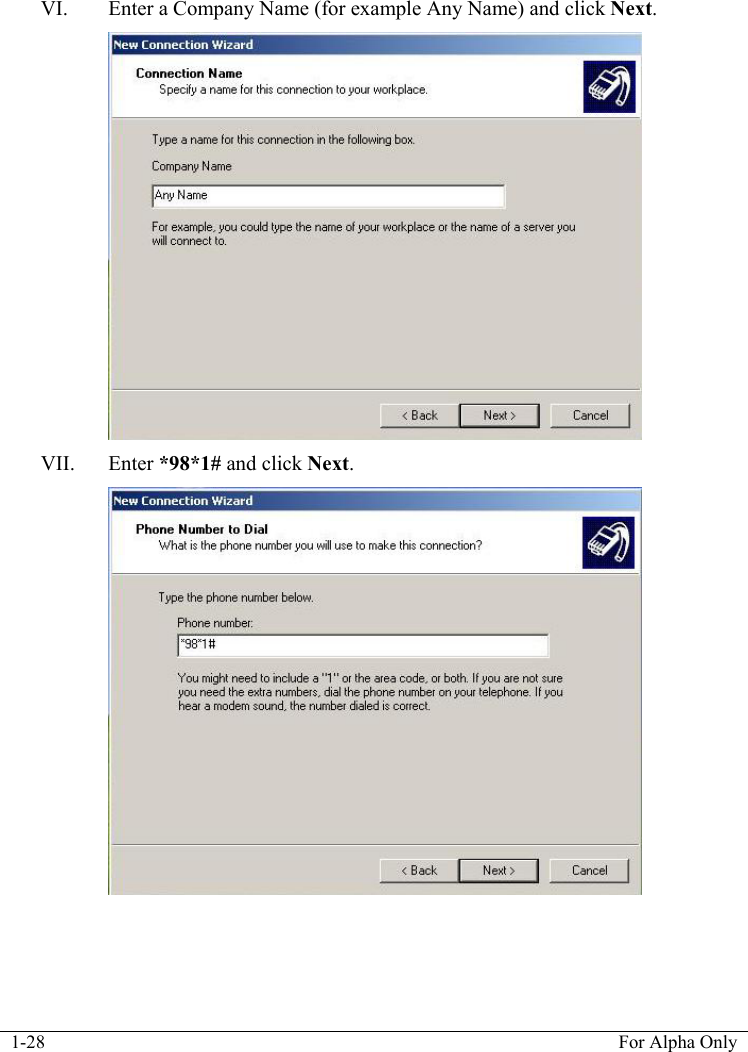
 1-28  For Alpha Only  VI. Enter a Company Name (for example Any Name) and click Next.  VII. Enter *98*1# and click Next.
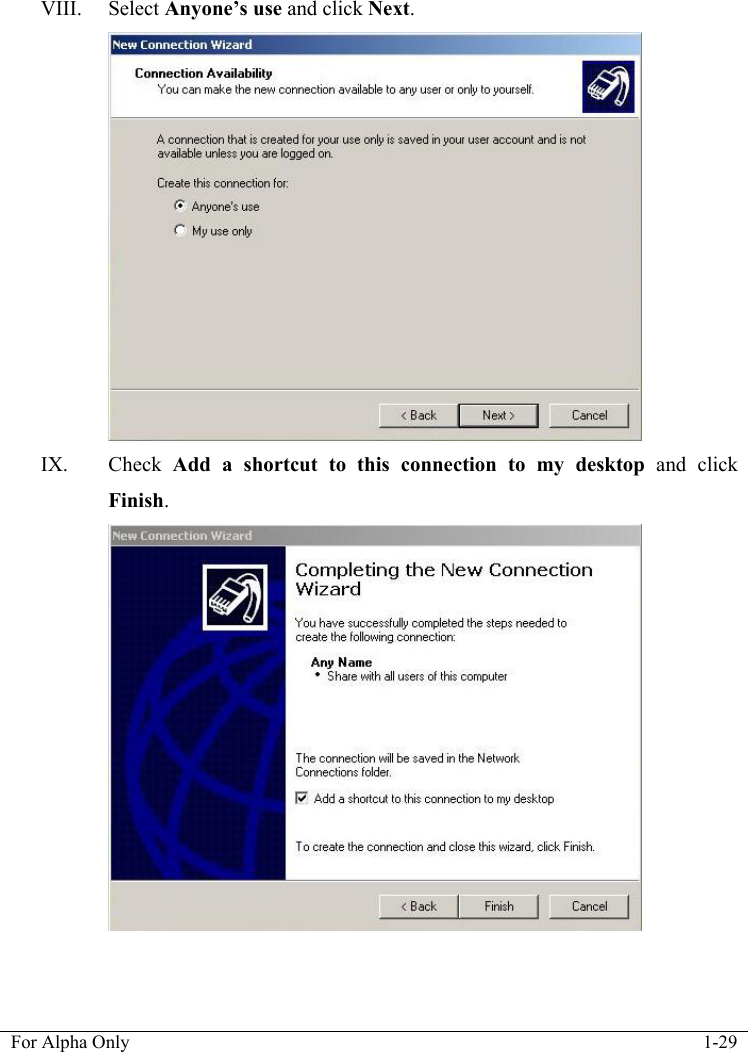
  For Alpha Only  1-29  VIII. Select Anyone’s use and click Next.  IX. Check  Add a shortcut to this connection to my desktop and click Finish.
 1-30  For Alpha Only  X. The DUN Client shortcut icon will be created on the Desktop.
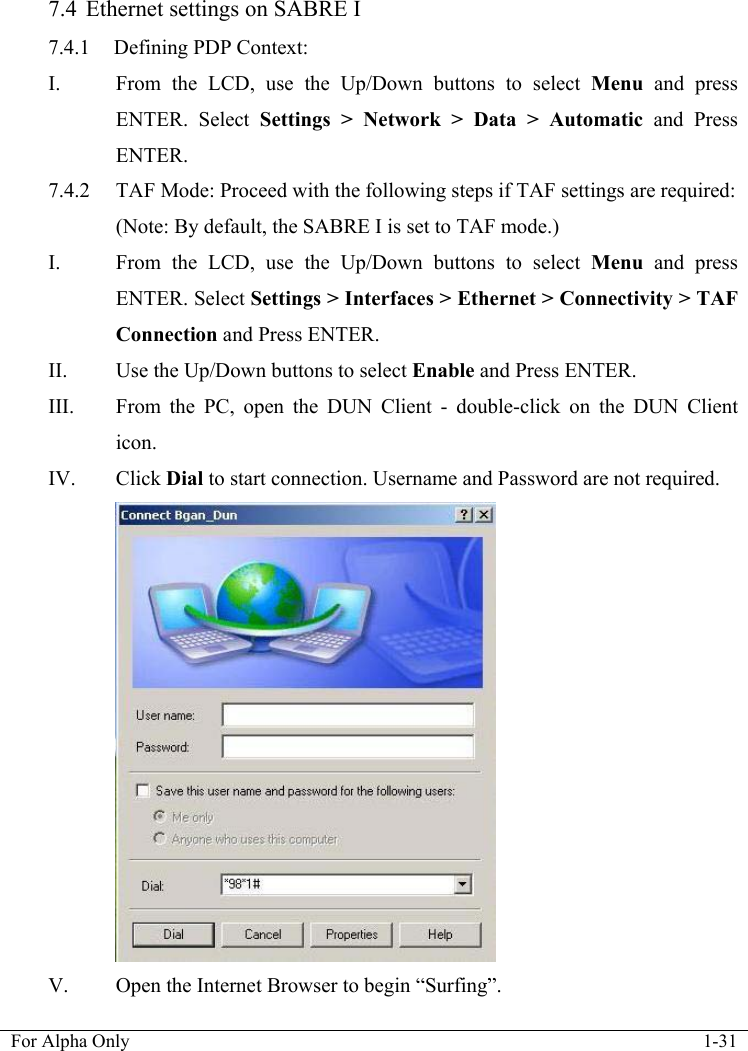
  For Alpha Only  1-31  7.4 Ethernet settings on SABRE I 7.4.1 Defining PDP Context: I. From the LCD, use the Up/Down buttons to select Menu and press ENTER. Select Settings > Network > Data > Automatic and Press ENTER. 7.4.2  TAF Mode: Proceed with the following steps if TAF settings are required:   (Note: By default, the SABRE I is set to TAF mode.) I. From the LCD, use the Up/Down buttons to select Menu and press ENTER. Select Settings > Interfaces > Ethernet > Connectivity > TAF Connection and Press ENTER. II. Use the Up/Down buttons to select Enable and Press ENTER. III. From the PC, open the DUN Client - double-click on the DUN Client icon. IV. Click Dial to start connection. Username and Password are not required.  V. Open the Internet Browser to begin “Surfing”.
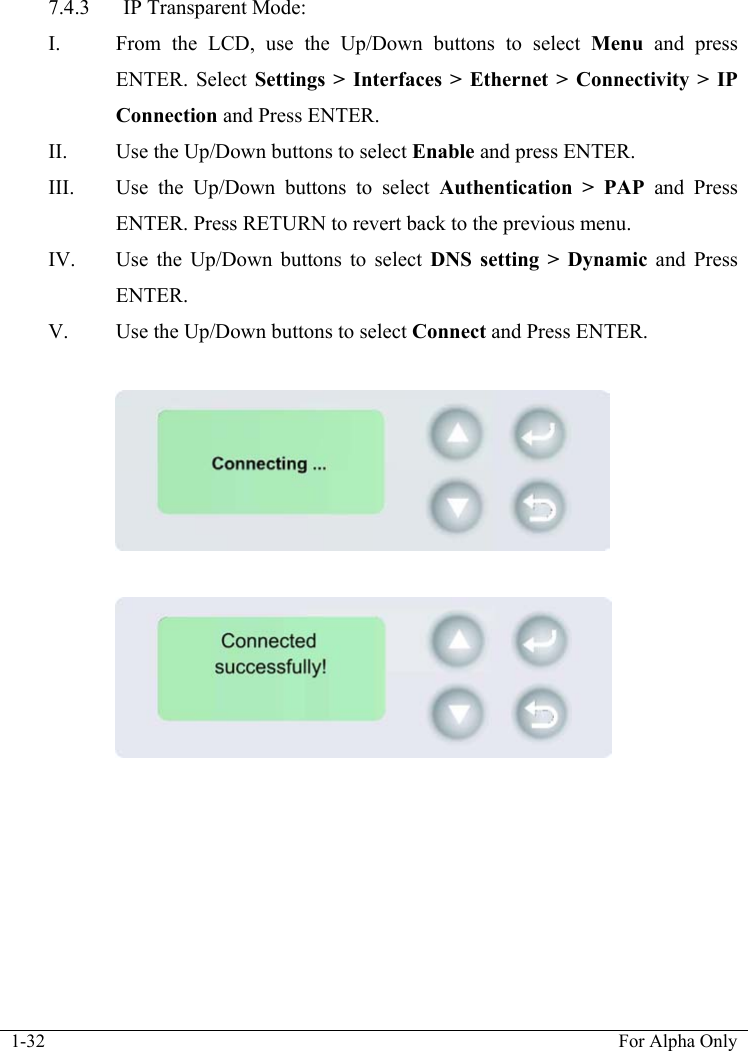
 1-32  For Alpha Only  7.4.3 IP Transparent Mode: I. From the LCD, use the Up/Down buttons to select Menu  and press ENTER. Select Settings > Interfaces > Ethernet > Connectivity > IP Connection and Press ENTER. II. Use the Up/Down buttons to select Enable and press ENTER. III. Use the Up/Down buttons to select Authentication > PAP and Press ENTER. Press RETURN to revert back to the previous menu. IV. Use the Up/Down buttons to select DNS setting > Dynamic and Press ENTER. V. Use the Up/Down buttons to select Connect and Press ENTER.
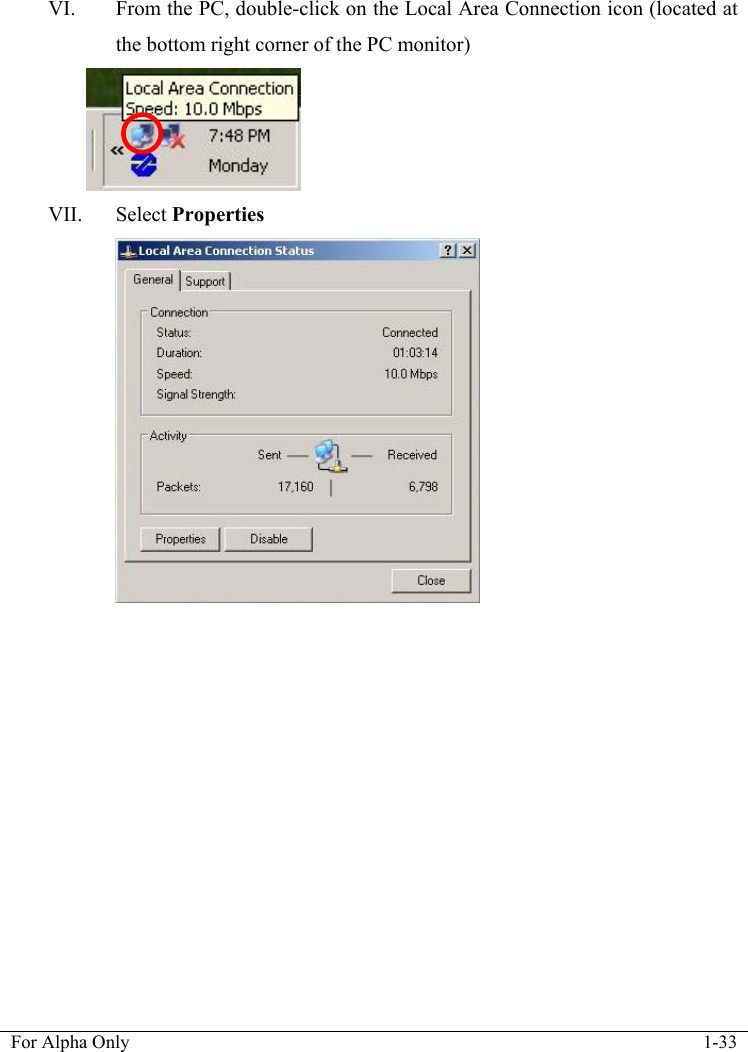
  For Alpha Only  1-33  VI. From the PC, double-click on the Local Area Connection icon (located at the bottom right corner of the PC monitor)   VII. Select Properties
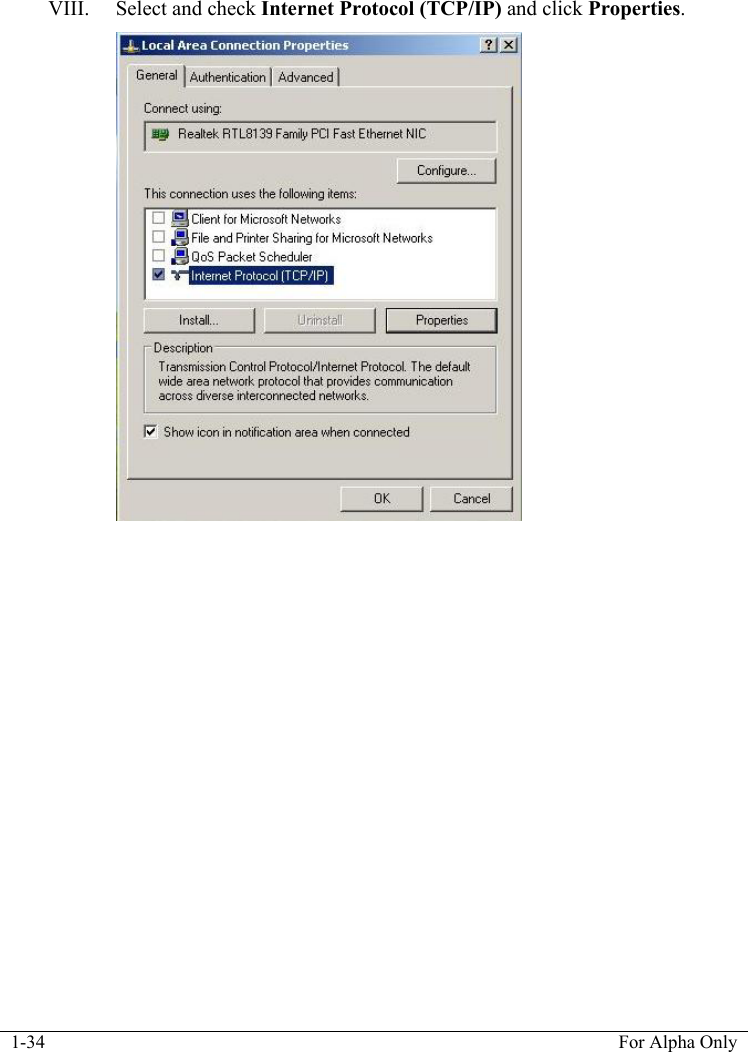
 1-34  For Alpha Only  VIII. Select and check Internet Protocol (TCP/IP) and click Properties.
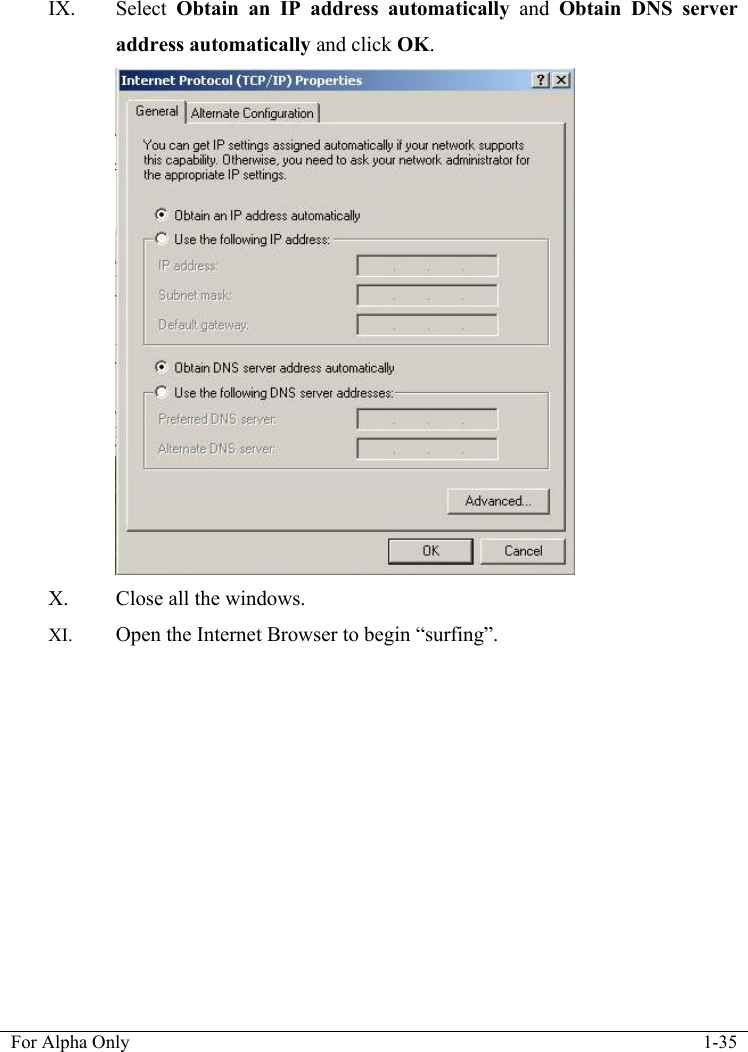
  For Alpha Only  1-35  IX. Select  Obtain an IP address automatically and Obtain DNS server address automatically and click OK.  X. Close all the windows. XI. Open the Internet Browser to begin “surfing”.
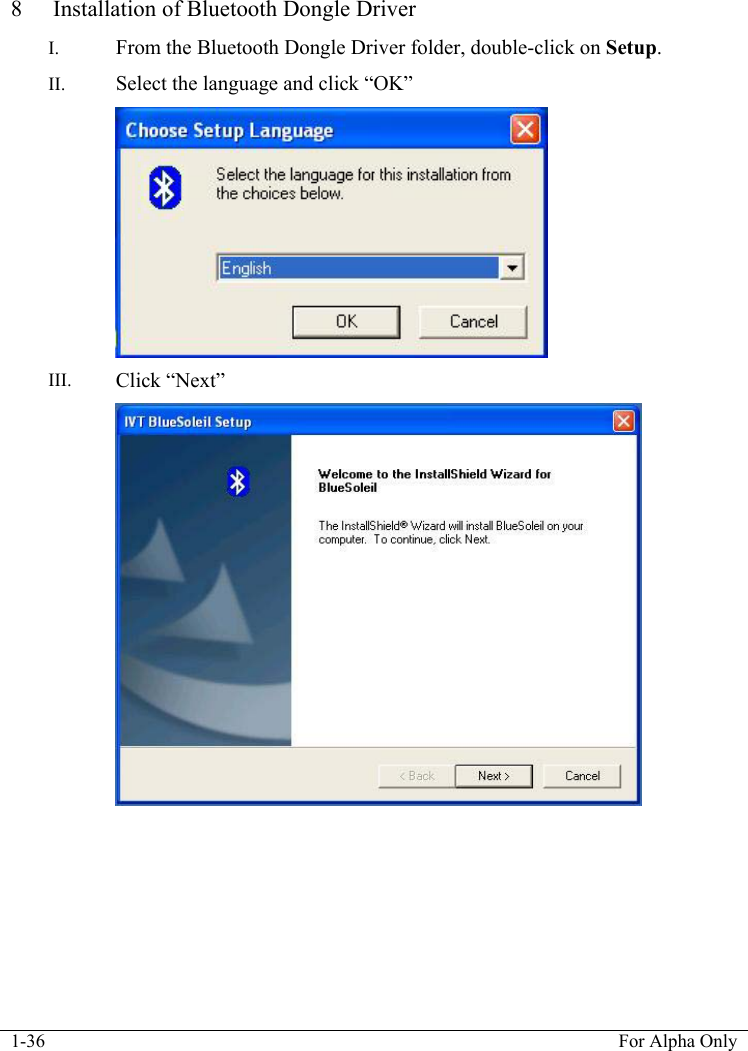
 1-36  For Alpha Only  8 Installation of Bluetooth Dongle Driver  I. From the Bluetooth Dongle Driver folder, double-click on Setup.  II. Select the language and click “OK”  III. Click “Next”
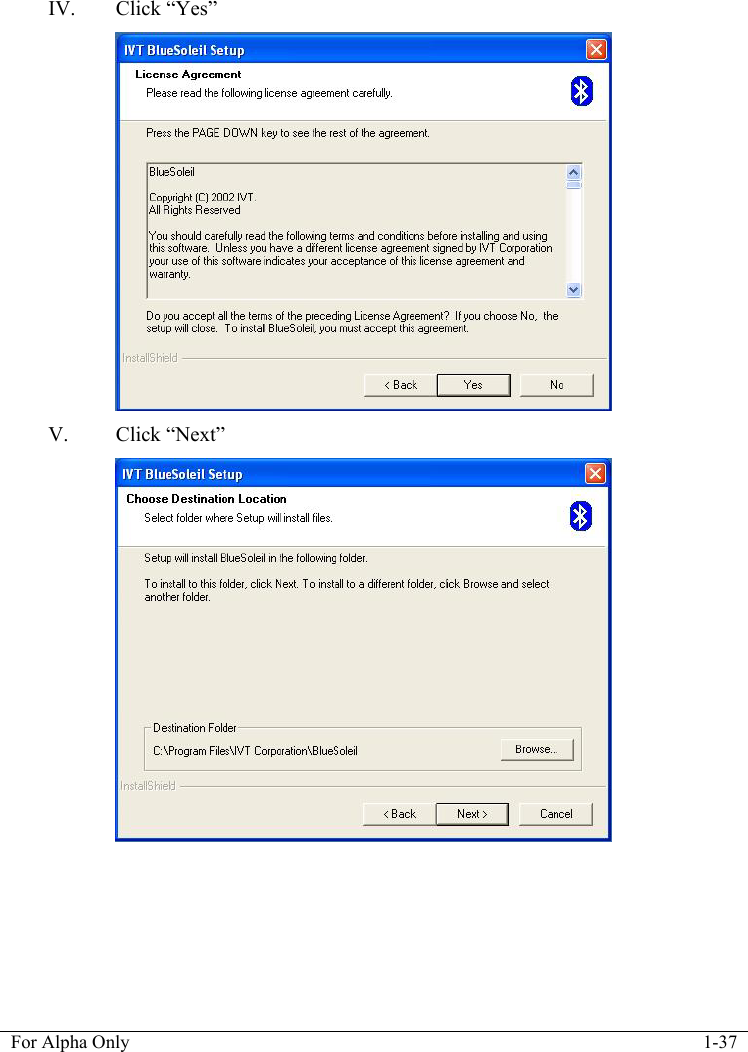
  For Alpha Only  1-37  IV. Click “Yes”  V. Click “Next”
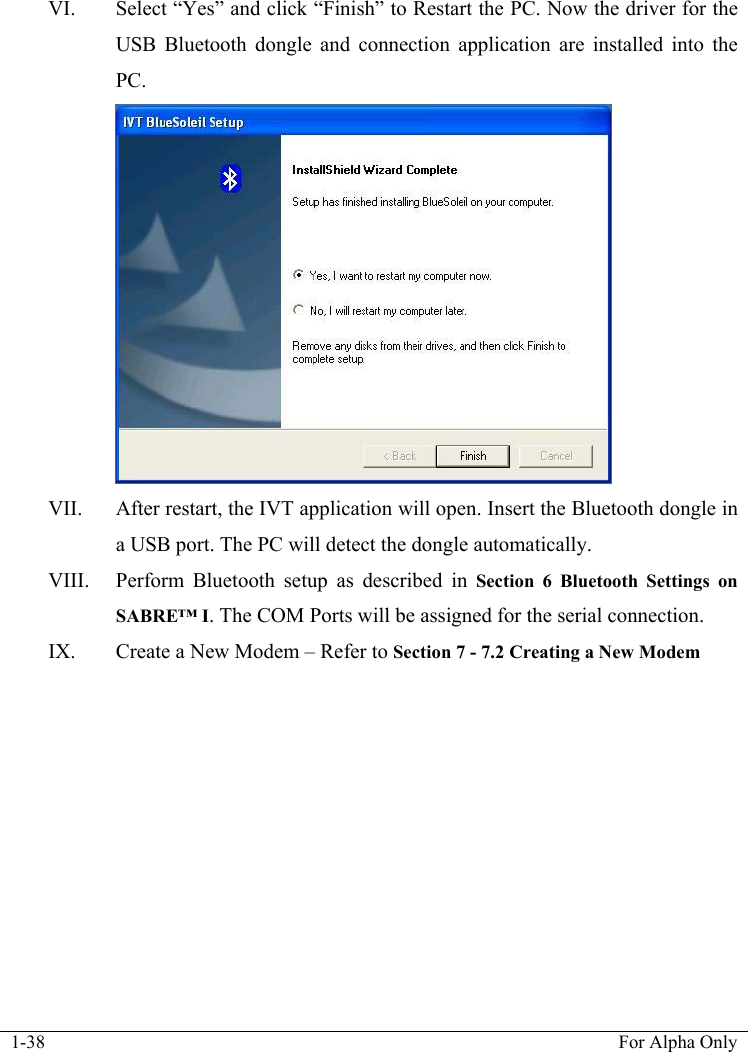
 1-38  For Alpha Only  VI. Select “Yes” and click “Finish” to Restart the PC. Now the driver for the USB Bluetooth dongle and connection application are installed into the PC.  VII. After restart, the IVT application will open. Insert the Bluetooth dongle in a USB port. The PC will detect the dongle automatically. VIII. Perform Bluetooth setup as described in Section 6 Bluetooth Settings on SABRE™ I. The COM Ports will be assigned for the serial connection. IX. Create a New Modem – Refer to Section 7 - 7.2 Creating a New Modem

Navigation menu