Arima Communication 2718 Arima 2718 User Manual NEC e132 EN

Arima Communication Corporation Arima 2718 NEC e132 EN

Contents

Users Manual

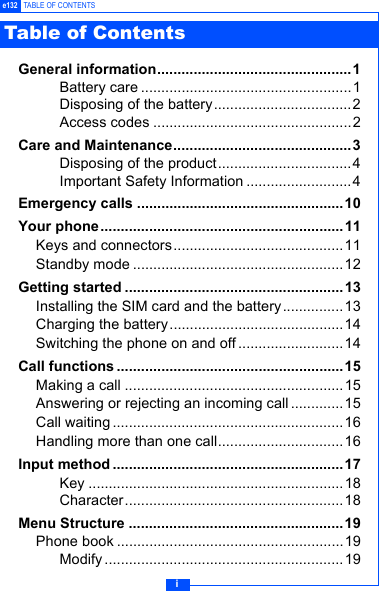
ie132 TABLE OF CONTENTSGeneral information................................................ 1Battery care ....................................................1Disposing of the battery..................................2Access codes .................................................2Care and Maintenance............................................3Disposing of the product.................................4Important Safety Information ..........................4Emergency calls ...................................................10Your phone ............................................................11Keys and connectors..........................................11Standby mode ....................................................12Getting started ......................................................13Installing the SIM card and the battery...............13Charging the battery...........................................14Switching the phone on and off ..........................14Call functions ........................................................15Making a call ......................................................15Answering or rejecting an incoming call.............15Call waiting .........................................................16Handling more than one call...............................16Input method .........................................................17Key ...............................................................18Character......................................................18Menu Structure .....................................................19Phone book ........................................................19Modify ...........................................................19Table of Contents
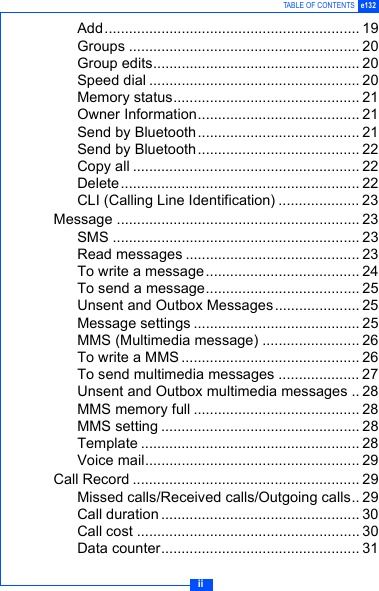
iiTABLE OF CONTENTS e132Add............................................................... 19Groups ......................................................... 20Group edits................................................... 20Speed dial .................................................... 20Memory status.............................................. 21Owner Information........................................ 21Send by Bluetooth........................................ 21Send by Bluetooth........................................ 22Copy all ........................................................ 22Delete........................................................... 22CLI (Calling Line Identification) .................... 23Message ............................................................ 23SMS ............................................................. 23Read messages ........................................... 23To write a message...................................... 24To send a message...................................... 25Unsent and Outbox Messages..................... 25Message settings ......................................... 25MMS (Multimedia message) ........................ 26To write a MMS ............................................ 26To send multimedia messages .................... 27Unsent and Outbox multimedia messages .. 28MMS memory full ......................................... 28MMS setting ................................................. 28Template ...................................................... 28Voice mail..................................................... 29Call Record ........................................................ 29Missed calls/Received calls/Outgoing calls.. 29Call duration ................................................. 30Call cost ....................................................... 30Data counter................................................. 31
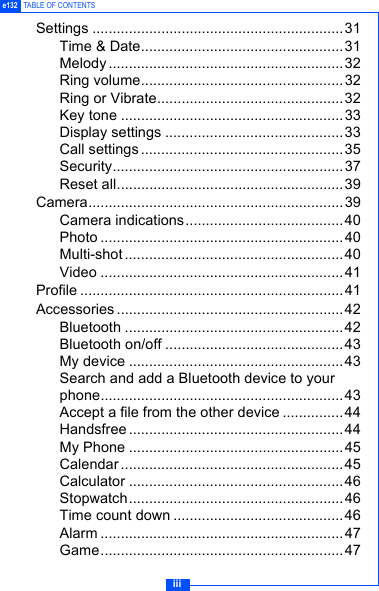
iiie132 TABLE OF CONTENTSSettings ..............................................................31Time & Date..................................................31Melody .......................................................... 32Ring volume..................................................32Ring or Vibrate..............................................32Key tone .......................................................33Display settings ............................................33Call settings..................................................35Security.........................................................37Reset all........................................................39Camera...............................................................39Camera indications.......................................40Photo ............................................................40Multi-shot ......................................................40Video ............................................................41Profile .................................................................41Accessories ........................................................42Bluetooth ......................................................42Bluetooth on/off ............................................43My device .....................................................43Search and add a Bluetooth device to your phone............................................................43Accept a file from the other device ...............44Handsfree ..................................................... 44My Phone .....................................................45Calendar ....................................................... 45Calculator .....................................................46Stopwatch.....................................................46Time count down ..........................................46Alarm ............................................................47Game............................................................47
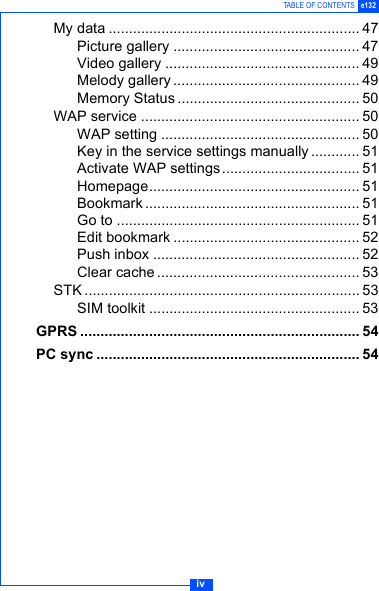
ivTABLE OF CONTENTS e132My data .............................................................. 47Picture gallery .............................................. 47Video gallery ................................................ 49Melody gallery .............................................. 49Memory Status ............................................. 50WAP service ...................................................... 50WAP setting ................................................. 50Key in the service settings manually............ 51Activate WAP settings.................................. 51Homepage.................................................... 51Bookmark ..................................................... 51Go to ............................................................ 51Edit bookmark .............................................. 52Push inbox ................................................... 52Clear cache .................................................. 53STK .................................................................... 53SIM toolkit .................................................... 53GPRS ..................................................................... 54PC sync ................................................................. 54
1e132 GENERAL INFORMATIONBattery careYour phone is powered by a rechargeable battery.• The battery can be charged and discharged hundreds of timesbut it will eventually wear out. When the operating time (talk-timeand standby time) is noticeably shorter than normal, you shouldbuy a new battery.• Unplug the charger when not in use. Do not leave the batteryconnected to a charger for longer than a week, sinceovercharging may shorten its lifetime.• If left unused, a fully charged battery may discharge itself overtime.• Temperature extremes can affect the ability of your battery tocharge.• Do not use a charger or battery that is damaged in any way.• Use the battery only for its intended purpose.• Do not leave the battery in hot or cold places, such as in a car insummer or winter.• Do not short-circuit the battery. Short-circuiting the terminals maydamage the battery or the connecting object.• Dispose of batteries according to local regulations. Alwaysrecycle.• In addition to the rechargable battery your phone is fitted with aninternal battery that can only be replaced by a qualified serviceengineer. There is a risk of explosion if the battery is replacedwith an incorrect type of battery. Dispose of the used battery inaccordance with the manufacturer's instructions.General information
2GENERAL INFORMATION e132Disposing of the batteryUsed phone batteries must be disposed of in compliancewith current environment protection regulations. Youshould return your batteries to your reseller or dispose ofthem in an approved recycling centre.Access codesPIN code (4 to 8 digits):The PIN (Personal Identification Number) code protects your SIMcard against unauthorised access. Your SIM card usuallysupplies the PIN code.PIN2 code (4 to 8 digits)The PIN2 code may be supplied with the SIM card. Somefunctions will require PIN2 support, such as Set tariff.PUK and PUK2 (8 digits)The PUK (Personal Unblocking Key) code is required to changea blocked PIN code. The PUK2 code is required to change ablocked PIN2 code.Phone code (4 to 8 digits)The phone code protects the phone against unauthorised use. Itis not on when you buy the phone. You can change the phonecode (0000) to any four to eight-digit personal code.
3e132 CARE AND MAINTENANCERead this information before using your mobile phone.Your mobile phone is a highly sophisticated electronic device. Whenusing your phone, battery, charger or any accessory, please readthis information first.Product care• Warning: Please check the volume level of your phone beforelistening to your phone. High volume levels will damage yourhearing.• Keep your mobile phone and all its parts out of young children'sreach.• Keep your mobile phone dry.• Avoid exposing your mobile phone to extreme hot or coldtemperatures.• Avoid placing your mobile phone close to lit cigarettes, nakedflames or any heat source.Note: Do not use your product in an area where a potentiallyexplosive atmosphere exists.• If you set the Vibrator setting to ON, be careful that the phone isnot near a source of heat (e.g. a heater) and that it does not fallfrom a desk due to the vibration.• Do not store or carry flammable or explosive materials in thesame compartment where a mobile phone is placed.• The operation of some medical electronic devices, such ashearing aids and pacemakers, may be affected if a mobile phoneis used next to them. Observe any warning signs andmanufacturer's recommendations.• If you have a weak heart, you should take extra precautionswhen setting functions such as the Vibrator and Ringer volumefunctions for incoming calls.Care and Maintenance
4CARE AND MAINTENANCE e132• Do not attempt to disassemble the phone. Non-expert handling ofthe device may damage it.• Do not drop, knock or shake the phone. Rough handling canbreak internal circuit boards.• Do not paint your mobile phone. The paint could obstruct theearphone, microphone or any moveable parts and preventnormal use.• Treat your mobile phone with care, keep it in a clean and dustfree environment.Disposing of the productYour Mobile phone should not be placed in municipalwaste. Please check local regulations for disposal ofelectronic products.Important Safety InformationRadio frequency energy and SAR certification informationYour phone meets the government's requirements for exposureto radio waves. It is a radio transmitter and receiver. When the phone is turned on, itreceives and transmits radio frequency (RF) energy. Depending on thetype of mobile phone you possess, it operates on different frequencyranges and employs commonly used modulation techniques.The exposure standard for mobile phones employs a unit ofmeasurement known as Specific Absorption Rate (SAR). TheSAR value is determined at the highest certified power level inlaboratory conditions, but the actual SAR level of the mobilephone while operating can be well below this value. This isbecause the mobile phone is designed to use the minimumpower required to reach the network.This phone is designed and manufactured not to exceed theemission limits for exposure to radio frequency (RF) energy setby the Federal Communications Commission (FCC) of the U.S.
5e132 CARE AND MAINTENANCEGovernment and CE certification (CE marking) of EuropeanUnion (EU) requirements.The SAR limit recommended by the EU Council is 2.0W/kg. Thehighest SAR value for this model phone was 0.888 W/kg.DoCCS Česky [Czech] NEC tímto prohlašuje, že tento e132 je ve shodě se základními požadavky a dalšími příslušnými ustanoveními směrnice 1999/5/ES.DA Dansk [Danish] Undertegnede NEC erklærer herved, at følgende udstyr e132 overholder de væsentlige krav og øvrige relevante krav i direktiv 1999/5/EF.DE Deutsch [German] Hiermit erklärt NEC, dass sich das Gerät e132 in Übereinstimmung mit den grundlegenden Anforderungen und den übrigen einschlägigen Bestimmungen der Richtlinie 1999/5/EG befindet.ET Eesti [Estonian] Käesolevaga kinnitab NEC seadme e132 vastavust direktiivi 1999/5/EÜ põhinõuetele ja nimetatud direktiivist tulenevatele teistele asjakohastele sätetele.EN English Hereby, NEC, declares that this e132 is in compliance with the essential requirements and other relevant provisions of Directive 1999/5/EC.ES Español [Spanish] Por medio de la presente NEC declara que el e132 cumple con los requisitos esenciales y cualesquiera otras disposiciones aplicables o exigibles de la Directiva 1999/5/CE.EL Ελληνική [Greek] ΜΕ ΤΗΝ ΠΑΡΟΥΣΑ NEC ΔΗΛΩΝΕΙ ΟΤΙ e132 ΣΥΜΜΟΡΦΩΝΕΤΑΙ ΠΡΟΣ ΤΙΣ ΟΥΣΙΩΔΕΙΣ ΑΠΑΙΤΗΣΕΙΣ ΚΑΙ ΤΙΣ ΛΟΙΠΕΣ ΣΧΕΤΙΚΕΣ ΔΙΑΤΑΞΕΙΣ ΤΗΣ ΟΔΗΓΙΑΣ 1999/5/ΕΚ.FR Français [French] Par la présente NEC déclare que l'appareil e132 est conforme aux exigences essentielles et aux autres dispositions pertinentes de la directive 1999/5/CE.IT Italiano [Italian] Con la presente NEC dichiara che questo e132 è conforme ai requisiti essenziali ed alle altre disposizioni pertinenti stabilite dalla direttiva 1999/5/CE.
6CARE AND MAINTENANCE e132LV Latviski [Latvian]Ar šo NEC deklarē, ka e132 atbilst Direktīvas 1999/5/EK būtiskajām prasībām un citiem ar to saistītajiem noteikumiem.LT Lietuvių [Lithuanian] Šiuo NEC deklaruoja, kad šis e132 atitinka esminius reikalavimus ir kitas 1999/5/EB Direktyvos nuostatas.NL Nederlands [Dutch]Hierbij verklaart NEC dat het toestel e132 in overeenstemming is met de essentiële eisen en de andere relevante bepalingen van richtlijn 1999/5/EG.MT Malti [Maltese]Hawnhekk, NEC, jiddikjara li dan e132 jikkonforma mal-h–tig·ijiet essenzjali u ma provvedimenti oh–rajn relevanti li hemm fid-Dirrettiva 1999/5/EC.HU Magyar [Hungarian]Alulírott, NEC nyilatkozom, hogy a e132 megfelel a vonatkozó alapvetõ követelményeknek és az 1999/5/EC irányelv egyéb elõírásainak.PL Polski [Polish]Niniejszym NEC oświadcza, że e132 jest zgodny z zasadniczymi wymogami oraz pozostałymi stosownymi postanowieniami Dyrektywy 1999/5/EC.PT Português [Portuguese]NEC declara que este e132 está conforme com os requisitos essenciais e outras disposições da Directiva 1999/5/CE.SL Slovensko [Slovenian]NEC izjavlja, da je ta e132 v skladu z bistvenimi zahtevami in ostalimi relevantnimi določili direktive 1999/5/ES.SK Slovensky [Slovak]NEC týmto vyhlasuje, že e132 spĺňa základné požiadavky a všetky príslušné ustanovenia Smernice 1999/5/ES.FI Suomi [Finnish]NEC vakuuttaa täten että e132 tyyppinen laite on direktiivin 1999/5/EY oleellisten vaatimusten ja sitä koskevien direktiivin muiden ehtojen mukainen.SV Svenska [Swedish]Härmed intygar NEC att denna e132 står I överensstämmelse med de väsentliga egenskapskrav och övriga relevanta bestämmelser som framgår av direktiv 1999/5/EG.
7e132 CARE AND MAINTENANCEElectronic devicesMost modern electronic equipment is shielded from RF energy.However, certain electronic equipment may not be shieldedagainst the RF signals from your mobile phone, therefore:• Do not use your mobile phone near medical equipment withoutrequesting permission.PacemakerMobile phones may affect the operation of some implantedcardiac pacemakers and other medically implanted equipment.Pacemaker manufacturers recommend that a minimumseparation of 20 cm (6 inches) be maintained between ahand-held wireless phone and a pacemaker to avoid potentialinterference with the pacemaker. These recommendations areconsistent with the independent research by andrecommendations of Wireless Technology Research.Persons with pacemakers:• Should always keep the phone more than 20 cm (6 inches) fromtheir pacemaker when the phone is switched on;• Should not carry the phone in a breast pocket;• Should use the ear opposite the pacemaker to minimize thepotential for interference.• If you have any reason to suspect that interference is takingplace, switch off your phone immediately.Íslenska [Icelandic] Hér með lýsir NEC yfir því að e132 er í samræmi við grunnkröfur og aðrar kröfur, sem gerðar eru í tilskipun 1999/5/EC.NO Norsk [Norwegian] NEC erklærer herved at utstyret e132 er i samsvar med de grunnleggende krav og øvrige relevante krav i direktiv 1999/5/EF.
8CARE AND MAINTENANCE e132Hearing aidsSome hearing aids might be disturbed by mobile phones. In theevent of such disturbance, you may want to consult your serviceprovider, or call the customer services line to discussalternatives.Aircraft• Turn off your mobile phone before boarding any aircraft.• Do not use it on the ground without crew permission.To prevent interference with communication systems, you mustnot use your mobile phone while the plane is in the air.Potentially explosive atmospheresSwitch off your phone when in any area with a potentiallyexplosive atmosphere and obey all signs and instructions. It israre, but your phone or its accessories could generate sparks.Sparks in such areas could cause an explosion or fire resulting inbodily injury or even death. Areas with a potentially explosiveatmosphere are often, but not always, clearly marked. Theyinclude fuelling areas, such as petrol stations, below deck onboats, fuel or chemical transfer or storage facilities, and areaswhere the air contains chemicals or particles, such as grain, dust,or metal powders.; and any other area where you would normallybe advised to turn off your vehicle engine.DrivingCheck the laws and regulations on the use of mobile phones inthe areas where you drive. If you are going to use your phonewhile driving, please:• Give full attention to driving.• Use handsfree. Law in many countries requires vehiclehandsfree.• Pull off the road and park before making or answering a call ifdriving conditions so require.
9e132 CARE AND MAINTENANCERF energy may affect some electronic systems in motor vehiclessuch as car stereo, safety equipment etc. in addition, somevehicle manufacturers do not allow use of mobile phones, unlessthe installation is supported by a handsfree kit with an externalantenna, in their vehicles. Check with your vehiclemanufacturer's representative to be sure that your mobile phonewill not affect the electronic systems in your vehicle.
10EMERGENCY CALLS e132Important:This phone, like any wireless phone, operates using radiosignals, wireless and landline networks as well as userprogrammed functions. Because of this, connections in allconditions cannot be guaranteed. Therefore, you should neverrely solely upon any wireless phone for essentialcommunications (e.g. medical emergencies)Emergency calls may not be possible on all wireless phonenetworks or when certain network services and/or phone featuresare in use. Check with local service provider.FCC Statement:This device complies with Part 15 of the FCC Rules.Operation is subject to the following two conditions: (1) thisdevice may not cause harmful interference, and (2) thisdevice must accept any interference received, includinginterference that may cause undesired operation.LicensesT9® Text Input and the T9® logo are registered trademarks of theTegic Communication.T9® Text Input is licensed under one or more of the following:U.S. Pat. Nos. 5,187,480, 5,818,437, 5,945,928, 5,953,541, 6,011,5546,286,064, 6,307,548, 6,307,549, and 6,636,162, 6,646,573; AustralianPat. Nos. 727539, 746674, and 747901; Canadian Pat. Nos. 1,331,057,2,302,595, and 2,227,904; Japan Pat. No. 3532780, 3492981; UnitedKingdom Pat. No. 2238414B; HongKong Standard Pat. No. HK1010924;Republic of Singapore Pat. No. 51383, 66959, and 71979; European.Pat. Nos. 0 842 463 (96927260.8), 1 010 057 (98903671.0), 1 018 069(98950708.2); Repubilc of Korea Pat. Nos. KR201211B1 andKR226206B1. People's Republic of China Pat. Application Nos.98802801.8, 98809472.X and 96196739.0; Mexico Pat. No. 208141;Russian Federation Pat. No. 2206118; and additional Parents arepending worldwide.Emergency calls
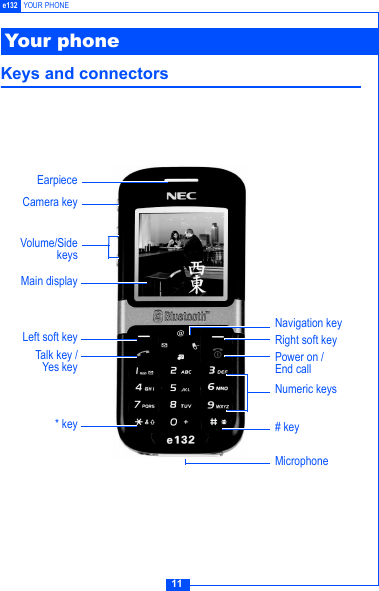
11e132 YOUR PHONEKeys and connectorsYour phoneEarpieceCamera keyMain displayVolume/SidekeysLeft soft keyTalk key /Yes key * keyMicrophone# keyPower on / End callRight soft keyNumeric keysNavigation key
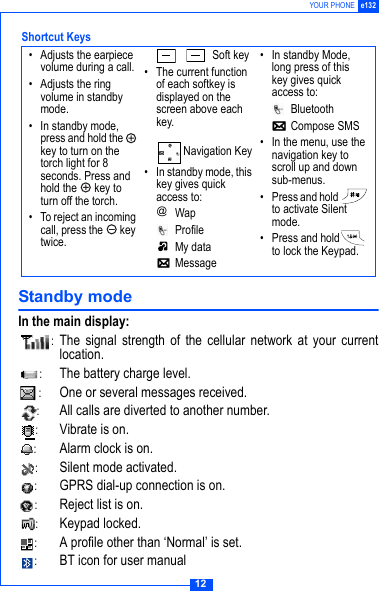
12YOUR PHONE e132Standby modeIn the main display::The signal strength of the cellular network at your currentlocation.:The battery charge level.:One or several messages received.:All calls are diverted to another number.:Vibrate is on.:Alarm clock is on.:Silent mode activated.:GPRS dial-up connection is on.:Reject list is on.:Keypad locked.:A profile other than ‘Normal’ is set.:BT icon for user manual• Adjusts the earpiece volume during a call.• Adjusts the ring volume in standby mode.• In standby mode, press and hold the   key to turn on the torch light for 8 seconds. Press and hold the   key to turn off the torch.• To reject an incoming call, press the   key twice.Soft key• The current function of each softkey is displayed on the screen above each key.Navigation Key• In standby mode, this key gives quick access to: Wap Profile My data Message• In standby Mode, long press of this key gives quick access to: Bluetooth Compose SMS• In the menu, use the navigation key to scroll up and down sub-menus.• Press and hold   to activate Silent mode.• Press and hold  to lock the Keypad.@Shortcut Keys
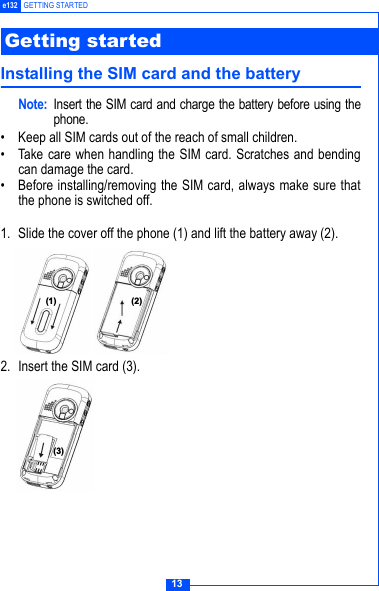
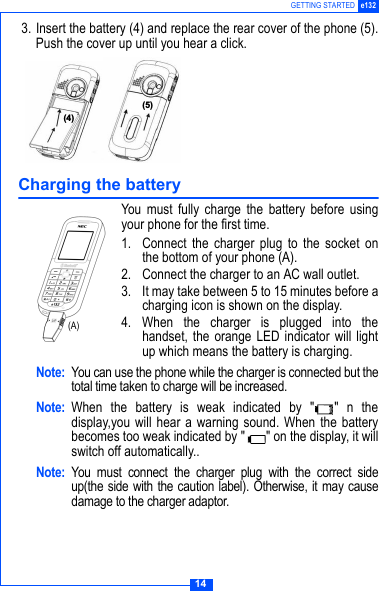
13e132 GETTING STARTEDInstalling the SIM card and the batteryNote: Insert the SIM card and charge the battery before using thephone.• Keep all SIM cards out of the reach of small children.• Take care when handling the SIM card. Scratches and bendingcan damage the card.• Before installing/removing the SIM card, always make sure thatthe phone is switched off.1. Slide the cover off the phone (1) and lift the battery away (2).2. Insert the SIM card (3). Getting started  
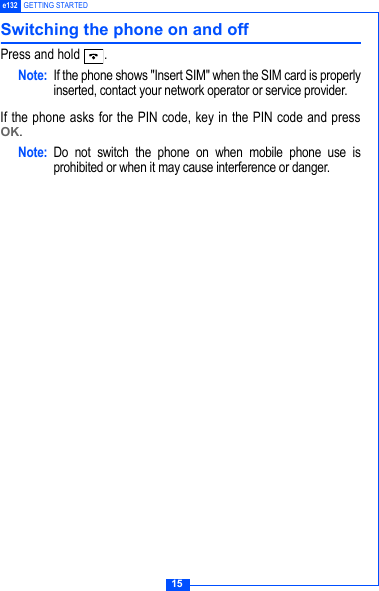
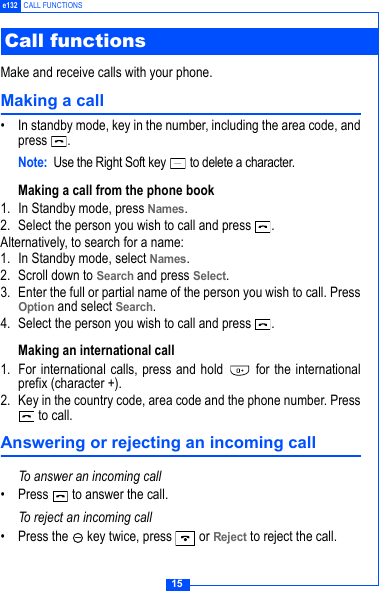
14GETTING STARTED e132 3. Insert the battery (4) and replace the rear cover of the phone (5).Push the cover up until you hear a click.Charging the batteryYou must fully charge the battery before usingyour phone for the first time.1. Connect the charger plug to the socket onthe bottom of your phone (A).2. Connect the charger to an AC wall outlet.3. It may take between 5 to 15 minutes before acharging icon is shown on the display.4. When the charger is plugged into thehandset, the orange LED indicator will lightup which means the battery is charging.Note: You can use the phone while the charger is connected but thetotal time taken to charge will be increased.Note: When the battery is weak indicated by " " n thedisplay,you will hear a warning sound. When the batterybecomes too weak indicated by " " on the display, it willswitch off automatically..Note: You must connect the charger plug with the correct sideup(the side with the caution label). Otherwise, it may causedamage to the charger adaptor.$%(A)
15e132 GETTING STARTEDSwitching the phone on and offPress and hold  .Note: If the phone shows "Insert SIM" when the SIM card is properlyinserted, contact your network operator or service provider.If the phone asks for the PIN code, key in the PIN code and pressOK.Note: Do not switch the phone on when mobile phone use isprohibited or when it may cause interference or danger.
15e132 CALL FUNCTIONS Make and receive calls with your phone.Making a call• In standby mode, key in the number, including the area code, andpress .Note: Use the Right Soft key   to delete a character.Making a call from the phone book 1. In Standby mode, press Names.2. Select the person you wish to call and press  .Alternatively, to search for a name:1. In Standby mode, select Names.2. Scroll down to Search and press Select.3. Enter the full or partial name of the person you wish to call. PressOption and select Search. 4. Select the person you wish to call and press  .Making an international call 1. For international calls, press and hold   for the internationalprefix (character +).2. Key in the country code, area code and the phone number. Press to call.Answering or rejecting an incoming callTo answer an incoming call• Press   to answer the call.To reject an incoming call• Press the   key twice, press   or Reject to reject the call.Call functions
16CALL FUNCTIONS e132Call waitingYou can answer another incoming call while you have a call inprogress.1. Press   to answer the incoming call. The first call is put on hold.2. Press   to end the call and return to the call on hold.Handling more than one callYou can handle up to two lines simultaneously.Making a second call1. During a call, press Hold.2. Press Option, choose Phonebook and select the name you wantto call and press  . 3. Or key in the number then press   to make a second call.Note: You can only put one call on hold. Please refer to "Making acall from phonebook".Two calls on lineTo swap between the two calls• Press Swap. The first call is put on hold.• To end the call and return to the call on hold, press  .Making a Conference call1. During a call, press   to receive the second call.Or press Hold,key in the number and then press  .2. Select Join calls.
17e132 INPUT METHODYou can key in text character by character, or by predictive input.To select input method1. When keying in text, press Option and select Input Select.2. Choose an input method, and press Select.Change input method• Press and hold   to change the input method (T9Ab, ABC,abc, 123).To change case• In "ABC" or "abc" input mode, press   to change betweencapital or lower-case letters.To i n s e r t  a sp a c e• Press the   key to insert a space.• In T9Ab, you can also use   to insert a space.Normal Text input• Use the number keys to select the desired character.Note: Your phone provides a Multi-tap function. For example, press twice to display the letter B, and press it three times todisplay the letter C. Input method
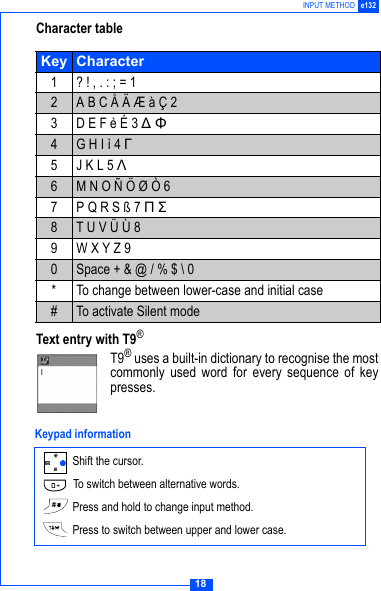
18INPUT METHOD e132Character tableText entry with T9®T9® uses a built-in dictionary to recognise the mostcommonly used word for every sequence of keypresses. Key Character1 ? ! , . : ; = 12A B C Å Ä Æ à Ç 23 D E F è É 3 Δ Φ4G H I ì 4 Γ5 J K L 5 Λ6M N O Ñ Ö Ø Ò 67P Q R S ß 7 Π Σ8T U V Ü Ù 89 W X Y Z 90Space + & @ / % $ \ 0* To change between lower-case and initial case#To activate Silent mode Shift the cursor. To switch between alternative words. Press and hold to change input method. Press to switch between upper and lower case.Keypad information
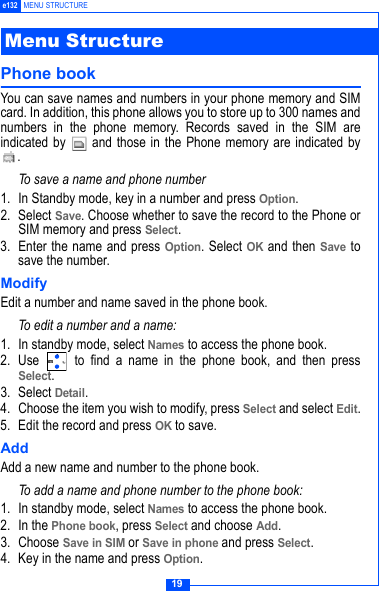
19e132 MENU STRUCTUREPhone book You can save names and numbers in your phone memory and SIMcard. In addition, this phone allows you to store up to 300 names andnumbers in the phone memory. Records saved in the SIM areindicated by   and those in the Phone memory are indicated by.To save a name and phone number1. In Standby mode, key in a number and press Option.2. Select Save. Choose whether to save the record to the Phone orSIM memory and press Select.3. Enter the name and press Option. Select OK and then Save tosave the number.ModifyEdit a number and name saved in the phone book.To edit a number and a name:1. In standby mode, select Names to access the phone book. 2. Use   to find a name in the phone book, and then pressSelect.3. Select Detail. 4. Choose the item you wish to modify, press Select and select Edit.5. Edit the record and press OK to save.Add Add a new name and number to the phone book.To add a name and phone number to the phone book:1. In standby mode, select Names to access the phone book. 2. In the Phone book, press Select and choose Add. 3. Choose Save in SIM or Save in phone and press Select.4. Key in the name and press Option. Menu Structure
20MENU STRUCTURE e1325. Select OK and select the type of number you want to save.6. Key in the number and  press OK. 7. Select Save to save the name and number.Groups Send a message to all members of a group at the same time.Before using this function, you need to create a Group list from thephone book.To add a name in a Group:1. In standby mode, select Names to access the phone book.2. In the Phone book, press Select and select Groups.3. Choose a group and press Select.4. Select Add member. 5. Enter a name or press Option and choose Phone book to selecta member from phone book. Press Select.Note: For input methods, please refer to ‘Input method’ on page 17. Group edits1. In standby mode, select Names to access the phone book.2. In the Phone book, press Select and select Groups.3. Choose a group, then press Select to begin editing.Your phone provides the following options:•List members: View the members of the group.•Add member: Add a member to the specified group.•Rename: Change the group name.•Ring type: Set a ring type for the group.•Pictures: Set a picture for the group. Speed dialIf the number is assigned to a speed dial key (  to  ) you cancall the number by pressing and holding the relevant key while inStandby mode.
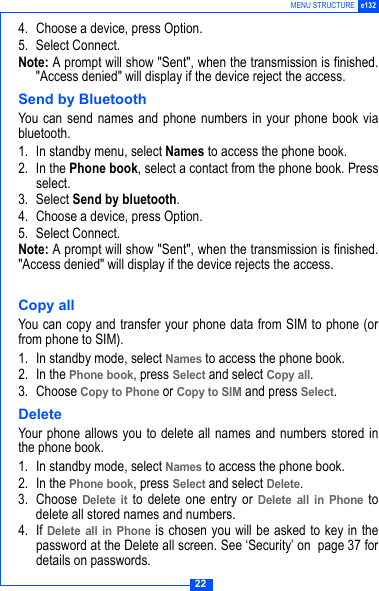
21e132 MENU STRUCTURE1. In standby mode, select Names to access the phone book.2. In the Phone book, press Select and select Speed dial.3. Choose a speed dial number and press Select.4. Key in the name and press Option.5. Select Search. If necessary, scroll up or down to choose thecorrect name.6. Press Select to save.Memory status This phone allows you to view the phone book datastored in the SIM and the Phone.• In standby mode, select Names to access thephone book• In the Phone book menu, select Memory status.Owner InformationYour phone allows you to add your personal name and number inthe phone book. 1. In standby menu, select Names to access the phone book.2. In the Phone book, press Select and select Owner info.3. Press Select to edit your name.4. Key in your name and press Option5. Select OK and select the type of number you want to save.6. Key in the number and press OK.7. Press Save to save the name and number.Send by BluetoothYou can also send your name and number by bluetooth. Beforeusing this function, you need to turn on the bluetooth function &connect with a bluetooth device. 1. In standby menu, select Names to access the phone book.2. In the Phone book, choose Owner info, press Select.3. Press Send by bluetooth.Memory statusSIM (40/200)PhoneBack
22MENU STRUCTURE e1324. Choose a device, press Option.5. Select Connect.Note: A prompt will show "Sent", when the transmission is finished."Access denied" will display if the device reject the access.Send by BluetoothYou can send names and phone numbers in your phone book viabluetooth. 1. In standby menu, select Names to access the phone book.2. In the Phone book, select a contact from the phone book. Pressselect. 3. Select Send by bluetooth.4. Choose a device, press Option.5. Select Connect.Note: A prompt will show "Sent", when the transmission is finished."Access denied" will display if the device rejects the access.Copy allYou can copy and transfer your phone data from SIM to phone (orfrom phone to SIM). 1. In standby mode, select Names to access the phone book.2. In the Phone book, press Select and select Copy all.3. Choose Copy to Phone or Copy to SIM and press Select.DeleteYour phone allows you to delete all names and numbers stored inthe phone book. 1. In standby mode, select Names to access the phone book.2. In the Phone book, press Select and select Delete.3. Choose Delete it to delete one entry or Delete all in Phone todelete all stored names and numbers.4. If Delete all in Phone is chosen you will be asked to key in thepassword at the Delete all screen. See ‘Security’ on  page 37 fordetails on passwords.
23e132 MENU STRUCTURE5. At the prompt "Are you sure?" press Yes. CLI (Calling Line Identification) Your phone allows you to recognize incoming calls by specified ringtones and pictures assigned to numbers in the Phone book. 1. In standby mode, select Names to access the phone book.2. Select the name from the Phone book .3. Select Detail and scroll to   (Personal Picture) or   (PersonalMelody). Press Select. 4. Select Assign.5. Choose from the default or saved picture/melodies and press Select.6. Choose a picture/melody from the list. Press Select and then OKto save.Message SMSSend text messages and receive voicemail notification messageswith your phone.Read messagesWhen you have received a message,   will appear on the display.: Message in phone that has not been read. : Message in phone that has been read.: Message in SIM that has not been read.: Message in SIM that has been read.Note: A flashing message icon indicates that the message memoryis full. Before you can send or receive new messages, youneed to delete some of your older messages.1. In Standby mode, press Menu and select Message.2. Select SMS to enter the Message menu.3. Select Inbox.4. Choose a message and press Read. Note: To quickly access Messages, press   in standby mode.
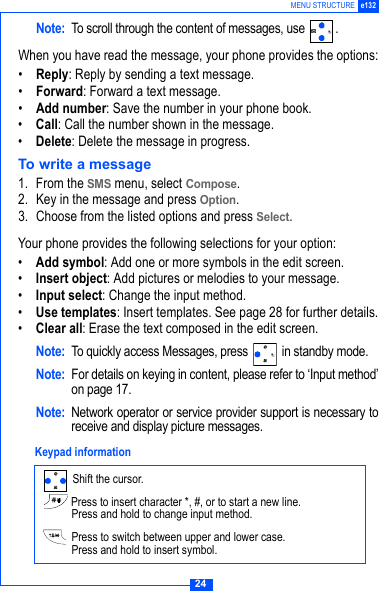
24MENU STRUCTURE e132Note: To scroll through the content of messages, use  .When you have read the message, your phone provides the options:•Reply: Reply by sending a text message.•Forward: Forward a text message.•Add number: Save the number in your phone book.•Call: Call the number shown in the message. •Delete: Delete the message in progress.To write a message1. From the SMS menu, select Compose.2. Key in the message and press Option.3. Choose from the listed options and press Select.Your phone provides the following selections for your option:•Add symbol: Add one or more symbols in the edit screen.•Insert object: Add pictures or melodies to your message.•Input select: Change the input method.•Use templates: Insert templates. See page 28 for further details.•Clear all: Erase the text composed in the edit screen.Note: To quickly access Messages, press   in standby mode.Note: For details on keying in content, please refer to ‘Input method’on page 17.Note: Network operator or service provider support is necessary toreceive and display picture messages.  Shift the cursor. Press to insert character *, #, or to start a new line.Press and hold to change input method. Press to switch between upper and lower case.Press and hold to insert symbol. Keypad information
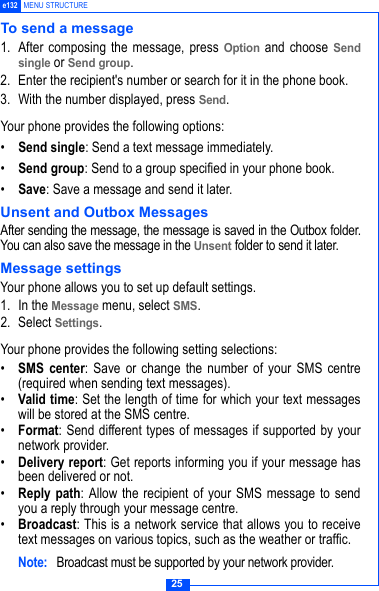
25e132 MENU STRUCTURETo send a message1. After composing the message, press Option and choose Sendsingle or Send group.2. Enter the recipient's number or search for it in the phone book.3. With the number displayed, press Send.Your phone provides the following options:•Send single: Send a text message immediately.•Send group: Send to a group specified in your phone book.•Save: Save a message and send it later.Unsent and Outbox MessagesAfter sending the message, the message is saved in the Outbox folder.You can also save the message in the Unsent folder to send it later. Message settingsYour phone allows you to set up default settings.1. In the Message menu, select SMS.2. Select Settings.Your phone provides the following setting selections:•SMS center: Save or change the number of your SMS centre(required when sending text messages).•Valid time: Set the length of time for which your text messageswill be stored at the SMS centre.•Format: Send different types of messages if supported by yournetwork provider.•Delivery report: Get reports informing you if your message hasbeen delivered or not.•Reply path: Allow the recipient of your SMS message to sendyou a reply through your message centre.•Broadcast: This is a network service that allows you to receivetext messages on various topics, such as the weather or traffic.Note:  Broadcast must be supported by your network provider.
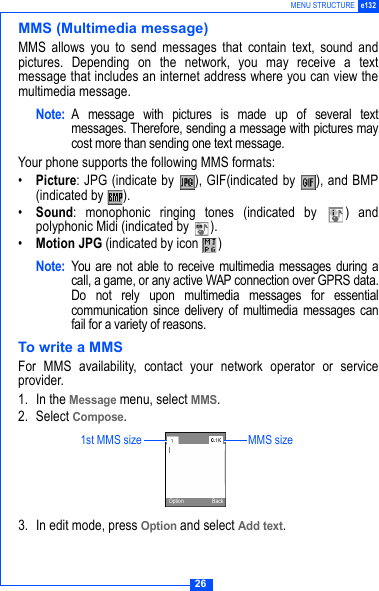
26MENU STRUCTURE e132MMS (Multimedia message)MMS allows you to send messages that contain text, sound andpictures. Depending on the network, you may receive a textmessage that includes an internet address where you can view themultimedia message. Note: A message with pictures is made up of several textmessages. Therefore, sending a message with pictures maycost more than sending one text message.Your phone supports the following MMS formats:•Picture: JPG (indicate by  ), GIF(indicated by  ), and BMP(indicated by  ).•Sound: monophonic ringing tones (indicated by  ) andpolyphonic Midi (indicated by  ).•Motion JPG (indicated by icon  )Note: You are not able to receive multimedia messages during acall, a game, or any active WAP connection over GPRS data.Do not rely upon multimedia messages for essentialcommunication since delivery of multimedia messages canfail for a variety of reasons. To write a MMSFor MMS availability, contact your network operator or serviceprovider.1. In the Message menu, select MMS.2. Select Compose.3. In edit mode, press Option and select Add text.1st MMS size MMS sizeOption Back
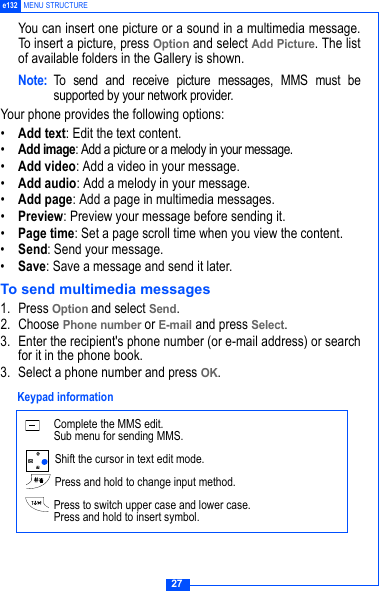
27e132 MENU STRUCTUREYou can insert one picture or a sound in a multimedia message.To insert a picture, press Option and select Add Picture. The listof available folders in the Gallery is shown.Note: To send and receive picture messages, MMS must besupported by your network provider.Your phone provides the following options:•Add text: Edit the text content.•Add image: Add a picture or a melody in your message.•Add video: Add a video in your message.•Add audio: Add a melody in your message.•Add page: Add a page in multimedia messages.•Preview: Preview your message before sending it.•Page time: Set a page scroll time when you view the content.•Send: Send your message.•Save: Save a message and send it later.To send multimedia messages1. Press Option and select Send.2. Choose Phone number or E-mail and press Select.3. Enter the recipient's phone number (or e-mail address) or searchfor it in the phone book.3. Select a phone number and press OK. Complete the MMS edit.Sub menu for sending MMS. Shift the cursor in text edit mode. Press and hold to change input method. Press to switch upper case and lower case.Press and hold to insert symbol. Keypad information
28MENU STRUCTURE e132Unsent and Outbox multimedia messagesYour phone saves the multimedia messages that have beenreceived in the Inbox folder of the MMS menu.Multimedia messages that have not been sent will be saved in theUnsent  folder, messages that have been sent are saved in theOutbox folder of the MMS menu.MMS memory fullIf the message memory is full, a dialog is shown on the display. Youwill not be allowed to compose or receive any more messages untilold messages have been deleted.MMS settingYour phone allows you to set up default settings within MMS.1. In the Message menu, select MMS.2. Select Settings.Your phone provides the following setting options:•Valid time: Set the length of time for which your text messageswill be stored at the SMS centre. •Delivery report: Get reports informing you whether yourmessage has been delivered or not.•Reply path: Allow the recipient of your SMS message to sendyou a reply through your message centre.•Auto reception: Set whether complete or partial message canbe downloaded.•WAP profile: Select or create WAP settings specifically for MMS.See the ‘WAP’ section on page 50 for further details. •MMS server: Set up the MMS server address (information fromyour network provider).TemplateIf you use one or more messages that you send often, you can savethese messages as templates in your phone.1. In Standby mode, press Menu and select Message.2. Select Template.
29e132 MENU STRUCTURE3. Choose a Template and press Select.4. Enter the content of the template. Press Option and select Save tosave the message.Voice mailIf supported by your network provider, your phone allows you toaccess your voice mailbox quickly.• In standby mode, press and hold   to access your voice mailserver directly.Note: To use this function, you may need to enter the voice mailnumber from your service provider. Call Record Your phone can save information on missed, received and dialledcalls, plus the length and cost of your calls.Note: Once the call list exceeds the memory limit, the oldest recordis deleted.Missed calls/Received calls/Outgoing callsYour phone allows you to view the last ten unanswered calls. Youcan also edit the number or delete the number from the call list.1. In Standby mode, press Menu. 2. Scroll to Call record and press Select.3. In the Call record menu, choose an item and press Select to viewthe content. 3. Select a menu and press Select.4. Select the number you want and press Select.5. The call record is displayed. Press Option. Your phone provides the following options:•Call: Call the number that is shown on the screen.•Delete: Erase the number from the list.•Save: Save the number in the phone book.
30MENU STRUCTURE e132Call durationYour phone allows you to view the timers for calls made andreceived. 1. In the Call record menu, select Call duration.2. Choose an item and press Select.Your phone provides the following options:• Total•Last •Received• Dialled• ClearCall costThis function allows you to view the cost of calls.To view the call cost1. In the Call record menu, select Call cost.2. Choose a selection and press Select.Your phone provides the following options:•Total: Total timers of all calls you have made. If the total costexceeds the maximum cost set through Call cost limit, youwill not be able to make any calls. (Does not affect calls tothe emergency services).•Last: Cost of the last call made.•Balance: Shows the remaining balance for calls.•Reset: Reset cost counter. PIN2 code is needed.•Call Cost Limit and Setting: See below.To set the Call cost1. In the Call record menu, select Call cost.2. Choose Call cost limit, and press Option to Activate/Cancel.
31e132 MENU STRUCTURE3. In the Call cost menu, choose Call cost setting. Choose aselection and press Select.This phone provides the following options:•Unit: Set the cost of one unit.•Currency: Set the currency type for the cost of your calls.Note: To activate, you may need the PIN2 code.Note: Your network provider must support Call Cost Setting. Data counterThis function allows you to check the data size whilst browsing theInternet content through GPRS.Your phone provides the following options:•Last data•All data•ClearSettings Time & DateThis function allows you to view and change the date and timesettings of your phone.To set the Time1. In Standby mode, press Menu and select Settings.2. In the Settings menu, select Time & Date.3. Choose Set time and press Select. Select Set time.4. Enter the time and press OK.To set the Time format1. In the Settings menu, select Time & Date.2. Choose Set Time and press Select. Select Set time format.3. Select 12 Hours or 24 Hours and press OK.
32MENU STRUCTURE e132To set the Date1. In Settings menu, select Time & Date.2. Choose Set Date and press Select. Select Set Date.3. Enter the date and press OK.MelodyMelody allows you to select ring tone volume, choose from differentring tones or compose your own ringtones.Ring setting1. In the Settings menu, select Melody.2. Choose Ring setting and press Select. Choose a selection andpress Select.3. Choose a melody and press Select.You can assign different melodies to the following:•Incoming call•Message•Alarm•Calendar•Time CountdownRing volumeYou can adjust the ring volume to one of six levels.1. In the Settings menu, select Melody.2. Select Ring volume.3. Use   to adjust the ring volume and press OK.Ring or VibrateYou can set the phone to ring or vibrate during an incoming call.1. In the Settings menu, select Melody.2. Select Ring or Vibrate.3. Choose an item and press OK.
33e132 MENU STRUCTUREYour phone provides the following options:1. Ring only: The phone rings using the ring tone set in the MelodyRing setting menu.2. Vibrate only: The phone vibrates but doesn't ring.3. Ring & vibrate: The phone rings and vibrates.4. Vibrate first: The phone vibrates for a few seconds beforeringing.Key toneSelect a different keypad tone.1. In the Settings menu, select Melody.2. Choose Key tone and press Select. Select Key sound.3. Choose a key tone and press Select.Display settingsYour phone allows you to alter the display to suit your preference.WallpaperSet a wallpaper for the LCD display in standby mode.1. In the Settings menu, select Display.2. Select Wallpaper.3. Choose a wallpaper from either the Default picture or Savedpicture lists.4. Press Select and then OK to confirm.Greeting This phone allows you to set a greeting animation or brieflydisplay a message when the phone is switched on.1. In the Settings menu, select Display.2. Select Greeting, then choose Animation, Text or Off. 3. Press OK to save.
34MENU STRUCTURE e132Backlight timeThis specifies the screen backlight duration.1. In the Settings menu, select Backlight time.2. Select Short, Medium or Long.Note: A longer backlight duration will shorten battery life.ContrastThis specifies the colour contrast on the main display.1. In the Settings menu, select Main display.2. Select Contrast.3. Use   to adjust the contrast rate, then press OK.LCD indicatorThis phone allows you to switch on/off the LCD indicator.1. In the Settings menu, select LCD indicator.2. Select On or Off.BrightnessYou can adjust the contrast of the LCD screen.1. In the Settings menu, select Brightness.2. Select the desired brightness level and press OK to confirm.LanguageYour phone allows you to change the displayed language.1. In Standby mode, press Menu. Select Settings.2. In the Settings menu, select Language.3. Choose a Language, and press Select. Network selectionNetwork selection allows you to indicate whether the networkused when roaming is selected automatically or manually.
35e132 MENU STRUCTURE1. In the Settings menu, press Select.2. Choose Network select and press Select.3. Choose Auto or Manual and press Select. Note: You can select a network other than your home network onlyif it has a valid roaming agreement with your home network.Call settingsReject listThis allows you to reject calls from certain numbers. To activate,you need to save the numbers that you want to reject in theReject list. The numbers must first be saved in your phone book.To activate Reject calls1. In Standby mode, press Menu and select Setting.2. In the Settings menu, select Call setting.3. Select Reject list.4. Select Activate and set to ON.To add numbers to the Reject list1. In the Reject list, select Edit and choose an empty slot to add anumber, then press Select.2. Select Assign single or Assign group. Enter or search for thenumber and press Select to save. Time alertThis allows you to set a time reminder during a call.1. In the Settings menu, select Call setting.2. Select Time alert.3. Choose an item, and press Select.Your phone provides the following time alert options:•Off• Each minute
36MENU STRUCTURE e132•User settingNote: The minimum time for User setting is 30 seconds.Speed dialYou can set the digit keys (  to  ) as speed diallingnumbers for fast shortcut access.To activate speed dial1. In the Settings menu, select Call setting.2. Select Speed dial, and set to On. press Select to save.Note: Digit key   is already used as a shortcut for your voicemailbox.Call waitingThis network service enables you to be informed when someoneis trying to reach you during another call.1. In the Settings menu, select Call setting.2. Select Call waiting.3. Choose Activate, Cancel or Status. Press Select to confirm.Call divertYou can set the conditions by which calls are diverted to othernumbers.To Set call divert1. In the Settings menu, select Call setting.2. Select Call divert. 3. Choose when to divert calls and press Select. Select Activate.4. Enter the number your calls will be diverted to and press OK.Your phone provides the following divert options:•Any time: All calls are diverted.•When busy: Calls are diverted when your phone is engaged.•No reply: Calls are diverted when the call is not answered.
37e132 MENU STRUCTURE•Unreachable: Calls are diverted when you have no reception.•Cancel all: Cancels all call diverts.SecurityThe phone and SIM card are protected against misuse by severalsecurity codes. PIN (4 to 8 digits)The PIN (Personal Identification Number) code protects your SIMcard against unauthorised use. The PIN code is usually suppliedwith the SIM card.To activate or cancel the PIN code1. In the Settings menu, select Security.2. Select PIN.3. Choose On or Off and press Select.Note: The PIN code will be required if you are changing the setting.Phone codeThe phone code protects the phone against unauthorised use. 1. In the Settings menu, select Security.2. Select Phone code.3. Choose On or Off and press Select.Note: The phone code will be required if you are changing thesetting.Auto keylockThis will activate the key lock automatically in idle mode. 1. In the Settings menu, select Security.2. Select Auto keylock.3. Choose On or Off and press Select.Call barringThis network service allows you to restrict your calls.
38MENU STRUCTURE e132To activate call barring:1. In the Settings menu, select Security.2. Select Call barring.3. Make your choice and press Select.Your phone provides the following call barring options:•Outgoing: All outgoing calls are barred.•Int'l calls (international calls): International calls are barred.•ICEH (Internal Call Except Home): When abroad, calls can bemade within the current country and to your home country, whereyour home network provider is located.•Incoming: All incoming calls are barred.•Incoming (Roaming): Incoming calls are barred while using thephone outside your country.•Code Change: Change call barring code.Note: Call barring is a network service. A password is needed tochange the settings. FDN (Fixed Dial Number)This allows you to restrict your outgoing calls to a limited set ofphone numbers.To set FDN1. In the Settings menu, select Security.2. Select FDN, enter the PIN2 code and press OK.3. Make your choice and press Select.Your phone provides the following options:•Activate• Member list• Add member• Delete all
39e132 MENU STRUCTURENote: To activate, you may need to enter the PIN2 code.Change codesThis allows you to change your current code to a new one. Tochange the code, you need to enter the current code before youcan specify a new one.To change the codes1. In the Settings menu, select Security.2. Select Change codes.3. Make your choice and press Select.Your phone provides the following code options:• Change PIN• Change PIN2• Phone codeNote:  Please refer to Security on page 37 for further details.Reset allThis allows you to reset your phone to its default configuration. Beforeresetting, you may need to enter the phone’s code. 1. In the Settings menu, select Security.2. Select Reset all.3. Key in the phone code and press OK.Camera You can use this phone to take photos with the phone's built-incamera and adjust the camera settings. The camera lens is on the back of the phone, and the display of thephone works as a viewfinder. If there's not enough memory for new pictures, you need to deleteold photos to free up space for new ones.Note:  Do not use the camera when it violates local laws.
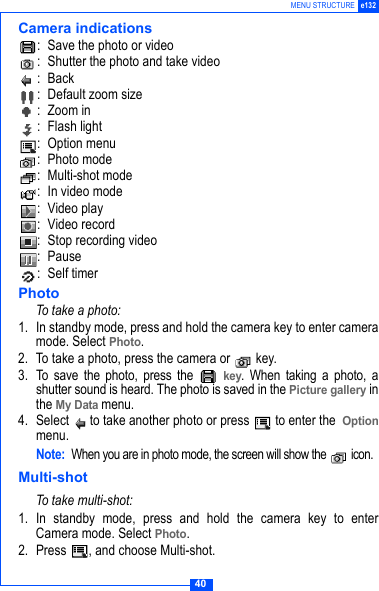
40MENU STRUCTURE e132Camera indications: Save the photo or video: Shutter the photo and take video:Back: Default zoom size:Zoom in : Flash light : Option menu: Photo mode: Multi-shot mode: In video mode : Video play: Video record: Stop recording video: Pause : Self timerPhotoTo take a photo:1. In standby mode, press and hold the camera key to enter cameramode. Select Photo.2. To take a photo, press the camera or   key.3. To save the photo, press the   key. When taking a photo, ashutter sound is heard. The photo is saved in the Picture gallery inthe My Data menu.4. Select   to take another photo or press   to enter the  Optionmenu.Note:When you are in photo mode, the screen will show the   icon.Multi-shotTo take multi-shot:1. In standby mode, press and hold the camera key to enterCamera mode. Select Photo.2. Press  , and choose Multi-shot.
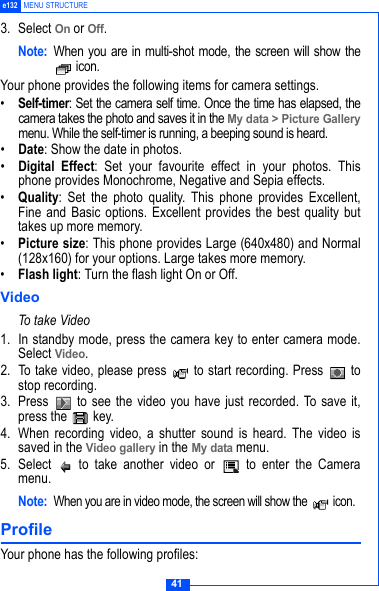
41e132 MENU STRUCTURE3. Select On or Off.Note: When you are in multi-shot mode, the screen will show the icon.Your phone provides the following items for camera settings.•Self-timer: Set the camera self time. Once the time has elapsed, thecamera takes the photo and saves it in the My data > Picture Gallerymenu. While the self-timer is running, a beeping sound is heard.•Date: Show the date in photos.•Digital Effect: Set your favourite effect in your photos. Thisphone provides Monochrome, Negative and Sepia effects.•Quality: Set the photo quality. This phone provides Excellent,Fine and Basic options. Excellent provides the best quality buttakes up more memory.•Picture size: This phone provides Large (640x480) and Normal(128x160) for your options. Large takes more memory.•Flash light: Turn the flash light On or Off.VideoTo take Video1. In standby mode, press the camera key to enter camera mode.Select Video.2. To take video, please press   to start recording. Press   tostop recording.3.  Press   to see the video you have just recorded. To save it,press the   key.4. When recording video, a shutter sound is heard. The video issaved in the Video gallery in the My data menu. 5. Select   to take another video or   to enter the Cameramenu.Note:When you are in video mode, the screen will show the   icon.Profile Your phone has the following profiles:
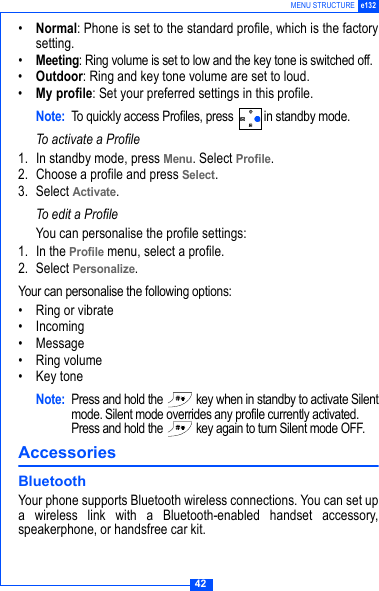
42MENU STRUCTURE e132•Normal: Phone is set to the standard profile, which is the factorysetting.•Meeting: Ring volume is set to low and the key tone is switched off.•Outdoor: Ring and key tone volume are set to loud.•My profile: Set your preferred settings in this profile.Note: To quickly access Profiles, press  in standby mode.To activate a Profile1. In standby mode, press Menu. Select Profile.2. Choose a profile and press Select.3. Select Activate.To edit a ProfileYou can personalise the profile settings:1. In the Profile menu, select a profile.2. Select Personalize.Your can personalise the following options:• Ring or vibrate• Incoming • Message• Ring volume• Key toneNote: Press and hold the   key when in standby to activate Silentmode. Silent mode overrides any profile currently activated.Press and hold the   key again to turn Silent mode OFF.Accessories BluetoothYour phone supports Bluetooth wireless connections. You can set upa wireless link with a Bluetooth-enabled handset accessory,speakerphone, or handsfree car kit.
43e132 MENU STRUCTUREBluetooth on/offTo turn the Bluetooth function on/off.1. In standby mode, press Menu. Select Accessories. Or long press of right navigation key.2. Select Bluetooth. 3. Choose Bluetooth on or Bluetooth off, press Select.My deviceYour phone allows you to search for new Bluetooth devices. Itdisplays a list of device(s) located within range of the phone. If yourphone is already connected to a device, your phone will list theconnected device name.Note: For more information about Bluetooth wireless connections,refer to the user's guides for your Bluetooth devices.Search and add a Bluetooth device to your phone1. In standby mode, press Menu. Select Accessories. 2. Select Bluetooth. 3. Choose Bluetooth on, press Select.4. Select My device.Note: If there is no device in the list, It will display a prompt "Nodevice, search around?". You can search for a device by pressingYes.Your phone provides the following options: Add: Search around bluetooth device. Connect: Connect with a device. The device may need thepasscode to pair with your phone. Set as authorised: Setting the device as authorised will enable itto automatically connect without confirmation. Rename: Change the device name.
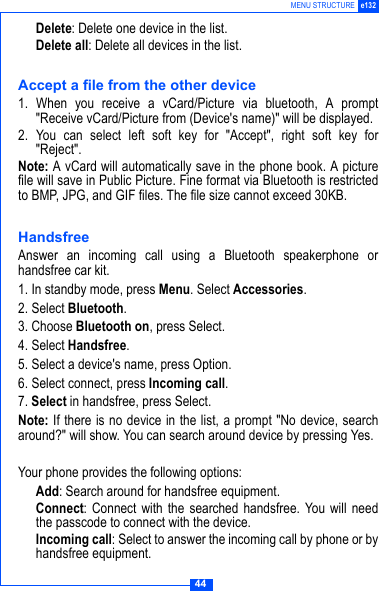
44MENU STRUCTURE e132 Delete: Delete one device in the list. Delete all: Delete all devices in the list.Accept a file from the other device1. When you receive a vCard/Picture via bluetooth, A prompt"Receive vCard/Picture from (Device's name)" will be displayed.2. You can select left soft key for "Accept", right soft key for"Reject".Note: A vCard will automatically save in the phone book. A picturefile will save in Public Picture. Fine format via Bluetooth is restrictedto BMP, JPG, and GIF files. The file size cannot exceed 30KB.HandsfreeAnswer an incoming call using a Bluetooth speakerphone orhandsfree car kit.1. In standby mode, press Menu. Select Accessories. 2. Select Bluetooth. 3. Choose Bluetooth on, press Select.4. Select Handsfree.5. Select a device's name, press Option.6. Select connect, press Incoming call.7. Select in handsfree, press Select.Note: If there is no device in the list, a prompt "No device, searcharound?" will show. You can search around device by pressing Yes.Your phone provides the following options: Add: Search around for handsfree equipment. Connect: Connect with the searched handsfree. You will needthe passcode to connect with the device. Incoming call: Select to answer the incoming call by phone or byhandsfree equipment.
45e132 MENU STRUCTUREMy PhoneYou can turn your phone's visibility On or Off.1. In standby mode, press Menu. Select Accessories. 2. Select Bluetooth, press Select.4. Select My Phone.Your phone provides the following options: Visibility: Set visibility on or off . Rename: Change your phone's name.CalendarIn the calendar you can add notes for things such as meetings,birthdays and reminders. The phone sounds an alarm tone when theset date and time arrives.To add a note and reminder in the Calendar1. In standby mode, press Menu. Select Accessories.2. Select Calendar.3. Choose a day and press Option. Select Make a note.4. Key in the note and press Option and then Save. Confirm thedate and time.5. Select Reminder. A dialog confirming the note has been saved isdisplayed.Your phone provides the following calender options:•View today: View the notes for the specified day.•View all: View all notes made in the calendar.•Make a note: Add a note for a specified day.•Delete: Delete a note or all notes made in the calendar.To delete a note1. In the Calendar menu, select Delete.2. Select Delete today, One by one or All.
46MENU STRUCTURE e1323. Select Yes to confirm.CalculatorThe calculator in this phone adds, subtracts, multiplies, divides, andconverts currency values.To use the calculator• In the Accessories menu, select Calculator. Your phone provides the following options:• Four way key Left : ÷ (Divide)• Four way key Right : * (Multiply)• Four way key Up  : + (Add)• Four way key Down : - (Subtract)• Left soft key (OK) : = (Equals)• : Make number ‘minus’ (e.g. -5)• : Decimal point.Note: Rounding errors may occur, especially in long divisions.StopwatchThe stopwatch allows you to time an event or record times.To use the stopwatch 1. In the Accessories menu, select Stopwatch. 2. Select Start and then press Start.3. Press Split when you want to take an intermediate time.Intermediate timers are listed below the display.4. Press Stop to stop the stopwatch.5. Press Menu to Save or Reset the stopwatch.Note: Using the stopwatch consumes battery power and thephone's operating time will be reduced. Time count downSet a timer in your phone. The last three seconds are indicated by abeep, at the end a special beep sounds.
47e132 MENU STRUCTURETo use the Time count down1. In the Accessories menu, select Time count down.2. Enter the length of the countdown and press Start.Alarm Set the alarm to ring at the time specified. The alarm clock workseven when the phone is switched off.To set the alarm1. In the Accessories menu, select Alarm.2. Enter the time for the alarm and press OK.3. Select Once Alarm or Repeat Alarm.Note: If Repeat Alarm is selected, you need to enter the days thatyou wish the alarm to go off. Select each day with the key.When the alarm ringsPress the left soft key to set Snooze or the right soft key to turn offthe alarm.GameNew game options.•Play: Start a new game.•Music: Enable or disable music.•High scores: Show the highest scores.•Help: Show the rules of the game.My dataPicture galleryThis folder saves all videos that have been saved from MMS, WAPdownload or the camera. The videos are automatically saved in theVideo gallery. The camera produces video files in Motion JPEGformat.
48MENU STRUCTURE e132To edit the images1. In standby mode, press Menu, and select My data.2. Select the required Picture Folder. 3. Choose a picture and press Select. 4. Choose an item and press Select to edit.Your phone provides the following edit options:•View: View the pictures saved in the gallery.•Send MMS: Select a picture and use the MMS function to send itto your friends.•Send via Bluetooth: Select a picture and send it via Bluetooth.•Rename: Rename a picture.•Save to My picture: Forward the picture to My picture (you willneed to enter the password).•Delete: Delete the picture.•Information: View the file type and size.•Delete All: Delete all pictures.Note: When sending pictures via MMS, the file size cannot exceed100KB. When sending pictures via Bluetooth, the file sizecannot exceed 300KB.Your phone provides the following picture formats::BMP:EMS :GIF :JPG :WBMP Note: If you download any document which cannot be forwarded byMMS or data cable, the Icon will be highlighted by a  redmark.
49e132 MENU STRUCTUREVideo galleryThis folder contains all videos that have been saved. The videos areautomatically saved in the Video Folder. The camera producesMotion JPEG video.Note: Only the Motion JPEG format can be played or saved. To edit the images1. In the standby mode, press Menu and select My data.2. Select the required Video Folder. 3. Choose a picture and press Select. 4. Choose an item and press Select to edit.Your phone provides the following edit options:•View: View the videos saved in the gallery.•Send MMS: Select a video and use the MMS function to send itto your friends.•Rename: Rename a video.•Save to My video: Forward the video to My video (you will needto enter the password).•Delete: Delete video.•Information: View the file size and type.•Delete All: Delete all videos.Your phone provides the following video format:: Motion JPEGMelody galleryThis folder contains all melodies that have been saved. Themelodies are automatically saved in the Melody gallery. You can alsosend these melodies to your friends in a multimedia message as ane-mail attachment.To edit the melody1. In standby mode, press Menu and select My data.
50MENU STRUCTURE e1322. Select Melody gallery.3. Choose a melody to listen to.Your phone provides the following selections edit options:•Rename: Rename a melody name.•Send MMS: Select a melody and use the MMS function to send itto your friends.•Delete: Delete the melody.•Information: View the file size and type.Note: When sending pictures via MMS, the file size cannot exceed30KB.Memory StatusThis function shows how much memory has been used. The totaluser memory is 2713KB.WAP service Your phone supports a Web Browser. You can obtain variousservices such as up-to date news, weather, sport, and otherinformation as well as use e-mail and other Internet services. Theseservices are designed and maintained by WAP service providers.WAP services use Wireless Markup Language (WML) on their WAPpages. You may not view the normal Internet  pages on your phone. Note: To activate the WAP service, you may need to contact yourservice provider.Note: Do not switch the phone on when use is prohibited or when itmay cause interference or danger.WAP setting• If the settings have already been made by the Service Provider,you may browse immediately.• If access profiles have already been assigned by your ServiceProvider, select a profile and activate it.
51e132 MENU STRUCTURE• Otherwise you may key in the setting manually. For the correctsettings, contact your network operator or service provider.Key in the service settings manually1. In the WAP menu, select WAP Profile.2. Choose a profile, press Select, and then select Edit to edit thesettings.You need to enter Homepage, User ID, Password and IP addressinformation in to your phone. To get the information, you may needto contact your service provider.Dial type:You can access WAP via GSM or GPRS.1. In the WAP menu, select WAP profile.2. Choose a profile, press Select, and then select Edit.3. Select Dial type, and then choose either GSM or GPRS.To get the GPRS access point, you may need to contact your serviceprovider for the service.Activate WAP settingsAfter you complete all WAP settings, select Activate from the WAPprofile menu.HomepageTo launch the browser from standby mode, press the   key. Onceconnected, the homepage is displayed. Content depends on theservice provider.To exit the browser, press the   key.BookmarkYou can save the addresses of up to five Internet sites for easyaccess using the Bookmark feature.Go toOpen any web page by entering its URL address.
52MENU STRUCTURE e132Edit bookmarkCreate or edit a local bookmark.1. Choose a bookmark and press Select.2. Select Edit.3. Enter the URL address and press OK.Your phone also provides you the following options:•Delete: Delete the selected bookmark.•Send address: Open the selected page.Push inboxYour phone is able to receive service messages sent by your serviceprovider. Service messages are notifications of headlines or content,and they may contain the address of a WAP service.To access the Push inbox in standby mode, press Read when youreceive a service message. The message is moved to the Pushinbox when you exit the message. To Set the Push inbox1. In the WAP menu, select WAP profile.2. Select a profile.3. Choose Edit and then Push access.4. Choose Push access and press OK.5. Select On.Note: If you select Off, the phone will not receive service messages.To access the Push inbox menu• In the WAP menu, select Push inbox.To access the Push inbox while browsing1. Press Option, and select Push inbox. 2. Choose a message and press Select.Your phone provides the following options:•View: View detailed information on service notification.
53e132 MENU STRUCTURE•Delete: Delete the selected service notification.•Load: Download the displayed content.CertificatesIn the Certificate management list, you can see a list of authoritycertificates that have been stored in your phone. Use   to see alist of user certificates, if available.Clear cacheThe services you have accessed are saved in the cache of yourphone. A cache is a buffer memory, which is used to temporarilysave data. To clear the cache • While browsing, press Option and select Clear the cache, or• In the WAP Menu, select Clear cache and confirm by selectingYes.STK SIM toolkit In addition to the functions available in the phone, your serviceprovider may offer additional applications such as weather or stockmarket information via the SIM card. To set up the STK service•Select STK in the main menu.Note: For availability, you need to register for the services with yourservice provider.Note: Accessing these services may involve sending an SMSmessage for which you may be charged.
54GPRS e132GPRS (General Packet Radio Service) is a technology used forsending and receiving data over mobile networks. The applicationsthat use GPRS are WAP services, MMS and SMS messaging, Javaapplication downloading and GPRS dial-up (such as Internet ande-mail). You can set the phone to automatically register to a GPRSnetwork when you switch the phone on.Note: To use GPRS function, you may need to register for theservice with your service provider.To get the GPRS service1. In the WAP menu, select WAP profile.2. Choose a profile, press Select, and then select Edit.3. Select Dial type, and then GPRS.Transfer any stored data from the phone to PC or vice versa . Thetools to operate this function are available as accessories and arenot included in the box. Please contact the outlet where youpurchased the product from for availability.GPRSPC sync

Navigation menu