Arima Communication 2718 Arima 2718 User Manual NEC e132 EN

Arima Communication Corporation Arima 2718 NEC e132 EN

Contents

Users Manual II

27e132 MENU STRUCTURE•Valid time: Set the length of time for which your text messageswill be stored at the SMS centre.•Format: Send different types of messages if supported by yournetwork provider.•Delivery report: Get reports informing you if your message hasbeen delivered or not.•Reply path: Allow the recipient of your SMS message to sendyou a reply through your message centre.•Broadcast: This is a network service that allows you to receivetext messages on various topics, such as the weather or traffic.Note:  Broadcast must be supported by your network provider.MMS (Multimedia message)MMS allows you to send messages that contain text, sound andpictures. Depending on the network, you may receive a textmessage that includes an internet address where you can view themultimedia message. Note: A message with pictures is made up of several textmessages. Therefore, sending a message with pictures maycost more than sending one text message.Your phone supports the following MMS formats:•Picture: JPG (indicate by  ), GIF(indicated by  ), and BMP(indicated by  ).•Sound: monophonic ringing tones (indicated by  ) andpolyphonic Midi (indicated by  ).Note: You are not able to receive multimedia messages during acall, a game, or any active WAP connection over GPRS data.Do not rely upon multimedia messages for essentialcommunication since delivery of multimedia messages canfail for a variety of reasons.NEC_e132_EN.book  Page 27  Thursday, June 29, 2006  2:01 PM
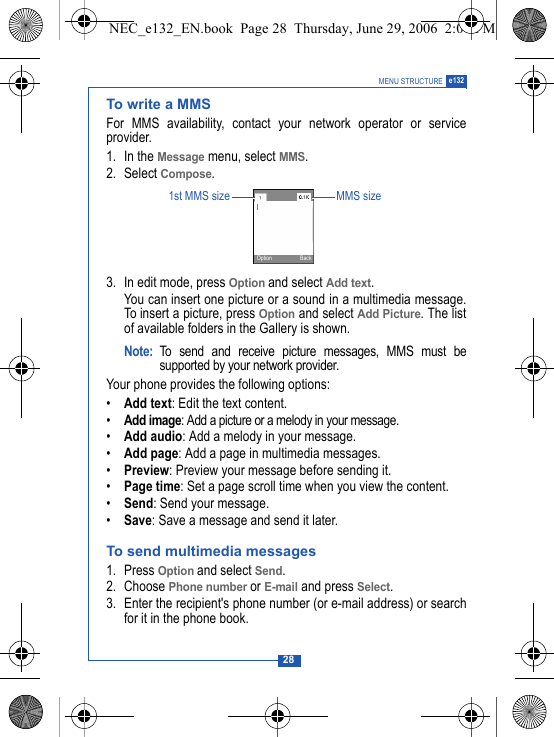
28MENU STRUCTURE e132To write a MMSFor MMS availability, contact your network operator or serviceprovider.1. In the Message menu, select MMS.2. Select Compose.3. In edit mode, press Option and select Add text.You can insert one picture or a sound in a multimedia message.To insert a picture, press Option and select Add Picture. The listof available folders in the Gallery is shown.Note: To send and receive picture messages, MMS must besupported by your network provider.Your phone provides the following options:•Add text: Edit the text content.•Add image: Add a picture or a melody in your message.•Add audio: Add a melody in your message.•Add page: Add a page in multimedia messages.•Preview: Preview your message before sending it.•Page time: Set a page scroll time when you view the content.•Send: Send your message.•Save: Save a message and send it later.To send multimedia messages1. Press Option and select Send.2. Choose Phone number or E-mail and press Select.3. Enter the recipient's phone number (or e-mail address) or searchfor it in the phone book.1st MMS size MMS sizeOption BackNEC_e132_EN.book  Page 28  Thursday, June 29, 2006  2:01 PM
29e132 MENU STRUCTURE3. Select a phone number and press OK.Unsent and Outbox multimedia messagesYour phone saves the multimedia messages that have beenreceived in the Inbox folder of the MMS menu.Multimedia messages that have not been sent will be saved in theUnsent  folder, messages that have been sent are saved in theOutbox folder of the MMS menu.MMS memory fullIf the message memory is full, a dialog is shown on the display. Youwill not be allowed to compose or receive any more messages untilold messages have been deleted.MMS settingYour phone allows you to set up default settings within MMS.1. In the Message menu, select MMS.2. Select Settings.Your phone provides the following setting options:•Valid time: Set the length of time for which your text messageswill be stored at the SMS centre. •Delivery report: Get reports informing you whether yourmessage has been delivered or not. Complete the MMS edit.Sub menu for sending MMS. Shift the cursor in text edit mode. Press and hold to change input method. Press to switch upper case and lower case.Press and hold to insert symbol. Keypad informationNEC_e132_EN.book  Page 29  Thursday, June 29, 2006  2:01 PM
30MENU STRUCTURE e132•Reply path: Allow the recipient of your SMS message to sendyou a reply through your message centre.•Auto reception: Set whether complete or partial message canbe downloaded.•WAP profile: Select or create WAP settings specifically for MMS.See the ‘WAP’ section on page 52 for further details. •MMS server: Set up the MMS server address (information fromyour network provider).TemplateIf you use one or more messages that you send often, you can savethese messages as templates in your phone.1. In Standby mode, press Menu and select Message.2. Select Template.3. Choose a Template and press Select.4. Enter the content of the template. Press Option and select Save tosave the message.Voice mailIf supported by your network provider, your phone allows you toaccess your voice mailbox quickly.• In standby mode, press and hold   to access your voice mailserver directly.Note: To use this function, you may need to enter the voice mailnumber from your service provider. Call Record Your phone can save information on missed, received and dialledcalls, plus the length and cost of your calls.Note: Once the call list exceeds the memory limit, the oldest recordis deleted.NEC_e132_EN.book  Page 30  Thursday, June 29, 2006  2:01 PM
31e132 MENU STRUCTUREMissed calls/Received calls/Outgoing callsYour phone allows you to view the last ten unanswered calls. Youcan also edit the number or delete the number from the call list.1. In Standby mode, press Menu. 2. Scroll to Call record and press Select.3. In the Call record menu, choose an item and press Select to viewthe content. 3. Select a menu and press Select.4. Select the number you want and press Select.5. The call record is displayed. Press Option. Your phone provides the following options:•Call: Call the number that is shown on the screen.•Delete: Erase the number from the list.•Save: Save the number in the phone book.Call durationYour phone allows you to view the timers for calls made andreceived. 1. In the Call record menu, select Call duration.2. Choose an item and press Select.Your phone provides the following options:•Total• Last • Received• Dialled• ClearCall costThis function allows you to view the cost of calls.NEC_e132_EN.book  Page 31  Thursday, June 29, 2006  2:01 PM
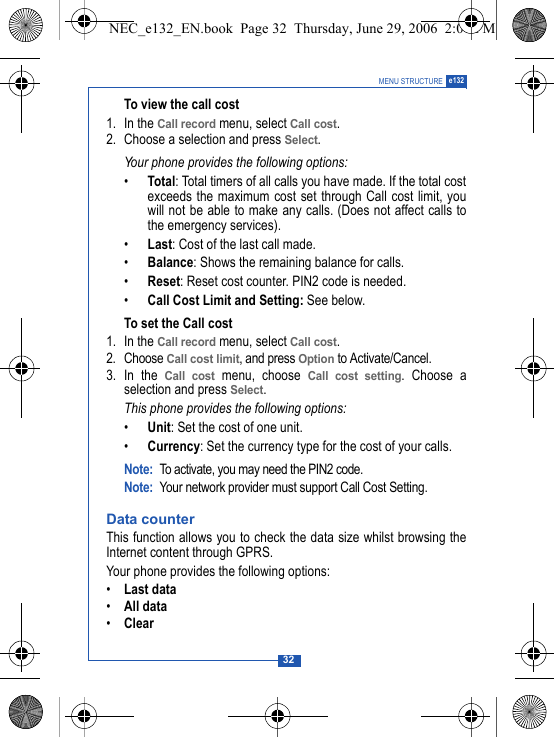
32MENU STRUCTURE e132To view the call cost1. In the Call record menu, select Call cost.2. Choose a selection and press Select.Your phone provides the following options:•Total: Total timers of all calls you have made. If the total costexceeds the maximum cost set through Call cost limit, youwill not be able to make any calls. (Does not affect calls tothe emergency services).•Last: Cost of the last call made.•Balance: Shows the remaining balance for calls.•Reset: Reset cost counter. PIN2 code is needed.•Call Cost Limit and Setting: See below.To set the Call cost1. In the Call record menu, select Call cost.2. Choose Call cost limit, and press Option to Activate/Cancel.3. In the Call cost menu, choose Call cost setting. Choose aselection and press Select.This phone provides the following options:•Unit: Set the cost of one unit.•Currency: Set the currency type for the cost of your calls.Note: To activate, you may need the PIN2 code.Note: Your network provider must support Call Cost Setting. Data counterThis function allows you to check the data size whilst browsing theInternet content through GPRS.Your phone provides the following options:•Last data•All data•ClearNEC_e132_EN.book  Page 32  Thursday, June 29, 2006  2:01 PM
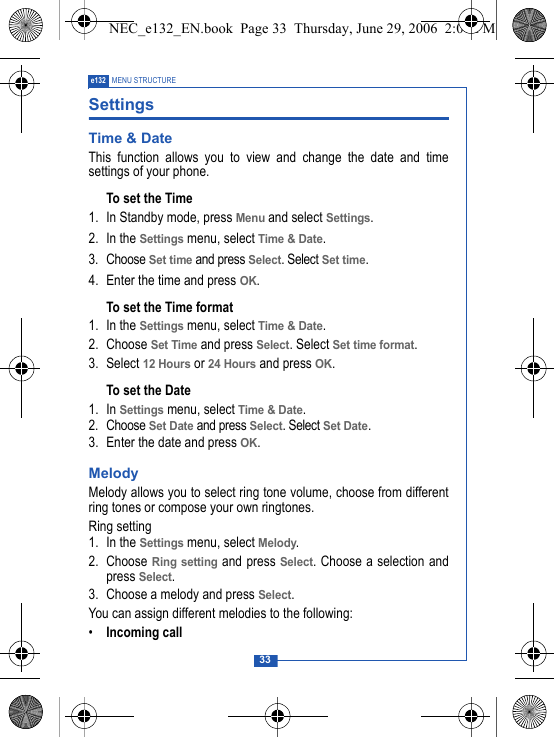
33e132 MENU STRUCTURESettings Time & DateThis function allows you to view and change the date and timesettings of your phone.To set the Time1. In Standby mode, press Menu and select Settings.2. In the Settings menu, select Time & Date.3. Choose Set time and press Select. Select Set time.4. Enter the time and press OK.To set the Time format1. In the Settings menu, select Time & Date.2. Choose Set Time and press Select. Select Set time format.3. Select 12 Hours or 24 Hours and press OK.To set the Date1. In Settings menu, select Time & Date.2. Choose Set Date and press Select. Select Set Date.3. Enter the date and press OK.MelodyMelody allows you to select ring tone volume, choose from differentring tones or compose your own ringtones.Ring setting1. In the Settings menu, select Melody.2. Choose Ring setting and press Select. Choose a selection andpress Select.3. Choose a melody and press Select.You can assign different melodies to the following:•Incoming callNEC_e132_EN.book  Page 33  Thursday, June 29, 2006  2:01 PM
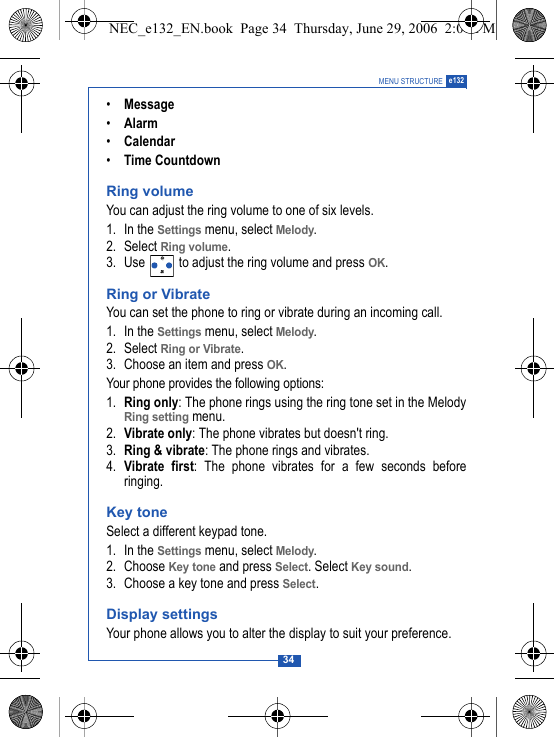
34MENU STRUCTURE e132•Message•Alarm•Calendar•Time CountdownRing volumeYou can adjust the ring volume to one of six levels.1. In the Settings menu, select Melody.2. Select Ring volume.3. Use   to adjust the ring volume and press OK.Ring or VibrateYou can set the phone to ring or vibrate during an incoming call.1. In the Settings menu, select Melody.2. Select Ring or Vibrate.3. Choose an item and press OK.Your phone provides the following options:1. Ring only: The phone rings using the ring tone set in the MelodyRing setting menu.2. Vibrate only: The phone vibrates but doesn't ring.3. Ring & vibrate: The phone rings and vibrates.4. Vibrate first: The phone vibrates for a few seconds beforeringing.Key toneSelect a different keypad tone.1. In the Settings menu, select Melody.2. Choose Key tone and press Select. Select Key sound.3. Choose a key tone and press Select.Display settingsYour phone allows you to alter the display to suit your preference.NEC_e132_EN.book  Page 34  Thursday, June 29, 2006  2:01 PM
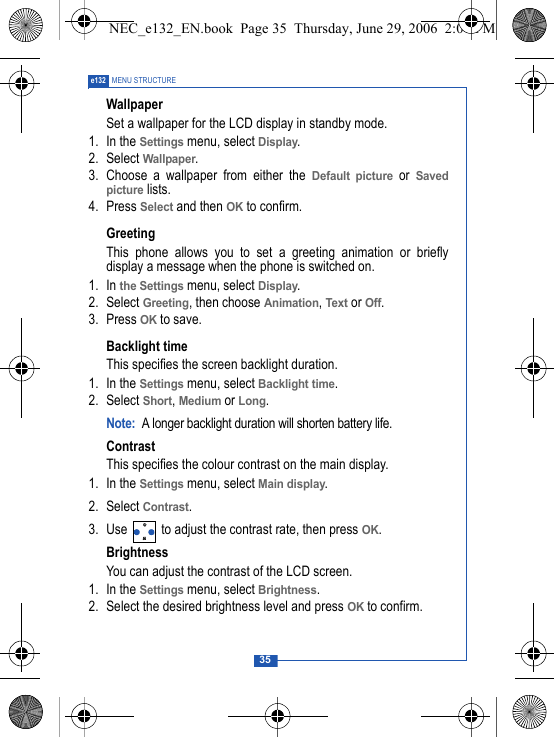
35e132 MENU STRUCTUREWallpaperSet a wallpaper for the LCD display in standby mode.1. In the Settings menu, select Display.2. Select Wallpaper.3. Choose a wallpaper from either the Default picture or Savedpicture lists.4. Press Select and then OK to confirm.Greeting This phone allows you to set a greeting animation or brieflydisplay a message when the phone is switched on.1. In the Settings menu, select Display.2. Select Greeting, then choose Animation, Text or Off. 3. Press OK to save.Backlight timeThis specifies the screen backlight duration.1. In the Settings menu, select Backlight time.2. Select Short, Medium or Long.Note: A longer backlight duration will shorten battery life.ContrastThis specifies the colour contrast on the main display.1. In the Settings menu, select Main display.2. Select Contrast.3. Use   to adjust the contrast rate, then press OK.BrightnessYou can adjust the contrast of the LCD screen.1. In the Settings menu, select Brightness.2. Select the desired brightness level and press OK to confirm.NEC_e132_EN.book  Page 35  Thursday, June 29, 2006  2:01 PM
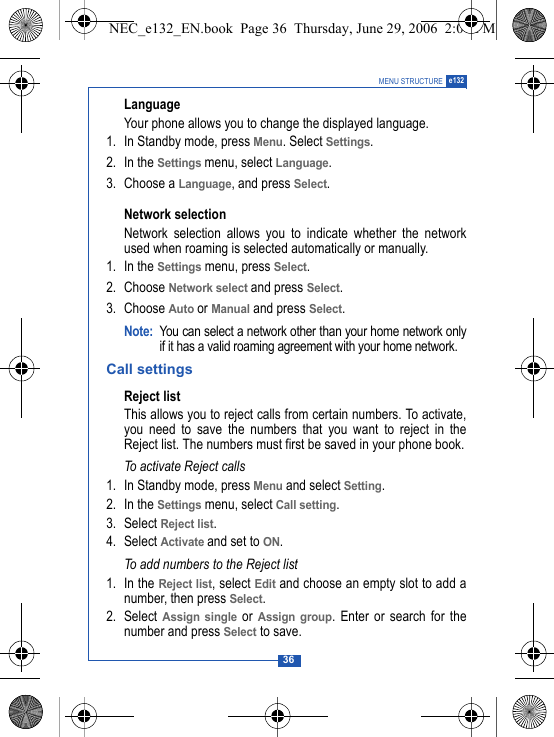
36MENU STRUCTURE e132LanguageYour phone allows you to change the displayed language.1. In Standby mode, press Menu. Select Settings.2. In the Settings menu, select Language.3. Choose a Language, and press Select. Network selectionNetwork selection allows you to indicate whether the networkused when roaming is selected automatically or manually.1. In the Settings menu, press Select.2. Choose Network select and press Select.3. Choose Auto or Manual and press Select. Note: You can select a network other than your home network onlyif it has a valid roaming agreement with your home network.Call settingsReject listThis allows you to reject calls from certain numbers. To activate,you need to save the numbers that you want to reject in theReject list. The numbers must first be saved in your phone book.To activate Reject calls1. In Standby mode, press Menu and select Setting.2. In the Settings menu, select Call setting.3. Select Reject list.4. Select Activate and set to ON.To add numbers to the Reject list1. In the Reject list, select Edit and choose an empty slot to add anumber, then press Select.2. Select Assign single or Assign group. Enter or search for thenumber and press Select to save. NEC_e132_EN.book  Page 36  Thursday, June 29, 2006  2:01 PM
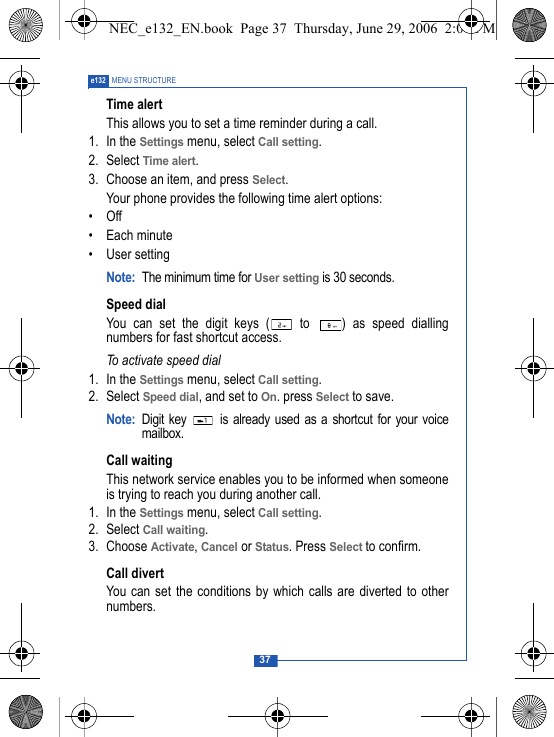
37e132 MENU STRUCTURETime alertThis allows you to set a time reminder during a call.1. In the Settings menu, select Call setting.2. Select Time alert.3. Choose an item, and press Select.Your phone provides the following time alert options:•Off• Each minute•User settingNote: The minimum time for User setting is 30 seconds.Speed dialYou can set the digit keys (  to  ) as speed diallingnumbers for fast shortcut access.To activate speed dial1. In the Settings menu, select Call setting.2. Select Speed dial, and set to On. press Select to save.Note: Digit key   is already used as a shortcut for your voicemailbox.Call waitingThis network service enables you to be informed when someoneis trying to reach you during another call.1. In the Settings menu, select Call setting.2. Select Call waiting.3. Choose Activate, Cancel or Status. Press Select to confirm.Call divertYou can set the conditions by which calls are diverted to othernumbers.NEC_e132_EN.book  Page 37  Thursday, June 29, 2006  2:01 PM
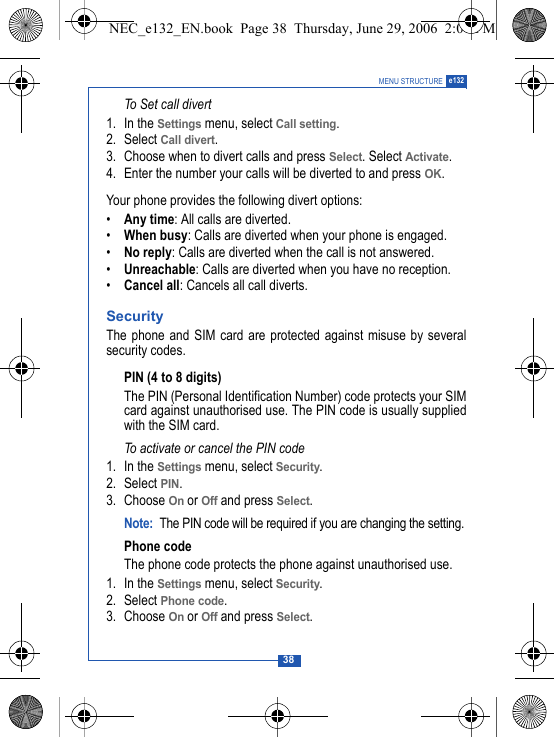
38MENU STRUCTURE e132To Set call divert1. In the Settings menu, select Call setting.2. Select Call divert. 3. Choose when to divert calls and press Select. Select Activate.4. Enter the number your calls will be diverted to and press OK.Your phone provides the following divert options:•Any time: All calls are diverted.•When busy: Calls are diverted when your phone is engaged.•No reply: Calls are diverted when the call is not answered.•Unreachable: Calls are diverted when you have no reception.•Cancel all: Cancels all call diverts.SecurityThe phone and SIM card are protected against misuse by severalsecurity codes. PIN (4 to 8 digits)The PIN (Personal Identification Number) code protects your SIMcard against unauthorised use. The PIN code is usually suppliedwith the SIM card.To activate or cancel the PIN code1. In the Settings menu, select Security.2. Select PIN.3. Choose On or Off and press Select.Note: The PIN code will be required if you are changing the setting.Phone codeThe phone code protects the phone against unauthorised use. 1. In the Settings menu, select Security.2. Select Phone code.3. Choose On or Off and press Select.NEC_e132_EN.book  Page 38  Thursday, June 29, 2006  2:01 PM
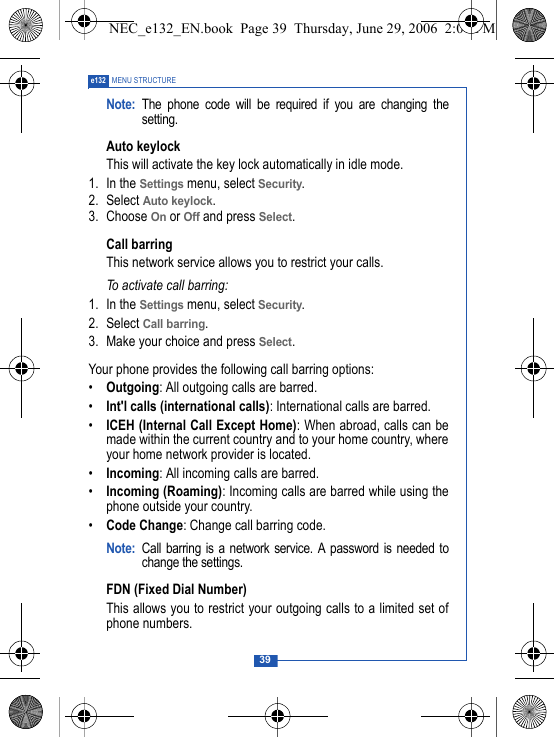
39e132 MENU STRUCTURENote: The phone code will be required if you are changing thesetting.Auto keylockThis will activate the key lock automatically in idle mode. 1. In the Settings menu, select Security.2. Select Auto keylock.3. Choose On or Off and press Select.Call barringThis network service allows you to restrict your calls.To activate call barring:1. In the Settings menu, select Security.2. Select Call barring.3. Make your choice and press Select.Your phone provides the following call barring options:•Outgoing: All outgoing calls are barred.•Int'l calls (international calls): International calls are barred.•ICEH (Internal Call Except Home): When abroad, calls can bemade within the current country and to your home country, whereyour home network provider is located.•Incoming: All incoming calls are barred.•Incoming (Roaming): Incoming calls are barred while using thephone outside your country.•Code Change: Change call barring code.Note: Call barring is a network service. A password is needed tochange the settings. FDN (Fixed Dial Number)This allows you to restrict your outgoing calls to a limited set ofphone numbers.NEC_e132_EN.book  Page 39  Thursday, June 29, 2006  2:01 PM
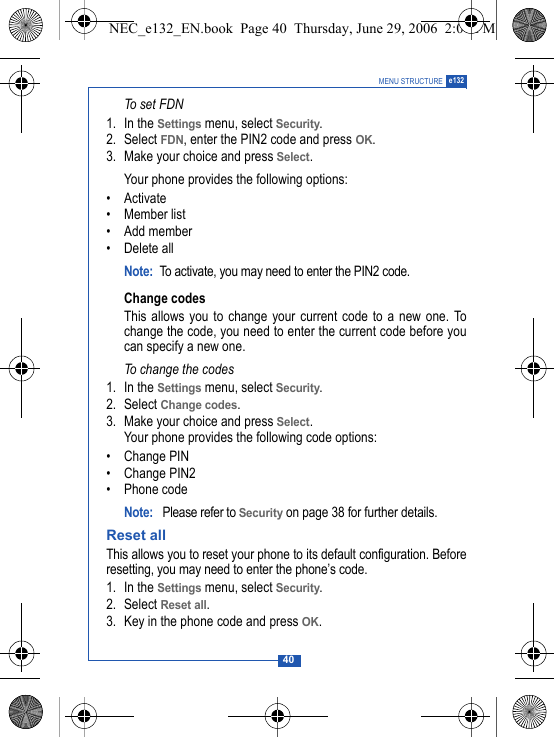
40MENU STRUCTURE e132To set FDN1. In the Settings menu, select Security.2. Select FDN, enter the PIN2 code and press OK.3. Make your choice and press Select.Your phone provides the following options:•Activate• Member list• Add member• Delete allNote: To activate, you may need to enter the PIN2 code.Change codesThis allows you to change your current code to a new one. Tochange the code, you need to enter the current code before youcan specify a new one.To change the codes1. In the Settings menu, select Security.2. Select Change codes.3. Make your choice and press Select.Your phone provides the following code options:• Change PIN• Change PIN2• Phone codeNote:  Please refer to Security on page 38 for further details.Reset allThis allows you to reset your phone to its default configuration. Beforeresetting, you may need to enter the phone’s code. 1. In the Settings menu, select Security.2. Select Reset all.3. Key in the phone code and press OK.NEC_e132_EN.book  Page 40  Thursday, June 29, 2006  2:01 PM
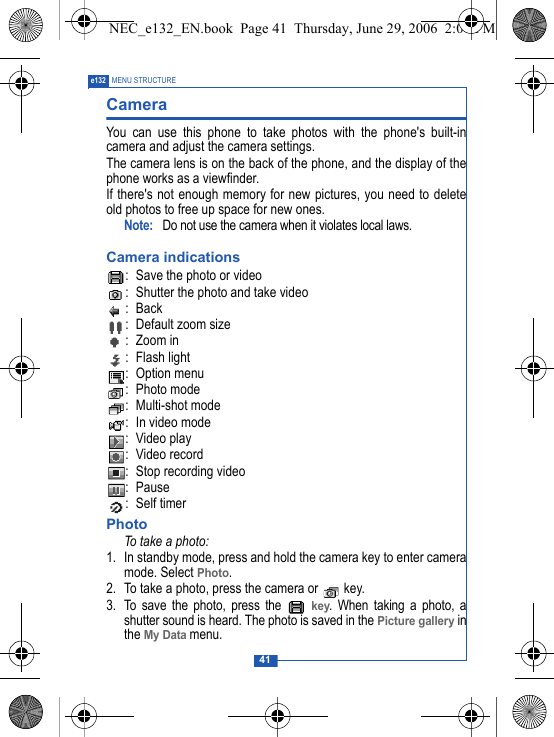
41e132 MENU STRUCTURECamera You can use this phone to take photos with the phone's built-incamera and adjust the camera settings. The camera lens is on the back of the phone, and the display of thephone works as a viewfinder. If there's not enough memory for new pictures, you need to deleteold photos to free up space for new ones.Note:  Do not use the camera when it violates local laws.Camera indications: Save the photo or video: Shutter the photo and take video:Back: Default zoom size:Zoom in : Flash light : Option menu: Photo mode: Multi-shot mode: In video mode : Video play: Video record: Stop recording video: Pause : Self timerPhotoTo take a photo:1. In standby mode, press and hold the camera key to enter cameramode. Select Photo.2. To take a photo, press the camera or   key.3. To save the photo, press the   key. When taking a photo, ashutter sound is heard. The photo is saved in the Picture gallery inthe My Data menu.NEC_e132_EN.book  Page 41  Thursday, June 29, 2006  2:01 PM
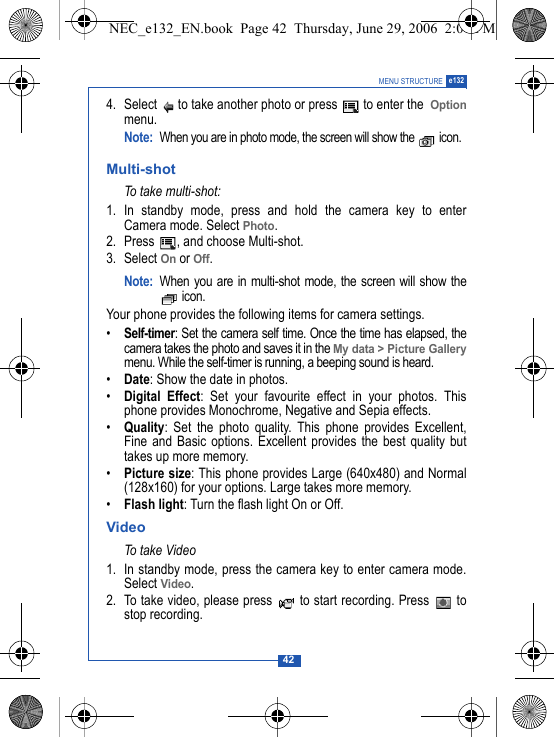
42MENU STRUCTURE e1324. Select   to take another photo or press   to enter the  Optionmenu.Note:When you are in photo mode, the screen will show the   icon.Multi-shotTo take multi-shot:1. In standby mode, press and hold the camera key to enterCamera mode. Select Photo.2. Press  , and choose Multi-shot.3. Select On or Off.Note: When you are in multi-shot mode, the screen will show the icon.Your phone provides the following items for camera settings.•Self-timer: Set the camera self time. Once the time has elapsed, thecamera takes the photo and saves it in the My data > Picture Gallerymenu. While the self-timer is running, a beeping sound is heard.•Date: Show the date in photos.•Digital Effect: Set your favourite effect in your photos. Thisphone provides Monochrome, Negative and Sepia effects.•Quality: Set the photo quality. This phone provides Excellent,Fine and Basic options. Excellent provides the best quality buttakes up more memory.•Picture size: This phone provides Large (640x480) and Normal(128x160) for your options. Large takes more memory.•Flash light: Turn the flash light On or Off.VideoTo t ak e V id eo1. In standby mode, press the camera key to enter camera mode.Select Video.2. To take video, please press   to start recording. Press   tostop recording.NEC_e132_EN.book  Page 42  Thursday, June 29, 2006  2:01 PM
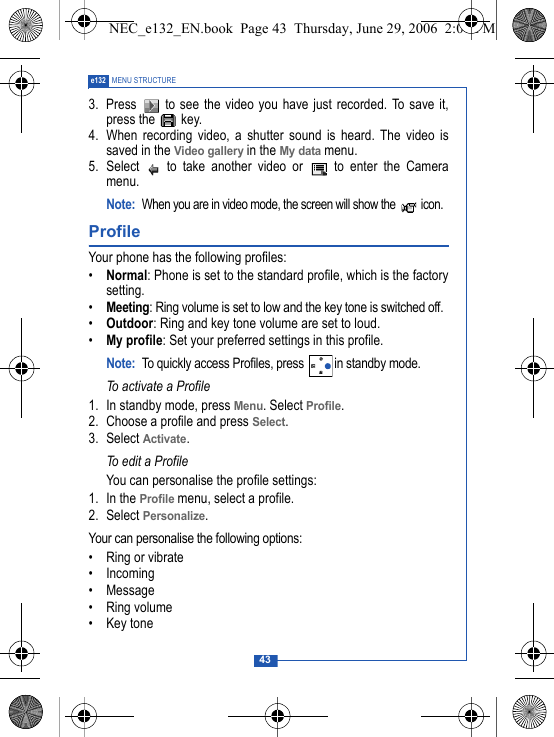
43e132 MENU STRUCTURE3.  Press   to see the video you have just recorded. To save it,press the   key.4. When recording video, a shutter sound is heard. The video issaved in the Video gallery in the My data menu. 5. Select   to take another video or   to enter the Cameramenu.Note:When you are in video mode, the screen will show the   icon.Profile Your phone has the following profiles:•Normal: Phone is set to the standard profile, which is the factorysetting.•Meeting: Ring volume is set to low and the key tone is switched off.•Outdoor: Ring and key tone volume are set to loud.•My profile: Set your preferred settings in this profile.Note: To quickly access Profiles, press  in standby mode.To activate a Profile1. In standby mode, press Menu. Select Profile.2. Choose a profile and press Select.3. Select Activate.To edit a ProfileYou can personalise the profile settings:1. In the Profile menu, select a profile.2. Select Personalize.Your can personalise the following options:• Ring or vibrate• Incoming • Message• Ring volume•Key toneNEC_e132_EN.book  Page 43  Thursday, June 29, 2006  2:01 PM
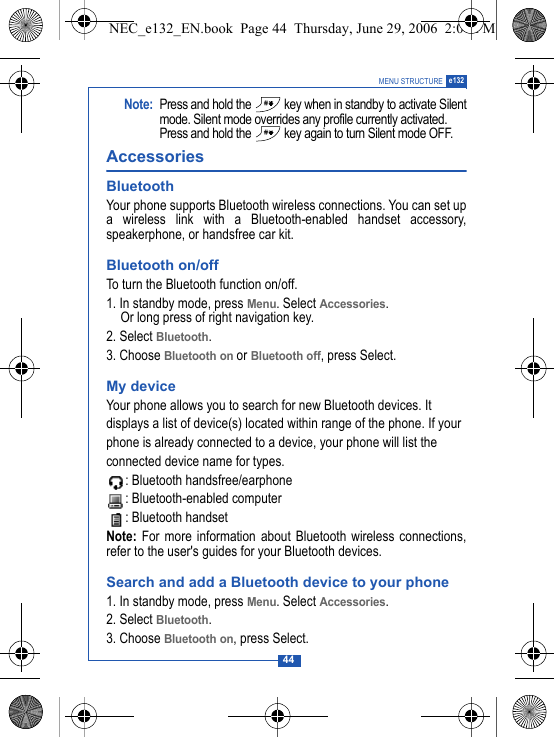
44MENU STRUCTURE e132Note: Press and hold the   key when in standby to activate Silentmode. Silent mode overrides any profile currently activated.Press and hold the   key again to turn Silent mode OFF.Accessories BluetoothYour phone supports Bluetooth wireless connections. You can set upa wireless link with a Bluetooth-enabled handset accessory,speakerphone, or handsfree car kit.Bluetooth on/offTo turn the Bluetooth function on/off.1. In standby mode, press Menu. Select Accessories. Or long press of right navigation key.2. Select Bluetooth. 3. Choose Bluetooth on or Bluetooth off, press Select.My deviceYour phone allows you to search for new Bluetooth devices. Itdisplays a list of device(s) located within range of the phone. If yourphone is already connected to a device, your phone will list the connected device name for types.: Bluetooth handsfree/earphone: Bluetooth-enabled computer: Bluetooth handsetNote: For more information about Bluetooth wireless connections,refer to the user's guides for your Bluetooth devices.Search and add a Bluetooth device to your phone1. In standby mode, press Menu. Select Accessories. 2. Select Bluetooth. 3. Choose Bluetooth on, press Select.NEC_e132_EN.book  Page 44  Thursday, June 29, 2006  2:01 PM
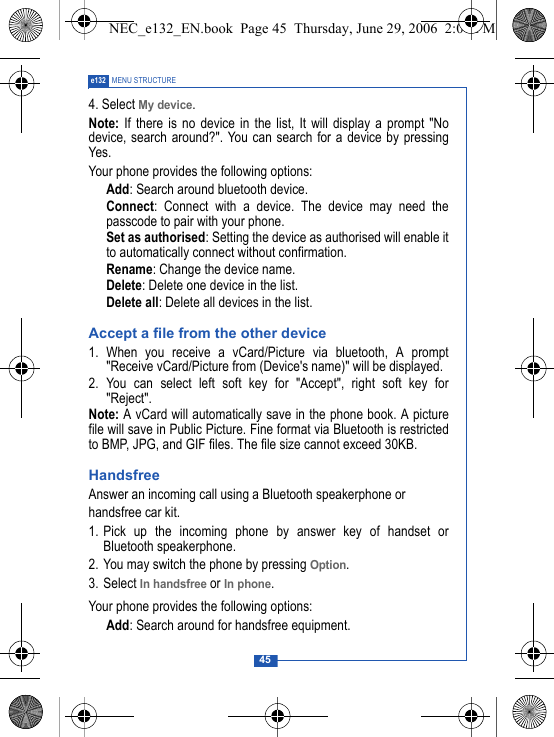
45e132 MENU STRUCTURE4. Select My device.Note: If there is no device in the list, It will display a prompt "Nodevice, search around?". You can search for a device by pressingYes.Your phone provides the following options: Add: Search around bluetooth device. Connect: Connect with a device. The device may need thepasscode to pair with your phone. Set as authorised: Setting the device as authorised will enable itto automatically connect without confirmation. Rename: Change the device name. Delete: Delete one device in the list. Delete all: Delete all devices in the list.Accept a file from the other device1. When you receive a vCard/Picture via bluetooth, A prompt"Receive vCard/Picture from (Device's name)" will be displayed.2. You can select left soft key for "Accept", right soft key for"Reject".Note: A vCard will automatically save in the phone book. A picturefile will save in Public Picture. Fine format via Bluetooth is restrictedto BMP, JPG, and GIF files. The file size cannot exceed 30KB.HandsfreeAnswer an incoming call using a Bluetooth speakerphone orhandsfree car kit. 1. Pick up the incoming phone by answer key of handset orBluetooth speakerphone.2. You may switch the phone by pressing Option.3. Select In handsfree or In phone.Your phone provides the following options: Add: Search around for handsfree equipment.NEC_e132_EN.book  Page 45  Thursday, June 29, 2006  2:01 PM
46MENU STRUCTURE e132 Connect: Connect with the searched handsfree. You will needthe passcode to connect with the device. Incoming call: Select to answer the incoming call by phone or byhandsfree equipment.My PhoneYou can turn your phone's visibility On or Off.1. In standby mode, press Menu. Select Accessories. 2. Select Bluetooth, press Select.4. Select My Phone.Your phone provides the following options: Visibility: Set visibility on or off . Rename: Change your phone's name.Note: If the visibility is off, the other bluetooth devices will not findyour phone. CalendarIn the calendar you can add notes for things such as meetings,birthdays and reminders. The phone sounds an alarm tone when theset date and time arrives.To add a note and reminder in the Calendar1. In standby mode, press Menu. Select Accessories.2. Select Calendar.3. Choose a day and press Option. Select Make a note.4. Key in the note and press Option and then Save. Confirm thedate and time.5. Select Reminder. A dialog confirming the note has been saved isdisplayed.Your phone provides the following calender options:•View today: View the notes for the specified day.•View all: View all notes made in the calendar.NEC_e132_EN.book  Page 46  Thursday, June 29, 2006  2:01 PM
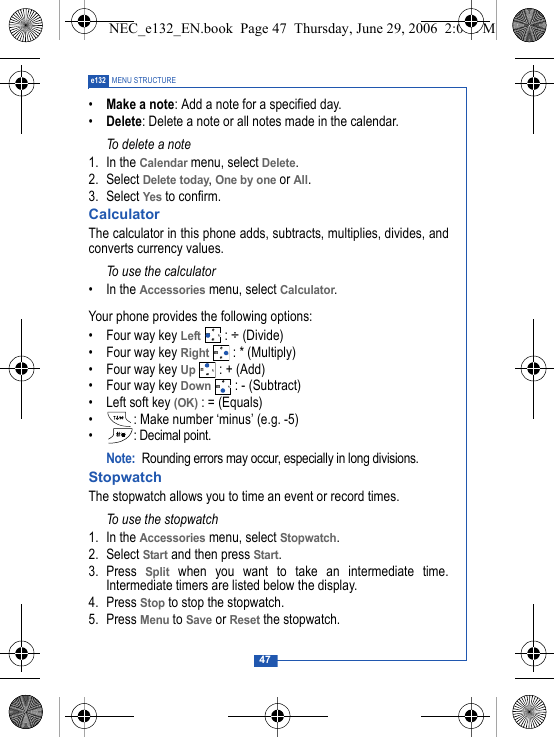
47e132 MENU STRUCTURE•Make a note: Add a note for a specified day.•Delete: Delete a note or all notes made in the calendar.To delete a note1. In the Calendar menu, select Delete.2. Select Delete today, One by one or All.3. Select Yes to confirm.CalculatorThe calculator in this phone adds, subtracts, multiplies, divides, andconverts currency values.To use the calculator• In the Accessories menu, select Calculator. Your phone provides the following options:• Four way key Left : ÷ (Divide)• Four way key Right  : * (Multiply)• Four way key Up : + (Add)• Four way key Down : - (Subtract)• Left soft key (OK) : = (Equals)• : Make number ‘minus’ (e.g. -5)• : Decimal point.Note: Rounding errors may occur, especially in long divisions.StopwatchThe stopwatch allows you to time an event or record times.To use the stopwatch 1. In the Accessories menu, select Stopwatch. 2. Select Start and then press Start.3. Press Split when you want to take an intermediate time.Intermediate timers are listed below the display.4. Press Stop to stop the stopwatch.5. Press Menu to Save or Reset the stopwatch.NEC_e132_EN.book  Page 47  Thursday, June 29, 2006  2:01 PM
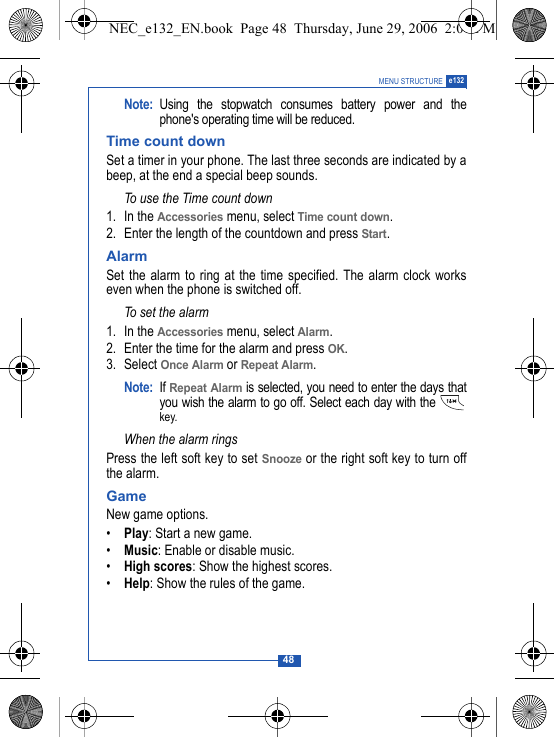
48MENU STRUCTURE e132Note: Using the stopwatch consumes battery power and thephone's operating time will be reduced. Time count downSet a timer in your phone. The last three seconds are indicated by abeep, at the end a special beep sounds.To use the Time count down1. In the Accessories menu, select Time count down.2. Enter the length of the countdown and press Start.Alarm Set the alarm to ring at the time specified. The alarm clock workseven when the phone is switched off.To set the alarm1. In the Accessories menu, select Alarm.2. Enter the time for the alarm and press OK.3. Select Once Alarm or Repeat Alarm.Note: If Repeat Alarm is selected, you need to enter the days thatyou wish the alarm to go off. Select each day with the key.When the alarm ringsPress the left soft key to set Snooze or the right soft key to turn offthe alarm.GameNew game options.•Play: Start a new game.•Music: Enable or disable music.•High scores: Show the highest scores.•Help: Show the rules of the game.NEC_e132_EN.book  Page 48  Thursday, June 29, 2006  2:01 PM
49e132 MENU STRUCTUREMy dataPicture galleryThis folder saves all videos that have been saved from MMS, WAPdownload or the camera. The videos are automatically saved in theVideo gallery. The camera produces video files in Motion JPEG format.To edit the images1. In standby mode, press Menu, and select My data.2. Select the required Picture Folder. 3. Choose a picture and press Select. 4. Choose an item and press Select to edit.Your phone provides the following edit options:•View: View the pictures saved in the gallery.•Send MMS: Select a picture and use the MMS function to send itto your friends.•Send via Bluetooth: Select a picture and send it via Bluetooth.•Rename: Rename a picture.•Save to My picture: Forward the picture to My picture (you willneed to enter the password).•Delete: Delete the picture.•Information: View the file type and size.•Delete All: Delete all pictures.Note: When sending pictures via MMS, the file size cannot exceed100KB. When sending pictures via Bluetooth, the file sizecannot exceed 300KB. For Bluetooth transmission, thepicture formats is restricted to GIF and JPEG.Your phone provides the following picture formats::BMP:EMS :GIF NEC_e132_EN.book  Page 49  Thursday, June 29, 2006  2:01 PM
50MENU STRUCTURE e132:JPG :WBMP Note: If you download any document which cannot be forwarded byMMS or data cable, the Icon will be highlighted by a  red mark.Video galleryThis folder contains all videos that have been saved. The videos areautomatically saved in the Video Folder. The camera producesMotion JPEG video.Note: Only the Motion JPEG format can be played or saved. To edit the images1. In the standby mode, press Menu and select My data.2. Select the required Video Folder. 3. Choose a picture and press Select. 4. Choose an item and press Select to edit.Your phone provides the following edit options:•View: View the videos saved in the gallery.•Rename: Rename a video.•Save to My video: Forward the video to My video (you will needto enter the password).•Delete: Delete video.•Information: View the file size and type.•Delete All: Delete all videos.Your phone provides the following video format:: Motion JPEGMelody galleryThis folder contains all melodies that have been saved. Themelodies are automatically saved in the Melody gallery. You can alsosend these melodies to your friends in a multimedia message as ane-mail attachment.NEC_e132_EN.book  Page 50  Thursday, June 29, 2006  2:01 PM
51e132 MENU STRUCTURETo edit the melody1. In standby mode, press Menu and select My data.2. Select Melody gallery.3. Choose a melody to listen to.Your phone provides the following selections edit options:•Rename: Rename a melody name.•Send MMS: Select a melody and use the MMS function to send itto your friends.•Send via bluetooth: Select a melody and send it via bluetooth.•Delete: Delete the melody.•Information: View the file size and type.Note: When sending pictures via MMS, the file size cannot exceed30KB. For bluetooth function, the melody size cannot excess300KB.Memory StatusThis function shows how much memory has been used. The totaluser memory is 2713KB.WAP service Your phone supports a Web Browser. You can obtain variousservices such as up-to date news, weather, sport, and otherinformation as well as use e-mail and other Internet services. Theseservices are designed and maintained by WAP service providers.WAP services use Wireless Markup Language (WML) on their WAPpages. You may not view the normal Internet  pages on your phone. Note: To activate the WAP service, you may need to contact yourservice provider.Note: Do not switch the phone on when use is prohibited or when itmay cause interference or danger.NEC_e132_EN.book  Page 51  Thursday, June 29, 2006  2:01 PM
52MENU STRUCTURE e132WAP setting• If the settings have already been made by the Service Provider,you may browse immediately.• If access profiles have already been assigned by your ServiceProvider, select a profile and activate it.• Otherwise you may key in the setting manually. For the correctsettings, contact your network operator or service provider.Key in the service settings manually1. In the WAP menu, select WAP Profile.2. Choose a profile, press Select, and then select Edit to edit thesettings.You need to enter Homepage, User ID, Password and IP addressinformation in to your phone. To get the information, you may needto contact your service provider.Dial type:You can access WAP via GSM or GPRS.1. In the WAP menu, select WAP profile.2. Choose a profile, press Select, and then select Edit.3. Select Dial type, and then choose either GSM or GPRS.To get the GPRS access point, you may need to contact your serviceprovider for the service.Activate WAP settingsAfter you complete all WAP settings, select Activate from the WAPprofile menu.HomepageTo launch the browser from standby mode, press the   key. Onceconnected, the homepage is displayed. Content depends on theservice provider.To exit the browser, press the   key.NEC_e132_EN.book  Page 52  Thursday, June 29, 2006  2:01 PM
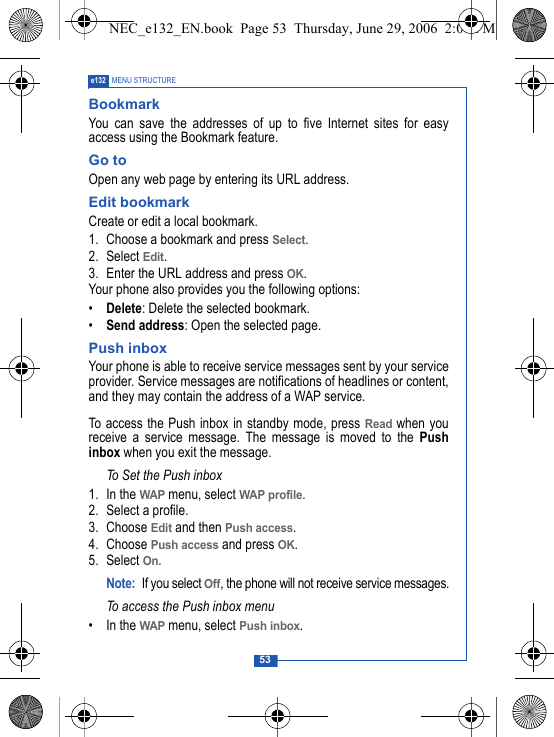
53e132 MENU STRUCTUREBookmarkYou can save the addresses of up to five Internet sites for easyaccess using the Bookmark feature.Go toOpen any web page by entering its URL address. Edit bookmarkCreate or edit a local bookmark.1. Choose a bookmark and press Select.2. Select Edit.3. Enter the URL address and press OK.Your phone also provides you the following options:•Delete: Delete the selected bookmark.•Send address: Open the selected page.Push inboxYour phone is able to receive service messages sent by your serviceprovider. Service messages are notifications of headlines or content,and they may contain the address of a WAP service.To access the Push inbox in standby mode, press Read when youreceive a service message. The message is moved to the Pushinbox when you exit the message. To Set the Push inbox1. In the WAP menu, select WAP profile.2. Select a profile.3. Choose Edit and then Push access.4. Choose Push access and press OK.5. Select On.Note: If you select Off, the phone will not receive service messages.To access the Push inbox menu• In the WAP menu, select Push inbox.NEC_e132_EN.book  Page 53  Thursday, June 29, 2006  2:01 PM
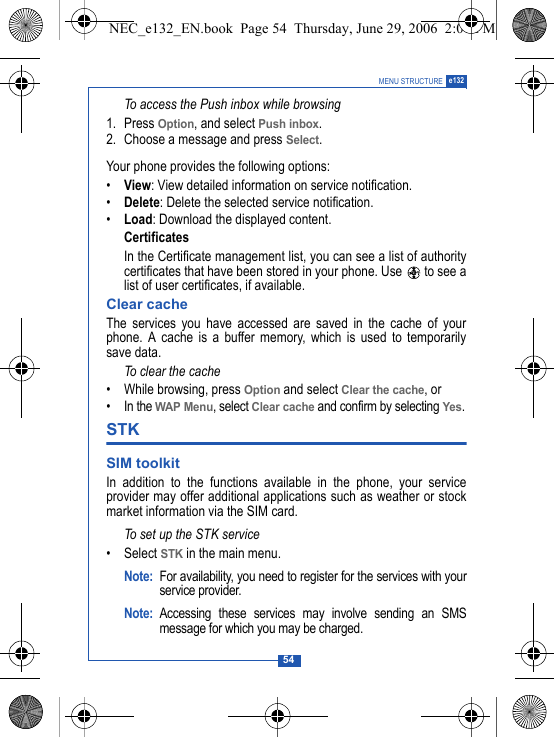
54MENU STRUCTURE e132To access the Push inbox while browsing1. Press Option, and select Push inbox. 2. Choose a message and press Select.Your phone provides the following options:•View: View detailed information on service notification.•Delete: Delete the selected service notification.•Load: Download the displayed content.CertificatesIn the Certificate management list, you can see a list of authoritycertificates that have been stored in your phone. Use   to see alist of user certificates, if available.Clear cacheThe services you have accessed are saved in the cache of yourphone. A cache is a buffer memory, which is used to temporarilysave data. To clear the cache • While browsing, press Option and select Clear the cache, or• In the WAP Menu, select Clear cache and confirm by selecting Yes.STK SIM toolkit In addition to the functions available in the phone, your serviceprovider may offer additional applications such as weather or stockmarket information via the SIM card. To set up the STK service•Select STK in the main menu.Note: For availability, you need to register for the services with yourservice provider.Note: Accessing these services may involve sending an SMSmessage for which you may be charged.NEC_e132_EN.book  Page 54  Thursday, June 29, 2006  2:01 PM
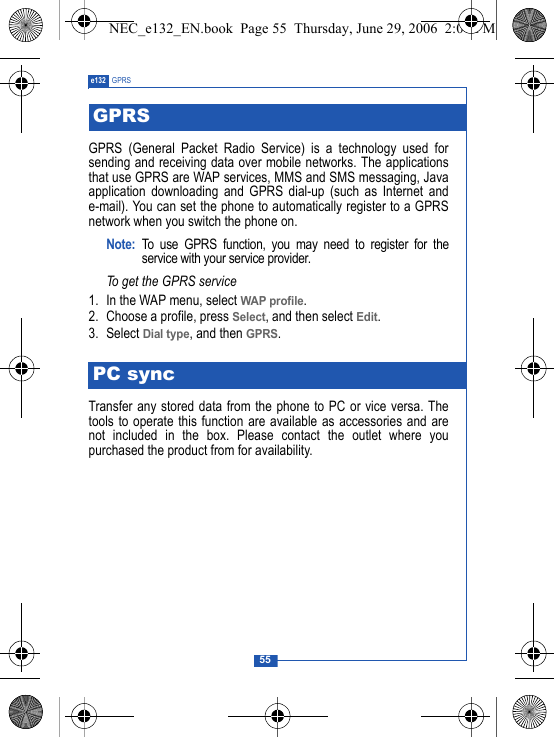
55e132 GPRSGPRS (General Packet Radio Service) is a technology used forsending and receiving data over mobile networks. The applicationsthat use GPRS are WAP services, MMS and SMS messaging, Javaapplication downloading and GPRS dial-up (such as Internet ande-mail). You can set the phone to automatically register to a GPRSnetwork when you switch the phone on.Note: To use GPRS function, you may need to register for theservice with your service provider.To get the GPRS service1. In the WAP menu, select WAP profile.2. Choose a profile, press Select, and then select Edit.3. Select Dial type, and then GPRS.Transfer any stored data from the phone to PC or vice versa. Thetools to operate this function are available as accessories and arenot included in the box. Please contact the outlet where youpurchased the product from for availability.GPRSPC syncNEC_e132_EN.book  Page 55  Thursday, June 29, 2006  2:01 PM

Navigation menu