Beijing TPCast Technologies RX001 HMD Receiver User Manual Manual Operation

Beijing TPCast Technologies Limited Company HMD Receiver Manual Operation

Contents

Manual Operation

1User Guide on installation of TPCAST Wireless Adaptor for VIVECE-01H-UG-EU-010
1Client software installation1What's in the box2Components description3Connection instructions4Operation instructions5Positioning the PC transmitter6Safety precautions7Frequently asked questions8CONTENTS
2Scan the code to view installation video of Wireless Adaptor for VIVE     The TPCAST wireless adaptor for Head-Mounted Display (HMD) has no cable attached, and it provides full motion and freedom.  Please pay attention to safety in the play area during gaming, and take care to not run into objects.  Alternatively, you can play under the supervision of somebody else.    TPCAST Wireless Adaptor for VIVE and portable power bank will get warm in the normal usage, if the partial temperature reached 120 F, please stop using, in order to avoid burning people or other hazards.
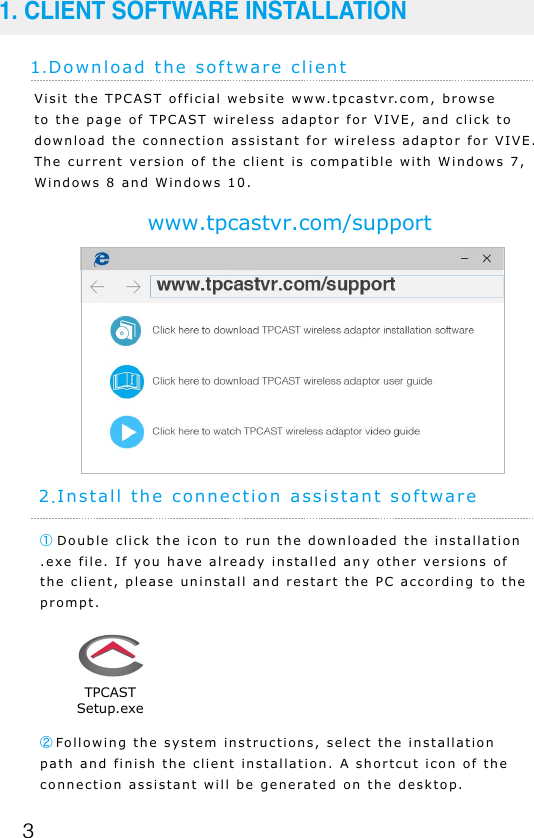
31.Download the software client1. CLIENT SOFTWARE INSTALLATIONwww.tpcastvr.com/supportVisit the TPCAST official website www.tpcastvr.com, browse to the page of TPCAST wireless adaptor for VIVE, and click to download the connection assistant for wireless adaptor for VIVE. The current version of the client is compatible with Windows 7, Windows 8 and Windows 10.① Double click the icon to run the downloaded the installation .exe file. If you have already installed any other versions of the client, please uninstall and restart the PC according to the prompt.2.Install the connection assistant software②Following the system instructions, select the installation path and finish the client installation. A shortcut icon of the connection assistant will be generated on the desktop.TPCASTSetup.exe
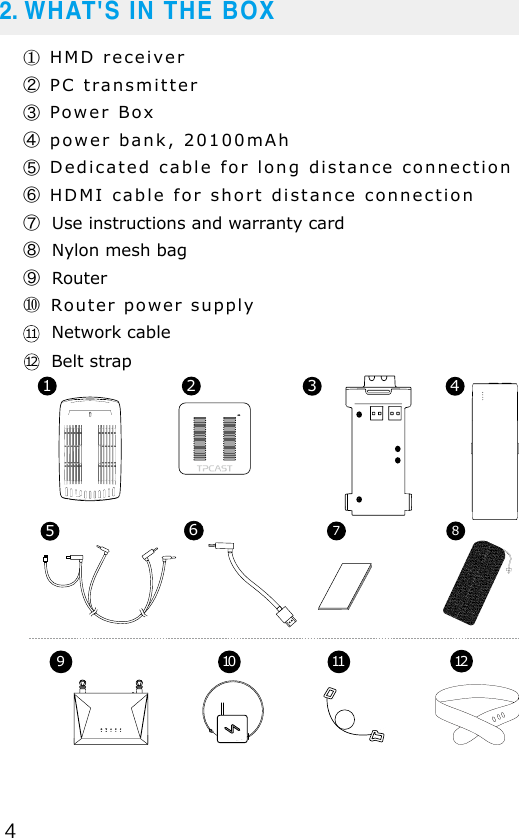
42. WHAT'S IN THE BOX910 11② PC transmitter③ Power Box⑦  Use instructions and warranty card④ power bank, 20100mAh⑤ Dedicated cable for long distance connection⑥ HDMI cable for short distance connection⑧  Nylon mesh bag① HMD receiver⑨  Router⑩Router power supply1 2 357 846     Network cable11     Belt strap1212
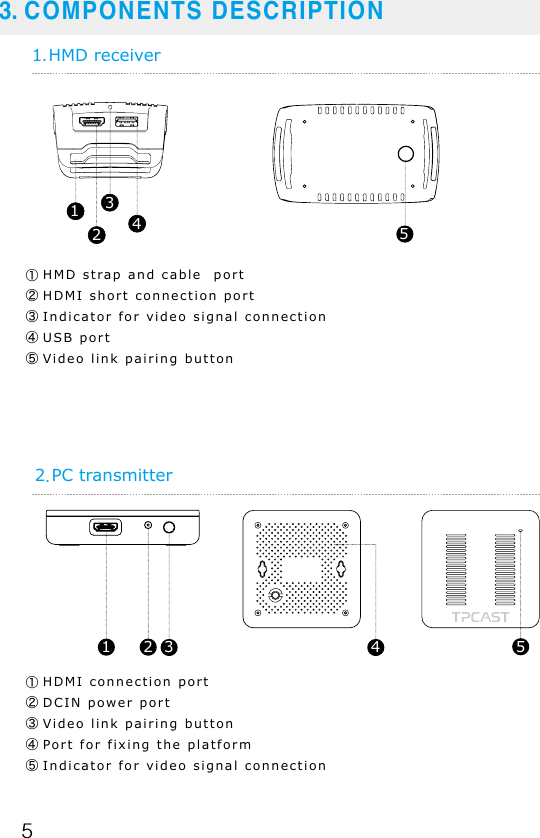
53. COMPONENTS DESCRIPTION1.HMD receiver2.PC transmitter①HDMI connection port②DCIN power port③Video link pairing button④Port for fixing the platform⑤Indicator for video signal connection1 2 3 4 5①HMD strap and cable  port     ②HDMI short connection port③Indicator for video signal connection④USB port    ⑤Video link pairing button51234
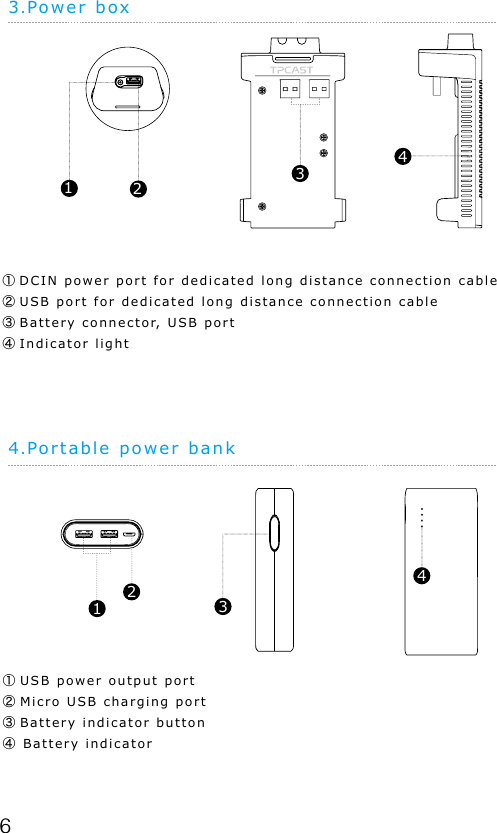
63.Power box4.Portable power bank①DCIN power port for dedicated long distance connection cable②USB port for dedicated long distance connection cable③Battery connector, USB port④Indicator light1234①USB power output port②Micro USB charging port③Battery indicator button④Battery indicator1243
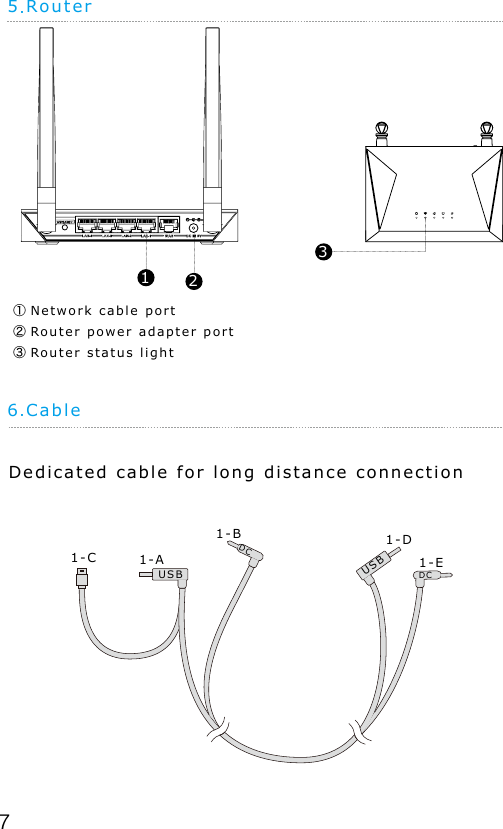
75.Router①Network cable port   ②Router power adapter port③Router status light6.CableDedicated cable for long distance connection1-A1-C1-B 1-D1-EUSBUSBDCDC231
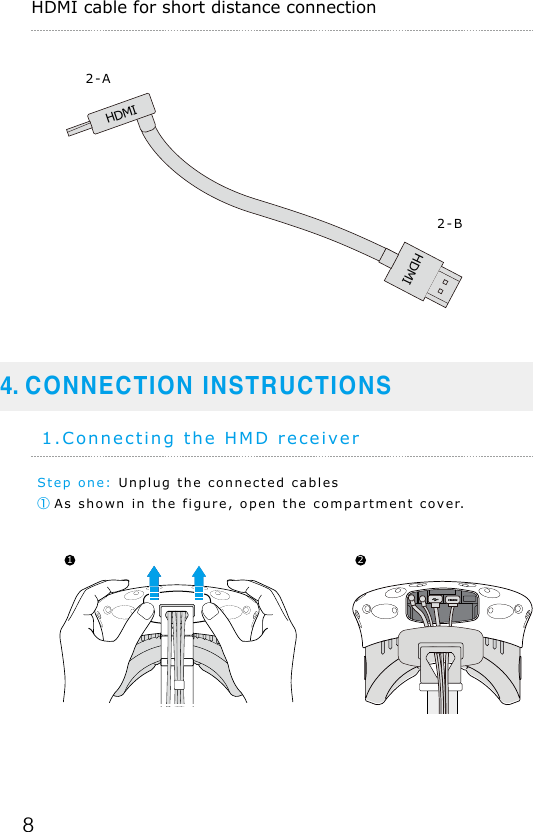
84. CONNECTION INSTRUCTIONSHDMI cable for short distance connection2-A2-BStep one: Unplug the connected cables① As shown in the figure, open the compartment cover.1.Connecting the HMD receiver1 2HDMIHDMI
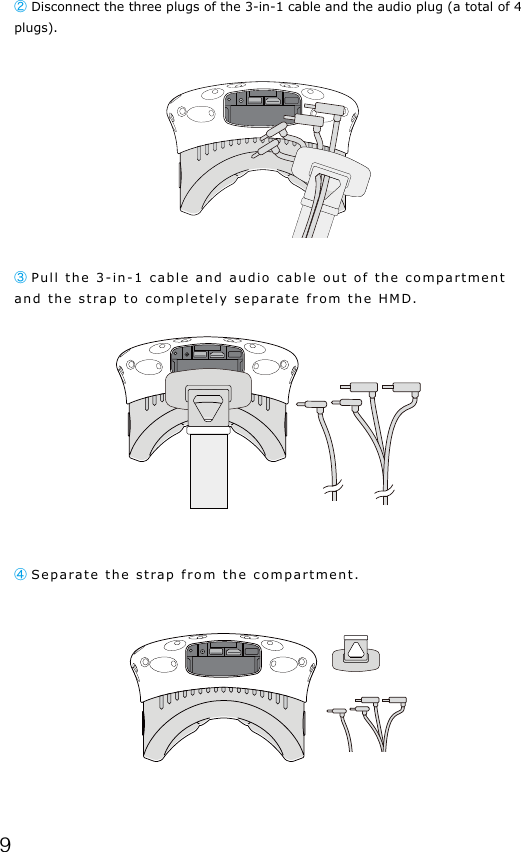
9② Disconnect the three plugs of the 3-in-1 cable and the audio plug (a total of 4 plugs). ③ Pull the 3-in-1 cable and audio cable out of the compartment and the strap to completely separate from the HMD.④ Separate the strap from the compartment.
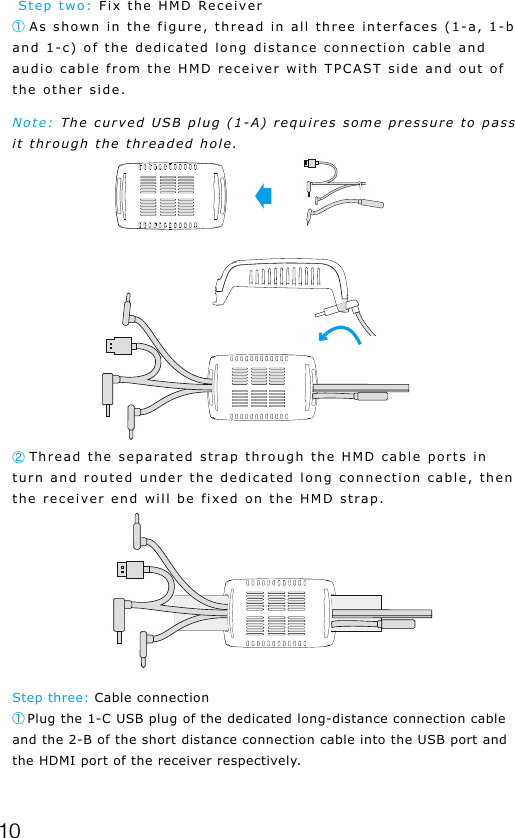
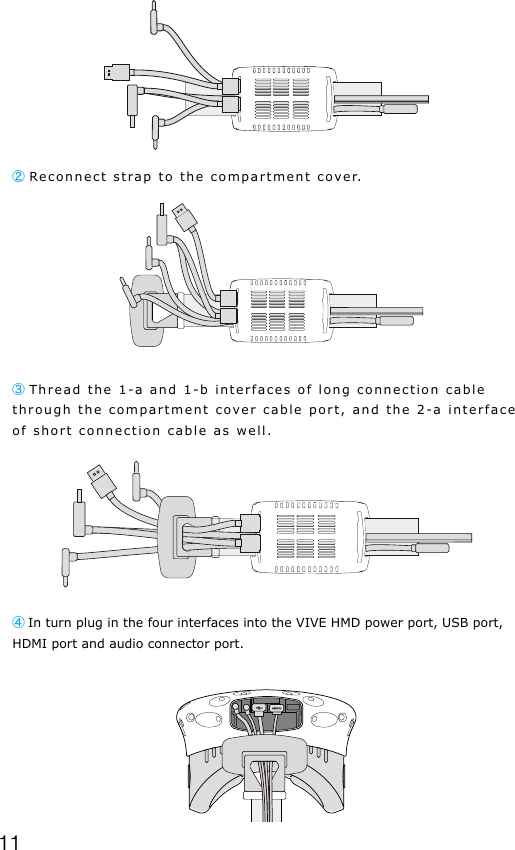
10 Step two: Fix the HMD Receiver① As shown in the figure, thread in all three interfaces (1-a, 1-b and 1-c) of the dedicated long distance connection cable and audio cable from the HMD receiver with TPCAST side and out of the other side.Note: The curved USB plug (1-A) requires some pressure to pass it through the threaded hole.Step three: Cable connection① Plug the 1-C USB plug of the dedicated long-distance connection cable and the 2-B of the short distance connection cable into the USB port and the HDMI port of the receiver respectively.② Thread the separated strap through the HMD cable ports in turn and routed under the dedicated long connection cable, then the receiver end will be fixed on the HMD strap.
11② Reconnect strap to the compartment cover.③ Thread the 1-a and 1-b interfaces of long connection cable through the compartment cover cable port, and the 2-a interface of short connection cable as well. ④In turn plug in the four interfaces into the VIVE HMD power port, USB port, HDMI port and audio connector port.
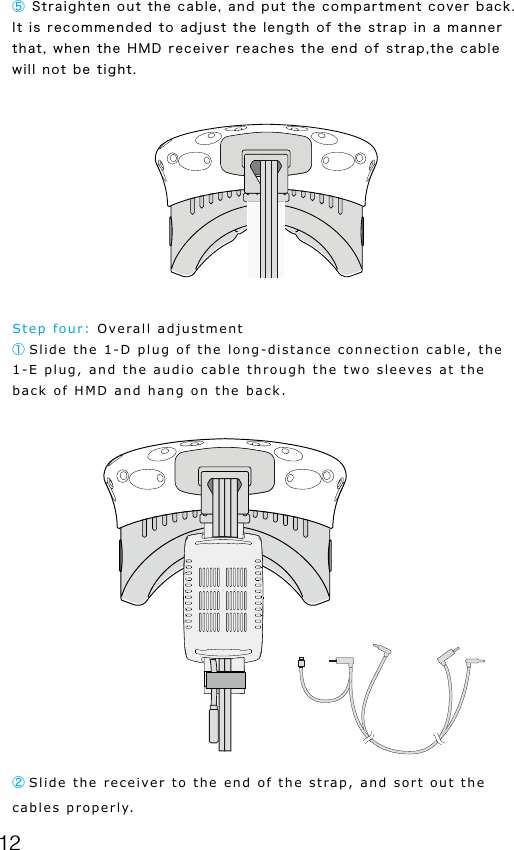
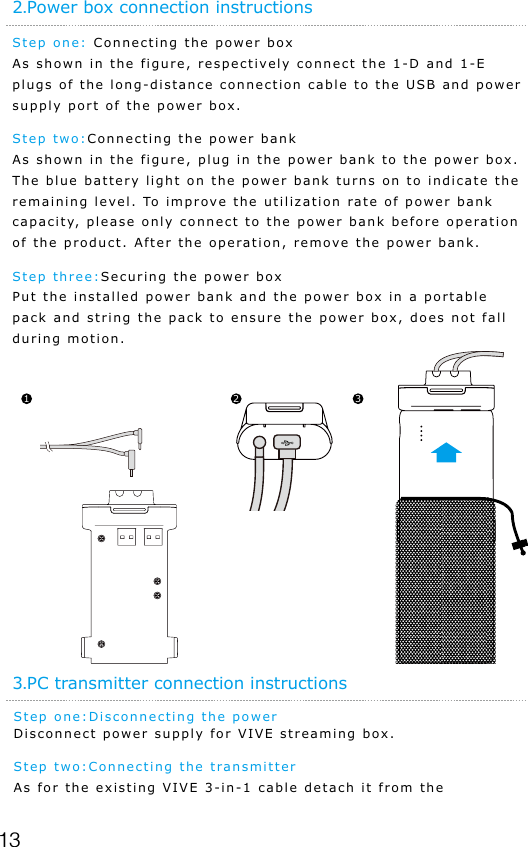
12⑤ Straighten out the cable, and put the compartment cover back. It is recommended to adjust the length of the strap in a manner that, when the HMD receiver reaches the end of strap,the cable will not be tight.      Step four: Overall adjustment① Slide the 1-D plug of the long-distance connection cable, the 1-E plug, and the audio cable through the two sleeves at the back of HMD and hang on the back.② Slide the receiver to the end of the strap, and sort out the cables properly.
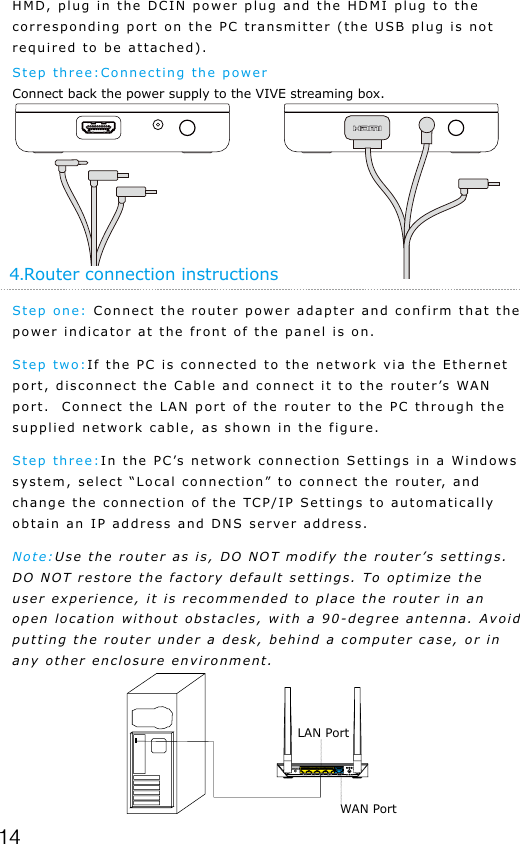
13Step one: Connecting the power boxAs shown in the figure, respectively connect the 1-D and 1-E plugs of the long-distance connection cable to the USB and power supply port of the power box.Step two:Connecting the power bank As shown in the figure, plug in the power bank to the power box. The blue battery light on the power bank turns on to indicate the remaining level. To improve the utilization rate of power bank capacity, please only connect to the power bank before operation of the product. After the operation, remove the power bank.Step three:Securing the power box Put the installed power bank and the power box in a portable pack and string the pack to ensure the power box, does not fall during motion.2.Power box connection instructions1 2 3Step one:Disconnecting the power Disconnect power supply for VIVE streaming box.Step two:Connecting the transmitter As for the existing VIVE 3-in-1 cable detach it from the 3.PC transmitter connection instructions
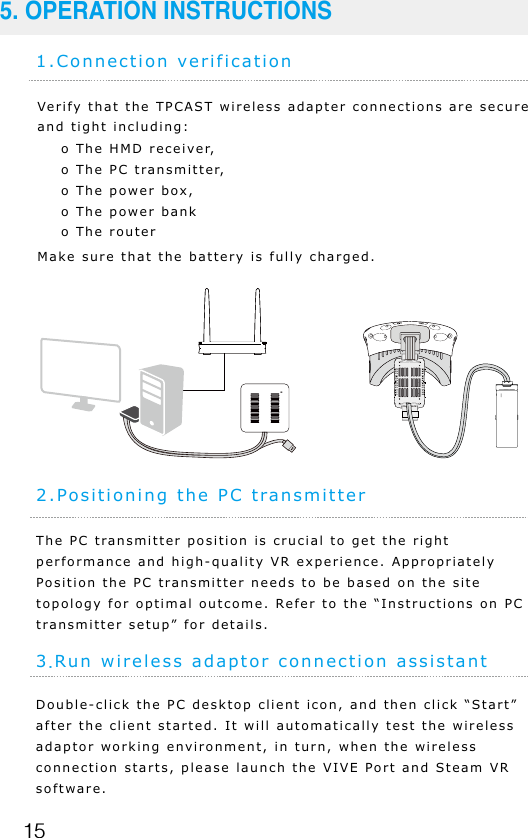
144.Router connection instructionsStep one: Connect the router power adapter and confirm that the power indicator at the front of the panel is on.Step two:If the PC is connected to the network via the Ethernet port, disconnect the Cable and connect it to the router’s WAN port.  Connect the LAN port of the router to the PC through the supplied network cable, as shown in the figure.Step three:In the PC’s network connection Settings in a Windows system, select “Local connection” to connect the router, and change the connection of the TCP/IP Settings to automatically obtain an IP address and DNS server address.Note:Use the router as is, DO NOT modify the router’s settings. DO NOT restore the factory default settings. To optimize the user experience, it is recommended to place the router in an open location without obstacles, with a 90-degree antenna. Avoid putting the router under a desk, behind a computer case, or in any other enclosure environment.HMD, plug in the DCIN power plug and the HDMI plug to the corresponding port on the PC transmitter (the USB plug is not required to be attached).Step three:Connecting the powerConnect back the power supply to the VIVE streaming box.LAN PortWAN Port
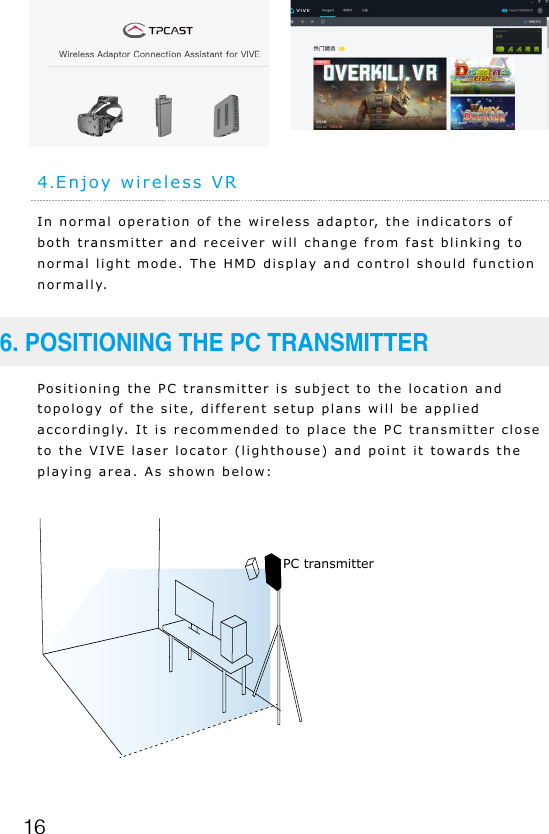
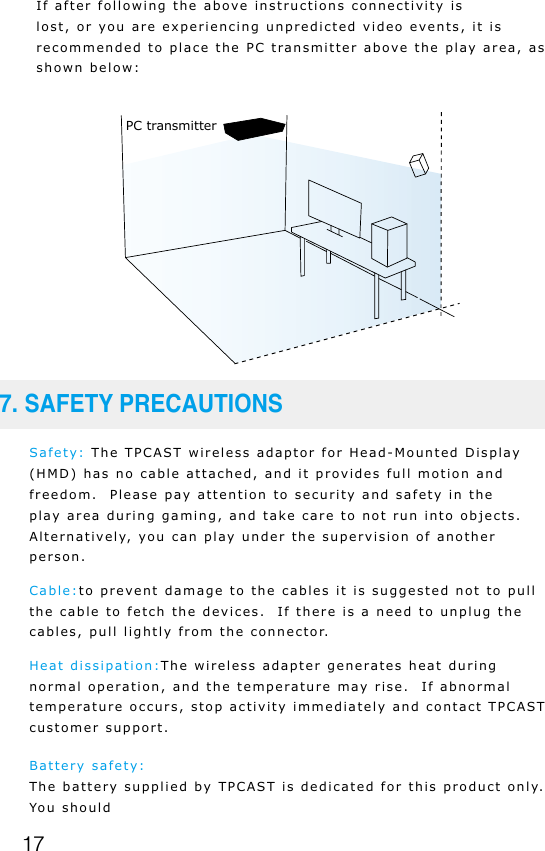
151.Connection verificationVerify that the TPCAST wireless adapter connections are secure and tight including:Make sure that the battery is fully charged.o The HMD receiver, o The PC transmitter, o The power box, o The power banko The router5. OPERATION INSTRUCTIONS2.Positioning the PC transmitterThe PC transmitter position is crucial to get the right performance and high-quality VR experience. Appropriately Position the PC transmitter needs to be based on the site topology for optimal outcome. Refer to the “Instructions on PC transmitter setup” for details.3.Run wireless adaptor connection assistantDouble-click the PC desktop client icon, and then click “Start” after the client started. It will automatically test the wireless adaptor working environment, in turn, when the wireless connection starts, please launch the VIVE Port and Steam VR software.
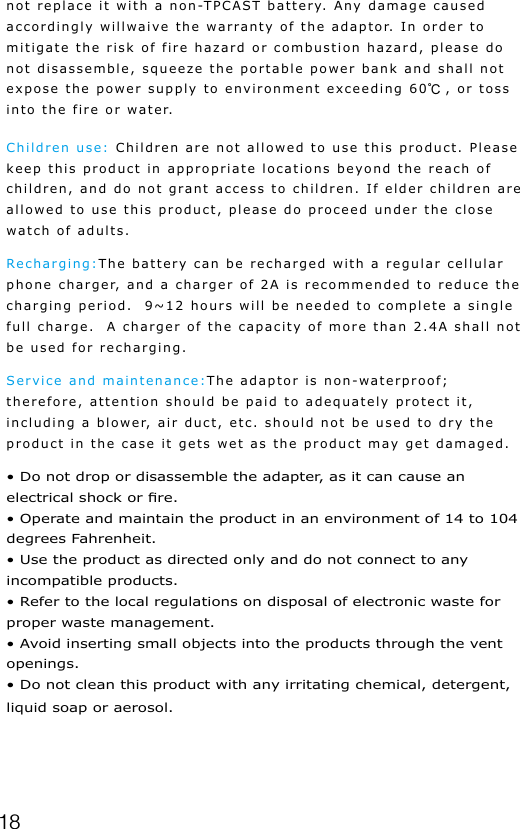
164.Enjoy wireless VRIn normal operation of the wireless adaptor, the indicators of both transmitter and receiver will change from fast blinking to normal light mode. The HMD display and control should function normally.Positioning the PC transmitter is subject to the location and topology of the site, different setup plans will be applied accordingly. It is recommended to place the PC transmitter close to the VIVE laser locator (lighthouse) and point it towards the playing area. As shown below:6. POSITIONING THE PC TRANSMITTERPC transmitter
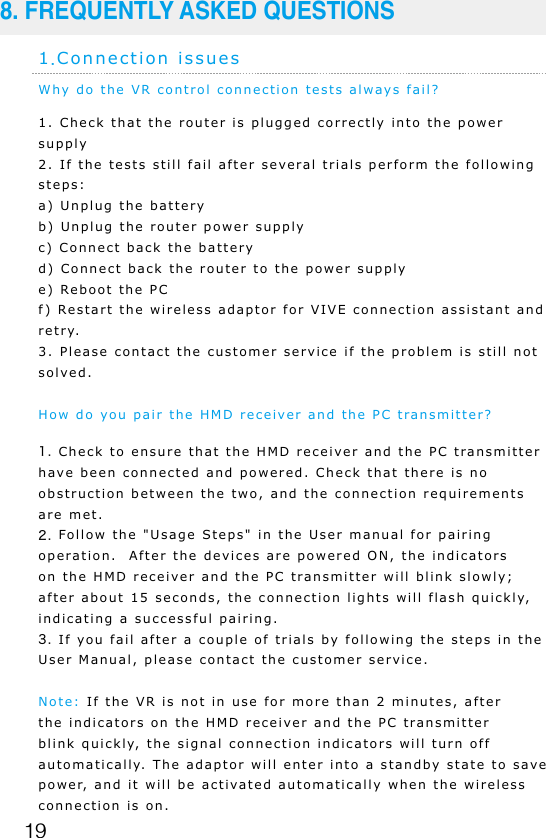
17If after following the above instructions connectivity is lost, or you are experiencing unpredicted video events, it is recommended to place the PC transmitter above the play area, as shown below:Safety: The TPCAST wireless adaptor for Head-Mounted Display (HMD) has no cable attached, and it provides full motion and freedom.  Please pay attention to security and safety in the play area during gaming, and take care to not run into objects.  Alternatively, you can play under the supervision of another person. Cable:to prevent damage to the cables it is suggested not to pull the cable to fetch the devices.  If there is a need to unplug the cables, pull lightly from the connector.Heat dissipation:The wireless adapter generates heat during normal operation, and the temperature may rise.  If abnormal temperature occurs, stop activity immediately and contact TPCAST customer support.Battery safety:The battery supplied by TPCAST is dedicated for this product only. You should7. SAFETY PRECAUTIONSPC transmitter
18not replace it with a non-TPCAST battery. Any damage caused accordingly willwaive the warranty of the adaptor. In order to mitigate the risk of fire hazard or combustion hazard, please do not disassemble, squeeze the portable power bank and shall not expose the power supply to environment exceeding 60℃, or toss into the fire or water.Children use: Children are not allowed to use this product. Please keep this product in appropriate locations beyond the reach of children, and do not grant access to children. If elder children are allowed to use this product, please do proceed under the close watch of adults.Recharging:The battery can be recharged with a regular cellular phone charger, and a charger of 2A is recommended to reduce the charging period.  9~12 hours will be needed to complete a single full charge.  A charger of the capacity of more than 2.4A shall not be used for recharging.Service and maintenance:The adaptor is non-waterproof; therefore, attention should be paid to adequately protect it, including a blower, air duct, etc. should not be used to dry the product in the case it gets wet as the product may get damaged.• Do not drop or disassemble the adapter, as it can cause an electrical shock or re.• Operate and maintain the product in an environment of 14 to 104 degrees Fahrenheit.• Use the product as directed only and do not connect to any incompatible products.• Refer to the local regulations on disposal of electronic waste for proper waste management.• Avoid inserting small objects into the products through the vent openings.• Do not clean this product with any irritating chemical, detergent, liquid soap or aerosol.
19Why do the VR control connection tests always fail?1. Check that the router is plugged correctly into the power supply2. If the tests still fail after several trials perform the following steps:a) Unplug the batteryb) Unplug the router power supplyc) Connect back the batteryd) Connect back the router to the power supplye) Reboot the PCf) Restart the wireless adaptor for VIVE connection assistant and retry. 3. Please contact the customer service if the problem is still not solved.How do you pair the HMD receiver and the PC transmitter?1. Check to ensure that the HMD receiver and the PC transmitter have been connected and powered. Check that there is no obstruction between the two, and the connection requirements are met.2. Follow the "Usage Steps" in the User manual for pairing operation.  After the devices are powered ON, the indicators on the HMD receiver and the PC transmitter will blink slowly; after about 15 seconds, the connection lights will flash quickly, indicating a successful pairing.3. If you fail after a couple of trials by following the steps in the User Manual, please contact the customer service.Note: If the VR is not in use for more than 2 minutes, after the indicators on the HMD receiver and the PC transmitter blink quickly, the signal connection indicators will turn off automatically. The adaptor will enter into a standby state to save power, and it will be activated automatically when the wireless connection is on.1.Connection issues8. FREQUENTLY ASKED QUESTIONS
20How do you connect the router and the PC to the Internet?1. Use the provided network cable to connect the LAN port of the router to the ethernet port on the PC.2. If the PC is connected to the Internet using a cable, then connect the existing cable to the router’s WAN port.3. If the PC is connected to the Internet wirelessly, please ensure the proper operation of the current wireless network (or standard wireless access), and then connect the router to the PC with the Ethernet cable, which should not influence the existing wireless connection.Why is a router included in the TPCAST adapter package? May I use my router?The TPCAST solution was set in a way that the supplied router is required.  The router connects the TPCAST wireless adapter to the HTC VIVE HMD and is responsible for transferring the information from the HMD to the PC.  The router is customized and optimized to work with the TPCAST wireless adapter.  To avoid connection issues, it is not recommended to use a different router.2. Abnormal problems during operationWhy does the controller vibrate or frequently relocates during normal operation?The controller’s vibration is the result of a busy network ambient, or it can be caused by wireless channel jam which impairs the wireless signal transmission.1. In order to address the issue first, check the router’s location. It is recommended to place the router in an open area or open stand. Avoid putting it in corners or behind the host computer.  It is also recommended to avoid obvious obstacles that block the router signal and the connectivity with the TPCAST adapter.2. If the controller continues to vibrate, go to the connectivity assistance and select, from the drop down menu, the option to switch the channel at the bottom right corner. You may try
21several channels. If the problem persists, please try placing the router in a different location.The connectivity assistant is reporting that all the components are connected properly, and StemVR is working well.  However, there no content playing on the HMD?1. Please check the receiver and the PC transmitter indicators. If the indicators are off, then check the TPCAST adapter connections including the battery.  Then Unplug the battery and wait for 10 seconds and plug it back.  Recheck the indicators, if both the indicators are in the fast blinking mode, manually shut off the steam VR, and reboot the Steam VR. Try to reboot the computer if the problem persists.2. If after 10 seconds, the signal indicator is still in the slow blinking mode, a)First, check if there are any obstacles between the receiver and transmittersb)Rematch the receiver end and transmitter. Refer to the “Usage Steps” section of the User manual for details.3. If the indicator lights are normally on, check if the short HDMI cable,  and the cable connecting the receiver of HMD and the HMD, are connected tightly. 4. If the problem is still not solved, please contact TPCAST customer service.After successfully connecting the wireless adaptor connection, I start Steam VR, and it displays that the system is not ready. Why do all the status icons of the devices, in Steam VR, are displayed as gray?This can be fixed by restarting the VIVE HMD.  Please follow the following steps: 1. Unplug and replug the power connector (1-B) of VIVE HMD2. Unplug and replug the power connector of the power box (1 - E) 3. If the problem is still not solved, please try rebooting the PC.Why does the display turn off during regular use?
22The screen may turn off because of an interruption of the video transmission.• First, check the battery level.• Second, If the battery is charged, it may be because of obstacles between the receiver and the transmitter. • If the signal indicator is in the fast blinking mode, wait until it reconnects. • If the display is still not connected, please disconnect and shut off the connection assistant and reboot the TPCAST VIVE adapter.Why all of sudden does the display turn gray with no image?A gray screen view is usually caused by disconnection of the VR wireless control. Please check if the battery is charged and if the router is powered and properly connected. Check the connection assistant for any warning information.• If the display is still not connected, please disconnect and shut off the connection assistant and reboot the TPCAST VIVE adapter.The connection is initiated, and the wireless connection assistant is invoked. However, the software is stuck in "system loading" mode, and the connection cannot be established. How do I handle this problem?Usually, this is due to improper installation of the TPCAST Connection Assitant software. Please uninstall the current Connection Assistant client, restart the PC, and then re-install the client. If the problem persists, please contact the customer service.The connection assistant is working properly, and the Steam VR is launched successfully. What should I do if suddenly, during a game, the connection breaks?Check the Connection Assistant for warning or messages and re-connect as instructed.1. If any messages popped out, click to confirm and wait during the testing process. Return to the home page and restart testing.2. If the connection is still broken, exit the connection assistant, unplug the battery, and reboot the system.After successfully connecting the TPACST adapter, color disorder
23and distortion is noticed, what is the cause and solution for that? Color disorder, blurring, and distortion is all caused by abnormal video transmission. Please verify that all the cable used are the original cables provided by TPACAST and Vive. Check that all the interfaces and all the connection are tightened and well connected.  Try to unplug and plug the HDMI cable connection at the PC end.  Verify the power connection to the HTV Vive streaming box, and unplug and plug it.  Last reboot the PC.  If the issue is not resolved, please contact TPCAST customer service.3.Other questionsWhy doesn't the camera of my HMD work?In the current version, this function is not supported. Can multiple TPCAST wireless adapters for VIVE be used in the same area at the same time?No, the TPCAST Consumer Edition (CE) version for VIVE is a personal/home version, and it supports just one single user.How long does a fully charged battery last?A Fully charged battery can last for about 5 hoursHow long will it take to charge a battery fully?TO charge the large battery, it takes about 9~12 hours with a 2A charger, with a charger lower than 2A it might take longer. Do not use a charger that is greater than 2.4A.Is it possible to hot-swap the battery during system operation? Yes, you can hot-swap the battery, a warning pop up will be displayed via the wireless Connection Assistant. Please select the “Wait to restore” option, and wait for about 2 minutes, and the system will restore the connection automatically.
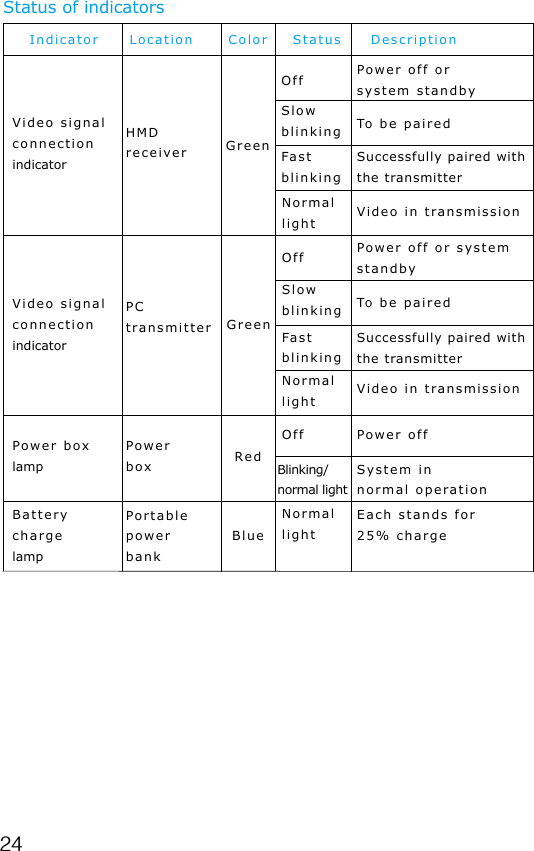
24IndicatorVideo signal connectionindicatorVideo signalconnectionindicatorHMDreceiverPower boxPower boxlampPortable power bankBatterychargelampPCtransmitterGreenGreenRedBlueOffOffOffSlowblinkingSlowblinkingFastblinkingBlinking/normal lightNormal lightNormal lightNormal lightPower off orsystem standbyPower off or systemstandbyTo be pairedTo be pairedSuccessfully paired withthe transmitterSuccessfully paired withthe transmitterVideo in transmissionVideo in transmissionSystem innormal operationEach stands for25% chargePower offLocation Color Status DescriptionStatus of indicatorsFastblinking
25Please read the user guide before operating the product.Update the soft copy of the user guide on a regular basis to improve the accuracy and completeness.  The latest version can be found at www.tpcastvr.comTPCAST customer service: 1-888-466-2479

Navigation menu