CCT Tech Advanced MA300 2.4GHz 40 Channel Analog Modulation Cordless Phone User Manual MA360Book
CCT Tech Advanced Products Limited 2.4GHz 40 Channel Analog Modulation Cordless Phone MA360Book
Contents
User Manual second half
27
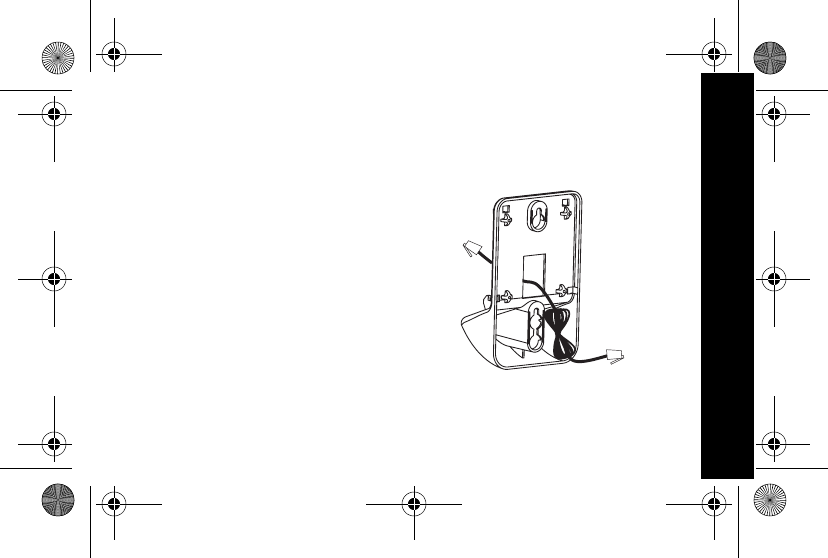
Installing the MA360 Series Cordless Phone On a Wall
➊Remove the twist-tie
from the phone cord. Do
not unfold the cord.
➋Untuck both ends of the
cord.
➌Hold the folded cord at
the center and insert it
into the back of the
bracket.
Getting Started
MA360Book.book Page 27 Thursday, May 2, 2002 3:59 PM
28
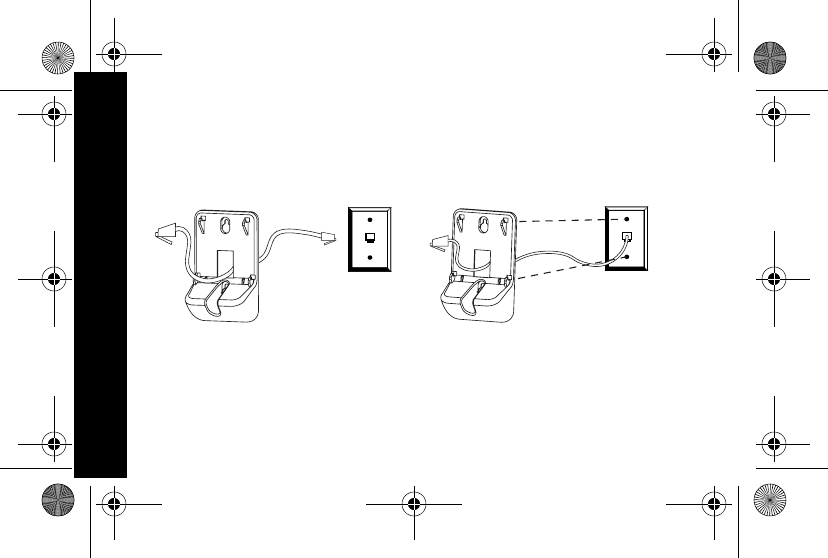
➍Plug the phone cord into the phone jack on the wall.
➎Hang the bracket on the phone wall plate.
Getting Started
MA360Book.book Page 28 Thursday, May 2, 2002 3:59 PM
29
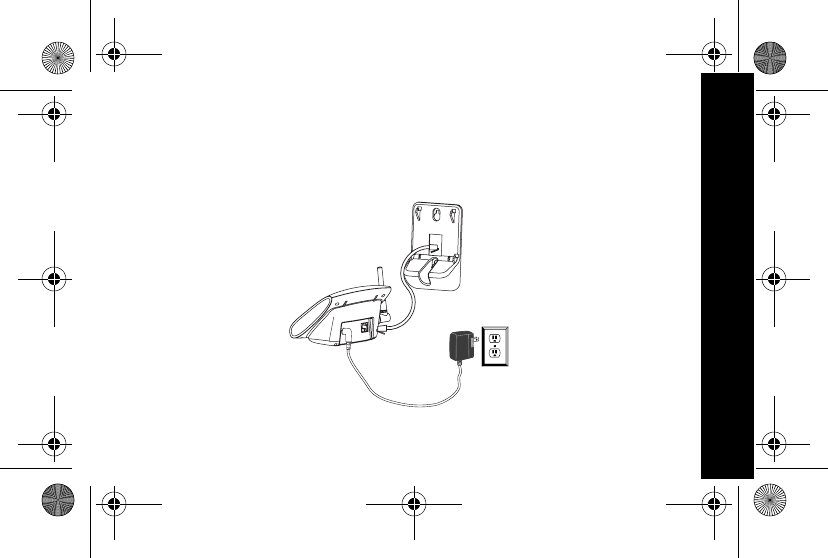
➏Plug the other end of the phone cord into the jack on
the back of the base.
➐Plug the power cord into a power outlet if it is not
already plugged in.
Getting Started
MA360Book.book Page 29 Thursday, May 2, 2002 3:59 PM
30
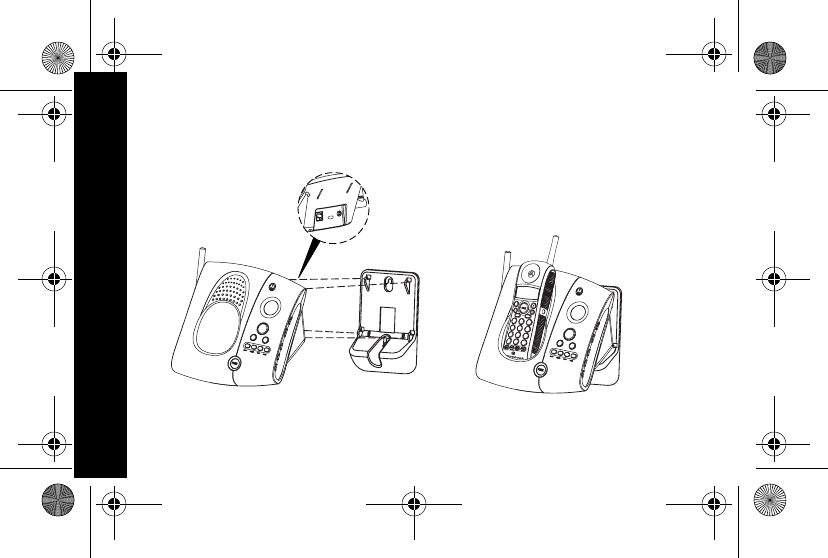
➑Insert the four tabs on the wall mount into the four slots
on the back of the base and push down.
r
e
v
i
e
w
s
k
i
p
charge/
in use
mem mute
1
2
3
4
56
7
8
0
*#
9
r
e
v
i
e
w
s
k
i
p
charge/
in use
Getting Started
MA360Book.book Page 30 Thursday, May 2, 2002 3:59 PM
31
Setting Up the Phone
➊Press flash.
➋Set the language:
\English
]French
^Spanish
➌Press flash.
➍If you live in an area with 7-digit dialing:
enter your 3-digit area code and press flash.
If you live in an area with 10-digit dialing (area
code + 7-digit telephone number):
press flash to go to the next prompt (do not enter your
area code).
Getting Started
MA360Book.book Page 31 Thursday, May 2, 2002 3:59 PM
32
➎Set the ringer tone:
\Ring tone 1
]Ring tone 2
^Musical
Tip: Each tone plays as you press the number key.
➏Press flash.
➐Press: \ for tone operation or
] for pulse operation
➑Press flash.
Tip: If you select pulse, you can still use touch tone
menu systems. To activate touch tone temporarily for
one call, press Ö.
Getting Started
MA360Book.book Page 32 Thursday, May 2, 2002 3:59 PM
33
➒At the Set to Default? prompt, press:
] (no) to save the settings you just entered. Your
settings will be retained after you turn the phone off
\ (yes) to restore the factory default settings.
➓Press flash.
Now that you have set up your phone, read the next section
of this guide for information on how to use your phone and
answering machine.
Getting Started
MA360Book.book Page 33 Thursday, May 2, 2002 3:59 PM
34
CAUTION
The long-term characteristics or the possible physiological
effects of Radio Frequency (RF) electromagnetic fields have
not been evaluated by UL.
If you are concerned with the risk of RF exposure, you may
want to limit the duration of your calls and position the
antenna as far away from your body as is practical.
Getting Started
MA360Gettingstarted.fm Page 34 Thursday, May 2, 2002 4:20 PM
35
How to Use
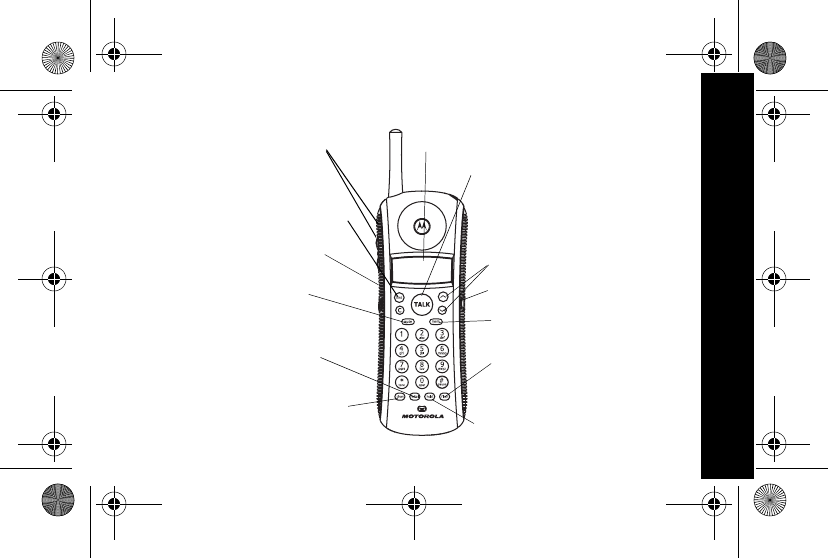
Basic Functions: Phone
Format number to
include/omit area
code or 1+ area code
6
lmn
Talk: Make or answer
a call, hang up
Earphone jack
Flash: Use for call
waiting and 3-way
calling
Turn ringer on (up)
or off (down)
Adjust handset
volume
Chan: Use if you hear
interference or static
Redial last called
number
Mute or unmute
microphone,
delete phone numbers
Place call on hold
Scroll
Mem: Store phone
number in memory
View caller ID records
MA360Book.book Page 35 Thursday, May 2, 2002 3:59 PM
36
How to Use
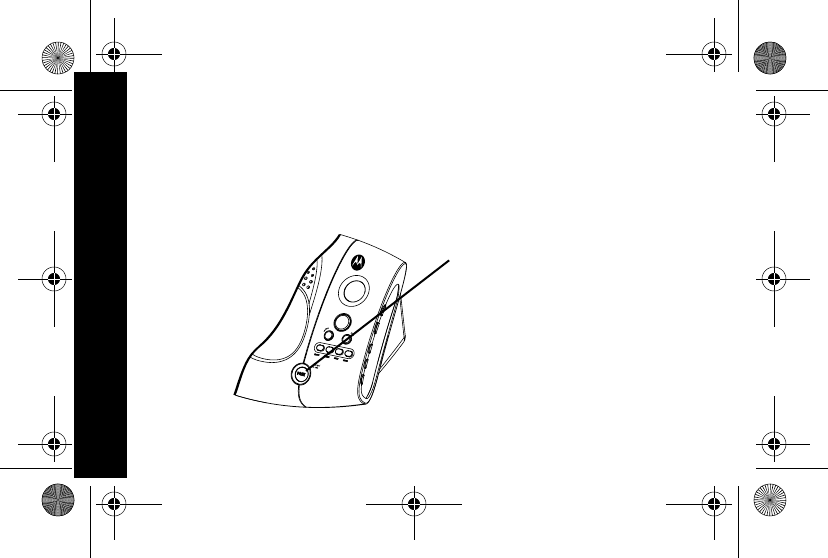
How to Locate a Lost Handset
➊Press page.
➋Follow the sound to locate the lost handset.
Tip: No need to hurry. The handset will beep for 2 minutes.
➌Press page again to stop the beeping.
Press to page the
person carrying the
handset or to locate
a lost handset.
Press again to
cancel the page (or
press Talk on the
handset).
MA360Book.book Page 36 Thursday, May 2, 2002 3:59 PM
37
How to Use
Storing a Number into Memory
You can store 10 phone numbers into memory with up to
20 digits each.
➊Turn the phone off.
➋Press mem.
➌Press any number key (Ñ through É) to select the
memory location.
➍Press mem.
➎Enter the name you want to store. Use the letters on
the keypad to write the name. For example, to create a
letter “E”, press ^ twice.
Tip: Press \ for a space. Also, most keys have a
punctuation mark as the fourth press.
➏Press mem.
MA360Book.book Page 37 Thursday, May 2, 2002 3:59 PM
38
How to Use
➐Enter the phone number you want to store, or press
redial to store the last number you dialed.
➑Press mem.
Tip: To insert a pause in the dial sequence (for example, if
you have to dial “9” then wait for a dial tone), press
the # key twice (a “P” appears).
Storing a Caller ID Number into Memory
➊Using ò and ú, scroll to the record you want to store.
➋Press mem.
➌Press any number key (Ñ through É) to select the
memory location.
➍If there was already a number in that memory location,
press mem to replace the old number with the new
number. If the memory location was empty, this step is
not needed.
MA360Book.book Page 38 Thursday, May 2, 2002 3:59 PM
39
How to Use
Dialing a Number from Memory
➊Press â.
➋Press mem.
➌Press the number key (Ñ through É) to select the
memory location of the phone number you want to call.
Tip: You can use memory numbers to simplify calling card
calls and other calls that require multiple strings of
numbers.
For example, if you stored your calling card number
in memory location 1, your calling card password in
location 2, and the phone number you want to call in
location 3, you would press the following keys to call
the number in location 3:
â mem \ mem ] mem ^
MA360Book.book Page 39 Thursday, May 2, 2002 3:59 PM
40
How to Use
Storing and Calling Emergency Numbers
When storing an emergency number (such as 911) into
memory or making a test call to an emergency number
stored in memory, remain on the line and briefly explain to
the dispatcher the reason for the call. Only do this, if
necessary, in off-peak hours such as early morning or late
evening.
Reviewing and Deleting Numbers from Memory
➊Press mem.
➋Using ò and ú, scroll to the number you want to
delete.
➌Press mute.
➍When DELETE ENTRY? is displayed, press mute to
delete the entry or ™ to keep the entry.
MA360Book.book Page 40 Thursday, May 2, 2002 3:59 PM
41
How to Use
Reviewing Caller ID Records
When you receive a call, the caller ID screen shows one of
these messages:
• NEW: You received a new call that has not been reviewed.
• REPT: You received a call that you have received on caller
ID before.
To scroll through caller ID calls, press ò or ú.
Dialing a Number from Caller ID
➊Turn the phone off.
➋Using ò and ú, scroll to the number you want to dial.
➌To change from 7-digit dialing to 10-digit dialing or long
distance format, press the frmt key until the desired
format is displayed (7, 10, or 11).
➍Press â.
MA360Book.book Page 41 Thursday, May 2, 2002 3:59 PM
42
How to Use
Deleting Caller ID Records
➊Using ò and ú, scroll to the call you want to delete.
➋Press mute.
➌When Delete Call ID? is displayed, press mute
to delete the entry or ™ to keep the entry.
To delete all caller ID records:
➊Using ò and ú, scroll a caller ID record.
➋Press and hold mute until Delete All? is
displayed.
➋Press mute to delete all caller ID records or ™ to
keep them.
MA360Book.book Page 42 Thursday, May 2, 2002 3:59 PM
43
How to Use
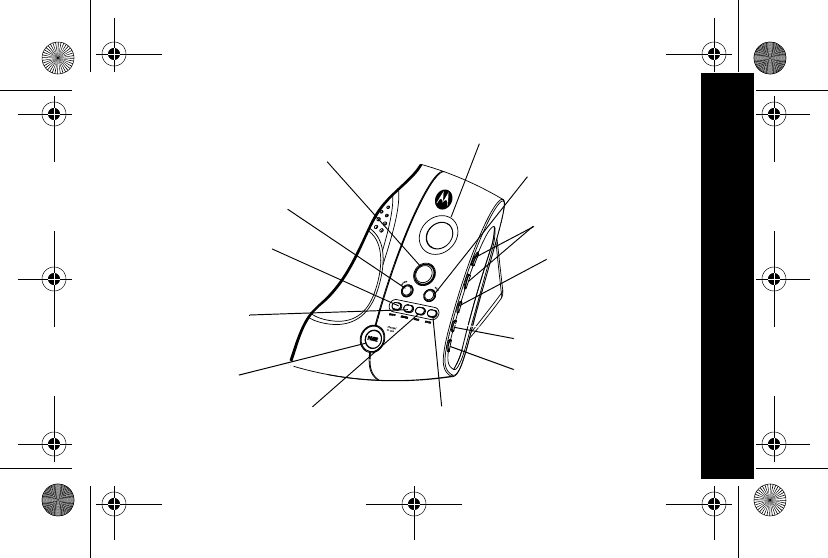
Basic Functions: Answering Machine
Play a message. Stop
message playback. Skip to next
message
Review message. Adjust volume
Check day
and time.
Change day
of week.
Change the
minutes
Message counter
Turn answering
machine
on or off.
Record and
listen to
announcement
Record a voice memo Erase a message
Page a lost
handset
Change the hour
MA360Book.book Page 43 Thursday, May 2, 2002 3:59 PM
44
How to Use
Recording an Outgoing Announcement
➊Press and hold annce. The base beeps and the
display flashes.
➋Record the message you want callers to hear.
➌Release annce. The message replays.
To return to the default announcement, briefly press annce.
As your recorded message plays, press erase to delete it.
Tip: You can review your announcement by briefly
pressing annce.
MA360Book.book Page 44 Thursday, May 2, 2002 3:59 PM
45
How to Use
Setting the Day and Time
➊Press and hold day/check. The base announces the
days of the week.
➋Release day/check when you hear the current day.
The base repeats the day and time.
➌Press and hold hour. The base announces the hours
of the day.
➍Release hour when you hear the current hour. The
base repeats the day and time.
➎Press and hold min. The base announces the minutes
of the hour, first in one-minute increments then quicker
in five-minute increments.
➏Release min when you hear the current minute. The
base repeats the day and time.
MA360Book.book Page 45 Thursday, May 2, 2002 3:59 PM
46
How to Use
Changing Your Security Code
➊Make sure the phone is off.
➋Press chan on the handset.
➌Press Ö followed by the three-digit security code you
want to enter.
➍Press Ö again. The base announces the new code.
Note: The default security code is 123.
Recording a Voice Memo
➊Press and hold memo. The base beeps.
➋While still holding down the memo button, record your
memo.
➌Release memo when you are finished recording. The
answering machine saves the memo as a message,
then beeps.
MA360Book.book Page 46 Thursday, May 2, 2002 3:59 PM
47
How to Use
Checking Messages from the Handset
➊Make sure the handset is off.
➋Press chan. The phone plays a voice menu.
➌Press the button for the action you want to perform:
ÑErase message.
\Review message.
]Play or stop playing message.
^Skip message.
_Turn the answering machine on or off.
}Repeat the voice menu.
MA360Book.book Page 47 Thursday, May 2, 2002 3:59 PM
48
How to Use
Checking Messages from Another Phone
➊Dial the phone number of this phone.
➋When you hear the announcement, press the security
code (the default security code is 123).
Tip: If you are using pulse dialing, press Ö first, then
press the security code.
If someone uses the phone while you are checking your
messages from another number, remote answering
machine functions are canceled.
MA360Book.book Page 48 Thursday, May 2, 2002 3:59 PM
49
How to Use
Screening Messages
You can listen to a message while a caller is leaving the
message on your answering machine.
➊While the caller is leaving the message, press chan on
the handset.
➋To interrupt the message and talk to the caller,
press â.
Erasing Messages
To erase a message, press erase while listening to the
message.
To erase all messages after you have listened to them,
press and hold erase for two seconds. The base beeps and
erases all messages.
MA360Book.book Page 49 Thursday, May 2, 2002 3:59 PM
50
Troubleshooting
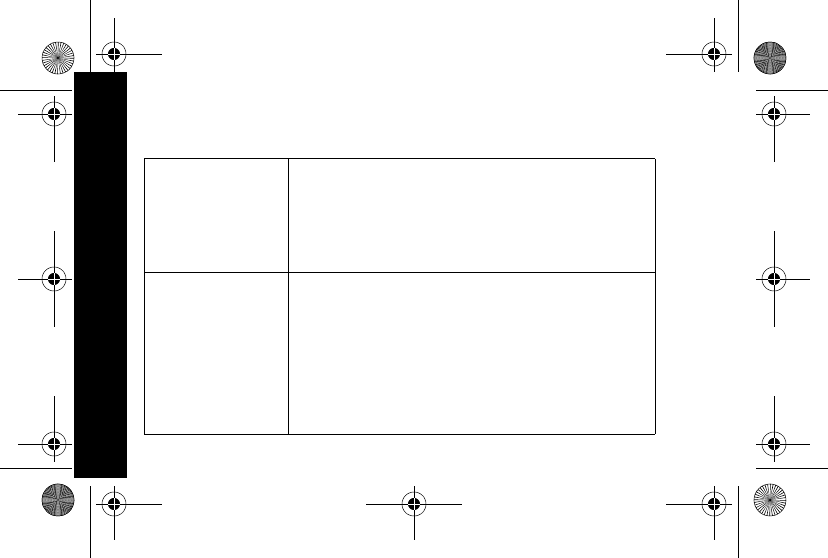
What to do if...
The phone
doesn’t work at
all (no lights,
no dial tone)
• Check the power and phone
connections. Is the power cable
plugged in at both ends? Phone cable?
• Check the battery. Is it charged? Does
it fit properly?
No dial tone • Check the items listed above.
• Move closer to the base.
• Verify dial tone using another phone. If
you have no dial tone on that phone,
contact your phone company.
• Disconnect the phone and reconnect it
at a different phone and power outlet.
Troubleshooting
MA360Book.book Page 50 Thursday, May 2, 2002 3:59 PM
51
You can’t
receive calls
• Check the battery. Is it charged? Does
it fit properly?
• Verify that the handset ringer is turned
on.
• Move closer to the base.
• Unplug other phones. You may have too
many phones on your telephone line to
allow all of them to ring.
Troubleshooting
MA360Book.book Page 51 Thursday, May 2, 2002 3:59 PM
52
The signal is
weak or has
noise or static
• Press chan to select a different
channel.
• Check the battery and power.
• Move closer to the base.
• Move the base to a different power
outlet (especially if the phone is sharing
an outlet with an appliance).
You hear other
calls on your
line
• Press chan to select a different
channel.
• Hang up. Place the handset into the
base. Wait 30 seconds then try again.
• Disconnect the base from power and
phone.
Troubleshooting
MA360Book.book Page 52 Thursday, May 2, 2002 3:59 PM
53
The battery
won’t charge
• Check the base. Is it properly
connected? Are its contacts clean and
dry?
• Check the battery contacts. Make sure
the battery is connected properly.
• Is it an old battery? Replace the battery.
The battery
loses charge
faster than
normal
• Is it a new battery? A new battery needs
to be charged at least 12 hours before
use to maintain normal talk time.
• Is it an old battery? Replace the battery.
Troubleshooting
Troubleshooting
MA360Book.book Page 53 Thursday, May 2, 2002 3:59 PM
54
Motorola Limited Warranty
for Consumer Products, Accessories, and Software
Purchased in the United States or Canada
What Does this Warranty Cover?
Subject to the exclusions contained below, Motorola, Inc. warrants its
telephones and consumer two-way radios that operate via Family
Radio Service or General Mobile Radio Service (“Products”),
Motorola-branded or certified accessories sold for use with these
Products (“Accessories”) and Motorola software contained on CD-
Roms or other tangible media and sold for use with these Products
(“Software”) to be free from defects in materials and workmanship
under normal consumer usage for the period(s) outlined below. This
limited warranty is a consumer’s exclusive remedy, and applies as
follows to new Motorola Products, Accessories and Software
purchased by consumers in the United States or Canada, which are
accompanied by this written warranty:
Warranty
MA360Book.book Page 54 Thursday, May 2, 2002 3:59 PM
55
Warranty
Products and Accessories
as defined above, unless otherwise pro-
vided for below. Length of coverage: one (1) year
from the date of pur-
chase by the first consumer purchaser of the product unless otherwise
provided for below.
•
Decorative Accessories and Cases.
Decorative covers, bezels,
PhoneWrap™ covers and cases. Length of coverage: limited lifetime
warranty for the lifetime of ownership by the first consumer purchaser
of the product.
•
Monaural Headsets.
Ear buds and boom headsets that transmit
mono sound through a wired connection. Length of coverage: limited
lifetime warranty for the lifetime of ownership by the first consumer
purchaser of the product.
•
Consumer Two-Way Radio Accessories.
Length of coverage:
Ninety (90) days from the date of purchase by the first consumer
purchaser of the product.
Warranty
MA360Book.book Page 55 Thursday, May 2, 2002 3:59 PM
56
• Products and Accessories that are Repaired or Replaced.
Length of coverage: The balance of the original warranty or for ninety
(90) days from the date returned to the consumer, whichever is
longer.
Software.
Applies only to physical defects in the media that embodies
the copy of the software (e.g. CD-ROM, or floppy disk). Length of
coverage: ninety (90) days
from the date of purchase.
Exclusions
Normal Wear and Tear.
Periodic maintenance, repair and
replacement of parts due to normal wear and tear are excluded from
coverage.
Batteries.
Only batteries whose fully charged capacity falls below 80%
of their rated capacity and batteries that leak are covered by this
limited warranty.
Warranty
MA360Book.book Page 56 Thursday, May 2, 2002 3:59 PM
57
Warranty
Abuse & Misuse.
Defects or damage that result from: (a) improper
operation, storage, misuse or abuse, accident or neglect, such as
physical damage (cracks, scratches, etc.) to the surface of the product
resulting from misuse; (b) contact with liquid, water, rain, extreme
humidity or heavy perspiration, sand, dirt or the like, extreme heat, or
food; (c) use of the Products or Accessories for commercial purposes
or subjecting the Product or Accessory to abnormal usage or
conditions; or (d) other acts which are not the fault of Motorola, are
excluded from coverage.
Use of Non-Motorola Products and Accessories.
Defects or
damage that result from the use of Non-Motorola branded or certified
Products, Accessories, Software or other peripheral equipment are
excluded from coverage.
Unauthorized Service or Modification.
Defects or damages
resulting from service, testing, adjustment, installation, maintenance,
Warranty
MA360Book.book Page 57 Thursday, May 2, 2002 3:59 PM
58
alteration, or modification in any way by someone other than Motorola,
or its authorized service centers, are excluded from coverage.
Altered Products.
Products or Accessories with (a) serial numbers or
date tags that have been removed, altered or obliterated; (b) broken
seals or that show evidence of tampering; (c) mismatched board serial
numbers; or (d) nonconforming or non-Motorola housings, or parts,
are excluded from coverage.
Communication Services.
Defects, damages, or the failure of
Products, Accessories or Software due to any communication service
or signal you may subscribe to or use with the Products, Accessories
or Software is excluded from coverage.
Software Embodied in Physical Media.
No warranty is made that the
software will meet your requirements or will work in combination with
any hardware or software applications provided by third parties, that
the operation of the software products will be uninterrupted or error
free, or that all defects in the software products will be corrected.
Warranty
MA360Book.book Page 58 Thursday, May 2, 2002 3:59 PM
59
Warranty
Software NOT Embodied in Physical Media.
Software that is not
embodied in physical media (e.g. software that is downloaded from the
internet), is provided
“as is” and without warranty.
Who is Covered
This warranty extends to the first end-user purchaser, only.
What will Motorola Do?
Motorola, at its option, will at no charge repair, replace or refund the
purchase price of any Products, Accessories or Software that does not
conform to this warranty. We may use functionally equivalent
reconditioned/refurbished/pre-owned or new Products, Accessories or
parts. No data, software or applications added to your Product,
Accessory or Software, including but not limited to personal contacts,
games and ringer tones, will be reinstalled. To avoid losing such data,
software and applications please create a back up prior to requesting
service.
Warranty
MA360Book.book Page 59 Thursday, May 2, 2002 3:59 PM
60
How to Get Warranty Service or Other Information
For accessories and software, please call the telephone number
designated above for the product with which they are used. You will
receive instructions on how to ship the Products, Accessories or
Software, at your expense, to a Motorola Authorized Repair Center.
To obtain service, you must include: (a) a copy of your receipt, bill of
sale or other comparable proof of purchase; (b) a written description of
the problem; (c) the name of your service provider, if applicable; (d) the
name and location of the installation facility (if applicable) and, most
importantly; (e) your address and telephone number.
In the USA, call: In Canada, call:
1-800-353-2729 1-800-461-4575
TTY 1-888-390-6456 TTY 1-888-390-6456
Warranty
MA360Book.book Page 60 Thursday, May 2, 2002 3:59 PM
61
Warranty
What Other Limitations Are There?
ANY IMPLIED WARRANTIES, INCLUDING WITHOUT LIMITATION THE
IMPLIED WARRANTIES OF MERCHANTABILITY AND FITNESS FOR A
PARTICULAR PURPOSE, SHALL BE LIMITED TO THE DURATION OF THIS
LIMITED WARRANTY, OTHERWISE THE REPAIR, REPLACEMENT, OR
REFUND AS PROVIDED UNDER THIS EXPRESS LIMITED WARRANTY IS
THE EXCLUSIVE REMEDY OF THE CONSUMER, AND IS PROVIDED IN
LIEU OF ALL OTHER WARRANTIES, EXPRESS OF IMPLIED. IN NO EVENT
SHALL MOTOROLA BE LIABLE, WHETHER IN CONTRACT OR TORT
(INCLUDING NEGLIGENCE) FOR DAMAGES IN EXCESS OF THE
PURCHASE PRICE OF THE PRODUCT, ACCESSORY OR SOFTWARE,
OR FOR ANY INDIRECT, INCIDENTAL, SPECIAL OR CONSEQUENTIAL
DAMAGES OF ANY KIND, OR LOSS OF REVENUE OR PROFITS, LOSS OF
BUSINESS, LOSS OF INFORMATION OR DATA, SOFTWARE OR
APPLICATIONS OR OTHER FINANCIAL LOSS ARISING OUT OF OR IN
CONNECTION WITH THE ABILITY OR INABILITY TO USE THE
PRODUCTS, ACCESSORIES OR SOFTWARE TO THE FULL EXTENT
THESE DAMAGES MAY BE DISCLAIMED BY LAW.
Warranty
MA360Book.book Page 61 Thursday, May 2, 2002 3:59 PM
62
Some states and jurisdictions do not allow the limitation or
exclusion of incidental or consequential damages, or limitation
on the length of an implied warranty, so the above limitations or
exclusions may not apply to you. This warranty gives you specific
legal rights, and you may also have other rights that vary from
state to state or from one jurisdiction to another.
Laws in the United States and other countries preserve for Motorola
certain exclusive rights for copyrighted Motorola software such as the
exclusive rights to reproduce and distribute copies of the Motorola
software. Motorola software may only be copied into, used in, and
redistributed with, the Products associated with such Motorola
software. No other use, including without limitation disassembly of
such Motorola software or exercise of the exclusive rights reserved for
Motorola, is permitted.
Warranty
MA360Book.book Page 62 Thursday, May 2, 2002 3:59 PM
MA360Book.book Page 63 Thursday, May 2, 2002 3:59 PM
6881040B55-O
@6881040B55@
motorola.com
MA360Book.book Page 64 Thursday, May 2, 2002 3:59 PM