CCT Tech Advanced SD7581 5.8GHz FHSS Cordless Phone w/ CID, Spkphone, DAM User Manual SD4580English
CCT Tech Advanced Products Limited 5.8GHz FHSS Cordless Phone w/ CID, Spkphone, DAM SD4580English

Contents

User Manual
  For a large-print version of this guide, or for product-related questions, visit us online at:www.motorola.com/cordlessOr phone us at:•1-800-353-2729 U.S.A.•1-800-461-4575 Canada•1-888-390-6456 TTY (Text Telephone)Copyright © 2005 Motorola, Inc. All rights reserved. No part of this publication may be reproduced in any form or by any means or used to make any derivative work (such as translation, transformation or adaptation) without written permission from Motorola, Inc.Motorola reserves the right to revise this publication and to make changes in content from time to time without obligation on the part of Motorola to provide notification of such revision or change. Motorola provides this guide without warranty of any kind, either implied or expressed, including but not limited to, the implied warranties of merchantability and fitness for a particular purpose. Motorola may make improvements or changes in the product(s) described in this manual at any time.MOTOROLA, and the Stylized M Logo, are registered in the U.S. Patent and Trademark Office. All other product or service names are the property of their respective owners.SD4580English.book  Page i  Thursday, August 18, 2005  11:19 AMUNCONTROLLEDDOCUMENT
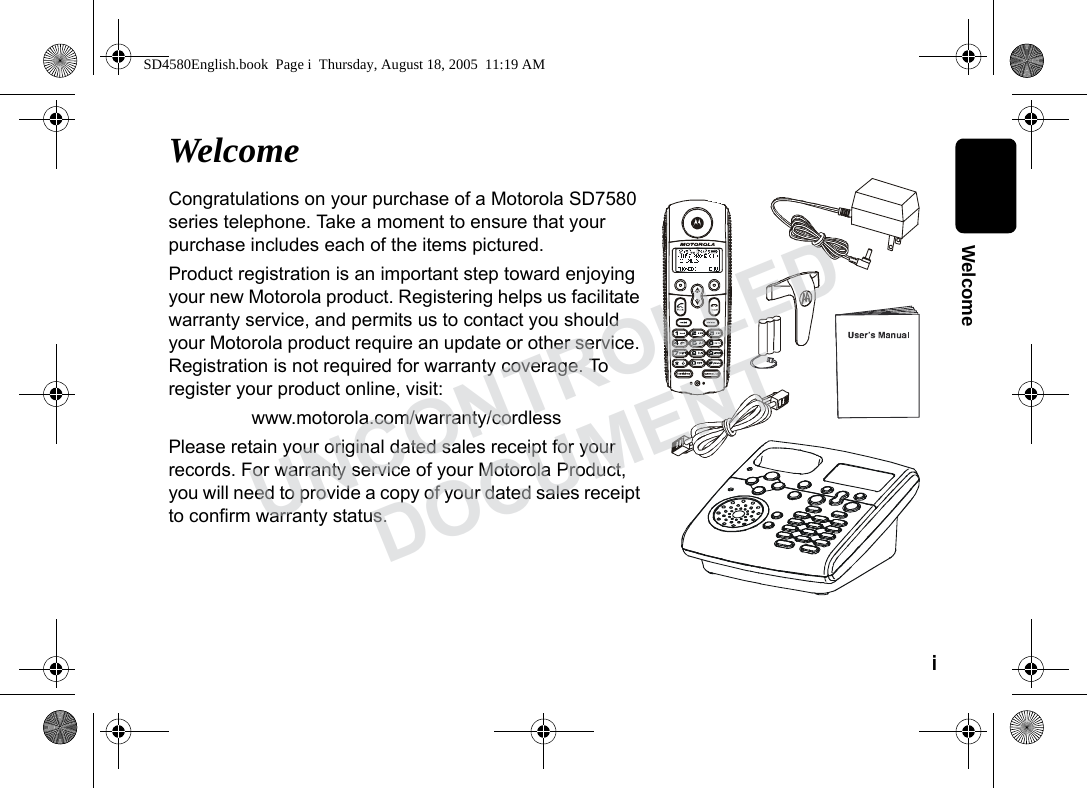
i  WelcomeWelcomeCongratulations on your purchase of a Motorola SD7580 series telephone. Take a moment to ensure that your purchase includes each of the items pictured. Product registration is an important step toward enjoying your new Motorola product. Registering helps us facilitate warranty service, and permits us to contact you should your Motorola product require an update or other service. Registration is not required for warranty coverage. To register your product online, visit:www.motorola.com/warranty/cordlessPlease retain your original dated sales receipt for your records. For warranty service of your Motorola Product, you will need to provide a copy of your dated sales receipt to confirm warranty status. SD4580English.book  Page i  Thursday, August 18, 2005  11:19 AMUNCONTROLLEDDOCUMENT
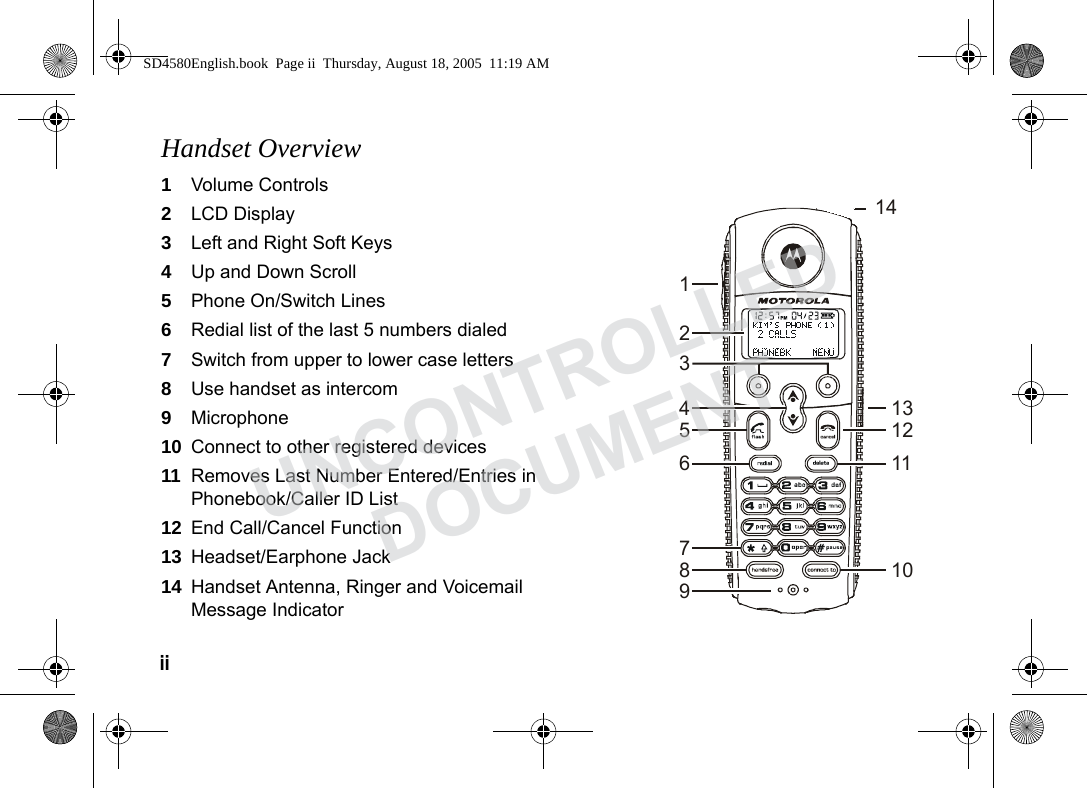
ii  Handset Overview1Volume Controls 2LCD Display3Left and Right Soft Keys4Up and Down Scroll 5Phone On/Switch Lines6Redial list of the last 5 numbers dialed7Switch from upper to lower case letters8Use handset as intercom9Microphone10 Connect to other registered devices 11 Removes Last Number Entered/Entries in Phonebook/Caller ID List12 End Call/Cancel Function13 Headset/Earphone Jack14 Handset Antenna, Ringer and Voicemail Message Indicator 1243568971413111210SD4580English.book  Page ii  Thursday, August 18, 2005  11:19 AMUNCONTROLLEDDOCUMENT
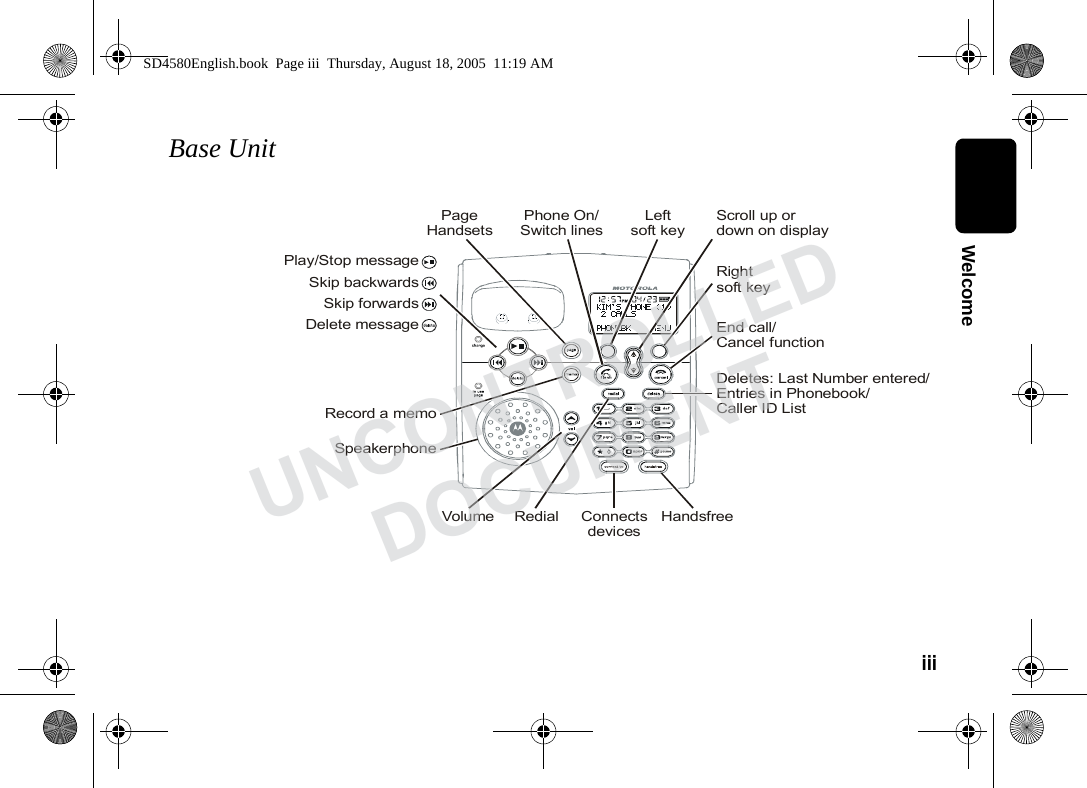
iii  WelcomeBase UnitSpeakerphoneLeftsoft keyRedialDeletes: Last Number entered/Entries in Phonebook/Caller ID ListPhone On/Switch linesEnd call/Cancel functionScroll up ordown on displayRightsoft keyHandsfreeConnectsdevicesVolumeRecord a memoPageHandsetsSkip backwardsDelete messageSkip forwardsPlay/Stop messageSD4580English.book  Page iii  Thursday, August 18, 2005  11:19 AMUNCONTROLLEDDOCUMENT
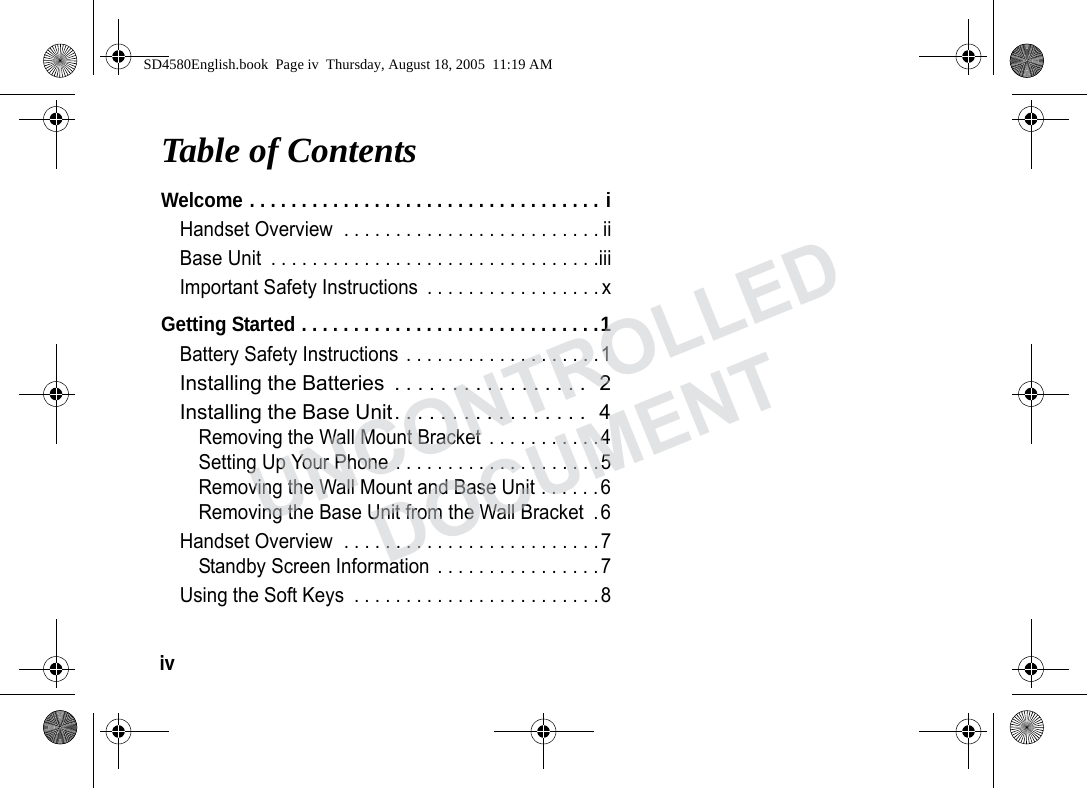
iv  Table of ContentsWelcome . . . . . . . . . . . . . . . . . . . . . . . . . . . . . . . . . . iHandset Overview  . . . . . . . . . . . . . . . . . . . . . . . . . iiBase Unit  . . . . . . . . . . . . . . . . . . . . . . . . . . . . . . . .iiiImportant Safety Instructions  . . . . . . . . . . . . . . . . . xGetting Started . . . . . . . . . . . . . . . . . . . . . . . . . . . . .1Battery Safety Instructions . . . . . . . . . . . . . . . . . . .1Installing the Batteries  . . . . . . . . . . . . . . . . .  2Installing the Base Unit. . . . . . . . . . . . . . . . .  4Removing the Wall Mount Bracket  . . . . . . . . . . .4Setting Up Your Phone . . . . . . . . . . . . . . . . . . . .5Removing the Wall Mount and Base Unit . . . . . .6Removing the Base Unit from the Wall Bracket  .6Handset Overview  . . . . . . . . . . . . . . . . . . . . . . . . .7Standby Screen Information . . . . . . . . . . . . . . . .7Using the Soft Keys  . . . . . . . . . . . . . . . . . . . . . . . .8SD4580English.book  Page iv  Thursday, August 18, 2005  11:19 AMUNCONTROLLEDDOCUMENT
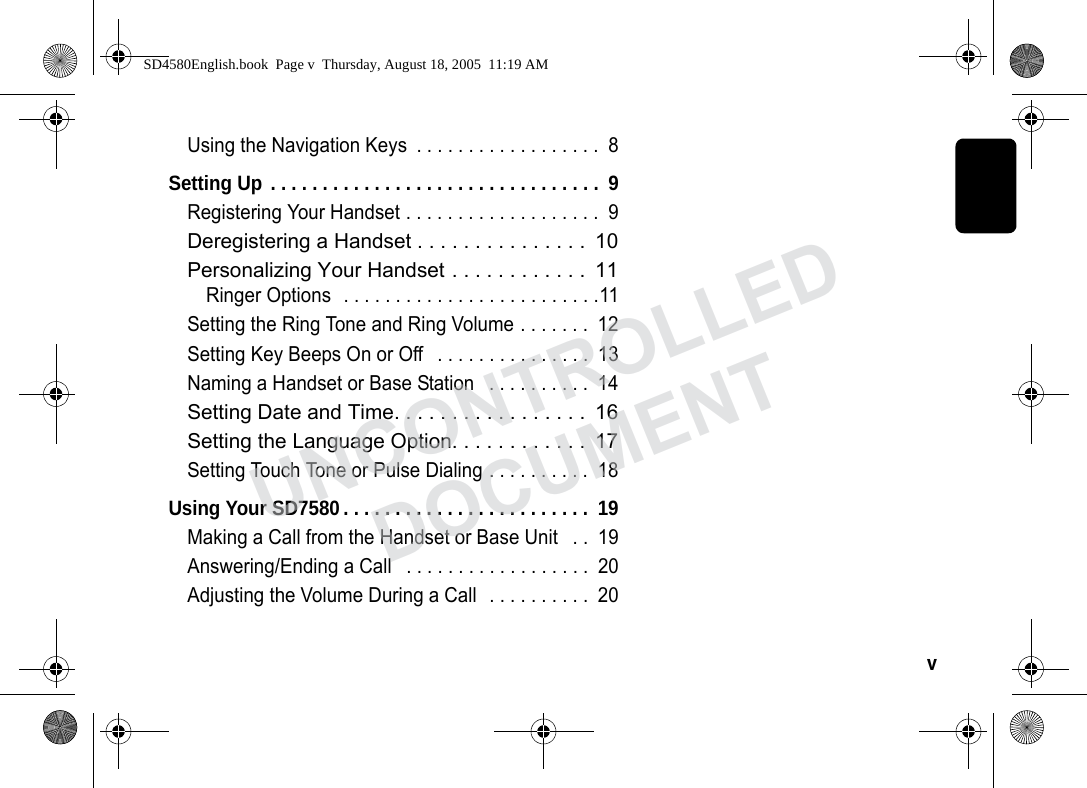
v  Using the Navigation Keys  . . . . . . . . . . . . . . . . . .  8Setting Up . . . . . . . . . . . . . . . . . . . . . . . . . . . . . . . .  9Registering Your Handset . . . . . . . . . . . . . . . . . . .  9Deregistering a Handset . . . . . . . . . . . . . . .  10Personalizing Your Handset . . . . . . . . . . . .  11Ringer Options  . . . . . . . . . . . . . . . . . . . . . . . . .11Setting the Ring Tone and Ring Volume . . . . . . .  12Setting Key Beeps On or Off   . . . . . . . . . . . . . . .  13Naming a Handset or Base Station   . . . . . . . . . .  14Setting Date and Time. . . . . . . . . . . . . . . . .  16Setting the Language Option. . . . . . . . . . . .  17Setting Touch Tone or Pulse Dialing . . . . . . . . . .  18Using Your SD7580 . . . . . . . . . . . . . . . . . . . . . . . .  19Making a Call from the Handset or Base Unit   . .  19Answering/Ending a Call   . . . . . . . . . . . . . . . . . .  20Adjusting the Volume During a Call  . . . . . . . . . .  20SD4580English.book  Page v  Thursday, August 18, 2005  11:19 AMUNCONTROLLEDDOCUMENT
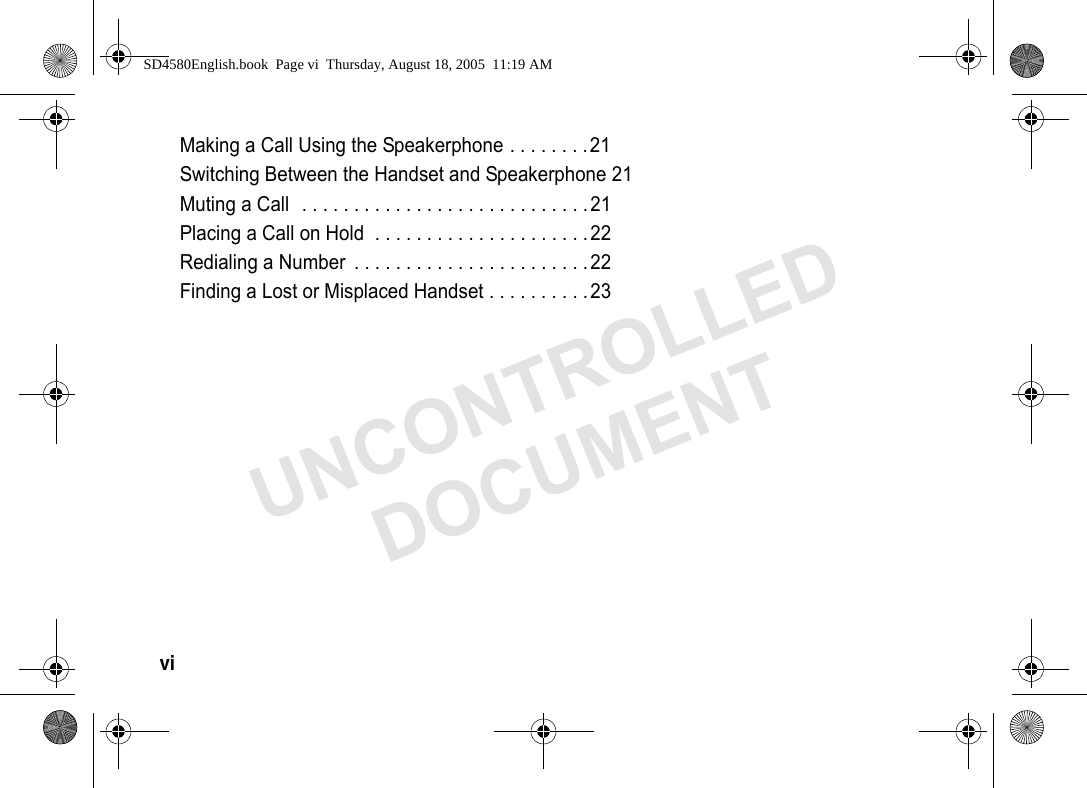
vi  Making a Call Using the Speakerphone . . . . . . . .21Switching Between the Handset and Speakerphone 21Muting a Call  . . . . . . . . . . . . . . . . . . . . . . . . . . . .21Placing a Call on Hold  . . . . . . . . . . . . . . . . . . . . .22Redialing a Number  . . . . . . . . . . . . . . . . . . . . . . .22Finding a Lost or Misplaced Handset . . . . . . . . . .23SD4580English.book  Page vi  Thursday, August 18, 2005  11:19 AMUNCONTROLLEDDOCUMENT
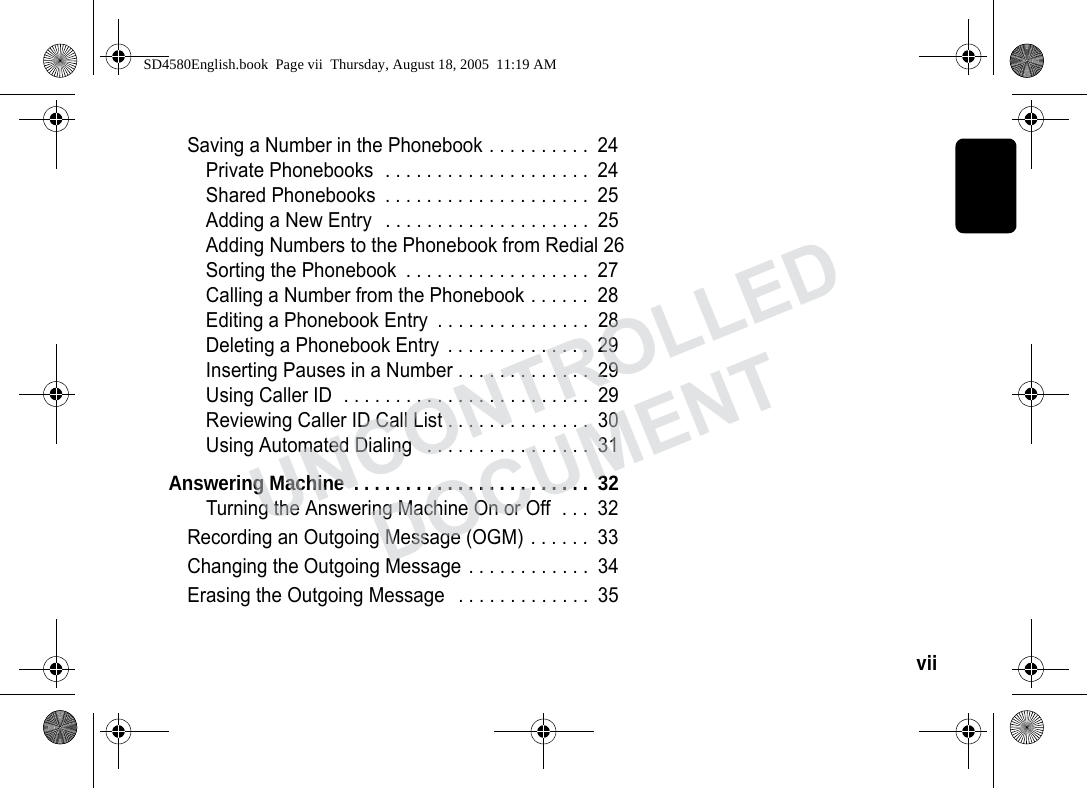
vii  Saving a Number in the Phonebook . . . . . . . . . .  24Private Phonebooks  . . . . . . . . . . . . . . . . . . . .  24Shared Phonebooks  . . . . . . . . . . . . . . . . . . . .  25Adding a New Entry  . . . . . . . . . . . . . . . . . . . .  25Adding Numbers to the Phonebook from Redial 26Sorting the Phonebook  . . . . . . . . . . . . . . . . . .  27Calling a Number from the Phonebook . . . . . .  28Editing a Phonebook Entry  . . . . . . . . . . . . . . .  28Deleting a Phonebook Entry  . . . . . . . . . . . . . .  29Inserting Pauses in a Number . . . . . . . . . . . . .  29Using Caller ID  . . . . . . . . . . . . . . . . . . . . . . . .  29Reviewing Caller ID Call List . . . . . . . . . . . . . .  30Using Automated Dialing   . . . . . . . . . . . . . . . .  31Answering Machine  . . . . . . . . . . . . . . . . . . . . . . .  32Turning the Answering Machine On or Off  . . .  32Recording an Outgoing Message (OGM) . . . . . .  33Changing the Outgoing Message . . . . . . . . . . . .  34Erasing the Outgoing Message  . . . . . . . . . . . . .  35SD4580English.book  Page vii  Thursday, August 18, 2005  11:19 AMUNCONTROLLEDDOCUMENT
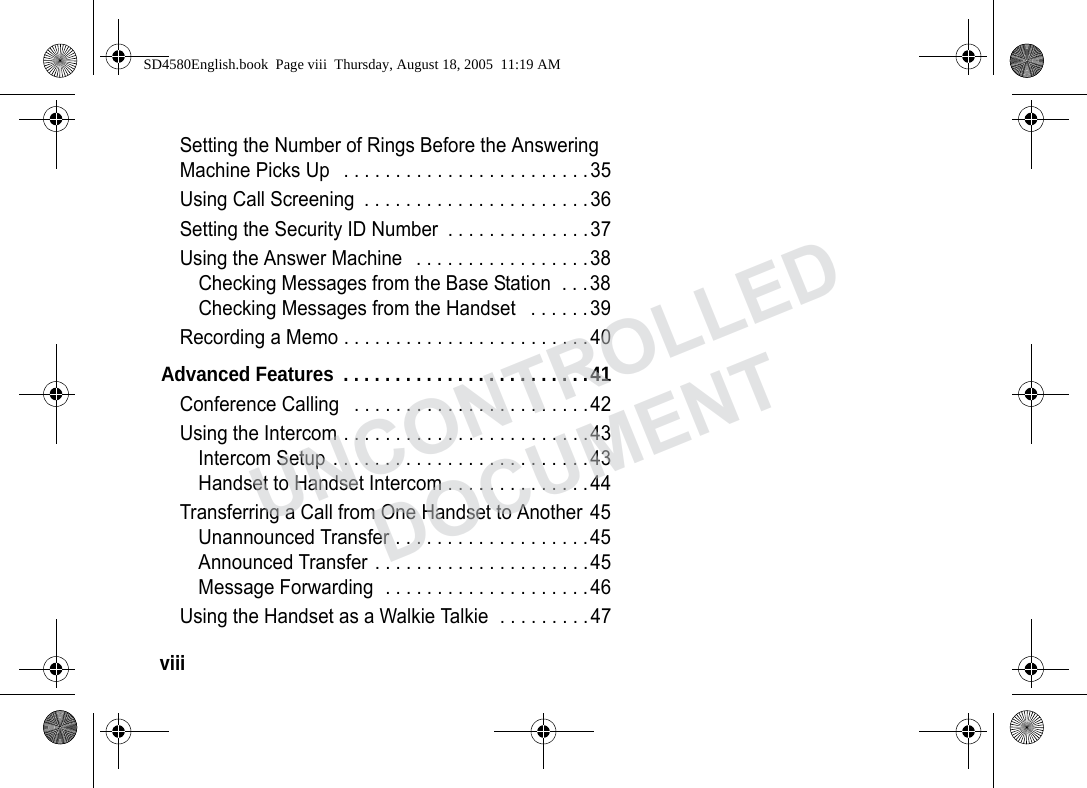
viii  Setting the Number of Rings Before the Answering Machine Picks Up   . . . . . . . . . . . . . . . . . . . . . . . .35Using Call Screening  . . . . . . . . . . . . . . . . . . . . . .36Setting the Security ID Number  . . . . . . . . . . . . . .37Using the Answer Machine   . . . . . . . . . . . . . . . . .38Checking Messages from the Base Station  . . .38Checking Messages from the Handset   . . . . . .39Recording a Memo . . . . . . . . . . . . . . . . . . . . . . . .40Advanced Features  . . . . . . . . . . . . . . . . . . . . . . . .41Conference Calling   . . . . . . . . . . . . . . . . . . . . . . .42Using the Intercom . . . . . . . . . . . . . . . . . . . . . . . .43Intercom Setup . . . . . . . . . . . . . . . . . . . . . . . . .43Handset to Handset Intercom . . . . . . . . . . . . . .44Transferring a Call from One Handset to Another 45Unannounced Transfer . . . . . . . . . . . . . . . . . . .45Announced Transfer . . . . . . . . . . . . . . . . . . . . .45Message Forwarding  . . . . . . . . . . . . . . . . . . . .46Using the Handset as a Walkie Talkie  . . . . . . . . .47SD4580English.book  Page viii  Thursday, August 18, 2005  11:19 AMUNCONTROLLEDDOCUMENT
ix  Monitoring a Room  . . . . . . . . . . . . . . . . . . . . . . .  48openLCR™ Option . . . . . . . . . . . . . . . . . . . . . . .  49Warranty. . . . . . . . . . . . . . . . . . . . . . . . . . . . . . . . .  54SD4580English.book  Page ix  Thursday, August 18, 2005  11:19 AMUNCONTROLLEDDOCUMENT
x  Important Safety InstructionsFollow these safety precautions when using your cordless phone to reduce the risk of fire, electric shock and injury to persons or property: To reduce the risk of fire and shock:1. Keep all slits and openings of the phone unblocked. Do not set the phone on a heating register or over a radiator. Ensure that proper ventilation is provided at the installation site. 2. Do not use while wet or while standing in water. 3. Do not use this product near water (for example, near a bath tub, kitchen sink, or swimming pool). 4. Do not allow anything to rest on the power cord. Place the power cord so that it will not be walked on.   5. Never insert objects of any kind into the product slits, as that may result in fire or shock. 6. Unplug this product from the wall outlet before cleaning. Do not use liquid cleaners or aerosol cleaners. Use a damp cloth for cleaning. 7. Do not disassemble this product. If service or repair work is required, contact the Motorola address found in the back of this user guide. 8. Do not overload wall outlets and extension cords. 9. Avoid using during an electrical storm. Use a surge protector to protect the equipment. SD4580English.book  Page x  Thursday, August 18, 2005  11:19 AMUNCONTROLLEDDOCUMENT
xi  Important Safety Instructions10. Do not use this cordless phone to report a gas leak, especially if you are in the vicinity of the gas line.Unplug this cordless phone immediately from an outlet if:• The power cord or plug is damaged or frayed. • Liquid has been spilled into the product. • The product has been exposed to rain or water. Do not retrieve the handset or base until after you have unplugged the power and phone from the wall. Then retrieve the unit by the unplugged cords. • The product has been dropped or the cabinet has been damaged. • The product exhibits a distinct change in performance. Installation Guidelines1. Read and understand all instructions and save them for future reference. 2. Follow all warnings and instructions marked on the product. 3. Do not install this product near a bath tub, sink, or shower. 4. Operate this phone using only the power source that is indicated on the marking label. If you are unsure of the power supply to your home, consult your dealer or local power company. 5. Do not place this product on an unstable cart, stand, or table. This product may fall, causing serious damage to the product. SD4580English.book  Page xi  Thursday, August 18, 2005  11:19 AMUNCONTROLLEDDOCUMENT
xii  6. Adjust only those controls that are covered by the operating instructions. Improper adjustment of other controls may result in damage and will often require extensive work to restore the product to normal operation. 7. Clean this product with a soft, damp cloth. Do not use chemicals or cleaning agents. 8. Use only the power supply that came with this unit. Using other power supplies may damage the unit.9. Because cordless phones operate on electricity, you should have at least one phone in your home that isn’t cordless, in case the power in your home goes out.10.To avoid interference to nearby appliances, do not place the base of the cordless phone on or near a TV, microwave oven, refrigerator, or VCR.SD4580English.book  Page xii  Thursday, August 18, 2005  11:19 AMUNCONTROLLEDDOCUMENT
1  Getting StartedBattery Safety Instructions• Do not burn, disassemble, mutilate, or puncture the battery. The battery contains toxic materials that could be released, resulting in injury. •Caution: There is a risk of explosion if you replace the battery with an incorrect battery type. Use only the battery that came with your phone or an authorized replacement recommended by the manufacturer.• Keep batteries out of the reach of children. • Remove batteries if storing over 30 days. • Do not dispose of batteries in fire, which could result in explosion. • The rechargeable batteries that power this product must be disposed of properly and may need to be recycled. Refer to your battery’s label for battery type. Contact your local recycling center for proper disposal methods. SD4580English.book  Page 1  Thursday, August 18, 2005  11:19 AMUNCONTROLLEDDOCUMENT
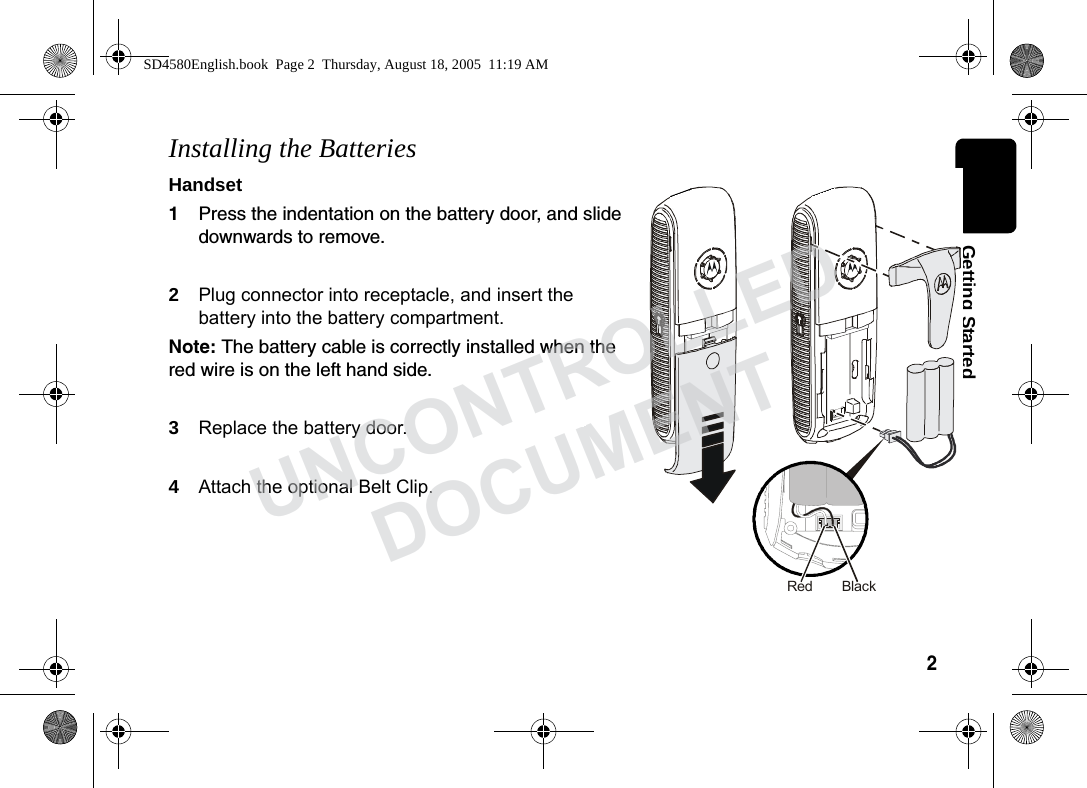
2  Getting StartedInstalling the BatteriesHandset1Press the indentation on the battery door, and slide downwards to remove. 2Plug connector into receptacle, and insert the battery into the battery compartment. Note: The battery cable is correctly installed when the red wire is on the left hand side.3Replace the battery door.4Attach the optional Belt Clip. BlackRedSD4580English.book  Page 2  Thursday, August 18, 2005  11:19 AMUNCONTROLLEDDOCUMENT
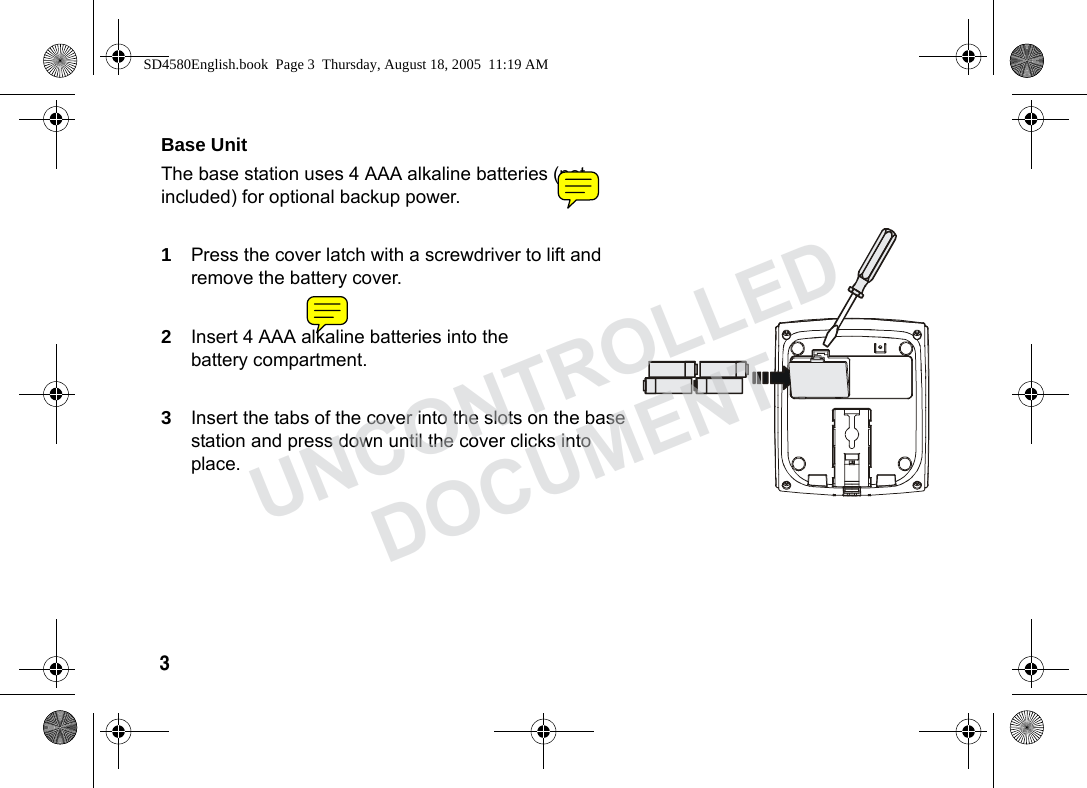
3  Base Unit The base station uses 4 AAA alkaline batteries (not included) for optional backup power.1Press the cover latch with a screwdriver to lift and remove the battery cover.2Insert 4 AAA alkaline batteries into the battery compartment.3Insert the tabs of the cover into the slots on the base station and press down until the cover clicks into place.SD4580English.book  Page 3  Thursday, August 18, 2005  11:19 AMUNCONTROLLEDDOCUMENT
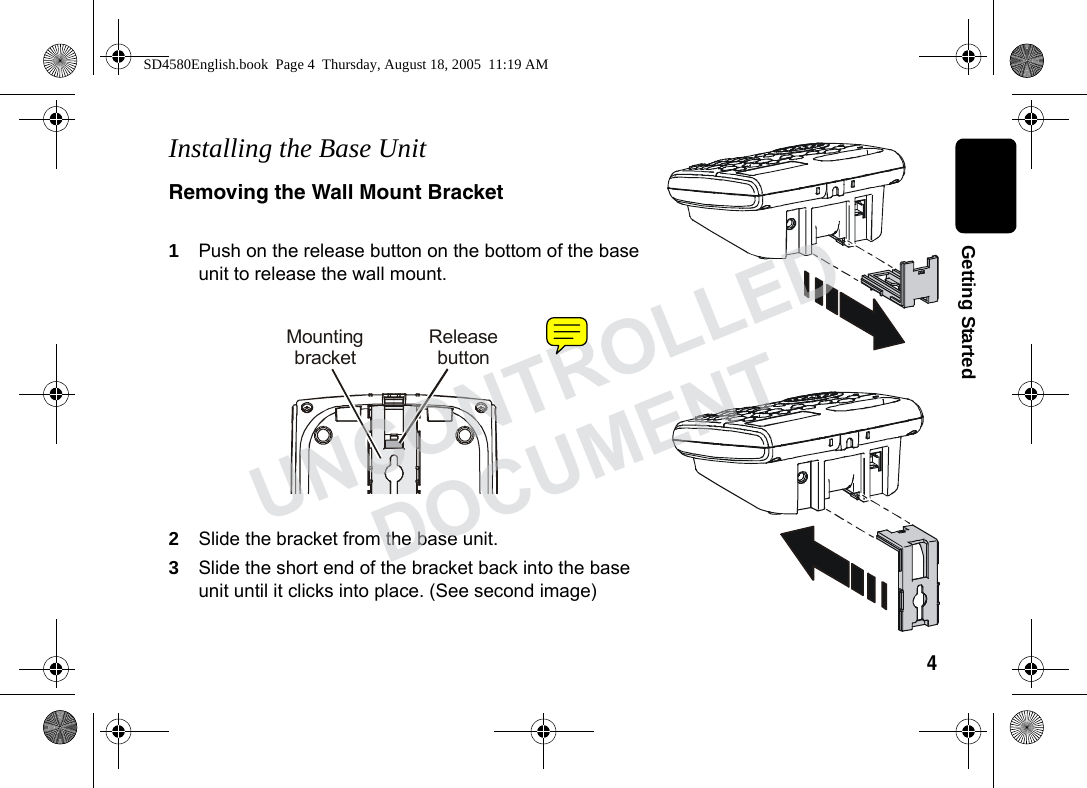
4  Getting StartedInstalling the Base UnitRemoving the Wall Mount Bracket1Push on the release button on the bottom of the base unit to release the wall mount.2Slide the bracket from the base unit.3Slide the short end of the bracket back into the base unit until it clicks into place. (See second image)ReleasebuttonMountingbracketSD4580English.book  Page 4  Thursday, August 18, 2005  11:19 AMUNCONTROLLEDDOCUMENT
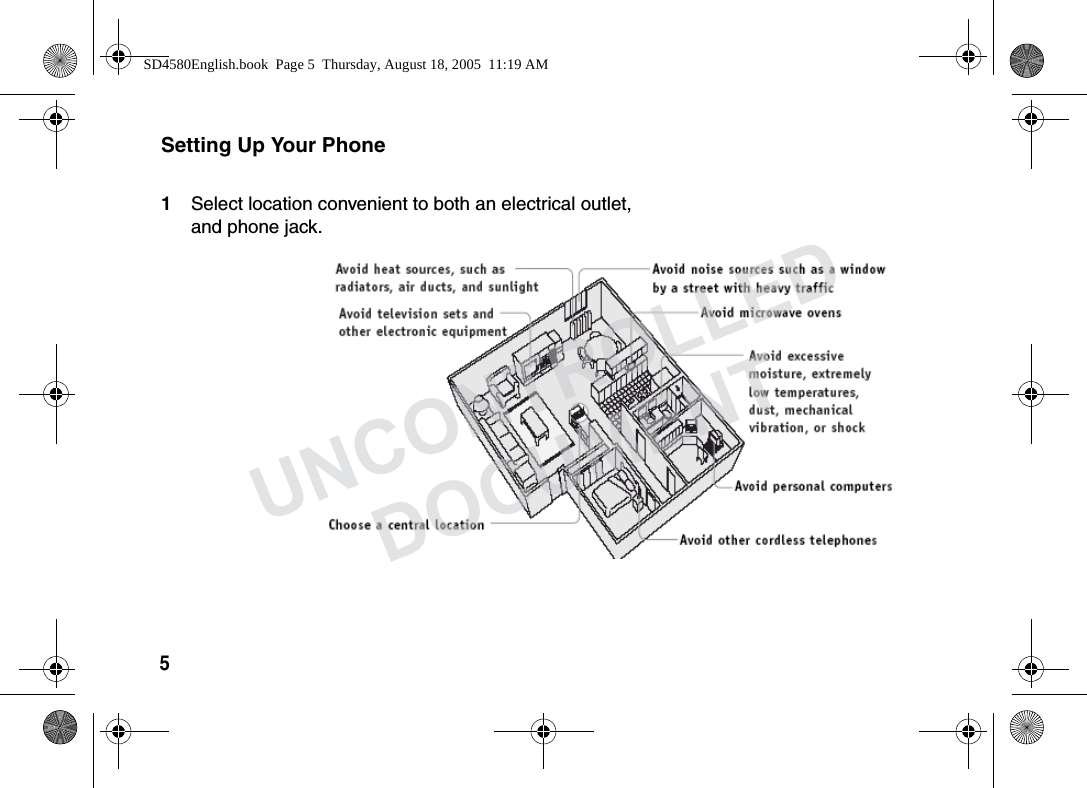
5  Setting Up Your Phone1Select location convenient to both an electrical outlet, and phone jack.SD4580English.book  Page 5  Thursday, August 18, 2005  11:19 AMUNCONTROLLEDDOCUMENT
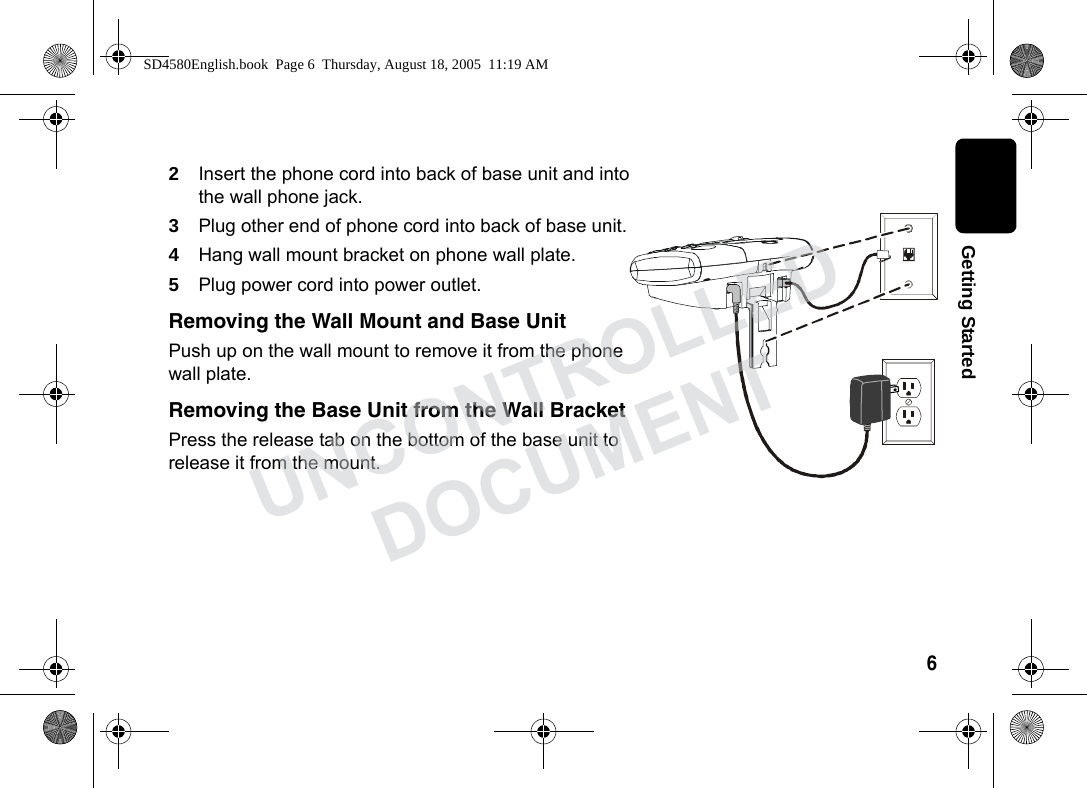
6  Getting Started2Insert the phone cord into back of base unit and into the wall phone jack.3Plug other end of phone cord into back of base unit.4Hang wall mount bracket on phone wall plate.5Plug power cord into power outlet.Removing the Wall Mount and Base UnitPush up on the wall mount to remove it from the phone wall plate.Removing the Base Unit from the Wall BracketPress the release tab on the bottom of the base unit to release it from the mount. SD4580English.book  Page 6  Thursday, August 18, 2005  11:19 AMUNCONTROLLEDDOCUMENT
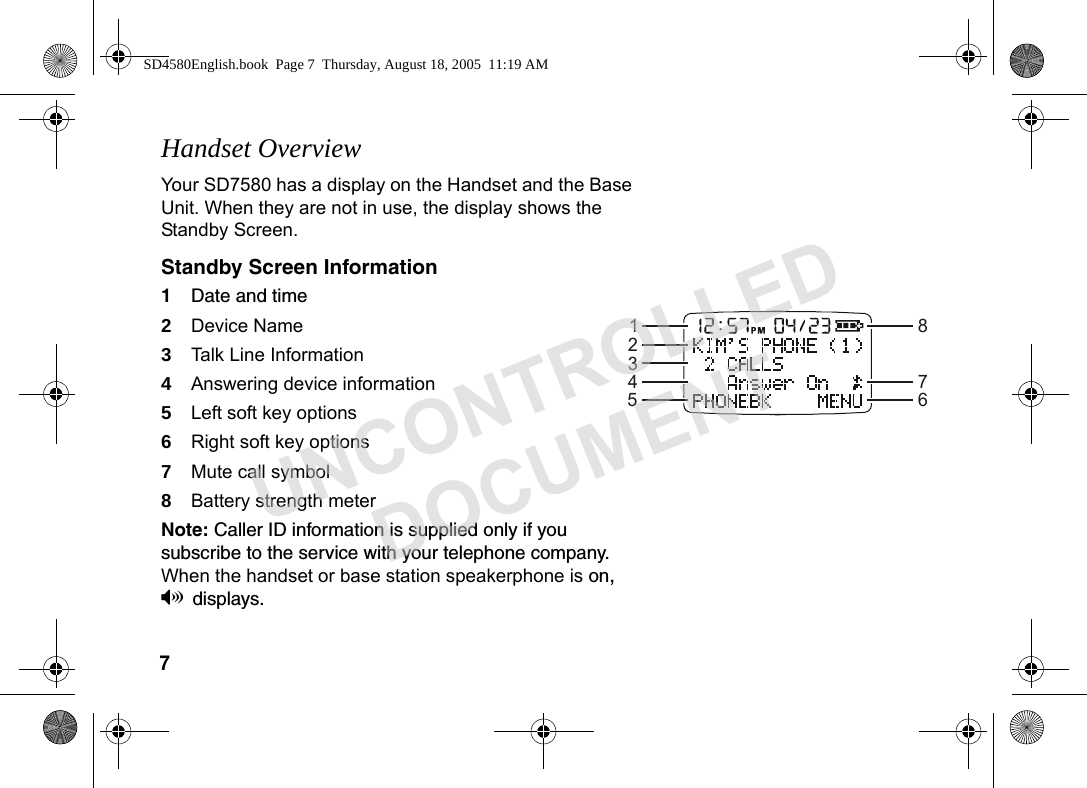
7  Handset OverviewYour SD7580 has a display on the Handset and the Base Unit. When they are not in use, the display shows the Standby Screen. Standby Screen Information1Date and time 2Device Name3Talk Line Information4Answering device information 5Left soft key options 6Right soft key options7Mute call symbol8Battery strength meterNote: Caller ID information is supplied only if you subscribe to the service with your telephone company. When the handset or base station speakerphone is on, Vdisplays. 12345867SD4580English.book  Page 7  Thursday, August 18, 2005  11:19 AMUNCONTROLLEDDOCUMENT
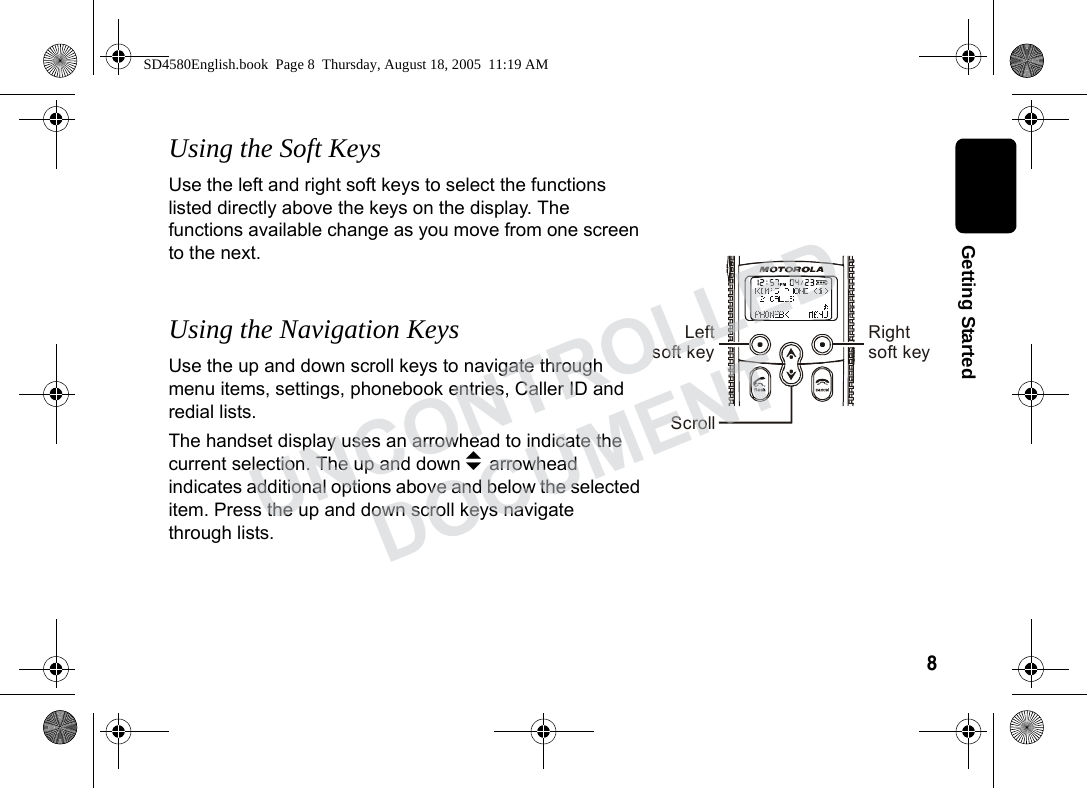
8  Getting StartedUsing the Soft KeysUse the left and right soft keys to select the functions listed directly above the keys on the display. The functions available change as you move from one screen to the next.Using the Navigation KeysUse the up and down scroll keys to navigate through menu items, settings, phonebook entries, Caller ID and redial lists. The handset display uses an arrowhead to indicate the current selection. The up and down b arrowhead indicates additional options above and below the selected item. Press the up and down scroll keys navigate through lists. Leftsoft key Rightsoft keyScrollSD4580English.book  Page 8  Thursday, August 18, 2005  11:19 AMUNCONTROLLEDDOCUMENT
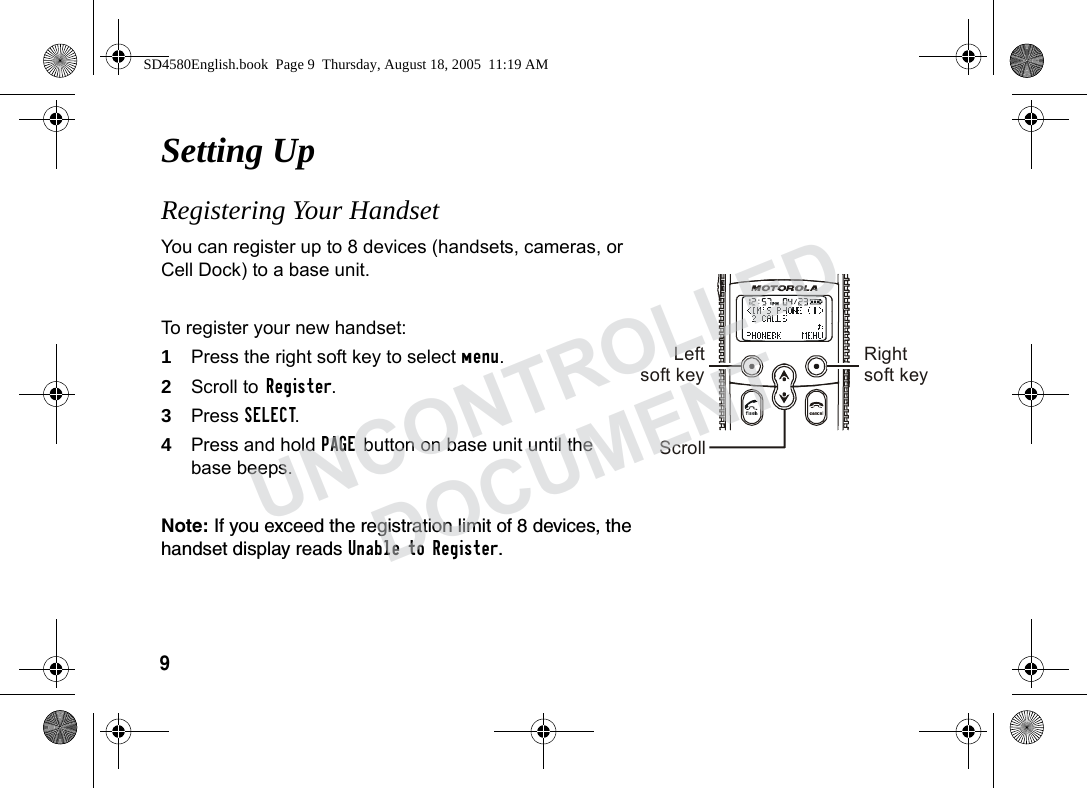
9Setting Up Registering Your Handset You can register up to 8 devices (handsets, cameras, or Cell Dock) to a base unit. To register your new handset:1Press the right soft key to select menu.2Scroll to Register.3Press SELECT. 4Press and hold PAGE button on base unit until the base beeps. Note: If you exceed the registration limit of 8 devices, the handset display reads Unable to Register. Leftsoft key Rightsoft keyScrollSD4580English.book  Page 9  Thursday, August 18, 2005  11:19 AMUNCONTROLLEDDOCUMENT
10Setting UpDeregistering a HandsetCaution: You will deregister all handsets from the base unit and render your cordless telephone system inoperable until at least one handset is reregistered to the base unit.1Delete or listen to all voice mail messages, if necessary, to clear the IN USE/Voice Mail indicator.2Press OFF on the base unit and all handsets.3Press and hold down PAGE on the base unit until the IN USE indicator begins to flash slowly, then release.4Press and hold down PAGE again until the IN USE indicator begins to flash quickly, then release PAGE.5Quickly and fully press and release PAGE again. “Please register handset” displays. 6Press OK to begin the registration process or press EXIT.** NOTE **All accessories use the same process to register and deregister to the base unit.SD4580English.book  Page 10  Thursday, August 18, 2005  11:19 AMUNCONTROLLEDDOCUMENT
11Personalizing Your HandsetPersonalize your new handset by selecting unique ring tones, adjusting the ring volume for day and night time, and assigning a name to distinguish one handset from another. Ringer OptionsFollow the steps listed to set one ring tones for incoming calls, and another ring tone for numbers stored in your phonebook. (You must have Caller ID service to use this feature)The Ringer option has five submenus:•Day Volume: ringer volume - factory default 6:00 AM to 9:00 PM (off, low, medium, high)•Night Volume: Ringer volume - factory default 9:00 PM to 6:00 AM (off, low, medium, high)•Ringer Tone: 15 musical ring tones•Phonebook Tone: 15 musical ring tones•Key Beeps: On, Off, Link to Ringer SD4580English.book  Page 11  Thursday, August 18, 2005  11:19 AMUNCONTROLLEDDOCUMENT
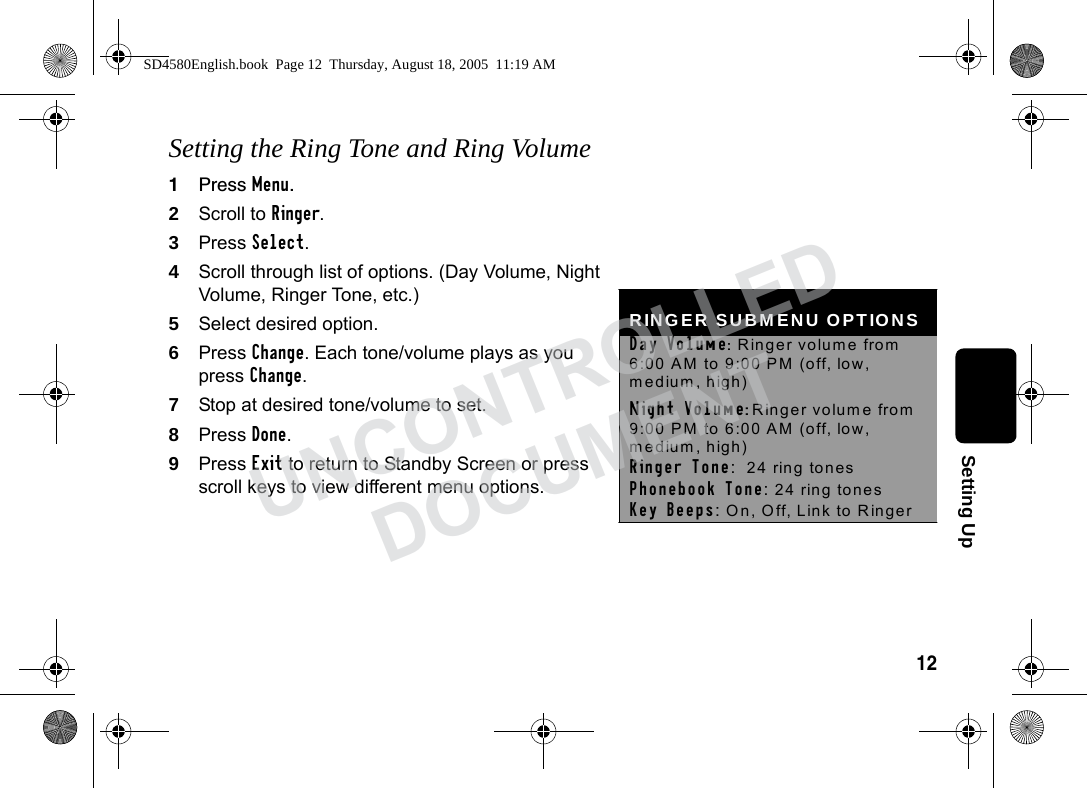
12Setting UpSetting the Ring Tone and Ring Volume1Press Menu.2Scroll to Ringer. 3Press Select. 4Scroll through list of options. (Day Volume, Night Volume, Ringer Tone, etc.)5Select desired option.6Press Change. Each tone/volume plays as you press Change.7Stop at desired tone/volume to set.8Press Done.9Press Exit to return to Standby Screen or press scroll keys to view different menu options. RINGER SUBMENU OPTIONS Day Volume:  Ringer volume from 6:00 AM to 9:00 PM (off, low, medium, high) Night Volume: Ringer volume from 9:00 PM to 6:00 AM (off, low, medium, high) Ringer Tone:  24 ring tones  Phonebook Tone: 24 ring tones  Key Beeps: On, Off, Link to Ringer SD4580English.book  Page 12  Thursday, August 18, 2005  11:19 AMUNCONTROLLEDDOCUMENT
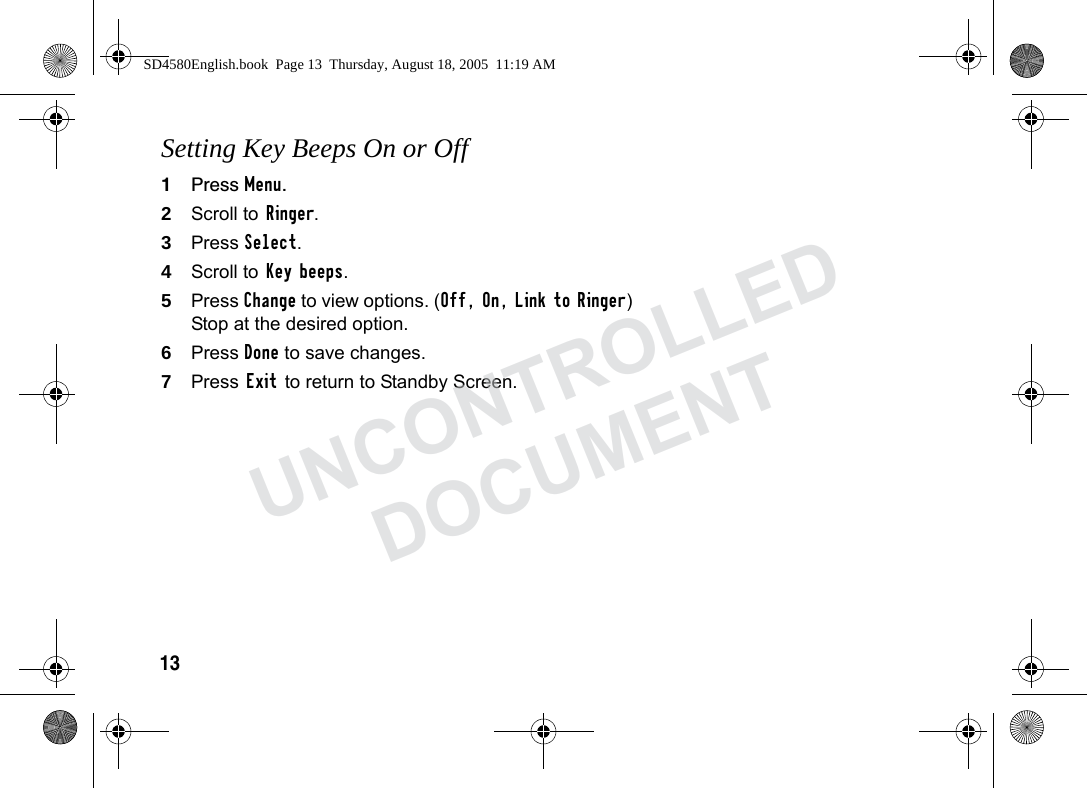
13Setting Key Beeps On or Off1Press Menu.2Scroll to Ringer.3Press Select.4Scroll to Key beeps.5Press Change to view options. (Off, On, Link to Ringer) Stop at the desired option.6Press Done to save changes.7Press Exit to return to Standby Screen.SD4580English.book  Page 13  Thursday, August 18, 2005  11:19 AMUNCONTROLLEDDOCUMENT
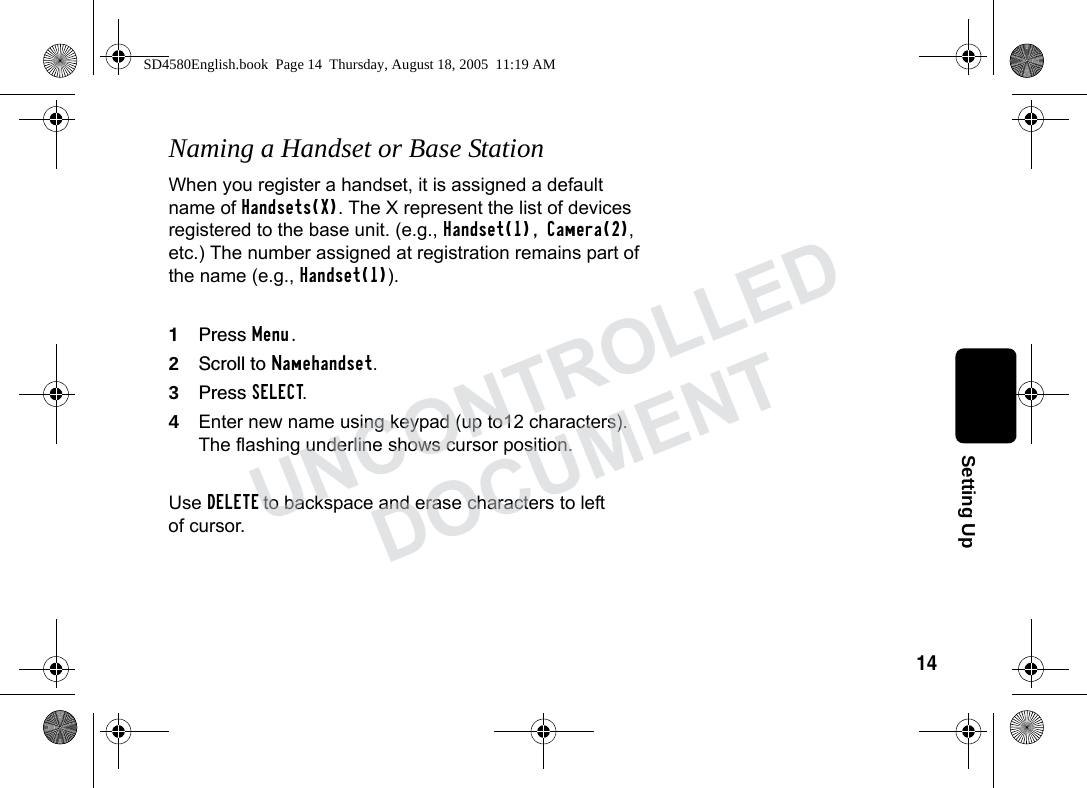
14Setting UpNaming a Handset or Base StationWhen you register a handset, it is assigned a default name of Handsets(X). The X represent the list of devices registered to the base unit. (e.g., Handset(1), Camera(2), etc.) The number assigned at registration remains part of the name (e.g., Handset(1)).1Press Menu.2Scroll to Namehandset.3Press SELECT.4Enter new name using keypad (up to12 characters). The flashing underline shows cursor position. Use DELETE to backspace and erase characters to left of cursor.SD4580English.book  Page 14  Thursday, August 18, 2005  11:19 AMUNCONTROLLEDDOCUMENT
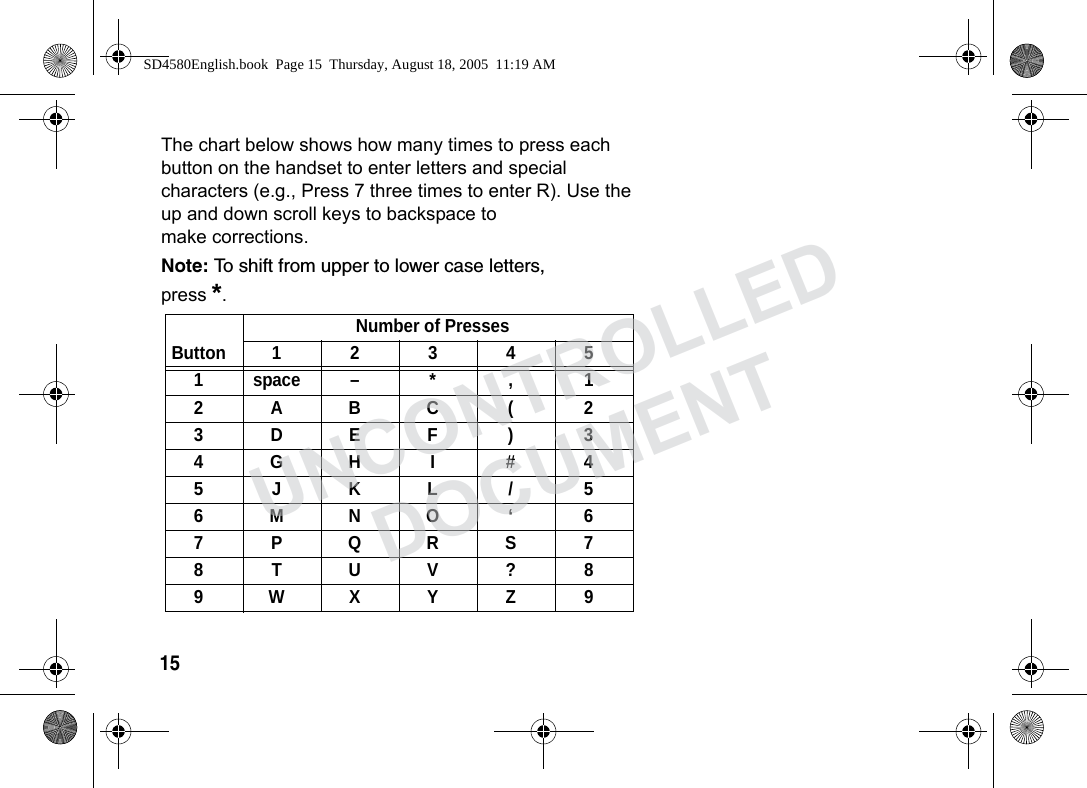
15The chart below shows how many times to press each button on the handset to enter letters and special characters (e.g., Press 7 three times to enter R). Use the up and down scroll keys to backspace to make corrections. Note: To shift from upper to lower case letters, press *.ButtonNumber of Presses123451 space – * , 12ABC ( 23DEF ) 34GH I #45JKL/56MNO ‘ 67PQRS78TUV?89WXYZ 9SD4580English.book  Page 15  Thursday, August 18, 2005  11:19 AMUNCONTROLLEDDOCUMENT
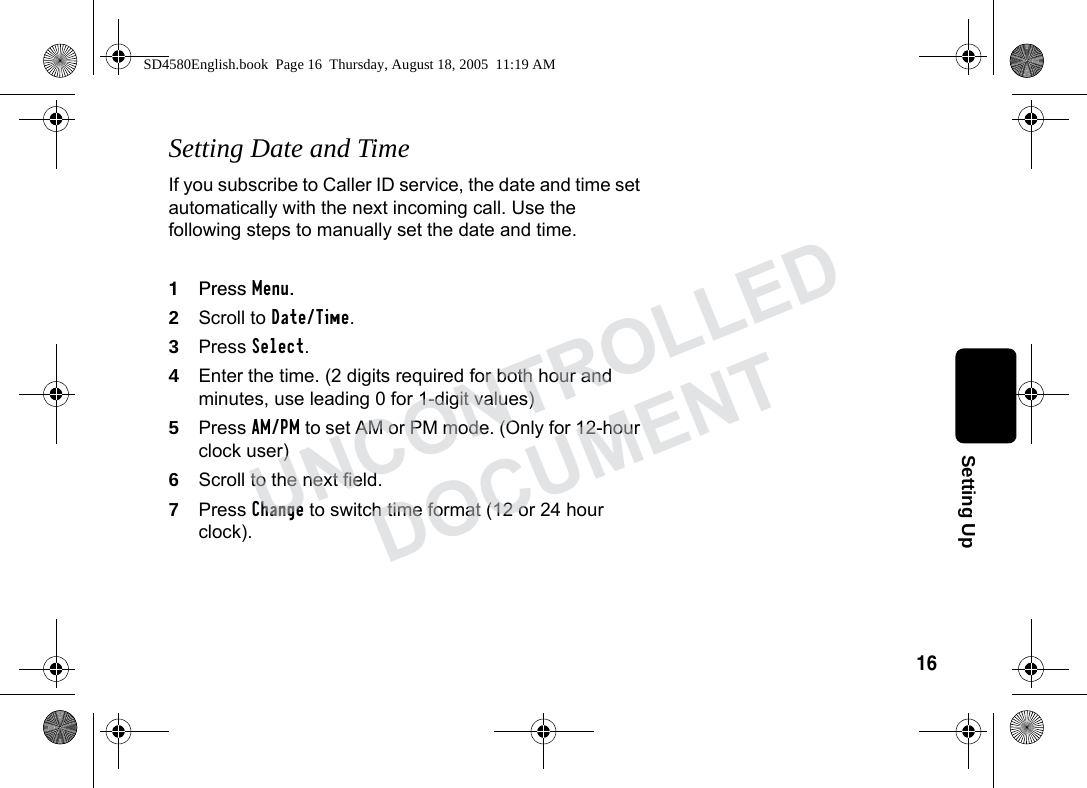
16Setting UpSetting Date and TimeIf you subscribe to Caller ID service, the date and time set automatically with the next incoming call. Use the following steps to manually set the date and time.1Press Menu.2Scroll to Date/Time.3Press Select. 4Enter the time. (2 digits required for both hour and minutes, use leading 0 for 1-digit values)5Press AM/PM to set AM or PM mode. (Only for 12-hour clock user) 6Scroll to the next field.7Press Change to switch time format (12 or 24 hour clock).SD4580English.book  Page 16  Thursday, August 18, 2005  11:19 AMUNCONTROLLEDDOCUMENT
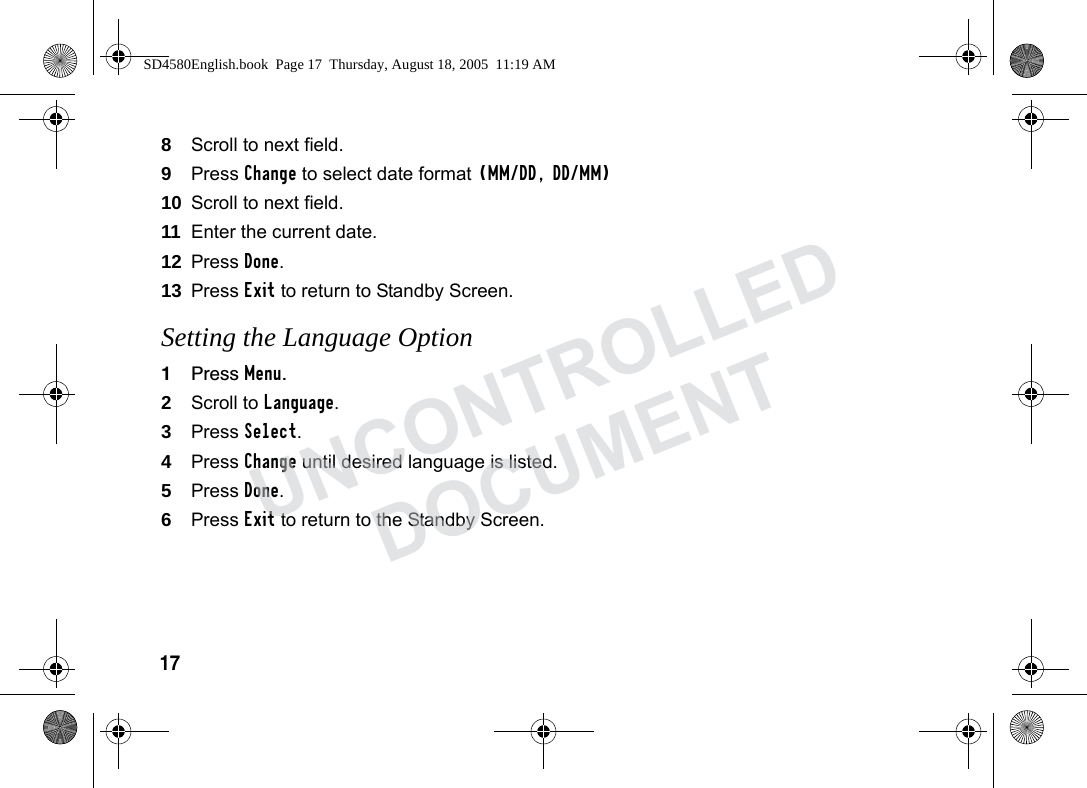
178Scroll to next field.9Press Change to select date format (MM/DD, DD/MM)10 Scroll to next field.11 Enter the current date.12 Press Done.13 Press Exit to return to Standby Screen.Setting the Language Option1Press Menu.2Scroll to Language.3Press Select.4Press Change until desired language is listed.5Press Done.6Press Exit to return to the Standby Screen.SD4580English.book  Page 17  Thursday, August 18, 2005  11:19 AMUNCONTROLLEDDOCUMENT
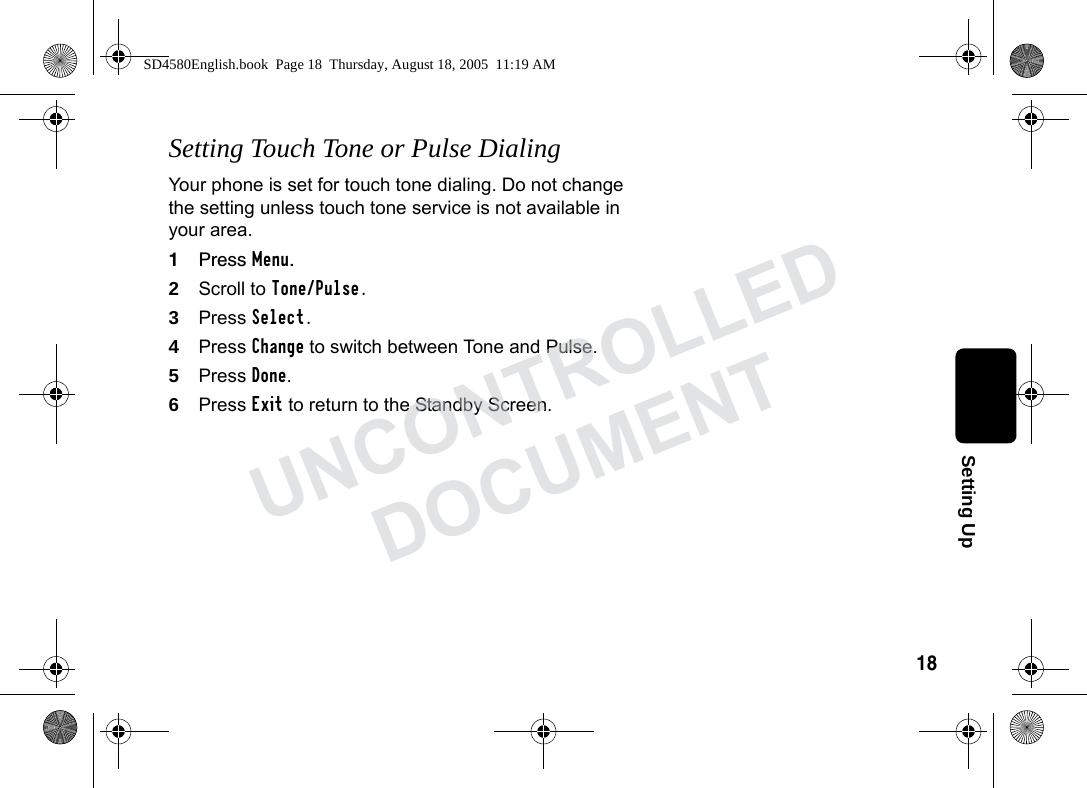
18Setting UpSetting Touch Tone or Pulse DialingYour phone is set for touch tone dialing. Do not change the setting unless touch tone service is not available in your area.1Press Menu.2Scroll to Tone/Pulse.3Press Select.4Press Change to switch between Tone and Pulse.5Press Done.6Press Exit to return to the Standby Screen.SD4580English.book  Page 18  Thursday, August 18, 2005  11:19 AMUNCONTROLLEDDOCUMENT
19 Using Your SD7580Making a Call from the Handset or Base UnitPress A. When you hear the dial tone, dial the number.OREnter the phone number, then press A. The phone number appears on the display before it is dialed. Use the DELETE to make corrections.During a call, a timer on the display shows the amount of time on the call. SD4580English.book  Page 19  Thursday, August 18, 2005  11:19 AMUNCONTROLLEDDOCUMENT
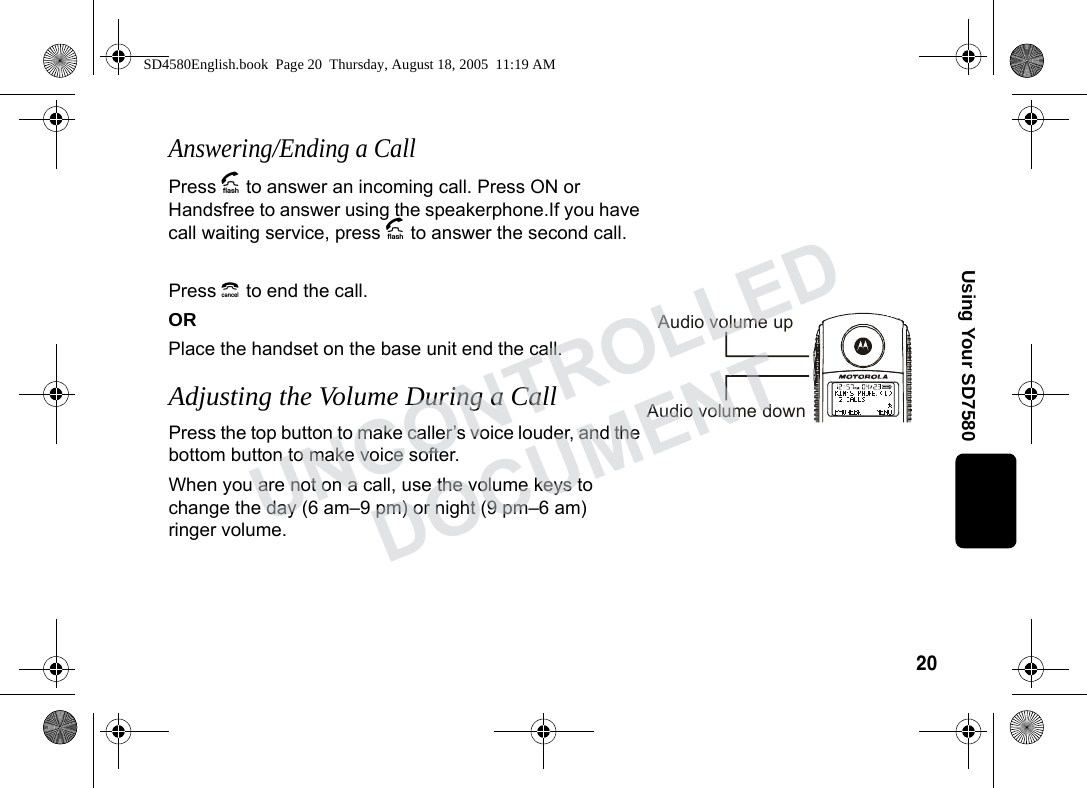
20Using Your SD7580Answering/Ending a CallPress A to answer an incoming call. Press ON or Handsfree to answer using the speakerphone.If you have call waiting service, press A to answer the second call.Press B to end the call. ORPlace the handset on the base unit end the call.Adjusting the Volume During a CallPress the top button to make caller’s voice louder, and the bottom button to make voice softer. When you are not on a call, use the volume keys to change the day (6 am–9 pm) or night (9 pm–6 am) ringer volume.Audio volume upAudio volume downSD4580English.book  Page 20  Thursday, August 18, 2005  11:19 AMUNCONTROLLEDDOCUMENT
21 Making a Call Using the Speakerphone1Press HANDSFREE.2Dial the number. Note: For optimal speakerphone quality, when using the handset, make sure the belt clip is on. This raises the handset up so it is not lying flat (the speakerphone is on the back of the handset). Pressing Handsfree while in the Phonebook, Caller ID Redial lists, automatically turns on the speakerphone and dials the number. Switching Between the Handset and SpeakerphonePress HANDSFREE to toggle between handset and speakerphone.Muting a Call Press MUTE. To unmute the call, press UNMUTE.SD4580English.book  Page 21  Thursday, August 18, 2005  11:19 AMUNCONTROLLEDDOCUMENT
22Using Your SD7580Placing a Call on Hold1Press HOLD.2To return to the call, press UNHOLD or A. When a call is on hold, the intercom features are available. Redialing a NumberTo redial the most recently dialed number:1Press A.2Press REDIAL.To redial one of the last 5 numbers you dialed:1Press Redial.2Scroll to desired number.3Press A or Handsfree.SD4580English.book  Page 22  Thursday, August 18, 2005  11:19 AMUNCONTROLLEDDOCUMENT

Navigation menu