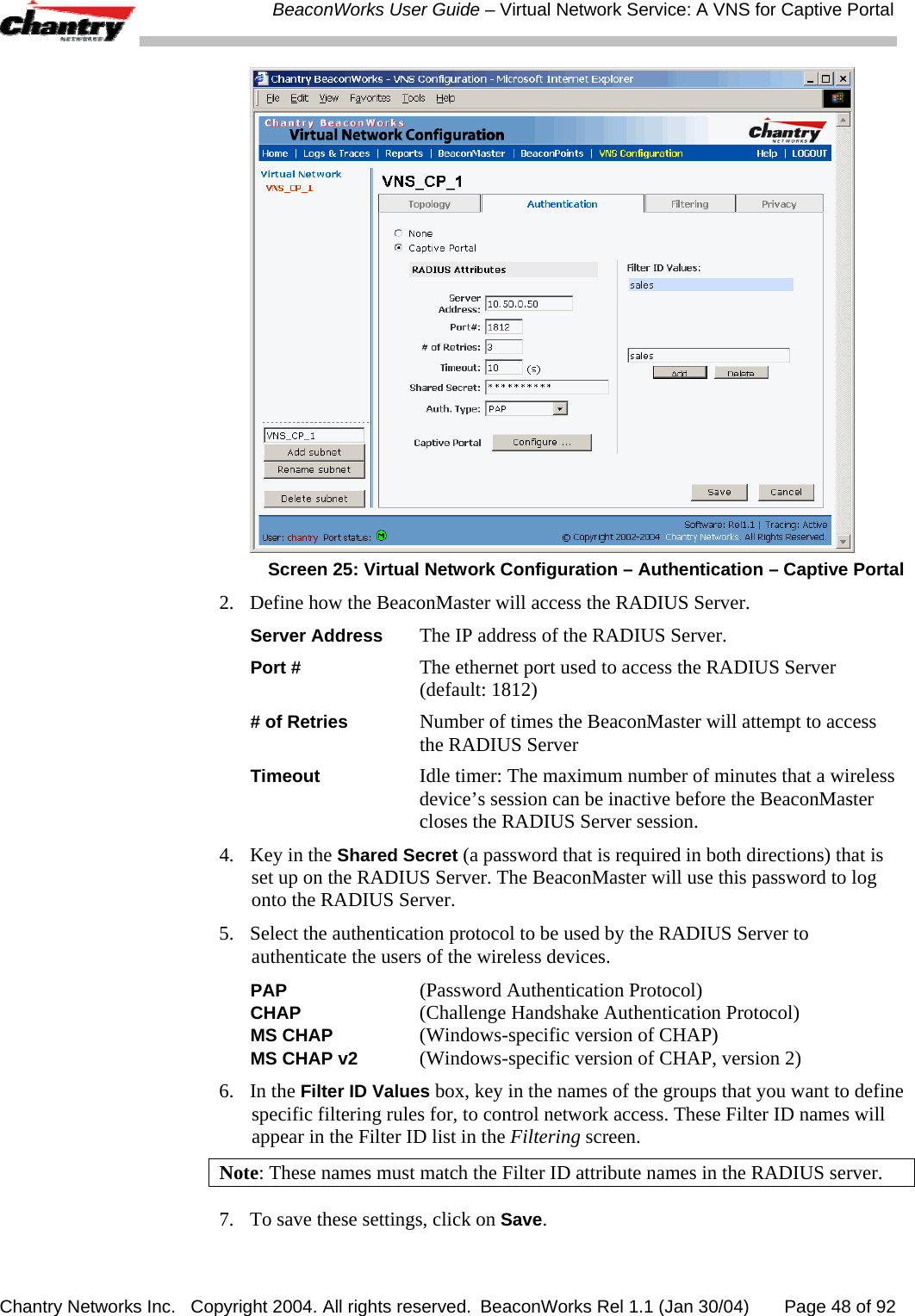
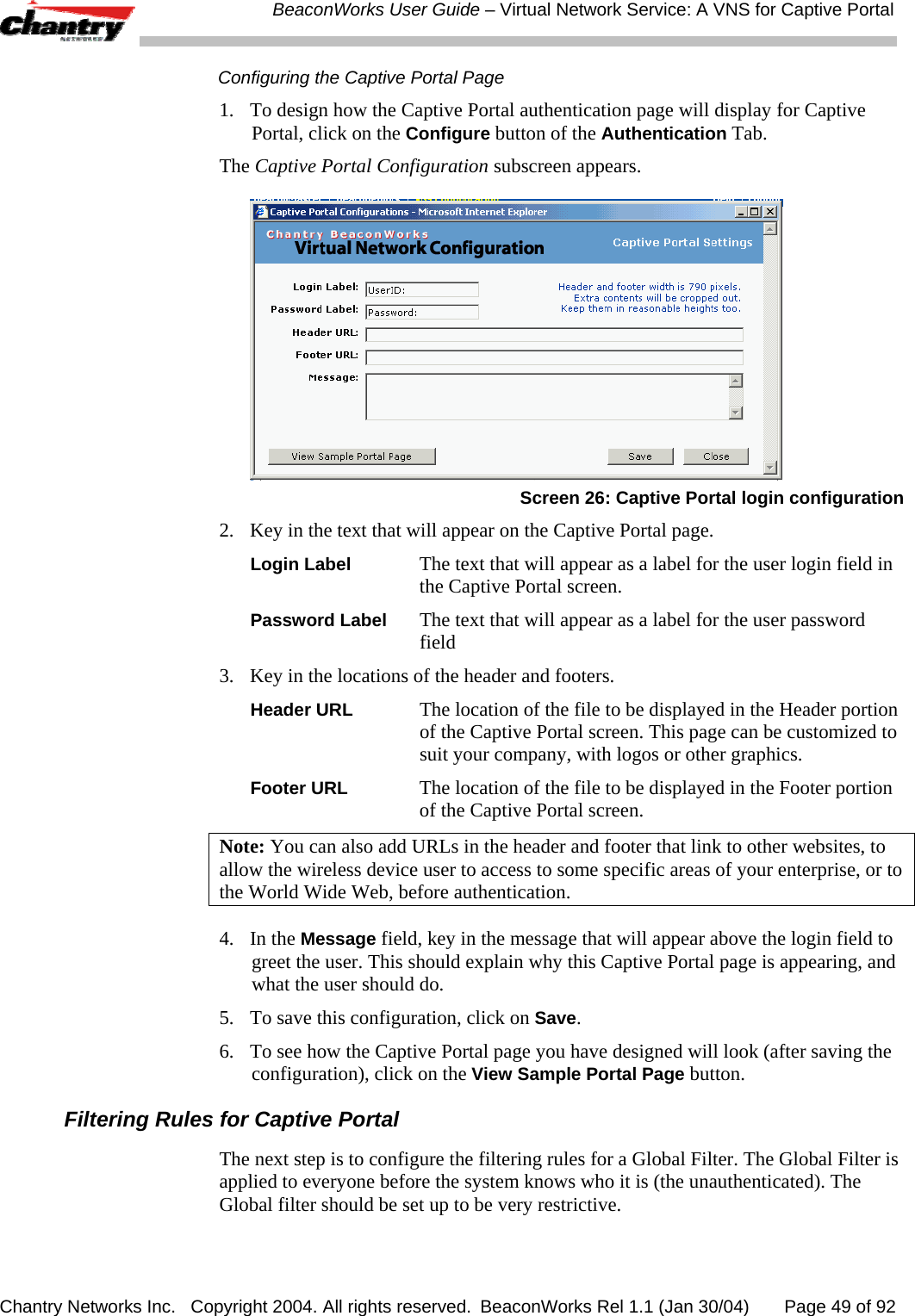
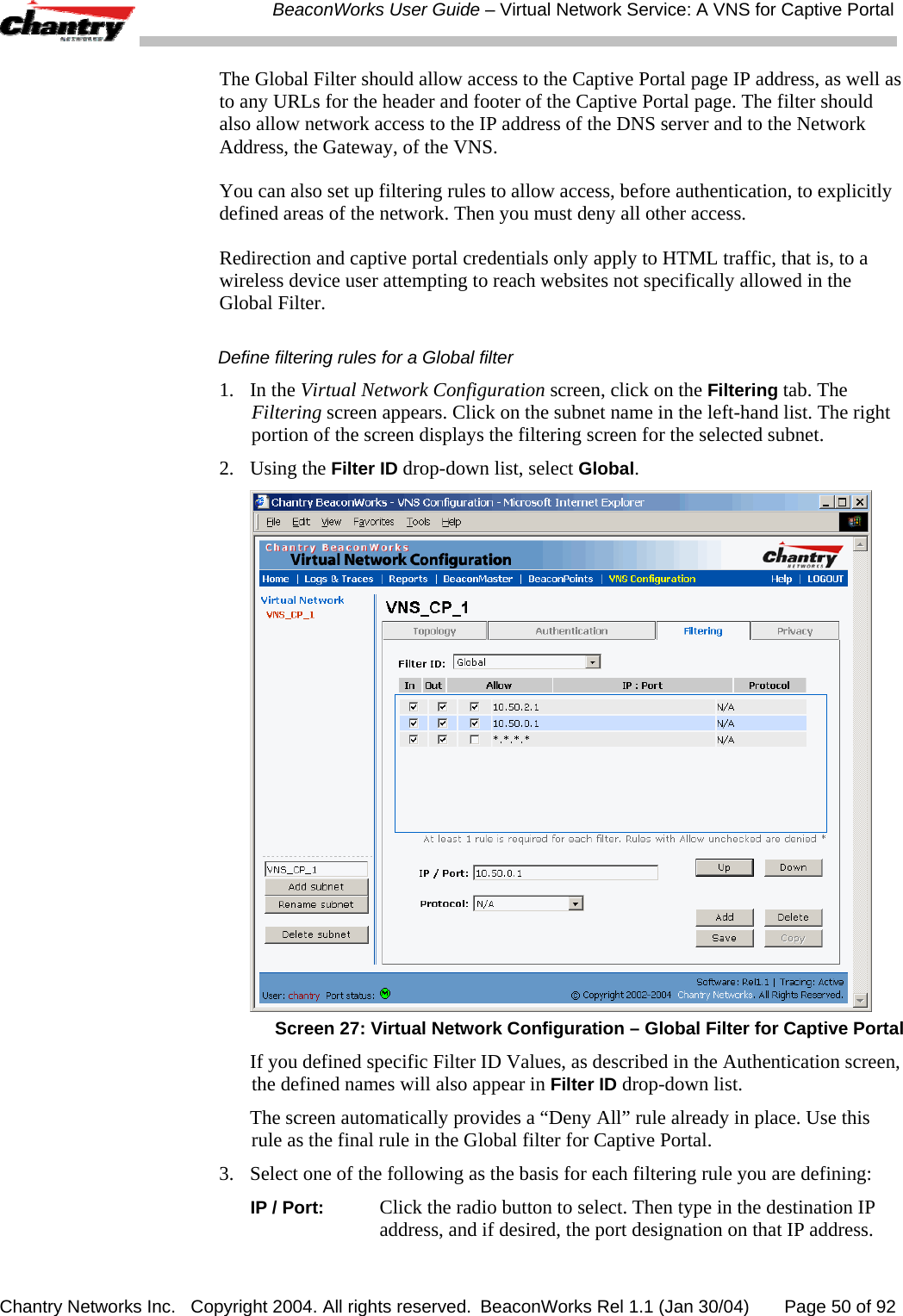
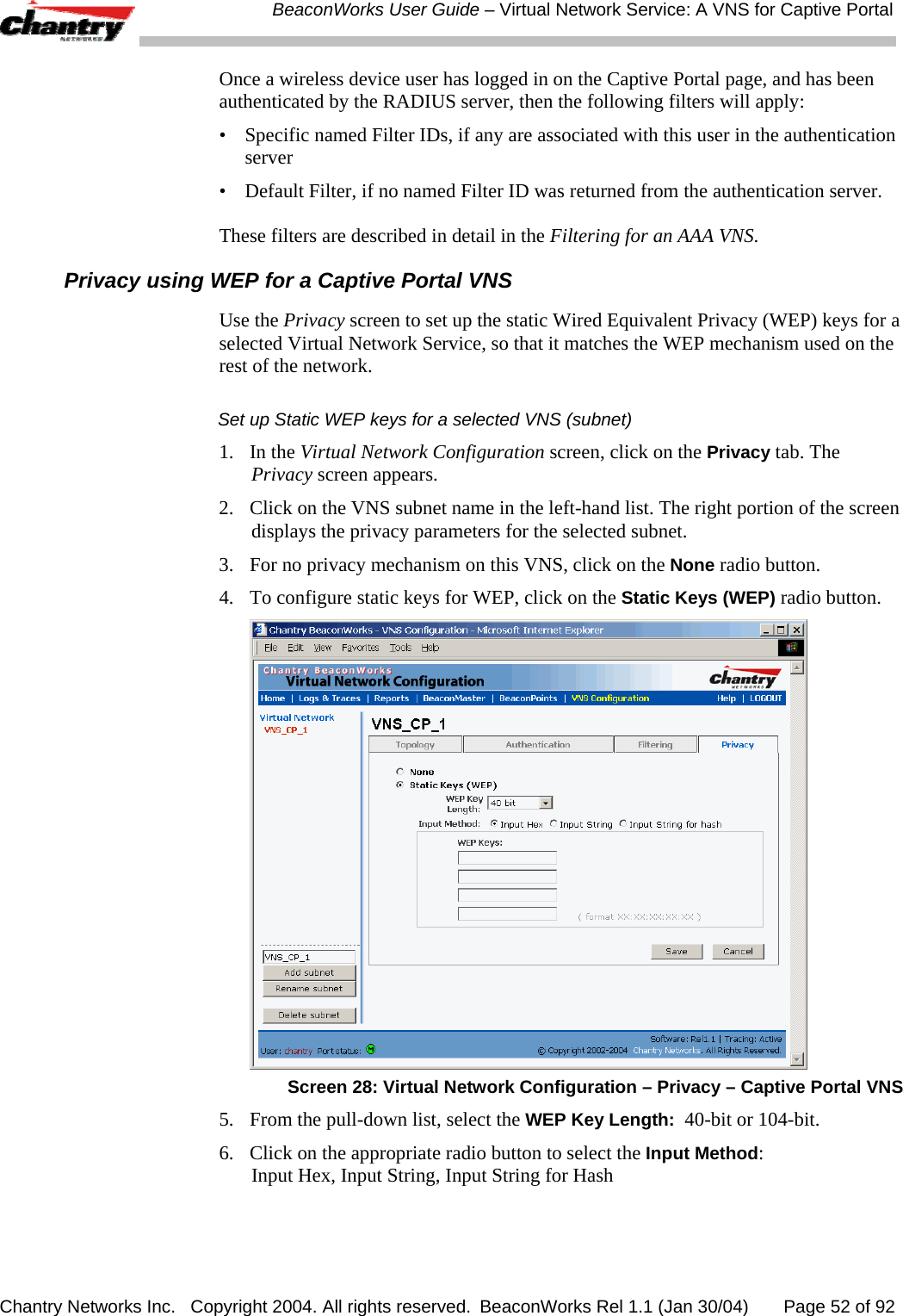
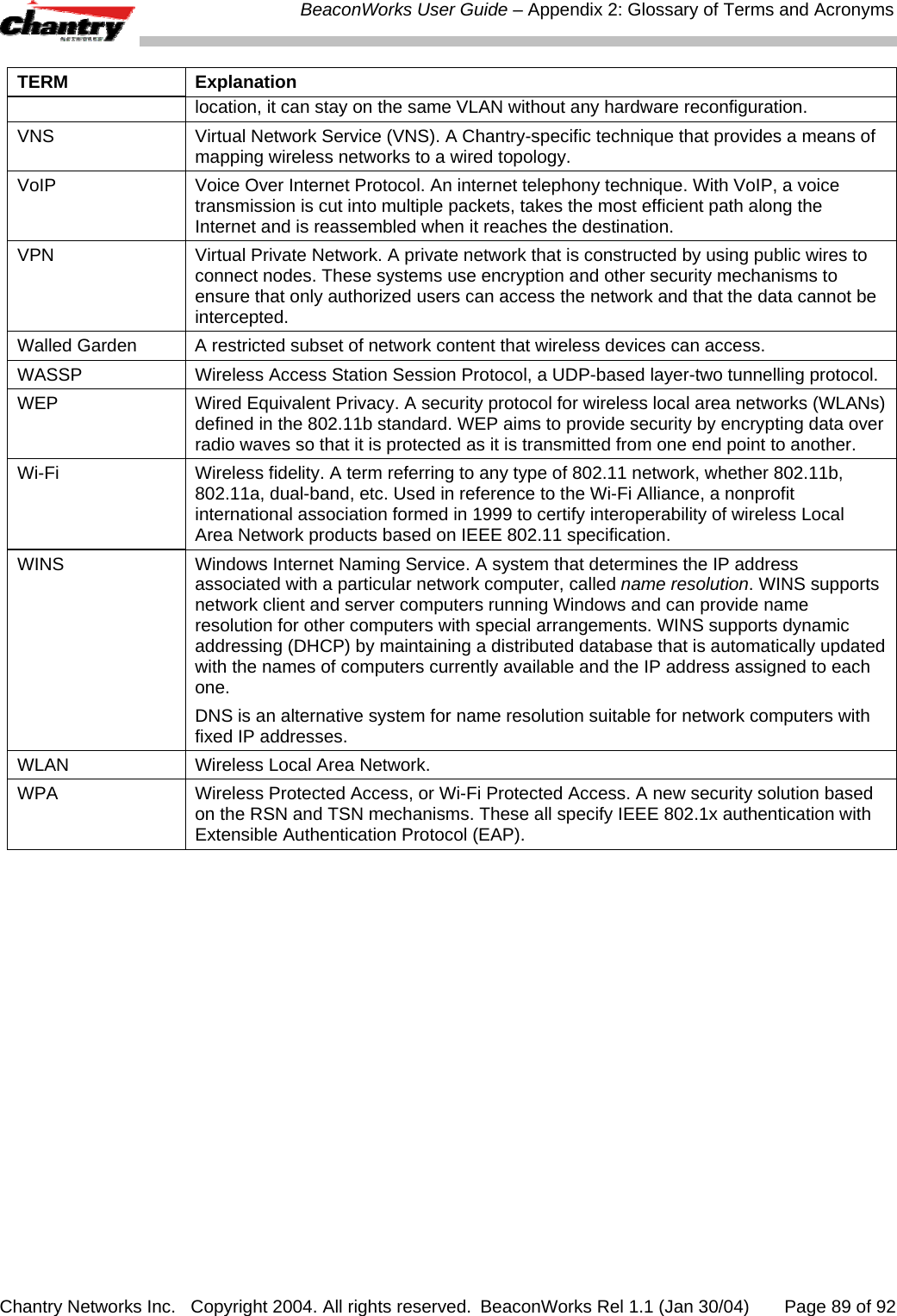
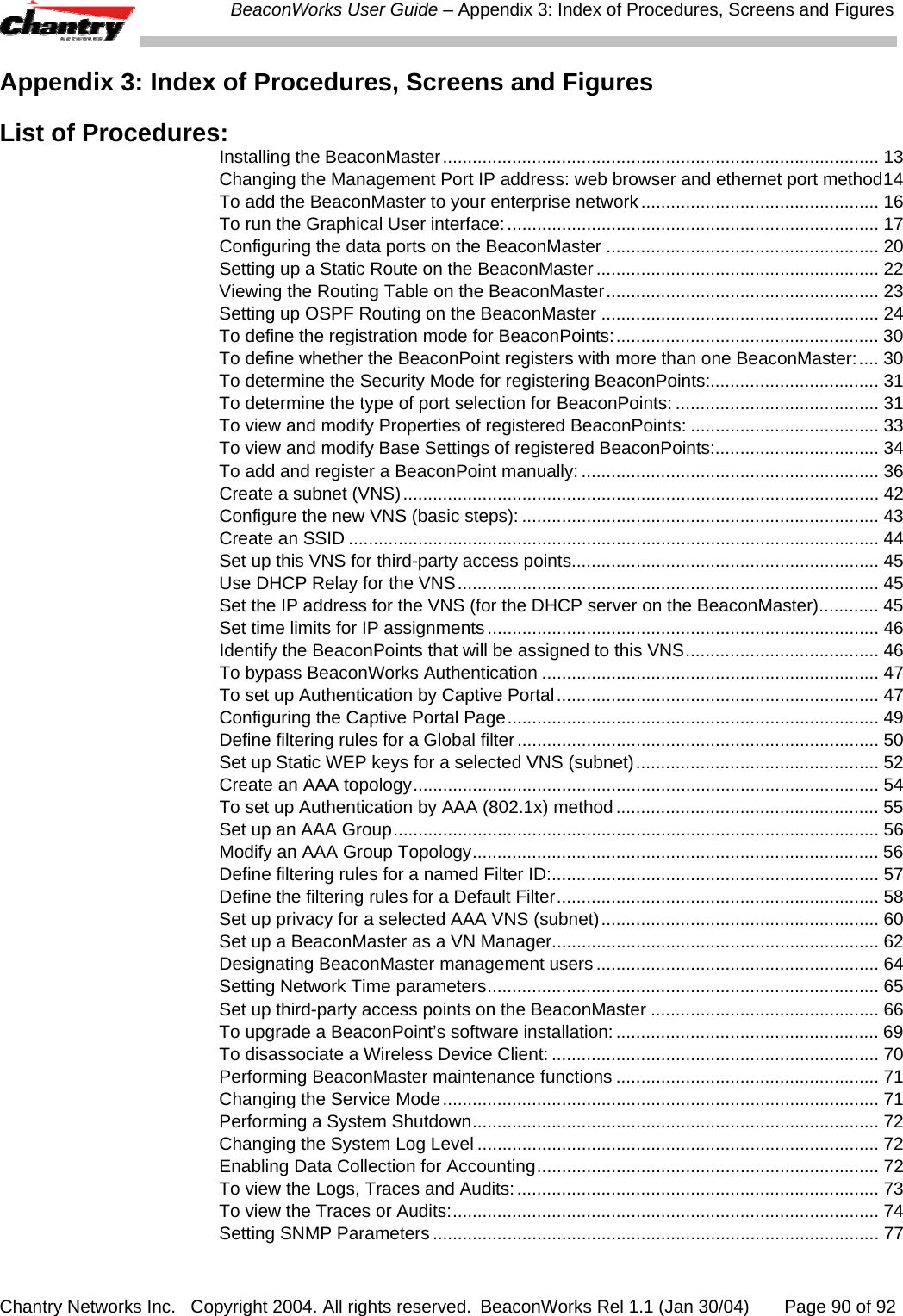
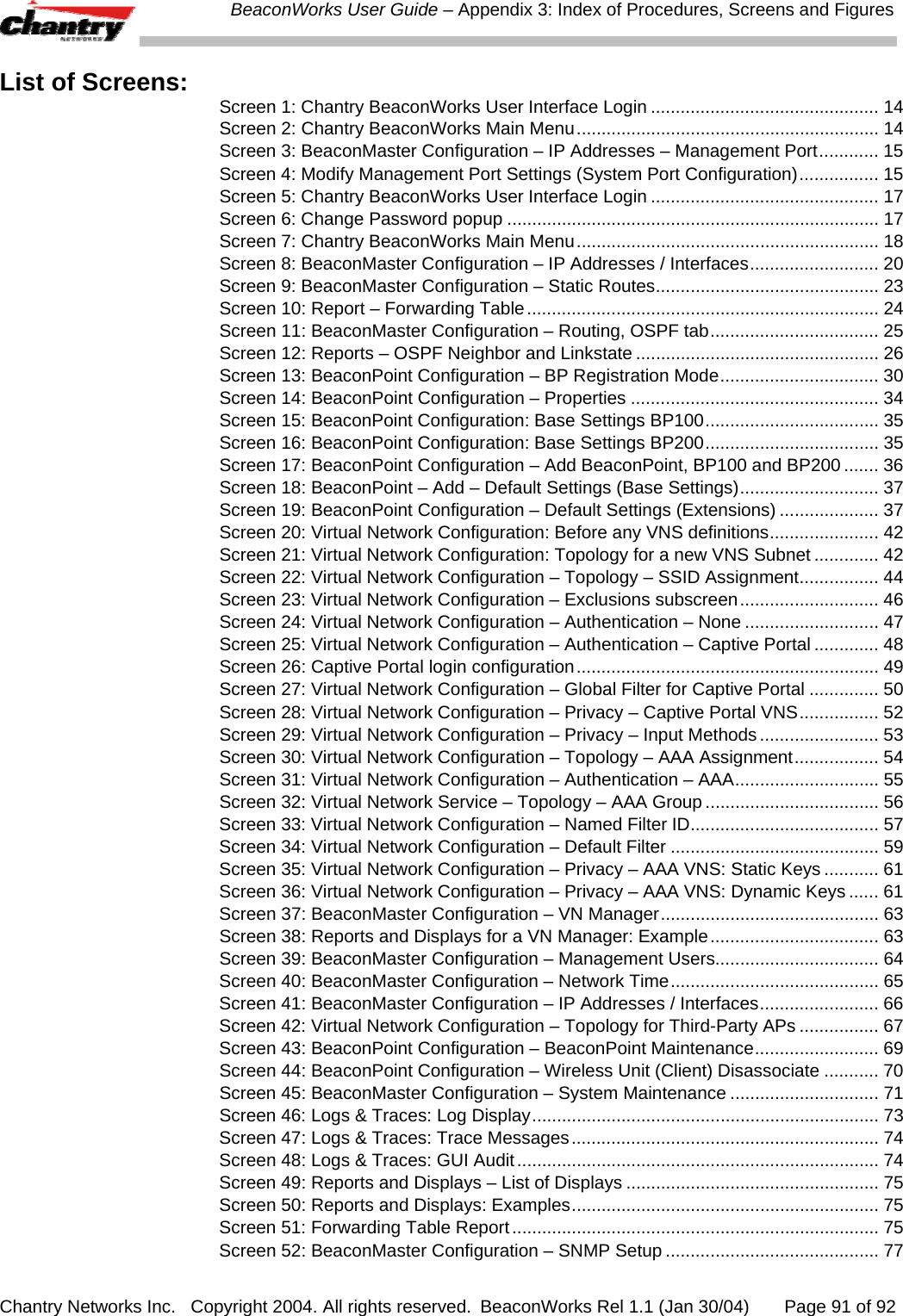
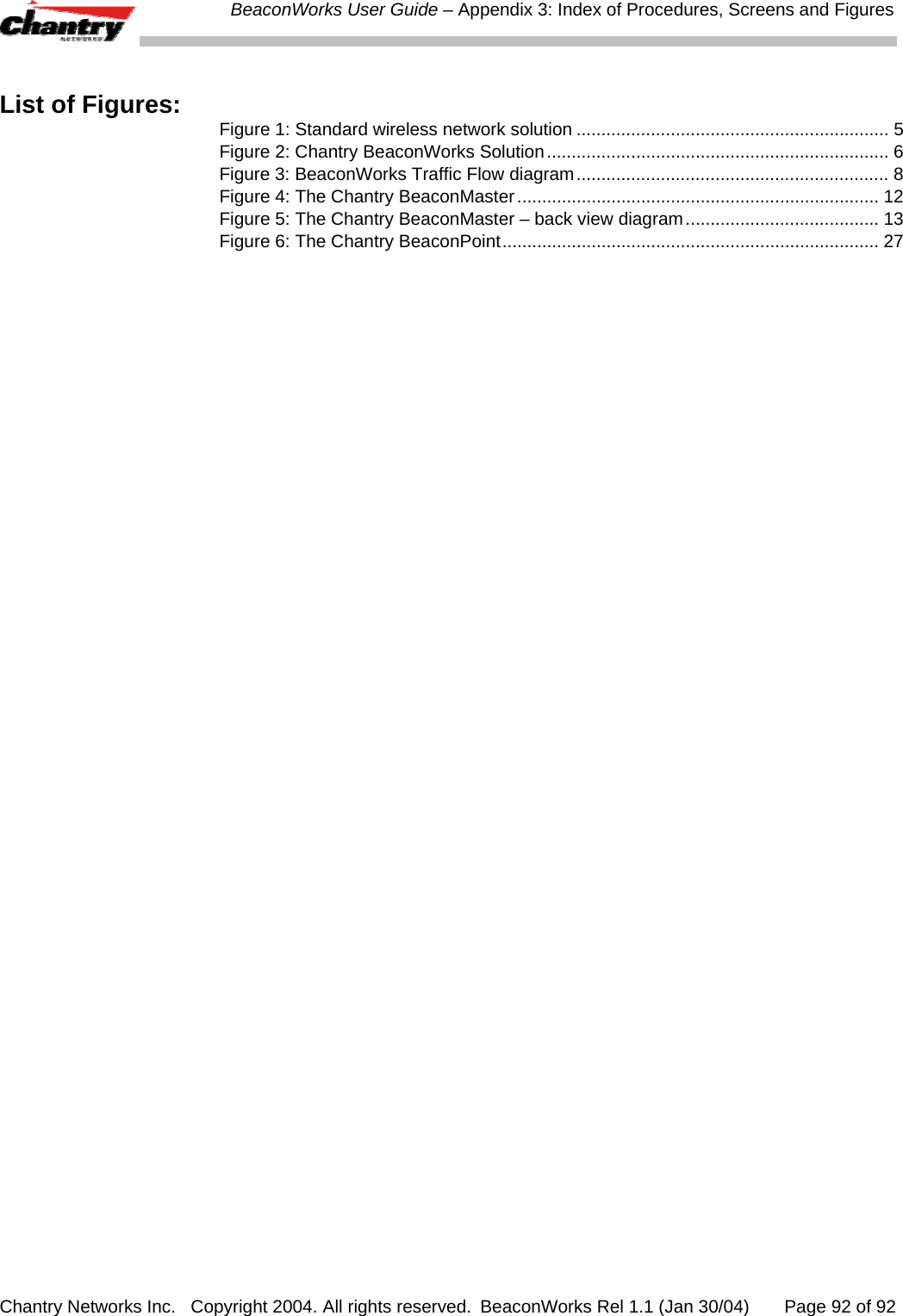
Chantry Networks BP200E Access Point with WLAN and UNII User Manual

Chantry Networks Inc. (a Siemens Company) Access Point with WLAN and UNII

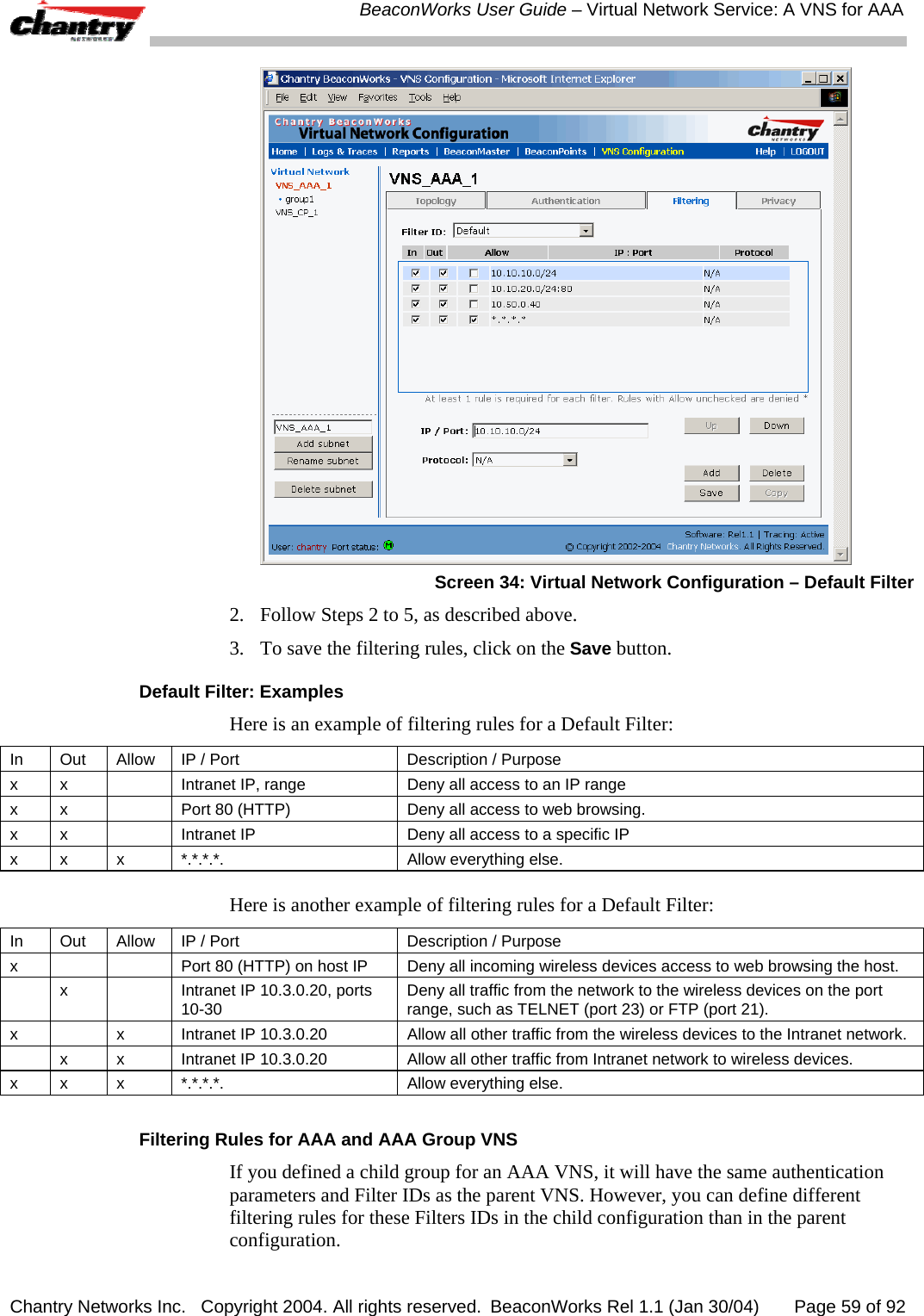
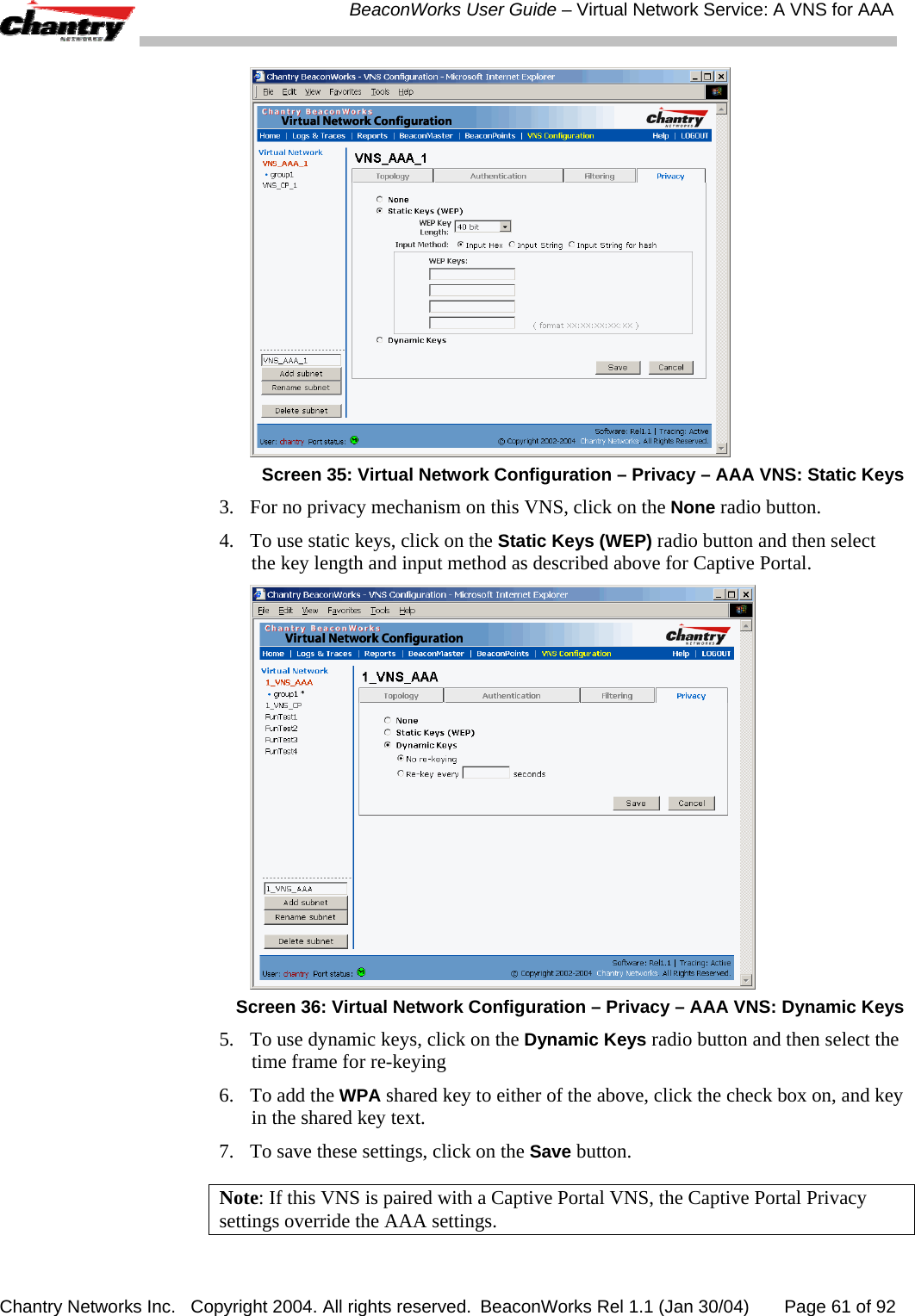
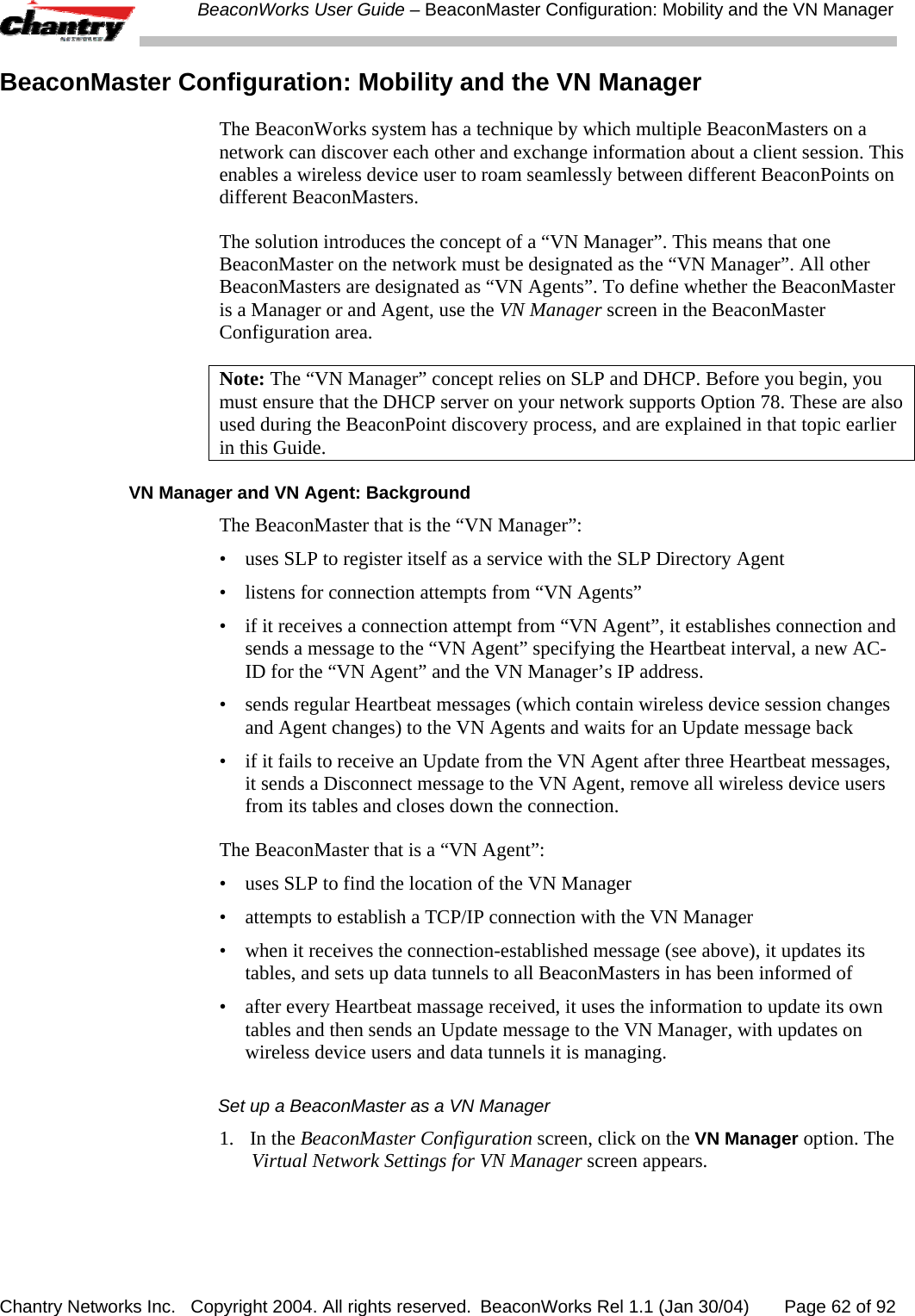
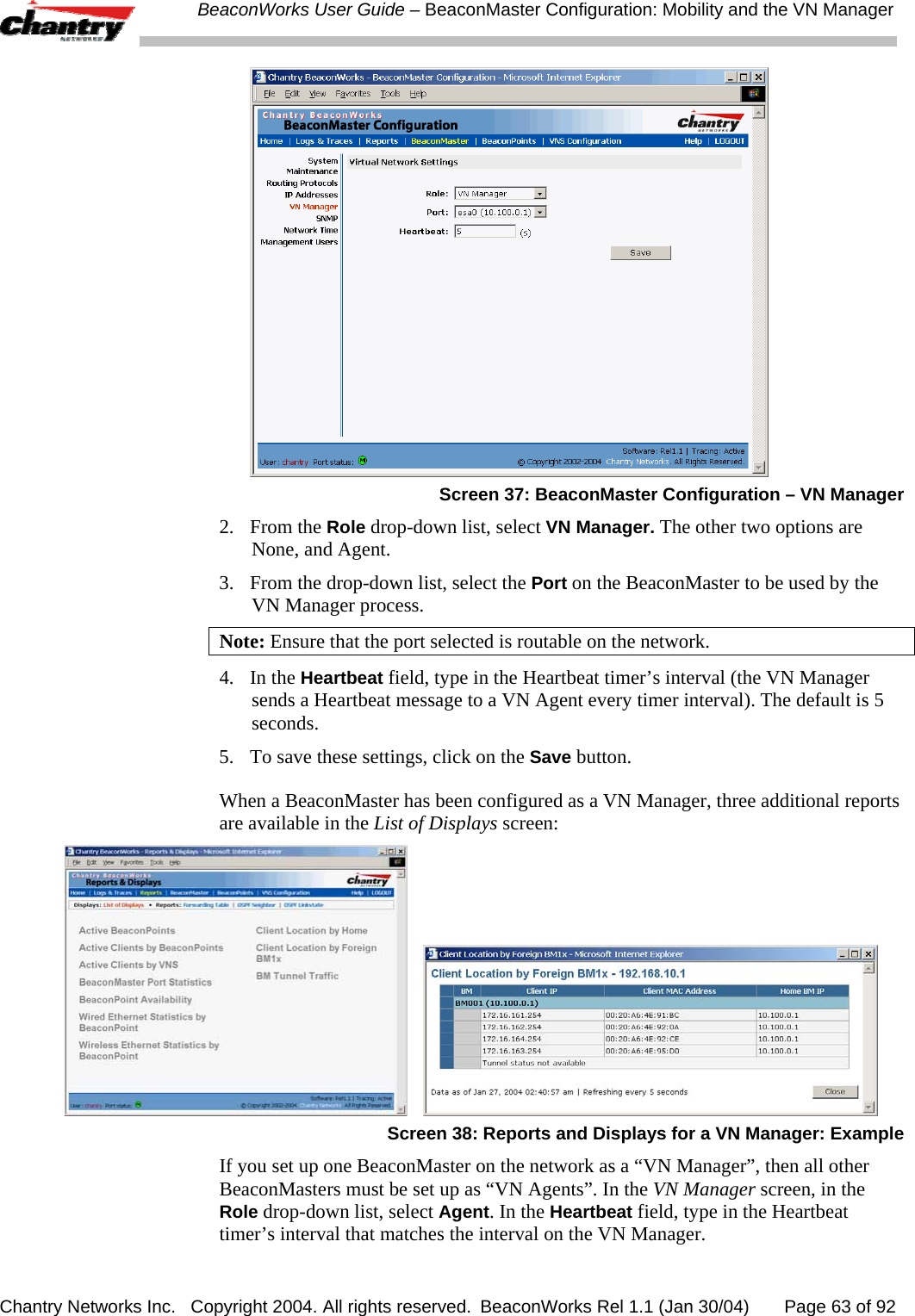
users manual

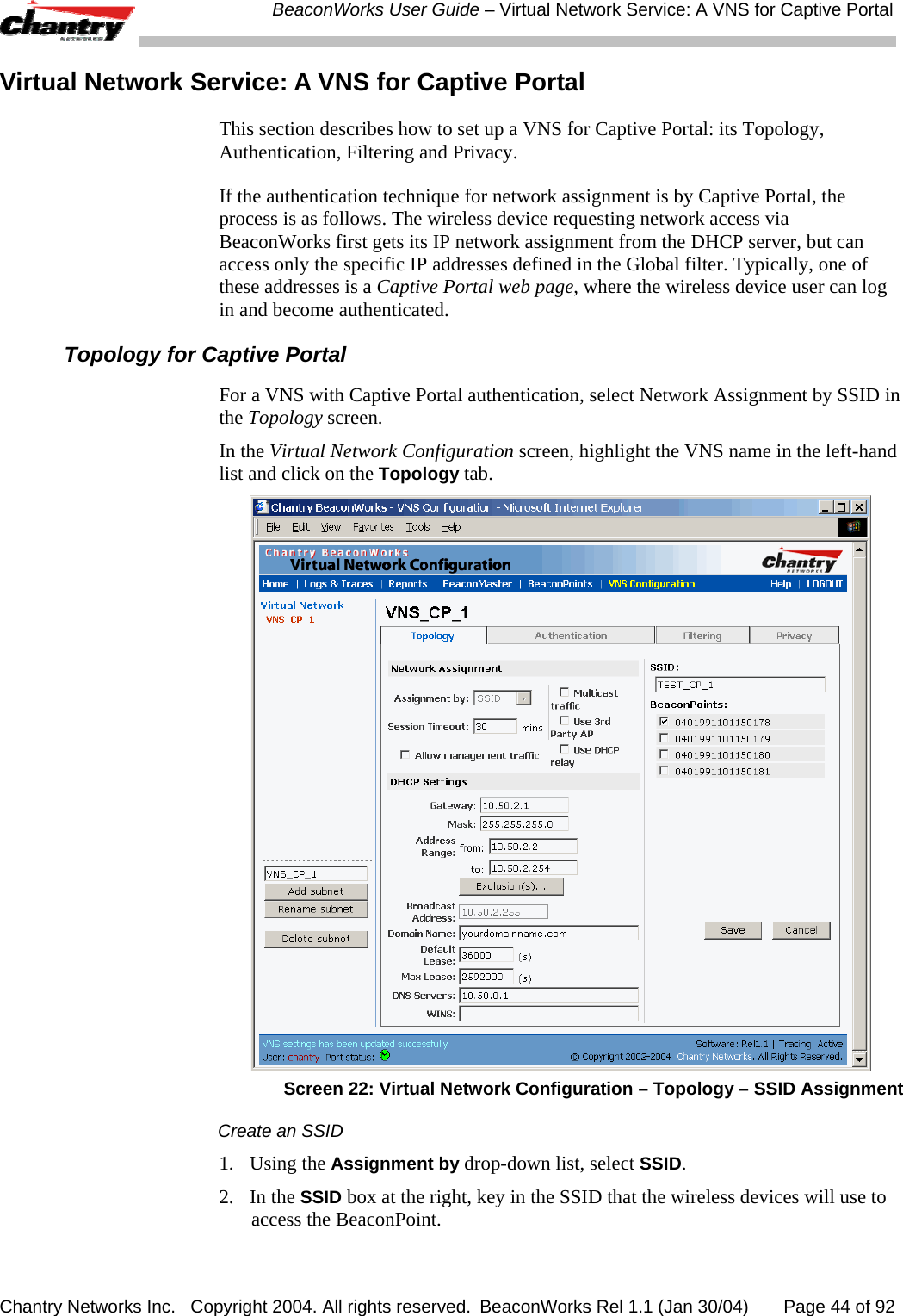
Chantry Networks Inc.   Copyright 2004. All rights reserved.   BeaconWorks Rel 1.1 (Jan 30/04)       Page 1 of 92    Chantry BeaconWorks  User Guide Chantry’s next generation of wireless networking devices provide a truly scalable WLAN solution. Chantry’s BeaconPoints are thin access points that are controlled through a sophisticated network device, the BeaconMaster. This solution provides the security and manageability required by enterprises and service providers alike.  BeaconMaster  BeaconPoint    BeaconWorks Release 1.1
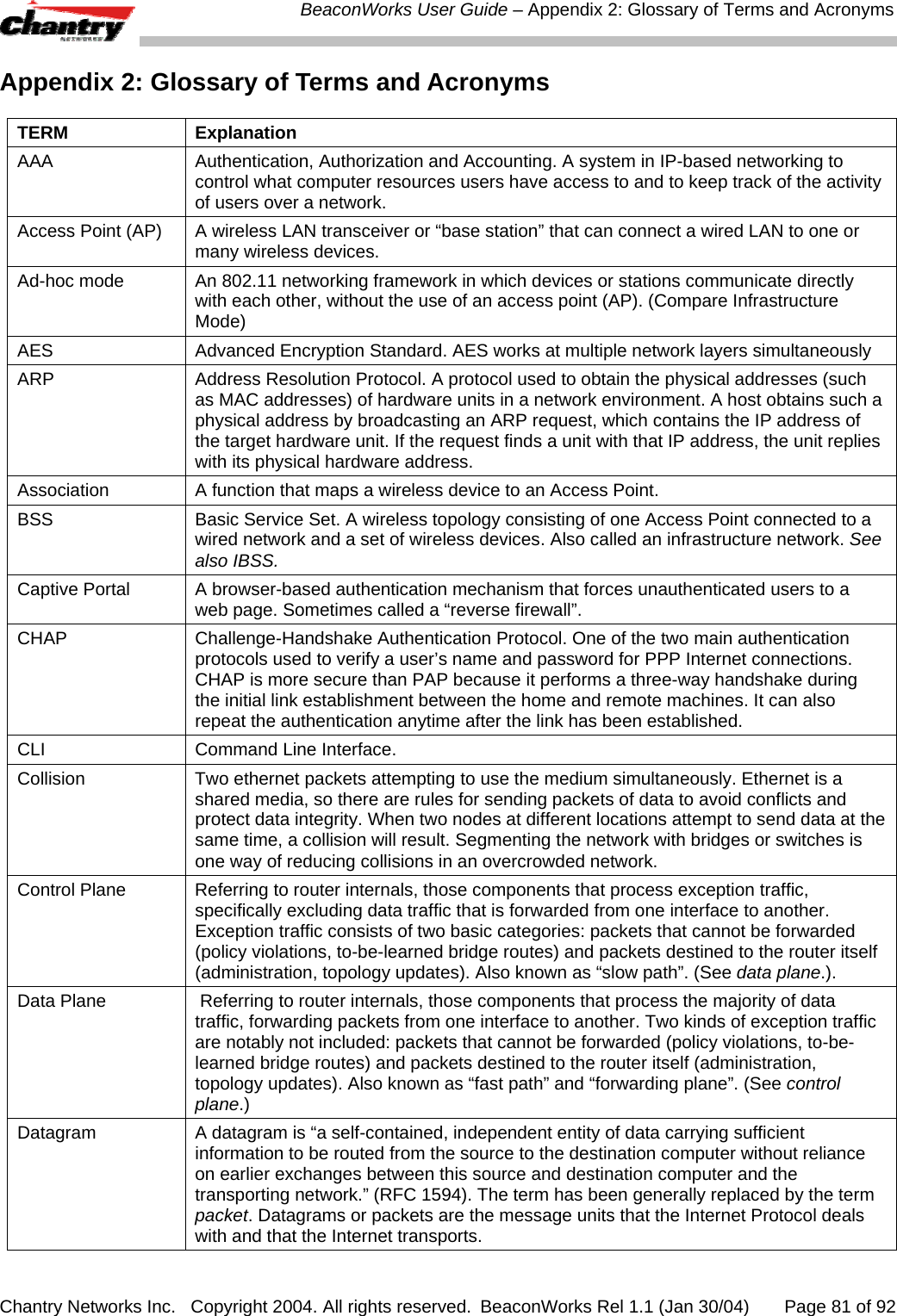
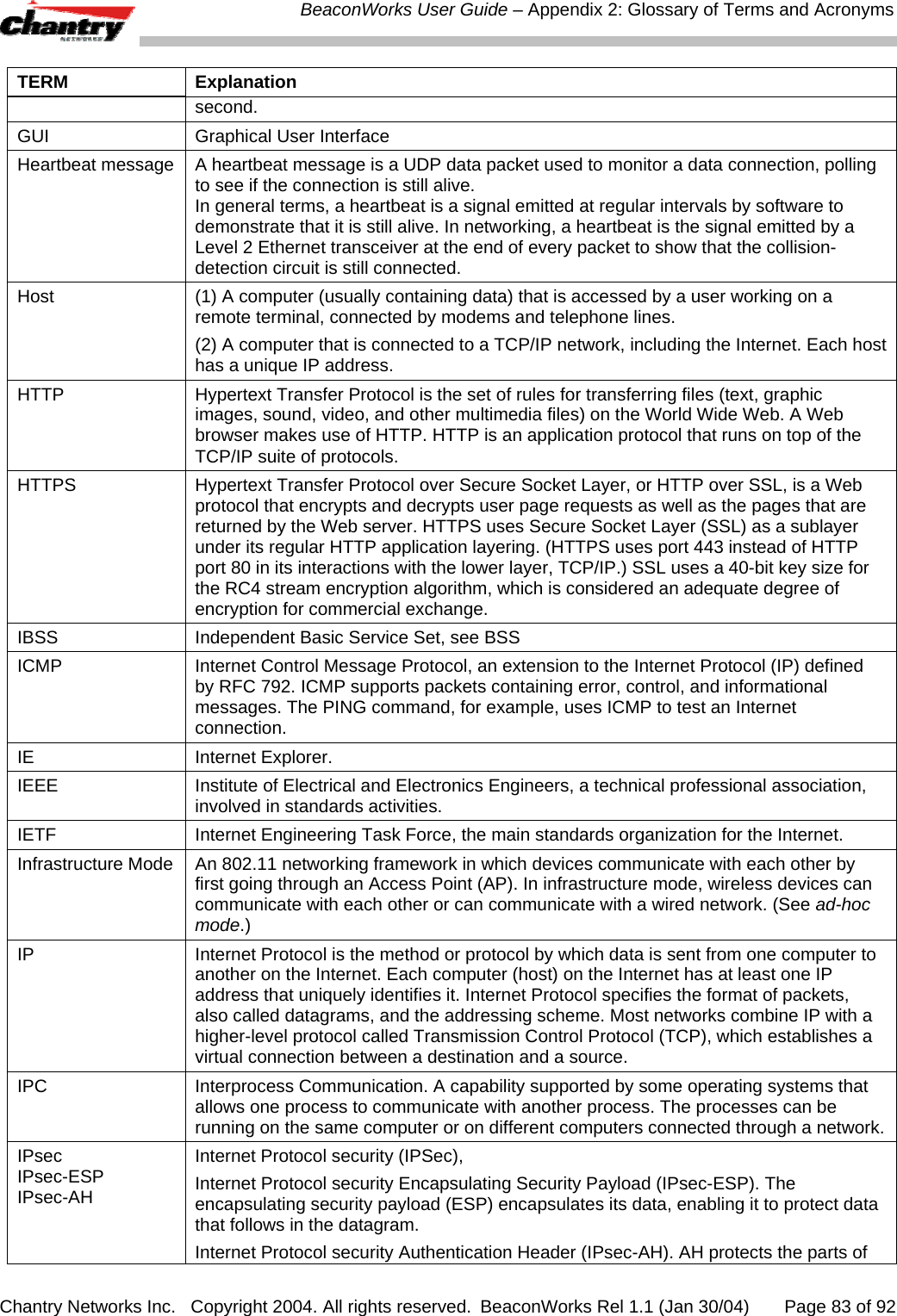
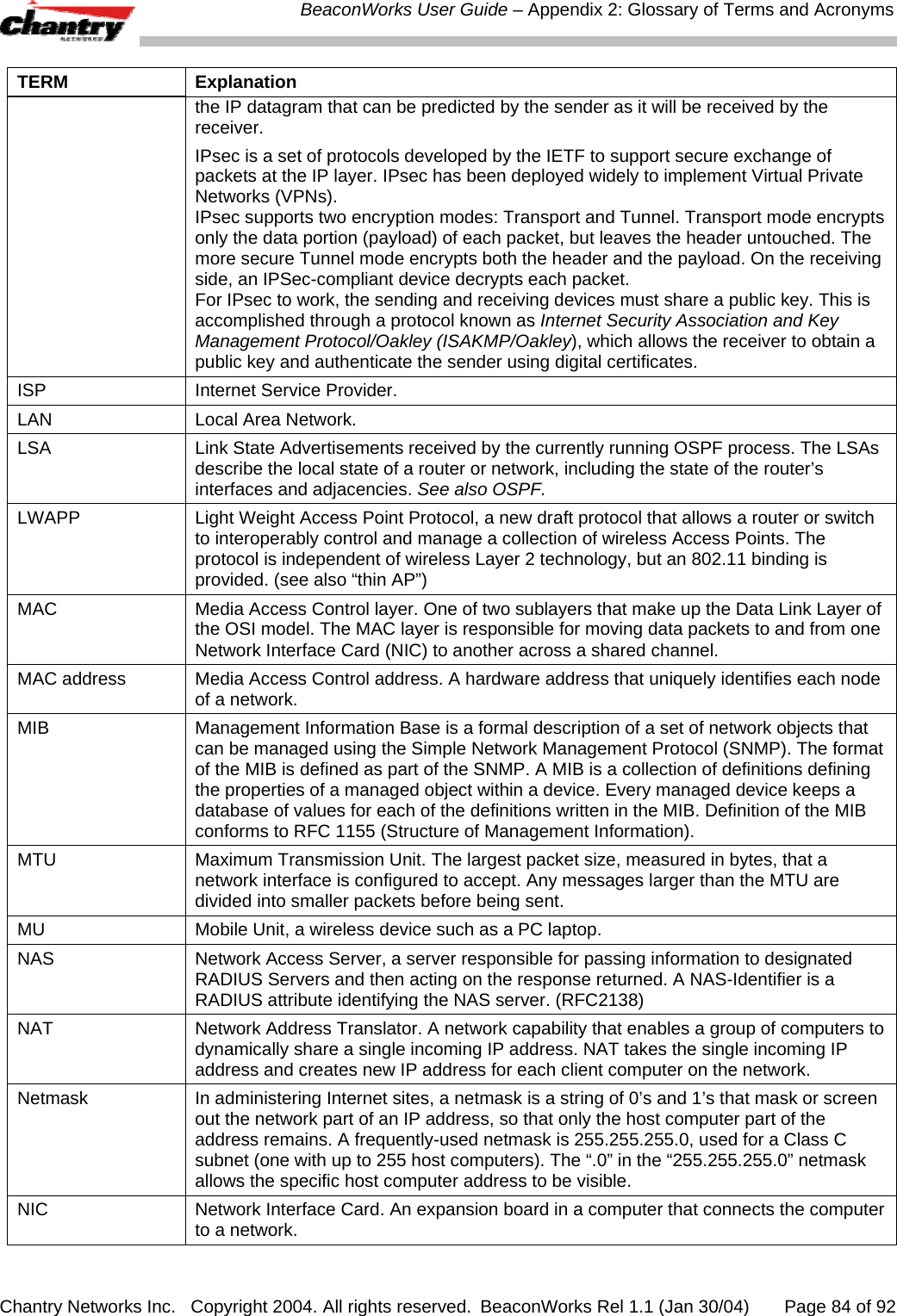
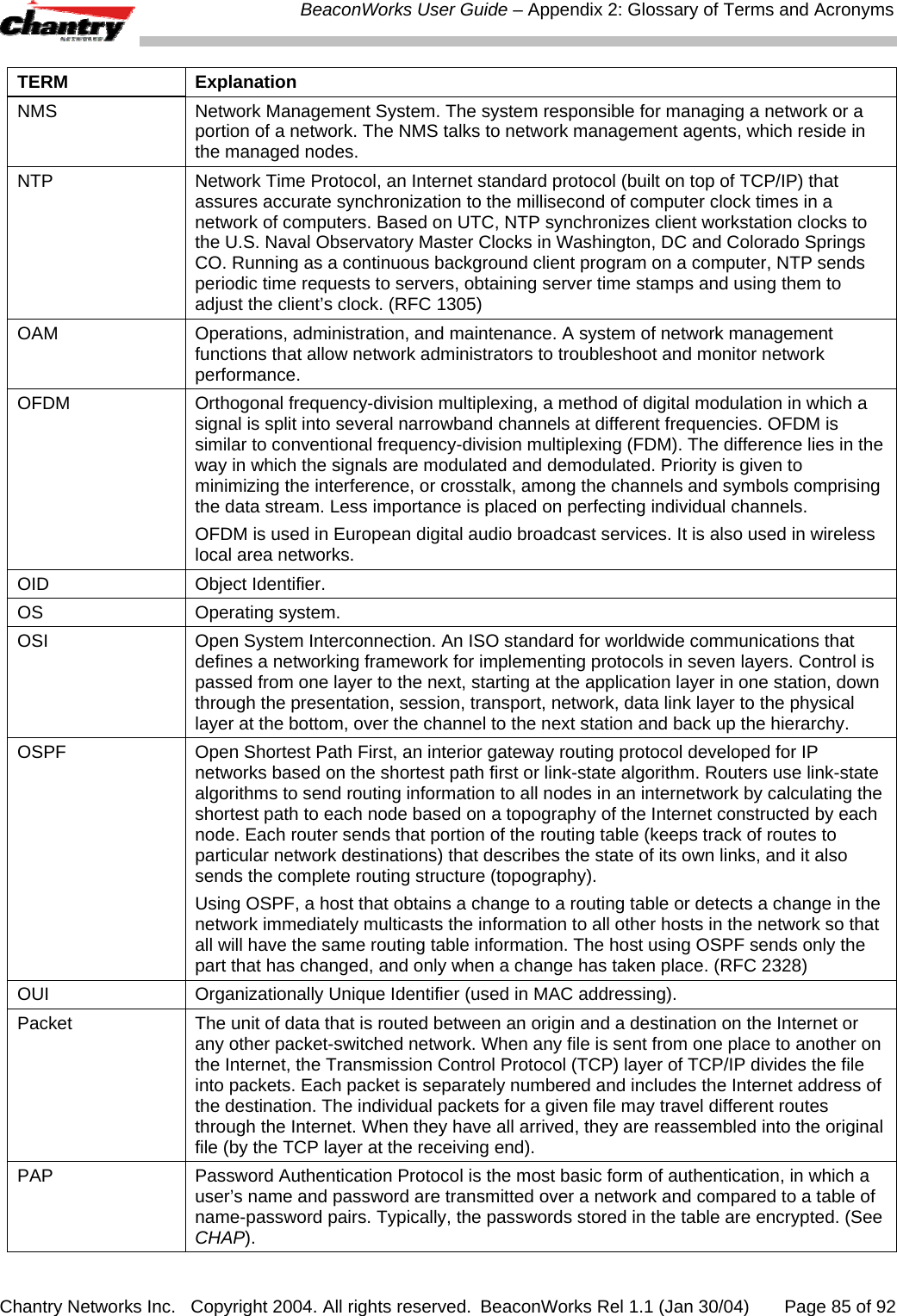
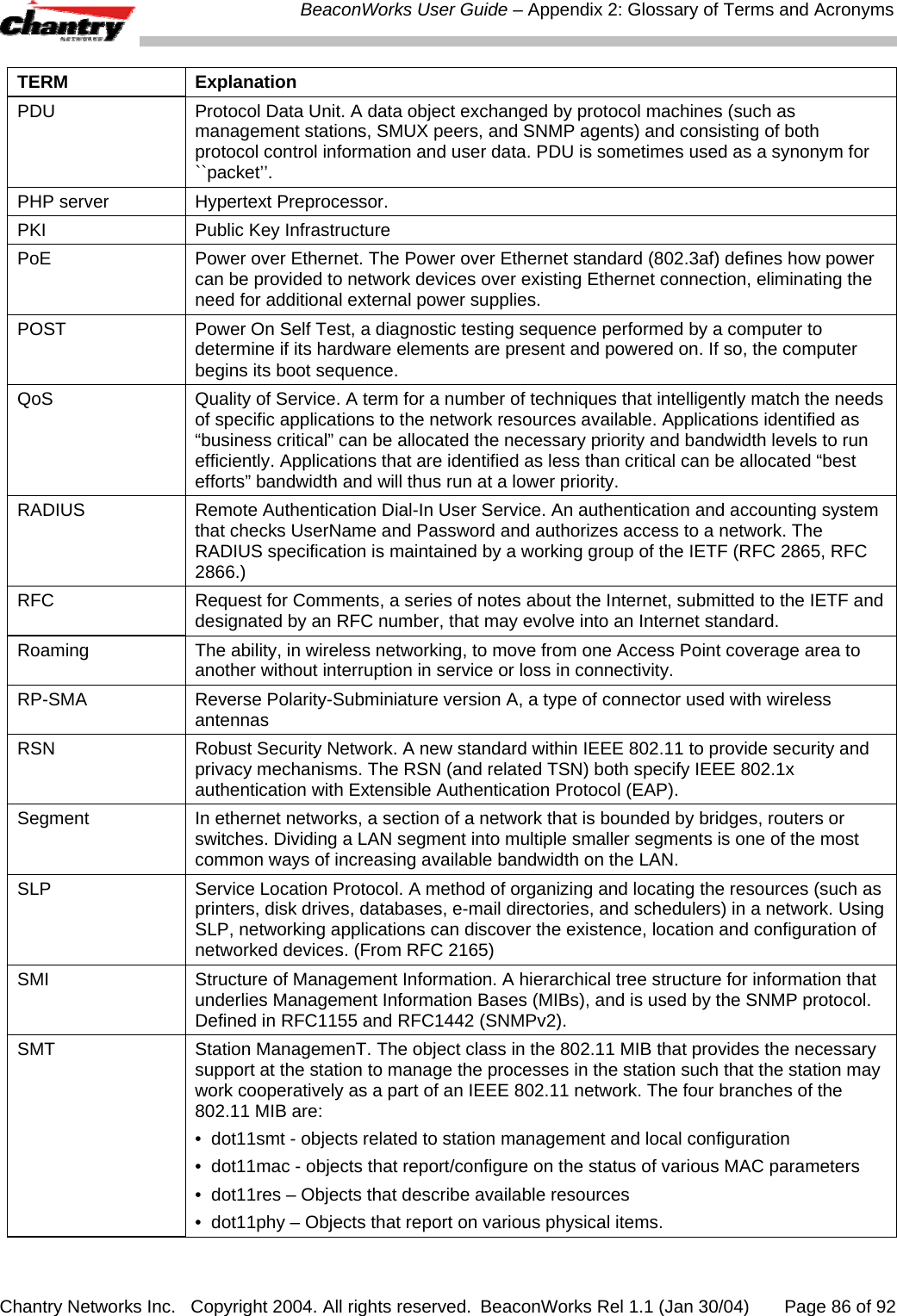
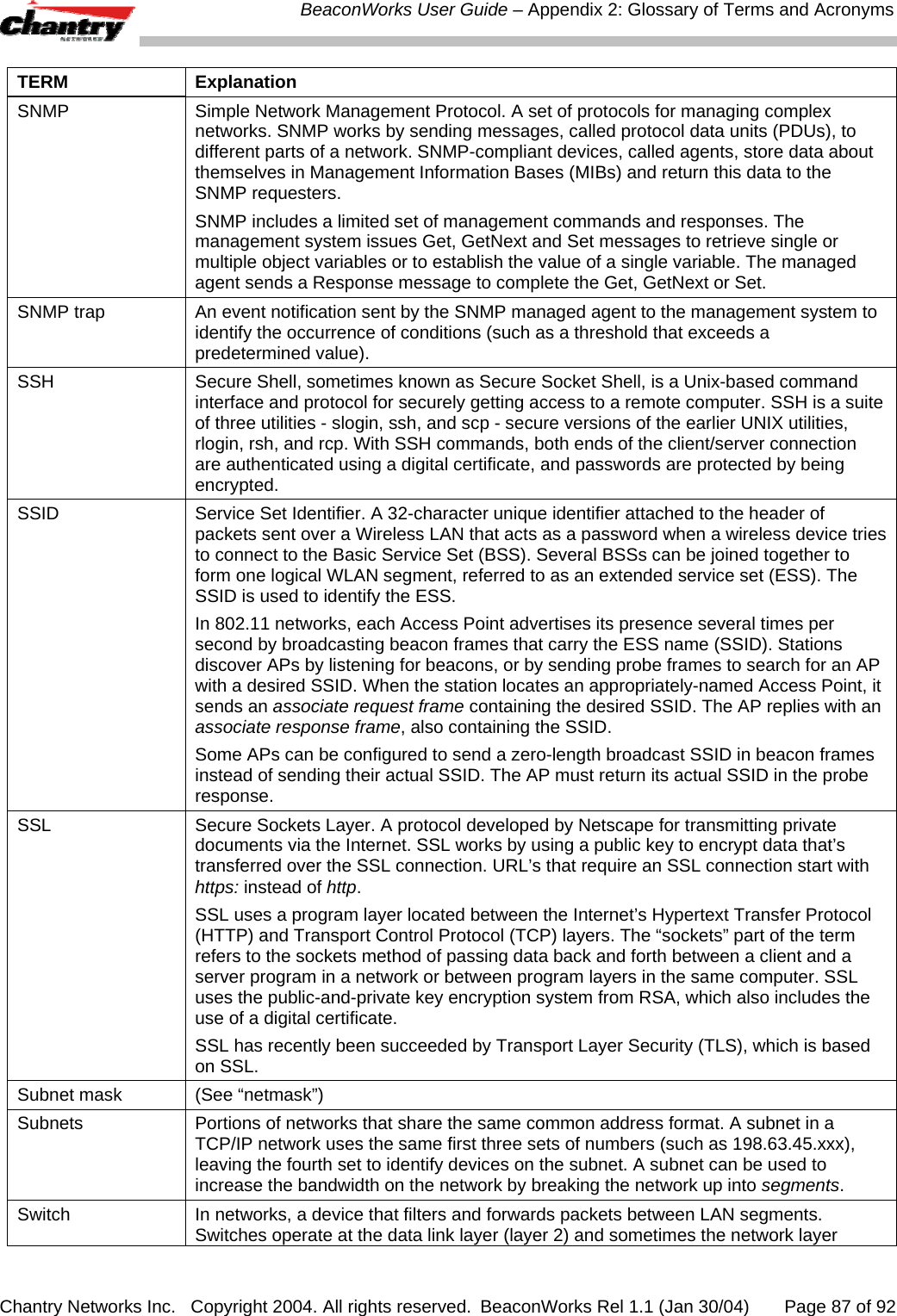
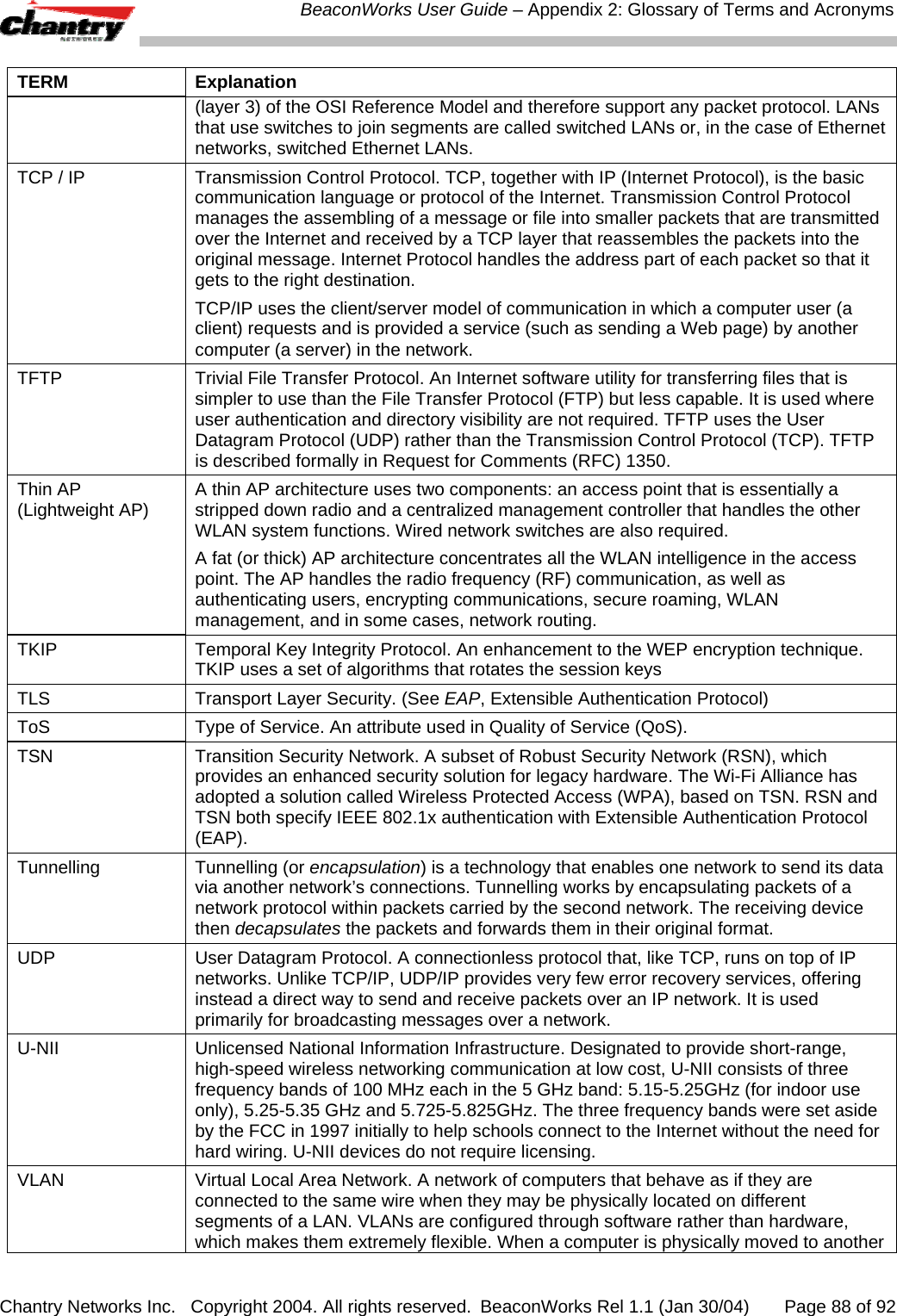
 BeaconWorks User Guide – In this document Chantry Networks Inc.   Copyright 2004. All rights reserved.   BeaconWorks Rel 1.1 (Jan 30/04)       Page 2 of 92 In this document  The Chantry BeaconWorks Solution .............................................. 4 What is the Chantry BeaconWorks System?.............................. 4 Conventional Wireless LANS ..................................................... 4 The Chantry BeaconWorks Solution .......................................... 5 BeaconWorks and Your Enterprise Network.................................. 8 Network traffic flow in the BeaconWorks System....................... 8 Network security ......................................................................... 9 Interaction with Wired Networks: Virtual Network Service ....... 10 Static Routing and Routing Protocols....................................... 10 Policy: Packet Filtering ............................................................. 10 Mobility and Roaming ............................................................... 11 Availability................................................................................. 11 BeaconMaster: Startup................................................................. 12 BeaconMaster Features and Installation.................................. 12 First-Time Setup of BeaconMaster........................................... 13 The Graphical User Interface (GUI): Overview ........................ 17 BeaconWorks Configuration Steps: Overview ............................. 19 BeaconWorks Configuration: Data Port and Routing Setup ........ 20 Setting Up the Data Ports......................................................... 20 Setting up Static Routes ........................................................... 22 Setting up OSPF Routing ......................................................... 24 BeaconPoint: Startup.................................................................... 27 BeaconPoint Features – BP100 and BP200 : .......................... 27 Installing the BeaconPoints ...................................................... 29 BeaconPoint: Registering ......................................................... 30 BeaconPoint: Configuring Properties and Adding Manually..... 33 Virtual Network Service: Overview ............................................... 38 What is a Virtual Network Service? .......................................... 39 Topology of a VNS: Overview .................................................. 39 Network Assignment and Authentication for a VNS................. 40 Filtering for a VNS: How it works.............................................. 40 Privacy on a VNS: Overview .................................................... 41 Setting up a new Virtual Network Service (VNS) ..................... 42 Virtual Network Service: A VNS for Captive Portal ...................... 44 Topology for Captive Portal...................................................... 44 Authentication for Captive Portal.............................................. 46 Filtering Rules for Captive Portal.............................................. 49 Privacy using WEP for a Captive Portal VNS........................... 52 Virtual Network Service: A VNS for AAA...................................... 54 Topology for an AAA VNS........................................................ 54 Authentication for AAA.............................................................. 55 Filtering Rules for a Named Filter ID ........................................ 56 Setting up Default Filtering Rules............................................. 58 Filtering Rules: Special Circumstances.................................... 60 Privacy using WEP for an AAA VNS ........................................ 60 BeaconMaster Configuration: Mobility and the VN Manager ....... 62 BeaconMaster Configuration: Management Users ...................... 64 BeaconMaster Configuration: Network Time................................ 65 Setting up Third-Party Access Points........................................... 66 Ongoing Operation: BeaconPoint Maintenance........................... 69 BeaconPoint Software Upgrade ............................................... 69 Disassociating a Client from its BeaconPoint........................... 70 Ongoing Operation: BeaconMaster.............................................. 71 BeaconMaster System Maintenance........................................ 71 BeaconWorks Log and Data Files............................................ 72 Logs of Events, Trace Messages and Audits ........................... 72 Reports and Displays................................................................ 75 BeaconMaster Configuration: Setting up SNMP .......................... 76
 BeaconWorks User Guide – In this document Chantry Networks Inc.   Copyright 2004. All rights reserved.   BeaconWorks Rel 1.1 (Jan 30/04)       Page 3 of 92 SNMP: Background .................................................................. 76 SNMP: Enabling on the BeaconMaster.................................... 77 Appendix 1: BeaconWorks System States and LEDs.................. 79 Appendix 2: Glossary of Terms and Acronyms............................ 81 Appendix 3: Index of Procedures, Screens and Figures.............. 90
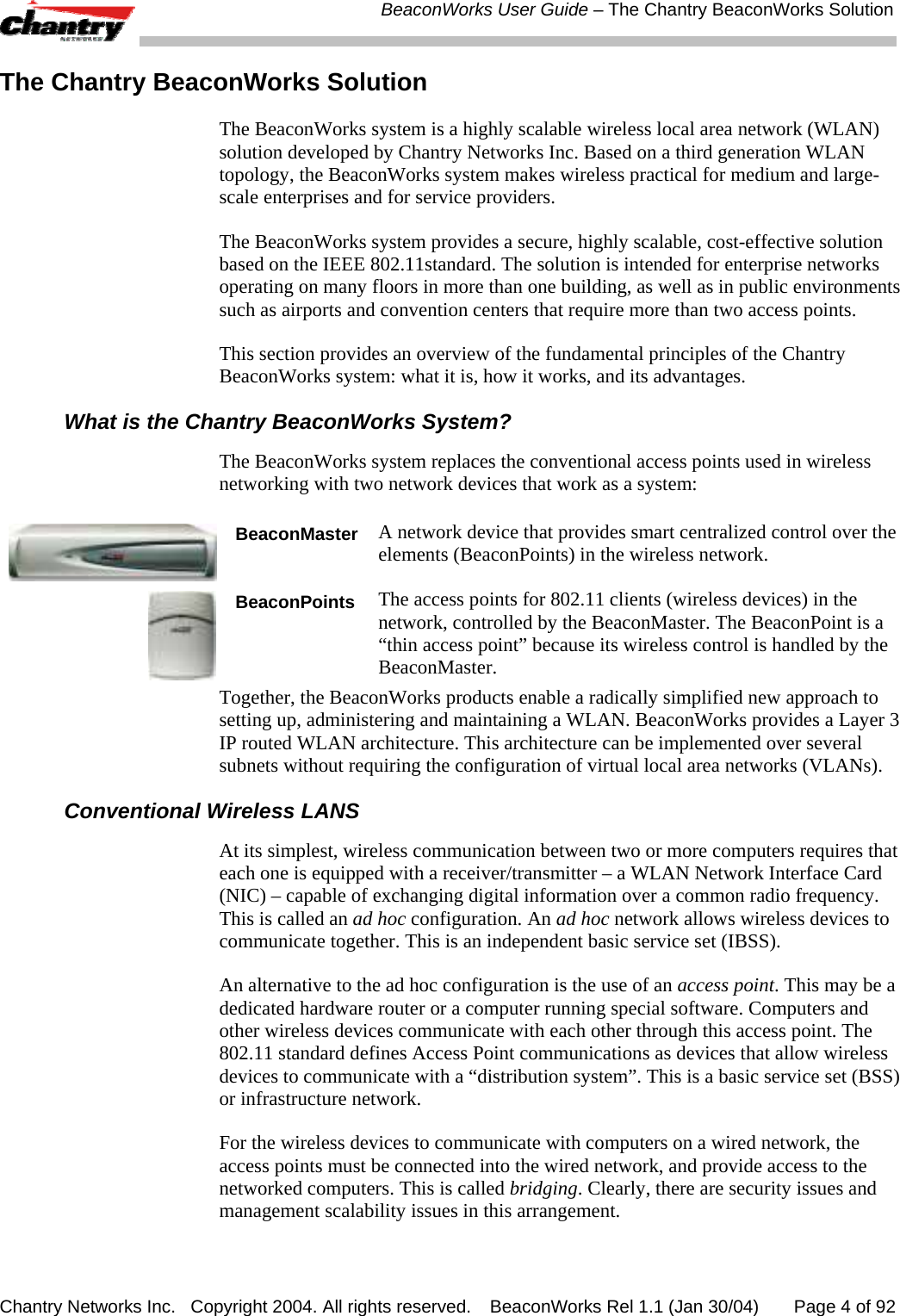
 BeaconWorks User Guide – The Chantry BeaconWorks Solution Chantry Networks Inc.   Copyright 2004. All rights reserved.   BeaconWorks Rel 1.1 (Jan 30/04)       Page 4 of 92 The Chantry BeaconWorks Solution The BeaconWorks system is a highly scalable wireless local area network (WLAN) solution developed by Chantry Networks Inc. Based on a third generation WLAN topology, the BeaconWorks system makes wireless practical for medium and large-scale enterprises and for service providers.  The BeaconWorks system provides a secure, highly scalable, cost-effective solution based on the IEEE 802.11standard. The solution is intended for enterprise networks operating on many floors in more than one building, as well as in public environments such as airports and convention centers that require more than two access points.  This section provides an overview of the fundamental principles of the Chantry BeaconWorks system: what it is, how it works, and its advantages.  What is the Chantry BeaconWorks System? The BeaconWorks system replaces the conventional access points used in wireless networking with two network devices that work as a system:  BeaconMasterA network device that provides smart centralized control over the elements (BeaconPoints) in the wireless network.   BeaconPoints The access points for 802.11 clients (wireless devices) in the network, controlled by the BeaconMaster. The BeaconPoint is a “thin access point” because its wireless control is handled by the BeaconMaster. Together, the BeaconWorks products enable a radically simplified new approach to setting up, administering and maintaining a WLAN. BeaconWorks provides a Layer 3 IP routed WLAN architecture. This architecture can be implemented over several subnets without requiring the configuration of virtual local area networks (VLANs). Conventional Wireless LANS At its simplest, wireless communication between two or more computers requires that each one is equipped with a receiver/transmitter – a WLAN Network Interface Card (NIC) – capable of exchanging digital information over a common radio frequency. This is called an ad hoc configuration. An ad hoc network allows wireless devices to communicate together. This is an independent basic service set (IBSS). An alternative to the ad hoc configuration is the use of an access point. This may be a dedicated hardware router or a computer running special software. Computers and other wireless devices communicate with each other through this access point. The 802.11 standard defines Access Point communications as devices that allow wireless devices to communicate with a “distribution system”. This is a basic service set (BSS) or infrastructure network.  For the wireless devices to communicate with computers on a wired network, the access points must be connected into the wired network, and provide access to the networked computers. This is called bridging. Clearly, there are security issues and management scalability issues in this arrangement.
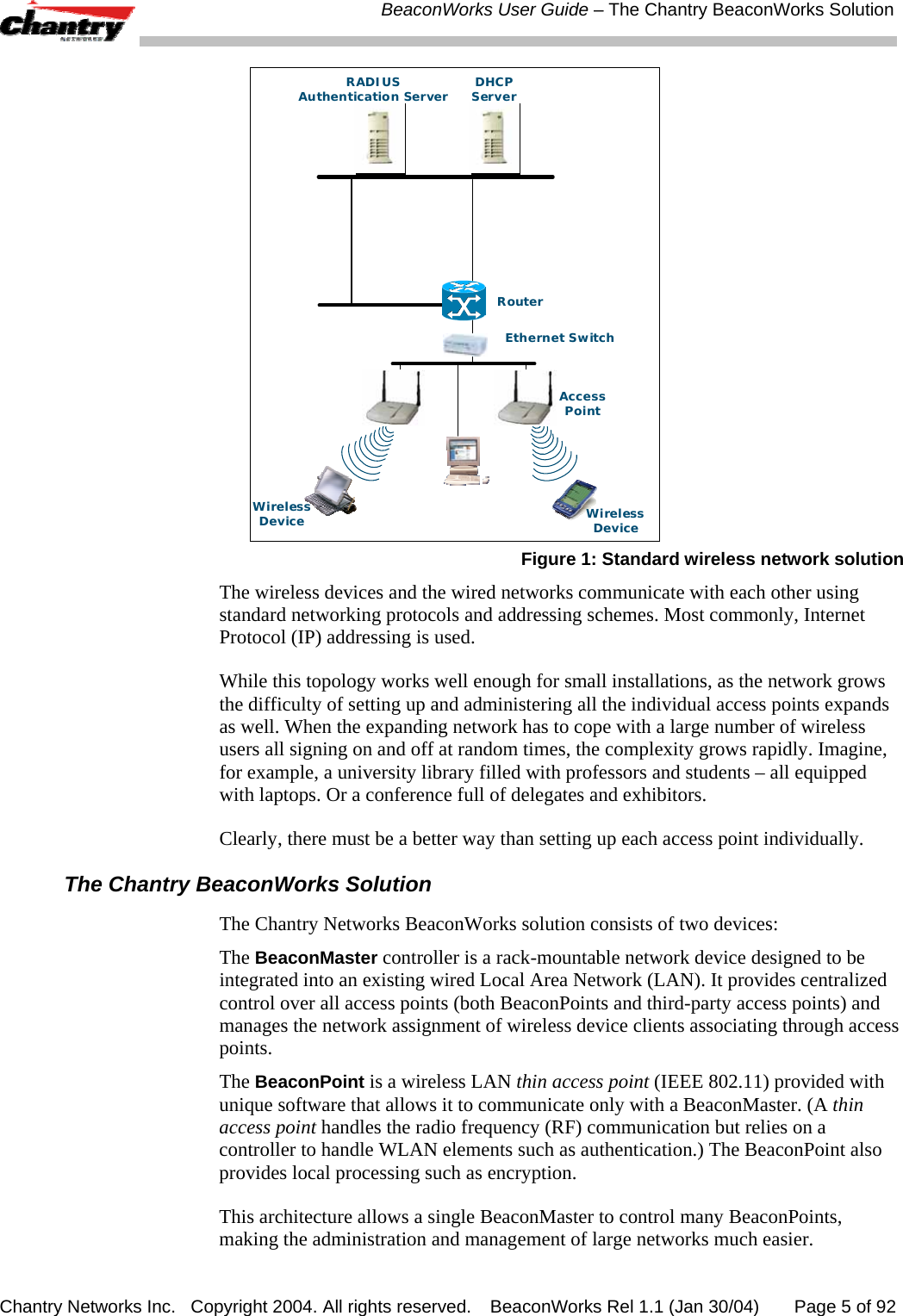
 BeaconWorks User Guide – The Chantry BeaconWorks Solution Chantry Networks Inc.   Copyright 2004. All rights reserved.   BeaconWorks Rel 1.1 (Jan 30/04)       Page 5 of 92 RADIUSAuthentication Server DHCPServerRouterWirelessDeviceEthernet SwitchWirelessDeviceAccessPoint Figure 1: Standard wireless network solution The wireless devices and the wired networks communicate with each other using standard networking protocols and addressing schemes. Most commonly, Internet Protocol (IP) addressing is used.  While this topology works well enough for small installations, as the network grows the difficulty of setting up and administering all the individual access points expands as well. When the expanding network has to cope with a large number of wireless users all signing on and off at random times, the complexity grows rapidly. Imagine, for example, a university library filled with professors and students – all equipped with laptops. Or a conference full of delegates and exhibitors. Clearly, there must be a better way than setting up each access point individually.  The Chantry BeaconWorks Solution The Chantry Networks BeaconWorks solution consists of two devices:  The BeaconMaster controller is a rack-mountable network device designed to be integrated into an existing wired Local Area Network (LAN). It provides centralized control over all access points (both BeaconPoints and third-party access points) and manages the network assignment of wireless device clients associating through access points.  The BeaconPoint is a wireless LAN thin access point (IEEE 802.11) provided with unique software that allows it to communicate only with a BeaconMaster. (A thin access point handles the radio frequency (RF) communication but relies on a controller to handle WLAN elements such as authentication.) The BeaconPoint also provides local processing such as encryption. This architecture allows a single BeaconMaster to control many BeaconPoints, making the administration and management of large networks much easier.
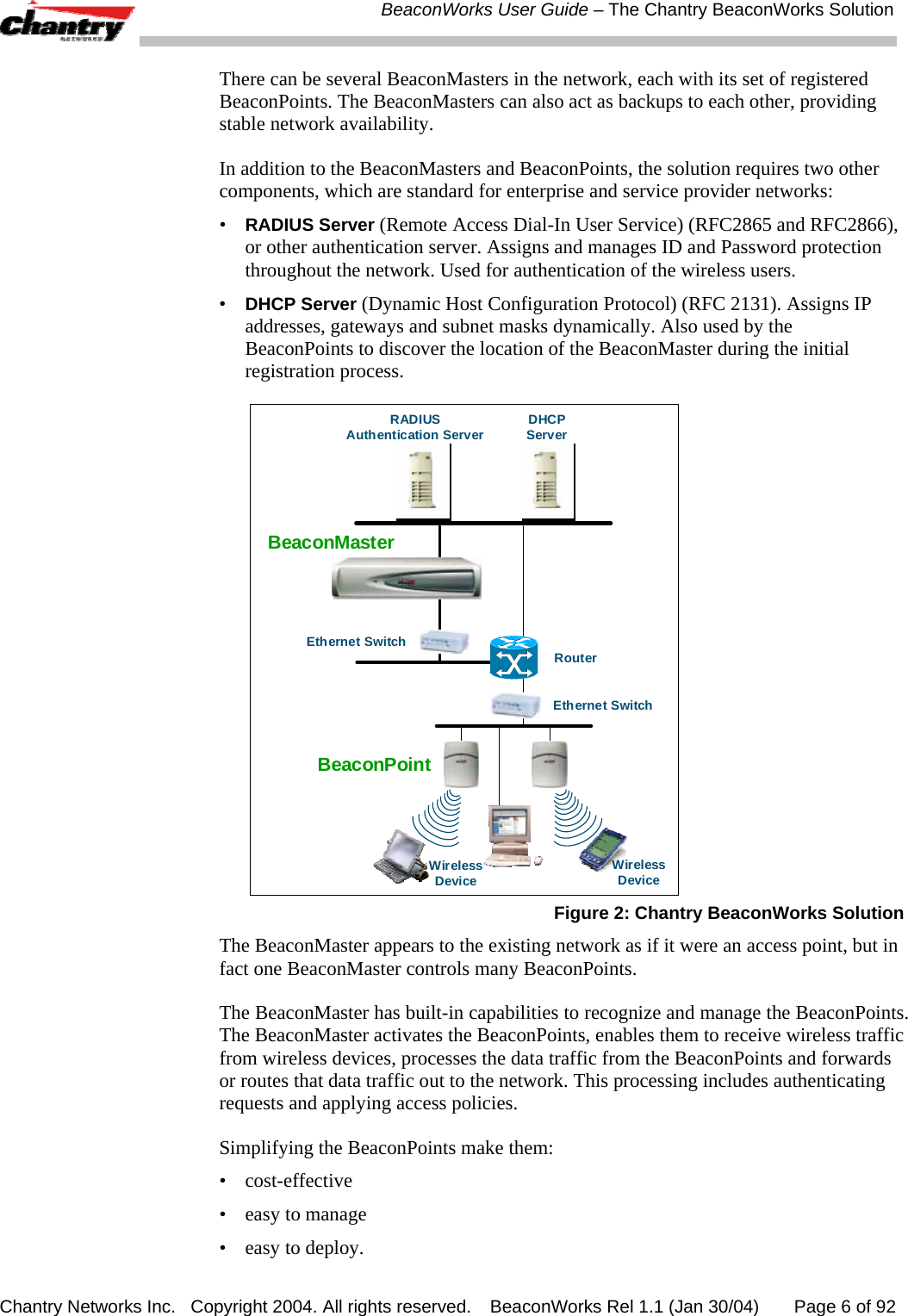
 BeaconWorks User Guide – The Chantry BeaconWorks Solution Chantry Networks Inc.   Copyright 2004. All rights reserved.   BeaconWorks Rel 1.1 (Jan 30/04)       Page 6 of 92 There can be several BeaconMasters in the network, each with its set of registered BeaconPoints. The BeaconMasters can also act as backups to each other, providing stable network availability. In addition to the BeaconMasters and BeaconPoints, the solution requires two other components, which are standard for enterprise and service provider networks: • RADIUS Server (Remote Access Dial-In User Service) (RFC2865 and RFC2866), or other authentication server. Assigns and manages ID and Password protection throughout the network. Used for authentication of the wireless users. • DHCP Server (Dynamic Host Configuration Protocol) (RFC 2131). Assigns IP addresses, gateways and subnet masks dynamically. Also used by the BeaconPoints to discover the location of the BeaconMaster during the initial registration process. BeaconPointRADIUSAuthentication Server DHCPServerRouterWirelessDeviceEthernet SwitchEthernet SwitchWirelessDeviceBeaconMaster Figure 2: Chantry BeaconWorks Solution The BeaconMaster appears to the existing network as if it were an access point, but in fact one BeaconMaster controls many BeaconPoints. The BeaconMaster has built-in capabilities to recognize and manage the BeaconPoints. The BeaconMaster activates the BeaconPoints, enables them to receive wireless traffic from wireless devices, processes the data traffic from the BeaconPoints and forwards or routes that data traffic out to the network. This processing includes authenticating requests and applying access policies.  Simplifying the BeaconPoints make them:  • cost-effective •  easy to manage •  easy to deploy.
 BeaconWorks User Guide – The Chantry BeaconWorks Solution Chantry Networks Inc.   Copyright 2004. All rights reserved.   BeaconWorks Rel 1.1 (Jan 30/04)       Page 7 of 92 Putting control on an intelligent centralized BeaconMaster enables: •  centralized configuration, management, reporting, maintenance • high security •  flexibility to suit enterprise •  scalable and resilient deployments with a few BeaconMasters controlling hundreds of BeaconPoints. Here are some of the BeaconWorks system advantages: Scales up to Enterprise capacity One BeaconMaster controls as many as 200 BeaconPoints. In turn each BeaconPoint can handle up to 254 wireless devices. With additional BeaconMasters, the number of wireless devices the Chantry system can support is in the thousands. Integrates in existing network A BeaconMaster can be added to an existing enterprise network as a new network device, greatly enhancing its capability without interfering with its existing functionality. Integration of the BeaconMasters and BeaconPoints does not require any reconfiguration of the existing infrastructure (e.g. VLANs). Offers centralized management and control An administrator accesses the BeaconMaster in its centralized location and uses its user interface to monitor and administer the entire wireless network. The BeaconMaster has functionality to recognize, configure and manage the BeaconPoints and distribute new software releases. Provides easy deployment of BeaconPoints The initial configuration of the BeaconPoints on the centralized BeaconMaster can be done with an automatic “discovery” technique. Provides security via user authentication BeaconWorks uses existing authentication (AAA) servers to authenticate and authorize users. Provides security via filters and privileges BeaconWorks uses virtual networking techniques to create separate virtual networks with defined authentication and billing services, as well as access policies and privileges. Supports seamless mobility and roaming BeaconWorks supports seamless roaming of a wireless device from one BeaconPoint to another on the same BeaconMaster or on a different BeaconMaster. Integrates third-party access points BeaconWorks can integrate legacy third-party access points, using a combination of network routing and authentication techniques. Prevents rogue devices Rogue devices will not be authenticated by the BeaconMaster, preventing unproved devices from masquerading as valid BeaconPoints. Provides accounting services The BeaconMaster has software to track and log wireless user sessions, user group activity, and other activity reporting, enabling the generation of consolidated billing records. Offers troubleshooting capability The BeaconMaster software logs system and session activity and provides reports to aid in troubleshooting analysis.
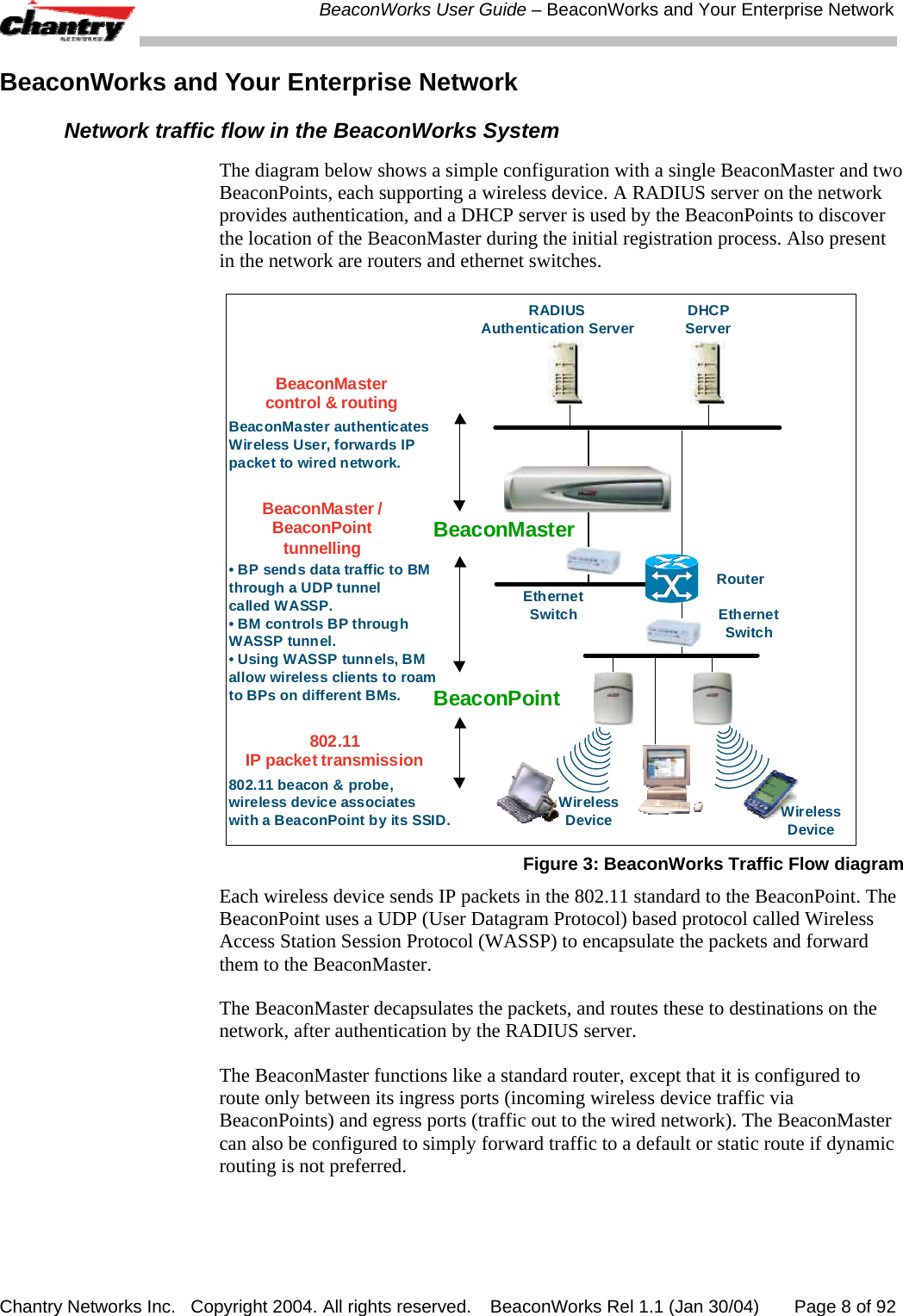
 BeaconWorks User Guide – BeaconWorks and Your Enterprise Network Chantry Networks Inc.   Copyright 2004. All rights reserved.   BeaconWorks Rel 1.1 (Jan 30/04)       Page 8 of 92 BeaconWorks and Your Enterprise Network Network traffic flow in the BeaconWorks System The diagram below shows a simple configuration with a single BeaconMaster and two BeaconPoints, each supporting a wireless device. A RADIUS server on the network provides authentication, and a DHCP server is used by the BeaconPoints to discover the location of the BeaconMaster during the initial registration process. Also present in the network are routers and ethernet switches. BeaconPointRADIUSAuthentication Server DHCPServerRouterWirelessDeviceEthernetSwitchEthernetSwitch802.11IP packet transmissionBeaconMaster /BeaconPointtunnelling802.11 beacon & probe,wireless device associateswith a BeaconPoint by its SSID.• BP sends data traffic to BMthrough a UDP tunnelcalled WASSP.• BM controls BP throughWASSP tunnel.• Using WASSP tunnels, BMallow wireless clients to roamto BPs on different BMs.BeaconMaster authenticatesWireless User, forwards IPpacket to wired network.BeaconMastercontrol & routingBeaconMasterWirelessDevice Figure 3: BeaconWorks Traffic Flow diagram Each wireless device sends IP packets in the 802.11 standard to the BeaconPoint. The BeaconPoint uses a UDP (User Datagram Protocol) based protocol called Wireless Access Station Session Protocol (WASSP) to encapsulate the packets and forward them to the BeaconMaster.  The BeaconMaster decapsulates the packets, and routes these to destinations on the network, after authentication by the RADIUS server. The BeaconMaster functions like a standard router, except that it is configured to route only between its ingress ports (incoming wireless device traffic via BeaconPoints) and egress ports (traffic out to the wired network). The BeaconMaster can also be configured to simply forward traffic to a default or static route if dynamic routing is not preferred.
 BeaconWorks User Guide – BeaconWorks and Your Enterprise Network Chantry Networks Inc.   Copyright 2004. All rights reserved.   BeaconWorks Rel 1.1 (Jan 30/04)       Page 9 of 92 Network security The Chantry BeaconWorks system provides features and functionality to control network access. These are based on standard wireless network security practices. Current wireless network security methods provide a degree of protection. These methods include:  •  Shared Key authentication, that relies on Wired Equivalent Privacy (WEP) keys •  Open System, that relies on Service Set Identifiers (SSIDs) •  802.1x that is compliant with Wi-Fi Protected Access (WPA)  •  Captive Portal based on Secure Sockets Layer (SSL) protocol The Chantry BeaconWorks system supports these encryption approaches:  •  Wired Equivalent Privacy (WEP), a security protocol for wireless local area networks defined in the 802.11b standard.  •  WPA with Temporal Key Integrity Protocol ( TKIP), also known as  WPA version 1. •  Advanced Encryption Standard (AES), also known as WPA version 2. Note: Privacy by Temporal Key Integrity Protocol ( TKIP), also known as Wi-Fi Protected Access (WPA) version 1, is available in Release 2.0. Authentication The Chantry BeaconMaster relies on a RADIUS server, or authentication server, on the enterprise network to provide the authentication information (whether the user is to be allowed or denied access to the network).  The BeaconMaster provides authentication using: •  Captive Portal, a browser-based mechanism that forces users to a web page. •  RADIUS (using IEEE 802.1x) The 802.1x mechanism is a standard for authentication developed within the 802.11 standard. This mechanism is implemented at the port, blocking all data traffic between the wireless device and the network until authentication is complete. Authentication by 802.1x standard uses Extensible Authentication Protocol (EAP) for the message exchange between the BeaconMaster and the RADIUS server. When 802.1x is used for authentication, the BeaconMaster provides the capability to dynamically assign per-wireless-device WEP keys (called per-station WEP keys in 802.11). Privacy Privacy is a mechanism that protects data over wireless and wired networks, usually by encryption techniques. Chantry supports the Wired Equivalent Privacy (WEP) standard common to conventional access points.
 BeaconWorks User Guide – BeaconWorks and Your Enterprise Network Chantry Networks Inc.   Copyright 2004. All rights reserved.  BeaconWorks Rel 1.1 (Jan 30/04)       Page 10 of 92 It also provides Wi-Fi Protected Access (WPA) encryption, based on Pairwise Master Key (PMK) and Temporal Key Integrity Protocol (TKIP). This second option is available when the AAA (802.1x) authentication technique is used. Interaction with Wired Networks: Virtual Network Service BeaconWorks provides a versatile means of mapping wireless networks to the topology of an existing wired network. This is accomplished through the assignment of a Virtual Network Service.  When you set up a Virtual Network Service (VNS) on the BeaconMaster, you are defining a subnet for a group of wireless users. This VNS definition creates a virtual IP subnet where the BeaconMaster acts as a default gateway for wireless devices.  This technique enables policies and authentication to be applied to the groups of wireless users on a VNS, as well as the collecting of accounting information on user sessions that can be used for billing. When a VNS is set up on the BeaconMaster: •  one or more BeaconPoints are associated with it •  a range of IP addresses is set aside for the BeaconMaster’s DHCP server to assign to wireless devices. If routing protocol is enabled, the BeaconMaster advertises the VNS as a routable network segment to the wired network, and routes traffic between the wireless devices and the wired network. Static Routing and Routing Protocols Routing can be used on the BeaconMaster to support the VNS definitions.  In the User Interface on the BeaconMaster, you can configure routing on the BeaconMaster to use one of the following routing techniques: •  Static routes: Use static routes to set the default route of a BeaconMaster so that legitimate wireless device traffic can be forwarded to the default gateway. •  Open Shortest Path First (OSPF) (RFC 2328): Use OSPF to specify the next best hop (route) of a BeaconMaster.  Open Shortest Path First (OSPF) is a protocol designed for medium and large IP networks, with the ability to segment routers into different routing areas for routing information summarization and propagation. Policy: Packet Filtering Policy refers to the rules that allow different network access to different groups of users. The BeaconWorks system can link authorized users to user groups. These user groups then can be confined to predefined portions of the network. In the BeaconWorks system, policy is carried out by means of packet filtering, within a Virtual Network Service.
 BeaconWorks User Guide – BeaconWorks and Your Enterprise Network Chantry Networks Inc.   Copyright 2004. All rights reserved.  BeaconWorks Rel 1.1 (Jan 30/04)       Page 11 of 92 In the BeaconMaster user interface, you set up a filtering policy by defining a set of hierarchical rules that allow (or deny) traffic to specific IP addresses, IP address ranges, or services (ports). The sequence and hierarchy of these filtering rules must be carefully designed, based on your enterprise’s user access plan. The authentication technique selected determines how filtering is carried out:  •  If authentication is by SSID and captive portal, a global filter will allow all users to get as far as the Captive Portal web page, where login occurs. When authentication is returned, then filters are applied, based on user ID and permissions. •  If authentication is by AAA (802.1x), there is no need for a global filter. Users will already have logged in and have been authenticated before being assigned an IP address. At this point, filters are applied, based on user ID and permissions.  Mobility and Roaming The 802.11 standard allows a wireless device to preserve its IP connection when it roams from one access point to another on the same subnet. However, if a user roams to an access point on a different subnet, the user is disconnected. Chantry BeaconWorks has functionality that supports mobility on any subnet in the network. Wireless device users can roam between BeaconPoints on any subnet without having to renew the IP connection The BeaconMaster stores the wireless device’s current session information, such as IP address and MAC address. If the wireless device has not disassociated, then when it requests network access on a different BeaconPoint, the BeaconMaster can match its session information and recognize it as still in a current session. In addition, a BeaconMaster can learn about other BeaconMasters on the network, and then exchange client session information. This enables a wireless device user to roam seamlessly between different BeaconPoints on different BeaconMasters.  Availability BeaconWorks provides seamless availability against BeaconPoint outages, BeaconMaster outages, and even network outages.  For example, if one BeaconPoint fails, coverage for the wireless device is automatically provided by the next nearest BeaconPoint.  If a BeaconMaster fails, all of its associated BeaconPoints, or access points, can automatically migrate to another BeaconMaster that has been defined as the secondary or backup BeaconMaster. When the original BeaconMaster returns to the network, the BeaconPoints automatically re-establish their normal connection with their original BeaconMaster.
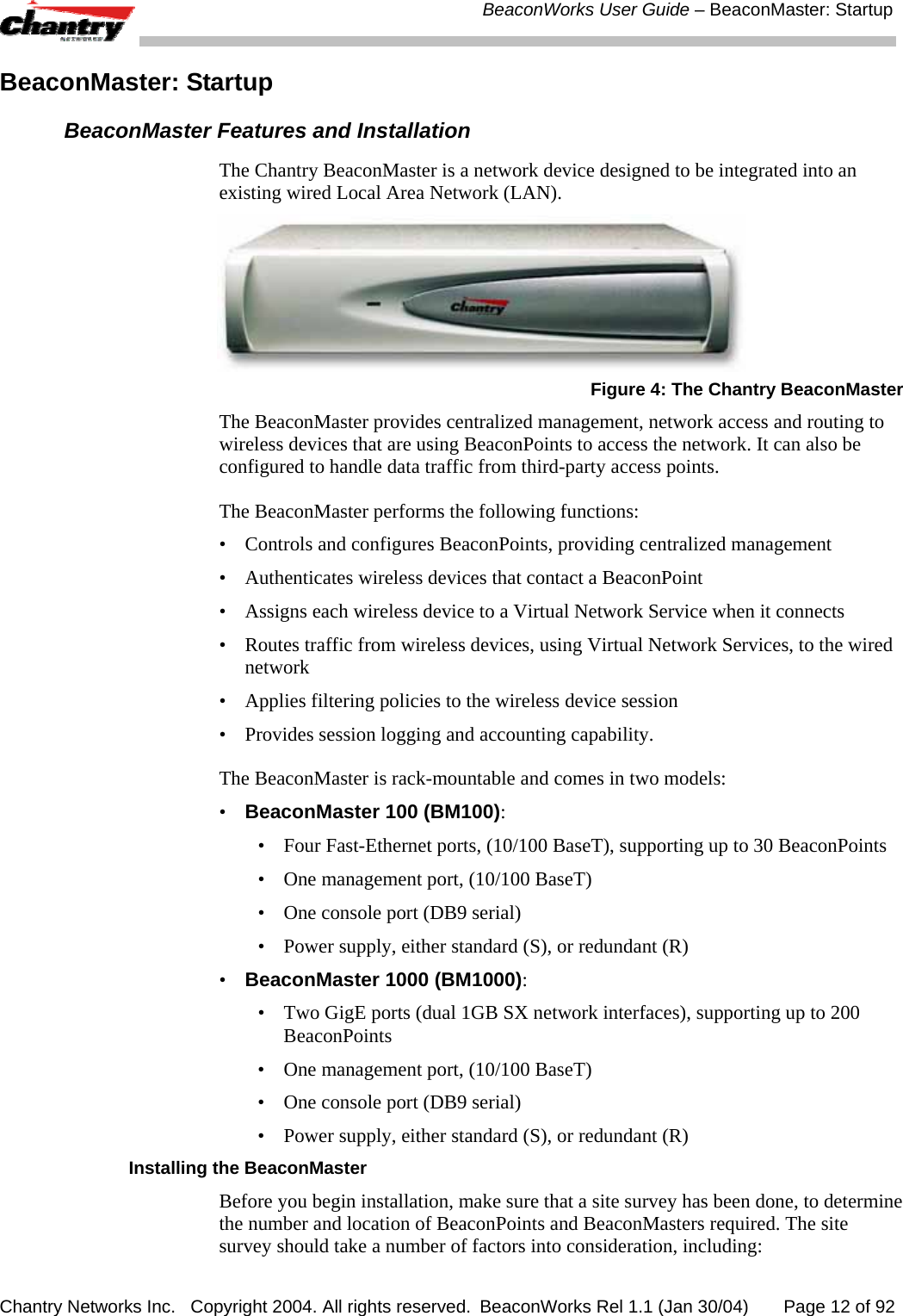
 BeaconWorks User Guide – BeaconMaster: Startup Chantry Networks Inc.   Copyright 2004. All rights reserved.  BeaconWorks Rel 1.1 (Jan 30/04)       Page 12 of 92 BeaconMaster: Startup BeaconMaster Features and Installation The Chantry BeaconMaster is a network device designed to be integrated into an existing wired Local Area Network (LAN).   Figure 4: The Chantry BeaconMaster The BeaconMaster provides centralized management, network access and routing to wireless devices that are using BeaconPoints to access the network. It can also be configured to handle data traffic from third-party access points. The BeaconMaster performs the following functions: •  Controls and configures BeaconPoints, providing centralized management •  Authenticates wireless devices that contact a BeaconPoint •  Assigns each wireless device to a Virtual Network Service when it connects •  Routes traffic from wireless devices, using Virtual Network Services, to the wired network •  Applies filtering policies to the wireless device session •  Provides session logging and accounting capability. The BeaconMaster is rack-mountable and comes in two models: •  BeaconMaster 100 (BM100): •  Four Fast-Ethernet ports, (10/100 BaseT), supporting up to 30 BeaconPoints •  One management port, (10/100 BaseT) •  One console port (DB9 serial)  •  Power supply, either standard (S), or redundant (R) •  BeaconMaster 1000 (BM1000): •  Two GigE ports (dual 1GB SX network interfaces), supporting up to 200 BeaconPoints •  One management port, (10/100 BaseT) •  One console port (DB9 serial)  •  Power supply, either standard (S), or redundant (R) Installing the BeaconMaster Before you begin installation, make sure that a site survey has been done, to determine the number and location of BeaconPoints and BeaconMasters required. The site survey should take a number of factors into consideration, including:
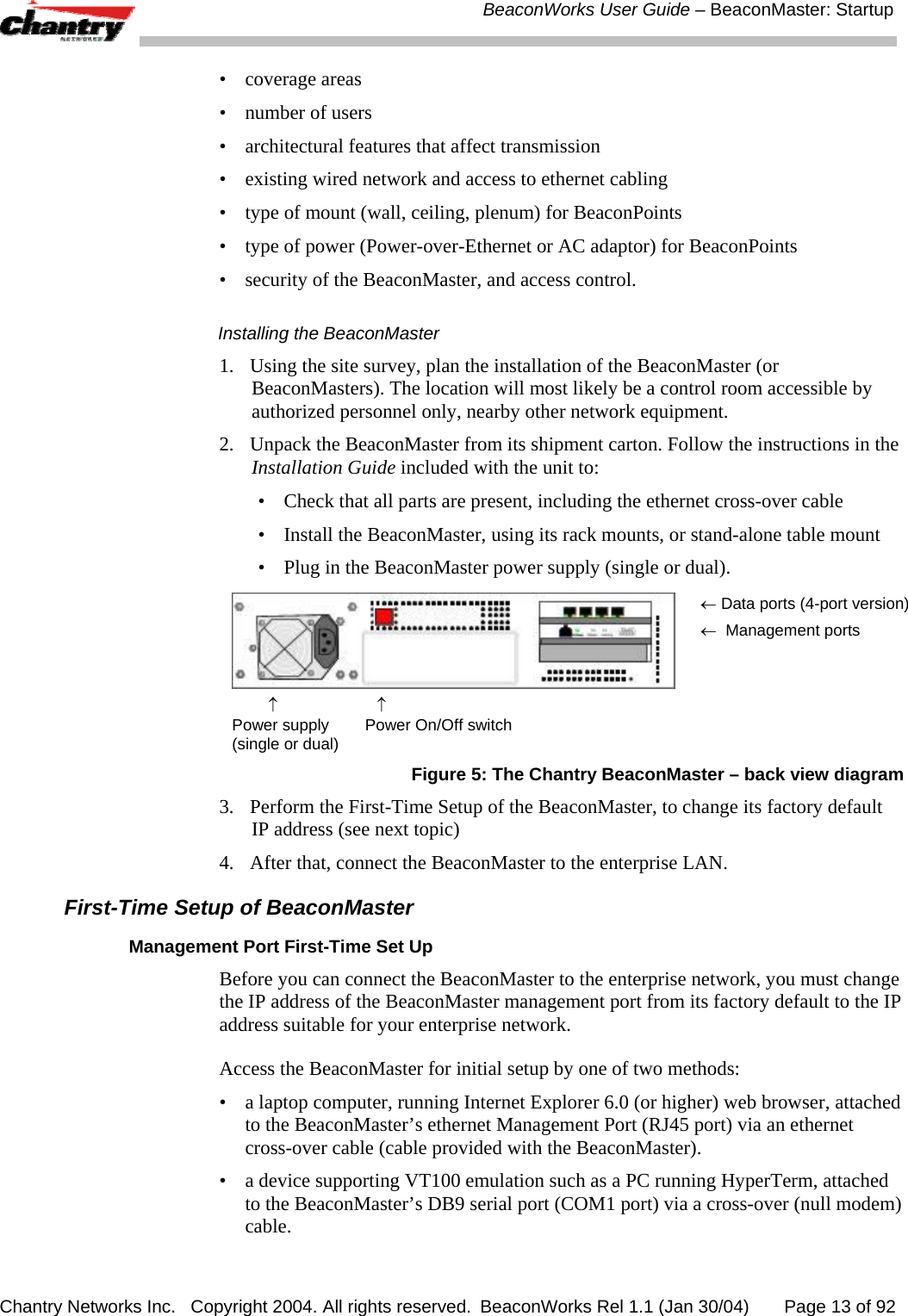
 BeaconWorks User Guide – BeaconMaster: Startup Chantry Networks Inc.   Copyright 2004. All rights reserved.  BeaconWorks Rel 1.1 (Jan 30/04)       Page 13 of 92 • coverage areas •  number of users •  architectural features that affect transmission •  existing wired network and access to ethernet cabling •  type of mount (wall, ceiling, plenum) for BeaconPoints •  type of power (Power-over-Ethernet or AC adaptor) for BeaconPoints •  security of the BeaconMaster, and access control. Installing the BeaconMaster 1.  Using the site survey, plan the installation of the BeaconMaster (or BeaconMasters). The location will most likely be a control room accessible by authorized personnel only, nearby other network equipment.  2.  Unpack the BeaconMaster from its shipment carton. Follow the instructions in the Installation Guide included with the unit to: •  Check that all parts are present, including the ethernet cross-over cable •  Install the BeaconMaster, using its rack mounts, or stand-alone table mount •  Plug in the BeaconMaster power supply (single or dual).          ↑                      ↑ Power supply        Power On/Off switch (single or dual) ← Data ports (4-port version)←  Management ports Figure 5: The Chantry BeaconMaster – back view diagram 3.  Perform the First-Time Setup of the BeaconMaster, to change its factory default IP address (see next topic) 4.  After that, connect the BeaconMaster to the enterprise LAN. First-Time Setup of BeaconMaster Management Port First-Time Set Up Before you can connect the BeaconMaster to the enterprise network, you must change the IP address of the BeaconMaster management port from its factory default to the IP address suitable for your enterprise network. Access the BeaconMaster for initial setup by one of two methods: •  a laptop computer, running Internet Explorer 6.0 (or higher) web browser, attached to the BeaconMaster’s ethernet Management Port (RJ45 port) via an ethernet cross-over cable (cable provided with the BeaconMaster). •  a device supporting VT100 emulation such as a PC running HyperTerm, attached to the BeaconMaster’s DB9 serial port (COM1 port) via a cross-over (null modem) cable.
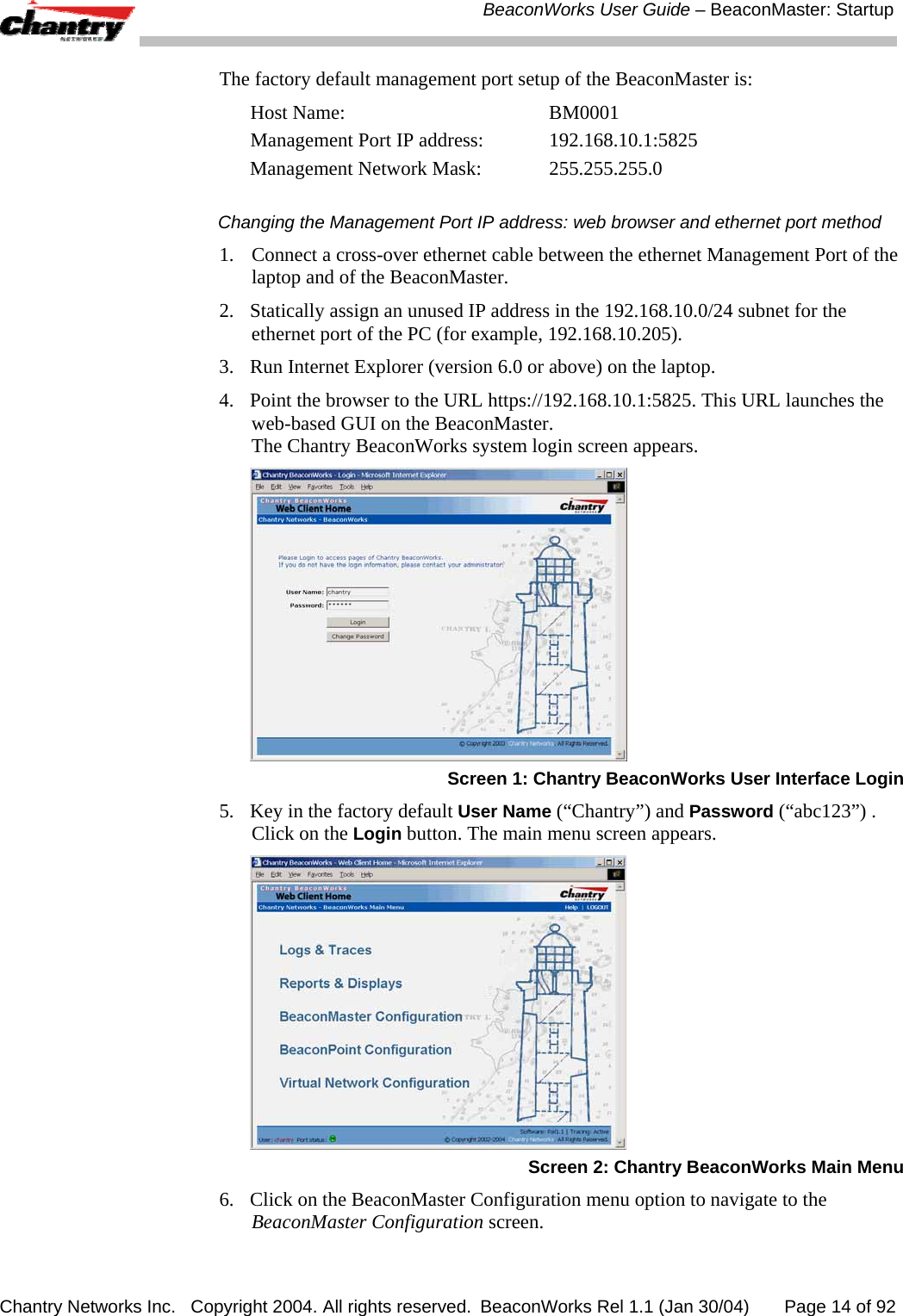
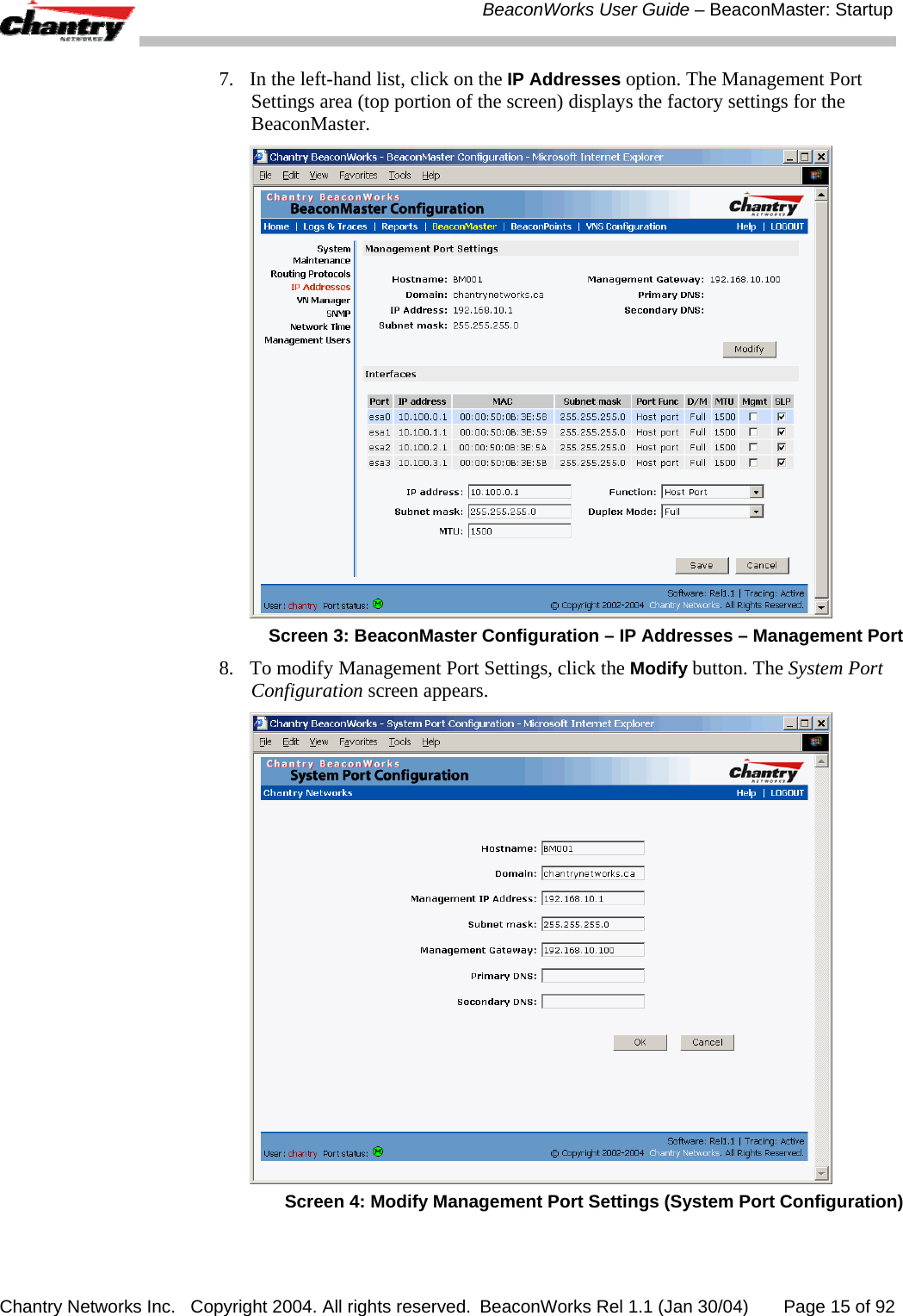
 BeaconWorks User Guide – BeaconMaster: Startup Chantry Networks Inc.   Copyright 2004. All rights reserved.  BeaconWorks Rel 1.1 (Jan 30/04)       Page 14 of 92 The factory default management port setup of the BeaconMaster is: Host Name:   BM0001 Management Port IP address:   192.168.10.1:5825 Management Network Mask:   255.255.255.0 Changing the Management Port IP address: web browser and ethernet port method 1.   Connect a cross-over ethernet cable between the ethernet Management Port of the laptop and of the BeaconMaster. 2.  Statically assign an unused IP address in the 192.168.10.0/24 subnet for the ethernet port of the PC (for example, 192.168.10.205). 3.  Run Internet Explorer (version 6.0 or above) on the laptop. 4.  Point the browser to the URL https://192.168.10.1:5825. This URL launches the web-based GUI on the BeaconMaster.  The Chantry BeaconWorks system login screen appears.   Screen 1: Chantry BeaconWorks User Interface Login 5.  Key in the factory default User Name (“Chantry”) and Password (“abc123”) . Click on the Login button. The main menu screen appears.  Screen 2: Chantry BeaconWorks Main Menu 6.  Click on the BeaconMaster Configuration menu option to navigate to the BeaconMaster Configuration screen.
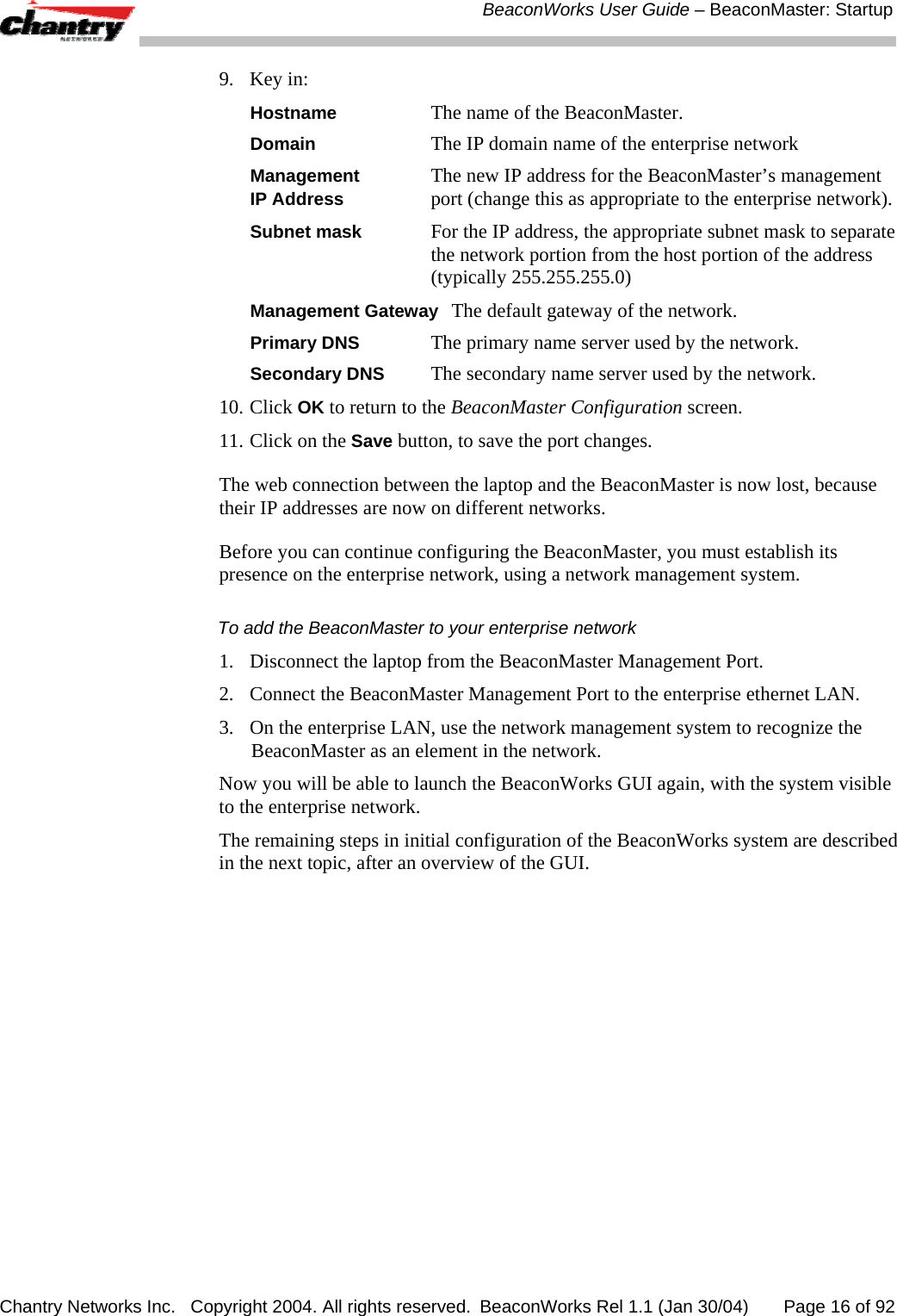
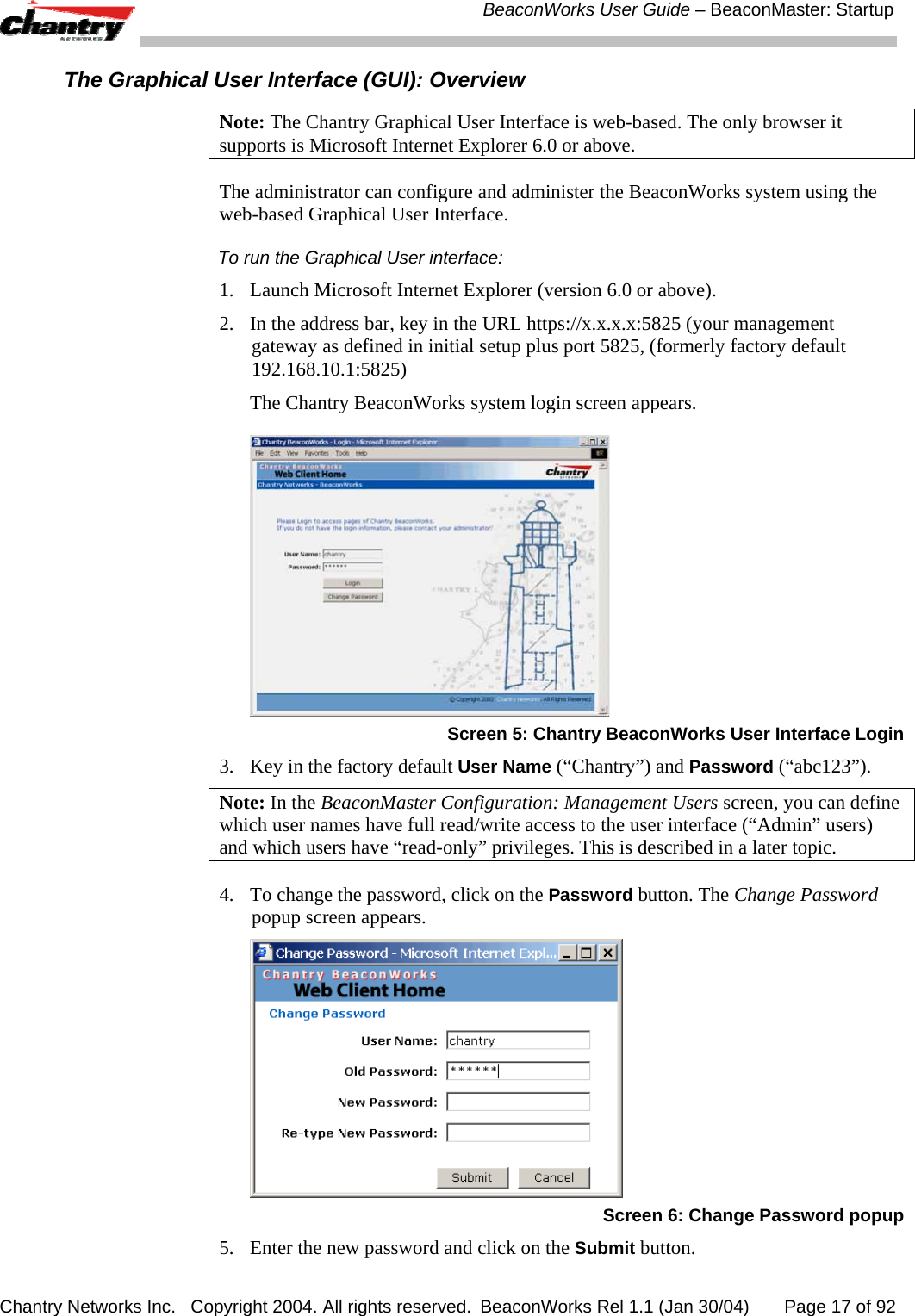
 BeaconWorks User Guide – BeaconMaster: Startup Chantry Networks Inc.   Copyright 2004. All rights reserved.  BeaconWorks Rel 1.1 (Jan 30/04)       Page 15 of 92 7.  In the left-hand list, click on the IP Addresses option. The Management Port Settings area (top portion of the screen) displays the factory settings for the BeaconMaster.  Screen 3: BeaconMaster Configuration – IP Addresses – Management Port 8.  To modify Management Port Settings, click the Modify button. The System Port Configuration screen appears.  Screen 4: Modify Management Port Settings (System Port Configuration)
 BeaconWorks User Guide – BeaconMaster: Startup Chantry Networks Inc.   Copyright 2004. All rights reserved.  BeaconWorks Rel 1.1 (Jan 30/04)       Page 16 of 92 9. Key in: Hostname The name of the BeaconMaster. Domain The IP domain name of the enterprise network Management The new IP address for the BeaconMaster’s management   IP Address port (change this as appropriate to the enterprise network).  Subnet mask For the IP address, the appropriate subnet mask to separate the network portion from the host portion of the address (typically 255.255.255.0) Management Gateway The default gateway of the network. Primary DNS The primary name server used by the network. Secondary DNS The secondary name server used by the network. 10. Click OK to return to the BeaconMaster Configuration screen. 11. Click on the Save button, to save the port changes. The web connection between the laptop and the BeaconMaster is now lost, because their IP addresses are now on different networks.  Before you can continue configuring the BeaconMaster, you must establish its presence on the enterprise network, using a network management system. To add the BeaconMaster to your enterprise network 1.  Disconnect the laptop from the BeaconMaster Management Port. 2.  Connect the BeaconMaster Management Port to the enterprise ethernet LAN. 3.  On the enterprise LAN, use the network management system to recognize the BeaconMaster as an element in the network. Now you will be able to launch the BeaconWorks GUI again, with the system visible to the enterprise network. The remaining steps in initial configuration of the BeaconWorks system are described in the next topic, after an overview of the GUI.
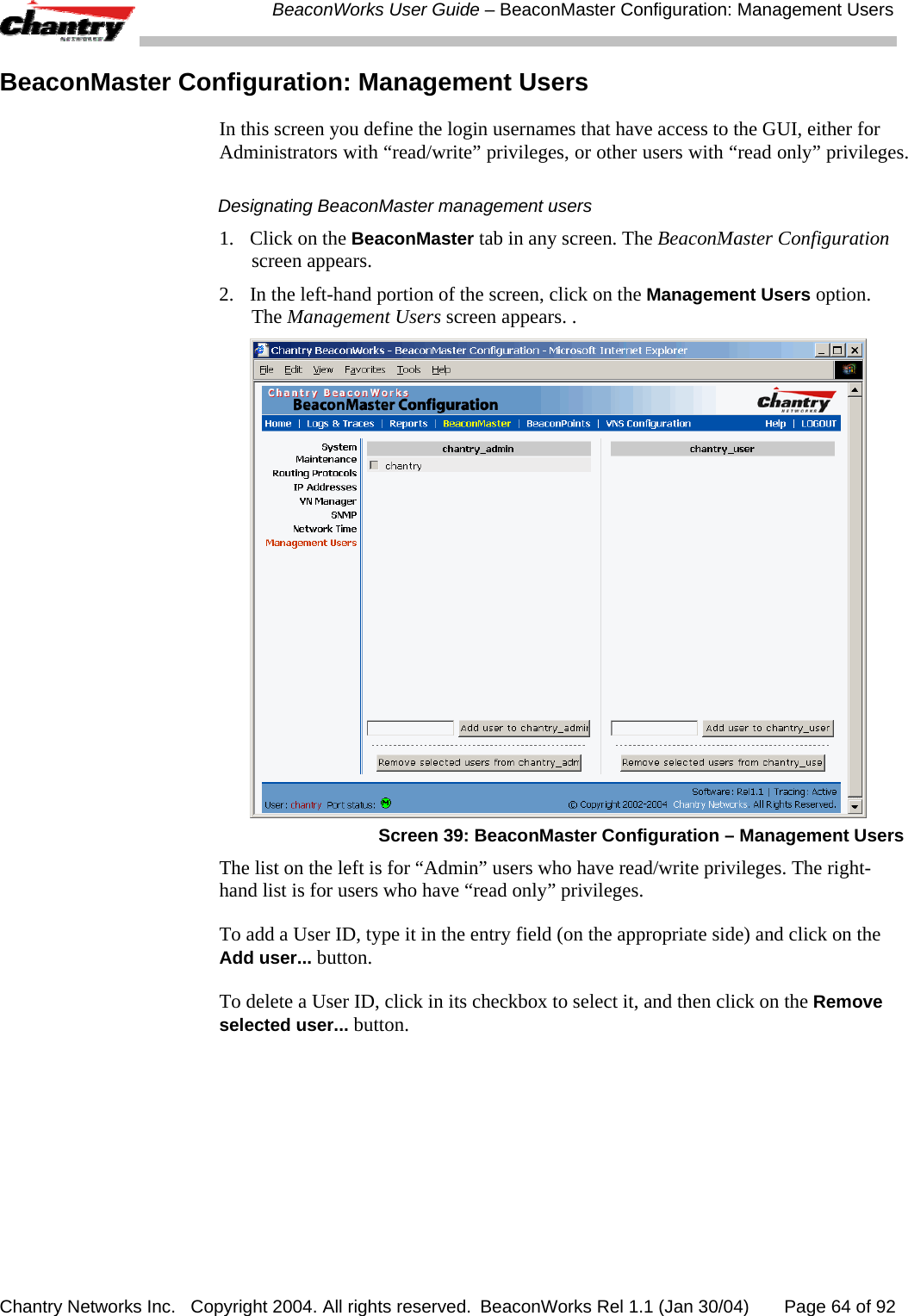
 BeaconWorks User Guide – BeaconMaster: Startup Chantry Networks Inc.   Copyright 2004. All rights reserved.  BeaconWorks Rel 1.1 (Jan 30/04)       Page 17 of 92 The Graphical User Interface (GUI): Overview Note: The Chantry Graphical User Interface is web-based. The only browser it supports is Microsoft Internet Explorer 6.0 or above. The administrator can configure and administer the BeaconWorks system using the web-based Graphical User Interface. To run the Graphical User interface: 1.  Launch Microsoft Internet Explorer (version 6.0 or above).  2.  In the address bar, key in the URL https://x.x.x.x:5825 (your management gateway as defined in initial setup plus port 5825, (formerly factory default 192.168.10.1:5825) The Chantry BeaconWorks system login screen appears.   Screen 5: Chantry BeaconWorks User Interface Login 3.  Key in the factory default User Name (“Chantry”) and Password (“abc123”).  Note: In the BeaconMaster Configuration: Management Users screen, you can define which user names have full read/write access to the user interface (“Admin” users) and which users have “read-only” privileges. This is described in a later topic. 4.  To change the password, click on the Password button. The Change Password popup screen appears.   Screen 6: Change Password popup 5.  Enter the new password and click on the Submit button.
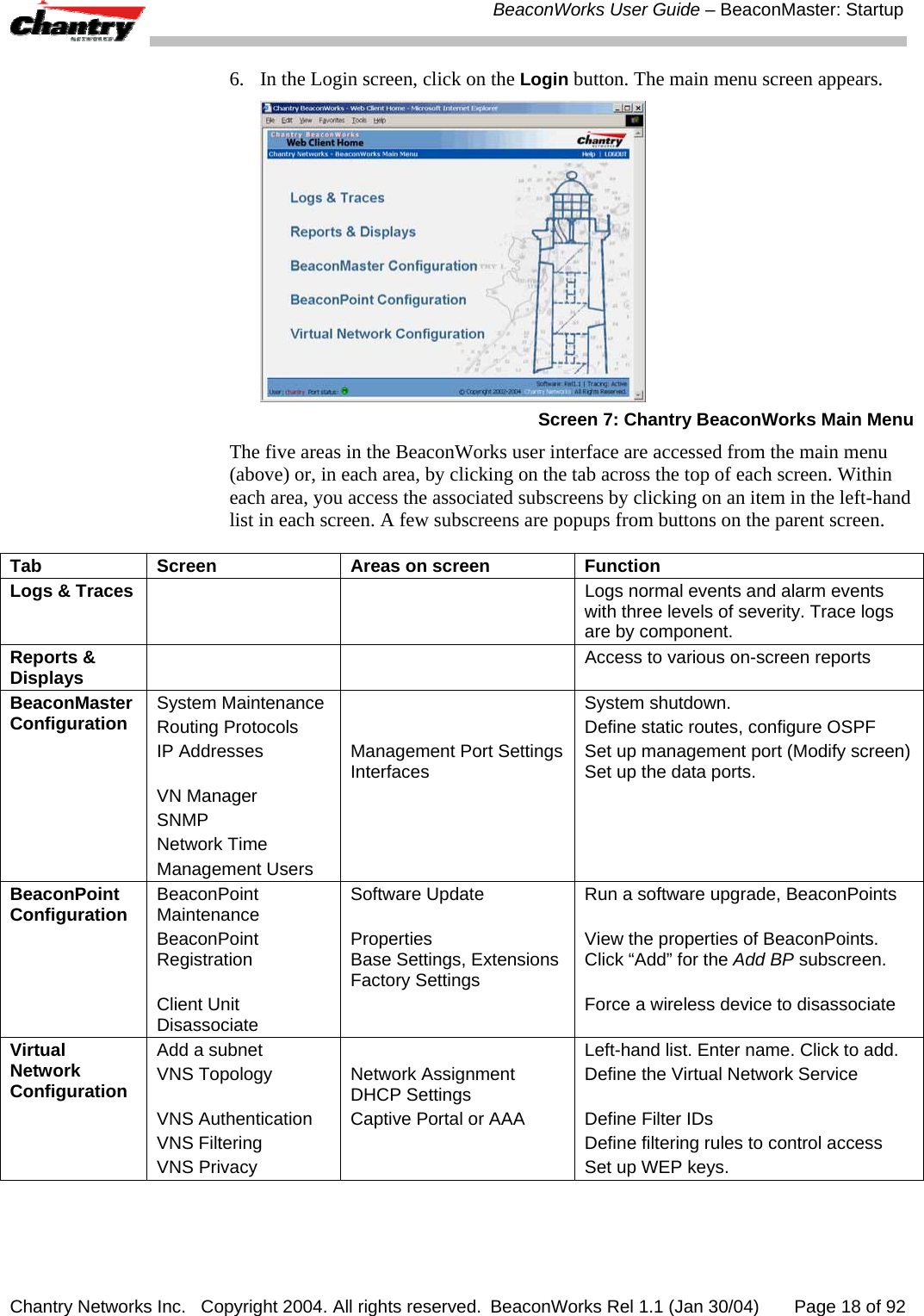
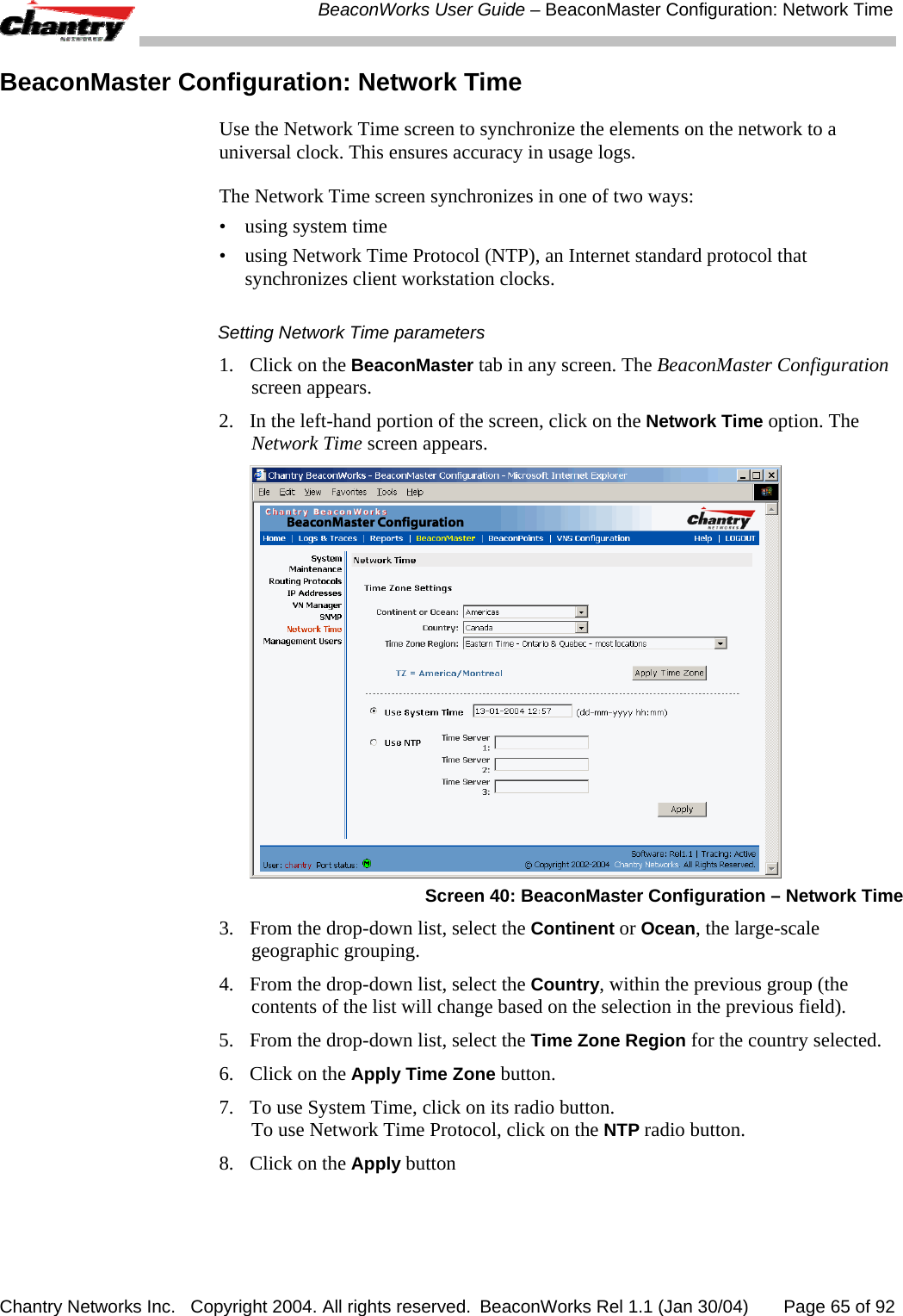
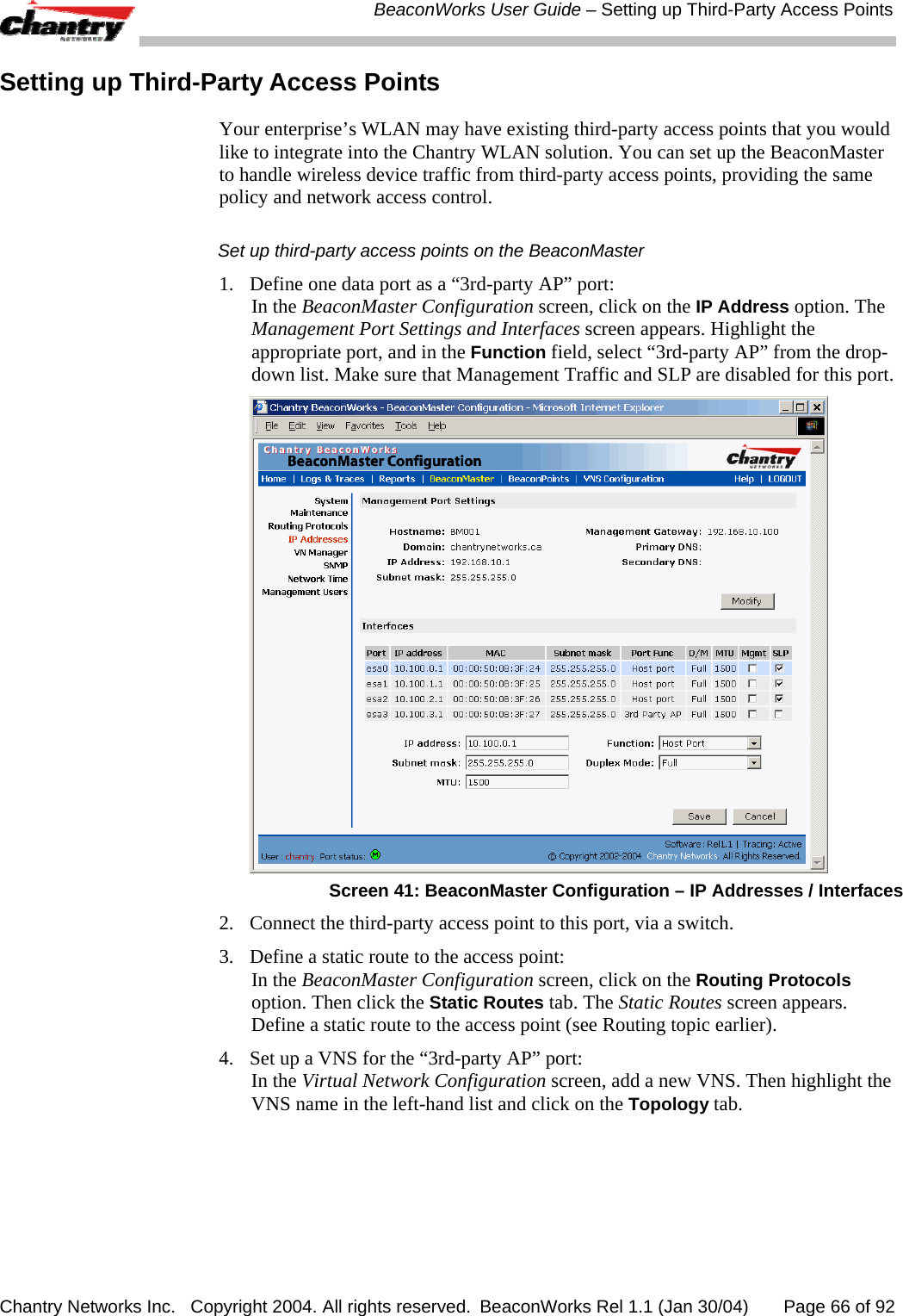
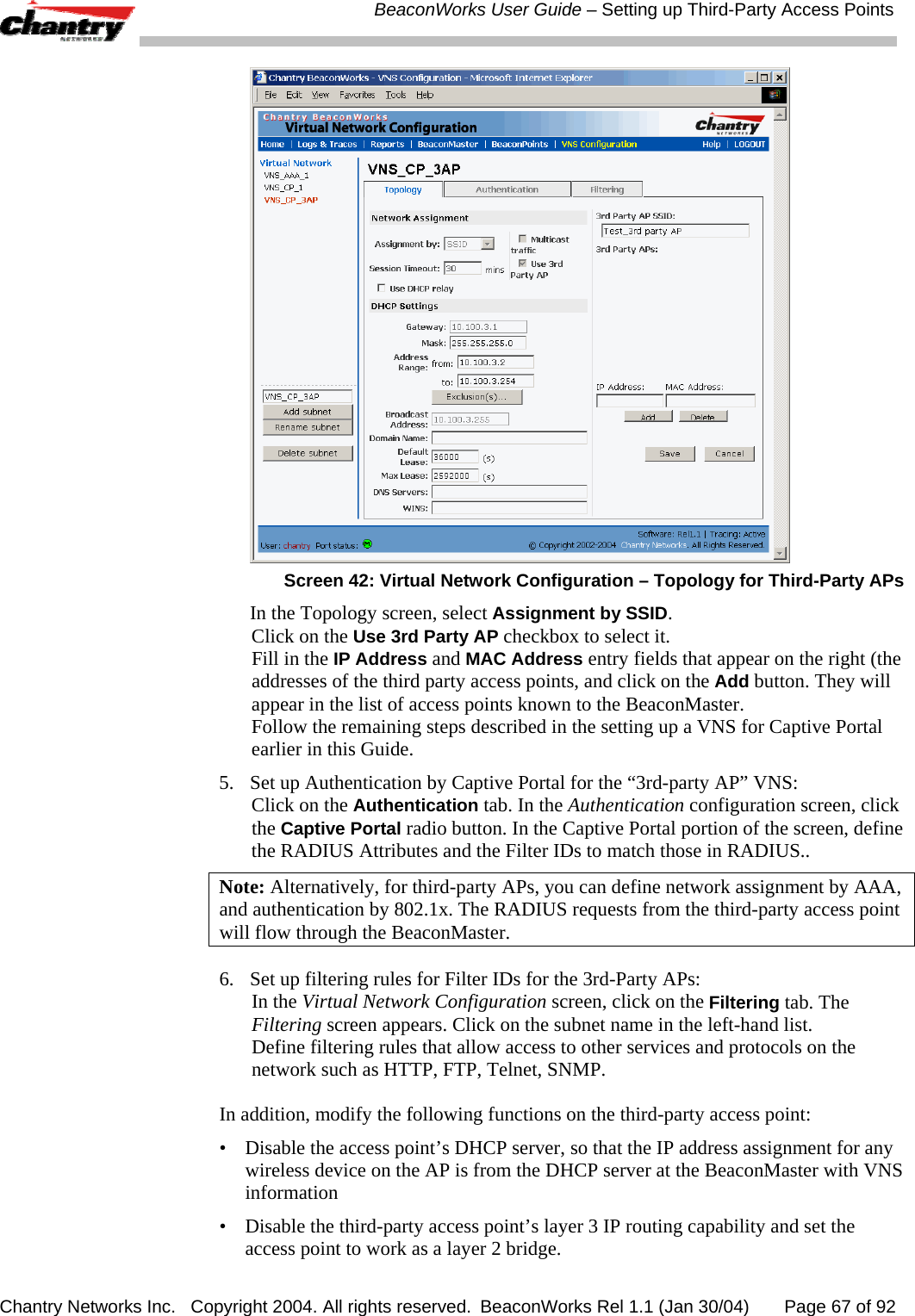
 BeaconWorks User Guide – BeaconMaster: Startup Chantry Networks Inc.   Copyright 2004. All rights reserved.  BeaconWorks Rel 1.1 (Jan 30/04)       Page 18 of 92 6.  In the Login screen, click on the Login button. The main menu screen appears.  Screen 7: Chantry BeaconWorks Main Menu The five areas in the BeaconWorks user interface are accessed from the main menu (above) or, in each area, by clicking on the tab across the top of each screen. Within each area, you access the associated subscreens by clicking on an item in the left-hand list in each screen. A few subscreens are popups from buttons on the parent screen. Tab  Screen  Areas on screen  Function Logs & Traces      Logs normal events and alarm events with three levels of severity. Trace logs are by component. Reports & Displays      Access to various on-screen reports BeaconMaster Configuration  System Maintenance Routing Protocols IP Addresses  VN Manager SNMP Network Time Management Users   Management Port SettingsInterfaces System shutdown. Define static routes, configure OSPF Set up management port (Modify screen)Set up the data ports. BeaconPoint Configuration  BeaconPoint Maintenance BeaconPoint Registration  Client Unit Disassociate Software Update  Properties Base Settings, ExtensionsFactory Settings  Run a software upgrade, BeaconPoints  View the properties of BeaconPoints. Click “Add” for the Add BP subscreen.  Force a wireless device to disassociate Virtual Network Configuration Add a subnet VNS Topology  VNS Authentication VNS Filtering VNS Privacy  Network Assignment DHCP Settings Captive Portal or AAA Left-hand list. Enter name. Click to add. Define the Virtual Network Service  Define Filter IDs Define filtering rules to control access Set up WEP keys.
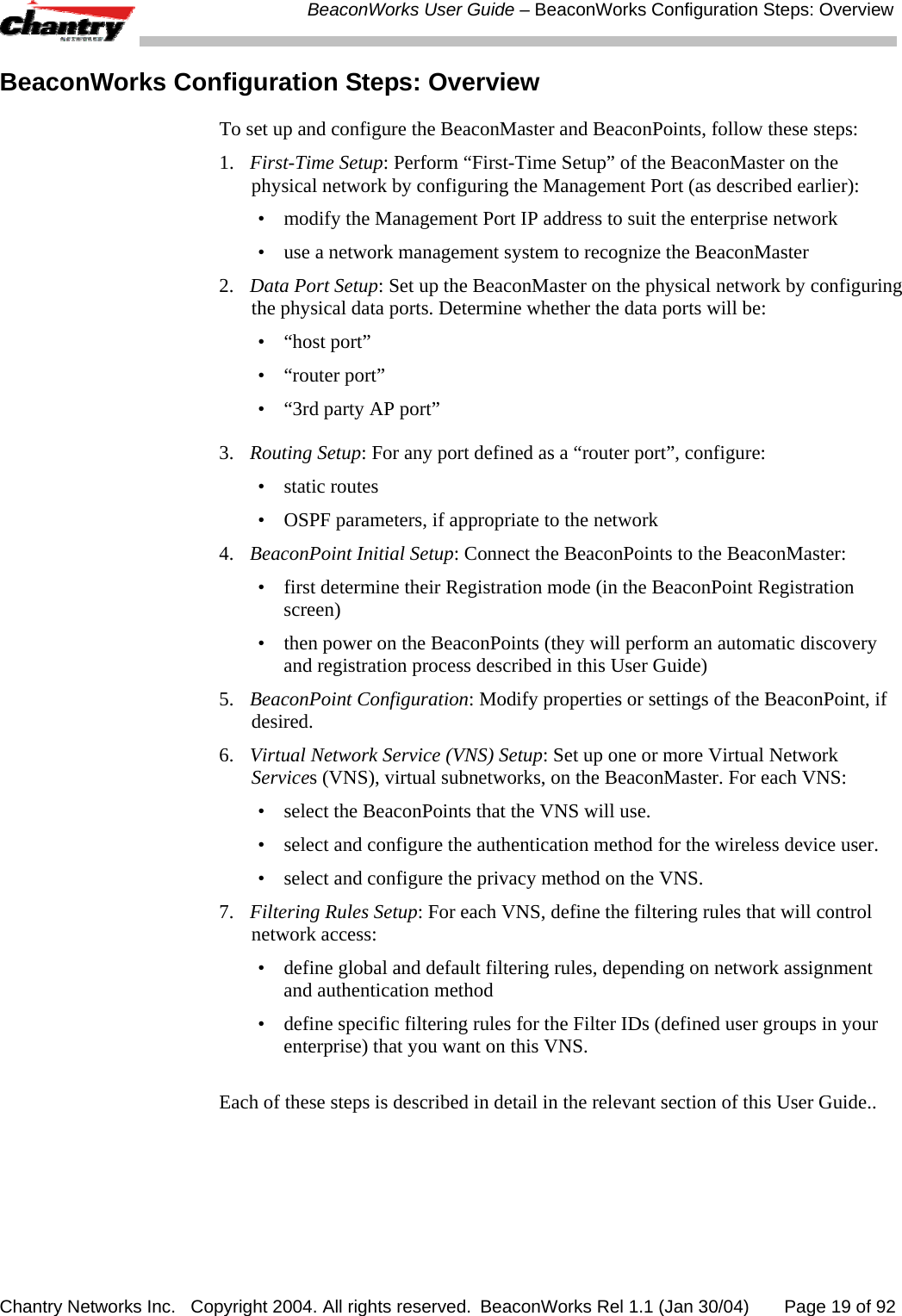
 BeaconWorks User Guide – BeaconWorks Configuration Steps: Overview Chantry Networks Inc.   Copyright 2004. All rights reserved.  BeaconWorks Rel 1.1 (Jan 30/04)       Page 19 of 92 BeaconWorks Configuration Steps: Overview To set up and configure the BeaconMaster and BeaconPoints, follow these steps: 1.  First-Time Setup: Perform “First-Time Setup” of the BeaconMaster on the physical network by configuring the Management Port (as described earlier): •  modify the Management Port IP address to suit the enterprise network •  use a network management system to recognize the BeaconMaster 2.  Data Port Setup: Set up the BeaconMaster on the physical network by configuring the physical data ports. Determine whether the data ports will be: • “host port” • “router port” •  “3rd party AP port” 3.   Routing Setup: For any port defined as a “router port”, configure: • static routes •  OSPF parameters, if appropriate to the network 4.  BeaconPoint Initial Setup: Connect the BeaconPoints to the BeaconMaster: •  first determine their Registration mode (in the BeaconPoint Registration screen) •  then power on the BeaconPoints (they will perform an automatic discovery and registration process described in this User Guide) 5.  BeaconPoint Configuration: Modify properties or settings of the BeaconPoint, if desired. 6.  Virtual Network Service (VNS) Setup: Set up one or more Virtual Network Services (VNS), virtual subnetworks, on the BeaconMaster. For each VNS: •  select the BeaconPoints that the VNS will use.  •  select and configure the authentication method for the wireless device user. •  select and configure the privacy method on the VNS. 7.  Filtering Rules Setup: For each VNS, define the filtering rules that will control network access: •  define global and default filtering rules, depending on network assignment and authentication method •  define specific filtering rules for the Filter IDs (defined user groups in your enterprise) that you want on this VNS.  Each of these steps is described in detail in the relevant section of this User Guide..
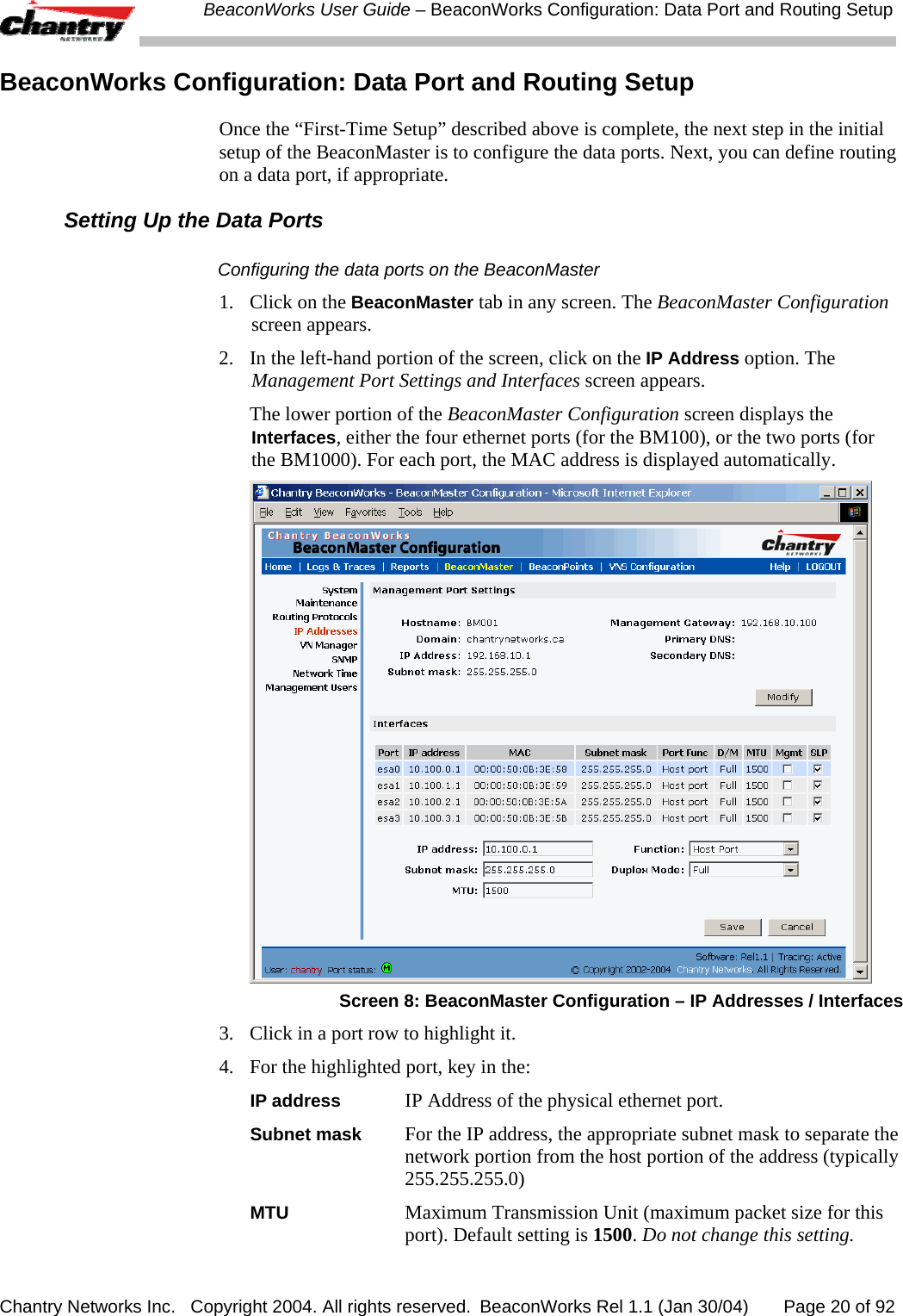
 BeaconWorks User Guide – BeaconWorks Configuration: Data Port and Routing Setup Chantry Networks Inc.   Copyright 2004. All rights reserved.  BeaconWorks Rel 1.1 (Jan 30/04)       Page 20 of 92 BeaconWorks Configuration: Data Port and Routing Setup Once the “First-Time Setup” described above is complete, the next step in the initial setup of the BeaconMaster is to configure the data ports. Next, you can define routing on a data port, if appropriate. Setting Up the Data Ports Configuring the data ports on the BeaconMaster 1.  Click on the BeaconMaster tab in any screen. The BeaconMaster Configuration screen appears. 2.  In the left-hand portion of the screen, click on the IP Address option. The Management Port Settings and Interfaces screen appears.    The lower portion of the BeaconMaster Configuration screen displays the Interfaces, either the four ethernet ports (for the BM100), or the two ports (for the BM1000). For each port, the MAC address is displayed automatically.  Screen 8: BeaconMaster Configuration – IP Addresses / Interfaces 3.  Click in a port row to highlight it.  4.  For the highlighted port, key in the: IP address  IP Address of the physical ethernet port. Subnet mask  For the IP address, the appropriate subnet mask to separate the network portion from the host portion of the address (typically 255.255.255.0) MTU  Maximum Transmission Unit (maximum packet size for this port). Default setting is 1500. Do not change this setting.
 BeaconWorks User Guide – BeaconWorks Configuration: Data Port and Routing Setup Chantry Networks Inc.   Copyright 2004. All rights reserved.  BeaconWorks Rel 1.1 (Jan 30/04)       Page 21 of 92 5.  For the highlighted port, select its function and mode: Function  Select the port type from the drop-down list: Host Port, 3rd Party AP, Router (see “Port Type” explanation below) Duplex Mode  Select the duplex mode type of ethernet connection from the drop-down list: Full, Half, Auto-Detect (default is “auto-detect”) Note: It is recommended that one port be configured as a “Router” Port, so that static routes and/or OSPF routing can be defined for the BeaconMaster. See next topic. 6.  To save the port configuration, click Save.  To Cancel the entries without saving, click Cancel. Port Type or Function A new BeaconMaster is shipped from the factory with all its data ports set up as “Host ports”, and support of management traffic disabled on all data ports.  In the user interface, you can redefine the data ports to function as one of three types: •  Host Port Define as “Host Port” any port to which only BeaconPoints are connected, in a typical installation. When BeaconPoints are attached to a host port and assigned to a Virtual Network Service (see “Virtual Network Service” section of this guide), a virtual VNS port is created and wireless device traffic is directed to the virtual VNS port, allowing the BeaconMaster to forward traffic.  IP forwarding and routing are disabled for third-party hosts attached to a “Host Port”. •  Third-Party Access Point Port Define as “3rd-Party AP” any port to which you will connect only third-party access points, in order for the BeaconMaster to manage these access points. The BeaconMaster uses a combination of network routing and authentication techniques to forward traffic on this port.  BeaconPoints must not be attached to a “3rd-Party AP” port.  •  Router Port Define as “Router Port” a port that you wish to connect to an upstream next-hop router in the network. Dynamic routing protocol such as OSPF can be turned on for this port type.  BeaconPoints can be attached to a “Router” port. The BeaconMaster will create a virtual VNS port and handle wireless device traffic in the same manner as a “Host port”. Third-party access points must not be directly connected to a “Router” port (unless the BeaconMaster is not required to manage these access points). There is a fourth port type that is not configurable in the user interface: •  Virtual Network Service (VNS) Interface A VNS port is a virtual port created automatically on the BeaconMaster when a
 BeaconWorks User Guide – BeaconWorks Configuration: Data Port and Routing Setup Chantry Networks Inc.   Copyright 2004. All rights reserved.  BeaconWorks Rel 1.1 (Jan 30/04)       Page 22 of 92 new Virtual Network Service is defined. (See the Virtual Network Service section of this guide.) The VNS port becomes the default gateway for wireless devices on this VNS. No BeaconPoints can be associated with a VNS port and no routing is permitted on this port. Note: The Management Port is always a Host port, with management traffic support enabled.  The chart below summarizes the port types and their functions: Port Type  IP Forwarding  BeaconPoint support   Management traffic support (SNMP, HTTP, TELNET, SLP, RADIUS, DHCP) Routing protocol support (IP, OSPF and PIM) Host  No Yes Selectable No Third-Party AP  No No Selectable No Router  Selectable  Route wireless device traffic only Yes Selectable  Selectable Virtual Network Service  No No Selectable No  Setting up Static Routes It is recommended that one of the data ports be configured as a “Router” port. Then you can define a default route to your enterprise network, either with a static route or by using OSPF protocol (Open Shortest Path First). This will enable the BeaconMaster for forward wireless packets with unknown destinations to the remainder of the network. In addition to a default route, it is recommended that you define a route to the RADIUS server on your network (if your network uses a RADIUS server). Setting up a Static Route on the BeaconMaster 1.  Click on the BeaconMaster tab in any screen. The BeaconMaster Configuration screen appears. 2.  In the left-hand portion of the screen, click on the Routing Protocols option. Then click the Static Routes tab. The Static Routes screen appears.
 BeaconWorks User Guide – BeaconWorks Configuration: Data Port and Routing Setup Chantry Networks Inc.   Copyright 2004. All rights reserved.  BeaconWorks Rel 1.1 (Jan 30/04)       Page 23 of 92  Screen 9: BeaconMaster Configuration – Static Routes 3.  To add a new route, click in the Destination Address field, and key in the destination IP address of a packet. [The destination network IP address that this static route applies to. Packets with this destination address will be sent to the Destination below.] To define a default static route for any unknown address not in the routing table, key in 0.0.0.0 4.  Key in the Subnet Mask. For the IP address, the appropriate subnet mask to separate the network portion from the host portion of the address (typically 255.255.255.0) For the default static route for any unknown address, key in 0.0.0.0. 5.  Select an outbound destination for the packets, either: Click on the radio button in the Gateway field, and key in the IP address of the gateway (the IP address of the specific router port or gateway, on the same subnet as the BeaconMaster, to which to route these packets; that is, the IP address of the next hop between the BeaconMaster and the packet’s ultimate destination) ,  or  Click on the Interface button, and select a port from the pull-down list.  6.  Click on the Add button. The new route appears in the list, numbered sequentially.  7. Click on Save to update the routing table on the BeaconMaster.  Viewing the Routing Table on the BeaconMaster To view the static routes that have been defined for the BeaconMaster, click on the View Forwarding Table tab. This displays the Forwarding Table Screen from the Reports & Displays area of the user interface.
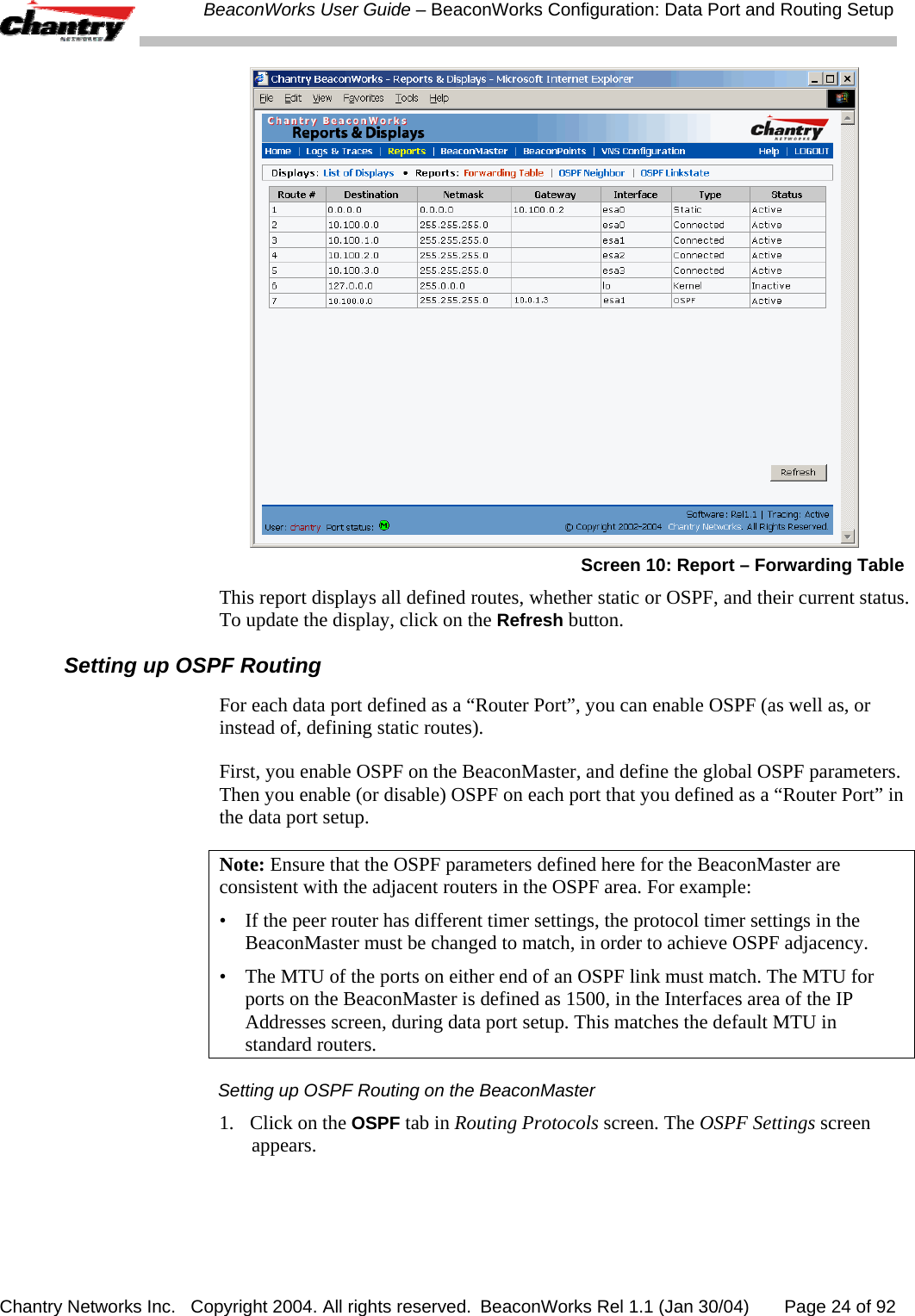
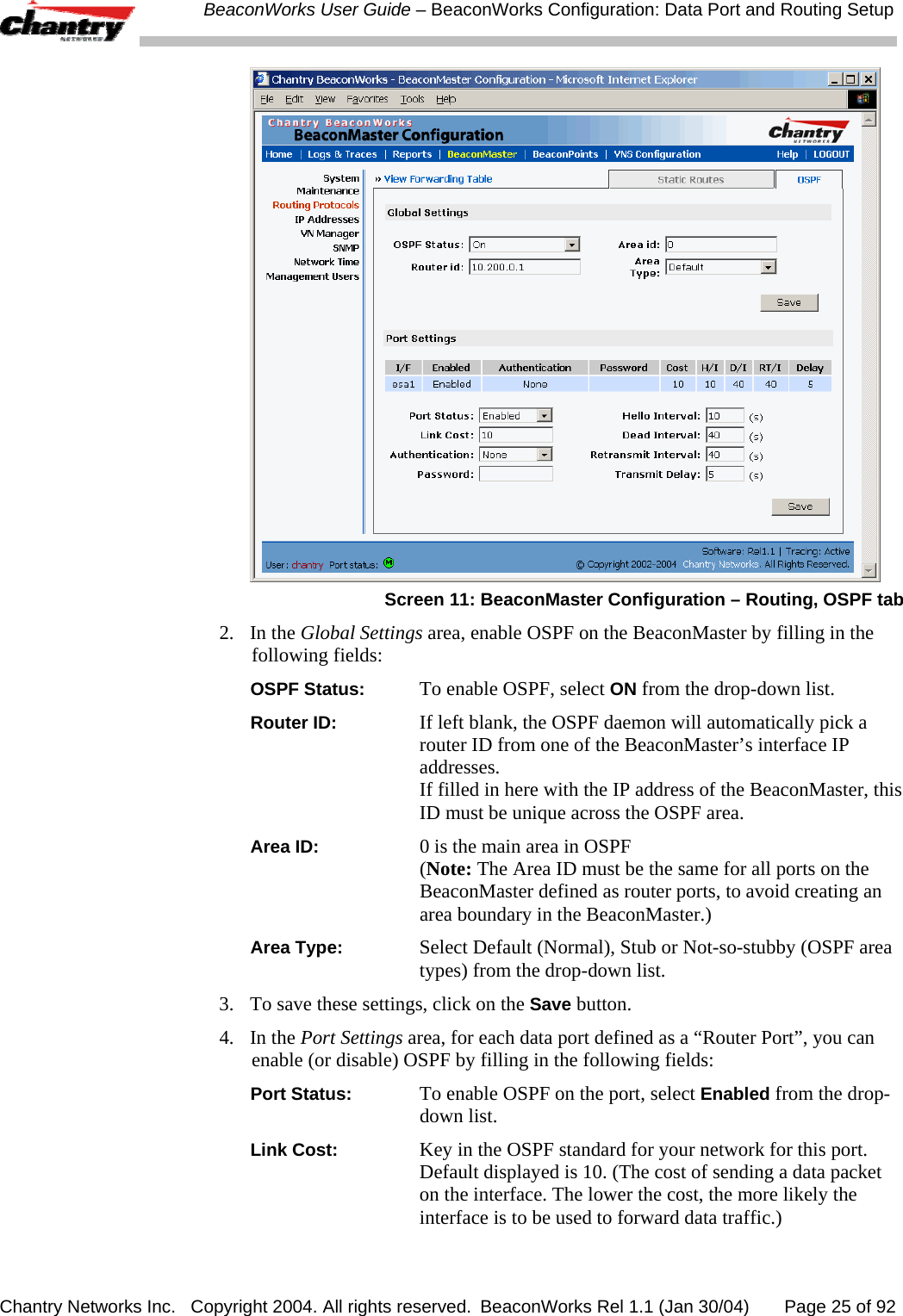
 BeaconWorks User Guide – BeaconWorks Configuration: Data Port and Routing Setup Chantry Networks Inc.   Copyright 2004. All rights reserved.  BeaconWorks Rel 1.1 (Jan 30/04)       Page 24 of 92  Screen 10: Report – Forwarding Table This report displays all defined routes, whether static or OSPF, and their current status. To update the display, click on the Refresh button. Setting up OSPF Routing For each data port defined as a “Router Port”, you can enable OSPF (as well as, or instead of, defining static routes).  First, you enable OSPF on the BeaconMaster, and define the global OSPF parameters. Then you enable (or disable) OSPF on each port that you defined as a “Router Port” in the data port setup. Note: Ensure that the OSPF parameters defined here for the BeaconMaster are consistent with the adjacent routers in the OSPF area. For example: •  If the peer router has different timer settings, the protocol timer settings in the BeaconMaster must be changed to match, in order to achieve OSPF adjacency. •  The MTU of the ports on either end of an OSPF link must match. The MTU for ports on the BeaconMaster is defined as 1500, in the Interfaces area of the IP Addresses screen, during data port setup. This matches the default MTU in standard routers. Setting up OSPF Routing on the BeaconMaster 1.  Click on the OSPF tab in Routing Protocols screen. The OSPF Settings screen appears.
 BeaconWorks User Guide – BeaconWorks Configuration: Data Port and Routing Setup Chantry Networks Inc.   Copyright 2004. All rights reserved.  BeaconWorks Rel 1.1 (Jan 30/04)       Page 25 of 92  Screen 11: BeaconMaster Configuration – Routing, OSPF tab 2. In the Global Settings area, enable OSPF on the BeaconMaster by filling in the following fields:  OSPF Status:  To enable OSPF, select ON from the drop-down list. Router ID:  If left blank, the OSPF daemon will automatically pick a router ID from one of the BeaconMaster’s interface IP addresses. If filled in here with the IP address of the BeaconMaster, this ID must be unique across the OSPF area. Area ID:  0 is the main area in OSPF (Note: The Area ID must be the same for all ports on the BeaconMaster defined as router ports, to avoid creating an area boundary in the BeaconMaster.) Area Type:  Select Default (Normal), Stub or Not-so-stubby (OSPF area types) from the drop-down list. 3.  To save these settings, click on the Save button.  4. In the Port Settings area, for each data port defined as a “Router Port”, you can enable (or disable) OSPF by filling in the following fields:  Port Status:  To enable OSPF on the port, select Enabled from the drop-down list. Link Cost:  Key in the OSPF standard for your network for this port. Default displayed is 10. (The cost of sending a data packet on the interface. The lower the cost, the more likely the interface is to be used to forward data traffic.)
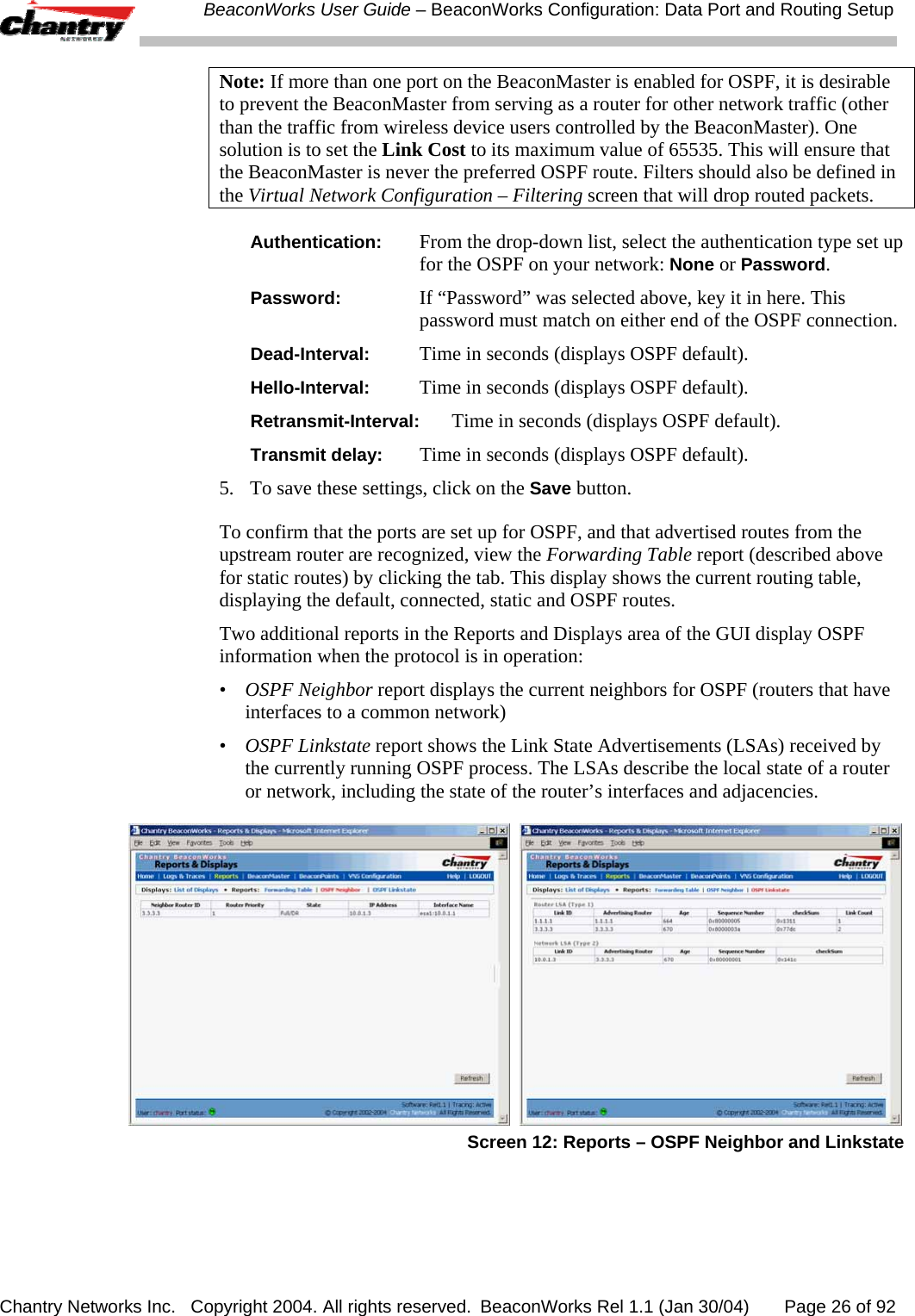
 BeaconWorks User Guide – BeaconWorks Configuration: Data Port and Routing Setup Chantry Networks Inc.   Copyright 2004. All rights reserved.  BeaconWorks Rel 1.1 (Jan 30/04)       Page 26 of 92 Note: If more than one port on the BeaconMaster is enabled for OSPF, it is desirable to prevent the BeaconMaster from serving as a router for other network traffic (other than the traffic from wireless device users controlled by the BeaconMaster). One solution is to set the Link Cost to its maximum value of 65535. This will ensure that the BeaconMaster is never the preferred OSPF route. Filters should also be defined in the Virtual Network Configuration – Filtering screen that will drop routed packets. Authentication:  From the drop-down list, select the authentication type set up for the OSPF on your network: None or Password. Password:  If “Password” was selected above, key it in here. This password must match on either end of the OSPF connection. Dead-Interval:  Time in seconds (displays OSPF default). Hello-Interval:  Time in seconds (displays OSPF default). Retransmit-Interval:  Time in seconds (displays OSPF default). Transmit delay:  Time in seconds (displays OSPF default). 5.  To save these settings, click on the Save button.  To confirm that the ports are set up for OSPF, and that advertised routes from the upstream router are recognized, view the Forwarding Table report (described above for static routes) by clicking the tab. This display shows the current routing table, displaying the default, connected, static and OSPF routes. Two additional reports in the Reports and Displays area of the GUI display OSPF information when the protocol is in operation: •  OSPF Neighbor report displays the current neighbors for OSPF (routers that have interfaces to a common network) •  OSPF Linkstate report shows the Link State Advertisements (LSAs) received by the currently running OSPF process. The LSAs describe the local state of a router or network, including the state of the router’s interfaces and adjacencies.     Screen 12: Reports – OSPF Neighbor and Linkstate
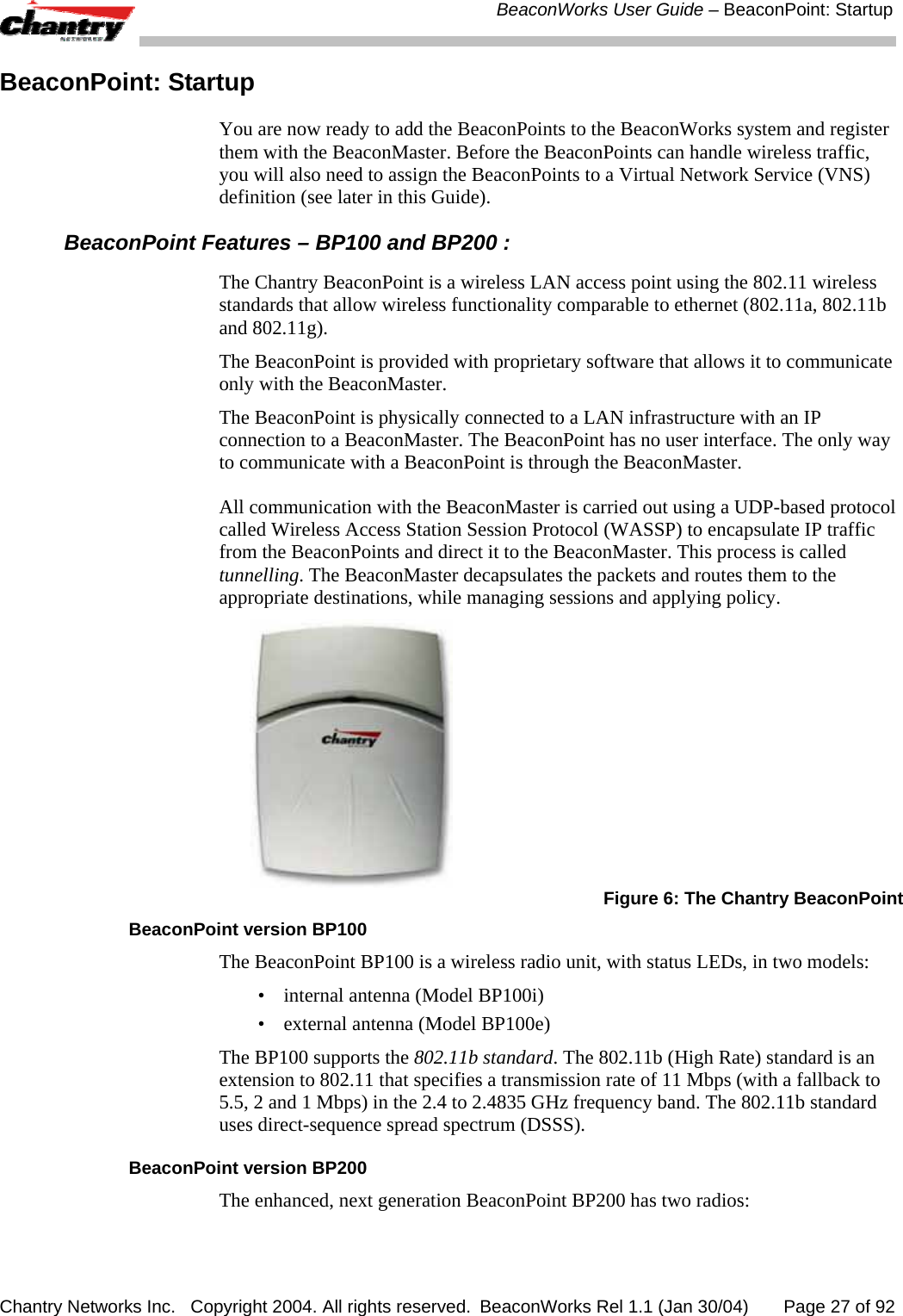
 BeaconWorks User Guide – BeaconPoint: Startup Chantry Networks Inc.   Copyright 2004. All rights reserved.  BeaconWorks Rel 1.1 (Jan 30/04)       Page 27 of 92 BeaconPoint: Startup You are now ready to add the BeaconPoints to the BeaconWorks system and register them with the BeaconMaster. Before the BeaconPoints can handle wireless traffic, you will also need to assign the BeaconPoints to a Virtual Network Service (VNS) definition (see later in this Guide). BeaconPoint Features – BP100 and BP200 : The Chantry BeaconPoint is a wireless LAN access point using the 802.11 wireless standards that allow wireless functionality comparable to ethernet (802.11a, 802.11b and 802.11g).  The BeaconPoint is provided with proprietary software that allows it to communicate only with the BeaconMaster.  The BeaconPoint is physically connected to a LAN infrastructure with an IP connection to a BeaconMaster. The BeaconPoint has no user interface. The only way to communicate with a BeaconPoint is through the BeaconMaster.  All communication with the BeaconMaster is carried out using a UDP-based protocol called Wireless Access Station Session Protocol (WASSP) to encapsulate IP traffic from the BeaconPoints and direct it to the BeaconMaster. This process is called tunnelling. The BeaconMaster decapsulates the packets and routes them to the appropriate destinations, while managing sessions and applying policy.   Figure 6: The Chantry BeaconPoint BeaconPoint version BP100 The BeaconPoint BP100 is a wireless radio unit, with status LEDs, in two models: •  internal antenna (Model BP100i)  •  external antenna (Model BP100e) The BP100 supports the 802.11b standard. The 802.11b (High Rate) standard is an extension to 802.11 that specifies a transmission rate of 11 Mbps (with a fallback to 5.5, 2 and 1 Mbps) in the 2.4 to 2.4835 GHz frequency band. The 802.11b standard uses direct-sequence spread spectrum (DSSS).  BeaconPoint version BP200 The enhanced, next generation BeaconPoint BP200 has two radios:
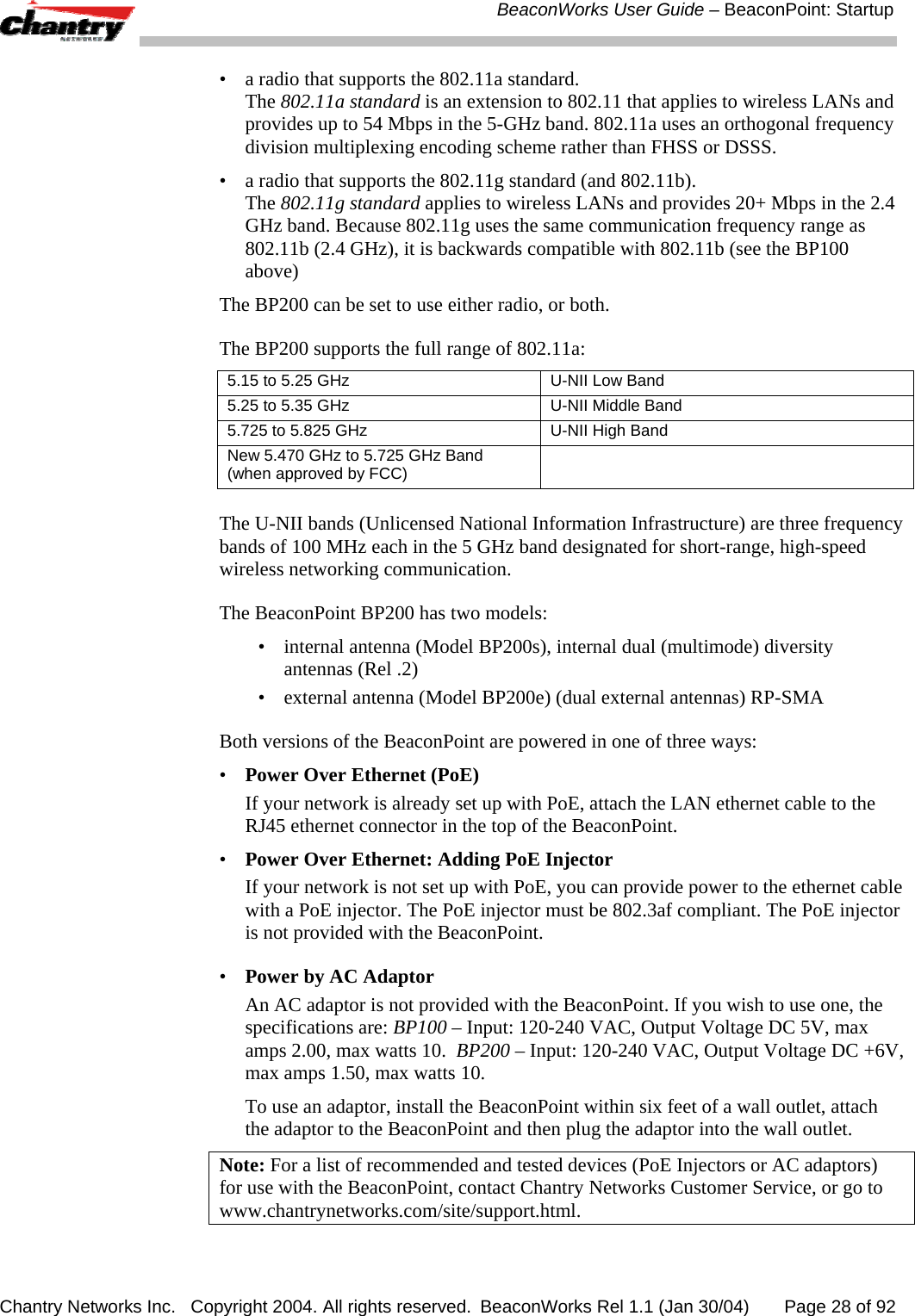
 BeaconWorks User Guide – BeaconPoint: Startup Chantry Networks Inc.   Copyright 2004. All rights reserved.  BeaconWorks Rel 1.1 (Jan 30/04)       Page 28 of 92 •  a radio that supports the 802.11a standard.  The 802.11a standard is an extension to 802.11 that applies to wireless LANs and provides up to 54 Mbps in the 5-GHz band. 802.11a uses an orthogonal frequency division multiplexing encoding scheme rather than FHSS or DSSS.  •  a radio that supports the 802.11g standard (and 802.11b).  The 802.11g standard applies to wireless LANs and provides 20+ Mbps in the 2.4 GHz band. Because 802.11g uses the same communication frequency range as 802.11b (2.4 GHz), it is backwards compatible with 802.11b (see the BP100 above) The BP200 can be set to use either radio, or both. The BP200 supports the full range of 802.11a: 5.15 to 5.25 GHz   U-NII Low Band 5.25 to 5.35 GHz   U-NII Middle Band 5.725 to 5.825 GHz   U-NII High Band  New 5.470 GHz to 5.725 GHz Band  (when approved by FCC)    The U-NII bands (Unlicensed National Information Infrastructure) are three frequency bands of 100 MHz each in the 5 GHz band designated for short-range, high-speed wireless networking communication.  The BeaconPoint BP200 has two models: •  internal antenna (Model BP200s), internal dual (multimode) diversity antennas (Rel .2) •  external antenna (Model BP200e) (dual external antennas) RP-SMA Both versions of the BeaconPoint are powered in one of three ways: •  Power Over Ethernet (PoE)   If your network is already set up with PoE, attach the LAN ethernet cable to the RJ45 ethernet connector in the top of the BeaconPoint. •  Power Over Ethernet: Adding PoE Injector   If your network is not set up with PoE, you can provide power to the ethernet cable with a PoE injector. The PoE injector must be 802.3af compliant. The PoE injector is not provided with the BeaconPoint.  •  Power by AC Adaptor   An AC adaptor is not provided with the BeaconPoint. If you wish to use one, the specifications are: BP100 – Input: 120-240 VAC, Output Voltage DC 5V, max amps 2.00, max watts 10.  BP200 – Input: 120-240 VAC, Output Voltage DC +6V, max amps 1.50, max watts 10.   To use an adaptor, install the BeaconPoint within six feet of a wall outlet, attach the adaptor to the BeaconPoint and then plug the adaptor into the wall outlet. Note: For a list of recommended and tested devices (PoE Injectors or AC adaptors) for use with the BeaconPoint, contact Chantry Networks Customer Service, or go to www.chantrynetworks.com/site/support.html.
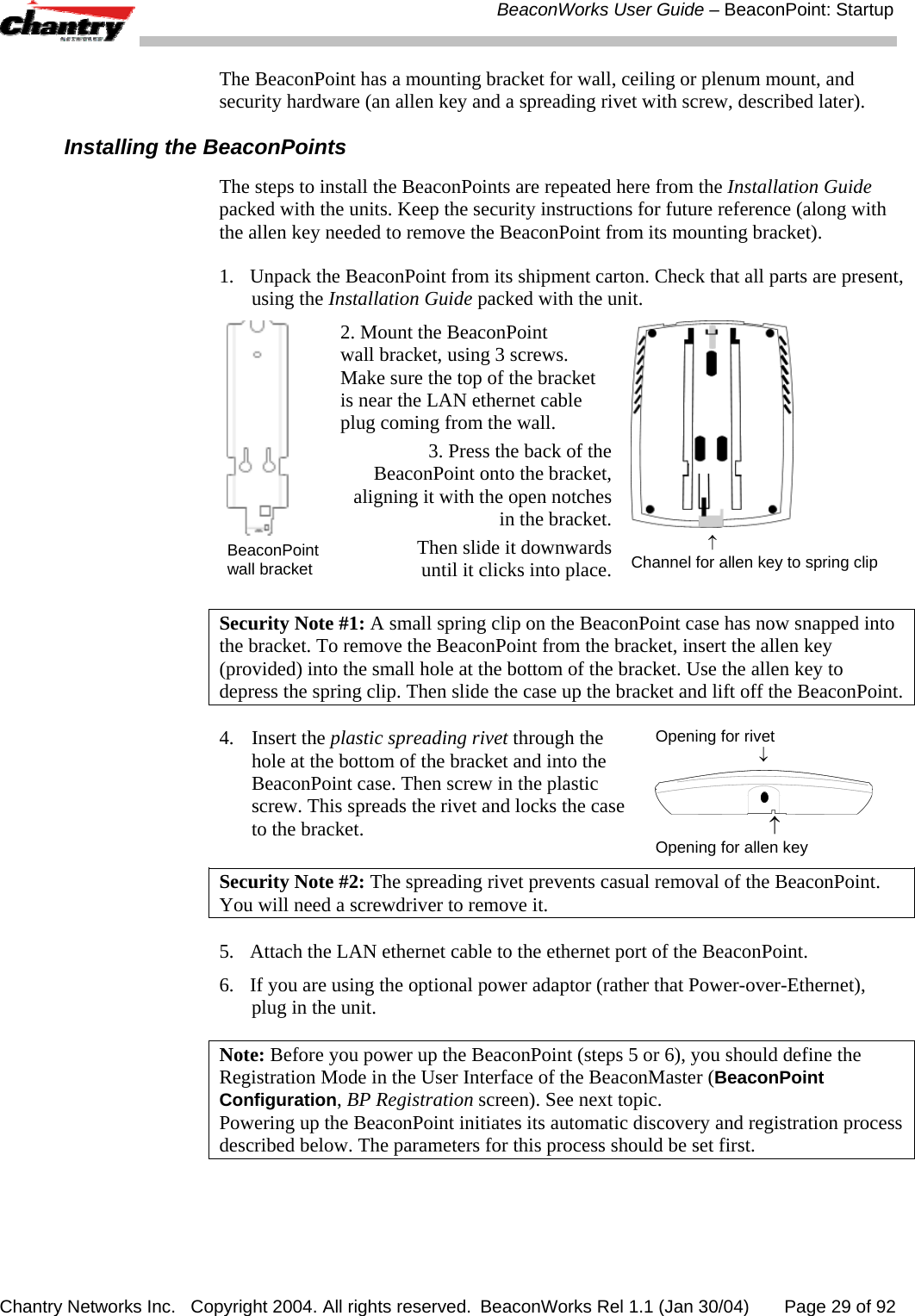
 BeaconWorks User Guide – BeaconPoint: Startup Chantry Networks Inc.   Copyright 2004. All rights reserved.  BeaconWorks Rel 1.1 (Jan 30/04)       Page 29 of 92 The BeaconPoint has a mounting bracket for wall, ceiling or plenum mount, and security hardware (an allen key and a spreading rivet with screw, described later). Installing the BeaconPoints The steps to install the BeaconPoints are repeated here from the Installation Guide packed with the units. Keep the security instructions for future reference (along with the allen key needed to remove the BeaconPoint from its mounting bracket). 1.  Unpack the BeaconPoint from its shipment carton. Check that all parts are present, using the Installation Guide packed with the unit.   BeaconPoint wall bracket 2. Mount the BeaconPoint  wall bracket, using 3 screws. Make sure the top of the bracket is near the LAN ethernet cable plug coming from the wall. 3. Press the back of the BeaconPoint onto the bracket, aligning it with the open notches in the bracket. Then slide it downwards until it clicks into place.                  ↑ Channel for allen key to spring clip  Security Note #1: A small spring clip on the BeaconPoint case has now snapped into the bracket. To remove the BeaconPoint from the bracket, insert the allen key (provided) into the small hole at the bottom of the bracket. Use the allen key to depress the spring clip. Then slide the case up the bracket and lift off the BeaconPoint. 4. Insert the plastic spreading rivet through the hole at the bottom of the bracket and into the BeaconPoint case. Then screw in the plastic screw. This spreads the rivet and locks the case to the bracket.  Opening for rivet                         ↓                         ↑ Opening for allen key Security Note #2: The spreading rivet prevents casual removal of the BeaconPoint. You will need a screwdriver to remove it. 5.  Attach the LAN ethernet cable to the ethernet port of the BeaconPoint. 6.  If you are using the optional power adaptor (rather that Power-over-Ethernet), plug in the unit. Note: Before you power up the BeaconPoint (steps 5 or 6), you should define the Registration Mode in the User Interface of the BeaconMaster (BeaconPoint Configuration, BP Registration screen). See next topic. Powering up the BeaconPoint initiates its automatic discovery and registration process described below. The parameters for this process should be set first.
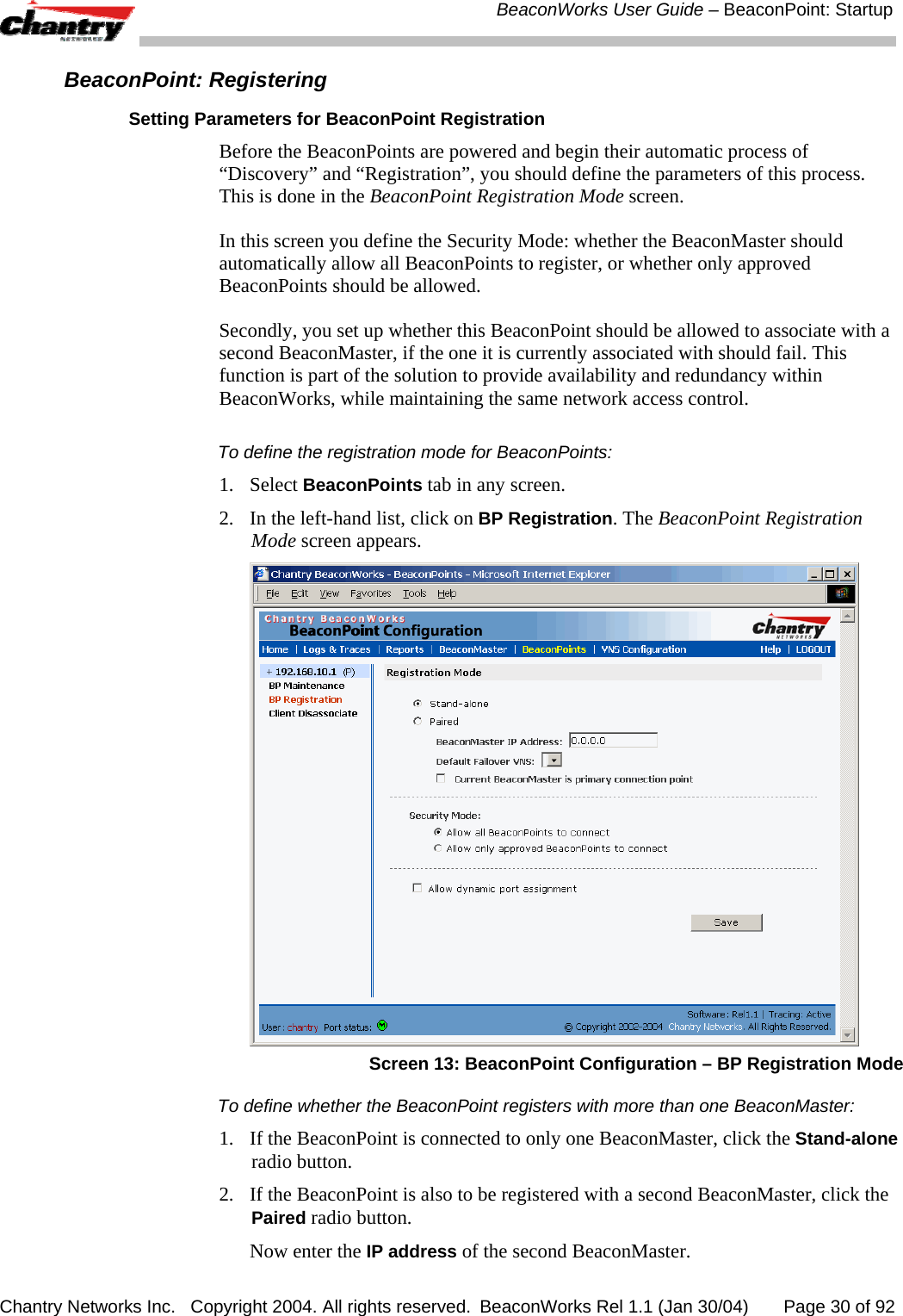
 BeaconWorks User Guide – BeaconPoint: Startup Chantry Networks Inc.   Copyright 2004. All rights reserved.  BeaconWorks Rel 1.1 (Jan 30/04)       Page 30 of 92 BeaconPoint: Registering Setting Parameters for BeaconPoint Registration Before the BeaconPoints are powered and begin their automatic process of “Discovery” and “Registration”, you should define the parameters of this process. This is done in the BeaconPoint Registration Mode screen. In this screen you define the Security Mode: whether the BeaconMaster should automatically allow all BeaconPoints to register, or whether only approved BeaconPoints should be allowed. Secondly, you set up whether this BeaconPoint should be allowed to associate with a second BeaconMaster, if the one it is currently associated with should fail. This function is part of the solution to provide availability and redundancy within BeaconWorks, while maintaining the same network access control. To define the registration mode for BeaconPoints:  1. Select BeaconPoints tab in any screen.  2.  In the left-hand list, click on BP Registration. The BeaconPoint Registration Mode screen appears.   Screen 13: BeaconPoint Configuration – BP Registration Mode To define whether the BeaconPoint registers with more than one BeaconMaster:  1.  If the BeaconPoint is connected to only one BeaconMaster, click the Stand-alone radio button. 2.  If the BeaconPoint is also to be registered with a second BeaconMaster, click the Paired radio button.   Now enter the IP address of the second BeaconMaster.
 BeaconWorks User Guide – BeaconPoint: Startup Chantry Networks Inc.   Copyright 2004. All rights reserved.  BeaconWorks Rel 1.1 (Jan 30/04)       Page 31 of 92  Select a Default Failover VNS on the second BeaconMaster from the drop-down list of VNS (this list will be populated only after a VNS has been defined, as described later in this Guide.)   If the current BeaconMaster is to be the primary connection point, click the checkbox on. To determine the Security Mode for registering BeaconPoints:  3. To allow all BeaconPoints to connect, click this radio button.  To allow approved BeaconPoints only to connect, click on this radio button   During the “Registration” process, the BeaconMaster’s approval of the serial number of the BeaconPoint depends on the security mode that has been set: •  Allow all If the BeaconMaster does not recognize the serial number, it sends a default configuration to the BeaconPoint.  If it recognizes the serial number, it sends the specific configuration (port and binding key) set for that BeaconPoint. •  Allow approved If the BeaconMaster does not recognize the serial number, the operator is prompted to create a configuration.  If it recognizes the serial number, it sends the configuration for that BeaconPoint. Note: It may be advisable, for the initial set up of the network, to select the “Allow All” option here. This is the most efficient way to get a large number of BeaconPoints registered with the BeaconMaster. However, after that, you may want to reset this option to “Allow Approved”, so that no unapproved BeaconPoints would be able to connect. For an explanation of the BeaconPoint’s Discovery and Registration sequence, see the next topic. To determine the type of port selection for BeaconPoints:  4.  To allow dynamic port selection, click the checkbox on. 5.  To save the above parameters, click the Save button. Now you can go back to the BeaconPoints and power them on. They will begin the automatic Discovery and Registration sequence. Discovery and Registration: The DHCP and SLP Solution Before you can begin to register the BeaconPoints with the BeaconMaster, you must ensure that the DHCP server on your network supports Option 78. The BeaconPoints rely on these to locate the BeaconMaster during the discovery process, as explained below. The solution to centrally configuring BeaconPoints, and to mass deployment, is to take advantage of two services that are present on most networks: DHCP and SLP.
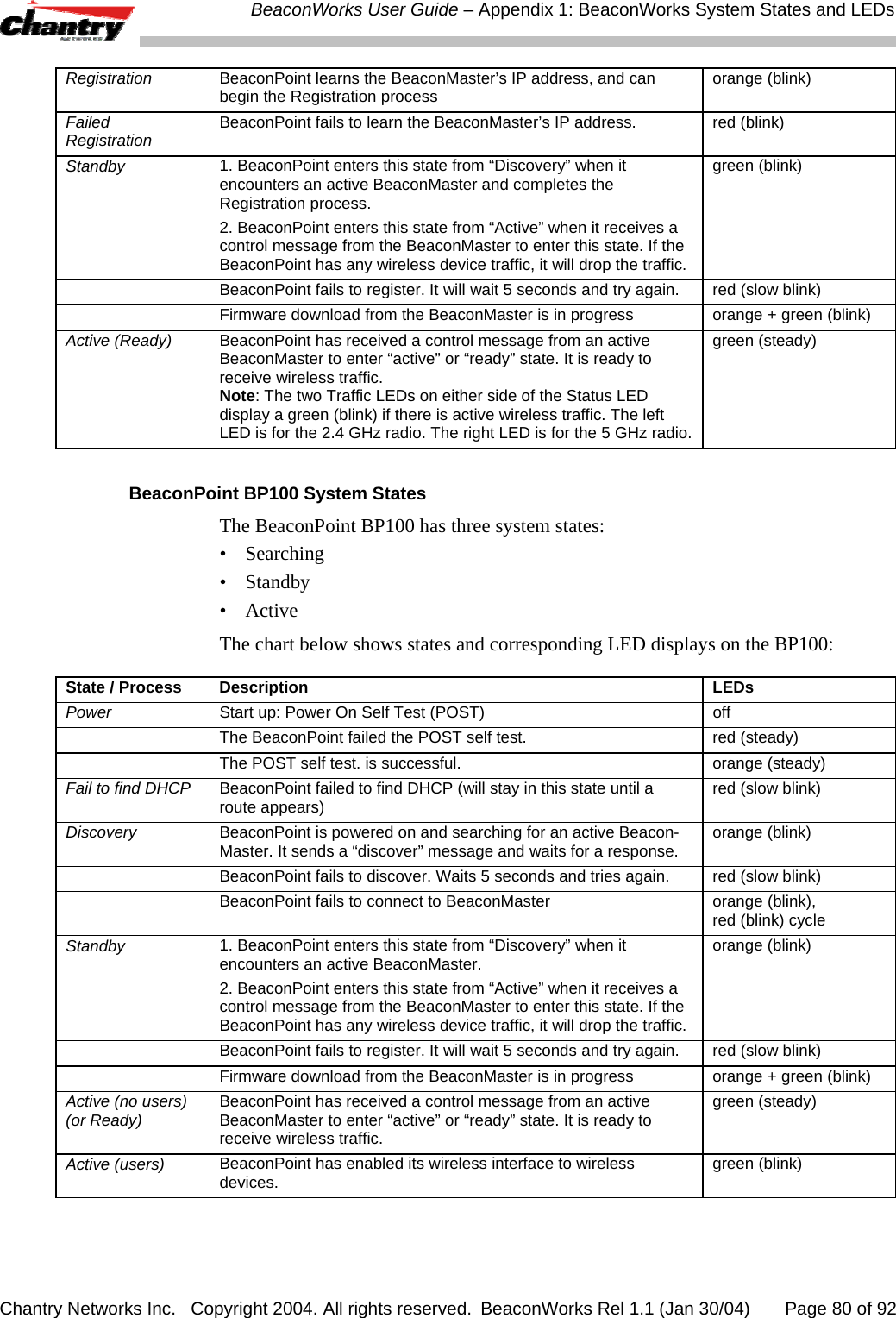
 BeaconWorks User Guide – BeaconPoint: Startup Chantry Networks Inc.   Copyright 2004. All rights reserved.  BeaconWorks Rel 1.1 (Jan 30/04)       Page 32 of 92 DHCP (Dynamic Host Configuration Protocol), is the standard means of providing IP addresses dynamically to devices on a network.  SLP (Service Location Protocol) is a means of allowing client applications to discover network services without knowing their location beforehand. Devices advertise their services, using a Service Agent. In larger installations, a Directory Agent collects information from Service Agents and creates a central repository.  A device that is searching for a service makes use of the SLP User Agent to retrieve information from Service Agents or Directory Agents. DHCP Option 78 returns a list of IP addresses of Directory Agents.  Meanwhile, the active BeaconMaster has management software that has registered itself as a service. When a BeaconMaster starts up, it queries the DHCP server for Option 78. It registers with the Directory Agents as service type “Chantry”.  This information enables the BeaconPoint to discover the location of the BeaconMaster. Note: See the BeaconWorks Reference Guide for more information about DHCP and SLP. The BeaconPoint’s Discovery Process and LED Sequence As soon as the BeaconPoint is powered and connected to the LAN, it begins its automatic process to discover and register with the BeaconMaster.  For the BP200 the Status LED in the centre also indicates power. The Status LED is dark when unit is off and is green (solid) when the BP has completed discovery and is operational.   BP200 ← LED→   Status LED  ↓            ↑                              ↑ Left LED:                   Right LED: 2.4 GHz radio           5 GHz radio activity                       activity The boot sequence described below is the same for both versions of the BeaconPoint. However, the LED sequence described with it is for the BP200 only. 1.  When powered on, the BeaconPoint status LED turns from dark to green briefly.  Status LED: green (solid) then to dark before beginning boot sequence. 2.  [available in Release 2.0 only] The BeaconPoint performs a self-test.  [available in Release 2.0 only] Status LED: red (solid) if POST failed. 3.  The “Discovery” mode: the BeaconPoint sends a request to the DHCP server on the enterprise network for the location of the BeaconMaster. (This is accomplished through a combination of Service Location Protocol (SLP) and DHCP, as described above.) Status LED: orange (solid) while searching (“Discovery”)
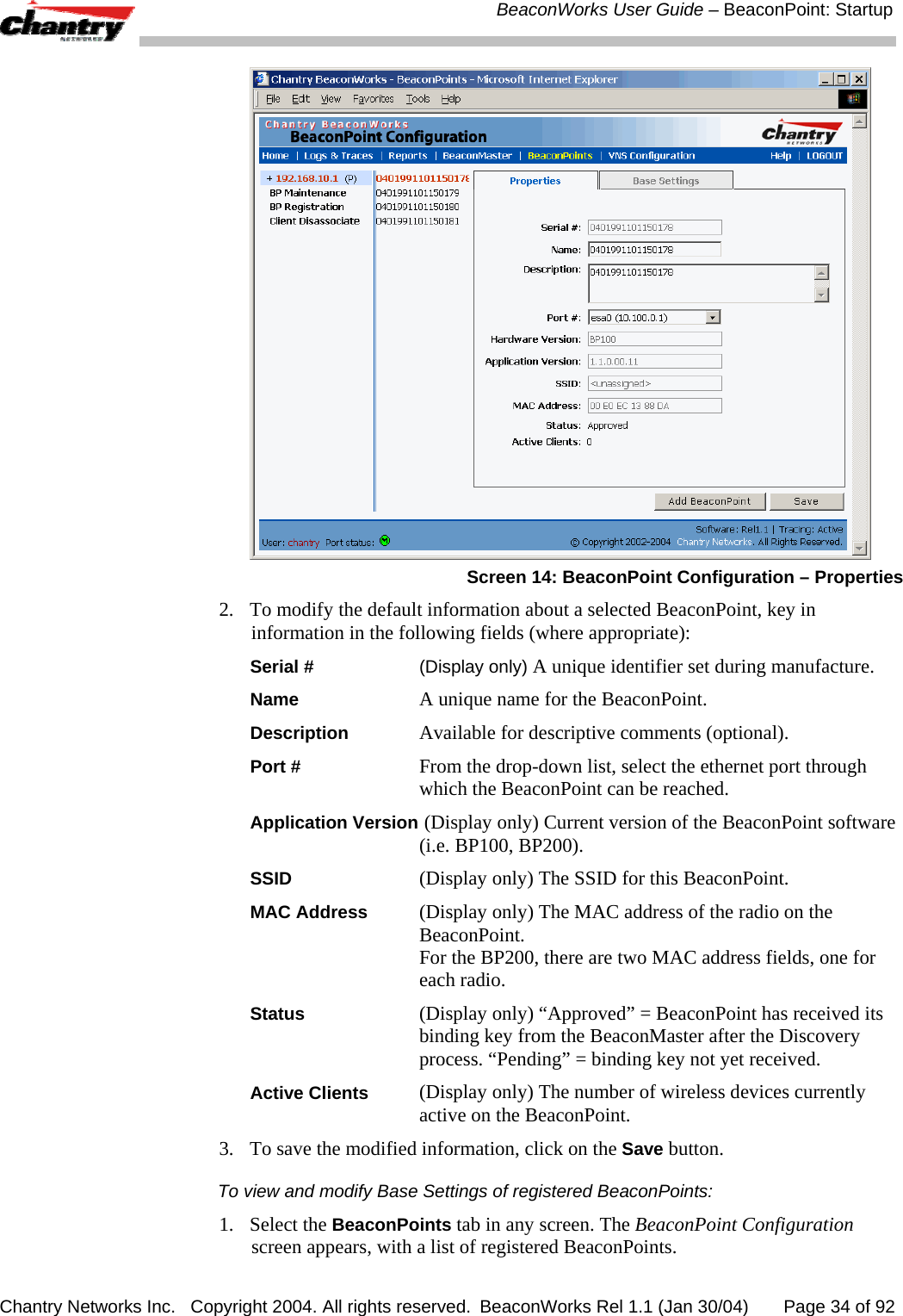
 BeaconWorks User Guide – BeaconPoint: Startup Chantry Networks Inc.   Copyright 2004. All rights reserved.  BeaconWorks Rel 1.1 (Jan 30/04)       Page 33 of 92 Status LED: red-orange (alternate blink) if DHCP server not found on network Status LED: green-orange (alternate blink) if SLP issues in failed discovery. 4.  The BeaconPoint “learns” the IP address of the BeaconMaster,  Status LED: orange (blink) when IP address successfully obtained (“Registration” process underway) Status LED: red (blink) if “Registration” fails 5.  The BeaconPoint sends its serial number (a unique identifier that is hard coded during manufacture) to the BeaconMaster. Status LED: green (blink) when BeaconPoint finds BeaconMaster (“Standby” status) Note: In Release 1.1, the BeaconPoint will automatically reboot at this point. You will see the boot sequence LEDs repeat steps 1, 3, 4 and 5. 6.  The BeaconMaster sends the BeaconPoint a port IP address and a binding key, as follows:  •  If the BeaconMaster does not recognize the serial number, it sends a default configuration to the BeaconPoint.  •  If it does recognize the serial number, it sends the specific configuration (port and binding key) set for that BeaconPoint.   The BeaconMaster also adds the BeaconPoint to its database.   Status LED: green (blink) when BeaconPoint finds BeaconMaster (“Standby” status) 7.  When the binding key is received, the BeaconPoint’s status changes from “Standby” to “Active”. It becomes active and is enabled to transmit data traffic. LED: green steady (“Active”) When the BeaconPoint has wireless traffic, you will see a green blink on the traffic LED. On the BP200, the left LED indicates the traffic LED for activity on the 2.4 GHz radio, while the right LED indicates activity on the 5 GHz radio. Once a BeaconPoint is registered with a BeaconMaster, it appears as an available choice in the Virtual Network Configuration screen, when you are setting up a Virtual Network Service. BeaconPoint: Configuring Properties and Adding Manually You can view and modify the properties and base settings of registered BeaconPoints. You can also add a BeaconPoint manually. To view and modify Properties of registered BeaconPoints:  1. Select the BeaconPoints tab in any screen. The BeaconPoint Configuration screen appears, with a list of registered BeaconPoints. Click on the Properties tab to view basic information about the highlighted BeaconPoint.
 BeaconWorks User Guide – BeaconPoint: Startup Chantry Networks Inc.   Copyright 2004. All rights reserved.  BeaconWorks Rel 1.1 (Jan 30/04)       Page 34 of 92  Screen 14: BeaconPoint Configuration – Properties 2.  To modify the default information about a selected BeaconPoint, key in information in the following fields (where appropriate): Serial #  (Display only) A unique identifier set during manufacture.  Name A unique name for the BeaconPoint.  Description   Available for descriptive comments (optional).  Port # From the drop-down list, select the ethernet port through which the BeaconPoint can be reached. Application Version  (Display only) Current version of the BeaconPoint software (i.e. BP100, BP200). SSID (Display only) The SSID for this BeaconPoint. MAC Address (Display only) The MAC address of the radio on the BeaconPoint. For the BP200, there are two MAC address fields, one for each radio. Status (Display only) “Approved” = BeaconPoint has received its binding key from the BeaconMaster after the Discovery process. “Pending” = binding key not yet received. Active Clients (Display only) The number of wireless devices currently active on the BeaconPoint. 3.  To save the modified information, click on the Save button. To view and modify Base Settings of registered BeaconPoints:  1. Select the BeaconPoints tab in any screen. The BeaconPoint Configuration screen appears, with a list of registered BeaconPoints.
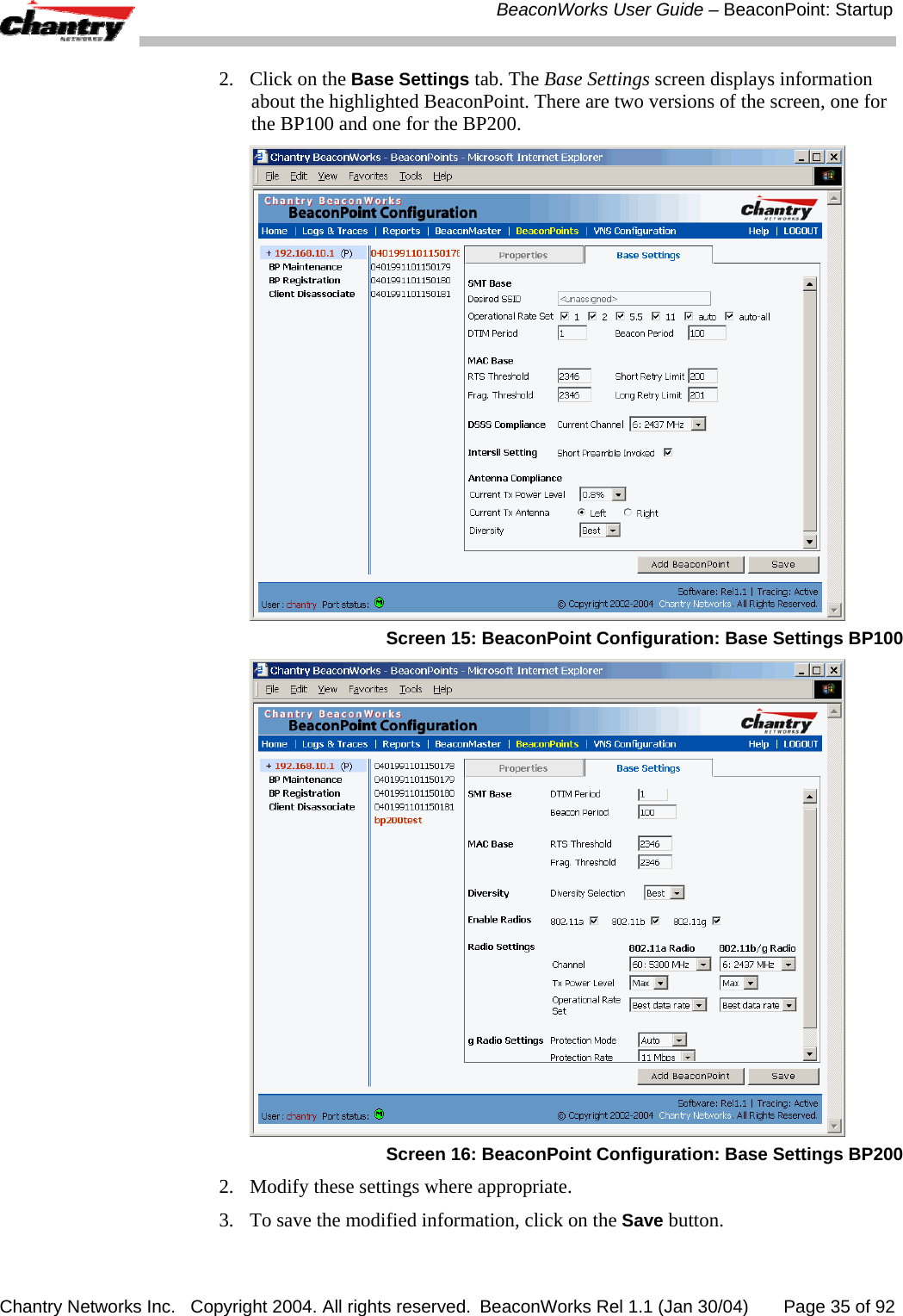
 BeaconWorks User Guide – BeaconPoint: Startup Chantry Networks Inc.   Copyright 2004. All rights reserved.  BeaconWorks Rel 1.1 (Jan 30/04)       Page 35 of 92 2.  Click on the Base Settings tab. The Base Settings screen displays information about the highlighted BeaconPoint. There are two versions of the screen, one for the BP100 and one for the BP200.  Screen 15: BeaconPoint Configuration: Base Settings BP100  Screen 16: BeaconPoint Configuration: Base Settings BP200 2.  Modify these settings where appropriate. 3.  To save the modified information, click on the Save button.
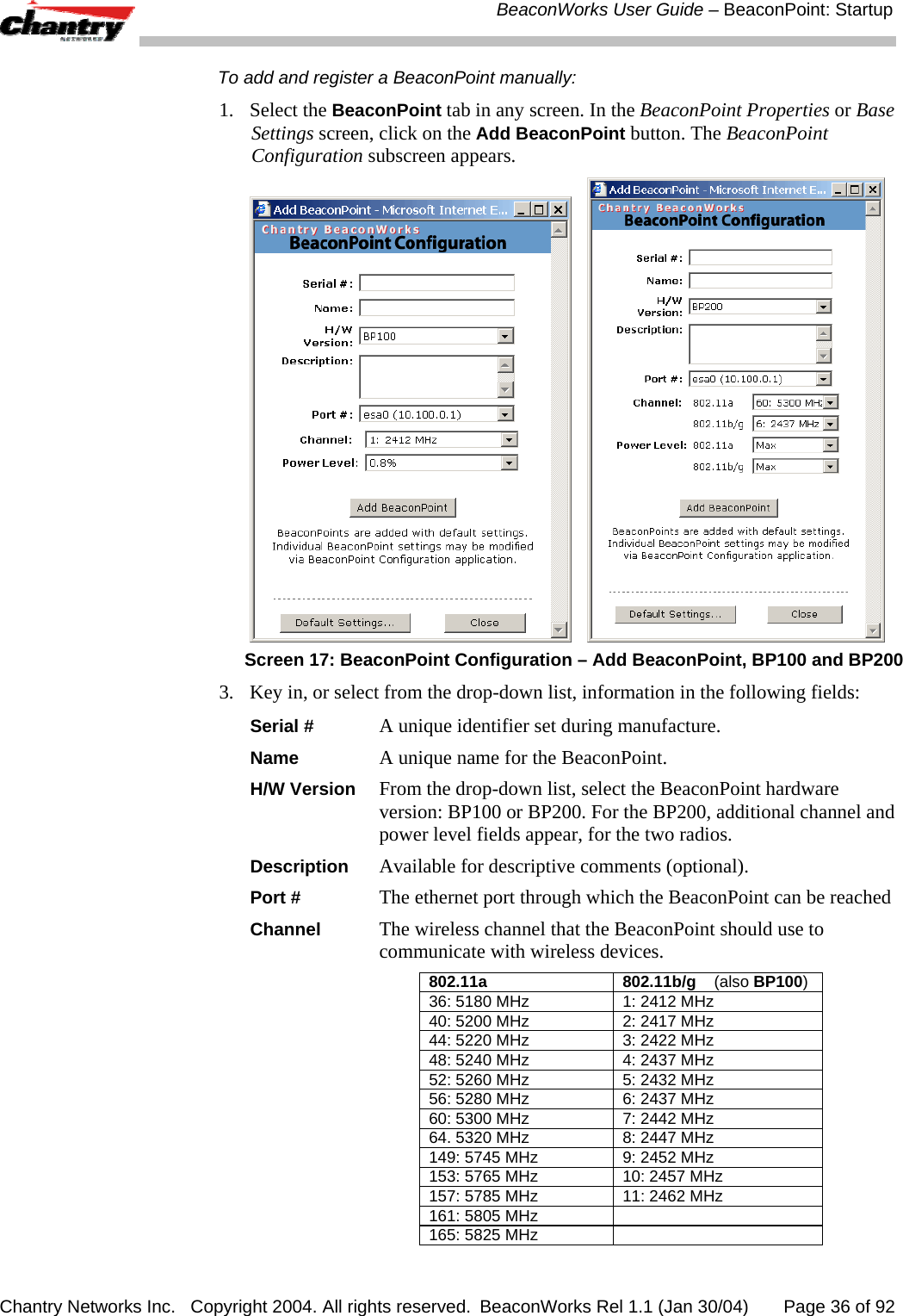
 BeaconWorks User Guide – BeaconPoint: Startup Chantry Networks Inc.   Copyright 2004. All rights reserved.  BeaconWorks Rel 1.1 (Jan 30/04)       Page 36 of 92 To add and register a BeaconPoint manually:  1. Select the BeaconPoint tab in any screen. In the BeaconPoint Properties or Base Settings screen, click on the Add BeaconPoint button. The BeaconPoint Configuration subscreen appears.      Screen 17: BeaconPoint Configuration – Add BeaconPoint, BP100 and BP200 3.  Key in, or select from the drop-down list, information in the following fields: Serial #  A unique identifier set during manufacture. Name A unique name for the BeaconPoint.  H/W Version From the drop-down list, select the BeaconPoint hardware version: BP100 or BP200. For the BP200, additional channel and power level fields appear, for the two radios.  Description   Available for descriptive comments (optional).  Port # The ethernet port through which the BeaconPoint can be reached Channel The wireless channel that the BeaconPoint should use to communicate with wireless devices. 802.11a  802.11b/g    (also BP100)36: 5180 MHz  1: 2412 MHz 40: 5200 MHz  2: 2417 MHz 44: 5220 MHz  3: 2422 MHz 48: 5240 MHz  4: 2437 MHz 52: 5260 MHz  5: 2432 MHz 56: 5280 MHz  6: 2437 MHz 60: 5300 MHz  7: 2442 MHz 64. 5320 MHz  8: 2447 MHz 149: 5745 MHz  9: 2452 MHz 153: 5765 MHz  10: 2457 MHz 157: 5785 MHz  11: 2462 MHz 161: 5805 MHz   165: 5825 MHz
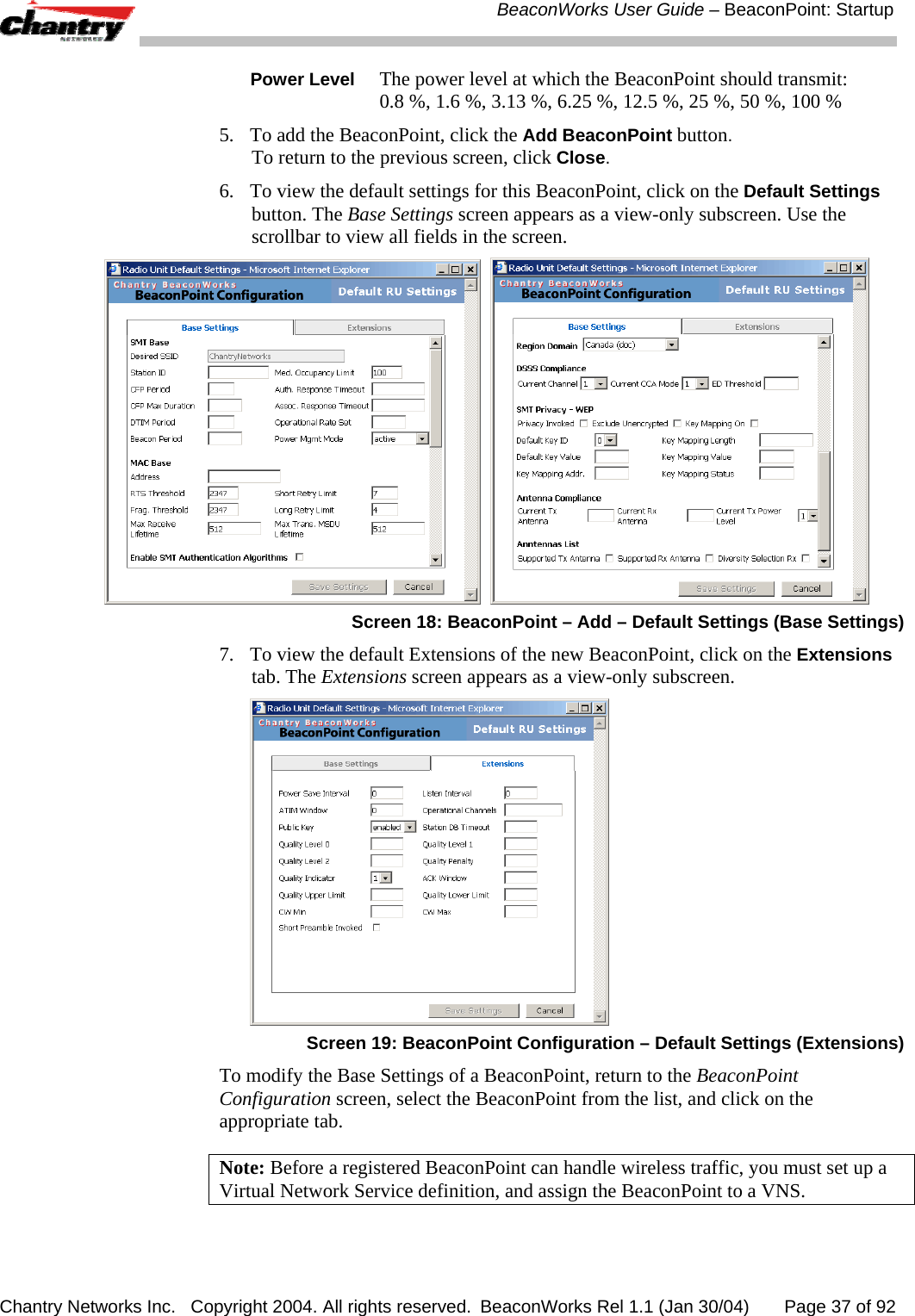
 BeaconWorks User Guide – BeaconPoint: Startup Chantry Networks Inc.   Copyright 2004. All rights reserved.  BeaconWorks Rel 1.1 (Jan 30/04)       Page 37 of 92 Power Level The power level at which the BeaconPoint should transmit: 0.8 %, 1.6 %, 3.13 %, 6.25 %, 12.5 %, 25 %, 50 %, 100 % 5.  To add the BeaconPoint, click the Add BeaconPoint button. To return to the previous screen, click Close. 6.  To view the default settings for this BeaconPoint, click on the Default Settings button. The Base Settings screen appears as a view-only subscreen. Use the scrollbar to view all fields in the screen.     Screen 18: BeaconPoint – Add – Default Settings (Base Settings) 7.  To view the default Extensions of the new BeaconPoint, click on the Extensions tab. The Extensions screen appears as a view-only subscreen.  Screen 19: BeaconPoint Configuration – Default Settings (Extensions) To modify the Base Settings of a BeaconPoint, return to the BeaconPoint Configuration screen, select the BeaconPoint from the list, and click on the appropriate tab. Note: Before a registered BeaconPoint can handle wireless traffic, you must set up a Virtual Network Service definition, and assign the BeaconPoint to a VNS.
 BeaconWorks User Guide – Virtual Network Service: Overview Chantry Networks Inc.   Copyright 2004. All rights reserved.  BeaconWorks Rel 1.1 (Jan 30/04)       Page 38 of 92 Virtual Network Service: Overview The Virtual Network Service (VNS) is the key to the advantages that the Chantry BeaconWorks system has to offer. It provides a versatile means of mapping wireless networks to the topology of an existing wired network.  When you set up a VNS on the BeaconMaster, you are defining a subnet for a group of wireless device users. This VNS definition creates a virtual IP subnet where the BeaconMaster acts as a default gateway to wireless devices. Before you begin to define a VNS, you should have determined: • a user access plan for both individual users and user groups •  the RADIUS attributes that support the user access plan •  the location and identity of the BeaconPoints that will be used on the VNS •  the network addresses that the VNS will use •  the type of authentication for wireless device users on the VNS •  the specific filters to be applied to the defined users and user groups to control network access •  what privacy mechanisms should be employed between the BeaconPoints and the wireless devices. The user access plan should analyze the enterprise network and identify which users should have access to which areas of the network. What areas of the network should be separated? Which users can go out the World Wide Web? The BeaconWorks system relies on authenticating users via a RADIUS server (or other authentication server). To make use of this feature, you will, of course, require such an authentication server on the network. Make sure that the server’s database of registered users, with login identification and passwords, is current.  Note: It is possible to deploy BeaconWorks without a RADIUS server (and without the authentication of users on the network). In that scenario, select SSID as the network assignment (in the Topology screen described later in this section) and then, in the Authentication screen, click on the None radio button. That means there is no authentication of users, but BeaconWorks is otherwise operational. The user access plan should also identify the user groups in your enterprise, and the business structure of the enterprise network. You could identify users for various purposes, as in these examples: •  department (such as Engineering, Sales, Finance)  •  role (such as student, teacher, library user)  •  status (such as guest, administration, technician). For each user group, you should set up a Filter ID attribute in the RADIUS server, and then associate each user in the RADIUS server to at least one Filter ID name. Chantry enables you to define specific filtering rules, by Filter ID attribute, that will be applied to user groups to control network access.
 BeaconWorks User Guide – Virtual Network Service: Overview Chantry Networks Inc.   Copyright 2004. All rights reserved.  BeaconWorks Rel 1.1 (Jan 30/04)       Page 39 of 92 What is a Virtual Network Service? A Virtual Network Service (VNS) is an IP subnet that is especially designed to enable Chantry BeaconPoints to interact with wireless devices. In many ways, a VNS is very similar to a regular IP subnet. However, it has the following required features: 1.  Each VNS is assigned a unique identifier.  2.  Each VNS is assigned an SSID. These do not have to be unique. (One BeaconPoint can support several VNSs, as long as they have the same SSID).  3.  Each VNS is assigned a range of IP addresses for wireless devices. All the wireless devices share the same IP address prefix (the part of the IP address that identifies the network and subnet).    The IP addresses of the wireless devices are assigned dynamically by the BeaconMaster’s DHCP server within the assigned range.   (These IP addresses are not “virtual”. They are regular IP addresses, and are unique over the network. These IP addresses are advertised to other hosts on the network so that they can exchange traffic with the wireless devices in the VNS.) Note: Alternatively, you can allow the enterprise network’s DHCP server to provide the IP addresses for the VNS, by enabling DHCP Relay in the Topology screen. 4.  A single overall filtering policy applies to all the wireless devices within the VNS. However, further filtering can be applied when the wireless user is authenticated by the RADIUS server.  5.  When the BeaconMaster creates the VNS, it also creates a virtual IP subnet for that VNS. Topology of a VNS: Overview The first step in setting up a VNS is configuring the topology. The fundamental choice is the type of network assignment and authentication mechanism on the new VNS. In the Topology screen, the options for network assignment are:  •  SSID • AAA For SSID, the authentication method is Captive Portal (or no authentication) and restricted global filtering rules are required. For AAA, the authentication is 802.1x, and appropriate filtering rules should be defined. Third-party APs are not allowed on an AAA VNS. (AAA: Authentication, Authorization and Accounting). The next step to assign the BeaconPoints to the VNS. The Topology screen displays a list of registered BeaconPoints that are available (if a BeaconPoint is already assigned to a VNS it no longer appears in the list). In the Topology area of VNS configuration, you also define other aspects of the VNS, such as the parameters for DHCP. (These are described in detail later in this Guide.)
 BeaconWorks User Guide – Virtual Network Service: Overview Chantry Networks Inc.   Copyright 2004. All rights reserved.  BeaconWorks Rel 1.1 (Jan 30/04)       Page 40 of 92 Network Assignment and Authentication for a VNS The second step is to configure the authentication mechanism for the VNS. The authentication mechanism depends on the network assignment: • If SSID was selected, there are two authentication options: •  None: The wireless device user will never be authenticated, but network access is still controlled by the Global Filter (see Filtering). •  Captive Portal: The wireless device connects to the network, but can only access a web page logon screen (the portal in which he is captive). The user must input an ID and a Password for authentication. Access to the Captive Portal page and other specific network destinations is defined in the Global Filter (see Filtering).  Note: For Captive Portal, RADIUS server must support PAP, CHAP (RFC 2484), MS-CHAP (RFC 2433), MS-CHAPv2 (RFC 2759) • If AAA (802.1x) was selected, a password or certificate is demanded before the wireless device can connect to the network. This method is now part of the 802.11 standard. Network access is then controlled by the filtering rules defined for the specific Filter ID associated with the wireless device user. The AAA (802.1x) mechanism is as follows: The wireless device user requesting network access via BeaconWorks must first log on to the user’s operating system. This request for authentication gets forwarded to the BeaconMaster. The BeaconMaster then sends the authentication request to the RADIUS server. If access is allowed, the BeaconMaster’s DHCP server assigns the device its IP address and allows network access.  Note: For 802.1x, RADIUS server must support RFC 2869. Filtering for a VNS: How it works The Chantry Virtual Network Service capability provides a technique to apply policy, to allow different network access to different groups of users. This is done by packet filtering. After setting up the authentication, the next step is to define the filtering rules for the filters that apply to your network and the VNS you are setting up. Three types of filters are applied by the BeaconMaster in the following order: 1.   Global filter (available only if the authentication is by Captive Portal), to force traffic to go first to the Captive Portal page for authentication. 2.  Named filters for designated user groups, to control access to certain areas of the network, with names that match defined RADIUS Filter ID attributes. 3.  Default filter, to control access if no named filters apply, and to allow access to areas that have not been specifically excluded by other filters. Within each type of filter, you define a sequence of filtering rules. This sequence must be carefully planned and arranged in the order that you want them to take effect. You define each rule to either allow or deny traffic in either direction: •  “In”: from a wireless device in to the network
 BeaconWorks User Guide – Virtual Network Service: Overview Chantry Networks Inc.   Copyright 2004. All rights reserved.  BeaconWorks Rel 1.1 (Jan 30/04)       Page 41 of 92 •  “Out”: from the network out to the wireless unit.  Note: The final rule in any filter should be a catch-all for any traffic that did not match a filter. This final rule should either “allow all” or “deny all” traffic, depending on the requirements for network access. For example, the final rule in a Global Filter for Captive Portal is typically “deny all”. A final “allow all” rule in a Default Filter will ensure that a packet is not dropped entirely if no other match can be found. Each rule can be based on any one of the following: •  destination IP address, or any IP address within a specified range (as a wildcard) •  ports, by number and range •  protocols (UDP, TCP, etc.) This is how the BeaconMaster software filters traffic: 1.  The BeaconMaster software attempts to match each packet of a VNS to the filtering rules that apply to the wireless device user.  2.  If a filter rule is matched, the operation (allow or deny) is executed.  3.  The next packet is fetched for filtering. The filtering sequence depends on the type of authentication: • No authentication (with assignment by SSID) Only the Global filter will apply. Since there will be no authentication, the “deny all” rule should be the final rule. Before that, specific access can also be defined. • Authentication by Captive Portal (with assignment by SSID) A Global filter will apply before authentication. The Global filter should be defined to allow all users to get as far as the Captive Portal webpage where login occurs. When authentication is returned, then the Named filters are applied, based on user ID and permissions. The Default filter is applied if no named filter is matched.  • Authentication by AAA (802.1x) Since users have already logged in and have been authenticated, there is no need for a Global filter. The Named filters are applied, based on user ID and permissions. The Default filter is applied if no named filter is matched. Privacy on a VNS: Overview Privacy is a mechanism that protects data over wireless and wired networks, usually by encryption techniques.  Chantry supports the Wired Equivalent Privacy (WEP) standard common to conventional access points. WEP provides data confidentiality services by encrypting the data sent between wireless nodes. Each node must use the same encryption key. Chantry also adds TSN encryption, based on Pairwise Master Key (PMK) and Temporal Key Integrity Protocol (TKIP). This second option is available when the AAA (802.1x) authentication technique is used.
 BeaconWorks User Guide – Virtual Network Service: Overview Chantry Networks Inc.   Copyright 2004. All rights reserved.  BeaconWorks Rel 1.1 (Jan 30/04)       Page 42 of 92 Setting up a new Virtual Network Service (VNS) Click on the Virtual Network Configuration tab in any screen. The Virtual Network Configuration screen appears.  Screen 20: Virtual Network Configuration: Before any VNS definitions For a new BeaconWorks installation, where no VNS has yet been defined, the screen is blank, except for the Add subnet function. Create a subnet (VNS) 1.  In the entry field above the Add subnet button, key in a name that will uniquely identify the new Virtual Network Service. 2.  Click on the Add subnet button.  The name appears in the left-hand list above. The Topology screen appears.  Screen 21: Virtual Network Configuration: Topology for a new VNS Subnet
 BeaconWorks User Guide – Virtual Network Service: Overview Chantry Networks Inc.   Copyright 2004. All rights reserved.  BeaconWorks Rel 1.1 (Jan 30/04)       Page 43 of 92 Configure the new VNS (basic steps): 1.  Highlight the subnet name, and in the Topology screen, select the network assignment mechanism from the Assignment by drop-down list:  •  SSID • AAA  For SSID, the authentication method is Captive Portal (or none) and specific filtering rules are required.  For AAA, the authentication is 802.1x, and appropriate filtering rules should be defined. Third party APs are not allowed on an AAA VNS. 2. In the SSID box at the right, key in the SSID that the wireless devices will use to access the BeaconPoint. 3.  From the displayed list of BeaconPoints that are available throughout the network, check the ones to be assigned to this VNS. Once you have assigned a BeaconPoint to a VNS, it will not appear in the list for another VNS setup. 4.  Configure the other options for this VNS, such as whether to allow Management Traffic, and whether to use DHCP Relay (these are described in detail later). 5.  To save the new VNS Topology, click on the Save button. When the new VNS Topology has been saved, the screen changes to display the following tabs, for configuring these aspects of the new VNS: • Authentication • Filtering • Privacy
 BeaconWorks User Guide – Virtual Network Service: A VNS for Captive Portal Chantry Networks Inc.   Copyright 2004. All rights reserved.  BeaconWorks Rel 1.1 (Jan 30/04)       Page 44 of 92 Virtual Network Service: A VNS for Captive Portal This section describes how to set up a VNS for Captive Portal: its Topology, Authentication, Filtering and Privacy. If the authentication technique for network assignment is by Captive Portal, the process is as follows. The wireless device requesting network access via BeaconWorks first gets its IP network assignment from the DHCP server, but can access only the specific IP addresses defined in the Global filter. Typically, one of these addresses is a Captive Portal web page, where the wireless device user can log in and become authenticated.  Topology for Captive Portal For a VNS with Captive Portal authentication, select Network Assignment by SSID in the Topology screen.  In the Virtual Network Configuration screen, highlight the VNS name in the left-hand list and click on the Topology tab.   Screen 22: Virtual Network Configuration – Topology – SSID Assignment Create an SSID 1. Using the Assignment by drop-down list, select SSID.  2. In the SSID box at the right, key in the SSID that the wireless devices will use to access the BeaconPoint.
 BeaconWorks User Guide – Virtual Network Service: A VNS for Captive Portal Chantry Networks Inc.   Copyright 2004. All rights reserved.  BeaconWorks Rel 1.1 (Jan 30/04)       Page 45 of 92 3. In the Session Timeout box, key in the number of minutes that a wireless device can be inactive before the BeaconMaster closes the session. 4.  To allow multicast traffic, click the Multicast traffic checkbox on. 5.  To allow Management traffic on this VNS, click the Allow management traffic checkbox on. (See Filtering Rules: Special Circumstances for more information.) Set up this VNS for third-party access points 6.  If this VNS is to be used for third-party access points, click the Use 3rd Party AP checkbox on. The screen changes to include fields to enter the IP Address and MAC Address of the third-party access point.  Note: Use this function as part of the process defined in the topic “Setting up a Third-Party Access Point”. For further information, see that section this Guide. Use DHCP Relay for the VNS 7.  To bypass the BeaconMaster’s DHCP server, click the Use DHCP Relay checkbox on. The DHCP Settings area of the screen changes to display only the Gateway, Mask and DHCP Server fields (this area of the screen shown below)    Key in the appropriate IP addresses and mask to reach the enterprise’s external DHCP server. Note: Use DHCP Relay to bypass the local DHCP server on BeaconMaster, and instead allow the BeaconMaster to use an external DHCP server to service IP addresses to a VNS. This function allows the enterprise to manage address allocation from its existing infrastructure. Set the IP address for the VNS (for the DHCP server on the BeaconMaster) 8. In the Network Address box, key in the network IP address for the VNS.    This IP address is the default gateway for the VNS. The BeaconMaster advertises this address to the wireless devices when they sign on.  9. In the Mask box, key in the appropriate subnet mask for this IP address, to separate the network portion from the host portion of the address (typically 255.255.255.0)  The Address Ranges fields populate automatically (based on the IP address you keyed in) with the range of IP addresses to be assigned to wireless devices using this VNS. 10. To modify the Address Ranges, key the first available address in the from box. Key the last available address in the to box.
 BeaconWorks User Guide – Virtual Network Service: A VNS for Captive Portal Chantry Networks Inc.   Copyright 2004. All rights reserved.  BeaconWorks Rel 1.1 (Jan 30/04)       Page 46 of 92 11. If there are specific IP addresses to be excluded from this range, click on the Exclusions field. The Exclusions subscreen appears.   Screen 23: Virtual Network Configuration – Exclusions subscreen 12. In the Exclusions subscreen, key in the IP addresses or address ranges to exclude. Click on the Add button after each entry. Click on the Save button to save the changes and return to the Topology screen. 13. The Broadcast Address field populates automatically, based on the IP address of the VNS. Modify this if appropriate.. 14. In the Domain Name box, key in the external enterprise domain name.  Set time limits for IP assignments 15. In the Default Lease box, accept the default value of 3600 seconds (1 hour), or modify. This is the default time limit that an IP address would be assigned by the DHCP server to a wireless device. . In the Max Lease box, accept the default value is 24000 seconds (40 hours), or modify. This is the maximum time that an IP address can be assigned.  16. In the DNS Servers box, key in the IP Address of the Domain Name Server(s) to be used. 17. If the DHCP server uses WINS (Windows Internet Naming Service), key in the IP address in the WINS box. If not, leave it blank. Identify the BeaconPoints that will be assigned to this VNS 18. From the displayed list of BeaconPoints that are available throughout the network, check the ones to be assigned to this VNS. Once you have assigned a BeaconPoint to a VNS, it will not appear in the list for another VNS setup. 19. To save this VNS configuration, click on the Save button. Authentication for Captive Portal After configuring the VNS Topology, now set up the Authentication mechanism for Captive Portal. If SSID was selected, there are two authentication options:
 BeaconWorks User Guide – Virtual Network Service: A VNS for Captive Portal Chantry Networks Inc.   Copyright 2004. All rights reserved.  BeaconWorks Rel 1.1 (Jan 30/04)       Page 47 of 92 •  None: The wireless device user will never be authenticated, but network access is still controlled by the Global Filter. •  Captive Portal: The wireless device connects to the network, but can only access a web page logon screen. The user must input an ID and a Password for authentication. Access to the Captive Portal page and other specific network destinations are defined in the Global Filter (see Filtering).  Configuring Authentication – None You can choose to bypass all Chantry authentication mechanisms and run BeaconWorks with no authentication.  To bypass BeaconWorks Authentication 1.  Set up a VNS in the Topology screen with Network Assignment by SSID. Then click on the Authentication tab.   Screen 24: Virtual Network Configuration – Authentication – None 2.  To bypass all Chantry authentication mechanisms, select the None radio button.  3.  To save these settings, click on Save. Configuring Captive Portal Authentication To set up Authentication by Captive Portal 1.  Click on the Authentication tab. In the Authentication configuration screen, click the Captive Portal radio button. The Captive Portal portion of the screen appears.
 BeaconWorks User Guide – Virtual Network Service: A VNS for Captive Portal Chantry Networks Inc.   Copyright 2004. All rights reserved.  BeaconWorks Rel 1.1 (Jan 30/04)       Page 48 of 92  Screen 25: Virtual Network Configuration – Authentication – Captive Portal 2.  Define how the BeaconMaster will access the RADIUS Server. Server Address The IP address of the RADIUS Server. Port # The ethernet port used to access the RADIUS Server (default: 1812) # of Retries Number of times the BeaconMaster will attempt to access the RADIUS Server Timeout Idle timer: The maximum number of minutes that a wireless device’s session can be inactive before the BeaconMaster closes the RADIUS Server session. 4.  Key in the Shared Secret (a password that is required in both directions) that is set up on the RADIUS Server. The BeaconMaster will use this password to log onto the RADIUS Server.  5.  Select the authentication protocol to be used by the RADIUS Server to authenticate the users of the wireless devices. PAP   (Password Authentication Protocol)  CHAP   (Challenge Handshake Authentication Protocol) MS CHAP   (Windows-specific version of CHAP) MS CHAP v2  (Windows-specific version of CHAP, version 2) 6. In the Filter ID Values box, key in the names of the groups that you want to define specific filtering rules for, to control network access. These Filter ID names will appear in the Filter ID list in the Filtering screen.  Note: These names must match the Filter ID attribute names in the RADIUS server.  7.  To save these settings, click on Save.
 BeaconWorks User Guide – Virtual Network Service: A VNS for Captive Portal Chantry Networks Inc.   Copyright 2004. All rights reserved.  BeaconWorks Rel 1.1 (Jan 30/04)       Page 49 of 92 Configuring the Captive Portal Page 1.  To design how the Captive Portal authentication page will display for Captive Portal, click on the Configure button of the Authentication Tab.  The Captive Portal Configuration subscreen appears.  Screen 26: Captive Portal login configuration 2.  Key in the text that will appear on the Captive Portal page. Login Label The text that will appear as a label for the user login field in the Captive Portal screen. Password Label The text that will appear as a label for the user password field 3.  Key in the locations of the header and footers. Header URL The location of the file to be displayed in the Header portion of the Captive Portal screen. This page can be customized to suit your company, with logos or other graphics. Footer URL The location of the file to be displayed in the Footer portion of the Captive Portal screen.  Note: You can also add URLs in the header and footer that link to other websites, to allow the wireless device user to access to some specific areas of your enterprise, or to the World Wide Web, before authentication.  4. In the Message field, key in the message that will appear above the login field to greet the user. This should explain why this Captive Portal page is appearing, and what the user should do.  5.  To save this configuration, click on Save. 6.  To see how the Captive Portal page you have designed will look (after saving the configuration), click on the View Sample Portal Page button. Filtering Rules for Captive Portal The next step is to configure the filtering rules for a Global Filter. The Global Filter is applied to everyone before the system knows who it is (the unauthenticated). The Global filter should be set up to be very restrictive.
 BeaconWorks User Guide – Virtual Network Service: A VNS for Captive Portal Chantry Networks Inc.   Copyright 2004. All rights reserved.  BeaconWorks Rel 1.1 (Jan 30/04)       Page 50 of 92 The Global Filter should allow access to the Captive Portal page IP address, as well as to any URLs for the header and footer of the Captive Portal page. The filter should also allow network access to the IP address of the DNS server and to the Network Address, the Gateway, of the VNS.  You can also set up filtering rules to allow access, before authentication, to explicitly defined areas of the network. Then you must deny all other access.  Redirection and captive portal credentials only apply to HTML traffic, that is, to a wireless device user attempting to reach websites not specifically allowed in the Global Filter. Define filtering rules for a Global filter 1. In the Virtual Network Configuration screen, click on the Filtering tab. The Filtering screen appears. Click on the subnet name in the left-hand list. The right portion of the screen displays the filtering screen for the selected subnet.  2. Using the Filter ID drop-down list, select Global.   Screen 27: Virtual Network Configuration – Global Filter for Captive Portal   If you defined specific Filter ID Values, as described in the Authentication screen, the defined names will also appear in Filter ID drop-down list.   The screen automatically provides a “Deny All” rule already in place. Use this rule as the final rule in the Global filter for Captive Portal. 3.  Select one of the following as the basis for each filtering rule you are defining:  IP / Port: Click the radio button to select. Then type in the destination IP address, and if desired, the port designation on that IP address.
 BeaconWorks User Guide – Virtual Network Service: A VNS for Captive Portal Chantry Networks Inc.   Copyright 2004. All rights reserved.  BeaconWorks Rel 1.1 (Jan 30/04)       Page 51 of 92 Protocol: Select from the drop-down list (may include UDP, TCP, IPsec-ESP, IPsec-AH, ICMP) Note: For Captive Portal, select IP / Port and key in the IP address you defined as the Network Address in the Topology screen for this VNS (its default gateway) 4.  Click on the Add button. The information appears in a new line in the Filter Rules area of the screen.  5.  Highlight the new filtering rule and fill in (or leave unchecked) the three checkboxes in the combinations that define the traffic access: In: Click checkbox on to refer to traffic from the wireless device that is trying to get on the network (“going to” to network) Out: Click checkbox on to refer to traffic from the network host that is trying to get to a wireless device. (“coming from” the network) Allow Click checkbox on to allow. Leave unchecked to disallow.. Note: For Captive Portal, to allow access to the IP address, check all three boxes on. 6.   Edit the order of a filtering rule by highlighting the line and clicking on the Up and Down button. The filtering rules are executed in the order created here 7.  To save the filtering rules, click on the Save button. Global Filters: Examples The basic Global filter for Captive Portal has three rules in the following order: In  Out  Allow  IP / Port  Description x  x  x  IP address of the Default Gateway  Allow all incoming wireless devices access to the default gateway of the VNS. x  x  x  IP address of the DNS Server  Allow all incoming wireless devices access to the DNS server of the VNS. x  x    *.*.*.*  Deny everything else.  Note: If you put URLs in the header and footer of the Captive Portal page, you must include a filtering rule to allow traffic to each of these URLs. Put this rule above the “deny everything” rule. Here is another example of a Global filter that adds two more filtering rules: one denies access to a specific IP address, and the next rule allows only HTML traffic, before denying all other access: In  Out  Allow  IP / Port  Description x  x  x  IP address of the Default Gateway  Allow all incoming wireless devices access to the default gateway of the VNS. x  x  x  IP address of the DNS Server  Allow all incoming wireless devices access to the DNS server of the VNS. x  x    [a specific IP address]  Deny all traffic to a specific IP address. x x  x  *.*.*.*:80  Allow all port 80 (HTML) traffic. x  x    *.*.*.*.  Deny everything else.
 BeaconWorks User Guide – Virtual Network Service: A VNS for Captive Portal Chantry Networks Inc.   Copyright 2004. All rights reserved.  BeaconWorks Rel 1.1 (Jan 30/04)       Page 52 of 92 Once a wireless device user has logged in on the Captive Portal page, and has been authenticated by the RADIUS server, then the following filters will apply: •  Specific named Filter IDs, if any are associated with this user in the authentication server •  Default Filter, if no named Filter ID was returned from the authentication server. These filters are described in detail in the Filtering for an AAA VNS.  Privacy using WEP for a Captive Portal VNS Use the Privacy screen to set up the static Wired Equivalent Privacy (WEP) keys for a selected Virtual Network Service, so that it matches the WEP mechanism used on the rest of the network. Set up Static WEP keys for a selected VNS (subnet) 1. In the Virtual Network Configuration screen, click on the Privacy tab. The Privacy screen appears. 2.  Click on the VNS subnet name in the left-hand list. The right portion of the screen displays the privacy parameters for the selected subnet.  3.  For no privacy mechanism on this VNS, click on the None radio button. 4.  To configure static keys for WEP, click on the Static Keys (WEP) radio button.  Screen 28: Virtual Network Configuration – Privacy – Captive Portal VNS 5.  From the pull-down list, select the WEP Key Length:  40-bit or 104-bit. 6.   Click on the appropriate radio button to select the Input Method:  Input Hex, Input String, Input String for Hash
 BeaconWorks User Guide – Virtual Network Service: A VNS for Captive Portal Chantry Networks Inc.   Copyright 2004. All rights reserved.  BeaconWorks Rel 1.1 (Jan 30/04)       Page 53 of 92 The screens below illustrate some of the different key generation techniques.      Screen 29: Virtual Network Configuration – Privacy – Input Methods 7.  Type in the WEP key input, as appropriate to the technique selected. The keys are generated automatically, based on the input. 8.  To save these settings, click on the Save button.
 BeaconWorks User Guide – Virtual Network Service: A VNS for AAA Chantry Networks Inc.   Copyright 2004. All rights reserved.  BeaconWorks Rel 1.1 (Jan 30/04)       Page 54 of 92 Virtual Network Service: A VNS for AAA This section describes how to set up a VNS for AAA (802.1x): its Topology, Authentication, Filtering and Privacy. If the authentication technique for network assignment is by 802.1x authentication, the process is as follows. The wireless device user requesting network access via BeaconWorks must first log on to the user’s operating system. This request for authentication gets forwarded to the BeaconMaster. The BeaconMaster then sends the authentication request to the RADIUS server. If access is allowed, the BeaconMaster’s DHCP server assigns the device its IP address and allows network access. The immediate identification of the wireless device user (and the user’s associated RADIUS Filter ID attributes) provides opportunities to control the user’s network access in more varied and specific ways in the Filtering screen. Topology for an AAA VNS For a VNS with 802.1x authentication, select Network Assignment by AAA (Authentication, Authorization, Accounting) in the Topology screen.  In the Virtual Network Configuration screen, highlight the VNS name in the left-hand list and click on the Topology tab.  Screen 30: Virtual Network Configuration – Topology – AAA Assignment Create an AAA topology 1. Using the Assignment by drop-down list, select AAA.
 BeaconWorks User Guide – Virtual Network Service: A VNS for AAA Chantry Networks Inc.   Copyright 2004. All rights reserved.  BeaconWorks Rel 1.1 (Jan 30/04)       Page 55 of 92 2.  From the displayed list of BeaconPoints that are available throughout the network, check the ones to be assigned to this VNS. 3.  Fill in the remaining settings, as described earlier for a Captive Portal VNS. Note: The option to use this VNS for a third-party access point is not permitted for Assignment by AAA. 4.  To save this VNS configuration, click on the Save button. Authentication for AAA After configuring the VNS Topology, now set up the Authentication mechanism for AAA (802.1x). To set up Authentication by AAA (802.1x) method 1.  Click on the Authentication tab. If you selected AAA as the Assignment method in the previous screen, the AAA version of the Authentication screen appears.  Screen 31: Virtual Network Configuration – Authentication – AAA 2.  Define how the wireless devices will access the RADIUS Server. These fields are described for Captive Portal earlier in this Guide. 4. In the Filter ID Values box, key in the names of the groups that you want to define specific filtering rules for, to control network access. These Filter ID names will appear in the Filter ID list in the Filtering screen.  Note: These names must match the Filter ID attribute names in the RADIUS server.
 BeaconWorks User Guide – Virtual Network Service: A VNS for AAA Chantry Networks Inc.   Copyright 2004. All rights reserved.  BeaconWorks Rel 1.1 (Jan 30/04)       Page 56 of 92 Set up an AAA Group 1.  To create and define a VNS Group within this VNS, key in the name in the VNS Group Name field. Then click on the Add button.   The Group Name that you defined will appear as a child of the parent VNS in the left-hand list. (To configure the Topology of a group, see the next topic.) 2.  To save these settings, click on Save. VNS Topology for an AAA group If you define a group within an AAA VNS, the group (or child) definition acquires the same authentication and privacy parameters as the parent VNS. However, you need to define the topology and the filtering rules for this group. Modify an AAA Group Topology 1.  To modify an AAA group topology, click on its name in the left-hand list. The Group version of the Topology screen appears.  Screen 32: Virtual Network Service – Topology – AAA Group 2.  To save the modifications, click on Save. Filtering Rules for a Named Filter ID The next step is to configure the filtering rules for the Filter IDs for a wireless user on the AAA VNS.  When the wireless device user enters a login identification, then that identification is sent by the BeaconMaster to the RADIUS server (or other authentication server).
 BeaconWorks User Guide – Virtual Network Service: A VNS for AAA Chantry Networks Inc.   Copyright 2004. All rights reserved.  BeaconWorks Rel 1.1 (Jan 30/04)       Page 57 of 92 When the server allows this request for authentication, the server may also send back to the BeaconMaster other identifiers associated with this user. This could be any Filter ID attributes defined in RADIUS.  The BeaconMaster can now apply the specific filtering rules by Filter ID name for this wireless device user. These rules can define specific areas of the network that only users with the appropriate Filter ID can access. Note: The BeaconMaster’s Filter ID names must match the Filter ID attribute names in the RADIUS server.  If no Filter ID is returned by the authentication server, then the Default Filter and its filtering rules will apply to the wireless device user. Note: These named Filter IDs (or the Default Filter) will also apply after a Captive Portal login has been authenticated. Define filtering rules for a named Filter ID: 1. In the Virtual Network Configuration screen, click on the Filtering tab. The Filtering screen appears. Click on the subnet name in the left-hand list. The right portion of the screen displays the filtering screen for the selected subnet.  2.  Using the Filter ID drop-down list, select one of the names you defined in the Filter ID Values field in the Authentication screen [one of your enterprise’s user groups, such as Sales, Engineering, Teacher, Guest....]  Screen 33: Virtual Network Configuration – Named Filter ID   The screen automatically provides a “Deny All” rule already in place. This can be modified to “Allow All”, if appropriate to the network access needs for this VNS. 3.  Select one of the following as the basis for each filtering rule you are defining:  IP / Port: Click the radio button to select. Then type in the destination IP address, and if desired, the port designation on that IP address.
 BeaconWorks User Guide – Virtual Network Service: A VNS for AAA Chantry Networks Inc.   Copyright 2004. All rights reserved.  BeaconWorks Rel 1.1 (Jan 30/04)       Page 58 of 92 Protocol: Select from the drop-down list (may include UDP, TCP, IPsec-ESP, IPsec-AH, ICMP) 4.  Click on the Add button. The information appears in a new line in the Filter Rules area of the screen.  5.  Highlight the new filtering rule and fill in (or leave unchecked) the three checkboxes in the combinations that define the traffic access: In: Click checkbox on to refer to traffic from the wireless device that is trying to get on the network (“going to” to network) Out: Click checkbox on to refer to traffic from the network host that is trying to get to a wireless device. (“coming from” the network) Allow Click checkbox on to allow. Leave unchecked to disallow.. 6.   Edit the order of a filtering rule by highlighting the line and clicking on the Up and Down button. The filtering rules are executed in the order created here 7.  To save the filtering rules, click on the Save button. Named Filters by Filter ID: Examples Below are two examples of possible filtering rules for a named Filter ID. The first disallows only some specific access before allowing everything else. In  Out  Allow  IP / Port  Description x x    *.*.*.*:22-23  Deny all telnet sessions x  x    [specific IP address, range]  Deny all traffic to a specific IP address, or address range x x  x  *.*.*.*.  Allow everything else.  The second example does the opposite of the first example. It allows only some specific access and denies everything else.  In  Out  Allow  IP / Port  Description x  x  x  [specific IP address, range]  Allow all traffic to a specific IP address, or address range x  x    *.*.*.*.  Deny everything else.  Setting up Default Filtering Rules If, after authentication of the wireless device user, there is no named Filter ID returned by the authentication server for this user, then the Default Filter will apply. Define the filtering rules for a Default Filter 1. In the Virtual Network Configuration – Filtering screen, using the Filter ID drop-down list, select Default.
 BeaconWorks User Guide – Virtual Network Service: A VNS for AAA Chantry Networks Inc.   Copyright 2004. All rights reserved.  BeaconWorks Rel 1.1 (Jan 30/04)       Page 59 of 92  Screen 34: Virtual Network Configuration – Default Filter 2.  Follow Steps 2 to 5, as described above. 3.  To save the filtering rules, click on the Save button. Default Filter: Examples Here is an example of filtering rules for a Default Filter: In  Out  Allow  IP / Port  Description / Purpose x  x    Intranet IP, range  Deny all access to an IP range x  x    Port 80 (HTTP)  Deny all access to web browsing. x  x    Intranet IP  Deny all access to a specific IP x x  x  *.*.*.*.  Allow everything else.  Here is another example of filtering rules for a Default Filter: In  Out  Allow  IP / Port  Description / Purpose x      Port 80 (HTTP) on host IP  Deny all incoming wireless devices access to web browsing the host.   x    Intranet IP 10.3.0.20, ports 10-30  Deny all traffic from the network to the wireless devices on the port range, such as TELNET (port 23) or FTP (port 21).  x    x  Intranet IP 10.3.0.20  Allow all other traffic from the wireless devices to the Intranet network.   x  x  Intranet IP 10.3.0.20  Allow all other traffic from Intranet network to wireless devices. x x  x  *.*.*.*.  Allow everything else.  Filtering Rules for AAA and AAA Group VNS If you defined a child group for an AAA VNS, it will have the same authentication parameters and Filter IDs as the parent VNS. However, you can define different filtering rules for these Filters IDs in the child configuration than in the parent configuration.
 BeaconWorks User Guide – Virtual Network Service: A VNS for AAA Chantry Networks Inc.   Copyright 2004. All rights reserved.  BeaconWorks Rel 1.1 (Jan 30/04)       Page 60 of 92 Filtering Rules: Special Circumstances Filtering Rules to control communication between two wireless devices  Traffic from two wireless devices on the same VNS and connected to the same BeaconPoint passes through the BeaconMaster, and is subject to filtering policy.  You can set up filtering rules that allow each wireless device access to the default gateway, but prevent each device from communicating each other. Add the following two rules to a Filter ID before allowing everything else: In  Out  Allow  IP / Port  Description / Purpose x  x  x  [Intranet IP]  Allow access to the Gateway IP address of the VNS only x  x    [Intranet IP, range]  Deny all access to the VNS subnet range 0/24  x x  x  *.*.*.*.  Allow everything else.  Filtering Rules to control access to services on the BeaconMaster For each type of port function set up for the BeaconMaster’s data ports, filtering rules control access to management services on that port.  These filtering rules were implicitly created in two ways: •  at the port level, when you set the “Allow Management” flag on for a port, in the data port setup on the BeaconMaster.  •  at the VNS level, when you clicked the checkbox on for “Allow Management Traffic” when setting up a VNS Topology. For example:  •  For Router and Host interfaces, you may allow access to management application (SSH, HTTPS, SNMP) and to BP registration mechanisms •  For 3rd Party AP and VNS interfaces, you may wish to deny access to management or BP registration mechanisms, but allow access to captive portal (HTTP, HTTPS) and IP assignment infrastructure (DHCP). Only traffic with Filter IDs explicitly allowed by the interface’s filter are allowed to reach the BeaconMaster itself. All other traffic is dropped. Privacy using WEP for an AAA VNS Use the Privacy screen to set up 802.1x privacy mechanisms for an AAA Virtual Network Service. One of these mechanisms is privacy by Temporal Key Integrity Protocol ( TKIP), also known as Wi-Fi Protected Access (WPA) version 1. Set up privacy for a selected AAA VNS (subnet) 1. In the Virtual Network Configuration screen, click on the Privacy tab. The Privacy screen appears. Click on the VNS subnet name in the left-hand list. For an AAA VNS, the screen displays the appropriate privacy parameters.
 BeaconWorks User Guide – Virtual Network Service: A VNS for AAA Chantry Networks Inc.   Copyright 2004. All rights reserved.  BeaconWorks Rel 1.1 (Jan 30/04)       Page 61 of 92    Screen 35: Virtual Network Configuration – Privacy – AAA VNS: Static Keys 3.  For no privacy mechanism on this VNS, click on the None radio button. 4.  To use static keys, click on the Static Keys (WEP) radio button and then select the key length and input method as described above for Captive Portal.  Screen 36: Virtual Network Configuration – Privacy – AAA VNS: Dynamic Keys 5.  To use dynamic keys, click on the Dynamic Keys radio button and then select the time frame for re-keying  6.  To add the WPA shared key to either of the above, click the check box on, and key in the shared key text. 7.  To save these settings, click on the Save button. Note: If this VNS is paired with a Captive Portal VNS, the Captive Portal Privacy settings override the AAA settings.
 BeaconWorks User Guide – BeaconMaster Configuration: Mobility and the VN Manager Chantry Networks Inc.   Copyright 2004. All rights reserved.  BeaconWorks Rel 1.1 (Jan 30/04)       Page 62 of 92 BeaconMaster Configuration: Mobility and the VN Manager The BeaconWorks system has a technique by which multiple BeaconMasters on a network can discover each other and exchange information about a client session. This enables a wireless device user to roam seamlessly between different BeaconPoints on different BeaconMasters.  The solution introduces the concept of a “VN Manager”. This means that one BeaconMaster on the network must be designated as the “VN Manager”. All other BeaconMasters are designated as “VN Agents”. To define whether the BeaconMaster is a Manager or and Agent, use the VN Manager screen in the BeaconMaster Configuration area. Note: The “VN Manager” concept relies on SLP and DHCP. Before you begin, you must ensure that the DHCP server on your network supports Option 78. These are also used during the BeaconPoint discovery process, and are explained in that topic earlier in this Guide. VN Manager and VN Agent: Background The BeaconMaster that is the “VN Manager”: •  uses SLP to register itself as a service with the SLP Directory Agent •  listens for connection attempts from “VN Agents” •  if it receives a connection attempt from “VN Agent”, it establishes connection and sends a message to the “VN Agent” specifying the Heartbeat interval, a new AC-ID for the “VN Agent” and the VN Manager’s IP address. •  sends regular Heartbeat messages (which contain wireless device session changes and Agent changes) to the VN Agents and waits for an Update message back •  if it fails to receive an Update from the VN Agent after three Heartbeat messages, it sends a Disconnect message to the VN Agent, remove all wireless device users from its tables and closes down the connection. The BeaconMaster that is a “VN Agent”: •  uses SLP to find the location of the VN Manager •  attempts to establish a TCP/IP connection with the VN Manager  •  when it receives the connection-established message (see above), it updates its tables, and sets up data tunnels to all BeaconMasters in has been informed of •  after every Heartbeat massage received, it uses the information to update its own tables and then sends an Update message to the VN Manager, with updates on wireless device users and data tunnels it is managing. Set up a BeaconMaster as a VN Manager 1. In the BeaconMaster Configuration screen, click on the VN Manager option. The Virtual Network Settings for VN Manager screen appears.
 BeaconWorks User Guide – BeaconMaster Configuration: Mobility and the VN Manager Chantry Networks Inc.   Copyright 2004. All rights reserved.  BeaconWorks Rel 1.1 (Jan 30/04)       Page 63 of 92  Screen 37: BeaconMaster Configuration – VN Manager 2. From the Role drop-down list, select VN Manager. The other two options are None, and Agent. 3.   From the drop-down list, select the Port on the BeaconMaster to be used by the VN Manager process. Note: Ensure that the port selected is routable on the network. 4.   In the Heartbeat field, type in the Heartbeat timer’s interval (the VN Manager sends a Heartbeat message to a VN Agent every timer interval). The default is 5 seconds. 5.  To save these settings, click on the Save button. When a BeaconMaster has been configured as a VN Manager, three additional reports are available in the List of Displays screen:      Screen 38: Reports and Displays for a VN Manager: Example If you set up one BeaconMaster on the network as a “VN Manager”, then all other BeaconMasters must be set up as “VN Agents”. In the VN Manager screen, in the Role drop-down list, select Agent. In the Heartbeat field, type in the Heartbeat timer’s interval that matches the interval on the VN Manager.
 BeaconWorks User Guide – BeaconMaster Configuration: Management Users Chantry Networks Inc.   Copyright 2004. All rights reserved.  BeaconWorks Rel 1.1 (Jan 30/04)       Page 64 of 92 BeaconMaster Configuration: Management Users In this screen you define the login usernames that have access to the GUI, either for Administrators with “read/write” privileges, or other users with “read only” privileges. Designating BeaconMaster management users 1.  Click on the BeaconMaster tab in any screen. The BeaconMaster Configuration screen appears. 2.  In the left-hand portion of the screen, click on the Management Users option. The Management Users screen appears. .  Screen 39: BeaconMaster Configuration – Management Users The list on the left is for “Admin” users who have read/write privileges. The right-hand list is for users who have “read only” privileges. To add a User ID, type it in the entry field (on the appropriate side) and click on the Add user... button. To delete a User ID, click in its checkbox to select it, and then click on the Remove selected user... button.
 BeaconWorks User Guide – BeaconMaster Configuration: Network Time Chantry Networks Inc.   Copyright 2004. All rights reserved.  BeaconWorks Rel 1.1 (Jan 30/04)       Page 65 of 92 BeaconMaster Configuration: Network Time  Use the Network Time screen to synchronize the elements on the network to a universal clock. This ensures accuracy in usage logs. The Network Time screen synchronizes in one of two ways: • using system time •  using Network Time Protocol (NTP), an Internet standard protocol that synchronizes client workstation clocks. Setting Network Time parameters 1.  Click on the BeaconMaster tab in any screen. The BeaconMaster Configuration screen appears. 2.  In the left-hand portion of the screen, click on the Network Time option. The Network Time screen appears.   Screen 40: BeaconMaster Configuration – Network Time 3.  From the drop-down list, select the Continent or Ocean, the large-scale geographic grouping. 4.  From the drop-down list, select the Country, within the previous group (the contents of the list will change based on the selection in the previous field). 5.  From the drop-down list, select the Time Zone Region for the country selected. 6.  Click on the Apply Time Zone button. 7.  To use System Time, click on its radio button. To use Network Time Protocol, click on the NTP radio button. 8.   Click on the Apply button
 BeaconWorks User Guide – Setting up Third-Party Access Points Chantry Networks Inc.   Copyright 2004. All rights reserved.  BeaconWorks Rel 1.1 (Jan 30/04)       Page 66 of 92 Setting up Third-Party Access Points  Your enterprise’s WLAN may have existing third-party access points that you would like to integrate into the Chantry WLAN solution. You can set up the BeaconMaster to handle wireless device traffic from third-party access points, providing the same policy and network access control. Set up third-party access points on the BeaconMaster 1.   Define one data port as a “3rd-party AP” port:  In the BeaconMaster Configuration screen, click on the IP Address option. The Management Port Settings and Interfaces screen appears. Highlight the appropriate port, and in the Function field, select “3rd-party AP” from the drop-down list. Make sure that Management Traffic and SLP are disabled for this port.  Screen 41: BeaconMaster Configuration – IP Addresses / Interfaces 2.  Connect the third-party access point to this port, via a switch. 3.  Define a static route to the access point: In the BeaconMaster Configuration screen, click on the Routing Protocols option. Then click the Static Routes tab. The Static Routes screen appears. Define a static route to the access point (see Routing topic earlier). 4.  Set up a VNS for the “3rd-party AP” port: In the Virtual Network Configuration screen, add a new VNS. Then highlight the VNS name in the left-hand list and click on the Topology tab.
 BeaconWorks User Guide – Setting up Third-Party Access Points Chantry Networks Inc.   Copyright 2004. All rights reserved.  BeaconWorks Rel 1.1 (Jan 30/04)       Page 67 of 92  Screen 42: Virtual Network Configuration – Topology for Third-Party APs   In the Topology screen, select Assignment by SSID. Click on the Use 3rd Party AP checkbox to select it. Fill in the IP Address and MAC Address entry fields that appear on the right (the addresses of the third party access points, and click on the Add button. They will appear in the list of access points known to the BeaconMaster. Follow the remaining steps described in the setting up a VNS for Captive Portal earlier in this Guide. 5.  Set up Authentication by Captive Portal for the “3rd-party AP” VNS: Click on the Authentication tab. In the Authentication configuration screen, click the Captive Portal radio button. In the Captive Portal portion of the screen, define the RADIUS Attributes and the Filter IDs to match those in RADIUS.. Note: Alternatively, for third-party APs, you can define network assignment by AAA, and authentication by 802.1x. The RADIUS requests from the third-party access point will flow through the BeaconMaster. 6.  Set up filtering rules for Filter IDs for the 3rd-Party APs: In the Virtual Network Configuration screen, click on the Filtering tab. The Filtering screen appears. Click on the subnet name in the left-hand list.  Define filtering rules that allow access to other services and protocols on the network such as HTTP, FTP, Telnet, SNMP. In addition, modify the following functions on the third-party access point: •  Disable the access point’s DHCP server, so that the IP address assignment for any wireless device on the AP is from the DHCP server at the BeaconMaster with VNS information •  Disable the third-party access point’s layer 3 IP routing capability and set the access point to work as a layer 2 bridge.
 BeaconWorks User Guide – Setting up Third-Party Access Points Chantry Networks Inc.   Copyright 2004. All rights reserved.  BeaconWorks Rel 1.1 (Jan 30/04)       Page 68 of 92 Here are the differences between third-party access points and BeaconPoints on the BeaconWorks system: •  An access point exchanges data with the BeaconMaster’s data port using standard IP over ethernet protocol. The third-party access points do not support the WASSP header for encapsulation. •  For third-party access points, the VNS is mapped to the physical data port and this is the default gateway for mobile units supported by the third-party access points.  •  A BeaconMaster cannot directly control or manage the configuration of an access point. •  Access points are required to broadcast an SSID unique to their segment. This SSID cannot be used by any other VNS. •  Roaming from access points to BeaconPoints not supported.
 BeaconWorks User Guide – Ongoing Operation: BeaconPoint Maintenance Chantry Networks Inc.   Copyright 2004. All rights reserved.  BeaconWorks Rel 1.1 (Jan 30/04)       Page 69 of 92 Ongoing Operation: BeaconPoint Maintenance BeaconPoint Software Upgrade Periodically, the software used by the BeaconPoints is altered, either for reasons of upgrade or security. The new version of the software is installed from the BeaconMaster, using the BeaconPoint Maintenance screen.  You can prepare the version of software for each BeaconPoint that will be uploaded to the BeaconPoint the next time it boots up. Part of the BeaconPoint boot sequence is to seek and install its software from the BeaconMaster. This is refreshed each time the Point boots up. You can also request an immediate upgrade. You can also use the BeaconPoint Maintenance screen to view the service status of registered BeaconPoints. To upgrade a BeaconPoint’s software installation: 1. Select the BeaconPoints tab in any screen. The BeaconPoint Configuration screen appears.  2.  Click on the Maintenance option in the left-hand portion of the BeaconPoint Configuration screen. The BeaconPoint Maintenance screen appears.   Screen 43: BeaconPoint Configuration – BeaconPoint Maintenance   The top portion of the screen displays the current registered BeaconPoints, model type, and their current status. 3.  Select the BeaconPoints for software upgrade or status change, either by: •  clicking the checkbox on to select a specific BeaconPoint, or •  using one of the Select BeaconPoints buttons to select by category.
 BeaconWorks User Guide – Ongoing Operation: BeaconPoint Maintenance Chantry Networks Inc.   Copyright 2004. All rights reserved.  BeaconWorks Rel 1.1 (Jan 30/04)       Page 70 of 92 4.  To perform an action on the selected BeaconPoints, click on one of the action buttons: Approved, Pending, Release, Delete. 5. In the Current Images field, type in the name of the software version you wish to use for the upgrade, for either the BP100 or the BP200.  6. In the Version field, type in the version number of the software. 7.  To save the software version information, click on Save Info button. 8.  To run the upgrade, click on the Upgrade Now button. This will force the selected BeaconPoint to reboot, during which the new software version will be loaded. Disassociating a Client from its BeaconPoint There are times when you want to cut the connection with a particular wireless device, for service reasons or to deal with a security issue. Using the BeaconMaster user interface, you can disassociate any wireless device from its BeaconPoint.  To disassociate a Wireless Device Client: 1. Select the BeaconPoints tab in any screen. The BeaconPoint Configuration screen appears.  2.  Click on the Client Disassociate option in the left-hand portion the BeaconPoint Configuration screen. The Wireless Unit Disassociate screen appears.   Screen 44: BeaconPoint Configuration – Wireless Unit (Client) Disassociate The Wireless Unit Disassociate screen displays the current active sessions, the wireless devices that are currently active for each BeaconPoint.  3.  Click on the checkbox to select the wireless device to be disassociated.  4.  To search for a client by MAC Address, IP Address or User ID, select one and then key in the parameters and click on the Search button. 5.  Click on the Disassociate button to terminate the client’s session immediately.
 BeaconWorks User Guide – Ongoing Operation: BeaconMaster Chantry Networks Inc.   Copyright 2004. All rights reserved.  BeaconWorks Rel 1.1 (Jan 30/04)       Page 71 of 92 Ongoing Operation: BeaconMaster  BeaconMaster System Maintenance  Use the System Maintenance screen to perform various maintenance tasks, including: •   force an immediate system shutdown (with or without reboot) •   change the service mode (for example, to turn off traffic without shutting down during diagnostics) •  enable or disable the collecting of accounting information •   change the log level. For diagnostic and recovery purposes, the BeaconMaster can be operated in various modes when it is not available to BeaconPoints. These non-traffic modes include: •  Diagnostics – no traffic •  Diagnostics – routing but no user traffic. Performing BeaconMaster maintenance functions 1.  Click on the BeaconMaster tab in any screen. The BeaconMaster Configuration screen appears. 2.  In the left-hand portion of the screen, click on the System Maintenance option. The System Maintenance screen appears. .  Screen 45: BeaconMaster Configuration – System Maintenance Changing the Service Mode 3.   To temporarily turn off traffic during maintenance or troubleshooting operations, click on a radio button for No traffic or Routing traffic only.    Click on the Apply button.
 BeaconWorks User Guide – Ongoing Operation: BeaconMaster Chantry Networks Inc.   Copyright 2004. All rights reserved.  BeaconWorks Rel 1.1 (Jan 30/04)       Page 72 of 92 4.  To resume normal traffic operations, click on the Normal operation (All traffic) radio button.   Click on the Apply button. Performing a System Shutdown 5.   To shut down the BeaconWorks system, with its BeaconPoints, click on the appropriate radio button: •  Halt system, reboot •  Halt system, shutdown power   Click on the Apply Now button. Changing the System Log Level 6.   From the drop-down list, select the desired log level (Trace, Info, Minor, Major, Critical)   Click on the Apply button. Enabling Data Collection for Accounting 7.   Click the checkbox on to enable the collecting of accounting data.    Click on the Apply button. BeaconWorks Log and Data Files The Chantry BeaconWorks system stores configuration data and log files in flat files. These files facilitate troubleshooting, data backup and migration of configuration data across software upgrades. These files include: •  event and alarm logs (triggered by events, described below) •  trace logs (triggered by component activity, described below) •  accounting files (created on a half-hourly basis, up to six files). The files are stored in the operating system and have a maximum size of 1 GB.  The accounting files are stored in a directory that is created every day. Eight directories are maintained in a circular buffer (when all are full, the most recent replaces the earliest). Logs of Events, Trace Messages and Audits The BeaconMaster generates three types of message logs, described below. Logs Logs display messages triggered by events. The log messages contain the time of event, severity, source component and any details generated by the source component. The messages are classified at four levels of severity: •  Informational, the activity of normal operation • Minor • Major • Critical
 BeaconWorks User Guide – Ongoing Operation: BeaconMaster Chantry Networks Inc.   Copyright 2004. All rights reserved.  BeaconWorks Rel 1.1 (Jan 30/04)       Page 73 of 92 Alarm messages (the minor, major or critical log messages) are triggered by activities that meet certain conditions that should be known and dealt with.  The BeaconPoint generates an alarm message on conditions such as: • MAC/PHY alarms •  BeaconPoint-to-BeaconMaster connection problems On the BeaconMaster, conditions such as the following generate an alarm message: •  Reboot due to failure •  Software upgrade failure on the BeaconMaster •  Software upgrade failure on the BeaconPoint •  Detection of rogue access point attempting to associate without valid ID If SNMP is enabled on the BeaconMaster, alarm conditions will trigger a trap in SNMP (Simple Network Management Protocol). An SNMP trap is an event notification sent by the managed agent (a network device) to the management system to identify the occurrence of conditions.  Traces Trace messages display activity by component. These can be used for system debugging and internal monitoring of software. Audits Audit files, such as the GUI Audit, record administrative changes made to the system. To view the Logs, Traces and Audits: 1. Select the Logs & Traces tab in any screen. In the Navigation bar, click on the Info tab. The Log screen appears, displaying All Logs, in chronological order   Screen 46: Logs & Traces: Log Display 2.  To filter the logs by severity, to display only Info, Minor, Major or Critical logs, click on the appropriate tab at the top of the screen.
 BeaconWorks User Guide – Ongoing Operation: BeaconMaster Chantry Networks Inc.   Copyright 2004. All rights reserved.  BeaconWorks Rel 1.1 (Jan 30/04)       Page 74 of 92 3.  To sort the display by Type or Component, click on the column heading. 4.  To refresh the information displayed in the log, click on the Refresh button. 5.  To export the log file as an HTML file, click on the button. To view the Traces or Audits: 1. Select the Logs & Traces tab in any screen. In the Navigation bar, click on the Info tab. The Log screen appears, displaying All Logs.  2.  To view the list of Traces, messages by component, to assist in troubleshooting, click on its tab.  Screen 47: Logs & Traces: Trace Messages 3.  To view the GUI Audit display, to view an administrator’s changes to the Graphical User Interface on the BeaconMaster, click on the GUI Audit tab.  Screen 48: Logs & Traces: GUI Audit
 BeaconWorks User Guide – Ongoing Operation: BeaconMaster Chantry Networks Inc.   Copyright 2004. All rights reserved.  BeaconWorks Rel 1.1 (Jan 30/04)       Page 75 of 92 Reports and Displays To view BeaconWorks reports and displays, click on the Reports tab in any screen. The List of Displays screen appears, with a menu of available displays. The navigation bar across the top of the screen shows the available Reports.  Screen 49: Reports and Displays – List of Displays Click on an option in the menu to view its display screen. The Display screens give current information about BeaconMaster and BeaconPoint activity         Screen 50: Reports and Displays: Examples To view the routing table report, click on Forwarding Table tab.  Screen 51: Forwarding Table Report
 BeaconWorks User Guide – BeaconMaster Configuration: Setting up SNMP Chantry Networks Inc.   Copyright 2004. All rights reserved.  BeaconWorks Rel 1.1 (Jan 30/04)       Page 76 of 92 BeaconMaster Configuration: Setting up SNMP  SNMP: Background The Chantry BeaconWorks system supports Simple Network Management Protocol (SNMP), Version 1 and 2c, for retrieving BeaconMaster statistics and configuration information. Simple Network Management Protocol, a set of protocols for managing complex networks, sends messages, called protocol data units (PDUs), to different parts of a network. Devices on the network that are SNMP-compliant, called agents, store data about themselves in Management Information Bases (MIBs) and return this data to the SNMP requesters. The Chantry system accepts SNMP “Set”, “Get” and “Trap” commands. In Release 1.0, SNMP was limited to SNMP traps. In Release 1.1 support is provided for retrieving information from the MIB (SNMP_GET) In BeaconWorks Release 1.1, the MIB support includes: 1.  MIB-II (RFC1213), for the following groups for the router characteristics of the BeaconMaster: • System Group • Interfaces Group •  Address Translation Group • IP Group • ICMP Group • TCP Group • UDP Group Note: Because of limitations in data captured in the control / data planes, MIB II compliance is incomplete. For example, esa/IXP ports can only provide the interface statistics. 2.  the Chantry Enterprise MIB, which includes: •  802.11 MIB (IEEE 802.11 standard) • IANAif Type-MIB • IF-MIB • INET-ADDRESS-MIB • IP-FORWARD-MIB • SNMPv2-MIB • SNMPv2-SMI • SNMPv2-TC The Chantry MIB also includes: • CHANTRY-AC-MIB
 BeaconWorks User Guide – BeaconMaster Configuration: Setting up SNMP Chantry Networks Inc.   Copyright 2004. All rights reserved.  BeaconWorks Rel 1.1 (Jan 30/04)       Page 77 of 92 • CHANTRY-PRODUCTS-MIB • CHANTRY-SMI • CHANTRY-VNS-MIB  The MIB is provided for compilation into an external NMS. No support has been provided for automatic device discovery by an external NMS. The BeaconMaster is the only point of SNMP access for the entire system. In effect, the BeaconMaster will proxy sets and gets and alarms from the associated BeaconPoints. SNMP: Enabling on the BeaconMaster The Chantry BeaconWorks system also supports the Simple Network Management Protocol (SNMP), version 1 and 2c, standard, for system monitoring and alarm reporting. If your enterprise network uses SNMP, you can enable SNMP on the BeaconMaster and define where the BeaconMaster should send the SNMP messages.  Setting SNMP Parameters 1.  Click on the BeaconMaster tab in any screen. The BeaconMaster Configuration screen appears. 2.  In the left-hand portion of the screen, click on the SNMP option. The Simple Network Management Protocol screen appears.   Screen 52: BeaconMaster Configuration – SNMP Setup
 BeaconWorks User Guide – BeaconMaster Configuration: Setting up SNMP Chantry Networks Inc.   Copyright 2004. All rights reserved.  BeaconWorks Rel 1.1 (Jan 30/04)       Page 78 of 92 3. Key in: Contact Name The name of SNMP administrator. Location Location of the SNMP administration machine (descriptive). Read Community  Key in the password for Read activity. Name  Read/Write   Key in the password for Read/Write activity. Community Name (not applicable in BeaconWorks Release 1.1 which does not support “SNMP_Set”) SNMP Port: Key in the SNMP port. The industry standard is 162. Forward Traps From the drop-down list, select the severity level of the traps to be forwarded: Informational, Minor, Major, Critical. Manager A: The IP address of the specific machine on the network where the SNMP traps are monitored. Manager B: The IP address of a second specific machine on the network where the SNMP traps are monitored, if Manager A is not available. To enable SNMP traps, ensure that the following three fields are defined: • SNMP port  • Read Community •  Manager A and/or Manager B  The list of SNMP traps supported can be found in the Chantry MIB.
 BeaconWorks User Guide – Appendix 1: BeaconWorks System States and LEDs Chantry Networks Inc.   Copyright 2004. All rights reserved.  BeaconWorks Rel 1.1 (Jan 30/04)       Page 79 of 92 Appendix 1: BeaconWorks System States and LEDs BeaconMaster System States and LEDs The BeaconMaster has the two system states: •   Enters “Standby” when shut down in the BeaconMaster Configuration – System Maintenance screen. The BeaconMaster: •   sends control message to BeaconPoint to enter “Standby” state •   will not handle any wireless traffic or sessions •   disables DHCP, Policy Manager, Security Manager, BeaconPoint Manager, Redirector. •   remains on the wired network. •   Enters “Active” state on startup in the user interface. The BeaconMaster can now respond to the BeaconPoint’s “discover” message by returning a message that the BeaconPoint can enter the “active” state. The activity and traffic on the BeaconMaster can be monitored via three LEDs on the back of the BeaconMaster.   BeaconPoint BP200 System States For the BP200 the Status LED in the centre also indicates power The Status LED is dark when unit is off and is green (solid) when the BP has completed discovery and is operational.   BP200 ← LED→   Status LED  ↓            ↑                              ↑ Left LED:                   Right LED: 2.4 GHz radio           5 GHz radio activity                       activity The chart below shows states and corresponding Status LED displays on the BP200: State / Process  Description  LEDs Power  BeaconPoint not powered.  off Power  Start up: Power On Self Test (POST)  steady green (briefly) Power  Power On Self Test (POST) successful  off (briefly) Discovery  If he POST self test is successful, the BP begins “Discovery” process. BeaconPoint is powered on and searching for an active BeaconMaster. It sends a “discover” message and waits for a response. orange (steady) Fail to find DHCP  BeaconPoint failed to find DHCP (will stay in this state until a route appears)  red-orange  (alternate blink) Failed discovery  If there are SLP issues in failed discovery, the LED display changes.  green-orange  (alternate blink)
 BeaconWorks User Guide – Appendix 1: BeaconWorks System States and LEDs Chantry Networks Inc.   Copyright 2004. All rights reserved.  BeaconWorks Rel 1.1 (Jan 30/04)       Page 80 of 92 Registration  BeaconPoint learns the BeaconMaster’s IP address, and can begin the Registration process  orange (blink) Failed Registration  BeaconPoint fails to learn the BeaconMaster’s IP address.  red (blink) Standby  1. BeaconPoint enters this state from “Discovery” when it encounters an active BeaconMaster and completes the Registration process. 2. BeaconPoint enters this state from “Active” when it receives a control message from the BeaconMaster to enter this state. If the BeaconPoint has any wireless device traffic, it will drop the traffic. green (blink)    BeaconPoint fails to register. It will wait 5 seconds and try again.  red (slow blink)  Firmware download from the BeaconMaster is in progress  orange + green (blink) Active (Ready)  BeaconPoint has received a control message from an active BeaconMaster to enter “active” or “ready” state. It is ready to receive wireless traffic. Note: The two Traffic LEDs on either side of the Status LED display a green (blink) if there is active wireless traffic. The left LED is for the 2.4 GHz radio. The right LED is for the 5 GHz radio. green (steady)  BeaconPoint BP100 System States The BeaconPoint BP100 has three system states: • Searching • Standby • Active The chart below shows states and corresponding LED displays on the BP100: State / Process  Description  LEDs Power  Start up: Power On Self Test (POST)  off  The BeaconPoint failed the POST self test.  red (steady)  The POST self test. is successful.  orange (steady) Fail to find DHCP  BeaconPoint failed to find DHCP (will stay in this state until a route appears)  red (slow blink) Discovery  BeaconPoint is powered on and searching for an active Beacon-Master. It sends a “discover” message and waits for a response.  orange (blink)  BeaconPoint fails to discover. Waits 5 seconds and tries again.  red (slow blink)  BeaconPoint fails to connect to BeaconMaster  orange (blink),  red (blink) cycle Standby  1. BeaconPoint enters this state from “Discovery” when it encounters an active BeaconMaster. 2. BeaconPoint enters this state from “Active” when it receives a control message from the BeaconMaster to enter this state. If the BeaconPoint has any wireless device traffic, it will drop the traffic. orange (blink)    BeaconPoint fails to register. It will wait 5 seconds and try again.  red (slow blink)  Firmware download from the BeaconMaster is in progress  orange + green (blink) Active (no users) (or Ready)  BeaconPoint has received a control message from an active BeaconMaster to enter “active” or “ready” state. It is ready to receive wireless traffic. green (steady) Active (users)  BeaconPoint has enabled its wireless interface to wireless devices.  green (blink)
 BeaconWorks User Guide – Appendix 2: Glossary of Terms and Acronyms Chantry Networks Inc.   Copyright 2004. All rights reserved.  BeaconWorks Rel 1.1 (Jan 30/04)       Page 81 of 92 Appendix 2: Glossary of Terms and Acronyms TERM Explanation AAA  Authentication, Authorization and Accounting. A system in IP-based networking to control what computer resources users have access to and to keep track of the activity of users over a network. Access Point (AP)   A wireless LAN transceiver or “base station” that can connect a wired LAN to one or many wireless devices.  Ad-hoc mode  An 802.11 networking framework in which devices or stations communicate directly with each other, without the use of an access point (AP). (Compare Infrastructure Mode) AES  Advanced Encryption Standard. AES works at multiple network layers simultaneously ARP  Address Resolution Protocol. A protocol used to obtain the physical addresses (such as MAC addresses) of hardware units in a network environment. A host obtains such a physical address by broadcasting an ARP request, which contains the IP address of the target hardware unit. If the request finds a unit with that IP address, the unit replies with its physical hardware address. Association  A function that maps a wireless device to an Access Point. BSS  Basic Service Set. A wireless topology consisting of one Access Point connected to a wired network and a set of wireless devices. Also called an infrastructure network. See also IBSS. Captive Portal  A browser-based authentication mechanism that forces unauthenticated users to a web page. Sometimes called a “reverse firewall”. CHAP  Challenge-Handshake Authentication Protocol. One of the two main authentication protocols used to verify a user’s name and password for PPP Internet connections. CHAP is more secure than PAP because it performs a three-way handshake during the initial link establishment between the home and remote machines. It can also repeat the authentication anytime after the link has been established.  CLI  Command Line Interface. Collision  Two ethernet packets attempting to use the medium simultaneously. Ethernet is a shared media, so there are rules for sending packets of data to avoid conflicts and protect data integrity. When two nodes at different locations attempt to send data at the same time, a collision will result. Segmenting the network with bridges or switches is one way of reducing collisions in an overcrowded network. Control Plane  Referring to router internals, those components that process exception traffic, specifically excluding data traffic that is forwarded from one interface to another. Exception traffic consists of two basic categories: packets that cannot be forwarded (policy violations, to-be-learned bridge routes) and packets destined to the router itself (administration, topology updates). Also known as “slow path”. (See data plane.).  Data Plane   Referring to router internals, those components that process the majority of data traffic, forwarding packets from one interface to another. Two kinds of exception traffic are notably not included: packets that cannot be forwarded (policy violations, to-be-learned bridge routes) and packets destined to the router itself (administration, topology updates). Also known as “fast path” and “forwarding plane”. (See control plane.) Datagram  A datagram is “a self-contained, independent entity of data carrying sufficient information to be routed from the source to the destination computer without reliance on earlier exchanges between this source and destination computer and the transporting network.” (RFC 1594). The term has been generally replaced by the term packet. Datagrams or packets are the message units that the Internet Protocol deals with and that the Internet transports.
 BeaconWorks User Guide – Appendix 2: Glossary of Terms and Acronyms Chantry Networks Inc.   Copyright 2004. All rights reserved.  BeaconWorks Rel 1.1 (Jan 30/04)       Page 82 of 92 TERM Explanation Decapsulation See tunnelling. Device Server  A specialized, network-based hardware device designed to perform a single or specialized set of server functions. Print servers, terminal servers, remote access servers and network time servers are examples of device servers. DHCP  Dynamic Host Configuration Protocol. A protocol for assigning dynamic IP addresses to devices on a network.  With dynamic addressing, a device can have a different IP address every time it connects to the network. In some systems, the device’s IP address can even change while it is still connected. DHCP also supports a mix of static and dynamic IP addresses.  DHCP consists of two components: a protocol for delivering host-specific configuration parameters from a DHCP server to a host and a mechanism for allocation of network addresses to hosts. (Compliant with IETF RFC1531.) Directory Agent (DA)  Optional SLP agent that stores and maintains a cache of service advertisements that are sent by the Service Agent (SA). When deployed, the DA resolves User Agent (UA) service requests.  DSSS  Direct-Sequence Spread Spectrum. A transmission technology used in Local Area Wireless Network (LAWN) transmissions where a data signal at the sending station is combined with a higher data rate bit sequence, or chipping code, that divides the user data according to a spreading ratio. The chipping code is a redundant bit pattern for each bit that is transmitted, which increases the signal’s resistance to interference. If one or more bits in the pattern are damaged during transmission, the original data can be recovered due to the redundancy of the transmission. (Compare FHSS) EAP-TLS  Extensible Authentication Protocol - Transport Layer Security A general protocol for authentication that also supports multiple authentication methods, such as token cards, Kerberos, one-time passwords, certificates, public key authentication and smart cards. IEEE 802.1x specifies how EAP should be encapsulated in LAN frames. In wireless communications using EAP, a user requests connection to a WLAN through an AP, which then requests the identity of the user and transmits that identity to an authentication server such as RADIUS. The server asks the AP for proof of identity, which the AP gets from the user and then sends back to the server to complete the authentication.  Encapsulation See tunnelling. FHSS  Frequency-Hopping Spread Spectrum. A transmission technology used in Local Area Wireless Network (LAWN) transmissions where the data signal is modulated with a narrowband carrier signal that “hops” in a random but predictable sequence from frequency to frequency as a function of time over a wide band of frequencies. This technique reduces interference. If synchronized properly, a single logical channel is maintained. (Compare DSSS) FQDN  Fully Qualified Domain Name. A “friendly” designation of a computer, of the general form computer.[subnetwork.].organization.domain. The FQDN names must be translated into an IP address in order for the resource to be found on a network, usually performed by a Domain Name Server. FTM  Forwarding Table Manager. FTP  File Transfer Protocol. Gateway   In the wireless world, an access point with additional software capabilities such as providing NAT and DHCP. Gateways may also provide VPN support, roaming, firewalls, various levels of security, etc.  Gigabit Ethernet  The newest version of Ethernet, supporting data rates of 1 gigabit (1,000 megabits) per
 BeaconWorks User Guide – Appendix 2: Glossary of Terms and Acronyms Chantry Networks Inc.   Copyright 2004. All rights reserved.  BeaconWorks Rel 1.1 (Jan 30/04)       Page 83 of 92 TERM Explanation second. GUI  Graphical User Interface Heartbeat message  A heartbeat message is a UDP data packet used to monitor a data connection, polling to see if the connection is still alive. In general terms, a heartbeat is a signal emitted at regular intervals by software to demonstrate that it is still alive. In networking, a heartbeat is the signal emitted by a Level 2 Ethernet transceiver at the end of every packet to show that the collision-detection circuit is still connected. Host  (1) A computer (usually containing data) that is accessed by a user working on a remote terminal, connected by modems and telephone lines.  (2) A computer that is connected to a TCP/IP network, including the Internet. Each host has a unique IP address. HTTP  Hypertext Transfer Protocol is the set of rules for transferring files (text, graphic images, sound, video, and other multimedia files) on the World Wide Web. A Web browser makes use of HTTP. HTTP is an application protocol that runs on top of the TCP/IP suite of protocols. HTTPS  Hypertext Transfer Protocol over Secure Socket Layer, or HTTP over SSL, is a Web protocol that encrypts and decrypts user page requests as well as the pages that are returned by the Web server. HTTPS uses Secure Socket Layer (SSL) as a sublayer under its regular HTTP application layering. (HTTPS uses port 443 instead of HTTP port 80 in its interactions with the lower layer, TCP/IP.) SSL uses a 40-bit key size for the RC4 stream encryption algorithm, which is considered an adequate degree of encryption for commercial exchange. IBSS  Independent Basic Service Set, see BSS ICMP  Internet Control Message Protocol, an extension to the Internet Protocol (IP) defined by RFC 792. ICMP supports packets containing error, control, and informational messages. The PING command, for example, uses ICMP to test an Internet connection. IE Internet Explorer. IEEE  Institute of Electrical and Electronics Engineers, a technical professional association, involved in standards activities. IETF  Internet Engineering Task Force, the main standards organization for the Internet. Infrastructure Mode  An 802.11 networking framework in which devices communicate with each other by first going through an Access Point (AP). In infrastructure mode, wireless devices can communicate with each other or can communicate with a wired network. (See ad-hoc mode.) IP  Internet Protocol is the method or protocol by which data is sent from one computer to another on the Internet. Each computer (host) on the Internet has at least one IP address that uniquely identifies it. Internet Protocol specifies the format of packets, also called datagrams, and the addressing scheme. Most networks combine IP with a higher-level protocol called Transmission Control Protocol (TCP), which establishes a virtual connection between a destination and a source. IPC  Interprocess Communication. A capability supported by some operating systems that allows one process to communicate with another process. The processes can be running on the same computer or on different computers connected through a network. IPsec IPsec-ESP IPsec-AH Internet Protocol security (IPSec),  Internet Protocol security Encapsulating Security Payload (IPsec-ESP). The encapsulating security payload (ESP) encapsulates its data, enabling it to protect data that follows in the datagram. Internet Protocol security Authentication Header (IPsec-AH). AH protects the parts of
 BeaconWorks User Guide – Appendix 2: Glossary of Terms and Acronyms Chantry Networks Inc.   Copyright 2004. All rights reserved.  BeaconWorks Rel 1.1 (Jan 30/04)       Page 84 of 92 TERM Explanation the IP datagram that can be predicted by the sender as it will be received by the receiver. IPsec is a set of protocols developed by the IETF to support secure exchange of packets at the IP layer. IPsec has been deployed widely to implement Virtual Private Networks (VPNs).  IPsec supports two encryption modes: Transport and Tunnel. Transport mode encrypts only the data portion (payload) of each packet, but leaves the header untouched. The more secure Tunnel mode encrypts both the header and the payload. On the receiving side, an IPSec-compliant device decrypts each packet.  For IPsec to work, the sending and receiving devices must share a public key. This is accomplished through a protocol known as Internet Security Association and Key Management Protocol/Oakley (ISAKMP/Oakley), which allows the receiver to obtain a public key and authenticate the sender using digital certificates.  ISP  Internet Service Provider. LAN Local Area Network. LSA  Link State Advertisements received by the currently running OSPF process. The LSAs describe the local state of a router or network, including the state of the router’s interfaces and adjacencies. See also OSPF. LWAPP  Light Weight Access Point Protocol, a new draft protocol that allows a router or switch to interoperably control and manage a collection of wireless Access Points. The protocol is independent of wireless Layer 2 technology, but an 802.11 binding is provided. (see also “thin AP”) MAC  Media Access Control layer. One of two sublayers that make up the Data Link Layer of the OSI model. The MAC layer is responsible for moving data packets to and from one Network Interface Card (NIC) to another across a shared channel. MAC address  Media Access Control address. A hardware address that uniquely identifies each node of a network. MIB  Management Information Base is a formal description of a set of network objects that can be managed using the Simple Network Management Protocol (SNMP). The format of the MIB is defined as part of the SNMP. A MIB is a collection of definitions defining the properties of a managed object within a device. Every managed device keeps a database of values for each of the definitions written in the MIB. Definition of the MIB conforms to RFC 1155 (Structure of Management Information).  MTU  Maximum Transmission Unit. The largest packet size, measured in bytes, that a network interface is configured to accept. Any messages larger than the MTU are divided into smaller packets before being sent.  MU  Mobile Unit, a wireless device such as a PC laptop. NAS  Network Access Server, a server responsible for passing information to designated RADIUS Servers and then acting on the response returned. A NAS-Identifier is a RADIUS attribute identifying the NAS server. (RFC2138) NAT   Network Address Translator. A network capability that enables a group of computers to dynamically share a single incoming IP address. NAT takes the single incoming IP address and creates new IP address for each client computer on the network.  Netmask  In administering Internet sites, a netmask is a string of 0’s and 1’s that mask or screen out the network part of an IP address, so that only the host computer part of the address remains. A frequently-used netmask is 255.255.255.0, used for a Class C subnet (one with up to 255 host computers). The “.0” in the “255.255.255.0” netmask allows the specific host computer address to be visible.  NIC  Network Interface Card. An expansion board in a computer that connects the computer to a network.
 BeaconWorks User Guide – Appendix 2: Glossary of Terms and Acronyms Chantry Networks Inc.   Copyright 2004. All rights reserved.  BeaconWorks Rel 1.1 (Jan 30/04)       Page 85 of 92 TERM Explanation NMS   Network Management System. The system responsible for managing a network or a portion of a network. The NMS talks to network management agents, which reside in the managed nodes.  NTP  Network Time Protocol, an Internet standard protocol (built on top of TCP/IP) that assures accurate synchronization to the millisecond of computer clock times in a network of computers. Based on UTC, NTP synchronizes client workstation clocks to the U.S. Naval Observatory Master Clocks in Washington, DC and Colorado Springs CO. Running as a continuous background client program on a computer, NTP sends periodic time requests to servers, obtaining server time stamps and using them to adjust the client’s clock. (RFC 1305) OAM  Operations, administration, and maintenance. A system of network management functions that allow network administrators to troubleshoot and monitor network performance.  OFDM  Orthogonal frequency-division multiplexing, a method of digital modulation in which a signal is split into several narrowband channels at different frequencies. OFDM is similar to conventional frequency-division multiplexing (FDM). The difference lies in the way in which the signals are modulated and demodulated. Priority is given to minimizing the interference, or crosstalk, among the channels and symbols comprising the data stream. Less importance is placed on perfecting individual channels.  OFDM is used in European digital audio broadcast services. It is also used in wireless local area networks.  OID  Object Identifier.  OS Operating system. OSI  Open System Interconnection. An ISO standard for worldwide communications that defines a networking framework for implementing protocols in seven layers. Control is passed from one layer to the next, starting at the application layer in one station, down through the presentation, session, transport, network, data link layer to the physical layer at the bottom, over the channel to the next station and back up the hierarchy. OSPF  Open Shortest Path First, an interior gateway routing protocol developed for IP networks based on the shortest path first or link-state algorithm. Routers use link-state algorithms to send routing information to all nodes in an internetwork by calculating the shortest path to each node based on a topography of the Internet constructed by each node. Each router sends that portion of the routing table (keeps track of routes to particular network destinations) that describes the state of its own links, and it also sends the complete routing structure (topography).  Using OSPF, a host that obtains a change to a routing table or detects a change in the network immediately multicasts the information to all other hosts in the network so that all will have the same routing table information. The host using OSPF sends only the part that has changed, and only when a change has taken place. (RFC 2328) OUI  Organizationally Unique Identifier (used in MAC addressing). Packet  The unit of data that is routed between an origin and a destination on the Internet or any other packet-switched network. When any file is sent from one place to another on the Internet, the Transmission Control Protocol (TCP) layer of TCP/IP divides the file into packets. Each packet is separately numbered and includes the Internet address of the destination. The individual packets for a given file may travel different routes through the Internet. When they have all arrived, they are reassembled into the original file (by the TCP layer at the receiving end).  PAP  Password Authentication Protocol is the most basic form of authentication, in which a user’s name and password are transmitted over a network and compared to a table of name-password pairs. Typically, the passwords stored in the table are encrypted. (See CHAP).
 BeaconWorks User Guide – Appendix 2: Glossary of Terms and Acronyms Chantry Networks Inc.   Copyright 2004. All rights reserved.  BeaconWorks Rel 1.1 (Jan 30/04)       Page 86 of 92 TERM Explanation PDU  Protocol Data Unit. A data object exchanged by protocol machines (such as management stations, SMUX peers, and SNMP agents) and consisting of both protocol control information and user data. PDU is sometimes used as a synonym for ``packet’’.  PHP server  Hypertext Preprocessor. PKI Public Key Infrastructure PoE   Power over Ethernet. The Power over Ethernet standard (802.3af) defines how power can be provided to network devices over existing Ethernet connection, eliminating the need for additional external power supplies. POST  Power On Self Test, a diagnostic testing sequence performed by a computer to determine if its hardware elements are present and powered on. If so, the computer begins its boot sequence. QoS  Quality of Service. A term for a number of techniques that intelligently match the needs of specific applications to the network resources available. Applications identified as “business critical” can be allocated the necessary priority and bandwidth levels to run efficiently. Applications that are identified as less than critical can be allocated “best efforts” bandwidth and will thus run at a lower priority. RADIUS  Remote Authentication Dial-In User Service. An authentication and accounting system that checks UserName and Password and authorizes access to a network. The RADIUS specification is maintained by a working group of the IETF (RFC 2865, RFC 2866.) RFC  Request for Comments, a series of notes about the Internet, submitted to the IETF and designated by an RFC number, that may evolve into an Internet standard.  Roaming  The ability, in wireless networking, to move from one Access Point coverage area to another without interruption in service or loss in connectivity. RP-SMA  Reverse Polarity-Subminiature version A, a type of connector used with wireless antennas RSN  Robust Security Network. A new standard within IEEE 802.11 to provide security and privacy mechanisms. The RSN (and related TSN) both specify IEEE 802.1x authentication with Extensible Authentication Protocol (EAP). Segment  In ethernet networks, a section of a network that is bounded by bridges, routers or switches. Dividing a LAN segment into multiple smaller segments is one of the most common ways of increasing available bandwidth on the LAN.  SLP  Service Location Protocol. A method of organizing and locating the resources (such as printers, disk drives, databases, e-mail directories, and schedulers) in a network. Using SLP, networking applications can discover the existence, location and configuration of networked devices. (From RFC 2165) SMI  Structure of Management Information. A hierarchical tree structure for information that underlies Management Information Bases (MIBs), and is used by the SNMP protocol. Defined in RFC1155 and RFC1442 (SNMPv2). SMT   Station ManagemenT. The object class in the 802.11 MIB that provides the necessary support at the station to manage the processes in the station such that the station may work cooperatively as a part of an IEEE 802.11 network. The four branches of the 802.11 MIB are: •  dot11smt - objects related to station management and local configuration •  dot11mac - objects that report/configure on the status of various MAC parameters •  dot11res – Objects that describe available resources •  dot11phy – Objects that report on various physical items.
 BeaconWorks User Guide – Appendix 2: Glossary of Terms and Acronyms Chantry Networks Inc.   Copyright 2004. All rights reserved.  BeaconWorks Rel 1.1 (Jan 30/04)       Page 87 of 92 TERM Explanation SNMP  Simple Network Management Protocol. A set of protocols for managing complex networks. SNMP works by sending messages, called protocol data units (PDUs), to different parts of a network. SNMP-compliant devices, called agents, store data about themselves in Management Information Bases (MIBs) and return this data to the SNMP requesters. SNMP includes a limited set of management commands and responses. The management system issues Get, GetNext and Set messages to retrieve single or multiple object variables or to establish the value of a single variable. The managed agent sends a Response message to complete the Get, GetNext or Set.  SNMP trap  An event notification sent by the SNMP managed agent to the management system to identify the occurrence of conditions (such as a threshold that exceeds a predetermined value). SSH  Secure Shell, sometimes known as Secure Socket Shell, is a Unix-based command interface and protocol for securely getting access to a remote computer. SSH is a suite of three utilities - slogin, ssh, and scp - secure versions of the earlier UNIX utilities, rlogin, rsh, and rcp. With SSH commands, both ends of the client/server connection are authenticated using a digital certificate, and passwords are protected by being encrypted. SSID  Service Set Identifier. A 32-character unique identifier attached to the header of packets sent over a Wireless LAN that acts as a password when a wireless device tries to connect to the Basic Service Set (BSS). Several BSSs can be joined together to form one logical WLAN segment, referred to as an extended service set (ESS). The SSID is used to identify the ESS.  In 802.11 networks, each Access Point advertises its presence several times per second by broadcasting beacon frames that carry the ESS name (SSID). Stations discover APs by listening for beacons, or by sending probe frames to search for an AP with a desired SSID. When the station locates an appropriately-named Access Point, it sends an associate request frame containing the desired SSID. The AP replies with an associate response frame, also containing the SSID.  Some APs can be configured to send a zero-length broadcast SSID in beacon frames instead of sending their actual SSID. The AP must return its actual SSID in the probe response. SSL  Secure Sockets Layer. A protocol developed by Netscape for transmitting private documents via the Internet. SSL works by using a public key to encrypt data that’s transferred over the SSL connection. URL’s that require an SSL connection start with https: instead of http.  SSL uses a program layer located between the Internet’s Hypertext Transfer Protocol (HTTP) and Transport Control Protocol (TCP) layers. The “sockets” part of the term refers to the sockets method of passing data back and forth between a client and a server program in a network or between program layers in the same computer. SSL uses the public-and-private key encryption system from RSA, which also includes the use of a digital certificate. SSL has recently been succeeded by Transport Layer Security (TLS), which is based on SSL. Subnet mask  (See “netmask”) Subnets  Portions of networks that share the same common address format. A subnet in a TCP/IP network uses the same first three sets of numbers (such as 198.63.45.xxx), leaving the fourth set to identify devices on the subnet. A subnet can be used to increase the bandwidth on the network by breaking the network up into segments. Switch  In networks, a device that filters and forwards packets between LAN segments. Switches operate at the data link layer (layer 2) and sometimes the network layer
 BeaconWorks User Guide – Appendix 2: Glossary of Terms and Acronyms Chantry Networks Inc.   Copyright 2004. All rights reserved.  BeaconWorks Rel 1.1 (Jan 30/04)       Page 88 of 92 TERM Explanation (layer 3) of the OSI Reference Model and therefore support any packet protocol. LANs that use switches to join segments are called switched LANs or, in the case of Ethernet networks, switched Ethernet LANs. TCP / IP  Transmission Control Protocol. TCP, together with IP (Internet Protocol), is the basic communication language or protocol of the Internet. Transmission Control Protocol manages the assembling of a message or file into smaller packets that are transmitted over the Internet and received by a TCP layer that reassembles the packets into the original message. Internet Protocol handles the address part of each packet so that it gets to the right destination.  TCP/IP uses the client/server model of communication in which a computer user (a client) requests and is provided a service (such as sending a Web page) by another computer (a server) in the network.  TFTP  Trivial File Transfer Protocol. An Internet software utility for transferring files that is simpler to use than the File Transfer Protocol (FTP) but less capable. It is used where user authentication and directory visibility are not required. TFTP uses the User Datagram Protocol (UDP) rather than the Transmission Control Protocol (TCP). TFTP is described formally in Request for Comments (RFC) 1350.  Thin AP (Lightweight AP)  A thin AP architecture uses two components: an access point that is essentially a stripped down radio and a centralized management controller that handles the other WLAN system functions. Wired network switches are also required.  A fat (or thick) AP architecture concentrates all the WLAN intelligence in the access point. The AP handles the radio frequency (RF) communication, as well as authenticating users, encrypting communications, secure roaming, WLAN management, and in some cases, network routing.  TKIP  Temporal Key Integrity Protocol. An enhancement to the WEP encryption technique. TKIP uses a set of algorithms that rotates the session keys TLS  Transport Layer Security. (See EAP, Extensible Authentication Protocol) ToS  Type of Service. An attribute used in Quality of Service (QoS). TSN  Transition Security Network. A subset of Robust Security Network (RSN), which provides an enhanced security solution for legacy hardware. The Wi-Fi Alliance has adopted a solution called Wireless Protected Access (WPA), based on TSN. RSN and TSN both specify IEEE 802.1x authentication with Extensible Authentication Protocol (EAP). Tunnelling Tunnelling (or encapsulation) is a technology that enables one network to send its data via another network’s connections. Tunnelling works by encapsulating packets of a network protocol within packets carried by the second network. The receiving device then decapsulates the packets and forwards them in their original format. UDP  User Datagram Protocol. A connectionless protocol that, like TCP, runs on top of IP networks. Unlike TCP/IP, UDP/IP provides very few error recovery services, offering instead a direct way to send and receive packets over an IP network. It is used primarily for broadcasting messages over a network. U-NII  Unlicensed National Information Infrastructure. Designated to provide short-range, high-speed wireless networking communication at low cost, U-NII consists of three frequency bands of 100 MHz each in the 5 GHz band: 5.15-5.25GHz (for indoor use only), 5.25-5.35 GHz and 5.725-5.825GHz. The three frequency bands were set aside by the FCC in 1997 initially to help schools connect to the Internet without the need for hard wiring. U-NII devices do not require licensing.  VLAN  Virtual Local Area Network. A network of computers that behave as if they are connected to the same wire when they may be physically located on different segments of a LAN. VLANs are configured through software rather than hardware, which makes them extremely flexible. When a computer is physically moved to another
 BeaconWorks User Guide – Appendix 2: Glossary of Terms and Acronyms Chantry Networks Inc.   Copyright 2004. All rights reserved.  BeaconWorks Rel 1.1 (Jan 30/04)       Page 89 of 92 TERM Explanation location, it can stay on the same VLAN without any hardware reconfiguration. VNS  Virtual Network Service (VNS). A Chantry-specific technique that provides a means of mapping wireless networks to a wired topology. VoIP  Voice Over Internet Protocol. An internet telephony technique. With VoIP, a voice transmission is cut into multiple packets, takes the most efficient path along the Internet and is reassembled when it reaches the destination. VPN  Virtual Private Network. A private network that is constructed by using public wires to connect nodes. These systems use encryption and other security mechanisms to ensure that only authorized users can access the network and that the data cannot be intercepted. Walled Garden  A restricted subset of network content that wireless devices can access. WASSP  Wireless Access Station Session Protocol, a UDP-based layer-two tunnelling protocol. WEP  Wired Equivalent Privacy. A security protocol for wireless local area networks (WLANs) defined in the 802.11b standard. WEP aims to provide security by encrypting data over radio waves so that it is protected as it is transmitted from one end point to another. Wi-Fi  Wireless fidelity. A term referring to any type of 802.11 network, whether 802.11b, 802.11a, dual-band, etc. Used in reference to the Wi-Fi Alliance, a nonprofit international association formed in 1999 to certify interoperability of wireless Local Area Network products based on IEEE 802.11 specification.  WINS  Windows Internet Naming Service. A system that determines the IP address associated with a particular network computer, called name resolution. WINS supports network client and server computers running Windows and can provide name resolution for other computers with special arrangements. WINS supports dynamic addressing (DHCP) by maintaining a distributed database that is automatically updated with the names of computers currently available and the IP address assigned to each one.  DNS is an alternative system for name resolution suitable for network computers with fixed IP addresses.  WLAN  Wireless Local Area Network. WPA  Wireless Protected Access, or Wi-Fi Protected Access. A new security solution based on the RSN and TSN mechanisms. These all specify IEEE 802.1x authentication with Extensible Authentication Protocol (EAP).
 BeaconWorks User Guide – Appendix 3: Index of Procedures, Screens and Figures Chantry Networks Inc.   Copyright 2004. All rights reserved.  BeaconWorks Rel 1.1 (Jan 30/04)       Page 90 of 92 Appendix 3: Index of Procedures, Screens and Figures List of Procedures: Installing the BeaconMaster........................................................................................ 13 Changing the Management Port IP address: web browser and ethernet port method14 To add the BeaconMaster to your enterprise network................................................ 16 To run the Graphical User interface:........................................................................... 17 Configuring the data ports on the BeaconMaster ....................................................... 20 Setting up a Static Route on the BeaconMaster ......................................................... 22 Viewing the Routing Table on the BeaconMaster....................................................... 23 Setting up OSPF Routing on the BeaconMaster ........................................................ 24 To define the registration mode for BeaconPoints:..................................................... 30 To define whether the BeaconPoint registers with more than one BeaconMaster:.... 30 To determine the Security Mode for registering BeaconPoints:.................................. 31 To determine the type of port selection for BeaconPoints: ......................................... 31 To view and modify Properties of registered BeaconPoints: ...................................... 33 To view and modify Base Settings of registered BeaconPoints:................................. 34 To add and register a BeaconPoint manually: ............................................................ 36 Create a subnet (VNS)................................................................................................ 42 Configure the new VNS (basic steps): ........................................................................ 43 Create an SSID ........................................................................................................... 44 Set up this VNS for third-party access points.............................................................. 45 Use DHCP Relay for the VNS..................................................................................... 45 Set the IP address for the VNS (for the DHCP server on the BeaconMaster)............ 45 Set time limits for IP assignments ............................................................................... 46 Identify the BeaconPoints that will be assigned to this VNS....................................... 46 To bypass BeaconWorks Authentication .................................................................... 47 To set up Authentication by Captive Portal................................................................. 47 Configuring the Captive Portal Page........................................................................... 49 Define filtering rules for a Global filter......................................................................... 50 Set up Static WEP keys for a selected VNS (subnet)................................................. 52 Create an AAA topology.............................................................................................. 54 To set up Authentication by AAA (802.1x) method..................................................... 55 Set up an AAA Group.................................................................................................. 56 Modify an AAA Group Topology.................................................................................. 56 Define filtering rules for a named Filter ID:.................................................................. 57 Define the filtering rules for a Default Filter................................................................. 58 Set up privacy for a selected AAA VNS (subnet)........................................................ 60 Set up a BeaconMaster as a VN Manager.................................................................. 62 Designating BeaconMaster management users ......................................................... 64 Setting Network Time parameters............................................................................... 65 Set up third-party access points on the BeaconMaster .............................................. 66 To upgrade a BeaconPoint’s software installation: ..................................................... 69 To disassociate a Wireless Device Client: .................................................................. 70 Performing BeaconMaster maintenance functions ..................................................... 71 Changing the Service Mode........................................................................................ 71 Performing a System Shutdown.................................................................................. 72 Changing the System Log Level ................................................................................. 72 Enabling Data Collection for Accounting..................................................................... 72 To view the Logs, Traces and Audits:......................................................................... 73 To view the Traces or Audits:...................................................................................... 74 Setting SNMP Parameters .......................................................................................... 77
 BeaconWorks User Guide – Appendix 3: Index of Procedures, Screens and Figures Chantry Networks Inc.   Copyright 2004. All rights reserved.  BeaconWorks Rel 1.1 (Jan 30/04)       Page 91 of 92 List of Screens:  Screen 1: Chantry BeaconWorks User Interface Login .............................................. 14 Screen 2: Chantry BeaconWorks Main Menu............................................................. 14 Screen 3: BeaconMaster Configuration – IP Addresses – Management Port............ 15 Screen 4: Modify Management Port Settings (System Port Configuration)................ 15 Screen 5: Chantry BeaconWorks User Interface Login .............................................. 17 Screen 6: Change Password popup ........................................................................... 17 Screen 7: Chantry BeaconWorks Main Menu............................................................. 18 Screen 8: BeaconMaster Configuration – IP Addresses / Interfaces.......................... 20 Screen 9: BeaconMaster Configuration – Static Routes............................................. 23 Screen 10: Report – Forwarding Table....................................................................... 24 Screen 11: BeaconMaster Configuration – Routing, OSPF tab.................................. 25 Screen 12: Reports – OSPF Neighbor and Linkstate ................................................. 26 Screen 13: BeaconPoint Configuration – BP Registration Mode................................ 30 Screen 14: BeaconPoint Configuration – Properties .................................................. 34 Screen 15: BeaconPoint Configuration: Base Settings BP100................................... 35 Screen 16: BeaconPoint Configuration: Base Settings BP200................................... 35 Screen 17: BeaconPoint Configuration – Add BeaconPoint, BP100 and BP200 ....... 36 Screen 18: BeaconPoint – Add – Default Settings (Base Settings)............................ 37 Screen 19: BeaconPoint Configuration – Default Settings (Extensions) .................... 37 Screen 20: Virtual Network Configuration: Before any VNS definitions...................... 42 Screen 21: Virtual Network Configuration: Topology for a new VNS Subnet ............. 42 Screen 22: Virtual Network Configuration – Topology – SSID Assignment................ 44 Screen 23: Virtual Network Configuration – Exclusions subscreen............................ 46 Screen 24: Virtual Network Configuration – Authentication – None ........................... 47 Screen 25: Virtual Network Configuration – Authentication – Captive Portal ............. 48 Screen 26: Captive Portal login configuration............................................................. 49 Screen 27: Virtual Network Configuration – Global Filter for Captive Portal .............. 50 Screen 28: Virtual Network Configuration – Privacy – Captive Portal VNS................ 52 Screen 29: Virtual Network Configuration – Privacy – Input Methods........................ 53 Screen 30: Virtual Network Configuration – Topology – AAA Assignment................. 54 Screen 31: Virtual Network Configuration – Authentication – AAA............................. 55 Screen 32: Virtual Network Service – Topology – AAA Group ................................... 56 Screen 33: Virtual Network Configuration – Named Filter ID...................................... 57 Screen 34: Virtual Network Configuration – Default Filter .......................................... 59 Screen 35: Virtual Network Configuration – Privacy – AAA VNS: Static Keys ........... 61 Screen 36: Virtual Network Configuration – Privacy – AAA VNS: Dynamic Keys ...... 61 Screen 37: BeaconMaster Configuration – VN Manager............................................ 63 Screen 38: Reports and Displays for a VN Manager: Example.................................. 63 Screen 39: BeaconMaster Configuration – Management Users................................. 64 Screen 40: BeaconMaster Configuration – Network Time.......................................... 65 Screen 41: BeaconMaster Configuration – IP Addresses / Interfaces........................ 66 Screen 42: Virtual Network Configuration – Topology for Third-Party APs ................ 67 Screen 43: BeaconPoint Configuration – BeaconPoint Maintenance......................... 69 Screen 44: BeaconPoint Configuration – Wireless Unit (Client) Disassociate ........... 70 Screen 45: BeaconMaster Configuration – System Maintenance .............................. 71 Screen 46: Logs & Traces: Log Display...................................................................... 73 Screen 47: Logs & Traces: Trace Messages.............................................................. 74 Screen 48: Logs & Traces: GUI Audit......................................................................... 74 Screen 49: Reports and Displays – List of Displays ................................................... 75 Screen 50: Reports and Displays: Examples.............................................................. 75 Screen 51: Forwarding Table Report.......................................................................... 75 Screen 52: BeaconMaster Configuration – SNMP Setup ........................................... 77
 BeaconWorks User Guide – Appendix 3: Index of Procedures, Screens and Figures Chantry Networks Inc.   Copyright 2004. All rights reserved.  BeaconWorks Rel 1.1 (Jan 30/04)       Page 92 of 92  List of Figures:  Figure 1: Standard wireless network solution ............................................................... 5 Figure 2: Chantry BeaconWorks Solution..................................................................... 6 Figure 3: BeaconWorks Traffic Flow diagram............................................................... 8 Figure 4: The Chantry BeaconMaster......................................................................... 12 Figure 5: The Chantry BeaconMaster – back view diagram....................................... 13 Figure 6: The Chantry BeaconPoint............................................................................ 27

Navigation menu