Chantry Networks BP200E Access Point with WLAN and UNII User Manual Chantry Networks Inc BeaconWorks

Chantry Networks Inc. (a Siemens Company) Access Point with WLAN and UNII Chantry Networks Inc BeaconWorks

quick start guide

   Chantry BeaconWorks  Quick Start Guide  BeaconMaster  BeaconPoint     In this document  Unpacking the BeaconMaster ................................. 2 Mounting the BeaconMaster.................................... 3 BeaconMaster Power Supply .................................. 4 Connecting the BeaconMaster Data Ports .............. 5 Unpacking and Mounting the BeaconPoint ............. 6 Connecting and Powering the BeaconPoint ............ 7 BeaconWorks Configuration Stages........................ 8 First-Time Setup of the BeaconMaster.................... 8 BeaconMaster Configuration: Data Port Setup...... 10BeaconMaster Configuration: Static Routes.......... 11BeaconPoint: Registering and Configuring............ 12Virtual Network Service: Overview ........................ 13Virtual Network Service: A VNS for Captive Portal 15BeaconWorks Ongoing Operations ....................... 16
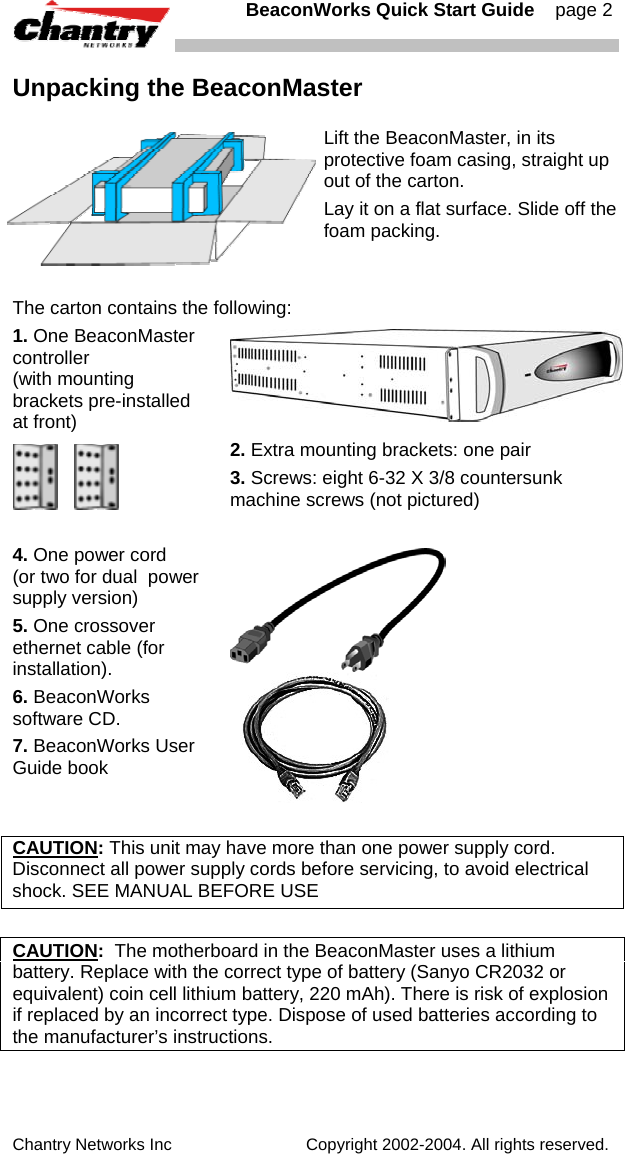
  BeaconWorks Quick Start Guide    page 2 Chantry Networks Inc                             Copyright 2002-2004. All rights reserved.   Unpacking the BeaconMaster  Lift the BeaconMaster, in its protective foam casing, straight up out of the carton. Lay it on a flat surface. Slide off the foam packing.  The carton contains the following: 1. One BeaconMaster controller (with mounting brackets pre-installed at front)      2. Extra mounting brackets: one pair 3. Screws: eight 6-32 X 3/8 countersunk machine screws (not pictured)  4. One power cord  (or two for dual  power supply version) 5. One crossover ethernet cable (for installation). 6. BeaconWorks software CD. 7. BeaconWorks User Guide book        CAUTION: This unit may have more than one power supply cord. Disconnect all power supply cords before servicing, to avoid electrical shock. SEE MANUAL BEFORE USE  CAUTION:  The motherboard in the BeaconMaster uses a lithium battery. Replace with the correct type of battery (Sanyo CR2032 or equivalent) coin cell lithium battery, 220 mAh). There is risk of explosion if replaced by an incorrect type. Dispose of used batteries according to the manufacturer’s instructions.
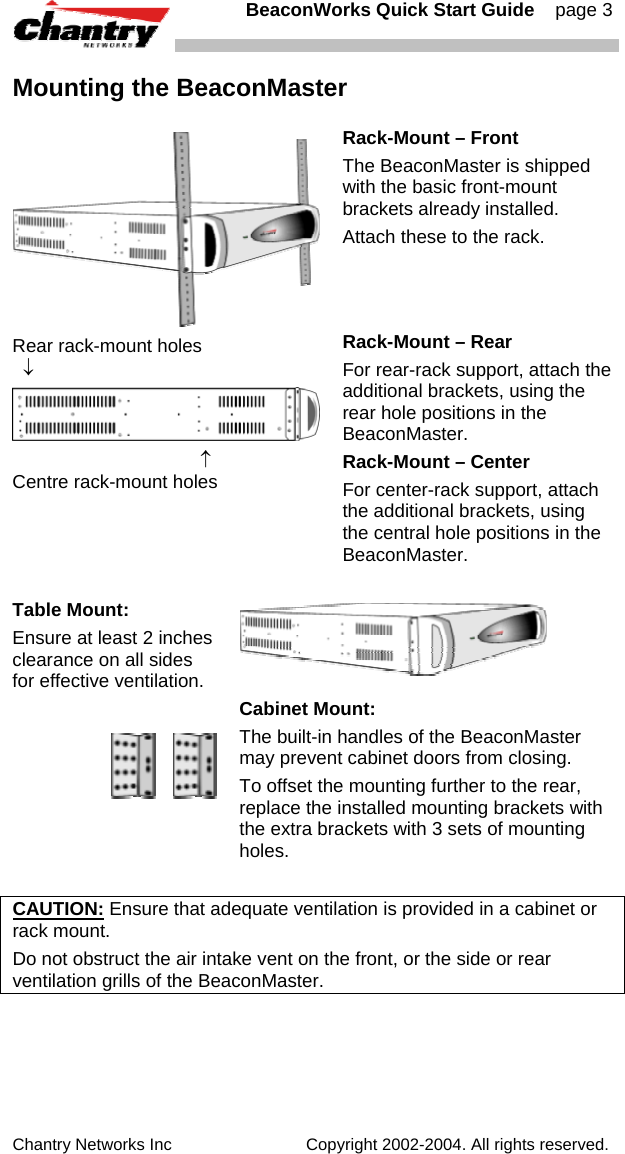
  BeaconWorks Quick Start Guide    page 3 Chantry Networks Inc                             Copyright 2002-2004. All rights reserved.   Mounting the BeaconMaster  Rack-Mount – Front The BeaconMaster is shipped with the basic front-mount brackets already installed. Attach these to the rack. Rear rack-mount holes   ↓                                      ↑ Centre rack-mount holes Rack-Mount – Rear  For rear-rack support, attach the additional brackets, using the rear hole positions in the BeaconMaster. Rack-Mount – Center  For center-rack support, attach the additional brackets, using the central hole positions in the BeaconMaster.  Table Mount: Ensure at least 2 inches clearance on all sides for effective ventilation.        Cabinet Mount:  The built-in handles of the BeaconMaster may prevent cabinet doors from closing.  To offset the mounting further to the rear, replace the installed mounting brackets with the extra brackets with 3 sets of mounting holes.  CAUTION: Ensure that adequate ventilation is provided in a cabinet or rack mount. Do not obstruct the air intake vent on the front, or the side or rear ventilation grills of the BeaconMaster.
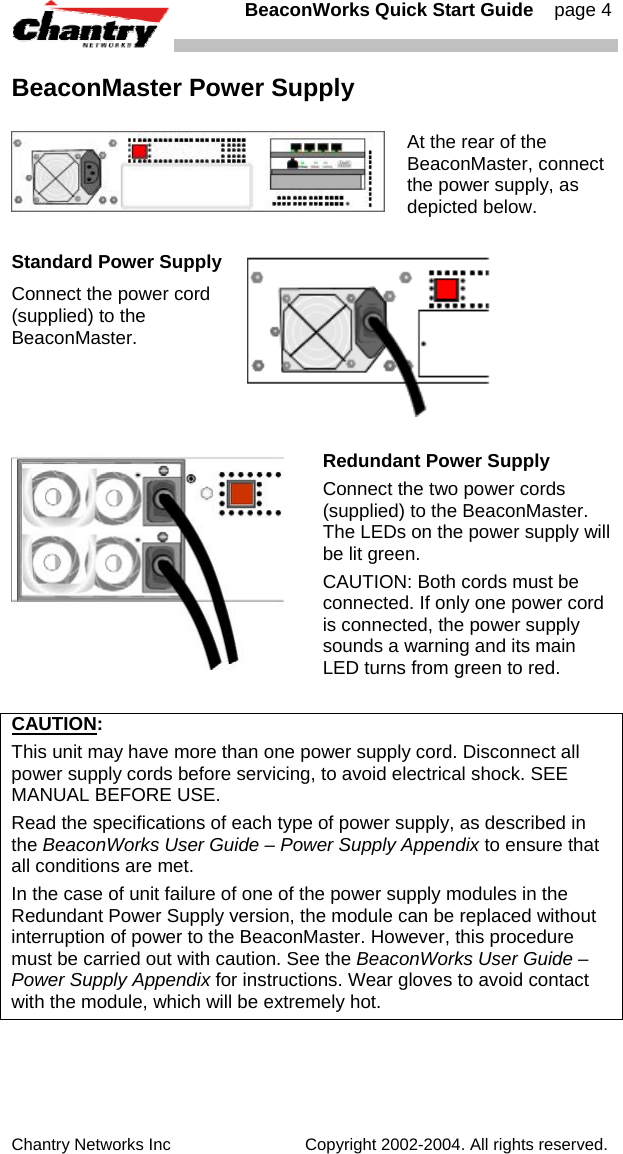
  BeaconWorks Quick Start Guide    page 4 Chantry Networks Inc                             Copyright 2002-2004. All rights reserved.   BeaconMaster Power Supply  At the rear of the BeaconMaster, connect the power supply, as depicted below.  Standard Power Supply Connect the power cord (supplied) to the BeaconMaster.    Redundant Power Supply Connect the two power cords (supplied) to the BeaconMaster. The LEDs on the power supply will be lit green. CAUTION: Both cords must be connected. If only one power cord is connected, the power supply sounds a warning and its main LED turns from green to red.  CAUTION:  This unit may have more than one power supply cord. Disconnect all power supply cords before servicing, to avoid electrical shock. SEE MANUAL BEFORE USE. Read the specifications of each type of power supply, as described in the BeaconWorks User Guide – Power Supply Appendix to ensure that all conditions are met. In the case of unit failure of one of the power supply modules in the Redundant Power Supply version, the module can be replaced without interruption of power to the BeaconMaster. However, this procedure must be carried out with caution. See the BeaconWorks User Guide – Power Supply Appendix for instructions. Wear gloves to avoid contact with the module, which will be extremely hot.
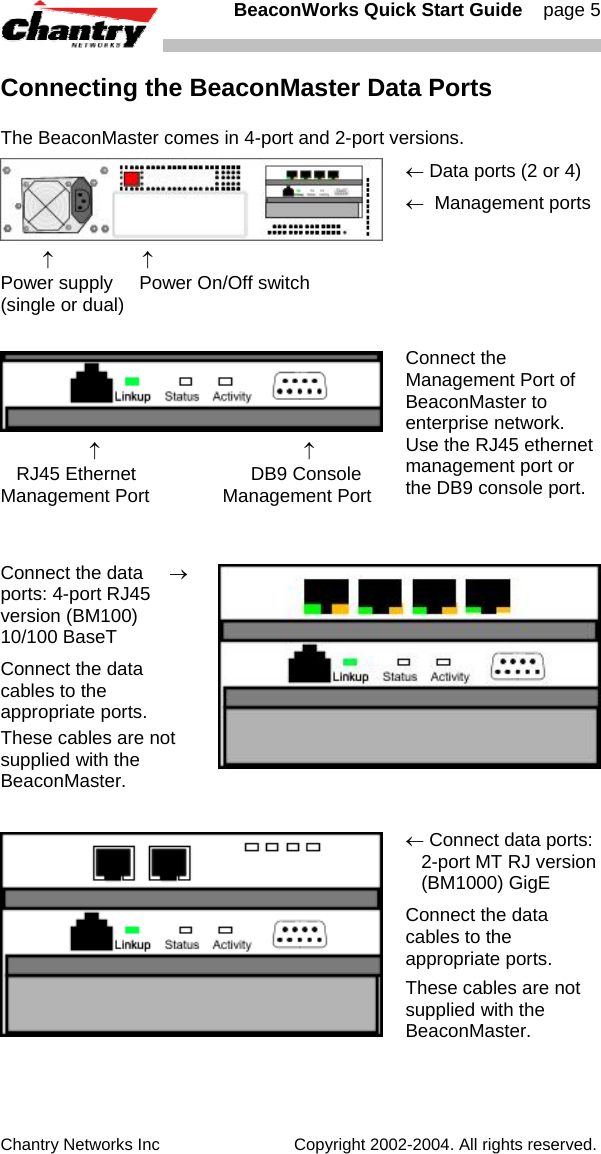
  BeaconWorks Quick Start Guide    page 5 Chantry Networks Inc                             Copyright 2002-2004. All rights reserved.   Connecting the BeaconMaster Data Ports The BeaconMaster comes in 4-port and 2-port versions.          ↑                 ↑ Power supply     Power On/Off switch (single or dual) ← Data ports (2 or 4) ←  Management ports                    ↑                                       ↑    RJ45 Ethernet                      DB9 Console Management Port              Management Port Connect the  Management Port of BeaconMaster to enterprise network. Use the RJ45 ethernet management port or the DB9 console port.   Connect the data     →  ports: 4-port RJ45 version (BM100)  10/100 BaseT  Connect the data cables to the appropriate ports. These cables are not supplied with the BeaconMaster.     ← Connect data ports:   2-port MT RJ version   (BM1000) GigE Connect the data cables to the appropriate ports. These cables are not supplied with the BeaconMaster.
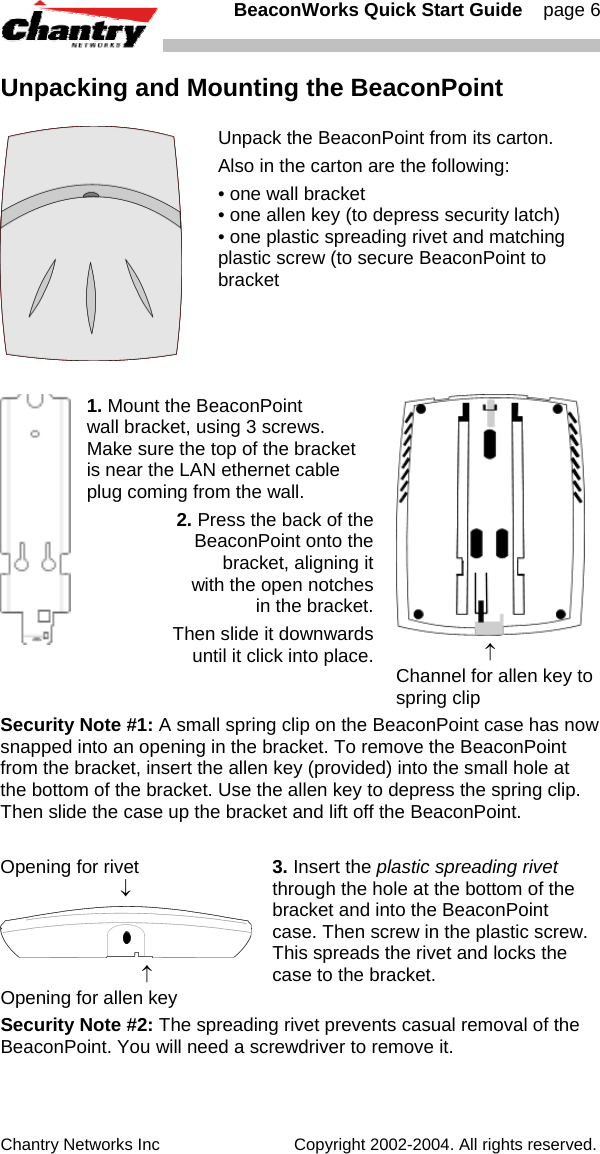
  BeaconWorks Quick Start Guide    page 6 Chantry Networks Inc                             Copyright 2002-2004. All rights reserved.   Unpacking and Mounting the BeaconPoint  Unpack the BeaconPoint from its carton. Also in the carton are the following: • one wall bracket • one allen key (to depress security latch) • one plastic spreading rivet and matching plastic screw (to secure BeaconPoint to bracket   1. Mount the BeaconPoint  wall bracket, using 3 screws. Make sure the top of the bracket is near the LAN ethernet cable plug coming from the wall. 2. Press the back of the BeaconPoint onto the  bracket, aligning it  with the open notches  in the bracket.  Then slide it downwards  until it click into place.                   ↑ Channel for allen key to spring clip Security Note #1: A small spring clip on the BeaconPoint case has now snapped into an opening in the bracket. To remove the BeaconPoint from the bracket, insert the allen key (provided) into the small hole at the bottom of the bracket. Use the allen key to depress the spring clip. Then slide the case up the bracket and lift off the BeaconPoint.  Opening for rivet                         ↓                             ↑ Opening for allen key 3. Insert the plastic spreading rivet through the hole at the bottom of the bracket and into the BeaconPoint case. Then screw in the plastic screw. This spreads the rivet and locks the case to the bracket. Security Note #2: The spreading rivet prevents casual removal of the BeaconPoint. You will need a screwdriver to remove it.
  BeaconWorks Quick Start Guide    page 7 Chantry Networks Inc                             Copyright 2002-2004. All rights reserved.   Connecting and Powering the BeaconPoint The BeaconPoint is powered in one of three ways: Power Over Ethernet (PoE) If your network is already set up with PoE, attach the LAN ethernet cable to the RJ45 ethernet connector in the top of the BeaconPoint. Power Over Ethernet: Adding PoE Injector If your network is not set up with PoE, you can provide power to the ethernet cable with a PoE injector. The PoE injector must be 802.3af compliant. The PoE injector is not provided with the BeaconPoint.  Power by AC Adaptor An AC adaptor is not provided with the BeaconPoint. If you wish to use one, the specifications are: BP100 – Input: 120-240 VAC, Output Voltage DC 5V, max amps 2.00, max watts 10.  BP200 – Input: 120-240 VAC, Output Voltage DC +6V, max amps 1.50, max watts 10. To use an adaptor, install the BeaconPoint within six feet of a wall outlet, attach the adaptor to the BeaconPoint and then plug the adaptor into the wall outlet. Note: For a list of recommended and tested devices (PoE Injectors or AC adaptors) for use with the BeaconPoint, contact Chantry Networks Customer Service, or go to www.chantrynetworks.com/site/support.html.  [Optional]. Connect an AC/DC power supply (if PoE is not being used in your network)          ↑                          ↑ power                LAN ethernet connector         port connector In the top of the BeaconPoint, connect the LAN ethernet cable to the ethernet port. 4.  Attach the LAN ethernet cable to the ethernet port of the BeaconPoint, OR   If you are using the optional power adaptor (rather that Power-over-Ethernet), plug in the unit. Note: Before you power up the BeaconPoint (step 4), you should define the Registration Mode (BeaconPoint Configuration, BP Registration screen) in the User Interface of the BeaconMaster. See BeaconPoint: Registering and Configuring, p. 12, or the User Guide.  Powering up the BeaconPoint initiates its automatic discovery and registration process. The parameters for this process should be set first. Before you can access the BeaconMaster User Interface, you must perform the First-Time Setup described next.
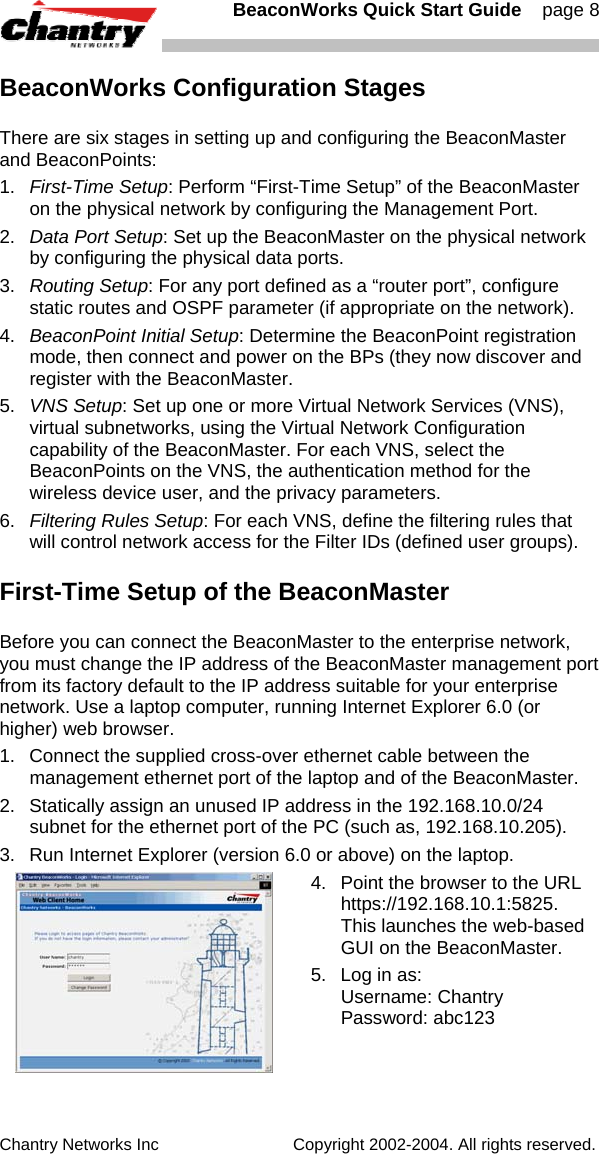
  BeaconWorks Quick Start Guide    page 8 Chantry Networks Inc                             Copyright 2002-2004. All rights reserved.   BeaconWorks Configuration Stages There are six stages in setting up and configuring the BeaconMaster and BeaconPoints: 1.  First-Time Setup: Perform “First-Time Setup” of the BeaconMaster on the physical network by configuring the Management Port. 2.  Data Port Setup: Set up the BeaconMaster on the physical network by configuring the physical data ports. 3.   Routing Setup: For any port defined as a “router port”, configure static routes and OSPF parameter (if appropriate on the network). 4.  BeaconPoint Initial Setup: Determine the BeaconPoint registration mode, then connect and power on the BPs (they now discover and register with the BeaconMaster.  5.  VNS Setup: Set up one or more Virtual Network Services (VNS), virtual subnetworks, using the Virtual Network Configuration capability of the BeaconMaster. For each VNS, select the BeaconPoints on the VNS, the authentication method for the wireless device user, and the privacy parameters. 6.  Filtering Rules Setup: For each VNS, define the filtering rules that will control network access for the Filter IDs (defined user groups). First-Time Setup of the BeaconMaster Before you can connect the BeaconMaster to the enterprise network, you must change the IP address of the BeaconMaster management port from its factory default to the IP address suitable for your enterprise network. Use a laptop computer, running Internet Explorer 6.0 (or higher) web browser. 1.  Connect the supplied cross-over ethernet cable between the management ethernet port of the laptop and of the BeaconMaster. 2.  Statically assign an unused IP address in the 192.168.10.0/24 subnet for the ethernet port of the PC (such as, 192.168.10.205). 3.  Run Internet Explorer (version 6.0 or above) on the laptop.   4.  Point the browser to the URL https://192.168.10.1:5825.  This launches the web-based GUI on the BeaconMaster.  5.  Log in as: Username: Chantry Password: abc123
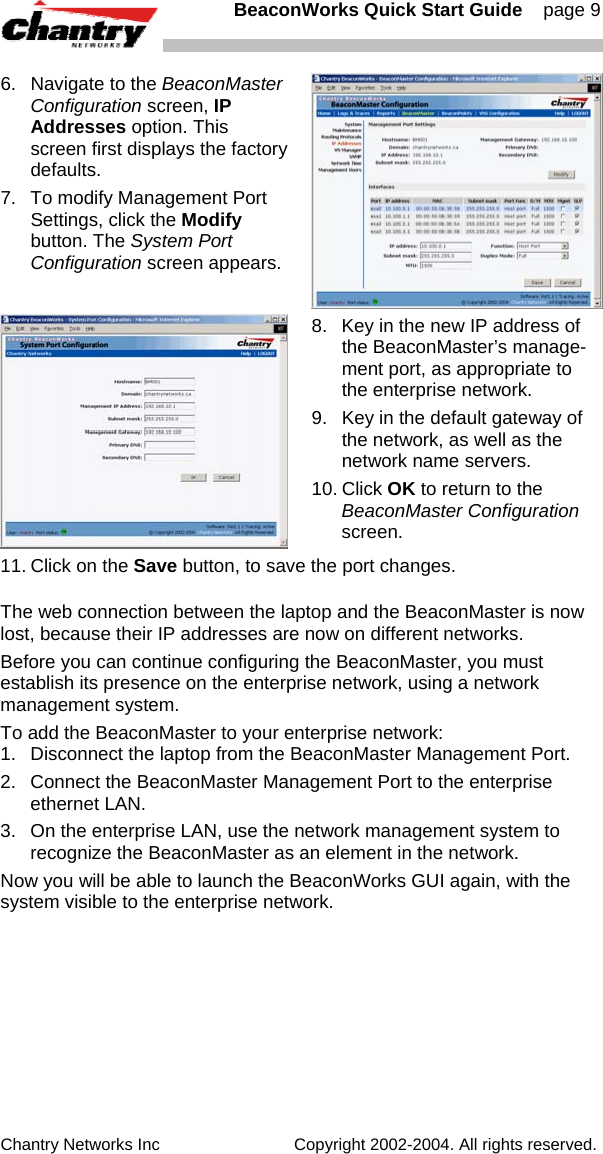
  BeaconWorks Quick Start Guide    page 9 Chantry Networks Inc                             Copyright 2002-2004. All rights reserved.   6.  Navigate to the BeaconMaster Configuration screen, IP Addresses option. This screen first displays the factory defaults. 7.  To modify Management Port Settings, click the Modify button. The System Port Configuration screen appears.  8.  Key in the new IP address of the BeaconMaster’s manage-ment port, as appropriate to the enterprise network. 9.  Key in the default gateway of the network, as well as the network name servers. 10. Click OK to return to the BeaconMaster Configuration screen. 11. Click on the Save button, to save the port changes. The web connection between the laptop and the BeaconMaster is now lost, because their IP addresses are now on different networks.  Before you can continue configuring the BeaconMaster, you must establish its presence on the enterprise network, using a network management system. To add the BeaconMaster to your enterprise network: 1.  Disconnect the laptop from the BeaconMaster Management Port. 2.  Connect the BeaconMaster Management Port to the enterprise ethernet LAN. 3.  On the enterprise LAN, use the network management system to recognize the BeaconMaster as an element in the network. Now you will be able to launch the BeaconWorks GUI again, with the system visible to the enterprise network.
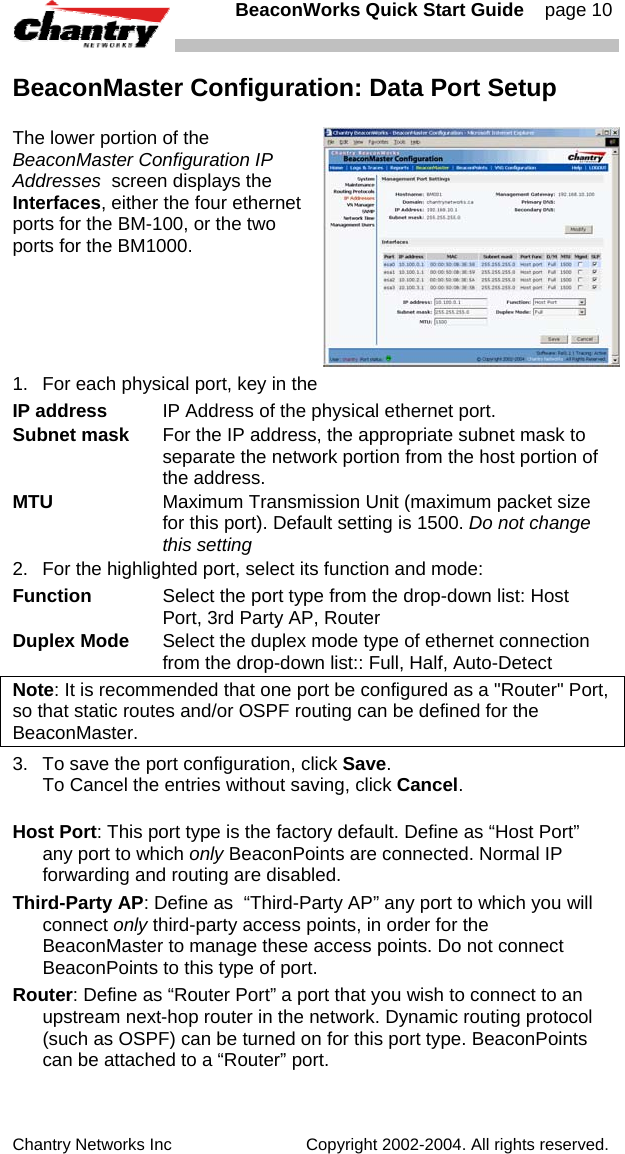
  BeaconWorks Quick Start Guide    page 10 Chantry Networks Inc                             Copyright 2002-2004. All rights reserved.   BeaconMaster Configuration: Data Port Setup The lower portion of the BeaconMaster Configuration IP Addresses  screen displays the Interfaces, either the four ethernet ports for the BM-100, or the two ports for the BM1000.  1.  For each physical port, key in the  IP address  IP Address of the physical ethernet port. Subnet mask  For the IP address, the appropriate subnet mask to separate the network portion from the host portion of the address. MTU  Maximum Transmission Unit (maximum packet size for this port). Default setting is 1500. Do not change this setting 2.  For the highlighted port, select its function and mode: Function  Select the port type from the drop-down list: Host Port, 3rd Party AP, Router  Duplex Mode  Select the duplex mode type of ethernet connection from the drop-down list:: Full, Half, Auto-Detect Note: It is recommended that one port be configured as a "Router" Port, so that static routes and/or OSPF routing can be defined for the BeaconMaster.  3.  To save the port configuration, click Save.  To Cancel the entries without saving, click Cancel. Host Port: This port type is the factory default. Define as “Host Port” any port to which only BeaconPoints are connected. Normal IP forwarding and routing are disabled. Third-Party AP: Define as  “Third-Party AP” any port to which you will connect only third-party access points, in order for the BeaconMaster to manage these access points. Do not connect BeaconPoints to this type of port. Router: Define as “Router Port” a port that you wish to connect to an upstream next-hop router in the network. Dynamic routing protocol (such as OSPF) can be turned on for this port type. BeaconPoints can be attached to a “Router” port.
  BeaconWorks Quick Start Guide    page 11 Chantry Networks Inc                             Copyright 2002-2004. All rights reserved.   BeaconMaster Configuration: Static Routes It is recommended that one data port be configured as a "Router" port. Then you can define a default route to your enterprise network, either with a static route or by using OSPF protocol (Open Shortest Path First). This will enable the BeaconMaster for forward wireless packets with unknown destinations to the remainder of the network. You should also define a route to the RADIUS server on your network (if your network uses a RADIUS server). 1.  Click on the BeaconMaster tab in any screen. The BeaconMaster Configuration screen appears. 2.  In the left-hand portion of the screen, click on the Routing Protocols option. Then click the Static Routes tab. The Static Routes screen appears. 3.  To add a new route, click in the Destination Address field, and key in the destination IP address of a packet. [The destination network IP address that this static route applies to. Packets with this destination address will be sent to the Destination below.] To define a default static route for any unknown address not in the routing table, key in 0.0.0.0 4.  Key in the Subnet Mask. For the IP address, the appropriate subnet mask to separate the network portion from the host portion For the default static route for any unknown address, key in 0.0.0.0. 5.  Select an outbound destination for the packets, either: Click on the radio button in the Gateway field, and key in the IP address of the gateway (the IP address of the specific router port or gateway, on the same subnet as the BeaconMaster, to which to route these packets; that is, the IP address of the next hop between the BeaconMaster and the packet's ultimate destination) , or  Click on the Interface button, and select a port from the list.  6.  Click on the Add button. The new route appears in the list.  7. Click on Save to update the routing table on the BeaconMaster.   [See the BeaconWorks User Guide for steps to set up OSPF routing.] To view the static routes that have been defined for the BeaconMaster, click on the View Forwarding Table tab. This displays the Forwarding Table Screen from the Reports & Displays area of the user interface.
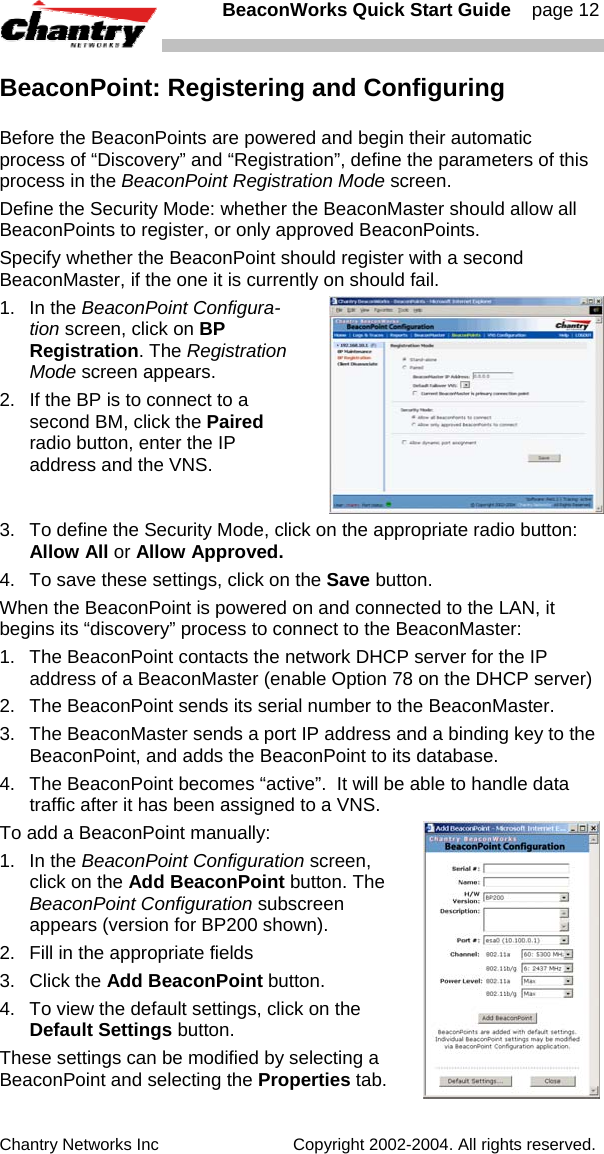
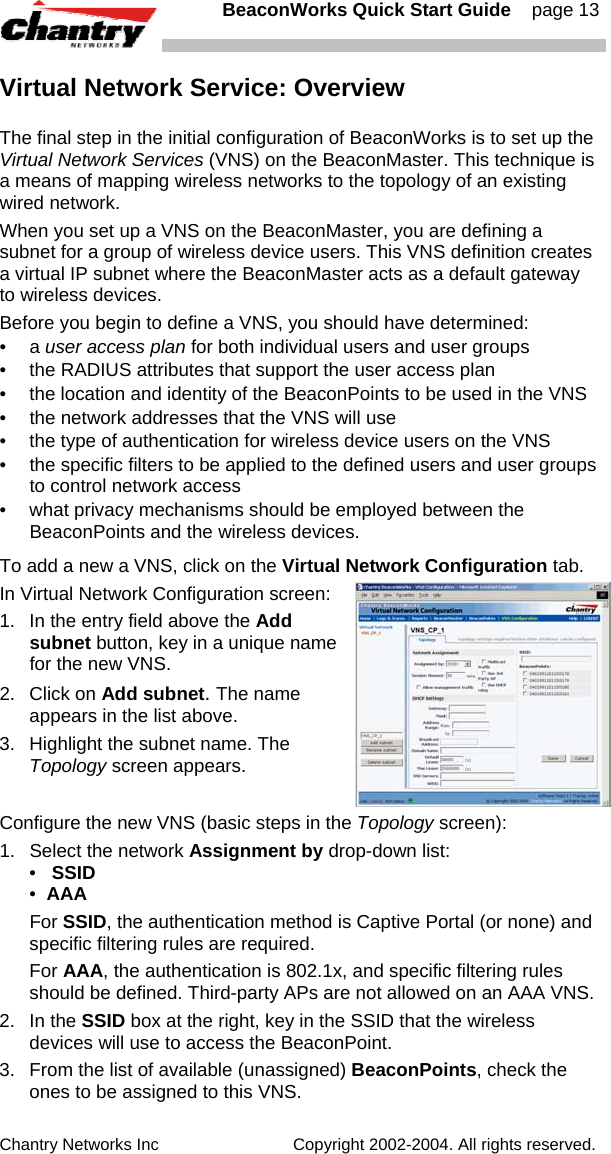
  BeaconWorks Quick Start Guide    page 12 Chantry Networks Inc                             Copyright 2002-2004. All rights reserved.   BeaconPoint: Registering and Configuring Before the BeaconPoints are powered and begin their automatic process of “Discovery” and “Registration”, define the parameters of this process in the BeaconPoint Registration Mode screen. Define the Security Mode: whether the BeaconMaster should allow all BeaconPoints to register, or only approved BeaconPoints. Specify whether the BeaconPoint should register with a second BeaconMaster, if the one it is currently on should fail.  1. In the BeaconPoint Configura-tion screen, click on BP Registration. The Registration Mode screen appears. 2.  If the BP is to connect to a second BM, click the Paired radio button, enter the IP address and the VNS. 3.  To define the Security Mode, click on the appropriate radio button: Allow All or Allow Approved. 4.  To save these settings, click on the Save button. When the BeaconPoint is powered on and connected to the LAN, it begins its “discovery” process to connect to the BeaconMaster:  1.  The BeaconPoint contacts the network DHCP server for the IP address of a BeaconMaster (enable Option 78 on the DHCP server) 2.  The BeaconPoint sends its serial number to the BeaconMaster. 3.  The BeaconMaster sends a port IP address and a binding key to the BeaconPoint, and adds the BeaconPoint to its database. 4.  The BeaconPoint becomes “active”.  It will be able to handle data traffic after it has been assigned to a VNS. To add a BeaconPoint manually:  1. In the BeaconPoint Configuration screen, click on the Add BeaconPoint button. The BeaconPoint Configuration subscreen appears (version for BP200 shown). 2.  Fill in the appropriate fields 3. Click the Add BeaconPoint button. 4.  To view the default settings, click on the Default Settings button. These settings can be modified by selecting a BeaconPoint and selecting the Properties tab.
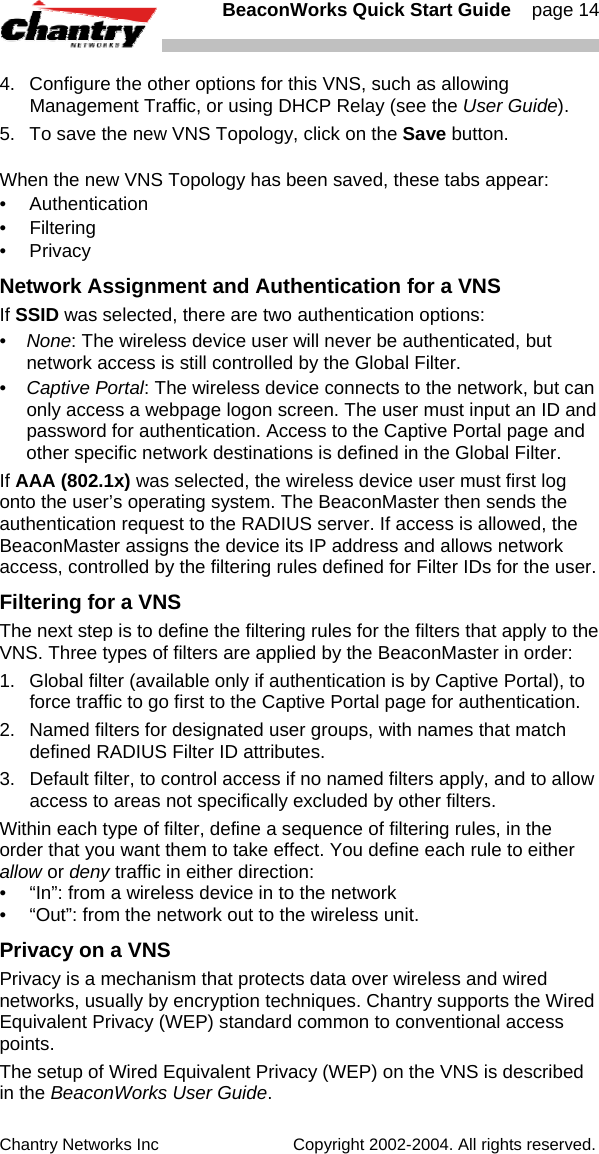
  BeaconWorks Quick Start Guide    page 13 Chantry Networks Inc                             Copyright 2002-2004. All rights reserved.   Virtual Network Service: Overview The final step in the initial configuration of BeaconWorks is to set up the Virtual Network Services (VNS) on the BeaconMaster. This technique is a means of mapping wireless networks to the topology of an existing wired network.  When you set up a VNS on the BeaconMaster, you are defining a subnet for a group of wireless device users. This VNS definition creates a virtual IP subnet where the BeaconMaster acts as a default gateway to wireless devices. Before you begin to define a VNS, you should have determined: • a user access plan for both individual users and user groups •  the RADIUS attributes that support the user access plan •  the location and identity of the BeaconPoints to be used in the VNS •  the network addresses that the VNS will use •  the type of authentication for wireless device users on the VNS •  the specific filters to be applied to the defined users and user groups to control network access •  what privacy mechanisms should be employed between the BeaconPoints and the wireless devices. To add a new a VNS, click on the Virtual Network Configuration tab.  In Virtual Network Configuration screen: 1.  In the entry field above the Add subnet button, key in a unique name for the new VNS. 2. Click on Add subnet. The name appears in the list above. 3.  Highlight the subnet name. The Topology screen appears. Configure the new VNS (basic steps in the Topology screen): 1.  Select the network Assignment by drop-down list:  •   SSID •  AAA  For SSID, the authentication method is Captive Portal (or none) and specific filtering rules are required.  For AAA, the authentication is 802.1x, and specific filtering rules should be defined. Third-party APs are not allowed on an AAA VNS. 2. In the SSID box at the right, key in the SSID that the wireless devices will use to access the BeaconPoint. 3.  From the list of available (unassigned) BeaconPoints, check the ones to be assigned to this VNS.
  BeaconWorks Quick Start Guide    page 14 Chantry Networks Inc                             Copyright 2002-2004. All rights reserved.   4.  Configure the other options for this VNS, such as allowing Management Traffic, or using DHCP Relay (see the User Guide). 5.  To save the new VNS Topology, click on the Save button. When the new VNS Topology has been saved, these tabs appear: • Authentication • Filtering • Privacy Network Assignment and Authentication for a VNS If SSID was selected, there are two authentication options: •  None: The wireless device user will never be authenticated, but network access is still controlled by the Global Filter. •  Captive Portal: The wireless device connects to the network, but can only access a webpage logon screen. The user must input an ID and password for authentication. Access to the Captive Portal page and other specific network destinations is defined in the Global Filter.  If AAA (802.1x) was selected, the wireless device user must first log onto the user’s operating system. The BeaconMaster then sends the authentication request to the RADIUS server. If access is allowed, the BeaconMaster assigns the device its IP address and allows network access, controlled by the filtering rules defined for Filter IDs for the user. Filtering for a VNS The next step is to define the filtering rules for the filters that apply to the VNS. Three types of filters are applied by the BeaconMaster in order: 1.   Global filter (available only if authentication is by Captive Portal), to force traffic to go first to the Captive Portal page for authentication. 2.  Named filters for designated user groups, with names that match defined RADIUS Filter ID attributes. 3.  Default filter, to control access if no named filters apply, and to allow access to areas not specifically excluded by other filters. Within each type of filter, define a sequence of filtering rules, in the order that you want them to take effect. You define each rule to either allow or deny traffic in either direction: •  “In”: from a wireless device in to the network  •  “Out”: from the network out to the wireless unit.  Privacy on a VNS Privacy is a mechanism that protects data over wireless and wired networks, usually by encryption techniques. Chantry supports the Wired Equivalent Privacy (WEP) standard common to conventional access points.  The setup of Wired Equivalent Privacy (WEP) on the VNS is described in the BeaconWorks User Guide.
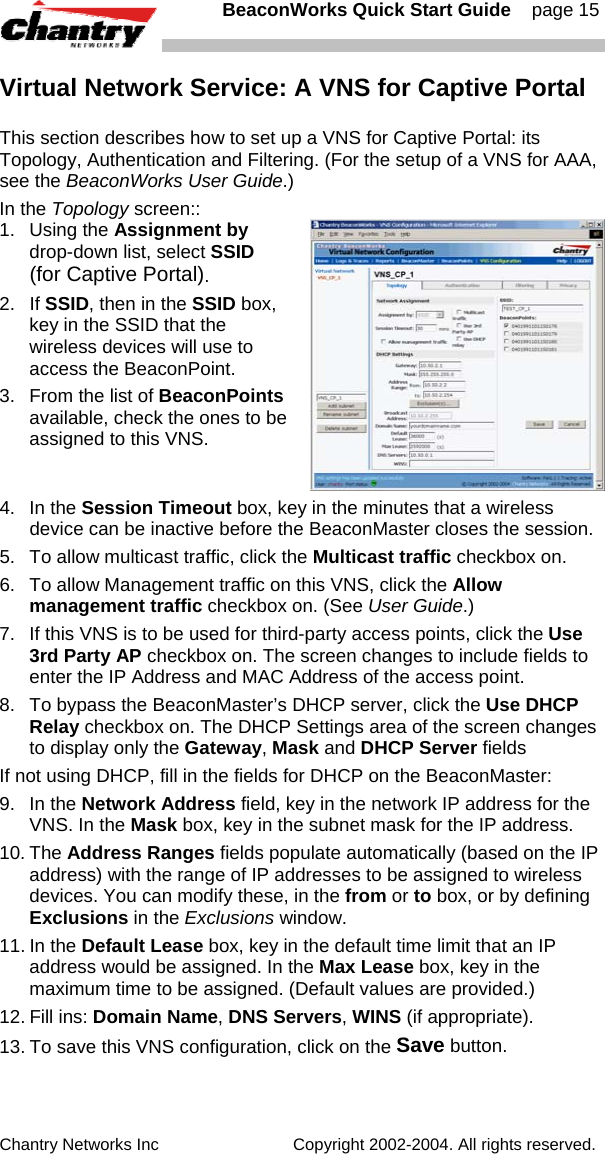
  BeaconWorks Quick Start Guide    page 15 Chantry Networks Inc                             Copyright 2002-2004. All rights reserved.   Virtual Network Service: A VNS for Captive Portal This section describes how to set up a VNS for Captive Portal: its Topology, Authentication and Filtering. (For the setup of a VNS for AAA, see the BeaconWorks User Guide.) In the Topology screen:: 1. Using the Assignment by drop-down list, select SSID (for Captive Portal).  2. If SSID, then in the SSID box, key in the SSID that the wireless devices will use to access the BeaconPoint. 3.  From the list of BeaconPoints available, check the ones to be assigned to this VNS. 4. In the Session Timeout box, key in the minutes that a wireless device can be inactive before the BeaconMaster closes the session. 5.  To allow multicast traffic, click the Multicast traffic checkbox on. 6.  To allow Management traffic on this VNS, click the Allow management traffic checkbox on. (See User Guide.) 7.  If this VNS is to be used for third-party access points, click the Use 3rd Party AP checkbox on. The screen changes to include fields to enter the IP Address and MAC Address of the access point.  8.  To bypass the BeaconMaster’s DHCP server, click the Use DHCP Relay checkbox on. The DHCP Settings area of the screen changes to display only the Gateway, Mask and DHCP Server fields If not using DHCP, fill in the fields for DHCP on the BeaconMaster: 9. In the Network Address field, key in the network IP address for the VNS. In the Mask box, key in the subnet mask for the IP address. 10. The Address Ranges fields populate automatically (based on the IP address) with the range of IP addresses to be assigned to wireless devices. You can modify these, in the from or to box, or by defining Exclusions in the Exclusions window. 11. In the Default Lease box, key in the default time limit that an IP address would be assigned. In the Max Lease box, key in the maximum time to be assigned. (Default values are provided.) 12. Fill ins: Domain Name, DNS Servers, WINS (if appropriate). 13. To save this VNS configuration, click on the Save button.
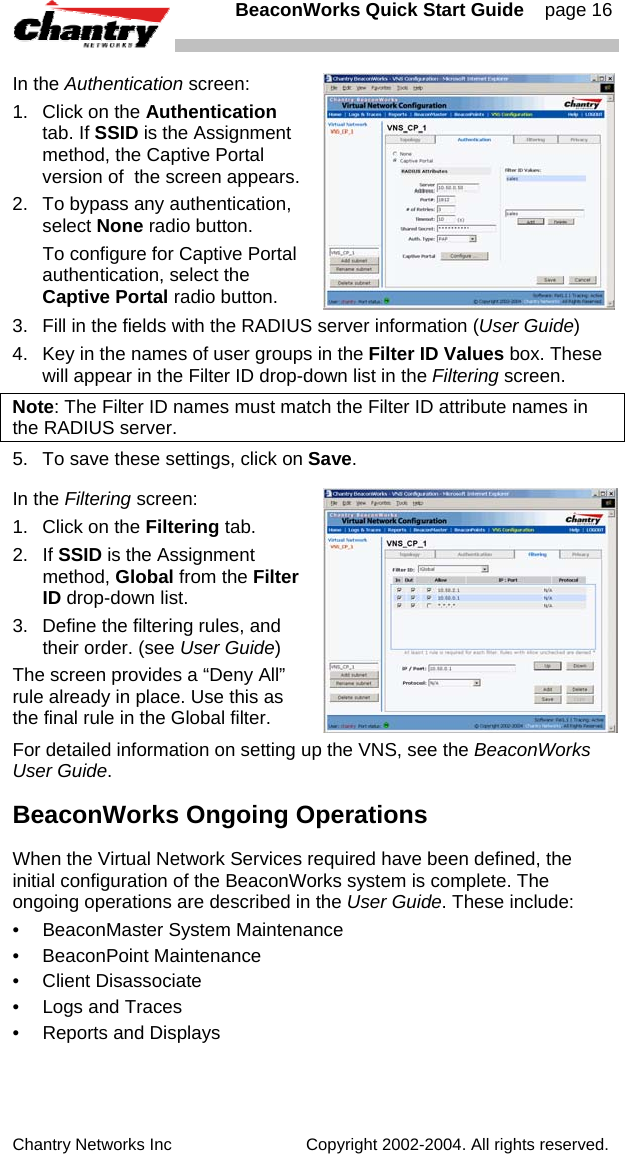
  BeaconWorks Quick Start Guide    page 16 Chantry Networks Inc                             Copyright 2002-2004. All rights reserved.   In the Authentication screen: 1.  Click on the Authentication tab. If SSID is the Assignment method, the Captive Portal version of  the screen appears. 2.  To bypass any authentication, select None radio button.   To configure for Captive Portal authentication, select the Captive Portal radio button.   3.  Fill in the fields with the RADIUS server information (User Guide) 4.  Key in the names of user groups in the Filter ID Values box. These will appear in the Filter ID drop-down list in the Filtering screen.  Note: The Filter ID names must match the Filter ID attribute names in the RADIUS server.   5.  To save these settings, click on Save. In the Filtering screen: 1.  Click on the Filtering tab.  2. If SSID is the Assignment method, Global from the Filter ID drop-down list. 3.  Define the filtering rules, and their order. (see User Guide) The screen provides a “Deny All” rule already in place. Use this as the final rule in the Global filter. For detailed information on setting up the VNS, see the BeaconWorks User Guide. BeaconWorks Ongoing Operations When the Virtual Network Services required have been defined, the initial configuration of the BeaconWorks system is complete. The ongoing operations are described in the User Guide. These include: • BeaconMaster System Maintenance • BeaconPoint Maintenance • Client Disassociate •  Logs and Traces •  Reports and Displays

Navigation menu