Chi Mei Communication Systems 0208WAG01 PCS Handset with GPRS User Manual wolfgang
Chi Mei Communication Systems, Inc. PCS Handset with GPRS wolfgang
Contents
- 1. Users Manual Part I
- 2. Users Manual Part II
- 3. Rev Manual Part I
- 4. Rev Manual Part II
Users Manual Part II

33
The Main Menu
34
The Main Menu
Overview
Overview
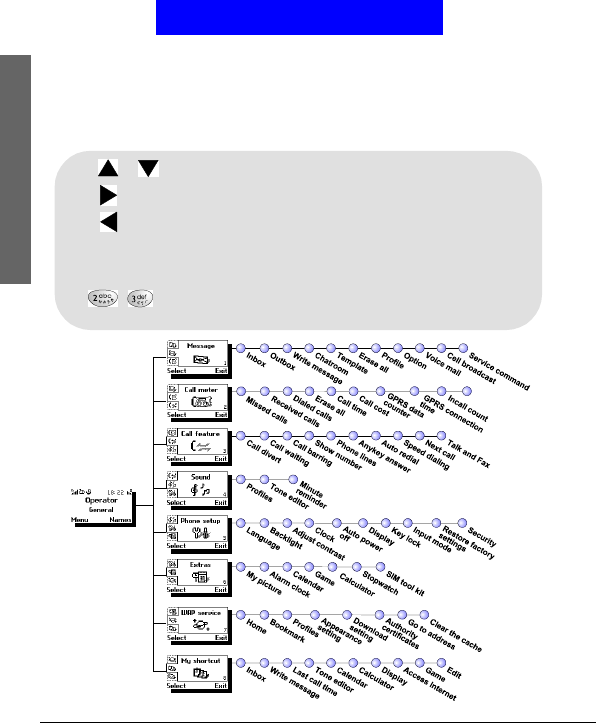
The main menu of your phone is accessed by pressing Menu in
standby mode.
Pressor to scroll the menu.
Press or Select to view the contents of the menu or select an option.
Press or Exit to return to previous menu or abort selection.
You can also navigate using the quick access keys:
1. In standby mode, press Menu.
2. Press the quick access keys. For example, to go to Dialed Calls, press
.
See Appendix for the quick access keys.
To navigate in the Main Menu

35
The Main Menu
Message
Message
The options in the Message menu allow you to write, send and
receive messages and setup message settings.
Writing and sending new messages
You can write long text messages that contain up to 160 characters
(including spaces and symbols). Besides, your phone supports
MMS (Multi-Media Messaging) standard which allows you to
insert picture, sound, animation and melodies in a message.
To write a new message:
1. In standby mode, press Menu, Select.
2. Scroll to Write message and press Select.
3. Enter the content of the message. When finished, press Options
to access the options below:
• Send: Send the message immediately. If this option is selected,
you will be prompted to enter the number of the recipients. You
can also pick up recipients from your Phone Book by pressing
Names.
The message can be sent to one recipient and copy to up to 9
recipients.
• Save: Save the message as a draft in Outbox.
• Insert template: Insert messages templates stored in the phone.
You can also customize your own templates. Please refer to
"Customizing templates"on page 38 for how to customize mes-
sage templates.
• Insert number: Insert a phone number from your Phone Book.
• Insert name: Insert a name from your Phone Book.
• Insert picture: Insert a picture into the message. You can also
draw your own picture. For details, refer to "My Picture"on page
67.
• Insert animation: Insert an animation into the message.
Before you can use Message functions, make sure that related message settings has
been configured properly. (Depending on your operator, the settings may have
already been programmed on the SIM card). Refer to "Message settings"on page 39
for details.
Note
The recipient’s phone must also support MMS functionality to receive and view your
MMS messages.
Note
36
The Main Menu
Message
• Insert sound: Insert sound effect into the message.
• Insert melody: Insert a ring tone melody into the message.
4. If the message is sent, copy will be stored in your Outbox.
You can also send a message from message templates. Please refer
to "Sending a message from templates"on page 39 for details.
Viewing sent messages
The draft and sent messages are automatically stored in the Out-
box. To open the Outbox and check these messages:
1. In standby mode, press Menu, Select.
2. Scroll to Outbox and press Select. A list of draft and sent mes-
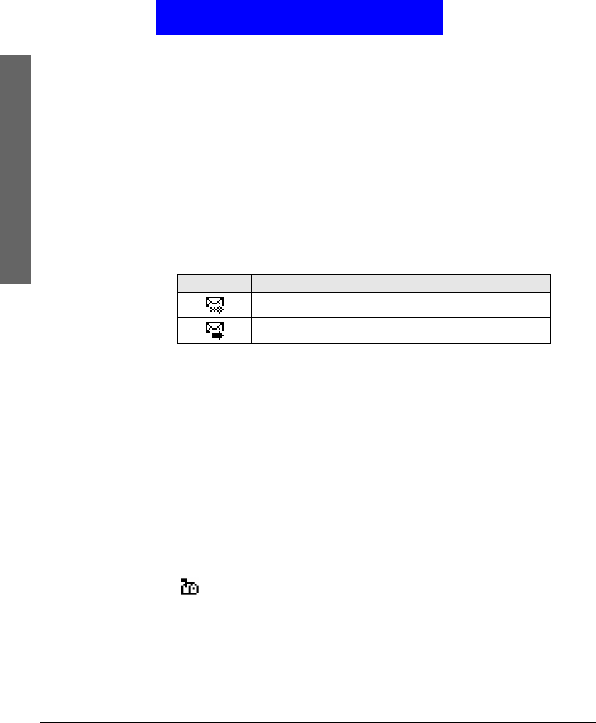
sages will appear on the screen. The icon that appears in front
of a message indicates the status of the message.
3. Scroll to a message and press Select. The message will be
opened.
4. Press Options and you can also choose to perform the following
operations to selected message.
• Erase: Erase current message.
• Send: Send this message to other recipients.
• Edit: Edit current message. You can send the message after you
finish editing.
• Use number: Capture the numbers in the message. The num-
bers captured will appear on the screen. Scroll to a number and
press Select. You can call the number directly or save it in Phone
Book.
Receiving messages
When a new message is received, New message and the icon
will appear on the screen.
Press Detail. The list of received messages will appear on the
screen.
Viewing received messages
The messages you received are stored in the Inbox.
To open Inbox and view received messages:
Icon Status of message
Unsent message
Sent message
37
The Main Menu
Message
1. In standby mode, press Menu, Select.
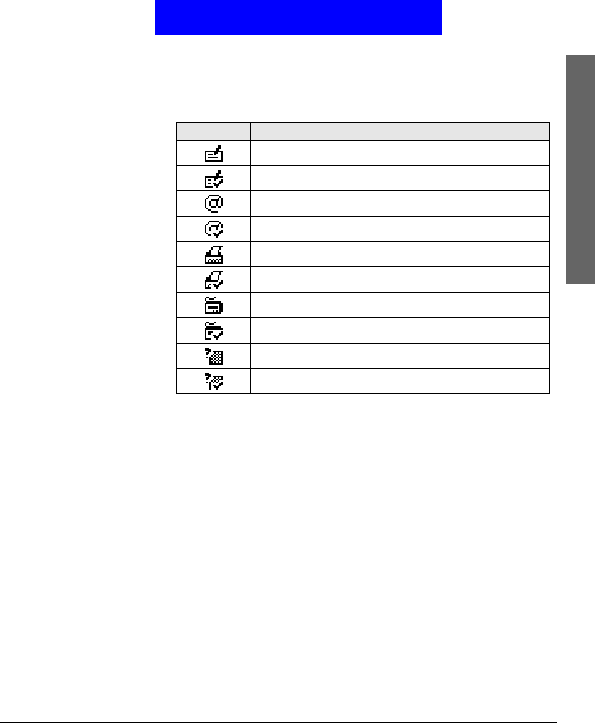
2. Press Select. A list of received messages will appear on the
screen. The icon that appears in front of a message indicates the
status of the message.
3. Scroll to a message you want to read and press Select. The con-
tents of the message will be opened to the screen.
4. You can press Options to perform the following operations:
• Erase: Erase current message.
• Reply: Reply to current message.
• Send: Send this message to other recipients.
• Edit: Edit current message. You can send the message after you
finish editing.
• Use number: Capture the numbers in the message. The num-
bers captured will appear on the screen. Scroll to a number and
press Select. You can call the number directly or save it in Phone
Book.
• Callback: Make a call to the sender of current message.
• Open Chatroom: Open a new chatroom session with the sender
of current message. You can also add other members to the cha-
troom.
Chatroom
The Chatroom function allows you to chat on-line with multiple
members via text messages. In a chat session, you can invite up to
Icon Status of message
Unread message
Read message
Unread e-mail message
Read e-mail message
Unread Fax message
Read Fax message
Unread paging message
Read paging message
Unread message in any other format
Read message in any other format

38
The Main Menu
Message
4 members to your chatroom and talk to each other simulta-
neously.
If someone else invites you to join his/her chatroom, you will be
notified by a chat message. Press OK to join the chat.
Opening a new chat session
1. In standby mode, press Menu, Select.
2. Scroll to Chatroom and press Select.
3. Enter the number of chat member, or pick a member from your
Phone Book by pressing Names. Repeat this step if you want
to invite multiple members to your chatroom.
4. Press OK. Enter your nickname and press OK.
In a chat session, chat members’ message will appear on the screen
following their nicknames. You can enter your message and send it
by pressing Options, Select.
Options during a chat session
Press Options during a chat session. Scroll to an option and press
Select to select it.
• Send: Send the message you entered.
• Insert template: Insert message templates into your chat mes-
sage. You can also customize your own message templates. See
"Customizing message template"on page 38 for details.
• Insert Smiley: Insert smiley symbols into your chat message.
• Nickname: change your nickname during a chat session. Enter
your new nickname and press OK.
• Chat numbers: Invite new members to your chatroom. Enter
the number of chat member, or pick a member from your
Phone Book by pressing Names.
• View History: View the history of current chat session.
Ending a chat session
How to end the chat session?
Customizing templates
Templates are frequently used phrases pre-stored in phone mem-
ory. When writing a message, you can insert them into your mes-
sage directly. You can also customize your own templates.
Customizing message template
1. In standby mode, press Menu, Select.

39
The Main Menu
Message
2. Scroll to Template and press Select.
3. Scroll to an empty template and press Select.
4. Scroll to Edit template and press Select.
5. Write the contents of the template. When done, press Save.
Erasing customized message template
1. In standby mode, press Menu, Select.
2. Scroll to Template and press Select.
3. Scroll to a customized template and press Select.
4. Scroll to Erase template and press Select.
Sending a message from templates
1. In standby mode, press Menu, Select.
2. Scroll to Template and press Select.
3. Scroll to a template you want to send and press Select.
4. Scroll to Send and press Select.
5. Enter the recipients number or pick one from Phone Book by
pressing Names.
6. Press Send and the message will be sent.
Erasing all messages
This function allows you to erase all messages in Inbox and Out-
box.
1. In standby mode, press Menu, Select.
2. Scroll to Erase all and press Select.
3. Press Delete.
Message settings
Configuring message setting profiles
The message settings can be configured in different profiles. Usu-
ally you use the profile of your operator on the SIM card. If your
SIM card does not contain such profile, you need to set up a pro-
file in your phone.
Using the profile on your SIM card
1. In standby mode, press Menu, Select.
2. Scroll to Profile and press Select.
3. Press OK.
Configuring a new profile

40
The Main Menu
Message
1. In standby mode, press Menu, Select.
2. Scroll to Profile and press Select.
3. Scroll to an empty profile and press OK.
4. Scroll to Customize and press Select.
5. Complete following settings:
• Name: Enter a name for this profile.
• Center number: Enter the message center number. This number
is supplied by your operator.
• Send As: Defines the type of message. Your system operator
may be able to convert your message to the type you select here.
Press or to select a type.
• Valid Period: The valid period determines the duration of time
the message is stored in the message center if it can not be suc-
cessfully received by the recipient. Press or to select a
duration.
6. Press Save.
Using a configured profile
1. In standby mode, press Menu, Select.
2. Scroll to Profile and press Select.
3. Scroll to the profile you configured and press OK.
4. Scroll to Activate and press Select.
Configuring voice mailbox number
Depending on your operator, the voice mailbox number may have
already been programmed on the SIM card and your phone can
detect it automatically. Otherwise, you have to enter it following
the steps below:
1. In standby mode, press Menu, Select.
2. Scroll to Voice mail and press Select.
3. Enter the voice mailbox number and press Save.
Message options
Message status report
If this function is turned on, your operator will send you a mes-
sage delivery report, letting you know if your message is sent suc-
cessfully.
To turn on/off the message status report:
1. In standby mode, press Menu, Select.
2. Scroll to Option and press Select.
3. Press Select.

41
The Main Menu
Message
4. Press On (or Off).
5. Press Save.
Reply path
The Reply Path function allows the recipient of your message to
send you a reply message via your message center.
To turn on/off the reply path:
1. In standby mode, press Menu, Select.
2. Scroll to Option and press Select.
3. Press Select.
4. Scroll to Reply Path.
5. Press On (or Off).
Send by GSM or GPRS
Depending on your selection here, your message can be sent either
by GSM or by GPRS.
1. In standby mode, press Menu, Select.
2. Scroll to Option and press Select.
3. Press Select.
4. Scroll to Send by and press Select.
5. Press On (or Off).
6. Scroll one of the following items and press OK.
• GSM first: Send messages via GSM network first. If GSM net-
work is not available, send messages via GPRS.
• GPRS first: Send messages via GPRS first. If GSM network is
not available, send messages via GSM network.
• GSM only: Send messages via GSM network only.
• GPRS only: Send messages via GPRS only.
Checking message memory status
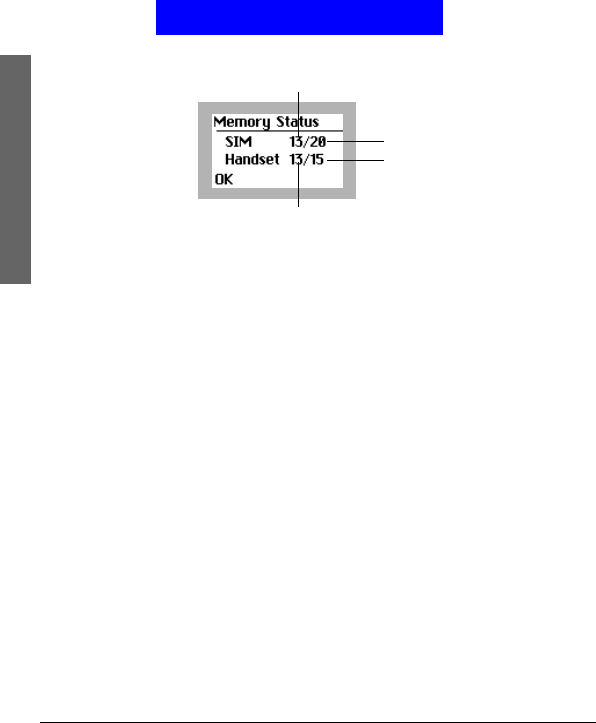
The messages you received and the copy of your sent messages are
stored in the memory in your phone and on the SIM card. You
can check the status of the memory here.
1. In standby mode, press Menu, Select.
2. Scroll to Option and press Select.
42
The Main Menu
Message
3. Scroll to Memory status and press Select.
Cell broadcast options
Cell broadcast refers to the text messages that your operator sends
to all subscribers. For example, on-line traffic report or notifica-
tion from the system operator. For details about cell broadcast ser-
vices and contents, please contact your operator.
Turning on or off cell broadcast
You can choose to turn on or off the cell broadcast.
1. In standby mode, press Menu, Select.
2. Scroll to Cell broadcast and press Select.
3. Press On (or Off).
Setting up cell broadcast topics
You can edit cell broadcast topics in the topics list.
1. In standby mode, press Menu, Select.
2. Scroll to Cell broadcast and press Select.
3. Scroll to Topic and press Select.
4. Scroll to the topic you want to edit.
5. Edit the topic. When done, press Save.
Sending message service commands
With this function you can edit and send certain service com-
mands to your operator to perform certain operations.
For details on service commands and how to use them, please con-
sult your operator.
1. In standby mode, press Menu, Select.
2. Scroll to Service command and press Select.
3. Enter the command and press Send.
Used SIM memory
Used phone memory
Available SIM card memory
Available phone memory

43
The Main Menu
Call Meter
Call Meter
The options in the Call Meter menu allow you to easily manage
your phone call records.
Viewing missed call records
1. In standby mode, press Menu.
2. Scroll to Call meter and press Select.
3. Press Select. The list of missed calls will appear on the screen.
Each call record is represented by the name of the caller. If the
caller can not be found in your Phone Book, or the number is
unknown, No Number will appear.
4. You can press Options to access the following options:
• View: View date and time of the missed call.
• Erase: Erase this call record. Press OK to erase it.
Viewing received call records
1. In standby mode, press Menu.
2. Scroll to Call meter and press Select.
3. Scroll to Received calls and press Select. The list of received
calls will appear on the screen. Each call record is represented
by the name of the caller. If the caller can not be found in your
Phone Book, or the number is unknown, No Number will
appear.
4. You can press Options to access the following options:
• View: View date and time of the missed call.
• Erase: Erase this call record. Press OK to erase it.
Viewing dialed call records
1. In standby mode, press Menu.
2. Scroll to Call meter and press Select.
3. Scroll to Dialed calls and press Select. The list of dialed calls will
appear on the screen. Each call record is represented by the
name of the recipient. If the recipient can not be found in your
Phone Book, only the number you dialed will appear.
4. You can press Options to access the following options:
• View: View date and time of the missed call.
• Erase: Erase this call record. Press OK to erase it.
• Call: Make a call to the recipient immediately.
• Save: Save this record to Phone Book.
Erasing all call records
1. In standby mode, press Menu.

44
The Main Menu
Call Meter
2. Scroll to Call meter and press Select.
3. Scroll to Erase all and press Select.
4. Press OK again to confirm deletion.
Viewing call time information
You can check the duration of your phone calls with this function.
The information includes the duration of the last call, all calls,
received calls and dialed calls.
To view call time information:
1. In standby mode, press Menu.
2. Scroll to Call meter and press Select.
3. Scroll to Call Time and press Select.
4. Scroll to the type of information you want to view and press
Select.
Clearing call timer
The call time can be cleared by resetting the call timer.
1. In standby mode, press Menu.
2. Scroll to Call meter and press Select.
3. Scroll to Call Time and press Select.
4. Scroll Clear timer and press Select.
Viewing call cost information
If your operator supports, you can check the cost of your last call
and all calls with this function. Note that the call cost shown here
may not exactly reflect the amount of your phone bill, since there
may be different discount rates offered by your system operator in
different time periods.
Viewing call cost
1. In standby mode, press Menu.
2. Scroll to Call meter and press Select.
3. Scroll to Call Cost and press Select.
4. Scroll to Last call or All calls and press Select.
Clearing call cost
1. In standby mode, press Menu.
You need PIN2 code to access certain call cost functions.
Note

45
The Main Menu
Call Meter
2. Scroll to Call meter and press Select.
3. Scroll to Call Cost and press Select.
4. Scroll to Clear cost and press Select.
5. Enter your PIN2 code and press OK.
Viewing remaining call cost credit
Call cost credit is used to limit the cost of your call. If your call
cost exceeds such credit, you will not be able to make phone calls.
1. In standby mode, press Menu.
2. Scroll to Call meter and press Select.
3. Scroll to Call Cost and press Select.
4. Scroll to Credit remaining and press Select.
Configuring call cost settings
Before you can obtain call cost information, you need to configure
call cost settings following the steps below:
1. In standby mode, press Menu.
2. Scroll to Call meter and press Select.
3. Scroll to Call Cost and press Select.
4. Scroll to Setting and press Select.
5. Scroll to an item and press Select to configure.
• Cost limit: Enter a cost limit. This limit is also your call cost
credit.
• Currency: Enter the currency that will be used to calculate your
call cost.
• Price unit: Enter the unit of price that will be used to calculate
your call cost.
6. When done, press OK.
Viewing GPRS related information
GPRS data
GPRS data counter
The GPRS data counter provides information about the size of
data you sent/received via GPRS.
1. In standby mode, press Menu.
2. Scroll to Call meter and press Select.
You will be prompted to enter your PIN2 code when modifying call cost settings.
Note

46
The Main Menu
Call Meter
3. Scroll to GPRS data counter and press Select.
4. Scroll to an item below and press Select to view corresponding
information:
Last sent: Display the total size of data you last sent.
Last received: Display the total size of data you last received.
Total sent: Display the total size of data you sent.
Total received: Display the total size of data you received.
Clearing GPRS data counter
1. In standby mode, press Menu.
2. Scroll to Call meter and press Select.
3. Scroll to GPRS data counter and press Select.
4. Scroll to Clear counter and press Select.
GPRS connection time
GPRS timer
The GPRS time counter provides information about the duration
you spent on GPRS connection.
1. In standby mode, press Menu.
2. Scroll to Call meter and press Select.
3. Scroll to GPRS connection time and press Select.
4. Scroll to an item below and press Select to view corresponding
information:
• Last connection: Display the duration of your last GPRS con-
nection.
• Total connection: Display accumulated duration of all GPRS
connection.
Clearing GPRS timer
1. In standby mode, press Menu.
2. Scroll to Call meter and press Select.
3. Scroll to GPRS connection time and press Select.
4. Scroll to Clear timer and press Select.
Incall count
The Incall count function automatically counts the time or cost
and displays such information on the screen when you are on a
call.
1. In standby mode, press Menu.
2. Scroll to Call meter and press Select.
3. Scroll to Incall count and press Select.

47
The Main Menu
Call Meter
4. Scroll to Call time (display call time during a call) or Call cost
(display call time during a call) and press Select.
Session information
If this function is activated, the time and cost information of the
phone call will appear on the screen after you end a call.
1. In standby mode, press Menu.
2. Scroll to Call meter and press Select.
3. Scroll to Session information and press On (to activate) or Off
(to deactivate).

48
The Main Menu
Call Feature
Call Feature
The options in the Call Feature menu allows you to access
advanced call features.
Call divert
If for any reason you can not answer a call, you can activate the
call divert function to direct incoming calls to a specific phone
number. If Call divert function is activated, the icon will
appear on the screen.
Diverting voice calls
To activate call divert function for vioce calls:
1. In standby mode, press Menu.
2. Scroll to Call feature and press Select.
3. Press Select.
4. Press Select.
5. Scroll to a a desired condition:
• When Busy: divert all voice calls when you are on a call.
• No Reply: divert all voice calls when they are not answered.
• Not Reachable: divert all voice calls when you are outside your
operator’s network service area.
• Not Available: divert all voice calls whenever you are not avail-
able for answering a call.
• All Calls: divert all incoming voice calls.
6. Press Select.
7. Enter the designated number and press OK, or press Names to
pick up the number from your Phone Book.
8. Press OK.
Deactivating voice call divert function
To cancel specific call divert function, scroll to Off and press Select
in step 6 above.
Inquiring status
To inquire the service status of specific call divert function, scroll
to Status and press Select in step 6 above.
Some of the call features described in this section are operator dependent. Please
consult your operator for availability.
Note

49
The Main Menu
Call Feature
Diverting data or fax calls
To activate call divert function for vioce calls:
1. In standby mode, press Menu.
2. Scroll to Call feature and press Select.
3. Press Select.
4. Scroll to Fax calls (to divert Fax calls) or Data calls (to divert
data calls) and press Select.
5. Press Select.
6. Enter the designated number and press OK, or press Names to
pick up the number from your Phone Book.
7. Press OK.
Deactivating data or fax call divert function
Scroll to Off and press Select in step 5 above.
Inquiring status
Scroll to Status and press Select in step 5 above.
Deactivating all call divert functions
You can deactivate all call divert functions (including voice, Fax
and data calls) at once.
1. In standby mode, press Menu.
2. Scroll to Call feature and press Select.
3. Press Select.
4. Scroll to Cancel all and press Select.
Call waiting
If activated, the Call waiting function allows you to answer the
second incoming call when you are on a call. See "Answering a
new incoming call"on page 18 for details.
1. In standby mode, press Menu.
2. Scroll to Call feature and press Select.
3. Scroll to Call waiting and press Select.
4. Scroll to On and press Select.
Deactivating call waiting
To cancel call waiting, scroll to Off and press Select in step 4
above.
Inquiring status

50
The Main Menu
Call Feature
To inquire the service status of call waiting function, scroll to Sta-
tus and press Select in step 4 above.
Call barring
With Call barring function, you can bar (restrict) incoming and
outgoing calls under certain conditions.
Barring outgoing calls
To bar outgoing calls:
1. In standby mode, press Menu.
2. Scroll to Call feature and press Select.
3. Scroll to Call barring and press Select.
4. Press Select.
5. Scroll to a desired barring condition:
• Int’l calls: bar all outgoing international calls.
• Int’l calls except home: bar all outgoing international calls except
the calls made to your home country.
• All calls: bar all outgoing calls.
6. Press Select.
7. Press Select.
8. Enter your network code and press OK. The phone will contact
the system and activate selected call barring function.
Cancel barring of outgoing calls
To deactivate barring of outgoing calls, scroll to Off and press
Select in step 7 above.
Inquiring status
To inquire the service status of call barring function, scroll to Sta-
tus and press Select in step 7 above.
Barring incoming calls
To bar incoming calls:
1. In standby mode, press Menu.
2. Scroll to Call feature and press Select.
3. Scroll to Call barring and press Select.
4. Scroll to Incoming calls and press Select.
You need network code to activate/deactivate call barring function. Such code is
available from your operator.
Note

51
The Main Menu
Call Feature
5. Scroll to a desired barring condition:
• When roaming: bar all incoming calls when roaming.
• All calls: bar all incoming calls.
6. Press Select.
7. Press Select.
8. Enter your network code and press OK. The phone will contact
the system and activate selected call barring function.
Cancel barring of incoming calls
To deactivate barring of outgoing calls, scroll to Off and press
Select in step 7 above.
Inquiring status
To inquire the service status of call barring function, scroll to Sta-
tus and press Select in step 7 above.
Cancel all call barring functions
You can deactivate all call barring functions (including barring of
incoming and outgoing calls) here.
1. In standby mode, press Menu.
2. Scroll to Call feature and press Select.
3. Scroll to Call barring and press Select.
4. Scroll to Cancel all and press Select.
5. Enter your network code and press OK.
Changing network code
1. In standby mode, press Menu.
2. Scroll to Call feature and press Select.
3. Scroll to Call barring and press Select.
4. Scroll to Change password and press Select.
5. Enter your network code and press OK.
6. Enter new network code and press OK.
7. Enter new network code again to confirm. Press OK.
Showing/hiding your number
Depending on the your operator, you may choose to show or hide
your number when making a call. If your number is hidden, it will
not be shown to the person who receives your call.
To show/hide your number:
1. In standby mode, press Menu.
2. Scroll to Call feature and press Select.
3. Scroll to Show number and press Select.

52
The Main Menu
Call Feature
4. Scroll to one of the following:
• Preset: use your operator setting. Your operator decides
whether to show your number or not.
• On: show your number.
• Off: hide your number.
5. Press OK.
Selecting a phone line to use
Depending on your subscription to the operator, you may use two
different phone lines (numbers) to receive and make voice calls.
You can select a phone line to use here.
To select a phone line:
1. In standby mode, press Menu.
2. Scroll to Call feature and press Select.
3. Scroll to Phone lines and press Select.
4. Scroll to Line 1 (to use phone line 1) or Line 2 (to use phone
line 2).
5. Press OK.
If phone line 2 is selected, the icon will appear on the screen.
Anykey answer
The anykey answer function allows you to answer a call by press-
ing any key (except End and key). You can activate/deactivate
such function here.
1. In standby mode, press Menu.
2. Scroll to Call feature and press Select.
3. Scroll to Anykey answer and press On (to activate) or Off (to
deactivate).
Auto redial
If this function is activated, your phone redials the number auto-
matically when your attempt to make a call fails.
1. In standby mode, press Menu.
2. Scroll to Call feature and press Select.
3. Scroll to Auto redial and press On (to activate) or Off (to deac-
tivate).
Speed dialing
You can activate/deactivate speed dialing function here.
1. In standby mode, press Menu.
2. Scroll to Call feature and press Select.

53
The Main Menu
Call Feature
3. Scroll to Speed dialing and press On (to activate) or Off (to
deactivate).
Receiving a fax or data call
Depending on your subscription to the operator, your may be able
to receive fax and data calls. However, if you do not have separate
data and voice lines, you need to setup the type of phone call to
answer.
To receive a fax or data call:
1. Before receiving the call, connect the phone to a computer
using one of the methods below:
• Place the phone near the computer and align the infrared port of
the phone to the one on the computer.
• Connect the phone to the computer using the data cable (avail-
able separately).
2. In standby mode, press Menu.
3. Scroll to Call feature and press Select.
4. Scroll to Next call and press Select.
5. Depending on the type of call to receive, scroll to Fax or Data
and press OK.
6. Open the software program on the computer and answer the
call.
The icon (the next call is set as Fax call) or (the next call is
set as data call) will appear on the screen.
To receive voice calls after the data or fax call:
1. In standby mode, press Menu.
2. Scroll to Call feature and press Select.
3. Scroll to Next call and press Select.
4. Scroll to Voice and press OK.
Talk and Fax
To turn on/off the talk and fax function:
1. In standby mode, press Menu.
2. Scroll to Call feature and press Select.
3. Scroll to Talk and Fax and press On (to activate) or Off (to
deactivate).

54
The Main Menu
Sound
Sound
The options in the Sound menu allows you to setup the sound set-
tings of your phone.
Sound profiles
Sound profile is a combination of sound settings. Your phone pro-
vides 6 pre-configured sound profiles and you can select one that
fits your circumstances to use. For example, in a meeting, you can
select to use the Meeting profile. You can also configure these pro-
files according to your preferences.
Selecting a sound profile
To select a sound profile to use:
1. In standby mode, press Menu.
2. Scroll to Sound and press Select.
3. Press Select.
4. Scroll to desired sound profile and press OK.
5. Press Select.
Or:
1. Press the power key in standby mode. The sound profiles
will appear on the screen.
2. Scroll to desired profile and press Select.
The name of selected sound profile will appear on the screen in
standby mode.
Customizing a sound profile
To customize a sound profile:
1. In standby mode, press Menu.
2. Scroll to Sound and press Select.
3. Press Select.
4. Scroll to the sound profile you want to customize and press
OK.
5. Scroll to Customize and press Select.
6. The following options are available. Scroll to each option and
press Select to customize.
The Handsfree and Headset profiles won’t work unless a handsfree kit or headset in
plugged into your phone.
Note about sound profiles

55
The Main Menu
Sound
• Ringing volume: Scroll to a desired ringing volume and press
OK. 5 volume levels are available.
• Ringing tone: Scroll to a desired ringing tone and press OK.
There are 30 built-in ringing tomes and 5 ringing tones you can
compose by yourself (see "Composing your ringing tones"on
page 55 for how to compose a ringing tone).
• Incoming call alert: Here you can select the ringing mode of
incoming calls. Available modes are: Off (no ringing tone),
Continue Ringing, Ring Once, Ascending, Group (the phone
rings only when calls from selected caller groups are received). If
Group is selected, you will be prompted to select a caller group.
• Vibrating: Press On to activate vibration, or Off to deactivate.
• Message Alert Tone: Select the sound that is played upon receiv-
ing a message. There are 4 tones available for selection. If Off is
selected, the message alert tone will be turned off.
• Keypad tones: Press On to activate keypad tone, or Off to deac-
tivate.
• Warning tones: Warning tone is played when phone battery is
low, or there is an error in operation. Press On to warning tone,
or Off to deactivate.
Renaming a sound profile
1. In standby mode, press Menu.
2. Scroll to Sound and press Select.
3. Press Select.
4. Scroll to the sound profile you want to rename and press OK.
5. Enter the new name and press OK.
Composing your ringing tones
With the Tone editor function, you can create your unique ringing
tone or compose a ringing tone according to your favorite songs.
You can create up to 5 ringing tones.
1. In standby mode, press Menu.
2. Scroll to Sound and press Select.
3. Scroll to Tone editor and press Select.
4. The ringing tone editor screen appears. Press an appropriate key
to insert symbols. Please see the table below for the mapping of
keys and symbols.
The Handsfree and Headset profiles can’t be renamed.
Note
Press this key... To...
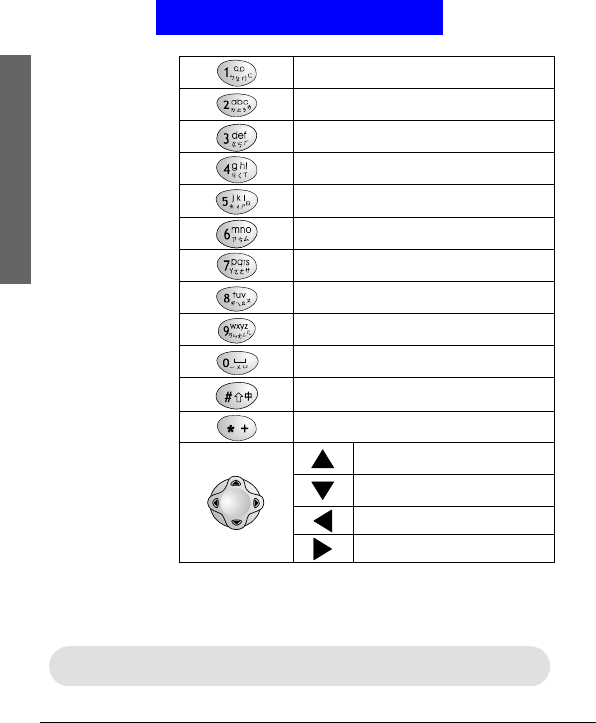
56
The Main Menu
Sound
When selecting a note, inserting a note, moving selected note up/
down or changing the length of the note, corresponding tone is
played.
Insert a C sharp note.
Insert a D sharp note.
Insert an E sharp note.
Insert an F sharp note.
Insert a G sharp note.
Insert an A sharp note.
Insert a B sharp note.
Increase the length of selected note/rest.
Move the note one octave up.
Decrease the length of selected note/rest.
Move the note one octave down.
Insert a rest.
Move selected symbol up on the
staff.
Move selected symbol down on
the staff.
Select previous symbol.
Select next symbol.
You can insert up to 126 symbols in one ringing tone.
Note
57
The Main Menu
Sound
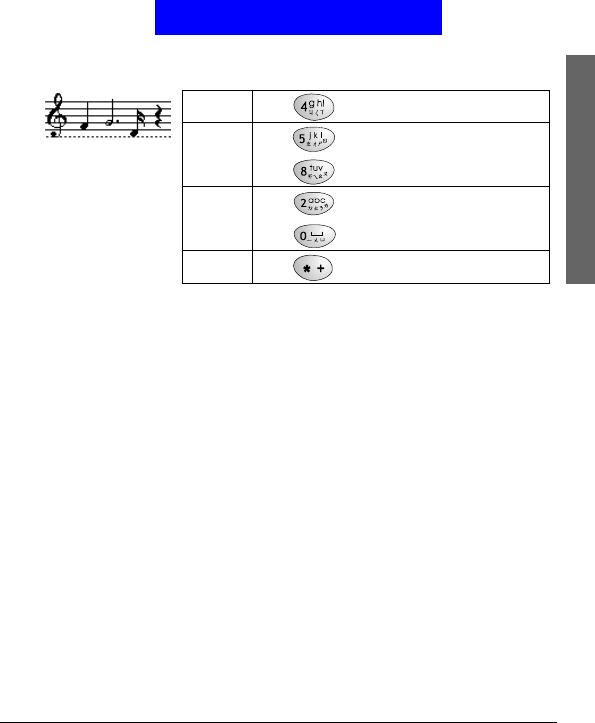
For example, to get the melody on the left:
5. Press Options to select from the following:
Play: Press Select to play the ringing tone you just created.
Save: Press Select to save the ringing tone you just created.
Tempo: Press Select to change the speed of tempo. Scroll to a
tempo and press OK. The larger the number, the
slower the tempo.
Clear Screen: Press Select to delete all symbols.
Rename: Press Select to change the name of current ringing
tone. Enter the new name and press OK.
Minute reminder
If this function is activated, your phone will generate a beep tone
every minute when you are on a call to remind you of the call
time.
1. In standby mode, press Menu.
2. Scroll to Sound and press Select.
3. Scroll to Reminder and press On (to activate) or Off (to deacti-
vate).
1st symbol Press to get a F sharp note.
2nd sym-
bol
Press to get a G sharp note.
Press three times to increase length.
3rd sym-
bol
Press to get a D sharp note.
Press four times to decrease length.
4th sym-
bol Press to insert a rest.

58
The Main Menu
Phone setup
Phone setup
The options in the Phone Setup menu allows you to setup the
phone according to your preferences.
Changing menu language
1. In standby mode, press Menu.
2. Scroll to Phone setup and press Select.
3. Press Select.
4. Scroll to preferred language and press Select.
Adjusting backlight
Adjusting backlight duration
This option allows you to change the duration of backlight in
standby mode. Note that longer backlight consumes more battery
power. You can also choose to turn it off.
1. In standby mode, press Menu.
2. Scroll to Phone setup and press Select.
3. Scroll to Backlight and press Select.
4. Press Select.
5. Scroll to desired duration and press OK. If Off is selected, the
backlight will be turned off.
Changing backlight color
1. In standby mode, press Menu.
2. Scroll to Phone setup and press Select.
3. Scroll to Backlight and press Select.
4. Scroll to Color and press Select.
5. Scroll to desired color and press OK.
Adjusting screen contrast
1. In standby mode, press Menu.
2. Scroll to Phone setup and press Select.
3. Scroll to Adjust contrast and press Select.
4. Press or to select an appropriate contrast level and press
OK.
Clock
Showing/hiding clock on the screen

59
The Main Menu
Phone setup
1. In standby mode, press Menu.
2. Scroll to Phone setup and press Select.
3. Scroll to Clock and press Select.
4. Press On (to show clock) or Off (to hide clock).
Setting up current time and date
Before you can use the clock of your phone, you need to setup cur-
rent time and date first.
Selecting time zone
1. In standby mode, press Menu.
2. Scroll to Phone setup and press Select.
3. Scroll to Clock and press Select.
4. Scroll to Local time zone and press Select.
5. Press or to scroll to your time zone and press Save.
Setting up current time and date
1. In standby mode, press Menu.
2. Scroll to Phone setup and press Select.
3. Scroll to Clock and press Select.
4. Scroll to Time and date and press Select.
5. Enter current date using alphanumeric keys. When done, press
.
6. Enter current time using the alphanumeric keys and press Save.
Setting up date format
Here you can select a preferred date format.
1. In standby mode, press Menu.
2. Scroll to Phone setup and press Select.
3. Scroll to Clock and press Select.
4. Scroll to Time and date and press Select.
5. Scroll to Date Format and press Select.
6. Scroll to desired format and press OK.
World clock
The world clock function allows you to view current time of major
cities in the world.
1. In standby mode, press Menu.
2. Scroll to Phone setup and press Select.
3. Scroll to Clock and press Select.
4. Scroll to World Clock and press Select.

60
The Main Menu
Phone setup
5. Press or to scroll to a desired city, and the current time
will appear on the screen. You can also press Detail to view
detailed time information of selected city.
Auto power off
If this function is activated, your phone can be switched off auto-
matically at the specified time.
Activating Auto power off
1. In standby mode, press Menu.
2. Scroll to Phone setup and press Select.
3. Scroll to Auto power off and press Select.
4. Scroll to On and press OK.
5. Enter the power off time using alphanumeric keys. When done,
press .
6. Press or to select desired repeat type.
7. Press Save.
The icon will appear on the screen.
Deactivating Auto power off
To deactivate Auto power off function, scroll to Off and press OK
in step 4 above.
Idle screen display
Screen saver
Screen saver appears on phone screen when there is no user opera-
tion for a period of time in standby mode. You can select a pre-
ferred animation to use and setup the duration of time (timeout
period) before the animation is displayed.
Activating screen saver
1. In standby mode, press Menu.
2. Scroll to Phone setup and press Select.
3. Scroll to Display and press Select.
4. Scroll to Screen saver and press Select.
5. Scroll to an animation and the animation will appear in a few
seconds. Press OK to select current animation. Otherwise,
press Back to select another animation.

61
The Main Menu
Phone setup
Deactivating Screen saver
To deactivate Screen saver, scroll to Off and press OK in step 5
above.
Setting up timeout period
1. In standby mode, press Menu.
2. Scroll to Phone setup and press Select.
3. Scroll to Display and press Select.
4. Scroll to Screen saver and press Select.
5. Scroll to Timeout and press Select.
6. Scroll to a desired period and press OK.
Standby logo
With this function, you can use a favorite picture (or pictures you
draw with My Picture function, see "My Picture"on page 67 for
details) as the logo that is displayed on the screen in standby
mode.
The name of your operator on the screen will be replaced by the
standby logo.
Showing/hiding standby logo
1. In standby mode, press Menu.
2. Scroll to Phone setup and press Select.
3. Scroll to Display and press Select.
4. Scroll to Standby logo and press Select.
5. Press On (to show logo) or Off (to hide logo).
Selecting standby logo
1. In standby mode, press Menu.
2. Scroll to Phone setup and press Select.
3. Scroll to Display and press Select.
4. Scroll to Standby logo and press Select.
5. Scroll to Update logo and press Select.
6. Scroll to a desired category and press Select.
7. Scroll to a desired picture and press Select.
Key lock
Activating Key lock
1. In standby mode, press Menu.
2. Scroll to Phone setup and press Select.
3. Scroll to Key lock and press Select.

62
The Main Menu
Phone setup
4. Scroll to Auto (the phone activates key lock automatically if
there is no key operation in 20 seconds) or Lock now (activate
Key lock immediately) and press Select.
If Key lock is activated, the icon will appear on the screen.
In standby mode, you can also activate key lock by pressing Menu,
key. To unlock, press Unlock, key.
Deactivating Key lock
To deactivate Key lock function, scroll to Off and press OK in step
4 above.
Selecting default input mode
Here you can select a default input mode to use.
1. In standby mode, press Menu.
2. Scroll to Phone setup and press Select.
3. Scroll to Input mode and press Select.
4. Scroll to the input mode you want to set as default, and press
OK.
Restoring factory settings
With this function you can reset most of the menu settings to their
original factory values at once.
1. In standby mode, press Menu.
2. Scroll to Phone setup and press Select.
3. Scroll to Restore factory settings and press Select.
4. Enter your phone code and press OK.

63
The Main Menu
Phone setup
Phone security settings
The security settings deal with security codes of your phone. With
these codes, you can protect your phone from being accidentally
used by another person.
Activating/deactivating security codes
Activating/deactivating PIN code
1. In standby mode, press Menu.
2. Scroll to Phone setup and press Select.
3. Scroll to Security and press Select.
4. Press Select.
5. Press On (to activate) or Off (to deactivate).
6. Enter your PIN code and press OK.
Activating/deactivating phone code
1. In standby mode, press Menu.
2. Scroll to Phone setup and press Select.
3. Scroll to Security and press Select.
4. Press Select.
5. Scroll to Phone code and press On (to activate) or Off (to deac-
tivate).
6. Enter your phone code (the default phone code is 12345678)
and press OK.
Network Code: The code for accessing your operator's network. You can get such
code from your operator.
Phone code: The code for preventing unauthorized use of your phone. If Phone
code is enabled, you have to enter it each time you turn on your phone.
The default Phone code of your phone is 12345678.
SIM lock code: The SIM lock function prevents your phone from being used with
unknown SIM cards and vise versa. If the SIM lock is activated,
unknown SIM cards can not be used with your phone. The default
SIM lock code of your phone is 12345678.
PIN code: A 4~8 digit code that is supplied by your operator upon subscription.
PIN2 code: The second set of PIN code that is supplied by your operator to control
over certain services (such as call cost calculation). This code is supplied
by your operator.
PUK code: The code for unblocking your SIM card. You can get such code from
your operator
About security codes

64
The Main Menu
Phone setup
Activating/deactivating SIM lock
1. In standby mode, press Menu.
2. Scroll to Phone setup and press Select.
3. Scroll to Security and press Select.
4. Press Select.
5. Scroll to SIM lock and press On (to activate) or Off (to deacti-
vate).
6. Enter your SIM lock code (the default SIM lock code is
12345678) and press OK.
Changing security codes
Changing PIN code
1. In standby mode, press Menu.
2. Scroll to Phone setup and press Select.
3. Scroll to Security and press Select.
4. Scroll to Change code and press Select.
5. Press Select.
6. Enter the old PIN code and press OK.
7. Enter the new PIN code and press OK.
8. Enter the new PIN code again and press OK.
Changing PIN2 code
1. In standby mode, press Menu.
2. Scroll to Phone setup and press Select.
3. Scroll to Security and press Select.
4. Scroll to Change code and press Select.
5. Scroll to PIN2 and press Select.
6. Enter the old PIN2 code and press OK.
7. Enter the new PIN2 code and press OK.
8. Enter the new PIN2 code again and press OK.
Changing phone code
1. In standby mode, press Menu.
2. Scroll to Phone setup and press Select.
3. Scroll to Security and press Select.
4. Scroll to Change code and press Select.
5. Scroll to Phone code and press Select.
6. Enter the old Phone code and press OK.
Before changing these codes, you must activate them first.
Note

65
The Main Menu
Phone setup
7. Enter the new Phone code and press OK.
8. Enter the new Phone code again and press OK.
Changing SIM lock code
1. In standby mode, press Menu.
2. Scroll to Phone setup and press Select.
3. Scroll to Security and press Select.
4. Scroll to Change code and press Select.
5. Scroll to SIM lock and press Select.
6. Enter the old SIM lock code and press OK.
7. Enter the new SIM lock code and press OK.
8. Enter the new SIM lock code again and press OK.
Closed user group
Closed user group is an operator dependent function. If you have
subscribed this feature, you can specify the group of people who
can call you and receive your call.
To activate closed user group:
1. In standby mode, press Menu.
2. Scroll to Phone setup and press Select.
3. Scroll to Security and press Select.
4. Scroll to Closed user group and press Select.
5. Scroll to one of the following and press OK.
• Preset: Activate the closed user group function and use preset
closed user group.
• On: Activate the closed user group function and specify a closed
user group. You will be prompted to enter the number of the
closed user group. The number is available from your system
operator.
• Off: deactivate the closed user group function.
Network settings
Network selection
Your phone provides 2 network selection modes: Automatic and
Manual. Your phone automatically selects the network of your
operator in Automatic mode. In Manual mode, your phone scans
the networks available and allows you to select a network to use.
For example, if you are roaming under other networks, you can
manually select the network that has roaming agreement with
your home network.
1. In standby mode, press Menu.
2. Scroll to Phone setup and press Select.

66
The Main Menu
Phone setup
3. Scroll to Network and press Select.
4. Scroll to Automatic or Manual and press Select. If Manual is
selected, the phone scans the network and a network operator
list appears. Scroll to desired operator and press Select.
Band selection
Normally, your phone selects an appropriate band of the network
automatically. However, you can also select it manually when you
are using your phone in different countries.
1. In standby mode, press Menu.
2. Scroll to Phone setup and press Select.
3. Scroll to Network and press Select.
4. Scroll to Band and press Select.
5. Scroll to Auto, 900/1800 MHz or 1900MHz and press OK.
67
The Main Menu
Extras
Extras
My Picture
My Picture allows you to draw your own pictures. You can use
them as standby logo and insert them into your messages.
Creating My Picture
1. In standby mode, press Menu.
2. Scroll to Extras and press Select.
3. Press Select.
4. Scroll to an empty picture and press Select.
5. Press Select.
6. Press Options.
7. Scroll to Picture size and press Select.
8. Press or to determine the width of the picture (in pixels),
and press .
9. Press or to determine the height of the picture. Press
Save.
10. Now you can start drawing your picture:
• Press key to switch among line mode (to draw lines), dot
mode (to make dots) or eraser mode (to erase lines and dots).
• Press key to change the thickness of line (when drawing
lines) or size of dot (when making dots).
• Press key to change the step of pen.
• You can also change drawing modes by pressing Options, scroll-
ing to Pen mode, Pen size and Pen step and pressing OK.
• Press Options; scroll to Zoom in (or Zoom out) to zoom in (or
out) on the picture.
• Press Options; scroll to Clear screen to clear the screen.
• Press the arrows on the navigation key to draw a line in desired
direction (in line mode), or move the cursor to desired position
(in dot mode). You can also use the keys on the keypad to con-
trol the direction.
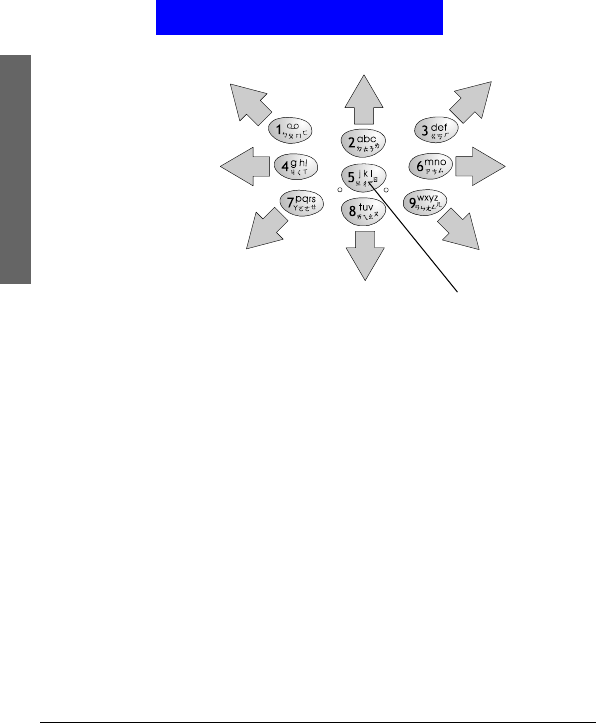
68
The Main Menu
Extras
11. Press Options and Select to save the picture.
Editing My Picture
1. In standby mode, press Menu.
2. Scroll to Extras and press Select.
3. Press Select.
4. Scroll to the picture you want to edit and press Select.
5. Press Select.
6. Now you can start editing the picture.
Erasing My Picture
1. In standby mode, press Menu.
2. Scroll to Extras and press Select.
3. Press Select.
4. Scroll to the picture you want to erase and press Select.
5. Scroll to Erase and press Select.
Sending My Picture
With this function, you can send My Picture via message.
1. In standby mode, press Menu.
2. Scroll to Extras and press Select.
3. Press Select.
4. Scroll to the picture you want to send and press Select.
5. Scroll to Send and press Select.
6. Press Options, Select.
Make a dot in dot mode

69
The Main Menu
Extras
7. Enter recipient’s number, or press Names to pick up a recipient
from your Phone Book.
8. Press Send.
Alarm clock
Activating alarm clock
1. In standby mode, press Menu.
2. Scroll to Extras and press Select.
3. Scroll to Alarm clock and press Select.
4. Scroll to On and press OK.
5. Enter alarm time using alphanumeric keys. Press .
6. Press or to select a repeat type.
7. Press Save.
Activating alarm clock
Scroll to Off and press OK in step 4 above.
Calendar
With the Calendar function, you can easily write down notes and
check appointments on each date to keep you organized.
Writing note
1. In standby mode, press Menu.
2. Scroll to Extras and press Select.
3. Scroll to Calendar and press Select.
• To write a note for today, press Select two times.
• To write a note for a specific date, scroll to Go to date and press
Select.
Enter the date using alphanumeric keys and press OK.
Press Select two times.
4. Specify the following:
• Time: enter the time of the event using alphanumeric keys.
Press .
• Note type: Press or to select a type for this note.
Press .
• Content: enter the content of the event. Press .
• Name: If you want to make a call to someone, enter a name
here, or press Options and select From Phone Book to pick up a
name from Phone Book.

70
The Main Menu
Extras
• Phone number: Same as above. You can enter a phone number
here or pick up a phone number in Phone Book by pressing
Options and select From Phone Book.
• Alarm: Press or to select the time of the alarm to be acti-
vated before the event. If Off is selected, the alarm will be deac-
tivated.
• Circulation type: Press or to select the repeat type of this
event. If this event occurs only once, select Off.
5. Press Save.
Viewing note
Viewing today’s note
1. In standby mode, press Menu.
2. Scroll to Extras and press Select.
3. Scroll to Calendar and press Select.
4. Press Select.
5. Scroll to a note and press Select.
6. Press Select to view the details of selected note.
Viewing notes on a specific date
1. In standby mode, press Menu.
2. Scroll to Extras and press Select.
3. Scroll to Calendar and press Select.
4. Scroll to Go to date and press Select.
5. Enter the date using alphanumeric keys and press OK.
6. Press Select.
7. Scroll to a note and press Select to view the details of selected
note.
View all notes
1. In standby mode, press Menu.
2. Scroll to Extras and press Select.
3. Scroll to Calendar and press Select.
4. Scroll to View all notes and press Select.
5. Scroll to a note and press Select.
6. Press Select to view the details of selected note.
Editing note
1. Scroll to the note you want to edit and press Select.
2. Scroll to Edit and press Select.
3. Edit the note. When done, press Save.

71
The Main Menu
Extras
Erasing note
Method 1
1. In standby mode, press Menu.
2. Scroll to Extras and press Select.
3. Scroll to Calendar and press Select.
4. Scroll to Erase notes and press Select.
• To erase notes one by one, press Select.
Scroll to the note you want to erase and press Delete.
• To erase notes on a specific date, scroll to Of chosen day and
press Select.
Enter the date using alphanumeric keys and press OK.
Press Delete.
• To erase all notes at once, scroll to All at once and press Select.
Press Yes.
• To let the phone erase notes automatically, scroll to Auto erase
and press Select.
Scroll to a desired time period and press OK.
Method 2
1. Scroll to the note you want to erase and press Select.
2. Scroll to Erase and press Select.
Moving a note to another date
1. Scroll to the note you want to move and press Select.
2. Scroll to Move and press Select.
3. Enter the date using alphanumeric keys.
4. Press OK.
Copying a note to another date
1. Scroll to the note you want to copy and press Select.
2. Scroll to Copy and press Select.
3. Enter the date using alphanumeric keys.
4. Press OK.
Sending a note
1. Scroll to the note you want to copy and press Select.
2. Scroll to Send note and press Select.
3. You can send the note in two types:
• Scroll to Send as SMS to send the note as a short message. The
recipient who uses compatible phone will receive the message as
a calendar note.

72
The Main Menu
Extras
Press Select.
Enter the recipient’s number, or pick up a recipient from your
Phone Book by pressing Names.
Press Send.
• Scroll to Send as text to send the note as text. You can edit the
contents before sending.
Press Options, Select.
Enter the recipient’s number, or pick up a recipient from your
Phone Book by pressing Names.
Press Send.
Viewing calendar in month mode
1. In standby mode, press Menu.
2. Scroll to Extras and press Select.
3. Scroll to Calendar and press Select.
4. Scroll to Month mode and press Select.
5. Use the navigation key to go to desired day.
The days that have notes are bolded. You can highlight them and
press Select to view notes.
Jumping to a specific day
1. In standby mode, press Menu.
2. Scroll to Extras and press Select.
3. Scroll to Calendar and press Select.
4. Scroll to Go to date and press Select.
5. Enter the date using alphanumeric keys and press OK.
Account book
The Account book of your phone helps you to track your income
and expenses records easily. You can also get a balance result of all
your accounting records or records in a specific month.
Creating an accounting record
1. In standby mode, press Menu.
2. Scroll to Extras and press Select.
3. Scroll to Calendar and press Select.
4. Scroll to Account book and press Select.
5. Press Select.
6. Complete the following:
• Date: Enter the date of the accounting record using alphanu-
meric keys. When done, press .

73
The Main Menu
Extras
• Amount: Enter the amount of the accounting record using
alphanumeric keys. When done, press .
• Item: Enter the description of the accounting record. When
done, press .
• In/Out: Press or to select the type of the accounting
record.
7. Press Save.
Viewing accounting records
1. In standby mode, press Menu.
2. Scroll to Extras and press Select.
3. Scroll to Calendar and press Select.
4. Scroll to Account book and press Select.
5. Scroll to Accounts list and press Select.
6. You can choose to view accounting records of a specific month
or view all records.
• To view accounting records of a specific month, press Select.
Enter the year and month using alphanumeric keys and press
OK.
Scroll to a record and press Select.
Press Select to view the details of the record.
• To view all accounting records, scroll to All accounts and press
Select.
All accounting records will appear on the screen. Scroll to a
record and press Select.
Press Select to view the details of the record.
Viewing results of accounting records
1. In standby mode, press Menu.
2. Scroll to Extras and press Select.
3. Scroll to Calendar and press Select.
4. Scroll to Account book and press Select.
5. Scroll to Total count and press Select.
6. You can choose to view result of accounting records of a spe-
cific month or view result of all records.
• To view result of accounting records of a specific month, press
Select.
Enter the year and month using alphanumeric keys and press
OK.
Scroll to In (sum of all income amount), Out (sum of all
expense amount) or Balance (balance of income and expense)
and press Select.
Corresponding information will appear on the screen.

74
The Main Menu
Extras
• To view result of all accounting records, scroll to All accounts
and press Select.
Scroll to In (sum of all income amount), Out (sum of all
expense amount) or Balance (balance of income and expense)
and press Select.
Corresponding information will appear on the screen.
Editing accounting record
1. Scroll to the accounting record you want to edit and press
Select.
2. Scroll to Edit and press Select.
3. Edit the accounting record. When done, press Save.
Erasing accounting record
Method 1
1. In standby mode, press Menu.
2. Scroll to Extras and press Select.
3. Scroll to Calendar and press Select.
4. Scroll to Account book and press Select.
5. Scroll to Erase accounts and press Select.
• To erase accounting records one by one, press Select.
Scroll to the record you want to erase and press Delete.
• To erase records of a specific month, scroll to Of chosen month
and press Select.
Enter the year and month using alphanumeric keys and press
OK.
Press Delete.
• To erase all records at once, scroll to All at once and press Select.
Press Yes.
• To let the phone erase accounting records automatically, scroll
to Auto erase and press Select.
Scroll to a desired time period and press OK.
Method 2
1. Scroll to the note you want to erase and press Select.
2. Scroll to Erase and press Select.
Playing Games
Your phone provides 5 interesting games.
To play a game:
1. In standby mode, press Menu.
75
The Main Menu
Extras
2. Scroll to Extras and press Select.
3. Scroll to Game and press Select.
3. Scroll to a game you want to play and press Select.
4. Scroll to one of the following:
• New Game: Start a new game.
• Level: Press or to select the level of the game and press
OK.
• Top Score: View top score.
• Instruction: View instructions of the game.
During a game, you can press key to pause and access the
options above.
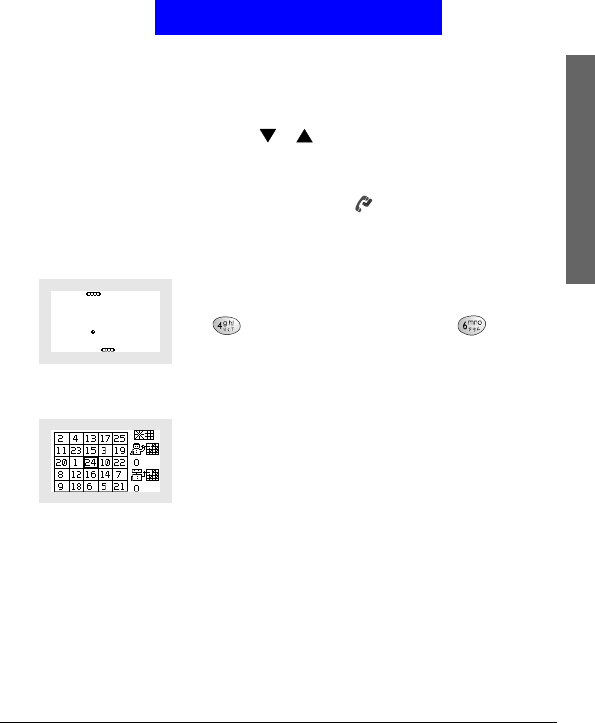
Ping Pong
The object of this game is to move the pad on the bottom of the
screen to keep the ball bounding back at the pad on the top of the
screen.
Press key to move the pad to the left, and key to the
right.
The game is over if you fail to catch the ball.
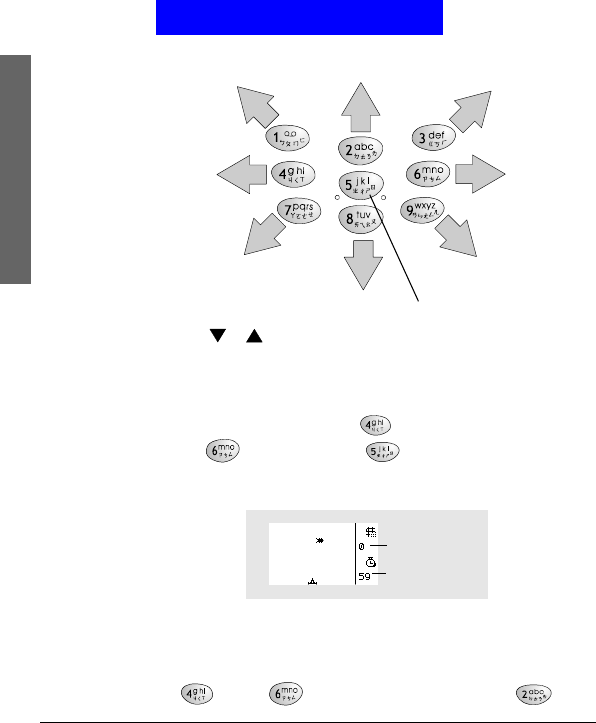
Bingo
This game is played by two players (you and your phone). Each
player assigns 25 non-repeated numbers (1~25) in each cell in a
5-column x 5-row table. Two players cross out a number in turn
in order to form a vertical, horizontal or diagonal line on each
player’s table. The player who gets 5 lines on his table first wins
the game.
When the games starts, you will be asked whether to pad the num-
bers in the table by your self or let the phone pad the numbers
automatically. Press OK or No.
Press appropriate keys as shown in the illustration below to navi-
gate on the table and cross out a number.
76
The Main Menu
Extras
Press or to view your phone’s table.
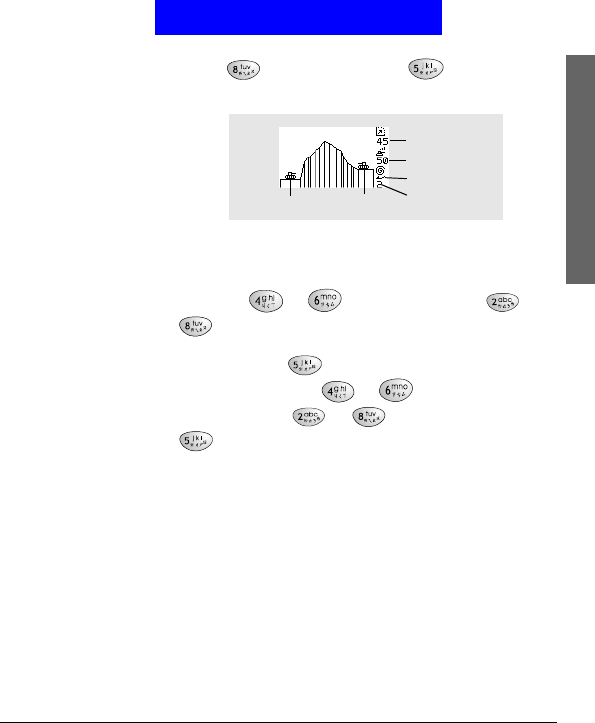
Insect shooting
Fire at the insects that fly over your gun to get money and exten-
sion of time. The game is over if you can’t get any bug in 60 sec-
onds or when time is up. Press key to move the gun to the
left, key to the right and key to fire. The second
shot can not be fired until the first shot gets the insect or disap-
pears on the screen.
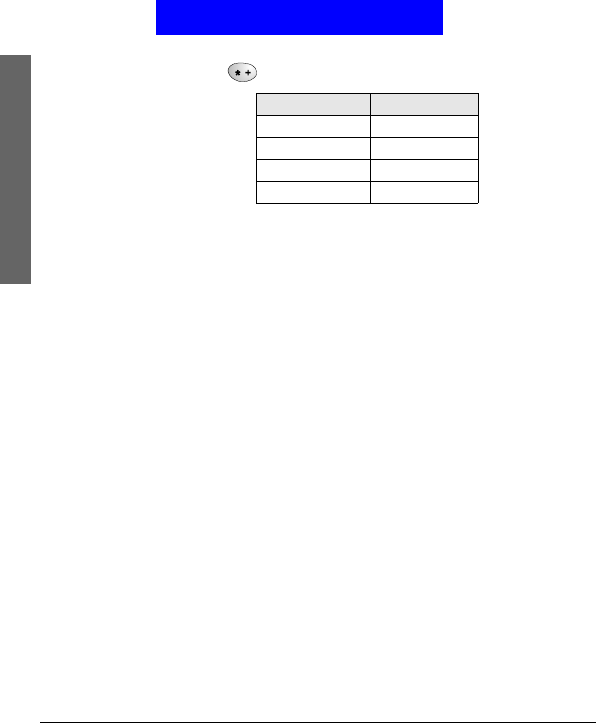
Tank destroyer
Destroy enemy tank using the gun of your tank. You tank is
located on the left part of the screen and enemy tank on the right.
Consider the wind direction and speed before shooting. Press
key and key to adjust the range of your gun,
Press this key to cross out a number
Remaining time
Your money
77
The Main Menu
Extras
key and key to adjust angle, and key to fire. The
game is over if you get shot by enemy tank.
Thirteen
You are given 13 cards and have to separate them in to 3 decks:
deck 1 (containing 3 cards), deck 2 and deck 3 (containing 5 cards
each). Press or key to select a card and or
key to assign selected card to deck 1, 2 or 3. Make the
combination of cards in each deck as deck 3 > deck 2 > deck 1.
When ready, press key to compare your decks with that of
all other 3 players. Press or key to view different
decks of cards, and or key to view the result. Press
key to view the score of all players.
The player that gets the highest score wins the play. Press any key
to start the next play. A game consists of 25 plays.
Calculator
You can use this function to perform simple calculations and
covert currencies.
Using calculator
1. In standby mode, press Menu.
2. Scroll to Extras and press Select.
3. Scroll to Calculator and press Select.
4. Enter numbers using alphanumeric keys.
Wind speed
Angle
Your tank Enemy tank
Range
Wind direction
78
The Main Menu
Extras
5. Press key to perform operations.
You can also press Options and select Add, Subtract, Multiply or
Divide to perform corresponding operations.
Press Options, Select to get the result of calculation.
Converting currencies
Setting up exchange rate
Exchange rate must be setup before using the currency exchange
function.
1. In standby mode, press Menu.
2. Scroll to Extras and press Select.
3. Scroll to Calculator and press Select.
4. Scroll to Exchange rate and press Select.
5. Press Select.
6. Enter the exchange rate of foreign unit expressed in domestic
unit using alphanumeric keys and press OK.
7. Scroll to Domestic unit expressed in foreign unit and press OK.
8. Enter the exchange rate of domestic unit expressed in foreign
unit using alphanumeric keys and press OK.
Performing currency exchange
1. In standby mode, press Menu.
2. Scroll to Extras and press Select.
3. Scroll to Calculator and press Select.
4. Enter the amount of currency and press Options.
4. Scroll to In foreign or In domestic and press Select.
Stopwatch
Split timing
1. In standby mode, press Menu.
Time pressed Operation
1+
2-
3*
4/

79
The Main Menu
Extras
2. Scroll to Extras and press Select.
3. Scroll to Stopwatch and press Select.
4. Press Select.
5. Press Start to start timing.
6. Press Split to get a split timing. You can get up to 10 split tim-
ings.
7. Press Stop to stop timing.
8. Press Options and you can do the following:
• Press Select to start the timer again.
• Save the timing record. Scroll to Save. Enter the name of the
record and press OK.
• Scroll to Reset and press Select to reset timer.
Lap timing
1. In standby mode, press Menu.
2. Scroll to Extras and press Select.
3. Scroll to Stopwatch and press Select.
4. Scroll to Lap timing and press Select.
5. Press Start to start timing.
6. Press Lap to get a lap timing. You can get up to 10 lap timings.
7. Press Stop to stop timing.
8. Press Options and you can do the following:
• Press Select to start the timer again.
• Save the timing record. Scroll to Save. Enter the name of the
record and press OK.
• Scroll to Reset and press Select to reset timer.
Viewing timing records
1. In standby mode, press Menu.
2. Scroll to Extras and press Select.
3. Scroll to Stopwatch and press Select.
4. Scroll to View times and press Select.
5. Scroll to the timing record you want to view and press Select.
Erasing timing records
1. In standby mode, press Menu.
2. Scroll to Extras and press Select.
3. Scroll to Stopwatch and press Select.
4. Scroll to Erase times and press Select.
5. You can erase timing records one by one or all at once:
• To erase timing records one by one, press Select.
Scroll to the timing record to erase and press Select.
Press Yes.

80
The Main Menu
Extras
• To erase all timing records at once, scroll to All at once and press
Select.
Press OK.
Operator services
If you have subscribed STK (SIM Tool Kit) or other operator ser-
vices to your operator, there will be an additional item here. The
contents of service and how to use them depends on your sub-
scription. Please consult your operator for details.

81
The Main Menu
WAP Service
WAP Service
The WAP Service allows you to access mobile Internet informa-
tion via your operator using the WAP (Wireless Application Pro-
tocol) technology. For example, you can browse weather reports,
parking information and on-line banking services.
The WAP settings must be configured before you can use the
WAP service. See "Configuring WAP profiles"on page 83 for
details.
Browsing the Internet
Going to your homepage
1. In standby mode, press Menu.
2. Scroll to WAP service and press Select.
3. Press Select.
4. Your phone will start connecting to the mobile Internet. If con-
nection is successful, the homepage will appear on the screen.
Going to your bookmarked pages
1. In standby mode, press Menu.
2. Scroll to WAP service and press Select.
3. Scroll to Bookmark and press Select.
4. Scroll to a desired bookmark and press Select.
5. Press Select.
6. Your phone will start connecting to the mobile Internet. If con-
nection is successful, the page will appear on the screen.
Navigating the Internet using the options menu
When browsing the mobile Internet, you can press Options to
access the following options:
• Home: Scroll to this option and press Select to return to the
homepage.
• Bookmark: Scroll to this option and press Select to open the
bookmark list.
To go to bookmarked pages, scroll to a bookmark and press
Select two times.
To edit a bookmark, scroll to a bookmark and press Select, then
scroll to Edit and press Select. Enter the name and address of the
book mark and then press OK.
To erase a bookmark, scroll to a bookmark and press Select,
then scroll to Erase and press Select two times.

82
The Main Menu
WAP Service
• Open link (appears when you selected a link in the browser):
Scroll to this option and press Select to open selected link.
• Add bookmark: Scroll to this option and press Select to book-
mark current page.
• Go to Address: Go to anothe page by entering the address.
Scroll to this option and press Select. Enter the address and
press OK.
• Appearance Settings: This option allows you to configure the
appearance of information when browsing the mobile Internet.
Scroll to this option and press Select. You will be presented with
the following sub-options:
Text wrapping: Scroll to this sub-option and press On (or Off)
to turn on or off the text wrapping function.
Show image: Scroll to this sub-option and press On (or Off) to
show or not to show the image.
Show title: Scroll to this sub-option and press On (or Off) to
show or not to show the title of page.
• Download Settings: You can decide whether to accept the cook-
ies or not when browsing. Scroll to this option and press Select
two times. Scroll to Allow (to accept cookeis) or Reject (to
reject all cookies) and press OK.
• Reload: Scroll to this option and press Select to reload current
page.
• Clear the Cache: Scroll to this option and press Select to delete
all cache files in phone memory.
• Exit: Scroll to this option and press Select to disconnect from
the Internet and exit browser.
83
The Main Menu
WAP Service
Configuring WAP profiles
You can configure up to 5 sets of WAP settings. Each set of WAP
settings is called a WAP profile. The WAP profile may have
already been programmed on your SIM card after you subscribe
the WAP service to your system so you can access mobile Internet
immediately. Otherwise, you need to configure the settings manu-
ally. Please contact your system operator for details.
Setting up a WAP profile
1. In standby mode, press Menu.
2. Scroll to WAP service and press Select.
3. Scroll to Profiles and press Select.
4. Scroll to an empty profile and press Select.
5. Scroll to Edit and press Select.
6. According to the parameters supplied by your operator, config-
ure the following:
Homepage: Enter the address of the homepage.
Session mode: Temporary or Permanent.
Connection Security: On or Off.
Data bearer: GSM Data or GPRS.
IP address: Enter the IP address.
Authentication type: Normal or Secure.
Login type: Manual or Automatic.
Username: Enter the username.
Password: Enter the password.
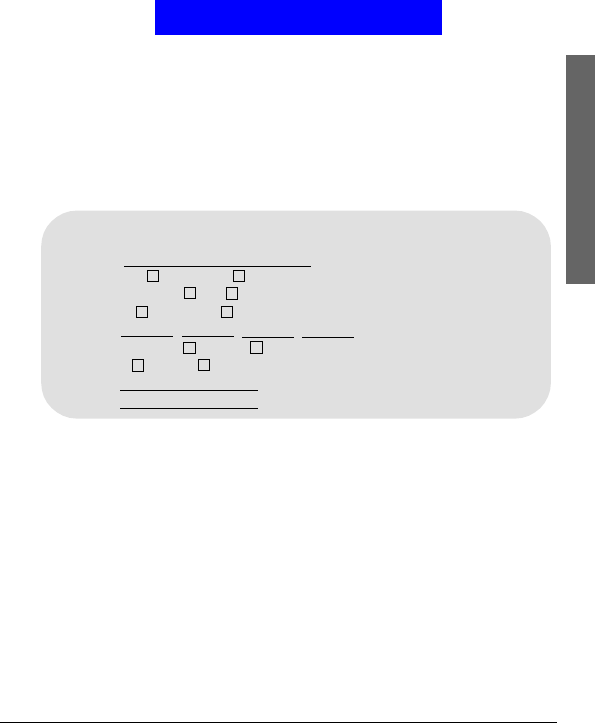
Before setting up a WAP profile, please be sure to obtain the following parameters
from your operator:
Homepage:
Session mode: Temporary Permanent
Connection security: On Off
Data bearer: GSM Data GPRS
IP address: . . .
Authentication type: Normal Secure
Login type: Manual Automatic
Username:
Password:
Information you need in case you have to
set up a WAP profile manually

84
The Main Menu
WAP Service
The setup is complete. Now you are ready to access the mobile
Internet.
Selecting and activating a WAP profile
If you have multiple WAP profiles for different operators, you can
use this function to select one to use.
1. In standby mode, press Menu.
2. Scroll to WAP service and press Select.
3. Scroll to Profiles and press Select.
4. Scroll to a desired profile and press Select.
Editing a WAP profile
1. In standby mode, press Menu.
2. Scroll to WAP service and press Select.
3. Scroll to Profiles and press Select.
4. Scroll to the profile you want to edit and press Select.
5. Scroll to Edit and press Select.
6. Edit the contents of the profile.
Renaming a WAP profile
1. In standby mode, press Menu.
2. Scroll to WAP service and press Select.
3. Scroll to Profiles and press Select.
4. Scroll to the profile you want to rename and press Select.
5. Scroll to Rename and press Select.
6. Enter the new profile name and press OK.

85
The Main Menu
My shortcut
You can put 9 most frequently used functions in My Shortcut so
you can access them quickly and easily.
Using My shortcut
9 frequently used functions are already pre-programmed in My
shortcut and you can use them directly.
To use the pre-programmed shortcut items:
1. In standby mode, press Menu.
2. Scroll to My shortcut and press Select.
3. Scroll to the item you want and press Select.
Customizing My shortcut
To customize My Shortcut:
1. In standby mode, press Menu.
2. Scroll to My shortcut and press Select.
3. Scroll to Edit and press Select.
4. Scroll to a desired item and press Select.
5. Specify the position of the item in My shortcut and press Select.

Appendix
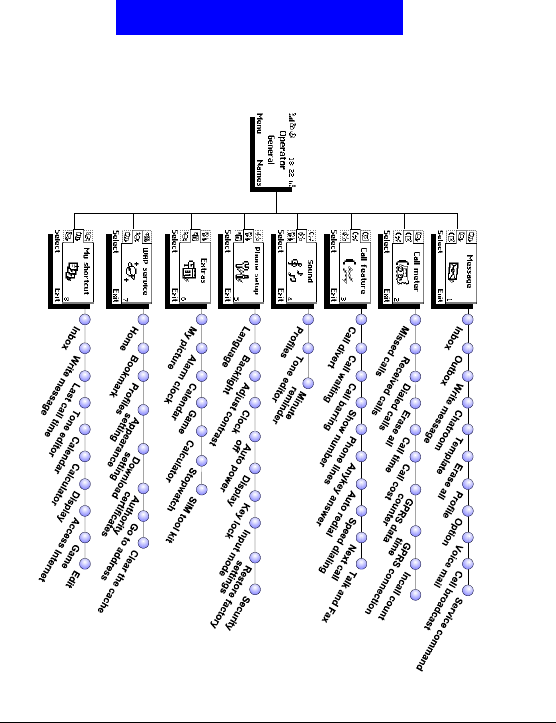
Appendix
Menu
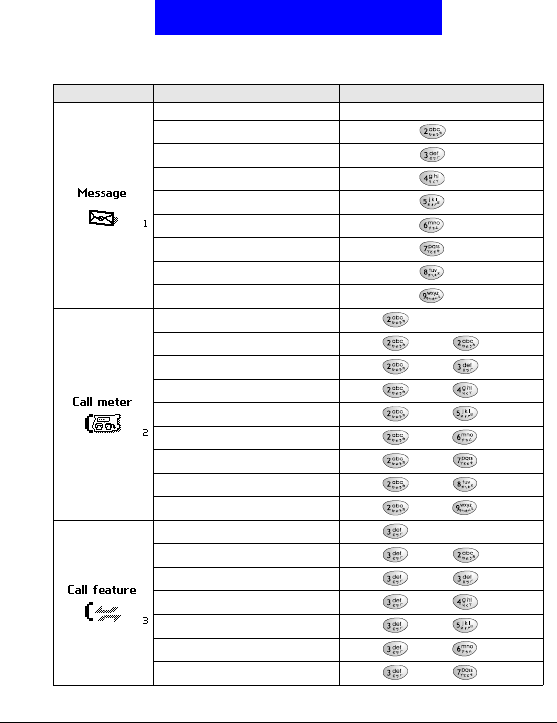
Appendix
Quick Reference
Menu To go to this item Press these keys
Inbox Menu Select Select
Outbox Menu Select Select
Write message Menu Select Select
Chatroom Menu Select Select
Template Menu Select Select
Erase all Menu Select Select
Profile Menu Select Select
Option Menu Select Select
Voice mail Menu Select Select
Missed calls Menu Select Select
Received calls Menu Select Select
Dialed calls Menu Select Select
Erase all Menu Select Select
Call time Menu Select Select
Call cost Menu Select Select
GPRS data counter Menu Select Select
GPRS connection time Menu Select Select
Incall count Menu Select Select
Call divert Menu Select Select
Call waiting Menu Select Select
Call barring Menu Select Select
Show number Menu Select Select
Phone lines Menu Select Select
Anykey answer Menu Select Select
Auto redial Menu Select Select
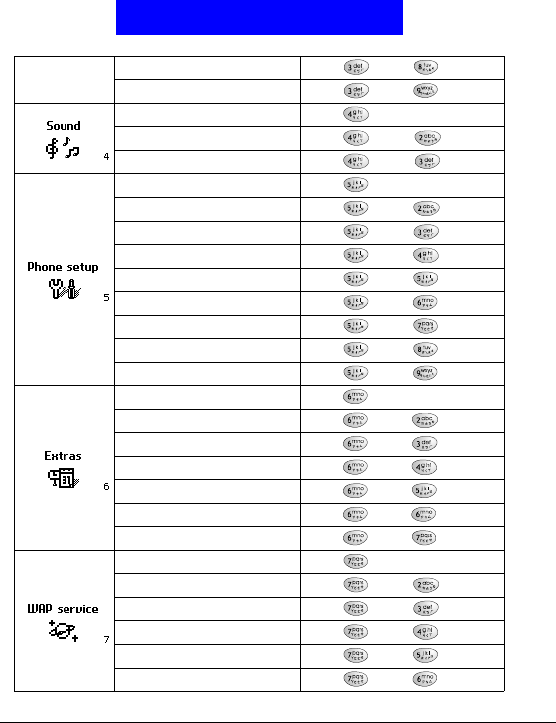
Appendix
Speed dialing Menu Select Select
Next call Menu Select Select
Profiles Menu Select Select
Tone editor Menu Select Select
Minute reminder Menu Select Select
Language Menu Select Select
Backlight Menu Select Select
Adjust contrast Menu Select Select
Clock Menu Select Select
Auto power off Menu Select Select
Display Menu Select Select
Key lock Menu Select Select
Input mode Menu Select Select
Restore factory settings Menu Select Select
My picture Menu Select Select
Alarm clock Menu Select Select
Calendar Menu Select Select
Game Menu Select Select
Calculator Menu Select Select
Stopwatch Menu Select Select
SIM tool kit Menu Select Select
Home Menu Select Select
Bookmark Menu Select Select
Profiles Menu Select Select
Appearance setting Menu Select Select
Download setting Menu Select Select
Authority certificates Menu Select Select
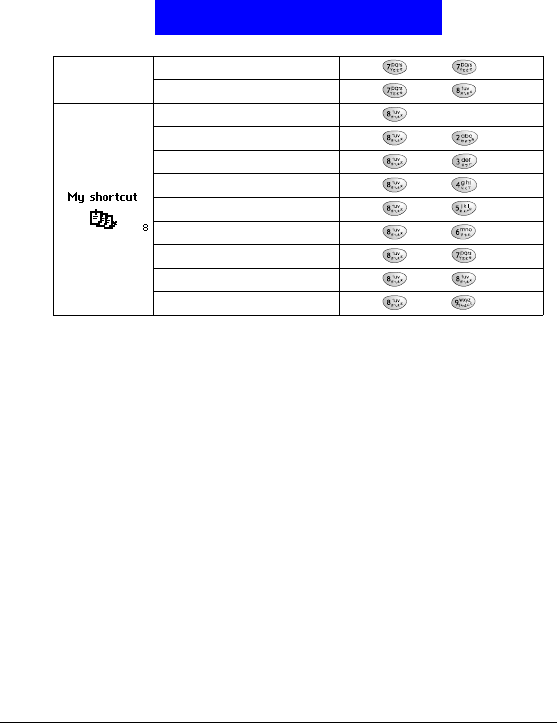
Appendix
Go to address Menu Select Select
Clear the cache Menu Select Select
Inbox Menu Select Select
Write message Menu Select Select
Last call time Menu Select Select
Tone editor Menu Select Select
Calendar Menu Select Select
Calculator Menu Select Select
Display Menu Select Select
Access Internet Menu Select Select
Game Menu Select Select