Chung Hsin Electric and Machinery Mfg VSS-5830P 5.8 GHz Wireless Video Server with 433.92MHz transmitter User Manual VSS 5830 1A

Chung-Hsin Electric & Machinery Mfg. corp. 5.8 GHz Wireless Video Server with 433.92MHz transmitter VSS 5830 1A

User manual
1      User’s Manual for  VSS-5830   5.8GHz Wireless Video Server                                  Document Number: PSS08002 Page :    1   of     51   Revision  : 1A Date  : 2008-04-13     CHUNG-HSIN ELECTRIC & MACHINERY MFG. CORP. URL: http://www.chemlink.com.tw/
2      About this document    This software quick manual is intended for user of 5.8 GHz Wireless  Video Server. The default IP setting of Wireless Video Server is  DHCP. Please refer to user manual of Wireless Video Server, if there  is not DHCP Server on your network.   IMPORTANT  Check PC specification requirements  Check OS platform requirements  Install IPSurveillance Application Software before you start working with Wireless Video Server. Read special notes and important configuration information.
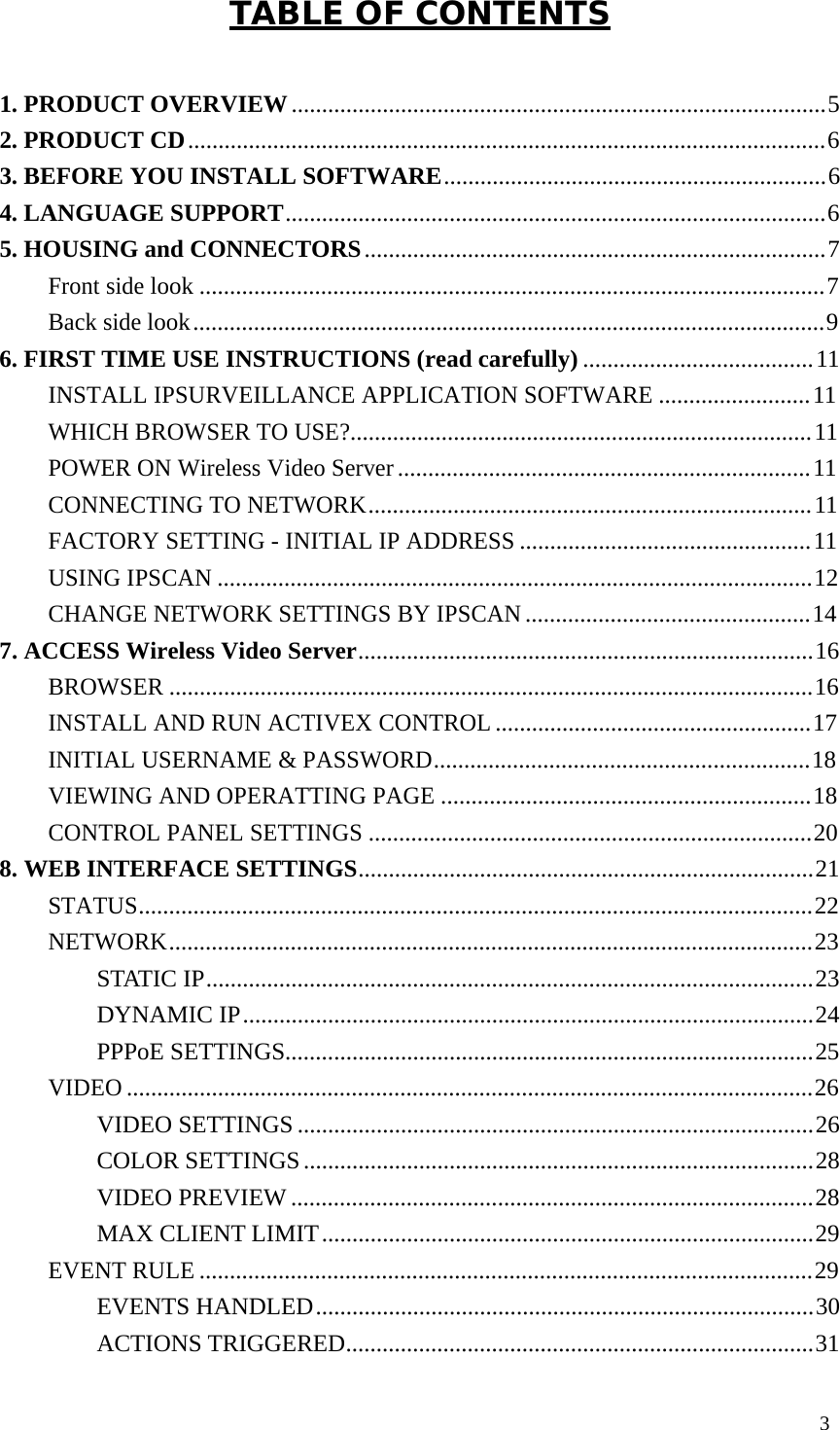
3  TABLE OF CONTENTS    1. PRODUCT OVERVIEW ........................................................................................ 5 2. PRODUCT CD ......................................................................................................... 6 3. BEFORE YOU INSTALL SOFTWARE............................................................... 6 4. LANGUAGE SUPPORT......................................................................................... 6 5. HOUSING and CONNECTORS ............................................................................ 7 Front side look ....................................................................................................... 7 Back side look ........................................................................................................ 9 6. FIRST TIME USE INSTRUCTIONS (read carefully) ...................................... 11 INSTALL IPSURVEILLANCE APPLICATION SOFTWARE ......................... 11 WHICH BROWSER TO USE?............................................................................ 11 POWER ON Wireless Video Server .................................................................... 11 CONNECTING TO NETWORK ......................................................................... 11 FACTORY SETTING - INITIAL IP ADDRESS ................................................ 11 USING IPSCAN .................................................................................................. 12 CHANGE NETWORK SETTINGS BY IPSCAN ............................................... 14 7. ACCESS Wireless Video Server........................................................................... 16 BROWSER .......................................................................................................... 16 INSTALL AND RUN ACTIVEX CONTROL .................................................... 17 INITIAL USERNAME & PASSWORD.............................................................. 18 VIEWING AND OPERATTING PAGE ............................................................. 18 CONTROL PANEL SETTINGS ......................................................................... 20 8. WEB INTERFACE SETTINGS........................................................................... 21 STATUS............................................................................................................... 22 NETWORK.......................................................................................................... 23 STATIC IP.................................................................................................... 23 DYNAMIC IP .............................................................................................. 24 PPPoE SETTINGS....................................................................................... 25 VIDEO ................................................................................................................. 26 VIDEO SETTINGS ..................................................................................... 26 COLOR SETTINGS .................................................................................... 28 VIDEO PREVIEW ...................................................................................... 28 MAX CLIENT LIMIT ................................................................................. 29 EVENT RULE ..................................................................................................... 29 EVENTS HANDLED .................................................................................. 30 ACTIONS TRIGGERED............................................................................. 31
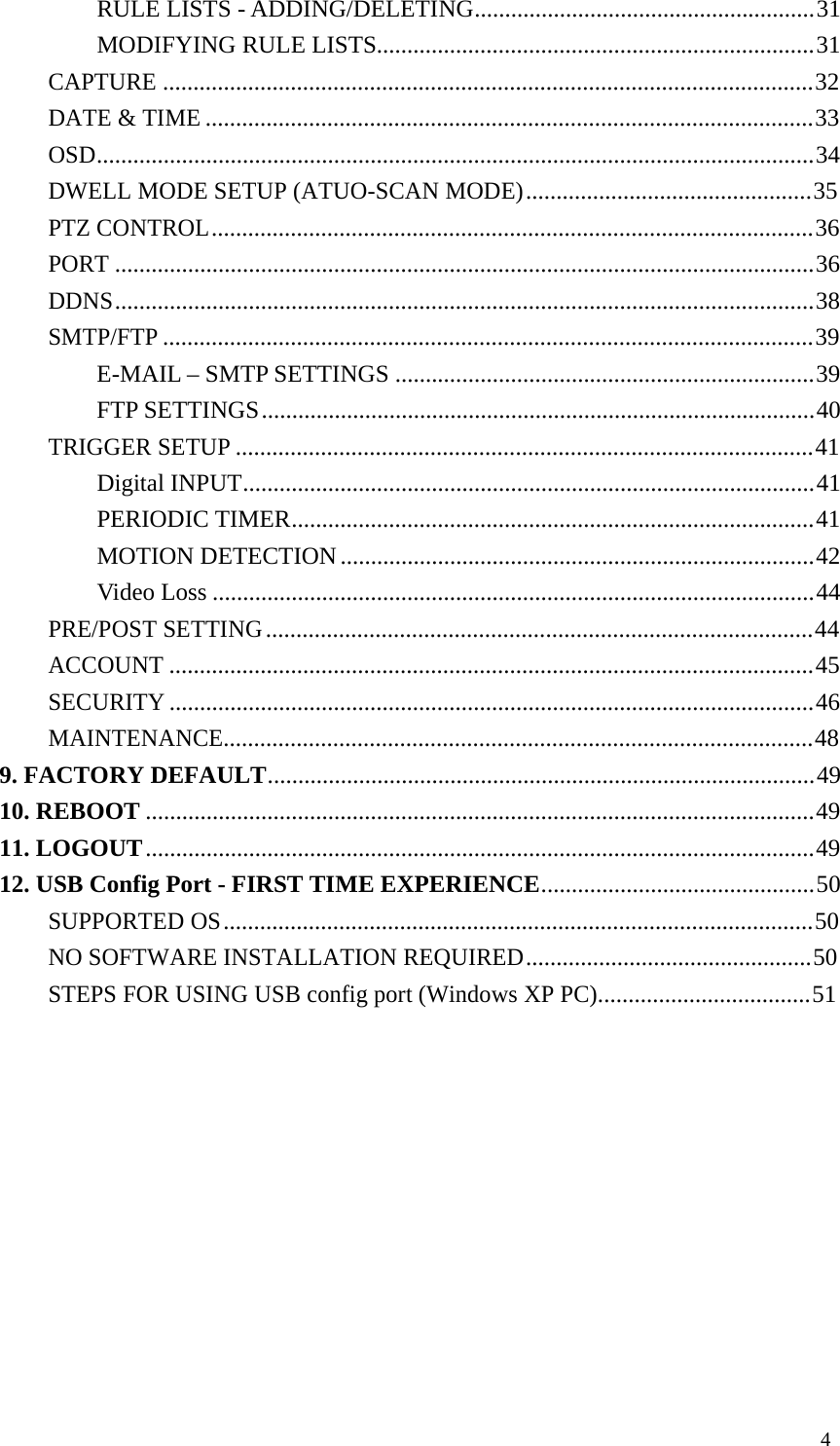
4  RULE LISTS - ADDING/DELETING........................................................ 31 MODIFYING RULE LISTS........................................................................ 31 CAPTURE ........................................................................................................... 32 DATE & TIME .................................................................................................... 33 OSD...................................................................................................................... 34 DWELL MODE SETUP (ATUO-SCAN MODE) ............................................... 35 PTZ CONTROL ................................................................................................... 36 PORT ................................................................................................................... 36 DDNS ................................................................................................................... 38 SMTP/FTP ........................................................................................................... 39 E-MAIL – SMTP SETTINGS ..................................................................... 39 FTP SETTINGS ........................................................................................... 40 TRIGGER SETUP ............................................................................................... 41 Digital INPUT.............................................................................................. 41 PERIODIC TIMER...................................................................................... 41 MOTION DETECTION .............................................................................. 42 Video Loss ................................................................................................... 44 PRE/POST SETTING .......................................................................................... 44 ACCOUNT .......................................................................................................... 45 SECURITY .......................................................................................................... 46 MAINTENANCE................................................................................................. 48 9. FACTORY DEFAULT.......................................................................................... 49 10. REBOOT .............................................................................................................. 49 11. LOGOUT .............................................................................................................. 49 12. USB Config Port - FIRST TIME EXPERIENCE............................................. 50 SUPPORTED OS ................................................................................................. 50 NO SOFTWARE INSTALLATION REQUIRED............................................... 50 STEPS FOR USING USB config port (Windows XP PC)................................... 51
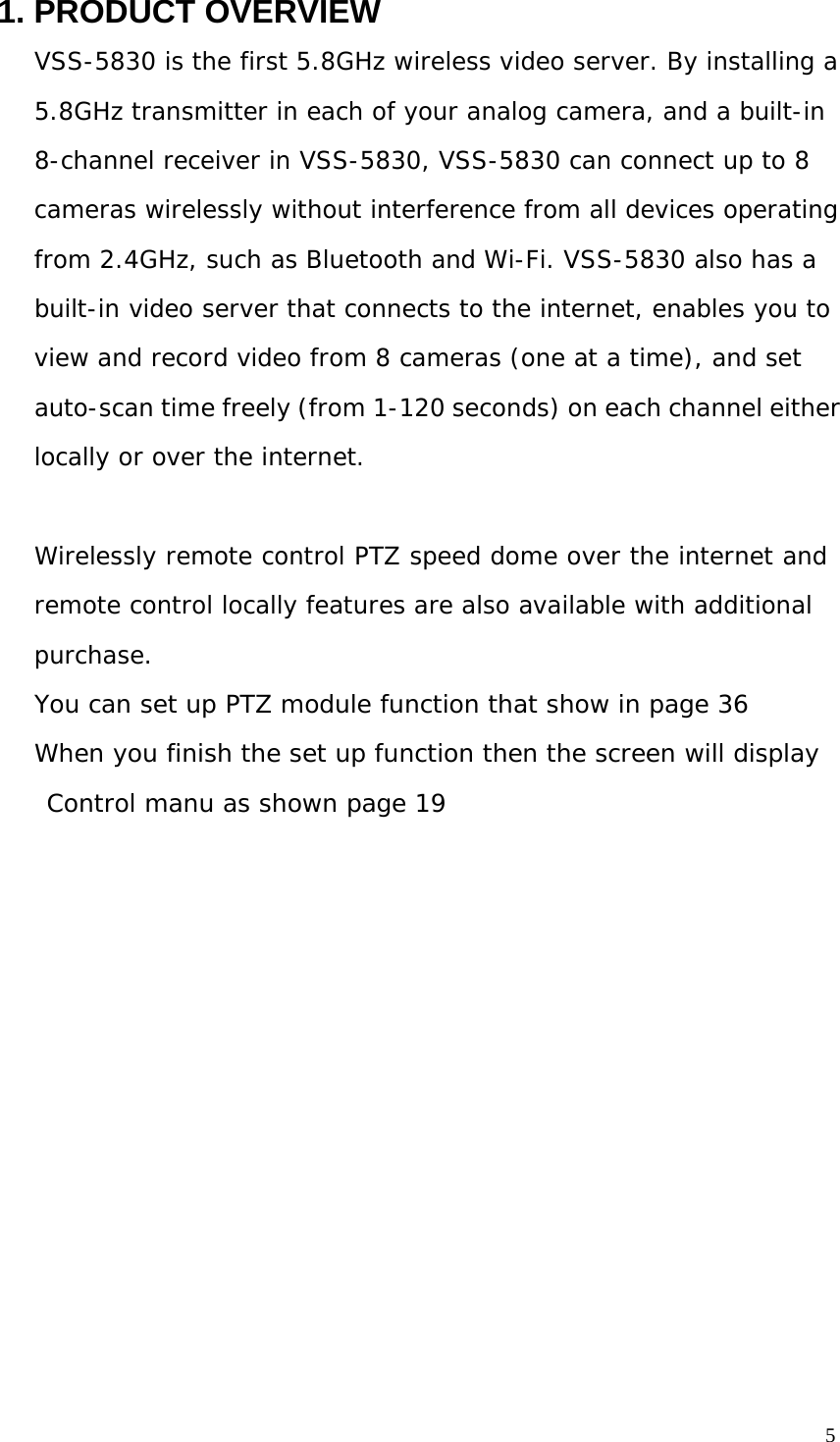
5  1. PRODUCT OVERVIEW  VSS-5830 is the first 5.8GHz wireless video server. By installing a  5.8GHz transmitter in each of your analog camera, and a built-in  8-channel receiver in VSS-5830, VSS-5830 can connect up to 8 cameras wirelessly without interference from all devices operating from 2.4GHz, such as Bluetooth and Wi-Fi. VSS-5830 also has a built-in video server that connects to the internet, enables you to view and record video from 8 cameras (one at a time), and set auto-scan time freely (from 1-120 seconds) on each channel either locally or over the internet.   Wirelessly remote control PTZ speed dome over the internet and remote control locally features are also available with additional  purchase. You can set up PTZ module function that show in page 36 When you finish the set up function then the screen will display Control manu as shown page 19
6  2. PRODUCT CD  Product CD in the package contains the following:   IPSurveillance Application Software NVR management software  ¤ 16CH Live View / Recording / Playback   User Manuals    3. BEFORE YOU INSTALL SOFTWARE   PC running Microsoft Windows XP Server Pack 2 or above is only capable of running IPSurveillance Application Software software.  PLEASE go through IPSurveillance Application Software user’s manual before  installation to  check further PC requirements  in order to ensure smooth software operation.   4. LANGUAGE SUPPORT   ENGLISH  NOTE IPSurveillance Application Software™ setup will auto-run when inserting   product CD. Pay attention to dialog box questions before you press OK button.
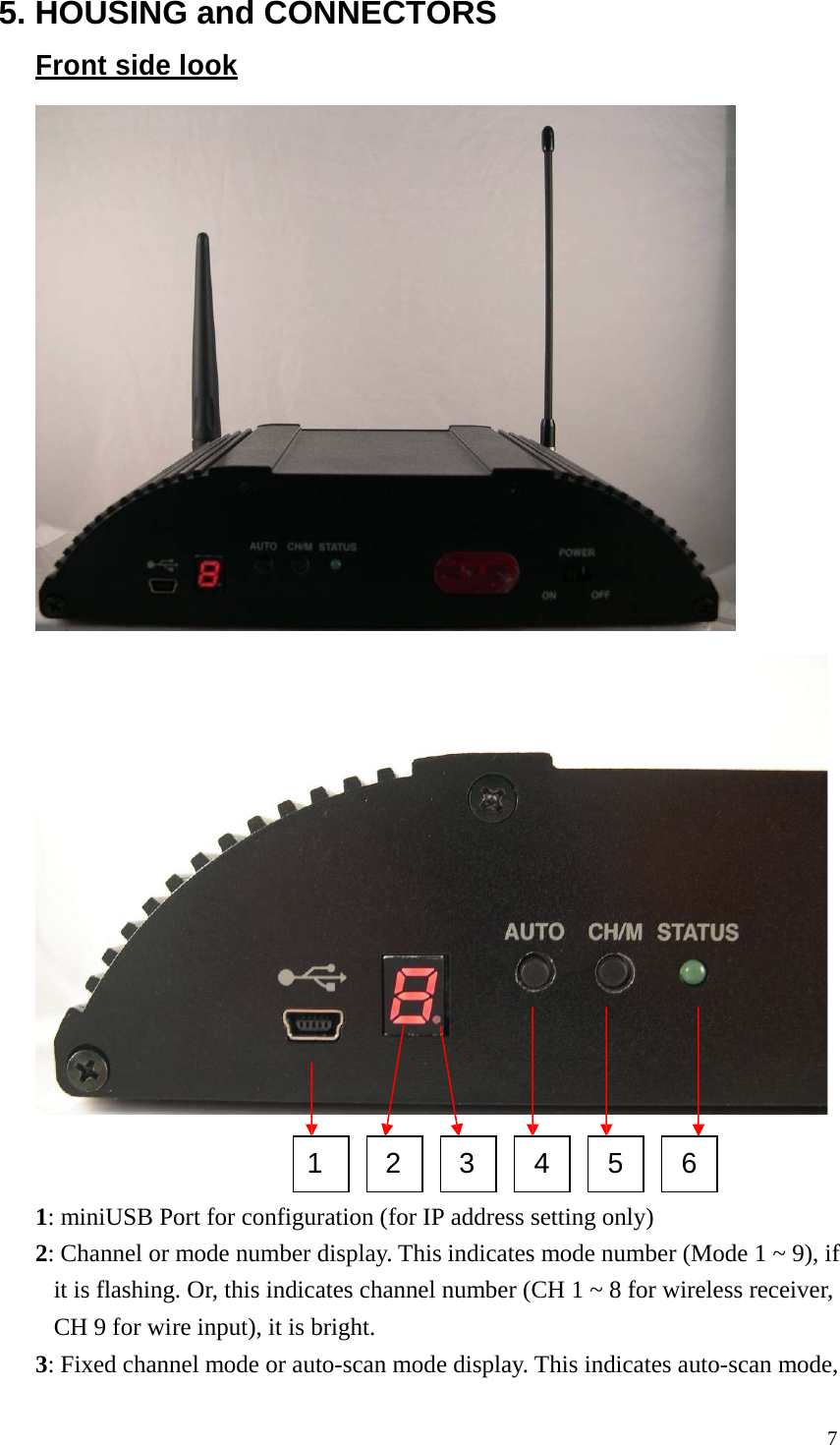
5. HOUSING and CONNECTORS  Front side look                            1 2 3 4 5 6  1: miniUSB Port for configuration (for IP address setting only) 2: Channel or mode number display. This indicates mode number (Mode 1 ~ 9), if it is flashing. Or, this indicates channel number (CH 1 ~ 8 for wireless receiver, CH 9 for wire input), it is bright. 3: Fixed channel mode or auto-scan mode display. This indicates auto-scan mode, 7
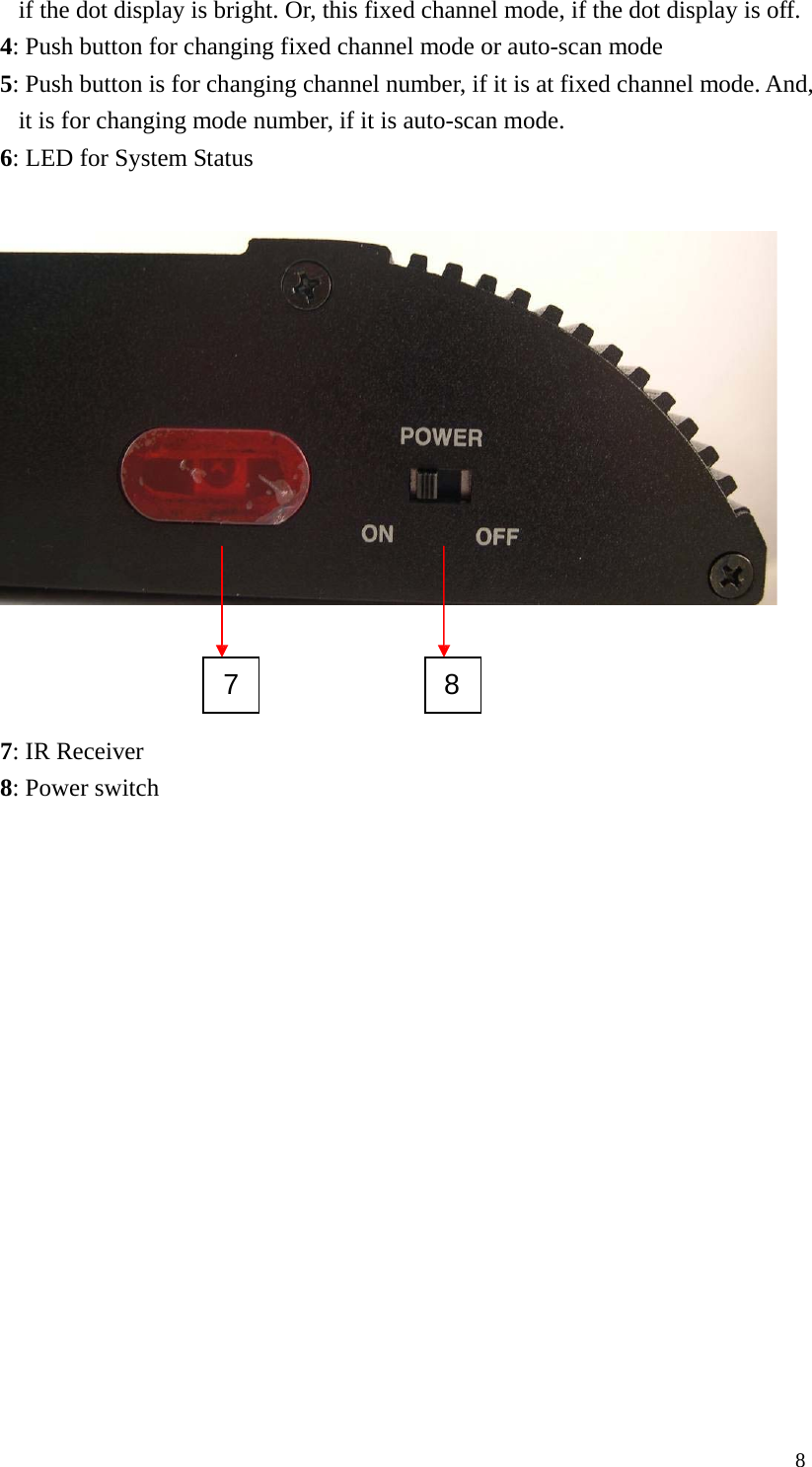
if the dot display is bright. Or, this fixed channel mode, if the dot display is off. 4: Push button for changing fixed channel mode or auto-scan mode 5: Push button is for changing channel number, if it is at fixed channel mode. And, it is for changing mode number, if it is auto-scan mode. 6: LED for System Status                         7 8   7: IR Receiver 8: Power switch 8
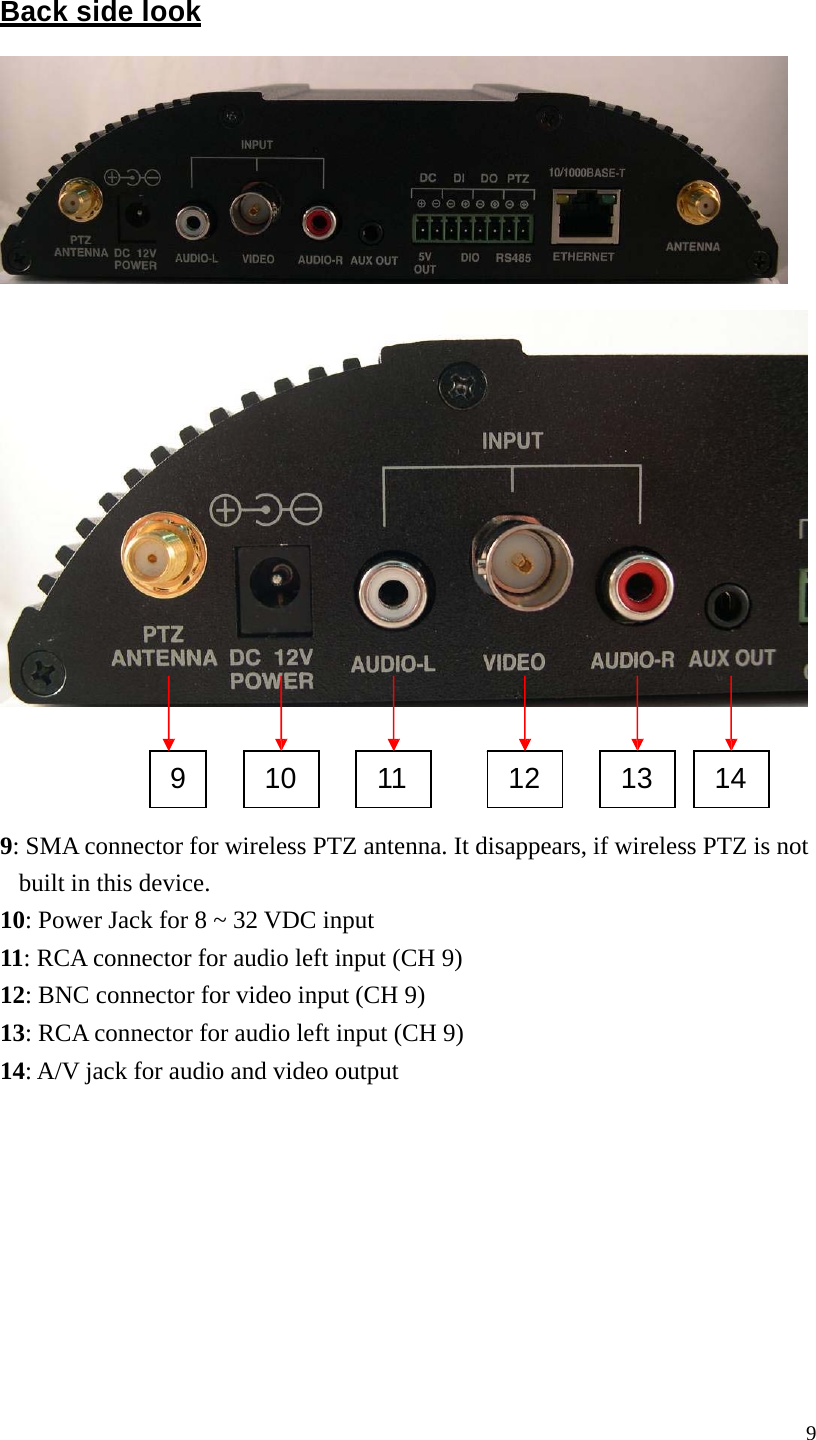
  Back side look                          9 10 11 12 13 14   9: SMA connector for wireless PTZ antenna. It disappears, if wireless PTZ is not built in this device. 10: Power Jack for 8 ~ 32 VDC input 11: RCA connector for audio left input (CH 9) 12: BNC connector for video input (CH 9) 13: RCA connector for audio left input (CH 9) 14: A/V jack for audio and video output 9
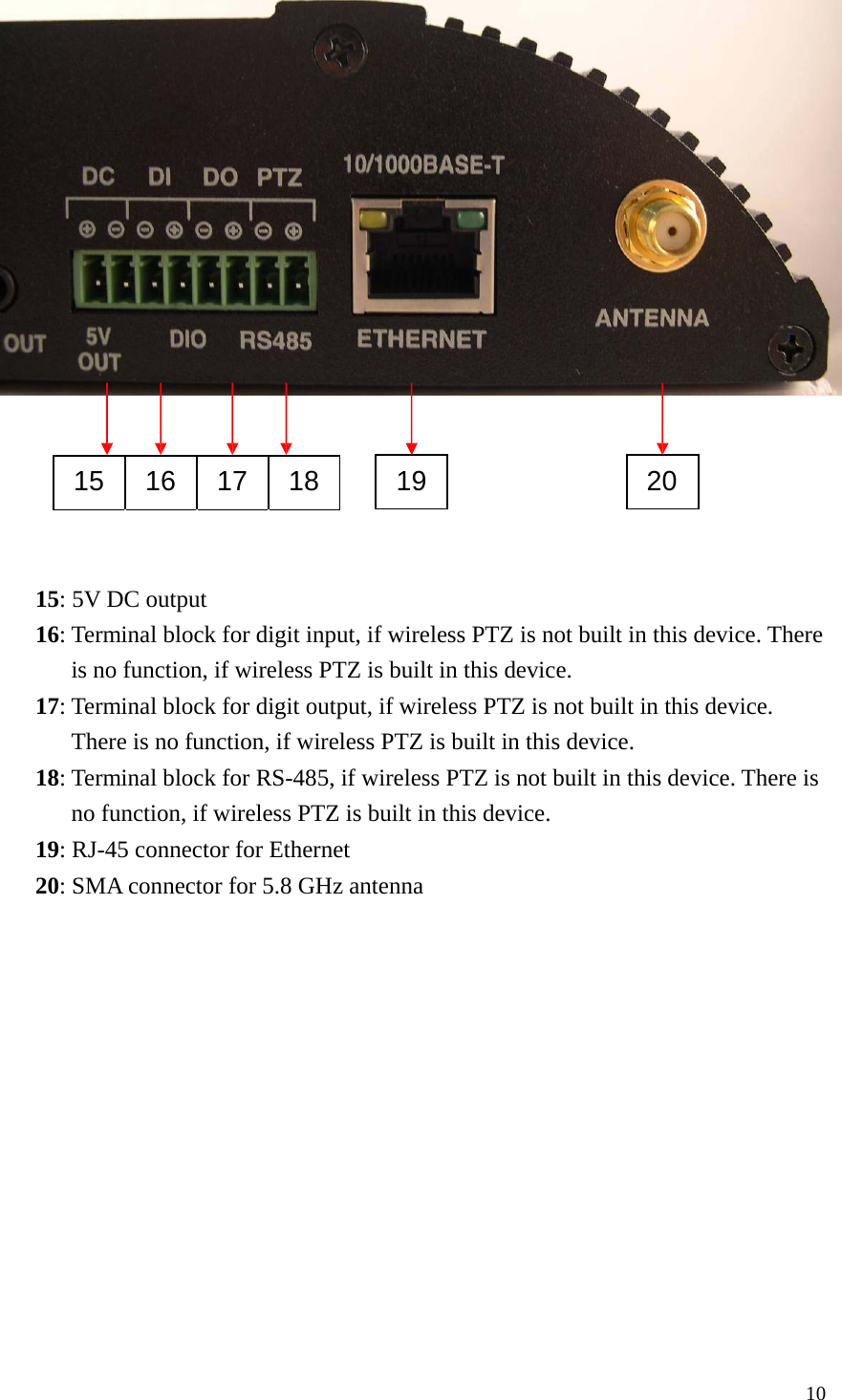
                        10  15 16 17 18 19 20      15: 5V DC output 16: Terminal block for digit input, if wireless PTZ is not built in this device. There is no function, if wireless PTZ is built in this device. 17: Terminal block for digit output, if wireless PTZ is not built in this device. There is no function, if wireless PTZ is built in this device. 18: Terminal block for RS-485, if wireless PTZ is not built in this device. There is no function, if wireless PTZ is built in this device. 19: RJ-45 connector for Ethernet 20: SMA connector for 5.8 GHz antenna
11  6. FIRST TIME USE INSTRUCTIONS (read carefully)   INSTALL IPSURVEILLANCE APPLICATION SOFTWARE   Install IPSurveillance Application Software. IPScan is a software  utility to find your wireless video server on the network. It is a part  of IPSurveillance Application Software.   WHICH BROWSER TO USE?  We strongly recommend Microsoft IE browser version 6 or higher. Mozilla Firefox and similar others are not guaranteed to work with Wireless Video Server.   POWER ON Wireless Video Server  Power on video server by using power adapter provided in the product  package. Connect power adapter to AC socket.    CONNECTING TO NETWORK  Connect a standard CAT5 Ethernet cable to R45 socket on Wireless Video  Server and connect other end to your network hub/switch. Make sure the PC you want to access Wireless Video Server is on the same network domain which has DHCP server.   FACTORY SETTING - INITIAL IP ADDRESS  IP Address: DHCP
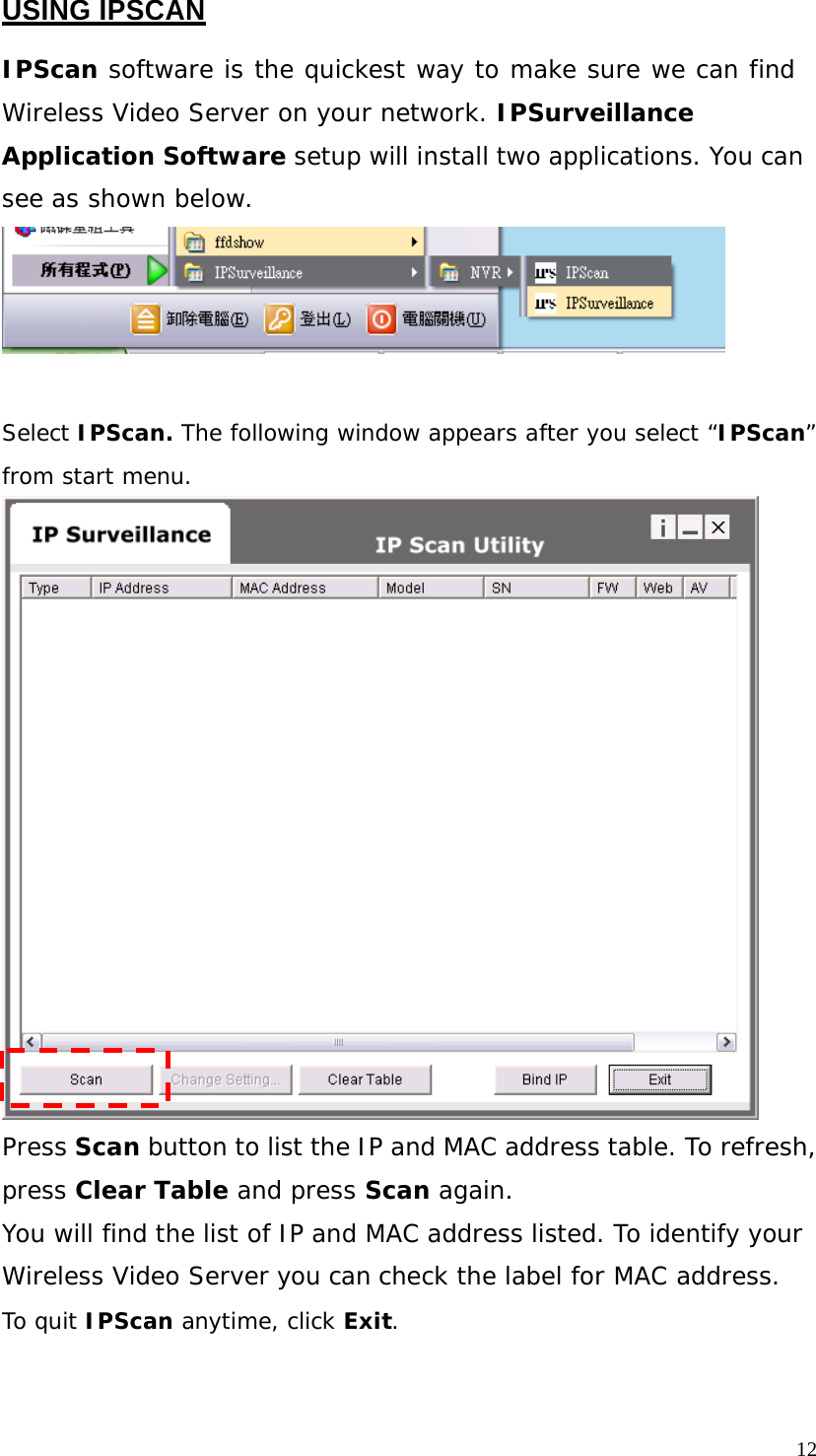
USING IPSCAN   IPScan software is the quickest way to make sure we can find  Wireless Video Server on your network. IPSurveillance Application Software setup will install two applications. You can see as shown below.     Select IPScan. The following window appears after you select “IPScan”  from start menu.                                Press Scan button to list the IP and MAC address table. To refresh,  press Clear Table and press Scan again.  You will find the list of IP and MAC address listed. To identify your  Wireless Video Server you can check the label for MAC address.  To quit IPScan anytime, click Exit. 12
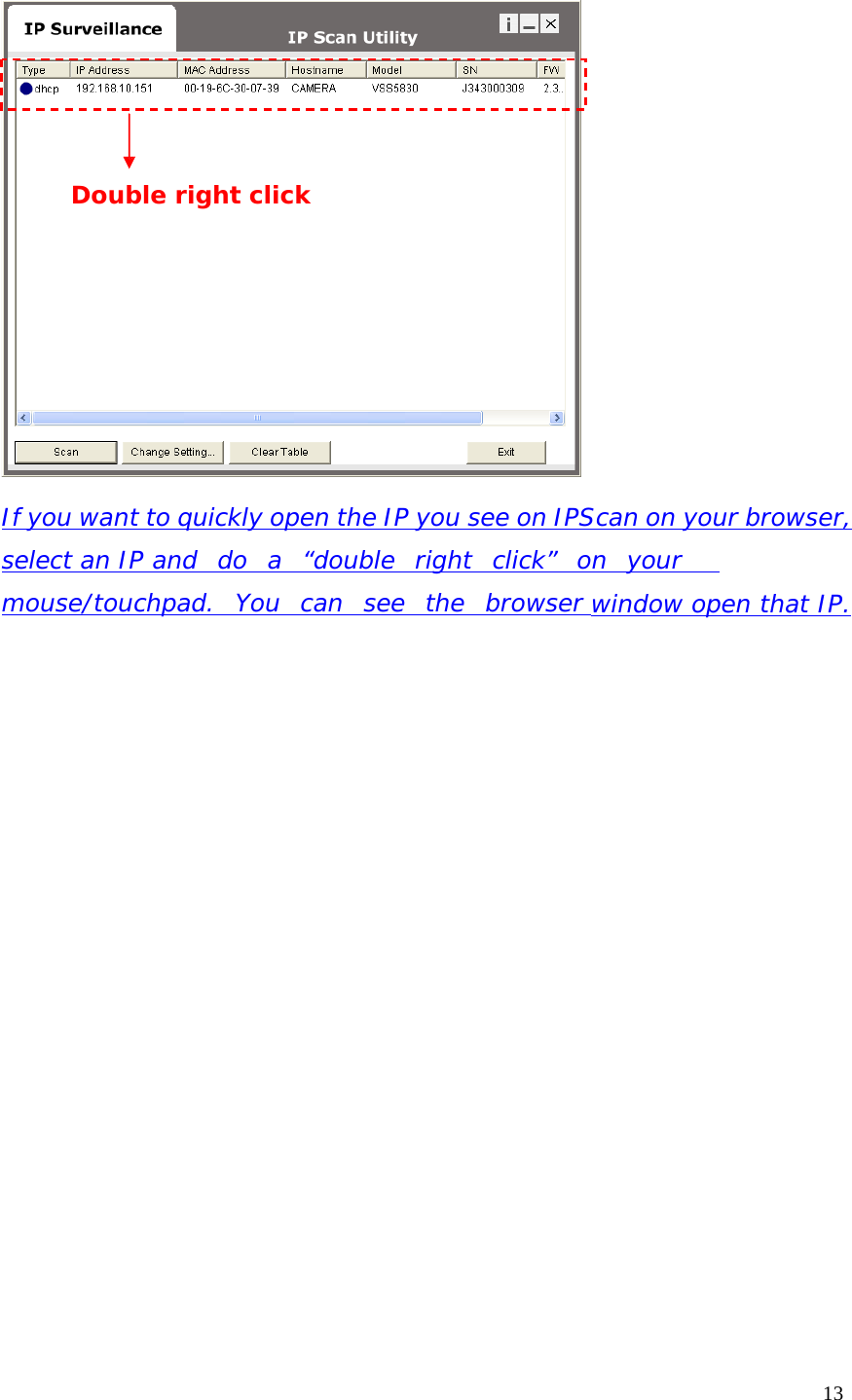
           Double right click                If you want to quickly open the IP you see on IPScan on your browser, select an IP and  do  a  “double  right  click”  on  your   mouse/touchpad.  You   can   see   the   browser window open that IP.13
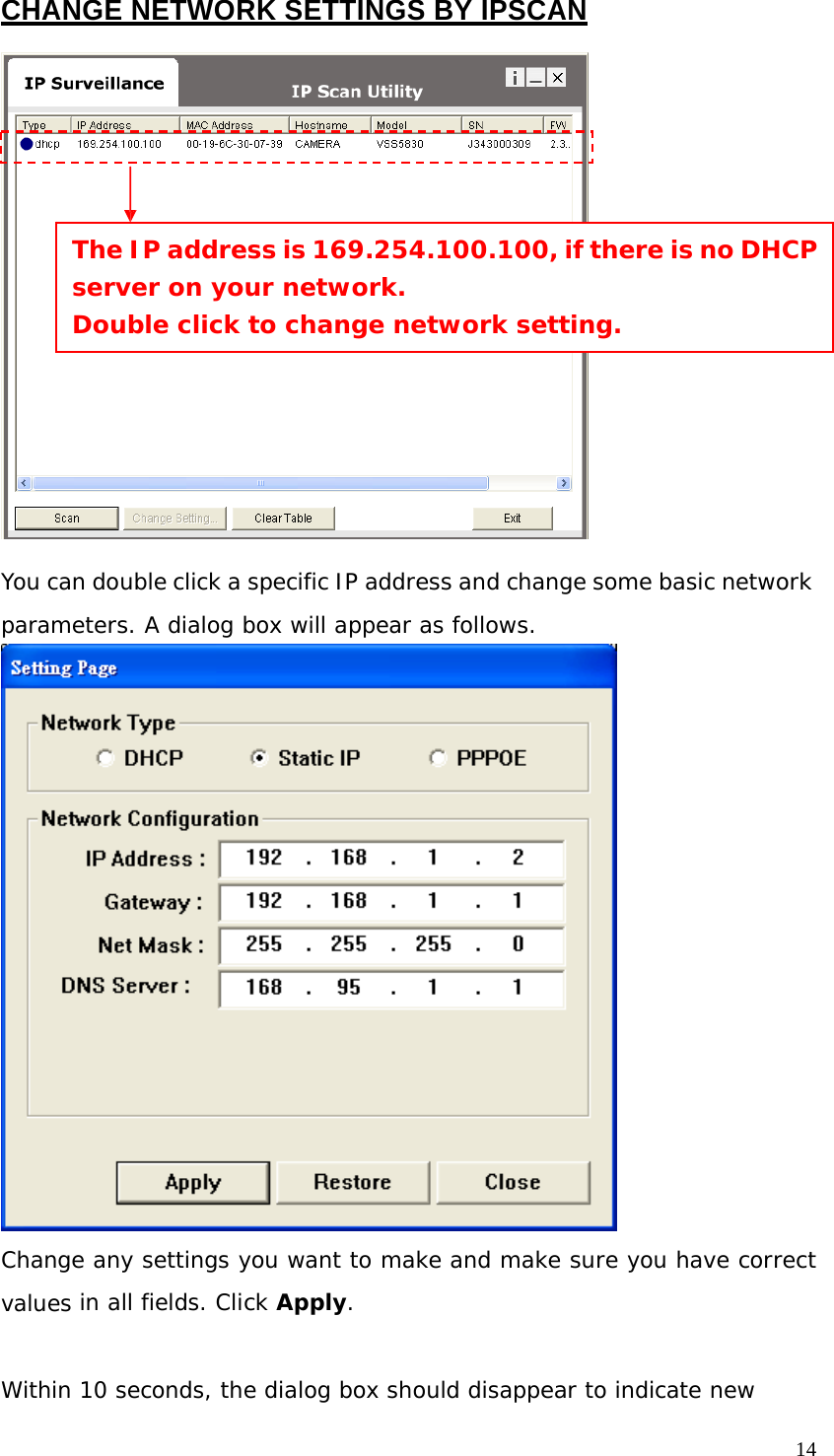
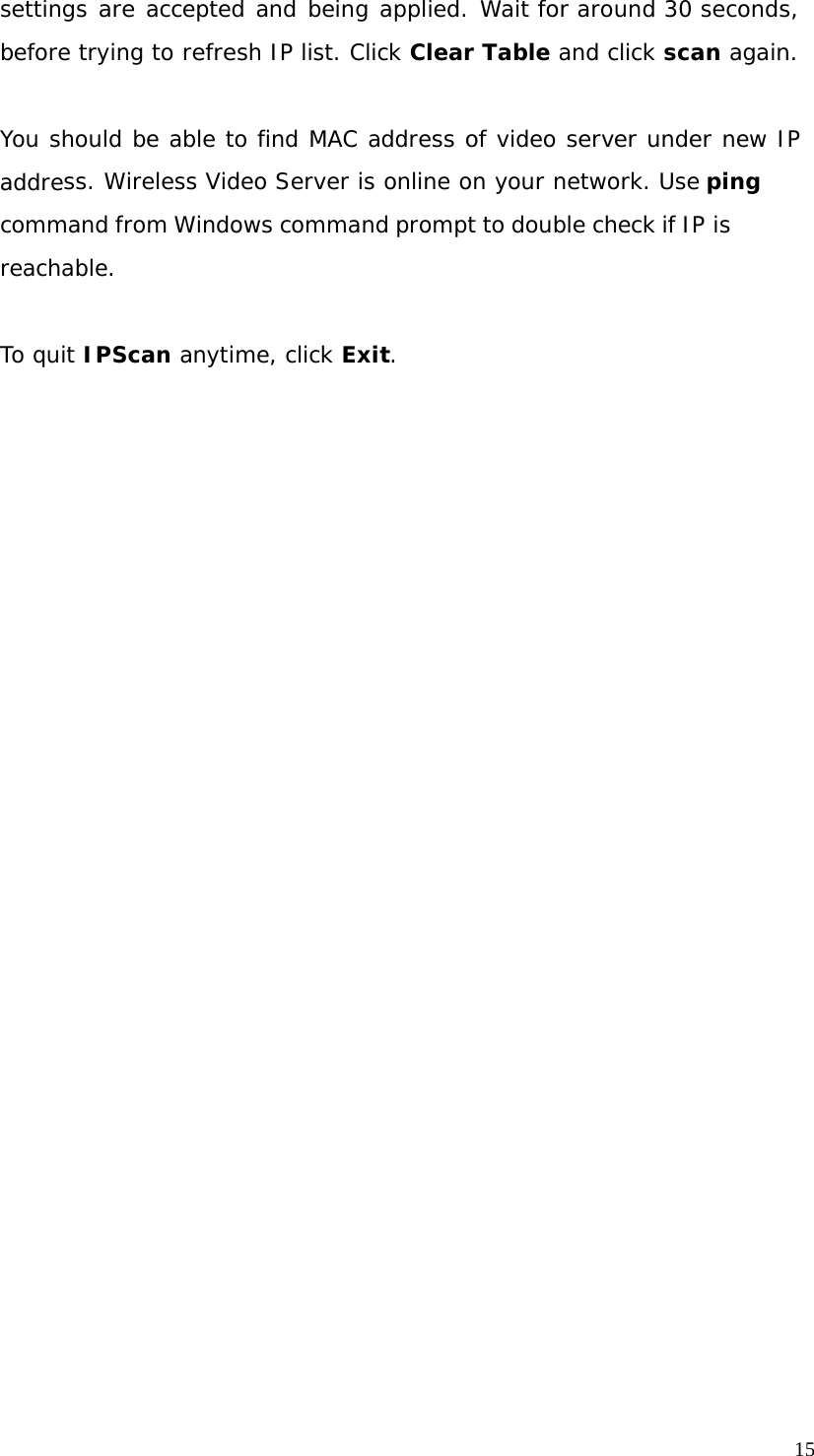
CHANGE NETWORK SETTINGS BY IPSCAN           The IP address is 169.254.100.100, if there is no DHCP server on your network. Double click to change network setting.            You can double click a specific IP address and change some basic network  parameters. A dialog box will appear as follows.   Change any settings you want to make and make sure you have correct values in all fields. Click Apply.   Within 10 seconds, the dialog box should disappear to indicate new 14
15  settings are accepted and being applied. Wait for around 30 seconds, before trying to refresh IP list. Click Clear Table and click scan again.   You should be able to find MAC address of video server under new IP address. Wireless Video Server is online on your network. Use ping command from Windows command prompt to double check if IP is reachable.   To quit IPScan anytime, click Exit.
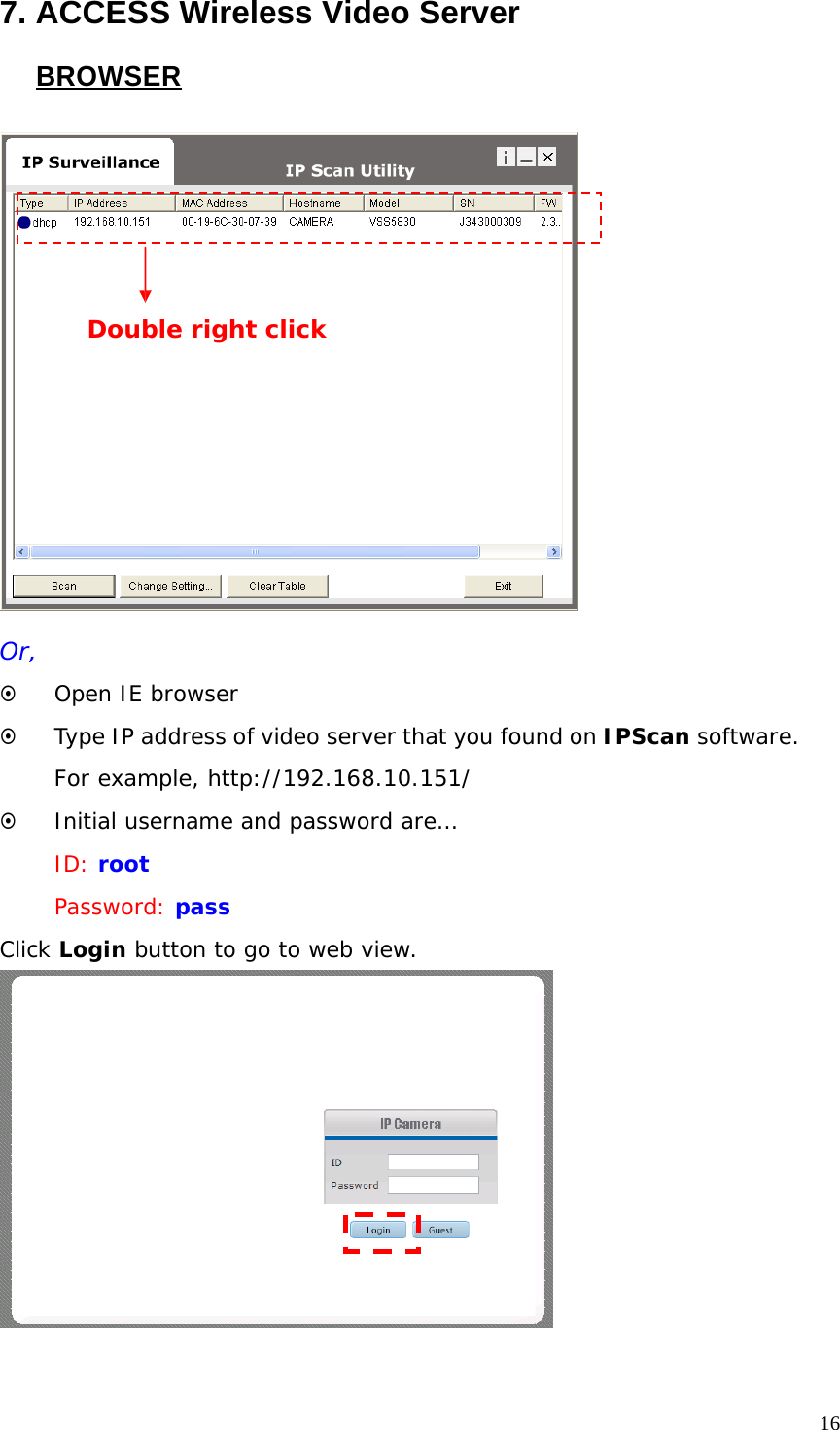
7. ACCESS Wireless Video Server  BROWSER            Double right click                Or,  ~ Open IE browser  ~ Type IP address of video server that you found on IPScan software.  For example, http://192.168.10.151/ ~ Initial username and password are… ID: root Password: pass  Click Login button to go to web view. 16
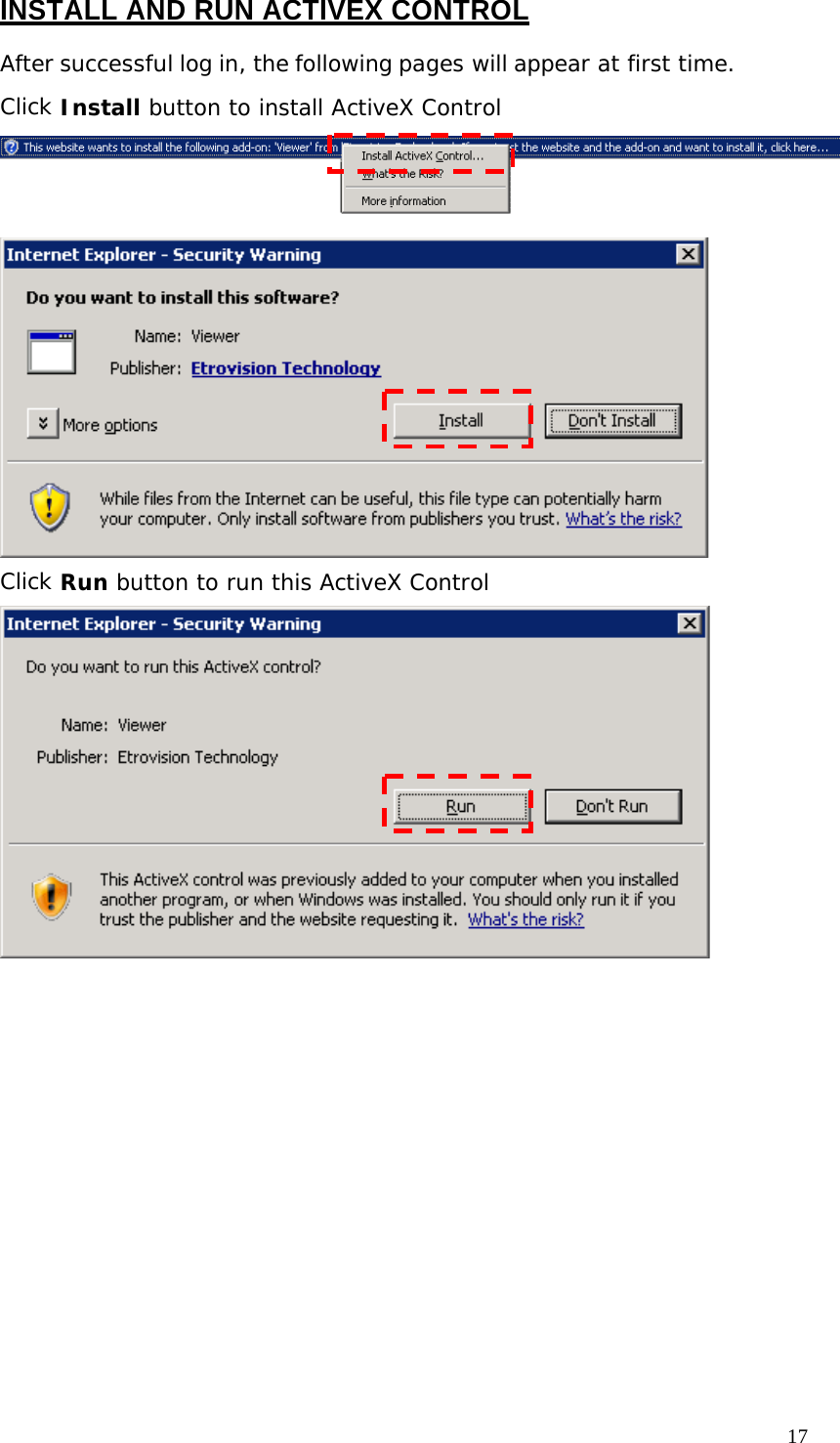
INSTALL AND RUN ACTIVEX CONTROL  After successful log in, the following pages will appear at first time.  Click Install button to install ActiveX Control                       Click Run button to run this ActiveX Control 17
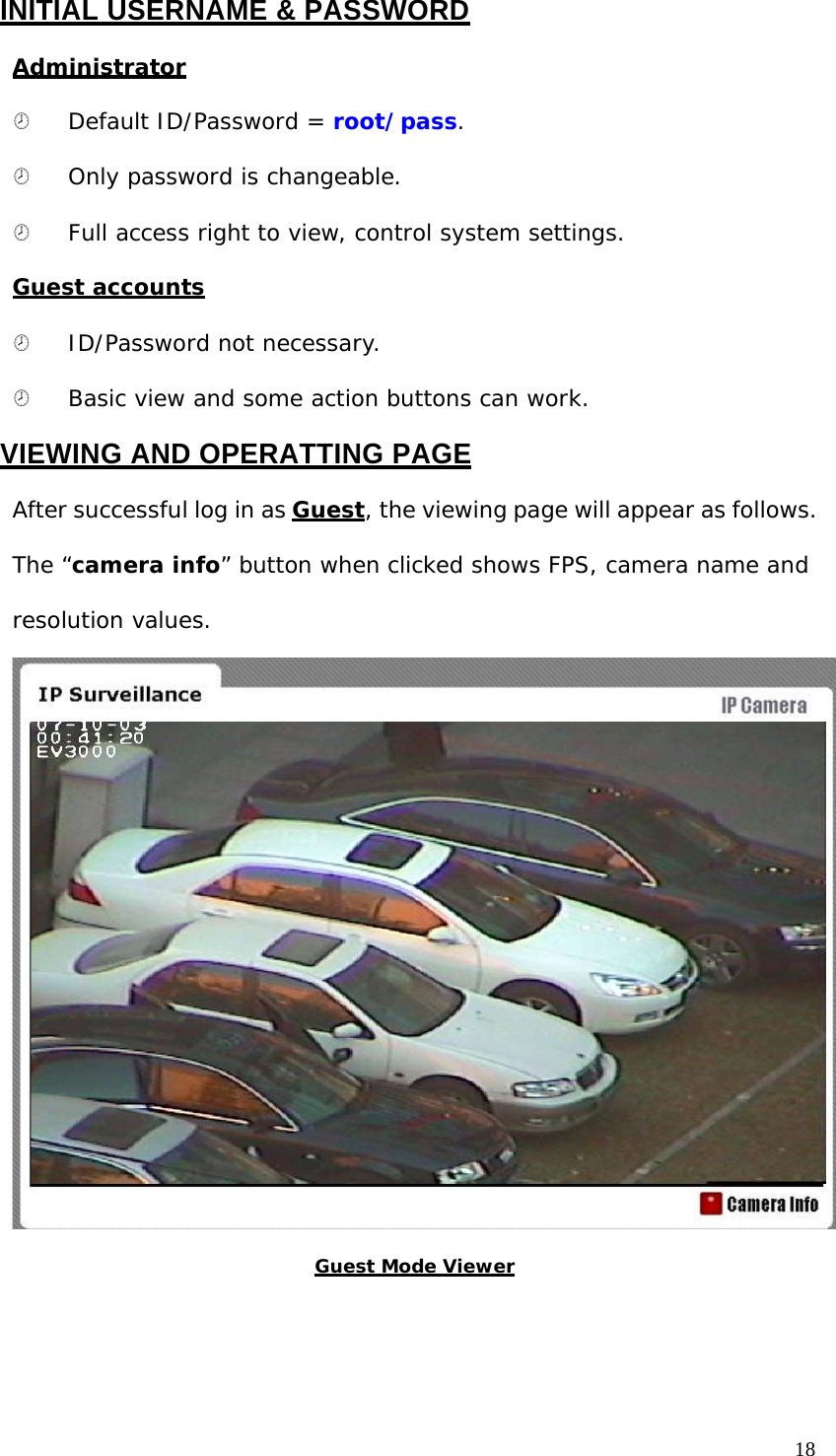
INITIAL USERNAME & PASSWORD  Administrator   ¤   Default ID/Password = root/pass.  ¤   Only password is changeable.  ¤   Full access right to view, control system settings.  Guest accounts   ¤   ID/Password not necessary.  ¤   Basic view and some action buttons can work.  VIEWING AND OPERATTING PAGE  After successful log in as Guest, the viewing page will appear as follows. The “camera info” button when clicked shows FPS, camera name and resolution values.                               Guest Mode Viewer 18
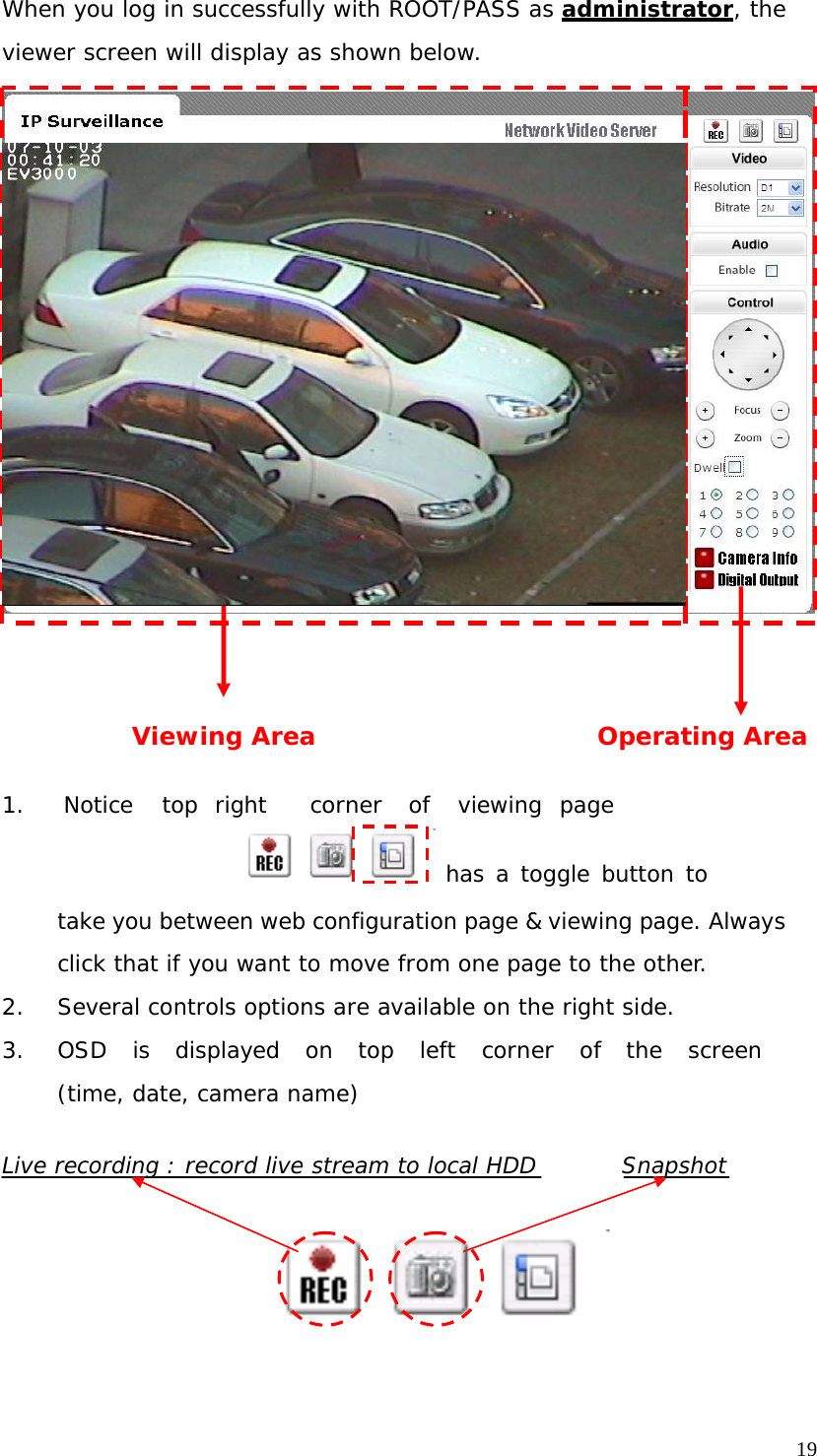
When you log in successfully with ROOT/PASS as administrator, the  viewer screen will display as shown below.                                 Viewing Area  Operating Area   1. Notice top  right corner of viewing  page   has a toggle button to  take you between web configuration page & viewing page. Always click that if you want to move from one page to the other. 2. Several controls options are available on the right side.  3.  OSD  is  displayed  on  top  left  corner  of  the  screen  (time, date, camera name)  Live recording : record live stream to local HDD Snapshot 19
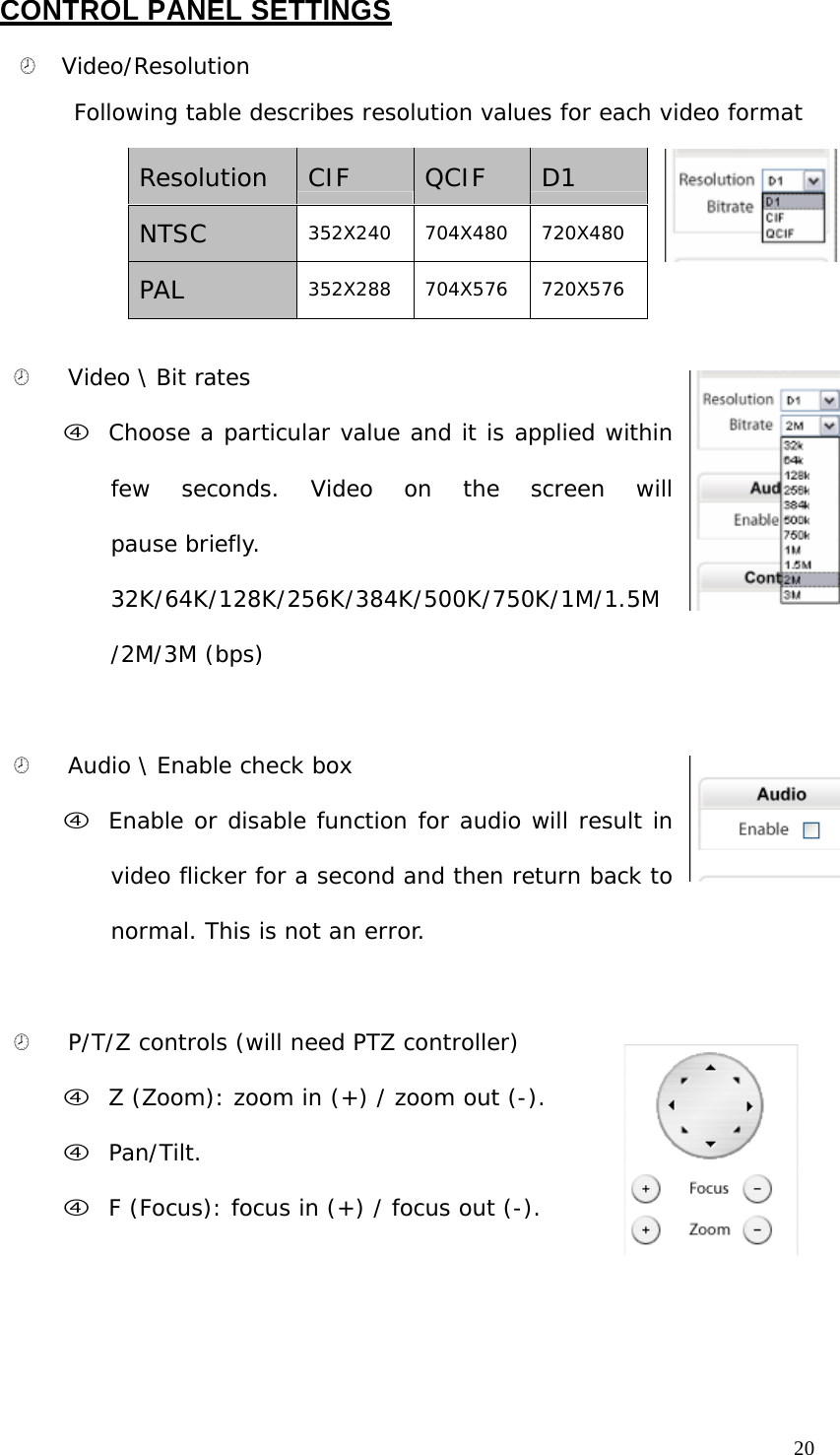
CONTROL PANEL SETTINGS  ¤ Video/Resolution  Following table describes resolution values for each video format   Resolution  CIF  QCIF  D1  NTSC  352X240  704X480  720X480  PAL  352X288  704X576  720X576   ¤   Video \ Bit rates  f Choose a particular value and it is applied within few  seconds.  Video  on  the  screen  will  pause briefly. 32K/64K/128K/256K/384K/500K/750K/1M/1.5M  /2M/3M (bps)     ¤   Audio \ Enable check box  f Enable or disable function for audio will result in video flicker for a second and then return back to normal. This is not an error.    ¤   P/T/Z controls (will need PTZ controller)  f Z (Zoom): zoom in (+) / zoom out (-).  f Pan/Tilt.  f F (Focus): focus in (+) / focus out (-). 20
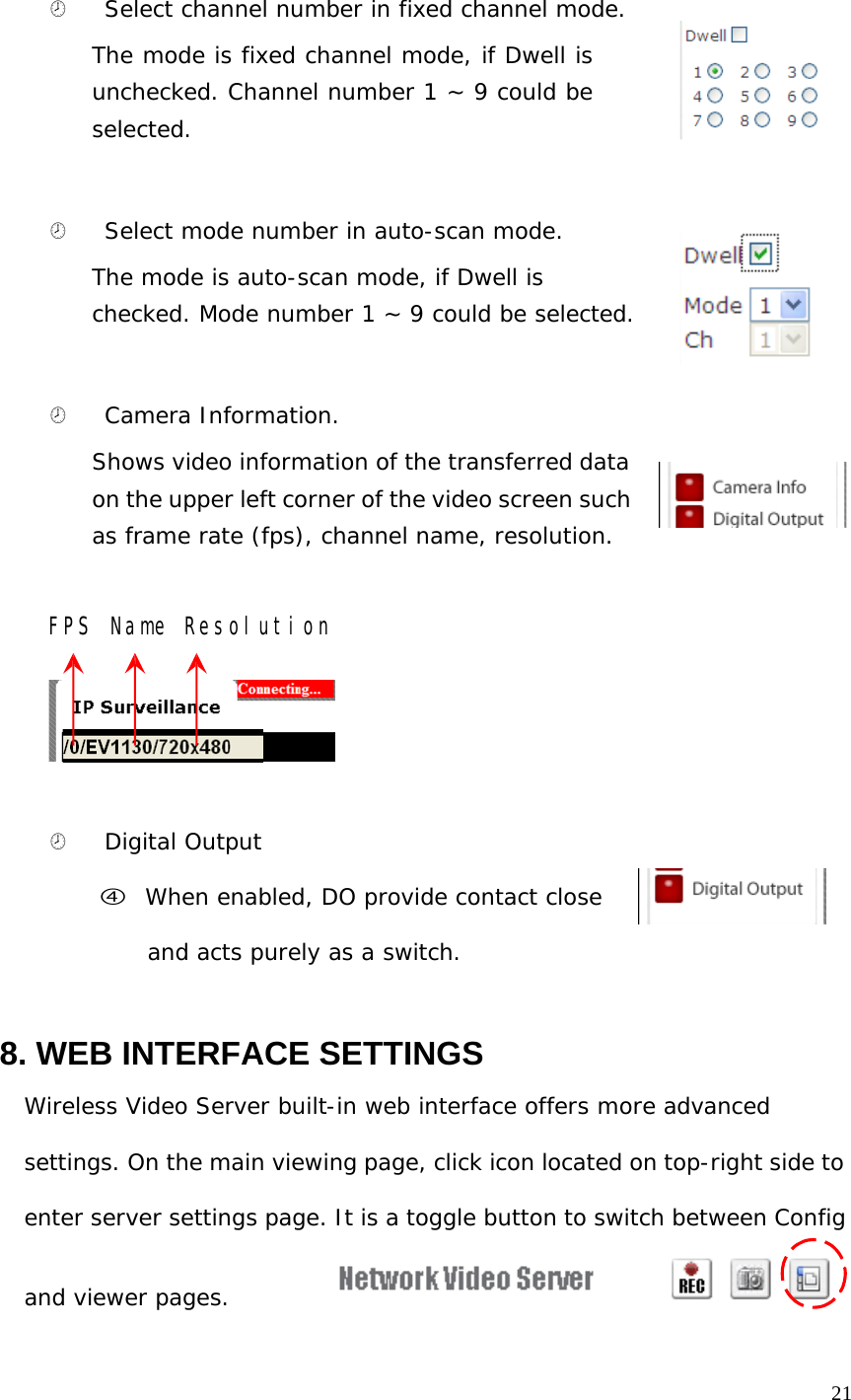
   ¤   Select channel number in fixed channel mode.  The mode is fixed channel mode, if Dwell is unchecked. Channel number 1 ~ 9 could be selected.    ¤   Select mode number in auto-scan mode.  The mode is auto-scan mode, if Dwell is checked. Mode number 1 ~ 9 could be selected.     ¤   Camera Information.  Shows video information of the transferred data on the upper left corner of the video screen such    as frame rate (fps), channel name, resolution.    FPS Name Resolution           ¤   Digital Output  f When enabled, DO provide contact close    and acts purely as a switch.    8. WEB INTERFACE SETTINGS  Wireless Video Server built-in web interface offers more advanced  settings. On the main viewing page, click icon located on top-right side to enter server settings page. It is a toggle button to switch between Config  and viewer pages. 21
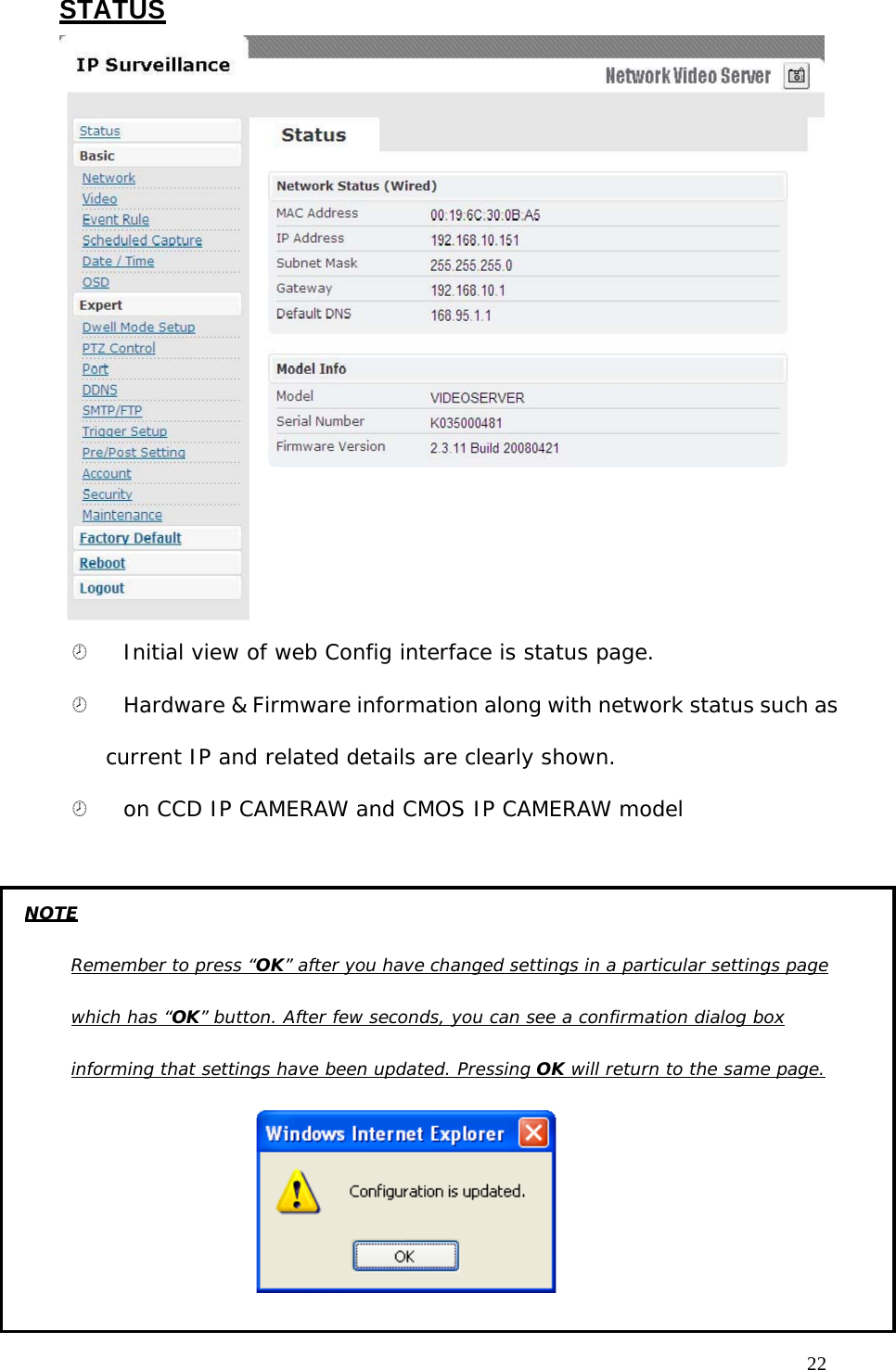
STATUS    ¤   Initial view of web Config interface is status page.  ¤   Hardware & Firmware information along with network status such as current IP and related details are clearly shown. ¤   on CCD IP CAMERAW and CMOS IP CAMERAW model    22   NOTE   Remember to press “OK” after you have changed settings in a particular settings page  which has “OK” button. After few seconds, you can see a confirmation dialog box  informing that settings have been updated. Pressing OK will return to the same page.
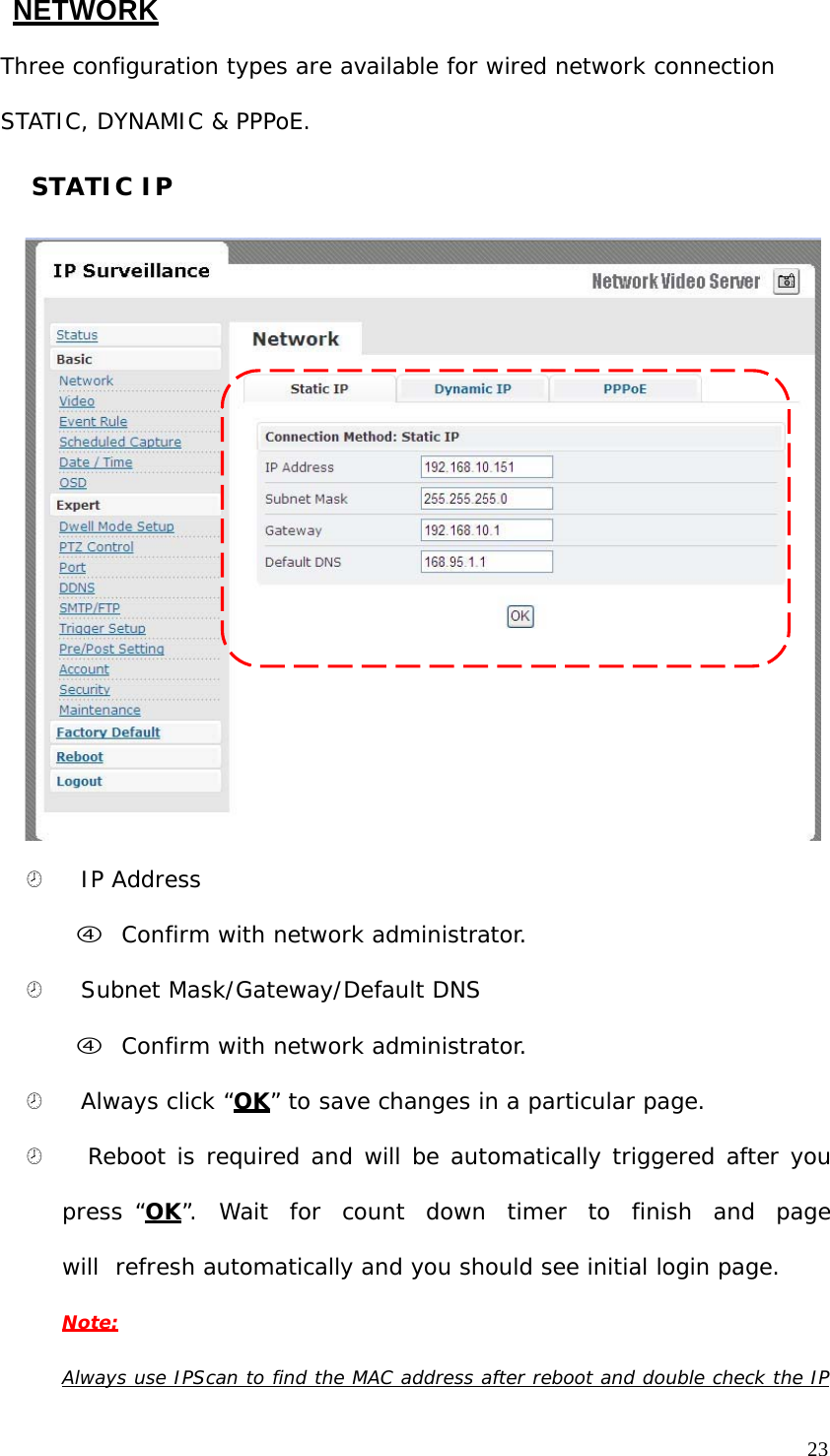
NETWORK  Three configuration types are available for wired network connection  STATIC, DYNAMIC & PPPoE.   STATIC IP                                  ¤   IP Address  f Confirm with network administrator.  ¤   Subnet Mask/Gateway/Default DNS  f Confirm with network administrator.  ¤   Always click “OK” to save changes in a particular page.  ¤   Reboot is required and will be automatically triggered after you press “OK”.  Wait  for  count  down  timer  to  finish  and  page  will  refresh automatically and you should see initial login page. Note:   Always use IPScan to find the MAC address after reboot and double check the IP23
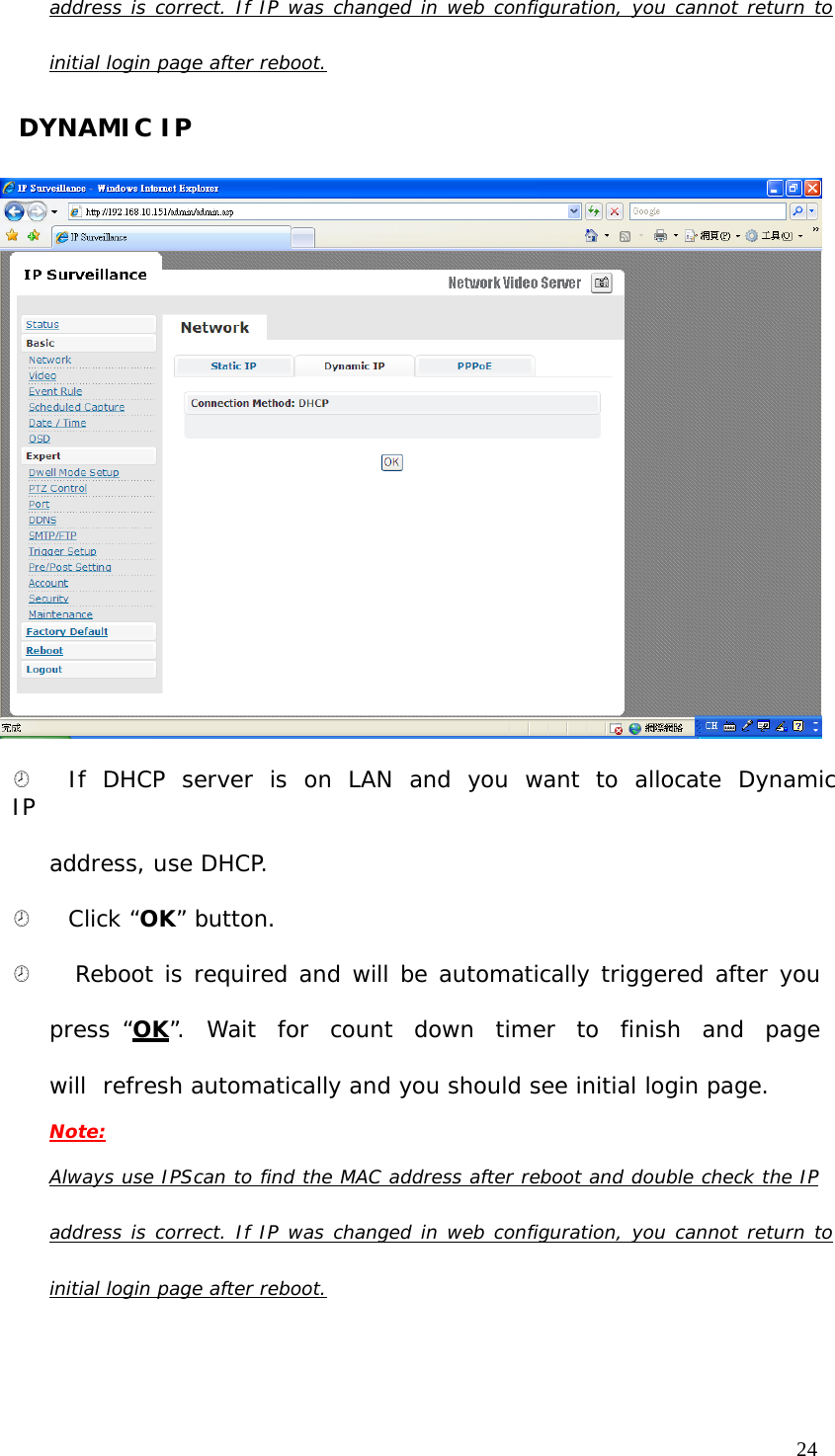
address  is  correct.  If  IP  was  changed  in  web  configuration,  you  cannot  return  to  initial login page after reboot.  DYNAMIC IP     ¤    If  DHCP  server  is  on  LAN  and  you  want  to  allocate  Dynamic  IP  address, use DHCP.  ¤   Click “OK” button.  ¤   Reboot is required and will be automatically triggered after you press “OK”.  Wait  for  count  down  timer  to  finish  and  page  will  refresh automatically and you should see initial login page. Note: Always use IPScan to find the MAC address after reboot and double check the IP  address  is  correct.  If  IP  was  changed  in  web  configuration,  you  cannot  return  to  initial login page after reboot.24
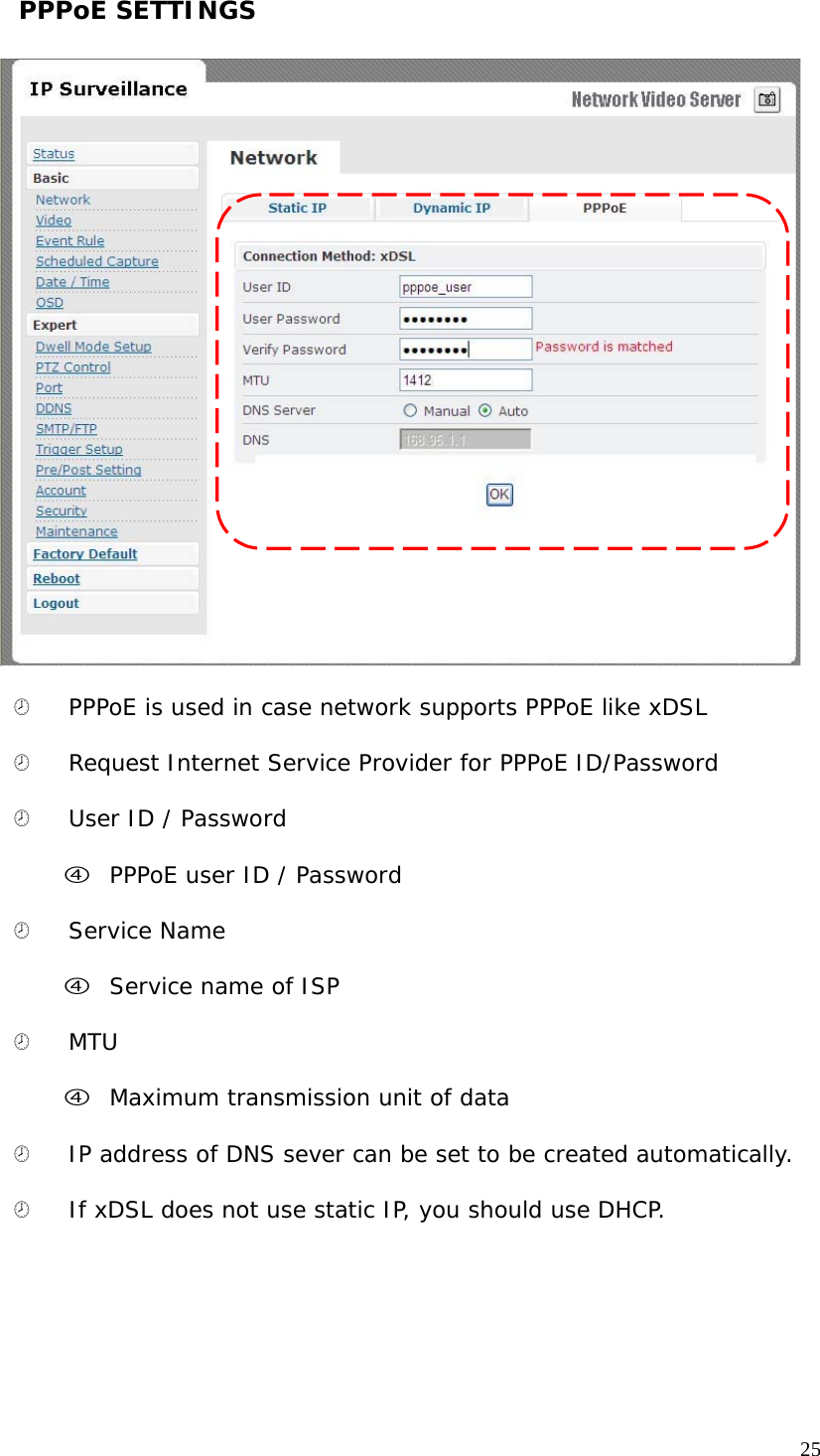
PPPoE SETTINGS                                  ¤   PPPoE is used in case network supports PPPoE like xDSL  ¤   Request Internet Service Provider for PPPoE ID/Password  ¤   User ID / Password  f PPPoE user ID / Password  ¤   Service Name  f Service name of ISP  ¤   MTU  f Maximum transmission unit of data  ¤   IP address of DNS sever can be set to be created automatically.  ¤    If xDSL does not use static IP, you should use DHCP. 25
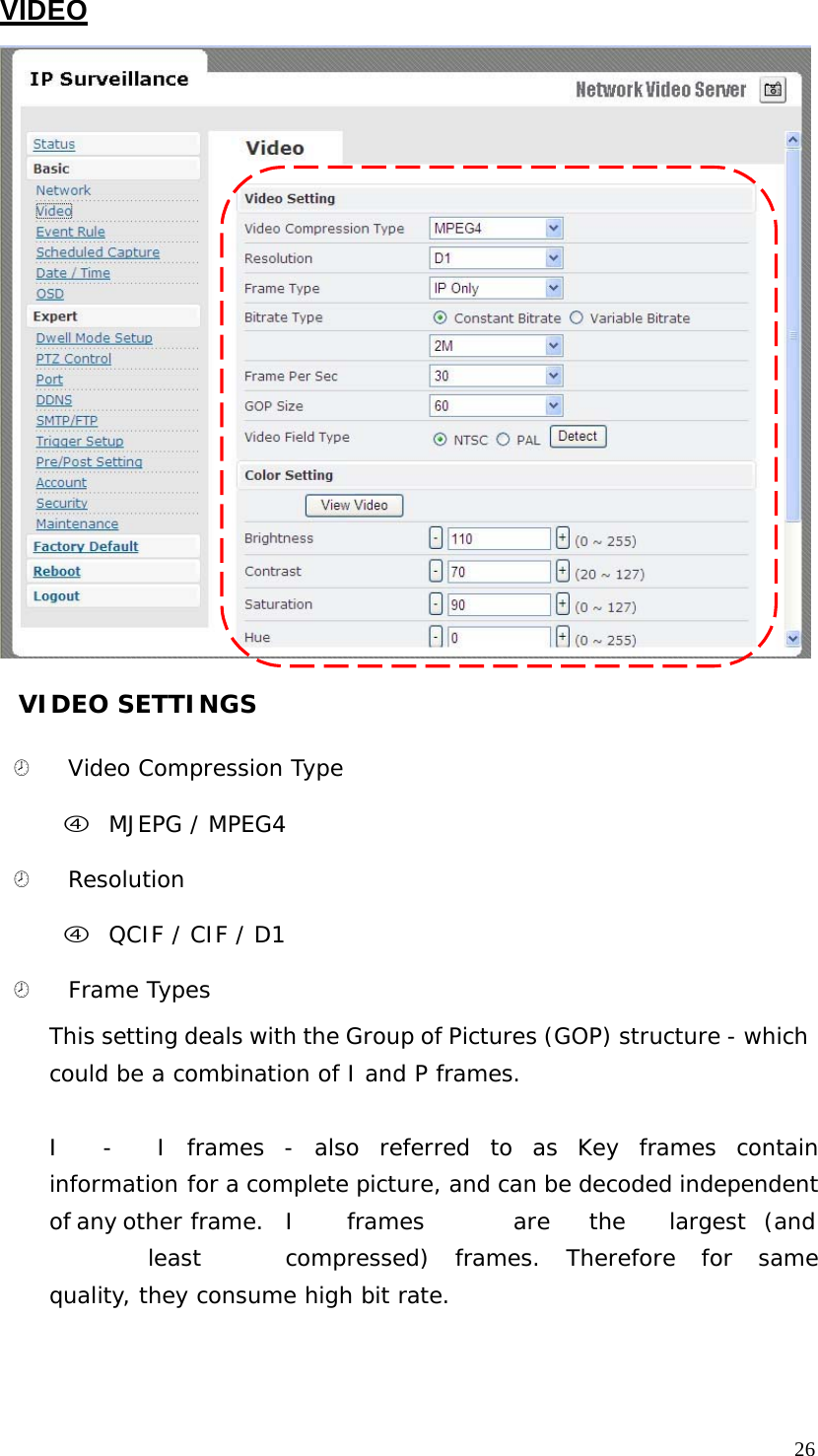
VIDEO                                 VIDEO SETTINGS   ¤   Video Compression Type  f MJEPG / MPEG4  ¤   Resolution  f QCIF / CIF / D1  ¤    Frame Types  This setting deals with the Group of Pictures (GOP) structure - which could be a combination of I and P frames.  I  -   I frames - also referred to as Key frames contain information for a complete picture, and can be decoded independent of any other frame. I  frames are the largest (and least compressed) frames. Therefore for same quality, they consume high bit rate. 26
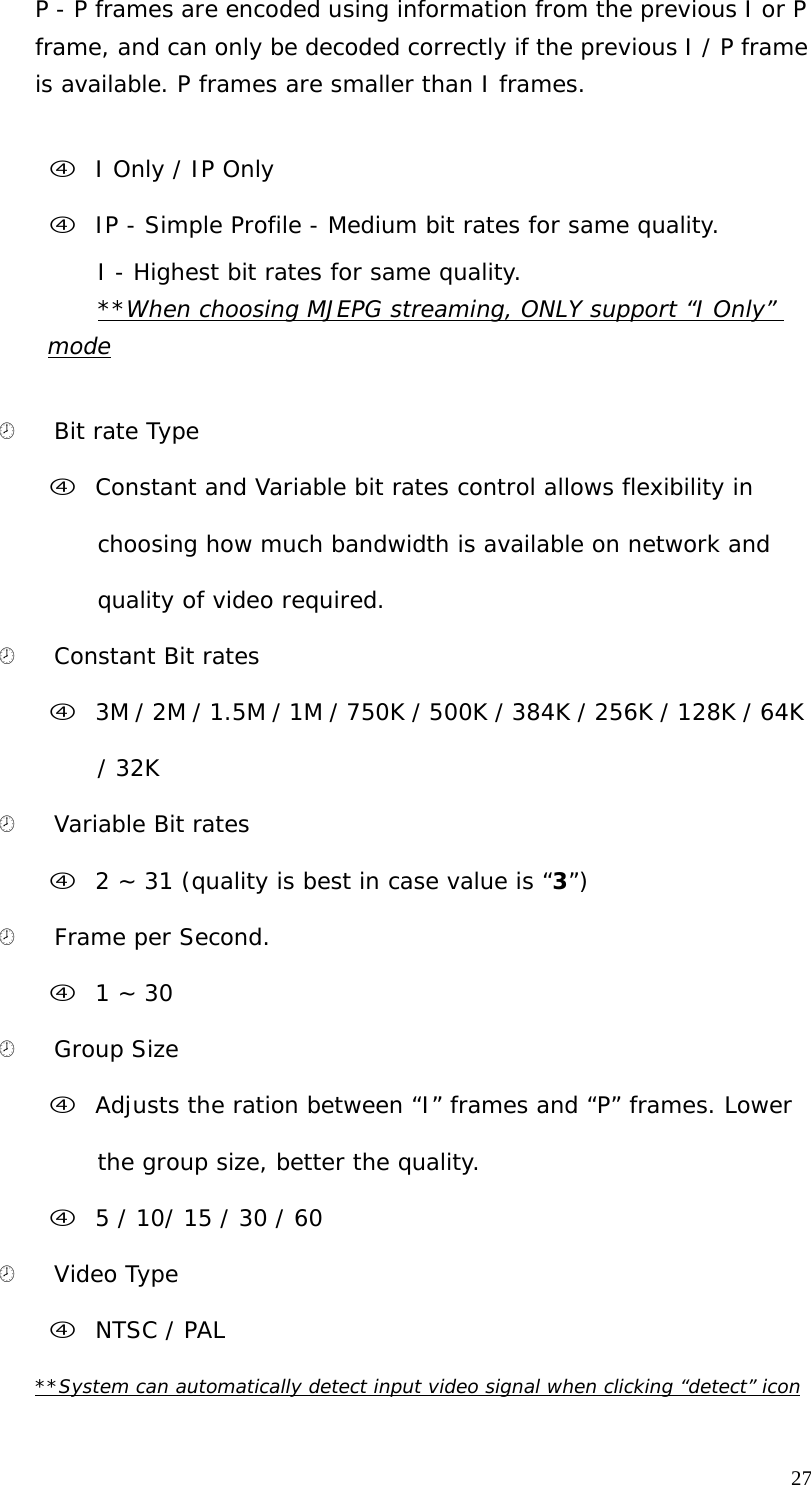
27  P - P frames are encoded using information from the previous I or P frame, and can only be decoded correctly if the previous I / P frame is available. P frames are smaller than I frames.    f I Only / IP Only  f IP - Simple Profile - Medium bit rates for same quality.  I - Highest bit rates for same quality. **When choosing MJEPG streaming, ONLY support “I Only” mode   ¤   Bit rate Type  f Constant and Variable bit rates control allows flexibility in choosing how much bandwidth is available on network and quality of video required. ¤   Constant Bit rates  f 3M / 2M / 1.5M / 1M / 750K / 500K / 384K / 256K / 128K / 64K  / 32K  ¤   Variable Bit rates  f 2 ~ 31 (quality is best in case value is “3”)  ¤    Frame per Second.  f 1 ~ 30  ¤   Group Size  f Adjusts the ration between “I” frames and “P” frames. Lower the group size, better the quality. f 5 / 10/ 15 / 30 / 60  ¤   Video Type  f NTSC / PAL  **System can automatically detect input video signal when clicking “detect” icon
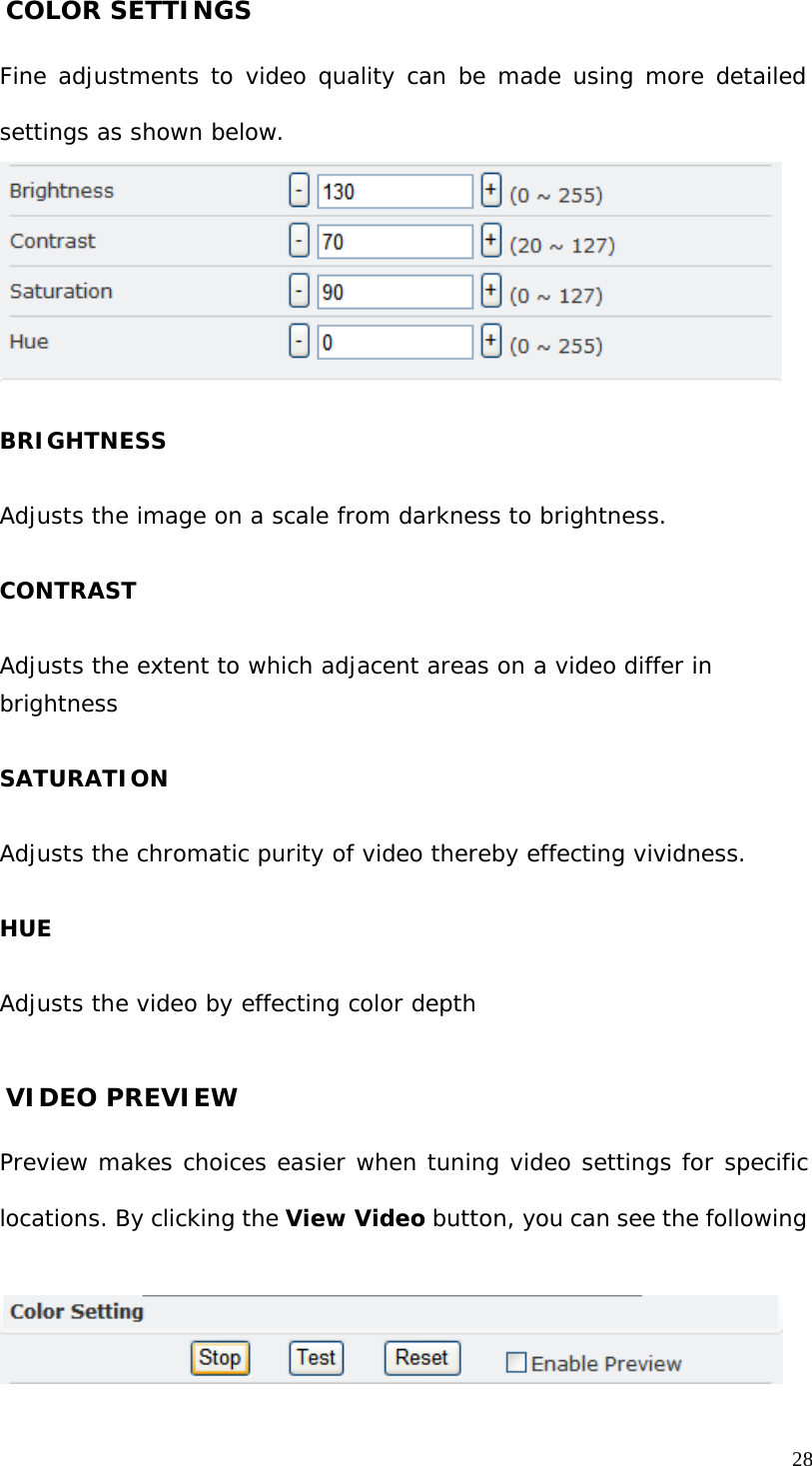
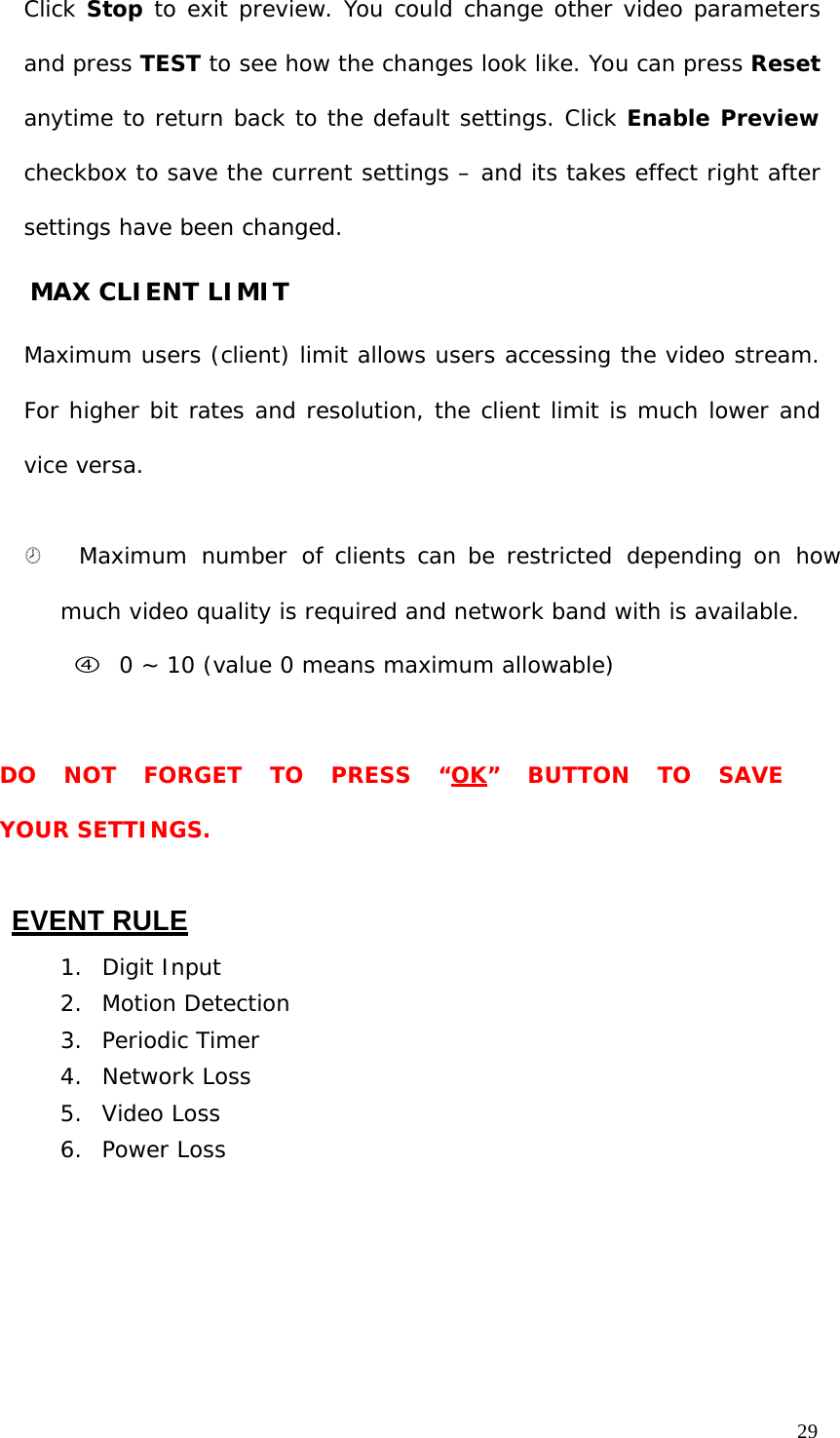
COLOR SETTINGS   Fine adjustments to video quality can be made using more detailed settings as shown below.             BRIGHTNESS   Adjusts the image on a scale from darkness to brightness.   CONTRAST   Adjusts the extent to which adjacent areas on a video differ in brightness   SATURATION   Adjusts the chromatic purity of video thereby effecting vividness.   HUE   Adjusts the video by effecting color depth    VIDEO PREVIEW Preview makes choices easier when tuning video settings for specific locations. By clicking the View Video button, you can see the following     28
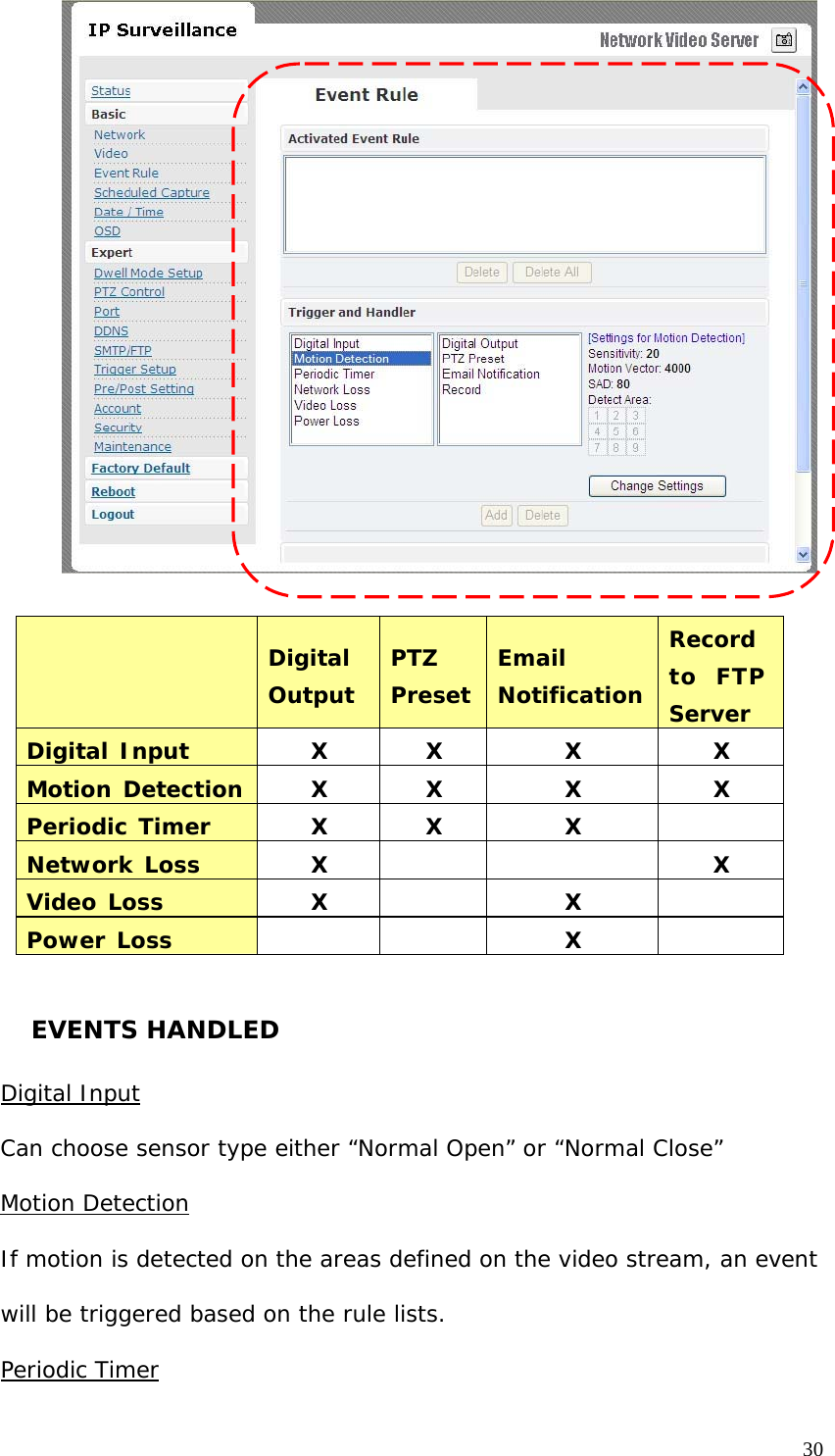
29  Click Stop to exit preview. You could change other video parameters and press TEST to see how the changes look like. You can press Reset anytime to return back to the default settings. Click Enable Preview checkbox to save the current settings – and its takes effect right after settings have been changed. MAX CLIENT LIMIT   Maximum users (client) limit allows users accessing the video stream. For higher bit rates and resolution, the client limit is much lower and vice versa.   ¤   Maximum  number  of clients can be restricted  depending on  how much video quality is required and network band with is available. f 0 ~ 10 (value 0 means maximum allowable)     DO   NOT   FORGET   TO   PRESS   “OK”   BUTTON   TO   SAVE   YOUR SETTINGS.   EVENT RULE  1.  Digit Input 2.  Motion Detection 3.  Periodic Timer 4.  Network Loss 5.  Video Loss 6.  Power Loss
                                Digital Output  PTZ Preset Email NotificationRecord to  FTP Server Digital Input X X X X Motion Detection X X X X Periodic Timer X X X  Network Loss X   X Video Loss X  X  Power Loss   X     EVENTS HANDLED   Digital Input  Can choose sensor type either “Normal Open” or “Normal Close”  Motion Detection  If motion is detected on the areas defined on the video stream, an event will be triggered based on the rule lists. Periodic Timer30
31  In a pre-defined time interval, an event will be triggered based on the rule lists. Network Loss  When system detect network loss, an event will be triggered  Video Loss  When system detect video loss, an event will be triggered  Power Loss  When system detect power loss, an event will be triggered   ACTIONS TRIGGERED   Digital Output  Can active digital output.  PTZ Preset  PTZ set to a particular preset value can be triggered based on occurrence of an event listed out in “Rule Lists”. E-mail Notification  E-mail can be sent based on occurrence of an event listed out in “Rule    Lists”.  Record to FTP server  When event triggered, system will record streaming to FTP server.   RULE LISTS - ADDING/DELETING   Select an event and select corresponding action. Click add button and notice that is added in the Rule lists Information box. MODIFYING RULE LISTS   Rule list items can be deleted individually or wholly by clicking Delete All  button.
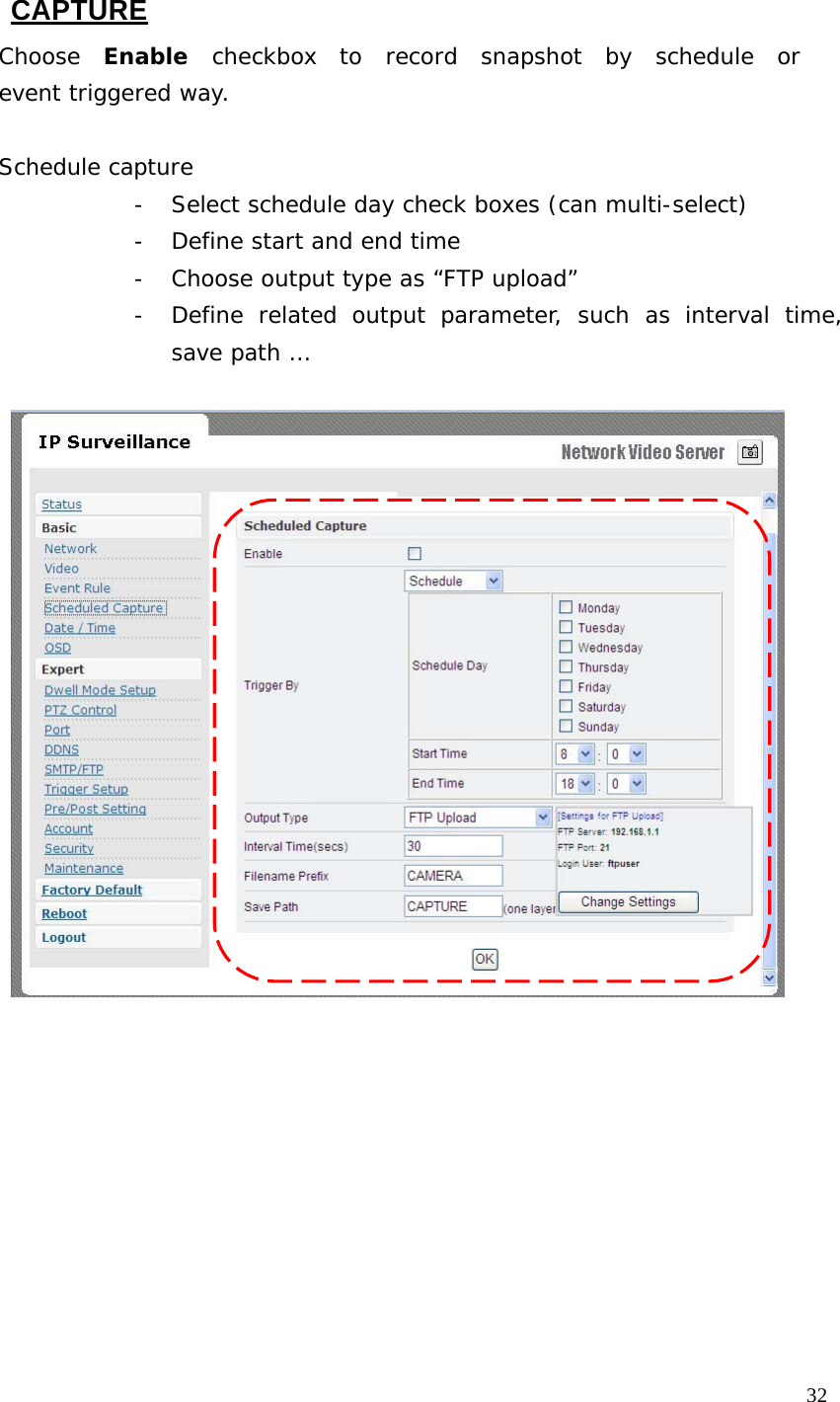
   CAPTURE  Choose  Enable  checkbox  to  record  snapshot  by  schedule  or  event triggered way.   Schedule capture - Select schedule day check boxes (can multi-select) - Define start and end time - Choose output type as “FTP upload” - Define  related  output  parameter,  such  as  interval  time, save path … 32
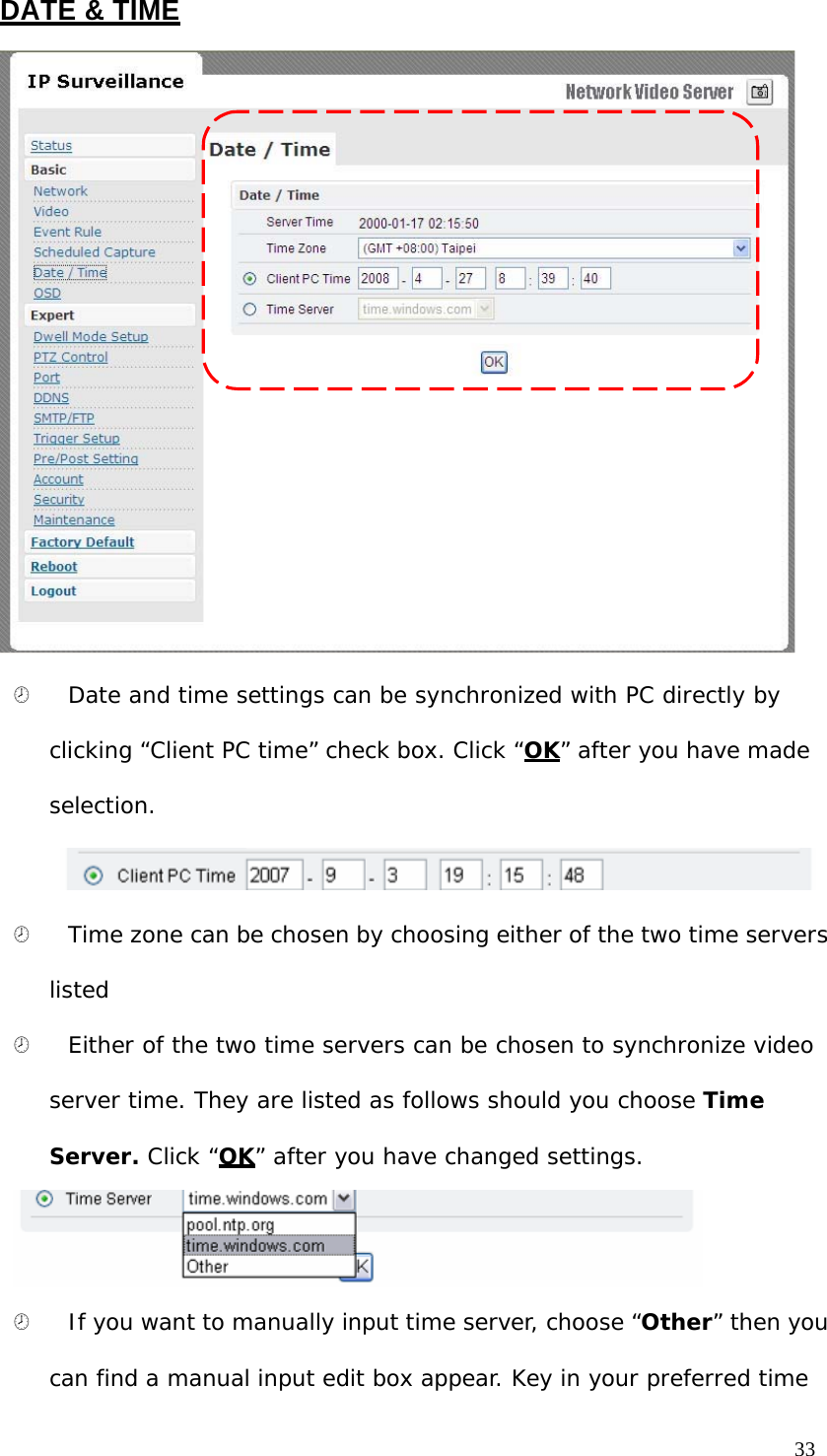
DATE & TIME                                 ¤   Date and time settings can be synchronized with PC directly by  clicking “Client PC time” check box. Click “OK” after you have made selection.   ¤   Time zone can be chosen by choosing either of the two time servers listed ¤   Either of the two time servers can be chosen to synchronize video server time. They are listed as follows should you choose Time Server. Click “OK” after you have changed settings.     ¤    If you want to manually input time server, choose “Other” then you can find a manual input edit box appear. Key in your preferred time 33
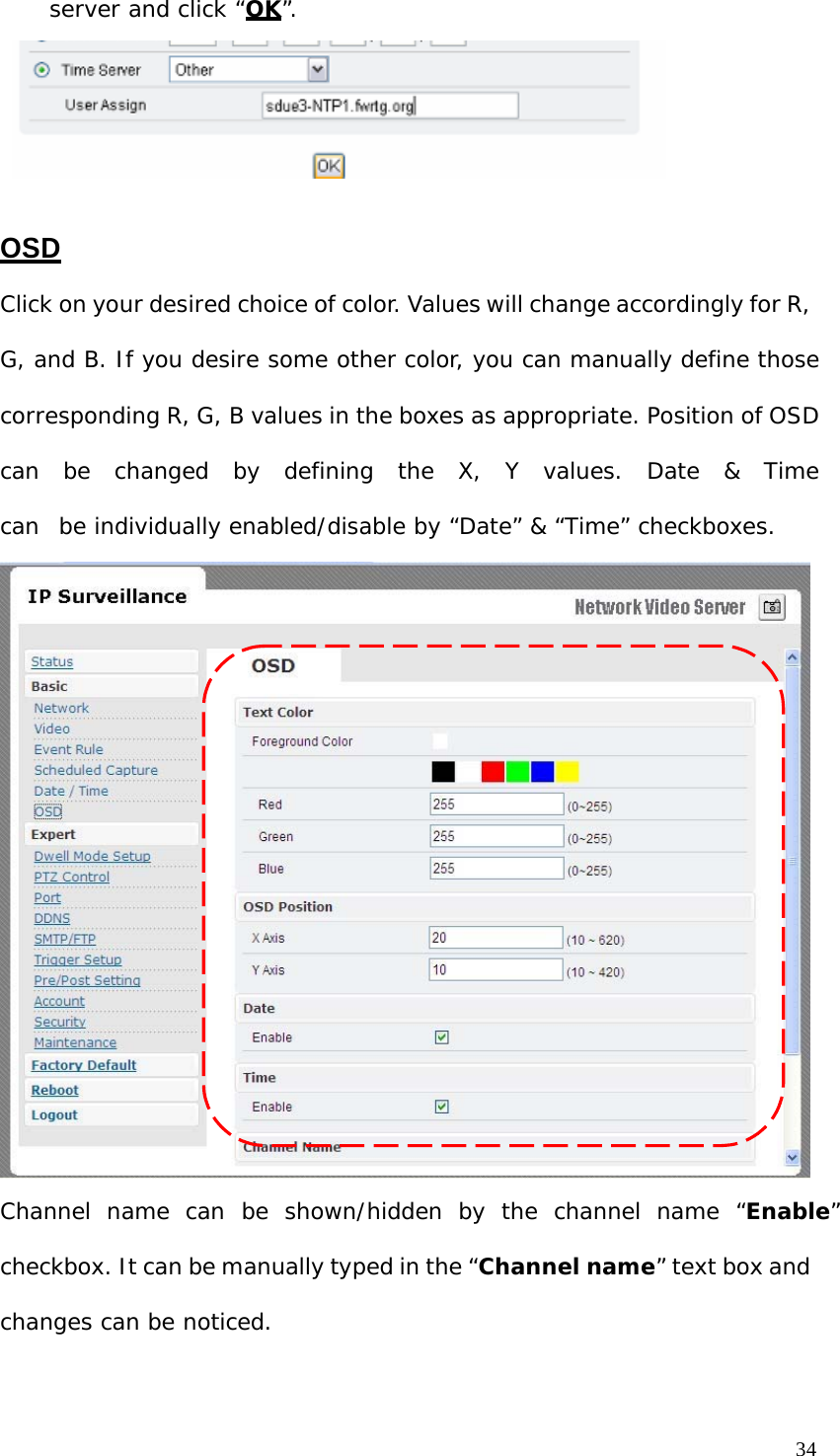
server and click “OK”.      OSD  Click on your desired choice of color. Values will change accordingly for R, G, and B. If you desire some other color, you can manually define those corresponding R, G, B values in the boxes as appropriate. Position of OSD can  be  changed  by  defining  the  X,  Y  values.  Date  &  Time  can  be individually enabled/disable by “Date” & “Time” checkboxes.                                 Channel  name  can  be  shown/hidden  by  the  channel  name  “Enable” checkbox. It can be manually typed in the “Channel name” text box and changes can be noticed. 34
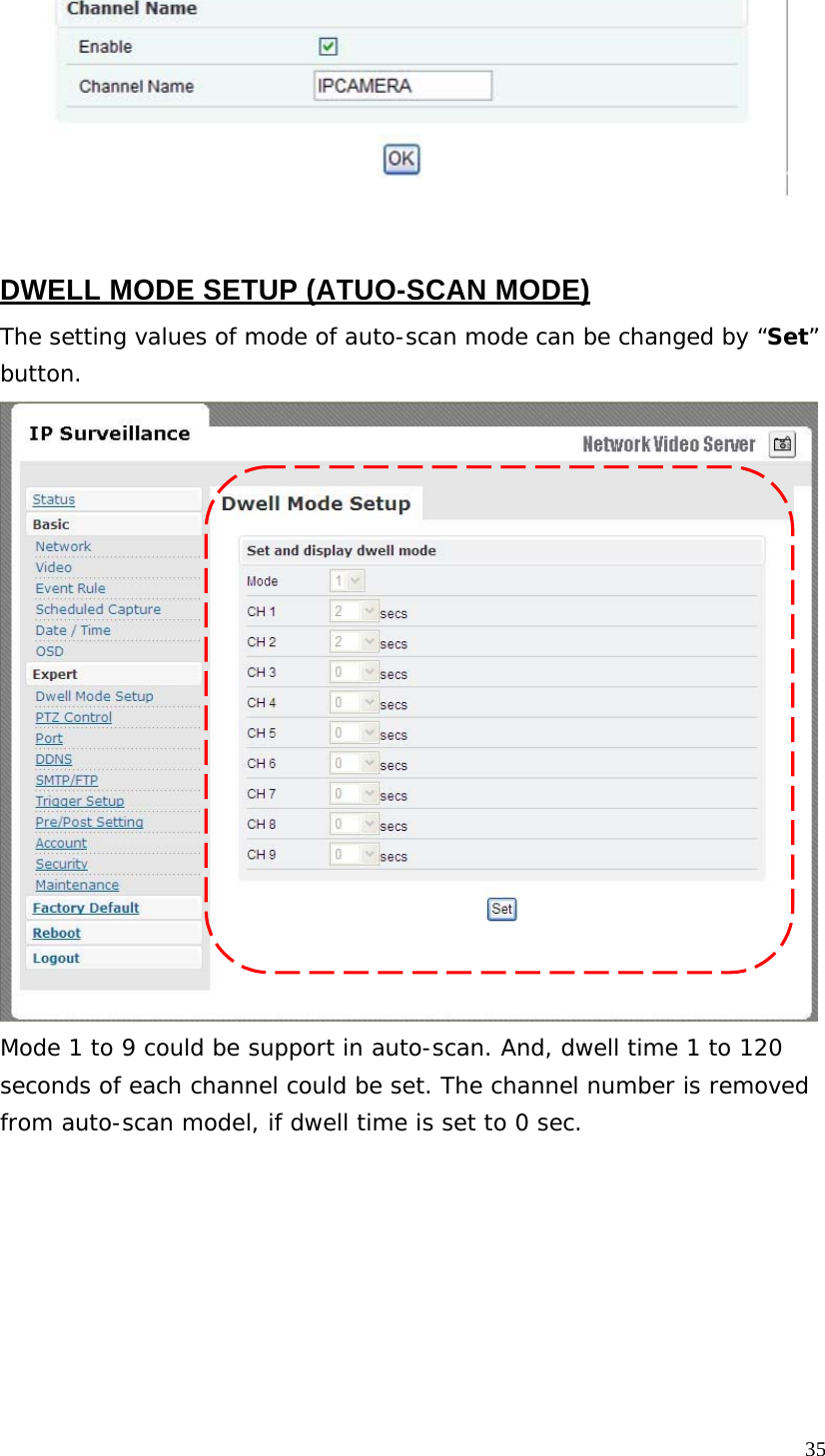
    DWELL MODE SETUP (ATUO-SCAN MODE)  The setting values of mode of auto-scan mode can be changed by “Set” button.                                Mode 1 to 9 could be support in auto-scan. And, dwell time 1 to 120 seconds of each channel could be set. The channel number is removed from auto-scan model, if dwell time is set to 0 sec. 35
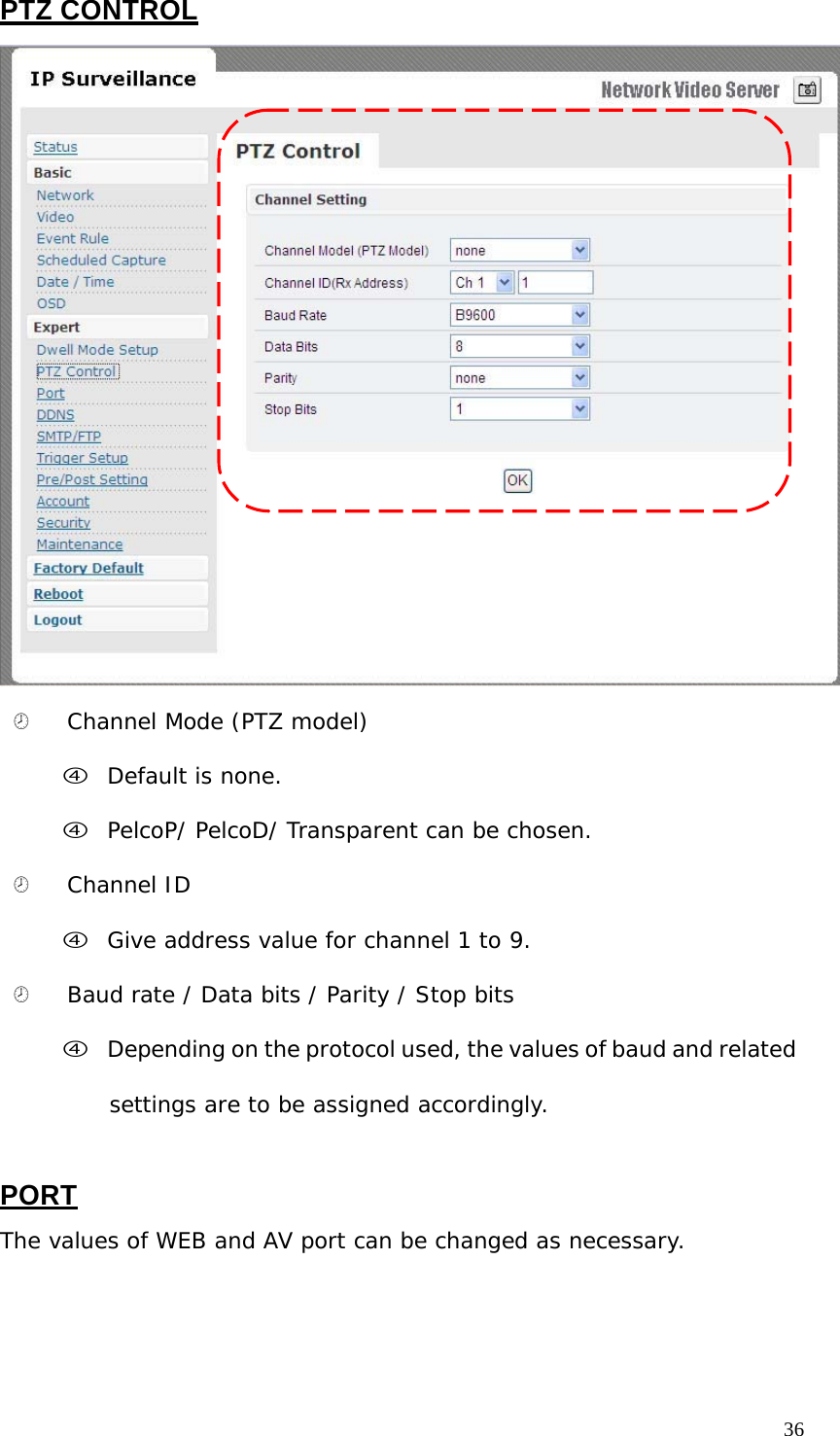
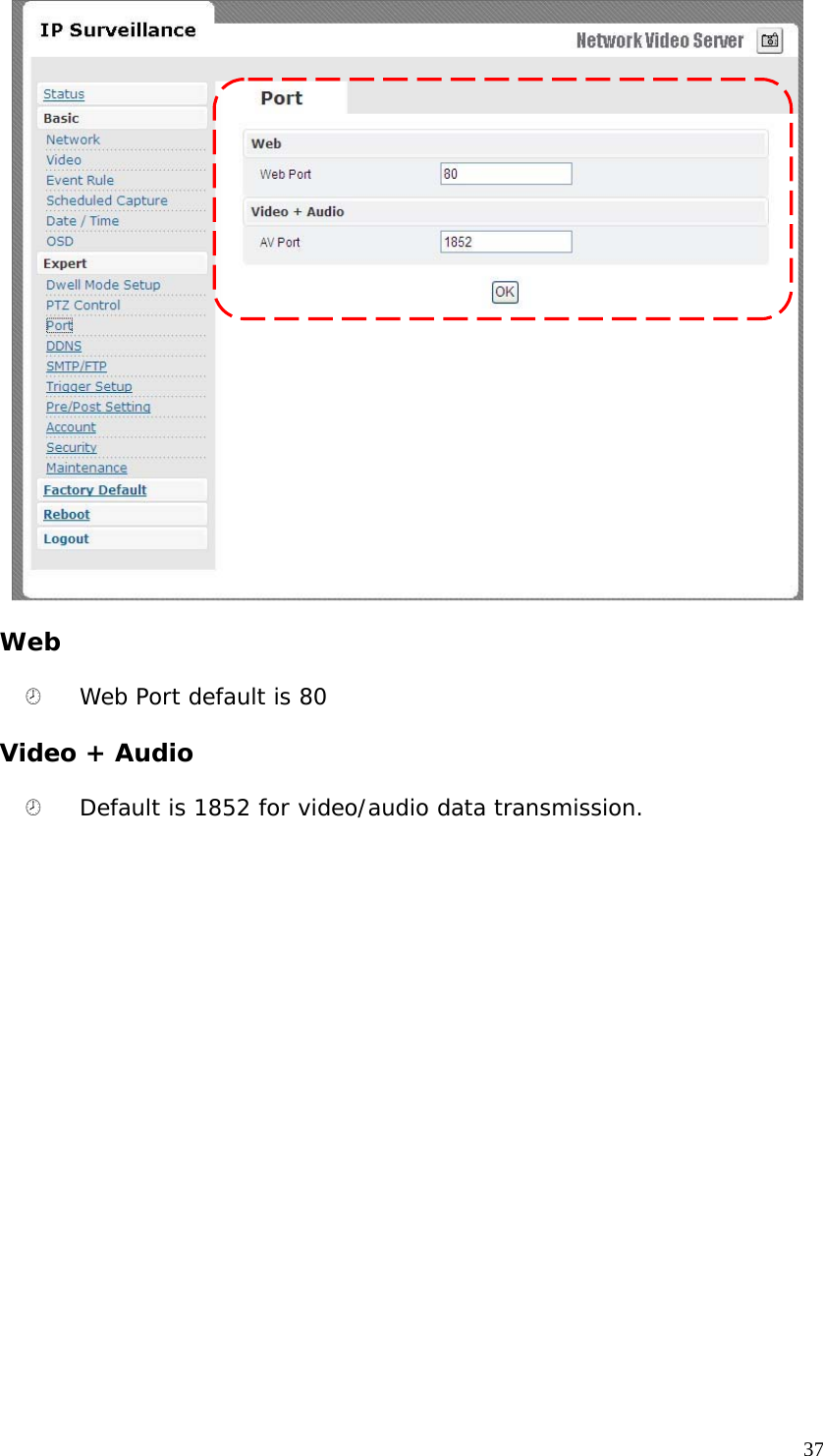
PTZ CONTROL                                   ¤   Channel Mode (PTZ model)  f Default is none.  f PelcoP/ PelcoD/ Transparent can be chosen.  ¤   Channel ID  f Give address value for channel 1 to 9.  ¤   Baud rate / Data bits / Parity / Stop bits  f Depending on the protocol used, the values of baud and related settings are to be assigned accordingly.   PORT  The values of WEB and AV port can be changed as necessary. 36
                               Web  ¤   Web Port default is 80  Video + Audio  ¤   Default is 1852 for video/audio data transmission. 37
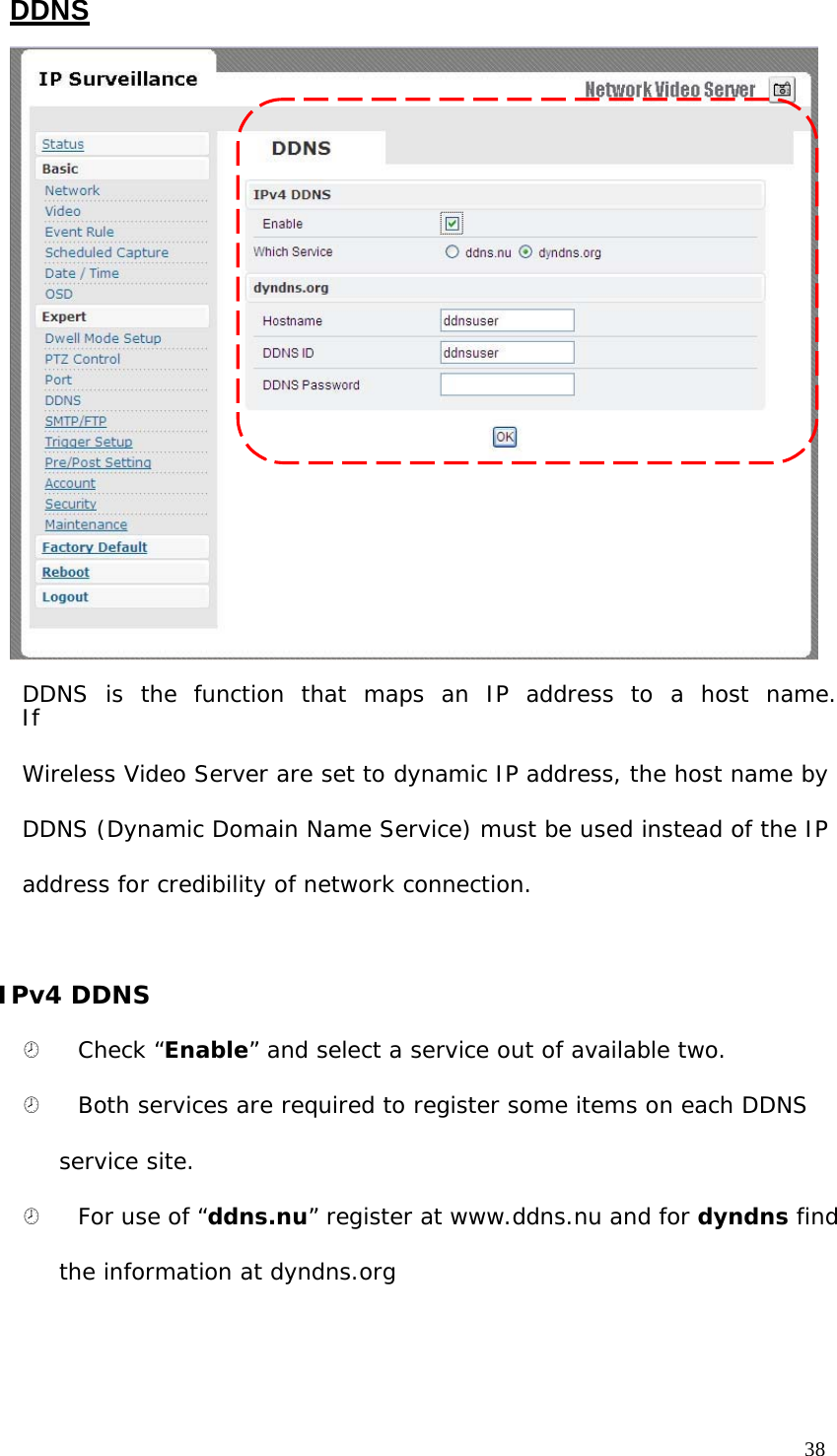
DDNS                                 DDNS  is  the  function  that  maps  an  IP  address  to  a  host  name.  If  Wireless Video Server are set to dynamic IP address, the host name by DDNS (Dynamic Domain Name Service) must be used instead of the IP address for credibility of network connection.    IPv4 DDNS  ¤   Check “Enable” and select a service out of available two.  ¤   Both services are required to register some items on each DDNS  service site. ¤   For use of “ddns.nu” register at www.ddns.nu and for dyndns find the information at dyndns.org 38
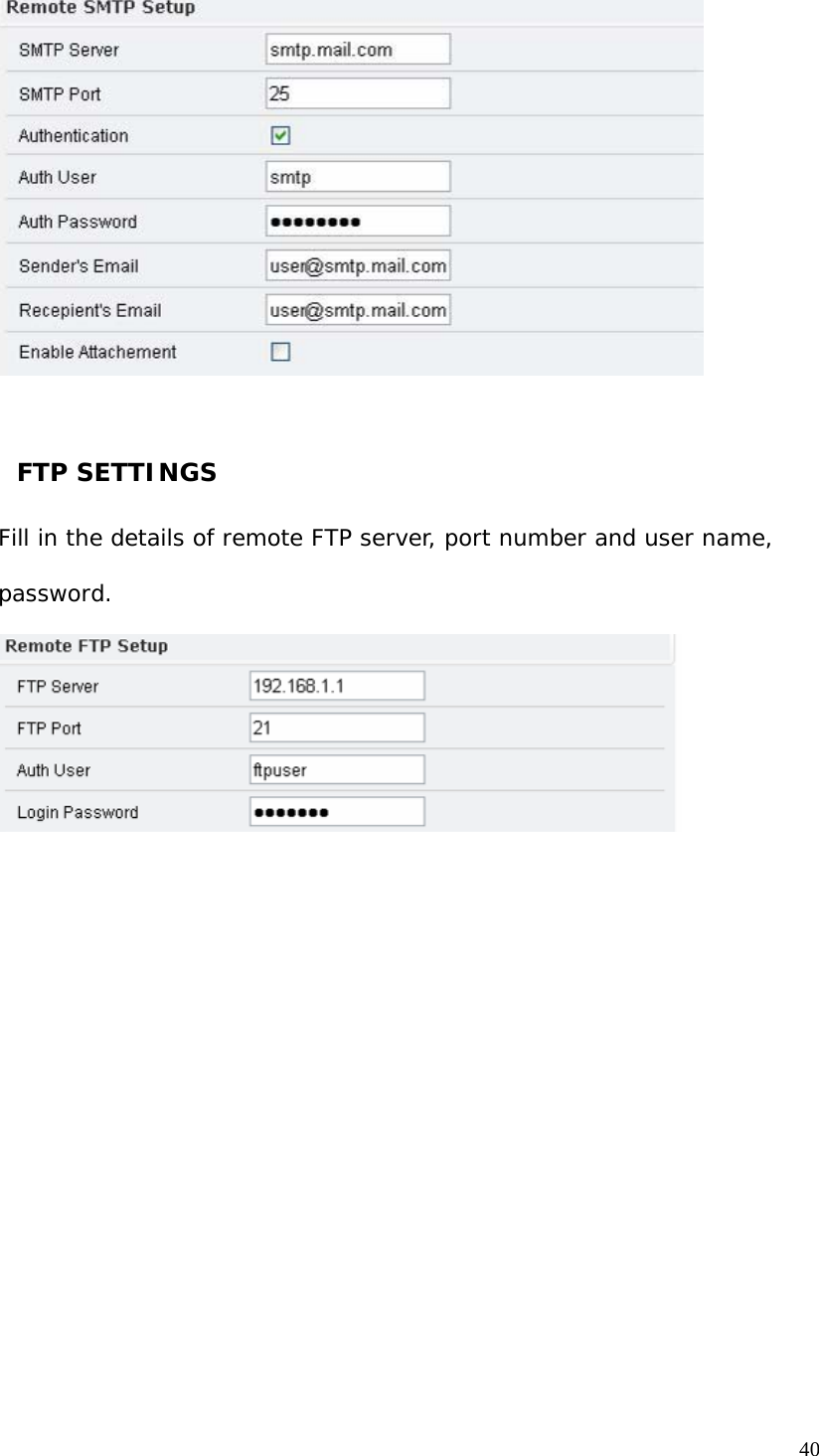
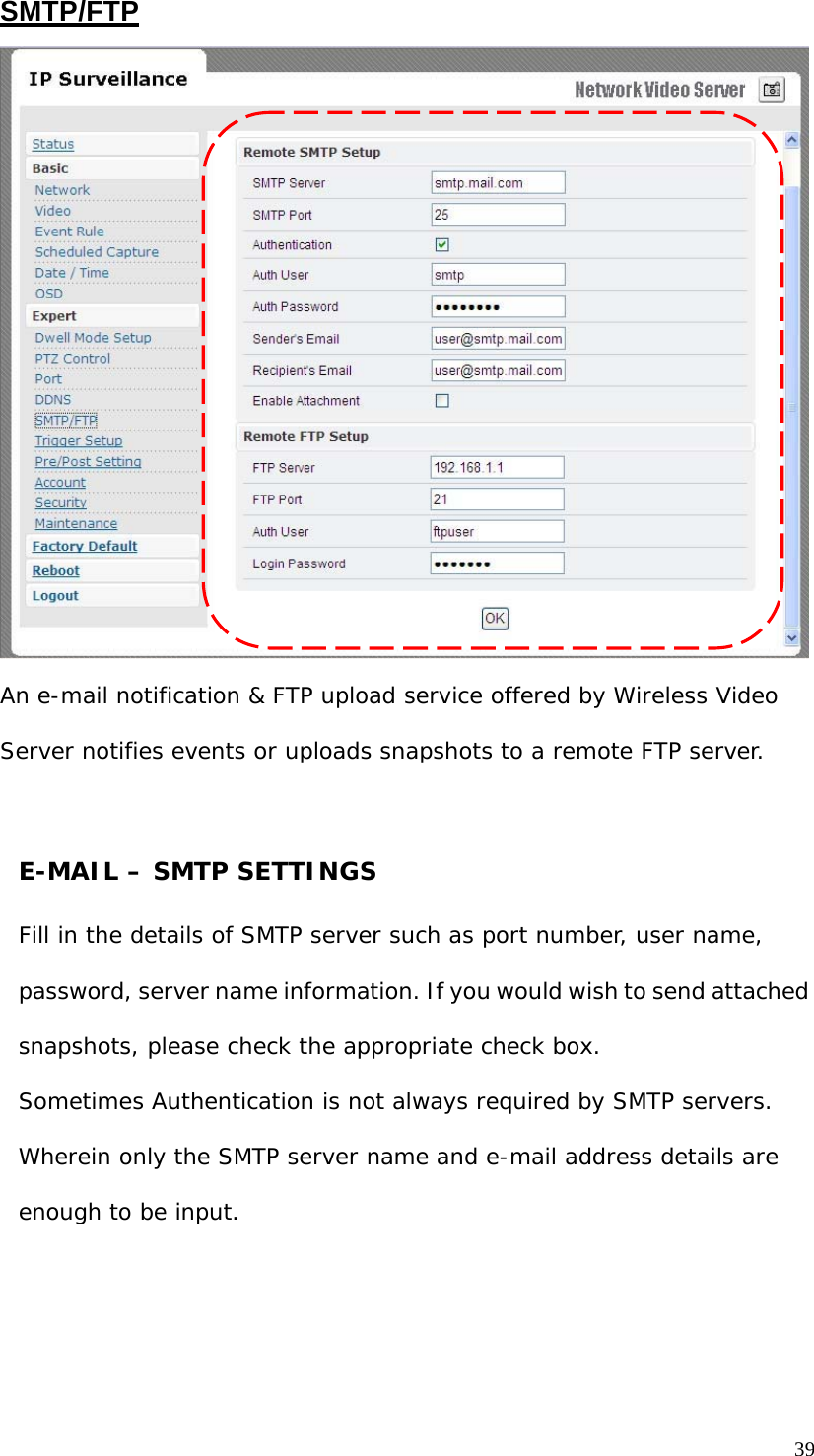
SMTP/FTP                                 An e-mail notification & FTP upload service offered by Wireless Video  Server notifies events or uploads snapshots to a remote FTP server.     E-MAIL – SMTP SETTINGS   Fill in the details of SMTP server such as port number, user name, password, server name information. If you would wish to send attached snapshots, please check the appropriate check box. Sometimes Authentication is not always required by SMTP servers. Wherein only the SMTP server name and e-mail address details are enough to be input. 39
     FTP SETTINGS   Fill in the details of remote FTP server, port number and user name, password. 40
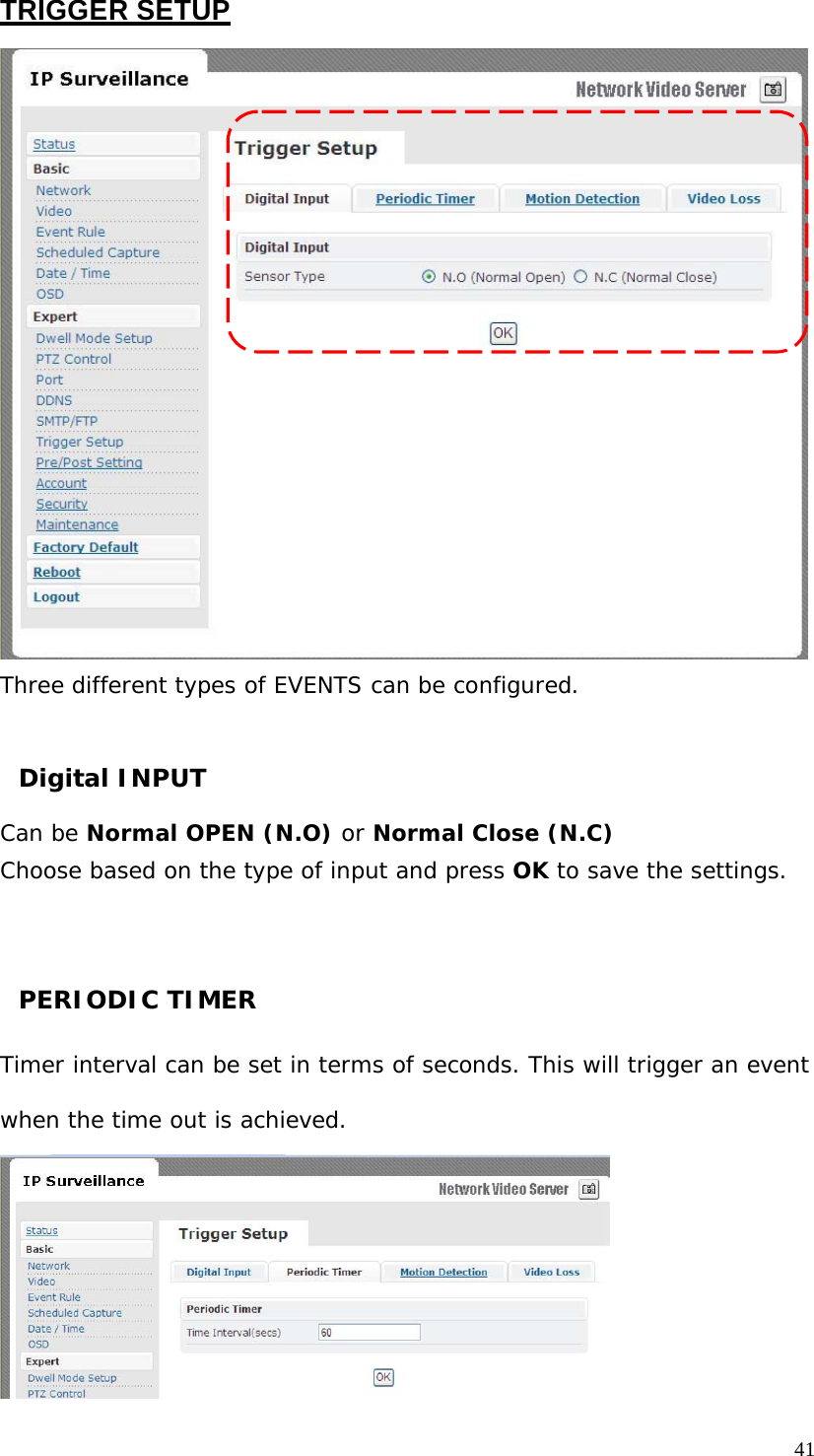
TRIGGER SETUP                                 Three different types of EVENTS can be configured.    Digital INPUT  Can be Normal OPEN (N.O) or Normal Close (N.C) Choose based on the type of input and press OK to save the settings.      PERIODIC TIMER   Timer interval can be set in terms of seconds. This will trigger an event when the time out is achieved. 41
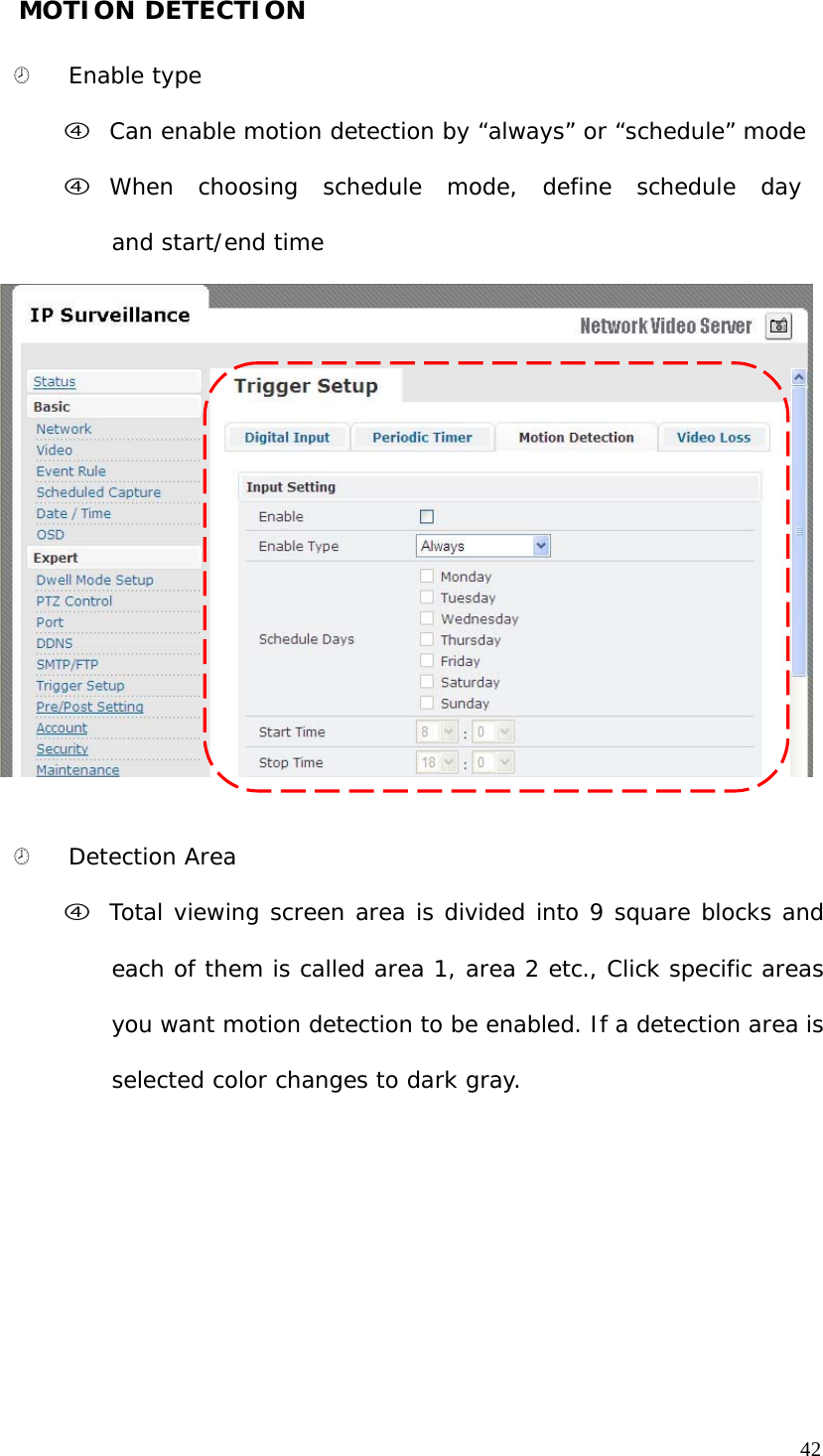
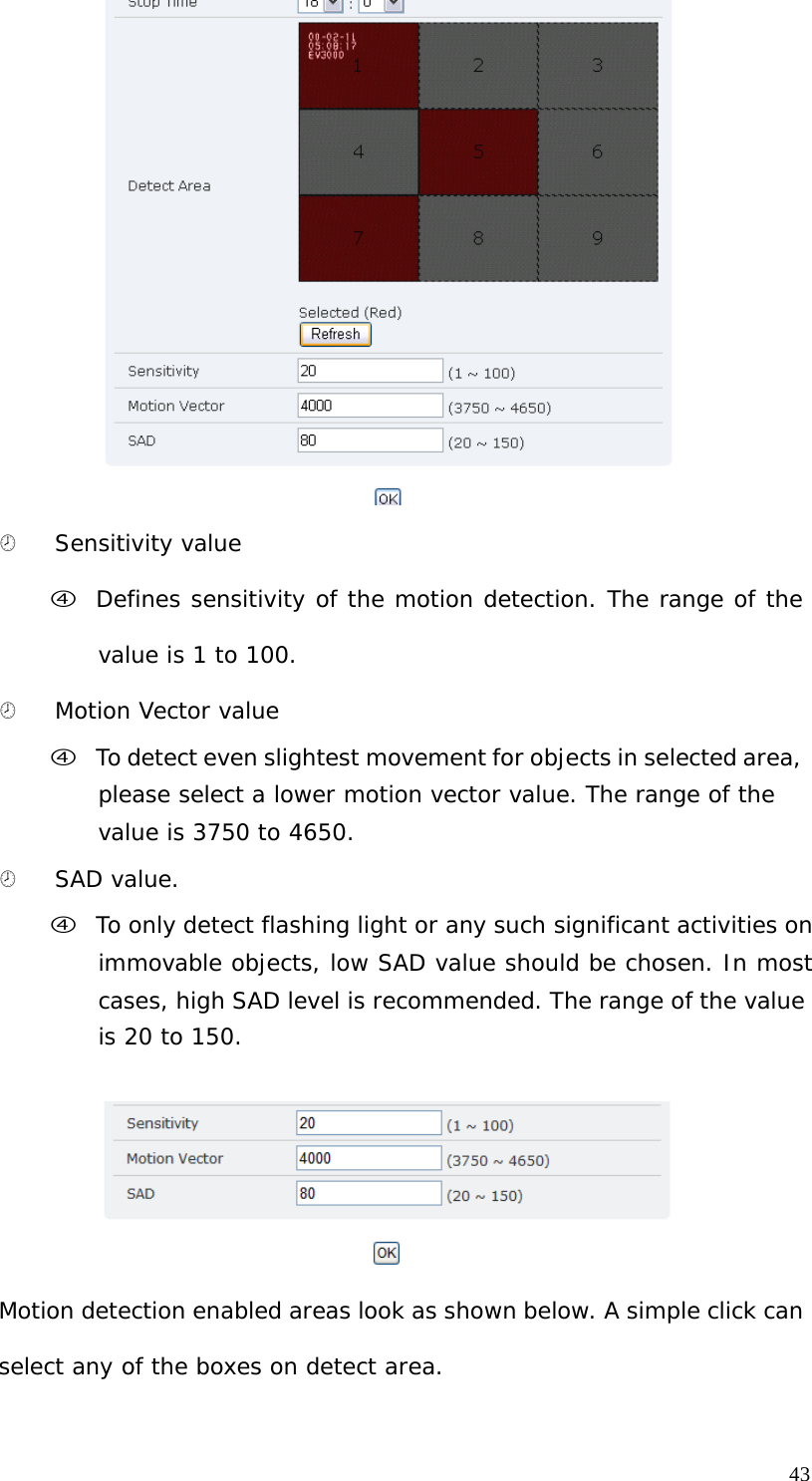
MOTION DETECTION   ¤   Enable type  f Can enable motion detection by “always” or “schedule” mode f When  choosing  schedule  mode,  define  schedule  day  and start/end time                              ¤   Detection Area f Total viewing screen area is divided into 9 square blocks and each of them is called area 1, area 2 etc., Click specific areas you want motion detection to be enabled. If a detection area is selected color changes to dark gray. 42
   ¤   Sensitivity value  f Defines sensitivity of the motion detection. The range of the value is 1 to 100. ¤   Motion Vector value  f To detect even slightest movement for objects in selected area, please select a lower motion vector value. The range of the value is 3750 to 4650. ¤   SAD value.  f To only detect flashing light or any such significant activities on immovable objects, low SAD value should be chosen. In most cases, high SAD level is recommended. The range of the value is 20 to 150.     Motion detection enabled areas look as shown below. A simple click can  select any of the boxes on detect area. 43
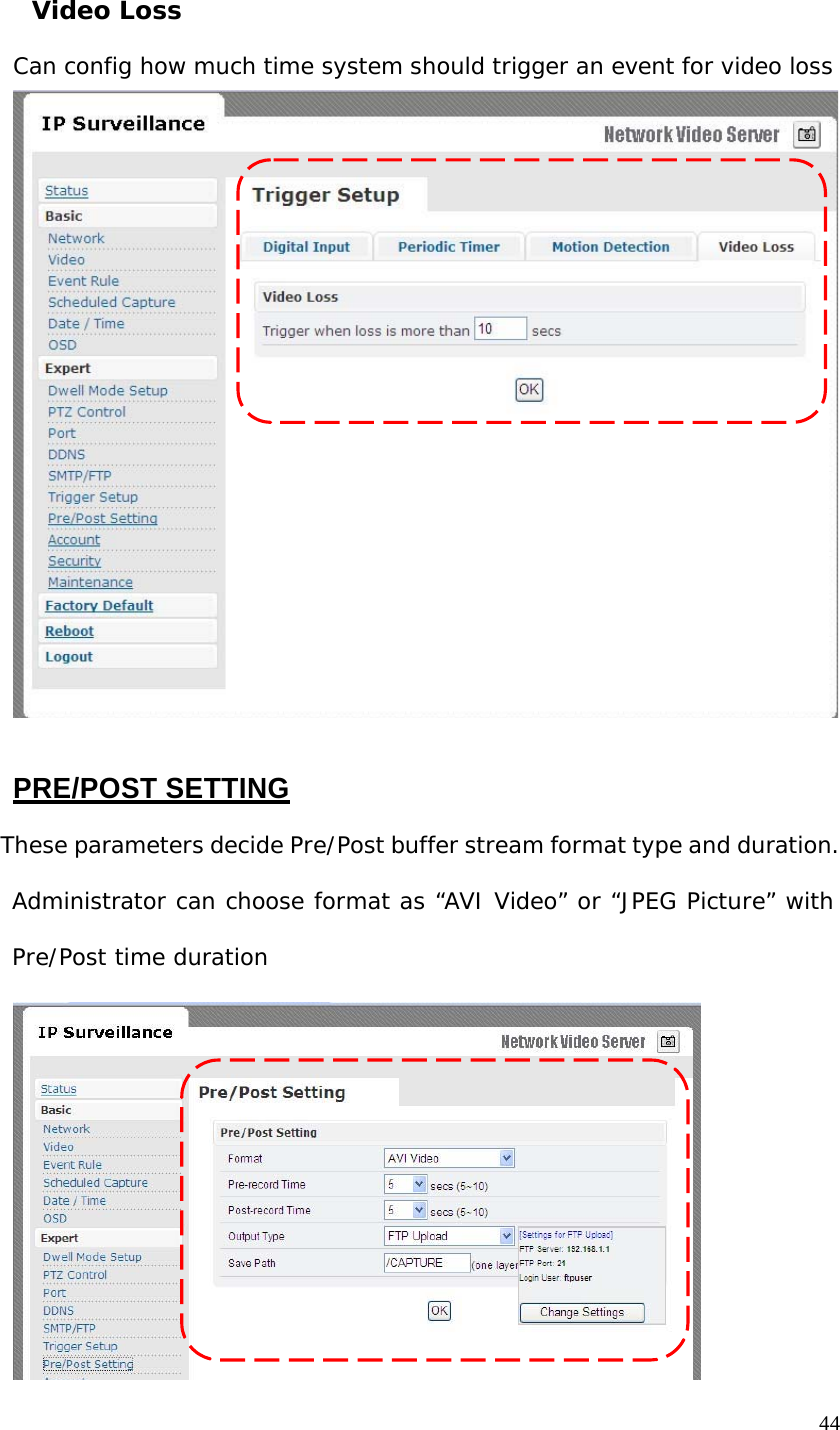
  Video Loss  Can config how much time system should trigger an event for video loss                                  PRE/POST SETTING  These parameters decide Pre/Post buffer stream format type and duration.  Administrator can choose format as “AVI Video” or “JPEG Picture” with  Pre/Post time duration 44
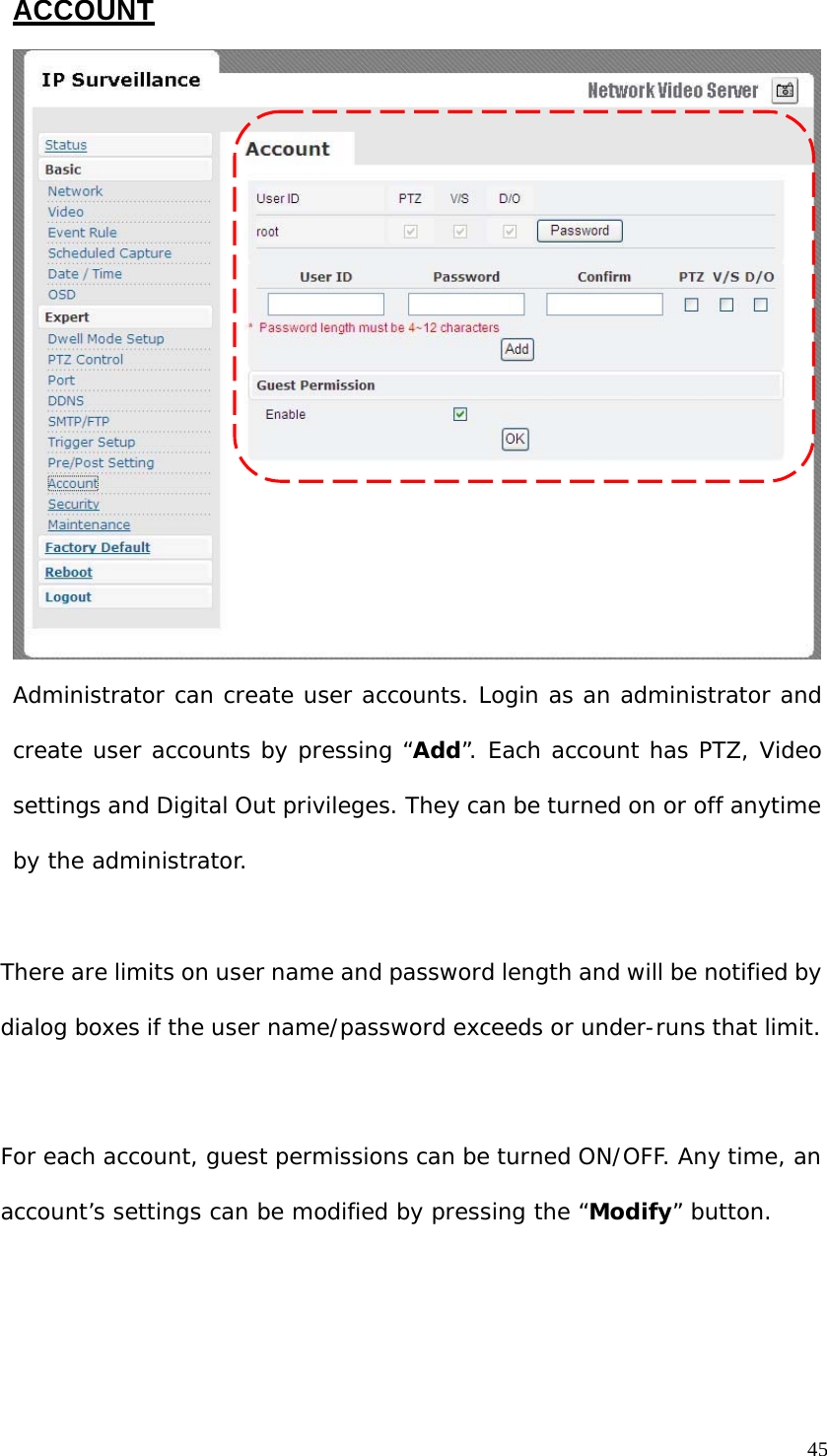
ACCOUNT                                 Administrator can create user accounts. Login as an administrator and  create user accounts by pressing “Add”. Each account has PTZ, Video settings and Digital Out privileges. They can be turned on or off anytime by the administrator.     There are limits on user name and password length and will be notified by dialog boxes if the user name/password exceeds or under-runs that limit.   For each account, guest permissions can be turned ON/OFF. Any time, an account’s settings can be modified by pressing the “Modify” button. 45
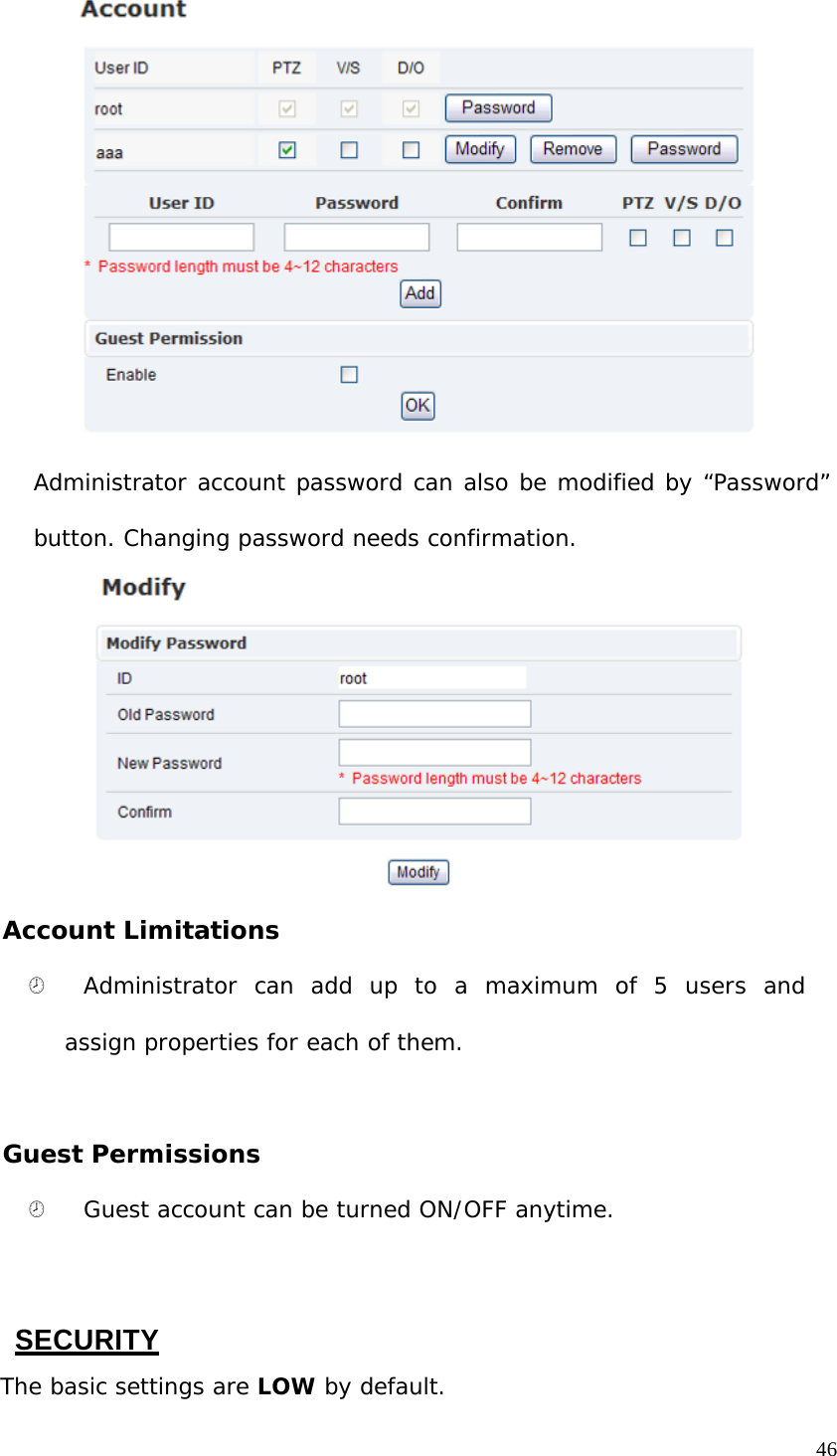
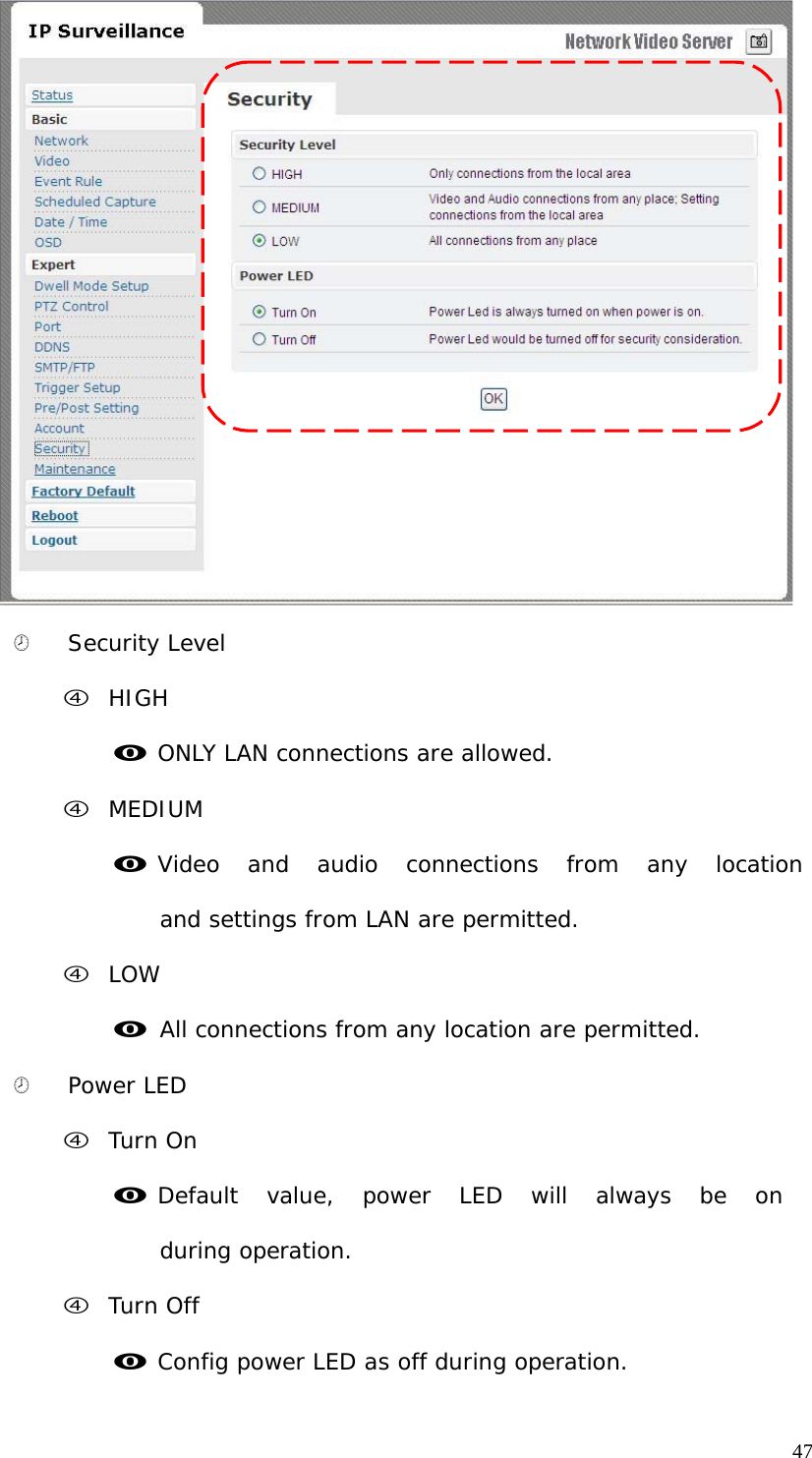
                         Administrator account password can also be modified by “Password”  button. Changing password needs confirmation.                   Account Limitations  ¤   Administrator  can  add  up  to  a  maximum  of  5  users  and  assign properties for each of them.    Guest Permissions  ¤   Guest account can be turned ON/OFF anytime.      SECURITY  The basic settings are LOW by default. 46
                               ¤   Security Level  f HIGH  m ONLY LAN connections are allowed.  f MEDIUM  m Video  and  audio  connections  from  any  location  and settings from LAN are permitted. f LOW  m All connections from any location are permitted.  ¤   Power LED  f Turn On  m Default  value,  power  LED  will  always  be  on  during operation. f Turn Off  m Config power LED as off during operation. 47
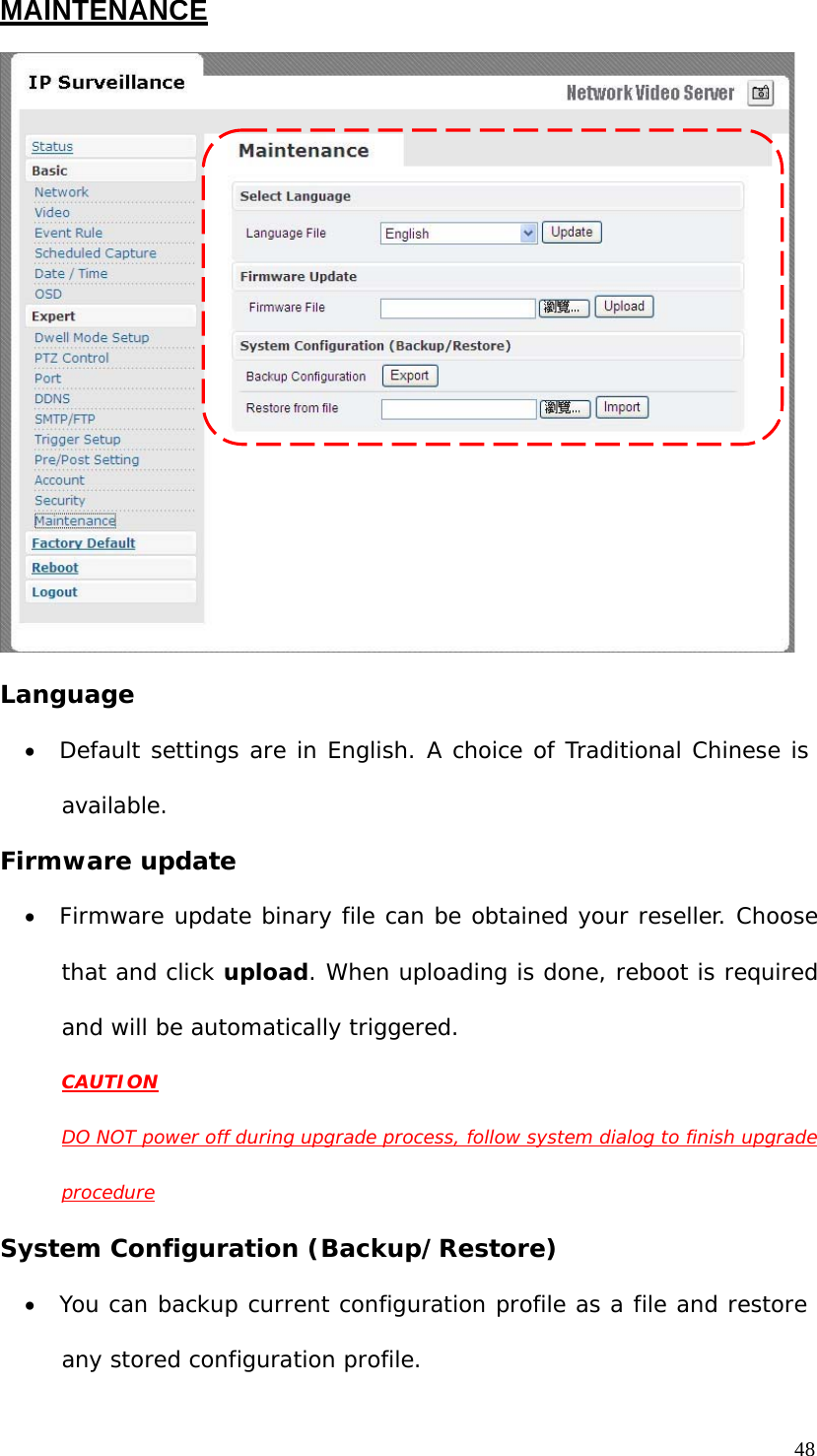
MAINTENANCE                                 Language  • Default settings are in English. A choice of Traditional Chinese is available. Firmware update  • Firmware update binary file can be obtained your reseller. Choose that and click upload. When uploading is done, reboot is required and will be automatically triggered. CAUTION  DO NOT power off during upgrade process, follow system dialog to finish upgrade  procedure  System Configuration (Backup/Restore) • You can backup current configuration profile as a file and restore any stored configuration profile. 48
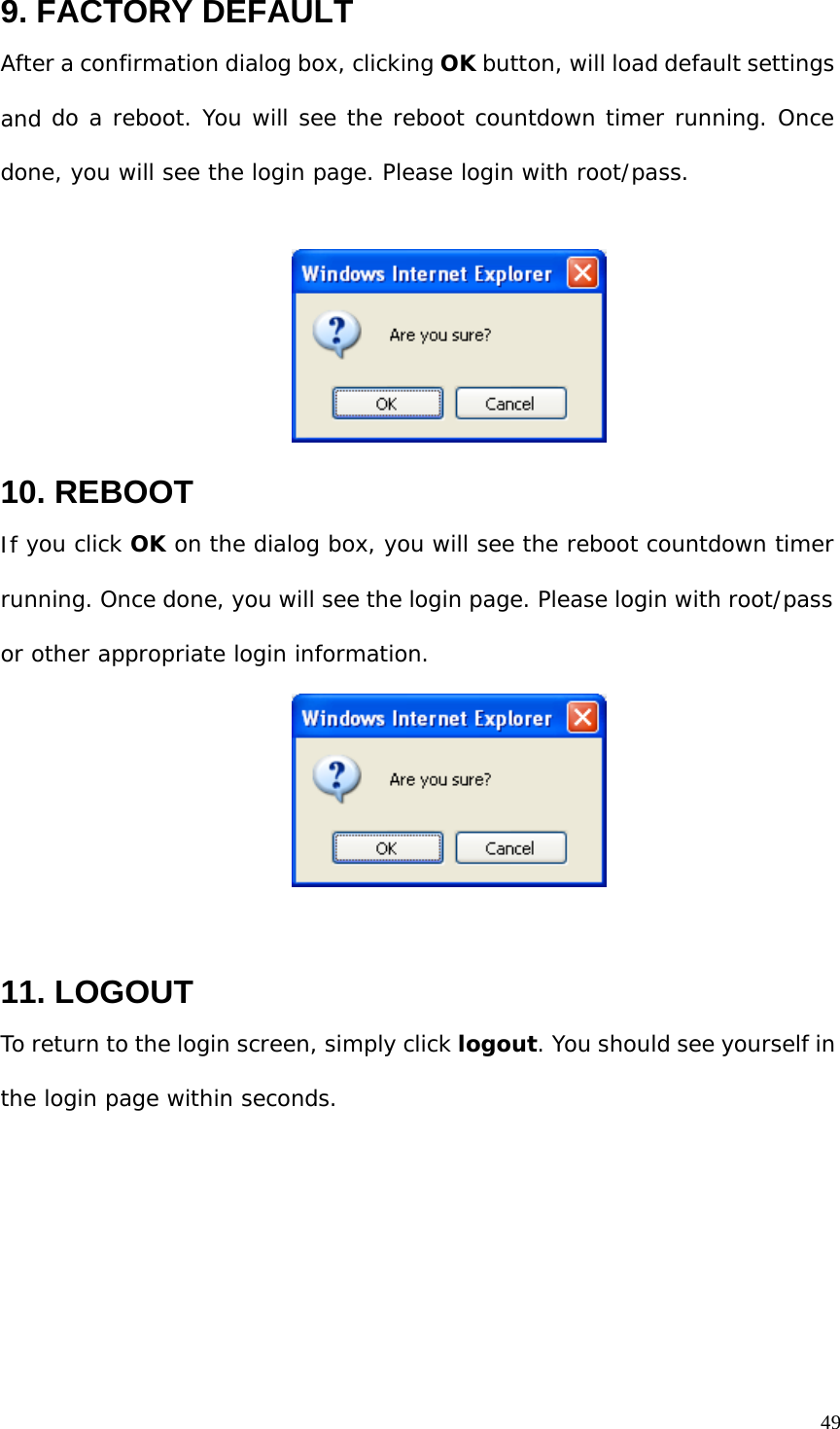
9. FACTORY DEFAULT  After a confirmation dialog box, clicking OK button, will load default settings and do a reboot. You will see the reboot countdown timer running. Once done, you will see the login page. Please login with root/pass.       10. REBOOT  If you click OK on the dialog box, you will see the reboot countdown timer  running. Once done, you will see the login page. Please login with root/pass  or other appropriate login information.       11. LOGOUT  To return to the login screen, simply click logout. You should see yourself in  the login page within seconds. 49
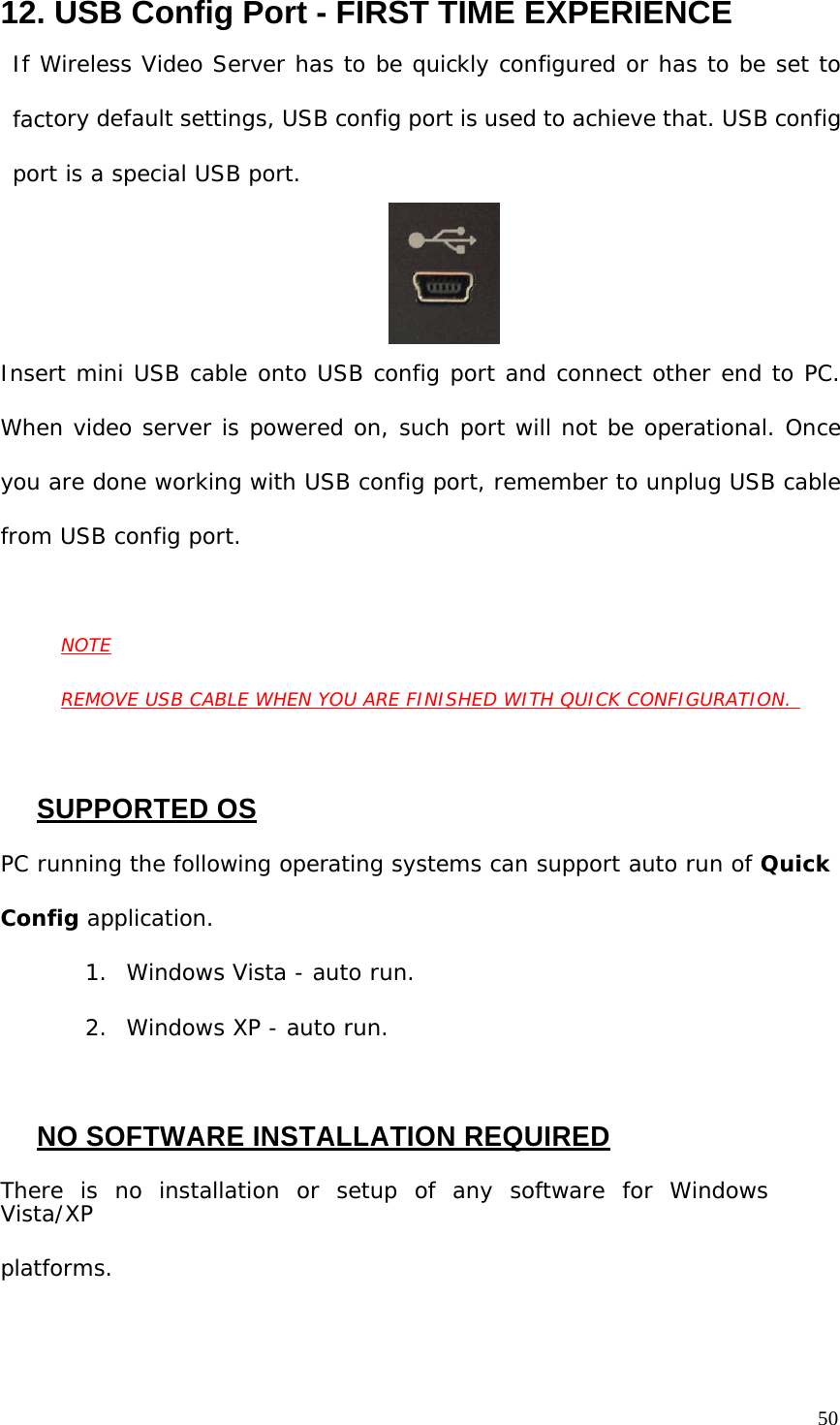
12. USB Config Port - FIRST TIME EXPERIENCE  If Wireless Video Server has to be quickly configured or has to be set to factory default settings, USB config port is used to achieve that. USB config port is a special USB port.        Insert mini USB cable onto USB config port and connect other end to PC. When video server is powered on, such port will not be operational. Once you are done working with USB config port, remember to unplug USB cable from USB config port.    NOTE  REMOVE USB CABLE WHEN YOU ARE FINISHED WITH QUICK CONFIGURATION.       SUPPORTED OS  PC running the following operating systems can support auto run of Quick  Config application.  1.  Windows Vista - auto run.  2.  Windows XP - auto run.     NO SOFTWARE INSTALLATION REQUIRED  There  is  no  installation  or  setup  of  any  software  for  Windows  Vista/XP  platforms. 50
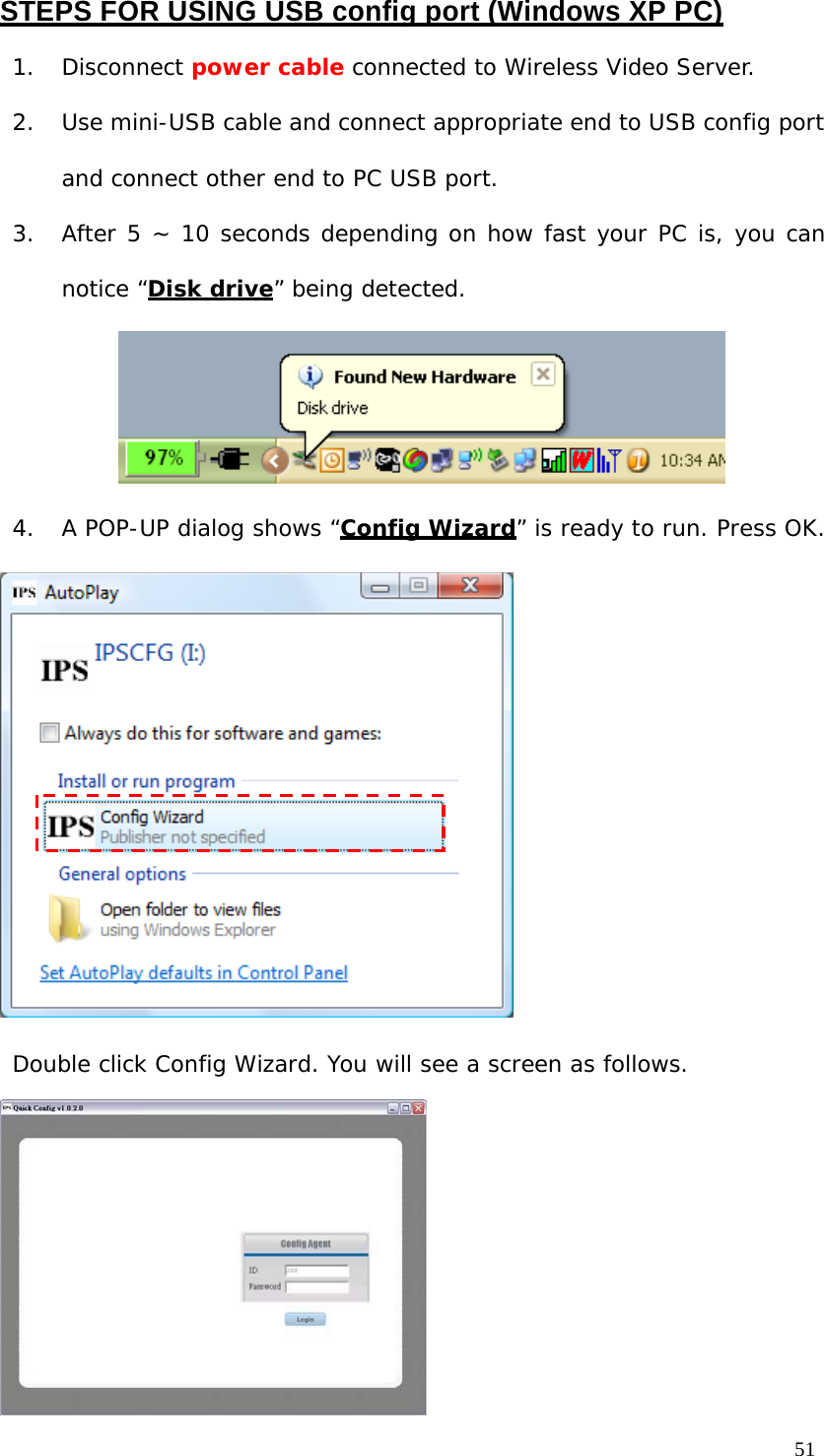
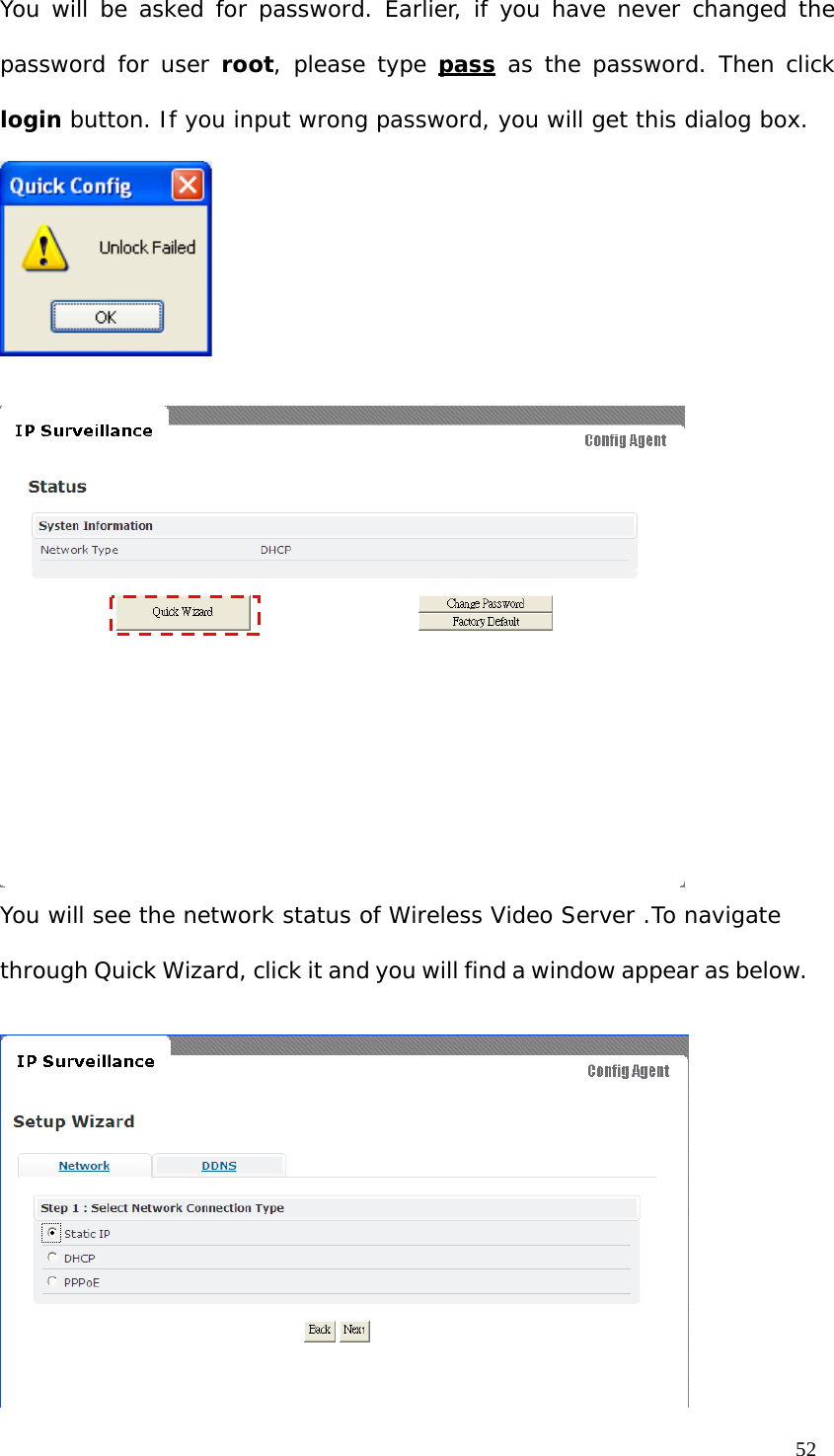
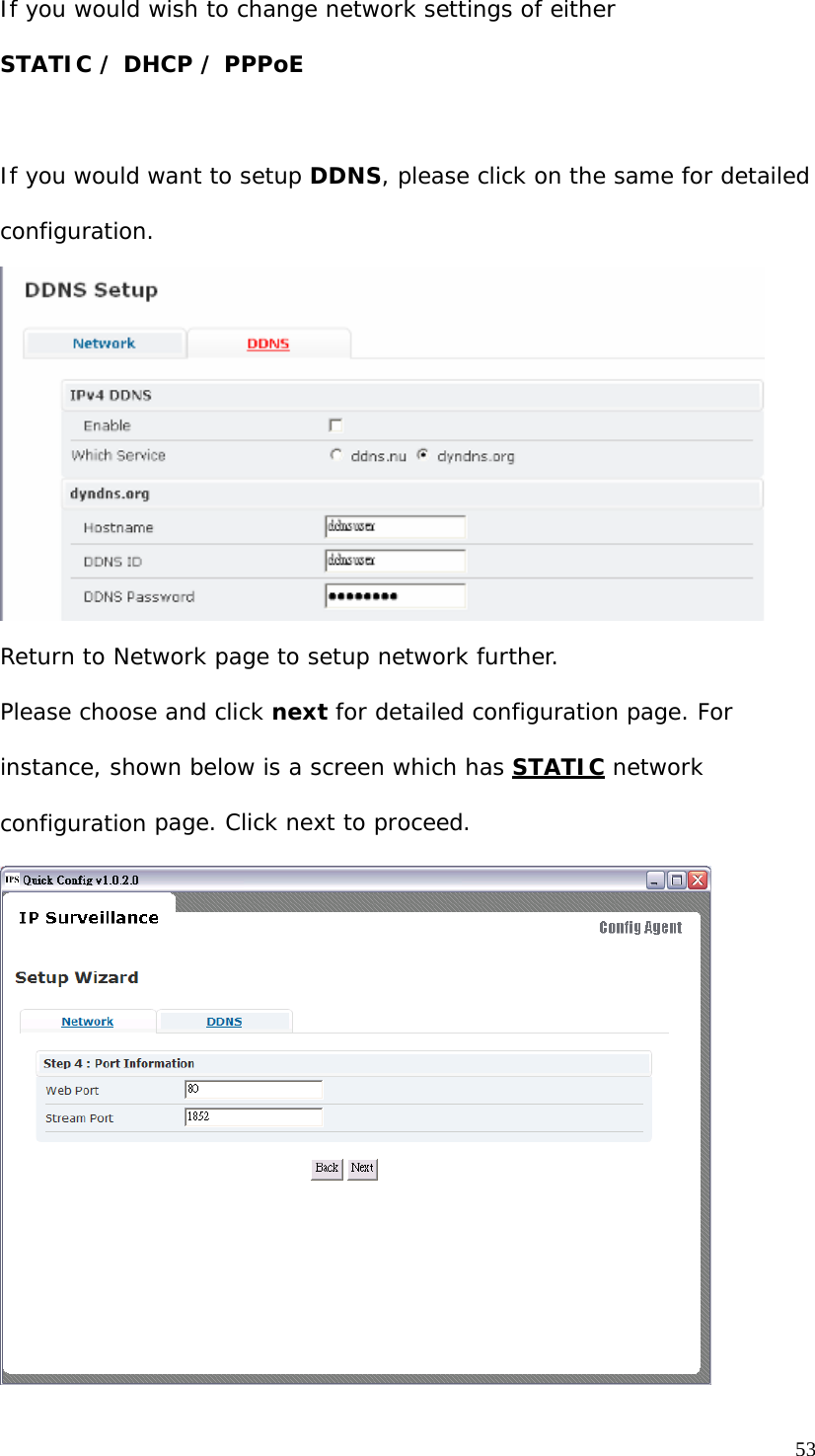
STEPS FOR USING USB config port (Windows XP PC)  1. Disconnect power cable connected to Wireless Video Server.  2. Use mini-USB cable and connect appropriate end to USB config port and connect other end to PC USB port. 3. After 5 ~ 10 seconds depending on how fast your PC is, you can notice “Disk drive” being detected.   4. A POP-UP dialog shows “Config Wizard” is ready to run. Press OK.                          Double click Config Wizard. You will see a screen as follows.   51
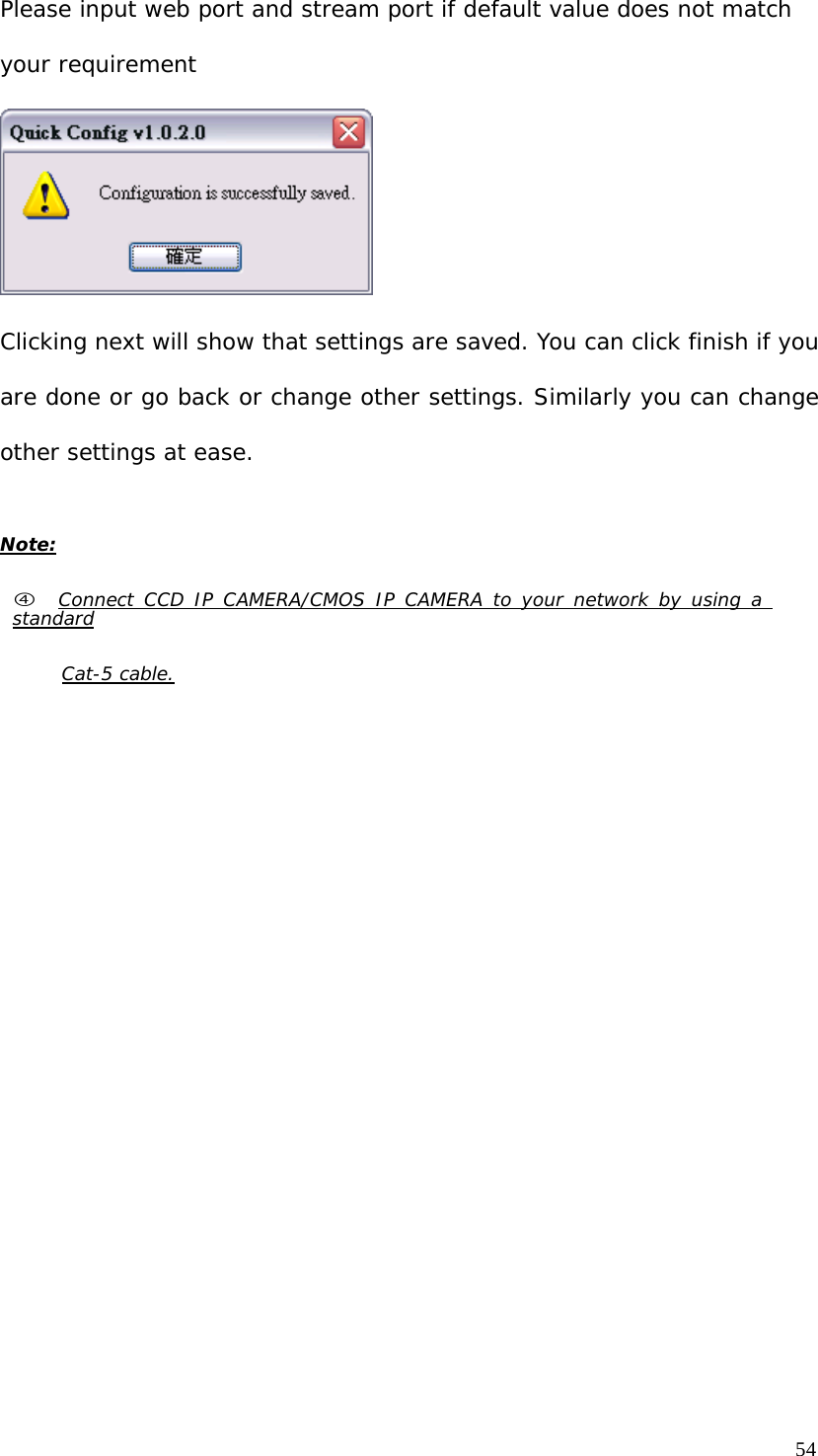
You will be asked for password. Earlier, if you have never changed the password for user root, please type pass as the password. Then click login button. If you input wrong password, you will get this dialog box.                                     You will see the network status of Wireless Video Server .To navigate through Quick Wizard, click it and you will find a window appear as below.    52
If you would wish to change network settings of either  STATIC / DHCP / PPPoE     If you would want to setup DDNS, please click on the same for detailed configuration.                   Return to Network page to setup network further.  Please choose and click next for detailed configuration page. For instance, shown below is a screen which has STATIC network configuration page. Click next to proceed.  53
Please input web port and stream port if default value does not match your requirement    Clicking next will show that settings are saved. You can click finish if you are done or go back or change other settings. Similarly you can change other settings at ease.   Note:  f   Connect  CCD  IP  CAMERA/CMOS  IP  CAMERA  to  your  network  by  using  a  standard  Cat-5 cable.54

Navigation menu