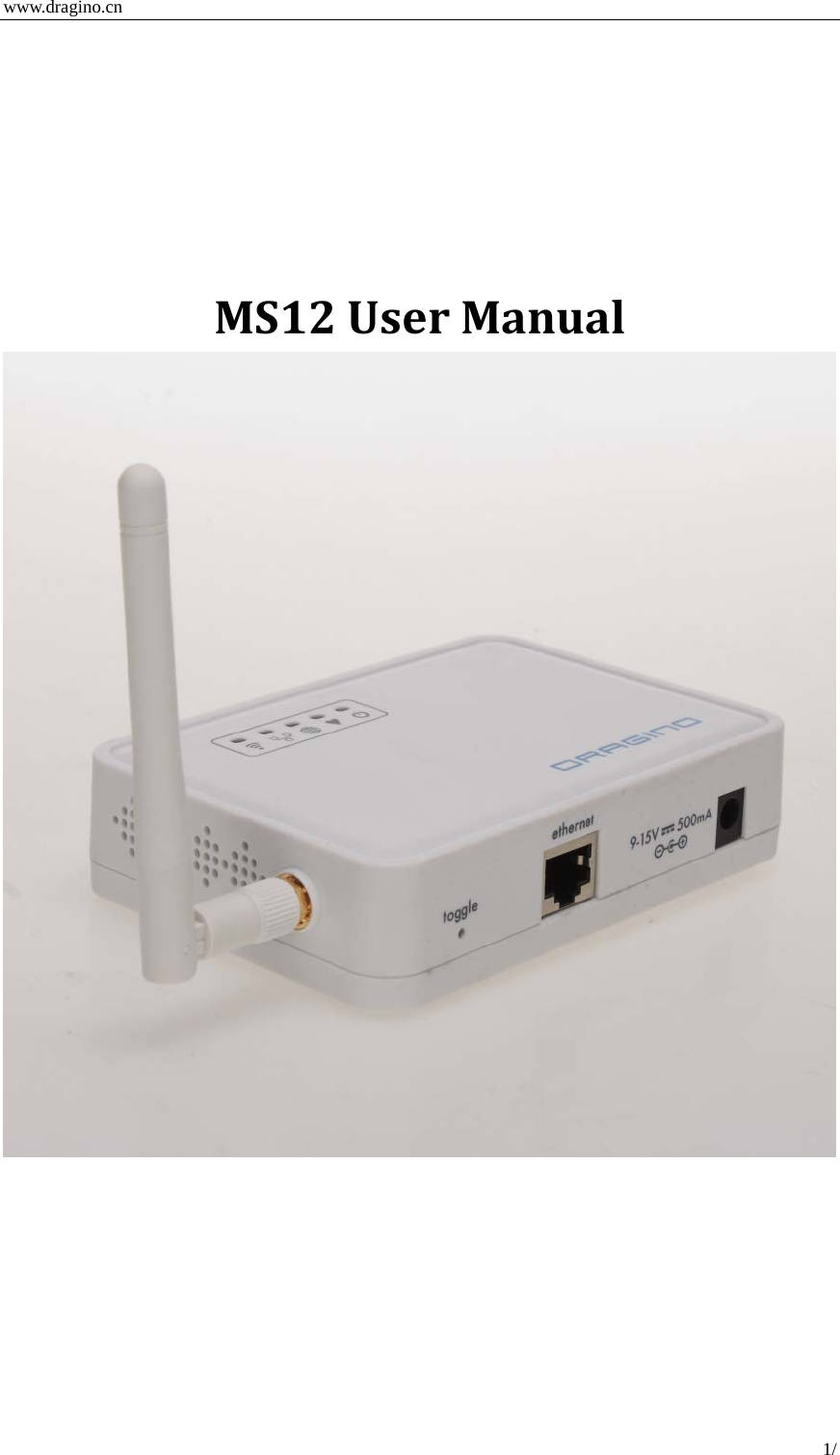
Dragino Technology DRAGINOMS12 802.11b/g wireless sensor node User Manual

Dragino Technology Co., Limited. 802.11b/g wireless sensor node

Users Manual

 www.dragino.cn 1/  MS12UserManual
 www.dragino.cn 2/  1Introduce ..................................................................................................................................32ConfigurethedeviceviaGUI...................................................................................................42.1AccesstheGUI......................................................................................................................42.2ConfigureWifiparameters .................................................................................................42.3Networksetting....................................................................................................................52.4SystemStatus:.......................................................................................................................63SecuringtheMS12 ..................................................................................................................64Attachingthecurrentclamp....................................................................................................75Connectingtheclampsensorcable ........................................................................................76PoweringUp ............................................................................................................................7
 www.dragino.cn 3/  1 IntroduceThisArticleThisarticleistheusermanualfortheMS12wirelesssensornode.ThisarticledescribeshowtoconfiguretheMS12touseindifferentwirelessmodeandhowtouseMS12asawirelesspowermeter.
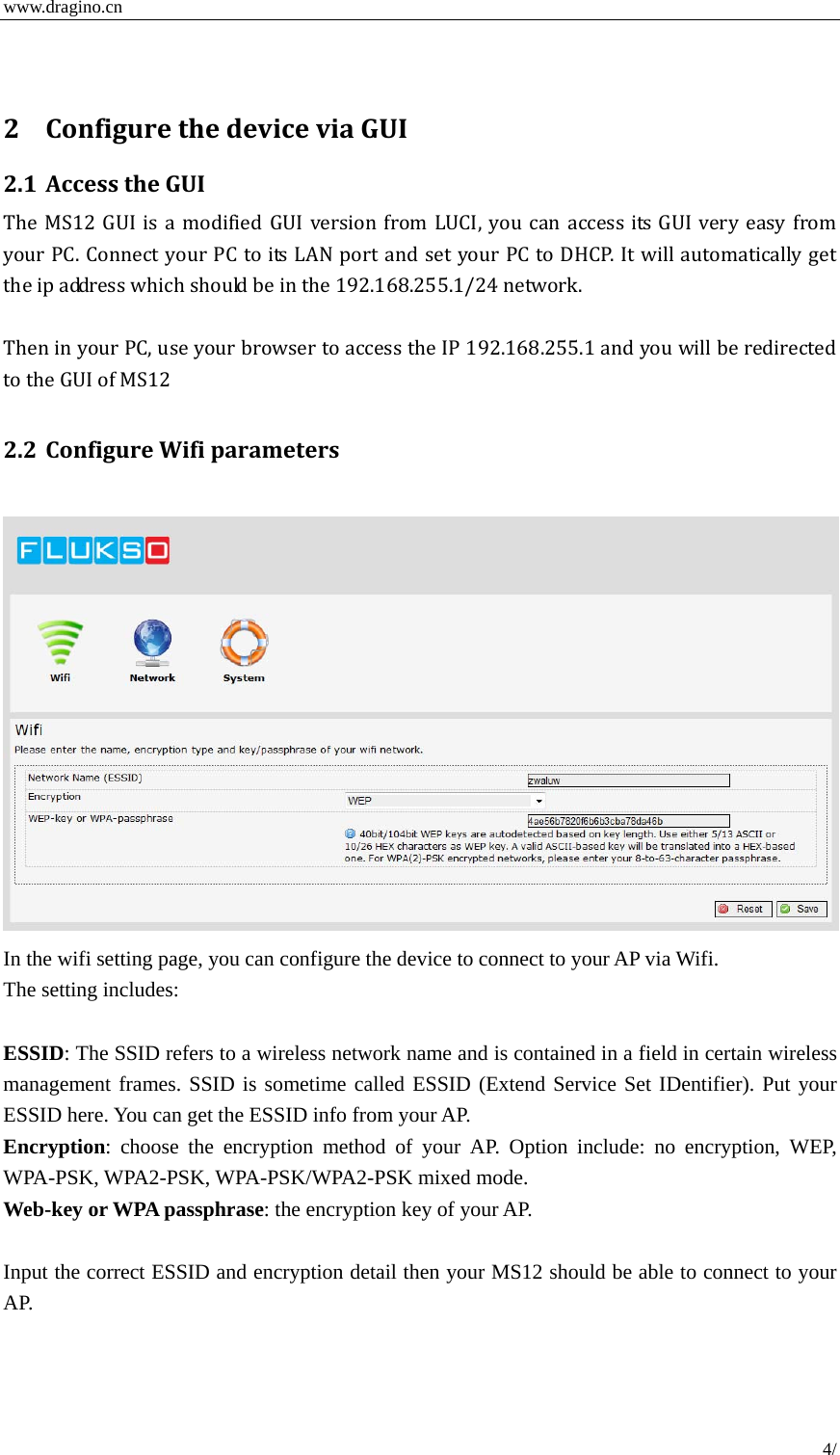
 www.dragino.cn 4/  2 ConfigurethedeviceviaGUI2.1 AccesstheGUITheMS12GUIisamodifiedGUIversionfromLUCI,youcanaccess its GUI very easy fromyourPC.ConnectyourPCtoitsLANportandsetyourPCtoDHCP.Itwillautomaticallygettheipaddresswhichshouldbeinthe192.168.255.1/24network.TheninyourPC,useyourbrowsertoaccesstheIP192.168.255.1andyouwillberedirectedtotheGUIofMS122.2 ConfigureWifiparameters  In the wifi setting page, you can configure the device to connect to your AP via Wifi.   The setting includes:  ESSID: The SSID refers to a wireless network name and is contained in a field in certain wireless management frames. SSID is sometime called ESSID (Extend Service Set IDentifier). Put your ESSID here. You can get the ESSID info from your AP.   Encryption: choose the encryption method of your AP. Option include: no encryption, WEP, WPA-PSK, WPA2-PSK, WPA-PSK/WPA2-PSK mixed mode.   Web-key or WPA passphrase: the encryption key of your AP.  Input the correct ESSID and encryption detail then your MS12 should be able to connect to your AP.
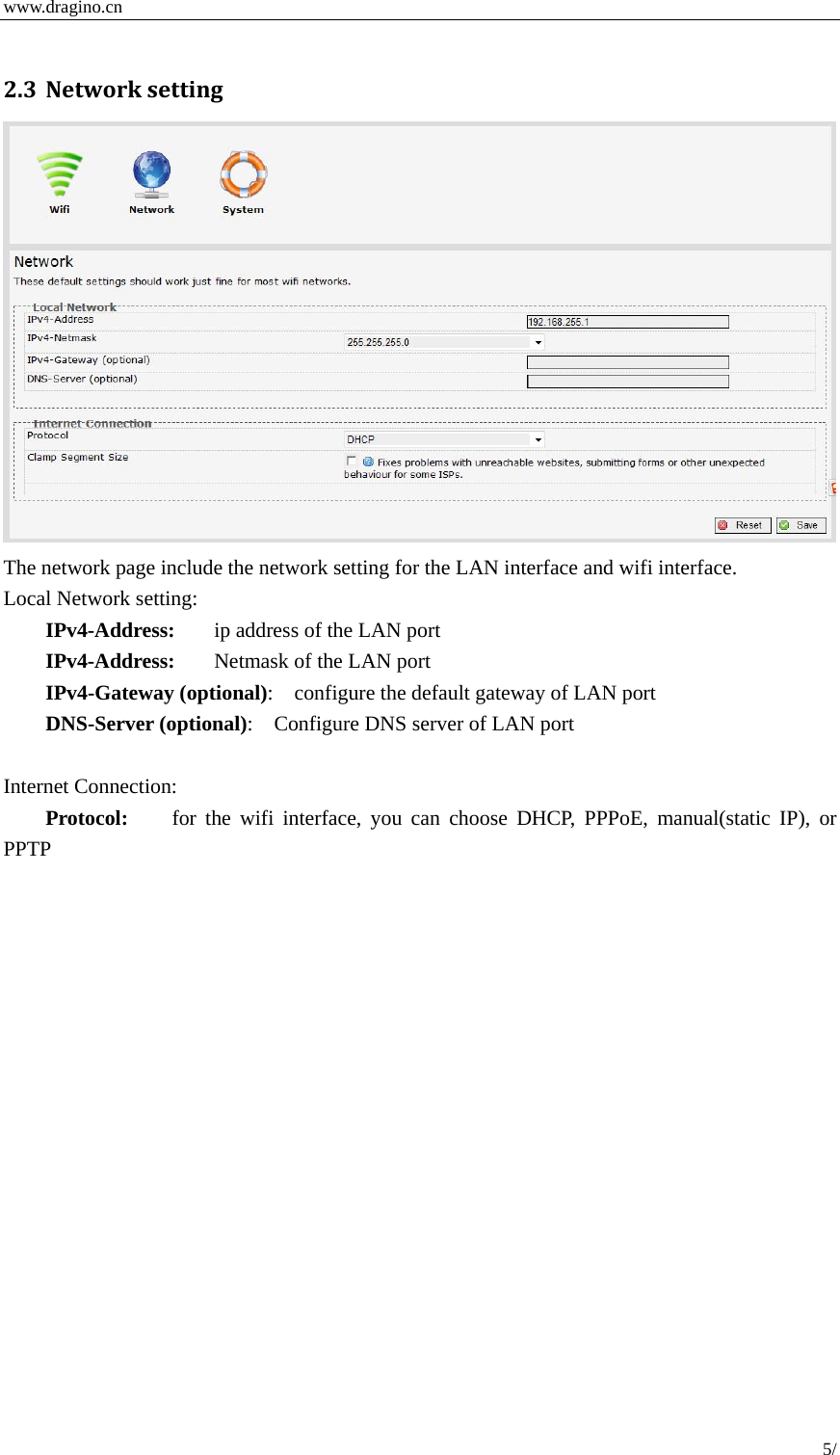
 www.dragino.cn 5/   2.3 Networksetting The network page include the network setting for the LAN interface and wifi interface.   Local Network setting: IPv4-Address:  ip address of the LAN port IPv4-Address:  Netmask of the LAN port IPv4-Gateway (optional):    configure the default gateway of LAN port DNS-Server (optional):    Configure DNS server of LAN port  Internet Connection: Protocol:   for the wifi interface, you can choose DHCP, PPPoE, manual(static IP), or PPTP
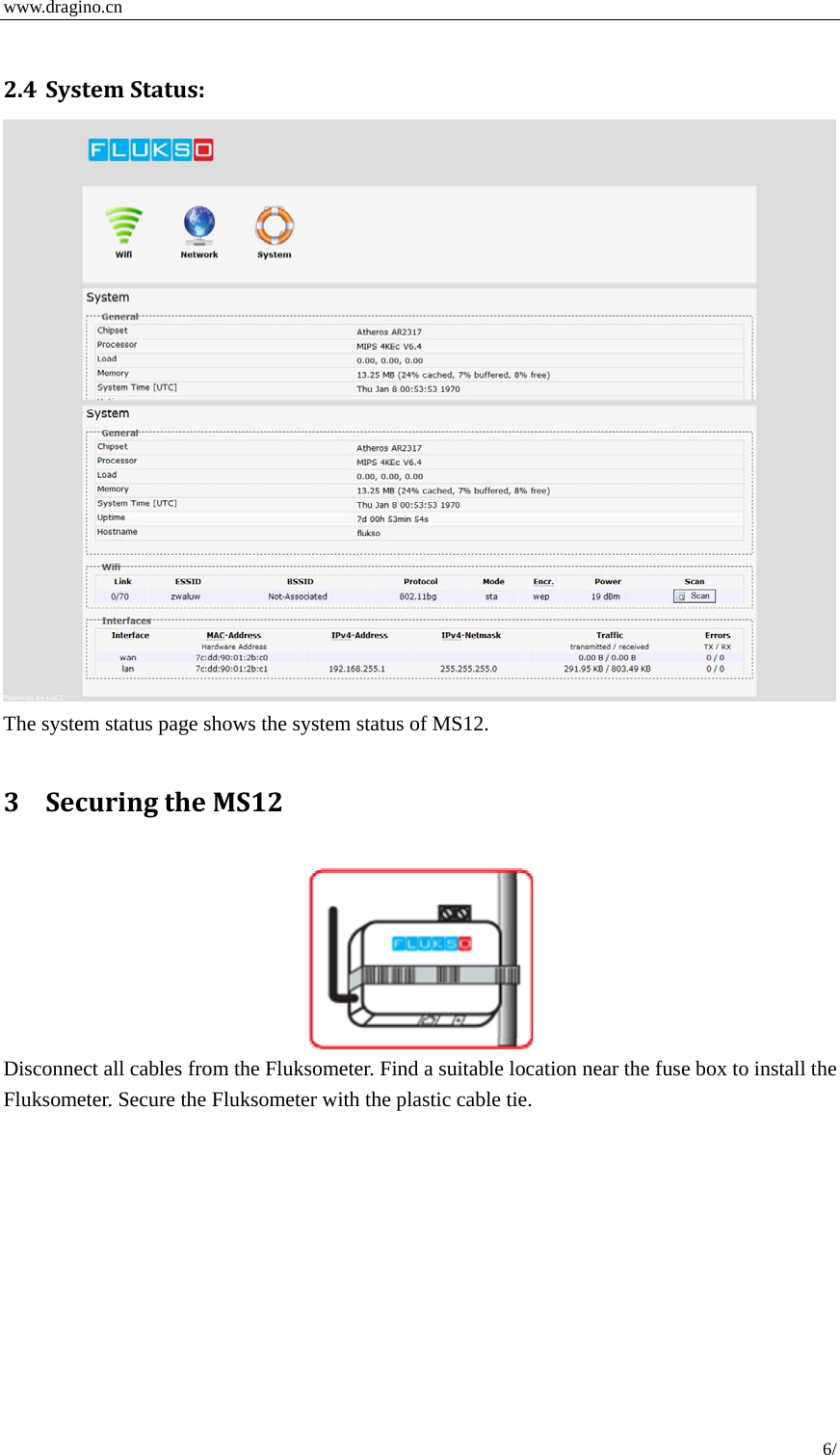
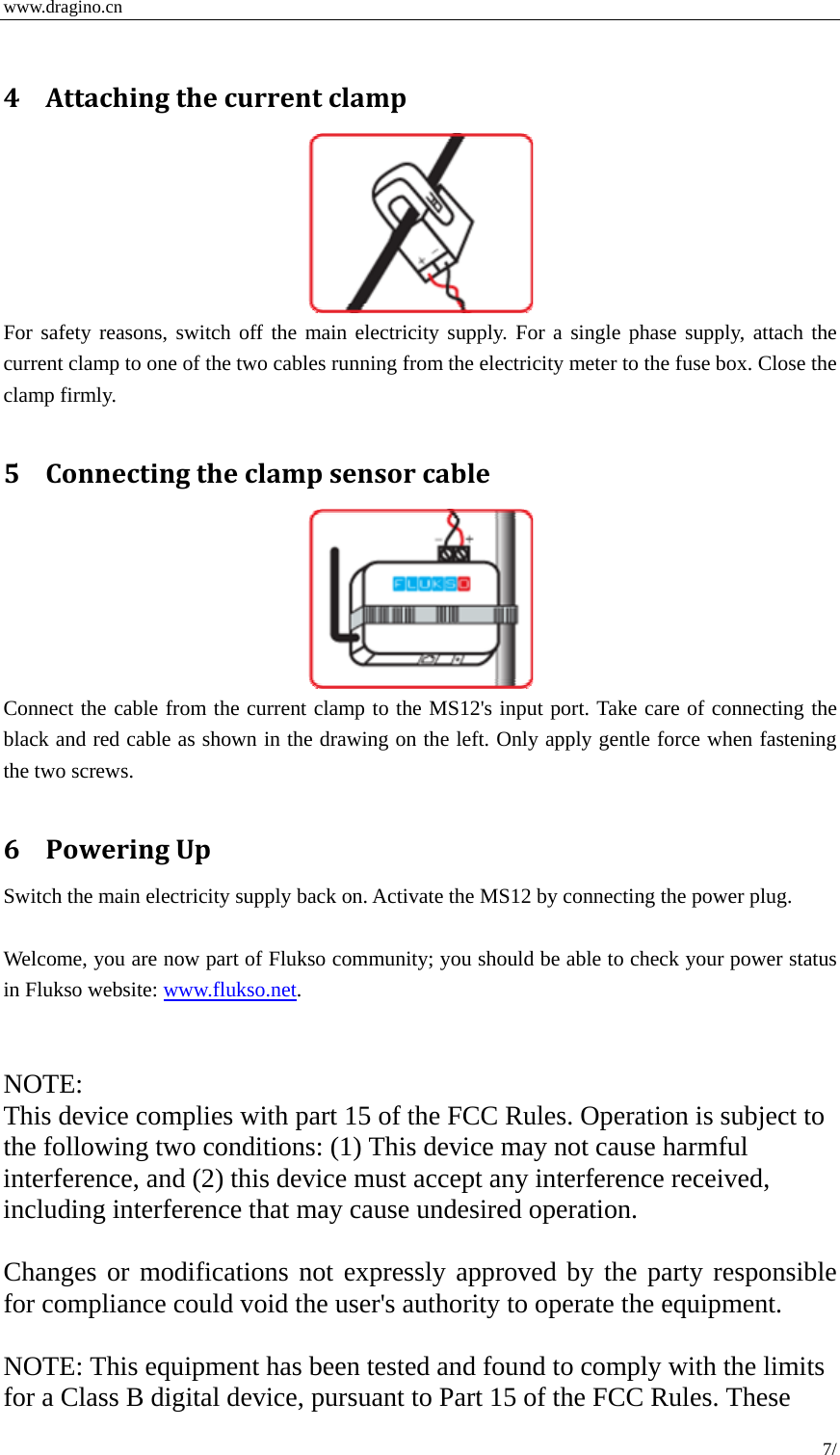
 www.dragino.cn 6/   2.4 SystemStatus: The system status page shows the system status of MS12.    3 SecuringtheMS12  Disconnect all cables from the Fluksometer. Find a suitable location near the fuse box to install the Fluksometer. Secure the Fluksometer with the plastic cable tie.
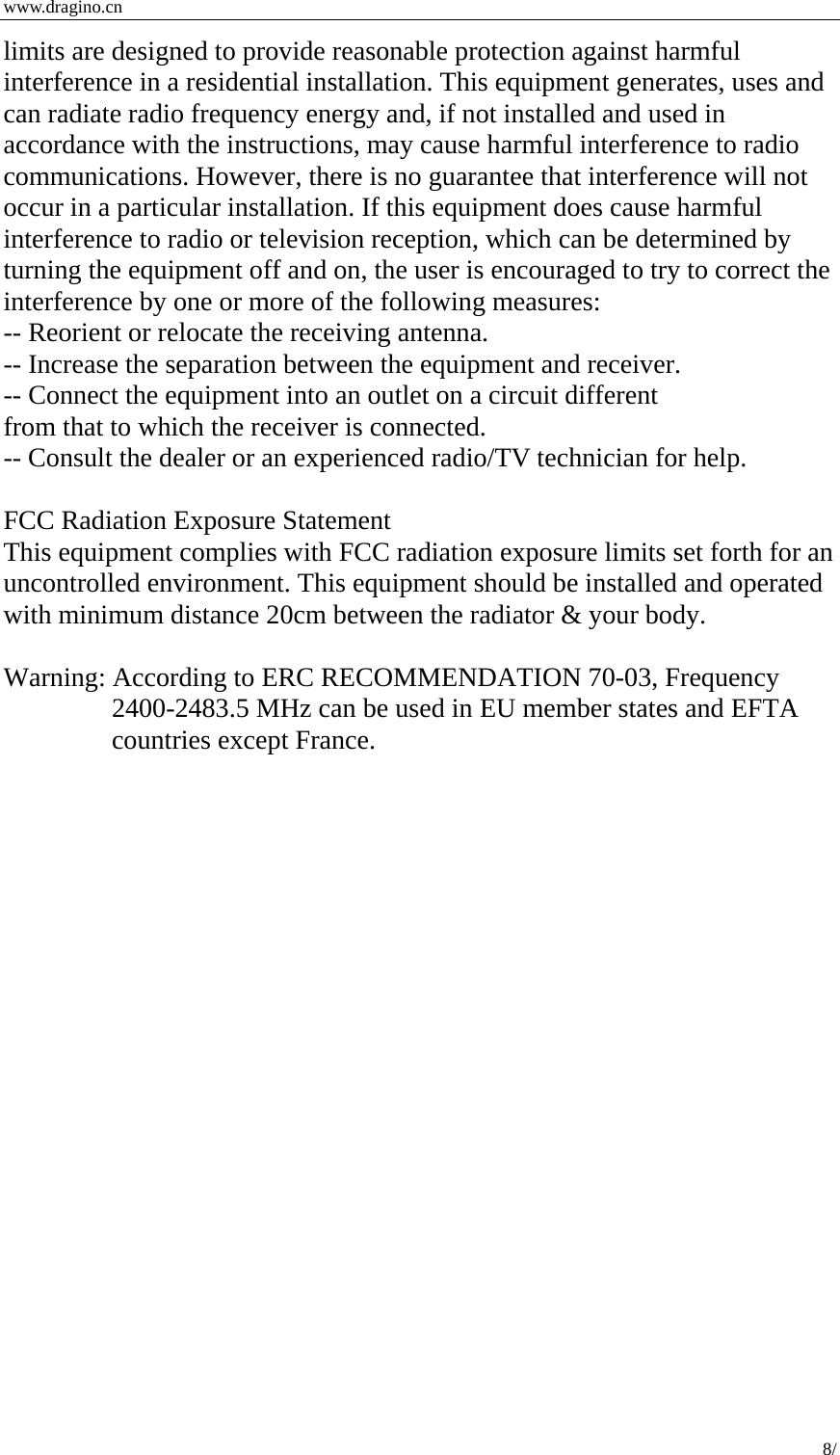
 www.dragino.cn 7/   4 Attachingthecurrentclamp For safety reasons, switch off the main electricity supply. For a single phase supply, attach the current clamp to one of the two cables running from the electricity meter to the fuse box. Close the clamp firmly.  5 Connectingtheclampsensorcable Connect the cable from the current clamp to the MS12's input port. Take care of connecting the black and red cable as shown in the drawing on the left. Only apply gentle force when fastening the two screws.  6 PoweringUpSwitch the main electricity supply back on. Activate the MS12 by connecting the power plug.  Welcome, you are now part of Flukso community; you should be able to check your power status in Flukso website: www.flukso.net.   NOTE: This device complies with part 15 of the FCC Rules. Operation is subject to the following two conditions: (1) This device may not cause harmful interference, and (2) this device must accept any interference received, including interference that may cause undesired operation.  Changes or modifications not expressly approved by the party responsible for compliance could void the user's authority to operate the equipment.  NOTE: This equipment has been tested and found to comply with the limits for a Class B digital device, pursuant to Part 15 of the FCC Rules. These
 www.dragino.cn 8/  limits are designed to provide reasonable protection against harmful interference in a residential installation. This equipment generates, uses and can radiate radio frequency energy and, if not installed and used in accordance with the instructions, may cause harmful interference to radio communications. However, there is no guarantee that interference will not occur in a particular installation. If this equipment does cause harmful interference to radio or television reception, which can be determined by turning the equipment off and on, the user is encouraged to try to correct the interference by one or more of the following measures:   -- Reorient or relocate the receiving antenna.   -- Increase the separation between the equipment and receiver.   -- Connect the equipment into an outlet on a circuit different   from that to which the receiver is connected.   -- Consult the dealer or an experienced radio/TV technician for help.  FCC Radiation Exposure Statement This equipment complies with FCC radiation exposure limits set forth for an uncontrolled environment. This equipment should be installed and operated with minimum distance 20cm between the radiator & your body.  Warning: According to ERC RECOMMENDATION 70-03, Frequency 2400-2483.5 MHz can be used in EU member states and EFTA countries except France.

Navigation menu