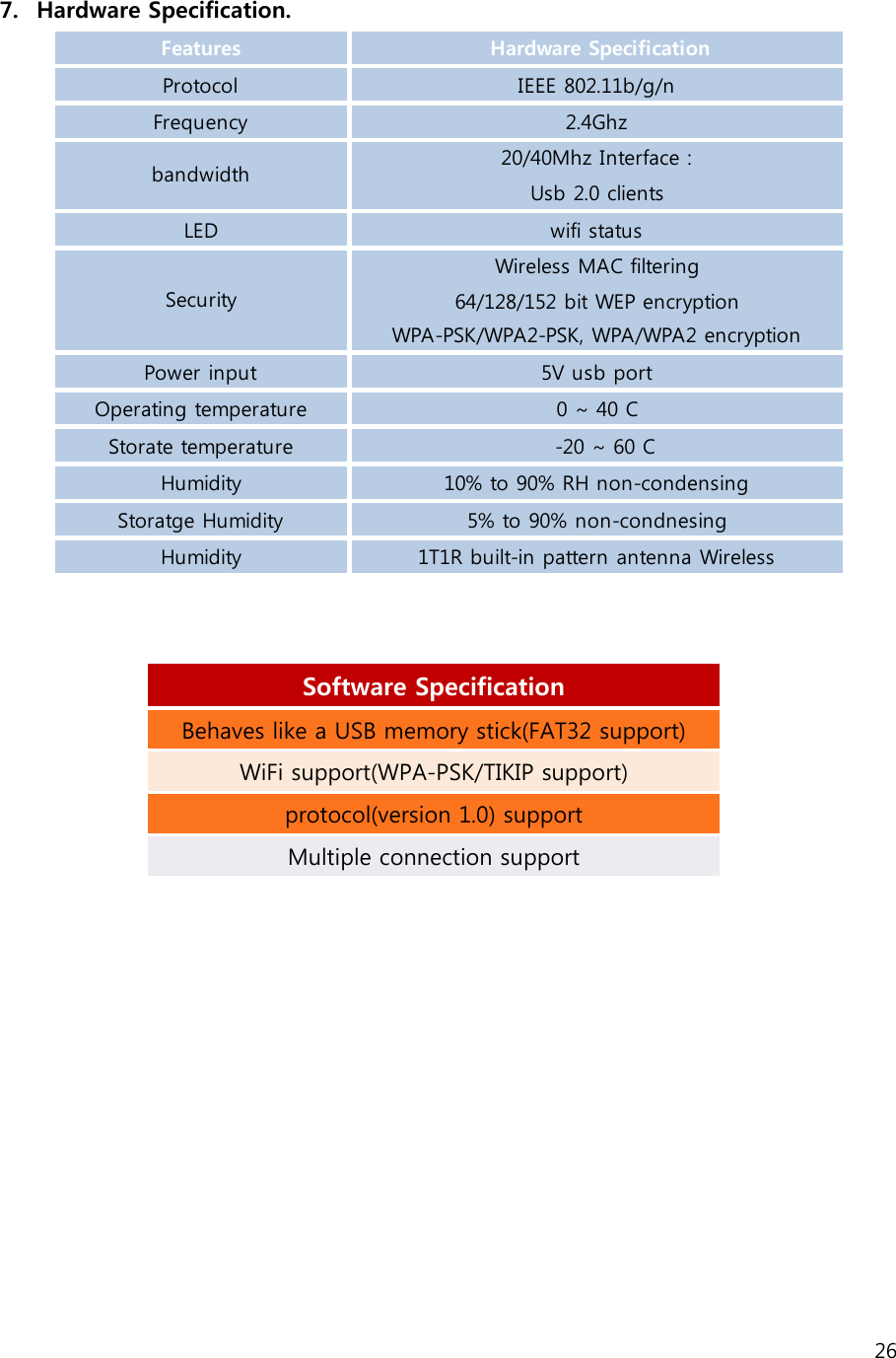
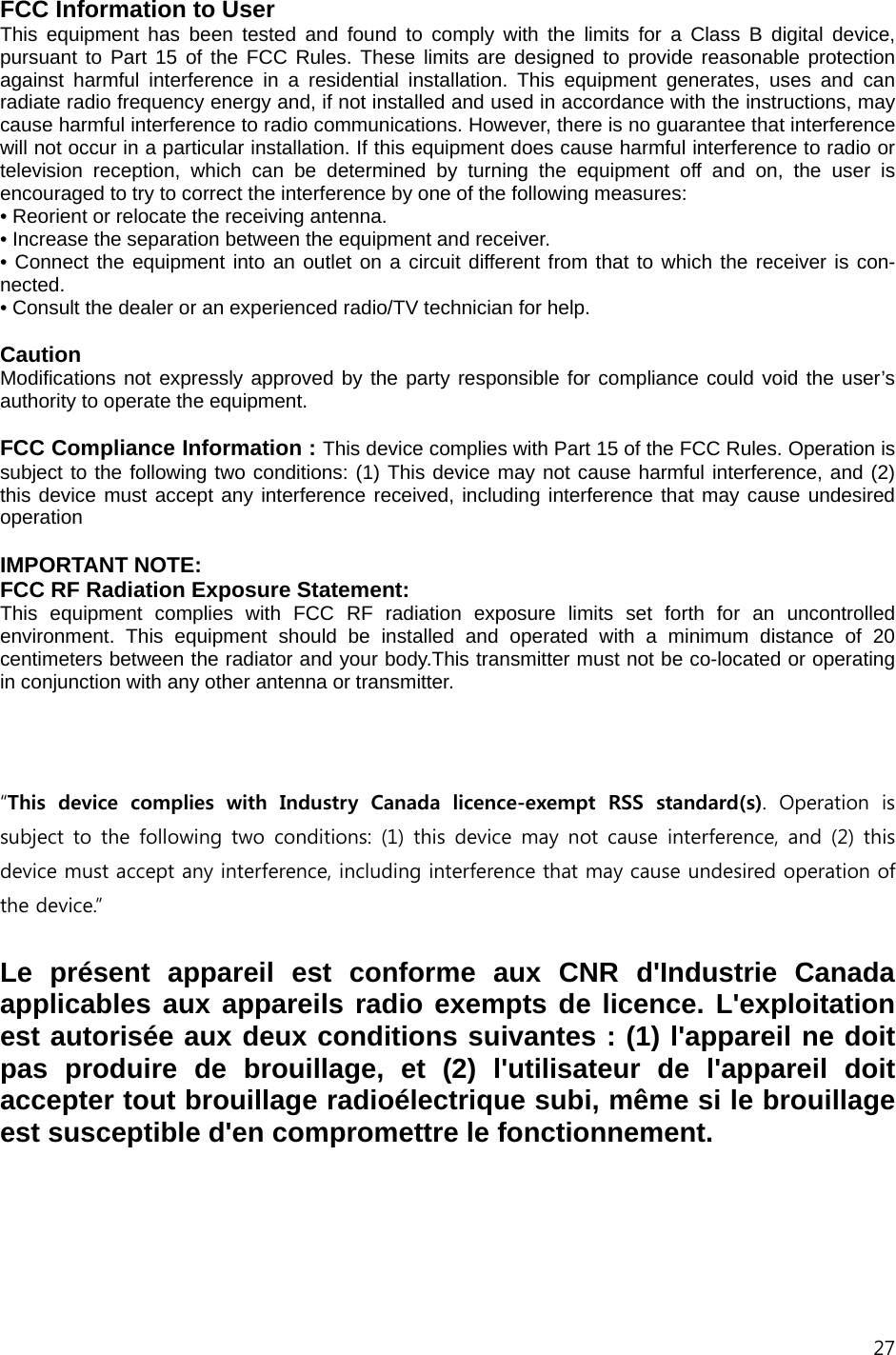
ENUSTECH JAK WLAN USB DONGLE User Manual MANUAL
ENUSTECH WLAN USB DONGLE MANUAL
UserManual.wiki
>
ENUSTECH
>
JAK User Manual
User Manual
Navigation menu
Upload a User Manual
Namespaces
Wiki Guide
HTML
PDF
Info
Views
User Manual
Discussion / Help
Navigation
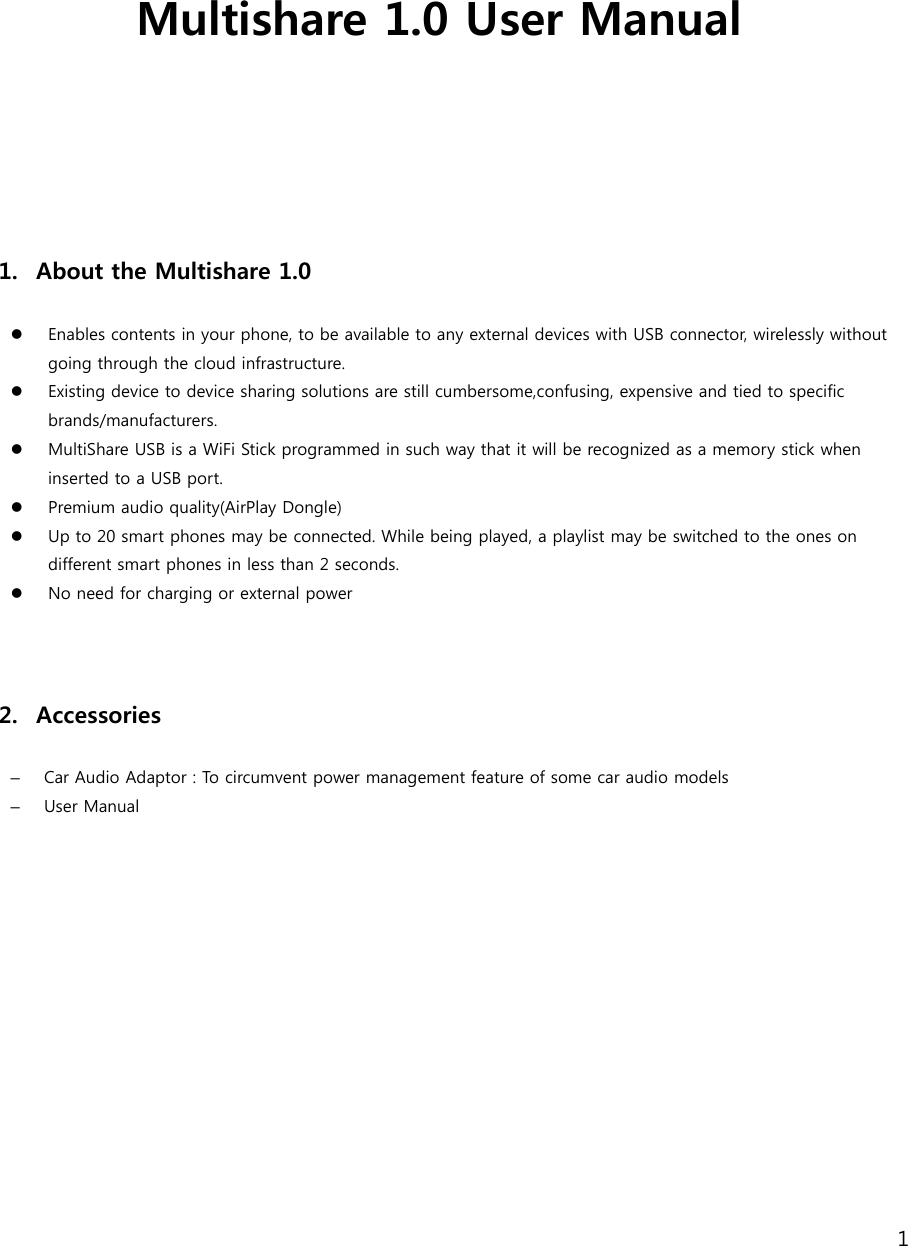
![2 • Before you use the Multishare 1.0, perform the following actions: Install App to use Multishare 1.0 - Android: Download “MultishareUSB App” from Play Store. - iPhone: Download “MultishareUSB App” from App Store. • Jak to connect with your smartphone Run the App Tap [CONNECT] Select Wi-Fi to connect Multishare 1.0](https://usermanual.wiki/ENUSTECH/JAK/User-Guide-1828186-Page-2.png)
![3 • Add playlist Before using the App, you must create playlists. Tap [playlists]. Tap [Add playlist] to create new playlist. Select file format (Music, Photo, Video, and Document)Write a file name in below box. Tap[Connect] Enter Password. Default: 12345678 When reconnected, Multishare 1.0 connects automatically. Activated Wi-Fi](https://usermanual.wiki/ENUSTECH/JAK/User-Guide-1828186-Page-3.png)
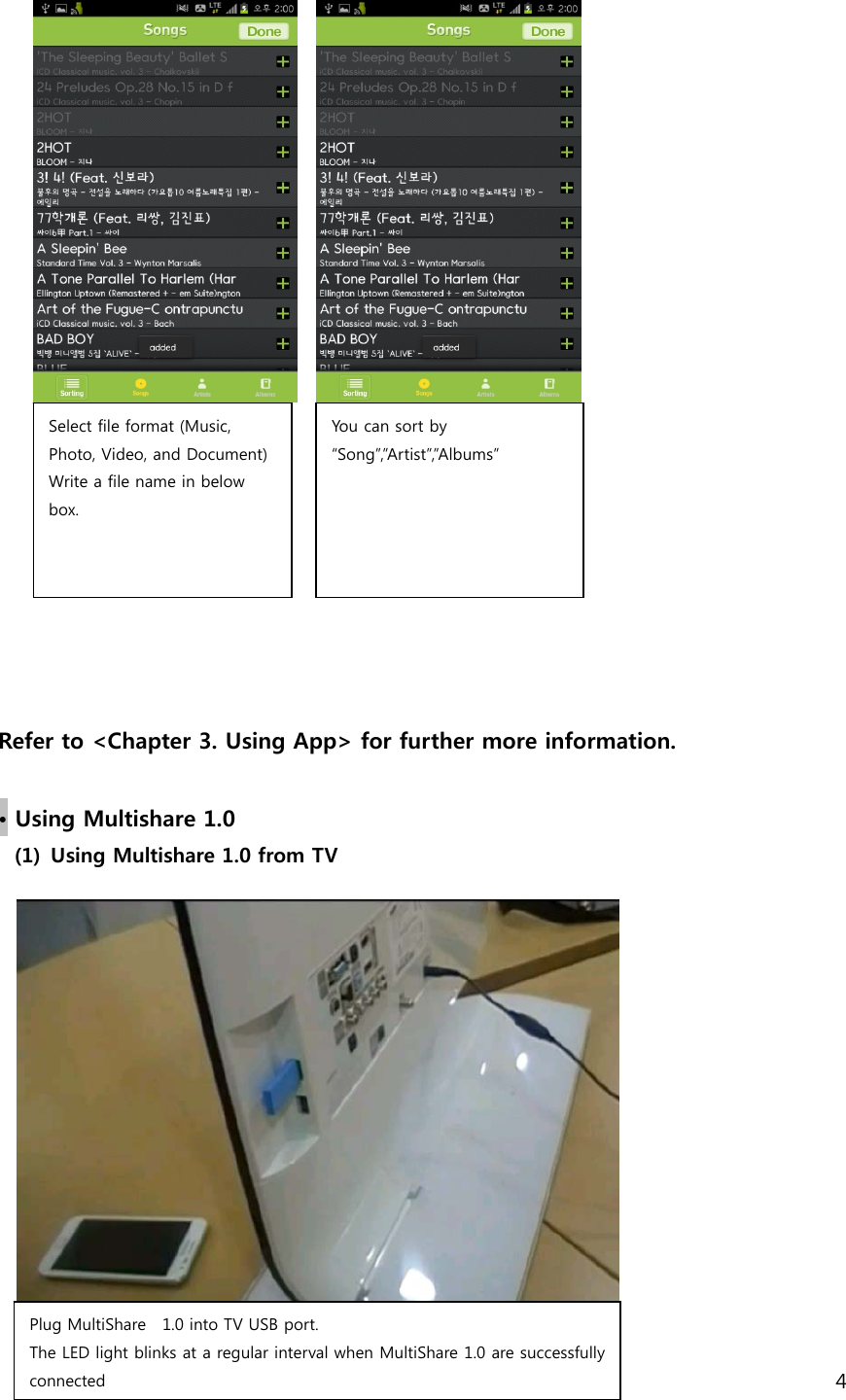
![5 Run the App Tap[CONNECT] to connect Wi-Fi. Activated Wi-Fi Select Playlist. If you listen to music, check music box. Tap [ OK ]](https://usermanual.wiki/ENUSTECH/JAK/User-Guide-1828186-Page-5.png)
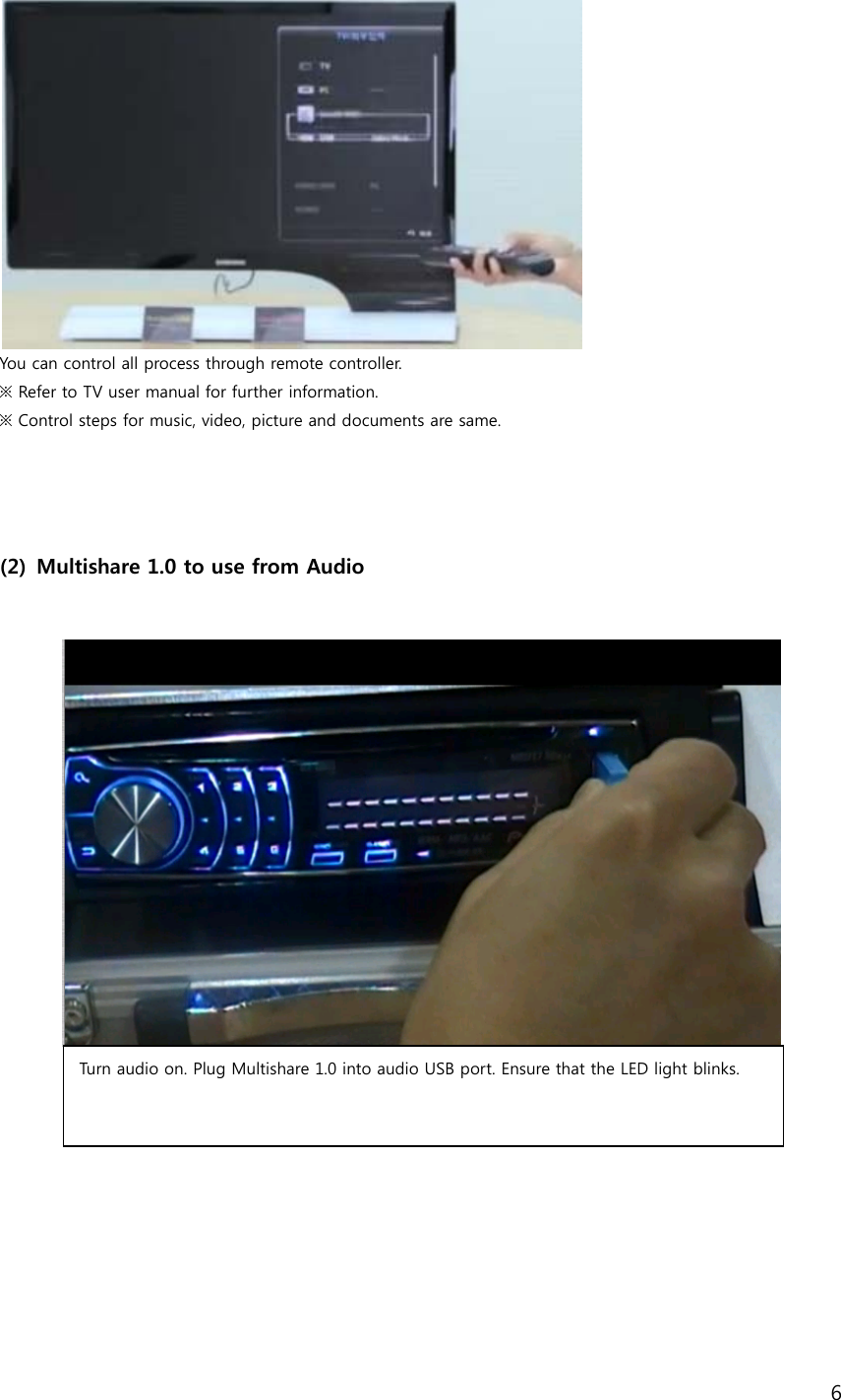
![7 Music plays automatically though Audio. You can control all process (volume control and select music) through Audio. Select music playlist. Check music box. Refer to the below table for iconsTap [ OK ] Run the app Tap[CONNECT] to connect Wi-Fi. Activate Wi-Fi Tap [Playlists] for listening to music.](https://usermanual.wiki/ENUSTECH/JAK/User-Guide-1828186-Page-7.png)
![8 (1) Using Multishare 1.0 from laptop ① MultiShare USB is a WiFi Stick programmed in such way that it will be recognized as a memory stick when inserted to a USB port. Ex : When connected with Galaxy Nexus, you can find “Galaxy Nexus”USB drive on your computer. ② Computer -> Galaxy Nexus”USB drives. Open folder and play documents. 3. Using the app (1) Edit playlists ▶ Delete photos ▶ Zoom picture Tap photo playlist Tap [ Ed it] Tap bin icon to delete selected picture.](https://usermanual.wiki/ENUSTECH/JAK/User-Guide-1828186-Page-8.png)
![9 ▶ Add pictures ※ Tap the arrows to watch the next picture. ※ a picture can rotate by tapping buttons on the top Tap photo playlist Tap [ Ed it] Tap photo playlist. Tap [ Ed it] Tap [Add photos]](https://usermanual.wiki/ENUSTECH/JAK/User-Guide-1828186-Page-9.png)
![10 ▶ 사진 Playlist 비우기 ▶ Empty playlist Tap [+] button to add pictures and tap [Done] Check photos number in this playlist at the below on a screen. Tap photo playlist Tap [Empty] Tap [ OK ]](https://usermanual.wiki/ENUSTECH/JAK/User-Guide-1828186-Page-10.png)
![11 ▶ Delete playlist You can check empty playlist Tap photo playlist Tap [Delete] Tap [ OK ]](https://usermanual.wiki/ENUSTECH/JAK/User-Guide-1828186-Page-11.png)
![12 ▶ Delete music Tap music playlist Tap [ Ed it] Tap [-] and tap [Delete] Deleted photo playlist](https://usermanual.wiki/ENUSTECH/JAK/User-Guide-1828186-Page-12.png)
![13 ▶ Add music ※ you can move selected song by dragging the arrow. Control steps for music, video, picture and documents are same. Tap music playlist Tap [ Ed it] Tap [Add songs] to add music.](https://usermanual.wiki/ENUSTECH/JAK/User-Guide-1828186-Page-13.png)
![14 ▶ Empty music playlist Tap [+] to add songs. Selected songs color will change black. You can check current songs number in this playlist. Tap music playlist Tap [ Em pty] Tap [ OK ]](https://usermanual.wiki/ENUSTECH/JAK/User-Guide-1828186-Page-14.png)
![15 ▶ Delete playlist You can check empty playlist Tap music playlist to delete a playlist. Tap [Delete] Tap [ OK ]](https://usermanual.wiki/ENUSTECH/JAK/User-Guide-1828186-Page-15.png)
![16 ▶ Delete video You can check deleted list. Tap video playlist Tap [ Ed it] Tap [-] and tap [Delete] to delete selected video file.](https://usermanual.wiki/ENUSTECH/JAK/User-Guide-1828186-Page-16.png)
![17 ▶ Add videos You can check current video number in this playlist. Tap video playlist Tap [ Ed it] Tap [Add Videos] to add videos.](https://usermanual.wiki/ENUSTECH/JAK/User-Guide-1828186-Page-17.png)
![18 ▶ Empty video Tap [+] to add video files. Selected videos color will change black. Tap [ Do ne ] Tap video playlist Tap [ Em pty] Tap [OK] to empty playlist.](https://usermanual.wiki/ENUSTECH/JAK/User-Guide-1828186-Page-18.png)
![19 ▶ 동영상 Playlist 삭제하기 ▶ Delete Playlist You can check empty playlist Tap video playlist Tap [Delete] Tap [ OK ]](https://usermanual.wiki/ENUSTECH/JAK/User-Guide-1828186-Page-19.png)
![20 ▶ Delete documents Tap document playlist Tap [Delete] Tap [-] and tap [Delete] to delete selected document file. You can check current document number in this playlist.](https://usermanual.wiki/ENUSTECH/JAK/User-Guide-1828186-Page-20.png)
![21 ▶ Add document Tap document playlist Tap [ Ed it] Tap [Add Files] to add documents. Select Whether use Dropbox folder or Smartphone folder You can browse all files from Drop box. You can browse all files from your Smartphone.](https://usermanual.wiki/ENUSTECH/JAK/User-Guide-1828186-Page-21.png)
![22 ▶ Empty playlist ▶ Delete document Tap music playlist Tap [ Em pty] Tap [ OK ] Tap document playlist Tap [Delete] Tap [ OK ]](https://usermanual.wiki/ENUSTECH/JAK/User-Guide-1828186-Page-22.png)
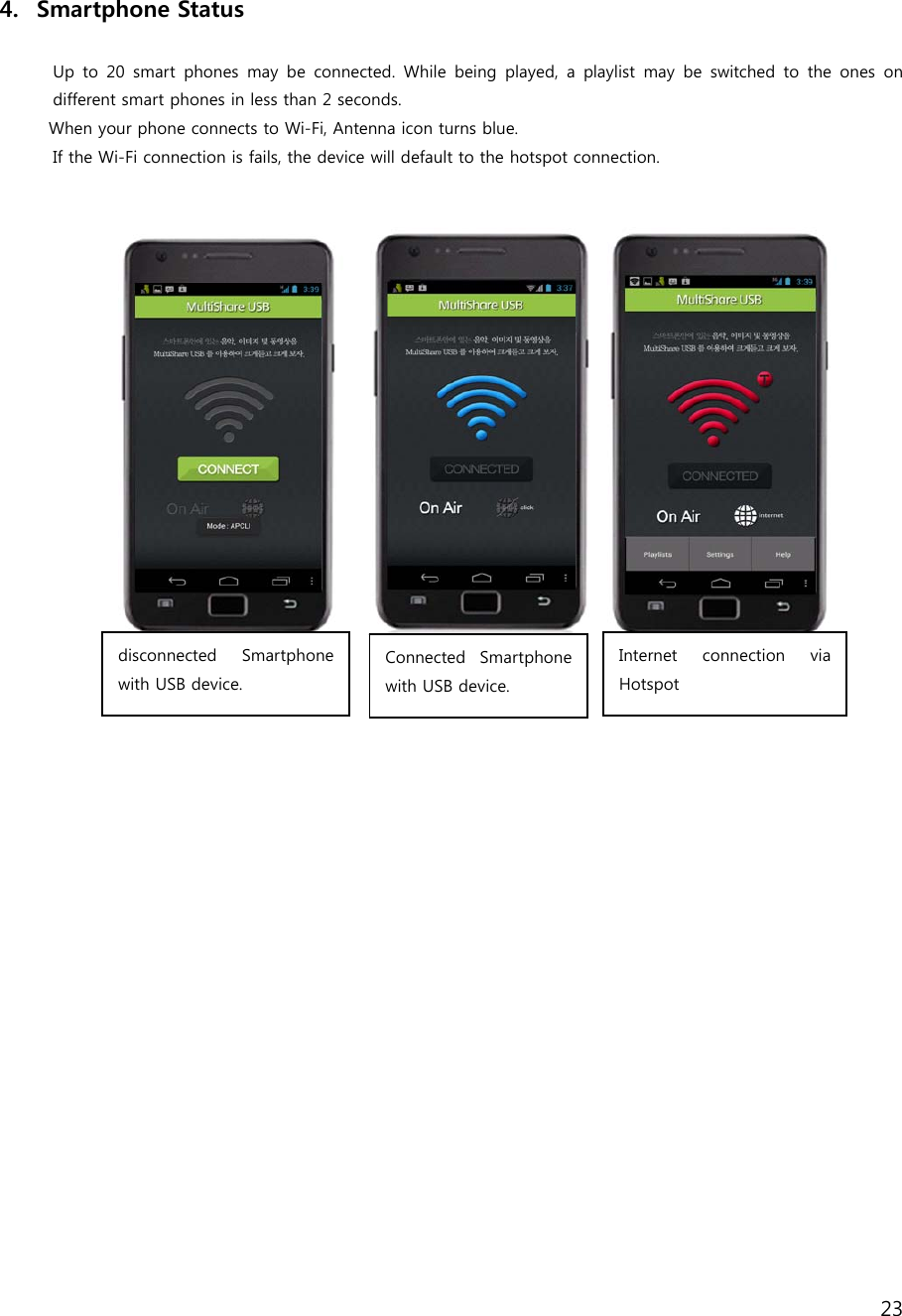
![24 5. Setting Multishare 1.0 Tap [Change] and change Jak`s name and password. Check the box, when you use internet while connected with Jak And Check below options. Check the box, internet connection via Wi-Fi (AP) Tap this button to add Wi-Fi. Enter Wi-Fi name and password and Tap [Sa v e ] You can check saved Wi-Fi list. Press Wi-Fi for 2sencond you can modify name, password. If Wi-Fi connection is not available, check this box to activate hotspot. You can change hotspot`s name and password.](https://usermanual.wiki/ENUSTECH/JAK/User-Guide-1828186-Page-24.png)
![25 6. Update You can check current version at Basic Info menu. Tap [최신버전업데이트하기] when you need to update.](https://usermanual.wiki/ENUSTECH/JAK/User-Guide-1828186-Page-25.png)