User Manual
1
Multishare 1.0 User Manual
1. About the Multishare 1.0
Enables contents in your phone, to be available to any external devices with USB connector, wirelessly without
going through the cloud infrastructure.
Existing device to device sharing solutions are still cumbersome,confusing, expensive and tied to specific
brands/manufacturers.
MultiShare USB is a WiFi Stick programmed in such way that it will be recognized as a memory stick when
inserted to a USB port.
Premium audio quality(AirPlay Dongle)
Up to 20 smart phones may be connected. While being played, a playlist may be switched to the ones on
different smart phones in less than 2 seconds.
No need for charging or external power
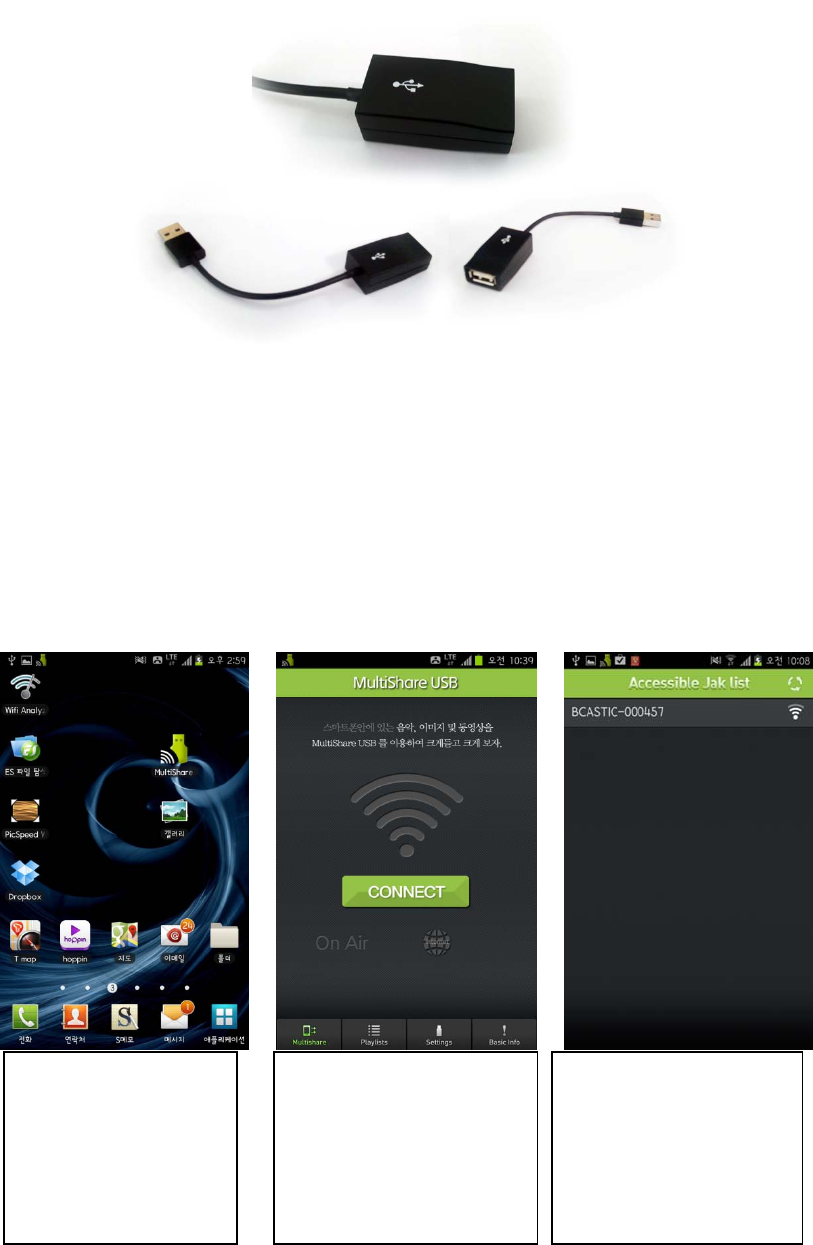
2. Accessories
– Car Audio Adaptor : To circumvent power management feature of some car audio models
– User Manual
2
• Before you use the Multishare 1.0, perform the following actions:
Install App to use Multishare 1.0
- Android: Download “MultishareUSB App” from Play Store.
- iPhone: Download “MultishareUSB App” from App Store.
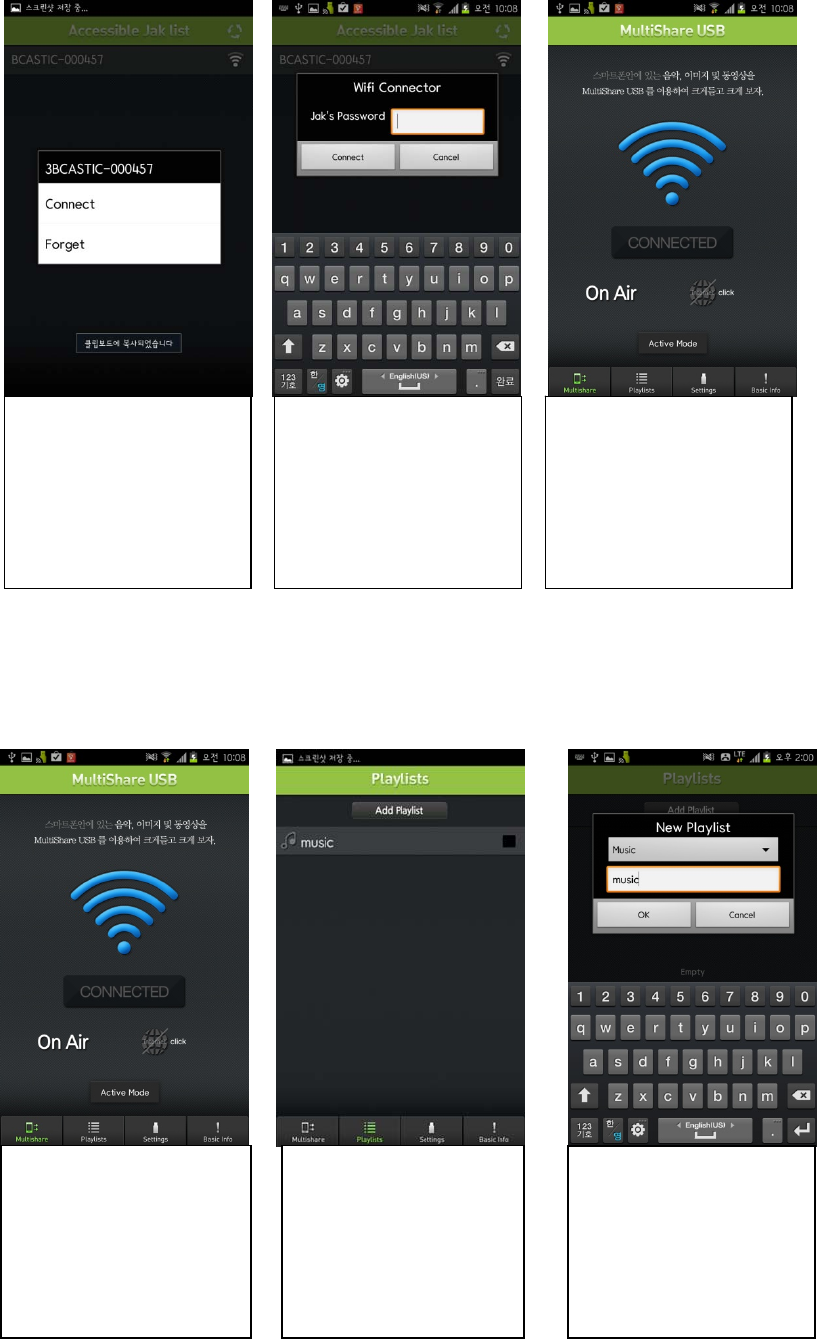
• Jak to connect with your smartphone
Run the App
Tap [CONNECT] Select Wi-Fi to connect
Multishare 1.0
3
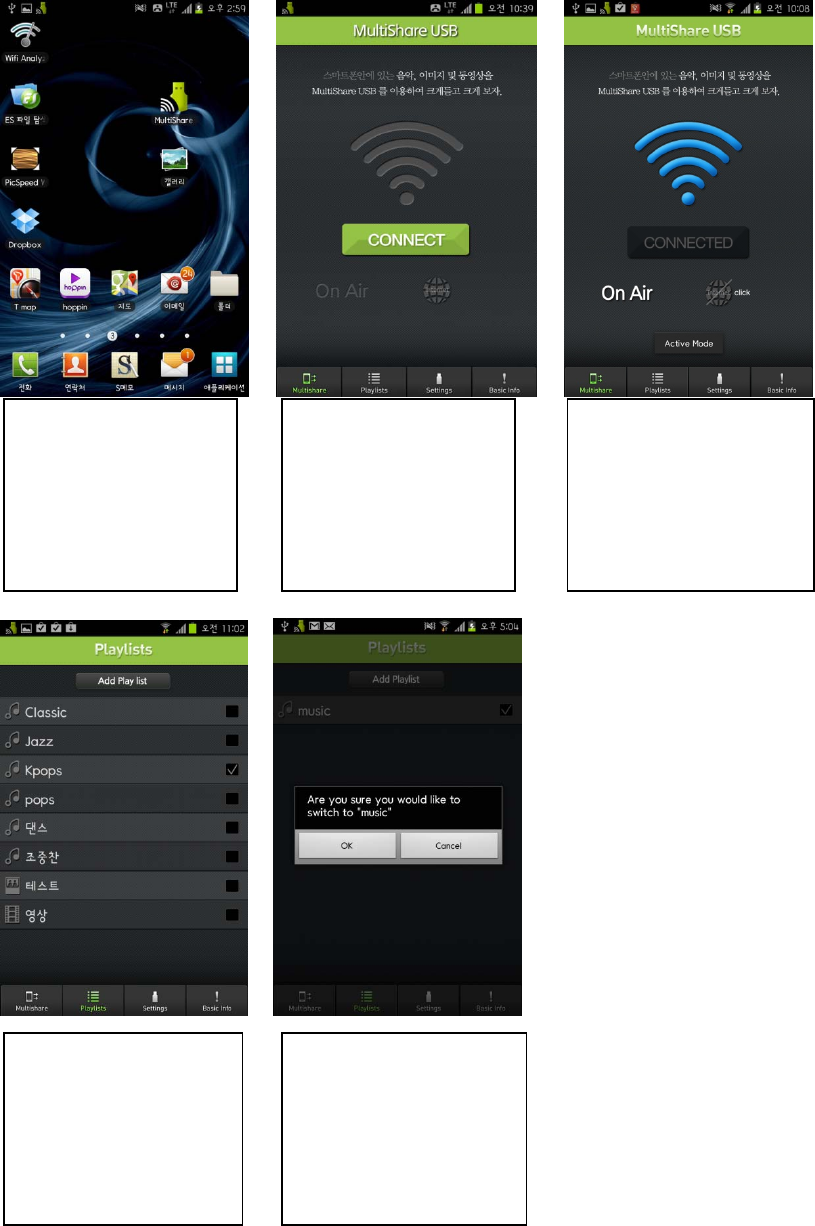
• Add playlist
Before using the App, you
must create playlists.
Tap [playlists].
Tap [Add playlist] to create
new playlist.
Select file format (Music,
Photo, Video, and Document)
Write a file name in below
box.
Tap[Connect] Enter Password.
Default: 12345678
When reconnected, Multishare
1.0 connects automatically.
Activated Wi-Fi

4
Refer to <Chapter 3. Using App> for further more information.
• Using Multishare 1.0
(1) Using Multishare 1.0 from TV
Select file format (Music,
Photo, Video, and Document)
Write a file name in below
box.
Plug MultiShare 1.0 into TV USB port.
The LED light blinks at a regular interval when MultiShare 1.0 are successfully
connected
You can sort by
“Song”,”Artist”,”Albums”
5
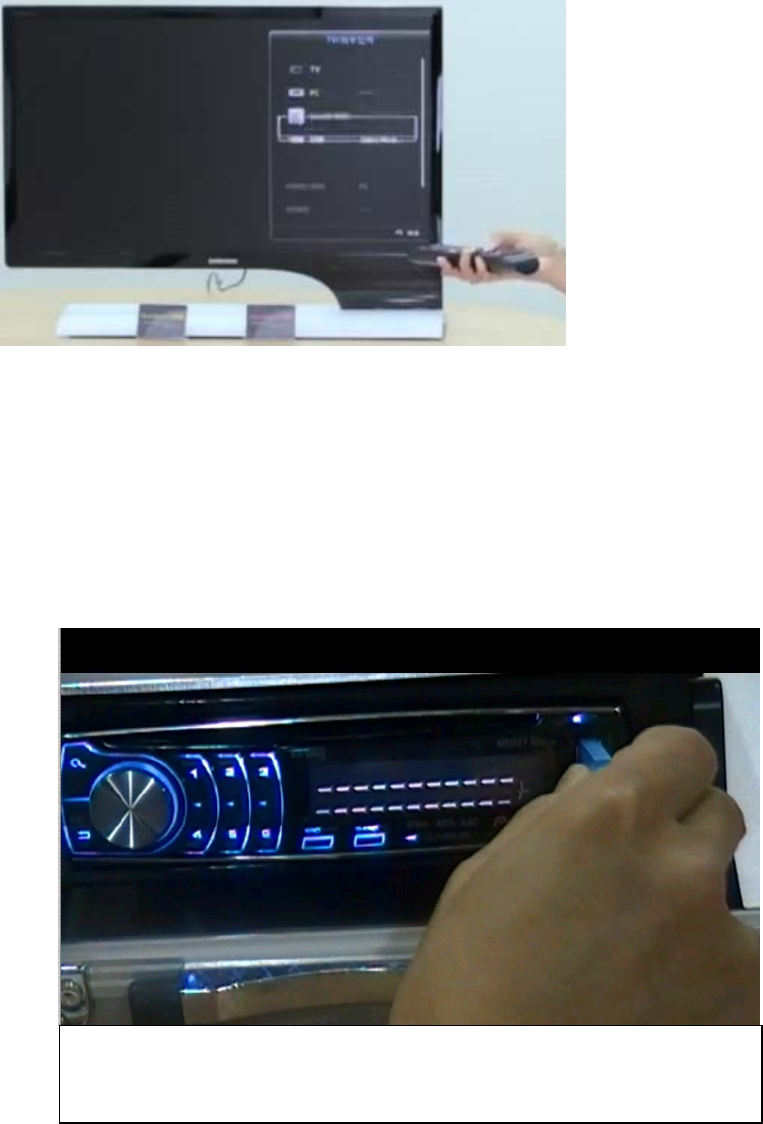
Run the App
Tap[CONNECT] to connect
Wi-Fi.
Activated Wi-Fi
Select Playlist. If you listen
to music, check music box.
Tap [ OK ]
6
You can control all process through remote controller.
※ Refer to TV user manual for further information.
※ Control steps for music, video, picture and documents are same.
(2) Multishare 1.0 to use from Audio
Turn audio on. Plug Multishare 1.0 into audio USB port. Ensure that the LED light blinks.

7
Music plays automatically though Audio.
You can control all process (volume control and select music) through Audio.
Select music playlist.
Check music box.
Refer to the below table for
icons
Tap [ OK ]
Run the app
Tap[CONNECT] to connect
Wi-Fi.
Activate Wi-Fi
Tap [Playlists] for listening to
music.
8
(1) Using Multishare 1.0 from laptop
① MultiShare USB is a WiFi Stick programmed in such way that it will be recognized as a memory stick when
inserted to a USB port.
Ex : When connected with Galaxy Nexus, you can find “Galaxy Nexus”USB drive on your computer.
② Computer -> Galaxy Nexus”USB drives. Open folder and play documents.
3. Using the app
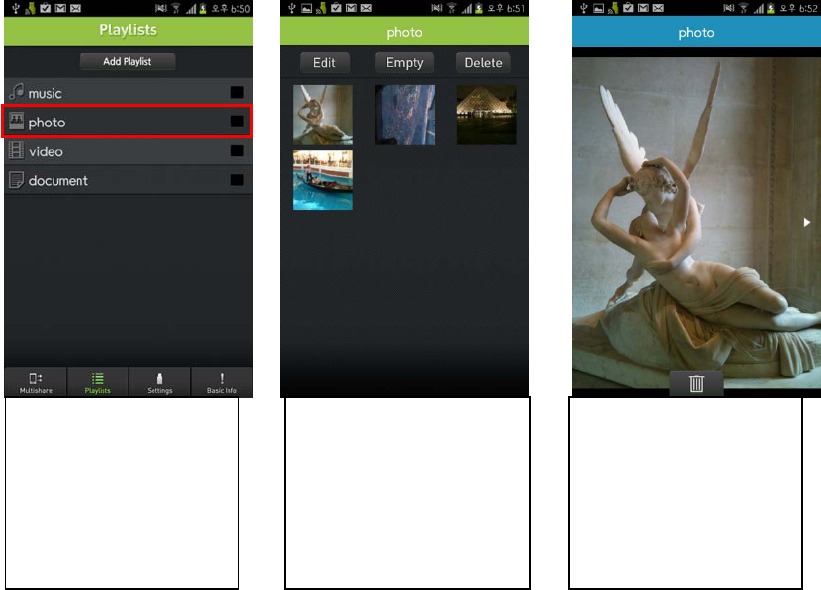
(1) Edit playlists
▶ Delete photos
▶ Zoom picture
Tap photo playlist
Tap [ Ed it]
Tap bin icon to delete
selected picture.
9
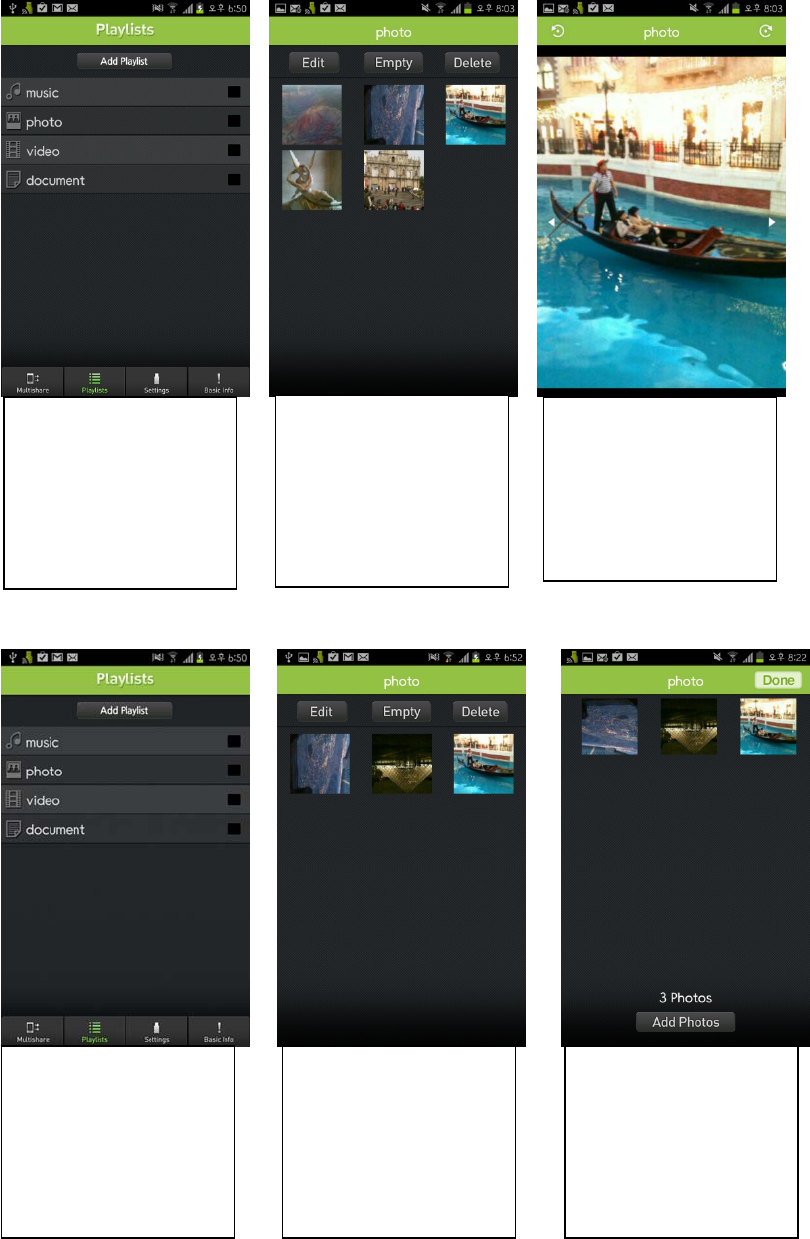
▶ Add pictures
※ Tap the arrows to watch
the next picture.
※ a picture can rotate by
tapping buttons on the top
Tap photo playlist
Tap [ Ed it]
Tap photo playlist.
Tap [ Ed it]
Tap [Add photos]
10
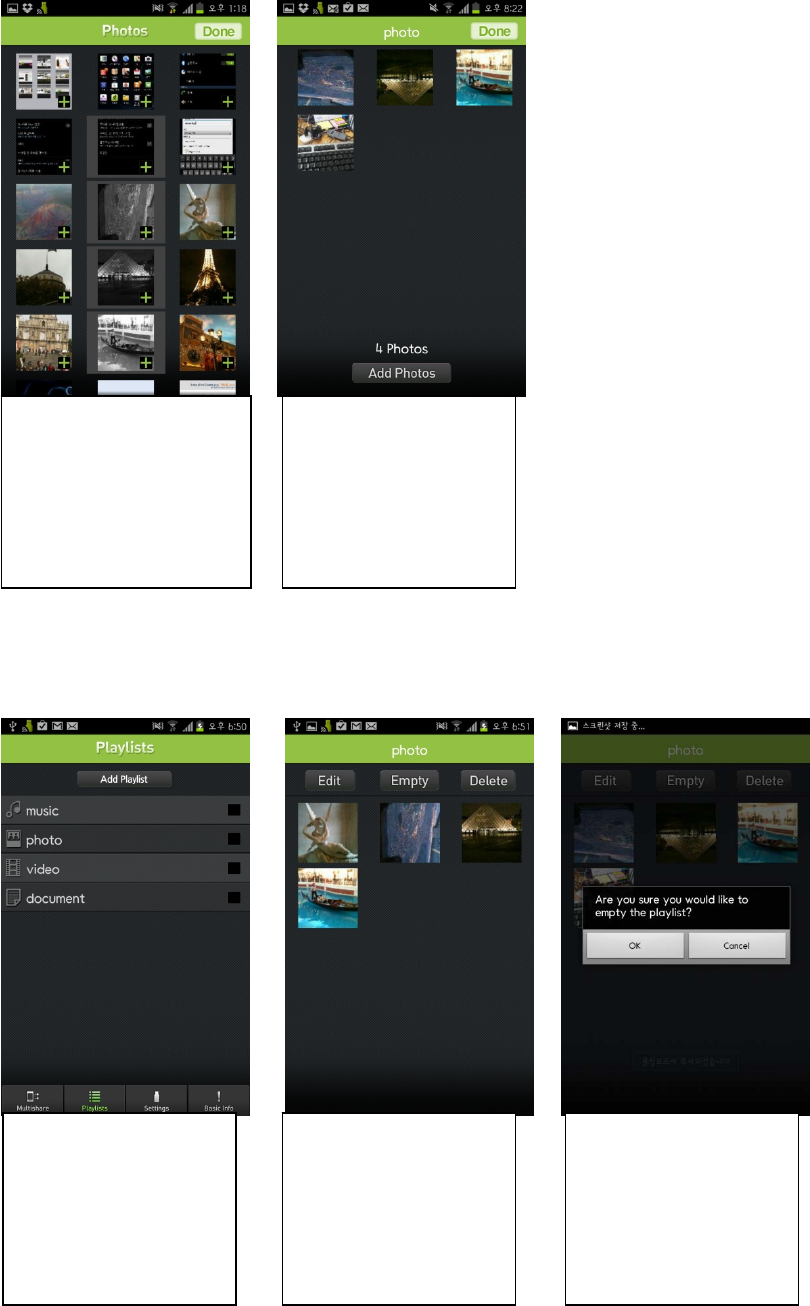
▶ 사진 Playlist 비우기
▶ Empty playlist
Tap [+] button to add
pictures and tap [Done]
Check photos number in
this playlist at the below
on a screen.
Tap photo playlist
Tap [Empty]
Tap [ OK ]
11
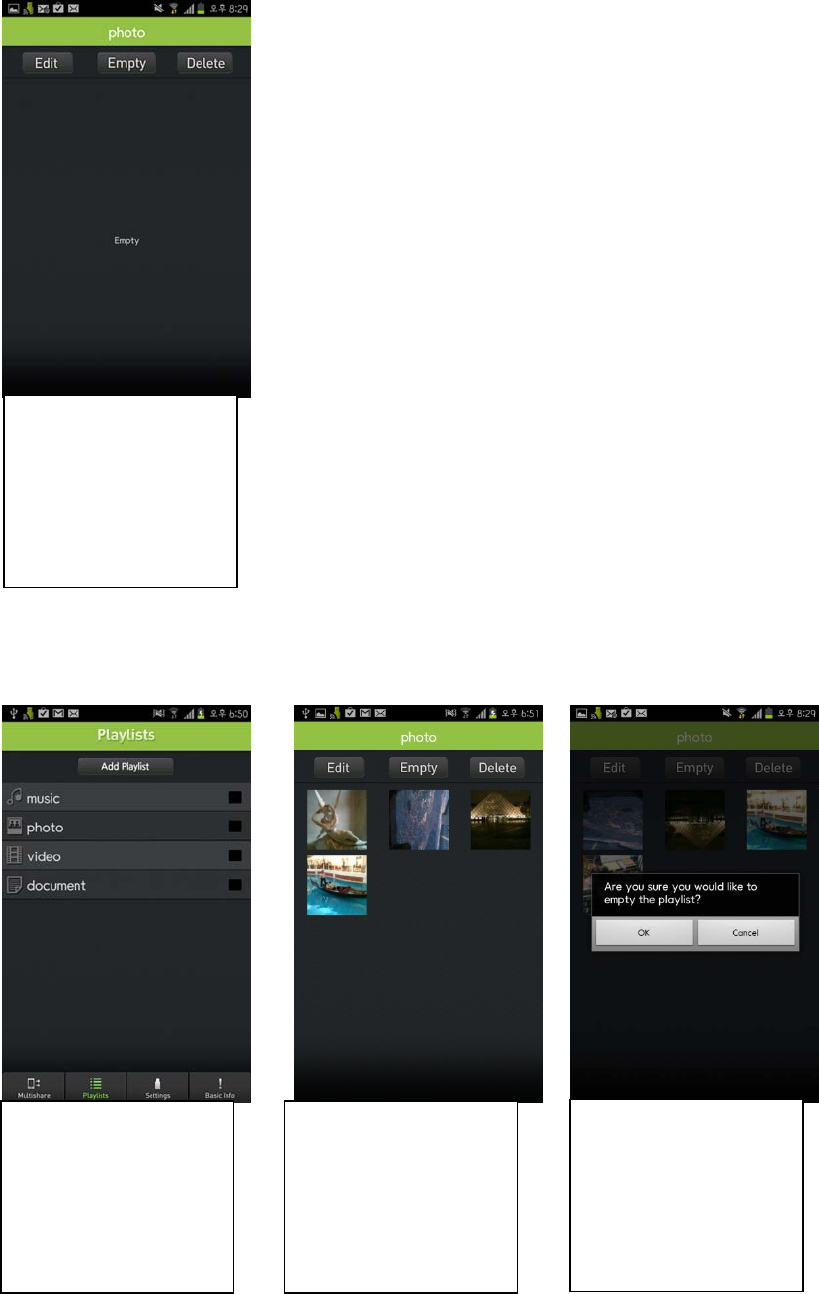
▶ Delete playlist
You can check empty
playlist
Tap photo playlist
Tap [Delete]
Tap [ OK ]

12
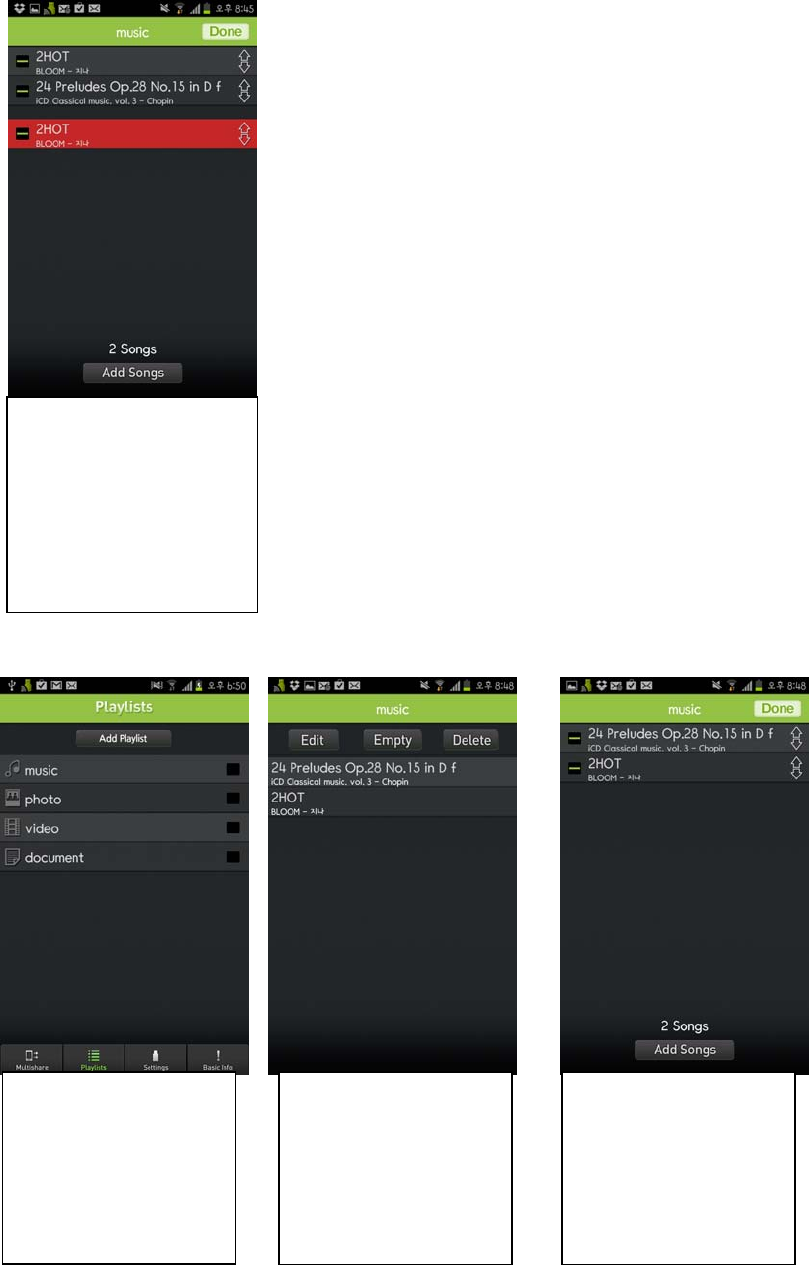
▶ Delete music
Tap music playlist
Tap [ Ed it]
Tap [-] and tap [Delete]
Deleted photo playlist
13
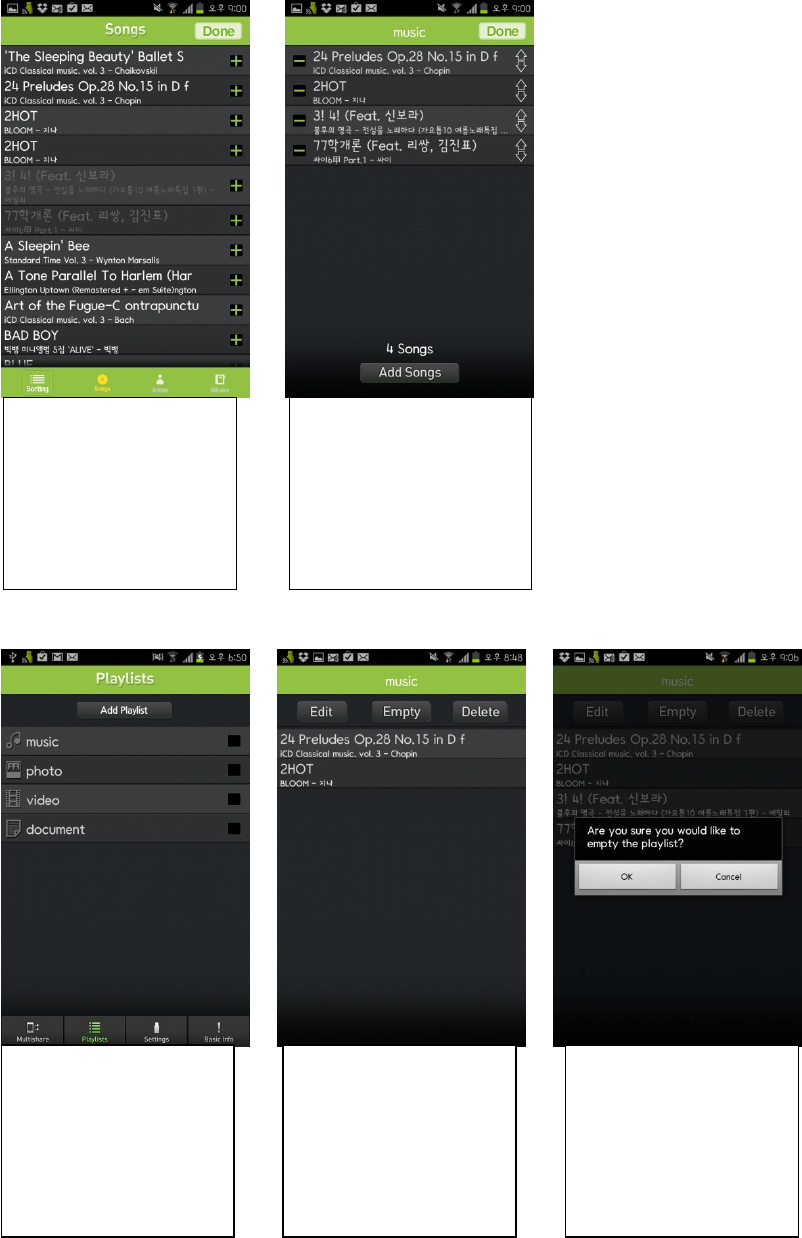
▶ Add music
※ you can move selected
song by dragging the arrow.
Control steps for music,
video, picture and documents
are same.
Tap music playlist
Tap [ Ed it]
Tap [Add songs] to add
music.
14
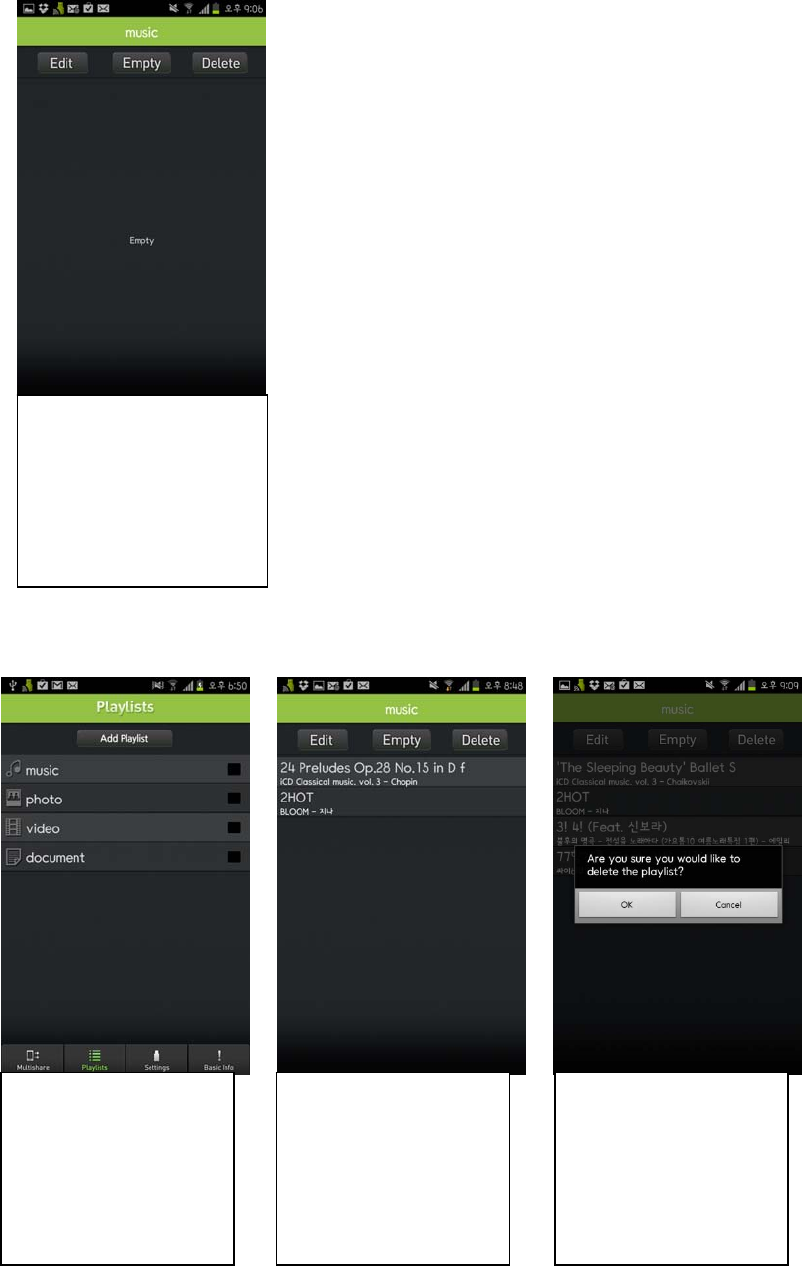
▶ Empty music playlist
Tap [+] to add songs.
Selected songs color will
change black.
You can check current songs
number in this playlist.
Tap music playlist
Tap [ Em pty]
Tap [ OK ]
15
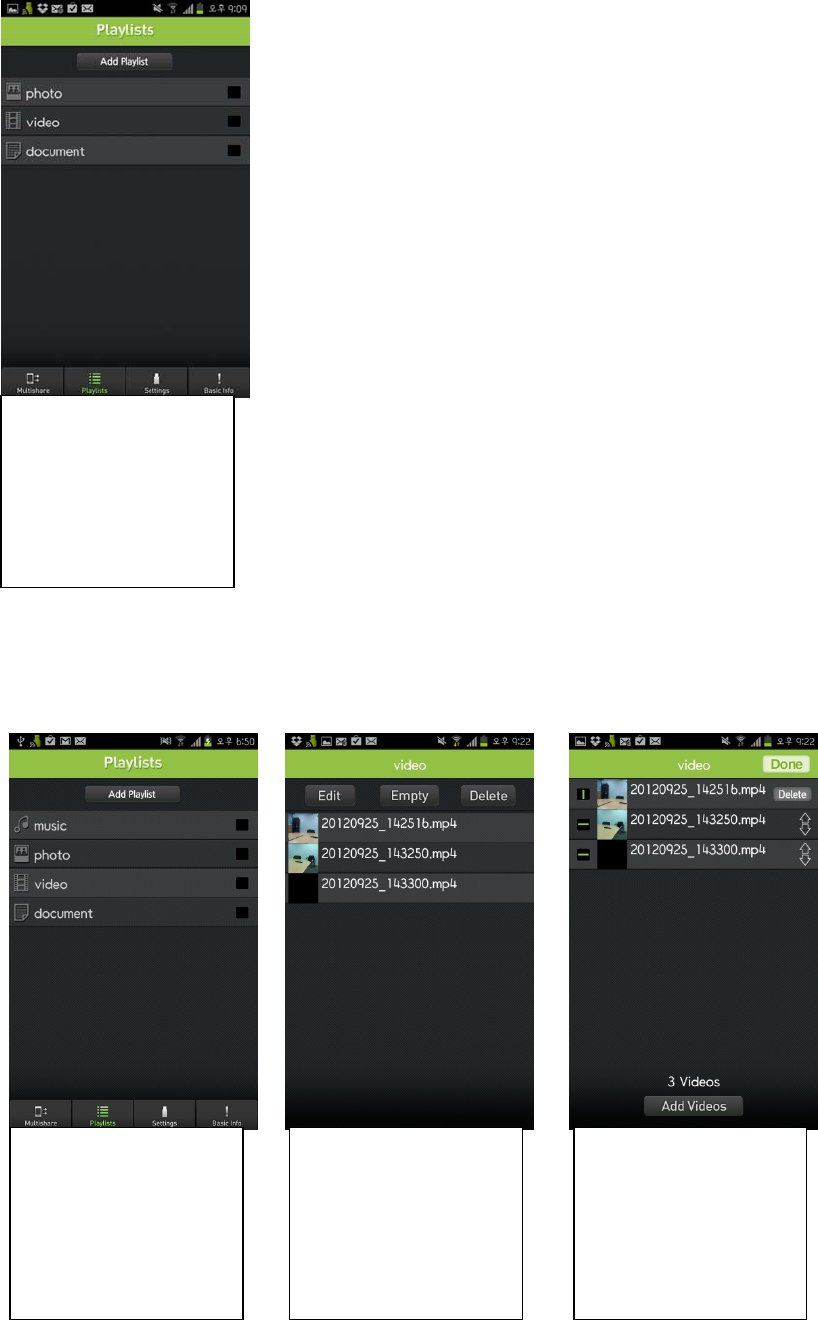
▶ Delete playlist
You can check empty playlist
Tap music playlist to delete
a playlist.
Tap [Delete]
Tap [ OK ]
16
▶ Delete video
You can check deleted list.
Tap video playlist
Tap [ Ed it]
Tap [-] and tap [Delete] to
delete selected video file.
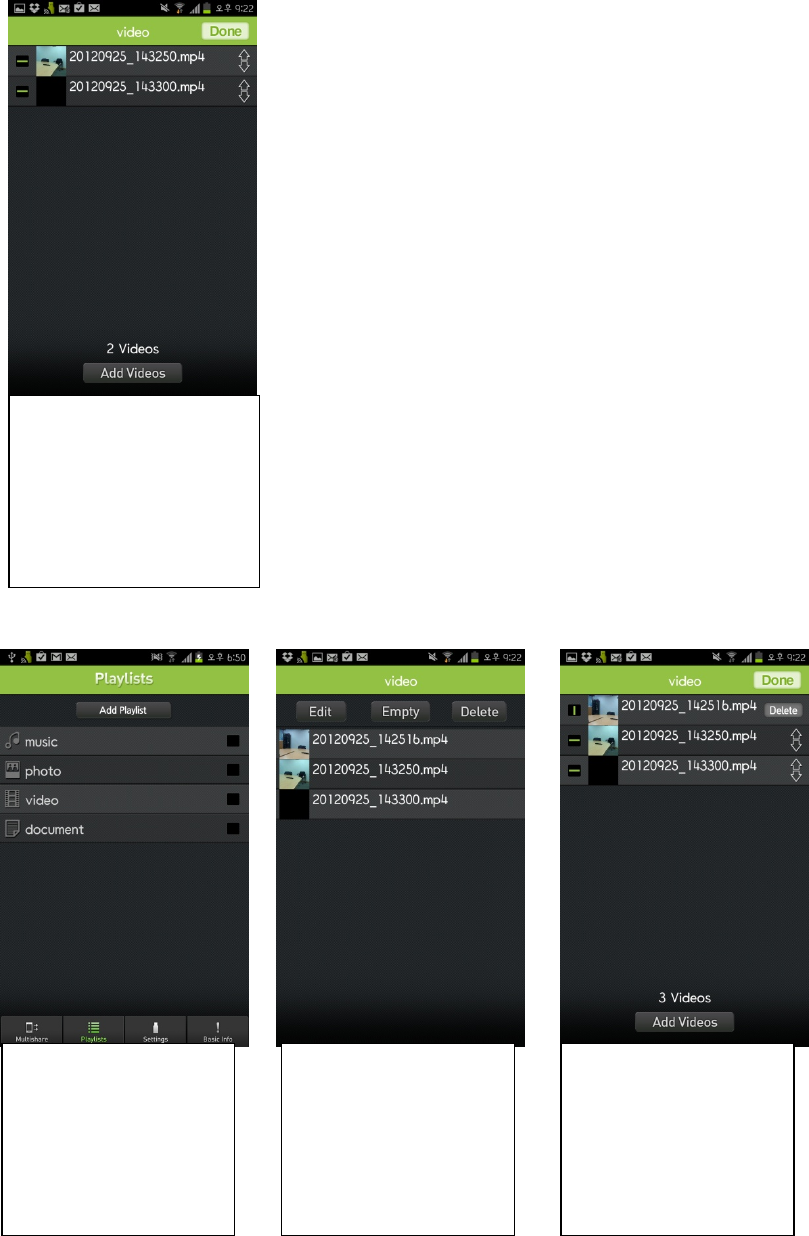
17
▶ Add videos
You can check current video
number in this playlist.
Tap video playlist
Tap [ Ed it]
Tap [Add Videos] to add
videos.
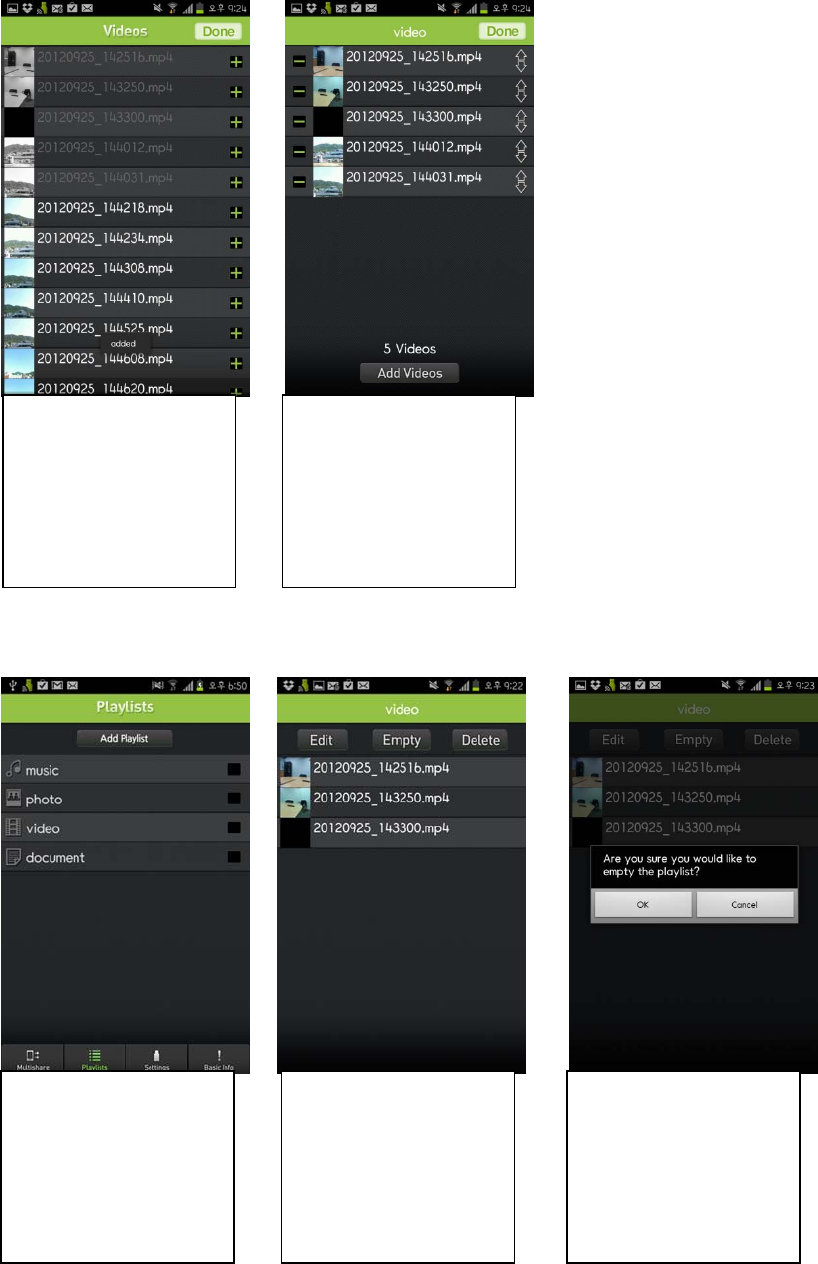
18
▶ Empty video
Tap [+] to add video files.
Selected videos color will
change black.
Tap [ Do ne ]
Tap video playlist
Tap [ Em pty]
Tap [OK] to empty playlist.

19
▶ 동영상 Playlist 삭제하기
▶ Delete Playlist
You can check empty playlist
Tap video playlist
Tap [Delete]
Tap [ OK ]
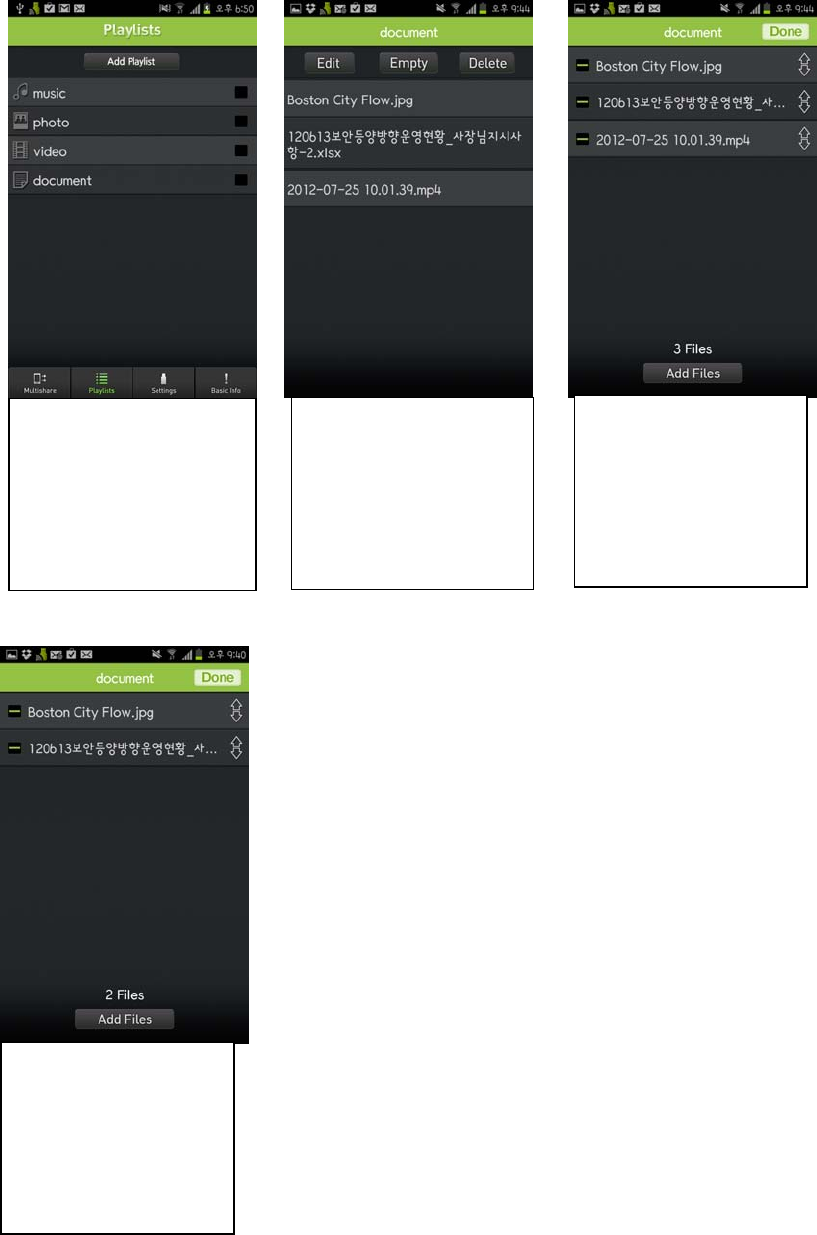
20
▶ Delete documents
Tap document playlist
Tap [Delete]
Tap [-] and tap [Delete] to
delete selected document
file.
You can check current
document number in this
playlist.
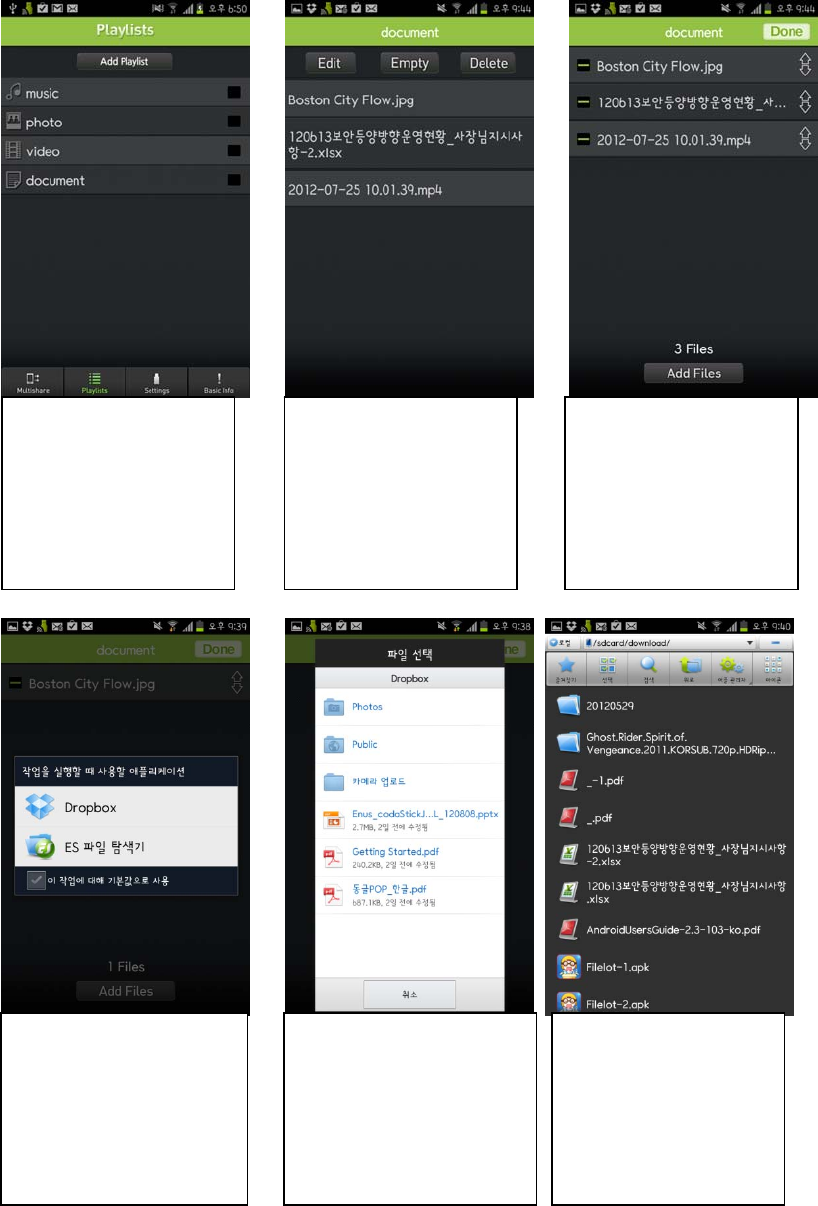
21
▶ Add document
Tap document playlist
Tap [ Ed it]
Tap [Add Files] to add
documents.
Select
Whether use Dropbox folder
or Smartphone folder
You can browse all files from
Drop box.
You can browse all files
from your Smartphone.
22
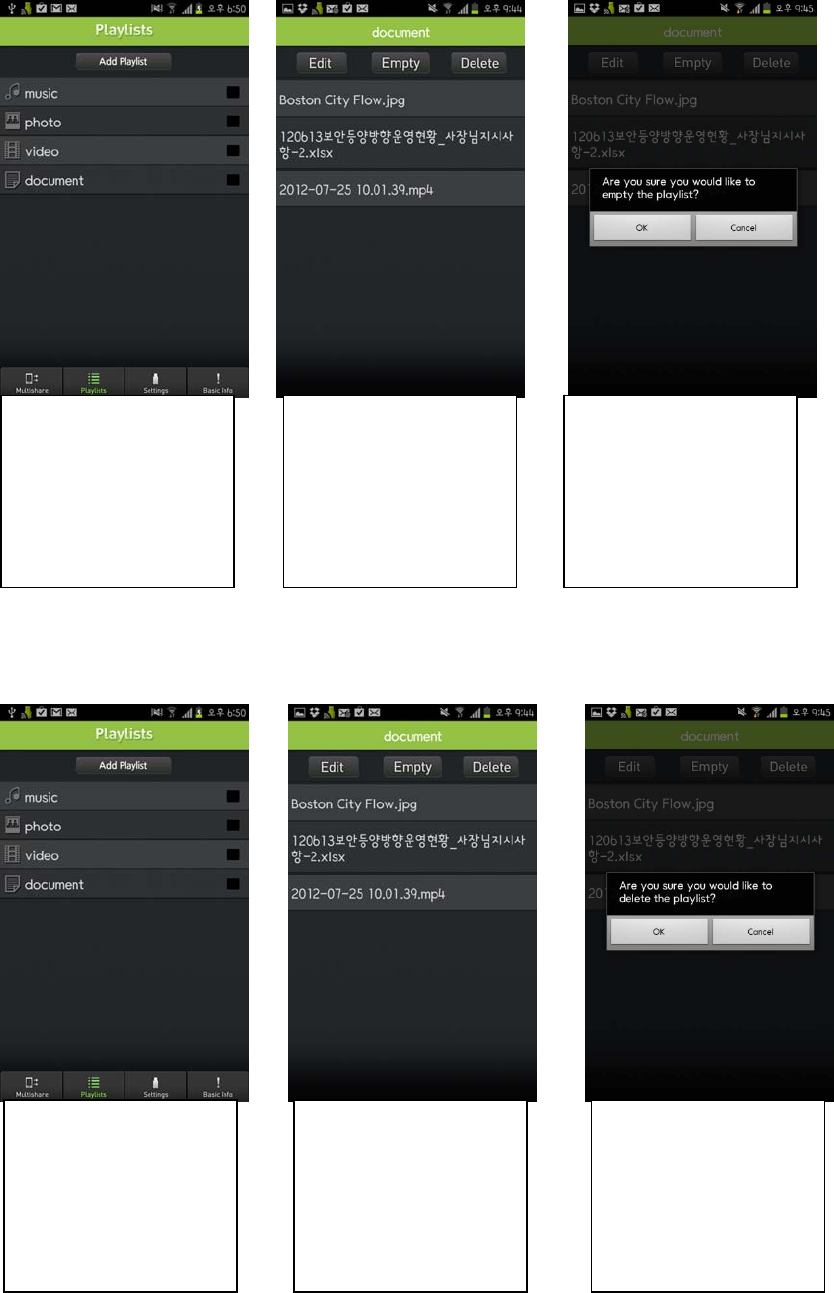
▶ Empty playlist
▶ Delete document
Tap music playlist
Tap [ Em pty] Tap [ OK ]
Tap document playlist
Tap [Delete] Tap [ OK ]
23
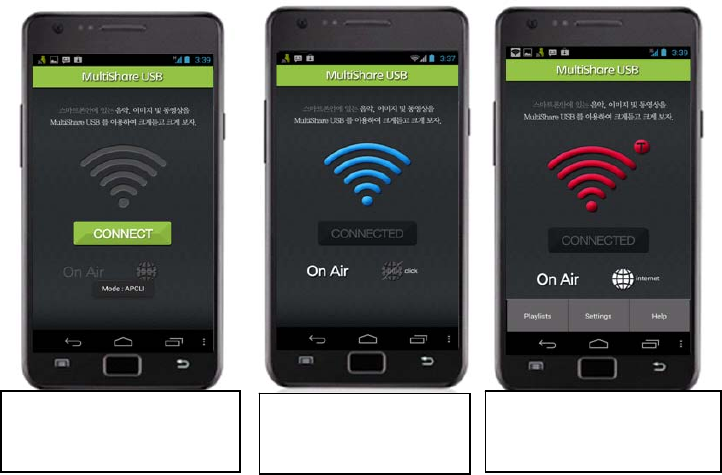
4. Smartphone Status
Up to 20 smart phones may be connected. While being played, a playlist may be switched to the ones on
different smart phones in less than 2 seconds.
When your phone connects to Wi-Fi, Antenna icon turns blue.
If the Wi-Fi connection is fails, the device will default to the hotspot connection.
disconnected Smartphone
with USB device.
Internet connection via
Hotspot
Connected Smartphone
with USB device.
24
5. Setting Multishare 1.0
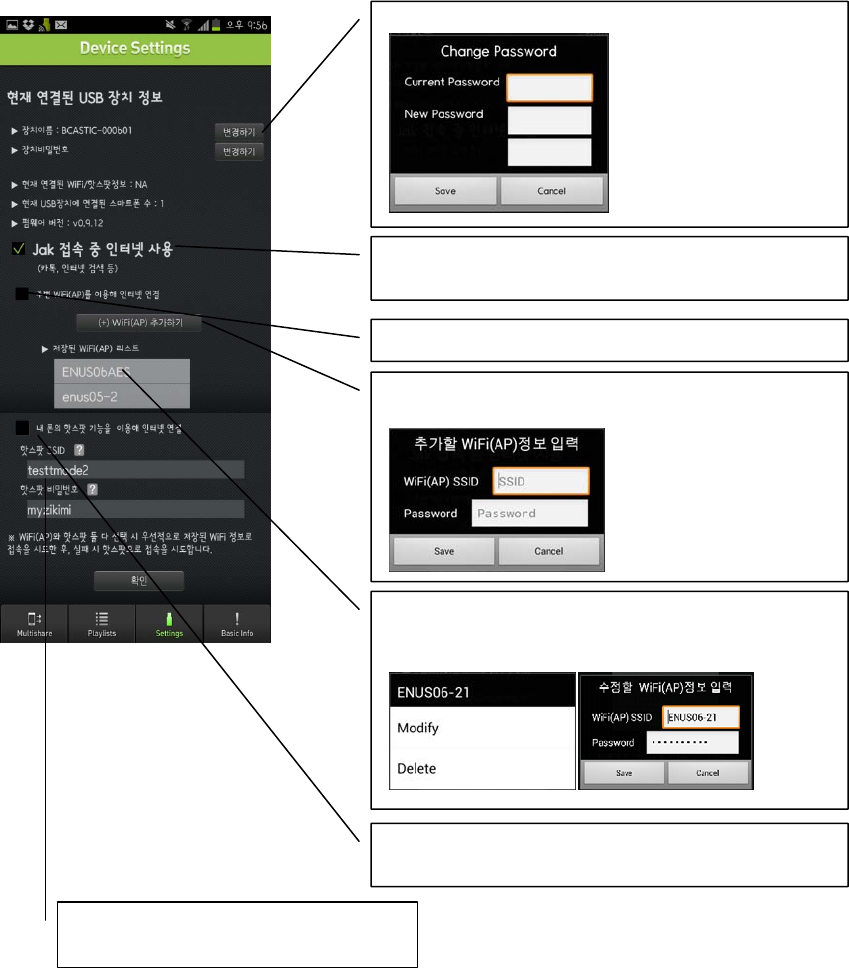
Tap [Change] and change Jak`s name and password.
Check the box, when you use internet while connected with Jak
And Check below options.
Check the box, internet connection via Wi-Fi (AP)
Tap this button to add Wi-Fi. Enter Wi-Fi name and password and
Tap [Sa v e ]
You can check saved Wi-Fi list.
Press Wi-Fi for 2sencond you can modify name, password.
If Wi-Fi connection is not available, check this box to activate
hotspot.
You can change hotspot`s name and password.

25
6. Update
You can check current version at Basic Info menu. Tap [최신버전업데이트하기] when you need to update.
26
7. Hardware Specification.
Software Specification
Behaves like a USB memory stick(FAT32 support)
WiFi support(WPA-PSK/TIKIP support)
protocol(version 1.0) support
Multiple connection support
Features Hardware Specification
Protocol IEEE 802.11b/g/n
Frequency 2.4Ghz
20/40Mhz Interface :
Usb 2.0 clients
LED wifi status
Wireless MAC filtering
64/128/152 bit WEP encryption
WPA-PSK/WPA2-PSK, WPA/WPA2 encryption
Power input 5V usb port
Operating temperature 0 ~ 40 C
Storate temperature -20 ~ 60 C
Humidity 10% to 90% RH non-condensing
Storatge Humidity 5% to 90% non-condnesing
Humidity 1T1R built-in pattern antenna Wireless
bandwidth
Security
27
FCC Information to User
This equipment has been tested and found to comply with the limits for a Class B digital device,
pursuant to Part 15 of the FCC Rules. These limits are designed to provide reasonable protection
against harmful interference in a residential installation. This equipment generates, uses and can
radiate radio frequency energy and, if not installed and used in accordance with the instructions, may
cause harmful interference to radio communications. However, there is no guarantee that interference
will not occur in a particular installation. If this equipment does cause harmful interference to radio or
television reception, which can be determined by turning the equipment off and on, the user is
encouraged to try to correct the interference by one of the following measures:
• Reorient or relocate the receiving antenna.
• Increase the separation between the equipment and receiver.
• Connect the equipment into an outlet on a circuit different from that to which the receiver is con-
nected.
• Consult the dealer or an experienced radio/TV technician for help.
Caution
Modifications not expressly approved by the party responsible for compliance could void the user’s
authority to operate the equipment.
FCC Compliance Information : This device complies with Part 15 of the FCC Rules. Operation is
subject to the following two conditions: (1) This device may not cause harmful interference, and (2)
this device must accept any interference received, including interference that may cause undesired
operation
IMPORTANT NOTE:
FCC RF Radiation Exposure Statement:
This equipment complies with FCC RF radiation exposure limits set forth for an uncontrolled
environment. This equipment should be installed and operated with a minimum distance of 20
centimeters between the radiator and your body.This transmitter must not be co-located or operating
in conjunction with any other antenna or transmitter.
“This device complies with Industry Canada licence-exempt RSS standard(s). Operation is
subject to the following two conditions: (1) this device may not cause interference, and (2) this
device must accept any interference, including interference that may cause undesired operation of
the device.”
Le présent appareil est conforme aux CNR d'Industrie Canada
applicables aux appareils radio exempts de licence. L'exploitation
est autorisée aux deux conditions suivantes : (1) l'appareil ne doit
pas produire de brouillage, et (2) l'utilisateur de l'appareil doit
accepter tout brouillage radioélectrique subi, même si le brouillage
est susceptible d'en compromettre le fonctionnement.