EU3C SCND502E1233 FILMSCAN35 MODERN BASIC User Manual ITNS 400 UM EN for OV5620 FAQ

EU3C COMPANY LIMITED FILMSCAN35 MODERN BASIC ITNS 400 UM EN for OV5620 FAQ

Users Manual

User Manualinnovative technologyITNS-400
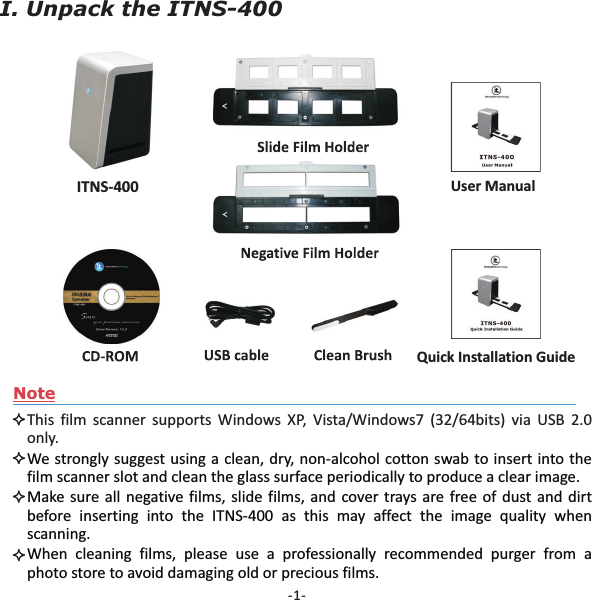
-1-NoteThis film scanner supports Windows XP, Vista/Windows7 (32/64bits) via USB 2.0only.We strongly suggest using a clean, dry, non-alcohol cotton swab to insert into thefilm scanner slot and clean the glass surface periodically to produce a clear image.Make sure all negative films, slide films, and cover trays are free of dust and dirtbefore inserting into the ITNS-400 as this may affect the image quality whenscanning.When cleaning films, please use a professionally recommended purger from aphoto store to avoid damaging old or precious films.I. Unpack the ITNS-400Quick Installation GuideITNS-400 User Manual
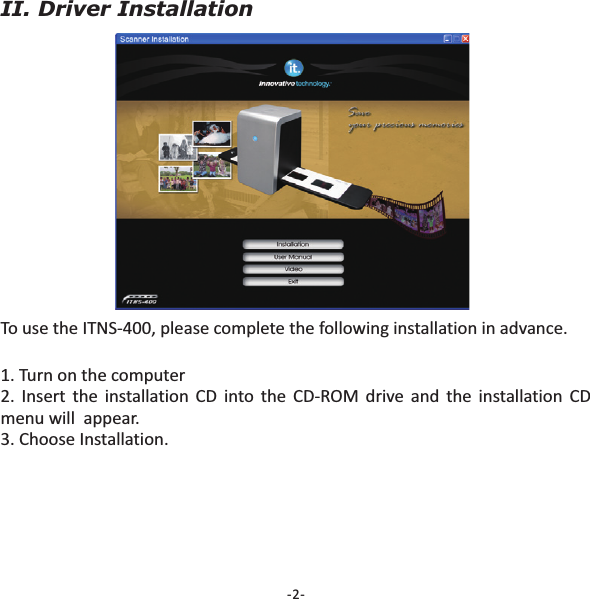
II. Driver Installation1. Turn on the computer2. Insert the installation CD into the CD-ROM drive and the installation CDmenu will  appear.3. Choose Installation.To use the ITNS-400, please complete the following installation in advance.-2-
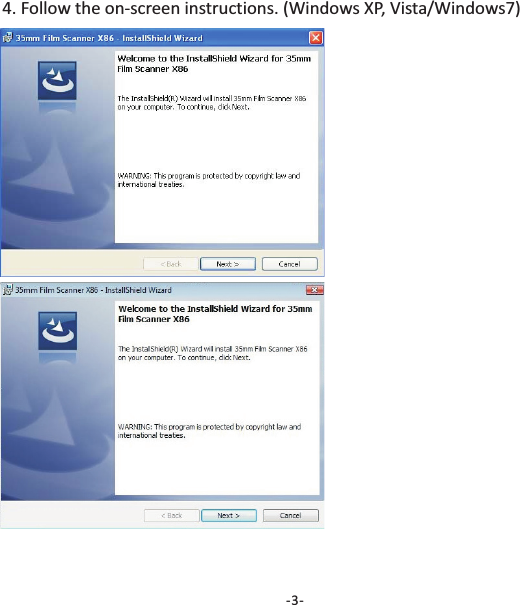
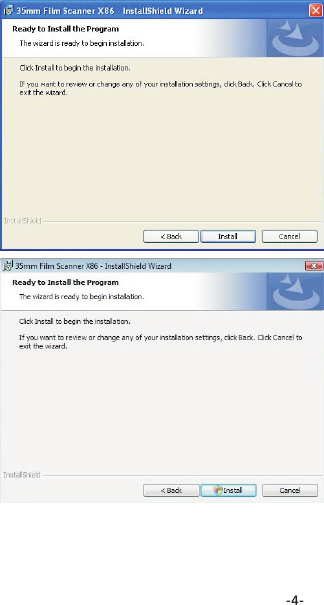
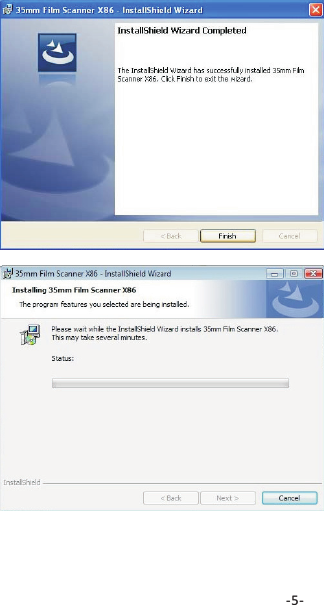
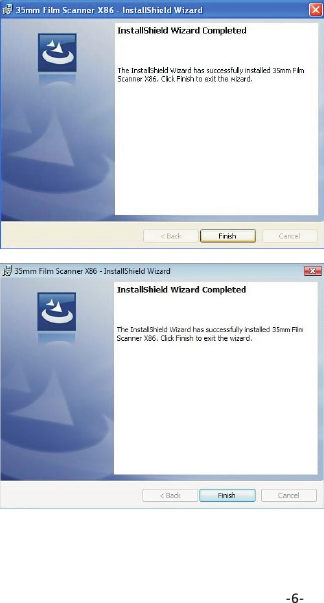
4. Follow the on-screen instructions. (Windows XP, Vista/Windows7)-3-
-4-
-5-
-6-
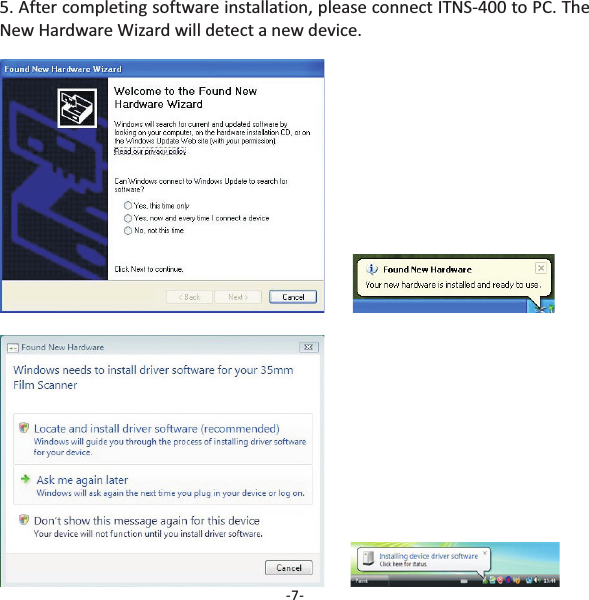
5. After completing software installation, please connect ITNS-400 to PC. TheNew Hardware Wizard will detect a new device.-7-
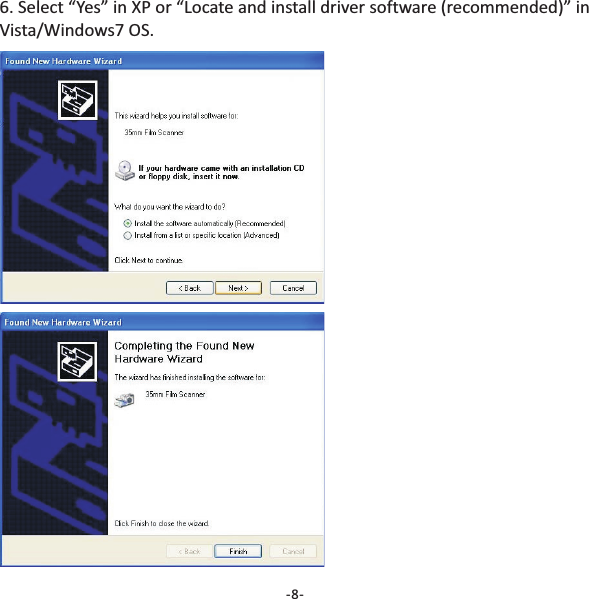
6. Select “Yes” in XP or “Locate and install driver software (recommended)” inVista/Windows7 OS.-8-
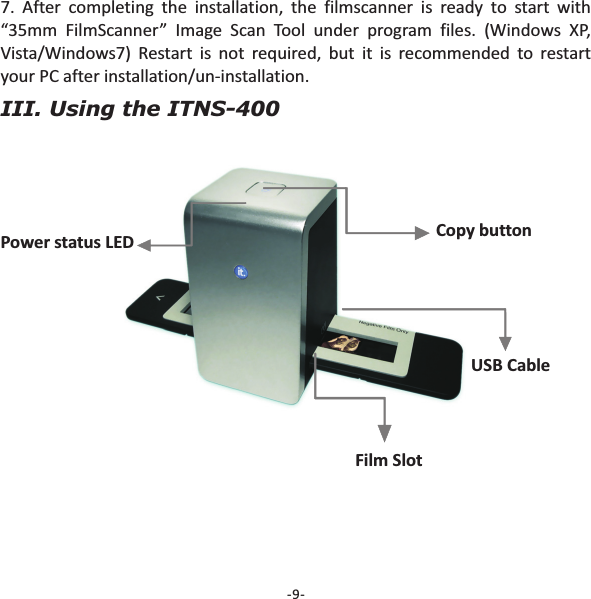
-9-7. After completing the installation, the filmscanner is ready to start with“35mm FilmScanner” Image Scan Tool under program files. (Windows XP,Vista/Windows7 Restart is not required, but it is recommended to restartyour PC after installation/un-installation.)III. Using the ITNS-400Power status LED Copy buttonUSB CableFilm Slot
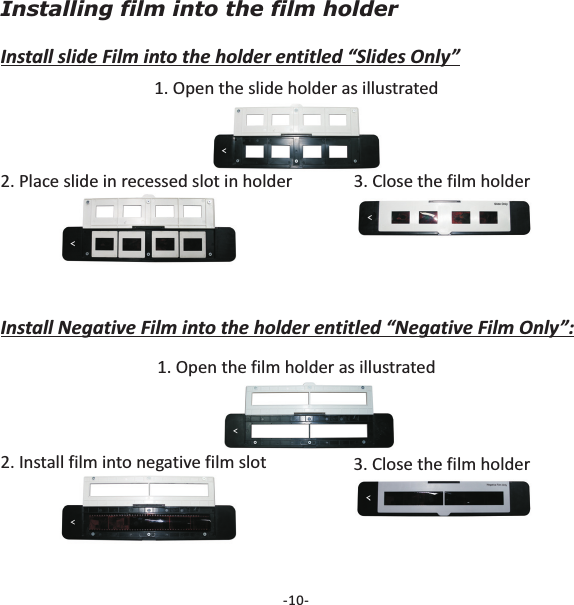
Installing film into the film holderInstall slide Film into the holder entitled “Slides Only”1. Open the slide holder as illustrated-10-2. Place slide in recessed slot in holder 3. Close the film holderInstall Negative Film into the holder entitled “Negative Film Only”:1. Open the film holder as illustrated2. Install film into negative film slot 3. Close the film holder
NoteTo avoid a mirror image, follow the serial numbers (from left to right) ontop of film when installing negative film into holder.Figure 1If the image is upside down [see fig.2], the image can be corrected by“Rotate” function in Image Scan Tool after capture [see fig.3].Figure 2Figure 3-11-
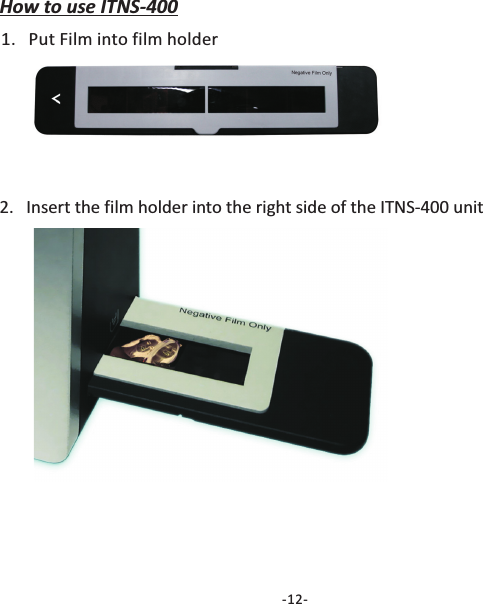
How to use ITNS-4001. Put Film into film holder2.   Insert the film holder into the right side of the ITNS-400 unit-12-
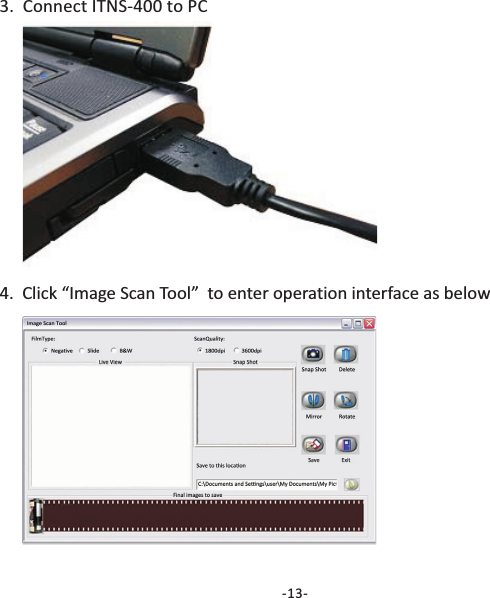
-13-3. Connect ITNS-400 to PC4.  Click “Image Scan Tool” to enter operation interface as below
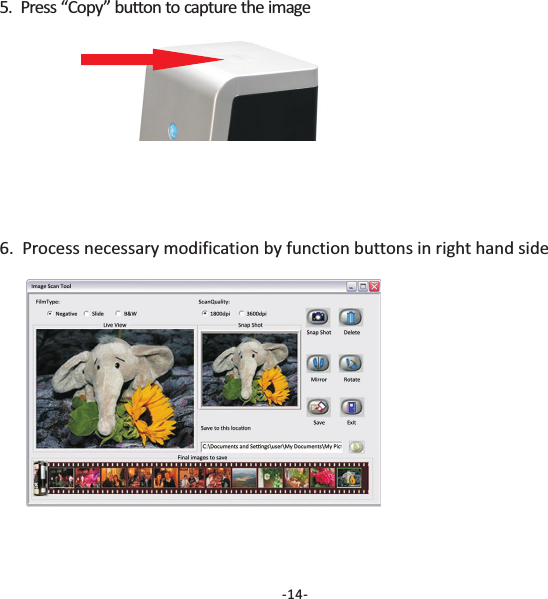
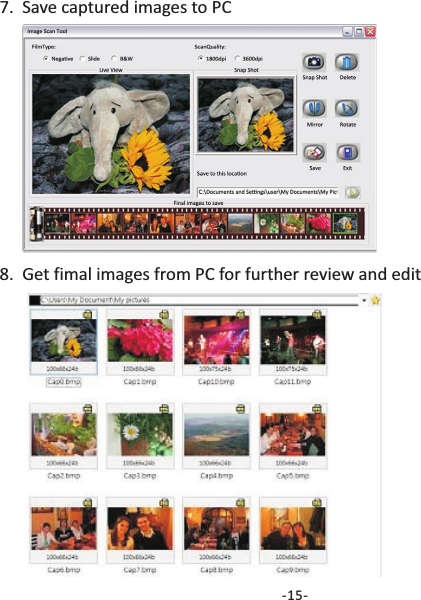
-14-5. Press “Copy” button to capture the image6.  Process necessary modification by function buttons in right hand side
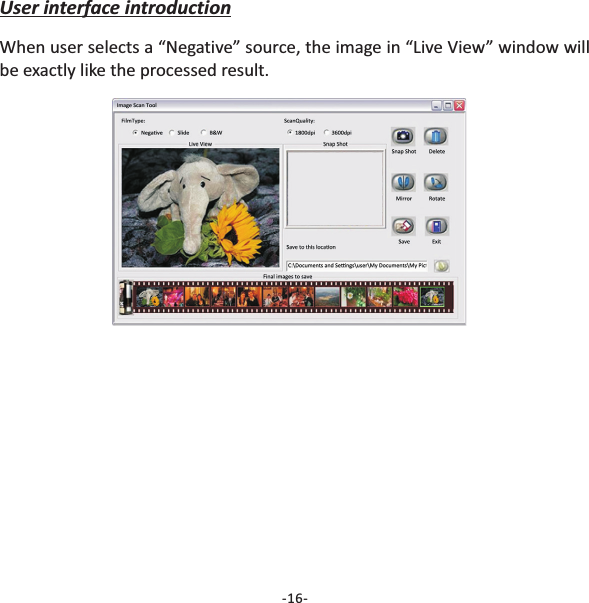
-15-7.  Save captured images to PC8.  Get fimal images from PC for further review and edit
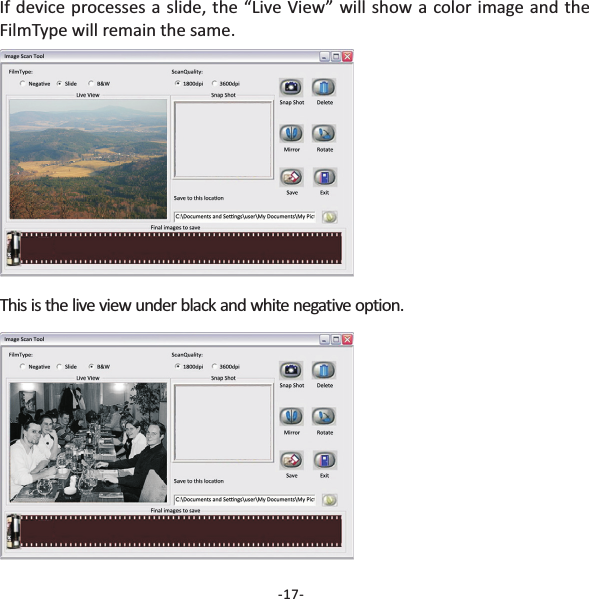
-16-User interface introductionWhen user selects a “Negative” source, the image in “Live View” window willbe exactly like the processed result.
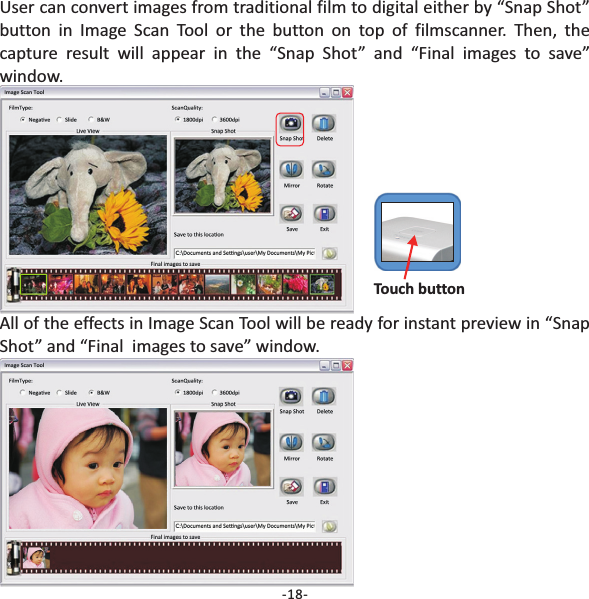
-17-If device processes a slide, the “Live View” will show a color image and theFilmType will remain the same.This is the live view under black and white negative option.
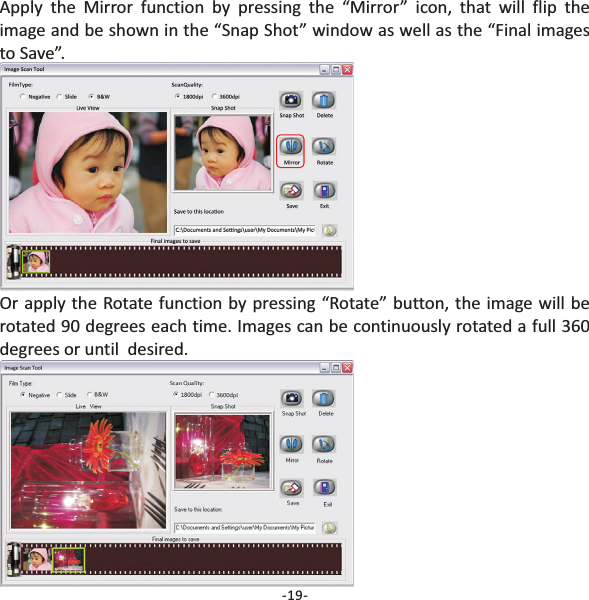
-18-User can convert images from traditional film to digital either by “Snap Shot”button in Image Scan Tool or the button on top of filmscanner. Then, thecapture result will appear in the “Snap Shot” and “Final images to save”window.All of the effects in Image Scan Tool will be ready for instant preview in “SnapShot” and “Final  images to save” window.Touch button
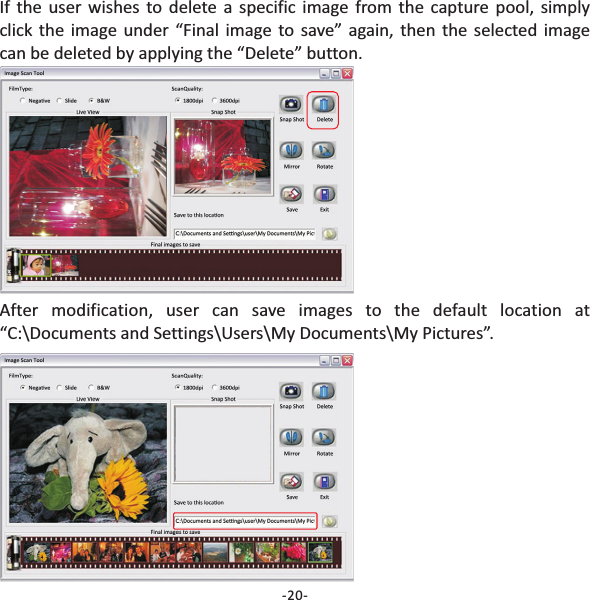
-19-Apply the Mirror function by pressing the “Mirror” icon, that will flip theimage and be shown in the “Snap Shot” window as well as the “Final imagesto Save”.Or apply the Rotate function by pressing “Rotate” button, the image will berotated 90 degrees each time. Images can be continuously rotated a full 360degrees or until  desired.
If the user wishes to delete a specific image from the capture pool, simplyclick the image under “Final image to save” again, then the selected imagecan be deleted by applying the “Delete” button.After modification, user can save images to the default location at“C:\Documents and Settings\Users\My Documents\My Pictures”.-20-
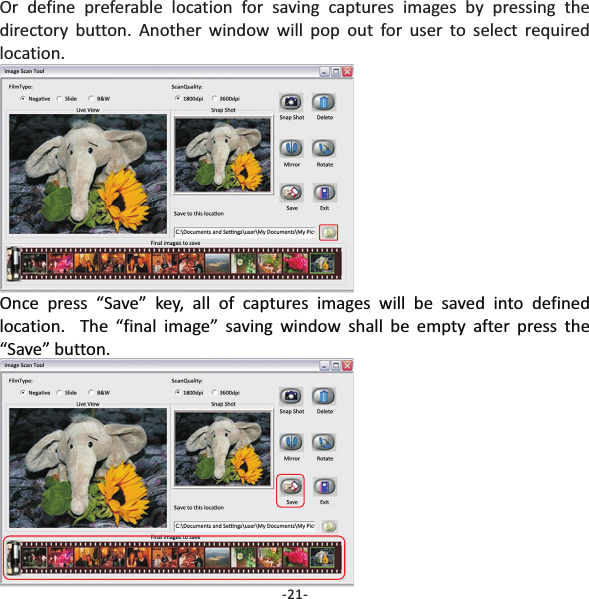
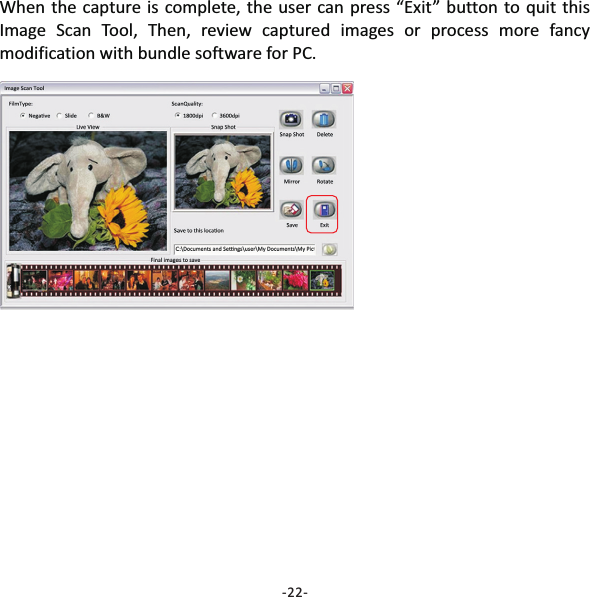
Once press “Save” key, all of captures images will be saved into definedlocation. The “final image” saving window shall be empty after press the“Save” button.-21-Or define preferable location for saving captures images by pressing thedirectory button. Another window will pop out for user to select requiredlocation.
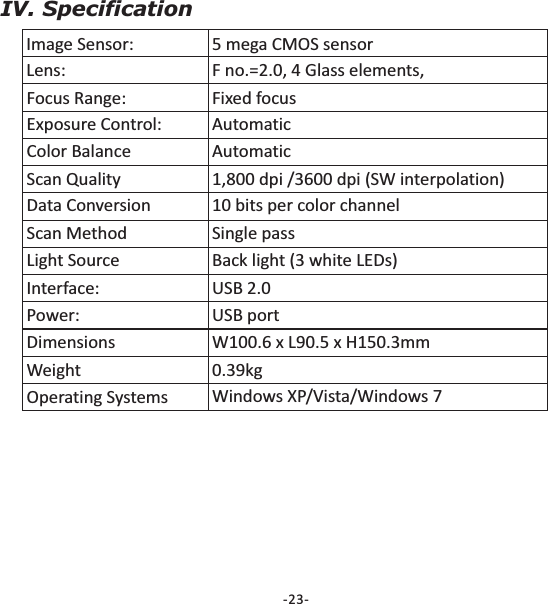
When the capture is complete, the user can press “Exit” button to quit thisImage Scan Tool, Then, review captured images or process more fancymodification with bundle software for PC.-22-
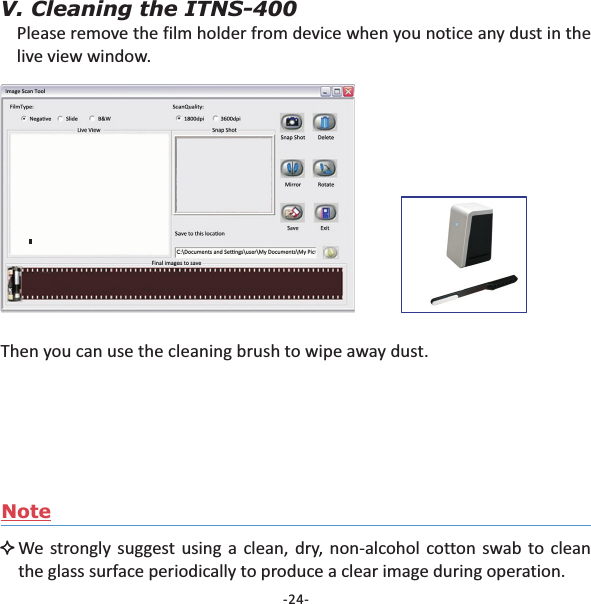
-23-IV. SpecificationImage Sensor: 5 mega CMOS sensorLens: F no.=2.0, 4 Glass elements,Focus Range: Fixed focusExposure Control: AutomaticColor Balance AutomaticScan Quality 1,800 dpi /3600 dpi (SW interpolation)Data Conversion 10 bits per color channelScan Method Single passLight Source Back light (3 white LEDs)Interface: USB 2.0Power: USB portDimensions W100.6 x L90.5 x H150.3mmWeight 0.39kgOperating Systems Windows XP/Vista/Windows 7
-24-V. Cleaning the ITNS-400Please remove the film holder from device when you notice any dust in thelive view window.Then you can use the cleaning brush to wipe away dust.NoteWe strongly suggest using a clean, dry, non-alcohol cotton swab to cleanthe glass surface periodically to produce a clear image during operation.
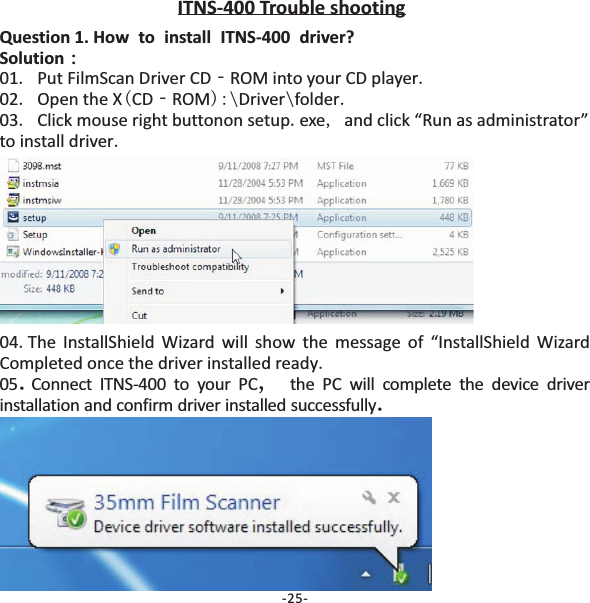
.‐ .. ( ‐ ):\ \ ...,.Question 1. How to install ITNS‐400 driver?Solution:01 Put FilmScan Driver CD ROM into your CD player02 Open the X CD ROM Driver folder03 Click mouse right buttonon setup exe and click “Run as administrator”to install driver:-25-ITNS-400 Trouble shooting04 The InstallShield Wizard will show the message of “InstallShield WizardCompleted once the driver installed ready..05 Connect ITNS-400 to your PC the PC will complete the device driverinstallation and confirm driver installed successfully.,.
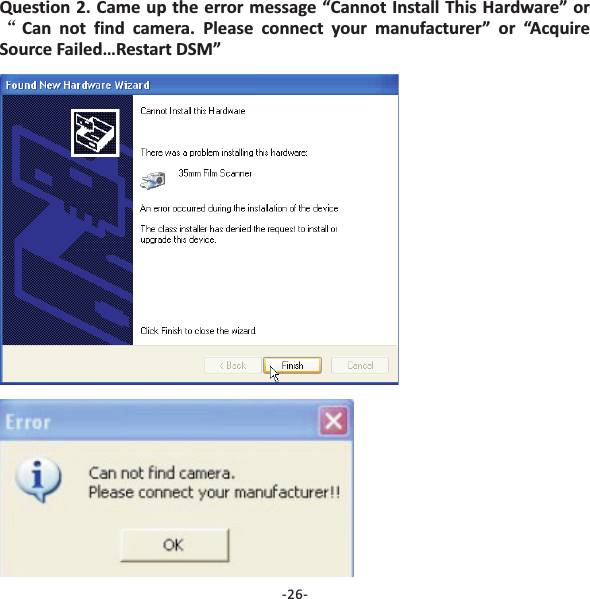
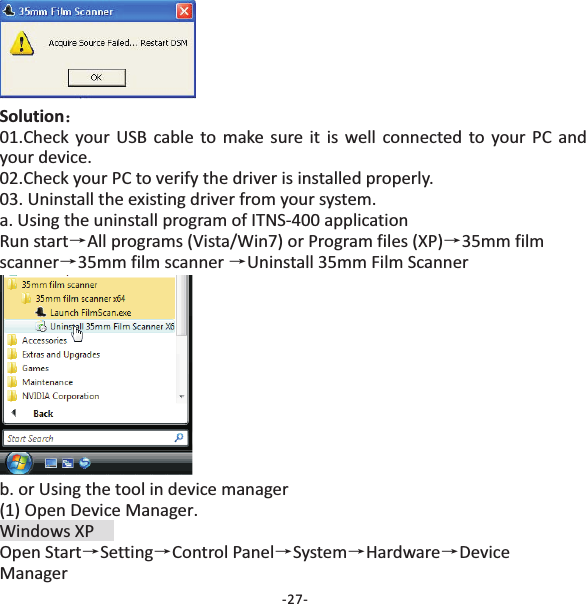
-26-Question 2. Came up the error message “Cannot Install This Hardware” orCan not find camera. Please connect your manufacturer” or “AcquireSource Failed…Restart DSM”“
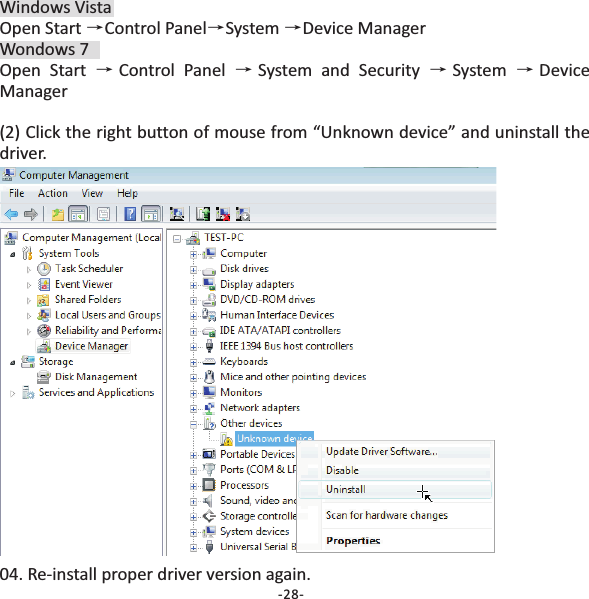
Solution:→→→→01.Check your USB cable to make sure it is well connected to your PC andyour device.02.Check your PC to verify the driver is installed properly.03. Uninstall the existing driver from your system.a. Using the uninstall program of ITNS‐400 applicationRun start All programs (Vista/Win7) or Program files (XP) 35mm filmscanner 35mm film scanner Uninstall 35mm Film Scannerb. or Using the tool in device manager(1) Open Device Manager.Windows XPOpen Start Setting Control Panel System Hardware DeviceManager→→ →→ →-27-
Windows VistaOpen Start Control Panel System Device ManagerWondows 7Open Start Control Panel System and Security System DeviceManager(2) Click the right button of mouse from “Unknown device” and uninstall thedriver.→→→→→ →→04. Re‐install proper driver version again.-28-
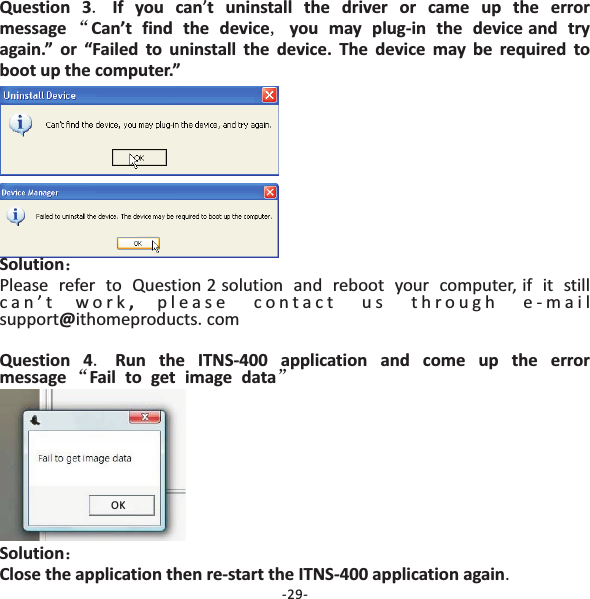
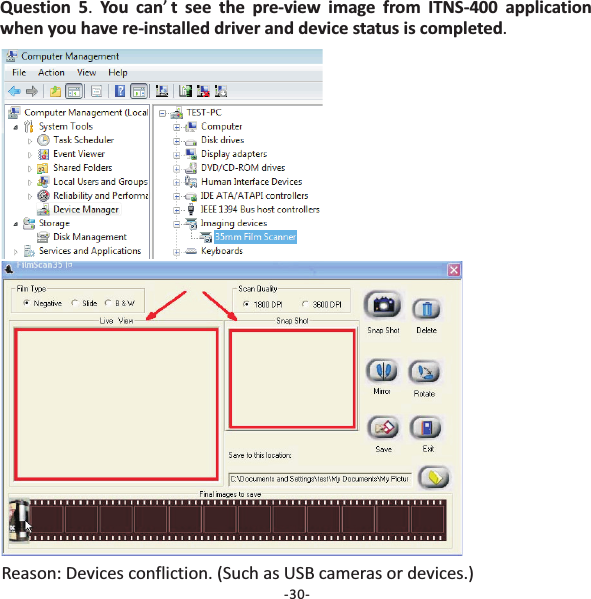
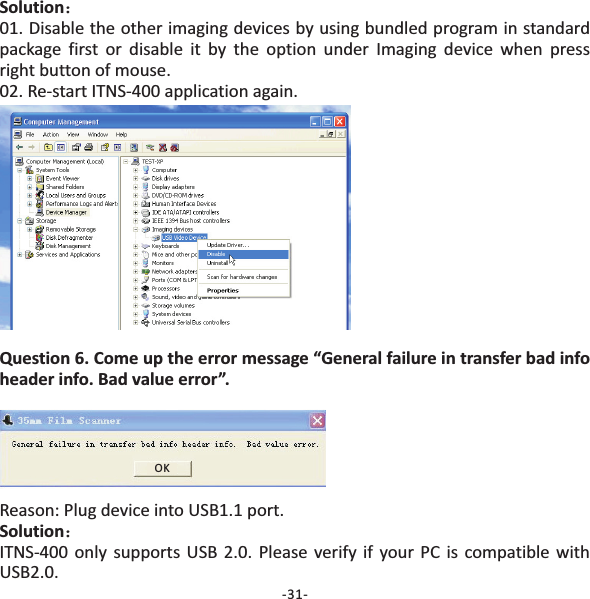
Question 3 If you can t uninstall the driver or came up the errormessage Can’t find the device you may plug‐in the device and tryagain.” or “Failed to uninstall the device. The device may be required toboot up the computer.”.“,’Solution,Question 4 Run the ITNS‐400 application and come up the errormessage Fail to get image data:Please refer to Question 2 solution and reboot your computer, if it stillcan’t work please contact us through e-mail.“”support ithomeproducts com@.SolutionClose the application then re‐start the ITNS‐400 application again:.-29-OK
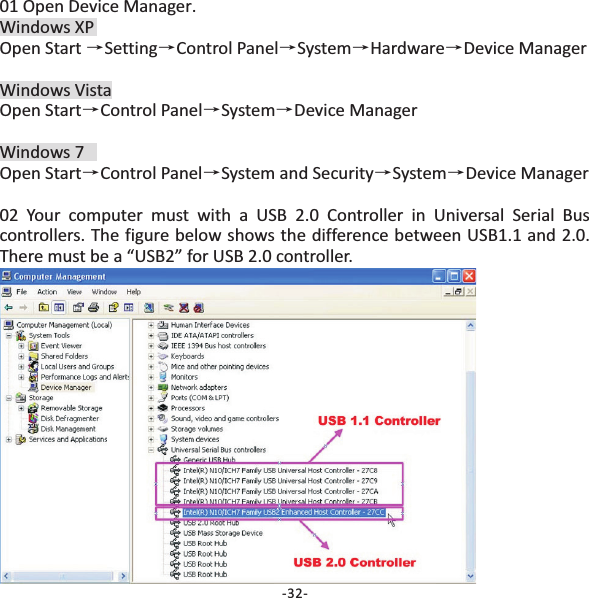
Question 5 You can t see the pre‐view image from ITNS‐400 applicationwhen you have re‐installed driver and device status is completed.’.Reason: Devices confliction. (Such as USB cameras or devices.)-30-
Solution:01. Disable the other imaging devices by using bundled program in standardpackage first or disable it by the option under Imaging device when pressright button of mouse.02. Re‐start ITNS‐400 application again.Question 6. Come up the error message “General failure in transfer bad infoheader info. Bad value error”.Reason: Plug device into USB1.1 port.ITNS‐400 only supports USB 2.0. Please verify if your PC is compatible withUSB2.0.Solution:-31-OK
01 Open Device Manager.Windows XPOpen Start Setting Control Panel System Hardware Device ManagerWindows VistaOpen Start Control Panel System Device ManagerWindows 7Open Start Control Panel System and Security System Device Manager02 Your computer must with a USB 2.0 Controller in Universal Serial Buscontrollers. The figure below shows the difference between USB1.1 and 2.0.There must be a “USB2” for USB 2.0 controller.→→ →→ →→→→→→ →→-32-
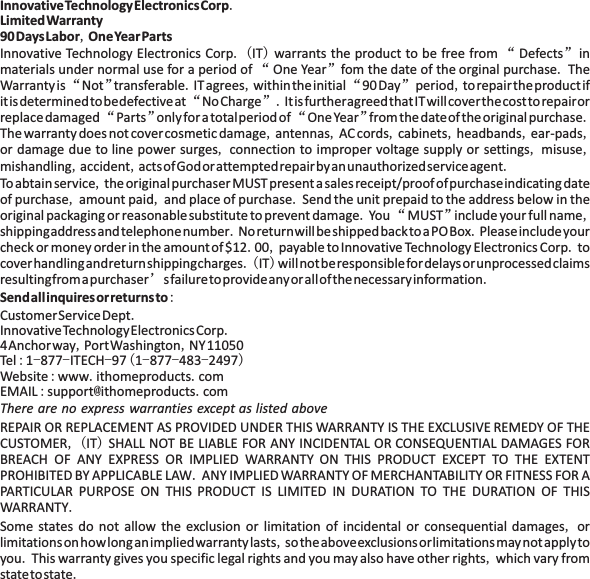
InnovativeTechnologyElectronicsCorpLimitedWarranty90DaysLabor OneYearPartsSendallinquiresor returnsto.,.( ) “ ”“” .“” . , “ ” ,“”.“” “ ” .,,,, ,,,,,,, .,,, ..“ ” ,..., ..( )’.:..,,:-- -(--- ):. .:@ .,( )..,,.,.Innovative Technology Electronics Corp IT warrants the product to be free from Defects inmaterials under normal use for a period of One Year fom the date of the orginal purchase TheWarrantyis Not transferable IT agrees withintheinitial 90Day period to repairtheproductifitisdeterminedtobedefectiveat NoCharge ItisfurtheragreedthatITwillcoverthecosttorepairorreplacedamaged Parts only for a totalperiodof OneYear fromthedateof the originalpurchaseThe warranty does not cover cosmetic damage antennas AC cords cabinets headbands ear-padsor damage due to line power surges connection to improper voltage supply or settings misusemishandling accident actsofGodorattemptedrepairbyanunauthorizedserviceagentToabtainservice the originalpurchaserMUST presentasales receipt/proofofpurchaseindicatingdateof purchase amount paid and place of purchase Send the unit prepaid to the address below in theoriginal packaging or reasonablesubstitute to prevent damage You MUST include your full nameshippingaddressandtelephonenumber NoreturnwillbeshippedbacktoaPOBox Pleaseincludeyourcheck or money order in the amountof$12 00 payable toInnovative Technology Electronics Corp tocoverhandlingandreturnshippingcharges IT willnotberesponsiblefordelaysorunprocessedclaimsresultingfromapurchaser sfailuretoprovideanyorallofthenecessaryinformationCustomerServiceDeptInnovativeTechnologyElectronicsCorp4Anchorway PortWashington NY11050Tel 1 877 ITECH 97 1 877 483 2497Website www ithomeproducts comEMAIL support ithomeproducts comREPAIR OR REPLACEMENT AS PROVIDED UNDER THIS WARRANTY IS THE EXCLUSIVE REMEDY OF THECUSTOMER IT SHALL NOT BE LIABLE FOR ANY INCIDENTAL OR CONSEQUENTIAL DAMAGES FORBREACH OF ANY EXPRESS OR IMPLIED WARRANTY ON THIS PRODUCT EXCEPT TO THE EXTENTPROHIBITED BY APPLICABLE LAW ANY IMPLIEDWARRANTY OF MERCHANTABILITY OR FITNESS FOR APARTICULAR PURPOSE ON THIS PRODUCT IS LIMITED IN DURATION TO THE DURATION OF THISWARRANTYSome states do not allow the exclusion or limitation of incidental or consequential damages orlimitationsonhowlonganimpliedwarrantylasts sotheaboveexclusionsorlimitationsmaynotapplytoyou This warranty gives you specific legal rights and you may also have other rights which vary fromstatetostateThere are no express warranties except as listed above
Instructions shall caution users that modifications not approved by the party responsiblefor compliance could void user's authority to operate the equipment.The following or equivalent as appropriate:“NOTE: This equipment has been tested and found to comply with the limits for a Class Bdigital device, pursuant to Part 15 of the FCC Rules. These limits are designed to providereasonable protection against harmful interference in a residential installation. Thisequipment generates, uses and can radiate radio frequency energy and, if not installedand used in accordance with the instructions, may cause harmful interference to radiocommunications. However, there is no guarantee that interference will not occur in aparticular installation.If this equipment does cause harmful interference to radio or television reception, whichcan be determined by turning the equipment off and on, the user is encouraged to try tocorrect the interference by one or more of the following measures:Reorient or relocate the receiving antenna.Increase the separation between the equipment and receiver.Connect the equipment into an outlet on a circuit different from that to which thereceiver is connected.Consult the dealer or an experienced radio/TV technician for help.”Statement that the product complies with Part 15 (i.e. “This device complies with Part 15of the FCC Rules. Operation is subject to the following two conditions: (1) This device maynot cause harmful interference, and (2) this device must accept any interferencereceived, including interference that may cause undesired operation.”)WARNING : This product contains chemicals known to the State of California to causebirth defects or other reproductive harm. For more information on these regulations anda list of chemicals, log on the following website address:http://www.oehha.ca.gov/prop65.html●●●●CALIFORNIA PROP 65 WARNING
Driver Revision: 1.0_1

Navigation menu