Fidelity Comtech FCI3100X Phased Array WLAN Terminal User Manual Phocus 2 1 Beta 3

Fidelity Comtech, Inc. Phased Array WLAN Terminal Phocus 2 1 Beta 3

Contents

User Manual Part One
       Phocus Array™ System Manual           Part Number FCI-3000-UM Document Version/Revision 2.1.A
Phocus Array System Manual v2.1 2 NOTICE Information in this manual is subject to change without notice and does not represent a commitment on the part of Fidelity Comtech, Inc. Portions of the software described in this document are copyrighted by Fidelity Comtech, Inc and may not be copied or reproduced without written consent of Fidelity Comtech, Inc. No part of this manual may be reproduced or transmitted in any form or by any means, electronic or mechanical, including photocopying and recording, for any purpose without the express written permission of Fidelity Comtech, Inc.  Copyright 2007 Fidelity Comtech, Inc. All rights reserved. Reproduction, adaptation, or translation without prior written permission is prohibited, except as allowed under the copyright laws.    Phocus Array, G.R.I.P.S., Flexible Vector Modular Technology, FlexVMT, Geo-I, Geo-II, and Geo-III are trademarks of Fidelity Comtech, Inc. All other brand and product names mentioned in this document are trademarks and/or registered trademarks of their respective holders.     This symbol indicates that this device provides a certain level of protection against electric shock.  This symbol indicates that the user must read and understand all instructions and warnings prior to use.  This symbol indicates that the associated jack is for a Universal Serial Bus connection.   Fidelity Comtech, Inc 2400 Trade Centre Ave.  Longmont, Colorado, 80503, USA  General Information and Support: 303.678.8876 Fax 303.362.7545 Email: info@fidelity-comtech.com
Phocus Array System Manual v2.1 3 ABOUT THIS MANUAL The instructions in the following chapters assume the user is adequately familiar with the intended use and application of this device. Knowledge of the IEEE 802.11 wireless standard as well as RF concepts, protocols, and networking (e.g. TCP/IP and IEEE 802.3) are especially useful.  Documentation Conventions The following format conventions are used in this document to identify special information: Warning statements identify conditions or practices that could result in personal injury. Caution statements identify conditions or practices that could result in damage to equipment or loss of data. Notes: The displayed data in this document are for example purposes only.    The graphical illustrations in this document are for example purposes only and the hardware illustrated may differ from your hardware.
Phocus Array System Manual v2.1 4 IMPORTANT SAFETY INFORMATION Warning:  Installation of this product near power lines is dangerous! For your safety, follow the installation directions.  How to Install your Phocus Array System Safely The following installation precautions and guidelines are extracted from the Recommendations of the U.S. Consumer Product Safety Commission on installing antennas.  These safety recommendations apply to all antennas. Each year, hundreds of people are killed, mutilated, or receive severe and permanent injuries when attempting to install an antenna. In many of these cases, the victim was aware of the danger of electrocution, but did not take adequate steps to avoid the hazard. For your safety, and to help you achieve a good installation, please read and follow the safety precautions below. They may save your life! That this is not complete list of instructions, precautions, and installation guidelines necessary to safely and effectively install the antenna. You should consult a professional, as well as observe local and national code requirements. 1. If you are installing an antenna for the first time, please, for your own safety as well as others, seek professional assistance. The professional can explain which mounting method to use for the size and type of antenna you are about to install. 2. Select your installation site with safety, as well as performance, in mind. REMEMBER: ELECTRIC POWER LINES AND PHONE LINES LOOK ALIKE. FOR YOUR SAFETY, ASSUME THAT ANY OVERHEAD LINES CAN KILL YOU. 3. Call your electric power company. Tell them your plans and ask them to come take a look at your proposed installation. This is a small inconvenience, considering YOUR LIFE IS AT STAKE. 4. Plan your installation procedure carefully and completely before you begin. Successful raising of a mast or tower is largely a matter of coordination. Each person should be assigned a specific task, and should know what to do and when to do it. One person should be designated as the leader/coordinator of the operation to call out instructions and watch for signs of trouble. 5. When installing your antenna, REMEMBER: DO NOT USE A METAL LADDER. DO NOT WORK ON A WET OR WINDY DAY. DO DRESS PROPERLY: shoes with rubber soles and heels, rubber gloves, long sleeved shirt or jacket.
Phocus Array System Manual v2.1 5 6. If the assembly starts to drop, get away from it and let it fall. Remember, an antenna, mast, cable, and metal guy wires are all excellent conductors of electrical current. Even the slightest touch of any of these parts to a power line completes an electrical path through the antenna and the installer – THAT’S YOU! 7. If ANY PART of the antenna system should come in contact with a power line, DON’T TOUCH IT OR TRY TO REMOVE IT YOURSELF. CALL YOUR LOCAL POWER COMPANY. They will remove it safely. If an accident should occur with the power lines, call for qualified emergency help IMMEDIATELY.  Warnings and Precautions Cautions:  Always use the AC power adapter that accompanied the system. Using a different AC power adapter may cause permanent damage to your system.     Always use outdoor-rated CAT5 or better Ethernet cable in order to comply with radiation and conducted emissions and immunity.     Use included weatherproof Ethernet cable connector boot to protect external connection integrity.     Always ensure a strain relief system is employed on the Ethernet cable to prevent the weight of the cable from causing intermittent connections for the cable connector.     Do not attempt to immerse the device or accessories in water or cleaning fluid, as there are electronic components inside that will be permanently damaged.  Maintaining Device Effectiveness The recommended operating conditions for the device are -40° to 85° C, 0% to 100% humidity. The recommended transport and storage conditions are -20°C to 50 °C; 0 to 95% non-condensing humidity; -1000 to 10,000 feet or 787.9-522.7 mm Hg.  Although the Phocus Array System is designed for outdoor use it should not be immersed in water or other fluids. The housing may be wiped clean with a soft cloth dampened with mild soapy water.
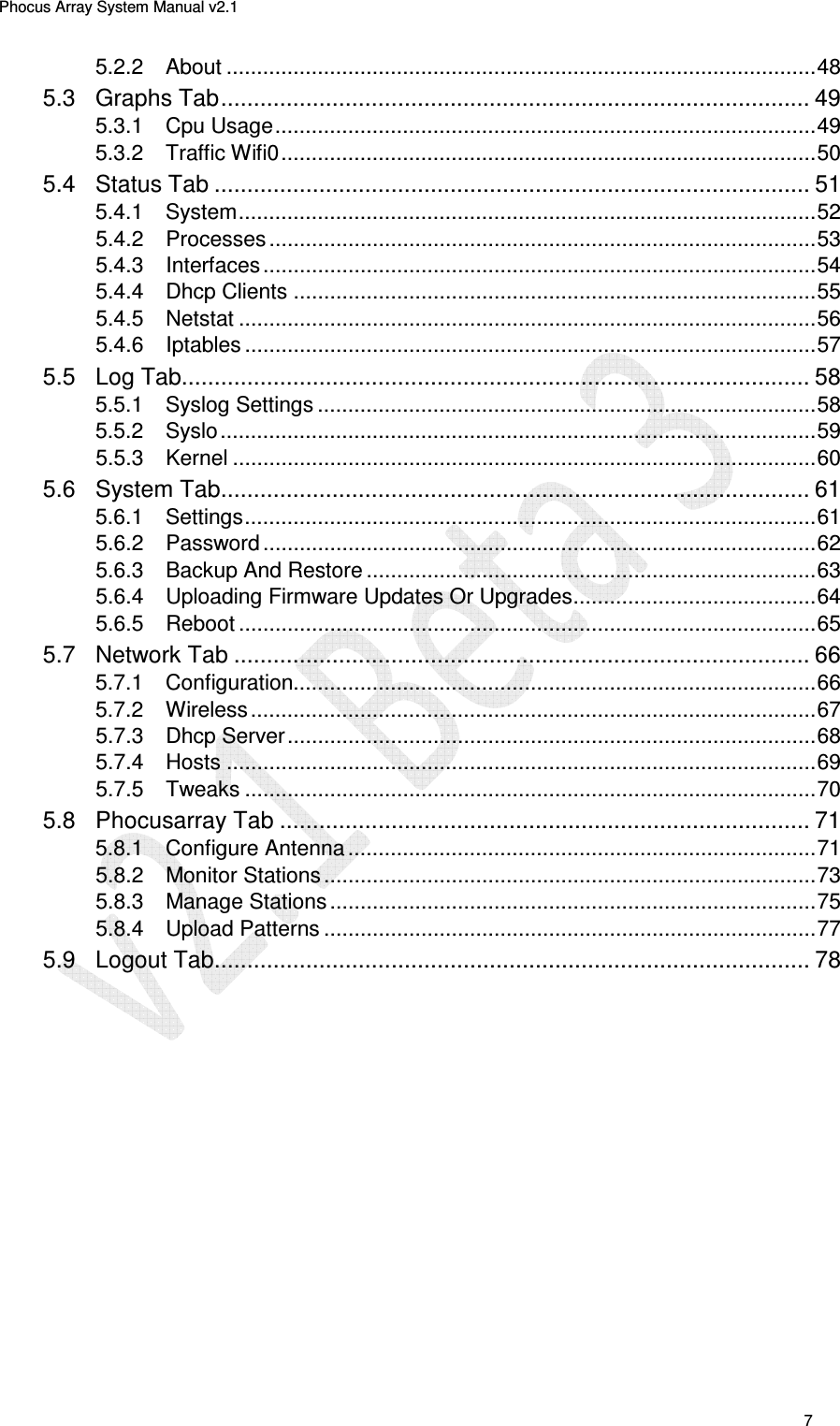
Phocus Array System Manual v2.1 6 TABLE OF CONTENTS 1  Overview ..................................................................................................... 10 1.1.1 Device Description And Specifications ............................................... 12 1.1.2 Core Features .................................................................................... 13 1.1.3 Electrical Characteristics .................................................................... 14 1.1.4 Certifications, Compliance And Warranty ........................................... 15 1.1.5 Definitions .......................................................................................... 15 2  Principles Of Geo-I (Beam Shaping And Steering) .................................. 17 2.1  Theory.................................................................................................. 17 2.2  Phased Array Technology .................................................................... 17 2.3  Benefits Of The Flexvmt (Phased Antennas In A Uniform Circular Array Configuration) ............................................................................. 18 2.3.1 Geolocation ........................................................................................ 18 2.3.2 Reach ................................................................................................ 18 2.3.3 Interference Mitigation ........................................................................ 19 2.3.4 Privacy / Security ............................................................................... 19 2.4  The Phocus Array System Implementation .......................................... 19 2.5  Additional Beam Patterns .................................................................... 21 3  Installation And Hardware Set Up ............................................................. 23 3.1  Installation Considerations ................................................................... 25 3.1.1 Safety ................................................................................................ 25 3.1.2 How To Install Your Phocus Array System Safely .............................. 25 3.1.3 Placement And Performance ............................................................. 26 3.2  Installation Procedure .......................................................................... 26 4  Configuration And Software Setup ........................................................... 29 4.1  Configuration Sequence And Options .................................................. 29 4.2  Performing Initial Configuration ............................................................ 30 4.2.1 Connecting The Phocus Array System To Your Computer ................. 30 4.2.2 Administering The Password .............................................................. 31 4.2.3 Login .................................................................................................. 33 4.2.4 System Settings ................................................................................. 34 4.2.5 System Configuration Options ............................................................ 35 4.2.6 Wireless Adapter Configuration .......................................................... 41 4.2.7 Dhcp Server Configuration (Optional) ................................................ 42 4.2.8 Adding Hosts (Optional) ..................................................................... 43 4.2.9 Antenna Configuration ....................................................................... 44 4.2.10 Manage Stations (Optional) ................................................................ 45 5  Using The Administrative Console ........................................................... 46 5.1  Using The Administrative Console ....................................................... 46 5.2  Info Tab................................................................................................ 47 5.2.1 System ............................................................................................... 47
Phocus Array System Manual v2.1 7 5.2.2 About ................................................................................................. 48 5.3  Graphs Tab .......................................................................................... 49 5.3.1 Cpu Usage ......................................................................................... 49 5.3.2 Traffic Wifi0 ........................................................................................ 50 5.4  Status Tab ........................................................................................... 51 5.4.1 System ............................................................................................... 52 5.4.2 Processes .......................................................................................... 53 5.4.3 Interfaces ........................................................................................... 54 5.4.4 Dhcp Clients ...................................................................................... 55 5.4.5 Netstat ............................................................................................... 56 5.4.6 Iptables .............................................................................................. 57 5.5  Log Tab................................................................................................ 58 5.5.1 Syslog Settings .................................................................................. 58 5.5.2 Syslo .................................................................................................. 59 5.5.3 Kernel ................................................................................................ 60 5.6  System Tab .......................................................................................... 61 5.6.1 Settings .............................................................................................. 61 5.6.2 Password ........................................................................................... 62 5.6.3 Backup And Restore .......................................................................... 63 5.6.4 Uploading Firmware Updates Or Upgrades ........................................ 64 5.6.5 Reboot ............................................................................................... 65 5.7  Network Tab ........................................................................................ 66 5.7.1 Configuration...................................................................................... 66 5.7.2 Wireless ............................................................................................. 67 5.7.3 Dhcp Server ....................................................................................... 68 5.7.4 Hosts ................................................................................................. 69 5.7.5 Tweaks .............................................................................................. 70 5.8  Phocusarray Tab ................................................................................. 71 5.8.1 Configure Antenna ............................................................................. 71 5.8.2 Monitor Stations ................................................................................. 73 5.8.3 Manage Stations ................................................................................ 75 5.8.4 Upload Patterns ................................................................................. 77 5.9  Logout Tab ........................................................................................... 78
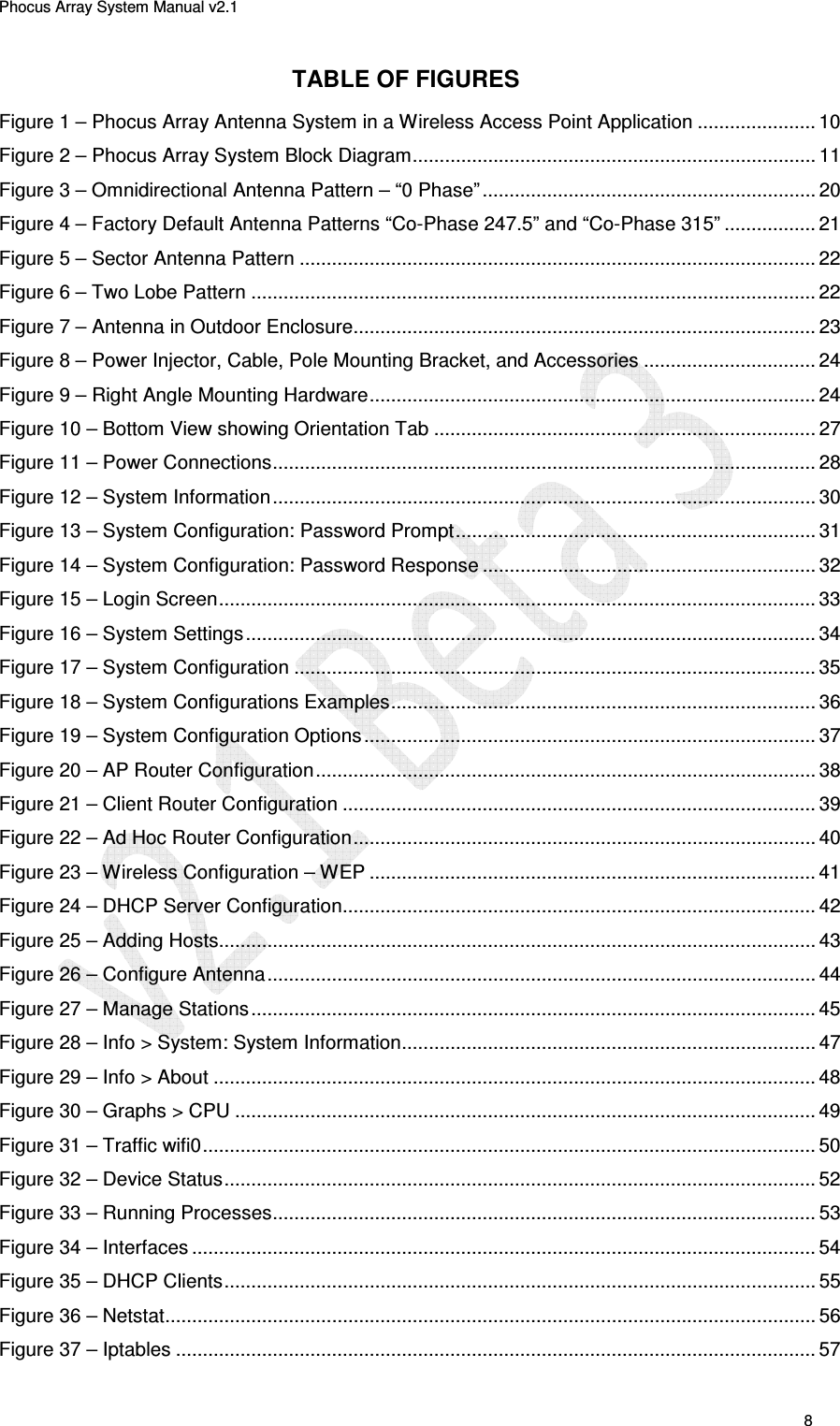
Phocus Array System Manual v2.1 8 TABLE OF FIGURES Figure 1 – Phocus Array Antenna System in a Wireless Access Point Application ...................... 10 Figure 2 – Phocus Array System Block Diagram ........................................................................... 11 Figure 3 – Omnidirectional Antenna Pattern – “0 Phase” .............................................................. 20 Figure 4 – Factory Default Antenna Patterns “Co-Phase 247.5” and “Co-Phase 315” ................. 21 Figure 5 – Sector Antenna Pattern ................................................................................................ 22 Figure 6 – Two Lobe Pattern ......................................................................................................... 22 Figure 7 – Antenna in Outdoor Enclosure...................................................................................... 23 Figure 8 – Power Injector, Cable, Pole Mounting Bracket, and Accessories ................................ 24 Figure 9 – Right Angle Mounting Hardware ................................................................................... 24 Figure 10 – Bottom View showing Orientation Tab ....................................................................... 27 Figure 11 – Power Connections ..................................................................................................... 28 Figure 12 – System Information ..................................................................................................... 30 Figure 13 – System Configuration: Password Prompt ................................................................... 31 Figure 14 – System Configuration: Password Response .............................................................. 32 Figure 15 – Login Screen ............................................................................................................... 33 Figure 16 – System Settings .......................................................................................................... 34 Figure 17 – System Configuration ................................................................................................. 35 Figure 18 – System Configurations Examples ............................................................................... 36 Figure 19 – System Configuration Options .................................................................................... 37 Figure 20 – AP Router Configuration ............................................................................................. 38 Figure 21 – Client Router Configuration ........................................................................................ 39 Figure 22 – Ad Hoc Router Configuration ...................................................................................... 40 Figure 23 – Wireless Configuration – WEP ................................................................................... 41 Figure 24 – DHCP Server Configuration........................................................................................ 42 Figure 25 – Adding Hosts............................................................................................................... 43 Figure 26 – Configure Antenna ...................................................................................................... 44 Figure 27 – Manage Stations ......................................................................................................... 45 Figure 28 – Info > System: System Information ............................................................................. 47 Figure 29 – Info > About ................................................................................................................ 48 Figure 30 – Graphs > CPU ............................................................................................................ 49 Figure 31 – Traffic wifi0 .................................................................................................................. 50 Figure 32 – Device Status .............................................................................................................. 52 Figure 33 – Running Processes ..................................................................................................... 53 Figure 34 – Interfaces .................................................................................................................... 54 Figure 35 – DHCP Clients .............................................................................................................. 55 Figure 36 – Netstat ......................................................................................................................... 56 Figure 37 – Iptables ....................................................................................................................... 57
Phocus Array System Manual v2.1 9 Figure 38 – Syslog Settings ........................................................................................................... 58 Figure 39 – Syslog View ................................................................................................................ 59 Figure 40 – Kernel Ring Buffer ...................................................................................................... 60 Figure 41 – System Settings .......................................................................................................... 61 Figure 42 – Password Change ...................................................................................................... 62 Figure 43 – Backup and Restore ................................................................................................... 63 Figure 44 – Firmware Uploads ....................................................................................................... 64 Figure 45 – Reboot ........................................................................................................................ 65 Figure 46 – System Configuration ................................................................................................. 66 Figure 47 – Wireless Configuration ................................................................................................ 67 Figure 48 – DHCP Server Configuration........................................................................................ 68 Figure 49 – Host Configuration ...................................................................................................... 69 Figure 50 – Networking Tweaks .................................................................................................... 70 Figure 51 – Configure Antenna ...................................................................................................... 71 Figure 52 – Set Beamsteering Mode ............................................................................................. 72 Figure 53 – Monitor Associated Stations ....................................................................................... 74 Figure 54 – Manage Associated Stations ...................................................................................... 76 Figure 55 – View Loaded Patterns ................................................................................................. 77 Figure 56 – Logout ......................................................................................................................... 78  TABLE OF TABLES Table 1 – Device Description and Specifications ........................................................................... 12 Table 2 – Features ......................................................................................................................... 13 Table 3 – Electrical Characteristics ................................................................................................ 14 Table 4 – Certifications, Compliance and Warranty ...................................................................... 15 Table 5 – Terms and Definitions .................................................................................................... 15 Table 6 – Default Wired Interface Network Parameters ................................................................ 29
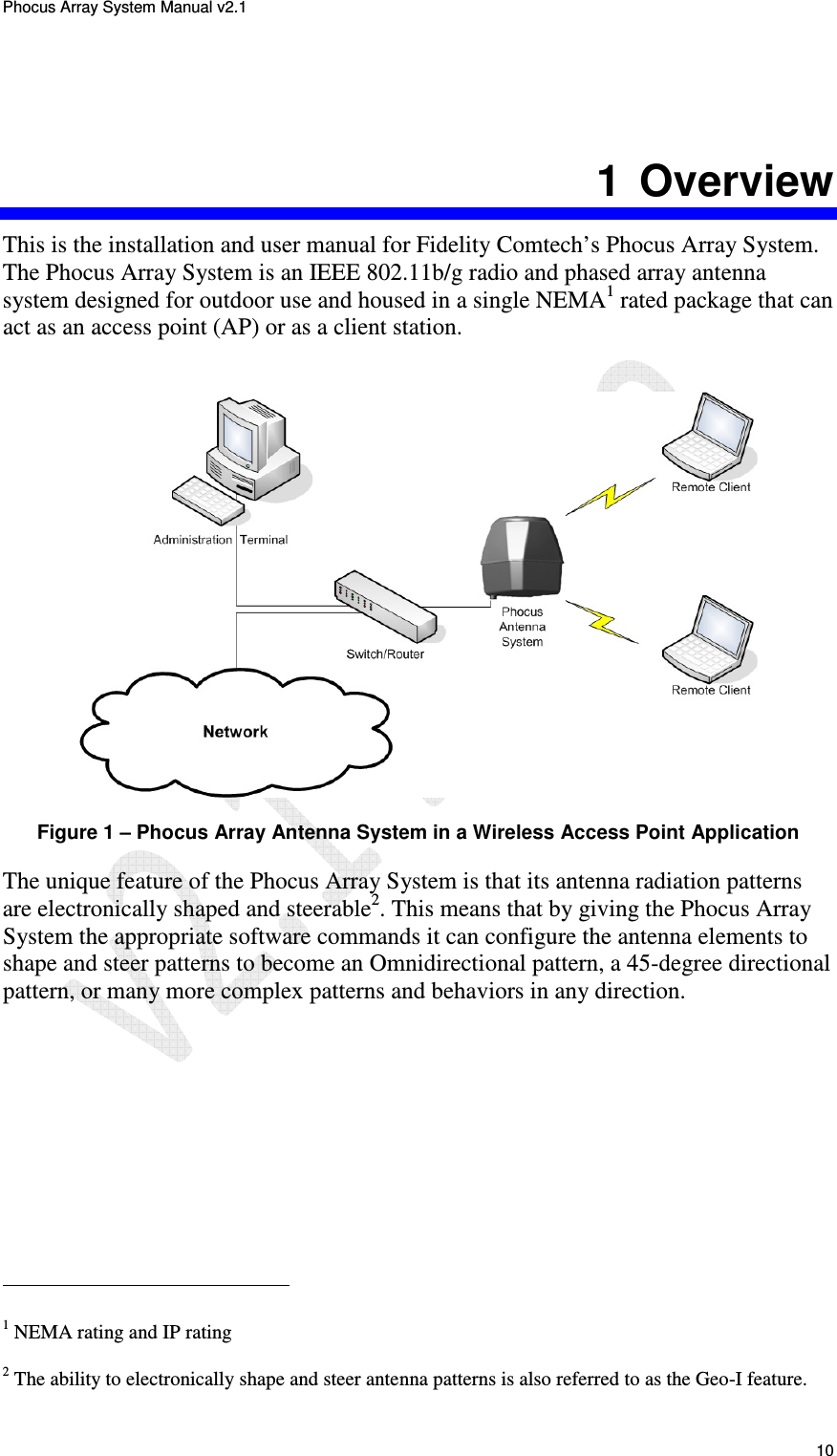
Phocus Array System Manual v2.1 10 1  Overview This is the installation and user manual for Fidelity Comtech’s Phocus Array System. The Phocus Array System is an IEEE 802.11b/g radio and phased array antenna system designed for outdoor use and housed in a single NEMA1 rated package that can act as an access point (AP) or as a client station.    Figure 1 – Phocus Array Antenna System in a Wireless Access Point Application The unique feature of the Phocus Array System is that its antenna radiation patterns are electronically shaped and steerable2. This means that by giving the Phocus Array System the appropriate software commands it can configure the antenna elements to shape and steer patterns to become an Omnidirectional pattern, a 45-degree directional pattern, or many more complex patterns and behaviors in any direction.                                                   1 NEMA rating and IP rating 2 The ability to electronically shape and steer antenna patterns is also referred to as the Geo-I feature.
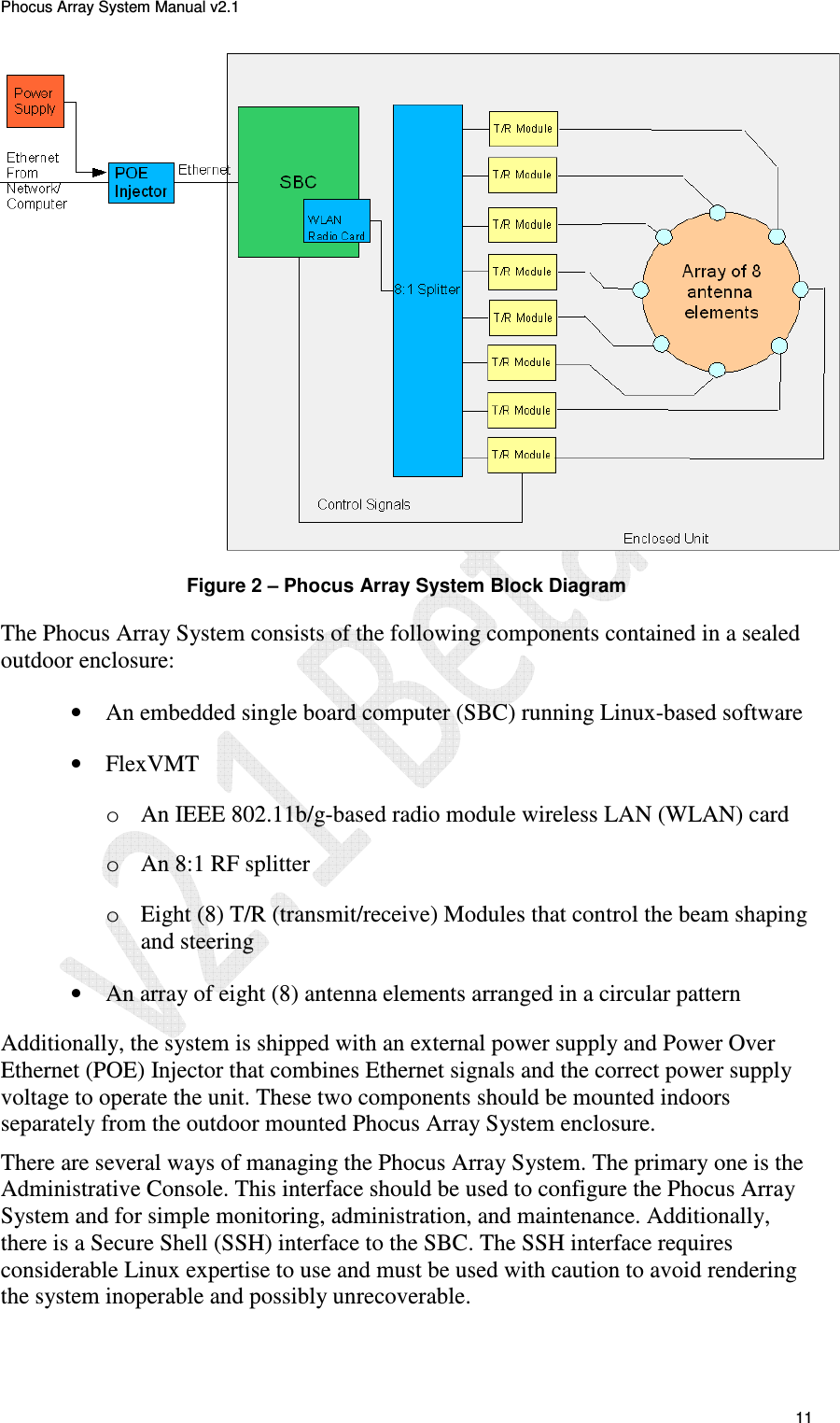
Phocus Array System Manual v2.1 11  Figure 2 – Phocus Array System Block Diagram The Phocus Array System consists of the following components contained in a sealed outdoor enclosure: • An embedded single board computer (SBC) running Linux-based software  • FlexVMT o An IEEE 802.11b/g-based radio module wireless LAN (WLAN) card  o An 8:1 RF splitter o Eight (8) T/R (transmit/receive) Modules that control the beam shaping and steering • An array of eight (8) antenna elements arranged in a circular pattern  Additionally, the system is shipped with an external power supply and Power Over Ethernet (POE) Injector that combines Ethernet signals and the correct power supply voltage to operate the unit. These two components should be mounted indoors separately from the outdoor mounted Phocus Array System enclosure. There are several ways of managing the Phocus Array System. The primary one is the Administrative Console. This interface should be used to configure the Phocus Array System and for simple monitoring, administration, and maintenance. Additionally, there is a Secure Shell (SSH) interface to the SBC. The SSH interface requires considerable Linux expertise to use and must be used with caution to avoid rendering the system inoperable and possibly unrecoverable.
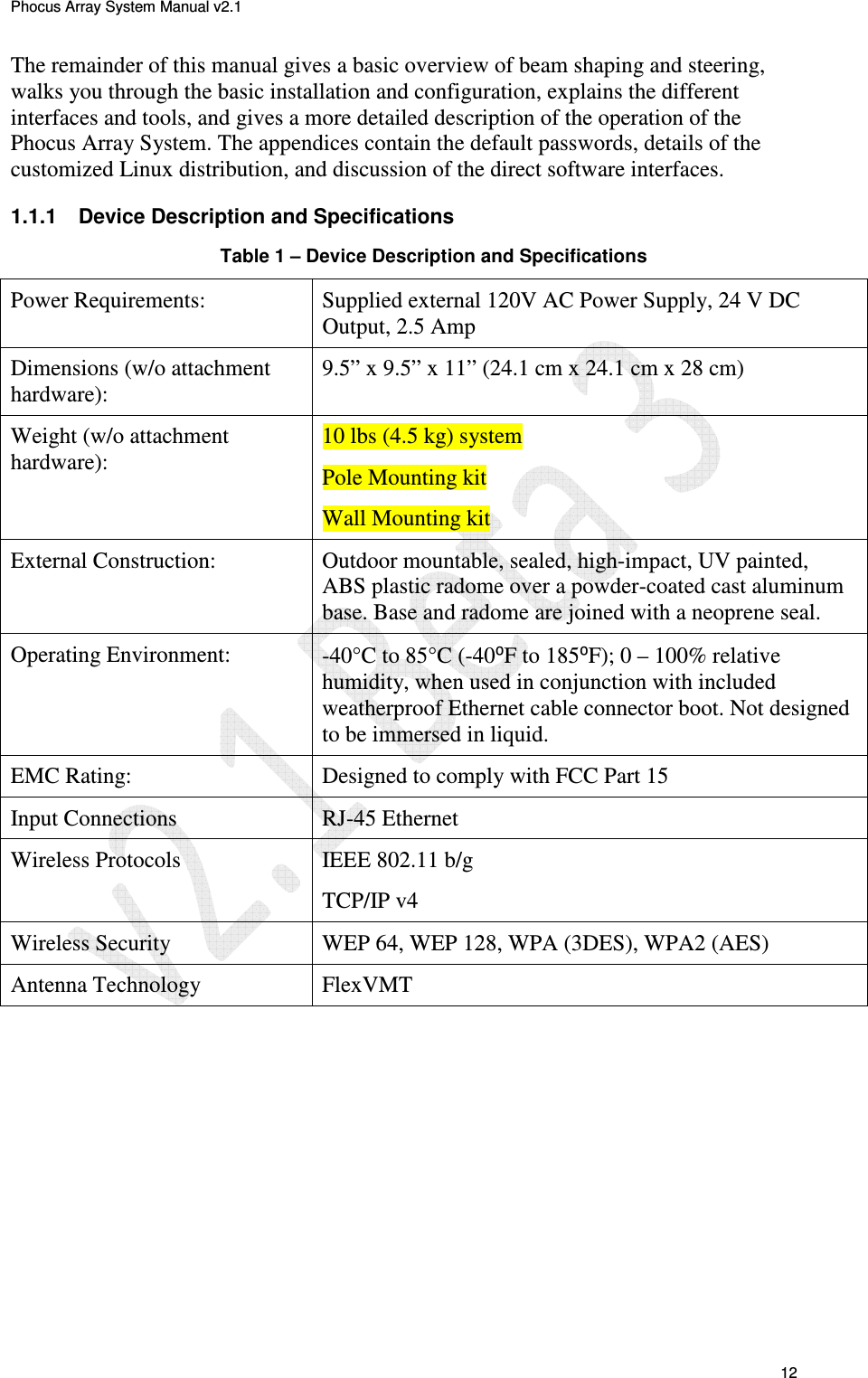
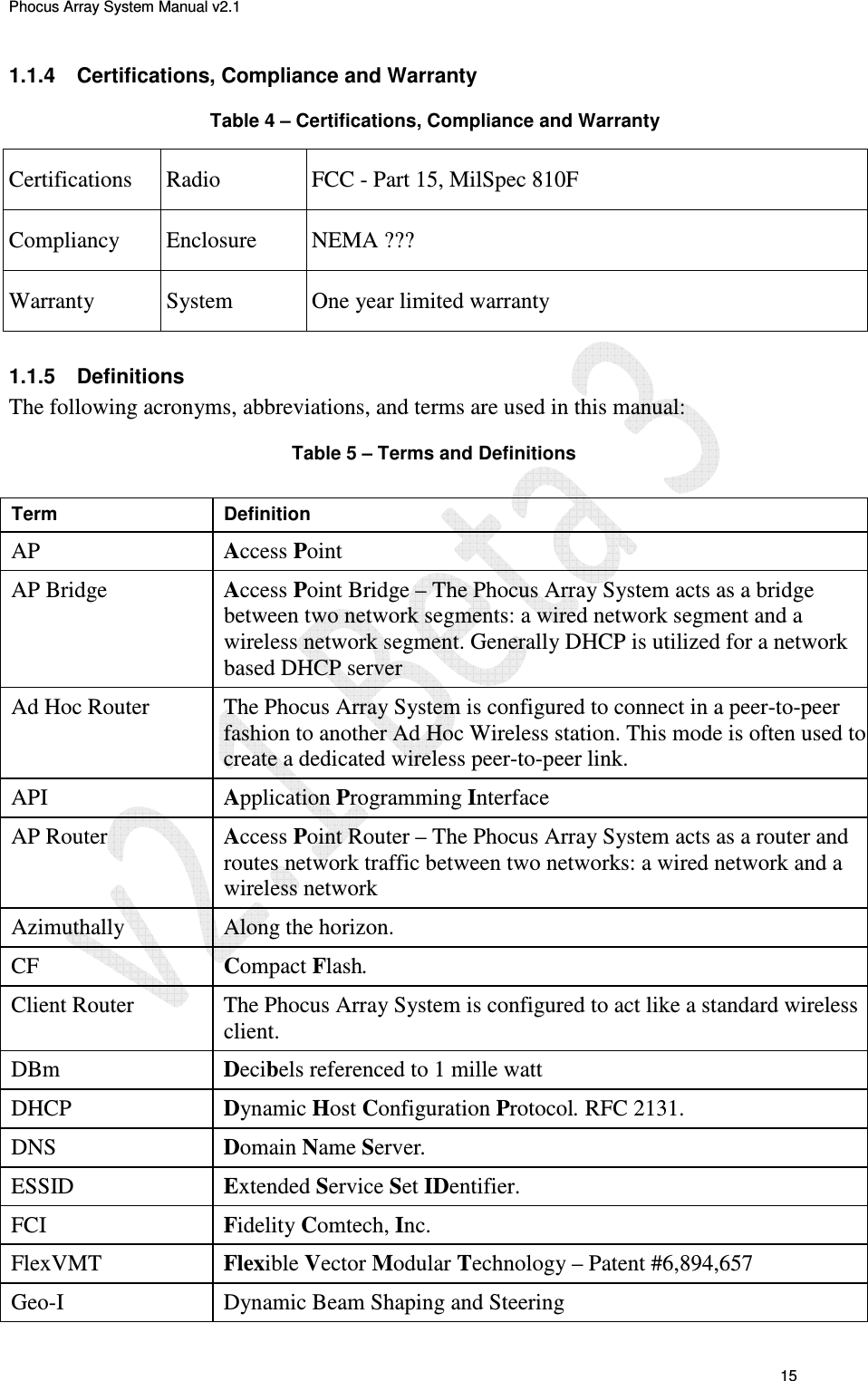
Phocus Array System Manual v2.1 12 The remainder of this manual gives a basic overview of beam shaping and steering, walks you through the basic installation and configuration, explains the different interfaces and tools, and gives a more detailed description of the operation of the Phocus Array System. The appendices contain the default passwords, details of the customized Linux distribution, and discussion of the direct software interfaces. 1.1.1  Device Description and Specifications Table 1 – Device Description and Specifications  Power Requirements:  Supplied external 120V AC Power Supply, 24 V DC Output, 2.5 Amp Dimensions (w/o attachment hardware): 9.5” x 9.5” x 11” (24.1 cm x 24.1 cm x 28 cm) Weight (w/o attachment hardware):  10 lbs (4.5 kg) system Pole Mounting kit Wall Mounting kit External Construction:  Outdoor mountable, sealed, high-impact, UV painted, ABS plastic radome over a powder-coated cast aluminum base. Base and radome are joined with a neoprene seal.  Operating Environment:  -40°C to 85°C (-40⁰F to 185⁰F); 0 – 100% relative humidity, when used in conjunction with included weatherproof Ethernet cable connector boot. Not designed to be immersed in liquid. EMC Rating:  Designed to comply with FCC Part 15 Input Connections  RJ-45 Ethernet Wireless Protocols  IEEE 802.11 b/g  TCP/IP v4 Wireless Security  WEP 64, WEP 128, WPA (3DES), WPA2 (AES) Antenna Technology  FlexVMT
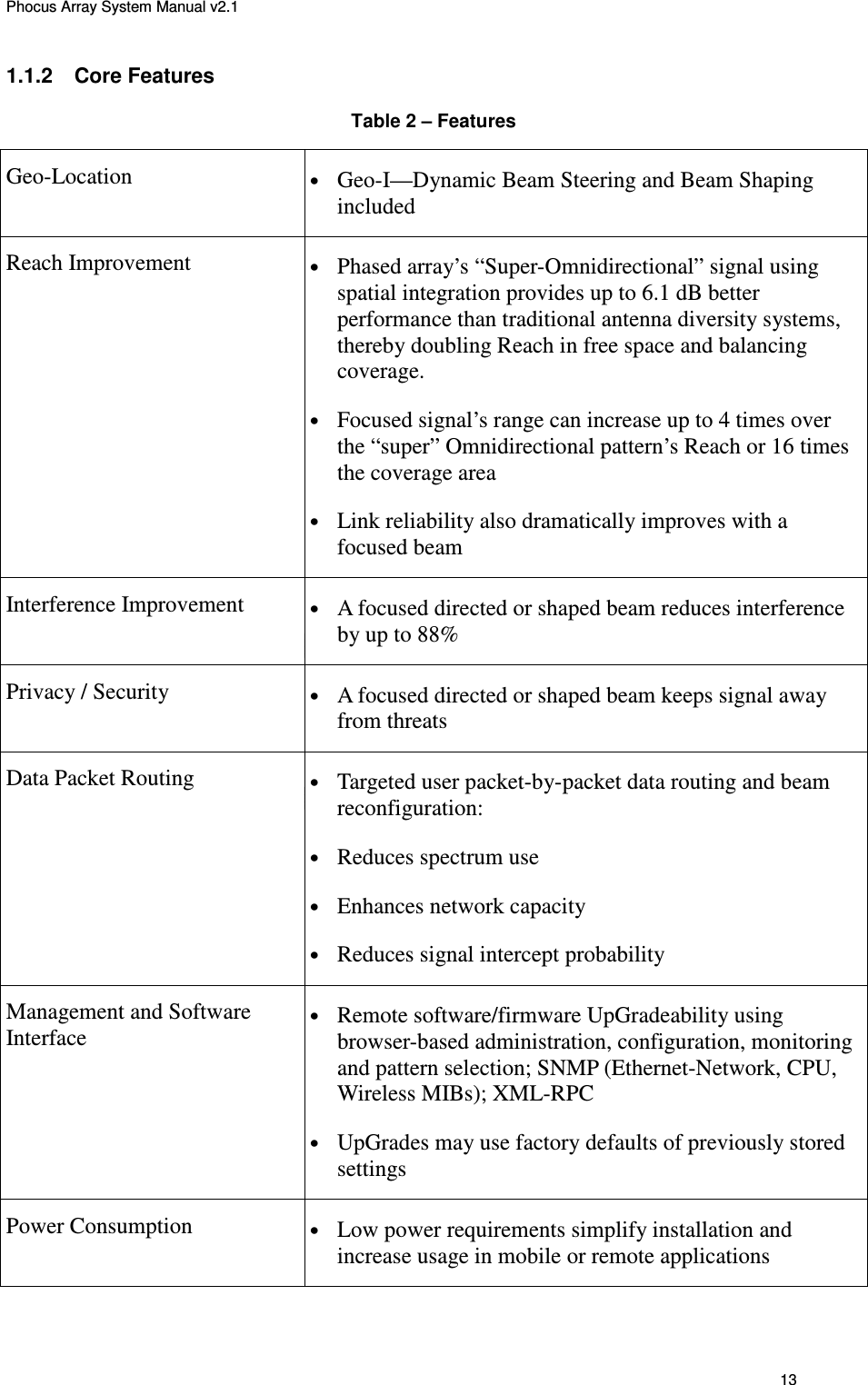
Phocus Array System Manual v2.1 13 1.1.2  Core Features Table 2 – Features Geo-Location • Geo-I—Dynamic Beam Steering and Beam Shaping included Reach Improvement • Phased array’s “Super-Omnidirectional” signal using spatial integration provides up to 6.1 dB better performance than traditional antenna diversity systems, thereby doubling Reach in free space and balancing coverage.  • Focused signal’s range can increase up to 4 times over the “super” Omnidirectional pattern’s Reach or 16 times the coverage area • Link reliability also dramatically improves with a focused beam Interference Improvement • A focused directed or shaped beam reduces interference by up to 88% Privacy / Security • A focused directed or shaped beam keeps signal away from threats Data Packet Routing • Targeted user packet-by-packet data routing and beam reconfiguration: • Reduces spectrum use • Enhances network capacity • Reduces signal intercept probability Management and Software Interface • Remote software/firmware UpGradeability using browser-based administration, configuration, monitoring and pattern selection; SNMP (Ethernet-Network, CPU, Wireless MIBs); XML-RPC • UpGrades may use factory defaults of previously stored settings Power Consumption • Low power requirements simplify installation and increase usage in mobile or remote applications
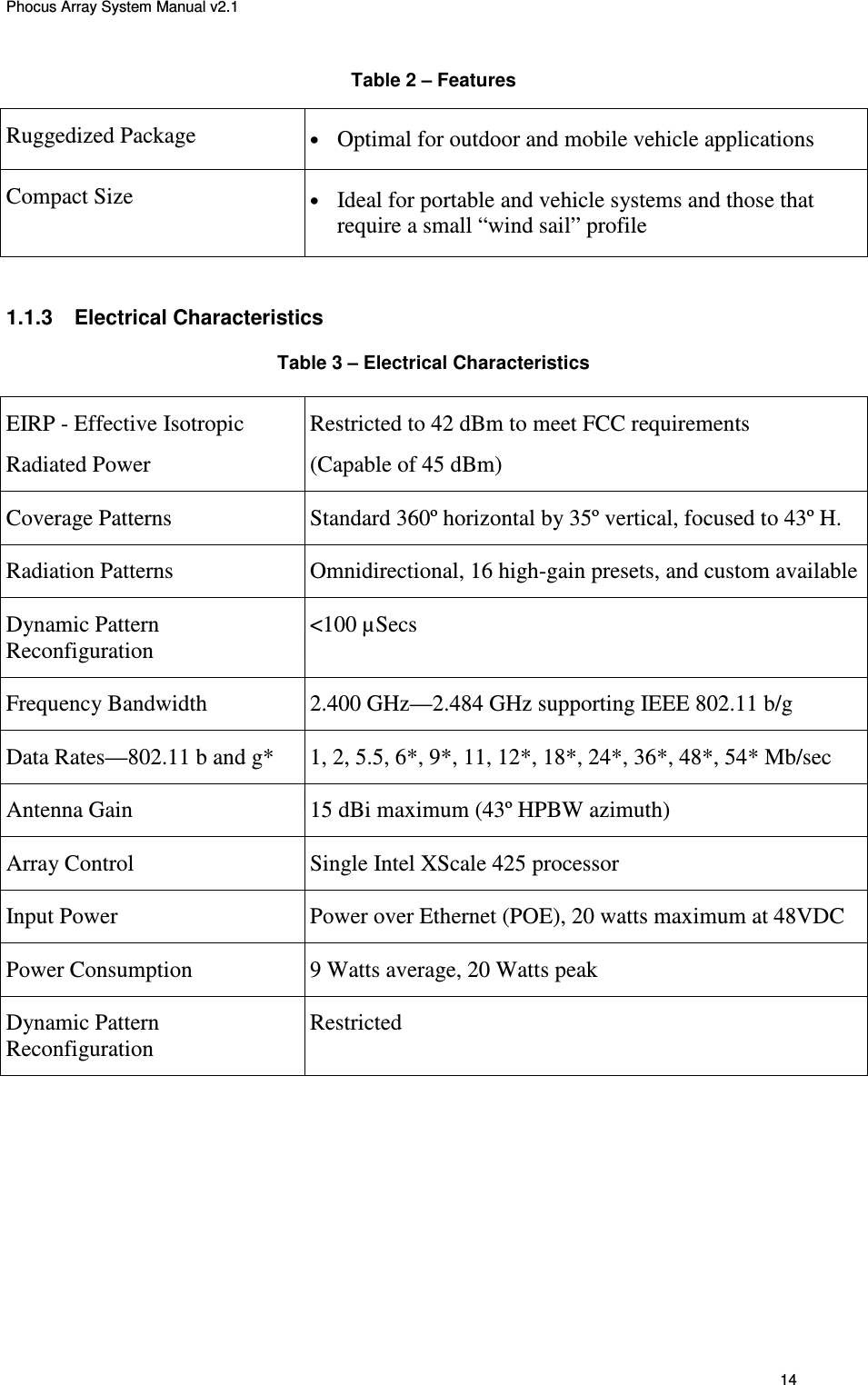
Phocus Array System Manual v2.1 14 Table 2 – Features Ruggedized Package • Optimal for outdoor and mobile vehicle applications Compact Size • Ideal for portable and vehicle systems and those that require a small “wind sail” profile  1.1.3  Electrical Characteristics Table 3 – Electrical Characteristics EIRP - Effective Isotropic  Radiated Power Restricted to 42 dBm to meet FCC requirements (Capable of 45 dBm) Coverage Patterns  Standard 360º horizontal by 35º vertical, focused to 43º H. Radiation Patterns  Omnidirectional, 16 high-gain presets, and custom available Dynamic Pattern Reconfiguration <100 µSecs Frequency Bandwidth  2.400 GHz—2.484 GHz supporting IEEE 802.11 b/g Data Rates—802.11 b and g*  1, 2, 5.5, 6*, 9*, 11, 12*, 18*, 24*, 36*, 48*, 54* Mb/sec Antenna Gain  15 dBi maximum (43º HPBW azimuth) Array Control  Single Intel XScale 425 processor Input Power  Power over Ethernet (POE), 20 watts maximum at 48VDC Power Consumption  9 Watts average, 20 Watts peak Dynamic Pattern Reconfiguration Restricted
Phocus Array System Manual v2.1 15 1.1.4  Certifications, Compliance and Warranty Table 4 – Certifications, Compliance and Warranty Certifications Radio FCC - Part 15, MilSpec 810F Compliancy  Enclosure  NEMA ??? Warranty System One year limited warranty  1.1.5  Definitions The following acronyms, abbreviations, and terms are used in this manual: Table 5 – Terms and Definitions  Term  Definition AP  Access Point AP Bridge  Access Point Bridge – The Phocus Array System acts as a bridge between two network segments: a wired network segment and a wireless network segment. Generally DHCP is utilized for a network based DHCP server Ad Hoc Router  The Phocus Array System is configured to connect in a peer-to-peer fashion to another Ad Hoc Wireless station. This mode is often used to create a dedicated wireless peer-to-peer link. API  Application Programming Interface AP Router  Access Point Router – The Phocus Array System acts as a router and routes network traffic between two networks: a wired network and a wireless network Azimuthally  Along the horizon. CF  Compact Flash. Client Router  The Phocus Array System is configured to act like a standard wireless client. DBm  Decibels referenced to 1 mille watt  DHCP  Dynamic Host Configuration Protocol. RFC 2131. DNS  Domain Name Server. ESSID  Extended Service Set IDentifier. FCI  Fidelity Comtech, Inc. FlexVMT  Flexible Vector Modular Technology – Patent #6,894,657 Geo-I  Dynamic Beam Shaping and Steering
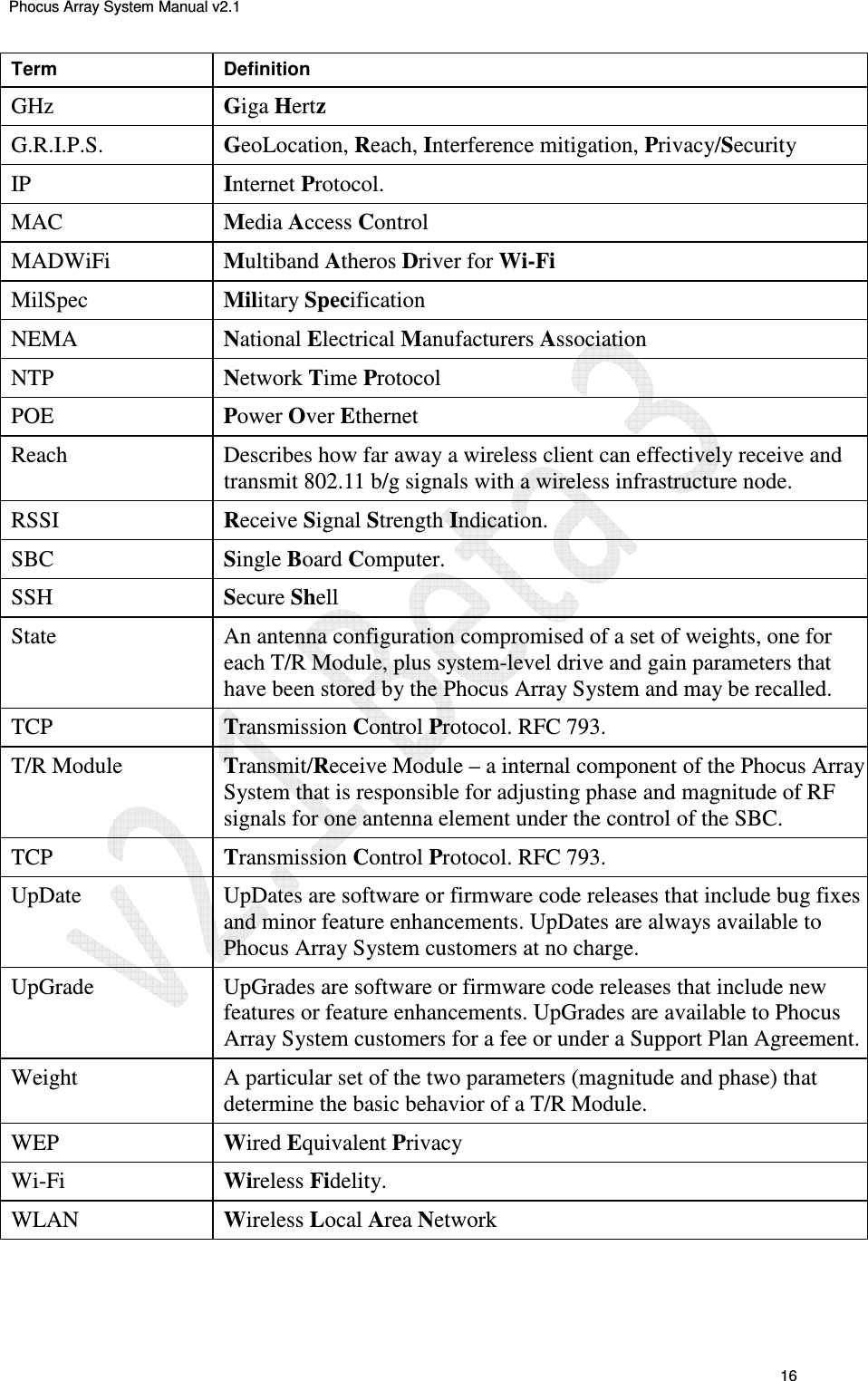
Phocus Array System Manual v2.1 16 Term  Definition GHz  Giga Hertz G.R.I.P.S.  GeoLocation, Reach, Interference mitigation, Privacy/Security IP  Internet Protocol. MAC  Media Access Control MADWiFi  Multiband Atheros Driver for Wi-Fi MilSpec  Military Specification NEMA  National Electrical Manufacturers Association NTP  Network Time Protocol POE  Power Over Ethernet Reach  Describes how far away a wireless client can effectively receive and transmit 802.11 b/g signals with a wireless infrastructure node. RSSI  Receive Signal Strength Indication. SBC  Single Board Computer. SSH  Secure Shell State  An antenna configuration compromised of a set of weights, one for each T/R Module, plus system-level drive and gain parameters that have been stored by the Phocus Array System and may be recalled. TCP  Transmission Control Protocol. RFC 793. T/R Module  Transmit/Receive Module – a internal component of the Phocus Array System that is responsible for adjusting phase and magnitude of RF signals for one antenna element under the control of the SBC. TCP  Transmission Control Protocol. RFC 793. UpDate  UpDates are software or firmware code releases that include bug fixes and minor feature enhancements. UpDates are always available to Phocus Array System customers at no charge. UpGrade  UpGrades are software or firmware code releases that include new features or feature enhancements. UpGrades are available to Phocus Array System customers for a fee or under a Support Plan Agreement. Weight  A particular set of the two parameters (magnitude and phase) that determine the basic behavior of a T/R Module. WEP  Wired Equivalent Privacy  Wi-Fi  Wireless Fidelity. WLAN  Wireless Local Area Network
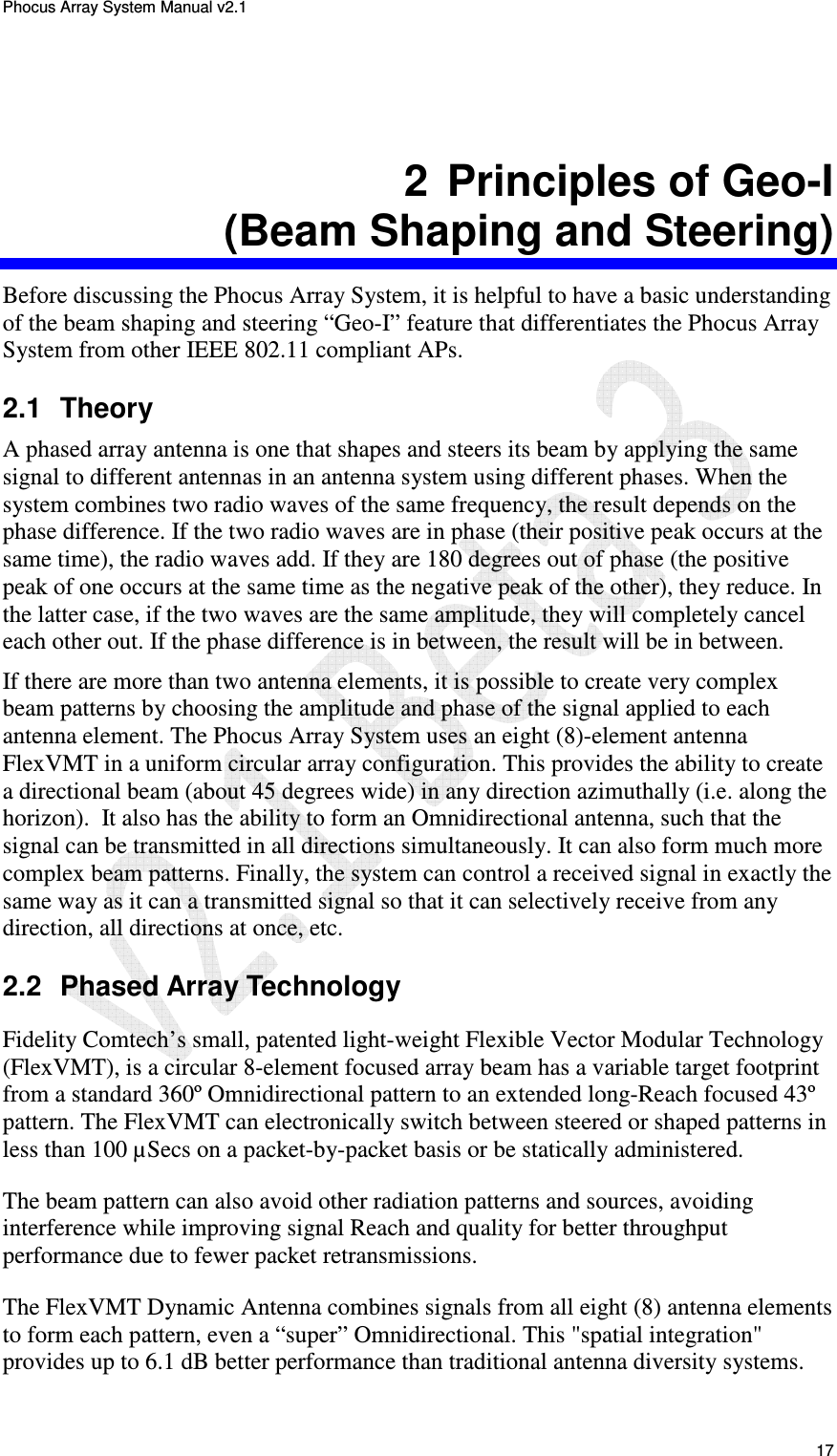
Phocus Array System Manual v2.1 17 2  Principles of Geo-I (Beam Shaping and Steering) Before discussing the Phocus Array System, it is helpful to have a basic understanding of the beam shaping and steering “Geo-I” feature that differentiates the Phocus Array System from other IEEE 802.11 compliant APs. 2.1  Theory A phased array antenna is one that shapes and steers its beam by applying the same signal to different antennas in an antenna system using different phases. When the system combines two radio waves of the same frequency, the result depends on the phase difference. If the two radio waves are in phase (their positive peak occurs at the same time), the radio waves add. If they are 180 degrees out of phase (the positive peak of one occurs at the same time as the negative peak of the other), they reduce. In the latter case, if the two waves are the same amplitude, they will completely cancel each other out. If the phase difference is in between, the result will be in between. If there are more than two antenna elements, it is possible to create very complex beam patterns by choosing the amplitude and phase of the signal applied to each antenna element. The Phocus Array System uses an eight (8)-element antenna FlexVMT in a uniform circular array configuration. This provides the ability to create a directional beam (about 45 degrees wide) in any direction azimuthally (i.e. along the horizon).  It also has the ability to form an Omnidirectional antenna, such that the signal can be transmitted in all directions simultaneously. It can also form much more complex beam patterns. Finally, the system can control a received signal in exactly the same way as it can a transmitted signal so that it can selectively receive from any direction, all directions at once, etc. 2.2  Phased Array Technology Fidelity Comtech’s small, patented light-weight Flexible Vector Modular Technology (FlexVMT), is a circular 8-element focused array beam has a variable target footprint from a standard 360º Omnidirectional pattern to an extended long-Reach focused 43º pattern. The FlexVMT can electronically switch between steered or shaped patterns in less than 100 µSecs on a packet-by-packet basis or be statically administered. The beam pattern can also avoid other radiation patterns and sources, avoiding interference while improving signal Reach and quality for better throughput performance due to fewer packet retransmissions.  The FlexVMT Dynamic Antenna combines signals from all eight (8) antenna elements to form each pattern, even a “super” Omnidirectional. This "spatial integration" provides up to 6.1 dB better performance than traditional antenna diversity systems.
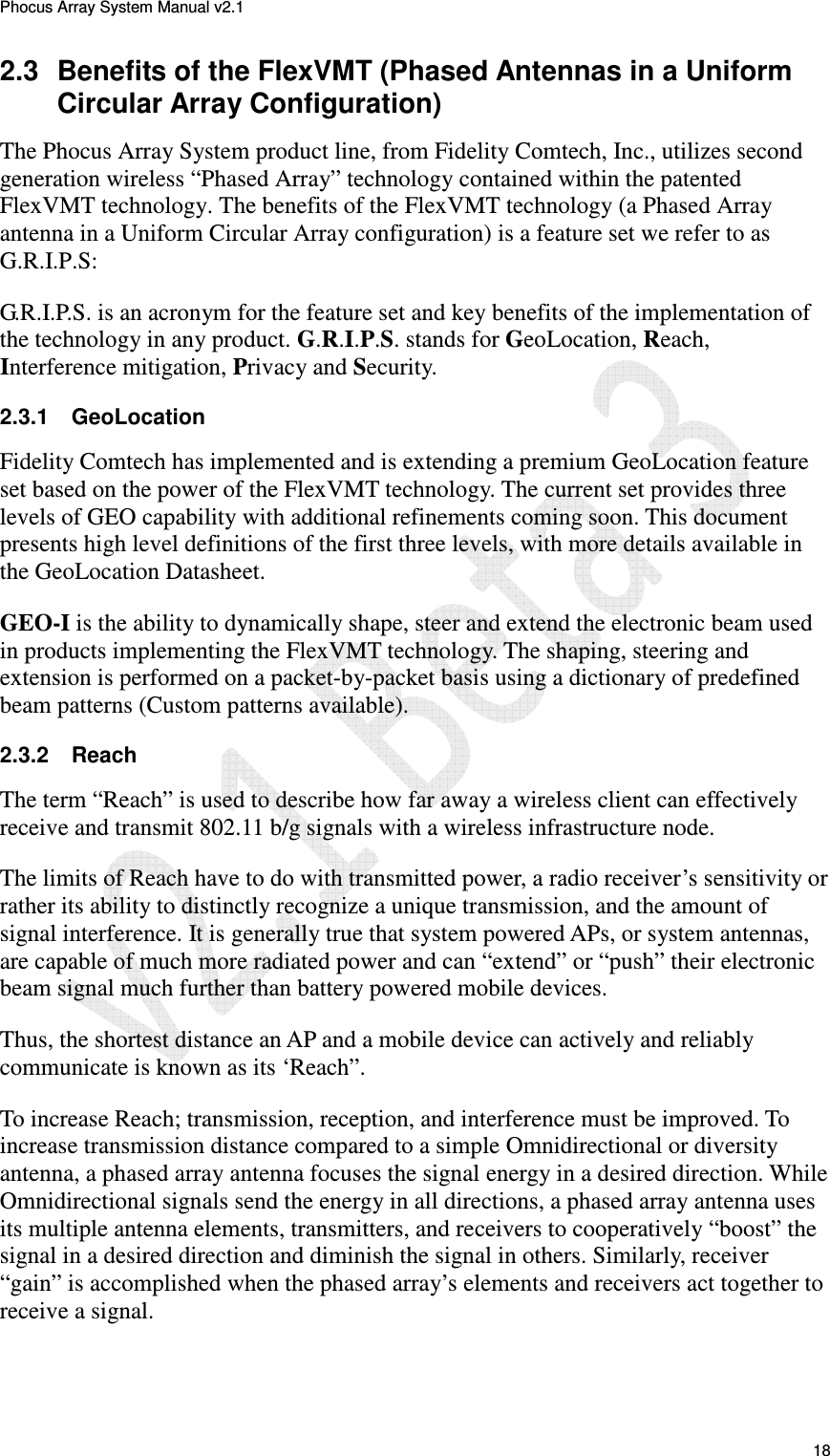
Phocus Array System Manual v2.1 18 2.3  Benefits of the FlexVMT (Phased Antennas in a Uniform Circular Array Configuration) The Phocus Array System product line, from Fidelity Comtech, Inc., utilizes second generation wireless “Phased Array” technology contained within the patented FlexVMT technology. The benefits of the FlexVMT technology (a Phased Array antenna in a Uniform Circular Array configuration) is a feature set we refer to as G.R.I.P.S: G.R.I.P.S. is an acronym for the feature set and key benefits of the implementation of the technology in any product. G.R.I.P.S. stands for GeoLocation, Reach, Interference mitigation, Privacy and Security. 2.3.1  GeoLocation Fidelity Comtech has implemented and is extending a premium GeoLocation feature set based on the power of the FlexVMT technology. The current set provides three levels of GEO capability with additional refinements coming soon. This document presents high level definitions of the first three levels, with more details available in the GeoLocation Datasheet. GEO-I is the ability to dynamically shape, steer and extend the electronic beam used in products implementing the FlexVMT technology. The shaping, steering and extension is performed on a packet-by-packet basis using a dictionary of predefined beam patterns (Custom patterns available). 2.3.2  Reach The term “Reach” is used to describe how far away a wireless client can effectively receive and transmit 802.11 b/g signals with a wireless infrastructure node.  The limits of Reach have to do with transmitted power, a radio receiver’s sensitivity or rather its ability to distinctly recognize a unique transmission, and the amount of signal interference. It is generally true that system powered APs, or system antennas, are capable of much more radiated power and can “extend” or “push” their electronic beam signal much further than battery powered mobile devices.  Thus, the shortest distance an AP and a mobile device can actively and reliably communicate is known as its ‘Reach”. To increase Reach; transmission, reception, and interference must be improved. To increase transmission distance compared to a simple Omnidirectional or diversity antenna, a phased array antenna focuses the signal energy in a desired direction. While Omnidirectional signals send the energy in all directions, a phased array antenna uses its multiple antenna elements, transmitters, and receivers to cooperatively “boost” the signal in a desired direction and diminish the signal in others. Similarly, receiver “gain” is accomplished when the phased array’s elements and receivers act together to receive a signal.
Phocus Array System Manual v2.1 19 Dynamic phased array antennas, specifically the FlexVMT technology used within products such as the Phocus Array System offer nearly four (4) times the Reach of a common Omnidirectional or diversity antenna. 2.3.3  Interference Mitigation The key to Reach, both for the Mobile Device and the APs, is the ability of the receivers to discriminate a specific “Tuned” signal at its weakest point in a surrounding full of electronic noise from other radiated signals from the general environment and universal bodies like the sun.  The main reason dynamic antennas have extended Reach over traditional Omnidirectional antennas is because shaped steered and extended beams produce much lower noise environments. Signal-to-Noise Ratios (SNR) may be improved by putting the desired signal only in the area of concern and not bleeding over into other environments. Thus, signal clarity or reliability is greatly enhanced. The beam pattern can also avoid other radiation patterns and sources, avoiding interference while improving signal Reach and quality for better throughput performance due to fewer packet retransmissions.  2.3.4  Privacy / Security The first rule of wireless security is to prevent others access to the transmitted signal. Omnidirectional antennas commonly used in APs radiate in a full 360º pattern that resembles a “donut-like” shape. The dynamic beam can be shaped, steered, and extended to cover only the desired “footprint” and keep the signal from “bleeding” over into unwanted spaces. Thus, the system administrator can “Avoid” other areas providing privacy. Signal Avoidance is step one. The FlexVMT-based dynamic antennas electively directs its signal improving security and privacy dramatically by reducing eavesdropping possibilities and interference. Signal Avoidance also helps minimize the noise “pollution” for other environments maintaining their Reach. Signals received in a multi-path3 are both “in and out” of phase when distributed across a Phased Array in a Uniform Circular Array configuration providing contiguous signal receptions where a standard panel or di-pole antenna would have dropouts of signal loss. The Phocus Array System is ideal for “Multipath” environments” In these environments at least some antenna elements in the circular array will be able to capture the signal. Thus signal Reach and fidelity is consistently maintained. 2.4  The Phocus Array System Implementation The Phocus Array System consists of a single radio (the IEEE 802.11b/g module) which handles both transmit and receive functions (refer to Figure 2). The antenna terminal of the radio connects to the common terminal of an eight (8)-way splitter.                                                  3 Multipath is when many signals from the same source are received in and out of phase caused by reflections of the signals in the transmission path. (i.e. Container yards have many reflected signals from a radiated source)
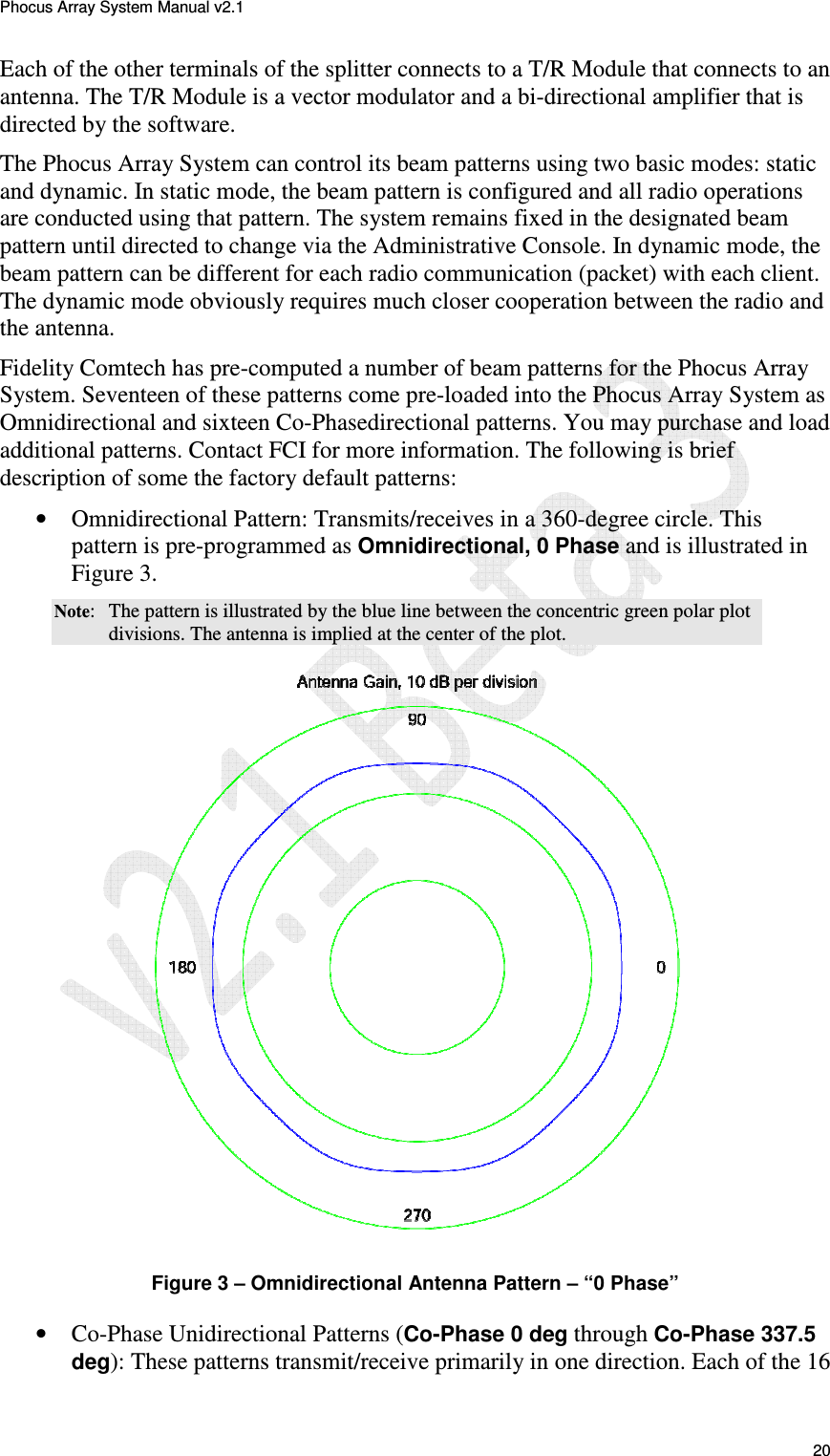
Phocus Array System Manual v2.1 20 Each of the other terminals of the splitter connects to a T/R Module that connects to an antenna. The T/R Module is a vector modulator and a bi-directional amplifier that is directed by the software.  The Phocus Array System can control its beam patterns using two basic modes: static and dynamic. In static mode, the beam pattern is configured and all radio operations are conducted using that pattern. The system remains fixed in the designated beam pattern until directed to change via the Administrative Console. In dynamic mode, the beam pattern can be different for each radio communication (packet) with each client. The dynamic mode obviously requires much closer cooperation between the radio and the antenna. Fidelity Comtech has pre-computed a number of beam patterns for the Phocus Array System. Seventeen of these patterns come pre-loaded into the Phocus Array System as Omnidirectional and sixteen Co-Phasedirectional patterns. You may purchase and load additional patterns. Contact FCI for more information. The following is brief description of some the factory default patterns: • Omnidirectional Pattern: Transmits/receives in a 360-degree circle. This pattern is pre-programmed as Omnidirectional, 0 Phase and is illustrated in Figure 3.  Note:  The pattern is illustrated by the blue line between the concentric green polar plot divisions. The antenna is implied at the center of the plot.  Figure 3 – Omnidirectional Antenna Pattern – “0 Phase” • Co-Phase Unidirectional Patterns (Co-Phase 0 deg through Co-Phase 337.5 deg): These patterns transmit/receive primarily in one direction. Each of the 16
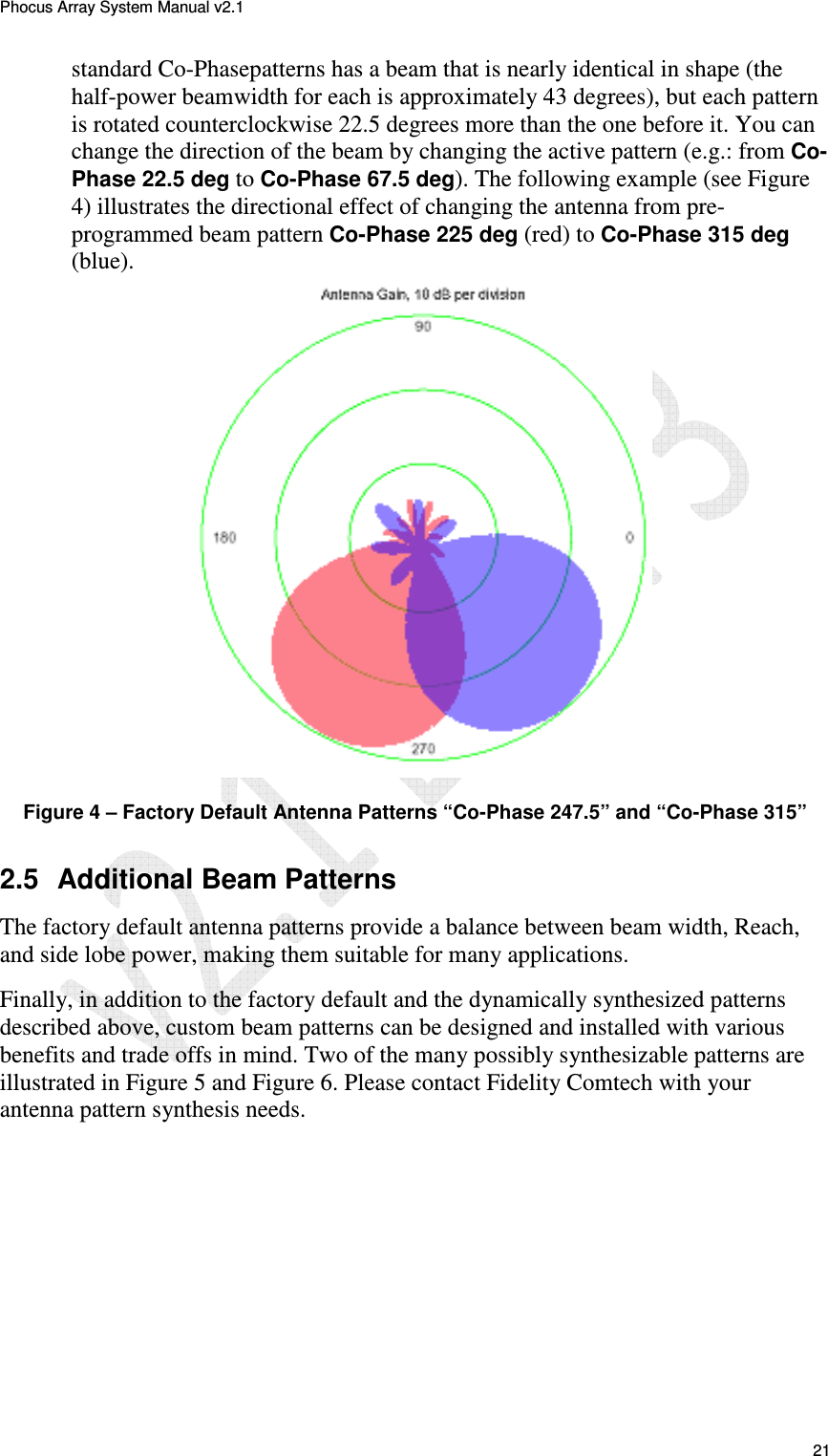
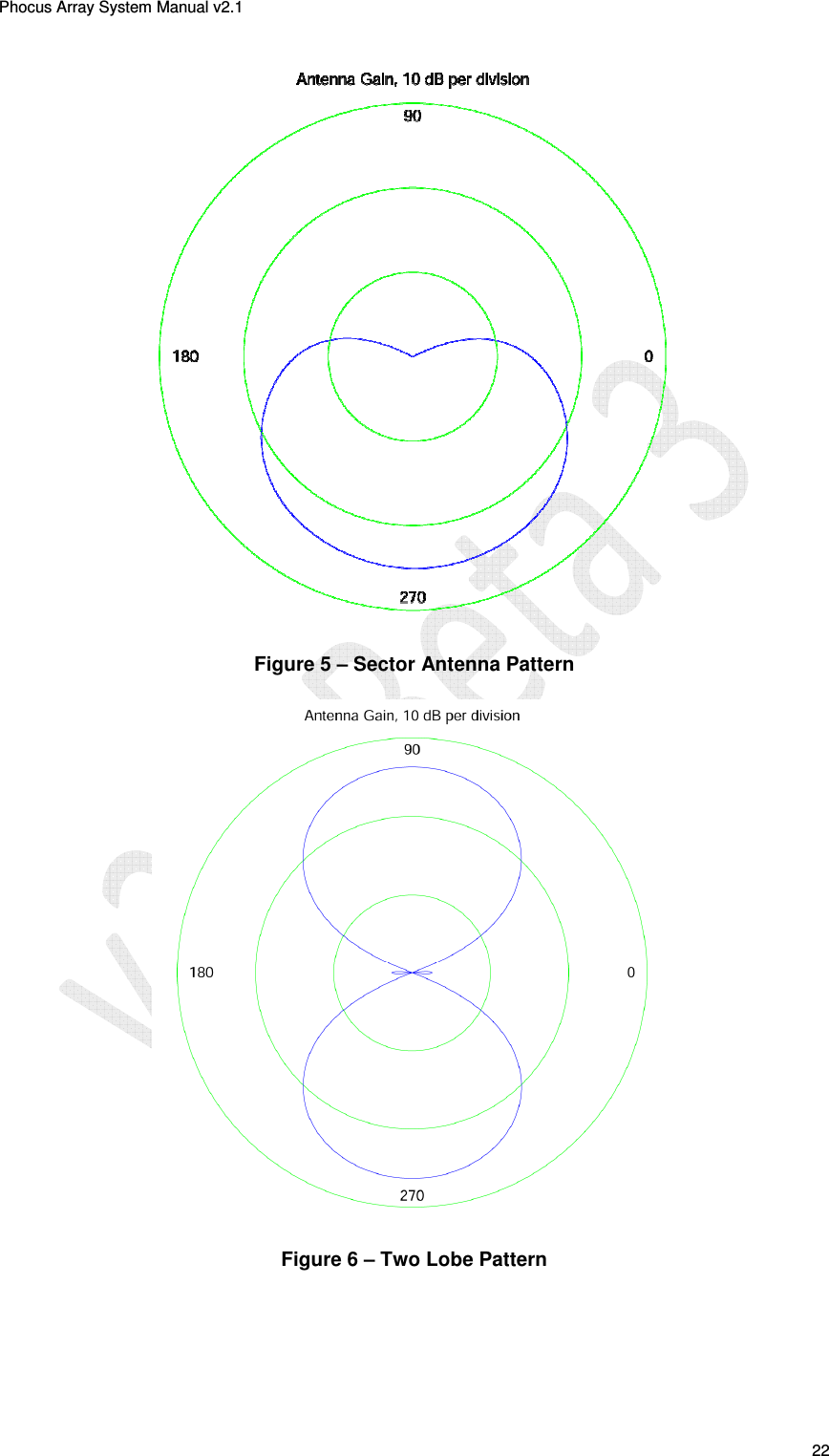
Phocus Array System Manual v2.1 21 standard Co-Phasepatterns has a beam that is nearly identical in shape (the half-power beamwidth for each is approximately 43 degrees), but each pattern is rotated counterclockwise 22.5 degrees more than the one before it. You can change the direction of the beam by changing the active pattern (e.g.: from Co-Phase 22.5 deg to Co-Phase 67.5 deg). The following example (see Figure 4) illustrates the directional effect of changing the antenna from pre-programmed beam pattern Co-Phase 225 deg (red) to Co-Phase 315 deg (blue).   Figure 4 – Factory Default Antenna Patterns “Co-Phase 247.5” and “Co-Phase 315” 2.5  Additional Beam Patterns The factory default antenna patterns provide a balance between beam width, Reach, and side lobe power, making them suitable for many applications.  Finally, in addition to the factory default and the dynamically synthesized patterns described above, custom beam patterns can be designed and installed with various benefits and trade offs in mind. Two of the many possibly synthesizable patterns are illustrated in Figure 5 and Figure 6. Please contact Fidelity Comtech with your antenna pattern synthesis needs.
Phocus Array System Manual v2.1 22  Figure 5 – Sector Antenna Pattern   Figure 6 – Two Lobe Pattern
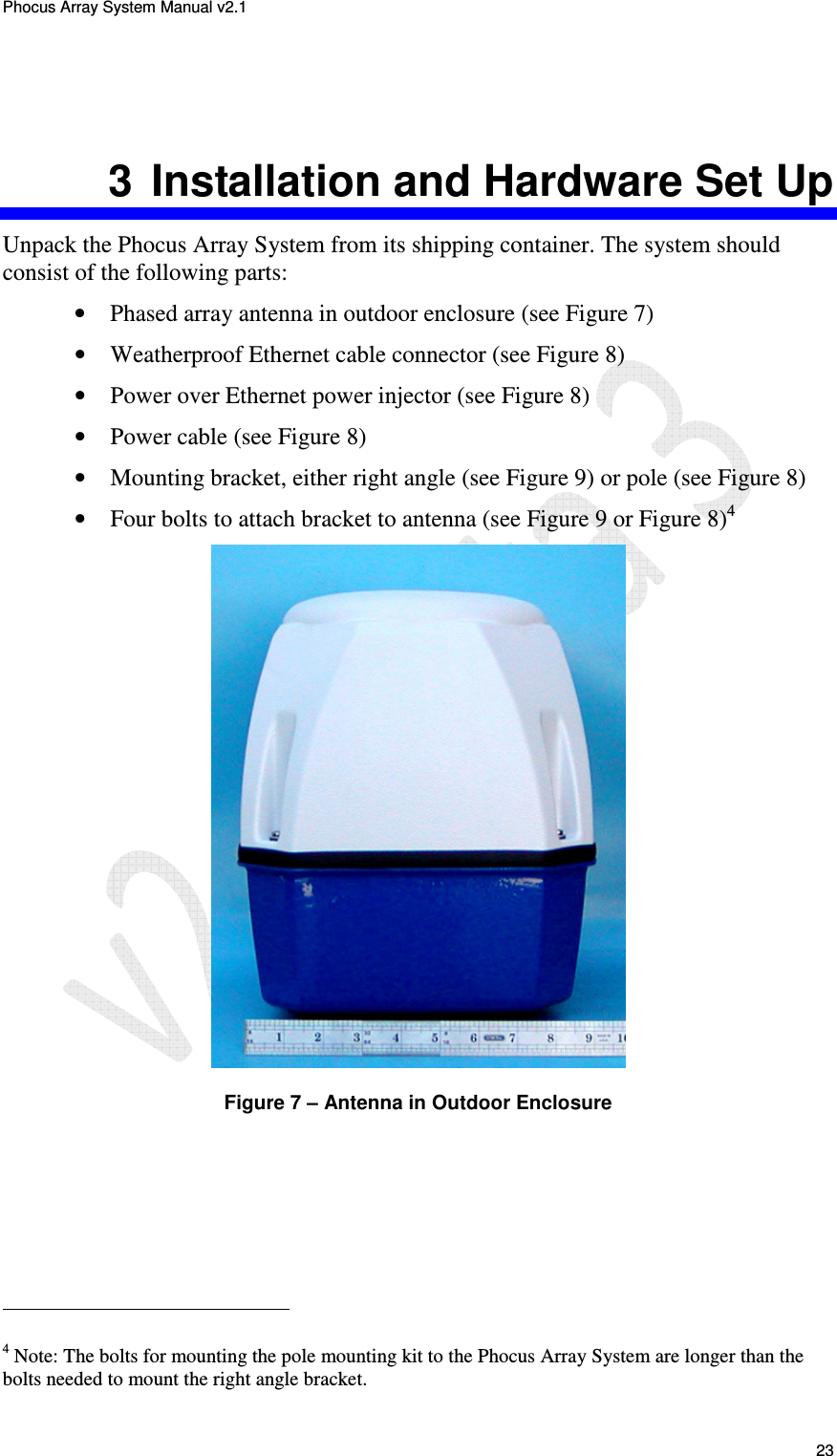
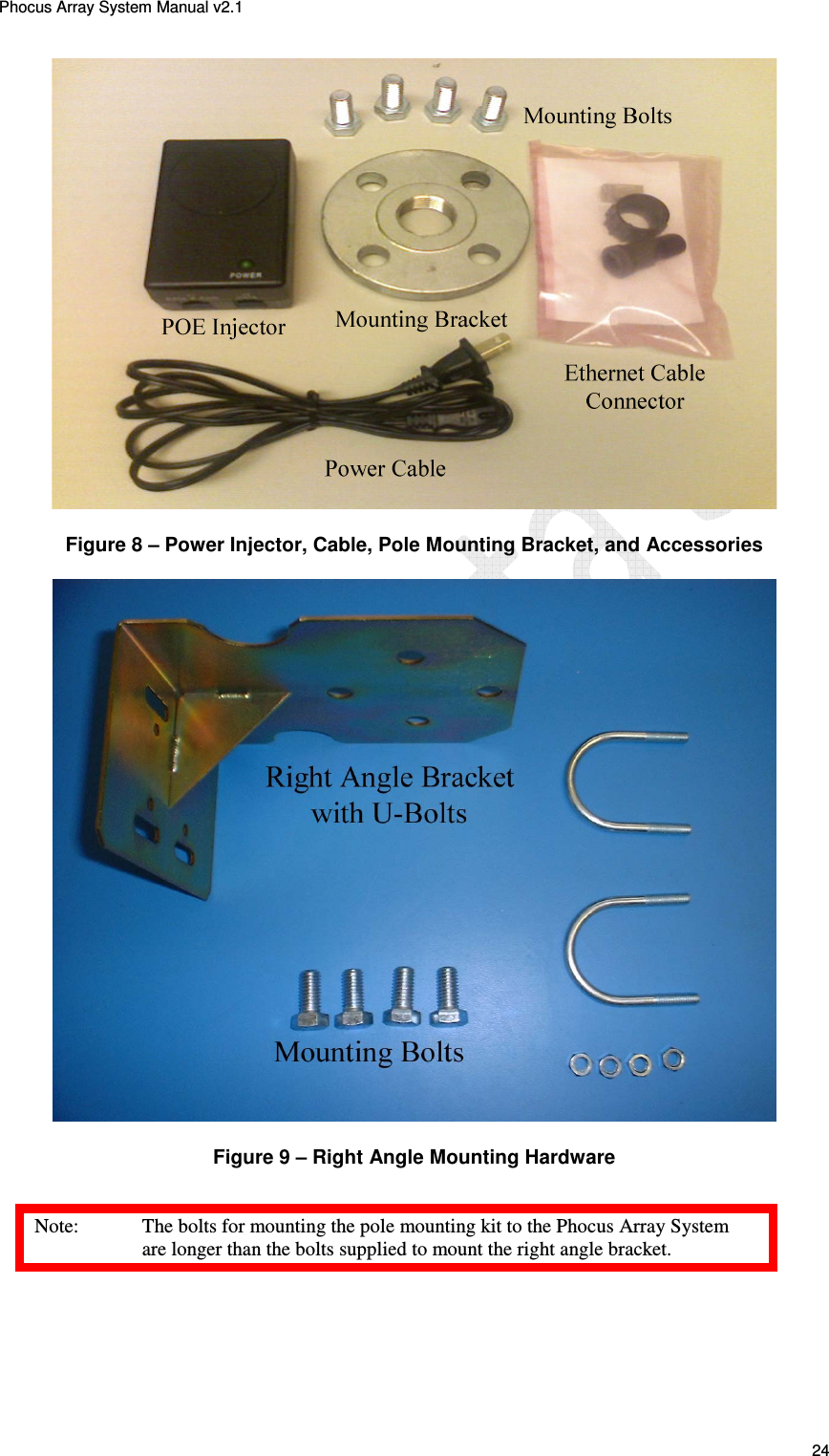
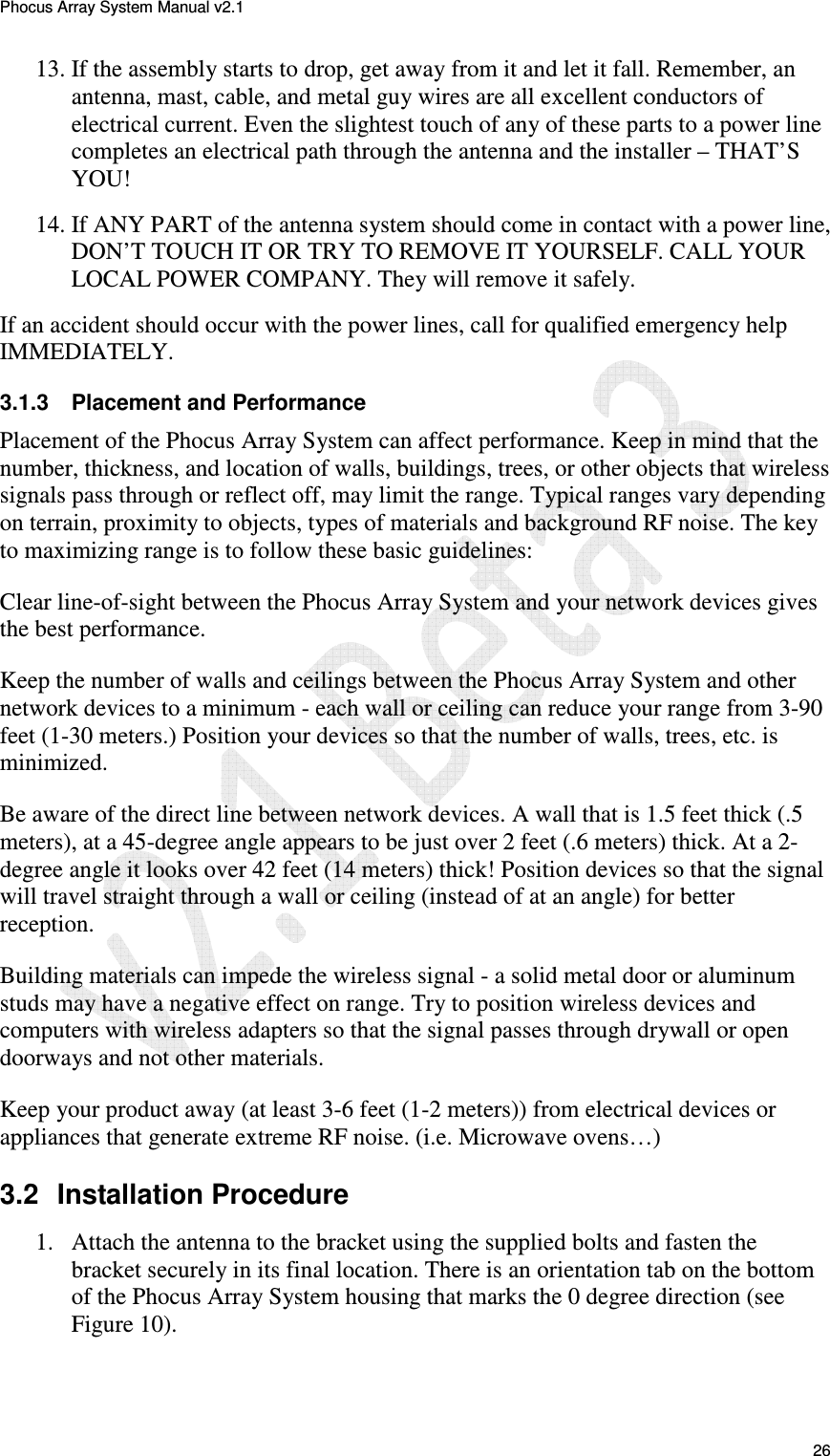
Phocus Array System Manual v2.1 23 3  Installation and Hardware Set Up Unpack the Phocus Array System from its shipping container. The system should consist of the following parts: • Phased array antenna in outdoor enclosure (see Figure 7) • Weatherproof Ethernet cable connector (see Figure 8) • Power over Ethernet power injector (see Figure 8) • Power cable (see Figure 8) • Mounting bracket, either right angle (see Figure 9) or pole (see Figure 8) • Four bolts to attach bracket to antenna (see Figure 9 or Figure 8)4  Figure 7 – Antenna in Outdoor Enclosure                                                  4 Note: The bolts for mounting the pole mounting kit to the Phocus Array System are longer than the bolts needed to mount the right angle bracket.
Phocus Array System Manual v2.1 24  Figure 8 – Power Injector, Cable, Pole Mounting Bracket, and Accessories  Figure 9 – Right Angle Mounting Hardware Note:  The bolts for mounting the pole mounting kit to the Phocus Array System are longer than the bolts supplied to mount the right angle bracket.
Phocus Array System Manual v2.1 25 3.1  Installation Considerations 3.1.1  Safety Warning:  Installation of this product near power lines is dangerous! For your safety, follow the installation directions. 3.1.2  How to Install your Phocus Array System Safely The following installation precautions and guidelines are extracted from the Recommendations of the U.S. Consumer Product Safety Commission on installing antennas.  These safety recommendations apply to all antennas. Each year, hundreds of people are killed, mutilated, or receive severe and permanent injuries when attempting to install an antenna. In many of these cases, the victim was aware of the danger of electrocution, but did not take adequate steps to avoid the hazard. For your safety, and to help you achieve a good installation, please read and follow the safety precautions below. They may save your life! That this is not complete list of instructions, precautions, and installation guidelines necessary to safely and effectively install the antenna. You should consult a professional, as well as observe local and national code requirements. 8. If you are installing an antenna for the first time, please, for your own safety as well as others, seek professional assistance. The professional can explain which mounting method to use for the size and type of antenna you are about to install. 9. Select your installation site with safety, as well as performance, in mind. REMEMBER: ELECTRIC POWER LINES AND PHONE LINES LOOK ALIKE. FOR YOUR SAFETY, ASSUME THAT ANY OVERHEAD LINES CAN KILL YOU. 10. Call your electric power company. Tell them your plans and ask them to come take a look at your proposed installation. This is a small inconvenience, considering YOUR LIFE IS AT STAKE. 11. Plan your installation procedure carefully and completely before you begin. Successful raising of a mast or tower is largely a matter of coordination. Each person should be assigned a specific task, and should know what to do and when to do it. One person should be designated as the leader/coordinator of the operation to call out instructions and watch for signs of trouble. 12. When installing your antenna, REMEMBER: DO NOT USE A METAL LADDER. DO NOT WORK ON A WET OR WINDY DAY. DO DRESS PROPERLY: shoes with rubber soles and heels, rubber gloves, long sleeved shirt or jacket.
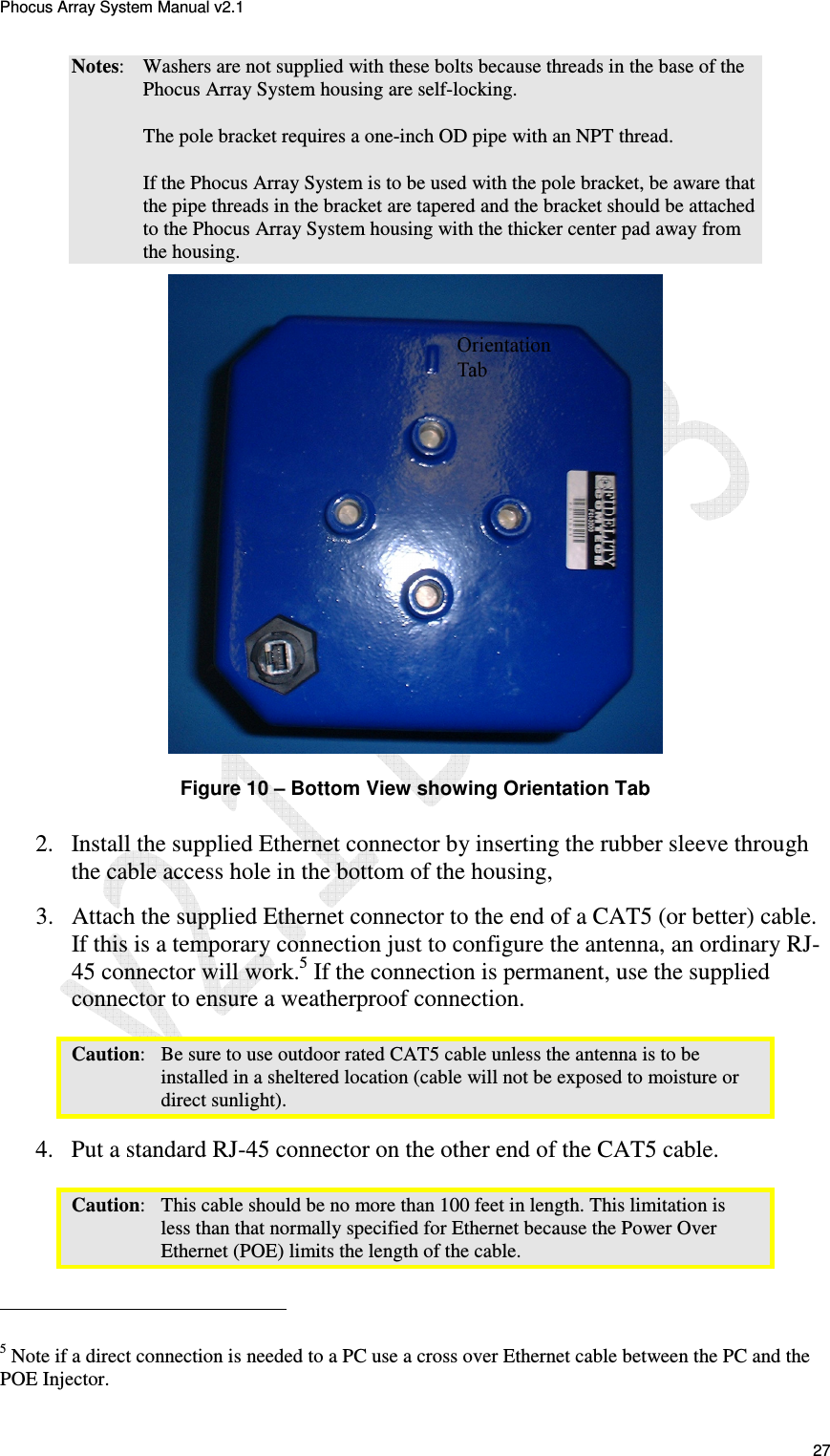
Phocus Array System Manual v2.1 26 13. If the assembly starts to drop, get away from it and let it fall. Remember, an antenna, mast, cable, and metal guy wires are all excellent conductors of electrical current. Even the slightest touch of any of these parts to a power line completes an electrical path through the antenna and the installer – THAT’S YOU! 14. If ANY PART of the antenna system should come in contact with a power line, DON’T TOUCH IT OR TRY TO REMOVE IT YOURSELF. CALL YOUR LOCAL POWER COMPANY. They will remove it safely. If an accident should occur with the power lines, call for qualified emergency help IMMEDIATELY. 3.1.3  Placement and Performance Placement of the Phocus Array System can affect performance. Keep in mind that the number, thickness, and location of walls, buildings, trees, or other objects that wireless signals pass through or reflect off, may limit the range. Typical ranges vary depending on terrain, proximity to objects, types of materials and background RF noise. The key to maximizing range is to follow these basic guidelines: Clear line-of-sight between the Phocus Array System and your network devices gives the best performance. Keep the number of walls and ceilings between the Phocus Array System and other network devices to a minimum - each wall or ceiling can reduce your range from 3-90 feet (1-30 meters.) Position your devices so that the number of walls, trees, etc. is minimized. Be aware of the direct line between network devices. A wall that is 1.5 feet thick (.5 meters), at a 45-degree angle appears to be just over 2 feet (.6 meters) thick. At a 2-degree angle it looks over 42 feet (14 meters) thick! Position devices so that the signal will travel straight through a wall or ceiling (instead of at an angle) for better reception. Building materials can impede the wireless signal - a solid metal door or aluminum studs may have a negative effect on range. Try to position wireless devices and computers with wireless adapters so that the signal passes through drywall or open doorways and not other materials. Keep your product away (at least 3-6 feet (1-2 meters)) from electrical devices or appliances that generate extreme RF noise. (i.e. Microwave ovens…) 3.2  Installation Procedure 1. Attach the antenna to the bracket using the supplied bolts and fasten the bracket securely in its final location. There is an orientation tab on the bottom of the Phocus Array System housing that marks the 0 degree direction (see Figure 10).
Phocus Array System Manual v2.1 27 Notes:  Washers are not supplied with these bolts because threads in the base of the Phocus Array System housing are self-locking.    The pole bracket requires a one-inch OD pipe with an NPT thread.    If the Phocus Array System is to be used with the pole bracket, be aware that the pipe threads in the bracket are tapered and the bracket should be attached to the Phocus Array System housing with the thicker center pad away from the housing.  Figure 10 – Bottom View showing Orientation Tab 2. Install the supplied Ethernet connector by inserting the rubber sleeve through the cable access hole in the bottom of the housing,  3. Attach the supplied Ethernet connector to the end of a CAT5 (or better) cable. If this is a temporary connection just to configure the antenna, an ordinary RJ-45 connector will work.5 If the connection is permanent, use the supplied connector to ensure a weatherproof connection.  Caution:  Be sure to use outdoor rated CAT5 cable unless the antenna is to be installed in a sheltered location (cable will not be exposed to moisture or direct sunlight).  4. Put a standard RJ-45 connector on the other end of the CAT5 cable.  Caution:  This cable should be no more than 100 feet in length. This limitation is less than that normally specified for Ethernet because the Power Over Ethernet (POE) limits the length of the cable.                                                   5 Note if a direct connection is needed to a PC use a cross over Ethernet cable between the PC and the POE Injector.
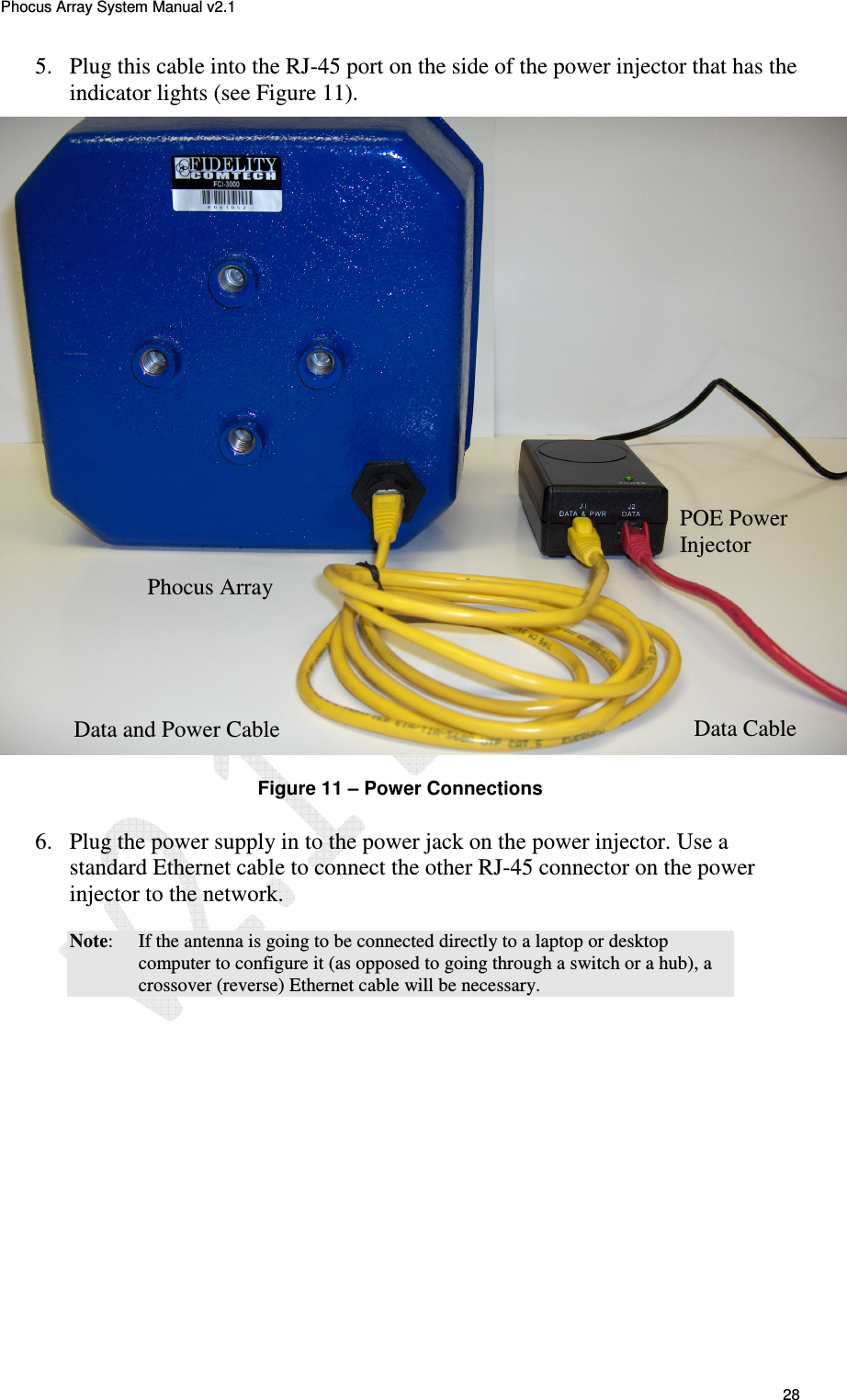
Phocus Array System Manual v2.1 28 5. Plug this cable into the RJ-45 port on the side of the power injector that has the indicator lights (see Figure 11).   Figure 11 – Power Connections 6. Plug the power supply in to the power jack on the power injector. Use a standard Ethernet cable to connect the other RJ-45 connector on the power injector to the network.  Note:  If the antenna is going to be connected directly to a laptop or desktop computer to configure it (as opposed to going through a switch or a hub), a crossover (reverse) Ethernet cable will be necessary. Data Cable Data and Power Cable POE Power Injector Phocus Array
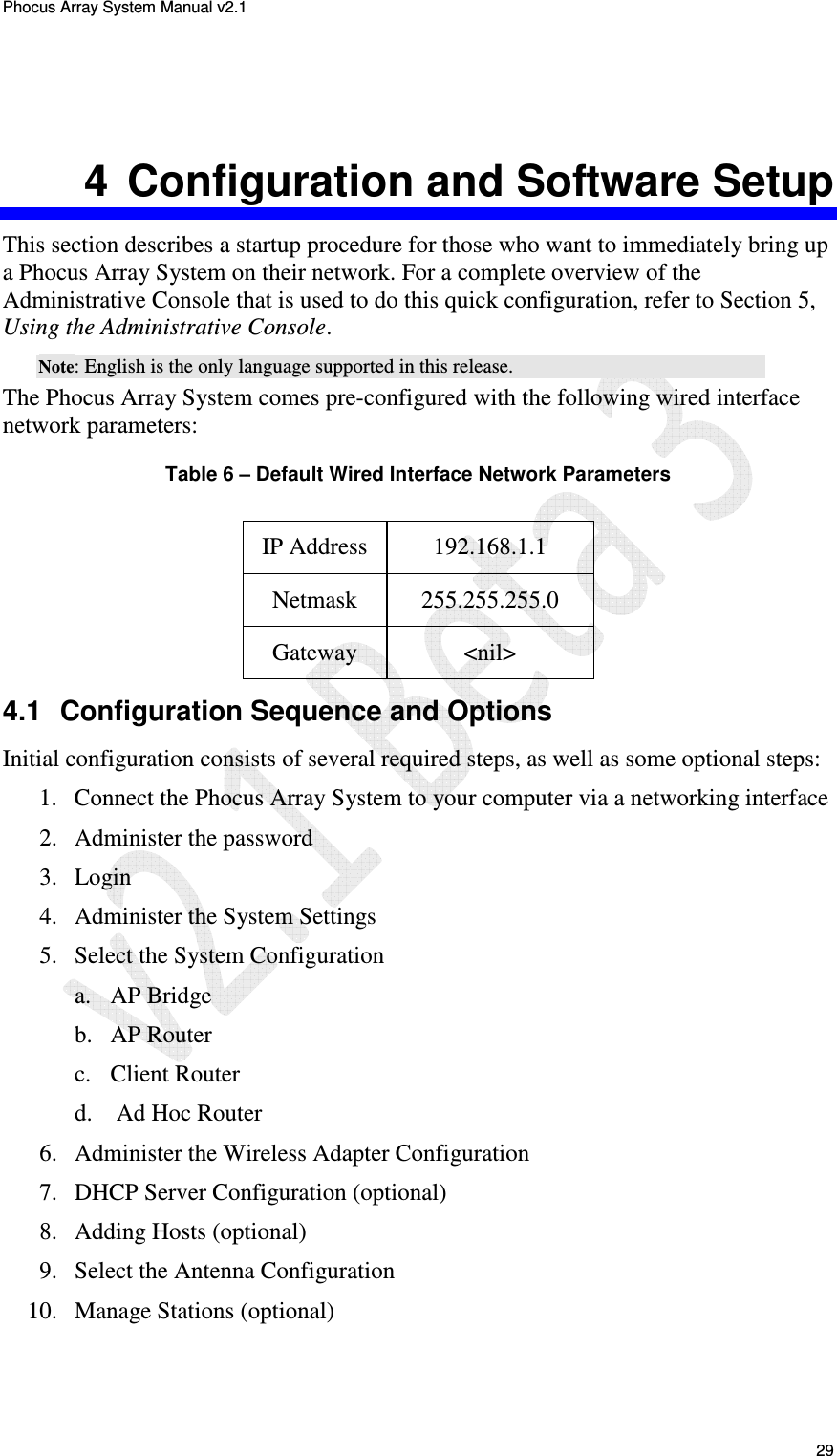
Phocus Array System Manual v2.1 29 4  Configuration and Software Setup This section describes a startup procedure for those who want to immediately bring up a Phocus Array System on their network. For a complete overview of the Administrative Console that is used to do this quick configuration, refer to Section 5, Using the Administrative Console. Note: English is the only language supported in this release. The Phocus Array System comes pre-configured with the following wired interface network parameters: Table 6 – Default Wired Interface Network Parameters  IP Address  192.168.1.1 Netmask  255.255.255.0 Gateway  <nil> 4.1  Configuration Sequence and Options Initial configuration consists of several required steps, as well as some optional steps: 1. Connect the Phocus Array System to your computer via a networking interface 2. Administer the password 3. Login 4. Administer the System Settings 5. Select the System Configuration  a. AP Bridge b. AP Router c. Client Router d.  Ad Hoc Router 6. Administer the Wireless Adapter Configuration 7. DHCP Server Configuration (optional) 8. Adding Hosts (optional) 9. Select the Antenna Configuration 10. Manage Stations (optional)
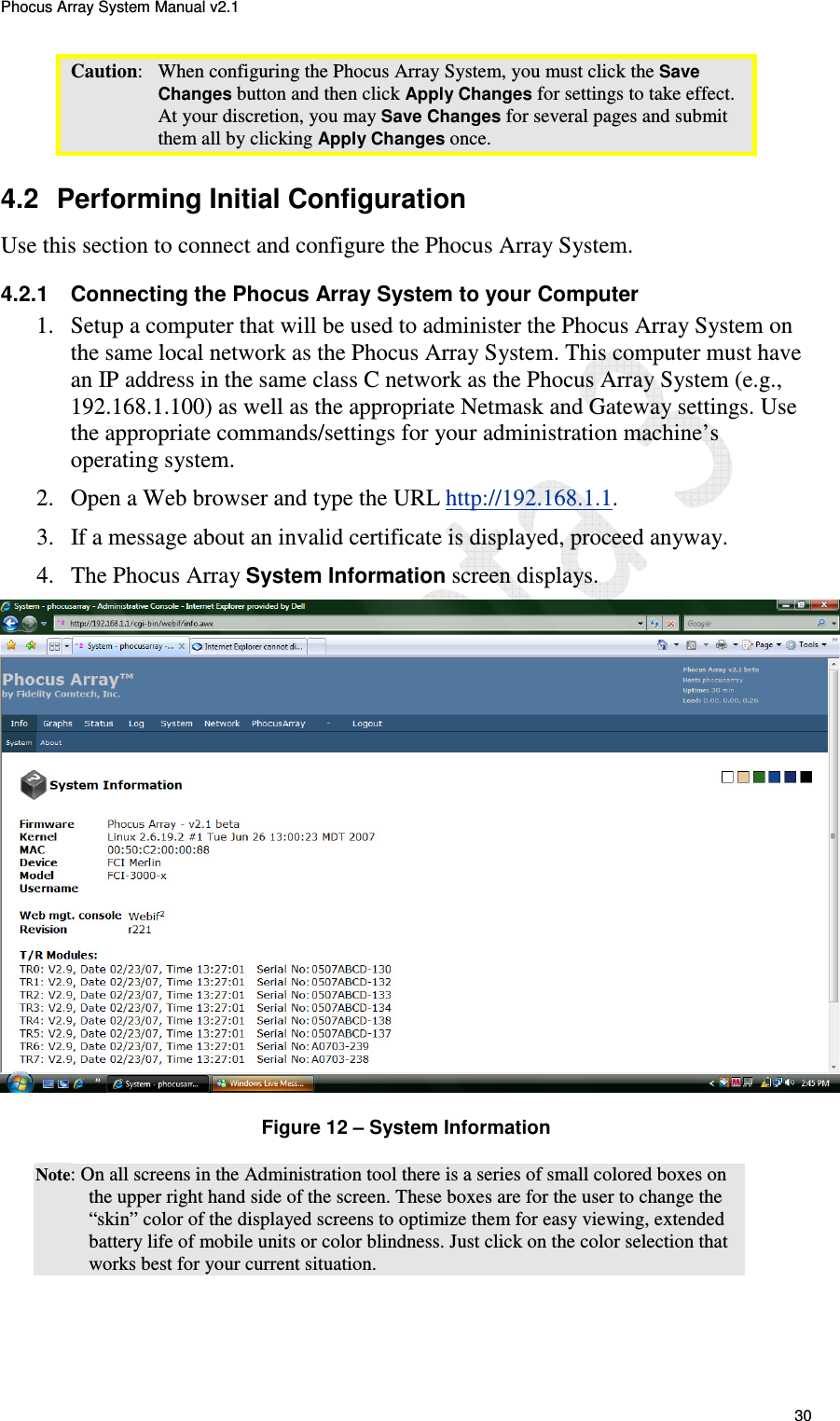
Phocus Array System Manual v2.1 30 Caution:   When configuring the Phocus Array System, you must click the Save Changes button and then click Apply Changes for settings to take effect. At your discretion, you may Save Changes for several pages and submit them all by clicking Apply Changes once. 4.2  Performing Initial Configuration Use this section to connect and configure the Phocus Array System. 4.2.1  Connecting the Phocus Array System to your Computer 1. Setup a computer that will be used to administer the Phocus Array System on the same local network as the Phocus Array System. This computer must have an IP address in the same class C network as the Phocus Array System (e.g., 192.168.1.100) as well as the appropriate Netmask and Gateway settings. Use the appropriate commands/settings for your administration machine’s operating system.  2. Open a Web browser and type the URL http://192.168.1.1.  3. If a message about an invalid certificate is displayed, proceed anyway.  4. The Phocus Array System Information screen displays.   Figure 12 – System Information  Note: On all screens in the Administration tool there is a series of small colored boxes on the upper right hand side of the screen. These boxes are for the user to change the “skin” color of the displayed screens to optimize them for easy viewing, extended battery life of mobile units or color blindness. Just click on the color selection that works best for your current situation.
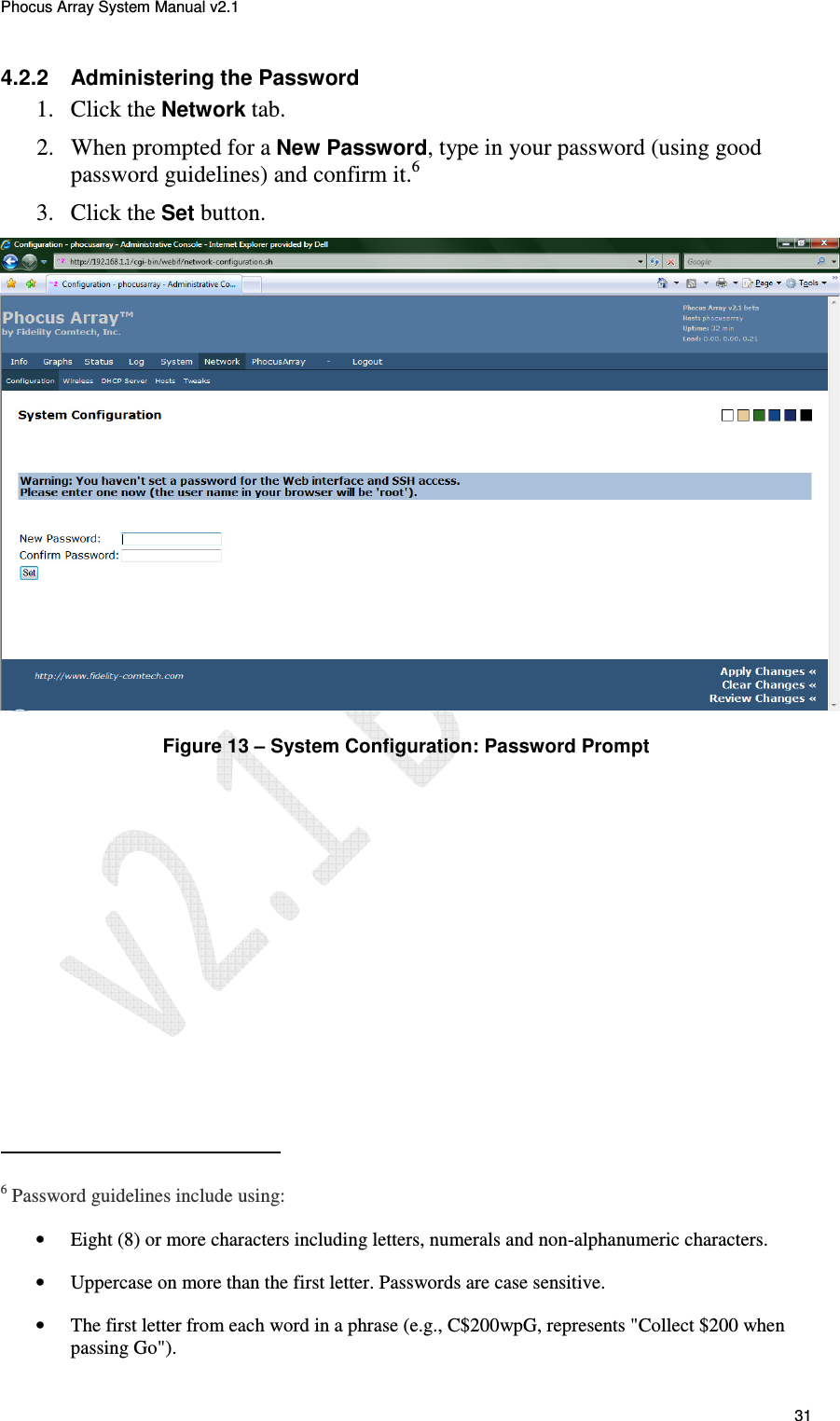
Phocus Array System Manual v2.1 31 4.2.2  Administering the Password 1. Click the Network tab. 2. When prompted for a New Password, type in your password (using good password guidelines) and confirm it.6 3. Click the Set button.   Figure 13 – System Configuration: Password Prompt                                                  6 Password guidelines include using: • Eight (8) or more characters including letters, numerals and non-alphanumeric characters.  • Uppercase on more than the first letter. Passwords are case sensitive.  • The first letter from each word in a phrase (e.g., C$200wpG, represents "Collect $200 when passing Go").
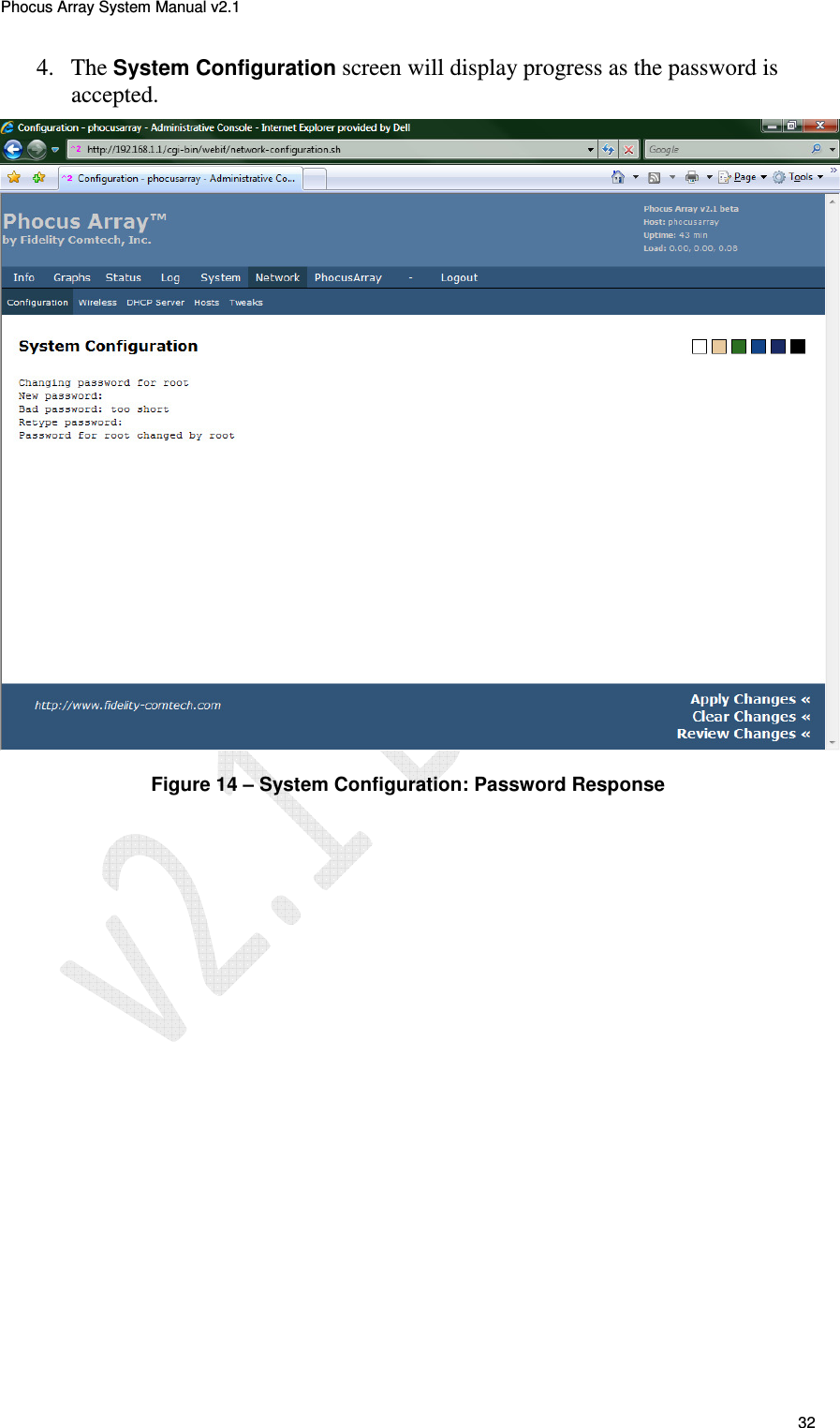
Phocus Array System Manual v2.1 32 4. The System Configuration screen will display progress as the password is accepted.   Figure 14 – System Configuration: Password Response
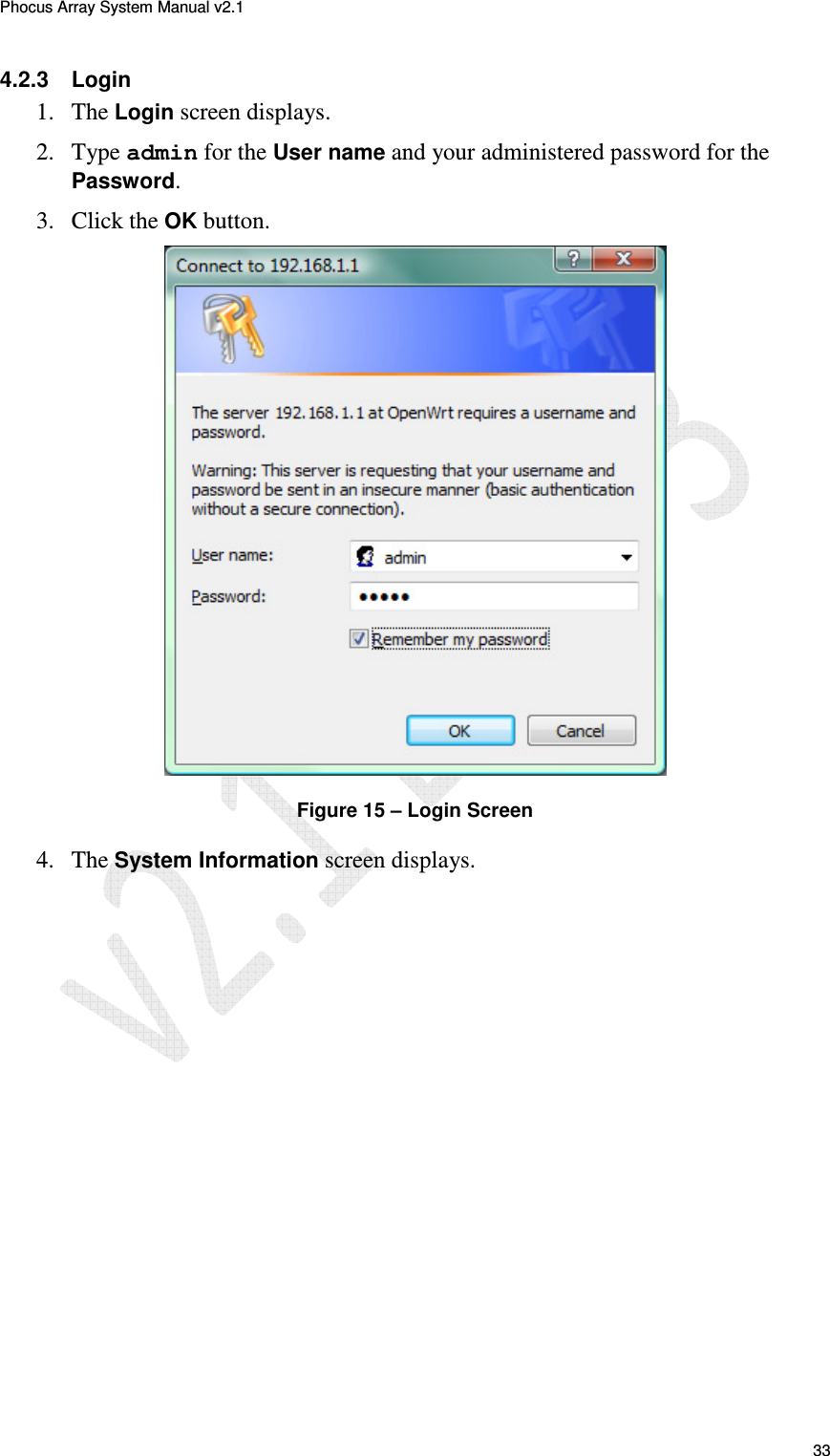
Phocus Array System Manual v2.1 33 4.2.3  Login 1. The Login screen displays. 2. Type admin for the User name and your administered password for the Password. 3. Click the OK button.  Figure 15 – Login Screen 4. The System Information screen displays.
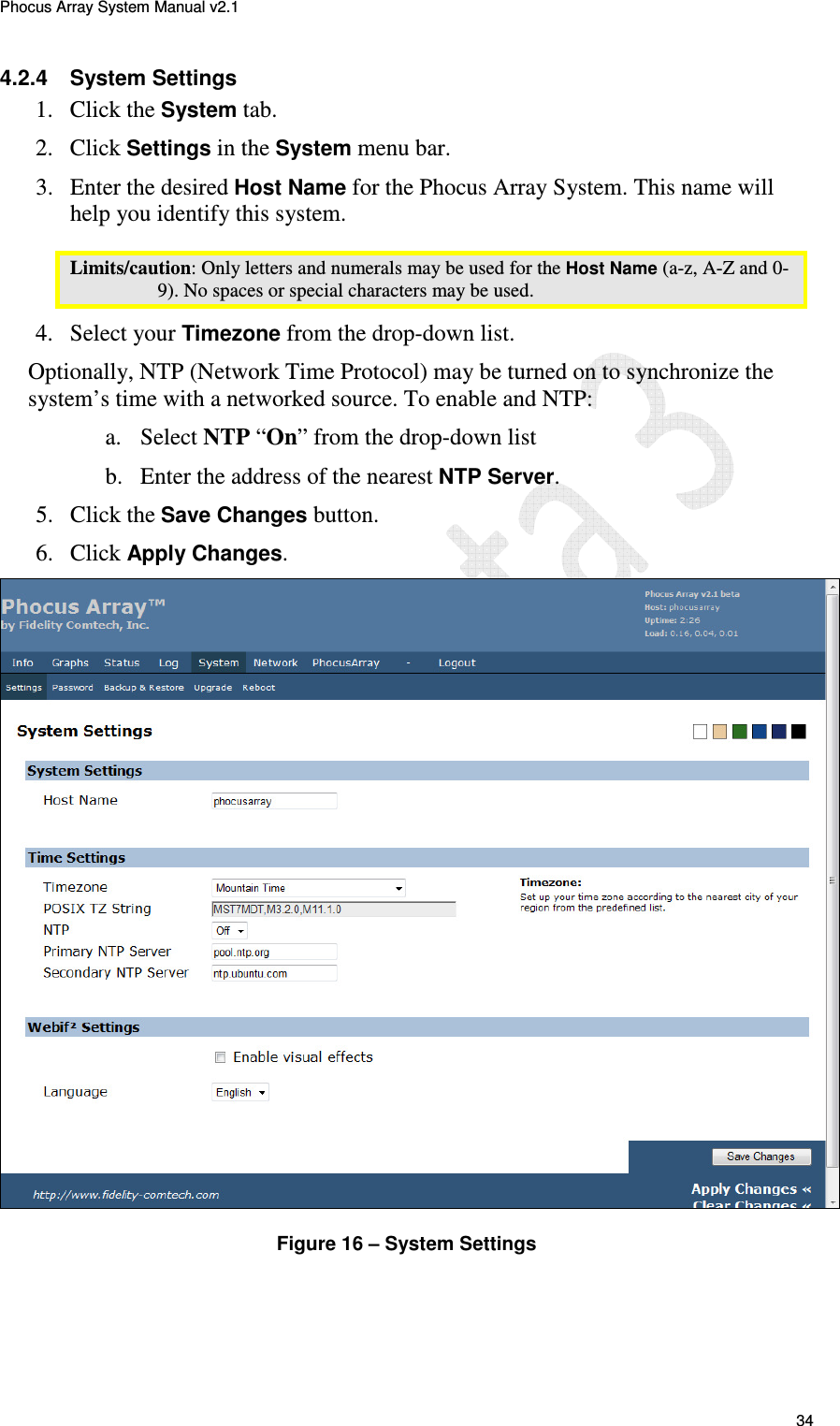
Phocus Array System Manual v2.1 34 4.2.4  System Settings 1. Click the System tab. 2. Click Settings in the System menu bar. 3. Enter the desired Host Name for the Phocus Array System. This name will help you identify this system. Limits/caution: Only letters and numerals may be used for the Host Name (a-z, A-Z and 0-9). No spaces or special characters may be used. 4. Select your Timezone from the drop-down list. Optionally, NTP (Network Time Protocol) may be turned on to synchronize the system’s time with a networked source. To enable and NTP: a. Select NTP “On” from the drop-down list b. Enter the address of the nearest NTP Server. 5. Click the Save Changes button. 6. Click Apply Changes.   Figure 16 – System Settings

Navigation menu