Fusion Electronics MS-AL300 AUDIO RECEIVER/PROCESSOR/AMPLIFIER WITH BLUETOOTH AND SEPARATE WIRED REMOTE CONTROL WITH USB PORT User Manual
Fusion Electronics Ltd AUDIO RECEIVER/PROCESSOR/AMPLIFIER WITH BLUETOOTH AND SEPARATE WIRED REMOTE CONTROL WITH USB PORT
Contents
- 1. User Manual
- 2. User Manual 2
User Manual
Meteor™ 300 Installation Instructions
NOTICE
Changes or modifications not expressly approved by the party
responsible for compliance could void the user's authority to
operate the equipment.
The Garmin Meteor device plays your media throughout your
boat. It connects to your NMEA 2000® network and is controlled
by your connected Garmin devices or by an optional remote
control.
Important Safety Information
WARNING
See the Important Safety and Product Information guide in the
product box for product warnings and other important
information.
CAUTION
Always wear safety goggles, ear protection, and a dust mask
when drilling, cutting, or sanding.
NOTICE
When drilling or cutting, always check what is on the opposite
side of the surface.
Registering Your Device
Help us better support you by completing our online registration
today.
• Go to http://my.garmin.com.
• Keep the original sales receipt, or a photocopy, in a safe
place.
Contacting Garmin Product Support
• Go to www.garmin.com/support and click Contact Support
for in-country support information.
• In the USA, call (913) 397.8200 or (800) 800.1020.
• In the UK, call 0808 2380000.
• In Europe, call +44 (0) 870.8501241.
Loading the New Software on a Memory
Card
The device may contain a software-update memory card. If so,
follow the instructions provided with the card. If a software
update memory card is not included, you must copy the
software update to a memory card.
1Insert a memory card into the card slot on the computer.
2Go to www.garmin.com/support/software/marine.html.
3Select Download next to “Chartplotters with SD card”.
4Read and agree to the terms.
5Select Download.
6Select Run.
7Select the drive associated with the memory card, and select
Next > Finish.
Updating the Device Software
Before you can update the software, you must obtain a
software-update memory card or load the latest software onto a
memory card.
1Turn on the chartplotter.
2Insert the memory card into the card slot.
3Follow the on-screen instructions.
4Wait several minutes while the software update process
completes.
The device returns to normal operation after the software
update process is complete.
5Remove the memory card.
Mounting Considerations
NOTICE
This device should be mounted in a location that is not exposed
to extreme temperatures or conditions. The temperature range
for this device is listed in the product specifications. Extended
exposure to temperatures exceeding the specified temperature
range, in storage or operating conditions, may cause device
failure. Extreme-temperature-induced damage and related
consequences are not covered by the warranty.
• The device must be mounted in a location where it will not be
submerged.
• The device must be mounted in a location with adequate
ventilation where it will not be exposed to extreme
temperatures.
• The device should be mounted so that the cables can easily
be connected.
• To achieve IPX3 water ingress protection and optimal heat
sink cooling, the device must be mounted on a vertical
surface with the connectors pointing downward.
• The device can be mounted on a horizontal surface, but this
might not achieve IPX3 water ingress protection.
• To avoid interference with a magnetic compass, the device
should be installed at least MEASUREMENT PENDING
away from a compass.
Mounting the Device
1After you select a mounting location, determine the mounting
hardware needed for the surface.
Mounting hardware is included with the device, but it may not
be suitable for the mounting surface.
2Place the device in the mounting location and mark the
location of the pilot holes.
3Drill the appropriate pilot hole for one corner of the device.
4Loosely fasten the device to the mounting surface with one
corner and examine the other three pilot-hole marks.
5Mark new pilot-hole locations if necessary, and remove the
device from the mounting surface.
6Drill the appropriate pilot holes for the other three marks.
7Secure the device to the mounting location.
Connection Considerations
The device must be connected to power, either the boat ignition
or an external switch, a NMEA 2000 network, speakers, and
media input sources to function correctly. You should carefully
plan the layout of the device, the NMEA 2000 network, the
speakers, and your input sources before making any
connections.
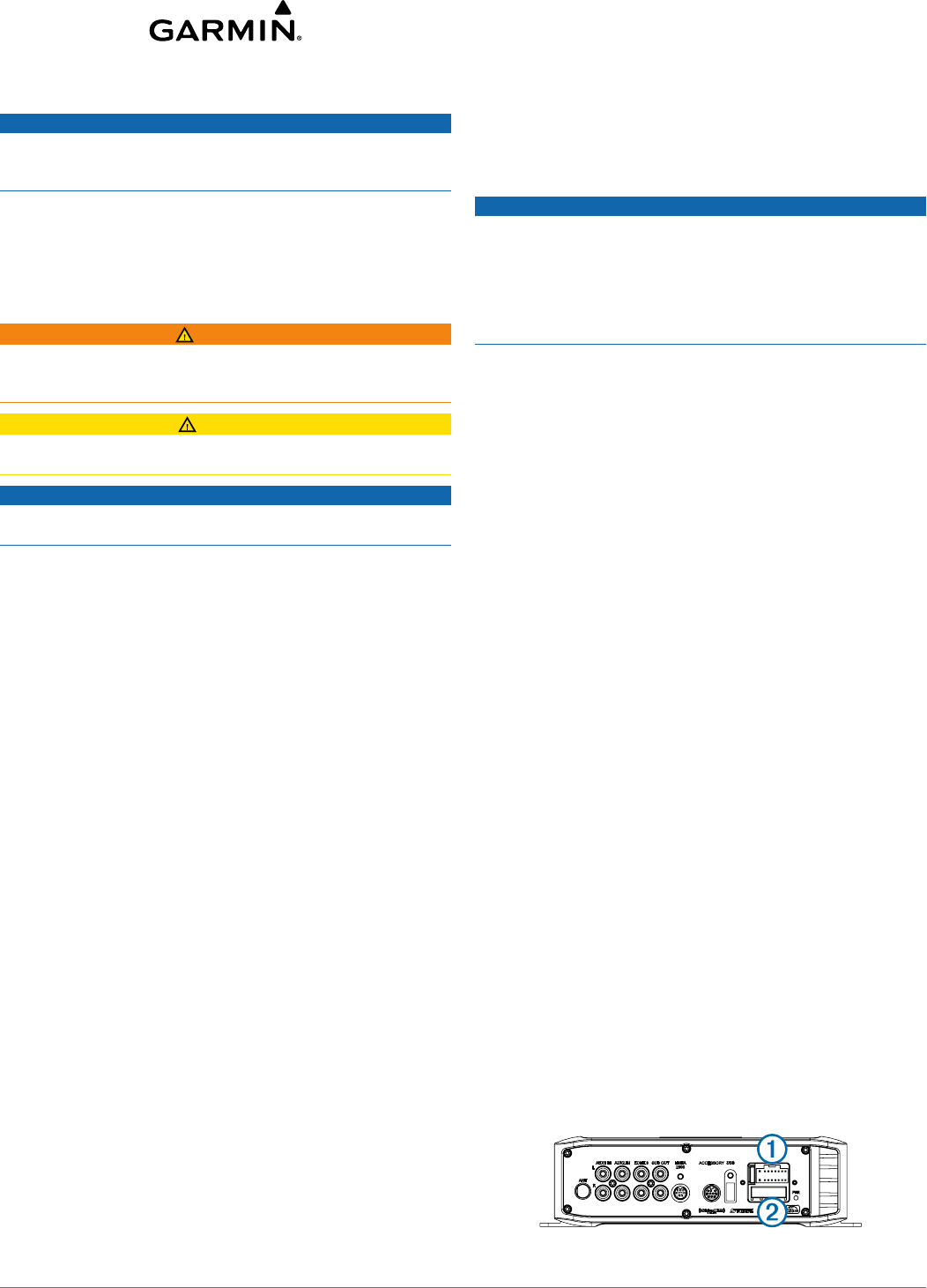
Connector Identification
September 2013 190-01685-02_0A
DRAFT
Connector Connects to
ANT External AM/FM antenna
AUX1 IN Stereo line-level RCA auxiliary source
AUX2 IN Stereo line-level RCA auxiliary source
ZONE 3 Separate amplifier and speakers
SUB OUT Mono line-level subwoofer (tied to ZONE 3)
NMEA 2000 NMEA 2000 network
ACCESSORY Reserved for future use
USB USB-compatible media device
ÀPower and speakers
ÁReserved for future use
Wire Identification
Wire Function Wire Color Notes
Power (+) Yellow This should be connected to a
constant 12 VDC source capable
of supplying 15 Amps.
Ground (-) Black
Ignition Red This should be connected to a
separate switched 12 VDC
connection, such as an ignition
bus, to turn the device on and off.
If you are not using a switched
12 VDC connection, you must
connect this to the same source
as the yellow (power) wire.
Amplifier on Blue/white This is connected only when
using an external amplifier on
ZONE 3 (optional)
Mute Brown/white When connected to ground, this
mutes the audio or switches the
input to AUX2. This is selectable
through the settings menu.
Speaker zone 1 left
(+)
White
Speaker zone 1 left
(-)
White/black
Speaker zone 1 right
(+)
Gray
Speaker zone 1 right
(-)
Gray/black
Speaker zone 2 left
(+)
Green
Speaker zone 2 left
(-)
Green/black
Speaker zone 2 right
(+)
Purple
Speaker zone 2 right
(-)
Purple/black
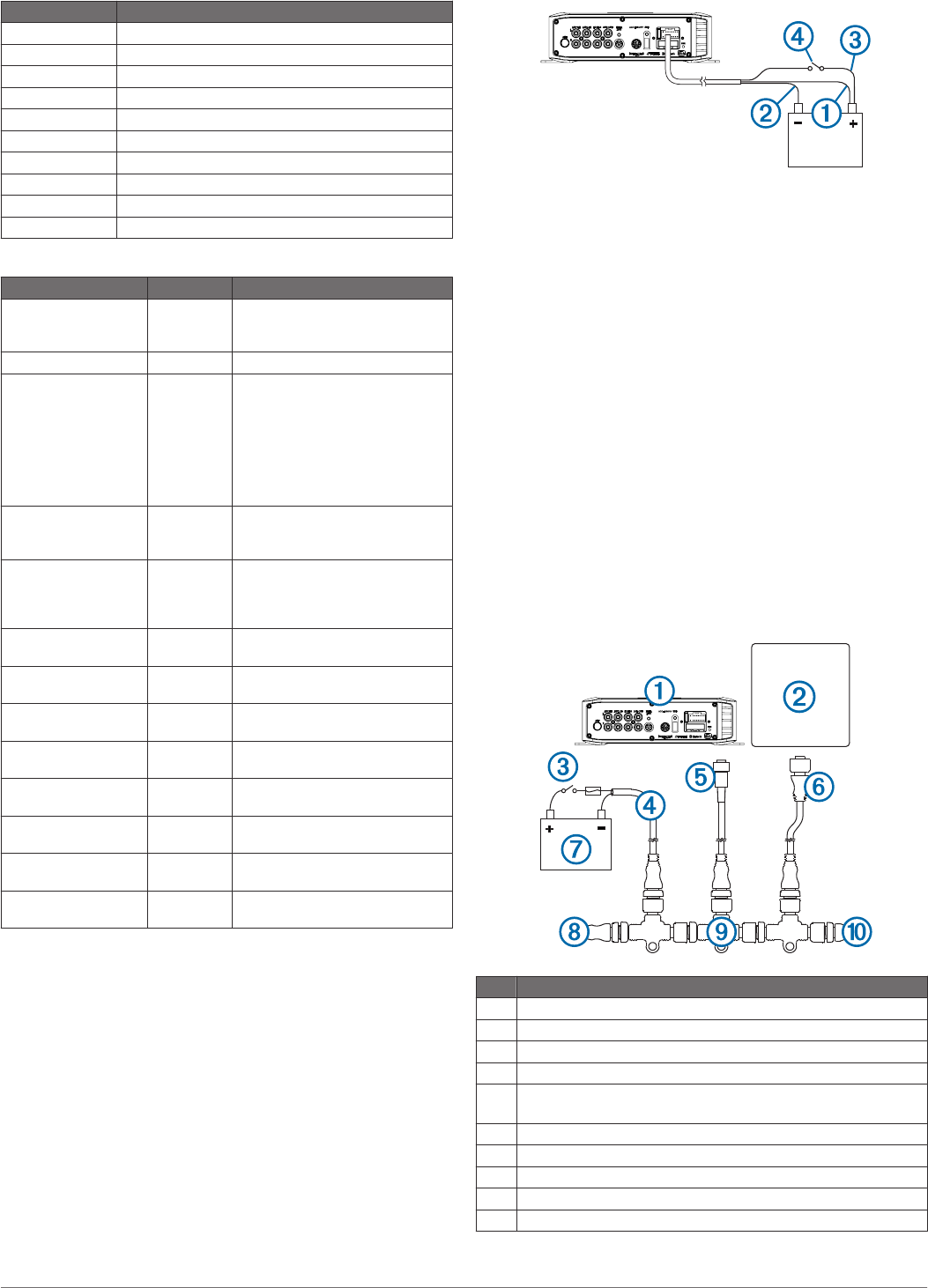
Connecting to Power
When connecting the device to power, it is important to connect
both power wires. The yellow power wire should be connected
directly to the battery, or connected using a 15 Amp isolator
switch. This provides power to the device and a constant trickle-
power standby feed. The red signal wire should be connected to
the same battery through the ignition or another manual switch
to turn the device on and off.
If it is necessary to extend the yellow power and black ground
wires, use 14 AWG (2.08 mm²) wire. For extensions longer than
1 m (3 ft.), use 12 AWG (3.31 mm²) wire.
If it is necessary to extend the red signal wire, use 22 AWG
(0.33 mm²) wire.
1Route the yellow power À and black ground Á wires to the
battery and route the wiring-harness plug to the device.
Do not connect the wiring harness to the device until all of
the bare wire connections have been made.
2Connect the yellow wire to the positive (+) battery terminal,
and connect the black wire to the negative (-) battery
terminal.
3Route the red signal wire  to the ignition or another manual
switch Ã.
NMEA 2000 Connection Considerations
This device connects to a NMEA 2000 network on your boat.
Through the NMEA 2000 network, you control the device using
a connected Garmin device or optional remote control. The
included NMEA 2000 cable and connector allow you to connect
the device to your existing NMEA 2000 network. If you do not
have an existing NMEA 2000 network on your boat, you must
create one.
NOTE: The included NMEA 2000 drop cable must be used to
connect the device to the NMEA 2000 network. A standard
NMEA 2000 drop cable is not directly compatible with the
connector on the device, although the included cable can be
extended using a standard NMEA 2000 cable.
If you are unfamiliar with NMEA 2000, you should read the
“NMEA 2000 Network Fundamentals” chapter of the Technical
Reference for NMEA 2000 Products. To download this
document, select Manuals on the product page for your device
at www.garmin.com.
Item Description
ÀMeteor 300 device
ÁGarmin device
ÂIgnition or in-line switch
ÃNMEA 2000 power cable
ÄMeteor 300 NMEA 2000 drop cable
This can be extended using a standard NMEA 2000 cable.
ÅNMEA 2000 drop cable
Æ12 Vdc power source
ÇNMEA 2000 terminator or backbone cable
ÈNMEA 2000 T-connector
ÉNMEA 2000 terminator or backbone cable
2
DRAFT
Subwoofer Connection Considerations
This device supports output to a powered subwoofer from
ZONE 3 (optional).
The subwoofer port on the device outputs a mono line-level
signal from both RCA connectors. The port output audio level is
linked to ZONE 3.
• If your subwoofer amplifier has two RCA input connectors,
you should connect both connectors to the device.
• If your subwoofer amplifier has one RCA input connector,
you can connect it to either subwoofer output RCA connector
on the device, because the two RCA subwoofer outputs are
parallel.
• Because the subwoofer output is linked to the ZONE 3
output, you must connect the blue wire from the wiring
harness to the subwoofer amplifier to provide a signal to turn
it on.
ZONE 3 Connection Considerations
In addition to the two stereo speaker zones available through
the wiring harness, this device supports the connection to
separate amplifier and speakers through the ZONE 3 port
(optional).
• The blue wire from the wiring harness must be connected to
the amplifier to provide a signal to turn on the amplifier with
the device. If it is necessary to extend this blue signal wire,
use 22 AWG (0.33 mm²) wire.
• The audio output is a stereo line level output over standard
RCA cable.
• The volume and balance for the amplifier is controlled
through the interface on a connected Garmin device or
through an optional Meteor remote control.
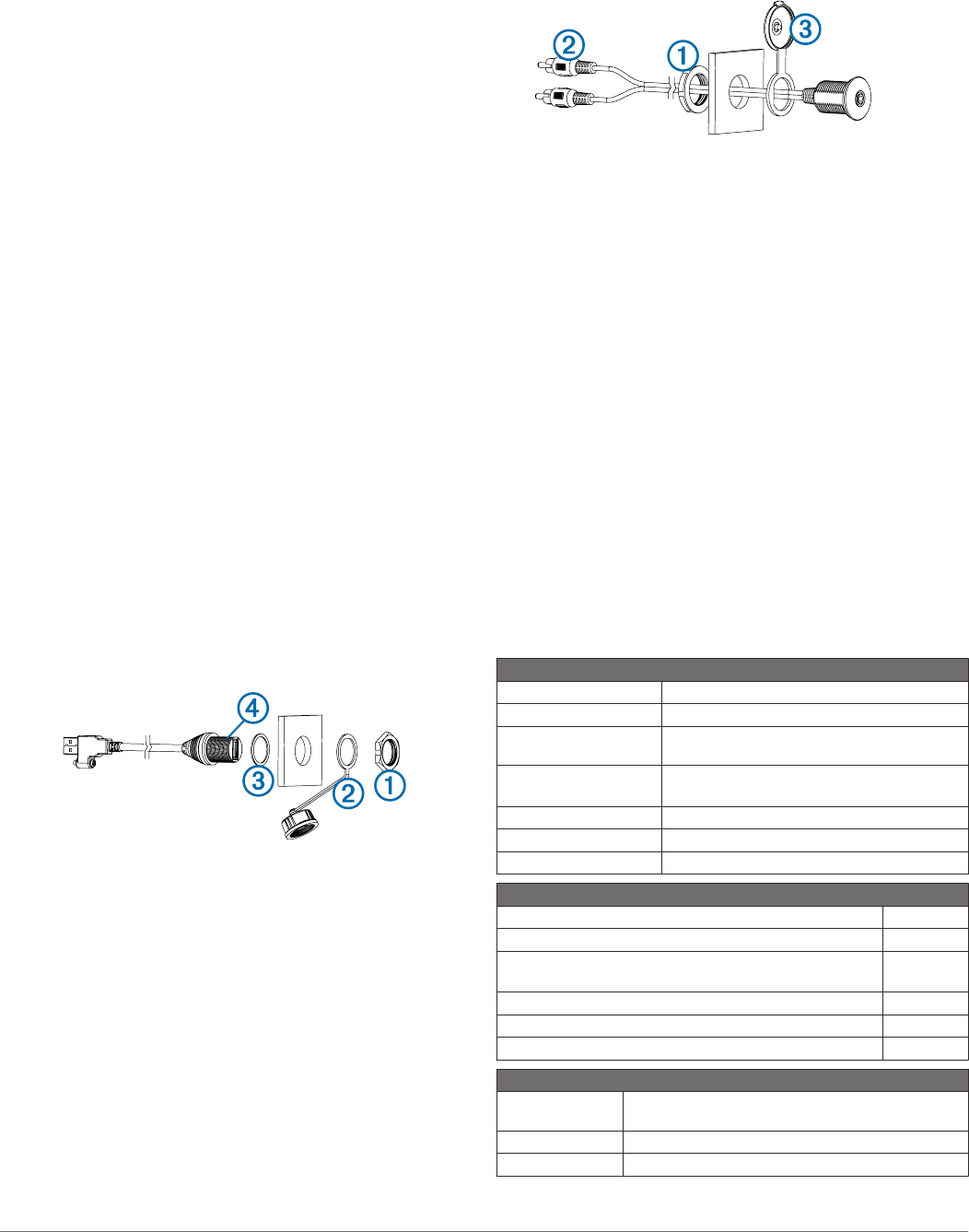
Installing the Remote USB Socket
Before installing the USB socket, make sure the cable will reach
the mounting location and the USB port on the back of the
device.
To allow for a proper seal, the mounting surface should be no
thicker than 12 mm (½ in.).
1Remove the nut À, the protective cover Á, and the rubber
washer  from the USB socket.
2Mark the mounting location of the USB socket and drill a
20 mm (¾ in.) hole through the mounting surface.
3From the back of the mounting surface, insert the USB
socket into the hole.
To ensure proper USB-connector orientation, the flat portion
of the socket à should face left when looking at the front of
the socket.
4Place the rubber washer and protective cover on the USB
socket, and fasten the socket to the surface using the nut.
5Route the USB cable to the device and connect it to the USB
port.
Installing the 3.5 mm Socket
Before installing the 3.5 mm socket, make sure the cable will
reach the mounting location and an auxiliary port on the back of
the device. The cable can be extended using a standard stereo
RCA extension cable if needed.
To allow for a proper seal, the mounting surface should be no
thicker than 15 mm (5/8 in.).
1Remove the nut À from the 3.5 mm socket and separate it
from the connected cable by pulling through one RCA
connector Á at a time.
Do not remove the protective cover  from the 3.5 mm
socket.
2Mark the mounting location of the 3.5 mm socket and drill a
20 mm (¾ in.) hole through the mounting surface.
3From the front of the mounting surface, feed the cable
through the hole by inserting one RCA connector at a time,
and pull it through until the 3.5 mm socket rests in the hole.
4Place the nut on the cable, thread it along the cable to the
3.5 mm socket, and fasten the socket to the surface.
5Route the cable to the device and connect it to an auxiliary
port.
Playing Media
All functions of this device are controlled through a compatible
Garmin device or through an optional Meteor remote control.
1Turn on your Meteor device, your NMEA 2000 network, your
connected Garmin devices, and Meteor remote control
(optional).
2Refer to the owner's manual for your compatible Garmin
device for instructions on media playback.
Manuals for Garmin devices can be found at
www.garmin.com.
Specifications
General
Dimensions (L × W × H) 107 × 225 × 62 mm (4.2 × 8.9 × 2.4 in.)
Weight 0.88 kg (1.96 lb.)
Water resistance IPX3: Protected against spraying water when
tilted up to 60 degrees vertically.
Temperature Operating: from -5 to 55°C (from 23 to 131°F)
Storage: from -20 to 70°C (from -4 to 158°F)
Input voltage 10 to 16 Vdc
NMEA 2000 LEN 1 (50 mA)
Compass-safe distance MEASUREMENT PENDING
Audio Amplifier
Output music power per channel 50 W
Total output music power 200 W
Total harmonic distortion (1 W output, 4 ohm load, 20 Hz
to 20 kHz)
0.04 typical
< 0.1% max
Current (standby with ignition off) < 3 mA
Current (max) 15 A
Current (muted) < 800 mA
Auxiliary Inputs and Outputs
AUX 1 IN and
AUX 2 IN
RCA stereo line input for sources such as CD,
DVD, and MP3.
ZONE 3 RCA stereo line output
SUB OUT RCA mono line output (ZONE 3)
3
DRAFT
Auxiliary Inputs and Outputs
ANT Motorola-style standard antenna connector
USB USB-A industry standard
USB works with iPod touch (2nd through 5th
generation), iPod classic, iPod nano (4th through
7th generation), iPhone 5, iPhone 4s, iPhone 4,
iPhone 3Gs, iPhone 3G
Garmin International, Inc.
1200 East 151st Street
Olathe, Kansas 66062, USA
Garmin (Europe) Ltd.
Liberty House, Hounsdown Business Park
Southampton, Hampshire, SO40 9LR UK
Garmin Corporation
No. 68, Zhangshu 2nd Road, Xizhi Dist.
New Taipei City, 221, Taiwan (R.O.C.)
Garmin® and the Garmin logo are trademarks of Garmin Ltd. or its subsidiaries, registered in the USA and other countries. Meteor™ is
a trademark of Garmin Ltd. or its subsidiaries. These trademarks may not be used without the express permission of Garmin.
NMEA 2000® and the NMEA 2000 logo are registered trademarks of the National Marine Electronics Association. Apple®, the Apple
logo, iPod®, iPod touch®, iPod classic®, iPod nano®, and iPhone® are trademarks of Apple Inc., registered in the U.S. and other
countries. Other trademarks and trade names are those of their respective owners.
Made for iPhone 5, iPhone 4s, iPhone 4, iPhone 3Gs, iPhone 3G, iPod touch (2nd through 5th generation), iPod classic, and iPod
nano (4th through 7th generation).
"Made for iPod and iPhone" means that an electronic accessory has been designed to connect specifically to an iPod or an iPhone
respectively, and has been certified by the developer to meet Apple performance standards. Apple is not responsible for the operation
of this device or its compliance with safety and regulatory standards. Please note that the use of this accessory with an iPhone may
affect wireless performance.
© 2013 Garmin Ltd. or its subsidiaries www.garmin.com/support
DRAFT