GUANGZHOU TAIMA TI4520 Wireless 2D Barcode Scanner User Manual

GUANGZHOU TAIMA(TICODE) ELECTRONICS TECHNOLOGY LTD. Wireless 2D Barcode Scanner

User Manual

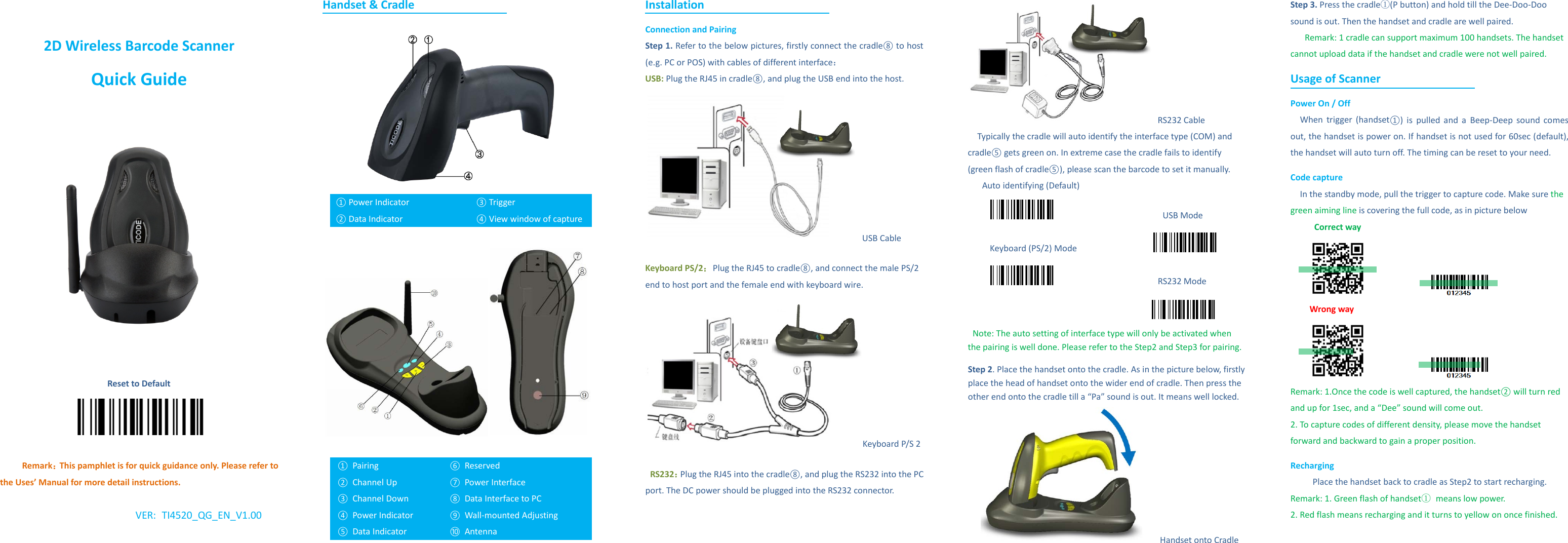
 2D Wireless Barcode Scanner Quick Guide  Reset to Default   Remark:This pamphlet is for quick guidance only. Please refer to the Uses’ Manual for more detail instructions.    VER:  TI4520_QG_EN_V1.00       Handset & Cradle   ① Power Indicator ② Data Indicator ③ Trigger   ④ View window of capture    ① Pairing ② Channel Up ③ Channel Down ④ Power Indicator ⑤ Data Indicator ⑥ Reserved ⑦ Power Interface ⑧ Data Interface to PC ⑨ Wall-mounted Adjusting ⑩ Antenna Installation Connection and Pairing   Step 1. Refer to the below pictures, firstly connect the cradle⑧ to host (e.g. PC or POS) with cables of different interface: USB: Plug the RJ45 in cradle⑧, and plug the USB end into the host.    USB Cable Keyboard PS/2:Plug the RJ45 to cradle⑧, and connect the male PS/2 end to host port and the female end with keyboard wire.Keyboard P/S 2   RS232:Plug the RJ45 into the cradle⑧, and plug the RS232 into the PC port. The DC power should be plugged into the RS232 connector.   RS232 Cable Typically the cradle will auto identify the interface type (COM) and cradle⑤ gets green on. In extreme case the cradle fails to identify (green flash of cradle⑤), please scan the barcode to set it manually.   Auto identifying (Default)                        USB Mode Keyboard (PS/2) Mode                                        RS232 Mode    Note: The auto setting of interface type will only be activated when the pairing is well done. Please refer to the Step2 and Step3 for pairing. Step 2. Place the handset onto the cradle. As in the picture below, firstly place the head of handset onto the wider end of cradle. Then press the other end onto the cradle till a “Pa” sound is out. It means well locked.     Handset onto Cradle Step 3. Press the cradle①(P button) and hold till the Dee-Doo-Doo sound is out. Then the handset and cradle are well paired.   Remark: 1 cradle can support maximum 100 handsets. The handset cannot upload data if the handset and cradle were not well paired. Usage of Scanner Power On / Off When  trigger  (handset①)  is pulled and a  Beep-Deep  sound comes out, the handset is power on. If handset is not used for 60sec (default), the handset will auto turn off. The timing can be reset to your need.   Code capture In the standby mode, pull the trigger to capture code. Make sure the green aiming line is covering the full code, as in picture below      Correct way                      Wrong way                     Remark: 1.Once the code is well captured, the handset② will turn red and up for 1sec, and a “Dee” sound will come out.   2. To capture codes of different density, please move the handset forward and backward to gain a proper position.   Recharging Place the handset back to cradle as Step2 to start recharging.   Remark: 1. Green flash of handset① means low power.   2. Red flash means recharging and it turns to yellow on once finished.
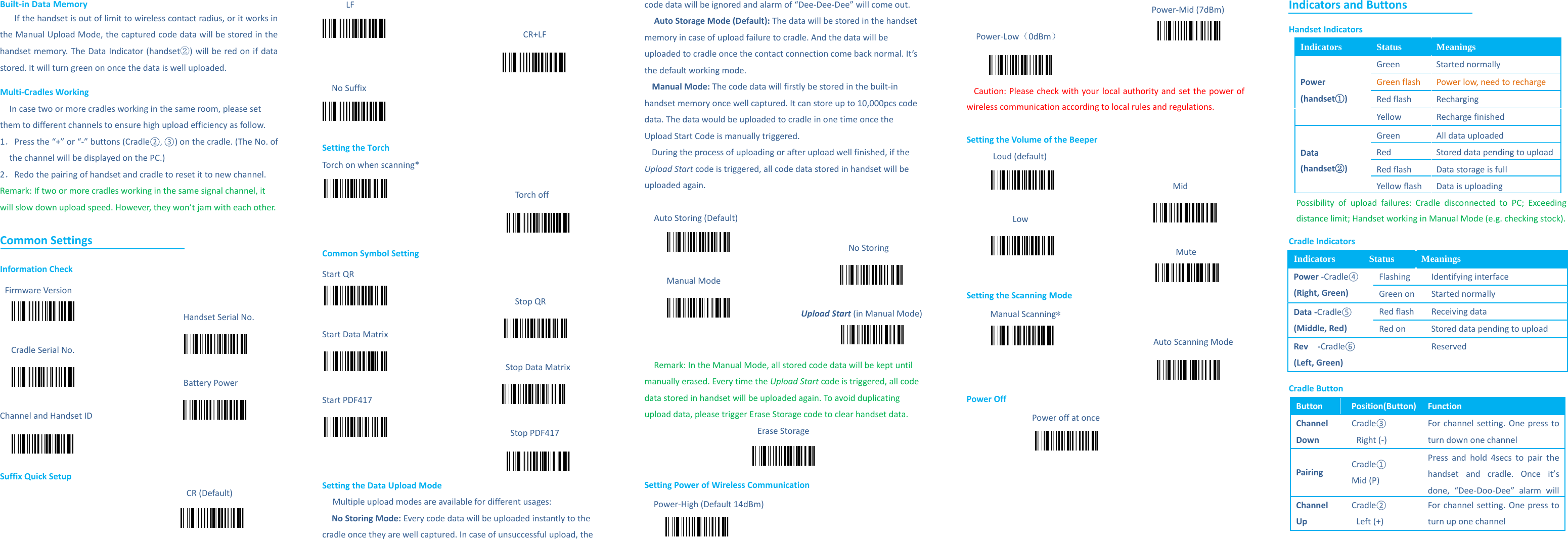
Built-in Data Memory If the handset is out of limit to wireless contact radius, or it works in the Manual Upload Mode, the captured code data will be stored in the handset memory. The Data Indicator (handset②) will be red on if data stored. It will turn green on once the data is well uploaded.   Multi-Cradles Working   In case two or more cradles working in the same room, please set them to different channels to ensure high upload efficiency as follow.   1.Press the “+” or “-” buttons (Cradle②, ③) on the cradle. (The No. of the channel will be displayed on the PC.)   2.Redo the pairing of handset and cradle to reset it to new channel.   Remark: If two or more cradles working in the same signal channel, it will slow down upload speed. However, they won’t jam with each other.    Common Settings Information Check Firmware Version                        Handset Serial No. Cradle Serial No.                                                Battery Power Channel and Handset ID                      Suffix Quick Setup CR (Default)                                            LF                              CR+LF  No Suffix    Setting the Torch Torch on when scanning*                            Torch off                                             Common Symbol Setting Start QR                            Stop QR Start Data Matrix                                                                     Stop Data Matrix Start PDF417                                                        Stop PDF417                                      Setting the Data Upload Mode Multiple upload modes are available for different usages: No Storing Mode: Every code data will be uploaded instantly to the cradle once they are well captured. In case of unsuccessful upload, the code data will be ignored and alarm of “Dee-Dee-Dee” will come out. Auto Storage Mode (Default): The data will be stored in the handset memory in case of upload failure to cradle. And the data will be uploaded to cradle once the contact connection come back normal. It’s the default working mode.   Manual Mode: The code data will firstly be stored in the built-in handset memory once well captured. It can store up to 10,000pcs code data. The data would be uploaded to cradle in one time once the Upload Start Code is manually triggered.   During the process of uploading or after upload well finished, if the Upload Start code is triggered, all code data stored in handset will be uploaded again.      Auto Storing (Default)                          No Storing Manual Mode                                          Upload Start (in Manual Mode)   Remark: In the Manual Mode, all stored code data will be kept until manually erased. Every time the Upload Start code is triggered, all code data stored in handset will be uploaded again. To avoid duplicating upload data, please trigger Erase Storage code to clear handset data.   Erase Storage  Setting Power of Wireless Communication   Power-High (Default 14dBm)                                                  Power-Mid (7dBm) Power-Low(0dBm)                       Caution: Please check with your  local authority and set the power of wireless communication according to local rules and regulations.  Setting the Volume of the Beeper     Loud (default)                            Mid Low                                                        Mute                                     Setting the Scanning Mode Manual Scanning*                     Auto Scanning Mode                                      Power Off   Power off at once      Indicators and Buttons   Handset Indicators Indicators  Status  Meanings Power   (handset①) Green   Started normally Green flash Power low, need to recharge Red flash  Recharging Yellow  Recharge finished Data   (handset②) Green All data uploaded Red Stored data pending to upload Red flash Data storage is full Yellow flash Data is uploading Possibility of upload failures: Cradle disconnected to PC; Exceeding distance limit; Handset working in Manual Mode (e.g. checking stock).   Cradle Indicators Indicators  Status  Meanings Power -Cradle④ (Right, Green) Flashing  Identifying interface   Green on Started normally   Data -Cradle⑤ (Middle, Red) Red flash  Receiving data   Red on Stored data pending to upload   Rev  -Cradle⑥ (Left, Green)  Reserved   Cradle Button Button Position(Button)  Function Channel Down Cradle③  Right (-) For channel setting. One press to turn down one channel Pairing Cradle① Mid (P) Press and hold 4secs to pair the handset and cradle. Once it’s done, “Dee-Doo-Dee” alarm will    Channel Up Cradle② Left (+) For channel setting. One press to turn up one channel
FCC Statement This equipment has been tested and found to comply with the limits for a Class B digital device, pursuant to part 15 of the FCC rules. These limits are designed to provide reasonable protection against harmful interference in a residential installation. This equipment generates, uses and can radiate radio frequency energy and, if not installed and used in accordance with the instructions, may cause harmful interference to radio communications. However, there is no guarantee that interference will not occur in a particular installation. If this equipment does cause harmful interference to radio or television reception, which can be determined by turning the equipment off and on, the user is encouraged to try to correct the interference by one or more of the following measures: -Reorient or relocate the receiving antenna. -Increase the separation between the equipment and receiver. -Connect the equipment into an outlet on a circuit different from that to which the receiver is connected. -Consult the dealer or an experienced radio/TV technician for help. To assure continued compliance, any changes or modifications not expressly approved by the party. Responsible for compliance could void the user’s authority to operate this equipment. (Example- use only shielded interface cables when connecting to computer or peripheral devices). This equipment complies with Part 15 of the FCC Rules. Operation is subject to the following two conditions:     (1) This device may not cause harmful interference, and (2) This device must accept any interference received, including interference that may cause undesired operation.

Navigation menu