InFocus PBP PBP User Manual Quick Start LiteBoard changes page 1

InFocus Corporation PBP Quick Start LiteBoard changes page 1

User Manual part 2 of 2

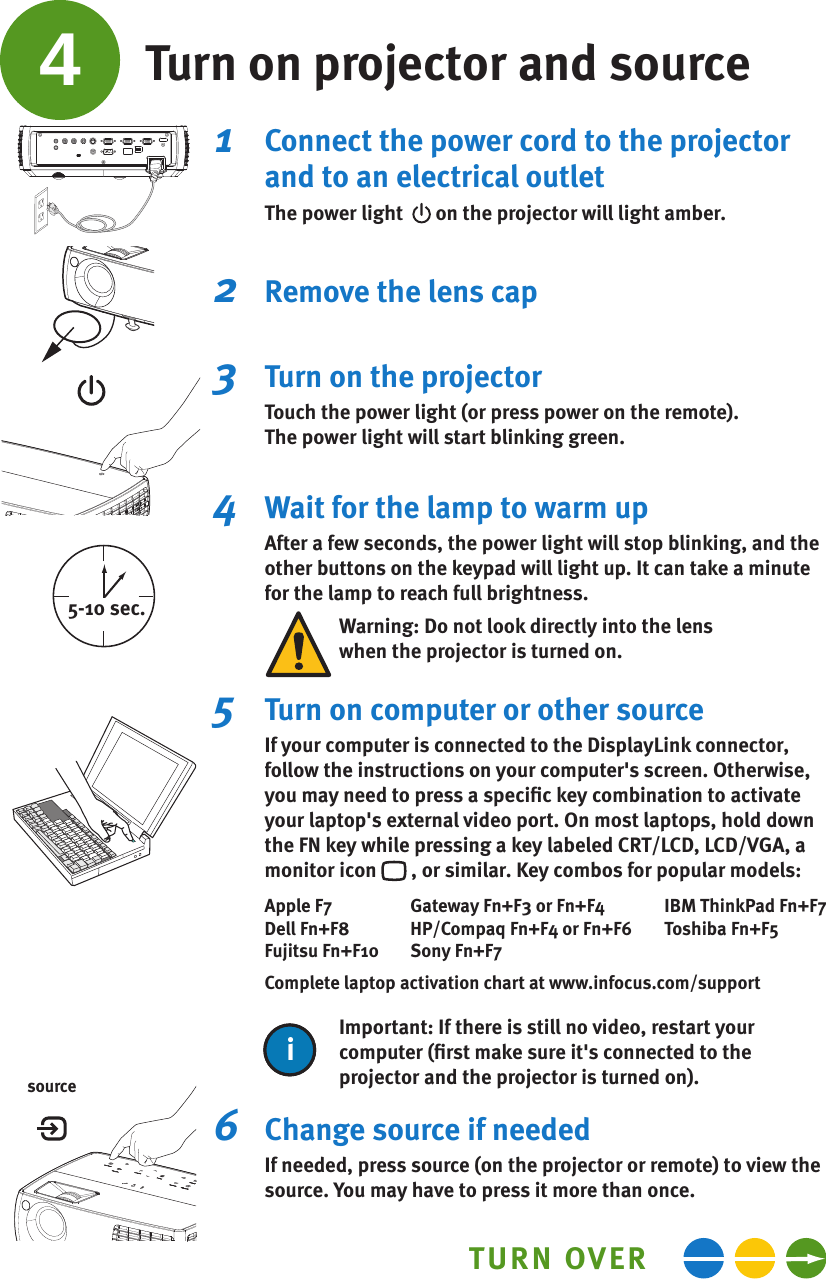
4Turn on projector and source1   Connect the power cord to the projector and to an electrical outletThe power light    on the projector will light amber.2   Remove the lens cap3   Turn on the projectorTouch the power light (or press power on the remote).The power light will start blinking green.4   Wait for the lamp to warm upAfter a few seconds, the power light will stop blinking, and the other buttons on the keypad will light up. It can take a minute for the lamp to reach full brightness.Warning: Do not look directly into the lenswhen the projector is turned on.5  Turn on computer or other sourceIf your computer is connected to the DisplayLink connector, follow the instructions on your computer's screen. Otherwise, you may need to press a specific key combination to activate your laptop's external video port. On most laptops, hold down the FN key while pressing a key labeled CRT/LCD, LCD/VGA, a monitor icon   , or similar. Key combos for popular models:Apple F7  Gateway Fn+F3 or Fn+F4  IBM ThinkPad Fn+F7Dell Fn+F8  HP/Compaq Fn+F4 or Fn+F6  Toshiba Fn+F5Fujitsu Fn+F10  Sony Fn+F7Complete laptop activation chart at www.infocus.com/supportImportant: If there is still no video, restart your computer (first make sure it's connected to the projector and the projector is turned on).ii6   Change source if neededIf needed, press source (on the projector or remote) to view the source. You may have to press it more than once.TURN OVER5-10 sec.source
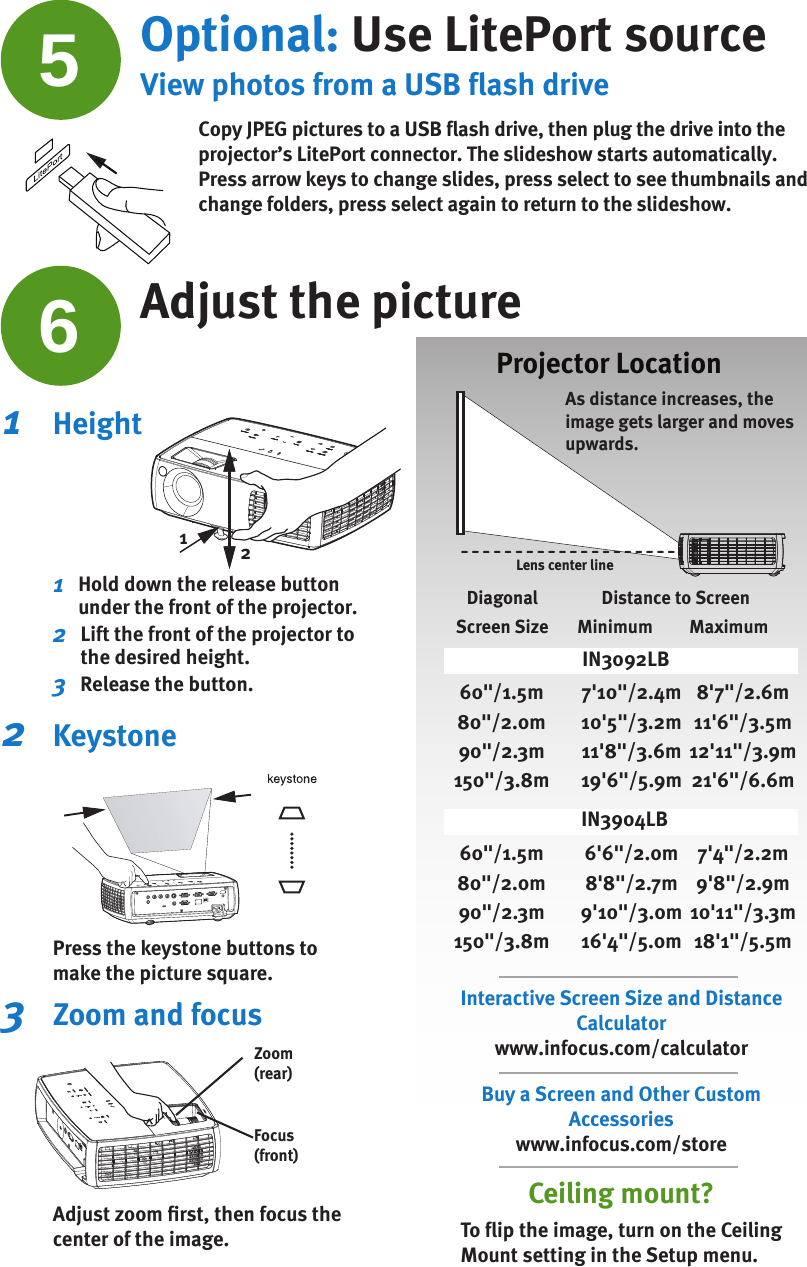
1   Height1    Hold down the release button under the front of the projector.2    Lift the front of the projector to the desired height.3    Release the button.2   KeystonePress the keystone buttons to make the picture square.3   Zoom and focusAdjust zoom fi rst, then focus the center of the image.Projector LocationZoom (rear)Focus (front)As distance increases, the image gets larger and moves upwards.612Ceiling mount?To fl ip the image, turn on the Ceiling Mount setting in the Setup menu.Interactive Screen Size and Distance Calculatorwww.infocus.com/calculatorBuy a Screen and Other Custom Accessorieswww.infocus.com/storeLens center lineDiagonalScreen SizeDistance to ScreenMinimum  Maximum7'10"/2.4m10'5"/3.2m11'8"/3.6m19'6"/5.9m60"/1.5m80"/2.0m90"/2.3m150"/3.8m8'7"/2.6m11'6"/3.5m12'11"/3.9m21'6"/6.6m6'6"/2.0m8'8"/2.7m9'10"/3.0m16'4"/5.0m60"/1.5m80"/2.0m90"/2.3m150"/3.8m7'4"/2.2m9'8"/2.9m10'11"/3.3m18'1"/5.5mIN3092LBIN3904LB5Optional: Use LitePort sourceView photos from a USB flash driveCopy JPEG pictures to a USB flash drive, then plug the drive into the projector’s LitePort connector. The slideshow starts automatically. Press arrow keys to change slides, press select to see thumbnails and change folders, press select again to return to the slideshow.Adjust the picture
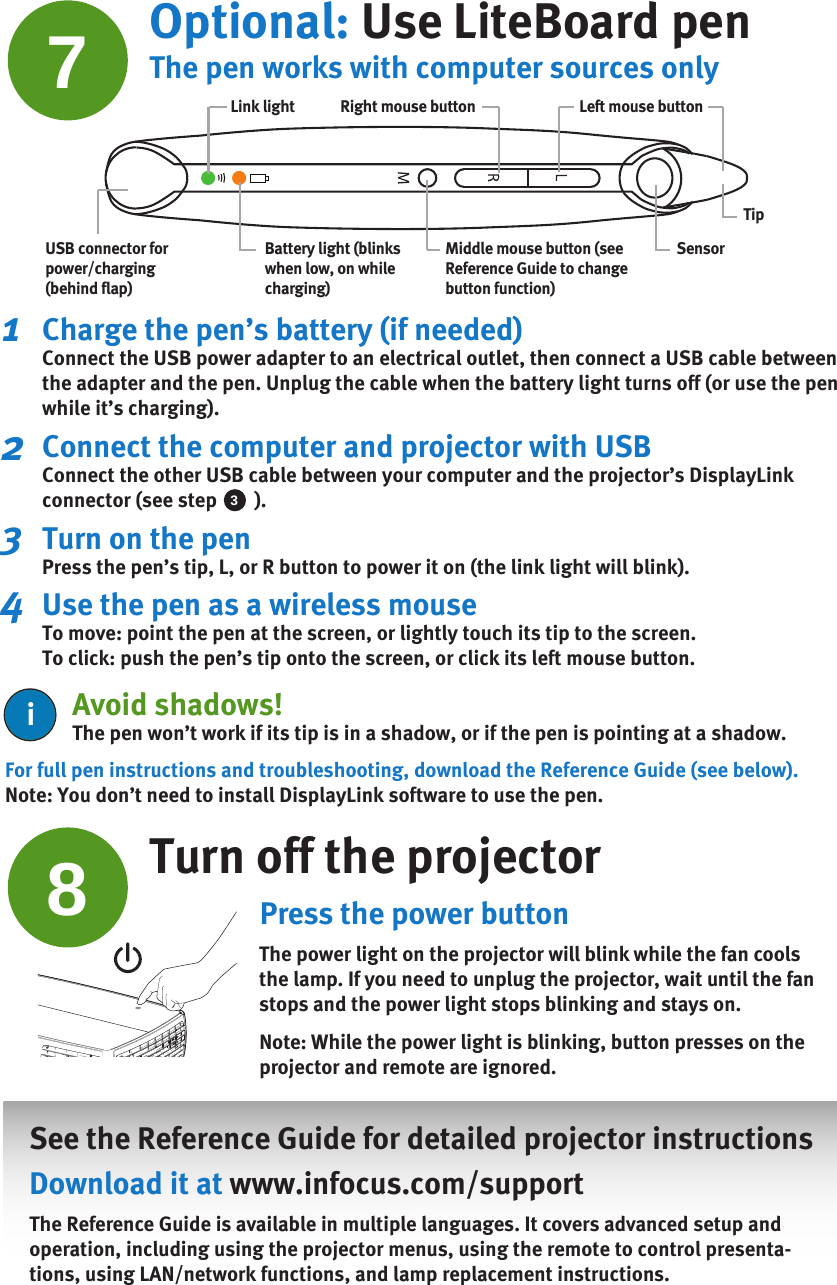
For full pen instructions and troubleshooting, download the Reference Guide (see below).Note: You don’t need to install DisplayLink software to use the pen.Turn off the projectorPress the power buttonThe power light on the projector will blink while the fan cools the lamp. If you need to unplug the projector, wait until the fan stops and the power light stops blinking and stays on.Note: While the power light is blinking, button presses on the projector and remote are ignored.    See the Reference Guide for detailed projector instructions Download it at www.infocus.com/supportThe Reference Guide is available in multiple languages. It covers advanced setup and operation, including using the projector menus, using the remote to control presenta-tions, using LAN/network functions, and lamp replacement instructions. 8Optional: Use LiteBoard pen7Middle mouse button (see Reference Guide to change button function)Battery light (blinks when low, on while charging)Link lightUSB connector for power/charging (behind flap)Left mouse buttonRight mouse buttonSensorTip3Charge the pen’s battery (if needed)Connect the USB power adapter to an electrical outlet, then connect a USB cable between the adapter and the pen. Unplug the cable when the battery light turns off (or use the pen while it’s charging).Connect the computer and projector with USB Connect the other USB cable between your computer and the projector’s DisplayLink connector (see step        ).Turn on the penPress the pen’s tip, L, or R button to power it on (the link light will blink).Use the pen as a wireless mouseTo move: point the pen at the screen, or lightly touch its tip to the screen.To click: push the pen’s tip onto the screen, or click its left mouse button. 123The pen works with computer sources only4Avoid shadows!The pen won’t work if its tip is in a shadow, or if the pen is pointing at a shadow.ii
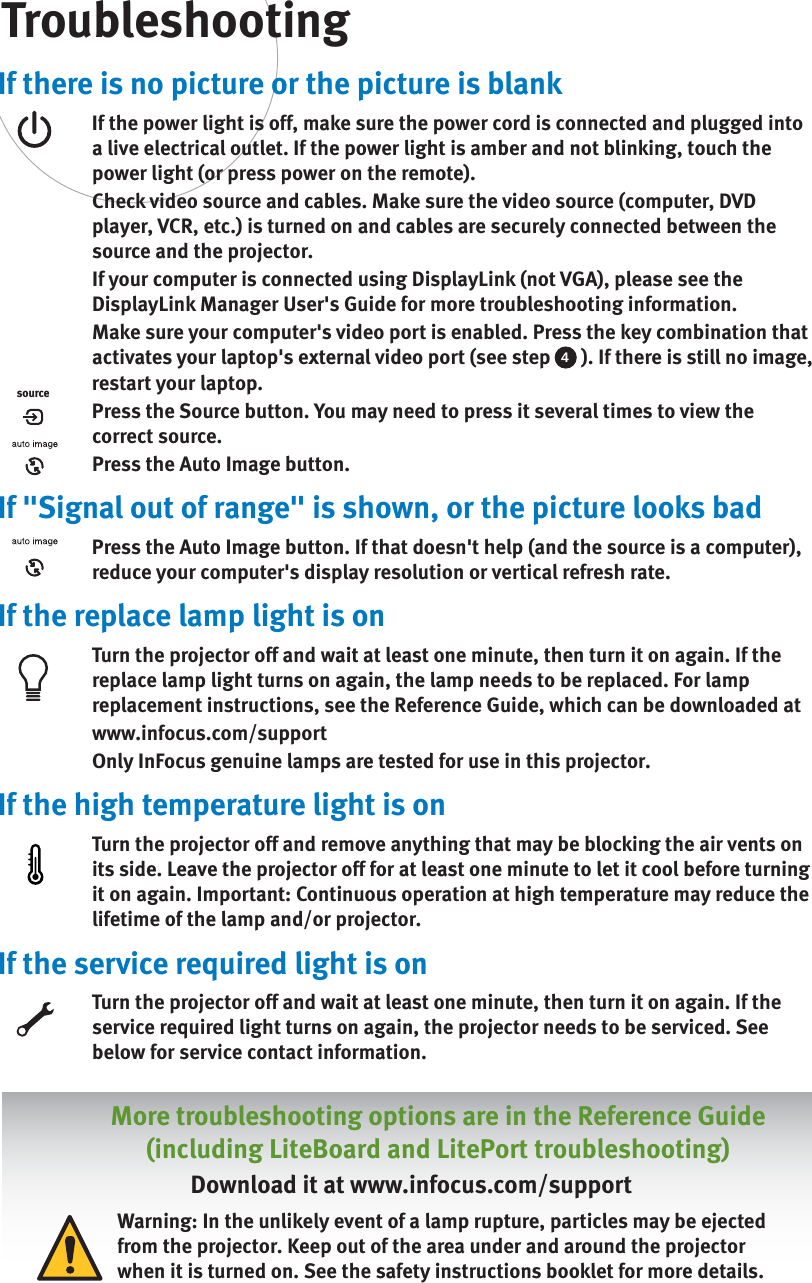
If there is no picture or the picture is blankIf the power light is off, make sure the power cord is connected and plugged into a live electrical outlet. If the power light is amber and not blinking, touch the power light (or press power on the remote).Check video source and cables. Make sure the video source (computer, DVD player, VCR, etc.) is turned on and cables are securely connected between the source and the projector. If your computer is connected using DisplayLink (not VGA), please see the DisplayLink Manager User's Guide for more troubleshooting information. Make sure your computer's video port is enabled. Press the key combination that activates your laptop's external video port (see step  4 ). If there is still no image, restart your laptop.Press the Source button. You may need to press it several times to view the correct source.Press the Auto Image button.If "Signal out of range" is shown, or the picture looks badPress the Auto Image button. If that doesn't help (and the source is a computer), reduce your computer's display resolution or vertical refresh rate.If the replace lamp light is onTurn the projector off and wait at least one minute, then turn it on again. If the replace lamp light turns on again, the lamp needs to be replaced. For lamp replacement instructions, see the Reference Guide, which can be downloaded atwww.infocus.com/supportOnly InFocus genuine lamps are tested for use in this projector.If the high temperature light is onTurn the projector off and remove anything that may be blocking the air vents on its side. Leave the projector off for at least one minute to let it cool before turning it on again. Important: Continuous operation at high temperature may reduce the lifetime of the lamp and/or projector. If the service required light is onTurn the projector off and wait at least one minute, then turn it on again. If the service required light turns on again, the projector needs to be serviced. See below for service contact information. TroubleshootingsourceMore troubleshooting options are in the Reference Guide(including LiteBoard and LitePort troubleshooting)Download it at www.infocus.com/supportWarning: In the unlikely event of a lamp rupture, particles may be ejected from the projector. Keep out of the area under and around the projector when it is turned on. See the safety instructions booklet for more details.
Questions? We’re here to help!Europe, Middle East, AfricaCustomer Support Telephone008000 463-6287 France: 0800 905-993Germany: 0800 181-3649Italy: 0800 877-238Spain: 900 993-163UK: 0800 028-6470Mon-Fri 8:00 – 17:00 CETemea.support@infocus.com Visit us at: www.infocus.com/supportHg - Lamp contains mercury. Manage in accordance with local disposal laws. See www.lamprecycle.org Declaration of Conformity Manufacturer: InFocus Corporation, 27500 SW Parkway Ave. Wilsonville, Oregon 97070-8238 USA We declare under our sole responsibility that this projector conforms to the following directives and norms: EMC Directive 2004/108/EC, R&TTE Directive: 1999/5/EC, EuP Directive: 2005/32/EC, Low Voltage Directive: 2006/95/EC, ETSI: EN 300 440,EN 301 489, EMC: EN 55022, EN 55024, EN 61000-3-2, EN 61000-3-3, Safety: IEC 60950-1:2005, MOD. Trademarks DisplayLink is a trademark of DisplayLink Corporation. Apple, Macintosh, and PowerBook are trademarks or registered trademarks of Apple Computer, Inc. IBM is a trademark or registered trademark of International Business Machines, Inc. Microsoft, PowerPoint, and Windows are trademarks or registered trademarks of Microsoft Corporation. Adobe and Acrobat are trademarks or registered trademarks of Adobe Systems Incorporated. DLP® and the DLP logo are registered trademarks of Texas Instruments and BrilliantColor™ is a trademark of Texas Instruments. InFocus, In Focus, and INFOCUS (stylized) are either registered trademarks or trademarks of InFocus Corporation in the United States and other countries. FCC Warning This device complies with part 15 of the FCC Rules. Operation is subject to the following two conditions: (1) This device may not cause harmful interference, and (2) this device must accept any interference received, including interference that may cause undesired operation.Note: This equipment has been tested and found to comply with the limits for a Class B digital device, pursuant to part 15 of the FCC Rules. These limits are designed to provide reasonable protection against harmful interference in a residential installation. This equipment generates, uses and can radiate radio frequency energy and, if not installed and used in accordance with the instructions, may cause harmful interference to radio communications. However, there is no guarantee that interference will not occur in a particular installation. If this equipment does cause harmful interference to radio or television reception, which can be determined by turning the equipment off and on, the user is encouraged to try to correct the interference by one or more of the following measures: — Reorient or relocate the receiving antenna. — Increase the separation between the equipment and receiver. — Connect the equipment into an outlet on a circuit different from that to which the receiver is connected. — Consult the dealer or an experienced radio/TV technician for help. Changes or modifications to this equipment that are not expressly approved by InFocus Corp. may void the user’s authority to operate the equipment. Canada This Class B digital apparatus complies with Canadian ICES-003. Cet appareil numérique de la classe B est conforme à la norme NMB-003 du Canada. Agency Approvals UL, cUL Other specific Country Approvals may apply. Please see product certification label.Input ratings: 100-240Vac, 3.3-1.2A, 50-60Hz InFocus reserves the right to alter product offerings and specifications at any time without notice. USA, Canada, Latin AmericaCustomer Support Telephone+1 (503) 685-8888TOLL FREE: 800-799-9911Mon-Fri, 7 am - 5 pm Pacifictechsupport@infocus.comAsia PacificCustomer Support TelephoneSingapore: 800-101-1864China: 800.828.2268Australia: 1800-630-957Australia Direct Sales: 1800-885-841New Zealand: 0800-449-854Mon-Fri, 9 am - 5 pm SGTasia-support@infocus.comWe’re here to support you with your new purchase. We can help you with… • Determining screen sizes • Documentation in other languages • Connecting your sources (TV, DVD, Cable/Satellite, Game, etc.) • Selecting optional accessories • Product warranty protection plans

Navigation menu