InFocus PBP PBP User Manual IN3902LB IN3904LB RG EN

InFocus Corporation PBP IN3902LB IN3904LB RG EN

User Guide part 3 of 3

403Start a web browser on your computer.4Enter the projector's IP address or host name (preceded by http://) into the web browser's address bar. Example: If the IP address is 192.168.1.10, enter http://192.168.1.10 into the browser's address bar.5The Log In to Projector Control page will be shown in the browser.6Select Access type: Basic User or Administrator.7Click Log In.Navigating Projector Web PagesThe left side of every page shows a navigation bar. Click the links in the navigation bar to go to different projector web pages. NOTE: If a Basic User is logged in, no links are shown.The top of the navigation bar shows the projector name, model, and serial number. The web pages also include the following options:•Log Off: Logs off and returns to the Log In page (see above).•Refresh: Reloads the page with current status.•Defaults: Displays default (factory settings) values (to save these values click Apply).•Apply: Saves the values that are currently shown on the page.Projector Controls Page (All users)This page lets you control the same settings that are available via the projec-tor's main menu and remote control. The Controls tab includes basic remote control functions; other tabs correspond to the projector's menus. NOTE: If a Basic User is logged in, only the Controls, Basic Picture, and Advanced Pic-ture tabs are shown.In each tab, the current value of each setting is shown in blue color. NOTE: Unlike other pages, changes you make to Projector Control settings are applied immediately. •To change an on/off setting (e.g. Power): Click the corresponding On or Off button.•To change a multi-value setting (e.g. Sharpness): Select a value from the drop-down menu.•To change a numeric setting (e.g. Brightness): Click the corresponding + or - button, or select a value from the drop-down menu.•To perform a command (e.g. Auto Image): Click the corresponding Exe-cute button.Network Settings Page (administrators only)This page lets you view and change the projector's network settings. Con-sult with your network administrator before making any changes on this page; incorrect network configuration of the projector may cause problems on your network.Projector Name: The name of the projector shown in the projector's web pages.IP Address: These settings control the projector's network configuration. Enter the appropriate settings required for your specific network.Advanced Network Settings: Click this link to show advanced settings:802.1x Authentication: If your network requires 802.1x authentication, enter the user name and password that the projector should use, and select the authentication type.SNMP: If your network uses SNMP, enter necessary SNMP information here.Command and Control Pass-Through: This setting allows you to send and receive projector commands over the network. For command codes, see the Appendix or visit the InFocus website at: www.infocus.com/support.
41Event Notifications Page (administrators only)This page lets you configure the projector to automatically send email when specific events occur. E-Mail Settings tab: In the Account Used… section, enter the information needed for your projector to connect to an email sending (SMTP) server. Then in the Recipient E-Mail Addresses section, enter the email addresses of people who will receive emails, and for each address, select whether that address receives reminders and/or warnings and errors (enter only one address per line). After you have completed this page, click Send Test to make sure that email is correctly set up.Reminders tab: Select which types of reminders to send. For most reminders, you can adjust the frequency or date/duration associated with the reminder.Warnings & Errors tab: Select which warnings and errors to send.Date/Time Settings Page (administrators only)This page lets you configure the projector to read the time and date from an SNTP server on your network. NOTE: The projector does not have a built-in clock. If the projector is unable to access the SNTP server, or no SNTP server is defined, functions that rely on the time and date may not work correctly.Current Date and Time: Shows the current date and time read from the SNTP server.Synchronize the system clock…: Select how often the projector should check the SNTP server to get the time and date. Between checks, the projector will keep track of the amount of time elapsed, allowing it to maintain the correct time and date.SNTP Server: The address of the time and date server on your network.Time Zone: The projector's time zone (if you are in a different time zone from the projector, make sure this is the time zone of the region where the projector is located).Set Now: Click this to immediately set the time and date based on the above information.Daylight Savings Settings: Click this link to show daylight savings settings:Start: Select when daylight savings starts.End: Select when daylight savings ends.Automatically adjust…: Check this to have the projector automatically update time and date when daylight savings starts and ends.Scheduled Tasks Page (administrators only)This page lets you configure the projector to perform tasks automatically on specific days and times. You can set up a maximum of three different sched-uled tasks; each tab corresponds to a task. Each scheduled task can perform different commands on different days and times. Each tab contains the fol-lowing items:On/Off: Select whether or not this scheduled task will run on the days and times shown.Description: Explanation of what the task does.Run Every: Select the days of the week when the scheduled task should run.At Time(s): Select the times of day when the scheduled task should run (the task will run at the indicated times on every one of the days checked above).Command Sequence and Available Commands: The Command Sequence list on the left shows commands currently performed by the scheduled task (each task can include up to 20 commands). The Available Commands list on the right shows all commands that can be added to a scheduled task.<< Add: Adds the command selected in the Available Commands list to the Command Sequence list.>> Remove: Removes the command selected in the Command Sequence list.Move Up: Moves up the command selected in the Command Sequence list.Move Down: Moves down the command selected in the Command Sequence box list.Clear All: Erases all commands in the Command Sequence list.
42Custom: Click this link to show custom command entry options. With custom commands, you can perform additional commands not shown in the Available Commands list. The RS-232 command codes are available in the Appendix and on our website at www.infocus.com/support. NOTE: Custom commands you enter here should be in write format (do not include '?'), and should use '<' and '>' instead of '(' and ')'. Example: to turn on the ceiling mount setting, use the custom command <CEL1>.User Access and Security Page (administrators only)This page lets you configure security options for the projector, including log in passwords and projector access restrictions.Web Access - Administrator tab: Select whether or not Administrators must enter a password to log into the projector's web pages. If a password is required, click create or change password to update the administrator password.Web Access - Basic User tab: Select whether or not Basic Users must enter a password to log into the projector's web pages. If a password is required, click create or change password to update the basic user password.Projector PIN tab: Allows you to turn projector PIN protection on or off, or change the PIN. When PIN protection is on, the current PIN must be entered when the projector is powered on, otherwise the projector will not operate. NOTE: PIN protection only applies to projector operation via the projector's keypad and remote control; it does not affect the projector's web pages.System Log Page (administrators only)This page shows a log of the 100 most recent projector events. Erase Log…: Click this to erase all events in the log.Network Utilities Page (administrators only)This page lets you perform various network-related projector tasks. Save and Load Projector Configuration: These functions save and load all network-related projector settings into/from a file stored on your computer. This lets you quickly 'clone' network settings from one projector to other projectors.Upgrade Projector Network Firmware: Upgrades the firmware for the projector's network and LitePort features (this firmware is separate from the regular projector firmware).Restart Projector Network Subsystem: Restarts the projector network subsystem; does not change any projector settings.Network Subsystem Factory Reset: Returns all network and LitePort settings to default values and then restarts the projector network subsystem.Troubleshooting Network Functions• If network status is shown as Not Connected in the projector's Network menu, or the projector does not display its IP address, check the cable or the network configuration.• If your web browser displays Page Not Found or a similar error when you try to access the projector's web pages, verify that the  projector is connected to the network (select the Network item in the projector's Setup menu and verify that Network Status shows as  Connected); if there is no connection refer to the troubleshooting item above for more help. • Make sure the Standby Power Save setting in the projector’s Setup menu is set to Normal (if it is set to Maximum, the projector web pages will only be available when the projector is powered on).• If scheduled tasks are not performed, check if the SNTP is set up  correctly and is online. Also check if the Command sequence is correct.• If automatic emails are not sent, check if SMTP is set up correctly and is online.To manually restart the projector network subsystem: Use the projector's remote control or keypad to select the Network item in the projector's Setup menu. Then scroll down and select either Restart Network (to restart the network subsystem without changing any settings), or Network Factory Reset (to return all network settings back to default values, and then restart the network subsystem). If the manual restart procedure does not work: To force the network subsystem to restart, disconnect the projector from AC power, wait 10 seconds, then reconnect AC power.
43Using LitePortLitePort displays a slide show of JPEG images stored on a USB flash drive connected to the projector. This feature is eliminates the need for a computer source and can be integrated with common wall plates and conference room input/output panels.Image File TypesLitePort displays image files in JPEG format only (file extensions .JPEG and .JPG). Other file types including PDF, BMP, TIFF, PNG, GIF, etc. are ignored.Viewing a Slide ShowTo view your pictures as a slide show, follow these steps:1Connect a USB flash drive to your computer and copy JPEG files from your computer to the USB flash drive.2Turn on your projector if needed. 3Remove the USB flash drive from your computer and plug it into the LitePort connector on the rear of the projector.4The projector will start a slide show of the images found (if you see image thumbnails instead, see To Start the Slide Show section below).5To go to the next image in the slide show, press the Down or Right arrow button on the projector keypad or remote. To go to the previous image, press the Up or Left arrow button.Controlling LitePortWhen you plug a USB flash drive into the projector's LitePort connector, the projector will scan the drive and then either start a slide show or show image thumbnails.To stop the slide show and view thumbnails: Press the Select button during the slide show. In Thumbnails view, the name of the current folder, the current image number, and the total number of images in that folder are shown at the bottom of the screen. While viewing thumbnails, press the arrow buttons to scroll through the thumbnails, or press Select when an image is highlighted to start the slide show, or press Select when a folder is highlighted to open that folder.To start the slide show: While viewing thumbnails, press the arrow buttons to highlight a thumbnail, then press the Select button to start the slide show at the highlighted image.To change the image during the slide show: Press the Down or Right button to go to the next image, or press the Up or Left arrow button to go to the previous image (the slide show may also advance automatically depending on the value of the Next Slide setting; see the LitePort Menu section below for details).To change to a different folder: While viewing thumbnails, press the arrow  buttons to highlight the desired folder icon, then press the Select button (to go to the higher-level folder, select the folder icon labeled "Up").To change LitePort settings: Press the Menu button during the slide show, or while viewing thumbnails (see the LitePort Menu section below for details).Using the LitePort MenuTo show the LitePort menu, press the Menu button on the keypad or remote during the slide show, or while viewing thumbnails. To highlight a menu item, press arrow buttons. Then to do the action or change the setting, press Select. To remove the menu, press the Menu button again.Rotate Picture: Rotates the current image by 90 degrees clockwise (rotation is temporary; the image returns to its original orientation when the USB flash drive is removed from the projector or when the projector is turned off).Stop/Start Slideshow: Stops the slide show, or starts it at the selected thumbnail (when the menu is not visible, you can also stop or start the slide show by pressing the Select button).Go to Projector Main Menu: Removes the LitePort menu and displays the projector's main menu, where you can adjust the picture or change other projector settings.
44(For remaining items below, highlight the setting, then press Select one or more times to change the setting value.)Auto Start: Select On to have the player start the slide show when the USB flash drive is first connected. Select Off to have the player display thumbnails when the USB flash drive is first connected.Show All Folders: Select On to have the slide show display all images in all folders. Select Off to have the slide show display images only from the current folder.Fill Screen: Select On to have the slide show expand small images to fill the screen. Select Off to have the slide show display small images at their original size.Next Slide: Select Manual to disable automatic slide advance in the slide show. Select other values to make the slide show advance to the next image automatically (regardless of this setting, manual advance is always available by pressing the arrow buttons).Effect: Select Off to have no transition effect when changing between images during the slideshow. Select Random to use a different random effect for each transition. Select other values to use a specific effect.Show Info: Select On to show the name of the current file and folder, the current image number, and the total number of images in the slide show at the bottom of the screen. Select Off to hide this information.Displaying PowerPoint SlidesFollow the steps below to display PowerPoint slides using LitePort (these instructions apply to PowerPoint 2007 in Windows; for other presentation programs refer to the program's instructions or help file for the steps needed to save a presentation as separate JPEG files):1Connect the USB flash drive to your computer.2Open your PowerPoint document. 3This step is optional but improves image quality: Click the Design tab near the top of the PowerPoint document window, then click Page Setup. Click the Slides sized for drop-down menu and select Custom. Change both Width and Height to double their previous values, then click OK.4Click the Office button in the upper left corner of the PowerPoint document window. 5Point to Save As, then click Other Formats.6In the Save As dialog box, click the Save as type drop-down menu. Scroll through the menu and select JPEG File Interchange Format.7Make sure the contents of your USB flash drive are visible in the Save As dialog box before you continue - to view your USB flash drive in the Save As dialog box, first click My Computer, then double-click the USB flash drive's icon (make sure you do both of these in the Save As dialog box, not on your computer's desktop).8Click Save. PowerPoint will ask if you want to export every slide or only the current slide; click Every Slide. PowerPoint will save each slide in your presentation as a separate JPEG file. These files are saved in a new folder that has the same name as the original document.9Remove the USB flash drive from your computer and plug it into the  projector's LitePort connector.10 On the projector, navigate to the folder created in step 8 and then start the slide show (for instructions on navigating and controlling the slide show, see the Controlling LitePort section above).NOTE: PowerPoint embedded videos, transition effects, and animations are not included when saving as JPEG. However, you can select a LitePort slideshow transition effect by changing the Effect in the LitePort menu.
45Troubleshooting LitePort• If images load slowly: Make sure you are using a newer USB 2.0- compatible (high speed) USB flash drive. Larger image file sizes may also slow down the player; to reduce file size, use an image editing program on your computer to resize images smaller; for the best balance between image quality and speed, resize images to be 1024 pixels wide.• If no images are found, or some images are not shown, or you only see folder thumbnails but no images: Make sure that images are JPEG file type (file extensions .JPEG and .JPG); other file types are not supported and will be ignored.• If you see a blank screen, or a logo, or the wrong input source (computer, video, etc.) instead of your images: Keep pressing the Source button on the keypad or remote until the LitePort message is displayed (if you still don't see any images, make sure the USB flash drive is correctly and completely plugged into the projector's LitePort connector).• If nothing happens when you connect your USB flash drive, and you cannot select the LitePort input source as described above: Check the format of your USB storage device. LitePort only supports USB storage devices formatted as FAT32. Devices formatted as NTFS, and non-storage devices (such as cameras) are not supported.If images saved by PowerPoint are low quality: Make sure to do step 3 when following the steps in the Displaying PowerPoint Slides section above.
46MaintenanceCleaning the lens1Apply a non-abrasive camera lens cleaner to a soft, dry cloth.• Avoid using an excessive amount of cleaner, and don’t apply the cleaner directly to the lens. Abrasive cleaners, solvents or other harsh chemicals might scratch the lens.2Lightly wipe the cleaning cloth over the lens in a circular motion.WARNINGS:• Turn the projector off and unplug power cord before cleaning any part of the projector.• Do not open any cover on the projector, except the lamp cover.• Do not attempt to service this product yourself as opening and removing covers may expose you to dangerous voltage and other hazards. Refer all servicing to qualified service personnel.
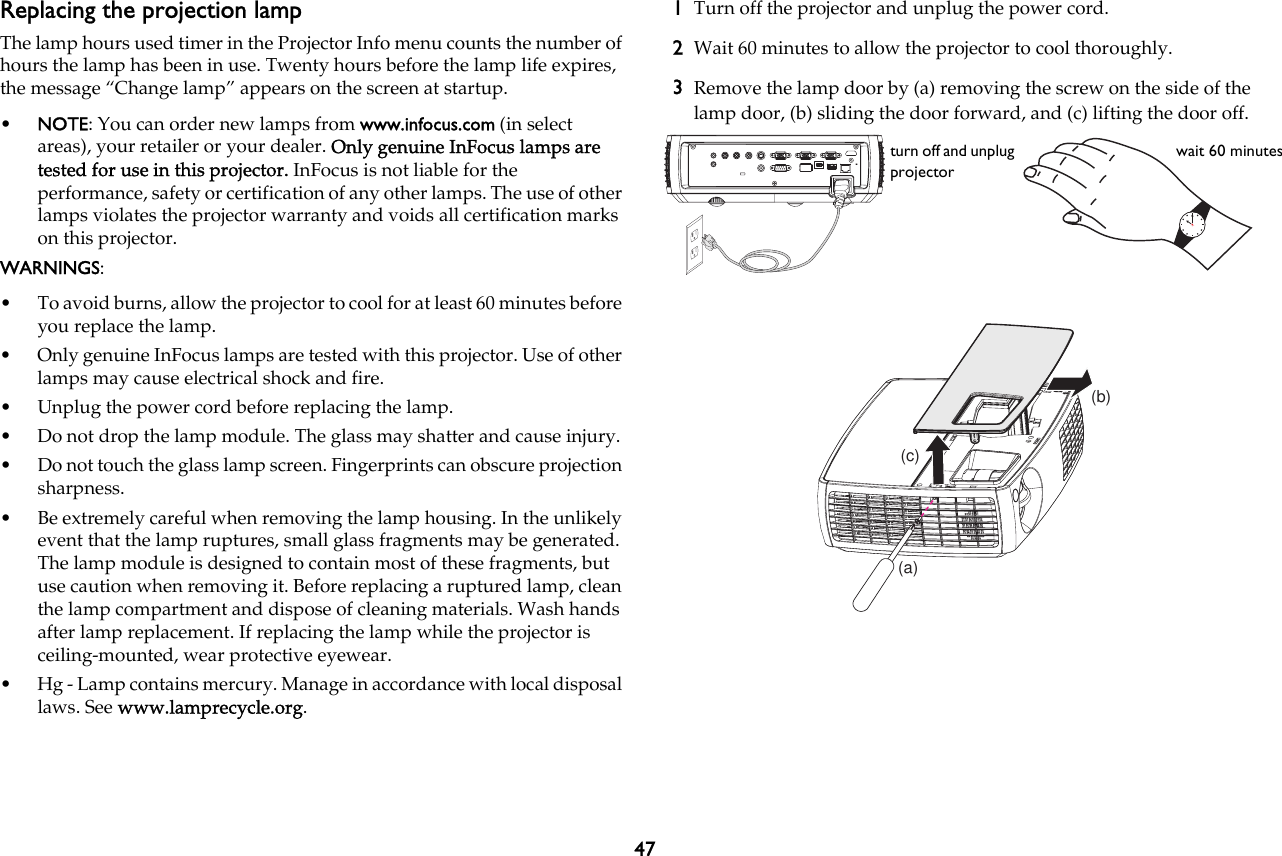
47Replacing the projection lampThe lamp hours used timer in the Projector Info menu counts the number of hours the lamp has been in use. Twenty hours before the lamp life expires, the message “Change lamp” appears on the screen at startup.•NOTE: You can order new lamps from www.infocus.com (in select areas), your retailer or your dealer. Only genuine InFocus lamps are tested for use in this projector. InFocus is not liable for the performance, safety or certification of any other lamps. The use of other lamps violates the projector warranty and voids all certification marks on this projector.WARNINGS:• To avoid burns, allow the projector to cool for at least 60 minutes before you replace the lamp.• Only genuine InFocus lamps are tested with this projector. Use of other lamps may cause electrical shock and fire.• Unplug the power cord before replacing the lamp.• Do not drop the lamp module. The glass may shatter and cause injury.• Do not touch the glass lamp screen. Fingerprints can obscure projection sharpness.• Be extremely careful when removing the lamp housing. In the unlikely event that the lamp ruptures, small glass fragments may be generated. The lamp module is designed to contain most of these fragments, but use caution when removing it. Before replacing a ruptured lamp, clean the lamp compartment and dispose of cleaning materials. Wash hands after lamp replacement. If replacing the lamp while the projector is ceiling-mounted, wear protective eyewear.• Hg - Lamp contains mercury. Manage in accordance with local disposal laws. See www.lamprecycle.org.1Turn off the projector and unplug the power cord.2Wait 60 minutes to allow the projector to cool thoroughly.3Remove the lamp door by (a) removing the screw on the side of the lamp door, (b) sliding the door forward, and (c) lifting the door off.turn off and unplug projectorwait 60 minutes(a)(b)(c)
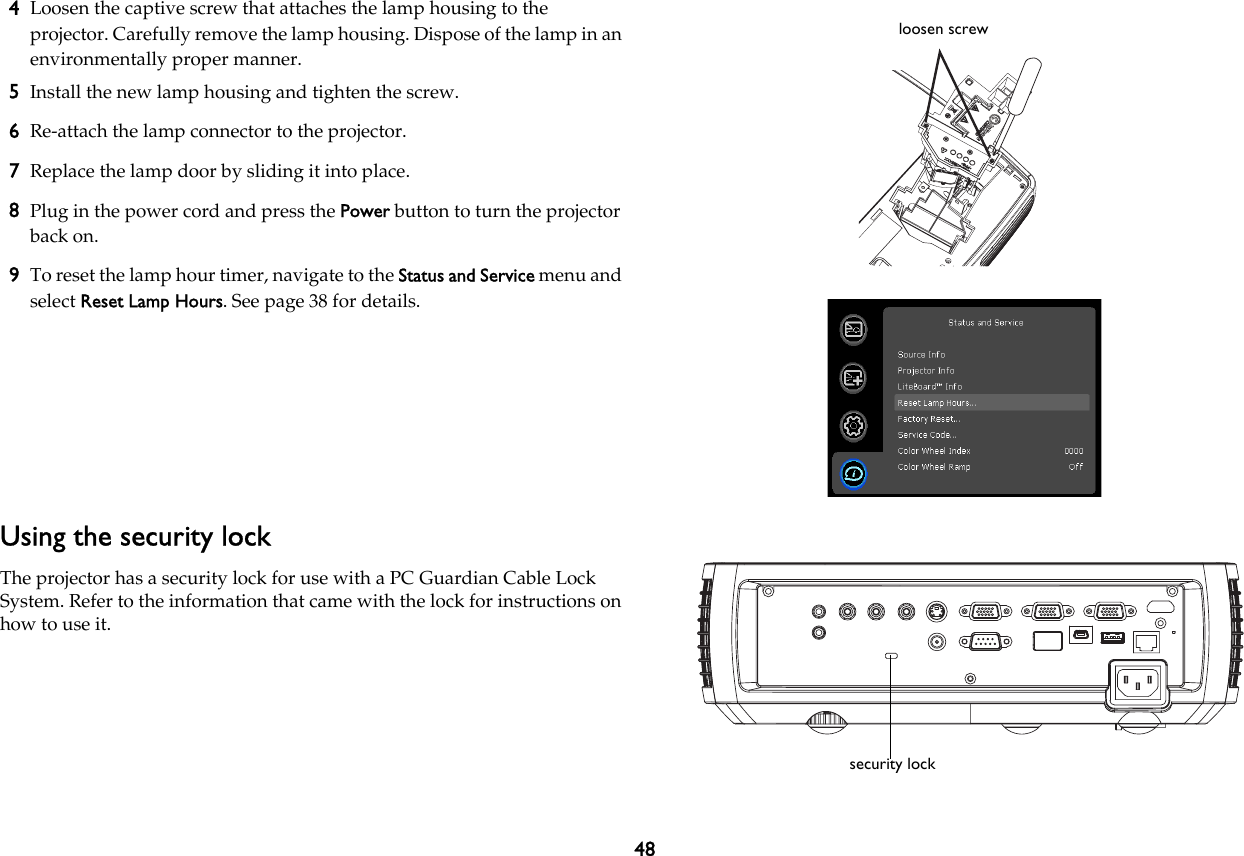
484Loosen the captive screw that attaches the lamp housing to the projector. Carefully remove the lamp housing. Dispose of the lamp in an environmentally proper manner.5Install the new lamp housing and tighten the screw.6Re-attach the lamp connector to the projector.7Replace the lamp door by sliding it into place.8Plug in the power cord and press the Power button to turn the projector back on.9To reset the lamp hour timer, navigate to the Status and Service menu and select Reset Lamp Hours. See page 38 for details.Using the security lockThe projector has a security lock for use with a PC Guardian Cable Lock System. Refer to the information that came with the lock for instructions on how to use it.loosen screwsecurity lock
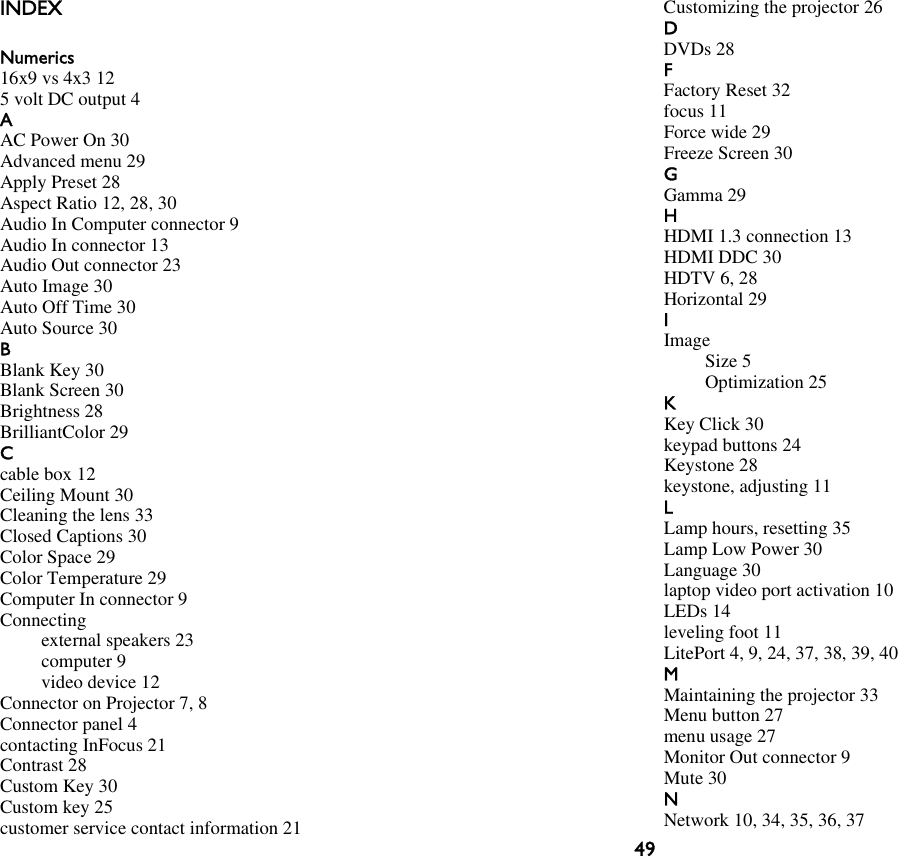
49INDEXNumerics16x9 vs 4x3 125 volt DC output 4AAC Power On 30Advanced menu 29Apply Preset 28Aspect Ratio 12, 28, 30Audio In Computer connector 9Audio In connector 13Audio Out connector 23Auto Image 30Auto Off Time 30Auto Source 30BBlank Key 30Blank Screen 30Brightness 28BrilliantColor 29Ccable box 12Ceiling Mount 30Cleaning the lens 33Closed Captions 30Color Space 29Color Temperature 29Computer In connector 9Connectingexternal speakers 23computer 9video device 12Connector on Projector 7, 8Connector panel 4contacting InFocus 21Contrast 28Custom Key 30Custom key 25customer service contact information 21Customizing the projector 26DDVDs 28FFactory Reset 32focus 11Force wide 29Freeze Screen 30GGamma 29HHDMI 1.3 connection 13HDMI DDC 30HDTV 6, 28Horizontal 29IImageSize 5Optimization 25KKey Click 30keypad buttons 24Keystone 28keystone, adjusting 11LLamp hours, resetting 35Lamp Low Power 30Language 30laptop video port activation 10LEDs 14leveling foot 11LitePort 4, 9, 24, 37, 38, 39, 40MMaintaining the projector 33Menu button 27menu usage 27Monitor Out connector 9Mute 30NNetwork 10, 34, 35, 36, 37
50OOptimizing images 25Optimizing video 26Overscan 29, 30PPhase 29Picture menu 28Power connector 9power cord 9Power Sounds 30Power-up Source 30Presentation features 25Projection distance 5ProjectorConnector panel 4Customization 26Image Size 5keypad buttons 24Maintenance 33menus 27offset 5Registering 3security lock 33Status indicator panel 14connecting computers 9connecting video devices 12positioning 5setting up 5shutting down 14troubleshooting problems 14Projector Info 30RRear 31Registering your projector 3remote control 22Reset 32Resetting the projector 32RS-232 4SSafety Considerations 2Screen Aspect 12Screen Save 14, 30Screen triggers 4Search Screen 31security lock 33Service 32Service Code 32Sharpness 28shutting down the projector 14Source 30Source Info 30speakers, connecting external 23Status indicator panel 14S-video connector 13Sync Threshold 29TTint 28Tracking 29troubleshooting 14Troubleshooting Network Functions 37TV tuner 12UUSB 4, 9VVertical 29video optimizing 26Video Standard 30Volume button 23Wwarranty 21White Peaking 29Zzoom 11

Navigation menu