JLG 1001147542 Wireless Analyzer Module User Manual 3121600
JLG Industries Inc (An Oshkosh Company) Wireless Analyzer Module 3121600
JLG >
User Manual

Setup and Operation Manual
ANSI
®
Wireless Analyzer
Module (WAM)
P/N - 3121600
April X, 2015
Preliminary Review Copy Only
4-08-2015
NOTES:

FOREWORD
FOREWORD
NOTE:This equipment has been tested and found to comply with the limits for a Class B digital device, pursuant to part 15 of the FCC Rules.
These limits are designed to provide reasonable protection against harmful interference in a residential installation.
This equipment generates, uses and can radiate radio frequency energy and, if not installed and used in accordance with the instructions, may cause
harmful interference to radio communications. However, there is no guarantee that interference will not occur in a particular installation. If this equip-
ment does cause harmful interference to radio or television reception, which can be determined by turning the equipment off and on, the user is encour-
aged to try to correct the interference by one or more of the following measures:
• Reorient or relocate the receiving antenna.
• Increase the separation between the equipment and receiver.
• Connect the equipment into an outlet on a circuit different from that to which the receiver is connected.
• Consult the dealer or an experienced radio/TV technician for help.
Any changes / modifications not approved by the JLG Industries Inc., could void the user’s authority to operate this equipment.
FOREWORD
NOTES:

TABLE OF CONTENTS
3121600 – JLG Lift – i
SECTION - PARAGRAPH, SUBJECT PAGE SECTION - PARAGRAPH, SUBJECT PAGE
SECTION - 1 - WIRELESS ANALYZER APPLICATION (APP)
INSTRUCTIONS
1.1 PACKAGE CONTENTS . . . . . . . . . . . . . . . . . . . . . . . . . . . . . . . . . . . .1-1
1.2 WIRELESS SETUP (PHONE, TABLET) . . . . . . . . . . . . . . . . . . . . . . .1-1
1.3 APPLICATION - STARTUP . . . . . . . . . . . . . . . . . . . . . . . . . . . . . . . . .1-3
1.4 CONNECTING THE APPLICATION TO THE WAM. . . . . . . . . . . .1-4
1.5 APPLICATION - SETUP SCREEN. . . . . . . . . . . . . . . . . . . . . . . . . . . .1-5
Language Select. . . . . . . . . . . . . . . . . . . . . . . . . . . . . . . . . . . . . . .1-5
Check for Update . . . . . . . . . . . . . . . . . . . . . . . . . . . . . . . . . . . . . .1-7
Advanced Mode . . . . . . . . . . . . . . . . . . . . . . . . . . . . . . . . . . . . . . .1-7
Wireless Settings. . . . . . . . . . . . . . . . . . . . . . . . . . . . . . . . . . . . . . .1-7
Name - Set/Change . . . . . . . . . . . . . . . . . . . . . . . . . . . . . . . . . . . .1-8
Password - Set/Change. . . . . . . . . . . . . . . . . . . . . . . . . . . . . . . . .1-8
Advanced Settings . . . . . . . . . . . . . . . . . . . . . . . . . . . . . . . . . . . . .1-8
Application Setup Screen - Dpad (Tablets Only) . . . . . . . . .1-8
SECTION - 2 - WIRELESS ANALYZER MODULE - SETUP AND
TROUBLESHOOTING
2.1 FIRST TIME -SET-UP . . . . . . . . . . . . . . . . . . . . . . . . . . . . . . . . . . . . . .2-1
Setting Wi-Fi Name (SSID) . . . . . . . . . . . . . . . . . . . . . . . . . . . . . .2-2
Setting Password . . . . . . . . . . . . . . . . . . . . . . . . . . . . . . . . . . . . . .2-2
2.2 TROUBLESHOOTING THE JLG WIRELESS
ANALYZER MODULE . . . . . . . . . . . . . . . . . . . . . . . . . . . . . . . . . . . . .2-3
2.3 FACTORY DEFAULT - RESET. . . . . . . . . . . . . . . . . . . . . . . . . . . . . . .2-4
LIST OF FIGURES
1-1. Wi-Fi Networks Configuration Screen Example . . . . . . . .1-2
1-2. Analyzer Home Screen . . . . . . . . . . . . . . . . . . . . . . . . . . . . . . .1-3
1-3. Analyzer Home Screen - Connected. . . . . . . . . . . . . . . . . . .1-4
1-4. Change Language Screen . . . . . . . . . . . . . . . . . . . . . . . . . . . .1-6
1-5. Language Update Sequence - Apple® . . . . . . . . . . . . . . . . .1-6
1-6. Language Update Sequence - Android . . . . . . . . . . . . . . . .1-6
1-7. Wireless Settings Screen . . . . . . . . . . . . . . . . . . . . . . . . . . . . . .1-7
2-1. Wireless Analyzer Module (WAM) . . . . . . . . . . . . . . . . . . . . .2-1
LIST OF TABLES
2-1 Default Wireless Analyzer Module Settings . . . . . . . . . . . 2-1
2-2 WAM LED Status Table. . . . . . . . . . . . . . . . . . . . . . . . . . . . . . . 2-3

REVISON LOG
ii – JLG Lift – 3121600
REVISION LOG
Original Issue of Manual. . . . . . . . . . . . . . . . . . . . . April 24, 2013
Manual Revised . . . . . . . . . . . . . . . . . . . . . . . . . . . . . April X, 2015
SECTION 1 - WIRELESS ANALYZER APPLICATION (APP) INSTRUCTIONS
3121600 – JLG Lift – 1-1
SECTION 1. WIRELESS ANALYZER APPLICATION (APP) INSTRUCTIONS
1.1 PACKAGE CONTENTS
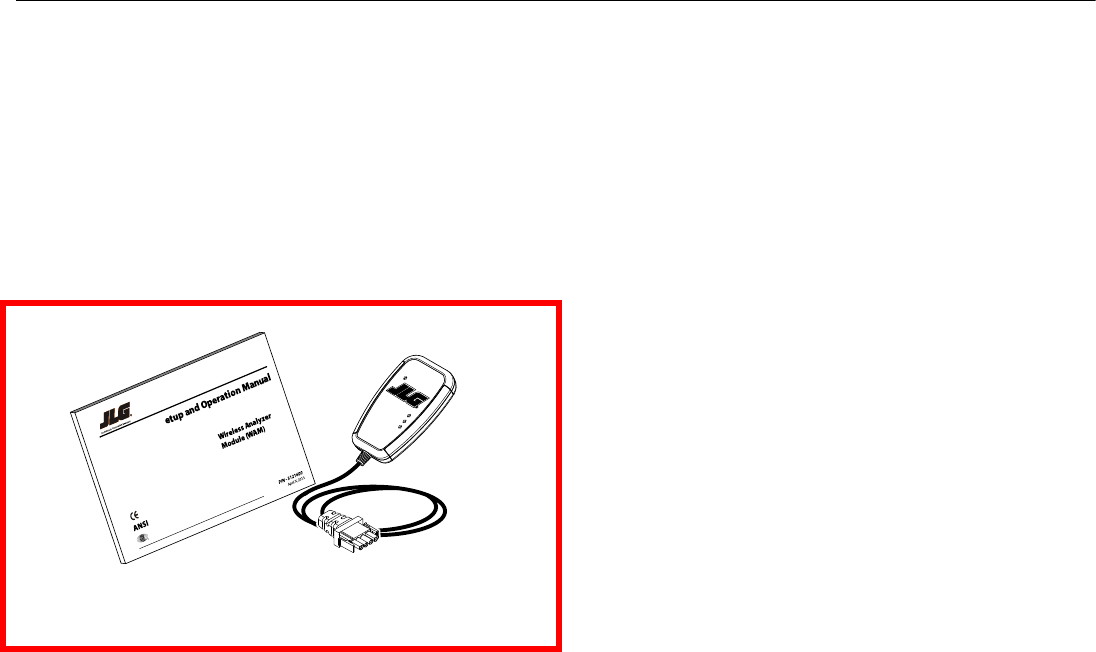
•JLG Wireless Analyzer Module interface - (JLG Part Number:
1001147542, or 1001156446 - SUNBELT® Labeled)
•Users Manual (JLG Part Number: 3121600)
Read thoroughly, before attempting to connect.
The JLG wireless analyzer application (app) can be down-
loaded and installed onto a phone or tablet using iTunes®
(Apple® Devices) or Google Play® (Android Devices) websites.
1.2 WIRELESS SETUP (PHONE, TABLET)
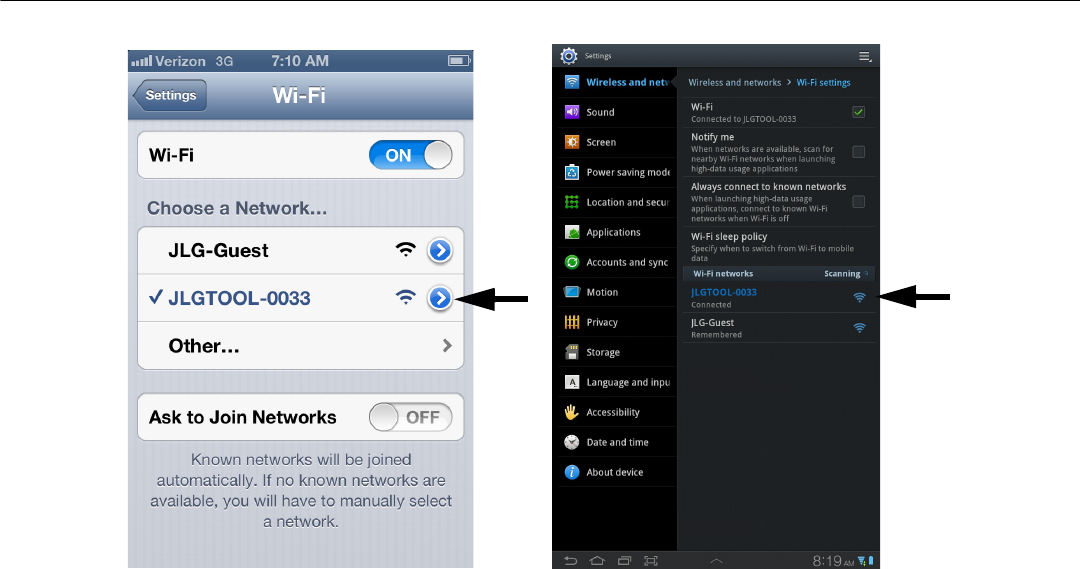
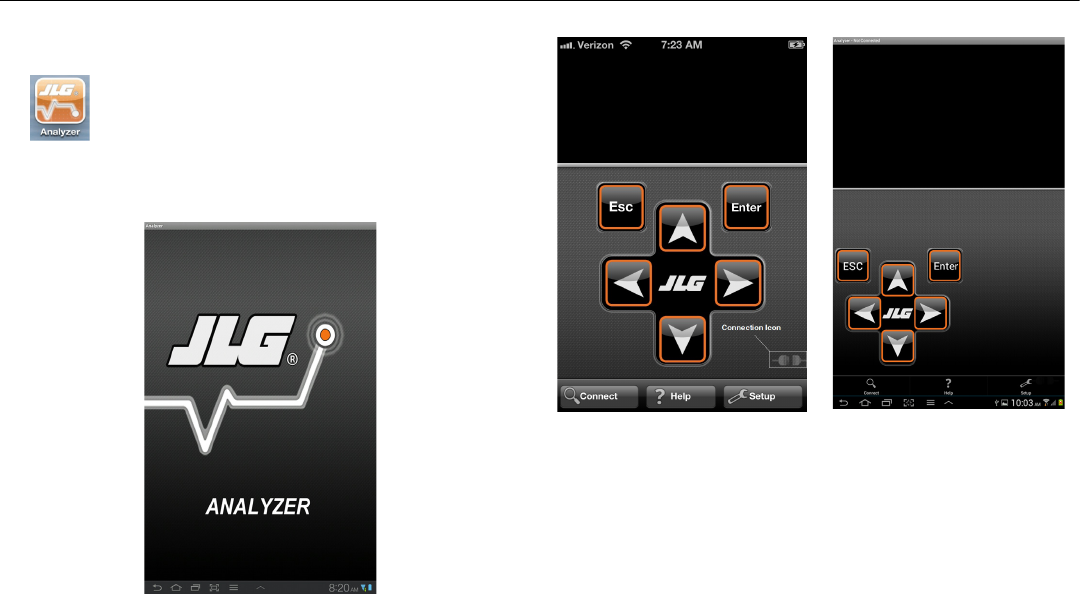
(See Figure 1-1. on page 1-2)
After installing the application (app) and prior to connecting
the application to the Wireless Analyzer Module, (WAM), your
phone or tablet must have it’s WiFi settings configured so that
it is connected to the WAM. For example the following Figure
1-1. shows the devices Wi-Fi connected to a WAM named JLG-
TOOL-0033.
NOTE: Out of the box, the default Wi-Fi WAM device name is JLG-
WAM-0001, if you would like to rename your device, See
page 2-2, JLG Wireless Analyzer Application - Wireless Set-
tings, for instructions on naming your WAM device.
Package Contents
# 1001147572
C
D
A
P
S
SECTION 1 - WIRELESS ANALYZER APPLICATION (APP) INSTRUCTIONS
1-2 – JLG Lift – 3121600
Apple® Wireless Settings Android Wireless Settings
Figure 1-1. Wi-Fi Networks Configuration Screen Example
SECTION 1 - WIRELESS ANALYZER APPLICATION (APP) INSTRUCTIONS
3121600 – JLG Lift – 1-3
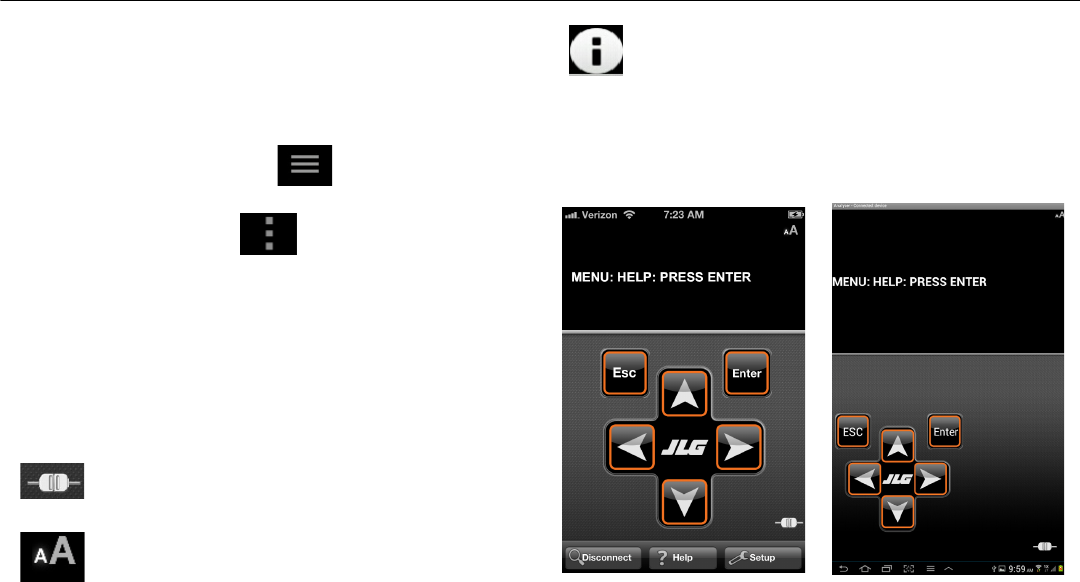
1.3 APPLICATION - STARTUP
Pressing the application button will start the JLG
Wireless Analyzer application.
A splash screen will show briefly, followed by the wireless ana-
lyzer home screen.
Analyzer Splash Screen
Analyzer Home Screen - Apple® Analyzer Home Screen - Android
Figure 1-2. Analyzer Home Screen
SECTION 1 - WIRELESS ANALYZER APPLICATION (APP) INSTRUCTIONS
1-4 – JLG Lift – 3121600
1.4 CONNECTING THE APPLICATION TO THE WAM
(See Figure 1-2. on page 1-3)
•Android devices - to bring up the Connect/Help/Setup
buttons, at the bottom of the home screen;
press this icon on a (Tablet)
or;
this icon on a (Phone).
You will then see the Connection, Help, and Setup buttons
appear at the bottom.
• Apple devices - the home screen will display the buttons
when the application is started. Pressing the connect but-
ton will connect the application to the machine.
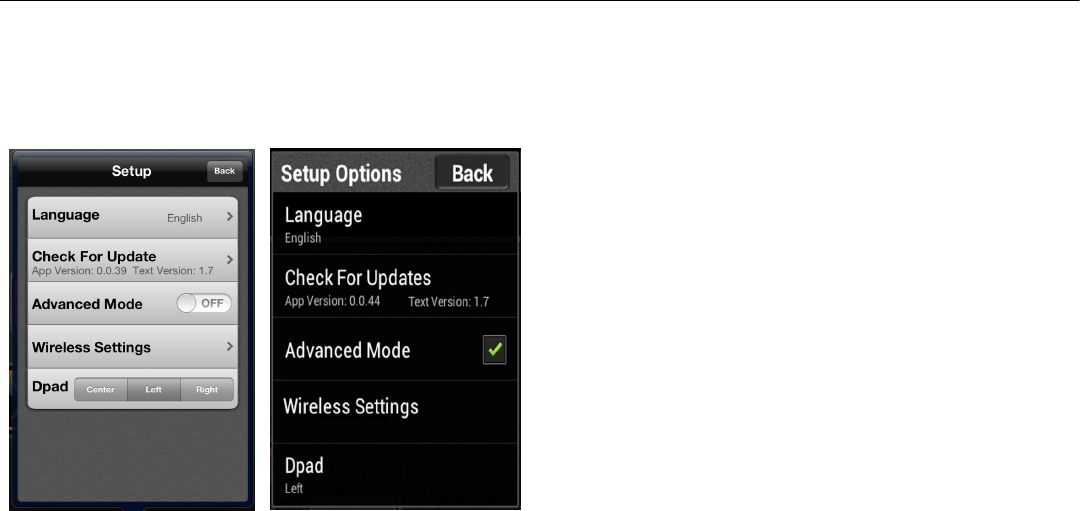
The initial analyzer screen should appear after a short time.
(See Figure 1-3.)
Once connected, the icon in the lower right corner
of the screen will change to the application con-
nected status.
After connection, the displayed text can be made
larger by touching the AA icon in the upper right
corner of the text display area. There are two sizes of
text, small and large.
This icon will appear in the lower right corner of the
text display area if the application cannot find the
translated text in the database. In that case the Eng-
lish text coming directly from the analyzer port will
be displayed.
At this point the user buttons function in the same manner as
the wired JLG analyzer to navigate the menus.
Analyzer Home Screen - Apple® Analyzer Home Screen - Android
Figure 1-3. Analyzer Home Screen - Connected
SECTION 1 - WIRELESS ANALYZER APPLICATION (APP) INSTRUCTIONS
3121600 – JLG Lift – 1-5
1.5 APPLICATION - SETUP SCREEN
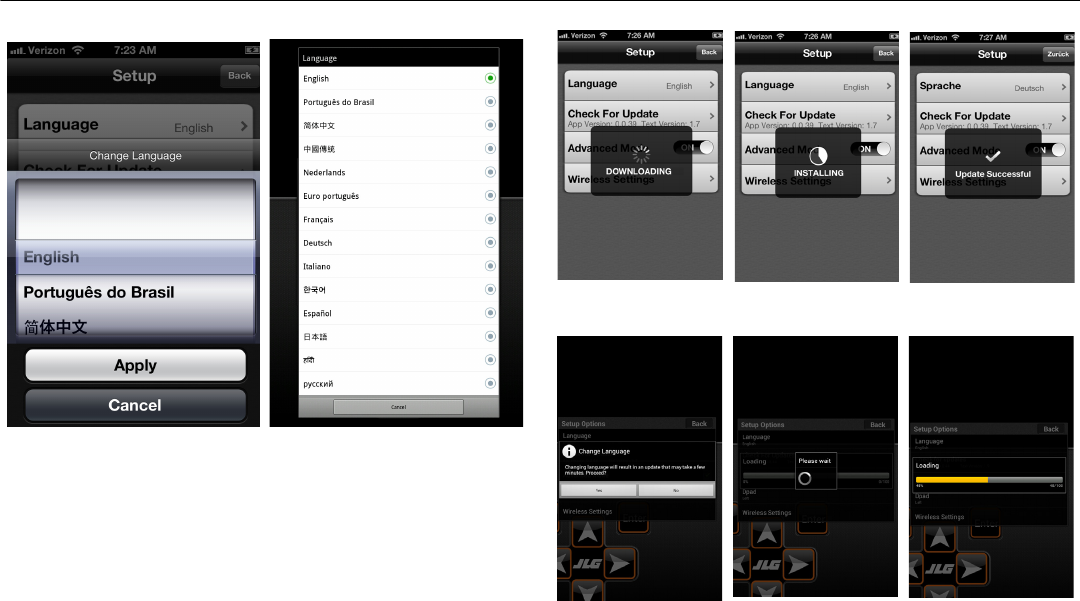
Touching the setup button will bring up a dialog box with the
following selections.
Language Select
Touching the Language selection will bring up a dialog that
will allow a user to choose the desired language that analyzer
screens will be translated into.
NOTE: You must be disconnected from the machine and either
have a Wi-Fi internet connection available or a cellular
signal to successfully change the language selection.
•Apple devices, once a language is chosen touch the apply
button to begin the language change.
(See Figure 1-4.)
•Android devices, a dialog box will appear with the choice
to proceed or cancel. (See Figure 1-4.)
Choosing apply will begin the language update process. You
will see the status of the update via a progress indicator.
(See Figure 1-5. and Figure 1-6.)
Once finished, touching the back button will exit out of the
setup menu. You may need to go back to the wireless settings
to reconnect the phone or tablet to the JLG WAM.
Analyzer Setup Screen - Apple® Analyzer Setup Screen - Android
SECTION 1 - WIRELESS ANALYZER APPLICATION (APP) INSTRUCTIONS
1-6 – JLG Lift – 3121600
Apple® Android
Figure 1-4. Change Language Screen
Figure 1-5. Language Update Sequence - Apple®
Figure 1-6. Language Update Sequence - Android
SECTION 1 - WIRELESS ANALYZER APPLICATION (APP) INSTRUCTIONS
3121600 – JLG Lift – 1-7
Check for Update
Touching the Check for Update selection will cause the phone
or tablet to search the Apple® iTunes® or Google Play® for the
JLG Wireless Analyzer application software, and/or a text
database update. You must be disconnected from the WAM
and either have a Wi-Fi connection or a cellular signal to suc-
cessfully complete an application software/text database
update.
Advanced Mode
Selecting this option will cause the application to display the
analyzer text in the current language selected. De-selecting
this option will cause the application to display analyzer
screens in the original analyzer screen format in English only.
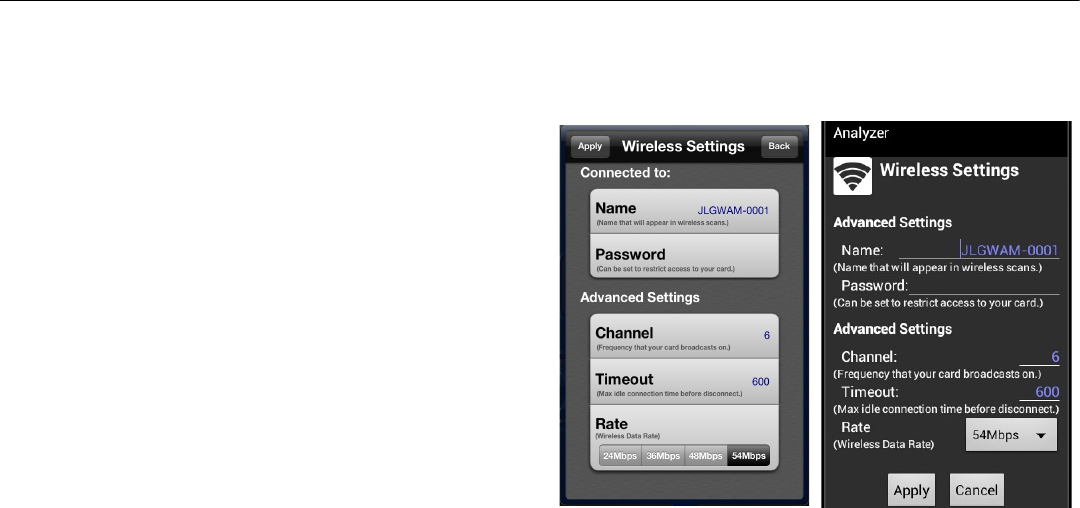
Wireless Settings
This screen allows the user to modify the WAMs' internal set-
tings. You must be connected to the WAM through the wifi
connection, but not have the Wireless Analyzer application
connected, i.e. not displaying analyzer screens. Touching on
the particular setting to be changed will bring up a numeric
or alphanumeric keypad to allow that setting to be changed.
If no changes need to be made, press the back button to exit
to the previous screen. When finished press the apply button
to store the changes in the module. Once finished cycle
power to the JLG WAM by using the E-stop on the machine, or
unplugging and plugging the JLG WAM back into the ana-
lyzer connector.
Apple® Android
Figure 1-7. Wireless Settings Screen

SECTION 1 - WIRELESS ANALYZER APPLICATION (APP) INSTRUCTIONS
1-8 – JLG Lift – 3121600
Name - Set/Change
This menu item is the name given to the WAM that will display
when scanning for wireless connections. All JLG WAMs come
defaulted to the same wireless settings therefore you MUST
set the WAMs name first to avoid conflicts with other WAMs.
The name can be up to 32 characters long, but must not con-
tain spaces and typically consists of letters and numbers.
Password - Set/Change
The WAM is capable of being password protected so only you
may connect to it. The name can be up to 32 characters long,
but must not contain spaces and should be something easily
remembered. Once the password is set on your phone or tab-
let the application will store and remember it so future con-
nections will connect with no prompting for a password.
However if another phone or tablet attempts to connect a
dialogue screen will appear prompting the user to enter the
password for the WAM. Failure to remember the password will
render the WAM locked and a default reset will need to be
performed. See WAM hardware section for instructions.
Advanced Settings
These settings should only be accessed if you are experienc-
ing communication problems.
• Wireless Channel Number - (must be a number from 1-
14**) this will set the wireless channel the device commu-
nicates on. Typical choices are channels 1, 6, and 11
because there is no communication overlap between
these but any channel can be selected.
NOTE: ** North America allows use of channels 1-11 only. If you
are operating in North America and you set the channel to
12, 13, or 14 you may no longer be able to see the WAM
when trying to connect. In this case you will have to reset
the WAM to the default settings as described in the WAM
hardware section.
•Timeout - (30 - 9999 seconds) this will set the communica-
tion idle timer. When expired the WAM will disconnect
from the phone or tablet automatically.
• Wireless Rate - (24, 36, 48, 54 Mbps) this sets the wireless
over the air communication rate.
Application Setup Screen - Dpad (Tablets Only)
This setting allows a user to set the size/position of the key-
pad on the screen.
NOTE: This option is only available when running the application
on a tablet and gives the ability for one handed operation
of the application.
The choices are center, left, and right. Choosing the center will
expand and center the keypad. Choosing left or right will con-
dense the keypad and left or right justify it on the screen.
SECTION 2 - WIRELESS ANALYZER MODULE - SETUP AND TROUBLESHOOTING
3121600 – JLG Lift – 2-1
SECTION 2. WIRELESS ANALYZER MODULE - SETUP AND TROUBLESHOOTING
2.1 FIRST TIME -SET-UP
When you first power up the JLG Wireless Analyzer Module it
will be set to the following factory defaults:
Table 2-1. Default Wireless Analyzer Module Settings
Wireless Name JLGWAM-0001 Name of the JLG WAM device as it
appears on the Wi-Fi network (SSID)
Password None WAM Password is not set
Wireless Channel 6 Channel the WAM device communi-
cates with the Wi-Fi network
Timeout 600 Seconds Inactivity timer - If communications
has not occurred for xxxx seconds
between the WAM and your phone or
tablet, the WAM will disconnect the
wireless connection
Wireless Comm
Rate
54Mbps Communication rate of the wireless
connection
Front View Rear View
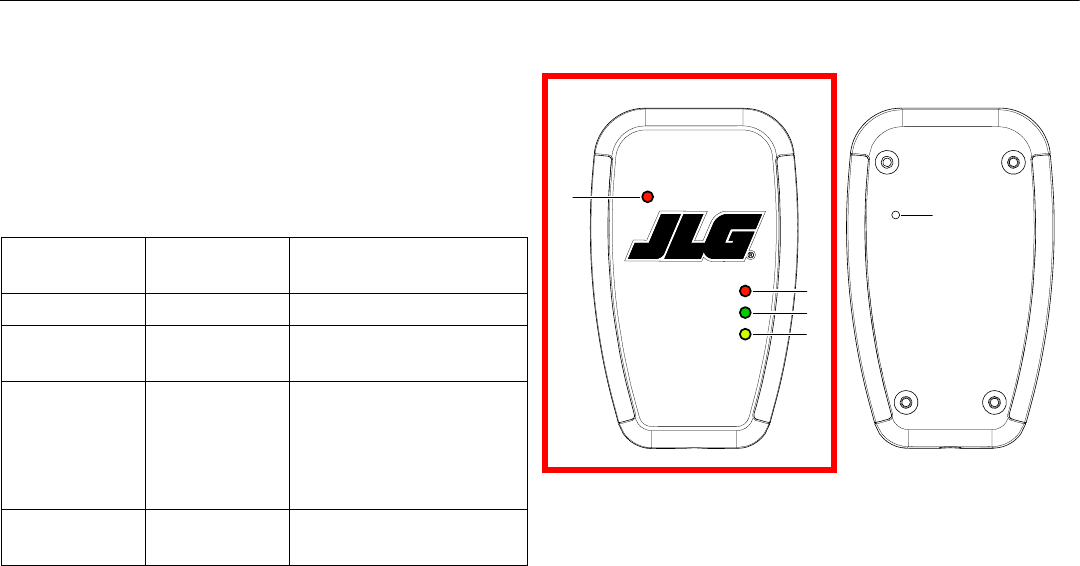
1. Power On LED
2. Connect LED
3. Data LED
4. Association LED
5. Reset to Factory Default
Figure 2-1. Wireless Analyzer Module (WAM)
# 1001147572
C
D
A
P
1
2
3
4
5

SECTION 2 - WIRELESS ANALYZER MODULE - SETUP AND TROUBLESHOOTING
2-2 – JLG Lift – 3121600
Setting Wi-Fi Name (SSID)
In order to keep the WAM from conflicting with other WAM
devices, you MUST first set the Name (SSID) of the WAM by
doing the following:
1. Plug the JLG Wireless Analyzer Module into the ana-
lyzer port of any JLG machine equipped for the wired
analyzer interface.
2. Using your phone or tablet connect to the JLG WAM,
and start the JLG Analyzer application, but do not
touch the connect button in the app.
3. Go into the Wireless Analyzer Module setup by touch-
ing the Setup button and then the "Wireless Settings"
button.
4. In the Wireless Settings menu touch the area beside
Name (Should bring up a keyboard).
5. Type in any name you want to associate with the
WAM. The name must not contain spaces and must be
32 characters or less.
Setting Password
If you would like to add a password to the device you can do
so by touching the area beside the password text. (Should
bring up a keyboard).
The password must not contain spaces and must be 32 char-
acters or less. If you set a password record it and remember it!
If you choose not to set a password touch the "Apply" button
on the screen and wait, the module should update. Once fin-
ished, cycle power to the WAM by either cycling the E Stop on
the machine you are plugged into, or unplugging and re-
plugging the module into the analyzer connection.
SECTION 2 - WIRELESS ANALYZER MODULE - SETUP AND TROUBLESHOOTING
3121600 – JLG Lift – 2-3
2.2 Troubleshooting the JLG Wireless Analyzer Module
If you have trouble connecting the application to the JLG Wireless Analyzer Module, check the following:
Notes:
1. Try re-orienting the module. The module can be
underneath open hood to protect it from environmen-
tal elements, but may not communicate, or communi-
cation distance may be severely affected if the module
is underneath a closed metal hood.
2. Only one device can be connected to the JLG WAM at
a time. If another device is connected you may receive
a device cannot connect. If the device has been pass-
word protected and you do not know the password,
you will not be able to connect to it.
3. Make sure you have given the JLG Wireless Analyzer
Module a unique name (SSID), as this will cause a con-
flict if there are two or more modules with the same
name.
4. If there are many devices in range on the same chan-
nel this may cause intermittent communications
between the device and the JLG Wireless Analyzer
Module. See the Wireless settings section on how to
change the communication channel on the JLG WAM.
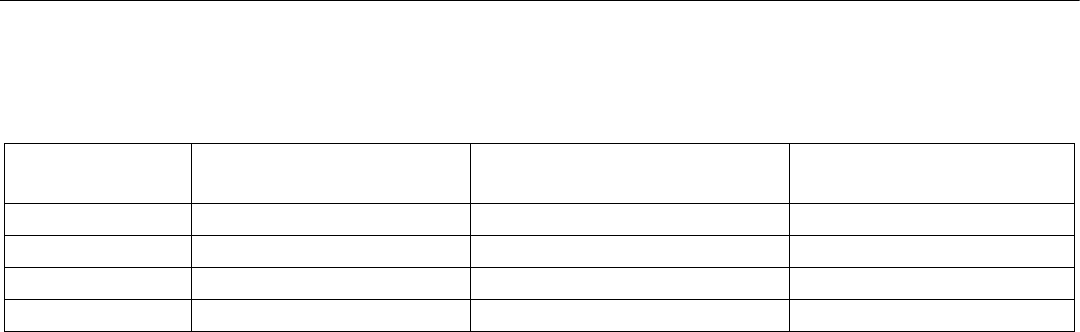
Table 2-2. WAM LED Status Table
WAM Status LED Device Not Connected to JLG Wireless
Analyzer Module
Device Connected to JLG Wireless Analyzer
Module - Application not running
Device Connected to JLG Wireless
Analyzer Module - Application Running
Red Power LED (P) On On On
Red Connection LED (C) Blinking Slow Blinking Slow On
Green Data LED (D) Off Off Blinking
Yellow Association LED (A) Blinking Fast Off Off

SECTION 2 - WIRELESS ANALYZER MODULE - SETUP AND TROUBLESHOOTING
2-4 – JLG Lift – 3121600
2.3 FACTORY DEFAULT - RESET
The following is required to reset the JLG WAM to factory
default settings. Read thoroughly before attempting a factory
reset!
1. Initially, the module should be plugged into the
machine with power off.
2. Flip module over and remove decal to access the fac-
tory reset switch. (See figure 2.)
3. Insert a paper clip in the hole, and depress gently, you
should feel the switch click. (You will be pressing and
releasing the button several times in the following
steps.)
4. With the switch depressed power on the machine.
5. Perform the following sequence at one second inter-
vals:
a. Release switch
b. Depress switch
c. Release switch
d. Depress switch
e. Release switch
6. Power off the module. Replace the decal or cover the
hole with tape.
NOTE: This will reset the module to defaults and require a reset of
the Name (SSID) of the device. (Refer to Table 2-1, Default
Wireless Analyzer Module Settings.)

JLG Industries, Inc.
1 JLG Drive
McConnellsburg PA. 17233-
9533
USA
(717) 485-5161
(717) 485-6417
JLG Worldwide Locations
JLG Industries (Australia)
P.O. Box 5119
11 Bolwarra Road
Port Macquarie
N.S.W. 2444
Australia
+61 2 65 811111
+61 2 65 813058
JLG Latino Americana Ltda.
Rua Eng. Carlos Stevenson,
80-Suite 71
13092-310 Campinas-SP
Brazil
+55 19 3295 0407
+55 19 3295 1025
JLG Industries (UK) Ltd
Bentley House
Bentley Avenue
Middleton
Greater Manchester
M24 2GP - England
+44 (0)161 654 1000
+44 (0)161 654 1001
JLG France SAS
Z.I. de Fauillet
47400 Tonneins
France
+33 (0)5 53 88 31 70
+33 (0)5 53 88 31 79
JLG Deutschland GmbH
Max-Planck-Str. 21
D - 27721 Ritterhude - Ihlpohl
Germany
+49 (0)421 69 350 20
+49 (0)421 69 350 45
JLG Equipment Services Ltd.
Rm 1107 Landmark North
39 Lung Sum Avenue
Sheung Shui N. T.
Hong Kong
(852) 2639 5783
(852) 2639 5797
JLG Industries (Italia) s.r.l.
Via Po. 22
20010 Pregnana Milanese - MI
Italy
+39 029 359 5210
+39 029 359 5845
Oshkosh - JLG Singapore T. E. P. Ltd.
29 Tuas Ave 4
Jurong Industrial Estate
639379
Singapore
+65-6591-9030
+65-6591-9031
Plataformas Elevadoras
JLG Iberica, S.L.
Trapadella, 2
P. I . C a s t e l l b i s b a l S u r
08755 Castellbisbal, Barcelona
Spain
+34 93 772 4700
+34 93 771 1762
JLG Sverige AB
Enkopingsvagen 150
Box 704
SE - 176 27 Jarfalla
Sweden
+46 (0)850 659 500
+46 (0)850 659 534
www.jlg.com
31216
0
0