Jasboom Smart Technology JAS200F01 CCTV CAMERA User Manual 2017 11 28

Jasboom Smart Technology Limited CCTV CAMERA 2017 11 28

User Manual

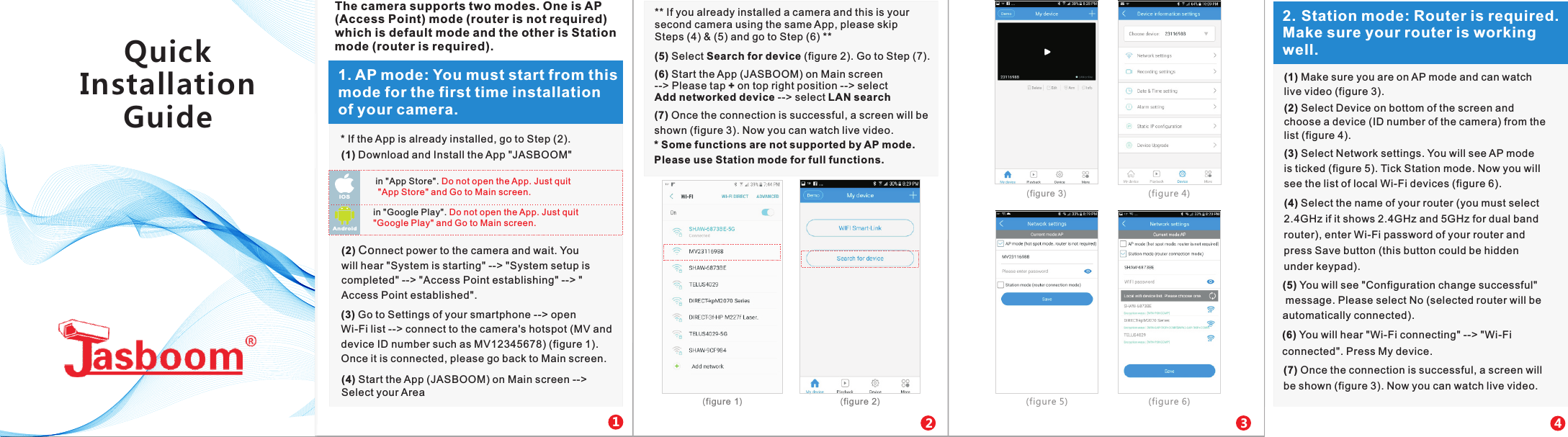
in "App Store". Do not open the App. Just quit "App Store" and Go to Main screen.IOS in "Google Play". Do not open the App. Just quit "Google Play" and Go to Main screen.Andr oid121. AP mode: You must start from this mode for the first time installation of your camera. 2(1) Download and Install the App "JASBOOM"    (2) Connect power to the camera and wait. You will hear "System is starting" --> "System setup is completed" --> "Access Point establishing" --> "Access Point established".(3) Go to Settings of your smartphone --> open Wi-Fi list --> connect to the camera's hotspot (MV and device ID number such as MV12345678) (figure 1). Once it is connected, please go back to Main screen.** If you already installed a camera and this is your second camera using the same App, please skip Steps (4) & (5) and go to Step (6) **(5) Select Search for device (figure 2). Go to Step (7).(6) Start the App (JASBOOM) on Main screen --> Please tap + on top right position --> select Add networked device --> select LAN search(7) Once the connection is successful, a screen will be shown (figure 3). Now you can watch live video. * Some functions are not supported by AP mode. Please use Station mode for full functions.(figure 1)   (figure 2)  23The camera supports two modes. One is AP (Access Point) mode (router is not required) which is default mode and the other is Station mode (router is required).(4) Start the App (JASBOOM) on Main screen -->Select your Area   (figure 3)   (figure 4) (figure 5)  (figure 6) * If the App is already installed, go to Step (2).42. Station mode: Router is required. Make sure your router is working well.(1) Make sure you are on AP mode and can watch live video (figure 3).(2) Select Device on bottom of the screen and choose a device (ID number of the camera) from the list (figure 4).(3) Select Network settings. You will see AP mode is ticked (figure 5). Tick Station mode. Now you will see the list of local Wi-Fi devices (figure 6).(4) Select the name of your router (you must select 2.4GHz if it shows 2.4GHz and 5GHz for dual band router), enter Wi-Fi password of your router and press Save button (this button could be hidden under keypad).(5) You will see "Configuration change successful" message. Please select No (selected router will be automatically connected).(6) You will hear "Wi-Fi connecting" --> "Wi-Fi connected". Press My device.(7) Once the connection is successful, a screen will be shown (figure 3). Now you can watch live video.Quick Installation Guide
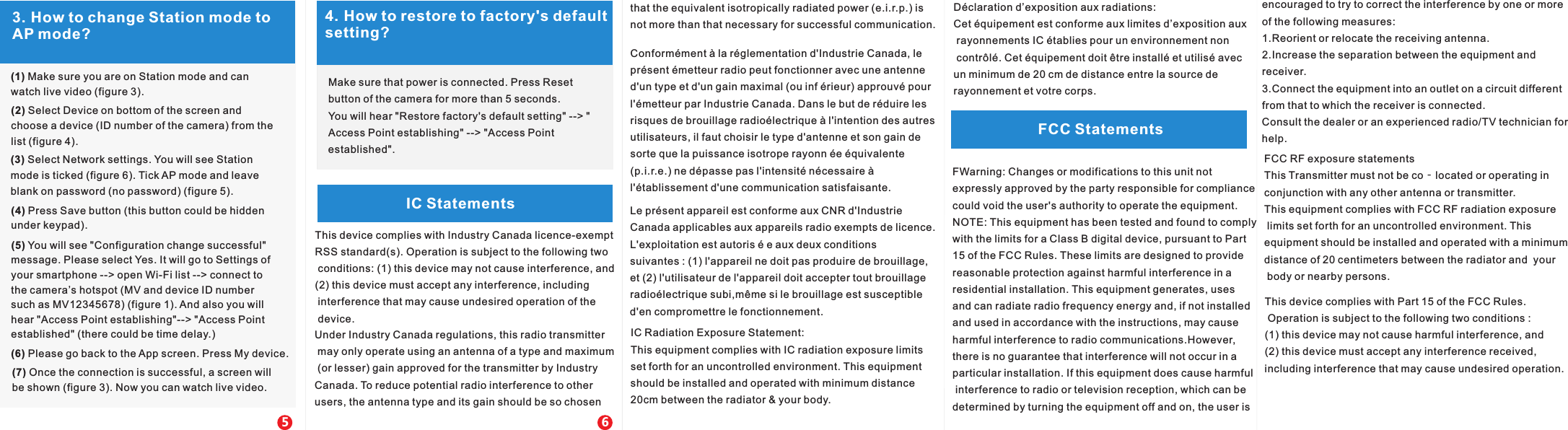
4. How to restore to factory's default setting?FCC StatementsIC StatementsMake sure that power is connected. Press Reset button of the camera for more than 5 seconds. You will hear "Restore factory's default setting" --> "Access Point establishing" --> "Access Point established".3. How to change Station mode to AP mode?(1) Make sure you are on Station mode and can watch live video (figure 3).(2) Select Device on bottom of the screen and choose a device (ID number of the camera) from the list (figure 4).(3) Select Network settings. You will see Station mode is ticked (figure 6). Tick AP mode and leave blank on password (no password) (figure 5).(4) Press Save button (this button could be hidden under keypad).(5) You will see "Configuration change successful" message. Please select Yes. It will go to Settings of your smartphone --> open Wi-Fi list --> connect tothe camera’s hotspot (MV and device ID numbersuch as MV12345678) (figure 1). And also you willhear "Access Point establishing"--> "Access Pointestablished" (there could be time delay.)(6) Please go back to the App screen. Press My device.(7) Once the connection is successful, a screen will be shown (figure 3). Now you can watch live video.56This device complies with Industry Canada licence-exempt RSS standard(s). Operation is subject to the following two conditions: (1) this device may not cause interference, and (2) this device must accept any interference, including interference that may cause undesired operation of the device. equivalent isotropically radiated power (e.i.r.p.) isnot more than that necessary for successful communication. that the FCC RF exposure statementsThis Transmitter must not be co‐located or operating in conjunction with any other antenna or transmitter.This equipment complies with FCC RF radiation exposure limits set forth for an uncontrolled environment. This equipment should be installed and operated with a minimum distance of 20 centimeters between the radiator and  your body or nearby persons.IC Radiation Exposure Statement:This equipment complies with IC radiation exposure limitsset forth for an uncontrolled environment. This equipment should be installed and operated with minimum distance20cm between the radiator & your body.Déclaration d’exposition aux radiations:Cet équipement est conforme aux limites d’exposition aux rayonnements IC établies pour un environnement non contrôlé. Cet équipement doit être installé et utilisé avec un minimum de 20 cm de distance entre la source de rayonnement et votre corps.Conformément à la réglementation d'Industrie Canada, leprésent émetteur radio peut fonctionner avec une antenne d'un type et d'un gain maximal (ou inf érieur) approuvé pour l'émetteur par Industrie Canada. Dans le but de réduire lesrisques de brouillage radioélectrique à l'intention des autres utilisateurs, il faut choisir le type d'antenne et son gain desorte que la puissance isotrope rayonn ée équivalente (p.i.r.e.) ne dépasse pas l'intensité nécessaire àl'établissement d'une communication satisfaisante.Le présent appareil est conforme aux CNR d'Industrie Canada applicables aux appareils radio exempts de licence.L'exploitation est autoris é e aux deux conditions suivantes : (1) l'appareil ne doit pas produire de brouillage, et (2) l'utilisateur de l'appareil doit accepter tout brouillageradioélectrique subi,même si le brouillage est susceptibled'en compromettre le fonctionnement.Under Industry Canada regulations, this radio transmitter may only operate using an antenna of a type and maximum (or lesser) gain approved for the transmitter by IndustryCanada. To reduce potential radio interference to other users, the antenna type and its gain should be so chosen  FWarning: Changes or modifications to this unit not expressly approved by the party responsible for compliance could void the user's authority to operate the equipment.NOTE: This equipment has been tested and found to comply with the limits for a Class B digital device, pursuant to Part 15 of the FCC Rules. These limits are designed to provide reasonable protection against harmful interference in aresidential installation. This equipment generates, uses and can radiate radio frequency energy and, if not installed and used in accordance with the instructions, may cause harmful interference to radio communications.However, there is no guarantee that interference will not occur in a particular installation. If this equipment does cause harmful interference to radio or television reception, which can be determined by turning the equipment off and on, the user is encouraged to try to correct the interference by one or more of the following measures:1.Reorient or relocate the receiving antenna.2.Increase the separation between the equipment and receiver.3.Connect the equipment into an outlet on a circuit different from that to which the receiver is connected.Consult the dealer or an experienced radio/TV technician for help.This device complies with Part 15 of the FCC Rules. Operation is subject to the following two conditions : (1) this device may not cause harmful interference, and(2) this device must accept any interference received, including interference that may cause undesired operation.

Navigation menu